The missing podcast experience in Windows 10

The wave of internet radio feels as though it is beginning to crest as more average Joes move from celestial radio broadcasting to more on-demanding streaming options for both music and verbal content. With almost everyone and their mother now using the catchphrase “hey check out my podcast,” as some sort of new age business card, it seems the market for podcasting has matured to a point where creativity in marketing is becoming sought after resources.

From multi-platform presences to Patreon campaigns for self-starters, podcasting has blossomed beyond a few internet savvy ranters huddle in their own corner of the web to a multimillion dollar business for some and an entertainment outlet for most.

Niche conversations about craptastic movies hidden in the bowels of Netflix or weekly follow-ups to today’s most popular TV hits are all being had via podcasts and the number of listeners is increasing.

With that being said, Microsoft recently launched its own tech-related podcast titled .future, where the company plans to devote time and resources to talk about the stories surrounding the growing technologies in the tech sector that are touching the lives of average people every day.

Wonderful.

However, I have an issue and it’s not with the content of .future or even Microsoft’s sudden acknowledgment of the medium but the company’s overall lack of support for and accessibility of podcasts in Windows to date.

Where is Microsoft?

It’s a known quantity that Apple is in the podcasting business. Not only with its support through its own included podcast app but now Apple is moving into monetization territory as it seeks to help entrepreneurs establish more reliable marketing metrics with its newly announced support of feed structures and serialization of podcasts.

Google recently upped its podcasting game by bundling its podcasting efforts into the Google Play Music app service, which can be used both via your closest Android device as well as from the web if necessary. While we don’t fully know how well Google Play Music is doing as far as revenue and sales numbers, the idea that the built in music app has a readily accessible podcast storefront seems like a no-brainer for the company.


It was a natural transition for Spotify to include podcast into its software and even Amazon is wading the waters by enabling podcasts in its relatively popular Alexa and Dot speakers.


Yet, Microsoft with over a billion Windows users offers nothing in the way of discoverability or use of podcasts in its Windows ecosystem and I feel it’s a huge missed opportunity. I’ll grant Microsoft’s earlier Windows efforts leniency as podcasting remained a relatively nascent endeavor reserved mostly for tech junkies with enough disposable income to invest in microphones, noise canceling padding for rooms and expensive audio channeling hardware.

However, as Microsoft continues to future proof Windows 10 with continuous updating, I’m beside myself that the company has omitted podcasting support. The Windows team is building support for augmented reality, 3D printing, holographic sound, and multiple biometric authentication methods but has yet to deliver a single first party podcast app for Windows 10.

Where it went wrong

Instead of putting the growing entertainment platform of podcasting on a perch next to music and radio in the Groove app, the Windows team has seen fit to let users aimlessly search its sparse Windows Store for the best 3rd party app to suit their needs. In theory, the “search the Windows Store” approach would be a sound one if the same Grade-A developers who support iOS and Android with apps such as Pocket Casts, Overcast, DoggCatcher, or Sticher Radio were present.

Perhaps, most upsetting was the fleeting effort put forth by the Zune and Window Phone team over eight years ago which showcased what podcast support could look like on the Windows platform. With Zune, Microsoft matched efforts with iTunes in offering a one-stop shop for all things entertainment, including but not limited to, podcasts. Users could search for and download their favorite podcast for listening on either Windows PCs or Zune devices similar to iTunes and iPods. Even as Apple brought podcasting to its phone, Zune users could still listen on the go with their Zune HD devices (as humorous as it sounds in hindsight).

As the Windows Phone team sought inspiration from the Zune interface and UX, it seemed like it would be only a matter of time before that same level of attention to podcasting on the desktop side would make its way to the phone.

For what it’s worth, a podcast app eventually made its way to Windows Phone 8.1, but seemed like a consolation prize for the loss of Zune software support on the desktop. In 2014 the fate of first party podcasting support from Windows rest on the shoulders of a single phone app that lived on a diminishing user based device.


My hope at the time was that Windows team, which in 2014, was taking heavy cues from its Windows Phone team in designing a hybrid operating system that leaned heavily on app settings, navigation and animations would bring along the lone podcasting app for the ride. Instead, the Windows team not only left its first party podcasting app to wither and die on the phone platform but gave no indication as to when or if another effort would be developed for its new ‘modern’ operating system.

Here we are three and half years later since the Windows team made an attempt at supporting podcasts, and its evolving Groove Music app (formerly Xbox Music) still has no ties to podcast discovery, monetization or marketing.

There’s still hope

I want to be clear, that there are some talented developers who are building some top notch podcasting experiences such as GoverPro TuneIn Radio, and Podcasts!, however, when it comes to discovery and marketing, placing a podcast app in the pre-bundled Groove app would go miles for podcasters and Microsoft’s 500 million Windows 10 users.


While Microsoft has yet to reveal the number of subscribers its Groove Music service yields, I still believe the company has an opportunity in developing and supporting podcast efforts in Windows 10. Arguably securing the productivity sector many moons ago, Microsoft has some time to court the content creators who entertain their largest reoccurring user base, and they seem to be acknowledging that as they prepare for a second “Creators Update” schedule for Fall 2017.

How it should work

From my own anecdotal experience in the productivity workforce, I can say that podcast listening comes second only to the set-and-forget-it music playlist streaming. Typically, Pandora or Spotify can be found bellowing in the offices of workers who are buried forehead deep in Excel or Sheets work, but there is a second class of worker who fill their rooms with the sound of sports analysts, comedians, political pundits, pop culture observers and more.

Many of these types of workers I found listening to podcasts seem to be doing so as if they are transitioning their passions, niches or interest into on-demand streaming vocal entertainment. Want someone to validate your lousy fantasy football weekend trades? There is a podcast for that. Want someone to quickly fill you in on the latest Marvel superhero before seeing a movie with your geek friends? There is podcast for that. Want to beef up your knowledge on urban serial killers of the 19th century? Yes, there is a podcast for that. Largely, these people are using their Android and iPhones sitting alongside their Windows machine to satisfy their niche endeavors during while being productive at work.

An opportunity still exists for Microsoft to pitch Windows 10 as the one stop shop by marketing podcasts in the Groove app that sits on the desktop right next to that presentation that needs reviewing. Even if Windows 10 “lock in” leave some with the bitter afterthought of Windows strategies of old, the Windows team should develop the podcast section in conjunction with Microsoft’s new mandate of being on all platforms including the web. The synergies behind putting a podcast section in the Groove app sell themselves. Adding the podcast section to the Groove app would give Microsoft a better chance to sell Windows 10 users on iOS and Android devices the Groove service.

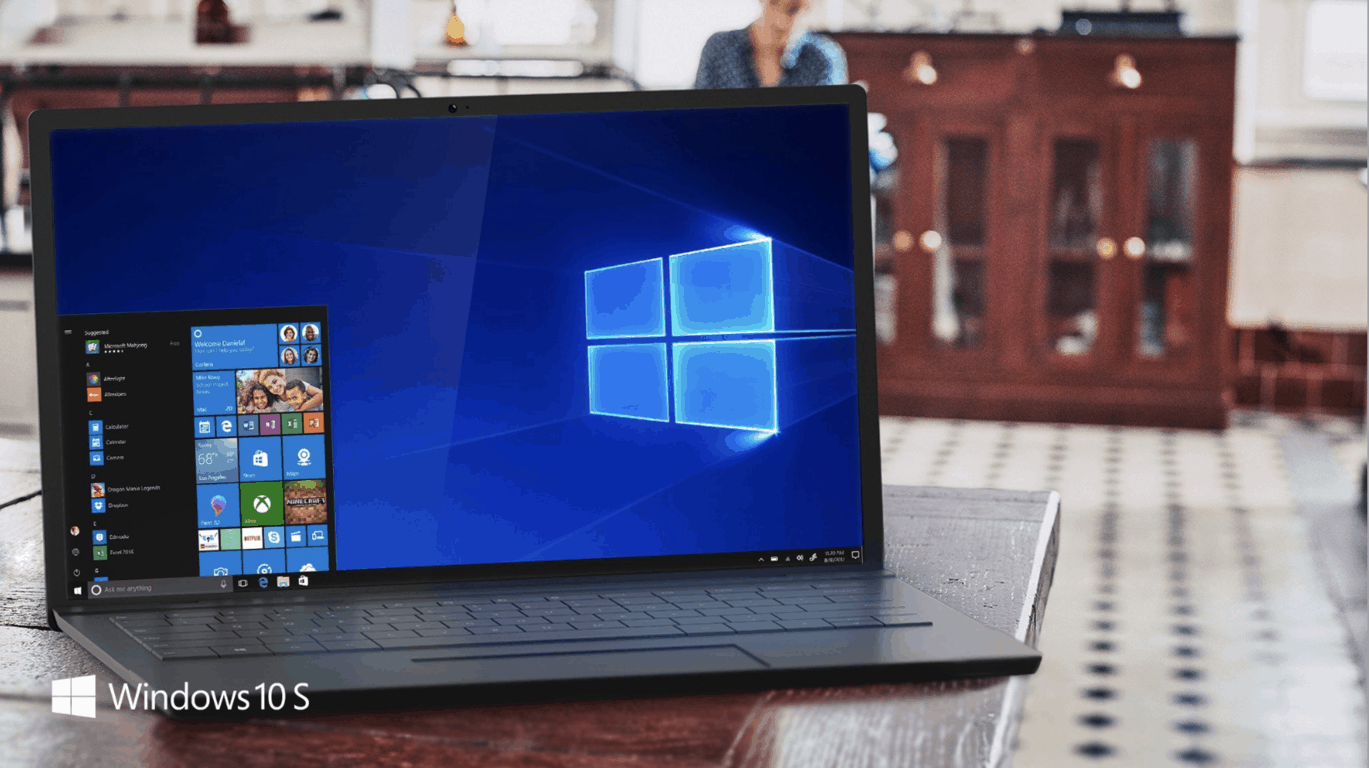
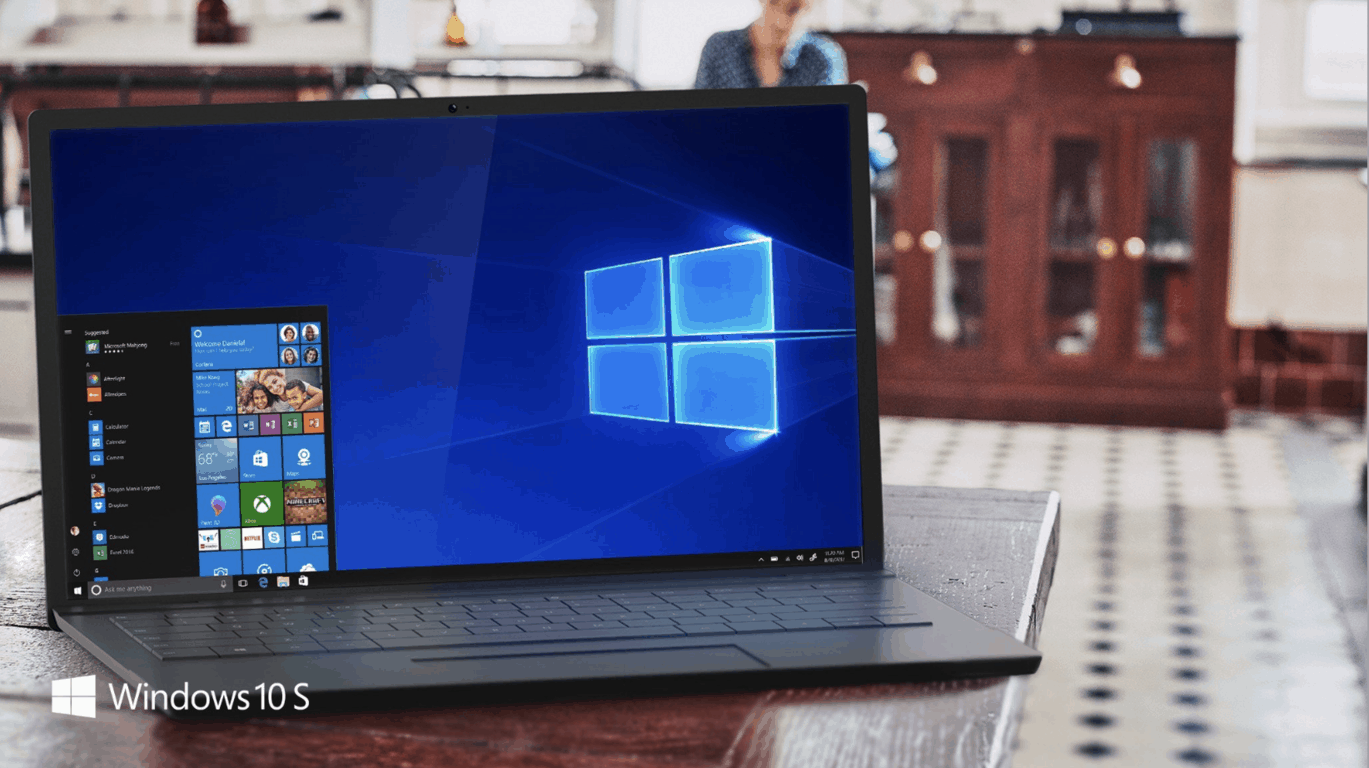
Furthermore, Microsoft will soon be marketing its Surface Laptop and Windows 10 S in the Fall for students and judging by the price differential, the company’s target audience for the device is college students. Even when locking down accessibility of apps to the Windows Store, the selection for podcast experiences is a bit lacking.

However, having podcasts available in the Groove app which comes readily available in the Start Menu upon bootup would not only boost Grooves usage numbers but give podcasters another viable platform to market to as well. Now, Windows 10 users who still prefer to use their own copy of albums and collections but enjoy the occasional podcast, Groove becomes a useful app.

Lastly, and it’s a bit of a stretch, but similar to the new Photos app, Microsoft could build rudimentary tools into the Groove app to help amateur podcasters get off the ground. As Apple is supporting telemetry data for podcasts, Microsoft too can begin to exert some ecosystem lock-in by giving that college student with a Surface Laptop the necessary tools to host their own engineering podcast with a $35 dollar mic off Amazon and a single Windows 10 app that sits in their Start Menu.

Wrapping it up

Whatever the case may be, I believe there is still a large audience not being fully served by the Windows 10 podcasts experience or lack thereof. There are perhaps more elegant ways to incorporate a podcast experience into Windows 10 than what I’ve presented here, but remaining silent while a handful of under supported developers eek out a handful of apps doesn’t seem to be a good approach. In the light of recent moves by other platforms, I fear once again that Microsoft may be letting a relatively big opportunity slip through its grasp despite being in a position to fully capitalize on the chance to get people “loving” Windows.

Hopefully Groove, or someone, has podcasting on the docket as the Windows team continues to build great and notable experiences into Windows 10. If not, perhaps, Spotify coming to the Windows Store may be the end of my dance with Groove and random 3rd party podcast apps due to the sheer convenience of a single well-established destination.

Get a $5 credit with any book purchase on the Windows Store

If you have yet to purchase any books on the Windows Store, now is a good time to explore the new digital store category. Indeed, Microsoft is running a limited time offer that will grant you $5 Windows Store credit for any book purchase in the Windows Store (via Neowin).

This is a pretty good deal, as you’ll get the $5 promotional gift code even if you purchase a $0.99 book in the Store. The special offer is only available in the US through June 30, you’ll need a PC or phone with the Windows 10 Creators Update to take advantage of it (eBooks are not available in the Windows Store with prior versions of Windows 10). Sound off in the comments if you’re likely to take advantage of this offer this week.

How to delete windows.old straight from Settings in The Fall Creators Update

The Windows 10 Fall Creators Update brings a series of useful new features to the table, and many of them directly target the Settings page. Speaking of which, the revamped Settings page now allows users to delete the windows.old folder straight from Settings.

Prior to the Fall Creators Update, Windows users had to follow a series of steps to delete the windows.old folder. Thanks to the new feature, users can now access and delete this folder much easier and faster.

Delete previous versions of Windows from Storage Sense

Here’s how to delete windows.old from Settings in The Fall Creators Update:

1. Go to Start > type ‘settings‘ > select the first result to open the Settings page

2. Go to  System > Storage

3. In the newly opened Storage Sense page, enable the option and click ‘Change how we free up space’

4. Under the ‘Free up space now’ section, check the option ‘Delete previous versions of Windows’ to delete the windows.old folder > click Clean now

The Fall Creators Update enhances the Storage Sense features to free up space and the new windows.old clean up is a very useful addition. At the same time, the OS tweaked the design of Storage Sense a bit to make everything fit together neatly.

If you want to try out the new features, you can enroll in the Windows Insider Program. For the time being, the new features are only available for Insiders. The general public will be able to use them starting September when Microsoft officially launches Windows 10 Fall Creators Update.

Meanwhile, here’s how you can delete the windows.old folder on older Windows versions:

How to remove the Windows.old folder

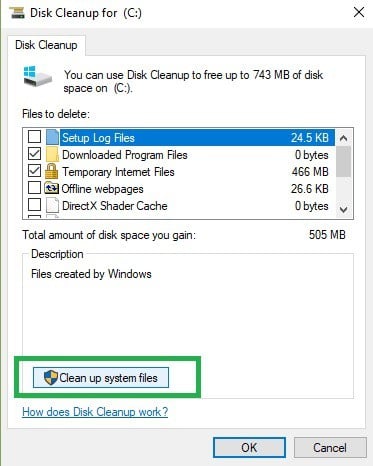
As a quick reminder, the Windows.old folder appears when you upgrade your version of Windows or perform a clean install of Windows 10. The role of this folder is to keep your previous Windows installation files so that you can to restore it. Here’s how to remove the Windows.old folder:

1. Type Disk Cleanup > select the drive where you installed the OS > select Clean up system files

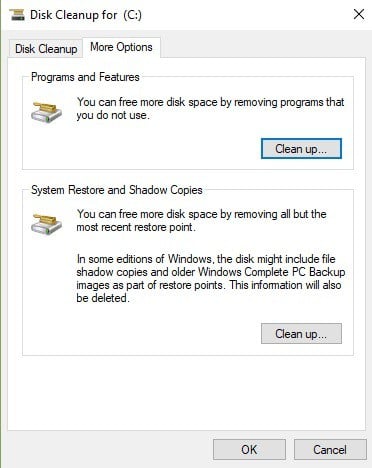
2. Wait for the utility to calculate how much space it can free up > on the new windows, click on the “More options” tab

3. Go to System Restores and Shadow copies > hit Clean up

RELATED STORIES YOU NEED TO CHECK OUT:

  • Windows 10 Fall Creators Update adds one-handed touch keyboard support for tablets

How to downgrade your Surface Laptop from Windows 10 Pro to Windows 10 S

The Surface Laptop was only recently released and comes with Windows 10 S, an OS that restricts downloads to only the Windows Store. The company offers users the option to upgrade to Windows 10 Pro for free until later this year.

Windows 10 S vs. Windows 10 Pro

According to Microsoft, Windows 10 S is more efficient than Windows 10 Pro. If you have upgraded from Windows 10 S to Windows 10 Pro but don’t like its battery life or the machine’s performance, you may want to downgrade back to Windows 10 S.

The official recovery image for the Surface Laptop

Microsoft just released the recovery image for the Surface Laptop which will allow users to go back to Windows 10 S on your device at the cost of all its files. The 9GB recovery image is available for download to reset your Surface Laptop now.

The fact that Microsoft doesn’t allow you to go back to Windows 10 S from Windows 10 Pro without resetting your device is rather odd. The company would want more users to get the new version of Windows 10 for lots of reasons. Maybe it’s something that the company will add in the future, but for now, you have to settle for the recovery image.

Microsoft offers a simple tutorial for helping users with the process on the same page where the recovery image is. You also have the option of contacting Microsoft Support to get help with the downgrade process.

RELATED STORIES TO CHECK OUT:

How to disable the Microsoft Edge welcome screen

In case you’re one of those users who doesn’t find the Windows 10 welcome screen too useful after updates, we’ll show you how to disable it on the Creators Update.

Microsoft Edge’s welcome screen

Ever since  the Anniversary Update, Windows 10 shows you a welcome screen that loads when you sign in after installing a new update or a new Windows Insider Preview build. Some users don’t find this to be a problem even if the page displays a promotion for Microsoft Edge or advertises apps or Office 365 from the Windows Store. Some of you might find this pretty annoying, though, which is why we’re showing you the necessary steps to disable this.

Disabling the welcome screen on Windows 10

If you don’t want to see the welcome screen anymore, you should know that starting with the Windows 10 Creators Update, the Settings app includes a brand new option that can disable the welcome screen after you update some features or after you install a new version of Windows 10.

Follow these steps:

  • Go to Settings.
  • Go to System.
  • Click Notifications & Actions.
  • Under Notifications, turn off the Show me the ‘Windows welcome experience after updates and occasionally when I sign in to highlight what’s new and suggested’ toggle switch.

After you complete these steps, we assure you that you won’t see the welcome screen anymore, after a feature update or after you install an Insider preview build. Just remember that this particular setting will not be preserved in case you are doing a clean installation of Windows 10 because this process will delete your apps, files, and settings.

RELATED STORIES TO CHECK OUT:

Xbox news recap: Gigantic graduates from beta in July, Destiny’s PS4 exclusives go to Xbox in October and more

Welcome to our weekly Xbox news recap series, where we go over the top stories of the past week in the world of Xbox. Let’s get started.

Gigantic graduates from beta in July

Gigantic, a third person MOBA-like title funded by Microsoft, is finally graduating from its beta stages in July. The switch from beta to a live launch is something that many people wouldn’t have predicted, considering how many early access games tend to stay in their beta phases for what seems like forever. Gigantic will be available on Steam on July 20th, and is currently available to all users on Xbox One who want to give it a shot.

Gigantic on Xbox One

Destiny’s PS4 exclusives go to Xbox in October

Destiny’s community has always been split up by one thing, and only one – the fact that Bungie’s partnership with Sony gives Playstation users exclusive content. In a game that’s heavily focused around running content in repetition and collecting loot, holding anything away from players creates some stress. Thankfully, it was announced recently that those exclusives will be coming over to Xbox in October. While this is a month after the game’s sequel releases, it’s still a nice gesture to those who don’t upgrade.

Call of Duty: Modern Warfare Remastered will be available as a standalone title

Call of Duty: Modern Warfare Remastered came out with Infinite Warfare as a bonus to those who spent a little bit of extra money. For those who weren’t interested in the sci-fi game, Activision will soon be releasing the game as a standalone title. The classic shooter’s remastered version will be launching on June 27th on disc and digital download for $40.

Call of Duty Modern Warfare Remastered

Conan Exiles coming to Xbox Game Preview

Conan Exiles, the Rust-like open world multiplayer game that made a few waves months ago is making its way to the Xbox One via the Xbox Game Preview program. The game will be experimenting the same way that the current Early Access game on PC is, although it’ll have the added benefit of being enhanced by the Xbox One X. The standard array of Xbox One X improvements is coming to Conan Exiles, with native 4K being the biggest on the list.

Conan Exiles

PC Paladins players can copy accounts to Xbox for a limited time

Paladins is a pretty excellent shooter, frequently known as “Discount Overwatch” on account of its similar style and cast of characters, just on a free title. For those who have been enjoying the quirky team-based shooter on PC who want to bring it over to the Xbox One, there’s now an option to carry over your account cross-platform. Those who transfer their accounts over will get to keep all of their currency and unlocked content, although their statistics won’t stick around – nor will their premium Gems.

Paladins

Thanks for joining us. To keep up to date with all the latest Xbox news, keep a close eye on our Xbox One tag.

Windows 10 news recap: SUSE brings Linux to the Windows Store, Wall Street Journal ending its app, and more

Welcome back to our Windows 10 news recap. We are continuing the trend of our weekly “Windows 10 news recap” series where we go over the top stories of the past week in the world of Microsoft’s flagship operating system.

SUSE brings 2 of its Linux distros to the Windows Store for Windows 10 Insiders

Microsoft stated at its Build 2017 conference that it would be bringing Linux distributions to the Windows Store, such as Ubuntu and Fedora. Now, SUSE has added 2 of its Linux distros to the Windows Store:

  • SUSE Linux Enterprise Server
  • openSUSE Leap

openSUSE Leap 42
openSUSE Leap 42
Developer:
SUSE
Price:
Free


SUSE Linux Enterprise Server 12
Developer:
SUSE
Price:
Free

BetaArchive accidentally leaks Windows 10 source code for parts of Windows 10’s driver stack

In what appears to be an accidental leak, BetaArchive leaked a small part of source code for part of Windows 10’s driver stack, that is normally only given to OEMs and partners of Microsoft, allowing them to create drivers for the operating system. The files have since been deleted, and it isn’t thought that there will be many (if any) security exploits as a result.

Microsoft provided the following statement on the issue:

Our review confirms that these files are actually a portion of the source code from the Shared Source Initiative and is used by OEMs and partners.

Malicious Word macros can run on “secure” Windows 10 S, tests show

Despite Windows 10 S being touted as secure, due to its walled-garden nature, it has been found that the inevitable Word macros can still run ransom on the operating system, potentially leaving at least one security hole.

MIcrosoft Word

Windows 10 Wall Street Journal app to close next week

The Wall Street Journal is apparently ending its Windows 10 app in the coming days, on June 30th. Users are receiving notifications in the app that signals its closure.

That’s it for this week – we’ll be back next week with more Windows 10 news!

You can now find Spotify in the Windows Store

When Microsoft revealed the Surface Laptop and Windows 10 S, Spotify was also announced alongside them. And now, you can get try the app out now straight from the Windows Store. While the app is no different than the Windows PC version, you will get a new tile and easier install, uninstall and upgrade processes.

Spotify features

With Spotify, you can play your favorite songs and albums free on Windows 10. You are able to stream your favorite tracks instantly, browse the charts and also fire up readymade playlists in every genre and mood. You will also be able to discover new music with amazing playlists built especially for you.

Free version of Spotify

You can play any song, artist, album or playlist instantly and browse hundreds of readymade playlists. You can also enjoy podcasts, videos, and audiobooks and you’ll be able to discover more music with personalized playlists. You can stream Radio and stay on top of the Charts.

Premium version

With the paid tier, you can download tunes and play them offline, all without ads. Plus, you’ll enjoy even better sound quality. Try the Premium version for free for 30 days without any strings attached. The app is compatible with PCs running Windows 10 and the fact that Spotify is in the Windows Store means that Surface Laptop owners still running Windows 10 S will be able to download and install the app.

Microsoft’s Windows 10 S is only compatible with apps from the Windows Store.

Hide Control Panel settings on PC to stop other users from changing your settings

In case you didn’t know, you have the ability to stop users from changing your settings in the Control Panel. Here is how to do this in Windows 10:

1. Hiding Control Panel settings using Group Policy

  • Open the Run command by using the Windows key and R keyboard shortcut.
  • Type gpedit.msc and click OK. This way you’ll open the Local Group Policy Editor.
  • Browse the path: User Configuration > Administrative Templates > Control Panel
  • Double click on Hide specified Control Panel items policy.
  • Select Enabled.
  • Click on the Show button.
  • Type the names of the items that you don’t want Control Panel to show anymore.
  • Click Ok, Apply and then on Ok again.

Close the Local Group Policy and open the Control Panel. You should only see the items you specified.

2. Hiding Control Panel settings using Registry

  • Open the Run command by using the Windows key and R keyboard shortcut.
  • Type regedit and click on OK to open the Registry.
  • Go to HKEY_CURRENT_USER\SOFTWARE\Microsoft\Windows\CurrentVersion\Policies\Explorer
  • Right click on the right side, select New and then click on DWORD.
  • Name the key DisallowCPL and press Enter.
  • Double click of the DWORD you created and set the value from 0 to 1.
  • Right click on the Explorer folder. Select New and press on Key.
  • Name the key DisallowCPL and press Enter.
  • Right click on the right side, select New and click on String Value.
  • Name the key with the desired setting you want to hide and press Enter.
  • Double-click on the newly created string.
  • Type the name of the Control Panel item you want to hide and click on OK.

Even if these steps work on Windows 10, all the instructions above will remain the same in case you’re running Windows 8.x or Windows 7.

RELATED STORIES TO CHECK OUT:

Conan Exiles coming to Xbox Game Preview on August 16, will be an Xbox One X Enhanced game

Conan Exiles, an open-world survival game, featuring singleplayer, co-op, and online multiplayer, that is expected to generally release in 2018, is coming to Xbox Game Preview this year. The description of the game reads:

Conan Exiles is an open-world survival game set in the brutal lands of “Conan the Barbarian.” Here you have been exiled to a harsh desert, where you must build and dominate the lands around you to survive. You can either play alone in single-player, in co-op with friends, or on a private or public online server populated with dozens of other players.

Announced on the Xbox Wire blog, Conan Exiles will be coming to Xbox Game Preview on August 16th.

The game has already been on Early Access for PC, and since then has had a number of updates, as Funcom’s Communications Manager notes:

Since its start in Early Access on PC, we have updated Conan Exiles many times, squashed lots of bugs, and introduced a ton of new content like dungeons, siege weapons, a dyeing system, new building pieces, new furniture, grenades, and more. Because the game has had the time to mature for several months now on PC, Xbox One gamers will play a game that’s bigger and better than ever before.

It will remain in Xbox Game Preview until the first quarter of 2018, which is when the game is planned to launch. Additionally, Conan Exiles will be an Xbox One X Enhanced title, delivering native 4K.

Xbox Game Preview is a way of testing out games that are not currently in a finished state, and are subject to change.

Bungie to bring PlayStation-exclusive Destiny content to Xbox in October

Destiny, Bungie’s latest FPS franchise, is set to bring all of its current PlayStation-exclusive content to other platforms this year – in October, months after Destiny 2 releases, in August.

In a recap of “This Week At Bungie”, the Bungie team stated:

The weapons, armor, and playable activities that have been available only on PlayStation will transfer to the Xbox in October, 2017. Exclusive content from The Taken King will migrate to all four launch platforms, including legacy consoles – including PlayStation 4, PlayStation 3, Xbox One, and Xbox 360. Exclusive content from Rise of Iron will only migrate to PlayStation 4 and Xbox One. We’ll follow up with a more exact date before it arrives.

While this is good news for those playing Destiny on Xbox One and Xbox 360, it is still a sour subject amongst the gaming community – with platform exclusives limiting the ability of players to choose what they want to play across platforms, and the content that they can play with.

What’s new in Office 365 in June: Teams classroom experiences, Streams and more

Microsoft’s Office team seemed pretty busy in the month of June as it broadly released Microsoft Teams, offered up Office 365 security protection and compliance updates as well as making their Stream service generally available.

Fortunately, every month the Office team compiles a list of all the updates issued in a month and publishes them as a record keeping process.

Here are the updates that came to Office and Office-related services this month in detail:

Microsoft Teams to everyone

We’re excited to announce that the new classroom experiences in Microsoft Teams are now rolling out to Office 365 for Education customers. For students, Teams helps create safe and engaging classroom environments with rich conversations including text, video and voice, as well as custom class themes, stickers and emojis. Educators can save time with student class rosters automatically populated from the school’s information system. They can also move effortlessly between planning lessons, creating content and providing feedback with the help of integrated OneNote Class Notebooks, Assignments and Office apps. Lastly, Teams provides a hub for educators and staff to connect with each other outside the classroom (for example, in professional learning communities), all from a single experience within Office 365 for Education.
Office 365 Security Updates

Windows Information Protection (WIP) support is expanding beyond Office mobile apps to Office on Windows desktops. WIP helps prevent accidental data leaks while letting your employees maintain control over their personal data. They can simply designate content created in these apps as “work” or “personal,” so your IT department can protect or remove only business data. Learn more about Windows Information Protection.

The Office team also announced some additional security and compliance updates that include enabling threat management and protection of sensitive information. The new update can be found in Office’s Advance Threat Protection service which offers newly enhanced reporting through Safe Links policy configurations.

Microsoft Forms comes to more users

Previously available for education customers, Microsoft Forms is rolling out for commercial customers, providing a lightweight web tool for creating surveys, quizzes and polls. It helps anybody in your organization easily collect customer feedback, measure employee satisfaction, organize team events and more.

Stream is now generally available

Microsoft Stream is generally available—Microsoft Stream is an intelligent video service for commercial customers to easily and securely upload, share, manage and view videos in a single experience. Speech-to-text transcription, face detection, intelligent search and more make video consumption more efficient. IT can also tailor Microsoft Stream to fit their organization’s needs with management and security capabilities.

And the rest…

Even with adding all the above additions for users, the Office team managed to pack a few more lesser highlighted features to the June release of Office 365.

Office 365 users can now share their work habits with co-employees using the MyAnalytics insights addition. Managers and staff can optimize meet times, after hours email correspondence and based on the insights gather over time through shared MyAnalytics reports.

Lastly, the recently released Office Researcher tool got some much needed love. Researcher can now be used beyond Word on the desktop app for PCs. Researcher is now being supported on the Word app for Macs as well as OneNote for Windows 10. While not the full openness some would like to see, the recent baby steps in availability are promising.

As Microsoft continues to mold Office 365 into its own self sustaining platform, its users on all platforms that appear to be the big winners.

Google, LinkedIn or Yahoo connections will no longer sync with your Microsoft and Skype account

Microsoft is sending out emails to Skype users with a notification that Google, LinkedIn or Yahoo connections will no longer auto-populate in Skype. While the message sounds alarming, the change is not expected to impact existing connections, added manually or automatically, and users will still be able to search for and add new friends.

Here is the full email below:

We are reaching out because you have connected one or more of the following social accounts to your Skype account: Google, LinkedIn, Yahoo or your Mac address book.

Unfortunately, your Skype contact list will no longer auto‑populate with social account contacts after Ju‍ly 17, 20‍‍17. Rest assured this change will not impact your existing connections whether you added them manually or automatically, and you will still be able to search for and add new friends.

As noted by Microsoft on this FAQ, the reason for the change is part of a larger picture, and because the company is now “consolidating several consumer services to deliver innovative features in future product releases.” The Redmond giant explains that as a result, contact synchronization is no longer supported for third-party social media and external email networks connected to your Microsoft account. Other noteworthy tidbits about this change can be seen below.

Third-party social media and external email networks affected by this change include LinkedIn, Twitter, Yahoo, Google, Facebook, and Sina Weibo. You can add and maintain contacts that were created using a Microsoft account. These contacts may have been created through Outlook.com or Skype. If you connected third-party social media or external email network accounts to a Microsoft account through the People web app, contact synchronization will stop. Third-party social media or external email network contacts will not be visible in contact lists on Outlook.com or OneDrive. Contacts in your social media and email networks are not affected by this change. To maintain contacts in your social media or email networks, use the native apps for those services.

Microsoft adds that these changes will also affect the Windows 8.1 People app as well as the Windows 8 and 8.1 Calendar app, which used to be consistent with the “Hub” philosophy of Windows Phone 7 and 8. Let us know in the comments if you’re disappointed to see that Microsoft is no longer playing nice with other social media accounts.

Microsoft begins rollout of new classroom experience in Teams for Office 365 Education customers

It’s now been three months since Microsoft made its Teams collaboration service available to all Office 365 Education customers, but the company had much more in the pipeline for students and teachers. Last month, the Redmond giant unveiled new classroom experiences in Teams during its education-themed event in New York, and these latest innovations are now rolling out to all Office 365 Education customers across 181 markets and in 25 different languages.

“The latest experiences in Microsoft Teams, the digital hub for teachers and students in Office 365 for Education, are designed to help schools achieve more together: by fostering deeply engaged classrooms, strengthening professional learning communities, and tailoring more effective school communication,” explained the company today. Here are the main new features that will be soon be available to all Office 365 Education users:

• School Data Sync automatically populates classes with student rosters connected to the school’s information system.
• OneNote Class Notebooks are built into every class, allowing teachers to organize interactive lessons and deliver personalized learning right from Teams.
• Apps integrate into the classroom experience, so teachers can quickly access the Office 365apps they already use – like Word, Excel, PowerPoint, and Planner – and customize their classroom with education apps.
• End-to-end assignment management in Teams enables teachers to move quickly and effortlessly from creation and distribution to grading and feedback.

As a reminder, Office 365 for Education is free for teachers who are currently working at an academic institution and students who are currently attending an academic institution. You just need a valid school email address to enroll your school, and you can learn more about the offering on the dedicated website.

Microsoft Teams adds Dropbox, Google Drive, Box Drive, ShareFile integrations for cloud storage

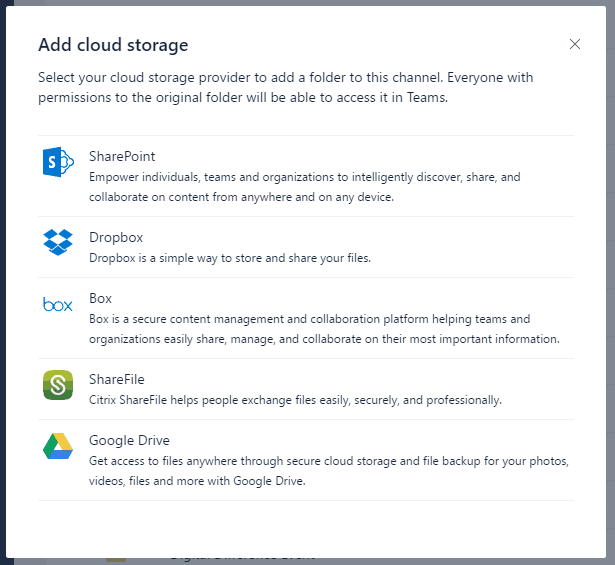
A couple of days ago, Microsoft Teams announced that they would be adding third party cloud storage ‘soon’. As of yesterday’s update, the team collaboration software now has four more alternatives to using the default SharePoint/OneDrive setup.

Dropbox, Box, Google Drive, and ShareFile integrations have all joined Microsoft Teams. Now workplaces that use one of these options are able to add the cloud storage folders easily to Teams where users with permissions can view, edit, and save in one convenient location.

While Google Drive and Dropbox are more commonly known, Box and ShareFile are a bit less so. Box itself just recently added its desktop support with Box Sync adding Teams integration just two weeks later. ShareFile is more focused towards business and client interactions, making it a perfect addition to the Team’s cloud storage options.

It’s possible we’ll see more options added as Microsoft develops Teams further. The software continues to get regular updates for features, improvements, and fixes thanks to community feedback through the Feedback Hub. Even if their release notes page is just a little behind.

Two men arrested for attempting to hack Microsoft

Two Britons have been arrested yesterday by the local authorities for attempting to hack into Microsoft’s network (via the BBC). The suspects are a 22-year-old from Sleaford and a 25-year-old from Bracknell, who are reportedly members of a bigger group that was looking to steal customer data from the Redmond giant.

“It is believed that the men were involved in repeated attempts to infiltrate the Microsoft network between January and March this year,” wrote the BBC. “Both were charged under the UK’s Computer Misuse Act that criminalises unauthorised access to computers.”

Tom Burt, Microsoft’s vice president and deputy general counsel of the Digital Crimes Unit told the BBC that the suspects did not succeed to access customer data. “We have comprehensive measures in place to prevent, detect, and respond to attacks,” he explained. “We also have specialist teams focused on working with law enforcement to identify people who attack either us or our customers, and we’re committed to fast and effective action against attackers.”

Xbox Play Anywhere game Gigantic graduating from Beta in July

Gigantic, the free-to-play third-person MOBA that is currently available on Xbox One, Windows 7, 8 and 10 will finally go out of beta next month. Developer Motiga announced yesterday that the game will be officially released on all aforementioned platforms on June 20, but the team is celebrating the upcoming milestone with another content update.

“We’ve added bot matches to help you hone your skills, voice chat to aid communication and coordination with your team, and a whole new teaching experience for new players just getting started in the game,” explained Motiga in the blog post. “We’ve also updated each of Gigantic’s battlefields, as well as a huge number of improvements to the in-game UI and Heroes.”

Gigantic is an Xbox Play Anywhere title that supports cross-play multiplayer between Xbox One and Windows 10, but the game will also be released on Steam on July 20 for PC gamers using Windows 7 and 8. If you have yet to try it, you can download the free beta from the download link below.

Gigantic
Gigantic
Developer:
Motiga, Inc
Price:
Free

Titanfall 2 DLC and Xbox One X 4K details released

EA has announced their sixth load of downloadable content (DLC) for the Titanfall 2 video game and has provided confirmation on their plans for the title on Microsoft’s upcoming Xbox One X console.

The new DLC will be called The War Games and is planned to launch on the 27th of June. The update will contain two new maps, a new execution called Shadow Boxing, a third weapon slot for pilots, will add Titan Brawl to the main game mode options, and will introduce a new game mode named Free Agents. All of this content will be completely free to all Titanfall 2 owners and another DLC update is expected in July.

Xbox One X console support had already been stated by other Microsoft statements but EA has now confirmed that this means that Titanfall 2 will get an update that will add true 4K resolution and dynamic super scaling. This Xbox One X update will likely be completely free like all of the other Xbox One X game updates on other titles.

Do you still play Titanfall 2 on your Xbox One and are you excited for these updates? Let us know in the comments below.

Take a Power BI Survey and you might come home with a $50 gift card

Looking to put some cash in your pocket? If you’re willing to put it to chance, you can get a $50 AMEX gift card by taking a survey for the Power BI team. It’s a quick survey for Power BI users who want to help the developers make a difference in the future of the platform.

The gift card will be sent out on a completely random basis – three people will be selected to receive it, out of the individuals who took the survey. If you’re chosen to win, you’ll be getting an email to the account provided. Be sure to keep an eye out in the time following the survey to see if it’s your lucky day.

How to manage personal, work and school accounts in Windows 10

head to the “Access work or school” pageWindows 10 includes simplified options for staying connected to your work or school account on your personal device. Unlike previous Windows versions, you can use files and resources provided by your organisation without having to switch user accounts. The operating system lets you link external accounts to your main sign-in address.

Screenshot of Windows 10 Creators Update "access work or school" settings page

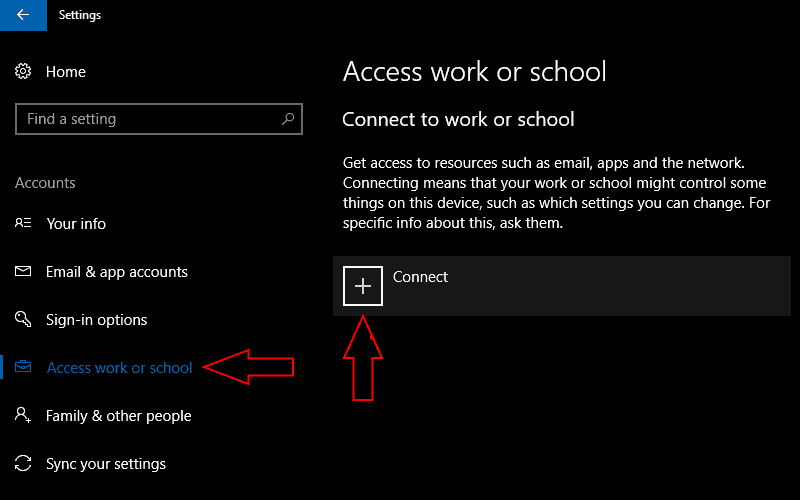
To get started, head to the “Accounts” section of the Settings app. Microsoft changed the arrangement of the work access settings with the Windows 10 Creators Update so the next stage depends on your Windows version.

If you have the Creators Update installed, head to the “Access work or school” page and click the “Connect” button. On older editions of Windows 10, the option is called “Work access.” Click the “Add a work or school account” link to start the sign-in procedure.

Screenshot of Windows 10 "set up a work account" prompt

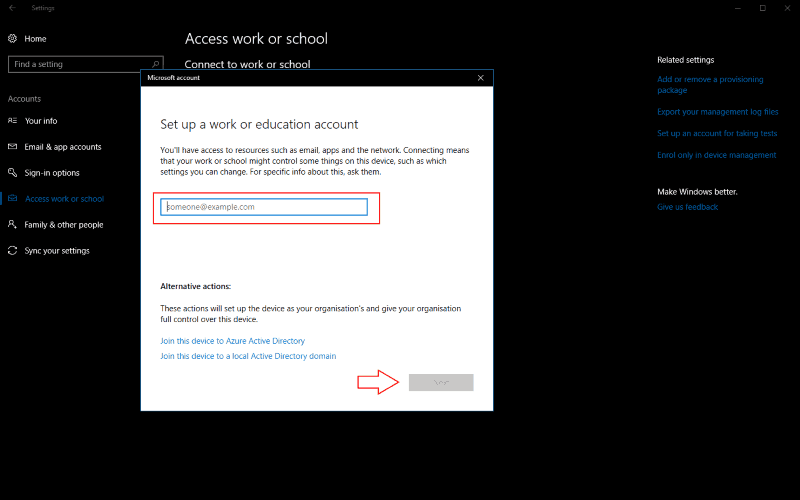
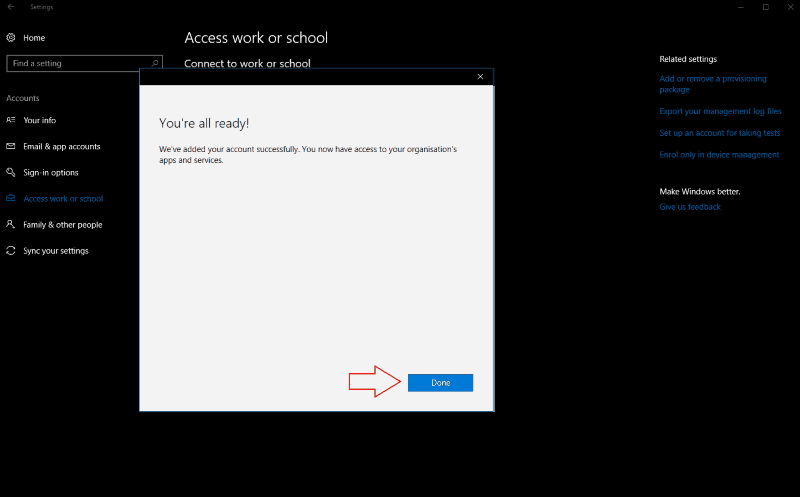
In the “Set up a work or education account” prompt that appears, enter your organisation email address to connect your account. Click the “Next” button and Windows will configure your new account and add it to the system. When the process completes, you’ll be able to access your work or school email, apps and networking utilities on your personal PC. The account will be accessible in the Mail app and corporate apps can be downloaded from the Windows Store.

In many instances, this will be all you need to access your work or school account in Windows 10. In some instances, you may need to go a step further. Organisations might require you to register your device with their Azure Active Directory server. This gives them more control over your device, including the ability to retrieve files and remotely lock it down.

Screenshot of Windows 10 add account confirmation screen

To connect to an Azure Active Directory, click the “Join this device to Azure Active Directory” link in the “Set up a work or education” account window. Enter your organisation-provided Office 365 email address and follow the prompts to add the account. If you’re on the same network as your organisation’s Active Directory, use the “Join this device to a local Active Directory domain” link and provide the domain name of the Azure server to connect to.

In either case, you’ll be prompted to review and accept your organisation’s new controls over your device. Once you confirm the Azure Active Directory policies, your device will be connected to your work or school. It’ll effectively be registered as one of their devices, giving them complete control over its operation. You’ll be able to access your email, company files and Windows Store for Business apps once the account is linked.

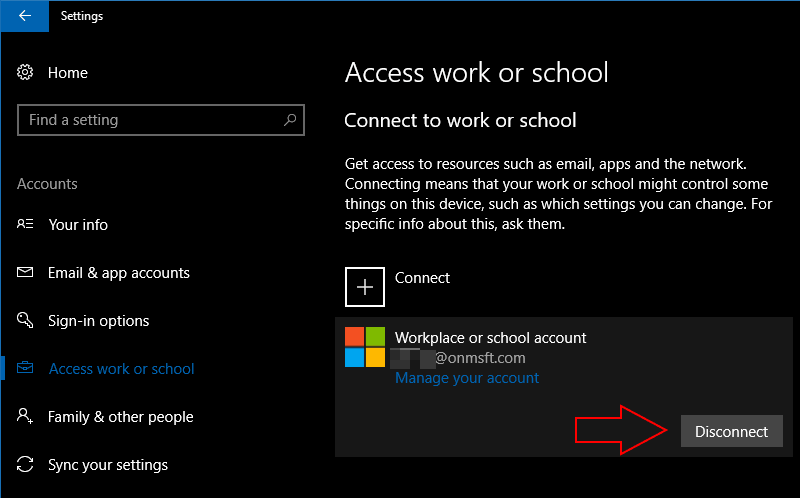
Screenshot of Windows 10 removing an account

Linking a work or school account to Windows 10 lets you use your company’s resources without being confined to the Office 365 web apps. If you aren’t sure of the settings to use, you can refer to Microsoft’s online documentation. When you’re connecting to an Azure Active Directory, your organisation’s IT administrator should be able to assist you to get your device configured with the correct policies.

If you need to remove a work or school account, return to the “Accounts” section of the Settings app and navigate back to the “Access work or school” page. Click the account you want to unlink and press the “Disconnect” button. Follow the prompts to complete the account removal process.

Turns out Windows 10 S blocks side-loaded UWP apps, regedit, powershell, and cmd, too

Windows 10 S, the new version of Windows 10 streamlined for security and performance is only shipping with Microsoft’s Surface Laptop for now, and it’s still a bit too early to know how the market will react to it. One thing is already clear though: Microsoft could have done a better job at explaining its most important features and limitations.

As you may know, the key point of differentiation between Windows 10 S and Windows 10 Home or Pro is that new OS can only run apps coming from the Windows Store. As all apps have to be signed by Microsoft, which means that it’s not possible to side-load UWP apps on a Windows 10 S PC, making internal corporate apps unusable on Windows 10 S.

That actually might not be so bad, as in addition to UWP apps an increasing number of desktop converted apps are being released on the Windows Store. The latest additions including Office 2016, WhatsApp and Spotify, and iTunes will also be available later this year. However, you won’t find some specific apps on this app store, such as popular web browsers like Google Chrome and Firefox.

While this may be all right for the average Joe (Windows 10 S seems to be mostly targeted at students and Chromebook users), other Windows 10 S limitations may be harder to digest for more demanding users. Looking closer at all the little details that Microsoft failed to communicate more appropriately, ZDNet reporter Ed Bott highlighted today some important restrictions such as the unavailability of regedit, powershell, the Windows Command processor and more on Windows 10 S:

The Windows 10 S Driver Requirements page notes that a number of Windows components are “blocked from executing on Windows 10 S.” The long list includes the following tools that many IT pros and developers would consider essential: bash.exe, cdb.exe, cmd.exe, cscript.exe, csi.exe, dnx.exe, kd.exe, lxssmanager.dll, msbuild.exe, ntsd.exe, powershell.exe, powershell_ise.exe, rcsi.exe, reg.exe, regedt32.exe, windbg.exe, wmic.exe, wscript.exe. A colleague confirmed that even the Windows Command Processor, cmd.exe, can’t run interactively in Windows 10 S.

In addition, Bott noted that some specific types of apps won’t be allowed on the Windows Store, including “third-party antivirus software, backup programs, and disk utilities that use file-system filter drivers.” Last but not least, Bott explained that unlike Windows 10 Pro machines, Windows 10 S PCs can’t join a Windows domain or be managed by Microsoft’s Active Directory, though Azure AD is supported.

“Anyone looking for a general purpose laptop will, quite rightly, be scared off by those restrictions,” shares Bott. “But they’re key to the unique value proposition of Windows 10 S, which offers a Windows configuration that clueless users can’t screw up, even if they try,” he added. That’s a really important point, and just like there is a market for Chromebooks, there is probably a market for Windows 10 S PCs.

Overall, Windows 10 S seems to combine the best of Chrome OS (security and easy management) with the Windows 10 you already know and love, except support for all Win32 apps and other power user features. Because Microsoft shipped Windows 10 S first on its premium Surface Laptop, we’re inclined to judge it as an OS for demanding users, but we probably shouldn’t: Windows 10 S makes perfect sense on low-end machines (it will also be cheaper to license for manufacturers), or in managed environments like schools.

it’s safe to assume, however, that the majority of consumers who purchase Microsoft’s Surface Laptop will take advantage of the free upgrade to Windows 10 Pro, because yes, there is no point in spending more than $1,000 on a premium Microsoft laptop just to be limited with Windows Store apps.

Relive Neo Geo’s classic Art of Fighting 2 video game on Xbox One today

Another classic Neo Geo video game has been rereleased on the Xbox One today in the form of Art of Fighting 2. This game is a typical fighting game that’s not dissimilar from the likes of Street Fighter or Mortal Kombat. Here’s the official description and link:

ART OF FIGHTING 2 is a fighting game released by SNK in 1994. Twelve fighters compete to be crowned as the strongest one in the “King of Fighters” ultimate fighting championship. New mechanics such as the revamped “Rage Guage”, the addition of both weak and strong attacks, and a landing recovery mechanic mean that battles are even more intense than in the previous title!

Buy Art of Fighting 2 on Xbox One

The Neo Geo library of games on the Xbox One is now quite substantial. Do you have a favorite? Let us know in the comments.

EA SPORTS NHL 18 digital pre-orders go live on Xbox One

EA SPORTS NHL 18 is now available to pre-order on Microsoft’s Xbox One console. The game is the latest in the EA SPORTS NHL series and features revamped controls and new modes such as NHL Threes. Three versions are currently available; the regular version, a Deluxe Edition, and a Super Deluxe Edition, each with a variety of additional digital content. Here’s the official game description and trailer:

EA SPORTS NHL 18 introduces the thrill and creativity of today’s young NHL superstars through new Creative Skill Stick gameplay controls, a brand new 3-on-3 arcade-inspired hockey experience in NHL Threes, and the most multiplayer options to play cooperatively or competitively with friends ever delivered in a sports videogame.

Pre-order EA SPORTS NHL 18 on Xbox One

EA SPORTS NHL 18 is due for release on September 22nd 2017. Have you pre-ordered this game yet? Let us know in the comments.

Windows 10 Wall Street Journal app to close next week

The official Wall Street Journal Windows 10 app will apparently be closing next week on June 30th. Users of the app on Windows 10 PC and Mobile have begun receiving notifications from within the app and the official app description has been updated to include the text encouraging users to download their iOS and Android apps or simply use the WSJ.com website. No reason has been given for the discontinuing of the app though it’s likely due to lack of usage (people probably just visit the website).

Do you use the WSJ Windows 10 app? Let us know in the comments below.

Microsoft talks more about its Shell experience in Windows 10 preview 16226 for PCs

There has been mounting curiosity by developers and observers as to what Microsoft’s play is with its Windows 10 Shell and its future on mobile devices.

While Microsoft has been relatively tight-lipped about Windows 10 Shell approach for mobile, but if its efforts on the desktop are anything to go by, things are arguably looking rather impressive.

In today’s Windows 10 preview 16226 release for PCs, Insiders are getting another look at improvements to the Shell experience.

Shell Improvements

Reveal: The new Reveal Highlight  behavior is an interaction visualization that helps guide users. Reveal is now enabled by default on ListView and other XAML collection controls in experiences that target the Fall Creators Update.

The new Reveal Highlight behavior is an interaction visualization that helps guide users.

Note: This gif is from our UWP Style Guide, and showcases both the use of Acrylic material, and the use of Reveal. With this update, we are only enabling Reveal by default.

Update: There appears to be even more Shell tid bits found in the preview that include improvements to the File Explorer menus and the My People functionality. 

Updated File Explorer context menu: You can now Share a file in File Explorer via the right-click context menu! Right-click on a file in File Explorer or on the Desktop to bring up the context menu, then share away. NOTE: “Share with” in the context menu has been changed to “Give access to”.

Updated File Explorer context menu.

My People Improvements:

We’ve added text to the overflow area in the People flyout to make it more clear the people listed there are pinned.

  • We’ve updated the “Switch apps” button in the People flyout to now use the a hamburger icon, to make it more visually distinct from the back button.
  • If you right-click the taskbar, you’ll now find an option to easily turn on or off People.
  • We fixed an issue from the last flight where the People flyout would crash if you tapped “Find and pin contacts”.

Slowly but surely Microsoft is building a set of solid experiences that should translate across a multitude of mediums that will include but are not limited to Windows.

Party Chat and Wi-Fi fixes coming to Xbox One Insiders for Alpha/Beta builds starting today

If you’ve been having some issues with staying connected with party chat or to your WiFi network in general, there’s good news coming. Brad Rossetti of the Xbox Insiders Program has announced via Twitter the Xbox One Insiders will be receiving a series of updates this week.

Today, the first Preview Beta Ring will be introducing a new 1706 build that fixes the party chat issues, rolling out around 2pm PDT. Tomorrow, we’re looking at seeing a WiFi fix rushed through the Alpha Ring with a projected Beta release on Friday.

As you may recall, Microsoft recently rebranded the Xbox Preview Program as the Xbox Insider Program. Just like in Windows 10 Mobile and on Windows 10 PC, there are several “Rings” which are based off how fast, or how slow, features are rolled out on a weekly and monthly basis.

Microsoft extends the Edge Bug Bounty program indefinitely

It’s been nearly a year since Microsoft opened up Edge to the bounty program. Since then, it has shelled out nearly $200,000 in payments for issues reported. As a result of its major success, Microsoft has decided to continue the program past its original time frame to indefinitely.

The Edge Bounty Program helps Microsoft nail down ongoing security threats, among other things. Since the tech giant takes these concerns as an ongoing priority, it’s no surprise that their payments to the research community are profitable overall for Microsoft Edge. Here are more details about the program:

  • Any critical remote code execution or important design issue that compromises a customer’s privacy and security will receive a bounty
  • The bounty program is sustained and will continue indefinitely on Microsoft’s discretion
  • Bounty payouts will range from $500 USD to $15,000 USD
  • If a researcher reports a qualifying vulnerability already found internally by Microsoft, a payment will be made to the first finder at a maximum of $1,500 USD
  • Vulnerabilities must be reproducible on the latest Windows Insider Preview (slow track)
  • All security bugs are important to us and we request you report all Microsoft Edge browser security bugs to [email protected] via Coordinated Vulnerability Disclosure (CVD) policy
  • For the latest information on new Windows features included in the Insider Previews, please visit the Windows 10 Insider Program Blog.

This just one of many bounty programs that Microsoft has running currently. If you’re so inclined, check out the others that you can still take part in over at Technet.

Paladins video game offers a free limited-time account copy from PC to Xbox One

Following up on the E3 hype last week where Hi-Rez Studios announced that Paladins would be available for the Xbox One X in 4k, this week they also announced that players are able to copy their PC accounts to consoles. According to the official site, copying an account will also include any purchases made on the original PC account. This includes currencies, experience, and unlocked content.

To begin linking your Paladins PC account to console, you’ll need to visit the Xbox One link (or PlayStation 4 if you’re so inclined). Hi-Rez requires you to link your PC account and console account together to move forward, but that doesn’t mean they will sync data. In fact, both Paladins on PC and console accounts will remain completely separate after the copy. Once successfully linked, you’ll also unlock special reward skins for those platforms. Any content that isn’t available on the console version yet will be automatically unlocked as it is released.

Most users should be able to take advantage of the limited copy availability. Unfortunately, China is the only region that won’t be able to Account Copy at this time. More information can be found on the official Account Copy FAQ.

It’s worth noting that Crystals and statistics are confirmed not to be transferred between the copied accounts. Users are only able to copy the account once and the offer for both PlayStation and Xbox will end on July 15, 2017.


Poll: Is the Xbox One X the One that you want?

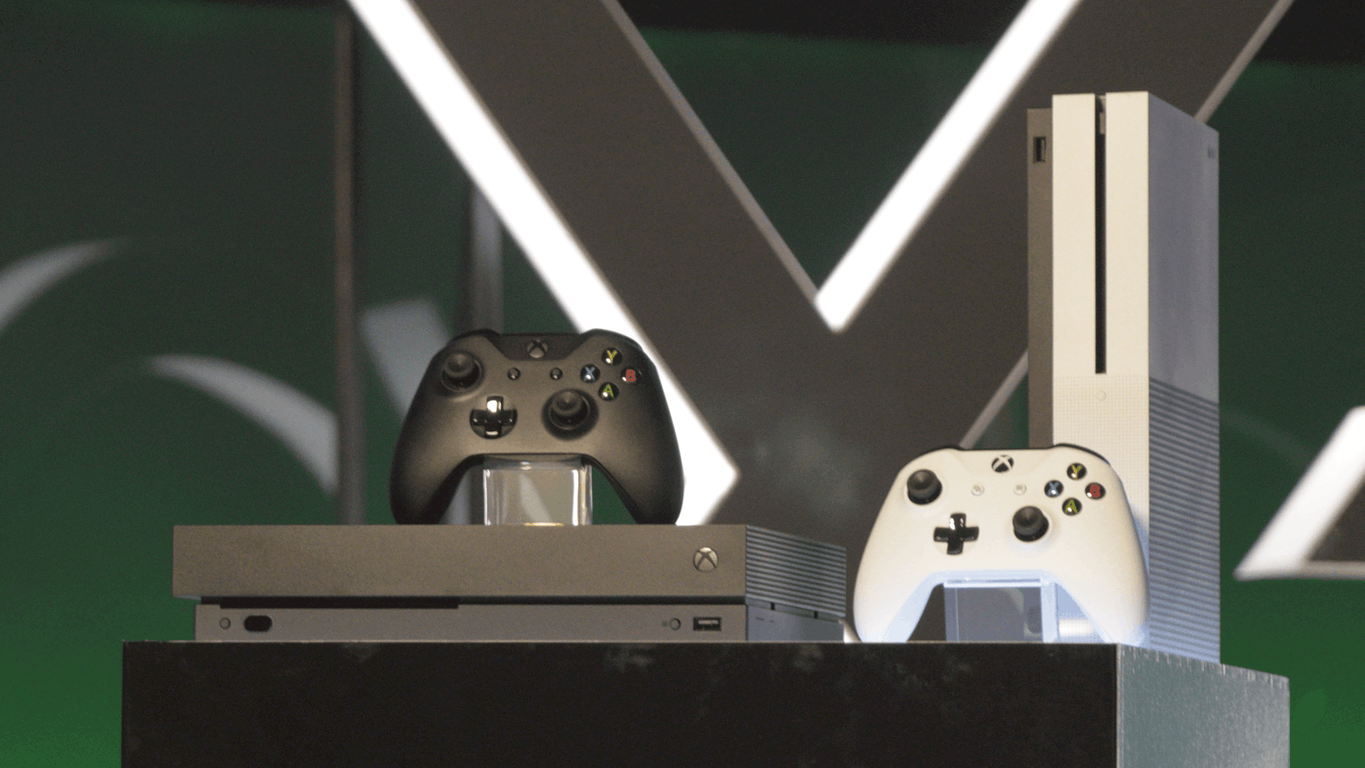
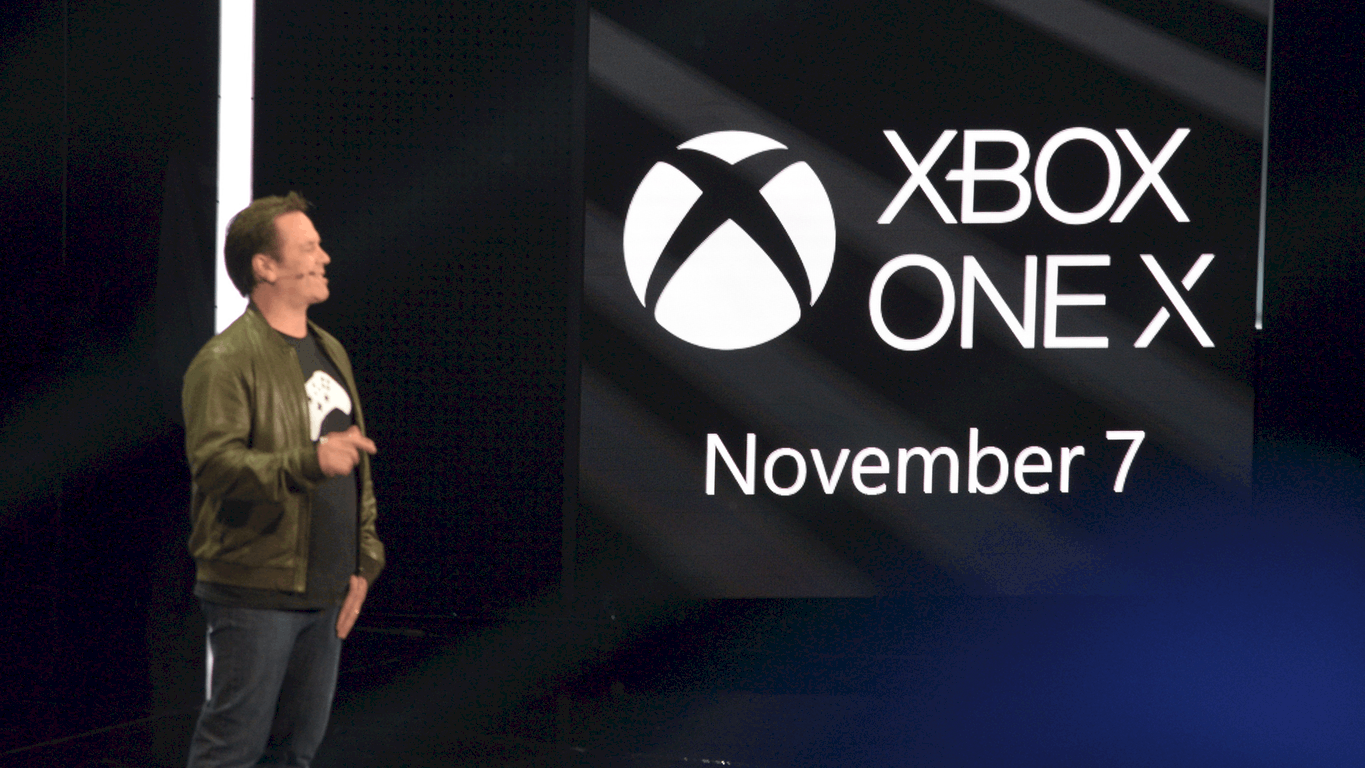
Last week at E3, Microsoft revealed the final name for Project Scorpio as Xbox One X. The new console, sporting 6 teraflops of gaming power, full 4K support, and a host of new games built especially for the new platform, will launch on November 7th, just in time for the holiday season.

Microsoft is also discounting the fairly new Xbox One S, giving gamers a choice between the top of the line Xbox One X and a more incrementally updated One S.

So which one is right for you? Take our poll below and let us know what you’ll be playing this holiday season:


If you are planning on an Xbox One X, what is swaying you? To have the latest and greatest? To support your new 4K TV? To get the most out of Microsoft’s newest games? Let us know in the comments below.

Microsoft highlights Lemonade Stand, a refreshing return of the 1979 Apple II classic game

Everyone seems to be feeling the heat lately, including Microsoft. The tech giant stationed in Washington felt that it was time for a cool refreshing blast from the past today, highlighting one of the most nostalgic video games of all time in their latest MSDN post: Lemonade Stand.

Ah, the good old days when a child could set up a lemonade stand in the middle of the scorching Summer days without needing a vendor and health permit. If you’re a young whippersnapper, then you might not know what the famous text based video game is. Lemonade Stand is pretty much what you get by the title, a business simulation developed for education by the Minnesota Educational Computing Consortium in 1973. Players would need to make decisions based on weather reports, projected income, and determining the cost and how much lemonade to make for the day.

Lemonade Stand was a success, picked up and ported to Apple II in 1979. As of the next year, it was shipping with Apple computers and was even available for Atari 8-bit computers. Remember those?

Today, you can play the game for free on Windows or Mac. Furthermore, the files have been made open-source and available for download. In Raymond Chen’s blog post, he actually picked apart the game’s formulas in an attempt to better understand what made it tick. But we won’t spoil the findings for you just in case you want to figure it out for yourself.

It’s nice to see these classics still exist, and Microsoft’s goal to celebrate all games including those forgotten is a statement that many older gamers can get behind. Even if it’s simply highlighting them in a blog post.


Microsoft to use AMD Epyc server chips for Azure “by the end of the year”

AMD is making attempts at re-joining the server chip market and Microsoft is helping by setting plans for using AMD’s Epyc server chips for Azure (via Bloomberg)

The new AMD Epyc server chips offer more performance and are much cheaper than those from Intel, ranging from $400 to $4,000 per chip in price. Intel, however, remains the giant in the server chip market, and AMD has not really put up much competition. Data compiled by Bloomberg shows that in 2016, Intel’s data center division sales totaled roughly about $18 billion, while AMD’s total revenue only was at $4 billion.

In a short statement, Girish Bablani, corporate vice president of Azure Compute at Microsoft, commented on the company choosing AMD for Azure.

“Microsoft intends to be the first global cloud provider to deliver AMD Epyc, and its combination of high performance and value, to customers by the end of the year.”

AMD’s Chief Executive Officer, Lisa Su, mentioned that the company is hoping to get back to success.

“Today we’re at less than 1 percent. At our peak we were above 25 percent…We’re realistic in that will take some time — across the next couple of years.”

Noted by Barron’s, Intel fired back at AMD, and pointed to their Xeon Scalable processors, 20-year data center innovation, and their broad ecosystem investments.

HP, Dell, Lenovo, and other also have plans to offer servers based on AMD’s Epyc chip. Shares of AMD were up 16 cents on Tuesday, showing that investors may have new confidence in the company.

How to upgrade to Windows 10 Pro on the Surface Laptop

Microsoft’s new Surface Laptop was released in 20 countries and runs Windows 10 S, is the newest version of Windows 10 that will only allow users to download apps and games from the Windows Store for better security. Windows 10 S is said to be the most secure operating system if we consider other versions of Windows 10 like  Pro. It also features a longer battery life and enhanced performance.

Upgrading to Windows 10 Pro

In case you want to upgrade the Surface Laptop to Windows 10 Pro from Windows 10 S, Microsoft made it very easy for you. You can now upgrade to Windows 10 Pro at no cost on the Surface Laptop until later this year. After this, you will have to pay $49.99.

If you want to upgrade to Windows 10 Pro from Windows 10 S, you have to follow these steps:

  • Open the Settings app
  • Go to the Update & Security section
  • Select Activation from the sidebar
  • The section Go to Store allows you to update to Windows 10 Pro
  • After the Windows Store opens, click on the Free button to start the upgrade process.
  • You will get the question whether you saved all your files after you’re done so don’t forget to save the files that are currently open.
  • Press on ‘Yes, let’s go’ and the Windows Store will start the upgrade to Windows 10 Pro. The process should last around 2 or 4 minutes.

After the update, you will not be able to go back to Windows 10 S without using a recovery image. Keep in mind that such a recovery image is not available yet!

RELATED STORIES TO CHECK OUT:

Microsoft to hold third annual Edge Web Summit in September

Despite the diminishing market share, Microsoft is still going full steam ahead with its new Edge browser and is holding another Edge Web Summit for 2017.

This year’s Edge Web Summit marks the third event to date that represents a one-stop shop for all thigs Edge, including conferences on Web Authentication, CSS Grid when building modern experiences, new technologies such as Progressive Web Apps and WebVR.

Interested web developers should mark their calendars for September 13th in Seattle, Washington to attend. Registration opens in July and sign ups can be done at dev.microsoftedge.com

Beyond the wall to wall talks about Edge, developers will also have the opportunity to be nose to nose with representatives of the Quality team with help debugging issues and tweaking code for the best possible web performance and experiences.

With over two months and change in wait time, Kyle Pflung, the senior program manager for Edge promises more information about the summit in the coming months.

PatchCleaner helps you free storage space and get rid of unwanted files

After using Windows for almost two decades, we’re all pretty familiar with its quirks. As time passes, every iteration of Windows — including Windows 10 — holds on to unwanted files and increases the disk size. The worst part, however, is that all of the storage space taken by such files is not that easy to free up and despite using tools like CCCleaner and Windows Tuneup, some of the residual Windows installer files still remains. PatchCleaner is a free software that helps Windows users reclaim their lost storage space.

Windows installer files are usually huge in size and this magnifies the problem further. Every time we install updates, Windows  stores the installer files and patches in a hidden Windows partition. Since the directory c:\Windows\installer is a protected system folder, it’s visible only once you have enabled the “Hide protected system folder that” option that comes in the Folder options. That being said, most of us are pretty apprehensive when it comes to system files and manually deleting them is far from ideal.

Also, some of the .msi files and patch files .msp are needed while updating and deleting the same can cause serious harm to the operating system. The unwanted installer files can clog up your system and the files can clog up storage of up to tens of GBs and slow down the system. We used PatchCleaner in one of our laptops earlier and during the first sweep, I was able to recover 15GB.

PatchCleaner features

PatchCleaner is free software and is compatible with Windows 7 and upwards. The installation is typical but the program doesn’t create a start menu entry and this means that you have to go to “C:\Program Files (x86)\HomeDev” every time you want to access the program.

PatchCleaner segregates the installer files still in use from the orphaned files. Both the file location is displayed on the interface along with an option to delete the orphaned file via the PatchCleaner interface. Be sure to create a backup/restore point before deciding to get rid of the orphaned Windows installer files. Deep Scan is useful if you want the program to automatically check for orphaned installation files.

Behind the scenes, PathCleaner identifies the redundant/orphaned files and will recommend to either move the file to a different location (just in case) or you can also directly delete the files. PatchCleaner accesses the list of current installers and patches and compares the same against all the .msi and .msp files in the “c:\Windows\Installer” directory. The simple referencing ensures that anything that’s not on the list but still exists in the folder is an orphan file and it can be tagged further for removing or moving.

Download

Skype is down: Microsoft working on a fix

Skype is currently down for thousands of users worldwide. If you’re struggling to connect to your Skype account, you’re not the only one.

UPDATE: Many users report that Skype connectivity issues appear to have been fixed now. Users can now connect to their Skype accounts and send messages. More specifically, the number of users reporting Skype connectivity problems dropped by half according to DownDetector.

However, the issue still persists for many users, particularly in Europe.

As a quick reminder, Skype has been down for more than 16 hours now, with the first users reporting the problem on Twitter yesterday. It seems that Microsoft is taking its time to fix this issue. Interestingly enough, although Skype is down, the ads in the app are working fine.

At the moment of writing this update, there is no official explanation as to the cause of the problem. However, many Skype users are convinced that the current connectivity problem is the result of a massive DDOS attack.

UPDATE 2 (June, 21) : Skype is still not fully functional, more than 24 hours after users reported the first connectivity issues. Microsoft posted an update on the official Skype blog, informing users that:

[UPDATE Jun 20, 2017 20:00 GMT]: We have made some configuration corrections and mitigated the impact. We are continuing to monitor and we will post an update when the issue is fully resolved.

Although the main connectivity bugs seem to have been fixed for most users, there are still some minor bugs that limit the Skype experience. The ‘Updating conversations’ message prevents users from sending and receiving messages.

Reportedly, creating a new Skype account helps you circumvent this problem. In others words, if you really need to use Skype, try creating a new Skype account and you should be able to send and receive messages.

You can read the original article below.

Skype has been down for about an hour now, and Microsoft has already acknowledged the problem.

Hello, we are aware of an incident where users will either lose connectivity to the application and may be unable to send or receive messages. Some users will be unable to see a black bar that indicates them that a group call is ongoing, and longer delays in adding users to their buddy list.

[UPDATE Jun 20, 2017 07:00 GMT]: We’re aware users are still experiencing problems – we’re looking into this!

Users have taken their frustration to Microsoft’s forums, describing the issue and asking for help.

Has anyone found a solution to this problem? I was able to use skype fine until now and today I can log in but it just stays in the “connecting” mode.. This is really frustrating as I am using skype for work. I have tried changing firewall settings for skype but nothing seems to help.

And of course there is no support from skype so just have to hope someone has a solution here..

Unfortunately, if you can’t connect to Skype, there is not much that you can do about it. This is a general problem coming from Microsoft’s servers and all you can do is wait until the tech giant fixes it.

The Skype connectivity issue is affecting users worldwide. Millions of users rely on Skype to connect with their friends and business partners. Hopefully, Microsoft’s engineers will fix this problem as soon as possible.

We’ll keep an eye on the official Skype website and we’ll update this article as soon as new information is available.

RELATED STORIES YOU NEED TO CHECK OUT:

Windows Server gets improvised nano containers and bi-annual feature updates

After announcing its plans to release two major feature updates for Windows 10 and Office every year, Microsoft has now extended the same release cycle to the Windows Server as well. Microsoft will be releasing two feature updates every year, one in spring and another one in fall. This will also bring the Windows Server, Windows, and Office cycle into the same timeline. With the new update cycle in place, customers will be able to access to new features faster than before. Additionally, System Center will also be releasing their major updates that follow the same bi-annual cycle.
Customers will be able to get access to Windows Server in the semi-annual channel via the following ways:

  • Windows Server Standard or Datacenter customers who are covered by Software Assurance will automatically have access to semi-annual channel releases as they are made available. Servers without Software Assurance do not have rights to the semi-annual channel releases.
  • Customers can also access these new Windows Server images in Azure or other cloud environments. Plus, if you have existing Windows Server licenses with Software Assurance, you should take advantage of the savings (up to 40%!) when you use the Azure Hybrid Use Benefit.

Microsoft also made some changes when it comes to the nano server for the containers. After extensive feedback from customers, Microsoft understands that the Nano Server for containers is the highest priority and that smaller is better. Keeping these suggestions in mind, Microsoft has now promised that the Nano Server images will shrink in size by more than 50% and this will help improve the startup time and container density as well.

Furthermore, Microsoft also announced that the Server Core will be included in the semi-annual channel. The Server Core is often referred to as the “headless” installation of the operating system including all the roles and features deemed necessary to run data centere servers. Microsoft is also recommending the Server Core for hosting the virtual machines and the containers.