Indian government grants Microsoft cloud a rare provisional accreditation

India is becoming a hotly contested region for international companies seeking to place a stake in the technological growth of the area. While India has long since developed a thriving technological community of engineers, developers, services and businesses, its blooming potential of billions of ‘new’ customers and users that have outside companies such as Apple, Google and Microsoft heavily investing in the region.

With that being said, the Indian government has been very careful about how and what outside technologies it approves of for its citizens, to foster a greater national investment in its businesses and communities.

However, despite the stringent curation of outside influences in the India market, Microsoft has managed to obtain a rare provisional accreditation from The Ministry of Electronics and Information Technology (MeitY) in India.

According to Alice Rison, a senior director of the Microsoft Azure division, with this newly achieved accreditation, “Microsoft can now deliver a cloud computing solution in India that provides truly innovative digital services to a wider range of customers.”

As cloud solution providers look to get their mitts into what most in the tech community believes is the next billion-user economy, Microsoft may find itself uniquely positioned to become an immovable commodity within India’s government and business sectors with its new accreditation.

With this new accreditation, Microsoft can now do more to support the Government of India in its journey to provide transformational e-governance services, financial inclusion opportunities, quality healthcare, and education to billions of people in the country.

With the new accreditation, it seems Microsoft is looking past competing in the zero-margin smartphone wars in the area or battling to be the inexpensive Internet solution, to becoming the secure and trusted cloud backbone to all connected people and devices in India.

A wide goal, but if successful could potential cement Microsoft’s presence India, which is something the company’s ‘mobile first, cloud first’ CEO Satya Nadella has been hoping to achieve for some time now.

Tobii EyeX Eyetracker brings facial recognition to Windows 10

Microsoft  introduced Windows Hello in Windows 10 allowing users to log into their Surface devices or Windows phones such as the Lumia 950 or 950XL using a special camera that supports facial recognition. This functionality is spreading to computers as well and now users can purchase the $149 Razer Stargazer webcam with Intel’s RealSense technology or the Tobii EyeX eeye tracker which is $10 cheaper.

The Tobii EyeX is an eye tracker that works similarly to Microsoft’s Kinect sold separately for the Xbox One console. The accessory sports red sensors and its body is elongated, compatible with laptops built by MSI, Alienware and Acer and can be used to play games as an eye tracking controller.

Besides the EyeX, inside the box you will find a USB cable and a pair of tape-backed magnets. It’s very simple to connect it to a monitor but you must attach it correctly so that the tracker will capture your face perfectly. You’ll have to adjust the position of the tracker on the magnet but afterwards, you’ll see how easy it is to remove the EyeX. Also, the software can be disabled using the notification icon and updates can be downloaded from Tobii’s official website. Drivers are required so that EyeX will work without any problems, but then you will need to set up Windows Hello. If you don’t know how to do that, here’s a short video that will explain you what steps you need to take:

It will take a few minutes to complete the setup process and then you will be able to log into Windows 10 without needing to enter any password or PIN.

RELATED STORIES TO CHECK OUT:


Gears of War 4 fans complain unlocking rare characters costs too much

The big day has finally come: Gears of War 4 was finally released by Microsoft. While millions of players worldwide are lined up to get their copy of the game, as usual the first copies installed also come with the first problems.

This time, players are complaining about an odd micro-transaction system in the game that requires 4000 credits for an elite pack. However, the worst part is that players cannot control what’s in packages, so they might end up with common items even though they paid a lot for it.

Here’s what one of the players said on Gears of War 4’s forums:

“Why are the gear packs so expensive? 4000 credits for an elite pack? seriously? thats ***** ridiculous. I average around 15 to 25 credits per game. thats about 200 games to get just one elite pack. why is everyone okay with that? Coalition PLEASE adjust this to make it more fair, i know the $100 i spent on this game wasn’t enough for you and you want more, but i really dont want to spend more money on this game just to be able to get some skins. “

Angering gamers even further is their inability unable to earn rare items by playing. Instead, they earn in-game cash to spend on packages. So basically, the only way to get rare skins is through ‘the lottery of packages’.

Although characters and skins are just cosmetics that don’t affect player performance in any way, it would be fair towards players if they’re able to choose which item they want to buy with their earned credit.

What do you think about Gears of War 4’s ‘gambling’ system of achieving rewards? Do you think it will ever be changed? Tell us in the comments.

RELATED STORIES YOU NEED TO CHECK OUT:

Microsoft working to bring its “Flow” experience to devices with Windows 10 Redstone 2 release

One of the best things about working on several Microsoft devices at a time is some degree of familiarity. Being able to switch between a Windows 10 phone and desktop and work with the same interface makes just about every task simple, and helps to keep you productive anywhere you are. According to some reporting done by Windows Central’s Zac Bowden, the upcoming release of Redstone 2 is going to be bridging the gap between devices even more.

This new functionality is called ‘Flow,’ and it allows you to sync up an app from one Windows 10 device to another, exactly copying your work, settings, etc. Flow is meant to be an expanded version of a Redstone 1 feature known as “Continue App Experiences” which did much of the same thing, although it didn’t have much of a dedicated UI or a very wide array of options implemented for users to play around with.

redstone2flow
Via Windows Central

According to Zac’s sources, much of Flow is going to be handled in classic Windows 10 fashion: through Cortana. Since Cortana is a feature that now every Windows 10 device has well-implemented, it makes for the perfect vessel for something meant to bridge the gap between devices. If Flow is implemented right, this means that Cortana is going to be able to pop up with contextual prompts for you to sync up an app, making it so that you barely have to lift a finger.

While Flow isn’t necessarily a consumer-facing name we expect Microsoft to move forward with right now (it was also less-elegantly referred to internally as “Pick up where I left off”) it seems like the feature is well on its way.

Introducing Flow is going to help drive home the feeling of a well-put-together Windows 10 ecosystem for those that work on multiple devices and should go a long way towards increasing productivity. We have no idea when we’re going to be seeing this release to Insiders, but you can bet that it’s going to be one of many key features when Redstone 2 starts getting a little bit closer.

This is just the beginning for Redstone 2 coverage as we approach 2017. If you want to keep up to date, keep an eye on our Redstone 2 tag.

How to fix Microsoft Edge crash problems on Windows 10 builds

It seems that Windows 10 build 14942 for computers was released for Insiders in the Fast Ring. The new update currently rolling out is also part of the Redstone 2 update and comes with some small improvements, fixes and features.

Unfortunately, it seems that some users who already installed Windows 10 build 14942 on their computers are reporting that Microsoft Edge keeps crashing every time they try to open it. Microsoft hasn’t included this issue in its list of known issues yet, but we are pretty sure that soon enough they will.

However, until Microsoft finds the issue and fixes it, we have a workaround that will allow you to keep using Microsoft Edge Browser without any problems:

  • Hold the Windows key + R in order to open the run command
  • Type regedit and click “OK” to open the Registry
  • When the registry opens head to Computer\HKEY_CURRENT_USER\Software\Classes\Local Settings\Software\Microsoft\Windows\CurrentVersion\AppContainer\Storage\microsoft.microsoftedge_8wekyb3d8bbweChildren
  • Once you get there, you will need to delete all the folders that are located inside the “Children” folder (make sure to NOT delete the “Children” folder
  • After deleting all subfolders, close the Registry and you should be able to use Microsoft Edge Browser without any problems.

We are not sure yet when exactly Microsoft will release a fix that will solve this problem, but since the workaround is so easy, we suggest you to just do it or else you will not be able to browse via the Microsoft Edge for a couple of days.

Have you installed Windows 10 build 14942 on your computer? Did the workaround we’ve mentioned above work for you? What other issues have you encountered?

RELATED STORIES TO CHECK OUT:

PicsArt for Windows 10 updated with new user interface and additional editing tools

Popular Windows 10 photo editing app PicsArt is being updated today with an improved user interface and several new features to let you unleash your creativity. To mark the release, the team has just published a new blog post to detail all of the new goodies.

After installing the newest version, you will see that the app now features a brand new design with brighter colors, larger photos, and a new Explore feed. You can see how it looks below:

The new PicsArt app.

Additionally, the developers have brought “three of the most requested editing tools from the Windows community” according to the team: a Tilt Shift Tool, Lens Flares, and Shape Masks. You can see what you can do with them in the screenshots below and we invite you to read the full blog post to learn more about how to use them.

Before the edits.
Before the edits.
After adding a blurring effect, a lens flare and a triangle shape mask.

Overall, this is a pretty significant update and PicsArt definitely remains one of our favorite photo editing apps on Windows 10. You can get the new update from the download link below, and let us know in the comments what you think of this new version.

Picsart Photo Editor
Developer:
PicsArt Inc.
Price:
Free

Will Microsoft be able to fade out the traditional Control Panel in Windows 10?

If you are a ‘keyboard shortcuts’ person like me, then you’d know that the Quick Link menu that pops up with ‘Windows key + X’ and offers shortcuts to most system tools. Since Windows 8, the shortcut menu appears when you right-click Start or press Win + X.

A few days ago, Windows Insiders on the Fast Ring got build 14942, which included a teeny-weeny change in this menu that mostly went unnoticed among some other new features. In Windows 10 as yet, between Task Manager and File Explorer, you could find Control Panel. This has now changed to a link to the new Settings app instead.

The small change is reflective of Microsoft’s intent to push the traditional Control Panel to the deep ravines of the operating system, and allow users to only interact with the new, modern Settings app that was introduced in Windows 8, but with Windows 10 has been unified, both in form and function, with the operating system and more finished if not yet feature-complete.

Windows + X
Windows + X

However, on several occasions, the Settings app calls the Control Panel for some advanced configurations and legacy settings. Having two separate implementations means more code complexity and memory usage, and a unified interface would be leaner and more straightforward. For a while, Microsoft has been trying to supersede Settings for Control Panel, and also giving it a nice UI refresh with the Anniversary Update.

It’s unlikely that Control Panel will completely disappear in the current scheme of things, but frequent feature updates and the decimation of Control Panel suggest that Microsoft is very keen to make the new Settings app one-stop destination for all system settings pushing Control Panel deeper and further away.

Check out the 1TB Xbox One S Battlefield 1 bundle in this new video

If you’re curious as to what the 1TB Xbox One S Battlefield 1 bundle has to offer, then you might want to check out this new promotional video from the folks at Microsoft.

As seen above, Xbox’s Graeme Boyd is featured in the video and gives you six reasons why Battlefield 1 is best on Xbox One.

He begins by going over the details of Battlefield 1, such as the fact that the game thrusts you into the world of epic warfare from World War One. Next up, is the fact that the Xbox One S is the best Xbox ever built, complete with a 40% smaller size, and support for HDR gaming. Reason three is the fact that the bundle includes the full version of Battlefield 1, and a one month EA Access membership.

As Boyd’s fourth reason, he describes that the 1 TB bundle includes a special Early Enlister Deluxe Edition, which is jampacked with in-game bonuses, such as the Hellfighter Pack and early access to the Giant Shadow map.

Reason five, meanwhile, is something that we’ve covered in the past, the fact that Xbox Live is the fastest and most reliable gaming network.

Last, but certainly not least, is Boyd’s sixth example, which is the fact that the new Xbox One S controller is more comfortable and stylish than the competitions, complete with custom button mapping, increased wireless range, and support for Bluetooth technology.

Do you agree with Boyd’s six-reason argument as to why Battlefield 1 is best on Xbox One? Do you think you will pick one up because of this video? Let us know what you think by dropping us a comment below.

Microsoft partners to launch “Accelerate your Business” program in Kenya

Microsoft has partnered with other tech giants Intel, Lenovo, and Dell to help small and medium businesses in Kenya expand their business solutions. The partnership, called Accelerate Your Business, will help Kenyan business owners learn about the solutions to existing technological problems, for a better workflow (via TechArena.)

As part of the three-month-long partnership, small and medium business owners will learn about the benefits of using Windows 10 devices. Of course, they also will learn about how to keep their businesses safe from cyber attacks and data losses, as well as learn how to use productivity tools.  Rotimi Olumide, the Windows Group Lead for Microsoft at Sub-Sahara Africa and Indian Ocean Islands put the partnership best and said:

“Microsoft is thrilled to announce this initiative with Intel, Lenovo and Dell today. Businesses now can enjoy the perfect blend between our tools and the new hardware designs from our partners. We are continuously reinventing the services that people use to be productive. We continue to extend and enhance our platforms, services and the cloud that powers them, to fit into the changing, real-world business processes that reflect how people work today as dynamic teams and groups working toward a shared outcome, with the need to collaborate and stay always connected, securely, on any device.”

According to TechArena, small and medium businesses contribute 45% to Kenya’s economy.  Let us know if you think this partnership will make a difference in Kenya by dropping us a comment below.

HP announces new holiday lineup of Windows 10 PCs

Microsoft today has taken to the Windows Experience blog to highlight several new Windows 10 PCs which are all part of HP’s holiday lineup of devices. As always, we have given the post a look and have included all the details on these devices for you below.

HP Spectre x360: Available October 12 at starting price of $1,049.99

The HP Spectre x360 has been optimized with the latest 7th generation Intel Core Processor, along with a longer lasting  57.8W battery and a thinner design. HP claims that the battery life on this device is up to 25% longer than previous generations, and highlights that the new micro-edge display bezel design reduces the overall footprint by eliminating almost 10mm from each side of the screen. Other noteworthy specs include:

  • 7th Generation Intel Core i5 or i7 processors
  • 13.3 inch FHD IPS touch screen display
  • Options for a 1TB PCIe SSD for faster performance
  • Support for Windws Hello login via a HP TruveVision FHD IR Camera
  • Support for HP Fast Charge for a charge to 90% in just 90 minutes
  • Dual fan design
  • Two USB C ports with Thunderbolt support
  • USB TypeA 3.0 port
  • Quad speakers
  • Support for HP Fast Charge to power the device to 90% in 90 minutes
1
HP Spectre x360

HP ENVY Laptop: Available October 26 at starting price of $849.99

This device is for those who are looking for a premium feeling laptop at a not so premium price. The device is built with refined metal materials, and with a 13.3-inch display packs up to 14 hours of battery life when compared to last year’s model. Key specs on the device include:

  • 7th Generation Intel Core i5 or i7 processors
  • Optional Edge to edge flush glass 13.3 inch display with QHD or UHD panels (optional touch screen also available)
  • Dual firing speakers
  • Backlit keyboard
  • Extra wide glass touchpad
  • Options for a 1TB PCIe SSD for faster performance
  • Support for up to 16 GB of RAM
  • Two USB 3.0 ports, with thunderbolt support, one for charging
  • Support for HP Fast Charge for up to 12 hours charge in 90 minutes.

HP ENVY All-in-One 27: Available in October 2016 at starting price of $1,299.99

This all-in-one device packs a design which is perfect for any home. The computing power on the device is packed into the base of the unit, which allows for 44% thinner display thickness. Key specs on the device include:

  • 6th Generation Intel Core i5 and i7 quad-core desktop processors
  • 27 inch diaganoal QHD display with 3.6 million pixel screen resolution and low blue light mode
  • Optional discrete NVIDIA GTX 950M graphics card with 2GB GDDR5 video for blazing fast 3D gaming performance
  • 256GB SSD or 2TB HDD
  • Sound bar with four speakers expertly tuned by Bang & Olufsen
  • HP Privacy Camera with IR support for using Windows Hello
  • Discrete Microphone that only pops up when in use
  • USB Type C port with Thunderbolt 3 support
  • HDMI out to connect to second monitor or projct to TV
  • HDMI in to connect to a laptop

Which of these new Windows 10 devices from HP excites you the most? Do you think it’s time for an upgrade from your older PC? Let us know what you think by dropping us a comment below!

Stephen Hawking to headline keynote at Microsoft’s Future Decoded business event next month in London

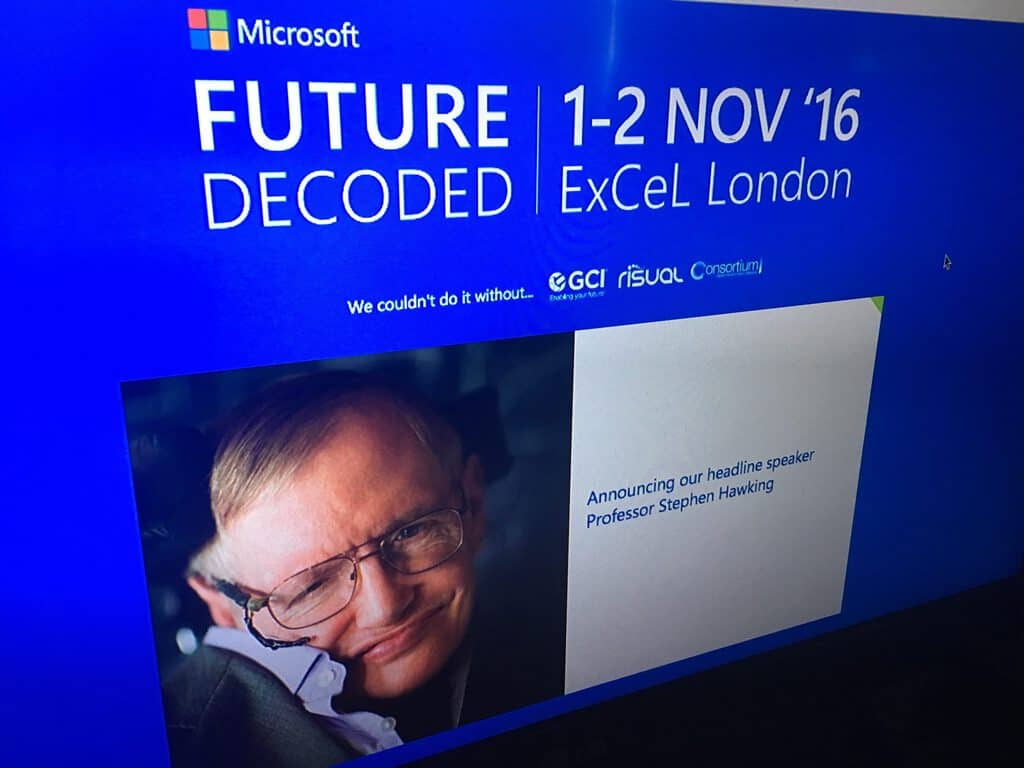
Microsoft has announced that British professor and researcher Stephen Hawking will be a headline speaker at the company’s upcoming Future Decoded 2016 event at the Excel, London on November 1. Over two days, the event will focus on helping business executives and IT professionals understand what it means for companies to transform in digital businesses.

For those unfamiliar, Stephen Hawking is a renowned researcher who has worked on the basic laws which govern the universe. A Director of Research at the Centre for Theoretical Cosmology within the University of Cambridge, Hawking has also written many books and has over a dozen honorary degrees. Other keynote speakers on the event’s opening day will include Chris Bishop, Chief Research Scientist at Microsoft Research in Cambridge and Martine Wright, Paralympic athlete and survivor of the 7/7 terrorist attacks.

Registration for Future Decoded 2016 is already open and you can get your tickets over here. If you live in the UK, let us know in the comments if you plan to attend the event.

Latest Just Dance Xbox One video game comes with free 3-month trial of streaming service

The latest entry in the popular Just Dance video game series, Just Dance 2017, is now available for pre-order and pre-download on Microsoft’s Xbox One video game console. As an added incentive for Just Dancers, all purchases of the special Just Dance 2017 Gold Edition will come with a three-month free trial of the Just Dance Unlimited streaming service which gives gamers access to over 200 songs from previous Just Dance video games. Here’s the official game description:

Just Dance 2017 is more fun & easier to play than ever! No camera needed to play. Simply download the free Just Dance Controller App to your smartphone to dance with up to 5 friends! Just Dance 2017 is coming with over 40 tracks at launch, and more than 200 songs available via Just Dance Unlimited! 3-month trial included with your game.

Take a sneak peek at the tracklist below:

Sorry – Justin Bieber

Lean On – Major Lazer Ft. MØ & DJ Snake

Cheap Thrills – Sia Ft. Sean Paul

Worth It – Fifth Harmony ft. Kid Ink

Daddy – PSY ft. CL of 2NE1

Don’t Stop Me Now – Queen

PoPiPo – Hatsune Miku

El Tiki – Maluma

…and many more!

Enjoy 6 game modes including the new frantic “Just Dance Machine”, customize your workouts with “Sweat + Playlists”, or try and beat the game with “Dance Quest”! Get ready for a music experience like no other, with amazing visuals and dance moves.

Pre-order Just Dance 2017 on Xbox One

Just Dance 2017 is due out on October 25th. Are you interested in the Unlimited streaming service? Let us know in the comments below.

How to Restore Control Panel in the Start Menu

Microsoft silently, without any announcement, removed a few links from Windows 10’s Windows X menu. And what bothered many was a missing Control Panel shortcut. So we will try to find ways to restore Control Panel in the right-click Start Menu on Windows 10.

While the debate about whether Microsoft was right in doing so keeps raging, the fact remains that this will be Micorosft’s approach, given that the same has been continued in Windows 11. Keep reading to find out how to get back the Control Panel in the Power User menu.

Why is my Control Panel not showing in Windows X?

This is because Microsoft wants users to focus on the Settings app more, and slowly banish the traditional Control Panel. While the biggest job in Windows 10 is indeed done in the Settings app, we still need the Control Panel for some actions.

Even for Windows 11, critical actions like uninstalling Windows updates or managing the printer have to be done via Settings, while earlier, it had a proper section in the Control Panel.

How do I add Control Panel to right click Start Menu in Windows 10?

1. Pin it to the Start Menu

  1. Go to Search, and type Control Panel.
  2. Now, just right-click on the Control Panel icon, and choose Pin to Start.pin control panel start menu

The easiest way to restore the Control Panel in Windows 10 is to pin it to the Start Menu as a Live Tile. Once you do that, minimal effort will be required to access it.

Now, your Control Panel shortcut will be placed in the Start Menu, along with other Live Tiles, and you’ll be able to access it easily. However, this method won’t restore Control Panel in the Windows X menu. So if you want to access the Control Panel from there, try some of the methods below.

2. Use a third-party tool

  1. Download Windows+X Menu Editor.
  2. Launch Win+X Menu Editor (it has both x32 and x64 versions).
  3. Select the group you want to add the Control Panel link to (by left-clicking on it).
  4. Select Add a program, then Add a Control Panel item, and choose Control Panel.
  5. This adds a Control Panel link to the selected group.
win+xmenu editor

Bringing the Control Panel shortcut back involves using a third-party program. The simplest possible tool you can use for this purpose is the Win+X Menu Editor. This tool allows you to add or remove any feature from the Win+X Menu, including the Control Panel.

Win+X Menu Editor was created by WinAero originally for Windows 8, but it has been updated to work with Windows 10, and you can normally use it.

Using Win+X Menu Editor is the easier way to bring the Control Panel shortcut back into the menu. But we do have another method.

3. Manually restore Control Panel to the Power User menu

  1. Download the old shortcut from Deskmodder (the site is in German).
  2. Open File Explorer and navigate to the following path:%LOCALAPPDATA%\Microsoft\Windows\WinX\Group2path
  3. Back up all entries listed in the folder.
  4. Copy the downloaded Control Panel link to the Group2 folder. It will replace the current link.
  5. Restart Explorer. You can do so by opening the Task Manager and ending the File Explorer process or restarting the computer.

As per the available information, you can bring it back manually, but it requires quite a lot of work. First, you’ll need to download the old shortcut file, replace the new one with it, and then change a few system settings to display hidden files.

There you go! After performing one of these three actions, you can quickly access the Control Panel from the Start Menu/Windows X Menu.

Before you leave, check some quick tips to boost performance on Windows 10.

If you have any comments or questions, let us know in the comments.

New Chrome version released with memory improvements

Starting now, Google Chrome 55 will use less memory thanks to the improvements developers made to its JavaScript engine. As we all know, memory is a decisive factor when selecting a browser. Though it may not be an issue if you’re using a system with more than 4 GB RAM, for instance, it is still a problem for people using less.

Google Chrome is a browser famous for consuming lots of resources. You can test this by opening 10 websites simultaneously in Microsoft Edge, Firefox and Chrome. Out of the three, you will see that Chrome takes up the most memory. Thankfully, there are lots of extensions that can help you check and control the memory it uses.

However, Google recently announced that Chrome 55 will sport significant memory improvements that will reduce memory consumption. The announcement offered details about the tracking and measurement process the company developed for the improvements.

Google used several websites in their effort to reduce memory use, such as Twitter, Facebook, Imgur, Reddit, New York Times and Flipboard. Moreover, the company mentioned that it worked on two different areas to improve, namely JavaScript Heap Size Reduction and Zone Memory Reduction. The first area improves the memory usage on devices with low RAM by adjusting garbage collection methods, which lead to a 50% reduction in heap size in Google tests.

The second improvement,  Zone Memory, benefits all devices. It reduces memory consumption when it comes to background parsing, a process which lets the JavaScript engine parse JavaScript scripts when you load a page.

All in all, it seems that Google did a great job in improving its browser, but it remains to be seen whether people will notice any difference.

RELATED STORIES TO CHECK OUT:

Save Text from Command Prompt: 3 Ways to Do It

Command Prompt is one of the most important features of Microsoft’s Windows operating system. Users can basically perform any action on their computers with this tool, from checking data to solving various problems and even customizing the Command Prompt.

If you use this tool regularly, you’d probably want to save some often-performed commands, so you don’t have to type them repeatedly. Well, that’s possible in Windows 10’s Command Prompt, and there are even a couple of ways to do so.

In this article, we’re going to show you how to save any Command Prompt command as a text, so you can easily use it whenever you want.

How do I save text from Command Prompt in Windows 10?

1. Create an executable command

  1. Open Notepad.
  2. Write a command in Notepad (In our case, that’ll be sfc/scannow, but you can use any other).
  3. Go to File, click on Save, select All files from the dropdown menu, and then save it as .bat file with wherever name you want.save text command prompt

The most effective way to run a command over and over again is to create an executable of that command. To do that, you need to write a command in Notepad, save it as .bat, and execute it.

You can now open the .bat file you’ve just saved, and it will perform the same command each time. You need to open it as Administrator. Do check how you can always run a file as administrator.

2. Select all and copy

  1. Execute the desired command in the CMD.
  2. Right-click in the Command Prompt, and choose Select all.select all
  3. Press Ctrl + C to copy the content.
  4. Now, paste it into a text editor, preferably Notepad.

Creating a .bat file is the most effective way of performing the same command multiple times. However, a lot of commands are there to show you some data, like your ping status or hard drive info. So, if you want current results from a command, you cannot perform it repeatedly.

In that case, you’ll want to save data from the Command Prompt into a text file.

3. Use the clip command

  1. Execute any command in CMD and wait for the result to appear.
  2. Now, type it again, followed by this command, and hit Enter:|clipclip command
  3. Now, the output is copied to the clipboard. Use Ctrl + V to paste it.

There’s another way to copy results from a command in the Command Prompt that some users will find even easier. That’s a simple Command Prompt command called clip that allows you to copy everything from a window to the clipboard.

That’s about it! As you can see, copying text from the Command Prompt is quite easy and requires minimal effort.

And do find out how to open a folder in Command Prompt, before you leave.

If you have any comments or questions, just let us know in the section below.

Overwatch ‘Terror’ update brings new skins and games modes for gamers, out now on the Xbox One

Blizzard has been exceptionally excited to launch holiday events for their video games, and their newest shooter isn’t an exception. Overwatch received the Halloween Terror seasonal update today. All of your favorite locations will be decked out in scary themes and strung up with spider web decor. Not to mention a ton of new treats are being handed out like candy.

Starting today and until November 1, Loot Boxes will be replaced with scary jack-o-lanterns that will give players new content for their games. For a reminder, Loot Boxes are obtained as a result of the player leveling up through gameplay. At the end of each match, you’ll be one step closer to getting more terror-iffic skins, tag sprays, icons, emotes, highlight intros, victory poses, and so on.

There’s over 100 new cosmetics to collect and only a few short weeks until the end of the event. Even though Halloween is over, that doesn’t mean you can’t use your new items. Like other events hosted in Overwatch, any stash you get will be available for use anytime after.

Overwatch Halloween Terror

That’s not all. Undoubtedly the biggest addition for Overwatch during its Halloween Terror event is the creation of a new game mode: Junkenstein’s Revenge. As a play off of the story of Frankenstein, four players will team up against a swarm of Halloween themed enemies and face Dr. Junkenstein and his monster. No spoilers though. Instead, you can read the Junkenstein digital comic by Blizzard to learn more about why you’re going to march his tower with guns blazing.

Players will be limited to specific characters for the new game mode: Soldier 76, Ana, Hanzo, and McCree. Quoted as Overwatch’s ‘first ever co-op PvE Brawl’ makes us think that there will likely be more of these story-driven horde-mode sieges to come.

The update is already available on PC, PlayStation 4, and Xbox One. Be sure to let us know what fun tricks and treats you find!

Microsoft tapping Pegatron as its high end Surface AIO manufacturer

Just a little over two weeks out from what many believe to be Microsoft’s fall showcase of hardware of sorts, images, FCC filing, and production leaks are surfacing regarding what the company may have planned to discuss for its October event.

As long been rumored, Microsoft’s Surface team has been tediously toiling away at constructing the next device in the company’s high-end computing line up; projected to be a newly branded All-in-One device carrying the recognizable Surface brand cache.

Putting further credence behind the notion of a Surface AIO device coming from Microsoft shortly is a new report claiming the company has pegged well known Apple iPhone and previous Surface device manufacturer Pegatron to build the new computer.

According to a rough translation of China’s Economic Daily News, Microsoft will once again be working with Pegatron to build its Surface AIO. Once again, Pegatron will be crafting another Surface device after its brief manufacturing stint with the Surface Pro 2 tablets that hit retail chains over three years ago.

Also noted in the Economic Daily News report is the mention of a possible production line taking shape within Pegatron for the construction of anticipated Surface Pro 5 and Surface Book 2 devices slated for public release sometime in early 2017.

Again, while much of this remains hearsay until devices are on the shelves, it’s interesting to think that Microsoft would mix up its arguably successful recipe of manufacturing Surface devices to include Pegatron again, especially in light of recent 3rd party construction mishaps.

Whatever the case may be, it will be interesting to see what the company has to show off in a couple of weeks.

Play classic Lara Croft on Xbox One with Rise of the Tomb Raider: 20 Year Celebration, available now

Back in November 2015, Rise of the Tomb Raider released on both the Xbox One and the Xbox 360 as a timed Xbox exclusive (it later released on Windows in January 2016). The game is a sequel to Tomb Raider, a reboot of the popular action-adventure franchise, released two years earlier to critical acclaim. To celebrate the twenty anniversary of the franchise as well as the release of the game on the Playstation 4, an ultimate edition of the game called Rise of the Tomb Raider: 20 Year Celebration is being released today on the Xbox One. It contains the main game plus the Season Pass which now includes a new set of DLCs that have been announced in the summer.

Here is the official description:

Rise of the Tomb Raider: 20 Year Celebration includes the base game and Season Pass featuring all-new content. Explore Croft Manor in the new “Blood Ties” story, then defend it against a zombie invasion in “Lara’s Nightmare”. Survive extreme conditions with a friend in the new online Co-Op Endurance mode, and brave the new “Extreme Survivor” difficulty. Also features an outfit and weapon inspired by Tomb Raider III, and 5 classic Lara skins. Existing DLC will challenge you to explore a new tomb that houses an ancient terror in Baba Yaga: The Temple of the Witch, and combat waves of infected predators in Cold Darkness Awakened.

Rise of the Tomb Raider: 20 Year Celebration will be a $48.99 purchase on the Xbox Store through November 10, so if you have yet to play the game now is the perfect time to buy it.

Get Xbox discounts on Forza, Star Wars Battlefront with this week’s Deals With Gold

Xbox’s Major Nelson has announced today this week’s Deals with Gold and Spotlight Sale and once again Xbox enthusiasts will be able to get a cool selection of quality titles for a discount. For Xbox One owners, this week’s highlights are puzzle platform game Unravel, popular shooter Star Wars Battlefront plus a Forza Horizon bundle including Forza Horizon 2 and Forza Motorsport 5. And for those of you still gaming on their Xbox 360, the Xbox team is running an Xbox 360 Super Sale with nice discounts on popular franchises including Borderlands, Call of Duty, Assassin’s Creed, Far Cry, Grand Theft Auto and more.

Xbox One deals

Star Wars Battlefront ($19.49 with Xbox Live Gold)

Immerse yourself in your STAR WARS™ battle fantasies. Feeling the ominous thud of an AT-AT stomping down on the frozen tundra of Hoth. Rebel forces firing blasters as Imperial speeder bikes zip through the lush forests of Endor. Intense dogfights between squadrons of X-wings and TIE fighters filling the skies. Immerse yourself in the epic STAR WARS™ battles you’ve always dreamed of and create new heroic moments of your own in STAR WARS™ Battlefront™.

Forza Horizon 2 and Forza Motorsport 5 Bundle ($35 with Xbox Live Gold)

Now you can experience the best-selling, highest-rated racing series on Xbox One for one low price. From the world’s greatest tracks to the freedom of the open road, Forza games combine unprecedented visuals with the industry’s leading simulation engine, giving everyone the opportunity to truly feel what it’s like to own, race and customize the cars of their dreams.

Unravel ($10 with Xbox Live Gold)

Unravel introduces Yarny, a new, lovable and endearing character made from a single thread of yarn, that slowly unravels as you move.  Inspired by the unique and breath-taking environments of Northern Scandinavia, Unravel is a visually stunning, physics-based puzzle platformer. Using yarn to swing from tree branch to tree branch or hitch a ride on a flying kite, no feat is too big. Yarny is brought to life as the representation of the ties that bind loved-ones together.  Embark with Yarny on a seemingly larger than life adventure to reconnect the long-lost memories of a family. Told completely without words, experience an exciting and heartfelt story about love, hope and the journey of life.

Xbox 360 deals

Microsoft releases Dynamics 365, adds AI capabilities, available in 135 markets

Takeshi Numoto, the Corporate Vice President of Microsoft Cloud and Enterprise has taken to the Offical Microsoft blog to announce the availability of Dynamics 365, the successor to Microsoft’s Dynamics CRM customer relationships management suite. The capabilities are all powered by advanced analytics, and machine learning, and aim to bring in new agility to Microsoft’s business customers.

According to Takeshi, Dynamics 365 offers “the ability to extend built-in intelligence capabilities with independent apps which can provide targeted and domain-specific intelligence.” An example of this is in the real word Microsoft’s new Dynamics 365 for Customer Insights, which is a new analytics app which applies intelligence to give businesses a clear view of their customers on social, web, and iOT sources with automatic suggestions to improve engagement.

Businesses can easily extend Dynamics 365 capabilities with the unique industry and function-specific apps found in AppSource. With Solution Integrator (SI) partners to AppSource being added soon, Takeshi notes that there are already, “100 new apps and made it easier for you to discover, trial and evaluate from within Dynamics 365.”

Available through Enterprise and Business Editions, these capabilities and Dynamics 365 will be available to Microsoft customers across 135 markets and in over 40 different languages come November 1st.  Subscriptions per app and per user will be available in Dynamics 365 and will also introduce industry-first plans that embrace the cross-functional way organizations and employees need to work today.

For the complete details, you can head over to this webpage and read Takeshi Numoto’s full post. Additionally, you can also see the power of Dynamics 365 in action during a live stream of Scott Guthrie’s keynote at the Dynamics UG Summit 16 at 11:30 a.m. PT today or at Microsoft’s virtual event site here.

Latest Xbox One Preview build adds Chat History to Clubs

Fresh off a release last month which added in Clubs and Looking for Group to the Xbox experience, Microsoft has released yet another Xbox Preview build. This time, the Preview build adds in chat history to clubs, resolves some known issues, and more.

If you’re an Xbox Preview member, all it takes to get this update manually is to head over to All Settings, System, and Console info and Updates. If your Xbox is in Instant-on mode, your Xbox will automatically download and install the update, then reboot into standby. Microsoft notes that if you have been selected to receive the update and your console has not downloaded and installed it by  1:00 AM PDT 10/12/2016, you will be prompted to do so at that time.  Nonetheless, for the complete details on the rs1_xbox_rel_1610.161007-1900 update, please see the changelog below.

NEW FEATURES:

  • You can now view chat history in the Chat section of the Club menu.

FIXES:

  • Resolved an issue with Club management navigation when pressing ‘B’.
  • Fixed a user interface issue with feed sharing.
  • Resolved an issue which caused the Quick Tips tile to disappear from Home while games or apps were being installed.

KNOWN ISSUES:

  • When viewing Clubs, you may still see the option to start a Club Party even if you are not a Club member.
  • Club invites may sometimes show up in the Friends list in Guide and may be counted or displayed multiple times.
  • When browsing the Store, certain apps may be missing for users with their console set to the Singapore region (zh-sg or en-sg).
    Workaround: To find a specific app, use the Store’s search function.
  • The option to Install a game or app may appear on the corresponding Store page when the game or app is already installed. For this reason, you may also be unable to launch games and apps from a Store page.
    Workaround: Launch games and apps from My games & apps, pins, or with voice commands.

Are you an Xbox Preview Member? What do you think of the Clubs and Looking for Group feature? Let us know what you think by dropping us a comment in the section below!

Non compliant apps to be removed from the Windows Store “on a rolling basis”

Back in June, Microsoft warned developers that already released apps on the Windows Store that it would start to remove apps that did not have their age rating correctly set starting September 30th. To comply with the new policy, app developers were asked to log in to Dev Center, edit age ratings on their apps and take a brief questionnaire, a process that should have taken approximately five to ten minutes to complete.

As we’re now eleven days past the deadline, it seems that Microsoft has not started removing non-compliant apps from the Windows Store yet. Indeed, a Microsoft spokesperson explained to our colleagues at Neowin that the company will remove non-compliant apps “on a rolling basis.” Here his the full statement:

As we’ve communicated over the last several months, Microsoft has adopted the simplified IARC rating system for app and game submissions to the Windows Store. All Windows Store content is certified by Microsoft to help ensure a quality experience and interact with content that is appropriate for you and your family. The process for removing non-compliant apps is on a rolling basis, as we periodically run tests and remove content that does not meet our quality certification.

It’s still not clear when the company plans to execute its next series of periodic tests, but it the meantime it seems that developers who have yet to update their apps to comply with the new policy could still have some time to do it. We’ll let you know as soon as we learn anything new on this matter.

Xbox One’s Metal Gear Solid V: The Definitive Experience is packed full of video game goodness

Metal Gear Solid V: The Definitive Experience is now available to buy, download, and play on the Xbox One video game console. This newly released collection of digital content contains the full versions of Metal Gear Solid V: The Phantom Pain, Metal Gear Solid V: Ground Zeroes, and the multiplayer gaming experience, Metal Gear Online, in addition to all of their related downloadable content that was distributed after their initial release. The Metal Gear Solid V: The Definitive Experience also contains exclusive digital content such as new items and storylines that weren’t available in the original versions.

Here’s the official description for Metal Gear Solid V: The Definitive Experience on Xbox One:

METAL GEAR SOLID V: THE DEFINITIVE EXPERIENCE is the ultimate collection of the MGSV story which includes the critically acclaimed MGSV: THE PHANTOM PAIN, its prologue MGSV: GROUND ZEROES, multiplayer METAL GEAR ONLINE, and all their DLC content.

MGSV: GZ lets the players experience thrilling stealth action as never seen before, surrounded by enemies in a photorealistic world.

MGSV: TPP, which has claimed more than 60 industry accolades including a 10/10 from IGN and Gamespot, offers limitless possibilities for the players to infiltrate enemy outposts in a vast open world. The player to decide the route, tactics and timing that can lead to the success of the mission.

METAL GEAR ONLINE is built around a dedicated squad-based competitive multiplayer structure, which has been fully redesigned with the familiar gameplay and aesthetic styling of the MGS series

36 DLC ITEMS AND ADDITIONAL CONTENT including 2 extra missions, additional weapons, and items used for customization.

Buy Metal Gear Solid V: The Definitive Experience on Xbox One

Are you going to purchase the Metal Gear Solid V: The Definitive Experience or are you happy with the individual releases? Let us know in the comments below.

New Assassin’s Creed Xbox One collection comes with 3 video games and 2 movies

There’s some fairly good value to be had with the new Assassin’s Creed The Ezio Collection on Microsoft’s Xbox One. This new collection contains remastered versions of the previously released Assassin’s Creed 2, Assassin’s Creed Brotherhood, and Assassin’s Creed Revelations video games with all of their single player campaign and additional downloadable content plus the two short movies, Assassin’s Creed Lineage and Assassin’s Creed Embers.

Here’s the official description for Assassin’s Creed The Ezio Collection which is now available to pre-order:

Make history as the legendary Master Assassin, Ezio Auditore da Firenze, in this compelling collection including Assassin’s Creed 2, Assassin’s Creed Brotherhood and Assassin’s Creed Revelations acclaimed single-player campaigns plus all DLCs, with enhanced graphics. Also enjoy two short movies, Assassin’s Creed Lineage® and Assassin’s Creed Embers™ for the complete Ezio experience. Live and breathe as the famous Ezio Auditore da Firenze. Learn the ways of the assassins and seek vengeance for the betrayal of your family. Travel through 15th century Renaissance Italy and onto its greatest city Rome then finally onto 16th century Constantinople. Wearing the clothes and weapons of your father, become a leader and rise to command the entire Brotherhood. There you will eventually walk in the footsteps of your legendary mentor Altaïr, defeat your mortal enemies and reveal the truth about the Creed.

Are you planning to buy this new Assassin’s Creed collection? Would you like to see other game sets like this one? Let us know in the comments below.

You can now set up to 18 hours of Active hours in Windows 10

The latest Windows 10 Preview build 14942 introduced a few improvements for the system and its features. One of these improvements is the ability to change Active hours in Windows 10, which is now available to all Insiders on the Fast ring.

Starting with Windows 10 Preview build 14942, Insiders are able to set active hours up to 18 hours from the selected time. In case you didn’t know, until now, the limit was (and still is for the regular users) 12 hours from the selected time. The same 18-hours limit is also applied to Windows 10 Mobile Insider Preview users running at least build 14942.

The active hours dialog window is also changed, as it now shows text saying “You can set Active hours up to 18 hours from your start time”.

“We’ve heard the feedback that you like the control Active Hours provides over when your PC restarts for updates, however feel that that the default 12 hour range on PC is too limited. We want to accommodate various enterprise environments and schedules including those where employees have double shifts, so starting with Build 14942, we’ve changed this range for PCs on Pro, Enterprise, or Education editions to 18 hours.”

Users generally find the whole Windows Update process quite annoying, because it often interrupts their work when installing new updates. Microsoft made things slightly better by introducing the Active hours feature, but original 12 hours didn’t seem to be enough for some users. So, we hope users will be more satisfied with the new limit.

As we said, the 18-hours limit is, for now, only available to Insiders on the Fast ring of Windows 10 Preview. Microsoft haven’t said when it will be available to general public, but we assume the next major update for Windows 10 will contain this feature.

What do you think about the new limit? Is 18 hours enough? Tell us in the comments.

RELATED STORIES YOU NEED TO CHECK OUT:

New Speedtest.net app released for Windows 10 users

Ookla has been the go-to site for speed tests for a long time now. To use its services, one had to visit their website — that is, until its latest release of Windows 10 PCs and the Surface Hub app. The Windows Phone 8.1 app has been there for years, and this new addition is quite convenient for Windows 10 users.

The latest version 1.0.41.0 of Speedtest is now available for download for Windows 10 PCs. The mobile version isn’t out yet, but the layout for the PC app looks mobile-ready and contains all necessary aspects to run on a mobile device. Strangely, it can’t be adapted to a bigger screened device, though, fueling speculation the app was originally a phone app. We also observed some glitches in the app which is probably why it isn’t out for mobile yet. Though if you still want it on your phone, you can first download the PC app and then go to My Library in the store from your phone. The app functions perfectly on a PC but when resized, glitches and returns to its original size.

The interface has a combination of sharp, clear, bold fonts and an easy ‘Go’ button that when pressed, calculates your Ping, Download and Upload rates while updating and saving your test history. The results can later be pushed via Windows Share Picker to external apps like Outlook and Twitter.

The app is currently out for the Surface Hub, PC, and mobile devices but is fully functional on other platforms as well. As far as the official release of the mobile app is concerned, the Windows 8.1 version clearly has a larger user base than Windows 10 so it’s probably unlikely for them launching a mobile app anytime soon.

The latest app is available here and the older, more stable version here.

Navigate through the Registry Editor (regedit) with the new address bar

The latest Windows 10 Preview build 14942 mainly focused on improving the system’s features, and bringing some new options to them. One of the nicest touches from the new build is definitely the introduction of an address bar for the Registry Editor (regedit).

Address bar in the Registry Editor will certainly make it easier for user to browse it, and organize. It looks similarly to the address bar in the File Explorer, as it shows the complete path of registry key you’re currently on. So, if you need to go to a complicated registry key path you’ve just found online, there’s no need to open each key individually, as you can past the whole path into the address bar.

“For our power users, we have added something special in this build – Registry Editor (regedit) now has an address bar! This enables you to easily see your current registry key path, and copy it if needed. You can also paste or type in paths, and pressing enter will take you to that location. You can use Alt + D to set focus to the address bar.”

Registry Editor is one of the longest-standing features of Windows, but it didn’t receive many changes through years. However, in Windows 10, Microsoft keeps improving it to provide the best possible experience for users in this sensitive tool.

As you probably know, the address bar in the Registry Editor is only available to Insiders running at least Windows 10 Preview build 14942. We expect Microsoft to release it to regular users with the next major update for Windows 10, the Redstone 2 update.

What do you think about the introduction of the address bar in the Registry Editor? Will it make browsing through registry keys easier? Tell us in the comments.

RELATED STORIES YOU NEED TO CHECK OUT:

Microsoft’s Surface Phone release delayed until late 2017 into 2018

By now, Microsoft fans are aware of the company’s upcoming hardware event on October 26 and certainly hope it will shed some light on some of the most oft-asked questions about Microsoft’s plans for its mobile releases and gaming console. But most importantly, users are giddy for a closer look at the new Surface all-in-one desktop PC.

The event is mostly about Windows 10 developments rather than certain hardware specifications but considering all the bustle created in the past few weeks by the many rumours, leaks and theories from well-reputed sources, it seems likely for the device to be shown off at the event. What’s unlikely is any news related to smartphones at the event.

The Surface Phone was rumoured to be released in 2017 at the earliest, as reported by several credible sources. But now, rumours have resurfaced and the release is expected be delayed until as far as 2018.

The foremost speculation that appeared stated that the phone is all set to be released in late 2016. A few months later, it became public that the handset would make its debut around the summer of 2017, somewhere around the rollout of Windows 10 Redstone 2 update. The Redmond-based company already made its intentions clear about the sales of further Lumia phones but nonetheless, hope for Windows 10 smartphones is not lost. On the other hand, the awaited Surface Phone is nowhere near ready for its red carpet appearance.

Mary Jo Foley recently confirmed this news and crushed all hopes of users getting a Surface Phone in their hands any time soon, further adding that “it will likely be late 2017 or maybe even not until 2018” before the Surface Phone is launched.

2018 is a long time to wait for Microsoft’s Surface smartphone. Even if the release is not delayed any further, user’s hopes would have peaked by then considering the extended wait. Given that it has been over a year since company’s recent flagships, the Lumia 950 and 950 XL, were unveiled, their prices have significantly tumbled which points towards the end of the Lumia line.

Focusing on what is actually going to be featured in the event, gaming consoles and their recent developments as well as devices from Microsoft’s OEM partners will  be highlighted. As far as smartphones are concerned, we are going to see some but unfortunately, they won’t be Microsoft’s.

Has the extended delay for the Surface Phone killed your excitement? Or being the extreme Windows 10 fanatic as some of us are, are you still hyped about the Surface Phone release?

VLC now available to download on Windows Store for Xbox One

Not too long ago, we anticipated the expected arrival of VLC for Xbox One and the day has finally come: Microsoft launched the app today on Windows Store for Xbox One owners. The open source media app made its way from Windows 10 desktop PCs to mobile and now to the popular gaming console.

As the VLC Media Player is a Universal Windows App, its features are akin to the Windows 10 app for desktop or mobile. Though the app is up for download now, a developer of the app took to Reddit to inform the users about the beta test of the app which is still in progress. Even though it isn’t a finished product, they felt it was “important enough to have a version out”. Having said this, developers are opting to be fully cooperative and accept constructive criticism with open arms and are asking users to report any issues and bugs they might face on their bug tracker.

VLC still lacks support for DVD and Blu-Ray though it fully supports a wide-range of image and video file types. Also, it is essential for users to remember that this isn’t the full-fledged VLC Win32 app, so we would advise users to not get their expectation a little too high.

As for the UWP, VLC includes:

  • video player

  • audio player

  • audio management

  • MKV playback

  • FLAC playback

  • subtitles downloader

  • subtitles

  • audio

Apart from downloading the app from Windows Store, users can also visit the link from their browser Microsoft Edge to get it.

Microsoft seeks to “transform and modernize education” by collaborating with edX for new online course offerings

Earlier this year, Microsoft shared that they wanted to help “transform and modernized education”. What does transforming schools actually mean? To Microsoft, it means educating from the very top. That includes administrators, principals, and school leaders that directly influence the development of lessons and learning. The tech giant intends to develop classes specifically for these individuals to put learning first and now those previously promised classes are finally available. Announced through the Microsoft in Education blog, Microsoft revealed the release of five new leadership courses on the edX platform.

For those that may not know, edX is a massive online course provider that was created in May 2012 by a collaboration of Massachusetts Institute of Technology and the prestigious Harvard University. Almost anyone can register and take part in self-paced classes developed by universities and professors delivered conveniently online with a wide variety of topics.

In this case, Microsoft’s courses are focused towards providing up to date references and technological knowledge to administrators for K-12 schools. The classes were developed by  the Massachusetts Institute of Technology, University of Michigan, and the University of Queensland.

Here’s a detailed look at each one:

  • Launching Innovation in School
    Become a change leader and take the first step in launching instructional improvement in K-12 education to improve teaching and learning.

    Course led by Massachusetts Institute of Technology (MIT)
    Starts January 17, 2017
    Duration: 6 weeks
    Course Faculty: Justin Reich, Executive Director, MIT Teaching Systems Lab; and Peter Senge, Senior Lecturer in Leadership and Sustainability, MIT Sloan School of Management
    Learn more and register now

  • Leading Ambitious Teaching and Learning
    Learn why ambitious teaching and learning may be the key to global educational improvement and how to put it into practice.

    Course led by The University of Michigan
    Starts January 24, 2017
    Duration: 4 weeks
    Course Faculty: Elizabeth Moje, Dean, School of Education; and Deborah Ball, Professor, School of Education; Nell Duke, Professor, School of Education; Liz Kolb, Clinical Assistant Professor, School of Education; Donald J. Peurach, Associate Professor, School of Education; Gretchen Spreitzer, Professor, Ross School of Business
    Learn more and register now

  • Deep Learning Through Transformative Pedagogy
    Learn powerful teaching strategies and effective learning activities to enhance deep learning

    Course led by The University of Queensland
    Starts February 27, 2017
    Duration: 5 weeks
    Course Faculty:  Merrilyn Goos, Head of the School of Education; Pankaj Sah, Director of the Queensland Brain Institute; Robyn Gillies, Professor of Education; Annemaree Carroll, Professor of Education; Melissa Cain, School of Education; Katherine McLay, School of Education
    Learn more and register now

  • Leading Change: Go Beyond Gamification with Gameful Learning
    Learn the tools to support gameful learning environments that foster personalized, engaged learning

    Course led by The University of Michigan
    Starts March 6, 2017
    Duration: 6-8 weeks
    Course Faculty: Barry Fishman, Professor of Information, School of Information and Professor of Education, School of Education; and Rachel Niemer, Director of the Gameful Learning Lab, Office of Academic Innovation
    Learn more and register now

  • Design Thinking for Leading and Learning in K-12 Education
    A hands-on course for education leaders to learn about design thinking and explore how it can transform classroom learning and school communities.

    Course led by Massachusetts Institute of Technology (MIT)
    Starts March 21, 2017
    Duration: 6 weeks
    Course Faculty: Justin Reich, Executive Director Teaching Systems Lab
    Learn more and register now

Like other edX classes, registration is free and available to everyone 24/7. The Microsoft in Education edX classes are already available for registration and will be underway in January 2017.

Windows 10 Build 14942 causes Edge crashes, installation problems, and more

Microsoft pushed the new Windows 10 Preview build 14942 to Insiders on the Fast ring. The new release brought a couple of new features, some system improvements, and updated a few apps.

According to Microsoft, there aren’t many known issues in this build, as the company recognizes it as quite stable. However, that’s the case in reality, because we’ve managed to find numerous complaints from insiders who installed Windows 10 Preview build 14942 on their computers.

Judging by the number of reports, this build has the potential to become one the most troublesome Redstone 2Preview build so far. So, let’s see what has been bothering users in build 14942, and if there’s a way to solve any of those problems.

Windows 10 Preview build 14942 reported issues

As (pretty much) always, we start off our report with installation fails. Numerous users reported on the Community forums that they’re unable to download or install Windows 10 Preview build 14942, for one reason, or another. However, it appears that installation gets stuck for most users. Here’s what some of them say:

  • “im installing new build on a laptop and surface pro 4.
    both been running build14936.
    but both jam up at 80% installing updates.
    I have rebooted back to earlier build and restarted download to install but alas I get same issue at 80%’
    any one else having an issue??
    have retried and both stick at 80%”
  • “Hi when I tried to install windows 10 build 14942 it gets stuck at 81%, I’m not sure what is getting stuck or what’s it installing but I left it on all night and it was still 81% by morning.
    Could I have help please?”

According to replies from other users, installation stuck is caused by third-party antivirus programs, mostly Kaspersky, Norton, and Malwarebytes. So, if you’re experiencing this kind of problem, try removing your antivirus program, and initiate the installation process once again. Remember to remove it completely, because just disabling won’t be of any help.

Even those Insiders who had no problems installing the latest build have encountered some issues of their own. Nevertheless, none of these issues is a critical problem that prevents users from using the system, and testing the build, but each flaw is quite annoying, and people want it solved.

One Insider reported on the Forums that the Task Manager window resets each time he re-opens it. Here’s what he said about the problem:

“I open Task Manager and resize it to show full details. But when I close the Task Manager and re-open it, the window size returns to its first-open size as if I had completed installing Windows 10 a second ago.”

This user managed to find the solution himself, by performing the SFC scan, which is now fixed in build 14942. However, this solution doesn’t seem to work for everyone, so we cannot threat it as a confirmed workaround.

Next, a few users are unable to wake up their computers from sleep normally. Reportedly, when they try to wake their PC up by simply moving the mouse cursor, it automatically restarts. Here’s what one of them said on the forums:

“With Build 14942, when I try to wake my computer from Sleep by moving the mouse, it promptly reboots, doesn’t get to the logon screen, and reboots again”

If you’re encountering this problem, as well, we recommend checking out our article about waking up problems in Windows 10. But since nobody said anything about a potential solution, we cannot guarantee our article will surely help.

The same user reported another problem on the Forums. This time, he had problems with the Start Button and Notifications icon, which failed to work normally.

“In Build 14942, both the Start Button and the Notification Icon fail to work until about 2 minutes after the boot process has completed.”

Unfortunately, no one had a proper solution for this problem. Once again, we can recommend you our article about Start Menu problems in Windows 10, but cannot guarantee if any of the offered solutions would work in your case.

One of the most common issues in the build is the problem with Microsoft Edge. Apparently, Windows 10’s default browser crashes on launching, which some users find extremely annoying.

“I just upgraded 2 PC’s to Windows 10 build 14942.  Every time I try to open Edge it crashes.  Both of my PC’s have the Edge crashing problem.  I’m using Pale Moon to write this.  Any suggestions to fix this?  Thanks!”

Luckily, some Insiders managed to find a solution for this issue. Namely, running one command in PowerShell should resolve the problem. So, if Microsoft Edge crashes on your computer, as well, just open an elevated PowerShell, and run the following command:

“Get-ChildItem ‘HKCU:\Software\Classes\Local Settings\Software\Microsoft\Windows\CurrentVersion\AppContainer\Storage\microsoft.microsoftedge_8wekyb3d8bbwe\Children’ | foreach {Remove-Item $_.pspath -Recurse}”

Issues with the Settings app have become a common sight in Windows 10 Preview builds. Even when Microsoft fixes a certain issue, another one pops up. This time, one Insider reported on the forums that he’s unable to see title labels in the System>About section of the Settings app.

“After installing the latest build I looked over the items in Settings and noticed that under System then select About there are “switches” without any title labels.”

build 14942 issues settings

Unfortunately, no one had a proper solution for this problem on the forums.

That’s about it for our article about reported problems in Windows 10 Preview build 14942. As you can see, there are a lot of ‘smaller’ issues that are still bothering Windows Insiders. Hopefully, Microsoft will address at least some of them in the future releases, just like it did with some of the previous problems.

Of course, these probably aren’t all problems in Windows 10 Preview build 14942, so if you’ve encountered some issue we didn’t mention here, feel free to let us know in the comments.

RELATED STORIES YOU NEED TO CHECK OUT:

Skype for Linux updated to version 1.10, gains video calling support

The Skype team has released today another update to its new Skype for Linux client that it introduced earlier in July. The latest version 1.10 finally brings supports for video calls on Linux, though there is a catch as Skype video calls are only available on Skype for Linux users for now. The team explained why in a new post on Skype community (via Neowin):

The team has been working hard on bringing video calls on Linux and today we have the experimental version ready for you. We are not quite there. The 1-on-1 video calls work only between Skype for Linux Alpha clients for now. Despite the early phase, we’d like to ask you, the Linux community, to help us with testing. Please let us know how the video works for you.

Additionally, the Skype team also explained that it would disable older versions of Skype for Linux following this latest release, and those of you who are still running versions 1.1 to 1.6 will soon be asked to download the new bits. If you didn’t test the app yet, you could do so by downloading the DEB package or the RPM package.

Where is Microsoft headed in Windows 10 speech recognition?

PCWorld writer Mark Hachman pointed out a notable issue with Windows over the weekend. For all that Microsoft champions about being able to speak to Cortana, or translate your spoken words with Skype, Windows’ speech recognition remains underwhelming.

Microsoft has long believed in new forms of input to interact with PCs and devices. Windows, for the most part, remains a mouse- and keyboard-centric experience, but now you can also draw on web pages, dictate an email to Cortana, and unlock your device by looking at it. And as we recently reported, Microsoft believes a combination of your voice and hand gestures will eventually kill off the keyboard altogether.

Windows Ink
Windows Ink

So this raises the question that Mark Hachman gets at with his PCWorld article. Why isn’t speech recognition and dictation a bigger feature within Windows?

Hachman points out how this could be because ten years ago Microsoft did try to make voice dictation a significant feature in Windows Vista, and the effort didn’t go so well. Microsoft product manager Shanen Boettcher had a cringeworthy demonstration of a glitchy voice dictation system that got very little correct on the first try, or at all.

But times and the processing power of our PC’s have changed. In fact, Microsoft researchers recently produced the lowest-ever error rate in speech recognition thanks to machine learning. However, again as Hachman points out, Windows Speech Recognition is still powered by Microsoft Speech Recognizer 8.0, which has been around, and unchanged, since Windows Vista.

Hachman also tested Windows Speech Recognition and got an accuracy rate of 93.6%. He writes,

That’s pretty bad on paper, and somewhat behind the dedicated software I’m trying. Windows also had an odd habit of interjecting the word “comma” when I was dictating the punctuation mark. The speech community seems split on whether relatively minor mistakes like this are significant.

He notes though this was without any training of the software, and he says Microsoft employees reported that with proper training, Windows Speech Recognition can be up to 99% accurate.

Speech recognition is limited to dictating commands to Cortana, but not dictating entire documents.

Windows Speech Recognition seems overdue for a reboot. Just like Microsoft has introduced touch and ink capabilities throughout Windows and apps, it is probably time for your voice to be a useful input throughout the operating system. Hachman notes that one part of the problem in rolling out modern voice recognition to apps like Office is that the most recent voice recognition efforts are siloed away with the Cortana and Bing team.

Hachman writes:

I think it’s pretty obvious that the pieces of the puzzle are there, technically. If there’s any obstacle, it might be organizational: As of Thursday, Microsoft’s Office apps were spun out into their own group, away from Cortana and Bing.

But for all that Nadella has done to break down barriers between product teams, it seems like this challenge is right up his alley: to create a vision for Windows and Microsoft apps, like Office, tapping into the machine learning cloud powered efforts of Bing and Cortana. For their part, Microsoft did respond to Hachman’s article, saying:

We see value in conversations across a range of devices and experiences. We’re just at the beginning of what we believe is possible and certainly see lots of opportunity to connect Cortana and conversations into a number of productivity scenarios. Today, Cortana integrates with Office 365 for glance-able information about upcoming meetings, along with flight and package tracking, and Bing is also providing intelligent insights directly in Office. We will continue to invest heavily here.

So who knows, maybe this is something that Insiders might start seeing more inklings of in future Redstone 2 builds, or maybe even in the same ballpark of what is talked about at the upcoming October event. It would be fitting as September saw Apple announcing Siri on MacOS and Google bring Google Now into every room of your home. For all the attention other forms of input get with Windows, move universal voice recognition certainly seems long overdue.

Microsoft offers more details on new patch rollup scheme for Windows 7, 8.x, Server

In August, just a little over two weeks after the Windows 10 Anniversary Update launched, Microsoft announced Windows 7, 8.1, Server 2008, and Server 2012 will be moving to a new serving model.

Starting this month, updates for these older versions of Windows and Windows Server will move to a monthly servicing model with a single update. The bigger change in this new model is that previous months’ updates will be rolled up into each new monthly update. In other words, Windows 7 and Windows 8.1 updates are getting the Windows 10 cumulative update treatment, also known as part of what Microsoft describes as Windows-as-a-Service.

Microsoft's monthly update roadmap.
Microsoft’s monthly update roadmap.

Just before the weekend, Microsoft posted the details on TechNet of how this new servicing model will work, via ZDNet.com. The post includes a roadmap of how this process will work through February of next year, at which point the whole process should be fully cumulative like Windows 10.

Microsoft also thoroughly explained the three monthly updates which will be available each month. They include a security-only quality update, a security monthly quality rollup, and a preview of the monthly quality rollup. Microsoft specifically describes each update with the following:

A security-only quality update

  • A single update containing all new security fixes for that month
  • This will be published only to Windows Server Update Services (WSUS), where it can be consumed by other tools like ConfigMgr, and the Windows Update Catalog, where it can be downloaded for use with other tools or processes. You won’t see this package offered to PCs that talk to Windows Update.
  • This will be published to WSUS using the “Security Updates” classification, with the severity set to the highest level of any of the security fixes included in the update.
  • This (like all updates) will have a unique KB number.
  • This security-only update will be released on Update Tuesday (commonly referred to as “Patch Tuesday”), the second Tuesday of the month. (This is also referred to as a “B week” update.)

A security monthly quality rollup

  • A single update containing all new security fixes for that month (the same ones included in the security-only update released at the same time), as well as fixes from all previous monthly rollups. This can also be called the “monthly rollup.”
  • This will be published to Windows Update (where all consumer PCs will install it), WSUS, and the Windows Update Catalog. The initial monthly rollup released in October will only have new security updates from October, as well as the non-security updates from September.
  • This will be published to WSUS using the “Security Updates” classification. Since this monthly rollup will contain the same new security fixes as the security-only update, it will have the same severity as the security-only update for that month.
  • With WSUS, you can enable support for “express installation files” to ensure that client PCs only download the pieces of a particular monthly rollup that they haven’t already installed, to minimize the network impact.
  • This (like all updates) will have a unique KB number.
  • This monthly rollup will be released on Update Tuesday (also known as “Patch Tuesday), the second Tuesday of the month. (This is also referred to as a “B week” update.)

A preview of the monthly quality rollup

  • An additional monthly rollup containing a preview of new non-security fixes that will be included in the next monthly rollup, as well as fixes from all previous monthly rollup. This can also be called the “preview rollup.”
  • This preview rollup will be released on the third Tuesday of the month (also referred to as the “C week”).
  • This will be published to WSUS using the “Updates” classification as an optional update. It will also be available via Windows Update (where all consumer PCs will install it) and on the Windows Update Catalog.
  • With WSUS, you can enable support for “express installation files” to ensure that client PCs only download the pieces of a particular monthly rollup that they haven’t already installed, to minimize the network impact.
  • Starting in early 2017 and continuing for several months, older fixes will also be added to the preview rollup, so it will eventually become fully cumulative; installing the latest monthly rollup will then get your PC completely up to date.
  • This (like all updates) will have a unique KB number.

Internet Explorer and the .NET Framework will also be moving to this monthly update model. Hopefully, this model will simplify support for older version of Windows, reduce fragmentation of operating systems, and produce more reliable updates. But understandably, some are concerned.

Windows 10 BSOD QR Code
Kindle Paperwhite owners reported BSOD errors in Windows 10 after the Anniversary Update

It probably was not great timing to announced Windows 7 and Windows 8.1 are getting the Windows 10 cumulative update treatment, as the Windows 10 Anniversary Update caused a variety of headaches for users. And as many businesses rely on legacy versions of Windows, those headaches could get costly. It won’t be long before we know how this all plays out for Microsoft and the hundreds of millions using legacy versions of Windows, since the “B” week Patch Tuesday is tomorrow.

It’s a big week for Xbox with Gears of War 4, Battlefield 1 early access releases, lots more

If you have a hard time following all the new game releases on Microsoft’s Xbox One, the folks over at Xbox Wire have started a new weekly series of posts called “Next week on Xbox” to highlight the most important new titles to enjoy on your console. With several blockbuster releases, this week is expected to be particularly exciting for Xbox One owners. Let’s dive into the details below.

New AAA games

Gears of War 4 – Tuesday, October 11

Gears of War 4, the critically-acclaimed third person shooter developed by The Coalition for both the Xbox One and Windows 10 PCs, will become available worldwide tomorrow, October 11 (those of you who bought the game’s Ultimate Edition have been able to enjoy early access since October 7). The latest Gears opus opens a new story arc which takes 25 years after the end of the previous trilogy, and new hero JD Fenix (Marcus’ son) and his friends will embark on a new action-packed adventure featuring more diverse environments, deadly enemies and more. If you haven’t done it yet, we invite you to read our full review over here.

Battlefield 1 – Thursday, October 13 (With EA Access)

EA Access subscribers will be able to try the latest first person shooter from EA’s Dice Studios starting October 13 (others will have to wait for the worldwide release of the game on October 21). In some sorts, Battlefield 1 is a throwback to the origins of the franchise as the game is set during World War 1. Following the game’s open beta back in August, we wrote that the game could be one of the best Battlefield games yet.

WWE 2K17 – Tuesday, October 11

The professional wrestling video game and follow up to WWE 2K16 will be released on the same day than Gears of War 4. “WWE 2K17 features stunning graphics, ultra-authentic gameplay and a massive roster of WWE and NXT’s popular Superstars and Legends,” shared the Xbox team.

New old game bundles + Tomb Raider DLCs

Metal Gear Solid V: The Definitive Experience

Metal Gear Solid V: The Definitive Experience is a new bundle including the critically-acclaimed Metal Gear Solid V: The Phantom Pain plus its prologue Ground Zeroes and all their DLC content. In addition, the bundle will include $20 worth of in-game currency.

Payday 2: The Big Score

This new package includes Payday 2 Crimewave Edition, The Big Score DLC bundle plus additional content including heists, weapons, characters, masks and more.

Rise of the Tomb Raider: Season Pass DLC – Tuesday, October 11

As we previously reported some weeks ago, Rise of the Tomb Raider is getting new content to celebrate the franchise’s 20th anniversary. Those of you who purchased the game’s Season Pass will get the “Blood Ties” DLC, a “Lara’s Nightmare” mode, a new online Co-Op Endurance mode and an “Ultimate Survivor” difficulty.

Other games to be released this week

Duke Nukem 3D: 20th Anniversary World Tour (available Wednesday, October 12) is a remaster of the four classic Duke Nukem 3D episodes plus a new episode created from the game’s original designers.

Three other games will also be released on October 12: Castle invasion: Throne Out, racing game Mantis Burn Racing and shoot-em-up Blue Rider. Lastly, two other titles will be released on Friday, October 14: narrative adventure game Manual Samuel and 3D adventure/puzzle game Death God University. Let us know in the comments which of these games you’re most excited about!

Registration now open for Microsoft Envision conference, coming to Los Angeles in early 2017

Back in April, Microsoft hosted their Envision Conference in New Orleans. Designed for business leaders, the conference is centered on the challenges companies face in a technological world, and how technology impact businesses. If you missed the last conference, registration for the 2017 edition of the event in Los Angles is now open.

As is expected, Key speakers at the 2017 Microsoft Envision conference include Microsoft CEO Satya Nadella, Microsoft President, and Chief Legal Officer Brad Smith. The three-day event will also feature a Digital Transformation keynote, Fireside chats with top business and industry leaders, an Innovation chat, and for those who are in attendance, chances to network.

Microsoft Envision is scheduled for February 28, 2017, to March 2nd, 2017. Previous themes from last year’s conference included the digital transformation in business. So, if you’re a business leader interested in attending, be sure to head over to this official Microsoft page now to secure your seat at the event before registration closes.