Windows 8, 10 App Check: ICQ Brings Free Messaging With Style

The official ICQ for Windows 8 is present in the Windows Store and it brings free messaging, as well as free video and audio calls. Read our review to find more about it.

windows 8 icq
Those of you who were wondering whether ICQ was dead or not for Windows 8 users now have the answer – it is not. As a matter of fact, the Windows 8 ICQ app has been in the Windows Store for quite a while, but we’ve decided to see how it looks like only now. And we are pleasantly surprised.

Of course, maybe there aren’t so many ICQ users as before, many of them fleeing to other services, Facebook being the biggest of them all or by using an all-in-one instant messenger like IM+. You get cool, proprietary ICQ smilies with the official Windows 8 app, people search function; all in an elegant and and simple touch interface.

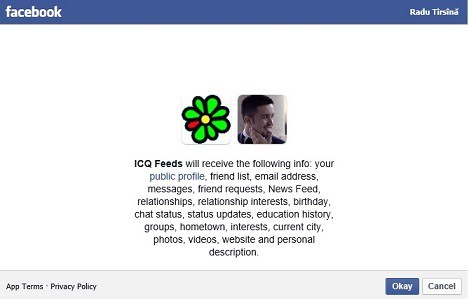
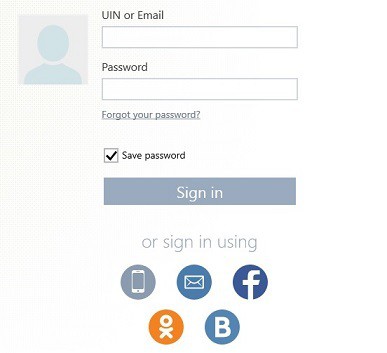
You can sign in using your Facebook, VKontakte or Odnoklassniki account. Besides sending pictures, video and files, you also have the option of sending free SMS. I logged into ICQ using my Facebook account and noted some slow loading, perhaps it happens only the first time when ICQ synchronizes with your Facebook account.
You have the option of letting the Windows 8 ICQ app run in the background to receive notification and show your status. By right clicking in the app you will be able to add a new contact, a new group or if you want, you can sign out. I found the app to be very fast and what I liked about it is that it is advertising free. Follow the link from below to install ICQ on Windows 8 or Windows RT and start enjoying the free messaging right away!

Download ICQ app for Windows 8

Nokia releases photography-based Storyteller app

Nokia Lumia 1520

It’s only been 3 weeks since Nokia World was hosted in Abu Dhabi, and we got to see the Nokia Lumia 1520, the Nokia Lumia 1320, the Nokia Lumia 2520, and many other new apps and features. One of the new apps is the Nokia Storyteller app. This app will be available on both Windows Phone 8 and Windows 8, with a beta already being released on the Windows Phone Store. The thing is, you will need to have Lumia Black to download the app.

The Nokia Storyteller app complies with Nokia’s initiative of all-photography on mobile devices. The app displays where and when all your pictures were taken. This is ideal for people who travel a lot, or tourists, because this app can recall missing memories they had at the point where they took the image or the video.

The Nokia Storyteller app is now available as a beta in the Windows Phone Store, but users can’t download it since Nokia has told us that this will work with Lumia Black. Only users who have Lumia Black and GDR3 will be able to download the app.

To get a better look at the app, Windows Phone Central has a hands-on video explaining its features.

It’s rather odd that Nokia has released this app before the Lumia Black update, but Nokia might be slowly teasing us, since they already have the Nokia Beamer app in the Windows Phone Store. It’s only a matter of weeks until we see Nokia’s Lumia Black update appear on our phones, I guess we’ll just have to wait.

Microsoft’s Windows Store Now at 1.7M Daily Downloads

New statistics reveal that the Windows Store has reached a 1.7 million daily downloads milestone in October, which is an increase of 38.56 percent compared to figures revealed in June. Still, it has a long way before it can be considered a rival for Apple’s or Google store of apps

windows store daily downloadsMicrosoft has provided developers with information that the Windows Store managed to reach a new milestone in the past month – 1.7 million daily downloads. The last time when Microsoft has disclosed daily downloads in the Windows Store was in June; now, the new numbers represent a 38.56% increase since then. Most likely, the overhaul that Windows 8.1 has brought is to be considered the main cause.

According to Microsoft’s dataset, around 51.2 million free and paid applications were downloaded during the month of October, up from 36.9 million in June. More than 1.3 million download in October were for paid Windows 8 apps, while downloads for free apps have reached 49.7 million. You can see more statistics in the above table.

Microsoft’s Windows Store might beat the Apple Mac Store, but it is definitely no match for Apple’s store. Apple has had en estimated 60 billion App Store downloads in October with an average of almost 75 million daily downloads. According to this data, Apple is tallying 43.8 times as many downloads per day than Microsoft.

One of the reasons is constituted by the fact that Apple has a huge number of iOS devices in the whole world while Windows 8’s market share is still in its incipient stage. Another reason is the absence of important apps in the Windows Store, and the presence of a lot of “junk apps”, like I call them. Maybe the launch of cheap Window 8 tablets will contribute to the increase of apps in the Windows Store, because at the moment, it can’t compete with Google and Apple.

Microsoft expands Office 365 availability to 17 new markets and 4 new languages

Microsoft expands Office 365 availability to 17 new markets and 4 new languages

Microsoft has announced the expanded availability of Office 365, the company’s cloud-powered office productivity suite, to seventeen new markets and four new languages. In total, this would mean that Office 365 is now commercially available in 123 markets.

“Office 365 is expanding availability to 17 new markets and 4 new languages.  Office 365 is now commercially available in 123 markets, additionally 120-day trials are available in 18 markets where paid subscriptions may become available in the future,” Microsoft stated in an official blog post.

The new markets with paid subscriptions include: Bangladesh, Uzbekistan, Vietnam, Lebanon, Jamaica, Bolivia, Brunei, Nicaragua, Honduras, Albania, Armenia, Bosnia and Herzegovina, Senegal, Côte d’Ivoire, Georgia, Ghana, Mauritius, Iraq, Bermuda, Rwanda, Belize, Cameroon, Moldova, Mongolia, Zimbabwe, Cape Verde, Fiji, Kyrgyzstan, Virgin Islands (U.S.), Bahamas, Cayman Islands, Angola, and Libya. 

The new Office 365 120-day trial markets include: Palestinian Territories, Congo (DRC), Tajikistan, Turkmenistan, Botswana, Namibia, Curaçao, Faroe Islands, Monaco, St. Kitts and Nevis, Ethiopia, Uganda, Zambia, Afghanistan, and Tanzania. 

The four new languages include: Indonesian, Kazakh, Hindi, and Hebrew. This brings the total number of languages to 40.

Windows 8, 10 App Check: Dailymotion Brings Free Online Videos and Movies

Dailymotion isn’t as popular as Youtube but still, it remains one of the best video-sharing websites in the world. We’re having a look at how it fares on Windows 8 and Windows 8.1
dailymotion windows 8 app
If you too are pissed that there isn’t yet an official Youtube app for Windows 8, then you need to look for alternatives. And one of them is Dailymotion, a popular video-sharing website where you can find millions of free videos and even free movies, if you have the patients of watching in parts.

Recently, Dailymotion has also been updated for Windows 8.1, featuring a better player with HD support, a redesigned homescreen and overall performance optimizations. As the description goes, use the Dailymotion Windows 8 app “to search, watch and share more than 20 millions videos”.  You also get to enjoy your videos in HD quality, up to 1080, which makes it look super cool especially on a tablet.

You have at your disposal a very large and diversified library containing videos on topics such as News, Sports, Music, Movies, Video Games and more. You also can share videos and pin to your Windows 8 start screen users, playlists, groups and channels to get notifications and easily access them with a single tap.

What has surprised me is that there were no ads at all inside the Dailymotion app for Windows 8, which is definitely an awesome thing. Follow the link from below to download and install Dailymotion on your Windows 8, Windows 8.1 or Windows RT device.

Download Dailymotion for Windows 8

Top 10 New Features for Business in Windows 8.1

The Windows 8.1 update released by Microsoft comes with important features for business and enterprise users. We have selected top 9 that might interest you
windows 8.1 business features
Whether you’re running a small business or a bigger one, you need to know what new features Windows 8.1 brings for your enterprise. Previously, we’ve talked about such notable features for enterprise user as mail enhancements, high DPI support, fingerprint password support, wireless networking enhancements and much more.

Now, it’s time to recount all the most important features from what we have already mentioned and talk about some new ones. In a recent post on TechNet community, Mike Halsey, Microsoft MVP has shared and highlighted 8.1 important features for business users in Windows 8.1. Here they are:

  • Mobile Tethering – Windows 8.1 introduces Mobile tethering support.  Your Windows 8.1 device with an in-built SIM or a mobile data dongle can share the data connection with up to ten devices can connect to at a time.
  • Multi-Monitor Display Scaling – Windows 8.1 fixes the issue of different displays not appearing correctly because of different desktop scaling that makes text and other items smaller.
  • Wireless Display Support – Windows 8.1 brings support for WiDi and Miracast wireless displays, meaning a compatible screen or a projector can be used as second screens. Read more about this in our article about top new 3 wireless networking features in Windows 8.1.
  • Workplace Join – Workplace Join allows access of a company domain without the PC having to be previously configured. This way, IT administrators enforce strict company security and access policies while granting access permissions to BYOD PCs.
  • Work Folders – BYOD devices synchronize work files for use away from the office with a BYOD device, without previous configuration
  • InstantGo – Windows 8.1 starts faster, as quick as 300ms with compatible hardware
  • Wi-Fi Direct and NFC Printing support – Windows 8.1 comes with support for Wi-Fi Direct and NFC Printing, enabling the latest generation of printers.
  • Improved Biometrics – Windows 8.1 includes new support for fingerprint sensors
  • New APIs – new programming APIs allow integration with 3D printers and much more

Microsoft’s Windows operating system celebrates its 30th birthday

Microsoft's Windows operating system celebrates its 30th birthday

Today is a big day for Microsoft’s Windows operating system. For those who do not remember, November 10th, 1983, was the day that a young Bill Gates introduced Windows 1.0 to the world as an operating system that would help start the PC revolution and change the way we use computers to this day. Today, we celebrate the 30th birthday of Windows.

“Microsoft works on the first version of a new operating system. Interface Manager is the code name and is considered as the final name, but Windows prevails because it best describes the boxes or computing “windows” that are fundamental to the new system.Windows is announced in 1983, but it takes a while to develop,” Microsoft explains on the Windows history website. Apparently, haters believed this new “Windows” would become “vaporware.”

Two years after the initial announcement, Microsoft shipped Windows 1.0 on November 20 of 1985. This marked a radical change from typing DOS commands to simply moving a mouse to point and clicking your way though “windows.” Bill Gates, at the time, described this as a “unique software designed for the serious PC user.”

For those who remember, Windows 1.0 only required a minimum of 256 kilobytes (KB), two double-sided floppy disk drives, and a graphics adapter card. A hard disk and 512 KB memory is recommended for running multiple programs or when using DOS 3.0 or higher.

Eventually, the “Program Manager” shell in Windows was evolved into the “Windows Explorer” desktop shell which made its debut in Windows 95. Enhancements were made to the shell as the years went on and ultimately was set aside for the new Modern user interface and Start Screen in Windows 8.

Windows now commands over 90% of the operating system market share, surpassing competitors such as Apple OSX and Linux.

We’ve embedded two videos for you below to relive the old memories in celebration of Windows’ birthday. In the first video, we can see a young Steve Ballmer promoting the first version of Windows. In the second video, we can listen to all the default startup sounds of Windows through the ages. Enjoy and lets wish Windows a happy birthday!

Windows 8, 10 App Number Mill is an Awesome Math Solver

Solving math problems and equations isn’t easy, but if you have a Windows 8 tablet, then Number Mill comes to the rescue. One of the best math solving apps we’ve seen so far.

number mill windows 8

Number Mill is one of the best Windows 8 math apps that are going to be very useful for students, pupils, teachers and everybody that needs to solve something quick. Here’s how the developers describe this Windows 8 app:

When Excel is an overkill but a calculator is not enough Number Mill comes to rescue. It is a math solver reinvented for touch UI. The app provides great user experience for both touch and mouse inputs.

And here are the things you can do inside the app:

  • Simple and clear user interface with snappy results
  • Great spreadsheet alternative and more features than a traditional calculator
  • Rich formula language lets you perform arithmetic operations, percent and trigonometric calculations and much more
  • Save calculations sheet for further use or you can even export it to text or spreadsheet
  • Skins support, as you can choose from metro, blackboard, paper, wood, metal and flat

When first opening the app, you might not understand what to do, but after spending a few minutes with the app on your tablet, you will get used to it and see its benefits. Follow the link from below to download it on Windows 8 and Windows RT

Download Number Mill for Windows 8

Toshiba Encore vs Lenovo Miix2: Specs Comparison

When looking for a reliable and cheap Windows 8.1 tablet, you’ve probably included the 8-inch Toshiba Encore and the Lenovo Miix 2, both of them being some appealing device. Let’s have a look and see who wins.
toshiba encore windows 8.1 cheap tabletWe have recently shared with you the news that pre-orders have started for the Toshiba Encore and the Lenovo Miix2 Windows 8.1 tablets. And some of you are probably wondering which one is better and what should you be buying. That’s why we have come up with this comparison post. You can also have a look at the battle between the Toshiba Encore and the Asus T100, if you’re interested.

To make it very easy to compare the Lenovo Miix2 with the Toshiba Encore, we have included in this article an image to make it easier for our readers, thanks to the comparison system made by PhoneArena. We have highlighted with green the specs that are the “winning” ones. The image doesn’t contain all the details, so we’re discussing about the rest in the bullet-ed list from below.

Lenovo Miix2 vs Toshiba Encore

We can see that the Lenovo Miix is thinner and lighter than the Toshiba Encore, measuring 0.31 inches and weighing 11.2 ounces (0.317 kg) compared to 0.43 inches and 1.1 pounds (0.5 kg). So, it is lighter by 189 grams and thinner by 0.12 inches. Another important advantage for the Lenovo Miix 2 is the price, as it currently retails for $299, which is thirty dollars less than Toshiba Encore’s price of $329.

lenovo miix 2 vs toshiba encore

Toshiba isn’t winning in the camera field, as it did with the Asus T100, as both tablets sport a high-resolution from 8MP camera with a 2MP HD webcam for video calls and chats. Besides these big differences mentioned above, the tablets are basically the same. So, as it stands now, it’s obvious that Lenovo‘s Miix2 is the winner here.

Skype teams with Thor, performs super hero-style good deeds

Skype teams with Thor, performs super hero-style good deeds

Thor: The Dark World, the second movie in the Marvel series, which chronicles the mythical Norwegian god, debuts today. Expected to follow in the line of blockbuster hits, the movie has received considerable media attention. While Microsoft, like any company, is always looking for a bit of publicity, the software giant teamed with Marvel Studio to also bring about a bit of cheer.

However, in this particular Thor adventure, there are no bad guys to swing the mighty hammer at, and no destruction will be wrought. Instead, Microsoft communications property Skype allowed “fans the chance to submit their burning questions to the cast of Marvel’s Thor: The Dark World and also Kevin Feige, the producer and President of Marvel Entertainment.” Needless to say, the response was overwhelming, with many videos even featuring fans dressed in costume. You can watch the results here.

Those selected in this contest also got a treat beyond just having their question answered — “of course, every movie has a premiere, and this time Skype was a part of not just one, but two! Some of our Moment Makers had the chance to attend and make moments of their own.” So far, this all sounds like a lot of fun, and a great opportunity for fans. But not all of what Microsoft did was about fun and games, there was a more somber note.

“We also transported the action and excitement of the red carpet to patients at Children’s Hospital Los Angeles. A giant monitor showcased a special Skype video call that brought the heroes of Marvel’s Thor: The Dark World together with the children at the hospital. A special area in the hospital was transformed to resemble Thor’s mythical home of Asgard, immersing the children in Thor’s world as they watched a special, simultaneous showing of Marvel’s Thor: The Dark World.”

Microsoft, while it gets little attention, does a fair amount for charitable reasons. One could argue that it’s for appearances sake, but consider founder Bill Gates’ work with his foundation and the promise to give away his fortune for the good of others. Perhaps, despite the frequent “evil corporation” tag, the company can earn a bit of slack from the media, at least once in a while.

Toshiba Encore vs ASUS T100: Battle of Cheap Windows 8.1 Tablets

If you are looking to buy some cheap and decent Windows 8.1 tablets, then you’ve probably shortlisted the Toshiba Encore and the Asus T100 in the finalists. Let’s have a look at how this Toshiba Encore vs Asus T100 fight looks like and who will win
toshiba encore vs asus t100
Yesterday, we shared with you the news that Windows 8.1 eight incher tablets Toshiba Encore and Lenovo Miix 2 have finally went on sale, with pre-orders starting. Now, it’s time to start a specs fight between the Toshiba Encore and the Asus T100, as you’re probably not sure if you’re look at both of them right now.

Stay tuned and subscribe to Wind8apps to get more fights like this delivered to your inbox. The best way to play Windows 8 apps is on tablets like these, so that’s why we’re trying to see which of them is better suited for your needs. Without further ado, let’s put these two cheap, yet great Windows 8.1 to the specs comparison battle!

Toshiba Encore vs Asus Transformer Book T100

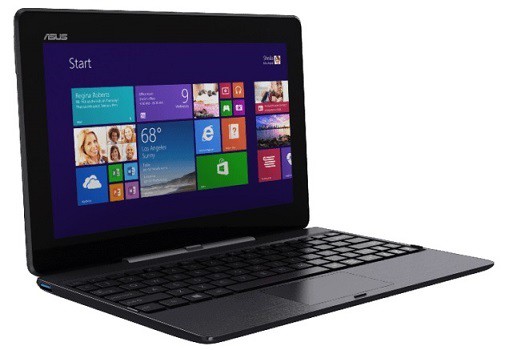
First of all, a few things need to be said about these two devices: the Toshiba Encore comes with a 8-inch size while the Asus T100 is a 10.1-inch convertible 2-in-1 touchscreen laptop. So, they are from two different leagues, so we can’t really compare this, as it depends on your tastes and needs. Therefore, before jumping to the specs comparison from below, decided whether you need a convertible 10 inch laptop or a smaller tablet that is also more portable.

  • Price and capacity: the 32-GB Toshiba Encore model is $330 while Asus T100 is more expensive, but comes with an impressive 64 GB Solid-State Drive for the price of $400asus t100 vs toshiba encore
  • Processor and RAM: Toshiba Encore has a 1.8 GHz Atom Z3740 processor and Asus T100 comes with the same 1.86 GHz Intel Atom kernel and they also have the same 2 GB DDR3 RAM
  • Battery life: Toshiba said that a final estimate for Encore’s battery life hasn’t been yet released, but we’ve seen in many places 7 hours being listed. Compare that to the 11 hours that Asus claims for its T100 Windows 8.1 notebook.
  • Camera: the Asus T100 comes with a mediocre 1.2 front camera, because it’s a notebook while Toshiba Encore has a 8MP back sensor with a 2MP one in the front

So, as you can see for yourself, the Asus T100 has much more strong points than the Toshiba Encore and is currently cheaper only by $70. But if you’re looking for a cheap Windows 8.1 convertible laptop, then this is it. Let’s not forget that you also get the keyboard dock included in the price, which is a very, very sweet deal. Here’s what Anand from AnadTech had to say about the Asus T100

The T100 truly lives up to the Transformer brand. The combination of Intel’s Bay Trail silicon and ASUS‘ mechanicals gives the device a dual personality. In tablet mode it’s just as portable as any other 10-inch tablet, while in clamshell mode it can be a netbook-style ultraportable PC. I’d love to see ASUS continue down this path and truly try to perfect the device. I look at the work that ASUS and Google do together and can’t help but wonder what the T100 would look like if it had the same sort of pressure/influence. Perhaps that’s a bigger criticism of how Microsoft works with its partners, but I look at the comparison of ASUS tablets with and without Google’s influence and try to imagine a further polished Transformer Book. That’s something I’d really like to see.

To be fair, we don’t have yet too many reviews of the Toshiba Encore, so we will wait for an updated on that, as well. But, in my opinion, you should go for the Asus T100, as it seems to be the best choice. You can always leave the keyboard dock home if you don’t want to carry it around.

See All The Windows 8, 10 Mail app Keyboard Shortcuts

The Windows 8 and Windows 8.1 Mail app becomes much easier to easy, both on tablet and in desktop mode, if you know and learn the keyboard shortcuts that it has. Here are all of them

windows 8 mail app keyboard shortcuts

Whether you’re using the Mail app on a tablet, on a laptop or on a hybrid device, you could become much more productive by learning the keyboard shortcuts. When you have to deal with your email on a daily business it doesn’t become so absurd to know most of them. But since we don’t know what exactly you are going to use, find below all the shortcuts working in the Mail app for Windows 8 and Windows 8.1.

We have talked about some of the most important features that the Windows 8.1 Mail app brings for enterprise users and this list of keyboard shortcuts is definitely one of them. Brace yourself, as this is quite a long list. What you need to do to make it quicker is this – just search for your desired function in this article if you’re looking for one. So, here they are:

  • Ctrl+R – Reply
  • Ctrl+Shift+R – Reply all
  • Ctrl+F – Forward
  • Ctrl+M – Move item to a different folder
  • Ctrl+J – Toggle between marking a message as junk or not junk
  • Ctrl+Shift+U – Show only unread messages
  • Ctrl+Shift+A – Show all messages
  • Ctrl+Shift+E – Show Folder options
  • Ctrl+U – Mark as unread, Underline text (When you’re writing an email)
  • Ctrl+Q – Mark as read
  • Ctrl+A – Select all messages, Insert, Toggle between Flag and Remove flag for messages
  • Ctrl+N – New Message
  • F5 – Sync
  • Alt+B – Put focus on the bcc button
  • Alt+C – Put focus on the cc button, Accept
  • Alt+D – Decline
  • Alt+T – Put focus on the To button, Tentative
  • Alt+V – Open the invitation in Calendar
  • Alt+S – Send mail
  • Ctrl+O – Opens message in a new window
  • Ctrl+Alt+S – Gives you an options to delete one or all messages from a particular sender
  • Alt+I – Insert attachment
  • Ctrl+Shift+F – Select a font
  • Ctrl+Spacebar – Clear formatting
  • Ctrl+Y – Redo
  • F4 – Redo
  • Ctrl+[ – Decrease font size one point
  • Ctrl+] – Increase font size one point
  • Ctrl+Shift+, -Decrease font size
  • Ctrl+Shift+. – Increase font size
  • Ctrl+K – Add a link
  • Ctrl+E – Center
  • Ctrl+L – Indent left
  • Ctrl+R – Indent right
  • Ctrl+Shift+L – Bullets
  • Ctrl+M – Indent when text is selected
  • Ctrl+Shift+M – Outdent
  • Tab or Shift+Tab – Indent/outdent when text is selected or when focus is in a list
  • Shift+Tab – When focus is not in a list, cycle through tabs in reverse order.
  • Ctrl+’ – Acute accent
  • Ctrl+, – Cedilla accent
  • Ctrl+Shift+6 – Circumflex accent
  • Ctrl+Shift+; – Diaeresis accent
  • Ctrl+` – Grave accent
  • Ctrl+Shift+7 – Ligature accent
  • Ctrl+Shift+2 – Ring accent
  • Ctrl+/ – Slash accent
  • Ctrl+Shift+`- Tilde accent
  • Alt+Ctrl+Shift+1 – Inverted exclamation mark
  • Alt+Ctrl+Shift+/ – Inverted question mark
  • Ctrl+Shift+S – Sweep
  • Ctrl+E – Search
  • Ctrl + Z – Undo
  • Ctrl + B – Bold
  • Ctrl + I – Italicize
  • Ctrl + U – Underline
  • Ctrl + C – Copy
  • Ctrl + V – Paste
  • Ctrl + S – Save draft
  • F6 – When writing an email, shifts focus to the send button

Phew, quite the list, am I right? Now, let us know which of the above keyboard shortcuts in the Windows 8 Mail app you are really going to use, since it’s impossible to believe someone could know and use them all.

Top 3 Mail app Enhancements for Enterprise in Windows 8.1

The core Mail app is one of Microsoft’s pillar apps for Windows 8, and with Windows 8.1, it has been revamped. Let’s see some top new features that the Mail app delivers for business and enterprise users

mail app windows 8.1

Windows 8.1 comes with more improvements that you might suspect. Not so long ago, we discussed about top 3 new wireless networking features that it comes with, such as Miracast Wireless Display, the new 802.11ac Wi-Fi standard.

We’ve also briefly talked about the High DPI support and the H264 codec features, as well. Now, it’s time to discuss about what the Mail app in Windows 8.1 can do for your organization or entrerpise.

  • New group policy setting lets you use the Mail app to connect to an Exchange mailbox without first specifying a Microsoft account
  • Certificate-based authentication support has been added in the Windows 8.1 Mail app
  • Support for authenticated proxy servers added which means the Windows 8.1 devices are being used only inside the company’s network.

The Mail app comes with a lot of improvements for regular users, but the above three, briefly described, are meant for businesses and enterprises as it allows administrators to control what is happening with Windows 8.1 devices in the network. The improvements are much needed for touch devices, mostly.

If you are an IT administrator or you just manage how Windows 8.1 devices are being used by your employees, let us know what do you think about these improvements in the Windows 8.1 Mail application.

Microsoft Explains to Developers how to Manage Windows 8 and Windows 8.1 Apps

If you have created Windows 8 and Windows 8.1 apps, then the next step would be to know how to manage them. Follow these advices that Microsoft has shared for Windows developers
manage create windows 8.1 apps
Windows 8 developers are essential for the thriving of the Windows Store, which really needs to get more awesome Windows 8 and Windows 8.1 apps. That’s why Microsoft has made sure they provide developers with all the tools they need to create impressive and useful Windows 8 apps. We here at Wind8apps find some of the best and review them carefully for our community of readers.

In a recent post on its Windows App Builder Blog, Microsoft has shared a few advices on how to efficiently manage your Windows 8, Windows 8.1 apps. The Windows Apps Team starts with a good question that developers have been asking for quite a while now:  “After I update my app for Windows 8.1, what happens for customers running Windows 8?”. And here’s Microsoft’s advices on retargeting your app for Windows 8.1:

  • Copy/fork your solution so you have separate solutions targeted for Windows 8 and Windows 8.1.

  • Retarget each of your projects in your Windows 8.1 solution.

  • Fix any errors that crop up due to file paths and extension SDKs.

  • Update your code to take advantage of new Windows 8.1 APIs and features.

  • Optionally, make any changes/fixes you need in the solution targeted for Windows 8.

Follow the above link to see a video that explains it carefully, as well as the next steps that you need to take to retarget your app for Windows 8.1. If you have created a Windows 8 app and you think it deserves to be reviewed, send us an email – rtyrsina @ gmail.com and we’ll have a look at it. Good luck at building awesome apps for the Windows Store!

Faster 802.11ac Wireless Connection Explained in Windows 8.1

The jump from the 802.11n wireless standard to the new 802.11ac in Windows 8.1 is actually a much bigger deal that some of us have realized. Read on to discover why
802.11 ac windows 8.1
Like we have explained earlier in our article with the top new wireless networking features in Windows 8.1, the new 802.11ac Wi-Fi standard provides much greater bandwidth and faster connections than 802.11n and other previous standards. Windows 8.1 and Windows Server 2012 R2 have been updated by Microsoft to be able to support the Institute of Electrical and Electronics Engineers (IEEE) 802.11ac wireless access.

And what exactly does it mean for regular consumers like you and me? Well, first of all, let’s understand the concept, here’s how its description goes:

IEEE 802.11ac is a wireless computer networking standard in the 802.11 family developed in the IEEE Standards Association process, providing high-throughput wireless local area networks (WLANs) on the 5 GHz band.  The standard was developed from 2011 through 2013, with final 802.11 Working Group approval and publication scheduled for early 2014. According to a study, devices with the 802.11ac specification are expected to be common by 2015 with an estimated one billion spread around the world.

This specification has expected multi-station WLAN throughput of at least 1 gigabit per second and a single link throughput of at least 500 megabits per second (500 Mbit/s). This is accomplished by extending the air interface concepts embraced by 802.11n: wider RF bandwidth (up to 160 MHz), more MIMO spatial streams (up to 8), multi-user MIMO, and high-density modulation (up to 256-QAM).

802.11 ac standard is the future in wireless networking

So, we can see that with 802.11 ac wireless standard in Windows 8.1, Microsoft has made sure they are prepared for the future, that is especially bound to be populated with myriads of tablets, especially. Have a look at the following table that compares the 802.11n and 802.11ac wireless standards.

802.11 ac windows 8Improved wireless connections aren’t limited only to Windows 8.1 as Windows Server 2012 R2 product also received the same features. Also, thnks to the new 802.11ac wireless standard, we will know be able to make use of a better performance for wireless display, streaming high fidelity videos, distribution of HDTV, rapid upload and download of files and even playing online games, such as Dragon’s Prophet or Guild Wars 2 (just random examples). Microsoft also reminds us of this:

To see the benefits of using 802.11ac connections, your other wireless network hardware, such as wireless network adapters and wireless access points, must also support 802.11ac. In addition, 802.11ac functions regardless of whether you have deployed 802.1X authentication; the two technologies are not related.

Did you know about this new wireless standard that really matters in Windows 8.1? Or, as long as your Wi-Fi issues aren’t solved, it doesn’t really matter to you.

Visual Studio 2013 launch event taking place in London on December 3rd

Visual Studio 2013 logo

December 3rd will be a special day for developers, especially Visual Studio developers. Visual Studio 2013 is set to launch officially on December 3rd. The launch is based in London, which also happens to host the New Developers Conference.

For those who visit the launch, there will be a free pre-conference workshop for developers who aren’t even attending the New Developers Conference.

To spice up the launch, there will be some members from the VS team in the US present, along with London-based Microsoft reps.

“Join us on the 3rd of December for the launch of Visual Studio 2013 and find out how these tools will help you create your applications or to modernize existing applications.”

What launch doesn’t succeed without top members being on stage? There will be the Senior Director of VS Product Marketing, Nicole Herskowitz, along with David Carmona, the Director of VS Product Marketing.

Windows Phone Central have a rough outline of what topics will be covered, they will be listed below.

  • Agile development and what is new in TFS
  • Building applications for Windows 8.1 and Windows phone with Visual Studio 2013
  • Introduction to our Testing Tools
  • Develop and Test Applications on Windows Azure
  • Develop Web Applications with Visual Studio 2013
  • Application Lifecycle Management using Visual Studio

You can sign up with the link provided here. If you’re going, be sure to send us some pictures!

Top 3 New Wireless Networking Features in Windows 8.1

Windows 8.1 comes with some awesome new wireless features that more people should hear about; we have compiled top 5 features to help you learn more about Windows 8.1
wireless networking windows 8.1
To make a short break from all the issues and problems we’ve been writing about Windows 8.1, today we’re going to talk briefly about top five new wireless networking features in Windows 8.1. I myself didn’t bother to see what has changed in the wireless network field with the advent of Windows 8.1, so some of these are also new to me, as well.

Wireless network in Windows 8.1

  • Support for 802.11ac – 802.11ac comes with better bandwidth and faster connections than previous 802.11n standard. This will improve the Wi-Fi speeds on your Windows 8.1 desktop device and tablet
  • Wireless Display – the Wireless Display with Miracast technology not lets you project your Windows 8.1 laptop or Windows RT tablet screen onto larger Miracast-compatible displays. Imagine playing one of the best Windows 8 games and have it screened on your huge TV.
  • Extended passwords use for enterprises – if you are part of an organization, you can bring your own wireless device running Windows Server 2012 R2 and Windows 8.1 to work. You will have to enter passwords only once during the wireless session.

I guess those of you that have issues with their Wi-Fi in Windows 8.1 are really disappointed that they can’t benefit from these awesome features. But follow the above link and let us know of your issue and we’ll try to work it out together. The same new wireless networking features have been made available for Windows Server 2012 R2, as well.

Windows Store app Brainteasers gets Update to fix Windows 8.1, 10 Bugs

Brainteasers, the Windows 8 app where you get to play as a detective, has been updated with some needed new features as well as some bug fixes
brainteasers windows 8.1
Brainteasers is one of the most played games from the Window Store from the Games/Puzzle and is popular among players that also play chess, sudoku, checkers and other apps and games that help you keep your brain trained. You get to play as a really smart detective by solving brainteasers by reading the clues. The official description of Brainteasers for Windows 8 and Windows RT goes like this:

Are you a real detective. Try solving the murder which took place in the mansion. Read the clues and use the knowledge to find which of the suspects is the murderer. Find out where everyone was during the crime and use your brain to unravel the murder mystery.

The Brainteasers app has been updated with fixes for Windows 8.1 issues, as well as new levels to keep the detective fun going, extra diagnostics. The latest Brainteasers version for Windows 8 also has fixed the reasons why the app was crashing on some systems. Follow the link from below to download Brainteaser and start solving misteries.

Download Brainteasers for Windows 8, Windows RT

Office ‘Gemini’ apps still nearly a year away before release (rumor)

Office 'Gemini' apps still nearly a year away before release (rumor)

Office “Gemini” is the codename for the next big update to Office, in which we are expecting a Metro/Modern version of the Office productivity suite. The “Gemini” range of Office updates are rumored to roll out sometime next year, around the spring or summer time.

Similar to Office Web Apps (and Office 365 subscription model being the center of the Gemini strategy), this new version of Office will run on multiple platforms. According to a new report from ZDNet, Microsoft is reportedly working to build the Word, PowerPoint, and Excel apps from the ground up. Microsoft is internally calling these apps as WinRT apps.

“To get the core Word, Excel, PowerPoint and OneNote apps to work natively on touch platforms, Microsoft is basically having to start almost from scratch. The Office team is having to redo the UI to include an updated ribbon model. They’ve had to rethink what a touch-first (as opposed to afterthought “touch mode) interaction experience should be,” the report states.

These WinRT apps are not intended to replace their desktop counterparts, as Microsoft plans to continue to develop and innovate on the desktop front. The report also indicated that InfoPath may circle the drain in the near future, but Microsoft has yet to confirm this. The new interface Microsoft is working on is set to be the center of the new Office on all platforms, including competitors platforms.

So what is taking so long? According to ZDNet, it has a lot to do with the company’s new and evolving product strategy, along with internal politics. However, the projected release date is sometime during spring or summer of 2014. Could we see a multi-platform Office or simply a touch-centric Windows Store style apps? We will just have to wait and see.

Microsoft is already working on two new Office apps for Windows 8 and Windows Phone 8. Currently code named as Office Reader, this app provides a cross format tool for consuming different formats of content. The Office Lens app for Windows Phone allows one to scan and convert a picture using optical character recognition. 

Radio+ App Gets Updated with Windows 8.1, 10 Support

Radio+ is one of the best Windows 8 apps from the Windows Store to listen to radio completely for free, and now it has finally gotten support for Windows 8.1
radio+ app windows 8.1
The beauty of owning a Windows 8 tablet is that you can do so many things on it. It goes without saying that even in this day and age, we are listening to the radio, but now we’re using live broadcasts to do it. That’s why we have selected some of the best radio apps to use on your Windows 8 and Windows RT tablet, so I suggest you to have a look.

Radio+ is another radio app from the Windows Store that has gotten good reviews and positive ratings since its launch. However, users did have some errors after updating to Windows 8.1, with various errors. A release note about the changes made to Radio+ Windows 8 app is still missing, but I’m making a bet here that the developer has added Windows 8.1 support. This is also according to some users.

You can use the Radio+ Windows 8 app to listen to popular radio stations of various music genres without any limits at all. From what I’ve seen, the app seems to be very popular among users from Russia and those that speak Russian and listen to Russian music. Follow the link from below to download the Radio+ app on your Windows 8.1 device.

Download Radio+ for Windows 8 and Windows RT

Team Viewer Touch Windows 8.1, 10 App Receives Important Update

Popular remote software tool TeamViewer Touch gets an important update in Windows 8.1; read to discover more about it
team viewer windows 8
Being able to control remotely a computer from your Windows 8 or Windows RT tablet is really neat and that’s why many users were glad when the official Team Viewer Touch application has been launched in the Windows Store. Now, after the update to Windows 8.1 has been made official, the app receive an important update.

The release notes of the update let us know that the following things have been updated to the Team Viewer Touch app: the ability to  switch on your computer remotely with Wake-on-LAN and secure access to your account with two factor authentication. The app is described like this:

Control any remote computer with TeamViewer Touch within seconds. If you want to remotely control this computer and benefit from the whole range of features please download the TeamViewer Desktop app. Whether you are providing spontaneous support for friends and family, administrating servers or working from your home office – TeamViewer Touch lets you get the job done. Find out why more than 200 million users trust TeamViewer!

The two-factor authentication is a much needed security improvement that will be found useful by those concerned about their safety. You can team viewer touch windows 8install TeamViewer Touch on your Windows 8 or Windows 8.1 tablet and control any system running Windows, Mac or Linux. The app comes with the highest security standard, the 256 Bit AES Session Encoding and 2048 Bit RSA Key Exchange. Follow the link from below to download the app on your Windows 8 tablet.

Download TeamViewer Touch for Windows 8

The Irony: Almost Extinct, Windows XP SP2 Is More Expensive than Windows 8.1

You would believe that six months before we can finally start digging the grave for Windows XP, the OS would be dirty cheap. Well, how about this – on Amazon, SP is more expensive that Windows 8.1!
windows xp sp2 windows 8.1
While browsing today on Amazon for some software, I was curious to see what was the price of Windows XP. The reason why I got curios is because there were some interesting recent news about it, such as Google extending its Chrome support for Windows XP until April 2015, one year after Microsoft will pull the plug on the eleven-years old operating system and the fact that Windows XP is going to be a gold mine for hackers after Microsoft stops offering security patches.

I was surprised to discover a lot of very expensive Windows XP offers, and while they are being sold by Amazon, it’s obviously that it happens with Microsoft’s full consent. A copy of Windows XP Home Edition with Service Pack 2, like the one in the printscreen, is priced at $141. You even save $58 as its initial price was of $199.99. Compare that to the standard version of 8.1 that sells $119.99 (you could get a better price with these options).

It is getting even more ridiculous with a Microsoft Windows XP Professional Full Version with SP2 that comes with a price of $212.50. The software is described as being aimed for Windows 95 users, but I find it hard to believe there are still people on this world that use Windows 95. And if there are, will they spend that much money for an operating system that is going to die. Let’s not forget that Windows 8.1 Professional retails for $199.99.

If you spend a little while browsing through Microsoft’s products on Amazon, you will find even more ridiculous “deals”, such as this original Microsoft Windows XP Professional Full Version, which obviously doesn’t come with any service packs at all. The price? $144.

windows 8.1 windows xp sp2

I fail to understand why is Microsoft doing this. I applauded their Windows 8 offers for older version of Windows, but why aren’t they taking these ridiculously high prices down? Or, better yet, take the products completely off the selves. What is your opinion on this?

Dragon’s Prophet not Working in Windows 8.1, 10 for Players

Dragon’s Prophet is a massive multiplayer online role-playing game, being played by thousands of players across the world and some of them are now reporting problems with the Windows 8.1 update
dragon's prophet windows 8.1
Man, I am addicted to the Dragon’s Prophet game, it’s one of the best MMORPG I’ve tried in a while. For those that don’t know, MMORPG stands for massive multiplayer online role-playing game. After updating to Windows 8.1, I was sad to discover that the game was plagued with crashes and it hanged for quite a while.

Looking online for a fix, I’ve discovered that I wasn’t the only one to have this issue. Here’s what one of the users has shared on the support forums for Dragon’s Prophet:

Is anyone running DP on Windows 8.1? I installed it today and now the game isn’t playable anymore. Logging in works without any problems. Putting dragons on duty – works. Walking and riding my dragons – works. Attack or jump – crash (black screen or back to loading screen that doesn’t move). A very heavy crash. The game blocks the system. Can’t destroy the task with the task manager or anything else. The only thing working is a reboot :/

I tried different stuff to fix the problem but nothing worked. Before I used Windows 8 and everything was fine, except for some random crashes in the last days while loading. I’m redownloading the game atm to reinstall it. But I’m not optimistic that this will help. The download takes several hours for me, so in the mean time: Is anyone having problems with Windows 8.1 too? Or does anyone even know a fix?

dragon's prophet windows 8

We have reached out to the Dragon’s Prophet developer but we’re still waiting for a reply. What some other users are saying is that Windows 8.1 is newer than Dragon’s Prophet software, so it means that the game doesn’t yet have official support for Windows 8.1. Let us know if you have similar issues and what are the workarounds that you have tried.

Microsoft takes you behind the scenes of its archives with ‘Microspotting’

Take a glimpse behind the scenes --Microspotting: Inside the Microsoft archives

The Microsoft archives have been in operation since 1989, building up into an ever-growing record of the companies past releases and achievements. This is a company with a great deal of history so it’s great to see that it is being preserved — the job falls to archivist Amy Stevenson.

It is her job to catalog, store and preserve all manner of noteworthy memorabilia — everything from Bill Gates’ “conversation chairs” to 5.25 inch floppies for the first version of Windows.

If you fancy taking a trawl through the archives, you can get a taster in the Microspotting video posted on Channel 9.

There are some great historical pieces to be found in the archives. Some of it speaks volumes about Microsoft while other say more about the technology and culture of the day. Oh… and there’s a massive Clippy costume which is just a bit weird.

Check out the video. If you’re anything like us, you’ll be overcome with waves of nostalgia. 

MSI Launches Windows 8.1 All-In-One PCs With Screens to Reduce eye Strain

MSI has introduced 2 new Windows 8.1 all-in-one (AIO) computers that come with the company’s Flicker-Free and Blue Light Control technologies to protect users’ eyes and drastically reduce eye strain
flicker-free msi

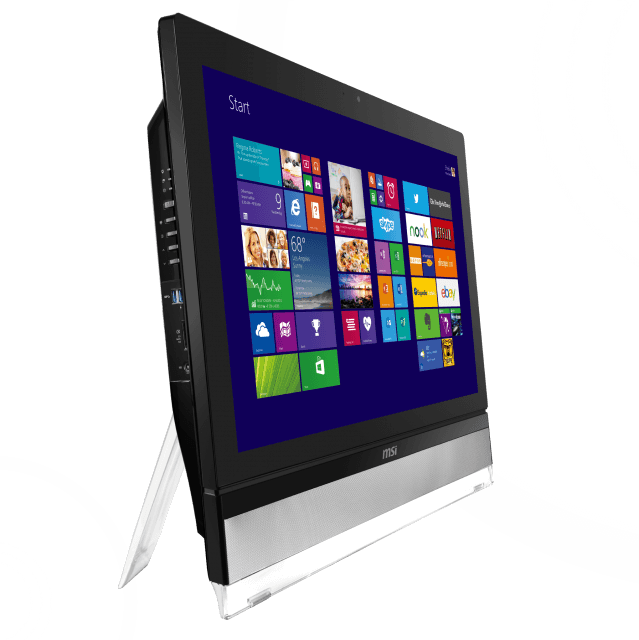
The two new Windows 8.1 all-in-one (AIO) PCs models that MSI has launched are called the 21.5 inch AE221 and the 27 inch AE270 and come with the Flicker-Free and Blue Light Control technologies, sporting Haswell processors, Full HD resolutions, and optional 10 point touch input.

So, if you’re looking to buy a Windows 8.1 AIO computer that comes with the right technology to protect your eyes, then maybe you should include these two models in your list. Besides the size difference, there are other differences between these two models which are reflected in the lower price for the AE221 model. Let’s have a look at the most important specs they come with:

Technical specifications for MSI AE221 and AE270

  • Processor – Intel  Core™ i3-4130 (3M cache, 3.4GHz) and Intel Core™ i5-4440s (6M cache, 3.1GHz
  • Operating System – Windows 8.1msi ae270 aio windows 8.1 pc
  • LCD / Touch Panel – AE270/G: 27” LCD Panel LED Backlight (1920*1080) / 10 point Touch (optional) / Flicker-Free; AE221/G: 21.5″ LCD Panel LED Backlight (1920*1080) / 10 point Touch (optional) / Flicker-Free
  • Graphics  –   Intel® HD Graphics 4400 I3 UMA), Intel® HD Graphics 4600 (I5 UMA) and NVIDIA® GeForce GT740M Graphics 2GB
  • Memory   –  DDR3 1333 / 1600 SO-DIMM * 2 / Max. 16GB
  • HDD – 3.5” SATAIII / 2.5″SSD (optional)
  • Wireless – 802.11 b/g/n WiFi
  • ODD  – DVD Super Multi / Blu-Ray combo (optional)
  • Card Reader   –  3-in-1 (SD, MMC, MS)
  • Speaker  –   2x 3W with Creative Sound Blaster Cinema
  • I/O  –   Back: Mic in x1, Earphone out x1, USB2.0 x4, HDMI out x1, HDMI in x1, RJ45 x1
  • Side – USB3.0x2, Cardreader, DC Jack
  • W-cam – 2M-pixel Full HD

MSI said the following about the essential selling point in these Windows 8.1 all-in-one computers that is constitued by the Flicker Free technology:

To give users an optimal operating environment, MSI insist on the best and is the first to introduce an anti-glare display on its All-in-One touch PCs. This technology is also supported by non-touch models. For offices with serious glare influences, brightly-lit retail stores and at home, the anti-glare feature protects the user’s eyes against reflections coming from the monitor.

The Flicker-free Technology embedded into the AE221 and AE270 stabilize the electric current and prevents flickering invisible to the bare eye under normal conditions. It effectively reduces eyestrain as well as improves productivity for those who have to use a PC everyday with long hours. In addition, the AE221 and AE270 also support the exclusive Blue Light Control Technology, which is able to effectively reduce the blue light emitted from the screen. According to TÜV tests, it can reduce blue light up to 75%, which drastically reduces strain and damage to the eyes.

At the moment, we don’t know the price tags of these two models, but judging by MSI’s history and positioning on the market, they should be more accessible than other similar specced product from more known brands.

Will a Microsoft launch ever generate the same level of interest enjoyed by Google and Apple lovers?

Will a Microsoft launch ever generate the interest enjoyed by Google and Apple?

There have been a number of big launches in few recent weeks. Apple unveiled the iPhone 5s and 5c as well as the iPad Air. Microsoft launched Windows 8.1, Surface 2 and Surface Pro 2. Google unleashed Android 4.4 KitKat and the Nexus 5 onto an excited and expectant crowd. Which of these launches is the most memorable?

Each launch was big in its own way, but I think it’s extremely unlikely that many people would pick the Microsoft launches as being the biggest or most exciting. Apple and Google, on the other hand, manage to do any amazing job of whipping people up into an excited frenzy. Theirs are major events, eagerly anticipated weeks or even months in advance.

Microsoft’s launches tend to be rather more understated affairs; they get the job done, but there’s more of a polite round of applause that rapturous cheering and trumpeting. Apple’s iPad and iPhone launches have had people around the world on the edge of their seats for months.

“We need more excitement. We want leaks and rumors. We want launches we can look forward to. We want surprises.”

Can you remember the last time a Microsoft launch caused such excitement? With both and Apple and Google products, there are crowds of people waiting to hear the tiniest snippet of information about upcoming hardware and software. Leaked pictures find their way online and the hype machine is further wound up.

Sure, people “like” Microsoft products, but they seem to be viewed as everyday things — not something to get overly excited about. When an iPhone is launched, people camp outside Apple stores days in advance. When the nexus 5 was released, it sold out very quickly, and shopping dates slipped almost immediately from one day to one week.

Microsoft – and Nokia – must look on with green eyes. No Windows Phone has caused such a groundswell. The second generation Surface sparked a degree of interest, but nothing compared to Microsoft’s competitors.

Why is this? Is it because of Microsoft’s image? Does the company not make enough fanfare about its products? What is it that Google and Apple understand about their customers that Microsoft seem to be missing? It is although Microsoft has adopted the idea of the slow-burner.

Windows was given a degree of promotion, but it is only with the arrival of Windows 8.1 some months later that interest is picking up. With Surface there were no huge launches. Microsoft seems to think the devices should speak for themselves and almost rely on customers spreading the word to help increase their popularity. Microsoft is in a position that it can afford to play the long game; it doesn’t really need an instant hit.

It’s actually quite a shame. Microsoft must like the idea of people working themselves into a frenzy at the prospect of the next version of Windows or Windows Phone. It must be difficult to look on as the likes of Google and Apple soak up adulation and Microsoft’s offerings are picked up by the hardcore faithful.

One area in which Microsoft does manage to steal the show is with the Xbox. Here the company is able to revel in the customer anticipation that is usually reserved for other people’s products. There is genuine excitement about the upcoming launch of the Xbox One. Perhaps the various departments of Microsoft need to get together and share ideas.

The company has a great deal to offer, but it is a danger of fading into the background like a dull uncle. We need more excitement. We want leaks and rumors. We want launches we can look forward to. We want surprises.

Microsoft should see Google and Apple explosive product launches and view them as a call to arms. Come on Microsoft! We know you’ve got it in you! Surprise us, excite us — we can take it!

Users warned that third-party Skype tools will stop working in December

Users warned that third-party Skype tools will stop working in December

Users are reporting seeing a message in Skype warning them that some tools used with the Skype application will stop working in December 2013. Following Microsoft’s acquisition of Skype, it was announced that the Desktop API (or the Skye Public API) is no longer supported and will be discontinued in December 2013.

Microsoft explains that: “These applications can be hardware products or software applications, but they’re all created by developers who use the Desktop API, a text-based protocol, to interact with Skype software. The Desktop API is designed primarily to help developers manage calls from outside the Skype application. Applications that use the Desktop API are not endorsed, tested, or supported by Skype.”

This means that a selection of applications that tap into Skype will stop working soon, and the same is true of some hardware devices such as headsets.

Have you noticed this message appearing on your computer yet?

Microsoft shows off the Surface 2 and Surface Pro 2’s stunning display

Microsoft shows off the Surface 2's display

In the latest behind-the-scenes video to be released about the Surface 2, Microsoft shows off the display of the Surface 2 and reveals a little about the research, design and manufacturing process.

There’s no denying that the latest generation of Surface, like its predecessor, has a stunning display and this is certainly not by accident. A great deal of work went into ensuring that every aspect of the screen was sure to impress.

“A common remark when people first see a Surface 2 device up close is how great the display looks. That’s especially pleasing to the Surface team because so much effort went into screen performance,” Microsoft stated in an official blog post.

The Surface 2 worked to ensure the most accurate color reproduction possible on the 16:9 1080p screen – accuracy has been improved by 46 percent. A new bonding technique was developed to help reduce screen reflection to around half that of many tablets on the market, allowing for longer periods of usage without eyestrain.

Check out the video, which we have embedded below for your viewing pleasure, to see Microsoft scientist Stevie Bathiche showcase the Surface 2’s impressive display.

Users Report Slow Search Charm Bar After Windows 8.1, 10 Update

A good number of Windows 8 user are apparently being struck by another issue after the Windows 8.1 update – the search charm bar is very slow and eating up a lot of CPU usage
windows 8.1 search slow
Unfortunately, we’re back at it, reporting new issues signaled by Windows 8.1 users. This time, it seems that the Windows 8.1 update has been causing the search functions to function very slow. Windows 8.1 users are frustrated by the fact that the Search Charm bar is responding very slow for them and actually eating CPU usage.

One of them says the following:

Since upgrading to Windows 8.1 this weekend, the Search feature became pretty useless. When I start typing, it sends my CPU usage to 100% (Task Manager shows Windows Explorer as the main offender), and results are pretty slow.  Some searches which worked earlier (e.g. typing “devices” would bring out a “Devices and printers” link for the Control Panel) also aren’t shown anymore if “Everything” is selected for searching.

If I select “Settings” in the drop-down, then the “Devices and settings” link is shown, but it takes around 3s for the results to show up making the whole thing useless. I tried disabling the Windows Search service completely (although it’s not the one peaking the CPU), but it didn’t help. Also disabled Bing web search integration in PC settings, but it didn’t change anything (apart from the web results now being omitted from the slow search).

If you have been getting the same issue in Windows 8.1 with your Search Charm, then another users recommends the following fix:

Adding X:Users[YOURUSERNAME]AppDataLocalPackages to the index (through Indexing Options) fixes this. Alternatively you can also add the whole AppData folder as previously suggested but it seems a bit overkill to me.

A Lenovo ThinkPad 2 users still seems to be affected by slow search issue in Windows 8.1:

Yes, my ThinkPad 2 became very sluggish with everything in general. Yet the new search is impossible to use. The keyboard hangs up and keystrokes are so delayed its painful. What happened.? I had to pin bing to my start screen from ie just so o could search the web.

After reading more about this issue, I’ve discovered that Surface users have reported this in, as well. Of course, the solutions vary from user to users. While for some the above trick solve the problems, other had set a VHD on the SD card. Removing  it and transferring files to the root of the card has solved the speed issue for some of them. Other just install the latest updates which also solved the problem.

Also, you could try the following fix suggested by a Microsoft Suport Engineer on the forums. Brace yourself, it is quite long:

Method 1: Run the System Maintenance troubleshooter and check if it helps.
a) Press the ‘Windows + W’ key on the keyboard.
b) Type troubleshooter in the search box and then pressenter.
c
) Select Troubleshooting. Click on view all and selectSystem Maintenance.
d) Click next and follow the on-screen instructions.

Note: I would suggest you to disconnect all the external devices other than mouse and keyboard and check if it helps.

Method 2: If the issue persists, I would suggest you to boot the computer to safe mode and check if the issue occurs or not. If the issue does not occur in Safe mode, set the computer in a clean boot state and check if it helps.

Step 1: I would suggest you to refer the article and check if it helps.
Windows Startup Settings (including safe mode)

Step 2: If the issue do not occur in Safe Mode perform a clean boot and check.

Setting the system in a clean boot state will help to identify if any third party applications or startup items are causing the issue.

How to perform a clean boot to troubleshoot a problem in Windows Vista, Windows 7, or Windows 8

Note:
1) After clean boot troubleshooting steps, followthe section “How to reset the computer to start as usual after troubleshooting with clean boot” in the provided link to return your computer to Normal startup mode.
2) Applies to Windows 8.1.

After trying all of the above solutions, does your Search Charm bar still feel laggy in Windows 8.1?

Windows 8, 10 Movie app Flixster gets Updated to Fix Bugs

The Windows 8 Flixster app is one of the best Windows 8 and Windows RT movie apps for users, and it has received an update that brings fixes to some annoying bugs
flixster windows 8 appI rely mainly on the Flixster Windows 8 app to watch movie trailers on my tablet, as I find it to be one of the most comfy ways to do it. But sometimes I’d get some annoying crashes or the app would randomly hang and it would get on my nerves. Today I found that the Flixster Windows 8 app has received an update in the Windows Store that seems to take care of these issues.

With regards to this update, Flixster discloses the following: “improved application stability and minor bug fixes“. The application stability means that the Flixster app is going to be more stable, meaning it won’t hang out if it did for you before. Also always, Flixster is your to go Windows 8 app to stream movies from your UltraViolet movie collection and do other things, such as:

  • See top box office movies
  • See movies opening soon
  • Get information about showtimes at nearby theaters
  • Reviews from Rotten Tomatoes
  • High quality trailers
  • Make a”Want to See” list

If you need more movie apps in Windows 8, then you can have a look at this article where we have feature more. Use the link from below to download and install the updated Flixster app on Windows 8, Windows 8.1, Windows RT or Windows RT 8.1. And don’t forget the popcorn.

Download Flixster app for Windows 8

Windows Azure hit by partial outage across the world

Windows Azure hit by partial outage across the world

Microsoft’s Windows Azure service suffered a partial global outage yesterday (October 30th). According to the Azure status page, Microsoft warned of Compute problems in every single region covered by the service.

This meant that users in West US, West Europe, Southeast Asia, South Central US, North Europe, North Central US, East Asia and East US all experienced issues. Full service was only restored at 10:45am UTC, October 31st, and was announced on the Azure dashboard with the following notice:

“Compute Service Management functionality has been restored in all regions. Microsoft Support is working to remediate Cloud Services that have been affected by this issue. We apologize for any inconvenience this has caused our customers.”

At time of writing, there is still an ongoing issue with the FTP service which is suffering a partial outage around the world. Again, every region is affected by the issue and a note on the dashboard reads:

“We apologize for any inconvenience this causes customers using FTP to publish content to Web Sites. Web Site customers are advised to use Web Deploy or Git which are fully functional. For details visit Azure.com and search for “Websites with Webmatrix” or “Publishing with Git”. Engineering is fully focused on mitigation options. We will provide an update by 8pm UTC.”

Microsoft shows off Surface 2 in design and engineering video

Microsoft shows off Surface 2 in design and engineering video

In a video interview posted on the Surface blog, director of design Ralf Groene talks about the design and engineering process in involved in producing the Surface 2.

Ralf points out that the two aspects are very closely intertwined: “We don’t design it first and then engineer it, we design and engineer it always together. It’s almost like ping pong game”.

He goes on to talk about the antenna cover describing how precision cutting it used to make it fit “like a puzzle piece into a puzzle”.

Moving on to look at the material used in the Type Cover 2, Ralf describes engineering and inventing a new micro fiber that feels like a high-end garment. For a device that is designed to be handled, fingerprints are an issue and this is smoother problem the team had to overcome.

This was a problem not only for the covers, but also the casing of the Surface 2 itself. The engineering team investigated the chemistry physics of greased repelling surfaces and then had to find a way to incorporate this idea into the magnesium exterior.

Take a look. The video gives an interesting glimpse into how the Surface 2 ended up in its current form.

Windows 8 App System Essentials Updated to get Support for Windows 8.1, 10

Windows 8 app System Essentials that lets you receive information about the hardware and software configuration of your devices has been updated to get Windows 8.1 support
system essentials windows 8.1 support
Recently, more and more apps have been getting support for Windows 8.1, one of the most important and the latest being HealthVault, CCleaner, 3D Mark, ZoneAlarm, Yahoo! Mail and many others. According to Bogdan Popa from Softpedia, System Essentials’ Windows 8 app has been updated to get better and full Windows 8.1 support.

The updated Widnows 8 System Essentials app update notes say the following:

  • Added the ability to connect to the FTP
  • Added ability to generate QR
  • Redesigned interface applications
  • The optimization of the code

You can use System Essentials on your Windows 8 and Windows 8.1 device to monitor network connections, connect to FTP servers, check Microsoft account details and it even comes with some personalization options for Windows 8.1. The app also comes with a Smart Card Manager and a Barcode Scanner, as well as the ability to to send and receive SMS messages on your Windows 8/8.1 system.

ZoneAlarm Finally Gets Windows 8.1, 10 Support, After Leaving Many PCs Unprotected

Thousands of Windows 8.1 computers were left unprotected as Zone Alarm was struggling to release support for Windows 8.1; the update is finally here
zone alarm windows 8.1Many folks are using ZoneAlarm products to protect their Windows 8 device, as CheckPoint has all the security tools you might need – firewall: free and paid, anti-virus: free and paid, internet security and other bundles. But since Microsoft has made available the Windows 8.1 update on October 17, many Windows 8.1 computers were left unprotected, as it took Zone Alarm almost two week to add Windows 8.1 support to its products.

Microsoft said that all the apps added by users using Windows 8.1 Preview will have to to be reinstalled after upgrading to the final version of Windows 8.1. Of course, many Zone Alarm users have updated to Windows 8.1 from the Preview version, reinstalled the app and some of them even got corrupted software in the end, like it was the case with McAfee users, according to some posting on Zone Alarm‘s forums. For other, ZoneAlarm‘s products were crashing, hanging or just stopped working.

Zone Alarm Firewall, Internet Security, and AntiVirus get Windows 8.1 support

Online users have been reporting similar problems have with Symantec’s Norton Internet Security suite. And this is definitely not Microsoft’s fault as the company gave developers like Check Point more than a month ahead to prepare for the Windows 8.1 launch. Now, finally, Zone Alarm has announced that support for Windows 8.1 has been made available. Free and paid ZoneAlarm products have been updated to version 12.0.104.000 which comes with:

  •     New feature: Windows 8.1 support
  •     Updated feature: Antivirus engine
  •     Improved feature: AV detection

And here are the download links for all of ZoneAlarm‘s products that have been updated:

  • ZoneAlarm Extreme Security
  • ZoneAlarm Security Suite
  • ZoneAlarm Antivirus +Firewall
  • ZoneAlarm Pro
  • ZoneAlarm Free Antivirus +Firewall
  • ZoneAlarm Free Firewall

All ZoneAlarm users are advised to download and install the Windows 8.1 updates as soon as possible to end this two week period while their computers were left unprotected.

High DPI Support in Windows 8.1, 10 Explained [Video]

This video explains the meaning and role of high DPI support in Windows 8.1
windows 8.1 high dpiWe heard for the first time that Windows 8.1 would bring DPI scaling enhancements back in July. Now that Windows 8.1 is finally official, you are probably wondering what exactly it means and what it implies. This video from below pretty much sums it all up, featuring Larry Larsen, Andrew Richards, Chad Beeder from the Channel 9 Defrag Tools online series.

The positive effects of the high DPI support in Windows 8.1 for Internet Explorer 11 are explained by Microsoft:

Internet Explorer 11 brings enhanced scaling for high DPI screens and small slates, ensuring the consistency of your website’s text, touch targets, and layout across Windows 8.1 devices. Specifically, IE11 introduces the following high DPI improvements.

Also, it improves the multiple monitor support

Because Windows 8 uses a single DPI setting, if you’re using multiple monitors with different DPIs, you get a sub-optimal scale factor on at least one of your monitors. IE11 adds per-monitor scaling support, so your web content scales to the correct level automatically as you drag the window between monitors. This is particularly useful when projecting from high DPI devices, as projectors are typically low DPI displays.

High DPI support in Windows 8.1 explained

If you are a Windows 8 developer or you’re just curious about this new feature in Windows 8.1, have a look at the video from below. Here is the timeline of the video so you can know what to look for:

  • [00:00] – What is DPI (Dots per Inch)?
  • [02:12] – Issues with High DPI before Windows 8.1
  • [03:18] – Windows 8.1 support
  • [04:00] – Launch configuration via DpiScaling.exe
  • [06:18] – 500% scaling now available
  • [07:22] – Non-High DPI (legacy) apps are fuzzy due to DPI Virtualization
  • [09:50] – Writing High DPI Applications
  • [13:22] – (Application) Compatibility tab

Daemon Tools Gets Windows 8.1, 10 Support, Still Lacks Windows 10 App

Daemon Tools still doesn’t have an official Windows 8 app, but now the popular software has been updated to Windows 8.1
daemon tools windows 8
Some of us are still hoping there is going to be a day when we will see an official Daemon Tools app for Windows 8, even if it might seem a little weird to think about its functionality at the moment. Until that moment comes, we are pleased at least to hear the news that Daemon Tools has been updated for Windows 8.1, getting the full support for Microsoft’s first Windows 8 update.

Besides getting update for Windows 8.1 support, here are some other new features in Daemon Tools:

  • SPTD 1.84
  • Image statistics is no longer collected
  • Minor fixes

To remind you, you can use Daemon Tools on Windows 8 to creates .iso and .mds images and also to emulate virtual CD and DVD drives. Daemon Tools mounts and unmounts images and supports the following file formats in Windows 8, as well: .b5t, .b6t, .bwt, .ccd, .cdi, .cue, .nrg, .pdi, .isz. The paid version of Daemon Tools will also let you compress your image files and protect them with password in Windows 8. Also, you will have option to manage your image collection.