If you are an Xbox Game Pass holder and want to know what games are coming next month, this guide is for you. Here we have compiled every confirmed game (with their release dates) that will hit the Xbox Game Pass in May 2025.
Xbox Game Pass May 2025 confirmed lineup
Game
Release Date
Platform
Anno 1800
May 1
Xbox Series X|S, PC, Cloud
Call of Duty: Modern Warfare 2
May 1
Console, PC, Cloud
Dredge
May 6
Xbox Series X|S, PC, Cloud
Revenge of the Savage Planet
May 8
Console, PC, Cloud
Doom: The Dark Ages
May 15
Xbox Series X|S, PC, Cloud
To a T
May 28
Xbox Series X|S, PC, TBD
Spray Paint Emulator
May (TBD)
Console, TBD
Tidbits about all the confirmed titles coming in May 2025
Anno 1800: The Anno 1800 game revolves around your industrial empire from the ground up in this deep city-building RTS. Expect stunning visuals, complex trade systems, and the thrill of ruling a bustling 19th-century world.
Call of Duty: Modern Warfare 2: Well, Task Force 141 is back! You can dive into intense multiplayer, or team up for tactical co-op in Special Ops.
Dredge: It is all about a fishing adventure with a creepy Lovecraftian twist, and is an indie masterpiece. Uncover dark secrets lying under the water.
Revenge of the Savage Planet: A colorful, co-op sci-fi FPS that’s equal parts hilarious and thrilling, but in the alien worlds.
DOOM: The Dark Ages: Rip and tear through demonic hordes with a new shield weapon, ride a freakin’ dragon, and soak in the most brutal, cinematic DOOM yet.
To a T: This quirky adventure game is all about a teen stuck in a T-pose. You will find it equally weird and charming.
Spray Paint Simulator: You are in for a relaxing painting simulation game set in the town of Splatterville.
That’s pretty much everything confirmed for Xbox Game Pass in May 2025. We expect Xbox to drop some new titles over the next month.
If any other games are heading to Xbox Game Pass, you’ll get all the information here. So, stay tuned! Which game are you particularly excited for? Do let us know by commenting below.
If you have been complaining a lot about File Explorer in Windows 11 lately, the KB5055627 preview update is here for your rescue. Microsoft has fixed a bunch of bugs related to File Explorer, which has made the user experience more fluid than ever.
For users on PCs running Windows 11 version 24H2, the recent KB5055627 preview update brought a bunch of changes, improving the overall experience across the operating system.
Windows 11 KB5055627 preview update fixes File Explorer bugs, making it much more fluid
According to the changelog, the Windows 11 KB5055627 update adds the pivot-based curated views now available on File Explorer Home. These allow you to access your Microsoft 365 content on Windows much faster, in a more intuitive way. You can now have the most relevant files and documents right at your fingertips.
The recent KB5055627 update also brings enhanced support for text scaling across File Explorer. Microsoft, in the update changelog, mentions, “As part of our ongoing commitment to improving File Explorer accessibility, this release includes increased support for the text scaling (Settings > Accessibility > Text size) across File Explorer, File Open/Save dialogs, and the copy dialogs.“
If you had complaints about the speed and performance of File Explorer, the KB5055627 preview release makes them worry from the past. A few Reddit users also noticed that there’s no delay when opening File Explorer anymore. Microsoft has also improved the performance of extracting zipped files, especially in scenarios involving a large number of small files.
The update also fixes File Explorer’s address bar issue
Finally, the update has also fixed issues related to the File Explorer address bar. Previously, users complained that the bar failed to display the correct file path after opening a folder. This bug has now been fixed, ensuring a more fluid experience across the File Explorer in Windows 11.
Not to forget, Microsoft pushed a significant update for Windows 11 users, focusing especially on Copilot+ PCs. The KB5055627 preview update brought the long-awaited Windows Recall feature, Click to Do, and other AI features for eligible Copilot + PCs. For more details about the update, visit this page.
Last week was quite busy for Microsoft, as it rolled out a bunch of Windows 11 preview builds packed with updates. The company finally launched the controversial Recall feature to Copilot + PCs, alongside other AI features. That’s not all; the company is also moving some keyboard settings from the old Control Panel to the Settings app.
Microsoft starts moving a few keyboard settings from the Control Panel to the Settings app in Windows 11
Popular Windows tipster @Phantomofearthfirst reported these changes on X. Per the post, the latest Dev and Beta builds for Windows 11 (including version 24H2) allow altering the character repeat delay within the Settings app.
This feature allows you to change settings for how long you hold a key before it repeats. The next keyboard setting from Control Panel that’s moving to the Settings app is the character repeat rate. These features come alongside smooth sliders, allowing you to easily change these settings.
As noted by Neowin, there’s even a test input box to try your settings. Remember, all these keyboard settings are hidden by default and only visible in the Settings app after they’re enabled.
Once enabled, you can find these options, once enabled, at Settings > Accessibility > Keyboard > Keyboard character repeat delay and repeat rate. The fact that Microsoft is gradually adding these elements to the Settings app means you can easily find them. You can locate these settings through Control Panel > Keyboard > Speed in stable Windows 11 versions.
Since these changes are still in preview, they’re likely getting some final polish before hitting the stable release, possibly in a 2025 update.
Additional settings might also move in the near future
If you’re eager to try them now, join the Windows Insider Program’s Dev or Beta channel, grab a recent build, and dig into those hidden features (with caution!). Moving on, the cursor blink rate—a setting that lets you alter how fast the text cursor blinks—isn’t still available in the Settings app. Moreover, we expect Microsoft to also move it out of the Control Panel.
Microsoft has finally launched the long-delayed Recall feature to Copilot+ PCs, nearly a year after its rocky debut. Today, the company announced that it will roll out over the next month as part of the April 2025 Windows non-security preview update.
Microsoft has finally launched Recall to Copilot + PCs as an opt-in experience
The newly launched Recall feature by Microsoft allows users to scroll through a visual timeline of past activities—apps, websites, documents—or search using natural language. Recall’s launch was initially hit by privacy and security concerns.
Announced in May 2024 by Microsoft, Recall’s constant screenshotting of user screens raised eyebrows of security experts, who even called it a “privacy nightmare.” Fears of hackers accessing sensitive data like passwords or private messages, plus scrutiny from the UK’s data watchdog, led Microsoft to postpone the planned June 2024 launch of Recall.
Since Microsoft heavily invested in the Recall feature, it started testing Recall with Windows Insiders in November 2024, hinting at immenent launch. As expected, Microsoft revamped the Recall feature to address the backlash. Disabled by default, this feature is now available as opt-in experience for Copilot + PCs users.
It further requires Windows Hello authentication (face, fingerprint, or PIN). It’s important to note that all your data is encrypted, stored locally, and not sent to the cloud or Microsoft.
The company is also rolling out other AI features
Besides launching Recall feature, Microsoft is also pushing some other AI-powered features as part of the April 2025 update. It includes improved Windows Search and a “Click to Do” preview for quick actions like summarizing or editing on-screen content. Moreover, these features are exclusive to Copilot+ PCs, AI-ready Windows devices with dedicated NPUs.
If you missed out on playing your Xbox games due to not having a console, your LG smart TV can finally come in handy. However, there’s a catch—not all LG smart TVs are compatible.
Yesterday, Microsoft announced that the Xbox app is now available on select LG smart TVs. As a result, you can access Xbox Cloud Gaming and stream hundreds of Xbox games on your beloved LG TV.
You’ll need Xbox Game Pass Ultimate, a Bluetooth controller, and a compatible LG smart TV
While you don’t need a console, there are a few things to stream Xbox games on your LG smart TV. You’ll need an Xbox Bluetooth controller and an Xbox Game Pass Ultimate. Do note that the Xbox app is only available on LG’s 2022 OLED TVs, select 2023 smart TV models, and other LG displays running webOS 24 or later.
So, you need to make sure that you have one of them to run Xbox games without a console. For further details, you can visit this support page and check whether your LG TV is eligible for streaming Xbox games.
For the uninitiated, Xbox Cloud Gaming is one of the best cloud gaming platforms available. It offers access to nearly 400 exciting games, including major titles and day-one releases. All that for just $20 per month through Xbox Game Pass Ultimate.
Xbox Cloud Gaming is already available on select Samsung TVs and Amazon TVs
Well, this isn’t the first time Microsoft has expanded Xbox Cloud Gaming to a brand-specific product. In 2022, the Redmond giant pushed the Xbox app on Samsung TVs, with the same support expanding to Amazon TVs later in 2024. Moreover, you can check our guide if you can’t access Xbox Cloud Gaming.
If you have been a free ChatGPT user and wondered what it’s like to use the Deep Research tool, well, it’s your time. Yesterday, OpenAI rolled out the ‘lightweight’ version of ChatGPT’s Deep Research tool. As the name suggests, this powerful research tool allows you to deep dive into complex topics within a few clicks.
OpenAI rolls out lightweight version of ChatGPT’s Deep Research tool—even for free users
Since the launch in February 2025, ChatGPT’s Deep Research tool has been exclusive to Plus, Pro, and Team subscribers. However, OpenAI is now open to free users trying it. As noted in the announcement tweet, the Deep Research tool uses OpenAI’s o4-mini model launched earlier this month.
The lightweight version of ChatGPT’s Deep Research tool promises nearly the same depth and quality as the standard version. However, you can expect it to deliver shorter responses. OpenAI notes, “Once limits for the original version of deep research are reached, queries automatically default to the lightweight version.”
Image: OpenAI
Users on a free account will get to use the lightweight Deep Research tool five times a month. On the other hand, Plus and Team accounts receive 10 full tasks and 15 lightweight queries monthly, while Pro users get 125 of each. Once you exhaust full-task limits, queries seamlessly switch to the lightweight version.
The company wants to stay in the competition
It won’t be wrong to say Perplexity’s offering has influenced this move from OpenAI. For the uninitiated, Perplexity currently offers five daily queries for free users and unlimited queries for Pro subscribers. The company has announced that Enterprise and Edu accounts will get access to ChatGPT’s lightweight Deep Research tool starting next week.
All in all, OpenAI is doing its bit to blend affordability and pro-level research capabilities with its new AI tools. So, whether you’re a student, a professional, or someone always searching for something, this new research tool can be handy in numerous ways. Not to forget, the company is also aiming to mass-produce its AI chips starting next year.
If you waited long for the Windows 11 24H2 update, you should have gotten it by now. Microsoft pushed it back in October last year. Now, everyone’s focus is shifting towards the next major update, or is it? We are talking about the Windows 11 25H2 update here, which will most likely drop around October this year.
Details of Windows 11 25H2 just surfaced online
Now that the rollout is months away, some details about the 25H2 update have begun surfacing online. According to Windows Latest, hints of the 25H2 update have appeared in Windows 11 build 27842, with host build number 26200.
Image: WindowsLatest
Not to forget, details of Windows 11 25H2 were reported by the outlet after spotting a related tweet by user ‘Xeno’ on X. Per the report, a system file called “appraiserRes.dll,” used by Windows Update, contains two new entries.
The first, “GE25H2,” stands for “Greater than or Equal to 25H2,” confirming that Microsoft is planning this update. The second entry, “26200=FT_ALL_CompatIndicatorHelper_WritingGE25H2,” checks if the system is ready for 25H2.
Image: WindowsLatest
Don’t expect major features or changes with the 25H2 update
It’s worth noting that the number “26200” indicates the build number for 25H2, which is only slightly higher than the current build, 26100.
In other words, it means that the Windows 11 25H2 update may not bring a bunch of new features or introduce any big changes. It’ll most likely be a refined version of 24H2.
All that said, Microsoft has yet to officially confirm the existence of 25H2. All these details posted by the outlet are based on system files. Only time will tell if we will see a big or small update.
Microsoft has designed Office apps in a way that’s easier for you to collaborate with your colleagues, and comments are one of the useful features. However, if you’ve struggled with editing comments in PowerPoint, there’s some good news thanks to Microsoft.
The latest update to PowerPoint makes it easier to keep comments intact while editing presentations
Generally, when you move or delete a slide from your PowerPoint presentation, a part of your comment could get edited out, leaving it hanging without the necessary context. Not to mention, this makes the whole purpose of commenting fail miserably.
As noted by Neowin, the good news is that Microsoft is fixing this issue with the latest PowerPoint updates. Now, when you move or copy content within a slide, the comments you attached move right along with it. This includes comments on a text, text boxes, tables, shapes, or even SmartArt.
In short, if your team or your colleague left a comment as feedback on a certain element of the presentation, it’ll stay attached even when you shuffle them around.
Move content within the same slide: Select a sentence with a comment linked to it, cut it, and paste it elsewhere in the same slide, and watch as the comment moves, too.
Move content between slides: Cut a shape or text box with comments from one slide and paste it into another, and the feedback will shift to that new place.
Copy content: Copy and paste a commented object, and the comments will stay with the original content, but the replicated version will start fresh with no comments. (This is aligned with the current experience.)
The update is rolling out to web, Windows, and macOS
The latest improvements to comments in PowerPoint are rolling out to the web version of PowerPoint. The update is also making its way to Windows (version 2503, build 18623.20178) and macOS (version 16.96, build 25041326). Speaking of the company news, Microsoft recently also unveiled two new Copilot AI agents and a revamped Copilot app.
If you recently discovered Microsoft’s official, yet mysterious ‘inetpub’ folder in your system and deleted it because it was empty, there’s some bad news for you.
When asked, Microsoft advised users not to delete the folder—doing so would leave the system exposed to new threats.
Microsoft warns that deleting the ‘inetpub’ folder can let hackers permanently block Windows updates on your PC
Microsoft says that the ‘inetpub’ folder was automatically created on all Windows systems to prevent symlink abuse. For the uninitiated, Symlinks, or symbolic links, are files that act as pointers to other files or directories, containing the filesystem path to their target.
Although widely used, the fact is that ‘inetpub’ doesn’t require elevated privileges to create, making it exploitable by attackers. According to a security researcher, Kevin Beaumont, this fix introduces a denial-of-service vulnerability. What’s worse is that non-admin users can exploit the c:\inetpub folder to stop Windows from installing updates.
Beaumont, in a blog post, noted that running a simple command—mklink /j c:\inetpub c:\windows\system32\notepad.exe—creates a symlink linking c:\inetpub to notepad.exe. This disrupts the Windows servicing stack, causing the April 2025 Patch Tuesday updates and future patches to fail.
As a result, this flaw leaves your Windows 10 and Windows 11 systems without security fixes. Not to mention, this security vulnerability is concerning because it doesn’t require any admin rights.
Microsoft could be working on a fix
While Beaumont reported the issue to the Microsoft Security Response Center (MSRC), he hasn’t received any response in this matter. It’s possible that Microsoft is working on a fix, which we expect could roll out in a future update.
Until then, users should limit command-line access for non-admins and monitor the c:\inetpub folder. If Microsoft releases a patch in the near future, make sure to update your system with it.
Russian hackers have exploited legitimate OAuth 2.0 authentication workflows to hijack Microsoft 365 accounts. As the cybersecurity space is evolving with time, cyberattackers are trying different measures to target their victims.
Recently, a cybersecurity company, Volexity, discovered and reported on a series of ongoing cyberattacks since March 2025.
Russian hackers target Ukraine allies by hacking their Microsoft 365 accounts
Two Russian threat actors, tracked as UTA0352 and UTA0355, primarily target Microsoft 365 accounts of individuals linked to Ukraine and human rights, using highly targeted social engineering tactics.
Now, you must be wondering how Russian hackers have been able to lure the victim to fall into their trap, right? Well, the cyber attackers first impersonate themselves as European officials or use hacked Ukrainian government accounts to contact victims via texting apps like WhatsApp and Signal.
Image: Volexity
Hackers lure victims into clicking on malicious links without any suspicion
Russian hackers lure targets into clicking malicious links hosted on Microsoft’s infrastructure or sharing OAuth authorization codes. Valid for 60 days, these codes grant victims access to their email and other Microsoft 365 resources.
Image: Volexity
Security researchers at Volexity note, “It should be noted that this code also appeared as part of the URI in the address bar. The Visual Studio Code appears to have been set up to make it easier to extract and share this code, whereas most other instances would simply lead to blank pages.”
In some cases, Russian hackers register new devices to the victim’s Microsoft Entra ID, bypassing two-factor authentication (2FA). They trick users into approving fake 2FA requests under the guise of accessing a SharePoint instance.
Image: Volexity
Victims are unlikely to suspect
Since Russian hackers have been using Microsoft’s own infrastructure, it’s quite hard for victims to suspect any foul play. Not to mention, these attacks are quite different than traditional phishing. Attackers use proxy networks to mimic the victim’s location, ensuring that victims don’t suspect anything wrong.
The stolen OAuth codes allow prolonged access that enables hackers to read emails, access files, and maintain unauthorized entry. It’s worth noting that all this is possible even if victims change their passwords.
Volexity, in its report, notes, “In logs reviewed by Volexity, initial device registration was successful shortly after interacting with the attacker. Access to email data occurring the following day, which was when UTA0355 had engineered a situation where their 2FA request would be approved.”
All that said, this isn’t the first instance of attackers abusing OAuth authentication workflows. Some recent reports highlighted that scammers are even abusing Google OAuth to send out multiple phishing emails to users.
A ping reducer is the gamer’s best friend. Not only does it lower the response times from the PC to the game servers, but it also makes the gamer enjoy their sessions.
However, many tools can collect your data or may be dangerous, so we tested around 18 different tools and VPNs to understand which ones can reduce online lag and ping during gaming sessions without harming your machine or threatening your private data.
Get rid of high ping and latency issues to improve your online gaming experience using this tool.
1,500+ games supported
Automatic game server routing
Plug-and-play enhancement with no manual setup
Supports Windows and mobile platforms
Optimizes connection data for faster ping
Partnered with ASUS to create game-ready routers
FAQ: Do ping reducers work?
Yes, ping reducers do the job neatly. Ping reducers of the modern day will make an effort to optimize your computer so that it sends the packets in the most effective manner possible.
You will not be able to optimize the network of your game provider in the vast majority of instances while also making an effort to limit the number of bounces that occur inside your local NSP.
Keep in mind that different servers have different connection speeds, and different multiplayer games can show increased pings while you are in-game.
GPNs are slightly different since they can show results in ping tests specifically for each game. The downside of GPNs is that DNS leaks and packet loss may happen when you are mid-game.
If you are interested in encryption, a wide server array, and lower ping, you might want to consider a VPN over a GPN. Continue reading for more details.
FAQ: What’s the best free ping reducer for PC
It is difficult to find a free ping reducer that does its job as well as a premium tool, but as you’ve seen above, not impossible. That’s because paid VPNs and GPNs must rent private servers to work properly.
FAQ: How can I improve my ping on PC?
To improve ping on your PC, switch to a wired Ethernet connection for a more stable connection. Close background apps, update network drivers, and lower game settings to reduce strain.
Further, consider using a reliable VPN or GPN like those mentioned above. They are the best ping reducers on the market that work with most games, no matter where they’re hosted or where you’re playing from.
With these, you can lower ping without Ethernet. All you have to do is install the software and let it do its magic.
Don’t hesitate to leave a comment in the section below and tell us what you think as well as what your top pick is.
On Wednesday, Microsoft announced new and updated AI-powered agents for Microsoft 365 Copilot Chat aimed at enterprise collaboration, project management, and data analysis. In a blog post, Microsoft product manager Daniela Chocron noted, “Agents are fundamentally changing how businesses do business. They help companies grow faster and create value better, driving a new sort of hybrid work.“
Microsoft has announced powerful AI agents to help streamline your daily work
The two new AI agents making their way into Microsoft 365 in preview from this month are Researcher and Analyst. The company released both of them as part of the Microsoft 365 Copilot Wave 2 spring release.
As the name suggests, Researcher handles complex, multistage projects by blending OpenAI’s research models with Microsoft’s deep data orchestration. Analyst, on the other hand, is a digital data scientist. It uses Python and chain-of-thought reasoning to offer insights from raw datasets available.
Microsoft says it will also debut yet another AI agent in June. The company calls it “Skills,” which aims to talent discovery and workforce planning. Skills help employees to find experts, understand colleagues’ capabilities, and map skill gaps across an organization using Microsoft’s new People Skills data layer.
Microsoft also says that starting next month, Copilot Chat will launch an Agent Store to help users “discover and use out-of-the-box and custom agents from Microsoft, partners, and custom creations.” The company further noted that three new AI agents will be integrated across Microsoft 365 products and services. These include the following:
Interpreter: Available now in public preview, it can offer real-time speech-to-speech translations for nine languages during Teams meetings.
Facilitator: It will launch in early May and will help moderate and summarize meetings, track decisions, and surface relevant insights.
Project Manager: Available now in public preview within Microsoft Planner, this AI agent will help automate project creation and task management. It further allows generating detailed project status reports.
SharePoint agents, revamped Copilot app, and Copilot Notebooks
Microsoft also said that the SharePoint AI agents will start to roll out in May. It will allow users to interact with SharePoint-based data right in Copilot Chat. These agents can be shared across Microsoft Teams or via email and are designed to serve up scoped, context-aware responses from internal content libraries.
Lastly, Microsoft has introduced a revamped Copilot app for better human-agent interaction. The Copilot app is now fast, offers an AI-powered search experience, and a new Create interface. The company has also added Copilot Notebooks, which allow converting raw data and content into instant insights and action.
Security is paramount for the web browser, as it protects the websites you visit, the work you do, and the data you save. Security settings shouldn’t be that hard to understand; it seems Google is giving this priority in Chrome and is working on bundling them in Chrome as either a standard or enhanced bundle to see if the simplified settings UI helps users make informed decisions.
First and foremost, Google’s Safe Browsing technology has been integrated into Chrome, which protects and warns users against malicious downloads and suspicious webpages where users can confidently surf the web with malware and phishing protection in standard form enabled by default in Chrome.
Yes, by default, Chrome users get Standard protection, where the browser protects against dangerous websites, downloads, and extensions.
Google optionally offers higher security in Chrome, which requires sending more data to Google with Enhanced Protection. This feature protects users in real-time against dangerous extensions, sites, and downloads using AI. Both Standard Protection and Enhanced Protection are part of the Safe Browsing security feature in Chrome.
Similarly, Chrome protects and warns you when you visit sites that don’t support secure connections. Chrome security settings also include protection against data breaches, choosing a secure DNS provider managing V8—Chrome’s JavaScript and WebAssembly engine—and Certificates.
Chrome’s new bundled Security Settings UI
Google is now bundling all these into either standard or enhanced bundle UI so that users can understand them easily. This is being tested behind a flag in Canary.
Bundled Security Settings
Enables new Bundled Security Settings UI on chrome://settings/security. This new UI bundles all security settings into either an enhanced or standard bundle, which should simplify the security settings page and also help simplify the user’s decision. – Mac, Windows, Linux, ChromeOS
The new bundled Security Settings UI will appear on chrome://settings/security when you enable the flag. Alternatively, you can visit Settings > Privacy and Security > Security to see the changes to the interface.
In what happens to be a strange move, Microsoft is experimenting with replacing Edge browser’s New Tab Page in the Canary version with Copilot. The New Tab Experience is replaced by Copilot, letting you ask AI, search the web, and open a web page.
The Microsoft Edge Canary is a battlground for Microsoft to try out various surprising features via A/B testing that it may never eventually ship. Microsoft is doing another experiment, this time integrating Copilot into New Tab Page.
With Copilot Search already made public by Microsoft on Bing, it seems Micorsoft is looking to make Copilot and its search part of Edge by integrating it into the New Tab Page.
Image Credit: WindowsReport
The feature is being tested behind flags such as NTP Composer, NTP Composer Chat Ranking, NTP Composer Focus, and NTP Composer Use Copilot Search.
While turning on one flag, the NTP composer enables “an experimental New Tab Page in Microsoft Edge, featuring a new way to chat with Copilot, search the web, and navigate to URLs—all in one place.”
Meanwhile, “NTP Composer Use Copilot Search” enables “Search suggestions that are directed to Copilot search instead of web search in the experimental New Tab Page search box.”
Here are other flag descriptions:
NTP Composer Chat Ranking Ranking of chat suggestion in the search box on the experimental New Tab Page. – Mac, Windows, Linux
NTP Composer Focus Sets the default pref value for kFocusComposer. The feature enables autofocus on the Unified Composer from NTP Online. – Mac, Windows, Linux
Image Credit: WindowsReport.
When you enable the flags and relaunch Edge Canary and open a New Tab, you will notice Copilot Search box with three options : Default (search, navigate, chat suggestions), Search and Navigate (AI-powered for Smarter Search), and Chat (conversations and tailored responses), with Default selected by default.
image credit: WindowsReport.
The search suggestions while typing appear for both Default and Search and Navigate, while Chat mode limits you to asking questions. The search suggestions open in another tab powered by Bing. The experience of replacing NTP with Copilot is something different and never imagined.
Image Credit: WindowsReport
The gear icon mentions “Edge Copilot Labs” and says, “You’re viewing a test page where we’re trying out new designs, layouts, and an updated search/chat box for your new tab experience.” There is also a top websites option that you can enable, which shows the websites you interact with most while chatting with Copilot below the search box.
Microsoft Edge on desktop has Wallet available, which securely stores passwords, addresses, and payment information from debit or credit cards, useful while shopping online. The wallet also supports virtual cards for improved security.
Microsoft defines Wallet in the Edge browser as below:
Shopping convenience meets data security with Wallet – one place to store your payment methods, passwords, and more. With Wallet, you can also add notes to your passwords, access your Microsoft Rewards or Cashback balances, or use virtual cards for even more security when you shop online. It all works seamlessly with the data you have already securely stored in Microsoft Edge.
Unfortunately, it seems Microsoft Edge on Android has the Wallet feature, for that matter, Mobile Wallet not available for some time, and the latest flag spotted by us suggests that Microsoft is looking to deprecate it on Android.
Mobile Wallet Deprecation On Android When enabled, Mobile Wallet will be deprecated on Android.
This suggests that Microsoft Edge for Android won’t be getting Mobile Wallet. The chances are pretty slim after seeing this flag.
In fact, Microsoft has not officially announced Wallet for Android, and the edge://wallet page in Edge on Android goes nowhere, saying:
It looks like the webpage at edge://wallet might be having issues, or it may have moved permanently to a new web address.
There you have it. If you have any hopes of Edge for Android getting wallet in future, they have been dashed by Microsoft with this.
We all know how useful and powerful an address bar and search bar combined omnibox in Chrome can be. Google is now making that more useful going forward by bringing contextual search suggestions about the page you are on specifically, and Search with Google Lens action also.
The aim of Google is to let you ask Google about a page as well as search with Google Lens. Both options may appear when you enable the following flags, as we noticed.
Omnibox contextual search actions at top Enables overriding the placement of contextual search actions in the omnibox popup.
Omnibox contextual search on focus suggestions Enables omnibox contextual search suggestions in zero-prefix suggest.
Just visit Chrome://flags page in Chrome Canary, search for “contextual,” and enable the above flags and restart Chrome.
After that, visit any webpage and when you click with it focused in the address bar, you will notice “Ask about this page” and “Search with GoogleLens” options in the dropdown, in addition to “related to this page” suggestions populated below.
When you select the “Ask about this page” option, you will be allowed to type your question, and the results will appear in the Side Panel. We already mentioned about Lens Page Search feature integrated in address bar which is also accessible via @page keyword. The feature is still being worked on as flags landed today in Canary only.
Generally, what we know as contextual search in Chrome on desktop is highlighting a word or phrase and searching with Google, but this contextual search tested in address bar could be different. We have already seen what it could be; we need to wait for some more time.
Microsoft has released Windows 10 Build 19045.5794 to the Release Preview Channel, bringing key improvements and security updates for users running Windows 10, version 22H2. This update, KB5055612, focuses on refining system stability and addressing security vulnerabilities.
A case-sensitive issue in GPU paravirtualization within Windows Subsystem for Linux 2 (WSL2) has been resolved, ensuring better compatibility.
Updates to the Windows Kernel Vulnerable Driver Blocklist have been implemented. They block drivers with known security vulnerabilities that have been exploited in Bring Your Own Vulnerable Driver (BYOVD) attacks.
Microsoft has unveiled Windows 11 Insider Preview Build 22635.5235, bringing new improvements and fixes for Beta Channel users. This update, KB5055615, is available for Windows Insiders running Windows 11, version 23H2.
The latest build introduces several refinements, including a darker border that enhances the Visibility of keyboard focus in the Open and Save dialog navigation buttons.
The small patch also fixes an issue that caused Settings to hang when adjusting sign-in requirements.
With KB5055615, Microsoft also acknowledges known issues with the new grid and category views, including a flashing context menu when right-clicking on apps.
However, despite being small, the patch brings some important updates to Windows 11, so users are advised to install it.
Microsoft is experimenting with a new feature in the Edge Canary version, which uses your browsing history to open websites when the browser launches. The feature is tied to a setting called “Site Suggestions,” which is turned on by default under “Search and Connected Experiences”.
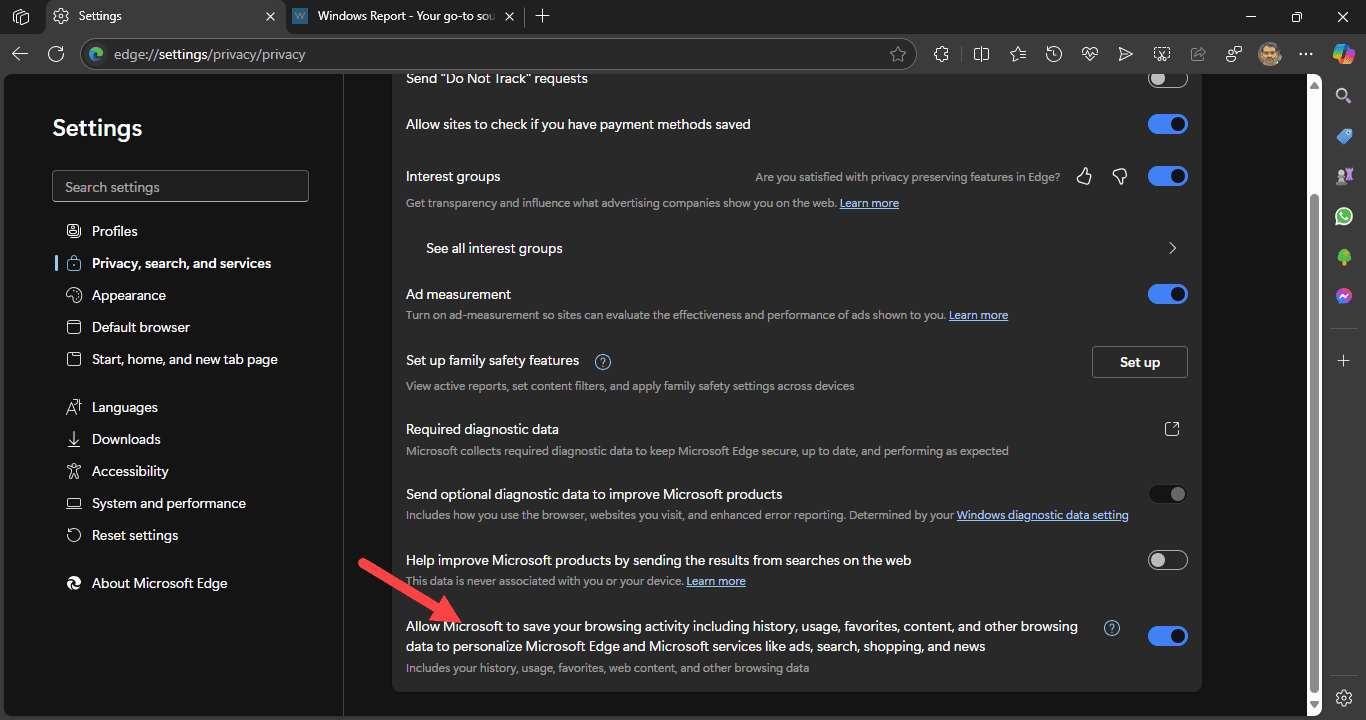
Using a product for free often comes at the expense of your data, raising concerns about the user becoming the product. Microsoft Edge, when you give consent via the Personalization and Advertising setting available in Edge, can use “browsing history, usage, favorites, content, and other browsing data to personalize Microsoft Edge and Microsoft services like ads, search, shopping, and news.”
This is being put to use by Microsoft in the latest feature it is testing in Edge Canary 137, called “Site Suggestions,” available when you visit Privacy, Search and Services > Search and Connected Experiences > Site Suggestions.
Site Suggestions When Edge launches, we’ll open sites based on your recent browsing history
Clicking the help icon next to Site Suggestions reveals:
“Site suggestions are turned on when you provide browsing history access through your Personalization & Advertising setting. You can always turn this off in settings.”
What this means is that, while the wording could be better, Microsoft Edge, when you open it, will open sites from your recent browsing history, which may sound like adware injecting or opening pages on its own like malware.
Keep in mind this could be A/B tested.
According to Microsoft’s support page, Edge gathers several types of data for personalized experiences. This includes browsing history, such as URLs, site names, and the times you visited specific sites; Favorites and Collections, usage data that reflects how you interact with the browser; web content (the pages you view; and device-related information, like the browser version you’re using.
This collected data will be used to personalize: Ads, e.g shopping recommendations, Search results (Bing), News feeds (Microsoft News), and Edge’s startup behavior (via Site Suggestions).
You can prevent this from happening by visiting Edge Settings > Privacy, search, and services > Privacy. Then, disable (toggle off): “Allow Microsoft to save your browsing activity, including history, usage, favorites, content, and other browsing data to personalize Microsoft Edge and Microsoft services like ads, search, shopping, and news.”
Don’t confuse Site Suggestions with the autocomplete suggestions that appear when you start typing in the address bar. The Site Suggestions discussed in this article, currently being tested in Edge Canary, are different.
Microsoft has rolled out a new update for its Edge Dev Channel, bringing version 136.0.3240.8 to users. This latest release focuses on resolving various issues across different platforms, enhancing stability and usability.
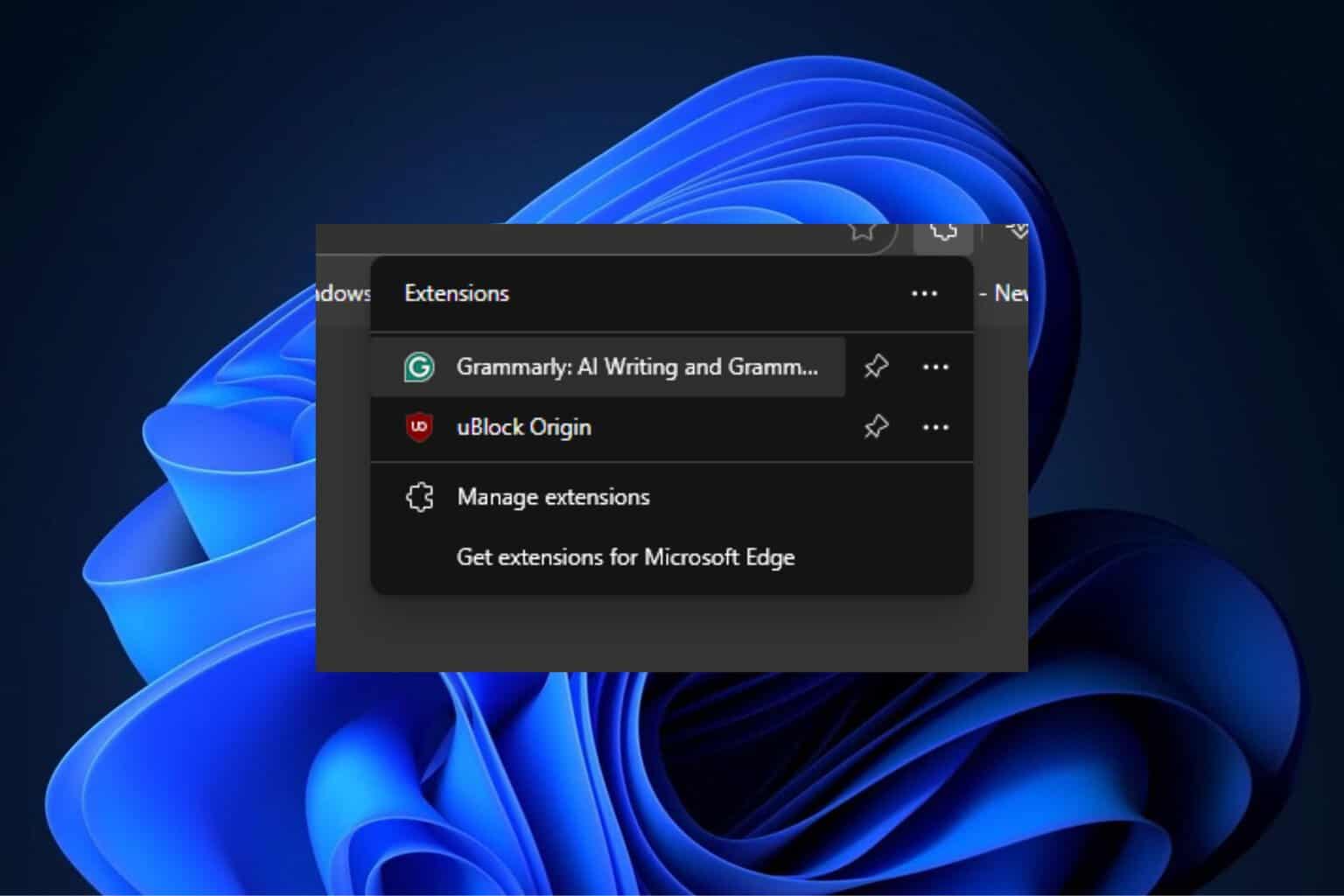
The update introduces several notable fixes, including a new way to access extensions in the browser. More specifically, Microsoft is adding an ‘Extensions’ link-type menu item in Settings, allowing users to quickly get a hold of them in Edge.
The other enhancements coming with this build are:
Console Crash Resolution: An issue causing the console to crash when applying a coupon on Xbox has been addressed.
Android Stability Enhancements: Fixes include resolving crashes related to tablet refresh buttons and improving developer mode accessibility.
Mac-Specific Fixes: MacOS users will notice improvements in fullscreen mode, screenshot functionality, and the favorites pane display.
iOS Refinements: The update corrects issues with toolbar buttons in destroyed PDFs and improves dark mode behavior when toggling translation settings.
Copilot Adjustments: A fix ensures that auto-open focus no longer incorrectly shifts to the side pane in Copilot.
Microsoft has released Edge 136 Beta, introducing many improvements to enhance user experience and security. Version 136.0.3240.8 is now available for testing in the Beta Channel ahead of its Stable Channel release, and its users should be aware, as it is a big patch.
The “Settings and more” menu now features a badge alert for updates, making it easier for users to discover and apply browser updates. Additionally, the menu has been reorganized to separate “Performance” and “Secure Network” into distinct sections.
The profile badge has been moved to the toolbar for better visibility, especially when multiple open tabs. This change aims to streamline navigation and improve accessibility.
A new policy, PasswordExportEnabled, allows administrators to control the export of saved passwords. This feature enhances security by preventing unauthorized password exports.
The AutomaticHttpsDefault policy has been deprecated and replaced by the new HttpsUpgradesEnabled policy. This change is part of Microsoft’s ongoing efforts to improve secure browsing.
Plus, the Redmond-based tech giant also enabled the possbility to find extensions in Browser Settings. Microsoft added the Extensions navigation menu, which allows this. However, the feature is on a controlled rollout.
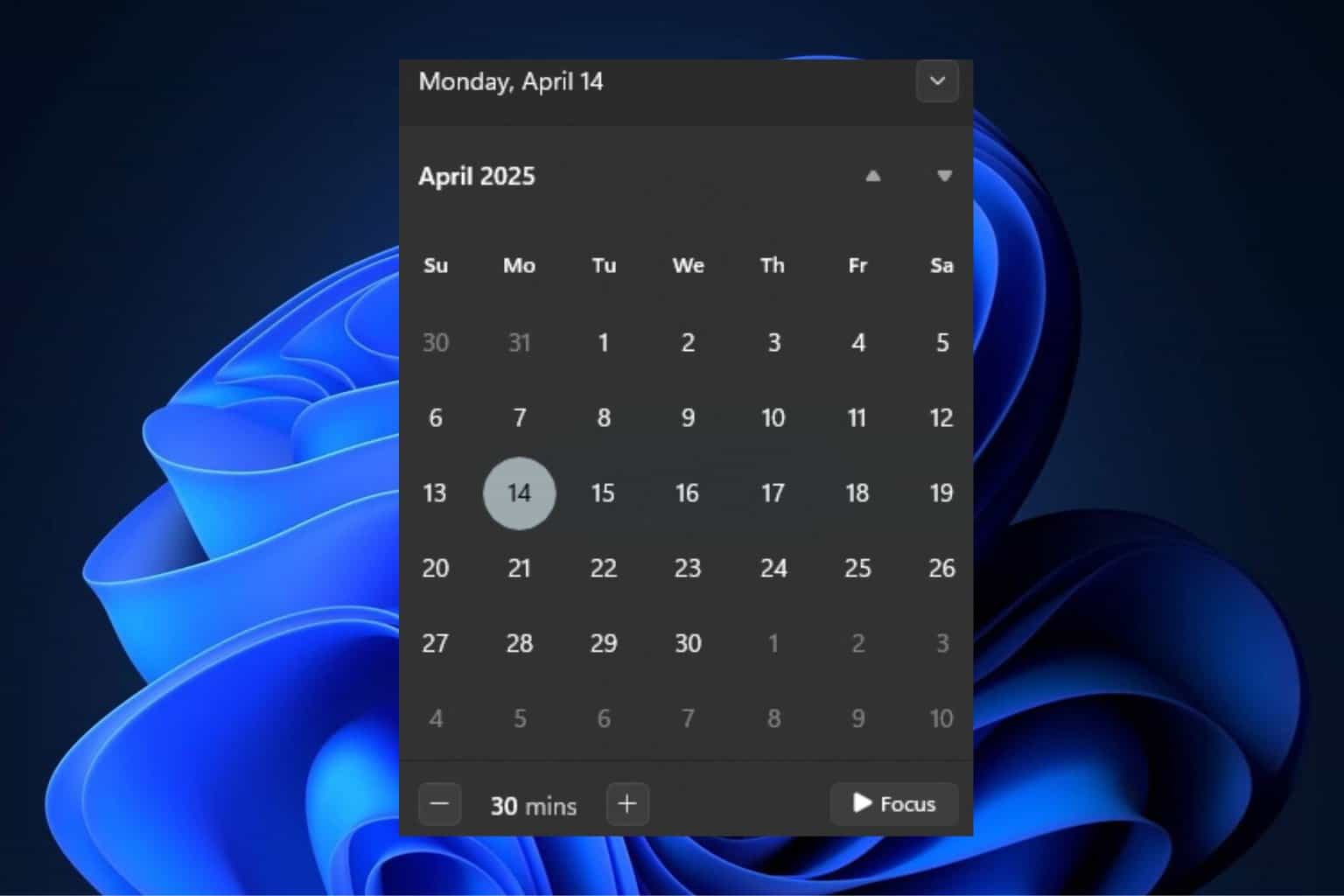
Microsoft is reintroducing the calendar flyout clock feature in the notification center to address a long-standing request from Windows 11 users.
This update, currently available in the latest Windows 11 preview builds, allows users to display the time alongside the calendar in the notification center.
The new option, “Show time in Notification Center,” will enable users to toggle the clock display on or off. Tech enthusiast @phantomofearth spotted it.
You will soon be able to have a clock in Windows 11's notification center like you could in 10, the latest preview builds include a string for the option: "Show time in Notification Center"
This addition is part of Microsoft’s broader efforts to refine the Windows 11 user experience, including a redesigned Start menu and customizable widgets.
The calendar flyout clock is expected to enhance productivity by providing quick access to time and date information without relying on third-party applications, and it should soon roll out to Windows 11 users.
Microsoft has released the KB5055617 build to the Dev Channel for Windows Insiders using Windows 11, version 24H2. It brings huge changes to the Narrator platform, which is now enhanced with AI capabilities for improved performance.
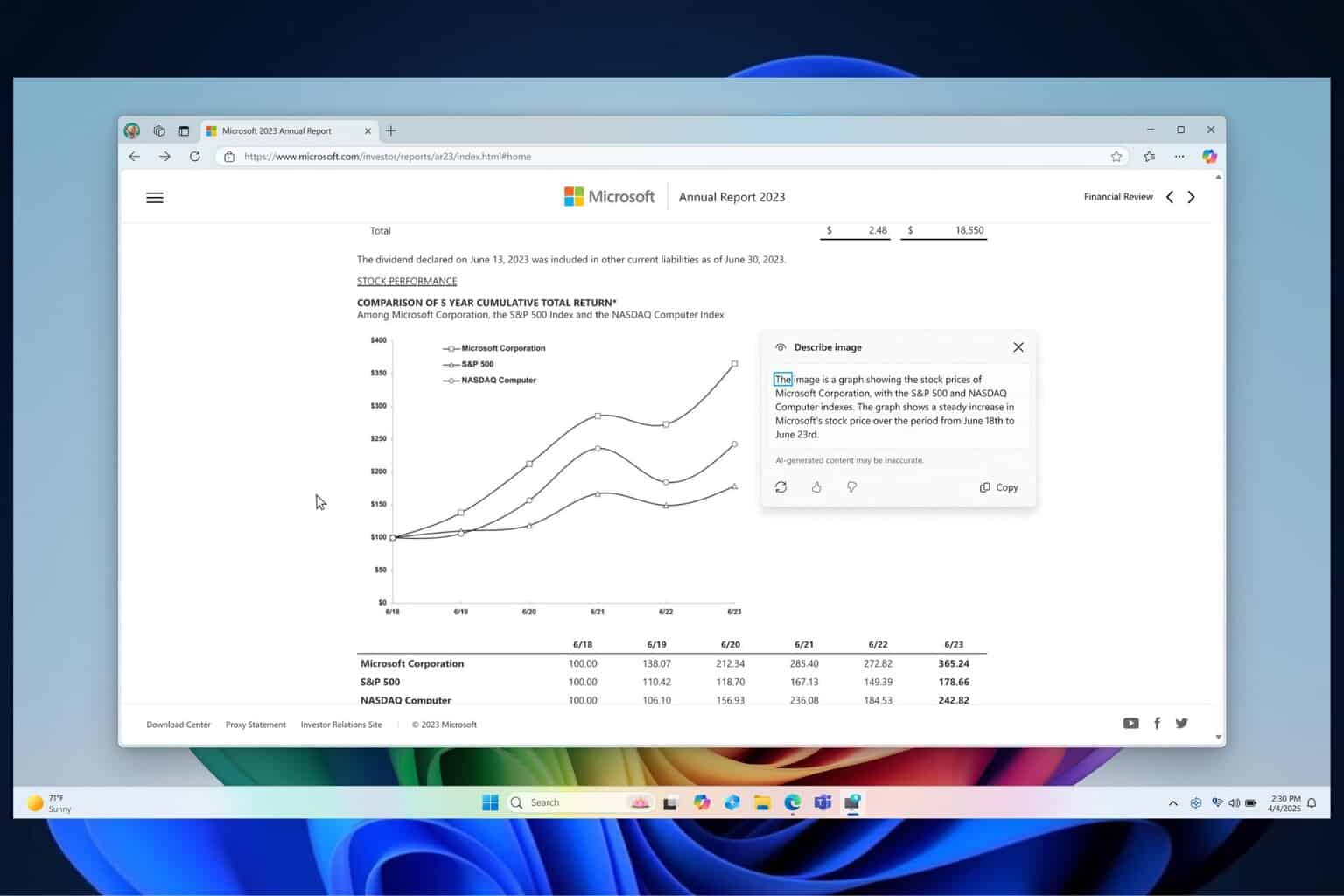
For example, the Narrator now provides detailed descriptions of images, charts, and graphs, enhancing digital accessibility for blind and low-vision users. Users can activate this feature with the shortcut Narrator key + Ctrl + D.
The Redmond-based tech giant says the feature can be used to generate important data in just a few seconds. It’s gradually rolling out to Snapdragon-based Copilot+ PCs, but support for Intel and AMD-based devices will be released soon.
Like the patch for Preview Insiders, KB5055617 also allows users to search for settings using natural language, making it easier to find what they need without remembering exact setting names.
This feature is powered by the advanced neural processing unit (NPU) on Copilot+ PCs, enabling offline semantic search.
For example, Microsoft says you can use your own words to find settings like “change my theme” or “about my PC”. You no longer need to remember the exact name of the setting you are looking for.
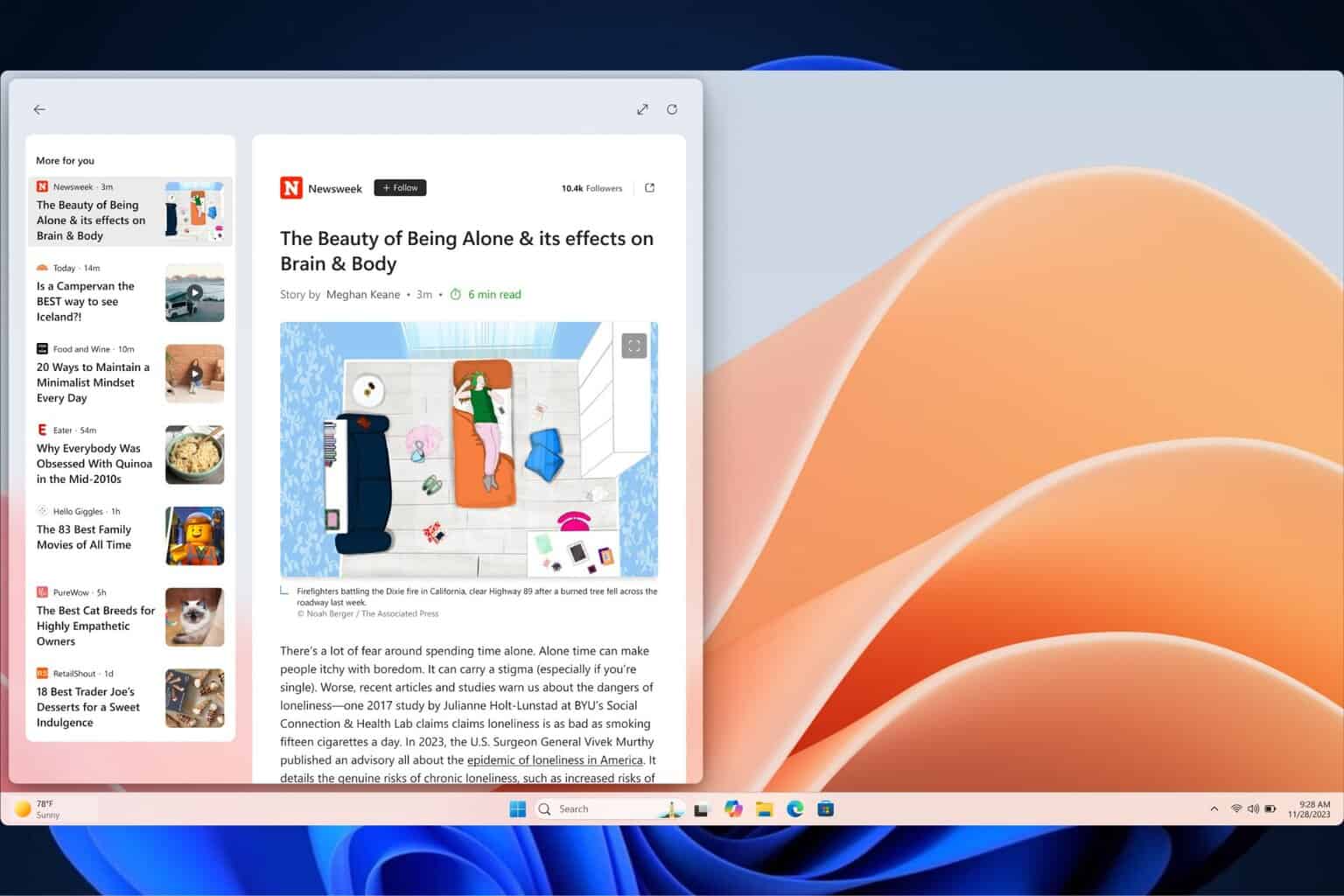
Finally, the patch also introduces the AI-powered widgets: The Widgets interface has been updated to allow users to read full articles, slideshows, and videos directly from the MSN feed.
Additionally, the Weather widget and other widgets on the Lock screen are now customizable.
KB5055617 also fixes many issues with Windows 11’s File Explorer, Taskbar, Desktop Icons, and Graphics.
Microsoft released KB5055613 to the Windows 11 Insider Preview Build channel, and with it, the Redmond-based tech giant introduced several innovative features aimed at enhancing user experience and accessibility:
First things first, thanks to the new AI-powered widgets, you’ll be able to watch videos in Windows 11 widgets. The Widgets interface has been updated to allow users to read full articles, slideshows, and videos directly from the MSN feed. Additionally, the Weather widget and other widgets on the Lock screen are now customizable.
The Redmond-based tech giant says the new feature is gradually rolling out to Windows Insiders.
KB5055613 also improves Windows Search in Windows 11: The search box on the taskbar now supports natural language queries, allowing users to find settings without remembering exact names.
For example, typing “change my theme” will direct you to the relevant settings page. This feature is powered by the advanced neural processing unit (NPU) on Copilot+ PCs, enabling offline semantic search.
Enhanced Accessibility with Narrator is also available with this patch: Narrator now provides detailed descriptions of images, charts, and graphs using AI.
This feature is particularly beneficial for blind and low-vision users, offering contextual descriptions of visuals, such as identifying people, objects, colors, and text in images. Users can activate this feature with the shortcut Narrator key + Ctrl + D.
Elsewhere, KB5055613 fixes many of Windows 11’s known issues, including bugs with the touchpad, desktop icons, or File Explorer.
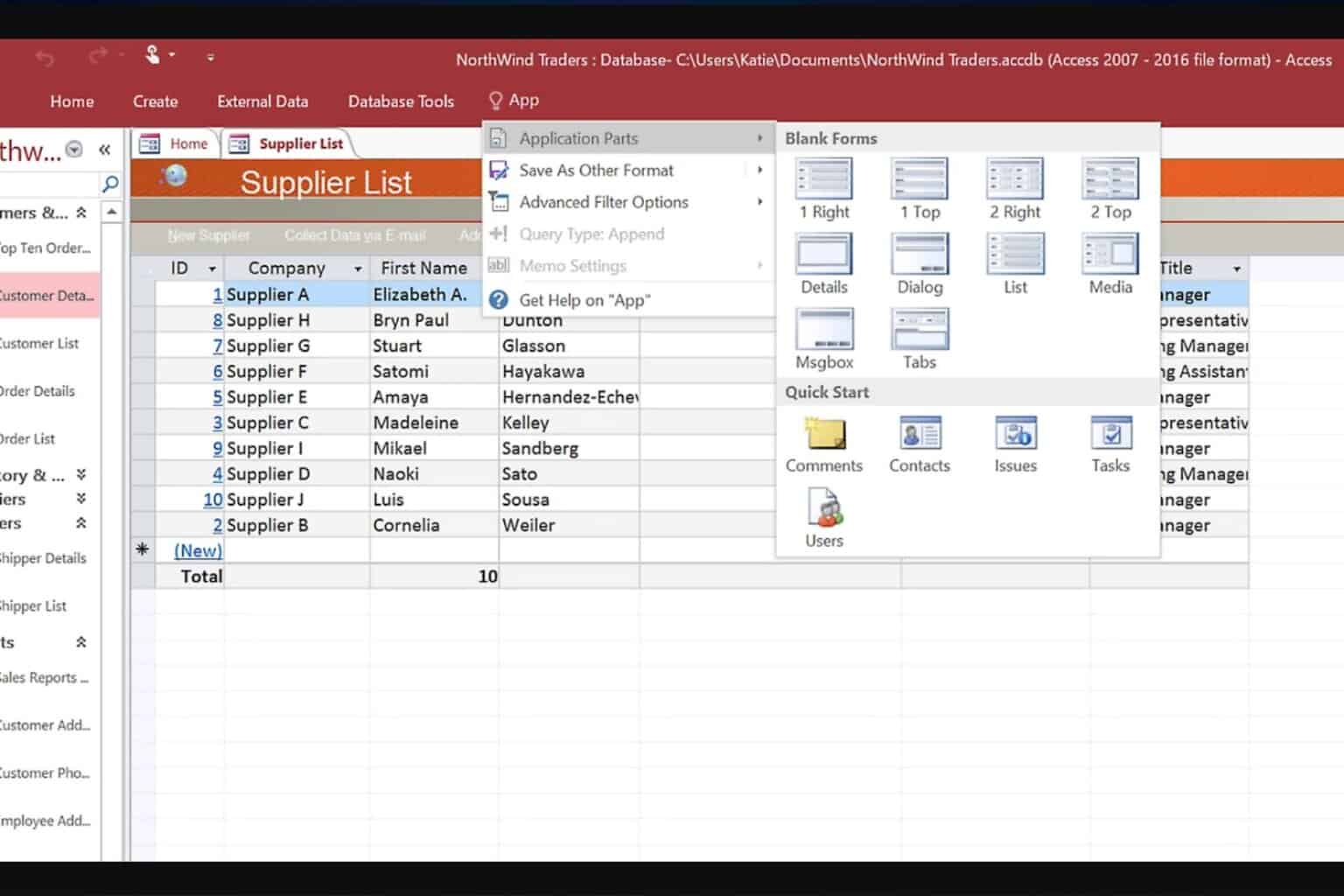
Microsoft has announced a significant accessibility enhancement for its database management tool, Microsoft Access: a new magnification slider. This slider allows users to gain greater control over their viewing experience, enhancing productivity and precision.
Announced in a recent entry to Microsoft Roadmap 365, the magnification slider will allow users to zoom in and out from 10% to 500%, making it easier to view and work with data in Access. This functionality mirrors features similar to popular Office apps such as Word, PowerPoint, and Excel.
The magnification slider will be keyboard accessible, enabling users to adjust magnification through shortcuts for greater inclusivity. It is also available on the ribbon, providing an easily accessible option within the toolbar interface.
Access will add magnification slider (10% to 500%) in lower right of the application, similar to the feature in Word, PowerPoint, and Excel. It will also be keyboard accessible and available on the ribbon.
This new feature is part of Microsoft’s broader efforts to enhance usability across its Office suite, and it will become generally available to all users starting June 2025.
Microsoft has unveiled a new feature to improve the accuracy of its threat detection services. As announced in a recent entry to the Microsoft 365 Roadmap, the Security Operations Center (SOC) teams and administrators can now provide feedback on threat analysis responses directly within the Submission experience.
With this update, SOC teams and admins can actively participate in refining Microsoft’s threat evaluation processes. If they disagree with the submission analysis—whether a false negative (a threat missed and marked safe) or a false positive (a safe item flagged as a threat)—they can now flag their disagreement and submit detailed feedback.
By enabling direct feedback, Microsoft aims to improve its algorithms and threat detection accuracy continuously, ensuring a safer digital environment for all users.
We are enabling the ability for SOC and admins to disagree with submission responses within the Submission experience and provide feedback to Microsoft on false negatives and false positives.
This capability allows SOC teams and admins to address discrepancies in threat assessments, ensuring quicker resolution of potential security concerns.
However, it will only be released in July, so there will be enough time for SOC teams and admins to be aware of it.
In similar news, the Defender platform will be enhanced with three new Advanced Hunting Tables that will greatly improve security in Teams.
Microsoft has announced significant performance improvements with the release of Edge 134, setting a new benchmark for speed and responsiveness in web browsing.
Edge 134 boasts a 3% to 9% improvement in overall performance, as measured by the Speedometer 3.0 benchmark. This industry-standard tool evaluates browser responsiveness in real-world scenarios, highlighting Edge’s advancements in speed optimization.
Between Edge 133 and 134, users can expect 1.7% faster navigation times, 2% faster startup times, and 5% to 7% improvement in web page responsiveness.
These enhancements are derived from field telemetry, representing real-world web usage across diverse hardware and websites.
In a blog post, Microsoft says these gains are thanks to its unique approach to optimizing speed and refining the Chromium rendering engine within Edge. Features like sleeping tabs and startup boost continue to play a pivotal role in enhancing performance.
The Redmond-based tech giant recently released the latest version of Edge, 135. The patch has introduced many new features to the browser, including trending suggestions and usage data sync.
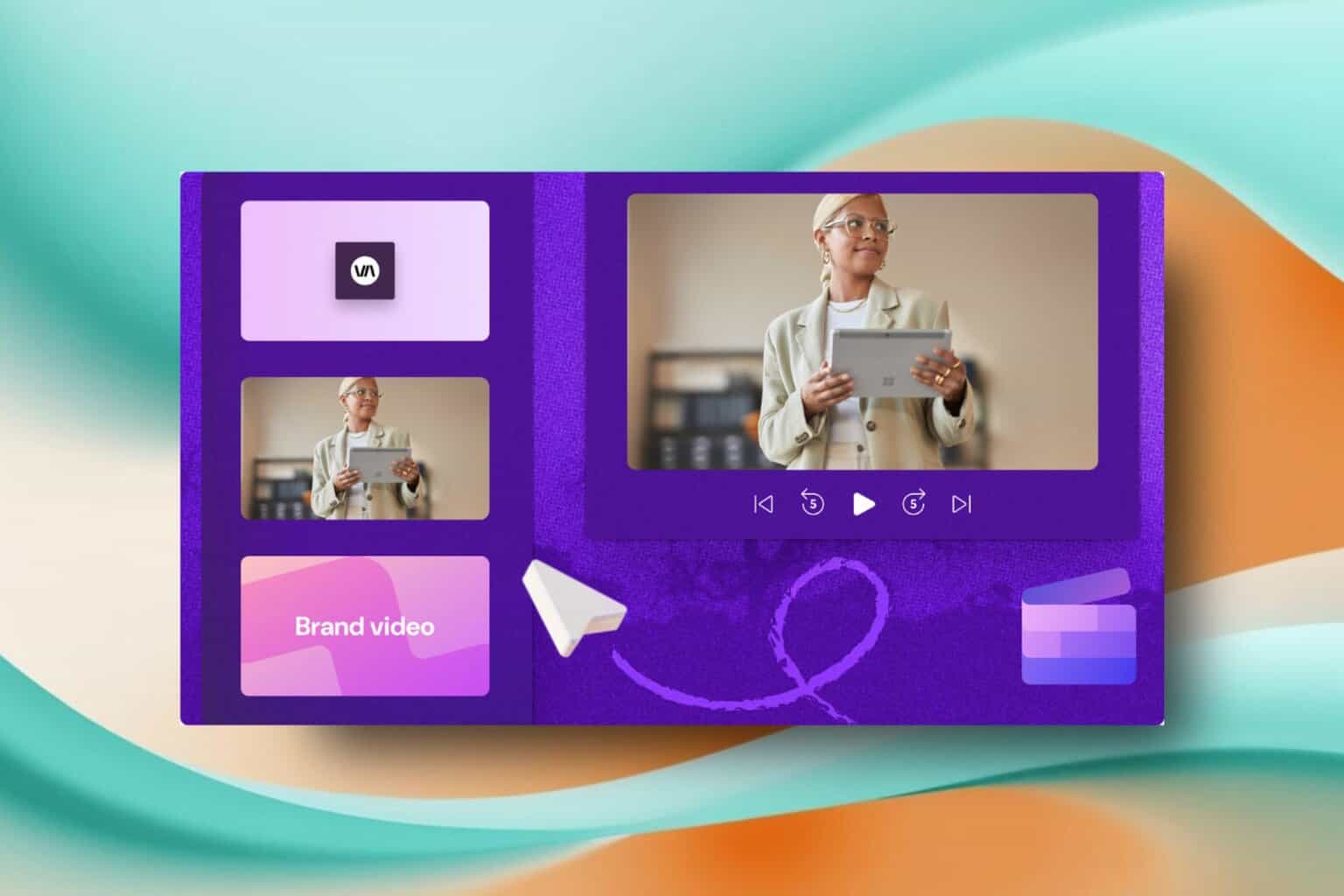
Microsoft has unveiled a new feature in Clipchamp for Work that promises to revolutionize video creation across organizations. The introduction of video templates aims to simplify and streamline the process, ensuring brand consistency and enhancing collaboration.
The new templates feature allows users to create and share project templates tailored to their team’s needs. These templates serve as a starting point for video ideation and production, making them ideal for various purposes, including:
Training and onboarding videos
Product demonstrations
Educational content
Internal communications
Marketing campaigns
YouTube intros
Users can seamlessly integrate templates into existing workflows by saving templates in OneDrive and SharePoint. Sharing and importing templates is straightforward, enabling better collaboration and efficiency.
Microsoft has officially announced the end of support for its Surface Hub and Surface Hub 2S devices, marking a significant transition for users of these collaborative tools. Support will cease on October 14, 2025, coinciding with the end of mainstream support for Windows 10.
The end of support means these devices will no longer receive security updates, fixes, or other assistance from Microsoft. Additionally, the Microsoft Teams app will no longer be available on these devices, urging corporate users to upgrade their meeting spaces to maintain functionality.
Microsoft has outlined several paths for users to adapt to this change:
The original Surface Hub will be entirely out of support after October 2025, with no hardware refresh options available.
Users can opt for a hardware refresh by purchasing the Surface Hub 3 Compute Cartridge, which includes updated hardware and Windows 11-based Teams Rooms. Alternatively, users can migrate to Teams Rooms on Windows using Microsoft’s free Surface Hub 2S migration offering until October 14, 2025. Switching to Windows 11 Pro or Enterprise is also an option for personal use.
While this change primarily affects corporate users, it also highlights the broader impact of Windows 10’s end of support. Consumer products like the universal OneNote app for Windows will also be affected, emphasizing the need for users to transition to newer platforms.
Microsoft has released Windows 11 Build 26100.3902 (KB5055627) to Windows Insiders in the Release Preview Channel, introducing an impressive array of AI-driven features to enhance user productivity and interaction with technology.
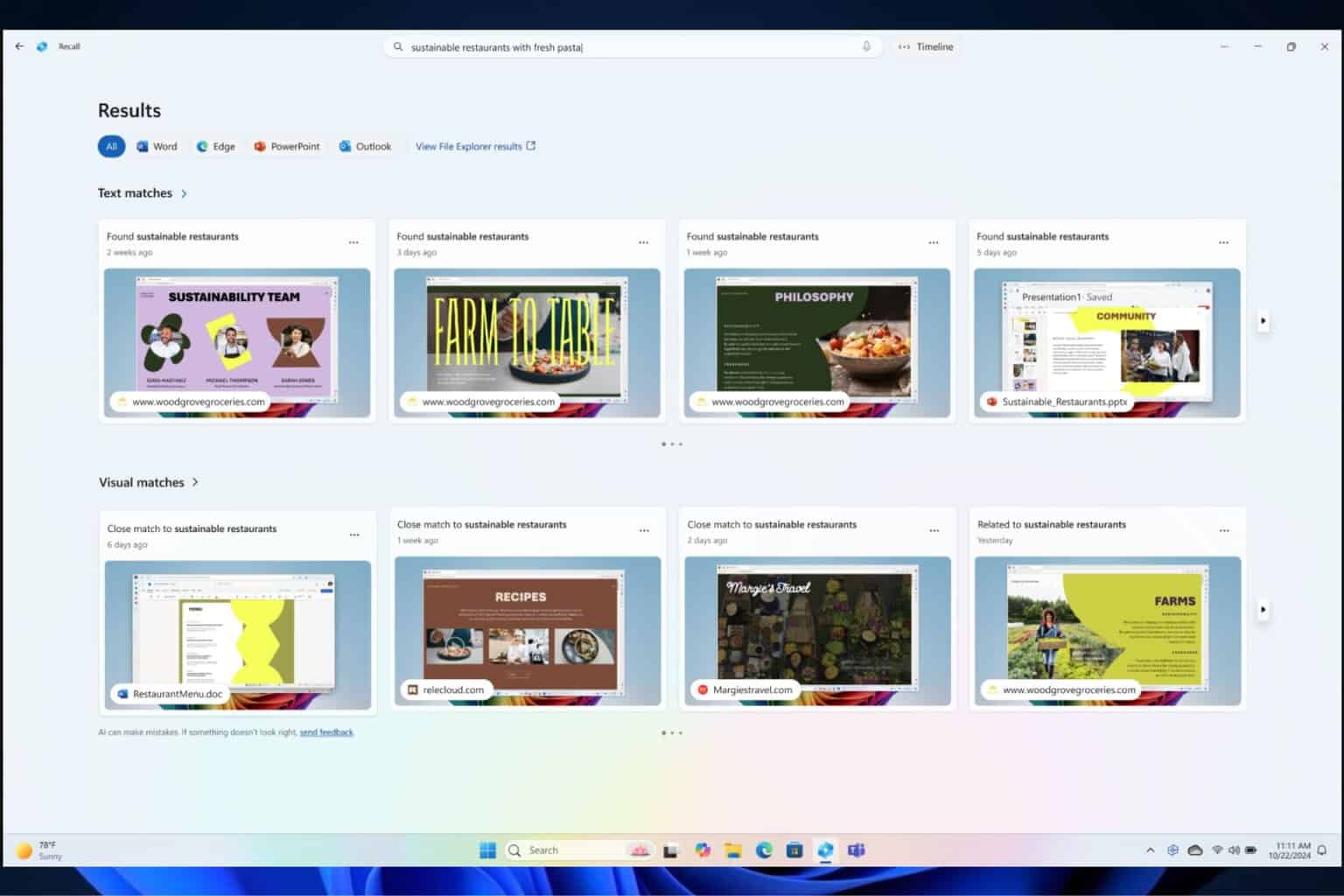
Recall introduces an innovative way for users to search for content they’ve previously engaged with on their devices. This AI-powered feature allows users to locate apps, websites, images, or documents by describing their content. Recall requires explicit user consent to save snapshots of their activity to ensure user privacy and uses Windows Hello for secure authentication.
KB5055627 also brings Click to Do closer to general availability in Windows 11, whether removing unwanted objects in photos or summarizing on-screen text. Users can activate this feature through a simple shortcut, such as pressing the WIN key with a mouse click or using WIN + Q.
KB5055627 also enhances Windows 11’s search capabilities. Semantic Indexing leverages AI to provide context-aware results, making search queries more intuitive and results more accurate.
Microsoft has announced that these features will be gradually rolled out, with availability dependent on device type and regional factors. However, these capabilities being available to the Preview Channel means that they’ll be available to all users in just a matter of weeks.
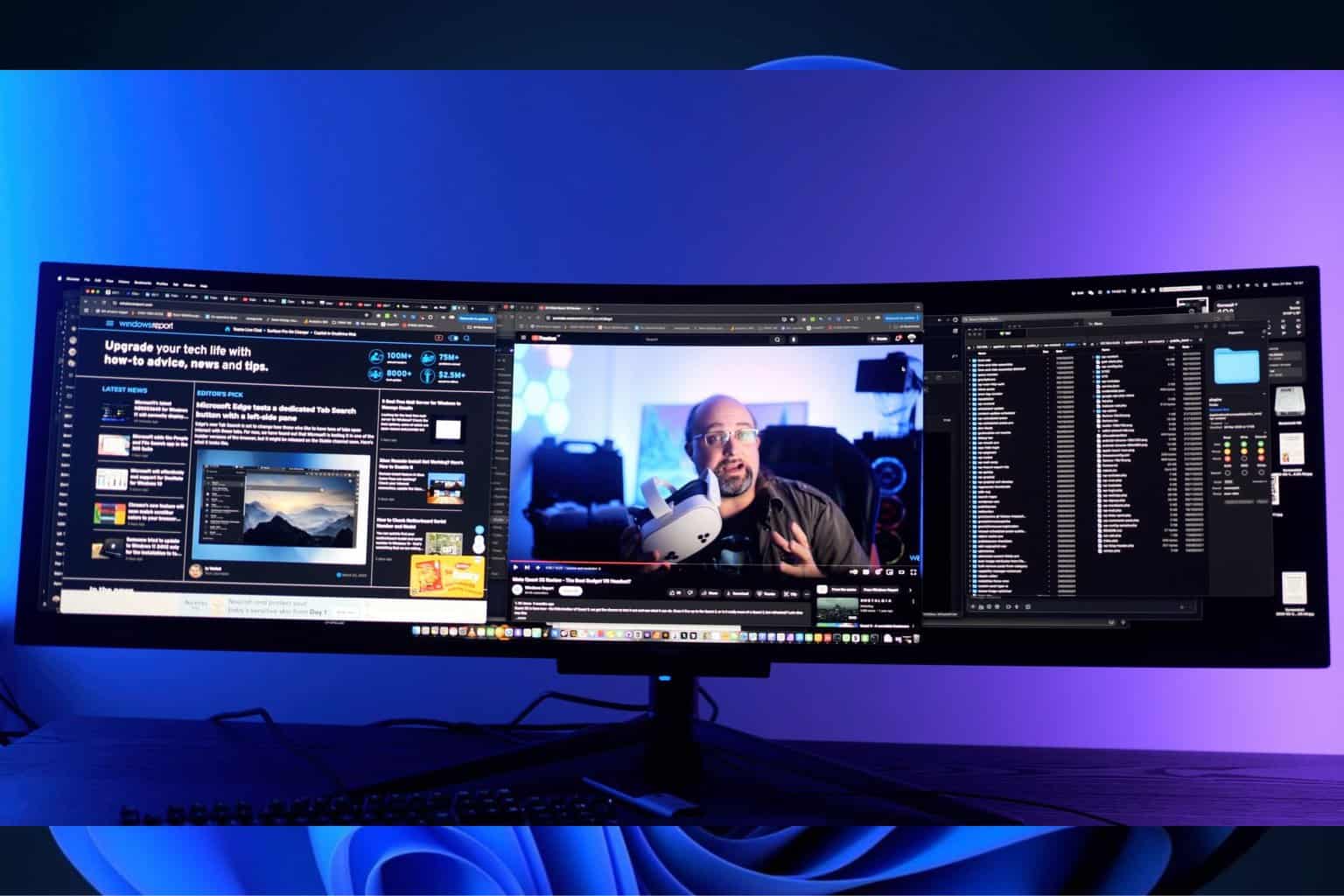
Some people deck their desks with dual—or even triple—monitors, always chasing that sweet screen real estate. And sure, that’s one way to do it. But it’s messy, disconnected, and frankly, rubbish for gaming. The InnoCN 49Q1R sidesteps all that by squishing two 27” widescreen displays into one mega, ultra-widescreen monster: 49 inches of glorious, continuous screen.
Now, I’m old enough to remember when 21 inches and 30 Hz on a cathode ray tube were considered the height of luxury. So the fact that we now have a 49” curved QD-OLED panel, running at 144Hz and 5120×1440 resolution—for around $1000 or less during sales on Amazon—is absolutely mind-blowing.
Let’s dive into how it performs and what living with a massive ultra-curved display is really like.
Dimensions and Build
No two ways about it: this thing is a beast. It’s 1.2 metres wide and needs about 37cm of depth on your desk. It weighs 15.6kg—not as heavy as I feared, but still enough that you should take care when unboxing. I left the screen portion inside its curved protective shell until I’d placed it exactly where I wanted it.
Tech Specs and Panel Details
The InnoCN 49Q1R is marketed as a 5K2K display, which means 5120×1440 resolution—also known as DQHD or “dual quad HD.” It has a 32:9 aspect ratio (twice as wide as a 16:9 widescreen) and an 1800R curvature. That number refers to the curve radius (1800mm or 1.8m), and it’s one of the more dramatic curves you’ll find—most monitors hover around 2000R to 2400R.
Now, I don’t have much experience with ultra-curved displays, but I’ve really come to love this one. It’s mostly a comfort thing. I found reduced glare, and more of the screen is angled naturally toward your eyes.
At this size and resolution, you’re getting about 110 pixels per inch. That’s plenty sharp. For reference, Apple’s “Retina” displays push over 200 PPI, but they’re also a lot smaller and more demanding on the GPU. At 110 PPI, it strikes a nice balance—sharp enough that I can only spot individual pixels if I lean in absurdly close. From a normal distance, it’s crisp.
It supports up to 144Hz, which is perfectly fine for most gamers. Hardcore esports types might want more, but 144Hz is a sweet spot. It also boasts a 0.03ms response time and has adaptive sync support, so it’s clearly geared for gaming.
Traditional OLED displays feature a distinct R, G, and B emitter for each pixel. The 49Q1R is a QD-OLED panel, which means each pixel uses a single blue OLED emitter that passes through “quantum dots” to generate the colors. Compared to standard OLEDs, QD-OLEDs can hit higher brightness levels and richer colors, but you still get the deep blacks and contrast you’d expect. In practice, there’s little difference unless you know what you’re looking for. It’s also a glossy panel, which further enhances those rich colors.
I ran a starfield test—used to reveal blooming and halo effects, which typically occur on screens with a limited number of local dimming zones—and saw none. OLEDs aren’t prone to this sort of issue, but I wanted to confirm that the QD-OLED wasn’t just marketing fluff for inferior tech. Top marks here: You won’t be disappointed by the picture quality.
Ports and Connectivity
On the rear, you’ll find:
2x HDMI 2.1
1x DisplayPort
1x USB-C (with 90W power delivery)
USB-A ports with an upstream USB-B
A wired Ethernet port (100Mbps, not gigabit)
The Ethernet port is a curious addition, but combined with the USB-C power delivery, it means the 49Q1R can double as a docking station with plenty of power to charge your device.
Device features are all controlled by a single, easy-to-use joystick. The interface for swapping between inputs is simple enough, though it can take a few seconds to switch.
Picture-in-Picture and Multi-Input Modes
As you’d expect from something this wide, the 49Q1R supports various Picture-in-Picture and Picture-by-Picture modes.
Most usefully, you can split the screen down the middle for two separate 16:9 inputs, which is great for multitasking across systems. There’s no peripheral sharing, though; this isn’t a KVM switch.
It also gets weirder with a full-screen phone input via USB-C. Yep, it has a phone mode. No idea when I’d ever use it, but it’s there, and it works.
What’s It Like to Use the InnoCN 49Q1R?
I’ve used this as my daily driver for about three weeks, and what surprised me most wasn’t the gaming but how absurdly useful it is for work.
I’m not great at focussing. I get bored quickly. I’ll write a paragraph, remember something I forgot to do, fire off an email, switch to some coding, bounce into a video edit, and then go back to writing. Until yesterday, I had 246 open Chrome tabs in one user session. Try managing that on a single 16:9 screen.
With this monster on my desk, I can see everything all at once. I barely use Alt-Tab anymore—I just glance left or right. It’s a productivity game-changer.
Also, that curvature reduces glare. I’ve got a huge window that catches the afternoon sun and was worried about reflections, but visibility has been excellent, even at just 250 nits. I don’t think a flat panel at 250 nits would cut it here, but the curve helps a lot.
Some say curved monitors are rubbish for productivity—great for gaming, but useless for spreadsheets. Allegedly, the lines curve and your eyes get tired. I tested this with Excel spread across the whole thing, and I didn’t notice any distortion at all. Maybe professional photo editors or very sensitive users might see it.
As for eye strain… I grew up being told not to sit too close to the telly. Now I’ve got VR goggles strapped to my face and a phone practically glued to my hand. I’ve always been short-sighted and it’s never worsened, so I’m calling that concern outdated.
Gaming on the InnoCN 49Q1R
Let’s be honest—this thing was made for gaming.
It’s worth noting, though, that not all games support 5120×1440. Some titles don’t play nicely, and while the monitor menu offers some compatibility workarounds to force a particular ratio, they can be hit or miss.
Cyberpunk 2077 worked great. Native support, although my poor RTX 3060Ti could barely manage 30fps. Remember, you’re effectively running 4K in terms of pixel count, just stretched wide.
LEGO Fortnite was a complete disaster. Only 16:9 resolutions are offered, and stretching looked awful. The compatibility modes didn’t work, and my only resort was to use the picture-in-picture mode to split the screen.
Cities: Skylines 2 looked glorious. The ultrawide view makes city planning feel genuinely next-level, and the wider view enhances information-dense games.
GTA V Enhanced ran beautifully. You get fantastic vistas of the city and great immersion when driving.
I also tried hooking it up to the PlayStation 5, but it wasn’t ideal. It doesn’t support 32:9 at all, so everything is stretched. You can do 1440p at 120Hz with HDR, but it’s basically just a 27” monitor with black bars on both sides.
Speakers
The 49Q1R includes speakers. They exist. That’s the kindest thing I can say. InnoCN claims they’re “surround sound,” but they’re muddy, mid-heavy, and frankly not worth using. Slightly better than the ones in my Mac Mini, anyway. Gamers likely won’t care.
Who Should Buy the InnoCN 49Q1R?
It’s marketed as a gaming monitor, but in my experience, it’s fantastic for productivity, too. I’m not a professional creative, so maybe I’m not sensitive to minor distortion, but I didn’t notice anything while editing video or wrangling spreadsheets.
If you’re juggling multiple apps, managing complex workflows, or just like the idea of seeing everything at once, you’ll love this. The curve helps reduce glare, and yes, you do have to turn your head a bit—but no more than you would with dual monitors.
Gaming-wise, it’s stunning. Rich colours, deep blacks, good brightness, and as immersive as you can get outside of VR. But you’ll need the hardware to drive it, especially if you want to hit 144Hz. Console gamers? Skip it. You won’t benefit from the extra real estate—it’ll just show up as a stretched 1440p screen.
The obvious comparison is the Samsung Odyssey OLED G9, which offers a higher 240Hz refresh rate but costs around $1400. There are cheaper Odyssey models too, but most lack USB-C and any kind of smart features like split input modes. Also worth noting is that the Samsung G9 series has had its share of problems—flickering, poor UI, and the dreaded “white screen of death.” Early reviews of the InnoCN 49Q1R, on the other hand, are very positive.
Overall, the InnoCN 49Q1R is a superb monitor at a fantastic price, packed with useful productivity features and very few compromises. It’s not just great for gaming but for everyday work use, too.
Starting this month, Microsoft will deprecate Windows UWP Map Control and Maps platform API within the operating system. The Redmond-based tech giant announced the deprecation on its official blog post,
However, despite the deprecation, the apps will still function but won’t be updated.
The Windows UWP Map control and Windows Maps platform APIs within Windows have been deprecated as of April 8, 2025. The Maps UWP Control and Maps platform support within Windows will continue to function but will not be updated.
The deprecation happened because Microsoft unified Bing Maps for Enterprise with Azure Maps, and due to it, Microsoft advised all organizations using the Windows UWP Map Control to move to the Azure Maps replacement.
This was back in 2024, with Microsoft giving organizations one year to migrate.
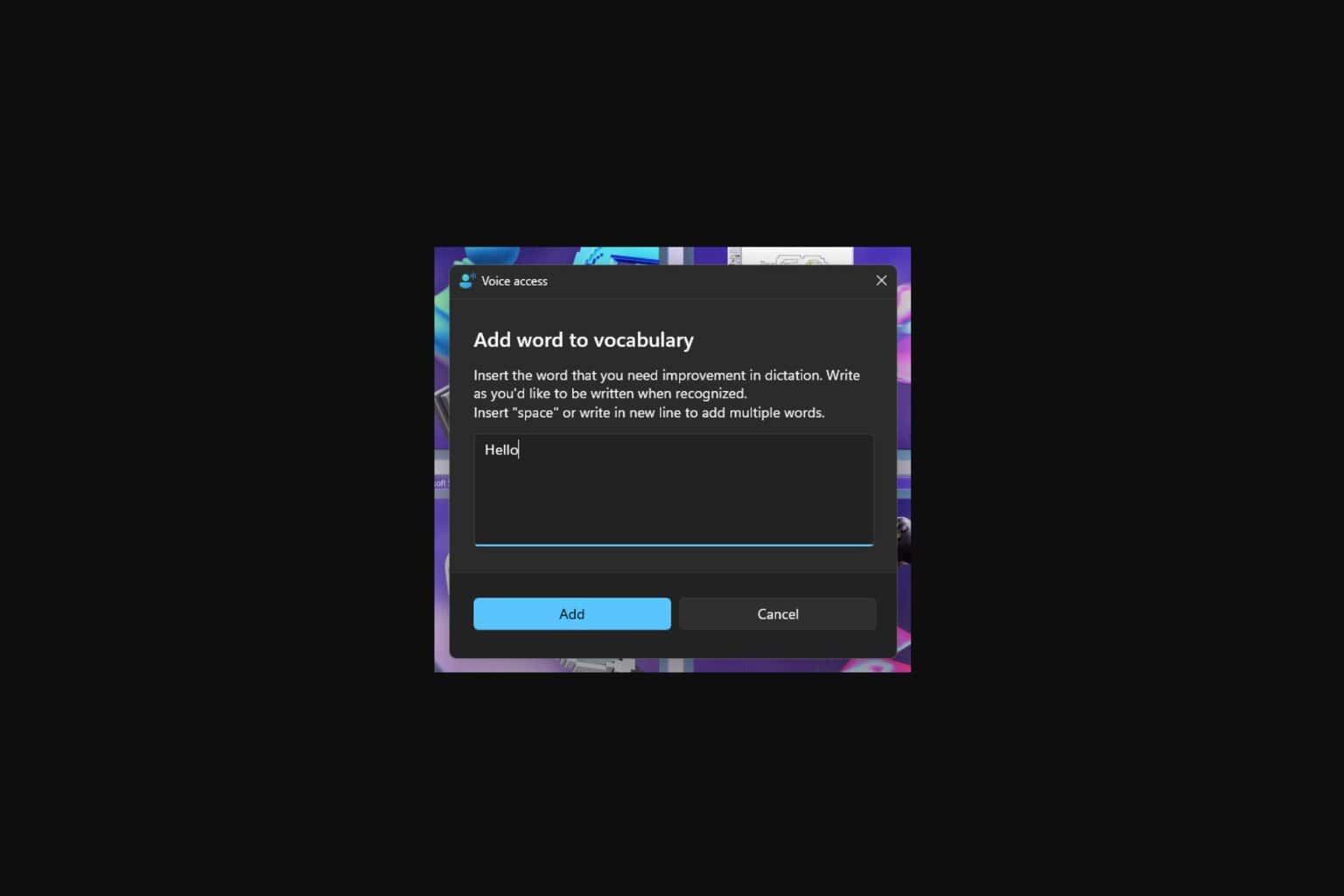
Windows 11 will allow users to add words to vocabulary to improve dictation of the voice access feature. The new capability will be accessed through a special option, and users will only need to add in the the words.
Tech enthusiast @phantomofearth spotted the feature in the latest Insider builds. The feature is hidden, but it can be uncovered using the third-party app ViveTool.
New voice access feature coming soon: the ability to add words to vocabulary to improve dictation. Hidden in 26200.5518 and 26120.3671. pic.twitter.com/gzqU8FtamW
The capability could give Windows users the means to perfect the voice access according to their needs, allowing for a deeper operating system customization.
This goes hand in hand with the latest developments of the Copilot tool in Windows, which is now capable of providing users with personalized content, such as personal podcasts.
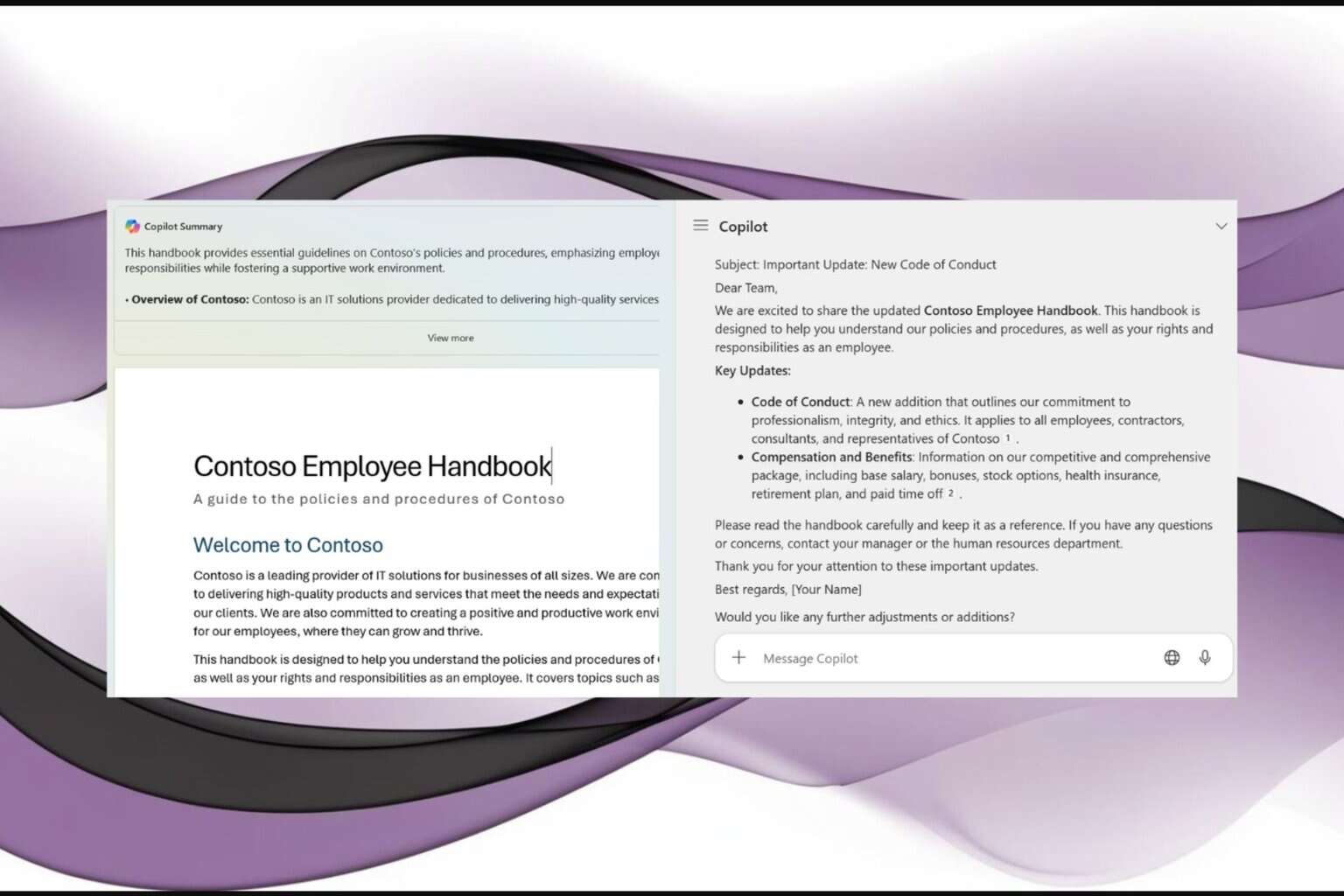
Microsoft has enhanced Microsoft 365 Copilot to be able to repurpose content across its apps, including Word, Excel, PowerPoint, and so on.
According to the official blog post, the tool empowers users to seamlessly adapt existing documents, presentations, and other materials to suit diverse audiences and objectives with minimal effort.
Whether simplifying an intricate employee handbook into a concise email, creating compelling presentations for onboarding new hires, or crafting eye-catching LinkedIn posts to engage external audiences, Copilot uses artificial intelligence to optimize content while preserving its relevance and impact.
For example, ebooks can be turned into emails, presentations, or whitepapers. A PowerPoint document can be turned into a Word document, and so on.
The AI model can also repurpose content for social media posts, including LinkedIn and other social media networks. You can visit Microsoft’s official blog for more information.
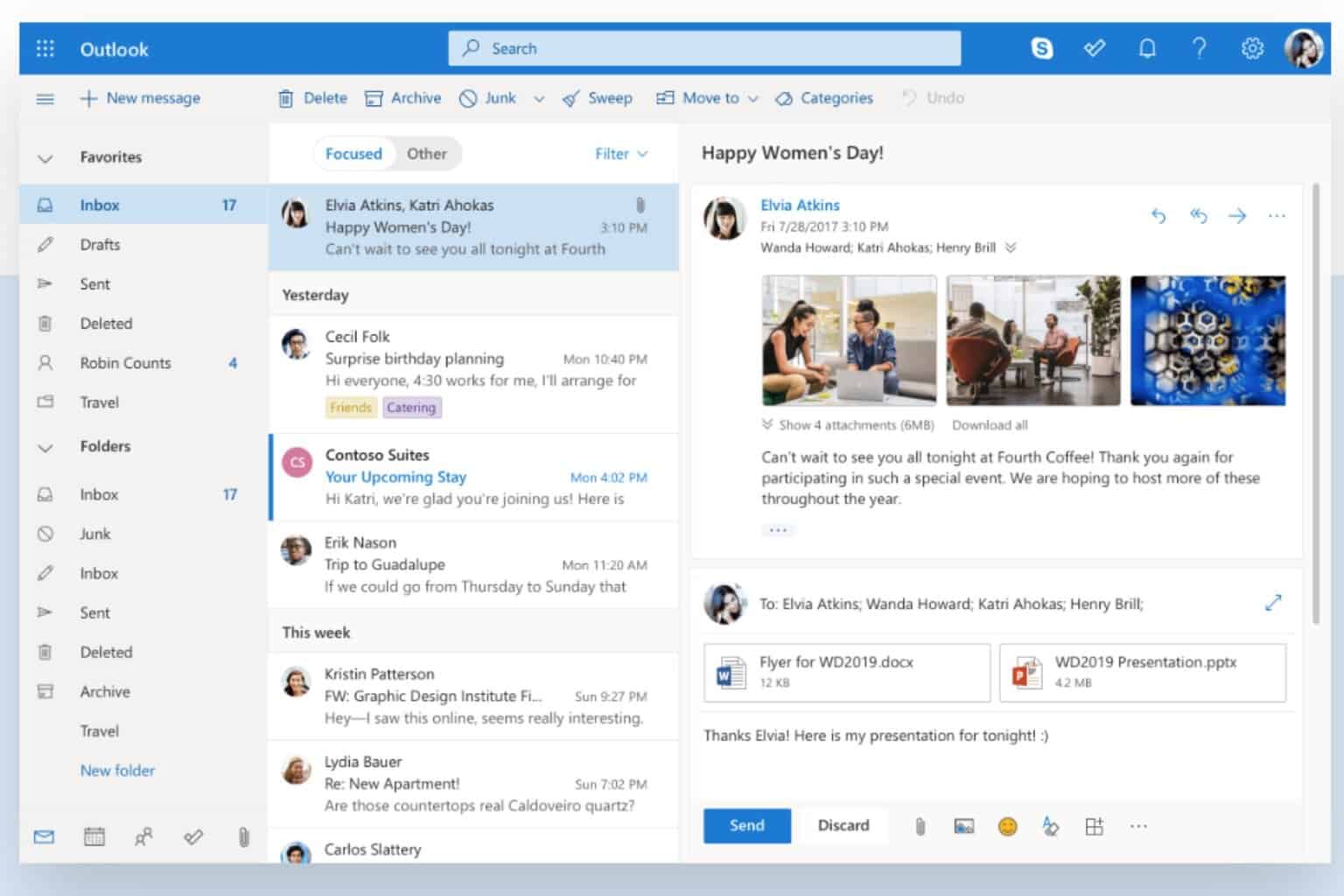
Microsoft has introduced a new feature in Classic Outlook for Windows, designed to streamline the meeting scheduling process.
This update introduces more innovative functionality. The application can now suggest optimized meeting options based on the details you provide.
According to the Microsoft 365 Roadmap description, when setting up a meeting within the scheduling form, Outlook will analyze key factors such as attendee availability and meeting preferences to propose the most suitable options.
This enhancement saves time and eliminates the hassle of manually coordinating schedules, enabling users to organize meetings more efficiently.
Classic Outlook for Windows will suggest meeting options based on your meeting details, helping you easily schedule meetings with optimized settings from within the scheduling form.
The enhancement will be added to classic Outlook next month.
Speaking of classic Outlook, the platform was recently updated to support AI agents.
The latest cumulative update for Windows 11, KB5055523, has left users scratching their heads due to the sudden appearance of a mysterious folder named “inetpub” on the C drive. This unexpected addition has sparked curiosity and concern within the Windows community.
According to Neowin, the “inetpub” folder, which is empty by default, is not protected and can be safely deleted without affecting system performance or processes.
Its presence may be related to Microsoft’s Internet Information Services (IIS), a platform for hosting websites and services. However, IIS is typically turned off by default in modern versions of Windows, leaving the folder’s creation a mystery.
Microsoft has not commented on the anomaly despite user speculation, leaving its origin and purpose unclear. While the folder poses no immediate harm, the unexpected change has made many users eager for clarification.
Earlier this week, the Redmond-based tech giant released this month’s Patch Tuesday updates, fixing hundreds of security issues, including one zero-day vulnerability.