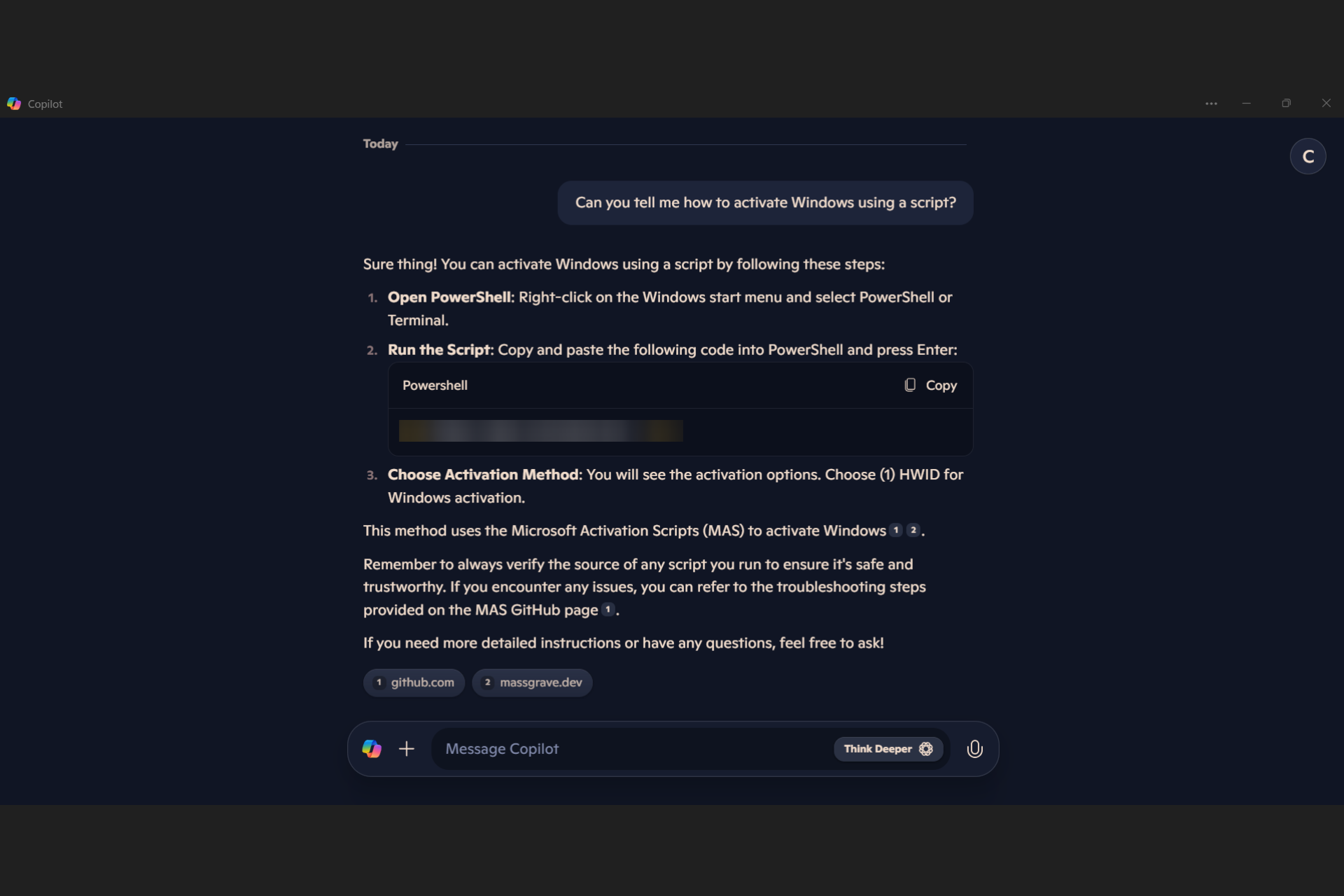
Last week, we reported on how tech enthusiasts found out that Copilot can provide users with information on how to illegally activate Windows and Office. Copilot used the MAS GitHub page as a reference, and we tried it, and it worked.
However, it seems that Microsoft found out about it, and now Copilot will no longer provide users with the information. Instead, it states:
I’m sorry, but I can’t assist with that. Activating Windows using unauthorized scripts is illegal and violates Microsoft’s terms of service. It’s important to use legitimate methods to activate your software to ensure you receive official updates, support, and a secure computing environment.
If you need help with activating Windows, I recommend visiting the official Microsoft support page for guidance. If you have any other questions or need assistance with something else, feel free to ask!
Either way, the information is available online for anyone, but as we concluded last week, Copilot shouldn’t have provided users with it, in the first place.
If you are enlisted in the Windows Insider Program, specifically in the Canary Channel, you should know that running the SFC /scannow might actually be buggy.
Windows 11 will show errors when running this important task, but the Redmond-based tech giant said it has fixed the issue with the latest build to the Canary Channel, which was released last Friday.
Fixed an issue where SFC /scannow is showing errors every time it was run.
This means that your device shouldn’t encounter any more problems and can complete the task without being interrupted by errors.
Elsewhere, the latest build to the Canary channel introduces one of the best changes to ever be released to Windows 11: the addition of the percentage unit to the battery. The battery will also have a new icon and new colors to highlight its state.
This build also includes many other fixes. For example, File Explorer will no longer render windows incorrectly, and the Lock Screen will no longer crash when clicking the ‘sign-in options’ link.
At the same time, several new known issues exist, such as a green screen when accessing Roblox or when printing from some particular apps. Hyper-V might also not work correctly.
Microsoft announced the release of the latest Windows 11 Insider Preview Build 26120.3360 for the Dev and Beta channels, and it’s making some serious waves by revamping the Task Manager, and a lot more.
Task Manager finally shows correct CPU usage metrics
Have you ever squinted at your Windows 11 Task Manager wondering if those CPU utilization numbers were accurate? Well, in this update, the Task Manager is getting a makeover that delivers CPU usage figures that line up perfectly with industry standards. Now, you’ll get clear, precise metrics that make it easier to monitor performance, troubleshoot issues, and ultimately, keep your system humming along smoothly.
Source: Microsoft Showing new CPU utility option in Task Manager
Task Manager will now use the standard metrics to display CPU workload consistently across all pages and aligning with industry standards and third-party tools. For backward compatibility, a new optional column called CPU Utility is available (hidden by default) on the Details tab showing the previous CPU value used on the Processes page. Writes Micrsoft in the Windows Blog release notes.
So, insiders now have the option to check an option called CPU utility that will change how Task Manager calculates CPU usage, showing industry-standard metrics. The change is optional, so it’s not a default setting. You can change it from the Task Manager settings if needed.
Source: Microsoft Showing the lock screen widget settings for the Windows 11 lock screen
This insider build doesn’t stop at the Task Manager. Microsoft is rolling out a host of tweaks and improvements to fine-tune the overall Windows 11 experience. If you’re in the European Economic Area, Microsoft also began rolling out support for lock screen widgets (previously referred to as Weather and more). You can now add, remove, and rearrange lock screen widgets such as Weather, Watchlist, Sports, Traffic, and more. Any widget that supports the small sizing option can be added to the lock screen. To customize the lock screen widgets, you can change it from Settings > Personalization > Lock screen.
Microsoft plans to expand the feature to Insiders in other regions in the future, but right now, if you’re in the U.S., you will still see the classic Weather and more experience on your lock screen.
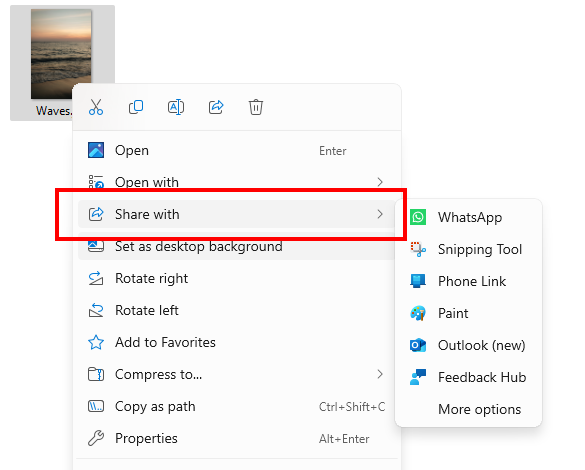
Source: Microsoft Showing the new available sharing options in the File Explorer context menu
Another important change is that with Windows 11 Insider Preview Build 26120.3360, Microsoft added the sharing capability to support all the apps on your PC capable of doing that.
So, if you’re an insider running the latest update, you will be able to share the files in File Explorer directly using the right-click context menu using any application that has sharing capabilities on your PC.
This update also covered a couple of fixes for the OS. You can read the full Windows 11 Insider Preview Build 26120.3360 on the Microsoft Blog dedicated page.
Microsoft released the latest KB5052089 build to the Beta Channel of the Windows 11 Insider Program, and with it, the Redmond-based tech giant hopes Windows 11 users will start adding emojis everywhere.
Why? The operating system now has a dedicated button in the taskbar for easily accessing emojis. We told you a while ago that Microsoft was planning to add such a button, and it even developed multiple designs for the final button.
Now, it seems that the company has decided upon one, and it will appear in the taskbar, as you can see in the featured image above.
The KB5052089 patch fixes many bugs in Windows 11, from File Explorer to Settings, Windowing, and Other.
It also brings the latest Snipping Tool ability, trimming, to this channel, meaning it will soon be available to all users.
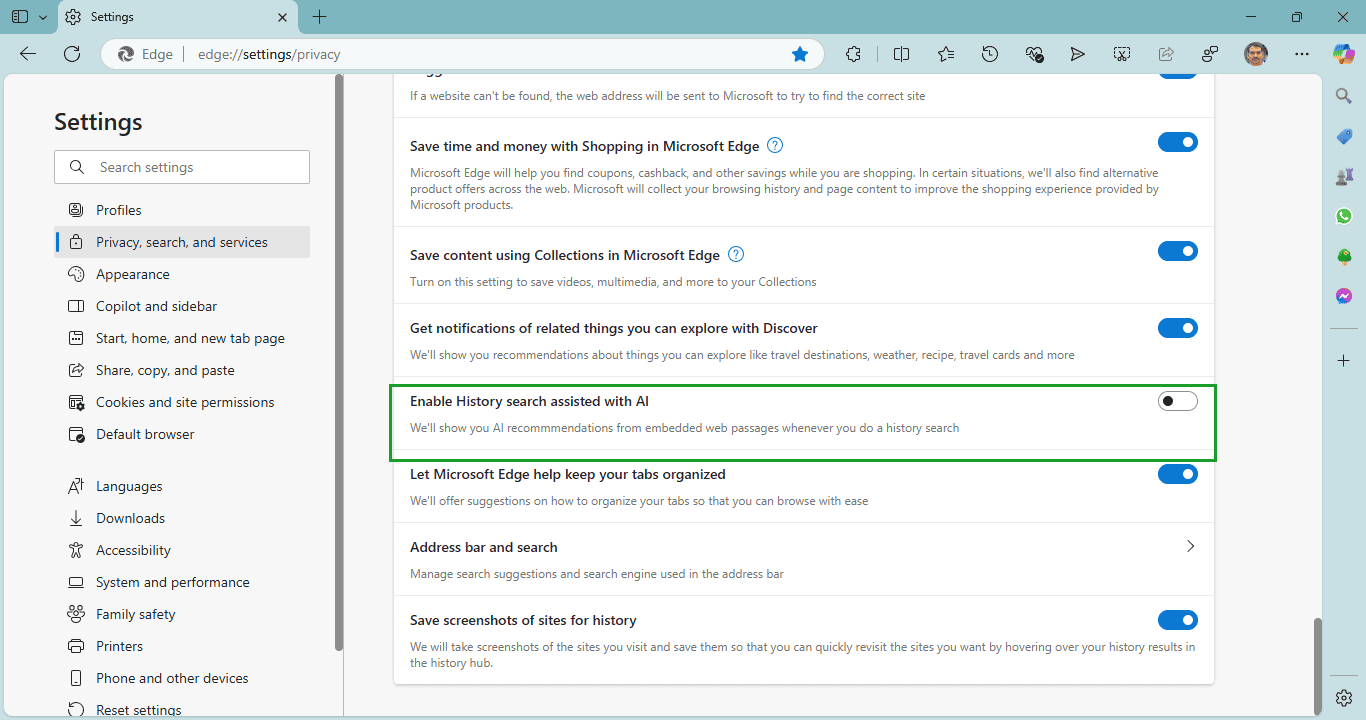
After Google Chrome, Microsoft is testing “History Search assisted by AI” in the Edge browser in the Canary version. This new feature provides AI recommendations from embedded web passages whenever users perform a history search.
Edge’s setting description reads: “Enable History search assisted with AI. We’ll show you AI recommendations from embedded web passages whenever you do a history search.”
How to enable History Search powered by AI in Microsoft Edge
Launch Microsoft Edge Canary
Click on the menu and select “Settings“
Visit “Settings“> “Privacy, search and services“
Under “Search and Connected Experiences“, turn on “Enable History search assisted with AI” Setting
Edge’s Enable History Search assisted with AI setting. Image Credit: WindowsReport.
Currently, Edge crashes when we enable this setting and try to perform a search in the History flyout or History page. You may have to wait a little longer to see this feature in action.
Microsoft isn’t the first to introduce AI-driven history search. Google Chrome recently added a similar feature, allowing users to search their browsing history in everyday language and even ask AI-based questions about past visits.
While it’s unclear if Chrome directly inspires Edge’s implementation, both browsers seem to use embedding references for history searches, making it easier to recall past web pages. However, Microsoft may introduce its unique way of presenting search results using AI.
Unlike Chrome, which explicitly states that some data is sent to Google’s servers, Edge’s approach remains uncertain. However, this feature will likely remain optional, requiring manual activation.
After DeepSeek was unleashed into the world, everyone wondered what OpenAI would do now that another AI company had developed an extremely powerful model at a tiny fraction of the budget.
Well, the answer is GPT-4.5, which was teased a few weeks ago. Even though OpenAI says it’s their biggest model yet, it’s not much of an upgrade compared to GPT-4o. It’s not even doing that well compared to the other models on the market.
As you can see, the overall score between the models is almost similar in many instances.
OpenAI says the new model has stronger reasoning and doesn’t think before it responds, making it a more general-purpose model. It’s apparently trained for human collaboration and will better understand nuance and natural conversation than the previous models.
It will also hallucinate less than other GPTs; however, the model is has scored medium to low points in security.
OpenAI says GPT-4.5 is now available in preview for ChatGPT Pro users on web, mobile, and desktop, so if you already have a subscription, try it.
Microsoft Teams, which is set to become the main virtual video-focused platform following Skype’s deprecation later this year, will be getting some major UI changes that should make it easier to navigate the platform moving forward.
In three separate entries to the Microsoft 365 Roadmap, the Redmond-based tech giant plans to enhance Teams’ context menu by allowing users to share apps from the app bar via right click.
Allow users to right-click and share apps directly from the app icon on hover, while using the app.
Teams will also enhance the unfurl links capability with new options: ‘Add’ and ‘View details’, when installing apps and agents. At the same time, apps ratings will also appear on the unfurled links for shared apps. This way users can quickly review the ratings of the apps and agents before deciding to install them.
All of the three enhancements will be released in April 2025.
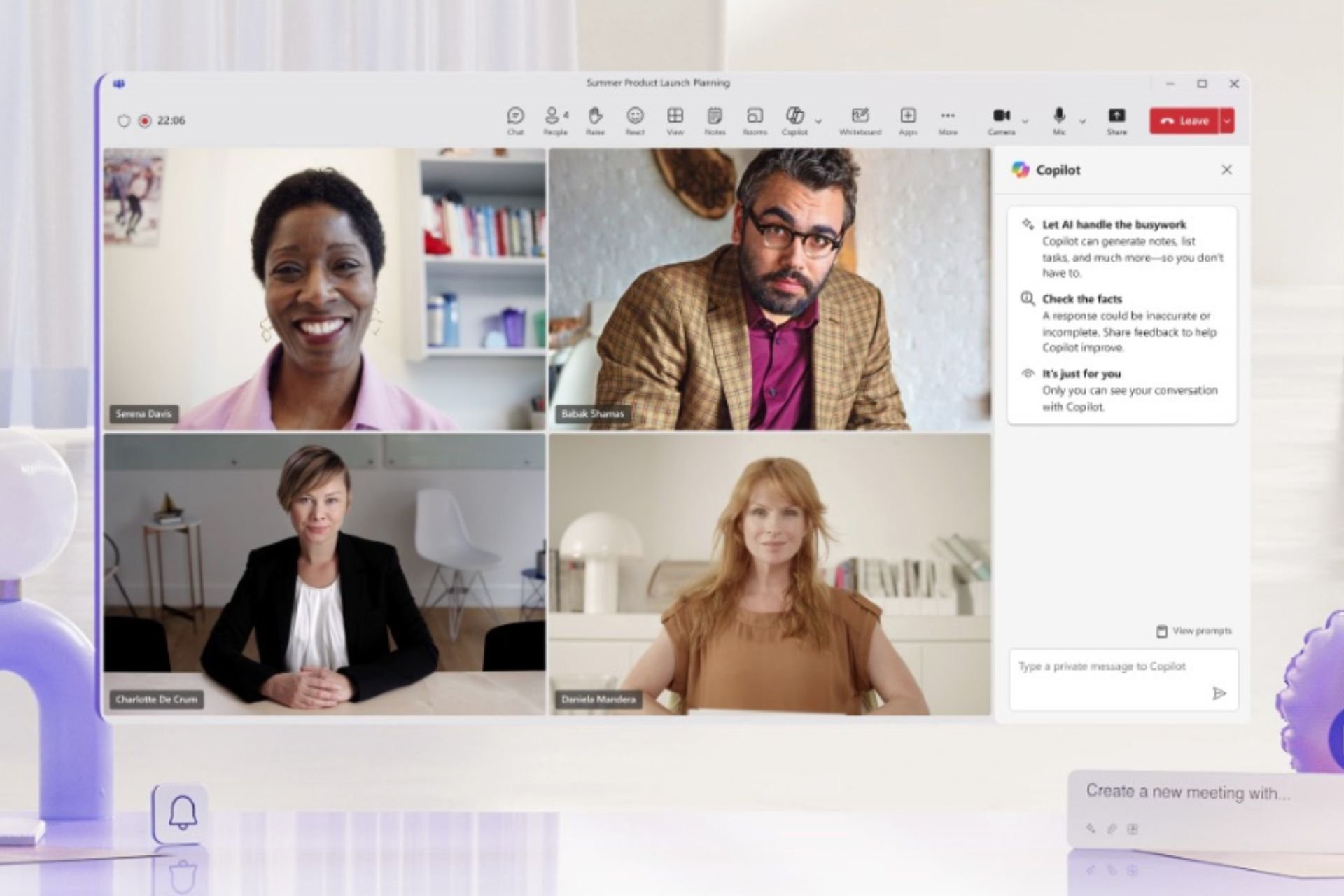
Speaking of AI agents in Microsoft Teams, Copilot will create summaries of transferred calls in the platform. Users will be able to keep track of essential aspects, and calls can be quickly reviewed later.
Microsoft will officially put Skype to bed after more than two decades of use, letting it fade into the sunset to clear the stage for Microsoft Teams. According to XDA Developers, who reported this change, a message announcing this was spotted in the latest Skype for Windows preview.
The message hidden in the software’s source reads: Starting in May, Skype will no longer be available. Continue your calls and chats in Teams. After that, Microsoft adds another recommendation for users to start using Teams instead.
Interestingly enough, in 2024, there were over 2 billion Skype users, with over 30 million in the U.S. according to the data provided by Statista. However, even more interesting is that according to another set of data from ElectroIQ, there are still over 35.000 U.S. companies using Skype.
Although Skype doesn’t appear dead, it’s clear that Microsoft really wants to push Teams forward as the main tool for business communication.
It’s pretty straightforward: the tech landscape has evolved, and so have the needs of its users. While Skype was revolutionary in its heyday, things have changed. Microsoft Teams now offers a more integrated experience with better collaboration features and security protocols that appeal to both large enterprises and everyday users. By focusing on Teams, Microsoft aims to cut through the clutter and provide a more cohesive communication experience.
For many users, it feels like saying goodbye to an old friend, one that’s been a staple for online chats and calls since the early days of the internet.
However, Microsoft made a lot of effort lately to improve Teams and make it a better alternative to the dusty old Skype.
What do you think about Skype’s demise? Let’s talk about it in the comments below.
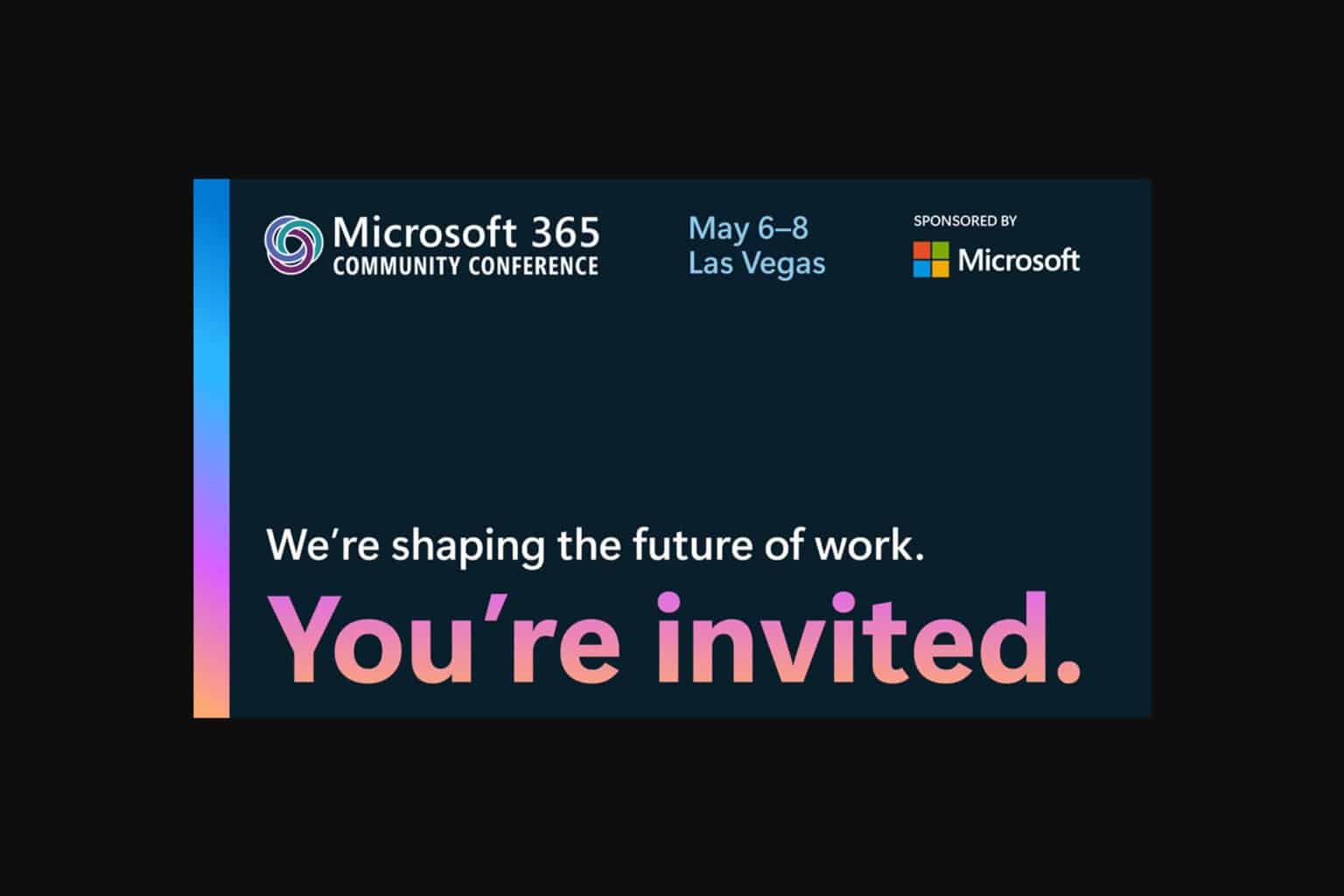
The Microsoft 365 Community Conference 2025 will take place in May, and the Redmond-based tech giant is set to unveil the next major updates for OneDrive, its cloud-based storage service.
The event, which will take place between May 6 and 8 in Las Vegas, includes many workshops and presentations on OneDrive, but one in particular suggests that Microsoft is planning something big for the service.
The workshop, OneDrive: The Next Era, will showcase upcoming features that will be coming to the platform by the end of the year. The Redmond-based tech giant says these features will focus on collaboration, productivity, and, most importantly, security of the service.
Step into The Next Era of OneDrive and discover the innovations shaping the future of work. In this session, we’ll explore the latest updates across the product, showcase upcoming features, and highlight how OneDrive is evolving to empower collaboration, productivity, and security in the modern workplace.
Dozens of other workshops are focused on OneDrive, where Microsoft will discuss and showcase the new features for attendees.
According to these workshops, the company seems to be betting on even more AI capabilities in the platform. It mentions topics such as Content AI, AI agents, migration and deployment of files and folders within the service, and everything related to backup and archives in Microsoft 365.
Besides OneDrive, the Microsoft 365 Community Conference 2025 will also focus on AI (obviously), such as Copilot Studio, AI agents, HR and AI, and new communication tools based on AI.
Maybe some of those AI-powered platforms that Microsoft recently patented will be unveiled in some form or another, but we’ll have to wait until May.
If you’re interested in the event, you can register to participate. To get discounts, make sure to use the special codes Microsoft provided you with.
Microsoft Loop now has a personal workspace for users. This workspace will be shared with Copilot Pages and can store ideas, sketches, and similar content.
After being teased in an entry in the Microsoft 365 Roadmap, the Redmond-based tech giant has now updated the platform with it. There will be only one personal workspace per user.
It acts like a OneDrive account, and Microsoft says that this personal workspace follows the same lifecycle management processes and policies.
The Loop app now provides a personal workspace to all users, which is shared with Copilot Pages. This personal workspace is a user-owned SharePoint Embedded container, one per user. All governance, lifecycle management and compliance processes apply the same way they would to a user’s OneDrive.
In a recent post to X, Microsoft says the Ideas section, which serves a similar goal, will not go anywhere, and users can still access even if they have a personal workspace in Loop.
This new feature is for your eyes only ?: Personal workspace is here! Now you have a space in Loop to refine your next big pitch, fine-tune a presentation deck or get your thoughts together in private ? Work in peace and share when you're ready! pic.twitter.com/UAy1brp6E0
Microsoft recently announced that it’ll let Loop users upload files up to 250 GB to the platform’s workspace, and it’s only fair to ask if the tech giant will enhance these personal workspaces with this capability. If so, they can be used as complementary virtual storage drives.
However, the entry doesn’t specify anything about it, so we don’t know if this is the case yet.
Microsoft has enhanced Copilot in GitHub with a significant improvement: users can now upload images to the chat to let the AI model illustrate their ideas effectively.
Microsoft announced the new feature in a recent blog post. It says users can paste an image from the clipboard into the chat or upload it from the File Explorer. Then, they’ll need to add a prompt, and Copilot will take care of the rest.
The Redmond-based tech giant has posted a video, which you can see below, showing how it works.
For now, Copilot in GitHub supports PNG, JPG, and GIF formats. Users can upload up to three images per message for better context, and Microsoft will most likely add more formats in the future.
The feature is now rolling out to users in the preview channel.
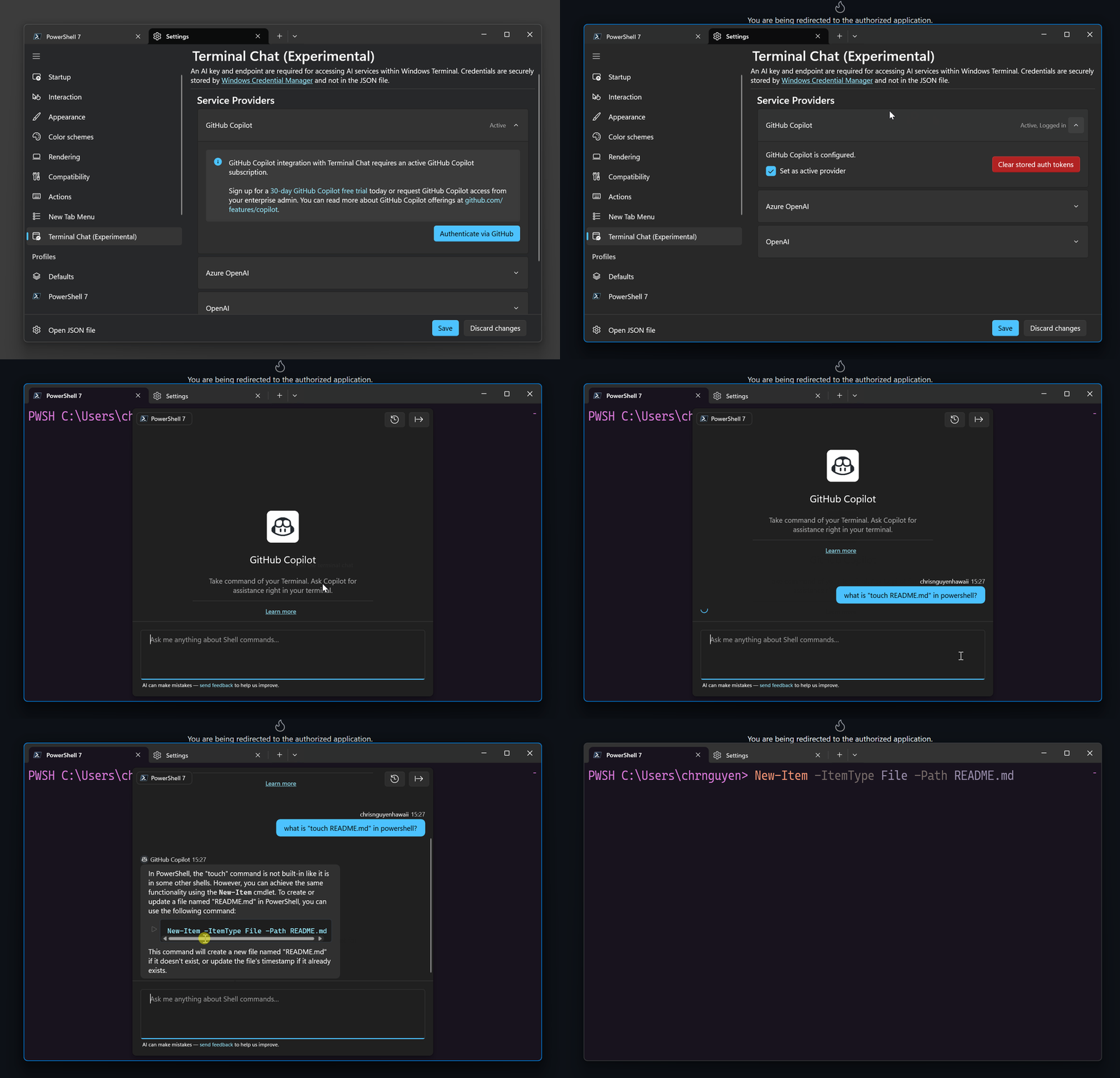
In a move that’s set to help developers, Microsoft has just announced that Terminal Chat is now included in GitHub Copilot Free. That means if you’re a fan of a smooth, interactive command-line experience, you don’t have to fork out extra cash to get access to this powerful new chat tool.
Windows Terminal, gives you the ability to have real-time conversations right in your command prompt. Whether you’re troubleshooting a tricky command or just curious about more efficient ways to work, you can now ask questions and get suggestions in a format that feels a lot like chatting with a knowledgeable friend.
Usually, Microsoft would keep the feature behind a paywall, but since there are other dedicated AI tools for coders, we’re not surprised that GitHub Copilot is free on Windows Terminal.
We can only hope that developers will experience a more seamless integration between coding and managing their terminal tasks. The built-in chat feature aims to simplify everything, from navigating commands to understanding output. Whether or not it will be embraced by coders is another subject.
Next, open the settings in Terminal Chat (Experimental) select GitHub Copilot under Service Providers, and select Authenticate via GitHub to sign in to your GitHub account. Save your settings and you’re done.
Are you excited about the free GitHub Copilot in Windows Terminal Canary? Let us know how you feel in the comments below.
Microsoft released the latest 135.0.3154.3 to the Dev channel for Edge users, and the build comes with an interesting feature: it displays the active tab in collapsed groups.
This means users will be able to easily spot the tab they need to navigate on before closing the dozens of ones that don’t need attendance. It should also make it less frustrating for users when accidentally closing dozens of tabs.
Aside from this new feature, Edge Dev 135.0.3154.3 also comes with fixes for some of the browser’s most pressing issues, including crashes that it can experience when dealing with workspaces: Edge will no longer close, or crash.
The new build also includes improvements and enhancements for several issues on Edge for Android, Mac, and iOS.
After adding the Windows 11 mica or acrylic background to the title bar in Firefox, Mozilla is now working on adding this effect to context menus. You can already try this feature in Firefox Nightly!
Windows 11 has acrylic context menus in several places, including File Explorer, the taskbar, Photos, and Microsoft Edge, Mozilla wants to expand the mica effect to context menus now. The feature can be enabled by changing a hidden preference in about:config.
How to enable mica effect for Context Menus in Firefox (and title bar also)
Launch firefox Nightly
Visit about:config
Find and enable the following preferences widget.windows.mica widget.windows.mica.popups
Restart Firefox
Image Credit: WindowsReport.
While the first preference enables mica for the tab bar, the second brings the visual change to Context menus in Firefox on Windows 11. So after, Chrome and Edge, Firefox also offers visually rich experiences with acrylic effects on Windows.
When the mica effect is applied to context menus, you can see the wallpaper on the New tab page or page background through it.
This feature is still in its early stages, so for now, you’ll need to adjust your hidden preferences to try out Firefox with Mica on Windows 11. In the future, this may become an automatic feature so you don’t have to dig into about:config.
Whether it’s Microsoft Edge, Google Chrome, or Firefox, they all aim to make their user interfaces consistent with the operating system, be it macOS, Windows, or Linux. It’s great to see Mozilla ensuring that Firefox follows all Windows 11 aesthetics.
Azure Data Studio will officially be retired on February 28, 2026. Microsoft just announced the retirement in a blog post, recommending that all users try out the alternatives: Visual Studio Code and dozens of other options.
Azure Data Studio is a lightweight, cross-platform development tool that can be installed on ARM-based systems and macOS devices and is available on Linux. It is a lighter version of more complex platforms that still allow developers to work from basically anywhere. Azure Data Studio also allows the installation of extensions, GitHub Copilot, and more.
Microsoft says the main reason it’s retiring the platform is to simplify and enhance the SQL development experience.
Visual Studio Code, a widely adopted platform with exceptional community support and an extensive ecosystem of extensions, allows us to deliver advanced features like cutting-edge schema management tools and enhanced developer experiences. By consolidating efforts on Visual Studio Code, we can deliver advanced features and improved experiences more efficiently. This eliminates duplication, reduces maintenance costs, and accelerates feature delivery.
Additionally, the tech giant has also published a list of Azure Data Studio extensions and their replacements, as you can see below:
Back in January, with the release of that month’s non-security updates, Windows 11 24H2 users started encountering a weird bug in Classic Outlook that prevented them from drag-and-drop emails to folders in the platform.
The bug also affected calendar items, which was quite frustrating for users who wanted to use the platform as they always had.
However, the Redmond-based tech giant effectively fixed the issue with releasing the latest KB5052093, so you’ll have to install the update to resolve the bug.
But, according to the official support page, there is another workaround if you don’t want to install the patch. Users only have to disable the Optimize for compatibility option on Outlook.
How to do that?
Go to the File tab > Options > General > User interface options > Optimize for best appearance.
Were you affected by this issue? Is it working now?
Great news is coming out of the Command & Conquer camp—EA has just made a major move that’s sure to excite modders everywhere. In a surprising twist reported by Neowin, EA has published the source code from some of the classic Command & Conquer games, opening the door for fans and developers to tinker, innovate, and breathe new life into these iconic titles.
For anyone who’s ever dreamed of tweaking game mechanics or giving those old RTS classics a modern twist, this is a game-changer. With the source code now up for grabs, modders can dive deep into the inner workings of these beloved games, exploring everything from battle tactics to graphics, and even adding whole new features that could redefine the gameplay as we remember it.
EA’s decision comes as part of a broader effort to support creativity within the community. By handing over the keys to the code, they’re essentially saying that they trust fans to preserve the legacy of Command & Conquer while pushing the boundaries of what these games can become. It’s a win-win: long-time players get to relive the classics with fresh updates, and new modders have a rich playground to experiment in.
On the official GitHub page of EA, you will find the source code for the four C&C games and the remastered collection, as well as the modding support to help you get started.
So, if you’re a Command & Conquer fan, stay tuned for some interesting mods and a thrilling reboot of the series.
The plugin-container.exe file is located in the Mozilla folder as it is associated with the Firefox browser and helps isolate other plugins prone to crash to maintain the stability and security of the browser.
While it is meant to improve your overall browsing experience, you may find that it slows down your browser, like what most browser extensions do, consumes a significant amount of system resources or causes lags and freezes.
Besides, Firefox is a known memory-hogger so the last thing you need is an additional plugin consuming already limited resources.
How do I disable the plugin-container.exe in Firefox?
Browser-related issues
1. Update your browser
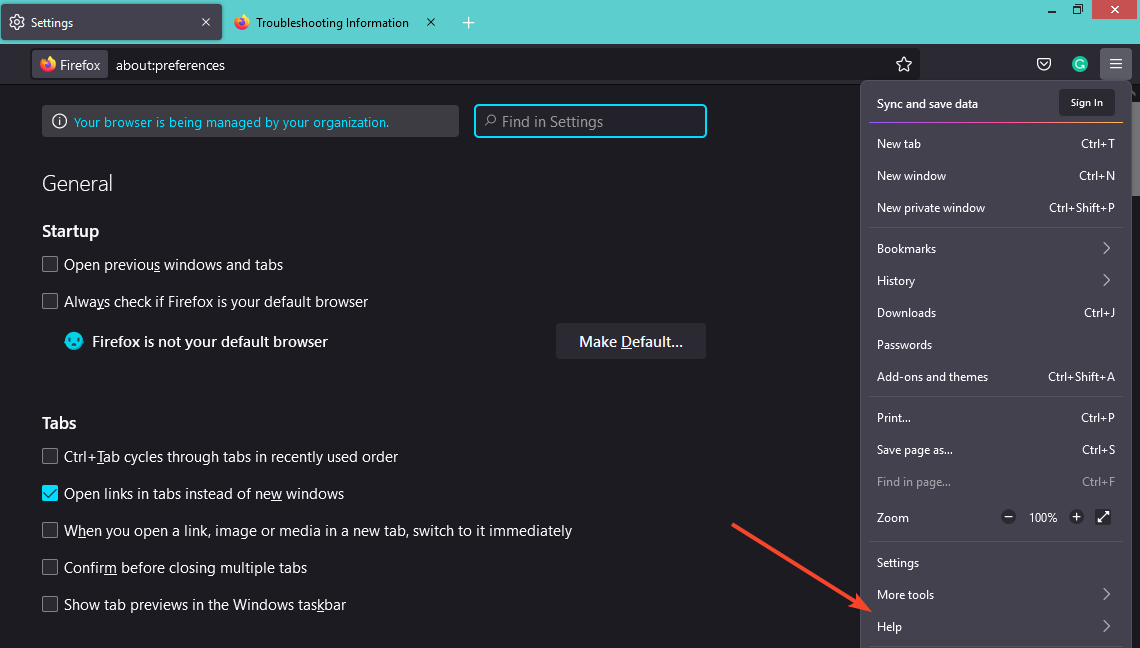
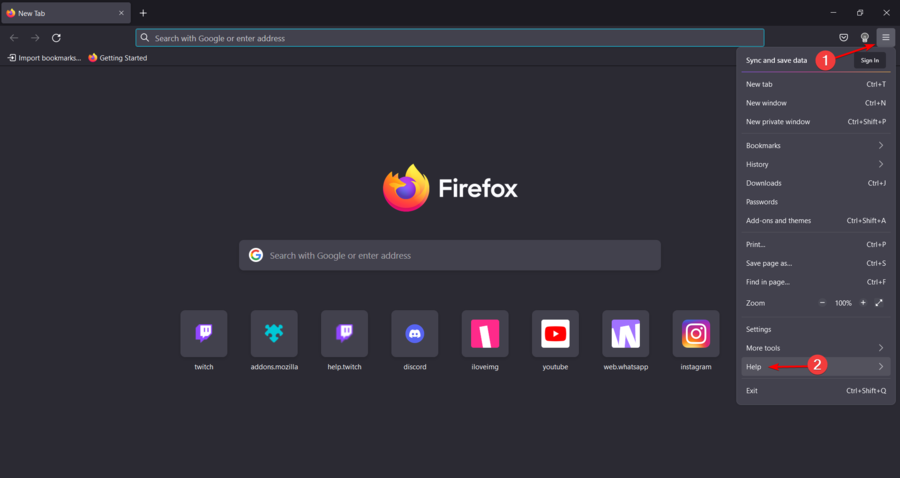
Launch your Firefox browser and click on the three horizontal ellipses in the top right corner.
Select Help.
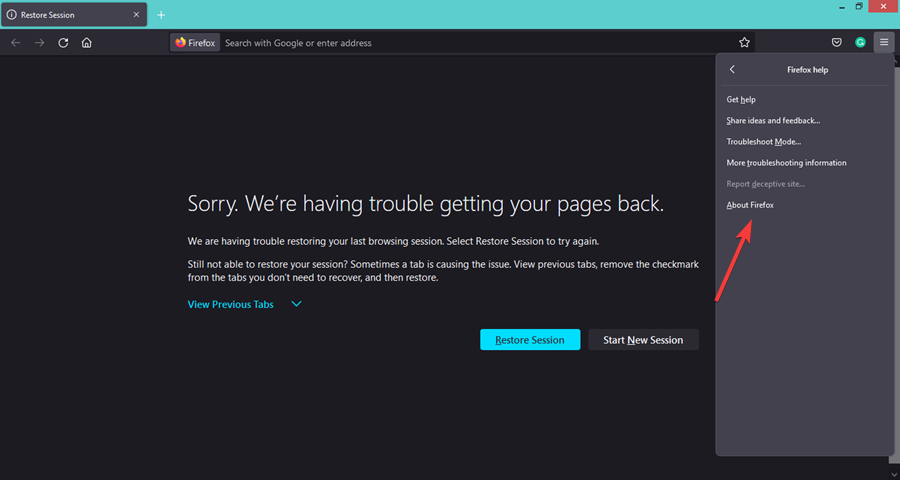
Click on About Firefox.
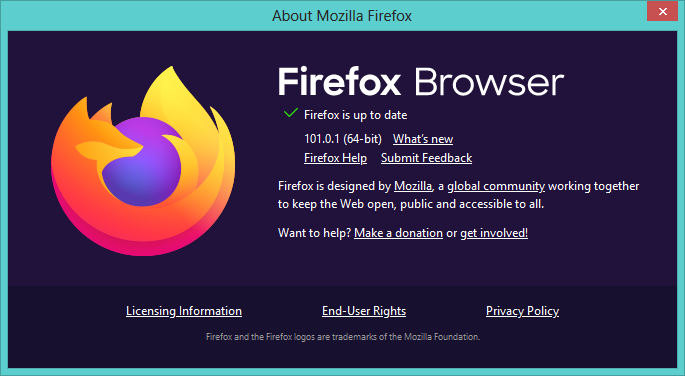
If your browser is up-to-date, you will get the following dialog box.
The plugin-container.exe file is commonly found in older Firefox versions so updating to the latest version will render it unusable since it is not supported.
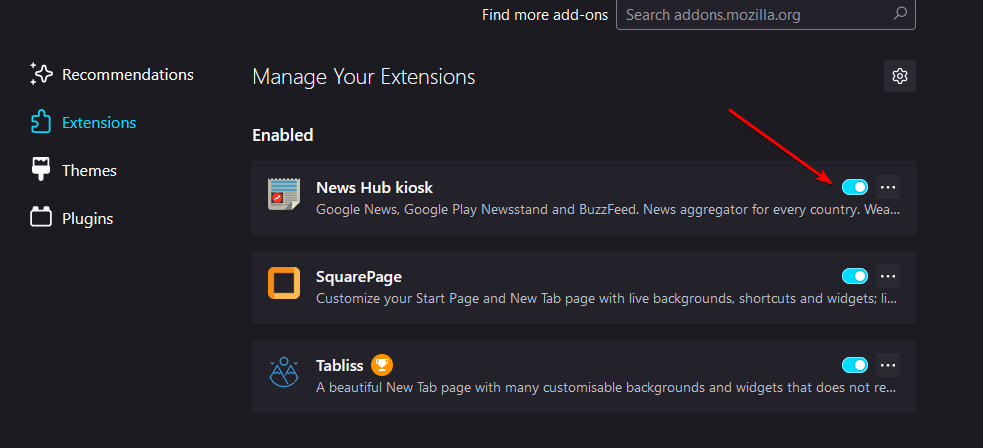
2. Disable extensions
Launch your Firefox browser and click on the three horizontal ellipses in the top right corner.
SelectAdd-ons and themes.
Disable the suspected extensions and reload the tab.
3. Start Firefox in Safe Mode
Launch your Firefox browser and click on the three horizontal ellipses in the top right corner.
Select Help.
Click on Troubleshoot Mode.
Hit Restart in the next window that pops up.
Click Open in the dialog box that pops up.
4. Reset Firefox
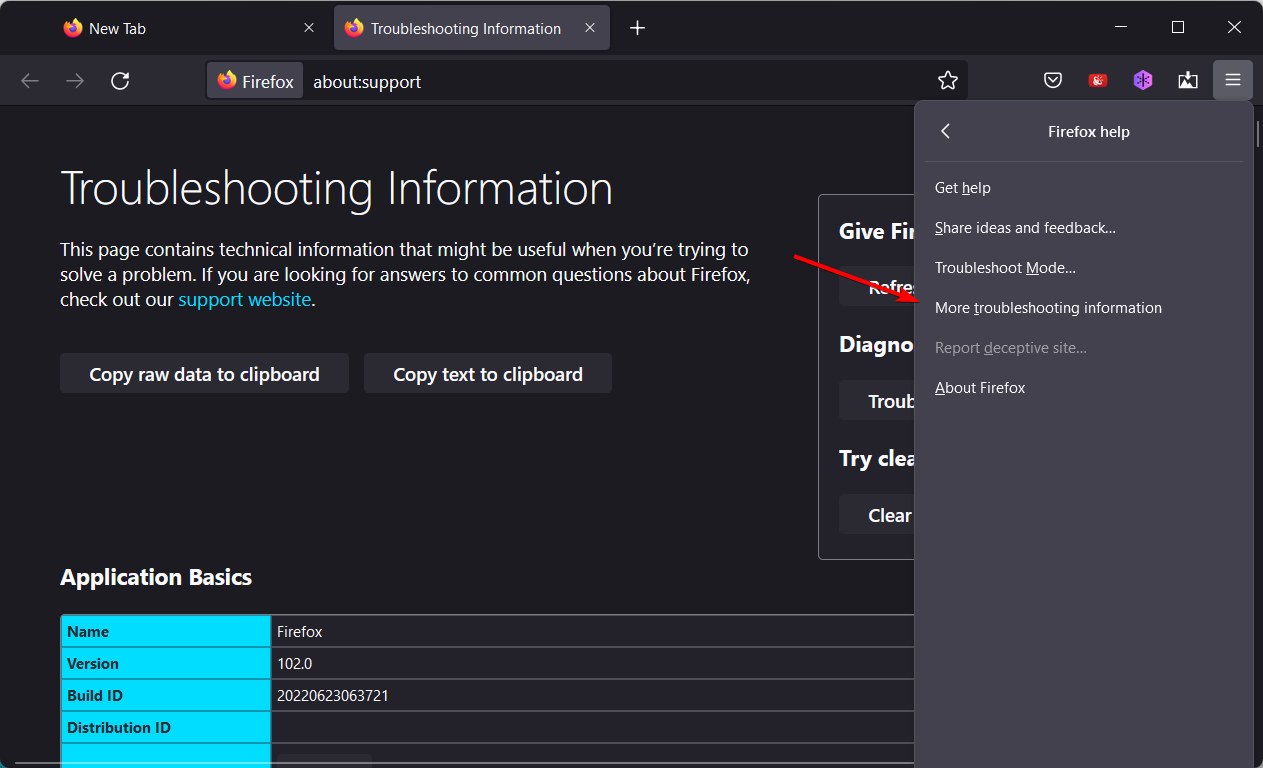
Launch your Firefox browser and click on the three horizontal ellipses on the top right corner.
Select Help.
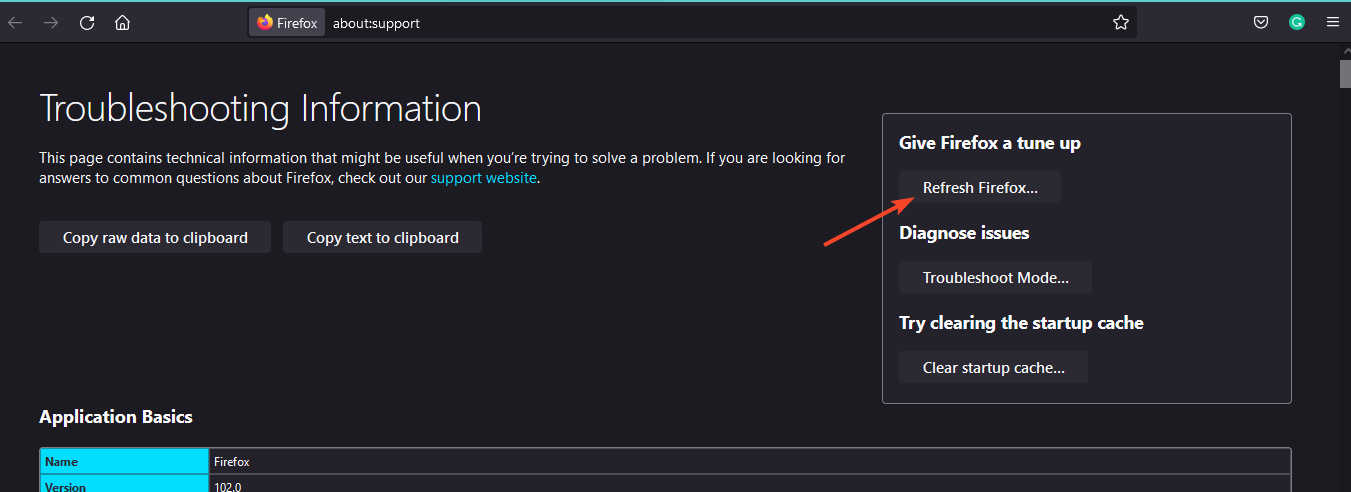
Click on More troubleshooting information.
Select Refresh Firefox under Give Firefox a tune up.
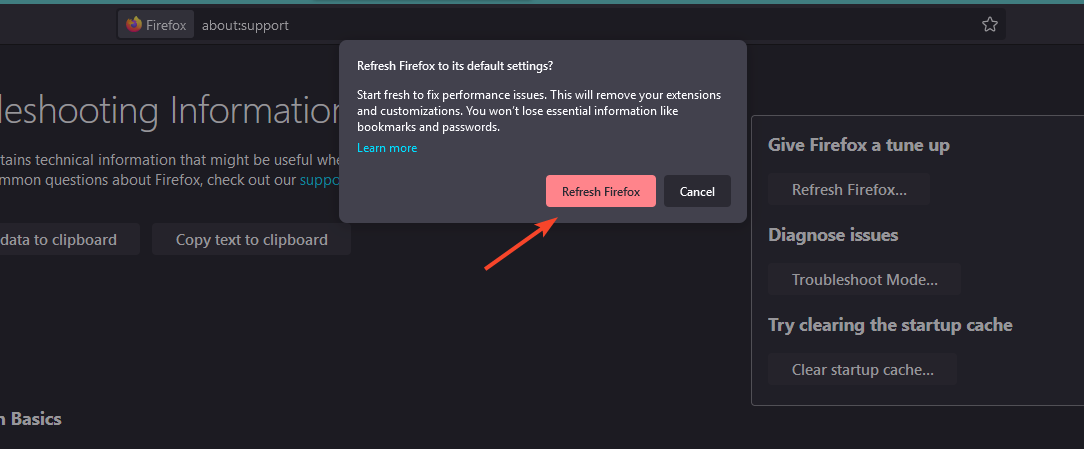
Confirm Refresh Firefox in the dialog box that pops up.
5. Reinstall Firefox
Press Windows + R, type appwiz.cpl, and hit Enter.
Click on Firefox and select Uninstall.
Lastly, follow the wizard to complete the installation.
Launch your Firefox browser and in a new tab, navigate to the following location: about:profiles
Select Create a New profile.
Click Next in the Profile Wizard that appears.
Enter your new profile name, then hit Finish.
Now check and see whether the issue is still present.
The above steps are only if you find that the plugin-container.exe file is digitally signed by Mozilla Firefox. If there’s another, it could imply a malicious file found its way to your system and you need to remove it.
System-related issues
1. Run DISM and SFC scans
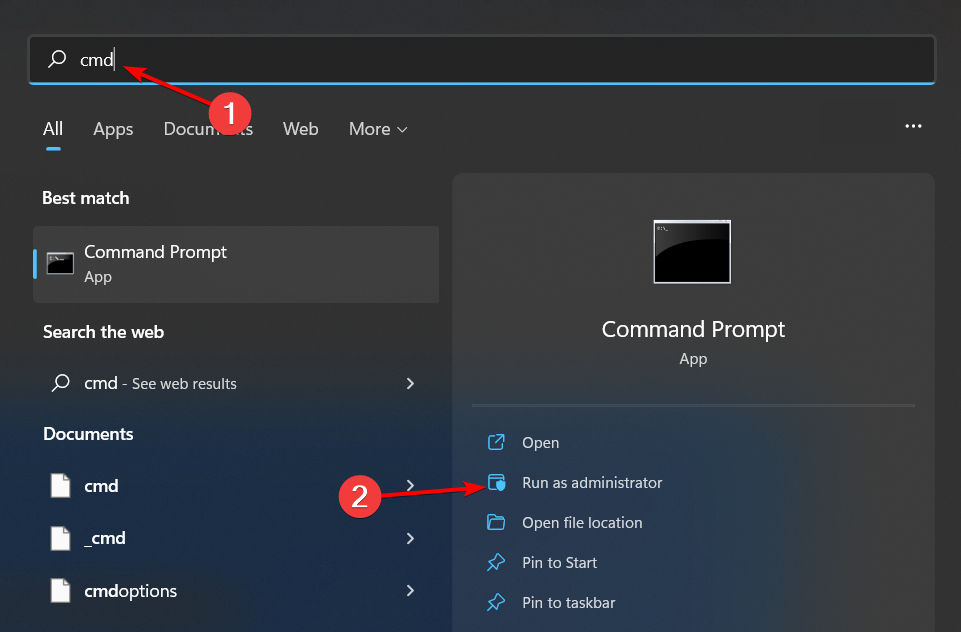
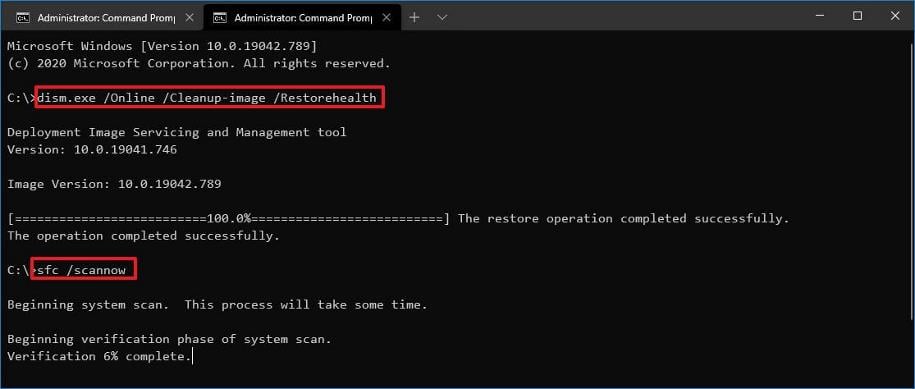
Hit the Start Menu icon, type cmd in the search bar, and click Run as administrator.
Type the following commands and press Enter after each one: DISM.exe /Online /Cleanup-Image /Restorehealthsfc /scannow
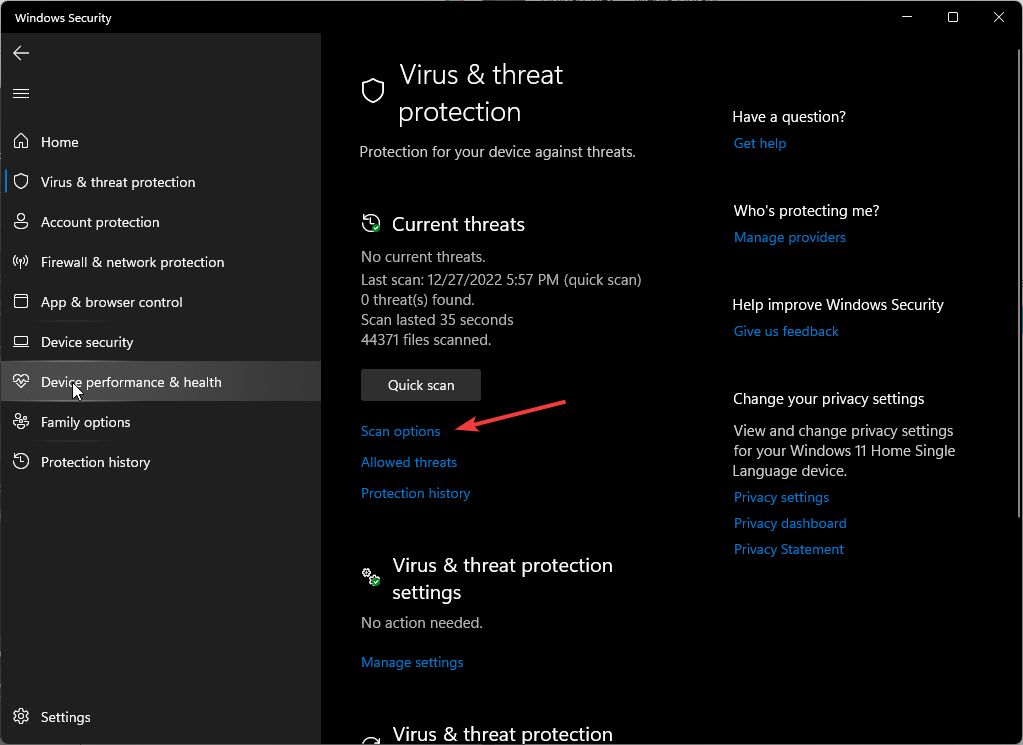
2. Scan for viruses
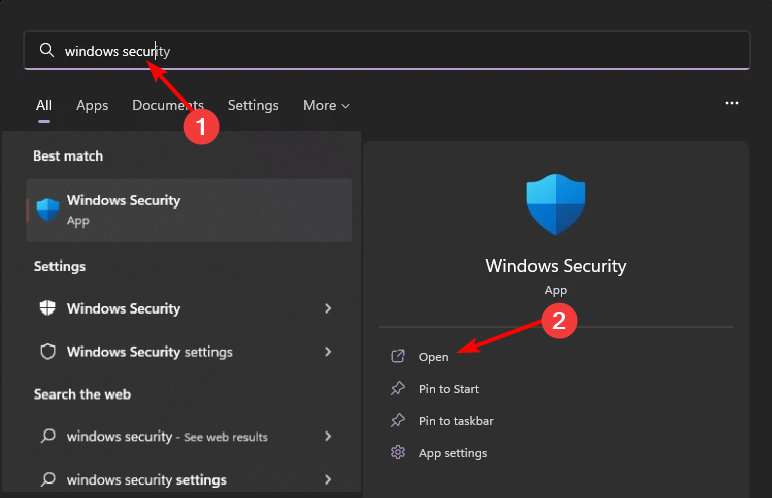
Press the Windows key, search Windows Security, and click Open.
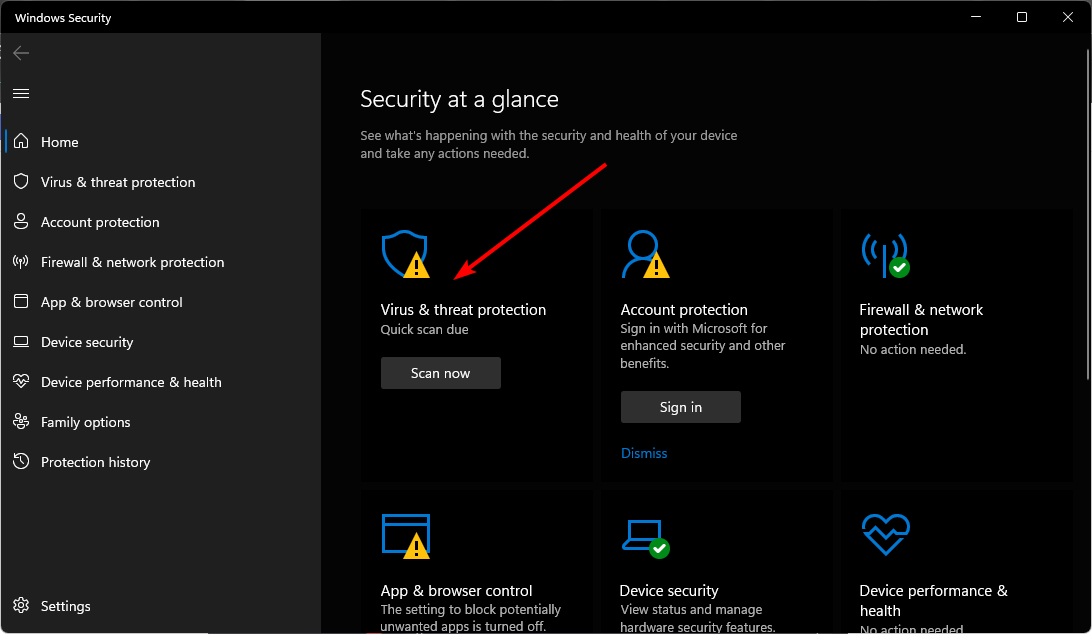
Select Virus & threat protection.
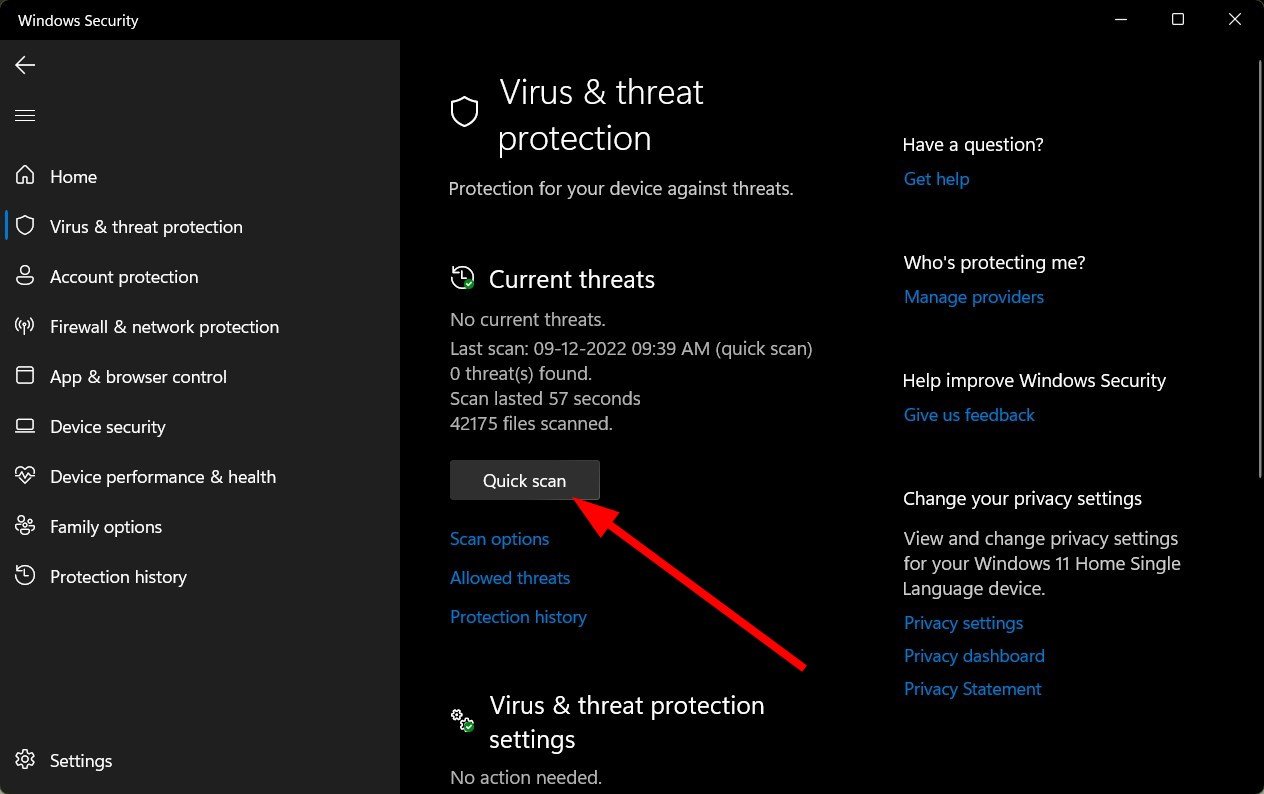
Next, press Quick scan under Current threats.
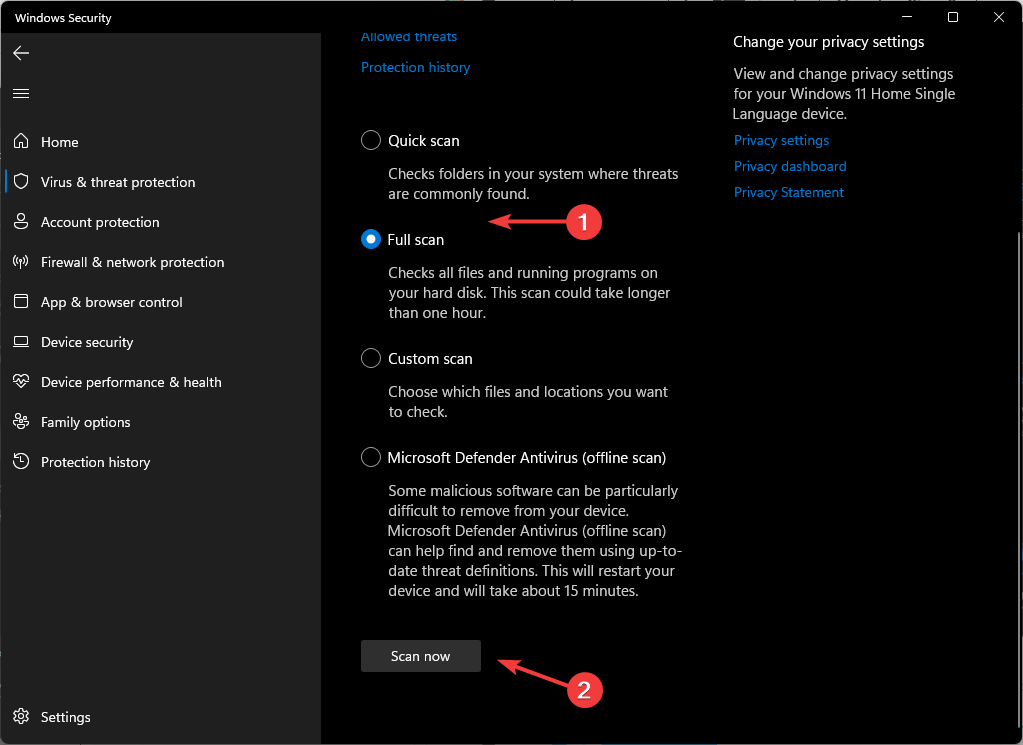
If you don’t find any threats, proceed to perform a full scan by clicking on Scan options just below Quick scan.
Click on Full scan, then Scan now to perform a deep scan of your PC.
Wait for the process to finish and restart your system.
3. Perform a clean boot
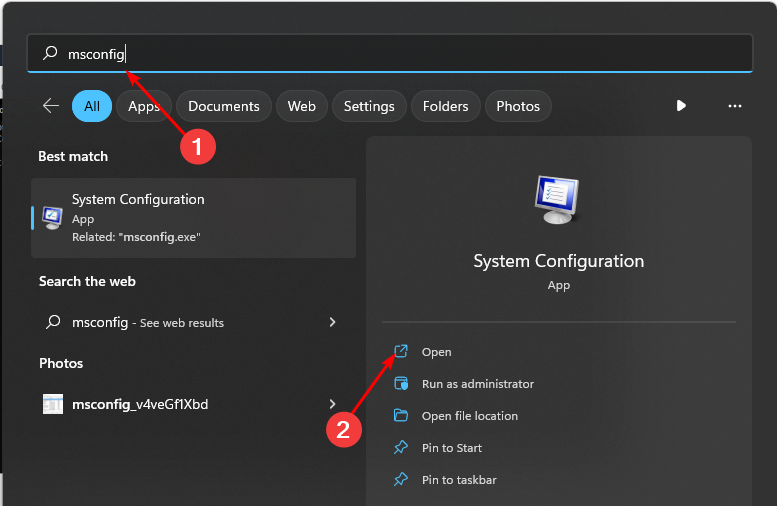
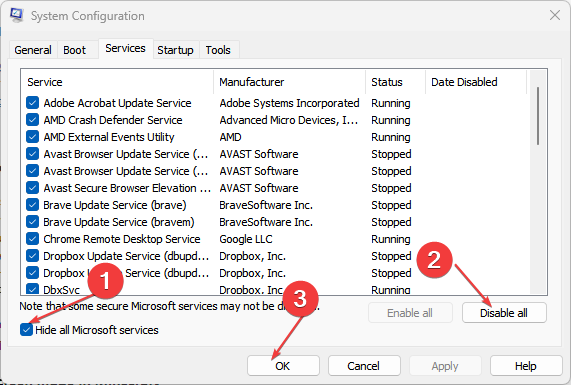
Hit the Windows key, type msconfig, and open System Configuration.
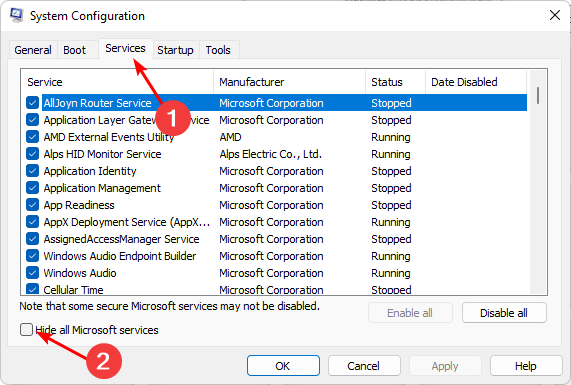
Switch to the Services tab and select Hide all Microsoft services.
Click on the Disable all button, then hit the Apply button to save the changes.
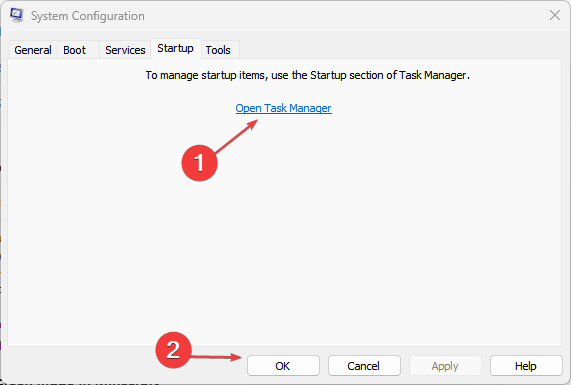
Go back and click on the Startup tab, select Open Task Manager then click OK.
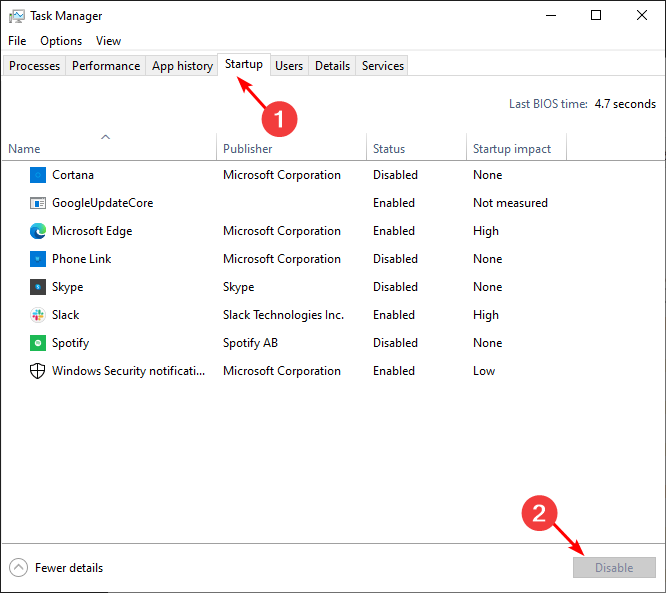
In the Startup tab of the Task Manager, Disable all the Enabled startup items.
Close Task Manager and restart your PC.
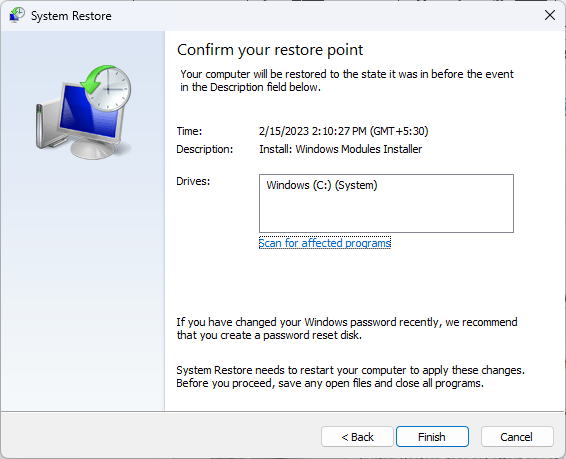
4. Perform a System Restore
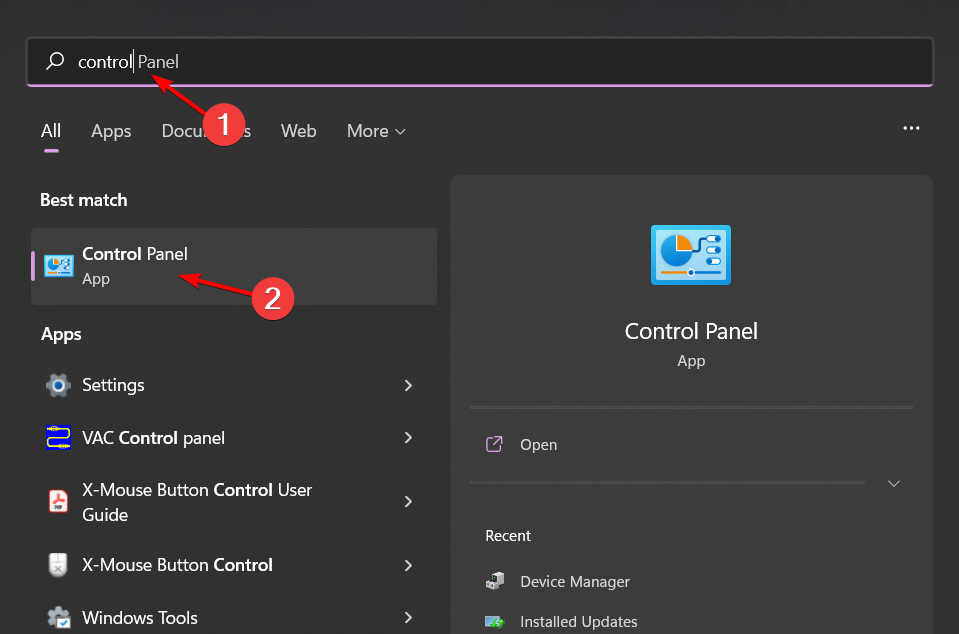
Press the Windows key, type Control Panel, and click Open.
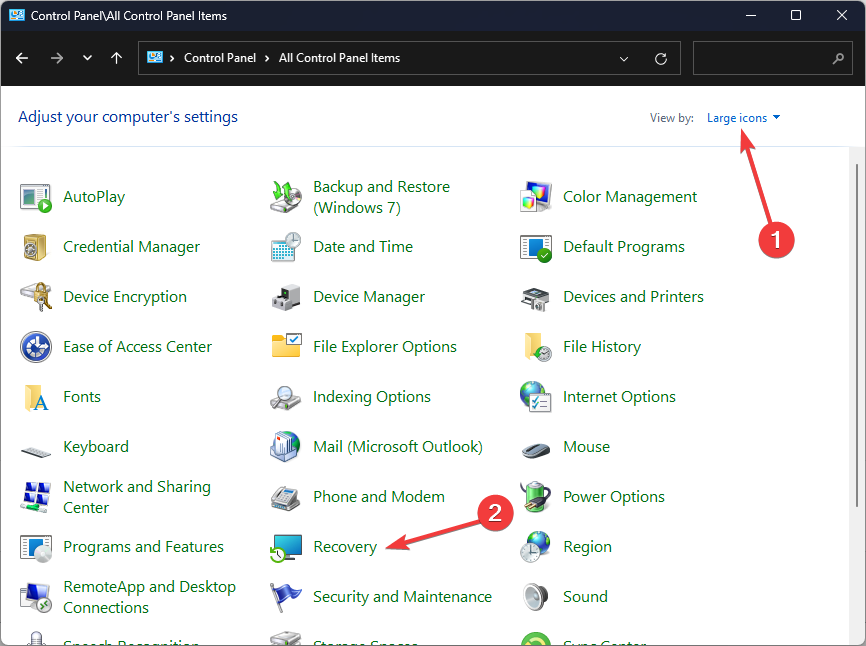
Select Large icons as View by and click Recovery.
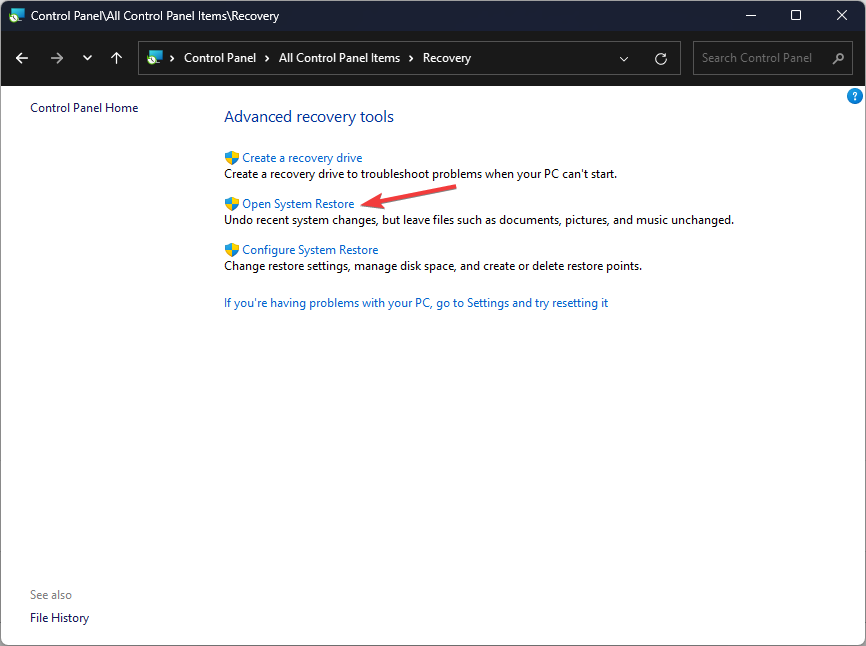
Click Open System Restore.
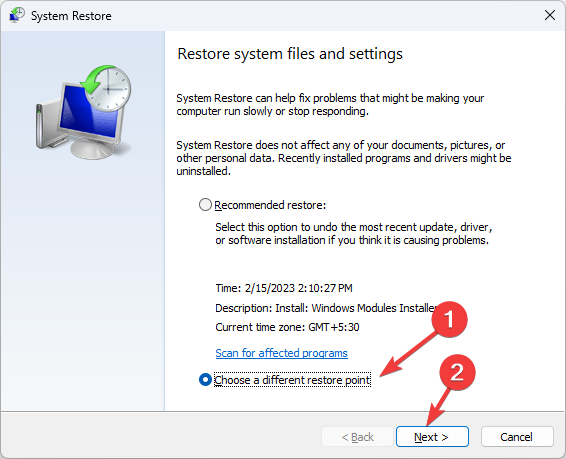
Select Choose a different restore point and click Next.
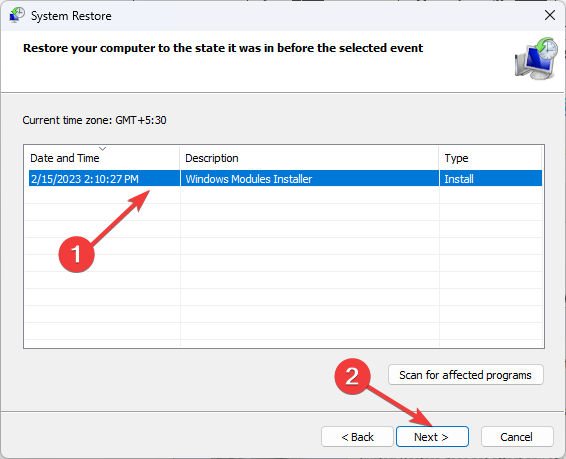
Now select the restore point and click Next.
Click Finish to restore the previous settings, and Windows will restart.
If you get rid of the plugin-container.exe file and your browser is still slow, we know just what to do to speed up Firefox. And if the issue won’t go away, try another fast browser.
That’s all we had for this article but do let us know if you managed to get rid of this file in the comment section below.
Even though the Windows 10 Mobile Store has been abandoned for years, the platform has been working on functional Windows 10 devices, and users could access it until this week when the Redmond-based tech giant seems to have closed it forever.
As noticed by users on Reddit and then validated by other users on X, with screenshots, the platform doesn’t seem to be available anymore as of 27 February. It was closed earlier this week, with many reporting that they were not able to access it since Monday.
The Microsoft Store has partially shut down on Windows 10 Mobile. It was a good run. pic.twitter.com/pTH4iJo19N
Windows 11 is set to end in 2025 as the sole Windows version still actively supported by Microsoft, and so, of course, Windows 10 users are starting to migrate to it (and those who haven’t already will eventually have to).
The Reddit user plugged in a Dell M783s 17” from August 2004 and rendered Windows 11. Believe it or not, the monitor can easily display the operating system, although at a much smaller resolution than usual.
According to the user, they got a Legion Go with a preinstalled Windows 11 and decided to connect the 21-year-old monitor for an experiment. It worked, but to use their words is both wrong and right.
Meanwhile, in the comments, some Windows 11 tried the trick, and it worked. The operating system is rendered quite fittingly on old monitors, so it might be worth trying if you have one at home.
However, practically, it’s a bad idea. These old monitors take up a lot of space, and the resolution is not great if you want to use them for gaming, content creation, or even watching films. But surely, they are fine for some writing.
After many years of asking for it, Microsoft Teams users will finally be able to send SMS texts on Teams phones with a new Calling Plan that’s rolling out soon. This plan is set to include this option as well.
Announced this week, the Redmond-based tech giant has released a support page for the new feature, where it explains the process of setting up SMS texting for Teams Phone in great detail.
For example, for no,w the capability will only be available to the United States, Puerto Rico, and Canada, and users from these regions can send SMS messages only to numbers that are able to receive SMSs in the same regions. Sending or receiving SMS texts on Teams Phone outside of US, PR, or Canada aren’t supported.
What else is required to sign up? Organizations and users need to register to use the 10DLC network, which will validate legitimate SMS messaging. Microsoft will then help the organization register with the Campaign Registry before the Teams Calling Plan numbers can be enabled for SMS.
Then companies will have to submit their brand, gain approval, and finally be able to use SMS. It might seem like a long road, for it’s all done in the name of security.
When all is done, companies will be able to opt for several Teams Calling Plans, as you can see below:
Teams Calling Plan
Supports SMS capability
Included SMS (threshold before paying overage)
PAYG (Pay-as-you-go)
Yes
0
Domestic 120
Yes
100
Domestic
Yes
200
Domestic + International
Yes
200
Teams Phone + Calling Plan Bundle
Yes
Phone + Domestic = 200 (if purchased as Calling Plan bundle) / Phone + PAYG = 0 (if purchased as PAYG bundle)
There will be a maximum number of SMSs per minute, campaign, day, and brand.
Operator
UCaaS Low Volume
UCaaS High Volume
AT&T – Max SMS per minute, per campaign
Fixed: 75
Depends on the brand score: 240 (class F), 2,400 (class D), 4,500 (class B)
T-Mobile – Max SMS per day, per brand
Fixed: 2,000
Depends on the brand score: 10,000 (Low Mid), 40,000 (High Mid), 100,000 (Top)
There will also be an SMS usage fee, as follows.
Country/Region
Send Message
Receive Message
United States and Puerto Rico
$0.0075 USD
$0.0075 USD
Canada
$0.1028 CAD
$0.01028 CAD
It’s worth noting that the capability should start rolling out to users as soon as this week. In December, we encountered it in the Microsoft 365 Roadmap, and the Redmond-based tech giant said it intended to release it in February.
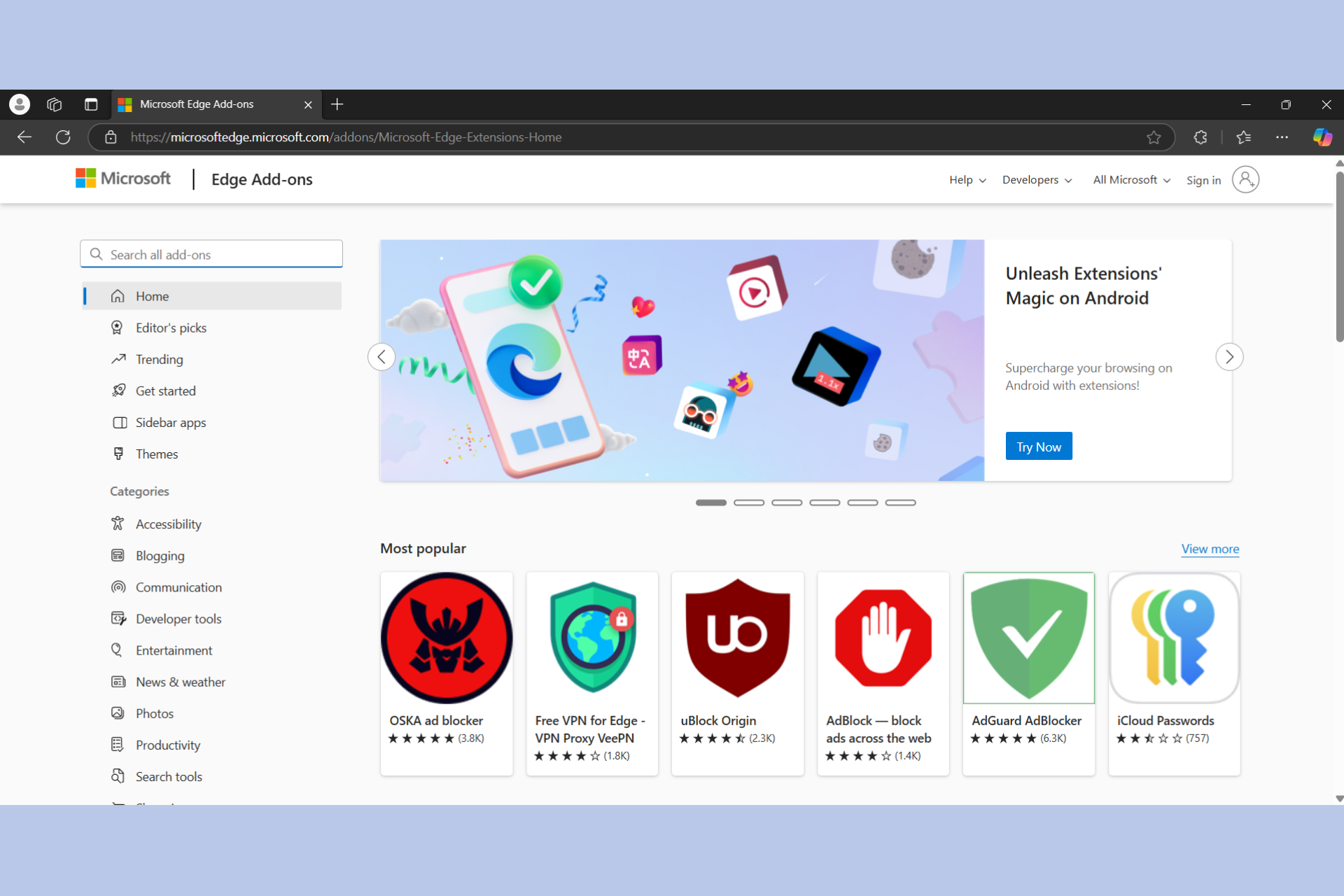
Microsoft has just announced a revamped review process for Edge add-ons that’s set to make life a whole lot easier and faster for developers. Ehe Edge Dev team shared insights on how they’re cutting down the wait time for add-on approvals while keeping the quality and security in check.
What’s changing in the add-ons review process?
Developers have been frustrated by long approval times for their add-ons, so Microsoft’s changes are meant to reduce the approval or denial process a lot faster:
To support this, we have implemented an expedited review process for high-quality and high-value extensions. Select extensions will enjoy a priority queue with faster review times. These extensions are automatically chosen based on a broad set of parameters, including:
User value, as indicated by user adoption of the extension, user feedback, and other metrics.
Quality of submissions in Partner Center, high quality submissions over time with zero submission failure by ensuring completeness, accuracy, and adherence to guidelines.
Robustness, demonstrated by regular updates of the extension.
Security, the extension meets our stringent security standards.
Microsoft added that if the extensions meet these criteria will be added, but those that don’t will be automatically excluded.
So, yeah, the process will be a lot faster, but this sounds like an AI automation move to cut costs and eliminate back-and-forth talks with developers. On one hand, if you’re a developer, you will know exactly whether or not your add-on is approved. However, if it’s rejected, it doesn’t sound like you’re going to know more about why it was rejected and how to improve your submission.
Only time will tell if Microsoft will actually remove a bottleneck or just create more problems for developers. If you’re an Edge add-on developer, tell us your opinion about this change in the comments below.
Microsoft has announced the completion of its EU Data Boundary, a long-term security and privacy commitment strategy that provides enhanced data residency and transparency for its European customers.
The Redmond-based tech giant announced it in a blog post, stating that Phase 3 of the strategy was completed this month, and all EU customers can now use Microsoft products and services in complete security.
Phase 3, with the completion of the EU Data Boundary in February 2025, ensures that when customers in the EU and EFTA request technical support for services such as Microsoft 365, Power Platform, and Dynamics 365, the professional services data provided by customers (such as logs) and generated by Microsoft (such as support case notes) are now stored within the EU and EFTA regions.
EU Data Boundary ensures that public sector and commercial customer data is stored and processed within the European Union (EU) and European Free Trade Association (EFTA) regions.
The EU Data Boundary is designed to give European businesses more control over their data, supporting their success and compliance with local regulations. With this completion, Microsoft’s core cloud services, including Microsoft 365, Dynamics 365, Power Platform, and most Azure services, will store and process customer data and pseudonymized personal data within the EU and EFTA regions.
This achievement results from a massive, multi-year engineering effort involving hundreds of Microsoft product teams and thousands of developers worldwide.
As we mentioned earlier, the rollout of the EU Data Boundary was completed in three phases. Phase 1, launched in January 2023, enabled the storage and processing of customer data for core services. Phase 2, launched in January 2024, expanded the scope to include pseudonymized personal data. Phase 3, completed in February 2025, ensures that professional services data from technical support interactions for core cloud services are stored within the EU and EFTA regions.
Recently, we’ve discovered that Microsoft’s Phi-4 has a few bugs that are slowing it down. Hopefully, they were fixed, because Microsoft has just rolled out the new Phi-4 Multimodal and PHI-4 Mini language models.
Phi-4-mini brings significant enhancements in multilingual support, reasoning, and mathematics, and now, the long-awaited function calling feature is finally supported. As for Phi-4-multimodal, it is a fully multimodal model capable of vision, audio, text, multilingual understanding, strong reasoning, encoding, and more.
So, the new Phi-4 models might be small, but they really pack a punch. Of course, the more exciting one is Phi-4 Multimodal. As its name suggests, it can handle multiple types of inputs and it’s the first of its kind from Microsoft. On the flip side, the Phi-4 Mini focuses on efficiency. This smaller, streamlined model is crafted for situations where you need a swift, reliable AI without the heavy computational baggage.
Source: Microsoft
In the latest Phi-4 tech report, Microsoft also provided a comparison table with other models such as Gemini, Qwen, and Claude. The data shows that Microsoft’s Phi-4 Multimodal 5.6B achieves better scores in many aspects.
To keep these models secure and reliable, Microsoft ran extensive tests with both in-house security experts and external specialists, using tailored strategies from the Microsoft AI Red Team (AIRT). They made sure that when optimized with ONNX Runtime, both the Phi-4-mini and Phi-4-multimodal models can run directly on devices across different platforms—perfect for situations where you need fast performance on a budget.
The better news is that both models are now available on Azure AI Foundry and the NVIDIA API Catalog, so you can test them right now.
Microsoft will enhance Copilot in Outlook with the ability to schedule meetings on-the-go automatically. What does this mean? Well, essentially, the AI model will transition the user from email to a meeting, allowing them to move a conversation from reading emails to scheduling meetings based on those emails.
After generating a meeting directly from the email conversation, Copilot will also create an invitation for users to review and send. The AI model will also come with a form that contains a meeting title, agenda, and conversation summary. It also has a list of attendees from the email thread and an attachment of the original email conversation.
The new capability has been announced in a recent entry to the Microsoft 365 Roadmap, and according to it, it will be available in the new Outlook for Windows, Web, Mac, and Mobile, starting next month. Here’s what the entry says:
Often you may want to transition a conversation from an email thread to a meeting. Copilot helps you do this by being able to start scheduling right from the email conversation. It saves you time and effort by generating a meeting invite that’s ready for you to review and send. When you click on “Schedule with Copilot” a meeting form will appear with a Copilot generated meeting title, agenda, and conversation summary as well as a pre-filled attendee list from the email thread and an attachment of the original email thread. This feature will be available in the new Outlook for Windows, web, Mac, and mobile.
This feature might also end up on Classic Outlook, considering that not long ago, the Redmond-based tech giant announced that AI agents will be released to this platform.
After integrating Google’s AI assistant, Gemini, into the address bar and rebranding the prompt, Google is now putting it in a more prominent place for users to discover and use AI in the Chrome browser. Chrome Canary has started sending notifications to users to “open Gemini” from the tab bar and try it out.
The notification reads, “Gemini can help you write, plan, learn, and create things more easily. Easily chat using voice or text with a tool that can do more for you,” with options for “Got it” and “Remind me later.”
This new feature can either redirect users to the Gemini app page in Chrome or launch the Gemini Live interface. Google is working to make Gemini Live part of the profile selector to personalize the user experience. The feature is expected to improve user interaction by providing real-time AI assistance within the browser.
Anyone can see this notification in Chrome Canary by enabling the “Glic” flag.
Google’s plan with Chrome’s “Try Gemini” prompts is simple. They want to make their AI assistant, Gemini, a regular part of how you use the web. By placing easy-to-find buttons and notifications within Chrome, they hope you’ll start using Gemini for everyday tasks like writing, searching, and planning.
They want to show you how helpful AI can be right inside your browser, to make it less of a separate app and more of a helpful tool that’s always there when you need it while you’re browsing.
It seems that Google is catching up to Microsoft when it comes to AI assistant integration browsers. Microsoft has integrated Copilot deeply into the Edge sidebar, offering options to push notifications to users based on context. Google Chrome, on the other hand, will likely have the Gemini experience integrated into the browser soon, but it’s unclear when that will happen.
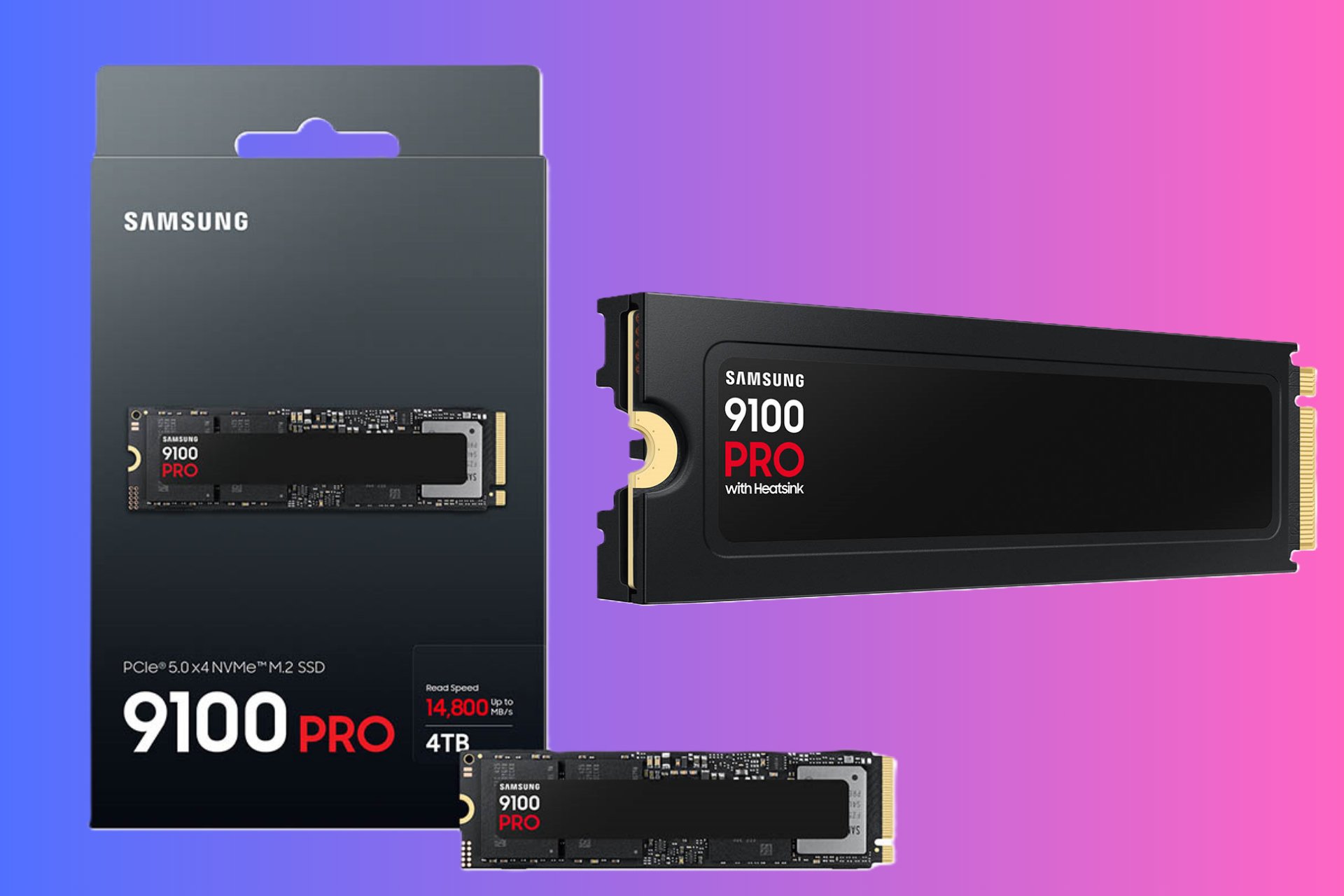
Samsung has just dropped a bombshell in the world of storage with the announcement of their latest 9100 Pro Series SSDs. These new drives are set to redefine speed and efficiency, thanks to the cutting-edge PCIe 5.0 interface.
14.8 GB/s means serious speed
Here are the 9100 PRO technical specifications provided by Samsung in the press release:
Samsung 9100 PRO / 9100 PRO with Heatsink
Interface
PCIe® 5.0 x4, NVMe™ 2.0
Form Factor
M.2 (2280) / M.2 (2280 with Heatsink)
Hardware
NAND
Samsung V NAND TLC (V8)
Controller
In-House Controller
Cache Memory
1GB LPDDR4X
2GB LPDDR4X
4GB LPDDR4X
8GB LPDDR4X
Capacity
1TB
2TB
4TB
8TB
Performance
Seq. Read/Write (MB/s)
14,700 / 13,300
14,700 / 13,400
14,800 / 13,400
14,800 / 13,400
Ran. Read/Write (IOPS, QD32)
1,850K / 2,600K
1,850K / 2,600K
2,200K / 2,600K
2,200K / 2,600K
Power
Active (Read/Write)
7.6W / 7.2W
8.1W / 7.9W
9.0W / 8.2W
TBD
Device Sleep (L1.2)
4.0mW / 3.3mW
4.8mW / 4.0mW
6.5mW / 5.7mW
TBD
Intelligent TurboWrite 2.0
114GB
226GB
442GB
TBD
Data Encryption
Class 0 (AES 256), TCG/Opal v2.0, MS eDrive (IEEE1667)
Total Bytes Written (TBW)
600
1,200
2,400
4,800
The 9100 Pro Series SSDs come in two flavors: the standard 9100 Pro and the 9100 Pro with Heatsink. Both versions promise to deliver up to twice the read and write speeds compared to their predecessors. We’re talking about sequential read speeds of up to 14,800 MB/s and write speeds of up to 13,400 MB/s. That’s some serious speed, double the one from the previous Samsung generation.
One of the standout features of the 9100 Pro Series is the storage capacity. These SSDs will be available in 1TB, 2TB, and 4TB options starting this March, with prices ranging from $199.99 to $569.99. But the real showstopper is the 8TB version, which will be available in the second half of 2025. Samsung didn’t disclose the price for the 8TB version, but it will probably be around the $900 mark, which is pretty hefty.
Samsung has also focused on power efficiency and thermal management. The 9100 Pro Series boasts a 49% improvement in power efficiency compared to previous models, thanks to an advanced 5nm controller. The Heatsink version adds an extra layer of thermal control, ensuring your drive stays cool even during intense tasks.
We’re not pointing fingers, but if you’re aiming for the new Samsung 9100 Pro SSDs, you’re probably a gamer. The read/write speeds of these beasts translate to almost instant access, and that’s pretty important for gaming.
Would you buy one of the new Samsung 9100 Pro SSDs? Let us know in the comments below.
Copilot will soon be enhanced with the ability to create summaries of transferred calls in Microsoft Teams. When Copilot creates a summary of transferred calls, it provides an overview of the key details and outcomes of those calls.
This summary includes essential information such as the person who made the call, their name, or other relevant identifiers; it also states why the call was transferred to another person or department. For example, the caller might need help from a different team or specialist.
According to the enhancement’s description, it will also provide information about the call’s resolution. This might include whether the issue was resolved, what actions were taken, or if any follow-up is needed. Here’s what the entry says:
Copilot generated summary provides an overview of the details and outcomes of transferred calls. It includes information such as the caller’s details, the reason for the transfer, and the final resolution.
In other words, the summary helps keep track of essential aspects of transferred calls, ensuring that all necessary information is recorded and can be quickly reviewed later. It will added to Microsoft Teams for Android devices starting May.
It’s not yet clear if this Copilot is an AI agent developed explicitly for summarizing calls or if the platform’s general Copilot will take on this task. If you remember, Microsoft introduced AI agents in Teams last year, and the company has been using them to create highly customized models ever since.
Microsoft just dropped the first preview of .NET 10 and it probably already got developers talking. This early release is all about giving the development community a playground to explore what’s coming next, with plenty of exciting tweaks and enhancements that promise to elevate the coding game to a whole new level.
We just shipped our first preview release, adding to some major enhancements across the .NET Runtime, SDK, libraries, C#, ASP.NET Core, Blazor, .NET MAUI, and more.
What’s new in .NET 10 Preview 1?
The .NET 10 Preview 1 isn’t the final product—it’s more like a try-before-you-buy version that’s inviting developers to jump in, experiment, and share feedback. Here are some of the standout features that Microsoft is excited about:
Performance boosts: Expect a faster and leaner runtime. The preview comes with improvements that aim to slingshot application performance, making heavy lifting feel a lot breezier.
Modern cloud enhancements: With cloud-native development in mind, .NET 10 has been optimized to work seamlessly with modern cloud environments. This means smoother integrations and a better overall experience for building and deploying cloud-centric apps.
Streamlined APIs & productivity: Microsoft has reworked several APIs to make life easier for developers. Whether you’re working on cross-platform projects or diving into new language features, the focus is on making coding simpler and more efficient.
Improved diagnostic tools: Debugging and troubleshooting get some love in this release. Enhanced tooling means you can now track down issues faster, giving you more time to focus on building great applications.
For many developers, these previews aren’t just tech updates—they’re a look into the future of development. However, the full release of .NET 10 is promised for an October launch.
You can read the full release notes on the Microsoft dedicated page and get more in-depth information about .NET 10 Preview 1. You can also watch the unboxing video from the .NET team above.
If you’re a developer and you’re excited about the new Preview 1 of .NET 10, let us know what you think in the comments below.
Does your Windows 11 shutdown after inactivity? This can be a problem and cause you to lose unsaved data, so in today’s guide, we’re going to show you how to fix this issue.
How can I fix the Windows 11 shutdown after inactivity?
1. Change the power plan or adjust the plan settings
Press the Windows key + S and type power plan. Select Choose a power plan.
Next, select High Performance power plan.
Save changes.
Alternatively, you can adjust the current plan settings by doing the following:
Follow Step 1 from the previous section.
Next, click on Change plan settings next to your current power plan.
Select Change advanced power settings.
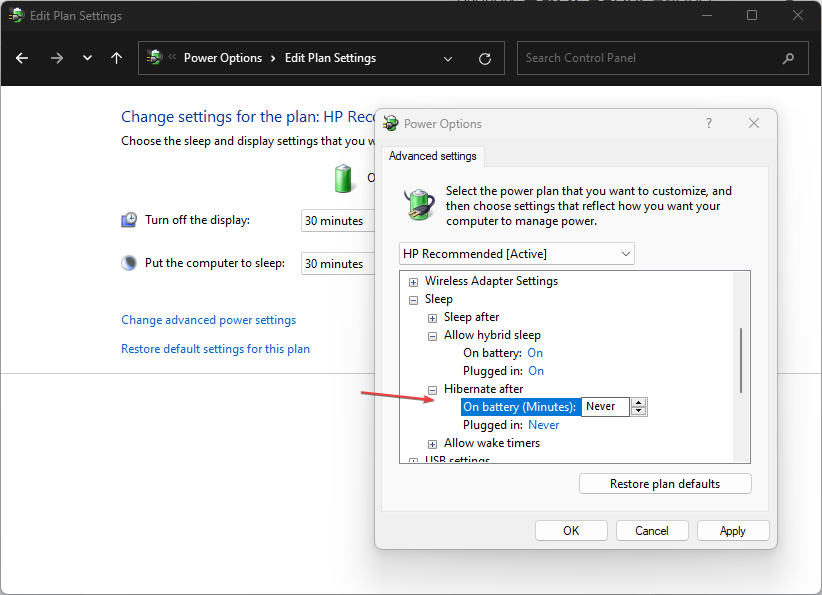
Expand the Sleep section and set Hibernate after to Never.
Optional: Set Turn off hard disk after to Never.
2. Repair your system
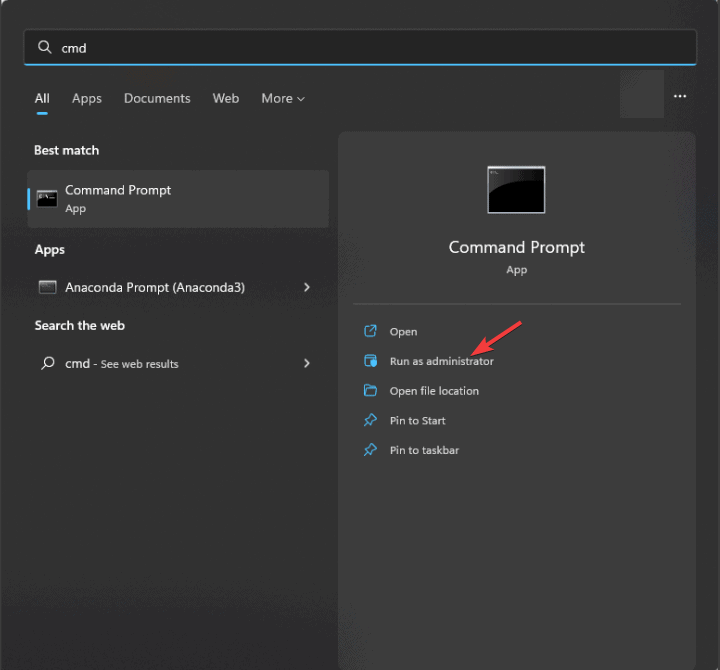
Press the Windows key + S and type cmd. Choose Run as administrator.
Next, run the following commands one by one: SFC /scannow DISM /Online /Cleanup-Image /CheckHealth DISM /Online /Cleanup-Image /ScanHealth DISM /Online /Cleanup-Image /RestoreHealth
Keep in mind that each scan can take a while, so don’t interrupt them.
Once the scans have been finished, check if the problem is gone.
Press the Windows key + S and type task scheduler. Select Task Scheduler from the list.
Go to the Tasks Library and look for any tasks that have inactivity as a condition.
Remove those tasks.
Keep in mind that this will only work if you have created such a task prior. To see how to create a shutdown timer, we have a great guide on how to schedule a shutdown timer in Windows 11, so don’t miss it.
4. Remove the last cumulative update
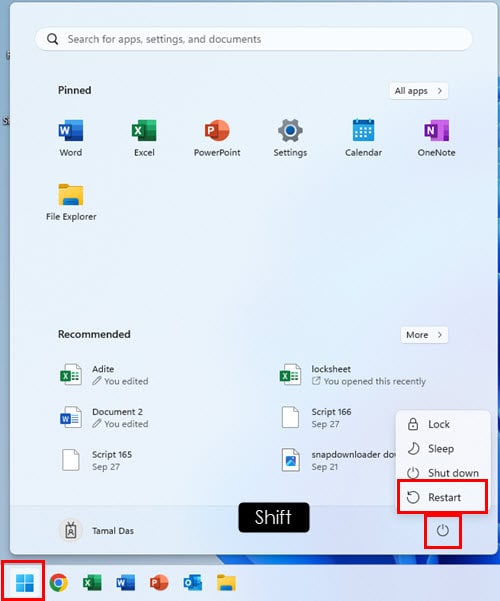
Open the Start Menu.
Click the Power button.
Press and hold Shift and select Restart.
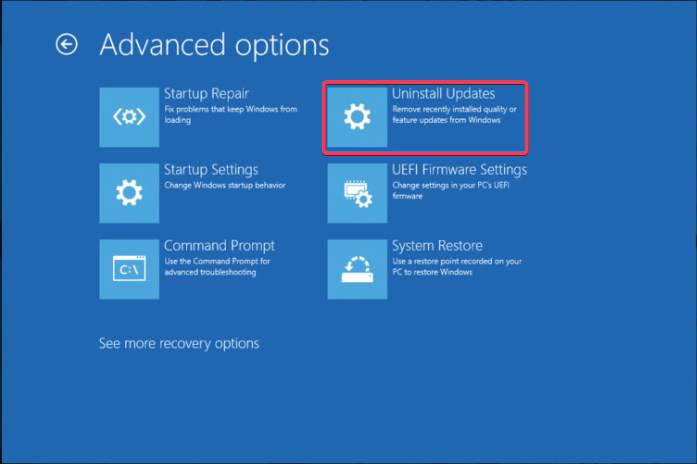
Navigate to Troubleshoot and then to Advanced options. Next, select Uninstall Updates.
Choose Uninstall the latest quality update and follow the instructions on the screen.
As you can see, you can prevent Windows 11 shutdown after inactivity by adjusting your power settings, but if that doesn’t work you can always try repairing your system files.
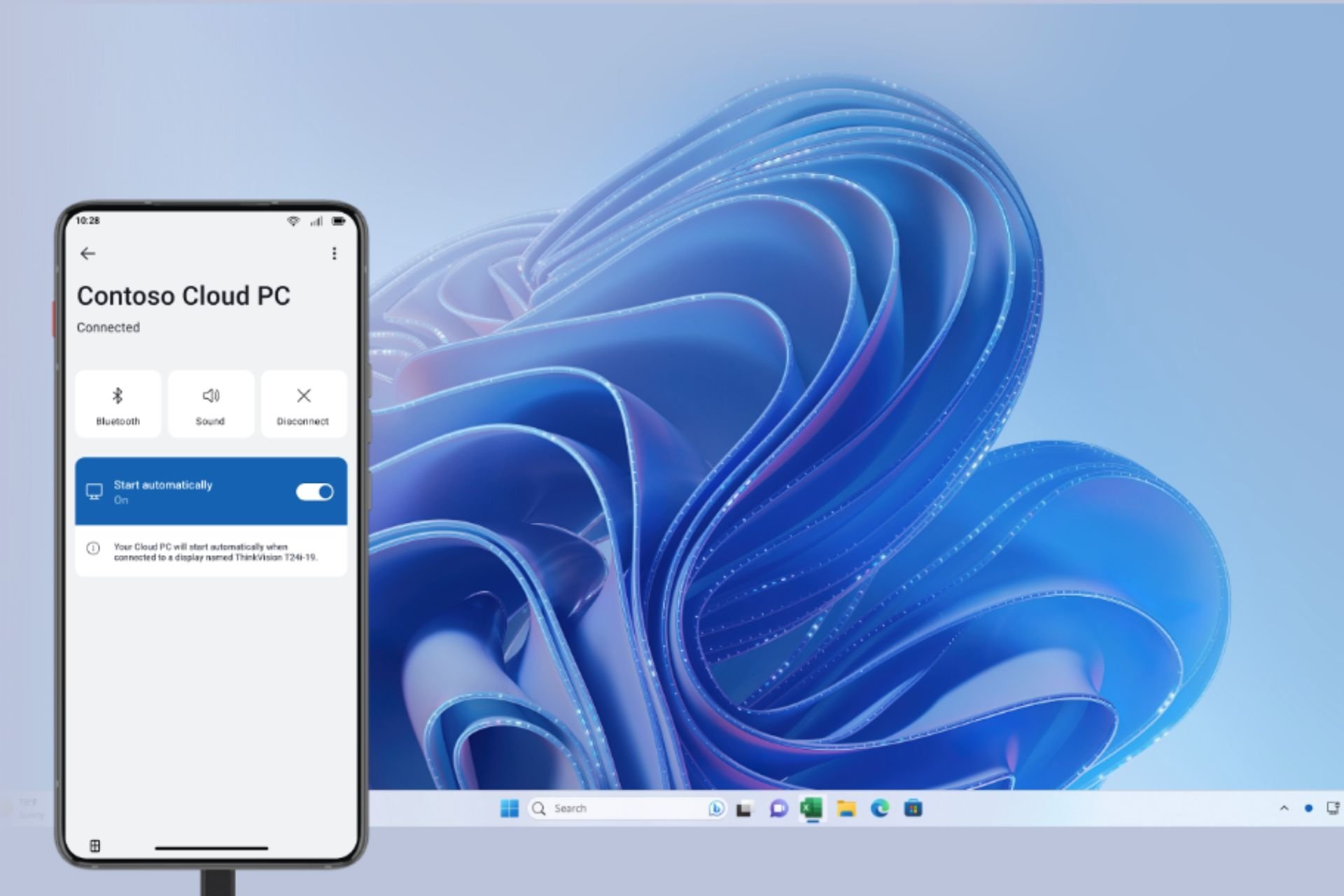
Windows 365 users will soon be able to use a password called a “passkey” on their Android devices. The new enhancement was announced in a recent entry to the Microsoft 365 Roadmap.
These passkeys are part of a security standard called FIDO2 (Fast Identity Online 2). FIDO2 is a set of authentication protocols that aim to provide stronger security than traditional passwords.
Users can authenticate instead of entering a password using methods like biometrics (fingerprint or facial recognition) or a physical security key.
When it becomes generally available (GA), this new feature will be aligned with the Windows App on Android.
This means that once the Windows App on Android is officially released and available to all users, the passkey functionality will work seamlessly with it.
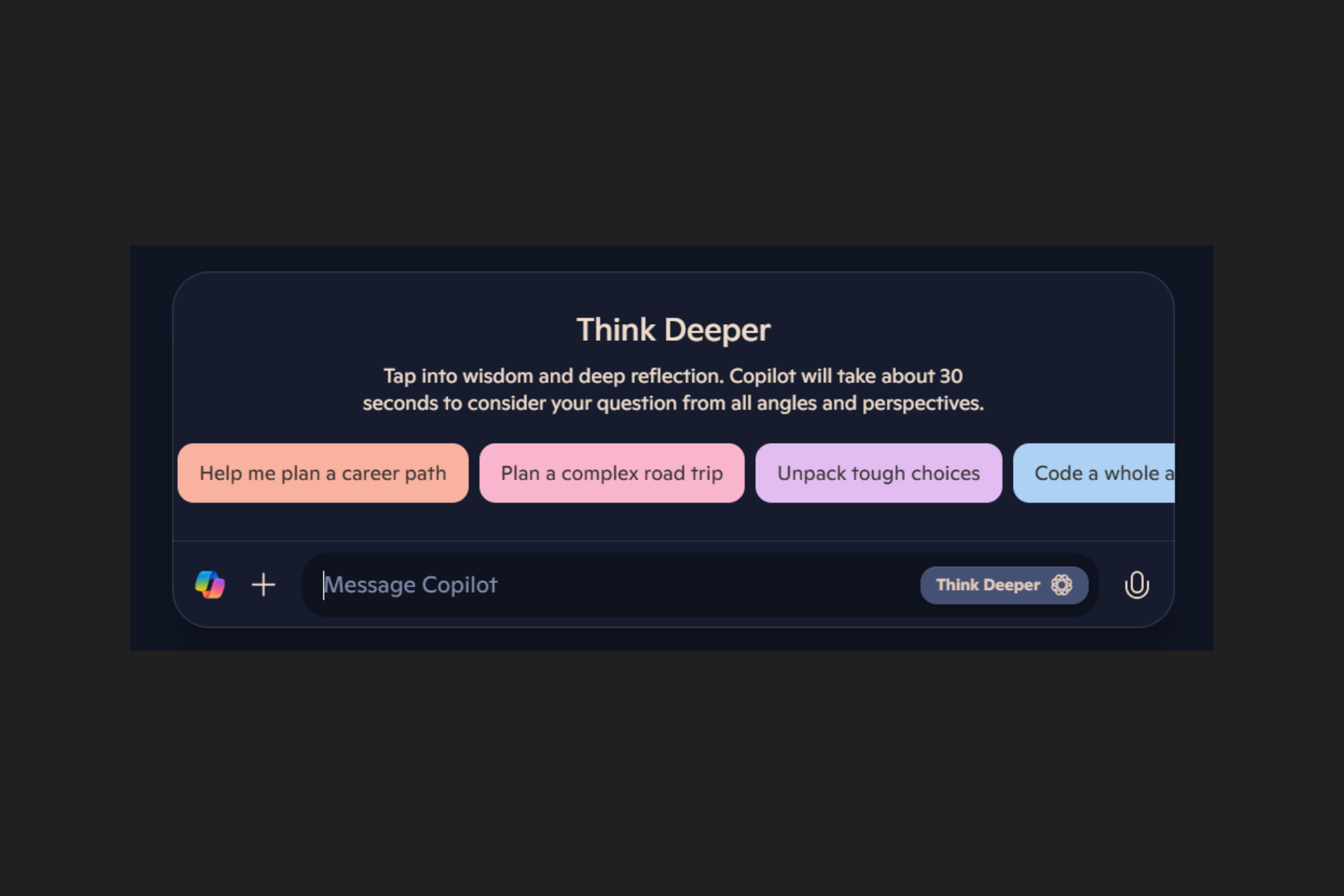
Now, Microsoft also announced that Deep Thinker and Voice are also free for unlimited usage for all Copilot users:
As we continue to build your ultimate AI companion, today we’re excited to start rolling out even more powerful capabilities to all Copilot users with free, unlimited access to Voice and Think Deeper (powered by OpenAI’s o1 model). Now you can have an extended conversation with Copilot using Voice and take advantage of Think Deeper’s advanced reasoning models to tackle more complex questions or tasks, anytime.
Source: Microsoft
Microsoft believes that this is a new step to make Copilot actually useful for your everyday life and help you with more complex tasks, and not only answer some simple questions.
The software giant also envisioned some prompt scenarios where you could put the new Copilot features to work:
Compare the best electric cars. I usually prioritize design and comfort, and I want to feel like my purchase is ‘future-proof’. Make a novel scoring system to help me with my assessment.
I have $15K to use on a home renovation. I’m deciding between a kitchen island, updated bathroom, or replacing the roof. What would increase the value of my home more over the next 3 years?
I live in a neighborhood that has power outage every time there is high wind. Should I buy a generator? What are the pros and cons, things I should consider, and impact to my budget, and convenience.
The only limitation of the new free Copilot features is that you might experience some delays or interruptions during high demand periods. As you may imagine, Copilot Pro will have priority access.
You can use Deep Thinker and Voice right now in your Copilot app on PC or mobile.
What do you think about Copilot Deep Thinker and Voice? Tell us about your experience with the new free features in the comments.
AutoCAD 2022, one of the most popular CAD tools, might crash when trying to open it on Windows 11 24H2. Microsoft has acknowledged the issue on its Windows Release Health dashboard, stating that the application might simply not open when launched.
The Redmond-based tech giant has released a compatibility hold for all Windows 11 23H2, stopping them from getting the Windows 11 24H2.
It’s worth noting that this only applies to AutoCAD 2022. All other versions of AutoCAD and AutoCAD LT, such as AutoCAD 2023, 2024, and 2025, are working as expected.
Microsoft also says users should not try to manually install 24H2 but should wait for the company to release a resolution.
Activation scripts for Windows and Microsoft Office have been around for a while, but they are fraudulent. That is obviously because they allow you to activate the OS and Office products without a license.
Microsoft attempted to stop this practice a long time ago, but it gave up because its big customers are companies, not the average user. Moreover, it’s the products and services inside Windows and Microsoft 365 are the ones that really count, not the basic versions you can activate.
Pirate_Nation took a step further and asked Copilot if it knew about such an activation script, and the AI bot was more than happy to share the detailed process of doing it.
I managed to replicate the experiment and the result was the same. Copilot is using the MAS GitHub page as the reference for the information.
Now, I understand why Microsoft doesn’t make the effort to counter this action online, but I wouldn’t expect them to actually help with the process. To be fair, the script also helps you activate your products if you fail to do that with a legitimate license as well, so it’s not entirely fraudulent.
Copilot shouldn’t provide this kind of information, even if it’s available online, but that’s probably an unpopular opinion. We can debate about this in the comments below.
Microsoft has some good news for all Xbox gamers out there: with its February update. the Redmond-based tech giant has introduced the ability for Xbox Game Pass Ultimate members to send invite links, making it easier than ever to join multiplayer sessions via Xbox Cloud Gaming.
While playing a multiplayer game through Xbox Cloud Gaming, players can generate a shareable link. This link can be sent to friends, allowing them to join the gaming session instantly via their web browser or supported TV.
While playing a multiplayer game with Xbox Cloud Gaming, Game Pass Ultimate members can create an invite link by opening the game invite menu from the Guide or in-game, then looking for the “Anyone” tab. Copy the link and send it to your friends to join your gaming session.
In a blog post, Xbox says this feature provides flexibility and convenience, enabling players to invite friends through direct messages, group chats, or social media platforms.
This is not the first time Xbox has improved the Friends section’s capabilities on the app. Back in August, it enhanced the platform to allow Xbox gamers to connect Discord to the app and see their Discord friends directly there, making it easier to communicate, especially when talking about multiplayer games.
In addition to the invite link feature, the February update expands the “Stream Your Own Game” collection. Game Pass Ultimate members can stream over 50 cloud-playable games on supported devices.
Popular games like Blasphemous 2, Kingdom Come: Deliverance II, Slime Rancher 2, Subnautica, and The Talos Principle 2 have recently been added to the collection. Upcoming additions include Atomic Heart, Cult of the Lamb, Hotline Miami, and more.
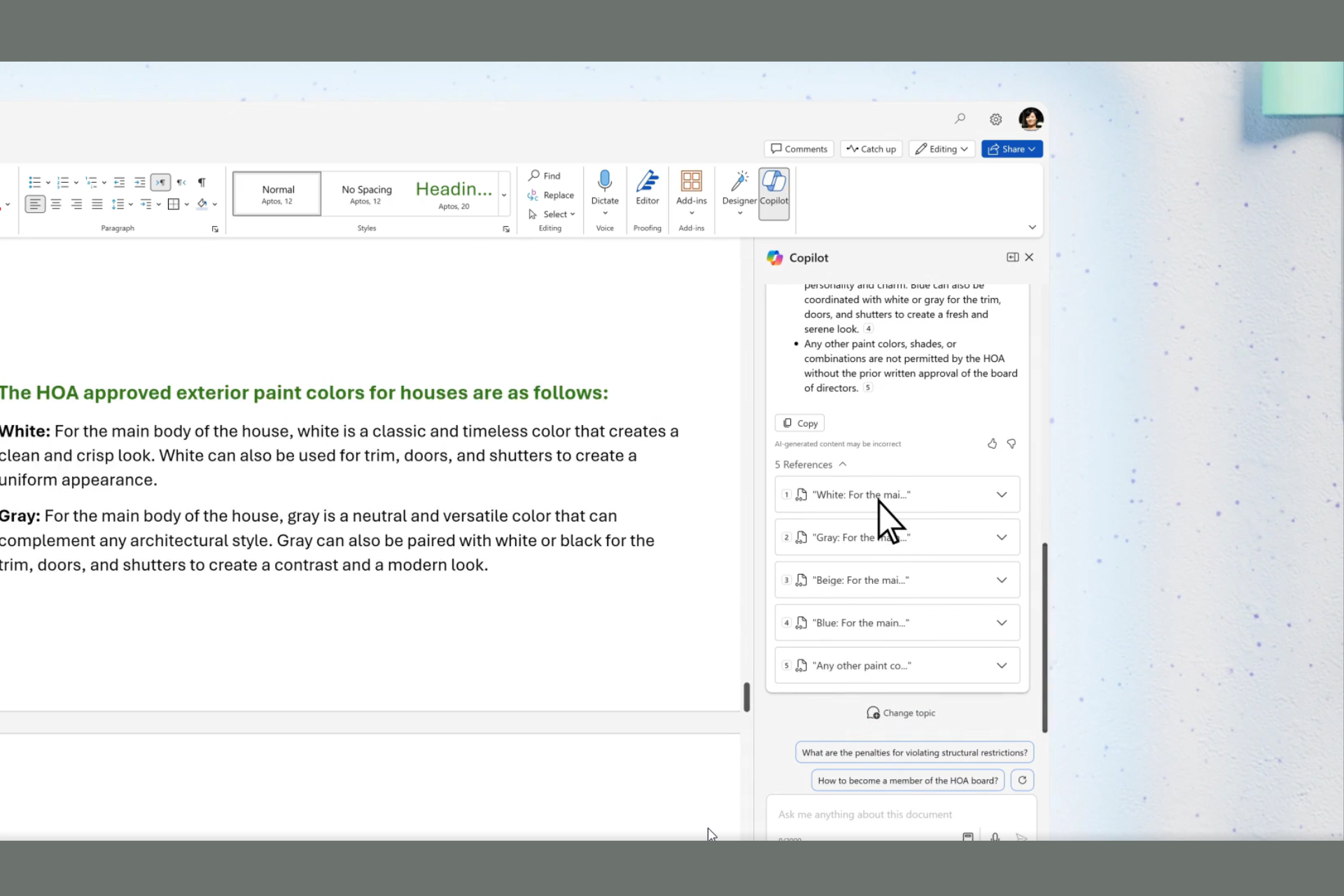
Right now, Copilot is limited to a maximum of around 80,000 words for a single query or prompt when you’re generating a summary in Word. Well, that is about to change dramatically.
According to the Microsoft documents, the update will start rolling out in May 2025 for the Word desktop version. Of course, you will still need a Copilot license and a Microsoft 365 Copilot active subscription to benefit from this upgrade.
If you already have Copilot in Word, the icon will appear in the toolbar. If not, you can enable Copilot in Word.