Microsoft news recap: Docs.com to close later this year, Microsoft Rewards coming to France and more

Microsoft (MSFT) news recap is a weekly feature highlighting the top Microsoft news stories of the past week. Sit back, grab some coffee, and enjoy the read!

Microsoft will shut down its Docs.com file hosting service on December 15

Docs.com, a public file hosting service that allowed people to search for publicly shared files, is being shut down by Microsoft later this year, on December 15th. Microsoft is asking users to move files to OneDrive to retain them.

Microsoft foils 1.5 million attacks on their cloud systems per day

With Microsoft being one of the largest cloud company’s in the world, there are lots of potential attacks across its range of services, including Azure, OneDrive, Office 365 and others. Investing around $1 billion per year in security, the company has foils more than 1.5 million attacks per day on its cloud services.

Microsoft, Azure

Microsoft owes $28.2 Million to Israel in taxes, ruling connected to 2006 acquisition of Gteko

It’s no secret that companies attempt to avoid tax – usually, the bigger the company, the more they’ll try to avoid paying. The tech industry itself is very well-known for making use of tax avoidance schemes. Now, Microsoft has potentially found itself in hot water, as it owes $28.2 milion in taxes to Israel over a company it acquired, Gteko, following a court ruling.

Microsoft Logo

Microsoft MS Rewards will launch in France on June 12, French Windows Insiders can test it now

After launching in the United Kingdom recently, Microsoft’s Rewards program is finally coming to France on June 12th. Windows Insiders will be able to test it now. For other EU countries, it will be on the way at some point this year.

Microsoft Rewards

That’s it for this week – we’ll be back next week with more Microsoft news!

EA Access is free on Xbox One until June 18

Microsoft and EA are giving Xbox One players a chance to trial EA Access free for 1 week only, ahead of Microsoft’s E3 conference.

With EA Access, you can download a multitude of EA games, such as Titanfall, Battlefield, and FIFA, as well as many more. It’s a subscription-based service, where a monthly fee is paid in order to download and access the games (similar to Netflix, and more recently, Microsoft’s Xbox Game Pass service).

The free trial is valid until June 18th.

Find out more information about the offer on the Xbox website here.

Windows 10 automatically detects media files and makes folder suggestions

The Windows 10 Fall Creators Update brings an interesting feature that automatically detects media files. After a storage scan, the OS detects relevant media folders you might want to include in your collection, and suggests them to you when you add new media files.

In other words, Windows 10 makes suggestions regarding the folders where you should add your media files. In this manner, you can better organize your media content.

Photos, Groove Music and Movies & TV all have one thing in common: exploring your local content based on the folders you provide. We’ve heard your feedback that sometimes local media is missing as a result of folders not being included, so with this build we’re adding new logic to address this. After a storage scan, we will now detect relevant media folders you might want to include in your collection when looking at the files via UWP apps, and suggest them to you when you go to add new folders.

Insiders can already try this feature out. If you’re curious to see how this feature works, add a new folder with pictures, songs, or videos to your desktop, go to Storage Settings and hit the refresh button. This will trigger a scan and the next time you add a folder to your favorite UWP app, you’ll see a window pop-up, suggesting you where you should add the new media files.

If you want to check out the upcoming Windows 10 Fall Creators Update features, you can enroll in the Windows Insider Program. The only downside is that these early OS versions often come with bugs — after all, that’s the whole purpose of the Insiders Program.

All Creators Update users will have access to these new features in September, when Microsoft rolls out the Fall Creators Update OS.

RELATED STORIES YOU NEED TO CHECK OUT:

Microsoft’s Surface Mobile to feature a Surface Pro kickstand and a projector

According to some Chinese leaks, Microsoft’s Windows phone’s successor may be called the Surface Mobile. Check out the leaked potential features of the upcoming mobile device below.

Surface Mobile features

The leaked details were initially found by a Twitter user named WalkingCat and it seems that this Microsoft source is very reliable judging by previous tips revealed.

After the Chinese leaks were translated, it was revealed that Surface Mobile would support the Surface Pen and that it would work with a Snapdragon processor. Also, it seems that it will also sport a kickstand that can open as far as 185 degrees, similar to the Surface PC and the Surface Pro.

A new Microsoft feature for a device that will be called Onto Table seems to point to a built-in projector capable of displaying a full desktop via Continuum. The Surface Mobile’s battery is rumored to be able to last for an hour when the mobile device is running in this particular mode.

More codenames are dropped

Surface Peking and Surface Slavonia codenames also appear in the leaks, but we don’t know for sure what they could mean. Both of them are used alongside the term “terminal” and we can assume that they could be related to some hardware similar to the Microsoft Display Dock the company uses for its Continuum functionality.

Another codename is Project Andromeda and is just as ambiguous as the previous ones. It might refer to a new range of Surface Mobile devices, but it could also mean something related to the new OS that should be an evolved Windows 10 Mobile.

Even if there is no official statement by the company regarding this, we’re pretty excited about what the future for Microsoft’s mobile market holds. .

RELATED STORIES TO CHECK OUT:

Switching from Google’s G Suite to Office 365 just got easier

If your company plans on switching from Google’s G Suite to Office 365, then it may need some guidance on getting started with Microsoft’s cloud productivity suite. Luckily, the company foresaw this and released a series of online guides targeted at beginners to make the transition easier.

Eight new guides for switching to Office 365 from Google G Suite

Microsoft community manager Michael Holste just posted the announcement on the company’s official page addressing all business owners who want to switch to Microsoft Office 365: “We have your go-to guides to help you get up and running in Office 365 with minimum disruption.”

The first of eight brand new guides for Word, PowerPoint, Excel, Outlook, and OneDrive are available on the same page and feature everything you need to know about the company’s alternatives offered for Google Docs, Gmail, and Google Drive.

The eight guides include the following:

  1. Switching to OneDrive for Businesses from Google Drive
  2. Switching to Word from Docs
  3. Switching to Excel from Sheets
  4. Switching to PowerPoint from Slides
  5. Switching to Outlook Mail from Gmail
  6. Switching to Outlook Calendar from G Suite Calendar
  7. Switching to Outlook People from G Suite Contacts
  8. Switching to Skype for Business from Hangouts Meet

You will find all the necessary information about installing these guides on Microsoft’s page where you can also check out the system requirements for everything to work correctly.

According to Microsoft, more online guides are on their way to users, but until they are launched, you can check out the company’s Tech Community website for more details, information, and to discuss topics with Office 365 specialists.

Before you go, don’t miss our guide on DKIM Office 365 step by step setup for more information.

Macphun’s Luminar and Aurora HDR apps come to Windows 10 this fall

Macphun’s image editing apps Luminar and Aurora HDR aim to bridge the gap between professional and consumer image-editing tools and are coming to Windows in October.

Macphun, delivering amazing products for a decade

Macphun is the developer of comprehensive photo-editing apps from California. Established in 2008, it managed to create various innovative photography software including Focus, Snapheal, Intensify, Noiseless, FX Photo Studio, Aurora HDR, and Luminar.

The company’s apps have been rated very highly on the Apple App Store, and flagship product Luminar won the distinguished TIPA award for Best Imaging Software 2017 just five months after it was released.

After delivering great products for Mac users for almost a decade, the company is excited to bring Windows users products that combine simplicity and power: Luminar and Aurora HDR.

Luminar

This “supercharged photo software” as the company likes to call it makes complex editing enjoyable and comfortable. It features more than 1000 bonuses that allow users to unleash creativity, including overlays, presets and posing ideas.

The famous photographer, educator, and CEO of KelbyOne Scott Kelby commented on the software: “I’ve been shooting portraits since I could pick up a camera! Macphun’s Luminar Software helps me quickly take my portraits in cool, creative directions. I think you’ll dig it.”

The app is powered by the latest photo processing technology created by Macphun and brings users a fast native RAW processor supporting various cameras.

Aurora HDR

Aurora HDR was first released back in November 2016 and was co-developed with the world’s preeminent HDR photographer Trey Ratcliff.

The app makes the complex tasks invovled with HDR photography effortless. It features one-click presets and many advanced tone-mapping and layers, noise reduction, and masking controls for great luminosity.

Macphun will launch a public beta of Luminar in July and the final version for Windows in November. Aurora for both Mac and Windows will be released in October.

RELATED STORIES TO CHECK OUT:

Xbox news recap: Microsoft hides messages in their Scorpio ads, VR not being showcased at E3 and more

Welcome to our weekly Xbox news recap series, where we go over the top stories of the past week in the world of Xbox. Let’s get started.

Microsoft puts hidden message in their Scorpio ads

Queue the X-files music: Microsoft has been putting some hidden messages in their Scorpio advertising, presumably to tease some things about the console ahead of E3. While it’s no kind of full-blown alternate reality game, there are some cool details in there that are promising. A message reading 6>4, for instance, leads us to believe that Scorpio will have 6 teraflops vs the PS4 Pro’s 4. A message reading X10S101-317 has some users thinking that it’ll be releasing on October 13, 2017 (X10s (10.13.17)). In response, Microsoft’s Albert Penello just said that Xbox fans have “sharp eyes.”

VR won’t be at E3 this year

Virtual Reality will be just about absent this year, or will at the very least not be a focus. Microsoft’s Alex Kipman stated that the company is focused on creating mixed reality experiences for PC right now, as opposed to console. This year is going to belong to Scorpio, and Microsoft is doubling down on that by dedicating most of their presentation to their newest Xbox console. We’ll see if VR is mentioned at all, but don’t count on it.

“Our primary focus is making our mixed reality experiences a success on Windows 10 PCs. We believe that right now a Windows PC is the best platform for mixed reality as its open ecosystem and enormous installed base offer the best opportunity for developers, and Windows offers the most choices for consumers.”

“Windows has been the birthplace of a variety of technologies, and we believe this will hold for mixed reality too. Given the efforts we have underway on Windows for mixed reality, and our belief that console VR should be wireless, right now we are focused on developing mixed reality experiences for the PC, not on the console.”

Mixer users will get free games and DLC for watching E3

According to a tweet from Xbox, users who log in on Mixer and watch this year’s E3 conference will be getting free games and DLC. There was nothing specific as to what games are going to be on tap for this offer – nor was there any indication that this is a random giveaway and not just a guaranteed gift. If you want to find out, you’re probably just going to have to watch on Mixer. Considering Mixer is offering objectively the best quality of video, that shouldn’t break anyone’s heart.

https://twitter.com/Xbox/status/872830623018176516

Project Scorpio unlocks 9GB of RAM for gaming

Initially Scorpio was going to have 12 GB of RAM, with 4 set aside for the dashboard and other simple functions. According to a tweet by Phil Spencer, the team has unlocked an extra GB of RAM for developers to play with, bringing it up to 9 total. Games that don’t use the whole 9GB will have the extra space there for temporary storage, there to help with processing and make things like loading screens go much faster.

Thanks for joining us. To keep up to date with all the latest Xbox news, keep a close eye on our Xbox One tag.

Hovering over a link in a malicious PowerPoint file can execute malware

A new vulnerability has been found that can allow malware to spread by just hovering over a link in a PowerPoint document (via Ars Technica).

This kind of attack is different, as it doesn’t require the use of macros or scripts as seen in previous attacks, instead merely hovering over what could seem like a legitimate link is enough to kickstart the infection process.

The attack works by using Windows PowerShell. Newer versions of PowerPoint will ask users whether they’d like to exit Protected View, whereas older versions are less protected.

One example where this trick can be used is by placing a malicious link in a PowerPoint that says “Loading…” – users are then likely to disable Protected View to see the full document, hover over the link and unknowingly infect their PC with malware.

While there is no fix so far, users are recommended to be weary of which PowerPoint documents they open and which links they hover over.

Windows 10 Mobile build 15222 doesn’t bring any new features, just some fixes

Microsoft recently launched a new Windows 10 Mobile build. As expected, build 15222 doesn’t bring any new features but only a series of bug fixes that address Whatsapp launch issues, some Cortana bugs, and some notification issues. It also includes all the improvements from KB4016871 and KB4020102.

If you installed Windows 10 Mobile build 15222, keep in mind that in some cases, the WeChat app may crash on launch.

Here are the complete patch notes for build 15222:

  • The copyright date is correctly showing 2017 now under Settings > System > About.
  • Fixed an issue where WhatsApp would not launch after updating to the latest Mobile builds.
  • Fixed an issue with using the Japanese 12 Key soft keyboard where the “right arrow” key did not input a space
  • Fixed an issue with the Bulgarian keyboard localization for the HP Lap Dock in Continuum.
  • We have further improved the reliability of notifications for apps with a paired Bluetooth device, such as Fitbit.
  • Improved the Time & Language settings page UX for Speech and Keyboard language downloads. Previously, the status would show “Downloading” for speech and “Installing” for keyboard. Unless, the user tapped on the language or navigated to the Update & Security settings page, there was no indication that a restart is required to complete the installation. Now when the update reaches the reboot pending state, a “Restart Required” is displayed under the language.
  • Fixed several enterprise device management issues.
  • Fixed an issue where notifications and Cortana’s cross-devices settings on your device were not being mirrored to your PC.

Windows 10 Mobile build 15222 also brings issues of its own, including Insiders reporrting that their phones constantly lag and restart after installing this build.

When waking from sleep, screen stays in background image for a minute or more before you’re able to enter a pin
When the alarm goes off, I can hear the alarm, the screen doesn’t load the notification banner that allows me to snooze. […]
Facebook, messenger and many apps take significant time to load in comparison to previous versions. […]
Sometimes when using the camera, the camera will close and then the phone will randomly restart several seconds later.

Have you encountered any issues after installing Windows 10 Mobile build 15222?

RELATED STORIES YOU NEED TO CHECK OUT:

Surface Pro 3’s latest firmware update improves battery life

Microsoft recently released a new firmware update for Surface Pro 3 applicable to the Surface Pro Embedded Controller Firmware and the Surface Pro UEFI.

Available updates for all Surface Pro 3 devices

Take a look at what’s new in the latest firmware for the Surface Pro 3:

  • The Surface Pro Embedded Controller Firmware improves battery life during sleep.
  • The Surface Pro UEFI improves PXE performance on IPv6.

While there doesn’t seem to be any security-related updates involved, any boost for battery life is a great move especially for a device that already has its share of battery issues.

Updates like this are cumulative so when you install the latest one, you will also get all the previous updates your Surface device doesn’t have already. On its official page, Microsoft states that only updates that apply to Surface devices must be downloaded and installed.

Installing the updates manually

You also have the opportunity to install the updates manually. All you have to do is follow these steps:

  • Go to Start and select Settings > Update & Security > Windows Update
  • Select Check for updates and if new updates are available, they will be installed automatically
  • You may have to restart your Surface device after all the updates have finished installing

If you update the OS on your Surface device, this will remove your current update history. Firmware updates don’t offer the possibility of uninstalling them or reverting them to an earlier version.

If you are using a Surface Pro 3, you should be able to get these firmware updates now from the Windows Store. You will get all current software, firmware, and drivers for the Surface Pro 3 including the optional WinTab drivers. On the same page, you’ll also notice all the links to drivers for other Surface devices in the Details section.

RELATED STORIES TO CHECK OUT:

In Edge, Cortana can find better prices for products you’re viewing

On the Windows blog, Microsoft shows that there is an extra incentive to using Edge with Windows 10. In a new pilot feature, Cortana can provide you with some extra help in finding the best price when shopping online using Edge.

Microsoft Program Manager Dheeraj Mehta, works on Cortana in Microsoft Edge, and provides more detail on the pilot feature:

“With Cortana and Microsoft Edge, we hope to continue offering features that will help you save time and money when shopping online using the Microsoft Edge web browser. To that end, we recently released a pilot feature that helps find the best pricing for the product you are viewing. However, Cortana will only notify you if the relevant details are available at the time of your visit. We are just beginning to roll this out to everyone on Windows 10 Creators Update to get feedback. Currently the feature supports 14 retailers including Amazon, Walmart, and eBay, within the US. We will be increasing availability and the number of retailers we support in the months ahead, so stay tuned for more updates. When you visit the site of a supported retailer, Cortana will alert you that there are other options available at a lower price for the same product.”

Microsoft, Edge, Cortana

This pilot feature is similar to the one that already appears when using Cortana in Edge. When using the Windows 10 Creators Update, the only difference is that there are more Cortana options available when you visit a supported retailer in Edge.

Microsoft will continue to make improvements to this pilot feature, but be sure provide Microsoft with feedback on this feature and other improvements you’d like to see in Cortana in Edge in the future.

E3 is upon us: what’s coming up, including the Xbox event on Sunday at 2pm PDT

After all the wait and all the hype, E3 2017 is finally upon us. With new games and more coming to Xbox One and Windows 10, not to mention all things Project Scorpio, Microsoft will surely put on one hell of a show! Although E3 2017 doesn’t officially kick off until Tuesday, June 13, 2017 we will be able to enjoy all-new game trailers all weekend long!

On Sunday, June 11, Microsoft stops with all the teasers (hopefully) and shows all the games and more that is coming with Project Scorpio. There are plenty of ways to view Microsoft’s Sunday event, including 4K options on YouTube and Mixer, on Twitch, Facebook, Twitter, Fuse, and your Xbox. Microsoft’s event starts at 2PM PT, 5PM ET.

Here is a look at other notable events happening at E3 2017, this weekend:

Electronic Arts (EA) will also hold a special event on Saturday at 12PM PT / 3PM ET to show off new FIFA 18 gameplay on Xbox One and Windows 10. EA will likely kick things off with new trailers for Star Wars Battlefront 2, The Sims, and more. EA’s live stream will be available Twitch and YouTube.

Joining Microsoft on Sunday, Bethesda will be holding an event to reveal the new games. Based on rumors, The Verge believes that Bethesda will show off trailers for Starfield, a sci-fi open-world RPG, and another game in the works, along with new sequels to their most popular game franchises, including Elder Scrolls Online.

The live stream of Bethesda’s event will be available on Twitch or YouTube, starting at 9PM PT / 12AM ET.

On Monday, June 12, there will be a huge PC Gaming Show that will feature a number of big-name and new game developers showcasing their new games for Windows PCs. Polygon has an updated list of the developers and games that will be on hand at the PC Gaming Show.

Polygon says Microsoft representatives will be available at the PC Gaming Show to show “how Xbox plays into [Windows 10] PC.” Microsoft will likely talk about the further expansion of the games available on Xbox Play Anywhere.

Of course there will be lots more, including news on Scorpio, lots of games, and maybe even a few surprises! Stay tuned and OnMSFT will keep you updated on all the latest from E3.

White House invites Satya Nadella, others, to American Technology Council summit meeting

On June 19, 2017, Jared Kushner, Senior Advisor to the President of the United States and the President’s son-in-law, is leading a American Technology Council (ATC) summit meeting in the hopes to talk about modernizing the US government. According to an article by Bloomberg, the White House is inviting Microsoft CEO Satya Nadella, along with ten other company heads to talk about different technology matters, including technology sales to US government agencies.

So far the list of companies that will be joining Microsoft include Apple, Amazon, Oracle, IBM, and Alphabet, Inc. Facebook is one of the companies that was invited, but has not yet responded to the White House invitation.

The ATC was created by an executive order enacted by President Trump on May 1, 2017. The council’s goal is to “transform and modernize” the US government IT and digital services. information technology and digital services. Former Microsoft CEO Chris Liddell is the Director of the ATC. The last ATC summit meeting took place shortly before Trump’s inauguration in December 2016.

Little progress has been made since then, with technology executives and their companies taking a stand against the Trump administration’s policies, including the “travel ban” on people traveling from nations with large Muslim populations.

Additionally, several companies, including Microsoft, have disagreed with Trump’s recent decision to pull the US out of the Paris Climate Agreement. It will interesting to see what will Kushner’s role be in the next ATC meeting on June 19.

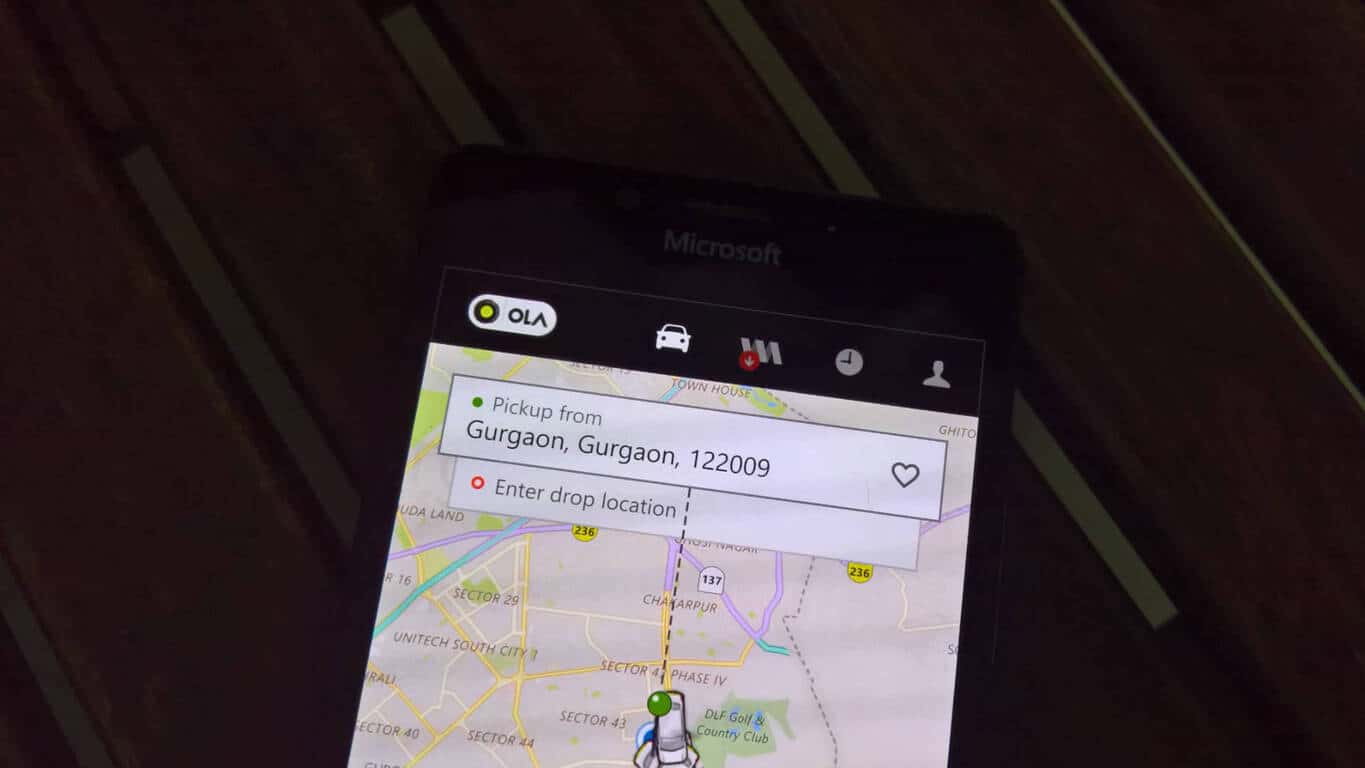
Ola Cabs, the Uber rival in India, suspends development for Windows app

Established in 2010, Ola Cabs is one of the leading cab aggregator services in India. Similar to Uber, Ola is in fact the company’s biggest rival in the market.

While Ola Cabs has had an app for Windows phone since long, responding to our reader @rianext06 on Twitter, the company has shared that it has stopped any further development for Windows platform.

The app is still available on the Windows Store and will continue to work with existing features. However, no new updates or feature additions will be available for Windows devices. For example, Ola Share Pass, a recent offering of Ola Cabs, is not available on the Windows app.

For a lot of users, especially in cities where Uber is not available, this would be a disappointing news. Incidentally, the Uber app in India too is limited and hardly gets any new features. The user experience too is dated and not updated to match the recent refresh on Android and iOS.

New Windows 10 mixed reality apps show up in Windows Store

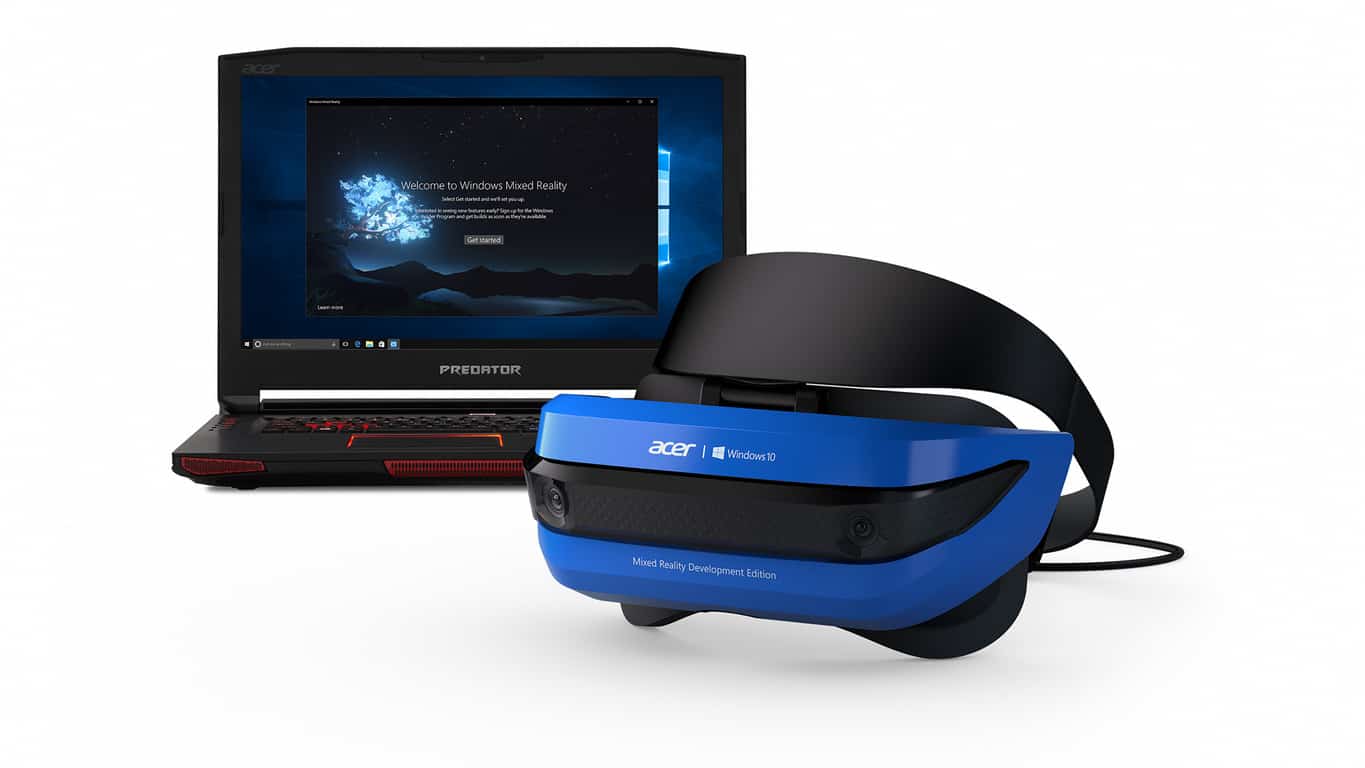
HP and Acer have both launched their own official apps for their Windows 10 augmented/virtual/mixed reality headsets. Both apps are very simple and are designed to help first-time users set up their devices and also showcase the hardware’s capabilities.

HP’s Device Companion Application is described as, “the application that comes at first run holographic device. When the user plug in the VR HMD (Head Mounted Display), it will run automatically and users are immediately delighted by holographic experiences and can seamlessly set up VR device,” while Acer’s Acer Windows Mixed Reality HMD DCA app is described only as a “Companion app for the Acer Windows Mixed Reality Head-Mounted Display.”

Microsoft has been investing heavily in augmented/virtual/mixed reality headsets for both Windows 10 devices and their Xbox One console recently. Are you interested in this sort of technology? Let us know in the comments below.

HP Mixed Reality Headset Setup
Developer:
HP Inc.
Price:
Free


Fix: System Restore Failed to Extract the Original Copy

System Restore is a handy Windows tool to revert the platform earlier. However, the tool may sometimes bug, and you can receive an error along the lines of, System Restore failed to extract the original copy of the directory from the restore point.

Luckily, there are a few potential fixes for that error. This article reviews the best solutions and common triggers for the problem.

Why am I getting System Restore failed to extract the original copy of the directory from the restore point error?

The error message usually indicates a problem with the System Restore feature in your Windows operating system. The error may happen due to a variety of reasons, including:

  • Corruption in the system files or the restore point – If the restore point you are trying to use is corrupted or damaged, the System Restore feature may be unable to extract original directory copies from the restore point.
  • Lack of disk space – If your computer does not have enough free disk space to store the restored files, the System Restore feature may fail to extract the original copy of the directory from the restore point.
  • Antivirus software – Some antivirus tools can interfere with the System Restore process, causing it to fail.
  • Third-party software – Certain third-party software programs can also cause issues with the System Restore feature.

How can I fix System Restore failed to extract the original copy error?

1. Run System restore in Safe Mode

  1. Restart the computer while pressing the Shift key.
  2. Select Troubleshoot, then Advanced options.
    system restore failed to extract the original copy
  3. Click Startup Setting.
    system restore failed to extract the original copy
  4. Now click on Restart.
  5. Finally, press F4 to select Safe Mode from the Advanced Boot Options menu. Now you can use the System Restore tool in Safe Mode.

You should boot your computer into Safe Mode and try running System Restore. This is important because third-party software or drivers can sometimes interfere with the restore process, and Safe Mode can help bypass these issues.

2. Run a virus scan

  1. Type Windows Security in the Search bar, and click on the relevant search result.
    system restore failed to extract the original copy
  2. Now, click on Virus & threat protection.
  3. Click on Scan options.
    system restore failed to extract the original copy
  4. Select Full scan and click the Scan now button at the bottom. Once the scan is done, you can try System Restore.

3. Disable antivirus software

  1. Click on the hidden access arrow in the Taskbar.
    system restore failed to extract the original copy
  2. Click on your antivirus icon, hover over Avast shields Control and select Disable for 10 minutes (This step varies for different antivirus software).
  3. After this, confirm you no longer get System Restore failed to extract the original copy. Sometimes, antivirus software can block the restore process.

4. Run SFC and CHKDSK utilities

4.1 Running SFC

  1. Press Windows + X and select Command Prompt (Admin).
  2. Type the script below and hit Enter.
    SFC /scannow
  3. Wait while the script runs, and at completion, test System Restore.

4.2 Running CHKDSK

  1. Press Windows + X and select Command Prompt (Admin).
  2. Type the script below and hit Enter (replace C with the drive letter where you want to run the scan).
    chkdsk C: /f /r"
  3. Wait while the script runs, and at completion, confirm you no longer get System Restore failed to extract the original copy.

5. Perform a clean boot

  1. Press Windows + R, type msconfig, and hit the Enter key.
    system restore failed to extract the original copy
  2. Click on the Services tab, check the Hide all Microsoft services option, then click the Disable all button.
    system restore failed to extract the original copy
  3. Next, click on the Startup tab and the Open Task Manager link.
  4. Disable all the startup items by right-clicking each and clicking the Disable button.
  5. Close your Task Manager and return to the System Configuration window.
  6. Click OK, restart your computer, and rerun the System Restore.

6. Enable System Protection

  1. Press and hold the Windows + R key.
  2. In the run dialog box, write: rstrui and hit Enter.
  3. Click the Configure button.
  4. Click the Turn on system protection radio button if it’s not selected and press the Apply then OK.
  5. Rerun the utility and see if System Restore failed to extract the original copy is resolved.

The Turn on System Protection option is usually selected by default, but something could have happened to turn it off.

7. Select an alternative Restore Point

  1. Press and hold the Windows + R key.
  2. In the run dialog box, write: rstrui and hit Enter.
  3. Click on the System Restore button.
    system restore failed to extract the original copy
  4. Choose a restore point and hit Next.
  5. Lastly, select Finish.

Selecting an alternative restore point might do the trick, but elect a restore point that goes further back than the original one chosen. Of course, the further back the restore point, the better, but remember that System Restore also removes software.

Those are some fixes for System Restore failed to extract the original copy. As a last resort, you could reinstall Windows, as covered in this Windows Report article. However, there are usually better ways to fix System Restore.

What’s new in Windows 10 Insider Preview build 16215: Shell, Settings

We’re looking at some serious quality of life changes with the new Insider build, 16215. Microsoft added in a ton of new features and tweaks for both the Windows 10 Shell and the settings menu, offering Windows 10 users some meaningful changes as they interact with their desktop.

Here’s the log of changes, for both Shell and Settings.

Shell Improvements:

Enhancing your Share experience: We want sharing to be easy and natural. With the last build we added people-first sharing, and with this build we’re bringing another new Share feature to your desktop:

Copy Link: Don’t see the app you’re looking for in the Share UI? If you’re sharing a link – like a website in Microsoft Edge, or an app from Store – we’ve added a new option in the Share UI to copy that link to your clipboard, so you easily can paste it into your app of choice.

New local media folder detection for UWPs: Photos, Groove Music and Movies & TV all have one thing in common: exploring your local content based on the folders you provide. We’ve heard your feedback that sometimes local media is missing as a result of folders not being included, so with this build we’re adding new logic to address this. After a storage scan, we will now detect relevant media folders you might want to include in your collection when looking at the files via UWP apps, and suggest them to you when you go to add new folders. Want to try it out now? Add a new folder with 30+ pictures, songs, or videos to your desktop. Go to Storage Settings and press the refresh button to trigger a scan. The next time you go to add a folder to your favorite UWP (such as Groove Music), you’ll see this new experience:

Note: If no new media is detected, you will see the file picker dialog.

My People Improvements:

  • We fixed an issue where the icons of contacts pinned to the taskbar would appear cut off when using small taskbar icons.
  • We’ve updated our logic so that if you have the My People flyout open, you can now drop a file onto any of the contacts pinned in the overflow area to initiate a share with them.
  • We’re updated the sound made when you receive an emoji from one of the contacts pinned to the People bar in the taskbar.
  • We improved My People reliability and fixed an issue where hit testing would become offset after adding or removing items from the systray.

Night light improvements including:

  • We fixed an issue where mirroring a display and then disconnecting from it would break night light on that screen.
  • We fixed an issue where when night light had been manually enabled, and the device entered then exited S3 sleep, night could then become disabled.
  • As a result of your feedback, we’ve updated our logic to now use a quick transition into night flight if applicable after rebooting or manually enabling night light.
Folder Suggestions

Settings Improvements:

New Video Playback Settings: Head to Settings > Personalization > Video Playback and you’ll now find some additional controls for media enthusiasts. If you have an HDR monitor, we’d love to hear your feedback on how video streaming feels when these new options are enabled. We’ve also added some battery settings for you to decide whether you’d prefer to optimize video streaming for battery usage or video quality.

Note: You’ll noticed a “Unsupported video type or invalid file path” error at the top of the page. This is a known issue we’re looking into, it shouldn’t otherwise impact the usage of these settings.

A new HDR and Advanced Color Settings Page: If you have at least one connected display that supports HDR, you’ll now see some additional information! Go to Settings > System > Display > “HDR and advanced color settings” to find more details about the HDR settings of the currently selected display.

Per-App Defaults Settings Page: In the past, when using Settings you had to start with your file type or protocol if you wanted to make a change to the default app. That’s changing with this build, and you can now start with your app, and then see the available options for what it can handle. To see this new option, go to Settings > Apps > Default apps > “Set defaults by App”. Choose an app and click ‘Manage’ to see all the file types and protocol associations for which the app is the default. This page takes the place of the one that had been available in Control Panel, as part of our ongoing effort to converge the settings experience.

Updated Network connection properties page: We’ve heard your feedback that setting a network profile to public or private isn’t discoverable, so we’ve updated the Network connection properties page to make it easier and prominent. Instead of the previous toggle under “Make this PC discoverable”, you’ll now find two radio buttons to select whether the profile should be public or private.

A new context menu for Wi-Fi networks in the View Available Networks flyout: To get you where you need to go faster, we’ve added a new context menu full of quick actions when you right-click one of the listed Wi-Fi networks. Options include Connect, Disconnect, View Properties, or ForgetNetwork.

Edge Settings
Edge Settings

Windows Update improvements:

  • View your active Windows Update policies: If there are any applied group policies for Windows Update, a page will now appear in Windows Update Settings so you can look through them.
  • Understanding your updates: We now list out the individual update status and progress in Settings > Update & Security > Windows Update. So if there are multiple updates pending (for example, a new build, a driver update, and a definition update for Windows Defender), you can see and track each different status, which wasn’t as obvious with the single progress bar used in prior builds.

Other improvements in Settings include:

  • You can now add other AAD work/school users from Settings.
  • We’ve heard your feedback, and have adjusted the order of the Settings categories so that the new Cortana category is now more central, and the Windows Update category is now once again the final one in the list.
  • When moving or uninstalling an app from the Apps & Features Settings page, you’ll now see a progress bar.
  • We fixed an issue where pinned secondary tiles would appear as groups in that app’s Notification & Actions Settings.
  • We fixed an issue resulting in garbled characters when viewing the new tips in Settings on non-English languages

On top of some big changes to sharing -particularly the new option to copy text onto your clipboard in the share menu – we’ve also got some meaningful changes to contacts, and the settings menu. Beyond the new features, those tweaks to some of the settings issues are going to make a big difference. Enjoy!

Fluent Design comes to Start and Action Center in Windows 10 Insider Preview Build 16215

The Windows Insider team is rolling out the Windows 10 Preview build 16215 to Fast Ring Insiders today, and this is a pretty massive update that brings several new features and improvements. The new bits also brings a fresh coat of paint to the Windows 10 Start Menu and Action Center, which have both received some nice Fluent Design touches. You can learn everything that’s new below:

Start improvements include:

  • Acrylic: If you have transparency enabled for Start, you’ll notice it’s now been updated to use the new acrylic design.
  • Vertical resize: No more glitches at the bottom of the frame.
  • Horizontal resize: The frame now starts resizing horizontally immediately (like vertical resize), as opposed to only “snapping” to certain widths.
  • Diagonal resize: The frame can be resized diagonally!
  • Resize grips: It’s now easier to “grip” the edge of the frame to start resizing.
  • Tablet mode transition: Smoother transition into tablet mode.

A new look for Action Center: Action Center has been redesigned based on your feedback to provide much clearer information separation and hierarchy. And the new design for Action Center also includes elements of our Fluent Design System such as acrylic! (and in case you were wondering, we’ve also added acrylic to our notification toasts!). As a reminder, you can customize the visible quick actions by going to Settings > System > Notifications & actions.

Note: we’re investigating a bug where notifications in the Action Center lose their outline if acrylic falls back to having no transparency. This will be fixed in a later flight.

As you can see in the above image, all these changes look really good and we like the new design for Action Center. Microsoft is just getting started with Fluent Design, so you can expect the new design language to pop up in new areas over the next few weeks. Let us know in the comments what do you think of the new UI for Start and Action Center.

New version of Windows 10 Continuum to be enhanced by CShell

We’ve heard about CShell before in the past, and some details even leaked out last week, offering up a closer look at Microsoft’s new attempt at bringing a single platform consistent user experience across all devices. Today, however, Zac Bowden from Windows Central has taken things a bit further, and using an early pre-release version of CShell on an HP Elite x3, has managed to detail how Windows 10 Continuum will be enhanced by CShell.

Overall, the CShell enhanced version of Windows 10 Continuum brings a near identical Windows 10 desktop experience to your Windows Phone. Gone are the days when Continuum is limited to just one window, and gone is the phone status bar at the top of the screen.

On a device with CShell, the Continuum phone status bar now gets combined into the taskbar in a corner of the system tray, similar to on the desktop, showing icons for Action Center, battery, Wifi, Bluetooth status. And, there is also increased customization, including accent colors on the title bar, taskbar, and action center.

CShell Continuum, Image from Zac Bowden/Windows Central

While the Cortana, Task View, and Start Buttons stay in the same location, new with the CShell enhanced version of Windows 10 Continuum is the ability to customize live tiles sizes and context menus, and the option to turn live tiles on and off for certain apps. According to Zac, you are also able to drag the taskbar to the edge of the display, either on the top, left, or right sides.

Also new is the fact that apps will now open in a window (yes, this means there is multi-window support!,) that can be sized up or down, or snapped side by side, just like on Windows 10 Desktop. Keyboard shortcuts for these common window movements will work too, as does double-clicking on the title bar to maximize and minimize.

Multi-Window in Continuum, Image from Zac Bowden/Windows Central

Again, Zac Bowden is using an early pre-release version of CShell on an HP Elite x3, so things are not exactly perfect. He points out that Fluent Design apps “work like you’d expect,” but also mentions that a lot of work for Fluent Design features for CShell “is not ready at this time.” And, while you can copy and paste between apps, but you still can’t drag and drop between apps.

Since this still appears to be in development internally at Microsoft, It’s not exactly clear if or when Microsoft plans to push out this to the public, to what Windows Phone devices, or which of these features will make it to final builds.

Nonetheless, these enhancements are all very exciting. Do you like the looks of this enhanced version of Continuum? Let us know your thoughts below.

Microsoft foils 1.5 million attacks on their cloud systems per day

If you look at Azure, Office 365, OneDrive or other online services such as Outlook.com or Xbox Live, it’s clear the cloud has become essential to everything Microsoft does. Microsoft is no longer the Windows and Office-centric company it once was, as the rise of cloud computing has completely changed our computing habits over the last 10 years.

Millions of consumers and business users use the Microsoft Cloud every day, and the company now has a huge responsibility to keep its cloud safe and secure for everyone. This is certainly not an easy task, as increasingly sophisticated cyber attacks are now targeting consumers who don’t necessarily know how to protect themselves against them.

“At any point in time on any day of the week, Microsoft’s cloud computing operations are under attack,” explained the company this week in a lengthy article detailing its security efforts. “The company detects a whopping 1.5 million attempts a day to compromise its systems.”

If this sounds a bit scary, Microsoft also learns a lot from all these threats: every second, the Redmond giant adds hundreds of gigabytes’ worth of telemetry to the Intelligent Security Graph, which protects all Azure, Office 365 and Windows 10 users in real time. Additionally, the company scans 400 billion emails for malware and phishing scams each month through Office 365 and Outlook.

Overall, Microsoft invests about $1 billion in cloud security each year, but the company made it clear that cybersecurity should be a coordinated effort: that’s why Microsoft’s Chief Legal Officer Brad Smith has recently called for a Digital Geneva Convention following the widespread WannaCrypt attack.

“There are a lot of pieces that need to come together for us to be successful in cybersecurity,” Smith said. “It requires strong action by technology companies. It requires strong affirmative action by customers and it also requires strong affirmative action by governments.” It remains to be seen if major tech companies and governments are ready to cooperate more to protect citizens from cyber attacks, but it’s good to know that Microsoft takes cybersecurity very seriously. You can learn more about the company’s efforts to protect both consumers and business by checking the feature post on Microsoft’s website.

Microsoft restructures cloud, data, AI organizations

As part of a reorganization announced internally within the company on June 7th, Microsoft has chosen to restructure its cloud, data, and AI organizations. The changes reportedly take effect immediately and were reportedly announced by Scott Guthrie, and Harry Shum (via ZDNet.)

Part of the changes include a new Cloud AI Platform organization, led by Corporate Vice President Joseph Sirosh. This division will be responsible for Azure Search, Azure Machine Learning, the Microsoft Bot Framework, R Server and the Algorithms and Data Science Solution team.  Since Joseph Sirosh previously handled the Data Platform group at Microsoft, it now will be led by Corporate Vice President of Azure, Jason Zander, and be part of a new Azure + Data Platform Group.

Another change involves current head of Microsoft’s Microsoft’s Business Applications Platform and Intelligence, James Phillips. He will now have a new responsibility as head of new Business Applications Group.  Also involved is head of Dynamics Customer Engagement Solutions, Jujhar Singh, who now will be moving into a new role inside Microsoft, while still staying as Corporate Vice President of Dynamics Customer Engagement Solutions for two more months.  Lastly, Charlotte Yarkoni will now take on additional responsibilities in Azure Marketplace and AppSource.

Though specifics were not really available, there are also some changes, and perhaps a shutdown, coming to Microsoft’s Developer Evangelism (DX) team. In a blog post, former DX chief Steven Guggenheimer explained that he moved to a new role working for Harry Shum, suggesting that teams previously part of DX will also join him too.

ZDNet is reporting that layoffs are not a part of the “near-term” plans of these internal changes. To no surprise, Microsoft has not yet commented on the changes at DX, and even the restructuring of its cloud, data, and AI organization.

Turtle Beach announces new Stealth Wireless headsets, connects directly with Xbox One console

As if gamers weren’t already hyped about the Project Scorpio teasers being revealed by Microsoft in preparation for E3, headset makers Turtle Beach have one-upped the competition early with the release of two new Stealth wireless headsets for the console (via Venture Beat.)

The Stealth 600 and Stealth 700 feature the latest Xbox Wireless technology and Windows Sonic surround sound, with lots of other useful features that make the Turtle Beach products top of the line.

Advertised as sporting an ‘all-new modern style’, the Stealth series headsets from Turtle Beach allow for a glasses friendly play with soft ear cushions that alleviates pressure. Both headsets also feature the Turtle Beach highlighted feature of Superhuman Hearing to ‘have the competitive advantage’ with easier to hear in-game sounds.

Here are some other features:

  • Powerful 50mm Speakers – Hear every crisp high and thundering low with these large, powerful 50mm speakers.
  • Flip-up Mic – Turtle Beach’s renowned high-sensitivity mic takes on an all new form, picking-up your voice loud and clear to ensure your commands are always heard. Plus, it flips-up out of the way to Mute when not in use and blends into the headset’s design.
  • Mic Monitoring – Say it…don’t shout it, thanks to the ability to hear the volume of your own voice inside the headset to avoid shouting at teammates and other players.
  • Audio Presets Including Bass Boost – Enhance your gameplay experience with four audio EQ presets including Bass Boost, Signature Sound, Bass and Treble Boost, and Vocal Boost.
  • Independent Game & Chat Volume Control – Find the perfect balance between game audio and chat audio.

The Stealth 600 starts for a $99.95 price tag while the Stealth 700 begins at $149.95. While they to be similar, the Stealth 700 brings just a little more to the table with Dynamic Chat Boost to increase voice over game audio automatically. The headsets can connect wirelessly directly to Xbox One.

Both are compatible with Xbox One, Xbox One S, and soon-to-come Project Scorpio. Of course, separate versions will also be available for PlayStation 4 eventually, however they are still only available for pre-order currently.

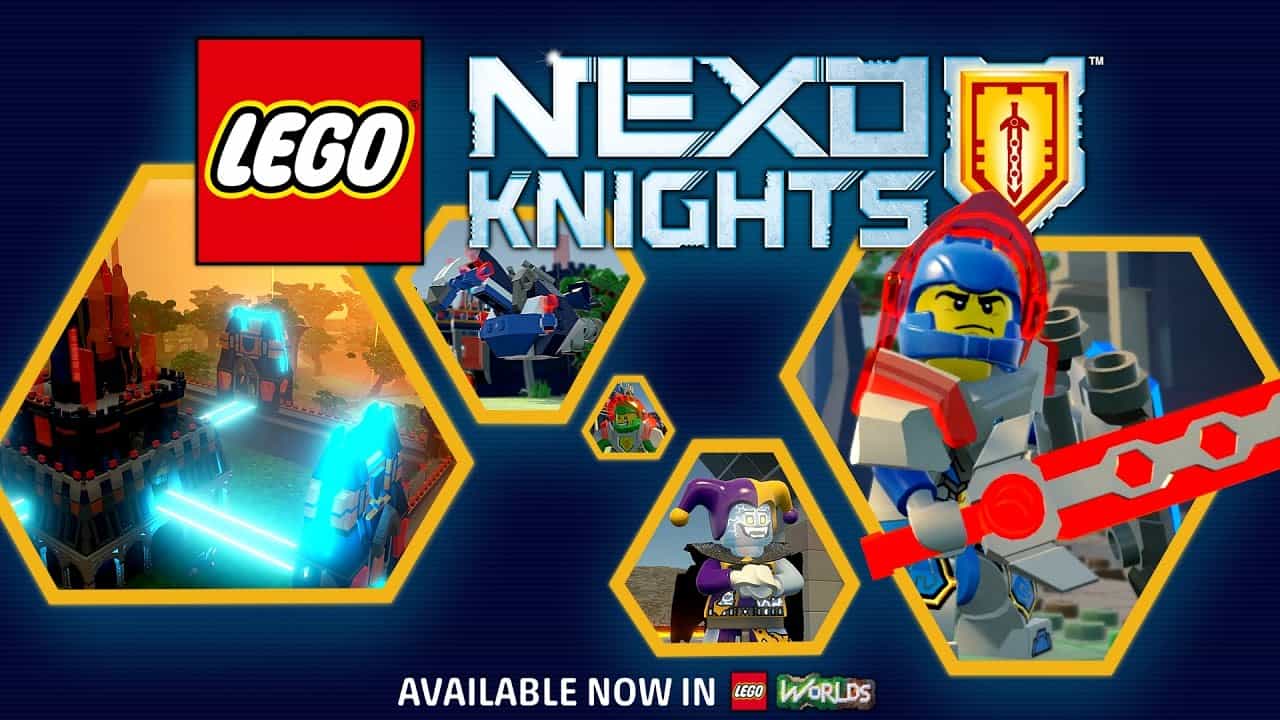
NEXO KNIGHTS are coming to LEGO Worlds on PC, Xbox One, Playstation4

The LEGO brand has built itself up from being mere blocks for little kids to toy with, securing itself in television and video game presence. Now the popular brand is building on its featured title LEGO Worlds by adding content of their medieval TV series NEXO KNIGHTS to the game’s content.

NEXO KNIGHTS are just what you’d expect: stereotypical heroes ranging from shield and ax to wielding a double handed claymore. In fact, these heroes are so stereotypical, that each name portrays pretty much their attack style, even though each gets a unique power in LEGO Worlds. There are also a handful of villains being added, to keep the balance of power.

And of course, in true LEGO fashion, there’s a lot more new content to build with, letting you recreate the TV show’s Knighton Castle or make your own creations. The possibilities are nearly limitless in LEGO Worlds.

The NEXO KNIGHTS are now available in game as of today, so if you want to try them out, boot up LEGO Worlds on your Xbox One, Playstation4, or PC.

Twitter user provides sneak peek at revamped Windows 10 on-screen keyboard

A couple of days ago it was revealed that Windows 10 Mobile’s keyboard would be coming to Windows 10 PCs, complete with swipe and pen functionality. Well, one Microsoft leaker has just given the world a “sneak peek” at the upcoming keyboard, and it’s looking pretty good for those who have long requested it.

While it’s not exactly clear if Microsoft plans to bring this keyboard to the Windows 10 Fall Creators Update, files for it have been spotted in Windows 10 build 16212, accidentally released last week. This Twitter user, who simply goes by the name of Indigo, managed to somehow offer up a look at the keyboard, and it should be very familiar to Windows 10 Mobile users.

Indigo provides a GIF of the keyboard in action, which shows that the swipe feature now works on Windows 10 PCs. Subsequent replies from Indigo have also indicated that the working version of the keyboard is compatible with the mouse, touch, and Surface Pen.

As we previously reported, this keyboard is supposedly based on Swiftkey, the UK company that Microsoft acquired in 2016. It also will be a unified component across Windows 10 devices, since it is a CShell TextInput component. And, given the fact that the files for the keyboard were spotted in the accidentally released build, it might as well end up being more official within the next few months.

Microsoft makes Hexadite acquisition official

Two weeks ago, we learned that Microsoft was expected to acquire Hexadite, an Israeli IT security startup in a move to improve its cybersecurity efforts. The Redmond giant has just confirmed the acquisition today, though the company didn’t disclose the terms of the agreement (a previous report from Israeli newspaper Calcalist previously mentioned a $100 million deal).

According to the press release, the Hexadine team will join the Windows and Devices Group following the close of the deal and a period of integration. Hexadine’s technology, which provides automatic incident investigation and remediation solutions to companies will be used to improve Windows Defender Advanced Threat Protection (WDATP):

Today, Microsoft is strengthening its Advanced Threat Protection offering by adding artificial intelligence-based automatic investigation and remediation capabilities, making response and remediation faster and more effective. With Hexadite, WDATP will include endpoint security automated remediation, while continuing the incredible growth in activations of WDATP, which now protects almost 2 million devices.

As the massive WannaCry attack recently showed, Microsoft can’t really afford not to take cybersecurity very seriously these days.  “Our vision is to deliver a new generation of security capabilities that helps our customers protect, detect and respond to the constantly evolving and ever-changing cyberthreat landscape,” explained Terry Myerson, EVP of Microsoft’s Windows and Devices Group. “Hexadite’s technology and talent will augment our existing capabilities and enable our ability to add new tools and services to Microsoft’s robust enterprise security offerings.”

Pre-ordering Wonder Woman movie unlocks Injustice 2 in-game currency on Xbox One

Wonder Woman, the brand new blockbuster movie based on the popular DC Comics character, has already broken some box office records since its US release last Friday. The movie has received some great reviews, and it’s already available to pre-order on some digital media stores such as iTunes and the Windows Store.

If you really enjoyed the movie, and if you also happen to own the superhero fighting game Injustice 2 on your Xbox One (where Wonder Woman is one the playable characters), then you may really want to pre-order Wonder Woman on the Windows Store. Indeed, Microsoft is offering 11,000 Injustice 2 Source Crystals to people who pre-order the movie, and you’ll be able to use the in-game currency to purchase new skins or power ups for your favorite characters.

If you own an Xbox One S, then you should also know that the movie is available in glorious Ultra High Definition and HDR capable. The UHD version will cost you $29.99, but you can also choose the cheaper HD version ($19.99) or SD version ($14.99).


Microsoft shares new data about Xbox One backward compatibility, “usage remains high” according to Phil Spencer

Earlier this week, a lengthy report from Ars Technica revealed some interesting details about how Xbox One and Xbox 360 owners use their consoles. For the Xbox One specifically, the report highlighted that Xbox One games accounted for 54.7% of time spent on the gaming console, while Xbox 360 backward compatible games represented just 1.5% of Xbox One usage.

Ars Technica’s data was based on a sample of 930K Xbox One users obtained through a third-party API, but the bits about Xbox 360 backward compatibility weren’t really flattering for the Xbox team, to say the least. However, as the report was based on a sample of Xbox Live users, it doesn’t necessarily tells the whole story.

Ars Technica’s report showed that Xbox One owners largely ignore backward compatible games.

Anyway, the Xbox team apparently felt the need to share some new hard data proving that Backward Compatibility is a popular feature on the Xbox One (via Thurrott.com). Yesterday, Xbox CMO Mike Nichols shared on Twitter that approximately 50% of Xbox One owners have played backward compatible games on their Xbox One consoles, which represents over 508 million hours of gameplay.

In the same Twitter thread, Xbox head Phil Spencer added that “usage remains high,” with one or two backward compatible games usually appearing in the daily top played games ranking on Xbox Live

Xbox One Backward Compatibility originally launched with the New Xbox One Experience back in Fall 2015, and there are now more than 300 Xbox 360 games in the catalog. More importantly, all Xbox 360 games included in the monthly Games with Gold selection are now backward compatible on the Xbox One, and the recently launched Xbox Games Pass also includes a healthy selection of Xbox 360 titles.

Overall, it seems that Backward Compatibility is a very important feature for the Xbox team. It gives Xbox 360 owners a good incentive to upgrade to the Xbox One, and it’s also good for developers and publishers (even though many of them have chosen to release remastered versions of their old games on the Xbox One). Additionally, all Xbox 360 backward compatible titles will be playable on Project Scorpio, the next generation Xbox console that Microsoft is expected to unveil this Sunday at E3.

As Xbox exec Mike Ybarra said earlier this week, backward compatibility remains a key point of differentiation with Sony’s Playstation 4. “We want gamers to play the best games of the past, current, and future,” explained the exec. “It’s what gamers have asked for.”

5 Best Tools for GPU Info and Diagnostics

GPU info, diagnostic and monitoring tools are essential for properly tracking system and hardware information, especially for video cards prone to overheat and malfunction if you’re not careful.

So it’s highly advisable to keep track of GPU behavior, especially after extensive use and when it’s warm outside. Of course there are built-in tools to check your graphics card for information like whether it is DirectX 12 compatible but sometimes you need more info.

For that purpose, we enlisted some of the best tools that should help you considerably in tracking changes and gathering essential information.

We hope you’ll find something you like with the information we provided below.

What are the best video card information tools?

GPU-Z – The best option

GPU-Z is probably the best-known GPU info and monitoring tool for your graphics card. It’s one of the oldest, too, so it’s not strange that people are prone to use it instead of alternative solutions.

GPU-Z is a simplistic tool that offers complete details of your GPU. It only covers Video Card information, but you can always download CPU-Z for additional information about your CPU.

Also, it’s strictly developed for monitoring, so you won’t be able to make changes or overclock your graphics.

It supports all available cards and sensor readings, so you can use it for Nvidia, AMD, or Intel. Moreover, you can choose between a portable version and one that can be installed.

In the uncluttered interface, you can find out multiple pieces of information about your GPU, and these are some of them:

  • Name
  • Production
  • GPU Memory
  • Release Date
  • GPU Clock with standard and overclocked values.
  • GPU BIOS version
  • BUS Interface
  • GPU temperature
  • Voltage
  • Fan speed

Besides, it packs the screenshot function if you need to share readings with someone else. In addition, you can back up GPU BIOS, which can come in handy on some occasions. What else can you expect from the free and lightweight program?

⇒ Get GPU-Z

HWiNFO – For all-round information

While GPU-Z is strictly created for GPU monitoring, HWiNFO (Hardware Information) is an all-around tool that covers all the hardware information you’ll ever need.

If you’re in the mood for one tool that is the jack of all trades instead of a few individual tools, look no further. HWiNFO is a complete hardware monitoring tool. Advanced users thrive the most in their surroundings, but even the newbies should have an easy time.

It supports all known GPUs and motherboards and functions on 32-bit and 64-bit architectures. However, installation is mandatory.

With the System Health Monitoring feature, you can keep close track of the behavior of various hardware parts, while the Reporting and Alerting feature will inform you if something goes wrong when the program is working in the background.

The interface is quite well-designed, and its best perk is Customizable Table which enables you to choose individual preferences. In this case, you can optimize it just for GPU monitoring.

That way, you’ll always have all information about your GPU. In addition, you can download various add-ons to enlarge the already formidable base.

⇒ Get HWiNFO

Speccy – Simple interface

Small in size but a powerful and well-designed tool, Speccy is the user’s favorite GPU info tool for Windows 10. With the Windows-like interface and bundle of features, it’s a great tool for essential monitoring operations.

Like HWiNFO, it covers all hardware components and tracks software changes. One problem is that the distinction between premium and freeware versions is too large.

So, for this amazing small tool to resemble HWiNFO function-wise, you’ll need to pay. However, it still should satisfy your basic needs when it comes to GPU information.

It supports all the GPUs you can think of, including sensor readings of modern motherboards. We advise you to try this tool if you’re interested in design and simplicity more than the plethora of features and somewhat cluttered pieces of information.

⇒ Get Speccy

Astra32 – Offers other nifty tools

astra 32 gpu info tool

Astra32 is another popular and advanced monitoring tool that’s in the middle when it comes to features-simplicity ratio. It provides you with all the necessary info, but it’s not as thorough and detailed as HWiNFO or GPU-Z, at least strictly in the GPU department.

However, Astra32 should be enough to get the job done. With real-time monitoring readings and relevant information, users should easily trace all-around PC behavior.

It supports every available GPU or motherboard, as expected. So, why would you use Astra32 instead of GPU-Z or HWiNFO? Well, it has some interesting tools that can prove helpful in various scenarios.

Starting with HDD Diagnostics and coming to a quite nifty Driver Troubleshooter. Additionally, it comes both in installable and portable versions.

⇒ Get Astra32

EVGA Precision X – Exclusive to NVIDIA graphics

All of the previously enlisted GPU info tools support all or at least most GPUs you’ll ever encounter. However, EVGA Precision X is an elite tool exclusively developed for Nvidia GPUs.

It’s underestimating to say this is just a monitoring tool. EVGA is a premium tool that covers everything you’ll ever need to know about your Nvidia GPU.

Moreover, with its futuristic design, you’ll have an impression that you’re more of a pilot of a Star Wars-like battleship than just a vivid gamer. Overclocking, monitoring, advanced scanning for optimal frequency and voltage, and much more.

However, in order to obtain this tool, you’ll need membership and GTX GPU variations produced by EVGA. That can be a dealbreaker for many users, but if you’re willing to take full control, this may be a great offer.

⇒ Get EVGA Precision X

That should be the end of the list. Don’t forget that the ATI Catalyst or Nvidia Control Center may suffice if you’re keen to know the elementary information about your GPU.

But it’s advised to use them in combination with one of the above-mentioned GPU info and diagnostic tools for better insight and more detailed readings.

Before you leave, check the best tools for complete system information and identify the hardware and software aspects of the PC.

What tool do you use for checking video card info? Don’t forget to tell us in the comments section below.

Xbox One version of The Elder Scrolls Online to get an update for Project Scorpio

Rich Lambert, the creative director of Zenimax Online Studios, has revealed in an interview that the Xbox One version of The Elder Scrolls Online would likely get an update to allow the MMO video game to take advantage of the Project Scorpio’s superior hardware.

“I think we’re going to be in for the same kinds of things that we did with the PS4 Pro. So visual stability will be up there. We’ll probably have the same types of visual bells and whistles,” he said. “I would definitely say power is key. Memory is key. Especially in a game like The Elder Scrolls Online. There are hundreds of characters running around on the screen at any one time. We can have a 300 person battle in our game and that eats up memory. That eats up computing power and it eats up VRAM. So, the more they can pack into those newer consoles, the better. Definitely, we have seen just on console a really strong desire for a good console MMO and we’re reaping the benefits for that. But, I think as the consoles get more and more powerful, more and more people will start moving towards a console. Because it’s nice to sit on your sofa and have a beer and play.”

No timeline has been given for the update but given that Project Scorpio isn’t even out yet and likely won’t launch until the end of the year, that doesn’t necessarily mean that fans of the game will be waiting long.

Are you excited to see The Elder Scrolls Online receive a graphical upgrade? Let us know in the comments below.

Microsoft trademarks Direct Reality ahead of E3

Microsoft has filed a trademark application related to gaming called, Direct Reality. References to video game software, software for holographic applications, and online game software are all mentioned in the filing however it’s unclear exactly what this Direct Reality is or does.

Companies file patents for names and concepts all of the time and doing so doesn’t necessarily mean that much will come of them. Microsoft is focusing a lot on augmented and virtual reality on Windows 10 and (to a lesser degree) the Xbox One so this filing isn’t completely random.

Microsoft is holding a presentation in a few days’ time at E3 where they will properly unveil Project Scorpio, a significantly more powerful Xbox One video game console. While Scorpio will support virtual reality, Microsoft has already stated that that won’t be the focus of their presentation which many expect to revolve around the Project Scorpio hardware, its final name, and the Xbox One games that support it.

What do you think Direct Reality means? Let us know in the comments below.

New Mixer tab is now live on Xbox One dashboards

The new Mixer tab has now been pushed out to all Xbox One console dashboards and interestingly enough, it didn’t appear to require a system update to appear.

This new addition to the Xbox One dashboard displays a variety of information from Microsoft’s Mixer video game streaming service. Currently, the tab features a Welcome to Mixer introduction video, three prominently featured streams, five featured games and a link to browse streams relating to other titles, and six featured Mixer Partners right along the bottom. Also found on the tab are small text link shortcuts to view all active streams, followed streams, and an option to search Mixer channels. All links in this tab will open the Mixer Xbox One app with the exception of the introduction video.

While the integration of Mixer into the Xbox One is part of Microsoft’s overall strategy for the service, the launch of this feature today was likely done in preparation for Microsoft’s E3 presentation next week which will be streamed in 4K via Mixer. With an entire section of the dashboard dedicated to Mixer, it will be easier than ever for Microsoft to promote their stream and the announcements made.

Do you like the new Mixer tab? Let us know in the comments below.

That new Mixer tab will be added to the Xbox One Dashboard “sometime in the next 24 hours”

As Mixer undergoes its rebrand from Beam, it’s getting a lot more attention from other Microsoft services. The first big change coming is a change to the Xbox One dashboard, which is going to be introducing a dedicated tab for Mixer right there on display. Major Nelson announced the news through a tweet, saying that the new addition to the dashboard is coming “sometime in the next 24 hours.” It’s a vague timeframe, but a close one.

Mixer was previously known as Beam until a legally obligated name change occurred a few weeks back. Since Mixer got its new name and its new look, it’s implemented tons of new features and has been announced as the sole place to watch Microsoft’s E3 briefing in 4k UHD.

A new “Entertainment” section will soon grace the Xbox One Dashboard of Alpha Ring Insiders [Update, it’s now live]

There’s a new section coming to the Xbox One Dashboard: Entertainment. This new section will be placed right in between the Community and Store pages, and will contain primarily movies and TV shows as opposed to games, and other media. The new Entertainment section may be coming out with the new build 1706, which should be coming out later today. (Edit: It’s now live, and started rolling out on June 7th at 6:00 PM PDT 1:00 AM GMT)

The company described the upcoming Entertainment section in a post to the Xbox forums.

When loading the dashboard on your Xbox One, Preview Alpha Insiders will notice a new Entertainment twist nestled between Community and Store. Here you’ll find the latest movies and TV shows as well as content from your favorite video streaming apps

Edit: The Changelog for the update which brings this feature is now available, and can be seen below.

  • DETAILS:
    OS version released: rs2_release_xbox_1706.170604-1700
  • NEW FEATURES:
    –Entertainment Twist When loading the dashboard on your Xbox One, Preview Alpha Insiders will notice a new Entertainment twist nestled between Community and Store. Here you’ll find the latest movies and TV shows as well as content from your favorite video streaming apps. Be sure to explore the new Entertainment twist and use Report a problem if you encounter any issues.
    NOTE: If the Entertainment twist doesn’t appear right away, you may need to hard reset your console.
  • FIXES:
    –Party Chat:
    Resolved an issue which sometimes caused the “Connecting” icon to never disappear and party to fail to connect when initiating a party.
    – Audio:
    Fixed an issue which could sometimes cause audio to fail to play in games (but play as normal on the dashboard).
    –Games & Apps:
    Resolved an issue which could sometimes cause game and app tiles to not be visible in Games & Apps.
    – Minecraft:
    Fixed an issue which could sometimes cause graphical corruption in Minecraft.
    – Mixer:
    When switching games while broadcasting with Mixer, the stream should no longer freeze.
  • KNOWN ISSUES:
    –Audio:
    When using Windows Sonic or Dolby Atmos for headphones, you may hear static in the audio. This issue is being investigated by the development team.
    –Mixer:
    After dismissing the virtual keyboard, attempting to relaunch the virtual keyboard may fail.
    When signing out of the Mixer app and signing in with a new user, the user who launched the app is still displayed.  When switching games while broadcasting with Mixer, the stream freezes and doesn’t allow the user to close or restart the broadcast. Workaround: Restart the console.

This is just the first of many changes to the Xbox One Dashboard, if our assumptions about the Fall Creators Update are right. The introduction of the new design UI coming across Windows 10 devices should be implementing all sorts of new goodies along with the new suite of features.

Poll: Are you happy with Windows 10?

Microsoft first introduced Windows 10 almost two years ago, and even if you’re not a Windows Insider, you’ve probably had a chance to use the latest operating system from Microsoft. With a refined application of the somewhat clunky desktop/Start Screen interface that the company first introduced with Windows 8, lots of new security and stability features, a measured but forward moving emphasis on Universal Windows Apps, and the ongoing melding of PC/Xbox/phone/HoloLens/?? interfaces into a single coherent interface language, Windows 10 is maturing.

Still, there’s lingering FUD about privacy implications surrounding Windows 10 with some not-well-understood “phone home” properties that have some worrying about what kind of info Microsoft is collecting, a resistance to those UWP applications that have yet to take hold, and seem to be mainly watered down versions of apps available on other platforms, and hesitation by users and corporations to embrace the new tiled interface.

So, are you happy with Windows 10? Let us know in the poll below:


Is Windows 10 working for you? What’s your most/least favorite thing about it? Are you looking forward to the Fall Creators Update to really get you going? Feel free to leave us a comment and let us know what you think.

Microsoft is hiding Xbox Scorpio messages in teaser ads

We’re just a few days away from Microsoft’s E3 2017 press event, but it looks like the company may already be playing games with Xbox enthusiasts. Several teaser videos have been recently published on various Xbox social media channels, and some eagle-eyed Twitter users have spotted what could be some very interesting hidden messages (via The Verge).

If you missed them, YouTube user The Red Dragon put together some of these teasers back to back in the following video:

In one of the teasers, Twitter user XboxInGame spotted that a mysterious “X10S101-317” message briefly appeared on the side of a stage surrounded by a huge crowd. While this could literally mean anything at first sight, “X10S” may well refer to Project Scorpio, and “101-317” could hint at the console’s release date (10/13/17, or 13th October 2017).

Moreover, the same Twitter user spotted in another video teaser a “6>4” message appearing briefly on the side of a tent next to a Ferris wheel. This other cryptic message may be a reference to Project Scorpio having six teraflops of computing power, which is superior to the 4 teraflops in Sony’s Playstation 4 Pro.

We should probably avoid to over-interpret these mysterious numbers, though Xbox exec Albert Penello reacted to these various tweets earlier today. And as the saying goes, when there is smoke, there is fire:

Could Microsoft release Project Scorpio in October? We’ll have to wait to find out, but this could well help the new console gain some momentum ahead of the holiday season. Anyway, we’ll be watching all upcoming Xbox teasers much more closely than before!

E3 Coliseum panels to feature Bungie and Destiny 2, Xbox Scorpio, Sea of Thieves, more

The Entertainment Software Association today announced the complete list of panels and guests for the E3 Coliseum at The Nova at L.A. Live. Running from June 13th to June 14th, The Coliseum is a new main stage event for video game fans, aimed at connecting them to the biggest stars and faces in the video game industry. Featured panels throughout the two-day event include Bungie and Destiny 2, Xbox Scorpio, Sea of Thieves, and more.

Overall, The Coliseum is open to everyone who holds an E3 badge, and you can line up to attend the event starting at 7AM on June 13th. For those unable to attend in person, the event will be live streamed on Facebook live, Twitch, Mixer, and YouTube. On these platforms, fans will have changes to submit questions which will be answered by certain panelists. A few of the interesting panels and times (in Pacific Time) can be seen below, with the full list available here.

Tuesday, June 13th:

  • Noon — 12:30 PM: Inside Bungie: For over 25 years, Bungie has pushed the video game industry in bold new directions. Join Bungie CEO Pete Parsons for a wide-ranging discussion about his career, the industry, and Bungie’s next release, Destiny 2. Moderated by WWE superstar (and devoted Destiny fan) Big Show.
  • 2:45 PM — 3:15 PM: Bethesda Softworks: Join Bethesda Softworks for a look at a newly announced title that will be seen for the first time at their E3 2017 Showcase.
  • 5:00 PM — 5:45 PM: Project Scorpio: The Most Powerful Place to Create and Play: Discover how Xbox built a powerful development platform in Project Scorpio with game creators in mind. Featuring key members of the Xbox team, including Turn 10 Studios and The Coalition. Moderated by Xbox Live’s Larry Hryb (Major Nelson).

Wednesday, June 14th:

  • 10:45 AM — 11:30 AM: Sea of Thieves: Community Spirit: The Sea of Thieves team discusses the opportunities and challenges of transforming Rare, one of the industry’s most secretive developers, into an open studio that celebrates its community and has brought its most passionate fans right into the heart of the development process — an essential step in creating a AAA shared-world pirate adventure.
  • 1:30 PM — 2:00 PM: Far Cry 5: A Trip to Hope County: Welcome to Hope County, Montana, a rural community taken over by a fanatical cult. Led by Joseph Seed, “The Father,” players will build a resistance with the help of citizens of Hope County. Join Dan Hay, executive producer and creative director, and Drew Holmes, lead writer, to learn more about the citizens of Hope County, including The Father, Pastor Jerome, Mary May, and Nick Rye.
  • 4:15 PM — 5:00 PM: The Indie Revolution: Some of today’s most creative and inspiring games come from independent developers working outside the system. Join us to hear their stories. Robin Hunicke (Funomena) leads a discussion about the independent game scene across console, mobile, and PC, featuring guests including Brendan Greene (creator, Player Unknown’s Battlegrounds) and Eli Cymet (Alto’s Odyssey).

With a lineup this impressive, there will surely be lots to discuss in the coming days and weeks ahead. As a reminder, Microsoft also recently highlighted how and when you can watch the company’s E3 events, led by the Xbox E3 2017 briefing, which will be live across multiple platforms beginning on Sunday, June 11 at 2:00 p.m. PDT.  Our own Kip Kniskern will be on the ground in Los Angeles at E3, so be sure to keep it tuned for our live coverage in the days ahead.