DNS servers are down, Internet service severely disrupted in the US

At this moment, millions of Windows users cannot access popular platforms such as Twitter, Reddit, Github, Amazon and others due to a series of DDoS attacks against Dyn. Distributed Denial of Service (DDoS) attacks operate by overwhelming a website by traffic from many sources. Actually, this is a very common modus operandi for digital attacks.

According to Dyn’s official statement, the attack is mainly impacting US East and is affecting DNS customers in this region. The company’s engineers are still working on mitigating this DNS issue. Although the attack’s intensity has considerably diminished thanks to Dyn’s efforts, it still affects a huge number of users.

When Windows users first noticed this issue, they thought there was a problem with their computers. Users report that the error message “DNS Server isn’t responding” appears on the screen whenever they try to access particular websites. Rest assured, there is nothing wrong with your Windows computer.

As of the past hour, DynDNS got attacked and DDoSed. It’s one of the biggest DNS providers, so naturally that impacts a lot of internet access to seemingly random sites, including Runescape. Therefore, I suggest changing to Google’s Public DNS for now. The DNS addresses are 8.8.8.8 and 8.8.4.4. For more details on how to change your DNS, read Google’s explanation.

This solution works and allows you to connect to the websites of your choice, but as another users points out, the best thing to do is wait. Connecting to a public DNS server, such as Google’s, might actually be the point of such an attack: make people use less secure connections.

Meanwhile, if your DNS is still unavailable, try using one of these workarounds and see is these solutions fix the problem for you.

RELATED STORIES YOU NEED TO CHECK OUT:

ScreenWings is a free anti-screenshot tool for Windows users

ScreenWings is a free application for Windows OS, which will make sure that no screenshot will be taken on your computer. While not many users will find this application very useful, we can assure you that nowadays, an application like this can do the difference between having your personal information safe or getting into the hands of a hacker.

There are many hackers in the work, who are trying to steal information by grabbing your personal data (credit card info, bank account etc). This type of malware can take screenshots while you are writing your credit card information when trying to purchase something from the internet. That screenshot is then sent to the hacker, which will be able to see your credit card information and make purchases online.

Well, here is where ScreenWings comes in handy, as the application will NOT allow any screenshots to be taken on your computer. It is good to know that the application comes as a “portable program”, which means that you will be able to run it on your computer very easy.

When you launch the application, you will be able to see two buttons. One of them will be a red x-icon which closes the program, while the second one will allow you to enable the “anti-screenshot” function. Keep in mind that this button acts as a toggle, which means that you will be able to enable/disable the option whenever you want.

It is good to know that the screenshot functionality on Windows will still work, but you will notice that when you or a third party application is trying to take a screenshot, ScreenWings will blacken the screen. In other words, the screenshot will be taken as a “black screen” and the hacker will see only a black screenshot.

Have you ever got your personal data stolen by a hacker? Tell us your thoughts about ScreenWings and the simple, but useful, feature that it comes with!

RELATED STORIES TO CHECK OUT:

Battlefield 1 kills i5 CPUs, gamers are very disappointed

Battlefield 1 is finally out, allowing you to experience gruesome battles where only very few can make it alive. yes, Battlefield 1 is a killer game, especially for your i5 CPU.

According to the official system requirements, gamers should be able to run Battlefield 1 on Core i5 6600K. Of course, these are the minimum requirements, if you have an i7 processor, that’s even better. However, many gamers report Battlefield 1 literally drains their i5 CPUs. It appears this issue also affects i7 processors as well, particularly overclocked i7 CPUs.

I’ve got an overclocked 4770k and I’m on average using between 75% and 95% usage on my CPU during gameplay. Is this normal? It seems kind of much for an overclocked i7.

As one user points out, Battlefield games have been known to be taxing on CPUs. The same issues were reported on Battlefield 4, and judging by gamers’ feedback, Battlefield 1 is no exception to the rule.

Any CPU lower than a 4790k will get maxed out, regardless of what GPU gamers have. Many Battlefield 1 fans say they don’t really understand why EA/DICE took this decision in regards to CPU types, since the 4690k is the most popular gaming CPU out there.

Surprisingly, there are many gamers who run Battlefield 1 on sub-medium computers without any problem.

I have an i5-4570 @3.2GHz Turbo to 3.6GHz, 16GB RAM and GTX1070 8GB . I’m having no issues at all. Game runs like butter with all graphical options set to max. *shrug*

All in all, gamers’ reports confirm indeed that sometimes Battlefield 1 causes high CPU usage and most likely this is due to a game optimization bug. Battlefield 1 fans hope that the first patch for the game will address high CPU usage issues, but for the time being DICE has yet to issue any comments on this situation.

Have you already played Battlefield 1 on your Windows PC? Did you encounter any CPU issues?

RELATED STORIES YOU NEED TO CHECK OUT:

Top 9 WiFi tools for maximizing performance in Windows 10

A stable internet connection is a key to every aspect of our online life. Of course, the your internet package plays the integral part in your connection’s quality, but we can do a few things to make it even better, especially if we’re talking about the WiFi connection.

WiFi connection is more important to laptop users, because PC users mainly use the cable connection, so people on the go would definitely like to have as stable WiFi feature as possible. In that manner, we put together a few tools that will help you to maintain the quality of your WiFi connection at the highest level.

Using these tools will benefit you even beyond improving your WiFi connection quality. For example, you can get rid of annoying WiFi issues, which are one of the major problems in Windows, especially in the latest version, Windows 10. These tools are lined up in no particular order, since they provide different types of services, so it’s impossible to compare each one of them.

So, without any further ado, let’s see what tools we should use to maximize performance of our WiFi connection in Windows.

Tools for improving your WiFi connection

WifiInfoView

wifiinfoview windows 10

WifiInfoView is a free, portable tool that allows you to scan nearby WiFi routers. Why’s that important? Well, if you’re living in an apartment building, or some other densely populated area, the big number of WiFi routers can actually have negative effects on each other, preventing you from having the best possible WiFi performance you can get from your router.

That’s where WifiInfoView comes in. This tool shows you info about all nearby WiFi routers, including their channel numbers, MAC addresses, and more. When you find out about other routers’ channels, and notice that there are so many routers using the same channel, you can change the channel of your WiFi connection, to take some load off your router.

If you don’t know how to change your WiFi channel, check out the third solution form this article. So, you just need to use info from WifiInfoView to see which is the most crowded nearby channel, and simply move your connection to another one. We’re sure you’ll notice better performance of your WiFi router once you do that.

WifiInfoView is available for free, and you can download it from this link.

ZamZom Wireless Network Tool

zamzom windows 10

ZamZom is simple tool that allows you to see if anyone else (besides from you, and your household members) is connected to your WiFi network. That way, you can keep your WiFi network even more secure, and you’ll always know if someone is using your precious internet protocol.

In today’s world, with the wide range of tools, it is fairly easy for some people to break your WiFi password, and start using your internet. Especially if your WiFi password is weak. You probably know that the more people use your WiFi network, the poorer performance it will provide to you.

Since there’s no built-in tool in Windows 10 that allows you to see who’s connected to your WiFi, using this tool can be essential for blocking ‘thieves’ from stealing your internet. If you notice someone unknown is using your WiFi network, head over to your router’s settings, change your password, and use  stronger security this time.

ZamZom is very simple, but still effective. It scans for connected devices in a couple of seconds, giving you accurate results in no time.

This tool is available for free, and you can download it from this link.

Ookla Speed test

ookla speed test

This time, we have a web-based tool for you. This tool is called Ookla Speed Test, and as you probably can tell by its name, it gives you info about your connection speed.

Actual speed of your internet connection usually differs from what your provider listed (it’s slower), so it can be useful to determine the real situation. You connection speed can be even slower when you’re connected via WiFi, because of other potentially connected devices, just like we discussed above.

To test your internet speed with Ookla Speed test, just go to the site, run the test, and it will show you accurate results. The tool will show you both your upload and download speed, as well as the name of your internet provider.

No registration is needed for using Ookla Speed test, you just go to the site, and get the job done. There’s also an app for other platforms, including Android, iOS, and Windows 10, so you can test the signal strength in different areas of your home.

There are numerous tools like this around internet, but we think Ookla’s tool is the best choice. Of course, if you don’t agree with our opinion, look online for other internet speed testing tools.

InSSIDer Wireless Network Tool

InSSIDer Wireless Network Tool windows 10

InSSIDer Wireless Network Tool is another program for scanning your environment for other available networks. Its purpose is mainly the same as the purpose of above-listed WifiInfoView, but it offers some additional options. So, if you want your network finder to be more advanced, InSSIDer Wireless Network Tool is a great choice.

It will scan your surroundings for other wireless networks, and show you their  MAC address, the router manufacturer (in most cases), the channel they’re using, the service set identifier (SSID) or public name of the network, what kind of security they’re using, the speed of the network and more.

So if you’re interested in analyzing other networks, and comparing them with your connection, this tool will make it possible. But of course, perhaps the most valuable info you can draw with InSSIDer Wireless Network Tool is the channel of other networks. When you determine which channel is the most used one, you can transfer your connection to another channel, to get better performance.

InSSIDER Wireless Network Tool is available for free, and you can grab it from this link.

Wireless Wizard

Wireless Wizard windows 10

Now it’s time for one troubleshooting tool. One of the best free WiFi troubleshooting tools you can find is the program called Wireless Wizard. This program scans and analyzes your WiFi connection, looks for potential issues, and tries to solve them.

Wireless Wizard allows you to analyze the network’s performance, so you can find out what to change, if results are not satisfying. Once the problem is detected, Wireless Wizard will (try to) quickly solve it, and make your WiFi network working normally again. Of course, that depends on complexity of the detected problem.

Just like some other programs from this list, Wireless Wizard allows you the best channel for your connection. It works similarly to Windows’ own network troubleshooting tool, but of course, with many more features and options. Additionally, you can also use this program to resolve interference issues with your network connection.

The Wireless Wizard works with the majority of home and business networks, as well as with most major carriers. The program is very easy to use, as it has a very simple and neat design, so you shouldn’t have any trouble getting around in the environment.


Xirrus Wi-Fi Inspector

Xirrus Wi-Fi Inspector windows 10

Xirrus Wi-Fi Inspector is the third tool for scanning nearby networks on our lists. It is somewhere between WifiInfoView and InSSIDer Wireless Network Tool. So, if you want simple, straightforward, but also powerful tool, Xirrus Wi-Fi Inspector might be the right one.

Once you scan for the nearby networks with this tool, it will show you detailed info about them, including signal strength, the kind of network, the router manufacturer, the channel on which the network transmits and whether it’s an access point or an ad hoc network.

This tool can go even deeper by showing you info like, internal IP address, external IP address, DNS and gateway information of scanned networks, and more. You’ll definitely like the user interface, because it’s clean, simple and uses a ‘radar’ for scanning. Additionally, it also shows relative physical distance between you and each scanned network it found.

Xirrus is definitely simpler to use than InSSIDer, but the second one provides more detailed info about networks. So, if you just want to find out about channels of other networks, and don’t need a lot of additional information, Xirrus has the advantage.

Xirrus Wi-Fi Inspector is available for free, and you can download it from this link.

WeFi Wireless Networking Tool

wefi windows 10

We presented you enough tools for scanning all nearby networks, so you can choose the best option for you, depending on your needs. But WeFi is something similar, yet completely different. It allows you to search for hot spots in more distant locations.

For example, you’re going to a nice cafe in another part of the town, and you want to check their WiFi. Well, just use WeFi to find needed info. To find out about nearby networks at the selected location, just open the WiFi Maps tab in the program, enter address, and WeFi is going to show you all WiFi networks around. It will also give you various details about these networks, like type of the object ( hotel, café, etc.), distance from the location and whether a password is necessary.

Of course, it also has the ability to scan for networks near you, but since we have other tools for that on our list, the accent is not on this feature. It also has some additional features, like the ability to automatically connect to your favorite networks.

The program is free to use, but it also has a Paid version, which allows you to connect to WiFi networks that require paying a fee.

You can download or by WeFi Wireless Networking Tool from this link.

Connectify

connectivity windows 10

Connectify is a very useful tool, that allows you to turn your laptop into a WiFi hot spot! You’re probably familiar with doing this on your smartphone, but we’re sure you’d be glad to hear such thing is possible on Windows 10 PCs, as well.

Logically, a PC you’re turning into a WiFi hot spot needs to be connected to internet for Connectify to work. But what’s a very nice touch, it doesn’t necessarily have to be cable connection. So, it is enough for your computer to be connected to a WiFi network, and Connectify will turn your network card into a wireless transmitter.

Using Connectify is as simple as it gets. You just need to download the program, set up your hot spot’s name, password, and that’s it. Connectify will automatically start sending WiFi signal to nearby devices, using your network card. The program uses WPA2-PSK encryption, so you can be sure that only people how know the password will be able to connect.

Connectify is available for free, and you can download it from this link.

Hotspot Shield

Hotspot Shield windows 10

When you’re connected to a public network, there’s always a risk that someone might break into your device, and gain access to your data. That’s where Hotspot Shield comes in. This handy tool protects your data, by crating a secure VPN connection and encrypting all of your communications.

Running and using Hotspot Shield can’t be easier, you just need to open and turn it on. It will then automatically protect your data from potential attackers, by using the HTTP Secure (HTTPS) protocol.

However, not all users of this program are satisfied, because they’ve encountered some problems using it. First thing first, you need to dodge some bloatware when installing this software. Also, some users said that the program simply crashes and stops working for them. We haven’t experience such issues, but we must get you prepared, in case you’re not so lucky.

There are, of course, better programs for protecting your data than Hotspot Shield, but they all come with a price. So, if you’re looking for a free, and simple solution, Hotspot Shield is the right choice.

This program is available for free, so if you want to download it, head over to this link.

That’s about it for our list of the best WiFi tools for maximizing your network’s performance in Windows 10. As you were able to see, each of these programs (other than three WiFi analyzers) offers some unique, very useful operation for your router.

Do you agree with our list? Did we missed some cool program? Tell us in the comments.

RELATED STORIES YOU NEED TO CHECK OUT:

8 Best Windows Console Emulators to Use

Emulator software enables you to play retro console games on Windows and other platforms. These certainly aren’t something new, but now they’re becoming increasingly more sophisticated and can emulate 3D game consoles as recent as the Wii.

There are emulators for most retro game consoles, which are legal software packages so long as they’re based on original dumped BIOS copies. These are some of the best Windows console emulators.

What are the best Windows console emulators to use?

Dolphin

console emulator3


The Dolphin emulator is raising the bar for console emulation. That’s largely because it’s the first to emulate a seventh-generation console, otherwise the Wii, as well as the GameCube. It’s also the first emulator that provides online gaming.

The emulator is getting regular updates that are giving it considerable compatibility and performance boosts. Dolphin is now a lot faster after the 5 update. In a poll on the Dolphin website, about 87% voted that the emulator had perfect or playable compatibility with only minor graphical and audio glitches.

As Dolphin emulates more updated hardware, it has higher system requirements than most emulators. You’ll need to have a system with at least 2 GB RAM, Intel Core i5 or i7 processors, and a GPU that supports both Direct X 11.1 and OpenGL 4.4. Also note that this console emulator only runs on 64-bit Windows, Mac OS X and Linux platforms.

console emulator2

RetroArch

RetroArch is a new breed of all-in-one emulators that enables you to play games from a variety of retro consoles. As such, RetroArch runs most consoles up to the PlayStation 1 and GameBoy Advance.

Users can add a variety of console emulator cores to the software. That’s a big advantage compared with most other emulators limited to just one game console.

However, it does require a little more configuration to set up than alternative emulators. Open this page and click Windows to save the RetroArch installer to your laptop or desktop.

VBA-M VisualBoyAdvance

VBA-M VisualBoyAdvance is one of the best handheld console emulators. It emulates Nintendo’s Game Boy consoles from the original handheld to the Game Boy Advance. So users can play classic Game Boy, GB Color, and GB Advance games such as Tetris, Oracle of Seasons, Pokémon Red and Blue, Mario Land and more.

The emulator includes graphic filters to enhance display with, Game Boy printer emulation, a fast-forward button, screen capture options, and supports Code Breaker Advance cheat codes. Click Download on this Sourceforge page to add the VBA-M emulator to Windows.

You can explore a more modern option for Game Boy Advance emulation by checking the complete mGBA emulator guide for Windows, which covers setup steps, performance tips, and supported features.

Project 64

console emulator


The N64 was one of the first truly 3D game consoles that had some terrific games such as Zelda: Ocarina of Time and Golden Eye. There aren’t that many N64 emulators, but Project 64 is undoubtedly one of the best. With a decent graphics card and a good amount of RAM, this emulator will run most N64 games fairly flawlessly.

It also includes multiplayer support, and cheat options and enables users to adjust the aspect ratio. Press the Get Project 64 button on the emulator’s home page to save its setup wizard.

MAME

Arcades might have declined a bit, but many classic games were originally arcade titles. MAME is one of the best-established emulators committed to preserving vintage arcade games. As such, you can play arcade classics such as Pac-Man, Donkey Kong, and Bubble Bobble with this emulator. In addition, MAME also emulates NEO-Geo games.

It was originally a command line tool, but MAMEUI32 or MAMEUI64 both have GUIs and extensive game databases.

It might seem a slightly outdated emulator compared to some of the others here, but for classic arcade gaming, MAME is hard to beat. You can download the MAMEUI32 Zip for 32-bit Windows from this page.

PCSX2

console emulator4


The PlayStation 2 is one of the greatest game consoles ever. The PCSX2 is your best, and only, option for playing retro PS2 games in Windows, which smoothly emulates nearly all PlayStation 2 titles.

This is not entirely the same as other emulators that require ROMs. Instead, you’ll need to dump a BIOS into a folder and then configure the emulator to play the games. Consequently, you need to have a copy of the game to play it in PCSX2.

You can open this page to save the PCSX2 1.4.0 Standalone Installer to Windows.

Kega Fusion

console emulator5


SEGA no longer makes game consoles, but you always revive some Sonic nostalgia with Kega Fusion. Fusion is perhaps the best emulator for retro SEGA consoles because you can play Master System, Genesis, Game Gear, 32 X, SG1000, SC3000, SF7000, and MegaCD games with it.

That’s almost every SEGA console except the Dreamcast and Saturn. It provides USB gamepad support, a Netplay option for online gaming, video and audio capture options, and cheat support. Kega Fusion is also a portable program that you can run from USB flash drives. Click Kega Fusion 3.64 Windows on this page to save its ZIP.

Those are several great console emulators for Windows 10 and other platforms. With those, you can restore a multitude of classic console and arcade games for some gaming nostalgia. Note that you can also play 2D retro games in your browser at websites such as NesEmu, Retro SEGA, and Emulation Collective.

If you are looking for a PS3 emulator for your Windows computer, we have curated a list for the same; check out this guide.

How to Fix Common Battlefield 1 Issues

Battlefield 1 is now available globally, allowing you to dive into fierce World War 1 battles. Before you hit the play button, ensure your Xbox One or Windows PC is perfectly capable of running the game. In this manner, you’ll limit the potential issues you may encounter.

If you’re playing on a Windows PC, check the system requirements before you buy the game. If you’re still experiencing issues, check out the workarounds listed below.

How can I fix Battlefield 1 issues on Xbox One and Windows PC?

The EA Access trial warning keeps popping up

You can reset your Xbox One and choose the Reset and Keep my games and apps option. If you don’t want to perform this action, you can also delete any Battlefield 4 downloadable content (DLC) you have on your Xbox One, which will stop the pop-up from appearing.

Once you’ve deleted the DLCs, restart your Xbox One and relaunch Battlefield 1.

DirectX OUTOFMEMORY error

battlefield 1 DirectX error


If you’ve encountered this error, you can quickly repair the Redists files and see if this single action solves the problem. If not, continue the troubleshooting process by performing steps 2 and 3.

1. Go to the Battlefield 1 folder > _Installer > install/ repair the Redists files.
2. Install the latest major Windows updates.
3. Updated the Nvidia GeForce Experience, not the Driver.

Battlefield 1 opens a black window and then closes

battlefield 1 black screen


This issue usually lies with the Origin activation rather than the game itself. You should reinstall the Origin client, and then run Origin as an administrator. No game reinstallation is required.

There are many issues for which there is no workaround available. Most of these bugs will likely get fixed once the first patches for the game are rolled out.

Meanwhile, don’t forget to download the latest NVIDIA Geforce Game Ready Drivers that provide the optimal experience for Battlefield 1, Civilization VI, and Titanfall 2. Hopefully, these drivers will fix some of the many issues for which no workaround is available.

Another common issue Battlefield players face on gaming consoles and computers is error code 1; read this guide to learn more about it.

Microsoft Surface hits the big time, makes its way to South Park

So, it’s Friday again and it’s time for some fun. A tipster going by the name of Marco C. sent us an email revealing that a Surface-like device may have replaced iPads in the animated adult series South Park.

It’s always fun to see South Park shamelessly putting products and logos of other companies in the series and once again, that happened. A device looking like a Microsoft Surface showed up in Season 20, Episode 5 of South Park at the 17:20-timemark.

We, unfortunately, cannot link to a free site to watch the episode itself, but if you own a Hulu or Amazon Prime subscription then the show is available on these platforms.

Up until now, only iPads were to be found as the tablets in the South Park universe, but this looks to be changing. The Surface line has got a lot of mainstream attention the last two years and it seems to be taking over the position of “the definition of a tablet” in the eyes of content creators and even regular consumers.

We hope to see more of these appearances in the future and we will sure report on them, too. So stay tuned!

Surface Pro 4 helps design entrepreneur Patrick DuChene build his business

Microsoft has a nice history lately of highlighting various innovative business uses of its Surface line of Windows 10 2-in-1s. Often, given how well Surface works for creative types, Microsoft profiles professionals who work in design and architecture, and their most recent piece keeps the trend alive.

Design entrepreneur and Surface fan Patrick DuChene

This time around, Microsoft took some time to focus on the founder of DuChene Design Solutions, LLC, an independent design consultancy company that provides design work for landscape and design firms. As Microsoft puts it:

Patrick is all about productivity, efficiency and technology, which are key to making his business run. He enjoys flexibility, and says Surface is “awesome because I am able to move around the house to work where I feel like working, take it to the clubhouse where I live and have a drink and do some emails or write a speech, take it outside to my backyard and watch the boats come into the dock, and then manage my business at night by downloading files sent to me by clients and organizing them into my design schedule.” When I asked him what else he loves about the Surface Pro 4, he responded: “The screen, the screen, the screen! It is beautiful – the whites are so great, not bluish or yellowish like other laptops.”

Patrick uses a number of industry-specific and creative applications that work well on his Surface Pro 4, such as DynaSCAPE Design and Color, Lumion, SketchUp, and Shaderlight. For his business-oriented productivity, he uses Office:

“I can do my design base sheets, sketch on those base sheets for concepts for my clients or for myself, bring those sketches back into my software, finish the drawings, color the drawings, model the drawings and render the drawings ALL WITH ONE COMPUTER—not jumping back and forth from one system to the other.”

Design entrepreneur and Surface fan Patrick DuChene

Patrick is clearly excited about using one machine to accomplish so many things, which the Surface Pro 4 is uniquely positioned to enable. He offers more advice to designers who might want to make a jump to a Surface device:

  1. Create a base sheet for the property you are designing and take measurements and make notes on your Surface in the field with the Surface Pen. This will help expedite the design process later on and will help you capture that “feeling” you get in the space.
  2. Use Drawboard PDF or Microsoft Paint – both of which come free and installed on the Surface – to do labeled concept sketches that you can easily email to a client for feedback. Collaborating with your clients electronically during the design process makes them feel attended to and can make the whole process more enjoyable and effective.
  3. Make sure you purchase the right Surface configuration for your needs, as there are many hardware configuration options for different users and uses. If you are doing more intense tasks like 3D modeling or a lot of multitasking with design programs, I’d recommend you spring for the i7 with 16GB of RAM like I did. It will be plenty of power for almost anything you throw at it!

We concur with Patrick that the Surface Pro 4 is a well-rounded and capable device, and we too recommend it for anyone who needs to mix business tasks with creative design. Let us know in the comments if you, too, agree.

Microsoft’s unreleased Cache clip saver and organizer: our first impressions

Formerly called OneClip, the app now named Cache has been leaked onto the web allowing anyone to install it. But what is it, and how does it work?

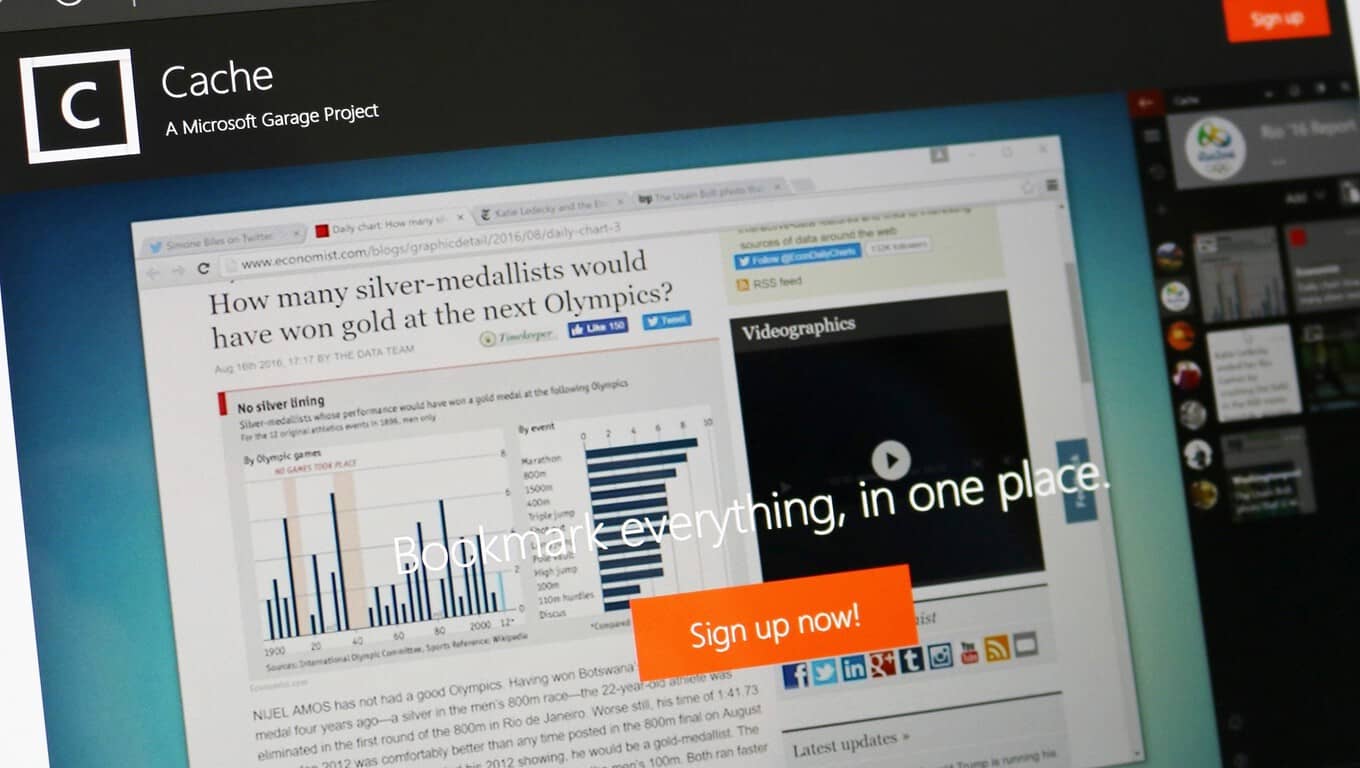
Cache is a tool that is designed to simplify your workflow by managing all your links, pictures, texts and other copy-paste items. It stores your objects in either a sidebar, like in the picture below, or in a regular window.

The tool is very polished for a beta program, and it works as expected. It features an MDL2 design like UWP apps but actually isn’t one. The app is a Win32 app designed to look like a Universal Windows Platform application but it isn’t a true Windows 10 experience. The real platform this application runs on can be seen by right-clicking everywhere in the app and looking the context menu design as well as simply looking at the title bar or settings page. Even some of the dialogues look like Windows 95.

I’ve encountered some issues with it, however, but nothing major or nothing a restart of the app couldn’t fix. When clicking the three-dot menu then on “Edit image,” nothing happens. You have to right-click the icon in order to customize the collection. Also, some weird issues like not begin able to remove any content from the collection also popped up but were fixed with closing the app from the task manager and opening it again. It gave me different errors like “Sorry, something went wrong. We’ve notified the team.”

As you can see in the screenshot above, I have already started using the tool as my daily accessory for school and work. It works very well and improves my workflow by quite a lot. Instead of having 20 different tabs open in Edge and then switching between them and searching for the info I need each time, I can just move everything over there and easily drag and drop what I need into the articles. Pretty handy.

Now, do note that Cache is not officially released by Microsoft yet and the package I downloaded is from an untrusted source. I could have an infected computer now and you may see a bunch of fake posts promoting cheap ways to go down in weight on OnMSFT from now on. I don’t think that is going to happen, but make sure you know that OnMSFT takes zero responsibility for you downloading this app and using it, no matter if it just makes your PC crash or if your bank account data is stolen.

Having cleared that up, you can follow this link and read more about the leak and installation itself.

If you think it may not be a good idea to get it now and you prefer to wait until Microsoft implements it into the system or Office themselves, that is also fine. The rumours say that it will be released in the Redstone 2 update, and that means it should show up for Insiders soon.

Fix: Windows 10 Mobile build 14951 won’t download

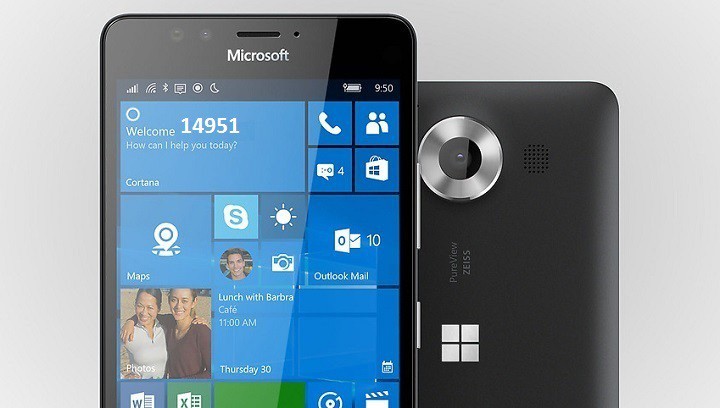
Installing Windows 10 Mobile build 14951 has been a hard nut to crack for Insiders, as well as for Dona Sarkar’s Insider Team. Tens of thousands of Insiders cannot install build 14951 on their terminals because the update screen always shows “0% Downloading”.

In other words, Insiders cannot even download build 14951 on their phones. Yesterday, Microsoft has officially acknowledged the bug and today the company managed to develop a workaround to fix these install issues.

As we already pointed out, the download issues are not related to build 14951 itself, but to build 14946. Microsoft confirmed this piece of information as well:

We have narrowed this down to a new issue that only seems to affect devices on Windows 10 Mobile build 14946. We are making a change to how Build 14951 is published, so that Insiders can avoid hitting this issue. We will also make the same changes when we published the next build so Insiders do not hit this when upgrading to newer builds.

How to fix Windows 10 Mobile build 14951 install issues

“Here are 4 options we are validating to get out of this state:
FASTEST – You can force the update session to time out by:

  • Plug your device into a charger
  • Open Settings > Update & Security > Windows Insider Program – Change your device to “Slow” and then back to “Fast”
  • Turn on airplane mode Settings > Network & wireless > Airplane Mode
  • Navigate to Settings > Time & Language > Date & Time – If On, turn “Set date and time automatically” to the Off position
  • Change the date on the device to 7 days in the future
  • Return to the home screen & Reboot the device
  • After the reboot, turn off airplane mode – Settings > Network & wireless > Airplane Mode
  • Check for updates – Settings > Update & Security > Phone update > Check for updates
  • This process will fail with an error code. This is expected!
  • Change the device date back to the current date – Settings > Time & Language > Date & Time
  • Check for updates – Settings > Update & Security > Phone update > Check for updates
  • This check may fail again, this is ok.
  • Reboot the device
  • After the reboot, check for updates – Settings > Update & Security > Phone update > Check for updates
  • The check for updates should succeed and begin downloading 14951
    • *Note* We have seen several instances of users reporting getting error code 80242006 after this last check for updates. We will be doing some additional testing on our side for this, but in the mean time, Insiders are awesome and have noted these additional steps seem to bypass this final error message:
  • Switch Insider setting to Slow ring
  • Check for updates (will say you are up-to-date for the Slow ring)
  • Change back to Fast ring
  • Check for updates again and it should update.

EASIEST-LONGEST – If your device is already in this state, it will timeout after 5 days. Once the update times out, your device will get the updated metadata and should move forward as normal with download Build 14951.
MEDIUM WORK – If your factory reset your device on Build 14946 – Settings->System->About->Reset your phone – you will be able to download 14951 without issue now.
MOST WORK – Less optimal, but if you have already rolled back to an older build such as Windows 10 Version 1511 or Windows 10 Anniversary Update using WDRT, you can easily move forward avoiding this issue.”

Judging by the users’ reports, it appears that the most reliable method to install build 14951 is the first one on the list. Many users managed to download build 14951 after switching to Slow Ring and then back to Fast Ring.

RELATED STORIES YOU NEED TO CHECK OUT:

Microsoft launches 15th annual Imagine Cup, doubles top prize to $100,000

Microsoft has announced that it’s accepting applications for the 2017 Imagine Cup, its student technology competition now celebrating its 15th anniversary. Student teams can compete by building applications using Microsoft technologies, this year vying for a $100,000 top prize, double what it’s been in the past.

Microsoft has made some modifications to this year’s rules, first of all noting that it’s paramount that today’s students prepare for the future by building skills in cloud technologies, and so the company wants to “highly encourage all Imagine Cup projects to showcase one or more Microsoft Azure services within their solutions.”

Microsoft is also placing greater emphasis on the underlying technologies used in this year’s projects, and will be looking for “deep technology integration in fully formed apps, services and games with the potential to be viable in the commercial marketplace.”

Finally, the company is foregoing the categories that were used in past competitions so that projects that don’t neatly fit into a category can still compete.

You can check out the official rules and regulations, and register for the Imagine Cup today!

Here’s the latest Windows 10 stats as of October 2016

The cross-promotion network for Windows Phone and Windows Store apps AdDuplex has published today its latest Windows Device Statistic Report, and the new data collected on October 19th shows that the Windows 10 Anniversary Update continues to gain OS share across devices. While not a lot has changed on the mobile side since last month’s report, AdDuplex did observe that the global rollout of Windows 10 version 1607 on desktop PCs reached a new milestone this month. Let’s dive into the details below.

First of all, the company noted that the top Windows phone chart remained the same this month: the Lumia 535 is still the most popular handset worldwide with a 13.3% market share (up 0.7 points of percentage month-over-month), followed by the Lumia 520 and the Lumia 640. Looking at the Windows 10 Mobile phones exclusively, the only notable change is that the Lumia 540 (a more powerful variant of the Lumia 535 which was not released globally) in now the tenth most popular handset, replacing the Lumia 830. Additionally, the premium-priced HP Elite x3 entered the chart at #36, which doesn’t mean much as the handset has only reached select markets over the last few weeks.

No major changes in the top Windows phone chart this month.
Windows 10 Mobile remains at the same levels.
Low-end Lumia handsets are still on top.

The Windows Phone OS versions charts are more interesting: AdDuplex’s latest data confirms that Windows 10 Mobile is no longer growing and its current 13.7% OS share is actually slightly lower than last month’s numbers (14%). As AdDuplex only collects data from around 5,000 Windows Phone apps running AdDuplex SDK v.2 and higher, this doesn’t necessarily mean that Windows Phone 8/8.1 (both OSes claims a combined OS share of 84.2% OS) is making a come back. Still, it’s still quite concerning to see that the massive discounts on Microsoft’s latest Lumia phones did not move the needle.

AdDuplex Windows Phone October 2016
Windows 10 Mobile seems stuck at the 14% mark.

While Windows 10 Mobile still has a low market share, AdDuplex’s analysis of Windows 10 Mobile versions show that the Windows 10 Mobile Anniversary Update is now running on more than 90% of Windows 10 Mobile phones (including Windows Insiders running Redstone 2 builds). 84.9% of users are now running the version 1607, which is 2.5 points of percentage higher than last month’s numbers.

The Windows 10 Mobile Anniversary Update roll out was pretty quick.

On the desktop side, the Windows 10 Anniversary Update is now running on the majority of Windows 10 PCs: with a 76.6% OS share, the user base of Windows 10 version 1607 more than doubled over the last month. According to AdDuplex, this progress should encourage more developers to take advantage of the new features included in the latest major release.

The Windows 10 Anniversary Update is now running on the majority of Windows 10 PCs.

Lastly, the company updated its Windows 10 PC Manufacturers chart and noted that Lenovo has now tied with Dell for the second place, with both companies holding a 11.6% market share. HP is still far ahead of both (21.9%) while Microsoft remains a niche player with a 2.8% market share (down 0.2 points of percentage).

The Windows 10 Anniversary Update is now running on the majority of Windows 10 PCs.
Microsoft remains a niche player.

Overall, we’re pretty excited to see that the Windows 10 Anniversary Update is now running on the majority of Windows 10 PCs and we hope to see more developers starting to embrace the UWP platform. However, the fact that Windows 10 Mobile may have reached its peak on Windows phones may cast some doubt on Microsoft’s vision of a universal Windows platform with apps that scale across different devices on form factors. While Microsoft is still fully supporting Windows 10 Mobile, Windows 10 PCs definitely remain the most important element of the Windows 10 ecosystem and we don’t expect to see a lot of changes in the next few months.

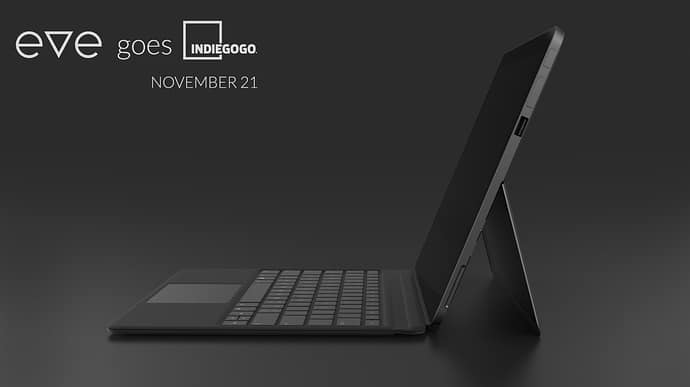
First images emerge of Eve’s V crowdsourced Windows 10 2-in-1, coming to Indiegogo in November

Back in April, Finnish company Eve Technology teased a new 2-in-1 Windows 10 tablet codenamed the Pyramid Flipper. The Surface-like design of the hybrid device was actually a result of a crowdsourced effort, with the company explaining during a Reddit AMA back in August that “this has led to many advantages over its competitors.”

Yesterday, Eve Technology posted on update about its upcoming Windows 10 device and we now have more details about its go-to-market strategy (via Neowin). First of all, the product’s final name is now the Eve V which the company chose after asking feedback from the community. Additionally, Eve Technology will launch its new tablet through an Indiegogo campaign which is expected to start on November 21. “Project is fully funded and in Indie GoGo users are not paying for development but for actual manufacturing of the product,” the company added.

The final specs of the device are still not clear, though the company shared that it’s getting “top notch engineers to support us from Intel.” Earlier this year, a previous specs list mentioned a 7th Gen Intel Core CPU, a 12-12.5″ IPS LCD screen with 2160x1440p resolution or better, up to 16GB of RAM and up to 512GB of storage. “Price, final spec and A LOT more will be announced in the coming weeks” explained the company yesterday.

For those of you interested in this new product, be aware that only 500 devices will be available for purchase during the Indiegogo campaign, with global shipments beginning in the first months of 2017. Let us know in the comments if you think this new Windows 10 hybrid could be a good addition to the Windows 10 ecosystem.

Microsoft launches a new range of Office business apps

Microsoft’s Office department has just launched a brand new line of business apps for Microsoft Office users aimed at performing a wide range of tasks usually performed by popular third-party applications.

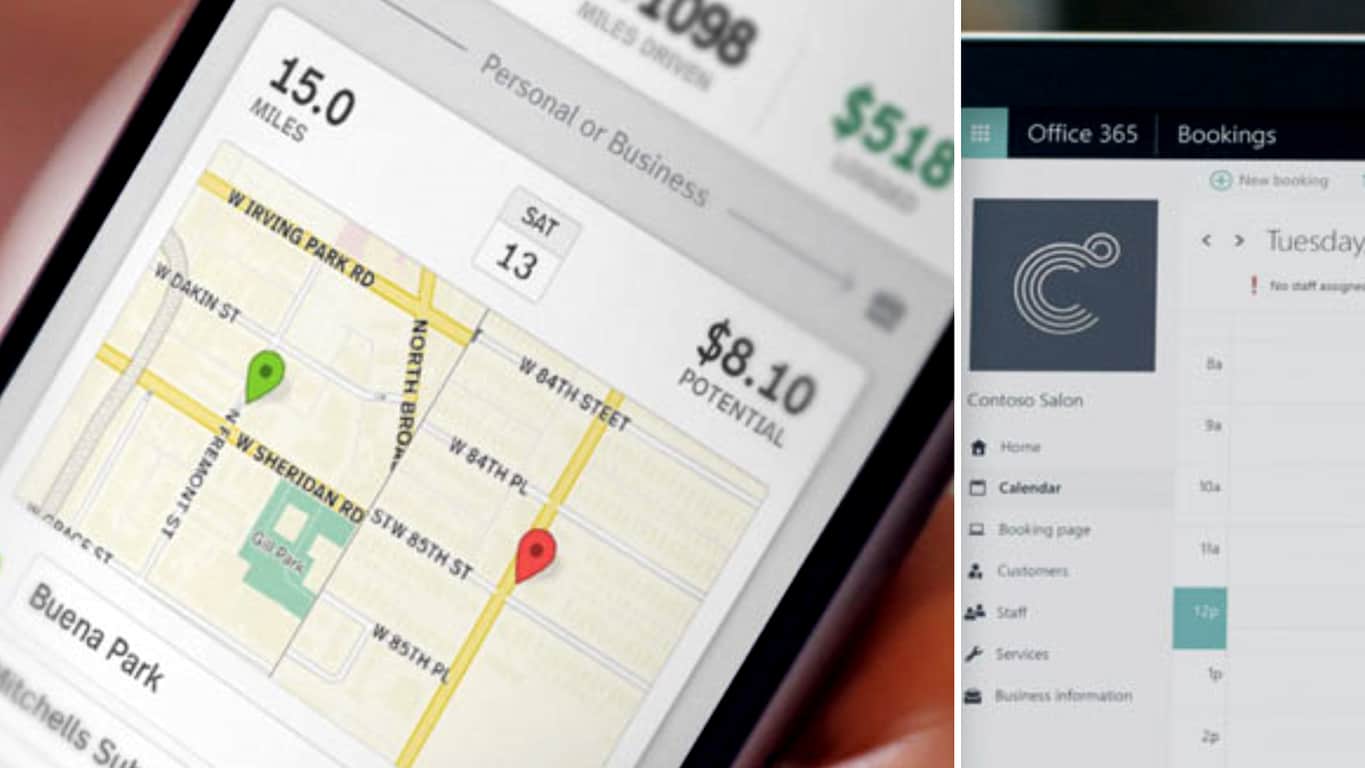
The first four of these new business apps are geared towards users looking to streamline their business practices with data tracking and simplified paperwork being a main focus with this initial offering. Mile IQ is designed to help users track business travel, Bookings is a tool which allows customers to make bookings, Invoice as its name suggests is for creating invoices, and Spend is an expense and receipt tracking tool.

Two additional apps, Point and Presence, are made for the modern, tech savvy, business owner. Point appears to be a rather innovative tool used for creating referral campaigns and word-of-mouth marketing while Presence (which is listed as “coming soon”) will be an app for tracking online brand impact and influence.

Microsoft hopes to achieve the following with these new products;

Guard your data: Gain peace of mind with apps that help keep your business and customer data safe and secure.

Save time: Take back time and save some money. Our new apps will simplify your day-to-day tasks.

Easy to use: The apps work like a team that helps streamline how you run your business.

Manage on the go: The new Business apps are also mobile. Because you are too!

Are you curious about these new business apps? Which ones will you use first? Let us know in the comments below.

A 3rd Jackbox Party Pack just went live on Microsoft’s Xbox One

The Jackbox Party Pack 3 has just gone live on the Xbox One in North America and a few other regions and is now ready to download and play. Like the previous Jackbox Party Packs, this third entry in the franchise also contains a collection of Jackbox video games, this time boasting five complete titles. Here’s the official game description:

The threequel to the party game phenomenon features FIVE new sense-shattering games!

1) The say-anything sequel Quiplash 2 (3-8 players). Play all new questions or make your own!

2) The deadly quiz show Trivia Murder Party (1-8 players). Match wits with a trivia-obsessed killer.

3) The surprising survey game Guesspionage (2-8 players). Guess the results to silly survey questions.

4) The t-shirt slugfest Tee K.O. (3-8 players). Battle your custom t-shirts to the death!

5) The sneaky trickster game Fakin’ It (3-6 players). One of your friends has something to hide.

Play using your phones, tablets, or computers. No extra controllers needed! All games support up to 10,000 audience members playing along! Plus tons of NEW features just for streamers! It’s a digital box full of actual fun!

Buy The Jackbox Party Pack 3 on Xbox One

Are you a fan of Jackbox video games? Let us know which ones are your favorites in the comments below.

Windows 10 Mobile build 14951 gets stuck at “0% downloading”

Microsoft recently pushed a new Windows 10 Mobile build to keep you busy over the weekend. Mobile build 14951 brings a new simplified, more familiar camera interface, as well as two fixes related to French punctuation rules and camera shutter sounds.

Now, the main challenge for Insiders is getting the build on their devices. Thousands of Insiders cannot install build 14951 on their terminals because the installation process is not progressing past “0% downloading” on the update screen.

build 14951 install stuck

Microsoft has officially acknowledged this issue and is actively looking for a quick fix.

We’ve just launched build 14951 to the Fast ring today and we’re seeing reports from users staying their device is not progressing past “0% downloading” on the update screen.
We encourage Windows Insiders to file feedback or upvote feedback from others.  We’ve started digging through the logs we have already received to investigate the issue. […]

*** Edit 2016.10.20 – 9:15AM ***
To everyone who is waiting patiently, thank you.  We know this is not the usual experience! We are still actively investigating and trying to root cause the issue.  No new information to share currently regarding solution, workaround, etc.

All Windows phone models are affected by this bug, even the recently launched HP Elite x3. For the time being, the root-cause of this issue remains unknown. However, one user suggests this bug is not only for this build update. He confirms that two days before, he tried to download additional language packs for Lumia 535, but the download process got stuck at 0%, forcing him to perform a hard reset. The Insider actually suggests the update bug is a problem of build 14946.

If, by any chance, you’ve come across a workaround for this update issue, list the troubleshooting steps in the comment section below.

RELATED STORIES YOU NEED TO CHECK OUT:

Battlefield 1 joystick support confirmed

Battlefield 1 is coming to the Xbox One and Windows PCs on October 21. Many gamers already got their hands on the game via EA/ Origin Early Access and are already participating in fierce World War 1-style battles.

Battlefield 1 offers an impressive gaming experience, but somehow fans feel the game is incomplete due to its lack of joystick support. Gamers took to the forums and created a dedicated forum thread to let DICE know just how important joystick support is, and it appears their calls have been heard.

This is a complete deal breaker for people that like to fly. Flying a plane with Keyboard and Mouse is nonsense, way to clunky. Using a Gamepad makes it not better ether, because the movement-area of the thumbsticks is way to small.

Why is this for each new Battlefield the same problem? Its known that PC players want to have support for other devices besides Mouse, Keyboard and the Gamepad, coming from the Console-Versions of the game.This issue was known since the Beta version and nothing have been done, very disappointing.

DICE recently confirmed that joystick support would be available in Battlefield 1. However, the company didn’t offer any details as to when this feature will actually become available. Most likely, joystick support will be enabled as soon as the game first patches are rolled out.

battlefield 1 joystick support

This is an excellent piece of news for many gamers who were planning to ask for a refund due to the lack of joystick support. However, DICE warns that not all joysticks will be compatible with Battlefield 1. For the time being, there is no official list of supported joysticks, but we’ll update this article as soon as new information is available.

RELATED STORIES YOU NEED TO CHECK OUT:

Seattle Seahawks come to defense of home-grown Microsoft Surface

Earlier this week, New England Patriots head coach Bill Belichick put the NFL’s use of Microsoft’s Surface tablets on blast. In a long-winded diatribe about consistency, Belichick explained that much of the equipment the National Football League uses has been less than reliable but it’s the inability of Microsoft Surface to render pictures of previous plays reliably that pushed him over the edge.

As you probably noticed, I’m done with the tablets. They’re just too undependable for me. I’m going to stick with pictures, which several of our other coaches do, as well, because there just isn’t enough consistency in the performance of the tablets. I just can’t take it anymore.”

However, not everyone in the league shares Belichick’s frustration with the consistency of modern technology. Across the country in Microsoft’s backyard, Seattle Seahawks head coach Pete Carroll sings a different tune about the use of the Surface on the NFL sidelines, according to a report from the Seattle Times.

I don’t know if it’s because we are so close to home base but, shoot, I think the quality of our stuff has been great,” Carroll said.

Carroll along with his coach staff find the Microsoft Surface a helpful tool on their sidelines, allowing coaches to make their adjustments, talk through the last series of plays and what happened during a previous set of downs to make further adjustments throughout the game.

Granted, Microsoft co-founder Paul Allen is the owner of the Seattle Seahawks and the team plays in the companies backyard, so saying nice things about the use of the Surface should be received with a bit of skeptical salt.

NFL Surface cover
NFL Surface cover

Nevertheless, receiver Doug Baldwin points out a reality lost in Belichick’s very public return to paper.

I think it’s easier for our staff to have the tablets because they can just shoot it to the tablet instead of having to go print it out,” Baldwin said. “And it also saves paper.”

While Belichick and Carroll may differ on the level of usefulness the Surface plays on the sideline of an NFL game, the reality is, the Surface is a reusable resource that isn’t beholden to the elements like paper printouts used to be. Perhaps, as newer stadiums are built with better wifi implementations taking priority, the Surface will finally feel at home to all coaches in the league.

Windows 10 Preview build 14951 now available to Insiders on the Fast Ring

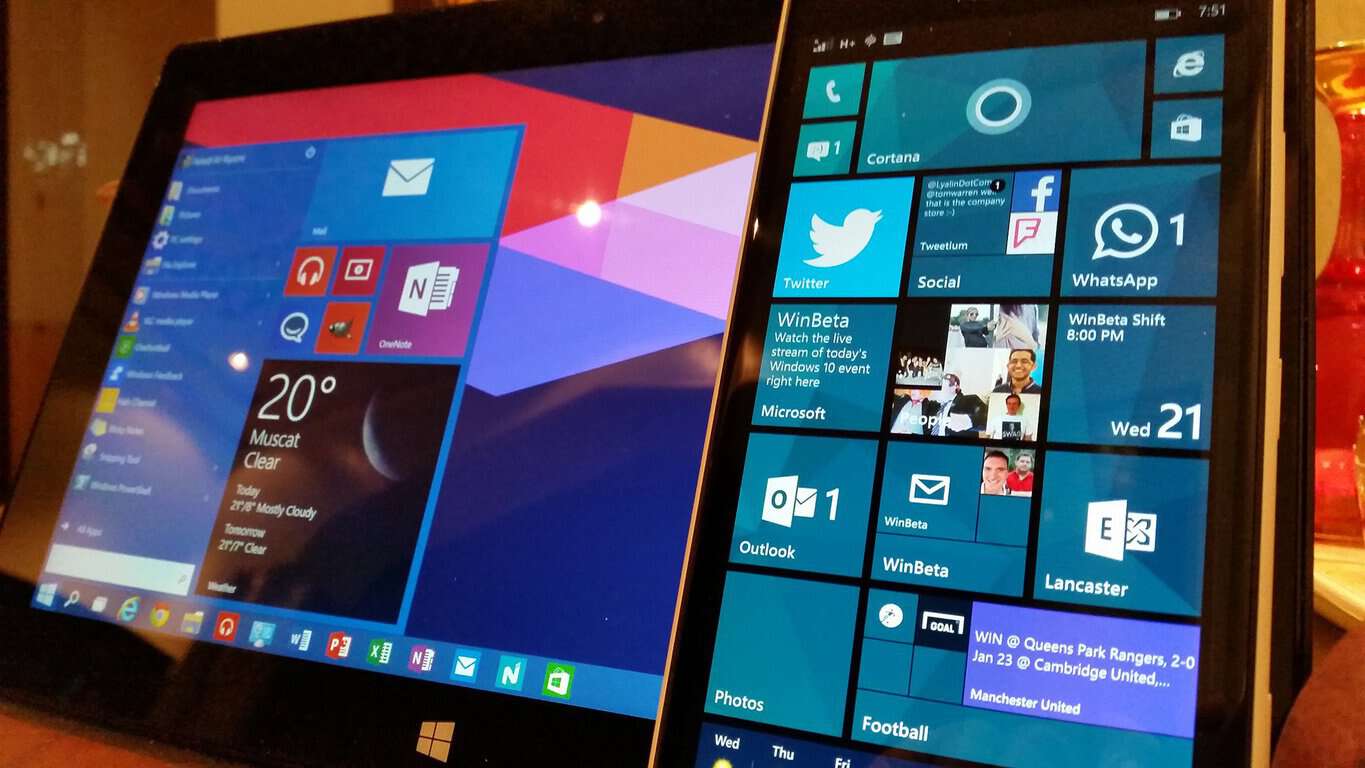
Microsoft just pushed out the new Windows 10 Preview build 14951 to Insiders on the Fast Ring. Just like the majority of Preview releases, build 14951 is available to users of both Windows 10 and Windows 10 Mobile devices.

Unlike the previous Preview build for Windows 10, build 14951 brings no new features to the system but instead improves some of the existing ones. This is not a surprise: It would be too much for Microsoft to deliver new Redstone 2 features in two consecutive Preview builds since the next major update for Windwos 10 is still in its early development phase.

Build 1495 continues improving the touchpad experience for Windows 10 devices, includes some Ink improvements, updates the Camera app, updates the Windows Subsystem for Linux and more.  The new build also solves issues with downloads of Gears of War 4 from the Windows Store that many users have been complaining about.

The new build should be already available to all Insiders on the Fast Ring. If you want to download it, just head over to the Settings app > Updates & security, and check for updates.

Windows 10 Preview build 14951 improvements and issues

As always, Microsoft provided a list of other, ‘less important’ improvements that the new build brings as well as a list of known issues that will probably bother some Insiders who install Windows 10 Preview build 14951.

Here’s what has been improved in Windows 10 Preview build 14951:

Other improvements and fixes for Mobile

  • Following feedback discussing French punctuation rules, we’ve updated our French keyboards (with the exception of French (Canada), for which these rules don’t apply) to now add a space both before and after when using two-part punctuation marks, such as the semi-colon, the colon, the question mark and the exclamation mark.

  • We fixed an issue resulting in the Camera shutter sounds entry missing from the Sounds Settings page via Settings > Personalization > Sounds.

Other improvements and fixes for PC

  • We fixed the issue causing PCs that are capable of Connected Standby such as the Surface Book and Surface Pro 4 to sometimes bugcheck (bluescreen) while in Connected Standby.

  • We fixed an issue resulting in Forza Horizon 3, Gears of War (and some 3rd party games) failing to install from the Store with the error code 0x80073cf9 when the system’s app install location was set to drive with native 4k Sectors (or 4k sector sized drive).

  • We fixed an issue resulting in larger Store games such as ReCore, Gears of War 4, Forza Horizon 3, Killer Instinct and Rise of the Tomb Raider possibly failing to launch.

  • We fixed an issue where the console window (which hosts Command Prompt, PowerShell, and other command-line utilities) might not snap correctly to the inside edges between two monitors with different DPI scaling.

  • We fixed an issue where all agenda items in the taskbar’s Clock and Calendar flyout were using the primary calendar’s color, rather than matching their respective calendar’s colors as selected in the Outlook Calendar app.

  • We fixed issue where the Add PIN button in Settings > Accounts > Sign-in Options was sometimes unexpectedly greyed out for domain-joined devices.

  • We fixed an issue resulting in Groove crashing if you tried to reorder the songs in a very large playlist.

  • We’ve updated our migration logic to now include custom scan code mappings. That means that going forward from this build, if you’ve used Registry Editor to remap certain keys (for example, Caps Lock key to null), that change will persist across upgrades.

  • We fixed an issue Insiders may have experienced resulting in Adobe Photoshop Express crashing after clicking on the ‘correct’ button when trying to edit a cropped image.

  • We fixed an issue resulting in .csv or .xlsx files downloaded from Microsoft Edge sometimes unexpectedly appearing to be locked for editing by “another user” when SmartScreen was enabled.

  • We fixed an issue where enabling the RemoteFX adaptor for a Virtual Machine would result in it failing to power on with the error ‘Unspecified error’ (0x80004005).

Of course, this doesn’t mean only the above-mentioned problems will affect users in Windows 10 Preview build 14951. The list of issues is usually quite longer when we include the reports from users. As always, we’re going to browse Microsoft’s forums for reported problems and let you know about the actual situation in Windows 10 Preview build 14951.

If you’ve already installed Windows 10 Preview build 14951 on your computer or Mobile device, let us know in the comments if you noticed some issues caused by the build.

RELATED STORIES YOU NEED TO CHECK OUT:

Microsoft stock surges to a 17 year high in after hour trading following pleasant FY17 Q1 reporting

Microsoft, under the tutelage of cloud-centric CEO Satya Nadella, has recently managed to achieve something it hasn’t done in seventeen years and that’s cross $60 stock price for the company.

After reporting a fairly impressive FY17 Q1 earnings report in which Microsoft’s Surface division saw a 38% increase in revenue, Azure revenue up 116%, Xbox Live active user count increase to 47 million and Office 365 increasing its seat numbers to 85 million commercially, the company’s stock rose on the good news.

In after hour trading, Microsoft’s stock peaked around $60 per share, beating its previous Dot Com era standing which hovered around the meager $25-30 range.

Other financial tidbits from Microsoft’s FY17 Q1 report include earnings of 75 cents per share beating the street estimates of 68 cents per share for the quarter. Microsoft also raised $22.3 billion revenue in adjusted non-GAAP and brought in $4.7 billion net income for the quarter while returning $6.6 billion to shareholders in the form of share purchases and dividends.

To see the breakdown of Microsoft’s quarterly earnings, check out our other post on WinBeta for details on how the company has done for the three months ending September 30, 2016.

Xbox Live monthly active users increase to 47 million according to FY17 Q1 earnings report

Microsoft’s earnings report from the first quarter of fiscal year 2017 has come in, and it shed a bit of light on the success of the Xbox One this past quarter. While the console had a rocky beginning as it first launched, it’s recently experienced some serious growth, with September being its third month in a row ahead of the competition in sales.

According to the latest earnings report from Microsoft, that growth in sales has been accompanied by a 21% increase in active Xbox Live users, resulting in a total of around 47 million users.

fy2017q1-computing

This figure is huge for a console that’s already been out for quite a while and is more or less driven by the recent release of the Xbox One S, which has sparked interest in the console once again. All in all, Microsoft couldn’t have asked for a better way to kick off the 2017 fiscal year – these past few months have done a lot to inspire confidence in Xbox One users.

Office 365 install base increases to 85 million active commercial and 24 million consumer users

There are a million reasons to love Microsoft, but perhaps the most convincing one is that Microsoft just keeps working to make sure that more people can be productive more of the time.

According to Microsoft’s earnings report for the first quarter of fiscal year 2017, that noble ambition has been hitting its mark, as per the usual. These latest numbers show that revenue from Office consumer products has gone up 8% since last year, bringing the number of active subscribers up to 24 million. Commercial Office 365 tools have seen quite a bit more growth, going up 51% and bringing the number of monthly active users to over 85 million.

fy2017q1-business
Office 365 1st qtr 2017 highlights

The growth for consumer Office 365 was mostly driven by recurring subscription revenue, whereas the Commercial side of things was driven by Office 365 commercial seats, which grew by 40%. Revenue from the sale of Office commercial products has gone down by 14% from last year, but this seems to come from “continued adoption of cloud offerings by customers.” There is little of splitting hairs here – Office did very well for itself this quarter.

Microsoft offers LinkedIn update amid its Q1 FY17 reporting

Many have been curious about Microsoft’s acquisition of LinkedIn and what was next for the popular business connection platform, especially investors. That’s probably why Microsoft felt the need to slip in an update about the purchase into the earnings report released today for the first quarter of 2017’s fiscal year.

According to a presentation slide in its FY17 Q1 earnings report, the acquisition is planned to be finished up in the next quarter. “We do not intend to update our financial guidance for any LinkedIn impact during the quarter; full access to financial records will become available to us post close,” they clarified.

After the acquisition is closed, investors will be able to keep up to date on LinkedIn’s financial status in the Productivity and Business Processes section. That’s where we’ll be able to see any of the expenses and integrations that the platform will take while transitioning into Microsoft’s hands.

The delay might be caused by Salesforce trying to toss out Microsoft’s credentials when it came to the purchase. However, the company has already filed for EU approval to antitrust regulators to approve the deal to close.

That was all the report had to offer concerning LinkedIn. Unfortunately, investors will have to wait until after next quarter to see all the numbers behind the new asset.

Microsoft once again rides cloud growth in Q1 FY17 earnings report

Microsoft’s focus on “Cloud first, Mobile first” continues to pay off for the Redmond giant. In the quarterly earnings report for Fiscal Year 2017, the tech giant saw a major increase in revenue. Much of it was driven by Microsoft’s success among cloud services.

The intelligent cloud revenue was reported to be increased by 8% compared to last year’s earnings report. Investors have increased their interest in cloud services as compared to the more traditional enterprise services which are now slowing to a crawl.

Microsoft Q1 FY17 Intelligent Cloud Earnings Report

Executive vice president and chief financial officer for Microsoft confirmed the significant demand for cloud-based services.

“Our first quarter results showed continued demand for our cloud-based services. We continue to invest, position ourselves for long-term growth, and execute well across our businesses.”

Other key points about the cloud’s success included:

  • Server products and cloud services revenue was up 11 percent from a year ago.
  • Azure revenue was up 116 percent with compute usage more doubling.
  • Enterprise mobility customers topped 37,000 in the quarter.
  • On the productivity and business process front (think Office 365), Microsoft also fared well. To wit:
  • Office 365 consumer subscribers ended at 24 million.
  • Office 365 commercial seat growth was up 40 percent in the first quarter, which has decelerated sequentially each quarter for the last year.

Microsoft has bragged a lot about its cloud services, preaching security and accessibility and the numbers don’t lie. It seems the company made good on its promise to provide the additional investor metrics and even met the $20 billion goal that they had set. Overall, the intelligent cloud continues to grow momentum as the company sets its sites to provide cloud services to more government agencies across the nation.

Windows 10 gets Spotify radio station support in latest Spoticast update

Many users opt to put aside Microsoft’s Groove music app to divulge in the free listening from Spotify’s subscription model. Unfortunately for them, Spotify doesn’t (yet) have a Windows 10 and Xbox One app. The popular third-party app Spoticast, is continually improving to bring the best music listening experience that it can.

The recent updates for Spoticast gave users the ability to create a radio station based on their searches. This radio station will play similar songs that match your selected categories or by choosing a track, album, or artist. Besides this feature, the app was given basic upgrades to performance and squashed some bugs.

Spoticast for Spotify music app

Some might say that Spoticast is better than Spotify itself since the app can be bought for $4.99 on Windows Store and doesn’t require a premium subscription to access the features. It even has a special free trial for one day to let users know what they are getting if they make the purchase.

It’s worth noting that if you try to use the Xbox One Spoticast app, it may have an error with the cursor or media loop. The developer’s note on the changelog in the app says this only happens on the first launch and by relaunching the app it will be fixed. The issue is being looked into.

Plug in your headphones and download the Spoticast update via the link below.

Spodicast Music
Spodicast Music
Developer:
Webrox
Price:
Free

Microsoft provides six tips for making sure virtual meetings aren’t a waste of time

Workplaces are evolving, not only in hardware configurations such as tablets and mobile phones augmenting workflows but also in how employees communicate and interact with one another. Applications such as Slack and HipChat are becoming additional means of communication that represent a faster form of conveying ideas and passing content, and video conferencing is becoming a standard substitute for in-person meetings.

As such, Microsoft’s Office team is doing what it does best and looking to optimize the video conferencing experience by coming up with “six ways to make virtual meetings more efficient.”

To keep your meetings—and your schedule—on track, consider these six tips and transform your routine.

  1. Agenda action—Whether your meeting participants are located across the building or the world, it’s important to get everyone on the same page. While formal agendas may not be as in vogue as they once were, reinstate the practice. Include the meeting’s topics in the body of your calendar invite or email out a document 24-48 hours before the designated time. This will provide all parties the chance to set their expectations regarding the meeting goals. And yes—if you’re the recipient of a meeting agenda, read it! Even if you’re familiar with the project or discussion topics, you may learn important information about the perspectives or concerns on the table, and it’s never fun being blindsided.
  2. Prep your (Ps and) Qs—Whether your meeting has a set agenda or not, make sure you know what your goals are. Before the meeting, compile any notes or background information you may need to reference as well as any questions. Having a prepared list or set of bullet points will relieve the pressure of thinking of any questions on the spot as well as allowing you to engage with the discussion at hand. Feel free to jot down questions on the agenda if there is one, or set up your notes document ahead of time with initial goals or thoughts at the top. No matter your preparation style, following this preparation practice will ensure you’re reminded of your own agenda the day of the meeting.
  3. Troubleshoot your tech—Whether it’s your first online meeting or your millionth, make sure you know how to use your technology. Confirm how to dial in and that your speakers work. If you need the internet to access your conference or your (meeting-related) email or notes, check that Wi-Fi! Initial frustrations often develop when that one person needs one more minute to access the conference line. Don’t be that cause—get to your conference room early and dial in. Even if you set your phone to mute until other people join, at least you can focus on the content of your talk rather than getting there in the first place.
6-ways-to-make-virtual-meetings-more-efficient-1
  1. Sharing is caring—If you are reviewing any information with accompanying visuals or statistics or if you’re referencing external documents, make sure everyone can follow along. Set up a screen share so that you can direct your audience’s attention and keep everyone on the same page. This step may alleviate the “Wait! Where are we?” questions, as well as the “, Hold on, I have to get to the right page.” Sharing your screen eliminates the need for those pauses and moments of confusion. Just remember: if you’re sharing your screen, make sure to turn off any email, phone or messaging programs or notifications to avoid any uncomfortable announcements.
  2. Be direct—One of the challenges of online meetings is knowing who is about to speak or who needs to jump in. Based on the meeting participants and their personalities, virtual meetings can range on the spectrum of everyone talking over each other too long pauses after someone’s finished speaking. To avoid indistinct vocal jumbles or empty air time, frame questions specifically to other meeting participants. If people are working together or relying on other steps in the process to move forward, don’t be afraid to ask them specifically if they have anything to add or additional questions. By being direct with turning the conversation, you’ll ensure that you’ve maximized meeting time while allowing everyone to be heard.
  3. Personality perks—Online, phone or virtual meetings can be a drag—you don’t have body language to read how people are responding or whether they’re following along. To remedy the possibility of losing people’s focus, keep your personality primed. Be as personable as you would be in person—or more so, as the meeting requires. High energy will engage your audience and keep them tuned into the topics at hand. They wouldn’t want to lose track, especially if you have a habit of asking people directly how they respond to a point. With everyone involved at the top of their meeting game, your meeting points will be addressed quickly, and you’ll cover more material in less time.

For any business or employee looking into augmenting their traditional workspace environment by staying a few days at home or conducting project meetings on-the-go, try and give one if not all of  Microsoft’s six steps whirl.

Head over to the Office Blogs for other tips, tricks and useful information regarding office life and efficiency.

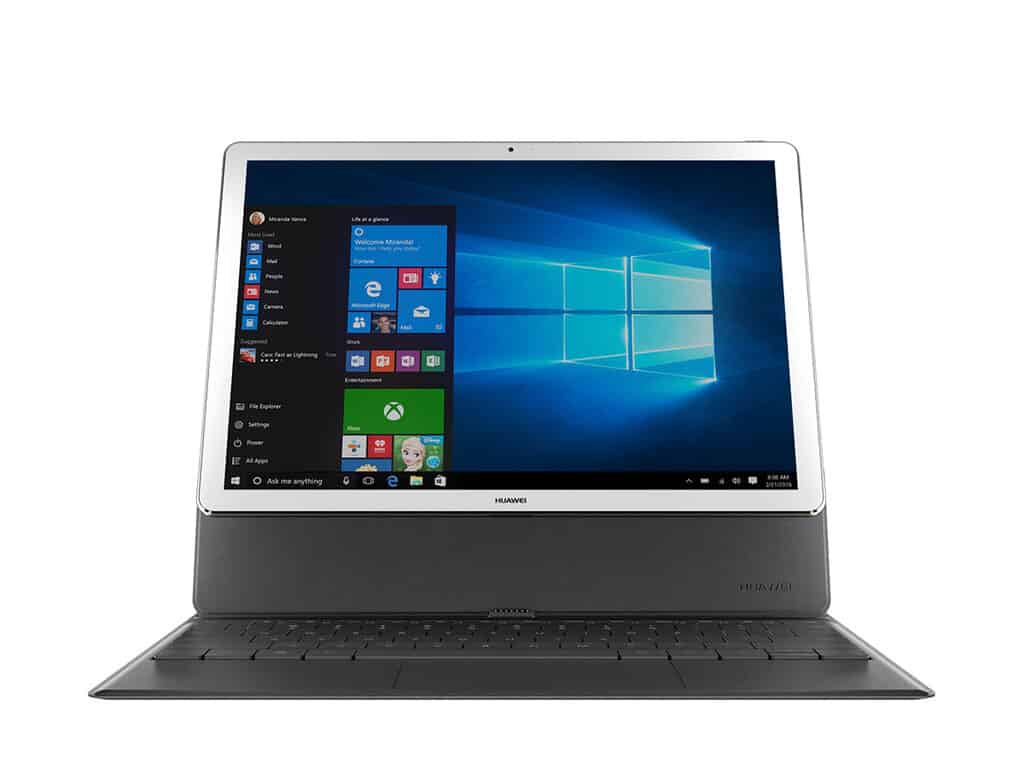
Huawei rumored to be planning high-end Windows 10 Matebooks for early 2017

According to the Apple Daily report (via DigiTimes), it looks like Huawei has plans to bring MateBook back for round two. Supposedly, we’ll be seeing two new MateBook devices at the end of 2017’s first quarter and they won’t only be 2-in-1s. The source mentioned that the success in China has compelled them to create a high-end version of the MateBook with Intel’s Core i-series processors. The two devices are said to have different sizes: a 13.3 inch and a 15.6 inch. These are a bit larger than its predecessor with only a twelve-inch screen.

There still isn’t much to go on when it comes to specifications, but it’s no surprise that Huawei is pushing out a beefier version of the business focused 2-in-1. The company has had a lot of success and has even become close partners with Microsoft as seen in the rather humorous 2-in-1 comparison advertisement.

Of course, with better specifications, we can expect to shell out a bit more than the original $699 price for the cheaper MateBook. For now, we’ll have to wait and see what Huawei is planning to bring to the table before we can open our wallets.

Microsoft opens third Reactor technology hub in New York City’s Grand Central Terminal

Yesterday, another Microsoft Reactor opened, this time at New York City’s Grand Central Terminal. The Microsoft Reactor in NYC is the third to open in the US behind San Francisco, CA and Philadelphia, PA. Microsoft Reactor locations give businesses, universities, governments, and entrepreneurs a place to access the latest Microsoft technologies and training.

The Reactors also allow small companies to realize their ideas and bring their ideas to the next level. Microsoft Reactors also provide developers with networking events and other resources to help support the local tech community.

The New York City Reactor is a 4,000 square feet facility in the newly opened “Hub” at Grand Central Tech at 335 Madison Ave. The Hub, part of Grand Central Tech, offers affordable office space for urban tech startups to launch and build their companies, connect with city agencies, and use Microsoft technology and software resources, along with the Hub’s other major corporate partners; GE Ventures and Lowe’s.

Grand Central Station, NYC, Microsoft
Microsoft Reactor New York City

Urban tech startups that are fortunate enough to join the Hub are able to get connected to a network of sponsors, advisors, and partners that are involved with the Grand Central Tech community. The New York City Economic Development Corporation and Grand Central Tech are looking to support companies that can help fix New York City’s urban problems that include energy, mobility, waste, built environment, food systems, water and digital infrastructure.

Steve Guggenheimer, Microsoft’s Corporate Vice President of Developer Platform & Evangelism, is excited to see what develops at the new Microsoft Reactor in NYC.

“We are thrilled to be a part of the Hub and the opportunities it provides to interact and collaborate with some of the city’s most innovative problem-solvers and up-and-coming entrepreneurs. Microsoft Reactor brings Microsoft technologies and experts right to their front door, supporting them as they turn their fresh ideas into solutions that build thriving businesses and make the world a better place.”

Microsoft hopes that the Reactors can serve as a community hub for business networking, creating jobs, and learning new skills. Ongoing Microsoft Reactor activities will include hackathons, guest speakers, and office hours with SMEs (subject matter experts). The New York City Reactor is Microsoft’s latest effort to connect with and empower possible future enterprise customers with the best services available from Microsoft, including cloud computing, developer tools, software, and open-source technologies.

For upcoming Microsoft Reactor NYC events, stay tuned to their calendar. There are no events listed yet, but make sure to check back.

Play Joe Danger 2, Galaga Legions or The Orange Box on Xbox One

Major Nelson has just announced via Twitter that three new titles have joined the Xbox One Backward Compatibility list today. The titles include Joe Danger 2: The Movie, Gala Legions, and the Orange Box. As is usual, we’ve included trailers, official game descriptions, and download links for you below.

Joe Danger 2: The Movie $14.99

Take Joe Danger on a death-defying thrill ride across the set of the greatest blockbuster movie ever made. Chase crooks on your police bike, destroy laser firing robots with a stolen jetpack, escape giant boulders in a minecart, time-travel to punch dinosaurs and divert the nuclear missiles on your unicycle! Beat your friends in fun 4 player multiplayer! Download endless new scenes from around the world, or create your own in the Movie Maker!

Gala Legions: $9.99

The original Galaga captivated players all over the world, and now… it’s back! But this isn’t just a boring remake! Featuring table-turning game dynamics, super-slick visuals and mind-blowingly vast waves of enemies, this is the definitive version! Prepare to be hit by the second stick of nostalgic dynamite for XBox 360 Live Arcade by the same team who brought you Pac-Man C. E.!

The Orange Box: $19.99

The 5 games included in this Orange Box are Half-Life 2, Half Life 2 Episodes One, Half-Life 2 Episode Two, Portal and Team Fortress 2.

Which of these games do you own or plan to download to your Xbox One system? Let us know what you think by leaving us a comment below!

The IRS wastes $12 million on ill-advised move to Office 365, according to US Treasury

A new report by the US Treasury’s Inspector General for Tax Administration calls out the IRS for wasting $12 million on upgrades to Office 365 Pro Plus and Microsoft Exchange Online. The report was spotted this morning by Accounting Today.

The report points out this all occurred because the IRS was in serious need of a new email system but did not perform adequate due diligence on what an upgrade would entail, or if it was compatible with their current infrastructure. As a result, the  Microsoft email systems the IRS bought turned out to be incompatible with their existing infrastructure, and a complete waste of taxpayer dollars.

The whole debacle began because the IRS was under a directive from the Officing of Management and Budget to upgrade their ancient email system, which couldn’t properly archive emails in accordance current guidelines. Once the budget for upgrades was approved, the IRS went ahead and settled on an upgrade to Office 365 Pro Plus and Microsoft Exchange Online.

The IRS upgraded to Office 365 and Exchange Online without knowing if their infrastructure could support it.

But they entered those contracts without themselves doing adequate due diligence on the upgrade’s feasibility and infrastructure requirements. And as the Inspector General pointed out, this may be in violation of rules that required such due diligence before major expenditures:

The IRS never deployed the software to be used via the purchased subscriptions, and it may have violated the bona fide needs rule when it purchased the subscriptions using Fiscal Years 2014 and 2015 appropriations and did not deploy the software subscriptions in those years.

For what it’s worth, the CIO of the IRS said they take their “obligation to manage taxpayer dollars in the most efficient and effective manner possible” very seriously. The CIO also explained they disagree with the inspector general’s findings. They believe that since this was an upgrade from one Microsoft product to another and not an entirely brand new system, the bona fide needs rule doesn’t apply, and that “the IRS would have been well on its way to using this software and completing this project in 2016,” had a “contract protest” not occurred.

It remains to be seen if the IRS has technical grounds to stand in their argument. But regardless of the technicalities of the bona fide needs rules, it looks like taxpayers are now out $12 million because somebody didn’t do their homework or ask the right questions when they should have.

Microsoft teases October 26th Windows event with Microsoft Store countdown clock

Two weeks ago, Microsoft officially announced that it would hold a event on October 26th, 2016 in New York City to showcase what’s next for Windows 10 as well as its growing portfolio of first-party devices. As we’re now less than a week before the kick off, we just spotted that the company has updated its Microsoft Store website with a live countdown clock to spread awareness about the much-anticipated event.

There is a new countdown on the Microsoft Store website.

Clicking on the countdown will lead you to a landing page where you can easily add the event to your calendar. It’s worth noting that Microsoft is also advertising the event on its main website, as you can tell from the new “Devices” landing page below:

The main Microsoft website is also advertising the upcoming event.

As a reminder, Microsoft is rumored to unveil new Surface hardware during the event including a new Surface all-in-one PC. We also expect to learn more about new features to be included in the next major release of Windows 10 codenamed “Redstone 2.” We will attend the event and cover it live so stay tuned on WinBeta if you don’t want to miss anything!

Windows team announces upcoming Bugbash slated for November 8th

Microsoft announced yesterday along the release of Windows 10 Insider Preview Build 14951 for Mobile and PC an upcoming six days bugbash starting November 8th. Once again, all Windows Insiders will be invited to join the hunt for Windows 10 bugs in new Redstone 2 builds that we expect to be released just before the kick off.

Hopefully the 14951 Windows 10 Mobile issues will be solved by then so mobile users can participate.

Head of the Windows Insider program Dona Sarkar explained in her blog post yesterday:

Just a heads-up that we are planning to kick off our next bugbash starting on Tuesday, November 8th and finishing at the end of the day on Sunday, November 13th. I’ll have more details in the coming weeks. Looking forward to seeing a lot of participation from Insiders!

As a reminder, the Windows Insider team held its latest bugbash in back in June, just a few weeks before the release of the Windows 10 Anniversary Update. For those of you who didn’t participate, the team tries to add a nice touch of gamification to the process with the publication of multiple quests in the Windows 10 Feedback Hub.

The quests are usually open-ended and do not require Windows Insiders to follow a specific list of steps to try a scenario. Once again, we expect this new bugbash to be an interesting and rewarding experience for everyone involved, so if you’re willing to participate get ready to put your ninja cat red ribbon on in the next few weeks!

Rockstar Games releases trailer for Red Dead Redemption 2, watch it here

Rockstar has been making it official all week. Their next blockbuster title is going to be Red Dead Redemption 2, the sequel to their open world wild west action-adventure game.

Red Dead Redemption launched in 2010 on Xbox 360 and PS3. And as Rockstar has churned out more Grand Theft Auto games and other titles like LA Noire, fans have been patiently awaiting a return to Rockstar’s take on the American frontier.

While long speculated, it wasn’t until this week that Rockstar started making it official, first with a series of tweets of game art, shortly followed by the official announcement itself. And just this morning the Rockstar twitter account released the game’s first trailer.

The trailer includes some impressive and ominous cinematics of the wild west, but it is a short trailer and doesn’t include a real glimpse of gameplay just yet. Still, there is plenty for fans of the previous title to be excited about.

Red Dead Redemption 2 will launch sometime in Fall of 2017 and will be available on Xbox One and PS4. While the game’s launch isn’t for quite some time, don’t forget fans can replay Red Dead Redemption on Xbox One via Backward Compatibility.

Microsoft begins removing apps from Windows Store for age compliance violations

It’s been a few months now since Microsoft warned Windows Store developers that it would start to remove apps and games that did not have their age rating correctly set starting September 30th. However, the company explained last week (when the deadline had already expired) that it would actually remove these non-compliant apps “on a rolling basis”, giving developers additional time to comply with the policy by logging in to Dev Center and taking a brief questionnaire.

According to new report from Neowin, a first wave of developers have now received emails from Microsoft to inform them that their apps non-compliant apps have now been removed from the Windows Store.

Microsoft is currently sending emails to developers who didn't comply with the new age rating policy.
Microsoft is currently sending emails to developers who didn’t comply with the new age rating policy.

It’s not clear yet how many apps Microsoft has already unpublished from its Store, though developers who missed the deadline by mistake can still do something about it: they can easily resubmit their app to Microsoft after completing the Dev Center age rating questionnaire, a process which shouldn’t take more than a couple of minutes.

It’s quite possible though that many Windows Store apps that have been left to abandon by their developers could disappear for good. However, these apps should still continue to work (in an unsupported state) for those of you who already installed them on their devices.

While the new age rating policy is obviously a good thing for consumers, could the disappearance of unsupported but still fully functional apps anger some users? It may be to soon to evaluate the consequences for the platform yet, but we’ll definitely keep an eye on the Windows Store in the coming days and weeks.

Microsoft Translator adds Filipino, five other Austronesian languages

Today, Microsoft Translator added six new Austronesian languages to its text translation API. The languages are Fijian, Filipino, Malagasy, Samoan, Tahitian and Tongan. What are Austronesian languages, you ask? These languages are spoken from as far west as Madagascar and as far east as the Polynesian Islands; north to South China and south to New Zealand.

With about 119 million Austronesian speakers around the world, they can now use Microsoft Translator on Bing, SharePoint, Cortana, Edge and Yammer. In addition, Microsoft Translator has apps available on other platforms, including Windows 10 PC, Windows 10 Mobile, Android (Android Wear and Amazon Kindle tablets), and iOS; iPhone and Apple Watch).

Microsoft Translator is available as a web widget to allow free translation services on almost any website. Through the free, open-source Document Translator app, you can translate one or more documents is available. Document Translator keeps the document’s original formatting and also supports Word, Excel, PowerPoint and PDF file formats.

The Skype Windows desktop app and Skype Preview for Windows 10 also have support for these Austronesian languages available in instant messaging. Many other Microsoft Translator apps are available on other platforms.

‎Microsoft Translator


Microsoft Translator


Translator
Translator
Price:
Free

Viber for Windows 10 gains media gallery, more

If you’re currently using the Viber app for Windows 10, then you might want to head over to the Windows Store now and check for an update. Microsoft has detailed in a new post to the Firehose blog that Viber has been updated with a media gallery, and more.

Overall, the update to Viber should push the app version to 6.3. For the complete details on what has changed, you can check the full changelog (via the Windows Store) below.

What’s new v6.3:

  • Large emoticons in chat
  • Media gallery in chat info screen
  • Answer video calls with video to automatically open your front-facing camera
  • Call directly from chat screenSticker support in toast notifications
  • Terms and policy update

Have you had a chance to download this update yet? Even if not, we have done you a favor and have included a download link for you below. Once you’ve updated or checked it out, be sure to come back to WinBeta and let us know what you think by dropping us a comment in the section below.

Viber
Viber
Price:
Free