Microsoft’s executive vice president Amy Hood announces “solid results” for its FY16 Q3

Microsoft has released their earnings report for the third quarter of the 2016 fiscal year and is reporting some great results, with plenty of improvements and solid earnings across the board. In the post put up on Microsoft’s site, Amy Hood, executive vice president, and chief financial officer commented that “Our continued operational and financial discipline drove solid results this quarter. We remain focused on investing in our strategic priorities to drive long-term growth.”

Revenue in Productivity and Business Processes grew 1% (up 6% in constant currency) to $6.5 billion, with the following business highlights:

  • Office commercial products and cloud services revenue grew 7% in constant currency driven by Office 365 revenue growth of 63% in constant currency
  • Office consumer products and cloud services revenue grew 6% in constant currency with Office 365 consumer subscribers increasing to 22.2 million
  • Dynamics products and cloud services revenue grew 9% in constant currency with Dynamics CRM Online seat adds more than doubling year-over-year

Revenue in Intelligent Cloud grew 3% (up 8% in constant currency) to $6.1 billion, with the following business highlights:

  • Server products and cloud services revenue increased 5% in constant currency driven by double-digit annuity revenue growth
  • Azure revenue grew 120% in constant currency with usage of Azure compute and Azure SQL database more than doubling year-over-year
  • Enterprise Mobility customers more than doubled year-over-year to over 27,000, and the installed base grew nearly 4x year-over-year

Revenue in More Personal Computing grew 1% (up 3% in constant currency) to $9.5 billion, with the following business highlights:

  • Windows OEM revenue declined 2% in constant currency, outperforming the PC market, driven by higher consumer premium device mix
  • Surface revenue increased 61% in constant currency driven by Surface Pro 4 and Surface Book
  • Phone revenue declined 46% in constant currency
  • Xbox Live monthly active users grew 26% year-over-year to 46 million
  • Search advertising revenue excluding traffic acquisition costs grew 18% in constant currency with continued benefit from Windows 10 usage

We’ll have stories out throughout the day giving you the full rundown of everything that’s in the Q3 report, but the gist of it is this: Microsoft did exactly as well as they wanted to, if not better. 2016 has been a year where they released some of their coolest products – the Lumia 950, the Surface Book, etc. – and it seems like they’re successfully riding on the numbers that those devices were able to bring them.

Webmail vs desktop email client: which should you choose?

With the rapid development of the internet in the early 2000’s, emails changed forever. In the early days, the only way to read and send email was to use a dedicated email client but as the Internet became more widespread , users moved from dedicated email clients to webmail.

Despite the number of users moving to webmail services, many users still prefer using a dedicated email client on their PC. If you can’t choose between a dedicated email client and webmail, we’re going to compare the two and help you determine the best solution for you.

Webmail or desktop email client – which one to choose?

Email clients were a key component of every operating system since the creation of email services. Outlook Express was a default email application on older versions of Windows, therefore gaining extreme popularity with Windows users. Although Microsoft removed Outlook Express from Windows, many alternatives appeared soon after.

Today, there are many Outlook Express alternatives but most of them don’t have the same simple user interface that many users are used to. The simplistic design of Outlook Express is what made it so unique and appealing to users — many webmail services and email clients lack that.

Webmail services use ads

Besides bringing more complex design, webmail brought certain limitations as well. Although almost every webmail service is available for free, most of these services display ads. There’s usually an option to switch to a premium version of the service in order to remove ads, but many users don’t like the idea of paying a monthly fee for an ad-free experience. If you’re not too keen on ads, desktop email clients might be just what you need. In fact, finding an ad-free email client for Windows isn’t that hard — you just have to find one that that suits your needs.

Webmail services rely heavily on JavaScript

Most webmail email clients rely heavily on JavaScript, and if you don’t have JavaScript enabled in your browser for some reason, you’ll have to enable it in order to check your email. On the other hand, desktop email clients don’t require JavaScript at all so you won’t have to go through the tedious process of enabling JavaScript every time if you want to read or send an email.

[irp posts=”26354″ name=”Best Windows 10 Email Clients and Apps to Use”]

Webmail services usually don’t support custom domains for free

Webmail lacks support for custom domains. If you own your own company and  use a custom domain, you won’t be able to use that domain with most webmail services unless you choose to upgrade to premium. Some webmail services such as Outlook don’t have support for custom domains at all, so you might want to think twice before choosing webmail over a desktop email client.

You can’t manage multiple email accounts from webmail

Desktop email clients are also a better choice if you use two or more email address. If you use both Gmail and Outlook, for example, you’ll have to log in to each of the two services in order to check your email. This isn’t a problem for most regular users but if you rely heavily on email for communication, checking two or more webmail services several times a day and responding to emails might become a tedious process.

Using a desktop email client, you can easily manage two or even more email accounts right from a single application. Accounts don’t even have to be on the same domain: you can basically have an unlimited number of email accounts across multiple domains and check them all with a single click of a button right from your desktop email client.

You can’t access webmail without internet connection

Another benefit of desktop email clients is the ability to access your email offline. When you use a desktop email client, all your emails are downloaded to your computer where you can read them, prepare replies and check attachments even if you’re not online. This is extremely useful if you’re traveling or don’t have a constant internet connection.

Webmail comes with limited storage space

Many webmail services come with limited storage space. If you regularly send and receive attachments, you might run out of webmail storage sooner than you think. After you run out of space, you won’t be able to receive new emails until you delete some older messages or until you purchase a premium option that gives you more space.

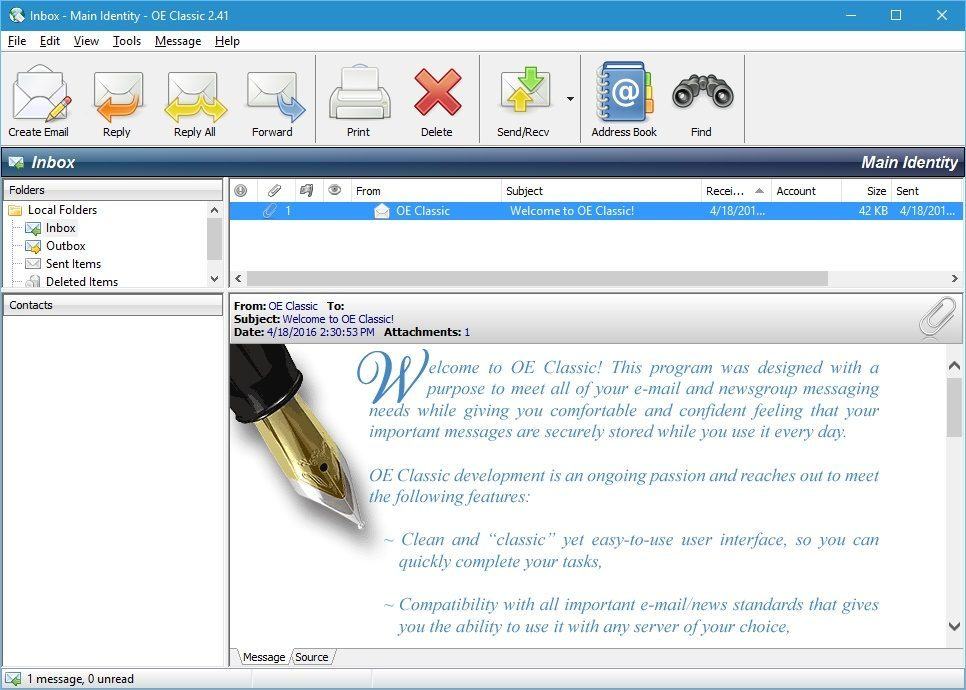
The only limitation of doing this is your hard drive size. But on the flip side, with enough room you’ll never have to delete any email messages or attachments or worry about the remaining space for your emails. Some desktop email clients, such as OE Classic, use public domain SQLite/MBX database to store your emails, which means that you can easily export your emails and save them on a different computer for backup.

Desktop email clients require initial setup

Desktop email clients are great, offering more freedom to the user with less restrictions. They might require a little more setup, though, before you start receiving your emails. With webmail services, you only have to navigate to a specific website and all your emails will be there. Although desktop clients don’t require you to visit any website or to start your browser in order to check your email, they do require some initial configuration.

Before you can start reading your emails, you have to create your account, a process usually consisting of adding your email address and your password along with the address of the mail server. This process might seem a bit daunting to some users, which is why they choose webmail services instead. With webmail services, there’s no need to enter a web server’s address: everything you need is automatically configured with only an email and password needed to be created.

Webmail services are synced across all of your devices

An additional advantage of webmail is its availability on all your devices. If you own a Windows 10 PC, laptop and an Android smartphone, you can access your email messages on any of these devices. And since it’s all stored in the cloud, they will be perfectly synced across all of your devices, regardless of the platform that you’re using. Even if your hard drive suddenly stops working, with webmail all your emails will remain safely stored in the cloud.

Webmail services don’t require third-party applications

Webmail services can also be useful if you aren’t allowed to install any third-party applications on the computer that you’re currently using. For example, if your company’s policy forbids installing third-party applications, webmail might be a better solution for you in this case.

What is the better option: webmail or email client? It all depends on your needs. If you can’t install third-party applications and you want your emails synced across all devices, then webmail is a better choice for you. In addition, webmail offers more simplicity and that’s something many users prefer.

On the other hand, standard email clients offer more advanced features such as quick access to multiple email accounts simultaneously, unlimited storage on your computer, a simple way to back up your important emails and the ability to manage and read your emails even without an internet connection.

Some email clients like OE Classic feature a simple design resembling Outlook Express, something many users are looking for. Many email clients work exceptionally well with webmail services, so if you can’t decide between a webmail and desktop email client, you can easily combine the two and have the best of both worlds.

Dropbox to only support Windows XP through August

While Microsoft stopped extended support for Windows XP in April 2014, the 15-year-old operating system still claimed a 10.9% desktop market share according to NetMarketshare at the beginning of the month. However, more and more major developers are dropping support for the old OS: Google just ended Chrome support for Windows XP this month, and we just learned via Windows Central that Dropbox plans to do the same for its Windows desktop app over the summer. The company explained its decision on a support post:

Microsoft stopped supporting Windows XP in April, 2014. We are ending our support of the Dropbox app for Windows XP to keep our product offerings in-line.

If you’re still on Windows XP, you won’t be able to download the app after June 26, and the service will stop working on all Windows XP machines starting August 29. You will still be able to access your files on the Dropbox website, but you really should upgrade your PC to a newer Windows version anyway.

Watch Game of Thrones on your Xbox One with HBO Now app

Season 6 of Game of Thrones is coming, and starting today Xbox One owners are the next to get to watch it (when it comes) without having to leave the comfort of their gaming experience or the need for a TV package. Yes, the HBO Now app has been launched on the Xbox One.

The HBO Now app was first launched exclusively for Apple’s iOS platform more than a year ago. Even though the content can still be streamed to other devices, that exclusivity has remained until today. The HBO Now app can now be spotted on the Xbox Store. Besides providing you with unlimited access to all the content of HBO for a monthly fee, including hit TV series, comedies, and music shows, the app also incorporate voice and gesture control via Kinect.

HBO Now on Xbox One.

All in all, HBO Now is a fine addition to Xbox One’s repertoire of multimedia app and great contribution to Microsoft’s vision for its gaming machine as the all-in-one entertainment hub, especially now that usage of these services are no longer tied to the Xbox Live Gold membership. It should also be a competitive advantage for the Xbox One: the machine’s biggest competitor reportedly still doesn’t have the app.

How to prioritize notifications in Action Center on Windows 10 Mobile

Notifications in Windows 10 and Windows 10 Mobile can be extremely useful. But on the other hand, notifications from some apps can be very annoying, especially if we don’t use that app a lot. Luckily, Microsoft introduced a new way to manage notifications, so people can now reduce the number of annoying unwanted notifications they receive in the Action Center.

Latest Windows 10 Mobile Insider Preview build 14322 introduced notification prioritization in Action Center, so user can now choose the frequency of receiving certain notifications.

How to prioritize notifications in Windows 10 Mobile Insider Preview

To access prioritization settings, go to Settings > System > Notifications & actions, and choose which app’s notifications are the most important for you. There are three priority levels: Normal, High and Top. So for example, if you set Cortana notifications to the top priority, and Facebook Messenger notifications to the normal priority, Cortana notifications are going to appear before notifications from Facebook Messenger.

Another handy addition is the ability to limit number of notifications per app. The new build sets the default of 3 notifications per app, but you can adjust it to more or less. This will make it easier to organize notifications in the Action Center.

Windows 10 Mobile Action Center is now more customizable than ever. We already told you that you can now easily manage Quick Actions, and the new way of delivering notifications rounds up the new Action Center experience that arrived with Windows 10 Mobile Insider Preview build 14322.

Microsoft introduced the similar option to PCs with the latest Windows 10 Preview build, so it’s another feature that Microsoft made almost identical on both platforms.

You can tell us in the comments, what do you think about the new way to organize notifications in Windows 10 Mobile Action Center, and what do you think about the latest Mobile Insider Preview build in general?

Microsoft launches Rozgar.Work, an Employability & Entrepreneurship Platform for Pakistan

Microsoft has launched the first of its kind Employability and Entrepreneurship Platform, Rozgar.Work, in Pakistan, in collaboration with World Vision-Pakistan (via ProPakistani). The platform offers job-seekers with end-to-end career guidance, up skilling, job-matching and mentorship to address the ever growing issue of unemployment and underemployment. The new platform is powered by Microsoft Windows Azure Cloud, SQL, and SharePoint 2013.

The event was attended by Federal Minister for Planning and Development Ahsan Iqbal as the chief guest, as well as Microsoft and World Vision executives.

Microsoft Pakistan’s General Manager Nadeem Malik said,

At Microsoft we believe in sharing our success with the communities, wherever we operate. Rozgar.Work is a robust platform which can enable revolutionary enrichments in the society, by empowering the youth, to find effective solutions for the various challenges faced by the society.

Entrepreneurship and skill-development are the solution to many of Pakistan’s economic issues. Microsoft is committed to create fresh opportunities for the youth, to play a key role in nation-building. We appreciate the valuable support from WVI-Pakistan to make this program successful.

Program Development Manager at WVI -Pakistan Rizwan ul Haq said,

We are really excited to be a part of this pioneering initiative with Microsoft. World Vision is an international humanitarian organization that works for poverty alleviation,

Social Development, Disaster-Relief, Education, Healthcare and Justice for the deprived segments. We would like to thank the leading enterprises like TIE, PASHA, that have joined today’s event to show their support for this initiative.

Career counselling is a big task, and if you don’t do your proper research, you may end up in a field which is not fit for you in the long run. With Rozgar.Work, job seekers can get in touch with people who are well informed about the careers and can help new graduates make the right choice. Additionally, the platform also boasts an Online & Mobile Job-Matching & Search-functionality allowing job seekers to search for the best possible job opportunities available.

The platform also has online courses to learn from, as well as online and offline training options for different skills, and to earn a diploma.

How to customize your Quick Actions in Action Center on Windows 10 Mobile

Microsoft introduced the new Action Center along with Windows 10 Mobile while the OS was still in the preview phase. Since then, the Action Center received a couple of changes. The latest Windows 10 Mobile Insider Preview build 14322 brought the very first changes since the RTM release of Windows 10 Mobile.

The update in question brought Cortana notifications, customizable Quick Actions, and notification prioritization. In this article, we’re going to cover customizable Quick Actions and  show you how to design the Action Center to your preference.

How to customize Quick Actions in Windows 10 Mobile

Microsoft introduced a few new options in build 14322 to easily add, remove and re-arrange Quick Actions in the Action Center. To access the Quick Action settings, go to Settings > System > Notifications & actions. On this page, you’re going to see an summary of the Action Center, so you can easily manage Quick Actions.


quick actions windows 10 mobile

If you want to move a Quick Action to another position, simply hold it and move it just like you would move Live Tiles on the Start screen. Beneath the summarized Action Center, you can add and remove Quick Actions. Simply turn a certain Quick Action on or off and it will appear or disappear in the Action Center.

Before build 14322, you only had the option to set four primary Quick Actions. With these new customization options, you can experiment with the Action Center as much as you like. There are actually more Quick Action customization options than in the latest Windows 10 Preview build for PCs so Microsoft didn’t just make some features identical on both platforms: it also made some more advanced on Windows 10 Mobile than on PCs.

This Windows image editing software is now 95% off

Polarr has reduced the price of their comprehensive image editing app, Photo Editor Pro, down from $19.99 to just $0.99 in celebration of Earth Day. Funnily enough, the store listing says that for the length of the sale period (ending April 24th), 50% of proceeds will go towards the Conservation International Foundation. Of course, with the massive discount, that’s only a 50 cents donation but the Conservation International Foundation will be matching each donation and double it so each sale of the app will effectively be a one dollar donation.

The app itself is pretty powerful, so much so that users are encouraged to install the free version of Photo Editor | Polarr first to make sure that their device can run it.

Those with a powerful enough device will be able to take advantage of Photo Editor Pro’s over 100 filters (including the ability to create custom filters), support for RAW images up to 42 MP in size, mouse, keyboard and touch controls, collapsible workspace, and advanced color and image settings (for Temperature, Tint, Contrast, Saturation, Vibrance, Exposure, Highlights and Shadows, Clarity, Sharpen, Denoise, Diffuse and Dehaze).

Here are all of the app’s official features:

  • Designed for mouse and touch
  • Proprietary controller-inspired design for speed and precision
  • Interactive in-app guide to photo editing
  • Expandable and collapsible workspace
  • Responsive and adjustable user interface to fit your screen
  • Hand-crafted collection of over 50 preset filters for quick edits
  • Import multiple and exports in batch
  • Light: exposure, highlights and shadows
  • Detail: clarity, sharpen, denoise, diffuse and dehaze
  • Optics: distortions, vignette, fringing
  • Advanced HSL and RGB Curve tools
  • Filter blending and mixing tools
  • Highlights/shadows toning tools
  • Multiple local adjustments areas
  • Circular and gradient filters
  • Powerful cropping and aspect control
  • Create custom filters based on history
  • Export photo at different settings
  • Persistent edit history tracking
  • Infinite undo and redo

Which apps do you use to edit images on Windows 10? Share your recommendations with us in the comments below.

Photo Editor Pro | Polarr
Developer:
Polarr
Price:
Free

How to control music right from the Windows 10 Mobile Lock screen

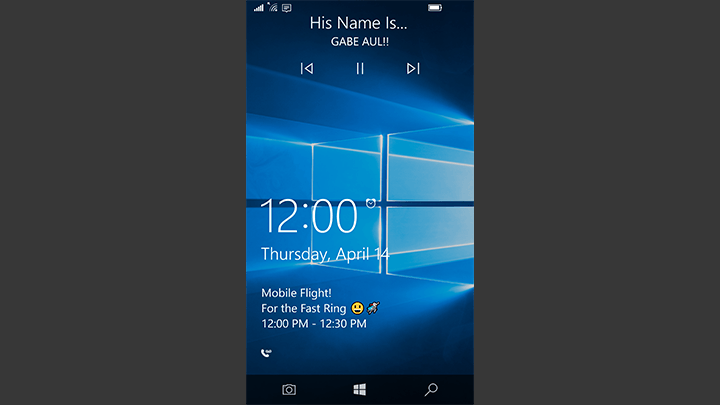
The Lock screen was improved in the latest Windows 10 Mobile Insider Preview build 14322 with a couple of new features, the most notable being the ability to control music playback from the Lock screen without unlocking your phone.

If you start listening to music with Microsoft’s in-house Groove Music app and lock your phone, you’ll still be able to control the playback. The name of the currently playing song will be displayed at the top of the screen along with back, forward and pause buttons. Also, when you tap on the name of the song, the full Groove Music app opens.

As you probably know, a similar option of controlling the playback is also available in the RTM version of Windows 10 Mobile (and previous Preview builds), but it appeared when you turned on the screen and disappeared after a few seconds. You also could pull it up by pressing volume buttons but after the most recent build, it will always be present at the top of the screen.

[irp posts=”25643″ name=”Groove Music app for Xbox One updated: All you need to know”]

So, while the functionality didn’t change at all, the only difference is that you don’t have to press any button to access the playback control anymore. Ultimately, the constant presence of control buttons on the Lock Screen is a nice touch and adds to the overall experience.

As we said, the addition of playback control buttons is not the only Lock screen addition that arrived with the latest build. Microsoft also replaced the back button from the Navigation bar with the new Camera button, allowing you to quickly access the Camera app.

These additions will definitely come in handy, especially because most Android phones come with similar options on the Lock screen. And since Microsoft is trying hard to compete with Android, some similar features won’t hurt.

How to launch the Camera app from the Lock screen in Windows 10 Mobile

Along with other improvements and system enhancements, build 14322 for Windows 10 Mobile Insider Preview also brought a few Lock screen improvements. Now, the option to access the camera and control the music you’re listening from the Lock screen is now available.

In this article, we’re going to talk about the first above-mentioned addition: the ability to open the Camera app from the Lock Screen. Microsoft replaced the back button in the Navigation bar with the new camera button, making accessing the camera app a piece of cake. All you have to do is to tap and hold the button and the Camera will immediately open.

You won’t have to do any additional unlocking as Windows Hello and PIN rules don’t apply here. So,  press the button and take a picture quickly. Of course, accessing every other part or feature of the OS would require unlocking, so don’t think you can hack someone’s phone just by opening the camera.

lock screen camera app win 10 mobile

Some owners of high-end Lumia phones might find this addition useless since their phones already have a physical camera button on the side. However, there are a lot of Lumia phones that ship without the camera button, so Microsoft probably had users of these phones in mind when it introduced the camera button on the Lock Screen.

Another way to access the Camera app is from the Action Center which also received some improvements in the latest Windows 10 Mobile Insider Preview build. To open the Camera from here, just pull the Action Center and tap on the Camera shortcut.

The introduction of the Camera button is another improvement to Windows 10 Mobile’s Navigation bar. If you want to give your Navigation bar some more customization, you now have a whole page in the Settings app for that.

Overclock your NVIDIA GPU with NVIDIA Inspector

Have an NVIDIA graphics card lying around? This might be right up your alley, then: developer Orbmu2k created a tool known as the NVIDIA Inspector focused on overclocking your graphic card’s GPU to squeeze even more performance out of it.

Bear in mind that overclocking can cause a card to overheat, ultimately sending it off to computer hardware heaven. We recommend taking good care when doing something like this as a new graphics isn’t cheap by any means.

While the NVIDIA Inspector tool’s main draw is to overclock your graphic card’s GPU, it can also monitor the card and give relevant information about your computer system. Want information about the GPU, BIOS, vendor, memory size, driver version, temperature, voltage, GPU load and  various clock speeds? This tool is perfect for such things.

[irp posts=”27354″ name=”Best hard drive benchmark tools for Windows 10″]

There’s a right-click menu here for adding additional graphs. They are pretty to look at, but not very useful if you’re interested in monitoring your system over time. We suggest finding software designed from the ground up to monitor computer systems, instead.

Overall, this is an impressive package packed with several cool features. It is basically a jack of all trades but a master of only one: overclocking your NVIDIA GPU. Furthermore, the program is still being developed by Orbmu2k, a good sign for those looking for a long term overclocking solution that works.

For those interested, the NVIDIA Inspector can be downloaded here free of charge.

RELATED STORIES YOU NEED TO CHECK OUT:

Microsoft YouthSpark grants to help out 100 nonprofits in 55 countries

Microsoft is making some significant investments in education that go beyond simply providing a handful of software tools to students and faculty. With a three-year, $75 million YouthSpark investment announced by Microsoft CEO Satya Nadella last September, the company appears set to foster opportunities for teachers and students through their educational journey and beyond.

Corporate vice president and head of Microsoft philanthropies, Mary Snapp, took time out today to update on the status of the company’s on-going educational bet.

Today we are providing an update by announcing YouthSpark grants to 100 nonprofit partners in 55 countries. In turn, our partners will leverage the power and energy of local schools, businesses, and community organizations to create new and engaging opportunities for students to explore computer science. These partners will teach students valuable skills to help them prepare for and succeed in jobs that are open today across industries, along with new jobs that will be created. Our partners will build upon the work that Microsoft already has underway, including our commitments to computer science education through programs like Hour of Code with Code.org, BBC micro: bit and TEALS.”

Snapp juxtaposes her statements with current educational statistics that reveal “only 2.5 percent of US high school graduates go on to study computer science in college, and of this small percentage, only 1 in 5 computer science graduates is female.”

While Microsoft is also working at a more local level to establish partnerships with over 100 non-profit organizations, to boost the social awareness of computer science as a worthwhile endeavor, the company is also attacking the problem from a national level.

Even with $75 million and a three-year commitment to its efforts and its new non-profit grants, Snapp and Microsoft realize that no single entity will eradicate or even shorten the gap between students who have computer science skills and those who don’t. Microsoft is also working with government and policy makers to support more increased funding for computer science classes and related programs, that include US President Barack Obama’s Computer Science for All country-wide effort.

More news about upcoming projects, partnerships and progress will be given at Microsoft YouthSpark Summit later this month. However, in the interim, information about Microsoft’s YouthSpark program can be obtained from YouthSpark.com or from a list of supporting non-profit partners here.

Microsoft wants to help IT pros get up and running in the cloud with free resources

Microsoft is currently offering two new ways to support IT professionals and their companies in a smooth transition to the cloud: Microsoft IT Pro Cloud Essentials and Microsoft IT Pro Career Center. The IT Pro Cloud Essentials and the IT Pro Career Center are the two newest programs to help IT professionals familiarize themselves with Microsoft’s available cloud technologies and sharpen their IT skills.

The free annual subscription to IT Pro Cloud Essentials offers IT professionals direct access to cloud services, including training, support and certification. Other benefits of the free IT Pro Cloud Essentials annual subscription include:

  • Free Azure credits to try cloud scenarios like backup, disaster recovery, security & dev/test
  • Free Pluralsight subscription for on-line training
  • Free Priority support in the TechNet forums
  • A free phone support incident for Azure or on-premises products
  • A free certification exam voucher
  • Extended trials of Enterprise Mobility Suite and Office 365

In this YouTube video, Microsoft Senior Product Manager, Javier Nino, walks you through everything that the Microsoft IT Pro Cloud Essentials program offers.

As an added bonus, Microsoft offers IT professionals a way to advance their careers through the IT Pro Career Center.

The IT Pro Career Center helps IT professionals with ways to expand and advance their current IT roles within their companies with industry insights and cloud career paths. Other benefits of the IT Pro Career Center includes:

  • Map your IT cloud role
  • Follow a learning curriculum for your chosen cloud role
  • Evolve at your own pace & learn with your peers
  • Discover which cloud roles are in demand and their salary ranges
  • Get insights on your personality traits and how they matchup to cloud roles
  • Hear from industry experts about the trends in cloud roles and skills you need

For more information, check out IT Pro Cloud Essentials and IT Pro Career Center for yourself.

Microsoft joins other tech giants in opposing encryption policies

In addition to Microsoft’s recent suit against the US Justice Department over secrecy orders, Microsoft is joining forces with other tech companies to reform government surveillance. In an open letter to Chairman Richard Burr and Vice-Chairman Dianne Feinstein of the Select Committee on Intelligence, Microsoft and other tech companies are asking for an overhaul of the current “well-intentioned, but unworkable” US government policies on encryption.

Not unlike Apple’s recent legal battle with the FBI to unlock one of the San Bernardino shooter’s iPhone, Microsoft and other companies are looking to avoid any future sparring with the US or other governments, concerning customers’ data. Reform Government Surveillance, Computer & Communications Industry Association, Internet Infrastructure Coalition (I2C), and the Entertainment Software Association have all come together in support of this letter.

Here is the full text of the letter as posted on the Reform Government Surveillance Tumblr:

We write to express our deep concerns about well-intentioned but ultimately unworkable policies around encryption that would weaken the very defenses we need to protect us from people who want to cause economic and physical harm. We believe it is critical to the safety of the nation’s, and the world’s, information technology infrastructure for us all to avoid actions that will create government-mandated security vulnerabilities in our encryption systems.

As member companies whose innovations help to drive the success and growth of the digital economy, we understand the need to protect our users’ physical safety and the safety of their most private information. To serve both these interests, we adhere to two basic principles. First, we respond expeditiously to legal process and emergency requests for data from government agencies. Second, we design our systems and devices to include a variety of network- and device-based features, including but not limited to strong encryption. We do these things to protect users’ digital security in the face of threats from both criminals and governments.

Any mandatory decryption requirement, such as that included in the discussion draft of the bill that you authored, will to lead to unintended consequences. The effect of such a requirement will force companies to prioritize government access over other considerations, including digital security. As a result, when designing products or services, technology companies could be forced to make decisions that would create opportunities for exploitation by bad actors seeking to harm our customers and whom we all want to stop. The bill would force those providing digital communication and storage to ensure that digital data can be obtained in “intelligible” form by the government, pursuant to a court order. This mandate would mean that when a company or user has decided to use some encryption technologies, those technologies will have to be built to allow some third party to potentially have access. This access could, in turn, be exploited by bad actors.

It is also important to remember that such a technological mandate fails to account for the global nature of today’s technology. For example, no accessibility requirement can be limited to U.S. law enforcement; once it is required by the U.S., other governments will surely follow. In addition, the U.S. has no monopoly on these security measures. A law passed by Congress trying to restrict the use of data security measures will not prevent their use. It will only serve to push users to non-U.S. companies, in turn undermining the global competitiveness of the technology industry in the U.S. and resulting in more and more data being stored in other countries.

We support making sure that law enforcement has the legal authorities, resources, and training it needs to solve crime, prevent terrorism, and protect the public. However, those things must be carefully balanced to preserve our customers’ security and digital information. We are ready and willing to engage in dialogue about how to strike that balance, but remain concerned about efforts to prioritize one type of security over all others in a way that leads to unintended, negative consequences for the safety of our networks and our customers

Clearly, this is an important issue and today’s technology giants seem to be in complete agreement as to what’s the right thing. We’ll be keeping our eye on this issue going forward, because it impacts all of us and will have an important impact on our industry and indeed our personal lives.

Skype Universal Windows App Preview updated with new group features

Today Microsoft has updated the Skype UWP Preview app via the App Store on Insider versions of Windows 10. The update means that Windows Insiders can now send group messages, as well as make group audio and video calls.

In the new version of the UWP Preview app, Windows Insiders can now see up to four video images at once and also chat with your group to keep the conversation going via group instant messaging. Additionally, Insiders can also mark any person or group as a favorite. Typos and auto correct in mind; the Skype team also has updated this version of the app by adding the ability to edit and delete messages to manage embarrassing typographic errors.

A look at Skype group chat

As much as the update adds, it also removes the Skype integration in the Messaging app on Windows 10 Mobile, to streamline and simplify your experience.

So, after you update, it will be best to stay tuned to us here at WinBeta for the latest Skype news. The Skype team will also soon be releasing a Skype UWP Preview app for mobile devices, and you will not want to miss it when it happens.

Xbox 360 era comes to an end as Microsoft ceases production

It’s a sad day for Xbox 360 fans: Phil Spencer has just announced on Xbox Wire that Microsoft is ceasing production of the 10 years old console. His whole post is well worth a read so we’ll share it with you below:

The Xbox 360 helped redefine an entire generation of gaming at Microsoft. I am incredibly proud of all of the work and dedication that went into development of the Xbox 360 hardware, services and games portfolio over the last decade. And I’m grateful to the fans for their continued passion and support.

Franchises like Gears of War were born on the 360, and established blockbusters like Halo really came into their own during this console generation. Xbox 360 was also the foundation for industry-leading technical innovation like Kinect, and the start of system updates and dashboard refreshes based on fan feedback.

Thanks to the Xbox 360, we evolved Xbox Live from the original Xbox into the thriving online gaming community it is today. And the console became a beloved gaming and entertainment hub with over 78 billion gaming hours played, nearly 486 billion Gamerscore on 27 billion achievements and over 25 billion hours spent in apps over its lifetime.

From the original Zero Hour launch event, to the incredible reaction received last year at E3 when we announced that you could play your Xbox 360 games on Xbox One, the soul of Xbox 360 was about putting gamers at the center of every decision we make – and we apply this principle across our business to this day.

Xbox 360 means a lot to everyone in Microsoft. And while we’ve had an amazing run, the realities of manufacturing a product over a decade old are starting to creep up on us. Which is why we have made the decision to stop manufacturing new Xbox 360 consoles. We will continue to sell existing inventory of Xbox 360 consoles, with availability varying by country.

We know that many of you became gamers on Xbox 360 and are still active, so it’s important to us that while the overall Xbox gaming experience will evolve and grow, we will continue to support the platform you love in multiple ways.

The Xbox 360 was first released in the US November 2005, and we have to say it definitely aged well over all those years. The console received two hardware revisions during its lifespan, first with the slimmer Xbox 360 S in 2010 then Microsoft introduced the Xbox 360 E along the Xbox One during E3 2013. In 2015, the console was still getting some AAA games such as Rise of the Tomb Raider, Metal Gear Solid V: Phantom Pain and FIFA 2016, but as developers are now focusing on current generation consoles it was clear the writing was on the wall.

However, the Xbox 360 as a platform is not completely dead: the Xbox 360 operating system actually received its last update on March 29, but Phil Spencer didn’t clarify if the console would continue to get software updates in the future. Spencer also didn’t mention the fate of the Xbox 360 Preview program that allows select users to receive updates and preview content (Microsoft barely talked about it over the last year). But if you’re wondering if Microsoft will continue to support Xbox Live on the Xbox 360, Spencer explained that nothing will change in the future:

  • Xbox 360 owners will continue to receive Xbox Live services for their console, such as online multiplayer gaming and parties, access to the apps they use today, and Games with Gold and Deals with Gold.
  • Xbox Live servers that support Xbox 360 services will also remain online and active. Our Xbox 360 fans can continue to play their favorite games with the full support of Xbox Live.
  • Gamers will also be able to continue to buy over 4,000 Xbox 360 games or Xbox 360 accessories at retail and through our Xbox 360 store online, while supplies last.
  • Any Xbox 360 hardware will still be supported at xbox.com/support. And Xbox One owners will be able to continue to enjoy available Xbox 360 games through Xbox One Backward Compatibility – at no additional cost.

So, if you love your Xbox 360, you’re free to continue to enjoy it! More, the spirit of the Xbox 360 will continue to live on in some way through backward compatibility on the Xbox One. However, if you’re into collecting old game consoles, now would be a good time to score an Xbox 360 with all its accessories. Do you still use your Xbox 360? Please tell what you think of the ten year old console in the comments!

Use Cortana without changing region settings in Windows 10 Insider build 14322

Cortana is getting more and more useful on Windows 10 devices, and we previously reported last week that the latest Windows 10 Mobile Insider build 14322 brought a more convenient way to set reminders from photos or content from supported UWP apps. However, not all Windows 10 users are currently allowed to rely on the digital assistant as Cortana is still limited to 13 countries (USA, Australia, Canada, Brazil, Mexico, EU5, India, China and Japan).

While users in unsupported countries could still access Cortana by changing region and language settings on their devices, that’s not exactly convenient to do. But a Reddit user named Denaxin just discovered that Cortana could be enabled without changing region and language settings on Windows 10 Mobile build 14322. We tested it on our own and we can confirm that it works, as you can see:

Cortana region settings

More, the same Reddit user also spotted that Cortana also continues to work (with limited functionality) if you switch off your GPS on Windows 10 Mobile build 14322, which is also great if you often switch off location to save precious battery life. We’re still not sure if these two additions were in the pipeline of if they could be bugs, but we should know more with the next Insider builds.

These three young people show just how powerful Microsoft’s YouthSpark program is

With its YouthSpark program, Microsoft is committed to teach computer skills to young people over all over the world. The company is investing $75 million in 100 non-profit organizations in 55 countries that will teach computer science and prepare young people for job applications and future careers in a variety of industries.

In another blog post today, Microsoft is sharing how Microsoft YouthSpark is helping three young people to achieve their goals. First, Reina Torrejón is a Peruvian girl who has always dreamed of pursuing a career in technology but couldn’t afford to go to university. However, she discovered that the YouthSpark program could make her reach her goal in five months instead of five years. The program helped her join Laboratoria, a web development academy for low-income young women and newly awarded YouthSpark grant recipient from Microsoft Philanthropies.

Before she can achieve her dream of opening a health startup, Torrejón is currently learning front-end web development, a skill that could  help her land a job in the digital sector. Thanks to a rigorous training program, Laboratoria has developed a network of more than 300 businesses that actively recruit from its graduates in big South America cities. Regional partner for Laboratoria Ana Maria Martinez added:

“I do nothing if I just give out a diploma. We are successful when we connect young women with a company, when they hire her and are satisfied with her performance.”

Reina Torrejon poses with Laboratoria regional director Ana Maria Martinez in front of the classroom where she and her classmates are learning front-end web development.

In Ireland, Niamh Scanlon is a 13 year-old girl that has already built an impressive technology resume. When she was just nine years old, she met the President of Dublin City University who urged her to visit CoderDojo DCU, part of a global community of free computer programming clubs for young people. “I absolutely loved it that you could create anything with coding,” she explains, and after her parents purchased an electric car she soon created an app that helps you locate the nearest charging station not in use.

The app earned Niamh first prize in its category at the international CoderDojo Coolest Projects 2014 summit, before she was selected as the EU Digital Girl of the Year in December 2015. She even was invited by CoderDojo’s sponsor Salesforce.com to the World Economic Forum in Davos. While she has many opportunities in front of her, Niamh is currently enjoying her mentor role for CoderDojo and CoderDojo Girls: “It feels really amazing that I’m helping people develop the problem-solving skills they’ll need in the future. And when you help the students in class, you learn things from the problems they are having as well. So if you’re a student you learn, and if you’re a mentor you learn, too.”

“It feels really amazing that I’m helping people develop the problem-solving skills they’ll need in the future. And when you help the students in class, you learn things from the problems they are having as well. So if you’re a student you learn, and if you’re a mentor you learn, too.”

The Dublin-based CoderDojo Foundation helps parents and volunteers start free computer programming clubs for young people. There are nearly 1,000 CoderDojo clubs in more than 65 countries around the world.

Last, the YouthSpark program is also working with organizations like City Year, which is an education-focused national service organization that helps students in schools where need is the greatest. City Year trains young adults like Rose Carlson who engaged in a year of full-time service in the federal AmeriCorps program. After receiving more than 300 hours of professional training, Carlson has been tutoring sixth-grade students in math at the Aki Kurose Middle School in South Seattle for the past eight months. She has also participated in last year’s Hour of Code, and after she realized she enjoyed collaborating with “like-minded idealists” that share the goal of equipping and training students, she plans to continue working in the area with a local nonprofit after she completes her year of service with City Year.

Through partnerships with nonprofit organizations, Microsoft shows that it really cares about empowering everyone to do more, and the company really believes that computational thinking are critical to the success of young people regardless of their career path. Microsoft Philanthropies Director Yvonne Thomas added:

“Partnerships with organizations that have the same mission we do are how we can add the most value, so we looked for organizations — like Laboratoria, CoderDojo  and City Year — that know how to work well with kids, have a background in technology skills training, and understand the importance of computer science in preparing young people for a whole range of careers.”

Poll: Do you want Microsoft to release an “Xbox 1.5?”

Rumors are swirling about a new model or version of the Xbox One. We reported on rumors of an Xbox 1.5 and many think that Microsoft is going to do something to respond to the rumored PS4 successor. Obviously, these are still rumors and we’ll likely have to wait until E3 to find out more but at least for now we can discuss if an Xbox 1.5 is a good idea.

This week’s poll asks if you want Microsoft to release an “Xbox 1.5.” People weigh heavily on each sides of the debate. Some argue fragmentation could take place while others view it as a necessary step to compete with the PS4 that the Xbox One has always had trouble with in terms of sales. We have a piece on how an upgradeable Xbox One could work if you’d like to see more from that side of the argument.


While the poll is just a yes/no question, you can add more in the comments. You can also tune into the WinBeta Podcast this week to hear us discuss the future of Microsoft’s consoles and much more.


How to manage settings for Navigation bar in Windows 10 Mobile

The latest Windows 10 Mobile Insider Preview build 14322 brought a lot of improvements to the OS, but mainly focusing on improving the settings app. One of the new features of the  Settings app is the Navigation bar page, which allows users to bring a little customization to this UI element.

Navigation bar is navigation bar, and there isn’t much you can do to change it. But, there are a couple of settings which can customize the bar at least a little. To access the new Navigation bar settings page that was introduced with the latest Windows 10 Mobile Preview build, go to Settings> Personalization > Navigation bar.

From here you can choose whether you want the Navigation bar to vibrate when you tap it, or not. You can also set the Navigation bar to turn off the screen, when you double tap it. This is probably the best option of the Navigation bar, as a lot of people find it easier to just tap on the Navigation bar to lock the phone, instead of pressing the side button.

windows 10 navigation bar

These options were available in Windows 10 Mobile Preview even before, but it’s the first time that Microsoft dedicated a whole Settings page to the Navigation bar.

There’s also one Navigation bar customization you can perform outside the Navigation bar Settings page. You can set your system colors to apply to the Navigation bar. To do that, go to Settings > Personalization > Colors, and turn on the “Apply color to navigation bar” option.

So, if you’re not satisfied with how your Navigation bar looks or performs, you can tweak it with these settings. Once again, you can’t do much, but there are some options, at least.

RELATED STORIES YOU NEED TO CHECK OUT:

Microsoft helps children in over 55 countries learn computer skills

Microsoft CEO Satya Nadella discussed Microsoft YouthSpark back in September of last year where he promised to dedicate $75 million to the program. Now, seven months later, details on how some of that money is being spent have been revealed; It’s being invested in 100 non-profit organizations in 55 countries all over the world.

These organizations, mostly local schools, businesses and community groups, will help underprivileged youth with little opportunity to learn computer skills, do so in a safe and professional environment. Participants will receive training that will not only give them practical skills but will also prepare them for job applications and future careers in a variety of industries.

Microsoft YouthSpark will work in tandem with the company’s other programs such as Hour of Code with Code.org, BBC micro:bit, and TEALS and according to Mary Snapp, Microsoft’s Corporate Vice President and Head of Microsoft Philanthropies, Microsoft will also be working with governments t change policy.

“We also recognize that governments play a critical role in continued progress on this important issue,” she says on their ambitious targets. “We continue to work with policymakers around the world to support the policy and funding necessary to expand computer science into public education. In the U.S., we’re proud to support Computer Science for All, a national effort created by President Barack Obama to give all American students the opportunity to learn computer science in school.”

Later in April this year, Microsoft will be holding a YouthSpark Summit at the Microsoft campus in Redmond. “We’ll learn, discuss, share ideas and develop action plans so that, together with our partners, we can continue to improve and bring better knowledge and expertise to local communities,” Snapp explains. “Every young person should have an opportunity, a spark, to realize a more promising future. Together with our non-profit partners, we are excited to take a bold step toward that goal today.”

Battle Ages and Masquerade are out now on Xbox One

Battle Ages and Masquerade: The Baubles of Doom (actual title) are out today on Microsoft’s Xbox One.

Battle Ages is similar to the Age of Empires and Civilisation games where players take control of one civilisation and progress through the ages while advancing their peoples’ technology and culture. Here’s the official description:

Storm through history and conquer your enemies in this awesome combat strategy game! Progress from the dawn of mankind, build your civilisation, and lead it through thousands of years of advancement from the discovery of fire to the invention of the telegraph in exciting PvP combat of epic proportions. Use your workers to build cutting edge industry, build and upgrade your defenses and employ great scientific minds of the era to research fantastic weapons of each distinct age. Train your military and send armies out to lay waste to nearby settlements and steal their stashed riches. Join the race through time and fight to be the most powerful leader in history!

The game currently features six ages to work through, and allows for online connectivity between friends and strangers.

Buy Battle Ages on Xbox One

Masquerade: The Baubles of Doom is an action-fantasy give with a quirky art style and sense of humor. Here’s the official description:

Masquerade is an action-adventure set in the fantasy world of The Realm, centered around a battle for the mythical Druid Orbs, the most powerful pair of balls in all the land. Join Jaxx, the wise-cracking jester, and his beautiful enigmatic partner in crime, Comedia. Armed with a map that reveals the secret location of the Orbs, Jaxx and Comedia soon find themselves on the run from the Clown

Masquerade: The Baubles of Doom has been available for pre-order and pre-download for a while now and is playable as of today.

Buy Masquerade: The Baubles of Doom on Xbox One

Have you played either Masquerade: The Baubles of Doom or Battle Ages yet? Which one do you think is the better game? Let us know in the comments below.

Classic video games, Pac-man, Galager, and more now on Xbox One

Microsoft has just released several classic arcade video games on the Xbox One, Pac-man, its sequel Ms. Pac-Man, Galager, and Dig Dug.

All four games are presented in specially designed frames that contain the classic gameplay, and each has scanline and sound settings that can either modernize the presentation or mimic the way each game originally looked back when they were released in the early 1980s.

Here’s the official description for Pac-man:

First appearing in arcades in 1980, the masterpiece PAC-MAN finally comes to Xbox One!

Move PAC-MAN up, down, left, and right to eat all the Pac-Dots, while avoiding the ghosts, to advance to the next stage.

Eat a Power Pellet to turn the tables on the ghosts and rack up a huge score!

With simple rules but deep gameplay, it’s easy to see why the adorable PAC-MAN took the world by storm!

PAC-MAN was awarded the Guinness World Record in 2005 for being the most successful coin-operated arcade machine in history.

Buy Pac-man on Xbox One

Ms. Pac-man on Xbox One

Here’s the official description for Ms. Pac-man:

Developed in America and first released in 1981, Ms. PAC-MAN finally comes to Xbox One!

Move Ms. PAC-MAN up, down, left, and right to eat all the Pac-Dots, while avoiding the ghosts, to advance to the next stage.

Eat a Power Pellet to turn the tables on the ghosts and rack up a huge score!

The basic rules are the same as PAC-MAN, but with an additional Warp Tunnel and other features, Ms. PAC-MAN truly shines as its own game!

Buy Ms. Pac-man on Xbox One

Galager on Xbox One
Galager on Xbox One

The official description for Galager:

First appearing in arcades in 1981, the masterpiece GALAGA finally comes to Xbox One!

Move the fighter left and right, and destroy the waves of incoming aliens in this space-age shooter.

Destroy all the enemies to advance to the next stage!

Retrieve a captured fighter and combine into a Dual Fighter!

Try your hand at Challenging Stages that appear after every few levels, and aim for a perfect score!

With multiple enemy formations, the high-risk, high-reward of the Dual Fighter, and the Challenging Stages, there’s plenty here for even the most hardcore players!

Buy Galager on Xbox One

Dig Dug on Xbox One
Dig Dug on Xbox One

And here’s the official description for Dig Dug:

First appearing in arcades in 1982, Dig Dug finally comes to Xbox One!

Dig up, down, left, and right and burrow through the earth.

Inflate and pop enemies with your harpoon to defeat them, or squish them with a rock.

Lure enemies into a tunnel and crush several at once for massive points.

Defeat all the enemies on the screen to advance to the next stage!

Perform a range of techniques, including the rock drop and the “pump and stall,” using just 4 directions and a single button! The original and best “underground smash hit!”

With cute pixel-art graphics, vivid colors, rhythmical beats, and distinctive SFX, the beauty really is in the details.

This latest port comes with scanline and sound settings, and the option to switch between the old and new versions – perfect for devoted diggers!

Enjoy the masterpiece that fervent fans have flocked to play!

Buy Dig Dug on Xbox One

Microsoft has also released the Arcade Game Series 3-in-1 Pack which contains Pac-man, Galager, and Dig Dug all for the price of two games. Ms. Pac-man’s absence from the pack does seem a little strange but since her game is often regarded as superior to the original Pac-man, those involved in the marketing may have simply assumed that most gamers were already going to buy her game anyway.

Are you going to grab any of these classic video games? Which one’s your favorite? Let us know in the comments below.

Office 365 Project Portfolio Dashboard helps project managers stay organized

In September 2015, the Project team announced a list of apps and add-ins that they were working on for Project Online. With advancements in cloud-based solutions, the team and their partners focused on bringing innovative techniques to help users manage the simplest to advanced tasks. Today, one of those long term projects has finally been released, the Project Portfolio Dashboard.

The Dashboard is full of features that make it easy to use right out of the box for most users with pre-configured templates. The templates can be organized for more specific organizational needs, giving project managers insights to more efficient resource utilization, project performance, overall costs and profit, recorded risks and issues, and key milestones. If the default dashboards don’t have exactly what the user wants, users can create their own dashboard.

Project Portfolio Dashboard provides project managers efficient ways to collect and analyze data.

Information is now provided directly on charts, allowing managers to select an area of the chart to drill down deeper into the finer points. And switching between reports is easily accessed with different sections. Moving from Overview to Projects, Tasks, Resources, and Content is as easy as selecting the view from a drop down menu. Still too much general information to sift through? The Dashboard has filters that will refine even further. The user can create custom fields to highlight the information that is most important to them.

With Project Online integration, using the Project Portfolio Dashboard is a seamless experience across the web apps and Windows or iPad app.

The app was not found in the store. ?


The app was not found in the store. ?

OE Classic is a great Windows 10/11 Live Mail alternative

Emails are one of the most used means of communication today, with millions of them sent on a daily basis. With the development of webmail services, many people have switched from standard email clients even if webmail isn’t always the best option. Some users are unsurprisingly used to their favorite email client and prefer not to switch to webmail. If you’re one of those users, you might be interested in an email client called OE Classic.

OE Classic is a noteworthy Windows Live Mail alternative

Probably one of the most known email clients is Outlook Express, a program eventually replaced by Windows Live Mail. Microsoft released Windows Live Mail as an Outlook Express successor, with the email client receiving a hearty reception from Windows users. Even though Windows Live Mail was released way back in 2007, it quickly became one of the most used email clients on Windows platform.

oe-classic
Microsoft kept working on Windows Live Mail for years, but eventually, the development of this email client was canceled. The last patch for this email client was released in 2012, and ever since then Windows Live Mail remains unchanged, leaving many of its bugs and vulnerabilities present. Still, Windows Live Mail works great on Windows 10 and older versions of Windows. Unfortunately, Microsoft dropped support for Windows Vista and Windows XP, instead deciding to focus on modern operating systems instead.

Since Windows Live Mail isn’t being developed anymore, it might not be the best application to use. Fortunately, there are many alternatives available, one of them being OE Classic. OE Classic is a small, simple email client, and its development team constantly working on it— making it one of the safest email clients available.

OE Classic takes the simplistic and minimalist design of Outlook Express and brings it to the Windows 10 platform, and is available on most versions of Windows, unlike Windows Live Mail. Older versions of Windows Live Mail will work on older versions of Windows, but they will lack major improvements and security patches, and so might not be the best choice if you’re concerned about your safety.

oe-classic-1
This email client is constantly being improved with new features, with the development team even entertaining feature requests. A standout is OE Classic’s secure message storage, built to preserve messages even if the PC it’s being used on loses power. Both Outlook Express and Windows Live Mail don’t have a feature like this, sometimes resulting in corrupted messages in the inbox.

Another feature that sets apart OE Classic from Windows Live Mail and its predecessor is the ability to easily move emails to a different computer. Using this feature ensures user won’t have to download all emails all over again, instead exporting their emails to continue where they left off. In order to achieve this, OE Classic stores data in SQLite/MBX public domain database formats.
oe-classic-2
OE Classic updates the simplicity of Outlook Express with new features. If you used Outlook Express or Windows Live Mail, you should definitely give OE Classic a try. We guarantee that you’ll feel right at home while using this application, and if you want to see a new feature added, the development team is always ready for suggestions and ideas.

How to use new emojis in Windows 10 Mobile

Microsoft introduced a new set of emoji to Windows 10 Mobile with the latest Preview build 14322. This is indeed a refreshing change since the previous set of Windows 10 Mobile emoji has been out for quite some time now.

If you’re a Windows 10 Mobile Insider running the latest Windows 10 Mobile Insider Preview release, all you have to do to start using the new emoji set is to open your keyboard. New emoji are installed along with the build, and no additional adjustments are required.

While you can use the new emoji set in every app that supports Windows 10 Mobile keyboard, we think that the new emoji set will be especially useful on social networks and communications apps like Facebook Messenger, Skype, Viber, or WhatsApp.

windows 10 mobile emoji

Microsoft released the same emoji set for the PC version of Windows 10 bundled in the latest Preview build 14316. Since emoji are not the only thing Microsoft has made the same on both Windows 10 and Windows 10 Mobile (Battery Saver and Active Hours are also very similar on both operating systems), it’s easy to see that the company has put a lot of effort to deliver identical, or at least very similar. features to Insiders on both platforms, which fits its cross-platform ideology.

Microsoft also made a few slight changes to the emoji section of the keyboard to better align with the new emoji set. Just like it was the case before, emoji are divided into a few categories:  Favorites, Smileys and Animals, People, Celebrations and Objects, Food and Plants, Transportation and Places, Symbols, and ASCII emoticons.

If you’re running the latest Windows 10 Mobile Preview release, tell us in the comments below: do you like the new emoji set that arrived for Windows 10 Mobile with build 14322? Or are some emoji are still missing for you?

RELATED STORIES TO CHECK OUT:

Identify the ransomware that encrypted your data with this free tool

Malware programs can infect your computer without you even being aware of it, working silently while extracting the information they’re after. On the other hand, malware like ransomware is quite obvious, making no efforts to hide their presence.

Ransomware are malicious programs that restrict access to the infected computer system, only to demand that the user pay a ransom in order to regain access to the system. Ransomware does the dirty deed in two different ways: either it encrypts files on the system’s hard drive or locking the system completely and displaying a message demanding the user to pay.

Companies and individual researchers are developing recovery tools constantly, which is why most of the time malware is successfully removed. However, there are rare cases when decryption is impossible and users pay the ransom for the encryption key.

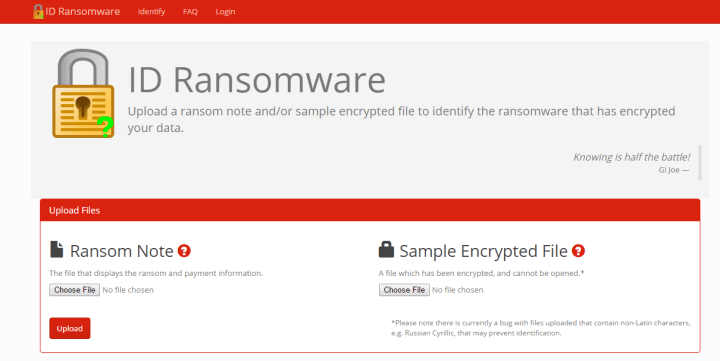
If you have been infected and need to know which malware family encrypted your data, you can use ID Ransomware to find that out. All you have to do is upload an infested file or the message the malware is displaying to your screen.  ID Ransomware can currently detect 55 types of ransomware but does not offer any file recovery services. Here’s the list with all the ransomware it can identify:

7ev3n, AutoLocky, BitMessage, Booyah, Brazilian Ransomware, BuyUnlockCode, Cerber, CoinVault, Coverton, Crypt0L0cker, CryptoFortress, CryptoHasYou, CryptoJoker, CryptoTorLocker, CryptoWall 2.0, CryptoWall 3.0, CryptoWall 4.0, CryptXXX, CrySiS, CTB-Locker, DMA Locker, ECLR Ransomware, EnCiPhErEd, Hi Buddy!, HOW TO DECRYPT FILES, HydraCrypt, Jigsaw, JobCrypter, KeRanger, LeChiffre, Locky, Lortok, Magic, Maktub Locker, MireWare, NanoLocker, Nemucod, OMG! Ransomcrypt, PadCrypt, PClock, PowerWare, Radamant, Radamant v2.1, Rokku, Samas, Sanction, Shade, SuperCrypt, Surprise, TeslaCrypt 0.x, TeslaCrypt 2.x, TeslaCrypt 3.0, TeslaCrypt 4.0, UmbreCrypt, VaultCrypt

Uploaded files are analysed against the database of signatures. Results are ordered by the number of matches found between the malware and the data base. If the malware is identified, the files you uploaded are deleted. Once the rasomware type has been identified, you can search by the threat name to get the latest recovery information. Since many ransomware share similar extensions on files, in some cases, the results are not 100% clear.

If no results are found, the uploaded files are shared with trusted malware analysts for further analysis or for identifying a new malware type. As far as data confidentiality is concerned, ID Ransomware states clearly:

With that said, I cannot guarantee files are kept 100% confidential. The data is temporarily stored on a shared host [to be shared with trusted malware analysts if necessary], and I am not responsible for anything done otherwise with this data.

Obviously, our advice is to install an anti-malware software in the first place and avoid suspicious sites or files. We recommend BitDefender’s free BDAntiRansomware.

RELATED STORIES YOU NEED TO CHECK OUT:

How to adjust Active Hours in Windows 10 Mobile

If you’re a part of the Windows 10 Mobile Insider Preview program, the most important thing for you are updates and new builds. Installing new updates can sometimes interrupt your work, though, something that can be pretty annoying.

Luckily, one of the improvements with the latest Windows 10 Mobile Preview build 14322 brought is the ability to set your Active Hours on Windows 10 Mobile to avoid installing a new build or update while you’re using your phone. When you adjust Active Hours, your Windows 10 Mobile device will only install new updates outside that period, so unwanted installations won’t bother you anymore.

How to set Active Hours on Windows 10 Mobile

To set Active Hours, do the following:

  1. Go to Settings
  2. Go to Update & security, and then to Windows Update
  3. Go to Change Active hours
  4. You can now set Start time and End time, and you’re good to go

Once you set your active hours, your Windows 10 Mobile device will avoid installing new updates during that period. You can, of course, change your active hours at any time by repeating steps from above.

If you use your Windows 10 Mobile device mostly during the day, you’ll logically set updates to install during the night, and vice versa. That way, you can use your phone normally without worrying that a random update will interrupt your phone’s usability.

Just like it was the case with Battery Saver, Microsoft also made this functionality almost identical to the PC version. So, if you already set active hours on your Windows 10 PC, doing the same thing on Windows 10 Mobile won’t be a problem.

RELATED STORIES TO CHECK OUT:

How to manage the new Battery Saver in Windows 10 Mobile

Windows 10 Mobile Insider Preview build 14322 brought a lot of improvements to the OS, with one of them being the redesigned Battery Saver settings featuring some functionality improvements and other minor tweaks.
The most notable change is that all battery-related settings are now put under a single section, titled Battery Saver. Battery Saver and Battery Sense are also merged on phones that featured this option. Now, all battery settings can be accessed in one place without having to go through various windows.

battery saver windows 10 mobile

Besides the fact that all settings are now in one place, no other notable changes were made. You can still see current battery percentage and an estimate of how long the battery should last. Additionally, there’s also an option which shows the battery usage of individual apps, so you can check out which app uses the most power.

Instead of going to Battery saver settings as before, all settings are now available on the main screen. So, you can set Battery Saver to turn on when the battery levels falls below a certain percentage with the option to set the desired percentage underneath (20% is set by default).

To access the Battery saver settings, go to Settings > System > Battery saver. You can also access the Battery saver settings directly from the Action Center by tapping on the Battery saver shortcut.

battery saver windows 10

As Microsoft said, the latest build revamps the Battery saver settings to look like the Battery saver on Windows 10 Preview for PCs and as a result, both versions are almost identical. So, if you’ve installed the latest Preview build on both Windows 10 and Windows 10 Mobile, you’re going to pretty much get the same Battery saver experience.

RELATED STORIES TO CHECK OUT:

How to use the updated Glance Screen in Windows 10 Mobile

Microsoft brought a lot of improvements to Windows 10 Mobile with the latest Preview build 14322. With Windows 10 Mobile’s more user-friendly focus, these improvements are mainly related to the user experience although there are some functionality improvements, too.

One improvement that caught our attention is the revamped Glance Screen option which received a few changes, changing it up compared to the previous Windows 10 Mobile Insider Preview build. First off, the Glance Screen option in the Settings app was moved from the Extras section and can now be found under Personalization. So, to access the Glance Screen, go to Settings > Personalization > Glance screen. Besides changing the location of the Glance screen option, the new build also simplified it so users can now set their glance screen easier.

[irp posts=”26991″ name=”100+ Best Windows 10 Store Games to Play”]

Also, since the Glance screen settings are moved, you don’t have to download and update it from the Store anymore. All future updates are going to be applied along with the new build.

How to use the revamped Glance Screen in Windows 10 Mobile

When you open settings for the Glance screen, the first thing you have to decided is whether or not you want it to appear when the screen is turned off. If you set this option to “On,” you’ll then have to choose the length of time you want it to stay on your screen. You have various options, from 30 seconds to ‘Always on.’

Additionally, you can set your Lock Screen picture to show on the Glance screen when your display is turned off. Microsoft added this option with Windows 10 Mobile, as it wasn’t present in Nokia’s original version of the glance screen.

glance screen windows 10

Of course there’s also the Night mode, which dims the Glance screen during select hours. You can choose the Start and End time of the Night mode just underneath. Another Glance screen option added with Windows 10 Mobile is the ability to show time, date, and status notifications with the Glance screen. So, if you received a new message or a new email, you’ll be notified even if your display is turned off.

And finally, you can also set exceptions for the Glance screen, like the option to always show Glance screen while charging and the ability to override charging settings with the Night mode.

The Glance screen could be very handy option, but unfortunately not all Windows 10 Mobile devices have it. So, if you want to use the Glance screen option on your phone, make sure your device supports it.

RELATED STORIES TO CHECK OUT:

Windows TV Box Units to Connect your Smart TV: 5 Best

TV boxes are becoming more and more popular among Windows 10 users for many reasons. First, they offer a series of interesting features packed in one tiny device that can be connected to other devices. Secondly, they come in small sizes which makes them easy to carry around. Let’s see what are the best Windows 10 TV boxes at the moment.

1. VOYO V3 Mini PC TV Box (recommended)

Voyo V3 Windows 10 tv box


Voyo’s latest model is powered by an Intel Cherry Trail X7-Z8700 processor backed by Intel HD Graphics. Thanks to its processor, it can reach a maximum clock speed of up to 2.4GHz. The 8th Generation Intel HD Graphics GPU offers a high definition experience for viewing pictures and videos.

Voyo V3 sports Bluetooth 4.0 and can be easily paired with many Bluetooth devices (computers, smart TV sets), and also features one HDMI port and one USB-C port. Connect it to your smart TV and dive into a HD movie experience.

⇒ Buy it now on Amazon

2. Rikomagic RKM MK36S TV Box (suggested)

Rikomagic RKM MK36S Windows 10 tv box


This TV box is equipped with an Intel Cherry Trail Z800 processor that features a quad-core processor and 8th Generation graphics. The processor clocks in at 1.84 GHz and is supported by 2GB of RAM. As far as the connectivity features are concerned, the Rikomagic RKM MK36S includes two USB 2.0 slots, one USB 3.0 slot and one HDMI port. You can also use it as a mini-PC.

Of course, it is not as fast as VOYO V3, but if you’re not willing to spend too much money on a TV box, the Rikomagic RKM MK36S TV Box is the right choice for you.

⇒ Buy it now from Amazon

3. Beelink BT3 TV Box

Beelink-BT3-v3.0.cdr


This TV box is powered by an Intel CPU Intel Atom x5-Z8300 Processor (2M Cache, up to 1.84 GHz) with IntelGraphics and was launched back in January 2016. It sports 2.4G/5.8G WiFi for a more stable Wi-Fi signal allowing you to enjoy a higher quality video experience to help turn your home into a theater. In terms of connectivity, it offers Bluetooth 4.0 and USB 3.0 for high speed data transmission.

⇒ Buy it now on Amazon

4. Pipo X6s TV Box

Pipo X6s Windows 10 TV Box


This TV box is equipped with an Intel Cherry Trail-Z8300 1.84GHz processor and supports the following video formats: MEPG 1/2/4, H2.63/H2.64, RMVB, WMV/VC-1, MVC, AVS, MJPEG (1080P). It has a 64GB storage capacity which can be extended to 128 GB and is equipped with two USB 2.0 ports, one USB3.0 port and one HDMI port. It is compact and comes in two colors: black or white.

⇒ Buy it now on Amazon

5. Tronsmart Ara X5 TV box

Tronsmart Ara X5 Windows 10 TV box


This device is powered by a Cherry Trail Z8300 14nm 1.8G 64-bit processor and offers 8th Generation Graphics. With a fanless design, the Ara X5 offers quiet but stable system performance. The device supports the following video formats: HD MPEG1/2/4, H.264, H.265, HD AVC/VC-1, RM/RMVB, Xvid/DivX3/4/5/6, RealVideo8/9/10.

It can also be used as a computer and features built-in Cortana functionality in Windows 10. However, its performance as a mini-PC isn’t that good, so we suggest that you use it primarily as TV box.

⇒ Buy it now on eBay

RELATED STORIES YOU NEED TO CHECK OUT:

PSA: Microsoft ending Exchange 2007 support in April 2017

It’s the never-ending cycle of technology, and Microsoft’s solutions aren’t any different. Out with the old, and in with the new! About a week ago, The Exchange Team posted a blog marking the one-year countdown for Exchange Server 2007. As of next April, the server will cease to be supported.

Users are being advised to start planning a migration to one of the more recent servers. Customers can use the option to upgrade via mailbox move to Exchange Server 2010, Exchange Server 2013, Office 365, or the more current Exchange Server 2016. While the expiration date for Exchange 2007 doesn’t leave many options, there is a large list of benefits including better collaboration, smarter inbox, mobile productivity, simplified architecture, and expanded security and compliance compared to its predecessors.

If none of those options seem appealing, Office 365 makes transitioning easier through Microsoft FastTrack. FastTrack is a customer service that works with the user to assess, remediate, enable, and migrate eligible services for customers with 50 seats and above.

For more detailed information on how to begin the process of migrating your messaging infrastructure, the blog post has links for each specific option.

Microsoft adds video to Pulse feedback tool with Video Pulse preview

Microsoft is currently attending the 2016 NAB show and announcing new services and tools that customers can look forward to in various industries. WinBeta recently reported on the news of EV charging network Volta integrating Microsoft’s Azure platform to its backend to optimize performance and provide brand exclusives to its service.

Now, Microsoft is announcing the launch of Video Pulse at the 2016 NAB Show as well. While Video Pulse has been a part of Microsoft Pulse since last month, the company has now decided to put Video Pulse in an ‘open preview’ and made available to all Pulse users.

Backtracking just a bit, Microsoft Pulse is a tool designed to help customers measure the live reactions of audiences and customers using real-time engagement, research, and learnings in one concise service. Microsoft’s Pulse has been used to service telecommunications companies such as Telemundo during the GOP Presidential Primary and CNN, MSNBC and NBC during the 2016 State of the Union address to mention a few. Microsoft’s new Video Pulse demoed at this years’ SXSWedu media, film and music convention, is intended to take the Pulse service “beyond the live interaction realm to allow teachers, researchers, broadcasters, and professionals of any kind to collect feedback on recorded video.”

Video Pulse is designed to capture data and transmit information on any digital property, at any given time. Dritan Nesho, Head of Microsoft Pulse describes the intent and future of Video Pulse as such:

With Video Pulse we will introduce a new format of digital content rating to the marketplace. Customers will soon have the ability to upload video content and have it rated quickly and at scale, across digital space and at any time, and in a detailed and complete way around the questions and attributes that matter to them most.”

With today’s announcement and release, Video Pulse will be out in the wild for professionals to incorporate into their various workflows, testing methods and research as they see fit. For more information about Microsoft’s Pulse and Video Pulse software, follow the Pulse team via their Twitter handle .@microsoftpulse or LinkedIn for more detailed postings.

TeamViewer adds Continuum support to Universal Windows App

TeamViewer Remote Control is a Universal Windows 10 app that allows users to remotely access applications from any Windows 10 device. The latest update to TeamViewer Remote Control now supports use with Continuum, available on select Windows 10 Mobile devices.

Kornelius Brunner, VP of  Product Management, explains why it is important that TeamViewer supports new Windows features for personal and enterprise customers:

“Since our inception in 2005, we have worked closely with Microsoft and have quickly provided support for any new Windows development. We are constantly working to be SMBs’ and enterprises’ first choice when it comes to remote access, which is why we are extremely proud to be one of the ten most downloaded productivity apps in the Windows Store for Business.”

With Continuum, users can use TeamViewer Remote Control app on their Windows 10 Mobile device with the use of a Display Dock for maximum portability. The new update also allows Cortana integration with the TeamViewer Remote Control app to allow a seamless Windows 10 experience across all devices.

Microsoft realizes the importance of having TeamViewer as a partner to help grow relationships with enterprise customers.  Microsoft’s Head of Windows and Surface Unit, Oliver Gürtler, welcomes TeamViewer’s Continuum and Cortana support:

“TeamViewer is an important partner to Microsoft and we welcome the development of the new Windows 10 Universal App. The support for functionalities like Continuum and Cortana utilizes the innovative force of the Windows platform and demonstrates TeamViewer’s strategic vision and pioneering spirit.”

Download TeamViewer Remote Control app in the Windows Store.

TeamViewer: Remote Control
Developer:
TeamViewer
Price:
Free

EV charging stations set to get data boost integrating Microsoft Intelligent Cloud Platform

Volta Charging currently holds a free, electric vehicle charging network that services high-profile properties in big US cities such as San Francisco, Los Angeles, San Diego, Phoenix, Honolulu and Chicago. To expand its offering, the charging network will soon integrate Microsoft Azure to optimize performance and provide brands exclusive access to audiences via tailored advertising.

According to Volta’s press release, the company’s network will leverage the Azure cloud platform to “exhibit brands’ digital content at high-traffic public locations, showcasing interactive and demographically relevant, targeted media on Volta’s charging stations’ digital displays.” Precisely, Microsoft’s Azure live analytics data allow Volta to integrate interactive media resulting in increased user engagement for advertisers. The EV charging network also adds that it has a proprietary algorithm that can recognize viewer demographics and use that information to serve hyper-relevant media in real-time.

Microsoft Corporate Vice President of Developer Platform & Evangelism and Chief Evangelist Steven Guggenheimer shared in the press release:

“Microsoft is working with our partners around the world to discover and implement innovative ways to transition to a sustainable, low-carbon future for our planet. Volta EV charging stations utilizing Microsoft Azure media services, machine learning and analytics inspires such sustainable behavior that brands can use to support their retail strategy.”

If you plan to attend the NAB show in Las Vegas this week, Volta will be exhibiting the Volta EV Charging Station within the Microsoft booth. Microsoft announced many new Azure Media Services features this week and we’ll continue to follow how the Microsoft intelligent cloud helps to bring to market new  innovative solutions.

Microsoft educational tools are a boon to special education students

Beyond the division of consumers and business sectors, there is a third, sometimes under-appreciated segment of people who rely on tech to help empower them to get things done and that’s education. As much as Microsoft’s known for its foundations in businesses and its sometimes arguable missteps in consumer markets, the company has made significant end roads in providing educators and students with tools necessary for success.

Microsoft’s latest educational tool set includes products and services such as OneNote, Sway, and Surface tablets. Lauren Pittman, a special educations teacher at Holly Spring Elementary School in Georgia, took some time to go over how Microsoft’s Learning Tools have helped help her and fellow educators reach their SPED students.

Pittman describes SPED as being a resource special education teacher for students that typically two-plus years behind an average student in reading, writing, and math skills. With various learning hurdles to overcome, SPED students present Pittman and other educators a unique challenge in helping them achieve their “average.”

This year, I decided that I wanted to make that same journey and make my classroom paperless. I went to my technology project specialist, Sandi Adams, and my principal, Dr. Dianne Steinbeck, and told them about what I wanted to do. Sandi sprinkled her magic and we were off and running. My students were awarded Surface tablets to use this year and this helped us take another step forward on our journey. I worked all summer to get our OneNote Notebook ready and when the day came that we got our Surface tablets, we were more than just off and running—we were sprinting.”

While the Surface tablets offer greater mobility and immediacy for a child with various learning challenges, Pittman found OneNote to be the standout service that helped her the most.

In order to help my students find their educational success, I decided that OneNote was going to be the base tool for our room. I took everything that I normally would do on paper and transformed it into a digital working binder. When my students first started working with the OneNote Notebook, they were blown away. One of my students said, “I will never have to worry about finding my work again,” and he was right. To this day, he has never lost any of his work, and for anyone with an ADHD student, you know how mind-blowing that seems.”

Specifically, Microsoft’s Learning Tools for OneNote helped centralize all of OneNote’s capabilities in an easy to digest tool for Pittman’s students. Learning Tools for OneNote include enhanced dictation, immersive reading, font spacing and short lines, syllabification, and comprehension mode to boost independent learning.

OneNote and Learning Tools are the perfect combination that I had been looking for. If you teach SPED or have these students in your classroom, you now have an easy-to-access and easy-to-use tool at your fingertips to help transform their education. You can watch these students go from “educational black hole” to “sky’s the limit.”

As classrooms slowly integrate newer technologies into teaching methods, it is becoming apparent, that the transition is benefiting all. From school faculty to its special education students, Microsoft is helping to provide tools that are customizable, flexible and attentive to accommodate a plethora of learning situations and needs.