Top 3 Mail app Enhancements for Enterprise in Windows 8.1

The core Mail app is one of Microsoft’s pillar apps for Windows 8, and with Windows 8.1, it has been revamped. Let’s see some top new features that the Mail app delivers for business and enterprise users

mail app windows 8.1

Windows 8.1 comes with more improvements that you might suspect. Not so long ago, we discussed about top 3 new wireless networking features that it comes with, such as Miracast Wireless Display, the new 802.11ac Wi-Fi standard.

We’ve also briefly talked about the High DPI support and the H264 codec features, as well. Now, it’s time to discuss about what the Mail app in Windows 8.1 can do for your organization or entrerpise.

  • New group policy setting lets you use the Mail app to connect to an Exchange mailbox without first specifying a Microsoft account
  • Certificate-based authentication support has been added in the Windows 8.1 Mail app
  • Support for authenticated proxy servers added which means the Windows 8.1 devices are being used only inside the company’s network.

The Mail app comes with a lot of improvements for regular users, but the above three, briefly described, are meant for businesses and enterprises as it allows administrators to control what is happening with Windows 8.1 devices in the network. The improvements are much needed for touch devices, mostly.

If you are an IT administrator or you just manage how Windows 8.1 devices are being used by your employees, let us know what do you think about these improvements in the Windows 8.1 Mail application.

Microsoft Explains to Developers how to Manage Windows 8 and Windows 8.1 Apps

If you have created Windows 8 and Windows 8.1 apps, then the next step would be to know how to manage them. Follow these advices that Microsoft has shared for Windows developers
manage create windows 8.1 apps
Windows 8 developers are essential for the thriving of the Windows Store, which really needs to get more awesome Windows 8 and Windows 8.1 apps. That’s why Microsoft has made sure they provide developers with all the tools they need to create impressive and useful Windows 8 apps. We here at Wind8apps find some of the best and review them carefully for our community of readers.

In a recent post on its Windows App Builder Blog, Microsoft has shared a few advices on how to efficiently manage your Windows 8, Windows 8.1 apps. The Windows Apps Team starts with a good question that developers have been asking for quite a while now:  “After I update my app for Windows 8.1, what happens for customers running Windows 8?”. And here’s Microsoft’s advices on retargeting your app for Windows 8.1:

  • Copy/fork your solution so you have separate solutions targeted for Windows 8 and Windows 8.1.

  • Retarget each of your projects in your Windows 8.1 solution.

  • Fix any errors that crop up due to file paths and extension SDKs.

  • Update your code to take advantage of new Windows 8.1 APIs and features.

  • Optionally, make any changes/fixes you need in the solution targeted for Windows 8.

Follow the above link to see a video that explains it carefully, as well as the next steps that you need to take to retarget your app for Windows 8.1. If you have created a Windows 8 app and you think it deserves to be reviewed, send us an email – rtyrsina @ gmail.com and we’ll have a look at it. Good luck at building awesome apps for the Windows Store!

Faster 802.11ac Wireless Connection Explained in Windows 8.1

The jump from the 802.11n wireless standard to the new 802.11ac in Windows 8.1 is actually a much bigger deal that some of us have realized. Read on to discover why
802.11 ac windows 8.1
Like we have explained earlier in our article with the top new wireless networking features in Windows 8.1, the new 802.11ac Wi-Fi standard provides much greater bandwidth and faster connections than 802.11n and other previous standards. Windows 8.1 and Windows Server 2012 R2 have been updated by Microsoft to be able to support the Institute of Electrical and Electronics Engineers (IEEE) 802.11ac wireless access.

And what exactly does it mean for regular consumers like you and me? Well, first of all, let’s understand the concept, here’s how its description goes:

IEEE 802.11ac is a wireless computer networking standard in the 802.11 family developed in the IEEE Standards Association process, providing high-throughput wireless local area networks (WLANs) on the 5 GHz band.  The standard was developed from 2011 through 2013, with final 802.11 Working Group approval and publication scheduled for early 2014. According to a study, devices with the 802.11ac specification are expected to be common by 2015 with an estimated one billion spread around the world.

This specification has expected multi-station WLAN throughput of at least 1 gigabit per second and a single link throughput of at least 500 megabits per second (500 Mbit/s). This is accomplished by extending the air interface concepts embraced by 802.11n: wider RF bandwidth (up to 160 MHz), more MIMO spatial streams (up to 8), multi-user MIMO, and high-density modulation (up to 256-QAM).

802.11 ac standard is the future in wireless networking

So, we can see that with 802.11 ac wireless standard in Windows 8.1, Microsoft has made sure they are prepared for the future, that is especially bound to be populated with myriads of tablets, especially. Have a look at the following table that compares the 802.11n and 802.11ac wireless standards.

802.11 ac windows 8Improved wireless connections aren’t limited only to Windows 8.1 as Windows Server 2012 R2 product also received the same features. Also, thnks to the new 802.11ac wireless standard, we will know be able to make use of a better performance for wireless display, streaming high fidelity videos, distribution of HDTV, rapid upload and download of files and even playing online games, such as Dragon’s Prophet or Guild Wars 2 (just random examples). Microsoft also reminds us of this:

To see the benefits of using 802.11ac connections, your other wireless network hardware, such as wireless network adapters and wireless access points, must also support 802.11ac. In addition, 802.11ac functions regardless of whether you have deployed 802.1X authentication; the two technologies are not related.

Did you know about this new wireless standard that really matters in Windows 8.1? Or, as long as your Wi-Fi issues aren’t solved, it doesn’t really matter to you.

Visual Studio 2013 launch event taking place in London on December 3rd

Visual Studio 2013 logo

December 3rd will be a special day for developers, especially Visual Studio developers. Visual Studio 2013 is set to launch officially on December 3rd. The launch is based in London, which also happens to host the New Developers Conference.

For those who visit the launch, there will be a free pre-conference workshop for developers who aren’t even attending the New Developers Conference.

To spice up the launch, there will be some members from the VS team in the US present, along with London-based Microsoft reps.

“Join us on the 3rd of December for the launch of Visual Studio 2013 and find out how these tools will help you create your applications or to modernize existing applications.”

What launch doesn’t succeed without top members being on stage? There will be the Senior Director of VS Product Marketing, Nicole Herskowitz, along with David Carmona, the Director of VS Product Marketing.

Windows Phone Central have a rough outline of what topics will be covered, they will be listed below.

  • Agile development and what is new in TFS
  • Building applications for Windows 8.1 and Windows phone with Visual Studio 2013
  • Introduction to our Testing Tools
  • Develop and Test Applications on Windows Azure
  • Develop Web Applications with Visual Studio 2013
  • Application Lifecycle Management using Visual Studio

You can sign up with the link provided here. If you’re going, be sure to send us some pictures!

Top 3 New Wireless Networking Features in Windows 8.1

Windows 8.1 comes with some awesome new wireless features that more people should hear about; we have compiled top 5 features to help you learn more about Windows 8.1
wireless networking windows 8.1
To make a short break from all the issues and problems we’ve been writing about Windows 8.1, today we’re going to talk briefly about top five new wireless networking features in Windows 8.1. I myself didn’t bother to see what has changed in the wireless network field with the advent of Windows 8.1, so some of these are also new to me, as well.

Wireless network in Windows 8.1

  • Support for 802.11ac – 802.11ac comes with better bandwidth and faster connections than previous 802.11n standard. This will improve the Wi-Fi speeds on your Windows 8.1 desktop device and tablet
  • Wireless Display – the Wireless Display with Miracast technology not lets you project your Windows 8.1 laptop or Windows RT tablet screen onto larger Miracast-compatible displays. Imagine playing one of the best Windows 8 games and have it screened on your huge TV.
  • Extended passwords use for enterprises – if you are part of an organization, you can bring your own wireless device running Windows Server 2012 R2 and Windows 8.1 to work. You will have to enter passwords only once during the wireless session.

I guess those of you that have issues with their Wi-Fi in Windows 8.1 are really disappointed that they can’t benefit from these awesome features. But follow the above link and let us know of your issue and we’ll try to work it out together. The same new wireless networking features have been made available for Windows Server 2012 R2, as well.

Windows Store app Brainteasers gets Update to fix Windows 8.1, 10 Bugs

Brainteasers, the Windows 8 app where you get to play as a detective, has been updated with some needed new features as well as some bug fixes
brainteasers windows 8.1
Brainteasers is one of the most played games from the Window Store from the Games/Puzzle and is popular among players that also play chess, sudoku, checkers and other apps and games that help you keep your brain trained. You get to play as a really smart detective by solving brainteasers by reading the clues. The official description of Brainteasers for Windows 8 and Windows RT goes like this:

Are you a real detective. Try solving the murder which took place in the mansion. Read the clues and use the knowledge to find which of the suspects is the murderer. Find out where everyone was during the crime and use your brain to unravel the murder mystery.

The Brainteasers app has been updated with fixes for Windows 8.1 issues, as well as new levels to keep the detective fun going, extra diagnostics. The latest Brainteasers version for Windows 8 also has fixed the reasons why the app was crashing on some systems. Follow the link from below to download Brainteaser and start solving misteries.

Download Brainteasers for Windows 8, Windows RT

Office ‘Gemini’ apps still nearly a year away before release (rumor)

Office 'Gemini' apps still nearly a year away before release (rumor)

Office “Gemini” is the codename for the next big update to Office, in which we are expecting a Metro/Modern version of the Office productivity suite. The “Gemini” range of Office updates are rumored to roll out sometime next year, around the spring or summer time.

Similar to Office Web Apps (and Office 365 subscription model being the center of the Gemini strategy), this new version of Office will run on multiple platforms. According to a new report from ZDNet, Microsoft is reportedly working to build the Word, PowerPoint, and Excel apps from the ground up. Microsoft is internally calling these apps as WinRT apps.

“To get the core Word, Excel, PowerPoint and OneNote apps to work natively on touch platforms, Microsoft is basically having to start almost from scratch. The Office team is having to redo the UI to include an updated ribbon model. They’ve had to rethink what a touch-first (as opposed to afterthought “touch mode) interaction experience should be,” the report states.

These WinRT apps are not intended to replace their desktop counterparts, as Microsoft plans to continue to develop and innovate on the desktop front. The report also indicated that InfoPath may circle the drain in the near future, but Microsoft has yet to confirm this. The new interface Microsoft is working on is set to be the center of the new Office on all platforms, including competitors platforms.

So what is taking so long? According to ZDNet, it has a lot to do with the company’s new and evolving product strategy, along with internal politics. However, the projected release date is sometime during spring or summer of 2014. Could we see a multi-platform Office or simply a touch-centric Windows Store style apps? We will just have to wait and see.

Microsoft is already working on two new Office apps for Windows 8 and Windows Phone 8. Currently code named as Office Reader, this app provides a cross format tool for consuming different formats of content. The Office Lens app for Windows Phone allows one to scan and convert a picture using optical character recognition. 

Radio+ App Gets Updated with Windows 8.1, 10 Support

Radio+ is one of the best Windows 8 apps from the Windows Store to listen to radio completely for free, and now it has finally gotten support for Windows 8.1
radio+ app windows 8.1
The beauty of owning a Windows 8 tablet is that you can do so many things on it. It goes without saying that even in this day and age, we are listening to the radio, but now we’re using live broadcasts to do it. That’s why we have selected some of the best radio apps to use on your Windows 8 and Windows RT tablet, so I suggest you to have a look.

Radio+ is another radio app from the Windows Store that has gotten good reviews and positive ratings since its launch. However, users did have some errors after updating to Windows 8.1, with various errors. A release note about the changes made to Radio+ Windows 8 app is still missing, but I’m making a bet here that the developer has added Windows 8.1 support. This is also according to some users.

You can use the Radio+ Windows 8 app to listen to popular radio stations of various music genres without any limits at all. From what I’ve seen, the app seems to be very popular among users from Russia and those that speak Russian and listen to Russian music. Follow the link from below to download the Radio+ app on your Windows 8.1 device.

Download Radio+ for Windows 8 and Windows RT

Team Viewer Touch Windows 8.1, 10 App Receives Important Update

Popular remote software tool TeamViewer Touch gets an important update in Windows 8.1; read to discover more about it
team viewer windows 8
Being able to control remotely a computer from your Windows 8 or Windows RT tablet is really neat and that’s why many users were glad when the official Team Viewer Touch application has been launched in the Windows Store. Now, after the update to Windows 8.1 has been made official, the app receive an important update.

The release notes of the update let us know that the following things have been updated to the Team Viewer Touch app: the ability to  switch on your computer remotely with Wake-on-LAN and secure access to your account with two factor authentication. The app is described like this:

Control any remote computer with TeamViewer Touch within seconds. If you want to remotely control this computer and benefit from the whole range of features please download the TeamViewer Desktop app. Whether you are providing spontaneous support for friends and family, administrating servers or working from your home office – TeamViewer Touch lets you get the job done. Find out why more than 200 million users trust TeamViewer!

The two-factor authentication is a much needed security improvement that will be found useful by those concerned about their safety. You can team viewer touch windows 8install TeamViewer Touch on your Windows 8 or Windows 8.1 tablet and control any system running Windows, Mac or Linux. The app comes with the highest security standard, the 256 Bit AES Session Encoding and 2048 Bit RSA Key Exchange. Follow the link from below to download the app on your Windows 8 tablet.

Download TeamViewer Touch for Windows 8

The Irony: Almost Extinct, Windows XP SP2 Is More Expensive than Windows 8.1

You would believe that six months before we can finally start digging the grave for Windows XP, the OS would be dirty cheap. Well, how about this – on Amazon, SP is more expensive that Windows 8.1!
windows xp sp2 windows 8.1
While browsing today on Amazon for some software, I was curious to see what was the price of Windows XP. The reason why I got curios is because there were some interesting recent news about it, such as Google extending its Chrome support for Windows XP until April 2015, one year after Microsoft will pull the plug on the eleven-years old operating system and the fact that Windows XP is going to be a gold mine for hackers after Microsoft stops offering security patches.

I was surprised to discover a lot of very expensive Windows XP offers, and while they are being sold by Amazon, it’s obviously that it happens with Microsoft’s full consent. A copy of Windows XP Home Edition with Service Pack 2, like the one in the printscreen, is priced at $141. You even save $58 as its initial price was of $199.99. Compare that to the standard version of 8.1 that sells $119.99 (you could get a better price with these options).

It is getting even more ridiculous with a Microsoft Windows XP Professional Full Version with SP2 that comes with a price of $212.50. The software is described as being aimed for Windows 95 users, but I find it hard to believe there are still people on this world that use Windows 95. And if there are, will they spend that much money for an operating system that is going to die. Let’s not forget that Windows 8.1 Professional retails for $199.99.

If you spend a little while browsing through Microsoft’s products on Amazon, you will find even more ridiculous “deals”, such as this original Microsoft Windows XP Professional Full Version, which obviously doesn’t come with any service packs at all. The price? $144.

windows 8.1 windows xp sp2

I fail to understand why is Microsoft doing this. I applauded their Windows 8 offers for older version of Windows, but why aren’t they taking these ridiculously high prices down? Or, better yet, take the products completely off the selves. What is your opinion on this?

Dragon’s Prophet not Working in Windows 8.1, 10 for Players

Dragon’s Prophet is a massive multiplayer online role-playing game, being played by thousands of players across the world and some of them are now reporting problems with the Windows 8.1 update
dragon's prophet windows 8.1
Man, I am addicted to the Dragon’s Prophet game, it’s one of the best MMORPG I’ve tried in a while. For those that don’t know, MMORPG stands for massive multiplayer online role-playing game. After updating to Windows 8.1, I was sad to discover that the game was plagued with crashes and it hanged for quite a while.

Looking online for a fix, I’ve discovered that I wasn’t the only one to have this issue. Here’s what one of the users has shared on the support forums for Dragon’s Prophet:

Is anyone running DP on Windows 8.1? I installed it today and now the game isn’t playable anymore. Logging in works without any problems. Putting dragons on duty – works. Walking and riding my dragons – works. Attack or jump – crash (black screen or back to loading screen that doesn’t move). A very heavy crash. The game blocks the system. Can’t destroy the task with the task manager or anything else. The only thing working is a reboot :/

I tried different stuff to fix the problem but nothing worked. Before I used Windows 8 and everything was fine, except for some random crashes in the last days while loading. I’m redownloading the game atm to reinstall it. But I’m not optimistic that this will help. The download takes several hours for me, so in the mean time: Is anyone having problems with Windows 8.1 too? Or does anyone even know a fix?

dragon's prophet windows 8

We have reached out to the Dragon’s Prophet developer but we’re still waiting for a reply. What some other users are saying is that Windows 8.1 is newer than Dragon’s Prophet software, so it means that the game doesn’t yet have official support for Windows 8.1. Let us know if you have similar issues and what are the workarounds that you have tried.

Microsoft takes you behind the scenes of its archives with ‘Microspotting’

Take a glimpse behind the scenes --Microspotting: Inside the Microsoft archives

The Microsoft archives have been in operation since 1989, building up into an ever-growing record of the companies past releases and achievements. This is a company with a great deal of history so it’s great to see that it is being preserved — the job falls to archivist Amy Stevenson.

It is her job to catalog, store and preserve all manner of noteworthy memorabilia — everything from Bill Gates’ “conversation chairs” to 5.25 inch floppies for the first version of Windows.

If you fancy taking a trawl through the archives, you can get a taster in the Microspotting video posted on Channel 9.

There are some great historical pieces to be found in the archives. Some of it speaks volumes about Microsoft while other say more about the technology and culture of the day. Oh… and there’s a massive Clippy costume which is just a bit weird.

Check out the video. If you’re anything like us, you’ll be overcome with waves of nostalgia. 

MSI Launches Windows 8.1 All-In-One PCs With Screens to Reduce eye Strain

MSI has introduced 2 new Windows 8.1 all-in-one (AIO) computers that come with the company’s Flicker-Free and Blue Light Control technologies to protect users’ eyes and drastically reduce eye strain
flicker-free msi

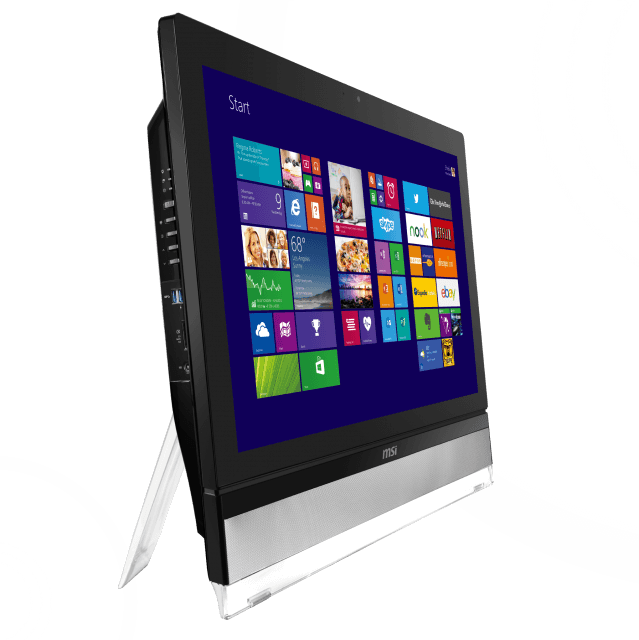
The two new Windows 8.1 all-in-one (AIO) PCs models that MSI has launched are called the 21.5 inch AE221 and the 27 inch AE270 and come with the Flicker-Free and Blue Light Control technologies, sporting Haswell processors, Full HD resolutions, and optional 10 point touch input.

So, if you’re looking to buy a Windows 8.1 AIO computer that comes with the right technology to protect your eyes, then maybe you should include these two models in your list. Besides the size difference, there are other differences between these two models which are reflected in the lower price for the AE221 model. Let’s have a look at the most important specs they come with:

Technical specifications for MSI AE221 and AE270

  • Processor – Intel  Core™ i3-4130 (3M cache, 3.4GHz) and Intel Core™ i5-4440s (6M cache, 3.1GHz
  • Operating System – Windows 8.1msi ae270 aio windows 8.1 pc
  • LCD / Touch Panel – AE270/G: 27” LCD Panel LED Backlight (1920*1080) / 10 point Touch (optional) / Flicker-Free; AE221/G: 21.5″ LCD Panel LED Backlight (1920*1080) / 10 point Touch (optional) / Flicker-Free
  • Graphics  –   Intel® HD Graphics 4400 I3 UMA), Intel® HD Graphics 4600 (I5 UMA) and NVIDIA® GeForce GT740M Graphics 2GB
  • Memory   –  DDR3 1333 / 1600 SO-DIMM * 2 / Max. 16GB
  • HDD – 3.5” SATAIII / 2.5″SSD (optional)
  • Wireless – 802.11 b/g/n WiFi
  • ODD  – DVD Super Multi / Blu-Ray combo (optional)
  • Card Reader   –  3-in-1 (SD, MMC, MS)
  • Speaker  –   2x 3W with Creative Sound Blaster Cinema
  • I/O  –   Back: Mic in x1, Earphone out x1, USB2.0 x4, HDMI out x1, HDMI in x1, RJ45 x1
  • Side – USB3.0x2, Cardreader, DC Jack
  • W-cam – 2M-pixel Full HD

MSI said the following about the essential selling point in these Windows 8.1 all-in-one computers that is constitued by the Flicker Free technology:

To give users an optimal operating environment, MSI insist on the best and is the first to introduce an anti-glare display on its All-in-One touch PCs. This technology is also supported by non-touch models. For offices with serious glare influences, brightly-lit retail stores and at home, the anti-glare feature protects the user’s eyes against reflections coming from the monitor.

The Flicker-free Technology embedded into the AE221 and AE270 stabilize the electric current and prevents flickering invisible to the bare eye under normal conditions. It effectively reduces eyestrain as well as improves productivity for those who have to use a PC everyday with long hours. In addition, the AE221 and AE270 also support the exclusive Blue Light Control Technology, which is able to effectively reduce the blue light emitted from the screen. According to TÜV tests, it can reduce blue light up to 75%, which drastically reduces strain and damage to the eyes.

At the moment, we don’t know the price tags of these two models, but judging by MSI’s history and positioning on the market, they should be more accessible than other similar specced product from more known brands.

Will a Microsoft launch ever generate the same level of interest enjoyed by Google and Apple lovers?

Will a Microsoft launch ever generate the interest enjoyed by Google and Apple?

There have been a number of big launches in few recent weeks. Apple unveiled the iPhone 5s and 5c as well as the iPad Air. Microsoft launched Windows 8.1, Surface 2 and Surface Pro 2. Google unleashed Android 4.4 KitKat and the Nexus 5 onto an excited and expectant crowd. Which of these launches is the most memorable?

Each launch was big in its own way, but I think it’s extremely unlikely that many people would pick the Microsoft launches as being the biggest or most exciting. Apple and Google, on the other hand, manage to do any amazing job of whipping people up into an excited frenzy. Theirs are major events, eagerly anticipated weeks or even months in advance.

Microsoft’s launches tend to be rather more understated affairs; they get the job done, but there’s more of a polite round of applause that rapturous cheering and trumpeting. Apple’s iPad and iPhone launches have had people around the world on the edge of their seats for months.

“We need more excitement. We want leaks and rumors. We want launches we can look forward to. We want surprises.”

Can you remember the last time a Microsoft launch caused such excitement? With both and Apple and Google products, there are crowds of people waiting to hear the tiniest snippet of information about upcoming hardware and software. Leaked pictures find their way online and the hype machine is further wound up.

Sure, people “like” Microsoft products, but they seem to be viewed as everyday things — not something to get overly excited about. When an iPhone is launched, people camp outside Apple stores days in advance. When the nexus 5 was released, it sold out very quickly, and shopping dates slipped almost immediately from one day to one week.

Microsoft – and Nokia – must look on with green eyes. No Windows Phone has caused such a groundswell. The second generation Surface sparked a degree of interest, but nothing compared to Microsoft’s competitors.

Why is this? Is it because of Microsoft’s image? Does the company not make enough fanfare about its products? What is it that Google and Apple understand about their customers that Microsoft seem to be missing? It is although Microsoft has adopted the idea of the slow-burner.

Windows was given a degree of promotion, but it is only with the arrival of Windows 8.1 some months later that interest is picking up. With Surface there were no huge launches. Microsoft seems to think the devices should speak for themselves and almost rely on customers spreading the word to help increase their popularity. Microsoft is in a position that it can afford to play the long game; it doesn’t really need an instant hit.

It’s actually quite a shame. Microsoft must like the idea of people working themselves into a frenzy at the prospect of the next version of Windows or Windows Phone. It must be difficult to look on as the likes of Google and Apple soak up adulation and Microsoft’s offerings are picked up by the hardcore faithful.

One area in which Microsoft does manage to steal the show is with the Xbox. Here the company is able to revel in the customer anticipation that is usually reserved for other people’s products. There is genuine excitement about the upcoming launch of the Xbox One. Perhaps the various departments of Microsoft need to get together and share ideas.

The company has a great deal to offer, but it is a danger of fading into the background like a dull uncle. We need more excitement. We want leaks and rumors. We want launches we can look forward to. We want surprises.

Microsoft should see Google and Apple explosive product launches and view them as a call to arms. Come on Microsoft! We know you’ve got it in you! Surprise us, excite us — we can take it!

Users warned that third-party Skype tools will stop working in December

Users warned that third-party Skype tools will stop working in December

Users are reporting seeing a message in Skype warning them that some tools used with the Skype application will stop working in December 2013. Following Microsoft’s acquisition of Skype, it was announced that the Desktop API (or the Skye Public API) is no longer supported and will be discontinued in December 2013.

Microsoft explains that: “These applications can be hardware products or software applications, but they’re all created by developers who use the Desktop API, a text-based protocol, to interact with Skype software. The Desktop API is designed primarily to help developers manage calls from outside the Skype application. Applications that use the Desktop API are not endorsed, tested, or supported by Skype.”

This means that a selection of applications that tap into Skype will stop working soon, and the same is true of some hardware devices such as headsets.

Have you noticed this message appearing on your computer yet?

Microsoft shows off the Surface 2 and Surface Pro 2’s stunning display

Microsoft shows off the Surface 2's display

In the latest behind-the-scenes video to be released about the Surface 2, Microsoft shows off the display of the Surface 2 and reveals a little about the research, design and manufacturing process.

There’s no denying that the latest generation of Surface, like its predecessor, has a stunning display and this is certainly not by accident. A great deal of work went into ensuring that every aspect of the screen was sure to impress.

“A common remark when people first see a Surface 2 device up close is how great the display looks. That’s especially pleasing to the Surface team because so much effort went into screen performance,” Microsoft stated in an official blog post.

The Surface 2 worked to ensure the most accurate color reproduction possible on the 16:9 1080p screen – accuracy has been improved by 46 percent. A new bonding technique was developed to help reduce screen reflection to around half that of many tablets on the market, allowing for longer periods of usage without eyestrain.

Check out the video, which we have embedded below for your viewing pleasure, to see Microsoft scientist Stevie Bathiche showcase the Surface 2’s impressive display.

Users Report Slow Search Charm Bar After Windows 8.1, 10 Update

A good number of Windows 8 user are apparently being struck by another issue after the Windows 8.1 update – the search charm bar is very slow and eating up a lot of CPU usage
windows 8.1 search slow
Unfortunately, we’re back at it, reporting new issues signaled by Windows 8.1 users. This time, it seems that the Windows 8.1 update has been causing the search functions to function very slow. Windows 8.1 users are frustrated by the fact that the Search Charm bar is responding very slow for them and actually eating CPU usage.

One of them says the following:

Since upgrading to Windows 8.1 this weekend, the Search feature became pretty useless. When I start typing, it sends my CPU usage to 100% (Task Manager shows Windows Explorer as the main offender), and results are pretty slow.  Some searches which worked earlier (e.g. typing “devices” would bring out a “Devices and printers” link for the Control Panel) also aren’t shown anymore if “Everything” is selected for searching.

If I select “Settings” in the drop-down, then the “Devices and settings” link is shown, but it takes around 3s for the results to show up making the whole thing useless. I tried disabling the Windows Search service completely (although it’s not the one peaking the CPU), but it didn’t help. Also disabled Bing web search integration in PC settings, but it didn’t change anything (apart from the web results now being omitted from the slow search).

If you have been getting the same issue in Windows 8.1 with your Search Charm, then another users recommends the following fix:

Adding X:Users[YOURUSERNAME]AppDataLocalPackages to the index (through Indexing Options) fixes this. Alternatively you can also add the whole AppData folder as previously suggested but it seems a bit overkill to me.

A Lenovo ThinkPad 2 users still seems to be affected by slow search issue in Windows 8.1:

Yes, my ThinkPad 2 became very sluggish with everything in general. Yet the new search is impossible to use. The keyboard hangs up and keystrokes are so delayed its painful. What happened.? I had to pin bing to my start screen from ie just so o could search the web.

After reading more about this issue, I’ve discovered that Surface users have reported this in, as well. Of course, the solutions vary from user to users. While for some the above trick solve the problems, other had set a VHD on the SD card. Removing  it and transferring files to the root of the card has solved the speed issue for some of them. Other just install the latest updates which also solved the problem.

Also, you could try the following fix suggested by a Microsoft Suport Engineer on the forums. Brace yourself, it is quite long:

Method 1: Run the System Maintenance troubleshooter and check if it helps.
a) Press the ‘Windows + W’ key on the keyboard.
b) Type troubleshooter in the search box and then pressenter.
c
) Select Troubleshooting. Click on view all and selectSystem Maintenance.
d) Click next and follow the on-screen instructions.

Note: I would suggest you to disconnect all the external devices other than mouse and keyboard and check if it helps.

Method 2: If the issue persists, I would suggest you to boot the computer to safe mode and check if the issue occurs or not. If the issue does not occur in Safe mode, set the computer in a clean boot state and check if it helps.

Step 1: I would suggest you to refer the article and check if it helps.
Windows Startup Settings (including safe mode)

Step 2: If the issue do not occur in Safe Mode perform a clean boot and check.

Setting the system in a clean boot state will help to identify if any third party applications or startup items are causing the issue.

How to perform a clean boot to troubleshoot a problem in Windows Vista, Windows 7, or Windows 8

Note:
1) After clean boot troubleshooting steps, followthe section “How to reset the computer to start as usual after troubleshooting with clean boot” in the provided link to return your computer to Normal startup mode.
2) Applies to Windows 8.1.

After trying all of the above solutions, does your Search Charm bar still feel laggy in Windows 8.1?

Windows 8, 10 Movie app Flixster gets Updated to Fix Bugs

The Windows 8 Flixster app is one of the best Windows 8 and Windows RT movie apps for users, and it has received an update that brings fixes to some annoying bugs
flixster windows 8 appI rely mainly on the Flixster Windows 8 app to watch movie trailers on my tablet, as I find it to be one of the most comfy ways to do it. But sometimes I’d get some annoying crashes or the app would randomly hang and it would get on my nerves. Today I found that the Flixster Windows 8 app has received an update in the Windows Store that seems to take care of these issues.

With regards to this update, Flixster discloses the following: “improved application stability and minor bug fixes“. The application stability means that the Flixster app is going to be more stable, meaning it won’t hang out if it did for you before. Also always, Flixster is your to go Windows 8 app to stream movies from your UltraViolet movie collection and do other things, such as:

  • See top box office movies
  • See movies opening soon
  • Get information about showtimes at nearby theaters
  • Reviews from Rotten Tomatoes
  • High quality trailers
  • Make a”Want to See” list

If you need more movie apps in Windows 8, then you can have a look at this article where we have feature more. Use the link from below to download and install the updated Flixster app on Windows 8, Windows 8.1, Windows RT or Windows RT 8.1. And don’t forget the popcorn.

Download Flixster app for Windows 8

Windows Azure hit by partial outage across the world

Windows Azure hit by partial outage across the world

Microsoft’s Windows Azure service suffered a partial global outage yesterday (October 30th). According to the Azure status page, Microsoft warned of Compute problems in every single region covered by the service.

This meant that users in West US, West Europe, Southeast Asia, South Central US, North Europe, North Central US, East Asia and East US all experienced issues. Full service was only restored at 10:45am UTC, October 31st, and was announced on the Azure dashboard with the following notice:

“Compute Service Management functionality has been restored in all regions. Microsoft Support is working to remediate Cloud Services that have been affected by this issue. We apologize for any inconvenience this has caused our customers.”

At time of writing, there is still an ongoing issue with the FTP service which is suffering a partial outage around the world. Again, every region is affected by the issue and a note on the dashboard reads:

“We apologize for any inconvenience this causes customers using FTP to publish content to Web Sites. Web Site customers are advised to use Web Deploy or Git which are fully functional. For details visit Azure.com and search for “Websites with Webmatrix” or “Publishing with Git”. Engineering is fully focused on mitigation options. We will provide an update by 8pm UTC.”

Microsoft shows off Surface 2 in design and engineering video

Microsoft shows off Surface 2 in design and engineering video

In a video interview posted on the Surface blog, director of design Ralf Groene talks about the design and engineering process in involved in producing the Surface 2.

Ralf points out that the two aspects are very closely intertwined: “We don’t design it first and then engineer it, we design and engineer it always together. It’s almost like ping pong game”.

He goes on to talk about the antenna cover describing how precision cutting it used to make it fit “like a puzzle piece into a puzzle”.

Moving on to look at the material used in the Type Cover 2, Ralf describes engineering and inventing a new micro fiber that feels like a high-end garment. For a device that is designed to be handled, fingerprints are an issue and this is smoother problem the team had to overcome.

This was a problem not only for the covers, but also the casing of the Surface 2 itself. The engineering team investigated the chemistry physics of greased repelling surfaces and then had to find a way to incorporate this idea into the magnesium exterior.

Take a look. The video gives an interesting glimpse into how the Surface 2 ended up in its current form.

Windows 8 App System Essentials Updated to get Support for Windows 8.1, 10

Windows 8 app System Essentials that lets you receive information about the hardware and software configuration of your devices has been updated to get Windows 8.1 support
system essentials windows 8.1 support
Recently, more and more apps have been getting support for Windows 8.1, one of the most important and the latest being HealthVault, CCleaner, 3D Mark, ZoneAlarm, Yahoo! Mail and many others. According to Bogdan Popa from Softpedia, System Essentials’ Windows 8 app has been updated to get better and full Windows 8.1 support.

The updated Widnows 8 System Essentials app update notes say the following:

  • Added the ability to connect to the FTP
  • Added ability to generate QR
  • Redesigned interface applications
  • The optimization of the code

You can use System Essentials on your Windows 8 and Windows 8.1 device to monitor network connections, connect to FTP servers, check Microsoft account details and it even comes with some personalization options for Windows 8.1. The app also comes with a Smart Card Manager and a Barcode Scanner, as well as the ability to to send and receive SMS messages on your Windows 8/8.1 system.

ZoneAlarm Finally Gets Windows 8.1, 10 Support, After Leaving Many PCs Unprotected

Thousands of Windows 8.1 computers were left unprotected as Zone Alarm was struggling to release support for Windows 8.1; the update is finally here
zone alarm windows 8.1Many folks are using ZoneAlarm products to protect their Windows 8 device, as CheckPoint has all the security tools you might need – firewall: free and paid, anti-virus: free and paid, internet security and other bundles. But since Microsoft has made available the Windows 8.1 update on October 17, many Windows 8.1 computers were left unprotected, as it took Zone Alarm almost two week to add Windows 8.1 support to its products.

Microsoft said that all the apps added by users using Windows 8.1 Preview will have to to be reinstalled after upgrading to the final version of Windows 8.1. Of course, many Zone Alarm users have updated to Windows 8.1 from the Preview version, reinstalled the app and some of them even got corrupted software in the end, like it was the case with McAfee users, according to some posting on Zone Alarm‘s forums. For other, ZoneAlarm‘s products were crashing, hanging or just stopped working.

Zone Alarm Firewall, Internet Security, and AntiVirus get Windows 8.1 support

Online users have been reporting similar problems have with Symantec’s Norton Internet Security suite. And this is definitely not Microsoft’s fault as the company gave developers like Check Point more than a month ahead to prepare for the Windows 8.1 launch. Now, finally, Zone Alarm has announced that support for Windows 8.1 has been made available. Free and paid ZoneAlarm products have been updated to version 12.0.104.000 which comes with:

  •     New feature: Windows 8.1 support
  •     Updated feature: Antivirus engine
  •     Improved feature: AV detection

And here are the download links for all of ZoneAlarm‘s products that have been updated:

  • ZoneAlarm Extreme Security
  • ZoneAlarm Security Suite
  • ZoneAlarm Antivirus +Firewall
  • ZoneAlarm Pro
  • ZoneAlarm Free Antivirus +Firewall
  • ZoneAlarm Free Firewall

All ZoneAlarm users are advised to download and install the Windows 8.1 updates as soon as possible to end this two week period while their computers were left unprotected.

High DPI Support in Windows 8.1, 10 Explained [Video]

This video explains the meaning and role of high DPI support in Windows 8.1
windows 8.1 high dpiWe heard for the first time that Windows 8.1 would bring DPI scaling enhancements back in July. Now that Windows 8.1 is finally official, you are probably wondering what exactly it means and what it implies. This video from below pretty much sums it all up, featuring Larry Larsen, Andrew Richards, Chad Beeder from the Channel 9 Defrag Tools online series.

The positive effects of the high DPI support in Windows 8.1 for Internet Explorer 11 are explained by Microsoft:

Internet Explorer 11 brings enhanced scaling for high DPI screens and small slates, ensuring the consistency of your website’s text, touch targets, and layout across Windows 8.1 devices. Specifically, IE11 introduces the following high DPI improvements.

Also, it improves the multiple monitor support

Because Windows 8 uses a single DPI setting, if you’re using multiple monitors with different DPIs, you get a sub-optimal scale factor on at least one of your monitors. IE11 adds per-monitor scaling support, so your web content scales to the correct level automatically as you drag the window between monitors. This is particularly useful when projecting from high DPI devices, as projectors are typically low DPI displays.

High DPI support in Windows 8.1 explained

If you are a Windows 8 developer or you’re just curious about this new feature in Windows 8.1, have a look at the video from below. Here is the timeline of the video so you can know what to look for:

  • [00:00] – What is DPI (Dots per Inch)?
  • [02:12] – Issues with High DPI before Windows 8.1
  • [03:18] – Windows 8.1 support
  • [04:00] – Launch configuration via DpiScaling.exe
  • [06:18] – 500% scaling now available
  • [07:22] – Non-High DPI (legacy) apps are fuzzy due to DPI Virtualization
  • [09:50] – Writing High DPI Applications
  • [13:22] – (Application) Compatibility tab

Daemon Tools Gets Windows 8.1, 10 Support, Still Lacks Windows 10 App

Daemon Tools still doesn’t have an official Windows 8 app, but now the popular software has been updated to Windows 8.1
daemon tools windows 8
Some of us are still hoping there is going to be a day when we will see an official Daemon Tools app for Windows 8, even if it might seem a little weird to think about its functionality at the moment. Until that moment comes, we are pleased at least to hear the news that Daemon Tools has been updated for Windows 8.1, getting the full support for Microsoft’s first Windows 8 update.

Besides getting update for Windows 8.1 support, here are some other new features in Daemon Tools:

  • SPTD 1.84
  • Image statistics is no longer collected
  • Minor fixes

To remind you, you can use Daemon Tools on Windows 8 to creates .iso and .mds images and also to emulate virtual CD and DVD drives. Daemon Tools mounts and unmounts images and supports the following file formats in Windows 8, as well: .b5t, .b6t, .bwt, .ccd, .cdi, .cue, .nrg, .pdi, .isz. The paid version of Daemon Tools will also let you compress your image files and protect them with password in Windows 8. Also, you will have option to manage your image collection.

IM+ Windows 8 App Update Makes it Ready and Optimized for Windows 8.1, 10

IM+ Windows 8 app gets updated and optimized for Windows 8.1
im+ windows 8.1If you have been using IM+ on Windows 8 and have experienced issues when finally upgrading to Windows 8.1, then your issues could have ended. The IM+ app has been optimized for Windows 8.1 and you can get it from the Windows Store as of now. This isn’t just a minor update, like with Facebook, Box or Wikipedia but a serious move forward from the IM+ team.

Here is the changelog of the Windows 8.1 update for the IM+ app:

  • Support for Windows 8.1
  • New Small and Big tiles
  • Support of MSN contacts in Skype
  • Ability to send messages to offline VK.com contacts
  • New emoticons
  • Ability to see who of your ICQ contacts are connected on mobile
  • Message queue
  • Performance improvements and bug fixes

The guys over at WpCentral have did a very fine job explaining what these feature mean in detail, so if you’re an avid IM+ user on Windows 8, I suggest you to have a read. For those of you who are a new to IM+, you should know that it is called the “all-in-one messenger” because it connects to a plethor of chat services such Windows Live Messenger, Facebook, Skype chat, Google Talk, AOL/AIM/iChat, Yahoo!, ICQ, Vkontakte, Mail.Ru Agent, Odnoklassniki, Yandex chat, Mamba.Ru, Mig33, SINA Weibo, Renren, Fetion, Gadu-Gadu, MeinVZ and Jabber.

There’s no need to download all the above mentioned messaging web clients or apps – just use the IM+ in Windows 8.  You can choose the free or the paid version of IM+.

Microsoft shows off Surface 2 Touch Cover technology

Surface 2 Touch Cover

With the release of the Surface 2 and Surface Pro 2 tablets, Microsoft ushered in the Windows 8.1 generation and proved its support for the RT platform will continue, at least for now. Along with the new tablets came new accessories, including such cutting-edge products as Blades. But the simple Touch cover, which is frequently overshadowed by its Type cover sibling, also got some love during this update.

Now Microsoft wishes to explain exactly what goes into this newly remade attachment. To give you a taste of the technology, the company enlisted Stevie Bathiche who, despite looking like a member of the latest hit rock band, is Director of Research in Microsoft’s Applied Sciences Group.

Bathiche explains how the company utilized a high-resolution grid to help the keyboard intuitively determine your intentions. This promises improved accuracy, faster typing speeds and enabling of gestures on keys.

In the video, released today, Bathiche gives a quick demo of all of these new enhancements, proving how the cursor moves by swiping across the keyboard and demonstrating a two-finger delete method that equals moving to the backspace button.

Microsoft promises that this is just the first in a series of videos it has planned for showing off all that has been done to improve the latest Surface devices. Naturally, it also proclaims the new Touch cover “a brilliant accessory for any Surface , a protective cover that easily clicks on to your device, is more rigid, features a full QWERTY keyboard that is now easier to type on, backlighting, and gestures that make you more productive”. That last part will be up to you for judgment, but the accessory certainly seems well thought out and worth at least a look upon your next visit to a company store.

Windows 8, 10 CNN App Comes With the Latest Stories and no Ads

The official CNN app for Windows 8 is here, brings no ads
cnn for windows 8 appBeing in the industry of journalism and online publishing, I must read a lot of news every day, and not only regarding Windows 8. That’s why when I found the CNN app for Windows 8, I couldn’t be more happy, as the app is made with top-notch quality while providing the right interface to be used on your Windows 8 device.

Right after installing it, you will have to choose whether or not you will let the CNN Windows 8 app run in the background. You probably think it will run a lot of your RAM, but don’t worry as it has a very light footprint. By letting it run in the background, you will receive news notifications, so if you need to follow a certain story or news, this will be extremely helpful.

CNN App for Windows 8: the news that matters

The Windows 8 CNN news app has a trending section, called top story, an the next news sections are: latest stories, sections, videos and iReport where you get to submit your self-made stories. If you right-click while you’re reading an article, you have the possibility to save the article or to increase the size of the fonts used. When you are not on an article, right-clicking will show you a top-bar menu with the following options: home, latest stories, videos, history and favorites. On the lower bar, you have the option to go to the International version or refresh the page.

The sections are features specific news from different areas of interest, such as news, politics, tech, sport and others. What I loved about the CNN app for Windows 8 is that I didn’t see any ads at all. Not even when loading videos. However, this might be because I am located outside U.S and Canada, where most of the advertising is probably targeted.

Also, the CNN iReport in Windows 8 lets you contribute your story or even an opinion piece; you have the possibility of uploading photos and original videos straight from the app. The CNN Live Tile options lets you pin it to the start screen to follow the latest headlines. And don’t worry, it will work with your Windows RT device. If you experience issues, you can e-mail the developers at [email protected].

Download link to the CNN App for Windows 8

Microsoft highlights the pressure sensitive Surface stylus pen

Microsoft Surface Pro stylus pen

One of the cool features of the Surface Pro and Surface Pro 2 is the pressure sensitive stylus pen. This pen allows you to have fine thin lines or thicker lines based on how much pressure you add.

“The Surface Pen is far more powerful than a traditional stylus because it is pressure sensitive – meaning that you have control of the thickness or darkness of the lines or brushstrokes you’re creating based on how hard you press the pen against the screen,” Microsoft stated in an official blog post.

Microsoft is touting the Surface Pro 2 as a “creative powerhouse” allowing one to get the most out of Adobe’s Photoshop software. In fact, the fantastic pen experience is thanks to the combination of the ten point multi-touch for app navigation and the palm blocking technology which prevents your palm from registering as a touch.

“Palm blocking technology basically ensures that you can rest the palm of your hand on the screen without it registering as a touch – when Surface Pro detects the presence of the pen, it registers the input provided by the pen alone. While drawing or sketching your hand can rest on the glass naturally — this is a huge plus over devices that support only capacitive pen,” Microsoft explains.

Microsoft suggests grabbing the Wacom driver (download listed below) and once you install the drivers, simply open the Pen Tablet Properties from the Control Panel. Here you can adjust the tip feel, along with the ability to calibrate your screen. Try it out and see how you like it.

Surface Pro docking station available for purchase, ahead of expected release

Surface Pro Docking Station

When Microsoft announced the Surface Pro 2, the company also had announced a few new accessories to go along with it. One of the accessories is the highly requested docking station. 

Microsoft originally stated that the docking station for the Surface Pro and Surface Pro 2 would launch in early 2014, but it seems that the accessory is available for purchase right now at the online Microsoft Store for $199.

“The Docking Station for Surface Pro gives you everything you need to get work done–a display port, an audio input/output jack, an Ethernet port, as well as a high-speed USB 3.0 and three USB 2.0 ports,” the product description states.

Not only does the docking station power the device while you use it, but it also charges it so you can continue using it elsewhere. Head over to the source link below to snag it before it runs out of stock!

Update: The docking station is now out of stock.

Thanks to all who sent this in!

Microsoft erects enormous Surface 2 in London’s Trafalgar Square

Giant Surface in London

For those of you who are near London’s Trafalgar Square, Microsoft has erected a 27ft wide and 17ft tall Surface 2 device in celebration of the Surface 2 and Surface Pro 2 launch.

Obviously, Microsoft erected this large 30 foot tablet to draw attention to tourists and those commuting through the area. With the recent launch of the new Suface 2 devices, this marketing ploy is great to spark interest from those who were unaware of the new Microsoft tablets.

Microsoft also brought along British rapper Dizzee Rascal to “use” the super-sized tablet. The large tablet is actually connected to an actual Surface 2 device, which then projects the display onto the large screen.

“This unique experience would not have been possible without the team at design and fabrication experts Helix. The London based team were responsible for bringing the vision of a giant Surface to life; enabling the public to physically trial the new device and see for themselves how all the functions and features work,” Microsoft stated in an official press release. Construction of the giant tablet took 13 days to complete.

If you happen to be in the area, head over there and check it out. It would be nice to take some snapshots next to the large Surface 2 device.

Microsoft acquires Apiphany for use in Windows Azure

Apiphany for use in Windows Azure

The move to the cloud continues pace and Microsoft continues to invest in Windows Azure. The latest acquisition is the Washington DC-based startup Apiphany, an API management delivery platform. The platform will now be used as an integrated Windows Azure API management service.

Apiphany announced the acquisition in a blog post and the post is understandably upbeat for a company that has only existed for just over a year:

“We’ve been operating as scrappy start-up out of a garage in the Georgetown neighborhood of Washington D.C. for a little more than a year. We knew from the beginning that we had to be cloud-first and choose the right platform. In that year we managed to build a product, introduce it to the market, and acquire great customers. It was a lot of work but even more fun! We will surely miss our garage days.”

The post goes on to say: “At the same time we are excited to become a part of Microsoft. We firmly believe that joining this great company will help us to accelerate our vision of democratizing API management and bringing it to millions of customers across the world.”

Steve Martin, General Manager for Windows Azure Business and Marketing, said on the Azure blog: “We look forward to surfacing API management services within Windows Azure and providing our customers with the technology they need to grow their API ecosystem very soon.”

Microsoft drops ‘Surface RT’ name in favor of ‘Surface’, removes the default desktop tile

Microsoft Surface RT

Goodbye Surface RT, it was nice knowing you. Microsoft has revealed today that they have dropped the ‘RT’ brand name on the original Surface device. Now, Microsoft will be referring to the original Surface RT as simply the Surface. This coincides with the company’s launch of the Surface 2 and Surface Pro 2.

“To stay consistent with the naming structure of our new offerings, Surface RT is now referred to as ‘Surface,’” Microsoft stated. Microsoft didn’t use the RT name in the new Surface 2 device in an attempt to avoid confusion, as admitted by the company in a recent interview.

“We think that there was some confusion in the market last year on the difference between Surface RT and Surface Pro. We want to help make it easier for people, and these are two different products designed for two different people,” Microsoft’s product marketing manager for Surface, Jack Cowett, stated.

As you can see from the online Microsoft Store, the Surface is listed for $349 (starting price) and is labeled as “daring” and “original.”

On top of the name change, Microsoft has also removed the default desktop tile that appears in the Start Screen in Windows RT 8.1. Apparently, new Windows RT 8.1 devices will default to the Start Screen without a desktop tile. This obviously makes it harder to use the desktop. Of course, this will spark some controversy and some heated debates online.

How do you feel about these changes?

Microsoft Brings Windows RT 8.1 Update Back in the Windows Store

windows 8.1 rt update in store

Windows RT is already viewed as a flawed product by many, so three days ago when the Windows RT 8.1 update was pulled down from the Windows Store this did nothing but to enfuriate even more users. Now, according to Microsoft’s Support Twitter account, the Windows 8.1 update for Surface RT is back in the Windows Store.

Windows RT 8.1 update is back in Windows Store

A Microsofot spokesperson said the following:

This was due to a rare situation where firmware updates had not completed at the time of the update to RT 8.1. In most cases, if a customer encountered this issue the result was simply an extra reboot. However, for a very small percentage, the boot configuration data was affected which prevented a successful boot. We worked to quickly resolve the issue and now encourage customers to update their Surface RT devices. Surface Pro and 8.1 customers were not impacted by this issue.

As previously announced, there is a recovery solution available for download here for Surface RT customers who experienced the installation issue. We apologize for any inconvenience this may have caused. If an issue occurs with our software or devices, we take immediate steps to ensure a quality experience for every single customer—that’s been our driving priority in this case, despite the very limited number of customers impacted. We are grateful to the customers who shared their Surface RT devices, assisting our efforts to determine the root cause quickly.

Also, this was posted on the support forums:

The update to Windows RT 8.1 is once again available as a free download in the Windows Store for users with Windows RT devices. We immediately suspended availability of the update after reports that a very small number of Surface RT customers—around 1 out of every 1,000 Surface RT 8.1 installs—had experienced an issue that left the update incomplete and their devices unbootable. This was due to a rare situation where firmware updates had not completed at the time of the update to RT 8.1.

In most cases, if a customer encountered this issue the result was simply an extra reboot. However, for a very small percentage, the boot configuration data was affected which prevented a successful boot. We worked to quickly resolve the issue and now encourage customers to update their Surface RT devices. Surface Pro and 8.1 customers were not impacted by this issue.

Microsoft has previously made available a Surface RT recovery image for those that have bricked Surface RT units. Even if Microsoft says only Surface RT owners had this issue, we’ve seen numerous reports of Windows RT users having the same issue. Can you check and confirm that the update is back in the Windows Store? If you run a Windows 8 version and for some reasons the Windows 8.1 update doesn’t show up, check this guide as it might help you out.

Buy Windows 8.1 at a Cheaper Price: Best Offers and Discounts

If you’re looking to save a few bucks with your Windows 8.1 purchase, read below to find out some cheap ways to do it

windows-8.1-discount

Windows 8.1 is out in the wild and those of you that have already bought a legal version of Windows 8 will get the Windows 8.1 update totally free. But there are many out there that haven’t tried Windows 8 and are upgrading straight to the Windows 8.1 form. So, if you’re seriously looking to buy Windows 8.1, you might need to look at some cheap Windows 8.1 upgrade offers that are in the market.

I’ll be frank with you and tell you that there are not too many discounts on Windows 8.1, as Microsoft has always been “cheesy” from this point of view, maintaining a high price for its software. But, with a little effort, one can find some ways to get a discount on Windows 8.1, even if it’s a small one. Let’s see what options we have.

Cheap Windows 8.1 upgrade options

As always, the most serious discount is offered for students and pupils, some schools even getting Windows 8.1 for free. Some of the below options include small discounts, like ten dollars, but with that money you can go once to Starbucks, right? Anyway, these are the Windows 8.1 discount options that we have found, if you know of any others, do let us know.

Buy discounted Windows 8.1 from Amazon

The official price of Windows 8.1 and the price at which you will find the packed retail box with Windows 8.1 is currently $120. By buying Windows 8.1 using the above link, you will get $10 off the price, getting it for $110. It doesn’t seem much, but consider this – Windows 8.1 has just been launched and Amazon already has a discount, even if it is small. Probably, the discount will get even bigger, so if you’re looking to save some extra bucks, you can wait a few more days. My estimate is that in a few months, Windows 8.1 will be less than $100 on Amazon.

Buy discounted Windows 8.1 Pro from Amazon

We know that Windows 8.1 Pro comes with some extra features than the standard Windows 8.1 so it might be looked for especially by IT professionals. At the moment, Windows 8.1 Pro’s official retail price is fixed at $200, which is $80 more than Windows 8.1. On Amazon, you will be able to buy it for the same $10 discount. But, I stress again, this is bound to change in the future, so you better watch out and keep an eye on this.

Windows 8.1 student discount

Most students have probably bought Windows 8 when Microsoft released it last year, but if some of them didn’t, then now is your time to do it. The Windows Pro 8.1 upgrade will cost you $70, instead of $200, so this is a huge $130 saving. This student-only Windows 8.1 discount requires verification of student status prior to purchase, which is usually done with a .edu email address or is dealt by the administration of your school or university. You are also limited to five copies of Windows 8.1 during an entire year.

buy cheap windows 8.1

Clever trick to get Windows 8.1 at a much cheaper price

I am not sure how much this is going to last, probably until Amazon runs out of copies, but what you can do is install a copy of Windows 8 on your device and after that get Windows 8 completely for free. And the price are even better, have a look! You need to run a previous version of Windows to be able to use this, Vista, XP or Windows 7.

Do you know any other ways to get Windows 8.1 at a cheaper price?

How to remove the ‘SecureBoot isn’t configured correctly’ watermark on Windows 8.1

Windows 8.1 Start Screen

For those who were one of the lucky ones to successfully download and install the Windows 8.1 update while numerous users are experiencing difficulties, you are likely to be enjoying all the new consumer requested features that the update brings to Windows 8. However, there is one annoyance that has poped up regarding Secure Boot, leaving an annoying watermark on the desktop.

Some Windows 8.1 users are reporting that they have a watermark stating “SecureBoot isn’t configured correctly.” Here is why it appears and how you can fix it, for now at least.

“Secure Boot helps increase the security of Windows 8.1 and Windows RT 8.1 PCs by stopping unauthorized software from running. If you see a “SecureBoot isn’t configured correctly” message in the lower-right corner of the desktop, it means that Secure Boot has either been turned off or hasn’t been set up correctly on your PC,” Microsoft explains.

If you need to turn on Secure Boot for your device, if it is capable, head over to your BIOS menu and enable it. The Secure Boot feature, for the most part, is available on UEFI-based computers.

Microsoft also explains that if you turned off Secure Boot and installed your own drivers, you will likely need to reset your Windows installation before you can turn Secure Boot on again. Simply Reset or Refresh Windows 8.1 via the System Settings app. 

Apparently the only solution to disable the watermark is to actually enable Secure Boot in the BIOS. At the moment, there seems to be no workaround to remove the watermark if the Secure Boot option is disabled in the BIOS.

Have you discovered another method that works?

Update: Microsoft has rolled out a hotfix that removes the watermark.

How to Update From Windows 8.1 Preview to Windows 8.1

Updating from the Preview version of Windows 8.1 to the final and official Windows 8.1 is different than when you update from Windows 8, Windows 8 Pro or any other versions there are. We have showed how to get the Windows 8.1 Update, in case it doesn’t show up for you in the Windows Store. Also, you might encounter some issues while trying to update to Windows 8.1, so double-check this article on some potential problems, such as having your Windows 8.1 install stuck.

Since the final versions of Windows 8.1 and Windows RT 8.1 are now available online through the Windows Store, this means that the preview versions are technically no longer available to download, so you shouldn’t be using them, unless you want to go ahead and uninstall Windows 8.1, because it will be impossible to do so after you make the jump.

The final version of Windows 8.1 or Windows RT 8.1 must be installed before January 2014, because that is when the license for the Windows 8.1 preview will expire. So, here are the ways and solutions to use in order to correctly upgrade to Windows 8.1

How to update to final Windows 8.1 from Windows 8.1 Preview

upate windows 8.1 preview to windows 8.1 final

At the moment of writing this article (October 20, 2013), the official Windows RT 8.1 update was pulled off by Microsoft from the Windows Store due to a “situation”, and we’re not sure how much it will take until the issue will be solved, but we will be sure to update the article once that happens. Your update process to Windows 8.1 depends on how you installed the preview version of Windows 8.1  or Windows RT 8.1.

Windows 8.1 Preview was installed from the Windows Store

If you installed the Windows 8.1 Preview from the Windows Store or by using media while your Windows 8 system was running, then you can download the Windows 8.1 update for free from the Windows Store like anybody. However, while your personal files will be saved, a reinstall of your apps will need to be done, which is a real pain in the a$$. You will need to have the original installation files as that might be required from you at a certain point in the update process. And here’s how to do it:

  • Open the Windows Store be pressing the Windows key or by going to your Start screen
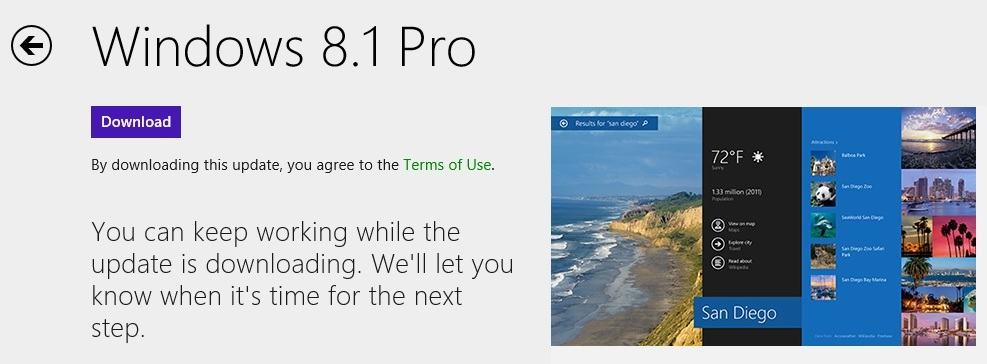
  • Download Windows 8.1 from the Windows Store by selecting it from the featured area
  • If you can’t see the Windows 8.1 update, then enter ms-windows-store:WindowsUpgrade in the address (url) bar of any of your browser and it will take you to the download page in the Windows Store

You will also need to make sure that you have the final, update number KB 2871389 installed. See our recent article on this.

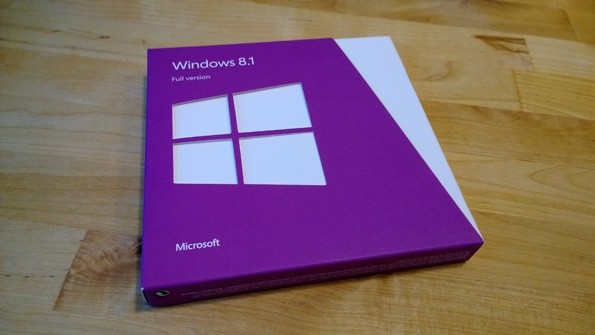
windows 8.1 retail box

Windows 8.1 Preview was installed from ISO media

If you installed the Windows 8.1 preview by booting straight from ISO media files, then you can follow the above steps, as well. However, you should know that your system won’t activate unless you buy a Windows 8.1 license and product key. Of course, if your Windows 8 copy was a purchased one, then you just need to follow the instructions needed to activate your system. If not, you can purchase a Windows 8.1 DVD or Windows 8.1 Pro as after 18 October, Microsoft is already selling them in retail boxes

Did you manage to update to Windows 8.1 from the preview version using the above mentioned steps? We know they are very simple, but sometimes they can be puzzling. Let us know in the comments section and if not, we’ll work out a solution together, of course!

photo credit – WinSuperSite