PowerToys 0.51 brings new mouse highlighter tool for presentations

Microsoft has released a new update for PowerToys that adds a presentation mode helper to highlight the mouse clicks for everyone looking at the screen. PowerToys version 0.51 also comes with a bunch of improvements for FancyZones, Color Picker, Image Resizer, and bug fixes.

The new mouse highlighter tool has been designed to help trainers make demonstrations easier to follow for their audience during presentations. To enable this tool, PowerToys users will need to press the Windows + Shift + N keys simultaneously. They can also customize the mouse highlighter color, radius, fade effects, opacity in Settings.

highlighter turned on while dragging mouse

Additionally, Microsoft has shipped a couple of improvements for the new Find My Mouse tool that specifically aims to address issues with virtual desktops. This PowerToys update also brings a new window switching option for FancyZones. This means that users can now assign two applications to the same zone and switch between them using a keyboard shortcut.

The PowerToys team is also planning to add a new “Always on Top” feature to let users select any specific window to remain on top of others. “We’ve been focusing work on “Always on Top” system to help make any window you want to be the top most. A lot of thought is currently going into interaction models to make sure it ‘feels’ right for toggling as well as visualizing,” said Clint Rutkas, Program manager lead on PowerToys.

If you are using PowerToys, you will need to head to the General tab in the app and click the “Check for updates” button. Meanwhile, those who have yet to try PowerToys can download version 0.51 from the official GitHub page.

Xbox video game clips will soon get shareable public web links

Microsoft’s Larry Hryb revealed earlier today on Twitter that recorded Xbox game clips would soon be given unique URLs that would allow them to be shared more easily with people who don’t use the Xbox apps nor own an Xbox One or Xbox Series X console.

A more social experience will also be launching alongside this added functionality that will make it easier to browse and discover clips.

“Link sharing and trending content are coming soon to the Xbox mobile app, letting you share links to your game clips and see the top trending content from other Xbox gamers,” Hyrb said in a tweet. “This is currently being tested in the app and will soon be rolling out to all users!”

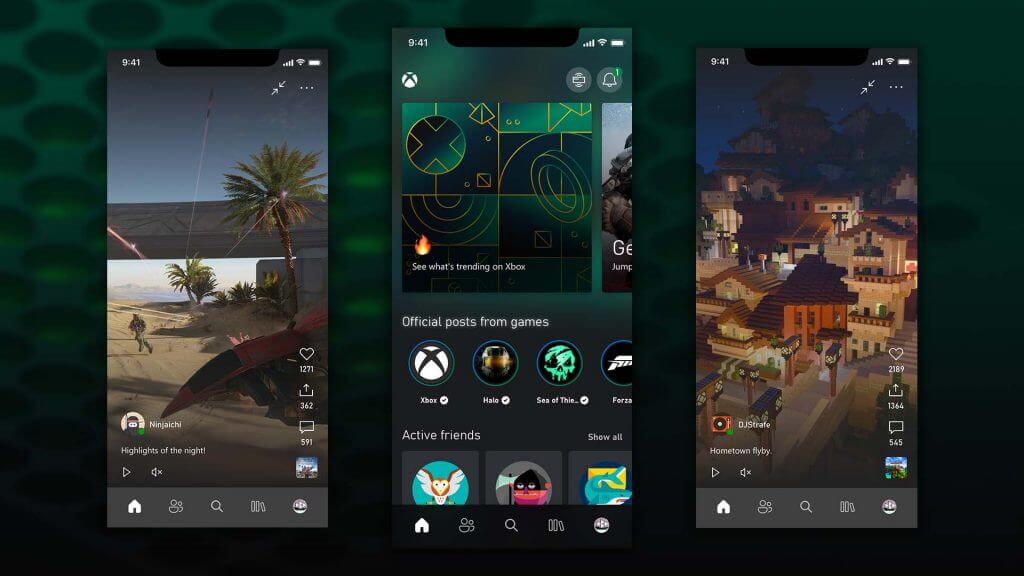
From the images shared, it looks as if the Xbox apps, at least on iPhone and Android, will fully embrace the social media aspects of the Xbox service with a feed that resembles that of Instagram and TikTok.

Xbox app's new social feed
Xbox app’s new social feed

“Trending content will be spotlighted in the Xbox app, where you will be able to watch, like, comment, and share posts of other users’ game clips,” Hyrb also shared.

The Xbox apps have been testing this kind of feature for a few months now but it’s been limited to video games and developers.

Are you looking forward to this change? Let us know in the comments below and then why not share this page on Twitter and Facebook?

New mute and unmute taskbar feature on Windows 11

Microsoft is currently in the process of resolving the video conferencing issues that have been facing the users using a new preview update for Windows 11. 

Mute and unmute feature

The new Windows 11 Insider Preview Build 22494, was exclusively released to the Dev Channel in early November. The new update comes with new features, the main one being the ability to mute and unmute the microphone directly from the taskbar. 

However, this feature is limited to Microsoft Teams. It is quite obvious because it is Microsoft’s online collaboration application. 

Developers have immediately picked up the slack and are busy trying to enhance the functionality of third-party applications. This will allow them to fully leverage the use of the feature. 

“We are beginning to roll this experience out to a subset of Windows Insiders with Microsoft Teams for work or school installed and ramp it up over time,” according to Microsoft during a briefing. “This means not everyone will see this right away with their Teams calls.”

That said, whenever you hop on a Teams meeting, the microphone icon will immediately pop-up on your Windows 11 interface. The icon will appear at the bottom right of the screen, adjacent to the volume, battery and Wi-Fi icons. 

By simply clicking on the icon, you get to turn on or off the microphone, saving you time as compared to the previous method where you had to completely get off the Microsoft Teams meeting to access this feature. 

Microsoft Teams exclusive

However, this feature is exclusive to Microsoft Teams. Nevertheless, Microsoft is tirelessly working to ensure that the feature is widely available across all platforms. Other developers can make updates to their programs to ensure that their users get to enjoy this feature on their applications. Besides, Microsoft has already signed off on this particular idea. 

“You can see your call audio status, what app is accessing your microphone, and quickly mute and unmute your call at any time,” Microsoft highlighted.

Alternatively, users can make use of the Windows + Alt + K keyboard feature to access the feature. Sadly, this shortcut also only works on Microsoft Teams.

Are you excited about the Microphone feature making its way to Windows 11? Let us know in the comment section below.

Windows 11 takes up approximately 10% of the market share

Windows was officially launched by Microsoft to the general public on October 5, even before we go to December.  According to a survey conducted by AdDuplex, Microsoft’s latest desktop has been well received by the users. As such, they have gained a huge chunk of the market share. 

Based on the data released by the company in November 2021,we can clearly access the reach of the different versions of Windows desktop operating system market share. 

Users that want to get Windows 11 on their devices need to meet the set system requirements, the main one being the TPM 2.0 support. 

Operating system coverage 

According to the statistics gathered by AdDuplex the market share is spread out as follows:

  • Windows 11 now claims 8.6 percent(vs 4.8 percent in September) of the total Windows OS market share.
  • 0.3% of users are on the Windows 11 Insider Builds. In general, Windows 11 claims a total of 8.9% usage share.

On the other hand, Windows 10 has 91.1 percent share, broken down as follows:

  • Windows 10 21H2 — 3.7 percent
  • Windows 10 21H1 — 36.3 percent
  • Windows 10 20H2 — 31.8 percent
  • Windows 10 1903 — 1.9 percent
  • Windows 10 1909 — 3.6 percent
  • Windows 10 2004 — 11 percent
  • Windows 10 1809 (and older) — 2.8 percent

However, it is important to note that the data presented might not be completely accurate. Besides, AdDuplex is currently being used on about 80,000 devices running Windows 11 and Windows 10. They do not consider devices running older versions of Windows. 

Which operating system is currently running on your device? Let us know in the comment section below.

New Microsoft Teams features guarantee better communication and enhanced search results

The Teams App has come a long way since the pandemic started and continues to reach new heights with the addition of new features.

New on the list is the addition of Loop components that will assist users in communicating and working better from home.

The company has been working tirelessly to make the Teams App be the best communication app. A little over a week ago, the company introduced a security feature to keep users safe while communicating.

Better together

Microsoft has been at the forefront and very open about collaborating with third-party applications to enhance user experience.

According to the company,

“Loop components in Teams chat (rolling out now for our Microsoft 365 commercial customers) offer a new way to think, plan, and create together. Send a component—like a table, task list, or paragraph—where everyone in your chat can edit inline and see changes as they are made. This makes it incredibly easy to share thoughts, make decisions, collect data, and track progress together and in the flow of your work,” 

Another feature

Aside from the Loop components, users also have a new search results page to look forward to. According to Microsoft, the search feature will make it easier and faster to find people, messages, answers, and files like never before.

The new search results page now has AI-powered filtering capabilities, prompt results, and has a user-friendly interface that is easy to navigate.

There is also a Top Hits section that has been added at the top of search suggestions that displays the most relevant search results.

Education updates

Educators and learners have not been forgotten as there is a new Whiteboard integration that allows instructors to add a whiteboard reference to assignments.

There is also an option to include links and add content from EdTech apps into Teams assignments.

Cortana markets are also being expanded to international audiences and have a wider reach.

Other updates

Aside from the two features, Microsoft has also added additional updates to the Teams App to support more functions.

A new ‘content from camera’ allows users to access content directly from physical artifacts in high resolution. 

The polling feature also has newly added capabilities that now allow users to ask open-ended questions and view responses. 

For enhanced security, you can now sign out remotely for Teams devices.

What are some of the top Teams features released so far that make you happy? Let us know in the comment section below.

Xodo PDF app updates for Windows 11 and 10 with new sound features

The Windows 11 PDF reader app, Xodo, updated to Version 5.0.25 today for all compatible devices including those running Windows 8.1 and Windows 10.

This latest Xodo app update add the ability to play sound annotations and create new documents within the Viewer screen for all users. Pro users also gained the ability to record sound annotations within the app.

A variety of bug fixes were also included within this update. Here’s the full release notes:

New features

  • Added ability to play Sound annotation
  • Added ability to record sound annotation (Pro)
  • Now new documents can be created in the Viewer

Fixes and Improvements

  • Fixed crash related to editing Text Markup (highlight, underline, strikeout, etc)
  • Fixed issues related to sleep mode + app unresponsive on Windows 11
  • Pro features can now be used offline
  • Added auto Theme selection
  • Added auto Language selection
  • Improved UX with Windows 11 style
  • Improved context menu with more quick options
  • Add ability to reset zoom level

After more Windows app news and app updates? Follow us on Twitter and Facebook.

Windows 11 gets the new mute and unmute microphone feature

Recently, Microsoft just released a Windows 11 preview update. It comes with a new taskbar feature that allows the users to mute and unmute the mic.

Moreover, they have also launched an experimental feature that allows you to share information from other applications to Teams on Windows 11 while the meeting is still running. 

The new build also comes with a new keyboard functionality that will allow users to mute and mute the gadget’s microphone.

Tweaking the new feature

Currently, the combination of pressing the Win + Alt + K keys simultaneously only works in Microsoft Teams. The same function can also be toggled by clicking on the microphone icon displayed in the application. 

Before, Windows 11 users were compelled to manually click on the microphone icon the display to either mute or unmute the mic. 

The icon is located next to the WI-Fi, volume and battery icons, thus allowing you to turn the mic on or off, by making a simple click. Also, you can now check your audio call status because WhatsApp also has access to the microphone. 

Keyboard shortcut update

Moreover, Microsoft covered the extra mile and updated the taskbar’s mute toggle with the support of a new keyboard shortcut. You can access the new shortcut by pressing Windows + Alt + K keys simultaneously to access the feature.

However, the feature only works on applications that support the mute button. Therefore, only Microsoft Teams is supported by the feature at the moment. According to Microsoft, third-party applications will also get  support for Windows 11’s new taskbar mute function. 

Extra features and improvements

Microsoft also indicated that they are working on a feature that will allow Windows 11 users to share contents in Microsoft Teams meetings directly from the taskbar. 

Ultimately eliminating the need for one to manually switch between windows in the middle of a meeting just to look for content you need to share with the team. 

Furthermore, Microsoft is currently conducting internal tests with the aim of possibly introducing and creating support for taskbar drag-and-drop. Users should expect the reveal of this feature in the upcoming big Windows updates only,

Are you excited to see this new feature finally make its way to Windows 11? Share our thoughts with us in the comment section. 

Microsoft integrates its services to phase out its competitors

A complaint has been filed by a coalition of cloud and software companies, with the European Commission against Microsoft’s anti-competitive behavior. They bundled up Teams and OneDrive cloud amongst other services with both Windows 11 and Windows 10.

The Coalition had to even out the playing field by including a couple of European based companies, such as open source hosted by cloud storage vendor Nextcloud.

“This is quite similar to what Microsoft did when it killed competition in the [web] browser market, stopping nearly all browser innovation for over a decade. Copy an innovators’ product, bundle it with your own dominant product and kill their business, then stop innovating,” said Frank Karlitschek, CEO and founder of Nextcloud.

Shortcomings 

The coalition raised the argument that Microsoft was acting in bad faith and trying to phase them out. As such, they requested the European Commision to even out the playing field.

The move will help deter Microsoft from using its position in the operating system sector to kill all its competitors. 

The coalition comprises a couple of prominent open source and non-profit companies, for instance, the Free Software Foundation Europe, European Digital SME Alliance and the Document Foundation. 

Furthemore, the coalition categorically indicates that the move by Microsoft is not only affecting the consumers and businesses, but also killing healthy competition among the companies. 

Microsoft’s wholesome approach

“Microsoft is integrating [Microsoft] 365 deeper and deeper in their service and software portfolio, including Windows. OneDrive is pushed wherever users deal with file storage and Teams is a default part of Windows 11. This makes it nearly impossible to compete with their SaaS [Software-as-a-Service] services,”states the coalition.

As such, the coalition also indicates that while Google, Amazon and Microsoft have managed to grow their market share to 66% while their competitors have further lost their reach in the EU from 26% to 16%.

What is your take on Microsoft’s move? Do you support it? Share your thoughts with us in the comment section. 

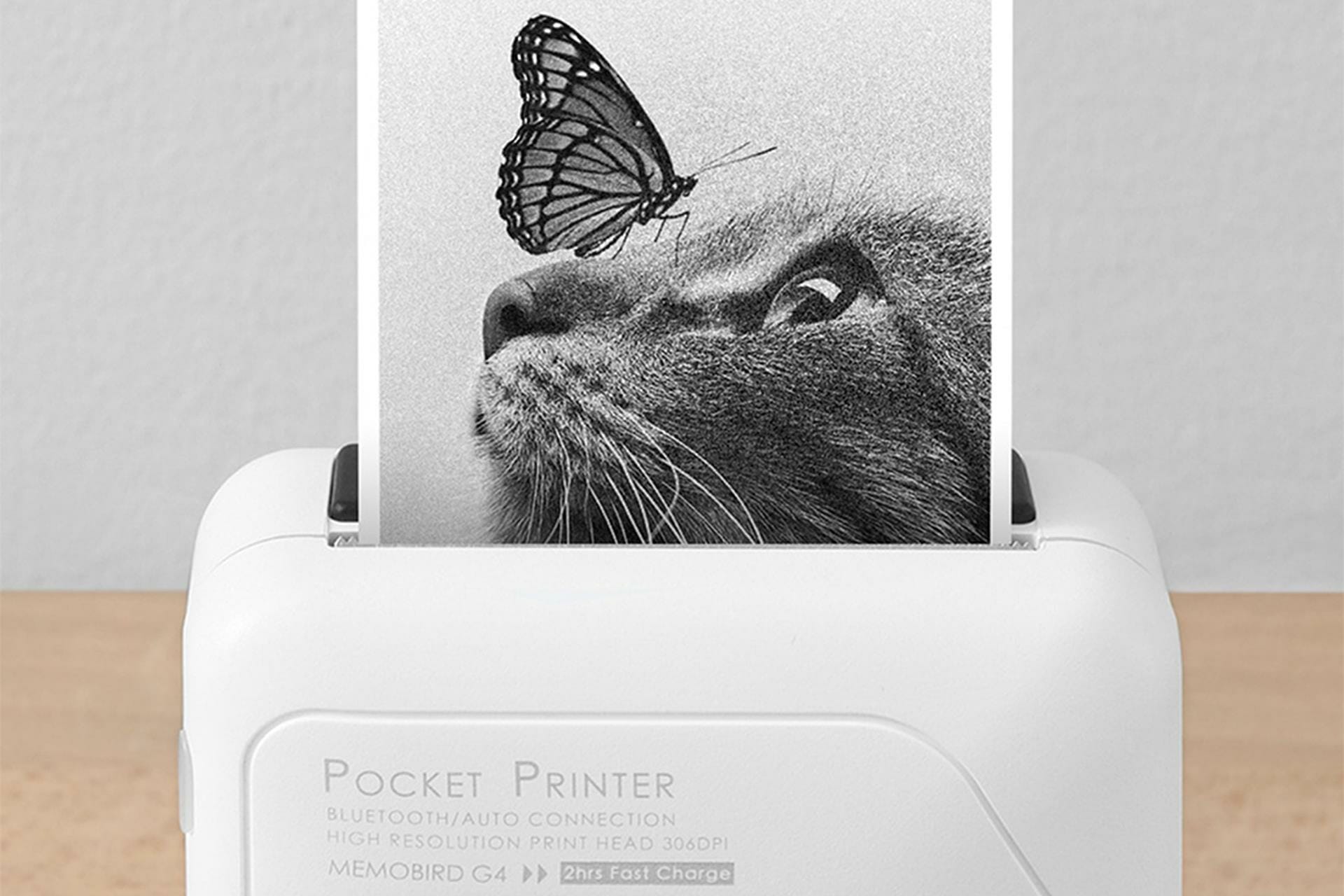
Best Deals On Portable Photo Printers

All of us click pictures on our phones to save them as memories, but how often do we print these? The physical copy is undoubtedly better than one stored on your phone. So, we come forth with the best Christmas deals on the portable photo printer.

A portable photo printer is your perfect companion on vacations to print pictures on the go. It’s has a compact build to easily fit into your pocket or backpack, and is lightweight so as to not cause any trouble while traveling.

And, if you choose the right one, the picture quality is splendid, unquestionably as good as the conventional printers.

When purchasing a portable photo printer, do remember to check out its size, clarity of prints, whether it easily connects to the smartphone, and availability of cartridges.

To save you the trouble, we have compiled a list of the best portable photo printers available at discounted rates this Christmas.

What are the best portable photo printer deals?

All these items have special prices.


These are the best Christmas deals on portable photo printers you can grab to take a hard copy of the memories stored on your phone. Most of these printers are compatible with all types of operating systems, so you wouldn’t have to worry about buying another one for the foreseeable future.

Do not forget to check also these best Cyber Monday deals on Wi-Fi digital photo frames, in case you would like to showcase a digital copy of the memories.

Also, check the warranty, customer reviews, and other relevant information before making the purchase.

Tell us which portable photo printer you bought in this sale season and your experience of it.

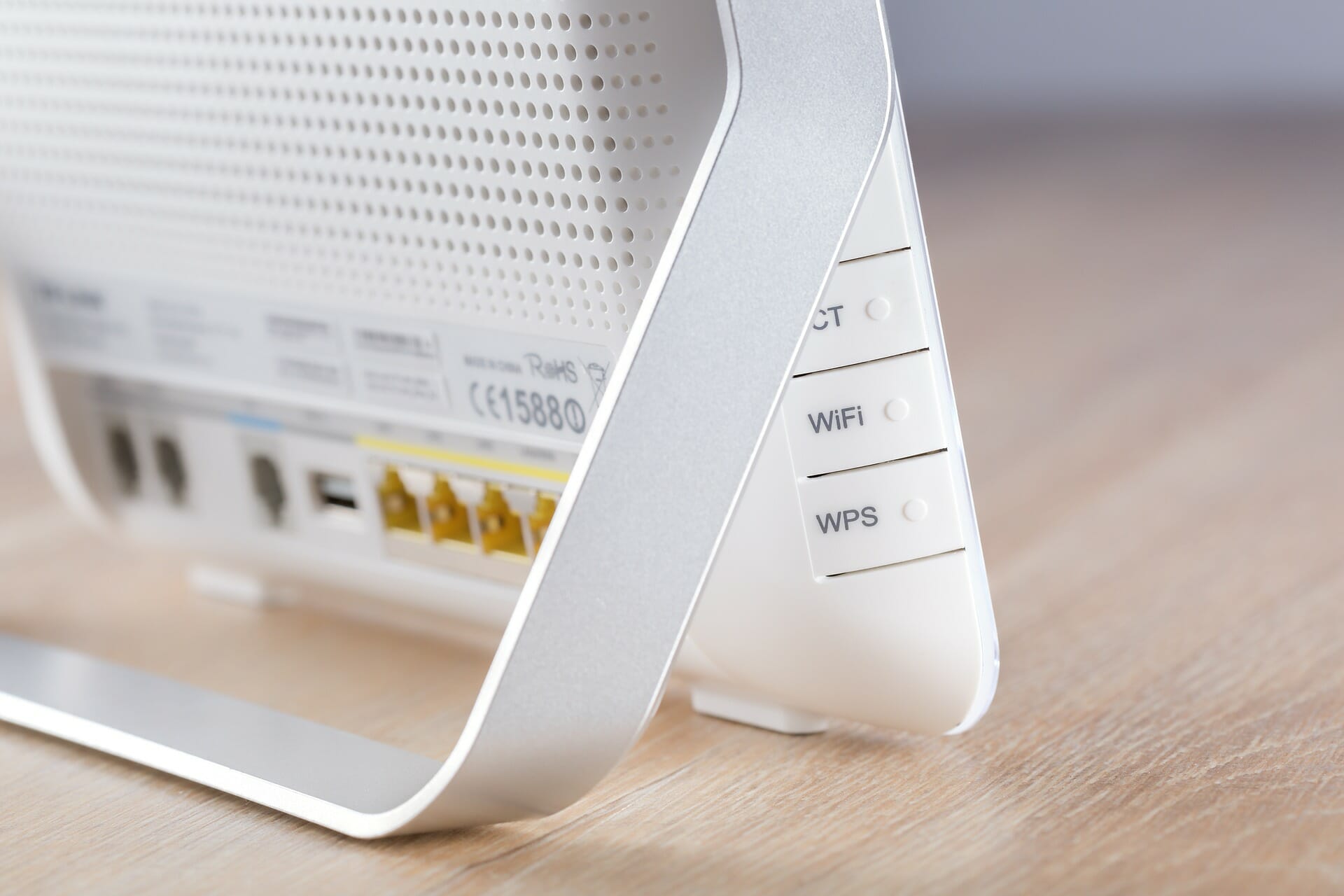
Best Modem Router Combo Deals For You

A modem router combo is probably one of the best accessories you can purchase this Cyber Monday.

Having a combo, undoubtedly, is a space saver, but there are certainly other benefits to it as well. Before we head to that, it’s imperative that you understand the difference between a modem and a router, since the two terms are often used interchangeably.

A modem connects your network to the Internet while a router acts as a medium that allows the various devices to access the Internet. The connection through a router can be both wired and wireless. Plus, you can also find firewall routers for businesses of different sizes.

Now, coming to the benefits of a modem router combo. It’s relatively cheaper than buying the two devices separately, is easier to set up, has minimum connections, and requires a single power source.

If you are inclined towards purchasing one for your home or office, we have compiled a list of the best deals on modem router combo this Cyber Monday.

Which modem router combo to purchase this Cyber Monday?

All these items have special Cyber Monday prices.


These are the best deals on modem router combo to check out this sale season. Choose the one that caters to your requirements, and fits into your budget.

Also, check out the best Wi-Fi 6 routers to purchase at discounted prices or some amazing deals on mesh Wi-Fi systems for enhanced coverage.

Do not forget to check the speed, coverage, number of devices that can be connected, and warranty before making the purchase.

We also have a very useful list of the best routers for access point tested by our WR networking team.

Tell us which modem router combo you purchased this Cyber Monday from those listed above and your experience of it.

5 Best Drawing Tablets Deals & Offers

Despite the fact that drawing tablets require a computer to operate and cannot be independent, they still make a fine accessory to add to your collection this Cyber Monday.

A drawing tablet is like a huge mouse pad on which you use a special pen known as a stylus, instead of your finger to draw. So, once a drawing tablet is linked to a computer and specific graphic design software is opened, whatever you draw on the tablet appears on the computer display, not on the tablet itself.

Pen display tablets, on the other hand, have their own display and, while linked to a computer, you can see what you’re doing on the tablet itself, but they don’t have their own operating system like a standard tablet.  It is simply a fancy mouse pad, where you have a display on it and also the computer’s display.

If you want to add an accessory to your PC this year, below you have the best deals you can get on Cyber Monday for drawing tablets, especially those from Wacom, directly from Amazon.

What are the best Wacom Drawing Tablets with deals on Cyber Monday?

All these items have special Cyber Monday prices.


Everyone from amateur photographers to professional painters – as well as designers, animators, and architects all across the world — uses them. Make yourself a lovely holiday gift, and don’t miss out on the deals before they’re gone!

Wacom’s tablet selection is pretty extensive and covers a wide price range, but these Amazon discounts should help you narrow down your options and choose one that’s right for your work or interest.

Which drawing tablets are most suited to your needs? Leave us a comment in the section down below!

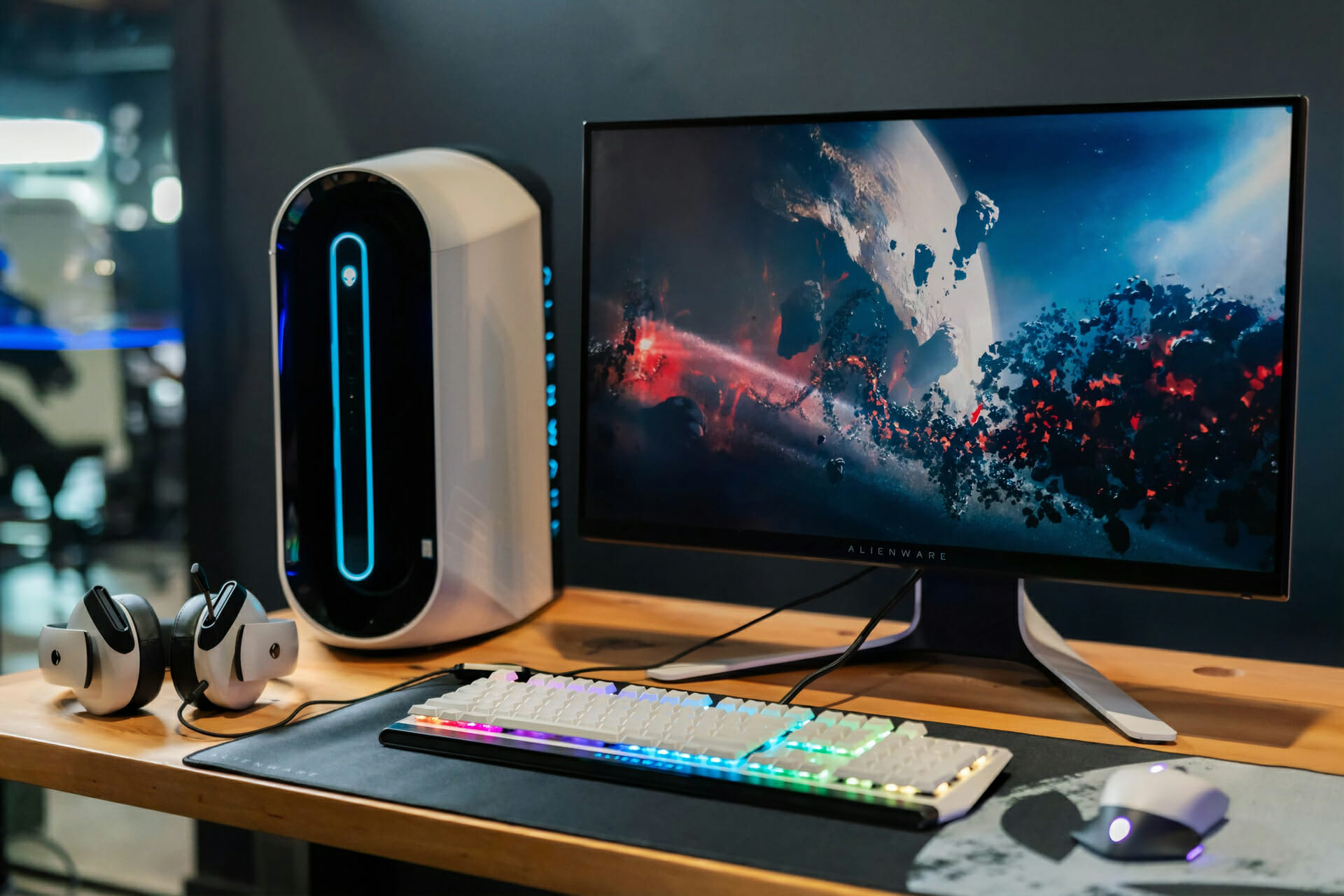
5 Best Alienware Monitors For Gamers

What could be better than treating yourself to a great gift this year, such as an Alienware monitor, or as it is more commonly known, a gaming monitor?

Alienware becomes Dell’s flagship gaming brand when alien-themed designs were inspired by The X-Factor TV series and became popular in the early 2000s.

In general, any recent Alienware systems will provide above-average gaming performance, as well as high-quality design and build, as well as great after-sales support and guarantee.

Alienware was created by Dell Technologies and has received a lot of attention from gamers and techies over the years. If you’re one of them, you’ve come to the right place to grab the finest Cyber Monday bargains on Amazon in 2021.

What are the best Cyber Monday deals on Alienware Monitors?

All these items have special Cyber Monday prices.


Alienware monitors are compatible with non-Alienware equipment and peripherals if visual connectors are either VGA or HDMI, DVI, or mini-display ports, which are industry standards.

As a result, practically any accessory will work with this brand. Always check what connector your monitor/GPU utilizes to ensure connectivity to ensure you buy the proper one.

So pick your monitor, jump into your favorite multiplayer game, and knock your opponents out with your new gaming screen for the best experience and wins.

Which Alienware monitors are the greatest match for your entertainment needs? Do let us know in the comments section below.

Best Jackery Product Deals

Jackery is one of the most well-known makers of portable power stations in the United States of America. It is recognized for developing cutting-edge outdoor energy solutions.

The company offers a wide selection of portable power stations in a variety of sizes and capacities, most of which can maintain a charge for up to six months. These portable solar generators are a fantastic and significantly quieter alternative to gas generators on the market.

All Jackery devices are equipped with an alternating current outlet, USB charging ports, and a DC carport, allowing you to charge a variety of equipment and accessories with ease.

It is possible to use Jackery with a variety of devices ranging from tablets, smartphone devices, and laptop computers to smaller home appliances such as fans, electric blankets, and mini freezers.

What are the best Jackery products up for sale this Cyber Monday?

All these items have special Cyber Monday prices.


With its cutting-edge Solar Generator portfolio, Jackery has established a new gold standard in the portable power industry.

This line of portable power stations is not only constructed to last and packed with useful features, but their straightforward design makes them simple enough to use for anyone, even those with no prior solar power experience.

The Jackery Solar Generator makes it simple for anyone to obtain off-grid power without the need to install a large number of rooftop solar panels on their home or business.

There is no need for mounting, drilling, or installation, and there is no requirement for a separate solar inverter in order to make use of all of the solar energy. The generator will convert the sunshine into useful energy that can be used to charge your gadgets or power appliances.

One of the drawbacks of any solar power system is the high initial outlay of funds required for installation.

Although a solar generator is a more expensive choice upfront, it pays for itself over time since you will not have to spend money on fuel for a gas generator and you will be able to easily find cheap, or free boondocking spots away from congested campgrounds.

Take advantage of these fantastic prices as soon as possible while the opportunity is still open!!

Best Cyber Monday deals on 4K Blu Ray players

Many people still enjoy watching high-quality video materials on Blu-Ray players. The physical format is known to provide great video resolutions, allowing you to fully engage in your favorite movie or series.

Blu-Ray players have evolved in such ways that they can perfectly fit into your modern-day entertainment set. Most worthwhile Blu-Ray players of today allow 4K playback of various formats.

They are highly compatible with other devices and can be connected to the Internet or to your computer via an HDMI or USB port. Some Blu-Ray players also offer access to video-on-demand platforms, so if you want an all-in-one video playback device, keep an eye on those.


If you want to get your hands on some of the best Blu-Ray DVD players on the market at a discount price, you will be happy to know that this Cyber Monday comes with some impressive deals in this sector.

What are the best deals on 4K Blu-Ray players this Cyber Monday?

All these items have special Cyber Monday prices


All above-mentioned products offer 4K video resolutions and support multiple disc formats such as BD ROM, Blu-Ray, DVD, or BD-RE. All offers include accessories such as HDMI cables, a remote control device, USB cables, and more.

Please read the description of each listing because you can find there all the information you need when it comes to format and device compatibility.

If you have any suggestions or opinions on these 4k Blu-Ray players, please feel free to use the comment section below.

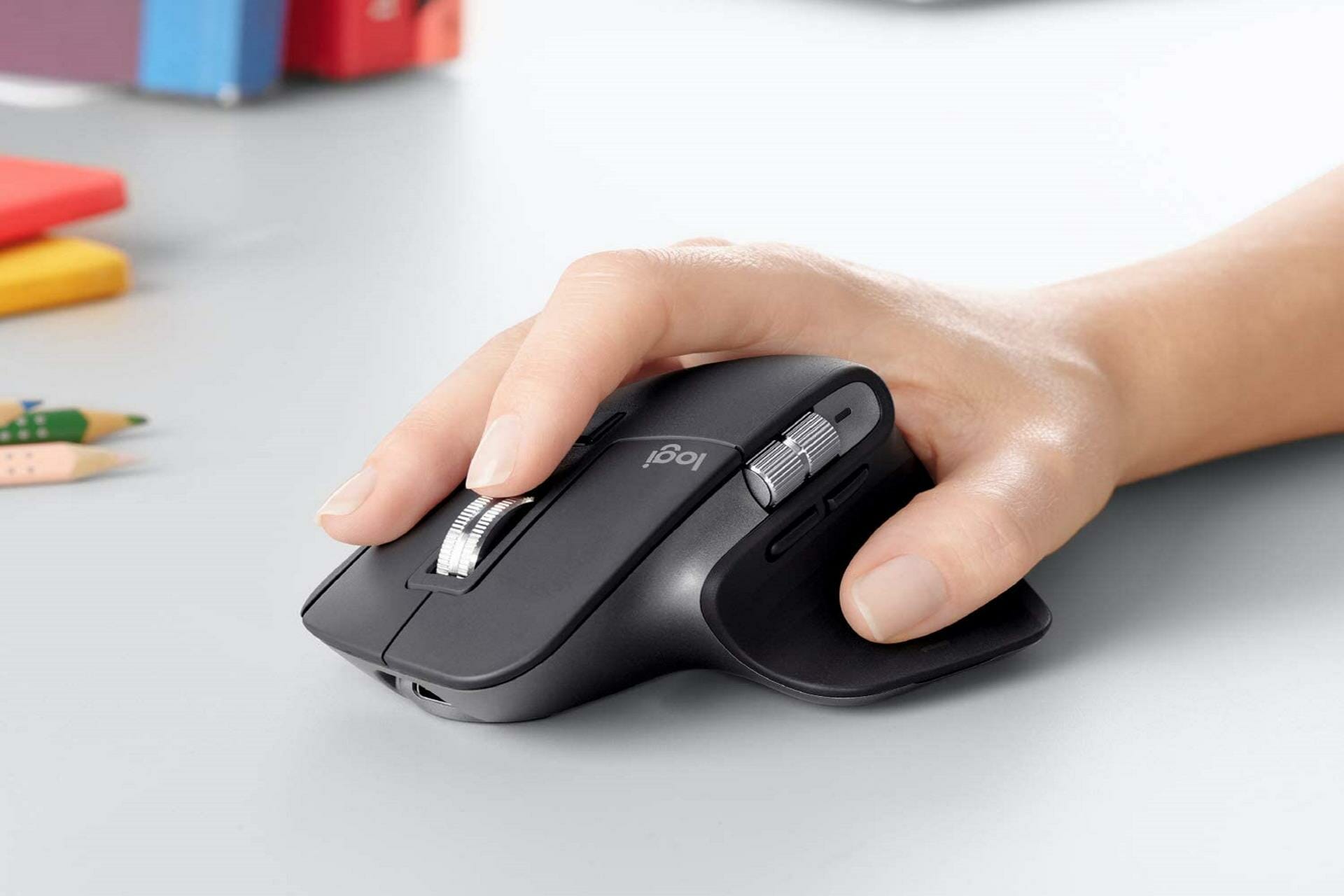
Best Logitech Mx Master Product Deals

If you’re looking for the greatest mouse on the market, there’s no shortage of options, but it’s safe to say that Logitech has had a stranglehold on that title for quite some time.

In many ways, the Logitech MX Master 3 is the next evolution of a formula that Logitech perfected with the previous MX Master 2S, and it’s an unquestionably superior iteration of the prior model.

It does not attempt to reinvent the wheel, but rather makes numerous modifications that combine to create a terrific experience.

That type of iterative development is something that easily propels the MX Master 3 to the top of the list of the best office mouse available, but it comes at a cost.

At $100, it is unquestionably on the pricier end of the spectrum. However, you may be able to take advantage of the discounts they have offered you just today!

What are the best Logitech MX Master products on sale this Cyber Monday?

All these items have special Cyber Monday prices.


The Logitech MX Master mouse is a great-looking device with a professional appearance that is still rather adaptable for regular use. Because of the thumb rest and rounded shape, it features an ergonomic design that makes it easy to use for long periods of time.

It’s ideal for folks who want to utilize the palm grip, while some people with smaller hands may have difficulty holding it comfortably. This mouse is really well-built and quite weighty, giving it a substantial feel in the hand.

The fact that this is a wireless-only mouse, and while its latency will not be noticed to most users, it is not recommended for hardcore gamers.

On the plus side, it has two scroll wheels as well as gesture instructions, which allows it to have a very flexible control scheme. It’s also possible to customize your preferences based on which application or app you’re currently using.

If you’re interested in expanding your knowledge about mouses, see our post on the five best mouses for multitasking to increase your overall productivity.

Take advantage of these excellent bargains as soon as possible while the opportunity is still available!

Best Logitech webcam deals this Cyber Monday

Logitech is arguably the first brand that comes to mind when you think of webcams. After all, this camera manufacturer has a large number of distinct models, all of which can be found all over the place.

In fact, several of the most popular Logitech webcams have been praised as the best on the market in their respective categories.

Consequently, while Logitech has acquired a reputation as a prolific webcam manufacturer, does this imply that you should purchase a device from this company?

With the discounts that are currently available, you should be assured of the fact that the answer is a loud affirmative. Here are five of the best deals available right now, all of which have been handpicked for you.

What are the best Logitech webcams up for sale this Cyber Monday?

All these items have special Cyber Monday prices.


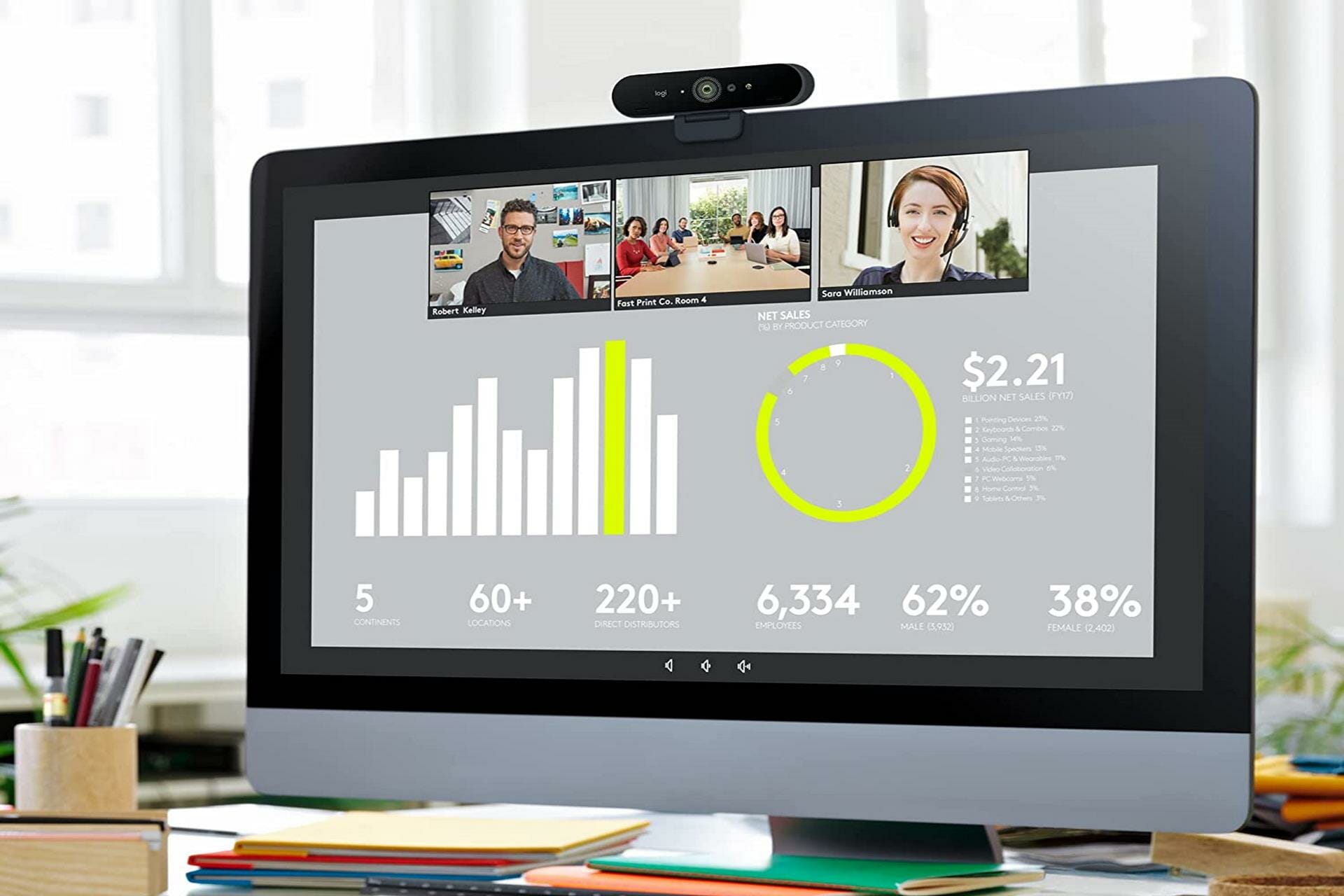
It is becoming increasingly common in today’s business environment to be able to remotely connect and collaborate with colleagues, business partners, and customers on an as-needed basis, regardless of their geographical location.

Facial-to-face meetings are gradually being phased out in favor of video conferencing and other forms of unified communications, reducing the necessity for business travelers.

More importantly, because cooperation is instantaneous, corporations and individuals alike are benefiting from large increases in productivity as a result of this advancement in technology.

Having the ability to see the individuals with whom you are conversing, rather than just hearing them, makes the experience of communicating with others substantially more enjoyable.

Additionally, Logitech for Business provides a selection of professional laptop/PC webcams as well as video conferencing solutions that are meant to provide a superior video calling experience to customers.

Overall, Logitech is a solid pick for your next camera, and it’s also beneficial that the firm offers a varied range of models that are ideal for a variety of different use cases and price ranges as well.

You may also be interested in our article on the 5+ best cameras with microphones for your PC if you want to learn more about webcams.

Have you bought a Logitech webcam already? Hurry up so you don’t miss the sales.

Best Deals On Audio Receiver

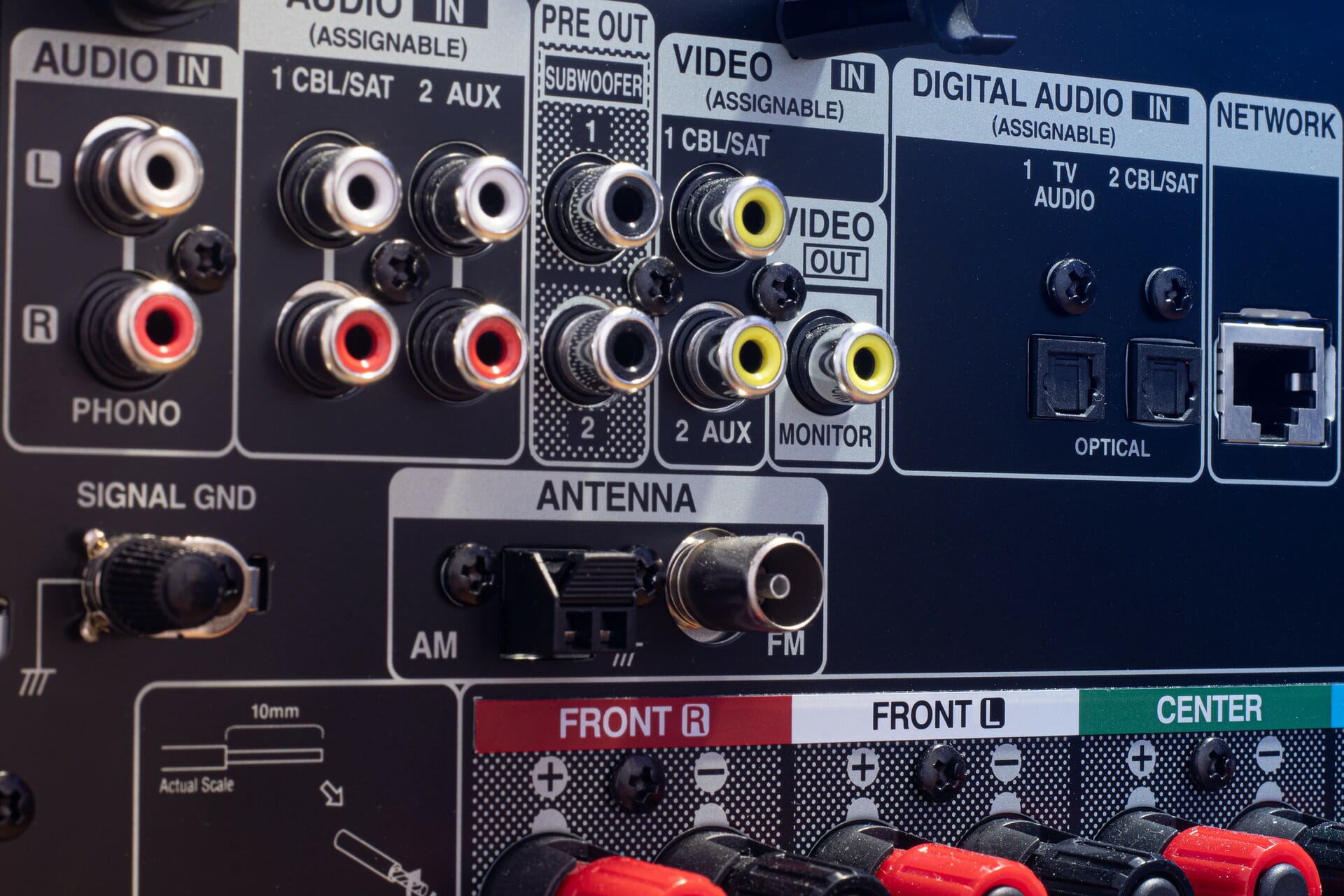
An audio receiver is a must-have for an integrated home theater experience. If you are planning to purchase one, check out some awesome deals on the best audio receivers this Cyber Monday.

An audio receiver, basically, allows you to manage the audio from multiple sources and output it through the desired channel, apart from amplifying the sound. Those who have already used one realize the importance of audio receivers and how it enhances the sound quality.

When it comes to audio receivers, the market has abundant options to offer. But, only the right ones will serve the desired purpose. We went the extra mile and compiled a list of audio receivers available at discounted rates this Cyber Monday.

Which audio receiver should I buy this Cyber Monday?

All these items have special Cyber Monday prices.


These are the best deals on audio receivers you will come across this sale season. Also, we recommend checking the Cyber Monday Denon receiver deal, since the product offers a plethora of features and is reasonably priced.

So, if you are looking for some good Cyber Monday home theater receiver offers, the ones listed above should suffice. Do not forget to check our list including the best AV receivers for ceiling speakers.

Tell us whether the audio receivers listed here worked for you or drop in a few recommendations in the comments section below.

5 Best Amazon Fire Tablet Sales

Due to their high portability and ease of use, tablets have become the go-to tool for many users that want to stay productive on the go.

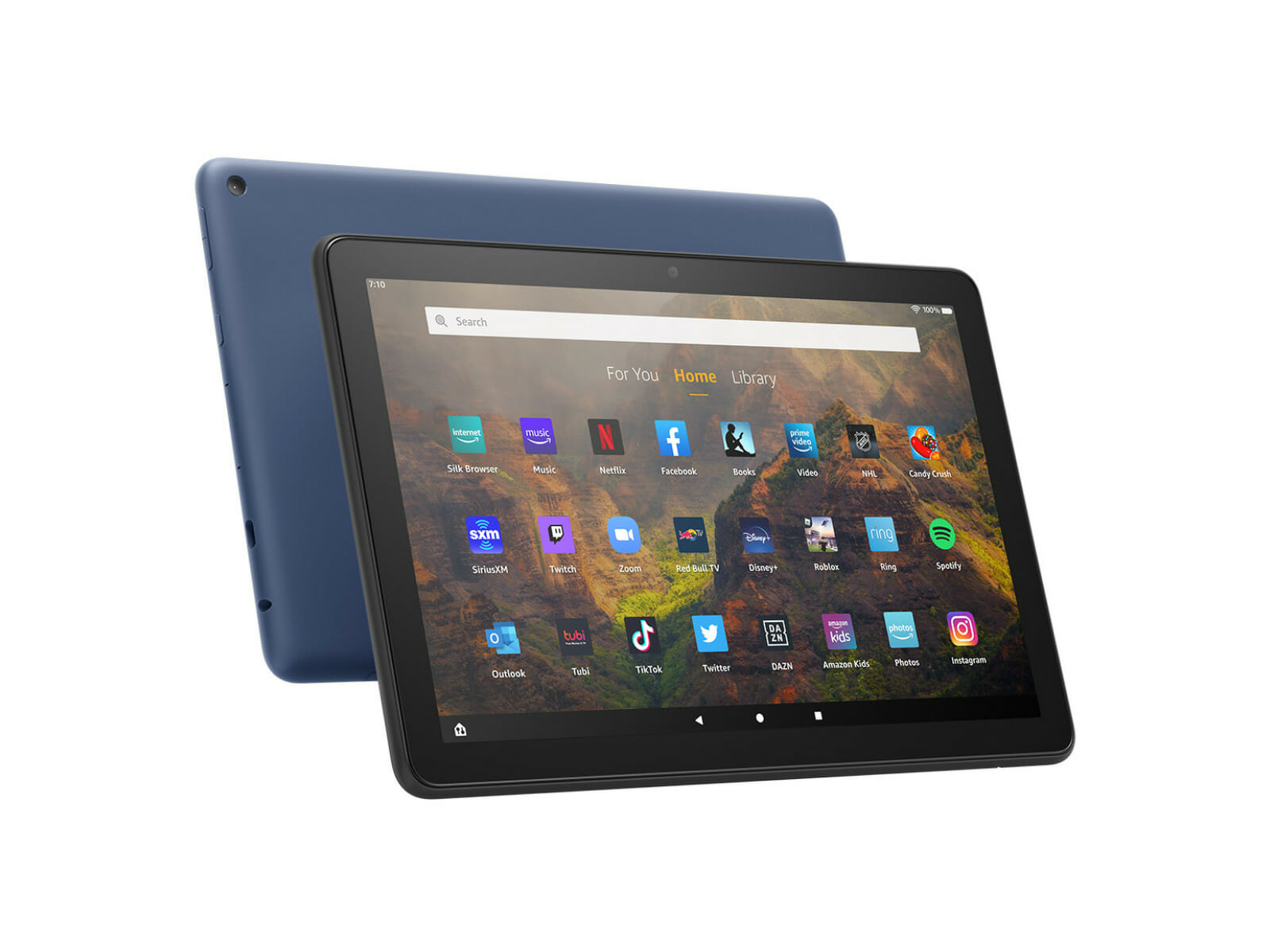
Formerly known as Kindle Fire, the Amazon Fire tablet is known to be a good portable device with solid hardware at an affordable price.

If you want to invest in a new tablet, this is the best time to do so. This Cyber Monday Amazon offers some of its best Fire tablets at fraction of the price.

We gathered the best offers available so you can quickly take a look at the listings and see which one would be the best fit for your needs and budget.

What are the best Cyber Monday deals on Amazon Fire tablets?

All these items have special Cyber Monday prices


As you can see, the list includes multiple types of tablets that vary in screen size, resolution, and memory. 

We recommend you carefully check all listings before deciding which one to get. Also look out for additional offers and discounts for bundled items, as you may be able to get them at an even lower price.

For instance, the Amazon Fire 10 HD tablet comes in a Cyber Monday bundle along with the Bluetooth Keyboard and Microsoft 365.

Please let us know which Amazon Fire tablet you prefer. If you have any suggestions, feel free to use the comment section below.

Best Wireless Printer Deals To Get

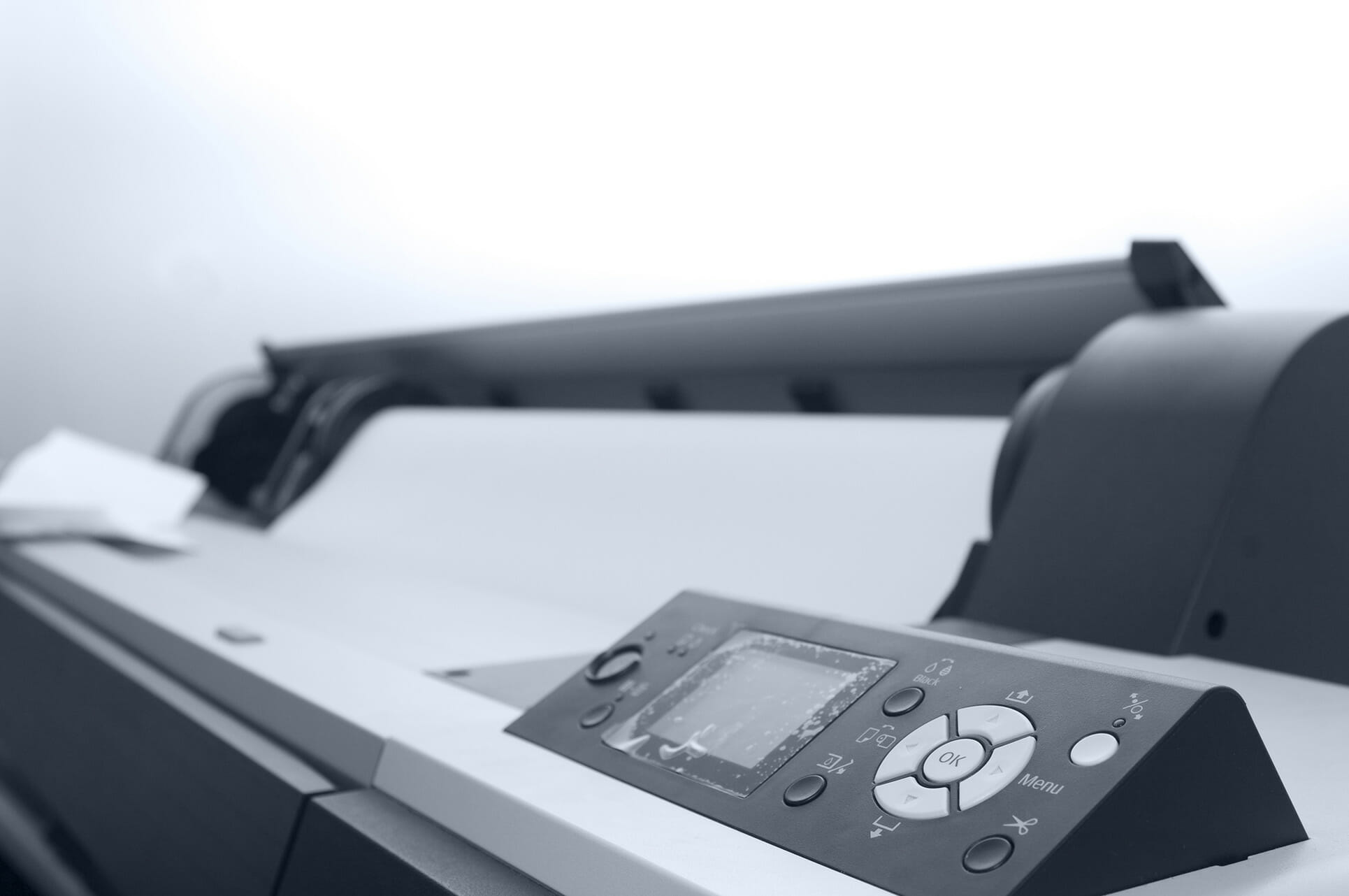
Having a printer is great if you need to print out documents or something really quick, but working with cables can be a hassle.

In addition, it can be also tricky to print something from your phone or tablet, and this is where wireless printers come in handy.

When buying one, you need to keep in mind whether it’s a color printer or a black and white one. Type of printer is also important, and laser printers offer better quality compared to their inkjet counterparts.

However, this comes at a price, so be sure to check your budget before getting one. Also keep in mind the printing speed and connectivity options, to ensure that your printer can work with all of your devices.

Now that you know what to look for, let’s see what are some great options to buy for this shopping season.

What are the best Cyber Monday deals on wireless printers?

All these items have special Cyber Monday prices.

Wireless printers can be incredibly useful, and in this guide, we showed you a couple of great ones that you can get.

If you can, go for a laser printer since it offers better printing quality, but do keep in mind that these types are more expensive.

What is your wireless printer of choice? Let us know in the comments section below.

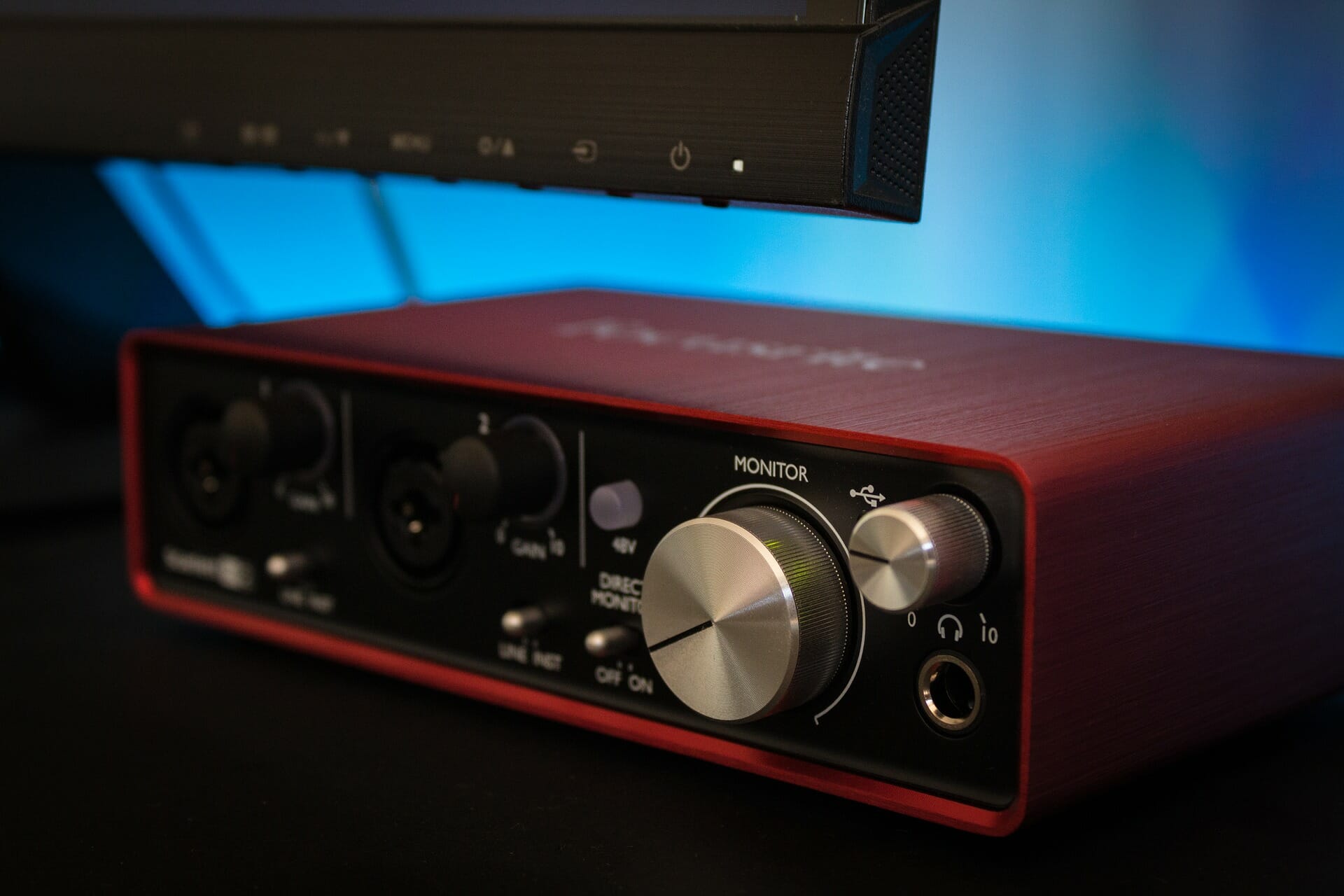
Best Deals On Audio Interfaces

Those in the music or recording industry realize the importance of an audio interface, and how to liven the whole experience. Therefore, we bring forth the best audio interface deals this Cyber Monday.

An audio interface basically connects to your system and converts the incoming audio signal into a format recognized by it. Similarly, for audio output from the system, the signal is converted to a format that’s compatible with the output device.

These work great, and the best part, they are affordable as well. You could find the basic ones for as cheap as $50 while the high-end models can be priced at a few thousand bucks.

Whatever be your need, we have compiled a list of the best audio interface available at discounted prices this Cyber Monday.

Which audio interface should I buy this Cyber Monday?

All these items have special Cyber Monday prices.


These are the best audio interfaces available at discounted prices this sale season. In case the ones listed above don’t meet your requirements, do check out our compilation of some of the best USB audio interfaces for voice over, though some of these may not be available at discounted rates.

Also, check the customer ratings, confirm the warranty and other relevant information before proceeding with the purchase.

Let us know which audio interface you purchased from the ones listed above and your experience of it in the comments section below.

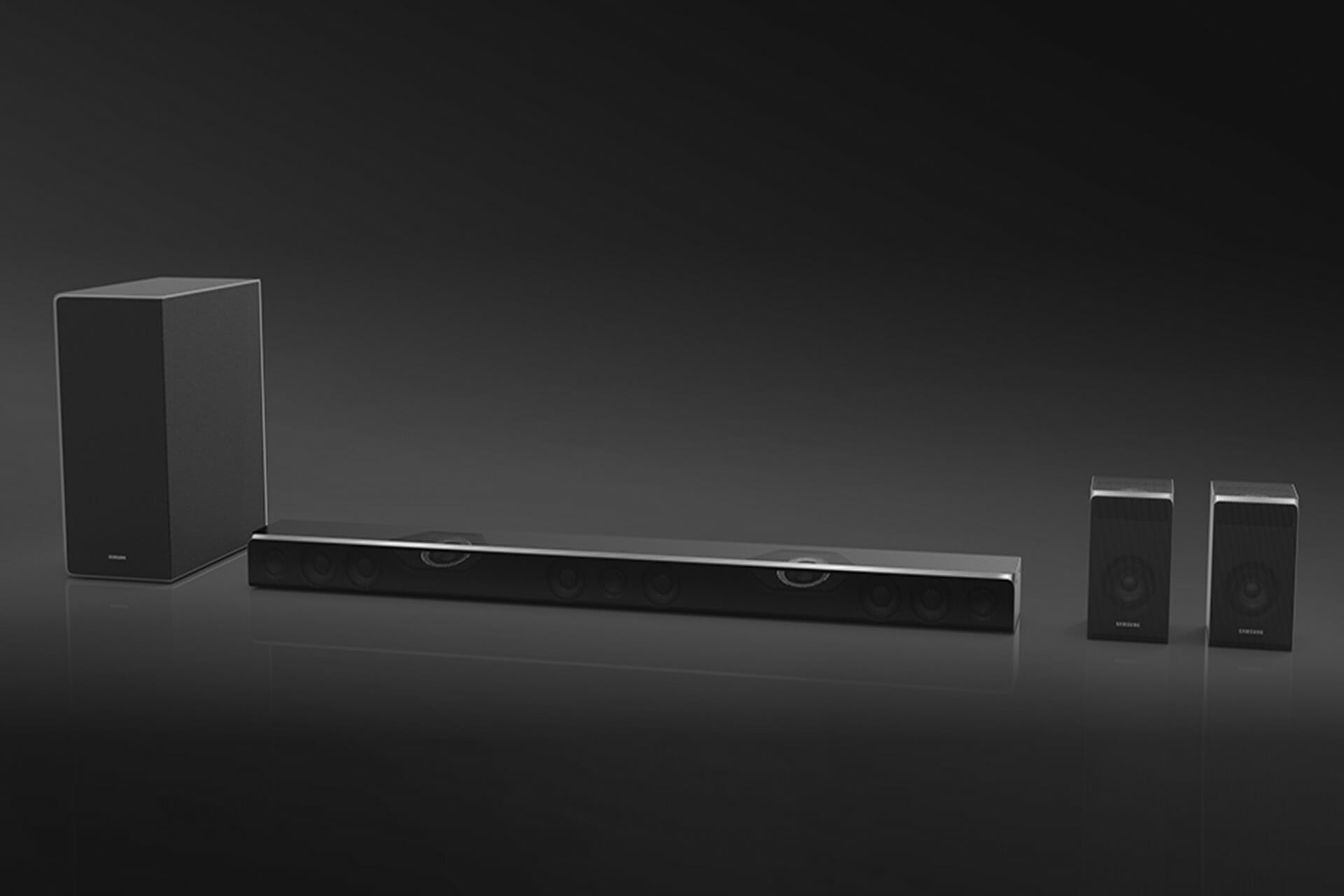
Best Deals On Wireless Surround Sound Systems

Have you been intending to amp up your sound system for a while now? Well, the wireless surround sound system is the best way to go. There are plenty of Christmas deals revolving around the sound system sector.

It may be quite difficult to make a decision especially if you do not know what you need exactly. Besides, using the old conventional wired sound systems is outdated and makes the living area look crowded and messy.

Even though in the past wireless speakers were only capable of limited connectivity, with the advancement of this technology, true wireless speakers. buds and monitors have taken the market by storm.

They provide users with flexible, safe, and neater devices. This makes it a great choice because of the advanced technology it provides. they are a great buy because they are easy to use and come with great quality.

  • Safer– They are safe compared to wired speakers. People run a lower risk of tripping over wires or getting into any electrical hazards that poses as a great threat to both children and pets.
  • Declutter-This means that you can get great quality of music without necessarily having to many connections to the central unit. Wireless surround sound systems operate using wireless radio waves.
  • Enhance flexibility-These devices are quite convenient because they can be easily moved around to your desired location. You can through caution to the wind when it comes to cords and cables that can cause accidents.

These are the key features that anyone looking to buy the system during this year’s Black Friday deals should look out for.

What are the best deals on wireless surround sound systems?

All these items have special prices.

We hope that with the information provided above, you were able to narrow down your choices and settle on one device that meets all your requirements. Soundbars are the new wave, jump on the bandwagon and get yourself one using the crazy Christmas deals.

Feel free to share your choices with us by using the comment section found below this guide.

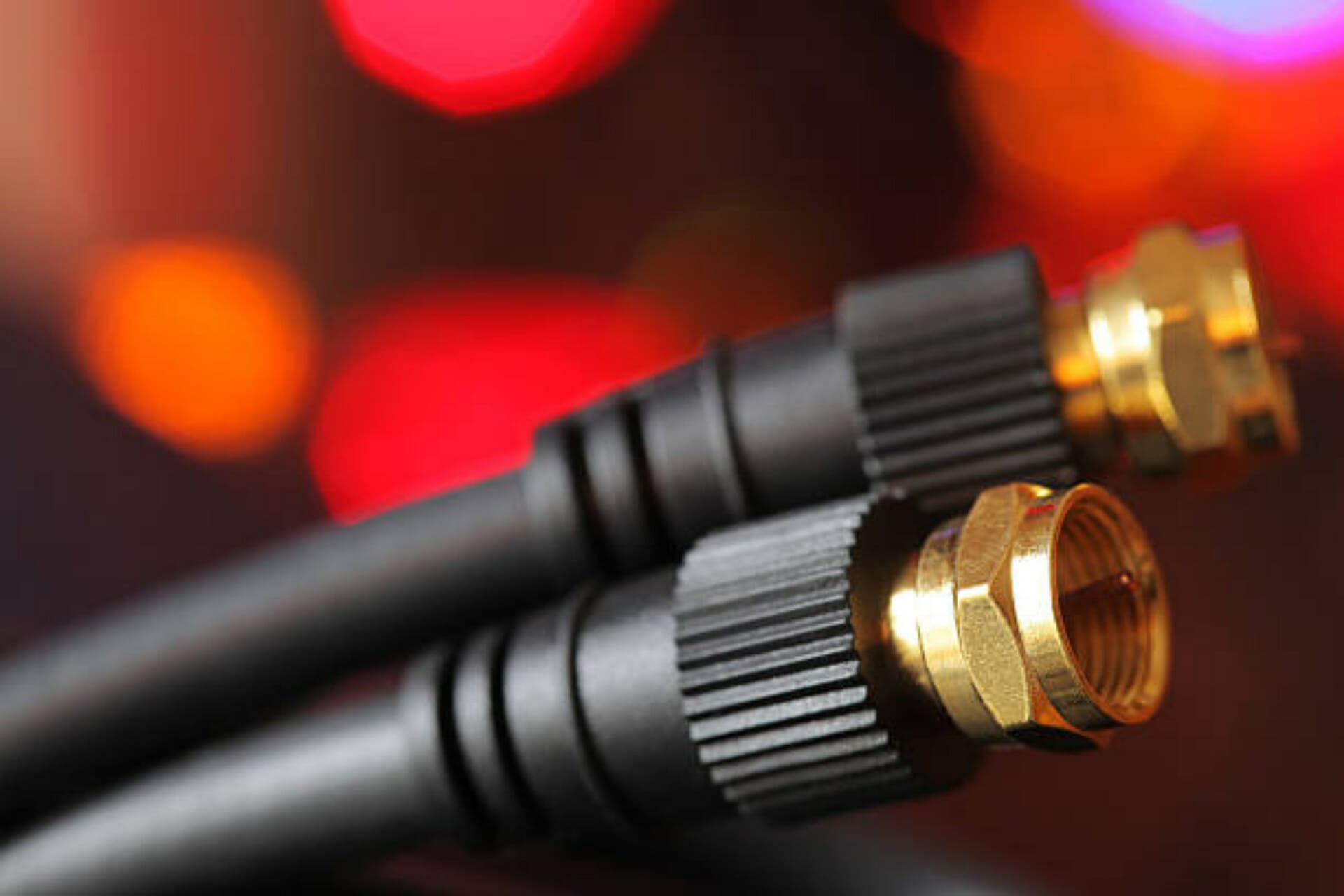
Best Deals On Coaxial Cables

Getting information across from one to another can prove to be vital in some cases and, since we now live in an era where hybrid work is the new normal, communication is key.

There are a lot of ways we can pass on information nowadays, but the internet still remains one of the most reliable ones, provided you use it wisely and protect your data.

And how does that information travel you ask? By cable, or wireless frequencies, of course. And since we brought up cables, we’re about to show you some awesome deals that you will surely appreciate.

Coaxial cable is commonly used by cable operators, telephone companies, and internet providers around the world to convey data, video, and voice communications to customers.

And trust us when we say that this type of cable has been around for a long time, since the early 20th century, and has many singular advantages for reliable, accurate transmission.

The three most common cable sizes are RG-6, RG-11, and RG-59. Most connectors are F-style connectors, but it is possible your system uses N-type connectors.

With all this being said, let’s take a look at some of the great deals that you can take advantage of this Cyber Monday.

What are the best Cyber Monday deals on coaxial cables?

All these items have special Cyber Monday prices.


There are so many discounts out there that it’s sort of impossible not to be attracted by the idea. But which offer is actually the best one?

Well, it all depends on what you want exactly. Depending on the type, length, and other characteristics, some offers might be more appealing than others.

This is the list we compiled in order to help you find what you need a bit faster. So, if you were looking to replace a few feet of cable, or maybe just some connectors, you are in the right place.

If there are any kinks or frays in the cables you currently use, it means that it’s about time for a replacement. But you better hurry up because these offers won’t last forever.

What type of coaxial cable were you looking for on this Cyber Monday? Share your thoughts with us in the comments section below.

Best Discounts On Portable Monitors

There’s literally no time like the present if you are looking to buy a portable monitor. I mean with the incredible deals, this is the best time to take advantage of the reduced prices.

Anyone looking to get a portable monitor is clearly looking to increase the screen space they have to work with. People mostly use them to work, study, gaming, and other entertainment purposes.

Moreover, portable monitors allow users to extend a laptop screen or enhance the display size for their mobile device. these devices provide tech-savvy individuals with the option to display more real estate on the go.

Even though you might already have some products in mind, before you make a final decision, you must consider some specific elements. Of course, all the requirements you might have are unique to your situation, so make sure to choose wisely.

There are a couple of features that one should look into when trying to buy a portable monitor. Some of the key features include:

  • Weight – A portable monitor basically means that you will be carrying it around wherever you go. Therefore, you need to get one that will be light enough to make it easier to carry around.
  • Image quality – This most matters if you intend to do a lot of video streaming using the device. However, this does not necessarily mean that you will need a 4K resolution. But if you are doing a lot of coding and editing you will need a higher resolution.
  • Size – This depends on the purpose you intend to use the monitor for. This will help you make the decision ad find one that suits you best.
  • Connectivity – You should ensure that you are able to plug into other devices. It should also come with a HDMI or DisplayPort compatibility. this will also allow you to transfer data.

What are the best deals on portable routers?

All these items have special Cyber Monday prices

We have narrowed down the list of portable monitor deals that are available. This will definitely help you make the choice, you just need to identify the features that you need yours to have.

Which of the above devices did you get? Let us know the choice you made in the comment section below.

5 Best RGB Keyboard Deals To Get Now

RGB keyboards can be useful if you’re working in low light conditions and want to see your keys, but many use them because they have glowing LEDs that will make the PC look more appealing in the dark.

When buying one, you should look into the configuration options available for the lights; the more customizable, the better.

The type of keys is also important, and if your budget can afford it, go for a mechanical keyboard since it’s more durable and better to work with than the membrane ones.

The build material is also important; keyboards with aluminum bases are usually more durable and won’t move on your desk while using them.

Not that we got the basics out of the way, but here are some of the best RGB keyboards you can get.

What are the best deals on RGB keyboards?

All these items have special prices.

Picking up a good RGB keyboard isn’t always easy, but you shouldn’t have too many problems as long as you follow the guidelines from this article.

If possible, go for a mechanical keyboard since it’s a great investment that will last longer and it’s more comfortable to work with.

What is your RGB keyboard of choice? Let us know in the comments section below.

Best Cyber Monday deals on HDMI switches this year

Owning a good HDMI switch can make a huge difference if you’re using multiple monitors and you don’t have more HDMI ports available on your GPU or laptop.

The versatility offered by a good HDMI switch will also come down to how many output ports are available on the device, and even though there is no perfect number that fits everybody’s needs, logic dictates that there should be at least 2 HDMI output ports available.

Besides choosing your product based on the number of ports it offers, the quality of the switch is also extremely important, especially if you’re planning on using it for color-intensive work, digital editing, 3D rendering, or even gaming.

That being said. not all HDMI switches are the same, with a variety both when it comes to the number of ports, the speed of the said ports, quality of the materials used, and other interesting capabilities that simplify the process like LED lights and reset buttons.

The output quality thus makes a huge difference, so in today’s list, we will discuss some of the best HDMI switches with a good deal at this point.

What are the best HDMI switches with deals?

All these items have special prices.


As you can see, there are a variety of configurations available on the market at this point, so choosing the right HDMI Switch for your needs will depend on how much money you want to invest in this product and the number of output ports you need.

Beyond that, make sure to read the product descriptions from Amazon and see which one fits your needs, as compatibility will vary from one product to another.

We would appreciate it if you share with us what products you chose to buy from this list, and also why you made that choice. Feel free to contact us by using the comment section below this guide.

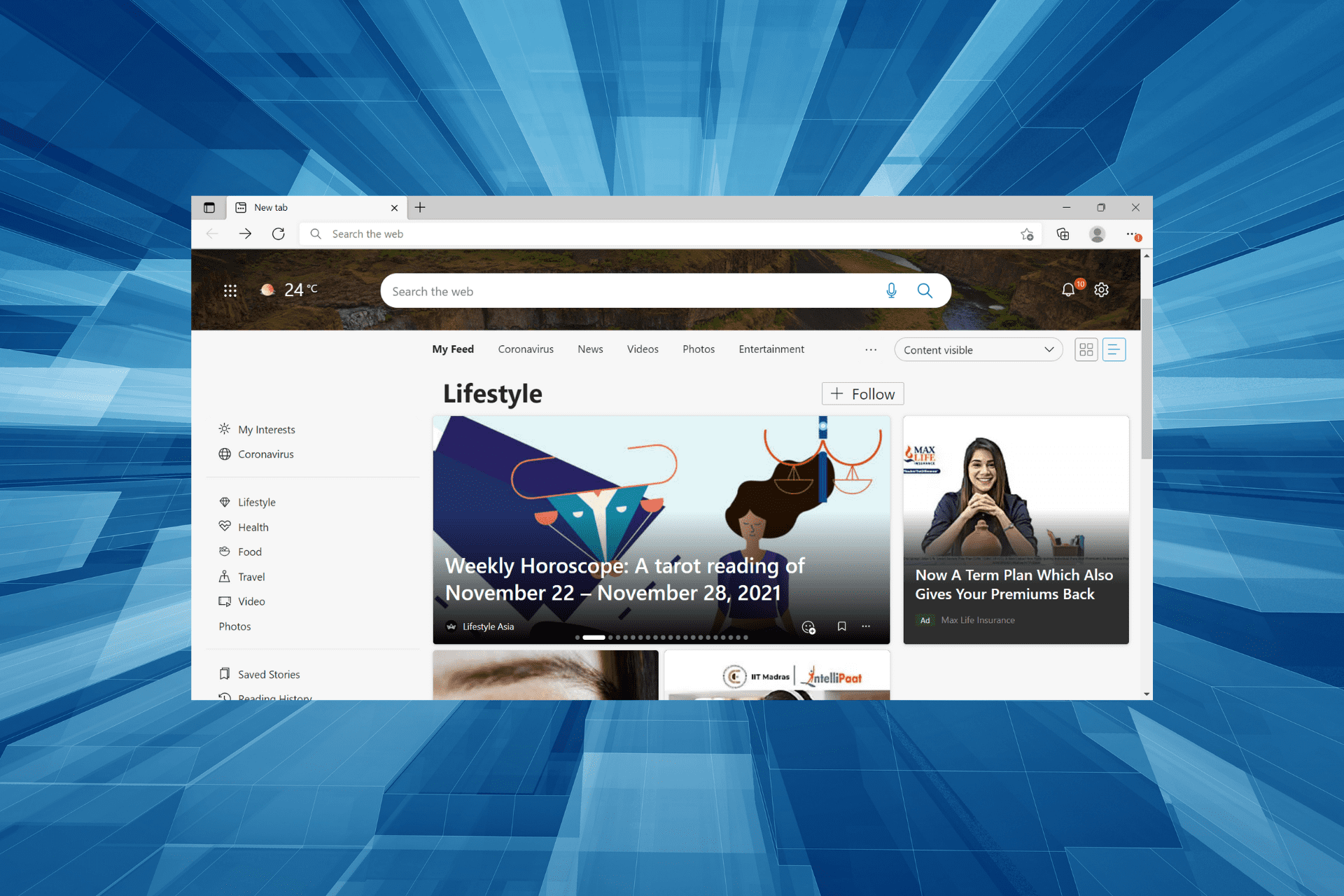
Microsoft Edge: New Features & Design on Windows 11

Microsoft Edge, a web browser, was initially released in 2015 for Windows 10 and in the subsequent years for other operating systems. And, with the release of Windows 11, the spotlight has once again shifted towards Microsoft Edge.

With the introduction of a bunch of new features, a user-friendly UI, and other changes, Edge is one of the best browsers available out there, along browser like Opera One or Chrome.

Microsoft has also been pushing users to set Edge as the default web browser in Windows 11, and also lists it as the Microsoft recommended browser.

Let’s now understand the changes that were introduced in Edge, how it performs as compared to other browsers, and how to use it.

How does Microsoft Edge perform compared to other web browsers?

Those who have used Edge in the previous operating system must have noticed how it doesn’t hog the system resources, and the response time is comparable with other browsers.

When we consider privacy, Edge again emerges as the clear winner owing to its intelligent screening system. However, it does not release regular updates as frequently, thus losing out by a small margin when it comes to security.

Why do Microsoft Edge and Google Chrome look similar?

Several users unaware of the intricacies of browsers were unable to decipher why the two browsers, Google Chrome and Microsoft Edge, looked similar. The answer is that both these browsers are based on Chromium, an open-source codebase.

The features, rendering engine, and extensions are all very similar in the two browsers. A website designed for one browser will work perfectly well on all the others based on Chromium. Some other browsers that work on Chromium include Opera One, Samsung Internet amongst others.

What features to look out for in Windows 11’s Microsoft Edge?

1. Sleek appearance

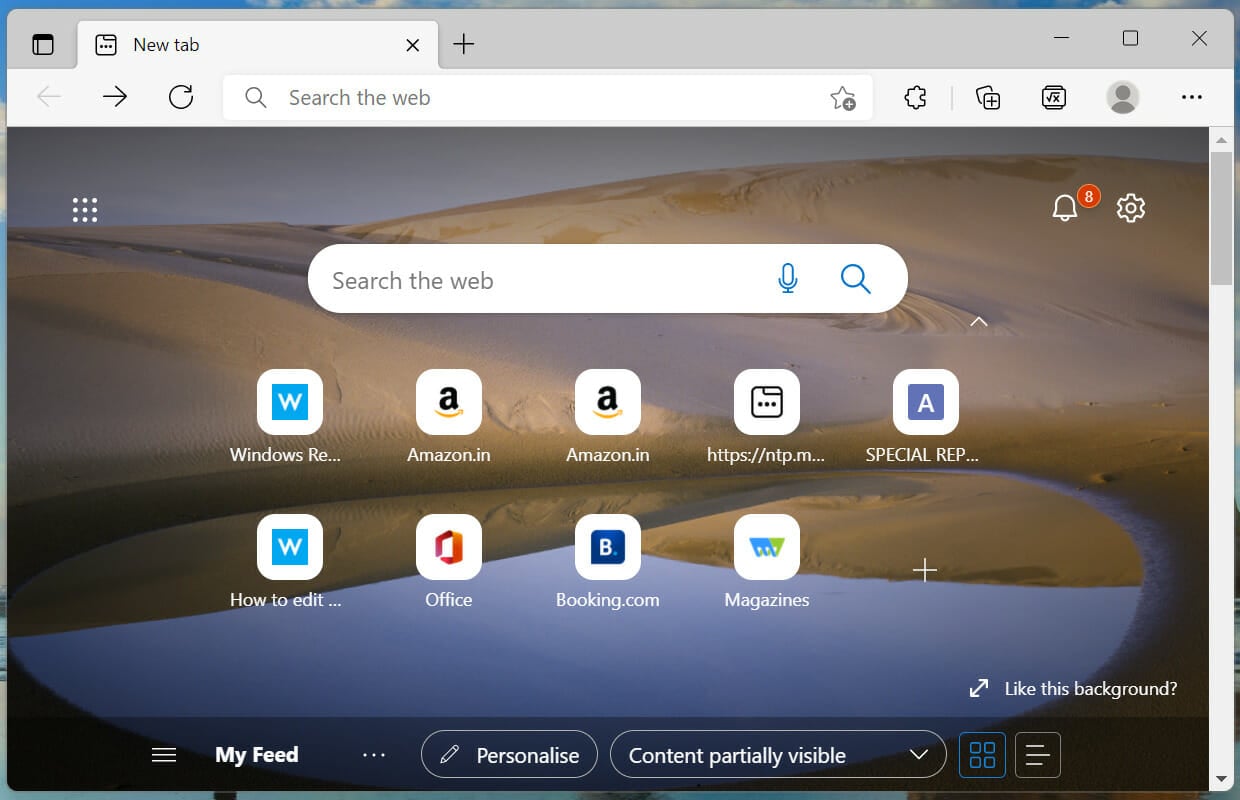
The new Microsoft Edge in Windows 11 offers a sleek appearance, one that’s a lot more pleasant. With curved edges when not in full-screen mode to some minor changes in the context menu and the main menu, Edge has come a long way.Microsoft Edge in Windows 11

How something appeals to the eye is one of the major aspects, and Edge has got that right. Also, all the options are optimally spaced which makes navigating through them simpler and quicker.

The many add-ons that we will be discussing in the following sections, show up automatically when the relevant pages are opened.

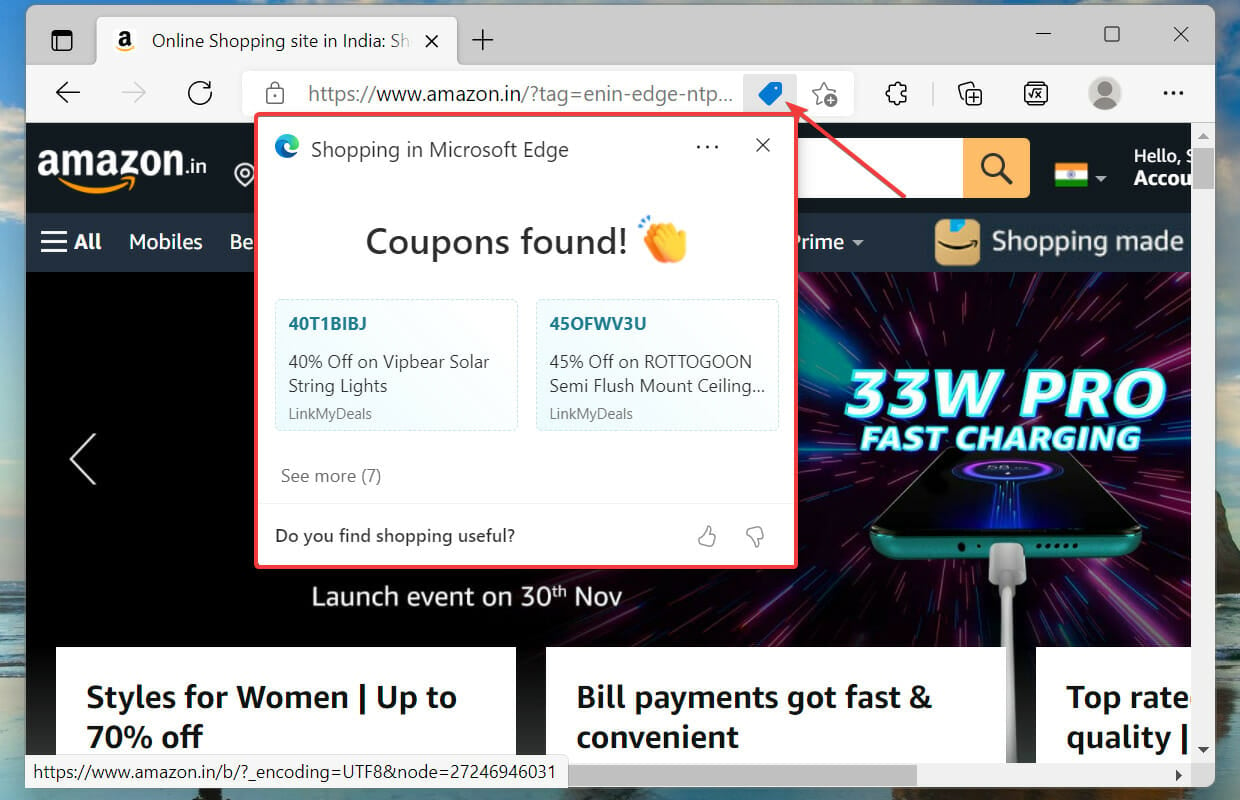
For instance, the coupons option appears next to the address bar when you open a website that sells services or products or the reading mode when a relevant webpage is opened.

2. Enhanced performance

Microsoft Edge in Windows 11 is a lot faster compared to the previous operating systems. This can be attributed to the fact that it is now being pushed as the default browser, and has to offer better performance or at least at par with Chrome.

And, Microsoft doesn’t disappoint you here! Navigating through Edge is quicker, probably because of the optimally placed icons as well, but speed is indeed a factor here.

Also, it doesn’t hog the system resources like Chrome, thus ensuring its smooth functioning as well as that of the other functioning apps.

3. Helps club similar apps together

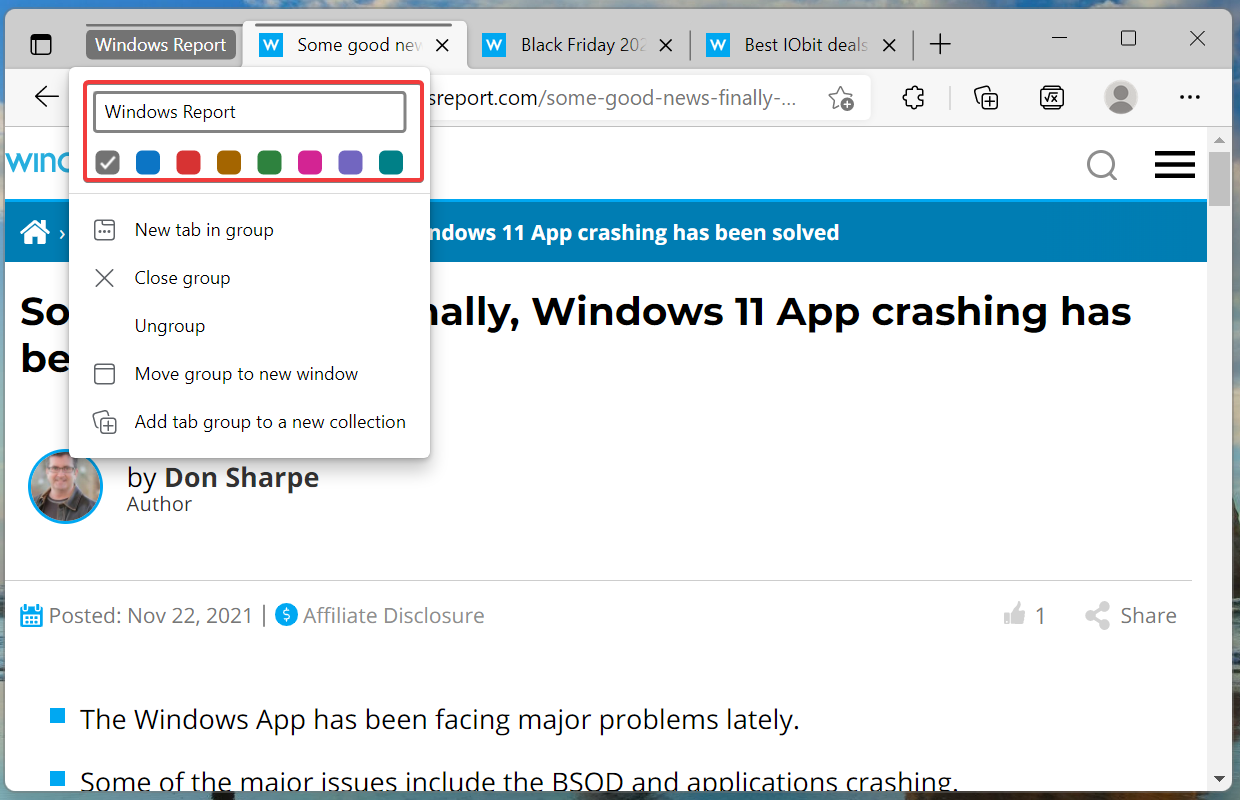
If you use multiple apps at once, Microsoft Edge in Windows 11 allows you to club them under groups. The best part, these groups can have specific names and colors to easily identify them.

This will help sort apps based on use or operation and will save time navigating through them. The feature to group tabs has been available on Chrome and works almost the same way.

How to club tabs under groups in Windows 11’s Microsoft Edge?

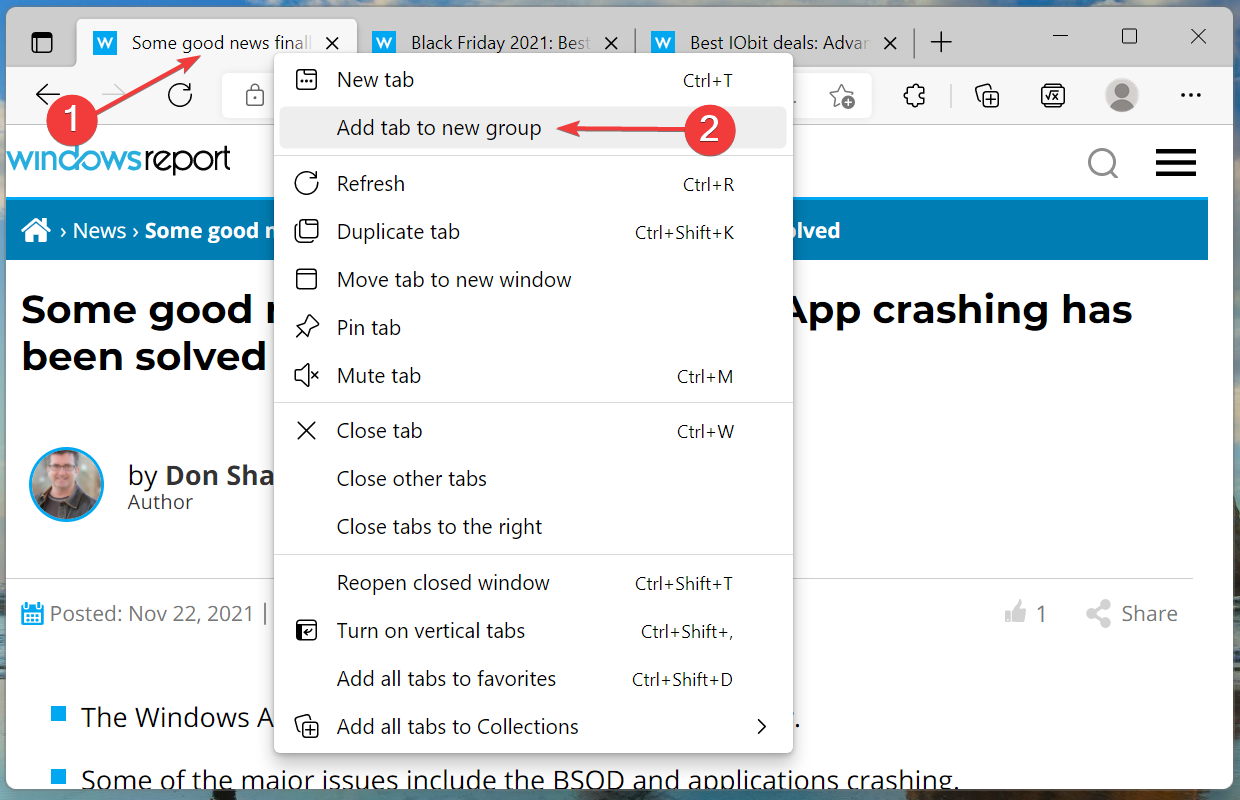
  1. Right-click on the tab that you want to add to the group, and select Add tab to new group from the context menu.Add tabs to group in Microsoft Edge in Windows 11
  2. Now, add a name and choose a color for the group.title and color of group
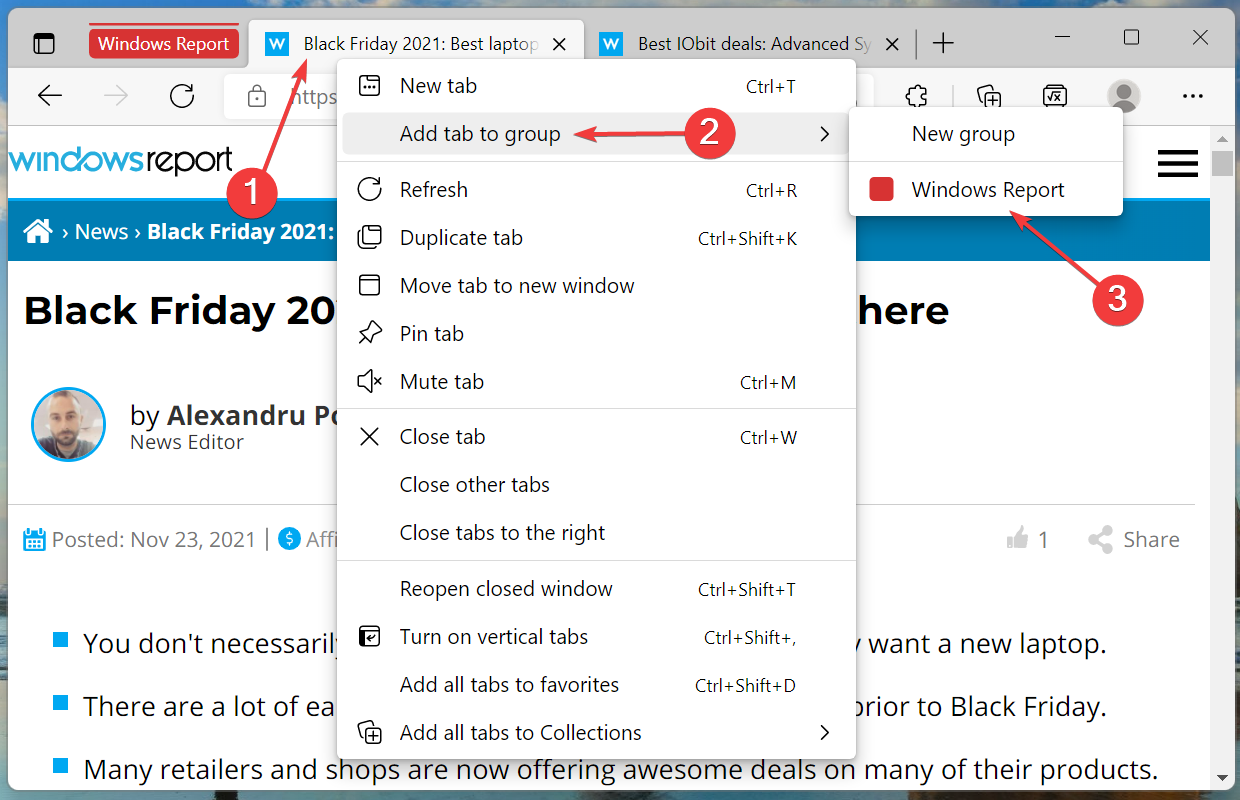
  3. Next, right-click on the other tabs that you want to add to the same group, hover the cursor over Add tab to group, and select the one that you created earlier from the list of options that appear.Add other tabs to the group

4. Finds the right coupon for you while purchasing

There are a bunch of coupons that let you save money while making a purchase, both online and offline. Microsoft Edge in Windows 11 takes care of the former. When you open a website that supports payments and offers coupons, Edge will list the option near the address bar.Coupons in Microsoft Edge in Windows 11

Now, you don’t have to search the web for coupons, rather they will all be presented to you. Save money without having to put in any effort, could it get any better!

5. Keeps your data private and secure

Browsing through the web, although fun, carries a severe risk when you download stuff from unreliable websites. There have been multiple instances of users downloading malware or virus, or even software that corrupt the data stored on the drive.

Hence it becomes imperative that the browser offers some level of protection against such attacks and warns you of these websites. Also, some websites collect your browsing data to offer customized ads amongst other uses, which many users prefer not to share.

Microsoft Edge in Windows 11 is a one-stop solution to all these problems. It offers a tracking prevention feature, which when enabled, would limit the data shared with the website.

Apart from the tracking mode, Edge also offers a security mitigation feature that secures your browsing and prevents malware attacks, besides the fact that you should always use a reliable antivirus.

How can I enable the tracking prevention in Windows 11’s Microsoft Edge?

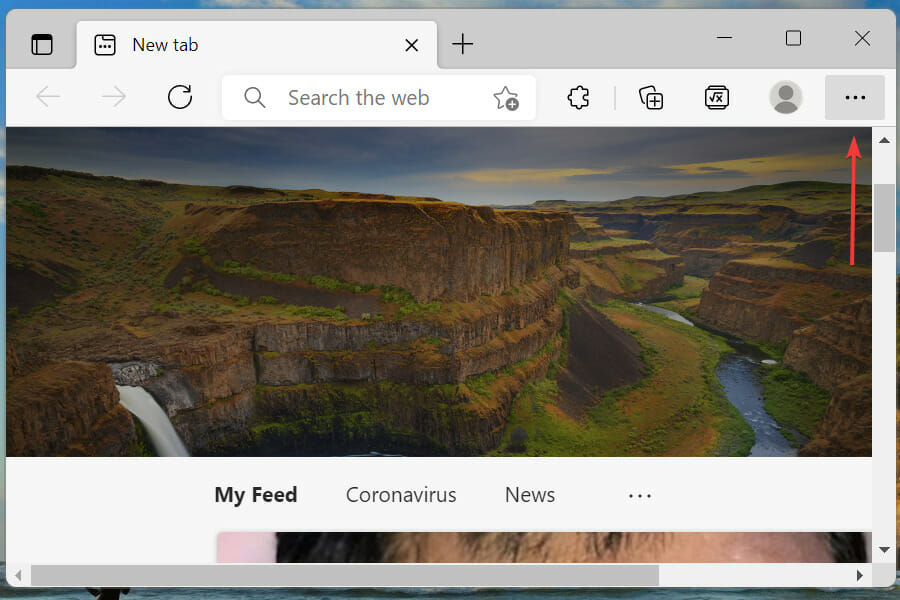
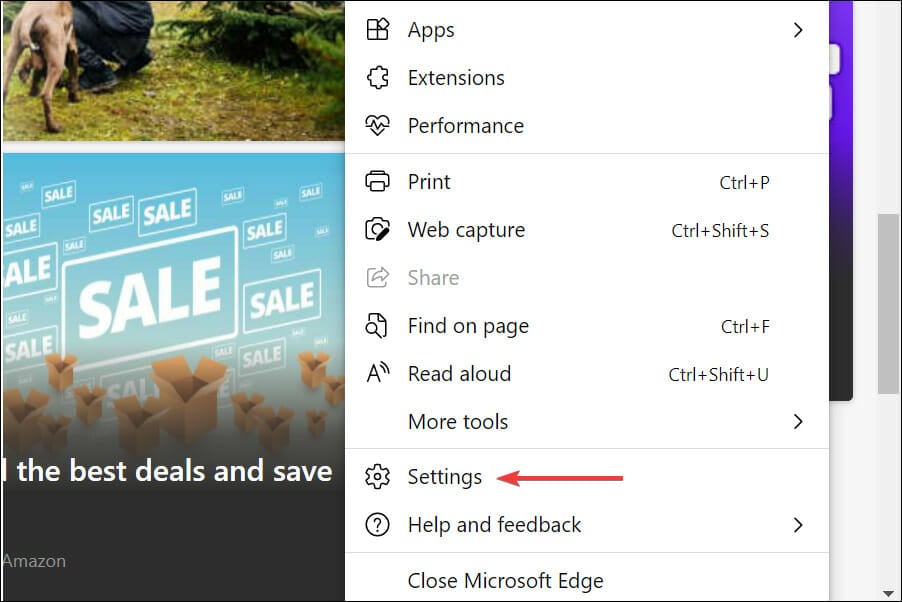
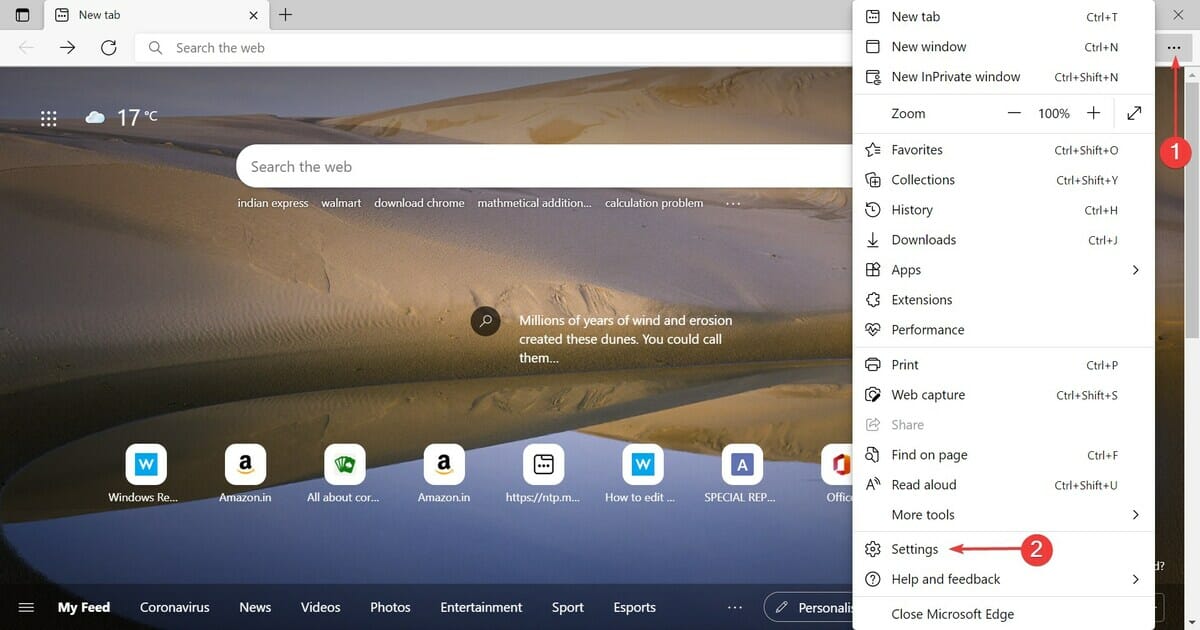
  1. Click on the ellipsis near the top-right corner and select Settings from the list of options that appear.Launch Edge Settings
  2. Select Privacy, search, and services from the tabs listed on the left.Privacy, search, and services
  3. Now, choose the desired tracking mode.Select a tracking mode

6. Capturing screenshots just got easier with Microsoft Edge in Windows 11

While there are a bunch of ways you can capture a screenshot in Windows 11, Microsoft Edge offers a built-in tool that some find a tad more convenient. Apart from capturing screenshots, you can also use the markup feature to add annotations using Edge’s own tool.

It’s quick, simple, and allows you to capture both, the full screen, or a section of it. Here’s how you can do that:

How can I capture screenshots in Microsoft Edge?

  1. Navigate to webpage that you want to capture.
  2. Press Ctrl + Shift + S to launch the tool.
  3. Select whether you want to capture the whole screen or a certain area.Click screenshots in Edge
  4. In case you select the latter, drag the cursor to cover the section to capture.

7. Solve mathematical problems, from simple addition to the dreaded calculus

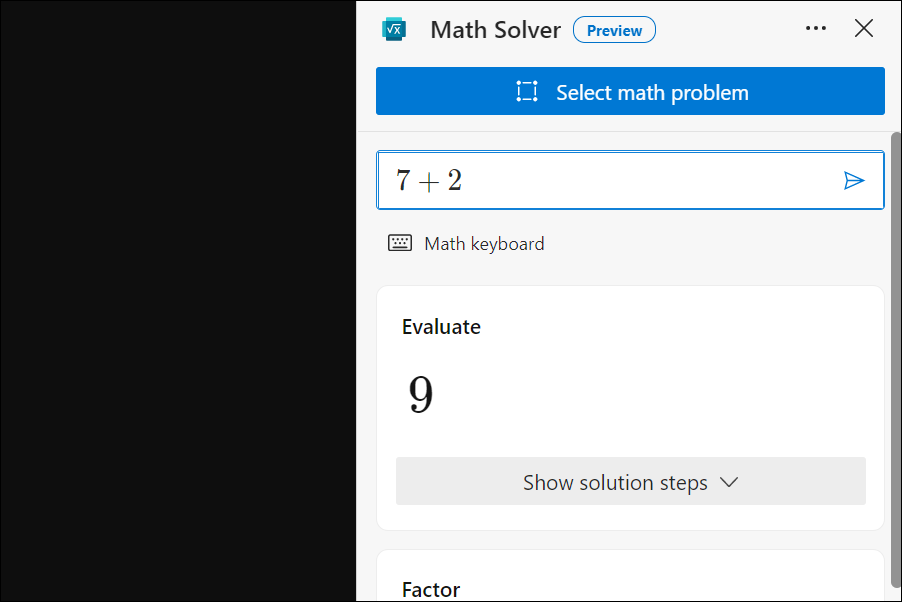
Students and even professionals, sometimes, come across equations or mathematical problems that they cannot comprehend. This is where the Math Solver feature in Microsoft Edge in Windows 11 comes into the picture.

It’s easy to use and can solve a wide variety of mathematical problems, ranging from simple additions to trigonometry and calculus. Also, it can read equations off a PDF or an image and solve them.

While you had to enable the specific flag for it earlier when it was in the preview phase, it’s not available for all and can be added to the Edge’s toolbar.

How can I use the Math Solver in Microsoft Egde?

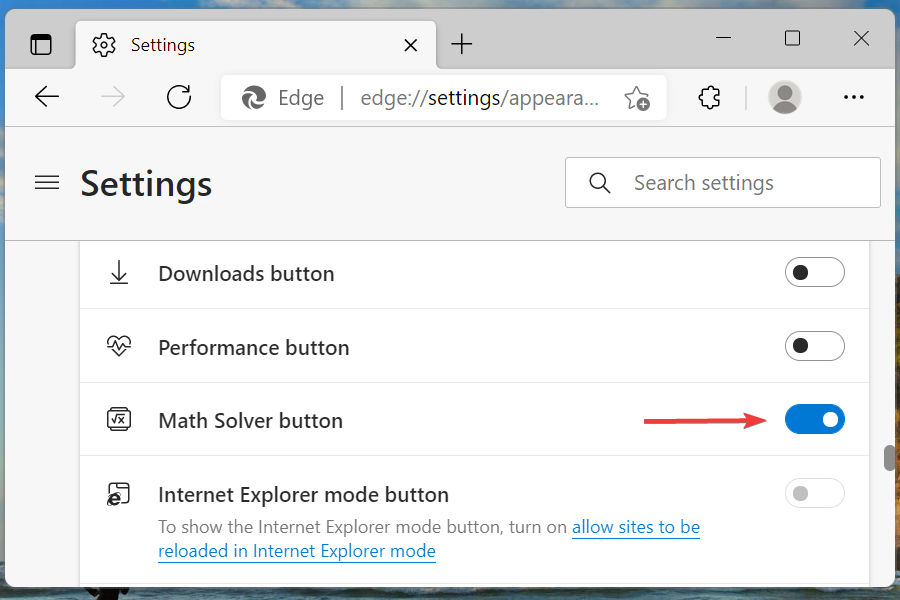
  1. Type or paste the following in the address bar and hit Enter to launch the Microsoft Edge Settings:edge://settings/appearance
  2. Now, locate and enable the toggle for Math Solver option under Select which buttons to show on the toolbar.Enable math solver in Edge
  3. Go to the webpage with the mathmetical problem that you wish to solve, and click on the Math Solver button in the toolbar.select Math Solver from the toolbar
  4. Choose the option to select the maths problem.
  5. Drag the cursor over the problem and select Solve.select the problem to solve
  6. Wait for Edge to list out the solution.Math Solver in Microsoft Edge in Windows 11

You can also manually enter the mathematical problem into the tool using the Type math problem option, however, the copying method is just as effective and saves considerable time.

8. Add pages to collections

As the name suggests, collections help you save the pages of interest that you might visit. It works similar to bookmarks but offers the option to add pages of a similar category under one heading.

This way you can create a collection of pages in Microsoft Edge in Windows 11, say for your vacation, or a shopping list, amongst other ideas. You can access the collections option from the toolbar or hit Ctrl + Shift + Y to launch it.

9. Immersive reading to lessen the strain on your eyes

We all spend a large part of our time reading on the Internet, and it’s no rocket science that looking at the screen for prolonged periods can cause strain to the eye. This is where the Immersive Reader mode comes into the picture.

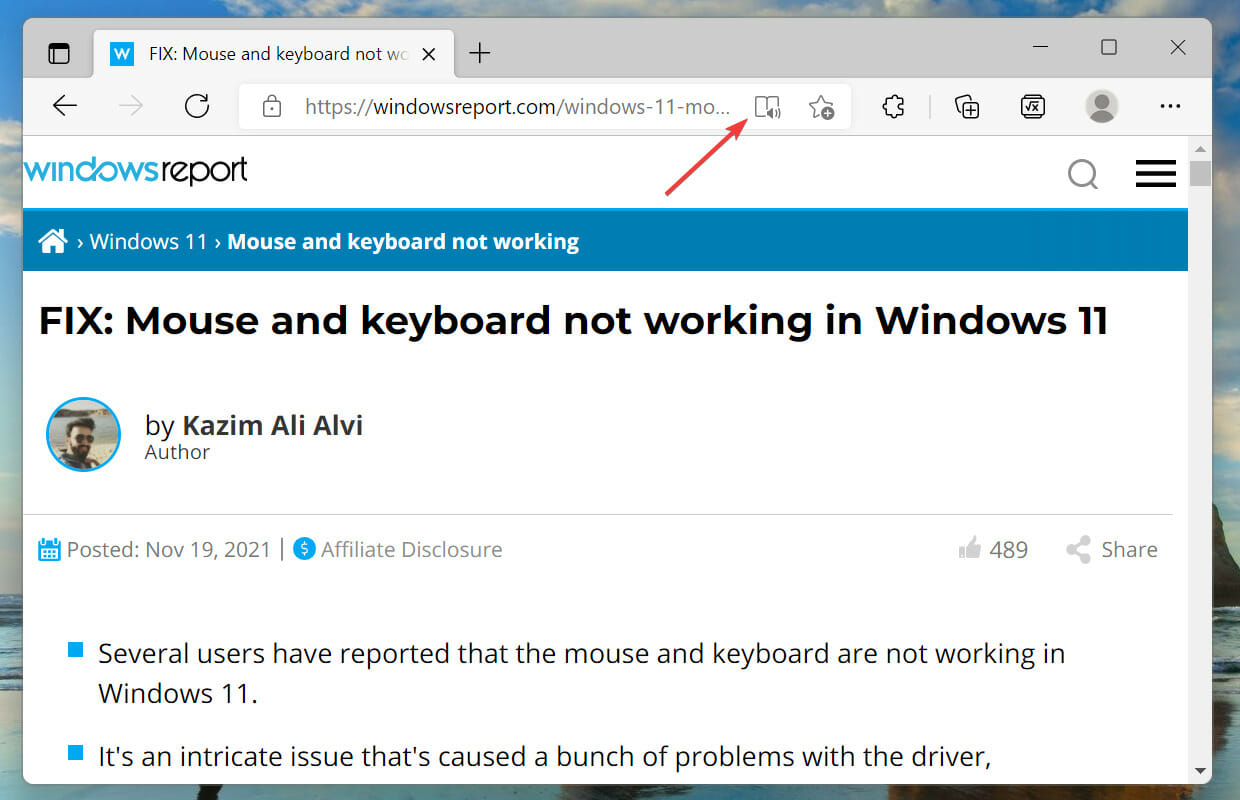
In this mode, the text is spaced out a little and the background color is changed to warmer ones. This lessens the strain on the eye, similar to how the Kindle works. The best part, Microsoft Edge auto-detects the pages where the feature can be enabled and the option for it appears near the address bar.

Once you start using the Immersive Reader mode in Microsoft Edge in Windows 11, there’s no turning back. Enabling this mode at night when trying to sleep can come in handy.

How can I enable the Immersive Reader mode in Microsoft Edge?

  1. Go to the desired website and look for the Enter Immersive Reader button next to the address bar.
  2. You can either click on the button or press F9 to enter the immersive reading mode.Immersive reading mode in Microsoft Edge in Windows 11
  3. Wait for the changes to reflect, it shouldn’t take more than a few seconds.Immersive reading mode enabled

10. Efficiency mode to save power in Microsoft Edge

Efficiency mode in Microsoft Edge is a great feature that helps save power by reducing the CPU and memory usage of the system. With the feature enabled, the battery life will be extended.

On the contrary, this mode is bound to affect the animations and the video playback, so you will have to make a choice between battery life and performance. In case you choose the former, don’t hesitate to enable efficiency mode in Edge.

How can I enable efficiency mode in Edge?

  1. Click on the ellipsis near the top-right corner.Ellipsis to view menu
  2. Select Settings from the list of options that appear in the flyout menu.Settings
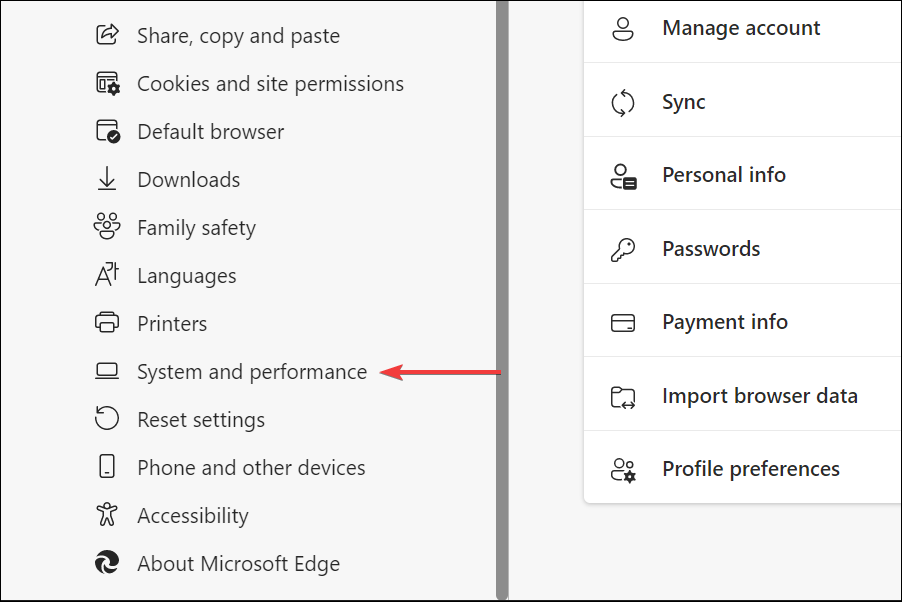
  3. Next, select System and performance from the list of tabs on the left.System and performance
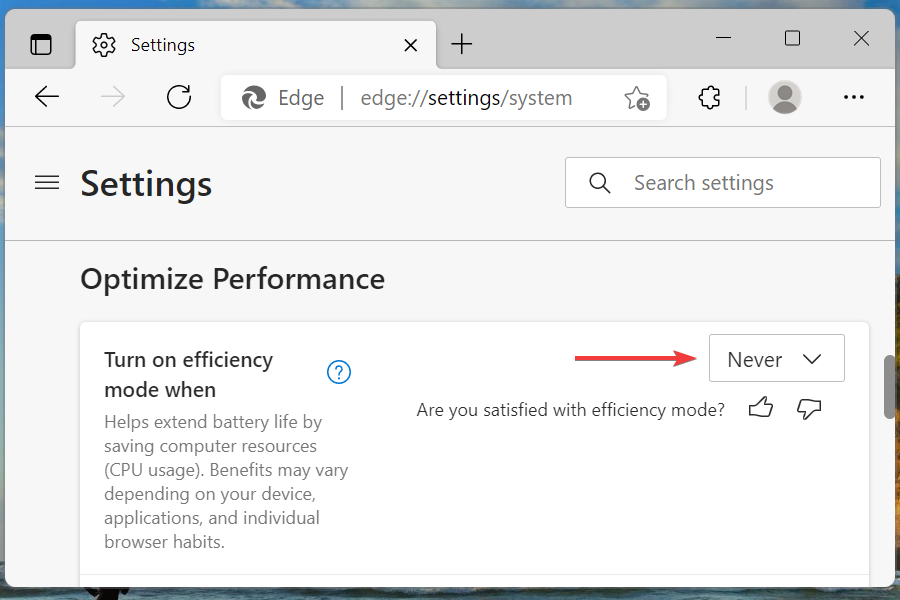
  4. Scroll down and click on the dropdown menu for Turn on efficiency mode when under Optimize Edge.Enable efficiency mode in Microsoft Egde in Windows 11
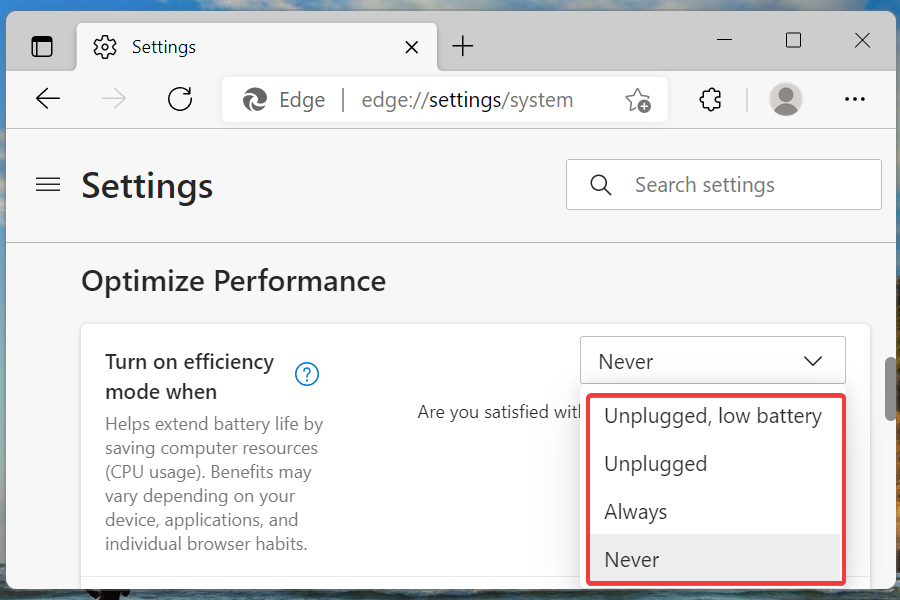
  5. Now, select the desired setting from the list options.Choose efficiency mode setting

Should I switch to Microsoft Edge in Windows 11?

This would be an individual decision based on your requirements. While we have listed most of the key features of Microsoft Edge in Windows 11, there are certain aspects, as is the case with any browser or software for that matter, that draw users away.

Users have reported issues when changing the default search engine, problems with Adobe Flash content, password errors, amongst others in Edge. But, these problems can occur with any browser from time to time and are not a good enough reason to dump Edge.

We are not here to convince but do recommend you to try Microsoft Edge in Windows 11 before making the final call.

Edge has improved considerably over the years, added a plethora of features, designed a user-friendly interface, and doesn’t put a lot of load on the system, making it one of the best available options out there.

How can I remove Microsoft Edge as the default browser in Windows 11?

As expected, Microsoft Edge is set as the default browser in Windows 11, keeping in line with the theme and adaptive appearance.

However, you can easily change the default browser in Windows 11, though, the process is slightly different from the previous operating system.

That’s all there’s to Microsoft Edge in Windows 11. It’s not just a browser but a complete experience and is at par with the other options available out there.

You now know all the features to look for and to use them. Whether to use Edge as the default browser and for the browsing needs, remains an individual choice, but this article will surely shed some light on the subject and help you decide.

Tell us about your experience with Windows 11’s Microsoft Edge in the comments section below and the features that you use the most.

5 Best Acer Monitors To Get This Year

Acer is one of the world’s biggest electronics manufactures, and we saw some amazing Acer laptops and computer peripherals. It also features its own gaming-dedicated products under the Predator brand, similar to Dell and Alienware.

They have always been regarded as top sellers, especially in the monitor department, and this is why they have always been sought after.

If you too are looking to buy a new monitor, then you’ll probably be interested in these great Acer monitor Cyber Monday deals.

How to choose the best Acer monitor?

Our team of expert testers, with a combined experience of 15 years, has tackled a variety of testing tasks for any device you could imagine.

Their experience comes into play as a very important element when choosing the products we described in this guide, and a large variety of factors have been taken into consideration.

The options that have been chosen offer great quality and cover the entire spectrum of price ranges, thus enabling everybody to find something that fits their needs both financially and otherwise.

What are the top Acer monitors deals this Cyber Monday?

Acer Nitro VG271U Pbmiipx

  • 27-inch IPS display
  • 1ms response time
  • 144Hz refresh rate
  • Frameless design
  • HDR only works on the HDMI port

This model comes with a 27-inch IPS display and 2560×1440 resolution, so it’s perfect for both gaming and everyday tasks.

Speaking of which, this model has a 144Hz refresh rate, 1ms response time, and full support for AMD Radeon FreeSync.

The monitor has a frameless design and built-in speakers along with a single DisplayPort 1.2 and two HDMI 2.0 ports.

Acer Nitro XV272U Pbmiiprzx

  • 27-inch IPS display
  • 1ms response time
  • 144Hz refresh rate
  • NVIDIA G-SYNC supported
  • HDR and FreeSync can’t work simultaneously

Acer Nitro XV272U Pbmiiprzx offers a 27-inch IPS display and 2560 x 1440 resolution, which makes it perfect for all types of multimedia.

The response time is 1ms and the refresh rate is 144Hz, which makes this model more than suitable for intensive gaming. Of course, NVIDIA G-SYNC is fully available.

Additional features include built-in 2W speakers, single DisplayPort, two HDMI 2.0 ports, and four USB 3.0 cables.

Acer Nitro VG240Y Pbiip

  • 23.8-inch IPS display
  • 144Hz refresh rate
  • 1ms response time
  • AMD FreeSync
  • Build quality could be better

Unlike the previous models, this one is 23.8 inches, and it comes with full HD resolution. Of course, the display is IPS and it offers a 1ms response time along with a 144Hz refresh rate.

AMD Radeon FreeSync is supported, allowing you to experience intense action without missing a single frame. The monitor has a frameless design, allowing you to fully immerse yourself.

Game View Technology is available, allowing you to pick between several resents depending on the type of multimedia that you’re using.

Acer Nitro KG272

  • 27-inch display
  • 0.5ms response time
  • 165Hz refresh rate
  • FreeSync
  • The stand could be better

This is another 27-inch model, and this one uses 1920×1080 display resolution. Despite its lower resolution, this monitor makes it up with up to 165Hz refresh rate and up to 0.5ms response time.

As a result, you can experience all sorts of multimedia without skipping a frame. Speaking of which, there’s FreeSync technology available to help you with that.

Regarding connectivity, there’s a single DisplayPort 1.2 and two HDMI 2.0 ports, so you can easily connect it to any device.

Acer Predator XB271HU

  • 27-inch WQHD (2560 x 1440) widescreen
  • NVIDIA G-SYNC technology
  • 2 x 2W speakers
  • Comes with quite a price tag

The only Predator gaming monitor on our list, the Acer Predator XB271HU has enough features to make it worth mentioning.

It features jaw-dropping specs, an IPS panel that supports a 144Hz refresh rate which delivers an amazing gaming experience. This is also further supported by the NVIDIA G-SYNC technology to eliminate screen tearing during your matches.

Acer never ceases to amaze us year after year with how great they are when it comes to designing your products and we hope that you managed to find a suitable Acer monitor for Cyber Monday.

If you’re looking for more devices from this manufacturer, be sure to check our guide on the best Acer Predator monitors and laptops.

All in all, Acer monitors are a great choice, as you will surely find at least one model that will suit all of your tastes, as well as your budget.

3 Best CPU Coolers For Your PC

CPU coolers are crucial for your computer’s performance. If your machine doesn’t have a reliable cooling system, it will get abnormally hot and this may trigger irreversible hardware damage.

So, equipping your computer with the best CPU cooler is an absolute necessity. To help you out, we compiled this list of the best CPU cooler deals.

Keep in mind that deals are subject to change and stock may quickly get depleted. Hit the buy button as soon as you’ve found a CPU cooler that suits your needs.

What are the best CPU coolers deals available this year?

MasterLiquid ML360 SUB-Zero

  • Thermoelectric cooling
  • Liquid cooler powered by Intel Cryo Tech
  • 2nd generation pump
  • 360 mm radiator
  • Expensive

The MasterLiquid ML460 Sub-Zero is an incredibly powerful liquid-based cooler that offers incredibly fast results.

Using thermoelectric cooling technology, this Intel Cryo Tech-powered device ensures that your system will always be running at optimal capacity by regulating the temperature perfectly.

The 360mm radiator ensures low noise and efficiency even when confronted with high-end systems that produce a large amount of heat.

MKOJU 120mm CPU Cooler

  • 6 heat pipes
  • RGB lighting
  • 4PIN quiet socket
  • ABS material blade
  • The RGB lighting is not for everybody

The MKOJU 120mm CPU cooler offers a great experience on any system and is capable of maintaining your CPU’s temperature in the perfect range, thus improving its efficiency considerably, while also protecting it from any possible damage.

The RGB lighting blades made out of ABS material look very futuristic and would perfectly suit an RGB-heavy gaming system.

EVGA CLC 360

  • 360 mm triple fan radiator
  • RGB LEDs
  • Airflow: 74. 82 CFM
  • Compatible with Intel LGA2066/2011/2011-v3/1150/1151/1155/1156/1366 and AMD
  • Noisy fans

This liquid cooler uses a closed-loop architecture and comes with RGB lighting. Thanks to the EVGA Flow Control software, you can easily manage fan and pump performance.

It s set with premium sleeved tubing and fully controlled RGB LED for a smooth look.


  • Air flow: 82.9 CFM
  • Noise level: 36.0 decibels
  • Fan dimensions:120 x 120 x 25 millimeter (4.7 x 4.7 x 1 inches)
  • Heat sink dimensions: 116 x 51 x 159 millimeter (4.6 x 2 x 6.2 inch)
  • Poor installation procedure

The Hyper 212 EVO CPU cooler comes packed with upgraded fans, improved tower fin design. The fan brackets provide an even more extreme value for end-users of all types.

The aluminum fin structure has been engineered to offer the perfect performance balance.


  • 3rd Generation Dual Chamber Pump
  • New SickleFlow Refreshed exterior design
  • RGB Lighting Signature cooling performance
  • Included a wired RGB Controller
  • Noisy fans

Another CPU cooler from Cooler Master lands on our list. This cooler is easy to install and is built out of premium materials for high efficiency and longer service life.

The lighting effects make this piece of hardware stand out in the crowd.


So, which of these CPU coolers are you going to buy from this list? Let us know in the comments below.

Microsoft news recap: Skype gets a more modern UI, Bing brings Page Insights to search results, and more

Microsoft news recap is a weekly feature highlighting the top Microsoft news stories of the past week. Sit back, grab some coffee, and enjoy the read!

Skype gets modernized UI, rounded corners and more with latest update

The Skype desktop and web app has received a more modern messaging and calling UI in the latest update, bringing rounded corners, larger avatars, and additional colour options.

Microsoft to open new data center in Belgium as part of digital transformation plan

As part of Microsoft’s “Digital AmBEtion” plan, the company will open a new data centre in Belgium, with the aim of helping to create 60,000 jobs across the public and private sectors. The new data centre region is expected to open in 2022.

Microsoft Bing now offers Page Insights on its search results page

Bing has launched a new feature called Page Insights. On some search results, a lightbulb icon will now display, which when clicked will open up a panel to provide a summary of additional information about the page, including links to specific sections of the page, images, and more.

Microsoft-bing-insights

FPS Boost support won’t be coming to more Xbox games “in the immediate future”

FPS Boost is a feature of Xbox Series X|S consoles that can double or quadruple the FPS of backwards compatible games, however, it has now been said that the Xbox team are hitting some roadblocks with bringing FPS Boost to more titles, due to issues with games breaking when not designed to run at a higher FPS. As such, it could be some time before more titles begin to support FPS Boost.
That’s it for this week. We will be back next week with more Microsoft news.

Zebra printer not printing: Effective and easy-to-follow guide

Zebra printers are popular for label and receipts prints. However, several users have reported the printer not working issue when trying to print labels.

Your Zebra printer may stop working due to several reasons. Some common reasons include temporary glitches, corrupted configuration, incorrect label width calibration, etc.

In this article, we show you a few quick ways to troubleshoot your Zebra printer and get it working again.

What are the common causes of the printer not working?

Your Zebra printer may stop working because of a variety of reasons which include settings, connection, and compatibility issues with your source system.

That being said, there are some other elements that you might want to check before diving deeper into this guide’s solutions:

  • Check if the cables are firmly plugged into the port
  • Make sure the network and power cables are directly plugged in and not through an extension cord
  • No paper in the printer – some printers automatically stop any active tasks if the sensors detect that no papers is present in the paper tray. If you added more and more tasks after that moment, the printer will not work.
  • No paint left in the printer – as you might expect, if the printer’s ink cartridges are empty, the printer is not able to print out anything
  • Temporary glitches
  • Check printer’s status – cancel and schedule some new tasks

In some other cases, the issue could be caused by a bad configuration profile, and this guide will also cover how to configure the default printing device on your PC.

Another common impediment when dealing with Zebra printers appears if the drivers are not updated to the latest version, and that’s another important topic that we will discuss below.

What can I do if my Zebra printer is not working?

1. Perform a power cycle 

  1. Make sure the printer is powered on.
  2. Press the switch near the power socket in the rear.
  3. Disconnect all cables – including power cable, network cable, and any USB cables.
  4. Wait for a few minutes so every component resets.
  5. Turn the printer back on and check if the issue is resolved.

2. Cancel and reassign print jobs

Zebra printer no working
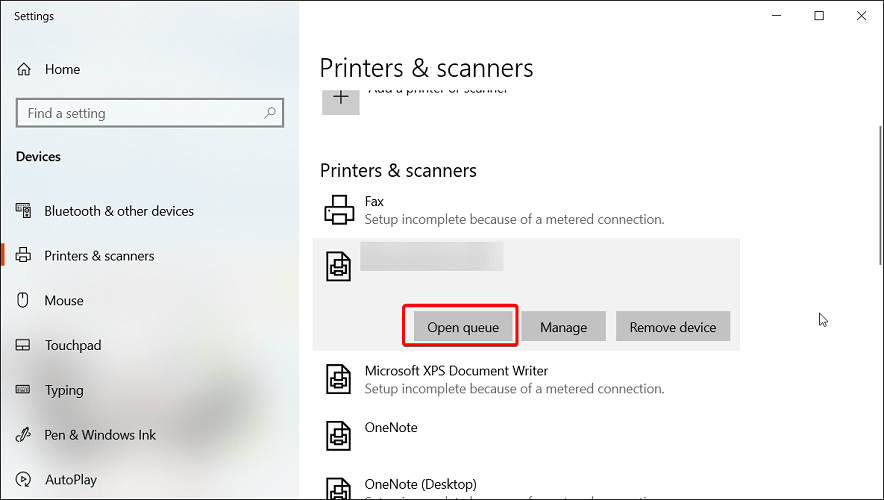
  1. Double-click on the printer icon in the notification area of your computer. You can also open it by searching for Printers & Scanners, selecting your printer in the list, and clicking Open Queue.
  2. Right-click on the print job you want to cancel and click Cancel.

In case your printer is not printing anything, try canceling all the pending print jobs. It is essential, as the more your computer attempts to print without success, the more it can affect your hardware.

Also, check your printer toner for proper printing. If the labels get stuck, try cleaning the roller from both ends. It may also mean you may have issues with the inside gears.

3. Set Zebra printer as default

  1. Click on Start and choose Settings.
  2. Go to Devices and open the Printers and Scanners tab.
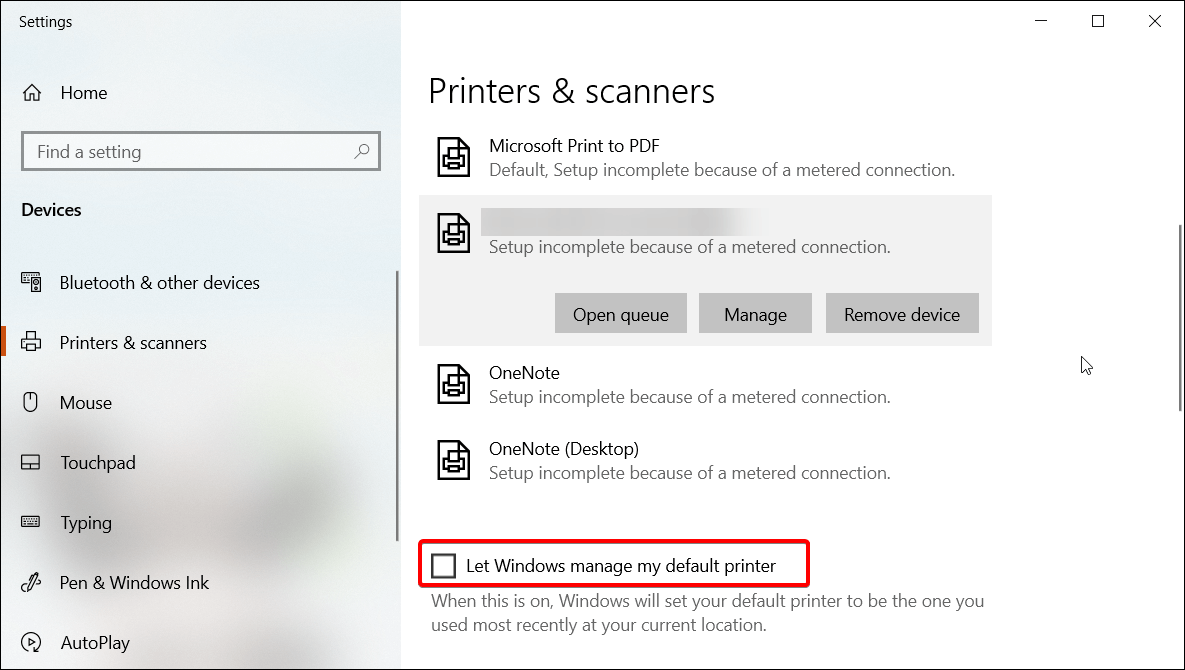
  3. Uncheck the Let Windows manage my default printer option.
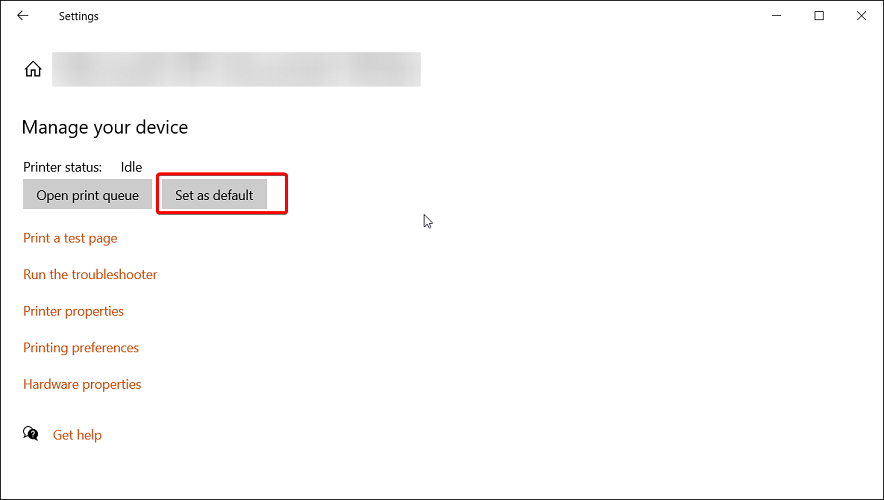
  4. Choose your printer from the list and click on Manage.
    Zebra printer no working
  5. Select Set as default to set this printer as your primary printing device.

Selecting a default printer makes it easy for the programs to send print jobs to the right device. You can also do this from the Control Panel’s Devices and Printers section.

4. Update printer drivers 

Outdated or missing printer drivers can cause your printing device to malfunction. For example, it may stop printing or print incorrectly. To avoid this, make sure you have the latest printer drivers installed on your computer.

You can manually install printer drivers or use a third-party driver updater tool that scans your system for missing and outdated device drivers and installs them with one click.

5. Reset to Factory Default 

  1. Press and hold the single round button on the front panel of your printer.
  2. Keep it pressed until the indicator light starts a flash sequence.
  3. When the indicator light flashes four times, release the button to complete the reset.

Resetting your Zebra printer to factory default will remove all the saved configurations. However, this is an ideal solution to deal with printer configuration corruption. 

After resetting your printer, you would have to perform a label width calibration. Here’s how to do it.

6. Perform label width calibration

  1. Press and hold the round button on the front panel.
  2. As it starts a flash sequence, wait for the light to flash five times and release the button.
  3. This will trigger the printer width calibration process, where it will print a series of widths. The width will get wider with each print on a label.
  4. Press the round button once you have found the correct width for your labels.

After completing width calibration, you need to perform a calibration for other properties. To do this, press and hold the round button until the light flashes twice. Then, release the button, and that should complete the set of all other calibrations.

Zebra printer not working issues usually occur due to temporary glitches or incorrect printer configuration. To resolve the issue, perform a power cycle, cancel the pending job or set the printer as default. If that does not work, check for driver issues or try to reset the device to factory default as a last resort.

How do I reset my Zebra printer?

To reset your Zebra printer, make sure it is completely turned off. Next, press and hold the Pause + Feed key and turn on the printer. Keep the buttons pressed until the Status indicator is the only indicator lit.

Once the printer is reset, you will have to recalibrate and set it up again to get it working.

Alternatively, some Zebra printers come with a dedicated Reset button. Turn your printer flat on an even surface. Use a paper clip or small needle-like object to press the Reset button.

Why is the Zebra printer flashing red?

Your Zebra printer will flash red if the print head is open. Close the top cover and then press the Feed button to resume printing.

Why is the Zebra printer offline?

Your Zebra printer may show offline if there is a delay on the network, issues with the printer spooler, print server, etc.

As you can see, there are plenty of solutions for encountering issues with your printer, and we would suggest that you try each of these solutions in order, for the best results.

Don’t hesitate to share with us which of these solutions proved efficient in your case. You can do so by using the comment section below.

3 best deals on USB-C hubs [Sales & Offers]

With 2022 already here in real-time, online sales should expect a lot of buzzes – particularly for technology products.

And one of the exceptional technology products with great deals to be on the lookout for is the USB-C hub. We already covered USB-C hub discounts, and we hope that you managed to get one.

If you want the best cheap USB C hub, and you missed our Black Friday discounts, this guide will offer you additional deals that you can get.

USB-C hubs and what to look out for

USB-C Hub or USB-C docks can help increase the performance of your system standing on USB 3.1 data control standards.

Hence, for users in love with video gaming – BMX bikes, or video editing, programming or a heavy technology user the USB-C hub deals would be appropriate.

Technology users should find it easier to transfer data faster, create multiple external displays without any restriction with USB-C to HDMI and more.

So, this guide can help users identify excellent USB-C adapters from reputable manufacturers and at great prices.

What are the best USB-C hub deals to get in 2022?

Anker USB C Hub

  • USB-C power delivery port, up to 85W
  • Two USB-A ports
  • HDMI port with 4K and 60fps support
  • MicroSD card reader
  • Ethernet port
  • Ethernet can be unreliable for some users

Are you looking for the best cheap USB C hub for Macbook Pro? If so, this model is exactly what you need.

The USB-C hub comes with HDMI port, and it can support 4K video at 60fps. There’s also a USB-C power delivery port that delivers up to 85W for charging, so no need for a USB Type-C charger.

USB-C data port is present as well as two USB-A ports. For network connectivity there’s an Ethernet port available.

Overall, this is an outstanding USB hub, so be sure to consider it.


Argmao 6 in 1 USB C HUB

  • HDMI port that can support 4K resolution at 30Hz
  • Two USB 3.0 ports
  • Single 2.0
  • Aluminum housing
  • TF and SD card slot
  • No 60fps support for 4K video
  • No USB 3.1

This hub comes with a sleek design and a HDMI output that supports 4K resolution at 30Hz.

Besides the HDMI, you can find two USB 3.0 ports and a single USB 2.0 port. In addition, there is TF and SD card slot, which will surely come in handy.

This might not be the most impressive USB hub, but it’s a great Windows 10 USB-C hub, and it offer solid features, so it’s worth getting, especially with a discount.


uni USB C to USB Hub

  • Four USB 3.1 Gen 1 ports
  • Great file transfer speed
  • Plug and Play
  • OTG
  • Aluminum shell
  • Short cable
  • High-power devices might not work properly

This USB-C hub is simplistic, and it doesn’t come with any advanced features. Instead it delivers four USB 3.1 Gen 1 ports for fast file transfer.

All ports can be used simultaneously, but keep in mind that they provide only 0.9A so they aren’t the best option for charging.

The hub is completely plug and play, it supports OTG, and thanks to the aluminum shell, it should remain cool even after hours of intensive use.


Christmas USB-C hub deals run out pretty fast. And it’s only wise to take advantage of the opportunities while it last. If buying any technology device several factors will always come to play before such decisions.
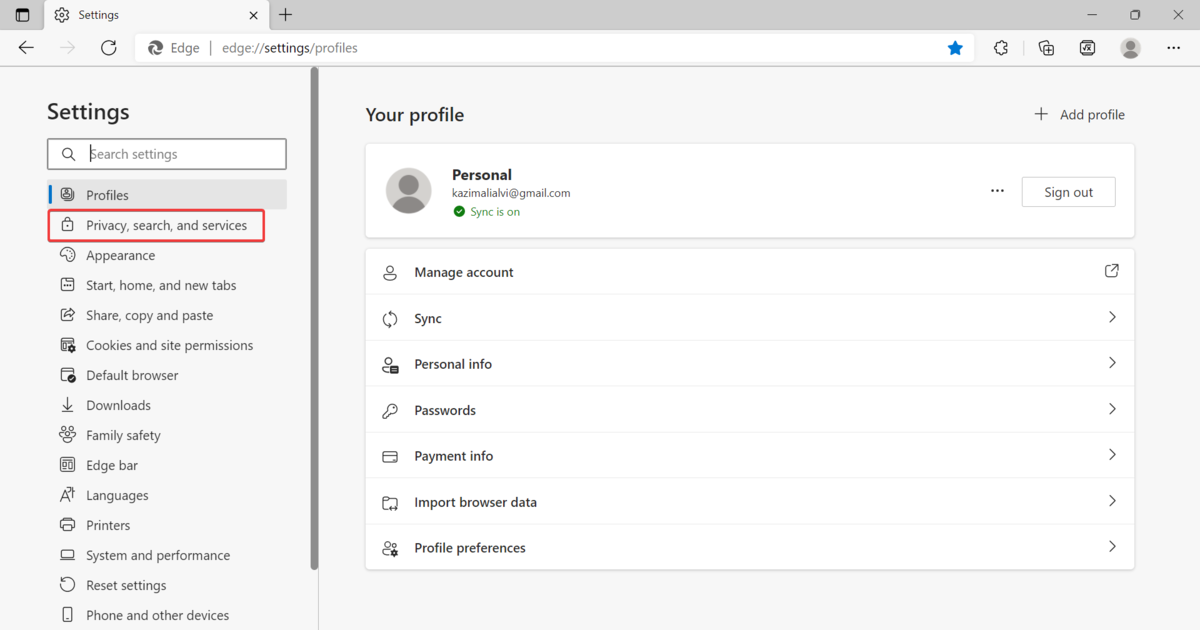
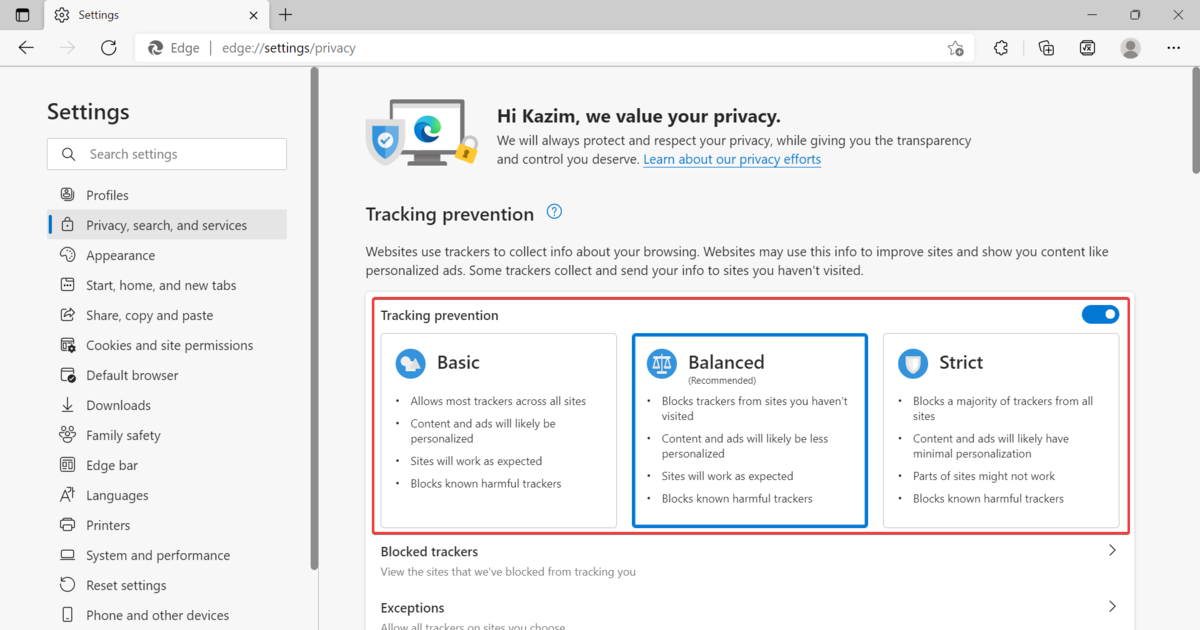
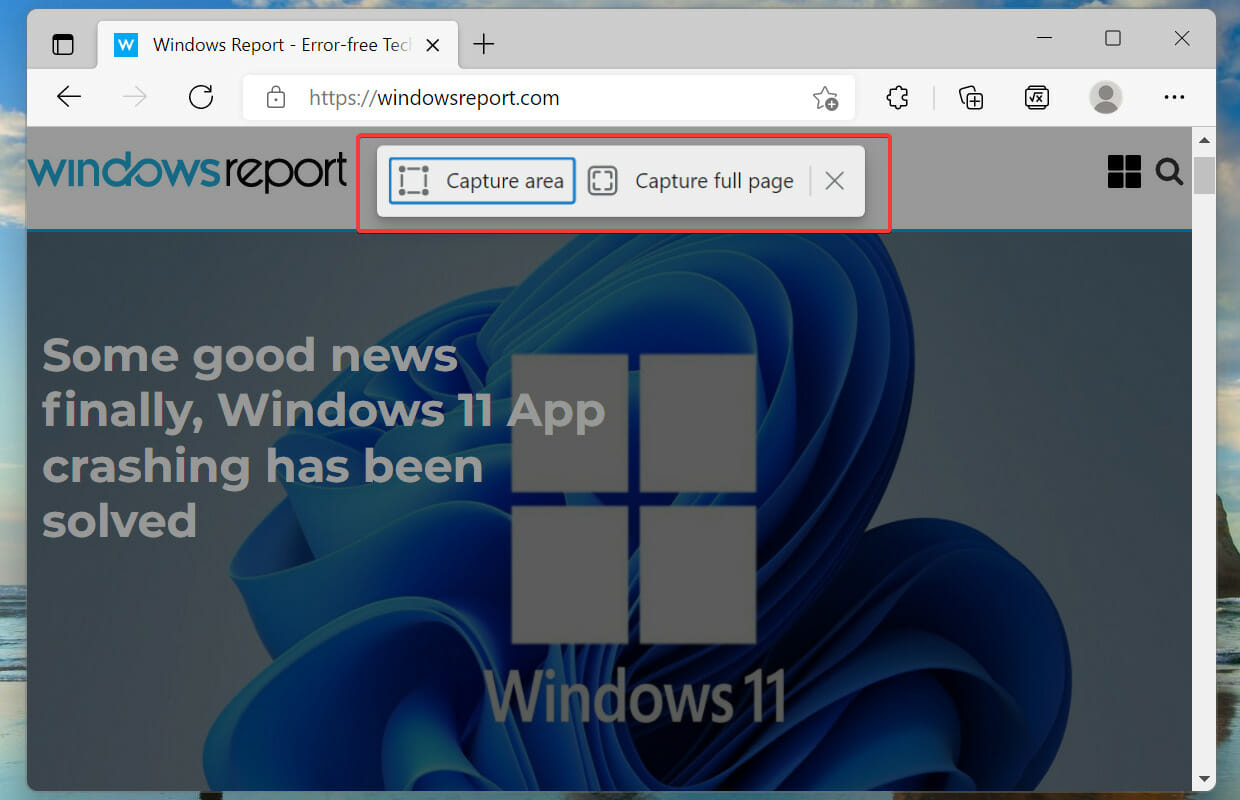
However, these three USB-C adapters can offer excellent functionalities and they are great if you need to add a USB-C port to your laptop. To make a final decision it might be necessary, however, to look critically at what the user needs are.

Price, the number of devices to connect, technology lifestyle and more will usually influence a buyer’s decision before making a purchase.

Enjoy a great Christmas USB-C hub purchase deal!


Black Friday Deals: Moneyspire is now 25% off

This is a personal finance software, it is compatible with several macOS versions as well as Windows. There is a free trial available, however, you need to make a payment if you intend to manage your finances for the long haul.

Moneyspire comes with a wide array of features that helps the user manage their assets effectively. It also comes with a calendar feature that is in place to ensure that it reminds you of any pending bills that you need to make.

It also allows you to add payees and even print checks directly from your account. Moneyspire also allows you to import account information, check on your balances and transactions all in one screen. You also get to track your transactions based on the payments you have made.

Note: All the prices and offers in this article are subject to change, so be sure to check the official product page to get the latest deal. If the product/offer you’re looking for is no longer available, you can try to find it on its official manufacturer page or get another one from our list.

Key features of the Moneyspire software

  • Users can be able to track all their transactions thanks to the many features that come with the software.
  • The application also allows people to avoid incurring any overdraft fees. This is possible through the balance forecast feature available in the software. Overdraft fees are quite costly, when the fees accumulate your account could end up being closed.
  • It also allows users to stick to their budgets, the software provides a platform where the users can easily track and regulate their expenditure. This is a handy feature especially for users looking to start savings.

To get Moneyspire, you can either opt to make monthly payments or one-time payments. Users can either get the standard one or the Pro that comes with invoicing. For the monthly payments, you can access the software at a discounted rate of $4.99 and $6.99 respectively. Both are 25% off from the full retail price.

However, for the one-time payments, you will get to enjoy the Standard account at a discounted price of $29.99, while the Pro account is available at $39.99.

However, the deals are subject to change at any moment. So you better take full advantage of the Christmas deals and make the purchase now!

⇒ Get Moneyspire

Which bargains are you looking out for this Christmas? Let us know in the comment section below.

Chrome PDF viewer not working [Full Fix]

Have you’ve been facing this error message Disabled by Enterprise Policy, when you’re trying to access PDF viewer on Google Chrome?

If the answer is Yes, then you should read this article until the end. We have a very easy and simple solution that will help you solve this issue.

First of all, before going to the solution, let’s see what is the reason behind this error message, why does it happen, and how we can prevent it from happening in the future.

You’ll have to start by checking if Chrome‘s PDF viewer is enabled or not. You can check this by simply opening a PDF by using Chrome.

So, if Chrome is able to open PDFs, then the viewer is working properly, but if Chrome is not opening PDFs, then the viewer has probably been disabled.

If you’re using an older version of, you will need to navigate to chrome://plugins and see if it’s disabled or enabled.

How do I enable the Chrome PDF viewer?

  1. Install Adobe Acrobat Reader
  2. Uninstall and install Chrome
  3. Enable Chrome PDF viewer

1. Install Adobe Acrobat Reader

Why waste time with a malfunctioning browser when you can get the native desktop application?

We are referring, of course, to  Adobe Acrobat Reader an excellent tool to view PDF documents safely and legitimately.

With this tool, not only you will view your files but you will also be able to create, encrypt or decrypt them easily.

If you’re interested in a good OCR tool, Adobe Acrobat Reader has it built in so you can transform your documents into editable text with absolutely no effort.

Also, with this awesome software, you will be able to share your documents or access them from all your devices.

Acrobat Reader is a full-featured document management tool that integrates additional collaboration features like comments, digital signatures, and more.

”Adobe

”Adobe

”The
”Free
/destination:https%3A%2F%2Facrobat.adobe.com%2Fus%2Fen%2Facrobat%2Fpdf-reader.html” current_url=”false” button_text=”Visit website” image=”https://windowsreport.com/wp-content/uploads/2020/08/Adobe-Acrobat-CTA-210×160.png” second_button_url=”https://windowsreport.com/software/adobe-acrobat-reader-dc/” second_button_text=”Read more”]

2. Reinstall Chrome

You will have to reinstall Google Chrome and restart the computer after that.

Here’s how to Reinstall Chrome from Windows settings:
1. Type remove in the taskbar and open the Add or remove programs panel.
2. Find Chrome in the list and select Uninstall and wait for the process to complete.
3. Download Chrome and reinstall it.

Alternatively, you can use dedicated uninstaller software. These are often times more efficient in removing any trace of your files.

By using uninstaller software, you’ll ensure that Google Chrome is completely removed along with all of its files and registry entries.

3. Enable the Chrome PDF viewer

After you have checked if Chrome‘s PDF viewer is enabled or not, the next step will be to re-enable it. The only way to do this is to go to chrome://settings/privacy. You can access this by using Google Chrome‘s address bar.

If you’re looking for an easier solution to access this page, you can open the Options menu from the Chrome window and press on Settings, then go to Privacy and Settings. It’s the same solution, but maybe you’ll find it easier to access it like this.

Now, look for the Content Settings. Go to Content Settings, and locate PDF Documents.

content settings chrome pdf viewer disabled

Being in the option PDF Documents, it will appear a switch for opening PDFs with another program.

PDF documents disabled by enterprise policy


This means that when this switch in ON position, your Google Chrome PDF viewer is disabled. So, what you’ll have to do now is to turn it off to re-enable the Chrome PDF viewer. Nothing easier than that.

download PDF files chrome pdf viewer disabled by enterprise policy

We really hope that this solution above will work for you and Google Chrome PDF viewer will act properly from now on.

However, if this error message will appear again, you will need to repeat the solutions above and it will be fixed again.

Hopefully, one of these solutions was helpful and your Chrome PDF viewer is working properly without the Disabled by Enterprise Policy error message.

[wl_navigator]

Movavi Black Friday Deals – Sales up to 84% off

Movavi software has been for a long time serving video and image editors with quality tools to elevate their work and create inspiring content that can be easily distributed.

As one of the best video and photo editing softwares, you now have a chance to purchase either of the programs or all-in-one package deal. 

Users have had the advantage of recording on multiple sources and converting to a wide array of formats on Movavi. 

It has an easy to use interface but still powerful which is a win for anyone who doesn’t have the technical know-how of editing but still wishes to come up with great content.

Note: All the prices and offers in this article are subject to change, so be sure to check the official product page to get the latest deal. If the product/offer you’re looking for is no longer available, you can try to find it on its official manufacturer page or get another one from our list.

Best Movavi Black Friday deals

If you are big on pictures, the Picverse photo editor is now going for $29.95 from $49.95 which is a whopping 40% off and a one year subscription. You can now easily bring your images to life and get creative as much as possible with this one-off deal.

The video editor screen recorder is also on sale with 35% off and is now retailing at $49.95 from $74.90 and also comes with a one-year subscription.

If you are big on package deals, the all-in-one Movavi unlimited package will blow your mind. At just $104.95 from $701.14, you get access to the video editing features, photo editing, screen recording and other utilities.

There are also other combination packages at discounted prices such as the video suite + perverse that is 60% off and going for $65.95 from $164.80. If you would like the video editor + screen recorder package, it is down to $49.95 at 35% off.

All the packages are currently live with new effects and over 1000 transitions. This is definitely the deal of the year especially since you will be capturing a lot of memories in the coming weeks and you will need reliable editing software.

Don’t waste any more time and rush over to Movavi and secure a package deal of your choice.

⇒Purchase Movavi Package deal now

The deals are fast running out so make sure you act fast. 

Is there a package deal that you found enticing enough to purchase? Let us know in the comment section below.

Best Deals Under $5 To Get This Year

As the holiday shopping season kicks off in earnest over Thanksgiving weekend, we’re all over the place. Well, capturing what the deal-seeking frenzy looks like this year is our deal.

Because the holiday and gift season is quickly approaching, we thought you’d enjoy a list of useful devices under $5. Those would come in handy when going on a visiting spree with your family or friends.

You could need extra memory for your phone or transfer files. Maybe a family member might find a mouse pad useful or would like a wonderful book to read on their kindle.

And what could be more advantageous than getting those during the Christmas sales? Amazon has amazing deals for such occasions. We’ve compiled a list of miniature handy presents below to help you narrow down your choice.

What are the best Christmas deals under $5?

All these items have special Christmas prices.

These five low-cost tech gift ideas are all very cool. They’re so cool, in fact, that you’ll find it difficult to give them away instead of buying them for yourself. But who says you can’t put them on your own wish list?

Which small heartily present do you want for yourself? Share your thoughts in the comments section below.

5 Best Paper Shredder Devices On Sale [Top Picks]

Even though we live in a digital age, paper documents are still used by institutions, individual users, and companies alike.

This is why shredder devices are still relevant products that help dispose of documents without the risk of leaking important information.

Paper shredders are also great tools to recycle large amounts of paper that would otherwise go to waste. 

The shredder market offers a lot of options and it may be intimidating to figure out which one is the best for you. It is important to get a product that is suitable for the specific paper type you use.

Additionally, some products can dispose in large bulks, so if you need to shred huge amounts of papers, these can help you do so in a shorter amount of time.

We gathered the best deals for paper shredder tools that you can find this Cyber Monday so if you are interested in responsibly disposing of unnecessary paper, read on.

What are the best Cyber Monday paper shredder deals?

All these items have special Cyber Monday prices.

We picked both home-use, essential file shredders, as well as heavy-duty tools that help you recycle different sorts of paper materials.

The amazon listings provide in-depth information on everything the products do, so make sure to take a look and see which one is the best for your needs.

Let us know which one is the product of your choice. If you have any suggestions for similar tools, feel free to comment below.