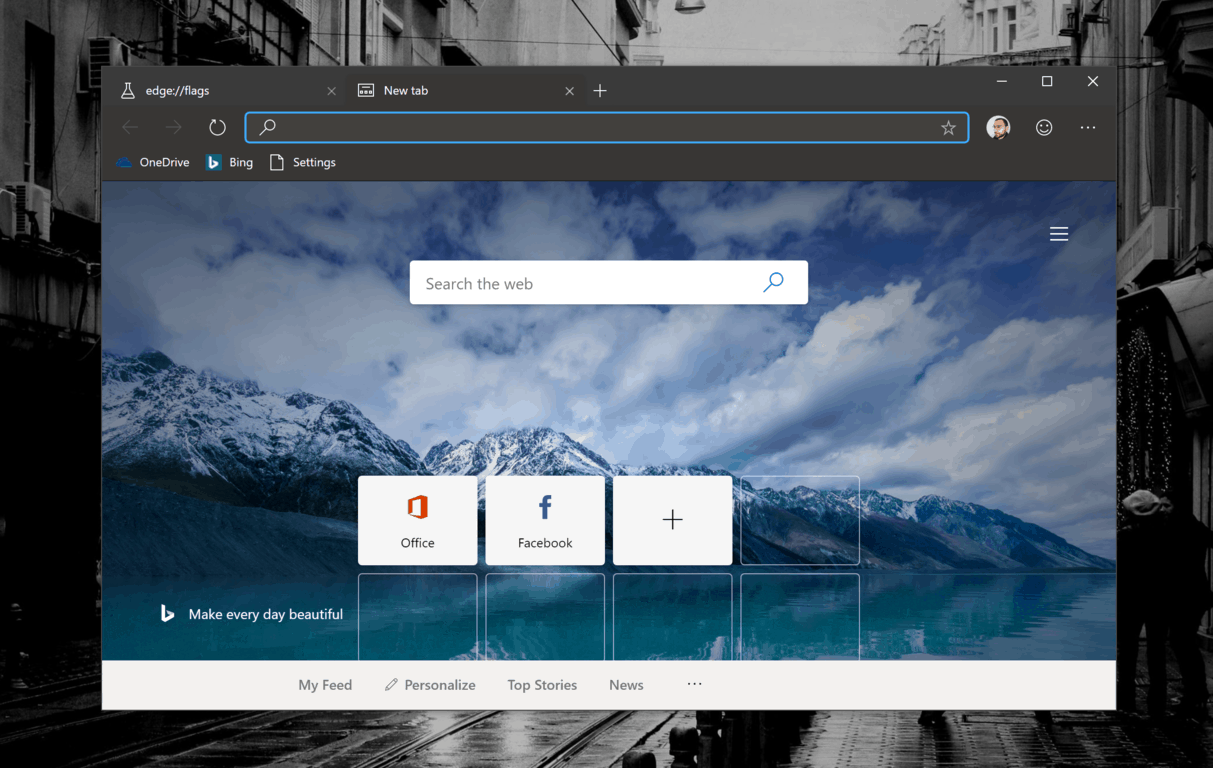
You’ll soon be able to type “Word.new” to open a new Word document, thanks to Google

For anyone hesitant about Google’s slow ingestion of the internet, today’s news of the company’s .new website shortcuts initiative may give you further pause, but for others, the expansion of PWA integration may be a welcomed convenience.

In 2018 Google unveiled its .new links to help create shortcuts linking to Google Docs and today the company expanded that link portfolio to now include domains open to the public and Microsoft has been among the first to sink its teeth into this integration by registering “word.new” to enable word doc linking and creation.

Other businesses that have jump on board the .new train include Medium, Spotify, Webex, Stripe Canva and Bitly. Unfortunately, the integration is less seamless than Google’s own implementation due to login issues. With .new for Google, users of Chrome typically tend to be signed into their services automatically, but for other services to offer the same sort of experience they need to be signed into the services before spinning up a .new shortcut link.

At the moment, it’s unclear how Microsoft plans to work around the log in issue as the shortcuts aren’t quite ready for primetime, but presumably they will work in a similar fashion when using Edge on Windows, Android or Mac and will follow the same rules as every other service when not linked to a Microsoft service prior.

Google claims that any company can register their domains that include .dev, .page, and .app to secure HTTPS connections. Interestingly enough, the .new domains will be available for limited public consumption as soon as December 2, 2019, while trademark owners will have to wait until January 14, 2020, to register their trademark .new domains.

Windows Server build 19008 and Windows 10 SDK build 19008 are now available

Microsoft has just released some new bits for Windows Server Insiders and app developers. First, of all, the Windows Server Insider build 19008 build is now available, which brings no new features except that Windows Server Core Container Images Are now 20% Smaller. You can download this new build from the Windows Server Insider Preview download page.

The Windows 10 SDK build 19008 has also been released today, and it can be used in conjunction with the Windows 10 20H1 build 19008 released last week. There are also no new features in this build except some API changes, and you can learn more in the full release notes. To download this new SDK, head over to the developer section of Microsoft’s Windows Insider website.

If you’re a “regular” Windows Insider, we hope to get a new 20H1 build with more bug fixes later this week. According to a recent report, the next major update could be completed as soon as December to follow the Azure development cycle.

Epic releases video of HoloLens 2 “Apollo 11: Mission AR” demo shown at Build

News on Microsoft’s augmented reality front has been relatively quiet as the company presumably ramps up development on its sequel to its HoloLens.

As a teaser of what HoloLens 2 will be capable of in the future, Epic Games released its HoloLens Apollo 11: Mission AR demo, according to a report from Road Tovar. The Epic Games Apollo demo was first revealed earlier this year during Microsoft’s developer conference in May and since then the studio has gone on to refine the refine its interactive experience of famed astronaut Neil Armstrong’s first steps on the Moon in 1969.

Other interactive sessions in the Apollo demo include the lunar landing and a Saturn V launch, all comprised of over 7 million polygons rendering physically-based environments with fully dynamic lighting and shadows as well as layered and volumetric animations for a more realistic experience.

While Microsoft has hinted at the power of the upcoming HoloLens 2 headset, it seems that Epic Games used a bit of an end-around to deliver its holographic bits to the device that included real-time wireless streaming to the device from a network PC running the studio’s most current version of Unreal Engine, UE 4.23.

UE 4.23 is the Epic Games latest version, which now comes with support for HoloLens 2 development that houses tools for emulation, finger tracking, voice input, spatial anchoring, meshing, gesture recognition, and native deployment.

Per a company spokesperson, HoloLens 2 isn’t due for release until sometime later this year (2019), at which point, enthusiasts, developers, and enterprise will finally be able to test the limits of Microsoft’s latest vision for augmented reality.

Surface app updated with Pen Slim support ahead of Surface Pro X launch

Microsoft has updated the Surface app for its line of tablet and notebook computers, bringing Surface Pen Slim support to users, according to MSPU. The pen still has yet to be released, and will share the launch date of November 5 with the Surface Pro X, the company’s new ARM-powered tablet with built-in LTE connectivity.

As per the app’s changelog, it also introduces a new “first run experience for Pen users”, which will launch automatically when a user undocks the it or touches and holds the tip to the screen for about a second, allowing them to quickly learn about configure the accessory for use in apps. According to the release notes:

In the Oct 2019 release (Surface app version 42.602.139.0), we have added the following features:

First run experience for Pen users. The experience launches immediately on 2 Pen triggers: a) undock the pen from its charger or b) touch the pen tip to the screen (for about a second). The experience guides the user through setting preferences and explaining pen usage in Office and other apps. The experience will only happen once per user, it should not launch once it has finished.

If you have yet to update the app, you can do so using our link we’ve provided below. Be sure to let us know what you think about the new setup experience as well as your thoughts on the Surface Pen Slim in the comments area. below.

Surface
Surface
Price:
Free

How to save files locally in Office 365, and work your way around saving to OneDrive

One of the benefits of having Office 365 is its ability to save to OneDrive. Thanks to the power of Microsoft’s cloud, you can have your documents save automatically, and even recover lost files. But what if you don’t want to deal with OneDrive, and prefer to save everything to your PC? In this latest Office 365 guide, we’ll show you how you can save files locally, and work your way around OneDrive saves in Office 365.

Saving files locally Microsoft Word, Excel, and PowerPoint

To get started with saving files locally, you’ll need to open a new document. Once you do, head up to the File tab and choose Options on the bottom left corner. Once done, choose Save from the pop up window. You’ll then want to uncheck the box that says AutoSave OneDrive and SharePoint Online files by default on Word. 

You’ll also want to make sure that the Save to Computer by default box is checked. When finished, press OK. You’ll need to restart Word, Excel, or PowerPoint for these changes to take effect.

What happens when you save locally?

So, what happens when you work around OneDrive and instead save locally in these Office 365 apps? Well, for one, you’ll no longer have access to the version history feature of Office 365. This means that you won’t be able to see all of your changes to a file, from the web, or computer without worrying about manual saves. You also won’t be able to experience any of the built-in collaboration features in Office 365, meaning you can’t share edits with your friends or coworkers.

On the bright side, for those who prefer saving files locally, going this route makes life easier. You’ll no longer have to click through to the Other Locations menu when saving files in Word, Excel, or PowerPoint. Instead, each of the core apps Office will show you your default local save location in the right side column and under the Recent menu. You’ll be able to select a folder without having to select multiple menus.

It’s important to note that by following our steps above, you’re not turning off or removing the OneDrive feature in Word, Excel, or PowerPoint. The feature is still there by default, and you’re just working your way around it.  If you’re looking to remove OneDrive from Office 365 entirely, there are no methods to do that just yet, as OneDrive is part of the Core Office 365 experience.

Microsoft reveals new Xbox Controller and Xbox Official Gear designed by maharishi’s DPM Studio

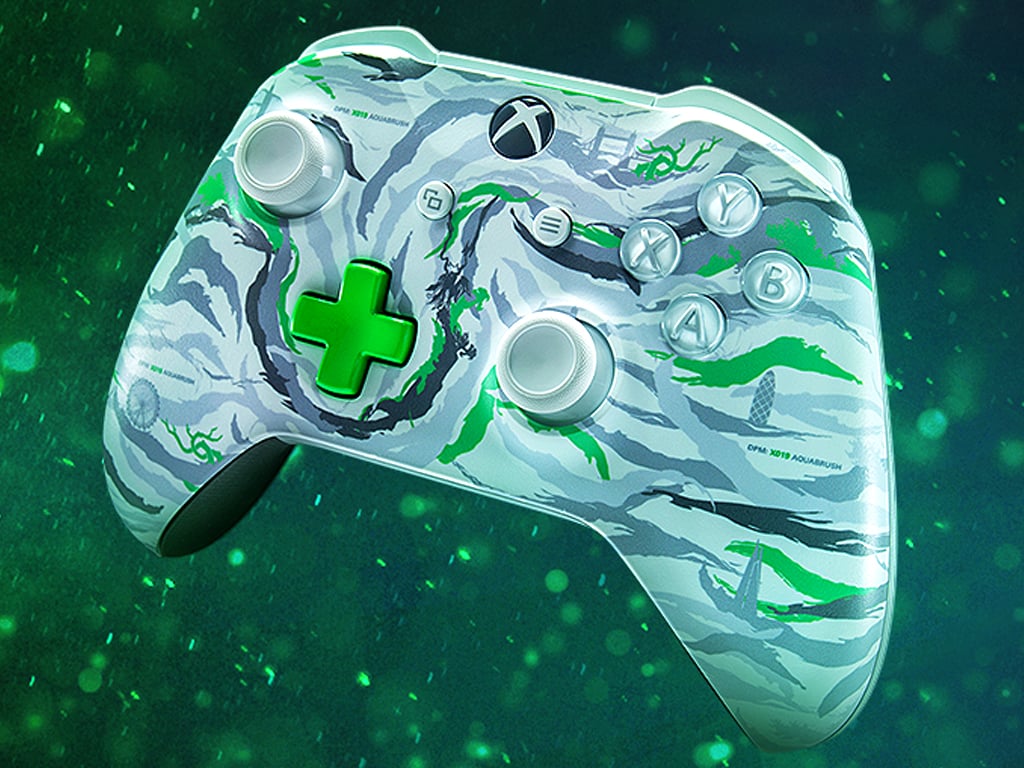
Microsoft today announced a collaboration with London fashion label, maharishi, that will see a new Xbox Controller and several Xbox Official Gear clothing items designed by the studio go on sale both at the XO19 event in London next month and online on the Microsoft website.

The new Xbox Controller and clothing items feature a newly-created camo pattern designed by maharishi’s DPM Studio that draws upon European and Asian influences and incorporates several subtle nods to the city of London. An official video detailing what went into the collaboration and the final designs has been released which you can watch below.

Currently the product page for the DPM X019 Exclusive Xbox Controller is live on the Microsoft website but orders aren’t open just yet. The release date is locked in for November 14th, however. The clothing items will likely go live on the Xbox Official Gear website over the next week or so and are also set for release on the same date as the Xbox Controller.

Are you going to buy any of these new items? Share your thoughts on them with the community in the comments below and then follow us on Pinterest for more Xbox content.

Telstra brings Xbox All Access to Australia but without Scarlett next gen console upgrade option

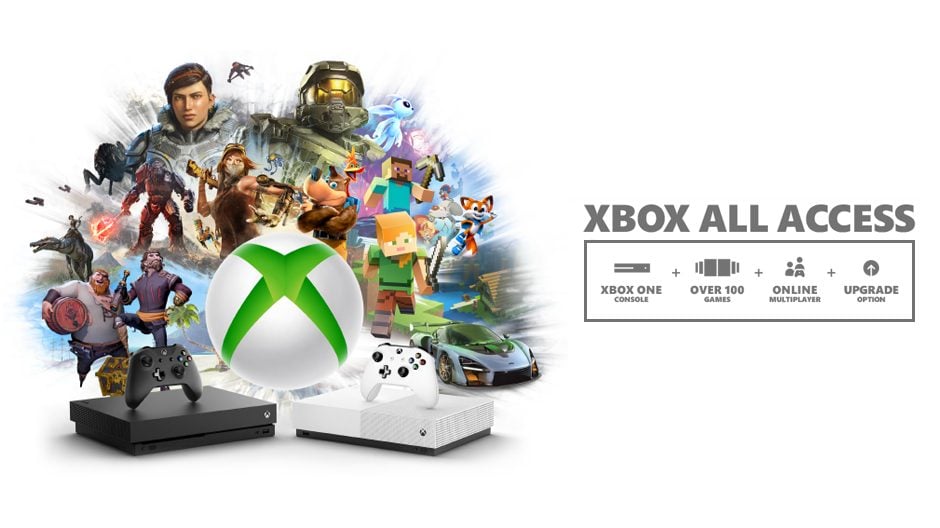
Microsoft’s new Xbox All Access payment plan was officially announced today as coming to Australia, the UK, and the US over the next few weeks.

The program is pretty cool as it allows consumers to obtain and Xbox One S or Xbox One X console immediately and pay it off in monthly payments as they would a mobile phone plan. What’s particularly interesting is that those that select the Xbox One X console plan have the option to upgrade to the next gen Xbox console launching in late-2020 that’s currently going by the codename, Project Scarlett. This is a very clever way to make sure the launch of the next console has an even larger install base than it does already… but this option is only available in the UK and US.

Upon inspecting the official Xbox All Access page on the Telstra website, the exclusion of any reference to a next gen upgrade option becomes obvious. Also notable is the lack of any plan for the Xbox One S All-Digital console.

Australian gamers were quick to ask the official local Xbox Twitter account about the absent upgrade option and were quickly told that plans relating to an upgrade option, if it happens at all, will be shared next year.

It’s unclear why Telstra isn’t offering any plan for the Xbox One S All-Digital console, though an entirely likely reason could simply be that internet data plans and speeds in Australia are pretty awful and Telstra, despite being one of the major telco’s in Australia with a history of partnering with Microsoft, probably doesn’t want to be on the receiving end of numerous complaints from customers about slow download speeds and people reaching their monthly data caps after downloading a single game.

Are you an Australian disappointed by the lack of an upgrade or Xbox One S All-Digital plan? Let us know in the comments below and then follow us on Twitter, Pinterest, and Facebook for more Xbox news.

How to install and use PWAs with Edge Insider

With Edge being rebuilt atop Chromium, the browser now fully supports “installation” of websites with a valid web app manifest. These sites are commonly referred to by users as “PWAs,” although the term actually describes a broader set of technologies and concepts. Web app installation is just one possible feature of a PWA.

When you choose to install a compatible site, it integrates into your system in the same way as a native app. In the case of Windows 10, this results in the app showing up in the Start menu and within the Settings app.

Installing PWA with Edge Insider

The first challenge is to find a website which presents a web app manifest and so makes itself installable. Microsoft is simplifying this by automatically scouring the web for such sites and creating app listings in the Microsoft Store. However, for this guide, we’re focusing on installing apps via the Edge browser, as you use the web.

Edge will identify sites which are installable. After you land on a page with a web app manifest, you’ll see an “Install” button briefly appear in the address bar. After a few seconds, it condenses down to a “+” icon.

Installing PWA with Edge Insider

Click the button or icon to display the installation prompt. Click “Install” to add it to your system. The app will then launch in its own window, like any other app on your machine. You’ll see the site now shows up with its own identity in the taskbar. Open the Start menu and you’ll see a new entry for the app.

You can now use the app in its standalone context, without having to open Edge Insider. In reality, it’s still Edge’s Chromium browser engine that is rendering the page, but it looks and feels like a unique app.

Installing PWA with Edge Insider

You can keep the PWA installed on your system indefinitely. It should auto-update over time, as the site developers update the site it’s driven by. Most – but not necessarily all – PWAs will also work offline, another “app-like” characteristic made possible by modern web APIs.

When it comes time to uninstall the PWA, you can do so in multiple ways. One approach is to use Windows 10’s Settings app, or to right-click the app in the Start menu and choose “Uninstall.” You can also uninstall from within the PWA itself – click the menu dots icon in the top-right and press “Uninstall.” This also contains an option to open the app in Edge Insider directly, should you wish to escape the PWA for a traditional browsing experience.

Xbox All Access is back – Get an Xbox One X, Game Pass for $31/mo and upgrade to Scarlett when it launches

As we’re heading into the holiday season, Microsoft has just announced that it’s bringing back its Xbox All Access subscription bundles that include an Xbox One console, 24 months of Xbox Game Pass Ultimate, plus the option to upgrade to the next-gen Project Scarlett console when it launches in Holiday 2020. That’s a pretty good plan to keep consumers in the Xbox ecosystem when the PlayStation 5 launches next year.

For the first time ever, Microsoft is also making Xbox All Access available in Australia starting tomorrow, October 29 through Telstra, as well as in the UK through GAME and Smyths Toys starting November 5. For consumers in the US, Xbox All Access will be available online via Amazon starting November 18, and here’s how it will work.

Consumers will be able to choose between three different bundles starting at $19.99/month for 24 months, all of them including an Xbox One console with its wireless controller, and 24 months of Xbox Game Pass Ultimate. You’ll get to keep the console after paying for the bundle for 24 months, and Microsoft says that all the different plans, which you can find below, represent over $100 in savings:

  • $30.99/mo for 24 months for an Xbox One X, or $743.76 in total
  • $22.99/mo for 24 months for an Xbox One S, or $551.76 in total
  • 19.99/mo for 24 months for an Xbox One S All Digital Edition, or $479.76 in total

All subscribers will have the option to upgrade to the next Xbox console after 18 months (or 12 months if you choose an Xbox One X) by trading in the console originally purchased with Xbox All Access, though there will be an upgrade fee for consumers upgrading from the Xbox One S All-Digital Edition.

You can get more details about Xbox All Access on this page. Even though we don’t know all details about Project Scarlett yet, today’s announcement is a good way to generate excitement about the next-gen console.,

Windows 10 20H1 update will reportedly go RTM in December to follow Azure’s development cycle

The upcoming 20H1 update for Windows 10 will reportedly be completed a bit sooner than expected. According to new information from Windows Central, the 20H1 update may go RTM as soon as December.

“It was marked as feature-complete internally back in August, and Microsoft has been mostly focused on fixing up bugs and polishing the OS for release ever since,” explained Zac Bowden from Windows Central. “This is why Insiders have not seen any substantial new features in 20H1 builds for a couple of months, because the 20H1 release is done. We’ve got a month or so left of development before Microsoft signs-off on 20H1 in mid-December.”

This December completion date is apparently the result of the recent realignment of the Azure/Windows 10 development cycles, as it was reported earlier this year by ZDNet’s Mary Jo Foley. This change is the reason why we got to test 20H1 bits so early this year, and also why the upcoming November update (19H2) will be minor release instead of a proper feature update like 20H1.

A standalone Cortana app is one of the main new features in the Windows 10 20H1 update.

With Microsoft being almost done with the 20H1 update, the company will reportedly go back to two major updates per year in 2020. The Windows 10 20H2 update, which will ship in the second half of 2020, should soon make its way to the Windows Insider Skip Ahead ring. Windows Central reports that this new coordinated Windows 10/Azure development cycle means that the 20H2 update should go RTM in June, alongside Windows 10X, the new version of Windows 10 that will ship on the dual screen Surface Neo.

Now that 20H2 can RTM earlier in the year under the new dev schedule, Microsoft can use 20H2 as the shipping version of Windows 10X that’s preloaded onto devices like the Surface Neo. This means Windows 10X will RTM in June alongside 20H2, and not with 20H1 as we had initially assumed. Microsoft needs the extra development time to make sure Windows 10X is as good as it can be at launch.

Now that Microsoft is set to complete new Windows 10 feature updates in December and June of each year, does this mean that we can expect these updates to roll out sooner to the public. That’s not guaranteed yet according to Windows Central, which believes that “Microsoft may decide to keep pushing out new feature updates in the spring and fall, utilizing the Slow and Release Preview ring for extensive testing of the final build before it goes to the public.” This would probably be for the better, as the public rollout of Windows 10 version 1903 wasn’t exactly smooth sailing (again). As an example, it took months for Microsoft to fix a compatibility issue affecting its own Surface Book 2 hardware.

MIcrosoft news recap: another Twitch streamer moves to Mixer, Designed for Xbox to include mobile gaming accesories for Project xCloud, and more

Microsoft news recap is a weekly feature highlighting the top Microsoft news stories of the past week. Sit back, grab some coffee, and enjoy the read!

The #3 streamer on Twitch, Michael “Shroud” Grzesiek, is moving to Mixer

Microsoft’s live streaming service, Mixer, continues to pick up Twitch streamers. Now, the platform has picked up Twitch’s #3 top streamer, Michael “Shroud” Grzesiek.

https://twitter.com/WatchMixer/status/1187413700631597057

Microsoft’s Designed for Xbox program to include new mobile gaming accessories made for Project xCloud

With Project xCloud in public preview, some were wondering if Microsoft would release their own mobile gaming accessories for the service. Instead, it turns out, the Designed for Xbox program has been expanded to include accessories for mobile gaming.

Microsoft Q1 FY 2020 earnings show a need for new hardware while cloud continues to grow

The 1st quarter of 2020 has shown that Microsoft needs new hardware across its Surface and Xbox divisions, due to a decline in revenue and flat revenue, respectively. On the other hand, its cloud portfolio continues to see strong growth across all businesses.

EU unhappy with Microsoft’s GDPR compliance, company says “contractual changes” coming

Microsoft has come under fire from the EU, as the bloc appears unhappy with MIcrosoft’s GDPR compliance. The EU’s preliminary results found “serious concerns” in Microsoft’s contracts with European institutions. Microsoft says changes are coming.

That’s it for this week. We’ll be back next week with more Microsoft news.

The Xbox One X Gears 5 Limited Edition console and other bundles are currently $100 off

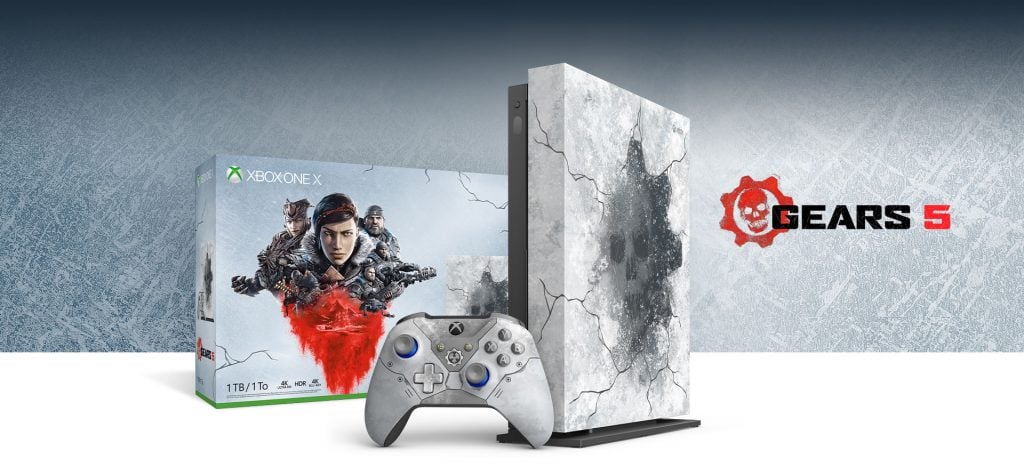
Even though Black Friday is still a couple of weeks away, Microsoft is currently offering up to $100 discounts off select Xbox One X bundles, including the Xbox One X Gears 5 Limited Edition console. The custom-designed hardware featuring the Crimson Omen immersed in ice is quite something to look at, and it also comes with the Kait Diaz Limited Edition Xbox controller. For $399, the bundle also includes a digital edition, plus the four first Gears of War games for free.

The Xbox One X NBA 2K20 Special Edition Bundle, which includes a white “Hyperspace” console featuring a featuring a night sky design is also $399 for a limited time. If you prefer the regular white Xbox One X, there are also two $399 bundles with either Gears 5 or NBA 2K20.

All these discounts will be available through November 3 at Xbox.com, Microsoft Stores and major North America retailers, but we hope to see even more interesting Xbox deals for Black Friday.

How to use pinned tabs in Microsoft Edge Insider

Tabs revolutionised how we browse the web. Many, if not most, users work with dozens of tabs at a time, some of which remain open in the background throughout the day. These tend to house email clients, streaming music services and continually updated news feeds, ready for you to switch back to in a spare moment.

You can clean up your tab strip by pinning these constantly active tabs. Pinned tabs are a staple of modern web browsers, Edge Insider included. To pin a tab, right-click it and choose “Pin tab.”

Pinned tabs in Microsoft Edge Insider

Pinned tabs take up much less space on your tab strip. Only the tab icon is displayed, leaving more space for the tabs you’re actively using. Pinned tabs will still be included when you switch tabs using the Ctrl+Tab/Ctrl+Shift+Tab keyboard shortcuts, so you can quickly cycle back to your email or music.

Edge Insider automatically restores pinned tabs at launch. You won’t need to spend time at the start of the day reopening your mail app. Tabs are “lazy loaded” so they won’t all restore at once, consuming all your network bandwidth. The tab will be loaded when you select it for the first time.

Pinned tabs in Microsoft Edge Insider

Pinned tabs are a great way to cut down on clutter while keeping your most-used services easily accessible. Used effectively, they can save you time and help you concentrate on the task at hand. You might want to combine pinned tabs with the “Mute tab” right-click option. This can help minimise distractions from email alerts and other notifications.

Should you need to unpin a tab, right-click it and select “Unpin tab.” The tab will be reverted to a regular fullsize tab. You can close pinned tabs without unpinning them by using the Ctrl+W keyboard shortcut.

Microsoft Launcher testing support for device themes in beta

Using its beta channel, Microsoft has issued a small version update that now brings an additional option to the Launcher Settings page.

Android owners using the Microsoft Launcher in the beta can now jump into the Themes portion of the settings and choose between Transparent, Light, Dark and a new fourth option of System Theme. Unlike the Dark option available to all current Microsoft Launcher users which offers a matte grey palette, the new System Theme, as well as the updated dark option, will now display a deep black color option across settings, widget panel, app drawers, and icon folders.

Other than using the beta, users will also need to be as up to date on software as recent as Android 9, unfortunately.

What’s new for 5.10:

  • Launcher theme can now follow your system theme on supported devices running Android 9 and above through the new System theme option in Launcher settings, and the dark theme is darker now to improve readability and make content easier on your eyes in the low-light condition.
  • General bug fixes and performance improvements.

Once again, the new update is rolling out to beta users and may or may not be coming to the general public soon. To test it out, you can head to the Google Play Store or use the link below.

Microsoft Launcher
Microsoft Launcher
Price:
Free


Call Of Duty: Modern Warfare video game launches on Xbox One, Streamed on Mixer by Shroud

The latest entry in the popular Call of Duty (COD) video game franchise, Call Of Duty: Modern Warfare, is now live on Xbox One.

Call Of Duty: Modern Warfare features a new single-player story campaign, support for local two-player games, and online multiplayer in several different modes with up to 20 players. The game will also support 4K Ultra HD when played on an Xbox One X console and comes in three different digital versions.

The Call of Duty: Modern Warfare Digital Standard Edition comes with the base game, a custom in-game Tactical Knife, and a XRK Weapons Pack while the Operator Edition comes with everything in the Digital Standard Edition plus the All Ghillied Up, Crew Expendable, and War Pig Operator Pack digital content. The Operator Enhanced Edition comes with everything in the other two versions but also includes 3,000 Call of Duty Points.

Potentially by coincidence, though likely as part of a strategy on Microsoft’s part, popular streamer Shroud, who made the jump to the Microsoft-owned Mixer platform from Twitch just this morning, began streaming Call Of Duty: Modern Warfare as soon as it went live and has been garnering well over 25,000 concurrent viewers as of the time of this writing.

MIxer streamer Shroud

Shroud, who already has over 325, 000 followers on his Mixer channel, likely brought over a large number of his Twitch followers who wanted to see him play the latest COD title as soon as possible. Like with Ninja, it will be interesting to see how much of his audience sticks with him on Mixer for the long term or chooses to go back to Twitch.

Have you played Call Of Duty: Modern Warfare yet on your Xbox One and have you watched any of Shroud’s stream? Let us know in the comments below and then follow us on Pinterest, Twitter, and Facebook for more Xbox and Mixer news.


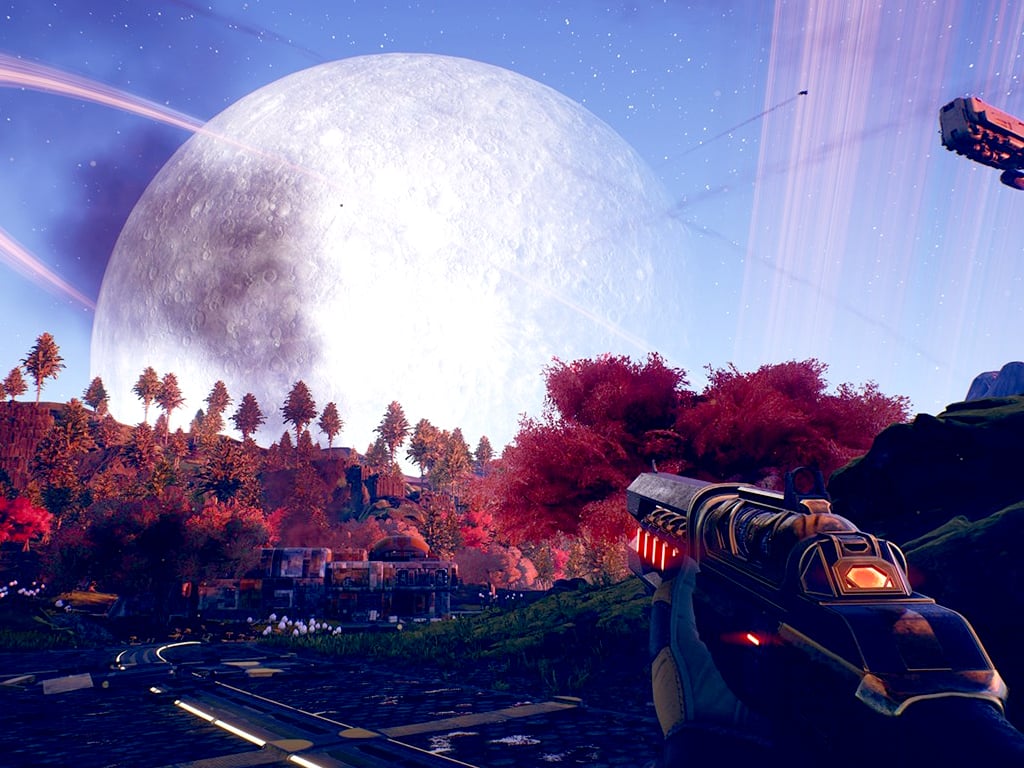
The Outer Worlds video game is now live on Xbox One and PC and can be played via Xbox Game Pass

The highly-anticipated video game, The Outer Worlds, is now live on Microsoft’s Xbox One consoles and Windows PCs and can be played by those that pre-ordered or purchased the game or by those who have an active Xbox Game Pass for Console or Xbox Game Pass for PC subscription.

The Outer Worlds is a Science Fiction roleplaying video game with a strong focus on exploration and quests. The game has been receiving a lot of praise from critics and players with many enthusing the strong writing, characters, and combat.

Here’s the official game description:

The Outer Worlds is a new single-player sci-fi RPG from Obsidian Entertainment and Private Division. As you explore the furthest reaches of space and encounter a host of factions all vying for power, who you decide to become will determine the fate of everyone in Halcyon. In the corporate equation for the colony, you are the unplanned variable.

Lost in transit while on a colonist ship bound for the furthest edge of the galaxy, you awake decades later than you expected only to find yourself in the midst of a deep conspiracy threatening to destroy the Halcyon colony. As you explore the furthest reaches of space and encounter a host of factions all vying for power, who you decide to become will determine the fate of everyone in Halcyon. In the corporate equation for the colony, you are the unplanned variable. Welcome to the future – try not to break it.

Have you played The Outer Worlds yet? How are you playing it? Share your thoughts with the community in the comments below and then follow us on Twitter, Facebook, and Pinterest for more Xbox gaming content.

The Outer Worlds
The Outer Worlds
Developer:
Private Division
Price:
Free


Xbox Game Pass for Console


The Outer Worlds
The Outer Worlds
Developer:
Private Division
Price:
Free


PC Game Pass
PC Game Pass
Price:
$1.00

The Surface Pro 7 receives its first firmware update

Tech enthusiasts out there are probably already excited about the launch of the Surface Pro 7, and many of you have probably already pre-ordered the device.

If you’re one of them, You’ll be glad to know that Microsoft already announced the first firmware update for the Surface Pro 7.

As such, you should already have an update pending in Windows Update, and it is strongly advised that you install it because of the many new features it brings.

What does the new Surface Pro 7 update bring?

The October 21 firmware update brings in a host of new features that will certainly make your experience with the device more enjoyable.

For example, some updates were made to how the device manages battery consumption, which is generally vital for a portable device, and two updates to Surface Integrations bring improved integration between services.

The audio driver is also getting a significant improvement. This will not only bring general audio updates, but it will also allow an improved Cortana speech experience.

One thing you must know is that you need to have the Windows 10 October 2019 Update and newer to install it. Fortunately, the device comes with the Windows 10 May 2019 Update pre-installed.

No issues associated with the Surface Pro 7 firmware update have been reported yet.

Things to remember when updating the Surface Pro 7

First of all, firmware updates can’t be uninstalled, and you can’t perform rollbacks either.

Another thing you should remember is that when you install the latest update, you’ll also get all the previous updates if your Surface lacks them.

Lastly, always remember to restart the device after you perform the update because some updates will not take effect immediately.

What are your opinions on the Surface Pro 7? Let us know in the comments section below.

RELATED ARTICLES YOU SHOULD CHECK OUT:

The Unverified Sender feature for Office 365 is on its way

Microsoft is currently rolling out a new feature for Microsoft Office 365 called Unverified Sender.

The unverified sender feature is described on the official Microsoft Roadmap as follows:

Unverified sender is a new Office 365 feature that helps end users identify suspicious messages in their inbox. In order to help customers identify suspicious messages in their inbox, we’ve added an indicator that demonstrates Office 365 spoof intelligence was unable to verify the sender.

While it may sound like more of a visual update, Microsoft states that the way it chooses to tag users as unverified or not is quite complex.

How does the Unverified Sender feature work?

The Unverified Sender feature works by providing you with a distinct visual indicator. Instead of the typical name card consisting of their avatar or contact initials, they will have a question mark displayed.

This greatly increases the chances for Office 365 users to quickly detect potential phishing attacks or potential sender spoofing attempt.

However, it was stated that the Unverified Sender filter will not analyze any emails from a certain sender if the user has set the sender as a Safe Sender in their inbox.

Additionally, it won’t analyze messages that were delivered via an admin allow list.

What criteria will Outlook use to mark emails?

For the question mark in the sender image to not be applied, the message has to pass either SPF or DKIM authentication and receive either a dmarc pass, or a composite authentication pass from Office 365 Spoof Intelligence.

For the via tag, the domain from the From address needs to be the same as the one from the DKIM signature or the SMTP MAIL FROM.

Otherwise, Outlook will display the domain in one of those two fields, with a preference for the DKIM signature.

Are you excited by the new Unverified Sender feature?  Let us know in the comments section below.

RELATED ARTICLES YOU SHOULD CHECK OUT:

KB4522355 released for users in the Release Preview ring

As Microsoft prepares for the November 2019 Update, it has released the finishing touches before going live.

These touches come in the form of cumulative update KB4522355, which has been released for the Release Preview ring. More precisely, this update will affect those devices running Windows 10 19H1 and 19H2.

For those of you that don’t know Windows 10 19H1 is also known as Windows 10 May 2019 Update (or version 1903).

Windows 10 19H2 is expected to be launched next month and is referred to as Windows 10 November 2019 Update (or version 1909).

The next major update is going live soon

In typical Microsoft fashion, changelogs are not available for Release Preview Ring updates.

However, Windows Insider users who are currently in the Release Preview ring and are running Windows 10 19H1 build 18362.448 are updated to 18362.449 after installing KB4522355.

On the other hand, Windows Insider users that are running Windows 10 19H2 build 18363.448 will see it bumped up to build number 18363.449 after the update.

An official statement from Microsoft made it public how they plan on delivering the update:

Once Windows Insiders are on the final 19H2 build (Build 18363.418) – we will continue to improve the overall experience of 19H2 on customers’ PCs as part of our normal servicing cadence. This means we will continue to iterate and release new Cumulative Updates for 19H2. Last week, Windows Insiders on 19H2 received Builds 18363.446 and 18363.448. This is normal as part of that process[…]

No further details have been given regarding what the Windows 10 November 2019 Update will bring. However, users have great expectations especially since this is supposed to be the second major update of the year.

Their expectations are also fueled by the fact that the October 2019 updates didn’t bring much new to the table. As such, users are hoping this latest update will focus on fixing general issues and bringing major improvements.

According to some sources, Windows 10 November 2019 Update could go live on November 12.

What are your thoughts regarding the Windows 10 November 2019 Update? Share them with us in the comments section below.

RELATED ARTICLES YOU SHOULD CHECK OUT:

Windows 10 version 1903 gets a new optional patch with build 18362.449, here’s what’s new

Microsoft has just released a new optional cumulative update for Windows 10 version 1903. The new build 18362.449 (KB4522355) includes a lot of quality improvements, including fixes for issues preventing Start menu, the Cortana Search bar, Tray icons, or Microsoft Edge to stop responding in certain circumstances.

You can find a summary of the most important fixes below, and the full list is available on Microsoft’s Windows support website:

  • Updates an issue that prevents Microsoft Narrator from working in certain touch mode scenarios.
  • Updates an issue that starts assistive technology (AT) (such as Microsoft Narrator, Magnifier, or NVDA) after signing in when you’ve configured it to start before signing in.
  • Updates an issue that causes Magnifier to stop working in certain scenarios, and you have to restart it manually.
  • Updates an issue that causes Microsoft Narrator to stop working in the middle of a session in certain scenarios.
  • Updates an issue that might prevent a scroll bar from being selected.
  • Updates an issue that allows a device to go to Sleep (S3) even if you configure the device to never sleep.
  • Updates an issue that prevents you from shrinking a window in some cases.
  • Updates an issue that prevents you from connecting to a virtual private network (VPN).
  • Updates an issue that causes screen flickering or is slow to display the screen when you show application thumbnails on a monitor that has high dots per inch (DPI).
  • Updates an issue that causes the tile for the Photos app to appear larger than expected in the Start menu under certain conditions.
  • Updates an issue that causes the system to stop responding at the sign-in screen.
  • Updates an issue that might cause a black screen to appear the first time you sign in after installing a feature or quality update.
  • Updates an issue that causes the Start menu, the Cortana Search bar, Tray icons, or Microsoft Edge to stop responding in certain scenarios after installing a monthly update.

This latest optional patch follows the cumulative updates for Windows 10 versions 1809 and 1803 that Microsoft released last week on October 15. Microsoft isn’t aware of any known issues in the build 18362.449, and hopefully the Start Menu bugs that some users have been encountering after installing previous patches have now been fixed for good.

FIX: Laptop camera doesn’t work in Windows 10/11

Some users have reported that camera on their laptop doesn’t work after the upgrade to Windows 10. Luckily, we have a couple of solutions for this problem, and I hope they’ll be helpful for you, if you’re facing this issue, as well.

What to do if  Laptop camera doesn’t work in Windows 10?

1. Load BIOS Defaults

First thing we’re going to try is to load BIOS defaults, because if something is messed up in your BIOS, some devices, including camera are unlikely to work. To load BIOS Defaults, follow these steps:

  1. Restart your computer
  2. On the next startup enter BIOS settings (you can do that usually by pressing Del, but it depends of the computer)
  3. Find Load BIOS defaults option and press Enter (It’s usually in Exit tab, but if your BIOS is different, look for it on other tabs)
  4. Now log back to your computer and see if camera works now

2. Reinstall Drivers

The next thing we’re going to try, and probably the most obvious solution from this article, is to reinstall camera drivers on your computer. In case you’re not sure how to do that, do the following:

  1. Go to Search, type device manager and open Device Manager
  2. Expand Imaging devices section, and right click on your camera
  3. Choose Update driver software, and if there are any updates, let the installer finish updating
  4. Restart your computer, and check if camera works now

You can also go to your laptop‘s manufacturer’s website and look for drivers for your camera.

3. Registry tweak

The next thing we’re going to try is to remove LowerFilters and UpperFilters files from your registry, in order to make your imaging device work. Here’s exactly what you need to do:

  1. Reboot your computer and enter Safe Mode
  2. Navigate to C:windowssystem32drivers, and rename the file lvmvdrv.sys to lvmvdrv.sys.backup (if there is no such file, that’s fine, just move to next step)
  3. Now, open the Registry Editor (Go to Search, type regedit and press Enter) and navigate to the following path:
    • HKEY_LOCAL_MACHINESYSTEMCurrentControlSetControlClass{6BDD1FC6-810F-11D0-BEC7-08002BE2092F}
  4. First thing first, create a backup of that Registry folder. Right click on {6BDD1FC6-810F-11D0-BEC7-08002BE2092F}, select Export and save it on the safe location
    camera doesnt work windows 10
  5. Now when we created a backup of this registry folder, right-click on LowerFilters or UpperFilters on the right side of the scree, and delete it (in my case I had no LowerFilters, just Upperfilters, so i deleted Upperfilters only)
    camera doesn't work win 10
  6. Reboot your system, and check if your camera is working now (if something goes wrong, you have a backup of the registry folder, so just open it, and it will load the default registry values)

4. Reinstall Windows 10

If nothing else helps, and you really need to use your camera, you can try reinstalling your Windows 10 operating system. But before you do anything, create a backup of your files, because otherwise, if you make a mistake, you’ll lose everything. Of course, Windows 10 resetting options give you an option to choose whether you want to delete all your files or not, but extra certainty won’t do any harm. If you’re not sure how to reset your Windows 10, go to Settings>Update and Recovery>Recovery and go to Reset this PC option.

That’s it, I hope these solutions helped you to solve the camera problem on your laptop. If you have any comments, questions and suggestions, please reach in the comment section, below.

You can also check this full guide on why a back camera may not work and what fixes apply beyond Windows 10.

Is Windows 10 really that much of a mess?

Earlier this week, former Microsoftie and noted straight-shooter James Whittaker took to Medium to post his thoughts on Microsoft and its culture with “Speaking Truth to Power: Reflections on My Career at Microsoft.” It’s well worth a read, as Whittaker not only provides some history and insights into Microsoft’s current corporate structure, but offers some legitimate criticisms as well.

The post has quickly become fodder across the technosphere for a broader discussion on “why Windows is a mess.” Whittaker laments that “made men” (with obvious correlations to the Mafia version of tenure, where once you’re in, you’re set for life), still have a strong hold in the company. Especially in the oldest and historically most powerful bastion of old-guard power, Windows, Microsoft is still rife with made-men, says Whittaker:

It’s worth noting that cultural transformation didn’t happen in places, like Windows, where Nadella simply rearranged the made-men deck chairs. Instead of following his culture-change playbook, he simply swapped Windows’ made-men with Windows Phone’s made-men. The same people unable, over the course of a decade, to craft a winning strategy for mobile were suddenly tasked with crafting a winning strategy for the desktop. The unsurprising result is that Windows continues its tradition of boring, buggy software and consistently fumbled updates. Made-men aren’t fixable, and the real talent in Windows, and the diversity of ideas it possesses, remains anonymously buried under layers of made-men above it.

We’re not going to get into the politics of old white men running damn near everything, and how that needs to change, except to say that it’s a problem that reaches far wider than Windows or Microsoft (it may be especially prevalent at Windows, granted). This also isn’t about the relative importance of Windows to Microsoft. It’s clear that while Windows is and will be crucial as a desktop operating system for years to come, the leading edge of computing no longer flows through Windows. The best and brightest minds are working on AI and IoT and Azure and beyond, and that’s as it should be.

What we do want to focus on, however, is the state of Windows itself. Regardless of the culture producing it, or it’s relative importance to the company, is Windows really that much of a mess?

First, a bit of history: back in about 2014, Microsoft eliminated its long standing three tiered approach to software development, creating a new “Combined Engineering” approach that eliminated the “Software Development Engineer in Test (SDET) from the SDE/SDET/PM paradigm. This placed the onus of testing software development on the SDEs themselves, and has long been a point of contention anytime the subject of buggy software comes up.

This change came about at the same time as Microsoft announced Windows 10, and at the same time as a move to a much more aggressive update cycle, from 3 years to every 6 months. It’s easy, then, to find a bug and blame it on either one or both of these sea changes, and that’s what happened last year with the delayed launch of Windows 10 1809.

But as Microsoft noted in a blog post, the data loss that caused Microsoft to pull the Windows 10 October 2018 Update (1809), was very, very limited:

While the reports of actual data loss are few (one one-hundredth of one percent of version 1809 installs), any data loss is serious.

In fact, although there were scattered incidents of data loss reported in the Feedback Hub, it wasn’t until noted Microsoft watcher Rafael Rivera tweeted about the problem (the tweet has since been deleted, we captured it here) that the problem came to light. It could be argued that rather than Windows 10 being extra buggy, the nature of the way we receive information in the age of Twitter had a material effect on 1809’s delay. Certainly this wasn’t the first time that serious problems shipped in Windows, dating all the way back to well before the elimination of SDETs or a more aggressive release schedule. Fingers were pointed, however, and although it affected only a very few under very specific circumstances, the bug dominated the tech news cycle, and something had to be done.

We also, it should be noted, have earlier (and buggier) access to Windows than ever before. That the Windows Insider Program offers unprecedented opportunities to test Windows as it’s being written shouldn’t color the perception of the operating system as being buggy, if those bugs are being surfaced (and ultimately fixed thanks to input from Insiders) when they never would have been before.

So here we are, and the narrative is “Windows 10 is buggy” and as Whittaker says, “Windows continues its tradition of boring, buggy software and consistently fumbled updates.” Yet, Windows 10 usage share continues to grow, and continues to refine itself with a steady stream of regular, timely useful updates (along with some not so useful ones, I see you 3D Paint).


In comparison, Windows 8.x was software that looked and acted like it was developed by “made-men.” Full of compromises that satisfied no one, developed in an atmosphere of secrecy and back-stabbing that was the source of the famous guns pointing everywhere meme, and that ultimately ended in the firing of one of the epitomes of made-men, Steven Sinofsky. Now that was a mess (this is an opinion piece, right?), one that played out with poor sales in the marketplace.

And it’s not like previous versions of Windows, complete with SDETs and “A Team” (see: “B-teamers”) management, weren’t just as buggy, if not more, than Windows 10. Windows XP required 3 Service Packs to clean up the OS, and Windows 7 wasn’t bug free, either.

What do you think? Is Windows 10 a buggy mess, or is it a fast, efficient, powerful operating system good enough to run on some 900 million devices? We posted a poll on Twitter, you can take it here and/or leave us your thoughts in the comments below.


Microsoft’s Designed for Xbox program to include new mobile gaming accessories made for Project xCloud

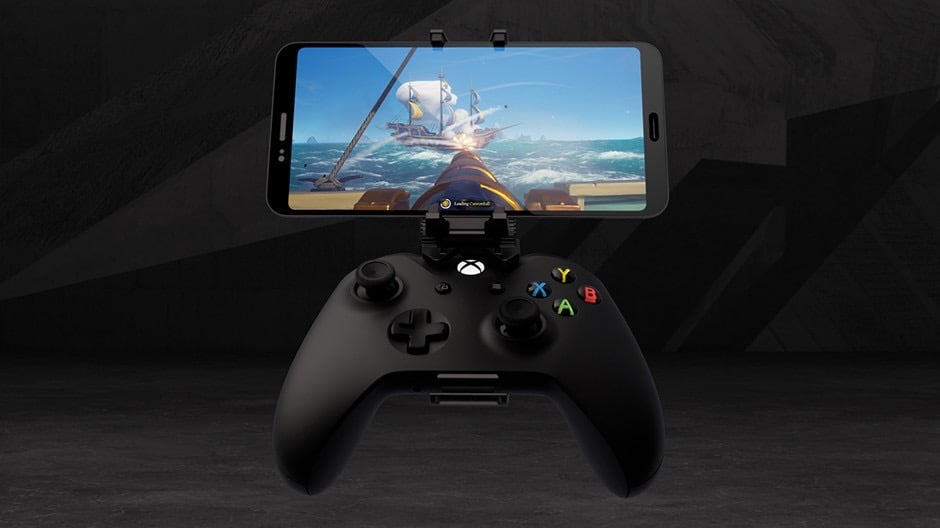
Since Microsoft kicked off the public preview of Project xCloud in select markets, we were wondering if the company was planning to launch its own series of accessories for the new streaming service. As of today, Project xCloud requires an Android phone or tablet and a Bluetooth-enabled Xbox controller, and early adopters are likely to purchase a controller clip to play on the go.

As it turns out, Microsoft won’t be launchings own Project xCloud accessories, but the company has just announced an expansion of its Designed for Xbox program to mobile accessories. The new MOGA Mobile Gaming Clip for Xbox Wireless Controllers is the first Designed for Xbox product from a third-party manufacturer created for Project xCloud.

“Designed in partnership with the Xbox Industrial Design team, this is an adjustable clip made to fit all Xbox Wireless Controllers that secures your phone in place while you play. Expertly engineered, the clip features dual locking articulation points so you can always set up the perfect viewing angle and fits most phones up to 3.12” (79mm) wide,” the Xbox team explained.

The MOGA Mobile Gaming Clip for Xbox Wireless Controllers will be priced at $14.99, and it will start shipping in November. 8bitDo, Gamevice, HORI, PowerA, Razer, and more are also working on their own Designed for Xbox mobile accessories that will be available at a later date.

Resident Evil 2, Mortal Kombat 11, and more are discounted during Xbox Store’s Shocktober Sale

Microsoft’s Shocktober sale is officially kicking off, and the company is offering steep discounts on games in time for the holiday.

Anthem, the online action RPG from EA that was released early this year, is currently 67% off right now, bringing it to just $19.79. The Deluxe Edition of Borderlands 3 is also taking a $17 discount, bringing it to only $63.99.

Anthem™
Anthem™
Developer:
Electronic Arts
Price:
Free

A ton of games are also half off right now, making them hard to pass up if you’ve been planning on expanding your gaming library. These titles include Devil May Cry, Metro Exodus, and Resident Evil 2 now only $29.99 each, plus World War Z for only $19.99 and Stranger Things 3: The Game for just $9.99 during the sale.

RESIDENT EVIL 2
RESIDENT EVIL 2
Developer:
CAPCOM CO., LTD.
Price:
Free

If your budget’s tight or you’d rather play a ton of games without spending a ton, Taco Bell is also giving away two weeks of free Xbox Game Pass Ultimate to customers who purchase the $5 Double Chalupa Box.

Which games are you thinking about purchasing? Let us know in the comments area below.

Latest Xbox One 1911 Preview build comes with reorganized Settings section

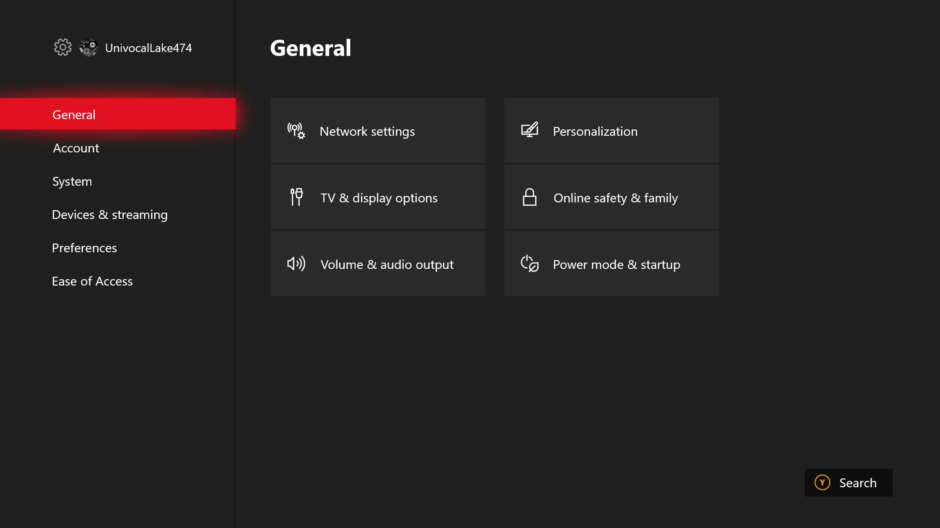
Microsoft is making further refinements to the Xbox One user interface. The company is introducing simplified settings organization to the latest Alpha build of the console OS for Xbox Insiders.

Microsoft will be replacing the current eleven categories in the Settings app for the console with six main categories, with additional subcategories to organize the various options. This is to help users of the system to more easily find what they need, something the company says it has received some feedback on.

The tech giant is also experimenting with a new Xbox One dashboard, testing different layouts on its Alpha and Skip-Ahead rings. The company is taking feedback on the changes right now, so it’s not certain whether it will release one of them in the  November 2019 Update.

In any case, what do you think about the redesigned navigation in the Settings app? Let us know what you think in the comments area below.

iFixit says Microsoft’s Surface Laptop 3 is much more repairable than previous models

Two years ago, iFixit called the original Surface Laptop a “glue-filled monstrosity,” and gave it a 0 repairability score. Its successor, the Surface Laptop 2, didn’t fare any better after iFixit tore it down, but the freshly-released Surface Laptop 3 is fortunately a different story.

During Microsoft’s Surface event earlier this month, Panos Panay explained the Surface Laptop 3 new modular design, and showed that it was quite easy to remove the top cover assembly. iFixit confirmed that you just need to remove four Torx Plus screw to remove the top case, and tearing down the different components, including the removable M.2 SSD, is quite easy.

The only component that isn’t easily removable is the Surface Laptop 3 battery, which by the way has the exact same 45.8Wh capacity for both the 13.5” and 15” models. Several reviews have highlighted that battery life on the 15” model is a bit disappointing, so we apparently have the explanation.

Overall, iFixit gave the Surface Laptop 3 a 5/10 repairability score. “While this iteration is still far from perfect, if Microsoft continues in this direction, the future of their laptop line is bright. There are some very clever design-for-repairability touches in this machine,” iFixit wrote.

We invite you to check out the full teardown for more details and pictures. The hardware experts will likely use their tools on the new Surface Pro 7 and Surface Pro X, and it will be interesting to see if these new models have also made some progress on repairability.

Windows Terminal Preview 1910 brings better tabs UI and Dynamic Profiles

Another update of Windows Terminal was just released, bringing an updated tabs UI, Dynamic Profiles, new cascading and launch settings. As noted in a changelog post by Microsoft, here are the two newest features of Windows Terminal Preview 1910:

1. Better tabbed UI: The WinUI TabView used in the Terminal has been updated to version 2.2. This version has better color contrast, rounded corners on the dropdown, and tab separators. Also, when too many tabs fill the screen, you can now scroll through them with buttons!

tabbed view
Better tabbed UI

2. Dynamic Profiles: Windows Terminal Preview detects any Windows Subsystem for Linux (WSL) distribution installed on your machine along with PowerShell Core. If you install any of these after this update of the Terminal, they will appear in your profiles.json file!

dynamic profiles
Dynamic Profiles

Besides an improved tab UI and Dynamic Profiles, Windows Terminal Preview 1910 brings new improvements to cascading tabs settings and new ways to launch Terminal in Windows 10. The new Windows Terminal Preview 1910 update also fixes a variety of bugs and performance issues, including:

  • You can now double-click on the tab bar to maximize the window!
  • One of the main bugs causing newline issues with copy and paste has been fixed!
  • HTML copy doesn’t leave the clipboard open anymore!
  • You can now use font names longer than 32 characters!
  • There is no longer text corruption when running two tabs at the same time!
  • General stability improvements (less crashes)!

Download Windows Terminal from the Microsoft Store.

Windows Terminal
Windows Terminal
Price:
Free

Hands-on with the Microsoft Outlook app for Samsung Galaxy Watch

In the modern world, you always need to be in touch with your colleagues and friends. For work, that typically means checking your email. But what will happen if you’re in the middle of a meeting and can’t pull out your phone from your pocket to check that important message? Or, what if you don’t want to touch your phone to check emails?

Well, if you own a Samsung Android Phone and a Samsung Smartwatch, then Microsoft is here to help. The company recently released a new Outlook app for Samsung Galaxy wearables, and we downloaded it to try it out. While it’s not as feature-complete as the stand-alone app on Android, it does get some common emailing tasks done right. Here’s more on the experience.

Downloading the app

Unlike with the Apple watch, if you already have the Outlook app installed on your Samsung Phone, you’ll still need to manually download the companion app to your Galaxy Smart Watch. You can do so by clicking here and visiting the Galaxy Store. Once you’ve clicked the download button, make sure that your phone is paired to your watch, and the app should automatically install. Depending on your model of watch, you can then access the app by swiping to your list of apps and finding Microsoft Outlook.

Notifications, and using the app to read emails

Once the Outlook app is installed on your Samsung Galaxy wearable, you’ll first notice that it will take you to your list of emails by default. You can scroll up and down to see a preview of your messages. Typically, you’ll see the subject line of the email on top, followed by a quick preview of the content of the emails, with the time you received it on the bottom. Tapping on any message will open it and you can scroll up and down to read its content in full. You’ll also get notified about emails and upcoming events in your Outlook calendar. These appear as a simple pop-up message on the watch.

Additional controls for filtering emails

In addition to what we mentioned above, there are some additional options available. By pressing the … button on the side of the app, you can view emails by account, filter by unread, view your flagged emails, or view all emails. Overall, it’s nice to have these controls, as it lets you see all the messages you need, without having to touch your phone. It’s also great to see the emails show up as white text on a black background, making the messages easy to read at a glance.

Replying to emails

Of course, you also can reply to emails, but that is where this app falls a bit short. Instead of allowing you to use a keyboard, the Outlook app only gives you options to reply with quick replies. There’s also no option to use voice to reply. Nonetheless, some quick replies include “What?” “Great!,” “I agree,” Nice,” “Talk to you later,” “What’s up,” “On my way,” “Thank you,” Thanks,” “Nope,” and more.

There are also additional controls for replying to all in the message, as well as deleting the message, archiving it, leaving it as unread, or flagging it. Again, this isn’t as feature-complete as the Android app, and I can see this as a last resort to replying to messages when doing something like running, or cooking, where your phone isn’t always available.

A nifty little app

At the end of the day, the new Outlook app for Samsung Galaxy wearables is quite cool. While it is a bit short on features, and you can’t reply to messages using your voice or a keyboard, it’s great to see it in the Galaxy Store. The app gives you a quick glance at all your emails and definitely will help you save time during a busy day.

Symantec Endpoint Protection crashes Google Chrome version 78

Many users who installed Chrome version 78 are experiencing the annoying ‘Aw Snap’ error. While the latest Chrome update brings a nice package of new features, such as new tab overlays, click-to-call or many more customization options, it basically makes the browser unusable for many.

This error affects both consumers and business users. Here’s how one user describes this annoying error.

When I open a google chrome tab, I get the “Aw Snap” crash error. Even when I click the 3 dots on the top right to go into the settings, any option I click will lead to another “Aw Snap” crash error. I have tried restarting my laptop, chrome, reinstalling, and checking for malware. All other recommendations for fixes require me to use the chrome menu, which as I said, I can’t even use without receiving another crash error.

As a quick reminder, as we previously reported, the same error affected Chrome Canary 78. Well, it seems that Google failed to fix the problem in the release version.

Symantec Endpoint Protection seems to be the culprit

Judging by user reports, it seems this problem is often caused by Symantec Endpoint Protection.

Google Chrome version 78.0.x error “Aw, Snap! Something went wrong while displaying this webpage.” when using a Symantec Endpoint Protection.

Symantec already officially acknowledged the issue on their support page.

When launching Google Chrome version 78.0.x or later, the message “Aw Snap! Something went wrong while displaying this webpage.” is present if any version of Symantec Endpoint Protection (SEP) is installed with the Application Control feature on Windows Server 2016. This issue also affects Microsoft Edge Chromium version 78.0x with an error message of “Page cannot be displayed”.

This happens because in  Chrome 78  and Microsoft Edge Chromium 78, Microsoft’s Code Integrity feature is enabled. Unfortunately, as Symantec explains, the SEP Application Control technology is not compatible with this feature in Chrome/Chromium.

It is worth mentioning that this issue is affecting users who are relying on other cybersecurity products as well.

Not necessarily, I have a number of clients who aren’t using Symantec who also have this issue.

How to fix this problem

We already covered this Chrome error in an in-depth troubleshooting guide. Do check it out as it might help you to solve the problem — at least until an official solution is available.

If you’re using Symantec, and upgrading SEP is not an option, you can add an Application Control exception for Chrome.exe or MSEdge.exe.

Alternatively, you can switch to another browser. We recommend using UR Browser, a reliable privacy-focused browsing solution.

Microsoft Q1 FY 2020 earnings show a need for new hardware while cloud continues to grow

For all intents and purposes, Microsoft’s march toward increasing cloud revenue continues to drone on at a methodic pace with the company posting revenue of $33.1 billion and net income of $10.7 billion over the last three months. Much of that revenue increase, to the tune of 14 in revenue and 21 percent in net profits, year over year was in part to Microsoft’s growing cloud portfolio which saw gains in all categories of its Productivity and Business Processes business and its revenues in Intelligent Cloud ranging from 7% increases to 59% for certain businesses.

However, the more titillating news for some readers may be the flat revenue in the Xbox content and services revenue for the quarter which saw modest growth of 1% year over year, or perhaps even the decline in revenue for Microsoft’s Surface division which was down 4% YoY. In fairness, the company was reaching the end of three of its flagship product lifecycles and 2020 is the year a new Xbox is poised to be released.

Here are more details and takeaways from Microsoft’s Q1 FY2020 earnings,

Productivity and Business Processes

Revenue in Productivity and Business Processes was $11.1 billion and increased 13% (up 15% in constant currency), with the following business highlights:

  • Office Commercial products and cloud services revenue increased 13% (up 15% in constant currency) driven by Office 365 Commercial revenue growth of 25% (up 28% in constant currency)
  • Office Consumer products and cloud services revenue increased 5% (up 6% in constant currency) with continued growth in Office 365 Consumer subscribers to 35.6 million
  • LinkedIn revenue increased 25% (up 26% in constant currency)
  • Dynamics products and cloud services revenue increased 14% (up 16% in constant currency) driven by Dynamics 365 revenue growth of 41% (up 44% in constant currency)

Intelligent Cloud

Revenue in Intelligent Cloud was $10.8 billion and increased 27% (up 29% in constant currency), with the following business highlights:

  • Server products and cloud services revenue increased 30% (up 33% in constant currency) driven by Azure revenue growth of 59% (up 63% in constant currency)
  • Enterprise Services revenue increased 7% (up 8% in constant currency)

Personal Computing

Revenue in More Personal Computing was $11.1 billion and increased 4% (up 5% in constant currency), with the following business highlights:

  • Windows OEM revenue increased 9% (up 9% in constant currency)
  • Windows Commercial products and cloud services revenue increased 26% (up 29% in constant currency)
  • Search advertising revenue excluding traffic acquisition costs increased 11% (up 13% in constant currency)
  • Xbox content and services revenue was relatively unchanged (up 1% in constant currency)
  • Surface revenue decreased 4% (down 2% in constant currency)

Microsoft’s focus on the cloud continues to pay dividends for the company and its investors year over year. The dip in hardware revenue was expected by the company as stated in their earnings report, “Surface revenue declined 4% (down 2% CC) driven by the timing of product lifecycle transitions.” With four new flagship offerings in the Surface Laptop 3 – 13-inch and 15-inch, the Surface Pro 7, and the Surface Pro X as well as a myriad of keyboard and mouse accessories all available this holiday season the revenue dip should be momentary. As for Xbox, despite Microsoft’s push for Xbox Game Pass not reflected positively in today’s earnings, the company could stand to see gains in 2020 from Project xCloud services and the release of a new Xbox as well as new gaming IP.

The bigger news at the end of the day comes as Microsoft has still found room to grow in the commercial productivity sector with the company topping 200 million subscribers to Office 365. The gain in new subscribers helped Microsoft post a close to 30% YoY revenue increase. Windows was also another pleasant surprise for investors as the slow death of Windows 7 has forced many businesses to upgrade to Windows 10 prompting a 9% increased in Windows OEM revenue for the company. Windows Commercial products saw a nice bump YoY.

Microsoft investors seem pleased with the results as many have blown past expectations as after-hours trading declined less than 1% on a stock that has overall increased 34% for the year. While most investor metrics appear positive there are looming numbers that point to a struggling growth rate for Azure with a drop of “only” 59% this quarter and has been trending down quarterly. How Microsoft counters that, will be interesting to see in the coming months and years as its number one rival in Amazon Web Services show no signs of slowing down.

Here’s a fix for Windows 10/11 black screen login issues

If you installed the latest Windows 10 update, you might have noticed a problem in which login is delayed by 5 to 10 minutes during which black screen pops up until you regain control over your system. For now, it looks like the problem only affected a few HP devices. There hasn’t been an official fix for the problem released yet.

How can I fix black screen login issues on Windows 10?

Details about the lag issue

After Microsoft confirmed the problem, the company provided a bunch of details and a workaround targeted for advanced users. It looks like Microsoft is blaming HP saying that some OEM factory images create some “incorrect registry keys” during image creation which cause conflicts with the application readiness service from Windows. All this will result in a lag of 5 to 10 minutes where there’s a black screen until the user regains control of the device. The problem is triggered with every reboot of the system.


Microsoft provides a workaround for advanced users

The company is currently working on a permanent fix for the problem. There is already a workaround available for it, but to be able to make it work you should be very familiar with the Windows registry. Otherwise, the company does not recommend applying this fix. Here it is:

  1. Click on the Search box on the taskbar and then type REGEDIT. You can now click OK.
  2. Go to the Registry Editor and locate the registry key: HKEY_LOCAL_MACHINESOFTWAREMicrosoftWindowsCurrentVersionAppxAppxAllUserStoreApplications
  3. Now, select the sub-registry key with a registry key name that begins with one of the following:
    • Microsoft.NET.Native.Framework.
    • Microsoft.NET.Native.Runtime.
    • Microsoft.VCLibs.
  4. Select Edit from the Registry menu and then Delete.
  5. Repeat steps 3 and 4 in case you have to.

This is the only workaround available for the moment, but the company will most likely soon release an official fix for it.


RELATED STORIES TO CHECK OUT:

Download the latest Windows 10 1909 ISO files here

UPDATE: Windows 10 November Update is now available for download. Here are the official download links for both the Home and Pro versions:

You can read the original report below.


Microsoft is planning to release Windows 10 1909 (build 18363) in early November. The update will be available through the Windows update manager. However, if you prefer to clean install Windows 10 1909, here is how to download the latest Windows 10 1909 ISO files from Microsoft.

ISO is available in multiple languages

Microsoft has released the Build 1863 (Windows 10 1909) ISO on its official website for the Windows insiders and it is available in multiple languages. To download the ISO the users need an MSDN subscription account or Windows insiders account.

Download Windows 10 v1909 from MSDN

Download Windows 10 1909 ISO

You can download the Windows 10 1863 build ISO from the MSDN website with your subscription account.

  1. Go to the MSDN Oct update page.
  2. Enter the subscription credentials and click on Sign in.
  3. Locate Windows 10 version 1909 (consumer edition).
  4. Click on the Download button.
  5. Make sure you read the release note before proceeding with the installation.

Download Windows 10 1909 ISO from Windows Insiders

  1. You can also download Windows 10 ISO from the Windows Insiders channel. Here is how to do it.
  2. Go to Windows Insiders Preview Download page.
  3. Click the Sign-in button and put-in the details.
  4. If you are not registered for Insider, click here and register for the Insider program.
  5. From the Windows Insider Preview Download page, scroll down to Select Edition section.
    Download Windows 10 1909 ISO
  6. Click the Drop-down menu and select “Windows Insider Preview (Release Preview) – Build 18363“.
  7. Click on Confirm.
    Download Windows 10 1909 ISO
  8. Now select the ISO language from the drop-down menu.
  9. Click on Confirm.
  10. After a while, you can download both 32-bit and 64-bit edition of Windows 10 1909 (18363 build).

Once you have the Windows 10 ISO, you can use tools like Rufus to create a bootable USB flash drive for a clean install of Windows.

In case you don’t have an MSDN subscription or don’t want to download the insider preview, Microsoft will release the ISO for the public once the update starts rolling out officially. We will update the post as it happens.

What’s new in Windows 10 version 1909

Unlike the previous updates, Windows 10 1909 is expected to be a minor update and will be available as a quality update. It is the 8th major refresh since the release of the Windows 10 OS.

The latest version of Windows 10 won’t require a full installation of the OS. However, the users are required to install the Windows 10 1903 May update to be able to install the November update.

  • The latest update allows the users to create calendar events from the taskbar.
  • Ability to configure the Action Center and notifications.
  • The search box in File Explorer is not controlled by Windows Search, etc.

RELATED STORIES YOU MAY LIKE:

Editor’s Note: This post has recently been updated for freshness, and accuracy.

Untangling the Windows 10 Insider Rings situation: where we are and where you need to be

It used to be so simple, there was a Windows Insider Fast Ring and a Slow Ring and you (and your computer) pretty much knew where you were at all times. Not to say the current situation is worse, in many ways it gives users more control and Microsoft more information, but it is definitely more complicated. Let’s sort it out:

First, Let’s take a look at the current state of affairs. Here are all the Rings, and their current configurations:

Current Windows 10 Insider Rings

Rings Version Name build
Stable 1903 May 2019 Update 18362
Slow 1903 May 2019 Update 18362.10024
Release Preview 1909 November 2019 Update 18363.448
Fast 20H1 ?? 19002.1002
Skip Ahead currently unused

Insiders in the Release Preview Ring have already been offered updates to the 19H2 November 2019 Update “final,” cleaning up after a temporary situation where there were actually two Release Preview Rings, one on 18362.x and one on 18363.x. As Microsoft prepares for the next round of Insider builds, the Insider Program will move Insiders who remain on the  (currently 19H1/1903) Slow Ring to a 20H1 Slow Ring. Insiders on the Release Preview Ring will remain for now on 19H2, and at some point a Skip Ahead Ring will open back up for 21H1 early access.

So what does it all mean? If you want to move from 1903 (the May 2019 Update) to 1909 (the November 2019 Update), but stay there, you should get yourself onto the Release Preview Ring, either by moving up from Slow Ring, or down from Fast Ring. Up until early this week, Insiders on the Slow Ring (18362.100xx), although they were able to move to Release Preview, for technical reasons weren’t able to actually move to 18363.4xx (the final November 2019 Update). As of the latest Windows Update, that has changed, and Insiders who were on Slow Ring need to make a decision. If you stay in Slow Ring, Microsoft will move you, “soon,” to a new 20H1 Slow Ring, or you can move to another Ring.

For now, if you stay in Fast Ring, you’ll continue to get the latest 20H1 builds.

If you want to move to the November 2019 Update and get out of the Insider program, first get yourself to the Release Preview Ring, take the latest updates (this should get you currently to 18363.4xx), and then to to Settings>Update & Security > Windows Insider Program, opt out, and reboot. This will leave you in the November 2019 Update, get you the latest official bits a few weeks early, but out of the Windows Insider program.

To continue to get the latest Insider builds, for now remain in the Fast Ring. At some point, if everything continues to work as it has, Microsoft will offer a new Skip Ahead Ring for 21H1, and you should be ready to enroll in that.

We’ve been hearing that Microsoft is aware that the Insider Program is complicated, and they’re looking at  simplifying the process. We’re hopeful that’s the case. For now, however, this table should help get you sorted on where you need to be. Note that “current version” means that you’ve applied all available updates:

Windows 10 Insider Rings moving forward

Ring Current version Next version
Slow 1903 20H1
Release Preview 1909 1909
Fast 20H1 20H1
Skip Ahead unused 21H1 (??)

What’s next? Unless things change, we’ll start the whole process all over again: Skip Ahead 21H1 will be again temporarily retired, Fast Ring will move to 21H1, Slow Ring will stay on 20H1 as Release Preview will begin to handle the 20H2 Fall 2020 testing for the next minor release cycle.

How would you “fix” the Insider program? Is it too complicated? Is waiting from now until next Spring too long to wait for 20H1 to ship, if it’s nearly done now? Should Microsoft begin testing 21H1 now, or wait so that there’s a tighter cycle between “feature complete” and release? Let us know what you think in the comments below


How to manage updates for Office 365

One of the benefits of having an Office 365 subscription is always getting the updated versions of the core Office 365 apps. However, if you’re not a fan of having the automatic updates, it is very easy to turn off or manage your settings for it. In this guide, we’ll show you how you can do just that.

If you’ve installed via a classic .exe installer

If your PC didn’t come with Office 365 preinstalled as a Microsoft Store app, or if you had to manually download Office through your web browser, disabling Office 365 Auto Updates is a lengthy task. You’ll need to first open up any Office 365 app and the File menu and then choose Account. In the bottom right-hand corner, you’ll then notice an option for Update Options. You’ll want to click that and then choose the down arrow. You’ll have a couple of options to choose from here. We’ll describe them for you below, but you’ll want to choose the Disable Updates option and then click the Yes button.

  • Update Now: Checks for updates
  • Disable Updates: Will disable security, performance, and reliability updates
  • View Updates: Will let you see the update you’ve already installed.

It’s important to note that by going this route, you’re only disabling the automatic security performance, and reliability updates. You’re not disabling the major updates to new Office versions, say from Office 2016 to Office 2019, as covered under your subscription. To do this, you’ll need to visit your Windows Update settings, click on Advanced Options, and uncheck the option for Recieve updates for other Microsoft products when you update Windows. 

If you’ve installed via the Microsoft Store

Now, if you’re using any of the pre-installed Office 365 apps on your PC, which are usually found from the Microsoft Store, the process will be a bit different. You’ll need to first close all your Office apps, and then visit the Microsoft Store. From there, you’ll then need to click the … icon that appears next to your profile photo. Next, choose Settings and then make sure the toggle switch for Update apps automatically is turned off.

Please be aware that by going this route, you’ll now have to manage all your app updates manually by going to Downloads and Updates and choosing all the apps you want to update. Turning off automatic app updates from the Microsoft Store not only impacts not only Office 365 apps but also the stock apps on your system, like the Game Bar, Calendar, Weather apps, and more.

Not seeing these options? Here’s why

In the event that you’re not seeing these options, there is a reason why. Your Office 365 version could be covered by volume licensing, and your company is using a group policy to update the office. If this is the case, then usually, you’re set with the rules put forth by your IT department. This means that you’ve likely already been opted out of Auto Updates, as your IT department typically will test updates first, before deciding if to roll it out to everyone. That’s usually the safest way to go, assuring a quality experience for everyone covered under your company’s Office 365 plans.

Microsoft to host “Cascadia Rail Summit” to promote a Portland-Seattle-Vancouver, B.C. high speed train

Microsoft is hosting a summit with various business, transportation, and government leaders to build a high-speed railway connecting Portland, Seattle, and Vancouver B.C. with a high-speed train system. The rail line would allow individuals to travel from Seattle to Vancouver B.C. in less than an hour (via GeekWire).

Microsoft has already put in almost $574k into research on determining the feasibility of such a rail system connecting these areas, including consumer demand and market viability. However the high-speed line is estimated to cost between $24 billion and $42 billion, according to officials at the Washington State Department of Transportation, and could be capable of generating between $160 million and $250 million per year. The WSDT also estimates $355 billion in economic growth in the region should the rail line be built.

“This Summit will build on those studies, create momentum for the project, and begin the important planning, financing and governance work to bring it to reality,” according to the Cascade Rail Summit website. It will take place November 6 to 8 at Microsoft’s Redmond headquarters and will include speakers such as the company’s government affairs director Irene Plenefisch, former Washington Governor Christine Gregoire, Washington Department of Transportation Secretary Roger Miller, and others.

What do you think about a new high-speed train system connecting Portland, Seattle, and Vancouver B.C.? Share your thoughts in the comments area below.

How to listen to webpages and articles aloud in Edge Insider

Microsoft’s Edge Insider includes a selection of features which make it easier to consume content on the web. You can have articles read aloud to you, which improves accessibility and helps you to multitask effectively.

Reading aloud in Edge Insider

First, you’ll need to find a webpage to read. The site must be compatible with Edge’s Reading View. Most content-heavy webpages in an article format will work. Look for the book icon in the address bar and click it when it appears.

Reading aloud in Edge Insider

Reading View will launch. Click or tap the background to display the Reading View toolbar at the top of the screen. Press “Read aloud” to start listening to the content.

You can control playback using the buttons in the toolbar. You can play and pause reading and skip between paragraphs.

Reading aloud in Edge Insider

The “Voice options” button lets you customise the sound. Use the slider to adjust the speech speed. The “Choose a voice” menu lets you pick from the text-to-speech voices installed on your device.

Once activated, reading continues until the end of the article. It will keep playing even if you switch tab or app, so you can listen to articles in the background while you complete your work.