Keyboard Locker Software: 5 Best to Use in 2026

Locking your keyboard when away from your workstation is a good security measure. Not only because it’s part of the corporate security policy, but the practice can also be very useful even when out of office. For instance, you may want to clean the keyboard and there is some unfinished work that you don’t want to be disrupted. You can lock the keyboard so as to secure the work. You might also want to lock the keyboard so as to prevent toddlers or pets from pressing the buttons. To do so, you will need good keyboard locker software.

Keyboard locker software locks the keyboard partially or completely when activated. Some of these applications can also be used to lock both keyboard and mouse. Once the keyboard is locked, you can be sure that the keys will remain disabled no matter how hard children bang on them. Have a look at some of the best keyboard locker freeware that you can use to secure your work.

Related: 10 Best Bluetooth keyboards for Windows 10


5 Best free keyboard locker software for Windows

Anti-Shaya

keyboard locker software

Anti-Shaya is a free and a portable tool that you can use to lock the keyboard. It’s very easy to use and works well with any operating system. The interface consists of the lock icon and a small section to enter the password. A single click on the lock icon locks the keyboard, disabling all the keys and you will have to rely on the mouse to operate the computer.

Unlocking the keyboard is also easy as a single click on the Anti-Shaya icon on the system tray opens the password window. From here you can enter the password and free the keyboard keys. The good thing about Anti-Shaya is that it doesn’t complicate the system registry and no installation is required. You operate it directly from the EXE file.

Download Anti-Shaya


BlueLife KeyFreeze

keyboard_locker_software_blueleaf_keyfreeze

BlueLife KeyFreeze is a great keyboard locker application for Windows 10. It gives you three options: lock keyboard, lock mouse or lock all keys. The software also lets you set the countdown time before it locks your keyboard and/or mouse. This is a great tool as it offers you a lot of options, something you might not find in other programs. It can be useful in a number of cases, like when you are watching a movie and you don’t want kids to interact with the keyboard.

To lock your PC keyboard and mouse with BlueLife KeyFreeze, you will first need to download it to your PC, then extract it into a folder to get the application file. The countdown starts at 5 seconds which you can cancel or change. After the countdown, it will immediately lock the keyboard and /or mouse but the desktop will remain as it is. To unlock the keyboard, use the CTRL+ALT+F hotkey which is set by default. However, the program does have some other predefined hotkeys that you can use as per your preferences.

Download BlueLife KeyFreeze 


KeyboardLock

KeyboardLock is a useful tool for Windows 10 that you can use to lock the keyboard and mouse. You can use a custom password to first lock the keyboard and then the mouse. It comes with a small and an easy to use interface that you can use to set a custom password.

KeyboardLock-keyboard-locker-software

Once you’ve entered the password, click on the ‘start’ button and the keyboard lock will be activated. After that, you can type the password (yes it works even if the keyboard is locked) to lock the mouse. This freeware totally locks your keyboard and mouse and leaves all the opened applications visible as it does not affect the display. To unlock the keyboard, simply retype the password anywhere on the screen.

Download KeyboardLock


Child Lock

childlock_keyboard_locker_software

Child Lock is a free keyboard locker software that comes with plenty of options. It’s a very basic tool which is very easy to use and comes with a user-friendly interface. After you launch the software, it places an icon in the system tray. The user interface includes 6 buttons, which are:

  • Auto Lock – Automatically locks the keyboard after 10 minutes of idle time
  • Lock – Instantly locks keyboard with a single click
  • Block – Disables start key, Alt, Control, and Context menu key
  • Allow Only – Only selected keys can work. You can define which keys you want to allow.
  • Cancel – Cancels the keyboard blocking instructions
  • Exit – Exit the application

You can also use a combination of key sequences to lock and unlock the keyboard. To lock the keyboard, use the key sequence Shift+Alt+End. To unlock the keyboard, you need to press the default key sequence Alt+Home.

Download Child Lock


KeyFreeze

KeyFreeze is a handy tool for Windows that allows users to lock the keyboard and mouse while the screen remains intact. With the KeyFreze software, your kids can video chat with their grandparents and press the keyboard all they want without muting or interfering with the call settings.

keyboard_locker_software_keyfreeze The user interface is easy and straightforward as it features a large button which you have to click to lock keyboard and mouse. Once you click the lock button, it takes five seconds for the keyboard lock to run. Unlocking the keyboard is also easy and straight forward. Just press the key sequence ‘Alt+Ctrl+Delete’, then press ESC to close the window that appears.

Download KeyFreeze


Conclusion

Be it kids, pets, clueless family or friends, locking your keyboard and mouse can be extremely useful. If you are not a fan of the ‘Win+L’ lock feature that locks even the computer screen, then you might want to try out something different. The above keyboard locker programs are the best-picked software for Windows that lock your keyboard and mouse and keeps your computer safe from unwanted guests.


Related stories you need to check out

5 best Windows 10/11 free screenshot-taking tools

The easiest way to make a copy of an interesting article, a recipe, a how-to-guide or a funny image is to take a screenshot. You can simply use the dedicated keyboard key to take a screenshot, or you can use a specialized tool to help you get the job done better.

Using a screenshot-taking tool brings more advantages: your screenshots are clearer, especially when you’re taking screenshots of a video, you can quickly edit them, add comments, capture only a region of the screen, and more.

Here are the best screenshot-taking tools for Windows 10


PicPick (recommended)

picpick-screenshot-taking-tool
PicPick is a complex screenshot-taking software that brings many additional options to the table: an intuitive image editor, color picker, color palette, pixel-ruler, protractor, crosshair, whiteboard and more. Thanks to the plethora of features it offers, PicPick can be used by homeowners as well as graphic designers.

Other features include:

  • Capture anything: take screenshots of an entire screen, an active window or any specific region of your desktop
  • Enhance with effects: drop shadows, frames, watermarks, mosaic, motion blur, brightness control
  • Edit your images: add text, arrows, shapes and more with the built-in image editor
  • Share your screenshots everywhere: send your images via Web, email, Dropbox, Google Drive, Evernote, Facebook or Twitter.

The quality of the effects you can use is impressive and additional options, such as the stamps you can add, make PicPick one of the best Windows 10 screenshot-taking tools.


TinyTake

tinytake-windows-10-screenshot-tool
TinyTake developers boast about this tool as being the fastest way to take screenshots, record videos and share them with friends. You can also add comments, publish your screen captures online, get a shareable link, and reference your history. This tools is easy to use, it’s free and it’s very popular – more than 7500 companies use it worldwide.

TinyTake supports the following features:

  • Record a video of your screen (upto 120 minutes)
  • Record a video using your web-cam
  • Capture a region, a window or entire screen
  • Capture an image using your web-cam
  • Open, annotate and share an existing image
  • Copy to clipboard or save it locally
  • Store screenshots & videos in the cloud
  • Zoom in / zoom out
  • Assign custom short-cut keys.

You can download TinyTake for free from the tool’s official page.


Lightshot


Lightshot is a modern and powerful screen-taking tool that also supports social media sharing. Simply press the Print Screen key to take the screenshot you want, select an area, and then click on the “Upload” button.  The tool will create a link you can use to share the screenshot with your friends or post it on social media.

Key features include:

  • Screenshot history: keep track of all your screenshots by signing in at www.prntscr.com
  • Copy a screenshot to clipboard: you can then paste it into any suitable application such as Word, Paint or Photoshop
  • Use hotkeys to speed up Lightshot: almost every task has its own hotkey.

You can download Lightshot for free from Skillbrains.

Editor’s Note: This article continues on the next page. If you’re interested in other screenshot software, check out our wide collection of guides.

Microsoft to attend Pentagon summit on military use of AI

Shortly after winning the highly publicized Department of Defense JEDI contract, Microsoft is now sending representatives to meet with the Pentagon officials, according to reports from Bloomberg.

Specifically, Microsoft representatives started meeting with Pentagon officials as early as today, November 13, 2019, and plan to continue a series of assemblies to discuss how the two can collaborate on artificial intelligence contributions to the U.S. military.

In addition to winning the JEDI contract and attending this third annual AI Industry Day, Microsoft had already snuggled close to the DoD by winning a previous $480 million contract to construct a combat-ready version of its HoloLens technology, much to the chagrin of many employees of Microsoft.

While it may seem like Microsoft is consolidating its JEDI contract communications, the truth of the matter is that the company’s appearance today at the Pentagon’s third annual “AI Industry Day” will be among 140 other organizations that include Lockheed Martin, IBM, Boeing, and a dozen or so lesser-known startups as well.

Back on October 15, 2019, it was first announced that the DoD would host the AI Industry Day centered around the Algorithmic Warfare Cross-Functional Team or “Project Maven” and the Joint Artificial Intelligence Center (JAIC) to work on software that can help in training data, data and inference platforms, new frameworks, User Interface and experiences, testing and Integration at the Edge for military technologies.

Microsoft releases Canary channel version of Microsoft Edge for ARM almost just in time for Surface Pro X

Microsoft just released its latest foray into Windows 10 on ARM devices with the Surface Pro X to mixed reviews, especially regarding performance of current browsers. Perhaps mindful of that, the Edge team has just released a Canary channel update for Microsoft Edge for ARM:

The new Chromium powered Edge built just for ARM is coming soon to the Dev and Beta channels, according to the tweet by the Microsoft Edge Dev team. Apparently, however, this latest update is not without its own problems:

Our own Arif Bacchus has been preparing his review of the Surface Pro X, a venture that has been frustrating for him, to say the least. Can Edge for ARM save the day?

Stay tuned to OnMSFT to find out if the latest update to Edge can convince Arif to keep his beloved Surface Pro X!

Top 50+ Deals on External Hard Drives

external hard drive holiday sale

If you plan on expanding the storage on your Windows device, then you need to think about an external hard drive. And with the holidays approaching fast, we’ve decided to compile a nice list of some of the best deals that you can currently make use of.
These days, we can make use of cloud storage apps and other services to increase the storage capacity of our devices, but it seems that nothing can compare with a good old external hard drive. And if you’re in the market to buy one this season, we did a little research on Amazon and tried to find some of the best deals and have grouped them by storage capacity.

Some of the best deals on external hard drives

However, be advised that these deals are mostly time-limited, so in case you see that a product doesn’t have anymore the price indicated here, then it means that the deal is no longer active. So, make sure to get the product you are interested in as soon as possible, once you make up your mind. Also, we’ve tried to find products that are sold and shipped directly by Amazon, but there are many that come from certified partners, so rest assured.

If you’re trying to buy from outside the US, you need to check which products have international shipping. Also, we’ve listed some specific storage options, but if you change your mind, you’ll see that it is really easy to choose the storage option that better suits your needs.


Editor’s note: If you’re interested in other external hard drives for particular user needs, check out our wide collection of guides.


Deals on 2TB & Up External hard drives

  • Seagate Backup Plus 5TB Desktop External Hard Drive with Mobile Device Backup USB 3.0 –  check it on Amazon
  • WD My Passport Ultra 2TB Portable External USB 3.0 Hard Drive with Auto Backup – check it on Amazon external hard drive deals holiday
  • Seagate Backup Plus Slim 2TB Portable External Hard Drive with Mobile Device Backup USB 3.0 – check it on Amazon
  • Seagate Expansion STBX2000401 2TB 2.5-Inch USB 3.0 Portable External Hard Drive – check it on Amazon
  • WD Elements 2TB USB 3.0 Portable Hard Drive – check it on Amazon
  • Seagate Backup Plus Slim 2TB Portable External Hard Drive with Mobile Device Backup USB 3.0 – check it on Amazon
  • WD My Book 4 TB USB 3.0 Hard Drive with Backup –  check it on Amazon
  • WD My Book 3 TB USB 3.0 Hard Drive with Backup –  check it on Amazon

Deals on 1TB, 1.5TB External hard drives

Deals on 500GB External Hard Drives

Deals on External Hard Drives with storage smaller than 500 GB

Some more discounts on external hard drivesAmazon.com Widgets

So, this is about it! I really hope you found our list extensive enough and that you found the perfect external hard drive to get this holiday! If you came across any other deal, do let us know and we’ll try to include it!

Ian Todd is now running the Windows Insider team (updated)

When the head of the Windows Insider program, Dona Sarkar, moved on to work on Microsoft’s Power Platform a few weeks ago, Microsoft’s CVP of Windows and Education Eran Megiddo announced that the company was conducting a search for a new leader of the program. In a bit of under-the-radar news, in a session titled Exploring the Future of Windows with the Insider Program, Sarkar announced that Ian Todd, a Partner Group Program Manager for Windows User Experience, “is currently managing the humans.”

Todd was on the stage in the breakout panel discussion, and while we’re not really sure if this assignment is long term, it sure sounded like he’s taking the reins. During the presentation, Sarkar re-introduced him as being in his “first month of managing the Insider program, like full-on managing the squad” Todd goes on to say that he’s been getting to know the team and the program at “a much deeper level,” and that he’s loving what he’s seeing. Todd promises to continue with the community aspects of the program that were developed by Dona Sarkar (and before that by Gabe Aul, who’s now a VP of VR engineering at Facebook).

Update: While it wasn’t stated in the session, Brandon LeBlanc has clarified on Twitter that the position is temporary until a permanent replacement is found:

The session itself is interesting on a number of levels, and features John Cable from Windows Servicing, David Weston from Windows Security, Todd, Amanda Langowski from Windows Flighting, and Jason Grieves from Accessibility. You can watch the embedded session here, and remember that almost all Ignite sessions are now available for viewing.

With the launch of the Windows Insider Program back in 2014, led by Aul, and then the transition from Aul to Dona Sarkar, much was made of the introduction of the new leader of the program. This time, not so much, but as the Insider program has matured, maybe that’s to be expected. We’ll be interested to see if there’s a more formal introduction, or if Todd is only temporarily taking on the duties while a search is completed.

For now, as Dona Sarkar said in the session, direct your complaints to Todd!

Here’s the free “MixPot” rewards you can earn by watching “biggest ever” Inside Xbox on Mixer tomorrow

As Microsoft is getting ready to kick off its X019 event in London tomorrow, you may not want to miss the upcoming Inside Xbox Live stream at 12PM PT tomorrow. Microsoft teased on Twitter that tomorrow’s live stream will be “our biggest episode ever,”and there’s a custom Twitter events page for following all the X019 action.

Once again, Microsoft will also offer free “MixPot” digital rewards to those of you who will watch Inside Xbox on Mixer tomorrow. This time, you’ll be able to earn an Obsidian Wheel for Sea of Thieves, a $5 X019 promotional pack for the Gears Pop! Mobile game, as well as a chance to win one year of Xbox Game Pass Ultimate.

Microsoft already revealed that this upcoming Inside Xbox episode will bring news from over 10 Xbox Game Studios titles, new game reveals, big news about Xbox Game Pass and Project xCloud, and much more. We’ll be covering the event live on Thursday, so stay tuned to OnMSFT for everything related to X019.

Forget Pokemon and Jedi, the Bee Simulator video game is now live on Xbox One consoles

The Bee Simulator video game is now live on Microsoft’s family of Xbox One consoles. The game is one of very few titles that allow the player to experience the world from the perspective of a bee. Players can fly around and explore a park, collect pollen, avoid wasps, and play with up to three other players in local split-screen co-op and PVP matches.

Here’s the official game description:

See the world through the eyes of a bee! Explore a world inspired by Central Park where you can take part in bee races, collect pollen from rare flowers and defy dangerous wasps.

Play with friends or family in three game modes, including co-op and PvP on split screen.

The hive awakens as the sun’s first rays warm the horizon. It’s time to test your wings, receive orders from the Queen and begin your first mission. And that’s just the start of your adventures. Humans want to cut down the tree that holds your hive, so your fate – and that of the whole swarm – rests on your tiny shoulders!

Bee Simulator is currently selling on Xbox One with a 10% discount and the game will play in 4K when played on an Xbox One X console.
Let us know if you’ve played Bee Simulator in the comments below and then follow us on Pinterest for more Xbox gaming content.

Bee Simulator
Bee Simulator
Developer:
Bigben Interactive
Price:
$19.99

How to set up Disney+ as a PWA on Windows 10

Since it’s release earlier today, Disney+ has been on the mind and lips of most people who stream media, visit theme parks, love animated movies, cherish the Star Wars lore, dabbled in Marvel’s Cinematic Universe, looking for way to pay less for combined services or need something new to entertain their children with while traveling; so basically everyone.

While Disney has primed the well pretty thoroughly with ways to grab its streaming content, there are still a few gaps in its accessibility that need to be addressed for some users such as the 500 million-plus users rocking Windows 10 enabled devices.

To be fair, there is a Disney+ app for Xbox One devices, which are typically included in that audacious 500 million stat by Microsoft, but realistically, there are still up to 400 million-plus people using Windows 10 who don’t have an official app to run towards to stream their favorite Disney content from a PC.

That is, until now.

Thanks to the power of Progressive Web Apps and Microsoft’s recent endeavor in revamping its internet browser with Chromium development, users can now use a nifty little 5-step workaround to get as close to a native app experience as possible for now.

Step 1: Download the goods

Download the latest Microsoft Edge Chromium-based beta browser, be it Canary, Beta, or Dev, here.

As part of the download and install process, also sync any Microsoft Accounts to get port over your internet browsing data from older IE and Edge apps, such as favorites, sync passwords, and even reading lists.

Step 2: Visit Disney+

Head to https://www.disneyplus.com/ to start a free trial, Buy Now or log into your new account.

Step 3: Manage Apps + Install

Now is the fun part. Head to the ellipses in the top left corner of your  Edge browser and select *Apps.

Once Apps is selected, scroll over to the Disney+ App logo next to Install This As an App and select.

Step 4: Name & Install

Now that desktop is primed to recognize the new install as Progressive Web App it’s created a logo and normally would name it the corresponding site name, but for some reason, it pops up nameless. This new turn of events allows users to create their own titles for the PWA.

Step 5: Pin to Start or Taskbar & Enjoy

Once the Disney+ PWA is installed, you can then pin the new icon to your Start Menu and/or Taskbar as any other app.

While it’s not the official download from the Microsoft Store or some sort of Win32 app, the PWA services just as well and offers full UI control over elements, unlike some other workarounds floating on the internet today.

The process to install the Chrome version of the Dinsey+ PWA is a very similar process that follows steps one and two respectively (downloading chrome and visiting Disney+), then navigate to the menu section in Chrome, selecting “More Tools,” “Create Shortcut” and voila, you now have a Chrome version of the PWA.

How to install Windows 10 November 2019 update today

Microsoft fans get ready because this tech giant is rolling out their next big update today on the 12th of November. Windows 10 version 1909 won’t be a massive overhaul of the OS. Rather, the Windows 10 November 2019 Update focuses on crushing bugs and bringing fixes to the infamous Windows 10 May 2019 update.

Those of you that survived the May 2019 update can rest easy as this cumulative update will function more like a normal Windows 10 patch. On top of this, Microsoft is using similar technology to what the company normally uses when rolling out monthly service updates.

There is less time and risk compared to the previous process of updating, and (in case you’re already using Windows 10) finding it is as easy as waiting for your PC to notify you of your monthly update.

That being said, there are a few key-points that you should keep in mind prior to installing the latest Windows 10 OS version.

Windows 10 v1909 system requirements

  • Processor 1GHz or faster CPU or System on a Chip (SoC).
  • RAM 1GB for 32-bit or 2GB for 64-bit .
  • Hard drive space Existing installations: 16GB for 32-bit or 20GB for 64-bit.
  • Clean install or new PC: 32GB or larger.
  • Graphics DirectX 9 or later with WDDM 1.0 driver.
  • Display resolution 800×600.
  • Networking Wi-Fi or Ethernet adapter.

Make sure your system meets these mimimum requirements. Otherwise, you may encounter serious bugs.

How to download Windows 10 v1909

In order to download this new OS version, you need to go to Settings > Update & Security > Check for updates.
Alternatively, you can go to Microsoft’s official website and hit the “Download Tool Now” button.

Keep in mind that Microsoft will roll out the new OS version gradually. This means that Windows 10 v1909 won’t be available to all users at the same time.

If you can’t wait until Microsoft pushes out the update to all users, you can download the installation media from Windows Insider website after joining the Windows Insider program.

Once you’ve joined the Windows Insider Program:

  1. Open the Start menu and click on the cog icon to load up Settings
  2. Click on ‘Update & Security’
  3. At the bottom of the window that opens you should see either ‘Windows Insider Program’
  4. Click ‘Get Started’
  5. You will receive a warning message notifying you that you’re installing an early version of Windows 10.

What you need to know about this feature update

Make sure your drivers are compatible with the new Operating System requirements. Intel, Nvidia, and AMD have all released new versions of their graphic processors to support the new Windows 10 update.

Here’s how to get the latest driver updates for Windows 10 v1909:

How to fix Windows 10 November 2019 Update issues

Don’t expect this update to be a smooth one. As you already know, Windows 10 updates causes issues and technical glitches for about 50% of users. Make sure to bookmark this page to get access to the troubleshooting guides below just in case you’re experiencing any update issues:
Comment down below and let us know what you think of Windows 10 1909 . Microsoft recommends its users to report issues on its feedback Feedback Hub and other platforms. 

Razer BlackWidow Ultimate is a monster mechanical gaming keyboard

Razer just unveiled its brand new and improved BlackWidow Ultimate mechanical gaming keyboard with water and dust-resistant features, along with an IP54 rating.

In other words, you won’t have to worry anymore about ruining all your equipment while you’re playing that newest gaming title!

Note: This post is part of our bigger selection of the best keyboards you can find at this moment.

Meet the Razer BlackWidow Ultimate keyboard

Besides being augmented with water and dust-resistance, the latest Razer gaming keyboard is designed to be the most resilient gaming keyboard to date.

Razer CEO and co-founder Min-Liang Tan said that Razer has never stopped making improvements to the gaming keyboards. The Razer BlackWidow Ultimate is more durable than ever and is the very first mechanical keyboard that comes with water and dust-resistant features.

Speaking of mechanical keyboards, if you’re looking to buy one, check out this list of the best mechanical keyboards for your Windows 10 PC. We’re sure you’ll find one that you’ll like.

Back Razer’s BlackWidow Ultimate keyboard now, it is worth mentioning that this version continues to rock individually backlit keys. Every one of the green LEDs is easily customizable via Razer’s Synapse software.

This provides an extended range of dynamic lighting effects including Ripple, Wave, Reactive, Starlight and more. You’ll be able to create lots of lighting profiles through this advanced lighting effect configurator.


Razer BlackWidow Ultimate features

Take a look at the keyboard’s features as they are officially presented on the Razer’s website:

  • Razer Mechanical Switches with 50 g actuation force (Razer Green)
  • 80 million keystroke lifespan
  • Water- and Dust-Resistant – IP54 certified
  • Ten key roll-over anti-ghosting
  • Razer Synapse enabled
  • Individually backlit keys with dynamic lighting effects
  • Fully programmable keys with on-the-fly macro recording
  • Gaming mode option
  • 1000 Hz Ultrapolling
  • Approximate size: 203 mm / 7.98 in. (Length) x 153 mm / 6.02 in. (Width) x 60 mm / 2.36 in. (Height)
  • Approximate weight: 348 g / 0.77 lbs with cable

Pricing and availability

The new keyboard is available in the US for $109.99 and will also be available all over the world by the end of the year.

UPDATE: You can get a discount for this stunning keyboard on Black Friday 2019 and enhance your gaming experience now. You might also want to check out our dedicated Black Friday hub for tech deals.

Note: Deals are subject to change. Keep in mind that the price tag may vary as some of the discounts may no longer be available by the time you’ve made your purchasing decision. So, hurry up and hit the buy button while the discount is on.

MORE DEALS YOU SURE WANT TO CHECK OUT NOW:

New Twitch Studio Beta app is now ready to replace deprecated Mixer broadcasting feature on Windows 10

Now that Microsoft has quietly removed Mixer broadcasting from the Windows 10 Xbox Game Bar, the new Twitch Studio Beta app couldn’t be released at a better time. The Windows app is completely free to use, integrates nicely with Twitch, and is easier to use than popular third-party apps such as OBS or XSplit.

Twitch already has a desktop app for Windows, which also serves as a game launcher for the free “Twitch Prime” games Amazon offers to Prime subscribers every month. Twitch Studio beta is a separate app that works on Windows 7 and newer, and it’s much more feature-complete than the built-in Mixer broadcasting feature on Windows 10 ever was. You’ll find guided setup to help you set up your mic, webcam, monitor resolution, and bitrate, and there are also customizable templates to make your stream look unique. Moreover, there are also integrated alerts for your Twitch activity.

If you previously tried streaming on Mixer from your Windows 10 PC, you should really give Twitch Studio a try. While the app is still in beta, it’s being updated regularly and the team also added a button for reporting bugs front and center.

The Windows 10 November 2019 Update is now available for seekers

As expected, Microsoft has just started rolling out the Windows 10 November 2019 Update to consumers already running the May 2019 Update. Starting today, the November 2019 Update (or Windows 10 version 1909) is available for “seekers,” which means that you can get it now by checking for updates manually in Windows Update. The Update should be labeled as “Feature update to Windows 10, version 1909”

In case you’re not seeing the update today, Microsoft notes that there may be a compatibility issue preventing you from getting it immediately. If you do see it in Windows Update, the November 2019 Update should install like a regular cumulative update, and the whole process should be pretty quick.

Here are the main new features included in the November 2019 Update, as explained by Microsoft today:

  • Quickly creating an event directly from the Calendar flyout on the Taskbar.
  • Better managing notifications, including a new button at the top of the Action Center and the ability to sort notifications by most recently shown.
  • Integrating OneDrive content online with traditional indexed results in the File Explorer search box.
  • The navigation pane on the Start menu now expands when you hover over it with your mouse to better inform where clicking goes.
  • Using your voice to activate third-party digital assistants from the Lock screen.

If you want to learn more about this update, we invite you to check out our hands-on video.

As of this writing, we’re not seeing the update on our PCs, just this month’s Patch Tuesday update for Windows 10 version 1903. It may take some time for the November 2019 update to roll out, but please let us know in the comments if you’re able to download it today.

Microsoft’s Ignite 2019 sessions are now available on-demand

During Microsoft’s Ignite 2019 conference in Orlando this year the company dropped a few bombshells regarding its Microsoft 365 security offerings, Azure Synapse Analytics, Project Cortex and how Cortana is evolving across mobile and desktop, among other news.

Microsoft jam-packed a lot of news, announcements, developer sessions, and showroom floor demos into four days, and all of that info is now available in an on-demand streaming experience at the Windows Insider blog.

This year’s conference featured over 1,000 sessions showcasing new ways to migrate legacy workloads, the latest cloud technologies, innovative client development techniques, new ways to manage your infrastructure and more.

Anyone who is interested can select from the Insider Team’s cherry-picked options on the site that include Ignite archived session videos from The Future of Windows with WIP, WSUS and Configuration Manager, Group Policy and Intune for WIP as well as running your own Windows Insider Program at your organization among a host of others.

Head here to view the other 1,000 plus sessions from Ignite 2019.

Microsoft strong supporters of California’s version of GDPR privacy law

Microsoft has come out in “strong” support for the California Consumer Privacy Act, a bill that was introduced to give individuals more control over the collection and reselling of their personal data. The company has committed to supporting the new standards—which are set to take affect on January 1 of next year—across all fifty U.S. states. Julie Brill, Microsoft’s Chief Privacy Officer and Corporate Vice President for Global Privacy and Regulatory Affairs, wrote in a blog post:

We are optimistic that the California Consumer Privacy Act — and the commitment we are making to extend its core rights more broadly — will help serve as a catalyst for even more comprehensive privacy legislation in the U.S. As important a milestone as CCPA is, more remains to be done to provide the protection and transparency needed to give people confidence that businesses respect the privacy of their personal information and can be trusted to use it appropriately.

For those unfamiliar, California’s new law—or CCPA for short—is the state’s new bill that brings new guidelines for consumer privacy. As part of the new act, companies will be required to be transparent about the data they collect and to whom it’s sold to. Additionally, consumers should be able to reject consent of the resale of their personal data, and even request their information to be completely deleted.

In addition to committing to providing more tools to help consumers understand and control their data, the company says it will work with enterprises to help them comply with California’s new law.

Microsoft’s commitment to complying with the CCPA in every state is similar to how it committed to following the EU’s GDPR guidelines outside of Europe. The U.S. Congress has been pretty quiet on consumer privacy issues, so the company’s commitments on its privacy tools should help both consumers feel better about their data as well as businesses in providing consumer privacy reassurance.

What do you think of Microsoft’s stance on consumer privacy? Share your thoughts in the comments section below.

Microsoft starts testing “Surprise Me” button with Xbox Insiders

Ahead of its hotly anticipated console release next year, Microsoft is slowly reenvisioning the way its gamers will regularly interact with the dashboard.

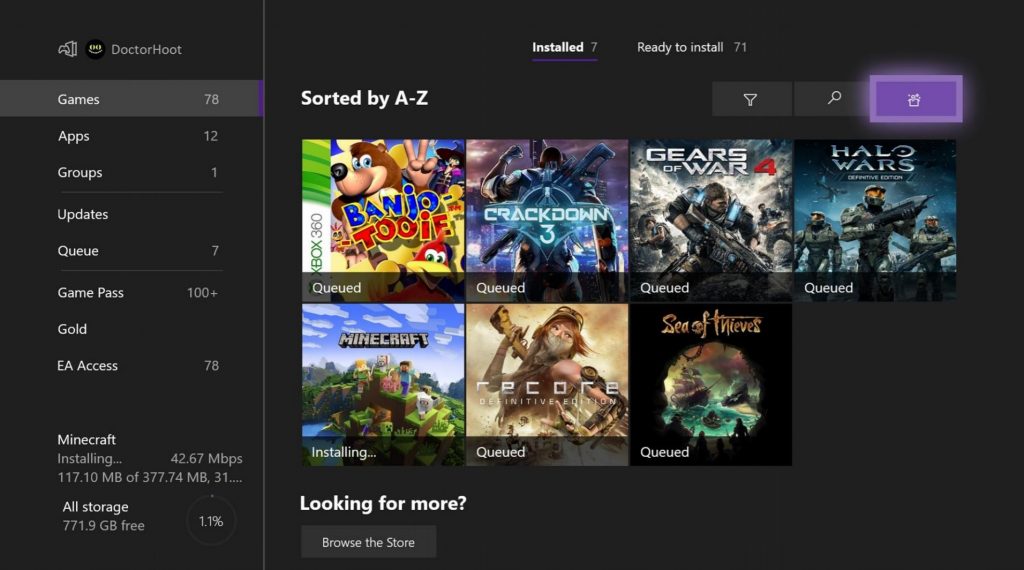
Today, Xbox Insiders will get a chance to test out some new changes to the Xbox One Home screen that include a new way to customize tiles and a new “Surprise Me” button that will surface recommendations on games to play.

Back in July of this year (2019), the Xbox team began testing a new dashboard look and flow with users opting into its Alpha and Skip Ahead release builds. The new dashboard is a bit more streamlined than the one that showed up with the original release of the Xbox One.

The UX team working on the reinvented dashboard applied emphasis on “dynamic content” surfacing in the UI while allowing for more customization of the home screen, allowing users to quickly access specific menus.

Today’s additions look to continue the theme of quick access by enabling new ways for users to set up their Home more their liking.

The new additions should be rolling out to Alpha and Skip Ahead beta testers through today pending a new download on an Xbox One console.

HP launches the world’s lightest compact business convertible notebook in India

In a press conference in New Delhi, HP Inc. today introduced the HP Elite Dragonfly in India geared towards the always-on-the-go mobile business professionals.

The HP Elite Dragonfly is a sub-one-kilogram ultralight premium notebook that claims to offer the ‘world’s longest battery life in a 13-inch business convertible’ – up to 24.5-hour battery life.

The HP Elite Dragonfly boasts of a precision-crafted chassis from CNC-machined magnesium and a redesigned quiet and backlit keyboard with a glass touchpad. It sports a high screen-to-body ratio for a 13-inch business convertible at almost 86 percent. The notebook packs in the latest Wi-Fi 6 connectivity and comes with an optional gigabit-class 4G LTE.

HP Elite Dragonfly also offers a myriad of software add-ons including HP WorkWell, a personal wellbeing software, HP Sure Sense that defends against malware attacks on mobile workers using AI, and HP Sure Recover that gets users back up and running fast.

There are also privacy-focused features like HP Sure View Gen3, an integrated privacy screen, as well as HP Privacy Camera that helps users control what is shared with the world.

The HP Elite Dragonfly is expected to be available from December 1 starting at ₹149,990 ($2092).

Xbox 360 consoles get a new system update, the second this year

Microsoft has quietly released a new system update for Xbox 360 consoles (via Reddit). It’s not clear yet what this new version of the OS (2.0.17559.0) includes, as the software giant has yet to add the release notes on the Xbox Support website. We’ll keep an eye on this page and we’ll update this post if we get more details about this new update.

The Xbox 360 received a previous system update back in August, which according to Microsoft brought “minor bug fixes and improvements.” Before that, the Xbox 360 OS received two updates in 2018 and 2016, which was the year when Microsoft stopped manufacturing the console.

As the Xbox 360 will celebrate its 14th anniversary on November 22, which is the date of the console’s US launch, it’s great to see that Microsoft is still supporting it as well as all of its Xbox Live online features. We hope this ongoing support will continue once Microsoft’s next-gen Project Scarlett console is released in holiday 2020.

Update 9:15AM PDT: The Xbox Support website now indicates that this new system update only brings “minor bug fixes and improvements,” just like the August update.

Windows 10 news recap: Chromium-based Microsoft Edge to ship by default on Windows 10 in future, Skip Ahead ring comes to an end, and more

Welcome back to our Windows 10 news recap, where we go over the top stories of the past week in the world of Microsoft’s flagship operating system.

Surface Pro X is Microsoft’s most repairable tablet ever according to iFixit

According to iFixIt, the Surface Pro X is Microsoft’s most repairable tablet ever, a strong accolade to hold when it’s generally quite difficult to repair devices yourself in this day and age.

Surface Pro X

Microsoft’s Chromium-based browser has a new icon that frees it from Edge and Internet Explorer’s past

Microsoft’s new Edge browser has received a new icon to differentiate it from Internet Explorer.

Microsoft Edge new logo

New Chromium-based Edge will start shipping with Windows 10 once the stable version is out

Once the stable version of Chromium-based Microsoft Edge is out, Windows 10 will begin shipping with the new Edge by default.

Microsoft ends Skip Ahead Ring for Windows Insiders beginning with Windows 10 build 19018

The Windows Insider program is going back to more simple times, as Microsoft is ending the Skip Ahead ring. The change starts from Windows 10 build 19018.

That’s it for this week. We’ll be back next week with more Windows 10 news!

3 Best Digital Audio Workstations (DAWs) Tools for Windows to Buy

To create addictive beats, musicians rely on digital audio workstations. These tools can turn the music notes in your head into reality.

You can use two principal types of recording tools to create, produce, and edit music, and these are DAWs and audio editors.

DAWs are perfect for the recording stage with vocals, acoustic instruments, or digital instruments and audio editors are suitable for the post-production stage to achieve the highest results.

These programs include complete audio features, including faster beat-making, AI-based mastering tools, an abundance of plugins, pitch and tone error correction, and many more.

What is the difference between DAW and an audio editor?

The big difference between DAWs and audio editors is that DAWs lets you edit, mix, and master multiple tracks simultaneously, and audio editors only allow you to edit one track separately.

On top of that, DAWs require the installation of extra plugins and the connection of mics for vocals, acoustic, or Line instruments, such as keyboards, drum boxes, and others, while audio editors minimize the amount of time by modifying the audio directly.

So, what’s the best music software to create catchy songs that will remain ingrained in your fans’ minds?

What is the best DAW and audio software for Windows 10?

FL Studio – Plethora of plugins

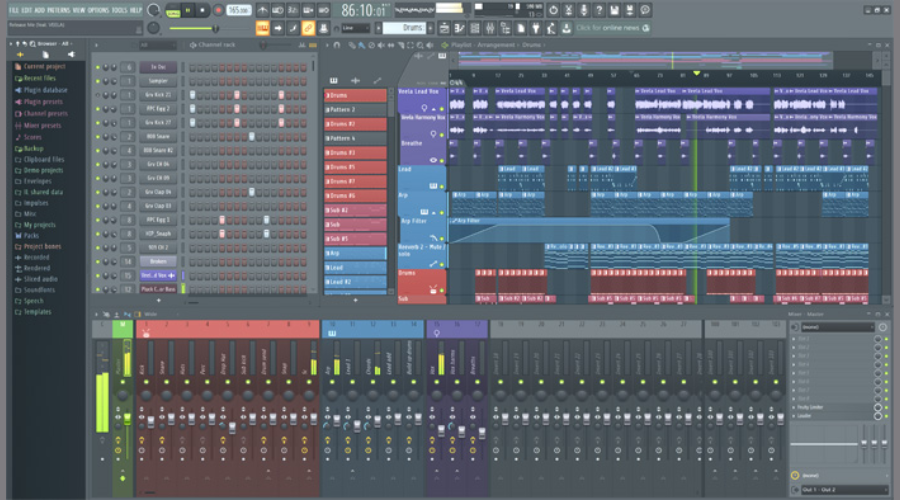
FL Studio is among the most popular DAWs (Digital Audio Workstations) available on the market, both for its steep-started learning curve and the plethora of plugins, VSTs, and instruments that can be embedded into it.

FL Studio, formerly known as Fruity Loops Studio, encompasses a wide collection of tools that can aid even amateur producers in the development of impressive music projects.

Its user-friendly interface and intuitive controls turn FL Studio into a one-man army when it comes to music production.

FL Studio lets its users experience a trial version of its capabilities and can test all the features and available plugins, there’s no time limit, and no registration or account creation is needed.

Another thing worth mentioning is that FL Studio comes in four different flavors and each one of them adds a bunch of extra features to the previous one.

What you need to know about each version:

  • The “Fruity” edition is heavily limited
  • The “Producer” version unlocks all core features (plugins are not considered core)
  • “Signature” brings along several plugins, while self-explanatory
  • “All Plugins Bundle” does exactly what it says and is the most complete edition of the app

FL Studio

A great tool with intuitive controls that enhances your music production experience.
Free Trial Visit Website

ACID Pro – Faster beat-making

ACID Pro is Magix’s top-of-the-line music production software solution, but it comes in two different editions so as to cover as much ground as possible.

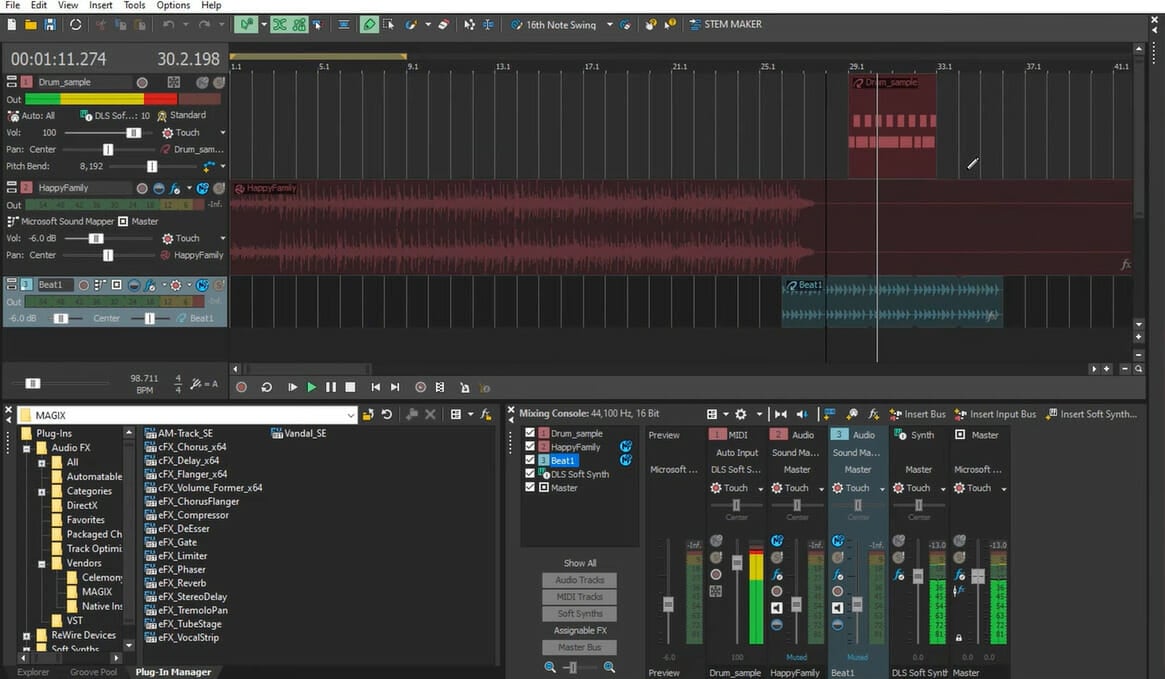
ACID Pro brings all brand-new features, including but not limited to audio source separation integration by using a proprietary technology called Zynaptiq STEM MAKER Melodyne Essential used for pitch and tone error correction, loudness metering tools, and, of course, a lot of new loops.

ACID Pro 11 is the latest release of the popular, intuitive, and powerful ACID Pro series and it comes with a broad variety of embedded goodies.

The newest ACID Pro development packs “MIDI Playable Chopper,” which enables users to split files into beats and samples, and then play them in a fashion that resembles MPC (Music Production Center) samplers, as well as the new loops that ACID Pro Next also holds.

Other best features include:

  • Faster beat-making
  • ACIDized loops
  • Innovative effects
  • Creative content

ACID Pro

Try this exceptional audio tool with improved beat-making and innovative effects.
Free Trial Visit Website

WavePad – Batch processing

WavePad is a popular sound editing software solution from NCH Software, which enables users to edit a broad range of audio files, whether it’s music, voice recordings, or other types of similar content we’re talking about.

WavePad also works as an audio recorder if the device it’s installed on has a supported recording device. This app can handle an outstanding variety of formats, including but not limited to MP3, WAV, VOX, GSM, WMA, AU, AIF, FLA, RA, OGG, AAC, M4A, MID, AMR, FLAC, MOV, VOC, RAW, and M3U.

It enables users to apply various effects on their recordings such as reverb, chorus, fade, compression, normalize, echo, and surround.

It can also be used as a fast, convenient editing tool that can compress sound, trim it, copy, cut, and paste fragments, process files in bulk, scrub audio content and search for specific parts and perform a spectral analysis of the documents.

WavePad

Use WavePad to record and edit music with advanced technology alongside multiple audio effects.
Free Trial Visit Website

DAWs and audio editing tools are designed to help you record, edit, and mix music with numerous audio effects, enhanced beat-making, and other additional tools.

There you have three amazing music software to let your creative mind run wild. Please let us know in the comment section below if you find this article useful.

Microsoft sends more Project xCloud preview and teases “big” news at X019 next week

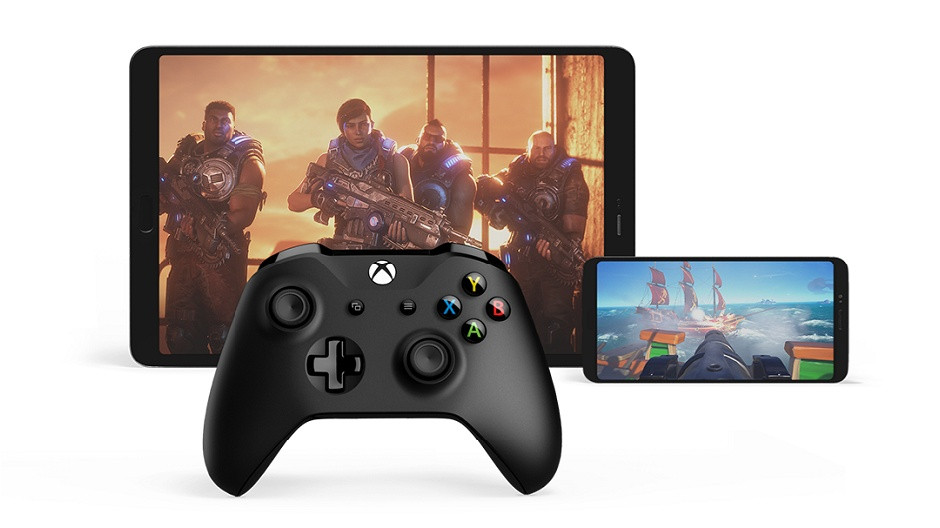
Microsoft kicked off the Project xCloud public beta in the US, the UK and South Korea last month, and if you didn’t receive your invite yet, you may now get the chance to get in. Xbox’s Major Nelson announced earlier today that Microsoft has started sending out more Project xCloud invitations, and you still have time to register if you want to get early access to the company’s cloud gaming service.

As of today, the Project xCloud public beta only provides access to four Xbox Game Studios titles: Gears 5, Halo 5: Guardians, Sea of Thieves, and Killer Instinct. To try the service, you’ll need a Bluetooth-enabled Xbox Wireless controller, as well as a phone or tablet running Android 6 or newer. Microsoft hasn’t said yet when the service will be available on other devices, including iPhones, iPads, or PCs. With Google Stadia launching on November 19, it may be time for Microsoft to finally share more details about Project xCloud, and a tweet on the Xbox Twitter account just teased “big Project xCloud news” at X019 next week.

We have yet to hear about the business model for Project xCloud, and there will hopefully be some synergies with Xbox Game Pass. It would probably be too much to ask Xbox Game Pass subscribers to pay for an additional subscription to access the cloud gaming service, especially when Google Stadia and Sony’s PlayStation Now service now cost just $9.99/month. Microsoft probably can’t ask for more than that for an Xbox Game Pass/Project xCloud monthly bundle, but we’ll see if the company is finally ready to discuss pricing details at X019 next week.

The new Surface Pro X Unboxing and First Impressions (Video)

The new Surface Pro X is one of Microsoft’s most hotly anticipated devices of 2019. Unlike the Surface Pro 7, or the Surface Laptop 3, it’s quite different from anything the company has released before. It is also something that I’ve been quite excited for myself, which is why I went ahead and purchased one from the Microsoft Store for this review.

From its super-slim bezels, new Surface Slim Pen, and the custom Microsoft SQ1 processor powering the device, there’s a lot to talk about. Today we’ll be taking a quick look at all that and will be unboxing the Surface Pro X, and sharing some initial impressions ahead of our full review in the coming weeks.

Bezels, be gone!

As I took the Surface Pro X out of the box, the first thing I noticed is its slim bezels. A bit similar to an iPad Pro, the bezels are very slim on the right and left sides of the device. The top bezel is still a bit large, mainly due to the Windows Hello webcam on top. As for the bottom bezel, it almost disappears when the Type Cover keyboard is attached.

Compared to my older Surface Pro 2017, these slim bezels really make the device beautiful. It really brings out all the beauty of the 13-inch screen, and its 2880×1920 resolution. While not quite edge-to-edge like the XPS 13, it’s quite immersive, especially for me, as someone who is constantly stacking windows side by side when working.

Overall, the Surface Pro X still feels really nice to hold in my hands, thanks to its round corners and balanced weight. Great as it is, I am a bit concerned that the device will become a fingerprint magnet, but I think it’s something that I can get used to it over time with the proper care. I’m also a bit let down to see the omission of a MicroSD card slot, as this has been a signature feature of the Surface Pro since the original Surface.

But, all around, this still feels like a Surface Pro that I’ve always loved, with the design improvements I always wanted. Its black matte magnesium finish is still absolutely beautiful and cool to the touch. The kickstand still makes the device easy to use on my desk and my lap. The keyboard cover is still a magnetic attachment and increases the overall usability of the device. And, it’s all now flanked by a beautiful slim bezel and downright beautiful screen.


A note on the specs

Under the hood, Surface Pro X only features one SoC option. It’s powered by the Microsoft SQ1 processor paired with the Adreno 685 GPU. RAM options range from 8GB or 16GB, and there’s either 128, 256, or 512GB of removable SSD storage.

I opted for the most basic $1,000 model with 128GB of storage and 8GB of RAM. It should also be noted that the SSD in the Surface Pro X is technically removable, though Microsoft wants you to do that through authorized dealers.

Anyway, this SQ1 SoC is based on the Snapdragon 8cX processor and was designed in partnership with Qualcomm. Microsoft claims it can be as good as the Intel Core processors inside the older Surface Pro 6. It supposedly has three times more performance per watt than the 8th-generation CPUs.

We’ll be testing that later, and will run benchmarks in a separate post, but first, we want to mention that only 32-bit apps will work on this device through emulation. Yes, this Surface Pro X is powered by the full version of Windows 10 Pro, but since it’s an ARM device, there are limits to 32-bit apps only. It’s up to developers to recompile their apps to ARM64 for it to work on the Surface Pro X.

Surface Pro X

But for now, in my brief day or so with the device, it has proven good enough for web browsing in the 32-bit version of Microsoft’s Chromium-based browser. However, many early reviewers have reported issues with the SQ1 processor powering the Surface Pro X. Some have reported experiencing Blue Screen of Death, not being able to install their favorite apps, as well as random freezing when the device wakes.

After a day-two firmware update, so far in my time with the device, I haven’t had any of those issues. However, coming from a Surface Pro 5, I did notice that apps from the Microsoft Store and even Windows 10 updates were kind of slow to download and install. But, I took the Surface Pro X on the road for me for Microsoft’s HoloLens showcase event in New York City, and it was very reliable for web browsing, writing up a draft post in Word, and more I didn’t experience any freezing, but you can expect my more in-depth analysis and some comparisons in the future full-review.

I’ll also want to mention that this is an always-connected PC. This means that you’ll be able to live a life free of WiFi. You’re getting up to Gigabit LTE Advanced Pro via the nanoSIM and eSIM tray on the device. That’s thanks to the Qualcomm Snapdragon X24 LTE Modem built-in. There’s even the “instant-on” feature. I set the device down, and it’s able to resume right where I left off, right away, without any drain to the battery.

Do you see the USB-C?

As I pointed out in my original hands-on, another thing I noticed with the Surface Pro X is the USB-C ports. There’s two alongside the left side on the device. You’ll also find the Surface Connect port on the right side.

Sadly, there’s no headphone jack, which means I needed to use my Bluetooth Surface Headphones with my Surface Pro X. Lacking a good quality USB-C to USB-C cable at the moment, I also needed to use a dongle to connect up my camera and phone to transfer photos and the video for the post. But USB-C does offer one advantage, I was able to charge up my Surface with my portable power bank. Microsoft quotes a total of 13 hours of battery, and the Surface Pro X supports quick charge, but I only experienced about 10 hours in my testing so far. I’ll be sticking to the regular version of Edge for the full-review to test the full potential of the device.

I’ll also mention that these USB-C ports don’t support Thunderbolt 3, which is a letdown since it means that you can’t use an external GPU to go with it. Still, after years of seeing MiniDisplay Port and USB-A on the Surface Pro lineup, this is quite refreshing.

A fairly great type cover to go along

Moving along, is the need to mention the new Type Cover Keyboard with the Surface Pro X. Overall, typing on it feels about the same as it did on my older Surface Pro 5 Type Cover. However, clicking the trackpad feels a bit more hollow and loud, that could be due to it being new and there being no wear and tear.  It’s very loud, so much so that my mother heard me clicking my way through typing this review, and asked what was making that annoying noise.

The way the Type Cover attaches to the screen is also a bit weird. Since the pen is in the middle of the connector on the top of the keyboard, only the two sides grip the screen. This means it the Surface Pro X is quickly rocked or moved, the keyboard just a tiny a bit to the right and the left. Otherwise, it’s fairly comfortable. I haven’t experienced the weird sensation that Tom Warren experienced, where his Surface Pro X type cover covers the entire taskbar.

Surface Slim pen feels great

Now, for the Surface Slim Pen. To me, having the flat pen is more ergonomic than having a round pen, like with the older Surface Pen.  It fits in my hand more easily, although the “click” button is now in the thin facing side of the pen, and harder to reach.

This new pen is housed in the keyboard, and, coming from the Surface Pro 5, I sometimes forgot it was even there. I was just too used to seeing it snapped to the side of my Surface, so that’s something I did. I will have more on the pen experience in my full review, but for now, I’ll mention that it’s rechargeable via that cradle in the keyboard.

Quite impressed, for now…

At the end of the day, I’m quite impressed with the new Surface Pro X after just two days of use. All around, it’s a nice device. However, given it’s powered by Windows 10 on ARM, I am still concerned about the overall reliability of this new Surface device. While the experience with 32-bit app-emulation has been solid for me so far, and the battery life decent, it might be subject to change as I put more use into the device. Stay tuned for more in the coming weeks.

Need For Speed Heat is now live on Microsoft’s Xbox One video game consoles

The latest entry in the popular Need For Speed video game franchise, Need For Speed Heat, is now available to play on Microsoft’s family of Xbox One consoles.

The game is available in a regular edition and a Deluxe Edition that comes with the base game and a variety of in-game character outfits, cars, and 5% boosts for REP and BANK rewards.

Here’s the official game description and launch trailer:

Burn through the streets of Palm City in Need for Speed Heat. By day, earn bank to create your perfect ride through sanctioned Speedhunters Showdown events. By night, enter illicit street races alongside your crew, earning rep and building heat. But stay ready – cops are waiting and not all of them play fair. The roads and the rides are endless in this twenty-four-hour street racer where only the fast are free to chase the line, risk everything, and burn all limits.

The Need For Speed series began way back in 1994 and has become a constant presence in the gaming industry ever since with new entries being released on an almost yearly basis. Need For Speed Heat is the 24th main Need For Speed video game and supports online multiplayer for up to 16 players and also renders in 4K Ultra HD when played on an Xbox One X console.

Are you a Need For Speed fan? How many titles have you played? Let us know what your favorite game is in the comments below and then follow us on Facebook, Twitter, and Pinterest for more Xbox gaming content.

Need for Speed™ Heat
Developer:
Electronic Arts
Price:
Free


Cities: Skylines, The Elder Scrolls Online and The Surge are free to play with Xbox Live Gold this weekend

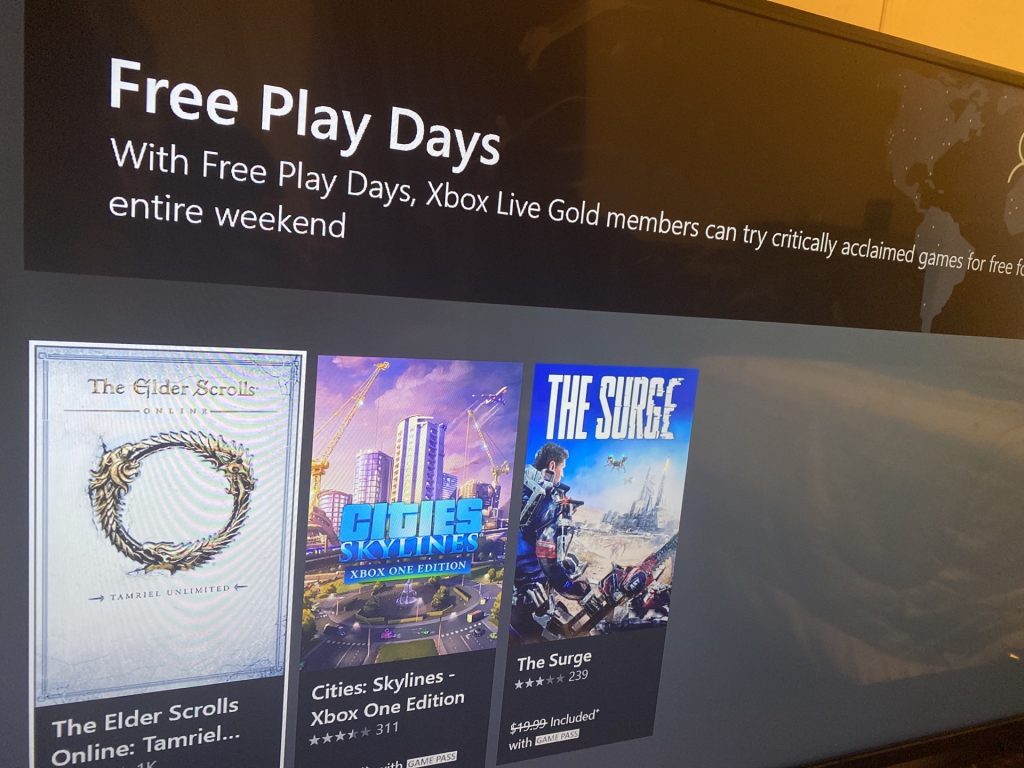
Xbox Live Gold members can try some new games this weekend, as Microsoft has introduced three new titles to the Free Play Days lineup for gamers to enjoy. The official Xbox Twitter account in France tweeted the news: “Here are 3 good reasons to play during this long weekend!”

First off, Bethesda’s MMORPG title The Elder Scrolls Online is free to play right now, and players can see all of what the base game offers all the way until November 13. While the Elsweyr upgrade might not be included in this free trial, there’s still plenty quests, crafting, and exploration to keep you going. And if you enjoy your experience, the base game is also on sale for half off, which brings it to just $9.99 right now.

The Elder Scrolls® Online

Cities: Skylines and The Surge are also free to play on the Xbox One for Gold members, although you only have until November 10 to play these games. The first one is already free to play for Xbox Game Pass for Console subscribers, but now Gold members also have a very brief opportunity to play the game before buying—or potentially upgrading to Game Pass Ultimate. For the latter title, Gold members can purchase it for $4.99—or 75% off—for a limited time.


The Surge
The Surge
Developer:
Focus Entertainment
Price:
$2.99

If you haven’t already, you can sign up for Xbox Live here:

Which game will you most likely be playing this weekend? Be sure to drop a comment down below to let us know what you think about them.

Xbox Game Pass for PC picks up Metro 2033: Redux and will lose its first 3 games on November 15

Metro 2033: Redux, the remastered version of the post-apocalyptic shooter has just been added to Xbox Game Pass for PC today. The game is joining Metro: Exodus on the catalog, which is the latest installment of the Metro franchise released earlier this year on PC and consoles.

Even though the store listing doesn’t mention it, the game does support Xbox Live Achievements, as seen on its Game Hub xbox.com. Not all Xbox Game Pass for PC games support Xbox Live Achievements, but developers doing the extra effort to add them definitely deserve some credit.

It’s been nearly six month since Xbox Game Pass for PC launched in beta on Windows 10 version 1903, and the subscription service is about to lose its first games: Pony Island, The Surge, and Tyranny – Gold Edition will be removed from the catalog next week on November 15, but hopefully these will be replaced by new games very soon. The Xbox team said today that it will have more Xbox Game Pass news to share during the X019 event in London next week, and we’ll let you know as soon as we get more information.

If you have yet to try Xbox Game Pass for PC, you can get one month for just $1 for a limited time. Additionally, you can also get 3 months of Xbox Game Pass for PC for free when you purchase select Alienware PCs, and you can find more information on Dell’s website.

Metro 2033 Redux
Metro 2033 Redux
Developer:
Deep Silver
Price:
$19.99


PC Game Pass
PC Game Pass
Price:
$1.00

A Lord of the Rings digital card game just launched on Microsoft’s Xbox One consoles

The Lord of the Rings: Adventure Card Game launched on Microsoft’s family of Xbox One consoles earlier this week. The game went live with very little fanfare which is rather surprising given the prestige of the property and reputation of Lord of the Rings video games on Xbox consoles.

This The Lord of the Rings: Adventure Card Game title is, as its name implies, a digital card game in the vein of Gwent and Hearthstone. It features numerous characters and species from The Lord of the Rings and supports online support for player versus player matches.

Unlike Gwent and Hearthstone which are both free-to-play titles, The Lord of the Rings: Adventure Card Game is retailing for $24.99 which may restrict its playerbase someone. It is, however, available to play for free for all Xbox Game Pass subscribers so this could be a way to build up a following.

Here’s the official (long) game description and launch trailer:

Build a deck of iconic Heroes and challenge the forces of Sauron in this thrilling tactical card game. Go forth on your own or join forces with a friend and explore famous locations, complete story-driven quests, and forge your own legend of Middle-earth. But beware the Eye of Sauron—should you draw his attention, all will be lost…

Answer the call of countless adventures, face the dark forces of Sauron, and protect the Free Peoples of Middle-earth. As allies gather and foes arise, so your journey begins.

The time has come to form and lead your own fellowship of heroes through immersive story-driven campaigns—each with its own unique narrative and challenges.
Pick three Heroes from some of the most emblematic characters of Middle-earth, then build your deck around their specific abilities and powers. Each Hero belongs to one of four Spheres of Influence—Leadership, Lore, Spirit, or Tactics—which allows you to play specific cards while in-game. Choose wisely when building your deck to make the most of each Hero and gain the advantage against Sauron’s forces. Each story-driven Campaign is set in famous locations across Middle-earth, providing hours of thrilling gameplay where each choice you make will forge a legend that will be sung about for ages to come.

While your journeys may contain great challenges, taking advantage of your Heroes and your customized decks will earn you victory in battle. Sometimes combining the strength of multiple champions from the same Sphere of Influence can help you overcome the swarms of Enemies that you will face. You might also apply your Characters’ Willpower to the Fate Pool and trigger powerful abilities that can turn the tide of battle. Each Quest is different, and there is no single path to victory—find the deck and the strategy that works for your fellowship!

Every Quest will require experimenting with different strategies as you confront ever more terrifying foes, ranging from giant Spiders to fierce Trolls, and even hordes of powerful Orcs! The Dark Lord will do everything in his power to prevent you from completing your journey. Watch out for the Threat Pool—as its total increases, Sauron can unleash story-specific events to make your Quest more difficult. Take care—if you reach the maximum Threat level, you will suffer Sauron’s full attention and fail your Quest!

Are you a fan of Lord of the Rings and will you give this card game a try? Let us know why or why not in the comments below and then follow us on Pinterest, Twitter, and Facebook for more Xbox gaming content.

Microsoft’s new Edge web browser has been confirmed for a future launch on Linux

During an Ignite 2019 session called “State of the browser: Microsoft Edge,” Microsoft officially confirmed that their new Microsoft Edge web browser, an essential redesign of their current Edge browser, will be coming to the Linux operating system sometime in the future.

The reference to Linux was mentioned at the end of a list of supported platforms (cheers WL for the eagle eyes) on a slide titled “The new Microsoft Edge is fully cross-platform.” No release date, let alone a window, is mentioned for the Linux version of Microsoft Edge with the words “available in the future” being the only concrete info provided.

Microsoft Ignite 2019

The new version of the Microsoft Edge web browser is already in testing with Insiders on Windows 10 and macOS and is expected to officially launch in public on January 15th next year. Mobile versions of the Edge browser are also available on iOS and Android devices.

Are you excited for the new Edge browser? Would you use it on Linux? Let us know in the comments below and then follow us on Twitter, Pinterest, and Facebook for more Edge news.

After more Microsoft news from Ignite 2019? Check out all of the exciting announcements here.

Best Windows 10/11 S laptop deals to buy

If you haven’t heard about or used Windows 10 S yet, it is just a version of Windows 10 that runs on apps from Microsoft Store only. This means that the previous traditional desktop software will work on this system, however, the rider is that the software has to be packaged by its developer as a Windows app in the Store before it is used on Windows 10 S. Microsoft launched this new version last year, which will come with many new computers going forward, especially low-cost and education oriented PCs, plus a few premium ones like the Surface Laptop. While the S doesn’t stand for anything specifically, Microsoft says this system is streamlined for simplicity, security and speed – it actually boots fifteen seconds faster than a PC running Windows 10 Pro with all the same features installed. The only difference between S and Pro or other Windows 10 versions is the S version can only run apps from Store plus a built-in BitLocker encryption for file security, while the rest have the option to install apps from third party sites and stores. Windows 10 S will be availed on new machines, but not as a separate version for upgrade or installation like the Pro version, however, you can pick the best Windows 10 S laptop for yourself from the list below.

Best Windows 10 S laptops for 2019

Microsoft Surface Laptop (recommended)

best Windows 10 S laptop

This is probably the rightful heir of the Windows 10 S as it was the first device to launch with the system, and is designed to showcase what the best Windows 10 S laptop should ideally be and look like.

In fact, Microsoft said this laptop is meant to ‘empower people to bring their ideas to life.’ It is built with students in mind and packs a seventh-gen Intel Core processor with a battery life of up to 14.5 hours.

This stylish and premium laptop whose base is covered in Alcantara fabric is available in four different colors: Platinum, Graphite Gold, Cobalt Blue, and Burgundy. It is pretty portable at just 1.25 kilos, with Corning Gorilla Glass touchscreen display, and a palm rest. It doesn’t have a USB-C port though.

ASUS VivoBook Flip 14 (suggested)

best Windows 10 S laptop

This is a low-end, 2-in-1, 14 inch laptop that features an Intel Quad-Core Celeron N3450 processor, 64 GB storage and 4GB RAM, plus a 1080p display.

For casual users who want to browse, send or receive emails and use Office, this is the best Windows 10 S laptop, which is pretty much cheaper than buying a Surface laptop, but still a bit expensive than other Windows 10 S devices.

With this laptop, you get a great full HD screen, and nice look and feel to its thin and light design, plus multiple ports for all your peripherals. It also comes with a touchscreen and pen support, plus a 360 degree hinge.

JP Classmate Leap T303

best Windows 10 S laptop

This is another laptop, besides the Lenovo 100e that Microsoft unveiled as the best Windows 10 S laptop, with a starting price of only $199. It targets the education market as well, and Microsoft announced new Office 365 learning tools for this niche.

The company is also assisting in training teachers through professional development so as to get the most out of the two laptops: Lenovo 100e and this JP Classmate Leap, with Microsoft 365 Education included in the training.

This particular laptop will come with Windows Hello, so users will be able to log in using biometrics like their face or fingerprints.

Lenovo 100e

best Windows 10 S laptop

If you want a laptop that’s not too pricey but engineered for students and educators, then the Lenovo 100e is the best Windows 10 S laptop you can get. It has a rugged built that can withstand the daily rigors that come with school days, plus a battery to last the entire time you’re there, and connectivity features for smoother collaboration.

This laptop has an Intel Celeron processor, HD TN antiglare display, Intel integrated graphics, a battery that lasts up to 10 hours which varies with settings, usage and other factors, 4 GB LP-DDR4 DRAM and 2GB LP-DDR4 DRAM memory with 64 GB eMMC storage, WiFi with Bluetooth 4.1, a rotatable HD camera, two USB ports (2.0 and 3.0), HDMI port, 2-in-1 card reader slot, and much more. Lenovo 100e is available for online purchase.

Buy it now on Amazon

Lenovo Ideapad 120S

best Windows 10 S laptop

Yet another low-end laptop meant for the casual user who just wants to use Office, browse or send/receive emails.

This best laptop for Windows 10 S features an 11.6 HD display, 32 GB storage with only 2 GB RAM, and Intel Celeron N3350 processor. If you have multiple apps open at a go, then its RAM size may not be so ideal for you.

However, its design is minimal and well streamlined, making it look dope from any angle. It is quite affordable, but has a low-resolution display, and no touchscreen.

ASUS L402WA-EH21

best Windows 10 S laptop

Besides its complicated name, this low-end and low-budget laptop doesn’t have many exciting features besides its affordable price. All you get is a 14 inch laptop with 32GB flash storage, 4GH DDR3 RAM, 1366×768 display, and an AMD E2-6110 1.5GHz processor with Radeon R2 graphics.

This laptop’s AMD processor is more effective but it doesn’t make it a powerhouse. However, it is one of the best Windows 10 S laptops for casual users, has a beautiful design, but no touchscreen and low-res display.

ASUS VivoBook W202NA-YS02 Rugged

asus-w202na windows 10 s laptop

This laptop is designed for the K-12 market and comes preloaded with Windows 10 S.

Features include an Intel Dual-Core Celeron processor, 4GB RAM and 64GB eMMC flash storage, 11.6 inch HD screen, USB and HDMI ports, webcam, and a battery life of up to 11 hours.

The good thing about this best laptop for Windows 10 S is it is rugged so it can survive some pretty harsh treatment, what with its spill-resistant keyboard and its body which survives drops of up to four feet! Its rubber wrapped edges protect it from such drops, plus it can survive the class environment.

Microsoft Surface Go

surface go windows 10 S laptops

If you’re looking for a compact Windows 10 S laptop, then the latest member of the Surface family might be just what you need. This is a 10-inch, 1800×1200 (217 PPI) device, and it comes with 10-point multi-touch display. The device is powered by Intel Pentium Gold 4415Y processor, and it comes with 8GB of RAM.

As for the storage, the device has 128GB SSD, which should be enough for most of your needs. Regarding the graphics, there’s Intel HD Graphics 615, which should be enough for multimedia. The device measures 9.65″ x 6.90″ x 0.33″ and it weighs 1.15lbs so you can easily carry it with you in a bag.

Regarding the connectivity, there’s Wi-Fi 802.11 a/b/g/n/ac as well as Bluetooth 4.1. As for available connections, there’s a single USB-C port, 3.5mm audio jack, Surface Connect port, Surface Type Cover port, and microSDXC card reader.

The device has a 5.0MP front-facing camera and 8.0MP back camera with autofocus. It’s worth mentioning that Windows Hello feature is compatible with Surface Go, so you can use your face to unlock your device.

Microsoft Surface Go is a great device, and it offers great portability with solid hardware, and if you’re looking for a Windows 10 S device, you should definitely consider this model.

Overview:

  • 10-inch, 1800×1200 (217 PPI), 10-point touchscreen display
  • Intel Pentium Gold 4415Y CPU
  • Intel HD Graphics 615
  • 8GB RAM, 128GB SSD
  • USB-C port
  • 5mm audio jack
  • Wi-Fi 802.11 a/b/n/ac
  • microSDXC reader

Get it now from Amazon

HP ProBook x360 11 G1 Education Edition

HP ProBook x360 11 G1 Education Edition windows 10 s laptops

This model was being revamped by HP for the new Windows 10 S operating system and features a 360-degree hinge, 11.6 inch HD display, HD camera within the keyboard, a USB-C port and two USB 3.1 ports.

It also comes with an Intel Celeron processor, 64 GB storage and 4GB RAM, plus it is rugged and can withstand spills and drops, with a battery life of up to 11 hours.

Other brands you can get the best Windows 10 S laptop from, include Acer TravelMate Spin B1, Asus Vivo Book E201, and Flip TP203, Dell Latitude 3189 and 3180, Toshiba Portégé X20W, Samsung Notebook M, and Toshiba Tecra C40D.

Are you using Windows 10 S already? Let us know which laptop you are experiencing it from and your thoughts on the same by leaving a comment in the section below.

This specific deal is part of our bigger selection of the best laptop deals you can find. You might also want to check out our dedicated Black Friday hub for tech deals.


USEFUL LAPTOPS AND ACCESSORIES SUGGESTIONS:

Best Windows 10/11 2-in-1 laptops

A 2-in-1 laptop is one of the fastest-growing products in the PC industry. The touch-optimized hybrid laptop or the detachable-hybrid tablet with both a physical keyboard and a touchscreen are the latest trends, and if you plan to get one, you probably have already a few tablets in mind.

It’s important to keep your eyes peeled for the best 2-in-1 laptops that you can buy this holiday season. Just to make your choice much easier, we picked the top five 2-in-1 laptops that you can get these days at great prices on Amazon.

Best Windows 10 2-in-1 laptops to purchase this year

Samsung Notebook 9 Pro NP940X3M-K01US (recommended)

The Samsung Notebook 9 Pro can easily get head-to-head with the MacBook Pro for a significantly lower cost. Even if it’s limited to only one configuration, it comes in two different sizes. The Samsung Notebook 9 Pro is a really powerful laptop.

Check out the most important of its features below:

  • It comes with an excellent look and feel.
  • The Samsung Notebook 9 Pro uses the S-Pen for amazing effects.
  • It comes with a Full HD touchscreen for hands-on control.
  • It also features an HD webcam.
  • The laptop has a 360-degrees flip-and-fold rotating display.

The technical specs that you should be aware of are the following: Intel Core i7 processor, an Intel HD 620 or an AMD Radeon 540 Graphics card, 8GB or 16GB of RAM, a screen of 13.3 inches with a resolution of 1,920 x 1,080 pixels and storage space of 256GB.

The laptop is partly defined by its inclusion of the S-Pen, and it’s a heavy-hitting hybrid that is as capable as Microsoft’s Surface Book. You will not need to recharge the stylus.

HP 15t Spectre x360 2-in-1 15.6″ 4K

The HP Spectre x360 is more than just a mere hardware refresh, and it’s effortless to use a laptop. You can’t even tell if it’s best used as a laptop or as a tablet due to the fact that its keyboard feels so natural at the touch.

Here are some of the best features included in the HP Spectre x360:

  • It comes with silent fans.
  • It comes with a 4K Ultra HD touch screen for hands-on control.
  • The display boasts impressive clarity and vibrant colors.
  • The Intel Turbo Boost Technology delivers extra dynamic power whenever you need it.
  • It’s great for gaming and intense multitasking.
  • The flash-based SSD has no moving parts, and this results in faster start-up times and data access.
  • You will benefit from reduced heat production and power draw on the battery.

It has a 360-degree flip-and-fold design that allows a versatile use as a tablet or as a laptop.

Here are the technical specs that are essential: Intel Core i7 CPU, Nvidia GeForce 940MX and Intel HD Graphics 620, 8GB to 16GB of RAM, a 15.6-inch screen with a resolution of 3,840 x 2,160 pixels and storage space of 256GB – 1TB PCIe.

Lenovo Yoga 720 – 15.6″ FHD Touch

This 2-in-1 tablet is a competitive device with the 15-inch MacBook Pro, and it’s also priced at a fraction of Apple’s flagship machine.

Check out the most important of its features below:

  • The laptop has an unparalleled 2-in-1 performance.
  • It comes with a competitive battery life.
  • It has a 15.6-inch Full HD touch display for hands-on control, and it uses the IPS technology.
  • It comes with a built-in HD webcam.
  • The 360-degrees flip-and-flop design allows increased use versatility.
  • It comes with Windows 10 Home preinstalled.

Buy it now on Amazon

Here are the tech specs that are the most impressive in the Lenovo Yoga 720: Intel Core i5 or i7 CPU, Intel HD Graphics 630 or Nvidia GeForce GTX 1050, 8GB or 16GB of RAM, a resolution of 1,920 x 1,080 Full HD or Ultra HD with a resolution of 3,840 x 2,160, LED multitouch and storage space of 256GB – 1TB, 1 USB Type-C, and 2 USB 3.0, Thunderbolt, Wireless-AC and Bluetooth.

UPDATE: The Lenovo Yoga 730 is now available on the market as well. So, if you want to upgrade your Yoga 720 laptop, you can purchase the new model from Amazon.

Microsoft Surface Book 2

The original Surface Book blew everyone away when it came out back in 2015 and back then it was quite hard to tell whether it was a one-time novelty from the company or if it was just a sneak peek of something else that was on its way. Overall, it was a bit of both.

The Surface Book 2 is just as impressive, and it comes with a lot of the qualities boasted by its predecessor.

Just have a look at the main features sported by the Surface Book 2 below:

  • You have four versatile modes to choose from crafted of premium and lightweight materials.
  • The device adapts easily to the way that you work and create as well.
  • The Surface Book 2 brings the best of Microsoft no matter where you are.
  • It comes with Windows 10 Pro pre-installed.
  • It also comes with Microsoft Office2.
  • With Windows Mixed Reality you will be able to immerse yourself in a brand new reality when you combine the Surface Book 2 with any Windows Mixed Reality headset and also a motion controller as well.

    –  Buy it now on Amazon

The essential tech specs are the following: Intel Core i5 or i7 CPU, Intel HD Graphics 620 or Nvidia GeForce GTX 1060 with 6GB GDDR5, 8GB to 16GB of RAM, a screen of 13.5 inches with a resolution of 3,000 x 2,000 pixels or a screen of 15 inches with a resolution of 3,240 x 2,160, 256GB to 1TB PCIe SSD.

Lenovo Flex

Lenovo Flex laptop

As its name suggests, this laptop is very…flexible. Its hinges support a full 360° flip-and-fold movement without any problems. You can use this device as a tablet, laptop, in tent mode, you name it.

The 14-inch Full HD LED display offers excellent multitouch support. The 8th-gen Intel Core i5-8250U CPU can clock up to 3.4GHz. Add to that the 4GB/8GB/16GB DDR4 and 128GB/256GB/512GB/1TB SSD and you’ve got some really nice specs.

What we really like about this laptop is its versatility. You can use it to play games, run office-related tasks, play multimedia content and much more.

It also offers excellent connectivity and the lithium-polymer battery can power you for up to 8 hours.

Dell Lightweight Inspiron 11.6″ 2 in 1 laptop

Dell Inspiron 2 in 1 laptop

If the price tag is one of the main criteria of your purchasing decision, then this Dell Inspiron 11.6-inch laptop is the perfect choice for you.

It’s not the fastest laptop on the market, but it’s excellent for everyday computing.

It packs an AMD A6-9220e CPU 2.5 Ghz, HD LED-backlit touchscreen (1366 x 768), as well as 10-finger multi-touch support.

This laptop is ultra-portable weighing only 2.6 pounds with an ultra-thin profile of only 0.8 inches. It also has a really nice design.

These were our best picks for 2-in-1 laptops for every budget and preference in specs and features.

Check them all out and get your favorite laptop.

This specific deal is part of our bigger selection of the best laptop deals you can find. You might also want to check out our dedicated Black Friday hub for tech deals.


MORE INTERESTING LAPTOPS CAN BE FOUND BELOW:

Microsoft Teams: where it is and where it’s going

Ever since its introduction back in 2016, Microsoft’s collaboration software, Teams, has come a long way. The company is always tweaking the experience and adding new features that make it better compete with Slack and be more useful for users. In fact, at one point, Teams reached 13 million daily active users, which is more than Slack.

We here at OnMSFT have covered this all extensively. From a catalog of growing apps, file sharing experiences, chat filters, pinned channels, and so much more, Microsoft has put in all the efforts for Teams to catch up with Slack.

Indeed, Teams has been on a long journey, but there’s so much more ahead. At Ignite 2019, some new features were announced for the experience. Here’s a look at where Teams will be going heading into the future.

More ways to customize your Microsoft Teams experience

As we pointed out in our comparison piece, Microsoft Teams currently features a UI with a lot of menus and buttons to navigate. Heading into the future, though, Microsoft is hoping to change that. The company is planning on adding a new Multiwindow feature to the app early next year in 2020. With this feature, you’ll have the option to pop-out chats, meetings, calls, and documents into separate windows. This will help streamline your work, as you’ll be able to have what matters most on top of your current workflow.

In addition, for privacy, currently, it is not possible to restrict access to a channel in Microsoft Teams. This is something that’s present in Slack, but will be coming to Teams soon. With the new Private Channel feature, users can create channels within existing teams that can be viewed and accessed by only select members of that team. It will be available from the privacy settings of the new channel.

Finally, Microsoft is also bringing over some more messaging extensions already seen on Slack. This includes a new Polls and Surveys option. Starting next year, clicking on the “…” in the bottom of a message compose box in a chat will give you access to polling and survey options, to get better feedback on questions and other items.

New integrations with the other Office 365 Apps

One of the greatest strengths of Microsoft Teams over Slack is its integrations with other Office 365 apps and services. Well, heading into early next year, Microsoft will be further plugging in the other Office 365 apps like Yammer, To-Do, and Outlook within Teams.

Starting first with Outlook. Next year, you’ll be able to collaborate in Teams directly from Outlook. You’ll be able to move an email conversation from Outlook, attachments, and into a Teams channel or conversation via a new “Share to Teams button.” Conversations from Teams can also be sent to Outlook by clicking on the … options in the conversation.

Other integrations with Outlook include improved missed Microsoft Teams activity emails. These will now be much more actionable, showing missed conversations, replies, and an ability to respond directly from Outlook.

Now, for the To-Do integration. Starting early next year, you’ll be able to see a new “Tasks” bar in the Teams navigation area on the left side. This will show you tasks from across To Do, Teams Channels, Planner, and Outlook. There even will be a smart view, which will show the priority of tasks as well as the end or due dates.

Finally, Microsoft will be introducing a new Yammer app for Microsoft Teams. This will make most communities, conversations, and live events from Yammer available directly from Teams. You’ll be able to pin the app on the left rail of Teams to have quick access to it.

Other key changes

In addition to the above, Microsoft is planning some smaller changes to Teams that will make things easier for Firstline workers who use it. A new SMS Sign-on feature will reduce the friction when signing into Teams with a phone number, and a one-time SMS passcode. Microsoft will also be adding a new Off-shift access feature for Teams on iOS and Android, which will provide users a notification when they’re using Teams on a personal device, and aren’t within payable working hours.

For IT Admins, there are some key new features that will help manage Teams as well as protect important company data. With a new Advisor for Teams features, it will be easier to deploy Teams across an organization. A new App Catalog will also help make it easier for IT Admins to get the information they need before enabling apps from Teams. Admins will even be able to enable new Safe Links options for Teams, which is powered by Office 365 Advanced Threat Protection, and will safeguard users from harmful links in real-time.


Finally, for developers, those who are creating Power Apps will be able to publish their apps in Teams. Users will also be able to pin a Power App to the left bar in Teams. New power automates features in Teams will also allow users to create automated workflows within the app. And, new Power Bi interactive cards in Teams will allow users to quickly find and take actions on data.

Most of these new features are scheduled to go live in early 2020. Keep it tuned to OnMSFT, as we will be going hands-on with them.

New Chromium-based Edge will start shipping with Windows 10 once the stable version is out

Microsoft’s Chromium-based Edge browser got its official launch date—it will be available on January 15, for those who missed Monday’s news. But as exciting as that might sound for some, that doesn’t mean that everyone will get it right off the bad.

As Neowin points out, the new Edge browser will likely roll out to users on a gradual basis. Microsoft will bring the stable version of the browser to a small handful of users, and eventually roll it out to more users if it proves stable enough. This follows the company’s typical habits of careful testing of its services, especially as bad press would be the last thing it needs while launching something new like this.

As far as to which version of Windows 10 will come bundled with the new Edge—well, the answer isn’t so simple. Unlike the legacy version of Edge, the newer browser will update completely independently from Windows 10. Microsoft will eventually roll it out to OEMs sometime after its general availability.

In other words, it’s not about when it’ll be bundled with Windows, it’s about when it will be available to you. If you’re not too keen on waiting, Microsoft has already introduced the Release Candidate of Microsoft Edge in the beta channel, if you’re interested in giving it a try.

Are you looking forward to the new Edge? Or do you think it needs some more work? Feel free to drop a comment down below.

Shadow of the Tomb Raider Definitive Edition video game is now live on Microsoft’s Xbox One consoles

The new Definitive Edition of the Shadow of the Tomb Raider video game is now available to play on Microsoft’s Xbox One family of consoles.

Shadow of the Tomb Raider Definitive Edition features the base game plus all of the downloadable content (DLC) that has been release post-launch such as the new tombs and extra appearances, weapons, and abilities.

Here’s the official game description and trailer:

In Shadow of the Tomb Raider Definitive Edition experience the final chapter of Lara’s origin as she is forged into the Tomb Raider she is destined to be. Combining the base game, all seven DLC challenge tombs, as well as all downloadable weapons, outfits, and skills, Shadow of the Tomb Raider Definitive Edition is the ultimate way to experience Lara’s defining moment.

Shadow of the Tomb Raider is the last game in the Tomb Raider modern reboot trilogy that explores the origins of the character, Lara Croft. This trilogy began with Tomb Raider and was followed by Rise of the Tomb Raider. Both titles also have Definitive Editions on Xbox One.

Have you played Shadow of the Tomb Raider yet? Share your thoughts on it in the comments below and then follow us on Twitter, Pinterest, and Facebook for more Xbox gaming news.

Microsoft’s Xbox Elite Wireless Controller Series 2 is now available online and in stores

The Xbox Elite Wireless Controller Series 2 is now available to purchase online and in stores. Pre-orders for new controller have also begun shipping to customers.

The Xbox Elite Wireless Controller Series 2 is Microsoft’s successor to their Xbox Elite Wireless Controller which itself was a more advanced iteration of the regular Xbox Wireless Controller. While this new controller features a variety of subtle design improvements, the main reason to pick up the Xbox Elite Wireless Controller Series 2 is the addition of Bluetooth support, which will help it function with a wider variety of devices, and a built-in rechargeable battery.

As with all of the other Xbox Wireless Controllers, the Xbox Elite Wireless Controller Series 2 works with Windows 10 devices and Xbox One consoles and will also work with Microsoft’s upcoming next gen Xbox console, currently going by the codename Xbox Project Scarlett, due for release in late-2020.

The Xbox Elite Wireless Controller Series 2 can be purchased on the official Microsoft Store website and Amazon though is also available in all of the usual online and offline retailers that sell video game supplies.

Check out our special hands-on with the Xbox Elite Wireless Controller Series 2 here.

Are you going to pick up a Xbox Elite Wireless Controller Series 2? Let us know why or why not in the comments below and then follow us on Pinterest for more Xbox gaming content.

Microsoft back to partnering with Nokia in new AI deal

Once again, Microsoft and Nokia are metaphorically in bed together but this latest partnership should leave fewer fanboys enraged, business divisions in shambles and workers unemployed.

Since the fall of Windows Phone under the stewardship of Steve Elop and Steve Ballmer and the combined efforts of Nokia and Microsoft, people have been wary of seeing the two shake hands on any collaborative efforts, but over the past few years, the two companies have partnered on several occasions that have flown under the public radar but have had huge public-facing benefits.

Today, Microsoft and Nokia have announced another partnership that will have the two tackling mission-critical networking and communications, that only tangentially involves a smartphone.

Microsoft and Nokia today announced a strategic collaboration to accelerate transformation and innovation across industries with cloud, Artificial Intelligence (AI) and Internet of Things (IoT). By bringing together Microsoft cloud solutions and Nokia’s expertise in mission-critical networking, the companies are uniquely positioned to help enterprises and communications service providers (CSPs) transform their businesses. As Microsoft’s Azure, Azure IoT, Azure AI and Machine Learning solutions combine with Nokia’s LTE/5G-ready private wireless solutions, IP, SD-WAN, and IoT connectivity offerings, the companies will drive industrial digitalization and automation across enterprises, and enable CSPs to offer new services to enterprise customers.

Speaking of CSPs, Microsoft and Nokia plan to host Nokia’s Analytics Virtualization and Automation (AVA) cognitive services on Azure allowing CSPs to move away from hosting their own private data centers to Microsoft’s Azure cloud. The subsequent reality of the move for most CSPs is a reduction in operation cost as companies shift to 5G.

How to shutdown Windows 10 during first-run setup

Windows 10’s setup experience doesn’t provide any obvious way to shutdown your computer. Once you’ve booted your PC, you have to work your way through setup until you reach the desktop, at which point you can safely shutdown.

This raises an issue when you’re resetting a device ready for sale. It’s best practice to reset Windows so the new owner sees the first-run setup screens. After resetting, Windows automatically reboots into setup, so you need to shutdown the PC without using the desktop. (Of course, you could hold in the power button, but this isn’t generally advisable.)

Although it’s not advertised anywhere in the UI, there is an age-old escape mechanism within Windows setup. Pressing the Shift+F10 keyboard combination launches a Command Prompt window.

Shutdown command in Windows 10

From here, you can run any command as the administrator-level “defaultuser0” user. This user account is created to host the Windows setup experience; it’s automatically removed once you complete setup and reach your own desktop.

With access to the command prompt, it’s simple to shutdown your PC: type shutdown /s /t 0 to immediately shutdown. The /s tells Windows to shutdown (instead of rebooting or suspending); /t 0 means shutdown after 0 seconds (i.e. immediately).

You should use this procedure after Windows 10’s installation has completed. As soon as you get to the first setup screen (asking you to select your language and region), use the sequence of commands to shutdown your device. Do not actually supply any information to the setup screens – you should leave the new owner to run through setup, so that they’re able to configure the device to suit their needs.

Next time you start the device, it will boot straight back into setup. You’re now ready to hand the device to its new owner.

How to add contacts to Outlook in Windows 10

If you’re constantly sending emails out to the same person, it makes sense to add them as a contact so they’re right within your reach. Similar to sending attachments, the process is relatively easy in Outlook. You can add contacts directly from an email, from scratch, from a file, Excel, and much more. In this guide, we’ll explain how you can do just that.

Adding an Outlook Contact from an email message

To add a contact from an Outlook message, you’ll first need to open the message so that the person’s name is shown in either the From, To, CC, or BCC line. You can then right-click on the name and choose the Add to Outlook Contacts option. From the window that opens, you can then fill in all the details that you want to save. Outlook will automatically fill in the contact email address in the email box, and other information about the contact that was fetched from the email. You can end then process by pressing Save.

Adding a contact from scratch

Although adding a contact from an email message is the easiest way to do things, you can also add a contact from scratch. To do so, you can click the People icon at the side of the screen, where your list of accounts is located. You can then click the New Contact option at the top of the sidebar, and add your contact manually by entering in the information you want to include. When you’re done, click Save & Close.

Other ways to add contacts

Like with many things in Office 365, there’s more than one way you can add a contact. As an alternative way to add contacts on Outlook, you can import contacts from a .CSV or .PST file. The .CSV file typically contains contacts exported into a text file, where each contact information is separated by a comma. The .PST file meanwhile, is exported from Outlook and can move your contacts between computers. Here’s how you can do that.

  • Choose File from the ribbon at the top
  • Choose Open & Export 
  • Choose Import/Export
  • To import a .CSV or .PST choose Import from another program or file and choose Next
  • Choose your option
  • In the Import a File box, browse to your contacts file, and then double-click to select it.

Once this option is chosen, you can select a folder to save your contacts to. Be sure to choose the account you’re using, and select its subfolder and choose Contacts. Once done, you can press finish.

Once you’ve added a contact via either of the methods above, there’s so much you can do with it. You’re in total control of what information is added to it. You can change the photo for your contact, change how names are displayed, update information, add extension numbers, and more.

You even can forward a contact card to colleagues by clicking the card, choosing the Actions group in the contact tab, and choosing the As an Outlook contact option from the forward list menu. Did you find this guide helpful? Let us know in the comments below.