Amazon is offering great savings on Xbox One S bundles for its Prime Day sale

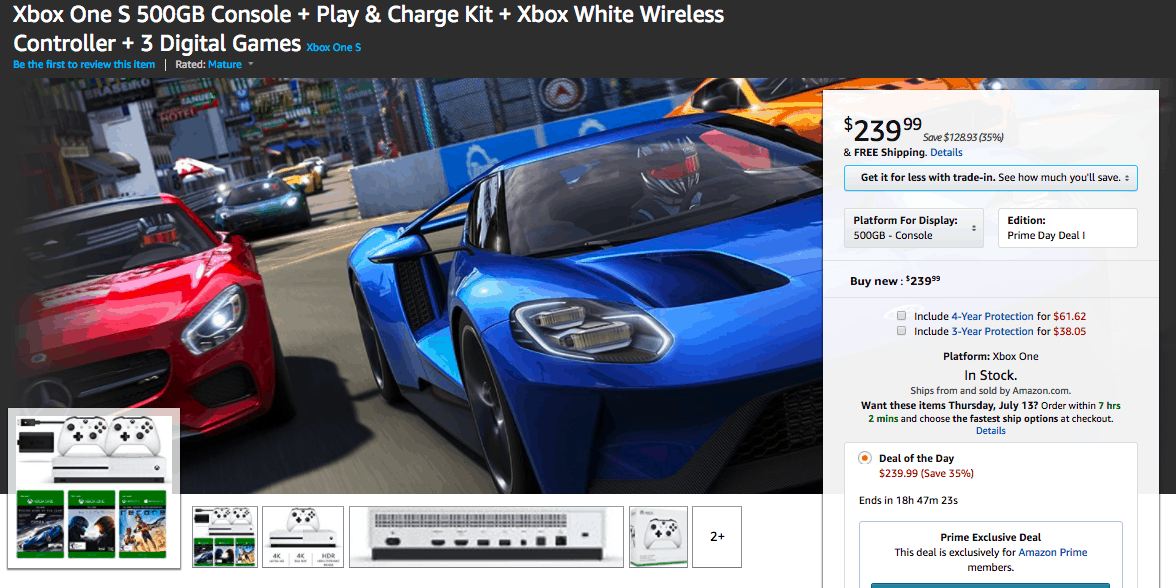
If you have yet to purchase an Xbox One console, Amazon is currently offering great discounts on Xbox One S bundles for its massive Prime Day sale. In the US, Amazon Prime members can choose between a $290 bundle including a 1TB Xbox One S console and a lot of goodies, and a slightly less generous $240 bundle with a 500GB Xbox One S (via Windows Central). Here are all the details below:

For $289.99 ($31% off), the first bundle includes a 1TB Xbox One S (white) plus two wireless controllers, a Play & Charge kit, a physical copy of Halo Wars 2 and three digital games (Halo 5: Forza Motorsports 6, Halo 5: Guardians and ReCore).

The first bundle

For $239.99 (31% off), the second bundles includes a 500GB Xbox One S with two wireless controllers, a Play and Charge Kit and the same three digital games.

The second bundle

In the UK, Amazon Prime members can also save big on a £179.99 bundle including a 500GB Xbox One S console, 2 wireless controllers, a chatpad and headset, a physical copy of Minecraft Favorites Pack and a download code for Forza Horizon 3. All these deals will only be available today for Amazon Prime members, and if you’re not a subscriber we remind you that you can try the service for free for 30 days.

Microsoft 365 is the company’s new cloud services bundle for businesses

Microsoft recently announced ‘Microsoft 365’, which is a new bundle of its cloud services for business customers. In a nutshell, it replaces the old ‘Secure Productive Enterprise’ bundle from last year, and the branding is now simple and clear. The announcement was made at the Inspire conference, where Microsoft discuses its partnerships with more than 17000 attendees. If you’d like to see all announcements, you can watch the full keynote here.

The company already sells Windows and Office subscriptions, but Microsoft 365 is meant to combine Windows 10, Office 365, as well as Microsoft’s mobility and security suites into one big subscription package. The tagline here is that “people are at the heart of digital transformation”. These services allow your employees to work and collaborate with ease, even when moving from one device to another. The bundle is also about Microsoft encouraging more use of its cloud services.

There are two flavors to choose from: Enterprise and Business. The first is designed for large organizations, while the second is more suitable for small and medium-sized businesses with no more than 300 users. For those of you who don’t know, you also get Intune, Azure Active Directory, and Azure Cloud App Security, and Threat Analytics as part of the deal. This should make device management and security an easier job.

Microsoft 365 Business will first arrive in preview form on August 2, and will be offered at $20 per user per month. Pricing for Microsoft 365 Enterprise varies depending on the particular plan the company choses when they sign up. If last year’s bundle prices are any indication, this could be around $36 and $54 for the E3 and E5 plans, respectively. Large organizations should be able to take advantage of these plans by the end of this summer.

Pushing further with Azure Stack

This news is perfectly in line with the Redmond giant’s strategy of powering the cloud that many companies will rely on. The company also announced Azure Stack hardware, which is a way for companies to host their own hybrid cloud. According to market research firm Gartner, most companies are still in the early stages of digital transformation. Microsoft said they already have more cloud partners than Amazon, Google and Salesforce combined. This brings confidence in the company’s ability to secure its future in the cloud space.

pie chart of digital transformation
Source: Gartner

To underline the momentum in the enterprise space, here are a few more interesting stats from the Inspire conference. No less than 70% of top 500 global companies are on track to have dedicated teams for digital transformation by 2019. To put it in perspective, Gartner estimates put these initiatives at $2.2 trillion, and Microsoft touts 19% higher margins for their partners when compared to the competition. And 80% of senior executives are sold on the importance of digital transformation, which is something to keep in mind if you’re on the fence.

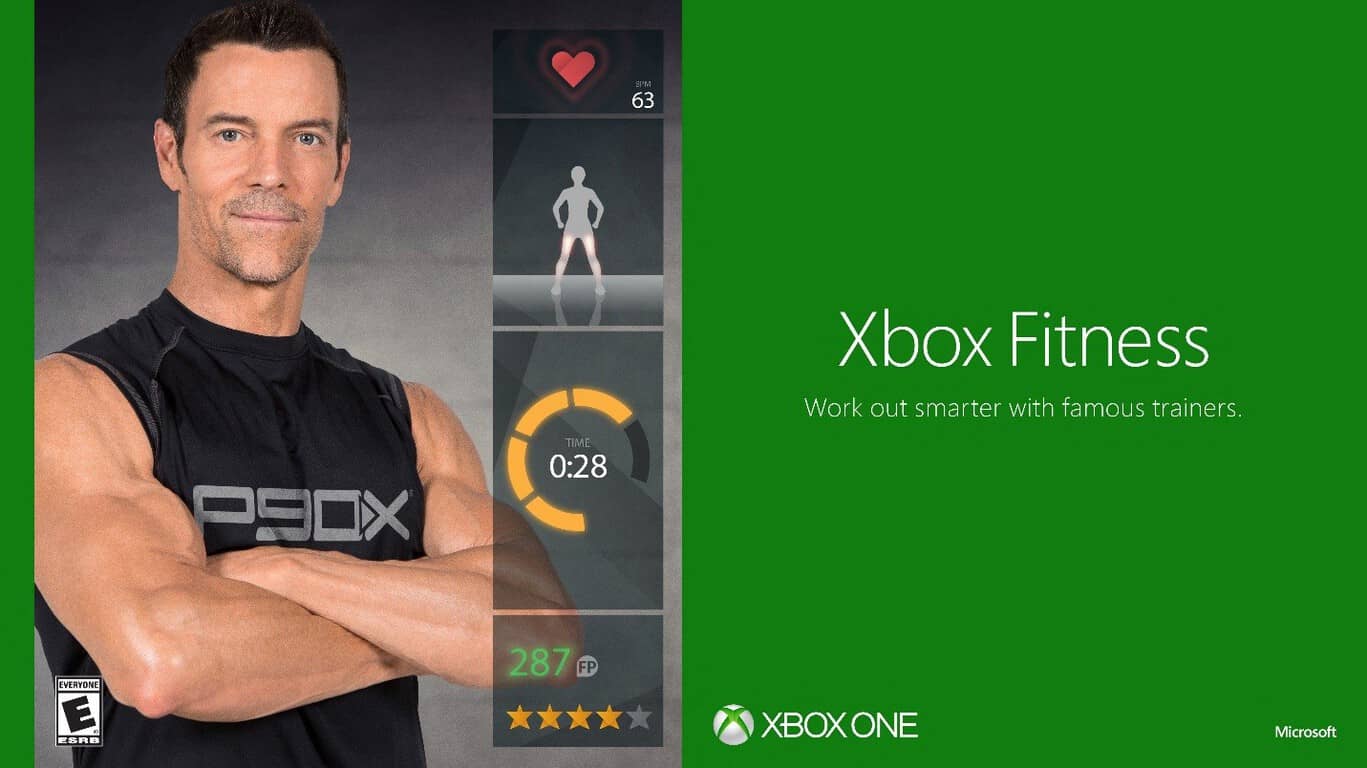
Microsoft’s Xbox Fitness has finally shut down

For a while, it looked as if Microsoft had gifted loyal Xbox Fitness users with full functionality for downloaded workouts after the apparent July 31st closure of the Xbox One fitness title but unfortunately within the last 24 hours, all of the programs have now completely stopped functioning and even cause Xbox Fitness to crash when being attempted to play.

Currently, the Xbox Fitness app itself still opens and users can view all of the leaderboards and score cards. It’s only the workouts which no longer work.

The closure of Xbox Fitness had been planned for a while now but many loyalists, who had been using it since the launch of the Xbox One several years ago, had been hoping that Microsoft was going to introduce a replacement for it. So far no new first-party fitness or health program has been announced for the console.

Were you a fan of Xbox Fitness and do you think Microsoft made the right decision in closing it? Let us know in the comments below.

Minecraft Story Mode Season 2 now available on Xbox One

The first episode of Minecraft Story Mode Season 2 is now available to buy and download on Microsoft’s Xbox One video game console. The game picks up where Season 1 (simply called, Minecraft Story Mode) left off and players can choose to carry over their previous choices and continue the storyline or start afresh with a new game not affected by their playing of the first game. Here’s the official description:

Now that Jesse and the gang have vanquished the Wither Storm, saved the world, and become totally super famous heroes, life has gotten a bit more…complicated. With more responsibilities and less time for adventure, old friendships have started to fade — at least until Jesse’s hand gets stuck in a creepy gauntlet that belongs to an ancient underwater temple. Together with old pals and new comrades alike, Jesse embarks on a brand new journey filled with tough choices, good times, and at least one temperamental llama.

Buy Minecraft Story Mode Season 2 on Xbox One

Minecraft Story Mode Season 2 will consist of five episodes which each episode being available individually or together as part of the Season Pass. Are you a fan of Minecraft Story Mode? Let us know in the comments below.

How to stop iTunes from opening when iPhone is connected

iTunes is a media player compatible with both Mac and Windows platforms. However, iTunes automatically opens whenever you connect an iPhone to a PC whether you need to run it or not. This is due to the media player’s automatic syncing options that are on by default. If you don’t need to open the software or sync devices, this is how you can stop iTunes 12 from opening when an iPhone is connected to Windows desktops or laptops.

Deselect the Automatically sync when this iPhone is connected setting

  • First, plug your iPhone into a laptop or desktop with its USB cable. iTunes will automatically open.
  • Click the iPhone icon at the top left of the iTunes window.
  • Click Summary.
  • Deselect the Automatically sync when this iPhone is connected option

  • When you’ve deselected the Automatically sync when this iPhone is connected option, press the Apply button to confirm the new settings.

Configure the Device-Syncing Setting from Devices Preferences

  • You can also ensure iTunes doesn’t automatically open by adjusting an option on the Devices Preferences tab. Click Edit at the top left of the iTunes window.
  • Select the Preferences option from the Edit menu.
  • A General Preferences window opens that includes a Devices tab. Select the Devices tab on that window.

  • Click the selected Prevent iPods, iPhones, and iPads from syncing automatically check box shown below. Deselecting the option ensures that no devices sync with iTunes and that the software doesn’t open when you connect an iPhone with Windows laptops or desktops.

  • Press the OK button.

By configuring those settings, you have effectively switched auto syncing off. This ensures that iTunes no longer automatically opens to sync with devices when you connect the iPhone with Windows PC. However, that also switches off automatic backups for the mobile.

OneDrive now requires the use of NTFS drives

Microsoft just made a sudden change to OneDrive, and now it requires the use of NTFS drives. This change caught people off guard when they discovered the fact that they couldn’t access their files. Another annoying thing is also the lack of communication.

NTFS replaced FAT32 and cross compatibility with Linux and macOS is only one of the various reasons for which many people choose the format for SD cards and external drives.

Formatting drives using NTFS

OneDrive users are now being able to see warning messages about the need to format drives using NTFS, and despite this, Microsoft keeps insisting that there is nothing changed and the company also forgot to display a warning message until now.

It is still not clear how many users have been affected by this change, but there are certainly many complaints about it, and you can see them online. Microsoft’s insistence that this is purely business, as usual, seems kind of strange and it is in contrast to the experience of those who cannot access their data anymore.

The company stated that it wants its users to have the best possible sync experience on Windows and this is the reason for which OneDrive maintains the industry standard of NTFS support. The company admitted that it discovered that a warning message was missing when a user tried to store their OneDrive folder on a non-NTFS filesystem, and the problem was fixed right away.

The official support is the same, and OneDrive folders will continue to need to be located on a drive with the NTFS filesystem, according to the company.

All in all, it’s useful that Microsoft finally realized that a warning message was missing, even if the company’s explanation doesn’t please most of the OneDrive users.

RELATED STORIES TO CHECK OUT:

Fix ‘Your OneDrive folder can’t be created in the location you selected’

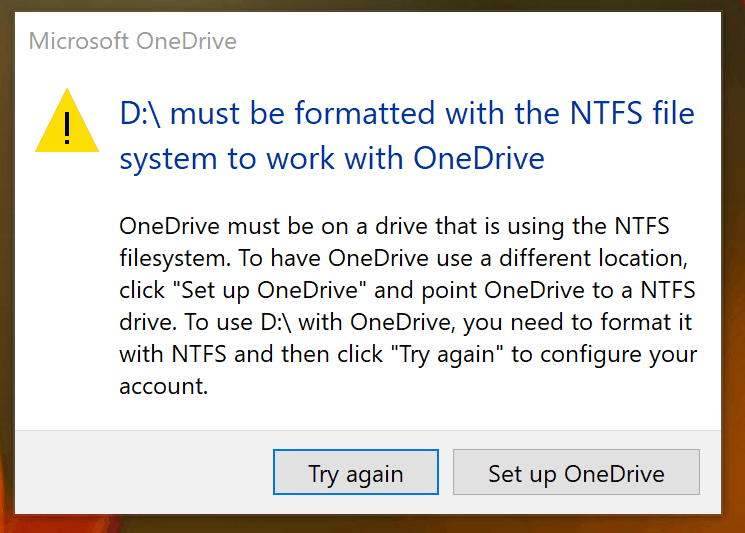
OneDrive users have recently been getting warning messages that the cloud synchronisation has stopped working with the drives that are non-NTFS. What this means is that partitions that are Fat32 or REFS will not be synced by the OneDrive, instead, users will be greeted with the following message,

“Drive” must be formatted with the NTFS system to work with OneDrive. OneDrive must be on a drive that is using the NTFS filesystem. To have OneDrive use a different location, click “Set up OneDrive” and point OneDrive to an NTFS drive. To use “drive” with OneDrive, you need to format it with NTFS and then click “try again” to configure your account.”

The Problem

Users who opted a non-NTFS storage at the beginning were also greeted by a warning message that says,

“Your OneDrive folder can’t be created in the location you selected.

The location you were trying to create OneDrive folder belongs to a drive with an unsupported file system. To have OneDrive use a different location, click “Set up OneDrive” and point OneDrive to an NTFS drive. To use the existing location with OneDrive, you need to format it with NTFS and then click “Set up OneDrive” to configure your account.”

The Solution

The problem is that users were not noticed the change earlier and it happened all of a sudden. The worst part is that apart from Fat32 and exFAT other users who used Microsoft’s latest ReFS file system were also blocked from synching to OneDrive. This issue is also affecting SD cards that are used for extra storage and are in ReFS format. It’s worth noting that ReFS format has its own advantages over the others including integrity checking, data degradation protection mechanism and a mechanism to automatically handle hard disk failures.

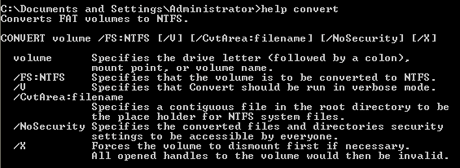
Convert Fat32 into NTFS by using Covert.exe

  • Click Start>Run>CMD and then press enter
  • In the command window type help convert, the information regarding the process will be displayed.

Convert Fat32 to NTFS using the command prompt

  • Fire up command prompt by heading over to “All Programs”, “Accessories” and then click on “Command Prompt”
  • In the command prompt, type:-convert drive_letter: /fs:ntfs

Please bear in mind that once converted to NTFS the drive cannot be converted back to FAT 32. With the command above you can convert FAT or FAT32 volumes to NTFS. It is recommended that after the conversion one needs to restart the PC. The OneDrive will now let you choose the partition and will automatically sync the files on your cloud drive.

However, it is still wrong on Microsoft’s part to have implemented this change without any prior announcement. The least they could have done is explained why they dropped support for ReFS, a format that Microsoft itself touts as “next generation”.

Microsoft 365 introduced today at Inspire, brings together Office 365, Windows 10 and Enterprise Mobility, Security

At Inspire 2017 today, Satya Nadella introduced Microsoft 365. The new solution shows a shift and will bring together Office 365, Windows 10 and Enterprise Mobility, Security, into one complete and secure solution.

According to a post penned by Kirk Koenigsbauer, corporate vice president for the Office team, Microsoft 365 addresses the commercial needs from the largest enterprise to the smallest businesses. It comes in two forms, Microsoft 365 Enterprise and Microsoft 365 Business. Microsoft 365 Enterprise is for large organizations and integrates Office 365 Enterprise, Windows 10 Enterprise and Enterprise Mobility + Security.

Secondly, Microsoft 365 Business is designed for small-to-medium sized businesses with up to 300 users, also integrating Office 365 Business Premium with tailored security and management features from Windows 10 and Enterprise Mobility + Security. You can learn more about these solutions below.

Microsoft 365 Enterprise: (Will replace Secure Productive Enterprise)

  • Unlocks creativity by enabling people to work naturally with ink, voice and touch, all backed by tools that utilize AI and machine learning.
  • Provides the broadest and deepest set of apps and services with a universal toolkit for teamwork, giving people flexibility and choice in how they connect, share and communicate.
  • Simplifies IT by unifying management across users, devices, apps and services.
  • Helps safeguard customer data, company data and intellectual property with built-in, intelligent security.

Microsoft 365 Business:

  • Helps companies achieve more together by better connecting employees, customers and suppliers.
  • Empowers employees to get work done from anywhere, on any device.
  • Protects company data across devices with always-on security.
  • Simplifies the set-up and management of employee devices and services with a single IT console.

Also new and announced at Inspire 2017 is the preview of three tailored Office 365 applications for small-to-medium sized customers. Microsoft Listings, Microsoft Connections, and Microsoft Invoicing. These applications will be coming soon to Office 365 Business Premium and Microsoft 365 Business.

Microsoft 365 Enterprise will be offered in two plans, Microsoft 365 E3 and Microsoft 365 E5. Both are available for purchase on August 1, 2017. Similarly, Microsoft 365 Business will be available in public preview on August 2, 2017, with general availability coming worldwide in the fall of 2017, priced at $20 per user, per month.

Mozo Sneaker Sleeves are a stylish and functional companion for your Surface Pro

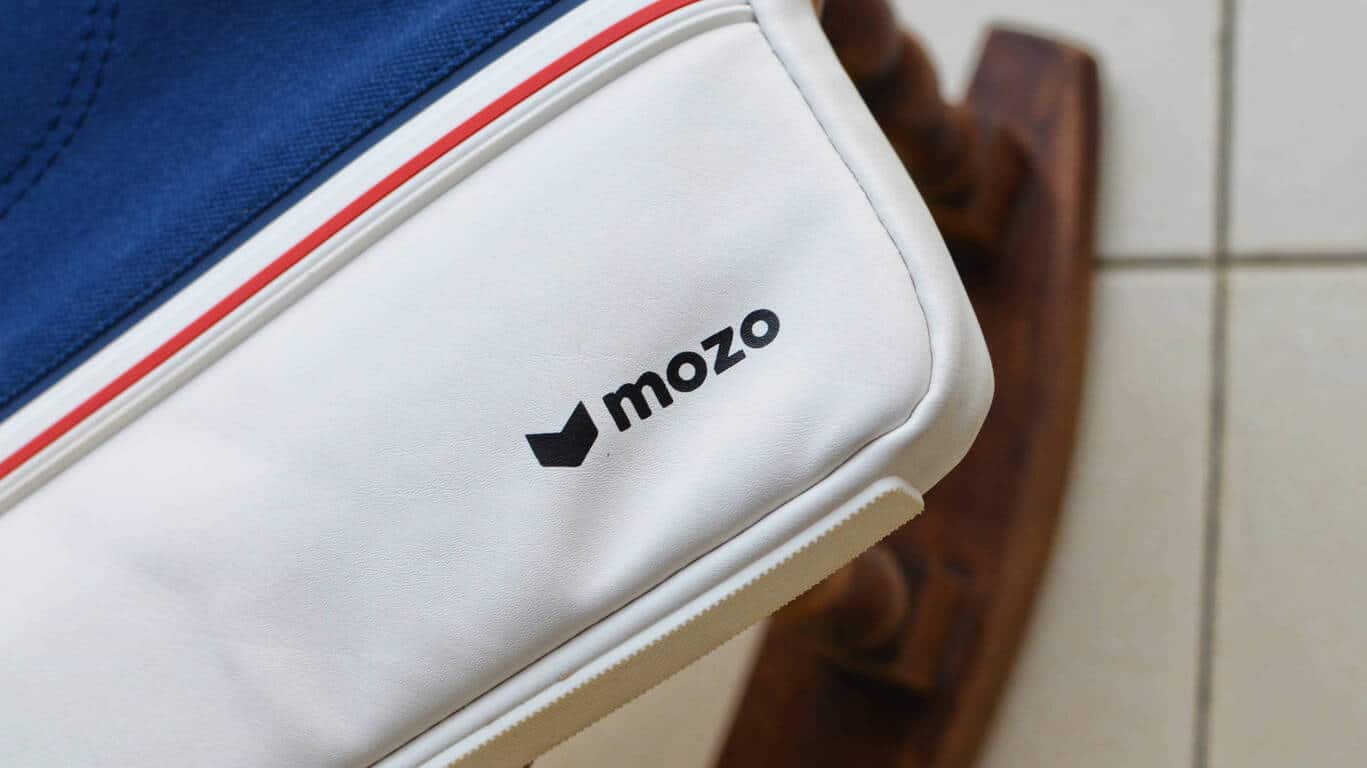
While I was pretty excited about buying the new Surface Pro last month, I was also kicked to finally pair it with my new Mozo Sneaker Sleeve for Surface.

Mozo Accessories, the accessory maker from Helsinki, Finland, has made several accessories for Microsoft products, and came into prominence around the launch of Lumia 950 and Lumia 950 XL with some nice back covers and cases for the same. Of course, it made sense for the company to pivot to the more popular Surface line-up.

Inspired by the quintessential canvas sneakers – like those from Vans or Converse – the Mozo Sneaker Sleeves come in two color variants – red and blue. There’s a black variant as well but differs in the material (PU all over) and also in the looks. There’s no strap or handle on these sleeves, so you can’t carry them around like bags.

Made from a combination of canvas and PU leather, the Mozo Sneaker Sleeve sports an interior lining of a soft cotton canvas. There’s a zipper pocket on the front outside, and a divided pocket inside as well. The interior pocket helps fit not only the device but also other accessories like the charger, without scratching you device.

The Sneaker sleeve does not just carry the ‘sneaker’ moniker, but also looks the part. The chunky zippers add to the street-smart aesthetics, and are definitely more reliable in the long run. The rubber foot at the bottom is a neat addition. One, it totally looks like a sneaker sole and adds protection at the bottom, and also gives it a little base to be placed vertically aligned with a chair or something.

Of course, the sleeve is not just for a Surface Pro or Surface Book, and most 13-inch laptops and 2-in-1s, like the Dell XPS 13 that I tried, should easily fit. The sleeve measures 33.5 x 25.5 x 2.5 cm.

Overall, the Mozo Sneaker Sleeves are a work of art and bring together fashion and functionality in a perfect way. Even though I’m not much of a sleeve fan, I find myself lugging around my Surface Pro in this sleeve most days of the week now. The bright blue and red canvas design should appeal to a lot of young people. I’d really like to see Mozo making messenger bags or briefcases in similar design, and I’d totally buy one.

The sleeves were originally priced at €49.90, which was a tad expensive, but are now available for only €29.90 ($34), which is a steal really. There’s a moderate bit of protection, and the design’s pretty rad.

Microsoft news recap: CIO leaves the company, BBC Newsnight looks at Microsoft’s AI research lab and more

Microsoft (MSFT) news recap is a weekly feature highlighting the top Microsoft news stories of the past week. Sit back, grab some coffee, and enjoy the read!

Microsoft’s Chief Information Officer departs, and Kurt DelBene replaces him

In part due to Microsoft’s global sales force reorganisation, which is aimed at cementing the company’s focus on cloud services, the Chief Information Officer, Jim DuBois, has left the company, and is being replaced by a new role – Chief Digital Officer – to be taken up by Kurt DelBene.

Photo showing a Microsoft employee speaking in front of a large blue screen showing a white cloud OneDrive icon

Microsoft’s back-to-school deals begin today, run through September 17th

If you’re looking to grab some Microsoft products or services over the coming weeks and months, now is the time, as the company has kickstarted its back-to-school deals, which will run until September 17th.

Microsoft, Microsoft Store, Deals

BBC Newsnight takes an exclusive backstage look at Microsoft’s AI research labs

Ever wanted to take a behind-the-scenes look at Microsoft’s AI research lab? Now you can. BBC Newsnight got exclusive access to Microsoft’s AI lab. Take a look below.

Microsoft and Baidu partner to bring AI powered vehicles to the automotive market

Speaking of AI, this week saw a new partnership between Microsoft and Baidu. With this partnership, the company’s hope to bring AI-powered vehicles to the automotive market, specifically in the self-driving vehicle area, as part of Baidu’s Apollo driverless car project.

That’s it for this week – we’ll be back next week with more Microsoft news.

Windows 10 news recap: OneNote receives new features, Surface Pro’s randomly hibernating and more

Welcome back to our Windows 10 news recap. We are continuing the trend of our weekly “Windows 10 news recap” series where we go over the top stories of the past week in the world of Microsoft’s flagship operating system.

VBScript now disabled by default on Internet Explorer 11 on Windows 10 build 16237, security patch coming to other Windows versions

On the latest build for Windows 10 Insiders on build 16237, Internet Explorer 11 now has VBScript disabled by default. Additionally, those on older versions of Windows will see VBScript disabled by default in a future security patch. For many, this will help make Internet Explorer 11 that little bit securer, as VBScript is often an attack vector.

Custom pens, multi-window support, and more come to the standard OneNote app on Windows 10

OneNote on Windows 10 has received quite a hefty update, which adds a number of new features, such as:

  • See multiple notes at the same time
  • Pen customisation
  • Immersive Reading

Take a first look at the Acer Mixed Reality headset (video)

Sean Ong has given us a first real look at Acer’s attempt at a Mixed Reality headset, showing off the unboxing, set-up and actual use of the headset.

Some new Surface Pros are randomly hibernating, Microsoft is investigating

An annoying issue has cropped up on some new Surface Pro devices whereby the device will simply hibernate randomly. Microsoft has said that it is investigating the issue. Around 300 users have reported the issue, with some reports of data loss.

Surface Pro

That’s it for this week – we’ll be back next week with more Windows 10 news!

Here are the best entertainment apps for PC

After a hard day of work, we all want to relax a bit and forget about the hassle and bustle of the day that is coming to an end. One of the simplest ways to do that is by launching an entertainment app.

Watching your favorite music or listening to your favorite songs is a great way to end your day. If you don’t know which entertainment apps to install on your PC, this article may help you. Here, you’ll find the best entertainment apps for Windows 10 PCs.

The best entertainment apps for PC

Netflix


Netflix is an excellent app that you can use to watch your favorite TV shows. You can get the app for free as a part of your Netflix membership. If you are not a Netflix member, you can sign up for a one-month free trial.

With a Netflix membership, you get access to unlimited TV shows and movies for a very low price. You can watch as many TV episodes and movies as you want, anytime. Another interesting feature is that you can start watching on one device, and resume watching on another.

You can download the Netflix app for free from the Windows Store.


Spotify


Spotify lets you play your favorite songs for free on your Windows 10 PC. You can also browse the charts or listen to readymade playlists for every genre and mood.

The app can learn what music you love, and stream your favorite tracks on the radio. Spotify also helps you discover new music, offering your a series of playlists built just for you. If you’re an avid podcast or audiobook listener, you can use this app to listen to your favorite content.

You can download Spotify from the Windows Store.


Pandora


Pandora is an interesting entertainment app that plays the music you love. Its content evolves with your taste. You can browse hundreds of genre stations to find the perfect match for your mood.

You can use this app with Cortana, your personal assistant. If you want to listen to a particular song, you can ask Cortana to play it for you.
You can download Pandora from the Windows Store.


iHeartRadio


iHeartRadio brings your favorite music and radio station to a single place. The app features thousands of live radio stations, as well as custom stations that you can control.

You can select the radio stations that you want to listen to depending on the music genre they stream. You can also create your station from a library of 20 million songs and 800,000 artists.

You can download iHeartRadio for free from the Windows Store.


Groove Music


Microsoft’s own entertainment app, Groove Music lets your enjoy all your music on your Windows PC. You can add your favorite tracks and create a playlist that suits your mood, or enjoy Groove’s ready-made playlists.

Groove Music is also available on Windows Holographics, Xbox One and Windows phones. You can try the app for free for 30 days, and you can cancel it any time.

You can download Groove Music from the Windows Store.

We’ll end our list here. If you’ve got any suggestions for other entertainment apps, use the comment section below to let us know.

Protect your PC from ransomware and malware with Windows Defender’s new Controlled Folder Access

Windows Defender is one of the most widely used antivirus programs since Microsoft bundles it with their operating systems. The Defender has improved drastically ever since it was first released along with the Windows 7. The latest feature of Windows Defender is Controlled Folder Access and is being tested out in Insider Builds. It’s likely that Microsoft will introduce the new features to the Windows 10 Fall Creators update.

Controlled Folder Access is designed to protect certain folders and files from unauthorized access, working like a physical safe that people use to safeguard their things. The Controlled Folder Access will offer an additional layer of security for the protected folders.

Like all of the other new features, the Controlled Folder Access is also not enabled by default. In order to activate it, go to preferences and enable the feature by toggling it and adding a minimum of one folder to protect.

  • Open the Settings menu on Windows 10
  • Select Update & Security>Windows Defender
  • Ensure that the Windows Defender is activated
  • Select “Open Windows Defender Security Center”
  • Select Virus and Threat Protection
  • Search for “Controlled Folder Access on the page” and toggle it on

In the next step add Protected folders, you can add both single folders or multiple ones.

Is it better than third party data vaults?

For the most part, dedicated encryption software is more powerful than Windows Defender Centre. But if you want to protect some of your files from unauthorized access without much hassle, than Controlled Folder Access is the perfect way to do so – sort of how like smartphone manufacturers are offering partitions for secret and confidential files on their devices.

Enable Windows 10 block protection in Windows Defender for a better security

Yet another dimension is that the Windows operating system prevents apps from making changes to the protected folders or files, something that will protect  files from ransomware invasion. In case an app tries to modify or access the protected folder, Windows Defender will notify the user about the same. While it’s still premature to judge the Controlled Folder Access feature, we can all agree that it’s a useful feature nevertheless.

Paper Abrasion Setting on Canon Printer: How to Turn Off

Canon printers include a Prevent paper abrasion setting that you can select to reduce smearing on paper.

While this is a useful feature that can help if the printer makes indents on paper. While it’s enabled, you’ll always get a window mentioning that this feature will impact the printing quality.

It can get quite tedious after a while, so today, we will show how to prevent it.

What is paper abrasion on Canon printer?

  • The Prevent paper abrasion setting widens the space between the paper and the print head.
  • This helps reduce smudging and smearing while printing.
  • It can also spoil the print quality a little while printing.

How do I turn off paper abrasion on my Canon printer?

Adjust the printer settings

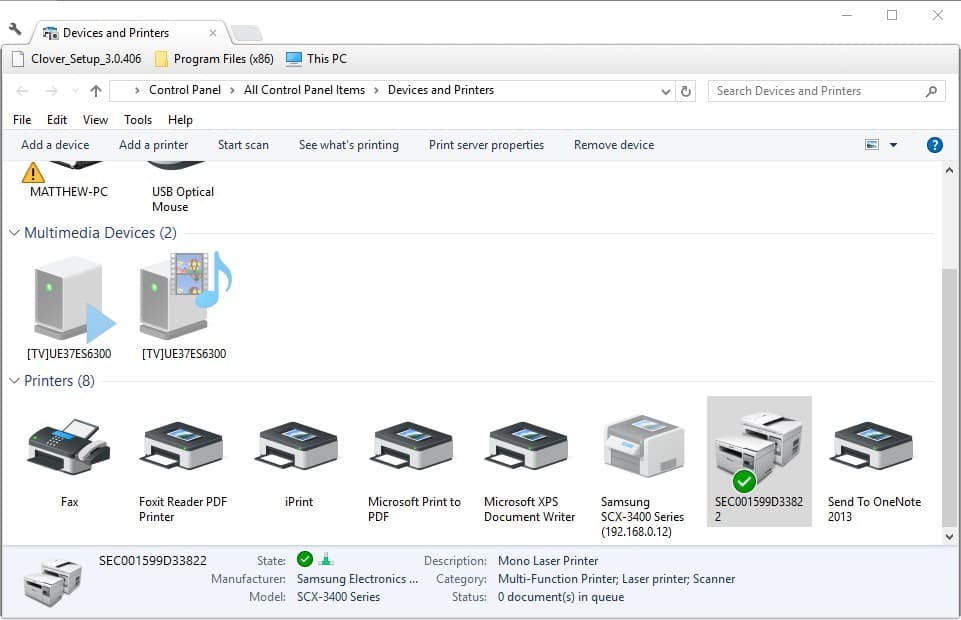
  1. First, open the Devices and Printers tab. You can do that in Windows 10 by clicking the Cortana button and entering Devices and Printers in the search box.
  2. Select Devices and Printers to open the Control Panel tab shown directly below.
  3. You can right-click the listed Canon printer you’re printing with from the Devices and Printers tab. Select Properties from the context menu that opens.
  4. Click the Maintenance tab on the Canon Properties window.
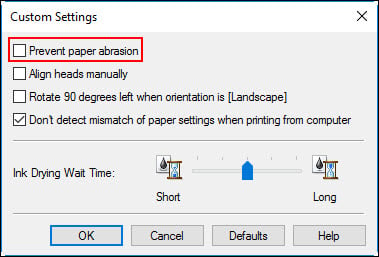
  5. Press the Custom Settings button on the Maintenance tab to open a Custom Settings window.
  6. The Custom Settings window includes a Prevent paper abrasion option. Click that setting’s check box to deselect the option.
  7. Then press the OK button to confirm the adjusted settings.
  8. Press the Apply and OK button on the Properties window.

Now the paper abrasion setting on the Canon printer will be disabled. Deselecting the paper abrasion setting might also enhance print quality a little.

To learn more about Canon printers, check our guide on paper jam on Canon and see how to fix it properly.

Did you find this guide helpful? If so, let us know in the comments section below.

Kaspersky DDoS Protection Connect helps small and medium businesses thwart cyber threats

The DDoS (Distributed Denial of Service) is the preferred way for attackers to take down websites. Attackers make the website or online service unavailable by sending an overwhelming amount of traffic, usually targeting banks, news outlets and e-commerce websites at scale with the help of infected computers, often referred to as the ‘botnets.’

Once exploited, attackers are able to control the machines remotely and launch an attack on their target. In order to defend against attacks, Kaspersky has launched a new version of Kaspersky DDoS Protection Connect designed specifically for small and medium businesses. This is perfect timing after a recent report found that a week-long DDoS attack can be bought for as little as $150 on the dDark web.

Unlike larger organizations, small and medium size companies suffer a lot since they usually don’t have the resources to ward off the attack. As per Kaspersky’s report, a single DDoS attack can cost a small organization in excess of $123,000 plus the amount spent to repair the damage along with productivity/business loss.

What’s new?

We already know about Kaspersky DDoS Protection services but the new program comes with certain features that are high on utility. For instance, the new DDoS Protection program doesn’t require an installation of a special sensor inside the customer’s infrastructure and it’s mostly a DIY effort that doesn’t require help from IT professionals.

Also Read: 5 best DDoS protection software to use

The Special mode offered by the DDoS protection suite constantly keeps an eye on incoming traffic with the help of scrubbing centers. Kaspersky has also achieved a better cost to features ratio by limiting the number of resources and the threshold of the volume. On the contrary, Kaspersky DDoS protect is for more comprehensive coverage in order to thwart attacks of any magnitude.

“Because SMBs have limited resources, they often can’t afford to protect themselves with an anti-DDoS system within their own infrastructure and have the necessary IT staff to maintain it. Efficiency, affordability and minimal technical support – that’s what small companies need when it comes to cybersecurity. The more companies that are protected against DDoS, the less effective this kind of illegal business will be. And, the more successful we are at protecting businesses from DDoS, the greater our contribution will be in fighting this threat. That’s why we have developed a solution that serves this vulnerable group of businesses”-Kirill Ilganaev, Head of Kaspersky DDoS Protection, Kaspersky Lab
Xbox Live Gold members can enjoy Middle-earth: Shadow of Mordor free this weekend

If you’re looking for a game to play on your Xbox this weekend, you might want to check out  Middle-earth: Shadow of Mordor. Microsoft has announced that the open world action role-playing video game will be free to play this weekend for Xbox Live Gold members.

The free play will run from Thursday, July 6 at 12:01 am PDT to Sunday, July 9 at 11:59 pm PDT. During the same period, you can purchase the title for  80% off the regular price. And, if you decide to purchase the game, your saved progress and achievements from the free play will also carry over.

To find the game, all you need to do is to head to the Xbox Store and search for  Middle-earth: Shadow of Mordor. Once you have downloaded, you can play as much as you want for free up until July 9 at 11:59 pm PDT.

As a reminder, Shadow of Mordor was recently updated with the ability to export your enemies and companions into Shadow of War.  This means you will easily be able to enjoy the next installment to the series once it is released on October 10th on Xbox One.

Microsoft’s back-to-school deals begin today, run through September 17th

Even though the last school year just ended, Microsoft is getting a jump on the new school year with some awesome deals from the Microsoft Store. Recently, Microsoft unveiled the new Surface Pro and Surface Laptop, so it’s time for Microsoft to offer some great deals before the new school year even begins.

Starting today and running until September 17, 2017, Microsoft Stores across the US are offering up to $150 off Surface Book, Surface Pro 4, and Xbox One. Additionally, college and university faculty, students, and staff can get an extra 10% off.

Here is a list of the back-to-school deals that Microsoft is offering:

Surface Pro 4
  • Surface Pro 4 and a black type cover for $999. $899 (additional 10% off) for students (with valid student ID). Additionally, students and teachers get Office 365 for Education for free, which includes Word, Excel, PowerPoint, OneNote, and now Microsoft Teams, with additional classroom experiences. All you need to get started is a valid school email address.

  • Save up to $150 on Surface Book. As an added bonus, you can receive a free 3-month Groove Music membership with any Surface Pro 4 or Surface Book purchase. Microsoft Store’’s Recycle for Rewards program allows customers to trade in their old devices including laptops, tablets, phones and gaming consoles for up to $850 off a new Surface Pro or Surface Laptop.
  • Receive a 3-month Groove membership with any Surface purchase. Surface devices are well-crafted, beautiful devices that help people get stuff done, and with a Groove Music Pass, you will have access to millions of ad-free songs, custom and expert-curated playlists and artist radio.
  • Get creative with a free Intel Software Starter Pack with eligible PCs: Receive the software bundle, worth $429, with seven apps centering around creativity, entertainment, and productivity when you purchase an eligible PC, including Dell XPS 15, Dell XPS 13, HP Spectre x360, and Lenovo Yoga 910.
Xbox One S
Xbox One S

Be sure to visit Microsoft.com for more information on these deals or pop in to your local Microsoft Store. Microsoft Store staff are ready, willing, and able to help you find the right Windows 10 device to help you with work or school.

Enjoy the rest of your summer!

Some new Surface Pros are randomly hibernating, Microsoft is investigating

A few weeks ago, a select group of Surface Pro owners took to the Surface Subreddit and the Microsoft forums to vent about hibernation and random shutdown issues occurring on their new devices. Though the issue still appears to be linked to only a small set of users and devices,  a more recent report from Paul Thurrott shows that the issue is still persistent, and Microsoft is now investigating.

The report shows that roughly 300 people have confirmed the hibernation issue, with some people even experiencing a loss of data. In a response on the Microsoft Answers forums, though, Microsoft indicates that they are aware of the issue with a “small group of customers,” and are “investigating the issue.” In the same forum thread, Microsoft MVP Barb Bowman also offers up an explanation and advice for users who are experiencing the issue on their Surface Pro.

“Reading between the lines, I interpret this as they could not reproduce this with their in-house new Surface Pro’s…. They also say “small group”. While there are 200+ me too’s in this thread, and 20 pages of posts, the term “small group” may be relative…. So, in my OPINION, based on the fact that it has historically taken Microsoft months and months to identify issues and come out with a fix and since these devices are still eligible for return for full refund, you may want to consider returning for a full refund and repurchasing. If you do that, you get another 30 days of being able to return and repurchase, etc…”

To be fair, Microsoft has not exactly had a good record when it comes to fixing issues with Surface devices. As Barb Bowman points out, after a customer experiences an issue with a device within six months of purchase, the company would simply exchange it for a refurbished unit, which the quality of  “has not been consistent.” Bowman instead suggests customers who are experiencing this issue should return the device for a full refund while they still can and then consider repurchasing again.

How to generate a battery health report for your Windows 10 laptop or tablet

Device batteries don’t last forever. After a few years of solid use, you’ll notice that your laptop or tablet begins to require charging more frequently as the lithium-ion cells start to age. If you want to monitor your battery’s deterioration, Windows’ built-in battery health report lets you check its state over time.

The battery health report was introduced with Windows 8. It’s a hidden feature that provides a wealth of information on your system’s battery and how it’s faring. You can’t access the report from the Windows interface. It’s only available from an administrator Command Prompt or PowerShell window, so most people aren’t aware it exists.

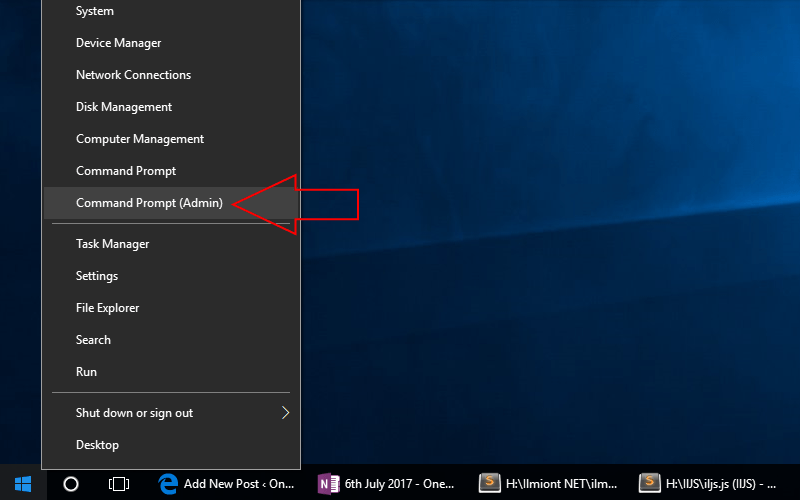
Screenshot of Win+X Command Prompt option

First, open a terminal by right-clicking the Start button and selecting “Command Prompt (Admin)”. On post-Creators Update builds of Windows 10, you may see PowerShell in this menu instead of Command Prompt. It doesn’t matter which you use but you must select the “Admin” version. Confirm the User Account Control dialogue to open the terminal.

Screenshot of cmd battery-report command

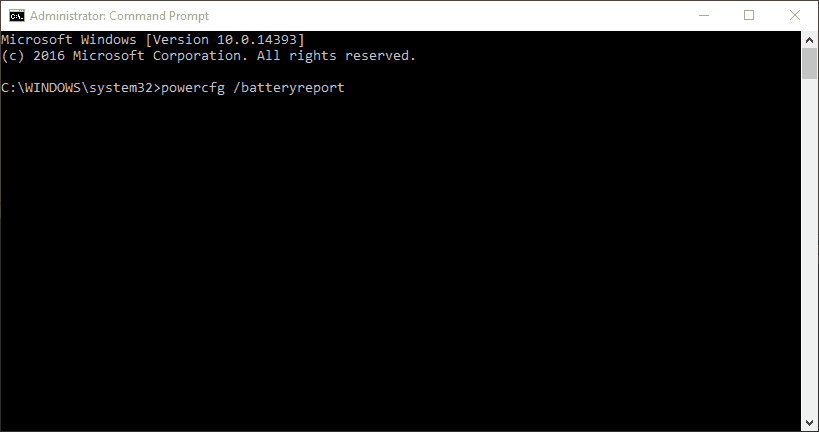
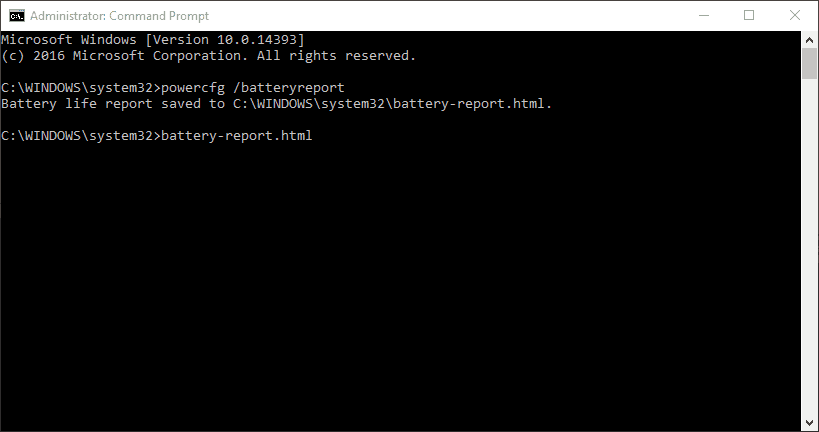
You can only need to type one command to generate the battery report. Enter “powercfg /batteryreport” (without the quotations) and press enter. This will save the battery report to the default location in the Windows folder. It’s generated as an HTML webpage which you can view in a web browser. To open it without leaving Command Prompt, type “battery-report.html” and press enter. This will open the report in your default browser.

Screenshot of cmd battery-report command

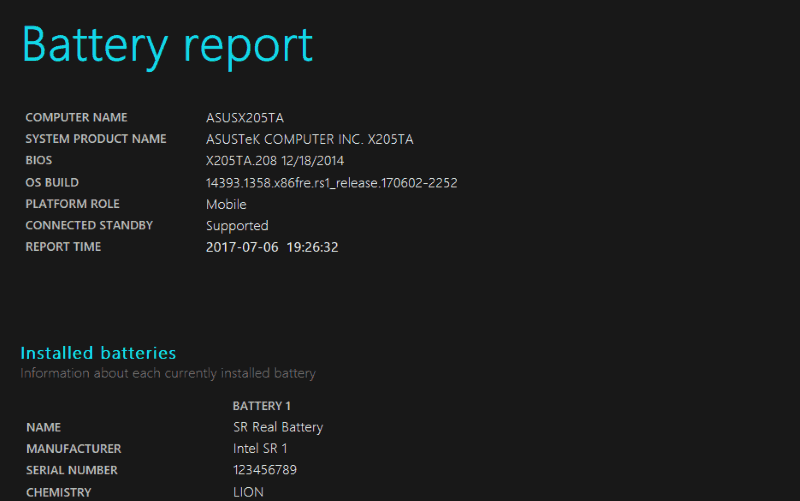
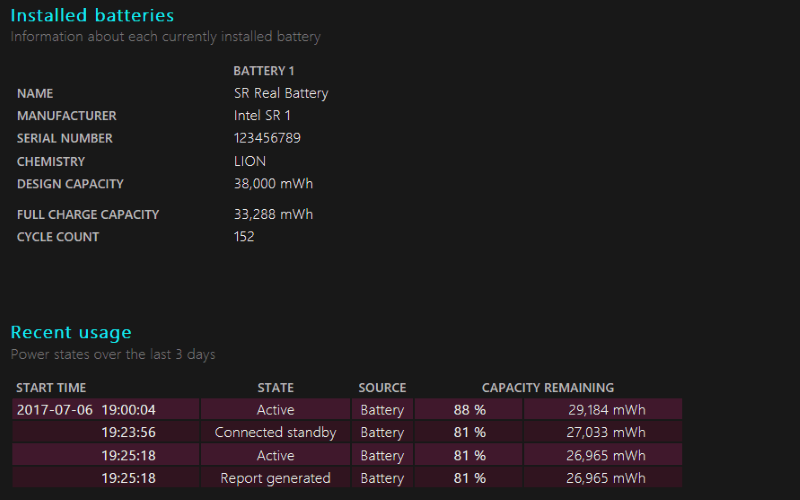
The first section of the report provides some basic information on your device and its batteries. Under the “Installed batteries” subheading, you can see the manufacturer and model of each of your system’s batteries. You can also check the design capacity and current full charge capacity of each battery. The design capacity indicates the theoretical charge of the battery when it was new from the factory.

Screenshot of Windows 10 battery report

The next section shows how your device has used energy over the past three days. You can see when different power-saving modes, such as Connected Standby, were active and how much charge was depleted during each of your sessions. Below this, there’s a detailed “Usage History” report which gives an overview of how long you’ve been using your device for over time.

Screenshot of Windows 10 battery report

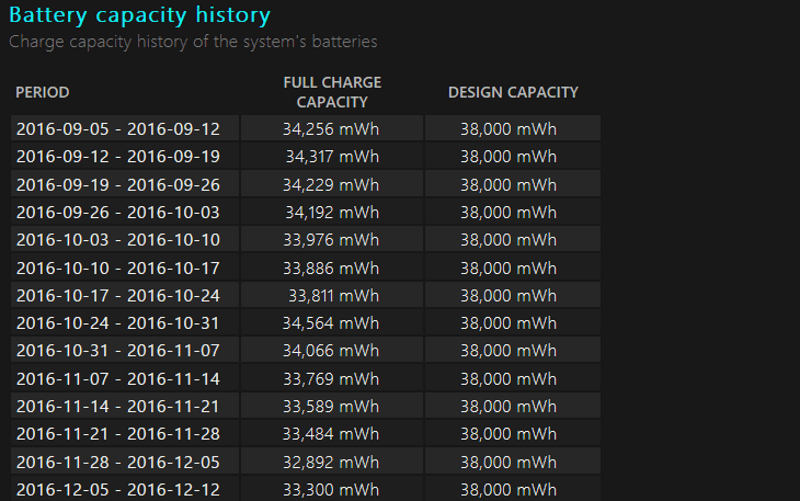
Further down the page, you’ll find the “Battery capacity history” heading. This is the most valuable insight into the degradation of your battery over time. You should see that the “Full Charge Capacity” of your battery gradually gets lower as the months go by. You should notice a gradual downward trend with a few mWh being depleted each month.

Sometimes, there may be anomalies where the full charge capacity heads back up again. Calculating full charge capacity is an inexact science and your battery won’t always charge to the same level on each cycle. However, any significant jumps in the data could signal a defect in your battery. It’s worth checking the report if you suspect a fault is developing.

Screenshot of Windows 10 battery report

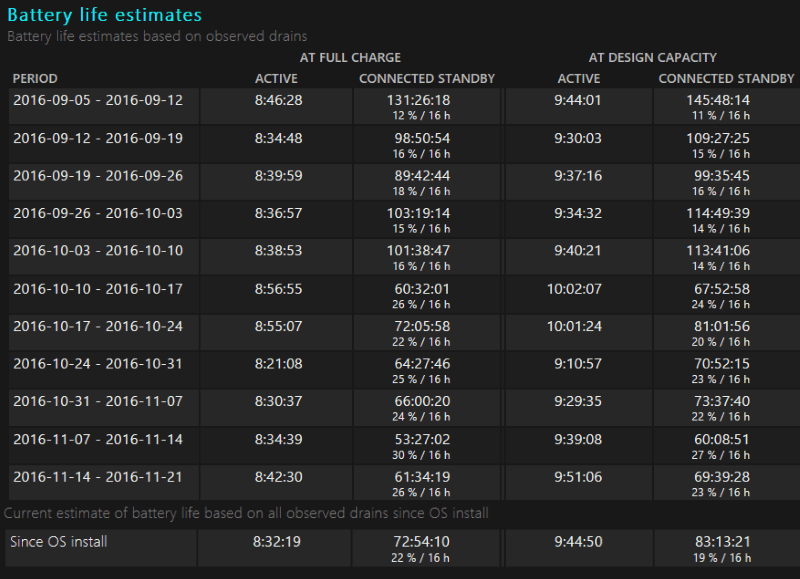
The last section of the report shows how your device’s estimated runtime has changed over time. While this may be expected to decrease in proportion with the battery capacity, in practice the trend could be skewed or non-existent.

Screenshot of Windows 10 battery report

Unless you rigidly use the same apps for months, your real-world battery usage will fluctuate significantly over time. Changes made to Windows in updates might improve efficiency, offsetting the gradual declines in your battery’s capacity. Alternatively, a few late night gaming sessions in quick succession could cause your battery life estimate to plunge, even though there’s been no change to the cell’s capacity.

The best way to assess the reduction in your device’s runtime is by looking at the very last entry in the report. Windows provides you with estimates of your device’s battery life at design capacity and at current capacity, based on aggregate data collected since the operating system was installed. While it’s still far from precise, the quoted figure is the best representation of how the gradual capacity decreases relate to real-world runtime.

Yes, using an NTFS SD card for OneDrive is fine with us, Microsoft says

Just one last thing on this week’s little snafu around OneDrive and NTFS. Over the holiday weekend, users (probably mostly ones like me who had a Surface Pro, an SD card formatted to the “default” ExFAT, and a desire not to use up precious hard drive space) found that their OneDrive installations no longer worked.

Microsoft explained, sorta, and we received a plausible explanation from an interested third party, saying that the new OneDrive placeholder system, called OneDrive On-Demand, required NTFS as it is using something called Reparse Points.

First, a bit of an explainer. A File Allocation Table, or FAT, was first developed way back in 1997 for use on floppy disks, and evolved into pretty much the only vestige still left, FAT32. NTFS actually came even earlier, with an early v1.0 shipping in 1993 but then replaced by v1.1 in 1995, which is incompatible with v1.0. The last major version of NTFS, version 3.1, was released in 2001 along with the launch of Windows XP.

In 2006, Microsoft introduced ExFAT, loosely based on the FAT architecture but incompatible, and optimized for flash drives and USB sticks. It’s the default file system for many systems using SD cards, including Surface devices.

That’s why the sudden shutdown of OneDrive support for ExFAT (and FAT32, ReFS etc.) came as an unpleasant surprise to many. Like myself, many users added an SD card to a Surface Pro, formatted it in ExFAT (the default offered), and pointed OneDrive storage to it.

This worked fine until this past weekend, then it didn’t. Now users are required (and there’s a difference here between “ending support” for something like XP, still used by millions around the world, and OneDrive support for only NTFS, meaning that other file systems no longer work, or at least are prevented from working).

We asked Microsoft if what many users are/have been doing, putting OneDrive on an SD card, is supported:

…does Microsoft support the installation of OneDrive on NTFS formatted SD cards?
Yes, Microsoft does support the installation of OneDrive on NTFS formatted SD cards

We don’t have confirmation that Microsoft now requires NTFS for OneDrive because its new placeholder system, OneDrive On-Demand (we asked a lot of questions, they only answered the one above),  but it seems logical as we know from experience that OneDrive did work just fine on ExFAT. What we do know is NTFS is now required, but according to Microsoft go ahead and keep (or start) using OneDrive on an SD card.

Halo DLC is now free on the Xbox Store

Yesterday, Microsoft announced the Halo Summer Celebration, which includes a 4K update for Halo 5 Guardians, and backward compatibility for Halo 3, and 4. Well, another part of the initial Summer Celebration announcement is now live, as every Xbox 360 Halo add-on map pack in the Xbox Store is now free.

This means that all DLC for Halo 3, Halo 3: ODST, Halo 4, and Halo: CE Anniversary are now free. including map and map packs.  For instance, the Halo 3 Heroic Map Pack, and Halo 4 Forge Island are now all listed as free when searching the Xbox 360 Marketplace for “Halo.”

Now that every Xbox 360 Halo-add on map pack is free, fans of the Xbox exclusive franchise will no doubt have all they need to take advantage of the forthcoming backward compatibility of Halo 3, Halo 3: ODST, Halo 4, and Halo: CE Anniversary on Xbox One. This will no doubt keep Halo players busy, as Halo 6 won’t be talked about by Microsoft anytime soon.

Microsoft and Boku expand carrier billing to Spain, Austria, and Romania

The Microsoft and Boku partnership has already enable carrier billing for Windows Store purchases in regions such as Canada, to the UK, Russia, Turkey, Poland, Italy, and France and this week the payment option expands to include Spain, Austria, and Romania.

“One critical component to the continued expansion and adoption of Windows 10 has been, and will continue to be, the ability for every consumer to make purchases via the Windows Store. To that end, Microsoft and Boku have been working since the launch of Windows 10 to provide carrier billing as a credit alternative for consumers in major markets worldwide,” the official statement reads. “Longtime Boku carrier partner Orange will be leading the charge in Spain and Romania, bringing this new payment option on Windows 10 to more than 23 million mobile customers. In Austria, more than 5 million A1 mobile subscribers will now see “carrier billing” as an option the next time they log into their Windows Store account.”

Do you use carrier billing to make Windows Store purchases or do you prefer other options such as PayPal or credit card? Let us know in the comments below.

Xbox One gamers will soon be able to gift video games to friends

A feature Xbox One gamers have been requesting for a while has been the ability to give digital video games to friends. There has been the occasional talk from Microsoft confirming that it was something that they were considering but today on Twitter, the company’s Mike Ybarra stated in a reply to another user that this feature would indeed be coming soon.

It’s unclear at this point if the gifting being discussed is the ability to buy a game for another user or transfer ownership to them, it could even be both. Either way, it’s still welcome news for many Xbox One owners who had been wanting to share titles with those close to them.

Have you been waiting for this feature? Let us know in the comments below.

Fix: Ink may Have run out Error Message for Canon Printers

Are you getting an Ink may have run out error message when printing with a Canon printer? If so, that’s not surprising, as Canon printers report lower ink levels than other alternatives. The printers stop printing when the error message appears. They report low ink with the following error message:

The following ink cartridge may have run out:
Black PG-40/PG-50
Colour/Color CL-41/CL-51

The function for detecting the remaining ink level will be disabled since the ink level cannot be correctly detected.
If you want to continue printing without this function, press the printers Stop/Reset button for at least 5/five seconds.
Canon recommends to use new genuine Canon cartridges in order to obtain optimum qualities.
Please be advised that Canon shall not be liable for any malfunction or trouble caused by continuation of printing under the ink out condition.

However, the ink cartridge usually hasn’t run out. Sometimes, you might be surprised by a Canon printer reporting low ink after recently adding a fresh cartridge. That’s mainly due to how the Canon printers estimate their ink levels.

They don’t have any way of detecting fresh ink, so instead, the cartridge monitors how many pages you’ve printed and the average page coverage. Consequently, Canon printers’ ink level estimates are usually short of the actual mark.

What can I do when getting Ink may have run out error on my Canon printer?

1. Press the Stop/Reset/Resume button

The primary fix for the Ink may have run out error is straightforward. As the error message states, you should press and hold your printer’s Stop/Rest/Resume button for about five to 10 seconds.

The specific button you need to press varies from model to model, but all the buttons have exactly the same symbol. The symbol is an upside-down triangle within a circle like the one below.

The ink error message will close when you press and hold the button. Then, the printer will resume printing as before. So don’t press the Cancel Printing button.

2. Don’t print with remanufactured ink cartridges

Note that remanufactured cartridges can also cause the ink error. A remanufactured ink cartridge is otherwise a recycled one refilled with ink. They also have monitoring chips that were only intended for one-time use.

Thus, that monitoring chip can also throw your printer’s ink level estimates for a newly installed cartridge as it’s set to empty. As such, don’t install remanufactured ink cartridges; and print with new OEM ones instead.

3. Check the ink cartridge’s printer compatibility

Also, consider checking the cartridge’s compatibility. To make sure your Canon printer has a compatible ink cartridge, check out this website page.

There you can find compatible cartridges for Canon printers by selecting a series model number from one of the drop-down menus. Then press the Go button to open a PDF that lists compatible ink cartridges for Canon printers. Install a compatible ink cartridge if your printer currently has an incompatible one.

So you can fix this ink error with the press of a button! To ensure it doesn’t become a recurring issue, make sure your printer is printing with compatible OEM ink cartridges. Check out this Windows Report article for further Canon printer tips.

Microsoft brings Responsive visualizations to Power BI

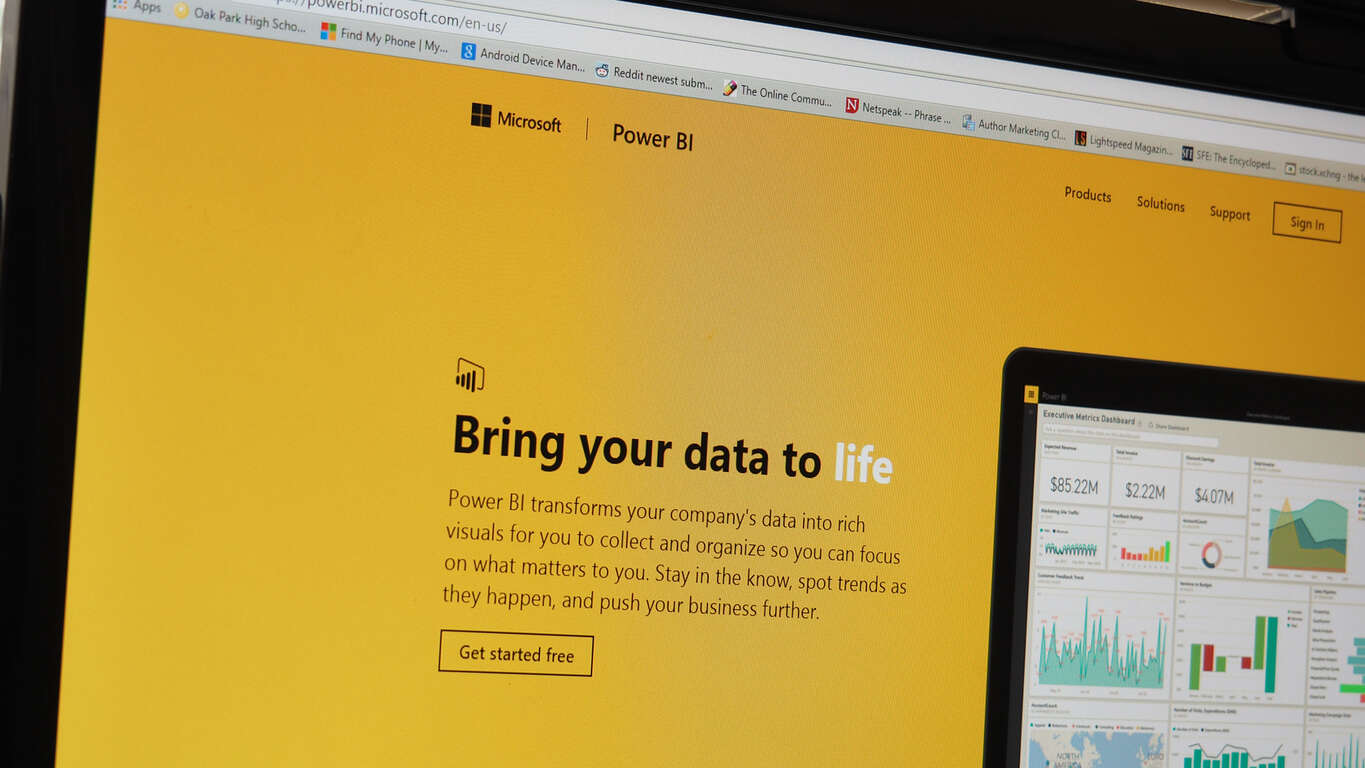
Adding to a long list of quality-of-life features in the Power BI software, Microsoft is introducing “Responsive visualizations” to Power BI. These new changes to Power BI make a fairly simple yet impactful change: Your projects will now dynamically react to being moved around, resized, etc. The shift will have a big impact for people who don’t want to spend more time than necessary making their work look nice when they try to reformat it.

As you can see in the example, you can shrink down the new Power BI graphs quite a bit before you start to sacrifice any information. The graph will intelligently shift around things like titles and color legends in a way that makes them easy to read, saving some time for the end user.

This feature is available right now and will be backward compatible with your existing projects – although the feature will be off by default. To turn on responsive visualizations, just switch the “responsive” option in your client to “on.”

Microsoft and Baidu partner to bring AI powered vehicles to the automotive market

Microsoft has become one of the several companies to sign up with Baidu – the massive Chinese search engine – in their effort to implement AI technology into the new self-driving car market. Announced on Wednesday, the news came alongside the announcement of Baidu’s new partnership with several other tech organizations including TomTom and Robert Bosch. We know fairly little about the project’s particulars, apart from the fact it’s being called “Apollo.”

Apollo is likely to remain under wraps for quite a bit longer as Baidu and its new partners talk behind closed doors about the nature of the project. With self-driving cars becoming more and more of a reality as time goes on, the promise of these massive companies all working together towards the future of the industry is a promising development. We’ll keep an eye out for how it works out moving forward.

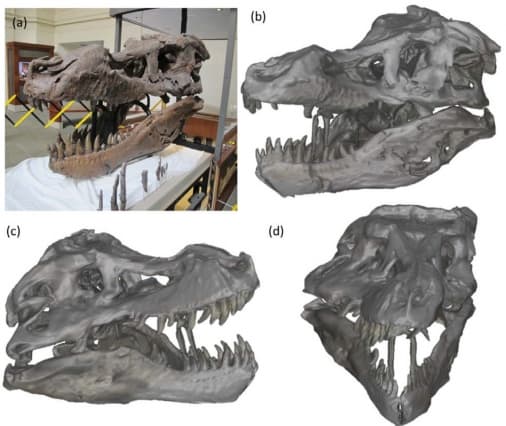
How do you scan the giant jaws of a tyrannosaurus rex? With a Microsoft Kinect!

What do professional researchers at Massachusetts Institute of Technology (MIT) do when their commercial high-end 3D scanning equipment doesn’t make the cut? They pull out the Microsoft Kinect, apparently.

At the Field Museum of Natural History in Chicago last, the largest tyrannosaurus rex skull to be found had some unusual holes along its jawbone. For a long time, it was assumed that the holes were bite marks from another dinosaur and the T-Rex known as ‘Sue’ was simply scarred from an attack. However, the irregular spacing along the jaw line caused scientists to become curious about its origin.

To research the cause of the misshapen remains, forensic dentists were allowed permission to record a 3D scanning of the skull. Unfortunately, the dental scanners ended up being too small for a T-Rex (imagine that) and the team had to make do with the next best thing.

They called in some assistance from the MIT Media Lab.  bought a Microsoft Kinect and hooked it together into a makeshift system. In the recent PLOS One journal, Anshuman Das of the MIT Media Lab explained the system. MIT News summarizes it quite neatly:

The system uses a Microsoft Kinect, a depth-sensing camera designed for video gaming. The Kinect’s built-in software produces a “point cloud,” a 3-D map of points in a visual scene from which short bursts of infrared light have been reflected back to a sensor. Free software called MeshLab analyzes the point cloud and infers the shape of the surfaces that produced it.

Das mounted the Kinect in a modified camera harness and wore it on his chest as he moved around the skull. Thanks to quick thinking and Microsoft technology, the 3D scanning system was able to record across the entire five foot long jaw and produced evidence that assisted a full team of dentists, anthropologists, veterinarians, and paleontologists.

Image Credits: MIT News

The low cost of $150 was nothing compared to the more professional 3D scanners, of course. However, Das believes that the system will be useful for other scientists around the world needing a quick and easy way to record their findings. Chalk another up for Microsoft, one innovation at a time even in the most unexpected places. As for ‘Sue’, there is still a hole in her mystery that scientists are determined to discover.

Microsoft program manager pays video tribute to Seattle as he leaves the company

Sometimes saying goodbye is not easy, especially after you spent a long time at a famous company such as Microsoft. Well, one program manager who is leaving Microsoft on a new journey to work for Jabra GN Audio has done a video tribute to the city of Seattle as part of his final goodbyes to the Redmond giant. (via GeekWire)

Jens Eggert, who worked at Microsoft and at Nokia before that, compiled a video which is all about all about his longtime home city of Seattle. The video is not only produced by Eeggert, but also features a rock/grunge song titled “Seattle,” which Eggert wrote and performed on his own. Of course, scenic snapshots from various locations across the Seattle area, and from various Microsoft events are seen throughout the video. A website which is dedicated to his departure from Microsoft, and his new chapter in life, tells the story of the video.

So I sat down and wrote a song about Seattle, the city I love…. Many of the things I grew up with and loved came from Seattle (but didn’t know it back then), such as; the whole “grunge rock” scene (Nirvana, Soundgarden, Pearl Jam, Alice In Chains etc.), PC computers, Twin Peaks (also “re-released” now) and more. So I thought, if there’s a time to release anything it’s now. This might be an epic fail, but then it’s a true honest one. I took some of the pictures I’ve captured over the years around the Seattle area and made a “music video/collage…”

The video was made entirely on Windows Movie Maker, and all the photos were captured from Nokia and Microsoft smart phones. Eggert will be leaving Microsoft to work at Jabra GN Audio as senior software product manager. We wish him well on his new chapter in life, and thank him for his service at Microsoft!

Expected sales layoffs at Microsoft to begin today

Microsoft’s recently rumored restructuring is said to be underway according to a report from Business Insider, who used references to several anonymous chats found on the app Blind.

While Business Insider does not have verified access to the company managed chat app Blind, chatter about conference room bookings and schedules has surfaced from the more than 25,000 user base over at Microsoft. Based on the murmurs it’s shaping up to look as though layoffs are in Microsoft’s near future, starting today.

On Monday, a company memo was released, preparing some employees for a massive shift in the company’s focus on the sale, support, and maintenance of commercial and consumer sale of software. However, there has been no number attached to how many could be released during this shift, and today’s chatter on Blind has yet to crystallize the potential. Fortunately, as Business Insider and All About Microsoft has reported, not everyone scheduled for meetings today will be let go. Some of Microsoft’s efforts in the reorganization of its sales teams will result in several positions being shifted, refocused or combined.

As history has shown, Microsoft tends to shed jobs in the month of July , the start of the fiscal year, as proven with the several rounds of cuts that came from the failed Nokia acquisition as well as dumping some marketing jobs the following years. With it being July 6, 2017, the company is in line, historically, to do another round of massive layoffs.

Microsoft has not confirmed or denied the potential for massive cuts, but with 52,000 global sales and marketing positions worldwide, it seems reasonable that the company would be looking to trim that number quite a bit.

Update: Microsoft is said to be laying off up 3,000 sales employees with a majority of the positions coming from international offices according to  CNBC.

Minecraft: Story Mode – Season Two launches soon and here’s the trailer

Fans will soon be jumping down the rabbit hole with Telltale Games’ next iteration, Minecraft: Story Mode – Season Two. The blocky story-driven game of choices is set to launch next Tuesday, July 11. Today, Mojang and Telltale released their launch trailer to hype up the release.

Furthermore, the title will be premiered live at RTX Austin this weekend. On Sunday, July 9 at 10 a.m. CT, Minecraft: Story Mode – Season Two will be center stage with Rooster Teeth’s Jon Risinger driving through the full first episode. With crowd play, even those watching live will get to join in the fun by making choices for the demo. The event, of course, will be available via livestream.

Mojang also did a post introducing some of the main characters you’ll meet throughout the game. Jesse and Petra from the first game will join new faces such as Jack the “once-legendary adventurer”, Radar as Jesse’s intern, and Stella and Lluna from Champion City. Yes, that reference isn’t lost on us.

Minecraft; Story Mode – Season Two is already available for pre-order with a 10% discount. It will be available to play on July 11th for Xbox 360, Xbox One, and Windows 10 PC.

Microsoft Partner Community launches with new centralized community platform

Recently, the Microsoft Partner Community (MPC) was born to create a new centralized community platform to discuss the latest in Microsoft partnerships, all located in one location at the Microsoft Partner website. The MPC is a place where Microsoft can discuss the latest partnerships for its products and services, including HoloLens, Surface, Office 365, and more.

Microsoft has benefited greatly by community feedback on its products and services and it is about time that Microsoft recognized this. Thus, the MPC is born to create a centralized online platform where Microsoft partners can learn, network, collaborate, and grow with each other to produce great things.

Connect with the Microsoft Partner Community (MPC) and become a member.

Skype subscriptions in India gets expensive as it comes under the ambit of GST

In order to meet new Indian tax requirements, Skype will be required to remit Goods and Services Tax (GST) for customers in India on all purchase of Skype paid products from July 1.

While Skype will delay charging the users the increased GST until August 1, 2017 and Microsoft will bear the GST expenses, from August 1, the subscription price will change to include the GST rate of 18%.

For example, before August, if a subscription costs 22.60 (no GST is charged), the same subscription will cost ₹26.67 (₹22.60 + ₹4.07 GST at 18%).

Since the Pay As You Go rates are inclusive of taxes, there will be a small increase to the inclusive rates for PAYG calls. The taxes on subscriptions and Skype Numbers of course is charged at the time of purchase or renewal.

While GST is not charged when you buy (or allocate) Skype Credit or when your Skype Credit is automatically topped up, the applicable GST-inclusive rates are applied when you use your Skype Credit to make calls, send SMS, use Skype Wi-Fi or any other paid Skype products.

Skype will determine if you are eligible to pay Indian GST based on your billing address. If you do not agree with this change, you can cancel your subscription prior to August 1.

Microsoft responds to OneDrive NTFS snafu, says warning message was missing

If you know what snafu stands for, then yup, this is a snafu. Over the weekend, we received some tips that OneDrive users, who had been using SD cards or external drives formatted in another filesystem protocol were now requiring NTFS:

OneDrive NTFS warning

A number of commenters on our initial post had been using non-NTFS drives, for whatever reason, for some time, and were confused and upset that they suddenly had lost access to their OneDrive files. We asked Microsoft for comment, and although the 4th of July holiday slowed things down a bit, Microsoft emailed today to offer an explanation:

“Microsoft OneDrive wants to ensure users have the best possible sync experience on Windows, which is why OneDrive maintains the industry standard of support for NTFS. Microsoft discovered a warning message that should have existed was missing when a user attempted to store their OneDrive folder on a non-NTFS filesystem – which was immediately remedied. Nothing has changed in terms of official support and all OneDrive folders will continue to need to be located on a drive with the NTFS filesystem.”

In this doozy of a statement, Microsoft admits they’ve been missing (for years?) a warning message and “immediately remedied” the problem (without warning or announcement!!). They contend that “nothing has changed in terms of official support,” when every affected OneDrive user knows full well that a lot has changed. It’s just an incredible statement, for a lot of reasons.

In looking through this OneDrive documentation, we can’t find anything mentioning NTFS, and a search on Microsoft.com for “OneDrive NTFS” only brings up multiple complaints about the recent changes. While, according to Microsoft, non-NTFS filesystems aren’t officially supported, those systems have worked just fine until just this past week.

I tested my Surface Pro 4 again, to see if there was a workaround I was missing, but it’s now apparently impossible to use anything but NTFS with OneDrive.

There are a couple of ways to get OneDrive working again. I just formatted the drive to NTFS, and set up OneDrive from scratch, using the D: drive (an SD card) as the OneDrive location. OneDrive then re-synced all my files and was ready to go again in an hour or so. Our How To post on setting up OneDrive goes into all the details.

If you’re using ExFAT or ReFS, you’re going to have to reformat your drive, but if you’re using a FAT drive, you can use the “convert” command by opening up a command line and running “convert <drive letter>: /fs:ntfs” (no quotes). This will convert the drive to NTFS without losing any data, although it’s probably far more likely you’re using ExFAT.

We’re going to respond back to Microsoft’s response, to see if we can clarify the clarification, but the short answer is that OneDrive now requires NTFS. Situation normal, and all that.


How to create multiple partitions on a USB drive

A partition is a specific region of a hard disk or external storage device. The primary partition of a HDD is the C: drive, but some users add new partitions to their hard disks so that they can organize folders and files more efficiently. Partitioning HDDs is especially handy for multi-boot configurations as users can create a separate partition for the additional operating system. So there are numerous third-party software utilities for Windows that enable you to create new drive partitions.

Windows only recognize the first primary partitions on USB drives, which is a notable restriction. Consequently, additional drives on USB sticks don’t show up in File Explorer. As such, there are seemingly few advantages to partitioning removable USB sticks for Windows users; but Linux platforms do recognize multiple partitions on external storage devices.

However, times are changing; and with the Creators Update, Windows 10 does support multiple USB drive partitions. The Creators Update ensures that Windows 10 users can see multiple partitions on their USB drives in File Explorer. This update also enables you to add new partitions to USB sticks with the Disk Management utility, but you must have Windows 10, Version 1703 with ADK installed.

Set up Multiple USB Drive Partitions With Disk Management

So Windows 10 users with the Creators Update (v1703) can partition their USB drives with the platform’s Disk Management tool. First, back up your USB stick if it has files on it; but it’s better to partition an empty external drive if possible. Then you can add partitions to USB storage with the Disk Management system tool as follows.

  • Insert the USB drive into a desktop’s or laptop’s USB slot.
  • Then format your USB drive with the NTFS file system if it isn’t already. You can check the file system by clicking This PC in File Explorer, right-clicking the USB drive and selecting Properties.
  • If the drive isn’t formatted with NTFS, you can right-click the USB drive in File Explorer and select Format from the context menu. That will open the window directly below from which you can select NTFS on the File system drop-down menu.
  • Press the Start button on the window and then click OK to format the external drive in NTFS.
  • Now press the Win key + X hotkey and select Disk Management to open the window shown directly below.
  • Next, you should right-click the USB stick listed on the Disk Management window and select the Shrink Volume option.
  • A window that includes an Enter the amount of space to shrink in MB text box then opens. So enter the amount of storage space to use for the new drive partitions in that text box.
  • Press the Shrink button on that window to create unallocated space on the USB stick.
  • Then you can right-click the unallocated USB stick space on the Disk Management window. Select the New Simple Volume option from the context menu.
  • A New Volume Wizard opens where you can enter the size for the new partition in the Simple volume size in MB text box. However, leave that text box at its maximum value if you’re only adding one new partition.
  • Press the Next button, and then you can select a drive partition letter.
  • Click the Next buttons and press Finish to create the new partition. Then you’ll see the new partition on the Disk Management window.

Add new Partitions to a USB Drive With Bootice

  • Alternatively, you can partition your USB drive with third-party software if you don’t have Windows 10, Version 1703. Bootice is one program that includes a partition manager. So you can add new partitions to USB sticks with that program as follows.
  • First, press the Download button on this Softpedia page to save the software’s RAR file. As Bootice saves as a RAR, you’ll also need the freeware 7-Zip software to extract it.
  • Open 7-Zip, select the Bootice RAR and click the Extract button to choose a path to extract the software to. Open the Bootice window below from the extracted folder.
  • Insert your USB stick into desktop or laptop. You can select that USB flash drive from the Destination Disk drop-down menu.
  • Press the Parts Manage button to open the window shown directly below.
  • Press the Re-Partitioning button to open a Removable disk-partitioning window.
  • Select the USB-HDD mode (Multi-Partitions) option and click OK to open Partition Settings.
  • There you can configure the size of the partitions. If you only need one or two extra partitions, enter ‘0’ in two of the Size text boxes.
  • Enter the partition labels in the Label text boxes.
  • You can also select either an MBR or GPT partition table type. MBR is fine for saving files and booting more outdated systems.
  • Press OK to format the USB drive. This will delete all the USB stick’s files, so you should have already backed up the drive if required.

Bootice also enables you to select the partition Windows displays, which is handy if your laptop or desktop hasn’t had the Creators Update yet. Select the drive for Windows to display on the Partition Manager window, and then press the Assign Drive Letter button. Now File Explorer will display the selected partition.

Add new Partitions to a USB Drive With AOMEI Partition Assistant

Partition manager utilities also enable you to create partitions on USB flash drives. Adding partitions to USB drives is straightforward with AOMEI Partition Assistant. That also has a freeware version you can add to Windows by clicking the Download Freeware button.

  • Insert your USB drive in PC, and open the AOMEI Partition Assistant window.
  • Now you can right-click the USB flash drive listed in AOMEI Partition Assistant and select the Create Partition option.
  • You can specify the partition size and drive letter in the Create Partition window. Press the OK button to close that window.
  • The AOMEI Partition Assistant window will display the new partition for your USB storage device.
  • Press the Apply button to finish the drive partitioning.

⇒ Get AOMEI Partition Assistant

So that’s how you can create multiple partitions on a USB flash drive with the Disk Management utility, AOMEI Partition Assistant, and Bootice. Then you can organize your folders more efficiently on the external storage. There are plenty of other third-party programs you can partition USB sticks with, and this Windows Report article tells you about some of the best partition managers.

60fps is a “developer choice” says Head of Xbox Operations Dave McCarthy

In an interview with MCV, Head of Xbox Operations Dave McCarthy sat down to explain why the team decided to call the next console from Microsoft the Xbox One X. Of course, during said interview, some other interesting information cropped to the surface such as the topical debate of 60fps.

For Xbox fans, this has been one of the major complaints about the Xbox family of consoles. 4k resolution is an admirable goal for gaming consoles, bringing more beautiful and realistic graphics to the TV screen. So why are gamers so upset that most Xbox games aren’t at 60fps?

The PC ‘Master Race’ has had access to 4k gaming in 60fps for quite a while now. With the high performance that computers have been able to achieve, many console gamers have long since converted – or at least use their PC for more demanding games. The Xbox One runs most games at 30fps with a 1080p resolution. So with the Xbox One X focusing most of its marketing on the 4k resolution, fans feel like bumping up games to 60fps should be a natural progression for the next Microsoft console that is supposedly “in a different league“.

Xbox One S One X

But according to McCarthy, the job of creating higher frame rates is up to the studios that make the games (via MCV).

“We’re all about the developer choice there overall. Different developers are going to choose to do different things for different game formats. But the good news is that the Xbox One SDK that everyone writes to will be able to handle that variation. You don’t need a unique version for Xbox One X. It’s just going to know if I’m running a One X, will take advantage of it and going to feel like a premium PC experience overall.”

McCarthy went on to explain that the Xbox One X is one of the easier consoles to get developers “up-and-running in a day or two” with its SDK, allowing them more options with a 2,160 frame buffer or to increase their game’s fps optimization further.

Paired with 4k resolution televisions, the Xbox One X console is likewise an ‘elite’ console that is priced as such. Still, it’s been made clear that the newer console will give developers a chance to push their games to optional higher quality than the previous iterations in the Xbox family. Whether they take that opportunity or not, is up to them. Even so, gamers have been arguing that they’d rather see the increase of 60fps for games across the board rather than the same performance across more pixels.

Forza Motorsport 7

It’s already been confirmed that its flagship titled Forza Motorsport 7 will be able to hit 60fps in native 4K resolution. Unfortunately, other games like Destiny 2, will be locked at 30fps for compatibility across other console devices. It remains to be seen how developers will utilize what the Xbox One X has to offer and which titles will take advantage of its native 4K capabilities.

This guy jammed the Xbox One S and PS4 Slim together in one console called the “Xstation”

Have you ever wanted to save some space in your entertainment center and jam your Xbox One S and PlayStation 4 together as one? Well, Eddie Zarick, the guy who you may remember as the inventor of the Xbox One S Laptop, has a solution which he created just for the fun of it. Zarick’s latest creation, dubbed the XStation, is an ultimate Xbox One and PS4 combination console that combines the best of both platforms into one single home gaming console.

As detailed in his video above, Zarick was inspired by fan reaction to his Xbox Laptop and decided to create a “Xstation” home console which has both a PS4 and an Xbox One built inside. Ultimately using parts from both slim versions of the Xbox One and the PS4, he was able to both combine Sony’s and Microsoft’s home console into one case.

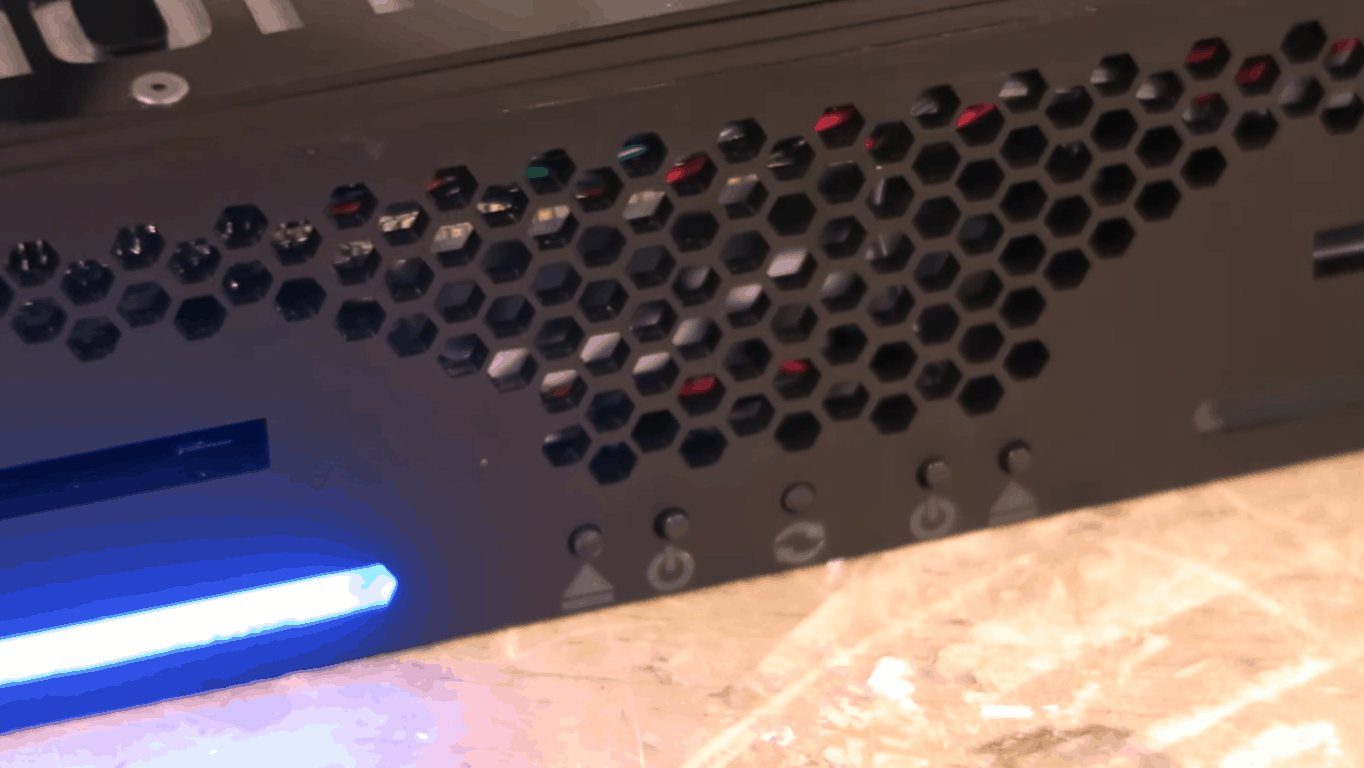
The Xstation features an HDMI out and a main power port on the back and two USB ports per console on the back, along with disc slots and eject buttons for the games on the front side. There is also a fancy LED indicator to show that the console is on, Green for when the Xbox side is being used, and Blue for when the PlayStation side is being used.

Though there is a sync button, a switch button, and individual buttons for each console’s power on the front of the console, Zarick explains that you can’t use the Xbox One and the PS4 at the same time, mainly because he believes “there is no reason for it.”

Zarick demonstrates how one can switch between Xbox and PS4 using the button on the console, saying that there is an HDMI splitter which helps transition between the two different consoles. At one point, he even gives a size reference between the two consoles, revealing a bit about the internals of the Xstation, and the fact that the motherboards of the consoles are sitting inside, one upside down, with the heat sinks aligned so it can cool both systems.

And, just if you had extra doubts, Zarick gives a live demo of how you can install games and switch between both consoles seamlessly. There is one caveat, though, as he explains that you need to turn one console off before switching to the other, since the Xstation takes the power and transfers it to the other side. And obviously, you will need to have both an Xbox controller and a PS4 controller to enjoy the experience.

Unfortunately, Zarick says that the XStation won’t be mass produced like his Xbox or PlayStation laptops since he says that it’s just a “fun project just to show.” Indeed it is fun, and we hope that one day Sony and Microsoft can come together and produce a console which will do the same.