The latest Quantum Break update makes it possible disable V-Sync

Quantum Break received received the third update since its release in April. The new update brought a lot of improvements to the game, but perhaps the most notable addition is the ability to disable V-Sync.

Support for disabling V-Sync will drastically improve graphical performance of the game on some computers, so we can say this is a welcomed addition. Users requested this by themselves, ever since the game was released, and Remedy finally fulfilled their with with the most recent update.

Besides the ability to disable V-Sync, Remedy also revealed other changes brought by this update on its official website. Here’s what else the latest Quantum Break update brought.

  • “Fixed an issue with game controllers not working correctly on some configurations
  • General fixes
  • In response to requests from fans, we have removed SSE4.2, SSE4.1, SSSE3 limitation, which will enable “Quantum Break” on Windows 10 to run on unsupported, below minimum spec hardware”

Microsoft was criticized lately for some lacks of its UWP platform, including the fact that players can’t disable V-Sync in most of the UWP games. Hopefully, developers of other bigger titles for Microsoft’s platform will follow Quantum Break’s example, and deliver the option to disable V-Sync to their games as soon as possible.

To install the latest update for Quantum Break, you just need to go to the Windows Store, and check for updates. Or you can download the updated version from here.

If you already installed the update, you can tell us in the comments how the game performs after you disable V-Sync. Can you notice any performance improvements?

RELATED STORIES YOU NEED TO CHECK OUT:
Microsoft rolling Lumia Sensorcore SDK into Windows 10 APIs

Contextual awareness is one of the big things that’s separating Windows 10 Mobile from the competition, and it’s arguably one of the more interesting features that the OS has going for it. For those who don’t know, contextual awareness is the system by which Windows 10 Mobile is able to draw conclusions about you and your routine using sensors. Using the tech behind contextual awareness, the phone can tell if it’s in the car, in your pocket, or wherever else you’re taking it – and it can decide to do shut down/initiate processes based on that context.

As we move closer to the Windows 10 Anniversary update and start being introduced to more and more new features, developers are getting a chance to get at this contextual sensing (or Lumia SensorCore) SDK, as it’s “gradually being merged into the Windows 10 APIs.” This essentially means that developers are getting a chance to dig into the development of apps that use this technology, starting out with Activity Detection and Pedometer features that are now available as “a part of Windows.”

While Microsoft is merging the contextual sensing technology into the Windows 10 API, it’s also important to note that not everything is being actively supported going into the future. It was also announced that Activity Monitor and Step Counter API’s are being “deprecated” – meaning they’re no longer going to be supported by Microsoft going forward.

You can check Microsoft’s blog page to get the whole story on this, complete with all sorts of development tips for people who want to take advantage of the SDK. Assuming developers take advantage of the full potential of Lumia SensorCore technology, we could end up seeing some truly fantastic apps coming out of it. The availability of this sort of contextual information to developers (which can, of course, be opted out of by privacy-conscious users) could mean a whole lot to Windows 10 Mobile users.


This week’s Windows Store highlights: AccuWeather, Finding Dory, and more

Windows Store is slowly, but surely, getting the apps it deserves. This week, a number of popular apps for Windows 10 and Windows 10 Mobile made their way into the app store, increasing the app count — which matters for some people. Several useful apps and games were added this week, and here’s a brief summary of the most popular ones added this week.

First in the list is one of the most popular weather apps which needs no introduction: AccuWeather. It’s by far one of the best weather apps I’ve used when it comes to finding out about the weather conditions in your area. It doesn’t only tell you the temperature and other weather metrics, but it provides users with weather forecasts — hourly, weekly, monthly — along with Live Tiles support to show you the weather conditions in your favorite locations. Best of all, you can grab the premium ad-free version of the app for just $1.99 instead of $3.99 until June 6th. So, go grab it if you’re looking for a good weather app for your Windows device.

Next in line is the new Univision Deportes app. It offers users coverage of NFL, NBA, Formula 1, MLB, and boxing in Spanish, as well as live streaming of soccer matches, and much more. The app is available for free in the Windows Store.

Last but not the least, the popular game Finding Dory: Just Keep Swimming  is also available in the Windows Store for users who want to have a little fun and pass their time. As a player, your task is to help Dory find her family. There are several challenging levels and different worlds which you can to complete. As you move on with the game, you collect different items, meet Dory’s friends and much more. The game is available in the Windows Store for $3.99.

Head over to the Windows Store using the links below to download the above-mentioned apps and games.

AccuWeather - Weather for Life


Finding Dory: Just Keep Swimming
Developer:
Disney
Price:
Free

Watch Microsoft’s Computex 2016 keynote right here

If you wanted to sit down and watch some Windows-related content this afternoon, or just wanted to have some background noise as you go through your routine, Microsoft’s Channel 9 has uploaded the COMPUTEX 2016 Microsoft Keynote in full. The keynote isn’t breaking all that much ground, but it shows off some new devices from OEM partners, which might appeal to the technophiles among us who want to keep an eye on all of the latest hardware that Windows 10 has made its way onto.

Here’s how Microsoft describes the keynote:

Microsoft talks about opening Windows Holographic to partners for a new era of mixed reality. Join key Microsoft executives as they reveal new devices, innovations and trends coming to the Windows ecosystem during the Microsoft keynote at COMPUTEX 2016. You will see new devices from OEM partners including 2-in-1s, all-in-ones, new gaming devices and how Microsoft is enabling the Internet of Things (IoT).

On top of showing off some new hardware from Microsoft OEM’s, the keynote also goes over a few features included in the Windows 10 Anniversary Update. These are, however, mostly things that we’ve already seen – for example, handwriting on sticky notes being recognized as valid data. Regardless of whether or not it’s all new info, it’s still an interesting keynote, and some Windows fans might enjoy the chance to sit down and watch some of the cool technology behind the Windows 10 Anniversary Update at work. A lot of the features coming in this update seem to be small tweaks that are going to be adding interesting novelties, whether it be the sticky notes or something else; they all tend to be features that are just impressive to watch in action.

Telltale Games to fully support the Windows Store and UWP

Microsoft’s Universal Windows Platform is looking like a sure winner for developers after Telltale Games came out in big support of the platform. This is the first big video game developer to announce these kinds of plans, and we expect an influx of similar announcements in the months after the Anniversary Update and E3 2016.

Surprisingly, Telltale said the Windows Store has a wider reach than Steam because of its 125 million users versus Windows 10’s over 300 million.

“We have a single toolset we use to build content for all those platforms. So we’re kind of always in the state of porting. The studio builds the game with our toolset. And then that same code base cross-compiles to every single platform we’re going to support,” said Zac Litton, Telltale’s VP of Tech.

When it came to porting Minecraft: Story Mode to Windows 10, Litton said it only took a few developers and three months to port the game. That’s great to know as larger companies would not want to focus too much on a port if the plan is to release the game alongside other versions at the same time.

“We started with a PC DirectX 9 engine version,” said Benn Herrera, senior software engineers, “and the Xbox One DirectX 11 with Xbox extensions engine and sort of combined these build configurations to create a desktop DirectX 11 version—and then did the UWP version. So that first initial step is one not a lot of developers are going to have, because most of them are going to probably be starting from DX11. So if you skip that part, the transition to working with UWP was fairly straightforward.”

With all Minecraft: Story Mode games available on Windows 10 right now, Telltale plans to port all its previous and future titles to the Windows Store in the future under the UWP initiative. We hope other developers follow Telltale Games’ push to support UWP and the Windows Store because that would surely make for a better gaming platform.

Telltale’s talk about the Windows Store having more reach due to the over 300 million Windows 10 users might not be entirely true. Steam has 125 million users, all of which are gamers and are always willing to purchase a title — the same can’t precisely be said for the 300 million users on Windows 10.

RELATED STORIES YOU NEED TO CHECK OUT:

Bomberman ’94 comes to Windows Store, brings back the good old times

Do you remember what kind of games you used to play in the 90’s? Back then, pixels were very visible since high-definition graphics didn’t exist. Nevertheless, we all had a blast playing those more simple games. It was no doubt a much simpler time.

For a blast of nostalgia — literally — you’ll be happy to know that Bomberman ’94 is being re-released. This action game was first released in 1993 for PCs only, but the current version is supports the desktop versions of  Windows 8.1 and Windows 10. The UI is available in six languages and the games needs only 33MB to install.

Bomberman ’94 supports single-player and multi-player modes. In the single player mode, your task is to navigate through several levels of mazes and use bombs to destroy the creatures you meet. In the multi-player mode, players defeat each other using bombs.

You can play the game in six different areas: Jamin Jungle, Vaxin Volcano, Slamin Sea, Crankin Castle, Trashin Thundra, and the asteroid lair of Bagular. Move as fast as you can, set the bombs and run.

Many users complained about keyboard issues when trying to play the game:

The keyboard is not working I even tried to configure it in the options still not working.

The solution would be to disable the touch mode, which is default, as one user remarks:

Those of you that want to use key board make sure after configuring the keyboard, change 1P or player one to keyboard instead of touch which is default.

Speaking of games from the pixel era, many of these types of games have seen re-releases on the Windows Store lately. For example, you can now play Pac-Mac, Galaga and Dig-Dug on your Xbox One. Each game is going for $3.99 so if you want to dive back into childhood, go ahead and press the play button.

You can download Bomberman ’94 from the Microsoft Store for only $2.49.

RELATED STORIES YOU NEED TO CHECK OUT:

Intel Core i7 Extreme Edition is the most powerful desktop processor

Intel just announced its new Intel Core i7 processor Extreme Edition, which is supposed to be the company’s “most powerful deskop processor yet”. Intel Core i7 Extreme Edition delivers impressive performances, and is especially aimed at gamers and other multimedia workers.

Processors from this family will deliver up to 10 cores and 20 threads, ensuring the best possible performance that can be found in a processor for desktop PCs today. Additionally, Intel Core i7 Extreme Edition will also feature 40 PCIe lanes, so people will have more options upgrading their computer.

Core i7 Extreme Edition will use Intel’s Turbo Boost Max Technology 3.0, a tool for better performance optimizing. 3D rendering will be up to 35 percent better compared to previous models, so players will be able to record 4K gameplay, while running other tasks in the background.

“Gamers are continually raising the bar, driving their systems to its limits. Now they can push their systems even harder, reaching new heights in performance and overall experience. That’s what the Intel Core i7 processor Extreme Edition is about. And with our new Intel® Turbo Boost Max Technology 3.0, applications are steered to the highest-performing core, giving single-threaded experiences a huge performance boost. With 40 PCIe lanes connected directly into the CPU, gamers have a variety of options at their fingertips to expand their system’s capabilities with Intel® SSD 750 Series of high-performance solid state drives, multiple discrete GFX cards andThunderbolt™ 3 technology,” said a corporate vice president and general manager of the Connected Home and Commercial Client at Intel, Gregory Bryant.

Bryant also promised improved support for virtual reality devices, such as HTC Vive or Oculus Rift. Players will be able to enjoy better VR experience, while developers will have more room to create. And finally, video editors will be able to record and edit stunning 4K videos with ease.

Besides this powerful processor, Intel also announced its 7th generation of processors named Kaby Lake, as well as an entry-level line of processors named Apollo Lake. The 7th generation of Intel processors should be available by the end of this year.

Intel Core i7 Extreme Edition is now available at various online retailers for the price of $1723.

RELATED STORIES YOU NEED TO CHECK OUT:

The GT73 and GT83 Titan SLI are two amazing VR-ready gaming laptops from MSI

MSI announced two new amazing VR-ready laptops that will definitely make VR gaming more appealing to curious gamers. The new GT83 Titan SLI and GT73 Titan SLI gaming laptops are powered by NVIDIA’s GeForce GTX980 SLI graphics cards combined with a 4K display, all to deliver gaming experiences that almost feel real.

It seems that MSI is focusing heavily on VR gaming since the two laptops come shortly after the company introduced its first backpack PC that makes VR mobile. In addition, both laptops support Windows 10 and are equipped with the SLI platform design.

The GT83 Titan SLI packs a NVIDIA GeForce GTX980 SLI graphics solution and the extreme 3+1 of 4K display surround mode delivering true-to-life gaming experience. The GT73 Titan SLI is the lightest mobile SLI with dual GTX980M SLI level graphics, and also supports single GTX980 top-tier mobile graphics, making it ideal for gamers looking for a smooth gameplay at 4K settings under 3-monitor surround mode.

The two high-end gaming laptops will definitely be included in our best Windows 10 gaming laptops list. The GT83 has an impressive 18.4-inch full HD display and is powered by a 6th generation Intel i7 processor. It can support up to 64GB of RAM, helping it to smoothly run even the most demanding games with up to three external displays for an incredible gaming experience.

GT73 on right GT83 on left
GT83, left and GT73, right

The GT83 is equipped with a Cherry MX mechanical keyboard with multicolored backlighting, and a touchpad in case you don’t like using a mouse. However, we do suggest you pair this laptop with the Asus ROG Spatha MMO gaming mouse anyway. The GT83 is the world’s fastest gaming notebook, according to MSI. We wonder what Asus thinks about it since the company also claims its GX800 gaming laptop is the world’s most powerful gaming laptop. You can buy the GT83 starting from August for a price tag of $4,500.

MSI’s GT73 is lighter than its big brother, offering a 17.3-inch full HD antiglare display. It is powered by an Intel i7 processor and can also support up to 64GB of RAM. The GT73 will is available in August and will sport a more affordable price of $2,500.

RELATED STORIES YOU NEED TO CHECK OUT:

How to create paths longer than 260 characters in Windows 10

The Windows file system imposes limits when it comes tfilenames: there are restrictions regarding the type of characters you can use and how long the paths can be. The current maximum path length is 260 characters, but it appears Microsoft has changed that in its Windows 10 build 14352.

More precisely, users can resort to a registry hack to remove the 260 character limit in path lenghts. This feature won’t work for every application, but this could soon be fixed when Microsoft rolls out the Anniversary Update. Microsoft’s explains the process enabling this feature:

Enabling NTFS long paths will allow manifested win32 applications and Windows Store applications to access paths beyond the normal 260 char limit per node. Enabling this setting will cause the long paths to be accessible within the process.

The removal of the 260 character limit is very useful especially for corporations. When engineers do a site migration, they often can’t copy everything simply because certain paths are too long.

There are two ways to enable long character paths in Windows 10: use the Group Policy Editor or edit the registry.

How to enable long paths under the Group Policy Editor:

  1. Type gpedit.msc > select the Group Policy Editor
  2. Go to > Local Computer Policy > Computer Configuration > Administrative Templates > System > Filesystem > NTFS.
  3. Double-click on Enable NTFS long paths
  4. Set it to enabled > click OK.

How to enable long paths using the registry:

  1.  Type regedit.exe and click on Run Command
  2. Go to: HKEY_CURRENT_USER\SOFTWARE\Microsoft\Windows\CurrentVersion\Group Policy Objects\{48981759-12F2-42A6-A048
  3. 028B3973495F}Machine\System\CurrentControlSet\Policies
  4. If the key LongPathsEnabled exists > select it.
  5. If the LongPathsEnabled key doesn’t exist> right-click on Policies> select New > select Dword (32-bit) Value.
  6. Name it LongPathsEnabled.
  7. To activate this feature, set the value to 1.

If you ever encounter an error message informing you that the folder path contains invalid characters, you can use our step-by-step guide  to solve this problem.

RELATED STORIES YOU NEED TO CHECK OUT:
Alcatel Idol 4 Pro with Windows 10 Mobile passes Wi-Fi certification

Alcatel’s alleged flagship phone powered by Windows 10 Mobile, the Alcatel Idol 4 Pro reportedly passed through Wi-Fi certifications. This could mean that Alcatel will release this device soon, but it might not be available to everyone, since mentioned Wi-Fi certification was for T-Mobile only.

As NPU reported, Wi-Fi certification documents for the Alcatel Idol 4 Pro recently leaked. Since results of certification proved to be T-Mobile bound, this device could easily be available only with a contract from T-Mobile. On the other hand, this doesn’t have to be the case, since we have no official confirmation from Alcatel.

Judging by alleged specifications of the Alcatel Idol 4 Pro, which leaked in March, this device tends to be one of the most powerful Windows 10 Mobile devices in the market. Because of that fact, it actually seems unlikely that Alcatel will bound it to T-Mobile users in the US only. Also, there’s no confirmation from T-Mobile about the Alcatel Idol Pro 4, either.

As a reminder, these are the Alcatel Idol 4 Pro’s alleged specs:

  • 5.5-inch 1920×1080 AMOLED display
  • Snapdragon 820 processor
  • 4GB of RAM
  • 64GB of storage
  • 21-megapixel rear and 8-megapixel front camera
  • *probably Continuum support

As soon as we have more info from Alcatel, or any other source, about the device, we’ll make sure to let you know. Until then, you can tell us in the comments, what do you think about the Alcatel Idol 4 Pro, and will you buy it when it gets released (if Alcatel makes it available in your region/country)?

RELATED STORIES YOU NEED TO CHECK OUT:

Download Build 14356 for Windows 10 Mobile devices right now

Two weeks after the previous build, Microsoft is rolling out Mobile build 14356, focusing on improving the Cortana experience and fixing a series of bugs. With it, Cortana will now push your phone notifications, SMS, social media alerts, and missed calls to your PC.

The new notification sync feature is compatible with both Windows 10 phones and Android handsets, but Android devices require Cortana version 1.7.1 or higher. Still, Microsoft informs us that some notifications may not be fully functional yet, such as replying from your PC. However, future builds should fix this issue.

If you need to transfer a photo from your Windows 10 phone to your PC without using a cable, ask Cortana to do it for you by simply saying “Send this photo to my PC”. This feature is compatible with Windows 10 phones only, and Microsoft has yet to mention whether it would bring it to Android phones as well.

The last Cortana improvement is a new animation when tapping the mic icon, and animation that better confirms that Cortana is listening.

These are the three improvements that the latest Windows 10 Mobile build brings. As expected, with the Anniversary Update drawing nearer, Microsoft is focusing on fixing issues and cutting back on new features.

Apart from these three new features, build 14356 brings a plethora of bug fixes:

  • We fixed an issue that was resulting in high battery usage when using the Microsoft Health app.

  • We fixed an issue where the 75-85% battery icon was not very accurate, and made it look like you had more battery left than you actually did.

  • The Settings app will no longer crash when you are re-arranging Quick Actions resulting in the loss of Quick Action slots.

  • We fixed an issue where the Alarms & Clock app might not update corresponding to a time zone change, resulting in an alarm going off at the wrong time.

  • We fixed an issue where the Camera app wouldn’t launch from the hardware key for certain devices if the Flashlight Quick Action was active.

  • We fixed a few issues causing the keyboard not to come up with various UWP apps like the Messaging app, Microsoft Edge, and Cortana.

  • We fixed an issue where diversity emoji might show up as two characters (emoji and diversity modifier) in certain apps, including Messaging.

  • We fixed an issue that resulted in PCs failing to connect to the phone’s mobile hotspot with the error “Can’t set up network”.

  • We fixed an issue that resulted in Groove crashing when swiping to open the hamburger menu.

  • We fixed an issue that could result in Reminders not showing up at the correct time after upgrading.

  • We improved the reliability of Cortana listening after tapping the mic button.

For more information on the full list of fixes, go to Microsoft’s Windows Insider page.

RELATED STORIES YOU NEED TO CHECK OUT:

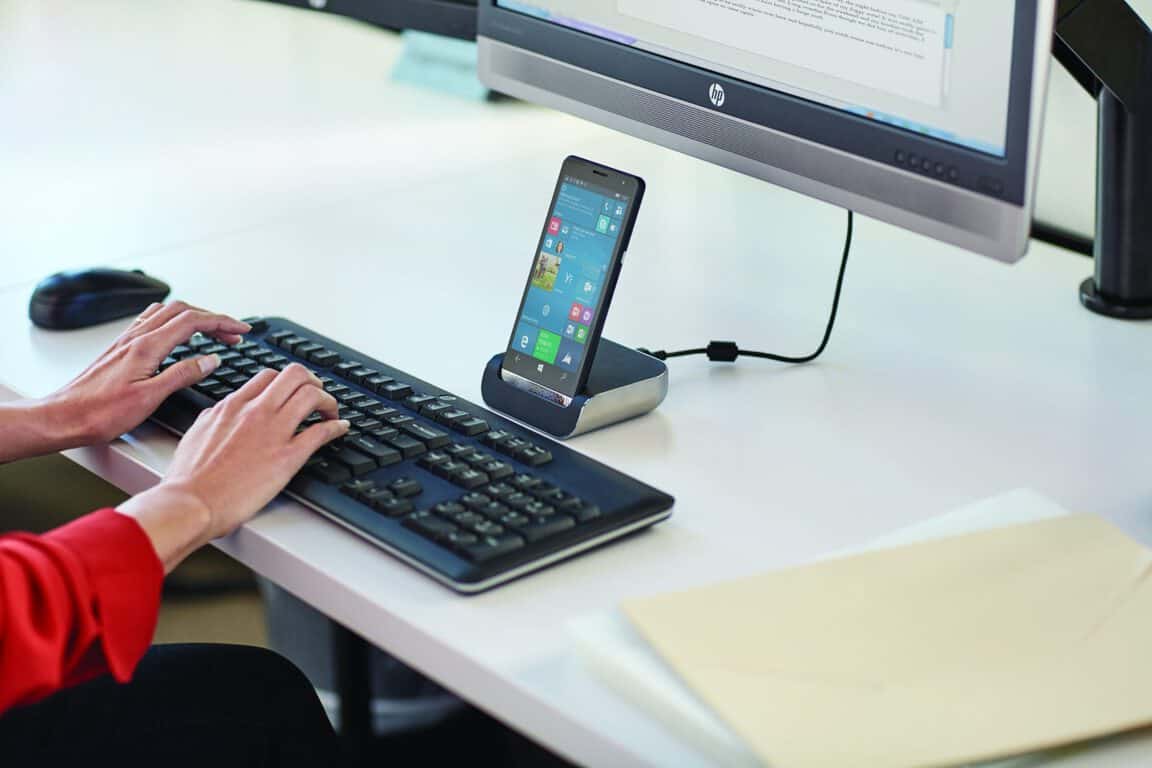
HP releases a few more HP Elite X3 videos highlighting business applications

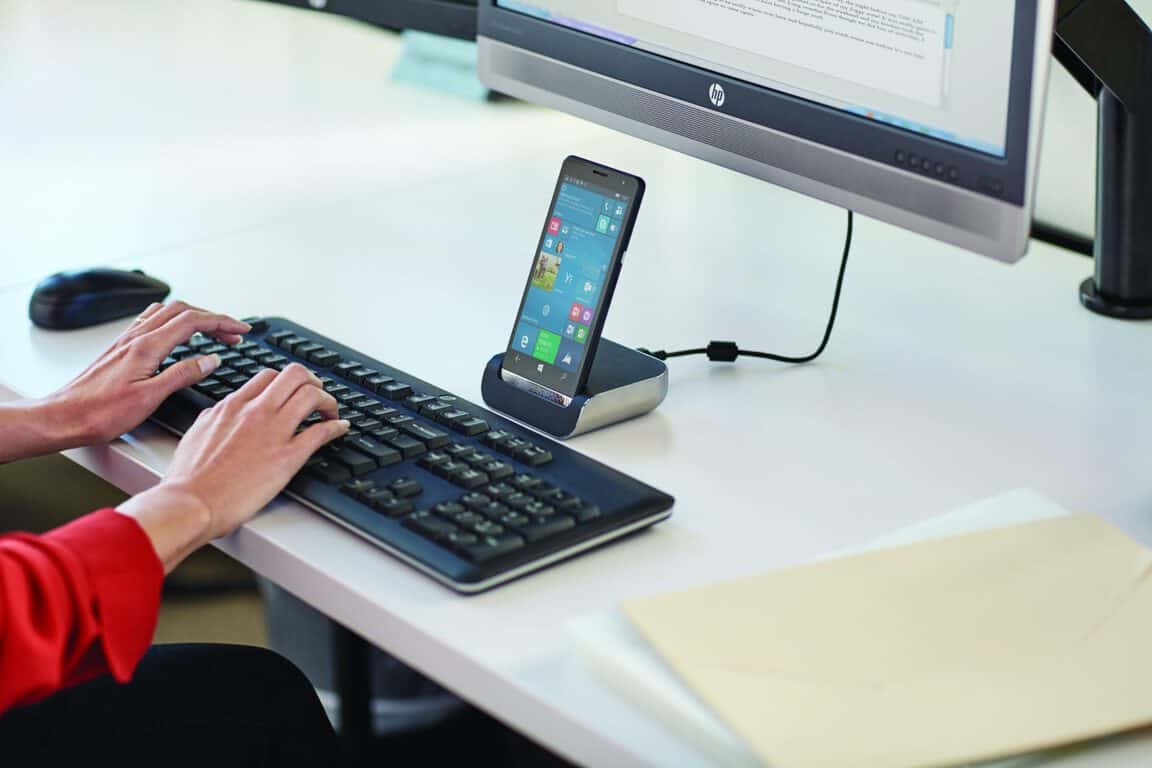
HP’s upcoming Elite X3 flagship Windows 10 Mobile device has been getting more attention lately, from new information releasing at Computex to a video highlighting some of its capabilities for business customers. Now, HP has released even more videos, and again they’re focusing on how well the Elite X3 helps business users be more productive (via Windows Central).

First up is focus on mobility in the workplace:

Next up is an overview of how the Elite X3 was “build from the ground up for the needs of commercial business users” and how the smartphone can transition from a phone into a “next-gen computing device”:

Finally, this video covers the Qualcomm Snapdragon 820 at the heart of the Elite X3:

So, while the HP Elite X3 remains focused on business customers and its suitability for consumers has so far been downplayed by HP, the smartphone looks like a winner. We’re very much looking forward to seeing this device in the wild, and remain impressed with the design and capabilities that HP is bringing to Windows 10 Mobile.

Yummly app for Windows 10 released to help you turn into a foodie

Some people really like to cook, to spend hours and hours in the kitchen putting together complicated, sometimes healthy meals for themselves, friends, and family. For those people, knowing the details of a recipe can be important, and everyone is different in their approaches to food preparation. With that in mind, the Windows Blog gave Yummly Head of Mobile Yuri Yuryev an opportunity to talk about their app that’s now available for Windows 10.

Check out the video below for a quick introduction to the Yummly app:

Yummly includes over a million recipes, which should be enough to get most people started, and learns your taste preferences to make personalized recommendations. In addition, Yummly supports Cortana, meaning you can talk to Yummly in order to help get started on a meal.

Yummly for Windows 10
Yummly app for Windows 10.

Here’s an overview of a few particularly interesting Yummly features:

  • Live tile updates on the Start menu. When you pin the Yummly app to your Start menu, the Live Tile will display a recipe that is the most relevant to you. So if you are looking on a Saturday or Sunday morning you will get tons of amazing brunch recipe recommendations- a feast for your eyes.
  • Cortana commands: Need to find a recipe fast? Just say, “Hey Cortana, find brunch recipes without eggs on Yummly” or “Hey Cortana, find pescatarian appetizers without peanuts” and instantly get recipes that are tailored to you.
  • Sharing Integration: With a quick click of a button you can send a recipe to anyone via email or post it to your favorite social sites like Facebook or Twitter.
  • Drag & Drop: Simply drag a recipe and drop it into Word or email and it instantly pulls the recipe title, source, ingredients and directions- perfect for making a personalized cookbook or printing out your favorite brunch recipe!

The Yummly app is free and available today. You can download it from the link below, and let us know in the comments if you think Yummly will help you prepare some excellent meals.

Yummly
Yummly
Developer:
Yummly Inc.
Price:
Free

Microsoft provides more details on porting the Pori Fashion Show app using the Windows Bridge for iOS

Microsoft announced its bridging tools for both Android and iOS a little over two years go and after some time and development, the company has since shuttered its efforts on the porting technology previously announced for Android. At the same time, Microsoft has put its full backing behind its bridge for iOS, commonly known as Project Islandwood, as a more stable and developer-rich experience for the platform.

Now, the only obstacle to streamlining its app porting efforts for Windows 10 is getting iOS developers interested in bringing over their iOS-first experience and to date, there have only been a handful who have taken the bait.

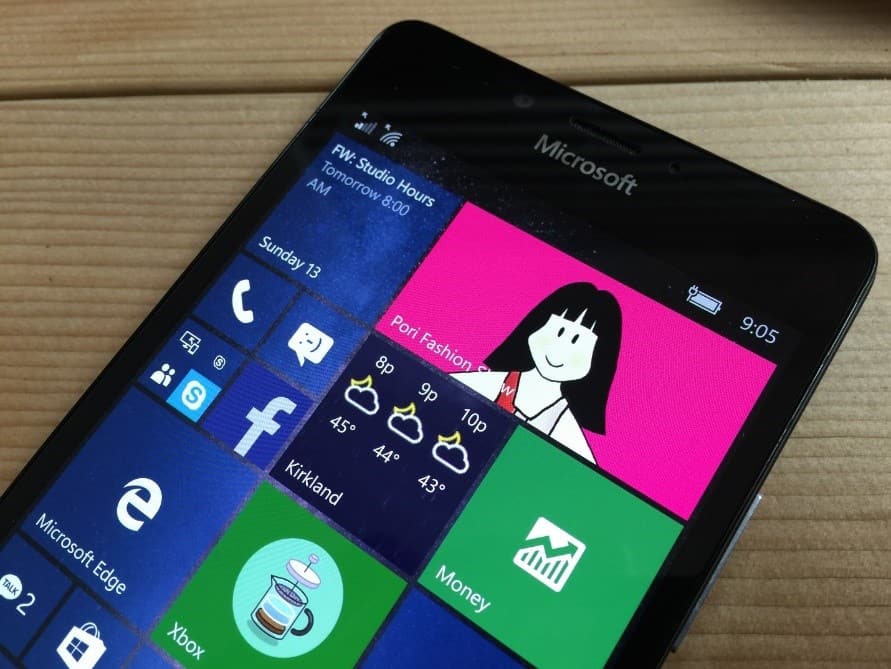
One the few who are bringing over their iOS apps to Windows is Pori Fashion Show, an iOS app ironically written by an experienced Microsoft designer.

Pori Fashion Show
Pori Fashion Show

To offer a bit of insight into what it takes to port iOS apps over to the Windows 10 Store, Dong Yoon Park, senior user experience designer at Microsoft, has offered up a walkthrough of sorts to app developers.

On first run, he was excited to see the app on the phone without modifying any code. The app was working well, just as it had on tablet and desktop, but some of the UI elements were cropped, so Park decided to optimize the layout for phone.

iOS supports layout optimization for different sizes of screens through ‘Size Classes.’ Since Pori Fashion Show used constraint-based auto layout, he decided to add phone-specific layout by using the dimension information of the canvas size.

The Windows design guideline provides the break points for adaptive and responsive design. You can use this as guideline for setting up the threshold for your own app’s content layout.

Note: If you are using pre-compiled SDK, you can directly run your app on phone by changing the platform to ‘ARM’ and the target to ‘Device’. If you are using full git repository and compiling the SDK yourself, you need to compile the SDK (\WinObjC\build\build.sln) for ARM, too. You can follow these instructions—the only difference is that you have to choose ‘ARM’ instead of ‘Win32’.

These are just a couple of stages Park went through in tweaking his app to work the Windows 10 platform. There are several other fixes and adjustments that include corresponding via GitHub, leveraging Guidelines for tile and icon assets, the Windows Store submission process, and creating app packages with Windows Apps Certification Kits, just to highlight a few.

Interested developers are encouraged to visit the Building Apps for Windows blog. The process may appear daunting at first, but Microsoft has assured developers that the process should be relatively painless.

Sticky Notes app gets new stock ticker and flight info support on Windows 10 Insider

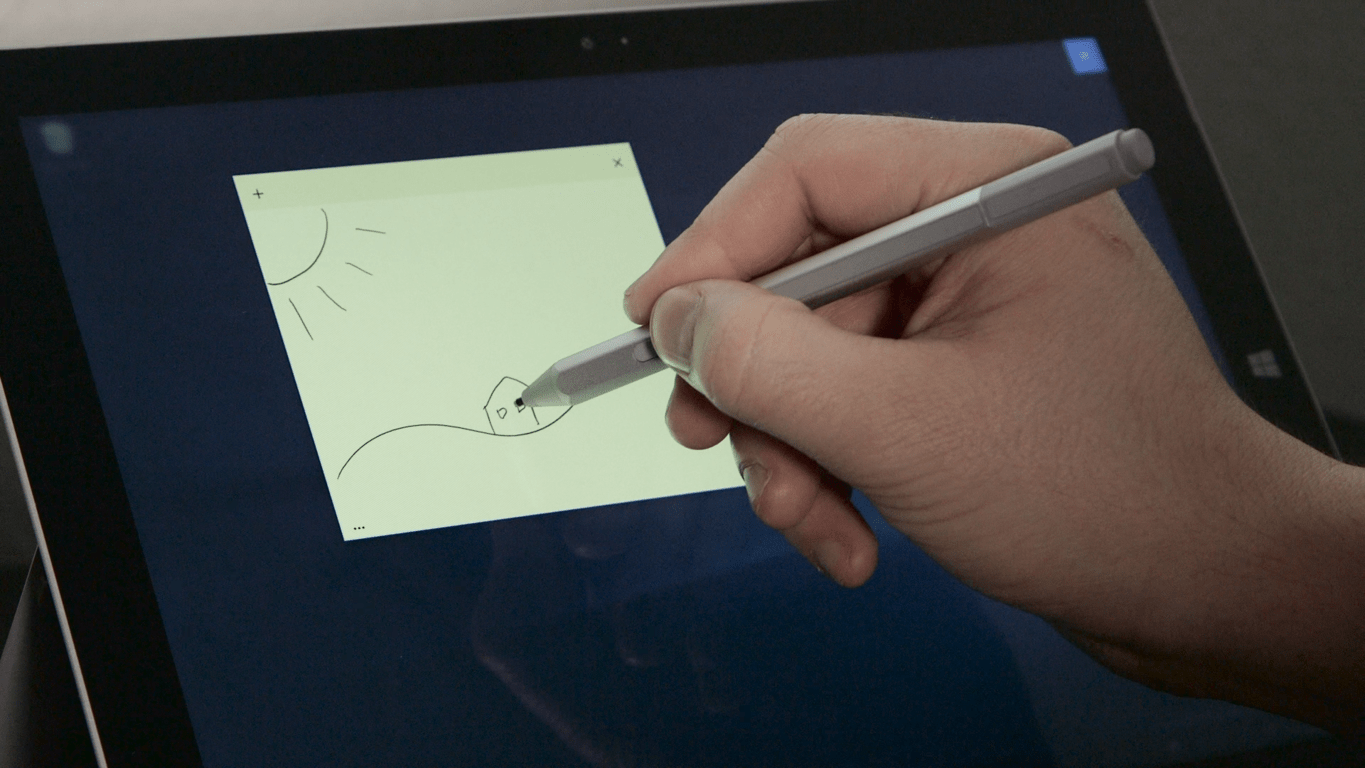
If you’re running a Windows 10 Insider machine, particularly one that supports pen input, then you’ve likely been able to give the Sticky Notes app a try or two. The app is a small one that basically lets you take quick notes–think of it as Post-It notes for your Windows 10 PC. Today, we learn that the Sticky Notes app on Windows Insider Fast Ring machines is getting an update enabling stock ticker and flight info from Bing.

Microsoft Senior Program Manager Brandon LeBlanc followed up with a quick tweet that provides a demo of the functionality:

So there you have it. Go hit update on your Windows 10 Insider machine and see if it’s shown up for you yet. Then, give the new functionality a try and let us know in the comments what you think of it.

Microsoft Translator comes to Kindle Fire

If you’re an Amazon Fire tablet owner, then you’re likely accustomed to the relatively limited availability of apps compared to the greater Android ecosystem. Microsoft has supported Amazon Fire devices fairly well, except for offering the full Office Mobile suite and other first-party apps. Now, Microsoft has added another app to its cross-platform support on the Amazon Fire, Microsoft Translator.

The Translator blog provides the details, including making mention that Translator has been able to translate Kindle eBooks for some time now. From the blog’s description, it appears that Amazon Fire support is fairly complete:

  • Microsoft Translator translates text, pictures and even your conversations! It has a variety of features to help make your travels easier.
  • Get prepared for your trip by saving some phrases ahead of time that you know you’ll need later on—“Where is the taxi stand?”, “Can you drive me to (hotel name)” “How much does this cost?”…
  • Before you leave, download language packs so that you’ll be able to translate images and text during your trip even without an Internet connection.
  • Once you’ve reached your destination, you’ll be able to respond to something you didn’t plan for ahead of time by getting quick translations. Simply type or paste text, or even speak* into your device.
  • Translate images like street signs, headlines and menus without typing in the text. Just quickly snap a picture directly from the app and translate it in an instant. This also works with any picture you get from email, social media, texting, etc.
  • If you have access to the Internet, you can use the conversation feature to engage in natural conversations with locals—ask them about their favorite restaurants, cafes, and places to see.

So, if you’re heading out on an international trip and taking your Amazon Fire with you, then head over to the Appstore and download Microsoft Translator. Then let us know in the comments how the app is working out for you.

Microsoft’s Channel 9 demos SQL Server on Linux

The thousands of people that have signed up for preview and updates about Microsoft SQL Server on Linux are licking their lips today. Microsoft’s Channel 9 posted a new episode of Data Exposed yesterday where Scott interviewed engineers Tobias Ternstorom and Slava Oks about the Linux SQL. The developers gave a quick demo of what they called “just an SQL only on Linux,”.which showcased the quick use and very basic functions of the server.

With the tremendous response of interested parties, many were concerned that Microsoft wouldn’t “do it right” according to the interview. Tobias and Slava amusingly shared that some fans even tweeted at them that the apocalypse was coming. However, according to the video, Linux SQL Server does indeed seem to be operating on par with its predecessor on Windows.

The main goal for the customers was simple. Any application and tool that works through Windows should be able to work on the Linux version and vice versus. The engineers ran a demo of downloading, installing, and setting up a simple SQL Server configuration. With the database being the first being made available, Tobias and Slava walked through creating and backing up.

Screenshot 2016-06-03 13.18.44

While developers wait anxiously, they are encouraged to sign up to get an early look at the SQL Server on Linux. With such a high interest, only a small percentage of people are being onboarded to take part. However, the engineers state that providing a unique scenario that could truly test the SQL Server capabilities will give you more of a chance. Without enough feedback and complaints from currently active participants, they are truly looking for interested parties that have time and focus to push the tool’s limits.

We’ll be keeping tabs on the development of SQL on Linux and keeping you up to date on the latest news. Sign up for to stay informed and to apply for the preview through Microsoft.com

How to use Microsoft cloud services to enhance speech support in Universal Windows Apps

Microsoft has just published a new post detailing the ways its cloud capabilities can be used to enhance the inherent speech recognition abilities in supported Universal Windows Platform (UWP) apps. The post is the last in a trilogy of informative looks at the UWP speech APIs.

Specifically, the post focus on the Speaker Recognition part of the Microsoft Cognitive Services, which comprises of two main services: speaker verification and identification services. For the former, the process involves the enrollment step, which includes creating a verification profile, choosing a verification phrase, and speak it until the profile is enrolled. 1000 profiles can be processed at once with this method. Speaker identification is similar to one of the Kinect 2.0’s abilities, recognizing users based on voice input, which means that there is no verification phrase. Due to the fact that it can only process 10 profiles at a time currently, the service is more suitable for a smaller user base.

As usual, Microsoft goes into great details with this post, offering sample codes and clear and concise explanations for each step in utilizing the APIs. Enthusiasts can check all of these out and more in the original post, the content of which will surely be helpful to any developers wanting to try their hands on a speech-enabled UWP app; as these are cloud-based APIs, they can also be helpful for website and cross-platform developers.


NBA 2K17 and Dex can now be pre-ordered on Xbox One

NBA 2K17 and Dex can both now be pre-ordered and pre-downloaded on Microsoft’s Xbox One video game console in most regions.

NBA 2K17 is the latest entry in the popular basketball game series. Its release date is set for September 20th and it is being sold in a variety of different packages, each with their own exclusive content. Here’s the official description: Following the record-breaking launch of NBA 2K16, the NBA 2K franchise continues to stake its claim as the most authentic sports video game with NBA 2K17. As the franchise that “all sports video games should aspire to be” (GamesRadar), NBA 2K17 will take the game to new heights and continue to blur the lines between video game and reality.

The regular NBA 2K17 pre-order comes with the game, 35,000 VC for NBA 2K16, 4 day early access, and MyTEAM Bundle. The NBA 2K17 Legend Edition comes with all of the above and several Kobe Bryant Digital items for MyPLAYER. Finally, the NBA 2K17 Legend Edition Gold version comes with 100,000 Virtual Currency, the MyTEAM Bundle + (including 3 packs with a guaranteed Kobe Bryant card), 2K Kobe XI shoe, Kobe #8 Mitchell & Ness Jersey, and the Kobe hoodie.

Dex is a 90s-style roleplaying game set in a cyberpunk world. Here’s the description: Discover the truth behind an enigmatic AI striving to reach the Singularity, a theoretical “event horizon” in which artificial intelligence will surpass human intelligence and all bets about the future will be off. How will you play your part in the story? Explore the futuristic city of Harbor Prime and meet its many inhabitants, answer the challenges the city has to offer, roam the neon-lit streets, and augment your character with skills and implants. Pre-order Dex on Xbox One here.

Are you tempted to pre-order Dex or NBA 2K17 or has one of the many Xbox One video games that are available to play right now stolen some of the spotlight? Let us know about your recent purchases in the comments below.

This tool will fix Office 365 and Outlook technical issues

You’re probably having problems with Office 365 and Outlook and wondering how to fix them. You’ve tried countless things but nothing seems to work. How about taking the Microsoft Support and Recovery Assistant for Office 365 tool for a spin? The software giant designed this piece of software for the sole purpose of fixing your Outlook and Office 365 issues.

The interesting thing about the Microsoft Support and Recovery Assistant tool is the fact that it doesn’t require much work. Just a single click of the mouse after installation fixes most problems.

After installation and launch, users should see the following options:

  • Office setup
  • Outlook
  • Outlook for Mac
  • Mobile devices
  • Outlook on the web

The options are basically a list of apps you might be having problems with. For example, if you’re dealing with Outlook issues, then click on the Outlook option and venture forth from there.

Here is a list of problems this awesome little tool can fix for you:

  • Outlook stops responding
  • Can’t receive emails
  • Outlook keeps asking for my password
  • Shared mailboxes or shared calendars don’t work.
  • Outlook keeps saying “Trying to connect…” or “Disconnected”
  • I can’t sync my email
  • Email app keeps asking for my password
  • Where do I go to install Office?
  • I can’t activate Office
  • I need help setting up my Office 365 email in Outlook
  • I can’t sign in
  • I can’t find Outlook on the web
  • I can’t install, connect, or enable CRM for Outlook

The tool can both fix issues or share information on how to manually perform a fix yourself. From our experience, it is a handy tool for most scenarios. Furthermore, if for some reason the tool is unable to fix a problem, it will send you over to the Office 365 support team for further assistance. Let’s hope you’ll never need to be sent elsewhere.

RELATED STORIES YOU NEED TO CHECK OUT:

Aiken County Public schools begin using Windows 10, Surface tablets, Xbox Ones, and Microsoft Bands

The director of technology at Aiken County Public School District, Andrew Cox, has shed some light on his experience transitioning his schools to not only the Windows 10 operating but also on how they’ve managed to incorporate Windows phones, Microsoft Bands, and Xbox One into the day-to-day activities of his educators and students.

“Our district chose Windows 10 so we can deliver multimedia to the classroom, increase opportunities for research, enable greater collaboration between students, and generally allow students and teachers access to materials and methodologies that would have been considered magic just a generation ago,” he says about the motivation for making the switch to Windows 10. “Aiken County Public Schools selected Windows because of its flexibility, professional ecosystem, consistent user experience, and overall responsiveness.”

One of the concerns he and his peers had about changing operating systems was the expenses that would be involved but they actually found Windows 10 to be more than financially viable and very convenient to implement. “Windows, as a platform, has long been one of the easiest to deploy and manage,” he admits. “Group Policy and Active Directory make it relatively simple to make changes across the district with just a few clicks. We don’t have to plug in our tablets to a laptop to deploy apps and we don’t have a disaster on our hands if our network has a problem and the cloud is unavailable.”

In just three months and using only six individuals in networking and 15 individuals in the field, they managed to install 2,400 laptops and desktops in the district. While this saved them thousands by not using the usual contractors, Cox jokes that Microsoft wasn’t always so affordable. “We estimate we spent approximately $85,000 on outside contractors when we upgraded from Windows XP to Windows 7 and have spent $0 upgrading to Windows 10,” he admits.

Brandee Green, 4th and 5th Grade ELA, Social Studies Teacher and Department Chair at Aiken Elementary School works with a student using OneNote on a Windows device
Brandee Green, 4th and 5th Grade ELA, Social Studies Teacher and Department Chair at Aiken Elementary School works with a student using OneNote on a Windows device. Image Credit: Microsoft

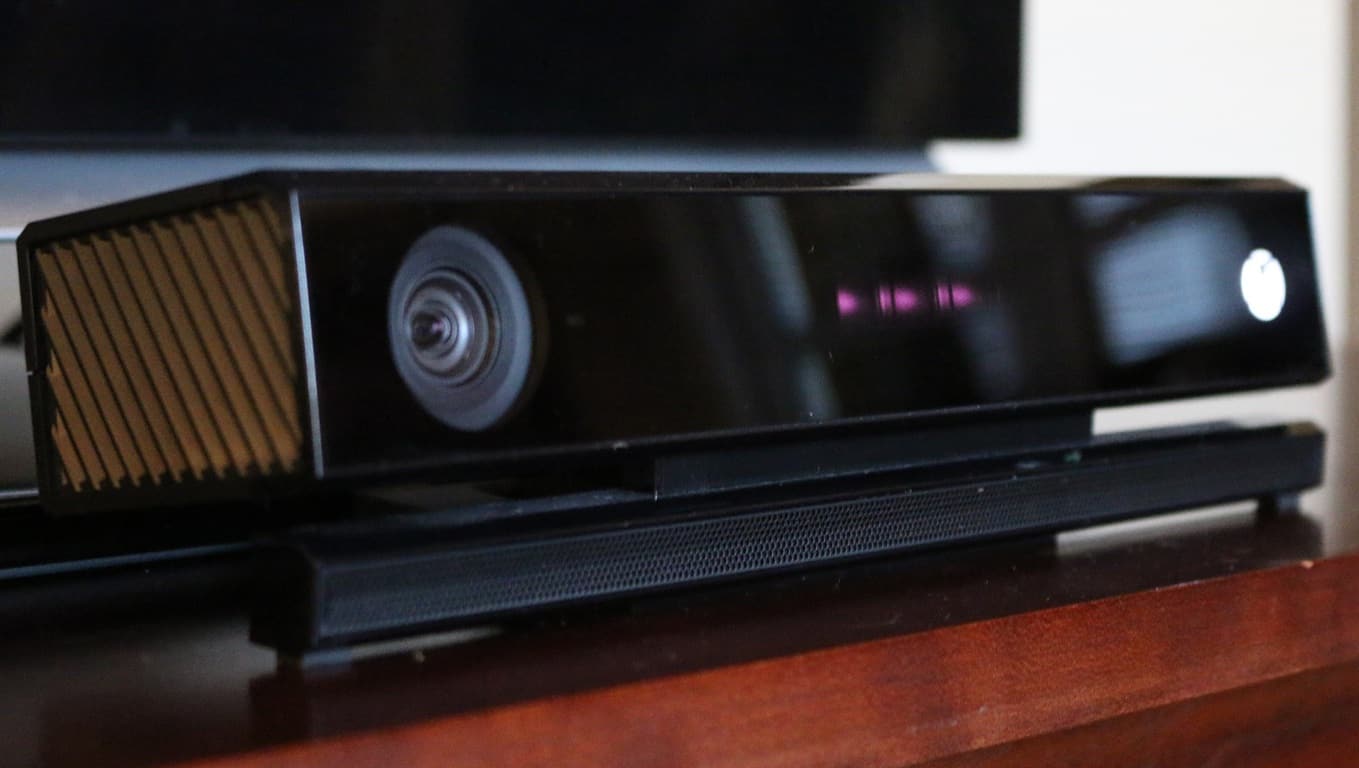
Teachers in Aiken County Public Schools now use Surface tablets in classrooms and, with the use of compatible wireless video adapters, have improved their presentations as well. Surprisingly, some schools are even using Microsoft’s Xbox One in their physical therapy classes thanks to the console’s Kinect camera and the video game, Minecraft, is also used on occasion. All district administrators and principals also use Windows phones to access their Office and OneDrive files and the network and system administrators use Microsoft Bands to get system and network alerts. The district has really gone all-in with Microsoft products.

In summing up the transition to the Microsoft range of products and services, Cox exclaims, “We have fully embraced a platform that embraces us back—with Microsoft and Windows 10, we know we’re equipping our students, faculty, and staff with the very finest in professional tools!”

Do you use Microsoft products like a Microsoft Band or Windows phone at your workplace? Which ones do you use the most? Let us know about your experience in the comments below.

The Asus ROG G31 is a monster gaming desktop with up to 64GB of RAM

Asus means business.

The company recently announced a series of innovative gaming devices at COMPUTEX 2016 that will surely revolutionize the gaming world. The first device that caught everyone’s attention was the new GX800 gaming laptop, the most powerful gaming laptop in the world. Continuing the trend, Asus wants nothing less than superlatives and its ROG G31 gaming desktop is a beast able to run smoothly even the most demanding games.

The ROG G31 gaming desktop is the world’s most-powerful compact gaming desktop. Asus created this device especially for the ROG 10th-anniversary and made no compromises in designing it. ROG G31 has a 20-liter chassis and is powered by Intel’s i7 processor backed by an NVIDIA GeForce GTX 1080 GPU with 2-way SLI for 4K UHD image quality.

The beast supports up to 64GB of RAM and will run smoothly event the most demanding game scenarios. You can also overclock the CPU with just one-click if you want to see what this monster is really capable of. The ROG G31 also features four M.2 PCIe SSDs and a Blu-Ray disc drive.

Such a powerful system generates massive heat, but Asus took care of that too and incorporated hidden airflow tunnels and a 3D Vapor Chamber for effective heat dissipation. The ROG G31 is actually made of two components: the main desktop and the 600W power supply which mounted on a secondary case.

Asus hasn’t offered any details about the price or availability of the produce, and doesn’t even have a dedicated page on its official site for it. Judging by its specs and the fact that Asus claims ROG G31 is the most powerful gaming desktop in the world, we expect the price tag to start at around $3,000.

If you’re looking to buy a gaming computer but can’t afford the upcoming ROG G31, we suggest you check out our list of the best gaming laptops out there.

RELATED STORIES YOU NEED TO CHECK OUT:

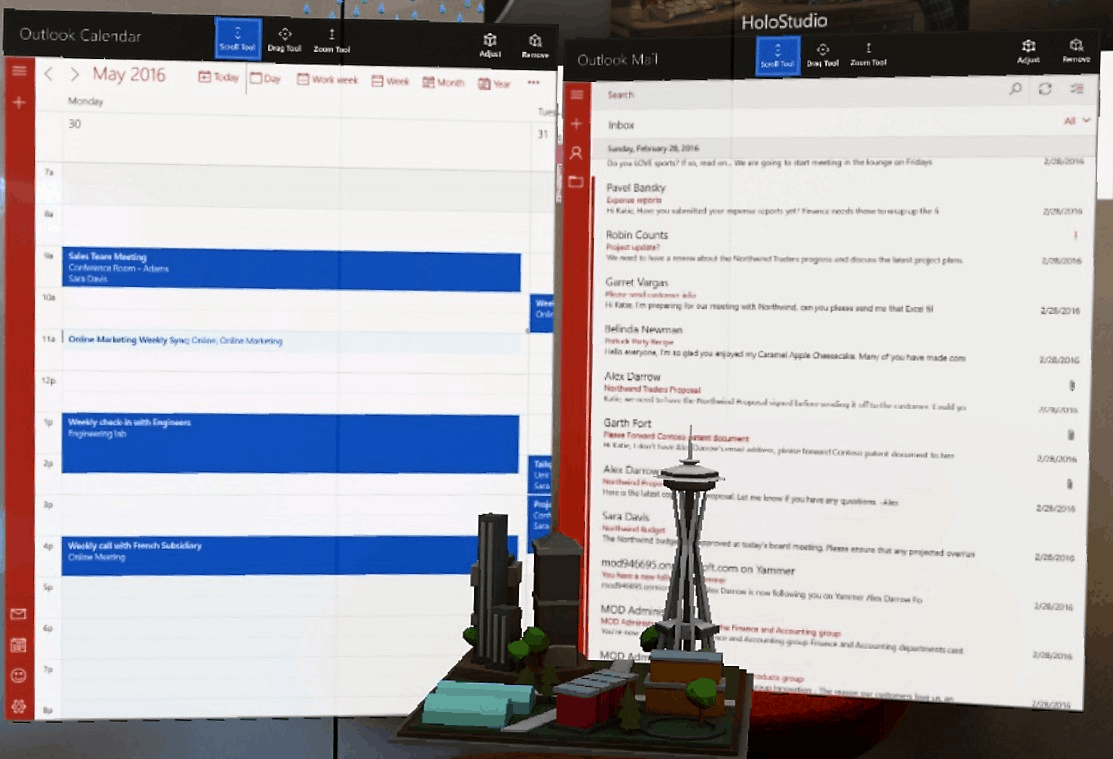
Outlook Mail and Calendar app looks awesome running on HoloLens

The uses of mixed reality are nearly endless. With a large amount of interest being drummed up by businesses, Microsoft has found more and more commercial uses for the HoloLens. Just today, Microsoft released an update to the Mail and Calendar app for Windows 10, adding HoloLens support.

Ideally, users will be able to ‘place’ the calendar and email updates on their wall through mixed reality, enabling them to stay up to date on the happenings and itineraries. The application can be customized with a holographic accent and resized vertically to show off even more information.

Bringing-Outlook-Mail-and-Calendar-to-Microsoft-HoloLens-1d
Outlook Mail on HoloLens

Thanks to the Universal Windows Platform, developers are already able to play with these applications through Windows 10. Microsoft is encouraging any interested parties to download the Outlook Mail and Calendar app on their HoloLens, then to provide feedback on the developer forums for future advancement.

The Outlook Team has provided a short FAQ for developers to get started:

Frequently asked questions

Q. How do I get Outlook Mail and Calendar apps on HoloLens?

A. Open the Windows Store on HoloLens, and search for Outlook Mail and Calendar. Click “Free” to follow the steps for installation.

Q. How do I get a HoloLens?

A. You can order a HoloLens Development Edition from the HoloLens product website.

Q. Where can I get more information or give feedback?

A. Please see more FAQs in this help article for more information about Office on HoloLens. You can share your feedback with us at the developer forums.

Around every corner, the HoloLens impresses us even more with new updates and capabilities. Just yesterday, our own Sean Ong from WinBeta had the opportunity to show off the most recent update from first person perspective: setting up three different apps in HoloLens to run at the same time. Check out the video exclusively on WinBeta!

Microsoft wants developers to enhance Windows 10 app user interface design with iconography

When the Windows team made the transition from Windows 7 to 8, it bet heavily (arguably too much at the time) on typography and iconography in ushering in a new era of quick visual identification and representation for more dense information.

While the Windows team may have backtracked on its more aggressive design vision of Windows 8, the styling cues of its Metro/Modern Design are still very much alive in Windows 10 and the team would like to help developers to make full use of them when engaging users.

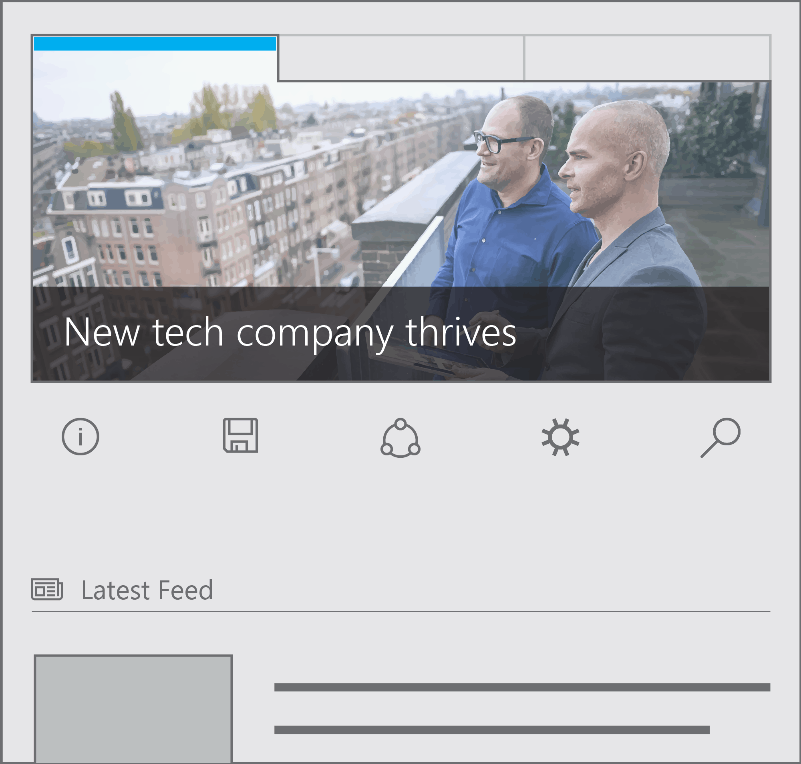
In a blog post titled Using iconography to enhance UX design, the Windows team walks developers through the nuances of leveraging icons, specifically how and when to replace text or copy within apps and services with images.

Iconography is a visual language used to represent features, functionality, or content. Icons are meant to be simple, visual elements that are recognized and understood immediately.

It perhaps goes without saying that, thanks in large part to the limited surface area and input methods beholden to smartphones and tablets, developers have had to exercise more creative methods for displaying information and menu options. The Windows team’s iconography tips include:

When to use custom iconography

Standard icon sets only go so far, however. In addition to OS or device-specific icons, your app may also need its own set of icons to represent app-specific functionality that the standard sets cannot accommodate without creating ambiguity for the user (e.g. recipe search, movie bookmark, image download).

This goes beyond the user simply not knowing what to do. If the user is likely to hesitate or expend any energy in order to figure out an icon in your app, then you will probably want to use a custom icon.

iconography sample
iconography sample

Where to find icons

Like fonts, icons are available for download. Icon sets are designed by professional artists and made available for you to use in your app. You may choose icons sets that are free (like vectoricons.org and freeiconsdownload.com) or icons that can be purchased (such as those on popular sites like istockphoto.com, shutterstock.com, and iconshock.com).

And perhaps most important, the team stresses being consistent. The last note the Windows team offers may go without saying, but a consistent typography and iconography where applied, goes a long way in helping users quickly develop muscle memory when navigating an app or service.

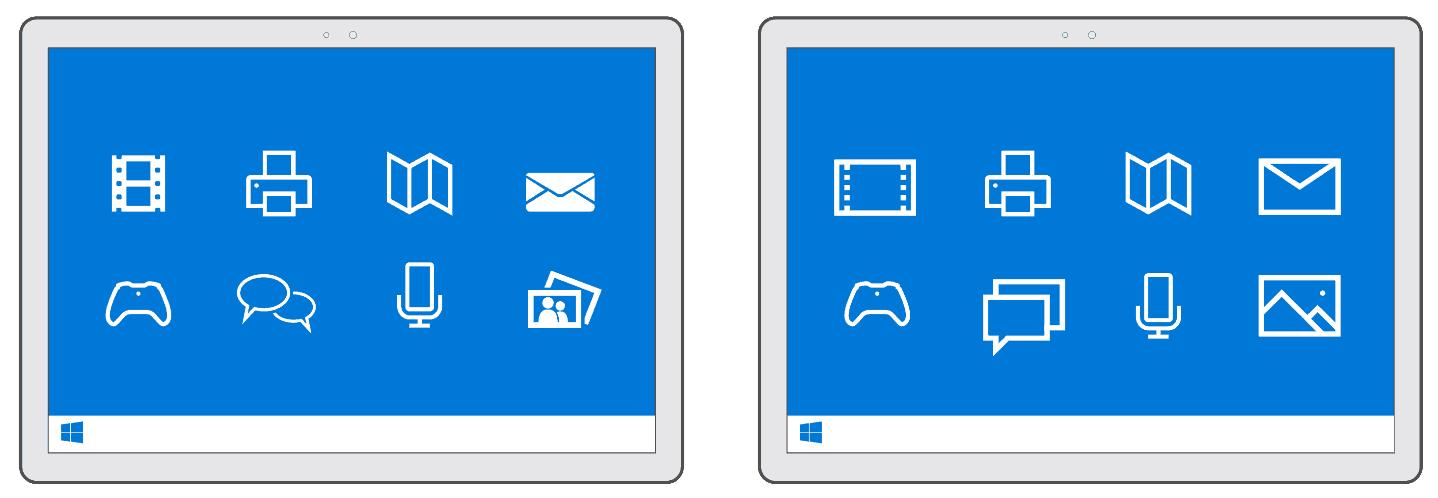
Likewise, consistency ensures that each icon has equal weight, drawing your users’ eyes equally. Take a look at Figure 3 below. Both the left and right images may look similar, but notice how the icon style on the left has both filled and unfilled shapes. This inconsistency pulls the eye of the user disproportionately to the filled icons—video, mail, and photo. In contrast, check out the icon set on the right. Those icons are consistent in both their thematic style and design elements. Each one engages the eye equally.

consistent icons
consistent icons

There are a few more details regarding iconography that are recommended, and developers can follow up on them in the Building Apps for Windows iconography series. As Microsoft continues to court developers to its development tools and environments, the company is also benefiting from an industry that is also looking to leverage similar app design languages across platforms and services. No longer is larger typography and iconography-heavy navigations seen as an albatross of software design.

Microsoft Mechanics gives the Surface Book the engineer tour treatment

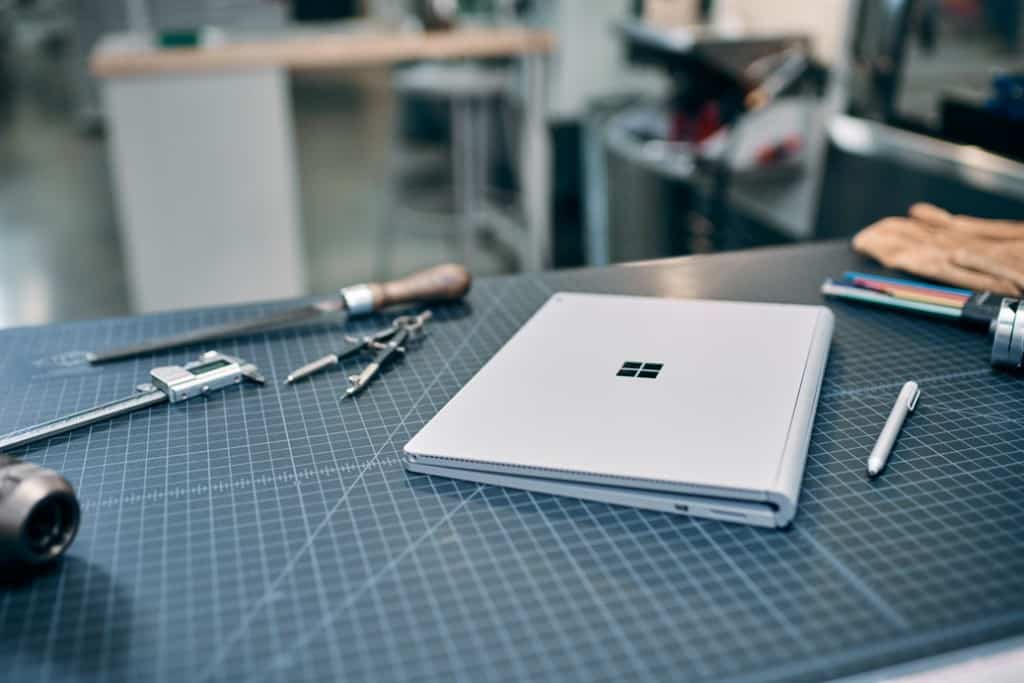
Microsoft’s Surface Book remains one of the more innovative 2-in-1 machines on the market, and part of its appeal is likely the attention to detail and engineering prowess applied to its design and manufacture. Certainly, Microsoft feels this way, and their Microsoft Mechanics team put together a video highlighting some of the Surface Book’s more interesting elements from an engineer’s perspective.

Some of the highlights include:

  • Display specs, such as 3000 X 2000 resolution with 267PPI and 6 million pixels
  • Display quality, including 1700:1 Contrast Ratio and 100% sRGB support with individual color calibration
  • Support for Nvidia GPU in keyboard
  • Keyboard design highlighting 19mm spacing and 0.2mm dish in keycap design
  • Port configuration and camera specs
  • Design and function of the muscle wire latching mechanism and safety features
  • Battery design optimized to maintain power in clipboard as much as possible using “Save the Top” algorithm
  • Pen and inking design innovations
  • Dynamic fulcrum hinge design and advantages

The video’s only a little over six-and-a-half minutes long, and it’s worth a quick watching. Check it out, and let us know in the comments if you learn anything new.

Kinect for Windows can make pumping iron more efficient

It’s been a while since Kinect got any love. With the peripheral all but abandoned by Xbox One games, it managed to avoid a lifetime of obscurity by getting picked up by software developers that saw the raw potential in its SDK. Kinect may not be much of a gaming device anymore, but it’s responsible for some really interesting stuff – from trippy music videos to, now, weightlifting companions.

Software engineer Vangos Pterneas has put up a tutorial teaching Kinect software developers how to track objects, using a sample program that can track the height of a barbell as a person lifts it. While the Kinect SDK can track human joints right off the bat, it doesn’t have the ability to track objects all on its lonesome – to do that, developers should follow Pterneas’ tutorial.

As you can see, the software is a pretty reliable and valuable tool for people who have a Kinect sensor and want to use it to help them lift weights. Even if you’re not a weightlifter, the program is a proof of concept for a technique that has countless other uses outside of an exercise routine. If you’re just interested in lifting weights and don’t want to go about tweaking the code yourself, you can see the program in its entirety through GitHub, where it’s available totally open source.

HP Elite X3 demonstrated in new video with Microsoft’s Terry Myerson hosting

We just reported on the HP Elite X3 Windows 10 Mobile flagship being shown off at Computex, with a new fingerprint scanner and minor design changes. The Elite X3 is so far aimed at businesses, with some conjecture that the smartphone might make its way to consumers as well. Nonetheless, HP and Microsoft tend to talk up its attractiveness to the business market, and their latest video is no different.

The video highlights the Elite X3’s productivity features, such as Continuum and talks specifically about how the device will help businesses be more efficient and effective. That makes some sense, given that Microsoft is, for the moment at least, focusing Windows 10 Mobile on businesses.

In case you’re not familiar with the Elite X3, here are its major specs:

  • Qualcomm Snapdragon 820 (2.15 GHz and 4 cores)
  • 5.96-inch (2560×1440) AMOLED display with Corning Gorilla Glass 4 and anti-reflective coating
    4GB of RAM
  • 64GB of eMMC storage with 1 microSD (expandable up to 2TB)
  • 16MP f/2.0 FHD rear-facing camera and 8MP FHD front facing camera and Iris camera
  • Audio speaker by Bang & Olufsen

We’ll be keeping our eye on developments with the Elite X3 and other Microsoft OEM Windows 10 Mobile devices, to see which markets they’re focusing on. Let us know in the comments what you think about the Elite X3, and Microsoft’s highlighting it’s business focus.

Halo Wars 2 to be playable during E3 2016

Halo Wars 2 is a real-time strategy game that’s scheduled to be released this fall, developed by Creative Assembly and 343 Industries and published by Microsoft Game Studios. For some reason, Microsoft has “quietly” confirmed that the upcoming Halo Wars 2 will be released for Windows 10 OS and Xbox On, announcing last year will be available in playable form at the E3 2016 event that will take place this month.

Microsoft announced Halo Wars 2’s appearance at E3 2016 during its weekly Halo blog post, where it hinted that something else will be revealed during the trade show in Los Angeles as well. So, aside from a playable Halo Wars 2 demo, Microsoft will have even more goodies for the fans.

Watch the trailer that Microsoft premiered last year at Gamescon last year between August 5 and August 9:

There are rumors which say that a closed beta will soon start for Halo Wars 2. Shortly after the closed beta, we think its developers will release an open beta session in order to stress the servers to see how they handle a large amount of players at the same time.

Unfortunately, a beta version of Halo Wars 2 has yet to be confirmed by developers yet, but maybe this is what they will announce during the E3 2016 event. This event will be held between June 14 and June 16, 2016 at the Los Angeles Convention Center. On the other hand, Halo 5: Guardians – Hog Wild DLC was released.

Do you think that Microsoft will confirm a beta testing phase for the Halo Wars 2 during the Electronic Entertainment Expo 2016 event?

RELATED STORIES TO CHECK OUT:

Microsoft remains clear leader in global education market

While there has been a fair share of praise showered upon Google’s efforts in education with the slow increase of Chromebook usage by schools predominately in the US, Microsoft’s Education Team would like to remind folks: they’re not doing too shabbily themselves with Office 365 and Windows 10.
We’re really excited to see even more students and educators around the world using and loving Windows 10 and Office 365. According to a Futuresource report, Microsoft remains the global leader in the education market, with 46 percent of the global K-12 education OS market share and six percent year-over-year growth.

Additionally, IDC reviewed over 76 million job posts looking for the most in-demand skills in today’s workforce and the skill’s needed for tomorrow’s best jobs and found proficiency in Microsoft Office ranked in the top 10.

Some handpicked anecdotal stories that particularly tickled Microsoft’s fancy regarding the necessity of Office 365 and Windows 10 adoption and use include:

  • By upgrading to Windows 10, Aiken County Public School Districts now has a consistent technology platform across all devices and scenarios, access to multimedia in the classroom, increased opportunities for research and greater collaboration among students and teachers. “The best thing about our switch to Windows 10 is the great outcome that we get for our students and teachers,” says Andrew Cox, J.D, Director of Technology at Aiken County Public School district. He also shared that the Windows 10 upgrade was free and runs faster with greater reliability on existing Windows 8 and Windows 7 devices. Read his story.
  • Saint Stephens College in Australia moved to Office 2016 after using a combination of solutions for many years. Peter West, Director of eLearning said, “The benefits are already becoming obvious with easier training and less support time, which will result in more learning time for students/less time out of class for IT support.”
  • Modesto City Schools in California deployed 12,000 Windows-based devices (expected to grow to 45,000 within 5-years) and Office 365 to improve teaching and learning and to provide cloud-based access to the latest productivity and collaboration tools. “With mobile Windows-based devices in the classroom, students can access more resources when and where they need them … they can look things up, read what interests them, dig deeper, ask more questions” said Cindy Minter, Senior Director of Information and Technology Services.

As school administrations seek better and more affordable tools to aid in education, the mere mention of iPads, Chromebooks, or (yes there a few) Linux machines should keep Microsoft stringent delivering experiences for education that offer real value. From OneNote Class Notebooks to free Skype in the Classroom sessions, Microsoft’s new cloud-based software-as-a-service approach to its offerings is becoming arguably a boon for educators.

Skype adds a (sloth) emoticon

Over the last few weeks, the Skype team has been running the #SkypeSuggestion campaign on Twitter to allow Skype users to give their ideas for new emoticons. In a blog post today, the team shared that “we were overwhelmed and thrilled with the amount of suggestions you submitted.” However, they had to ask the community to vote for their favorite new emoticon between the three choices below:

The Skype team asked the community to vote for their favorite emoticon.

While all three emoticons look pretty fun, the winner was the (sloth) emoticon. The team explained that “we’ve been working really hard to bring you a very laid back way to express yourself.” Still, they added that “our new lazy friend is perfect for those times when you just can’t get up, need a nap, want to take it slow—or just need a cute sloth in your life”. You can see the result below, and the Skype team also shared a short video showing what it’s like designing Skype animated emoticons.

The new (sloth) emoji.

The sloth emoticon arrived soon after the Skype team introduced “Power Women mojis” to celebrate powerful women, and so Microsoft is offering up something for everyone. Please tell us in the comments if you’re feeling the go-slow attitude with this sloth emoticon, and we’ll follow up after a well-deserved break. Also, let us know if you think the Skype team should slow things down with their ever-increasing emoticons list.

Samsung calls “don’t upgrade to Windows 10” advice a mistake

Just yesterday we reported on the fact that Samsung was telling its customers not to update to Windows 10. Today, Samsung is apologizing for that and is instead advising customers to visit the Samsung website for more detailed information on the Windows 10 upgrade.

In an updated story published on TheRegister, (which originally reported on the Samsung situation,) a Samsung  spokesperson notes that, “a customer service representative mistakingly provided incorrect information about Windows 10 upgrades for Samsung Notebooks.” The spokesperson also notes:

We would like to remind our customers that they can visit the Samsung website where there is detailed information on the Windows 10 upgrade applicability for each Samsung notebook model run by Windows 7, Windows 8 and Windows 8.1.

So, with with the Windows 10 Anniversary Update just about a month away, this could be seen as better news for Samsung customers who would like to upgrade and get the latest features out of the Windows 10 operating system.

Save 33% on a year of Xbox Live Gold from Amazon

If you are getting close to your renewal date for your Xbox Live Gold membership, or are thinking about purchasing it for the first time, now is a good time to pull the trigger thanks to a deal at Amazon.

Major Nelson posted the deal on twitter this morning, which lets you buy an online code for a 12-month membership to Xbox Live for $39.99, a discount of 33%. The discount is only available for the 12-month membership as an Online Game Code. So there is no discount for either physical cards or the three and seven month memberships.

The main purpose of Xbox Live Gold membership is to enable online multiplayer for your Xbox One and Xbox 360 games. But Gold members also get free titles every month under the Games with Gold program and exclusive discounts on games and add-on content through the weekly Deals with Gold. Games with Gold recently became a greater value after it was announced that all future Xbox 360 Games with Gold titles will be playable on Xbox One via backward compatibility.

For example, this month Xbox Live Gold members with an Xbox One can get not only Goat Simulator and The Crew for Xbox One, but also play Super Meat Boy and XCOM: Enemy Uknown for Xbox 360 on their Xbox One. And the weekly Deals with Gold can offer good deals on popular games, like this week’s deals of 35% off on GTA V for Xbox One, 40% off NBA 2K16, and 100% off the Battlefield Hardline Getaway add-on content.

Xbox Live Gold membership is increasingly becoming a better deal with lots of great value-adding perks. So if you know you’ll want to have access to Xbox Live Gold for the next year, now is a great time to pick up a 12-month membership.

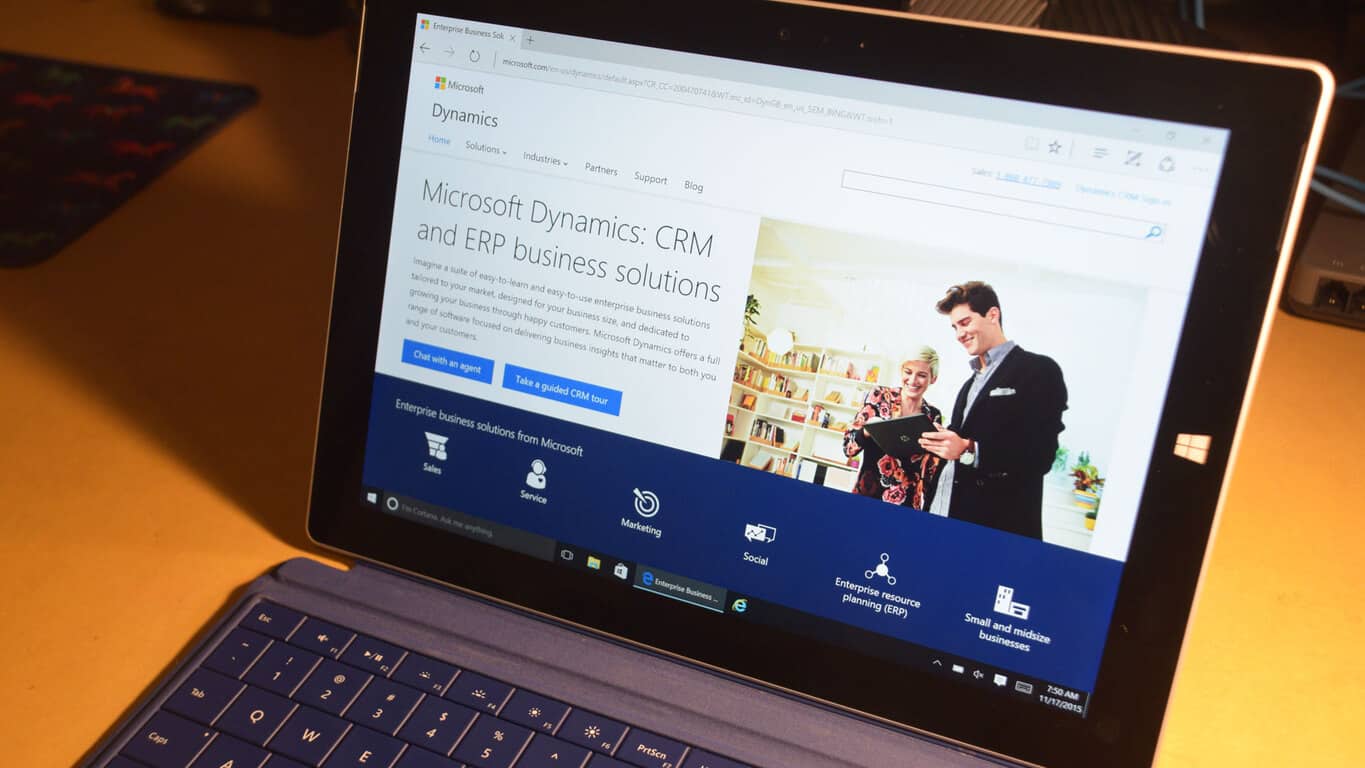
Microsoft CRM 2016 Spring wave gets new content

Microsoft’s Customer Relationship Management software, called Microsoft Dynamics CRM, just received a substantial update including new features for both end users as well as admins and developers.

The CRM 2016 spring wave is a collection of updates adding features to various version of Dynamics. The official names of the updates are:

  • Microsoft Dynamics CRM Online 2016 Update 1 and Microsoft Dynamics CRM 2016 Service Pack 1
  • Microsoft Dynamics Marketing 2016 Update 1
  • Microsoft Social Engagement 2016 Update 1.5

Here is the full list of features added in the CRM 2016 spring wave.

Microsoft Dynamics CRM

Field Service

Project Service

CRM portals

Mobile offline

Power BI

Subscription and release history

For developers

Microsoft Dynamics Marketing

Microsoft Social Engagement

All in all the Spring wave for CRM is a pretty far-reaching update with a lot of new features. To learn more about what was added you can see what is new here.

Microsoft’s Board of Directors pushing a faster move to the cloud

Microsoft has clearly been trying to lessen its reliance on traditional software and switching focus to cloud-based products in recent years; for Microsoft’s Board of Directors however, the transition’s not nearly fast enough, reports Bloomberg, who caught up with Microsoft Chairman John Thompson to ask about Microsoft’s directions in the future.

The talk occurs amid slumping PC sales and growing concerns that Microsoft’s traditional software business – selling “on-premise” software that installs and operates fully in a client computer or network – is soon going the way of the dodo. AT&T’s wireline business suffered a similar fate in only three years, something Chuck Noski, another director, has had personal experience with.

Satya Nadella’s rise to power has been the clearest indication of where Microsoft sees its money coming from in the future, and sure enough, the current CEO and former cloud chief has been making a strong push towards cloud-based offerings, garnering approval from the company’s director board. But it needs to be faster.

“What’s the likelihood that could happen with on-prem versus cloud? That in three years, we look up and it’s gone?” – John Thompson, Chairman of the Board, Microsoft.

Specifically, Thompson and the board wants Microsoft to invest more in its cloud business, not just in pure technology, but also in sales and partnership strategies. The reasoning is clear: cloud business like Azure and Office 365 currently account for less than 10 percent of the company’s total revenue. Microsoft Azure is lagging far behind its biggest competitor, Amazon Web Services in the partnership department, both of which suffer from the transitional effect to a new business model. Microsoft’s slump in the last quarter certainly didn’t help: the blame was put on the lagging transactional business and lower gross margins of cloud products.

“That’s a very different model for Microsoft and one our investors are going to have to suck it up and embrace, because the alternative is don’t embrace the cloud and you wake up one day and you look just like — guess who?” – John Thompson, Chairman of the Board, Microsoft.

Microsoft is in a hard time, as competition is fiercer than ever and the company continues its transitioning to a cloud-based provider. It will take time, during which investors may be jaded; nevertheless, as Thompson said, pressure means change, and we look forward to how the company will transform itself in the years to come.

Microsoft President Brad Smith goes on the record about the company’s privacy lawsuits

Technology companies, due to the inherently sensitive nature of the data they hold, are caught up between responsibilities with customers, and the need to comply with governments’ security policies; conflicts, of course, ensue. Few have dared to take it to head-to-head matches with the ruling body in the courtroom like Microsoft did recently however, and the company’s president and chief legal officer, Brad Smith, has talked about it with Wall Street Journal.

The most recently lawsuit Microsoft has filed to challenge secret search orders,  is also the fourth one against the US government, with the first one happening in 2013, then related to the Foreign Intelligence Surveillance Act. Since then, two of the lawsuits have resulted in Microsoft’s victory and the government backing down with their requests, and two still waiting for a decision.

These suits have all involved situations where we’ve felt that the company’s business and the interests of our customers were at stake around security and privacy.

According to Smith, these lawsuits have had input and unanimous support from the CEO, senior leadership team, as well as the company’s board of directors; company employees, meanwhile, are kept informed via blogs. Pushing the rights violation concerns through the 93 attorney’s offices throughout US has been one of the more challenging aspects of the process, and sometimes, like in the latest lawsuit, there’s no choice but to take action.

These are issues we had tried to raise with the Justice Department in Washington, D.C., over the last few years. They work in an environment that has so many competing priorities that many days we would find that our concerns just didn’t make it high enough on their list for effective action to be taken.

On the customers’ side, Microsoft has taken effort to keep stakeholders informed, with tweets and polls, the latter of which happens once or twice per year ever since the first suit. Despite its fierce stance regarding privacy, the company still keeps a careful approach to communicating, and aiming for a middle-ground resolution, according to Smith. Moreover, it’s not like Microsoft doesn’t recognize when privacy concerns have to give way to public safety responsibilities: Smith openly admits to the company complying with Paris and Brussel police’s 14 search orders in “under 30 minutes” in the aftermath of the horrifying terrorist attacks at the two cities.