We can’t shy away from the fact that Visual Studio is one of the most popular IDEs available worldwide. Microsoft which recently revamped Resource Explorer in Visual Studio is now planning to push future updates for the program via Windows update.
The Redmond giant recently said it will be revamping the update experience for Visual Studio by integrating it with the Windows Update system.
Visual Studio updates will soon be delivered via Windows Update
Mads Kristensen, from Microsoft’s Visual Studio team, took to X to inform the intentions of the company. He adds Microsoft wants to make this change for easier security and maintenance automatically in the background.
Wouldn't it be cool if Windows Update could handle updating Visual Studio for you and your organization automatically – keeping you secure and up to date? We think so too. Coming soon… pic.twitter.com/65s32N7mSx
So, how would that work? Well, instead of manually updating the Visual Studio, you can simply click on Check for updates on the Windows Update page. Then, all the available updates will be installed automatically in the background.
Starting in August 2024, Visual Studio security updates will be delivered through the Microsoft Update (MU) system, which is designed to run in the background in a non-intrusive manner. This means that Visual Studio will automatically receive and install monthly security updates on any computer that has opted into “receiving updates from other Microsoft products”.
Per the post, it is the easiest way to stay updated and secure. Microsoft further encourages users to enroll in this feature. Not to forget, the new update mechanism applies to supported releases and LTSC Channels of Visual Studio 2022, 2019, and 2017. Notably, the ability to update Visual Studio via Windows update doesn’t apply to Visual Studio Previews.
That said, Microsoft is quite cautious this time, especially after the Recall controversy, and isn’t planning to force the new update mechanism from day one. Rather, there’ll be a choice for developers to opt for the feature.
Once the new update mechanism is rolled out, Visual Studio settings’ will feature an option to opt in to receive updates via the Windows Update system. As pointed out by Kristensen, you’ll need to enable the option. And, toggle to receive updates of other Microsoft products on the Windows settings page.
Previewing the new update experience is possible, but it’s not straightforward
You can try to preview the new Visual Studio update experience right away, but there’s a catch. The only way to do so is by configuring the given registry key:
Worth noting that the preview phase of the new Visual Studio update experience will last until July. Post that, you won’t need to configure the registry after the specified month. As we write, there’s no date committed when it’ll be out of preview.
However, we do know that the new update experience for Visual Studio will roll out to users starting this August.
Will you opt-in to update Visual Studio via Windows Update when it is available? Please share your thoughts in the comments below.
The 2024 edition of the Xbox Games Showcase will be held tomorrow and if you are a fan of the Xbox game console and PC games, you shouldn’t miss it. As we already know the Xbox Games Showcase 2024 will be more than two hours long.
Taking the stage of the biggest game event of this year, Microsoft is set to reveal a bunch of game titles from first-party developers. Plus, it could make several significant announcements to date. So, brace yourself.
Here we’ll be discussing possible games that could be announced at the 2024 Xbox Games Showcase. We will also drop every detail on where and how you can watch the event without missing any of the major announcements.
When is the Xbox Games Showcase 2024
The 2024 edition of the Xbox Games Showcase will start on June 9, Sunday, 1 PM ET (10 PM Pacific Time). Microsoft has also revealed that new episodes of the Official Xbox Podcast will go live during the week of June 10. The company says the episodes will offer detailed insights about many games showcased at tomorrow’s event.
What to expect from the 2024 Xbox Games Showcase
Let’s not forget that Microsoft has already confirmed that there’ll be a special Call of Duty: Black Ops 6 Direct event right after Xbox Games Showcase. There you’ll most likely get the release dates and a plethora of details about the games.
A lot of rumors about several game titles have been doing rounds online, and we can guess which games will make it to tomorrow’s event. Aside from Call of Duty 2024, we could get release dates, gameplay, and more info about several Xbox-PC game titles. These include:
Age of Mythology: Retold
Towerborne (Xbox Game Studios Publishing)
Ara: History Untold (Xbox Game Studios Publishing)
Besides, a few rumored games like Gears of War 6 Doom: The Dark Ages, and Quake 6 could also make it to the event. Also, Microsoft could show off several games from third-party publishers and developers at the 2024 edition of Xbox Games Showcase.
Where to watch the Xbox Games Showcase 2024 event
The event will be streamed live on the official Xbox’s YouTube channel. You can also watch the event on Betheda’s YouTube channel as well as Activision’s YouTube Channel. The event will be streamed on Xbox’s official social media Xbox accounts including Facebook, X, TikTok, Steam, and Twitch.
Apart from game titles, Microsoft could give us additional insights into the web-based mobile game store coming this year. That’s not all, we might hear about additions coming to Xbox and PC Game Pass. Moreover, we can expect an announcement of a brand-new Xbox handheld at the event.
Downloading and installing the right drivers for the Epson L3110 printer is essential for its smooth operation. On Windows, there are 4 main ways to install them.
Let’s check them out:
How can I install the Epson L3110 printer driver on my desktop?
1. Download & install the driver from the manufacturer’s website
Type devmgmt.msc and click OK to launch the Device Manager app.
Go to Print queues, and click the arrow next to it to expand the category.
Right-click the printer and select Update driver from the context menu.
Click Search automatically for drivers, then follow the on-screen instructions to complete the process.
Restart your computer to let the changes take effect.
3. Install printer driver using Windows Update
Connect your Epson printer to your Windows 11 computer via a USB cable, then press Windows + I to open the Settings app.
Click Windows Update, then Advanced options.
Under Additional options, click Optional updates to check for available updates.
Select the Driver updates you want to install and click the Download & install button.
Once done, restart your PC to save the changes.
4. Use a dedicated software
If you don’t want to download and install the driver updates manually and don’t have the disc, you can rely on a driver updater software for Windows,
This tool can automatically detect the need to add a new driver once you connect your Epson to your PC. It’ll search the web for the latest drivers relsead and install them automatically.
Wrapping up
To download the driver update tool you prefer, all you need to do is connect your Epson L3110 printer. The tool will scan & detect the missing driver; click Download, then follow the installation instructions to complete the job.
If you don’t have an internet connection on the device you want the driver on, you can download the driver from another device, transfer them to a disc or flash drive, and install it offline.
In case you have other models, like the Epson L130, Epson L120, Epson L380, and Epson L360, and want to download their drivers, you can check out the articles with step-by-step instructions.
Which method do you prefer to install the driver? Share your thoughts with our readers in the comments section below.
It is essential to download and install the correct drivers for Epson L120 for smooth operation and optimal performance. Several methods exist for installing the drivers for your Windows 10 and 11 devices; let’s examine some of them.
How can I install the Epson L120 printer driver?
1. Download & install the driver from the manufacturer’s website
Type devmgmt.msc and click OK to open the Device Manager.
Locate Print queues, and click the arrow next to it to expand it.
Right-click the printer and select Update driver from the context menu.
Click Search automatically for drivers, then follow the on-screen instructions to complete.
3. Install printer driver using Windows Update
Connect your Epson printer to your Windows 11 computer via a USB cable.
Press Windows + I to open the Settings app.
From the left pane, select Windows Update, then Advanced options.
Under Additional options, click Optional updates for available updates.
Select the Driver updates and click the Download & install button.
Once done, restart your computer.
4. Use a dedicated driver updater
If you don’t want to download and install the driver updates manually and don’t have the disc, you can rely on driver updater software for Windows 11, Windows 10, or Windows 7.
Wrapping up
In case you have other models, like the Epson L130, Epson L3110, Epson L380, and Epson L360, and want to download their drivers, you can check out the articles with step-by-step instructions.
Which method do you prefer to install the driver? Share your thoughts with our readers in the comments section below.
There is a new zombie game on the horizon: Projekt Z: Beyond Order is creating a lot of noise, and it isn’t just any ordinary game—it’s a cooperative shooter placed in the creepy atmosphere of World War II, set to arrive on PS5 and Xbox Series X.
Think about it: you are stuck on a Nazi-controlled island, and your only chance for survival is to fight against endless armies of zombies. Exciting, isn’t it?
The game offers a deep Hideout System that allows players to enhance their gear and plan for the next round while not fighting zombies.
It’s more than just shooting; it involves surviving, discovering the island’s secrets, and cooperating with friends. Every character has unique skills that require them to work together in teams.
Projekt Z: Beyond Order stands out because of its unique approach to the classic zombie theme. It mixes historical aspects with the undead, creating a gaming experience that feels both recognizable and fresh.
The excitement is growing, particularly since no release date has been shared yet. Although the Xbox Games Showcase is happening this weekend, we might also see a glimpse of this game.
However, you can be certain that whether you are constructing a fortress, wandering around the island, or simply taking pleasure in hunting down zombies – Projekt Z is a game to watch out for.
Team-based shooting games are very attractive for people who like playing games with friends. Projekt Z: Beyond Order’s combination of planning, searching, and fighting against zombies guarantees hours of entertainment.
So, are you eager to jump into the Projekt Z: Beyond Order universe? It seems like this game offers something for everyone, from those who love World War II settings and zombie games to anyone just seeking their next co-op adventure.
We hope more updates and its launch date will be available soon. Until then, the wait continues, but the excitement certainly doesn’t.
Hello, fellow gamers. Have you been in a state of anticipation for any tiny piece of information about the new Fable game? You’re part of a big group. The murmurings in the gaming alleys are growing stronger. They suggest that Fable’s major return might happen in 2025, and it stays true to its Xbox origin. This must be an exciting moment, isn’t it?
So, what are people talking about? It seems like the team behind this long-awaited restart is Playground Games. They have impressed us with the Forza series. And you know what?
They’re finding ideas in none other than The Witcher series. This could mean a delightful mix where we get Fable’s playful magic with The Witcher’s profound and intricate layers. It’s quite an ambitious goal!
But the most interesting part is this: Fable will only be available on Xbox. In a time when console exclusivity is less common, this choice has surely caused a surprise.
Xbox appears to be keeping this special game for itself, at least at the start. And why not? If Fable carries a strong history and brings promise for new, contemporary changes – this could be Xbox’s secret weapon.
Lastly, we should not overlook the Xbox Games Showcase. It’s a known secret in gaming: Fable will make its grand appearance along with a new Gears of War and a possible fresh Doom game. The excitement is strong—it seems like Xbox is readying for an impactful hit.
But think about this: “What does it signal for the future of gaming exclusives?” Seeing Fable firmly rooted in the Xbox team and hearing whispers of other important games possibly crossing console boundaries is a fascinating moment to exist as a gamer. Will we witness more barriers being removed, or will exclusives still shape the battles between consoles?
Heading towards the showcase, one thing is certain: there will be lots of excitement, guessing, and a little impatience. The return of Fable might be a fresh start for Xbox, reviving the console and giving gamers worldwide something to unite around. So, let us fasten our belts and observe where this crazy ride leads us. Who knows? Maybe we’re on the cusp of gaming’s next big revolution.
Good news for all Skype users: The app will soon allow you to generate your AI backgrounds. According to the latest blog post, Skype has been updated to version 8.121.76.205, which includes the new feature.
How will you be able to generate AI backgrounds on Skype? Well, the chat composer will be updated to have an image icon that, when clicked, displays a Create AI Image button to allow you to create an AI image directly on Skype.
You can also select the Image Creator icon at the top of any 1:1 or group chat to personalize the conversation.
The Create AI Image button is handy when you describe something visual and would like to share it with others. It can be especially useful in group chats, where you can create your own memes or sketches for different situations, such as an idea for a gift or something related to a wedding.
As with all other AI-powered capabilities, including Microsoft Designer, the Create AI Image on Skype is also powered by DALLE-3, one of the most advanced visual AI models and the base for any Microsoft-related AI tool.
We’re excited to introduce a creative addition to Skype on desktop with the new “Create AI Image” feature, powered by DALL-E! Now, you can bring your imagination to life right within your chats.
Skype
As always, these updates are gradually rolling out to users, so if you haven’t gotten them yet, you should wait a few more days. Until then, you should know that many users currently have problems sending photos through Skype.
If you’re one of them, Microsoft wants your help. What can you do? If you’re currently facing this issue, let Microsoft know by reporting it and leaving your feedback.
Usually, the Microsoft Answers forum is a place where Windows users are asking for help with problems they encountered with their systems or software. That’s why it’s a bit strange to find a Microsoft employee asking for help in gathering data to solve an issue.
In this case, Irene’s post on the Microsoft Answers forum is asking users to provide any logs concerning possible problems with sharing photos on the Skype Insider app:
We have seen reports by some Skype users facing issues when sending Photos or Audio Messages within Skype. For these users, we are sorry to see that you are facing this issue. So, we need your help, please.
What can I do if I have problems with sending photos in Skype?
So, if you’re an insider using the Skype Insider app, or are willing to download it to help solve this issue, Irene wants you to send a report with a log within the application.
You can do that by going to Settings -> Help & Feedback -> Report a problem -> Send report with logs and attach the so much needed evidence.
We can also help with our guide on how to fix Skype if you can’t send images. This proves that Microsoft is heavily relying on user’s help when it comes to software issues.
Asking for help is not wrong, in fact, it demonstrates that they acknowledge the problems and are willing to do something about it.
If you’ve had problems sending photos in Skype Insider, you may also use the comments section below.
Have you ever imagined diving into Python programming in the comfortable environment of Visual Studio Code? Picture a place where your code moves as effortlessly as your ideas and the instruments available to you are not only strong but also easy.
That’s precisely what the Python and Jupyter extensions for Visual Studio Code release in June 2024 are all about.
According to Microsoft, there is a new VS Code Native REPL for Python. This isn’t merely any ordinary Read-Evaluate-Print Loop (REPL). Rather, you can think of it as the trendy cousin of the classic Python REPL with abilities akin to Intellisense and syntax highlighting.
The most exciting part? It’s not dependent on the Jupyter extension and doesn’t need a separate kernel that you have to install. It focuses on enhancing your Python development process to the best extent possible. You must make some adjustments to your settings.json file for activating this feature, but it could potentially revolutionize things.
Next, we chat about Pytest improvements. If you use Python testing frequently, then you know that even small enhancements can make a big difference in time savings. The team has mainly focused on making Pytest more friendly lately, particularly for working with tests closer to your VS Code workspace root directory.
They have also enhanced the visibility of parameterized tests in Test Explorer even when function names are repeated across classes. It’s about eliminating every obstacle along your testing path and ensuring it is as smooth as silk.
But there is more to this story! The team hasn’t only focused on significant features; they have also made smaller improvements and corrections based on user suggestions.
Whether it’s fine-tuning the way auto-indent works with Pylance or incorporating swift remedies for abstract class implementations, the group pays attention and always wants to improve your coding experience.
Now, it’s your turn. Community feedback is valuable in software development. When design proposals for test coverage or other parts related to Python and Jupyter extensions are presented, you can provide input.
When you download the extensions and give your feedback, you are not just a user; you become involved in the team that is influencing how Python development in Visual Studio Code will look.
So, what is your opinion? Are you prepared to immerse yourself in the June 2024 release and witness how these improvements can rev up your Python projects? Or are you still not over the May 2024 release updates?
I’m not a fan of cables, and you’re probably not either. Everything from keyboard and mouse to headphones and even external storage is wireless, but when it comes to the internet connection, the Ethernet cable is always plugged into my router. And if you disconnect it and switch to even the most fancy WiFi router by mistake, you’ll notice the difference when you start an online game or try to do some 4K streaming.
Now, we’ve got the WiFi 6E and Wi-Fi 7, which are promising to fight with the old Ethernet cable for the crown. In fact, by promising speeds of up to 46 Gbps Wi-Fi 7 is making us think that we should ditch the Ethernet cable altogether. And here’s another thing: the new AI PCs from Qualcomm also support 5G seamless connections and all the new Copilot+ PC will come prepared to support WiFi 7. However, things are not so simple and straightforward as they seem, and you will soon find out why.
Why will WiFi 7 be irrelevant to most of us for a long time?
First, let’s see what is WiFi 7 all about from TPLink, well known as a router manufacturer:
WiFi 7 is the upcoming WiFi standard, also known as IEEE 802.11be Extremely High Throughput (EHT). It works across all three bands (2.4 GHz, 5 GHz, and 6 GHz) to fully utilize spectrum resources. While WiFi 6 was built in response to the growing number of devices in the world, WiFi 7’s goal is to deliver astounding speeds for every device with greater efficiency. If you’re struggling with constant buffering, lag, or congestion, a WiFi 7 router may be your best solution. WiFi 7 introduces 320 MHz ultra-wide bandwidth, 4096-QAM, Multi-RU, and Multi-Link Operation to provide speeds 4.8× faster than WiFi 6 and 13× faster than WiFi 5.
Long story short, it’s about more bandwidth, a better and more intelligent allocation, and, ultimately, an ultra-mindboggling speed of up to 46 Gbps. You are already dreaming about downloading that 200 GB game in a few seconds, right? Wrong, and here’s why.
The ISPs don’t match even a fraction of that bandwidth and speed
The main reason why even WiFi 6E is irrelevant is because the Internet Server Providers (ISP), don’t deliver that kind of service speeds. In a recent HighSpeedInternet review of the fastest ISPs in the U.S., Cox takes the best spot in the top with an average of 238 Mbps speed.
This is just an example. In other reviews, Google Fiber is considered the best and others place Xfinity or Spectrum at the top, but that’s less relevant. The comparison is between WiFi 7’s 46 Gbps and the average offer from ISPs which is at around 230 Mbps. OK, you may argue that this is the average. You might end up peaking at a 500 Mbps or even 700 Mbps in optimal cases, but that’s nowhere near the gigabyte mark, let alone the 46 Gbps we all might dream of.
Even the most potent and fast router can’t output more than the source speed. So, connecting a WiFi 7 router with even the most expensive internet fiber plan from an ISP is like towing a ten-ton machinery with a toy car.
However, the new WiFi 7 routers such as the ASUS ROG Rapture GT-BE98 PRO behemoth that is $790 on Amazon are backwards compatible with WiFi 4, 5 and 6, so you will still be able to use it on 2.4 GHz and 5 GHz channels. However, if you want to use its 6 GHz band, you will need the device to support this technology, which brings us to the next argument: device compatibility.
You need WiFi 7 compatible devices to get a fraction of its speed
We already established that there’s no chance to get those 46 Gbps unless the ISPs are massively updating their infrastructures. Now, even if you get a slightly faster and more stable connection thanks to the router’s capabilities, you still need to have compatible devices. If you’re planning on buying the upcoming Copilot+ PC laptops and new mobile devices with WiFi 7 capability, it still makes little sense to get a WiFi 7 router, but it will offer the intelligent features I’ve mentioned above.
If you have last year devices, buying a WiFi 7 router will be a complete waste of money.
The bottom line is that the WiFi technology is evolving in a more rapid pace than the internet provider infrastructure technology. WiFi begins where that cable from your ISP reaches your living room and it will not perform any magic tricks to multiply the speed and bandwidth of your internet plan. IF you want to talk about this, hit the comments section below.
Picture yourself in a place where your computer smoothly combines a mobile phone’s strength with an old-style PC’s stability. Microsoft and Qualcomm are making this dream real by introducing another group of ARM-based PCs operating on Windows 11.
Beginning June 18, 2024, people who love technology and those who work with it will experience this new step forward first-hand. At first, the choice could appear somewhat small. About 20 models from seven makers, including the highly expected Surface Pro 11. But do not be concerned—it is only a start.
According to the German WinFuture, Qualcomm and Microsoft are readying for a “next wave” of devices, which could be available around August or September. This time, the new wave of Copilot+ PCs will be focused on commercial users. Think about having a device that can satisfy your productivity requirements and provide you with the newest ARM technology in an easy-to-use format.
But a query that may stay in your thoughts is this: What about management tools meant for these commercial customers? It’s somewhat uncertain if these tools will be prepared when Windows 11 24H2 launches (the patch is already out in the Preview Insider Channel).
Nevertheless, Qualcomm believes that Microsoft’s PC partners will gain an advantage in the upcoming upgrade period initiated by the Windows 11 2024 Update, particularly if they can provide alluring new hardware products.
For those who want to be at the forefront of technology, watch for the arrival of Mini-Desktops and All-in-One PCs (AiO) that run on Snapdragon X Elite and Snapdragon X Plus platforms. Laptops are not the only ones taking part in computing’s future.
The journey into the new world of ARM-PCs with Windows 11 is almost here; just a few more days to go. Even though the first choice may seem modest now, more Copilot+ PC options specifically designed for commercial users are coming soon.
Now, are you prepared to participate in these technological changes?
If you’re new to Adobe Document Cloud for Microsoft Outlook, keep reading.
This integration is a powerful combination for paperless processing of documents at home, work, and school.
I tested the tool for Outlook for a few days before writing this in-depth explainer. Here, you’ll learn the basics, its functionalities, technical know-how, and troubleshooting. Let’s start digging!
What Is Adobe Document Cloud for Microsoft Outlook?
Adobe DC for Microsoft Outlook is a plug-in for the Outlook desktop, web, and macOS app. It integrates various functionalities of the original Adobe Acrobat Pro app right into your home, school, or office Outlook email client.
What Does Adobe Document Cloud for Microsoft Outlook Do?
Adobe DC for Outlook allows you to upload your large email attachments to your Adobe DC account directly from the Outlook desktop or web app. Then, you can use the same plug-in to create a shareable link for the uploaded file and send it via email.
Usually, Outlook allows you to attach documents, media, ZIP files, etc., in the range of 10 MB to 150 MB. So, if you need to send a really large email attachment, this plugin comes in handy.
Also, if you need to sign a PDF and get it signed by a collaborator, client, or customer, you can use the plug-in’s high-security e-signing feature. So, imagine you’re signing a document from a PC and have forwarded it to someone who would access and e-sign the PDF from a smartphone. In this scenario, Adobe DC automatically forwards the recipient to an appropriate mobile-compatible API for e-signing.
Furthermore, you can use the Adobe DC plug-in to convert an email to a PDF file in real time with one click. When you receive subsequent emails in the same thread, you can amend the existing PDF to add the new messages. Thereby, you can create a reliable backup of all emails for a project in a readily accessible PDF.
How To Add Adobe DC for Microsoft Outlook
The installation process depends on the Outlook edition you’re using. I’ve mentioned below methods for both classic and new versions:
Installing the Classic Outlook Plug-In
Download the 32-bit or 64-bit architecture Adobe DC for Outlook plug-in from Adobe’s portal.
Run the installer from the Downloads directory.
The setup wizard will automatically locate Outlook 2010 or 2013 editions on your PC and start the installation process.
If you don’t have a compatible Outlook desktop app, you’ll see an error message as shown below.
Moreover, make sure you download the same Adobe DC plug-in as your Outlook’s architecture. For example, if you’re using a 32-bit Outlook app, you must get the 32-bit edition of Adobe DC.
If you don’t know the software architecture of your Outlook app, here’s how to find it:
On the Outlook desktop app, press Alt + F + D to bring up the Microsoft Product Information screen.
Click on the About Outlook button.
You should see whether your Outlook setup is 32-bit or 64-bit at the top of the About Microsoft dialog box.
Installing the New Outlook Plug-In
Open the Outlook for Microsoft 365 desktop app.
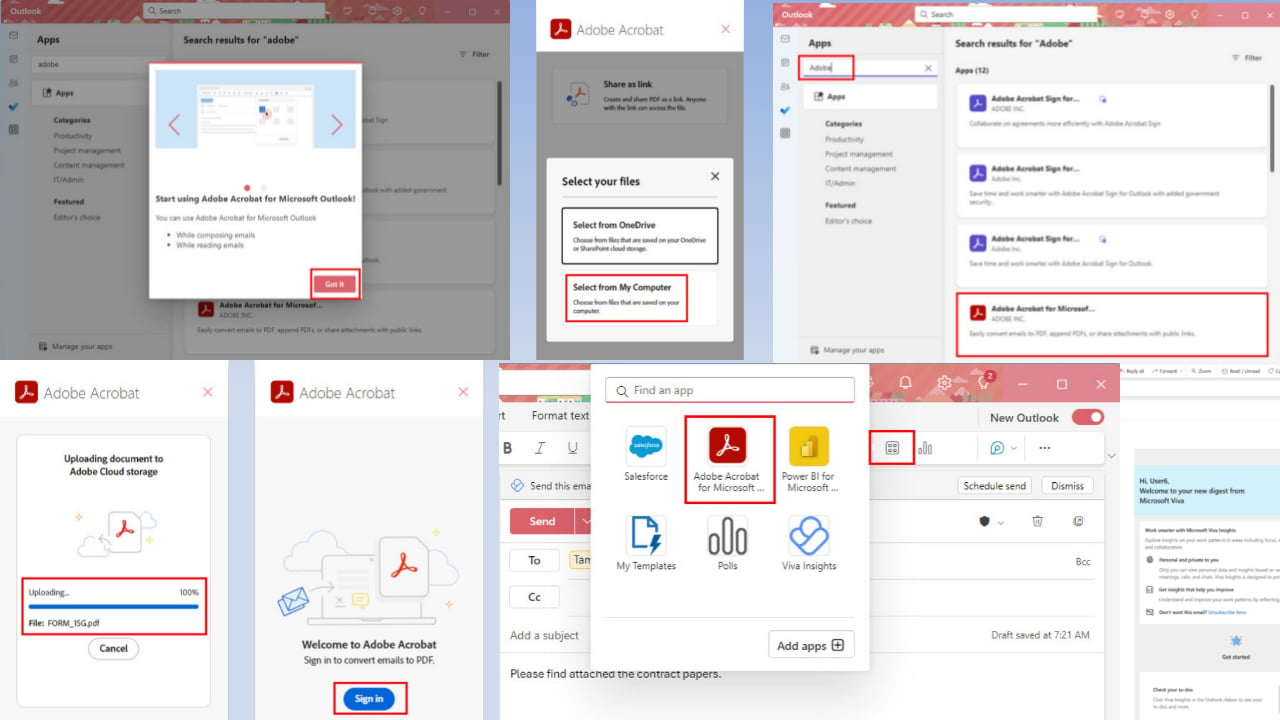
Click on the More apps button on the left-side navigation panel.
You’ll see Add apps in the bottom-right corner of the new floating menu. Click on that.
Wait for all Adobe plug-ins to show up on the right side.
Now, click on the Adobe Acrobat for Microsoft option. It should be the fourth item on the search result page.
Click Add on the next screen.
It should install in a few seconds and show a welcome screen. Tap on Got It.
Click on the Mail icon in the Outlook sidebar to go back to the home screen.
Installing Adobe Sign for New Outlook
Follow the steps mentioned earlier to reach the screen where you can see all Adobe plug-ins for Outlook.
Click on the third Adobe Sign plug-in, which is exclusive to the Outlook app for individuals and business users.
If you’re from a government agency, click on the second Adobe plug-in. That one is specifically designed with enhanced security features for organizations.
How To Use Adobe DC for Microsoft Outlook
Open an email on your Outlook desktop app.
You should see the Apps icon on the sender’s email address block.
It’s usually on the right-side edge of the sender email menu bar.
Click on Apps.
You should now see the Adobe Acrobat for Microsoft plug-in on the floating Outlook Apps menu.
Click on the Adobe Acrobat plug-in.
If you’re using the tool for the first time, Adobe will take you to the sign-in screen.
Sign in to the app with the email account you used for the Adobe DC subscription.
Now, start composing a new email on Outlook.
When you need to share a link for a large file via Adobe DC, click on Apps > Adobe Acrobat plug-in.
Adobe Acrobat sidebar will open on the right side of Outlook.
Click on the Share as link option.
You’ll get a few options to choose the document from. For example, Select from OneDrive and Select from My Computer.
Once you do so, Adobe Acrobat will upload the file to its own secure cloud storage.
When the upload is complete, it’ll attach the shareable link to the email body with one or two sentences as instructions.
Send the email to the recipient. They can access, read, edit, and comment on the document online without installing Adobe Acrobat on their PC or Mac.
How To Disable Adobe Document Cloud for Microsoft Outlook
If you need to remove the Adobe DC for Outlook plug-in, try any of the methods mentioned below:
For Old Outlook
When on the Outlook home screen, press Alt + F + T to open Outlook Options.
Click Add-ins on the left side menu bar.
On the right side, click on the Go button to the left of the COM Add-ins drop-down.
The COM Add-ins dialog box will open.
Find the Adobe Document Cloud for Microsoft – Acrobat add-in and click on that.
Now, hit the Remove button.
For New Outlook
Click on the More apps button in the left-side navigation panel of Outlook.
On the floating dialog, click on Add apps.
Click on the Manage your apps option at the left-side bottom corner.
On the right side, you should see the Adobe Acrobat plug-in.
Click on the horizontal three-dots menu to the right.
Click Remove on the context menu that opens.
Summary
Now you know how to install and use Adobe Document Cloud for Microsoft Outlook. From now on, you can efficiently share large documents for review or e-signing with collaborators.
Also, if you face any issues after adding the Adobe DC for Outlook plug-in, you can troubleshoot it by disabling and re-enabling the tool.
Did it ever happen to you that you were sitting in a slouched position over your computer for many hours working or standing up and noticed your posture needed some improvement? The truth is, there may be high-tech help soon so that we can stand a bit straighter.
Microsoft has been developing a computer-based posture assessment and correction system. This effort intends to address the usual problem of bad posture, which has become worse because we spend more time facing screens.
This system has two main parts: a posture assessment machine and a correction machine. These elements provide an advanced method of using technology to improve posture.
The machine for checking posture uses different sensors, including cameras. These capture images of a person, which are then analyzed to determine their body position. It’s similar to having a private posture coach who can visually understand how you are sitting or standing each moment they observe you, but it does not end with this.
After checking your posture, the real magic happens with the posture correction machine. This machine makes a copy of you virtually, one with ideal posture, and then it shows an image combining both—yourself with an improved stance and your virtual twin who stands straight next to you.
Imagine seeing a photo of yourself hunched over beside another version of yourself, standing strong and tall. It’s a powerful visual cue to straighten up!
The most fascinating part is the inclusion of real-time feedback. It can portray how near your posture is to the perfect by superimposing guidance onto the combined picture. So, it acts as an instant individualized guide for rectifying your posture.
Additionally, you can pick a “best-match” copy among various choices if you prefer some adjustment. This way, the response will be adjusted to what is most beneficial for you.
And it is not only about seeing how you sit or stand in one instant because the system can monitor your posture over a period of time. This will show you how your posture changes during the day or various activities. For example, it may reveal that after sitting for an hour at work, your posture tends to worsen slightly.
Such information could help pinpoint patterns or particular moments when one’s posture deteriorates, leading to focused enhancements. It might also focus on the advantages of maintaining good posture. It is a tool of broad scope for health and efficiency, indicating benefits like enhanced productivity or well-being.
This system’s technology is quite impressive. It uses machine learning models that understand different signals, like images from cameras or audio signals showing possible changes in posture; it merges artificial intelligence with useful purposes for bettering our normal routines.
The posture correction system from Microsoft showcases a new method of handling physical health within this digital era. It is not just about reminding us to sit straight; it aims at making technology assist in developing enduring changes for our behavior and well-being.
The system would work on many devices, and its structure implies that it can be integrated with cloud software, so Microsoft might eventually update Copilot to allow such a capability, and it wouldn’t be the first time: the Redmond-based tech giant recently published a patent that suggests Copilot might end up predicting weather conditions, such as heavy storms.
The concept related to computer-based posture assessment and feedback functionality discussed herein are broadly applicable to any suitable type of computer or computing system including a laptop computing device, a mobile computing device, smartphone, a wearable computing device, a mixed/augmented/virtual reality computing device, or another type of user computer.
If you are a big gamer, work from home, or spend a lot of time looking at screens, this could be the answer we all have been waiting for to end our posture problems.
If you follow the recent tech news, you certainly know about the whole Windows Recall privacy issues saga. It seems that Microsoft also reacted in an interview about this, reminding us about the benefits of this feature. However, there is no firm decision about any impending changes to this important Copilot+ tool.
In another effort to show that Recall could be designed better to secure your privacy, a developer named Koen van Eijk posted his project on GitHub called OpenRecall, an open-source tool that has attracted interest from people who are looking for safer methods to handle their digital pasts.
Why OpenRecall might be better than Windows Recall?
OpenRecall, in contrast to Microsoft’s version, functions directly on your device. This eliminates the need for top-quality, Copilot+ approved hardware that could be a hindrance for some users. It is a welcome relief for people like us who do not possess the most recent and advanced technology but still desire to monitor their digital trail. And it’s not only for Windows, but also macOS and Linux.
Now, if you try OpenRecall, you will probably find it very useful. This tool lets you save screenshots and look them back up, use sliders to shift between images, plus find things in the screenshots with a search feature. But there is one thing to know: it may not be the most attractive tool. Access is done through a browser app, and you will find yourself going to a local server for using it. It does not have a very high-tech look, but it works.
The people who made OpenRecall are happy about how it can save your digital past with frequent pictures. This method is very different from Recall’s more invasive way, which has drawn attention from security professionals. Recall by Microsoft has been criticized because it could have some security weaknesses, so the less intrusive process of OpenRecall becomes even more attractive.
Microsoft has tried to justify Recall, asserting that users can decide what gets recorded and saved. They say you have the ability to turn off, stop or remove the feature whenever required. But doubt persists even so, and it is evident that until these security worries are completely tackled many will be searching for options such as OpenRecall.
Therefore, if you want a safer solution to handle your digital past, OpenRecall could be worth considering. It isn’t perfect but for people like us who value safety more than looks; this is a good option. Who knows, maybe this is the start of a change towards more secure and easy-to-use digital tools.
Streaming Opera on Discord often results in a black screen, sometimes with a cursor. The same problem could be encountered with Opera GX, although other browsers and games stream fine!
Based on my research, it’s usually the conflicting hardware acceleration settings, misconfigured Opera flags, or a third-party extension to blame. To start with, make sure you are running the latest version of the browser, be it Opera or Opera GX.
What can I do if Opera has a black screen during Discord streaming?
1. Disable hardware acceleration
Open the browser, click the Opera icon near the top left, and select Settings.
Scroll down to the bottom, expand the Advanced entry, and disable the toggle for Use graphics acceleration when available.
Relaunch the browser for the changes to come into effect.
In most of the cases we saw on dedicated Opera forums and Reddit, disabling hardware acceleration fixed the Opera Discord screenshare black screen.
2. Reconfigure the Choose ANGLE graphics backend flag
Open the Opera browser, paste the following path in the address bar, and hit Enter:opera://flags/
Now, search for the Choose ANGLE graphics backend flag.
Select OpenGL from the dropdown menu instead of Default.
Click Relaunch at the bottom right to apply the changes.
If Discord still has a black screen while streaming Opera, choose DRD9 from the list of options and check again.
3. Remove conflicting extensions
Launch Opera, click the Extensions icon near the top right, and select Manage extensions.
Identify all third-party extensions, click the Disable button under any one, and relaunch the browser.
If Discord no longer shows a black screen, again go to the Extensions page, then click on Remove and confirm the change.
In case the problem persists, similarly check if other Opera extensions are conflicting with Discord’s screen share, and remove them.
While disabling extensions, start with ones designed to alter or improve the browser’s performance or functionality because these are most likely to trigger a black screen or no sound while streaming Opera on Discord.
4. Set Opera to run with administrative privileges
Right-click on the shortcut (.exe file) you use to launch Opera, and select Properties.
Go to the Compatibility tab, and tick the checkbox for Run this program as an administrator.
Finally, click Apply and OK to save the changes and then check for improvements.
5. Reinstall Opera
Press Windows + R to open Run, type appwiz.cpl in the text field, and hit Enter.
Select Opera from the list of applications, and click Uninstall.
Follow the on-screen instructions to complete the uninstall process.
Once done, re-download and install Opera from the official website.
If Opera fails to uninstall or there’s still a black screen while streaming on Discord after reinstallation, it could be the leftover files to blame. In this case, I recommend you use a software removal tool to clear all traces of the browser before proceeding with the reinstall.
One of these solutions should fix issues like no sound and black screen with Opera Discord screen share. At least, these worked for most of the affected users. If there’s another underlying factor in your case, contact Opera and Discord support!
Microsoft introduced a few important functions to Voice Assist that will significantly improve its accessibility. The new features are now present in the latest Windows 11 Insider Preview Build 26231 for Canary channel insiders.
What is new about Voice Access?
While previously, Microsoft introduced Voice Access improvements for dictation and narration functions, now, the app has a feature that automatically restarts it if it suddenly stops working. In addition, the process of reporting errors has been made simpler. This step may assist in strengthening the feature’s durability later on.
Also, finding files or apps by using your voice has become easier too. You just have to speak Search item where you substitute item with whatever you are searching for. However, please be patient since these features are being introduced slowly.
We are introducing a new command for searching directly with Windows search. Users can now say the command Search “Entity”; Search Windows for “Entity”; or Search for “Entity” to search for their desired application or file in Windows (“Entity” is replaced with whatever application or file you want to search.)
And for people who enjoy capturing their screen, the Snipping Tool can now save videos automatically, not only screenshots. This implies less time spent on saving choices and more attention to what you are working on.
Additionally, Microsoft has added a few more updates such as the inclusion of a copy button in Windows share dialog and fresh appearance for some system dialogs that now match with new Windows 11 style.
So, what’s the deal? To access these features right now, you must join the Windows Insider Program’s Canary channel. If you are not in a hurry for this update – it will pass through other Insider channels before arriving at all Windows 11 users eventually. It will not be ready for some months, but it seems like this wait will be worthwhile.
For now, we should continue conversing with our PCs. They can hear us and are gaining knowledge on how to comprehend our words more effectively. And with Copilot soon on the line, talking to your PC and actually getting some answers will get a lot easier.
What do you think about the new Voice Access features? Let us know in the comments below.
Windows 11 Recall, Microsoft’s new feature, has caused a big privacy debate. In this time when worries about privacy and technology are always meeting head-on, people feel both interested and uncertain about this tool. It is made to help make work easier by saving what users do for later use, but it has also brought skepticism and concern.
The main concern causing disagreement relates to convenience versus privacy balance. In a recent conversation, Jaime Teevan, Microsoft Research’s chief scientist, tried to respond to these worries. She highlighted Recall’s capacity to change how people engage with their information. However, even with her response, it still questions whether Microsoft has completely contemplated privacy matters before introducing this feature.
Recall functions by taking photographs of user activities to make past actions quickly accessible. Although a personal recall of digital interactions might seem attractive theoretically, its implementation is questionable.
Microsoft generally helps large enterprises manage their data, create data, share data, and that data is really something that makes the business of work different in the context of generative AI. And as individuals too, we have important data, the data that we interact with all the time, and there’s an opportunity to start thinking about how to do that and to start thinking about what it means to be able to capture and use that. But of course we are rethinking what data means and how we use it, how we value it, how it gets used.
Jaime Teevan
This feature, enabled as the default setting on Copilot+ PCs, keeps this information stored locally and not in the cloud; Microsoft emphasizes this fact. Teevan points out that this choice shows the company’s dedication to safeguarding data. But still, the worry about possibly revealing delicate information is there.
Opponents of Recall say it could become a hacker’s paradise, a legal enemy, or anyone who gets into the user’s PC. The ability to capture text and images and possibly sensitive conversations and data is a big danger, and Recall could potentially be the biggest privacy issue in Windows 11. Also, the truth that Recall stores its information in an unencrypted SQLite database makes matters worse by making it potentially vulnerable to cyber-attacks.
Even though Microsoft is trying to protect Recall, the answers are not fully persuasive for many people. The company concentrating on where the data is saved locally doesn’t do much to ease worries about the wider effects of such an extensive tracking tool.
When asked if Recall could be able somehow upload snapshots of local files into the cloud, Teevan responded:
Yeah, yeah, so this is a foundational thing that we as a company care a lot about is actually the protection of data. So Recall is a feature which captures information. It’s a local Windows functionality, nothing goes into the cloud, everything’s stored locally.
Jaime Teevan
Security experts and advocates for privacy want Recall to reconsider, and they insist that Microsoft should think more deeply about how the feature affects users’ privacy and safety.
The tech world is still split as the countdown to Recall’s entry continues. Some people think this is a progressive use of AI to boost efficiency, but many others see it as a setback for privacy rights.
The discussion raises the ongoing challenge of finding an equilibrium between advancement and safeguarding personal privacy in today’s digital era.
Finally, the Windows 11 Recall argument shows that launching new technology is not simple or easy. Discussions about privacy worries and technological growth will continue as we continue exploring the digital world.
The big question still lingers: Can we truly enjoy the advantages of AI and data analysis without giving up our privacy or safety? The future will show, but the discussion about Recall is very important and highlights wider worries in our increasingly digital planet.
Microsoft is creating a stir with Copilot+, its newest endeavor and manufacturers are launching a wave of AI laptops to support this idea. This ambitious project aspires to change how we use PCs by introducing a set of on-device AI tools that can assist us in making our digital lives simpler and more instinctive. But it seems like the tech giant could have not caught exactly what its users want. What is at the core of it all?
Windows users are mostly asking for a more basic, less advertisement-filled experience rather than AI integration. Yet, Microsoft’s big bet on AI hasn’t excited Windows 11 users as it would have liked. Even though the company is trying to present Copilot+ as something important, according to a recent survey conducted by YouGov for Reuters, people seem not interested in this.
Very few people use Copilot frequently
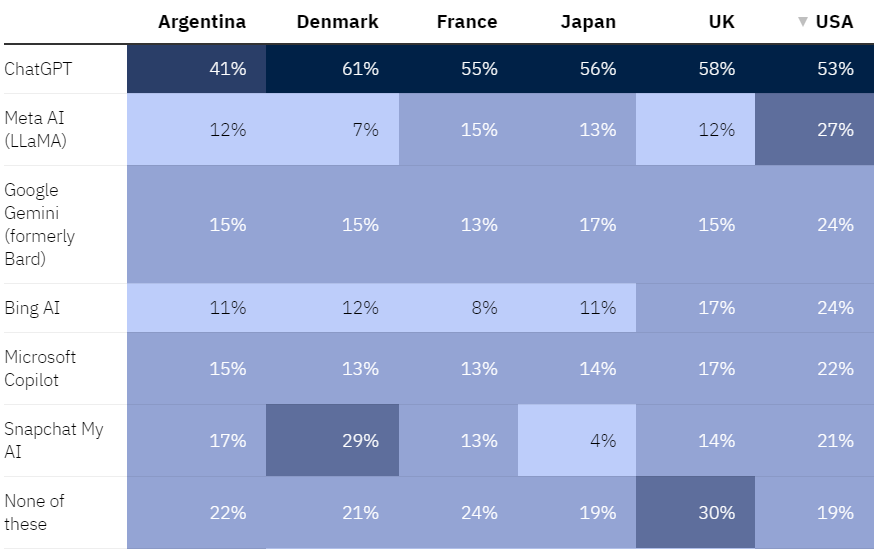
They gathered the data from an online questionnaire fielded between 28 March and 30 April 2024 in six countries: Argentina, Denmark, France, Japan, the UK, and the USA. Below, we included an excerpt of the data provided within the study and Microsoft, you’re not going to like this.
By far, the most popular AI in the U.S. is ChatGPT, with more than half of the respondents being aware of it. That’s not so strange, because ChatGPT was the first chat bot and quickly became synonymous with AI. What is strange is that the strongly advertised Copilot is known by only 22% of the people who took the poll, falling behind Google’s Gemini and Meta AI. And even more peculiar is the fact that even Bing AI is more popular than Copilot.
Even if people know about these bots, it doesn’t mean that they also use it. In fact, from the study, we learned that only 7% of the U.S. respondents are using ChatGPT daily and only 11% use it weekly. With Copilot, the situation is a lot worse: 2% daily usage and 4% weekly usage by the U.S. respondents.
Of course, not all the respondents are Windows users and Copilot’s popularity might be higher among them. Even so, the situation is relevant for the general AI usage.
The constant push for advertising drives users away from Windows 11
We can go on and on, but the truth is that the attraction of AI tools isn’t strong enough to overcome frustration from countless ads shown throughout Windows 11 experience and even in Copilot’s responses. The community has voiced its frustration with different responses, turning to ad-blocking apps or the ones from the start menu for some relief from the ad barrage.
The rate at which people are adopting Windows 11 also shows this gap. Most users are sticking with Windows 10, and it seems Microsoft’s plan to attract them by offering more advanced AI features might not work as well as they thought. The ads appearing in the Start and Settings menus have been a source of debate too, causing users to look for other options that provide simpler and smoother use.
This emphasizes an important misjudgment: that users eagerly anticipate additional AI tools. In truth, what they desire is a more simplified and ad-free setting. The dispute about Recall function in Copilot+, because it could take screenshots and cause privacy issues, only makes the situation worse. Many people are suggesting turning off this feature even before it is officially launched.
The reaction from the community about ads appearing in Windows 11 has been quite interesting. Rather than just accepting these ads, users have shown a strong desire to remove or find ways around them, indicating their clear preference for an operating system that does not contain unwanted recommendations. The popularity of Start menu replacements such as Start11 and StartAllBack, which provide an experience without advertisements further highlights this feeling.
The way to get more people using Windows 11 might not be by adding complexity but providing a simpler and respectful user experience. The tech world is always changing, and this shows that sometimes, less can be more.
Have you heard the recent news about Windows 11? Microsoft is making things more exciting by adding a new profile picture editor.
This secret new profile picture editor is in the current Windows 11 Insider build 26231. According to Windows enthusiast @PhantomOfEarth, who spotted it, it feels like a miniature Photoshop for our profile pictures that Microsoft has provided within the Settings app.
Looks like a new profile picture editor experience is being added to Settings, letting you make changes like adding effects and filters to the image before applying it. (disabled by default, build 26231.)
Now, you can blur backgrounds, increase resolutions, and do other things to enhance your profile picture’s attractiveness. It is a matter of showing yourself better throughout your Microsoft account. However, remember that these alterations will be seen on all Microsoft platforms where you have utilized this account.
Looks like a new profile picture editor experience is being added to Settings, letting you make changes like adding effects and filters to the image before applying it. (disabled by default, build 26231.)
You might ask yourself, “How can I get this?” It’s kind of like a secret passage. The feature is hidden, but with a tool named ViveTool, it can be found. Informally, it’s presently in the first phase of testing, so there may be some roughness.
For the technically inclined, using ViveTool requires some command-line tricks. After running a command and restarting your PC, you will see the fresh editing tools under Accounts > Your info in the Settings app. It is somewhat similar to discovering a secret item!
To enable the new profile picture editor in Windows 11, use this command (kudos to the spotter):
vivetool /enable /id:45189370,47364920
But think about this – what happens to those with a local account, not a Microsoft one? The details on that part are not very clear. It’s something worth thinking over, isn’t it?
If you are using the Beta Channel of Windows Insider, you can try out this feature. It suggests that it might be included in the stable version of Windows 11.
What are your thoughts? Are you eager to try these new profile picture editing tools? Or, have you discovered some other unnoticed features in Windows 11? Keep the conversation alive. Sharing shows how much we care, particularly when understanding the constantly changing Windows 11 environment.
Picture this: Microsoft is once more causing ripples in gaming nostalgia by dropping hints about a fresh remaster for the well-known Halo: Combat Evolved. Not only is there a remaster, but it’s also making waves due to rumors that it may be released on PlayStation 5 and Xbox when it comes out anew.
This news, found in Tom Warren’s Notepad newsletter, suggests a future where Microsoft’s gaming treasures could possibly be displayed on platforms outside its own console domain.
Now, what is Microsoft’s reason behind this move? It looks to be a part of their wider strategy known as “Project Latitude,” which intends to lessen the divide between various gaming platforms. This isn’t something new for Microsoft regarding releasing things on multiple platforms.
However, including Halo in this mix shows they are taking a big step forward. The company has already tested out cross-platform waters with titles like Sea of Thieves on the PS5 (by the way, this game was ranked as the fourth top-selling in the US for April). This is not an easy accomplishment.
But hold your horses. This Halo remaster is not at the finish line yet; it’s still in early development. So, official confirmations and details might take longer to come out. But even with just possibility, fans are excitedly asking questions and making guesses. Does this mean that other consoles might also welcome Xbox classics? How could it impact the discussion about exclusive titles?
It is an interesting time for gamers as the platform boundaries become less clear daily. Microsoft’s multi-platform approach might change how we perceive gaming environments, enabling a wider group of people to enjoy their favorite games.
So, what do you think about a remaster of Halo: Combat Evolved arriving on PS5? Is this the gaming future we have been awaiting, or is it a move too far away from the familiar?
In the early years, the big meetings at Microsoft – like those all-hands gatherings and other big events – were somewhat one-way affairs. If you were calling in from afar, the experience might feel more akin to peering through a small window as an outsider rather than being fully included in team dynamics.
But today, it’s different. In The Hive, a special meeting room laboratory belonging to Microsoft, future collaborative and inclusive meetings will be developed. This is where transformation occurs—changing an ordinary meeting room into an equally friendly and efficient environment for people participating from different places as those physically present in the area.
The Hive is not just a fun idea; it points toward a genuine need in the age of hybrid work. As the COVID-19 pandemic forced many people to start working from home, the significance of making each participant feel involved regardless of their place has increased greatly.
Microsoft’s Teams Rooms platform plays an essential role in this change, assuring that technology supports the flexibility to work from anywhere instead of blocks.
However, the problem was not just about smaller rooms. The main difficulty involved bigger spaces where events with many participants were held. In past times, these locations did not involve remote attendees well, and they would appear as small figures on a screen – almost invisible. It was clear that minor tweaks wouldn’t cut it; a complete overhaul was necessary.
The Hive team rolled up their sleeves and started from scratch again with these big spaces. They didn’t just make do using current technology; instead, they invented fresh answers to guarantee that each participant feels involved and appreciated, whether they are dialing in from home or sitting in the third row of a conference hall.
Creating audio and video for areas not initially planned for hybrid meetings posed various problems. However, the team steadfastly made the meeting more comprehensive and interactive for everyone involved.
They tried various arrangements, smashing and reconstructing their prototypes to achieve an ideal equilibrium between the requirements of participants far away and those in the room.
The results of The Hive’s actions are shown below. They have created meeting spaces that give everyone a sense of being involved, regardless of where they are. Multiple cameras have been set up in these areas to capture the room’s energy and ensure those participating remotely no longer feel like they’re forgotten. This is a big move towards making hybrid meetings feasible and fun for all participants.
However, the story doesn’t conclude with this. The Hive keeps working on its designs, utilizing input from actual usage scenarios to enhance and perfect the meeting experience.
Microsoft’s experience with The Hive teaches us one thing: In the hybrid work era, inclusivity is a luxury and crucial. The Redmond-based tech giant demonstrated this with the new Intelligent shared spaces.
In the last few years, Ukraine has become a target of sophisticated cyberattacks targeting critical infrastructure. The latest on the list is an attack aimed at gaining control of the affected systems by deploying Cobalt Strike through a malicious Excel file.
A Fortinet report on the cyberattack, targetting the Microsoft Windows OS, provides us valuable insights into the tactics employed by threat actors and the process of delivering the Cobalt Strike payload to establish communication with the command and control server.
Initially, threat actors sent a malicious Excel file in Ukrainian and deceived end users into enabling the macros. For the unversed, Microsoft, in 2022, had blocked macros by default to prevent such attacks.
Upon enabling the macro, the file took the form of a spreadsheet with the title, Amount of budget funds allocated to military units. The macro then deploys a DLL downloader, which first checks for any instances of an active antivirus on the PC and terminates the process. Now, it goes on to make critical changes to the PC, including downloading payload, adding system files, and modifying the Registry.
Finally, after a series of other complex changes, threat actors deploy Cobalt Strike on affected devices!
The Fortinet report tells us how threat actors deleted all traces of the attack to evade detection. The report says,
In this sophisticated attack, the assailant employs multi-stage malware tactics to thwart detection while ensuring operational stability. By implementing location-based checks during payload downloads, the attacker aims to mask suspicious activity, potentially eluding scrutiny by analysts. Furthermore, the self-deletion feature aids evasion tactics, while the DLL injector employs delaying tactics and terminates parent processes to evade sandboxing and anti-debugging mechanisms, respectively.
Remember, it all started with a harmless-looking Excel file and led to threat actors gaining control of the command and control server. This highlights how a lackadaisical approach on your part when it comes to cybersecurity makes things a lot easier for threat actors. The report sheds light on this aspect as well.
As Office documents provide troves of functionality, including numerous plugins and scripts, users must exercise utmost caution when handling files sourced from dubious origins. Vigilance is paramount, particularly regarding any suspicious file drops or unfamiliar startup programs within registry settings.
Additionally, the report mentions how Fortinet’s FortiGuard Antivirus detects the malware used in the latest cyberattack targeting Ukraine. These are:
A discount of $116 on a 27-inch Crua CR270C curved gaming monitor began with an initial cost of $250. This led to its final price being only $134 at Walmart.
Picture this: you stumble across a deal so good that it feels like finding out some juicy secret about the world’s best item for gamers—one that is not just any other hobby but rather an experience in itself demanding specific equipment, from desktop computers and laptops to monitors designed especially for enhancing enjoyment during playtime sessions on video game consoles!
But truly, the gear often has a high cost. This makes it seem like an offer too good to let go when such a deal appears.
First, you don’t encounter a curved gaming monitor with such a modest daily price. The Crua CR270C has a 27-inch display, perfect for gaming monitors as it provides Full HD resolution to give life to the finest PC games.
Yet, the most outstanding feature of this monitor is its backing for AMD’s FreeSync technology. This eliminates those bothersome screen tears and stutters, along with an 1800R curvature that completely involves you in your gaming environment.
Smooth gameplaying is almost certain with its refresh rate of up to 180Hz and response time of 1 ms, ensuring that each screen action is as smooth as possible. Alongside this, connecting it through HDMI or DisplayPort makes the use flexible for any gaming arrangement.
Now, you could be wondering, “Is there a problem?” Truly, the only possible downside is that such offers are not permanent. If your gaming arrangement could benefit from an enhancement or you have postponed purchasing a monitor that genuinely enhances your games, this might be the signal you were expecting.
However, why should you trust a brand that is new to you? I understand. We all have our favorite brands, which we have used for a long time. But sometimes, changing can bring about pleasant surprises.
Over 1,700 reviews have given this game an average of 4.6 stars, which shows that those who made the purchase are more than happy with their decision. This sends a strong message: sometimes, it’s from the less popular roads that we find our most valuable rewards.
It’s not easy to find deals like this. A 27-inch curved gaming monitor priced at $134 is a bargain, especially with the positive reviews it has received from gamers. This monitor might be a good choice if you want to improve your current setup or build up your ideal gaming station without spending too much. But remember that waiting too long could result in missing out on this special offer.
You can get it from here and pair it with the iBUYPOWER Trace 7 Mesh PC, which is also at a discount these days.
In the gaming world, where finding the ideal rig sometimes seems like a never-ending quest, a hopeful light has appeared for gamers on tight budgets. The iBUYPOWER Trace 7 Mesh gaming desktop, already recognized as powerful and budget-friendly—has received an attractive price reduction.
With the initial cost of $1,300, Best Buy now offers it for $300 less, just $1,000. Yet, like all nice things are fleeting, this offer may disappear unnoticed. The people who could buy it are encouraged to act quickly.
The iBUYPOWER Trace 7 Mesh is not an ordinary gaming PC. Its powerful Nvidia GeForce RTX 4060 graphics card packs a punch, backed up by an AMD Ryzen 7 5700 processor and 16GB of RAM. Together, The three ensure that nearly all top PC games can run well, giving a full gaming feeling.
Although there could be plans for later improvements to match the changing world of games, this arrangement is powerful enough to satisfy most gamers today. This includes people who are fine with not always setting their games at maximum levels on more demanding titles.
But it is not only for gaming. The iBUYPOWER Trace 7 Mesh has Windows 11 Home Advanced already set up on its 1TB SSD, so you can begin exploring your game library as soon as it arrives.
The large amount of storage space is useful not just for games; it also provides enough room to store work or school projects, making this PC a flexible device that can be used both for playing and working. For extended gaming sessions or days filled with intense multitasking, there is no need to worry about overheating because the cooling system works very well.
It’s because of its performance, adaptability, and now, even more affordable price. You are getting a machine with the RTX 4060 graphics card as its core, which should provide a good gaming experience at a reasonable cost. Plus, despite the numerous choices available in the gaming PC industry, discovering a deal that combines price and capability like this is not an easy task.
If you are still doubtful, maybe the money saved from this deal could go towards improving your gaming setup more. For example, you might find a great monitor deal that fits what has been saved. Time is running out, and offers like these often vanish fast, so not making a decision now may result in missing an excellent chance to upgrade gaming with no harm to savings.
You can get it from here. But if you are thinking about something more portable and powerful, you might want to consider the new Copilot+ PCs coming out this summer.
Did you know about the new Lenovo LOQ gaming laptop deal? It’s not usual for a high-quality gaming laptop to have its price reduced, but Lenovo offers an incredible discount of $469 on its LOQ model. Now, the question might arise in your mind: “Why should I think about buying the Lenovo LOQ gaming laptop?” It’s a very good offer, mainly for gamers who need to save money.
Like many other Lenovo laptops, the LOQ stands for quality gaming. It has a 13th-generation Intel Core i7 processor, 16GB memory, and 512GB SSD storage space. The Nvidia GeForce RTX 4050 graphics card makes this laptop even more appealing to gamers; it’s a great purchase for its price range.
And what about the display? LOQ does not let you down with its 15.6-inch full HD screen, which has a resolution of 1920 x 1080, shows colors at 45% NTSC, has a brightness of 350 nits, and has a refreshing rate of 144Hz. This signifies that you will have a blast playing games without blurring or lag as they move quickly and look clear and colorful. Moreover, the laptop includes a 1080p full HD webcam, two microphones, and a cover to protect your privacy during video calls.
Another design aspect is a white backlit keyboard, which can make your gaming arrangement look stylish. The LOQ also has improvements in cooling: it now includes an air intake that is 28.6% bigger and outlet vents that are 24% larger for keeping the laptop cool during intense use. Strongness is another point of emphasis; this laptop adheres to strict US military-grade construction standards.
So, if you want a good laptop to play games but don’t want it too expensive, then the Lenovo LOQ could be the one. Currently priced at $931 instead of $1,400, this offer is hard not to consider. The moment is right to enhance your gaming experience without spending too much money.
Parallels Desktop, one of the most popular virtualization software for macOS, just released a new version, 19.4.0, to patch several critical bugs and introduce features like displaying the OS badge on app icons!
Given its extensive application and massive user base, developers regularly update the software. This time around, there are plenty of changes to streamline your experience.
Release notes for Parallels Desktop version 19.4.0
According to the Parallels Desktop’s official blog, you will find the following major changes in the latest version of the software,
General – Adds OS badge to app icons displayed in macOS Spotlight search results, a helpful visual cue that tells you exactly which app you are about to launch. – Fixes the issue of USB devices not showing up correctly in virtual machines when connected to USB 2.0 ports. The fix requires macOS 14.5 beta or newer installed on your Mac.
Windows 11
– Fixes the issue of right-click context menus disappearing in Coherence view mode for apps like Delphi IDE, Solidworks, etc. – Fixes the issue that prevented a Windows 11 virtual machine from installing correctly if the user attempted to open a .exe file on their Mac during the installation process. – Fixes the issue that triggered Windows crash (BSOD) when installing LabVIEW in Windows 11 virtual machines running on Apple Silicon Macs.
In addition to these, the developers have fixed issues affecting the installation of Parallels Desktop for Business from an activation email, amongst command-line improvements. For the complete list, visit the Parallels Desktop website.
Parallels Desktop is undoubtedly one of the most handy software that facilitates running Windows apps on macOS, and the latest version further refines the experience!
Windows Insiders in Canary Channel got Windows 11 Insider Preview Build 26231, which brought on a few changes and fixes for known issues.
The build comes packed with a new feature that lets the Narrator users use voice access in Windows 11 to dictate text with voice. They can also hear what they have dictated.
Furthermore, you can also use voice access to give the Narrator commands like speaking faster, turning on the narrator, and so on.
To get the list of commands, you can click the help icon on the voice access bar and choose View all commands.
Here is what you can do with the voice access:
Start and set up voice access which includes downloading a speech model.
Read a list of voice access commands and Narrator commands from voice access help menu.
Changing voice access microphone state.
Dictating text with voice and hearing back what was dictated.
Tips:
If you don’t use headphones for listening to the screen reader, the audio output from the screen reader may get picked up by voice access microphone, leading to unwanted behavior.
Microsoft also mentioned adding auto restart for voice access in Windows 11. This will ensure that voice access can automatically restart whenever it encounters problems, making it conveniently accessible for people with limited mobility.
Therefore, they no longer depend on external assistance or assistive technologies. Moreover, the Redmond tech giant made reporting crashes easier.
You can use the new command, Search [Entity] files in Windows search, to search for apps or files, making the process quicker.
We are beginning to roll out the ability to copy files from the Windows share window. Just click the new copy button.
New copy button for copying files in the Windows share window highlighted in a red box.
[Settings]
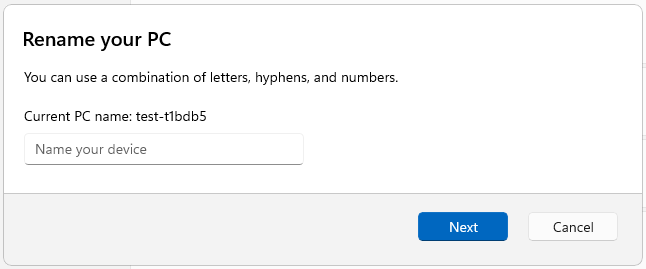
The change that updates the visuals for the “Rename your PC” and “Change date and time” dialogs to match the Windows 11 visuals that began rolling out with Build 26217 should now be available to everyone in the Canary Channel.
Rename your PC dialog with refreshed design to match the Windows 11 visuals.
Updated the units (from MHz to MT/s) for DDR speed.
Fixed an issue where the Safely Remove Hardware option for ejecting USB devices wouldn’t work if Task Manager was open.
Did some work to ensure Task Manager releases process handles quickly when terminating processes.
Made some more improvements to help with Task Manager reliability.
We have improved the performance when changing the sort order.
Made multiple improvements to overall accessibility of Task Manager, including improving keyboard focus, tab navigation, text scaling, names of items read out by screen readers, and more.
We made it a little easier to resize Task Manager when trying to resize by grabbing the top of the window.
Known issues
[General]
[IMPORTANT NOTE] We are investigating reports that some Windows Insiders in the Canary and Dev Channels are stuck on Build 26040 or Build 23620. The investigation is ongoing, however if you are impacted by this and really want to get onto the latest build in the Canary or Dev Channel today – you can download the latest ISO here and do a clean install and opt your device back into flighting in the Canary or Dev Channels.
If you encounter any issues after downloading the new build, you can send feedback via Feedback Hub (WIN + F) under Accessibility > Voice access.
To get the new build, go to Settings> Windows Update, then click Check for Updates to install it. However, if you don’t see it, you might have to wait a while as it is still rolling out.
Have you installed Windows 11 Insider Preview Build 26231 yet? If so, share your experience with our readers in the comments section below.
One of the native apps, Snipping Tool, also got an update. With this build, the Redmond tech giant has rolled out an update for Snipping Tool, version 11.2405.24.0, and later, that adds the ability to automatically save screen recordings for the Windows Insiders in Canary and Dev Channels.
Here is what the official blog says:
We are rolling out an update for Snipping Tool (version 11.2405.24.0 and newer) to Windows Insiders in the Canary and Dev Channels that introduces automatic save for screen recordings. This feature works the same as automatic save for screenshots. Your recordings will automatically be saved to Screen Recordings folder (inside your Videos folder). You can choose to turn this off in Snipping Tool setting.
If you have downloaded the new Windows 11 build and are encountering issues, you can send feedback via Feedback Hub (WIN + F) under Apps > Snipping Tool.
If you use WinGet often to install and manage apps on your Windows computer, there is good news! Soon, you will be able to install and manage fonts, including third-party ones, as Microsoft is working to add support for font management.
In an official post on GitHub, Demitrius Nelon, the Windows Package Manager, confirmed that they are considering adding support for installing and managing fonts using WinGet.
Here is what the official discussion post on GitHub mentioned:
Hey all, I’ve started digging into what it would look like to support managing fonts using WinGet. I’ve reached out to a few folks to get some feedback on this, and I wanted to keep the “noise” out of the Issue:
I don’t think we want to treat them the same way we do with portable packages due to the way WinGet creates entries for portable apps like Microsoft.NuGet in Apps & Features.
I’ve been looking at a few different references like:
I’ve also been thinking about the implications of adding them to the WinGet Community Repository and how that has implications on the size of the PreIndexed cache.
One of the more popular sites (Nerd Fonts) already has a decent collection of fonts for us to potentially evaluate when we get to the point of supporting an experimental feature for managing fonts.
Since we’re likely to be enumerating over a directory “C:\Windows\Fonts” and each file can have its own version, I’m expecting some additional complexity when an upgrade to a font could represent downloading a set of files.
The post mentioned the necessity for a font management solution and discussed the challenges of integrating fonts into WinGet’s framework, mainly concerning per-user fonts and portable app entries.
Some of the important things include how the fonts are versioned and installed. Demitrius Nelon also sought feedback from both the open-source community and Microsoft developers.
The integration of font management in WinGet focuses on providing users with a better user experience. Also, the process of installing fonts could be more streamlined by using the WinGet command-line interface.
Microsoft is developing a Formula data summaries in rows and cells feature for Excel that can revolutionize data summaries and allow you to simplify data analysis by summarizing column data into a single cell or creating rows with formulas for relevant columns.
This will streamline complex calculations, boost productivity, and promote better workflow.
Add a single formula to summarize column data into one cell. Today, full column calculations product a unique result in each row, but this new feature gives you the option to calculate all data in a column together to return one result. You can also create a row with formulas that apply for relevant columns; for example, an “add total sales row” will add a SUM formula underneath the every column that has sales data.
It was added to the Microsoft 365 Roadmap site with Feature ID 398989 on June 5, 2024. It will be released in July 2024 for all the users worldwide. You will be able to access it on various platforms, including Mac, desktop, and web.
To conclude, Excel users can look forward to using the feature to simplify the data analysis process and save time.
Microsoft is developing a new feature, eSignature sequential signing for SharePoint, Feature ID 398990, which can empower users to specify the sequence of recipients for eSignature requests, facilitating a streamlined signing process.
Sequential signing enables the creator of an eSignature request to specify the sequence of recipients. The document is first signed by the initial recipient in the sequence, then forwarded to the subsequent recipient for their signature. This process continues in the designated order until every recipient has added their signature. Once everyone has signed, the signed document is made available to all involved.
This process will simplify the workflow, allowing the eSignature request document creator to designate the order in which recipients will sign the document.
The document is sent to the first recipient in the sequence, who signs it and then forwards it to the next recipient. The process continues until all the recipients sign the document in the set order.
This feature was added to the SharePoint roadmap on June 5, 2024, and will roll out in June 2024. It will be available to all users worldwide on the web.
To conclude, this feature can be useful for SharePoint customers in streamlining their document signing processes, thereby enhancing productivity and improving collaboration.
Microsoft added a new Eyedropper tool to OneNote on Windows. This tool allows you to pick any color from your notes and create a customized set of pens.
Victoria Chen, Product Manager on the Office AI team, said:
With the new Eyedropper tool in OneNote, you can easily choose a color from any image, shape, or inked notes found in the app. The tool also allows you to build your own personalized set of pens in the drawing toolbox.
How does the Eyedropper tool on OneNote work?
On OneNote, choose the Pen icon from the drawing toolbar and select the Eyedropper tool from the drop-down menu.
Now, use it to pick any color from your canvas and proceed. If you want to use it later, save it in the Recent Colors section.
Here are a few scenarios you can try:
Suppose you’re taking notes during a lecture. You want to annotate your notes using a different color, but you’re not sure what shade of blue you were using for previous annotations. Use the Eyedropper tool to quickly find out which shade of blue you used and keep your notes consistent.
Say you want to create a personalized set of pens for a special project. Download an image of a color wheel, insert it into OneNote, and use the Eyedropper tool to customize a set of colors for your project.
The Eyedropper tool in OneNote is available for Microsoft 365 Insiders with version 2403 (Build 17407.17509) or later. To use it, your device must have at least Windows 10 running.
If you are in the Microsoft 365 Insider program and haven’t received this new feature, you may have to wait a while, as it is still rolling out.
If you have the feature but are not using it properly, you can send your feedback using Help>Feedback. What do you think about the new tool? Share your views with our readers in the comments section below.
Anyone remotely up-to-date with the latest developments in the tech landscape must have heard about the controversy surrounding a new Windows feature, Recall. The feature captures regular screengrabs and stores the data on a plain text database, leading to privacy concerns!
But all the hue and cry surrounding Windows Recall didn’t deter developers from creating alternatives for both PCs that don’t support the feature and users who want similar open-source options. We can’t deny the fact that there was a demand for it, even though some have threatened to quit the OS over Recall.
Windows Recall has intrigued many, especially the ones who believe the feature isn’t as big a security concern as it’s being projected because the files are stored locally. Besides, you could always manually delete the data and reconfigure the settings to exclude an app or website!
Alternatives for Windows Recall
As I sat down to discover available Windows Recall alternatives, a report by Windows Central came to my aid. It gave me quick insights into several open-source options, although not all of them are as refined as Windows Recall. Here are my top picks:
First on the list is OpenRecall, a Windows Recall alternative still in its infancy but showing great promise. And the best part is that it’s available across operating systems, including Windows, macOS, and Linux.
The project’s description on the official GitHub page reads,
OpenRecall is a fully open-source, privacy-first alternative to proprietary solutions like Microsoft’s Windows Recall. With OpenRecall, you can easily access your digital history, enhancing your memory and productivity without compromising your privacy.
The next one is Windrecorder, a tool exclusive to Windows. The installation is a little too complex, but that shouldn’t be a problem since the entire process has been documented by the developers.
The project’s description reads,
Windrecorder is a memory search app by records everything on your screen in small size, to let you rewind what you have seen, query through OCR text or image description, and get activity statistics.
As for other Windows Recall alternatives, you will find several options on GitHub. And the list keeps growing by the day!
Make sure to read the details before you download one, as all the tools are still in the early stages of development and may conflict with the system, throw errors, or not perform the intended job!
So, wait for a few days. Let Microsoft clear things up and see how security researchers respond to the changes. Because in its current form, Windows Recall does pose a threat!
How was your experience with Windows Recall or the suggested alternatives? Share with our readers in the comments section.
Microsoft Teams is developing a new feature, Show Chat Info, with Feature ID 398956, that allows you to check chat information within the platform.
Here is what the roadmap site says about the feature:
Chat users can have access to contextual information including members, pinned messages, shared files and links and entry point to contextual search from this canvas
This aims to provide contextual insights, including pinned messages, members, shared files and links, and access to contextual search, all within the chat canvas.
The feature was added to the Microsoft 365 roadmap on June 5, 2024, and is scheduled for general availability rollout starting August 2024.
The feature will be available to all users worldwide (Standard Multi-Tenant) cloud instances, including DoD, GCC High, and GCC environments, irrespective of their geographical location.
Furthermore, the feature is available on various platforms, including web, Mac, and desktop versions of Microsoft Teams.
To conclude, this feature can be useful for users as they can locate specific information efficiently within their conversations.
Intel’s journey into the future of computing is taking a significant leap with its Panther Lake CPUs, and let me tell you, it’s not just another chip on the block. Intel has officially powered on its next-gen Panther Lake CPUs. This moment marks a pivotal point in Intel’s roadmap for future developments.
These chips are built on the 18A process node, which is groundbreaking and signifies that they’re not just about speed; they represent smarter and more efficient computing across various segments.
Now, why does this matter? To begin with, Panther Lake marks a substantial transition from Lunar Lake, which was based on TSMC, to an in-house design of CPUs that intends to offer much more. Pat Gelsinger, the CEO of Intel, showed off one wafer containing these CPUs and emphasized the shift towards significant alterations in architecture instead of merely increasing clock speeds.
This method aims to enhance instructions per cycle (IPC), which refers to making every cycle of the chip’s running process perform more tasks for better effectiveness and energy conservation.
But what’s inside the tech? Intel hasn’t shared all the information yet, but we’ve been hearing about new cores, Cougar Cove for P-Core and an improved Skymont for E-Core.
It seems these changes will significantly change how Intel makes its chips; instead of focusing on process node improvements like before, they are moving towards microarchitectural enhancements that should help with both performance and power efficiency.
Panther Lake is highly malleable for those who love technology or work in the field, particularly concerning memory. It is different from Lunar Lake’s more solid memory arrangements because it will have numerous types of memory choices available in the market.
This variety can considerably enhance scalability across various power requirements and performance levels. This signifies that you can use Panther Lake for any computer, from a small laptop to a powerful desktop.
Intel is not going to halt this. They have big plans to make Panther Lake much larger and cover both the mobile and desktop segments. This shows that Intel has gained an important understanding from designing Lunar Lake and is now prepared for us to experience something unique.
When can we buy these chips? According to WCCFTech, production is planned to start in the first half of 2025, and they should be available for purchase later that same year. While we anticipate this exciting milestone, Intel’s present products, such as Lunar Lake and Arrow Lake CPUs, are continuously progressing to give us a preview of what lies ahead in computing technology.
On the big picture, Intel’s dedication to enhancing IPC and architectural aspects shows its dedication to innovation. It is not only about making chips quicker; it also involves making them more intelligent and effective. With Panther Lake, Intel appears ready for a new definition of what can be attained in computing—I am excitedly looking forward to seeing how far this journey will go.
The gaming world is exciting because a popular insider named Jeff Grubb has shared some interesting information about the future Xbox Games Showcase. As per Grubb, this event will be two hours long, and there are plans to show around 30 games.
It becomes even more thrilling when promises are made to reveal fresh titles we have not seen before, causing fans to become very curious and enthusiastic. This information was shared on a Kinda Funny Gamescast episode. Without revealing too many details, Grubb hinted at this news to the audience.
Now, let’s talk more about what this implies for us, the excited audience. The display is not only focused on numbers; it’s also about unexpected elements. Among predicted highlights are Gears 6 and Avowed, news regarding Microsoft Flight Simulator 2024, and Indiana Jones and The Great Circle, alongside Call of Duty 6. The reference to a big first-party game being shadowdropped at the event and hints about a new portable device from Xbox have increased speculation.
The Xbox Games Showcase and the Summer Game Fest by Geoff Keighley are about to happen. It will bring its world premieres and surprise reveals into focus. While Keighley has attempted to manage hopes, it is difficult not to feel excited with whispers of the possible introduction of Borderlands 4.
To fulfill the hunger of those who desire more, extra content is planned by the Xbox team after the showcase. The Official Xbox Podcast will have special episodes that provide updates and deeper dives into all titles shown during this upcoming week. This way, enthusiasm is stretched out, and followers can explore their preferred games in detail.
So, what games excite you the most? With this variety and the possibility of finding new things, the Xbox Games Showcase looks like it will be an event gamers cannot ignore. If you like Xbox or enjoy playing games, generally speaking, this showcase will surely offer something for everyone. We will set aside June 9th for this special gaming event. Get ready for an experience filled with excitement and joy.