Microsoft Edge will soon automatically discard inactive/sleeping tabs, allowing the browser to consume less power and run better. According to the latest entry in the Microsoft 365 Roadmap, Edge will receive a couple of new policies in May 2024, allowing users to set up the browser to auto-discard tabs.
It can be done through the new AutoDiscardSleepingTabsEnabled policy which automatically enables when the SleepingTabsEnabled policy is enabled.
Tabs that have been sleeping for a long time will be discarded to save memory. When a user navigates back to a discarded tab, the tab will need to be reloaded. This can be managed through the AutoDiscardSleepingTabsEnabled policy. This policy will be enabled if the SleepingTabsEnabled policy is enabled.
Microsoft
This is excellent news for those Internet browsers who have tens of tabs opened in Microsoft Edge. We often forget about many tabs out there, allowing them to chew on memory, which makes our devices slower.
With this new policy, all those tabs that haven’t been used in a while will be discarded, and if users want to go back to them, Microsoft Edge will reload them. This comes with a drawback: all the browsing information of that tab will be lost, so filling up tables, or reading an article means users will have to restart the process.
However, it’s not inconvenient compared to the memory that’s been used by having all those tabs open in the first place.
The new policies are coming in May. But Microsoft Edge is also getting some other useful features: for instance, users will be delighted to know that the browser will skip ads when translating video’s audio and subtitles.
We don’t know yet if Microsoft intended Edge to skip ads when translating, but it’s happening, and it could the browser the advantage it needs over its competitors.
Acer is well-known for its devices, with the Nitro series being very popular among gamers due to its great performance.
If you’re a fan of this series, today we’re pleased to inform you that Acer has added two new members so let’s see what they offer.
Acer has just announced new Nitro 14 and 16 gaming laptops
The two new laptops were recently announced on Acer’s website, and both models will be powered by Ryzen 8040 Series CPUs.
Acer Nitro 14 specifications:
Up to an AMD Ryzen 7 8845HS processor
Up to NVIDIA GeForce RTX 4060, with DLSS 3.5 technology
Up to 32 GB of LPDDR5X SDRAM
Up to 1 TB PCIe Gen 4 NVMe
14.5-inch IPS display with up to 2560×1600 resolution.
76 Whr battery
USB 4 and USB 3.2 Type C ports, dual Type-A ports, HDMI 2.1, microSD slot
Acer Nitro 16 specifications:
Up to AMD Ryzen 9 8945HS CPU
Up to an NVIDIA GeForce RTX 4060 with DLSS 3.5
Up to 32 GB of DDR5 SDRAM
Up to 2 TB PCIe Gen 4 NVMe
16-inch IPS display up to 2560×1600 resolution
76 Whr battery
USB Type C, 3x USB Type-A ports, HDMI 2.1, microSD slot
It’s also worth mentioning that both models support Ryzen AI and Acer PurifiedVoice 2.0 technology that will block external noise using AI. Lastly, Acer PurifiedView is there to ensure optimal performance during video calls.
These are both great devices, and we should see them available in May in the US. The starting price for Nitro 16 is set at $1,399.99 while Nitro 14 will cost $1,299.99. As for worldwide availability, Nitro 14 will be available in June.
The tablet convertible or 2-in-1 laptop is not that crowded although the idea to get a tablet that can be turned into a business or leisure laptop is extremely appealing for portability. There are some interesting devices out there such as Microsoft’s Surface, Samsung’s Galaxy Tab, or even the iPad Pro. However, none of them can really compete with the huge 14.5-inch Lenovo Tab Extreme tablet that turns into a very powerful business laptop when docked with the full keyboard and a stylus.
Lenovo Tab Extreme was already a pretty good deal at Best Buy for $1099, but now it’s $150 off and you can grab it for $949.
The device is not only one of the biggest tablets you can buy right now, but it’s also great for a business device in terms of tech specs. It’s powered by a Mediatek Dimensity 9000 4nm architecture chipset, which is aided by 12GB of RAM and 256GB of storage.
Galaxy Tab S9 Ultra is close to these specs but Lenovo Tab Extreme’s display has a 3000×1876 pixels resolution while the slightly bigger screen of the Samsung tablet is 2960×1848 pixels. However, Lenovo’s tablet also comes with the docking station that includes a big keyboard and a stylus (Precision Pen 3) which is a big plus.
Other significant advantages of Lenovo Tab Extreme are the microSD slot, the great battery life and the two USB-C ports. Adding to all that, there’s a 2160p (4K) front camera on board that is excellent for those video call meetings.
We don’t know how long this Best Buy offer will last so hurry up and grab it right now.
Microsoft plans to invest $2.8 billion in Japan to boost its AI and cloud computing and AI infrastructure. Additionally, the company wants to train 3 million people to use AI through its digital skilling programs. On top of that, the Redmond giant wants to build its first Microsoft Research Asia lab in the country.
In Microsoft’s 46-year history in Japan, there wasn’t an investment like this one. Through it, the company hopes to accelerate Japan’s digital transformation and adoption of AI. As a result, the Redmond giant could improve its cybersecurity collaboration with the Government of Japan.
How will Microsoft accelerate Japan’s adoption of AI?
This investment allows Microsoft to bring advanced computing resources with cutting-edge graphics processing units (GPUs) within Japan. Thus, it will be easier for the company to speed up AI workloads. By the way, this investment doubles the initial one made by Microsoft towards this goal.
Japan’s Ministry of Economy, Trade, and Industry and Microsoft collaborate on the Generative AI Accelerator Challenge (GENIAC) program. This project aims to help innovative startups and established enterprises develop foundational models as a core technology for generative AI.
Microsoft will enhance people’s capabilities to use AI in different fields
The company’s plan to train 3 million people will focus on organizations, developers, and students. In addition, Microsoft will expand its Code Without Barriers program in Japan. So, the tech giant will provide dedicated training for women interested in AI to address gender equity in AI.
Furthermore, in collaboration with the United Nations Institute for Training and Research (UNITAR), Microsoft will bring free and accessible online training materials on AI, cybersecurity, and digital skills to Japan. Also, the company will use GitHub Copilot to assist advanced developers and tech companies. Apart from this, Microsoft will provide vocational high schools with AI programs.
The Microsoft Research Asia lab will open in Tokyo. It will focus on research in important areas relevant to the country’s needs. Thus, the lab will prioritize AI and robotics, societal AI and well-being, and scientific discovery. The new Microsoft Research Asia lab should also strengthen the company’s historical collaborations with universities from Japan.
In addition, Microsoft will provide $10 million in resource grants to The University of Tokyo and the Partnership on Artificial Intelligence Research between Keio University and Carnegie Mellon University.
Japan’s Cabinet Secretariat will collaborate with Microsoft to enhance its cybersecurity systems. They will focus on information sharing, talent development, and technology solutions. Also, Microsoft will provide advice and its advanced cloud and AI-driven security services.
Ultimately, Microsoft’s $2.8 billion investment in Japan will contribute to the country’s economic goals. After all, they will expand the digital infrastructure, create a skilled AI workforce, strengthen cybersecurity, and accelerate Japan’s adoption of AI. Hopefully, the company won’t affect the country’s security or environment with its cooling systems for AI.
What are your thoughts? Do you think that Japan will benefit from Microsoft’s investment? Let us know in the comments.
The Microsoft Build 2024 event is slowly approaching, and while we already told you what to expect (lots of AI, obviously), the Redmond-based tech giant has revealed almost all the sessions taking place at the conference, and some of them are quite exciting.
Windows enthusiasts everywhere will also finally get to see the Next Generation of Windows on Arm, which is going to be NPU-based. However, one of the most useful new capabilities is the update of the Windows Copilot to support AI plugin development.
In this breakout session we will take a deep dive into how you can extend Copilot with your Windows native app. It’s a great session to complement the hands-on lab on building a Copilot plugin for your Windows app. At the end of this session you’ll understand the components that make a plugin, how Copilot invokes actions defined by your app and how to design a plugin that is relevant and valuable to your users.
Microsoft
While we don’t know what the actual process of building an AI plugin implies, it’s not hard to guess. Not so long ago, Microsoft announced the Copilot GPT Builder, a platform that allows Windows users to build their own Copilot without coding knowledge.
The Copilot can be customized with prompts, and users can choose to publish it or keep it for themselves. The AI plugin builder will most likely follow the same process. This way, all Windows users, including those who don’t have technical backgrounds, can build their own AI plugins.
Microsoft teased the new Paint LiveCanvas a while ago, which is an upcoming AI-based capability on the platform that will allow users to create drawings, sketches, and projects with the help of Artificial Intelligence.
The Paint LiveCanvas were spotted a while ago and they are part of the new Paint NPU platform, which might be released to Windows 11, later this year.
It’s worth mentioning that this is not Cocreator, the existing AI tool that creates images in Paint. No, LiveCanvas is entirely a new concept that not only creates art but interacts with the user, as well.
However, it seems that the Redmond-based tech giant might splash it with some restrictive policies, according to the strings spotted by Windows enthusiast, @PhantomOfEarth.
Some strings related to the upcoming Paint LiveCanvas feature:
"Looks like the input image has been blocked as per Microsoft's Responsible AI guidelines. Please modify your image and try again." "Unsafe content warning" (1/3) https://t.co/AURQYc1CoD
Looks like the input image has been blocked as per Microsoft’s Responsible AI guidelines. Please modify your image and try again.
Unsafe content warning
Paint LiveCanvas can only be used with a Microsoft account, it seems, contrary to Cocreator, which can used without having to log in.
Microsoft account is required
Sign-in with your Microsoft account to use LiveCanvas.
More guidelines policies:
Looks like the generated image has been blocked as per Microsoft’s Responsible AI guidelines. Please modify your image and try again.
It seems that the capability can run into errors, as well:
An internal error has occurred. Please modify your settings and try again.
And as always, image sizes seem to be a big problem for AI:
Image size exceeds limits.
The provided input image exceeds the maximum allowed dimensions of 2000×2000 pixels. Please resize the image to meet the specified limits and try again.
So, ultimately, despite the hype around this upcoming advanced AI capability, if we are to take into account these policies, Microsoft would need to work more on the advanced part. While some policies are alright, especially the responsible AI guidelines, the fact that advanced AI technology wouldn’t support a certain image size makes it invaluable right from the start.
The Redmond-based giant should develop Paint LiveCanvas to offer solutions, and complete tasks, not come up with errors.
Microsoft has quietly updated Windows 11’s Snipping Tool to support the detection of QR codes in screenshots, the addition of emojis inside these screenshots, and a brand-new HDR color corrector.
According to Windows enthusiast, @PhantomOfEarth, these new features will be coming soon to the app, most likely with the next Insider builds.
You’ll be able to place emojis on every part of the screenshot, and edit them to your needs: you can make them bigger, or smaller, and you can move them around.
Some new features/changes are coming to Snipping Tool soon. The recently introduced shape annotations feature will let you add emoji to your captures: pic.twitter.com/zdQEFUy0BH
With the QR code support, Snipping Tool will be able to detect QR codes, as the spotter says, not generate them. So, you won’t be able to generate QR codes to access the screenshot from your Android device, for instance, but that feature might be added in the future.
After all, the Redmond-based tech giant recently updated the tool to allow users to edit screenshots from Android devices by connecting them to Windows 11.
Also, Snipping Tool will soon be able to detect QR codes in screenshots (notice the new button in the bottom right.) pic.twitter.com/eOyMf8yRc4
Ultimately, the HDR color corrector will correct the colors of the captures taken on HDR displays, allowing them to be darker. The new corrector is an optional feature that can enabled/disabled at will, and the changes might be instant.
There's also a new HDR screenshot color corrector setting in app version 11.2403.8.0. (Not a hidden feature.) pic.twitter.com/pAh0qmuwJy
These new features were spotted this week, which is interesting, as many users claimed the Snipping Tool is missing its ruler. Apparently, the Redmond-based tech giant removed it, but there is a way to get it back if you need it.
However, the solution might not be preferable to many, as it requires users to install an older version of Snipping Tool. So, say goodbye to the upcoming emojis, QR codes, and HDR color corrector.
If you still want to install an older version of Snipping Tool for the ruler, we have a guide on how to get the old Snipping Tool app back on Windows 11.
So, Snipping Tool is getting some useful features, while losing other useful features. Is this a win-win situation a la Microsoft?
Earlier in 2024, Microsoft announced Game Hubs, a new platform coming to the Xbox App that encompasses all things gaming, and it was built upon users’ feedback.
Game hubs were built on your feedback around depth, progression, and more ways to connect with your games. With game hubs, you’ll be able to track your progress over time, discover the latest content and add-ons, connect or compete with your friends, get the latest news from developers, and more.
Xbox
Back then, the Redmond-based tech giant said the new platform comes with several sections focused on improving the gaming experience. These are:
The essentials
Featured content
Friends who play
Achievements
All add-ons
HowLongToBeat
From the developer
Now, almost 2 months later, Game Hubs are available in the Xbox App for PC users, according to the company’s latest blog post.
Today, we’re excited to share that all PC players can now enjoy game hubs inside the Xbox app on PC. Navigate to any game in your library or in the sidebar to track your progress, discover the latest content and add-ons, connect and compete with your friends, and get the latest news from developers.
Xbox
The Redmond-based tech giant has also started to roll out a new sub-navigation experience in the Xbox App for PC, allowing users to choose from several new settings, and explore a new layout under the “What’s happening” section.
We have started previewing a new sub-navigation experience under the “What’s Happening” section of the Game Pass tab in the Xbox app on PC with a subset of players and with all Xbox Insiders.
Xbox
These are all part of the April console update which is now starting to roll out to users everywhere. The update brings several enhancements to the app, including improvements to Discord Voice and game captures.
It’s been a while since Copilot made its introduction in Excel, but Microsoft has made sure to update the AI tool regularly, with useful features.
Some of these features are the addition of formulas to Copilot that make the AI tool comprehend, edit, and come up with complex solutions to manage data from dozens of tables, effectively enhancing productivity, and coming up with solutions to a variety of inputs.
A couple of new formulas are slated to be added to Copilot in Excel this month, according to the latest entry in the Microsoft 365 Roadmap. Copilot will support the XLOOKUP and SUMIF formulas which allow the AI model to look up for certain data faster, and sum it up according to the input received from users.
The XLOOKUP function is used in Excel to find things in a table or range by row. The SUMIF function is used to sum the values in a range that meets the criteria that users specify. Copilot will now be able to use these functions.
Utilize complex formulas such as XLOOKUP and SUMIF to create formula columns bringing together data from multiple tables.
Microsoft
The two functions should be available to use by the end of the month, according to the roadmap. However, if you haven’t tried Copilot in Excel yet, maybe this is the sign to do it. We have a comprehensive guide on everything you need to know to start using it.
You can use it to ease your work, but if you don’t know where to start, here are 4 ways you can use this AI assistant.
You can edit, create tables, ask Copilot to validate and verify data, and even retrieve data from you from other platforms, such as Word, or PowerPoint. The AI assistant can also be used to summarize information, and in Excel that can be quite useful in reports.
Microsoft is also releasing a Copilot Adoption Community for organizations to teach their employees how to use Copilot at work. If you haven’t used it before, maybe you should wait until your organization opens up the community.
Are you using Copilot at work? ‘Cause if you’re not, and your company has access to it, you might soon learn how to use it to enhance your productivity within a new platform, the Copilot Adoption Community.
According to the latest entry in the Microsoft 365 Roadmap, Viva Engage is set to introduce a new templatized Copilot adoption community that employees can join to learn how to use Copilot at work. Microsoft says employees can ask questions about AI there, seek help from their colleagues and managers, and even share prompts with others.
The Copilot Adoption Community will also provide them with useful articles, tips, and how-to guides to learn all about the AI model.
Plus, managers won’t have to worry about coming up with ideas to motivate employees to try out Copilot, as the platform will be released with templates designed to grow the engagement between Copilot and employees. We’re talking about checklists, suggested members, and suggested content. The template will even contain an automatic Q&A panel for those who want to start conversations.
We are introducing new capabilities in Engage that will help organizations with their M365 Copilot rollout and adoption journey by bringing together employees in a community of practice. This community will provide a place for employees to ask questions, seek support from both their peers and IT admins, share best practices, and learn more from articles and quick tips on how best to use Copilot. This templatized Copilot adoption community will take away much of the work from the community manager with a set-up checklist, suggested content, suggested members (based on Copilot license assignment), and other features like conversation starters and top Q&As to help with community member engagement.
Microsoft
The Copilot adoption is not going as Microsoft envisioned a year ago. Instead, according to our latest survey, only 11% of users who have access to the AI tool use it professionally. On the other hand, when it comes to personal use cases, 50% of those users have Copilot to guide them.
11% is low, considering Copilot has been around for quite a while, and Microsoft is placing all the bets on AI as an essential part of work, and life, in the future, but people are hesitant.
With the new Copilot Adoption Community, which is coming to all platforms, the Redmond-based tech giant intends to approach the adoption from a more humane side: have employees encourage each other to use the AI tool at work.
Webinar organizers on Microsoft Teams will soon be able to block the sending of attendee emails from the platform during these events, according to the latest entry in the Microsoft 365 Roadmap.
This feature allows the organizers of webinars to block the sending of attendee emails from Microsoft Teams.
Microsoft
The new ability will be available in Microsoft Teams for desktop and Mac devices, starting May 2024, and it will make webinars less overwhelming for everybody. Why? Because it gives webinar organizers more control over the communication process of the event.
Usually, when a webinar is organized, there are often automated emails sent to attendees. These can include invitations, reminders, updates, and follow-up messages. However, these emails can become quite overwhelming to participants, possibly discouraging them from attending any other future webinars.
In situations where the organizer doesn’t want these emails to be sent out, they will soon have the possibility to do so, by blocking them entirely and choosing a different way to communicate with attendees.
Organizers will have the option to stop the sending of these emails by enabling the new feature, however, they will have to find other means to get the info out, if they want to, so that attendees can be informed.
However, the process of doing so can become more organic, and it can lead to increased engagement, so, as you can see, the feature has its perks, aside from the obvious flexibility.
Speaking of webinars, Microsoft Teams will introduce a private chat channel for organizers and presenters that will allow them to privately talk to each other without the attendees knowing. The feature is set to be released in June, and it could make a webinar flow better, without interruptions.
The new private chat channel will be available on desktop, and Mac platforms, meaning organizers and presenters accessing Teams from different devices, such as Windows or Mac devices, will be able to communicate in the same private channel.
Are you excited about these new features coming to Teams?
Microsoft Edge is a popular browser in the Windows ecosystem that has introduced some great features in the last year. Its official X handle is quite active, posting regularly on the social media giant. But one of the recent trending posts with over 2M views led to extensive trolling of Microsoft Edge!
The episode started with Edge posting a tweet aimed at creating awareness about the dangers of running an outdated browser.
You. Yes, you. It's time to leave that outdated browser ?
The first few hours went by fine, with a healthy engagement between Microsoft Edge’s official handle and its active users.
Soon, someone at Firefox’s social media team saw a chance at trolling Edge and took it. And why not? Healthy banter between market competitors should always be encouraged.
While one expects that this would have put an end to the trolling, users, too, took a dig at Edge. Probably, for all the times it automatically reappeared on the desktop, kept sending notifications, or launched at startup.
Talking about yourself? ??
You ain’t that bad. Better than chrome?
But, the trolling amongst users was limited. Most of the responses, as expected, were positive, not because it’s an exceptional browser (not denying it either), but because most users don’t bother complaining, especially under the comments section of a post on a social media platform!
Anyway, we had a great 15 minutes going through the comments section of the post, and the responses by Firefox, Brave, and Vivavdi were spot on!
AMD partners started rolling out firmware updates to fix the LogoFAIL vulnerability. To do this, they upgraded AGESA (AMD Generic Encapsulated Software Architecture) to version 1.2.0.B. In addition, they added a patch for the LogoFAIL UEFI vulnerability. On top of that, Aorus Elite V2 and Gigabyte B550 received the update last month.
Asus, MSI, and ASRock are also starting to roll the LogoFAIL UEFI vulnerability patch. However, the AMD firmware is a bit late in updating. After all, Intel started releasing patches in December 2023.
How does the LogoFAIL vulnerability work?
According to Kaspersky, the LogoFAIL vulnerability (CVE-2023-40238) allows threat actors to exploit the process of customizing boot logos on computers. When you turn your PC on, the UEFI firmware starts first and displays the manufacturer’s logo.
You can use the feature to change your logo. However, it also allows hackers to do it. Thus, they can access your PC before the OS starts and gain control over it. On top of that, they can do it remotely and use UEFI bootkits.
Hackers can exploit the LogoFAIL vulnerability to modify system files and run malicious codes with the highest privileges. On top of that, the malware can still exist after reinstalling the OS and replacing the hard drive.
Cybercriminals can trigger the vulnerability by changing the resolution of the Boot image. As a result, they cause a calculation error. Through it, they can inject malicious code into a memory area for an executable code.
Some manufacturers like Lenovo, Intel, and Acer allow you to change your Boot logo. So, they make it easier for hackers to attack your device. Also, some security features, like Intel Boot Guard and AMD Hardware-Validated Boot, don’t protect you against the LogoFAIL vulnerability because it happens before the boot.
The UEFI firmware allows the usage of multiple image formats such as BMP, GIF, JPEG, PCX, PNG, and TGA. As a result, there are more chances for threat actors to attack your system.
Ultimately, AMD systems started to roll updates to patch the LogoFAIL vulnerability late. Also, it is hard to get rid of it. However, some systems, such as Apple laptops or Dell devices, don’t permit a Boot logo change or have many restrictions.
What are your thoughts? Did you know that you could change your Boot logo? Let us know in the comments.
All major tech giants are working on AI models, and speaking of which, it seems that Google has released a new version of Gemini.
The Gemini 1.5 Pro has been released, and it offers some interesting features, so let’s dive into it and see what’s new.
Gemini 1.5 Pro is here, comes with an audio recognition feature
Google has recently updated its AI model, and Gemini 1.5 Pro is available in more than 180 countries through Google AI Studio’s public preview, as MSPowerUser writes.
Gemini now has a 1 million context window that allows developers to better analyze and understand information.
That’s not all, this version also has an audio recognition feature, so it can process spoken language. File upload is also supported, so you can upload an audio file and Gemini will analyze it.
Here’s what developers had to say about this feature:
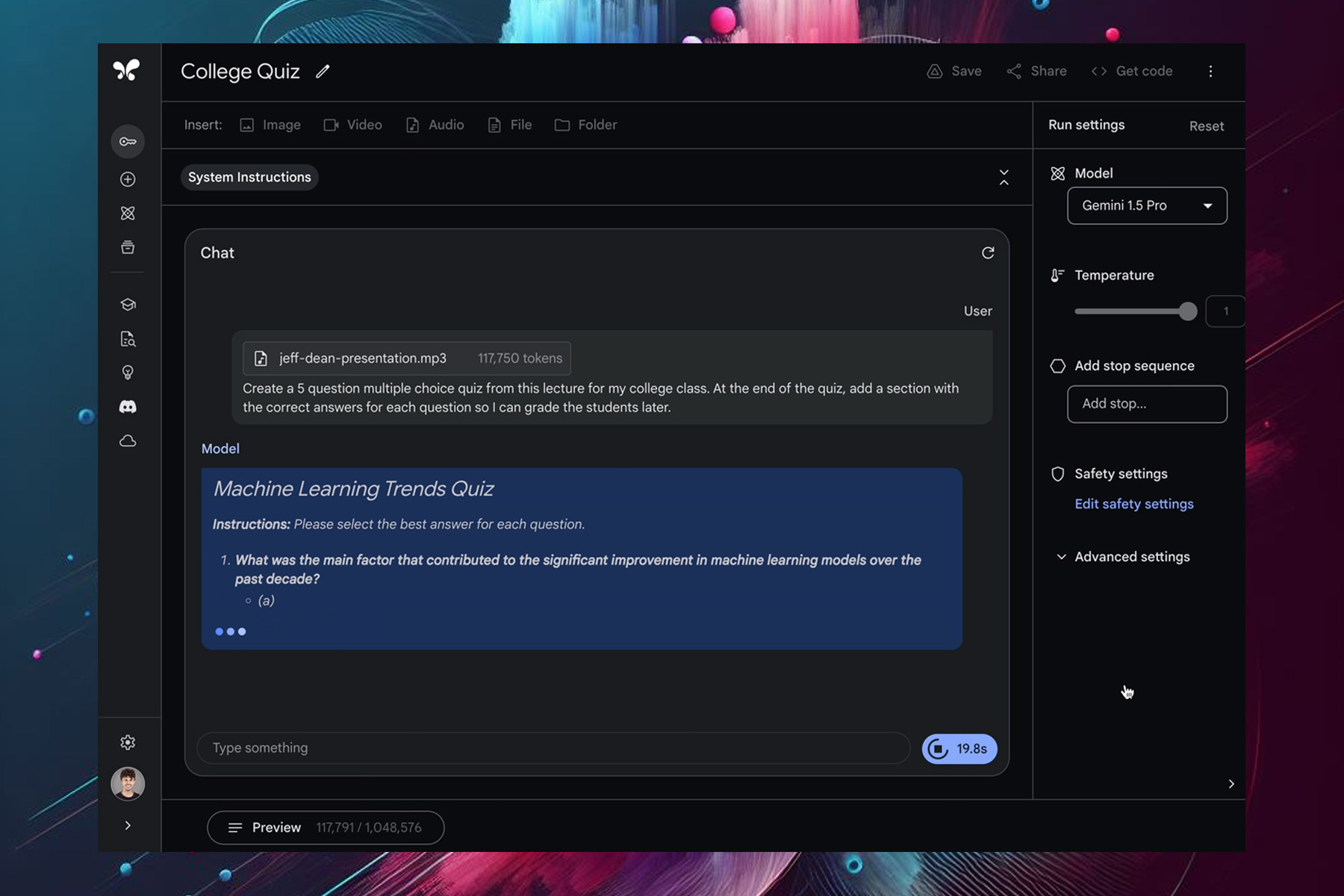
You can upload a recording of a lecture, like 117,000+ token lecture from Jeff Dean, and Gemini 1.5 Pro can turn it into a quiz with an answer key.
The update also brings greater control and functionality to the developers, and there’s also support for system instructions so you can easily specify roles, formats, and goals.
Lastly, there’s JSON mode available that allows structured data extraction from both images and text. cURL is currently supported, and Python SDK support is coming soon, according to developers.
If you’re searching for a gaming laptop that appears awesome and has sufficient power to smoothly run the latest AAA games, there is a deal that cannot be ignored. The Alienware x16, a gaming laptop which shows style along with strength, is on sale now at $600 less than its first cost.
Why should I buy this Alienware x16 R2 gaming laptop?
To start, the Intel Core Ultra 9 processor is at the center of this beast along with an Nvidia GeForce RTX 4090 GPU – yes, an RTX 4090. This graphics card is a monster that pledges to keep your games running flawlessly for many upcoming years. And having 16GB of RAM on the graphics card itself, along with another 32GB in the system, means that you will not experience any lag or stuttering.
So you may question, what about storage? This machine has an impressive 2TB of SSD storage, giving plenty of room for your games and media. Yet, considering how large current-day games are, it’s possible that eventually you will start looking at offers for external hard drives.
Next, we talk about display. The Alienware x16 has a 16-inch FHD+ screen with 480Hz refresh rate and 3ms response time. Although this is good, people who really love gaming understand that using an external monitor can reduce the response time to only 1ms which gives you even more smooth gaming experience.
Yes, it still has the hefty price of $3000, but it’s still worth every buck. These types of offers do not stay available for long so if you have been imagining about owning a top-level gaming system then maybe now would be an ideal opportunity to make your dream come true.
Yet, the tech world doesn’t stop spinning with just one deal. If you’re in search of something that’s a bit more budget-friendly, or maybe a different kind of tech altogether, there is always more deals and discounts to explore. From laptops priced under $70 to huge markdowns on high-end models such as the Dell XPS 17; there are no limits for choice. And we should also mention renewed deals, where you can get top-notch laptops for a very low price.
Therefore, if you are a dedicated gamer, a working individual or simply someone requiring new technology, there is no shortage of options available. Be vigilant and you could discover an ideal deal that matches your requirements and financial resources.
The Windows 11 Moment 5 Update was first released on February 29, 2024, for people who manually install updates from the Windows Settings app, but it was an optional non-security update
However, starting April 9 with the April 2024 Patch Tuesday updates, the Moment 5 update has become mandatory and available for all Windows 11 users.
Unlike the previous iterations, Moment 5 is smaller and has introduced a handful of features like Snap Layouts and Windows Spotlight.
The update also brought changes to existing features like the Nearby Share feature, Copilot, and more. To learn all about Moment 5 in detail, you can check out this guide.
You can install the update manually by launching the Settings app. Once there, navigate to Windows Update, and click Check for Updates.
However, if you want to install the update manually, you can go to Microsoft Update Catalog, search for KB5036893, and click Download. Then, run the downloaded file and follow the on-screen instructions to complete the process.
Have you downloaded the Moment 5 update? If yes, then tell us how you feel about the changes and features introduced in the comments section below.
Spotify’s first AI-powered feature, AI Playlist, quickly lists out a series of songs that match the vibe of your prompt, allows you to preview or remove them, and finally create a playlist. At its core, the idea is simple and effective!
At present, the AI Playlist feature is not available to all. It has only been rolled out in the United Kingdom and Australia. Besides, since AI Playlist is in the Beta phase, we didn’t have high expectations from it. But as it turns out, we were wrong!
What we liked the most was the ability to refine the initially generated playlist. For instance, quick follow-up prompts like more pop or less upbeat will revise the generated list of tracks instead of creating a new one altogether. These are just two examples. Find out more to quickly and effectively refine playlists.
Spotify has confirmed that there will be improvements in the final version at the time of public release,but even in its initial state, AI Playlist is great. The official blog post reads,
You can use prompts that reference places, animals, activities, movie characters, colors, even emojis. The most successful playlists are generated with prompts that contain a combination of genres, moods, artists, or decades. It’s a brand-new tool, and still in beta, so we’ll continue to iterate and innovate on the experience. Stay tuned for what’s to come!
Considering its early stage, the only thing AI Playlist lacks at the moment is support for non-music prompts. For instance, if I want to create a playlist based on recent events, it’s not possible.
Besides, you may have trouble getting the best results from Spotify’s AI Playlist in the first few attempts or maybe for a day or so, but once you get the hang of the prompts, it will be a seamless experience. And you will be able to create a refined playlist in no time!
In a press release, Razer announced the Razer BlackShark V2 Pro for PlayStation and Xbox, the ultimate headset for taking your gaming experience to the next level.
The headphones ensure crystal-clear audio, advanced noise isolation, and multi-day use on a single charge. They boast 70 hours of battery life with Type C charging.
The ultra-soft flowknit memory foam cushioned ear pads make them comfortable to wear all day long, and the steel-reinforced headband and slider ensure robustness and flexibility.
Nick Bourne, Head of Razer’s Console, Mobile& Streaming Division, said:
The BlackShark headset is an icon among esports pros and hardcore gamers for a reason. Leveraging our position as the top gaming headset brand, we tuned these headsets for Xbox and PlayStation, working closely with pro gamers to refine the fundamentals of an esports class headset while introducing upgrades that we know highly competitive gamers are seeking.
He also mentioned that with the help of elite esports pros such as Hakis (Alliance) and Shotzzy (OpTic Gaming), both PlayStation and Xbox editions are tested and fine-tuned to meet the demands of top-most console gaming.
Key features of the BlackShark V2 Pro for PlayStation and Xbox:
Top-notch audio with HyperClear Super Wideband mic
The headband comes with a HyperClear Super Wideband mic, which ensures crystal-clear voice communication and immersive soundscapes
Brandon Dashy Otell, Professional Call of Duty player for OpTic, says:
This headset’s a game-changer: super light, insanely comfortable, and competition-ready—plus, the mic clarity is unbeatable; truly the definitive console headset for esports.
With the help of TriForce Titanium 50mm Drivers, it can deliver unparalleled audio clarity and pinpoint sound cues, giving the players a competitive edge.
Pro-tuned FPS audio profiles
Razer collaborated with popular esports athletes and prepared sound profiles specially optimized for renowned titles like Call of Duty, Apex Legends, and Fortnite.
However, you can also adjust the game/chat audio settings from the headset without installing extra software.
Featuring Razer HyperSpeed Wireless, a 2.4GHz wireless connection, ensures high-performance and low-latency competitive play with audio synced to the game
The headset comes with built-in Bluetooth and Razer’s SmartSwitch on-device control, which helps you switch between a 2.4GHz or Bluetooth connection easily.
Light as a feather and has a comfortable design
BlackShark V2 Pro, despite being power-packed with features and supreme quality material, only weighs 320 grams, i.e., 11.29 oz, which means you can wear them during your long gaming sessions without feeling fatigued.
The headset also provides superior comfort and comes with passive noise cancellation as it has soft, plush memory foam ear cushions for distraction-free gaming days or nights.
Flawless Reliability
BlackShark V2 Pro’s excellent battery life, which ranges from 48 hours on console to 70 hours on PC, makes it a great pick for uninterrupted and long gaming sessions without the hassle of recharging them often.
It comes with a 3.5mm jack and is suitable for consoles, computers, mobile devices, and even handheld gaming devices with either a USB-C port or Bluetooth audio feature.
Razer BlackShark V2 Pro for Playstation & for Xbox
Drivers
Razer TriForce Titanium 50mm Drivers
Surround Sound
Spatial Audio with Windows Sonic on Xbox Series X|S, Xbox One, and Windows 10/11 PlayStation Tempest 3D Audio on PS5™
Haptics
No
Connectivity
2.4GHz HyperSpeed Wireless or Bluetooth
Battery life
Up to 70 hours *Tested with PC (Up to 48 hours with PlayStation & Xbox)
Platform supports
PS5 Xbox One / Xbox One S / Xbox One X/ Xbox Series X|S PC, Mac Smartphones, tablets, and handheld gaming devices with Bluetooth audio capability or USB-C port
Prices
Both Razer BlackShark V2 Pro for PlayStation and Razer BlackShark V2 Pro for Xbox are priced at $199.99USD / €219.99 MSRP and available on Razer.com, RazerStores & Authorized Resellers starting April 9, 2024.
The White Edtion headsets of the series are also available at the same price and in the same stores, but you can also get them from the nearest Best Buy store in the USA.
In addition to this, Razer BlackShark V2 X for PlayStation and Razer BlackShark V2 X for Xbox are available at $49.99USD / €59.99 MSRP on Razer.com, RazerStores & Authorized Resellers starting April 9, 2024.
Would you like to try these headsets? Share your opinions with our readers in the comments section below.
TikTok is a heaven for live streamers all over the world but until now, you could do that only from your mobile. Gamers just got a breakthrough here because now you can use Logitech’s Streamlabs desktop app to stream directly on TikTok.
At the last year’s end, Streamlabs got the same feature to broadcast on Twitter (X) and Elon Musk demonstrated the feature himself playing Diablo IV.
Tested the ? video game streamer system last night. It works!
Will try to complete a Tier 100 Nightmare dungeon tonight live on this platform.
Since then, gamers rushed to post their exploits on X and probably that’s going to happen with TikTok as well.
However, Streamlabs has some limitations for streaming on TikTok. The maximum video bitrate is 10Mbps and the maximum audio bitrate is 1Mbps. Logitech recommends a video bitrate of 8,000Kbps for 1080P streaming at 60FPS (the maximum possible resolution and frame rate) and 6000Kbps for 30FPS.
The good news is that there is no clip length limitation, but you should know that TikTok only supports H.264 encoders.
How do I broadcast live on TikTok from a PC using Streamlabs Dektop?
After you download Streamlabs Desktop and install it on your PC, if you launch the app, it will ask you to connect to a media platform so select TikTok. Then, log into your TikTok account and authorize Streamlabs to access it.
Finally, select TikTok to go live and hit the button to start. If you don’t have permission to stream, Logitech advises to select the Apply for TikTok Live Permission. You will be redirected to the TikTok application page to clear the permissions problem.
The only problem is that Streamlabs doesn’t support native chat in TikTok streaming sessions.
Here are some of the top tips from Streamlabs:
Use the Streamlabs Desktop Dual Output feature to simulcast on TikTok, plus one horizontal-orientated platform to expand your reach. Learn more about Streamlabs Dual Output in our handy guide.
Set up your TikTok LIVE stream with custom overlays and alert themes by installing one from the Streamlabs Library. There are thousands to choose from.
Soon enough, your gaming adventure will be out there for everyone to see on TikTok. How cool is that?
If you try the new TikTok live streaming with Streamlabs, let us know how it went in the comments section below.
Speaking of which, this feature was updated and now it supports Hindi, German, Spanish, Italian, and Russian languages.
While the feature is still not working, when trying to use it you’ll get a message saying: The language you selected needs to be installed and we’ll alert you when your video is ready.
To enable this feature, you need to do the following:
Open Settings and navigate to Languages.
Select Translation.
Lastly, enable Offer to translate videos on supported sites.
After doing that, you should see a translate icon when hovering over a video and you’ll be able to access it.
Currently, YouTube has the option to translate videos, and you can enable it by going to Settings and choosing Subtitles and the desired language or the Auto-translate option.
On the other hand, this feature on Edge offers both audio and subtitle translations, so it’s more advanced than its YouTube counterpart.
Also, it seems that the translate feature will skip ads or at least won’t translate them, but since the feature isn’t working yet, we haven’t had the chance to properly test it.
Overall, this sounds like an amazing feature, and we can’t wait to see it in action in future versions of Edge.
Google is designing custom Arm-based CPU chips, Axion, initially to be used in its data centers and then rolled out for Google Cloud customers later in the year.
With Axion, Google aims to tap into the cloud services segment, where it already has a presence, and not compete with players in the hardware market.
The California-based tech giant won’t be selling these chips. Instead, it will employed to facilitate and support the native cloud service, Google Cloud, which the customers can subscribe to.
Talking about Axion, Google Cloud’s Vice President Mark Lohmeyer, in an interview with Reuters, said,
We’re making it easy for customers to bring their existing workloads to Arm. Axion is built on open foundations but customers using Arm anywhere can easily adopt Axion without re-architecting or re-writing their apps.
Axion is meant to enhance the performance of general-purpose workloads such as web and app servers, open-source databases, media processing, data analytics engines, in-memory caches, CPU-based AI training and inferencing, and more!
Highlighting the performance and efficiency of Google Axion, the official blog post reads,
Axion processors combine Google’s silicon expertise with Arm’s highest performing CPU cores to deliver instances with up to 30% better performance than the fastest general-purpose Arm-based instances available in the cloud today, up to 50% better performance and up to 60% better energy-efficiency than comparable current-generation x86-based instances.
Axion is also an environmentally friendly option, delivering more computing power at the same electrical consumption, making it both sustainable and financially viable for users.
Arm CEO Rene Haas also spoke about Google Axion.
Google’s announcement of the new Axion CPU marks a significant milestone in delivering custom silicon that is optimized for Google’s infrastructure, and built on our high-performance Arm Neoverse V2 platform. Decades of ecosystem investment, combined with Google’s ongoing innovation and open-source software contributions ensure the best experience for the workloads that matter most to customers running on Arm everywhere.
With Axion, Google intends to decrease its dependence on Intel and NVIDIA. Microsoft, too, has previously launched custom silicon chips to ramp up its cloud infrastructure. And much like Microsoft’s custom chips, Axion will also help train AI models!
Recently, Open AI released GPT-4 to everyone in Copilot. Now, we have great news for coders. The LLM developer announced that they have launched GPT-4 Turbo with Vision, or GPT-4V in the API.
GPT-4 Turbo with Vision is now generally available in the API. Vision requests can now also use JSON mode and function calling.https://t.co/cbvJjij3uL
Below are some great ways developers are building with vision. Drop yours in a reply ?
According to the documentation, GPT-4V comes with a JSON mode and function calling that will help coders with visual data processing. It also features 128,000 tokens in the context window, just like GPT-4 Turbo.
Basically, GPT-4V will be able to process images from a link, or by passing the base 64 encoded image directly in the request. Microsoft also provided a python code example of usage:
Open AI points out that there are some important limitations to GPT-4V. Within this example, the model is prompted about what are the contents in a certain image. The LLM understands the relationship between certain objects from the image but can’t provide further information about their location. You can ask it for instance what color is a pencil on the table but you’ll probably get no answer or a wrong one if you ask it to find the chair or the table.
The GPT-4V guide, also explains how to upload 64 encoded images or multiple images. Another interesting mention is that the model is not ready to process medical images such as CT scans. If there is a warning about that particular usage type, probably someone tried doing that for diagnosis.
You will also find a guide on how to calculate token costs. For instance, the high mode cost for a 1024 x 1024 square image in detail is 765 tokens.
What do you think about the new GPT-4 Turbo with Vision? If you’ve tried it, tell us about your experience in the comments section below.
Windows 10 KB5036892 was released on April 9, 2024, and the new update brought on exciting features. One of them is Bing Spotlight integration on the desktop.
Bing Spotlight integration
Spotlight on the desktop feature, when turned on, will display new Bing-powered images as your desktop wallpaper all by itself. To enable the feature, open the Settings app, go to Personalization, then Background. For the Personalize your background option, select Windows spotlight from the drop-down menu.
Just like the lock screen, if you want to learn about the image on your desktop, you can click the Learn More button, which will redirect you to Bing for more information.
Add content to your lock screen
Starting with this update, you can add content like MSN cards that can appear on your computer. To set it up, you need to go to Personalization under the Settings app and select Lock screen. Now choose the Lock screen status from the drop-down as you like. So, you can choose weather, updates on sports, traffic finance, and more to get displayed on your lock screen.
Windows Hello for Business
Windows Hello for Business was introduced to Windows 10 a while ago. With the latest update, IT professionals can use mobile device management (MDM), and disable DisablePostLogonProvisioning to prevent a prompt from appearing when users sign in to an Entra-joined machine.
Taskbar will have special skills in the European Economic Area
In EEA, the search box on the Taskbar will now show you search highlights, providing you with quick information and other updates.
Along with this, Microsoft also fixed an issue that caused the on-screen keyboard to act funny. Once you update, you might also see an option to upgrade to Windows 11 if your device is eligible for upgrade. However, you might not see it right away.
To access the features, you need to install the update. Launch the Settings app, navigate to Windows Update, and click Check for Updates.
However, if you want to install the update manually, you can go to Microsoft Update Catalog, search for KB5036892, and click Download. Then, run the downloaded file and follow the on-screen instructions to complete the process.
If you don’t see the features right after installing the update, you need to wait sometime, as Microsoft has already mentioned that the features will roll out gradually.
Cybercriminals discovered how to exploit the critical security vulnerability (CVE-2024-24576) in the Rust standard library. Through it, they can threaten Windows systems with injection attacks. Cybercriminals can use this technique to execute malicious programs on your device.
In addition, according to the Common Vulnerability Scoring System (CVSS), this issue with the Rust standard library is critical. After all, hackers don’t need you to interact with their malware to exploit it remotely with low-complexity attacks.
What does the critical security vulnerability (CVE-2024-24576) mean?
According to the Rust security team, the critical security vulnerability (CVE-2024-24576) means the Rust standard library can’t handle special characters used in batch arguments. So, when Rust programs execute the Command API to use batch files, wrongdoers can control arguments and find a way in. Afterward, they can run malicious commands on your system.
The CVE-2024-24576 vulnerability doesn’t affect other operating systems or Rust programs that don’t use batch files. Additionally, the flaw is present only in Rust versions before 1.77.2.
The Rust security team had a challenge patching the vulnerability due to the complexity of the cmd.exe. So, they couldn’t escape all the arguments. However, they found a way around it by modifying the Command API. After the update, if the API can’t escape an argument, it will return an InvalidInput error.
If you need to bypass the standard escaping, use the CommandExt::raw_arg method. It will allow you to handle trusted inputs or to make your escape.
Even if there are a few critical security vulnerabilities like (CVE-2024-24576), the White House Office of the National Cyber Director (ONCD) considers that tech companies should use memory-safe languages like Rust. After all, they minimize the memory-safe vulnerabilities hackers use to execute malicious codes. On top of that, they cause crashes and data corruption.
Ultimately, to fix the critical security vulnerability (CVE-2024-24576) of the Rust storage library, upgrade it to 1.77.2. In this way, you will prevent threat actors from exploiting it. Thus, they won’t be able to use special arguments to execute malicious commands.
What are your thoughts? Do you use Rust applications? Let us know in the comments.
Microsoft tends to push its products to users, and it has been doing that for years, and Copilot is no exception.
It seems that the company is doing the same by having Copilot prompts right in the address bar in Edge.
Microsoft is testing Copilot prompts in the address bar in Edge
Copilot in Edge has been present for a while, and it has been confined to the sidebar, so you didn’t have to use it, unless you needed it.
This was useful since you could activate it when needed, and you would get a list of prompts you could use.
It seems that Microsoft is making some changes, and Copilot prompts are now available in the address bar in the Dev version of Edge.
This can be rather annoying since you’ll get a different prompt whenever you open a new tab thus making the prompts irrelevant.
To make this feature more useful, Microsoft could make it work with your recent searches or trending searches, but in its current form this feature feels useless.
While there’s no way to get rid of these suggestions, they at least don’t appear in the Private Browsing mode.
According to Windows Blog, the feature is rolling out to Windows Insiders in the Beta and Release Preview Channel:
UPDATE 4/9: The below update for Notepad (version 11.2402.22.0) that introduces spellcheck has begun rolling out to Windows Insiders in the Beta and Release Preview Channels.
The spellcheck feature will be enabled by default and it will underline misspelled words allowing you to correct them by selecting the misspelled word or by using Shift + F10 shortcut.
Of course, you’ll be able to ignore certain words in the document or add them to the dictionary to permanently ignore them.
You can also disable spellchecking for certain file types or temporarily disable it for the current file. Overall, it’s a welcome feature and we hope to see it available soon.
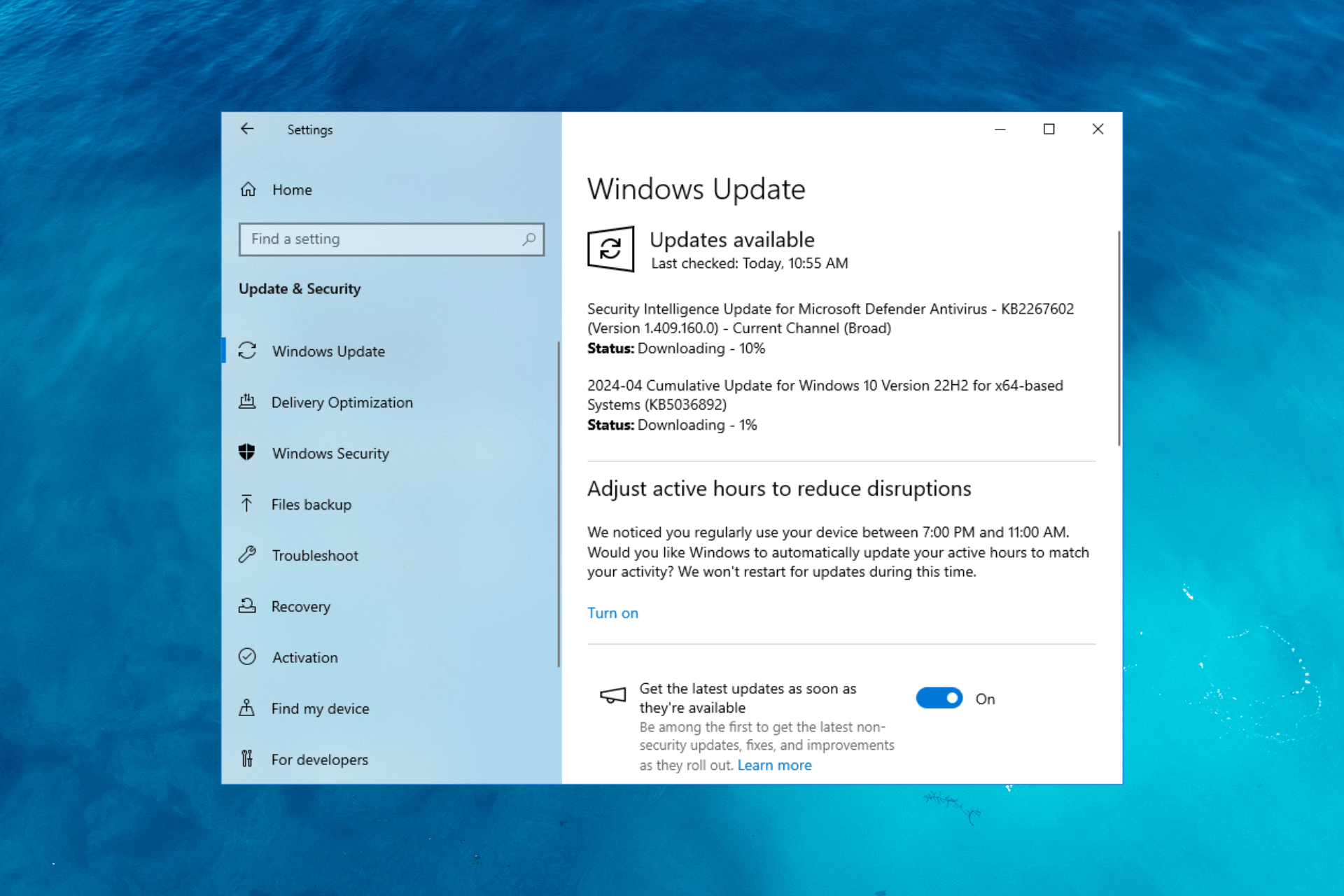
On April 9, 2024, Microsoft released the KB5036892 Cumulative Update for Windows 10 Version 21H2 and 22H2. The update bumped the build to 19044.4291 and 19045.4291 for 22H2 and 21H2.
The KB5036892 update is a mandatory Windows 10 cumulative update that adds two new features and contains Microsoft’s April 2024 Patch Tuesday security updates, along with a handful of bug fixes and improvements.
New! This update adds Windows Spotlight to your desktop background. This feature displays new images as your desktop wallpaper. If you want to know more about an image, click or tap the Learn More button, which takes you to Bing. To turn on this feature, go to Settings > Personalization > Background > Personalize your background. Choose Windows spotlight.
New!This update adds more content to your lock screen. In addition to weather, sports, traffic, and finance content will appear. To turn on this feature, go to Settings > Personalization > Lockscreen.
Here are the improvements mentioned on the support site:
This update addresses an issue that affects the touch keyboard. It does not open sometimes.
When you sign in, you might see a message that invites you to upgrade to Windows 11. This message only appears if your device is eligible for an upgrade.
This update affects Windows Hello for Business. IT admins can now use mobile device management (MDM) to turn off the prompt that appears when users sign in to an Entra-joined machine. To do this, they can turn on the “DisablePostLogonProvisioning” policy setting. After a user signs in, provisioning is off for Windows 10 and Windows 11 devices.
This update adds search highlights to the taskbar search box for the European Economic Area. To learn more, see Windows Search providers.
This update addresses an issue that affects the touch keyboard. It does not open sometimes.
When you sign in, you might see a message that invites you to upgrade to Windows 11. This message only appears if your device is eligible for an upgrade.
This update addresses an issue that affects a network resource. You cannot access it from a Remote Desktop session. This occurs when you turn on the Remote Credential Guard feature and the client is Windows 11, version 22H2 or higher.
This update addresses an issue that affects Microsoft Edge. It fails to open on Surface Hub (Team OS).
This update affects the Antimalware Scan Interface (AMSI) AmsiUtil class. It helps to detect the bypass of the AMSI scan. This update also addresses some long-term issues that expose your device to threats.
This update addresses an issue that affects the time service. You can configure it using mobile device management (MDM) or a Group Policy Object (GPO). But the Windows Settings app does not match what you have configured.
This update addresses an issue that occurs when you use LoadImage() to loada top-down bitmap. If the bitmap has a negative height, the image does not load and the function returns NULL.
This update addresses an issue that affects scanners. They stop responding when you connect to them using eSCL over USB.
This update makes Country and Operator Settings Asset (COSA) profiles up to date for some mobile operators.
This update addresses an issue that affects the existing AppLocker rule collection enforcement mode. It is not overwritten when rules merge with a collection that has no rules. This occurs when the enforcement mode is set to “Not Configured.”
This update addresses an issue that affects the Group Policy service. It fails after you use LGPO.exe to apply an audit policy to the system.
This update addresses a reliability issue. It affects a Virtual Remote App product when you use a custom shell to open it.
As Microsoft has mentioned, these features will roll out to you gradually, so if you don’t see the changes right after you install the update, wait for some time.
Two of the existing issues in Windows 10 are still not addressed, including Copilot not being supported if your taskbar is located vertically on the right or left of the screen or icons switching between multiple monitors due to Copilot.
To install the update, launch the Settings app, then navigate to Windows Update, then click Check for Updates.
However, if you want to install the update manually, you can go to Microsoft Update Catalog, search for KB5036892 and click Download. Then, run the downloaded file and follow the on-screen instructions to complete the process.
Microsoft issued updates for .NET 6, .NET 7 and .NET 8 to address the CVE-2024-21409 listed as an important vulnerability for .NET and Visual Studio Remote Code Execution.
A Remote Code Execution (RCE) attack allows an attacker to execute malicious code on an organization’s computers or network. This capability to run code controlled by the attacker can serve multiple objectives, such as installing further malware or exfiltrating confidential information.
RCEs attacks are very common means for attackers nowadays to steal data and break into Government and organizations systems.
How do I patch my .NET to avoid security issues?
The latest .NET updates, .NET 8.0.4, 7.0.18, .NET 6.0.29 for Windows, macOS, and Linux, for x86, x64, Arm32, and Arm64 are available for download from the dedicated GitHub page.
However, you may also use the Windows Package Manager CLI (winget) commands to install them:
To install the .NET 8 runtime: winget install dotnet-runtime-8
To install the .NET 8 SDK: winget install dotnet-sdk-8
To update an existing installation: winget upgrade
Microsoft also warns about a use-after-free vulnerability in WPF which may result in Elevation of Privilege when just by viewing untrusted documents. We recommend updating .NET as soon as possible to avoid these security issues.
Intel, on April 9, 2024, released the Wi-Fi package drivers 23.40.0 for Windows 10 and Windows 11. So, if you are using Intel Wi-Fi cards on your PC, it’s time to install the latest drivers!
As per the release notes, the latest Intel wireless driver package, 23.40.0, introduces the following changes on both Windows 10 and Windows 11:
1. Regulatory updates for China.
2. Fix for Wi-Fi Yellow Bang in device manager with very low occurrence.
3. Fix for Wi-Fi blue screen with low occurrence.
4. This software release version 23.40.0 has been updated to include functional and security updates. There may be other minor issues addressed which will impact performance, stability, or vendor specific functionality not listed above. Users are encouraged to update to the latest version for best performance.
You can download the latest Wi-Fi driver package, 23.40.0, from Intel’s official website. It also lists the products supported by the driver package. So, check if yours is on the list!
Updating the Wi-Fi driver is critical for many reasons. It improves security, fixes any existing bugs, may help increase the Internet speed (if it’s being limited due to a bug), and ensures smooth functioning of the PC.
Did you face any issues with the latest Intel Wi-Fi drivers? If yes, share them with our readers in the comments section.
Dell brings four laptops for gaming and general use. However, two of them, specifically the Dell XPS Laptops, share some specs but have different sizes and customization options. Yet, they all have AI features and cutting-edge Intel Core Ultra Processors. So, without further ado, the laptops are XPS 14 (9440) and XPS 16 (9640), Alienware m16 R2, and Inspiron 14 Plus (7440).
Dell laptops and specifications
You can personalize most of the new Dell laptops based on your needs. However, if you want a durable gaming device, go for the Alienware m16 R2 as it has the most options. Yet, if you want a work laptop, Inspiron 14 Plus has everything you need. Additionally, you can go for the XPS for video editing and content creation.
Dell XPS Laptops
The XPS laptops are the first ones from this category. After all the only difference between XPS 14 and XPS 16 is their display size and some customization options. Other than that, the XPS 16 is 45% more performant than its predecessor.
If you are looking for a laptop on the go, XPS 14 could be the better choice because it’s more compact. Additionally, you can customize their storage, memory, graphics, and display. For example, you can opt for an NVIDIA GeForce RTX series 40. Also, you can change the display type to OLED.
Both Dell laptops have an incorporated Copilot key to improve workflows. They have an integrated Copilot assistant too. On top of that, you could go for the premium version if you work with AI.
Alienware m16 R2
The Alienware m16 R2 laptops from Dell deliver superior performance. In addition, they are great for gaming. Also, it features Intel Core Ultra 9 185H processors and NVIDIA GeForce RTX 40 Series graphics. Furthermore, it has a stealth mode for quiet gaming sessions.
You can adjust some of its specifications, such as storage, graphics, CPU, and memory.
Dell Inspiron 14 Plus
Inspiron 14 Plus offers many AI features, like auto framing and eye contact. Thus it is a better fit for office work. It has a 16:10 aspect ratio and a 2k resolution. In addition, it received military-grade certification for durability. However, unlike the previous models, it can’t be personalized too much.
In a nutshell, Dell offers various laptops with AI features for different uses. You can personalize most of them. In addition, the cheapest one, the Dell Inspiron 14 Plus, is $849.99. On top of that, the gaming laptop, Alienware m16 R2, starts at $1,499.99. However, the most expensive Dell laptops are the XPS 14, which starts at $1,699.00, and the XPS 16, which starts at $1,899.00.
What are your thoughts? Are you going to buy any of them? Let us know in the comments.
Copilot is an irreplaceable tool, and it’s available in various Microsoft Software, including Visual Studio.
Speaking of which, the company has plans to bring a unified Copilot experience in the future versions of Visual Studio.
Visual Studio 17.10 announced, comes with a unified Copilot Experience
The new version of Visual Studio was just announced, and it will offer in-depth Copilot integration, as Neowin writes.
This is advertised as a unified Copilot experience, and it combines the features of Copilot and Copilot Chat into one.
By doing so, users won’t have to install two separate extensions, thus offering a more deeply integrated AI experience in the future.
If you haven’t used Copilot in Visual Studio, you can use it to speed up coding tasks, improve code quality, help you learn new patterns and languages, and help you focus on important tasks.
It’s great to see that Copilot is now available right out of the box, and if you’re impatient, you can download the Preview 3 version and give it a try.
Some lucky journalists had the chance to test the Qualcomm Snapdragon X Elite laptops. Based on their affirmations, they were pleasantly surprised by the capabilities of the demo laptops. Thus, some used it for content creation software. To test its capabilities, they edited videos in 4K using Blackmagic Davinci Resolve and rendered text to images in OpenVino. Additionally, they were happy with the results of the new laptop.
During the Snapdragon X Elite event, another journalist had the chance to check out the laptop’s gaming performance. In addition, by attending the event, people could check the device’s specifications. After all, even if there are many benchmark results, they don’t specify the exact characteristics used.
Snapdragon X Elite laptops are great AI powerhouses
According to the journalists from Laptop Mag, the Snapdragon X Elite laptop features 32GB RAM and a 2.8K 120Hz screen. Each one of the demo devices showcased during the event had a specific task. Some were for gaming, others for editing, and some ran benchmarks. Yet, they are all running their tasks flawlessly.
If you are a content creator or editor and have a Macbook, the Snapdragon X Elite might be your next device. After all, it is more proficient than the Pro M3 and some versions of MacBook Air. Also, with it, you can edit videos smoothly in 4K using the Blackmagic Davinci Resolve tool. On top of that, compared to the Intel Core Ultra 7, it delivers a smoother experience.
The demo Snapdragon laptop easily handles tasks other devices struggle with, such as masking, audio editing, color grading, and frame-by-frame scrubbing.
The Qualcomm Snapdragon X Elite laptops ran Baldur’s Gate III, Control, and Redout II on 1080p. According to Madeline Ricchiuto, the games run smoothly on the demo devices. Additionally, there were no frame drops during gameplay, especially on BG III during encounters. Yet, the chips are not for ray tracing. So, you might feel the absence of ray-tracing effects.
Ultimately, the Snapdragon X Elite laptops are powerful AI PCs. Thus, their performance and great speed in editing content show how far this technology has progressed. However, compared to the demos, the devices featuring the Snapdragon X Elite chips might have a lower performance based on their specifications. Yet, the laptops with similar specs might perform the same.
What are your thoughts? Are you going to get a Snapdragon laptop? Let us know in the comments.
When the pandemic hit, everything changed. The world’s economy was standing still, and it has been a couple of years, but we are still recovering from the losses it left behind, trying to get back to normal every day, whether it is the PC market or day-to-day life.
After two years of decline, the worldwide traditional PC market returned to growth during the first quarter of 2024 (1Q24) with 59.8 million shipments, growing 1.5% year over year.
So, after two years of consecutive decline, the global conventional PC market, which includes desktops, workstations, and notebooks, exhibited growth during the first quarter of 2024.
However, it is worth noting that the market experienced a steep decline of 28.7% in the first quarter of 2023, marking it the lowest point in PC history.
Apart from the growth this year, global PC shipments managed to return to pre-pandemic levels in Q1 2024. In the first quarter of 2019, 60.5 million units were shipped worldwide.
Inflation is going down in most parts of the world, like America, Europe, the Middle East, and Africa (EMEA). Therefore, PC shipments have started to recover. However, the same could not be said about China, which has impacted China and the global market.
As China is the largest consumer of desktop PCs, weak demand from the region could cause a decline in the percentage of global desktop shipments in the next quarter.
Jitesh Ubrani, research manager with IDC’s Worldwide Mobile Device Trackers, said:
“Despite China’s struggles, the recovery is expected to continue in 2024 as newer AI PCs hit shelves later this year and as commercial buyers begin refreshing the PCs that were purchased during the pandemic. Along with growth in shipments, AI PCs are also expected to carry higher price tags, providing further opportunity for PC and component makers.
Here are the details of the top 5 companies, globally in terms of shipments(millions of units), market share, and growth comparing quarter 1 of 2024 and quarter 1 of 2023:
Company
1Q24 Shipments
1Q24 Market Share
1Q23 Shipments
1Q23 Market Share
1Q24/1Q23 Growth
1. Lenovo
13.7
23.0%
12.7
21.6%
7.8%
2. HP Inc
12.0
20.1%
12.0
20.4%
0.2%
3. Dell Technologies
9.3
15.5%
9.5
16.1%
-2.2%
4. Apple
4.8
8.1%
4.2
7.1%
14.6%
5. Acer Group*
3.7
6.2%
3.4
5.7%
9.2%
5. ASUS*
3.6
6.1%
3.8
6.4%
-4.5%
Others
12.6
21.1%
13.3
22.6%
-5.0%
Total
59.8
100.0%
58.9
100.0%
1.5%
IDC Quarterly Personal Computing Device Tracker, April 8, 2024
With that said significant developments are expected in 2024 and beyond. The emergence of AI-powered PCs, the retirement of Windows 10, the introduction of new powerful processors, and more. We hope these hold the potential to bolster PC sales in the years to come.
What do you think about it? Share your thoughts with our readers in the comments section below.
Samsung has a reputation for having amazing devices, but usually, such quality comes with a price.
If you’re on a budget, you’ll be pleased to hear that Galaxy Book4 Pro 360 is currently available at a discount.
You can get Galaxy Book4 Pro 360 for $400 off
Samsung Galaxy Book4 Pro 360 is an amazing device, and it comes with the following specs:
16-inch, 2880×1800 AMOLED touchscreen display
Intel Core Ultra 7 155H 3.8GHz CPU, can be boosted up to 4.8GHz
Intel ARC Graphics
16BGB RAM, 1TB SSD
76Wh battery that can last up to 21 hrs
As for other features, there’s a full HD webcam, and AKG Quad speakers with Dolby Atmos. Regarding connectivity, Wi-Fi 6E and Bluetooth 5.3 are available.
There are also two Thunderbolt 4 ports, a single HDMI 2.1, one USB-A 3.2 port, a microSD card slot, and a headphone and mic combo.
Regarding security, you can find a fingerprint reader, TPM, Secured Core PC, and Knox. And last but not least, the S Pen also comes with this device.
Galaxy Book4 Pro 360 is an amazing device with a sleek design and great features, so be sure to get it from Samsung’s website while the discount lasts!
It may be difficult to digest, but two different users have reported burn marks on the back plate of their GPU, and the RGB lighting from the RAM is reportedly to blame!
The first report on Reddit, from almost a week ago, was concerning burn marks on the MSI RTX 3080 GPU.
Under the thread, we had multiple users confirming witnessing the same pattern on their GPUs.
This happened to me too, I used Corsair RGB RAM
Yep. I have that types of marks too, on my strix 1080ti after 7 years with trident z rgb. I have them set red, not with full brightness and marks are red.
Three days later, another user took to Reddit and shared two photos as evidence of the burn marks on the same GPU, MSI RTX 3080.
In this case, too, many others came forward to corroborate things and share their experience.
I have this memory and an Asus 1080ti strix and mine IS faded, I’ve been using this card since 2018 so it definitely took a while. May have something to do with what color/ brightness the RGB is set to, what color are your lights? Mine were set to blue for most of that time, but definitely some time on rainbow.
i have similar markings on my zotac but in a different spot and not where my ram is ? something about this coating is sensitive to heat or something
Discoloration marks
The discoloration of the GPU’s back plate shows a similar pattern and is in line with what would be caused by RGB lighting from RAM modules. This appears to be due to a reaction between the RGB UV light and the coating used on the back plate.
Whatever the case, the reports so far are limited, although we expect an increase as more and more users minutely observe their GPU’s back plate for burn marks or discoloration. The good news is that the GPU’s functionality and performance performance hasn’t been affected!
Besides, it could just as well be due to a faulty batch of memory modules or GPUs with incomplete/improper coating. Because the majority of users with MSI RTX 3080 haven’t reported any problems, indicating that the issue is not widespread.
The good news is that Microsoft is working on offering full control over how the lock screen on our PC appears. As Microsoft mentioned to WindowsLatest, you will be able to customize Widget cards along with the content appearing on them.
However, the company has not yet shared the estimated time of arrival for the feature. As of now, the lock screen widgets powered by the MSN feature are included in an optional update. However, after installing the patch Tuesday update in April 2024, these will become the default for everyone.
The mandatory patch Tuesday update will be available on April 9, and this will turn on MSN integration. All the MSN widgets will show up by default on the lock screen if you have the Weather option enabled in Settings>Personalization>Lock screen.
In the future update, as Microsoft mentioned, we can expect to choose which widget to keep or remove on the Lock screen.
However, people like me don’t like clutter on their lock screen and, therefore, would want to remove the MSN content completely. Fortunately, you can do that.
For that, open Settings (Windows + I), then go to Personalization>Lock screen> Lock screen status> choose an appropriate option.
As of now, I have KB5035942 installed and am running Windows 11 Home Single Language. When I navigate to the Lock screen status, I can see None, Weather, Mail, Calendar, and Dev Home options. If these don’t change in the future update, you can select any of them to get rid of MSN integration.
In other news, we know Microsoft has been experimenting with the Widgets panel for some time in Windows 11 24H2 and has added a navigation panel to the left-hand side, letting you switch between feed and widgets.
You can quickly access the Settings app from the Widgets app, as the icon is placed at the bottom left corner, but you won’t get the extended view option, meaning you won’t be able to go full screen in the Widgets app.
Would you like to turn off the MSN integration on your lock screen? If so, share the reasons with our readers in the comments section below.