Microsoft released build 125.0.2492.1 to the Dev channel for Edge insiders. The update introduced one new feature, Site Pinning campaigns, and numerous other fixes for previously reported issues.
This update is already available to the Canary channel and is expected to be released to the beta channel at the end of April 2024. Furthermore, the general availability of the version is expected in mid-May.
Here are the details about the update in the blog post:
Added Features:
Introduced the feature of pinning to the taskbar within Site Pinning campaigns.
Improved Reliability:
Resolved a problem that was causing the browser to crash when using the favorites feature.
Fixed a browser crash on android.
Changed Behavior:
Fixed an issue that prevented the focus from being set to the tab search input field when the menu is opened.
Resolved a problem that caused the “Show Shopping toolbar” option to appear on the shopping page after signing in with an AAD account.
Resolved an issue to prevent retrieval of hashtags from hidden videos on YouTube.
Resolved an issue that allowed a website to be repeatedly added to the block list and displayed multiple times.
Resolved a problem where the speaker icon indicates sound on the site icon, even though there is no audio output following the closure of the media tab.
Resolved an issue where the speaker icon remained in the unmuted state even after opening the side panel and muting the application via right-click.
This resolved an issue that clicking ‘Share’ to print resulted in a brief blank screen for one second.
iOS: Fixed an issue where browser would crash after the share button was clicked in the downloaded PDF file on iOS.
Android:
Resolved an issue when activating the ‘Find on Page’ feature in landscape mode caused two toolbars to appear on android.
Resolved a problem that prevented file uploads on the Android version of browser Mobile.
Microsoft has encouraged you to report issues through the Feedback Hub app; you can open it by pressing Windows + F.
If you want to try the new features before they are released to the general public, you will have to join the Edge Insider Program.
Have you installed the latest version yet? If so, share your experiences with us in the comments section below.
While the next version of Windows, which is reportedly AI-powered, will feature more enhancements that could potentially extend battery life by 50% on certain devices, it seems that the Redmond-based tech giant is developing new technologies to deal with the issue.
According to a patent published recently, Microsoft is working on a new adaptive battery management system that notifies users in advance to charge their devices based on how they’re using these devices.
The patent, which can be read here in its entirety, describes a technology that smartly tells you when to charge your battery-powered device. It does so by looking at the current battery level and how you’ve used the device in the past.
Using this information, it predicts when you’ll use the device next and estimates if the battery will last through that session.
If it thinks the battery might not last, it will notify you to charge the device before your next usage session. This way, you’re less likely to run out of battery when you need it.
Microsoft plans to implement the battery management system as software that can be integrated into an array of diverse operating systems, and devices, such as mobile phones, gaming consoles (Xbox), audio headsets, and Xbox controllers, as you can see in the image below, but not limited to these. The battery management system can be virtually used for any device that relies on a battery, including electric cars.
It would particularly be useful in video game usage scenarios, as the technology is also taking into consideration gaming habits regarding new releases.
In one instance, the technology seems to adapt to irregulate usage habits, recommending users to charge their devices accordingly, to not have such an impact on the battery life:
Application data may convey information about upcoming releases. Because certain users may tend to play specific types of games whenever they become released, this information can be employed by the usage session prediction model to predict the future usage session. Thus, the predicted future usage sessions could involve the use of whatever games will be available at the time of the future usage sessions.
In other instances, the battery management system is described as being highly adaptive to specific usage habits, such as delaying the charging notification until a certain checkpoint in a video game is reached, or notifying users to charge their devices if they are in a specific place – as the technology would use GPS to find out if the user is home or not.
According to Microsoft, this battery management system has further applications: drones, electric cars, AR/VR headsets, mobile phones, laptops, and so on. In the case of an electric car, for instance, the system would learn the user’s driving habits, and notify them accordingly:
If a user typically takes a road trip on the first Sunday of every month to visit family, the disclosed techniques could learn this habit and schedule a charging notification on the first Saturday of every month.
For now, this is patented technology, and Microsoft might choose not to pursue it, but given the company’s fascination with AI, it will most likely release it in the next years, one way or the other.
Xbox has unveiled the Nocturnal Vapor controller, a perfect blend of style, usability, and performance. It’s the third in the Vapor series after Stormcloud Vapor and Dream Vapor!
With dark and light shades of green donning the exterior, the design gets a perfect score. So does the gaming experience, given the green diamond pattern grips on the back side.
Powered by AA batteries, the new Nocturnal Vapor controller can run for up to 40 hours on a single charge. It comes with Xbox Wireless and Bluetooth technology, letting you connect the controller to Xbox Series X|S and Xbox One consoles, as well as PC, iOS, and Android devices.
Image source: Xbox
The controller features a 3.5mm audio jack to facilitate seamless connectivity with your headset, allowing you to both listen in and chat. Besides, there’s a dedicated share button on the front side to quickly send images and videos to friends.
The Nocturnal Vapor controller is fully compatible with the Xbox Accessories app, letting you create different profiles, remap keys, and much more!
You can pre-order the Nocturnal Vapor Special Edition controller for $69.99 from Xbox’s official website right away. Regular orders can be placed from April 9, 2024!
Will you get the new Nocturnal Vapor Special Edition controller? Share with our readers in the comments section.
On April 2, 2024, Microsoft announced in a blog post that a preview version of the Photos app built with the Windows App SDK (WASDK) will be released to Canary and Dev Channels on Windows 11.
If you are a Windows Insider Program member and have opted to receive the latest update for the Dev or Canary channel, you can check out the new Windows Photos app.
This change moves Photos to the latest Windows app development platform, with modern UI and other quality and performance improvements.
All the current Photos app features and functionality is still present in this version. However, given the extensive changes, this version may be a little rough around the edges as we continue to polish the experience. To get this experience, Windows Insiders on Windows 11 in the Canary and Dev channels can update the Photos app to version number 2024.11040.1002.0.
Microsoft has also encouraged users to share their comments and suggestions and mentioned that they can use Windows + F to open Feedback Hub under Apps>Photos.
If you also want to try the new features before they are released for general public, join Windows Insider Program, for more details, check this guide.
Have you tried the new Photos app yet? If so, share your experience with our readers in the comments section below.
In case you didn’t know, Opera has its AI assistant and it’s integrated into their browsers, called Aria AI.
Opera has a plan to get more users to use its AI assistant, and it plans to do that by organizing an AI scavenger hunt.
Opera is having a scavenger hunt, and all that you need to participate is Aria AI
Recently Opera GX icon was replaced with a cat as an April Fools joke, but unlike that event, this one is entirely real as Opera plans to bring more users to Aria AI.
With this AI assistant, you can generate instant answers, summaries, and content right from your browser. However, to use this feature, you need an Opera account.
If you don’t know what an Opera account does, it’s used to synchronize your data across all devices with Opera.
This harms Aria AI usage since only regular Opera users have an account, but hopefully, that will change with the Aria Scavenger hunt campaign.
According to Opera’s Twitter page, there’s $20,000 in prizes, 10 clues, and 20 days to solve it. The scavenger hunt starts today, and you can get more information on the Opera’s website.
Will the scavenger hunt be enough for you to switch to Aria AI? Let us know in the comments!
Microsoft’s extensive efforts on its native video conferencing app, Teams, are well known. Both paid and free versions regularly receive new features, though it’s more frequent for the former. This time around, Microsoft Teams (free) gets three new exciting features!
First on the list is Community Bot, which Microsoft, in the official blog post, describes as,
With Community Bot, community owners can automatically send a welcome message to new members who join their community. Community Bot can be used to share important details, prompt new members to introduce themselves, acquaint new members to the community or whatever you would like to say!
The Community Bot feature in Microsoft Teams for personal use simplifies and streamlines the job of community admins. It’s exclusive to Windows 11 for now!
Community Bot (Image Source: Microsoft)
To access the feature, you need to head to the Community tab > click the ellipsis next to the concerned community > select Community Bot from the dropdown menu.
The other two, Noise Suppression in meetings and Website link in community description, are available for Android and iOS versions of the app.
With the former, you can suppress background noise in meetings for a clear audio experience. Microsoft offers three settings for Noise suppression: Auto, Low, and High.
When on Auto, Teams automatically adjust the suppression level. For Low, the suppression is minimal, while for High, it’s the maximum, and all background noise will be suppressed. Only your voice will pass through!
Lastly, Microsoft Teams (free) now allows you to add a website or blog link to the community. Once done, it will be visible to all existing members and anyone who visits via the invite link.
All three new features in Microsoft Teams for personal use, Community Bot, Noise Suppression and adding links, were rolled out in March 2024 and should be available on your device. If not, install any pending updates. In case these are still missing, wait for a few weeks!
According to a patent published recently, Microsoft is working on a contextual note-taking application that automatically generates notes when users highlight data. Suggestively called Universal Highlighter for Contextual Notetaking, the app would be quite revolutionary in its own right.
The Universal Highlighter for Contextual Notetaking is capable of 4 main tasks:
Interactive Highlighting
Contextual Notetaking
Notes Generation
Easy Recall
Basically, this technology allows you to highlight a part of your screen. It could be a part of a window or an application. The system then automatically figures out the context of the highlighted content. It gathers relevant data from the content, the window, the application, and the user.
All this information is combined to create notes for you. These notes are stored in a database and can be accessed later using a notetaking application.
As we mentioned before, the contextual note-taking app could exist on its own, but also be part of another platform. These include Web Browser Apps, such as Microsoft Edge, for example, or native Windows apps, such as the Calendar App, but also Microsoft 365 apps, such as Word, Excel, or Outlook.
On this note, Microsoft Edge already has a performant PDF reader that translates text in real-time by just highlighting it, so the note-taking app described in the patent already has a basis.
This Microsoft contextual sort-of Sticky Notes app would make note-taking easier and more efficient. Firstly, it’s all automatic, and the only thing users would need to do is highlight the information, thus it would reduce manual work, and enhance productivity all around.
Secondly, the intriguing part is its contextual way of taking notes: it takes into account everything you have been looking for online when highlighting certain parts of your screen, and it provides notes that are enriched with relevant data.
Interestingly enough, Microsoft is developing this contextual note-taking app to take into consideration not only text content, but image, video, or audio-based content, as well. The app processes these forms of content and generates text-based notes about them.
When the highlighted content includes a dara type that is non-text (e.g., image data, video data, audio data, and the like), the present disclosure processes the highlighted content and generates textualized data. For example, when the highlighted content includes and image of a car, the textual data is “the car” based on an image recognizition. The image recognition may identify a feature of the image data in text. For example, the textual data may firther include “the car as a pictograph” or “the car model X manufactured by Y in year 2022.”
Thirdly, it automatically stores these notes for later use, so you won’t have to worry about losing them. According to the patent, the notes would be compatible with multiple note-taking apps, allowing you to open them with your preferred option.
We could potentially see this kind of update for Sticky Notes, on even Copilot. The latter would make sense, as this contextual note-taking would use AI capabilities to generate notes, and Copilot is already being integrated into many Microsoft products and services.
Fast and reliable storage is a must-have and many are using SSDs for this purpose. Speaking of which, it’s predicted that the SSD prices will continue to rise.
How much of a price change can we expect to see? Keep reading to find out.
SSDs are predicted to become more expensive in the future
According to TechRadar and the information from TrendForce, it’s expected for the client SSD prices to increase by 10-15% in Q2.
As for enterprise SSDs, their prices are expected to jump 20%-25%. On the bright side, it seems that the rise in prices is finally slowing down.
In the previous quarter, the prices went up 23-28% for both client and enterprise SSDs. Keep in mind that this information is just an estimate from Q1 and a forecast for Q2, so maybe take it with a grain of salt.
This change comes after the increase in production by Kioxia and WDC, but unfortunately, other manufacturers won’t follow suit.
So maybe this isn’t the right time to get a new SSD, and we’ll have to wait and see whether this trend continues in Q3. With such prices, it’s no wonder that many are wondering if it’s safe to use second-hand SSDs.
If you’re seeing YouTube’s message, Try searching to get started. Start watching videos to help us build a feed of videos you love, more often, you’re not alone. This happens quite often on various browsers on Android as well when visiting YouTube to watch videos.
This is not a new thing but it’s getting quite annoying that Google now requires you to sign into your account and have watch history enabled.
Hi guys, seems like today is getting a big problem. The try searching to get started thing started to roam around my YouTube account and can always COME BACK even if I have my videos already watched without clearing it. It’s so annoying. It only happens to my main account sadly, my alts never had the same issue right now… But please I want this annoying thing to end!
Luckily, you can make this message disappear for that time being, while you’re on the page even in incognito or private browsing mode. First, watch a video available from one of the sections under Explore for a minute. Then, reload the YouTube two or three times to see YouTube showing recommendations and the feed is back up. However, note that this workaround is only for the current session.
To avoid this happening repeatedly, you may have to sign into your YouTube account and ensure your watch history is on. It may take some time for YouTube to generate a feed if you have removed your watch history.
To enable watch history in YouTube, go to Feed > History and click on Manage all history. Then, on the YouTube History page click Turn on and confirm the option.
This message usually appears in Incognito mode when you are not signed into your account. If you would be on a regular tab on Google Chrome, you would most likely be logged into YouTube account automatically and would not see the message at all.
Did you manage to fix the problem? Let us know in the comments section below.
Microsoft decided to focus on the development of Copilot AI. So, the company started to reorganize its employees from different departments. As a result, some of the people working on the Teams app will switch projects. Unfortunately, the structural changes of Microsoft also led to layoffs.
What will happen to the employees after the structural changes of Microsoft?
According to Business Insider, Microsoft reorganized the teams managed by Jared Spataro, the head of AI at Work. Some employees will form new groups focused on Copilot’s features and products, while others will merge into a single one working on Teams. Also, the company will relocate some employees to a new Copilot and “future of work” team. Additionally, Colette Stallbaumer will be the general manager of the new group.
Jared Spataro said the company is going through a significant change, as it did in 2022 for the Teams app. However, Microsoft will continue to focus on and improve the software even after the structural changes. Yet, it is uncertain how their decision will impact the app’s development.
Frank Shaw, Microsoft spokesman confirmed that the company will continue focusing on the Teams app. In addition, Copilot in Teams is one of the features most customers use. On top of that, the app had 300 million monthly active users in 2023. After all, it offers many features for hybrid and remote work.
Microsoft could use the opportunity that comes with its structural changes to bring more AI features to the Teams app. However, If you haven’t tried Copilot in Teams yet, know that it can help you catch up with chats, add references and citations, search for information, and more.
In a nutshell, Microsoft goes through structural changes to improve the development of Copilot AI. For this, the company is reducing the number of employees working on the Teams app. However, Microsoft will continue to work on the software because it has millions of active users. Thus, we might soon receive new AI features inTeams and in general.
What are your thoughts? Do you think that the structural changes of Microsoft will affect Teams? Let us know in the comments.
Microsoft added new recommendations to its Entra platform, and the Redmond-based tech giant agrees that these will be keeping systems healthy and secure for thousands of customers.
Today, we’re thrilled to announce the upcoming general availability of four recommendations, and another three recommendations in public preview. We’re also excited to share new updates on Identity secure score. These recommendations cover a wide spectrum, including credentials, application health, and broader security settings—equipping you to safeguard your digital estate effectively.
Microsoft
There are the new Microsoft Entra recommendations:
Remove unused credentials from applications
Renew expiring service principal credentials
Renew expiring application credentials
Remove unused applications
Migrate applications from the retiring Azure AD Graph APIs to Microsoft Graph
Migrate Service Principals from the retiring Azure AD Graph APIs to Microsoft Graph
Regarding the Identity Secure Score, Microsoft updated it with a new recommendation, now in public preview:
Protect your tenant with Insider Risk policy: Implementing a Conditional Access policy that blocks access to resources for high-risk internal users is of high priority due to its critical role in proactively enhancing security, mitigating insider threats, and safeguarding sensitive data in real-time.
However, the Identity Secure Score also has the following recommendations that users should take into account to ensure their organization’s infrastructure remains safe and secure.
Enable password hash sync if hybrid
Protect all users with a user risk policy
Protect all users with a sign-in risk policy
Use least privileged administrative roles
Require multifactor authentication for administrative roles
Ensure all users can complete MFA
Enable policy to block legacy authentication
Designate more than one Global Admin
Do not expire passwords
Enable self-service password reset
Do not allow users to grant consent to unreliable applications
Just last month Microsoft updated its Excel web interface with CVS file export support, and this month the team is bringing copying and pasting improvements.
On the Microsoft 365 Insider blog, product manager on the Excel for the web team Cherishma R, explains that the platform supports drag and drop enhancements, additional paste options, and Autofill, finally.
According to the Excel for the web team, Users can look forward to dragging and dropping enhancements which should provide a more seamless and intuitive way to manipulate data. The new autofill enables you to drag data to fill series, copy cells, and split data like people have gotten familiar with decades of Excel use. Lastly, paste options improvements allow users to choose the right paste option for their needs by using the right-click option in Windows or accessing the auto-recovery paste options.
Drag and Drop
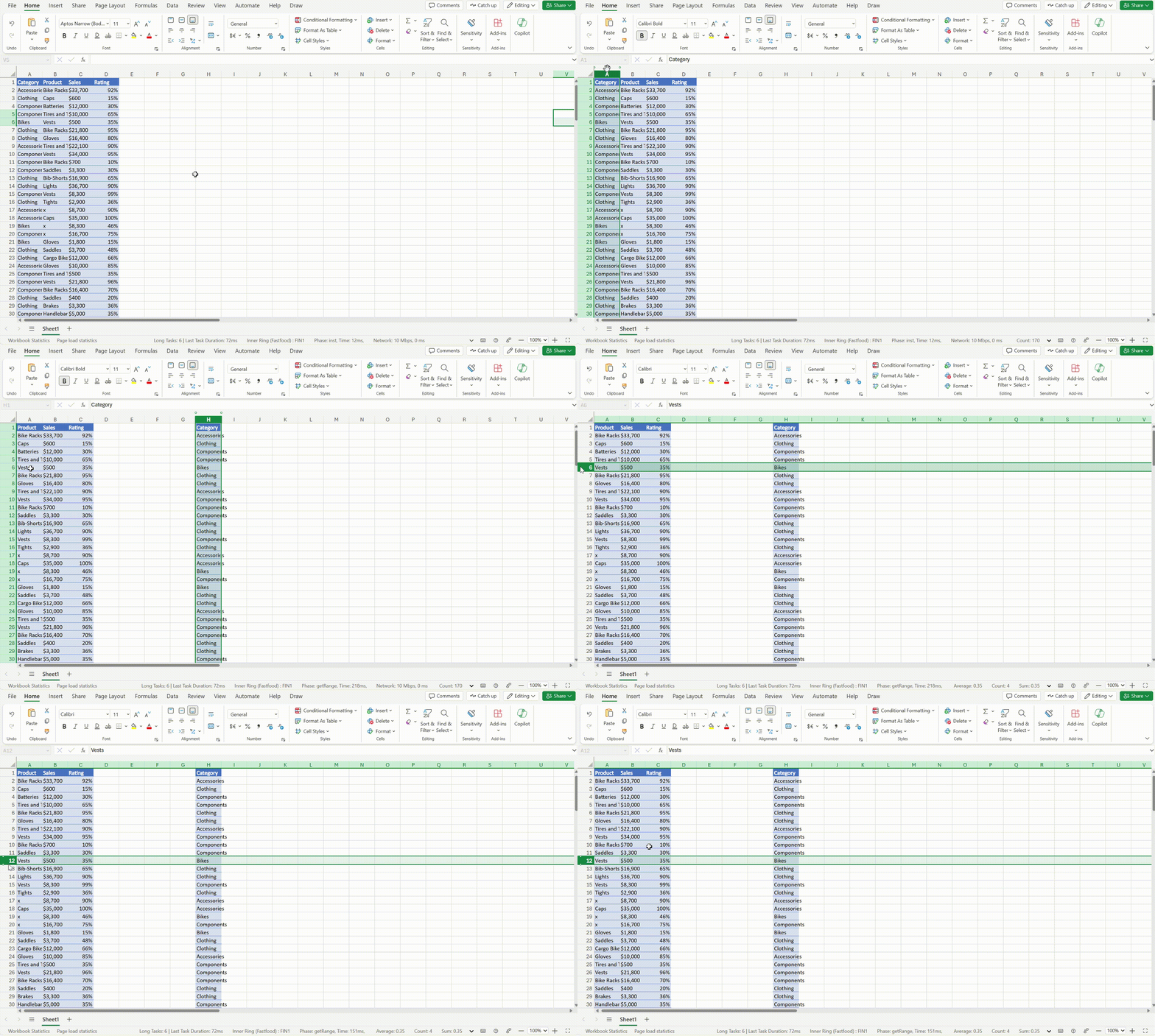
To try the drag and drop feature, click any row or column, hold and drag when the cursor shows the hand icon, and then drop in any other row or column.
Auto Fill
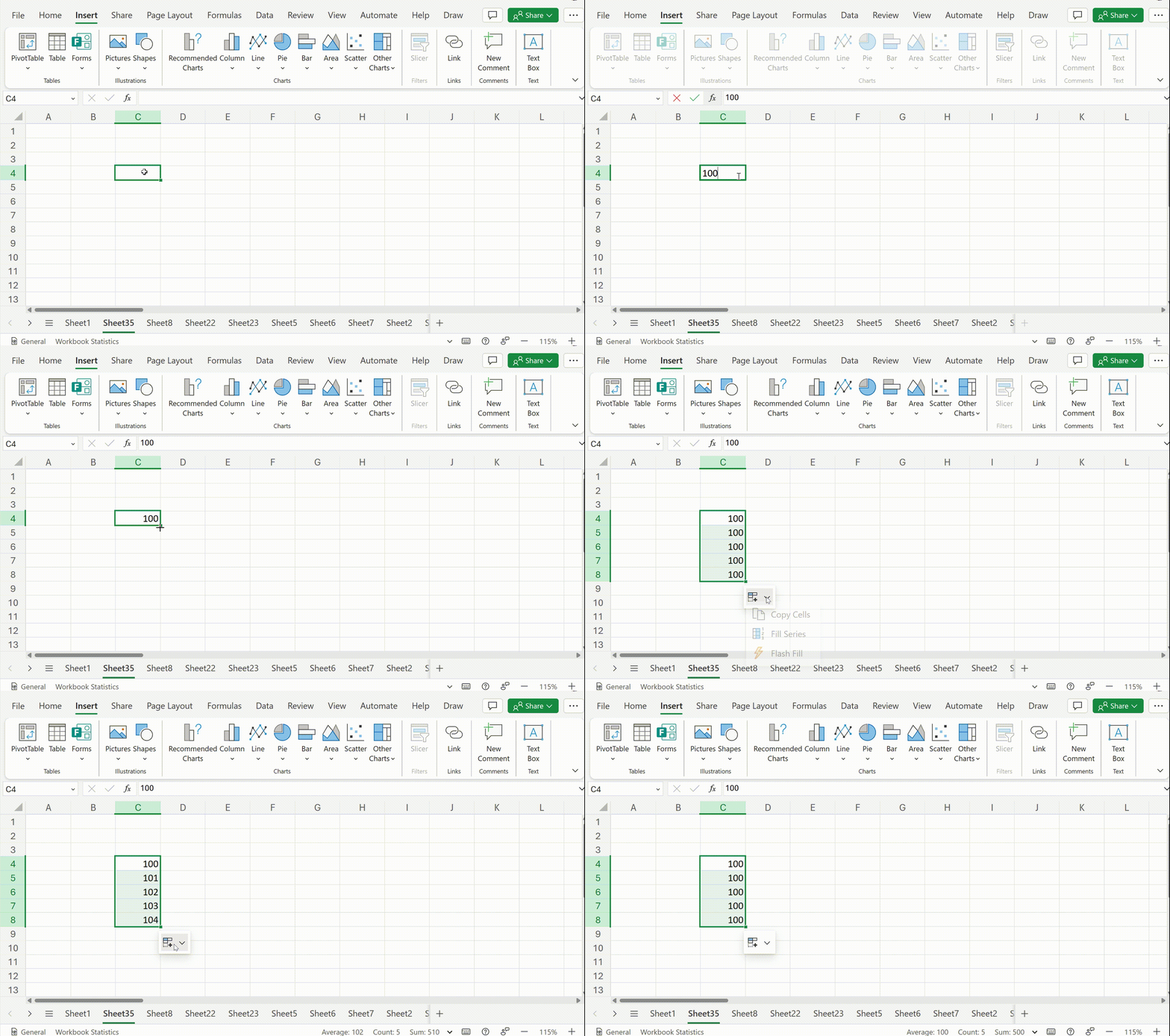
Look into the autofill feature, add data in a cell, select the cell, and then drag using the plus sign in the bottom right corner of the selected cell.
Paste Options
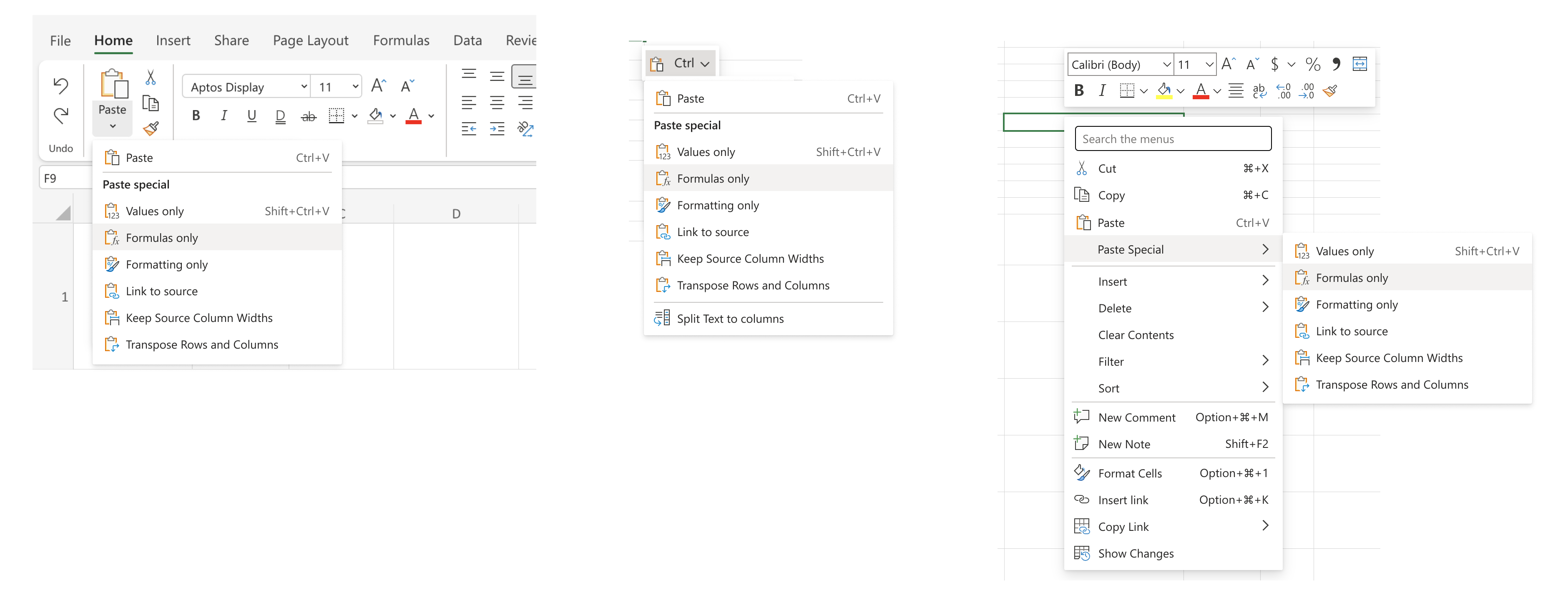
Check out the paste option improvements, copy some data, and either explore the paste options available in the ribbon, or right-click in the location where you want to paste the copied information and select the paste option you want.
Microsoft has already published the update and the new improvements and features should be available to all users as of now.
Even though there have been almost 7 years since Microsoft introduced its Microsoft 365 productivity suite, and almost 4 years, since the Redmond-based tech giant renamed Office 365 to Microsoft 365, a lot of users agree that Microsoft made one of the worst mistakes ever by deciding to rename it.
If you wanted to write a document, or work on a spreadsheet, or most common day to day things you do in an OFFICE (home or corpo), what would be an ideal trademark for such Office Software? IDK, “Office?” But there’s no way you could trademark such a ubiquitous term..
Oh wait.. it already is.
Microsoft 365 is a cloud service for personal use. No, it’s also a business office package. It’s also … They are going to rename everything that isn’t Azure “Microsoft 365” so they can make it subscription-only.
Office was just a few years ago the main thing keeping me from switching to Linux… but now I open Word and it’s a friggin clown-show of poor UX, wasted space while hiding useful functions behind more and more clicks… because having just one button always makes an interface easier to use, right???
They have been removing much of the native interoperability as well as the ability to customize the UI… and replacing it with a half-assed javascript API.
Probably what pisses me off the most is that I’ve been paying $500/yr for the stupid action pack, and the latest version of office available is 2016. Even on MSDN!
Microsoft is, like most big tech companies, making record profits… yet they continue to try to squeeze more and more out of regular people. The pandemic taught businesses that they can treat customers like shit and they will still pay.
This might be worse that the renaming dumpster-fire of confusion that is USB-3…
Reddit user
As you can see, one of the main frustrations is the fact that nobody knows what Microsoft 365 stands for, as it creates confusion among users: it is a cloud service for personal use, but also professional use, with Office still being around.
Truth is, the Redmond-based tech giant is somehow uninspired when it comes to renaming or evaluating its products on the market.
For instance, after the company introduced Microsoft 365 in 2017, it sought to use the new name to replace the existing Office 365 and even wanted to rebrand the Office Suite to Microsoft 365, in January 2023.
However, after numerous complaints from users, the Redmond-based tech giant backtracked its decision, and announced to the world, last year, that Microsoft Office 2024 is coming.
There is still confusion, so here is a breakdown: the Microsoft 365 suite is a monthly subscription-based cloud service for personal and professional use that gives users access to Office apps, such as Word, PowerPoint, and so on, plus access to an array of other services, such as Copilot. Since it’s a cloud service, it also comes with cloud storage, which subscribers can use to store their data in the cloud.
The upcoming Microsoft Office 2024, for instance, will be a one-time purchase, and it will give users access to the Office suite, which includes Word, PowerPoint, Excel, and so on. Users won’t have to pay monthly subscriptions, apps are not going to be updated so often, and cloud-based services such as Copilot, are not available.
Either way, with so many titles around, it’s important to note that: Office 365 is Microsoft 365, but it’s not the same as the Microsoft Office suite.
The Redmond-based tech giant has a history: despite mentioning its Bing Chat AI tool everywhere last year, the company decided to rebrand it to Copilot, confusing everyone once again. Windows Store was renamed to Microsoft Store, and while this makes sense, it was still confusing for users back then.
And then there is Entra:
Oh boy. Guys, should we tell him about EntraID?
Reddit user
Microsoft decided to rename Azure Active Directories (Azure AD) to Entra ID, and obviously and for good reasons, users weren’t happy.
One user stated back then that the Redmond-based tech giant was actually hurting the Azure brand:
In MS’ defense, it is hard to name products when you have a stack as large as theirs. But sometimes, I just don’t get it. Azure AD as an extension of AD–a name that’s been around for 20+ years and a brand that is deeply respected–is just good marketing. I don’t understand this Entra BS. You’re sacrificing lineage with one of the most respected brands in this whole space. EVERYONE knows what AD stands for on this subreddit. Why give that up?
Nonetheless, the Redmond-based tech giant took the decision, renamed multiple Azure services, and never looked back. But it seems, the users still do. They look back. And they’re not happy.
Good news for Copilot for Microsoft 365 users, everywhere: starting today, the Redmond-based tech giant updated the AI tool to support GPT-4 Turbo, meaning users will have access to the latest AI capabilities.
And this is not all. Microsoft also removed limits on the number and length of conversations while increasing file uploads, and that means users can now have unlimited conversations with Copilot on Microsoft 365.
Later this month, the Redmond-based tech giant will also update Copilot for Microsoft 365 to support the latest capabilities of Microsoft Designer, its AI image editor. And, if this isn’t enough, users will be able to access the editor at peak times, as well.
Today we are announcing two important updates for users of Copilot for Microsoft 365. First, we are bringing priority access to the GPT-4 Turbo model to work with both web and work data. We will also be removing limits on the number and length of conversations while increasing file uploads. Second, later this month we are bringing expanded image generation capabilities in Microsoft Designer to users of Copilot for Microsoft 365, including priority access during peak times.
Microsoft
Last month, Microsoft made GPT-4 Turbo available to Copilot for free, to everyone, but the enhancement came with a limit of 4000 characters. On Microsoft 365, however, this Copilot is capable of unlimited responses, and faster and more comprehensive answers.
In a blog post, the Redmond-based tech giant detailed how the GPT-4 Turbo-powered Copilot can be used in web situations, and work situations, alike, to enhance productivity, and get work done faster.
The work context lets you go even further by grounding in your work data––that’s your calendar, emails, chats, documents, meetings, contacts, and more––so you get contextually accurate responses. Copilot can help you quickly scan your email for important messages to prioritize, help you get ready for key meetings by pulling information from across your work, and help you ideate on the best path forward.
Microsoft
Starting in May, more Microsoft Designer enhancements will be coming to Copilot for Microsoft 365, including boosting the current 15 image generation limit/per day to 100 image generation limit/per day.
Ultimately, in the following months, these capabilities will be added to Copilot on Edge, Windows, and mobile app, as well.
Over this month, SharePoint will be updated to support AI-powered data analysis tools, which managers can use to gain insights and plan further actions based on them. According to the latest entry in the Microsoft 365 Roadmap, AI insights will be generally available to every SharePoint user, everywhere.
We are planning to provide an LLM-powered data analysis tools that admins can use to gain insights and actions.
Microsoft
This is not the first time the Redmond-based tech giant integrated AI to offer insight to companies: earlier this year, the company introduced Microsoft Copilot Dashboard, which is a platform where companies can find out if their employees use Copilot or not.
Even more, Microsoft Copilot for Security also uses AI to come up with complex insights about cyber threats, malware, and cyber-attacks.
It’s safe to say Microsoft will be integrating AI into its platforms, products, and services more and more, from now on, and SharePoint is no exception.
While we don’t know how it looks, or if it looks similar to Copilot on Microsoft Intune. If you remember, the AI tool will also be used in Intune to provide managers with useful information on endpoint management.
Copilot in Intune provides AI powered insights that are tailored for organizational needs, such as quickly resolving end user issues and ensuring policies and settings are configured to optimize business outcomes safely.
Microsoft
Copilot in Intune is also scheduled to be previewed this month, same time as SharePoint’s new AI data analysis tools.
Starting July 2024, new Outlook for Windows and Web users will be able to prepare for meetings with Copilot. According to the latest entry in the Microsoft 365 Roadmap, the AI model will help users prepare by not only summarizing documents related to the meeting but also coming up with key points, making it easier for users to follow the thread of the presentation.
To do this, the Redmond-based tech giant will add a new Prepare button to the platform, and users will only need to click it to get Copilot to help them prepare for the meeting.
The new game-changer feature will only be available for the new Outlook for Windows and Web, and according to Microsoft, it will greatly enhance productivity, reduce time spent preparing for a meeting, and make life easier for those users who are always nervous or anxious when presenting in front of others.
With so many of us in back-to-back meetings, it can be a real struggle to stay on top of pre-reads, action items, and even what each meeting is about. Copilot can identify and summarize the key points so you can show up prepared in just a few minutes. When you have an upcoming meeting, Copilot proactively shows you a “Prepare” button in your inbox which helps you quickly get context for the meeting providing a summary of the meeting and showing and summarizing relevant files leveraging the power of the Microsoft Graph. Now you have all the most important details you need and can arrive prepared and ready to engage in a productive conversation. This feature will be available in the new Outlook for Windows and web. #newoutlookforwindows
Microsoft
The Redmond-based tech giant recently announced that it will allow users to create Copilot prompts grounded in their work content in Word, Excel, Outlook, and PowerPoint.
The work can include chats, documents, meetings, emails, and so on, and the prompts will force Copilot to come up with answers related to the work users have done. It’s set to be rolled out this month.
It makes sense that Microsoft would improve on this feature to allow Copilot to come up with specific summarization when helping users prepare for meetings.
Will you use Copilot in Outlook to prepare for meetings?
Microsoft is constantly updating its browser, Edge, with new cutting-edge (pun intended) technology, and its Beta users can now benefit from the latest Cross-device Search Query History suggestions feature, which was added with Version 124.0.2478.19 to the Beta Channel.
According to the new feature, the Edge browser now has an improved search suggestion feature.
If you’re using Edge on multiple devices and have enabled Edge Sync, it will remember your search history across all these devices. So, no matter where you search for something, Edge will suggest it if it’s relevant. This makes it easier for you to find information you’ve accessed before.
Cross-device Search Query History suggestions. The existing Search Query suggestions are enhanced with cross-device query history in both Recent Searches and browser searches for enterprise users who have enabled Edge Sync across devices/browsers. From now on Edge will give you the relevant query history suggestions that you used for previous searches, regardless of where you did it. You can always trust Edge to help you quickly re-find the information that you accessed before.
Microsoft
The version also introduced a new dedicated space for admins to manage all AI-related policies in the Edge browser.
Enterprise secure AI controls in the Microsoft Edge management service. The Microsoft Edge management service now provides a new dedicated space for admins to manage all AI-related policies in the Edge browser. This helps enhance security and productivity for managed users and devices.
Microsoft
These changes are now tested for a stable release in the next weeks, so users will soon be able to cross-browse the Internet on all devices on Edge and get relevant search results when doing so.
Speaking of which, if you use Edge on mobile phones, Microsoft will add extension support on Edge for Android, meaning you will be able to add many useful tools to the browser to make every browsing session productive.
You can read the full blog post on Edge version 124.0.2478.19 here.
It seems that the Redmond-based tech giant is bent on bringing AI to the gaming industry, as it confirmed to The Verge that it’s currently working on an AI model, called Xbox AI chatbot, that is capable of dealing with customer support and game refunds.
The Xbox AI chatbox would be a sort of character that will interact with Xbox users on a variety of issues, and will automatically support them in solving the issues they might have. Reportedly, this chatbox would also be the first of a larger process to implement AI models into Xbox’s services and platforms.
Microsoft says the Xbox AI chatbox is connected to support documents and it can interact with Xbox users via text or voice messages. The issues it can solve range from broken Xbox consoles to issues with the Game Pass subscriptions.
Given how much focus the Redmond-based tech giant has put into AI over the last couple of years, it is no wonder that the Xbox platforms would eventually get an AI assistant. However, Microsoft is not calling it Copilot for Xbox, but apparently, the company will build several Copilots for the Xbox services and platforms with the plan of releasing them in the next months to years.
We’re talking about Copilots for security and privacy settings, other Copilots for content moderation, and even assistance when gaming: so if you’re lost in a game, and don’t know what to do, Copilot will be there to help you figure it out.
Ultimately, the Xbox AI chatbot could be renamed Copilot for customer support, as Microsoft has been renaming its old AI tools to Copilot, before, as in the case of Bing AI.
While in some cases, AI would be useful, as long as it gets the job done, we cannot stop but thinking about the possibility of it being hacked, and the damage such actions would impact Xbox, and Xbox users. Then, we also have to put into perspective the possibility of gaming assistance from AI: where would the thrill of gaming be?
I hope Microsoft is taking into consideration these points and will integrate Copilot on Xbox as an option, at least when it comes to gaming assistance, so players can have a possibility to solve the game on their own first.
When working with productivity apps, getting a server-related error like Notion 502 can be detrimental to your progress. If you’re lucky, it can be a simple issue that a browser refresh can solve. But if not, here are some simple fixes.
How do I fix the Notion 502 error?
1. Wait it out
After refreshing your browser page, give it a few minutes and try again. Most server-related errors are usually temporary and caused by an overload. Within a few minutes, they should be back up. However, make sure you’re keeping an eye on official communication.
Sometimes, Notion sends regular updates on what to do. Refreshing the page may be prohibited while they work on the issue to prevent you from losing your progress. You can also verify the server status to ensure there is no downtime or scheduled maintenance.
2. Clear browser cache and cookies
Launch your browser, and for this step, we shall be using Google Chrome.
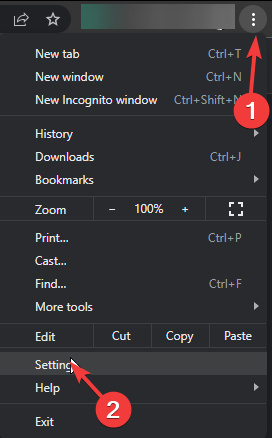
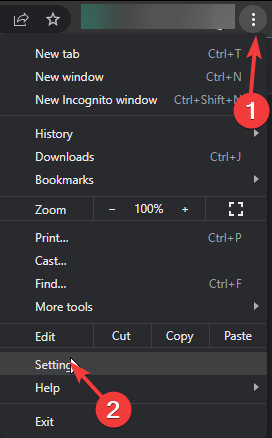
Click the three horizontal dots and select Settings.
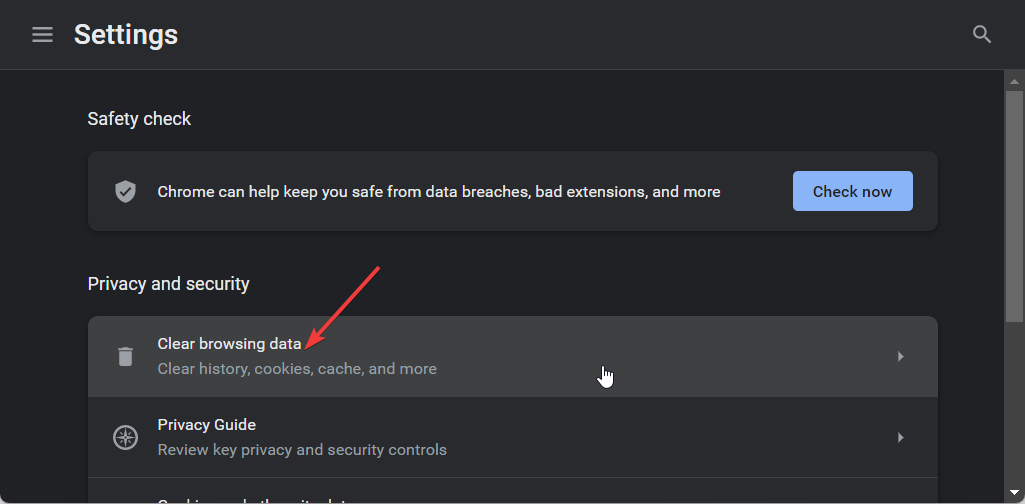
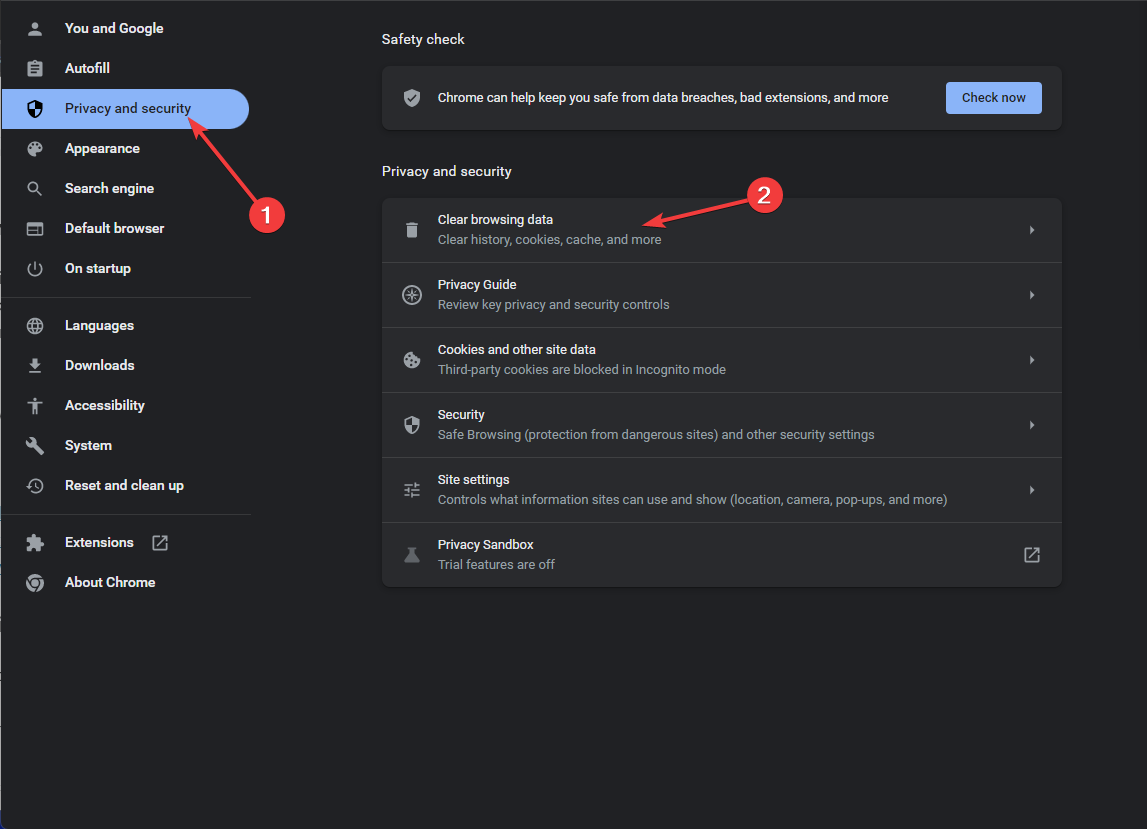
Go to Privacy and security and click Clear browsing data.
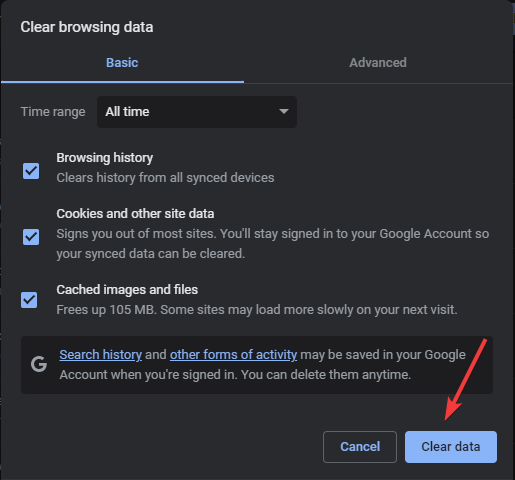
Select Browsing history, Cookies and other site data, & Cached images and files, then click Clear data.
3. Reset/reinstall your browser
Open your Chrome browser and click on the three vertical ellipses at the top right corner.
Select Settings.
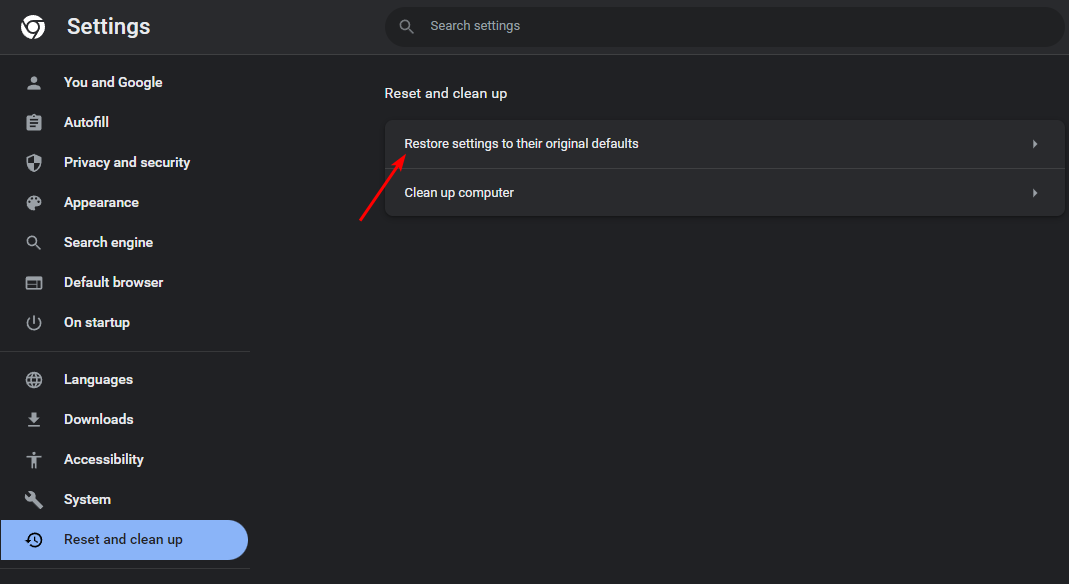
Next, click on Reset and cleanup, then select Restore settings to their original defaults.
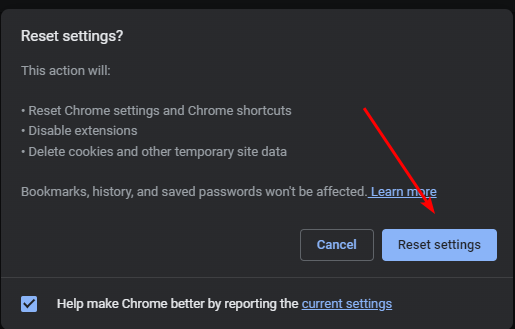
Confirm Reset settings in the next dialog box.
If resetting doesn’t do the job, try a reinstallation.
Click the Start button, type the Control Panel, then press Enter.
Select Programs and go to the Programs and Features tab.
Locate Google Chrome in the list of installed programs, and click Uninstall at the top of the tab.
Now, download the latest version of Google Chrome from the official website or MS Store.
Install Chrome and follow the prompts provided during the installation process.
Some errors are browser-specific so you can try out with another browser or on another device to check whether it’s just you. If it works on a different browser, it means that there are some settings that are throwing the Notion error 502.
Some browsers are optimized to perform better with different sites such as Opera One browser. As for your favorite browser that’s having issues, you can wait it out or uninstall the browser, clear out any leftover software files then reinstall it afresh.
5. Contact support
If none of the above solutions work then it is more on the server side than anything to do with your device. You can reach out to Notion support for further assistance. Sometimes they’re already aware of the issue and already working on a fix.
Granted, you may not fix the Notion 502 error at least not immediately so you may want to consider other available options. The error 502 can occur on any app or site including Epic games so universally, it’s not a new phenomenon.
And for a more versatile note-taking app list, check out our article. That’s all we had for this article but if you have any other tricks up your sleeve that would be helpful to other readers, do not hesitate to let us know in the comment section below.
According to the latest Geekbench 6 benchmark testing on Lenovo 4810UV0100, which has Microsoft Windows 11 Pro Insider Preview (64-bit) and Snapdragon X Elite—X1E78100—Qualcomm Oryon CPU, the Qualcomm processor has shown a significant performance improvement, to be precise, 49%.
The tested device is said to be operating under the Balanced power plan. During testing, it achieved amazing single-core and multi-core scores of 2,427 and 14,254, respectively. This is quite an improvement from the previous scores of 1,628 and 11,392.
We are unsure about the exact reasons for the significant improvement, but various factors could be in play. One could be Geekbench being more optimized for the Snapdragon X Elite platform, and the other could be the improved cooling system in Lenovo laptops.
It could also be a sign that Qualcomm’s newest processors will soon be available in the market. However, until anything official is announced, these are all guesses.
Furthermore, the benchmarking process can only provide a snapshot of performance and might not yield the same results for different types of workloads.
Also, the other factors involved in testing the device are unknown, making it further challenging to draw definitive conclusions about the upcoming processors.
So, the real power, performance, and capabilities will be measured when the processors hit the retail market; till then, it is all speculation.
What are your thoughts on the matter? Share your opinions with our readers in the comments section below.
It’s been more than 6 months since Skype introduced Channels to the platform, which are new ways for users to get personalized content and subscribe to newspapers, personalities, or other celebrities that they admire.
The channels, introduced back then with the Skype Insider build 8.105, can be used inside the platform, without ever leaving it:
Dive into the realm of content like never before on Skype! We’re excited to unveil our brand-new feature: Skype Content Channels. Stay informed, entertained, and inspired without leaving your chat window.
Skype
Now, according to the latest blog post, Skype has introduced Channels 2.0, the next version of this capability. Coming with the Skype Insider build 8.116, Channels 2.0 aims to give users a plethora of options, including full control over their preferences and notifications, making it easier to have a more private experience when using these tools.
But the channels are also updated to support quick content sharing, swift reporting (in case someone break the rules or the policies of the platform), a channel preview that lets users take a sneak peek before joining, and even a channel store, where new but also old Skype users can a curated list of channels to join based on their interests.
Take a look at all the new capabilities coming to channels with the release of Channels 2.0:
? Channels Store: Dive into a curated selection of channels and find your next favorite community.
? Seamless Transition: Experience the switch to a more robust backend, designed for live broadcasting to all subscribers, bringing the latest stories to your fingertips.
?️ Channels Preview: Peek at channel content before deciding to follow.
? Channel Profile: View detailed profiles of channels to learn more at a glance.
? Follow/Unfollow: Seamlessly join channels that pique your interest and leave those that no longer do.
? Effortless Unsubscribe: Leaving a channel is just a click away, with options to explore new ones in our enhanced Store.
?️ Manage Channels: Full control over your channel preferences and notifications.
? Chat List Header Update: A refreshed look for a more intuitive user interface.
? First Experience Refined: Select and subscribe to your preferred channels with our friendly first-run experience.
? Article Sharing: Share and discuss articles right within your channels.
? Default Mute: Dive into your content without the distraction of notifications unless you opt-in.
? Report a Concern: Easily report content or concerns to keep the community safe.
The Skype Insider build 8.105 also introduces a couple of new rich text pasting enhancements to Android users, including rich text retention, and text integration, meaning Android users on Skype won’t have to format the text anymore.
The features, including Channels 2.0, will be available to users in the next few days, as they are gradually rolling out, so if you don’t get them now, check Skype again in a couple of days.
The PC vs console war heats up with the release of GTA 6 around the corner. This is one of the most anticipated game releases in decades.
As per initial reports, GTA VI for PC will be released in Q1 2026, a year after the console (Xbox and PlayStation) release scheduled for Q1 2025.
A similar pattern has been witnessed in the past. GTA V had a console launch in 2013 while the game arrived on PCs in 2015, almost two years later.
These developments have GTA fans with PCs all worried, and they are exploring possible options, including purchasing a console. According to recent leaks, PS5 Pro will be the perfect choice for GTA 6, when released. A user wrote on Reddit,
I’m literally buying twice. I’m a PC gamer, but I’m buying a PS5 to play GTA6 day 1. Then when it comes to PC I’m buying it again.
PC releases for games are often delayed, as was the case with Red Dead Redemption 2, which came to consoles in Oct 2018 but took another year for the PC.
This improves console sales as players have switched to gaming laptops in recent years, and offers more initial privacy and modding protection to the game.
Would you purchase a console to play GTA 5 or wait for the PC release? Share with us in the comments section.
With browser extensions, we can add many useful tools to our computers’ browsers to make every browsing session productive.
However, mobile browsers had limitations, but not anymore. Microsoft has addressed this concern by adding extension support for the Edge browser on Android devices. This move can revolutionize the way we use browsers on our mobile devices.
A recent update to the Edge Canary version, i.e., 125.0.2487.0, brings extension support, which gives you access to a huge library of Edge-compatible extensions on your mobile phones and tablets.
To use this feature, you need to activate extension support on your Edge Canary app. First, download and install Edge Canary from the Google Play Store on your mobile device.
Then, launch the Edge Canary app, type Edge://flags in the address bar, search for an Android extension or Extension on Edge, tap on it, and select the Enabled option.
When prompted, restart the browser to enable extension support.
Now, tap the three horizontal bars at the app’s bottom right side and choose Settings. Go to About Microsoft Edge and repeatedly tap the Edge Canary, followed by the version number to enable developer options. At the time of writing, the version number was 125.0.2499.0
Next, click on the three horizontal lines, and from the menu that pops up, select Extensions, choose the extensions you would like to use, and then click Get. Remember, you won’t get a lot of extensions as of now,
The timeline for the stable release of the extension support feature in Edge Android is not out. When it is released to the public, the browser will be among the few offering it, including Firefox, Kiwi Browser, and Samsung Internet browser.
The feature is still in the development stage, so you may face some issues while using it, but we hope it will improve with time; therefore, we hope we get an amazing browsing experience.
More companies opting to add extension support to their Android browsers could pressure leading players like Google Chrome to integrate the feature into their platform to stay competitive and meet the demands of users who want a customizable browsing experience.
What are your thoughts on the matter? Share your opinions with our readers in the comments section below.
Over the years, users of Microsoft 365 for Enterprise have reported various issues, with the instances increasing each passing day. A solution for organizations with hundreds to thousands of employees or more, should deliver a better all-around experience.
Every aspect of Microsoft 365, from software to licensing and support, has been criticized. It doesn’t work the same way it did a few years ago. A user’s rant on Reddit sheds some light on the abysmal performance of Microsoft 365 for Enterprise.
When we sat down for research, there was so much against Microsoft 365 for Enterprise, starting from issues like unannounced changes to persistent ads. The lack of integration between the different products also comes under heavy criticism.
We’ve had so many issues as of late with unannounced changes or vms being rebooted outside schedules from Azure without clarification. But honestly, the one that (if you think about it) gets me the most is when you install your paid windows client and get the question: How do you want your advertisement?
I think the most egregious think of late is the retiring of and ever changing list of API’s powershell etc, they treat the sysadmin environment like it’s some agile peice of software, compare to old and trusty and never changing Linux it’s really annoying playing keep up.
As for the customer support response, you will find threads on Reddit and other forums where users detail their experience.
But not everyone is complaining about Microsoft 365 for Enterprise
There’s always a flip side to the coin. Users who find Microsoft 365 for Enterprise functioning optional blame the outdated and misconfigured setup of those questioning. While that could be true, questions will still be raised regarding Microsoft’s customer support and outreach!
Our enterprise just isn’t seeing these issues. Seeing a post like this makes me feel like I am missing something, but I have done a lot of work lately to ensure I am not. But we are a google shop that prefers azure for cloud stuff, so maybe that makes the difference and splits the baby properly.
Our tenant and domain hums along like a finely tuned machine. Also, the deep management tools and logs in the tenant have really impressed me. We can now get detailed reports and threat maps with hunting. The sign in, audit logs, and conditional access tools are fantastic. We have more native tools today to troubleshoot problems than we ever had before. And there are so many more good things…
The never-ending search for Microsoft 365 alternatives
With plan prices increasing and services deteriorating, many see no point in continuing with Microsoft 365 for Enterprise. But finding an alternative is no easy task either!
Microsoft 365 for Enterprise comprises a wide array of software, services, and cloud-based products. The Redmond-based tech giant has invested years into each of its products, and competing with them will be a challenge for any one company.
Besides, with the integration of AI into more and more products, including Copilot in Microsoft Advertising, the Office suite, and Copilot in Teams, the entire Microsoft 365 for Enterprise experience will witness a significant boost.
If you still plan to switch, maybe look for individual solutions, like Microsoft Office alternatives, a different email client, a suitable cloud storage solution to replace OneDrive, and a new video conferencing app.
What’s your feedback of Microsoft 365 for Enterprise? Share with our readers in the comments section.
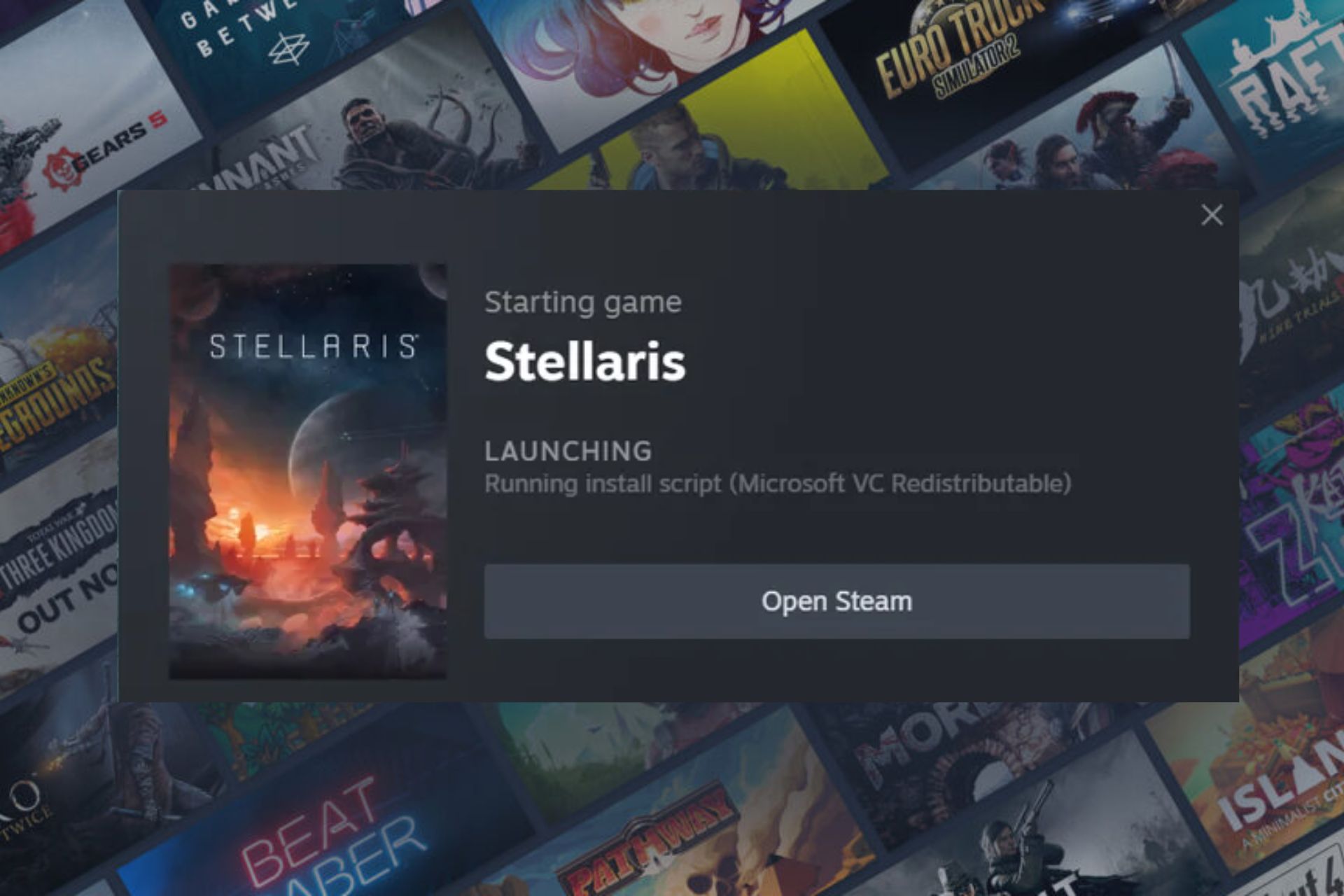
It’s not peculiar behavior as any necessary components or configurations required before launching a game can be installed but if they take too long or fail to launch your game, therein lies a problem.
How do I fix the Steam running install script Microsoft VC Redistributable error message?
1. Run the Steam client as an administrator
Right-click the Steam client icon on your desktop and select Properties from the drop-down.
On the Steam properties window, go to Compatibility and check the box for Run this program as an administrator, then click OK.
Restart your PC and launch Steam to see if the issue persists.
Also, check that your device meets the game’s minimum system requirements and that your OS is up-to-date.
2. Remove the appinfo.vdf file
Ensure the Steam app is not running. Press the Windows + E key to open File Explorer.
Go to the Steam installation directory: C:\Program Files (x86)\Steam\appcache\appinfo.vdf
Locate the appinfo.vdf file, right-click and select Delete from the drop-down menu.
Confirm any prompts asking if you want to delete the file.
Launch Steam on your computer.
VDF files usually contain configuration settings and other game-related information. By deleting this file, you reset these settings to default and the next time a running install script Microsoft VC redistributable message appears, it will trigger a reinstallation because these files have to be rebuilt.
Forcing a refresh means the corrupt files will no longer be in operation and when a new one is regenerated, the installation will be seamless.
3. Verify game files
Launch Steam on your PC.
Click Library in Steam.
Right-click on the problematic game, then select Properties.
Select the Local files tab then hit Verify integrity of game files.
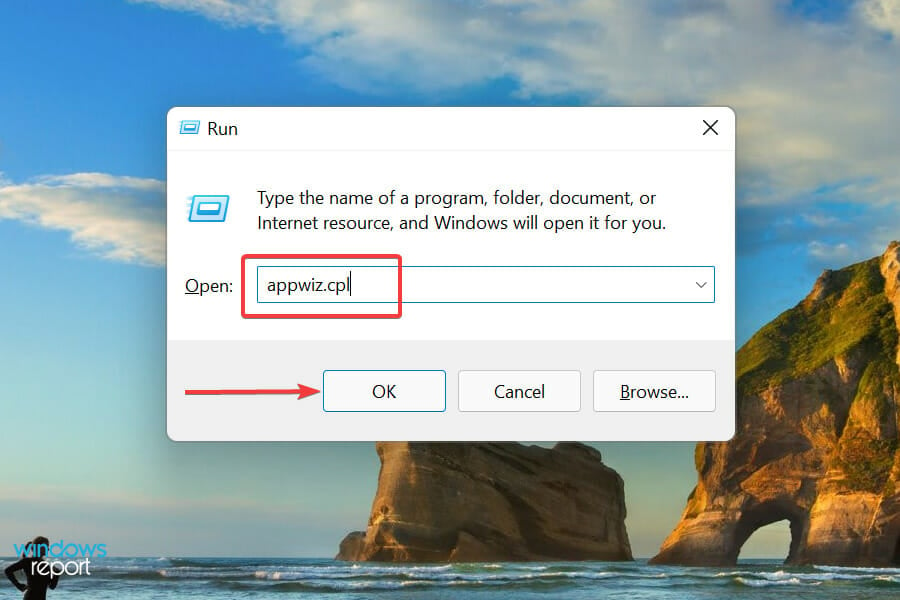
Press Windows + S to launch the Run command, type appwiz.cpl in the text field, and either hit Enter or click OK to launch the Programs and Features window.
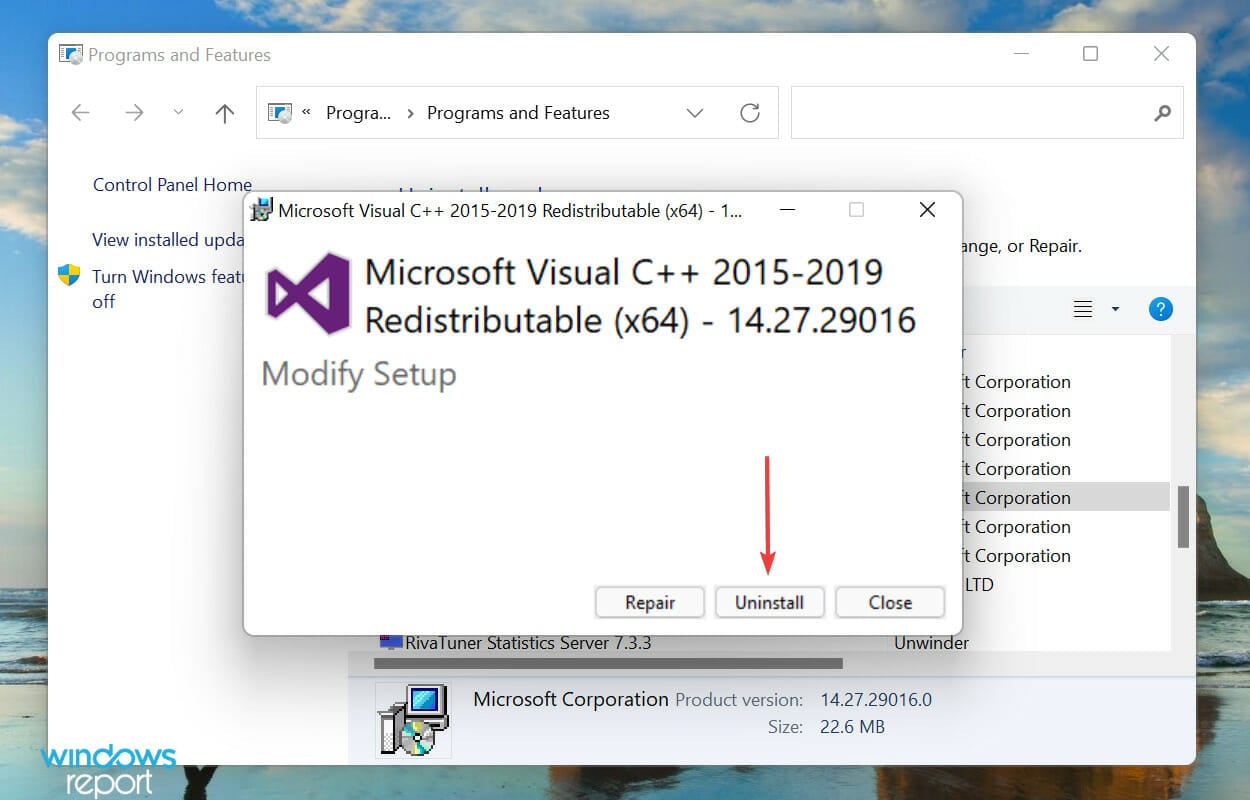
Locate and select the Microsoft Visual C++ Redistributable package, and click on Uninstall at the top.
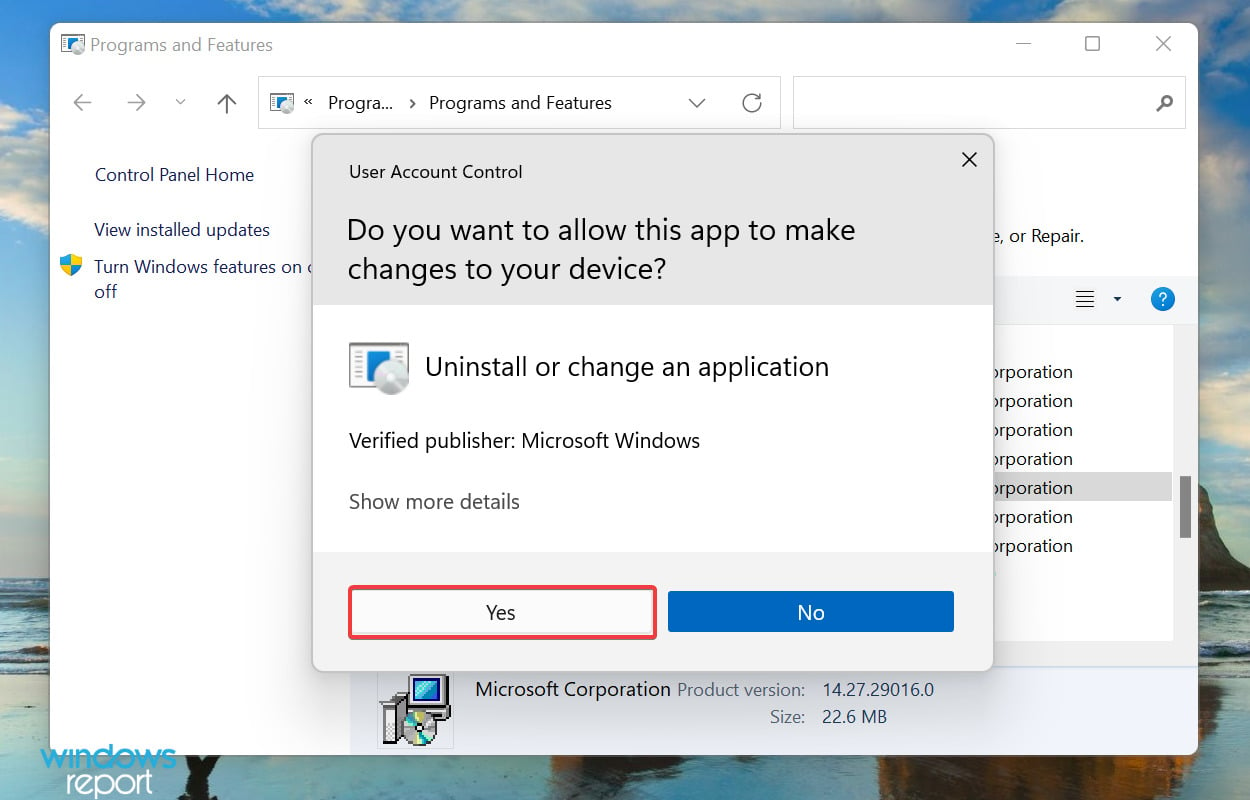
Click Yes on the UAC (User Account Control) prompt that pops up.
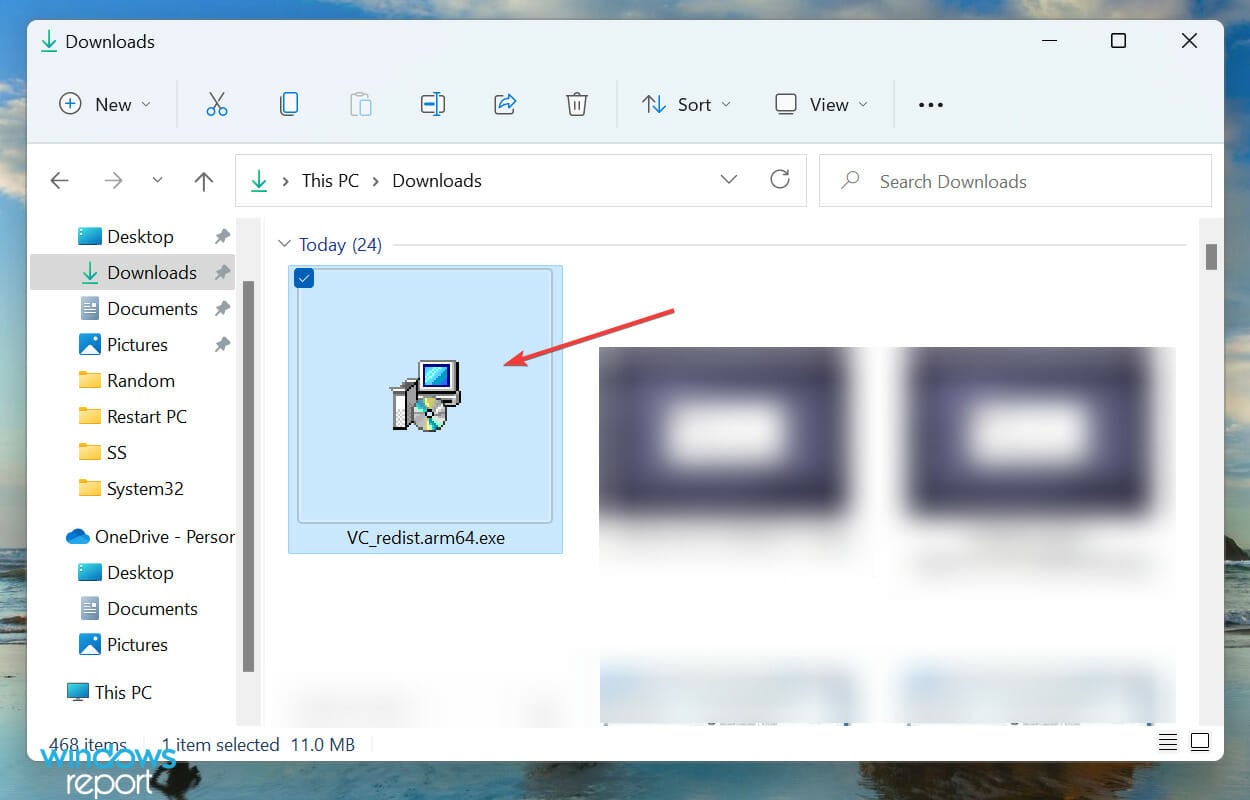
Again, click Uninstall in the window that appears. Similarly uninstall the other similar packages as well.
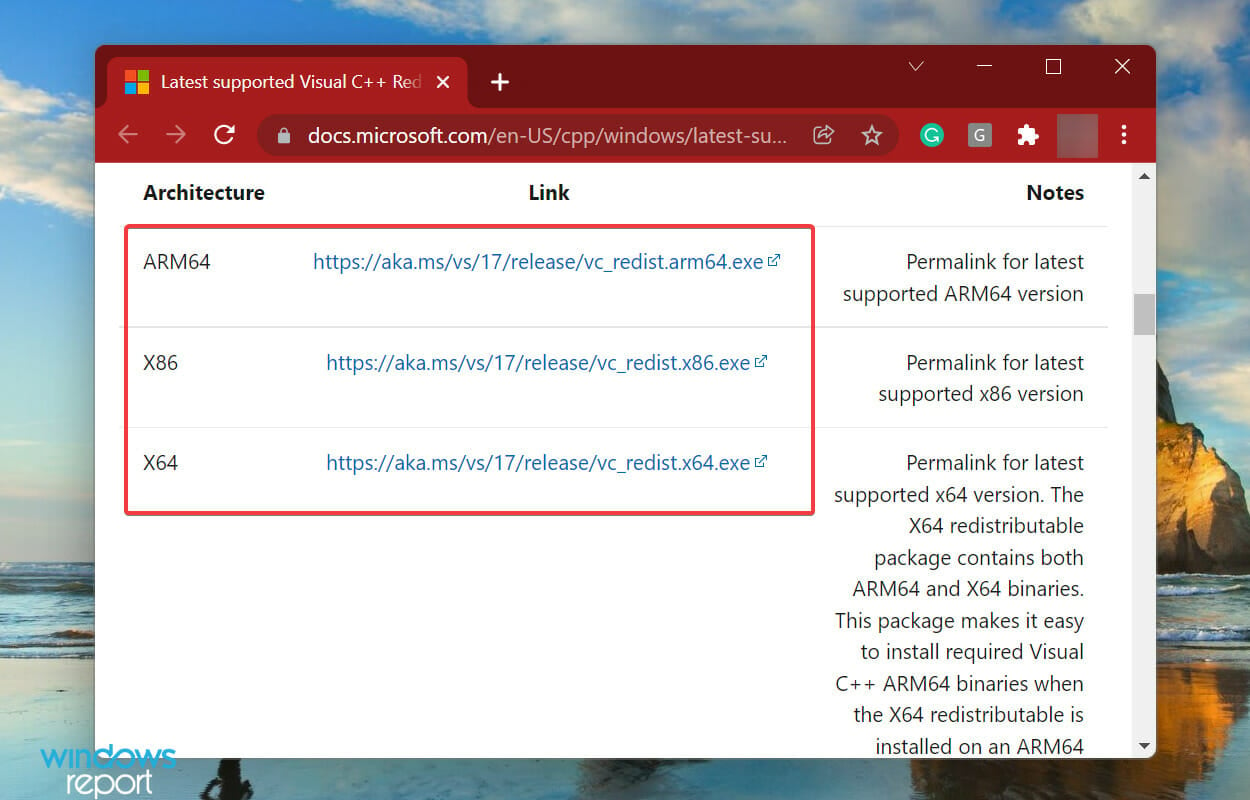
After the download process is complete, double-click on the file to launch the setup.
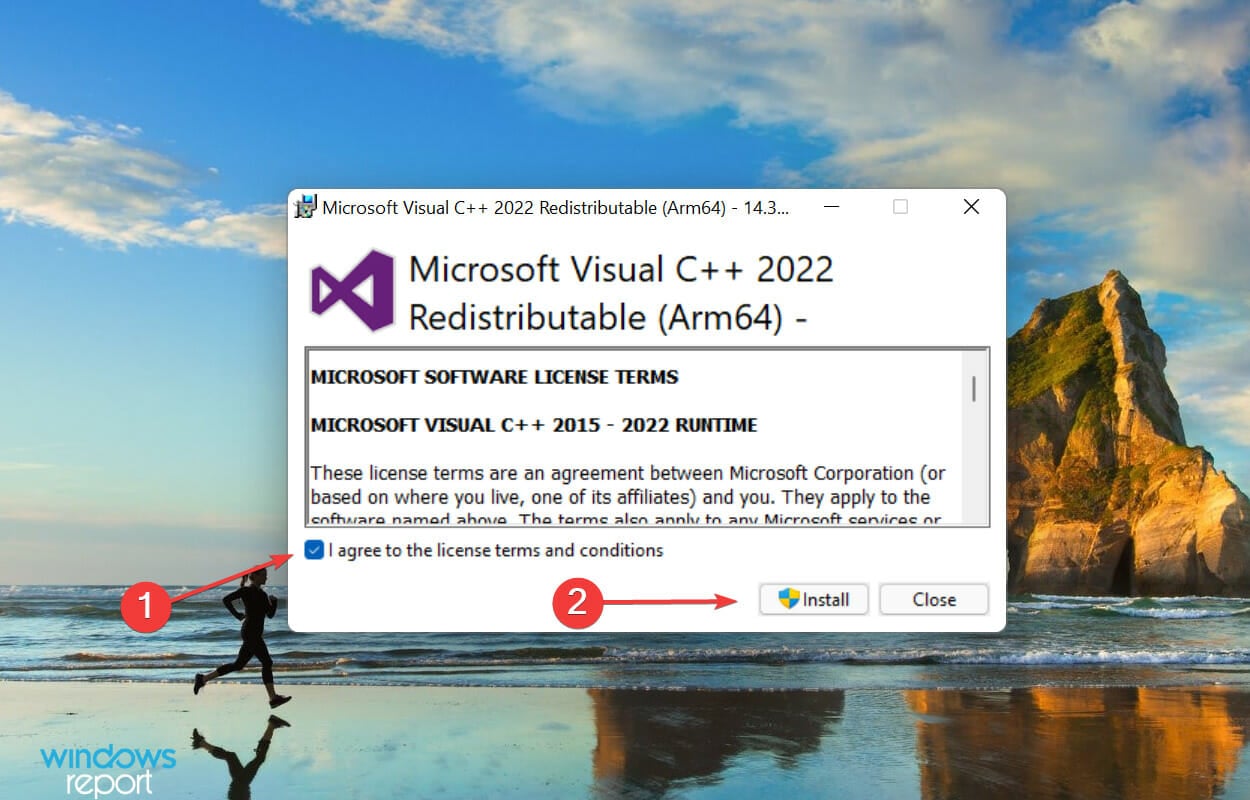
Next, tick the checkbox for I agree to the license terms and conditions and click on Install at the bottom.
Attempt launching the problematic game on Steam and see if the running install script Microsoft VC Redistributable error message persists.
5. Repair the Visual C++ installer
Press Windows key + R and enter appwiz.cpl. Press Enter.
Select the version of Visual C++ Redistributable that you want to repair and click Change.
Select Repair.
Follow the instructions on the screen to complete the process.
Do this for all other versions of Visual C++ Redistritubatbles.
The installer is responsible for successfully installing Microsoft Visual C++ Redistributable package on your system. If there are any corrupt files or broken registry entries, repairing the installer will ensure these files have been regenerated and are compatible with your system.
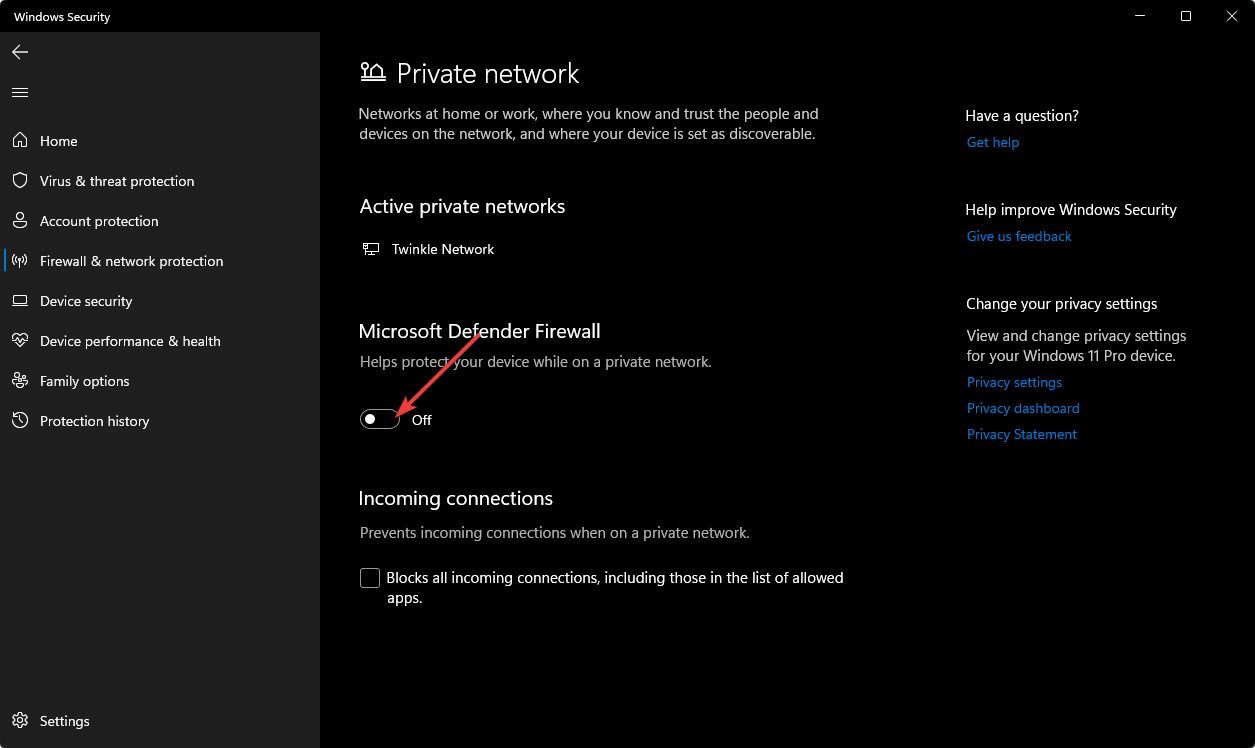
6. Disable your antivirus/firewall temporarily
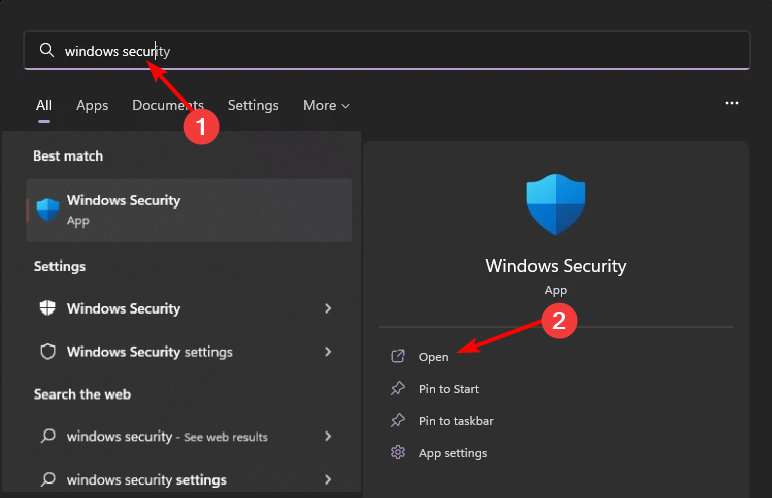
Hit the Start menu icon, type Windows Security in the search bar, and click Open.
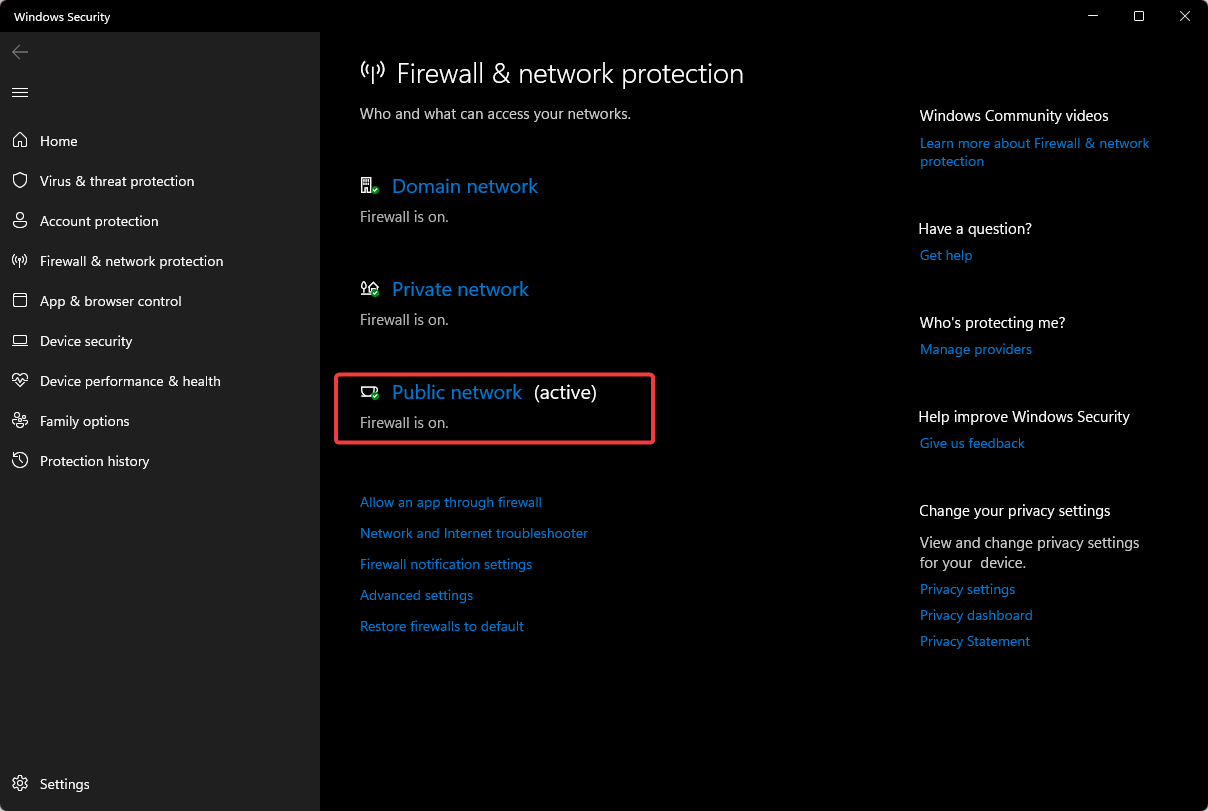
Click on Firewall & network protection, then select Public network.
Locate Microsoft Defender Firewall and toggle the off button.
An overzealous antivirus has the ability to block certain game configurations or installations if deemed risky. Temporarily disabling your security software may allow the installation to bypass these restrictions.
7. Clear Steam download cache
Launch Steam and go to Settings.
Click the Downloads tab.
Select Clear Download Cache.
Confirm, wait for the process to complete, and restart Steam.
Summary
If none of these solutions works, the worst-case scenario will have you reinstall the problematic game or the Steam client. Another option is to clean your registry for any corrupt or broken entries.
Aside from the running install script Microsoft VC redistributable error, you may also encounter other errors with games failing to launch on Steam. If so, we’ve compiled some common errors and how to fix them in our expert article.
Have you encountered this error before? Is there a solution missing from our list that helped you out? We’d like to hear about it. Share it with us in the comment section below.
Until now, the unsubscribe button was a great feature to prevent spammy emails and other types of unwanted content. However, threat actors found a way to use it to verify if your email address is correct. So, to avoid getting scammed by them, think twice before subscribing and unsubscribing.
You can use the unsubscribe option securely when you want to unsubscribe from authorized organizations. After all, the Federal Trade Commission forces them to comply with your subscription cancellation request within ten days.
What could hackers do after you click the unsubscribe button?
According to Joseph Steinberg, a cybersecurity expert, getting spammy emails should be one of your last concerns. Hackers can do much more after you select the unsubscribe button. For example, wrongdoers could infect your device with malware. In addition, they could use your personal information to improve their phishing campaigns. Also, they might attempt to perform identity theft.
The cybersecurity expert says that you should report spammy emails. After all, most platforms have that option. By doing that, you can improve the anti-spam engine and help it filter malicious emails.
To protect your sensitive information, consider changing your email provider. Some of them have better anti-spam filters. Additionally, use more than an email. For example, you can have one for newsletters, one for work, and a personal one for sensitive emails. Also, check the origin of the email before pressing the unsubscribe button to see if it is legitimate.
By the way, the anti-spam engines are not the best. So, Steinberg advises us not to trust any email that makes it into our inbox. However, if you want an extra layer of protection, consider getting an anti-malware. Also, don’t click the links in your email, verify for any misspellings, and use multi-factor authentication.
Ultimately, think twice before selecting the unsubscribe option, especially if you don’t remember or know the organization behind it. After all, hackers might trick you into pressing it even if you never subscribed in the first place.
What are your thoughts? Did you ever encounter spammy emails after unsubscribing? Let us know in the comments.
It was first discovered by a Microsoft employee by accident while investigating SSH issues on the Debian system. According to the employee, he noticed unusual behavior with XZ Utils, which led to the discovery of a backdoor.
With this backdoor, a hacker with the correct private key can abuse the SSH operations and gain root access to the system.
The backdoor uses a five-stage loader that allows the hacker to perform arbitrary commands remotely.
The good news is that only versions 5.6.0 and 5.6.1 of XZ Utils come with a backdoor, meaning that older versions are unaffected.
As for affected distributions, the following have this backdoor on them:
Fedora Rawhide
Fedora 41
Debian testing, unstable and experimental distributions versions 5.5.1alpha-0.1 to 5.6.1-1.
openSUSE Tumbleweed and openSUSE MicroOS
Kali Linux (Discovery supported)
To check if your device is affected, Microsoft suggests the following:
Check the version of XZ Utils on your system. You can do that with the following command: xz –version
If you have version 5.6.0 or 5.6.1 installed, update your system. Prioritize updating systems with systemd on publicly accessible SSH ports. This is especially true if you’re using .deb or .rpm-based distribution with glibc.
Review audit logs if you suspect that the system has been compromised.
Intel will brand its new-gen CPUs under the Core 200 series. Thus, Arrow Lake will be the Core Ultra 200, and Raptor Lake will be the Core 200H. In addition, they will be available for both laptop and PC users. Also, the Arrow Lake CPUs will rival the AMD Ryzen Zen 5 in performance and efficiency. On top of that, the Raptor Lake-H series will get a refresh and turn into a new lineup of affordable chips.
What do we know so far about the Core 200 CPUs?
According to Golden Pig Upgrade, a trustworthy leaker from BiliBili, Intel will name Arrow Lake CPUs Core Ultra 200. So, you should expect to see Core Ultra 9 2XXH and Core Ultra 7 2XXU. Also, the new chips will have both U(ultra-low power) and H(high-performance) StockKeeping Units (SKUs).
In addition, the Arrow Lake Core Ultra 200 CPUs come in three flavors: HX, H, and U. On top of that, they will feature 6 Lion Cove P-Cores and 8 Skymont E-Cores. Furthermore, the integrated GPU (iGPU) will use the Xe-LPG Alchemist architecture, and some of the newer SKUs will use the Alchemist+ Xe-LPG+. However, the Arrow Lake HX CPUs will use the same silicone chips as the desktop SKUs. So, they will feature 8 P-Cores and 16 E-Cores.
The Raptor Lake-H Refresh series will fall under the Core 200H branding. On top of that, they will feature 6 P-Cores (Raptor Cove) and 8 E-Cores (Gracemont core architecture). Also, you can use them for high-end gaming.
There aren’t any mentions of a Raptor Lake-U lineup. So, this could mean that Intel will keep its Meteor Lake SKUs for the entry-level segment of the market.
Ultimately, Intel is refreshing the Raptor Lake-H series because the company wants to balance performance and price. By doing this, they will keep the Raptor Lake for mid-range and entry-level segments. Thus, Arrow Lake CPUs will be for premium designs. You can expect to see the new Core 200 series CPUs by the end of this year or early 2025. Also, they might come with the Lunar Lake MX CPUs. Yet, we don’t know much about their branding.
What are your thoughts? Will you wait for the Intel Core 200 series or get the AMD Zen 5 in advance? Let us know in the comments.
Opera GX, a dedicated gaming browser, came up with its own unique way to celebrate April Fools’ Day this year.
In a post on X(formerly Twitter), Opera GX announced replacing the browser’s icon with that of a cat for eight random users worldwide. There’s no clarity as to why they chose this picture or eight users for the campaign.
For April Fool's this year we have replaced the browser app with this jpeg of a cat for 8 random users pic.twitter.com/a2IvxuZIQb
What initially caught everyone’s attention was the image’s file name, glorp. Also, for the lucky users who were selected, the app listed glorp instead of Opera GX as its name, with the new image in place.
This got everyone talking about the $GLORP cat crypto coin on the Solana blockchain, although there’s no official confirmation that Opera GX’s prank has anything to do with the blockchain ecosystem. Be wary and verify if someone tells you so!
Within hours, one of the users came to X to enquire why his Opera GX app icon turned into a cat. And the browser’s official handle was quick to point this out.
Companies join in, a few promote Opera GX while others get free promotion
The first user, Opera GX acknowledged was selected for the prank, had TeamSpeak installed, as evident from the shared screenshot. For the unversed, TeamSpeak is a VoIP software used by gamers to communicate with one another. Discord’s popularity took away a large chunk of TeamSpeak’s user base.
Without wasting any time, TeamSpeak joined the fun prank and dropped a comment.
This started a series of conversations around TeamSpeak.
Honestly I kinda wish more of my friends were open to using TS. Mainly for things like whisper and broadcast. Being able to have separate VCs for people chatting, and then the ability to talk to everyone in all of them is just great.. Sadly not a thing on Discord.
Agreed. TeamSpeak has some really useful features that discord is missing.
This is fake. no real person has teamspeak installed.
Gen-Z publisher, Pubity, too, wondered about glorp, which started off another series of discussions regarding the possibilities.
More brands are expected to join the April Fool’s campaign, which will go on for another few hours.
Opera GX users have fun during the April Fools’ prank
Most comments were from users who wanted to be a part of the prank and were feeling left out.
NOOOOOOOOOOOOOOOO IT WAS SUPPOSED TO BE MEEE
i want to be the chosen one
Not gonna lie, I was hoping I would be one of em
screaming crying and throwing up rn why couldn’t it have been me
Others had a hilarious take on the prank or dropped their suggestions to Opera GX.
Jokes on you I use chrome haha can’t get me
yall should make it where every day 1 random person will have their opera gx changed to glorp for the remainder of the day
Irrespective of the engagement numbers, Opera GX remains one of the best browsers. Our detailed review of Opera GX highlights the pros and cons of the browser. If you already have it, discover the best Opera GX settings for gaming.
What’s your review of Opera GX and their April Fools’ campaign? Share with our readers in the comments section.
Most Xbox and PC gamers use Xbox Game Pass Ultimate due to its huge collection of games that can be played on your console or computer, plus some additional benefits that make the subscription more interesting. This time, Game Pass Ultimate has come with free access to YouTube Premium.
With YouTube Premium, you can watch content on YouTube without any ads, download videos, and watch them later in a separate tab when offline. It also comes with a picture-in-picture feature, which lets you play the videos in the background even when your device’s screen is locked. You will also get the YouTube Music Premium app for free to listen to ad-free music.
To take advantage of it, go to the Perks tab on your console, the Xbox Game Pass mobile app, or the Xbox app on your PC; there, you will get a subscription to YouTube Premium. You can use it for three months without any extra cost.
If you want to use this perk, you need to claim the offer before May 22, 2024; however, users who already have a YouTube Premium subscription will not be able to avail of this offer.
Have you availed of the offer yet? If so, share your experience with our readers in the comments section below.
Firefox has always been a great alternative in a world of Chromium browsers, and it seems that Mozilla is testing some new features.
According to our findings, Mozilla is working on vertical tabs in Firefox, so we might see them available someday.
Mozilla is currently working on vertical tabs for Firefox
Fans of Firefox have been asking for vertical tabs for years, and you can see the most requests for this feature on Mozilla Connect in 2022.
This is an early concept, and currently, this feature is available for download and testing only in Firefox Nightly, in a disposable branch called Larch.
The tabs are showing both horizontally and vertically, and there’s no way to turn off one mode or another entirely.
This feature also sparked a discussion on Reddit with Mozilla employees chiming in on this feature.
We built this very rough proof-of-concept to test an interaction model capable of solving needs that have become table stakes in modern browsers — without utterly overloading Firefox.
Some of the things we looked at include cross-referencing two sources of information handily (as in split view), multi-tasking and scanning lists quickly (as in vertical tabs), prioritizing and returning to your frequently used tools efficiently (as in pinning tabs to the sidebar).
Many (seemingly good, to put it charitably) ideas did not survive this prototype. The good news is that we are working on a subset of improvements to Firefox based on what we learned from this first rough draft.
We will start involving the community for feedback in the upcoming months, once we have laid the foundations for what we are building in Nightly. Please follow Mozilla Connect — we will announce updates there.
As you can see, this is just a rough concept for now, but moving forward Mozilla might focus more on it. If you’re interested in other upcoming features, you should know that Firefox 125 will drop support for HTTP downloads.
As per the settlement, the search giant has agreed to destroy billions of Chrome Incognito mode data records. As per the lawsuit, Google is violating California privacy laws by storing the Incognito mode data, a mode that is supposed to be more private.
Furthermore, the company must provide detailed disclosures on how it collects information in Incognito mode. For the next five years, this private browsing mode will, by default, block third-party cookies.
Google Spokesperson José Castañeda said:
We are pleased to settle this lawsuit, which we always believed was meritless. We are happy to delete old technical data that was never associated with an individual and was never used for any form of personalization.
He also mentioned that plaintiffs asked for $5 billion in damages but are not getting any money. Other details of the settlement have not been disclosed as of now.
This is not the first time any tech giant has been caught up with lawsuits for alleged mishandling of data; earlier, it was Meta, and then there was a case against Microsoft, Apple, and Amazon.
We understand that tech companies collect data to personalize user experience, but if a user has opted for your privacy browsing mode, isn’t it wrong to collect data under the pretense of providing privacy? Also, the vulnerability of the data collected by these companies to cybercriminals is a double whammy for us.
We already know about the 2016 Cambridge Analytica scandal, which degraded Facebook’s reputation and forced it to pay $725 million to settle.
If you think you can’t hope the companies will ever stop doing things that put your data at risk and want to move away from Google’s search products, check out our list of browsers that don’t track history and private data.
How often do you use Google’s Incognito mode, and do you feel safe while using it? Share your thoughts in the comments section below.
ASUS ROG Ally is a great device and a worthy competitor to Steam Deck. Both devices have their pros and cons and picking one isn’t always easy.
If you can’t choose, you’ll be pleased to hear that ASUS ROG Ally Z1 is available at a discount, so you might want to consider it.
You can get ASUS ROG Ally Z1 at a discount at Best Buy
According to Windows Central, ASUS ROG Ally Z1 is currently available at 20% off at Best Buy, and you can get it for $399.99.
If you’re not familiar with this handset, it comes with an AMD Ryzen Z1 processor and a 7-inch IPS touchscreen with VRR support. As for resolution, it’s set at 1920×1080.
Regarding memory, there’s 512GB SSD and 16GB LPDDR5 RAM. The device runs on Windows 11, so you can use it for browsing or other non-gaming tasks as well.
Overall, it’s a great device, and if you’re looking for a handheld, this might be a perfect time to get one. If you’re a gamer, you can also get Xbox Game Pass Ultimate for 46% off today, so be quick about it!
If you are looking for a gaming laptop from Razer, the top-of-the-line Razer Blade 15 is the perfect pick. With reliable hardware, superior performance, optimal cooling, and excellent customer reviews, it’s a value-for-money option. Right now, you can get Razer Blade 15 for just $2299.99 during the Amazon deal!
Available at an 18% discount, down from $2799.99 to $2299.99, the Razer Blade 15 also finds a place in our top picks for Windows 11 Razer laptops.
With a sleek and professional design, compact size, lightweight, and enhanced vapour chamber solution for cooling the components, the Razer Blade 15 is the perfect laptop for gaming on the go.
The best part about the laptop is its easy upgradability. You can add up to 4 TB storage using the additional M.2 slot or increase the RAM using the available memory slots (support up to 64 GB). It’s all quick and effortless!
Razer Blade 15’s specifications
Processor
13th Gen Intel 14-Core i7
Graphics
NVIDIA RTX 4070
Operating System
Windows 11
Storage
1 TB SSD (Solid State Drive)
RAM
16 GB DDR5
RAM Speed
5200 MHz
DisplaySize
15″
Display Resolution
2560 x 1440 pixels
Total USB 3.0 Ports
3
If you find the Razer Blade 15 a value-for-money gaming laptop, get it during the limited-period Amazon deal right away!
Remember, a bloated battery and a malfunctioning fan are common issues faced by Razer Blade 15 users. Besides, users reported slow customer service and had to wait for days to get a response, often delaying the repairs.
So, it’s recommended that you get a 2-3 year extended warranty with the gaming laptop, if possible. So, you never have to worry about out-of-warranty repairs and replacements.
As reported by MSPowerUser, ChatGPT will be accessible without an account in the future. OpenAI blog post expands on this stating that 100 million people across 185 countries use ChatGPT weekly.
To prevent any potential misuse, OpenAI added additional safeguards that will block prompts and generations in certain categories.
Of course, there are still benefits to using an account, such as the ability to save and review chat history, share chats, and get access to custom instructions, voice conversations, and other features.
This feature is rolling out gradually, so most likely you won’t be able to start using it today. In other news, GPT-5 and Llama 3 might come sooner than expected, so stay tuned for more information.
Would you believe us if we could tell you that you can remove the search box, change the position of the Power button, and make other changes to your Start menu on Windows 11? With the Windhawk Windows 11 Taskbar Styler mod, you can redesign the Start menu.
The mod can help you tweak the way the Start menu looks by removing unwanted items. You need to have Windhawk version 1.4 or later for it to work.
The mod developer, Michael Maltsev, mentioned how it works:
The settings have two sections: control styles and resource variables. Control styles allow to override styles, such as size and color, for the target elements. Resource variables allow to override predefined variables.
To use it, download Windhawk from windhawk.net and install it. At the time of writing, we installed version 1.4.1. Next, locate Mods from the top right menu and find & install the Windows 11 Taskbar Styler mod. Once it is installed, go to Settings and modify the styles as per your choice.
If you don’t feel comfortable making changes to the original design with the mods but still want something new in the Start menu, you need to wait a while, as Microsoft is reportedly working on redesigning it.
Have you tried Windows 11 Taskbar Styler mod yet? If so, share your experiences with our readers in the comments section below.