For all the praise that Windows 11 has gotten so far, there’s a lot the operating system is still missing. That’s been the topic of discussion on one Reddit thread, where Windows fans are talking about the features they need and want back in Microsoft’s next-generation operating system.
There’s a lot being said but there are some core leading features that people want back. At the top of the list is the ability to drag and drop to the Taskbar, and move the Taskbar to the side where you want it. Also, requested is an ability to combine icons when the Taskbar is full, and add folders to the Start Menu.
Then there are some quality of life things. These include the ability to permanently remove the Recommended section on the Start Menu, and opening another instance of an already running app by shift-clicking the icon in the Taskbar.
You can read through the thread to see some more examples of other feature requests. One person wants the right-click menu on the taskbar, another wants a better way to set default apps. A third person also wants back the quick connect menu on the Bluetooth quick action tile. We gathered some of the other features requests and missing features below.
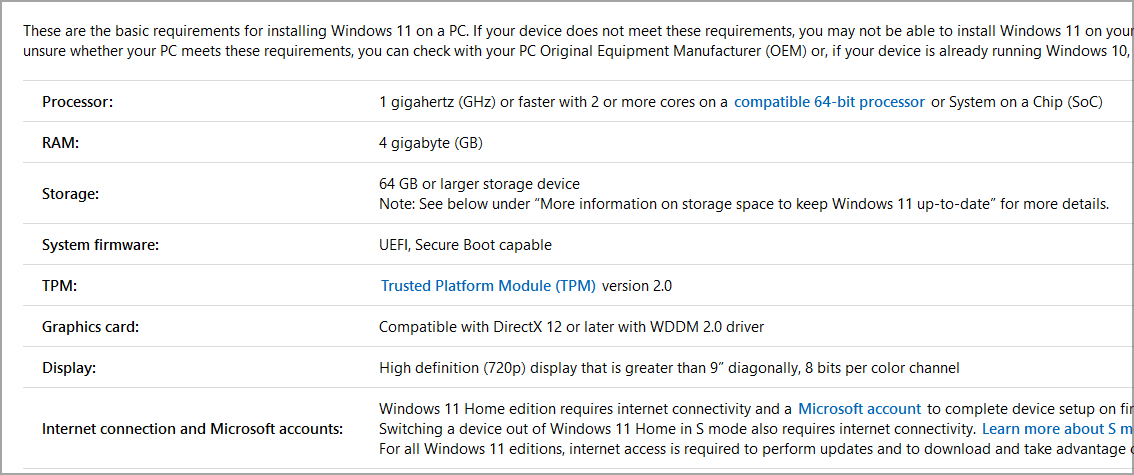
Get rid of the system requirements
Small Taskbar
Tablet mode where Start Menu is full screen
Labels on the taskbar
Seconds on the clock
Option to make an offline account on Windows 10 Home
Ability to ungroup similar icons on the Taskbar
Usable calendar with agenda for a clicked on day
While Microsoft employees like Jen Gentleman are known to often frequent Twitter and Reddit to comb through or react to user feedback, Microsoft recommends going to the Feedback Hub to file your feedback on which features you’d like to return. The more upvotes a feature gets, the higher the chance of Microsoft taking action to implement it.
If Microsoft has recently started flighting Windows 11 builds in both the Windows Insider Dev and Beta channels recently, the company has started warning Dev channel testers that upcoming flights are going to be less stable. The release notes for recent Dev channel flights did include a note recommending Dev Channel Insiders to consider switching to the Beta channel if they’d prefer to keep testing more stable builds of Windows 11, but that was apparently not enough.
According to a report from Italian blog HTNovo, Microsoft has started sending emails to Dev Channel Insiders that say a bit more about what to expect from future flights. “We will soon be flighting early development builds in the Dev Channel. These builds may be less stable and won’t align with the version of Windows 11 expected to be available to the general public later this year,” the email reads.
With the Dev Channel set to receive more advanced Windows 11 builds going forward, testers who want to switch to the Beta channel now can Open Settings > Windows Update > Windows Insider Program, select ‘Choose your Insider settings’, and then select the Beta channel. The latter is now expected to work as an equivalent to the Release Preview Ring for Windows 11, and Windows Central’s Zac Bowden tweeted yesterday that sign-off on a “final” Windows 11 build could happen in mid-September.
Heard MS might announce the GA date for Windows 11 in the next week or two. Sign-off on a "final build" expected in mid-Sept. If I were a betting man, I'd wager October 19 is the GA date… guess we'll see soon enough.
We’ll see what happens in the coming weeks, but the latest Windows 11 builds still need more polish and Microsoft has yet to start testing much-anticipated features such as Android apps on Windows 11. The company has also released the first official Windows 11 ISOs last week, but Windows 11 on ARMs builds are also not yet available for owners of Surface Pro X and other ARM-powered Windows PCs.
Twelve Minutes is a point-and-click thriller in which you end up in a time loop, over and over again, until you figure out the full extent of the story and what you’ll have to do to break out of the cycle.
Ever since seeing the trailer back in 2019, the project has intrigued me, both in concept and graphical style, as the top-down camera is immediately noticeable and not something you see that often in games with a narrative focus.
Much like with a movie trailer, it crossed a thin line of already spoiling too much, and I’d like to avoid doing the same here, so consider this a warning if you want to go in fresh: while I’ll keep it light on spoilers, it’s best to skip past the story section.
The story
Every good story starts with a murder
You play as an unnamed husband, voiced by James McAvoy, who comes home from a day at the office and seems to spend what looks like a normal, quiet night with his wife. There is some small talk, a nice dessert and if you play your cards right, some romantic dancing.
But suddenly a cop knocks on the door. Whether or not you choose to let him in, he’ll eventually get in and will start yelling about a murder, supposedly committed by your wife, and a lost pocket watch that seems to be worth a lot of money.
You can try to resist, but no matter your attempts, he’ll knock you unconscious or even strangle you, which triggers a time loop and starts the last ten to twelve minutes over again. It’s up to you to find out more about the murder, the history behind the pocket watch, and what it will take to break out of the loop.
That did not go as planned… please don’t break the loop now
Each run will inevitably fail, but if you play your cards right, you’ll get access to new information, which will hopefully result in more success in your next attempt.
I’m not getting too deep into spoiler territory here, but let’s just say that you won’t see some of the twists coming, mostly because they aren’t afraid to raise some topics that most people could find unsettling.
Star-filled cast
If you have a story-heavy game with voice acting, it certainly helps sell the game if you can flaunt a cast full of celebrities. And that’s exactly what Twelve minutes does with its main three characters.
Daisy Ridley – James McAvoy – Willem Dafoe
Daisy Ridley, perhaps best known for her recent role as Rey in the new Star Wars trilogy, plays your wife, who’s suspected of killing her own father, though her motives are unknown at first.
James McAvoy is an actor I’ve first been impressed with when he took on the role of young Charles Xavier in the X-Men reboot. He plays the husband and will be the only character you control throughout the game.
Willem Dafoe, known for his gravelly voice and recognizable face, plays the cop and another role, but even telling you about that would ruin the final plot twist of the game somewhat.
The gameplay
Now, surprisingly I had no idea about the type of gameplay to expect prior to starting my first run. I had seen a few trailers during online events and they certainly caught my interest on concept and story alone, but I hadn’t the foggiest clue on what I would actually have to do in the game.
I expected narrative choices, similar to the ones you’d make in a Telltale game, and these are present here as well. But the main gameplay mechanic is point-and-click puzzle-solving like you might recall from classic adventure games.
A mind-bending conundrum…
You pick up items to add to your inventory, combine them with interactable objects in the environment, and see what happens.
Fumbling around
While using [ITEM] on [OBJECT] isn’t exactly groundbreaking, it fits the narrative focus of the game well enough, and the way you have to use them in real-time adds certain anxiety to it all that makes you feel more involved. You won’t just have to think about “what” to use; you’ll also have to consider the “when”.
It’s just a shame that implementing this feels a bit messy. Clicking on an item will use it on yourself, so you have to be careful and keep the action button pressed while dragging it to someone or something else. It feels a bit awkward, and you’re bound to slip up once or twice.
The top-down camera feels extremely fresh as if you’re looking into a toy house after removing the roof. It also gives a clear birds-eye view of the surroundings and “most” of the important objects to interact with, but more on that later.
Out of order
Having seen the trailer, I went into the game with prior information, specifically that the cop will try and kill me when he comes in. So on my first run, before I had even entered a time loop, I tried to stab him with the kitchen knife. It ended with me getting knocked out and starting the first loop.
The issue is, that Twelve Minutes treated this as if it was the second or third time I had run through the actions, as it seemingly expected me to be more passive in the first go-through. It’s very offputting and breaks you right out of the immersion when things feel off, and it wasn’t the only time I encountered this issue.
While the game wants you to experiment, it also follows a rather linear evolution of how you can progress through the story. If you do something to break the sequence it’s expecting you to follow, Twelve Minutes will throw confusing lines or interactions at you that feel out of place for the current run.
Other issues
“There is no Spoon”
Important to note is that some progress only happens in your mind, for you as the player. Learning the location of an important item hidden “in the vent below the medicine cabinet” is vital to progressing the game.
I struggled with this part of the game because the other two vents are visible when walking around, yet this one is hidden unless you inspect the cabinet and, even then, is largely outside of your visible reach.
Just look at the screenshot above and see how both the prompt to interact, as well as the spoon I’m using to open the vent is partly hidden by the bottom of the screen.
Sadly this isn’t the only technical issue I’ve encountered, as there was also a moment where the cop got stuck, walking in place, and my character was unable to move because of it. I had to quit the game to escape from the soft lock.
Luckily this only happened once, but the character animations often clipped through objects and each other in a weird-looking way, and their robotic movement to predetermined “trigger” locations also broke my immersion too often.
If only there was some way to turn back time?
? A Small aside on Achievements: The game fittingly has 12 achievements, but if you hope to get them, you’ll best follow a guide. You need to do specific actions at specific times. I personally didn’t like the list one bit and don’t really feel motivated to get the missing 10 by following an online step-by-step walkthrough.
Final thoughts on Twelve Minutes
Pros
Time loops remain a brilliant concept for videogames
The top-down perspective feels fresh for the genre
Useful fast forward option respects the player's time
Cons
Often hard to tell what is expected of you next
Some annoying bugs and sequence errors
Repeating the same actions over and over again get boring
Final Score: 3.5/5
Twelve Minutes is a bold game that isn’t afraid to venture into heavy topics. Its central time loop system reveals new information with every new run as long as you figure out what the game expects you to do next.
The point-and-click gameplay sometimes feels finicky, and there are some sequence-breaking errors, but if you can look past those issues, it offers a fresh narrative with a star-filled cast. Certainly worth a playthrough, especially on Xbox Game Pass.
Twelve Minutes costs $24.99 and is available on Windows, Xbox One, and Xbox Series X|S. I played it with a controller on Xbox Series X, but I do not doubt that the classic adventure gameplay lends itself better to being controlled with a mouse.
*Disclaimer: Reviewed on Xbox Series X via Xbox Game Pass.
As you most likely know by now, Windows 11 is usable on Mac devices, even on those without Boot Camp.
With the help of Parallels Desktop 17, users can experience Microsoft’s upcoming version of Windows on their Mac desktop.
Know that Parallels supports both Intel and M1 Macs, even though there’s a catch for those running Arm-based machines, and can even be used to run the Windows 11 preview.
The catch for M1 users is the same as when Parallels first added support for Apple’s latest machines. This means you’ll only be able to emulate Arm-based operating systems, which means you’ll be limited to Windows on Arm.
But while M1 users have to deal with Windows on Arm, they also get some performance improvements if they’re coming from the software’s previous version.
Parallels officials say that the new version will let M1 Macs get up to 28 percent better DirectX 11 performance, and up to 33 percent faster start times for Windows 10 on Arm Insider Preview VMs.
But what about gaming? What type of experience will that be?
Gaming is not what you would expect on Parallels
So we’ve established that this is a great way for Mac users to enjoy Windows 11 and everything it brings to the table.
And even though Parallels’ packages come alongside up to 25 percent faster 2D graphics and up to 6 times faster OpenGL performance, that still doesn’t mean that you will be able to enjoy your favorite games, on ultra quality.
Even though the M1 chip is one of the most powerful integrated graphics chips that we’ve seen so far, we’ll explain to you exactly how the process works and what are the problems with it.
We can understand that Apple fans want to access some of the more impressive games, that aren’t available on Mac, therefore they will give this method a go.
Keep in mind that, because you are running a virtual machine, half of the CPU cores, which means 4 if we are talking about the M1 chip, are dedicated to running the virtual machine itself.
Also, you will only be able to use only half of the total RAM you have, for gaming.
As an example, playing a game like Fallout 4 will offer you an acceptable gaming experience while you are inside. Once you step out into the open world, well, that’s when it all turns bad.
And despite the fact that you’ve turned every available graphic setting to the minimum, the game turns into a slideshow and becomes virtually unplayable.
Keep in mind that the example we just gave you was from playing on an 8GB M1 powered laptop,
Of course, the experience will be far smoother if your device is much powerful, seeing how it can only allocate half its resources for gaming.
So, this means that if you have a 16GB M1 Mac laptop, you will be able to spend 8 of those GB on playing.
What other alternatives are there?
Well, if you decided that Parallels isn’t for you and you would like a bit more juice, there is another method you can try if you want to play Windows 11 games on your Mac device.
Crossover proves to deliver a bit more performance when it comes to gaming and is not constrained in the same way.
This method translates Windows API calls into Mac API calls, making it possible to access more of the Mac’s resources in order to run the game as smoothly as possible.
As opposed to Parallels, Crossover delivers a virtually native performance. The only issue with it is that it offers less compatibility when it comes to games so you might be disappointed when not being able to play your favorite one.
It’s really all up to you when it comes to making a decision but just keep into consideration the factors we presented to you before making up your mind.
Also, consider that Windows 11 is just taking its first baby steps and we are sure that in the future, a more efficient method to play Windows games on Mac, will be created.
Until then, considering the options you have, these two choices are the better ones out there.
Have you tried gaming on Windows 11, from your Mac device, using Parallels? Share your experience with us in the comments section below.
Music production software is digital audio workstations that give music artists a platform to record, edit, mix and otherwise refine their audio tracks.
Above all else, they enable users to create music without any live instruments, which is probably preferable to banging away at the drums in a garage. Beyond that, there are numerous features and advantages with the digital tools available.
If you’re a beginner, you can use free music production software. However, if your hobby for creating music has evolved and you want to take it to the next level, you should use premium solutions.
The end result will definitely be worth every penny you spent on the software.
As a beginner, before choosing a tool, you might need some tips regarding its most basic features :
Do you have to install special drivers (ASIO4All)?
Are the VST instruments included?
Does it allow you to mix your tracks?
As a beginner, will you find the necessary support?
How many PC resources will you need?
Can you connect a real instrument to software?
Do you need 3-rd party Plug-Ins to start producing music?
Many of these questions will find an answer in this article. And we made sure to help you find the best music production software that suits your needs. Let’s go!
FL Studio, formerly known as Fruity Loops is a very popular digital audio workstation and for a good reason: it’s the most used, trusted, and plug-in-friendly music software.
This complex music production software brings everything you need to compose, arrange, record, edit, mix, and master quality music — all in one place.
FL Studio comes in three editions: Signature, Producer, and Fruity. All three editions share a series of common features, but Signature and Producer bring additional features and effects, allowing you to create true masterpieces.
Deciding which version to buy comes down to your needs. The tool also features a selection wizard that can help you decide which FL Studio version to buy.
FL Studio is used by international artists, such as Avicii, Afrojack, DeadMaus, Martin Garrix, and many more. This tool has everything you need to create hits.
If you’re looking for a software music production for beginners, FL Studio Fruity Edition is a pretty good choice. It is made to be user-friendly so even the newbies could get satisfaction out of each music-creating experience.
Although it may seem intimidating at the beginning, you’ll quickly get the hang of it thanks to its user-friendly interface and the tutorials that Imagine-Line posted on YouTube.
It comes with a trial/demo version, but if you have some serious intentions about your future in the music industry – you will have to pay the price for more features and support from the developers’ team.
Before you hit the download button, make sure that your PC meets the requirements to properly run this tool.
FL Studio system requirements:
32 or 64 Bit versions of Windows 10/8.1/7
4Gb or more RAM recommended
4Gb free disk space.
FL Studio 21
With an easy-to-use interface and a selection of plugins, it’s the ideal choice for getting started producing your own sounds, and mix music.
ACID Pro is a veteran when it comes to music production software, and the first version of this software was released 20 years ago.
The new version offers a new and sleek user interface as well as a powerful 64-bit engine. In addition, there’s support for 24-bit, 192kHz multitrack recording.
Thanks to the support for 64-bit architecture, you can utilize the full power of your PC while creating projects.
Speaking of projects, the application has 16 available instruments and 13 effects available to choose from.
Of course, ACID Pro comes with 9GB of ACID loops that you can use to create all sorts of music.
You can easily modify the pitch, length, and other settings of each loop in order to achieve the perfect results.
In addition to loops, there are various plug-ins available that allow you to create professional music projects.
The application also has Beatmapper and Chopper tools available allowing you to remix your music with ease. It supports Inline Editing allowing you to easily alter the MIDI data using the piano roll and drum grid.
ACID Pro also has Groove Mapping and Groove Cloning that allow you to change the feel of your loops or MIDI files with just a single click. Of course, you can also create your own custom grooves from scratch and apply them to loops, files, or tracks.
It’s also worth mentioning that this tool has ReWire support, so it can work with other ReWire applications such as Sonar, Reason, Cubase, Live, or Pro Tools.
Lastly, the application has a CD burning feature, but you can also save your projects in various audio formats including MP3, WMA, WMV, AAC, FLAC, and more.
Overall, ACID Pro is a great music production software, and with 16 different available instruments, and 9GB of ACID loops, you’ll be able to release your creativity to the fullest.
Regarding the pricing, ACID Pro comes with a yearly or three-month subscription, which makes it perfect for both long-term and shorter projects alike.
ACID Pro
Break past creativity barriers with a one-of-a-kind technique inspired by famous hardware audio effects equipment.
Avid Pro Tools is a powerful music production software that will help you unleash the creative genius within.
This tool offers a wide variety of options that allows you to compose, record, edit, mix, and share tracks.
Avid Pro Tools comes in three versions, each suitable for particular needs:
Pro Tools First is ideal for singers, songwriters, and musicians who are new to an audio recording or Pro Tools.
Pro Tools Pros is suitable for pros who are looking for advanced tools to create music
Pro Tools HD is ideal for audio and production pros who need maximum track counts, performance, and surround sound.
Avid Pro Tools offers a series of unique features that really sets it apart from its competition:
Users can work with up to 10 collaborators in the cloud on a single project, including Pro Tools First users.
Project Revisions is a feature that keeps all version history and data organized for you. This feature allows you to explore new versions of a song or soundtrack, make notes, and quickly jump back to any previous state from anywhere.
Track Freeze is a useful feature that allows you to quickly freeze or unfreeze plug-ins on a track to free up processing power.
Avid Pro Tools system requirements:
Windows 7 64-bit, Windows 8/8.1 64-bit or Windows 10 64-bit
Intel Core i5 processor (minimum)
8GB RAM (16GB or more recommended)
15GB disk space for installation
USB-port for iLok authorization (iLok 2 or iLok 3 required)
USB-port or FireWire-port for ASIO-supported audio device
Avid Pro Tools is available in two different ways for purchase, a monthly subscription, which can be canceled at any time, or a lifetime access license.
Avid Pro Tools
If you are serious about setting up a home recording studio, investing in greater tools to have thrilling results, Avid Pro Tools 12 can work wonders.
Ableton Live is a powerful music creation software that helps you put your ideas into practice. This tool has everything you need to create hypnotizing tracks.
Live features advanced MIDI recording capabilities, allowing you to work with hardware or software synthesizers, samplers, and drum machines.
The audio recording feature allows you to capture every from the real world.
Live also features a musical sketchpad that you can use to mix and match musical ideas without the rigidity a timeline. Feel free to improvise and play with sounds.
When you’re satisfied with the result, use Live’s Arrangement View to arrange the notes and build up your song. You can edit every detail by moving blocks of music or time around.
Ableton Live offers a unique warping feature that lets you change the tempo and timing, in real-time, without stopping the music. Should you ever run out of ideas, you can use the tool’s collection of sounds.
There are over 3000 sounds that you can choose from, including acoustic instruments, multi-sampled acoustic drum kits, and more.
Interested in downloading Ableton Live? Before you hit the download button, make sure that your PC meets the requirements seriously.
Ableton Live system requirements:
Windows 7, 8, 10
Multicore processor
4 GB RAM
Required disk space for basic installation: 3GB free disk space.
Required disk space if all included sounds are installed: 6 GB free disk space.
Ableton Live comes in three variants: Intro, Standard, and Suite.
Steinberg is a synonym for quality. When you hear that a digital audio workstation is powered by Steinberg, you know that must be a very high-quality tool.
The company proudly says that its Cubase music production software is the best digital audio workstation ever.
The tool offers crystal-clear sound quality and many advanced features that will satisfy even the most demanding musicians.
Cubase is a complete tool, covering all the stages of the creative process from composing, recording, to editing and mixing.
The software doesn’t come with rigid limitations, allowing you to put creativity first and follow your own workflow.
The Cubase software comes in three different versions, perfectly suitable for your experience and needs.
Whether you are a beginner or a music veteran, whether you’ve got only a hundred dollars or several hundred dollars to spend on your music production software, you’ll find a tool that’ll meet all your needs, budget, level of experience, or choice of music.
Cubase software versions:
Cubase Elements literally turns your computer into a fully equipped music production system. You can record, edit and mix audio and MIDI tracks and let your creative genius surface.
Cubase Artist offers additional editing and sequencing tools that musicians often use.
Cubase Pro is the perfect tool for music veterans, producers and experienced musicians. Cubase Pro offers outstanding audio quality and a bevy of highly advanced audio and MIDI tools.
Interested in downloading Cubase? Before you hit the download button, make sure that your PC meets the requirements to properly run this tool.
Cubase music production software system requirements:
64-Bit Windows 7, 8, 8.1, 10
64-bit Intel or AMD multi-core processor (Intel i5 or faster recommended)
4 GB RAM (8 GB or more recommended)
18 GB free HD space
Graphics card with DirectX 10 and WDDM 1.1 support.
Propellerhead Reason is a complete digital audio workstation that allows you to create, compose, edit, mix and finish your music.
The UI is very intuitive and easy to use, all you need to do is click and drag the sounds and instruments you want to the rack and just play.
The rack is the center of the tool and it’s a dynamic feature. You build your rack as you create your song, adding the instruments, plugins, sounds, and effects.
Propellerhead Reason is a very versatile music creation tool. If you need to add more creative options, Reason allows you to add more VST plugins, as well as Rack Extensions.
The tool is not at all intrusive, allowing you to focus on your music first.
The recording is very easy, and you can later perfect your takes when you are done with the software’s powerful editing tools.
System requirements:
Windows 7, 8, 8.1, 10
Intel or AMD processor with dual cores
4 GB RAM (8 GB or more recommended for large ReFills or Rack Extensions)
4 GB free hard disk space on the system drive (program may use up to 20 GB scratch disk space)
Audio Interface with ASIO driver
You can download Propellerhead Reason for a 30-day free trial or buy the software.
Audacity is one of the more renowned open-source audio editors that has had millions of downloads. This is a multi-platform package compatible with macOS, Windows, and Linux.
This music production software enables users to apply a range of effects to music, adjust pitch, treble, and bass and even analyze tracks with its frequency analysis tool.
The program presents music tracks as editable waveforms that users can edit.
Users can also edit audio files with cut, copy and paste or use its truckload of additional plug-ins to enhance the range of effects and audio analysis. Audacity has built-in support for the LV2, LADSPA, and Nyquist plug-ins.
Darkwave Studio is a freeware that gives users a virtually modular audio studio that supports both VST and ASIO. The program supports 64-bit Windows platforms from XP to 10.
Note that Darkwave Studio also comes with adware, so check the third-party program offers in the installer.
The first thing most users will probably note about Darkwave is its elegant tabbed UI design.
Darkwave has a streamlined UI with a lot of the options and settings in separate windows and context menus.
The software incorporates up to eight separate modules that include a pattern editor, HD recorder, sequence editor, MIDI input, and percussion synthesizer.
With the pattern editor, you can select and edit digital music patterns.
The sequence editor enables users to mix the track patterns together. The HD recorder tab includes recording options for streaming audio.
The program also includes 19 built-in plug-ins with which to add virtual effects to the tracks, and you can add plenty more VST/VSTi plug-ins to the software.
Studio One Prime is the freeware version of the Presonus Studio One software, complemented by the Artist and Professional version which retails at $450. Studio One Prime is a stripped-down version of those packages that you can add to your software library with a my.presonus.com account.
The software is compatible with more recent Windows platforms, and you’ll also need at least 4GB RAM and 30GB of storage for it.
Although the freeware version lacks quite a few of the options and native audio effects offered in Studio One Artist and Professional, it still has the same intuitive drag-and-drop UI with which to create new tracks and add effects.
Studio One Prime includes unlimited audio tracks, FX, and virtual instruments.
You can also add nine native audio effects to music tracks. Latency compensation, easy side-chain routing, and the control link MIDI-mapping system are a few of the mixing and control tools retained in the freeware version.
In addition, One Prime has multitrack MIDI and multitrack track transform (for track freezing) editing tools.
So, even though it’s a stripped-down Studio One version, it still has most of the essential tools to create recordings.
Hydrogen is open-source music production software that’s more specifically a digital drum machine that imitates drums. The program is compatible with Windows, Linux, and macOS.
Note that the Windows version is still in beta, so it might have a few bugs.
Hydrogen has a pre-installed GMkit that includes Snare, Jazz, Ride Jazz, Ride Rock, Stick, Snare Jazz, Closed HH (high hat), Pedal HH, and Cowbell drum kits. among others.
The software’s pattern sequencer has an unlimited number of patterns and enables users to chain patterns together within a music track.
Users can select and arrange various drum audio effects over a file and even overlap them.
Hydrogen’s Mixer is another of its handy tools with which you can tune drum volume and also apply some extra special effects.
The latest version of the software enables users to export and import song patterns into tracks, and it also includes a Director Window with a metronome and a Sample Editor with cut and loop options.
So, if you need to cook up some drumming beats, Hydrogen will provide the required tools and options.
LMMS, otherwise known as the Linux Multimedia Studio, is a comprehensive, open-source music production application that comes with five editors and a variety of synthesizers to further refine your audio tracks.
This is cross-platform software you can run with Windows, Linux (Ubuntu, Mint, and Debian) or macOS.
As mentioned, LMMS has five editors that consist of a Song Editor for composing melodies, a Beat+Bassline Editor to consolidate instrument tracks with, Piano Roll, Automation Editor, and an FX Editor with which you can mix FX channels.
Users can import both MIDI files and Hydrogen project files with the Song Editor.
LMMS boasts a wide variety of instrument synthesizers, among which are a Roland monophonic bass, oscillator, wavetable, NES, organic, and mallet synthesizers.
The program also supports VST and LADSPA plug-ins with which you can mix a multitude of extra effects into the music track.
As such, LMMS certainly packs in plenty of music production tools.
Those are 11 audio production tools for Windows that have most of the tools you’ll need for music production.
The tools listed above are appropriate for beginners, intermediate, advanced music lovers, as well as professional musicians. We also have a guide for the best MP3 to sheet music software, so make sure you check it out.
If you already used the software listed in this article, you can tell us more about your experience in the comments below.
If you’d like us to add other tools to the list, let us know in the comments.
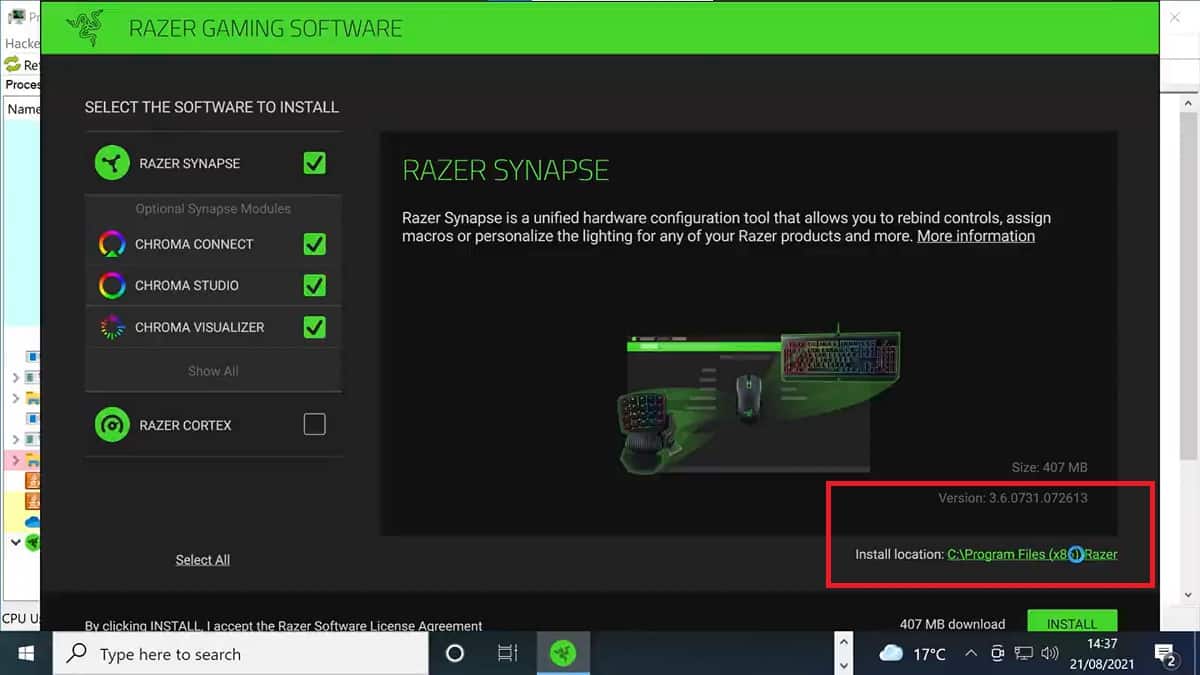
Microsoft’s Windows operating system is receiving yet another security-flaw induced black eye, as hackers take advantage of its partnership with Razer.
Earlier today, information regarding a Windows exploitation that involves a specific Razer gaming software and driver installation surfaced and depicts an exploit that could give a hackers unprecedented access to a user’s computer.
The hack in specific relies on a simple driver update to Razer mouse that doubles as a system process for “Razer Installer”. If hacker can get physical access to or convenience a user to plug in a Razer mouse USB dongle, then the system installer will grant the hacker access to an elevated version of the Windows Explorer GUI and then grant permissions for local installation and access to items such as Windows PowerShell.
Need local admin and have physical access? – Plug a Razer mouse (or the dongle) – Windows Update will download and execute RazerInstaller as SYSTEM – Abuse elevated Explorer to open Powershell with Shift+Right click
Adding fire to this explosive revelation is the fact that if the installation process is both completed, and the files saved to the desktop as they typically would be, hackers could have continued access to the PC’s subsystems.
Furthermore, once a completion is done, the physical necessity of a Razer mouse is no longer needed. Hackers could simply spoof the USB-ID and regain access to the PC.
Additionally if you go through the installation process and define the save dir to user controllable path like Desktop. A service binary is saved there which can be hijacked for persistance and is executed before user logon on boot.
When confronted about the security flaw, Razer has acknowledged its severity and plans to ship a fix in the coming weeks.
As for Microsoft’s role in the exploitative hack, there has been no official statement released from the company, but a temporary patch could be issued as part of its once-a-week cumulative update for Windows, that would put a pause to the automated driver download process for Razer mice.
We’ve been constantly talking about security and the steps we should take in order to keep ourselves safe from outside interference when it comes to our internet-connected devices.
But what do we do when the threat is closer than we think? And no, this is not a James Bond movie, it’s the sad and at the same time funny reality of software bugs.
The PrintNightmare fiasco has turned the eyes of the hacker community to the vulnerabilities exposed by installing 3rd party drivers.
We know it wasn’t long until other ways to intrude were found and, sure enough, someone already discovered that you can go through a wide-open door in Windows 10 by simply plugging in a Razer wireless dongle.
This bug gives you admin priveleges
Yes, you heard correctly. When plugging a Razer device into Windows 10 or Windows 11 machines, the operating system will automatically download and begin installing the Razer Synapse software on the computer.
This above-mentioned software allows users to configure their hardware devices, set up macros, or map buttons.
A researcher discovered a zero-day vulnerability in the plug-and-play Razer Synapse installation that allows users to gain system privileges on a Windows device very fast.
The gasoline on the fire, in this case, is that Razer claims the Synapse software is used by over 100 million users worldwide.
Need local admin and have physical access? – Plug a Razer mouse (or the dongle) – Windows Update will download and execute RazerInstaller as SYSTEM – Abuse elevated Explorer to open Powershell with Shift+Right click
As you know, system privileges are the highest user rights available in Windows and allow someone to perform any desired command on the OS.
Thus, if anyone were to gain these high-level privileges in Windows, they attain complete control over the system and can install whatever they want, including malware.
The main issue is that Windows Update downloads and executes RazerInstaller as system and that the Installer offers users the opportunity to open an Explorer window to choose where to install the drivers.
From there, there’s only one step to press shift-right-click in order to open a Powershell terminal with system privileges, and the hacker can basically do whatever he wants.
Furthermore, if the intruder goes through the installation process and defines the save directory to a user-controllable path like Desktop, the Installer saves a service binary there which can be hijacked for persistence and which is executed before user login on boot.
Another important factor to keep in mind is that the attackers do not even need a real Razer mouse, as the USB ID can be easily replicated.
Razer stated that its working on fixing this issue
After, at first, the researcher that discovered this vulnerability said he contacted Razer but didn’t receive a response, the giant hardware manufacturer got in touch with him and discussed this problem further.
Razer also told him that he would be receiving a bug bounty reward even though the vulnerability was publicly disclosed.
I would like to update that I have been reached out by @Razer and ensured that their security team is working on a fix ASAP.
Their manner of communication has been professional and I have even been offered a bounty even though publicly disclosing this issue.
Microsoft Teams has released a new Call Health Panel that provides real-time telemetry for meetings or VOIP calls. The feature started rolling out back in June, and it is now available for all desktop users worldwide.
This Call Health Panel has been designed to make it easier for users to analyze issues that can affect the audio/video/content sharing/network quality by providing a list of parameters such as round-trip time, packet loss, frame rate, and codec. “In this view you will get data on your network, audio, screen sharing, and outgoing video quality. These real-time metrics are updated every 15 seconds and are best used to troubleshoot issues that last for at least that long,” the company explained on a support page.
To access this feature during a meeting or a call, you’ll need to click on the More actions (…) menu available at the top of the window and then select the “Call Health” option. Once clicked, the Call Health Panel will instantly appear on the right side of the screen, allowing users to diagnose problems quickly.
Keep in mind that the call quality isn’t necessarily compromised by low frame rates and users may notice poor video quality due to hardware limitations or the PC’s performance. Let us know in the comments below if you think that the Call Health Panel will help to make your remote meetings even better.
A flaw in Microsoft’s PowerApps platform left some 38 million records exposed from a thousand both 1st party and 3rd party apps, including Covid-19 contact tracing and vaccine sign up apps, job application portals, and apps from American Airlines, Ford, New York’s MTA, and more.
Beginning in May, according to a report in Wired, flaws were found in a number of Power Apps portals by researchers from UpGuard, a security firm. “None of the data is known to have been compromised,” and the flaw in Power Apps has since been fixed, but it’s still not a good look for Microsoft or the PowerApps platform, which has been touted as an easy way for organizations to quickly build apps without needing a lot of coding or development work.
UpGuard first noticed that platform had misconfigured security settings, and then dug in more to find a systemic problem with PowerApps:
In addition to managing internal databases and offering a foundation to develop apps, the Power Apps platform also provides ready-made application programming interfaces to interact with that data. But the Upguard researchers realized that when enabling these APIs, the platform defaulted to making the corresponding data publicly accessible. Enabling privacy settings was a manual process. As a result, many customers misconfigured their apps by leaving the insecure default.
Microsoft has taken steps to mitigate the issues:
At the beginning of August, the Microsoft announced that Power Apps portals will now default to storing API data and other information privately. The company also released a tool customers can use to check their portal settings. Microsoft did not respond to a request from WIRED for comment.
Both Microsoft, who has touted PowerApps for its ease of use, and the companies who used the platform without checking on security, which should by now be first and foremost in dealing with customer data, share some responsibility here, and both are lucky that more harm wasn’t done.
Windows 11 brings many big changes and one of those involves the Start Menu. Now in the center of the screen and with static icons instead of Live Tiles, a lot of people aren’t too keen on the big redesign. If you’re one of those people and prefer to tweak Windows 11 beyond what Microsoft currently allows you to do, then you might want to check out Stardock’s latest product, Start11.
We were provided a review code by Stardock and have been playing around with the beta experience over the past few days. Start11 promises to help you restore the Classic Start Menu so that Windows looks and feels more like the way you want. But does it live up to the hype?
Start Menu
The core experience of Start11 revolves around customizing the Start Menu. In my hands-on time, this ended up being my favorite part of the app experience. There are many levels of controls here, from bringing back the Windows 7 style menu, to a more modern style many that blends Windows 7 elements with Windows 10 elements.
You even can hide your profile icon, and change visual settings like the color, font, and icon sizes. Of course, there is the option to move the Taskbar to the left, too (though Windows settings let you do this, too). I swapped my settings around to make the icons a bit bigger, and show the icons as a grid rather than a list.
The best part of it all? You can adjust the menu transparency a bit and take Microsoft’s Fluent Design to new levels and get a true glass-like feel. You even can use a custom texture if you want.
Point is, all these controls go beyond what you’ll find in the Windows 11 settings menu. There you only can swap backgrounds, accent colors, and windows titles, and border colors. Start11 puts you in full control of how you want your Windows to look.
Taskbar
Swapping out the Windows 11 Start Menu for Start11’s take is a completely optional thing. If you like the way it looks, you can keep your current Start Menu by choosing “Use the Start11 Start Menu” to off in the settings menu. During one point of my tests, this is what I ended up doing. I wanted to change the Taskbar instead of the Start Menu.
In changing the Taskbar, there’s a couple of cool controls. You could blur the wallpaper under the background, choose your own custom color for the Taskbar, and even adjust its transparency. Seeing the Windows 11 Taskbar 100% transparent is quite interesting as it makes it feel like old-school MacOS. You even can set custom background textures, too.
Search
Search is one of the central experiences of Windows 11, as Microsoft brought a new search icon. Start11, though, brings back the traditional search menu you might be familiar with from Windows 7. The universal search lets you find desktop applications and other quick settings. You also can show search result filtering icons, search file contents and names, search the internet. Overall, it’s quite speedy and works just as fast as the native Windows 11 search feature.
Controls
The final core area of Start11 has to do with the ability to control the settings. You can configure the Start button or Windows Key to open up only the Windows 11 Start Menu, or the Start11 menu itself. There are also tons of other settings scattered throughout the app which can help you make Windows your own. It’s really appreciated, as the controls can go very in-depth when you need them.
More on the way soon
Start11 is currently in beta, so there’s still a lot of other features to come at a later point. You can buy the app today for $5. Stardock tells me that some of the other planned features include faster search with more detailed search results, the ability to perform math problems in the search box, more styling options, and productivity features. We also reached out to Stardock for a more in-depth interview to hear more about the engineering behind Start11. So be sure to keep it locked to OnMSFT for more heading into the future.
Windows 11 systems are set to benefit from a boost in performance from a Thread Director technology from Intel. The new technology is rooted in the 12th-Gen Alder Lake processors. Previously, Intel had provided users with Bluetooth and Wi-Fi drivers.
Microsoft users have been in high anticipation as it is expected to be the first line of desktop processors and combines a hybrid architecture of eight high-efficiency and high-performance Gracemont and Golden Cove cores.
Specific For Windows 11
This configuration has been specifically configured for Windows 11, just like Alder Lake CPUs. Both core types require a unique approach when scheduling to ensure they work together and ensure workloads are assigned from the beginning.
The Thread Director is particularly working with the operating system to make a perfect match for the right thread to the right core. This match is expected to optimize the system for maximum efficiency and real-world efficiency.
What’s Good With This New Thread Technology?
The Thread Director is set to offer real-time runtime of each thread and its core in a matter of nanoseconds. In the same breath, it also makes workload decision scheduling by providing runtime feedback to the operating system.
Apart from monitoring and evaluation, it also makes use of temperature, power settings, user input, and operating conditions to adapt its guidance. As a result, the intelligent scheduler is expected to give Windows 11 users a head start in performance boost against Alder Lake CPUs.
Although Windows 10 and other users have previously had concerns about performance, they will not suffer from performance issues, but the intelligent scheduler is only exclusive to Windows 11 users.
As a point to note, users who wish to use any other operating system other than Windows can use this as an opportunity to upgrade. However, the setup has only been availed to mobile devices at the moment before it can be deployed to PCs.
Have you heard of the Thread Director Technology? Share your thoughts in the comment section below.
Microsoft has been releasing Dev builds every week since the Windows 11 announcement, and working hard to fix any major bugs.
The latest build is finally here and it’s available to both Dev Channel and Beta Channel insiders and it brings many bug fixes and a couple of improvements.
Regarding the new features, this build, just like Windows 11 build 20000.132, doesn’t offer any new groundbreaking features, but it does have a couple of improvements that are worth mentioning.
Although the improvements are minor, they are a welcome addition and we’re positive that many users will find them more than useful.
Without any further delay, let’s see what does the new Windows 11 build 22000.160 has to offer to its users in both Dev and Beta Channel.
What is Windows 11 build 22000.160 and should I download it?
Build 22000.160 is the latest release for Windows 11, which, even though doesn’t surprise too much with new features, offers access for the first time to a Windows 11 ISO.
Previously, you could only install Windows 11 by using Windows Update, but with the release of the ISO, users can burn it onto their external hard drives and easily install the OS on new devices.
New features
New and improved Clock app
The previous build brought some changes to the Snipping Tool, Calculator, and Mail & Calendar apps, and this build brings changes to the Clock app.
The Clock app has been revamped, and it now has a new and fresh look that matches the look of other Windows 11 apps. The name was also changed from Alarms & Clock to Clock.
The app went through some improvements as well, and it got a new feature called Focus sessions. With this feature, you can create sessions and focus on specific tasks.
As for the length of the session, you can set it from 15 to 240 minutes, which can be a problem if you want to create longer sessions.
It’s also worth mentioning that you can’t input the length of your session with your keyboard, and your only option is to use the arrow icons and predefined session lengths.
We wish that this feature supported custom-length sessions and sessions that are longer than 240 minutes, and we hope that Microsoft will improve that in the future.
The Clock also lets you have a floating window that will stand on top of all your windows and show you the length of your session, which can come in handy.
You can customize the length of your sessions and breaks if you want, but by default, the focus period is set to automatic. However, you can only choose predefined values for breaks and focus periods.
Once you finish your focus session, you’ll get a notification informing you that your session is over. The notification will also offer you the ability to start a new session if you want.
The Clock app also has a daily goal feature allowing you to see the overview of your focus sessions and help you stay motivated and productive.
To help you stayed focused, the Clock app offers Spotify integration, and to use it, you need to have the Spotify app installed on your PC.
This section works like a Spotify shortcut and it will allow you to play playlists from your shortcuts section or one of several playlists from the Focus section on Spotify.
Once you select the desired playlist, the Spotify app will launch on your PC and play the desired playlist. As we already mentioned, this works like a Spotify shortcut and it won’t be too useful if you don’t use Spotify.
It’s worth mentioning that the floating timer window has the option to stop the music which can come in handy if you need to stop the music without switching to Spotify.
Lastly, there’s a To-Do integration available and with it, you can switch to different lists and pick a task that you want to focus on during your sessions.
Of course, you can check tasks, create new ones, rename or delete them. Overall, this is a great addition that should help you stay focused and organized.
The other parts of the application went through some minor visual revamp and they look better than before. Some components such as the timer and stopwatch support floating windows, which can come in handy.
Overall, we like the change of the Clock app and the new Focus sessions feature will surely come in handy to many users.
Update estimate improvements
With this build, Microsoft has decided to bring update time estimates to other elements outside of the Settings app.
Now you can see how long will the update take to install when you right-click the update notification in your system tray.
This is just a minor improvement, but it might come in handy if you want to know how long will the update process take.
This feature is available only with users that have Windows 11 on their SSDs, but the feature will be available for HDD owners soon.
Windows 11 build 22000.160 bugs
Clock app not updated
This is a common problem since the new Clock app is being released gradually, so you might not have it when you update to Windows 11 build 22000.160.
During our testing, the Clock app wasn’t updated, and we weren’t able to update it from its Microsoft Store page. However, we found a way to fix this problem.
Press Windows Key + R and enter wsreset.
Press Enter or click OK.
Wait for the process to finish.
Once the process is finished, Microsoft Store will open and you’ll be able to update the Clock app.
By performing the steps above, you’ll be clearing the Microsoft Store cache, and this method worked on our test PC, so we encourage you to try it out.
Labels have wrong positions
Few users reported that labels aren’t properly positioned when hovering over system tray icons. It seems that this issue affects all icons in the system tray.
Several users online reported this problem, and we expect that Microsoft will address that soon.
Grayed out buttons in Microsoft Store
Users reported that certain buttons are grayed out but still clickable in Microsoft Store. Once the button is clicked, the animation gets broken.
This is a minor glitch, and Microsoft seems to be aware of this issue, so we expect to see it fixed soon.
App icons not centered properly in Taskbar
This build has minor Taskbar issues and it seems that certain app icons in the Taskbar aren’t properly centered. It seems that this issue is caused by the inconsistent size of the app icons.
This is a minor issue and it doesn’t affect users in any way, so hopefully, it will get fixed in the future.
Duplicated icons in the system tray
According to users, it seems that icons in the system tray get duplicated and appear one on top of the other when there’s a notification available.
We’re not sure if Microsoft is aware of this issue, but it will be fixed in the final release.
Enlarged Widgets panel
Few users reported that their Widgets panel is enlarged and that it takes almost half of the screen. We’re not sure if this is intended or a bug, but we weren’t able to recreate the issue.
How can I install Windows 11 build 22000.160?
Click the Start button.
Now select Settings.
Go to the Windows Update section.
Windows will check for available updates and start downloading them in the background.
Once the update is downloaded, it will be installed in the background.
After the background installation is finished, you’ll be asked to restart your PC, so click the Restart now button.
Wait for the installation process to finish.
The update is quick to install, and it won’t take you more than 5 minutes to update.
Should I upgrade to Windows 11 build 22000.132?
The latest Windows 11 build doesn’t bring much except for bug fixes. There are just a few new features, but we found them more than useful.
One added benefit which is worth considering is the fact that the first Windows 11 ISO has been released with this build, making it easier than ever to install the OS on all compatible devices.
The new Clock app works great and we liked the new Focus sessions feature. Sadly, the feature doesn’t have any advanced customization options, but hopefully, Microsoft will change that.
If you’re spending a lot of time on your PC and you want to focus more on important tasks, organize your time better and focus on important tasks, then the new Clock app is worth checking out.
Other than that, the new update doesn’t offer much, and it’s not worth upgrading to.
What are your thoughts on the Windows 11 build 22000.160? Have you tried it yet? Share your thoughts with us in the comments section below.
When people nowadays hear the word game they usually think of something that is purely fun and runs on some kind of gaming system.
There are plenty of board games on the market but some of the original ones disappeared. However, chess has a very long history and it’s definitely here to stay for a lot longer.
Its tactical nature will live forever and many of the upcoming generations will find chess as something worth their time.
What is the way to combine modern technology with a brilliant strategic game and make it playable for millions? Well, the answer involves creating the game itself.
That’s just it. Microsoft used to implement Chess Titans into Windows Vista and Windows 7 but stopped doing so in Windows 8 and 10. All of us can agree, that was regrettable.
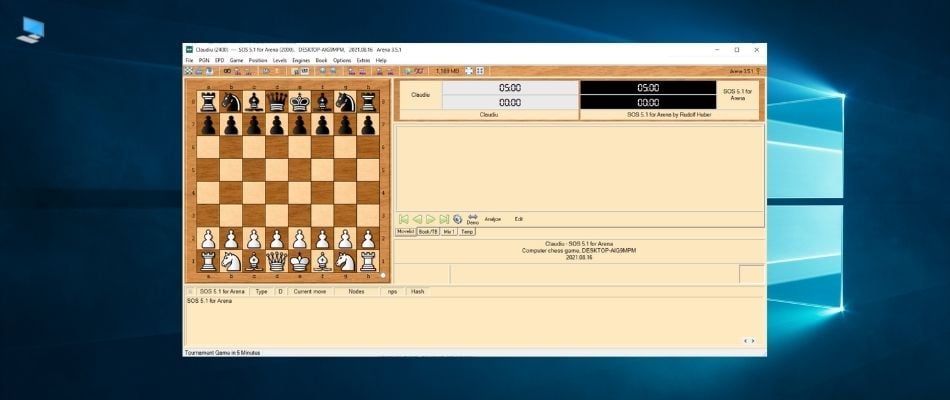
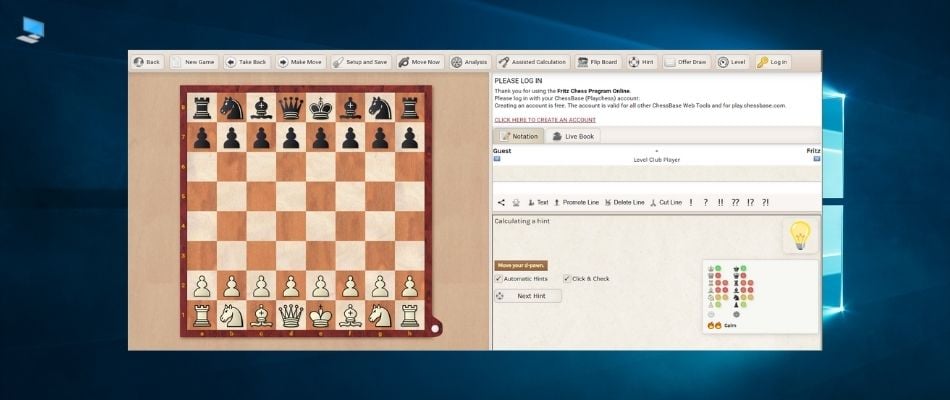
Although Chess Titans was great and hard to match, we have some other games that you can get for Windows 10.
How to choose the best chess software for Windows 10?
Things are very simple here. It’s not about a specific technique or advanced IT knowledge. No, not at all. It’s about certain individual user preferences.
Whether you need to practice your skills as an experienced chess player or you’re a novice in this area, decide what you want in order to choose from the wide range of tools on the market.
➡ Chess engine
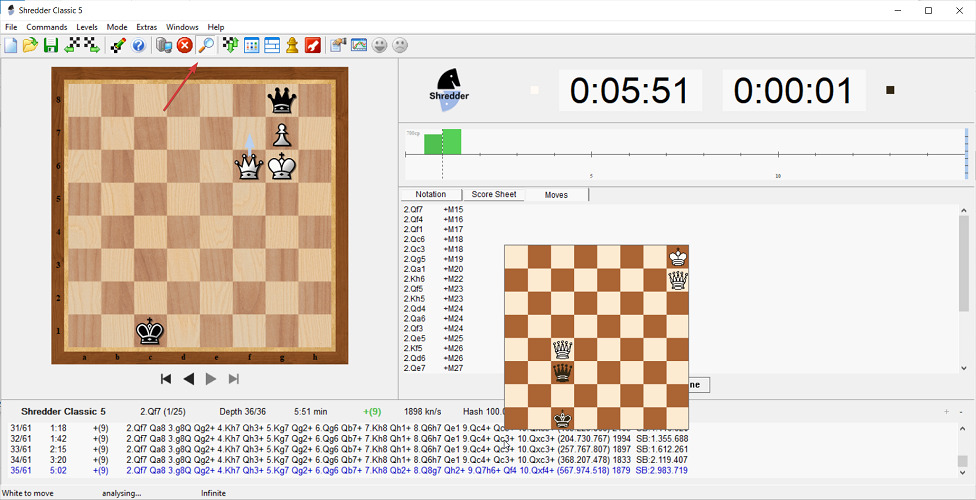
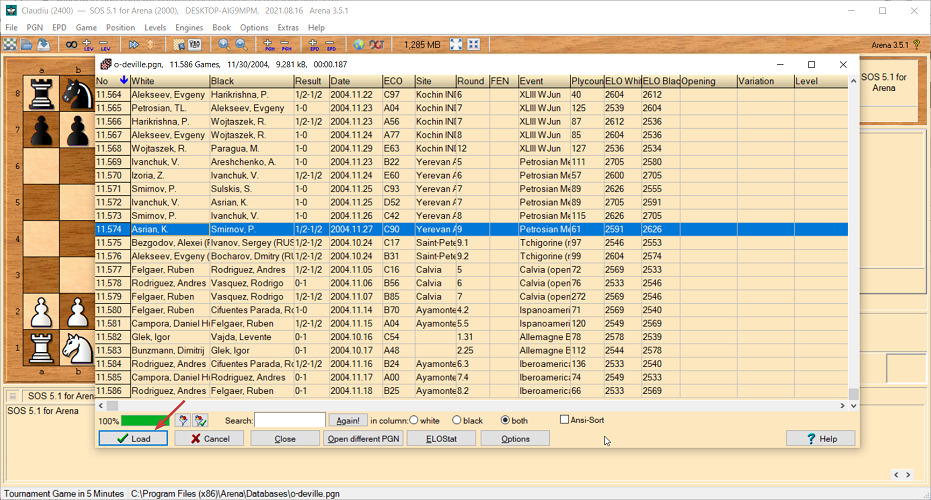
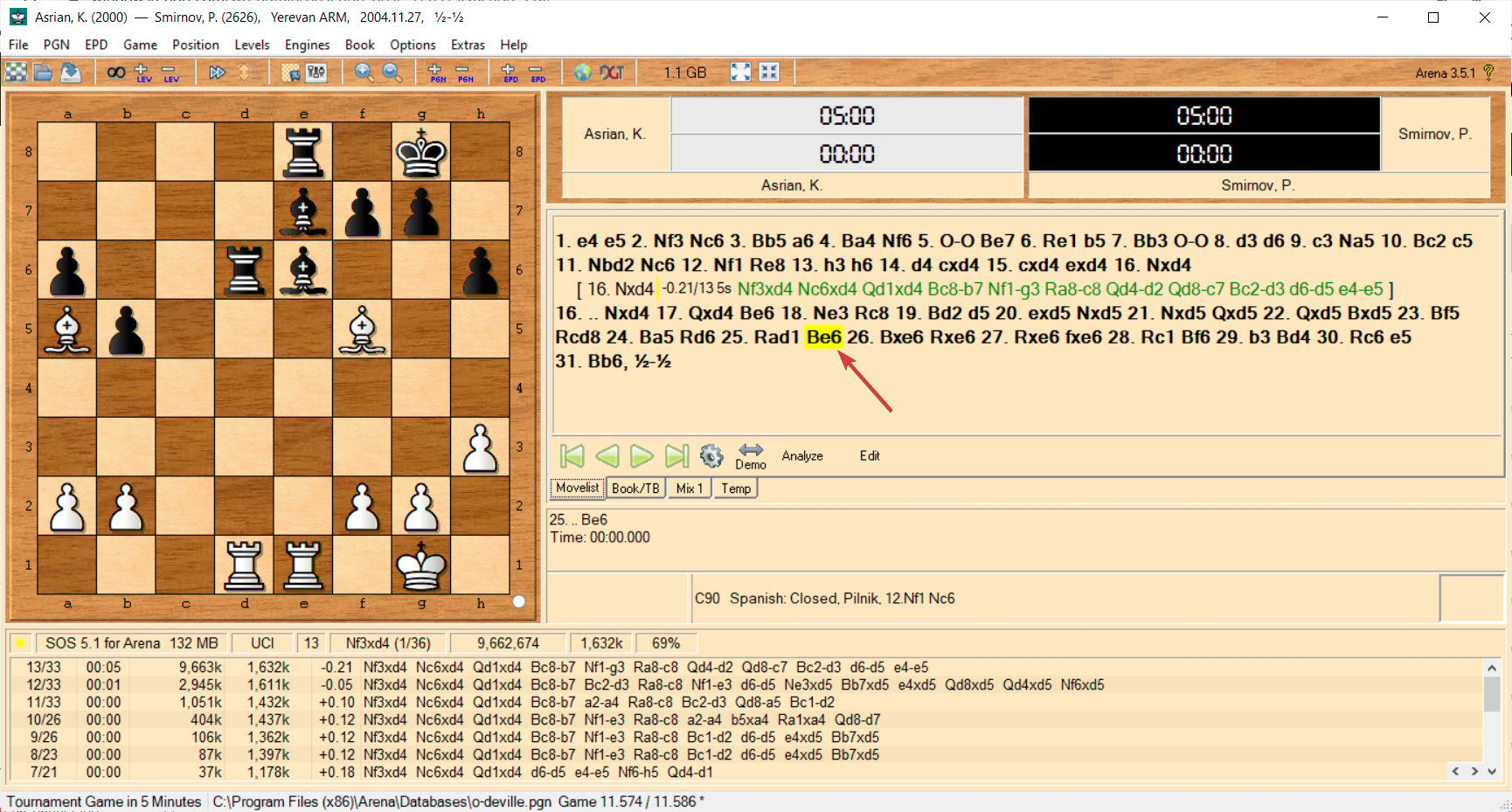
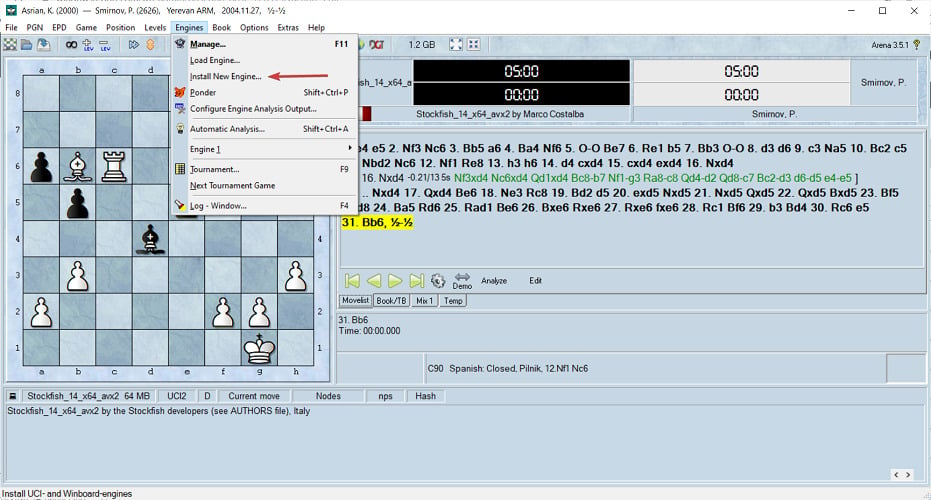
If you’re an advanced player, you might be interested in the engine installed in your program. For instance, in Shredder Classic, the default engine is the famous Shredder.
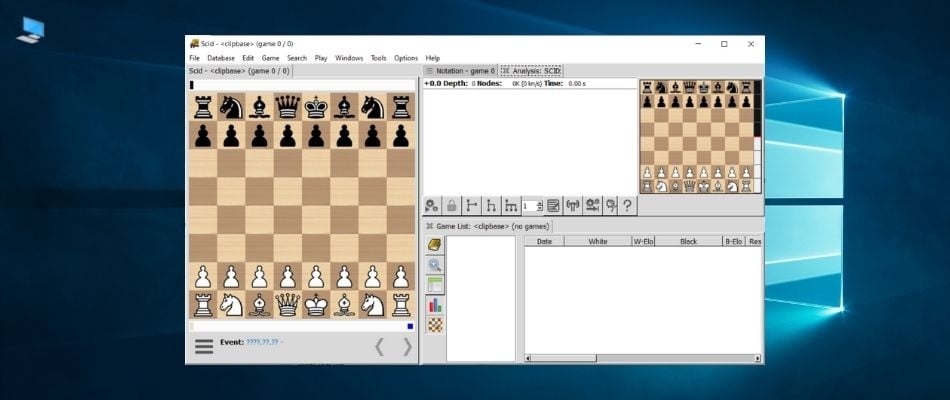
However, you can also install another engine if you click the Extras tab and then select Engines, just like in the screenshot below.
On the other hand, if you’re a beginner or an intermediate player, you won’t need to bother with this kind of setting.
➡ Friendly interface
If you’re a beginner, like most users who just want to start their journey into this wonderful game, you will need a simple solution with basic functions, like some of the apps listed below.
In a program like Chess Lv.100, all you need to do is to click on the New game options and hit the Start game button to immediately begin a game against the computer.
➡ Features
When you’re crossing the line over to the intermediate player level, start thinking about some advanced features that can explain the game better.
You should look for learning tutorials that will improve your knowledge about strategy, opening, positioning, and a lot more and the first tool from our list has all these. And it isn’t the only recommendation worthy of your attention.
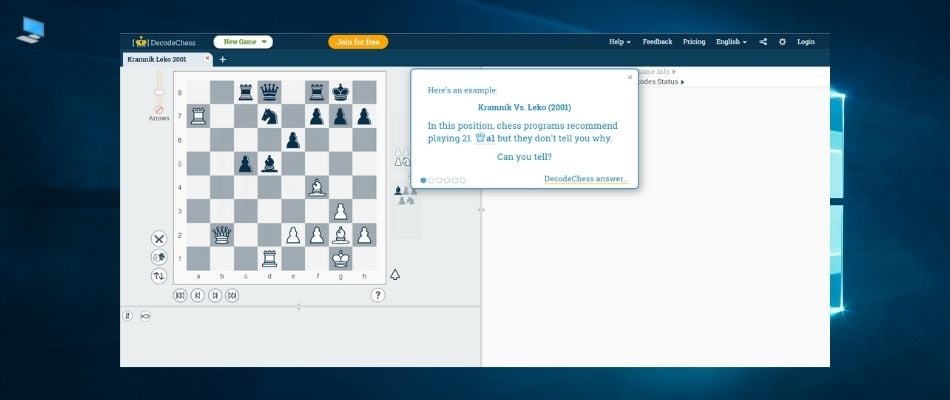
DecodeChess is considered a strong chess software tool at this moment for a good reason. Chess enthusiasts see it as a chance to win something even greater than a master at their disposal 24/7.
Actually, DecodeChess is well beyond the skill of any chess genius. This great tool provides the best interface to practice with a chess engine and the flexibility to compete against opponents that play more like humans.
You can also benefit from useful hints to learn how moves support future player plans, and positional/tactical motives relevant to the decoded position.
Even more, forget all about regular chess engines that lack descriptions. DecodeChess auto-explains chess moves in rich, intuitive language.
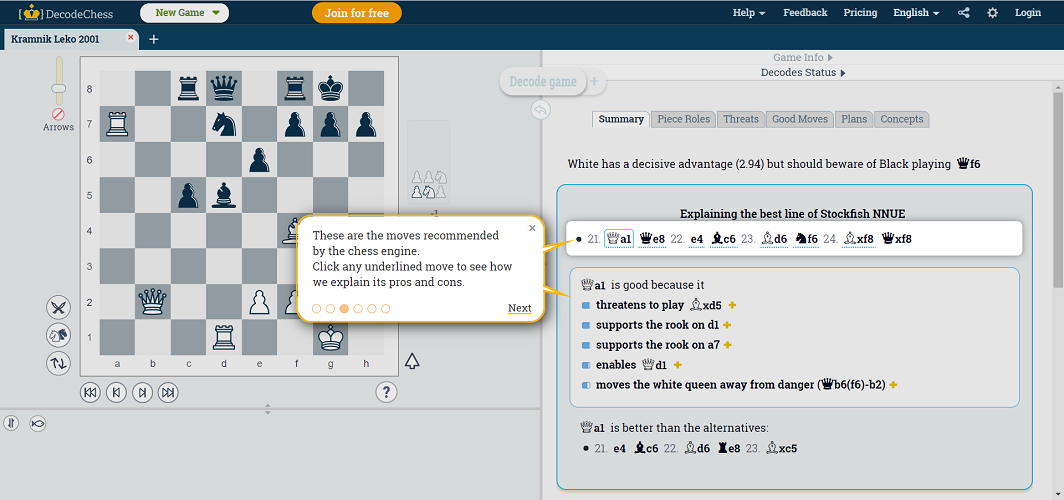
Clicking on a move will highlight it on the board
For instance, in the screenshot above, not only that you will see the best move and the reasons behind it, but if you click on a move, it is instantly transposed on the board so you can clearly see its consequences.
In the game’s Summary tab, you will also learn about the major threats that you are exposed to, how to find the best move, and what pieces you need to pay attention to.
And if this was not enough, at any time, you can click on the Decode button to get a short explanation for all the following moves in the game but for that, you will need to create a free account.
Clicking the Decode button will generate explanations for the moves
DecodeChess fulfills the needs of all beginner-level chess players who are eager to start training their skills.
Moreover, it is also the perfect choice for professionals who are often overwhelmed by poorly implemented complex features of other chess software tools.
After all, all the players share a similar goal: to become more open to the game possibilities in front of them and enforce wise habits. That’s precisely what they get from DecodeChess!
DecodeChess
Get your skills to the next level with the most sophisticated chess analysis tool – DecodeChess!
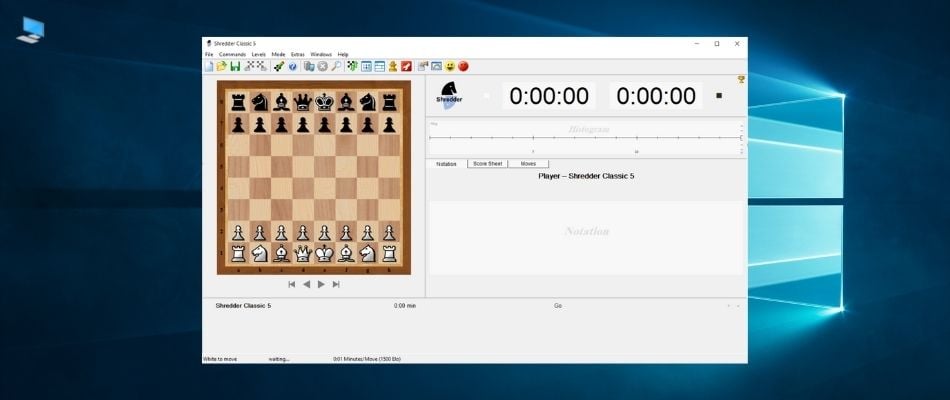
Shredder Classic is not simply a chess game, it is a piece of art. This software is created by Stefan Meyer-Kahlen, and the popular 18 times World Computer Chess Champion.
Thus, you won’t need to worry about a thing – you’ll play with a pro. If you are a beginner, you can adjust the program’s level to yours.
Shredder will adapt to your playing skills and help you advance. You will also have a personal assistant during the matches, thus improving your chess abilities.
By opening the Training module from the Mode tab, you will even have access to more than 1000 chess puzzles that you can try to solve.
Solving some puzzles will train your brain
Of course, there you will also find lots of training lessons to learn about all the major openings and practice endings or even get used to some handicap games (where you can escape from pieces disadvantages).
In time, by playing games, you will learn what is your level, but until then, you can test it by setting it up from the Levels tab and selecting the Playing Strength.
The virtual player level can be easily adjusted
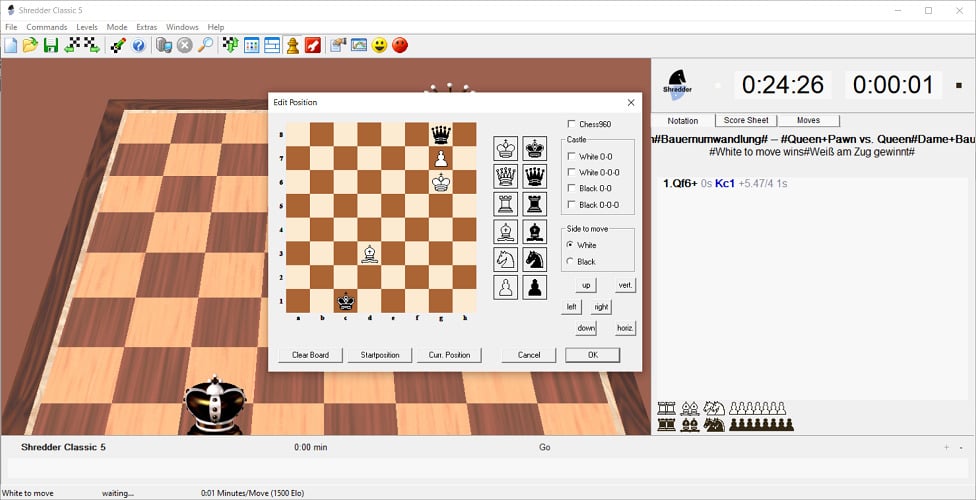
You will also discover a game editor where you can enter the position of every piece and reproduce one of your plays or study a given situation from another source.
The interface of the app doesn’t look fresh but it’s pretty friendly and you will get adjusted to it quickly. You can discover more features of Shredder Classic by downloading it for free using the link below.
Shredder Classic
Shredder Classic is not only a great gaming app but it’s also excellent for learning chess.
The Chess Lv.100 is one of the few free chess games available in the Microsoft Store. It is not as appealing as Chess Titans, but it will serve you well.
The paid version has no ads but even the free version is not that much drowned in pop-ups, so you won’t be too distracted from your game.
This tool brings a lot of customizing options to the table, concerning board and pieces, in-game sound, and graphics. You can also record games you play for later inspection.
To do so, just click on the Game record option and then select Save game record from the list as a file that you can later open.
You can save the game at any time
There are, as the name itself says, 100 levels of AI difficulty, and the default is set to 30. Using hints for this level will get you to win almost every time so we would advise you not to abuse the help option.
You can select levels according to your knowledge of the game or play against friends. AI is quite tricky to beat on higher levels so prepare yourself for a true challenge.
Another great feature is the Edit Mode that will help you reevaluate a position you experienced in a live game or a practice situation.
The edit mode is very easy to use
You can start with a full or empty board, and you only need to click on the piece type and place it on the board. Just click on the Valid button after you finish.
The last game you played is saved after closing, so you can continue from the same point next time.
We appreciated the pleasant graphics of the app and the soothing music in the background, but you can switch that off from the Settings option quickly if it doesn’t help you.
Chess Online + is another free chess game you can find in the Microsoft Store. It doesn’t offer an abundance of customization options like The Chess Lv.100, but, instead, brings competitive online gaming.
In fact, you can’t play with the computer at all. You can only find opponents online and there are thousands to choose from.
Chess Online + offers a satisfying experience even though there are plenty of ways to improve it. There is also a chat option, so you can share your thoughts while playing against online opponents.
When you first open the game, you will receive 120 credits and if you create a user account, you will also get 300 more.
The game is based on credits
When you start playing a game, you have to bet a number of credits (a minimum of 10) on it or pick a player who already proposed a match.
After that, it’s pretty simple. If you win the game, you will get the credits from the other players. If not, you will lose the amount you have bet.
So, if you want to play a game, you need to select the knight icon from the bottom of the page and you can either select a match proposal from the list or you click the New game button.
You can set your own conditions for the game
As you can see from our screenshot, you can pick the number of credits, the time period for the moves (by default it’s 5 for a move and 15 minutes in total), and the range for the player rating.
You can also see the statistics for your games or review them, the rankings for your country or worldwide and you can change the design of the board and pieces.
It’s not a complex app but you should try it out, especially if you are a beginner because it will help you develop your skills during intense competitive play.
The first clear difference between Chess V+ and Chess Online + is that with this one, you can also play with the computer.
Speaking of the differences, this is a pretty basic game, so it’s not so amazing visually, although you can change the appearance of the pieces and the board.
It doesn’t have a 3D view so if you should look elsewhere if you want that feature. However, it does have a Hint option (the question mark) on the side when you’re playing with the system.
Pressing the Hint option will suggest you the next move
The computer level is well balanced but unfortunately, you don’t have the option to change the rating or level and it can be beaten even by an intermediate player.
On the other hand, the game also has a hot seat, player versus player game mode, so you can either play for both sides or with another player on the same computer which transforms the app into a digital chessboard.
That mode can be very convenient if you want to practice a strategy and reproduce a match, or you have a friend around, but you don’t have a chess set available.
Click on a piece to see its available moves
Another basic but nice feature is that when you click on a piece on the board, it will show you all the possible moves for that piece.
That is a great feature if you’re a beginner as you will grasp the piece roles much more easily when you see the moves on the screen.
Chess V+ is a lookalike of classic chess simulators we encountered in the 90s, so it falls behind for most nowadays players.
But it is a reasonable option for nostalgic and chess puzzle enthusiasts. And it’s completely free except for a couple of commercials displayed at the bottom of the screen.
If you like the idea of a tridimensional feeling, 3D Chess Game is what you’re looking for. It is simple but it’s a good chess simulator so you should try it out.
With this app, you get the reverse of what you receive from others because it doesn’t have a 2D view option so you will have to find the right angle to get comfortable with.
The interface is simple but lacks some options you could find in other games. However, it’s easy to understand and get around.
You can drag the table to rotate it on all 3 axes
Talking about 3D and angles, you can simply left-click on the table margins and drag it to rotate in all three axes to see the moves from any angle.
There are 25 available levels of difficulty, from beginner to professional. It can be played against the computer or in a hot-seat mode, against another player on the same PC.
All you need to do to switch that is to click on the A.I. button until it turns to the Human mode, just like in the screenshot below.
There are also a lot of options to customize the colors of absolutely all elements of the table and pieces so you can even use this app if you want to get some great shots with a chessboard.
You can edit the situation on the board so you can replay a certain position and you can add a time mode to make things more challenging.
The interface is very friendly and there are not so many options to play with so it can be an ideal choice for a beginner.
We came across a great piece on positional thinking on the Chess Evolution website that will eventually help you assess the situation on the board more clearly.
➡ Material
Whenever you have the option to take the opponent’s pieces in exchange, or when you’re in advantage, do so. The fewer pieces on the board, the easier it is to assess the situation.
Of course, you also need to look for any traps or strategic consequences that can lead to your quick demise.
➡ Activity
An important aspect of the chess game is to acquire as much control over as many squares with your forces as possible.
In other words, whoever controls the most number of squares would have a positional advantage over his opponent.
If you look at the screenshot below, the knight in the center of the board controls 8 positions while the one in the corner only 2. It’s clear that the one in the middle dominates the board a lot better.
So, the lesson here is that you want to develop your pieces towards the center of the table to gain as much dominance as possible.
➡ Activity principles
The three principles of maximum activity, center, and least active piece work together as a whole.
You have to look at your pieces on the board and if you find any idle ones that have not yet left their home square, start thinking about moving it on the best square possible.
Idle pieces except little to no domination on the board so they must be put to good use, closer to the center of the board if possible.
➡ Attack
Your attack should start when you have a superior position over the opponent. But that position is gained only by respecting the other principles listed above.
The action must be swift and ruthless but keeping an eye on any possible flaws that you may have overlooked. Remember that your adversary also has a plan.
Analyzing the correct situation, the piece roles, and the position are extremely important in chess and must not be overlooked.
It’s also essential to create a plan to gain positional advantage and ultimately attack your opponent in his or her weakest point.
And if you look further into this wonderful world of chess, you can also take a look at our list including the best software to analyze chess games.
What is your favorite chess simulator of all time? Feel free to share it with us along with other suggestions or questions on this topic in the comments section below.
Behind are the days when graphic artists used pen and paper to create their art.
Most modern artists are moving towards digital devices and use drawing tablets that can help them create stunning artwork with unlimited customization options.
Drawing tablets are more secure and reliable, offer tons of customization features, and can store your creations forever.
If you have the skills and a drawing tablet, the only thing you need to get started is a matching art generator software.
But which drawing software is best for you? We will try to answer that question, while also covering the best drawing pad software.
In this article, we have gathered the best software for drawing tablets to help you find the best editing app that meets your needs.
Adobe Photoshop has earned itself a reputation for being the most preferred photo editing app and rightly so.
If you’re looking for one of the best apps for your Wacom tablet then this tool is definitely one of the most suitable options on our list.
With all the tools it has on offer apart from consistently adding new features regularly, Adobe Photoshop is indeed the most recommended software for digital artists.
From the basic text and pencil tool to the advanced textures and hundreds of brushes, Photoshop has everything that you need in a digital painting app to create next-level digital artwork.
One amazing perk is the new brush features that enable you to draw cleaner lines and smooth brush strokes.
This software also comes with smoothing modes (including Stroke Catch-up mode and Catch-up on Stroke End mode).
You also get seamless integration with other Adobe Creative Cloud suite apps and you can also share your artwork on social media Facebook, Instagram, etc with just one click.
One of the best characteristics is the extensive toolkit that allows you to create professional-grade artwork.
Adobe Photoshop CC
Create your best visual digital work, make portraits intricate drawings, or with this versatile software!
Adobe Illustrator is up-to-standard graphic design software that allows the creation of many different types of visual products, like illustrations, logos, product packaging, and icons.
While the UI is intuitive and you can get the gist of it pretty quickly, the number of features this software provides is actually very extensive. It can be used both on Windows and Mac and is available in over 20 different languages.
With Adobe Illustrator you can create typography, draw freehand and trace and recolor graphics. The quality of your images is guaranteed because the software is vector-based.
Illustrator users are very satisfied with the high quality of the images, regardless of the sizing. This is due to the fact that the software is vector-based.
A really nice and convenient feature of the software is that it can be used offline. Your files sync to the Creative Cloud and you can always pick up where you left off. The cloud also keeps all the previous versions of your document, so you can easily access them.
Texts and objects can be positioned with precision. You can turn shapes and colors into logos and icons. You can extract colors from other pictures and use them in your design.
Collaborating is also very easy and convenient. You just have to share a link in order to give access to your project. Moreover, Adobe Illustrator has a large number of users worldwide, which makes it more likely that your collaborators are already familiar with it.
Adobe Illustrator is available by a yearly plan, which can be paid in advance or in small increments, month by month. It also has a monthly subscription plan which can be canceled and renewed anytime.
Adobe Illustrator
Create high quality images of all sorts and styles with a huge set of optimized tools.
Creating digital art that looks and feels like a real, traditional painting is among the main qualities of Corel Painter, one of the biggest pioneers of digital art software.
A painter can be used both on Mac and Windows PCs, but it has features that are put to best use on a drawing tablet. It is highly sensitive to the pressure of the pen which makes it feel like a real painter’s canvas.
Speaking of canvas, you can easily pan, zoom, rotate and apply lighting and surface texture.
The main contributor to the realistic effect of the paintings you can create in Corel Painter is the versatility of the brushes. You have many brush controls such as modify size, shape, angle and flow. They are very well organized in a brush library. Every dab can be individually edited and adjusted which contributes immensely to the traditional painting aesthetic.
Experimental artists can benefit from the possibility of mixing wet and dry brushes on your painting in order to create unique mixed-media-looking works.
When it comes to colors, Painter has a color wheel, a color mixer, color sets, and harmonies so you can create your own personalized palette. Moreover, you can view your painting in grayscale which helps with certain adjustments.
You can get the software as a one-time purchase or as a monthly subscription. It can be tried in a 15-day free trial.
Corel Painter
Make digital art that looks and feels like traditional art and mix a variety of tools to create beautiful and unique pieces.
Affinity Designer is one of the fastest and most precise vector graphics software on the market. The app offers all the tools that you need, ranging from pen to gradient.
The Designer offers great speed and accuracy, and it allows you to pan the screen at 60fps. In addition, it supports zoom, so you can see and edit the smallest details.
Supports RGB, CMYK, LAB, and Grayscale colors (ICC color management and 16-bit channel editing) and is compatible with PSD, SVG, EPS, PDF, FH files, and more.
With this great software you can take advantage of a raster graphics toolkit and enjoy a wide range of adjustment layers, masks, and blend modes.
Thanks to all the versatile functions this tool is considered by many users as the best drawing app for the Gaomon tablet.
Make the best of your skills with a complex range of brushes, pressure control, and tilt that you can use with your stylus to create natural-looking artwork.
You also get a powerful export mode (to select areas, layers, or objects to export). Affinity supports real-time editing for embedded documents and it allows outline, pixel, and split-screen view.
As suggested, this app is designed to get the most of the iOS features.
Boasting an impressive drawing and editing toolkit, Pixaki allows you to import any image at full resolution, resize and reposition it, then start drawing pixels.
With advanced animation features such as per-frame duration, color-shifted skinning, multiple reference layers, and fully customizable palettes you can easily bring your creations to life.
With Pixaki Support for up to 50 layers per frame (adjust opacity, lighting, and translucency effects)
Customizable color palettes (use the pre-installed ones or import your own) and powerful color replacement
Import and export documents from other apps and share them on social media (PSD, GIF, ZIP, PNG, TIFF, JPEG, and many more).
Modify your images with features such as the adjustable pixel brush and the eraser tools. Work more efficiently with the Split View multitasking support function and get the job done in no time.
In addition, Pixaki offers seamless integration with iCloud Drive and a customizable user interface, which makes it a great choice for pen tablet software for Windows 10.
Just like Pixaki, Procreate is built to seamlessly blend with your iOS tablet or iPhone.
Highly versatile, this award-winning app is optimized to fully embrace touch technology allowing incredibly intuitive two‑finger tap gestures.
Create anything from sketches and illustrations to complex paintings on the go and share your artwork with the entire world effortlessly.
Speaking about being on the go, Procreate is powered by the Valkyrie graphics engine designed to help you paint fast and work at your desired pace.
With this tool, you can achieve professional results thanks to industry-leading features (QuickShape, StreamLine, Drawing Assist, ColorDrop, etc.).
You are free to let your imagination take over and make the best of the wide collection of customizable handcrafted brushes (pencils, inks, charcoals, artistic brushes, etc.).
Enhance the visual aesthetic with complete color control features such as Color Dynamics, Color Harmony, Color Companion, and Color History.
This app is compatible with touch technology and it has an integrated Valkyrie Engine for accelerated workflows.
Boasting an impressive toolkit, Artweaver is a feature-rich painting tool that covers all your art needs from simple tasks to complex projects, making it suitable for both beginners and pro users.
Artweaver delivers a wide collection of predefined and highly configurable brushes to create pristine results every time.
This is definitely a characteristic that makes it stand out among other programs for drawing tablets.
The realistic brushes (powerful and highly configurable brush system to simulate many different brushes)
This software is easy to use and suitable for novices as well as advanced users thanks to the friendly, intuitive, and customizable interface.
One excellent perk is that you get integrated collaboration tools and an impressive toolkit with multiple layers and filters.
Back with another quick review for Lenovo fans, we have the ThinkPad X1 Carbon 9th Gen up for inspection.
Over nine generations, Lenovo has carved out a premium business niche for itself with its X1 lineup. Quickly iterating on a formula of thinness and power, the X1 has earned the industry perception of being the creme de la creme of business laptops.
Fortunately, there is a whole internet of documented history on the X1, and the ninth generation deviates little from it, so today’s review can focus on the few subtle changes that elevate this laptop from an ‘also-ran’ upgrade to a noticeable seat change.
Specs
ThinkPad X1 Carbon 8th Gen
ThinkPad X1 Carbon 9th Gen
Processor
Up to 10ᵗʰ Generation Intel® Core™ i7-10610U Processor with vPro™ (1.80 GHz, up to 4.90 GHz with Turbo Boost, 4 Cores, 8 Threads, 8 MB Cache)
Up to 11th Generation Intel® Core™ i7-1185G7 Processor with vPro™ (3.00 GHz, up to 4.80 GHz with Turbo Boost, 4 Cores, 8 Threads, 12 MB Cache)
Operating System
Windows 10 Pro 64 – Lenovo recommends Windows 10 Pro for business.
Windows 10 Home 64
Linux
Ubuntu 20.04 Desktop Edition
Fedora 32 Workstation Edition
Windows 10 Home
Windows 10 Pro – Lenovo recommends Windows 10 Pro for business
Fedora 33 Workstation edition
Linux Ubuntu
Display
14.0″ FHD (1920 x 1080) IPS, anti-glare, 400 nits
14.0″ FHD (1920 x 1080) IPS, anti-glare, touchscreen, 400 nits
14.0″ UHD (3840 x 2160) IPS, glossy with Dolby Vision™, HDR 400, 500 nits
14.0″ FHD (1920 x 1080) IPS, anti-glare, touchscreen with Privacy Guard, 500 nits
14.0″ FHD (1920 x 1080) IPS, anti-glare, low power, 400 nits
14.0″ WQHD (2560 x 1440) IPS, anti-glare, 300 nits
14″ FHD+* (1920 x 1200) IPS, anti-glare, touchscreen, low-power, 400 nits
14.0″ FHD+ (1920 x 1200) IPS, anti-glare, low-power, 400 nits
14″ FHD+* (1920 x 1200) IPS, anti-glare, touchscreen, PrivacyGuard, 500 nits
14.0″ UHD+ (3840 x 2400) IPS, glossy, 500 nits
Screen to body ratio = 86%; aspect ratio = 16:10
*All FHD screens include 100% sRGB.
Storage
Up to 1 TB PCle SSD
Up to 1 TB PCIe SSD
Graphics
Integrated Intel® UHD Graphics
Integrated Intel® Iris® Xe Graphics
Camera
HD 720p with ThinkShutter privacy cover
Optional: Hybrid Infrared (IR) & HD 720p with ThinkShutter
720p HD with webcam privacy shutter
Optional: Hybrid infrared (IR) / 720p HD with webcam privacy shutter
Optional: Hybrid infrared (IR) / 720p HD with webcam privacy shutter and Human Presence Detection
Memory
Up to 16 GB LPDDR3 2133MHz (Soldered)
Up to 32GB LPDDR4x 4266MHz
Dimensions
323mm x 217mm x 14.9mm / 12.71″ x 8.54″ x 0.59″
14.9mm x 314.5mm x 221.6mm / 0.59″ x 12.38″ x 8.72″
Audio
Dolby Atmos® Speaker System
4 x 360-degree far-field microphones
Dolby Atmos® Speaker System
4 x 360-degree far-field microphones
Dolby Voice® professional conferencing solution
Weight
Starting at 2.40 lbs (1.09 kg)
Starting at 2.49 lbs (1.13 kg)
Color
Black
Black with Woven Top Cover*
*Available only on UHD displays
Black
Optional: Carbon-Fiber Weave on top cover*
*Available on all UHD+ displays
Ports/Slots
2 x USB-C 3.2 (Gen 2) Intel Thunderbolt™ 3 (DisplayPort, Data transfer)
2 x USB 3.2** (Gen 1) (1 always on)
HDMI 1.4
Network extension for Ethernet/side mechanical docking
Headphone / mic combo
2 x USB 4 Type-C with Thunderbolt™ 4 (DisplayPort / Data Transfer / Power Delivery)
2 x USB-A 3.2 Gen 1
Headphone / mic combo
HDMI 2.0
Optional: Nano SIM slot
USB port transfer speeds are approximate and depend on many factors, such as processing capability of host/peripheral devices, file attributes, system configuration and operating environments; actual speeds will vary and may be less than expected.
Battery
Supports Rapid Charge**
Up to 19.5 hours (MM14)*
Up to 13.5 hours (MM18)*
*Based on MobileMark 2014, an industry standard PC performance benchmark. Actual results will vary depending on your system’s usage and settings, including power management and screen brightness.
**Requires 65W AC adapter
Up to 16.7 hours* 57Whr (MM18)
Rapid Charge (requires 65W PSU or higher)
*All battery life claims are approximate and based on results using the MobileMark® 2018 battery-life benchmark test. Actual battery life will vary and depends on many factors such as product configuration and usage, software use, wireless functionality, power management settings, and screen brightness. The maximum capacity of the battery will decrease with time and use.
What’s in the box
ThinkPad X1 Carbon Gen 8
65W AC adapter
4 Cell 51Wh Internal battery
Quick Start Guide
ThinkPad X1 Carbon Gen 9
65W AC Adapter
57Wh Internal Battery
Quick Start Guide
Look and Feel
As previously mentioned, the X1 has built on a steady design aesthetic that hasn’t deviated much over the past few years. The X1 9th Gen maintains its stealth black vogue.
The model I reviewed came with Carbon fiber weaving on the cover, which is a slight departure from the traditional oily fingerprint magnet matte black cover of previous generations.
Another subtle design change comes with the new hinge design that ushers in a dual hinge make up versus the single bar most notably associated with the X1 line up.
Lenovo also shifted the power button on the deck of the laptop and placed it back on the right-justified of the keyboard. For the past few years, it was placed flush on the port side of the laptop making it a hassle to power on and off without muscle memory developed.
The weight and portability remain largely untouched by Lenovo’s latest offering where the X1 9th Gen feels just as light as its predecessors for better or worse.
Per usual, the X1 9th Gen comes with the coveted mil-spec tested design to help protect the device from spills, extreme temps, dust, drops and other unforeseen elements.
Other familiar features are a return of the great key travel from Lenovo’s U-shaped chicklet keyboard and moderately sized glass trackpad.
Regarding the port situation, the X1 9th Gen ups its game by moving to Thunderbolt 4 over the previous Thunderbolt 3 implementation from last year. Users now get two Thunderbolt 4 USB-C ports, two USB-A ports, and full HDMI slot with support for 2.0 capabilities, along with a mic/headphone jack as well.
16:10 Display
Perhaps, the biggest change from 8th to 9th Gen for the X1 is the new 16:10 display aspect ratio screen. Lenovo has finally adopted the narrower but taller screen design to give users and productivity worker better real estate to get things done.
The addition of the 16:10 screen marks a subtle but substantial seat change in the X1’s history as it also brings a overall chassis design that is slightly narrower than previous models.
The black bars that come with a 16:10 screen fade quickly into the background during video watching.
Lenovo sticks with its matte display this generation, which helps with visibility in those overly lit offices or outdoor working conditions.
After years of using a Surface Laptop and watching my wife use her MacBook, the traditional 16:9 displays truly feel outdated and counter-intuitive for a “productivity” machine.
Performance
While not much else has changed for the X1 9th Gen aside from the screen, the other largest upgrade comes in the form of the 11th Gen Intel processor.
As with most laptops coming out in 2021, Intel’s 11th Gen once again proves to be the biggest upgrade for devices this year.
Combined with the improved graphics performance from the Intel Xe graphics spec, the X1 9th Gen packs a substantial boost in performance in 2021.
Rendering videos and exports were speedy as well as transferring files between platforms and software. I don’t shoot any content in 4K but 1080p and even 2K videos 20 mins in length converted and exported in a little under 15 minutes which a world of difference from the relatively slow performance of the Surface Laptop 4.
Photo, CAD, and audio editing were handled with ease by the X1 Carbon 9th Gen. Perhaps, the only blemish in its performance rankings is its gaming stats.
Pushing the upper limits of 30+ plus frames still allows for some lightweight gaming, when and/if in a pinch but don’t rely on the X1 for gaming.
Finally, the improved battery design of the X1 9th Gen inches out its predecessor as well some of its competitors going about ten and a half hours of moderate use, 7 hours under heavy and close to thirteen with light use.
The 65W charger quickly charges the laptop and uses a USB-C lead for connectivity which allows the ThinkPad X1 Carbon 9th Gen to be charged by most USC-enabled charger.
Summary
The X1 Carbon 9th Gen is a pricey proposition in most regards which adds to its enterprise cache. However, with improved GPU, memory and battery performance coupled with the intuitive 16:10 aspect ratio, the X1 9th Gen is well worth the yearly upgrade this time around.
Bethesda today announced the upcoming release of yet another version of Skyrim, The Elder Scrolls V: Skyrim Anniversary Edition.
This new version of the game is set to launch on Windows PC, Xbox One, and Xbox Series X in addition to Sony’s PlayStation 4. PlayStation 5 owners will be able to play the PS4 version via backwards compatibility while Xbox One players will be able to upgrade to the Xbox Series X version via a paid upgrade process.
The Elder Scrolls V: Skyrim Anniversary Edition is currently set to release on all supported platforms on November 11th later this year, a whole decade to the date since its original release. It will include all of the content from the Special Edition, the Dawnguard, Hearthfire and Dragonborn expansions, a new fishing mechanic, at least 500 pieces of player-created content, and a number of additional quests and other in-game content.
After numerous leaks, the latest entry in the mega-popular Call of Duty video game franchise, Call of Duty: Vanguard, has now been officially announced with a special announcement trailer, digital pre-orders, and the confirmation of numerous gameplay details.
Both the single-player campaign and the multiplayer modes will be set during World War II and there will be at least 20 multiplayer maps based in various regions around the globe at launch. 16 of these maps will be for 12-player matches while four are designed for smaller games with only four players.
Call of Duty: Warzone is set for release on both Xbox One and Xbox Series X console generations and will support cross-progression and cross-play between each version.
The Cross-Gen Bundle is just $10 more than the Xbox One version so it’s not that much of a price issue. A $10 upgrade is also available for those who initially buy the Xbox One version and want to upgrade at a later date.
Anyone who pre-orders either version before its November 5th launch will receive the following:
Night Raid Mastercraft Weapon Blueprint – for immediate use in Call of Duty: Black Ops Cold War and Warzone.
Operator Arthur Kingsley – to be received at a later date for use in Call of Duty®: Black Ops Cold War and Warzone.
The opportunity to pre-load the game before launch.
Here’s the official game description:
Rise on every front: Dogfight over the Pacific, airdrop over France, defend Stalingrad with a sniper’s precision and blast through advancing forces in North Africa. The Call of Duty franchise returns with Call of Duty: Vanguard, developed by Sledgehammer Games, where players will be immersed in visceral WWII combat on an unprecedented global scale.
Through a deeply engaging single player Campaign, a select group of soldiers from different countries rise to meet the world’s gravest threat. Players will also make their mark across Call of Duty’s signature Multiplayer experience, plus an exciting new Zombies experience developed by Treyarch.
Call of Duty: Vanguard will also usher in a new and unparalleled Call of Duty: Warzone™ integration post launch, and feature cross-progression and cross-generation play, in addition to a massive calendar of free post-launch content that adds in new Multiplayer maps, modes, seasonal events, community celebrations and more.
Three video games are free to play this weekend for Xbox Live Gold subscribers on Xbox One and Xbox Series X consoles.
Hood: Outlaws and Legends and I Am Bread are now free to download and play in full for free until the end of Sunday at 11:59PM PDT. Meanwhile, The Elder Scrolls Online: Tamriel Unlimited will be accessible from now until Monday at 7AM PDT.
This extended play time for The Elder Scrolls Online makes sense given its expansive online world and multiplayer focus.
Last week we were talking about build 22000.132, all the good things that it brings with it, as well as all the bugs that users have been struggling with.
This new experience is now available for users in the Dev and Beta Channels, through the Windows Insider program.
We’ve now reached the seventh cumulative update for Windows 11 RTM Build 22000, and this one comes with few important changes, or any new features or significant improvements.
If you check for updates today, a new patch called Cumulative Update for Windows 11 (10.0.22000.160) (KB5005189) will appear available for download.
Focus sessions is here with build 22000.160
The Redmond tech giant just releaseda new Windows 11 Insider Preview build for both Beta and Dev channel users.
For the past few weeks Insiders in both channels have been receiving the same builds. However, build 22000.160 brings with it, unsurprisingly, only a couple of general improvements along with the usual crop of fixes.
The new Focus Sessions feature, which is part of the Alarms & Clock app was first teased by Microsoft’s Panos Panay a couple of weeks ago, and it’s meant to help users focus on a given task.
As you know, from our previous article, Focus Sessions allows users to set a timer to focus on tasks while listening to their Spotify playlists right within the app.
You might also like to know that there is also a Habit Building feature that lets users set goals and track their progress.
There’s also a bit of a regression, if you’ve been testing Windows 11, you might have noticed that before restarting your PC to install an update, it would tell you how long it expects to take to restart.
Now, that’s only going to happen if have an SSD, not an HDD. However, this is only due to some bugs, and Microsoft says this feature should return in the future.
To be honest, there really isn’t much else that’s new here, and one of the things everyone was expecting, which is Android app support, still hasn’t been rolled out yet.
In fact, it might not show up in time for the initial public release of Windows 11, considering how close we are to the public launch. We also don’t get the new Paint app that was teased recently.
Even the list of fixes in Windows 11 build 22000.160 only includes one item, and that’s a fix for an issue where you might see the location icon in your taskbar even though you’ve disabled location access in the Settings app.
The Windows 11 ISO is now available directly from Microsoft
One of the major differences between this build and all the other ones that came before is the cargo it carries.
You can use these ISOs to do a clean installation or in-place upgrade if that is what you desire.
As you use these ISOs to install Windows 11, you will go through the setup experience, which is designed to build excitement for the new OS.
Also exciting, based on user feedback, Microsoft added the ability to name your PC during the setup experience too.
Known issues with KB5005189
Before we get into the known issues let’s first see what Microsoft fixed with this new build.
There isn’t much to go on here, except an issue where the location in use icon was showing in the Taskbar sometimes even though the usage was blocked by your preferences.
That’s about all that the tech company managed to fix via this cumulative update.
Known issues is another subject entirely, and here is what Microsoft had to say about KB5005189:
REMINDER] When upgrading to Windows 11 from Windows 10 or when installing an update to Windows 11, some features may be deprecated or removed. See details here.
[BETA CHANNEL] Investigating reports from Insiders in the Beta Channel where after upgrading to Windows 11, they are not seeing the new Taskbar and the Start menu doesn’t work. To workaround this if you are impacted, please try going to Windows Update > Update history, uninstalling the latest cumulative update for Windows, and the reinstall it by checking for updates.
Working on a fix for an issue that is causing some Surface Pro X devices to bug check with a WHEA_UNCORRECTABLE_ERROR.
Start:
In some cases, you might be unable to enter text when using Search from Start or the Taskbar. If you experience the issue, press WIN + R on the keyboard to launch the Run dialog box, then close it.
System and Windows Terminal is missing when right-clicking on the Start button (WIN + X).
Taskbar:
The Taskbar will sometimes flicker when switching input methods.
Search:
After clicking the Search icon on the Taskbar, the Search panel may not open. If this occurs, restart the “Windows Explorer” process, and open the search panel again.
Search panel might appear as black and not display any content below the search box.
On pen enabled devices, apps may not launch from the Search panel. If you experience this issue, please log out and back in to resolve the issue.
Settings:
Certain searches using the search box in Settings may crash Settings.
Bluetooth:
Investigating reports from Insiders with paired Bluetooth LE devices that are experiencing an increase in Bluetooth reliability issues and bugchecks after resume from hibernate or when Bluetooth is turned off.
Widgets:
The widgets board may appear empty. To work around the issue, you can sign out and then sign back in again.
Widgets may be displayed in the wrong size on external monitors. If you encounter this, you can launch the widgets via touch or WIN + W shortcut on your actual PC display first and then launch on your secondary monitors.
[Family widget] Some users may see a ‘connect a device to see screen time activity’ message even with screen time settings enable.
[Family widget] Location information may not be available for some users on iOS.
Store:
Working to improve search relevance in the Store including resolving an issue where in some cases the ordering of search results is inaccurate.
The install button might not be functional yet in some limited scenarios.
Rating and reviews are not available for some apps.
Windows Sandbox
Within Windows Sandbox, the language input switcher does not launch after clicking the switcher icon on the Taskbar. As a workaround, users can switch their input language via any of the following hardware keyboard shortcuts: Alt + Shift, Ctrl + Shift, or Win + Space (the third option is available only if Sandbox is full-screened).
Within Windows Sandbox, the IME context menu does not launch after clicking the IME icon in the Taskbar. As workarounds, users can access the functionalities of the IME context menu with either of following methods:
Accessing the IME settings via Settings > Time & language > Language & region > (e.g. Japanese) three dots > Language options > (e.g. Microsoft IME) three dots > Keyboard options.
Optionally, you may also enable the IME toolbar, an alternative UI to quickly invoke specific IME functions. Continuing from above, navigate to Keyboard options > Appearance > Use IME toolbar.
There is an issue where some Insiders may be some missing translations from their user experience for a small subset of languages running the latest Insider Preview builds. To confirm if you have been impacted, please visit this Answers forum post and follow the steps for remediation.
Chat from Microsoft Teams
Experience is localized for English (US) only. Additional languages and locales forthcoming.
When you make an outgoing call, while you do not hear a ring tone, the user interface shows that the call is getting connected.
In a video call, sometimes people videos freeze or display a black image. There is a workaround to this issue, which is to pin the video that freezes and unpin it to fix the problem.
When switching between calls, the previous call is not automatically put on hold, so audio and video streams continue on both calls. Be sure to complete a call before taking another.
How do I install KB5005188?
Access theSettingsmenu and go theWindows Updatetab.
You should see the update as pending download so go ahead and click the Download button.
The patch will start downloading automatically.
Click on “Restart now” to finish the installation.
Have you already installed the new Windows 11 Insider build? Tell us all about your experience in the comments section below.
Crossover design software solutions are specialized tools that can help audio engineers (or sound aficionados, for that matter) simulate overall speaker SPL (Sound Pressure Level) responses, which perform a check to see if the targets of said design have been met or not.
These tools were developed to combine SPL responses from loudspeakers (that are already measured) with data regarding the filter circuit, which is also a parameter that is previously defined by designers.
The job of a designer is to modify the values of the filter components repeatedly so that ultimately simulated responses come as close as possible to the targets of the design. Without proper help, this process can be a lengthy, tedious one.
However, with software solutions such as XSim, Passive Crossover Designer, X•over Pro, or LspCAD, the struggle described above can easily become a thing of the past.
XSim is a freeware software solution that can come in handy if you’re struggling as a crossover designer, as it can lift a great deal of the burden by providing you with a complete environment to perform simulations, and schematics, without having to touch any of the actual equipment.
The tool comes with a set of example files, so that you can understand the way XSim works without having to go through building an entire project from scratch, all the while teaching yourself the basic (and more complex) features of the program.
Among the features you can expect to find within this crossover design software solution, we mention:
A set of example files to hone your skills on;
Unrestricted crossover designs;
Free-form creation mode;
Results are calculated as you design;
You can see several graphs of your choice simultaneously;
Watch the performance and/or stress on any part of your design in real-time;
X•over Pro’s name might not speak volumes, but its features do; if you’re interested in crossover designing and are stuck on one of your projects, chances are you didn’t even consider leaving it all to specialized software solutions until now.
With this advanced tool, you’ll be able to create 2-way or 3-way passive crossover networks, low-pass, high-pass, or band-pass filters, an L-pad, an impedance equalization network, and parallel or series notch filters without even touching any hardware equipment or make complex measurements of drivers you work with.
X•over Pro comes with an outstanding database of drivers, which includes both sealed-back drivers (such as tweeters) and open-back drivers (such as subwoofers), and can be freely customized by means of adding new content, editing existing one or removing entries.
The database can also be queried by driver model name, manufacturer, driver parameters, and even suitability for a certain box design.
LspCAD’s name stands for Loudspeaker CAD, or Loudspeaker Computer-Aided Design for connoisseurs, and can be a real lifesaver for audio professionals such as sound engineers and crossover designers by providing them with the necessary means of simplifying their projects.
This software solution has a demo version, which comes with a series of limitations, such as not being able to save a project you’ve been working on, not being able to export data you’ve been tampering with, and not being able to place more than two units within a crossover design.
The crossover capabilities of LspCAD (which spark our curiosity the most) are based on a drag-and-drop principle, which means that working with this tool can be as simple as picking components from a virtual tray and place them on a schematic so that creating a crossover design can be accomplished in a couple of minutes.
The schema operates in two distinct modes: edit and simulate. The former lets you add, remove, move, connect or group components as you see fit, while the latter enables you to start the simulation, where the only customizable parameters are the properties of each component.
Passive Crossover Designer is a complex tool that can help crossover designers greatly simplify their projects by providing them with both crossover simulation and speaker design capabilities.
Maybe opposite to what you’d normally expect from such an advanced tool, Passive Crossover Designer was actually built into an Excel spreadsheet, but it lacks none of the features of a standalone app of the same caliber.
The tool includes a box model, an impedance modeler, as well as a section for fully active crossover designs, which you can work on with each driver that can be used alongside crossover features.
Passive Crossover Designer can be used for free, but only for personal DIY speaker design usage. Commercial use is prohibited without prior authorization from the author.
It goes without saying that in order to use Passive Crossover Designer, you must have Microsoft Excel installed on your computer. Aside from that, you also need to install the Analysis ToolPak Microsoft Office Excel add-in, as well as enable macros for the spreadsheet tool to work as intended.
A few last words on best crossover design software solutions
Whether you’re a sound expert or are just struggling with the basics of this challenging yet rewarding profession, specialized software solutions such as crossover design tools can be really trustworthy allies when the time is right.
Whether it’s LspCAD, XSim, or Passive Crossover Design we’re talking about here, each and all of them can help make a difference in getting your projects done before the deadline, by providing you with everything necessary to create the design, modify it and perform various tests on it without significant efforts.
If you, for any reason, want to uninstall the Feedback Hub from your device, know that you can do so and it’s a simple process that won’t take up a lot of your time.
This action can be performed safely from the Settings menu on your device and does not require you to install any third-party software in order to complete it.f
So, without any further ado, let’s get right into it.
How do I remove Feedback Hub from my system?
As we mentioned before, don’t be discouraged if you really want to remove the Feedback Hub from your device, as its an easy process and we will guide you through it.
Here’s what you have to do:
Access the Settings menu.
Click on the Apps button, and then select Apps & features.
Scroll through the list until you find Feedback Hub and then click on the three dots next to it.
Select Uninstall from the dropdown menu ad follow the instructions.
That’s pretty much all there is to it if you are planning to remove this system tool from your Windows 11 device. In case you want to get rid of all leftovers associated with it, we recommend CCleaneras the best option.
How do I delete my Feedback Hub archive on Windows 11?
We’ve talked about removing this tool altogether. But what about if you just want to delete your log history and keep Feedback Hub?
You can have both, of course. On the off chance you are just looking to do some log cleaning, here’s how you clear your Feedback Hub logs without having to remove the software completely:
Access the Settings menu.
Click on the System button, and then select Storage.
Click on the Cleanup recommendations button.
Select Feedback Hub Archive log files and press the Clean button.
That’s all there is to it! Pretty simple, right?
No need for the installation of other software, when you can just do these actions, simply enough, through the device’s Settings app.
So, next time you need to do something like this or show someone else how to do it, the good news is that you have a good grasp on completing such processes.
Were you successful in completing your actions by following these steps? Let us know in the comments section below.
While all the major hype is about Windows 11 at this time, Microsoft is also working on a handful of new features for Windows 10 this fall too.
And starting today, Windows Insiders in the Release Preview channel can check out those new features for the first time.
New features for Windows 10 version 21H2
The Redmond company spoke about this new endeavour in a blog post, which got a bit confusing for some people.
Today we are releasing 21H2 Build 19044.1200 (KB5005101) to the Release Preview Channel,This update will be offered automatically for Windows Insiders already on Windows 10 version 21H2 in the Release Preview Channel. For Insiders not yet on Windows 10 version 21H2[,] this update is offered via our ‘seeker’ experience in Windows Update and ONLY to Insiders who were moved from the Beta Channel to the Release Preview Channel because their PC did not meet the hardware requirements for Windows 11.
To put all this in other words, only a limited subset of Insiders can even test this, and they will need to manually check for updates in Windows Update to get it.
If you remember, Microsoft announced Windows 10 version 21H2 in July and it revealed then that this release would include a handful of small new features.
Among the new additions were WPA3 H2E support for enhanced Wi-Fi security, simplified password deployments with Windows Hello for Business, and GPU compute for machine learning and other compute-intensive workflows in the Windows Subsystem for Linux (WSL).
All of those features are ready for testing in the Insider Program. Assuming you meet the weird requirements in the quote above, that is.
Fixes and improvements for 21H1
Of course, the release notes for this new update also contain a hefty list of fixes, changes, and other improvements that were brought, as follows:
Adding WPA3 H2E standards support for enhanced Wi-Fi security
Windows Hello for Business introduces a new deployment method called cloud trust to support simplified passwordless deployments and achieve a deploy-to-run state within a few minutes
GPU compute support in the Windows Subsystem for Linux (WSL) and Azure IoT Edge for Linux on Windows (EFLOW) deployments for machine learning and other compute intensive workflows
It also includes the following improvements:
Fixed an issue that prevents users from tracking Distributed Component Object Model (DCOM) activation failures.
Fixed a threading issue that might cause the Windows Remote Management (WinRM) service to stop working when it is under a high load.
Fixed an issue that causes the Windows Management Instrumentation (WMI) provider host process to stop working. This occurs because of an unhandled access violation that occurs when using the Desired State Configuration (DSC).
Fixed an issue that causes file migration between Distributed File System (DFS) paths that are stored on different volumes to fail. This issue occurs when you implement the migration using PowerShell scripts that use the Move-Item command.
Fixed an issue that prevents you from writing to a WMI repository after a low memory condition occurs.
Fixed an issue that resets the brightness for standard dynamic range (SDR) content on high-dynamic range (HDR) monitors. This occurs after you restart the system or reconnect to the system remotely.
Fixed an issue that might cause an external monitor to display a black screen after Hibernation. This issue might occur when the external monitor connects to a docking station using a certain hardware interface.
Fixed a memory leak that occurs when you use nested classes within VBScript.
Fixed an issue that prevents you from typing any words in the username box during the out-of-box experience (OOBE) process. This issue occurs when you use the Chinese Input Method Editor (IME).
Fixed an issue that causes applications that use a shim to stop working. This issue occurs on devices that do not have edgegdi.dll installed. The error message is, “The code execution cannot proceed because edgegdi.dll was not found”.
Fixed an issue that might prevent you from minimizing an application that uses unthemed windows.
Fixed an issue that might cause your device to stop working during a touch input gesture. This issue occurs if you bring more fingers into contact with the touchpad or screen during the middle of the gesture.
Fixed an issue with resizing images that might produce flickering and residual line artifacts.
Fixed an issue with copying and pasting a text box into Office 365 apps. The IME prevents you from inserting text into the text box.
Fixed an issue that prevents USB audio headsets from working on laptops that support USB audio offload. This issue occurs if you installed third-party audio drivers on the laptops.
Fixed an issue that prevents Code Integrity rules from working correctly when specifying Package Family Name rules in a Code Integrity policy. This issue occurs because of the incorrect handling of case-sensitive names.
Fixed an issue that prevents the ShellHWDetection service from starting on a Privileged Access Workstation (PAW) device and prevents you from managing BitLocker drive encryption.
Fixed an issue in Windows Defender Exploit Protection that prevents some Microsoft Office applications from working on machines that have certain processors.
Fixed an issue that causes the IME toolbar to appear even when the Remote App is closed.
Fixed an issue that might occur when you configure the policy, “Delete user profiles older than a specified number of days on system restart”. If a user has been signed in for longer than the time specified in the policy, the device might unexpectedly delete profiles at startup.
Fixed an issue with the Microsoft OneDrive sync setting “Always keep on this device”. The setting is unexpectedly reset to “Known folders only” after you install Windows updates.
Fixed an issue that provides the wrong Furigana result when a user cancels the Japanese reconversion.
Fixed a rare condition that prevents Bluetooth headsets from connecting using the Advanced Audio Distribution Profile (A2DP) for music playback and causes the headsets to only work for voice calls.
Qdded the “Target Product Version” policy. With this, administrators can specify the Windows product they want devices to migrate to or remain on (for example, Windows 10 or Windows 11).
Increased the default number of entries in the local security authority (LSA) Lookup Cache to improve lookup performance in high lookup volume scenarios.
Fixed an issue that might create duplicate built-in local accounts, such as administrator or guest account, during an in-place upgrade. This issue occurs if you previously renamed those accounts. As a result, the Local Users and Groups MMC snap-in (msc) appears blank with no accounts after the upgrade. This update removes the duplicate accounts from the local Security Account Manager (SAM) database on the affected machines. If the system detected and removed duplicate accounts, it logs a Directory-Services-SAM event, with ID 16986, in the System event log.
Fixed a stop error 0x1E in srv2!Smb2CheckAndInvalidateCCFFile.
Fixed an issue that might cause transfer validations to fail with the error, “HRESULT E_FAIL has been returned from a call to a COM component”. This issue occurs when you use Windows Server 2008, Windows Server 2008 R2, or Windows Server 2012 as sources.
Fixed an issue that might cause a system to stop working after a deduplication filter detects damage in a reparse point. This issue occurs because of deduplication driver changes introduced in a previous update.
Fixed an issue with using the robocopy command with the backup option (/B) to fix data loss. This issue occurs when the source location contains tiered Azure File Sync files or tiered Cloud Files.
Stopped running queries against OneSettings APIs from the obsolete Storage Health feature.
Enabled over 1400 new mobile device management (MDM) policies. With them, you can configure policies that Group Policies also support. These new MDM policies include administrative template (ADMX) policies, such as App Compat, Event Forwarding, Servicing, and Task Scheduler. Starting in September 2021, you can use the Microsoft Endpoint Manager (MEM) Settings Catalog to configure these new MDM policies.
If you were also thinking about some of the known issues that will come with this update, rest assured that this list is not even close to the fixes one.
There is only one issue that Microsoft is aware of, and it involves the Windows Update settings page, which may hang after you download an optional update.
Close and reopen the Windows Update settings page if you encounter this.
Be it TPM 2.0, or the need for newer Intel and AMD processors, not everyone might have the chance to download Windows 11 and try it on an actual PC. If you fall into that category, you might want to check out a website that simulates the basics of the Windows 11 experience (via Windows Central.)
Named win11.blueedge.me, this website isn’t meant to be confused for a virtual machine or anything like that. Rather, it is just an interactive portal meant to look like an actual operating system, where you can click to see Windows 11 elements to experience them.
For example, you can experience and interact with things like the search box, widgets panel, Start Menu, and Calendar flyout in the Taskbar. You even can fire up a web browser by clicking the Edge icon. Even the Microsoft Store is in this simulator, though clicking on apps does nothing.
Overall, this is just a very barebones way to see some of the new elements in Windows 11 firsthand, rather than through videos. It’s not as fully features as what you’d get if you try Windows 11 on an actual PC or a virtual machine, but it’s a nice fan-made portal to learn more about the next generation of Windows.
Back in March, Microsoft announced that it’s working on new “Roster plans” for Planner, its task management tool for Microsoft 365 customers. However, the company later confirmed in April that it will not be moving forward with the rollout as planned and will announce a new approach after incorporating user feedback.
In an update posted yesterday on the Microsoft 365 Admin Center, Microsoft indicated that it’s getting ready to proceed with this release, with new Lightweight plans coming to Planner next month. Planner users will be able to create these plans outside of Microsoft 365 Groups via Microsoft’s Graph APIs. Once created, users will find the Lightweight plans in the app besides their existing Microsoft 365 Group plans. Any user in a tenant will be able to create a roster plan as well as add/remove people from the same tenant, and all members have the same privileges.
To prepare for this change, Microsoft Planner is also getting a new container type called “Roster containers,” which will contain/enable these Lightweight plans. Specially, these Roster containers will let users collaborate with each other without having to create a group in AAD. “Instead of using Groups, access to these plans is determined by a simple list of members stored in Planner that can contain any user with a valid AAD ID in that tenant,” Microsoft explained in a message on the Microsoft 365 Admin Center.
It’s great to see that Microsoft is now working to simplify how Planner currently works. The firm says that this change should make way for its upcoming hybrid meetings solution that will let participants quickly create tasks. These tasks will be automatically synced with Microsoft To Do, Outlook, Planner, Tasks in Teams, and other Microsoft 365 apps. To do this, the Planner app will create a corresponding plan for the captured tasks, and the addition of Roster containers will help facilitate this entire process.
Microsoft plans to begin enabling the Roster containers APIs for all Office 365 tenants in mid-September, and the feature is expected to be generally available in mid-October. However, keep in mind that this timeline is subject to change.
With the Delta wave of the Coronavirus still changing or disrupting the way people work and school from home, and making hybrid work seemingly permanent, Dell is here to help. The company has revealed a new suite of five monitors which are designed to enable everyone to work and connect regardless of their location.
Leading the lineup of new monitors is the Dell 14 Portable Monitor, coming on August 31 for $350. This portable monitor sports a lightweight design and weighs less than 2 pounds, allowing you to pack it in your bag and travel with it. It sports an FHD resolution, 16:9 aspect ratio, and 300 nit IPS Panel, with easy play and play USB-C connectivity. It even can bend from 10 to 20 degrees thanks to a sleek stand.
For a more at-home situation, there’s the Dell 24 and Dell 27 Video Conferencing Monitors. These two monitors are designed for video calls with a built-in 5MP privacy pop-up camera, noise-canceling microphones, and dual 5W speakers. The monitors have a 75Hz refresh rate, USB-C connectivity, and AMD Freesync onboard.
Capping off the lineup is the Dell 27 4K UHD USB-C Monitor as well as the Dell 27 USB-C Monitor. As the name suggests, these slim-bezel monitors are all about their USB-C connectivity. A single cable delivers video, audio, and data while charging your device. The monitors also have AMD Freesync technology onboard, with a 75Hz refresh rate. Note that the Dell 27 comes in at 2560 x 1440 resolution, whereas the Dell 27 4K sports full 4K 3840 x 2160 resolution.
The smaller Dell 24 Video Conferencing Monitor (1920 x 1080 resolution) will go on sale on September 7 for $440, and the larger Dell 27 Video Conferencing Monitor (2560 x 1440 resolution) later on October 12 for $600. As for the remainder of the monitors, the Dell 27 4K UHD USB-C and the Dell 27 USB-C are both available today for $500, and $619, respectively.
The Sea of Thieves 2.2.1 update is now live on Xbox consoles and Windows PCs and with it comes a variety of new cosmetics inspired by Davy Jones (added to the Pirate Emporium), improvements to enemy encounters and Tall Tale events, and a change to ship spawning near Golden Sands, Sanctuary, and Ancient Spire Outposts that makes ships appear closer to the dock.
Here’s the list of new Outpost cosmetics added with this update:
Thriving Wild Rose Set: The Outpost shipwrights, along with the clothing, equipment and weapon shops, now offer the Thriving Wild Rose set for purchase. Players must obtain the Always Yours Commendation to unlock access to this set.
Hardy Ruffian Sea Dog Set: The Outpost clothing shops now stock the Hardy Ruffian Sea Dog clothing set, available to purchase for gold.
Sovereign Eyepatches: The Emerald Sovereign and Sapphire Sovereign Eyepatches have been added to the Outpost clothing shops, locked behind the Master Emerald Curse Breaker and Master Sapphire Curse Breaker Commendations.
Dawn Hunter Set: The missing Dawn Hunter Shirt has been added to the Outpost clothing shops, locked behind the Plundered Prizes Commendation.
And here’s the full list of gameplay improvements made to Sea of Thieves:
Hit Registration on Moving Ships
Improvements have been made to how bullets are affected by the velocity of a moving ship, providing a small improvement to ranged weapons fired from moving ships.
Sea of Thieves: A Pirate’s Life Tall Tale Improvements
During ‘The Sunken Pearl’ and ‘Dark Brethren’ Tall Tales, when a crew engages with an encounter and the room is locked, other crews approaching the encounter room will now find a notification on the locked door indicating that the room is currently in use by another crew.
Island Enemy Encounters
When encountering emergent threats while exploring islands, crews are now less likely to encounter Ocean Crawlers and Phantoms.
When attacked by Ocean Crawlers while exploring islands, the number of enemies that attack in a wave has been significantly reduced.
When facing a crew of Ocean Crawlers, crews will often find they have more time to tackle these challenging new foes before encountering additional threats.
After crews complete a Bounty Quest on a named island, there is now a longer delay before they may find themselves attacked by emergent threats.
When players defeat a Phantom, there is now a chance that they will drop Gold Pouches which can be collected to award gold to your crew immediately.
Deep Sea Enemy Encounters
When players swim into deep water, the time span before a Siren encounter has been broadened, and their presence should be felt less strongly than before.
Crews swimming in deep water will now be attacked less frequently by sharks and Sirens together in a wave.
Trident of Dark Tides Balancing
When players wield the Trident of Dark Tides, Megalodons and emergent Krakens now take reduced damage from the Trident’s attacks.
Rowboat Interactions
The Rowboat’s back seat now shows both ‘Sit in Seat’ and ‘Open Storage’ options together.
To sit in a Rowboat’s passenger seats, players will be prompted by ‘Hold to Sit’ instead of ‘Press to Sit’. Controlling the oars remains unchanged and is still ‘Press to Sit’.
Ship Spawning
Ships at Golden Sands, Sanctuary and Ancient Spire Outposts should now spawn closer to the dock, meaning players should no longer need to swim to reach their ship.
Ancient Coin Wallet
When earning Ancient Coins, players will now see the number of coins earned tick up in the notification area alongside any gold and Doubloons earned.
The full, extensive, release notes with details on accessibility changes and other updates can be read online here.
Sea of Thieves is currently in its third season of content. Season 3 added a variety of new in-game items and events and also featured the game’s first major crossover collaboration by introducing Jack Sparrow from Disney’s Pirates of the Caribbean franchise.
Panos Panay isn’t done teasing the fresh Windows 11 content just yet. The Microsoft executive just sent out another cool Tweet, this time showcasing what is he calling a “beautifully redesigned” Paint app.
Overall, the short 18-second teaser is pretty much like his previous two for the Snipping Tool and the new Focus Sessions experience. It doesn’t get into too many actual details on what Windows Insiders can expect, but it does offer a look at the visual shakeup of the app itself. See it for yourself and have a preview of how Paint now blends in with the rest of Windows 11 in Panos’ Tweet below.
We can spot a couple of big changes in this app from the one in Windows 10. There are now rounded corners throughout the app, and it also respects the Windows 11 dark mode settings. Even commonly used items in the ribbon are rounded, from color pickers, buttons for brushes, and shapes or tools. Then, up top, Microsoft has moved the title bar into its own space, so that the undo, save, view, and file buttons are now separate. Smaller changes include more clearly marked brush stroke previews and text icons.
It’s great to see that Microsoft is now working to clean up some of the core Windows apps so that it fits better with their new take on Fluent Design. This adds a lot more consistency to the operating system and helps it feel a lot more modern. We hope that there are even more redesigned Windows apps ahead.
For now, though, sound off and let us know what you think in the comments. We’re still not sure when Windows Insiders will get this new paint app, but given that the new Snipping Tool experience showed up two weeks after Panos’ tease, we hope that it’s sooner rather than later.
When I was browsing news posts in our podcast Discord, someone dropped a YouTube trailer for a new upcoming game that immediately drew my attention. Is this really a game?, I thought, there is just no way it can look this good!?.
To get to the bottom of this and find out how good the game really is, I decided to dig a little deeper and talk to the developers in an exclusive interview.
In this interview, I spoke to Adam Bernath, the solo-dev who made this work of art in only two months’ time. But let’s first show you the game in action so you understand what all the fuss is about.
Having seen this, chances are big your inner kid wanted to come out to play. As that’s undeniably the effect it has had on pretty much everyone that has seen the VROOM! reveal trailer and the reason where’s asking the developer behind it some questions today.
A little more about Adam, the developer
Is this your first game? From the look of your site, you normally focus more on design and other services.
I’ve made a few interactive apps in Unreal Engine before, but this is the first game I made. I’m a designer by profession and picked up other creative and not so creative skills online in the past 10-15 years including video animation, 3D illustration, and front-end development.
From what I’ve heard, you’ve made this in only 2 months. How many hours on average did you spend per day?
Yes, I’ve started to plan the game after I’ve seen that the Unreal Engine 5 early access was released. I think I’ve spent an average of 10-12 hours a day on making the game for those 2 months, pretty much every day.
Are you looking to expand the team or are you more of a solo-dev by nature?
I can do a lot, but finishing the game is not something I wish to do alone. I’ve been working solo for the past 3-4 years and I honestly had enough of that. I’d like to build a team that can help me finish the game. But I’m also just an average guy with a crazy work ethic, I don’t really plan to change much.
Unreal Engine 5 is making the impossible, possible
The realistic graphics almost made it impossible to believe I was looking at a game in action. Has it always been a focus to make the game as realistic as possible?
Yes, my primary goal was to make the game as realistic as the current technology allows it to be. After seeing the Unreal Engine 5 presentation* running on the Playstation 5, I felt that this is the right time for me to jump into game development. A lot of previously existing technological barriers disappeared with the new consoles’ computational power and especially with the tech that UE5 will bring to the industry.
*Here is that presentation again for those that may not have seen it yet:
Do you think this would have been possible without the Unreal Engine 5 technology?
I don’t really have too much experience with other engines, so I can’t really judge them, but what the Unreal Engine team delivers is really impressive!
Everything in your trailer is actual gameplay? Nothing pre-rendered? What kind of black magic is this?
The video is actual gameplay. From the technical side it’s very much possible now – only in UE5 though. The amount of geometry that a game in UE5 can have with Nanite enabled is pretty much close to infinity – it’s probably dark magic that they built in the new engine.
This also works with unique geometry meaning those models can be anything and each different, it doesn’t matter if it’s 1million of the same or 1 million different 3D models – without much performance impact!
You say claim that it will be a multiplayer game with 60+ online players. How difficult is it to achieve this with real-time physics shared across all players?
The physics engine in the game is the new Chaos physics that the Unreal guys developed for Fortnite. It is pretty much built for online play, but I do still have to test it in a real-world scenario and check just how hundreds of flying toys will affect the network performance. Luckily it is not something that the game mechanic relies on too much, it is an added extra that can be limited as much as is needed to have smooth network communication.
Only on next-gen platforms
You’re planning to release the game by the end of 2022 on PC, PS5 & Xbox Series X|S. Would the game be too demanding to run on previous generation platforms?
Vroom! is going to be a truly next-gen game and it very much requires the hardware of the new consoles. The underlying technology that allows to have thousands of different very high polygon assets in a single level is also only supported on the new console generation. I would love to have the option to release it for PS4, Xbox One and Nintendo Switch, but it is just not realistic.
I haven’t had a chance to try out Vroom! on the new consoles yet, but there was a demo Epic gave away with the UE5 and that was said to be optimised for PS5 and new Xbox Series X to run at 4k 60fps – that project was producing around 20-30fps on my pc, Vroom runs at 60 so that means its gonna be insanely smooth on the new consoles.
I’ve seen people (myself included) call this Fall Guys + Toy Cars. Has the success of Fall Guys been an inspiration to make this an obstacle course type game versus a more traditional racer?
I love Fall Guys and I can’t deny it was an inspiration. On the other hand, I wanted to create a game that has its own identity, caters for the latest gaming trends, is streamer friendly and what I would want to play with friends. I like racing games, but I was more interested in creating something that adds extra challenge to it.
What about the marketing plans?
A huge element of Fall Guy’s success has been its brilliant marketing strategy, focussing on Discord and Twitter first and foremost. When I tweeted about the trailer, it accumulated a huge number of views in a short time so it left me wondering about the developer’s marketing plans.
Are you currently looking for a Publisher? What kind of support would you mainly like to receive from them, beyond funding or marketing?
I am currently looking for grants and funding to secure the game’s future, but I am also open to speak with publishers who can offer help with both funding and publishing. The most important thing now is that the development of the game can continue as soon as possible. We’ll also make a Twitter account for the game soon*.
Are you looking to make this a premium game? Or is the focus going to be on unlocking cosmetics or purchasing seasonal content?
The pricing is yet to be decided. I plan to expand the game after the release with new game modes and seasonal progression and rewards.
We’re very grateful that Adam took time out of his busy work schedule to talk to us about Vroom! Obstacle Racing and will be keeping a close eye on the project going forward.
Should the game explode in popularity, we hope he remembers us as one of the first to interview him and that he graces us with a review copy. We can’t wait to talk more about the game here!
A chess GUI is the algorithm part of the chess analysis software, program, or machine, but its user interface is a separate part, which the chess engine plugs into as a replaceable module.
Most commercial chess programs run on PC-type hardware, but there are also those running on other hardware like phones, which are still stronger than any human players.
The best chess GUI will analyze the chess variant positions, and make decisions based on the best moves, by deciding which is the next one, without interacting with the user directly.
What is the best software to analyze chess games on PC?
Decode Chess – Best software to analyze chess games
DecodeChess is the go-to solution for ambitious chess players all around the world who are interested in mastering the art of chess.
The rise of chess AI engines is in its full days of glory and if you use them intelligently, you will greatly benefit from what this type of software has to offer.
DecodeChess is the only chess software that auto-explains chess moves in rich, intuitive language, unlike regular chess engines.
You basically get all the cool features of a strong chess engine (Stockfish), enhanced with chess explanations of an AI chess master.
Some of the most fascinating features include game maps and stats, human-like opponents for a natural chess-playing experience, and personalized feedback on games.
How to find the best move
In the screenshot above you can see that the app not only gives you valuable suggestions but also analyzes the problem and the outcome for the solution at hand.
Understanding the reasoning behind chess moves can contribute to your better understanding of chess, especially when it’s combined with a post-game chess review.
You can further invest your chess study time into a detailed analysis of the current situation in the game. DecodeChess provides a rich tab system that covers all major areas of interest in chess.
Piece roles on the board
For example, you will be able to see at all times a detailed review of each of the pieces on the board and their roles. You will be able to see exactly how they affect the outcome of a move.
These leading-edge features turn DecodeChess into an innovative training software that players easily end up relying on.
The only requirement is the will of sharpening strategic thinking and polishing chess skills as soon as possible.
DecodeChess
Get your skills to the next level with the most sophisticated online chess analysis tool.
Shredder Classic is not simply a chess game, it is an entire learning hub. This software is created by Stefan Meyer-Kahlen, 18 times World Computer Chess Champion.
Thus, you will have a tremendous advantage over your opponents – you’ll play and analyze your games with a pro.
If you are a beginner, you can adjust the program’s level to yours. Shredder will adapt to your playing skills and will let you advance.
Its personal assistant will help you during the matches, offering suggestions on how to improve your chess skills.
When you click on the magnifying glass icon on the tools bar, the system will start analyzing the board and provide you with the best move based on the position of all the pieces.
Position preview
On the bottom, you will see the possible development of the game and the level of depth that the system has reached. If you hover over any of the movements from the list, you will see a preview of the position.
The app features more than 1000 chess puzzles, including openings and endgames that will build on your already existing knowledge.
The software interface is a bit outdated, and the information is very synthetic so you will need a little bit of adjustment to get to use it efficiently.
Edit your position easily
You also have a convenient method of editing a position to study other games that you come across on the Internet or from another chess document, perhaps, one of your previous games.
Just select the piece from the right and set it on the board in the desired position with your mouse. There are also Clear Board and Start position buttons available that will save you some work.
You can discover more of these features by downloading and trying the Shredder Classic chess game for free from the link below.
Shredder Classic
Get the Shredder Classic learning hub and develop your game strategy skills further.
Arena is a free graphical user interface for chess that helps you analyze and play games, plus test chess engines.
It can run on Windows or Linux and is compatible with Winboard protocol I, II, and UCI protocol I and II, as well as Chess960, the DGTelectronic chessboard, and DGT clocks, plus so much more.
It features an easy-to-use interface that you can adjust according to personal preferences, 250 chess engines whose strengths vary from very strong or easy to beat (but some are adjustable).
The app offers support for free and publicly available protocols, detailed analysis of the thought process of the chess engines, and unique tournament features like how the engines compete against each other.
11,586 available plays to study
By far the most interesting learning feature is the huge database of famous gameplays that includes no less than 11,586 plays.
All you need to do is select the one you’re interested in and hit the Load Button from the lower-left corner of the window.
Once you have opened the game, you will see all the moves as they originally were made and if you click on any of the moves you will be brought to the exact position in the gameplay.
Click the move to get to the desired position
With Arena, you can play online games against people globally, and analyze games automatically. Moreover, if you want to take a look at the game offline, you can print it out on paper.
It comes with EPD support for easy analysis of position databases, and PGN support for the game, so you can see the databases clearly.
Other features are multilingual support (19 languages) for the GUI in Windows, and you also get to see opening games, use opening books, an analysis board, and much more.
This is a German chess program published by ChessBase, which comes with a multiprocessor engine, an improved program interface, and a database with over 2 million games.
Fritz opens the door to the world of new chess-based web tools, so there are plenty of features that you can enjoy.
For instance, you will have unlimited access to a comprehensive database with on-demand training videos about every aspect of the game, recorded shows, and interviews among others.
The is a live database with 8 million games, plus you can access your server games collection at the click of a mouse. However, the famous game’s analysis feature is not free and you will have to set up a Premium account.
A chess master explains the play in a video
There are a few training options to test and improve your tactical skills at any time with more than 34,000 training tasks to use.
For instance, you can play a game with a virtual average player and use hints and solutions in the process.
So, you can play normally and get stuck, you will get a suggestion on what would be the best piece to play or the complete move.
The Hint and Solution buttons are at hand
You also have access to an analysis database with more than 200 million positions plus much more.
If you’re looking for a training partner, check out the Friend mode that will help you assess your playing strength, the time you use and point out mistakes you can improve on.
And, of course, as you develop your game and get better, you can play chess with thousands of players all over the world and raise your level in the process.
This is a strong open-source chess engine that is offered for free and is available for both desktop and mobile platforms.
Stockfish has consistently ranked number one or near the top of most chess engine rating lists and is one of the strongest open-source engines worldwide.
The program comes from the Glaurung, an open-source chess engine released first in 2004, and four years later, Costalba took over and renamed it Stockfish.
This name came because it was produced in Norway and cooked in Italy – Costalba is Italian, and Romstad (creator of Glaurung) is Norwegian.
You can load the Stockfish engine in a UCI compatible GUI like Arena, which is present in our list, above. To include it, click the Engines option from the top and select Install New Engine from the list.
Installing the Stockfish engine
Then select the executable file you downloaded from the engine and you’re good to go. It’s worth installing it because Stockfish is powerful and much stronger than the best human chess grandmasters.
It uses up to 512 CPU cores in multiprocessor systems, with a maximal transposition table size of 1 terabyte.
The main features include an alpha-beta search, bitboards, great search depth because of more aggressive pruning and late move reductions, and support for Chess960, plus much more.
Fast action crunching for possible moves
After you load the Stockfish 14 engine, you will notice an important improvement in the speed of the analysis and processing of the possible moves.
Unlike most chess engines, it is open source (GPL License), so you can read the code, modify it, contribute back, and use it in your own projects.
You can also run it anywhere, including the Windows operating system and on your smart devices, so you can get world-class chess analysis wherever you are.
This is a UCI chess engine influenced by open-source engines. The Houdini 6 version is the second top-rated chess engine on major chess engine ratings, coming only one spot behind Stockfish.
Its playing style has been compared to that of the Romantic Era of chess which had an attacking and sacrificial style.
Houdini has no graphical UI, so you need a chess GUI to run the engine, but its version 6 uses calibrated evaluations in which engine scores correlate directly with the win expectancy of the specific position.
To install the engine, just start a chess GUI and the developers recommend Arena, like we also used on Stockfish.
Installing the Houdini engine
Installing the engine in Arena is simple: click on the Engines option from the toolbar on top and select Install New Engine, then use the executable file you got from Houdini (select the 32-bit or the 64-bit version according to your system).
This tool’s advantage against other top chess engines lies in its handling of piece mobility, which makes it the reason why it favors aggressive play to win the game.
The state-of-the-art chess engine for Windows combines outstanding positional evaluation with the most sophisticated search algorithm.
And once you have loaded the engine, you will see a difference in the attitude and the aggressiveness of the virtual player you are confronting with.
Houdini analyzing almost 1.5 billion moves
Houdini, the name, was given because of the positional style of the engine, its tenacity in hard positions, and the ability to defend and escape, sometimes by the narrowest margins.
It’s a chess engine recommended for the advanced chess players and its effectiveness also depends on the computer power you’re supplying.
We’re mostly referring to the computing power of your processor because that’s the one that is busy working on calculating the possible moves.
SCID stands for Shane’s Chess Information Database and is an open-source app useful in Windows for viewing and maintaining a huge database of chess games.
This powerful chess analysis software provides features comparable to popular commercial chess software.
Its outstanding functions include interfacing with XBoard engines like Crafty and GNU chess, and UCI engines like Fruit, Rybka, and Stockfish.
You can play against human opponents or PC opponents, plus its database features include a Move Tree with statistics, general searches for endings, positions or players, and player info and photos.
Comprehensive training mode
As you can see from our screenshot above, the tool has a dedicated training mode within the Play tab that will help you improve your skills in all aspects of the game.
The interface is not so friendly and you will first have a few problems adjusting if you’re used to a more commercial and straightforward approach.
After you complete the lessons and training, you can also go through a Serious game from the play option, starting with a known opening.
Game start
You can select the engine and configure it, choose the opening, the book with indications, and the time mode.
SCID has a database of 1.4 million games, and it is fast because it stores chess games in its own compact database format but also supports portable game notation.
This tool is an open app to view, edit and manage collections of chess games, and is a multi-platform software that can run on Windows and other operating systems.
It’s a more advanced tool dedicated to seasoned players who don’t mind spending some time understanding the treats of this software.
To help you make an easier choice, we’ve gathered chess tools based on the level of difficulty. It doesn’t matter if you’re a beginner or an expert, we’ve found the right tool for the perfect chess match.
If you’re also set on a budget, there are some free chess analyzing tools on our list.
➡ Check the features of the software
The purpose of software that analyzes PC chess games is to explain the chess moves clearly, so you can understand why a specific move is the best in a certain situation.
Game explanation is the key to understanding chess
Make sure it has a friendly interface because that will make it easier to focus on the study and play and not on its configuration.
However, if you’re accustomed to chess engines, they could offer some advantages and are usually free. We’ll also explain how to load them in a GUI so that shouldn’t be a problem.
You would also want to look for a tool with a rich analysis database and a reliable sparring partner and trainer.
Of course, after training, you can check the best cross-platform chess apps to play chess on any device and exercise what you have learned.
➡ Useful tip for beginners
If you are a beginner in the mysteries of chess, go for software that comes with training videos or comprehensive explanations.
Game commentary from a chess champion
A tool that lets you play and analyze your games with a pro or that offers natural language commentaries could make the difference when it comes to the game’s result.
With that being said, let’s check out our top picks for the best software to analyze chess games and make an informed choice.
Interesting facts about chess
Chess can be traced back to more than 1500 years ago so it has an amazing history behind it. No one knows where exactly it originated but the earliest findings trace it back to India.
However, the first tournaments started in the second half of the 19th Century. And we have prepared a couple of other interesting facts about chess:
Best tips on how improve your chess play
If you want to play on your own, without human guidance, then computer chess games help you get better by practicing continuously.
However, there are some basic understanding facts that you should consider if you want to obtain impressive results, regardless of the practice methods.
➡ Analyze the position
Half of the battle is to correctly assess the situation. Count the pieces, look at the overall action and protected squares on the board.
You might have taken a knight for a pawn and you’re clearly in advantage but if the position of your opponent is better, you could lose your gain quickly in the following moves.
How well is your king protected? Also, check if there any of your pieces are in danger to be taken at this move or after the next move. These and many other answers to those questions give you the full picture of the board situation.
Of course, practice assessing board situations and play with as many players as possible. We have a list including the best websites to play online chess and gain experience.
➡ Make a plan
A lot of players don’t have a strategy from the start and the planning is only short-term. It’s OK to concentrate on reacting to the other player’s moves but you also need to have a plan.
If you analyze the board correctly, you should be able to understand if you need to attack or defend.
For instance, if you have an advantage of more than a medium piece, you could be more open to trading and getting closer to the end-game to take advantage of your extra pieces.
IM Larry Evans further explains the basics of planning your chess game:
➡ Look for weaknesses
And we’re not talking only about your weaknesses but also your opponent’s. Once you identify a weakness, make a plan to concentrate your attack.
If the other player notices your intention, you can lose the element of surprise. Try to draw his or her attention from your focal point by using a decoy or a sacrifice.
Chess is a war strategy game and you should never forget that aspect. That’s why most war strategies will apply on the board, on the scale at hand, of course.
You should also follow an old saying in chess: A bad plan is better than no plan at all. And if it was truly a bad plan, you can use any of the software from our list to review the game and see where it went wrong.
If you’re still looking for dedicated software you should also check out our selection of the best free chess apps for Windows 10 and make a pick.
For other suggestions or questions on this topic, let us know by leaving a comment in the section below.
Windows 11 is here and for the first time, users are able to run Android apps without any emulators. But what does that mean for the future of Android emulators on Windows 11?
Today we’re going to answer that and compare Android emulators with Windows 11 and see how can they handle running Android apps.
Android emulators have been a go-to choice when trying to run Android software on Windows, but they aren’t a perfect solution.
Emulators require hardware power to run smoothly and native support for Android in Windows 11 should hopefully help with that.
Can you say goodbye to Android emulators once you switch to this operating system? Keep on reading to find that out.
Windows 11 vs Android emulators: compatibility & performance
Androidemulators are applications that allow you to run Android apps in a virtual environment on your PC. They work similarly to virtual machines, but they are easier to set up.
Emulators use the QEMU (Quick EMUlator) library that mimics the hardware of an Android device and translates the Application Binary Interface, so it can be understood by the host device.
Newer models are based on hypervisors that don’t require the translation of the ARM architecture. Instead, the emulation will occur without binary translation if the host device and the emulator have the same instruction architecture.
This means that the emulator will run directly on your PC thus improving your performance. However, not all processors support hypervisors, so be sure to check if your CPU supports this feature.
Windows 11 Android support
Windows currently has a feature called Windows Subsystem for Linux (WSL) that allows you to use the Hyper-V functionality to run applications with real Linux kernel on Windows.
Since Android devices are based on the Linux kernel, Microsoft decided to build a special framework on top of the WSL called Windows Subsystem for Android.
Since WSL was using Hyper-V functionality, Windows Subset for Android will do the same and allow Android apps to utilize your hardware fully. The goal is to rely on emulation as little as possible and to deliver the best performance to the users.
If that’s not possible, Intel Bridge Technology should be able to address that. The Intel Bridge technology is a runtime post-compiler that will translate Android app code and make it compatible with x86-based devices, such as your PC.
As a result, app developers won’t have to do anything in terms of app optimization, and the Android apps should be able to work out of the box with Windows 11.
Even though this is Intel’s technology, AMD processors can handle Android apps as well, so there’s no reason to worry about compatibility.
Will Windows 11 support app sideloading?
Windows 11 will support app sideloading, so you should be able to install apps from third-party sources. This could lead to some compatibility issues though, especially with apps that depend on Google Play services since Windows 11 won’t work with Google Play.
You’ll just need to download the APK file from any source, and you should be able to install it on Windows 11 without any difficulty.
There’s a catch though, with the introduction of the Android App Bundle that is planned to replace the APK format. Will this be an issue for Windows 11 and sideloading? Only time will tell.
Windows 11 vs BlueStacks
BlueStacks installing on Windows 11 ( Source: Reddit)
Hardware requirements
Windows 11 is still in the testing phase, so certain features, especially major ones such as Androidemulation aren’t yet available.
However, we do know that running Android apps on Windows 11 will utilize Intel Bridge Technology. Despite being Intel’s technology, the Androidemulation should work with AMD processors as well.
Unfortunately, there’s still no official information about hardware requirements when it comes to running Android apps.
However, you should be able to run Android apps as long as your PC meets Windows 11’s hardware requirements, and your CPU is on the list of compatible devices.
As for BlueStacks requirements, here’s a quick overview:
Windows 7 or newer
Multi-core AMD or Intel processor
Discrete graphics card
Enabled virtualization (optional)
8GB or more RAM
5GB of storage space, optional SSD
As you can see, the requirements are relatively basic, and BlueStacks will work even if your PC doesn’t meet these requirements, however, you’ll encounter performance issues.
Since BlueStacks relies on virtualization, more hardware power is usually better and it will result in improved performance.
App availability
Microsoft is collaborating with Amazon to bring Android apps to Windows 11, and it seems that Amazon App Store is the main way of distributing apps on the platform.
The main problem is the number of available apps, and Amazon App Store currently has almost 500,000 apps to choose from. This is impressive, but it can’t be compared to Play Store that has more than 3.5 million available apps.
On the other hand, BlueStacks and Androidemulators offer full support for Google Play Store, allowing you to download almost any app.
Although Amazon App Store has less app variety, it still has a great choice of apps, and you’ll most likely find what you’re looking for without too much trouble.
However, Google Play Store has a better variety of available apps, and maybe we’ll see support for Google Play Store someday on Windows 11.
Even if you can’t find a specific app on Amazon App Store, you should be able to sideload apps from third-party sources, so you’ll be able to run almost any app that doesn’t rely on Google’s services.
When we compare Windows 11 vs BlueStacks in terms of app availability, BlueStacks is the obvious winner because it works with Google Play Store, but that may change if Windows 11 gets support for Play Store someday.
Ease of use and multitasking
With Windows 11, support for Android apps will be completely native, meaning that you should be able to use Android apps just like any other Windows app.
You’ll be able to move them, create shortcuts, pin them to the Taskbar, and copy text from them seamlessly. You shouldn’t notice any difference between Windows and Android apps on Windows 11.
On the other hand, when using BlueStacks or any other Androidemulator, you first need to start the emulator and then the desired app from the virtual environment.
With emulators, you can’t create shortcuts for a specific app to launch it quickly, and instead, you have to do that from the virtual environment.
Multitasking can also be a problem, and with Windows 11 you can have multiple Android apps open and switch between them with a single click.
With Androidemulators, you’re restricted to multitasking in the virtual environment, meaning that you can’t have multiple applications open. Instead, you need to manually switch to the desired app like you would on an Android phone.
BlueStacks tackles this issue and it has a Multi-Instance feature that lets you run several applications side by side. However, not all Androidemulators have this feature.
If you’re comparing Windows 11 vs Androidemulators in terms of multitasking and ease of use, Windows 11 is a better choice.
With native support for Android apps, you can use them just like any Windows app which makes multitasking superior and more intuitive on Windows 11.
Gaming
When it comes to gaming, it’s hard to compare Windows 11 and BlueStacks or any other Androidemulator because Android apps aren’t yet available to the public, and we can’t test how well Windows 11 supports Android games.
However, we assume that as long as you have capable hardware that can work with Windows 11, you should be able to handle Android games without too many issues.
Since Android support on Windows 11 is a brand-new feature, we expect to see some minor issues, so you might not be able to run your favorite games out of the box, but we’re positive that Microsoft will optimize everything for the final release.
BlueStacks on the other hand is heavily optimized for gaming, and it comes with mouse and keyboard support, plus it allows you to customize your controls.
It also has a Shooting Mode that allows you to aim with your mouse in first-person shooter games like you would on any FPS game on a PC.
In addition to FPS games, BlueStacks is optimized for MOBA games allowing you to play them with your keyboard and mouse exactly like on PC.
We already mentioned that the software supports Multi-Instance mode, allowing you to have open several games side by side. This is achieved with the support of an Eco mode that drastically reduces CPU and GPU usage.
The software also has multi-instance sync allowing you to replicate your actions in all open games.
Lastly, with the macro and script support, you can execute multiple commands or automate tedious tasks with a single click on a press of a button.
Comparing Windows 11 vs BlueStacks in terms of gaming doesn’t seem fair because BlueStacks has been developed and optimized specifically for gaming.
BlueStacks has advanced gaming features and it runs Android games with almost no issues, so it’s a perfect choice in that regard.
On the other hand, Windows 11 does look promising, but support for Android apps isn’t even released to Windows Insiders yet, so we still don’t know how well it works in action.
We’re positive that the OS will be able to handle Android games eventually, but for now, the better choice is BlueStacks.
Performance
Since BlueStacks runs in a virtual environment, it does require a lot of hardware power if you want to experience the maximum performance or run multiple games simultaneously.
Your performance can vary significantly, depending on the amount of RAM, CPU, and the GPU that you’re using.
In addition, your settings can also somewhat affect your performance, so you might have to adjust them accordingly to get the best performance.
According to the developers, BlueStacks now uses up to 50% less RAM and it’s optimized for high FPS. However, this feature needs to be manually enabled.
BlueStacks also has an Eco Mode feature that is used to have multiple instances of BlueStacks, and while using it, the software uses up to 87% less CPU and up to 97% less GPU according to BlueStacks internal tests.
Windows 11 has native support for Android apps, so we assume that it will offer better performance since it doesn’t require you to run a virtual environment. That’s what the spokesperson from BlueStackssaid:
Running apps natively on Windows 11, while an ambitious goal, implies that developers might need to adapt their code and optimize for this platform, leading to additional development costs and time for launching apps, which is something that most developers will want to avoid unless absolutely necessary. To keep costs within budget, some teams choose to optimize and launch on a single platform, which comes at the cost of not appealing to the entirety of the mobile gaming community.
How will Microsoft and app developers handle optimization for Windows 11 remains to be seen, but we’re confident that they will overcome most obstacles.
Should I be using Android emulators on Windows 11?
Windows 11 vs Androidemulators – this isn’t an easy comparison to make since not much is known about native Android support at the moment.
What we do know from Microsoft is that you will be able to run apps natively, and you can multitask and use them just like regular Windows applications.
Sadly, Windows 11 won’t support Google Play Store, so you might not be able to run every single app. However, you should be able to circumvent this limitation somewhat by sideloading apps.
On the other hand, Androidemulators are readily available, and they support Google Play Store, so you can download and run almost any app that you want.
Emulators such as BlueStacks are optimized for gaming, so they might be a better solution if you want to play Android games on your PC.
If your PC can handle Windows 11, it most likely can handle Androidemulators as well, so try them both and see which one works the best for your needs.
Do you also intend to stop using Androidemulators? Let us know in the comments section below.
We all know that lately there has been a rise in online breach attempts and big enterprises are doing all they can to ensure they stay protected in these treacherous times.
The Redmond-based tech company now plans to use the Ethereum blockchain in its continuous fight against digital piracy.
Argus is the new defense against online piracy
Hybrid work has really changed the work landscape beyond a point that experts predicted initially, and malicious third parties are always on the lookout for a quick way into our systems.
In a recent paper released by Microsoft, the company describes an evergrowing need to bolster anti-piracy campaigns based on Ethereum, called Argus.
The above-mentioned document mentions a tool that leverages the blockchain in order to provide a trustless system that allows piracy reporters to remain anonymous while still operating in a transparent system.
Such a system was developed with the contribution of researchers from Alibaba and Carnegie Mellon University, and supposedly overcomes a set of unavoidable obstacles to ensure security despite full transparency
How does this work?
First of all, you should know that Ethereum is an open software platform that allows users to build a range of decentralized applications.
Like Bitcoin, Ethereum works via a public blockchain network, focusing on running the programming code of any decentralized application.
So, basically, Argus would enable the backtracing of pirated content to the source, based on a corresponding watermark algorithm.
Each individual report filed to Argus involves an information-hiding procedure that allows only the informer to report the same watermarked copy without owning it.
What developers actually hope to achieve with this tool is for real-world antipiracy campaigns to truly be effective by shifting to a fully transparent incentive mechanism.
Also worth mentioning is that Ethereum’s notoriously high transaction fees are not much of a problem to Argus.
Cryptographic operations making it so that the cost for piracy reporting is reduced to an equivalent cost of sending about 14 ETH-transfer transactions to run on the public Ethereum network. which would otherwise correspond to thousands of transactions.
What is your opinion on this new move from Microsoft? Let us know in the comments section below.
Microsoft Edge is getting a new Tab Search feature that will let users search through their open tabs to find a specific page. As pointed out by Reddit user Leopeva64-2, Microsoft has added a new hidden “Search tabs” option to the Tab actions menu in the latest Edge Canary builds.
Microsoft first started testing the ability to search for browser tabs earlier this year, and it’s already available in Google Chrome. It has been designed for users who regularly use numerous browser tabs to help them speed up their productivity. Currently, this feature can only be accessed via the Tab actions menu, and it doesn’t support any keyboard shortcut.
As of this writing, the Search tabs option is a hidden feature, as the feature isn’t officially available yet. However, it’s possible to enable it manually by using a launch parameter. To do this, follow the steps mentioned below:
Right-click on the Microsoft Edge icon available on the desktop and then select “Properties” from the context menu.
Navigate to the end of the target line and add the “–enable-features=msTabSearch” command line flag.
Finally, click the Apply button and restart the browser.
Once done, users will need to click on the Tabs action menu and choose the Search Tabs option. A flyout menu will instantly appear on the screen, and users will be able to type in the search box to find a particular page among all the open tabs.
Considering that the Tab Search experience is still in the early stages of development, it might be a while before it makes its way to the stable releases. Microsoft Edge Canary also recently rolled out a Super Duper Secure Mode to make browsing more secure by addressing Javascript vulnerabilities within the browser.
Are you by any chance using the iCloud app on Windows 10 or Windows 11? If so, it’s time for an update, and version 12.5 of the app is bringing a new password manager feature.
You will have the ability to access and manage passwords stored in your iCloud keychain, and sync it up with Edge and Google Chrome on Windows from a single experience.
As good as that sounds, It appears that in order to enjoy the password manager app in this new version of iCloud on Windows, you’ll need to have a PC that supports Windows Hello.
iCloud update brings new features to Windows app
This new experience is locked behind a Windows Hello screen, which, once you authenticate with your face or fingerprint, will reveal all your saved passwords.
What you will also have to do is install either the iCloud Passwords app extension for Microsoft Edge or the one for Google Chrome.
If you weren’t exact;y sure how all this works, both are linked in the main iCloud app via an Install Extension button.
Users that installed the iCloud app and managed to get the Password Manager on Windows 11, are getting an error about needing to sign in to iCloud for Windows, even though they are signed in.
Rene Ritchie, from Mobile Nations, has a nice view of what the app would look like. Its simply just a list of your passwords, with a search box and an edit, copy or delete button.
This new password manager app should be useful for people that have iPads and iPhones and would rather use iCloud keychain over Microsoft’s own Authenticator app.
You can also see stored passwords, and add in new ones from Google Chrome or Microsoft Edge, and then have it stay synced across all your devices.
The iCloud app will automatically save and sync any website usernames and passwords but won’t do the same for applications and other sensitive personal data like your credit card number.
One more thing to know before this is all said and done is the fact that the app uses an encrypted database, and then the extension uses encrypted channels.
What is your opinion on the changes for this popular app? Let us know in the comments section below.
Button City is a cute and colorful narrative adventure about a group of friends trying to save their local arcade. You play as a young fox named Fennel and make new friends, explore a stacked diorama world, and play arcade games in a nostalgic ’90s setting.
Two things immediately draw the attention; the striking, almost fluorescent visual style with low-poly assets and the cute anthropomorphic animal characters. The art direction is probably one of the biggest draws to Button City, often feeling like submerging your face in a bowl of rainbow skittles.
The cherry on top is the late ’90s setting when arcades were still booming, and kids worldwide were discovering the joys of gaming and bonding over their favorite titles. It’s a time I remember myself fondly and playing into that nostalgia is certainly a bulls-eye.
Play games with your friends
YAY!
The story starts when Fennel, a shy young fox, moves into town. He ventures into the local arcade, the titular Button City, and quickly makes new friends that invite him to play games together. They’re competing in a tournament that needs a four-player team, and he’s the one to fill that slot, whether he wants to or not.
The story is an innocent one that starts with simple motivations but doesn’t fear stretching into more adult themes like not feeling accepted, health issues, and corporate takeovers. The rivalry to become the best at games evolves into one where two opposing teams are trying to save Button City from being sold to a money-grubbing cat who wants to replace it with a mega mall.
It’s not the longest adventure, but the pretty linear thread you follow, combined with the slow pace and some technical issues, did make it feel like a longer experience than it was. Luckily there are plenty of side activities to break up the pace if you want to.
Mini-games break up the pace
*Me, on my way to the store when I heard PS5 consoles were back in stock
While multiple minigames come into play once like making lemonade or spying on a conversation from behind a newspaper, there are three games that play a slightly bigger role in the game, allowing you to challenge other NPC characters.
The first is a downhill racing game where you drift around corners. Drifting charges your boost and using that correctly will be key to your victory. It looks fun but sadly gets old really quickly because there is only one level.
Sure, you can mirror it or add modifiers like dropping items that additional boost the track or adding extra opponents or cosmetics like a giant mustache.
But the base experience remains largely the same and isn’t all that deep, gameplay-wise. You press A to throttle and B to boost. The fact that these two buttons are next to each other doesn’t make it comfortable to play a few times in quick succession.
Foxy moves!
The second, and my least favorite, is the rhythm game. Normally I’m a huge fan of these, and this very image on their store page even sold me on trying the game, but it was a huge letdown.
You see, each of the symbols above corresponds with a directional input, either the D-Pad or the A, B, X, or Y buttons on your controller. But those are laid out in a + shape, whereas the on-screen inputs are in a straight line. This simple design choice is enough to mess with my brain and ensure I am always confused about which button to press.
I also don’t get why they went with symbols, instead of the actual button inputs, which only adds to the confusion.* Players on PC, who use a keyboard, will have a much easier time as you can use four keys on the same row.
*EDIT: they made an update for controller users and it now shows the buttons to use at the bottom, which helps somewhat but isn’t enough for me to be able to play a full song without making mistakes.
? Watermelon Sugar High ?
The last minigame is the one that plays the most important role in the story. It’s a 4-v-4 team brawler where you collect fruits, toss them in the central blender, and try to stop your opponents from doing the same.
You can unlock various Gobabots to play as, each with their strengths like ranged attacks or being able to take more hits before having to reset from the starting point.
It doesn’t take long, however, for this game to also grow stale because it only has a single-level layout with all important elements always in the same location. I haven’t lost a single game, and it was really easy to devise a strategy that the AI couldn’t counter, making the entire mini-game rather boring.
Moving up in the world
The earth is square
What I did like about Button City, is how you move from location to location. Each place you can visit is a small square diorama that you can rotate. And as long as you’re standing outside, you can press B at any time to teleport to another destination.
This isn’t just a style choice; the characters living here are fully aware of this setup, and they warp away mid-conversation like it’s the most normal thing in the world.
In most locations, you can use the Right Analog stick to rotate the world, which will often be important to spot items and characters you can’t see otherwise. It adds a lot of dynamic to the game and ended up being one of the aspects I liked the most.
Stop. Wait a minute.
This banana peel almost slipped my mind
On the flip side of things, the button to interact with objects only seemed to become active when screeching to an absolute halt. It feels very alien compared to other games and slows the pace down even further. For example, when you want to go up to Chive’s room, you need to:
Enter the Mal-Mart
Go through the back door
Enter the elevator
Go inside the appartment
Enter her room
Those five simple actions feel like they take forever because you have to position yourself and the camera in such a way that you see where the door is located and make sure you aren’t moving at all to open them. It’s a slog and a terrible design choice. Especially with all the backtracking.
The game should take 4-5 hours to beat, depending on how many sidequests you tackle. Completionists will need to spend a few extra hours grinding certain Achievements, like repeatedly playing the lemonade mini-game 10 times or finding every single item in the game.
Sorrel-y you are mistaken!?
Final thoughts on Button City
Pros
Very pleasing visual style
Cute yet interesting cast of characters
Teleporting between levels is fun
Cons
Minigames lack any depth
Slow pace
Weird design choices
Final Score: 3.5/5
Button City scores big with its eye-popping colorful visual style and a cute cast of characters, but the slow pace of the story and weird design choices dampens the excitement somewhat. I still walk away feeling positive about my time with the game, it’s just hard to ignore what could have been.
Fans of light-hearted adventure games will surely find something to enjoy here, from the interesting diorama level designs to the punny interactions that make you feel like you’re hanging out with your friends in the ’90s again.
Button City is available for around $19.99 on Xbox Series X|S, Playstation 5, Nintendo Switch, and PC (Steam). I played the Xbox Series X version and was surprised to see it’s not available on the previous generation consoles. The game doesn’t appear to be very demanding after all.
*Disclaimer: Reviewed on Xbox Series X. Review code provided by the developer.
It seems that Microsoft can’t catch a break when it comes to dealing with vulnerabilities and the continuous exploitation of some of them.
And besides the neverending PrintNightmare story, now a serious vulnerability affecting Windows 365, the company’s new cloud PC service.
Thi unexpected issue would allow a malicious third party to gain the Azure credentials of individuals logged into Windows 365.
This Windows 365 vulnerability can lead to information leaks
A security researcher found a way to dump people’s unencrypted plaintext Microsoft Azure credentials from Microsoft’s new Windows 365 Cloud PC service using Mimikatz.
If you’re not familiar with the term, Mimikatz is an open-source cybersecurity project created by Benjamin Delpy, that gives researchers the ability to test various credential stealing and impersonation vulnerabilities.
Part of the message that can be found on this project’s GitHub page hints at the easiness with which such tools can be used to extract private information.
It’s well known to extract plaintexts passwords, hash, PIN code and kerberos tickets from memory. mimikatz can also perform pass-the-hash, pass-the-ticket, build Golden tickets, play with certificates or private keys, vault, … maybe make coffee?
Initially created for researchers, because of the power of its many modules, it is also used by hackers in order to dump plaintext passwords from the memory of the LSASS process or perform pass-the-hash attacks using NTLM hashes.
By utilizing this efficient tool, malicious individuals can spread laterally throughout a network until they control a Windows domain controller, thus allowing them to take over it.
Would you like to try to dump your #Windows365 Azure passwords in the Web Interface too?
A new #mimikatz ?release is here to test! (Remote Desktop client still work, of course!)
Let’s just say that for most people, there won’t be a major risk, assuming that they’re not sharing PC admin privileges with anyone they don’t trust.
But seeing how many people fall victim to phishing schemes, which then results in handing over control of your PC to an unknown assailant, it’s not uncommon.
Once inside, they can remotely run applications and programs on your machine, they can easily utilize the program to sweep up your Azure credentials through Windows 365.
Windows 365 is a business-and-enterprise-orientated feature so you might imagine how dangerous credential theft would be.
These credential dumps are being done through a vulnerability he discovered in May 2021, one that allows him to dump the plaintext credentials for users logged into a Terminal Server.
Tools such as Windows Defender Remote Credential Guard would usually prevent this issue from existing and threatening users but such tools don’t exist in Windows 365 yet, leaving it vulnerable.
Remember to do everything in your power to protect your credentials and other sensitive data, by not sharing it and making sure you only download from accredited websites.
Have you ever been the victim of information leaks? Share your experience with us in the comments section below.
Rubrik, a data backup company based in Palo Alto, California has announced a new strategic agreement with Microsoft to address the rising threats of ransomware attacks affecting enterprise customers. As part of the partnership, Microsoft has made an equity investment in Rubrik, with Bloomberg reporting that “the funding totaled in the low tens of millions and valued Rubrik at about $4 billion.”
Rubrik currently helps enterprise customers recover from ransomware attacks, automate data operations, and transition data to the cloud, and the company has already been working with Microsoft to support over 2,000 mutual customers using Azure across six continents. In the press release announcing the strategic agreement, a Microsoft exec said that the two companies will be providing Zero Trust data protection for hybrid cloud environments, including Microsoft 365.
“End-to-end application and data management is critical to business success, and we believe that integrating Rubrik’s Zero Trust Data Management solutions with Microsoft Azure and Microsoft 365 will make it easy for customers to advance their Zero Trust journey and increase their digital resilience,” said Nick Parker, CVP of Global Partner Solutions at Microsoft.

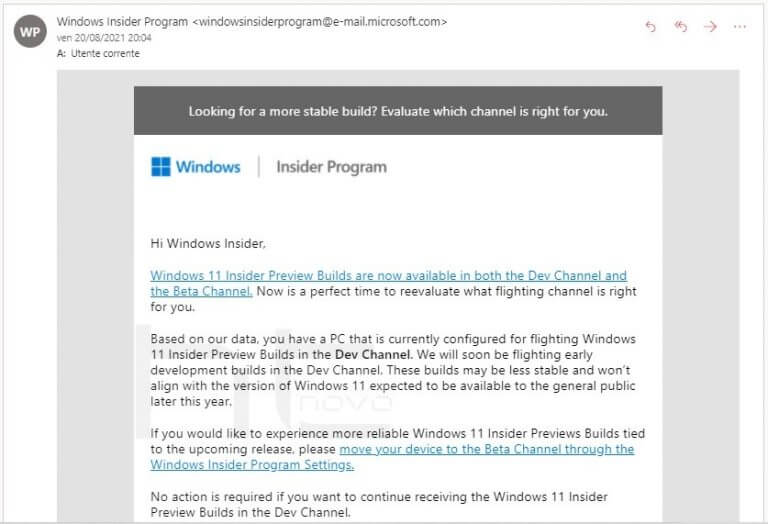
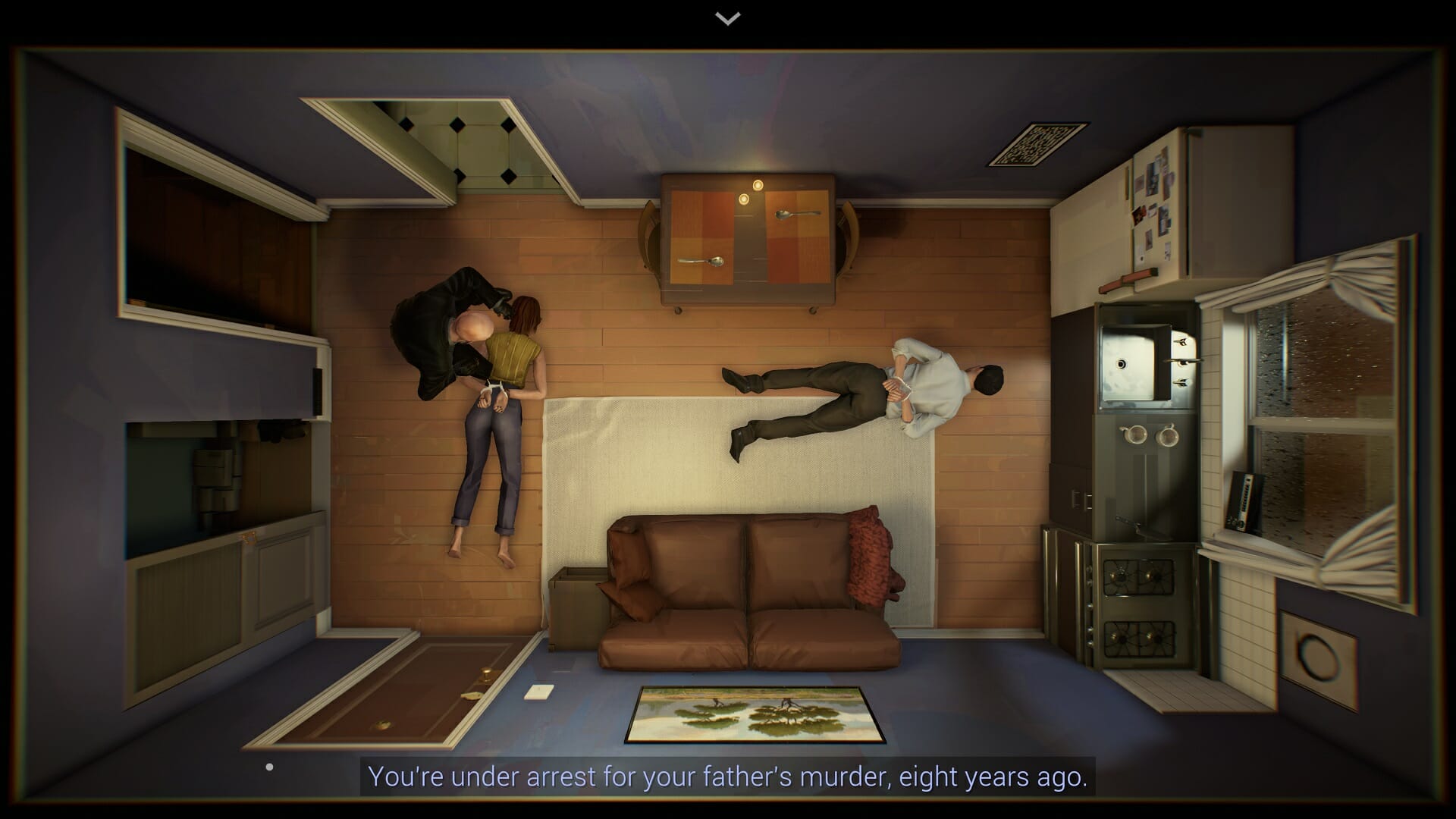


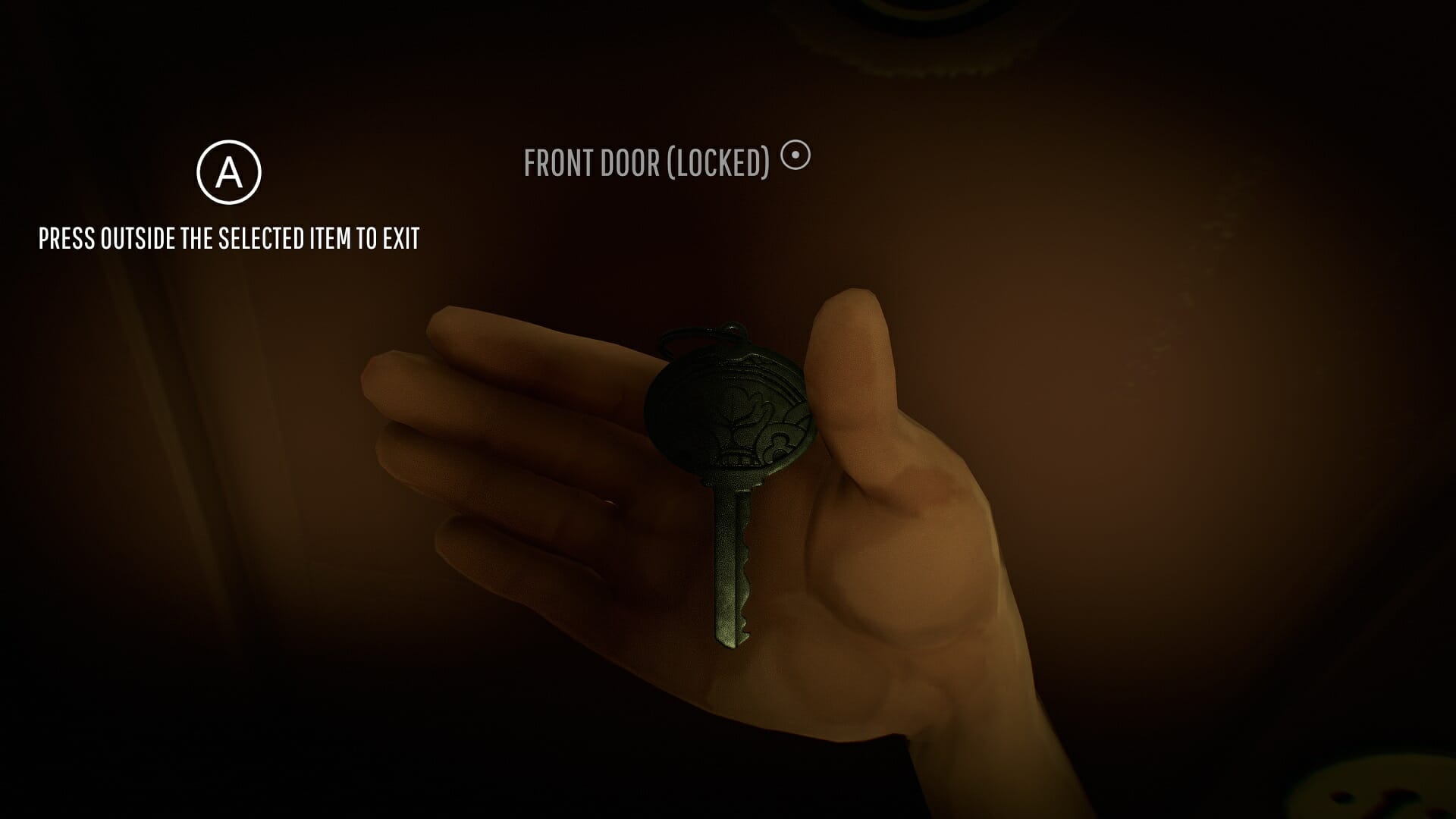
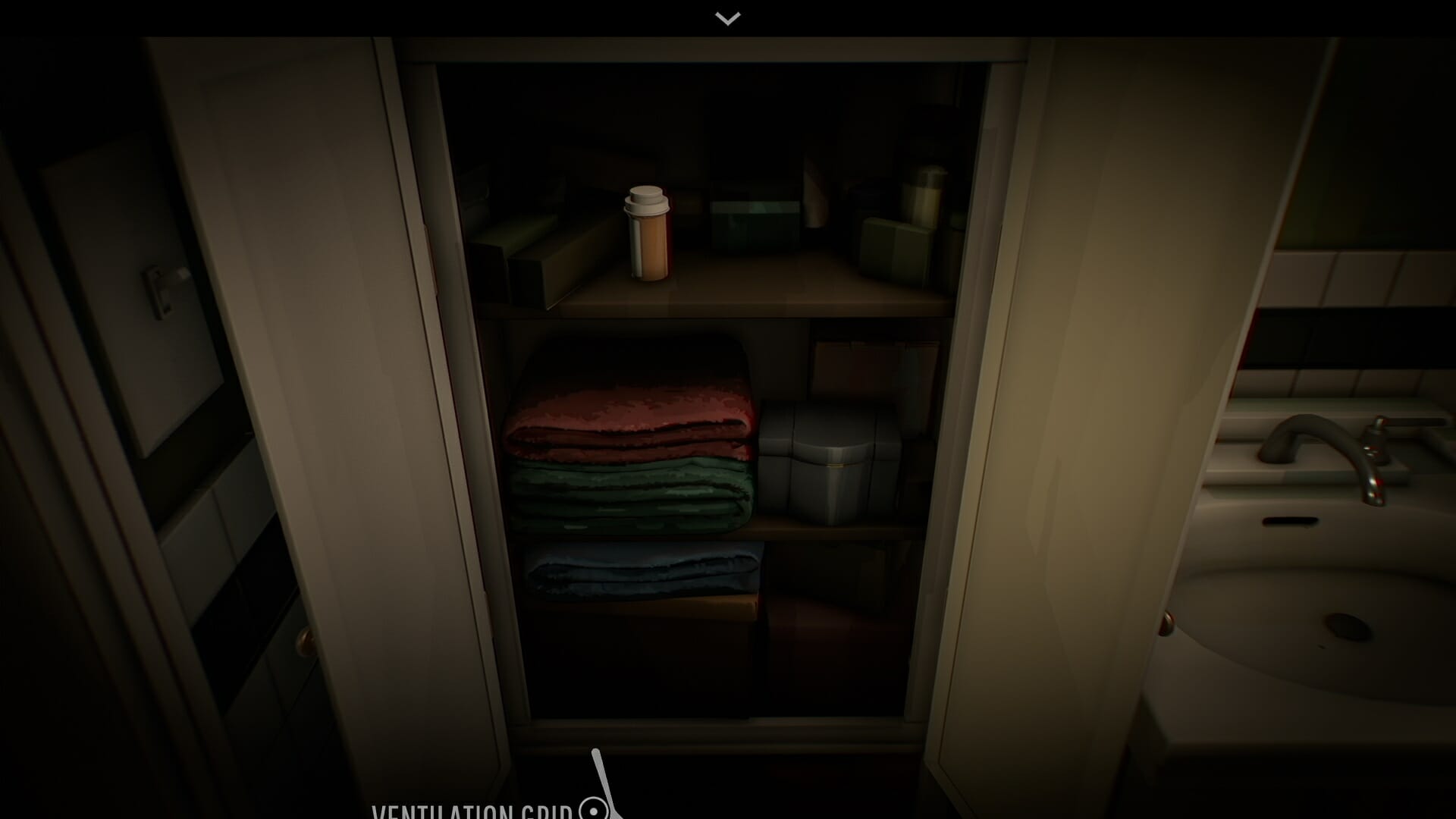


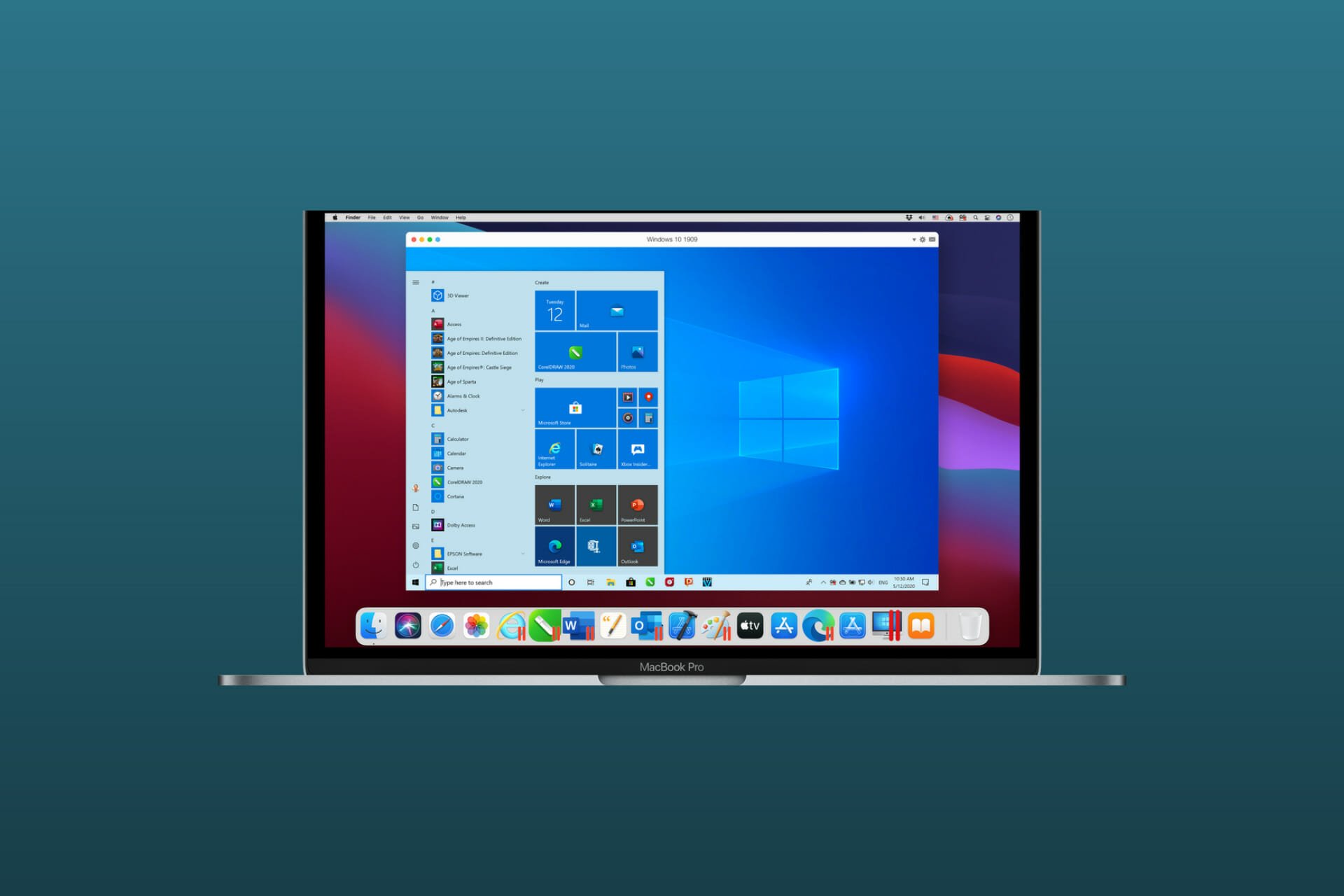
![Best Music Production Software for Beginners [2026 List]](https://windowsreport.com/wp-content/uploads/2018/10/best-music-production-software.jpg)
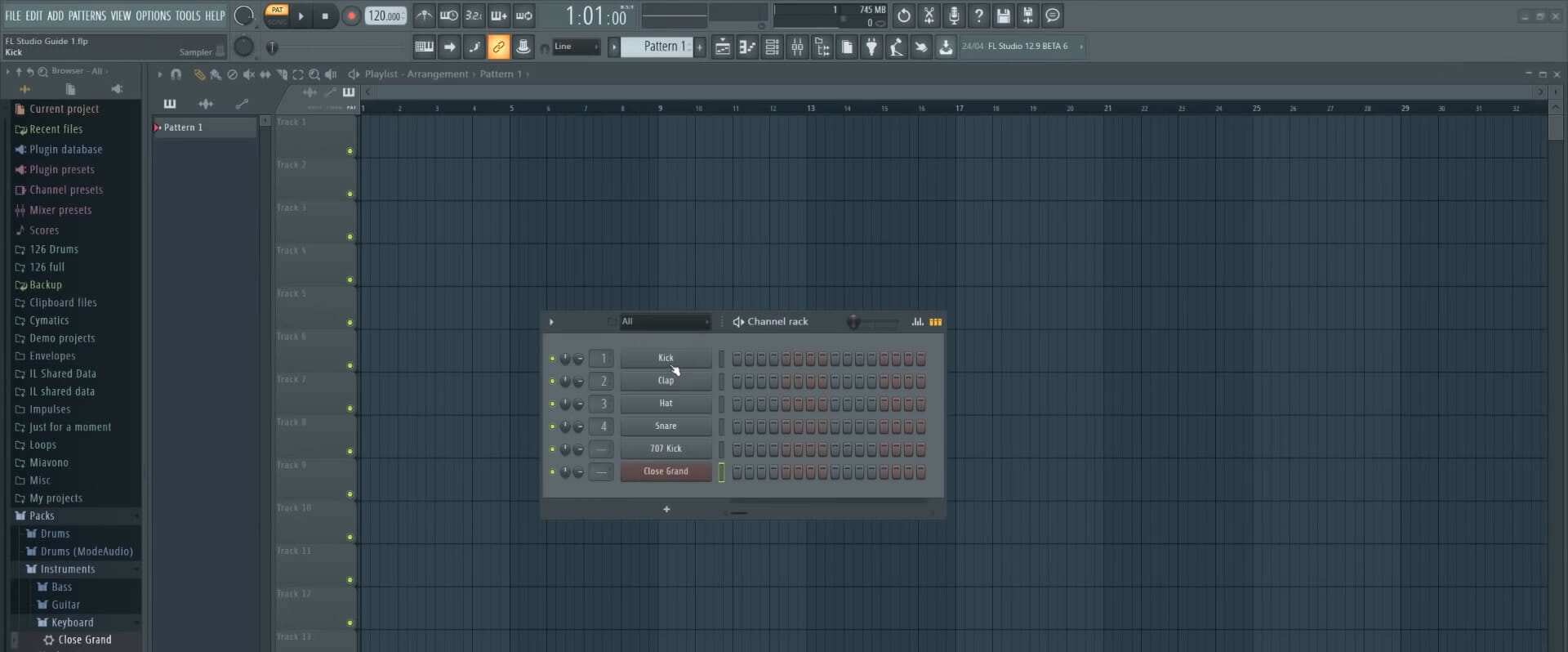

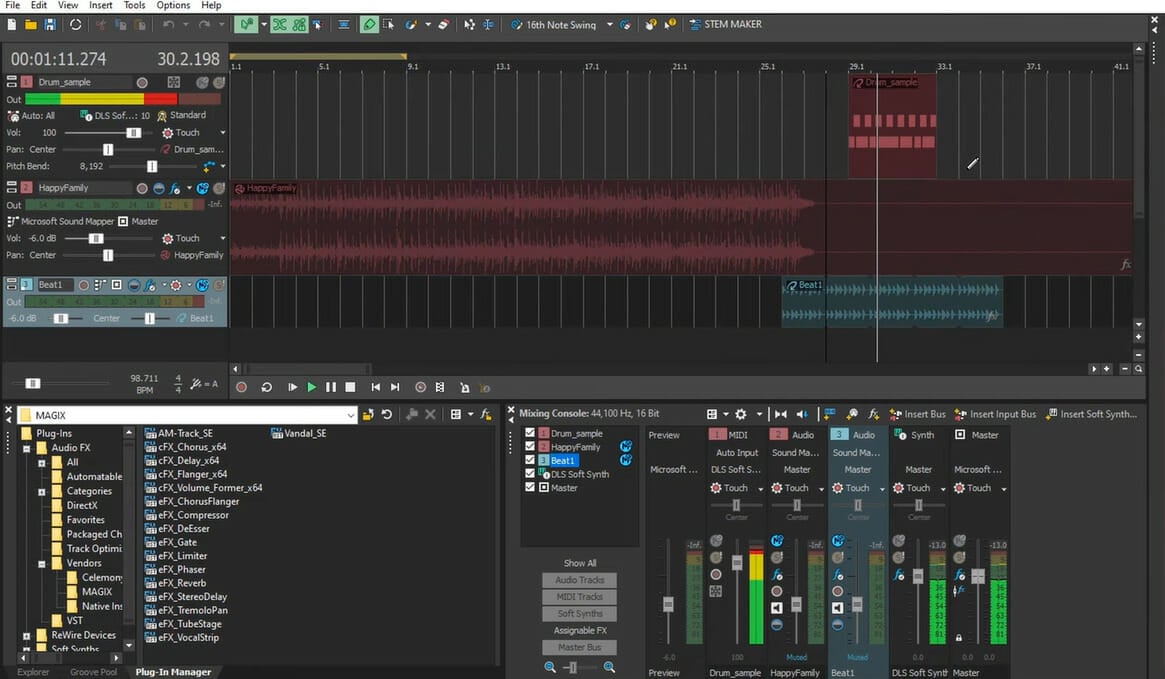

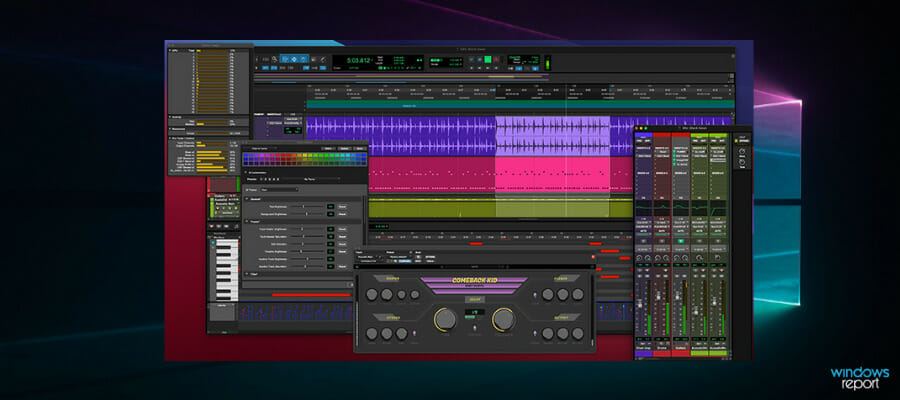

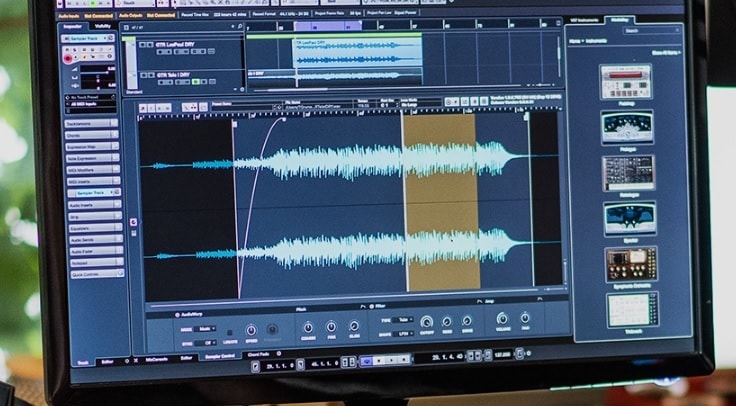

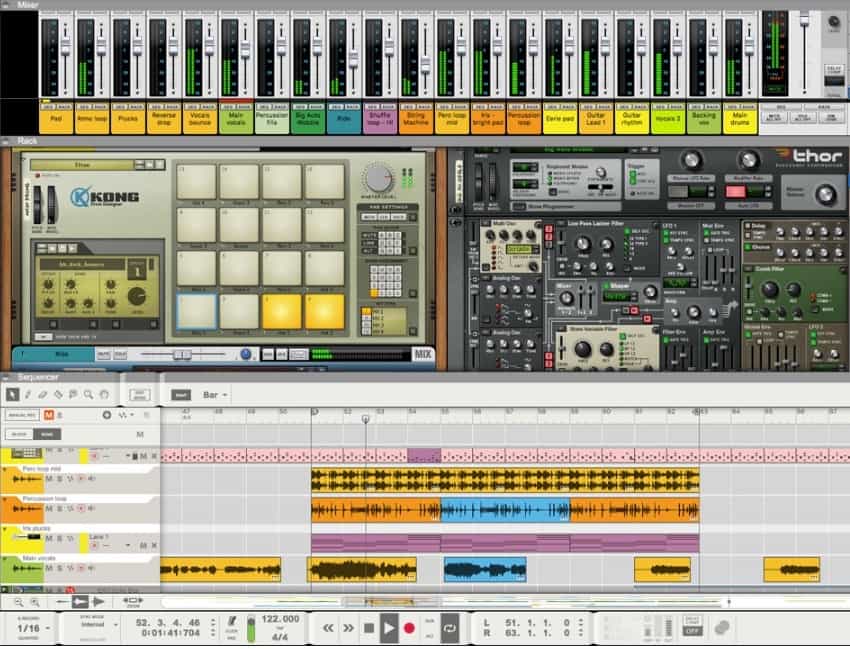


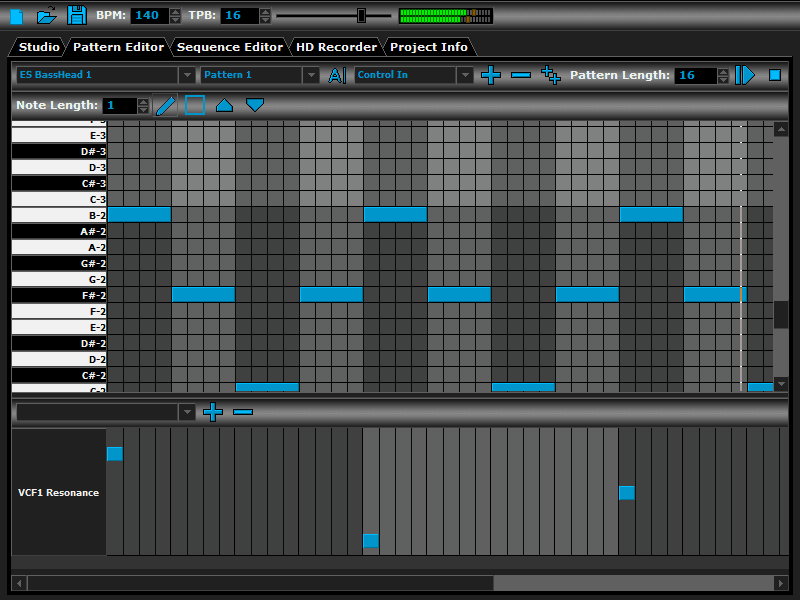
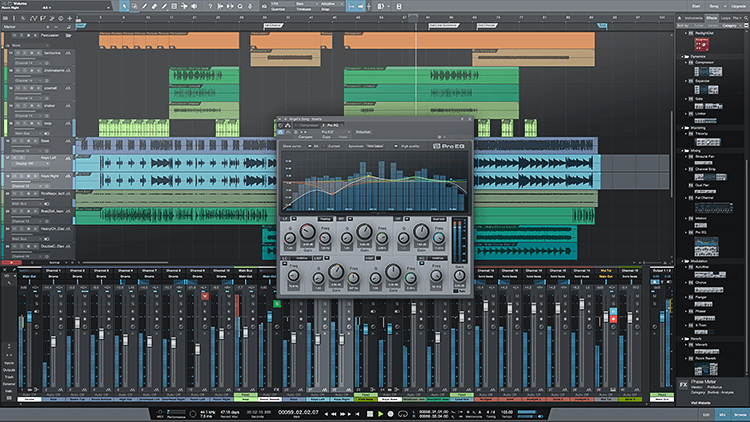
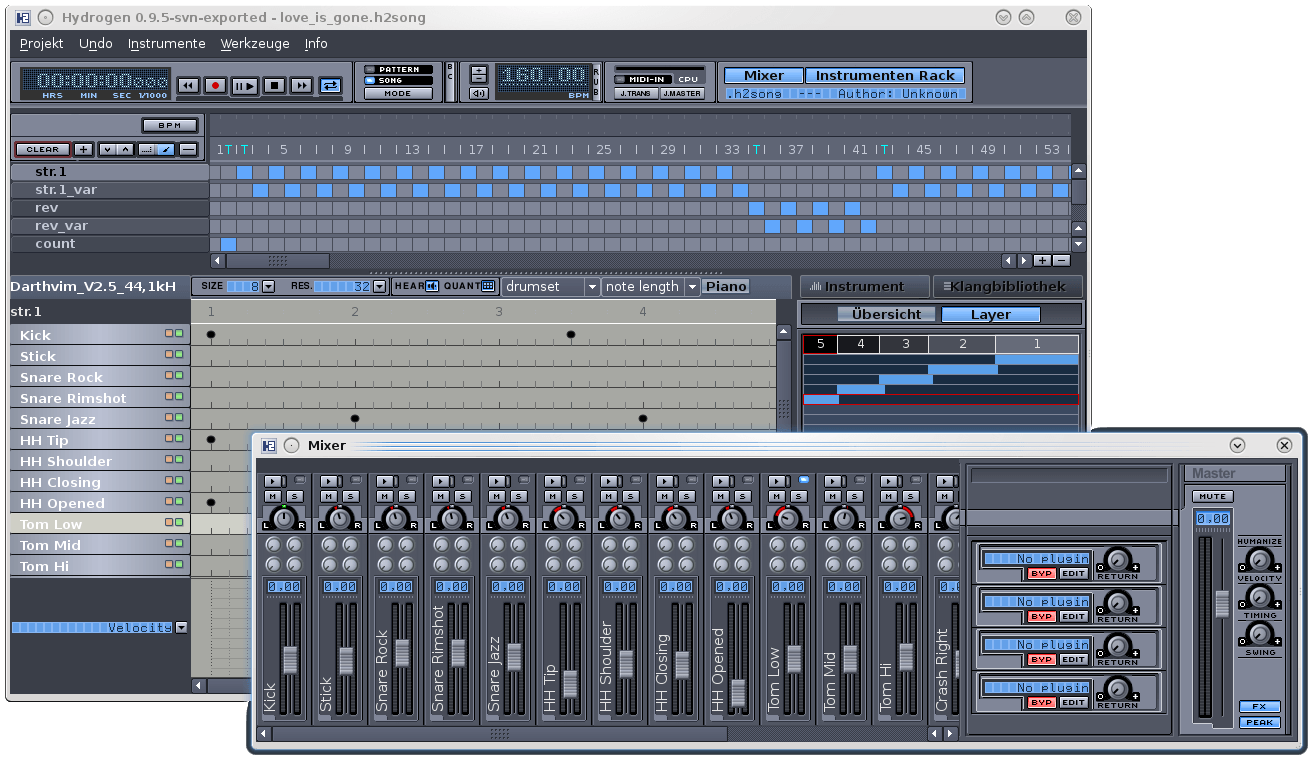
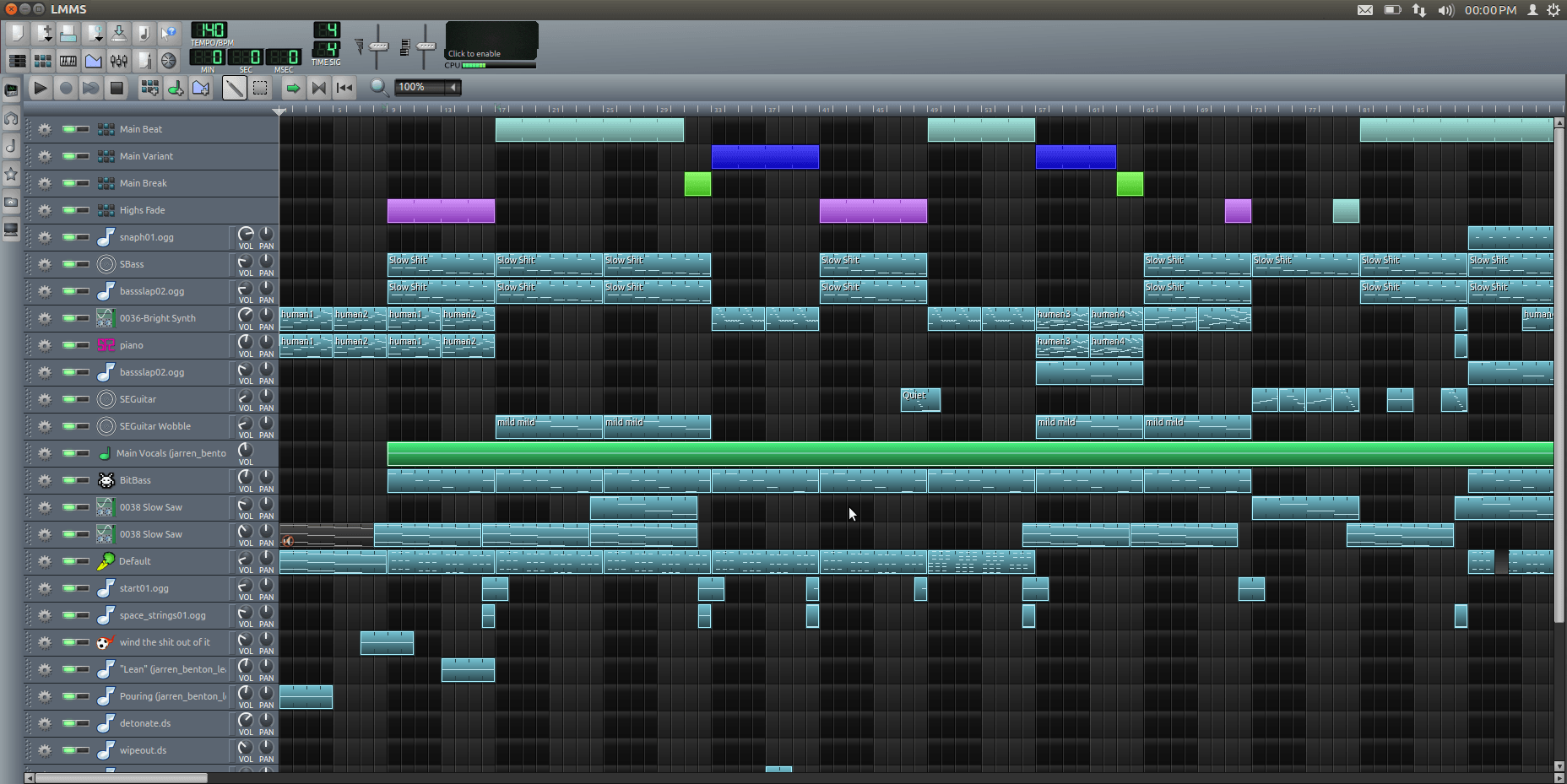
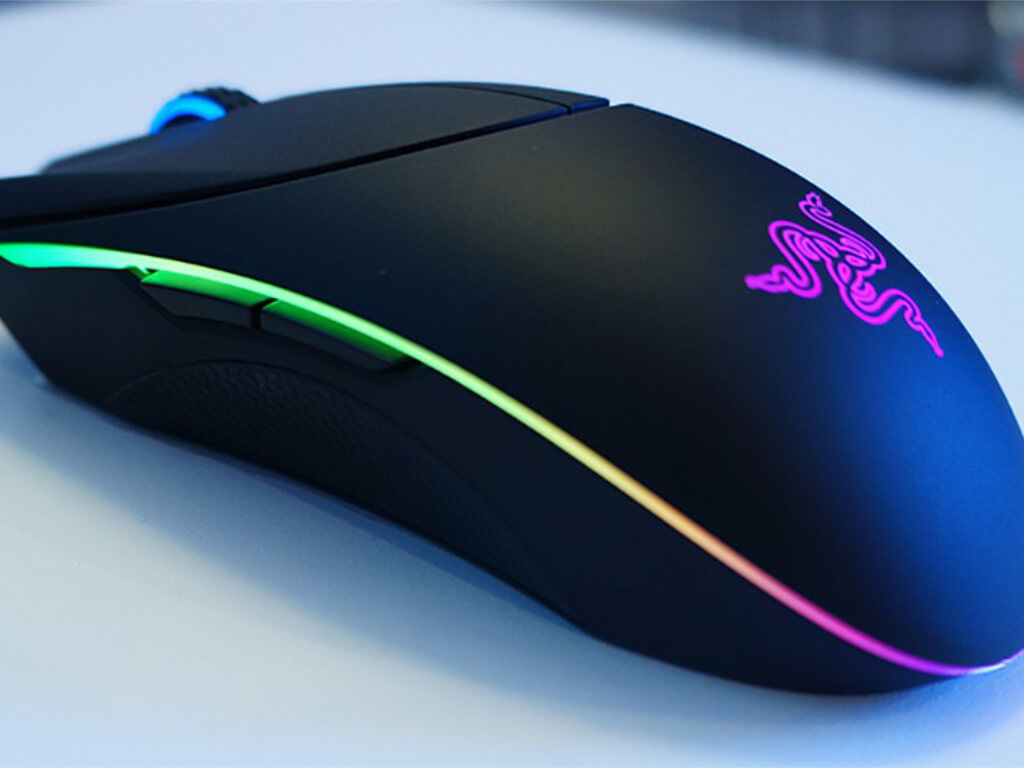


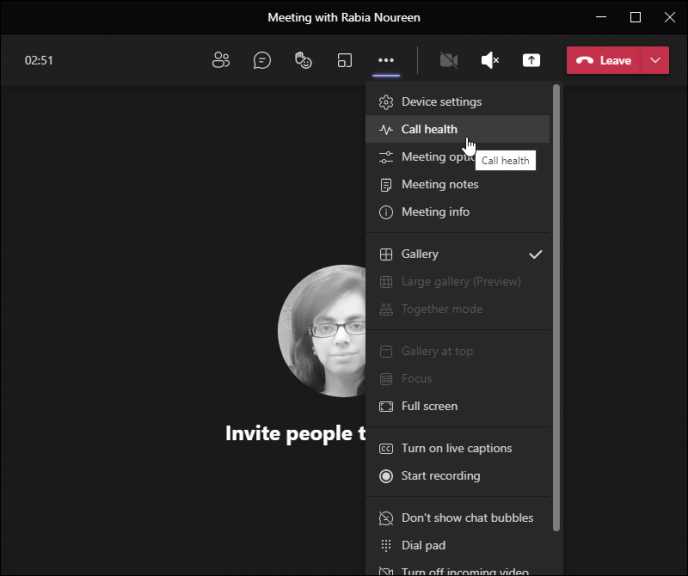
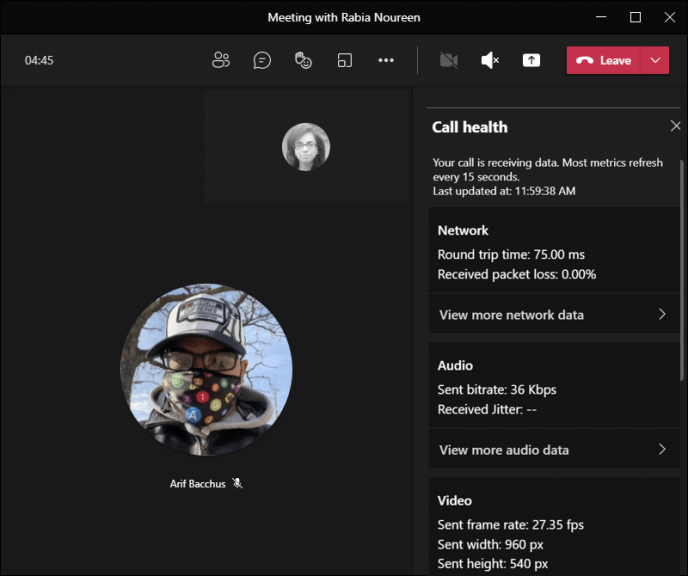
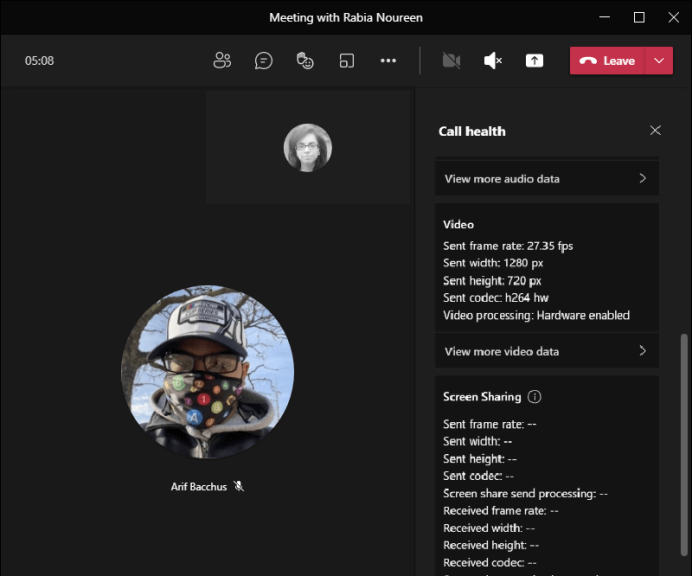
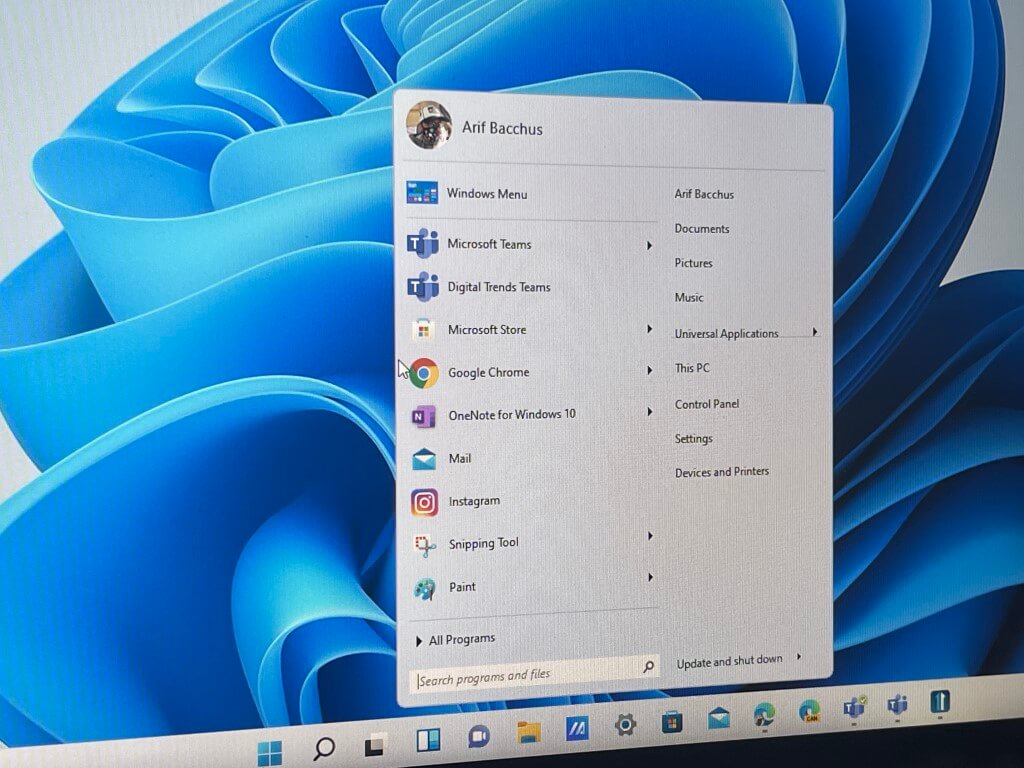
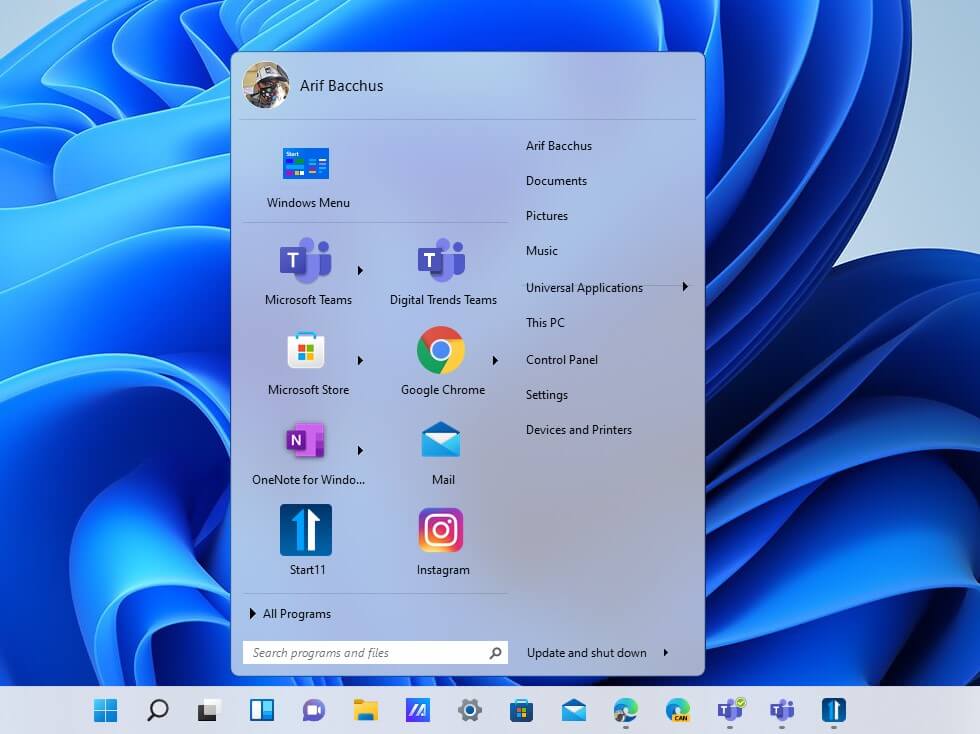
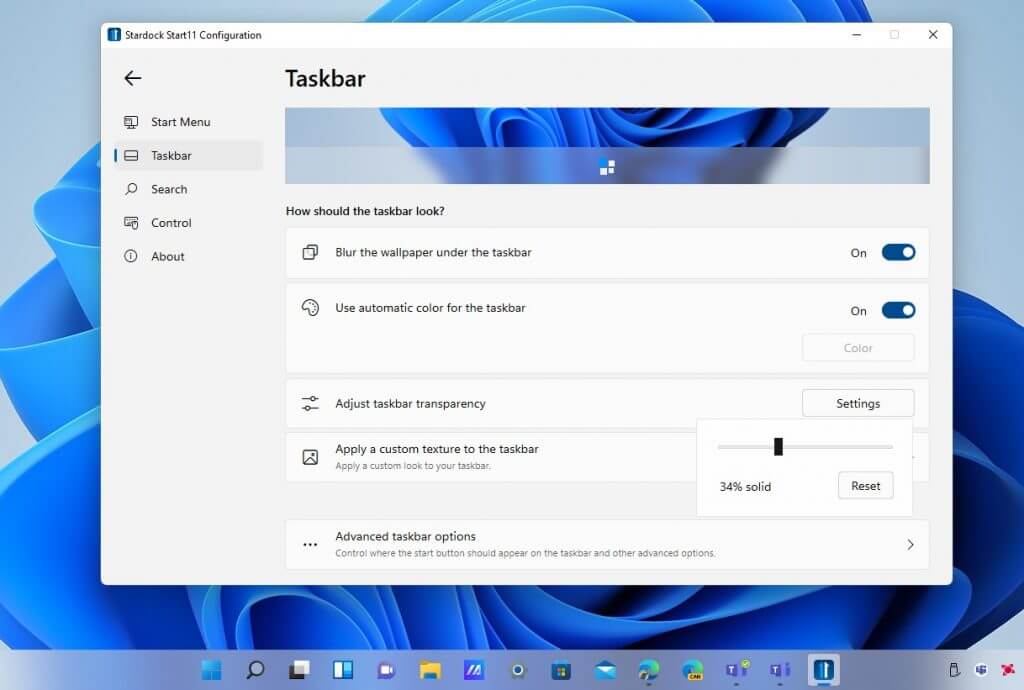
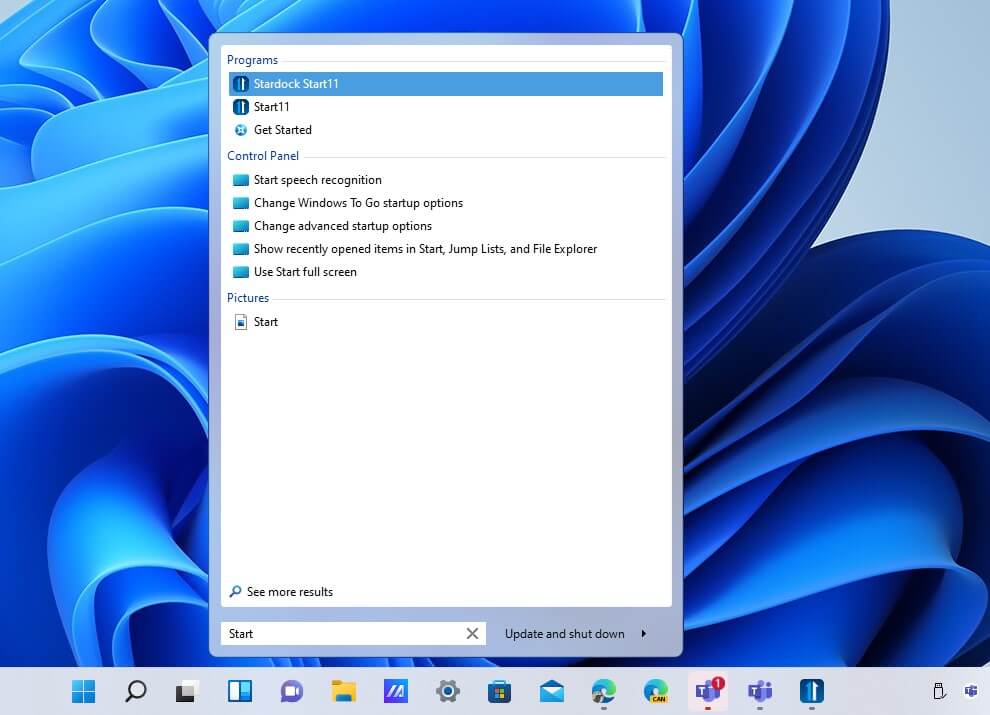
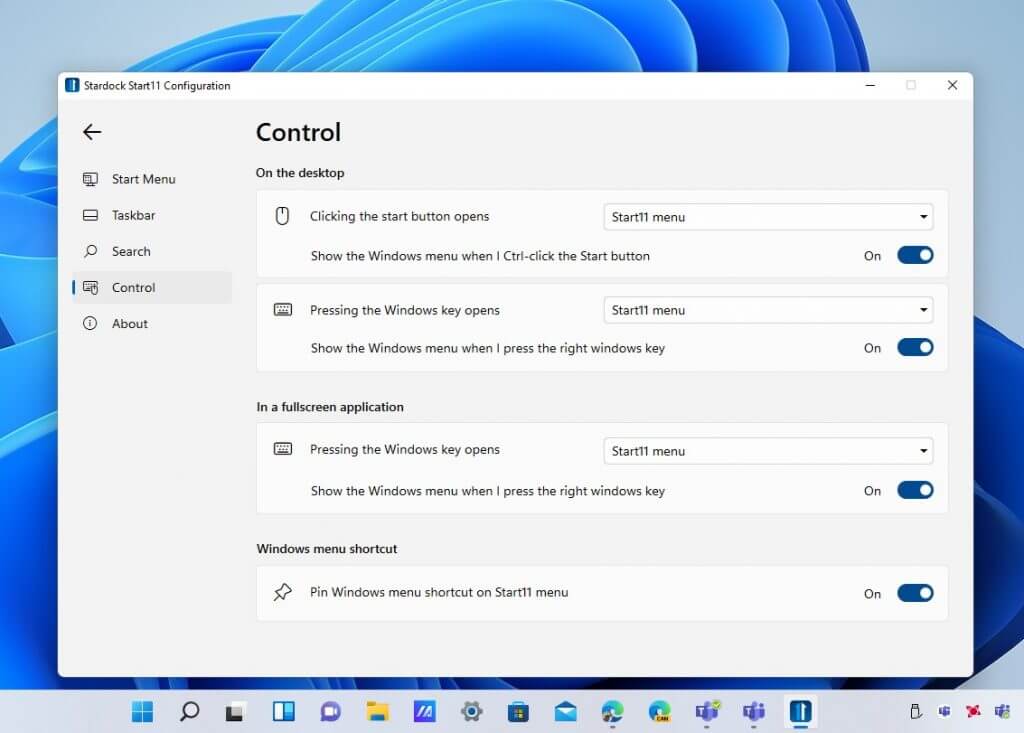


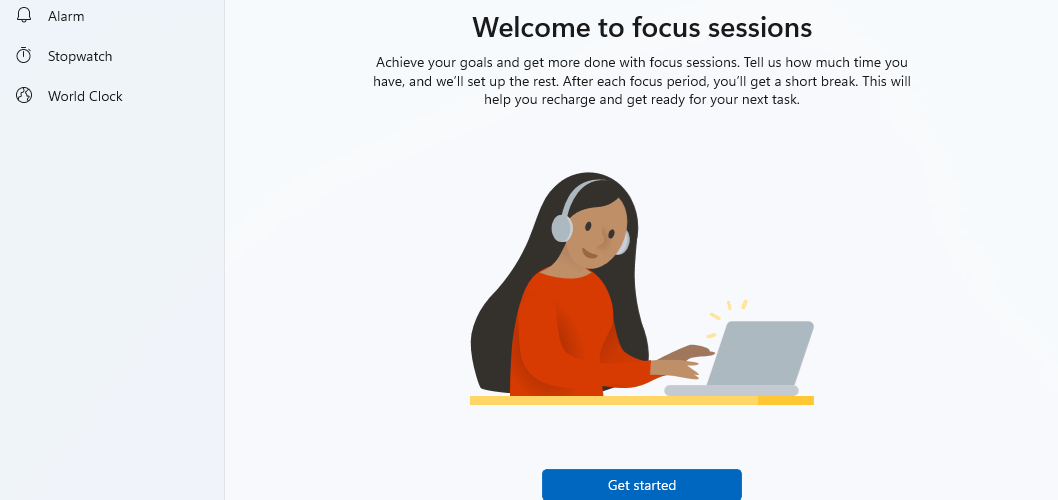
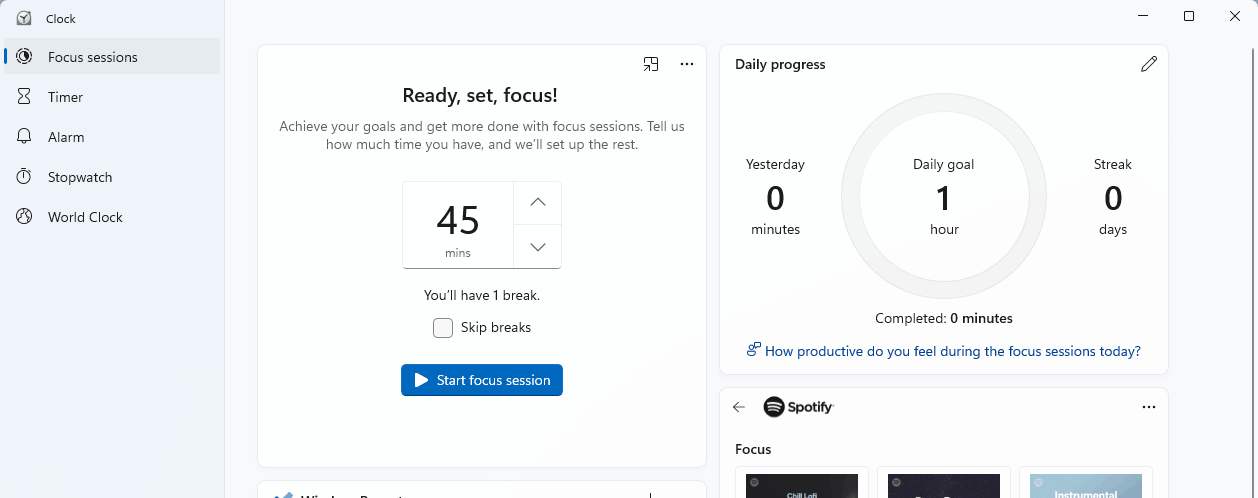
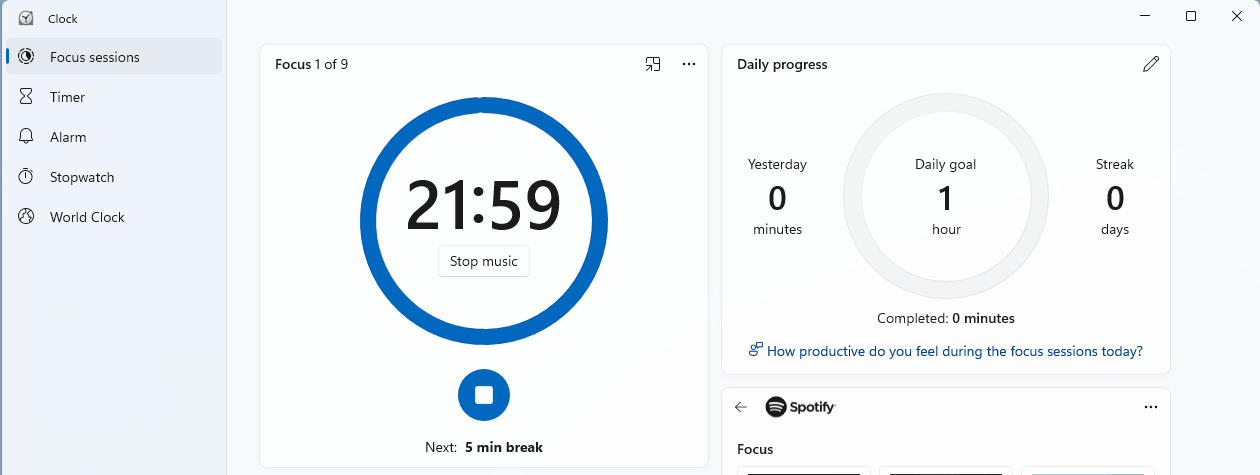

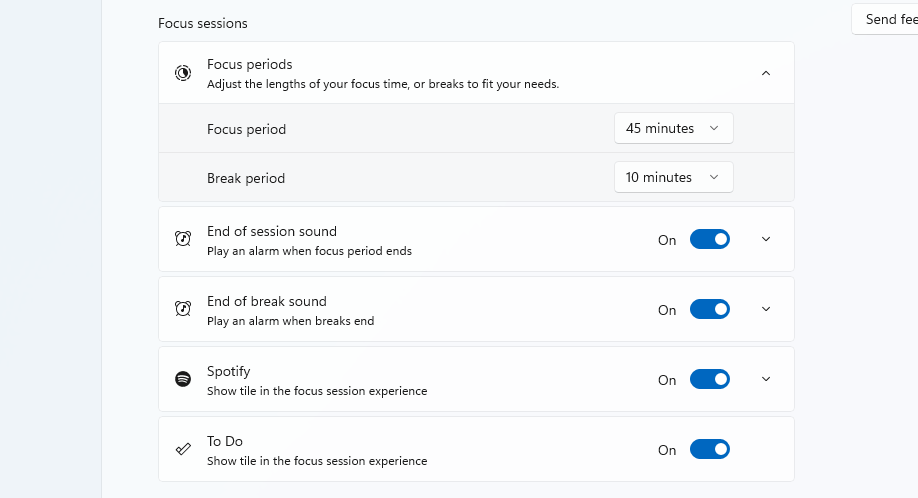
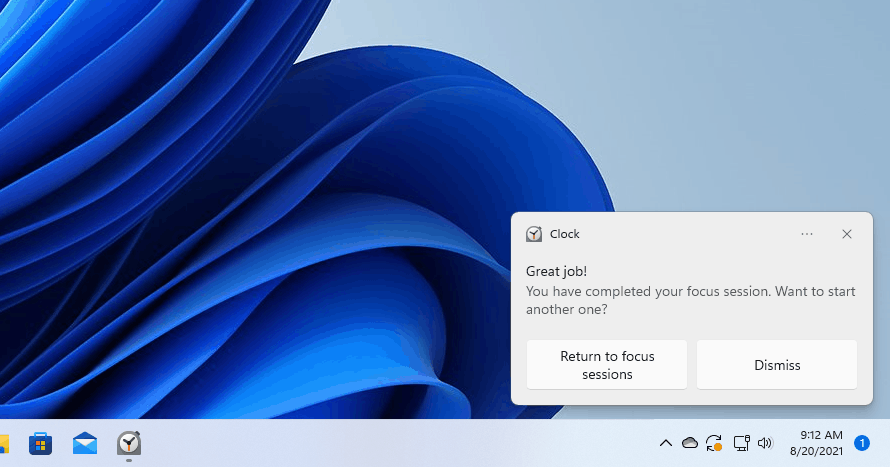
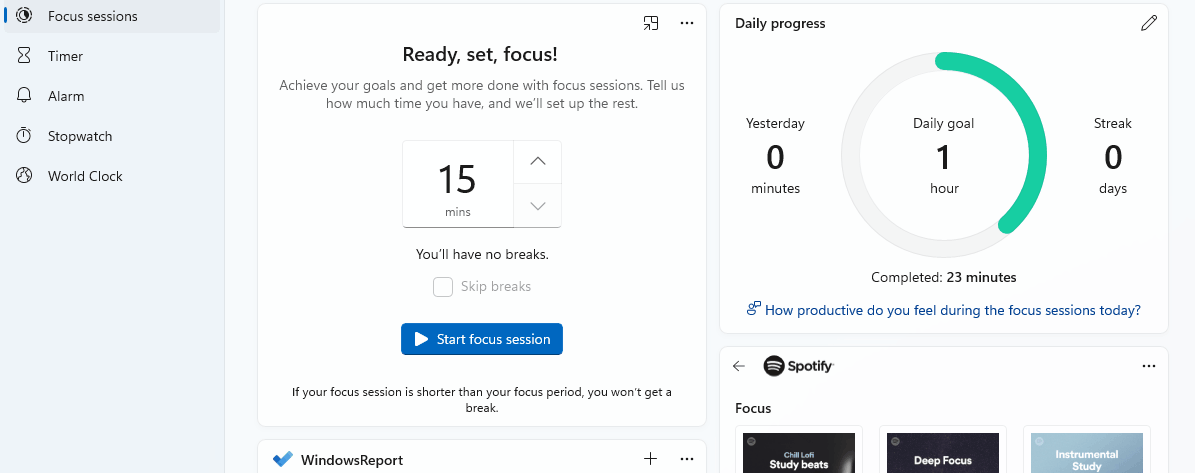
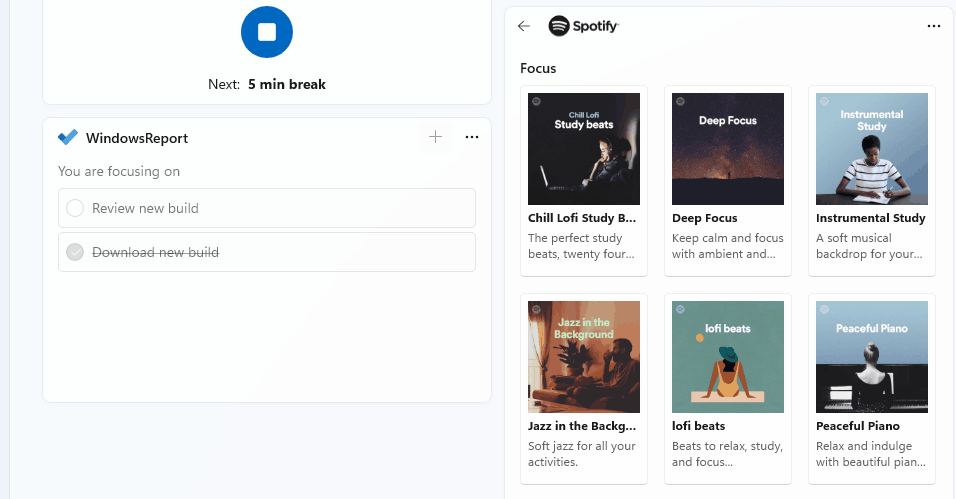
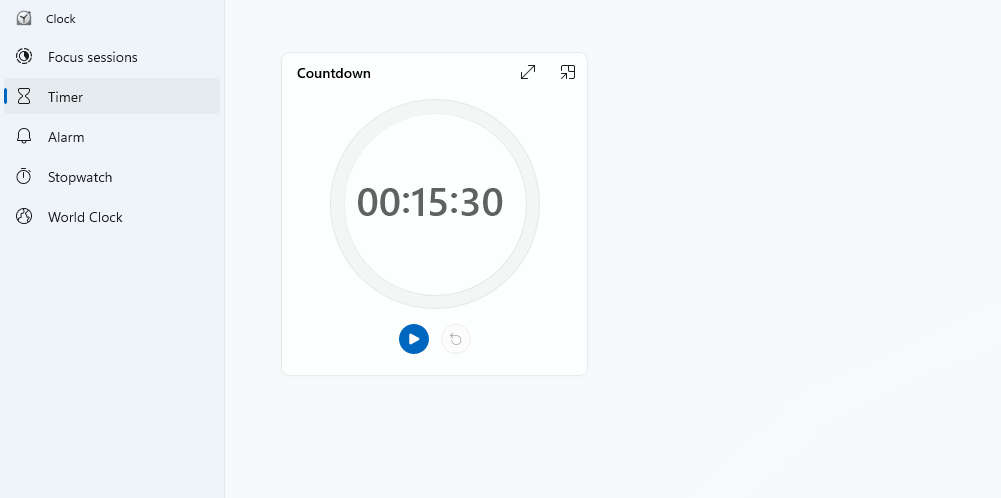
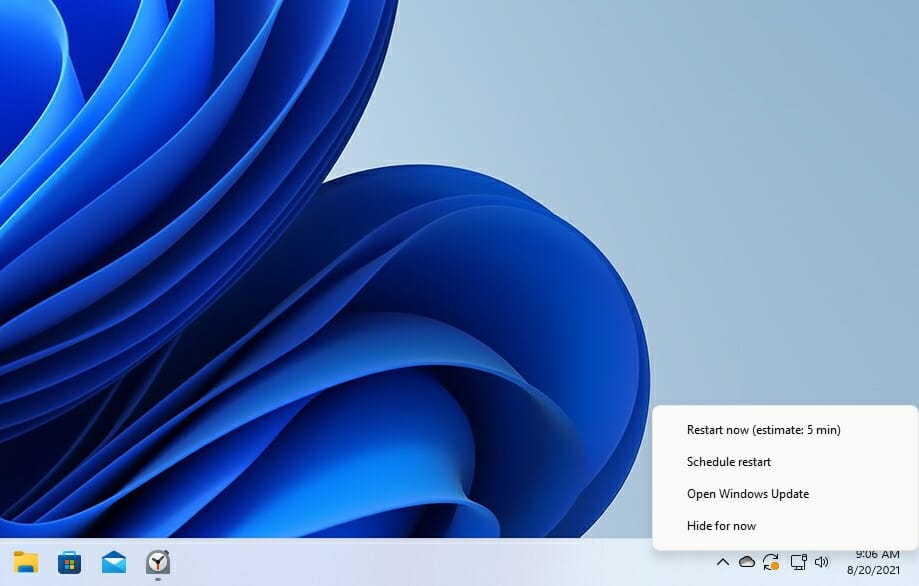
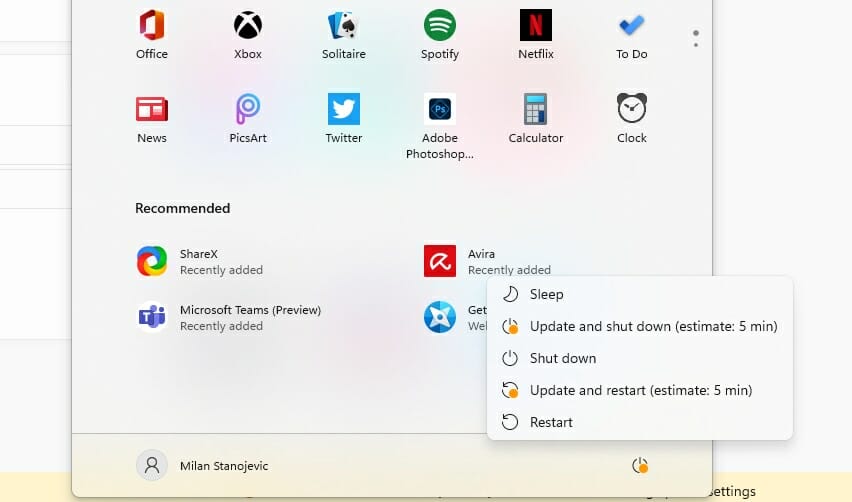
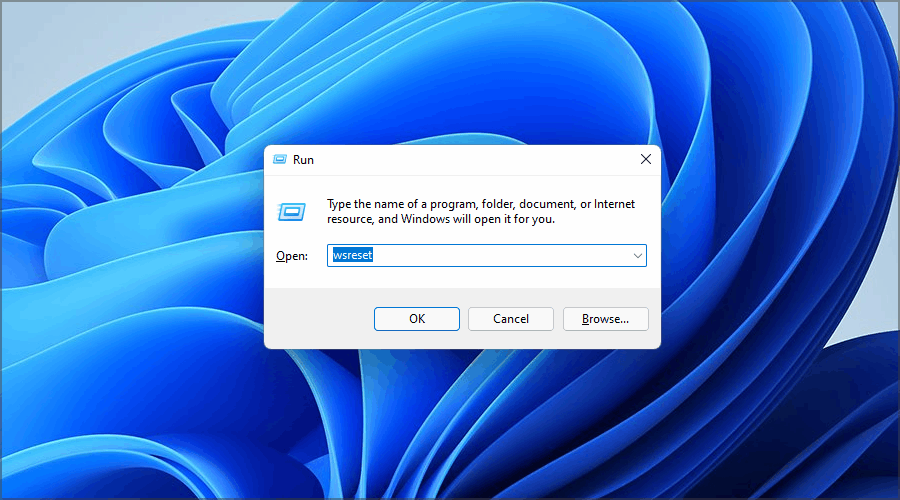

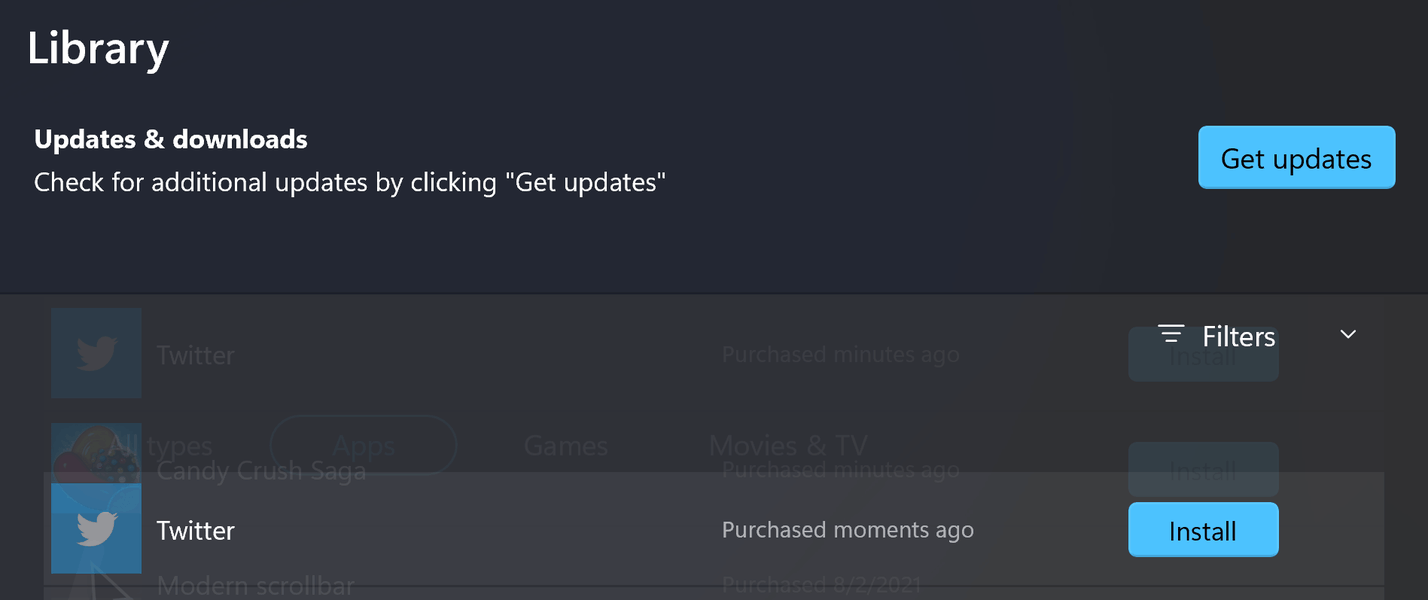
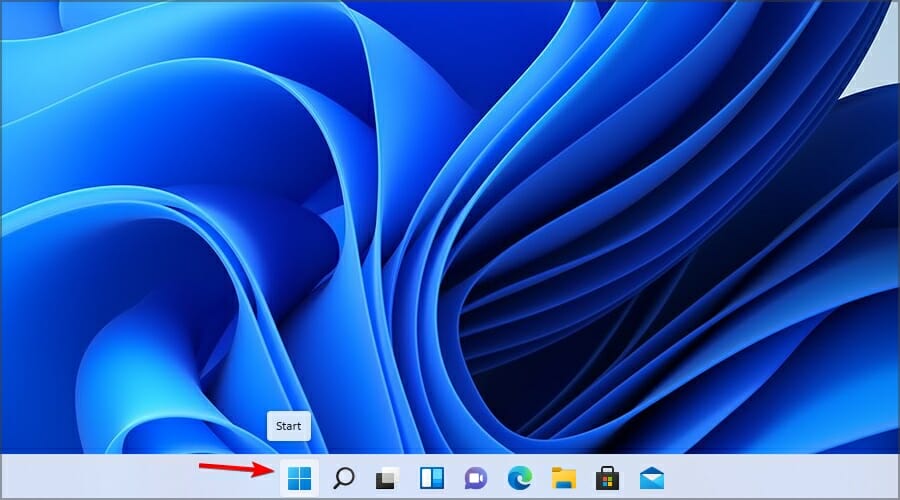
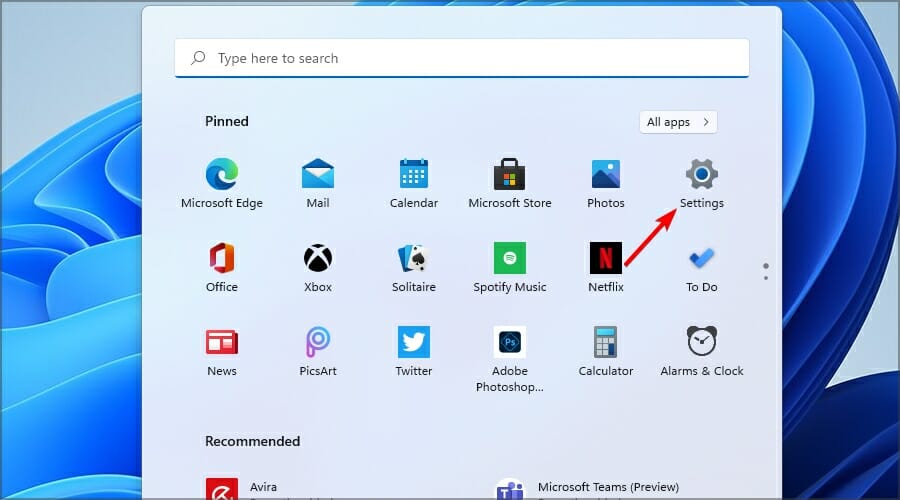
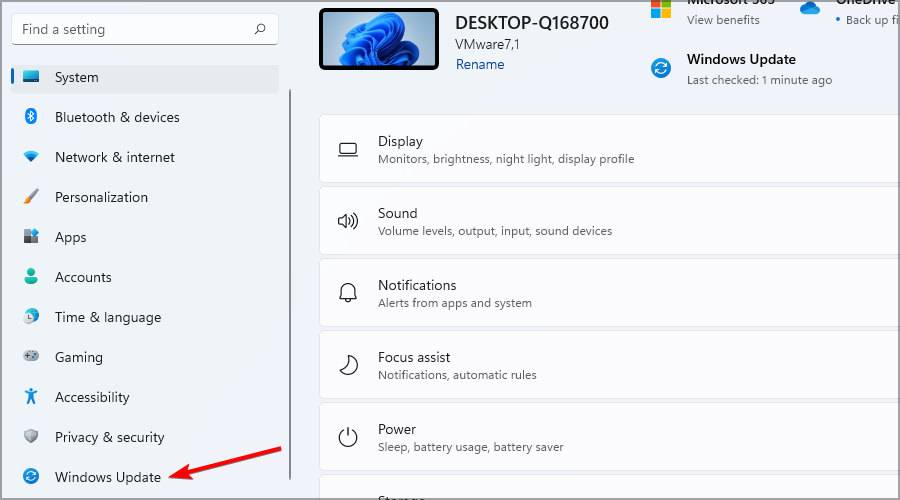
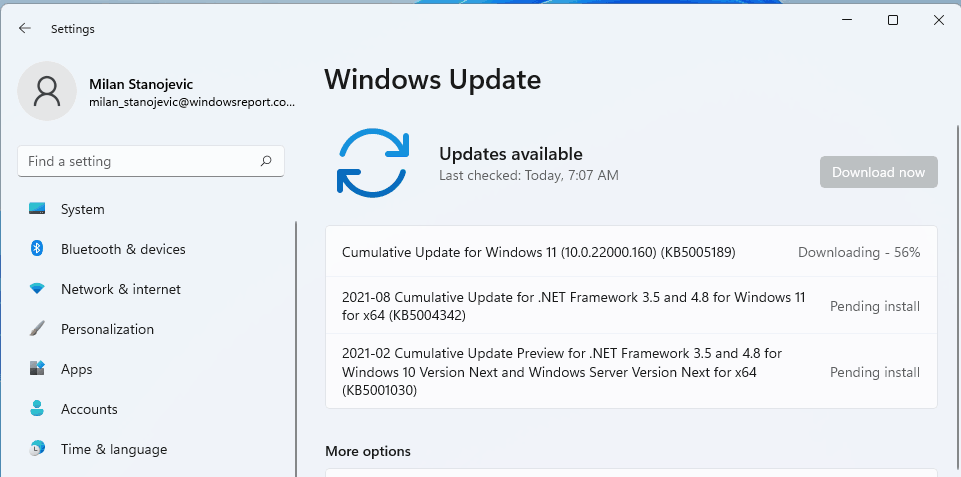
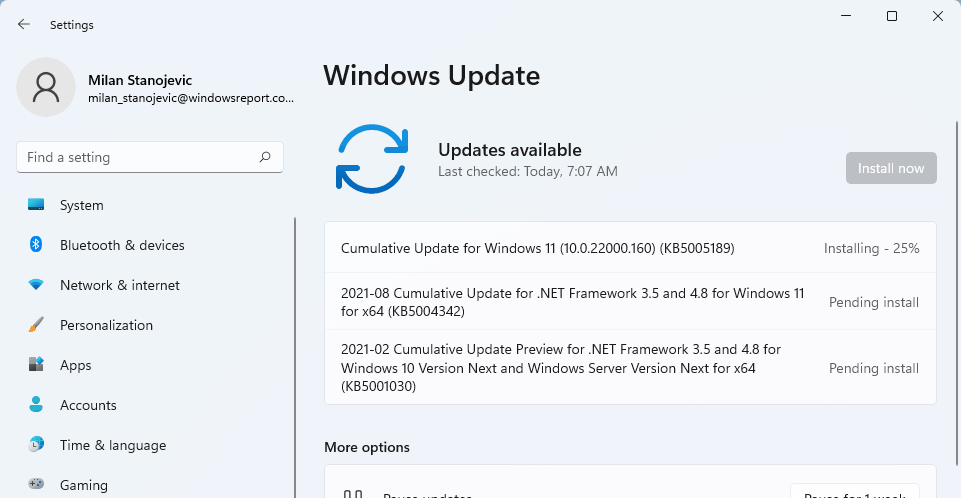
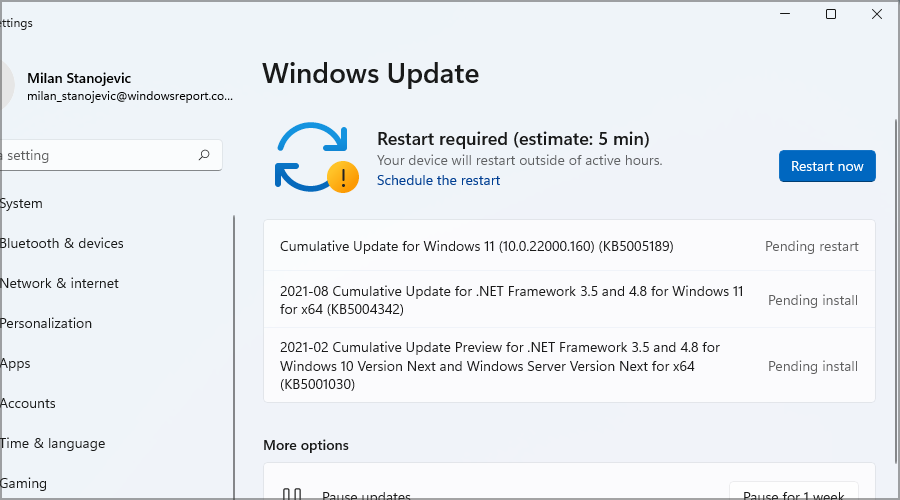

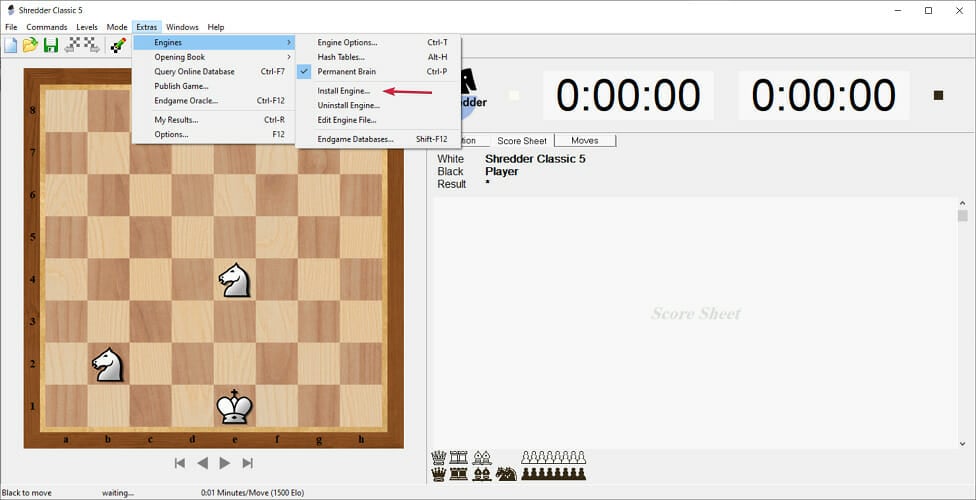
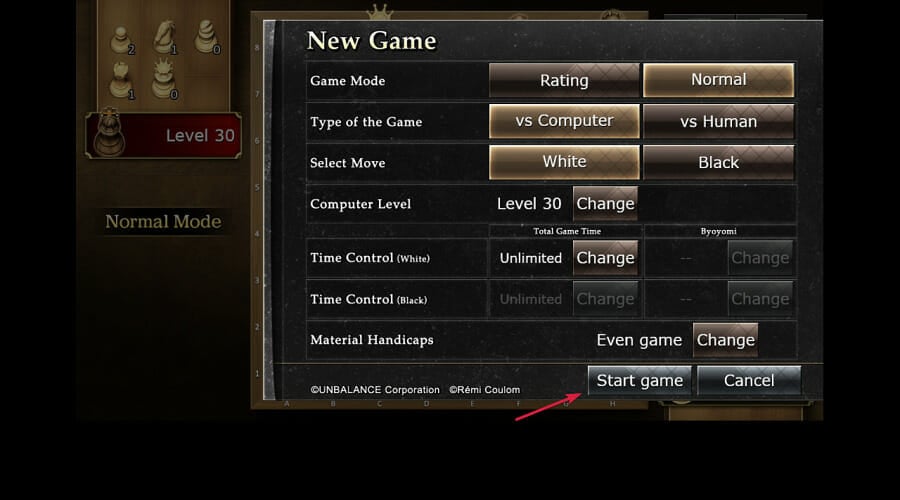

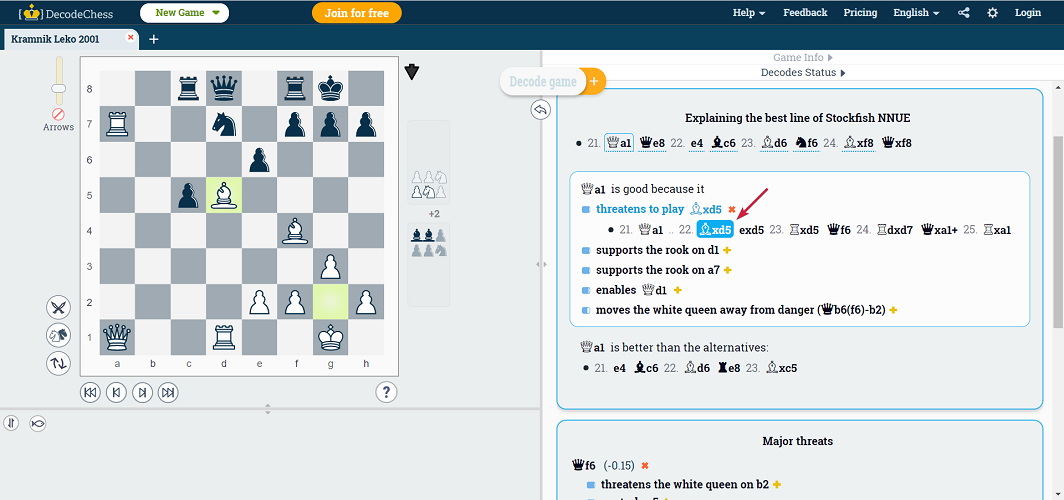
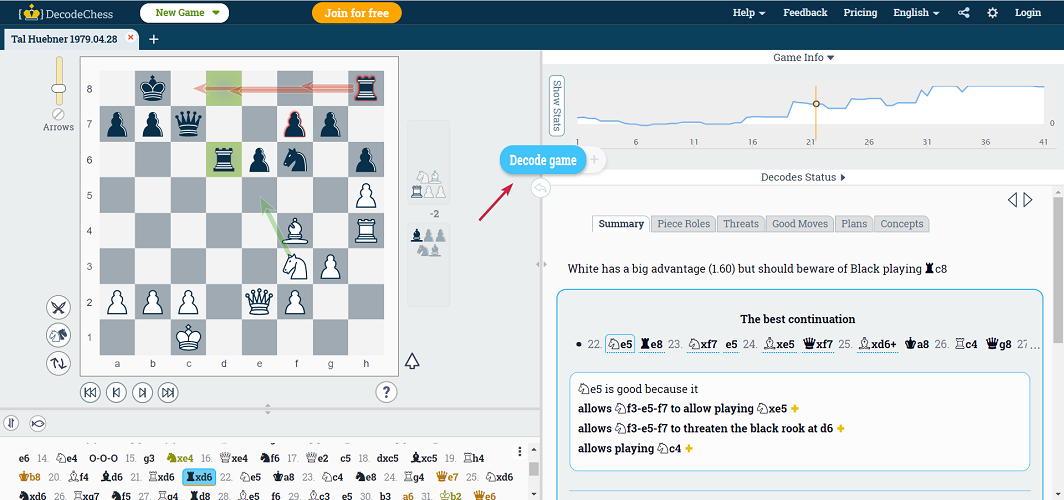


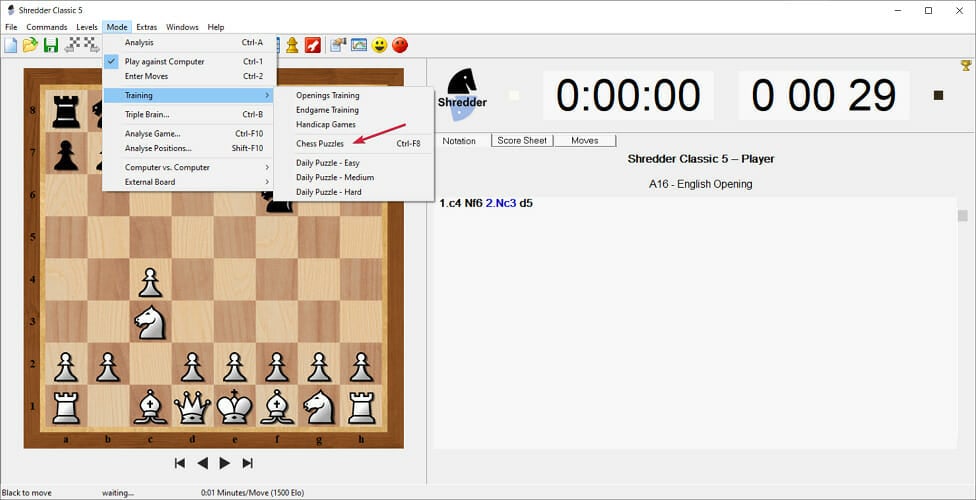
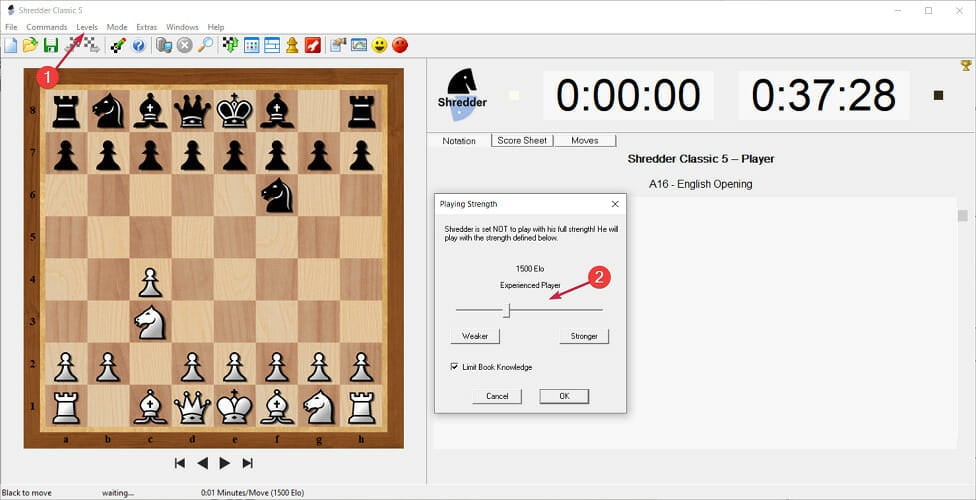

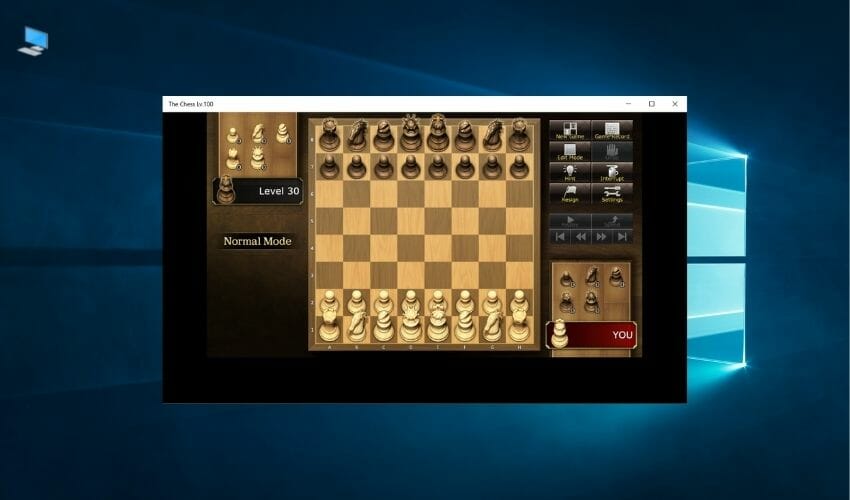
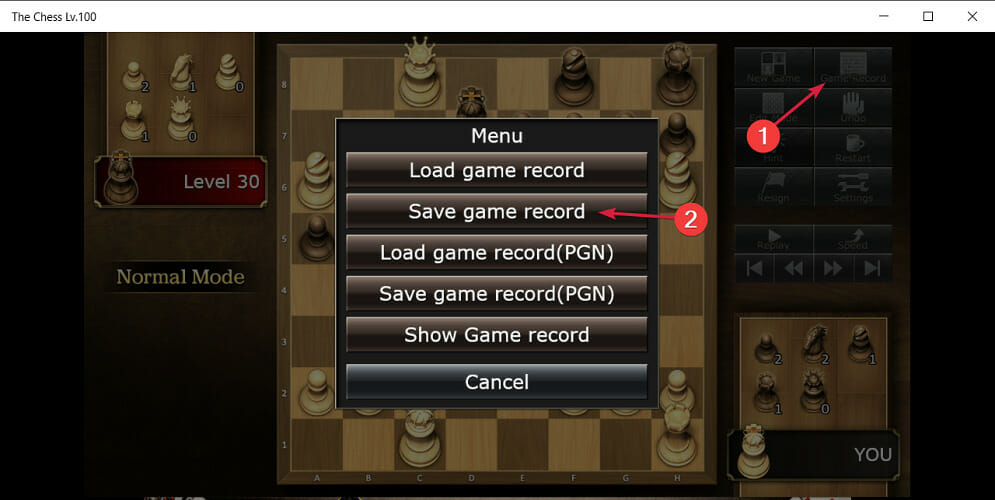
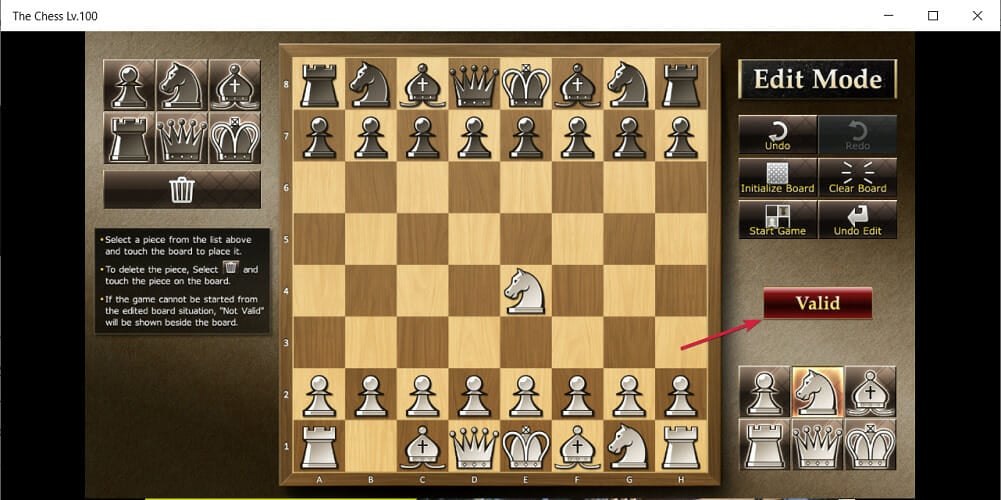
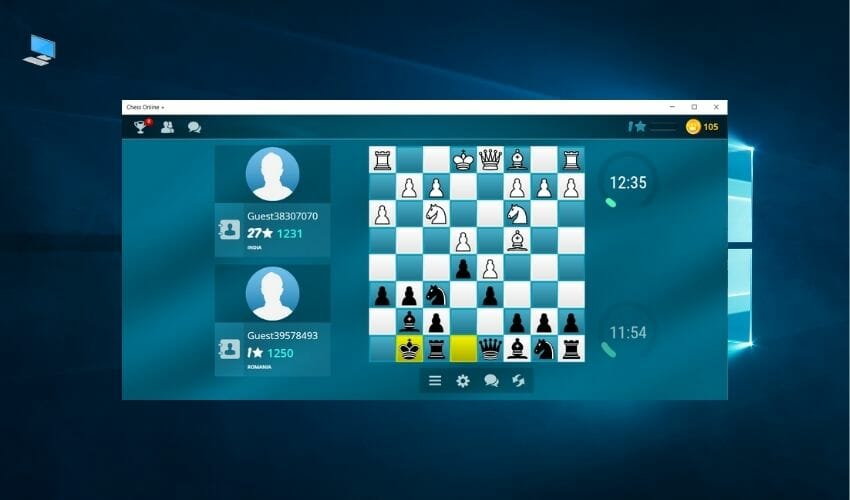
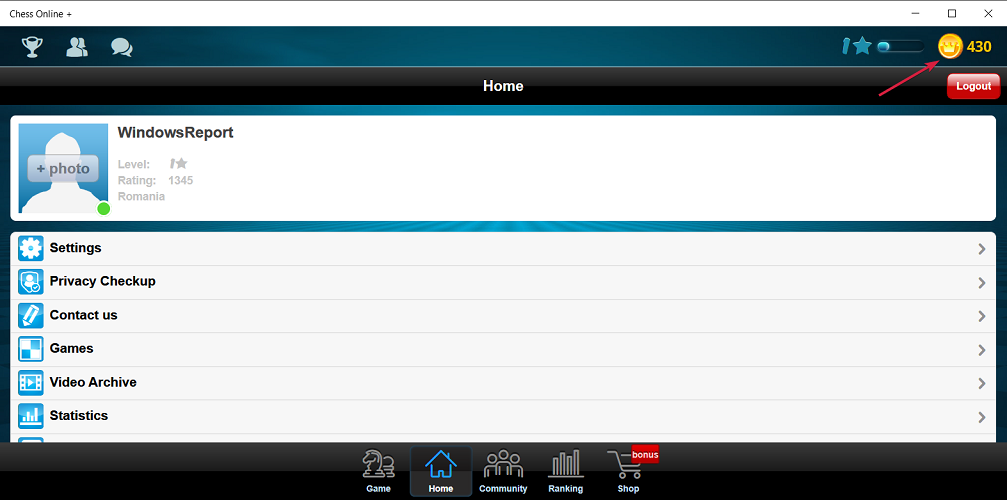
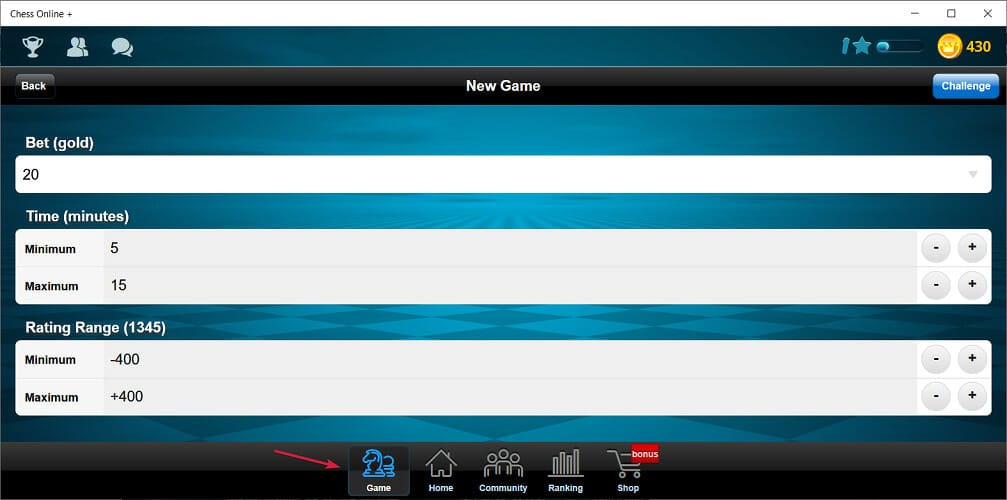

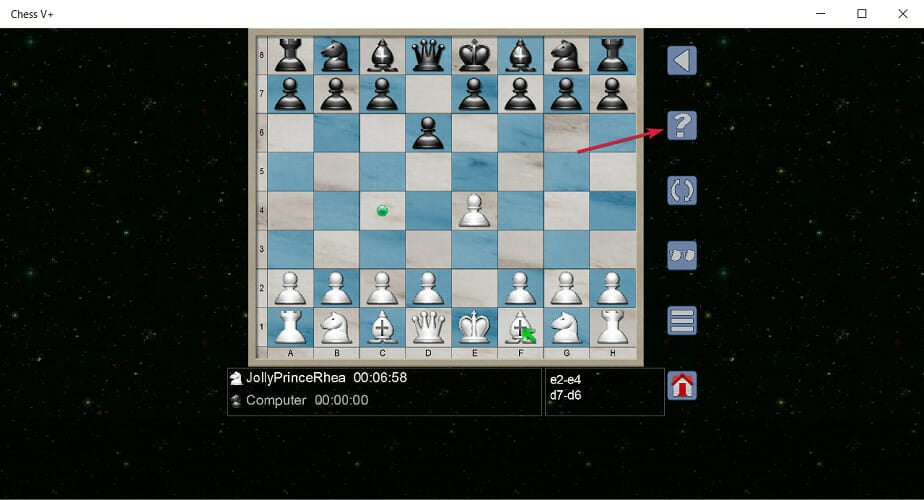
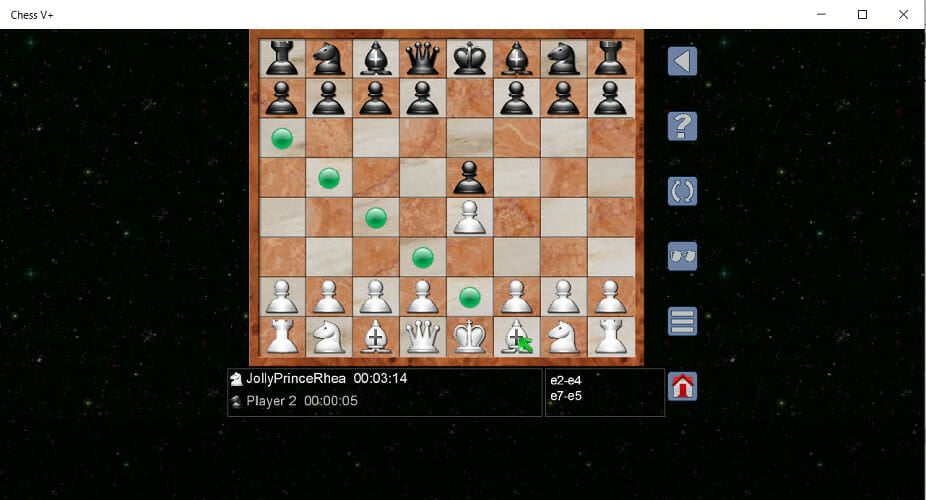
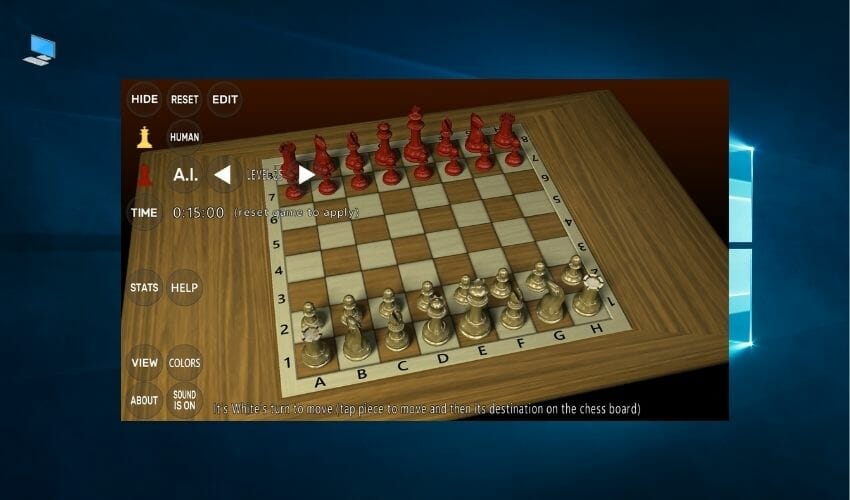
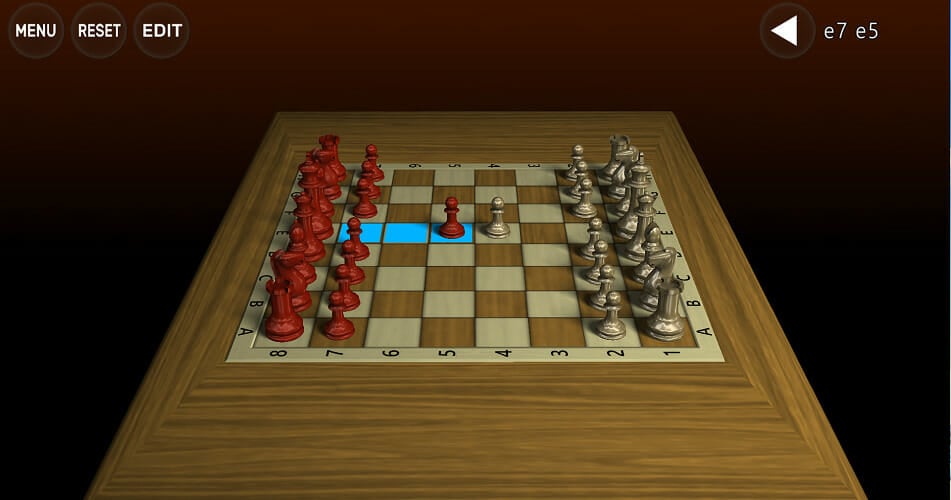
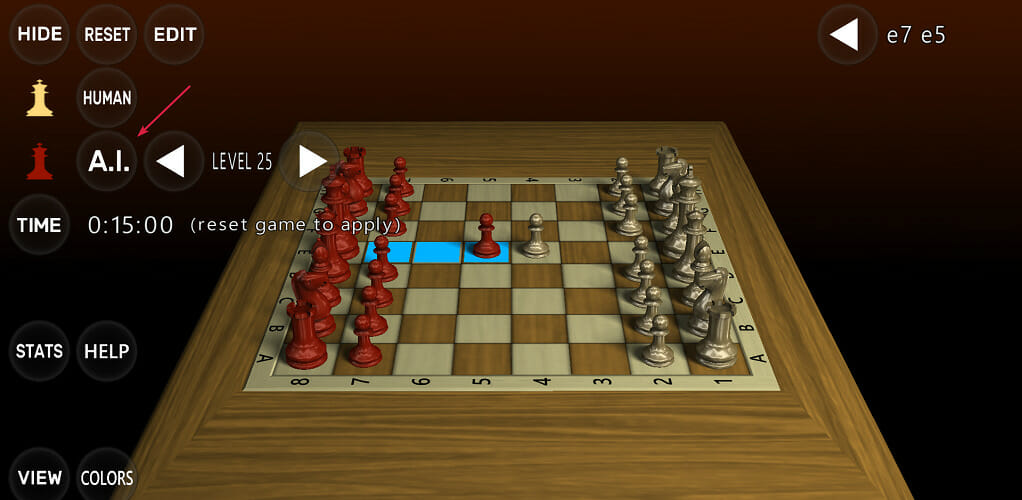

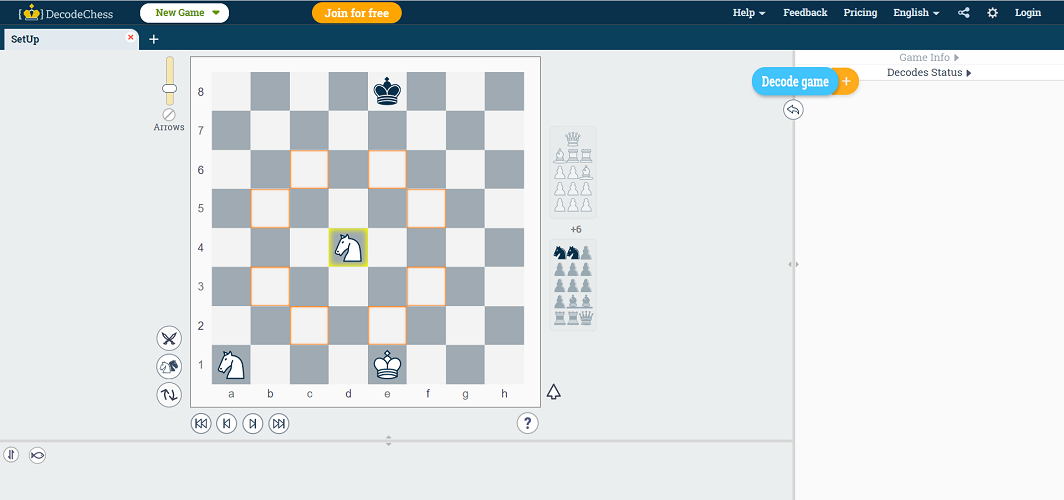






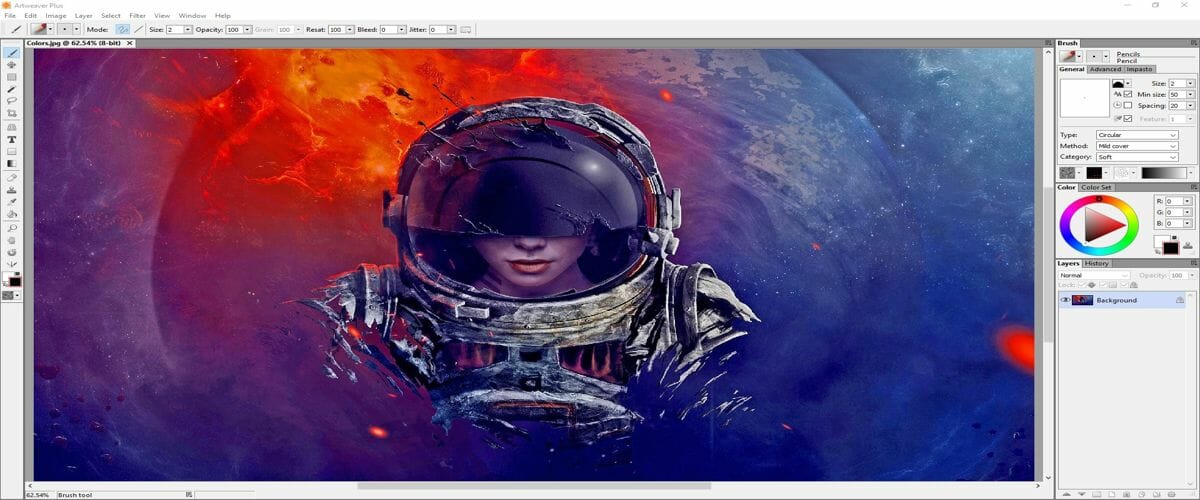
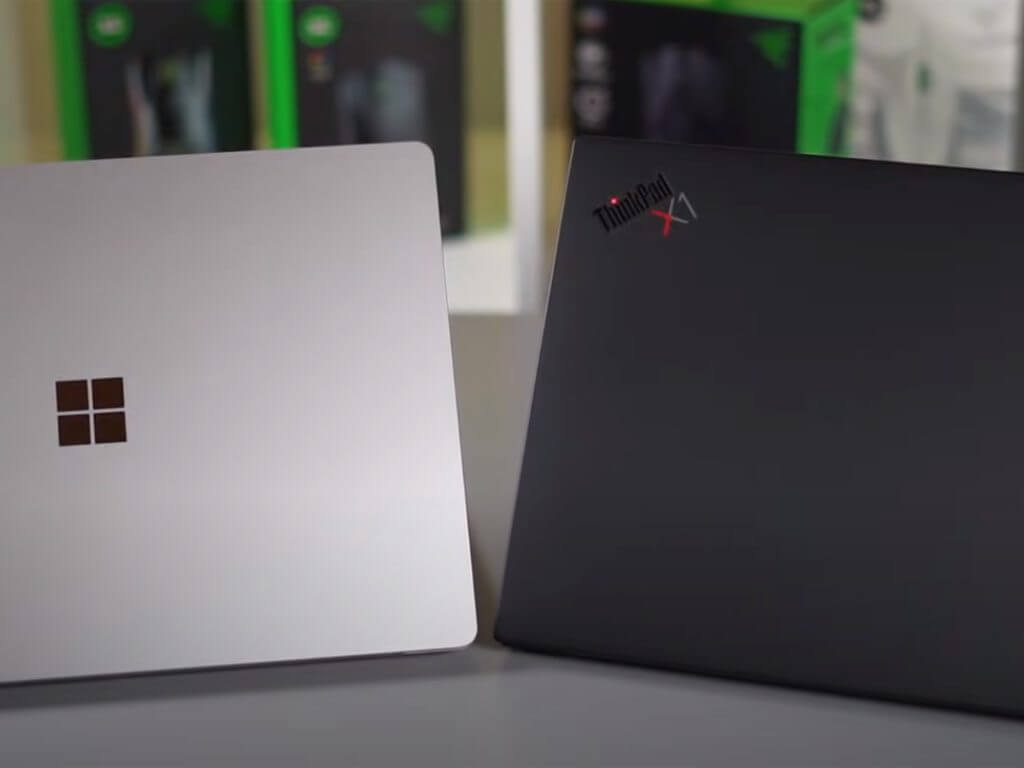
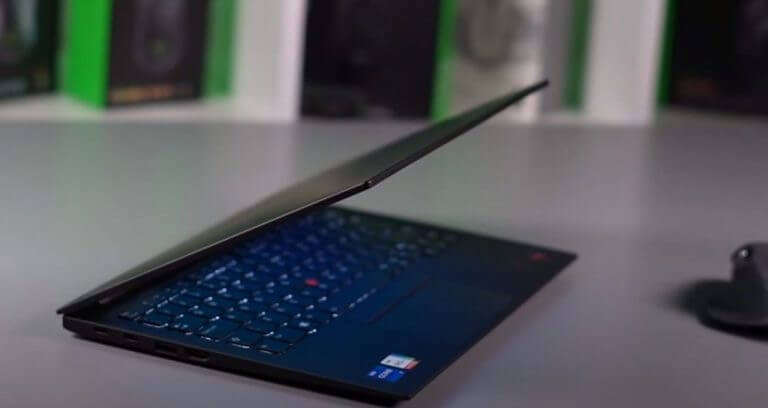
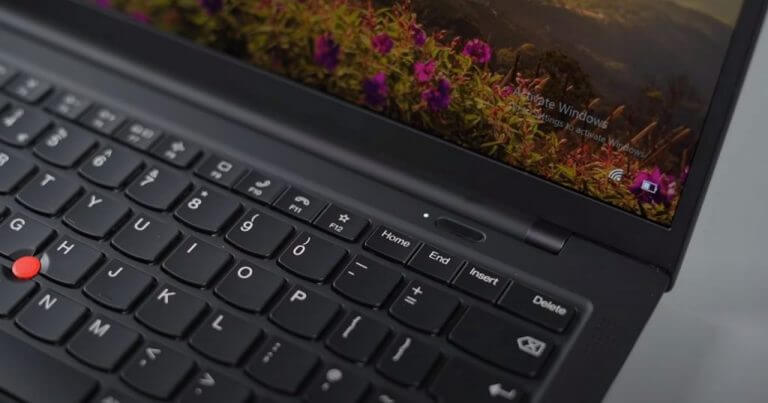
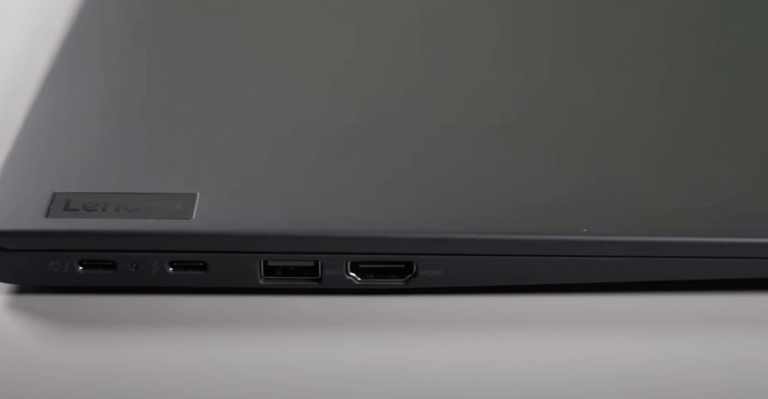
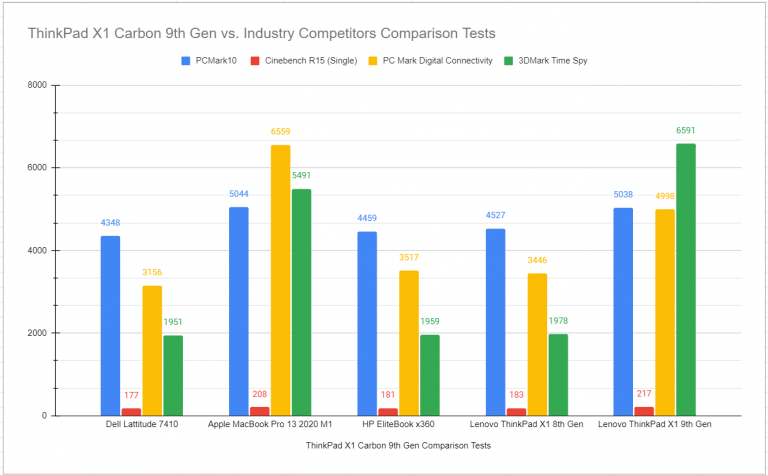
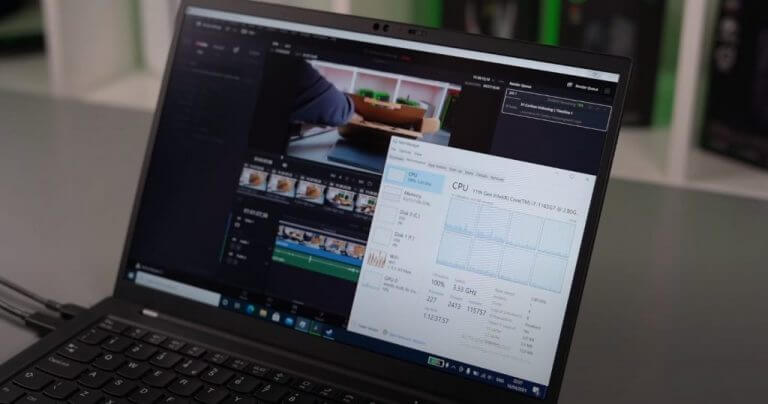
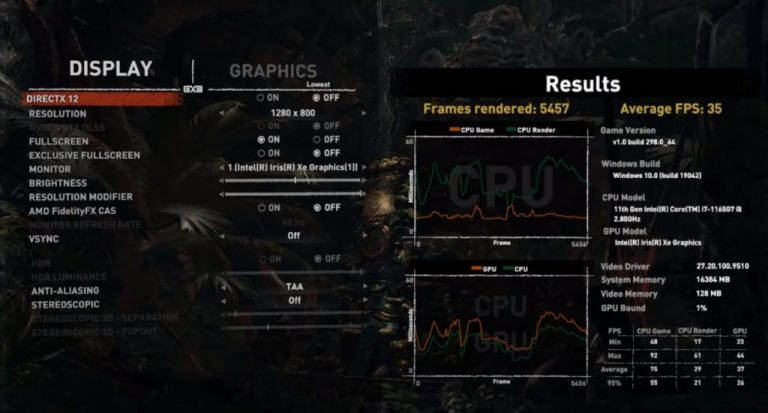






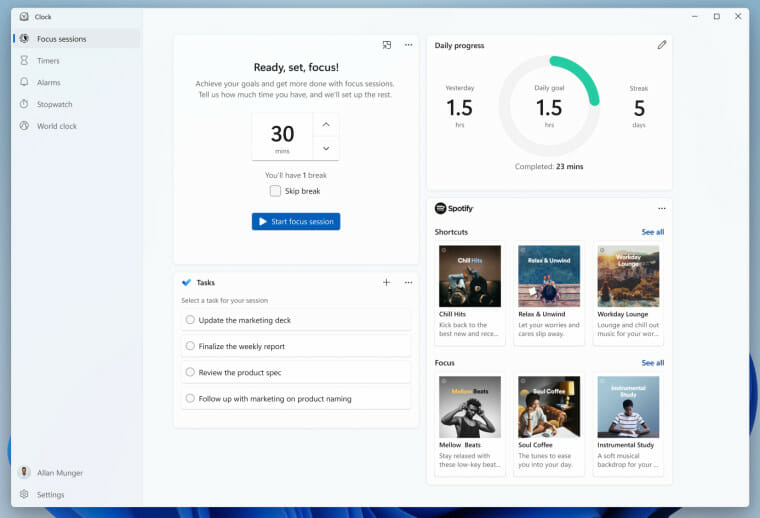


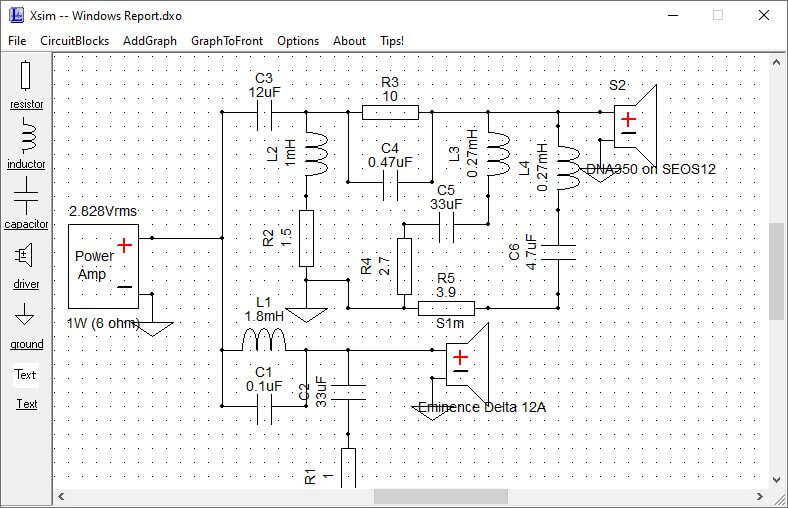


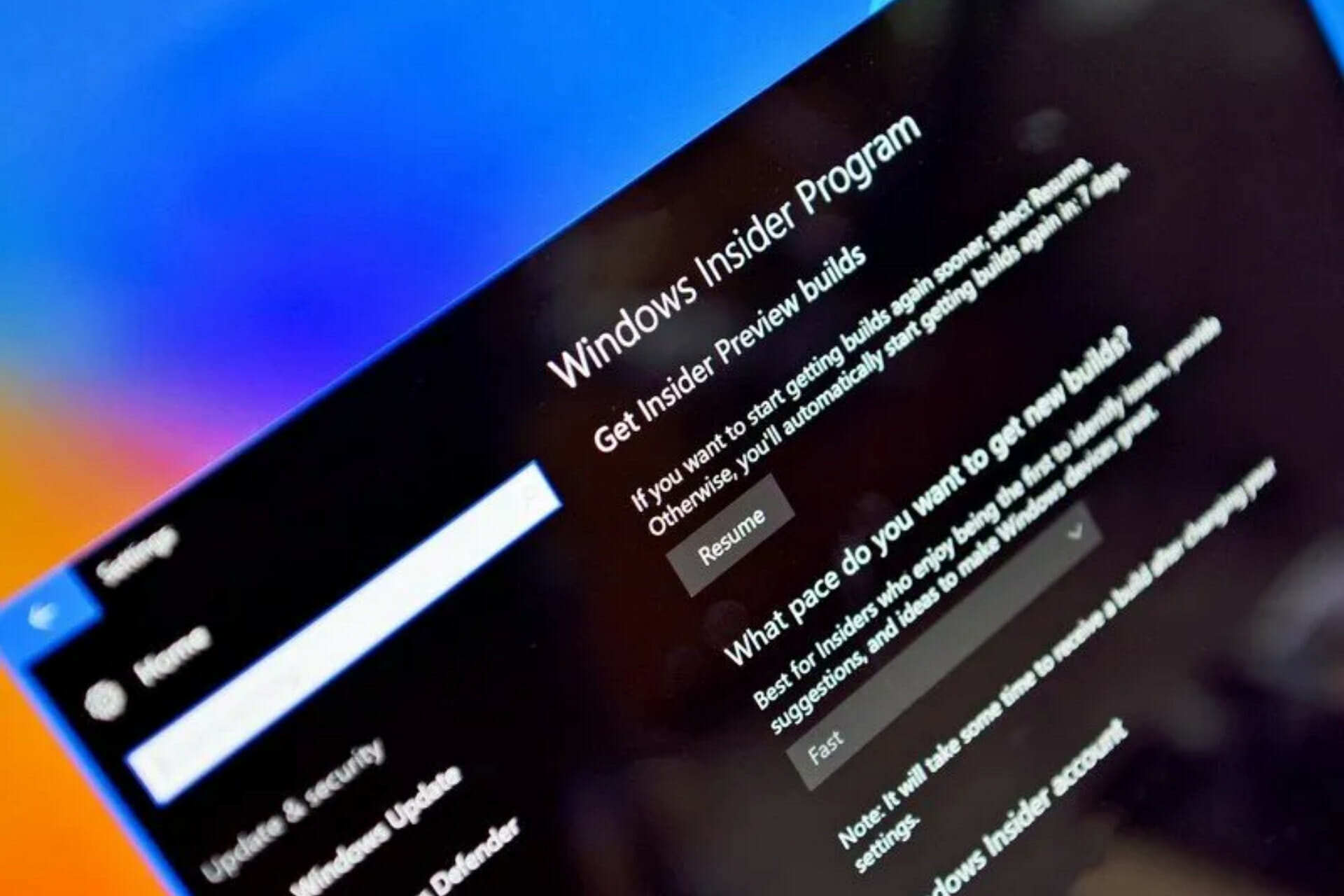
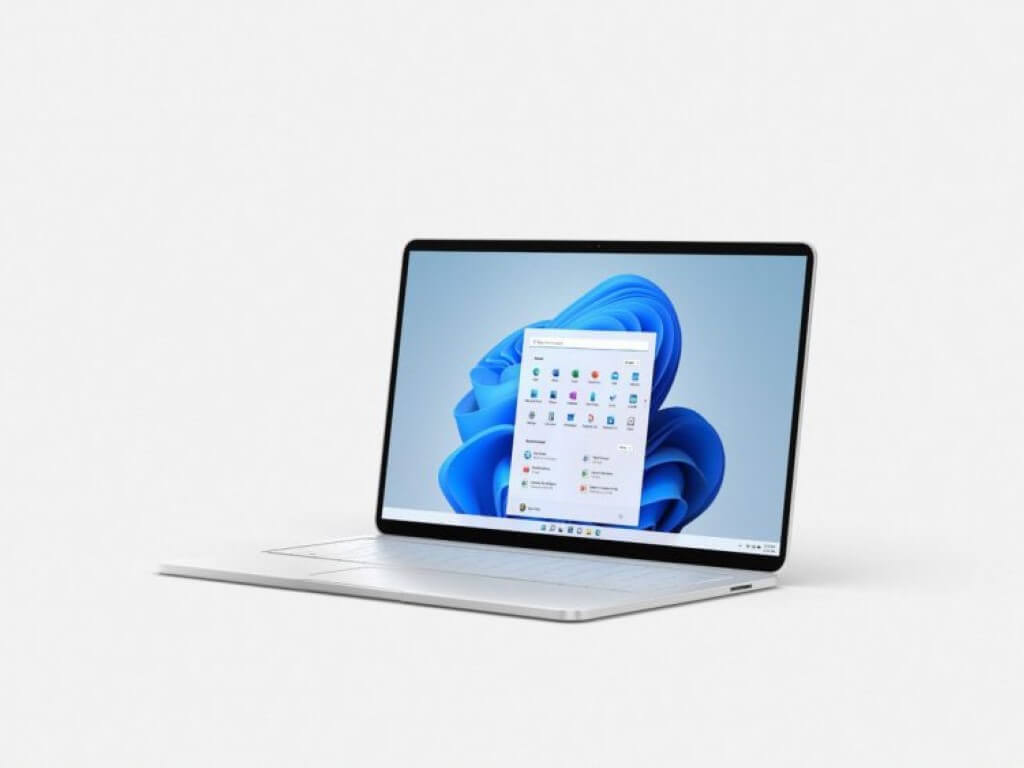
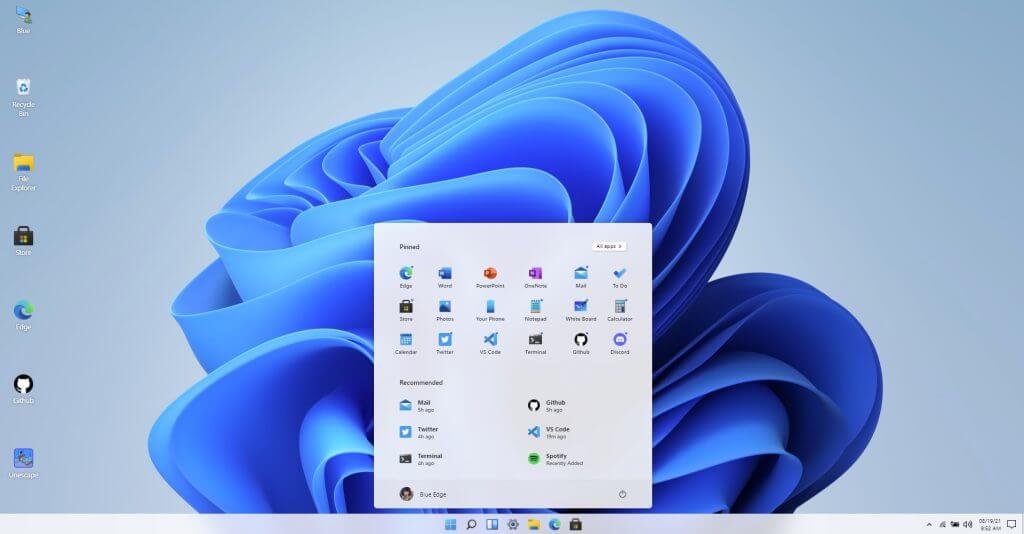












![7 Best Chess GUI Software for Analysis [2026 Guide]](https://windowsreport.com/wp-content/uploads/2021/08/best-chess-analysis-software.jpg)