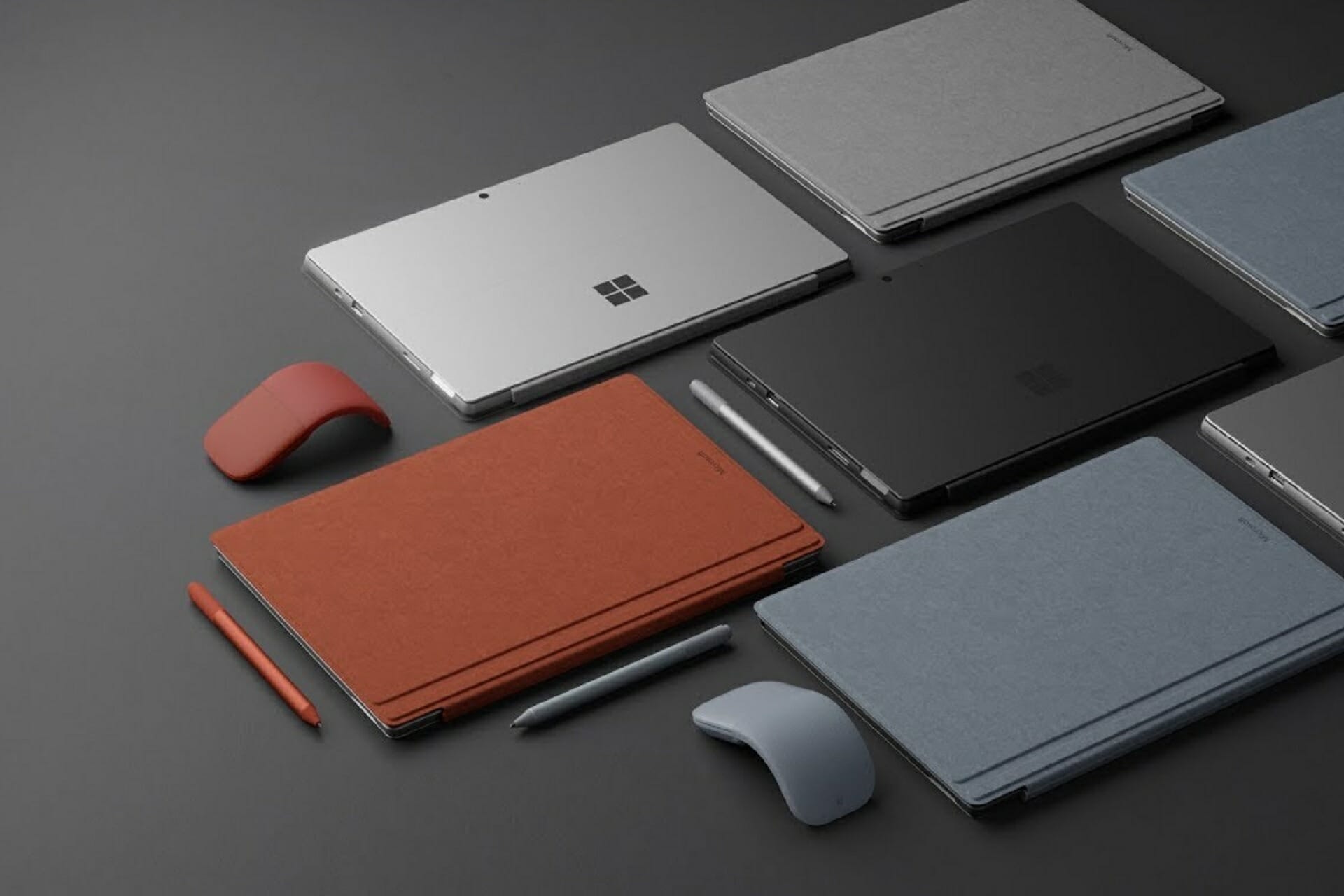
Microsoft 365 Admin Center gets scaled down UI for small businesses

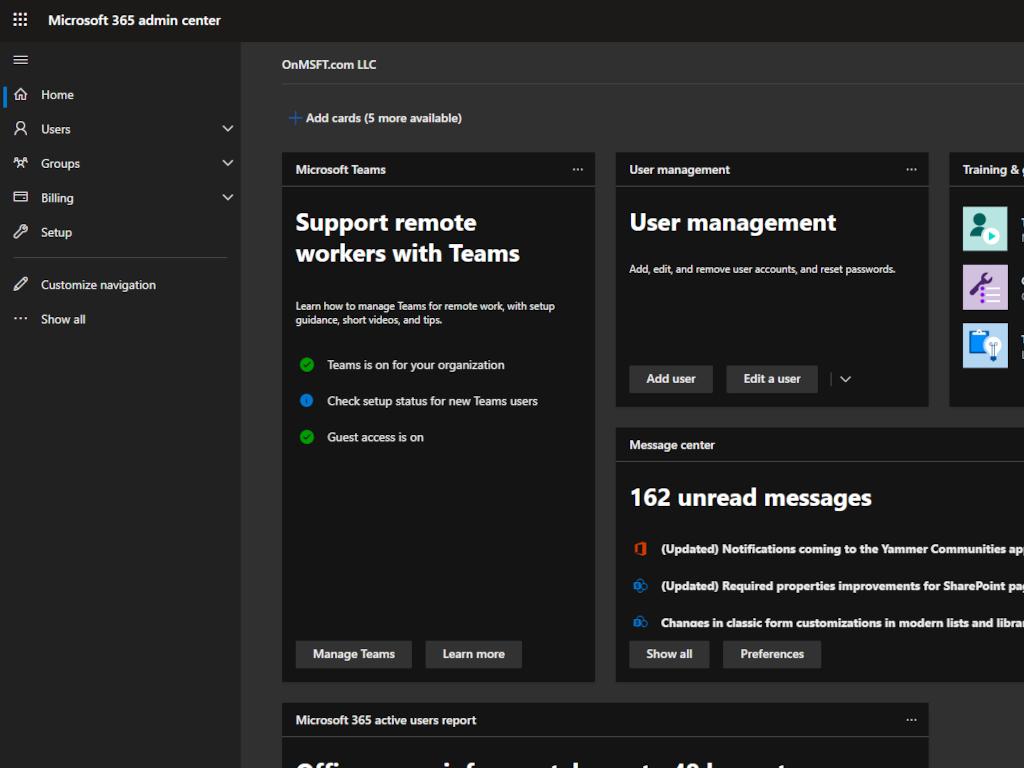
Product marketing manager for Microsoft 365 Admin, Scott Schnoll has announced that an update to the UI and settings options for Admins of “very small businesses” will begin rolling out soon.

M365 Admin Center Simplified

In his announcement, Schnoll referred to the update as a new “Admin Simplified View,” which scales back the number of Admin accessible options to a more unified experience, encompassing the following directives:

  • Adding users
  • Installing Office
  • Turning on Teams
  • Adding e-mail and calendars

To help VSBs also focus on the administrative essentials, we are introducing a new experience in the Microsoft 365 admin center called the admin simplified view. This experience can be used by Global admins in any organization that has Microsoft 365, but it is designed primarily for VSBs.

The experience provides you with access to users, teams, and billing information in one view, and it guides you through simplified flows of top actions to take, such as adding users, installing Office, and enabling Teams, email, and calendaring. To revert to the complete admin center experience, you can click Dashboard view.

The more simplified Microsoft 365 Admin should appeal to customers that host applications on dedicated native software versus implementing a more cloud approach to development as well as paying for less than 10 M365 Business subscriptions monthly or annually. Fortunately, Microsoft is not making this an all or nothing situation but plans to allow customers to toggle between the new simplified and the older one, ala Google Ads or the new Facebook desktop UI.

Microsoft is testing its new admin simplified view over the next few months with early versions going to targeted release customers as soon as next month.

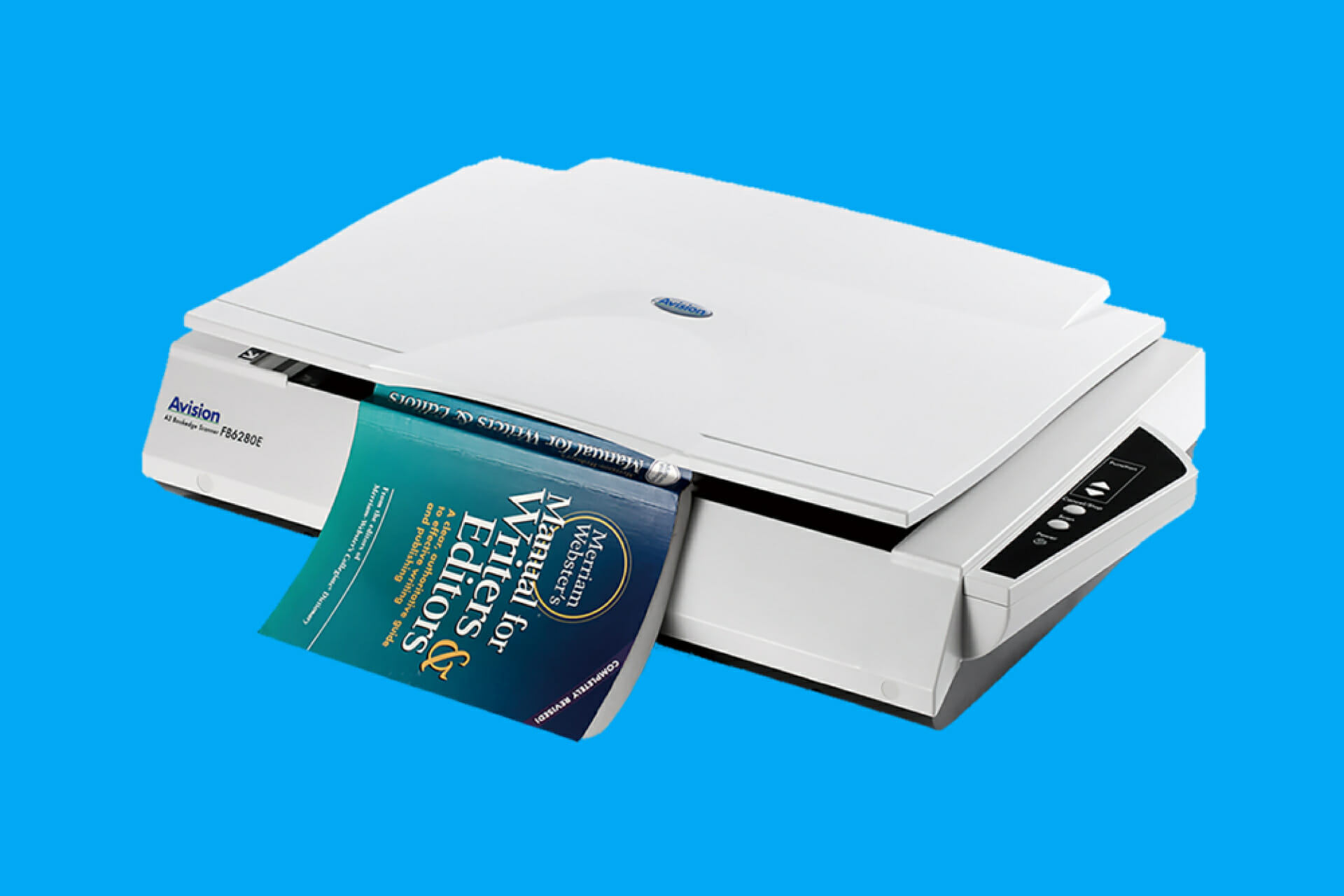
3 Best Scanners With Feeder And Flatbed

Flatbed and feeder scanners have their own advantages and disadvantages. For home, a flatbed scanner, whether it’s standalone or built-in a printer is perfectly fine. If you’re looking to scan a larger amount of A4 documents a feeder scanner is indispensable.

However, if you need a scanner for a library, a bank, or an office environment where you handle a lot of documents it’s a lot beter to opt for a combo scanner with flatbed and feeder.

We did a lot of research and we came up with the perfect selection of options that also feature a feeder and a flatbed.

What is the best multi-page scanner with feeder and flatbed?

Fujitsu SP-1425

  • Versatile dedicated scanning for all office needs
  • Up to 25 pages per minute
  • Supports documents up to 120 inches long
  • Ultrasonic multi-feed detection sensor
  • Complicated software

Fujitsu SP-1425 is a pretty compact device (17.9 x 13 x 5.1 inches) that can handle all the light scanning work from the office. The ADF can work up to 25 pages per minute and can load documents of up to 120 inches long.

But the most important feature of this feeder is that it’s a duplex. That means that it can automatically scan both sides of the document.

Another important thing is that you don’t need to use its dedicated scan software. The TWAIN driver allows you to scan your documents to most third party applications.

But probably the most important application is the OCR (Optical Character Recognition) software that you can use to easily convert your paperwork into searchable PDF documents and Microsoft Office (Word, Excel, etc) files.

Digitizing your documents can be the ideal way of keeping your documents in perfect order and to have high-quality copies.

Fujitsu SP-1425 also comes with sensitive brake rollers for accurate paper separation, and ultra-sonic multi-feed detection sensors to stop misfed documents and prevent damage to the documents.


  • Duplex scanner with 35 pages document feeder tray
  • Up to 25 ppm/50 ipm at 300 dpi
  • 1500 pages/ day duty cycle
  • Quickly converting paper documents into searchable PDF files
  • One-touch scanning
  • Slow start

Combining an automatic document feeder and a flatbed scanner, Xerox XD-COMBO offers a versatile, multi-purpose solution for all the possible scanning needs.

It is a duplex scanner ideal for small offices and it provides fast scanning for documents and images of up to 25 pages per minute while also improving image quality.

The control panel is extremely easy-to-use, adapted for one-touch scanning to any of the nine available presets. It’s compatible with PC and Mac and thanks to its compact design, it fits easily on any desk or table.

There are no complicated procedures to go through. If the documents that you need to scan are printed only on one side, you just press the Simplex button. There is also a dedicated Duplex button for two-sided scanning.

If the document has poor-quality print, the Visioneer Acuity intelligent image processing technology will instantly improve the visual clarity of scans by using advanced algorithms.


  • Duplex scan speeds up to 20 pages per minute and simplex scan speeds of up to 40 images per minute
  • 1,500 pages per day with a single pass
  • Load up to 50 pages in the document feeder
  • Doesn't work well with Mac OS

The HP ScanJet Pro 2500 f1 is one of the most compact scanners with an automatic document feeder and flatbed. This great device features and functions recommend it for the education, financial, or even the government sectors.

First of all, this awesome scanner includes I.R.I.S. Readiris Pro OCR technology. In other words, you will be able to convert the scans into fully editable documents, compatible with Microsoft Office, Adobe PDF Reader, and more file types.

Moreover, with I.R.I.S. Cardiris you can scan business cards and update the existing contacts automatically. With this HP scanner, you will also be able to scan files directly to an e-mail address or to Dropbox or Google Drive.

Thanks to the TWAIN and WIA scan drivers you will be able to use any document editing and management software to connect and use the scanner.

The document feeder holds up to 50 pages and that you will scan in 2.5 minutes in Duplex or just a bit over a minute in the Simplex mode.


This was our very informed list with the best combo scanners with feeder and flatbed.

We hope that we helped you in choosing the right scanner for you, but if you have others in mind, don’t hesitate to contact us by commenting below.

[wl_navigator]

How to bookmark messages in Microsoft Teams

Microsoft Teams channels can be lively places. All that messaging activity makes for a cumbersome experience if you’re trying to revisit something posted weeks, days or even hours ago.

You can save messages to lift them out of the relentless channel feed and keep them safely bookmarked for later reference. It’s a little feature but one that’s buried in a context menu you might not be aware of.

Screenshot of saving a message in Microsoft Teams

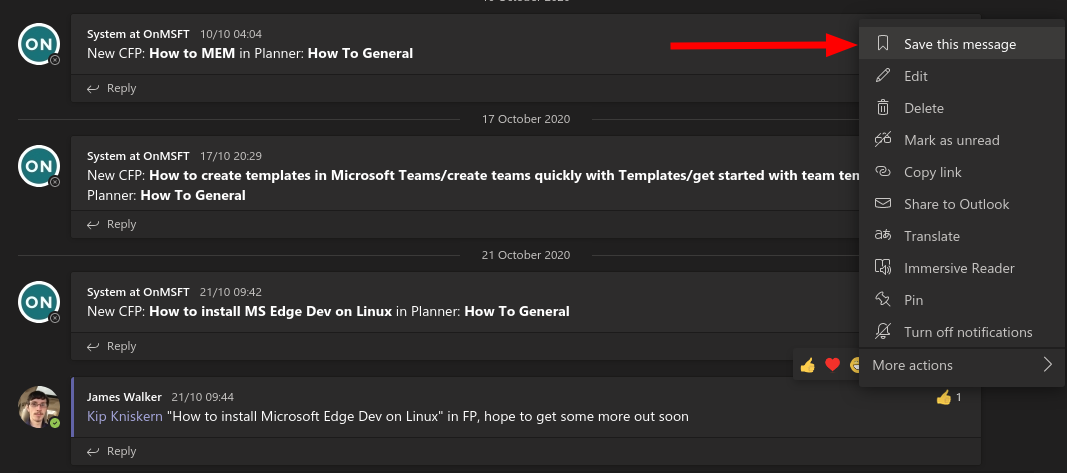
You can hover any message in the Teams UI to display the options overlay. Click the three dots icon to display the menu, then press “Save this message”. The message will be added to your saved list.

Screenshot of saving a message in Microsoft Teams

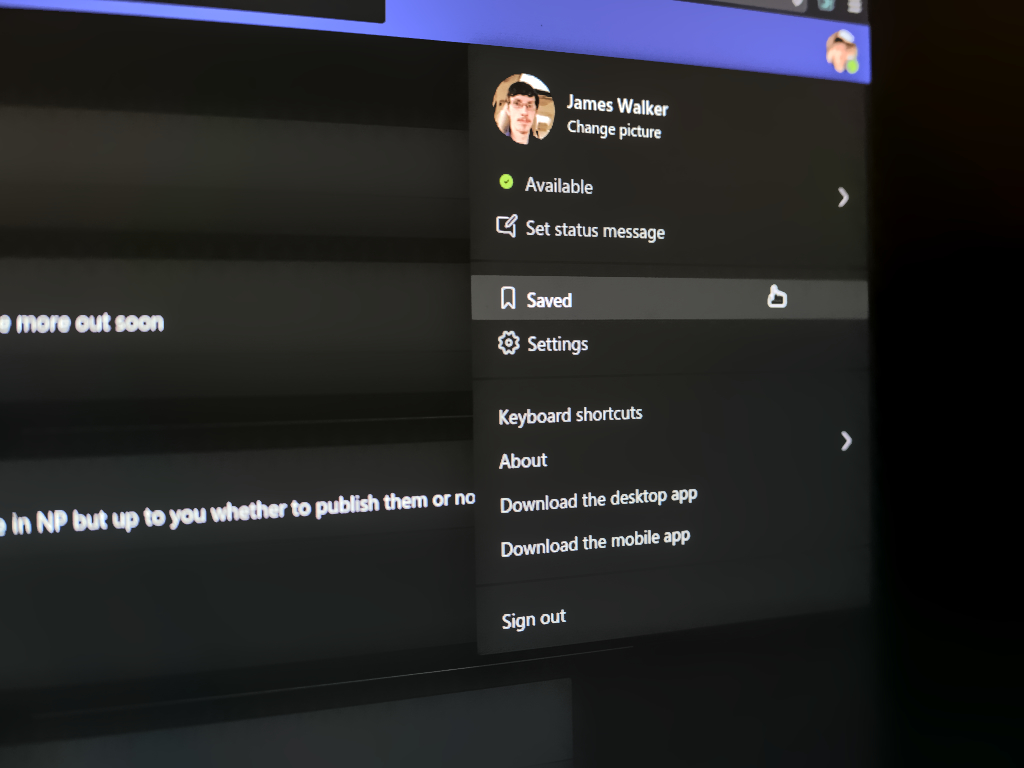
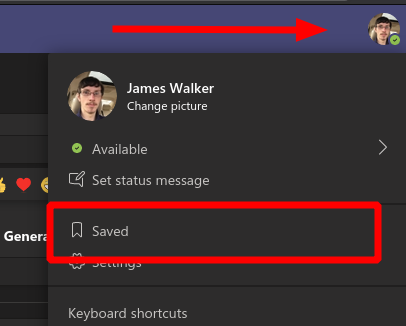
You can revisit your saves by clicking your profile icon in the top-right and then clicking the “Saved” item in the menu. Alternatively, can use the “/saved” slash command to jump straight to the Saved list.

Screenshot of accessing saved messages in Microsoft Teams

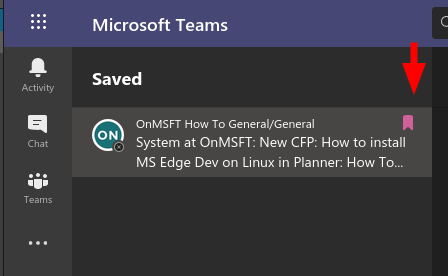
The Saved screen works a lot like a bookmarks interface. On the left, you’ll see a list of all your saved items. Clicking one will surface the message within the context of the wider conversation.

Screenshot of saved items list in Microsoft Teams

This feature allows you to set aside important messages you need to review. You can also keep track of attachments which you’ll need to reference later. Once you’re done, you can remove a message from your saved list by clicking the bookmark icon next to it.

It’s worth noting that saving a message won’t actually affect how the conversation history is retained. Items would be silently removed from your saved panel if a message was deleted back in the original conversation. Keep that in mind when using the feature – it’s intended for short-term quick reference, not perpetual archiving.

PowerToys for Windows 10 gets improved multi-monitor support and more with latest update

Microsoft has released a fresh update for its PowerToys suite of tools, bringing it to version 0.27. This update is mostly focused on multi-monitor support improvements in FancyZones and brings a new look for built-in tools such as Image Resizer and Color Picker.

The company noted that it skipped version 0.26 for “higher priority work,” and the much-awaited Video Conference Mute utility is expected to launch next week with the experimental v0.26.

“This will be coming in about a week’s time. We need additional work done here to ship this out. It will be 0.28 Experimental and will be 0.27 + The video conference utility. We skipped 0.26’s release for higher priority work,” the company explained.

Here is the full changelog for PowerToys version 0.27:

General

  • Installer improvements including dark mode
  • Large sums of accessibility issues fixed.
  • Worked on localization effort. If you find issues, please [make us aware so we can correct them][loc-bug].

Color Picker

FancyZones

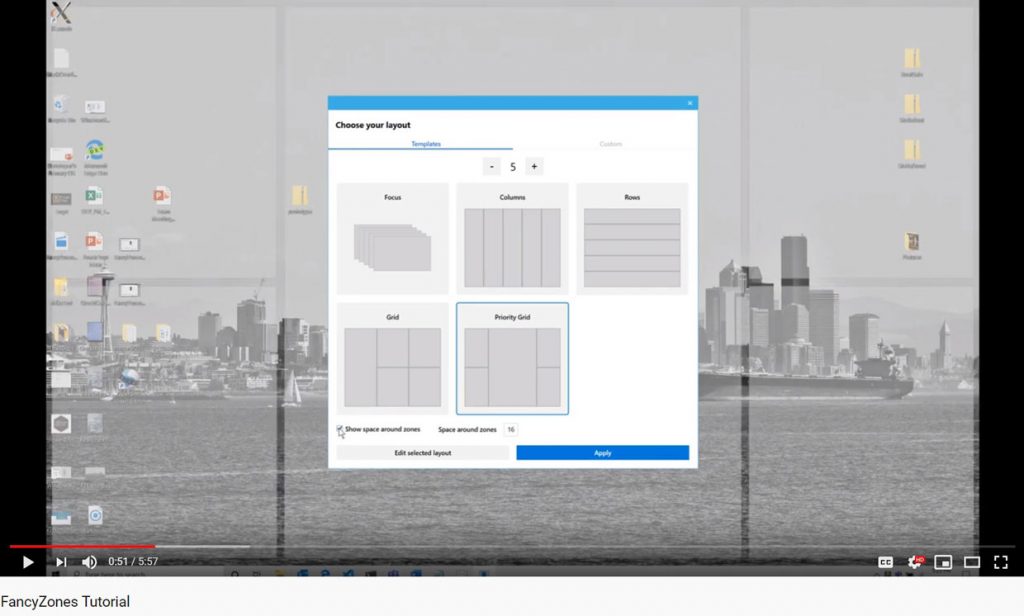
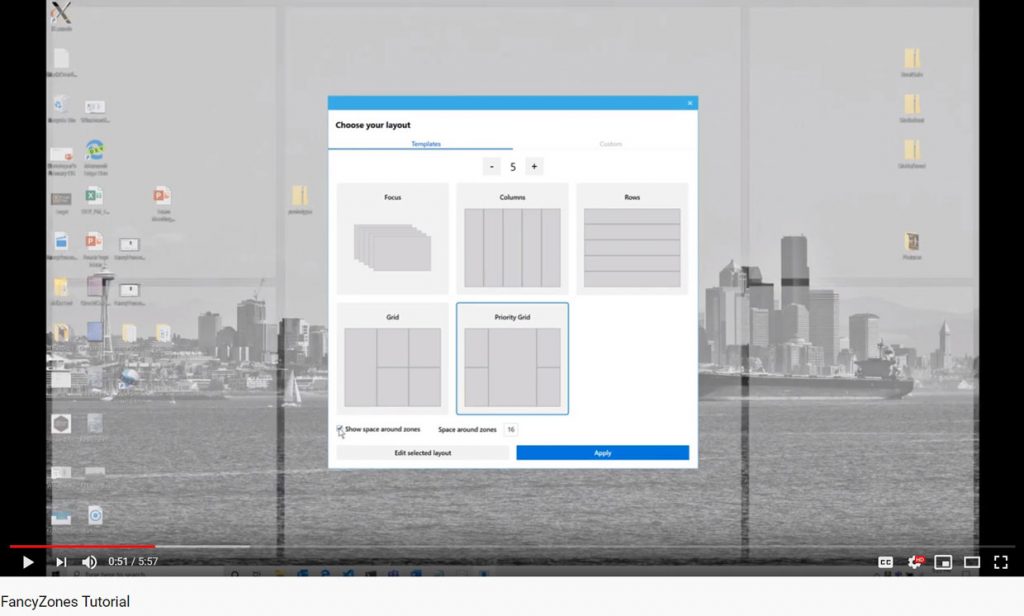
  • Multi-monitor editor experience now drastically improved for discoverability.
  • Zones being forgotten on restart
  • Added in ability to have no layout

Image Resizer

  • Updated interface

PowerToys Run

  • Removed unused dependencies

PowerRename

  • Added Lookbehind support via Boost library

As usual, the new PowerToys version is available to download from the official Github page. If you’re interested, you can also check out our separate post to learn more about the multi-monitor improvements made to FancyZones.

Best gaming routers under $100 [PS4, Xbox One]

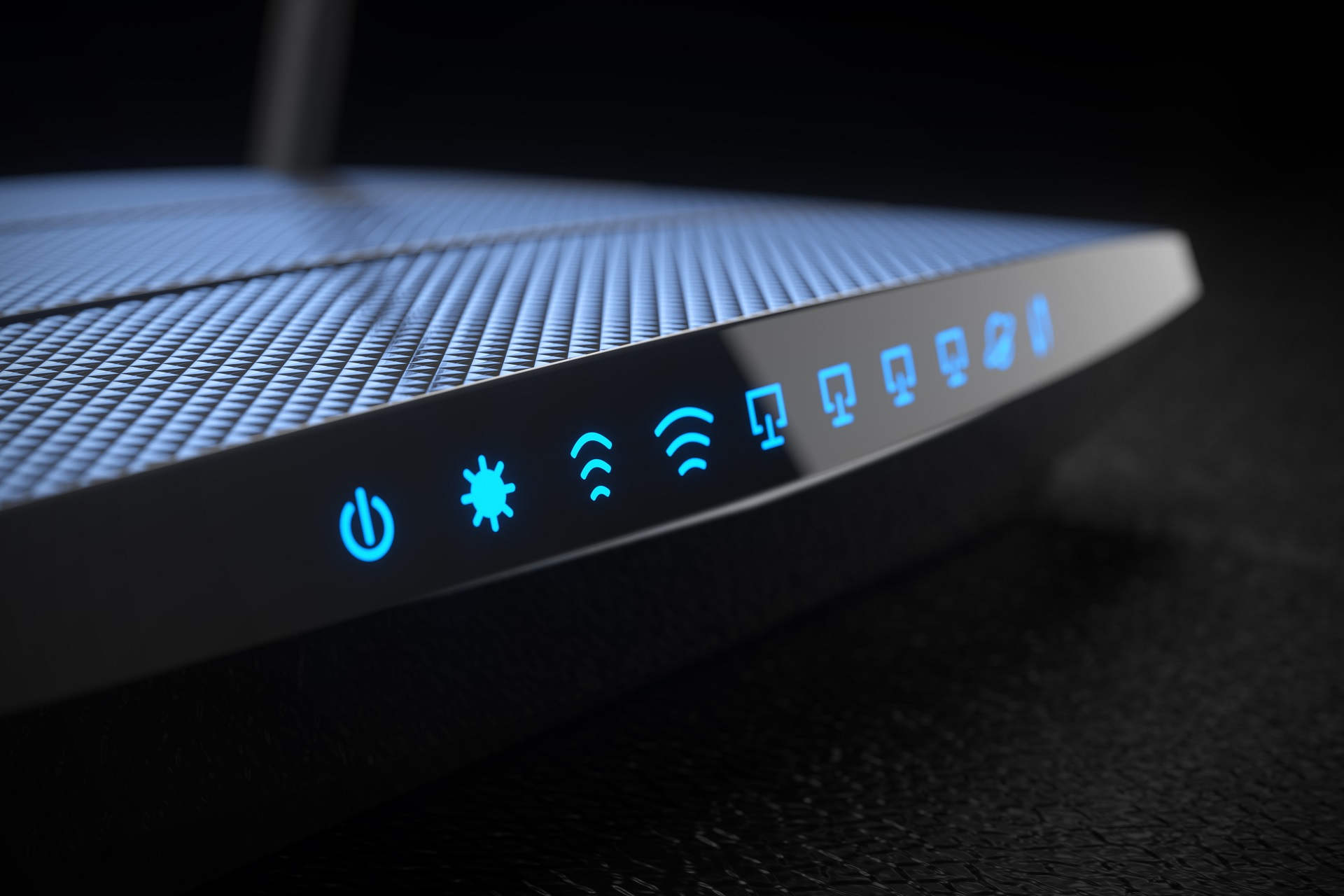
Whether game on your PC, Xbox or PlayStation, reliable and high-speed internet is essential for BR and other online FPS games. If you are dependent on your Wi-Fi connection, it becomes crucial to invest in a good gaming router,

There are plenty of gaming routers under $100. Unlike your gaming PCs and smartphone, routers aren’t exactly specified as gaming-grade.

However, several manufacturers have made attempts to target competitive online gamers with their new line of routers.

In this article, we have listed the best five gaming routers that offer incredible coverage and good bandwidth speed, all for under $100.

What are the best gaming routers under $100?

NETGEAR R6700

  • Good coverage
  • Nice design
  • Strong NAS storage performance
  • Excellent 802.11ac wireless speeds
  • Software needs improvements

The NETGEAR R6700 NIGHTHAWK is a fast and well worth gaming router if you are looking for a router with class leading performance on a budget.

This dual-band router can connect up to 25 devices simultaneously. Be it streaming, playing games, surfing the internet, or connecting your IoT devices, NETGEAR R6700 NIGHTHAWK offers up to 1500 sqft coverage at a max 1750 Mbps speed from its 5GHz and 2.4GHz bands.

It features 4 x 1 gigabit Ethernet ports, 1Ghz dual-core processor, three antennas, 3 x 1 USB ports to share storage drive or connect your printer, and WAP2 wireless security.


Belkin AC1600

  • Affordable dual band Wi-Fi router
  • Gaming specific Intellistream QoS
  • Up to 1900 Mbps
  • USB and LAN Ports
  • No positional Antenna

Although not the latest of the lot, the Belkin AC1600 still packs some punch offering a decent speed of 600 + 1300 Mbps over the dual-band 5GHz and 2.4GHz network.

Belkin AC1600 comes with a Guest network feature that creates a separate network for your guest, keeping your network secure from sneaky eyes. Additionally, it features 4 LAN ports and a USB port at the back.

Setting up the router is easy and can be done using a smartphone or PC. The proprietary Intellistream QoS service pyritizes video streaming and gaming. With the built-in parental control features, you can restrict what your children watch on the internet.


TP-Link AC1750 Archer A7

  • Affordable price
  • Good throughput performance
  • Easy to install
  • Limited range

The TP-Link AC1750 Archer A7 is a bargain-basement router that offers surprisingly good speed and reliability for the price. It is enough for a small to midsize home. If you have kids, the built-in parental controls is a crucial feature offered in the router.

TP-Link AC1750 Archer A7 also features the QoS (Quality of Services) software that prioritizes gaming and streaming data. This dual-band router upgrades to 1750 Mbps combined speed, reducing buffering when streaming 4K videos.

Similar to other routers in this range, AC1750 Archer A7 also comes with 4 gigabit LAN ports, 1 WAN port, and a USB port to connect your external storage device.


TP-Link AC1900 A9

  • Affordable dual band router
  • Mu-MIMO technology
  • Useful companion app
  • Long distance Wi-Fi coverage
  • Lacks slightly in speed

AC1900 A9 one of the popular TP-Link router around. With its low price and a great set of features, it is an excellent gaming router to project Wi-Fi signals over a long-range.

TP-Link AC1900 A9 features a three-antenna design and looks identical to the earlier mentioned Archer A7. However, this version comes with MU-MIMO technology, Alexa compatibility, Beamforming for boosting Wi-Fi coverage, and Smart Connect feature.

It offers 600 Mbps on the 2.4GHz band and 1300Mbps on the 5GHz band. Other features in the router include 4 Ethernet LAN ports, a USB port, built-in parental control, Guest Network, and VPN server support.

ASUS Dual-Band AC1300

  • First pro
  • Second Pro
  • First con
  • Second con

With its 2×2 MU-MIMO technology, the ASUS Dual-Band 2×2 AC1300 is a solid gaming router that can manage multiple connections at high speeds. Though the maximum claimed speed is only 1267Mbps over the dual-band frequency.

ASUS Dual-Band 2×2 AC1300 is one of the few routers in this segment to have four external antennas that boost the Wi-Fi range in your home. The router is easy to use and can be customized through the web interface or mobile app.

Additionally, it features the Smart Connect feature to switch between bands whenever it is needed automatically. A USB 3.0 port at the back offers high-speed media file sharing with the entire network.


Not all the gaming routers in this list of a similar set of features. However, depending on the user requirement, all the routers offer excellent value for money. Explore the list to find the best router that meets your gaming requirements.

[wl_navigator]

Red Dead Online launches as a stand-alone video game on Xbox Series X and Xbox One

Red Dead Redemption 2’s online mode, Red Dead Online, is now available on Xbox Series X and Xbox One consoles as its own stand-alone title meaning that those interested in exploring the open-world online game can do so without purchasing the full single-player campaign.

Coming in at $19.99, Red Dead Online is significantly cheaper than buying the full Red Dead Redemption 2 game at $59.99 or even $99.99 for its Ultimate Edition. As an extra incentive to attract new players, Red Dead Online has been given a temporary discount of 75% bringing its price down to just $4.99.

Pretty insane.

Here’s the full game description along with trailer and store links:

Step into the vibrant, ever-evolving world of Red Dead Online and experience life across frontier America. Forge your own path as you battle lawmen, outlaw gangs and ferocious wild animals to build a life on the American frontier. Build a camp, ride solo or form a posse and explore everything from the snowy mountains in the North to the swamps of the South, from remote outposts to busy farms and bustling towns. Chase down bounties, hunt, fish and trade, search for exotic treasures, run your own underground Moonshine distillery, or become a Naturalist to learn the secrets of the animal kingdom and much more in a world of astounding depth and detail.

Join millions of fellow players in the American West, and experience a world now packed with years’ worth of new features, gameplay and additional enhancements. Includes Red Dead Online. Red Dead Redemption 2: Story Mode must be purchased separately.

Have you played Red Dead Online before or will this be your first time? Let us know in the comments below and then follow us on Pinterest and Twitter for more Xbox gaming news.

Red Dead Online
Red Dead Online
Developer:
Rockstar Games
Price:
$9.99

Rocket League to get Xbox Series X|S optimisations including 120 FPS mode on December 9

Rocket League, the popular vehicular soccer game that recently became free to play will soon be optimized for Xbox Series X|S consoles. The patch for next-gen consoles will go live on December 9 alongside the game’s second season, which will introduce a new Rocket Pass, a new Arena named Neon Fields, as well as a new Limited Time Mode.

If you got your hands on an Xbox Series X or Series S console, the December 9 patch will introduce new Quality and Performances on the two consoles. Here’s what to expect:

Xbox Series X

  • Quality: 4K resolution at 60 FPS with HDR
  • Performance: Game runs at 2688×1512 resolution (70% of 4K) at 120 FPS with HDR

Xbox Series S

  • Quality: 1080p Resolution at 60 FPS with HDR
  • Performance: Game runs at 1344×756 (70% of 1080p) Resolution at 120 FPS with HDR

Keep in mind that you’ll need a 120 Hz screen to play Rocket League at 120FPS, and those are going to become more common in the TV market with the new HDMI 2.1 norm that supports 4K gameplay at 120 FPS. There are already a couple of Xbox Series X|S optimized games that support 120 FPS on the new consoles, including Dirt 5, Gears 5, Star Wars Squadrons, and Halo: The Master Chief Collection. We hope to see more games offering a 120 FPS option in the coming months.

Rocket League is one of the rare games that support both cross-play multiplayer and cross-platform progression, and you’ll need to create a free Epic Games account to benefit from these features. While Rocket League is now free to play on all platforms, the Xbox One version still requires an Xbox Live Gold subscription.

Microsoft makes privacy changes to its Productivity Score software as concerns arise

In this heightened work-from-home environment, some companies are looking for optimization techniques and tools to stave off would-be extemporaneous employee distractions and Microsoft’s Productivity Score would seem like an ideal solution.

However, the MPS tool has recently come under heavy criticism by privacy advocates claiming the software is a “full-fledged workplace surveillance tool.”

Privacy concerns arose when as Austria-based digital rights researcher Christie Wolfie determined that the MPS feature of Microsoft 365 is essentially a work monitoring tool. By utilizing scores across communication, content collaboration, network connectivity, meetings, Microsoft 365 App health, etc to rank employee productivity admins are privy to a ton of triangulating data about employee behavior that arguably crosses privacy thresholds.

Wolfie’s argument gathers further steam when examining the granular level of specificity MPS offers IT and Microsoft 365 Admins, down to how many days an individual employee has sent emails, used chat the chat, used ‘mentions’ in email, etc.

Today, Microsoft attempted to fend off mounting concern over MPS with corporate VP for Microsoft 365 Jared Spataro issuing a press release stating upcoming changes to Productivity Score.

At Microsoft, we believe that data-driven insights are crucial to empowering people and organizations to achieve more. We also believe that privacy is a human right, and we’re deeply committed to the privacy of every person who uses our products. As part of that commitment, we’re making the following changes to Productivity Score:

  • First, we’re removing user names from the product. During the preview, we added a feature that showed end-user names and associated actions over a 28-day period. In response to feedback over the last week, we’re removing that feature entirely. Going forward, the communications, meetings, content collaboration, teamwork, and mobility measures in Productivity Score will only aggregate data at the organization level—providing a clear measure of organization-level adoption of key features. No one in the organization will be able to use Productivity Score to access data about how an individual user is using apps and services in Microsoft 365.
  • Second, we’re modifying the user interface to make it clearer that Productivity Score is a measure of organizational adoption of technology—and not individual user behavior. Over the last few days, we’ve realized that there was some confusion about the capabilities of the product. Productivity Score produces a score for the organization and was never designed to score individual users. We’ll make that clearer in the user interface and improve our privacy disclosures in the product to ensure that IT admins know exactly what we do and don’t track.

Spataro also highlights that Microsoft 365 App health, network connectivity, and endpoint analytics – do not include user name as an order or precaution and employee privacy. Ultimately, the service looks to perform very similarly to its October debut, with the aforementioned changes. Microsoft continues to stress its data-driven modus operands as it places most of the responsibility on the employer and how much of its analytics gathering it utilizes and for what purposes.

The Windows Ugly Sweater is back again this year, and you can finally buy one

Do you remember Microsoft’s custom “softwear,” the Windows Ugly Sweater? Back in 2018, the company sent out a cool Windows 95-themed holiday sweater to lucky influencers and fans but now is your chance to buy it, too. Microsoft has finally announced that you can now buy one for yourself, with the proceeds helping benefit Girls Who Code.

Available via the Xbox Gear store, you can now pick up the last three Windows Ugly Sweaters online. The first from 2018 features the Windows 95 logo and colors, the second from last year the Windows XP colors, and this year’s is Microsoft Paint. All three are up in the store for prices around $60, and purchases from the sale will help benefit the charity, Girls Who Code. However, it does look as though Microsoft is having a hard time keeping stock. Many sizes are already sold out, so it’s best to act fast.

What do you think of this custom softwear? Will you pick it up for yourself or your family? Let us know in the comments below.

Developers get Windows on ARM running on Apple M1 Silicon, benchmarks beat Surface Pro X

Apple’s M1 silicon continues to hail praise from the industry as being a technology marvel, however, this latest Windows 10 on ARM virtualization feat just reiterates how impressive the new chip really is.

Late last week, an Amazon Web Services (AWS) virtualization engineer tinkered with an M1 Arm-based Mac and Windows 10 on ARM and concocted a result that runs circles around Microsoft’s own flagship WoA device.

While the traditional Apple solution to running Windows on a Mac doesn’t appear to be in the pipeline, AWS principal engineer Alexander Graf used an open-source QEMU virtualization piece of software to emulate Windows on ARM on a new M1 powered Mac.

Graf’s work was the co-opted by another Twitter user who then ran Geekbench 4 and 5 synthetic tests comparing Windows 10 on ARM’s performance between the dedicated Surface Pro X and an M1 Mac. @imbushuo’s results show that Windows 10 on ARM actually performs better in benchmarking on the M1 versus the Surface Pro X snagging a single-core score of 1,288 and multi-core score of 5,685 on the M1 silicon. However, on Microsoft’s co-produced SQ2 ARM silicon for the Pro X, performance was benchmarked at 800 for single-core and a paltry 3,000 in multi-core performance.

Microsoft doesn’t currently license its WoA software but rather makes it available for devices so reproducing these results officially is still a waiting process for the M1 Mac crowd.

However, with Microsoft refocusing on being where its customers are, there could be a future where WoA becomes a licensed product for Mac users.

Microsoft Teams desktop users can now create tasks from channel or chat messages

Two months ago, Microsoft announced that the desktop version of Microsoft Teams is getting a new feature that would allow users to create tasks from their chat or channel messages. As per the company’s Roadmap, the update has now started to roll out gradually and will be generally available in the coming weeks.

Previously, Teams users had to copy and paste the information manually to create a Planner task. Thanks to this feature, the company has now eliminated the need to switch apps or windows, allowing users to quickly assign tasks directly from any chat/channel conversation in Teams.

The process to create a task is relatively straightforward, as you need to navigate to the specific message, select “More Options,” and click on the “Create task” option. A Planner window will instantly appear on your screen. Just fill in the details, and finally, click the “Create task” button. Once created, these tasks will appear in the Tasks app in Teams, as well as in Microsoft Planner.

The new task management capability is likely to be welcomed by employees who struggle to track important messages to report an issue or ask for something to be done. However, it remains to be seen if Microsoft will improve this functionality by providing a similar Microsoft To Do integration in future releases.

PowerToys FancyZone to get improved multi-monitor support on Windows 10

Microsoft’s PowerToys is about to receive a new update that should improve its FancyZones utility. In PowerToys v0.27, the company is introducing an enhanced multi-monitor support, which resolves one of its few outstanding issues.

PowerToys is a collection of handy tools to help power users get more out of Windows 10. It includes utilities such as FancyZones, which helps to set up preconfigured windows on their Windows 10 PCs. While FancyZones already supports seamless multi-monitor snap capability, but there’s a catch.

Right now, users need to launch the utility’s editor configuration screen on the appropriate monitor for setup, but this should change soon. Clint Rutkas, Program manager lead on PowerToys, confirmed that one of the new additions in PowerToys 0.27 is a redesigned UI that directly builds it into the editor, making it easier to customize each specific monitor on Windows 10.

At this point, there’s no ETA as to when the upcoming version will go live, but we will keep an eye on the GitHub release page to let you know as soon as PowerToys v0.27 is available for users.

14 Best Startup Managers for Windows 10/11 [Updated List]

Every PC has startup programs that start along with it. Startup applications can be useful, but sometimes certain startup applications can cause problems and slow down your PC. Since these applications can slow down your PC, today we’re going to show you the best tools to manage your startup items on Windows 10.

What is the best tool to manage startup programs?

CCleaner

best-tools-manage-startup-items-ccleaner-1

CCleaner is a famous tool that can clean any old and temporary files from your PC. Although this tool is designed for removing files, you can also use it to manage startup items. To do that, simply go to Tools section and select Startup tab.

From Startup tab you can see the startup applications on the list. You can easily disable or delete any startup item from the list. You can also view scheduled tasks or context menu items. By using CCleaner you can easily enable or disable startup items, but you can also open their containing folder or view their registry entry.

CCleaner allows you to easily configure your startup applications, and if you already have this tool installed, you should definitely check its Startup section.

CCleaner

Download CCleaner now to easily manage your startup items. This software also comes with other powerful functionalities that you should try.
Check price Visit website

Autoruns

best-tools-manage-startup-items-autoruns-1

Autoruns is a simple software and a part of Sysinternals, but it can be downloaded separately. This tool will show you all startup items, but you can sort them by clicking the appropriate tabs.

For example, you can only display printer monitors, startup services, or startup Explorer items.

Autoruns will display all sorts of startup items, and you can easily disable any item on the list simply by unchecking it. This tool allows you to see the location of each startup item, so if you have a malicious software that automatically starts, you can easily find its location and delete it.

In addition, you can switch to the registry entry of each startup item right from the Autoruns. If you don’t want to accidentally disable any Windows services, you can choose to hide them in Autoruns.

This is a powerful tool but it can be a bit confusing for basic users. If you are an experienced PC user you should have no problems with using this tool.

⇒ Get Autoruns


Startup Delayer

best-tools-manage-startup-items-Startup-Delayer-1

Startup Delayer is another application that allows you to configure your startup items. By using this tool you can easily delay the startup of certain applications in order to speed up your PC.

When you start the application you’ll see a message asking you for how long do you want to delay your startup apps. You can choose one of the available presets by moving the slider, but we decided to skip that step entirely.

When Startup Delayer starts, you’ll see the list of all startup applications. If you want, you can stop or disable any of these apps simply by right-clicking them and choosing the desired option.

Some of them should remain enabled so you won’t lose some of the functionality. For instance, if you want to control your computer remotely, let the software automatically start-up for the best results. You can also see the best programs for controlling Windows 10 from another computer.

This tool also allows you to change startup settings for different users on your PC. If you want, you can show only the common apps for all users and change their startup settings.

One useful feature of this application is its automatic delay feature. By using this feature you can delay an app and set it to start only if a certain percent of your CPU and disk is idle.

There’s also a manual delay option that allows you to set a timer that will start the application after a certain time period.

Startup Delayer allows you to add new apps to startup and you can also create startup profiles and back up your startup settings.

The application also allows you to view running tasks, check their properties or disable them. Lastly, there’s a System Services tab that allows you to check your services and enable or disable them.

Startup Delayer is a simple app that will help you manage your startup tasks. Although this is a free application, there’s a premium version available.

The premium version adds support for backup and restoration, startup profiles and scheduled launching. In addition, with premium version you can convert running tasks to startup or copy and paste applications between the users.

Even though the premium version offers some new features, the free version will be more than enough for most users.

⇒ Get Startup Delayer


WhatInStartup

best-tools-manage-startup-items-whatinstartup-1

WhatInStartup is a small and portable application that lets you manage your startup items. Since this application is portable, you can easily run it on any PC without installing it.

The app will list all startup applications along with the relevant information such as file version, location, etc.

If you want to disable an app from starting, simply right click it and choose the option from the context menu. In addition, you can also disable or enable applications by using the menu on the top.

WhatInStartup comes with a simple user interface which makes this application perfect for basic and advanced users alike. If you’re looking for a small and portable application that lets you change your startup items, be sure to try WhatInStartup.

⇒ Get WhatInStartup


Quick Startup

best-tools-manage-startup-items-quick-startup-1

Quick Startup comes with a simple user interface that allows you to quickly and easily disable certain startup items. All startup items are grouped in tabs and you can easily sort them.

The application will display the total number of programs and services that are started along with Windows. In addition to the number of startup items, you’ll also see the estimated time that it takes for all apps to start.

All startup items are sorted into one of the following tabs: Startup Programs, Scheduled Tasks, Plug-Ins, Application Services and Windows Services.

Regarding startup programs, you can easily disable or delete them from the startup list. In addition, you can also delay startup items from starting. If you want, you can also add programs to the startup right from the Quick Startup tool.

Quick Startup comes with a simple and friendly user interface, so it will be perfect for basic users.

⇒ Quick Startup


Starter

best-tools-manage-startup-items-starter-1

Starter is another free application that allows you to configure your startup items. This application is available as a portable application so you won’t have to install it on your PC in order to run it.

The application has a relatively simple user interface and you can see the CPU and memory usage on the graph in the bottom left.

Startup tab will display all the startup applications so you can easily configure them. In addition to editing startup items, you can also add your own startup items if you wish.

The Processes tab will display all running processes and you can terminate the running processes or change their priority.

Last option allows you to configure your services. From there you can easily change the service startup type, start a service or disable it.

We have to mention that service status and startup type is represented with a small icon which makes it easy to distinguish service startup type and state.

Starter is a simple and portable application that lets you easily configure your startup items, processes and services. This application is completely free, so be sure to try it out.

⇒ Get Starter


WinPatrol

best-tools-manage-startup-items-winpatrol-1

WinPatrol is a simple application that you can use to configure startup items. This application sorts all your startup items in different tabs, which makes it somewhat easier to find a specific application or service.

WinPatrol has 15 different tabs to choose from, and we have to say that its user interface can be bit confusing, especially for new users.

Using WinPatrol you can see startup programs, scheduled tasks, services, active tasks, hidden files, cookies, etc. There’s also a file size monitor available that you can use.

As for startup applications, you can easily disable them or move them to delayed start category. There’s also an option to delete the file on restart, which can be useful if you’re infected by malware.

WinPatrol does a great job when it comes to configuring your startup items. This application can be bit daunting with its interface and features, so it’s safe to assume that this tool is made for advanced users.

If you’re looking for a powerful tool that will allow you to configure your startup items, you might want to check WinPatrol.

⇒ Get WinPatrol


Autorun Organizer

best-tools-manage-startup-items-autorun-organizer-1

Autorun Organizer is a simple and visually appealing tool for organizing startup items. The tool comes with simple user interface with all your startup applications listed in two categories.

Primary startup locations will list startup items that need startup optimization the most often. If you want, you can also show all startup locations and configure all startup applications.

You can easily temporarily disable an application, or you can delay its start. There’s also an option to remove the application from startup list and to check its installation directory and registry entry right from this tool.

You can also add new items to the startup if you wish to do so. Autorun Organizer also displays potentially dangerous applications, so you can easily check if you have any malware in your startup.

Autorun Organizer is a decent application for organizing your startup items, and its only flaw might be the lack of ability to configure your services.

Despite some minor flaws, this application will be perfect for basic users that want to configure their startup items.

⇒ Get Autorun Organizer


Disable Startup

best-tools-manage-startup-items-disable-startup-1

Disable Startup is a bit older application, but it can still be useful. This is a simple and free application, and once you install it, you’ll see a list of settings.

From there you can configure how will the application respond to startup changes. If you want, you can disable all new startups, allow them or show warning message when new startup is added.

This is useful because you can see if any third-party or potentially malicious application is added to the startup.

In addition, this application will also protect any changes to Internet Explorer start pages. If you want, you can also see the list of all startup applications and disable them manually.

Disable Startup is a simple application, but as you can see, it doesn’t offer many features and it feels a bit outdated. If you want a simple application to configure your startup, you might want to consider Disable Startup.

⇒ Get Disable Startup


StartEd Lite

best-tools-manage-startup-items-started-lite-1

First thing that you’ll notice when you start StartEd Lite is its slightly outdated user interface. Despite the interface, this application allows you to configure startup apps and services with ease.

When you start the app you’ll see a list of startup programs. You can disable startup applications, delete them or add new applications to the list. If you want, you can also change the application’s startup type.

In addition to startup applications, you can also configure startup services. You can easily disable, pause or resume services with a single click. The only option that is missing is the ability to change startup type for services.

We also have to mention that all services and applications are highlighted by certain color, so you won’t accidentally delete or disable an important service or application.

StartEd Lite is a decent tool, and with the option to highlight important services, you can be sure that you won’t accidentally disable any crucial Windows 10 service from running.

⇒ Get StartEd Lite


SterJo Startup Patrol

best-tools-manage-startup-items-SterJo-Startup-Patrol-1

If you’re looking for a simple tool that will allow you to configure your startup applications, SterJo Startup Patrol might be just what you need. As soon as this application starts, you’ll see the list of startup items.

You can easily disable any item on the list or even delete it completely from startup. Of course, you can also add new startup applications as well. The app also allows you to edit startup items if you wish to do so.

SterJo Startup Patrol is a simple and straightforward application, so it’s perfect for basic users that want to configure their startup items.

We have to mention that portable version of this app is also available, so you can easily run it on any PC without installation.

⇒ SterJo Startup Patrol


Synei Startup Manager

best-tools-manage-startup-items-Synei-Startup-Manager-1

This tool comes included with Synei System Utilities and it allows you to configure your startup applications. Synei Startup Manager comes with a simple interface so you can easily enable or disable certain startup items.

If you want, you can even delete or delay certain apps from starting. There’s also an ability to add new startup items if you wish to do so.

This tool doesn’t have any advanced options, so it’s perfect for basic users that want to disable startup applications or configure their startup applications.

Synei Startup Manager is available as a portable application, so you don’t have to install it on your PC in order to run it.

⇒ Get Synei Startup Manager


Сhameleon Startup Manager

best-tools-manage-startup-items-Сhameleon-Startup-Manager-1

Сhameleon Startup Manager Lite is another tool for configuration of startup items. This tool will list all startup applications for the current user and for all users. In addition to applications, the tool will also list scheduled tasks and third-party services.

All startup items can be disabled or deleted from startup with just a single click. If you want, you can also add new items to the startup. We have to mention that Lite version has several limitations.

The premium version allows you to save profiles, restore settings, schedule applications and so much more. The free version offers only basic features, and all features are easily accessible.

⇒ Get Chameleon Startup Manager


PC Startup Master

best-tools-manage-startup-items-PC-startup-master-1

PC Startup Master is another simple that lets you configure your startup items. We have to mention that free version only allows you to see your startup applications.

If you want to see Windows services and Scheduled tasks, you’ll have to purchase the premium version.

The application allows you to easily disable or delete any startup application from the list. If you want, you can also add new startup items. There’s also an option to set a delay for desired applications.

We have to mention that advanced delay options aren’t available in free version. There’s also a Startup Guard feature, but it’s not available in free version.

PC Startup Master is a decent application, but its main flaw is the lack of features in free version. Many free applications offer these features as well, so if you really need these features, you might want to consider using a different application.

⇒ PC Startup Manager


AnVir Task Manager Free

best-tools-manage-startup-items-anVir-Task-manager-free-1

This tool is mostly a Task Manager alternative, but you can also use it to configure your startup items. Once you open the Startup tab you’ll see a tree of startup categories. Using the tree you can simply find the desired application or service.

All required options such as disabling, deleting and delaying are supported. You can also stop any process or add new applications to the startup. You can also view all running applications and processes.

If you require even more configuration, you can view all running services. From there you can enable or disable services and even change their startup type.

AnVir Task Manager Free is a Task Manager replacement, and it offers an overwhelming amount of information. The app will allow you to configure your startup items, but it also allows you to do so much more.

This application is completely free for personal use, and since there’s a portable version available, you don’t even have to install it on your PC.

As you can see, there are many great tools that will allow you to configure your startup items. If you don’t want to use third-party tools, you can also use System Configuration tool to configure startup items.

⇒ Get AnVir Task Manager Free


Microsoft starts shipping new Windows 10 features to Insiders through the Windows Feature Experience Pack

Microsoft just announced what can be seen as a big change for the Windows Insider program. In a short blog post, the Windows Insider team explained that it now will start shipping new Windows 10 features to Insiders through the Windows Feature Experience Pack, instead of requiring users to install full builds.

Being tested first with Windows Feature Experience Pack 120.2212.1070.0 in the Beta Channel today, Microsoft says this move will benefit Windows 10 users in a few ways. First off, the company believes it can improve certain features and experiences that are now developed independently of Windows 10. This comes as a change, and Microsoft admits that a “limited number of features are being developed this way, so we are starting out very scoped.”

Additionally, the plan is to expand this out in the future to everyone else into the existing way Windows is updated, through Windows Update. But, for now, if you’re a Windows Insider, these are the new features you’ll be seeing once you install the latest Windows Feature Experience Pack.

  • Based on Insider feedback, you can now use the built-in screen snipping experience in Windows (WIN + SHIFT + S) to create a snip of your screen and paste it directly into a folder of your choice in File Explorer to save the screenshot there. Try it out!
  • Using the touch keyboard in a portrait posture on a 2-in-1 touch device now supports split keyboard mode.

Do note, though that you’ll only be seeing this Feature Experience pack if you’re running the Windows 10 20H2 update, build 19042.662 or higher. It’ll show up in Windows Update, and then you’ll still have to reboot your system to apply the changes.

As you may recall, we first saw the Windows Feature Experience Pack back in June of 2020 with the Windows 10 May 2020 Update. It was then mysterious, but speculation quickly spread that Microsoft could be using this to make Windows 10 more modular. This now confirms those rumors, and it looks as though Microsoft could be setting up for adding new features in Windows 10 in the year 2021.

Microsoft Forms will soon allow users to collect survey responses from specific people

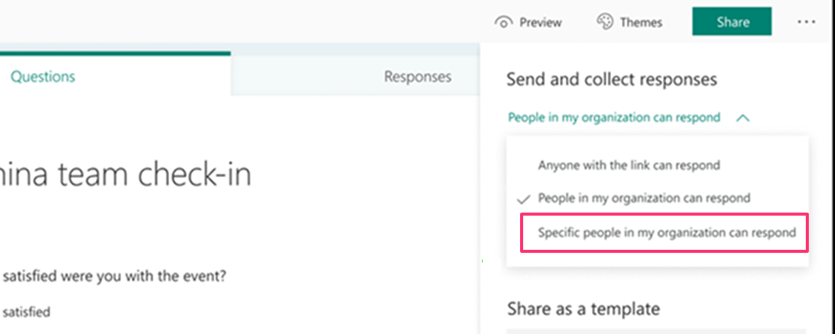
Microsoft’s online survey creator tool, Microsoft Forms, is finally adding support for collecting responses from specific users or security groups. The company has announced via a Microsoft 365 Admin center message that the feature will begin rolling out in December on its desktop and mobile clients.

With this update, only the users/groups specified by the Form owner will be able to view and submit a response to the form or quiz. The new option should make it easier for owners to manage response collection by preventing all other users from submitting their responses.

Setting desktop

The ability to send and collect responses from specific people should help teachers engage with select students or collect feedback from a group of people during business meetings.

Keep in mind that the new option will be disabled by default, and the Form owner will have to enable it manually. The company noted that the change will be applicable to both old forms as well as new ones.

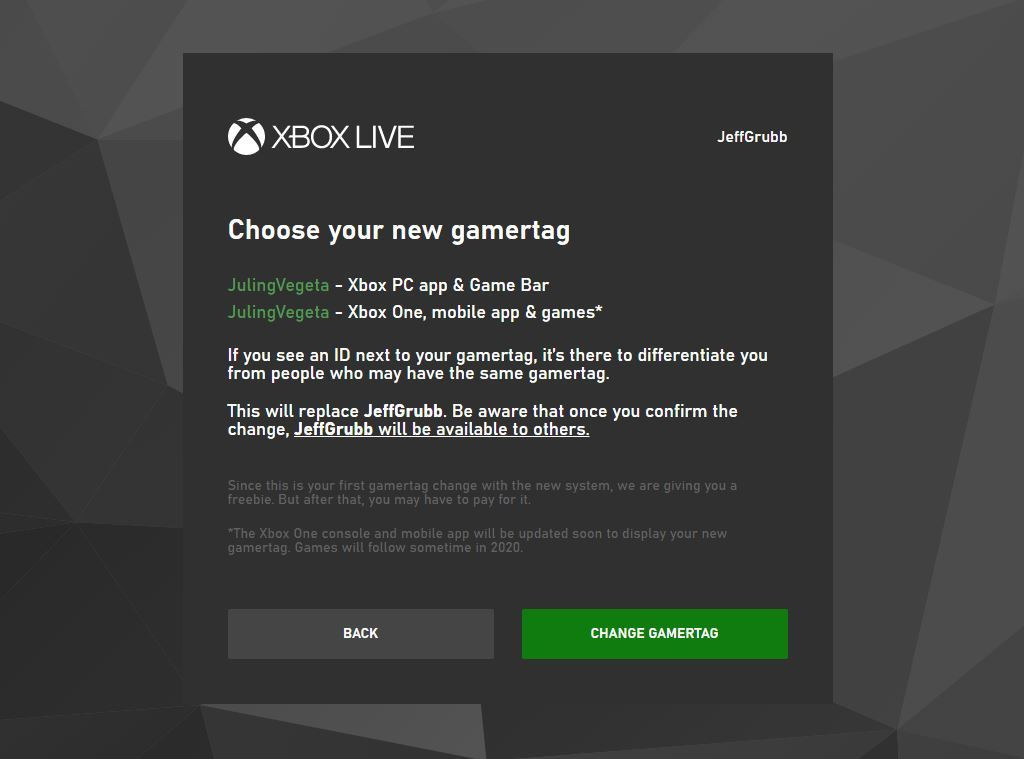
Microsoft fixes bug allowing hackers to see emails associated with Xbox gamertags

While many of us were safely gaming away this holiday weekend in the US, it was only done so because Microsoft was able to quietly patch a bug that prevented further Xbox Live members’ email addresses to be hacked.

Last week, Motherboard had received some anonymous information about hackers being able to capture the emails associated with any Xbox Gamertag. Through an independent verification, where Motherboard gave the hacker’s test Gamertags, the claims were confirmed.

Fortunately, it seems the anonymous hackers were less nefarious in their intentions because they also pointed Motherboard in the direction of the root cause. A bug in the Xbox Live enforcement portal is how the hackers claimed to gain access to email information from Xbox’s online gamer profiles.

In addition to pointing out the bug, the anonymous hackers also asked that Motherboard report on the issue only after Microsoft had a chance to patch it. The secrecy behind quietly allowing Microsoft a chance to address this was due in large part to a similar bug being used to dox Instagram celebrities back in 2017, a result the anonymous hackers sought to prevent this time around.

Even as the company was made aware of the vulnerability, Microsoft’s Security Response Center waived off immediate concern, citing that while emails “may be considered sensitive information, however since it provides nothing else to identify the issuer, is not something that meets MSRC bar for service.”

Perhaps, the MSRC’s tone-deaf response to an obvious user threat reached the doorsteps of the higher-ups because 24 hours later, Microsoft issued a release regarding an update that we sent out to patch the bug.

5 Best HP Monitors To Buy Now

Hewlett-Packard (aka HP) is a leading manufacturer of computer components and electronics that have made a name for itself thanks to the quality of their products, and how widely available they are.

They make pretty much everything you can think to attach to a computer, including monitors. This is why we decided to compile a list of the top best HP monitors you can currently buy so that you won’t have to go around randomly searching all by yourself.

How can I choose the best HP monitor?

Our team of expert testers, with a combined experience of 15 years, has tackled a variety of testing tasks for any device you could imagine.

Their experience comes into play as a very important element when choosing the products we described in this guide, and a large variety of factors have been taken into consideration.

The options that have been chosen offer great quality and cover the entire spectrum of price ranges, thus enabling everybody to find something that fits their needs both financially and otherwise.

Which are the best HP monitors that I can get?

HP V27i

  • 3-sided Micro Edge design
  • Low Blue Light screen
  • HDMI and VGA ports
  • Full HD resolution
  • Tilt the screen up to 5 degrees forward or 20 degrees backward
  • The power cord can be a bit loose

If you’re looking for a regular office monitor, don’t settle down with just anything. The 27-inch display HP V27i doesn’t have a very attractive design but the 3-sided tiny edge recommends it for a multi-monitor setup.

You can tilt it 5 degrees forward and 20 degrees backward to set it in optimal viewing conditions.

The Full HD resolution will suffice any office applications and the low blue light display will defend you against eye fatigue.

It’s also a good thing you can choose between the HDMI and VGA inputs because older PCs might not have a HDMI output.

HP Pavilion 22cwa

  • Full HD (1920×1080) IPS
  • Enjoy vibrant images with 178-degree wide-viewing angles
  • Crystal-clear visuals and vibrant image quality
  • 7 ms response time
  • Great value for its price
  • Some users reported the screen having a short lifespan

The HP Pavilion 22cwa is a monitor that’s worthy of your family’s content. Few other monitors beat the price-performance ratio that this monitor has.

Of course, it also has something to brag about, such as the 21.5-inch diagonal Full HD display, which delivers traditional HP performance while also boasting a modern exterior design.

Anyway, 22cwa is a LED-backlit panel so you can expect great brightness and contrast, ideal for office applications.

HP VH240a

  • Full HD (1920×1080) micro-edge IPS
  • Crystal-clear visuals
  • Response time and refresh rate: 5ms and 60Hz
  • Integrated speakers
  • Display Colors:16.7 Million
  • The integrated speakers are subpar

The HP VH240a is a simplistic computer monitor that lets you experience a striking view from all angles on the virtually borderless display.

It also incorporates an ergonomic stand, built-in speakers, and ultra-slim design at a competitively low price point.

The screen is also ultra-wide, and the good response times make it good as a gaming monitor, albeit not at a competitive level.

HP V223ve

  • 75Hz refresh rate
  • Full HD resolution
  • TÜV certified Low Blue Light mode
  • Ergonomic Tilt
  • 3000:1 contrast ratio
  • HDMI & VGA ports
  • The edges are not thin

The HP V223ve is one of the cheapest LCD displays from this list with HP monitors but its 75Hz refresh rate is also OK for gaming.

Of course, the design is not that great and the edges are not thin but the native 3000:1 contrast ratio is perfect for a monitor that is so inexpensive.

Moreover, the display is TÜV certified for its low blue-light emissions so your eyes will be safe if you use it for 8 hours at the office.

HP Pavilion 27xw

  • Features In-plane switching (IPS) Technology
  • Boasts a thin profile is enhanced by the modern white and silver colors
  • Color and clarity radiate from the screen with full HD 1920 x 1080 resolution
  • 10,000,000: 1 Dynamic Contrast Ratio
  • Frameless Display
  • Power supply socket is reported to be quite sensitive

One of the high points of the HP Pavilion 27xw is the elegance with which it presents both itself, and the images it displays, making it akin to an electronic piece of jewelry.

The ultra-thin design and borderless frame make it perfect for multi-monitor setups without taking too much space on your desk, allowing for greater work productivity and even gaming sessions.

If your main concern is having a monitor that is both reliable and affordable, then you should know that few other brands perfectly balance these two aspects the way HP does.

For other buying ideas, you can take a look at the best monitors with speakers and webcam and make a choice.

Make sure you leave us a line in the comments below with the product you selected. That may help other readers too.

5 Best Mic Stands For Blue Yeti To Elevate Your Audio Game

If you are a vlogger, an influencer, or maybe you only create content for some streaming platforms, a good microphone with a quality stander is a must.

Blue Yeti microphones are some of the best on the market, that are not only record excellent audio but are also affordable.

But if you have some recording tasks that imply working with your hands, then you definitely need a microphone stander. There is no better time than this Black Friday to buy a perfect mic stand for your Blue Yeti microphone.

In this article, we have listed the best Black Friday deals for mic stands that you should not miss. 

What mic stands work with Blue Yeti?

  • Adjustable microphone stand
  • Adjustable shock mount
  • Screw adapter
  • Table mounting clamp with sponge pad
  • Weak pop filter

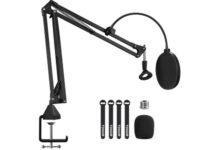
The Luling Arts adjustable microphone stand is a professional recording studio equipment with mic clip holder, adjustable shock mount, and double layer pop filter.

This mic arm has strong compatibility with the Blue Yeti, Snowball, or mount most standard-sized microphones. The maximum support weight is 70 oz/2 kg (4.4 pounds).

The 3/8-inch to 5/8-inch screw adapter is in line with all industry standards. The adjustable shock mount and the universal mic clip also gives more mounting options to make your recording easier.


  • High quality foam microphone windscreen
  • One table mounting clamp with protective layer of sponge
  • Adjustable positioning screw
  • Universal compatibility
  • Not very resistant to high weight

InnoGear is a pioneer company in the art of music that will make your recording work easier.

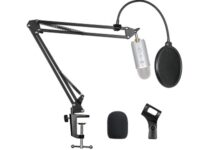
The Heavy Duty Microphone Stand is a long-lasting and durable structure mic stand, equipped with an adjustable positioning screw which can be clipped easily to a desktop with a thickness of 2-inch.

The double-layered screen pop filter keeps the plosives down to a minimum and also lowers down the sibilance.


  • Foldable arm band
  • Upgraded desk mount
  • Heavy-duty steel structure
  • Max load: approx.53oz/1.5 kg
  • Some complaints about the clamp

The InnoGear Adjustable Microphone Arm Stand is made of durable steel to ensure your mic stability.

It is compatible with Blue Yeti Snowball, Yeti Nano, Yeti X, and other radio broadcasting studio mics, or voice sound recording mics.

Even it is exceptionally light, it stands up for a maximum load of approx.53oz/1.5 kg. The mic arm can also bend back and forth at the base, and it is easy to carry around.


  • Rotation angle: 360°
  • High-quality & super-tension springs
  • High grade steel rods
  • Metal adapter
  • Doesn't work on a curvy desk

The TONOR T20 Microphone Arm Stand is made of durable steel for outstanding bearing capacity, with a maximum load of 4lbs/1.8 kg.

Thanks to its upgraded desk clamp, the mic arm stand has now a 4 times larger contact area for easily clip to any desk up to 2.4”/60 mm thick.

Another great feature is the metal adapter. That makes it suitable for different kinds of shock mounts and can be attached to microphones like Blue Yeti and Snowball.


Pipishell Boom Arm

  • Super-strong spring & high-quality foam
  • Filterable, adjustable & flexible
  • Double-layer filter
  • Widely used
  • Stiff range of motion

The Pipishell Boom Arm microphone stand can be installed on most standard-sized hand-held microphones and partial condenser microphones, including Blue Yeti, Blue Yeti Pro, Snowball, and others.

This mic arm stand consists of two adjustable arms of 35 cm and it can be folded up and bent for better storage.

The microphone windscreen is used for filtering the plosives, and the background noise for a better quality of sound.


Microphone standers are the most practical solution for demanding recordings. It helps you reduce your recording work as well as provide better sound quality.

Go through the list and let us know your favorite mic stand for Blue Yeti microphone in the comments below.


[wl_navigator]

Best Cyber Monday Deals on Blue Light-Blocking Glasses

Black Friday & Cyber Monday are here and we can all agree on the fact that those days when malls were the best place to look for the latest discounts are gone. But don’t worry, many manufacturers will continue to offer fantastic deals during the holiday season.

You may also look for the best blue light blocking glasses deals online. These glasses have specially crafted lenses that can easily block or at least filter out the blue light of most digital screens.

The lenses are known to protect your eyes from glare and can reduce eye fatigue and even potential damage to your retina as a result of prolonged exposure to blue light.

What are the best deals on blue light-blocking glasses?

PROSPEK

  • Extremely durable
  • Comfortable polycarbonate frame
  • No less than 7 layers of blue light protection lens
  • Modern look
  • Glare issues

Let us tell you from the very start that PROSPEK anti-blue light glasses are third-party tested and can provide immediate and lasting relief.

To be more precise, PROSPEK computer glasses help all users relieve migraines, eye strain, and dry eye conditions that are usually associated with too much blue light.

You’ll notice a major improvement as well, not to mention that the glasses will look great on your face and you’ll receive tons of compliments.


KENZHOU

  • Two pairs of anti-blue ray computer glasses
  • Easily minimize the eyestrain
  • Super lightweight
  • Complimentary frame packing cloth bag and a cleaning cloth
  • Very fragile

Another great model worthy of your attention is none other than this one. KENZHOU blue light-blocking computer glasses are unique since they can prevent harmful blue-ray emitted by screens from having a major impact on your eyes.

The frame is very comfortable, and the lenses’ light transmittance is great. Even more, do note that we are talking about two pairs of anti-blue ray computer glasses.

Give them a try too and stay away from the computer visual syndrome – vision getting unclear, fatigue, bulging, and so on.


TIJN

  • High-quality acetate material
  • Comfortable frames
  • Fresh design
  • Great quality
  • Small lens

Don’t hesitate to take a closer look at the TIJN blue light-blocking glasses. You should note from the start that the plastic frame doesn’t feel at all cheap.

We are actually talking about a high-quality acetate material that passed the CE certification. Even more, you are about to prevent eye fatigue for good.

Thanks to the anti-harmful blue light, screen flicker, and anti-fatigue protection, you can keep on working in front of your PC all day long.


Which of these blue light-blocking glasses is perfect for you? Let us know your choice in the comments area below.

5 Best laptops to play Overwatch

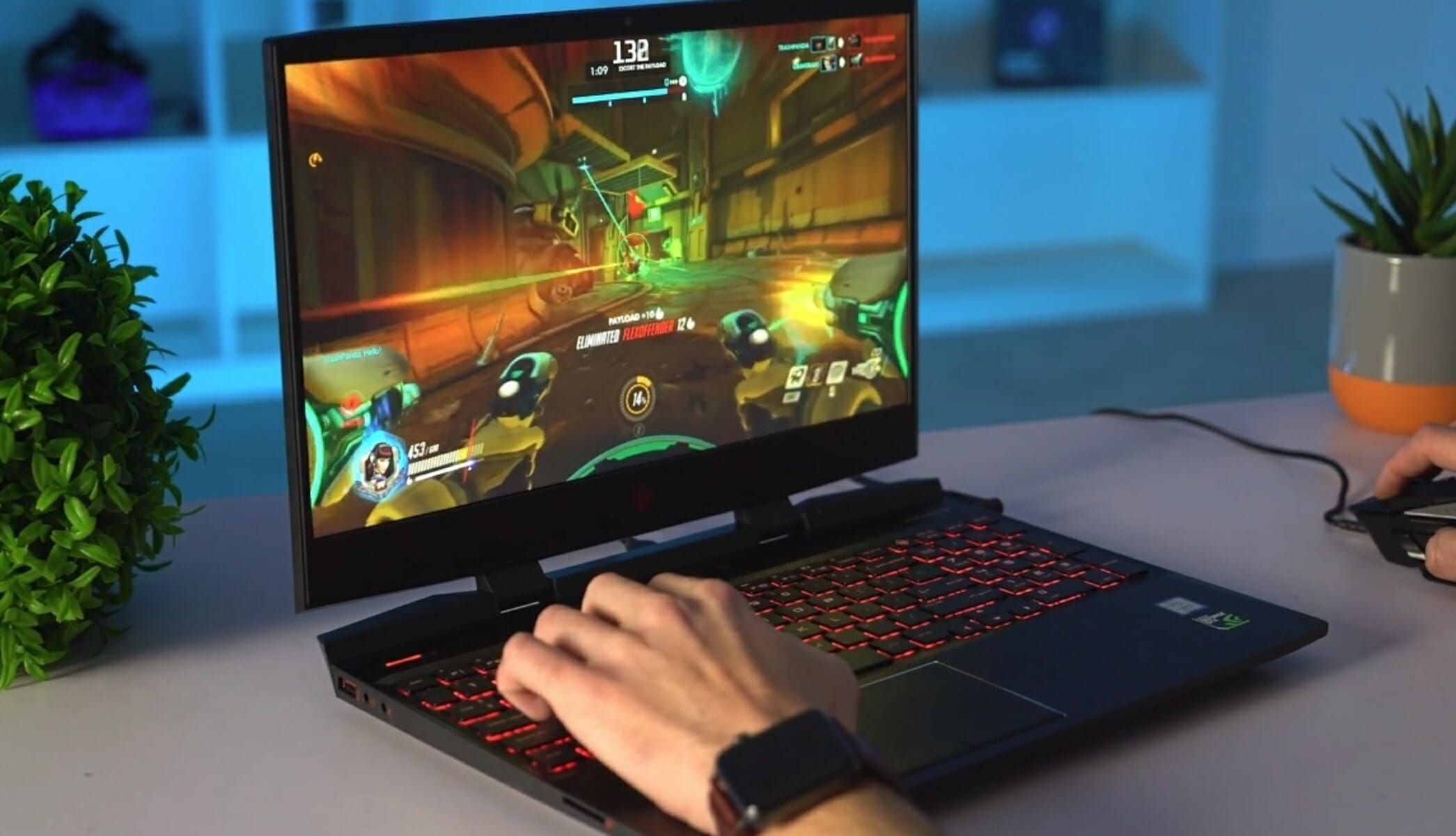
Overwatch is one of the most popular games from Blizzard Entertainment, one of the biggest game companies out there. In other words, the game is an action-packed FPS with MOBA elements, carefully crafted to keep the players on edge by matching them with each other in competitive environments.

As a result, lots of gamers throughout the world are trying the game out. Fortunately for us, the game is well optimized, having light system requirements, while still looking gorgeous.

In conclusion, having a laptop with 4 GB of RAM or more, at least an i3 processor, a graphics card that is better than the Nvidia GTX 460, and you’re running the 64 bits version of Windows 10, you should be good to go.

What are the best laptops that can run Overwatch?

Acer Nitro 5

  • Intel Core i5-9300H Processor which goes up to 4.1 GHz
  • NVIDIA GeForce GTX 1650 Graphics with 4GB of dedicated GDDR5 VRAM
  • 8GB DDR4 2666MHz Memory
  • 256 GB SSD and one open slot for future upgrades
  • No HDD for extra storage

Acer Nitro 5 is the best budget choice on our list, being more than capable of running Overwatch at a high preset if you tweak some settings.

Moreover, it has a full HD display and 256GB SSD storage, along with an RGB keyboard. The GTX 1650, 9th generation i5 processor, and 8GB of RAM are enough to run most modern games with no problem.


MSI GL65 Leopard

  • NVIDIA GeForce RTX 2070 with 8G GDDR6 memory
  • Intel Core i7-10750H which goes between 2.6 and 5.0GHz
  • 16GB DDR4 2666MHz RAM memory upgradeable up to 64GB
  • Gen1 3 Steel Series per-Key RGB with Anti-Ghost key and silver lining
  • 720p HD Webcam
  • Expensive

The most powerful product on our list is the MSI GL65 Leopard, featuring a 144Hz IPS-level thin-bezel display, a graphics card capable of real-time ray tracing, and the latest 10th Gen CPU.

Dedicated thermal cooling for both GPU and CPU, using 2 fans and 7 dedicated thermal pipes, ensures maximum performance under extreme gaming. In addition, the laptop is geared with a 512 NVMe SSD.


Acer Predator Helios 300

  • 10th Generation Intel Core i7-10750H 6-Core Processor which goes up to 5.2 GHz
  • NVIDIA GeForce RTX 2060 with 6GB of dedicated GDDR6 memory
  • 16GB DDR4 2933MHz Dual-Channel Memory
  • 4-Zone RGB Backlit Keyboard
  • High power consumption when idling or under medium load

Another similar item to the previous one on the list is the Acer Predator Helios 300, which is also geared with an RTX-ready GPU, the latest generation of Intel CPU, and a flashy 144Hz monitor.

In addition to these powerful specs, the laptop comes with RGB, a 512GB NVMe SSD, and Wi-Fi 6.


Lenovo Legion 5

  • AMD Ryzen 7 4800H mobile processor
  • NVIDIA GeForce GTX 1660Ti GPU with 6GB DDR6 video memory
  • Dual Burn Support, which pushes the CPU and GPU together for improved framerates
  • Legion Coldfront 2.0 for thermal tuning
  • The 16GB of DDR4 memory works in single-channel

Our first medium-range choice is the Lenovo Legion 5, which is equipped with an AMD Ryzen processor and an NVIDIA GPU. If you are more of a casual gamer, you probably do not need the most powerful machine out there.

This laptop is more than enough to max Overwatch and many other current games, while still being fairly cheap compared to the other choices. Moreover, this laptop also has a 512GB NVMe SSD.


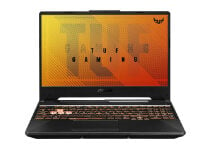
ASUS TUF Gaming A15

  • NVIDIA GeForce GTX 1650 4GB GDDR6
  • AMD Ryzen 5 4600H processor which goes up to 4.0GHz
  • 8GB DDR4 3200MHz RAM
  • Dual fans with self-cleaning anti-dust technology
  • No Wi-Fi 6

Our last entry on the list is another mid-ranged laptop. The ASUS TUF Gaming A15 falls a bit shorter than the aforementioned products in terms of computing power, but its price-to-value ratio is incredible.

Moreover, the laptop will run Overwatch and many other games with not much of a problem.

Its specs are fairly similar to the previous product, with the exception of a slightly cheaper GPU and less RAM, resulting in a cheaper laptop overall with no significant power loss.


This concludes our list regarding the best gaming laptops that are capable of running Overwatch. We hope it covered everything you need to make the right decision.

We value your input so feel free to leave any kind of feedback in the comments below.

5 Best Portable Cassette Recorder

A portable cassette recorder is still very nice to have and use, especially for that nice feeling of immersion into old memories lane.

Playing your favorite song, from the original cassette is something that can bring a lot of joy and satisfaction.

There are some great cassette recorders out there and we have compiled a list with the best ones, in order to make your search easier.

What is the best cassette recorder for music lovers?

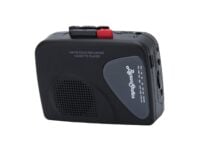
Byron Statics Portable

  • Small and compact
  • Easy to carry
  • Plug and play
  • Does not come with a mic jack

Byron Statics Portable Cassette Player is a lovely device that can be carried around with ease if you need to listen to music outdoors.

If you were looking for a cassette player that will allow you to listen to all your favorite songs, then definitely this player is a fantastic choice.

It works with all kinds of tapes and you have the rewind, fast forward, stop play, and record buttons that are also very easy to use.


Coby CVR-22

  • Recording function
  • Built-in microphone
  • Retractable handle
  • Some users report that it is too big

Coby CVR-22 Portable is another good cassette recorder that will allow you to record and play all the information you want it to.

It’s easy to use, it does not have any complicated steps you need to do and its design is very intuitive with all the buttons placed in the same place.

The sound quality is good and the device really has enough power to fill in the whole camera with music when playing it.


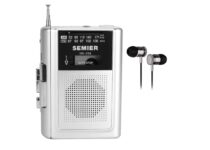
SEMIER

  • Audio playback and recording functions
  • Two types of power source
  • High-quality sound
  • The components are a bit fragile

SEMIER is a compact and lightweight cassette recorder that allows you to record, play your favorite songs anywhere, be it indoors or outdoors.

It has two types of power sources which ensures that the cassette recorder will be able to run for longer hours than usual.

The quality sound is impressive for recorded files, as well as for the tapes you are simply playing to listen to your favorite songs.


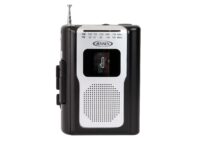
Jensen Retro

  • Built-in speaker
  • Lovely design
  • Tape Cassette Playback
  • The sound quality could be a bit improved

Jensen Retro Portable AM/FM Radio is a compact, lightweight device that comes with a built-in microphone and mini speaker.

You can listen all over again to your memory songs with the tape cassette playback option that allows you to easily play them.

It also comes with a build-in headphone Jack & Recorder with a built-in FM Antena, which comes in hand anytime you want to simply listen to the radio.


Choosing the best portable cassette recorder should be a fun thing to do, that is what we have compiled this list with our best recommendations.

We hope that we have helped you find the best cassette recorder you always wanted to have. Just let us know your choice in the comments area below.

[wl_navigator]

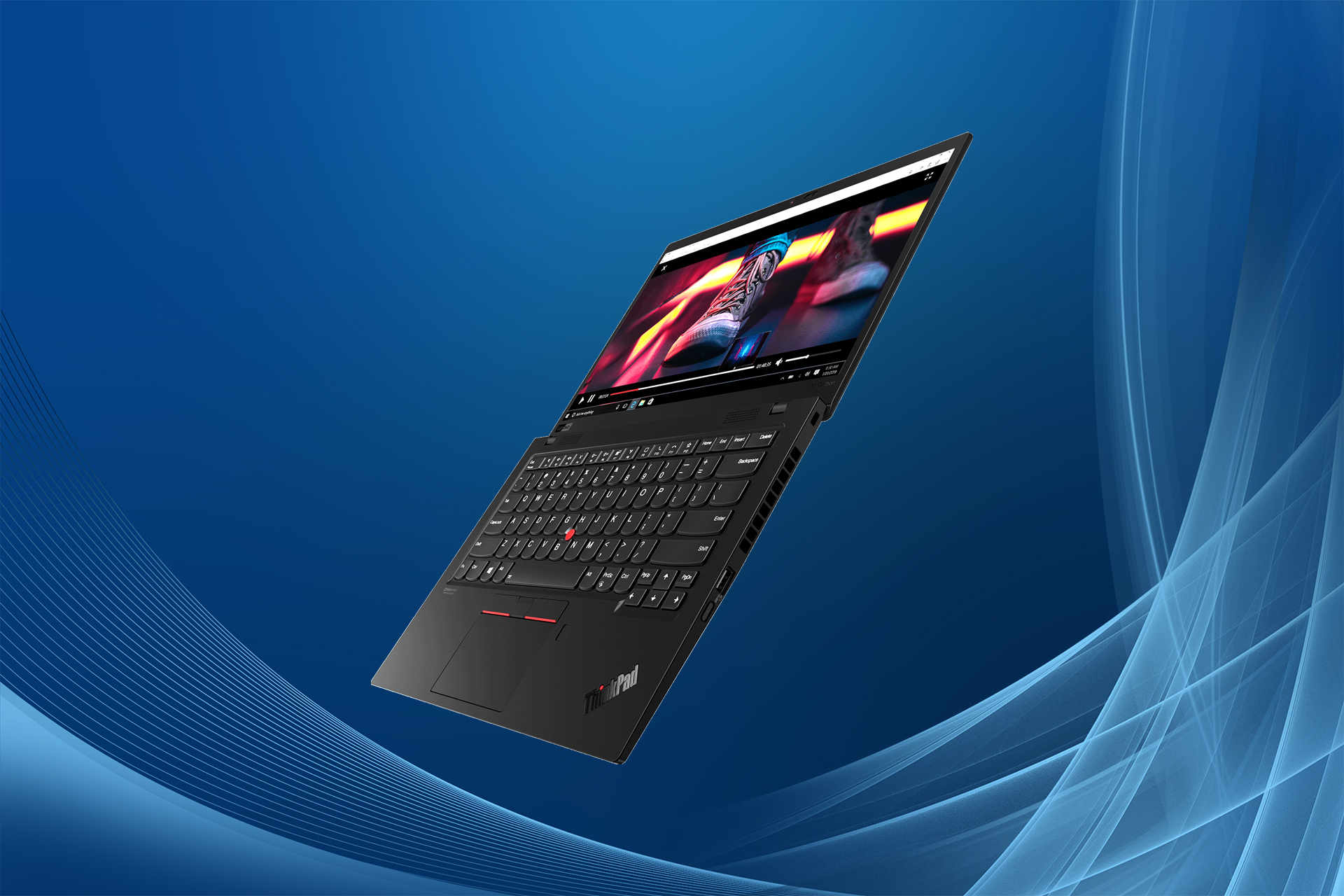
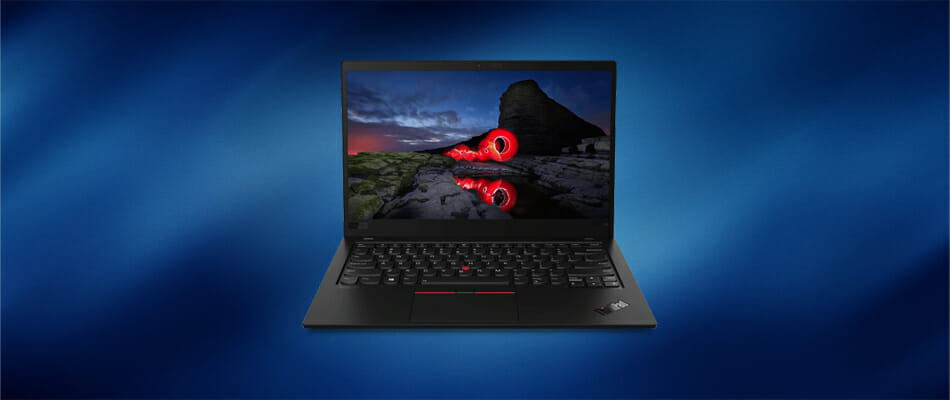
Best Cyber Monday deal for Lenovo ThinkPad X1 Carbon Gen 8

The second biggest shopping day of the year is finally here and we’ve found the best deal on a Lenovo laptop that is worthy of your full attention.

When premium performance is essential, ThinkPad X1 Carbon Gen 8 cannot disappoint. Let us tell you from the start that it is tested against 12 military-grade requirements from zero gravity to desert dust storms.

If you like the idea of durability, long-lasting battery life, and speed, then don’t hesitate to discover more about this Cyber Monday offer.

What is the best Lenovo ThinkPad X1 Carbon Gen 8 offer?

ThinkPad X1 Carbon Gen 8

Our top pick for exquisite detail is none other than ThinkPad X1 Carbon Gen 8. Its elegant design is unquestionable, while the backlit keyboard is quite impressive as well.

The top row includes dedicated Home and End keys, some useful function keys for volume and brightness, as well as shortcuts for answering Microsoft Teams and working all day long.

Moreover, this powerful laptop is equipped with a 1.7GHz Core i5-10310U processor, 8GB of memory, and a 256GB NVMe solid-state drive.

Don’t leave aside its full HD (1,920-by-1,080-pixel) IPS display that’s ready to surprise you with bold and vivid colors. As for the 720p webcam, it’s free of digital noise, just as you’re expecting it to be.


  • Great battery life of up to 19.5 hours
  • HD 720p webcam with ThinkShutter privacy
  • Backlit spill-resistant US English keyboard
  • Dolby Atmos Speaker System
  • Tested against 12 military-grade requirements
  • Non-touch IPS display

Whether you’re in the market for a PC tablet, smart device, or phone, Lenovo is offering the very best deals we’ve seen this year. Take a peek at the official Lenovo page, then let us know your final choice.

4 fastest SD card readers [Best deals]

SD card is a type of non-volatile memory card for portable devices. Devices like cameras and phones use a microSD or SD card to store your files and pictures.

If you need to move your data on a computer, you will most probably need an SD card reader, because modern laptop and desktop do not include card readers anymore.

When buying a card reader, you should consider things like the connection type, card format, and read-write speed. With SD cards having more storage memory and cameras taking photos at high resolutions, speed is an important feature for a card reader.

What are the best SD card readers?

Anker 2-in-1

  • Very small and portable
  • USB 3.0 for fast transfer rates
  • Slick design
  • Only 2 slots for cards

Anker is a small 2-in-1 card reader solution, with support for both SD and microSD cards.

Compatible with both Windows and Mac, this device does not require any additional drivers to work as soon as you connect it. It uses a built-in USB 3.0 connector for transfer speeds up to 5GB/s.

If you’re looking for something compact and easy to use, Anker 2-in-1 is a good choice.


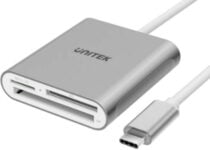
UNITEK SD Card Reader

  • Best USB Type-C card reader
  • 3 slots for most frequently SD card types
  • Plug&Play device, no drivers needed
  • Not compatible with all USB Type-C devices

This Unitek SD reader is the best option for anyone who needs a universal card reader for a device with USB-C ports.

Unitek USB C reader helps you to easily transfer data from a memory card to your USB Type-C ( or Thunderbolt 3 Port) computer or tablet. It is compatible with devices such as MacBook and MacBook Pro, iPad Pro, Surface Book 2, Samsung Galaxy, Pixelbook, Galaxy Book, and others.

You can plug up to 3 types of cards: microSD, SD and CF. The USB type C connecter offers the same speed as USB 3.0, so the read-write speed is up to 5GB/s.

If you need a card reader that can transfer data from your phone to your tablet, consider this one.


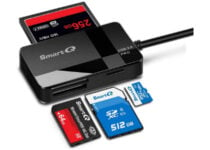
SmartQ C368 Card Reader

  • Best value for the price
  • Plug&Play device compatible with all popular OS
  • USB 3.0 connector
  • No simultaneous use of all the slot

SmartQ is another great SD card reader, well priced and with a lot of positive feedback from its customers.

This device can read up to 4 types of cards: microSD, SD, CF, and MF. The last 2 are pretty rare nowadays, but there are still some devices that use them. Unfortunately, you can not use all of the 4 slots at the same time.

In terms of performance and OS compatibility, SmartQ is almost the same as the above UNGREEN, with transfer speed up to 5GB/s, and compatible with the same OS platforms.

The SmartQ C368 is a decent reader, small enough so that you can store it anywhere. 


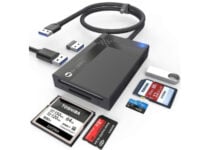
WARRKY Multi-Card Reader

  • 3 USB 3.0 available ports
  • Supports up to 2TB SD/Micro SD card
  • Plug&Play, no drivers needed for most popular OS
  • It gets hot in case of heavy use

Warrky multi-card reader is the best you can get if you want a hub not only with SD slots but also with USB ports.

If your computer or laptop has a few USB ports, you will definitely like this reader. Besides the four types of SD slots, it comes with three more USB 3.0 ports. All the slots can work simultaneously.

The reader comes with a USB 3.0 connector, to ensure a read-write speed up to 5 GB/s.

Not too expensive compared with other readers, Warkky multi-card is a great deal if your computer lacks USB ports.


All of the above card readers have the maximum transfer file speed available today, due to the USB 3.0 or USB Type-C connectors. The budget should not be an issue as they cost less than 20$.

Depending on what type of connecter or SD slots you need, you can choose the one perfect for you.

[wl_navigator]

5 Best GPUs For Video And Photo Editing

Graphics processing unit, GPU, is a specialized processor designed to handle graphics rendering tasks.

A GPU can be integrated on the motherboard or connected to the motherboard on its own separated card, a so-called dedicated graphic card.

While many computer applications can run well with integrated GPUs, video editing software require more resources and performance. Therefore a dedicated graphics card is better suited to the job.

 If you work with high-resolution files, 4K or 360-degree video, you need a dedicated GPU to help you transcode the files at a reasonable speed.

What are the best GPUs for photo and video editing?

AMD Radeon RX 580

  • Best value or the price
  • 8GB VRAM
  • Overclocking possibility
  • Variety of ports
  • Consumes quite a lot of power

With an affordable price, Radeon RX 580 designed by AMD, is one of the best cards for beginners serious about video editing.

It is built on the latest Polaris architecture and has 8GB of memory with factory overclocking to 1425 GHz. This card is also VR ready and supports AMD Crossfire configuration for multiple GPUs.

If you work with applications based on the OpenCL framework, this video card improves video editing performance considerably.

You can connect up to 3 monitors, and the display outputs include support for DVI, HDMI, DisplayPort.

If budget really matters, RX 580 is an excellent choice.


Nvidia GeForce RTX 2080TI

  • Best for 4K video editing
  • New technologies
  • Silent work without overhitting
  • 11GB DDR6 memory
  • Expensive for a limited budget

The best graphics card you can buy on the market is GeForce RTX 2080. If you’re not on a limited budget, then this is the right choice.

RTX 2080 is powered by Turing architecture and comes with a huge 11GB DDR6 memory with a bandwidth of 616 GB/s. This is more than enough if you work with multiple 4K displays.

This is the most performant GPU offered by Nvidia. It can easily render video with a resolution of 4K or above and offers more performance when you apply multiple GPU-accelerated effects.


AMD Radeon VII

  • 16GB HBM2 memory
  • 1 TB/s bandwidth
  • New architecture and process technology
  • Suitable for 4K video editing
  • Increased temperature and power consumption

Radeon VII from AMD is the first GPU using the 7nm processors which leads to stunning experience at 4K resolution.

It is based on VEGA 20 architecture and comes with a huge 16GB HBM2 memory. HBM2 memory is better for computer intensive task, like video editing and rendering.

It also has the highest bandwidth, 1 TB/s. This helps reduce latency, meaning that editing tasks take less time, even at higher resolutions.

Radeon VII is a perfect choice for professional video editing and rendering.


Nvidia GeForce RTX 2060 Super

  • Power-efficient
  • Affordable price
  • Best for 1080 and 1440 resolutions
  • Good cooling system
  • Not so good for 4K resolution

RTX 2060 Super is the best valued graphics card in the RTX 2060 series cards. More expensive than RTX 2060 but better in all the other aspects.

Like other RTX, is running on the Turing architecture and comes with 8GB DDR6 VRAM with a bandwidth of 448 GB/s. This is enough for most video editing tasks.

The OC scanner feature is an automated function that will find the highest stable overclock settings. The cooling system does not let the temperature rise beyond the safe limit, which is an admirable feature.

If you are a beginner but serious about video editing, you should definitely consider this card.


AMD Radeon RX 5700

  • 8GB DDR6 memory
  • 4K support
  • Efficient and fast
  • Radeon image sharpening
  • Uncomfortably hot operating temperatures

Radeon RX 5700 stands up better than other graphics card in the same price range. It offers decent performance at 4K resolution and exceeds expectations for intensive video editing.

Radeon RX5700 is built on the new RDNA architecture, and, because of the Radeon Image Sharpening technology, this architecture displays sharper and dynamic images.

You get 8GB DDR6 VRAM that runs at a decent bandwidth of 448 GB/s, and it also supports 4K H264 decoding and encoding rendering formats.

Great choice for a mid-range performance graphics card.


If you work in video editing and looking to build a computer, you can choose one of the above GPU. Any of them will help you render video and graphics in higher-definition formats, faster and easier.

Many video editing software take advantage of processor graphics acceleration and can speed up the 3D visualization of effects and improve rendering.

By buying a dedicated GPU, you’ll also avoid wasting precious time waiting for projects to render and encode.

[wl_navigator]

5 best 2 in 1 laptops under $200

Laptops have kept up with the new technological trends becoming multi functional without being costly, so in this article we’re going to rank the best 2 in 1 laptops under 200$.

These type of laptops incorporate a detachable touchscreen that can function independently as a tablet but they can also be used as a PC when they are attached to the keyboard.

Owning a good 2 in 1 laptop doesn’t have a to be an expensive investment so let’s see which are the best devices under 200$.

What is the best budget 2 in 1 Laptop?

AOYODKG Tablet with Keyboard

  • 4GB DDR3 of system memory
  • Powerful quad-core processor
  • Up to 8 hours of battery life
  • Rear and front camera
  • Stylus tablet pen and mouse
  • The display could be better

The AOYODKG Tablet with wireless Keyboard is the first worthy mention for a 2 in 1 laptop that mixes quality with an affordable price.

It offers a 10.1 inch display touchscreen and features a powerful CPU that facilitates performing multiple tasks at the same time.

You also get a 1.3GHz quad-core processor and generous storage space of 64GB along with a micro SD card expandable to 128GB.

This device supports 4G, WiFi connection, Bluetooth so you can connect to the internet anywhere you might be.


ADLWLVE 2 in1 Tablet PC

  • Good memory storage
  • 5MP front and 8MP rear cameras
  • The latest 9.0 Android system
  • Expandable TF card up to 128GB
  • Prolonged battery life
  • Small display

The ADLWLVE 2 in1 Tablet PC is another great laptop if you’re on a budget, considering that it displays a 10.1-inch touchscreen with a resolution of 1280×800, and offers generous storage of 64 GB.

With a fast processor and 4 GB RAM of operating memory, this laptop is definitely made to cater perfectly to your essential needs.

The device also provides a dual SIM card slot and offers an OTG function that allows you to connect the tablet to other devices.


DUODUOGO 2 in 1 Tablet

  • High power quad processor
  • Android 9.0 system
  • Storage capacity
  • Dual camera
  • Micro SD card slot
  • The voice to text feature is not great

Duoduogo comes with a device that gives you everything you might need from a laptop, it features a 10 inch touchscreen, a powerful quad core processor and all of the essential characteristics.

This 2 in 1 laptop has 64Gb of storage that can can be extended to 128Gb, a built in Bluetooth, WiFi and GPS.

Some other fun is the dual-use pen and the USB light that allows you to get your work done even in the dark.


ADLWLVE 2 in 1 tablet

  • 4GB RAM
  • Expandable SD card up to 128GB
  • Stylus
  • High definition dual cameras
  • USB led lighting
  • Touch screen resolution could be better

ADLWLVE introduces a multi functional tablet that features a 10.1 inch touchscreen, a Bluetooth keyboard and an OTG converter, all this at a very reasonable price.

The 64Gb storage and the quad-core processor make this device easy to operate when you’re accessing the web or using the apps.

It support 4G calls and uses 4G network for internet access so it allows you make phone calls or hold video meetings.


Simbans TangoTab 2 in 1

  • Powerful CPU
  • Good storage capacity
  • Preinstalled Microsoft Office apps
  • Android 9 Pie system
  • Low res cameras

The tablet with keyboard from Simbans is an excellent 2 in 1 laptop that offers a 10.1 inch touchscreen and has a 64-bit 2GHz CPU with a powerful quad core processor that allows multitasking.

This device offers 64Gb storage that allows you to download plenty of apps, audio, and video files. It also features Bluetooth, GPS, and a micro-USB.


These 2 in 1 laptops under 200$ offer the essential features you need for office work or watching a movie so the fact that they are not high-power devices, makes them manageable.

We’d like to hear your recommendations as well so use the comment section below.

[wl_navigator]

5 Best Instant Cameras For Travel [Top Picks]

In an era where most people are used to taking digital pics with their phone, the classical instant cameras have become even more wanted, mainly because there’s a personal aura to this type of photos.

Our article takes a look at the best instant cameras, that will suit your needs while travelling so you can capture those fun moments with your friends.

Keep in mind that these devices don’t rely on the quality of the image like common analog or digital cameras do, their main purpose is to deliver photos that captures the moment in all of its beautiful imperfections.

You could say that they are a precursor of Instagram, with the instant gratification and feedback from your friends, only that you can actually offer the physical photo right away.

Which is the best instant camera?

Polaroid Originals OneStep

  • Compatible with I-type and 600 film
  • Classic flash vacuum discharge tube strobe
  • High-performance lithium battery, rechargeable through USB
  • Self-timer
  • The instruction manual needs to be more detailed

The Polaroid Originals OneStep makes the first spot on our list, as a great instant camera, with a powerful flash, a focal lens length of 103mm, and a battery that can last up to 60 days.

Thanks to the Bluetooth connectivity you can access various editing features like exposure feature, light painting or noise trigger, which will definitely make your traveling photos look amazing.

Another interesting characteristic is that you get two different types of lenses with this camera, standard, and portrait. With the portrait lens, you can take photos from 1ft to 3ft away from your subject. The standard lens gives you the possibility to shoot from over 3ft away.


Fujifilm Instax Wide 300

  • Useful information available from the display: shots left, exposure compensation, flash mode
  • Adjustable exposure compensation from ±2/3 EV
  • Excellent sharpness and grain structure of the images
  • The tripod included in the bundle does not function well

Another instant camera that stand out because of its versatility is the Fujifilm Instax Wide 300. This device features retractable 95mm f/14 Lens, built in flash and an LCD screen.

An element that makes this instant camera really suitable for travelling conditions is that the ISO goes up to 800 making so you can take pictures in poor lighting conditions.

This device also incorporates a 0.37x optical viewfinder and target spot so your photos are in full focus everytime.

With this camera you also get a bundle that includes a variety of accessories like 3 Twin Packs of 60 Sheets of film, a close-up lens with selfie mirror and so much more.


KODAK Digital Instant Camera

  • Storing images that are not printed right away
  • Downloading photos unto PC with Micro SD card
  • Compatible with iOS or Android devices
  • Digital shots possible only with film removed

This instant camera from Kodak is a very surprising mix between the vintage qualities of classic cameras and the practicability of the digital technology incorporated in the numerous features.

It has a built-in Zink printer that helps create vibrant and clear images. One of the characteristics that makes this device perfect for travelling is that it allows you to take big format photos 3.51” x 4.25” at a resolution of 16 megapixels.

If you don’t want to print all of your photos, this instant camera can store those images. The device also has a micro SD card slot that gives you the possibility to download the photos on your PC.

Thanks to The Kodak Classic you can add effects to your images like augmented reality, sync your photos and share them on social media.


Polaroid Now i-Type

  • Rechargeable USB battery
  • Vintage quality pictures
  • User-friendly thanks to automatic settings
  • Costly instant film

Polaroid introduces a point and shoot instant camera that is mostly automatic which means that you don’t need to struggle with the settings to get a clear photo, while on vacation.

It has autofocus and self timer so you can take group pictures with your friends and not worry about blurred images.

There’s also a kit of useful accessories that comes with this instant camera. You’ll get a pack of Polaroid Color i-Type Instant Film with 16 exposures and an 5″ photo album where you can place up to 32 wide prints.


Fujifilm INSTAX Mini

  • Fujifilm kit with 40 exposures film, camera case and a cleaning cloth
  • Exposure counter of remained shots
  • Good photo quality
  • The camera makes blank pictures sometimes

A great option for a high-quality camera is the Fujifilm INSTAX Mini, that comes with a 60mm lens that can focus from 11.8″ ft away, built in flash and automatic exposure.

With this instant camera you get a viewfinder with an integrated target spot that helps you create your composition depending on the subjects’s type.

Some really useful features for taking different types of photos especially when you’re on a vacation is Party Mode and Kids Mode . The first one allows the camera to illuminate the background when the foreground is lightened by the flash. The Kids Mode helps you take photos of fast-moving subjects even in low light.


There are numerous benefits to using instant cameras instead of the classical modern methods, the most striking one is that you can actually make memories and share them on the spot in the form of physical photos.

We hope that our guide about the best instant cameras you can take with you while travelling was helpful.

We’d like to hear some of your personal recommendations and experiences with these devices so feel free to use the comment section.


[wl_navigator]

Why Is My Chrome Opening Automatically on Android & How to Fix

Chrome browser opening on Android without your command signals misconfigured settings, intrusive permissions, or even malware. If that’s happening to you, follow the methods below to fix it fast:

How do I stop Android from automatically opening my browser?

1. Clear cache and browser data

  1. On your phone, go to Settings > Apps > All and then select your web browser.
  2. Now select Force Stop, Clear Cache, and Clear Data.
    clear browser cache browser
  3. Note: If you use the same browser on your PC, it’s advised to clear its history and cache and turn off syncing temporarily.
  4. Start the browser again and check if the problem is resolved.

2. Remove any suspicious apps

  1. Go to Settings > Apps > All.
  2. Locate the app that has no name and select it. It’s usually located at the bottom.
    unknown app
  3. Now choose the Uninstall option.
    uninstall app

Some apps might interfere with your browser and cause annoying bugs on your phone. Make sure to remove any suspicious apps that you don’t recognize and avoid uninstalling anything outside the Google Play Store.

Some of the most common apps that are linked to this error include:

  • Bluetooth Auto Connect
  • GPS Averaging
  • ApkExtractorLite
  • Bluetooth Toggle
  • Deleo
  • Spelling Corrector
  • Peel Remote
  • S Voice
  • Save & Repost for Instagram

3. Scan your phone for viruses

  1. Go to the Google Play Store and download a reputable antivirus. We recommend ESET Mobile Security.download eset mobile security
  2. Install it on your phone and launch the app.
  3. Tap on Antivirus.eset mobile security antivirus
  4. Select Scan device.scan device
  5. Wait for the process to complete. If any threats are found, make sure to remove them.

If your browser keeps opening by itself, the most common cause is a malicious third-party application, so be sure to check installed apps and remove any apps that look suspicious to you.

Use the comments section below to let us know if you have any questions or suggestions.

5 Best Gaming Chairs With Lumbar Support

Whether it’s relaxation or for your daily job, using the right chair for a correct posture is one of the most important factors when it comes to spending a lot of time in front of the computer.

This is significant for your body’s health and for a better concentration during long gaming sessions. Also, an increased comfort can ensure you a victorious advantage in front of others.

One of the most suitable gaming chairs for a good posture is the chair with lumbar support.

We’ve compiled a list of the best gaming chairs with lumbar support deals, so be sure to check them out below.

What are the best gaming chair with lumbar support deals?

RESPAWN 110 Racing Style

  • Adjustable and headrest pillow
  • Reclining control
  • Extendable footrest
  • Padded armrests
  • The footrest is a bit short

RESPAWN is an award-nominated brand that offers you a limited lifetime warranty. The ergonomic gaming chair RESPAWN 110 in Blue delivers you real comfort during your daily job at the PC.

The bonded leather seat offers support and comfort, not to mention that it holds up to 275 lb.

You can find the perfect angle thanks to the 155-degree tilt recline, and the adjustable lumbar and head pillow can be positioned for your needs and comfort.


Gtracing Gaming Chair

  • Ergonomic design
  • Armrest and seat height adjustable
  • Large reclining and rocking
  • 360 degree swivel
  • Arm rests are easily moved when bumped

The Gtracing game chair in red color features an ergonomic design, and it advertises to be more efficient at work and more comfortable at game.

It has removable headrest pillow and lumbar cushion and it’s made of metal frame with easy to clean artificial leather.

Further notable functions are: adjustable backrest with a 90 degree to 170-degree safety angle, also the armrest and seat height are adjustable.


On Shine Gaming Chiar

  • High-density foam
  • Headrest and lumbar cushion
  • 90-170° angle adjuster
  • 360° nylon smooth roller
  • Nothing noticeable

The On Shine Gaming chair is made of high-density foam with smooth high-quality PU leather, and it comes in three colors.

The game office chair is practical and ergonomic with its included headrest and lumbar cushion. It also has a 90-170° angle adjuster with a tilt locking mechanism to find the most comfortable position for you.


  • Comfy and supportive
  • Adjustable configuration
  • 360° swivel
  • 330-pound maximum weight capacity
  • A little stiff

The Cooler Master Caliber R1 gaming chair is made of high quality PVC leather, and is water resistant. It’s also wear-resisting for long service life, offering you a firm support while gaming.

This gaming chair features high density neck and lumbar support cushion to offer you the best level of comfort, and to reduce back pain.

Its solid steel frame and aluminum alloy 5-star base are designed for a better stability. It supports 330 pound maximum weight.


  • Tilt locking mechanism 90 to 180 degrees angle adjuster
  • Height adjustable gas spring cylinder
  • Sturdy five star base
  • Headrest pillow and lumbar cushion
  • Non-adjustable arm rests

The Homall gaming chair is suitable for computer gaming, or just to work and have a rest. Its modern and elegant design will fit into your space perfectly.

This gaming chair is designed to the bodies natural shape, and it features support for the shoulders, head, and neck. It is durable, reliable and supports up to 300 lbs.


We hope this article will help you get the right gaming chair with lumbar support for your needs. Don’t forget to leave us your opinion in the comments section below.

[wl_navigator]

6 Best Windows Gaming Routers on Cyber Monday Sales

If you are into competitive gaming, a stable Internet connection is a must as even a 2-seconds lag can make you win or lose the game.

Even for those who are not into competitive gaming but play multiplayer games online, an unstable connection can sore the gaming experience real soon. This is where the gaming routers find their audience.

Having a top-of-the-line tri-band gaming router with a 5GHz frequency band doesn’t mean your Internet connection will become faster because the Internet speed is something your ISP decides.

However, these gaming routers allow you to make the most out of your Internet speed, delivering stable speed while covering a good part of your home or office.

If you are willing to invest in one of these gaming gears, this quick gaming router buying guide will help you out. We have gathered the best gaming routers offering exceptional value for money.

What is the best gaming Wi-Fi router?

NETGEAR Nighthawk R6700

  • 1GHz dual-core processor
  • 3 amplified antennas
  • Beamforming plus
  • Dynamic QoS
  • Smart Connect
  • Random firmware issues

If you want to find the best Windows 10 gaming router, the NETGEAR Nighthawk Smart Wi-Fi R6700 wireless speed model is a great choice.

Do note that it is recommended for up to 25 devices, therefore you can use it for more than gaming. Other activities could include streaming videos or simply surfing the web.

As for Netgear’s Armor, rest assured that it protects your network and connected devices from all the latest threats.


TP-Link AC5400 tri band

  • AirTime Fairness
  • 2 x USB 3.0 ports
  • 8 x external antennas
  • Bluetooth / Alexa / IFFT compatible
  • Built-in malware protection and VPN support
  • Intermittent signal

The TP-Link AC5400 is one of the best tri-band gaming routers since it comes with Dynamic optimization that prioritizes traffic to reduce latency.

It is powered by a 1.8 GHz 64-bit quad-core CPU and can protect your network and connected devices with a free lifetime subscription to TP-Link HomeCare­ featuring next-level antivirus.

Moreover, it comes with MU-MIMO and Airtime Fairness features to maximize the total throughput and response rate.


D-Link AC2600

  • Dual-core processor
  • Ideal for 4K streaming and online gaming
  • MIMO support
  • Advanced Smart Beam and QoS traffic optimization
  • Two USB ports
  • Inbound filter implementation issues

D-Link EXO AC2600 is a Wi-Fi router built for gaming, 4K streaming, and much more, as long as it offers a solid close-range performance.

It is easy to install, and the QoS engine is as good as it can get. While the 5GHz long-range is decent, the Advanced Smart Beam tracks all connected devices for enhanced Wi-Fi speed throughout your home.

No less important, it has two USB ports in order to remotely deliver high-speed data transmissions for storage devices.


ASUS RT-AC5300

  • Tri-band router
  • Supports every operating system
  • Trend Micro protection
  • ASUS Smart Connect
  • Unique design
  • Slow menu GUI

The AC5300 is a supremely fast and powerful ASUS router aimed at online gamers and casual users for streaming media content.

The 8x antennas offer solid coverage covering all corners of your home and office, so the idea of stable Internet for all is not just a promise.

Even more, there’s no surprise that the router’s design will please the gamer in you. It is perfect if you don’t want to settle for a regular-looking model.


ASUS AC2900

  • MU-MIMO technology
  • Adaptive QoS Engine support
  • WTFast game Accelerator
  • Built-in malware protection from Trend Micro
  • AiMesh support
  • 2.4 Ghz radio issues

The ASUS AC2900 is one of the best low-cost gaming router all-around packages. Do note that it is designed for lag-free online gaming and flawless 4K UHD streaming.

It comes with the latest set of features, built-in security for all the connected devices, and the dual-band 5GHz + 2.4GHz powers through the walls at home or office equally.

Moreover, Trend Micro provides built-in 24/7 protection from all external attacks and threats that you may fear these days.


Linksys MR9000

  • Up to 3000 square feet coverage
  • 25 plus wireless devices
  • No buffering
  • Tri-band Wi-Fi speeds
  • Simple setup through Linksys app
  • Random signal issues

What makes this Linksys MR9000 router stand out from the crowd is that it works with the Velop mesh Wi-Fi system to easily expand Wi-Fi coverage up to 6000 square feet and eliminate all dead zones.

It is compatible with the existing modem and rests assured that a simple setup is waiting for you, through the Linksys app.

When it comes to its actual speed, there are numbers up to 3Gbps (5 GHz/ 1733 Mbps) + (5 GHz/ 867 Mbps) + (2.4 GHz/ 867 Mbps) in the cards this time.


Finding a gaming router can be a tricky task, but this quick buying guide should help you find the best gaming router based on your requirements.

Let us know your final pick in the comments area below.

4 Best 2-in-1 laptops under $300 for budget buyers

The convertible and detachable laptops have been in the market for a long time now. Your inner desire to bend, flip and transform your device into multiple states can be expensive as the best 2-in-1 laptops are usually pricey.

Fortunately, there are a few mainstream laptop manufacturers who make budget 2-in-1 laptops. So, if you are looking for the best 2-in-1 laptops under $300, this is the article you need.

This article explores the best 2-in-1 laptops $300 that goes beyond the design offering good display, performance and battery life.

What are the best 2-in-1 laptops under $300?

Lenovo 300e

  • Rugged and flexible design
  • 11.6 inches touchscreen display
  • Lightweight and compact
  • Good performance in the segment
  • The keyboard feels a bit crammed

The Lenovo 300e is the best 2-in-1 Windows 10 laptop under $300 that is designed for schools, and users who want a computer that can do basic computing tasks. Being a convertible, it can bend backward to be used as a tablet using the 11.6-inches touchscreen display.

The Lenovo 300e is powered by an Intel Celeron N3450 CPU clocked at 2.2GHz, and is paired with 4GB of RAM and 64GB of eMMC storage. It comes preinstalled with Windows 10 S, but you can switch back to the full-fledged Pro version if you don’t want to use the S mode.

For connectivity, it comes with Bluetooth and Wi-Fi along with the usual HDMI, USB 3.0, and media card reader feature. Lenovo 300e offers up to 8 hours of battery life in mixed usage.


Lenovo Chromebook C330

  • Long battery life up to 10 hours
  • Comfortable keyboard
  • Affordable price tag
  • HDMI and USB ports
  • Low-res display

If you are not heavily invested into the Windows ecosystem, and looking for a laptop with an excellent battery life that can keep you connected all day, the Lenovo Chromebook C330 is a good choice.

This 11-inch convertible features HD IPS display, and is powered by a MediaTek processor coupled with 4GB of RAM and 64GB of eMMC storage. There is a built-in SD card reader if you want to expand the storage further.

Lenovo Chromebook C330 runs on Chrome OS and comes with a reasonably comfy keyboard that offers a good typing experience. For connectivity, it comes with Bluetooth, WIFI, a USB port, and an HDMI port.


HP Chromebook X360 – 12B

  • Excellent battery life
  • Comfortable keyboard
  • Exceptional Chrome performance
  • Great build and design
  • Dim display

HP Chromebook X360 is a budget 2-in-1 Chrome OS-powered laptop for the people who are always on the go and relies heavily on the Chrome browser to get things done.

HP Chromebook X360 is the best 2 in 1 touchscreen laptop that features a 12″ HD+ touchscreen display with universal stylus support. Powering the laptop is Intel’s Celeron N4000 CPU coupled with 4GB of RAM and 32GB of eMMC storage. Thankfully there is a Micro SD card slot for memory expansion.

The HP Chromebook X360’s USP is it’s an incredibly long battery life that will last up to 10 hours. The build quality is good, and the keyboard is comfortable to type on.


Acer Chromebook Spin 311

  • Good design and build
  • Excellent touch screen and convertible mechanism
  • Compact size
  • Performs well with Chrome
  • Dim screen

The Acer Chromebook Spin 311 is a fun little convertible for work and play. The 11.6″ HD touch display offers good touch interaction and stylus support.

Under the hood, it features the Intel Celeron N4020 CPU, 4GB of RAM and 32GB of eMMC storage that is further expandable using the SD card slot.

Acer Chromebook Spin 311 is a well-built laptop and looks good aesthetically. Other features of the laptop include Wi-Fi 5, Bluetooth and USB connectivity.


Most of the 2-in-1 laptops under $300 listed in this article offer touchscreen and stylus support that can be used for taking handwritten notes or flip 360 degrees when using for media consumption.

Go through the list and let us know your favorite budget 2-in-1 laptop in the comments.

[wl_navigator]

3 Best Black Friday & Cyber Monday Deals for Surface Pro 7

The very best Christmas Microsoft deals are right around the corner. If you are interested as well to find the latest deals on the full range of Microsoft products, you cannot forget about Surface Pro 7.

Since it is ultra-light, powerful, and versatile, it can help you get more done with ease. Rest assured that it is accessible even on a tight budget.

That’s what Holiday sales are all about. Many of you may wait an entire year for these incredible discounts on high-end products and Microsoft Surface Pro 7 is no exception.

What are the best deals for Surface Pro 7?

As a reminder, Surface Pro 7 packs a laptop-class Intel Core processor and that’s one of the main reasons for getting the versatility of a tablet and the power of a PC combined in a single device.

If your wish is to type, draw, write, and work more naturally, Surface Pro 7 easily adapts to you. It takes a second to convert it from laptop to tablet, then to portable studio.

Then, simply pair it with the colorful Surface Type Cover to complete your experience. Don’t ever worry about not being able to take it with you.

It’s ultra-slim at just 1.70 pounds, it brings the promise of all-day battery (up to 10.5 hours), along with the ability to go from empty to full in just over an hour.

That’s why these great deals are worthy of your full attention:


  • Next-gen, best-in-class laptop
  • Includes USB-c and USB-a ports
  • Battery life up to 10.5 hours
  • Unique design
  • Competitive price
  • Microsoft Office isn’t included

If you’re looking for the best Christmas deals from the Microsoft Store and not only, keep an eye on us. More discounts are about to be revealed in the upcoming days.

Finally, don’t hesitate to let us know what devices are you expecting to see this Christmas. Just use the comments area in that regard.

5 Best Monitors Without Bezels To Maximize Your Viewing Experience

A monitor bezel is the plastic or metal border that surrounds it. There’s no such thing as a best monitor with no bezel at all, but VDUs (Visual Display Units) with bezels less than one cm in width are becoming increasingly prevalent. So, bezel-less VDUs are ones with almost borderless designs.

Some users prefer the elegant and stylish designs of bezel-less VDUs. VDUs with minimal bezels are also better for side-by-side dual monitor setups. These are some of the best small bezel monitors.

Note: Deals are subject to change. Sometimes, some of the deals listed in our guides may no longer be available by the time you hit the buy button. So, hurry up and grab them while they’re hot.

What are the best slim bezel monitors?

Dell Ultrasharp U2718Q

  • Excellent 4K picture quality
  • Wide range of connectivity ports
  • HDR tech
  • Very fast response time
  • Lacks AMD FreeSync

The Ultrasharp U2718Q is a 27-inch monitor that boasts a 3,840 x 2,160 4K resolution for excellent picture quality.

It covers 99.9% of the sRGB color gamut, which makes it ideal for video and photo editing. This VDU’s picture quality is further enhanced by its HDR technology, which adds greater color depths.

The U2718Q supports HDCP 2.2, which enables its users to watch copy-protected Blu-ray content. This monitor also includes several preset viewing modes for users to select.


Viotek GNV32DB

  • Excellent refresh rate
  • Supports both AMD FreeSync and NVIDIA G-Sync
  • Curved design
  • Expansive display size
  • Monitor ghosting can arise in higher paced games

The Viotek GNV32DB is a low-bezel monitor with a 144Hz refresh rate and AMD FreeSync support for super-smooth gaming.

This monitor boasts a QHD 1,440p resolution and a wide 107% sRGB color gamut for superior picture quality. The GNV32DB is also a 32-inch ultrawide VDU with a curved display.

The GNV32DB has some good features to boot. This VDU provides a GamePlus crosshair for shoot em ups. Furthermore, you can utilize its Picture in Picture mode to view a small picture overlapping another.


Samsung Space

  • Expansive 32-inch display
  • 4K resolution picture quality
  • Its Easy Settings Box is a handy addition for multitasking
  • Not great for gaming

The Samsung Space is a 32-inch thin-bezel monitor that incorporates a novel clamp-mounting arm to attach it to desks with.

It’s a high-resolution 4K monitor with sharp picture quality and vibrant colors.

This monitor has Picture-in-Picture and Picture-by-Picture modes for viewing multiple display outputs.

Samsung Space users can also partition the display into various layouts. So, this monitor enhances multitasking with those features.


Acer R240HY

  • Excellent value
  • Strong color reproduction
  • 178-degree viewing angles
  • Low response time for an IPS monitor
  • Some backlight bleeding

Acer’s 23.8-inch R240HY bidx monitor is a good value VDU with a stylish bezel-free design. Its 1080p resolution and 60Hz refresh rate specifications are relatively standard.

However, this monitor’s IPS panel provides superior color reproduction and viewing angles than many alternatives.

Although the R240HY isn’t quite a high-end gaming monitor, it still boasts a low 4 ms response time. That response time enhances this monitors gaming performance by minimizing ghosting and motion blur.


ASUS Designo MX27UC 27

  • Excellent 4K resolution picture quality
  • Built-in speakers
  • Supports adaptive sync
  • Limited mounting flexibility

The 27-inch ASUS Designo MX27UC monitor has had rave reviews. This VDU’s stunning 4K IPS display has super sharp image quality and great color accuracy.

The Designo’s 178-degree wide viewing angles, built-in speakers, adaptive sync, and a good range of connectivity ports are additional plus points.

The Designo has numerous exclusive bonus features. It incorporates eight preset modes to choose from.

Users can optimize this VDU’s sound with its AudioWizard. Hotkeys for photo previews, an FPS counter, and an in-game crosshair for games are also nice extra features of the Designo.


Those are five of the best small bezel monitors to take your pick from. The above monitors with thin bezels have very decent picture quality and some good bonus features on top.

Spotify error code 4: No Internet connection detected [FIX]

Many Windows 10 users encountered error code 4 when trying to connect to Spotify. Despite having a full working Internet connection, they received the error message No Internet connection detected. Spotify will automatically try to reconnect when it detects an internet connection.

Oftentimes, Spotify error 4 is triggered by incorrect Internet connection settings, including the usual DNS and proxy issues that you are no stranger to.

In rare cases, this error may also be triggered by software compatibility issues, such as incompatible firewall settings.

The issue is very frustrating for Spotify users, as they have to pay a monthly subscription to listen to their favorite music.

In the guide below, we can provide you with a series of fixes worth trying. We’re sure one of these solutions will fix your problem.

How can I fix Spotify error code 4?

  1. Fix Spotify error through Windows Firewall
  2. Disable your antivirus
  3. Change DNS settings
  4. Fix error code 4 by changing the proxy settings
  5. Reinstall Spotify

1. Fix Spotify error through Windows Firewall

  1. Press the Start button and open the Control Panel.
  2. Click System and Security > Firewall.
  3. Select Allowed Apps.
  4. Find the Spotify app and tick its checkbox.
  5. Click OK and try to see if it now works.

Sometimes certain apps could be blocked by the firewall itself. If Spotify is blocked, it won’t connect to the Internet. In order to manually unblock Spotify, you need to follow the above steps.

2. Disable your antivirus

In some cases, your antivirus could be blocking Spotify‘s Internet access. Therefore, open your antivirus software and find the settings giving you the option to turn the software off.

Check to see if disabling your antivirus had any effect on Spotify. If it didn’t work, make sure to turn your antivirus back on.

However, if it did work, we recommend you to switch to a better antivirus software that won’t interfere with Spotify. You should always make sure that your PC is protected.

3. Change DNS settings

  1. Press the Start button and open the Control Panel.
  2. Click Network and Internet > select Network and Sharing Center.
  3. Choose Change Adapter Settings.change adapter options dns server can't be found
  4. Open your active Network Adapter > click Properties.
  5. Click Internet Protocol Version 4 (TCP/IPv4) > select Properties.
  6. Select the Use the following DNS server addresses.
  7. Set Preferred DNS server to 8.8.8.8 > Alternet DNS server to 8.8.4.4.
  8. Click OK > check if the Spotify issue was repaired.

You could also try changing the DNS settings. Sometimes, Spotify does not recognize your DNS, so it’s better to manually input a different DNS server address.

4. Fix Spotify error 4 by changing proxy settings

  1. Open the Spotify app > go to the Settings window.
  2. Click Show Advanced Settings.
  3. In the Proxy settings select Auto Detect from the drop-down menu > click Update Proxy.Update Proxy spotify

Some users reported that changing the proxy settings in the Spotify app fixed the error. To use this fix, just follow the steps described above.

5. Reinstall Spotify

If none of the methods listed above worked for you, try removing the app and installing it back again. Just make sure to back up your playlists before attempting to reinstall Spotify.

The Spotify error code 4 issue isn’t the only one that users complain about. They report getting repeated login errors as well. If that’s your issue too, just take a look at this guide dedicated to solving Facebook login errors on Spotify.

We hope that at least one of our solutions helped you fix the Spotify error code 4. If you’d like to suggest any other fixes, make sure to leave them in the comments section below.

[wl_navigator]

3 Cyber Monday Deals for Microsoft Arc Mouse

It’s that time of the year again when all retailers are trying to draw in more customers in a few weeks than they did in several months, also known as the shopping season.

Microsoft also features their own Black Friday & Cyber Monday sales, and they even give you a sneak peek ahead of time so that you can prepare your wallet for the gadgets you wanted the most.

One good example is how Microsoft just slashed the prices of several Arc mouse models, and we will be showcasing you the best deals that you can take advantage of.

Those bargains are still available for the Christmas holiday, so keep reading if you’re looking for the finest gift for your buddies.

Here are the best Microsoft Arc mouse deals

Surface Arc Mouse

  • Ultra-slim and lightweight
  • Snaps flat and slips easily into a pocket or bag
  • Optimized design for the most natural interaction
  • Connects wirelessly to your Surface device via Bluetooth
  • An innovative full scroll plane lets you scroll both vertically and horizontally
  • Gamers may not like the design

The Microsoft Surface laptops are for people that are always on the go, and that was the thinking when they created the Surface Arc mouse as well.

Besides the lightweight and iconic Arc design, the mouse is also extremely flexible, easy to fold, and great for carrying around, even when your pockets are small.

Besides, it comes with refined control options such as advanced vertical and horizontal scrolling, so whatever you navigate will be easy to manage.


Microsoft Arc Mouse

  • Ultra-slim and lightweight
  • The battery life of up to 6 months
  • Snaps flat and slips easily into a pocket or bag
  • Compatible with Microsoft Windows 10, 8.1, and 8
  • Innovative full scroll plane lets you scroll both vertically
  • May feel a bit too large for some

Another very similar entry in our list like the first one is the Microsoft Arc Mouse, which has pretty much the same functionalities as the Surface Arc mouse, although it is a bit bulkier and more durable.

Featuring a battery life of up to 6 months, you can work your heart out using it before needing a recharge.

It comes with the same advanced control features as the Surface Arc mouse, and it will work on all versions of Windows 8 or newer.


Arc Touch Mouse

  • Works on virtually any surface with BlueTrack Technology
  • 2-way touch scrolling for smooth, intuitive navigation
  • Flattens for portability, curve to use
  • Designed for use with either hand
  • Plug-and-go nano transceiver
  • Connectivity USB only

When you first look at this mouse, the first thing that may come to your mind is that it is probably too delicate to be practical, but you would be terribly wrong.

One thing that makes it stand out is that there is no mouse wheel, and the scrolling is done by a separate sensor pad where you move your finger in the same up and down the way.

Besides, the BlueTrak technology allows this mouse to be used on any surface, regardless of what it is made of or how smooth it may be.

This concludes our list of the best Microsoft Arc mouse deals that you can take advantage of this Christmas holiday.

Which model are you thinking of buying? Let us know which caught your eye the most by leaving your feedback in the comments section below.

6 Best 240Hz Monitor Sales & Deals

Having top-notch gaming hardware can give an edge in competitive gaming. While 144Hz monitors are a popular choice among the gamers, the new 240Hz monitors take the competitive gaming a notch above.

These extremely fast refresh rate monitors make the gameplay as smooth as possible providing individual frames in utmost details. Needless to say, to be able to utilize the monitor to its full extent, you also need a beefy graphics card.

If you are looking to upgrade your gaming setup, consider one of these 240Hz monitors this Black Friday. We have listed the best 240Hz monitor deals that offer the best value for your money.

What are the best 240Hz monitor deals?

Alienware AW2720HF

  • Ultra-smooth visuals with 240Hz display
  • Excellent viewing angles
  • Versatile stand
  • Thin bezels
  • Expensive

The Alienware AW2720HF offers all the speed that you seek from a 240Hz monitor without compromising on other quality features. It features a 27″ Full HD 240Hz IPS LED panel with an aspect ratio of 21:9 offering smooth visuals.

Alienware AW2720HF also comes equipped with the AMD Radeon Free Sync feature to minimize graphic distortion during gameplay. The viewing angles are excellent, and the versatile stand not only gives it a futuristic look but is also practical in use.


Lenovo Legion Y25-25

  • Excellent response time
  • Good value for money
  • Versatile stand
  • Heavy in weight

The latest Monitor from Lenovo promises not only super high refresh rates but also excellent viewing angles with its IPS panel. The Lenovo Legion Y25-25 is one of the most affordable 240Hz monitors you can buy today.

It features a 24.5″ Full HD LCD IPS panel with 1ms response time. Its Nano IPS HDR400 display covers 99% of the sRGB color gamut. It also features the AMD Radeon FreeSync out of the box.


LG UltraGear 27GN750-B

  • Super high refresh rate display
  • Low response time at 1ms
  • AMD FreeSync and NVIDIA G-Sync support
  • Good viewing angles
  • Low contrast ratio

The UltraGear 27GN750-B is a 240Hz gaming monitor from LG that offers super high refresh rate with 1ms response time and all the bells and whistles of a gaming monitor including USB, DisplayPort and HDMI support.

This 27″ Full HD display offers adequate brightness and comes with native AMD FreeSync support while also being certified by NVIDIA’s G-Sync compatibility.

The motion looks exceptionally smooth on this monitor thanks to its outstanding response time even at 60Hz. The input lag is also low, thus resulting in faster reaction time when gaming.


ViewSonic ELITE XG270

  • Excellent response time
  • Great viewing angles
  • Flicker-free backlight
  • Low contrast ratio

With low 1ms response time, 240Hz super high refresh rate and low input lag, ViewSonic ELITE XG270 is one of the best 240Hz gaming monitors you can buy.

ViewSonic ELITE XG270 offers decent HRD gaming performance. It also has a wide color gamut that works for both gaming and media creative professionals.

Similar to other performance monitors in this segment, ViewSonic ELITE XG270 also comes with G-Sync compatibility for tear-free gaming. Included versatile stands offer swivel, tilt, and pivot functionality.


MSI OPTIX MAG251RX

  • 24.5 inches IPS panel
  • 1ms response time
  • Great viewing angles
  • Fully compatible with G Sync
  • Motion-Blur Reduction not top of the line

The MSI OPTIX MAG251RX offers the best of 240hz gaming monitors with a vibrant IPS panel, excellent response time and good viewing angles all at a reasonable price.

MSI OPTIX MAG251RX features a 24.5 inches IPS panel with a 1ms response time offering good viewing angles, and color accuracy for both creative professionals and gamers.

Additionally, it also comes with G-Sync compatibility, Motion Blur Reduction, a versatile stand, and rich connectivity options.


BenQ ZOWIE XL2546K

  • Excellent response time and input lag
  • Versatile stand
  • Good viewing angles
  • Included S Switch for navigation
  • Expensive

The BenQ ZOWIE XL2546K is one of the best eSports monitors around. This 24.5″ Full HD IPS panel offers 240Hz refresh rate and 1ms reponse time offering super smooth motion during gaming sessions.

BenQ ZOWIE XL2546K comes equipped with DyAc+ panels that make vigorous in-game actions such as spraying less blur.

This allows gamers to see the position of crosshair and impact points more clearly.

The Included S Switch enables you to change the display settings with ease without fiddling with the physical controls at the back.


If you are into competitive gaming or just getting started, a high refresh monitor should be a definite choice.

These High refresh monitors not only offer smooth, tear-free gameplay but excels when it comes to low input lag resulting in faster reaction time.

[wl_navigator]

Microsoft Edge Canary gets the ability to rename browser windows


Microsoft is working on a new tab management feature that will let users set custom names for browser windows in Microsoft Edge. As noticed by Reddit user Leopeva-2, the experimental feature is not hidden behind any flag and should be available to all Edge Canary Insiders running the recent builds.

The ability to rename multiple tabs is a nifty addition for people who usually have multiple tabs opened in Microsoft Edge. It should make it easier for them to classify their browser windows based on their contents and quickly identify them. Most importantly, it helps to distinguish between different tabs while switching between them using the Alt-Tab shortcut.

To take advantage of this new feature, right-click on the window title bar area, and select the “Name window” option from the context menu. In the set Windows name dialog, enter a unique name click “OK” to confirm the changes. You can repeat these steps to rename all browser tabs you have opened on your PC.

Notably, a similar option is already available in the Canary builds of Google Chrome, designed to improve multitasking and tab management experience for power users. While the new capability is already live for Edge users on Canary builds, it could be a while before the feature makes its way to the Stable channel.