New Insider build (1802.180129-1625) adds download progress to Xbox One’s Guide

A new update has begun to roll out to Preview Alpha Xbox Insiders. This latest build, 1802.180129-1625, fixes a range of bugs involving UI glitches and crashes but it also adds something that a few gamers might find useful; a download/installation progress bar in the Xbox One’s popup Guide that also acts as a shortcut to the installation queue. Here’s the full release notes.

New Features:

Installation Progress in Guide

In-progress installations are now visible from a tile at the bottom of the Guide. When selected, this tile opens a new interface showing items in the queue and their status, and allowing some basic functions like pausing or cancelling the installation.

Fixes:

Profile

Fixed an issue which caused some elements in Profile to appear misaligned.

Home and Dashboard

Resolved an issue which sometimes caused unexpected crashes.

Miscellaneous

Miscellaneous fixes and improvements.

Known Issues:

Games Installation

Games that are installed fail to launch. Workaround: If the games are installed to an external drive please copy the game to the internal drive or attempt to delete the title and redownload to fix the launch error.

Display 

We are investigating the inaccurate RGB colors that have been reported when displaying in 4K HDR mode when playing a UHD disc.

Tournaments

  • The left and right navigation for selecting date and time during Tournament creation is currently reversed when the console language is set to Arabic or Hebrew.
  • Left and right navigation in Tournament twists is reversed when the console language is set to Arabic or Hebrew.
  • Left and right navigation in the bracket view of Tournaments is reversed when the console language is set to Arabic or Hebrew.

Avatars on Home

Users wishing to represent themselves as an avatar can do so by changing their settings under My profile > Customize profile > Show my avatar.

Have you installed this build yet? Let us know if you like the new Guide feature in the comments below.

BitLocker Not Saving Key to AD: How to Force it

BitLocker is a built-in full disk encryption software available on Windows, but sometimes Bitlocker is not saving key to AD.

This can be an issue and make your recovery process almost impossible, resulting in file loss.

To avoid such situations, follow the instructions listed below to ensure that BitLocker saves your recovery keys to AD.

Why is BitLocker recovery key not showing up in AD?

Usually, the key isn’t showing up in AD due to the following:

  • System policies – If certain system policies aren’t enabled, your key won’t be saved to AD.

What can I do if the BitLocker recovery key is not saved to AD?

1. Make sure the Group Policy setting to save the key to AD is enabled

  1. Press Windows key + R and enter regedit.
  2. Navigate to this registry key: HKEY_LOCAL_MACHINE\SOFTWARE\Policies\Microsoft\FVE
  3. To allow backup of recovery information, make sure that the values listed below are available:
    • OSActiveDirectoryBackup should be set to 1
    • FDVActiveDirectoryBackup should be set to 1
    • RDVActiveDirectoryBackup should be set to 1.

Also, make sure that the client is a member of the OU and that the BitLocker group policies apply to the respective OU.

After doing that, check if BitLocker is still not saving key to AD.

2. Get the ID for the numerical password protector

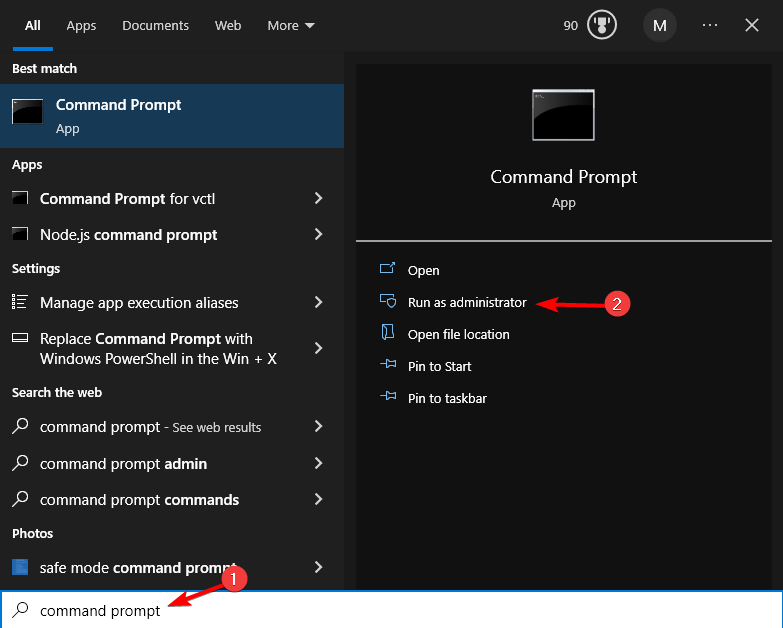
  1. Search for Command Prompt and select Run as administrator.
  2. Enter the following command, but be sure to use the correct drive letter: manage-bde -protectors -get c:
  3. You should now see your ID and password for the numerical password protector.
  4. Now run the following command but be sure to replace the values in brackets with your ID: manage-bde -protectors -adbackup c: -id {...}

As you can see, you can easily fix the issue with BitLocker as long as you follow our simple instructions.

If you’re having further problems, we suggest reading our guide on how to find BitLocker recovery key.

We hope this helps. Also, if you found other solutions to enable BitLocker key saving to AD or fix BitLocker key backup issues, use the comments below to let us know.

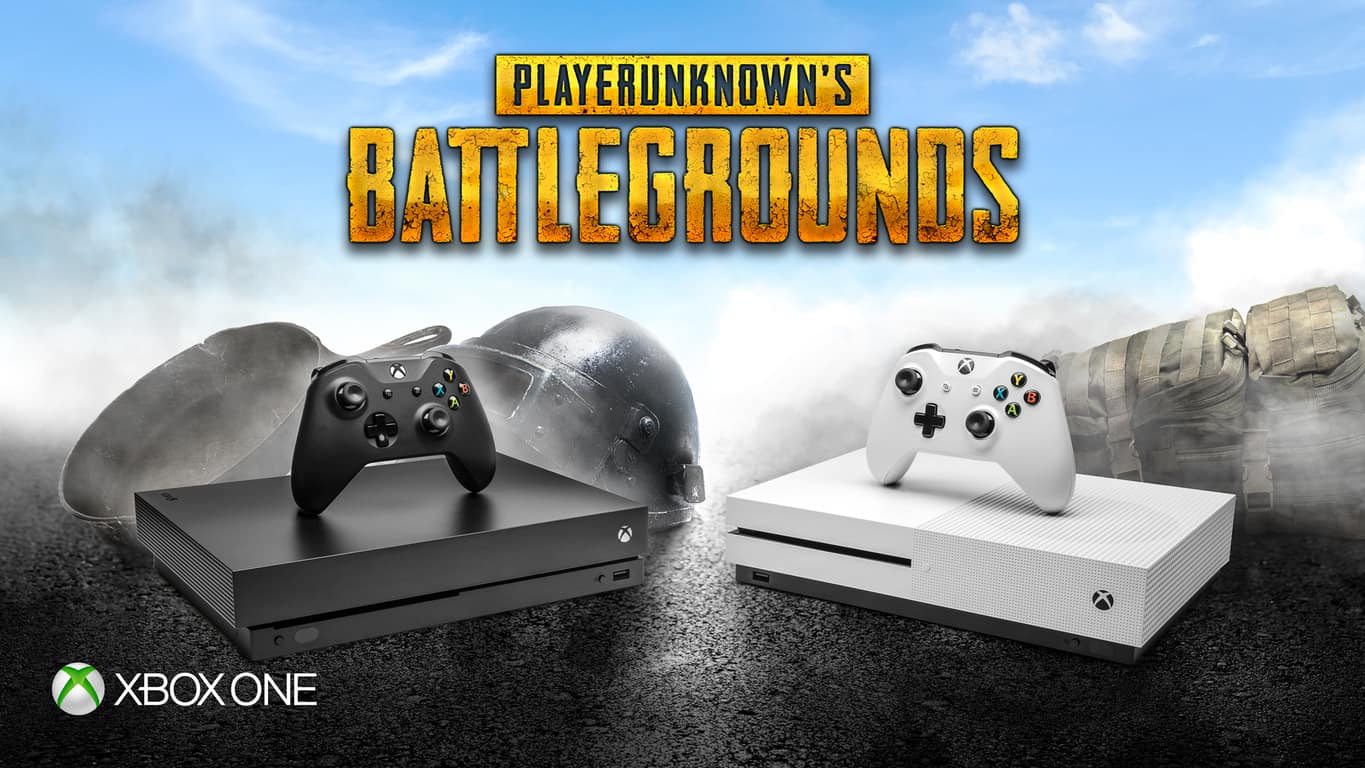
Vehicles get a revamp in latest PlayerUnknown’s Battlegrounds (PUBG) update on Xbox One

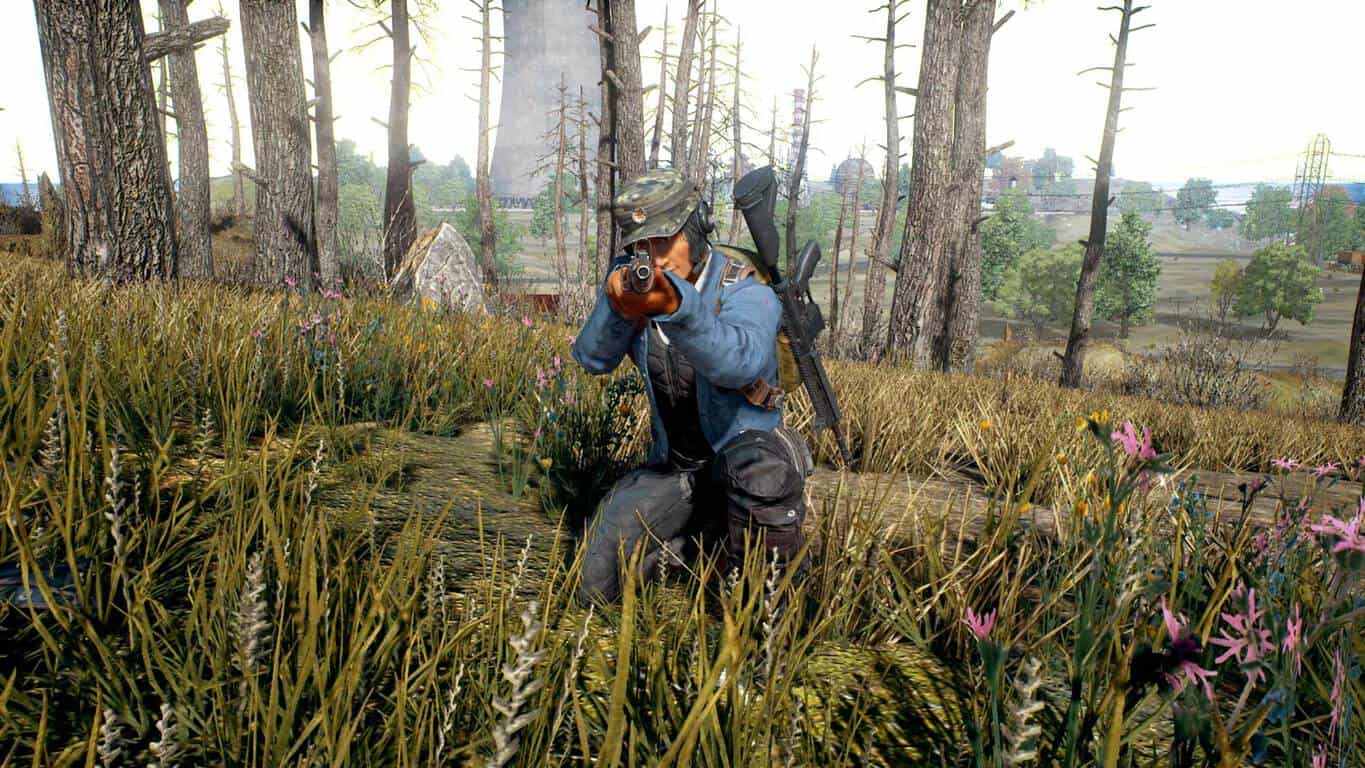
PlayerUnknown’s Battlegrounds (or ‘PUBG’) just received its seventh update on Microsoft’s Xbox One family of consoles. This latest update makes some significant changes to the way vehicles are damaged in-game and also improves controller input response. Here’s the complete patch notes.

Gameplay

  • We’ve listened to your feedback and further modified the damage players can inflict on vehicles, increasing areas of vulnerability. This includes:
  • Increased damage to the vehicle body, and significant damage to the wheels when targeted with gunfire
  • Increased vehicle damage when successfully targeted with a grenade
  • Both driver and passenger will suffer increased injuries from crashing into objects or other vehicles (Dacia, UAZ, and Buggy)
  • Slight reduction to player damage when being struck by a vehicle

Optimization

  • Continued optimization to controller input lag
  • Visual quality of the reticle is improved for Xbox One (Red Dot, Holographic, and 2x Sight)

Bug fixes

  • Resolved issue where inventory may highlight the wrong column when looting
  • The sensitivity setting for 4x Scope is now also applied to the permanent scope on the VSS
  • Auto-run (double-clicking the left stick) is disabled when aiming down sights
  • Players can now use the D-Pad while in the map view without switching melee, pistol, or throwing weapons
  • Removing the marker from the map when pressing (Y) will no longer switch primary/secondary weapons
  • Fixed issue where the crosshair is not correctly displayed after players reconnect to a game session

PlayerUnknown’s Battlegrounds is one of the biggest video games on the Xbox One right now and currently boasts over 4 million players. Have you played PUBG yet? Let us know about your experience in the comments below.

Microsoft Sudoku Won’t Load or Crashes: Use These Fixes

What’s a game if you can’t play it? Even worse is if it is a casual game like Microsoft Solitaire and Sudoku.

When you try to launch a game, like Microsoft Sudoku, and it won’t load, or it crashes, or it just won’t run, you could try the first troubleshooting solutions, such as restarting your computer or the game itself.

If these quick fixes don’t work, try the solutions listed in this article, whether you’re playing from your Xbox console or Windows 10 computer.

What can I do if Microsoft Sudoku won’t run/crashes?

1. Check the Xbox Live service status

If you see any alerts here, wait until the service is up and running, and then try loading or playing Microsoft Sudoku again:

2. Check for game updates

Here’s how to find out if you’re running the latest version of your game.

  • Open the Microsoft Store
  • Sign in with the account you use to play the game.
  • In the search box, type the game’s name, in this case Microsoft Sudoku.
  • On the game detail page, the button will show Open if you have the latest version.
  • If it shows Update, select it to update your game.  Alternatively, you can select your account icon in Microsoft Store (to the left of the search box), and then select Downloads and Updates to see if there’s an update available for your game.
  • Select App updates.
  • On the App updates screen, select Check for updates.

This also works when the Microsoft Sudoku subscription is not working. If updating the game doesn’t resolve the problem, check for device updates and see if it helps.

3. Uninstall and reinstall the drivers from the manufacturer’s website

  • Right-click Start
  • Select Device Manager
Microsoft Sudoku won't load/crashes/run
  • Find and double-click Driver from the left panel to uninstall
  • Right-click the device, and click Uninstall.
  • Windows will prompt you to confirm the device’s removal. Click OK to remove the driver.
  • After the uninstallation is complete, reboot your computer as soon as possible.

You must know that updating your firmware is an advanced procedure. If you’re not careful you can cause permanent damage to your router, therefore use extra caution. However, we strongly recommend using a third-party tool that can automate the process in safe mode and prevent any issues.

⇒ Get Fortect Driver Updater

4. Check for device updates

Using automatic updating, you don’t need to check for important and recommended updates. Windows Update checks for these updates and installs them when they’re ready.

If you don’t use automatic updating, you should check for updates yourself at least once a week. We usually release important updates once a month, but they can be released at any time.

No matter your settings, some updates aren’t installed automatically. These include optional updates that require you to accept new Terms of Use. When these updates are available, Windows Update will let you know they’re ready to be installed.

  • Click Start
  • Select Settings
  • Select Update & Security
Microsoft Sudoku won't load/crashes/run
  • Select Windows Update
Microsoft Sudoku won't load/crashes/run
  • Click on Check for updates, and then wait while Windows looks for the latest updates for your computer.
Microsoft Sudoku won't load/crashes/run
  • If any updates are found, select Install updates.

Note: You might need to restart your device to finish installing some updates. Save and close all your files and apps before you restart so you don’t lose anything.

If this solution doesn’t work, uninstall and reinstall the game as described in the next solution and see if it helps fix the problem.

5. Uninstall and reinstall the game

If you don’t usually sign in while playing, uninstalling the app will erase all your games and progress. However, if you sign in to the game before you uninstall, your data will be saved to the cloud, and any saved games won’t be lost when you uninstall and reinstall. You’ll be able to pick up where you left off in any game you’re currently playing.

  • On the Start screen, swipe in from the right edge (or, if you’re using a mouse, point to the lower-right corner of the screen and move the mouse pointer up), select Search, and then type the game title – in this case Microsoft Sudoku – in the search box. For example, type Microsoft Solitaire Collection in the search box.
  • Press and hold (or right-click) the app tile, and then select Uninstall.
  • Restart your device.
  • Right click Start
  • Select Run
Microsoft Sudoku won't load/crashes/run
  • In the Open box, type wsreset.exe, and then press Enter. Microsoft Store will open so you can reinstall the game.
Microsoft Sudoku won't load/crashes/run

If uninstalling and reinstalling the game doesn’t resolve the problem, try uninstalling and reinstalling Microsoft Sudoku in compatibility mode and see if it helps.

6. Uninstall and reinstall the game in compatibility mode

  • Right-click on the Microsoft Sudoku set-up file
  • Select Properties
  • Select Compatibility tab
  • Check Run this program in Compatibility mode
  • Let the game install and check the functionality

7. Make sure your firewall/antivirus software isn’t blocking the app

Temporarily turn off firewalls and any antivirus or malware prevention software to check if either is blocking Microsoft Sudoku from running as it should.

Sometimes having multiple firewalls, antivirus, or anti-malware programs, may at times prevent you from performing certain tasks or running processes on your computer.

If this is the cause of the issue, turn either of the three off temporarily then try to log in again.

Ensure you turn these programs back on immediately after you’re done to prevent hackers, viruses, and worms from damaging your system.

The steps to unblock the game (or any app that needs to access Xbox Live) will vary depending on the antivirus or firewall software you use. Refer to the documentation for your antivirus or firewall software to open the settings and ensure the software is not blocking the app.

If your antivirus or firewall has an app “whitelist,” make sure your Xbox Live-enabled games are on this list. And don’t hesitate to also check out this guide on how to quickly fix Microsoft Sudoku subscription in case you are facing such problems.

Have any of these solutions helped you return to your Sudoku game? If not, please let us know by leaving a comment in the section below.

Xbox “in the game?” Why a Microsoft acquisition of Electronic Arts just might make sense

Yesterday, in a lede-burying revelation, Polygon asserted that Microsoft may be looking to acquire game and gaming related companies, including PUBG Corporation, Valve, and most importantly, Electronic Arts, or as it’s more widely known, EA.

The news created a bit of a flurry in the Twittersphere, with many pundits scoffing that Microsoft would be willing to ante up so much (EA’s market cap currently sits at about $36 billion), would walk away from EA’s lucrative PlayStation business to gain first party exclusive titles for Xbox, or would waste so much money chasing what Polygon describes as Xbox’s “serious exclusive games problem.”

No, it’s not about exclusives

First of all, before we get too far, yes let’s not read too much into Polygon’s bombshell. Microsoft looks at acquiring a lot of companies, as do all the major tech players, and it would be more unusual that the company was *not* looking around than that it is. But Microsoft did just promote Matt Booty to a revitalized role of head of Microsoft Studios, who noted that “(c)ontent is extremely important to our strategy going forward.”

If there is a plan and it is moving forward, there are some significant reasons why a Microsoft acquisition of EA just might make sense. Probably the least of these revolves around exclusive gaming. As much as the tech press likes to boil the business down to PlayStation vs. Xbox, since the release of Xbox Play Anywhere, Microsoft’s goals seem to be more about creating a Gaming Anywhere business than a “play games on Xbox” business.

Microsoft needs content

So why EA? First, Microsoft needs to go big with content, and soon. Last year it made a big bet on the Xbox One X, launching a powerful new console with full 4K capabilities early in the cycle, but now it needs to keep up the momentum. The company simply can’t rely on Forza and Halo for the next five years. It needs games, and it needs them now.

Crossplay

Microsoft has been trying to work with Sony on a Minecraft crossplay solution that would allow ‘Crafters to build their worlds across PlayStation, Xbox, mobile and PC, but so far Sony has resisted.

Currently, some 60% of EA’s sales are for PlayStation, and Microsoft would be foolish to clamp down with an Xbox Only exclusivity and cut out all that revenue. But what if instead of exclusivity, Microsoft only required crossplay capabilities for future EA PlayStation games? Microsoft would keep the lucrative Sony/EA gaming business, and at the same time drag PlayStation owners (perhaps kicking and screaming) into the world of crossplay Xbox/PC gaming.

The Games Pass / EA Access fit

Microsoft’s launch of Games Pass is also a good fit with EA, who runs the successful EA Access. Again, this wouldn’t be a play for exclusivity, but one to significantly bolster the Games Pass catalog, and at the same time grow the Games Pass subscription base by adding all those EA Access users. And yes of course there’s that catalog, with Battlefront and Star Wars and the lucrative sports games.

Donald Trump (yes, Donald Trump!)

Then there’s also the “flush with cash” angle. Although $36 billion is a lot of money (remember that Microsoft paid $26 billion for LinkedIn), President Trump’s recent tax cut made it significantly easier for Microsoft and other tech companies to repatriate their offshore cash, which had been sitting (well not exactly) in foreign banks with a 35% tax looming to bring it back to the US. The tax reform has slashed that to less than 20%, making bringing offshore cash, of which Microsoft currently holds some $132 billion, back to the US.

While Apple and other companies have announced plans to repatriate their cash, Microsoft has been close-mouthed about their plans (believe me, we’ve asked!). Sure, $36B is still a lot of money, but investing in Games Pass, in gaming, and in Xbox with a newfound pile of money burning a hole in Microsoft’s pocket could take some of the sting out of such a big spend.

Apple and Facebook and Amazon…

Finally, although as I said the tech press likes to make this out to be PlayStation vs. Xbox, there’s a lot more to it than that. Amazon has been making inroads into gaming, most notably with the acquisition of Twitch, and Facebook is sniffing around, too, signing up ESL to an exclusive tournament streaming partnership. If Facebook and Amazon enter the gaming market in a big way (not to mention Apple, if it “goes there” too), the landscape changes significantly and quickly. Microsoft could find itself dropping from a comfortable second place in a two player race to an also-ran once again, if it doesn’t think big and bold.

Will Microsoft buy EA? In truth, probably not. It’s a lot of money, a big bet, and EA is heavily invested in PlayStation. Still, if an acquisition does happen, it could not only be good for the Redmond giant, but quickly change the gaming industry in a way that catapults the company into the lead dog. Interesting times.

What do you think, should Microsoft buy EA? Let us know what you think in the comments below.


Microsoft to help Columbia Sportswear drive their digital transformation

Microsoft and Columbia Sportswear today announced plans to help the outerwear, sportswear, and footwear company through their digital transformation. The leading innovator in the active outdoor apparel, footwear, accessories and equipment industries will turn to the power of Microsoft Dynamics 365 and Microsoft Azure cloud as part of the new plan.

According to Microsoft, thanks to Microsoft Dynamics 365 and Microsoft Azure cloud, Columbia Sportswear will be able to “manage merchandise globally and streamline operations with increased efficiency.” The company will also be able to use the solutions in their retail, call center, customer relationship management and merchandising operations. This also helps the company personalize engagement with customers thanks to enhanced digital tools and information.

In the words of  Michael Hirt, chief information officer at Columbia Sportswear:

“At Columbia, we have a long history of leveraging innovative technologies to help connect active people with their passions…his practice extends not just to our products, but across every aspect of our business. Through our collaboration with Microsoft, we’re implementing intelligent cloud technology to streamline our global operations and provide additional flexibility and convenience to our consumers.”

Judson Althoff, executive vice president, Worldwide Commercial Business at Microsoft also expressed how this partnership will further make Columbia Sportswear an industry leader:

“Established in 1938, Columbia Sportswear is setting itself up to be an industry leader for another 80 years…Columbia Sportswear will leverage Microsoft’s intelligent cloud to connect data, people and processes globally to deliver personalized shopping experiences for its customers.”

Columbia Sportswear joins many other companies who have already partnered with Microsoft to drive digital transformation. UBS and Maersk, Hershey, Geico, and Fruit of the Loom are just a few of the companies which already deployed Microsoft services as part of their digital transformation.

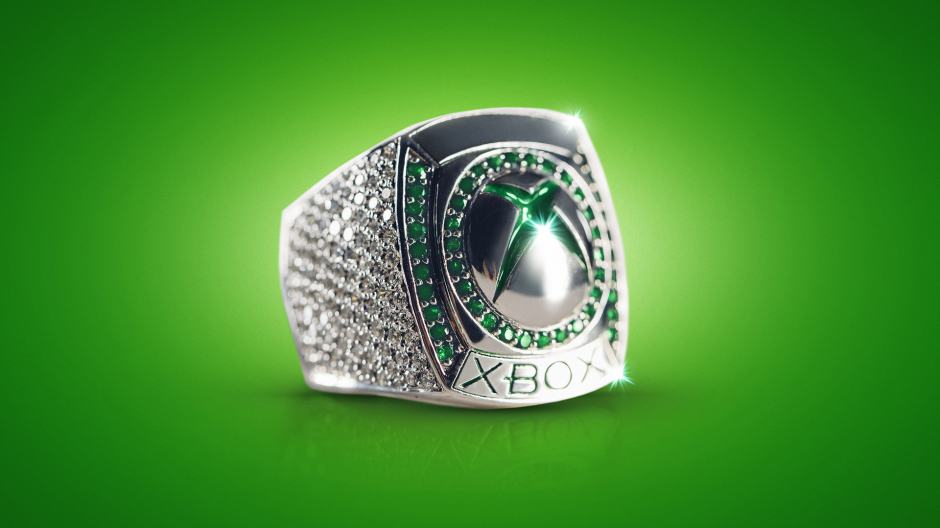
Microsoft just made an official Xbox ring with 188 diamonds

The winning Super Bowl team gets championship rings to celebrate their tremendous achievement, but if you’re good enough at playing Madden NFL 18, you can get a special ring of your own. Microsoft and Xbox have created an official 10 carat white gold Xbox Ring with 188 diamonds, and you try to win it by entering a sweepstakes on Mixer.

The sweepstakes runs from now until February 5th, and all it takes to enter is to enter is to play online in a head-to-head matchup in Madden NFL 18 on Xbox, while broadcasting on Mixer. A random winner will be selected on February 7th, so be sure to keep streaming for your chance to land the ring valued at over $10,000.

Microsoft is also holding an Xbox Live Sessions with Patriots star Rob Gronkowski. This will be held today on the Mixer Xbox channel starting at 5:30 p.m. PT, and fans can also watch in person at the Microsoft Store at Mall of America. NFL fans are also invited to check out special Super Bowl themed events happening in Microsoft Stores across the US on Sunday, February 4th.

How to fix PUBG Out of video memory error on Windows PCs

PUBG is the game that redefined the ”battle royale” genre and immediately gathered an enormous player base.

However, the game is far from flawless and it seems that, besides the usual bugs, we have more than a few issues that completely ruin the gaming experience.

One of those is a common crash followed by the ”Out of video memory” prompt.

If you’re frequently affected by this debilitating error, make sure to check the steps below and we’ll, hopefully, resolve it with joined forces.

How can I fix  the “Out of video memory” error in PUBG?

  1. Make sure your configuration is up to the task
  2. Check the in-game Graphics configuration
  3. Update GPU drivers
  4. Change Virtual Memory allocation
  5. Wait for the game update

1. Make sure your configuration is up to the task

If you didn’t get the memo, we must inform you that PUBG is one of the most demanding games out there. If you want to run it at an optimal FPS value, you’ll be needing a gaming rig, to say the least.

Top-notch graphics are a must, especially since this error refers to Video Memory which comes with GPU. On the other hand, if you reduce settings to a bare minimum, your CPU will take most of the pressure.

Here are the minimum and recommended requirements for Playerunknown’s Battlegrounds:

Minimum:

  • OS: 64-bit Windows 7, Windows 8.1, Windows 10
  • Processor: Intel Core i3-4340 / AMD FX-6300
  • Memory: 6 GB RAM
  • Graphics: Nvidia GeForce GTX 660 2GB / AMD Radeon HD 7850 2GB
  • DirectX: Version 11
  • Network: Broadband Internet connection
  • Storage: 30 GB available space

Recommended:

  • OS: 64-bit Windows 10
  • Processor: AMD Ryzen 5-1600 / Intel Core i5-7600K
  • Memory: 8 GB RAM
  • Graphics: Nvidia GTX 1060 6GB or better
  • DirectX: DirectX 11
  • Network: Broadband Internet connection
  • Storage: 30 GB available space

As you can see, these are some rather intimidating configurations so make sure to meet the enlisted requirements and optimize the game settings to your configuration capabilities.

2. Check the in-game Graphics configuration

While we are at it, there are certain Graphics options you should reconsider reducing in order to fix issues with Video Memory.

As we already stated above, the more you increase your graphics settings — the more GPU will have a hard time rendering it. On lower settings, the CPU takes over UnrealEngine 4.

These are the settings you should consider disabling or decreasing to lowest values:

  • While in game, open Settings > Graphics and set these values:
    • Anti-Aliasing – Very Low
    • Post Processing – Very Low
    • Shadows – Very Low
    • Texture – Medium (or Low)
    • Effects – Very Low
    • Foliage – Very Low
    • View Distance – Low
  • Also, disable Vsync and Motion Blur by unchecking the boxes at the bottom.

These should help you reach at least a reasonable performance while, hopefully, avoiding Virtual Memory crashes in the future.

In addition, some players recommend restarting the game after every match is finished in order to avoid memory leaks.

3. Update GPU drivers

Now, this is where the issue with Virtual RAM takes a strange turn. Namely, it’s not unusual to experience this or similar issues if you’re running the game with a lackluster configuration.

However, as a plentitude of reports suggests, some users with ultra-premium GPUs with more than 10 GB of GPU VRAM are experiencing similar crashes. Which points towards drivers.

Without the proper functioning drivers, your GPU performance will suffer. No matter how powerful it is.

So, make sure to install proper drivers before you move to alternative steps. And we refer to official drivers, not the ones provided via Windows Update. Here’s how to do it simply:

  1. Navigate to one of these official support sites and download proper drivers:
  2. Install driver and restart your PC.
  3. Try running PUBG again and look for changes.

If you don’t know how to update your graphics driver, we’ve prepared a step-by-step guide to help you do it with ease.

Updating drivers manually is very annoying and could cause permanent damage to your PC by downloading and installing the wrong driver versions. We strongly recommend Fortect Driver Updater to do it automatically.

⇒ Get Fortect Driver Updater

4. Change Virtual Memory allocation

This step is often advised in scenarios when an application (in this case PUBG) takes a lot of VRAM due to memory leaks/ irregular freeing of the memory.

Now, there are two different ways to utilize system settings and address this issue. However, we can’t say what will work better for you, so make sure to check them both below.

Disable Paging file

  1. In the Windows Search, type Advanced and open ”View advanced system settings”.pubg error out of video memory
  2. Select the Advanced tab from the dialog box.
  3. Under the Performance section, open Settings.pubg error out of video memory
  4. Select Advanced.
  5. Open Virtual Memory.pubg error out of video memory
  6. Uncheck the ”Automatically manage paging file size for all drives” box.
  7. Click on the ”No paging file” and then on the Set button.pubg error out of video memory
  8. Confirm changes and restart your PC.

Allocate Virtual Memory

  1. In the Windows Search, type Advanced and open ”View advanced system settings”.
  2. Select the Advanced tab from the dialog box.
  3. Under the Performance section, open Settings.
  4. Open Advanced.
  5. Choose Virtual Memory.
  6. Uncheck the ”Automatically manage paging file size for all drives” box.
  7. Click on the Custom size and insert your current available physical RAM in MB values.pubg error out of video memory
  8. Confirm changes and restart your PC.

5. Wait for the game update

Finally, if the issue is persistent, the only thing you can do is wait for the updates to patch the memory leaks that are, by now, quite prominently present in PUBG.

Reinstallation helped some users, but this is a long stretch and it’s hardly ever helpful. The ”Out of video memory” error/crash is the oversight of the developers and thus, we’ll need to wait for their next move in order to get a terminal resolution.

At the end, don’t forget to share your questions or suggestions in the comments section below. We look forward to hearing from you.

Xbox Insiders get new Preview Beta and Delta update

A new update has just rolled out to Xbox Insiders enrolled in Preview Beta and Delta. This update, 1802.180125-1923, doesn’t add any new features worth getting excited about but it does fix several bugs associated with downloads, localization, and profile colors. Here’s the full release notes.

Fixes:

My Games and Apps

  • Fixed an error that resulted in content that was installing/downloading not resuming after a reboot.
  • Certain games when installing had been failing to run on first launch until a reboot – this is now fixed.

Party Chat

  • Reliability fixes to improve the time it takes for users to join a Party Chat session who had been experiencing long join times.
  • Pseudo Localization/Language Translation String Fixes
  • Users will no longer see incorrect language translations in the build.   If you do encounter any incorrect strings please report a problem

Profile

  • Fixed an issue which caused the incorrect profile color to display after powering on the console.

Known Issues:

Games Installation

  • Games that are installed fail to launch. Workaround: If the games are installed to an external drive please copy the game to the internal drive or attempt to delete the title and redownload to fix the launch error.

Display

  • We are investigating the inaccurate RGB colors that have been reported when displaying in 4K HDR mode when playing a UHD disc.

Tournaments

  • The left and right navigation for selecting date and time during Tournament creation is currently reversed when the console language is set to Arabic or Hebrew.
  • Left and right navigation in Tournament twists is reversed when the console language is set to Arabic or Hebrew.
  • Left and right navigation in the bracket view of Tournaments is reversed when the console language is set to Arabic or Hebrew.

Avatars on Home

  • Users wishing to represent themselves as an avatar can do so by changing their settings under My profile > Customize profile > Show my avatar.

Have you noticed anything different on your Xbox One after installing this update that’s not mentioned here? Let us know in the comments below.

Developers can now submit UWP apps that target Windows 10 on ARM devices

Perhaps, I’m a cynic, but I feel the drumbeat for Microsoft Universal Windows Platform efforts may have drummed on for the company with a fairly lackluster showing over the past four years.

Fortunately for those who rely on or are encouraged by the UWP platform, Microsoft continues to push and nurture those efforts with continual development. Microsoft’s latest efforts come from the company’s Dev Center team via a blog post about developers being empowered to target Surface Hub and Windows 10 S customers using Snapdragon processors.

While the first part of the Dev teams proposition may have some scratching their heads and wondering how to balance their expectations versus actual customer base, the second half should be the more interesting tease from Microsoft.

Snapdragon processors.

With the future of Windows now being tied to the Snapdragon processor through OEM partner hardware, UWP apps specifically targeting those processors may see an uptick in downloads as form factors and operating system variants promote usage.

To target Surface Hub when submitting your UWP app to the Microsoft Store, simply ensure that the box for the Windows 10 Team device family is checked. This is generally the case if you upload packages targeting the Universal or Team device family.

If you include an ARM package in your submission that targets the Universal or Desktop device family, this package will be made available to Windows 10 S on a Snapdragon processor (Always Connected PCs) devices as long as the Windows 10 Desktop device family box is checked.

The example above shows three packages that target the Universal device family, x64, ARM and x86. The boxes for Windows 10 Desktop, Windows 10 Mobile, Windows 10 Xbox, Windows 10 Team, and Windows 10 Holographic are selected. This means that customers on any of those device types can download this submission.

For more on the specifics, the Dev team offers this documentation to help developers get started.

While I’m still skeptical about an influx of Windows S UWP apps hitting the stores, Microsoft should be credited with offering developers all the tools to succeed in Microsoft’s future of software and hardware.

Publicis Groupe partners with Microsoft to introduce Marcel, a disruptive AI powered platform

Microsoft appears to be racing into the future guns a blazed with the prospect of becoming the first big software provider of industry applicable AI solutions. To aid in Microsoft’s journey to AI solution supremacy, the company recently partnered with Publicis Group to form the Marcel AI platform.

The two will leverage their strengths, Microsoft being AI compute and Publicis 80,000 employees, will rely on one another to power this new “industry-first” platform.

The Marcel platform will use cognitive services and AI to empower Publicis Groupe’s people, clients, and business to seamlessly collaborate in three ways:

  • First of all, by identifying relevant connections amongst the organization’s 80,000 employees. If there is someone out there in one of Publicis Groupe’s agencies who can help an employee, Marcel will find her or him.
  • Second, by collecting, organizing and curating Publicis Groupe’s collective knowledge Marcel will enable employees to take full advantage of the combined experiences and insights that exist around its group.
  • Finally, and perhaps most importantly, by giving every employee the power to participate and create more, beyond their immediate boundaries. Through the M-Labs, the incubator for the Marcel platform, Publicis Groupe has been testing new collaborative models that are already driving results for some of its major global clients.

Despite being an internal project thus far, the implications of applying Microsoft’s AI solutions to more broader consumer-facing interest should be upon the horizon. Microsoft itself, may not be leading the charge but its partners should definitely be looking forward to seeing a return on their big data investments in Azure soon

Next Xbox Live Sessions to feature Madden NFL 18, Patriots star Rob Gronkowski

The Super Bowl may not be for another few days, but Microsoft and Xbox are planning to put on a big show of their own. Indeed, the company has announced the next Xbox Live Sessions will feature and Madden NFL 18 and Patriots star Rob Gronkowski.

Rob Gronkowski will join his former teammate LeGarrette Blount in a Madden NFL 18 showdown on Xbox One X. The event will be live streamed on the Mixer Xbox channel, starting on Tuesday, January 30 at 5:30 p.m. PT. Xbox and NFL fans can also visit the visit the Microsoft Store at Mall of America to watch in person.

As a reminder, if you’re tuning in on Mixer you will able to submit questions for both players and earn the chance to win some amazing prizes. The last Xbox Live Sessions was about a month ago, featuring Modern Family’s Nolan Gould and Fortnite Battle Royale. Celebrity guests on previous Xbox Live Sessions included Star Wars’ John Boyega, actress Megan Fox, and Rona Rousey.

Microsoft Launcher version 4.5 is rolling out to everyone now

Just two weeks after version 4.4 of Microsoft Launcher released to the general public, a new version of the Android launcher app has already hit the Google Play Store. With the version 4.5 update, Microsoft Launcher gets even more customization options and the usual performance enhancements (via Neowin.)

The most significant change in this release is the ability to adjust icon size in the app drawer, dock, and the home screen. There are also new options for creating shortcuts on Android Oreo devices and setting wallpapers for home and lock screen in Android 7.0+. See the changelog below for the full details.

  • Let meeting attendees know you’re running late from the calendar card.
  • Employees whose enterprises leverage Microsoft Intune’s data protection policies can now use the Microsoft Launcher for viewing corporate data.
  • Adjust icon size in the app drawer, dock and home screen.
  • Set wallpapers for home and lock screen ( 7.0+)
  • Add blank pages in vertical mode
  • Recurring reminders
  • Oreo shortcuts creation

Though not mentioned in the changelog, users should also notice a “Trending on Bing” carousel when using the search function. As is routine, this same 4.5 update was being tested with Beta users for the last two weeks and is now finally available for everyone. You can update now by heading to the Google Play Store, or you can check it out via the link below.

Microsoft Launcher
Microsoft Launcher
Price:
Free

Microsoft releases new emergency Windows update to deactivate Intel’s buggy security patches on your PC

Intel asking everyone to skip its flawed firmware updates was apparently not enough for Microsoft. Over the weekend, the Redmond giant released another emergency update for Windows 7, Windows 8.1, and Windows 10 that disable Intel’s mitigation against Spectre variant 2, which has been causing system instability (via The Verge).

Intel previously acknowledged that recent security patches for all processors released over the last five years could cause reboot issues. “Our own experience is that system instability can in some circumstances cause data loss or corruption,” Microsoft added in a support page this weekend.

The chip maker also said that it has already identified the root cause of reboot issues on Broadwell and Haswell processors, and that it’s currently working on new firmware updates for these CPU architectures. Obviously, Microsoft didn’t want to wait as these system instability are more serious than expected:

While Intel tests, updates and deploys new microcode, we are making available an out of band update today, KB4078130, that specifically disables only the mitigation against CVE-2017-5715 – “Branch target injection vulnerability.” In our testing this update has been found to prevent the behavior described.

For now, the KB4078130 security update is only available to download from the Microsoft Update Catalog website. IT admins can also manually disable Intel’s mitigation against Spectre Variant 2 by applying new registry key settings, and more details are available on this support page.

“As of January 25, there are no known reports to indicate that this Spectre variant 2 (CVE 2017-5715 ) has been used to attack customers,” Microsoft added. Installing this new Windows update will leave your PC unprotected against this Spectre variant, though you may not really have a choice if you did encounter reboot issues (or worse) after installing recent firmware updates from Intel.

Windows 10 news recap: Commercial edition of Surface Laptop, iTunes closer to being in the Microsoft Store and more

Welcome back to our Windows 10 news recap, where we go over the top stories of the past week in the world of Microsoft’s flagship operating system.

Apple’s latest update for iTunes on Windows brings it closer to being in the Microsoft Store

A new update to iTunes on desktop adds a new file that makes reference to UWP, giving signs that Apple is closer to releasing its iTunes software on to the Microsoft Store, as promised during BUILD last year, despite delays.

Microsoft offering “Commercial” Surface Laptop with Windows 10 Pro pre-installed

For those in the enterprise space, Microsoft is offering an edition of the Surface Laptop that comes with Windows 10 Pro pre-installed, so that no upgrades are needed after purchase, providing a more seamless purchase and setup experience.

Surface Laptop Hero Featured Image

Microsoft reportedly working on new lightweight version of Windows 10 code-named Polaris

If Windows 10 for desktop, Windows 10 Mobile, and Windows 10 S weren’t enough, Microsoft is now working on another version of Windows 10 that is aimed to be lightweight, the codename being Polaris.

Windows 10 Logo Generic Featured Image Hero

Office 365 now officially available in the Windows 10 Microsoft Store

Something that Windows 10 S users have been waiting for, Microsoft has now brought Office 365 to the Microsoft Store, allowing dedicated Office apps to be run on its lightweight edition of Windows 10.

Office 365 Windows Microsoft Store

That’s it for this week. We’ll be back next week with more Windows 10 news!

Microsoft news recap: Microsoft Planner gains push notifications, turn drawings into software and more

Microsoft news recap is a weekly feature highlighting the top Microsoft news stories of the past week. Sit back, grab some coffee, and enjoy the read!

Microsoft Rewards Dashboard redesigned with cleaner look, new streak system, more

Microsoft Rewards is Microsoft’s own take of a reward program for its customers. It offers up the chance to receive free gift cards, sweepstake entries and more by just using Microsoft products and services, such as Bing, and/or making purchases from places such as the Xbox Store. Now, the company is redesigning the Microsoft Rewards dashboard and the change is rolling out to users.

Turn your drawings into software with Microsoft Garage’s Ink to Code

If you ever get bored of typing code, Microsoft has come up with a solution. Called Ink to Code, this new Microsoft Garage app aims to allow drawings to be turned into working user interfaces, a quicker way of prototyping.

Microsoft spent about $8.5 million lobbying the US Government last year

In 2017, Microsoft spent $8.5 million in lobbying the US Government in its interests, such as opposing the travel ban, and to protect DACA recipients.

Microsoft Planner gets push notifications support on iOS and Android

The Microsoft Planner app on Android and iOS has been updated. This latest update adds support for push notifications, helping users be aware of when a new task has been assigned to them.

That’s it for this week. We’ll be back next week with more Microsoft news.

Xbox news recap: All Microsoft Studios games to launch on Game Pass, Sea of Thieves dominates Twitch and more

Welcome to our weekly Xbox news recap series, where we go over the top stories of the past week in the world of Xbox. Let’s get started.

All Microsoft Studios games will launch on Xbox Game Pass

This is huge news, and marks Xbox Game Pass as the highest-value subscription service a gamer could possibly get their hands on. Xbox boss Phil Spencer has announced that all future Microsoft Studios games will be available at launch for anyone who’s subscribed to the Xbox Game Pass. That means that games like Sea of Thieves and Crackdown 3 will be available for Game Pass subscribers for no additional fee, just like they shelled out full price in advance. If the current games on the subscription – stuff like Gears of War 4 and Halo 5 – weren’t enough to convince you to buy in, you’ll now have the additional value of blockbuster titles for no additional cost.

Halo 5

Sea of Thieves dominates Twitch and Mixer

If you were banking on Sea of Thieves being a success, its closed beta should be very promising. The game managed to get some serious viewership numbers on Twitch and Mixer during the first day of the beta, managing to skyrocket to more than 50,000 viewers above the usual front-runner, League of Legends. While this could easily be dismissed as Sea of Thieves having its 15 minutes of fame, there’s a good chance that this marks an interest in the game that could sustain it post-launch.

PUBG celebrates over 4 million Xbox players

To the surprise of absolutely no one, PUBG has managed to hit it out of the park and become a hit on Xbox One. The battle royale has managed to pick up over 4 million players over the course of just two months, becoming a major success story for Microsoft’s Xbox Early Access program. The milestone was celebrated by the developers by offering everyone who’s purchased the game a huge stimulus of Battle Points to pick up cosmetics.

Anthem delayed until next year

Anthem, the upcoming blockbuster for EA and BioWare, has been delayed until 2019. Originally planned to release by the end of this year, Anthem has been the topic of quite a bit of discussion in the gaming community, as a “make or break” title for BioWare. After the failure of Mass Effect Andromeda, it seems like Anthem has been delayed in order to give BioWare the time it needs to get this one right. EA is often criticized for being a cynical company, whose decisions consistently get in the way of making good video games. This delay seems like it’s a step in the right direction.

Thanks for joining us. To keep up to date with all the latest Xbox news, keep a close eye on our Xbox One tag.

Capcom is investigating matchmaking issues with Monster Hunter: World on Xbox

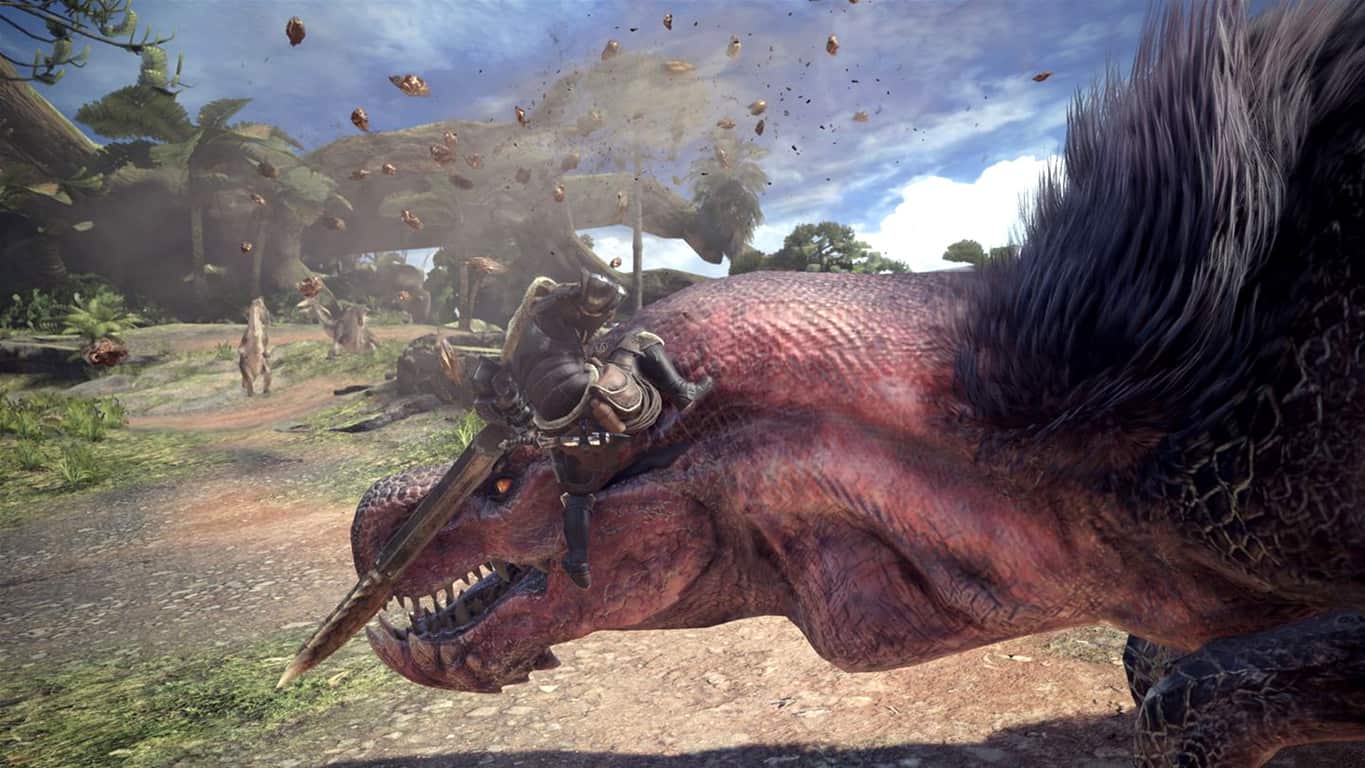
Monster Hunter: World is probably the most hyped game so far in 2018. Unfortunately, the launch of the game hasn’t gone as smoothly as it could have, with players on Xbox reporting issues with matchmaking.

Players are blaming the matchmaking issues on the lack of a beta for the Xbox version of the game, as only the PS4 edition received a beta test, due to a marketing deal with Sony’s PS4.

Now, Capcom have said on Twitter that they’re aware of the issues that players are experiencing and are currently investigating.

There’s no ETA on a resolution of the issues at this time, however, as Capcom are now aware, it shouldn’t be much longer.

Xbox Insiders on the Alpha ring to get a new build with fixes for reported issues

The Xbox team are releasing a new build to Xbox Insiders on the Preview Program. Those in the Alpha ring will receive this build 2AM GMT (2PM PST) that delivers fixes for a number of issues.

Here is the changelog:

• My Games and Apps

  • Fixed an error that resulted in content that was installing/downloading not resuming after a reboot.
  • Certain games when installing had been failing to run on first launch until a reboot – this is now fixed.

• Party Chat

Reliability fixes to improve the time it takes for users to join a Party Chat session who had been experiencing long join times.

• Pseudo Localization/Language Translation String Fixes

Users will no longer see incorrect language translations in the build. If you do encounter any incorrect strings please report a problem.

• Profile

Fixed an issue which caused the incorrect profile color to display after powering on the console.

There are also some known issues (and workarounds) to be weary of too:

• Games Installation

Games that are installed fail to launch. Workaround: If the games are installed to an external drive please copy the game to the internal drive or attempt to delete the title and redownload to fix the launch error.

• Display

We are investigating the inaccurate RGB colors that have been reported when displaying in 4K HDR mode when playing a UHD disc.

• Tournaments

• The left and right navigation for selecting date and time during Tournament creation is currently reversed when the console language is set to Arabic or Hebrew.

• Left and right navigation in Tournament twists is reversed when the console language is set to Arabic or Hebrew.

• Left and right navigation in the bracket view of Tournaments is reversed when the console language is set to Arabic or Hebrew

• Avatars on Home

Users wishing to represent themselves as an avatar can do so by changing their settings under My profile > Customize profile > Show my avatar.

Hopefully this build will deliver a smoother experience to those in the Alpha ring. Let us know in the comments below once you’ve had chance to give the build a run!

How to fix PUBG bugs on Xbox One

PlayerUnkown’s Battleground is the ultimate multiplayer online battle royale game. The title recently reached an impressive number of 4 million players on Xbox One.

While PUBG is indeed a very addictive and challenging game, it also tests players’ patience and troubleshooting skills. From time to time, players encounter various issues that limit their gaming experience.

In this article, we’re going to show you how you can fix common PlayerUnkown’s Battleground bugs on Xbox One and resume your gaming sessions as quickly as possible.

You can use the guide below to fix the following issues: FPS drops, lag, crashes, launch problems, stutter, memory issues, audio bugs, and more.

Fix common PUBG issues on Xbox One

FIX pubg XBOX

First things first, try restarting your console. Press and hold the Xbox button on the console for about 10-15 seconds. The console should turn off. Now, press the same button to turn it on and check if the problem persists.

If this quick workaround didn’t help, continue the troubleshooting process using the solutions below.

1. Install the latest PUBG/ Xbox One updates

The game received a series of important patches lately, aimed at fixing many game issues and errors. Make sure that you installed the latest PUGB updates on your console so as to take advantage of the latest fixes and improvements.

At the same time, don’t forget to update your console as well. Press the Xbox button to launch the guide, navigate to Settings, go to All settings, select System and then select Updates. Now, select the option ‘Keep my console up to date’ to install the latest Xbox One updates.

2. Test network connection

A faulty or unstable network connection may also prevent your from enjoying a smooth PUBG gaming session on your Xbox One.

Open the guide by pressing the Xbox button. Navigate to System > Settings > Network > Network settings. If there are any known network issues, they’ll be listed in the middle of the screen.

Go to the Network settings screen and select Test network connection. If you get an error message after running this test, use the  Xbox One Network Connection Error Solution to troubleshoot it.

3. Refresh your profile

By that, we mean removing and adding your profile back. If the PUBG issue occur mainly on a particular user profile, the data and files associated with it may be corrupted.

Open the guide > go to System > Settings > Account > Remove accounts. Select the problematic account (the one that’s experiencing PUBG gameplay issues) > select Remove to confirm.

Refresh your account data by downloading your profile again. Open the guide and select your gamerpic, scroll down and select Add new. Now enter the email address and password that you use for the account that you just removed. Be careful not to select the option ‘Get a new account’ otherwise your will create a brand-new account.

Follow the on-screen instructions to set up your account. Once you’re done, launch PUBG again and check if the issue persists.

4. Clear the local save

You can also delete the local save to fix corruption issues. Here are the steps to follow:

  1. Open the guide by pressing the Xbox button, and go to My games & apps. Select PUBG and press the Menu button on the controller.
  2. Select Manage game, go to Saved Data and select the saved data for your gamertag.
  3. Press A on your controller > select Delete > restart your console.

5. Reset Xbox One

If restarting and updating the console didn’t help, try resetting it. Here are the steps to follow:

  1. Turn off your console > unplug the power cord > wait for one minute
  2. Plug the power cord back in
  3. Press and hold the BIND button and the EJECT button on the Xbox One > press the Xbox button on the console.
  4. Continue holding the BIND and EJECT buttons for about 15 seconds.
  5. You should hear two  power-up tones > you can now release the BIND and EJECT buttons
  6. The Xbox One console should boot up > the Xbox Startup Troubleshooter should now be available on the screen
  7. Use the D-pad and A button on your controller > select Reset this Xbox.
  8. Don’t forget to select the option ‘Keep games and apps’
  9. Wait until the reset process finishes.

We hope that these 5 solutions helped you fix the issues affecting PUBG so that you can enjoy a smooth gaming experience.

RELATED STORIES TO CHECK OUT:

How to fix NVidia driver error code 37 for good

Driver errors are usually caused either by hardware problems, or new installations, but they can also be caused by corrupted drivers and other system resource problems.

When you get NVIDIA driver error 37, it may be due to a temporary problem with the hardware, or you made a change in your computer’s device manager.

There are solutions to help fix this error and this article looks at some of them.

FIX: NVidia driver error code 37

  1. Restart your computer
  2. Run the Hardware and Devices troubleshooter
  3. Roll back driver
  4. Update driver
  5. Uninstall and reinstall driver
  6. Perform a System Restore
  7. Boot in Safe Mode with Networking
  8. Replace your hardware

Solution 1: Restart your computer

Sometimes the best way to fix issues you may not know solutions to is to restart your computer. If this doesn’t fix the NVIDIA driver error code 37 on your computer, try the next solution.

Solution 2: Run the Hardware and Devices troubleshooter

The Hardware and Devices troubleshooter checks for commonly occurring issues and ensures any new device or hardware is correctly installed on your computer.

Here’s how to do this:

  • Right click Start
  • Select Control Panel
  • Go to View by option on the top right corner
  • Click the drop down arrow and select Large icons
NVidia driver error code 37
  • Click Troubleshooting
NVidia driver error code 37
  • Click Hardware and Sound
NVidia driver error code 37
  • Click Configure a Device
  • Click Next to run the troubleshooter

Follow the instructions to run the Hardware and Devices troubleshooter.  The troubleshooter will begin detecting any issues that may be causing NVIDIA driver error code 37.

Solution 3: Roll back the driver

  • Right click Start
  • Select Device Manager
NVidia driver error code 37
  • Select Sound Video and Game controllers and click to expand the list then choose the NVIDIA card.
NVidia driver error code 37
  • Right click the on NVIDIA card, and then select Properties.
  • In Properties, select the Driver tab
  • Select Roll Back Driver, then follow the prompts
NVidia driver error code 37

If the button is unavailable, that means there’s no driver to roll back to.

If Windows can’t find a new driver for your NVIDIA card, visit your computer manufacturer’s website to download the latest driver.

If you don’t have any driver updates available, right-click on the graphics card driver and click Uninstall, then restart your computer.

Solution 4 – Update drivers

4.1. Update drivers from Windows Update

  • Click Start
  • Select Settings
NVidia driver error code 37
  • Select Update & Security
NVidia driver error code 37
  • Select Windows Update
NVidia driver error code 37
  • Click Check for updates

4.2. Update drivers from manufacturer’s website

Go to NVIDIA manufacturer website, check for the latest Windows 10 drivers available and then install it based on the instructions on the website.

How to update drivers from manufacturer’s website:

  • Right click Start
NVidia driver error code 37
  • Select Device Manager
NVidia driver error code 37
  • Expand the Sound, Video and game controllers option
NVidia driver error code 37
  • Right click on the NVIDIA card
  • Click Update driver software
  • Restart your computer

4.3. Update drivers automatically

It is important to mention that downloading and updating drivers manually can permanently damage your system by choosing and installing the wrong driver versions. In order to prevent that from the start, we strongly suggest to do it automatically by using an automatic tool.

A dedicated third-party tool will help you not damaging your PC by downloading and installing the wrong driver versions. After several tests, our team concluded that Fortect Driver Updater is the best-automatized solution.
⇒ Get Fortect Driver Updater

Solution 5: Uninstall and reinstall NVIDIA driver

Driver files should be uninstalled before you update to newer drivers, or when removing an older NVIDIA card and replacing with a new one. Here’s how to uninstall NVIDIA drivers from your system:

  • Right click Start
NVidia driver error code 37
  • Select Control Panel
NVidia driver error code 37
  • Double click Add/Remove Programs icon
  • Select NVIDIA Windows Display Drivers
  • Click Change/Remove or Add/Remove button
  • Confirm that you wish to continue with the uninstall
  • A prompt will appear asking if you want to delete all saved nView profiles. Clicking Yes will delete all nView software and saved profiles. Clicking No will remove nView software but the profile files are saved in WindowsnView directory on your hard disk.
  • Once driver files have uninstalled, restart your computer to complete uninstallation
  • Turn on your computer and reinstall NVIDIA driver

ALSO READ: Fix: DRIVER_VERIFIER_DETECTED_VIOLATION error in Windows 10

Solution 6: Perform a System Restore

If you get a Windows 10 browser not working problem on your computer, use System Restore to create restore points using the steps below and see if it helps:

  • Click Start
  • Go to the search field box and type System Restore
  • Click System Restore in the list of search results
  • Enter your administrator account password or grant permissions if prompted to
  • In the System Restore dialog box, click Choose a different restore point
NVidia driver error code 37
  • Click Next
  • Click a restore point created before you experienced the problem
  • Click Next
  • Click Finish

Restoring doesn’t affect your personal files. It however removes apps, drivers and updates installed after the restore point was created.

To go back to a restore point, do the following:

  • Right click Start
  • Select Control Panel
NVidia driver error code 37
  • In the control panel search box, type Recovery
  • Select Recovery
NVidia driver error code 37
  • Click Open System Restore
  • Click Next
  • Choose the restore point related to the problematic program/app, driver or update
  • Click Next
  • Click Finish

Solution 7: Boot in Safe Mode with Networking

Safe Mode with Networking starts Windows in safe mode, including the network drivers and services you need to access the internet or other computers on the same network.

Follow these steps to boot into safe mode with networking:

  • Restart your computer
  • When the sign-in screen is displayed, hold down SHIFT key while you select Power then Restart
  • After the computer restarts to Choose an option screen and select Troubleshoot
NVidia driver error code 37
  • Select Advanced options
NVidia driver error code 37
  • Click Startup Settings
NVidia driver error code 37
  • Click Restart
  • Once it restarts, you will see a list of options. select 5 or F5 for Safe Mode with Networking

Once you’re in safe mode, you can a System File Checker (SFC) scan

How to run an SFC scan

A System File Checker scan checks all protected system files, and then replaces the incorrect versions, with the genuine, correct Microsoft versions.

Here’s how to do this:

  • Click Start
  • Go to the search field box and type CMD
  • Right click Command Prompt and select Run as Administrator
NVidia driver error code 37
  • Type sfc/scannow
NVidia driver error code 37
  • Press Enter
  • Restart your computer

Do the following to exit Safe Mode:

  • Right click Start button
NVidia driver error code 37
  • Select Run
NVidia driver error code 37
  • Type msconfig
  • A pop up will open
  • Go to the Boot tab
NVidia driver error code 37
  • Deselect or uncheck Safe Boot option box
  • Restart your computer

Solution 8: Replace hardware

If none of the above solutions worked, then you may need to replace the NVIDIA card as it has the driver error code 37. It may also be that your device isn’t compatible with the Windows version on your computer hence error 37, if you have a newer hardware on an old OS.

Let us know if any of the above solutions worked for you by leaving a comment in the section below.

RELATED STORIES TO CHECK OUT:

PUBG boasts over 4 million players on Xbox One

Despite the bumpy road, Player’s Unknown Battlegrounds has hit the historic milestone of hosting over 4 million players on a single console.

As of today, 4 million Xbox One players are the lucky bunch of gamers who are the beneficiaries of rounds of optimizations, bug fixes, and other content updates.

With that being said, the Xbox team wants to further promote the game by offering currently invested gamers new in-game bonuses.

To show the community our appreciation for your support and feedback, we are rewarding players with 30,000 Battle Points to purchase cosmetic crates in the game. Anyone who has purchased or purchases PUBG on Xbox One and has created a character before January 31 at 12AM PST will receive this bonus, so if you’ve been waiting to jump onto the island, now is the perfect time to become a part of our growing community on conso le. Bonus Battle Points will be delivered and appear directly in players BP accounts (right below their gamertag) after February 1, 2018 at 12AM PT.

As an Xbox One exclusive (timed presumably), gamers should expect to see additional promotions similar to these throughout the year and the marketing teams seem pretty excited about the title.

We will continue to build on the foundation we’ve laid with PUBG on Xbox One with the feedback received from the community and we encourage you to continue in your pursuit of chicken dinners! Be sure to stay tuned to Xbox Wire and Major Nelson for all the latest PUBG news. See you on the battleground!

Even though the gifting season has come and gone, PUBG still ranks as one of the Xbox’s most gifted titles to date. Perhaps, you can convince a generous friend or family member to get you started soon and join this round of game giveaways.

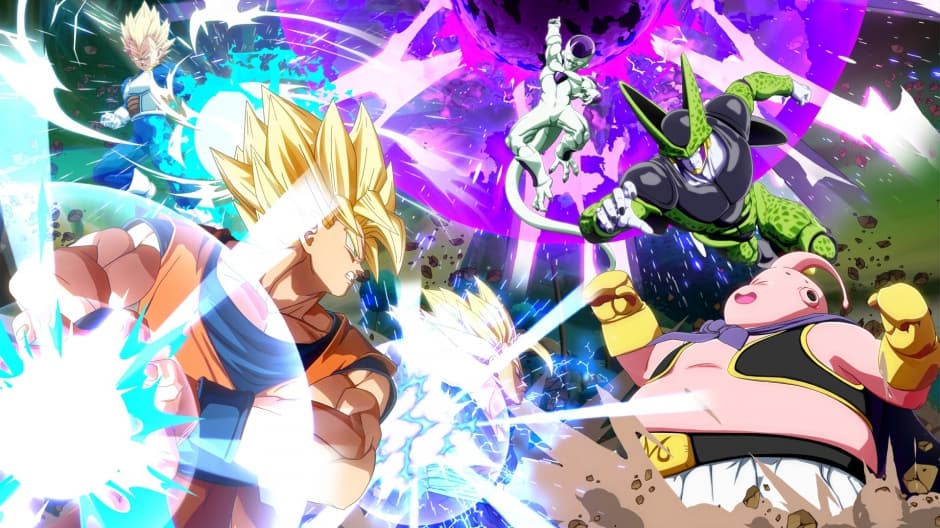
Enhanced for Xbox One X, Dragon Ball FighterZ arrives on Xbox One family of devices

Dragon Ball FighterZ, the much-anticipated fighting game based on the popular manga series, is now available on the Xbox One. Fighting games may have a pretty niche audience these days, but Dragon Ball FighterZ gained a lot of hype since Microsoft showed the first game trailer during its E3 2017 conference.

“With amazing looking character models and an easy to learn but hard to master fighting gameplay, Dragon Ball FighterZ looks to be the definitive fighting game experience for fans of the “Dragon Ball” anime franchise,” a blog post on Xbox Wire reads. The game is powered by the Unreal Engine 4 and it runs at 60 FPS on all Xbox One consoles with higher resolution graphics (not true 4K) on the Xbox One X.

Dragon Ball FighterZ has a 87 score on Metacritic at the time of our writing, making it the best Xbox One release of 2018 so far. The standard edition of the critically-acclaimed game is a $59.99 purchase, and you can get it from the link below.

Windows 10 Photos app now lets you “Choose a star” in your automatically generated videos

Last year, Microsoft introduced a new “Story Remix” feature in the Windows 10 Photos app, which helps users create short videos with cool transitions, background music and more. This feature was unveiled during Build 2017, and shipped to all Windows 10 users with the Fall Creators Update.

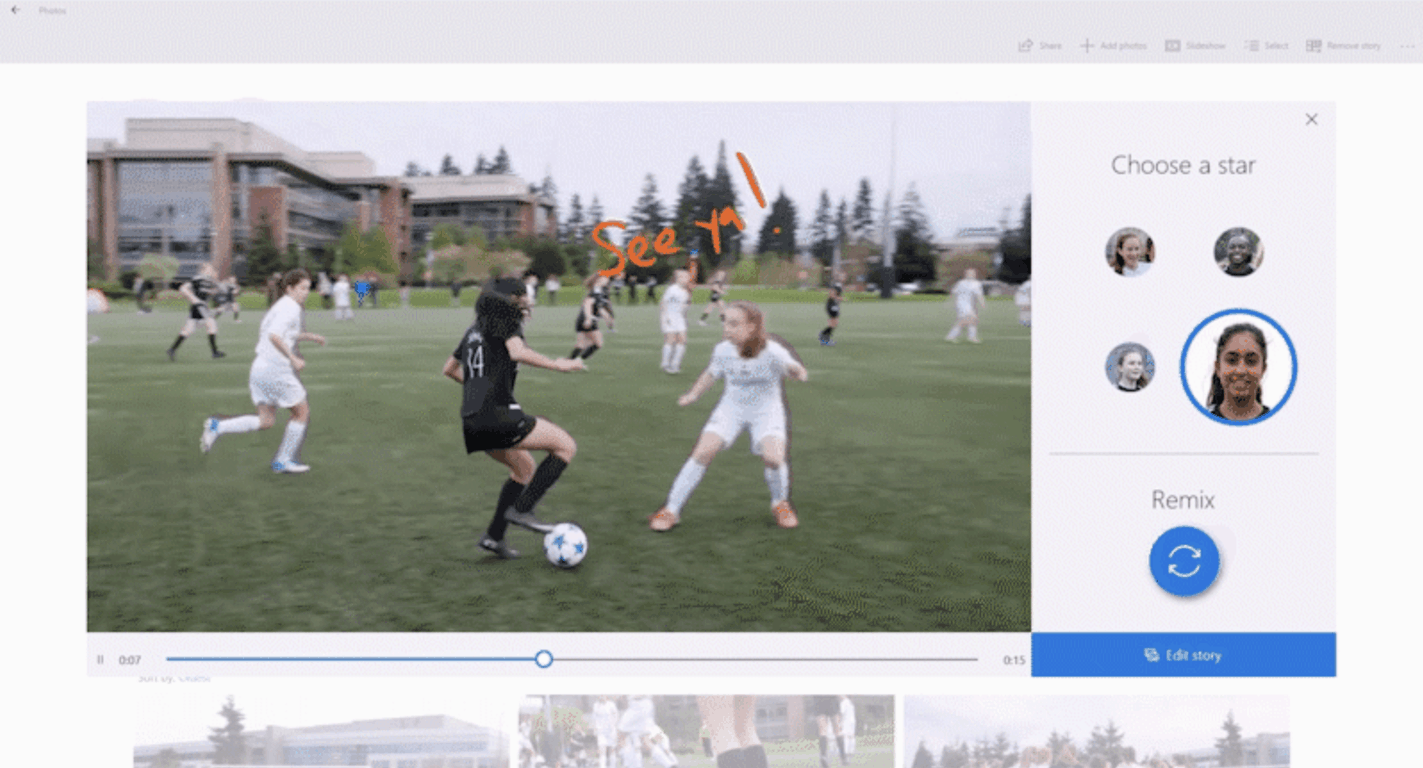
Yesterday, the latest update for the Photos app introduced a new “Choose a Star” feature in Story Remix. This is something that Microsoft first demoed back at Build 2017, and it lets you put the spotlight on the person of your choice in your automatically generated videos.

“With today’s update, you can take your filmmaking to the next level by selecting yourself or nominating someone to be the star in your automatically generated creation,” Microsoft explained in a blog post. “Photos will then build a video around the person you choose, pulling in relevant photos and videos, zooming in on your star, and choosing an appropriate theme.” You can see how it works in the GIF below:

Choose a star

To try this new Story Remix feature, you’ll have to create an “Automatic video with music” in the Photos app and then select the photos and videos you want to see in your story. You can then automatically customize your video by clicking the “Remix it for me” button, and the option to choose the star of the film should appear just below.

We’re glad to see Microsoft delivering on its vision for Story Remix it showed us last year. The Photos app is already one of the best UWP apps the company created for Windows 10, and it keeps adding new features at a regular pace.

LEGO Indiana Jones 2 and Split/Second head to Xbox One via Backward Compatibility

Some new games have entered the fray as Backward Compatible titles on the Xbox One. This time around, Lego Indiana Jones 2 and Split/Second are joining the Xbox One library, presenting a relatively diverse set of genres for gamers that want a taste of something different.

As always, the process for Backward Compatible titles is very easy. Just pop in your existing copy of the game, and your Xbox One is going to do the rest of the work for you. If you want a full account of the hundreds of Backward Compatible games, you can check Major Nelson’s handy list right here.
Microsoft reportedly working on new lightweight version of Windows 10 code-named Polaris

When Microsoft officially unveiled Windows 10 back in September 2014, the company said that it would be “the last version of Windows.” At the time, it wasn’t exactly clear if this meant that there would be no “Windows 11,” or if Microsoft was just referring to Windows as a service.

As it turned out, we saw Microsoft introduce several new Windows 10 SKUs last year: there was Windows 10 S, which can only run Windows Store apps, as well as Windows 10 Pro for workstations. These are just different flavors of Windows 10 for PC, and even the slightly locked down Windows 10 S isn’t really much simpler to use compared to a standard Windows 10 PC, or a Chromebook.

But that doesn’t mean that Microsoft isn’t interested in radically simplifying how Windows 10 works, and get rid of all the legacy stuff that make the OS too complex, too slow, and too battery hungry. Android beat Windows as the dominant OS for Internet usage last year, and Microsoft certainly won’t let Windows 10 sit on the sidelines in the near future.

Last year, we learned that Microsoft was reportedly working hard on making Windows 10 more modular, an effort that has been codenamed “Windows Core OS.” This is a necessary work for creating new form-factors powered by Windows, such as the foldable mobile device that we’ve already seen in many patents.

According to a new report from Windows Central, Windows Core OS could be the base of two new operating systems from Microsoft: Andromeda OS, which will apparently power the company’s rumored foldable mobile device, and Polaris, a streamlined version of Windows 10 for PCs.

According to my sources, Microsoft is building a brand new version of Windows 10 for PC devices like desktops, laptops and 2-in-1’s. This new version is entirely built on UWP, making it Microsoft’s first truly modern Windows OS for the traditional PC form factor. It strips out old legacy components and features in favor of a lighter OS with excellent battery life and performance.

Compared to Windows 10 S, Polaris will reportedly be more lightweight and modern, dropping the current Windows Shell, the legacy Control Panel and more. Polaris will be built entirely on Microsoft’s UWP technology (which also means a UWP-based File Explorer), but Microsoft said to be working on bringing support for legacy Win32 apps “when required.”

Some legacy Windows 10 features.

Polaris will reportedly coexist with standard Windows 10. “Existing Windows users won’t be able to upgrade or switch to Polaris, nor will eventual Polaris users be able to upgrade to traditional Windows 10 Pro,” the report says. Presumably, Polaris will be able to deliver much better battery life thanks to removal of all legacy features, and it should also be as easy to use as an iPad or a Chromebook.

Microsoft has already tried several times to simplify Windows, starting with Windows 8/RT and now Windows 10 S. But as you know, the company never managed to get rid of all the legacy stuff, including the massive library of Win32 apps. Polaris will apparently be a fresh start that really pushes Microsoft’s UWP platform forward, but could it appeal to consumers?

Most people now associate Windows with a desktop OS that gives you complete freedom: That’s why many people still don’t consider iPads or Chromebooks as “real PCs.” Yes, Windows is complex, but it’s one of the most versatile operating systems in the market, which is one of the reasons why it remains relevant today.

With the rise of Chromebooks and mobile devices though, Microsoft may well not have the choice to not drastically change how Windows works. According to Windows Central, Polaris may not surface until 2019, assuming Microsoft doesn’t cancel it at some point.

Xbox One’s Anthem video game – delayed until next year?

There are reports that BioWare’s upcoming Xbox One game, Anthem, will be delayed until a 2019 release. Not great news for Xbox One gamers expecting Anthem’s original Fall 2018 release date, but not entirely unexpected. Anthem was originally announced at E3 2017 and As noted by Gamesindustry.biz report, BioWare insiders mentioned to Kotaku that the original Fall 2018 release date was “never realistic.”

Take a look at Anthem on Xbox One in the video below.

Anthem is set to be released on Xbox One first, no later than March 2019, with versions for Windows 10 PCs and other platforms later in the year. In addition to Anthem, BioWare is working on another installment of Dragon Age, and Star Wars: The Old Republic MMO. Electronic Arts (EA), which owns BioWare, is still dealing with the fallout from the Star Wars Battlefront II loot crate fiasco, so the company needs to make sure that it doesn’t further alienate players with a poor game release. BioWare will have to deliver a solid game experience with Anthem or face a possible restructuring by EA.

Windows 10 Fall Creators Update already on most PCs, AdDuplex stats show

The AdDuplex report for January 2018 is out, and it shows that the Windows 10 Fall Creators continues its propagation at a steady pace. According to AdDuplex’s latest data collected over the day of January 22, 74.3% of Windows 10 PCs are now running the Fall Creators Update (up 20.7% points). Remember that AdDuplex collects data from apps connected to their ad network, so only PCs with at least one of those apps running is counted.

“Fall Creators Update is growing rapidly and you can see the difference in ascend speed compared to the Creators Update,” highlighted AdDuplex. Indeed, it took six months for the Creators Update to be installed on 3 out of 4 Windows 10 PCs, and the Fall Creators Update achieved this in nearly half the time.

Looking closer at the Fall Creators Update propagation by PC manufacturer, AdDuplex’s data shows that Dell, Asus, Acer, Toshiba and more all surpassed Microsoft this month. 74.2% of Microsoft’s Surface devices are already running the latest Windows 10 version, though it’s worth noting that the Surface Laptop and the older Surface Pro 3 are lagging behind. Speaking about the Laptop, AdDuplex said that “It is unclear if there’s some model-specific issue or if this is somehow related to Windows 10 S.”

Two weeks ago, Microsoft announced that the Fall Creators Update was now “fully available,” meaning that it’s now being pushed to all compatible devices. “The Fall Creators Update was the fastest Windows 10 release to reach 100M devices, all while achieving higher customer satisfaction ratings compared to prior updates,” the company also said at the time.

New Xbox One S 1TB PUBG bundle briefly appears on Amazon

Player Unknown’s Battlegrounds (PUBG) is currently one of the most popular multiplayer games on Xbox One, but Microsoft may have bigger plans for the title. Indeed, the folks on Reddit recently noticed that a new Xbox One S 1TB PUBG bundle briefly appeared on Amazon.

The bundle was listed for release on February 20th, which at the time of writing is a little over a month away. There’s no telling what the price on the bundle may be as it’s not listed in the screenshot provided above. We’re assuming it may be over the $300 range, which is the pricing on most 1TB Xbox One S bundles.

Definitely interesting to see that Microsoft will be selling a bundle with an unfished game that is still depending on the feedback of those who are playing it. Time will tell what this bundle is all about, so it’s best to keep tuned for more in the days ahead.

“Massive additions” coming to Star Wars Battlefront II on Xbox One in coming months

Star Wars Battlefront II’s community manager, Sledgehammer70, today shared some data on the video game’s first season and revealed what’s to come over the next few months on Xbox One and other platforms.

A new game mode, Jetpack Cargo, is slated to launch in February. This mode will pit two teams of eight players against each other, all of which must use characters with the jetpack ability. Curiously, this mode will apparently only be playable for a limited time and won’t be a permanent game mode.

Details on the progression system revamp will be revealed in March. Star Wars Battlefront II has been heavily criticised for shifting to the Star Card and loot box system for character progression over actual play experience like was used in the previous game. (I personally don’t mind the current system at all but such a big deal has been made about it that the game developers have been pretty much forced to react to the controversy.)

The second season for the game is coming “soon” and it will apparently feature some improvements over the first season. “We’ve learned a lot from the first season of content for Star Wars Battlefront II, and we’re integrating those insights into our plans moving forward,” Sledgehammer70 says. “We know you’re waiting for details on what’s coming in the next season, and we’ll have more to tell you soon.”

No timeframe was given for the second season though it stands to reason that it will likely begin when the progression system update rolls out, possibly in March. Seasons of Star Wars Battlefront typically involve the addition of new locations and characters and it makes sense that they would want to push out all of the big content changes at once.

The post doesn’t reveal how many players actually participated in the first season of Star Wars Battlefront II but it does mentions that players spawned over 156 million times on the new Crait level and over 35 million times on D’Qar.

Are you looking forward to the future changes in Star Wars Battlefront II? What would you like to see in the second season? Let us know in the comments below.

Windows 10 users will soon be able to delete telemetry data

Microsoft made the wise decision to improve Windows 10 users’ privacy controls. It seems that the company stuck to its decision and now the forthcoming version of Windows is set to bring even more privacy-related improvements.

The latest Insider Build of the forthcoming Windows 10 version 1803 suggests that the OS will include some brand new options to view and delete logs.

Microsoft enhances transparency regarding collected data

Lots of users have often criticized Microsoft for spying on them by collecting so much data. On the other hand, the company always made sure to explain to users that all the info gathered from systems running Windows 10 is nothing but telemetry data for fixing bugs and improving the OS’s performance. Now, new tools are on the way to allow you to view the data Microsoft collects from the Windows 10 computers.

Users will be able to view and delete diagnostic data

Microsoft plans to introduce two new options in the forthcoming version of Windows 10: Diagnostic Data Viewer and Delete diagnostic data. Both the new features will be available under a new section that will be called Diagnostics & Feedback.

You can figure out what these two options will be good for by their names only. The first one, the diagnostic Data Viewer will allow users to view the telemetry information that was gathered and that is supposed to be sent to Microsoft. The second functionality, Delete diagnostic data, will apparently allow users to delete the data before the system send it to Microsoft.

Other privacy options in the works

Microsoft is also experimenting with more privacy-related features that will be included in the next version of Windows 10 such as the access to the dictionary that is generated by Microsoft after tracking the words typed on the PC. It looks like you’ll be able to clear this dictionary and view all the items just the way that they were recorded in the first place.

We’ll probably get to see more in-depth details on these privacy improvements in the future version of Windows 10 which is set to be ready for launch sometime in April.

RELATED STORIES TO CHECK OUT:

Microsoft’s Gavriella Schuster shares more about the “unprecedented opportunities” ahead for Partners

Microsoft has always been good to its partners. It’s an organization that does a ton of business with other businesses in order to build a foundation for its services – not the least of which is a massive cloud ecosystem. In a new blog post from One Commercial Partner’s Corporate Vice President, Gavriella Schuster, it was explained what kind of opportunities partners are going to have access to in the near future.

Schuster points out that the estimated economic value of digital transformation over the next five years is about $20 trillion, proving that Microsoft partners will have no shortage of lucrative opportunities as the world continues to push the boundaries of what technology can do. The blog post tossed out a few impressive figures – seen below – that showed off just what Microsoft’s partners have meant for the Redmond giant over the past few years.

Microsoft Partner Success

To help Microsoft’s pitch, the blog post offered a few testimonials from partners. For instance,  DataStax reports that it “has seen a 140 percent increase in pipeline growth,” and Barracuda mentions that its business “has grown by more than 300 percent in large part due to co-selling with Microsoft. ”

The blog was capped off by the Sixth entry in a series of free “playbooks,” designed to help partners take advantage of a certain area of technology in order to improve their business. This one has to do with Artificial Intelligence – something that’s been increasingly on the tip of everyone’s tongue lately, in the tech world.

Insider preview 17083 puts a focus on Windows Shell improvements

Over the past couple of weeks, the Windows team has put, what feels like, an inordinate amount of public facing effort behind highlighting their efforts to improve the Windows Shell.

The first highlighted bits first surfaced in the previous Insider build, 17074, with improvements to Quiet Hours that run automated in the background for most users. Here is the quick list as a refresher:

  • Quiet Hours will automatically turn on when you are duplicating your display. Never get interrupted during presentations again!
  • Quiet Hours will turn on automatically when you are playing a full-screen exclusive DirectX game.
  • You can set the schedule that works for you so that Quiet Hours are always on when you want them. Go to Settings > Quiet Hours to configure your schedule.
  • Customize your own priority list so that your important people and apps always breakthrough when Quiet Hours are on. People pinned to your taskbar with always break through!
  • See a summary of what you missed while you were in Quiet Hours.
  • If you’re using Cortana, you can also have Quiet Hours turn on while you’re at home.

In today’s preview build 17083, Windows Shell improvements continue as well as gaining a slick new name, Focus Assist.

Quiet Hours gets a new name and more! With the expanding feature set in this area, we will now be calling it Focus Assist. Speaking of which, you can now also switch between the three Focus Assist modes by right-clicking the Action Center icon in the taskbar.

Build 17083 boast a bevy of new features and updates, but with a emphasis on Shell improvements, it’s becoming clear that the Windows team is finally getting around to more fine tuning of Windows 10 rather than the several years of plumbing work some Insiders have gotten used to.

Office 365 now officially available in the Windows 10 Microsoft Store

After a six month period of testing with Windows Insiders and Windows 10 S users, Microsoft has officially released Office 365 to the Windows 10 Microsoft Store (via Neowin.) This is a big moment, and great news for those who own Windows 10 S devices, which only allows users to download programs and apps from the Microsoft Store.

To be clear, there are two current specific store listings, Office 365 Personal and Office 365 Home. Both of these listings for Office 365 in the Microsoft Store no longer have “Preview” tag, and several of our writers who were not previously testing Office 365 in the Store can now download the Office 365 programs.

Though there does not appear to be any direct download links, you can also access Word, Excel, PowerPoint, Access, Outlook, and Publisher 2016 by searching via the Microsoft Store in Windows 10. OneNote 2016 is not included, and users can instead opt for the OneNote UWP app. Keep in mind, though, that you will need to uninstall pre-existing versions of the Office desktop apps in order to download and use Office 365 from the Microsoft store.

As we previously noted, the experience of these Microsoft Store Office 365 apps is the same as the classic .exe/Win32 desktop applications. The only difference is the added benefits of a smooth update process, and a cleaner uninstall. More Office 365 SKUs are apparently coming soon, including Office 365 business, so you can expect this to be the next big thing for Microsoft.

Windows Settings and Windows App Permissions get improved in build 17083

Microsoft today released Windows 10 Build 17083 to those in Skip Ahead and Fast Ring. This build comes with a laundry list of changes, fixes, and known issues, but it also brings some new options in Windows Settings, and in Windows App Permissions. Here is what you need to know.

Windows App Permissions:

Control access to your pictures, videos, or documents folders: With this build we’re giving you more control so you can now decide which UWP apps can access your pictures, videos, or documents folders. If a UWP app needs access to any of these, a consent dialog will pop up prompting you to accept or deny the request. If at any time you change your mind about the decision, you can go to Settings > Privacy where you’ll find 3 new Settings pages (one for each of the folders). If you deny access to a particular folder, to protect your privacy that UWP app will revert to only being able to access its local app folder.

Windows Settings Improvements:

  • See your UWP app version numbers: We’ve heard your feedback, and in addition to the other work we’ve been doing on the UWP app settings pages in Settings we’ve also updated them to include the app version number for easy reference. As a reminder, the easiest way to get to the app settings page for a particular UWP app is to right-click the app in Start and select More > App settings
  • New options for sorting your startup apps: Based on your feedback we’ve added a dropdown to the Settings > Apps > Startup settings page so you can choose to sort the apps listed by name, state, or startup impact.
  • We’ve heard your feedback and have added a new setting for those who would prefer their scrollbars stay always visible. It’s available under Settings > Ease of Access > Display. Turning this setting off will result in the scroll bars in UWP (XAML) apps persisting as scrollbars in their full expanded size, even when not interacting with them.
  • In order to help reduce accidental invocation of this hotkey, we’ve added a new checkbox for this under Settings > Ease of Access > Color filters settings page. The default state is disabled.
  • We’ve added Narrator landmarks throughout Settings to quickly move between search, navigation list, and main landmarks. And for Narrator users, the page heading (shown visually at the top of each page) will no longer read out as being at the bottom of each page.

Microsoft is also making a number of changes to Ease of Access in Settings, including adding Narrator landmarks throughout Settings to help users with disabilities quickly move between options. They’ve also shortened the name of the “Cursor, pointer and touch feedback” page to “Cursor & pointer size.” See below for the new Ease of Access improvements in Settings.

  • We’ve swapped the positions of Color Filters & High Contrast in the Settings > Ease of Access navigation list.
  • In Settings > Ease of Access > High Contrast, we’ve switched the default theme to be “High Contrast Black”.
  • We’ve added links to Settings > Ease of Access > Narrator Settings for learning how to use Narrator and for adding more voices. Also the cursor movement mode combo box in the “Use Narrator cursor” sub-section has been removed.
  • We’ve updated the Settings > Ease of Access > Speech page to present information & settings about Dictation, Cortana, as well as Windows Speech Recognition.
  • We fixed an issue where Settings > Ease of Access > Eye control was a blank page.
  • We’ve updated the Ease of Access search terms & results to better align with the available settings.
  • Duplicate search results have been removed.
  • Throughout Settings > Ease of Access you’ll find new “Related settings” links.

This is shaping up to be a bit of the Privacy Update, so it’s great to see that you can further control the access apps have to photos, on your computer. Definitely a lot to look at in Settings with this latest build. Feel free to look at things yourself, and drop us a comment with your thoughts in the section below.

Microsoft closes access to Sets, won’t be back until Windows 10 Insider testing begins for RS5

I suppose it’s hard to miss what you never had and for some Windows 10 Insiders, this latest news will probably be received with a meh and a shrug.

According to a memo that has gone out to the limited number of testers with access, the sought after features of Sets has gone through its testing paces and the Windows group has enough telemetry to shut down the project for now and not bring it back until some later date in the future.

Sets is now offline -> Thank you for your support of the early testing we’ve done with Sets. Your feedback helps us as we continue to develop this feature. Starting with this build, we’re taking Sets offline as we ready RS4 for release. If you have been testing Sets, you will no longer see it – however, Sets will return soon in a post-RS4 flight! Thanks again for feedback, and we look forward to sharing new Sets features with you soon.

For most Insiders, the news lands with a muted response as Sets was released to only a handful of testers and only spanned the length of one preview release (not counting the 2.0 fix release). However, for those Windows 10 Insiders who had access to the feature in the previous 17074 build, this latest news puts them in a bit of a quandary as to whether or not to upgrade to the Sets-less new build. Not having tried it myself, I can’t speak to the additional functionality Sets may have provided but judging from the engineering notes on the latest Windows 10 Insider preview, testers will be missing out on a lot of new features in preview 17083 as they cling to their build with Sets.