How to make File Explorer open to ‘This PC’ in Windows 10

Windows 10 introduced a new default view for File Explorer that’s meant to make it easier to access your recent work. When you open File Explorer, you’ll now see “Quick access” by default. If you’d rather have the old “This PC” view back, this tutorial will show you how to do it.

Screenshot of Windows 10 Quick Access

Quick Access shows you your most frequently accessed folders and your recently used files on a single screen. You can pin additional files and folders if you use them regularly. While it can make it easier to find documents you’ve been using, Quick Access hides your drives, external devices and network locations beneath a few more clicks.

Screenshot of Windows 10 File Explorer options

To get This PC to display when you launch File Explorer, open the app and click the “View” tab on the ribbon. Click the “Options” button to open the File Explorer Options window. In the “Open File Explorer to” dropdown box at the top, select “This PC” and press the “Apply” button.

Screenshot of Windows 10 This PC

Once this option is activated, This PC will appear straight away when you open File Explorer. You can view your system folders, devices and network locations immediately without having to switch to another screen. You can still access resources in Quick Access as they’ll appear at the top of File Explorer’s navigation pane. Click the “Quick access” link to get to the full Quick Access screen.

Screenshot of Windows 10 File Explorer settings

If you’re looking to customise Quick Access rather than disable it entirely, return to the File Explorer Options window. The options under the “Privacy” section of the “General” page allow you to customise the content that is displayed in Quick Access. You can turn off recently used files and frequently used folders, forcing Quick Access to only surface content that you’ve explicitly pinned. Click “Apply” and then “OK” to save your changes.

Latest update for Groove Music on Windows 10 PC makes it easier to find music videos

Groove Music was recently rejuvenated on Xbox One with a touch of Fluent Design, and standard PC users are also now seeing an update for the stock Windows 10 application. Delivered via a version 10.17062.14111 update, it is now easier to find music videos from the artist page in the Groove Music on Windows 10 (via Windows Central.)

The update is rolling out now to PC users in Production ring, and it is presumed that Windows Insiders in the Fast Ring can also receive the update by using Microsoft’s new “Skip ahead” feature. Overall, though, it’s a fairly minor update that just touches up the UI to make it easier to find music videos for a specific artist.

The Music Videos section on Groove Music

After updating, you will notice a specific section for music videos when searching for Artists using the search box. The music video section appears under the Top songs section, and right above the Related artists section.  Unfortunately, the new ability to find music videos via the artist page is currently only available on desktop PCs, but there is hope that it will also roll out to mobile soon. For now, you can grab up this update via the download link below.

Windows Media Player

PlayerUnknown’s Battlegrounds Xbox conversion “relatively easy,” already running on online servers

PlayerUnknown’s Battlegrounds, the oddly-named online battle royale game from developer Bluehole, is one of the most anticipated games to be released on Windows and Xbox One this year. Last month, the developer shared that the Steam early access version already sold 4 million copies three months after launch, and we don’t often see unfinished games get that kind of massive support.

Playerunknown’s Battlegrounds will be a timed exclusive on the Xbox One, definitely one of the highlights of Microsoft’s E3 press briefing last month. But while the Steam Early Access version continues to get regular updates, the developer announced earlier this month that the game’s final release has been delayed to Q4 2017, without sharing more information about the Xbox One version.

We finally have more details about the upcoming Xbox One release from an interview of the game’s creative director Brendan Greene that Eurogamer published today. First of all, the game studio won’t announce the release date until the Xbox One version is ready, but you should know that work on the console port is going very well. “Using Unreal first, it’s a fantastic engine, it makes moving to different platforms relatively easy,” explained Greene, adding that the Xbox One version is being developed in partnership with Spanish game studio Anticto.

PlayerUnknown’s Battlegrounds will also be optimized for the Xbox One X, and the console version should support 100 man servers just fine. “We have a version running on the Xbox One X prototype in the office which can plug into the online servers. We were playing on live servers on the console at about 30 or 40 FPS. So it works on 100 man servers,” shared Greene. Console play won’t be cross platform, at least to start, however.

Be warned, you’re probably going to hear a lot more about the battle royale game in the coming months. As of today, PlayerUnknown’s Battlegrounds is regularly the most streamed game on Microsoft’s own Mixer live streaming platform, and Greene said in the interview that the game studio is currently exploring the organisation of live events. “We’re going to run events and invitationals until it’s a true esport, I guess,” he added.

Microsoft’s Groove Music gets a splash of Fluent Design on Xbox One

Aspects of Microsoft’s new Fluent Design aesthetic have been spotted in the Xbox One version of the Groove Music app shown to some Xbox Insiders. The app hasn’t appeared to have been given a full revamp but the menu has been given a transparent effect (called Acrylic) and menu press animation has apparently been refined. Here’s an image of the new look:

Groove Music on Xbox One. Image Credit: MSPowerUser.com

Microsoft has been adding aspects of its new Fluent Design to several apps with their Office apps on mobile being one recent example. The majority of their apps across Windows 10, mobile, and Xbox One will likely be fully converted to the new look before the end of 2017 around the time the Autumn Creators Update rolls out on Windows 10.

Do you like the look of Fluent Design? Share your thoughts with us in the comments below.

Keep your chat messages private with Signal Private Messenger

Signal Private Messenger is a tool developed and published by Open Whisper Systems, providing users the kind of privacy they deserve.

Signal Private Messenger’s features

With Signal, you have the ability to say anything and be safe. You can send high-quality texts, pics and video messages — even group messages — without worry. It also allows you to be yourself as it uses your existing phone number and address book, meaning there are no separate logins, PINs, or usernames that you have to manage.

Users can stay as private as they want to. The app can’t read the messages and no one else can do this either; there are no exceptions. Everything from this app is always end-to-end encrypted and painstakingly engineered to keep communication as safe as possible.

The app is supported by a team of dedicated engineers and developers, community donations and grants. The app lacks ads and you don’t have to pay anything to use it. All of the code used in the app is free, open and also available on GitHub. The app’s Join Movements feature involves a technology that has been developed by Open Whisper Systems and that is trusted and used by millions of people from all over the world each and every day.

In case you are experiencing any problems with this application or have questions or suggestions for the developer, you are advised to check out the developer’s support site.

User experience

According to user experiences, it would be better if the contacts and conversations would be separate from the contact/conversation list from the left side. Other users say that even if it works okay, the app is pretty buggy and features a few syncing problems which results in doubled messages.

We are waiting for an update that fixes all these issues. Meanwhile, you can try the app out for yourself from the Chrome Web Store.

RELATED STORIES TO CHECK OUT:

PlayerUnknown’s Battlegrounds is affected by severe camera bugs

PlayerUnknown’s Battlegrounds has a bug where if the player minimizes the game with the Alt-Tab hotkey while loading a match, the third person camera will occasionally force the Y axis to stop working and to behave as if the free look button is being held forcing the player into the first person.

PlayerUnknown’s Battlegrounds camera issues

Other players said that they could move the character’s weapon up and down, but they could only look straight ahead the entire game. It didn’t matter if the character aimed up or down: he could only look and shoot straight ahead. Players tried tapping out, shooting, picking up things, but nothing seemed to help.

On the Battlegrounds forum, a user also posted a photo that shows the crosshair of the character aiming straight forward even if the character aims up. You can see the bullet impact on a container from the front even if the player is aiming up or down.

Other players experienced more bugs including weird loading, lags and all these affected only the third person mode game. The first person mode is not affected according to players.

Another user stated that he couldn’t look up or down and the character’s head would move around as if it was in free look. As soon as he picked up a helmet, the game totally crashed.

READ ALSO: How to fix common PlayerUnknown’s Battlegrounds bugs

PlayerUnknown’s Battlegrounds is a massively multiplayer online battle royale video game developed and published by Bluehole. The game was released for Windows on Steam’s early access program back in March and sold over four million copies in three months. The company is planning console releases after the full release of the Windows version with an Xbox One version by the end of the year and for the PlayStation 4 at a later date.

RELATED STORIES TO CHECK OUT:

Microsoft’s Xbox Play Anywhere platform picks up ‘free’ game preview of Fable Fortune

Over the last year, Microsoft has been pitching its cross platform feature Xbox Play Anywhere which allows gamers to purchase a game once but play it on a Windows 10 device or Xbox console at their leisure.

While Xbox Play Anywhere seems like futuristic omnipresent gaming approach, it seems only really effective when there is a game users want to play.

Fortunately, a crowd favorite property is landing on the platform in Fable Fortune. A game preview is now available for Xbox One and Windows 10 gamers. While it is not the entire game, eager fans can grab a copy of the preview for free for a limited time.

Play as one of six unique Heroes in a collectible card game that combines the iconic world and characters of Albion with fast-paced and thrilling tactical gameplay. In Fable Fortune, your destiny is on the cards!
Purchase the Founders Pack to preview and support the development of this title – we would love to get your input and feedback to help us shape the best experience possible! Contains EXCLUSIVE Content for Founders: 20 Card Packs, Chicken Vengeant, Unique Founders Card, Bonus Fabled Card, Giant Egg.

For those interested, head over to your nearest Windows 10 PC or Xbox One console and web link to snag the free preview today!

New Microsoft video promotes Insider participation in Bug Bash events, Feedback Hub and more

The heart of the Windows Insider program is the participation of its users. Without the continual feedback given by users, the Windows team is left with an operating system devoid of real world direction, for better or for worse.

In a new YouTube video released by the Windows team, engineers are looking to keep up the level of activity currently being displayed with each build preview by praising and highlighting the most potent feedback outlets used by Windows engineers.

Each director or exec behind Bug Bash events, Feedback Hub or Windows Insider program in general, walk through the how and why’s of their programs.

We are excited to announce Windows 10 Fall Creators Update Bug Bash. Thank you for your help in shaping Windows. Your feedback goes a long way and our developers are actively working on fixing issues based on what we hear from you. We want to welcome both new and returning users in joining us for the Bug Bash just like all previous Bug Bashes.

While the Windows Insider program has always been under attack for its approach to testing methods and how it chooses to address issues, suggestions and feature releases, it’s hopefully, this little video will help offer critics some guidance on how their feedback is being digested by the Windows team.

Bottom line, leave more feedback, get more results.

Without a push from Windows 10 adoption, Bing revenue growth stalls

In a post on Search Engine Land, Microsoft reported an increase of only 8% in search advertising revenue ($124 million), in its quarterly earnings report released on July 20, 2017. Even by taking out traffic acquisition costs (TAC), Bing search advertising revenue was up 10% ending June 30, 2017. Microsoft says the bump in search revenue is due to higher search volume and improved revenue per Bing search.

Microsoft continually noted that increase was due to the “continued benefit from Windows 10 usage,” however, it appears that Bing’s ad growth rate has hit a plateau for the last few earnings quarters for Microsoft. Search Engine Land points out what happened to Bing’s growth rate stoppage, due to the renegotiations in revenue streams Microsoft and Yahoo recently underwent:

“The Q2 FY17 earnings call in January 2017, Microsoft CFO Amy Hood reminded investors that “total search revenue growth will slow now that we’ve passed the one year anniversary of our Yahoo deal and the associated change in revenue recognition.”

Microsoft is still trying to catch up in a market that Google currently dominates. While Microsoft has still developed Bing and Cortana apps for Android and iOS, Microsoft still lags far behind Google. However, even though Bing is experiencing slower growth than expected, Microsoft did announce that Bing has finally begun to be profitable in Q1 FY 2017, which ended September 30, 2016.

Bing could further see growth if Microsoft opted to push Bing, even more, search for Windows 10. While it may take some time before Bing catches up to Google in search, at least Bing is finally paying off for Microsoft.

Xbox One Backward Compatibility list tops 400 with Raiden IV, two more

Major Nelson today announced GYRUSS, Raiden IV, and Red Faction: Armageddon to the Xbox One Backward Compatibility List. With these additions, the more than 400 Xbox 360 titles are now compatible with Xbox One. As always, we’re including the details for the latest additions for you below.

Red Faction: Armageddon: $29.99

Mankind finds itself poised on the brink of extinction deep underground. Darius Mason is humanity’s last hope for survival.

Raiden IV: $19.99

“Raiden IV”, the latest version in the acclaimed arcade shooter has arrived on the Xbox 360! Fight yoru way through countless enemy squadrons using four devastating weapons types. Connect to Xbox LIVE to upload your scores and replays. Share and watch replays and see if you stack up against the best ACES in the world. Get ready for action in this latest version with never before seen levels and content!

Gyruss: $4.99

Relive this classic arcade shooter and save the Earth from an alien armada. Fight through 23 levels of enemies as you fly through the solar system from Neptune, past Uranus, Saturn, Jupiter, Mars till you finally reach your destination, Earth. Full version features all levels, leaderboards, new multiplayer modes over Xbox Live, and 12 achievements. Do you have what it takes to save Earth?

Just last week, Microsoft added Costume Quest 2, Frontlines: Fuel of War to the Backward Compatibility Catalog. Red Faction: Armageddon is also a Games With Gold title for the month of August, so gamers will soon be able to enjoy it for free. And, with today’s additions, the total now stands at 402, which is a very impressive number.

Xbox shines a light on indie games with the Summer Spotlight, starting today

Microsoft has announced the start of the Summer Spotlight sale with a YouTube video (below), which is all about Indie games. As part of the sale, you can expect to see the hottest genres and hottest Indie titles in the store every week, for the next six weeks from July 25th up until September 4th.

All throughout the Xbox Summer Spotlight, you will be able to find new titles such as Tacoma, Megaman Legacy Collection 2, Dead Alliance, Sonic Mania, and more. And, as a bonus, Xbox Live Rewards members who choose to dive into the collection will get 4,000 Rewards Credits for the purchase of these games.

A full schedule of releases can be seen here, but we’ve included a small selection below.

  • July 14: Serial Cleaner
  • July 19: What remains of Edith Finch, Moonhunters
  • July 21: Conga Master
  • July 25: Fable Fortune, Inifinte Minigolf, Aven Colony, Fortnite
  • July 26: Vostok Inc, Unbox: Newbite’s Adventure, Gridd: Retroenhanced, Pressure Overdrive
  • July 28: Super CloudBuilt, Cyber Complex

The Spotlight has been somewhat of a tradition for Microsoft, and last year the theme was exclusive beta titles. Microsoft has yet to publish a post diving into the specifics of these games, but we will be keeping a watchful eye, and will update you once more details have been revealed.

Update: Microsoft has posted about the Summer Spotlight, and we updated our post with a list of titles.

Microsoft looks to drive Azure in India with $100 million investment in Ola ride sharing service

Microsoft’s cloud division is doing very well, and it has netted the company $6.5 billion of the total $23.3 billion reported for the quarter, helping boost the tech giant’s revenues. Even with this so, reports are indicating that Microsoft is looking to expand its Azure presence in India by investing $100 million in ANI Technologies Pvt. Ltd, which runs the Indian ride sharing service, Ola (via MSPU.)

The news comes after Microsoft previously invested in India’s leading online retailer, Flipkart, penning a deal to have the company use Microsoft’s Azure services. This new deal with Ola appears to be similar and it is indicated that the ride hailing service could switch away from Amazon Web Services to Microsoft’s Azure services if all goes as planned. One of two sources familiar with the matter spoke to Livemint about the issue.

“The talks with Ola are in very early stages. More than the money, it is more about Nadella’s vision of partnering with more and more large technology companies in India and establish Azure as service of preference. Microsoft is likely to invest in Ola but a term sheet is yet to be issued.”

Ola is a very valuable start-up in India and is in the process of raising capital, most recently receiving funding from SoftBank Group Corp. It is looking to raise more funding and compete with Uber, which has also been looking for heavy control of the ride sharing market in India.

Aven Colony is now playable on the Xbox One

Aven Colony is now available to play on Microsoft’s Xbox One console. The game is basically Sim City on an alien planet but features more story and exploration gameplay elements. Here are some of its advertised features:

  • COLONIZE AN ALIEN WORLD: Build a new home for humanity on a world with a low-oxygen atmosphere, extreme electrical storms, shard storms, dust devils, deadly toxic gas eruptions from geothermal vents, and days so long they have their own seasons. Explore a variety of biomes, from the lush wetlands environment to the much less habitable desert and arctic.
  • MEET THE LOCALS: Encounter a variety of alien life forms, including giant sandworms, deadly plague spores, and a vicious fungal infection known as “The Creep.”
  • DISCOVER THE PAST: The world of Aven Prime holds many secrets. Play through a full single-player campaign and participate in a story that reveals some of the many secrets of this brave new world.
  • BUILD THE FUTURE: Use construction drones to build dozens of types of structures to house your colonists, establish trading routes, welcome immigrants and much more! Enhance your existing buildings through several upgrade tiers to push your colony to new heights!

Buy Aven Colony on Xbox One

Have you played Aven Colony yet and would you recommend it to other Xbox One owners? Let us know in the comments below.

Windows 10/11 upgrade via WSUS gets stuck at 0% [FIX]

If you can’t upgrade to Windows 10 via WSUS, you’ve got the solution for you. Oftentimes, the Windows 10 upgrade process gets stuck at 0% and then fails after a few hours. If you’re experiencing the same issue, follow the troubleshooting steps listed below.

But first, here’s how one user describes this issue:

We have the same issue with multiple Windows 10 Professional client machines trying to pull update 1703 from WSUS. All stuck at 0% even after a 24 hour period. […] WSUS is reporting the client machines as “Updates with errors”

This problem has been around ever since Microsoft launched the Windows 1511 OS version. However, it appears that the issue is prevalent for users who recently started with Windows 10.

How to fix Windows 10 upgrade issues via WSUS

To fix this issue, you need to add the MIME type .esd (application/octet-stream) in IIS on the WSUS server. Here are the steps to follow: go to the WSUS server > Sites > WSUS Administration Site > MIME Types > add the MIME type .esd.

Once you’ve added the MIME type, your machine should start pulling the update. There is no restart required for the server or the client.

Install KB3159706

It is worth mentioning that the Windows 10 upgrade on WSUS gets stuck at 0% if you haven’t installed KB3159706. This update enables Windows Server Update Services to natively decrypt Electronic Software Distribution (ESD) in Windows Server 2012 and Windows Server 2012 R2.

Users must install KB3159706 on any WSUS server used to sync and distribute Windows 10 upgrades and feature updates released after May 1, 2016.

You can download this update from Microsoft’s Update Catalog website.

If you’ve come across other solutions to fix this Windows 10 upgrade issue via WSUS, you can list the troubleshooting steps in the comment section below.

RELATED STORIES YOU NEED TO CHECK OUT:

Fix common Surface issues with the Surface Diagnostic Repair Toolkit

Microsoft has been releasing patches and fixes for the common issues that the Surface laptops are facing. However, this time around the company has come up with a dedicated diagnostic tool for Surface. The next time Surface decides to hang up on you, run the Surface Diagnostic Toolkit. The toolkit checks common software issues, battery health and also hardware related issues, that is if any.

The Surface Diagnostic Toolkit is said to take about 15-minutes for a complete scan. However, Microsoft says that in some cases the scan can take up to an hour. So if you want your Surface to be just like new, patience is the key. The entire Surface series hasn’t exactly been niggle free and we have been seeing quite a lot of issues on the software front. For instance, the Surface Pro 4 screen dimming issue or the WiFi issues that were detected in the earlier build of Windows 10.

The Surface Diagnostic Repair Toolkit is now available on Windows 10 S

The earlier versions of the Surface Diagnostic Toolkit was available only on Microsoft Website. However, the latest Surface runs on Windows 10 S which is a sandboxed version of Windows and doesn’t let users install apps that are not on the Windows Store. The new Surface Diagnostic Toolkit is now available for all Surface devices, even the new Surface running Windows 10 S.

Microsoft suggests that the Surface users install updates prior to running the diagnostic. In any case, if the problem is not resolved the users can always take the Surface device to their nearest Microsoft Store.

On a related note, Microsoft Surface has been taking fire for not scoring high on the repairability index. The index is an indicator of how easy it is to repair a particular device and the Surface failed miserably in the test by scoring a zero. No, this index is not related to build quality and it only concerns the ease of repairs. Hopefully, Microsoft also addresses this issue with a solution.

Download the Surface Diagnostic Toolkit from the Windows Store.

RELATED STORIES YOU NEED TO CHECK OUT:

Registration opens for Microsoft Edge Web Summit in Seattle this September

While there has been a lot of progress on the Edge front, many will argue there is still a lot of work a head for developers to bring Microsoft’s latest internet browser up to par.

Perhaps, no more aware of that is Microsoft who is holding its next Microsoft Edge Web Summit on September 13, 2017. The free session packed event will be focusing on new tools coming to Edge development as well as the building of new APIs, Progressive Web apps on Windows, adding payment and biometric authentication to sites and a whole lot more.

“This year, we’re introducing a new Hallway Track, where you can meet with engineers from across Microsoft to solve real problems today and build invaluable connections for the future. Looking to reduce a troublesome performance issue? Struggling with best practices for accessibility? Eager to get started with WebVR? Curious about Bash on Windows? We’ve got you covered. The Hallway Track connects you one-to-one with Microsoft engineers throughout the day for tangible results you can take back to your site or app.”

For anyone interested in developing for the 500 million plus potential Windows 10 users who have access to Edge, this free summit should be a gold mine of information. Also, for those who can’t attend in person, Microsoft’s developer centric Channel 9 will also be streaming the event as well as hosting recorded sessions after the fact.

Microsoft Stores to host Summer Camps, give students hands-on learning opportunities

Microsoft has announced that Microsoft retail stores will be hosting Summer Camps, giving students access to hands-on learning opportunities. The Camps are part of Microsoft’s YouthSpark Summer Camp Program and aims to provide kids of all ages the necessary coding skills to make fun games, apps, digital art, and more.

Classes run through the end of August, and will “offer direct access to exciting technology and highlight the growing need for students to be familiar and comfortable with computing.” Overall, four new and free camps will be offered on top of the STEM Saturdays programs which already exist. Microsoft lists that students will learn to create art in 3D, build human-emulating robotic hands from practical and affordable materials during these Summer Camp programs.

You can learn more about these programs, see a list of participating retail stores, and sign up by visiting the Microsoft Youth Spark Website.

Microsoft kicks off //oneweek festivities with a Hackathon

Microsoft employees today kicked off the company’s annual //Oneweek festivities with a Hackathon. The Hackathon is being called the largest private hacking event in the world, and for the first time ever, is also bringing together select nonprofit organizations and Microsoft employees to come up with new ideas, and inventions which can make a difference and empower the world.

Running from July 24-28, //Oneweek is now entering its fourth year. The annual event invites Microsoft employees and interns to come out of their offices and day jobs and make difference in the lives of people and organizations everywhere. According to Microsoft, in last year’s Hackathon, more than 3,800 projects were created by 16,000 employees from 139 cities across 74 countries.

After the three day Hackathon ends, there will be a Science Fair, which showcases the creations of Microsoft employees. In fact, some of the creations eventually ship out to consumers through the Microsoft Garage.

Another element of //Oneweek is the Expo, which gives employees a sneak peek at upcoming Microsoft products, services, devices, and technologies. Of course, there are also food, beverages, and treats for the employees to enjoy throughout the Expo.

You can keep up with the action during One Week by checking out the Microsoft Life Instagram. The page features some of the best posts from the event, including the foods, and more.

Microsoft wants to change education, partners on new showcase elementary school

Beth Hamilton is principal of a new school in Bellevue, WA, opening this fall, that she hopes will revolutionize how children learn and improve education for the future.

Wilburton Elementary, opening in Fall 2018, will be a 80,000 square-foot, high tech facility that will also be a Microsoft Showcase School, according to a post on the Microsoft in Education blog. Microsoft Showcase Schools were created through another Microsoft partnership, this time with the Bellevue School District (BSD).

Microsoft and the BSD may have figured out a way to change the way that students learn. and Microsoft created a vision that will fundamentally change the way Wilburton Elementary students will learn. Here’s a look at the Wilburton Elementary education plan, the Microsoft Education Transformation Framework.
Microsoft, Microsoft Education

Hamilton believes that Wilburton Elementary is a step in the right direction for the education. and believes partnerships with corporations, including Microsoft, may help supply the educational tools needed to teach in the future.

“Give the kids the control. I want to provide an environment where everyone is a learner and we’re all collaborating together – educator, students and the community. And I want to bring back the love of learning and curiosity. I want the school to be a model, where we use technology and learning to disrupt the system so that students are engaged and excited to learn.”

Whether of not Hamilton is successful with her dream for Wilburton Elementary, we will have to wait to hear more about this Microsoft Showcase School sometime in the fall of 2018. Stay tuned.

Microsoft updates its Planner web app with refreshed UI, new Planner Hub and more

Microsoft quietly updated Planner, its project management tool for Office 365 customers, last week. Planner doesn’t get as much love as Microsoft Teams, the team collaboration app that Microsoft launched earlier this year, though both products are already integrated in some ways.

Indeed, it’s already possible create plans right from Microsoft Teams, though as of today those plans you create on the Slack competitor won’t be visible in the Planner web app. To be clear, you can still open these plans in the web app if you want to, but these plans created on Microsoft Teams won’t appear in the Planner web app or the iOS and Android apps by default, which can be a bit confusing.

As a result, it seems that it’s always better to create plans from the Planner web app, and you should really use the web client in the first place if you want to see your plans at all times in a separate browser window. The Planner web app also seems to be more reliable (it refreshes faster), and it has just been updated with a new UI that should improve performance for plans with a high number of tasks. Microsoft detailed some of the changes on its online Planner community last week.

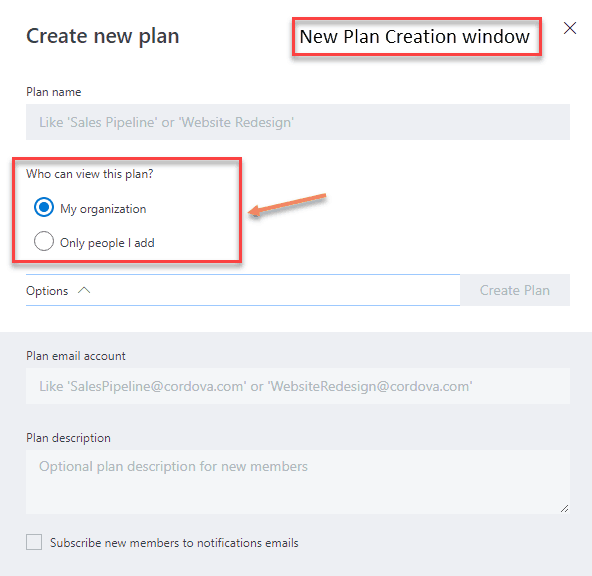
First of all, the new plan creation window now has a new option to let you choose who can view new plans: you can either make them available to all your organization, or restrict them to a few members you’ll add manually.

The new Plan Creation window.

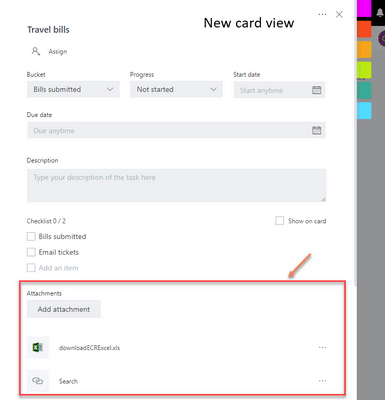
The card view has also been updated to make attachments more visible. When you add a link to a card, the link name will now show up on the card if you check the “Show on card” toggle.

The new card view.

Previously, with links, Planner would show the full url on the card by default. Now it shows the “text to display,” making visible links on cards more readable. “Attachments” used to be only links, but now include Files, Links and SharePoint.

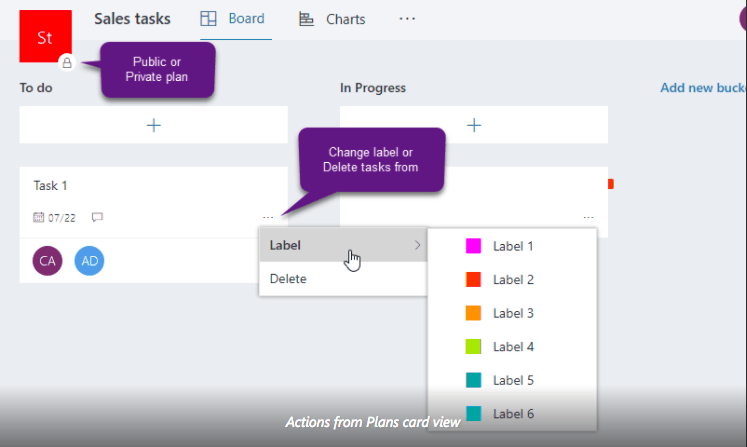
From the Plans card view, you will also see that it’s now easier to know if a plan is public or private, and you can also click on any card to add a new label or delete it.

The new Plans card view.

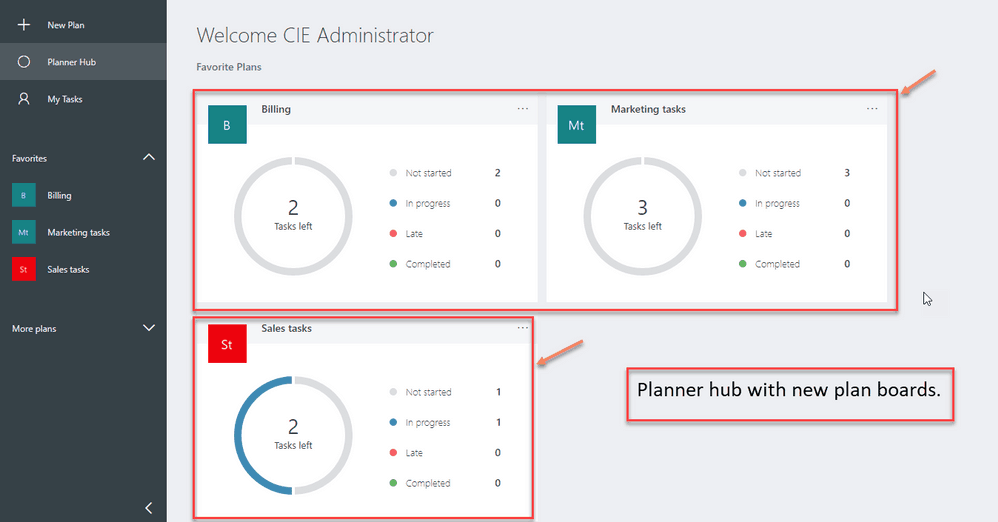
Lastly, the Planner hub has been slightly redesigned with new plan boards, which help you better track how many tasks are in progress, completed, etc.

The redesigned Planner Hub.

This is a pretty nice update overall, though the project management app still remains a work in progress. In the future, we’d very much like to see more seamless integrations with Microsoft Teams, as it really make sense for companies to use both tools in synergy. If you also use Planner, let us know what are the other improvements you would like to see in the near future.

Microsoft’s new interactive “Help me Choose” tool will assist you in buying a new Windows 10 PC

Unlike the mandatory trip to the Apple Store that comes with buying a Mac, there are plenty of awesome and affordable options from both Microsoft and other OEMs when you want to buy a new Windows PC. Sometimes, though, it’s not easy to choose a PC, especially since there are a lot of categories in the wild today. Well, Microsoft has created an interactive “Help me Choose” tool, which is designed to make it easy to find a PC that’s perfect for your needs.

To access the tool, you must first visit Windows.com and click on “Shop for a new Windows 10 PC.” After you do so, you will be asked a few questions as to how you will be using your new PC. Examples of this initial question include: Is it for work, school, gaming, creative, or personal use. Once those questions are answered you will then be followed up with additional questions as to which features are more important to you: touch, typing, Windows Hello. Depending on your answer, you will then be prompted with more questions, or you will see which product is most appropriate for you, be it a standard laptop, or something fancier like a Surface Book, or Surface Pro.

Help me Choose

In the event that you’re already running Windows 10, or you’re already satisfied with your PC, the “Help me Choose” tool can still be useful for you. The tool gives access to links for finding out more about Windows 10 features, such as Paint 3D, Windows Hello, and more. It also can be used to purchase a copy of the Windows 10 OS or check for Windows 10 updates.

With data showing that Windows 10 is accounting for 26.80% of the OS market share, this tool will more than likely help people pick up the PC which is right for them. Do you think you will be picking up a new PC anytime soon? Or have you settled for an older device? Let us know your thoughts below.

How to get started with Microsoft To-Do

Microsoft launched To-Do earlier this year as a replacement for the popular Wunderlist task management app. To-Do is built on top of Microsoft’s existing Office 365 platform and is meant to offer a streamlined task management experience. While To-Do is still early in development, it will eventually replace Wunderlist altogether. In this article, we’ll show how you to get set up with To-Do so you can migrate to it today.

Getting set up

To-Do is available now on Windows 10, Windows 10 Mobile, iOS, Android and the web. When you first launch the app, you’ll be prompted to login with your personal Microsoft or business Office 365 account. You’ll then be taken to the app’s main screen.

Screenshot of Microsoft To-Do

On desktop devices, you get a two-pane view with a fixed navigation menu on the left and a large task management space occupying the remainder of the screen. On mobile devices, the navigation menu is buried under a hamburger menu.

Screenshot of Microsoft To-Do

You can access the app’s settings page by tapping your profile picture and pressing “Settings.” Here, you can manually force a sync or start migrating your data from Wunderlist or Todoist. Click or tap “Start importing now” to bring all your existing tasks into the app.

Screenshot of Microsoft To-Do

To-Do also syncs with Outlook Tasks. If you’re already using tasks in Outlook 2016 or on the web, they’ll appear automatically in To-Do once the app has completed its initial sync. If you’re a heavy user of Outlook Tasks, you should be aware that not everything is currently supported. Notably, To-Do won’t display flagged emails and doesn’t offer any way of setting advanced Outlook task properties such as completion date and billing information.

Add some lists

Screenshot of Microsoft To-Do

When you’re set up, return to the app’s homepage. Next, you should set up some lists to organise your tasks. Press the “New list” button at the bottom of the navigation menu to name your list. Once it’s created, you can add an emoji icon to it by opening the list and tapping the icon to the left of its name.

Screenshot of Microsoft To-Do

You can also customise the app’s theme colour for the list using the “…” button to the right of the screen. You can set a different colour for each list as a visual aid to which tasks you’re looking at.

Create a task

Screenshot of Microsoft To-Do

Now it’s time to actually add a task. In your new list, press the “Add a to-do” button at the top of the screen (bottom on mobile) to name and create a to-do. It will show up in the task list.

Screenshot of Microsoft To-Do

You can click it to edit its details and add a due date, reminder or detailed note. If you right-click or long-press the task, you’ll also see shortcuts to change the due date or move it to another list. To complete the task, click the circle to the left of its name. It will momentarily change to a green “completed” tick before the task disappears.

My Day

One feature of the task screen requires closer attention. The “Add to My Day” option at the top of the task context menu and details view is a unique feature of To-Do. Tasks that you add to My Day will show up in the My Day screen that appears when you first open the app.

Screenshot of Microsoft To-Do

This screen offers something no other task management app provides: the option to say you’ll work on a task today, without changing its due date. It lets you effectively plan out your work at the start of the day. If you don’t complete everything in My Day, you don’t need to worry.

Because the task’s original due date is intact, you can just schedule it again tomorrow. Any uncompleted tasks in My Day will be automatically removed from the view at the start of the next day, giving you a clean slate to work from in the morning. To remove a task from My Day, use the context menu or details view again. You can also toggle whether a task is in My Day by swiping it to the right.

Suggestions

My Day works in tandem with another unique To-Do feature. If you tap the lightbulb icon to the right of the “My Day” list header, To-Do’s suggestions screen will appear. This suggests tasks you might want to complete today based on their due date, how long they’ve been sitting in the app and whether they’ve been previously added to My Day.

Screenshot of Microsoft To-Do

If you didn’t complete all the work you’d scheduled yesterday, the tasks you left uncompleted will appear in Suggestions the next morning. You can just add them into My Day again and pick up where you left off.

Microsoft(‘s) To-Do: Finish building To-Do

This rounds up our introduction to To-Do. It’s currently a simplistic task management experience that’s got a long way to go before it replaces Wunderlist. However, the minimal design and unique potential of My Day bode well for the future.

Screenshot of Microsoft To-Do

To-Do also has the advantage of syncing everything with Outlook Tasks, letting you access your lists as task folders on the web or in the Outlook desktop client. This has been a long-requested feature from Wunderlist users that’s now available in the next-generation evolution of the original app. Although the omission of features like sub-tasks, shared lists and labels will keep established Wunderlist users away for now, To-Do is already well-placed as a minimal take on the task management experience.

Petya and Wannacry cyberattacks driving Windows 10 adoption

Over the past few months, older versions of Windows have been the target of malware and ransomware cyber attacks such as Petya and WannaCry. All throughout those attacks, however, Windows 10 came out strong, and a new study done by Spiceworks is showing that the attacks are driving more and more businesses and industries into updating older systems and adopting Microsoft’s latest operating system.

According to the Spiceworks penetration rate data, 60% of global organizations have adopted Windows 10 on at least one computer, for a 6% increase since March of this year. More specifically, the human resources and the legal industries have shown a 52% and 54% adoption rate, and the software industry a 75% rate.

At the same time, businesses with 100-500 employees showed the highest Windows 10 adoption rate, coming in at 67%. The numbers are all coming from penetration data, which is defined by Spiceworks as the percentage of companies running at least one instance of a specific operating system. The Penetration Rates of other operating systems can be seen below.

OS penetration rates

When it comes to absolute operating system share, Spiceworks has found that Windows 7 is still popular, running on 68% of all surveyed laptops and desktops in business across the globe. Windows 10, meanwhile, secured a 13% share, which is up 4% from March. Windows XP now has an 11% share, falling 14% and now behind Windows 10 in Spiceworks study.

According to Peter Tsai, senior technology analyst at Spiceworks, this is fueled by ransomware attacks.

“In recent months, widespread ransomware attacks such as WannaCry and Petrwrap have put businesses under pressure to upgrade unsupported operating systems, such as Windows XP and Vista, and move to more secure systems like Windows 10… And while Windows XP is still running in some businesses, it’s evident that more companies are beginning to recognize the security risks and prioritize upgrades in order to better secure their networks.”


Share of desktop OS

Based on research from June 2015, Spiceworks is saying that 73 percent of IT professionals planned to implement Windows 10 in their organization within two years after launch.  The data in this study was collected on June 30, 2017, and the methodology is “based on anonymized, aggregated deployment data among a sample of hundreds of thousands of IT professionals across the globe who use Spiceworks software to inventory their laptops and devices.”

Microsoft readies Xbox One X preorders as Phil Spencer confirms “all approvals are done”

We’re now just a few months away from the release of the Xbox One X, but many enthusiasts are already wondering when Microsoft will open preorders for the new console. Last week, we spotted that Microsoft updated the Xbox One X store listing with an invite to follow the Microsoft Store Twitter account for pre-order details, and we also learned that the console may have just passed FCC clearance.

Today, Xbox head Phil Spencer confirmed that gamers won’t have to wait much longer to pre-order the console. Answering a question about the subject on Twitter, the exec shared that “all approvals are done,” and the team is now working on the official announcement (via Windows Central):

It remains to be seen if Microsoft could open pre-orders next month during Gamescom, as this will be the first time that the Xbox team shows off the new console in Europe. The Xbox One X will be released worldwide on November 7, and we’ll let you know as soon as we get more details about preorders.

Xbox news recap: Analysts predict Xbox One X failure, “My Little Pony” bug boggles Xbox gamers and more

Welcome to our weekly Xbox news recap series, where we go over the top stories of the past week in the world of Xbox. Let’s get started.

Analysts predict failure of Xbox One X

The Xbox One X is a hard pill to swallow. Asking anyone to buy a game console with zero exclusivity by design is tough to start with, but slamming a $500 price point on it can seem pretty crazy. Analyst Michael Pachter thinks that the Xbox One X is going to be dead on arrival, and we covered some of his thoughts on the matter, as well as giving our own opinions. Personally? I think that the Xbox One X is going to be a financial failure – but Microsoft probably knows that. I feel like this is something that the company is selling at a loss knowingly, assuming it’s going to pay off for them down the line. It’s a risky investment, for sure.

Xbox One S One X

“My Little Pony” bug boggles minds

You remember when “bronies” took the world by storm with their fervent love for the reboot of the classic animation series? We’ve recently gotten a taste of that yet again, with a bug causing a “mock error” to show up for many people in the Xbox Store one morning. The mock error directly referenced a My Little Pony episode called “Read it and Weep,” and spoke a bit more specifically about the show.

Gigantic gets a full release on Xbox One and Windows 10 

Gigantic has been in beta for quite a long time, but it’s finally seen a full release. The game’s launch marks the first competitive esports-ish game to come out of Microsoft’s inner circle, and – if successful – could be  pretty significant in the long run. Those who are interested in this type of game should consider logging in and giving it a shot in order to support more efforts like this from Microsoft, as they definitely seem to be interested in doing more.

Gigantic on Xbox One

ReCore Definitive Edition leaked

Here’s a weird one. Remember ReCore? We reviewed it when it first came out, and it… Wasn’t amazing. But it wasn’t awful, either. The game had some great art direction and an interesting world, but it altogether seemed rushed, and not quite complete. According to some leaked images, the supposed Xbox heavy hitter is going to be coming back with a reckoning, offering players a “Definitive edition” update. Some people suspect this may include 4K support for Xbox One X, but it’s anyone’s guess.

ReCore: Definitive Edition on Xbox One and Windows 10

Thanks for joining us. To keep up to date with all the latest Xbox news, keep a close eye on our Xbox One tag.

Microsoft news recap: the cloud continues to grow, new Microsoft Account login page on the way and more

Microsoft (MSFT) news recap is a weekly feature highlighting the top Microsoft news stories of the past week. Sit back, grab some coffee, and enjoy the read!

Once again the cloud proves fertile for Microsoft growth bringing in $6.5 billion for Q4 17′

With Microsoft’s continued focus on the cloud, it continues to pay off, as its earnings results for Q4 2017 showed continued growth, and more importantly, an increase in revenue. Increases were recorded against both Azure, cloud services, and Office 365.

Microsoft finds end-around to battle Russian hackers Fancy Bear

Microsoft has been using the courts to combat Russian hackers, Fancy Bear, by filing complaints surrounding domains owned by the group. it has been compiling a case against domains being reserved that infringe on its trademarks – and then, using those domains to act as a man-in-the-middle to possible future cyber attacks.

A “simpler, easier” Microsoft Account login page coming for “lots” of services

Following in the footsteps of Google’s recently redesigned login page for all of its services, Microsoft is now coming along, saying that it will be releasing a new login page for “lots” of its service.

Microsoft trademarks MineCoin as potential Minecraft Marketplace currency rename

After Microsoft added the Minecraft Marketplace to the Windows 10 version of the game, the company has now trademarked “MineCoin”, potentially the new name for Minecraft’s in-game currency.

That’s it for this week – we’ll be back next week with more Microsoft news.

Get the WePhone app for cheap phone calls and international calling

With the WePhone app installed on your Windows Phone or Windows PC, you will be able to make and receive international phone calls with crystal-clear sound quality at the lowest possible rates.

WePhone features

The app features a phone call recording capability and a caller ID display which means that the receiver will get to see your phone number.

The app is extremely easy to use and works flawlessly. If you compare it to Skype, it’s 30% cheaper and you only have to pay $0.2 USD for call credits that even work for international calls. Another great thing is that the app is ad free!

Check out some call prices below to make yourself an idea:

  • United States: $0.01/min
  • China: $0.018/min
  • India: $0.0185/min
  • Kuwait: $0.061/min

You can get trial phone calls with gift credits to make cheap calls. There are no hidden costs involved and you don’t have to pay any connection fee. There is no expiration date for the call credits, either. You’ll also have the chance to switch to a Premium Line for the best voice quality possible.

You can make calls over WIFI/4G/3G/GPRS and there are no roaming costs even when calling from abroad, meaning you can call from anywhere at the same rates!

Recommended system requirements

The app works best on Windows 10 and Windows 10 Mobile and you need at least 13.83 MB free to install it.

User experiences

According to most users, the app is straightforward and everything seems to work just as advertised. The app is also very easy to install, regardless of browser updates.

If you’re tired of malfunctioning dial pads or apps that require having an existing carrier phone line to activate, WePhone might just be your best choice. You can get it for free from the Windows Store.

RELATED STORIES TO CHECK OUT:

Send free & unlimited texts from your computer with TextNow app

TextNow provides you the opportunity to send free and unlimited text messages straight from your computer. With this app, you can be connected in an instant with your family and friends from all over the USA and Canada.

How does TextNow work?

Once you sign up, you will be assigned a dedicated phone number with an area code you choose. You will be able to use that particular number to send and receive unlimited texts across Canada and the US, including picture messages. What’s even better is the fact that your family and friends don’t have to also get the TextNow app. The app’s design is beautiful and straightforward and will integrate directly will all of your Windows contacts.

You can get TextNow for iOS, Android, and BlackBerry. If you take your phone number with you, your messages will all seamlessly synchronize.

Recommended system requirements

The recommended operating system for this app is a PC running on Windows 10 or Windows 8.1. The approximate download size of the app is about 1.59-1.77 MB. You can get the app while you are signed in to your Microsoft account and can be installed in up to ten Windows 10 devices.

Users’ experiences

Most users are happy with the app as it works perfectly for easy texting and calling on every phone or tablet on the market along with computers. On the other hand, the Windows Store version doesn’t support all the features of the standalone and Android versions of the app. In other words, it lacks calling, emojis, voicemail and so on and also lags when updating incoming text. If the app receives more updates, it should work just fine going forward.

Download the TextNow app from the Windows Store.

RELATED STORIES TO CHECK OUT:

The Windows 10 Fall Creators Update Guide: Here’s what you need to know

Microsoft’s Brandon LeBlanc posted an interesting guide to the Windows 10 Fall Creators Update. The document is a huge collection of all the features of the upcoming Fall Creators Update. Buckle up because there are 51 pages to read!

Windows 10 Fall Creators Update highlights

We can’t tell you all about everything, as we said there are 51 pages to read, but we’ll list some of the most important features that will be available in the upcoming Fall Creators Update:

  • You can access all files in the cloud on demand with OneDrive Files On-Demand new feature; you won’t have to download them and use the storage space on your device.
  • My People will take connections to the next level, and it will bring you closer to your loved ones.
  • The Fluent Design System will come with lots of improvements including the following: acrylic, vertical resize, horizontal resize, diagonal resize, resize grips, tablet mode transitions.
  • You will be able to control the volume of your UWP apps.
  • There will be no more logging out to fix blurry desktop apps.
  • Cortana comes with lots of new features and improvements such as incoming call notifications.
  • Microsoft Edge got lots of new features and enhancements, and now it’s easier to move from another browser, and it will also give you more control over closing tabs.
  • The PDF Reader from Microsoft Edge also got more features such as the option to Ask Cortana in PDFs.
  • Other improvements and novelties include the ability to copy and Ask Cortana, updated emojis, shape writing, enhanced text prediction, scrolling with a pen, improved game setting, Braille/narrator improvements and more.

The update will bring a bevy of new features and enhancements that will significantly improve the Windows 10 experience. Check out the complete list of new features here.

RELATED STORIES TO CHECK OUT:

Windows Template Studio 1.2 is now available, here’s what’s new

Microsoft has just released Windows Template Studio 1.2, a new version of its UWP app creation tool that will soon replace Windows App Studio. This new version brings several new features and improvements, including the ability to add content into an existing application via a simple right-click.

Here are the main additions for the extension to Visual Studio (the full list of improvements is available on the dedicated Github);

Improvements to the Wizard:

  • Add new content to existing WTS generated projects in your solution window via right-click
    • We will be working toward seeing how we can enable this for non-WTS generated projects
  • Adjusted ordering of templates based on popularity and logical groupings
  • Under the hood, we’ve done a lot of work toward localization and started some accessibility improvements
  • Simplified descriptions
  • Logo adjustment to help at smaller icon sizes

Feature updates:

  • First-time load prompt
  • What’s New prompt

Template improvements:

Process improvements:

  • Added in pull request template
  • Added in Issue template

If you already installed Windows Template Studio, the extension should automatically update to the latest version. As for developers who have yet to try the new developer tool, it’s available to download on this page. If you’re wondering, Microsoft also announced today some of the new features coming in future builds, including Visual Basic support, Fluent Design in the templates, Project Rome features and more.

Last but not least, Windows Template Studio has just been accepted into the .NET Foundation, joining other projects such as .NET Core, Roslyn and UWP Community Toolkit. “We are thrilled to be accepted in,” the company said in the blog post.

Disabling telemetry in Windows 10 turns off all Xbox achievements -here’s how to turn it back on

With the Creators Update, Microsoft gave Windows 10 users more granular controls over telemetry and all the diagnostic data that the OS shares with the Redmond giant. If you have already installed the update, you should know that Microsoft has reduced by half the volume of data collected at the “Basic level, which is one the reasons why France recently dropped all of its privacy complaints about Windows 10.

Nonetheless, the fact that Microsoft still doesn’t allow Windows 10 users to easily switch off all data collection remains a concern for many. Advanced users may know how to turn off data collection by using the Services desktop app, though you should be aware that doing so will also disable Xbox achievements for Windows Store games that support them.

The issue was discovered by Reddit user PoliteSpellingNazi, who explained on the Xbox One subreddit that Xbox Achievements will no longer work if the Connected User Experiences and Telemetry service is turned off in the Windows 10 Services app. The description for this service notes (emphasis ours):

The Connected User Experiences and Telemetry service enables features that support in-application and connected user experiences. Additionally, this service manages the event driven collection and transmission of diagnostic and usage information (used to improve the experience and quality of the Windows Platform) when the diagnostics and usage privacy option settings are enabled under Feedback and Diagnostics.

If you disabled this service a while go, are now having second thoughts, and don’t remember where to find it, here are the steps to turn it back on:

  • Open the Services desktop app, which you can easily find with the Cortana search bar or by using Windows Key + R and then type “services.msc”
  • Find the “Connected User Experiences and Telemetry” service in the list an open its property sheet.
  • Change the Startup Type to “Automatic”
  • Restart your PC

All of these services are here for a reason, and it’s never recommended to turn off any of these off without being sure of what you’re doing. For all other privacy-related settings, we invite you to check the Windows 10 Settings app and go to Privacy  > Feedback and Diagnostics. From there, you’ll be able to choose how much telemetry data you want to send to Microsoft, with the “Basic” setting only sending data “necessary to keep Windows up to date and secure.”

Microsoft finds end-around to battle Russian hackers Fancy Bear

Despite the White Houses reluctance to hold Russia fully accountable for meddling in the 2016 US election, Microsoft has taken it upon themselves to begin counter measures to mitigate the power of associate Russian GRU’s Fancy Bear hacking group.

Fancy Bear has been linked to Russia’s covert military intelligence agency on occasion and is believed to be the operating force behind last years Democratic National Convention hack.

Fancy Bear has been conducting cyber espionage since at least 2007, breaching NATO, Obama’s White House, a French television station, the World Anti-Doping Agency and countless NGOs, and militaries and civilian agencies in Europe, Central Asia  and the Caucasus.  Fancy Bear’s most notorious intrusions targeted the Democratic National Committee and the Hillary Clinton campaign last year, as part of Moscow’s efforts to help Donald Trump win the White House, according to U.S. intelligence findings.

However, unlike in the movies, battling Fancy Bear hackers won’t put Microsoft behind a monitor and keyboard chasing code across command prompt screens.

Instead, as The Daily Beast is reporting, Microsoft has been slowly building a legal case to bring Fancy Bear into court for reserving domain names that infringed on the company’s trademark. Admittedly, less thrilling than glamorized cyber terrorism seen on screen, Microsoft’s approach has already produced substantive results.

As of The Daily Beast’s reporting, Microsoft has managed to seize roughly 70 Fancy Bear domains used to conduct presumably nefarious acts such as injecting malware on computers and proliferating the spread of fake news onto social media sites.

Furthermore, seized domains allow Microsoft an interception point as Fancy Bear’s server network relays information to now Microsoft controlled domains. Microsoft’s ability to become the man in the middle now enables the company jump in and disrupt future foreign attacks or hacks when observed.

In other words,” Microsoft outside counsel Sten Jenson explained in a court filing last year,  “any time an infected computer attempts to contact a command-and-control server through one of the domains, it will instead be connected to a Microsoft-controlled, secure server.”

As an embattled and courtroom tested company Microsoft’s approach of legal seizure seems well within the company’s purview as well as seemingly coming as a bit of a surprise to the less legally resourceful methods of hackers.

It will be interesting to see how much damage Microsoft can inflict before the hackers alter their methods.

Update: Microsoft didn’t ban cop for using police officer photo on Xbox Live

It’s only been a week since Xbox One’s public release of custom gamerpics, and already there is controversy about what is or is not allowed on the Microsoft gaming platform. Officer Michael Lee was logging onto his Xbox Live account to realize that he was under suspension from Microsoft. Being a man of action, Lee contacted Xbox Live support to discover that supposedly his avatar, a photo of a police man with a folded American flag (seen above), was the “violation”.

“This account featured an inappropriate Gamerpic on Xbox One or Xbox on Windows. The content of this Gamerpic may include nudity or lewd material, extreme violence, profane or offensive terms or gestures, or other content designed to sound like, look like, reference, or allude to these topics.”

As a result, the Gamerpic was removed and the account suspended for a day. “I tried to find out which rule it violated with a customer service representative,” Lee shared on social media about the event. But since it was only a 24-hour ban, the customer service replied to him that he wasn’t allowed to file any case reviews. The response in full:

“Thank you for your kind understanding. I really understand that you want some clarifications with regards on your suspension about a police holding a flag. However, you can only get in touch with the Enforcement team by submitting a case review on them. Since your suspension is only 24 hours, You are not able to file any case review with regards on the Gamerpic about the police. I do recommend that you refrain from putting any police or military photos to avoid this happening again.”

As imagined, the response to avoid using images of men in uniform has many upset, including Lee. Police supporters at Blue Lives Matter are also calling the Xbox Live reply a “World’s Worst Customer Service Response”. Microsoft has yet to make a comment about the incident or to clarify what was offensive about the image.


UPDATE: A Microsoft spokesperson has made a statement concerning the image. According to Microsoft, the image provided by Lee was not the one that the user was banned for, but instead, one that was uploaded previously.

“Images like the one described by this user would not be removed from our service or subject to enforcement action. Every image uploaded to our service is subject to our Code of Conduct and may be reviewed for compliance. Images violating that code can result in enforcement action against the user’s account, which may prevent any images from being uploaded for a short period. Our investigation found that this user had previously uploaded a different image not in compliance with our Code of Conduct, and the resulting enforcement action prevented the user from uploading further images for a short time.” – a Microsoft spokesperson.

Furthermore, Lee stated that the previous picture was only up ‘for a second’ that he clicked by accident. The image itself is an NSFW of a woman in a thong holding the American flag which Lee submitted to Blue Lives Matters and will not be shown here.
Remove unwanted files from your PC with Quantom

Quantom is one of the best file shredding and file cleaning tools available in the Windows Store. It is described as being the strongest file shredding application in the Store, and it promises to compile most of the military standards.
Quantom features

With the great UWP called Quantom, you can shred and permanently remove all unwanted files from your computer and pendrive beyond recovery.

The app is recommended for personal and office usage as well in order to protect your personal privacy and to keep company data confidential.

Data wiping standards include the following:

  • German VSITR
  • Russian GOST R 50739-95
  • US Army AR380-19
  • US Dept of Defense DoD 5200.22 M(3)
  • and Peter Gutmann’s Algorithm

Just in case you didn’t know, CCleaner also uses a few of these standards.

The app gets all the available help of the big data analysis and machine learning, and it combines all the standards and design for a better and a quicker algorithm which is considered for both performance and speed.

The app’s features include File Shredding, File Removing, File Deleting, Data Wiping, Data Erasing, File Erasing.

Quantom system requirements:

The app is compatible with Windows 10 or Windows 10 Mobile systems featuring 2 GB of memory, integrated touch and multi-core processors.

You have to get the app while you are signed in to your Microsoft account and install on up to ten Windows devices.

According to users’ experiences, the process performed by the app is fluid and quick, and all you have to do is to select the file and press the fingerprint button to destroy the information. The only minus of this app might be the fact that it doesn’t allow you to select a folder or multiple folders. But this is not such a setback compared to its other features.

Download Quantom from the Windows Store.

RELATED STORIES TO CHECK OUT:

Conga Master is now available to play on Xbox One

The musical party game, Conga Master, is now playable on the Xbox One console. The new game supports local multiplayer for up to four players and boasts a fun retro art style. Here’s the game description, shopping link, and trailer:

The dance floor fills, the line gets longer… come on down, it’s time to conga! Shake your virtual hips to the ridiculously fun arcade action of Conga Master as everyone fights to make the longest conga line possible. No rhythm required – anyone can conga! Playing Conga Master couldn’t be easier: steer your dancer across the floor, adding people to your line as you go. Longer congas let you add people faster, but watch out for pigs stinking up your line! Even better, drag three friends onto the dance floor for some local multiplayer conga madness and see who’ll become the true Conga Master!

Buy Conga Master on Xbox One

Have you bought any new Xbox One video games recently? Let us know what you’re playing right now in the comments below.

Skype for Linux gets group video calls in latest update

The official Skype for Linux app, which is currently in beta, has updated to Version 5.4, fixing several unnamed bugs and added some new features such as Group video calling. Here’s the full release notes:

  • Enabled the Group video calling
  • Updated to Electron 1.7.4 for performance and security improvements
  • Fixed the Skype Update repository keys
  • Bugfixes and improvements

Skype for Linux has yet to update to the newly redesigned look seen in other versions of the app but Linux users are encouraged to update to the latest version as support for previous iterations of the app have now ceased all functionality. In short, if you find you Skype for Linux app isn’t working properly, a simple update may fix the problem. Skype for Linux can be downloaded here.

Do you use Skype for Linux? What features would you like to see in future Skype updates? Do you want it to look like other versions of the app? Let us know in the comments below.