Microsoft showcases updates to Windows Maps

In a new blog post on the Windows Blog, Microsoft’s Partner Group Program Manager for Windows Maps team has outlined some of the updates that have come to both the Windows Maps app on Windows 10 devices, but also the system that underpins Windows Maps for developers across the large array of Windows 10 devices available.

Some of the key updates that are most noticeable include:

  • Ink on aerial mode – make any view of maps your own by adding rich annotations with Windows Ink. Planning an off-road hike, calculating the distance, and marking a mid-way spot for lunch becomes easier when you can personalize and write on your map, just like you would with a pen.
  • Create your own collections – from all the places you want to hit on a trip, to frequent places you go with your kids, to spelling out a proposal through a collection of coffee shops, creating and organizing collections can both help you stay organized and let you express yourself
  • Contribute to improve the map data – if you have a correction for a restaurant’s open hours or know a road is missing, you can tell us and help get things improved for yourself and the community
  • New capabilities for Developers, such as styling API that will allow developers to customize the look and feel of the map canvas on the fly.

One change in particular that caught the attention of Windows 10 Mobile fans, but also the greater Windows 10 userbase, is the changes that have been taking place around the underlying map data. As some may know, the map data is derived from Microsoft’s own Bing Maps, but also parts of HERE. As time has progressed, more of Bing Maps’ data has been used, particularly after HERE pulled support for Windows phones. Resulting from this, the road view on maps has been adjusted, allowing labels to either lie flat or stand up depending on what makes it most readable at the time.

Searches on maps now follow you across Windows 10 devices, be it phone, PC, Xbox, HoloLens or IoT, making it a seamless transition to find directions on your PC, but then swap to your phone when you’re about to set off. More importantly, as part of the Creators Update, the Maps app is available on Xbox One – now you can find your way around right from the comfort of your favourite gaming console.

If you’re needing to make multiple stops on a single trip – now you can. The Maps team added the ability to set multiple stops along your journey, so the directions continue, but ensure you reach each stop you need to get to along the way.

And there’s many, many more improvements that have come along. You can read the full details on the Windows Blog.

The best apps to plan your trips on PC

From time to time, we humans feel the urge to just leave everything behind and go explore the world. Despite this common human yearning, there are actually very few people who manage to make their dream come true and travel around the world.

If you’re one of the lucky few, we’ve prepared a list of the best apps to explore the world from your PC.

The best apps to explore the world

My Trips


My Trips is a branch of TripIt, one of the most popular travel apps in the world. With this app, you can take your TripIt.com plans with you on your Windows 10 PC when you travel.

If you often fly, we’re sure that you’ll find My Trips very useful. The app includes a Live Tile to keep you up to date on your next flight.

My Trips connects with TripIt.com to synchronize your travel plan and allow you to take it with you. The good news is that after your travel plans have been synced, My Trips works offline so you don’t need an Internet connection to access your itinerary.

The app shows you a list of your upcoming trips, flight, lodging, car rental and other travel plan information. Moreover, it has a great snapped view, allowing you to work on something else and view your trip at the same time.

You can download My Trips for $2.99 from the Windows Store.

TripWolf

TripWolf is your travel guide with hundreds of destinations worldwide. This app helps you to get to know your destination before your arrival and plan your trip to get the most out of your vacation.

Finding a reliable Internet connection while on holiday may sometimes be quite difficult. Thanks to TripWolf’s offline maps, you don’t need an internet connection as you have everything you need on your PC.

The app features one hour of free preview for each travel guide, a trip planner, offline maps, as well as the highlights in your destination thanks to recommendations from MARCO POLO & Fodor’s Travel.

TripWolf is available in 5 languages: English, German, French, Spanish and Italian. You can download TripWolf for free from the Windows Store.

Expedia Hotels, Flights, Cars & Activities

Expedia Hotels, Flights, Cars & Activities is the app that will get you out of trouble whenever you need to find a hotel, a flight or rent a car.

This app defaults to your current location for fast, on-the-go hotel booking, and allows you to sort the results by price, deals, or reviews. You can book a flight to anywhere in the world and enjoy a no cancellation fee round-trip car hire from any airport.

Also, you can use the app to view details about your upcoming trips.

You can download Expedia Hotels, Flights, Cars & Activities for free from the Windows Store.

Have you already tested the apps listed in this article? Use the comment section below to recommend similar apps to our readers.

RELATED STORIES YOU NEED TO CHECK OUT:

Chrome OS vs Windows 10 S: All You Need to Know

Windows 10 S is a lightweight OS designed for teachers, students, and users who rely mainly on the core Windows features.

Now, if you’re unsure which OS to install on your budget computer, you’ve come to the right place. This article will list the main differences between Windows 10 S and Chrome OS. By the time you reach the end, you will have a clear answer about which OS to use.

Chrome OS vs Windows 10 S: A detailed comparison

App limitations

Microsoft clearly stated that Windows 10 S runs only apps from the Microsoft Store. The company decided to limit the apps running on Windows 10 S to enhance the operating system’s security.

It is worth mentioning that if you install an app from the Windows Store on another Windows 10 PC, you can also install it on your Windows 10 S laptop, as long as you sign in with the same Microsoft account that you used to buy the app in the first place.

Microsoft Store

The Chrome OS is designed for the general consumer and doesn’t feature any limitations on the types of apps that you can run. You can install any apps, games, or extensions available in the Chrome Store.

In order words, if you heavily rely on apps not currently available in the Windows Store, you should opt for the Chrome OS.

So, regarding app compatibility, Chrome OS has a slight advantage.

Browser limitations

Microsoft Edge is the default browser on Windows 10 S. Users can download another browser that might be available from the Windows Store, but Edge will remain the default browser. Also, Bing is the default search engine on Microsoft Edge and Internet Explorer, and you can’t change it.

Microsoft Edge has improved, and chances are that you’ll like Edge. The transition should be pretty smooth if you’ve never used the Edge browser before, so give it a try.

Microsoft Edge

The Chrome OS brings similar browser limitations. In order to offer users a smooth and fast experience, the best choice is to stick to Google Chrome, the default browser. Using other third-party tools to install various browsers on the Chrome OS may reduce your browsing speed.

So, in terms of browser compatibility, if we compare Windows 10 S vs Chrome OS, both pretty much come with the same cons.

Security

Microsoft set these app and browser limitations to enhance system security. By allowing users to run only apps from the Windows Store and setting Edge, one of the most secure browsers, as the default browser, Microsoft hopes to make Windows 10 S as secure as possible.

While Chrome, the default browser in Chrome OS, boasts enhanced security and better protection against online threats.

Google Chrome

So, in all, both Windows 10 S and Chrome S perform equally well regarding security.

Boot time

Chromebooks boot up pretty fast, but Microsoft is sure that Windows 10 S will allow users to boot up their devices even faster.

The company proudly confirmed that Windows 10 S can boot up completely in 15 seconds. This is great news for class productivity, allowing teachers and students to log in on their devices quickly.

So when it comes to boot time and performance comparison between Windows 10 S and Chrome OS, both perform extremely well, and individual factors, like free disk space and software conflicts, at the user’s end tend to play a larger role here.

The price tag

If you’re looking for a budget laptop, Google’s Chromebook is a very good choice. For example, plenty of Chromebook models are available for less than $300 on Google’s official website. If you’ve got a few hundred dollars extra, you can actually buy a decent Chromebook for about $500-700.

Chromebooks

Microsoft’s Surface Laptop can be yours for a price tag starting from $999.99. The good news is that hardware manufacturers will soon launch more Windows 10 S laptops, much cheaper than the Surface Laptop. However, we expect Windows 10 S laptops to cost, on average, more than Chromebooks. As a quick reminder, the cheapest Chromebook costs only $149.99.

So, price-wise, you will have to shell out more on Windows 10 S device than Chrome OS.

That’s it! Based on our assessment, both Windows 10 S and Chrome OS perform well, and the user’s requirement should be the deciding factor.

Also, read our comparison of Chrome OS and Windows 11, to identify the differences between the two, in case you have already upgraded.

What do you think about Windows 10 S? Are you planning to try it? Share your thoughts in the comment section below.

Project NEON spreads to Windows 10 Calculator, Camera, Voice Recorder and Paint 3D

With Build 2017 just around the corner, times are clearly busy at Microsoft. Indeed, the company has just pushed out several new stock Windows 10 app updates for fast ring Windows Insiders. These updates to Windows Calculator, Windows Camera, Voice Recorder, and Paint 3D all introduce the Project NEON design language to the Windows 10 experience.

Windows Calculator Project NEON

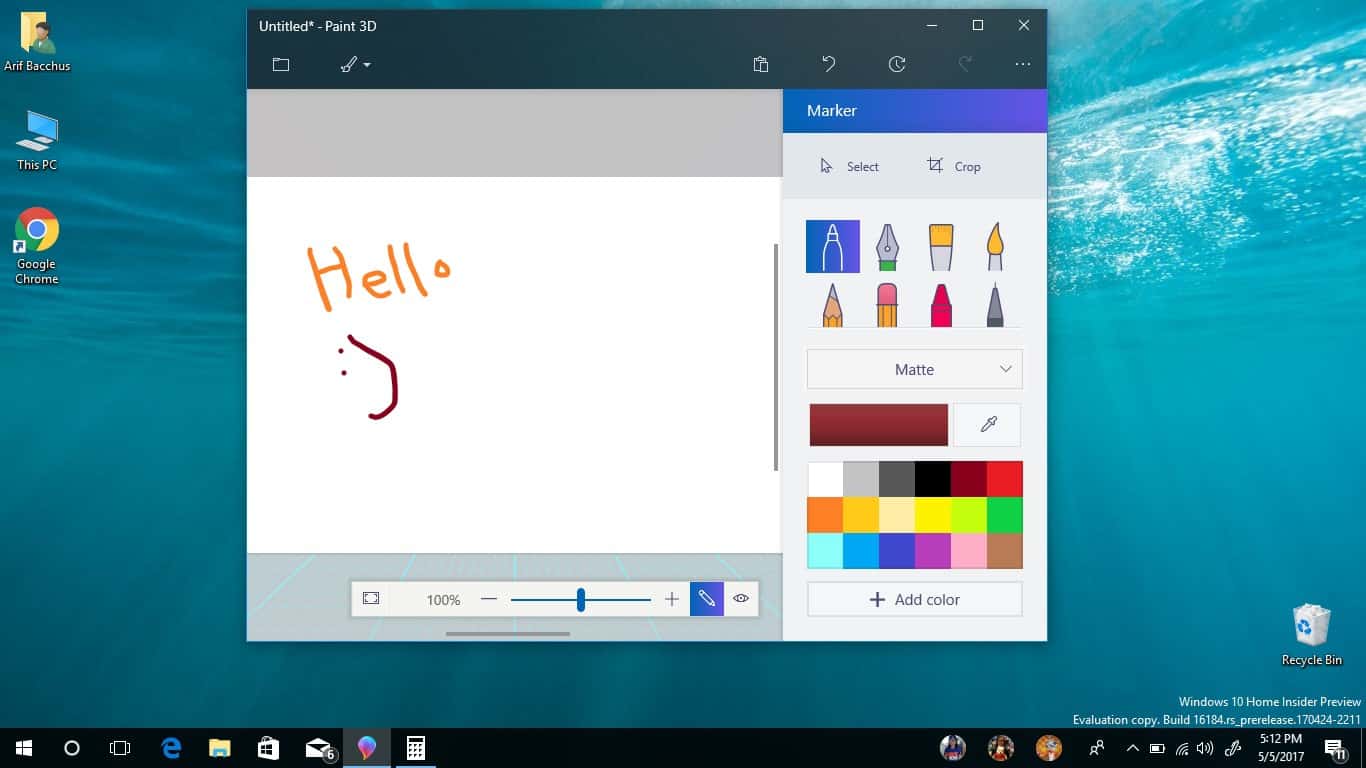
The latest round of updates introduces translucent and blur looks to all of the apps.  Specifically, with the Paint 3D app, there is now a transparent effect on both the app title bar and in the app menu, allowing you to see through behind the app. The menu in Paint 3D itself also sees an update, making it much more simple to navigate and save projects.

Similarly, with the camera, there is now a see-through effect on the title bar and the blank space above where the live image is seen. And, with the voice recorder, the area with the list of recordings and the title bar is now is transparent, rather than the flat black color that currently is seen in the standard non-insider version of Windows 10.

Lastly, with the calculator, some of the non-number buttons are now transparent, as well as the app title bar.

Camera Project NEON
Camera Project NEON

Specific app version numbers can be seen below.

  • Windows Calculator: Version 10.1705.1221.0
  • Windows Camera: Version 2017.308.90
  • Windows Voice Recorder: 10.1705.1221.0
  • Paint 3D: Version 2.1704.26037.0
WIndows Recorder NEON
Windows Voice Recorder Project NEON

These updates all come as Microsoft recently updated both the Photos and People app with a similar transparent look. This is all a part of Project NEON, which is the upcoming overhauled design language for Redstone 3 in Windows 10.  Have you updated your apps yet? Let us know your thoughts below.

Windows 10 S FAQ: Everything you need to know about the new operating system

Microsoft’s new strategy is to design a dedicated operating system for specific user needs. In the spirit of that goal, the company recently released a new version of Windows 10 named Windows 10 S, designed for teachers, students and customers who need only certain core capabilities.

Windows 10 S brings enhanced security, performance, and Cloud support as well as the possibility to upgrade to Windows 10 Pro for only $49. Currently, Microsoft offers several versions of Windows and choosing the right version is not that obvious. The good news is that Microsoft has already answered a series of frequently asked questions about Windows 10 S in order to offer users a clearer picture about this new OS.

Windows 10 S FAQ

1. What is Windows 10 S?

Windows 10 S is a specific configuration of Windows 10 Pro that offers enhanced security and performance. The OS uses only Windows Store apps and blocks users from installing any other browsers than Microsoft Edge.

2. What are the differences between Windows 10 S and the other Windows 10 versions?

We’ve already prepared two dedicated articles comparing the features in Windows 10 S, Windows 10 Home and Windows 10 Pro. Check the out below:

3. Who is Windows 10 designed for?

Microsoft proudly states that Windows 10 S was inspired by students and teachers and that it’s the best version of Windows ever for schools. Also, Windows 10 S is ideal for people who have everything they need in the Windows Store.

4. Which apps are compatible with Windows 10 S?

Windows 10 S works exclusively with apps from the Windows Store. The good news is that Microsoft is working with its partners on app compatibility, meaning that Windows 10 S users might be able to run non-Windows Store apps in the future.

5. Which hardware is compatible with Windows 10 S?

Microsoft explains that most hardware peripherals that work with Windows 10 will also work with Windows 10 S. However, some peripherals may have limited functionality. For more information, check with your hardware manufacturer or visit Microsoft’s support page in June.

6. I bought an app on another Windows 10 PC. Can I use it on my Windows 10 S PC?
Apps purchased from the Windows Store are linked to your Microsoft account. To use a previously bought app on a Windows 10 S PC, simply sign in with the same Microsoft account you used to buy the app in the first place.

7. Are there any defaults that I cannot change on my Windows 10 S PC?
Microsoft Edge is the default web browser on Microsoft 10 S. Also, keep in mind that Bing is the default search on Microsoft Edge and Internet Explorer and cannot be changed.

7. What happens if I need to use an app that is not compatible with Windows 10 S?
A reminder that apps used with Windows 10 S must come from the Windows Store will appear on the screen. Sometimes, you may also see a suggestion for a category of similar apps available in the Windows Store.

8. How do I upgrade to Windows 10 Pro on my Windows 10 S PC?
You can upgrade to Windows 10 Pro through the Windows Store for $49. Keep in mind that upgrading is non-reversible: once you install Windows 10 Pro, you won’t be able to go back to Windows 10 S.

If you have any other Windows 10 S-related questions, use the comment section below to let us know.

RELATED STORIES YOU NEED TO CHECK OUT:

Here’s how to add 3D models to PowerPoint slides

Users can now add 3D models to PowerPoint slides as easy as if they were adding 2D images.

Native ability to insert 3D objects in PowerPoint slides

Microsoft just announced that the company would be adding the ability to insert 3D objects in PowerPoint slides, helping users bring their content to life. Any 3D objects created using the Paint 3D program will also be able to be inserted into PowerPoint slides.

All you have to do is navigate to Insert > 3D Models. This feature will become available for public use starting this fall.

Windows 10 PowerPoint 3D features

The Windows 10 Creators Update brought many major new features, making the Windows environment increasingly 3D-friendly. The Windows 10 Creators Update introduced support for a large variety of applications that allows users to draw in Paint 3D or to create presentations in PowerPoint 3D. All these have become possible due to a new option allowing Windows 10 users to insert 3D objects in their slides.

PowerPoint 3D also allow users to add 3D animations, too. By using all these, a presentation in PowerPoint will become so much more vibrant. Excitably, you can also zoom in and out of a 3D image when you’re jumping through the essential ideas in your PowerPoint presentation.

If you don’t fancy the 3D images that come with the Insert menu, you can always create your own 3D pictures using Paint 3D. Thanks to the 3D support, Microsoft has revolutionized the meaning of presentations and now PowerPoint is both more modern and almost limitless.

RELATED STORIES TO CHECK OUT:

Microsoft Research director elected as Fellow of Britain’s Royal Society

Chris Bishop, director of Microsoft Research Cambridge, is one of the 50 distinguished scientists that have just been elected to Britain’s Royal Society, Microsoft announced today. A recognized expert in artificial intelligence and machine learning, Bishop joined the European arm of Microsoft’s research organization in 1997 and was later promoted as lab director in 2015.

“I am totally delighted. It’s a pinnacle of my career,” said Bishop, adding that his election “reflects the emergence of machine learning as the most transformational technology in computing.” The scientist already won multiple awards and honours over the past 10 years, and he’s also an elected Fellow of the Royal Academy of Engineering and of the Royal Society of Edinburgh.

Bishop worked on worked on various machine learning use cases including healthcare and signal processing, and he has already been working with the Royal Society on public engagement activities. “I look forward to continuing and extending this involvement,” Bishop said today. You can learn more about his background and recent work on Microsoft’s official blog.

Microsoft’s Project Catapult wins GeekWire’s “Innovation of the Year” award

Microsoft Research won one of the 14 awards at the eighth annual GeekWire Awards in Seattle yesterday. Project Catapult, a longtime research initiative on field programmable gate arrays (FPGA), received the “Innovation of the year” award during the ceremony held at the Museum of Pop Culture.

Last year at its Ignite conference in Atlanta, Microsoft discussed how it was using the programmable chips in its data centers to improve its cloud computing platform Azure and other online services. At the time, Microsoft CEO Satya Nadella said that FPGAs were “no longer just research” and an “essential priority” for the company. As of today, the programmable chips are being used in Microsoft servers in 15 countries on five different continents.

When accepting the award, Andrew Putnam, principal research hardware design engineer at Microsoft Research explained that Project Catapult started as a very small project. “We kept it around UW and kept it local,”he said. “Now, we are changing the world. I hope you guys can use our AI and cloud platform for your next innovations,” he added.

Image credit: GeekWire

Windows 10 now has over 300 million daily active users

It’s been quite some time since Microsoft gave us an update on the global Windows 10 userbase. Back in September, the company said that Windows 10 was now running on 400 million devices, but Microsoft’s CVP of Windows of Devices Group Yusuf Medhi just shared a more accurate metric in a recent interview with Bloomberg (via MSPoweruser).

“Windows 10 has been doing great. It’s been many months sine we reported we had over 400 million monthly active users. 300 million+ use it every day for 3 and a half hours. It’s the fastest adoption in corporation we’ve ever seen, and we’re seeing great deployment on that. We couldn’t be more thrilled with the progress on Windows.”

In the same interview, the exec also discusses Microsoft’s Surface hardware and shared that “you might expect to see an update to Surface Pro 4 coming soon.” This seems pretty much in line with the May 23 event in Shanghai that Microsoft announced a couple of hours ago.

Microsoft initially expected Windows 10 to reach 1 billion users within 2-3 years of launch, but the company has since backtracked on this initial forecast. As PC sales have been slowing down over the past couple of years, the Redmond giant is now looking closely at the education market, where Google’s Chromebooks have become increasingly popular. With the education-focused Windows 10 S, Microsoft finally has a response to the Chromebook threat and we’ll see if cheap Windows 10 S PCs can contribute to the growth of the Windows 10 userbase in the near future.

Windows 10 People app gets the Project Neon treatment with latest app update

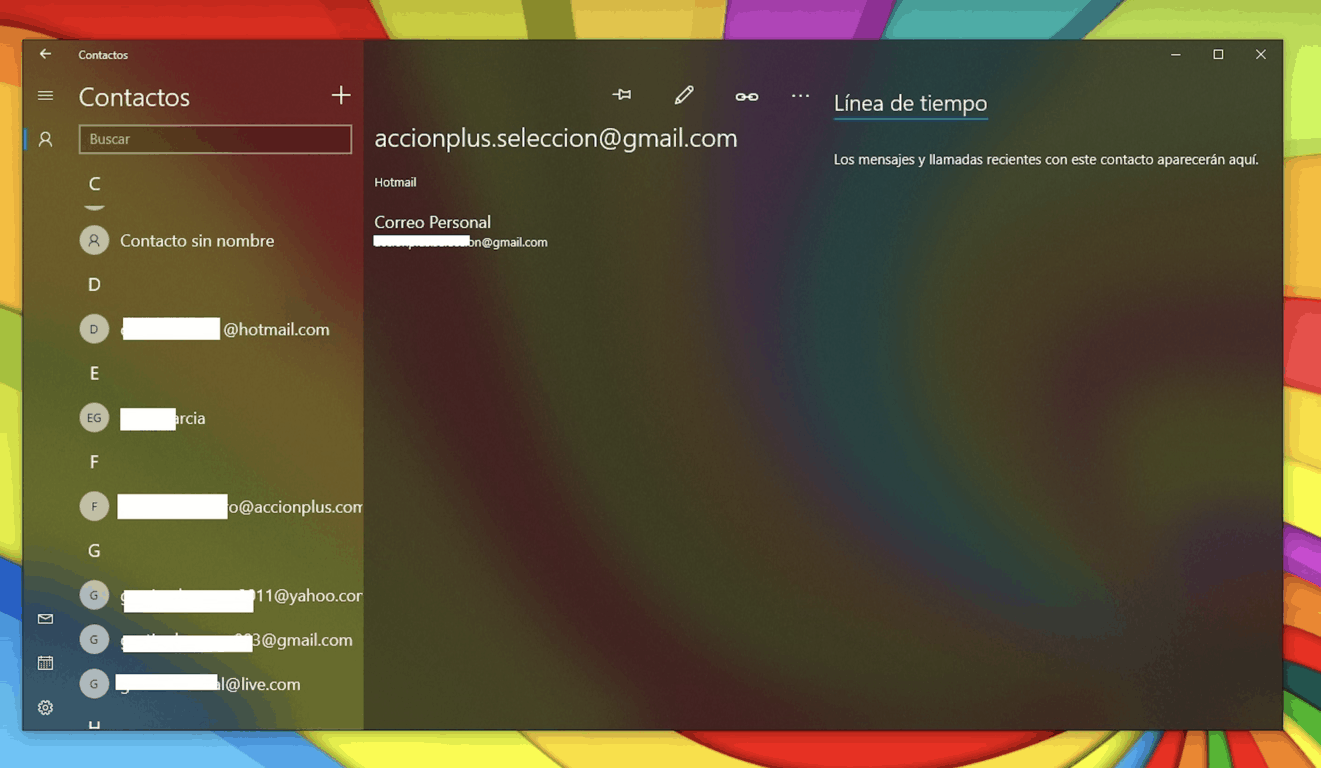
Project Neon, the new design language that Microsoft is expected to introduce with the Redstone 3 update is already starting to pop up in several Windows 10 native apps. The redesigned apps are rolling out first to Windows Insiders on the Fast Ring, and the Windows 10 People app is the last one to be updated with the addition of nice blurring and transparency effects.

The new version 10.2.1211 seems to be only available for select Fast Ring Insiders for now, so don’t worry if you didn’t receive it yet. Here is how the new translucent design looks in another picture sent by a tipster:

Other Windows 10 native apps such as Photos, Groove Music, Movies & TV received a similar fresh coat of paint over the past few weeks, and the desktop OS is slowly but surely starting to look better than ever. If you also received this latest version of the People app, let us know in the comments what do you think of the new design.

Thanks for the tip, Leo!

This Chrome extension schedules web pages to load when you want

You now have the possibility to schedule various web pages to open automatically using the Open Me Later! extension for Chrome. If you’re planning on revisiting a website later, then you might think that the most obvious solution would be to bookmark it. While this is the first step, it won’t be of much help in case you forget about the link or the place you saved it.

Open Me Later Chrome extension is here, let’s see what it does

Open Me Later! is a free Chrome extension that enables you to schedule a web page to open automatically by specifying the desired time and date. By default, this works with the current page. All you have to do is tap the address bar icon, set a date and time, go to Open Me Later and your page will be added to the scheduled list.

The extension’s advantages

The pages can optionally be opened in a new tab or window to become the active window. While it can be annoying to have your tab suddenly switched, the extension can save you time by opening a common set of work-related tabs at a specific time of day, for instance. You’ll be able to set up pages to open daily or weekly according to your choice of days.

The extension’s limitation

The extension also features a major limitation: you won’t be able to apply different settings to each item beyond its initial time and date. It would have been better to have URL#1 open in a new tab every day and URL#2 to open in a new window every Sunday, instead.

Google also has plans for Chrome and it’s optimizing Chrome performance with real time protection. To learn more, be sure to visit our dedicated guide.

Microsoft announces May 23 event in Shanghai

Late today Microsoft took to Twitter to announce that they will be having another “#MicrosoftEvent” on May 23rd in Shanghai, China. At the moment Microsoft is urging fans to “stay tuned” so it’s still not officially clear what is expected to occur at this event. The news comes right after the company held an education-focused event in New York on May 2nd, and right as the company’s annual Build developer conference is set to kick off next week in Seattle.

Microsoft has already put up an event page so fans of the company and the media can follow any announcements, but it currently just leaves one very vague and promising message.

On May 23 in Shanghai, Microsoft will show the world what’s next. Check this site for updates and more information.

Windows Central, nonetheless, has confirmed that new hardware news will be shared at this event, and that Panos Panay, Corporate Vice President of Devices will also be in attendance. They have also confirmed that there will be “global and regional” news.

The Shanghai location is still very strange, given that New York City is usually the company’s city of choice for announcements and media events relating to Surface and Windows.  We will be following this story closely, and things will surely develop in the days ahead, so be sure to keep it tuned in for more information.

Microsoft Teams for Windows Phone gets new updates and Office 365 single sign-in

Microsoft Teams has recently received some major updates on iOS and Android. Fortunately, the company hasn’t about the Windows Phone here by launching a major new update for the app on Windows Phone. This latest update brings along a few new features that were long expected and much needed.

Update features

First of all, the update now supports single sign-in with Office 365 apps and has removed the need to sign-in to Teams if users have already signed into another Office 365 account on their Windows Phone.

The update also allows users to mention other members of the company on Teams and channels, something one would have liked to see included from day one. What’s even more important the ability to share content from Microsoft Teams on other mobile apps via the Share page in Windows Phone, another addition that really needed to be implemented in the app.

The full changelog

  • Single sign-in with other Office 365 apps
  • Users can now mention teams and channels
  • Users can now open email sent to a channel
  • You can now share Microsoft Teams content in other mobile apps
  • Users can now enjoy mobile support for Connector messages
  • The update also features support for certificate-based authentication
  • Users now have support for mobile device management
  • The update brings a few bug fixes and performance improvements

Microsoft Teams still lacks many features on the Windows Phone, Android, and iOS. The company is currently working on fixing these lacks as it aims for feature parity across all platforms as soon as possible. But, until this happens, users can get Microsoft Teams for Windows Phone from the Windows Store.

RELATED STORIES TO CHECK OUT:

How to show or hide People Bar from Windows 10 taskbar

Microsoft introduced a new feature with Windows 10 build 16184 called My People, and we’ll show you how to add it or to remove the People bar from Windows 10 taskbar in case you don’t find it useful.

My People functionality

The My People feature was supposed to be shipped along with the Creators Update for Windows 10 and is a feature that makes it easier for users to connect with their friends and families. When using it, you can chat with all important contacts and you can also share photos straight from the taskbar.

The feature adds a people bar to Windows 10 taskbar. When you click on the icon, Windows will display your main contacts. By default, it displays the contact that you interact with most frequently. The My People feature helps you access contacts and conversation in an easier and faster way.

By default, the People bar appears on your taskbar but just in case it doesn’t. If you’d like to hide it, you will be able to accomplish in the Settings app.

Add/remove the People bar from Windows 10 taskbar

Method 1

  • Open Settings app and click on Personalization.
  • Click on Taskbar to open all taskbar settings.
  • In the People section, turn off Show people on the taskbar to hide the People bar. Then turn the same option on to show it.

Method 2

  • Click on the People icon on the taskbar.
  • Click on the three dots to see People bar settings and New contact options; then click on People bar settings option.
  • When you’re in the People section, make sure to turn off Show people on the taskbar and this way, you’ll remove the People bar. Turn to option on and you’ll add the People bar back to the taskbar.

RELATED STORIES TO CHECK OUT:

Windows 10 S vs Pro: Which is Better For You?

Windows 10 S is Microsoft’s newest operating system designed for teachers, students, and customers who need to access only certain core programs. And many often compare Windows 10 S and Windows 10 Pro to identify which works best.

Windows 10 S is lightweight, streamlined, and designed to boot up quickly. In this manner, teachers and students no longer waste precious minutes waiting for their computers to start, a common slow boot time issue in Windows 10.

However, many potential users are confused, not knowing which Windows 10 version to install on their computers. Indeed, there are significant differences between the various Windows 10 editions currently available on the market.

To help you decide which edition to install, we will quickly compare the features of Windows 10 S vs Windows 10 Pro.

Windows 10 S vs Windows 10 Pro: A detailed comparison

Productivity and user experience

In terms of productivity and user experience, there is only one difference. Cortana is available on Windows 10 Pro but is disabled in the S mode. The following features are available on both Windows 10 S mode and Windows 10 Pro:

  • Continuum for phones
  • Windows Ink3
  • Start Menu and Live Tiles
  • Tablet Mode
  • Voice, pen, touch, and gesture
  • Microsoft Edge (with a wide array of new user-friendly features)

Management and deployment

Windows 10 S offers five extra device and app management and deployment features compared to Windows 10 Pro:

  • DirectAccess
  • AppLocker
  • Managed User Experience
  • Microsoft Application Virtualization (App-V)8
  • Microsoft User Environment Virtualization (UE-V)

The following features are available on both Windows 10 S and Windows 10 Pro:

  • Group Policy
  • Mobile Device Management
  • Enterprise State Roaming with Azure Active Directory
  • Windows Store for Business
  • Assigned Access
  • Dynamic Provisioning
  • Windows Update
  • Windows Update for Business
  • Shared PC configuration
  • Take a Test

Security features

In terms of security features, Windows 10 S offers two extra features: Credential Guard and Device Guard. All the other Windows 10 Pro security features are also available on Windows 10 S.

microsoft store
Microsoft Store

A major difference between the two editions is that Windows 10 S mode only allows apps from Microsoft Store to be installed on the PC. So, if we compare the security aspect of Windows 10 S mode vs Windows 10 Pro, the former emerges as the clear winner.

Core Windows features

Windows 10 S scores higher on core Windows features. More specifically, the new OS supports Windows to Go and BranchCache, whereas Windows 10 Pro doesn’t.

find Windows

If you still need help deciding, Microsoft has implemented a new selection system for Windows 10 on its website. All you need to do is answer a series of questions, and Microsoft will recommend the Windows 10 that best suits your needs.

So, when we draw a comparison of Windows 10 S vs Windows 10 Pro, both are just as good, and it all comes down to individual requirements. However, the former would be the perfect fit if you are looking for enhanced security.

For those planning the switch out of Windows 10 S mode, the process is simple and quick.

What do you think about Windows 10 S? Are you planning to check it anytime soon? Also, leave your feedback on Windows 10 S in the comments section.

Windows 10 S Mode vs Home: Find Which Works Best

Microsoft recently launched Windows 10 S, a new operating system streamlined for security and performance that works exclusively with apps from the Microsoft Store, and there are some highly useful Microsoft Store apps you should get today!

Currently, Microsoft offers several versions of Windows, and choosing the right version is not as simple.

In the first part of this article, we will detail the key characteristics found in Windows 10 S. Then, we’ll compare this new OS to Windows 10 Home and list the differences between the two.

Significant Windows 10 S features you should know

Since Windows 10 S works only with Windows Store apps, your computer is protected against malware infections since Redmond verifies the integrity and security of all the apps available in the Store. Also, you get quicker startup, and users can log into Windows 10 S within minutes.

With Microsoft Edge, the default browser in Windows 10 S, offering a range of user-friendly features, the security is unmatched. Microsoft Edge offers you a fast and secure online experience, while other apps allow you to stream HD video, switch across apps, and stay productive on the go.

Windows 10 S integrates with OneDrive, allowing users to save their files to the cloud and access them on the go. So, when it comes to accessing files, comparing Windows 10 S vs Windows 10 Home yields similar results.

If you need more professional tools, you can upgrade to Windows 10 Pro for only $49. As a quick reminder, the regular price for this OS is $199.99. And switching out of Windows 10 S Mode can be seamlessly done via Settings within minutes.

Windows 10 S vs Windows 10 Home: A quick comparison

Cortana

Windows 10 S mode and Windows 10 Home offer Cortana support, so you wouldn’t be missing out on the feature when going with the latter. So, performing tasks or quick searches remains the same on both editions of the OS.

This is in line with Microsoft’s approach of providing an all-round experience to users. So when it comes to virtual assistant support, a Windows 10 S mode vs Home yields similar results.

Ability to download limited apps

As stated, Windows 10 S won’t run software installed from the desktop, basically anything from the web. This means that you can only download and install Windows Store apps.

Remember, there are a wide range of programs available on the Windows Store, so it doesn’t present a major problem to most users.

Search engine limitations

Windows 10 S users won’t be able to use a search engine other than Bing. Fortunately, you can still use Google.

If Bing is unavailable in your region, the OS will run regional search engines.

Additional management features

Windows 10 S mode also offers enhanced management features to empower device and app management and deployment. The following features are available only on Windows 10 S:

  • Group Policy
  • DirectAccess
  • AppLocker
  • Enterprise State Roaming with Azure Active Directory (separate subscription for Azure Active Directory required),
  • Windows Store for Business (Available in select markets. Functionality and apps may vary by market and device)
  • Assigned Access
  • Managed User Experience
  • Dynamic Provisioning
  • Microsoft Application Virtualization (Requires either App-V Server available at no additional cost as part of Windows 10 Assessment and Deployment Kit, or System Center Configuration Manager, which is sold separately)
  • Microsoft User Environment Virtualization (UE-V)
  • Windows Update for Business
  • Shared PC configuration
  • Take a Test

Better security

As far as security is concerned, Windows 10 S brings a series of security features that are not available on Windows 10 Home:

  • Windows Information Protection
  • BitLocker
  • Credential Guard — Requires TPM 1.2 or greater for TPM based key protection
  • Device Guard — Requires UEFI 2.3.1 or greater with Trusted Boot; Virtualization Extensions such as Intel VT-x, AMD-V, and SLAT must be enabled.

Core features in Windows 10 S

Windows 10 S brings a series of core features not included in Windows 10 Home:

  • Domain Join
  • Azure Active Directory Domain Join, with single sign-on to cloud-hosted apps
  • Enterprise Mode
  • Internet Explorer (EMIE)
  • Remote Desktop
  • Client Hyper-V
  • Windows to Go
  • BranchCache

By now, we have concluded that a comparison for security between Windows 10 S Mode vs Windows 10 Home, leads to the former emerging as the clear winner. Also, Windows 10 S offers better performance due to a slightly restrictive environment.

If you still need help deciding, Microsoft has implemented a new selection system for Windows 10 on its website where users are asked a series of questions about their needs to identify better the version of Windows 10 that best suits their needs.

Also, if you are interested, read our guide detailing the differences between Windows 10 S and Windows 10 Pro. You can also learn how to install Windows 10 Home Single Language or explore more fixes for the Windows 10 HomeGroup error in our detailed guides.

What do you think about Windows 10 S? Are you planning to check it anytime soon? Leave your thoughts in the comments section below.

Windows Store holds a May 4th Star Wars sale

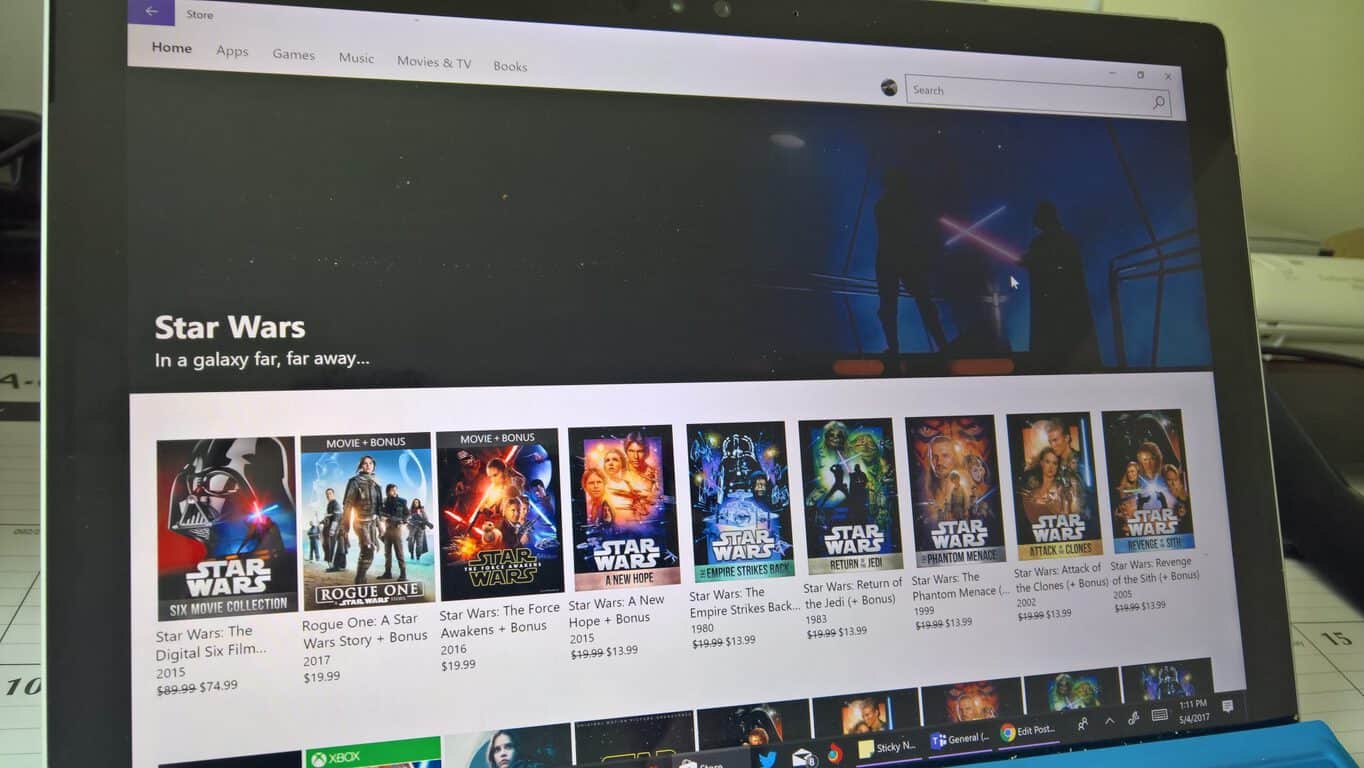
Today, Microsoft is celebrating the fourth of May with a special Star Wars Day sale, featuring discounts on Star Wars movies, games, and more in the Windows Store. Depending on your preference, Microsoft has more than enough Star Wars movies and other content available at your fingertips.

If you are just starting out, you can buy the Star Wars Digital Six Film Collection, now on sale for $74.99, saving 17% off. You can also choose to build your custom Star Wars collection, film-by-film, with the first 6 films on sale for 30% off, at $13.99 each. Start with Star Wars: A New Hope and finish with the last film in the series, Star Wars: Revenge of the Sith.

Microsoft, Star Wars, Rogue One, Windows

The Windows Store has the two latest Star Wars installments, Rogue One: A Star Wars Story and Star Wars: The Force Awakens. And, if you want to listen to the music of the Star Wars films, you can purchase Star Wars: The Force Awakens ($7.99) to listen to everything from start to finish, all music in this score was created by the famous composer, John Williams.

Rogue One: A Star Wars Story ($7.99) is the first official score of the newest Star Wars installment, composed by Michael Giacchino, available for $7.99 in the Windows Store. Star Wars Headspace is also available for $6.99 and features artists including, Kaskade and Flying Lotus, who create original songs using Star Wars sound effects. The Star Wars Trilogy soundtrack is available for $9.99 if you want to hear The Imperial March.

If movies and music aren’t for you, there are Star Wars-themed games available in the Windows Store. Pinball FX2 Windows 10 Edition is a free-to-play title that has a Star Wars two-table pack available for just $2.99. Angry Birds Star Wars is also available in the Windows Store for $3.49, where you can fling birds from the Rebel Alliance against the Empire’s Pigtroopers.

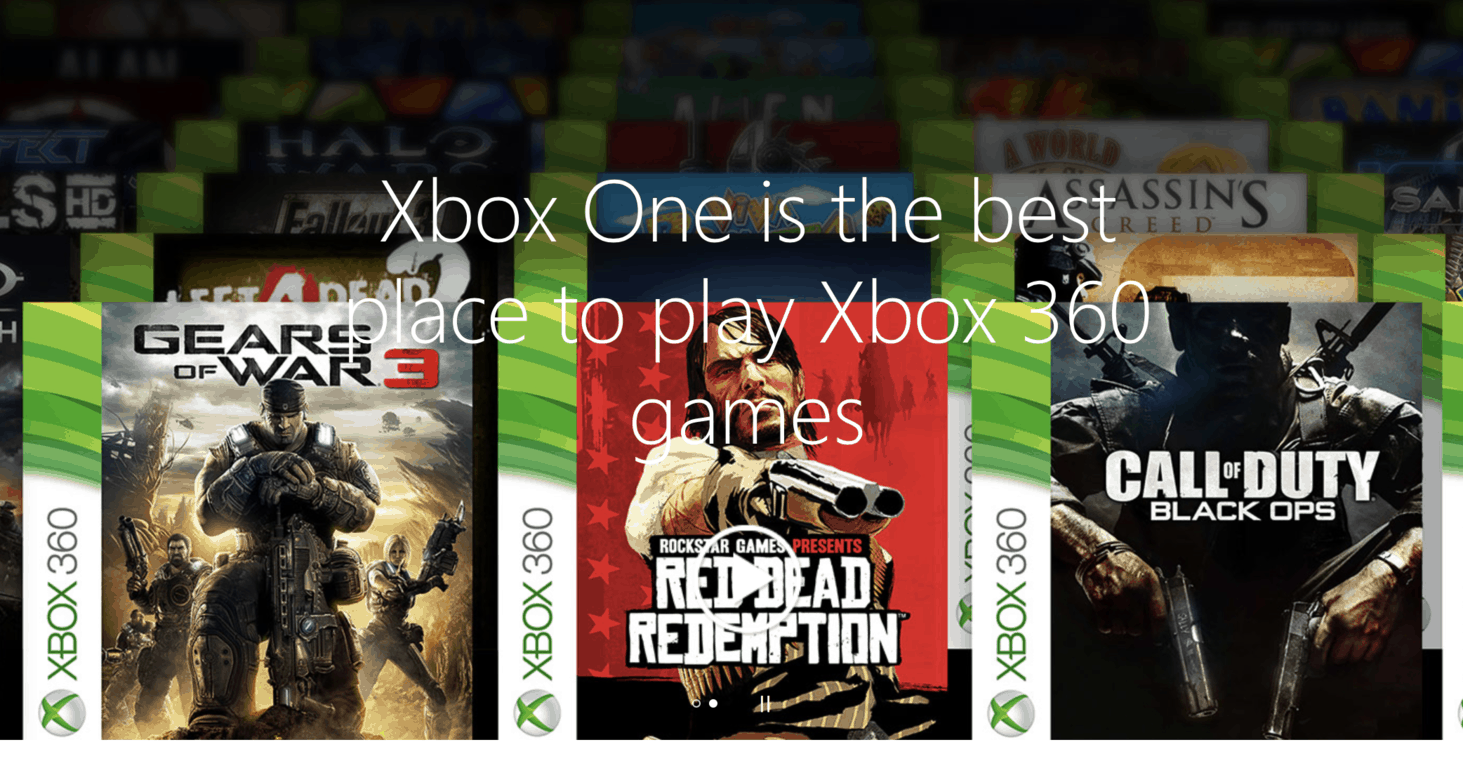
Band of Bugs, Bullet Soul, three other titles become available on Xbox One via Backward Compatibility

Not every title that join the Xbox Backward Compatible list is a AAA game worthy of announcing. Once in a while, some will slip through undetected, managing a spot on the ever growing list of Xbox 360 classics. Today, Major Nelson’s list of Backward Compatible games for Xbox One had five titles marked as new. Here’s a little bit about each.

Band of Bugs

Play as your Avatar and fight against bugs, spiders, even up to seven of your friends in Spider Hunter mode. Band of Bugs is a fast playing, accessible, tactics strategy game that puts YOU in the game! Gameplay is deep enough for established fans of the tactics genre, but friendly enough to appeal to casual gamers as well.

Bullet Soul

A brand-new recipe for the shooting genre which rewards survival through aggressive play. Blending classic shooting game design with a solid dash of modern day bullet hell, this soul food dish has it all! Destroy enemies at close quarters to build your multiplier, and see their bullets rendered harmless. Scour the stages for secret bonuses to push your score to even greater heights. (via Steam)

Bullet Soul -Infinite Burst-

The Games on Demand version supports English. Bullet Soul -Infinite Burst- is Japanese Shooter. Please enjoy new Bullet Soul!

Hard Corps: Uprising

Thrilling retro run-and-gun action is back with a vengeance in Hard Corps: Uprising, a new 2D side-scroller developed by ARC System Works that pays homage to classic Konami action series. Play as the soldier Bahamut as he begins to write his legend. Battle in the grueling trenches of Arcade mode, where only the best-of-the-best can survive to the end, or the all-new Rising mode, where a life bar and point system allow you to purchase items and upgrades to build your soldier up and achieve ultimate victory.

Harms Way

Harms Way is a fast paced, action packed race where both drivers and snipers need to team up to win the race. As the sniper, you need to blow-up the competition. As a driver you need to finish 3 laps first.

Are you looking forward to playing one of these titles? Let us know which one or if you’re waiting for a game to join the ranks, which titles you would like to see.

New York City explores use of Microsoft Translator, more: news from Day Two of Smart Cities conference

Yesterday at Smart Cities NYC ’17, Microsoft announced Smart Cities for All involvement. At day two of the event today, Microsoft is highlighting how The City of New York is embracing innovative technology and tech-based initiatives powered by Microsoft to make the city smarter, safer, more inclusive and more efficient.

Overall, the City of New York is using Microsoft technology to improve city services, create more personal care, and train tomorrow’s tech professionals and Leaders.  As one example, the city is exploring how Microsoft Translator technology and Surface devices can handle many translation needs at little to no cost. In another instance, Microsoft’s 18-week technical training Tech Jobs Academy program helps unemployed and underemployed New Yorkers gain the skills needed for in-demand tech jobs.  You can find some highlights below.

  • The New York City Department of Education’s Office of Student Support Services (OSSS) “Illumination Program” is architecting some key innovations that leverage the Microsoft cloud, data warehousing and analytics, and artificial intelligence.
  • The New York City Department of Education’s Office of Pupil Transportation, which transports more than 600,000 students each day—the largest school transportation department in the U.S.—recently rolled out a pilot Global Positioning System (GPS) bus monitoring system on 500 school buses to increase efficiency, enhance safety for students, and better address parent and family inquiries and requests. The system is built on Azure and uses Power BI to capture and illustrate real-time information on locations, traffic conditions, students, drivers
  • Microsoft partner DataKind is working with Microsoft to analyze traffic collision data in New York, Seattle and other Vision Zero Cities, all with the goal to reduce traffic-related deaths and serious injuries to zero.
  • Hackensack University Medical Center was among the first to use Skype for Business to connect parents with babies in the neonatal intensive care unit (NICU), providing a simple, secure and cost-effective way for families to bond when they cannot be together physically.
  • New York’s Microsoft Reactor is dedicated to fostering an ongoing engagement and dialogue between Microsoft and the local developer and startup community.

You can learn more, and check out videos describing these initiatives by visiting this website.

Don’t turn your PC off when stuck preparing Windows for the Creators Update

The Creators Update issues aren’t over quite yet. Some Windows users are now complaining that Windows 10 on their PC is stuck on the “Getting Windows Ready, Don’t turn off your computer” screen. Some users have raised this concern, even posting their rants to various social media outlets after trying to upgrade to the Creators Update.

The issue does not seem to affect all brands of laptops, however. While some PCs were able to upgrade to Windows 10 version 1703 from version 1607, popular laptops including the Dell XPS have been stuck on the “Getting Windows ready” screen for several hours. Others reported that they waited for 2 hours. Still, some others have to spend 7 hours just to upgrade their PC.

Unfortunately, there is nothing you can do about it. The only option you have at the moment is just to wait for the upgrade process to complete. That means you must not shut down your PC at all costs. There are various possible consequences if you do otherwise. For one, your PC might just not boot again.

Keep in mind to set your PC so that it does not Sleep after several hours of being plugged in. In Windows 10, go to Setting > System > Power & Sleep. Under the drop-down for When plugged in, select Never before upgrading your laptop. This will help ensure that your PC won’t shut down while the upgrade process is in progress. Ensure also that your computer is connected to the main power supply to avoid interruption.

If your PC reboots later, that means the upgrade is successful. However, if it is still taking longer than usual for the upgrade to complete, then you may take the risk of shutting down Windows. Once your PC reboots, clear the Software Distribution folder, reset the Catroot2 folder, and run Windows Update again. If your PC does not restart, you need to reinstall Windows 10 using the Media Creation Tool or Windows Upgrade Assistant. Make sure to enable the “Keep personal files & data” during installation.

My Life On Microsoft: What I used to cover Microsoft’s May 2nd event

This week I was live in my hometown of New York City to cover Microsoft’s May 2nd education focused event. While I was previously invited to cover other Microsoft events, including last week’s Digital Difference event, the October 2016 Microsoft event and November 2016’s Microsoft Teams event, this time I carried around a different set of devices with me on the road. So, if you’re curious as to what this Microsoft blogger uses, now is your chance to find out!

Surface Pro 4:

Unlike the prior Microsoft events from last year (Teams and October event,) this time my device of choice was my new Surface Pro 4 instead of my older Lenovo laptop. To keep things short and sweet, I’ve done a comparison of my experiences between last year (laptop) and this year (Surface Pro 4) for you! It’s also worth noting that I recently purchased my Surface Pro 4, and didn’t have it last year during my coverage of other Microsoft events.

  • For one, my laptop was too heavy. For this week’s event, with my Surface Pro 4, I could pack everything I needed into one bag without worrying about carrying around extra weight. I was also able to save space in my bag thanks to the Surface Pro 4’s compact 2 in 1 design, not having to worry about lugging around a large bag through the NYC subway system in my journey to the event.
  • Secondly, my laptop did not have a rear facing webcam. Last year, this proved to be a problem for me, as I had to snap pictures with my DSLR camera and then manually upload back to my colleagues at OnMSFT so we could get posts up using my content. With this week’s event, and with my Surface Pro 4, I was able to raise the device up, and snap quick pictures and post them up to our live blog, bringing quality content.
  • Lastly, my laptop was very large and took up too space on the table at the event. Last year, I found myself putting my essentials on the floor or in my bag instead of my desk. This year, with the Surface Pro 4, I was able to put everything I needed on my desk, including my SD Card, my camera lenses, a beverage, my phone, and my chargers. Surface Pro 4 has a very small footprint compared to my laptop, and it’s amazing.
My Surface Pro 4
My Surface Pro 4

Lumia 950 XL:

While I hate to admit this in such a fashion, my main daily driver is an Android phone, more specifically, a Nexus 6P. Like some other Microsoft reporters, I recently made the switch from Windows 10 Mobile to Android, but unfortunately, I had a very upsetting experience with my Android phone after last week’s Digital Difference event. As a result, for the May 2nd event I carried around my Lumia 950 XL instead, using it to snap quick pictures and videos and to record longer featured videos for OnMSFT’s Youtube channel.

So here is the story. Last week at the Digital Difference event, I snapped some wonderful photos and videos using my Nexus 6P, and sadly, I lost all of my work when I came home to offload photos via a USB connection to my computer. I’m still not quite sure why this happened, but when I plugged my Android into my Surface to copy photos, my Surface froze up and bombarded me with popups telling me that the pictures folder on my Android phone is not available. I may or may not have caused this to happen (since I was multitasking and also copying photos from my SD card,) but when I rebooted and plugged my phone back in, all my photos were gone and nothing copied to my Surface. I guess this is what happens when you take an Android phone to a Microsoft event.

Hey Cortana on Lumia 950 XL Windows Phone
My Lumia with my Surface Keyboard

On the bright side of things, thanks to my Google Photos backups, I was indeed able to recover most of my photos and videos, but the best quality stuff (and large video files) were all gone. From this experience, I figured that it would be smarter to carry my Lumia 950 XL for the Microsoft May 2nd event. With my Lumia as a side phone, I captured some good videos, including a hands-on with the Surface Laptop, and an overview of Windows 10 S.

At the end of the day, the Lumia 950 XL took higher quality videos and also netted some high-quality audio, AND, everything transferred safely to my Surface via USB cable. While I was frustrated with the photos experience on my Android phone, I still used my it to keep in touch with my team using the (much more polished) Android version of the Microsoft Teams app. Since many of my friends use WhatsApp, Snapchat and other apps (which are not either available or not as polished on Windows Phone,) I still used my Android device to personally share event photos to my family and friends, but my Lumia was used for all business.

Lumia 950 XL and Box
My Lumia 950 XL and Box

24LiveBlog:

At previous Microsoft events, I did not live blog, and instead opted for short posts and social media bursts using the photos I captured with my DSLR camera. While I experimented with this last week for the Digital Difference event, I again choose the live blogging platform 24LiveBlog to embed a live blog right here on OnMSFT.com. Like I described above, thanks to the power of the Surface Pro 4 camera, and this live blogging platform, I was able to drop in quick snapshots from the event’s keynote, giving readers a more personal feel.

We’re always looking for feedback from our readers, so we would love to hear your thoughts on our recent live blog. How do you want us to improve the experience? Did you know that you could comment by clicking “comment” and signing in with your social media account? Let us know your thoughts in our comments section below.

24LiveBlog
24LiveBlog

Accessories:

Since the Surface Pro 4 carries only 1 USB port, I also carried a variety of accessories (along with my extra camera lenses) to help me get business done in a fast and efficient matter. First up is a USB 3.0 to Gigabit Network Adapter. I choose this accessory because it’s always best to use a hardwired ethernet connection at Microsoft press events and get the most out of internet speeds to upload content back to my team at OnMSFT. And, the accessory also carries two USB 3.0 ports, which means I have extra room for my other peripherals.

Next up is this Transcend USB 3.0 reader. This reader is particularly useful because I am able to pull out my SD card from my camera and plug is right into my Surface to quickly upload photos to my team at OnMSFT. Without the reader, I would be forced to upload via USB, which is a much slower process.

My accessories
My accessories

So, there you have it. I carried my Surface Pro 4, My Lumia 950 XL, used 24LiveBlog, and a few accessories to Microsoft’s May 2nd event. The Surface Pro 4 and my accessories made for a great live blogging experience, and my Lumia 950 XL helped me capture some great photos and videos to share with our readers. I’m looking forward to the next Microsoft event, and will always do my best and carry the best devices to bring the best quality material from Microsoft events. Thanks for reading, and be sure to drop us a comment before with your thoughts!

Free-to-play video game Paladins now available on Xbox One

The free-to-play video game, Paladin, is now available on the Xbox One console and can be downloaded from the Store right now. The game features a blend of technology and fantasy and uses an art style not dissimilar to the popular Overwatch. Here’s the official description:

Enter a fantasy world of ancient technology in Paladins, a team-based shooter with strategy elements and deep character customization. Through a unique collectible card system, players can amplify and augment a character’s core set of abilities to play exactly how they want to play.

Download Paladin on Xbox One

Have you tried Paladin yet? Let us know your thoughts in the comments below. Is it worth playing?

Microsoft’s Beam introduces new interactive features

Microsoft’s video game streaming service, Beam, has just launched a new feature being referred to as Interactive 2.0. This update essentially allows for more interaction between stream viewers and the game (and streamer) they’re watching while also enabling more functionality for game developers to program into their titles.

Here’s the full list of new features available today:

Per-User Control Events – See who pushed a button enabling more engaging more personal interactivity.

Dynamic Controls – Create new buttons and interactive elements on the fly from your game without needing to visit the Interactive Studio (Platform & Typescript SDK)

Malleable Controls – Change the text, spark cost and cooldown controls on the fly to spice up the gameplay during a session.

Spark Transactions – Confirm actions, before deducting sparks. (Platform & Typescript SDK)

Groups – Group your players into Teams or collections to provide different controls to different sets of users.

Snazzy new control editor renamed to our Interactive Studio.

A set of tools and processes to support you in authoring next generation interactive experience.

Everything from initial creation to publishing is carefully crafted and delivered to help you in making the best possible Interactive experience.

JSON Based Protocol – A human readable format that is easy to debug.

And here are the planned features that are coming soon:

Universal Windows Platform build for C++ and Unity

Spark transaction management for Unity and C++

Xbox build for Unity

Win32 build for C++

Server side aggregations

Dynamic control generation from Client for Unity and C++

iOS and Android Support in Unity

Beam is Microsoft’s solution to the incredibly popular Twitch video game streaming service and while the company only purchased it last year, they’ve already injected quite a bit of support behind it by integrating it into Windows 10 and the Xbox One operating system. It’s unclear of Microsoft will be able to bring it up to Twitch’s level of popularity but Beam already seems to have carved out a bit of a niche for itself among gamers.

Have you tried Beam yet? How would you improve it? Let us know in the comments below.

Grab ‘Resident Evil 7 biohazard’ for Xbox One on sale at the Windows Store today!

This week, the Windows Store is slashing off deals of the recent survival horror title Resident Evil VII: Biohazard for Xbox One. The deal cuts the Standard Edition down to $38.99 and the Deluxe Edition to $67.49. While the Season Pass still remains at $29.99 with three new game modes of content, the Deluxe version comes with it in tow.

The acclaimed horror adventure is set in Louisiana swamps where the main protagonist Ethan Winters is searching for clues to his wife’s whereabouts. The gruesome mystery that ensues leads him through deadly interactions, uncovering the truth behind the derelict estate and its residents.

Along with the Standard and Deluxe versions of the game being on sale, a bundle including the last movie of its film franchise is also on sale for over $30 off.

Capcom’s Resident Evil VII: Biohazard was released on January 24, and has been rewarded by fans of the franchise with praise. Some even consider it the ‘rebirth’ of Resident Evil after its lower quality predecessors. If you’re one of the hesitant, now might be the time to try it out while it’s on sale.

Microsoft announces Smart Cities for All involvement

Microsoft today announced Smart Cities for All involvement during Smart Cities NYC ’17, a first of its kind conference which explores the merging of technology and urban life. Microsoft’s announcement comes as the world is undergoing an urban renaissance, where more people are moving to cities to build their lives.

With Smart Cities for All, resources developed by Microsoft partners, Global Initiative for Inclusive Information and Communication Technologies (G3ict) and World ENABLED, help cities becoming inclusive and smarter. Tools are provided to city leaders, to help them to align technology initiatives and smart cities programs, including the following.

  • ICT accessibility standards that city governments can readily adopt
  • Model procurement policy for accessible ICT
  • Communication guide on the advantages of incorporating ICT accessibility into a city’s digital services
  • Database (alpha) of accessible smart city solutions

Microsoft is also helping city leaders deepen their innovation and deliver faster, smarter, and safer government operating through the cloud. Examples include.

  • The City of Los Angeles is using Microsoft cloud technology to power an A.I. virtual assistant – “Chip” – the city’s new digital ambassador, responding to citizen & business requests 24/7.
  • The New York City Department of Education is using a GPS bus monitoring system built on Microsoft Azure and Power BI to manage vehicle maintenance, provide improved student location services, and ensure greater safety for students.

It is because of these commitments that the IDC recently identified Microsoft as the number one trusted vendor for US Smart City Transformation.

The Keynote for the event, led by Toni Townes Whitley, CVP of Microsoft Worldwide Public Sector and Industry, also discussed how business and government leaders can embrace the cloud to create new experiences in the digital economy through digital leadership. You can learn more about this initiative visiting www.smartcities4all.org.

Rocket League teams up with WWE for live event and more

In the shadow of its previous world colliding efforts between rival platforms Xbox and Playstation, Rocket League is once again crossing boundaries to bring two seemingly disparate audiences together with its newly announced sponsorship of the next WWE pay-per-view.

With a brief Twitter announcement, Rocket League has let its fans and the fans of WWE superstar wrestler’s know, it will be part of the exclusive live PPV event Backlash on May 21 on the WWE network.

The WWE cosigned on the excitement by tweeting its own promotional video showcasing Rocket Leagues involvement. With a few weeks to go, it’s still unclear the level of involvement Rocket League will have during the broadcast, but fans of the wildly popular Windows 10, Xbox One and PS4 game should expect some reasonable tie-ins into the gaming franchise somehow.

Fans of the two franchises are still trying to make heads or tails of the announcement, but the overall sense is that it’s something could ultimately work for the WWE and Rocket League considering their fan bases more than cross the venn diagram of engagement.

Microsoft plans STEM Saturdays through May at retail stores

After yesterday’s unveiling of Windows 10 S, a new Surface Laptop, updates coming to Microsoft Teams as well as evolved Office apps on the horizon, it seems the company is looking to keep its momentum and focus in the education sector going by also announcing STEM Saturday’s during the month of May.

Aligned with the company’s vision of inclusive, immersive learning, as shared at the Microsoft Education event in NYC and via Windows Blog , Microsoft Store today announced STEM Saturdays throughout the month of May in all full line locations in addition to the range of free programs Microsoft Store hosts year-round that empower youth by providing direct access to technology and hands-on learning. The free workshop series gives participants a hands-on experience building a sensor that measures the flexion and extension of a finger to learn about the anatomy of a human hand. Anyone can attend STEM Saturdays at their local Microsoft Store starting on May 6 and every Saturday this month.

With Windows 10 Creators Update and the new Windows 10 S coming to more devices this spring and summer, this new STEM Saturday’s are sure to be packed full of useful lessons, tidbits, and hands-ons such as,

• How to build a flex sensor that lets them control a robotic finger with their own finger.
• How to use a Surface and Excel to visualize the flexion and extension of their finger. 
• Basic skills typically used by mechanical engineers, electrical engineers, and data scientists. 

The best part of the monthly event is that these STEM classes are completely free unless you walk out of the stores with new PCs, IoT devices, or Xbox games due to your level of enjoyment in the class.

Microsoft REALLY wants Windows 10 S users to use Edge and Bing, restrictions revealed

It was clear when Microsoft announced Windows 10 S last night that this version of the Windows 10 operating system was going to be slightly more restrictive than the full version and today many are finding out just how restrictive it might be.

Spotted by The Verge, an official FAQ for Windows 10 S reveals that while other web browsers can be used if downloaded from the Windows Store (only Windows Store apps are allowed on Windows 10 S machines), it will be impossible to change the default file settings. In short, opening an htm file will always open Edge. Due to Microsoft’s efforts to make Edge an all-in-one app for reading pdfs and ebooks as well, it’s possible this could also affect other file types as well. It should theoretically be possible to open these files from within other open apps however. Maybe.

Something a bit more drastic is the decision to make Bing the default search engine for Edge and Internet Explore. What’s more is that it appears Microsoft will prevent users from changing this setting. A simple workaround for this problem would be to simply navigate to Google.com or the webpage of another search engine and simply search from there but when it comes to native searches in the browsers’ search/address bar, Windows 10 S users appear to be out of luck. Here’s the official wording:

Yes, Microsoft Edge is the default web browser on Microsoft 10 S. You are able to download another browser that might be available from the Windows Store, but Microsoft Edge will remain the default if, for example, you open an .htm file. Additionally, the default search provider in Microsoft Edge and Internet Explorer cannot be changed.

Do these decisions frustrate you or are they not that big of a deal? Let us know in the comments below.

Windows 10 Twitter app gets that big update, removes @replies

An update for the Windows 10 Twitter app has begun to rollout to Windows 10 PCs and tablets and Windows 10 Mobile smartphones.

This latest update incorporates Twitter’s new policy of not counting usernames in the 140 character count and now removes @replies completely, instead using a new “Replying to” label above reply tweets. Another big change with this update is the separation of replies and regular tweets on profile pages. Before now, profiles on the Windows 10 app would list all of a user’s tweets on one long timeline. Now only the regular tweets are visible and all of the replies have been sorted into a new screen next to the existing Media and Likes sorting options.

Other changes with this update include improvements to images and video in Moments and the support for multiple timelines on the Live events page. Users can also create a new tab by holding Ctrl and clicking anywhere within the app on PC.

Do you like these changes or do you miss the traditional Twitter @replies? Let us know in the comments.

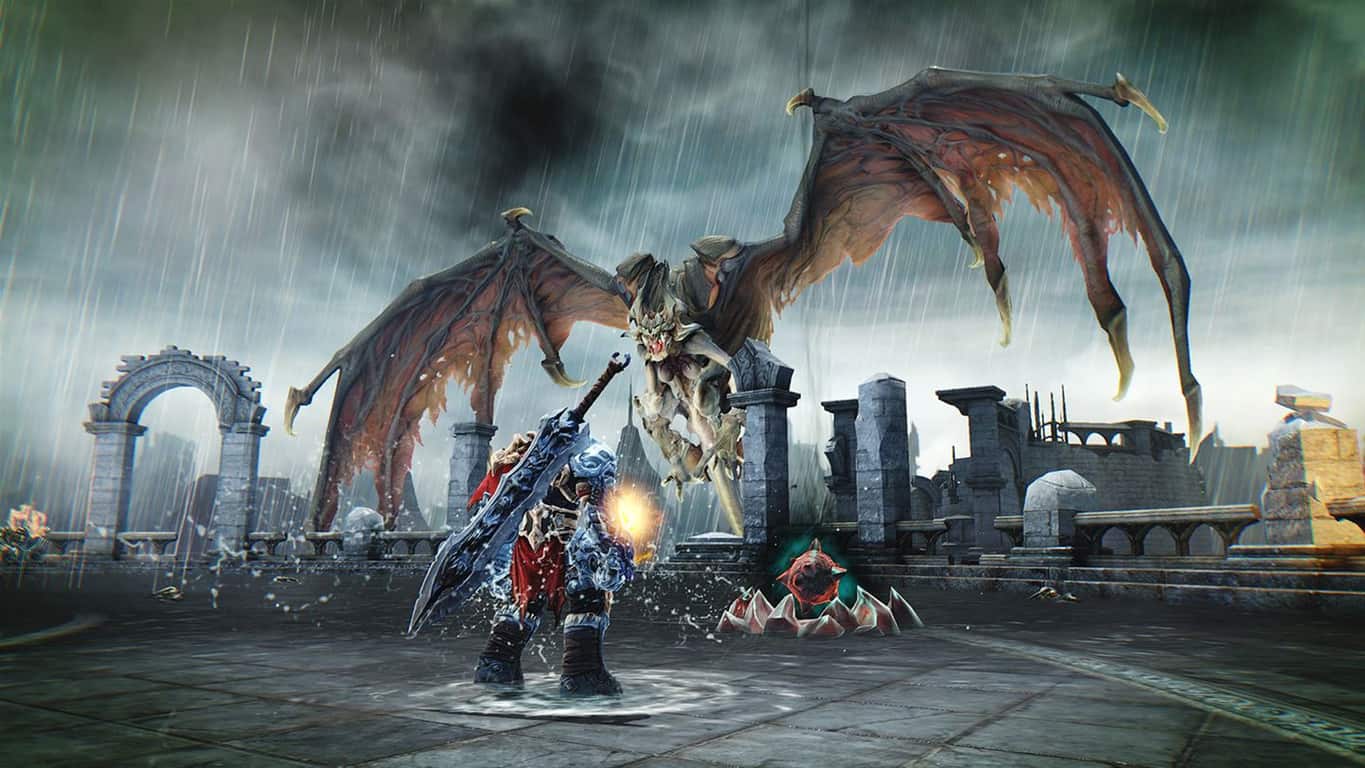
Darksiders Fury’s Collection announced for Xbox One

A new bundle containing the remastered editions of both Darksiders video games has just been announced for Xbox One. Called the Darksiders: Fury’s Collection: War and Death, the bundle is a good opportunity to get both Darksiders and Darksiders II at a cheaper than usual price. Also, for a limited time this bundle is selling with a 50% discount which adds even more value. Here’s the official description:

In celebration of the announcement of Darksiders III, Darksiders: Fury’s Collection – War and Death presents Darksiders Warmastered Edition and Darksiders II Deathinitive Edition in one package at one great value. The perfect compilation for longtime fans of the franchise and players new to Darksiders, players will take on the role of War – the first, most powerful and most eratic Horseman of the Apocalypse and Death, the most feared and legendary of the Horsemen.

Darksiders Warmastered – War’s Redemption: Deceived by the forces of evil into prematurely bringing about the end of the world, War – the first Horseman of the Apocalypse – stands accused of breaking the sacred law by inciting a war between Heaven and Hell. In the slaughter that ensued, the demonic forces defeated the heavenly hosts and laid claim to the Earth.

Darksiders 2 Deathinitive Edition- Death’s Revenge: Become the terrifying force which everything fears but nothing can escape. Awakened by the End of Days, Death, the most feared of the legendary Four Horsemen embarks on a quest to redeem his brother’s name. Along the way, the Horseman discovers that an ancient grudge may threaten all of Creation. Death lives!

Buy Darksiders: Fury’s Collection: War and Death on Xbox One

Both games have had their graphics and gameplay improved for these versions with the titles themselves being highly regarded among Xbox gamers.

Are you going to buy this bundle or do you already own the first two Darksiders games? Let us know in the comments below.

Arabic language is coming to Xbox One

While Microsoft’s Xbox One does support a good number of languages, there are still several that have remained absent such as Arabic. A user on Twitter recently asked Microsoft’s Mike Ybarra if the tech giant had plans to add the language and Ybarra pretty much confirmed that it was coming sometime in the future and that they’re working on it right now.

“We’re working on it,” his tweet said. Short and to the point and 100% confirmation that at least one new language is on its way to the Xbox One. Arabic is actually one of the top five most-spoken languages in the modern world which makes its late arrival on the Xbox One a bit of a surprise.

Have you been waiting for a specific language to be added to the Xbox One console? Let us know which one it is in the comments below.

High CPU usage after installing Windows 10 Creators Update [Fix]

In terms of stability and support, Windows 10 get’s the job done. And with the major updates, we receive new features and all-around improvements that should make the system’s usage even better. Sadly, the Creators Update isn’t just feature-packed major patch, but it comes with more than a few issues.

One of the issues that are widely acknowledged by users is related to the CPU usage. Namely, some users reported a substantial increase in CPU activity after they’ve installed the Creators Update. To make this occurrence even more dubious, the troubled users are certain that their CPU usage hits high values even when the PC is in the idle state.

So, the culprit for this issue is most likely not some process run by users, but rather a system malfunction of some kind, provoked by the latest update. Luckily, you can address this issue on your own with some of the workarounds we provided for you.

How to fix high CPU usage on Windows 10 Creators Update

1. Disable or reassign IME

Windows Input Method Editor is one way to utilize multi-lingual input for certain languages. Another is the 3rd-party IME, of course. However, some reports thoroughly explain why this feature occasionally can and will feast on your CPU, especially in Windows 10 and regardless of what language you use. Now, you should easily obtain some of the 3rd-party solutions for language input and disable the built-in IME. And this is how to do it:

  1. Press Windows key + I to open the Settings app.
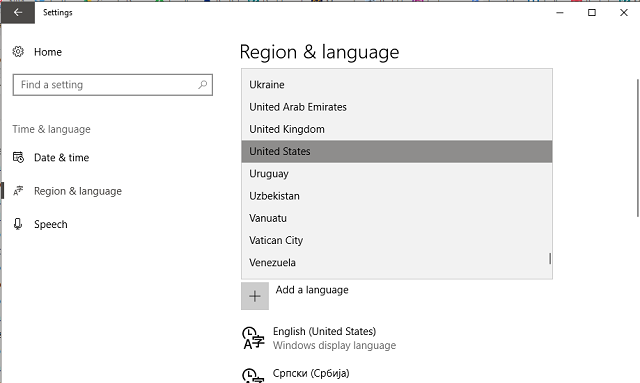
  2. Open Time & language.
  3. Under Region & language pane, open Additional data, time and regional settings.
  4. Click Add language.
  5. Add any language you prefer running.
  6. Remove Microsoft IME.
  7. Save selection and restart your PC.

Your CPU activity should gradually decrease once you’ve disabled the Microsoft IME.

Additionally, you can reassign the IME and the complete instructions can be found in this article.

2. Check for memory leaks

Memory leaks are the most common reason for the high CPU usage. There’s a chance that the Creators Update confronts with some internal part of your system or an already installed application, and therefore causes a memory leak. We have an article dedicated to memory leaks in Windows 10 and how to deal with them, so make sure to check it out.

3. Stop the Runtime Broker process

The Runtime Broker process is a nifty service that helps you manage certain Windows Store permissions. However, it’s also renowned for an uncalled overuse of the system resources. If broken, this process will take aim at your RAM, but even the CPU isn’t sparred on some occasions.

Have in mind that this is not an essential system process so you can disable it and check for changes. This is how to disable Runtime Broker process in a few easy steps:

  1. Press Ctrl + Shift + Escape to bring the Task Manager.
  2. Under processes locate Runtime Broker.
  3. Right-click on the process and choose End Task.

Now you should have one thing less to worry about when it comes to CPU ultra-high usage.

4. Reduce Visual effects

The procedure that is highly advised, especially for the sub-par configurations is related to the visual effects. Namely, visual effects may give your system that extra, metro-looking flair, but they can also take a toll on your CPU. You can make your visual effects to adjust for the best performance and therefore reduce the impact they have on CPU usage substantially.

This is how to do it:

  1. Under the Windows Search bar, type Performance Information and Tools.
  2. Choose Performance Information and Tools from the list.
  3. Click on Adjust Visual Effects.
  4. Under the Visual Effects tab, click Adjust for best performance.
  5. Click OK to confirm the selection and restart your PC.

5. Disable programs from running at the startup

Another action you should take into consideration when it comes to troubleshooting of this issue must be the startup tweaking. Most of the third-party programs have an annoying habit to start with your system. Sometimes that is justified, like with the antivirus or GPU Control Center. However, on most occasions, you won’t need that plethora of programs slowing down your startup.

On the previous Windows versions, you were somehow forced to use the third-party solutions for tweaking your startup. Fortunately, that’s not the case with Windows 10. And this is how you can relieve your system of all the unnecessary startup programs:

  1. Right-click the Taskbar and open the Task Manager.
  2. Under the Startup tab, disable all but essential programs.
  3. Click Ok and restart your PC.

6. Stop P2P updates

Another feature that proved as a massive CPU grinder is the Peer-to-Peer update. For those of you that are not aware of it, this process lets you speed up the updating process in your home network by sharing the update files between all of the connected PCs. Now, that sounds great, but it may heavily impact your CPU while doing so.

So, our advice is to disable it and reduce the CPU usage. This is how to do it:

  1. Press Windows key + I to open the Settings app.
  2. Open Update & Security.
  3. Click Update and open Advanced.
  4. Click Choose how updates are delivered.
  5. Under Updates from more than one place, toggle the feature off.

This will kill the process and your CPU usage won’t skyrocket anymore.

7. Disable Tips about Windows

The ”Tips about Windows” feature is a good way to learn about the system surroundings and get a grip on some less-known features. However, it’s also a known culprit for the high CPU usage. So, if you’re not ready to trade your all-around performance for a tip or two, make sure to disable it.

Follow these instructions to disable the ”Tips about Windows” feature:

  1. Press Windows key + I to summon the Settings app.
  2. Open System.
  3. Under Notifications & actions pane, disable ”Get tips, tricks, and suggestions about Windows’‘.
  4. Click OK.

That should reduce the CPU usage at least slightly.

8. Disable Microsoft Spotlight

While the Microsoft Spotlight feature can certainly make your lock screen more vivid and interesting, it can take a lot of system resources. It shouldn’t, but it does. To at least marginally decrease your CPU usage, we advise you to settle with the regular wallpaper from your collection and disable the Spotlight feature.

This is how to do so in a few easy steps:

  1. Right-click on the desktop and click Personalize.
  2. Click on the Lock Screen tab.
  3. In the Background pane, switch from Windows Spotlight to Picture or Slideshow.
  4. Click OK to save changes.

If you’re in love with the variety of photos Microsoft Spotlight provided for you, you can download them and use them individually or as a slideshow for your lock screen. You can find those here.

9. Uninstall cloud desktop clients

Users around the world are using all kinds of cloud solutions to preserve their valuable data. There are a lot of ways to utilize the cloud tool for backing up or downloading your files. One of those ways is trough the desktop client, which is available for the majority of cloud services, like OneDrive, Google Drive or Dropbox. However, even though the desktop client makes your daily backup routine much easier due to integration, it also causes high CPU activity.

For the time being, the greatest consumer of your system resources must be the built-in cloud program, OneDrive. It doesn’t matter if you use it or not, it will always be there, working in the background. To make the things even harder, the built-in application can’t be uninstalled but rather sustained from actions. And the complete instructions for stopping OneDrive can be found in this article.

10. Perform a fresh reinstallation

At the end, if nothing worked out and you’re trapped in cycles trying to figure out what is the reason for these preposterous doings, your final solution is the clean reinstall. Yes, it may seem like a time-consuming action when we have in mind that you’ll need to backup your data and setup again all those settings. However, this is your last resort and we advise you to take it into consideration. You can inform about the whole procedure on this link.

That should be enough to get you going. In addition, we are open for suggestions, questions, or alternative solutions. Those can be posted just below, in the comments section.

RELATED STORIES YOU NEED TO CHECK OUT:

How to fix common Outlast 2 bugs

Outlast 2, the sequel to the popular Outlast game, is a truly creepy horror game. While it’s set in the same universe as the first game, it features different characters and a different setting.

Unfortunately, Outlast 2 is affected by quite a few technical issues. Last week, we published an article on how to fix the annoying Outlast 2 graphics issues. In this article, we’re going to futher expand the first article and show you how to fix other common bugs affecting the game.

How to fix frequent Outlast 2 issues

1. Players can’t crawl under a tree
Crouch is mapped to the left CTRL key and crawl is mapped to the C key. On a controller, you press to crouch, hold to crawl.

2. Players can’t get passed the first enemy
If you can’t get passed the pickax lady, simply run away from her. Eventually, she’ll leave you alone.

3. Lost save games
There seems to be an issue sometimes with the Steam Cloud synchronization. The game’s devs are already working on a patch to fix this problem.

In the meantime, try disabling Steam Cloud support, as this action might restore your previous savegame. From the Steam library, right-click on Outlast 2, select Properties then under the Updates tab uncheck the “Enable Steam Cloud synchronization for Outlast 2” option.

4. The game is locked at 24 FPS or lower
To fix this issue, run the game in borderless fullscreen. Go to %userprofile%\Documents\My Games\Outlast2\OLGame\Config\OLSystemSettings.ini, open the file and set the “UseBorderlessFullscreen” option to “True”.

Outlast 2 will soon allow gamers to speficy a preferred refresh rate on the command line.

5. The camera won’t work
This issue is prevalent for gamers running the Comodo anti-virus and seems to be caused by the “auto-containment” feature. Simply turn off that feature or the antivirus altogether to regain control over the game’s camera.

6. Blake’s voice is inaudible
Check your PC’s audio settings. If your computer is setup to output 5.1 and you connect headphones to the L/R channels, you will be missing the Center channel, which is where most of voices come from.

If you have stereo speakers/headsets, configure windows to output stereo. Right click on the speaker icon on the task bar, select “Playback Devices”. Then select your playback device and go to properties. In the “Advanced” tab, make sure it says “2 channels”.

If you have a 5.1 or 7.1 system, all the connections should maintain all of these channels the whole way through for optimal results.

If you’ve come across other workarounds to fix various Outlast 2 bug, you can help the community by listing the troubleshooting steps in the comment section below.

RELATED STORIES YOU NEED TO CHECK OUT:

Posted in Fix

Bayonetta 2 PC port: Gamers shouldn’t have high hopes about it

Bayonetta is an action game that follows the story of the last survivor of an ancient witch clan who keeps the balance between light, dark and chaos. The main character of the game, Bayonetta is discovered and revived after 500 years, but she doesn’t remember anything about her past. With a single clue available, she goes on a quest to discover who she really is. This process also involves fighting off hordes of enemies.

The game was released on PC on April 11, after years of waiting. Almost one month after its official release, fans would like to know when exactly the Bayonetta 2 PC port is ready. However, the answer is not that obvious.

Bayonetta 2 PC port release date

Honestly speaking, chances that Bayonetta 2 arrives on PC are virtually nil. While SEGA doesn’t yet have an official position about this, let us not forget that the company gave up on the sequel and Nintendo basically saved the day by funding the whole game as a gesture of goodwill.

Most likely, Nintendo won’t authorise a port until a predetermined period of time, or sales, are met first. Porting Bayonetta 2 to PC is not impossible, it’s just highly unlikely.

Many fans also say that Nintendo doesn’t fully own the game, as the company didn’t fund it 100%. Sega pulled out mid-development, and gamers suggest that depending on how much of the game Nintendo had to cover for, it may or may not be able to stop a PC port.

However, players may have better chances at convincing Nintendo to port Bayonetta 2 to PC by massively buying the game. After all, a larger fan base, means that better chances to get more profit out of the game.

Would you like to see Bayonetta 2 on PC?

RELATED STORIES YOU NEED TO CHECK OUT:

Heroes of the Storm 2.0 bugs: matchmaking is broken, quests won’t appear, and more

Heroes of the Storm 2.0 is now live. The new revamped version of Heroes of the Storm should help Blizzard draw in some new players.

As a quick reminder, Heroes of the Storm 2.0 takes the game to the next level thanks to a new more powerful progression system, reward-packed Loot Chests, an innovative new Battleground, and many new heroes. Unfortunately, the game also brings issues of its own, as gamers report.

In this article, we’re going to list the most common Heroes of the Storm 2.0 issues reported by players, so that you know what to expect in terms of bugs.

Heroes of the Storm 2.0 bugs

Azmodan’s laser has been delayed

Many players report that Azmodan’s laser is now slightly slower than before, which is pretty annoying. As a result, casting the laser on a running target and keeping them in range is now more difficult. If you click the laser and then start moving towards your enemies, the laser gets canceled.

is it me or when casting Azmodan’s laser – it now takes a longer delay to cast the laser?
Not sure if I’m right but… before, it would take around 1/3 of a second to cast… now, it takes more than 1/2 a second
It may not sound like a big issue (in fact is not..) but usually I was able to cast it and start walking straight away and now I “interrupt” the cast if I walk with the same timing.

Matchmaking algoritm is not balanced

Gamers consider that Heroes of the Storm 2.0 offers an uneven matchmaking system. Indeed, the queue time has gone down dramatically, but the team composition is extremely unbalanced.

I now get no warrior comps versus warriors, no supports vs. supports, and other insanely imbalanced comps. I loved this game so much and I recently decided to just stop playing it until changes are made. Whoever thought this new QM system was a better system is not that competent in my opinion. Sorry, but you lost me until I see some changes (I plan to check back in a month or so.)

Camera keeps moving

Disable camera snapping after recalling, its a simple basic option, even LoL has it, so where is it hiding as i can’t seem to see it anywhere

To fix this issue, simply hold down the mouse-wheel click and it will keep the camera from moving. You can also go to Mouse & Keyboard and turn off the “Enable Camera Follow” option.

New players are not receiving quests

Many new players are not receiving quests in addition to the “Complete VS. AI Matches” quest. The good news is that Blizzard is already testing a hotfix for this problem and should roll it out to live servers as soon as it is complete and tested.

The VS. AI quest is not properly tracking progress

The game doesn’t track the VS. AI quest progress correctly. Blizzard is still investigating what could be causing this issue. You can provide the company with more details about this problem on this forum thread.

Have you encountered other Heroes of the Storm 2.0 bugs? Use the comment section below to tell us more about your experience.

RELATED STORIES YOU NEED TO CHECK OUT:

Microsoft’s new operating system Windows 10 S can only run Windows Store apps

At today’s MicrosoftEDU event, Microsoft has just announced the new version of Windows 10, Windows 10 S. According to the company, Windows 10 S is the most suitable for educational purposes, and can run on a lot of Windows 10-compatible devices.

At first look, Windows 10 S looks and functions the same way Windows 10 does. But there’s a catch – you can only run apps from the Windows Store. So, if you try to install a Win32 app, the system will offer an alternative from the Store.

That’s because Windows 10 S uses special security containers, that only allow apps verified by Microsoft to run. As no Win32 application has been verified as secure by Microsoft, you simply won’t be able to run them. And that’s likely to remain as it is.

Along with the new operating system, Microsoft has also announced new apps to come to the Windows Store. These apps are, just like the system itself, for educational purposes, and one of them is the Microsoft Office Suite. There’s a new default wallpaper, as well.

And finally, Microsoft as also announced the new line of devices that will come with Windows 10 S pre-installed. Manufacturers that will produce educational Windows 10 S devices are Acer, ASUS, Fujitsu, HP, Samsung, and Toshiba.

All of this reminds us of the infamous Windows RT, which only supports apps from the Windows Store. And we all know how things ended up for Windows RT. Microsoft knows that creating another similar operating system is too risky.

Microsoft knows that creating another similar operating system is too risky. Therefore, to decrease the risk, Windows 10 S can be upgraded to Windows 10 Pro, which is definitely a smart move.

What do you think about Windows 10 S? Will it face the fate of Windows RT, or Microsoft did a better job this time? Let us know in the comments below.

RELATED STORIES YOU NEED TO CHECK OUT: