Outlook is a great tool used by many, especially in business orientated environments, which allows users to manage their email accounts right from their desktops. Through Outlook, you can have a general perspective of all your email addresses and manage them.
Create new emails, read and receive emails on all your accounts, or just move some stuff from spam to trash. Whatever you can normally do on your email via browser is possible with Outlook, but with a much more convenient access point.
As of late, Outlook has been experiencing some technical difficulties, with enough users that it caught Microsoft’s attention. Once word was received that Outlook is not performing like it should, Microsoft further looked into the situation and uncovered that this had been going on as early as November 17.
User would reach a dead end when trying to either use Outlook or access their website. Some complained about email syncing between platforms being down, while others claimed they couldn’t access Outlook altogether.
The problem seems to have had been resolved, as Microsoft has started to roll out a fix for Outlook. Not everyone has received the fix yet, but it is presumed that it will eventually reach all devices. You might be prompted about an update which contains the Outlook fix in the near future if you still haven’t received any word.
The good thing is that Microsoft managed to find out what the problem was and act accordingly, although a public announcement that states the problem has yet to be issued. Some speculate the perpetrator is the update of the entire Outlook service, which might have left some bugs behind.
Fedora 25 was first released as an alpha version and, after that, as a beta version. Now, Fedora 25 is officially available for the public and you can download it from the tool’s official website.
You should know that Fedora is focusing on offering truly free open source software. At the same time, you will be able to count on a very modern version of the Linux kernel that’s available for this new OS.
Providing many of the latest open source developer and desktop tools, Fedora 25 Workstation delivers a host of new features, including the long-awaited official debut of the Wayland display server. Replacing the legacy X11 system, Wayland has been under development for several years and seeks to provide a smoother, richer experience for graphical environments and better capabilities for modern graphics hardware. To further enhance ease-of-use, Fedora 25 Workstation also features GNOME 3.22, which offers multiple file renaming, a redesigned keyboard settings tool and additional user interface improvements. Workstation users will also be pleased with the inclusion of decoding support for the MP3 media format.
The Fedora 25 Workstation will make life easier for all users that have their computers running Windows or macOS. Thanks to the “Fedora Media Writer”, you will be able to easily download Fedora 25 and write it to a USB stick. This means that you will be able to install Fedora 25 on your computer via the bootable USB stick.
Fedora 25: What’s New?
Docker 1.12 for building and running containerized applications
Node.js 6.5, the latest version of the popular server-side JavaScript engine
Multiple Python versions (2.6, 2.7, 3.3, 3.4 and 3.5) to help test across multiple Python configurations
Support for Rust, a programming language that aims to make development faster and more stable.
RELATED STORIES TO CHECK OUT:
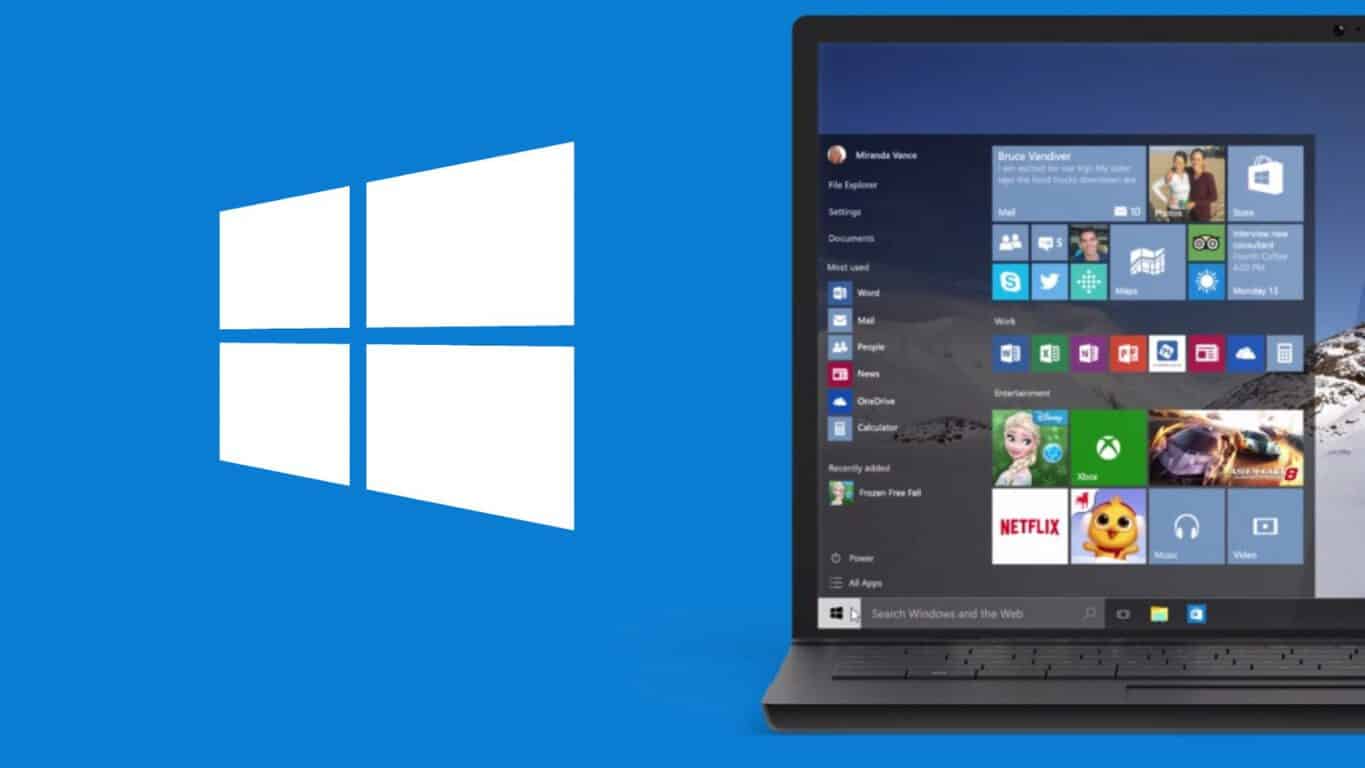
Windows 10 close to becoming the most used Windows OS
Welcome to the second Windows 10 recap as OnMSFT. We are continuing the trend of our weekly “Windows 10 news recap” series where we go over the top stories of the past week in the world of Microsoft’s flagship operating system.
Project NEON
Microsoft has been struggling to satisfy the designers present in their communities, and it may finally change thanks to project NEON. People that used Windows Phone before the year 2015 should still remember how fluid, smooth and living the Metro design language was. It got replaced with a universal language called MDL2 (Microsoft Design Language 2) with the release of Windows 10 and it has yet to fill the gap that was left by its predecessor.
This move would probably mean that the Samsung Ativ series and other Windows-powered products (aside from the Galaxy series) would stop existing or be continued under the Lenovo brand, similarly to what they did to IBM’s ThinkPad series.
Upcoming Windows 10 and Mobile builds will feature improved sharing
Both Windows 10 Mobile and Windows 10 desktop feature sharing menus that are just leftovers from their older siblings, Windows 8 and Windows Phone 8 and the system they are running on is very old with a lot of the app not working as intended. Thankfully a fix may be on its way.
On it! Share improvements coming to WIP builds soon.
A lot of small fixes and improvements have already surfaced with previous Insider Builds and seeing that smaller and less important parts of the system get updated is not all that surprising.
redBus is now available for Windows 10 PC’s
redBus is the largest online bus ticketing service in India, with a lot of users, and with the release of their Windows 10 app, tablet or desktop users can now access the service easily from their start menu with a native interface, specific features and a nice interface.
Welcome to our weekly Xbox news recap series, where we go over the top stories of the past week in the world of Xbox. Let’s get started.
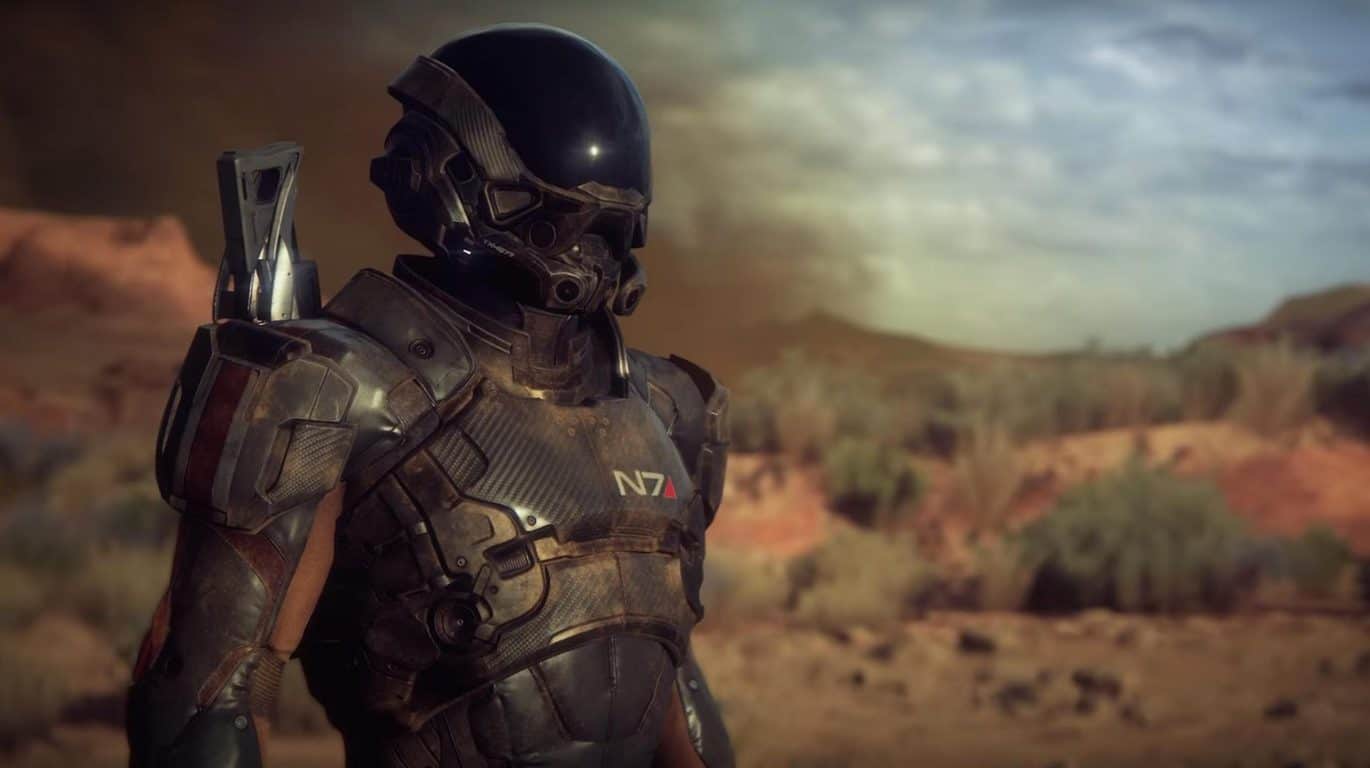
Mass Effect Andromeda gameplay coming at The Game Awards, coming after month of info drops
Mass Effect Andromeda is quite possibly the most anticipated game in years. The original trilogy revolutionized the way that we look at storytelling in video games and created one of the most beloved universes in all of science fiction. To prime gamers for Mass Effect’s (hopefully) triumphant return A tweet from the official Mass Effect Twitter told us this week that all of that news will culminate in a look at gameplay during the annual Game Awards on December 1st.
You can get a real wooden skin for your Xbox One
Have you ever wanted to encase your Xbox One in wood? No? Well, this Oregon based company might change your mind. The company is called Toast, and they’re offering Xbox One users the option to get a slick wooden skin for their console for just under $60. The skin comes in 4 different colors (walnut, ash, bamboo, and ebony) and covers up only the non-critical parts of your Xbox One, leaving the fans plenty of room to breathe and continue operating the way they ought to. The skin is easy to apply – you just need to lay it onto each side of the Xbox One and it’ll stick naturally.
Xbox boss Phil Spencer open to the possibility of more partnerships with Nintendo
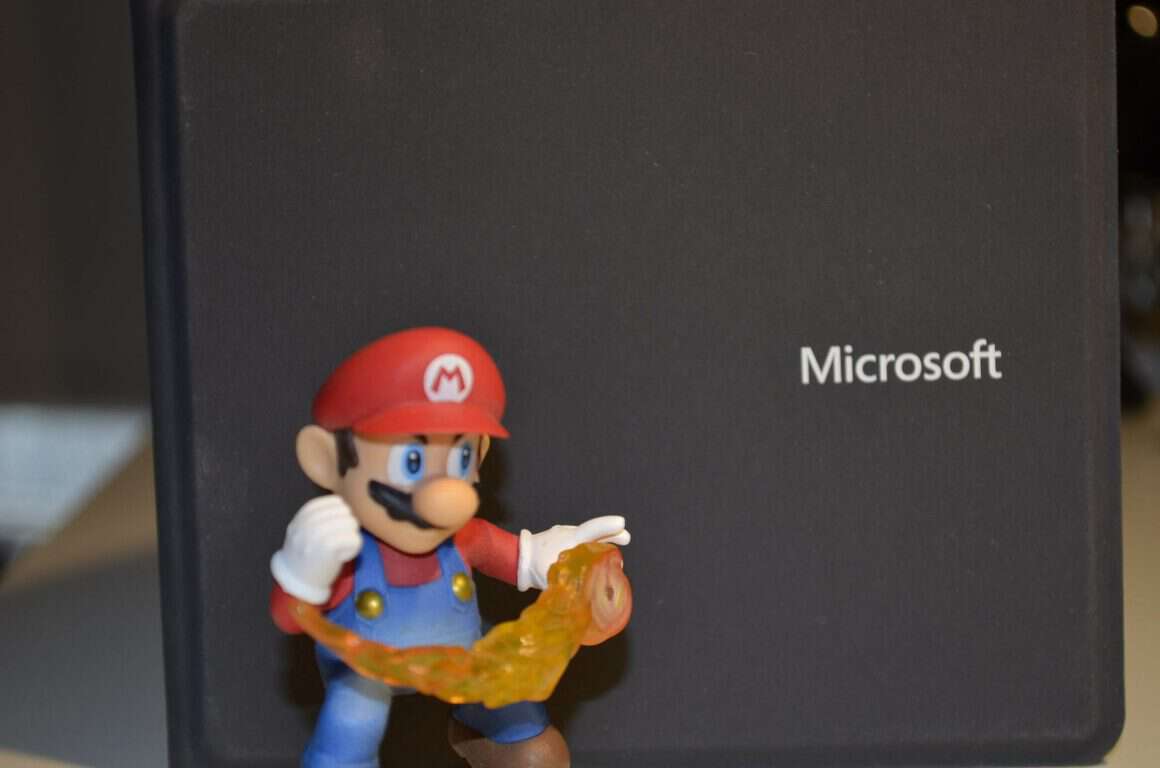
People have been thinking about potential partnerships between Xbox and Nintendo since Minecraft came out on the Wii U. Nintendo hasn’t been doing very well recently with the Wii U struggling to keep up in sales, but the upcoming release of the Nintendo Switch has some people thinking that a revival is on its way. Phil Spencer, head of Xbox, was quoted as saying that having characters like Mario on Xbox “would be great,” and he would lend Microsoft-owned characters like Banjo to Nintendo “in a second.” It’s hard to say whether or not any of this could see the light of day, but it’s nice to know that Phil Spencer would never be the one to get in the way of that partnership.
New Xbox One controller themed around Rogue One
Looking to get your Xbox One and happen to be excited for the newest Star Wars movie? There’s a themed controller for Rogue One that looks pretty great, and would be an amazing gift this holiday season for a gamer who wants to have their Star Wars scratch itched. The controller is up for pre-order at $40 and is going to be available on December 7th, just over a week before the movie comes out.
Resident Evil fans can already get excited, as the next release of the game will support cross-saving on the Xbox One and Windows 10. “The Windows Store version can share play data with the Xbox One version,” said Dengeki from which Capcom confirmed it to IGN.
Cross-saving is one of the driving features behind Microsoft’s Xbox Play Anywhere system, where games are bought once and playable on both Xbox One and Windows 10 PCs. It is not yet clear if the game will use Microsoft’s Xbox Play Anywhere or use a proprietary method of syncing saves across platforms.
Warning: The trailer below may feature content not suitable for readers under the age of 18.
If Capcom decided to release the title using Microsoft’s own method, it would be one of the first third-party titles to take advantage of the system and would likely generate some positive feedback from gamers who use both their console and their PC for entertainment.
It won’t be long before we will know for sure what the plans for the horror game are as the game is due for release on January 24, 2017, which is early next year.
The Christmas season is here! If you’ve been looking for the perfect gaming laptop, now it’s the time to act. Take advantage of the huge discounts currently available and upgrade up your gaming gear.
If you’re an Alienware fan, we already have a list for you. Check it out because you can save up to $550 if you purchase one of the gaming laptops listed there. Other manufacturers are also offering interesting discounts for a wide variety of gaming laptops.
To save you the struggle of searching for the best deals, we’ve found the most interesting offers in this article. The best Christmas offer allows you to save up to $700.
Note: All the prices and offers in this article are subject to change, so be sure to check the official product page to get the latest deal. If the product/offer you’re looking for is no longer available, you can try to find it on its official manufacturer page or get another one from our list.
Asus ROG G752VT-RH71 17.3-Inch gaming laptop, Intel Core i7-6700HQ, 16GB DDR4 SDRAM, 1TB HD. Offer: $1,053.39, down from $1,599.00. You save $545.61 (34%).
Shadow Tactics is a tactical stealth game that takes place in Japan around the Edo period. In it, a new shogun seizes power over Japan and enforces nationwide peace. In order to achieve such a noble goal, he must first battle against conspiracy and rebellion. For this purpose, he recruits five specialists with impressive skills for assassination, sabotage and espionage.
Since the five specialists have very different personalities, working together is not an easy task. Players need to evaluate their options in order to master the challenging missions and try to predict how will the characters behave as a team and who is best equipped for each task. At the same time, gamers need to come up with smart strategies to vanquish their rivals and complete the missions.
Shadow Tactics is scheduled for release on December 6. Since the game is still work in progress, players are affected by many issues. Hopefully, the game developers will fix most of them by the time Shadow Tactics becomes available for the general public.
Shadow Tactics: Blades of the Shogun bugs
1.Gamers report they can’t get past the camera rotating tutorial. As instructed, they rotate the camera using the mouse, but nothing happens. This issue may occur because the ALT key might be stuck physically or by a bug. You can also try pressing ALT and TAB to fix this bug, or just pressing the ALT key again.
2. FPS drops when players zoom out and look at the map. The same issue occurs when they rotate the camera. Stuttering becomes quite visible as FPS drops to 40.
3. When Mugen carries two bodies and tosses them out of the door, he can only toss one of them. The second body is bugged, remains there and players can’t pick it up again unless they punch it again.
4. If one character dies during a leap attack in mid-air, the game doesn’t register it as dead and everything continues. Dialogs and cutscenes continue, while the character remains in mid-air.
5.Gamers can’t change language settings. When they go to Settings to select another language, the default language is enabled again when they launch the game.
As you can see, the issues listed above are not all severe bugs. Mimimi Productions still has almost two weeks to fix all these issues and make sure that the final Shadow Tactics: Blades of the Shogun version offers a smooth gaming experience.
RELATED STORIES YOU NEED TO CHECK OUT:
The hard drive on your laptop or desktop is usually fairly active. Windows reads and writes to the hard disk even when no notable software is open on your taskbar. Background system processes also generate disk activity. Excessive hard drive activity can slow your system down and drain laptop batteries, so sometimes it can be handy to track disk activity.
Both laptops and desktops include hard drive lights that flash or blink to show disk activity. On laptops you’ll find the HDD indicator light on the keyboard. Desktops have them on their cases.
There aren’t that many software packages that specifically fall into a hard drive activity tracker category. Some system resource tools include disk activity tabs. Plus there are also some lightweight utilities that add hard drive activity indicators to system tray and provide further disk usage details for you. These are a few programs and tools that you can track hard drive activity with.
Windows 10 Task Manager
Windows 10 already has not one, but two, hard drive activity tracker tools. One is the Task Manager that you can open by right-clicking the taskbar and selecting Task Manager. Then click the Processes tab as in the shot below.
Note that the Processes tab includes a Disk column. This column highlights the programs’ and processes’ disk usage. Click that column to list processes in ascending order with those using the hard disk listed at the top. Then you can right-click a program or process listed there and select End Task to close it.
Click the Performance tab to open the graphs shown in the snapshot directly below. Note that also includes disk graphs that highlights disk activity. The first is an Active time graph and the second is a Disk transfer rate graph that shows you hard drive read and write activity. Below those there are some additional disk statistics.
Windows 10 Resource Monitor
The Resource Monitor is another handy hard drive activity tracker tool included in Windows 10. You can open it by entering ‘Resource Monitor’ in the Cortana search box. Then click Disk on the Resource Monitor window to open the tab in the shot directly below.
This tab shows what processes are using the hard drive under Disk Activity. Its columns shows you the average number of read/writes in real-time. You can filter the Disk Activity list by selecting a process check box. To close a background process, right-click it and select End Process.
On the right there are two disk charts. The first is a disk usage chart, which is actually the same as one of the Task Manager graphs. The second one shows you the disk queue length.
DriveGLEAM
Aside from the Task Manager and Resource Monitor, you can also add some hard drive activity tracker software to Windows 10. One of those is DriveGLEAM, which adds a HDD activity indicator to the system tray. Click Installer on the software’s home page to add it to Windows 10. Then open the software’s window in the snapshot below.
Click the Show in tray check box if it’s not already selected. Then also click the \\ C: check box and press the Apply button. You’ll find a new hard drive activity indicator in the system tray as shown below.
The color codes for the default indicator are: red = write, green = read, yellow = read + write and blue = idle. Note you can also switch the indicator to an alternative one by clicking the Alternative icon check box on the software’s window and pressing Apply. That switches the HDD indicator to the one below.
Process Monitor
Process Monitor is a tool that gives you an overview of disk activity in its File Summary window. Click Download Process Monitoron this page to save its Zip file. Then extract the compressed folder in File Explorer, and open the utility’s window in the shot below.
To monitor hard drive activity, click Tools > File Summary. That will then open a report file for I/O disk activity as shown below. This shows you disk activity up to when you opened the File Summary, but not in real-time. You can also select By Folder and By Extension tabs that highlight hard drive activity for folders and file formats such as EXE.
DiskMon
DiskMon is a tool that shows you hard disk activity in real-time. Click Download Diskmonon this page to save its Zip to Windows. Then decompress the Zip by pressing the Extract all button in File Explorer. To open the software window in the shot below, right-click Diskmon and select Run as administrator from the context menu.
Note that DiskMon doesn’t highlight what programs or files are using the disk. It only provides sector details. Still, it’s a handy tool that also enables you to minimize a HDD indicator to system tray by pressing Ctrl + M. The green light highlights disk-read activity and red indicates disk-write activity.
Process Hacker
Process Hacker is a system resource utility similar to Task Manager. So this also includes a hard drive activity tracker tab and other handy options. Click the Installer button on this website page to save its setup wizard and add Process Hacker to Windows. Then open its window below. Note you’ll need to run the program as administrator to check disk activity.
Now click the Disk tab on its window to open real-time disk access details as above. This lists software and processes using the hard drive on the left. Disk usage details for read and write rate are also shown in separate columns. You can terminate software and processes listed there by selecting them on the tab and clicking the X button on toolbar.
Click System Information to open a group of graphs as below. That includes an I/O disk chart that displays disk activity and stats. Click on the I/O box to expand the hard drive chart.
Process Hacker can also display hard drive activity on the system tray. Click View > Tray icons and then select both I/O history and Disk history from the submenu. Then you’ll find I/O history and Disk history icons in the system tray. Hover the mouse over one of the icons to expand a process disk activity list as shown below. You can right-click software listed there for extra options.
So those are six handy hard drive activity tracker programs and tools for Windows 10. They provide disk activity info and highlight software hard drive usage. My favorite is Process Hacker as it includes a lot of handy options and a detailed Disk usage tab.
Google has released a new application called Photo Scan, which uses OCR to extract text out of an image (scanned document or a simple photo with embedded text). It would be awesome if Windows 10 would have this feature out of the box, but at least users are able to download Photo Scan for free from the Windows Store.
For starters, we’ll list the key-features of Photo Scan app:
Beautiful UI and Different Themes;
Different Languages;
Camera Support;
Text to Speech Support;
Support for File Explorer Open With (PC);
Your Recent Photos List;
Share, Save and More.
After downloading and installing Photo Scan, which is a Windows 10 universal app, you will launch it, select an image you have stored on your PC or mobile device, then wait a few seconds until the text will be extracted and showed separately. The good news is that if you get your hands on a document, but there’s no scanner around and you really need to copy its content, then use the tablet’s camera, scan the material and let the application extract the text.
Then, you will be able to save the extracted text to a file with one of the supported formats: textformat, rich format or HTML file. Or, if you want to open another application and paste the text there, first copy it to the clipboard.
Also, if you click on the Speaker icon on the toolbar, the extracted text will be read by the speech feature, and this will be awesome if you’ll forget to take your glasses with you and can’t see the letters on the small screen of the tablet.
The application runs by default in Dark theme with Link Break enabled in text view, but this can be changed in the Settings page. The annoying thing about Photo Scan is that it comes with ads, so if you no longer wish to see them, you will need to make an in-app purchase.
Tom Clancy’s The Division is a great online third-person shooter game that bestows very important missions upon players: restore order by investigating the source of a virus.
The game has a large fan base, but even more than 6 months after its release, gamers still encounter connectivity issues. If you’re experiencing such bugs, you can use the solutions listed below to fix these problems.
How to fix Tom Clancy’s The Division connectivity bugs on PC?
1. Check your firewall
If you can’t connect to Tom Clancy’s The Division servers, your firewall could be the culprit. Start by updating any anti-virus or firewall software installed on your computer. If you use the Windows Firewall, you need to install the latest Windows updates.
Then, configure the firewall to allow access to the specific Tom Clancy’s The Division application. Open the exceptions list, and add the game as an exception.
2. Forward your ports
If the first solution doesn’t solve the problem, you’ll need to forward the ports listed below to your computer’s IP address for the best possible connection: Uplay PC: TCP: 80, 443, 14000, 14008, 14020, 14021, 14022, 14023 and 14024.
Game Ports: UDP: 33000 to 33499 TCP: 27015, 51000, 55000 to 55999, 56000 to 56999
Running too many background apps can also cause connectivity issues. Close all the running background apps before launching Tom Clancy’s The Division. Here’s how to do this:
Type msconfig in the Search box and hit Enter.
In the System Configuration Utility, go to the General tab.
Click on the Startup tab > click the Disable All button.
Click OK and restart your computer.
4. Clean or reset the Hosts file
The Hosts file is used by Windows to map hostnames to IP addresses. It plays an essential role in addressing network nodes in a computer network. For more information on how to clean or reset the Hosts file, check out Microsoft’s Support page.
Fix Tom Clancy’s The Division connectivity issues on Xbox One
1. Refresh your Internet connection
Turn off your Xbox One and your modem/router and wait for 30 seconds
Fully power up your modem/router and wait until the connection is re-established
Turn on your Xbox One and connect to the Internet.
2. Port Forwarding If the connectivity issues are still present, a firewall may be interfering with your connection. In this case, you need to configure the following network ports within your router from your PC:
Game ports: TCP 80, 443, 27015, 51000, 55000 to 55999, 56000 to 56999 UDP 33000 to 33499
Xbox Live ports TCP: 53, 80, 3074 UDP: 53, 88, 500, 3074, 3544, 4500
3. Place your Xbox One in the router’s DMZ Placing your Xbox One in the router’s DMZ ensures that the game can connect without a problem. The steps listed below may be slightly different for different router types.
Open a web browser
Type your router settings page address in the browser’s search bar > type your user name and password
Go to Advanced Settings > select Default DMZ Server >type the IP address of your Xbox One console.
We hope that this guide helped you fix the connectivity issues. Other games have similar problems, and we wrote how to resolve Splatoon 3 multiplayer problems effectively in one of our other guides, so don’t miss it.
What solution worked for you? Let us know in the comments below.
Hungry Eaters is a new little game developed by a German company named Kloppe Media. The German developer has come up with an entertaining arcade-ish game that has players reminiscing of the days when the only mobile game available was Snake. And no one complained, because aside from the fact that playing games on a device made for making phone calls was insane at that time, Snake was actually really fun and entertaining.
Everyone that has ever owned a Nokia device back then can confirm that Snake would make you spend hours trying to beat your own highscore.
Hungry Eaters has pretty much the same concept behind it, but with a few new details. For starters, the game is colored and 3D. Players are presented with an array of characters over the course of the game’s 20 levels, and the main goal of Hungry Eaters remains the same as Snake’s: Eat food and keep growing.
There will be all kinds of obstacles and dead ends waiting for your character, but you can use your ever-growing body to get rid of them. If you hit any of them with your head however, you lose. Sound familiar? The same win condition that made Snake popular can now be experienced in 3D.
Another great aspect about Hungry Eaters is the fact that it’s free. You can start playing immediately free of charge, and get to re-live some of the days of old when mobile phones weren’t packed with endless amounts of 3D games.
The Microsoft Design Language (MDL), also known as Metro was first used back in 2002, in the Windows XP Media Centre Edition. It has evolved a lot since that and its current implementation is called MDL2. It is used in Windows 10, Outlook, Xbox, Office and basically every piece of software that Microsoft still develops. The successor, or refinement, to this current language, is currently called NEON.
NEON will not be a huge UI/UX change, and will simply be a continuation of what the Microsoft Design Language 2 or MDL2 is right now which means that Redstone 3 will still look familiar but it will be much more polished and feature a more streamlined version of what we currently have.
The recently released Paint 3D preview is a sneak peek of what’s to come, as it isn’t really using NEON but some parts of it are definitely there. The app has been criticized for not following Microsoft’s already lacking guidelines, but it seems like it actually has a reason behind it.
Another thing that NEON will focus on is depth, but unlike Google that focused on shadows to mark depth, Microsoft is planning to give some UI elements real 3D depth, where they will be able to render outside the window. It’s still unknown how these UI’s would be handled in a 2D environment.
With NEON focusing on bringing Windows 10 Mobile/Desktop/Console and Windows 10 Holographic together, having these 3D elements will be highly handy in an augmented or virtual world you can see through a HoloLens or a VR headset, and if Microsoft’s handles this well, possibly on desktop too.
The Microsoft Design Language has changed a lot since its first release back in 2002, where it was used in the Windows XP Media Centre Edition, and comparing today’s Microsoft Design Language 2 or MDL2 with what was the most famous part of Windows Phone 7, Metro really shows how much the design has evolved. Microsoft seems to be planning on streamlining and unifying their design in the upcoming Redstone 3 update (Not to be confused with the Creators Update).
The new language seems to be currently called “NEON”, at least internally, based on what Windows Central has revealed. Its goal is to do exactly what Metro did; bring a strict but open, simple yet complex digital design language to Microsoft’s operating system. The project is also often referred to as “basically Metro 2.0“.
Metro was the “perfect design” as described by many Windows Phone and Zune users, and while it had flaws it definitely was unique. While MDL2 focuses on being open and letting developers make a lot of decisions themselves, Metro had strict guidelines and principles which, of course, wasn’t a requirement for developers to get their applications published on the Windows Store, but was something a lot of users welcomed.
But looking modern and simplistic is not all Metro has done. It also kicked off the design language evolution where different companies usually used 3D objects, skeuomorphism and other “Web 2.0” design elements and switched to the flat, minimalist design that different huge design languages like Googles Material Design and Apples Human Design now use.
Languages like Material Design and Human Design have all their own principles for how applications should look like, how they should behave, what animations should occur and much more. MDL2 lacks in that part. It has basically zero guidelines for animations, and the few ones that are there look dull and boring, no strict rules for where blur should be used and much, much more. This is where NEON steps in. NEON, which has been worked on for over a year, is based on what Microsoft already has in their Windows 10 operating system, and fills all the gaps that were left compared to Metro.
The few details we currently have about the big change, is that NEON will include a lot more animations, transitions and polish with a focus of begin “beautiful” and having a fluid UI, which sounds familiar if you ever used a Windows Phone before 2015, as the current implementation is almost static with barely any “movement” happening on screen. According to Windows Central, a source familiar with the matter has described NEON as “Very fluid, lots of motion and nice transitions.”
The new design language is expected to ship with a new name, around the early Fall of 2017, in time for the Surface Phone, but knowing the nature of the Windows Insider Program, fast ring users may see it as early as in early Summer with some versions targeted at Q&A testing surfacing for current Windows 10 Mobile device owners.
The development of the language will continue with Redstone 4 that is expected to arrive in 2018 and should transfer over to all of Microsoft’s devices, which means HoloLens, Mobile, Xbox, Desktop and even IoT with the help of 3rd party developers that may be on board until then.
I knew about the name for a long time but I really don't know much more than that … except holographic focus. I. Can't. Wait.
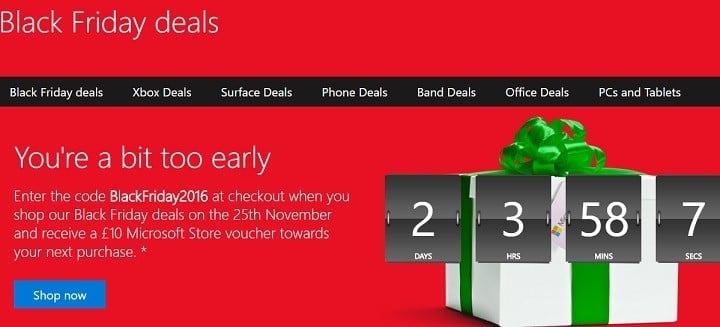
If you’ve been taking advantage of the online shopping opportunities around Black Friday over the last few days, we hope that you’ve read our previous coverage about all the deals that Microsoft is currently offering on the US Microsoft Store, the Windows Store as well as the Xbox Store. But for those of you who live in Europe, Microsoft has published today a handy list of Black Friday deals that are currently available in local Microsoft Stores in 18 European countries (Austria, Belgium, Czech Republic, Denmark, France, Finland, Germany, Ireland, Italy, Luxembourg, The Netherlands, Norway, Portugal, Spain, Sweden, Switzerland, Poland and the UK).
Most of these deals are for Xbox One S bundles, Surface tablets and Lumia handsets and we’ve highlighted a few of them for you below:
We invite you to check the full list of deals on Microsoft’s blog post and we hope that you’ll find something interesting to purchase on your local Microsoft Store. However, be aware that most deals will end on Monday, November 28.
Killing Floor 2 is one of the most popular games on Steam at the moment. Your main task is to fight vicious waves of zombies, and prepare your strategy to face powerful bosses and kill them as quickly as possible.
According to gamers’ reports, Killing Floor 2 is affected by many issues. Fortunately, for some of them, there are various workarounds available, and Tripwire Interactive is also working at full trust to roll out a patch and improve the gaming experience as soon as possible.
If you’re experiencing black screen issues, start up crashes or Bugsplat errors, you can use the solutions listed below to fix them.
Here’s how to fix Killing Floor 2 launch issues and black screen bugs
1. Navigate to: C:\Users\[your name]\Documents\My Games. Delete the KillingFloor2 folder. Try launching the game again.
2.Disconnect any controllers you may use and try playing the game now.
3. On the taskbar, double-click the NVIDIA Settings icon > select Manage 3D Settings if it isn’t already selected. Now, on the right-side, go to the Program Settings tab.
3.1. If you only see two groupings (#1 and #2), there’s no need to make any changes.
3.2. If you see three groupings (#1, #2, and a #3), then manually add Killing Floor 2 to #1, then make it use the high performance GPU.
4. Go to Control Panel > Add/Remove programs > uninstall NVIDIA Physx.
Then go to: \Steam\steamapps\common\killingfloor2\_CommonRedist\PhysX\9.14.0702 and run the Physx installer. Try playing the game now and see if it works.
5. Go to Control Panel > Add/Remove programs. Uninstall all versions of 2010 Microsoft C++ Redistribs/ 2012 Microsoft C++ Redistribs.
Go to: Steam\steamapps\common\killingfloor2\_CommonRedist\vcredist.
In the 2010 folder, install the x64 version, and right-click Run as admin.
In the 2012 folder, install the x64 version, and right-click Run as admin.
These solutions can be used by all Killing Floor 2 gamers. Power users can also check out the workarounds listed in the “Advanced solutions” section of this Steam thread.
An app developer has designed an app for Microsoft’s Xbox One video game console that lets users easily and quickly change the background image of their Xbox One dashboard. Changing the image is something everyone has been able to do for a long time but it requires the transferring of files via a USB drive and can take a while to set up.
This new app, Theme My Xbox, offers a growing library of images to choose from directly from within the app and anyone can upload more images to the service by visiting the app’s website and registering for an account. Here’s the official app description:
Theme My Xbox is an app that gathers user created themes for the xbox into one central location. Users can browse these images and, with the push of a button, make it their Xbox One Dashboard Background.
Have you tried this app yet? Share your thoughts with the OnMSFT community in the comments below.
Adobe Photoshop Elements 15 has had its price slashed and is now selling for $59.99 down from its usual $99.99 in the Windows Store. The $40 discount will be valid for the next week, after which, the popular image editing app will return to its near-$100 regular price.
Photoshop Elements 15 is a premium graphics app and is mostly used by media professionals. It is updated often. Here are some of its latest new features:
NEW Find photos faster with Smart Tags — Photoshop Elements suggests tags for your photos based on subjects like sunsets, birthdays, cats, dogs, and more.
NEW Touch your way to great pics — The Organizer and Quick Edit mode are now touch-friendly, so you can tap and swipe to do all your finding, sorting, and quick photo enhancements.
NEW Turn frowns upside down — Transform frowns into smiles, adjust squinting eyes, and make other quick tweaks.
NEW Picture incredible text — Turn a photo into cool visual text and then add an embossed look and drop shadows to really make it pop. Great for collages, scrapbook pages, cards, signs, and more.
NEW Create a collage of effects — Get artistic by adding multiple effects to a single photo.
Over the last few years, major US tech companies have struggled to enter the Chinese market and its tightly-controlled version of the Internet. Indeed, Google, Facebook and Twitter are all blocked in China, which is why Microsoft has made an effort to comply with the country’s restrictive laws to continue to operate some of its online services in the country.
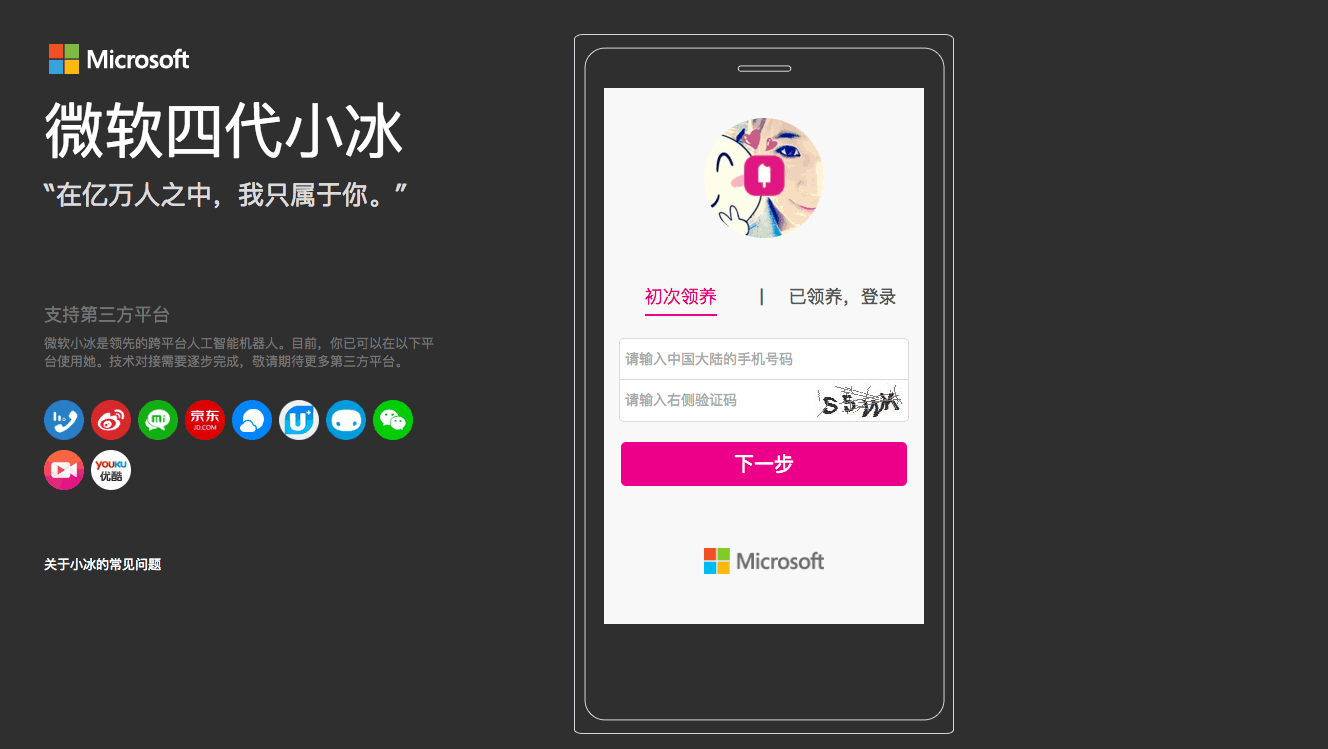
The Redmond giant may well have received some criticism for that, but the company also used China as a test market for some of its most forward-thinking technologies such as XiaoIce, an intelligent chat bot that is currently available on popular Chinese social media apps like WeChat, Weibo and more. According to a new report from CNN, Microsoft may well have tweaked the popular chat bot to make it avoid certain sensitive topics such as the Dalai Lama, Tiananmen Square protests and even USA’s President-elect Donald Trump.
Refusing to talk about sensitive topics suggests XiaoIce has been programmed to avoid prohibited words when asked about them. Microsoft declined to comment.
China pours incredible resources into patrolling the internet, tracking down prohibited content and unwanted posts with an army of more than two million censors.
CNN explained that some Chinese dissidents tried some creative workarounds such as asking XiaoIce about China’s President using his popular nickname, or using the date of the Tiananmen Massacre instead of writing the explicit name, to no avail. “Censors eventually figure out new phrases and nicknames and restrict them online,” explained CNN. Our colleagues also tried to ask XiaoIce some question about politics, and you can see the results below:
credit: CNN.credit: CNN.
While Microsoft did not confirm that it did program XiaoIce to give evasive answers about sensitive topics, Amnesty researcher Patrick Poon explained to CNN that this may well be the price to pay for US tech companies to operate in China. “They are legitimizing what the Chinese government is doing, which is convincing foreign tech companies to suppress freedom of speech,” said the researcher.
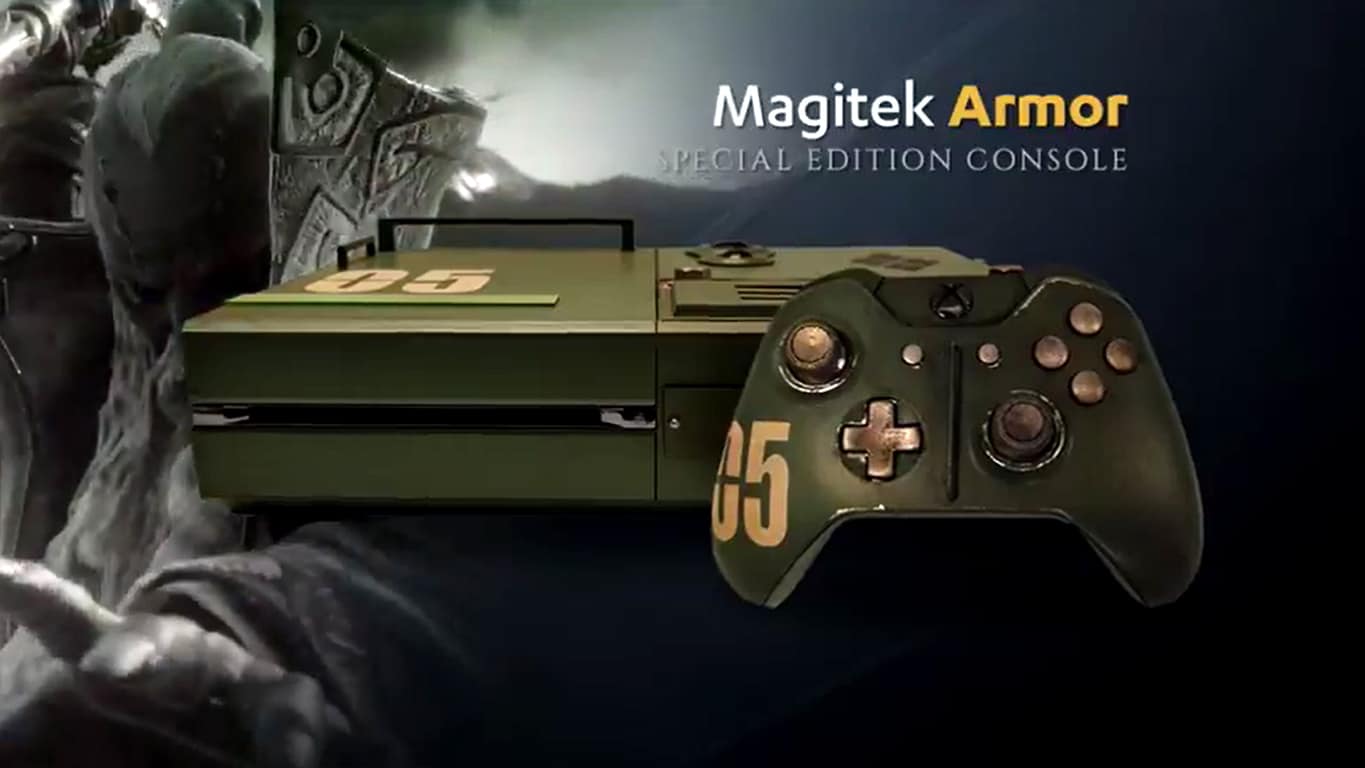
Microsoft and Square Enix are joining the massive CW DC super hero crossover next week… kind of. In a rather random promotional campaign on the CW website and on their numerous Twitter accounts, fans of Supergirl, Arrow, The Flash, and DC’s Legends of Tomorrow are being invited to enter the draw to win a one-of-a-kind Xbox One console inspired by the new video game, Final Fantasy XV.
To enter the competition, entrants don’t even have to actually watch any of the four CW shows but they do have to be a resident of the U.S.A. and be over the age of 13. Eligible parties can fill out the form on the campaign webpage any time before November 30th.
Are you going to enter the competition? Are you excited for the CW crossover next week? Let us know in the comments below.
Everspace is an impressive fast-paced space shooter that forces you to do your best to survive. This is not an easy task, especially in a hostile environment filled with natural hazards, where enemies like outlaws, aliens, and a mysterious space armada are trying to hunt you down.
Everspace is not only about shooting enemies, you must also evade enemy fire if you want to survive.
The game is now available on the Xbox One and supports Xbox Play Anywhere, featuring cross-saves and the ability to buy once and play anywhere with Windows 10.
Speaking of Windows, many PC gamers report that sometimes Everspace crashes or freezes, or won’t even launch. If you’re experiencing such issues, follow the troubleshooting steps listed below.
Fix your game! This is the second time it’s frozen on the sector 6 final mission for me, and didn’t freeze anywhere else. Always when I’m fighting Dafoe.
How to fix Everspace launch issues, crashes and freezes
2. Start the game without Steam with admin rights. If the game won’t start, you might get an error message about the root-cause of the problem.
In your Steam library, right-click on Everspace > Properties > Local Files > Browse local files > right-click on Everspace.exe > Start as Administrator.
3. Install the prerequisites manually with admin rights. This action may solve the problem or at least give you an error message.
Go to your Steam library, right-click on Everspace > Properties > Local Files > Browse local files > Go to EngineExtrasRedisten-us > right-click on UE4PrereqSetup_x64.exe (or _x86.exe for 32Bit Windows) > Start as Administrator.
4. Make sure your OS is updated
Go to Start > Control Panel > Windows Update > Check for updates > Install all the available updates, including optional updates. After the updates are installed, restart your computer. If the update process seems to be stuck, you can use our dedicated article to fix this problem.
Don’t forget to start the installation of the redistributables manually from EVERSPACEEngineExtrasRedisten-usUE4PrereqSetup_x64.exe or _x86.exe for 32Bit systems.
If the screen freezes while playing Everspace, disable the “Smoothen framerate” option. Gamers also confirm that starting Everspace from C:Program Files (x86)SteamsteamappscommonEVERSPACERSGBinariesWin32 prevents the game from freezing.
If you’ve come across other workarounds to fix these issues, list the troubleshooting steps in the comment section below.
Good news for all the Bethesda fans that haven’t gotten a chance to play the Elder Scrolls Online yet: During Thanksgiving weekend, starting the 23rd of November at 12 AM and ending the 27th of November at 12PM, players can engage in the rich fantasy world of Elder Scrolls Online. There’s a catch, however: Players must be Xbox Live Gold members. This can be considered a reward,or a way to give thanks (since it’s Thanksgiving) to Xbox Live members that have supported the platform. The version of the game which will be made available is the Tamriel Unlimited version. Players will also receive a total of 500 crowns, the in-game currency used which can be spent at the Crown store.
For those eligible to play Elder Scrolls Online for free on Thanksgiving weekend but don’t know much about the game, the game is set a thousand years before the events that go down in Bethesda’s last Elder Scrolls title, Skyrim. In this Skyrim prequel, players are immersed in a world where three factions battle for supremacy over the continent of Tamriel while bigger threats lurk from the shadows.
The enticing lore that made Skyrim one of the best RPG video games ever created returns in Elder Scroll Online as fans craving a second helping ever since Skyrim launched can now rejoice at the opportunity of playing with their friends online.
If you are interested in giving Elder Scroll Online a try, make sure you have at least 80GB of free space as the online adventure packs quite a punch in terms of storage requirements.
Windows Insiders are very lucky because they are able to access new Windows Software before it is released to the public. However, at the same time, they might find bugs and errors which can be quite annoying sometimes.
For example, in the latest Windows 10 version released for Insiders, the company replaced the Windows 10 Paint application with the new Paint 3D application. We have to agree that the new Paint 3D application comes with many new features, but it seems that it is also slower than the old Paint application. At the same time, the user interface of the new 3D Paint application is not as intuitive as the user interface the classic Paint application comes with.
This is the reason why there are many Insiders who are not interested in using the new Paint 3D application. Luckily, there is a way to bring back the old Paint application on the latest Windows 10 version for Insiders.
If you want to bring back the classic Paint application, then you will have to delete the new Paint 3D preview application from your computer. Once you uninstall the new Paint 3D app, you will be able to edit pictures using the old Paint app.
There is another way to do this by creating a new registry key for it:
Press the “Windows” key, type “regedit.exe” and press “ENTER”;
Now head to “HKEY_CURRENT_USER\Software\Microsoft\Windows\CurrentVersion\Applets\Paint\Settings”; hint: keep in mind that the “Paint” key and subkey should already exist on your computer, but if it doesn’t you will have to manually create them;
In the Settings subkey, you will need to create a new “Dword” named “DisableModernPaintBootstrap” and set value “1”;
Close the registry and launch the Paint application via the Paint.exe.
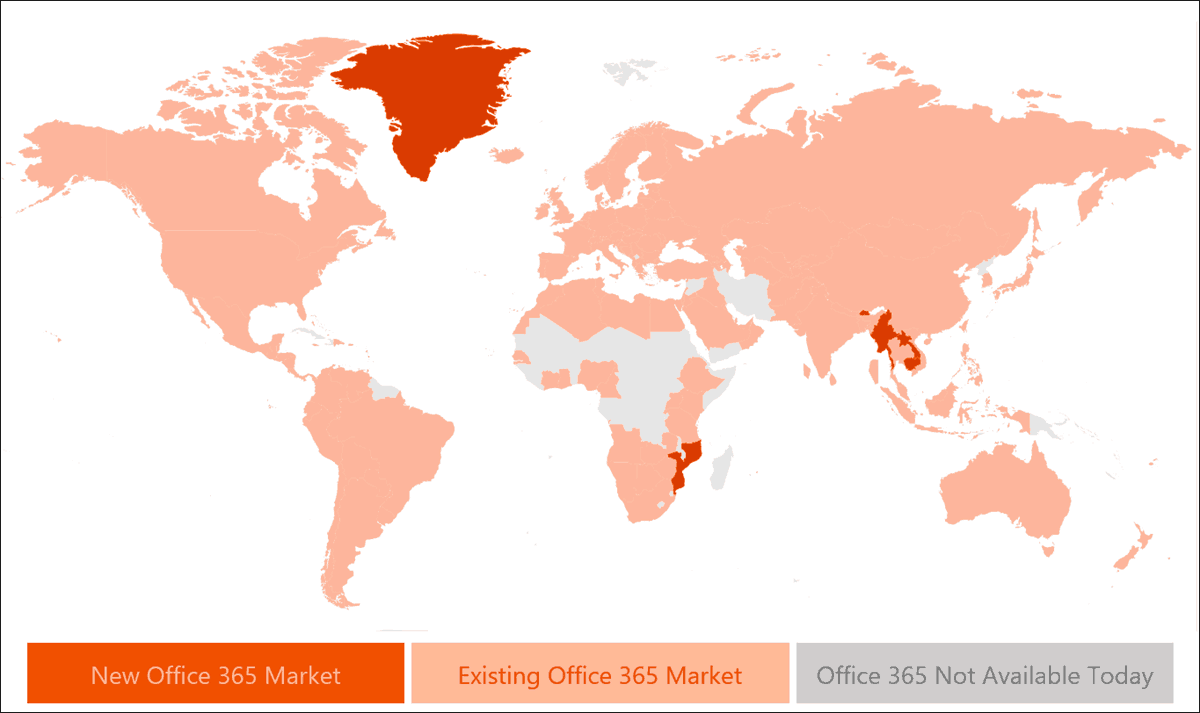
Office 365 continues to gain traction across the globe and has now found a new home among users in the Vatican City among other new markets according to an update from the folks on the Office team.
Collectively, Office usage across the world tops out around 1.2 billion people interacting with the software suite at schools, work, personal and government capacities.
Encouraged by the growth of Office 365, the Office team plans to break new ground in 97 more markets in 2017, meaning new innovative cultural and technical engineering should be coming to the productivity suite soon making it that much more inclusive.
While Nintendo’s Wii U gaming console has struggled to compete against Sony’s Playstation 4 and Microsoft’s Xbox One over the last three years, the Japanese company definitely remains a force to be reckoned with in the gaming industry thanks to its portfolio of very popular IPs. As you may know, Nintendo went back to the drawing board to design its upcoming Switch modular gaming console, and a recent partnership with Apple will finally bring the world’s best known plumber to iOS devices next month.
For now, it’s still not clear if Nintendo plans to continue opening up its popular gaming franchises to other gaming platforms (including non-mobile ones), though Xbox head Phil Spencer recently expressed his thoughts about it in an interview with AusGamers. And as you can expect, the exec would love to see Nintendo games being released on the Xbox one day:
I’d love to see Mario on Xbox. As someone who’s been in this industry and played games forever, I’ll still say it: Nintendo has the strongest first-party of anybody. They’re just fantastic and the memories that they have instilled in so many of us, who’ve played their games and had those delightful experiences, having those on Xbox would be great.
Spencer also recalled that Microsoft and Nintendo already partnered in the past, bringing MineCraft to the Wii U last year as well as Super Mario themed content to the Wii U version of the game back in May. This has been a “great partnership” according to Spencer, who added that he’s completely open to the idea of bringing popular characters from first-party Xbox titles to Nintendo games:
I know I get questions all the time on would I ever like to see Banjo in Super Smash Bros. and I’m, like, “yes, I would do that in a second.” And certain people think I’m saying that as some sort of PR answer and I’m, like, why wouldn’t you?
While such enthusiasm for Nintendo games could seem quite surprising from the head of Xbox, Spencer fully admitted it, he’s a real fan of the company’s games. “I’m a big Nintendo fan and I think they’ve been incredibly important for the games industry, they do a great job with younger audiences, and if we ever had a chance to work with them in the future, I would absolutely do it,” he explained.
Throughout the last few months, we have closely followed Microsoft’s acquisition of the business and employment-oriented social networking service LinkedIn. Last week we reported on the service being banned in Russia, and just a few days ago, amidst growing antitrust concerns, Microsoft promised the EU that LinkedIn APIs will remain available to all. Today there is more LinkedIn news to report, and this time, it is in regards to the EU clearing Microsoft’s EU LinkedIn acquisition (Via Reuters.)
According to a Reuters report, which cites three people familiar with the matter, European Union antitrust regulators have given the all clear to Microsoft’s $26 billion takeover of LinkedIn. Microsoft, however, reportedly has to make minor changes to the concessions (commitments) which were originally submitted to the Union last week.
This is a developing story, so be sure to stay tuned to OnMSFT.com, as we will update this story and publish follow-up reports as more details emerge.
Unless you are fortunate enough to own a Surface Book, or Surface Pro 4, you are likely very familiar with the convenience of signing into Windows 10 using Windows Hello. However, if you don’t have a Windows Hello-ready camera on your Windows 10 PC, I suggest the Tobii EyeX eye tracker.
Previously priced at $139 USD, the Tobii EyeX eye tracker is now on sale for $99 USD. You can also use Windows Hello if you have a Windows 10 PC that has a fingerprint sensor, unlocking your device using your fingerprint.
Once your Windows 10 PC or laptop is Windows Hello-ready, you’ll need to get Windows Hello activated in Windows 10. Just to clarify, Windows Hello uses biometric sensors to recognize your face (or fingerprint) to almost instantly unlocks your Windows 10 device without needing a password.
Windows Hello setup
Follow these steps to set up Windows Hello:
Go to Settings (keyboard shortcut is Windows key + I)
Go to Accounts
Go to Sign-in options
Go to Windows Hello
Windows Hello setup
Once you click “Set up,” Windows 10 will prompt you to set up a PIN. Set up a four-digit PIN (if you haven’t done so already). Your PIN is used as backup security protection if Windows Hello is compromised.
Windows Hello setup
Once you’ve created or entered your PIN, go to “Get started,” and Windows Hello will begin its facial recognition process. Now comes the easy part: all you need to do is stare at your computer screen as you would when you use your PC. For fingerprint recognition, touch or swipe the finger that you want Windows Hello to recognize to unlock your device.
Windows Hello also offers you the option to improve facial recognition and to add or remove fingerprints from the same place. Windows Hello is also available for Windows 10 Mobile users on phones including the Lumia 950, Lumia 950 XL, and HP Elite x3, although Windows Hello is not as reliable as it is on Windows 10 PC.
Windows Hello setup for other Windows 10 profiles
A bonus feature of Windows Hello is you can add Windows Hello using their Microsoft account on the same device. In order to add Windows Hello to other profiles on the same device, you’ll need to log out of your account, have them log in and set up Windows Hello. So when your Windows 10 device is locked, Windows Hello will recognize the person based on their fingerprint or face.
Do you use Windows Hello? Let us know in the comments section.
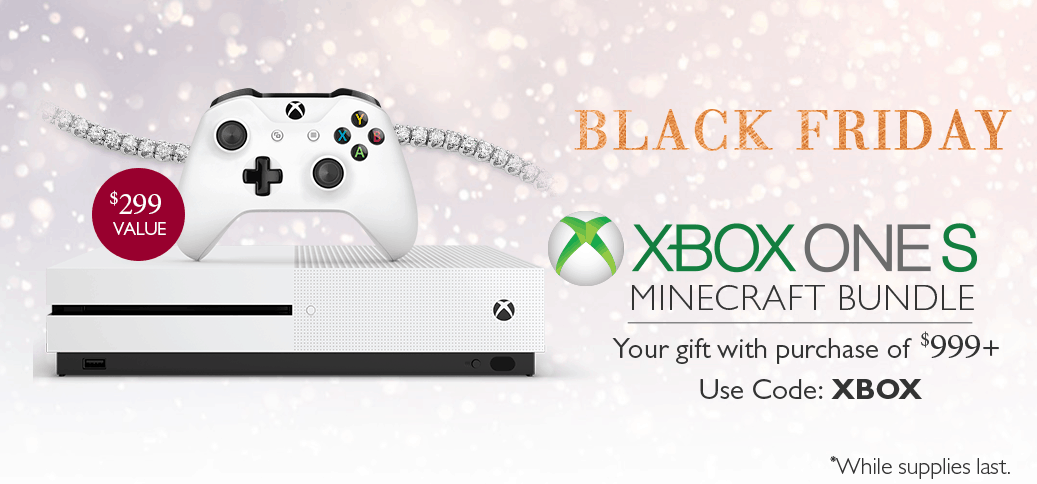
We’ve already covered the Black Friday deals on all things Microsoft, but if you’re looking for an interesting way to score a 100% savings on the Xbox One S, you might want to consider buying diamonds this holiday season. The jewelers over at Helzberg Diamonds currently have a promotion where you can score a free Xbox One S with a purchase of $999 or more.
As seen here, and in the graphic above, this holiday, you can receive a free Xbox One S Minecraft Bundle with the purchase of $999 or more with the code XBOX at checkout. Of course, it is a special limited time offer, and is valid on both online and in-store, while supplies last. Additionally, according to the fine print, the offer cannot be combined with any other special/dollars-off offer, so be sure to shop smart!
What are your thoughts on this interesting promotion? Will you be buying a diamond for someone in your life to score a free Xbox One S? As always, do let us know what you think by dropping us a comment below!
The Xbox One console offers many customization options, but not all users know them. For example, did you know that you can take game screenshots and use them as background images?
If you like a particular game, you’ll take advantage of this feature. Thanks to this option, you can now capture unique gameplay moments and set them as Xbox One background images. In this manner, you’ll impress your gamer friends, and they’ll all ask you how you did it.
How can I use game screenshots as background images on the Xbox One?
Scroll left on the Home screen to open the guide
Select Settings >All Settings
Select Personalization, and then in the right pane, select My color & background
Select My background, and then select one of the choices on the Your background screen:
Achievement art – allows you to use any of your app or game achievements as a background or to purchase background images. To use an achievement, select one of your achievements, and then select Set as background
Custom image – lets you to use an image from your Xbox One or upload an image from a USB drive. Custom images can only be used on the console where they were saved. You won’t see this background on any other console that you use.
Screenshot. Allows you to use one of your saved screenshots as a background image.
If you don’t want to use an image, you can simply choose one of the color squares available to use it as your background image.
The holiday season is here, and we’re sure you’ve got a lot of shopping to do. As much as we like shopping, sometimes this activity can become quite annoying and frustrating, and we often wish somebody else could do it for us.
Microsoft has heard your cry and wants you to know you’re not alone. You’ve got two friends you can rely on when you go shopping: Cortana and Microsoft Edge. Yes, they can only help you when you shop online.
Here’s how to shop with Cortana and Microsoft Edge
Cortana helps you save money with coupons
Once you enable Cortana on your Windows 10 computer, she will automatically help you in Microsoft Edge. Cortana can alert you with deals and coupons for the sites you’re shopping. She’ll help you grab the best deals on Best Buy, Macy’s, Kohl’s, and more.
Cortana helps you search with images
When you’re browsing for an image on Microsoft Edge, Cortana can help you find similar images, as well as details on price and where to buy that item. All you need to do is right-click the image and select “Ask Cortana”. This feature is very useful if something you want to purchase was sold out.
Cortana can remind you of sales
If you want Cortana to remind you of an upcoming sale, select the text on the page you’re browsing, click the Share icon in the top-right corner of Microsoft Edge and then select Cortana reminders. The assistant will immediately create a reminder for you.
Save gift ideas with the Pinterest Save Button
Microsoft Edge offers an interesting extension, called Pinterest Save Button. This option allows you to collect gift ideas that you want to look at later to inspire your shopping list.
The Personal Shopping Assistant notifies you about price changes
Another interesting shopping extension is the Microsoft Personal Shopping Assistant. This feature saves the products you browse online automatically, and notifies you when prices change. You can also use the Shopping Assistant to compare products and share items you love with your friends.
The Amazon Assistant finds the best deals for you
This extension compares prices, and notifies you about deals. The Amazon Assistant creates a universal shopping list across websites, allowing you to stay updated on the price changes of your favorite items.
We’re sure all these features will definitely help you make better shopping decisions. Happy shopping!
The Big W chain of stores in Australia are holding a massive video games sale between the 25th and 28th of November. What’s particularly noteworthy is that most of the Xbox One games are quite new. Titallfall 2 and Watch Dogs 2 both launched this month for example and will be sold for AU$35 (AU$39 discount) and AU$52 (AU$26 discount) respectively. That’s pretty impressive!
Here are the other games included in the campaign so far; Mafia 3 (AU$49), Call Of Duty: IW (AU$54), Battlefield 1 (AU$52), FIFA 17 (AU$52), Skyrim (AU$45), and Dishonored 2 (AU$45). Big W will also be selling a 500GB Xbox One S console bundle with a copy of Minecraft and a coupon for another title for AU$359 (That’s a AU$40 discount) and LEGO Dimensions Starter Sets will have their prices reduced to AU$79.
Are you going to take advantage of this sale? Have you spotted any other bargains lately? Let us know in the comments below.
You probably won’t be surprised to find out that 80% of employees use unapproved programs while they work. There are a million reasons for this, ranging from convenience to just plain old familiarity. Regardless of the reasons though, this “Shadow IT” can potentially put your business at risk, putting valuable information on the line. In their latest blog post, Microsoft talks about how to prevent this from happening.
The post is mostly about Microsoft’s Cloud App Security service, which does a lot of the anti-Shadow IT work for you. It scans your network to see what apps are in use and from what users, and gives you a risk assessment so you know just how worried you ought to be. If you run a large operation and are concerned about some of the loose ends in your cyber security, it sounds like a really effective solution.
You can evaluate Cloud App Security with a 30-day trial if you aren’t sold on it, which should give you a free head start if you just want to do some risk analysis. If you want to subscribe to the service after that trial period, you’re going to be looking at a charge of around $5 per person per month.
Microsoft’s collaboration with Quest Institute has finally reaped some substantive results for students that launched their Windows 10 IoT experiment into space.
Last month, Quest Institute sent up their first Windows 10 IoT experiment via their NextGen ISS Platform. The project created by three students in San Jose, CA was presented during the Microsoft BUILD 2016 conference earlier this year. The prototype was built to test vibrations and pliability of metals in microgravity environments such as those in space. The experiment platform was flown up to the International Space Station by the Antares OA5 Mission rocket and connected successfully.
The International Space Station (ISS) is a microgravity laboratory with six crew members that live and pilot the station to rotate around the Earth every ninety minutes. For almost two decades, only approximately 200 people have had the opportunity to set foot on the ISS.
Last week, the student finally got their first results from outer space. While the live feed still has much to interpret for the students, this is a major step for STEM education.
Now students and educators are working together to bring their experiments and engineered projects to the unreachable. Starting with Lego Mindstorm, even elementary children can begin to dive into the world of technology and engineering thanks to Microsoft and Quest Institute’s NextGen ISS Platform.
Microsoft’s Rockfish Games team has announced its first-ever Xbox Play Anywhere title, and it looks like it could be a good one. Everspace is a space shooter game that runs on both the Xbox One and Windows 10 PCs, and it’s available in preview right now.
Everspace is a Six Degrees of Freedom (6DoF) shooter featuring fast-paced space dogfights within dense level design at its core. You’ll have to survive in a hostile environment filled with natural hazards, as well as various enemies like outlaws, aliens, and a mysterious space armada trying to hunt you down. It’s not only about shooting enemies – evading enemy fire is paramount to survival as well. Get Eversapce from the Windows Store here, check out developer tips and strategies on playing Everspace over at Xbox Wire and head over to the Everspace forum to learn from veteran pilots who have clocked more than 100 hours in our game.
You can download the game via the link below. Note that there’s a trial version as well if you want to give it a try without shelling out the $29.95 purchase price.
For those of you who stuck around to appreciate the hard work the Windows team has done in stabilizing and refining the Windows 10 experience on mobile, or for those who are new to the platform, here is a list of what we believe to be the top 10 Microsoft apps for your Windows 10 Mobile device.
While many may jump straight to Microsoft’s bread and butter suite of productivity apps, let’s be honest, how often are you knocking out PowerPoint presentations on a sub six-inch device? Instead, let’s first explore the apps that make a mobile experience worth having.
OneDrive
Picture the OneDrive app as the heart of your OS. OneDrive in Windows 10 Mobile represents the centralized hub for collecting, storing and organizing any and everything that funnels through your mobile device. Need to share a photo from a night out with the group or pull up a quick animated movie to entertain the kid with, OneNote acts as the digital storage unit that can bring your phone to life.
OneDrive on Windows 10 Mobile
In Windows 10 Mobile, the OneDrive app has seen some much-needed refinement from its Windows Phone 7 and 8 days. While still very Spartan-like in its appearance, the app is speedy and straightforward while enabling the user to craft cross-platform editing and sorting options on the fly.
Aside from the new visual layout tweaks and the addition of arguably dreaded hamburger menu, users can not search and sort through their files with universal search menu, sorting options that include largest or Name (descending), as well as creating folders to organize new items.
Depending on bandwidth, the OneDrive also enables users to watch videos within its own video player equipped with a details page made up of tons of metadata.
Windows 10 Mobile OneDrive app image view
Perhaps, what makes OneDrive so useful to someone donning a Windows 10 Mobile device are the automatic settings that tie into the app. For those who want more granular controls over content uploaded into OneDrive, it’s as easy as opening the app or using the Windows 10 Mobile settings prompts when they appear. For more casual mobile users, turning on automatic uploads and backups to OneDrive ensure that all photos are captured, saved and viewable from anywhere that has an internet connection. OneDrive is available on Ios, MacOS, Android, the web, and Windows 10, so photos, videos or documents saved on your Windows 10 Mobile device can be retrieved from almost anywhere.
OneNote
For most people, a smartphone becomes a black box of notes, calendar appointments, to-do lists, reminders, and ideas. Using OneNote on Windows 10 Mobile can help capture and organize all the little intricacies of everyday life into one convenient app. Identical to the OneDrive app, OneNote is available on iOS, MacOS, Windows 10, Android and the web, so notes captured on the device live on in the cloud and can be referenced anytime from anywhere.
OneNote Windows 10 Mobile app
In Windows 10 Mobile, the Windows team also beefed up the apps integration with the OS by adding a Note Action Center toggle. Now users can fire up OneNote by just swiping down the Action Center, rather than searching the Start Screen for the icon. OneNote has also been receiving regular updates over the past year that have made it Swiss-army knife of utility. Users can now take advantage of built-in audio recording and playback, integrated image capture, page section copy/paste, direct email saves and ClassNotebook integration among a litany of other note taking features.
Search options in the OneNote app also make it a breeze when searching for much 00older or seemingly obscure notes. Perhaps, the only remaining additions to the app user may be clamoring for a tag to label each note with or AI recognition, making search even that much easier.
Outlook Mail
For those who have been stuck on the poor experience of Windows 8 or Windows Phone 8 mail client, the Outlook Mail, the mobile client feels like a godsend. For users who have been using Windows 10 for some time, the new mail client may only seem like an evolution, but either way, using the mail client on Mobile is a delight in comparison.
Windows 10 Mobile Mail App
Windows Phone 8 Mail app
Outlook Mail on mobile has been updated for landscape use that includes a dual-pane view enabling users to skim email subjects and headings without actually having to deep-dive into every email in a single page view. Another addition users may enjoy the Outlook Mail app is the refined HTML experience. Back when Outlook Mail first hit handsets, it suffered a seemingly inexplicable issue with HTML rendering, forcing the user to pinch and zoom their email content into the right size before correctly viewing it. After several updates and bug fixes, email should render in the appropriate view right off the bat.
Windows 10 Mobile Outlook Mail landscape view
Other new additions to Outlook Mail include combined inboxes, account extensive settings options, dark theme, select all sorting and email security settings for Exchange users. The last few improvements come by way of the settings menu, where users can adjust signature, notification, reading views, automatic replies, quick actions, color choices, and account management.
While the Windows 10 Mobile version of the Microsoft Mobile Outlook experience arguably lacks in comparison to its Android and iOS counterparts (at least as of writing this), it’s miles ahead of what was offered on Windows Phone 8 or 8.1. For those who still primarily communicate through email on their smartphones, the Outlook Mail app is a necessity and works very well with its web and desktop counterparts. Outlook Mail echoes the singular mantra of Microsoft everywhere that accompany most apps on this list. Actions taken in the Outlook Mail app on Windows 10 Mobile carry over to experiences on the Mac, iOS, Android, the Web and Windows 10, thus enabling email organization to be swift and mobile-convenient.
Groove Music
The first few apps on this list are selected to help users get things done, which is also in line with Microsoft’s revitalized concept of enabling users to “do more,” but not everything on a smartphone is designed to be productive, at least not initially. While Microsoft’s streaming music service, may, in fact, help users get things done as enabling white noise or memory associated motivation or inspiration, Groove is just at its core, just a nice musical experience.
On mobile, notably Windows 10 Mobile, the Groove experience is a great one. Some Spotify, Apple Music or Play Music subscribers may argue the merits of Groove’s competing features list, but the overall experience has grown and seen refinement from Windows Phone 7, 8 and its early days on Windows 10 Mobile.
Windows Phone 7 Zune
Windows 10 Mobile Groove
Users will now be greeted with recently added Your Groove playlist curation tool that takes the place of the Recently Played section of Groove and turns it into a more Spotify-like playlist section. With the Your Groove section, users now get access to Microsoft’s curation algorithm that places songs that have been listened to pairings in a specialized playlist with themed listening experiences that can include such titles as Bitter Adult Alternative, Heavy rotation, R&B from Georgia, written by Curtis Mayfield, etc.
Groove listeners also have access to the OneDrive music locker which can take music libraries saved in the cloud and integrate them into the on-device listening experiences. Another benefit of Groove’s Windows 10 integration is its deep linking to Cortana and the Shazam-like music searching feature. Similar to Windows Phone’s integrated system-wide search feature, users who tap Cortana to find the name of a song or artist on the fly, can now continue that experience into saving it to their Groove collection or downloading to their device for offline listening.
The UI and UX elements of Groove have also been updated to make navigation easier and more straightforward for users. While the hamburger menu remains an unsightly app design concession for some, Microsoft has also flirted with using pivot controls to interact with the side menus in Groove. Instead potentially hyperextending a thumb reaching for the hamburger menu, users can just swipe from the screen to reveal the remaining menu options.
Once again, Microsoft has crafted a multi-platform experience for its Groove app that enables listeners on iPhones, iPads, Mac’s, Android, Chromebooks, Xbox One, and Windows to have synced experience. Actions taken on the Windows 10 Mobile Groove app carry across all platforms, although, the Windows 10 Mobile experience is arguably the best one to have.
Windows 10 Camera
Listing the Camera app as a useful Microsoft developed Windows 10 Mobile app may seem like a bit of a no-brainer, but the operating system does allow for switching default camera apps (well at least in theory). With that being said, the Windows 10 Camera is perhaps the best camera experience on Windows 10 Mobile and produces arguably the best photo quality of any camera app on any platform. For those of you who may have noticed the careful wording above, I mentioned best camera ‘experience’ on Windows 10 Mobile and not elsewhere as camera navigation seems mainly a subjective undertaking.
However, the Windows 10 Camera app has seemingly come and gone a long way over the course of the Windows Phone 8 to Windows 10 Mobile transition. Items and features that were previously built as add-ons to the Windows Phone 8 camera had been removed and had since returned as built-in experiences. Now Windows 10 Mobile users have access to Slow-Motion capture, app-integrated Living Images capture, automatic HDR settings, Panorama, and 4K video recording, all from within a single camera app. The previous notion of linking specialized camera apps (called lenses) is still in effect, but as the camera continues to develop code to integrate those experiences across all Windows 10 devices, the dependency has lessened over time.
Revisiting an earlier app on the list, setting up automatic upload from the camera app also ensures that every image captured lives well beyond the hardware in case of theft, accidental water damage, app corruption or flat-out destruction of the phone.
The editing tools and links to the photo gallery have also seen performance improvements and additions such as editing regulate video capture to incorporate slow-motion enhancements, trimming videos, quick photo edits and more.
File Explorer
Perhaps the geekiest and most granular app among the list, Windows 10 Mobile users may appreciate the desktop-like feel of using the File Explorer app. Granted, all the sorting and organizational options have yet to make their way to the mobile app from the desktop, but it’s well built and straightforward mobile navigations should be appreciated by most.
File Explorer for Windows 10 Mobile should represent the device-based version of OneDrive for users as it takes controls and organization of local content to the next level. Users can now move images, photos, gifs, videos, movies, PDF’s, Office Documents, Internet downloads and much more across folders and storage areas.
File Explorer on Windows 10 Mobile
For Windows 10 Mobile devices sporting MicroSD cards, using File Explorer is a dream come true. Load up a card with content either from a desktop or prior device and navigate and organize straight from the phone, fully equipped with Folder creation, universal search, sorting preferences and easily identifiable sections for recent, on-device storage and MicroSD slots.
Beyond the apps desktop-like experience, the Windows team has also extended its usefulness beyond its app interface by integrating save prompts from Edge, Groove, Voice Record, Photos, Music & Videos and the Storage Settings. Most of the integrated Windows 10 Mobile app experiences will bring up Folders or sub-folders created from within the app to save content in.
Editing in Windows 10 Mobile
For users who prefer to make the most of their screen real estate, the Windows 10 also developed the File Explorer app with landscape viewing incorporated as well thumbnail or listing views to see however much or little about a file as possible.
Similar to its bigger brother desktop experience, users can also explore file properties, rename, and share using various apps. Unlike the previous app selection, the File Explorer app is native to Windows 10 Mobile and changes made on the device, stay on the device. As the Windows team continues to tweak the Continuum experience for the everyday consumer, apps such as the File Explorer will probably see more refinement and use by users in the coming days.
Windows 10 Maps
I know, I know, there is no Google Map or HERE Map offering to counter this claim, but the Windows 10 Map app, I believe, can stand on its own. There are some third party app solutions out there and even one that comes very close to matching Google’s offerings on other platforms called Maps App Discovery, but the Windows 10 Map app has come a long way and offers some neat features of its own.
With Windows Phone 8 and 8.1 the Windows team, perhaps, focused more on the visual aspects of maps rather than the mapping itself. There were neat tie-ins into city-search that brought up food, entertainment, and some other relevant location based options. However, compared to the other solution Microsoft was pushing at the time with Nokia’s HERE Maps, Bing Maps paled in comparison.
Now with HERE Maps no longer a crutch to lean, the Windows team has crafted, what I believe to be great mapping experience. Granted my experience with Windows 10 Maps is very narrowed and confined mainly to the West Coast of America (mileage may vary). The glitz and visual glamor of the Windows 10 Map app have taken a backseat to a much sparser interface, but the apps built-in turn by turn navigation has seen much love. Users can now select from a series of routes to the same destination, each with options for transit, walking or vehicle.
Windows 10 Map location options
New to the app is also street view reporting that’s represented as video camera icons along a given path, road, freeway, street or bike lane. Integrated with local government cameras along roadsides, users can stay up to the minute on what traffic is like near an exit, popular street or favorite on-ramp.
Windows 10 Mobile maps
Other app additions include accident reporting, including a brief description of the accident and ETA on clearance. The accident reporting also extends towards construction work highlights that offer similar information for users. Crafted as a Windows 10 universal experience, users can navigate the app in landscape or portrait mode, each with their distinct visual advantages. Another benefit of being a UWP is the sharing of information across platforms, meaning users can start a search on their desktop and continue with directions in the car or vice versa.
Bing Maps on the desktop
It’s understood that Apple Maps and Google Maps offer these features and perhaps more in their respective apps on their platforms, but we’re talking about Windows 10 Mobile where neither of those are options. However, Windows 10 Mobile users shouldn’t feel feature-deprived using the Windows 10 Maps experience, especially when users can download maps and navigate them offline. As the Windows 10 Map experience continues to get refined, it’s becoming harder and harder to find reasons to miss HERE Maps on Windows 10 Mobile, for me, at least.
News & Weather
The Microsoft News and Weather apps are among the most useful apps to stay up to date with the world around you. Starting with the Weather App, the Windows team has put a lot of elbow grease into making an amazing visual experience of the weather. Beyond the overhauled UI update, users now get week-long predictions, live tile notifications, day details, precipitation, humidity, UV index and Max Wind details from any spot on the planet.
Users can also access radar map observations, historical weather patterns, weather related news articles and sections for favorited areas. Once again, the app was built as a UWP, so landscape navigation opens a new world of visual exploration that matches it Windows 10 and Xbox One experiences.
Windows 10 Weather
The News app has also received a ton of improvements from the Windows Phone 8 days where users can now individually source their news as well as swipeable pivots and a new dark theme for reading. For new users or those without a favorite source, users can search for local news using new GPS-enabled searching. The News app in Windows 10 Mobile has become an arguably go-to RSS reader for fans of news as it also crops websites to fit and navigate from within the app itself as opposed to kicking readers out to the Edge browser. With Live-Tile integration and news break notifications, the news app has become a full featured news experience.
News App
Windows 10 Mobile News app
Unfortunately, I would love to have included the Sports app, but it seems that app has fallen the priority ladder for the Windows team as it has seen few development advances and the Money app is a very niche experience reserved for investors or those seeking financial news about companies. Personally, I love and use the Money app frequently on my device and appreciate the new additions that have quietly been rolling out.
Cortana
Cortana makes the list as an excellent aggregator of activities done on a smartphone, in an email, on the desktop or cross-platform searches. As an app that spans use on iOS, Android, and Windows 10, users can access their Cortana related activities on any platform, but on Windows 10 is where the app truly shines. In Windows Phone 8.1 Cortana was confined to the phone, but just a few years late, Cortana can be accessed and interacted with on the Xbox One, Windows 10 Taskbar iOS and Android apps as well as from the dedicated search icon on every Windows 10 Mobile device.
Cortana has moved beyond the witty banter of its original voice interactions to incorporate several additional activity notebooks such as Health & Fitness tracking, Movies & TV, Package tracking, Special Days, Shopping and much more.
Cortana on Windows 10 Mobile
Aside from setting reminders and getting traffic notifications, perhaps one of Cortana’s most useful addition is its flight and boarding tracking feature. For the frequent flyer’s out there, this may be by far, the most convenient integrated experience in Windows 10, especially in light of the removal of the Travel app from the Windows Store.
Cortana on W10M
Other benefits of Cortana are the organic Bing search features being built into the Cortana experience that includes highlighted location based info, celebrity and historical wiki integration, YouTube video integration, music searching and recipes curation that makes using Cortana a delight.
Authenticator app
As security continues to grow in the public conscious, more and more apps are asking its users to set up two-factor authentication or additional security measures to ensure data protection. With that being said, Microsoft’s re-released Authenticator app is a useful and convenient way to make sure users are engaging in proper security practices.
Using Microsoft or Google services or products encourage even more use of two-factor authentication thus directing users of those services on various platforms to access them via the use of a specialized pen or code that can be delivered either in an email, text or phone call. With the Authenticator app, users can bundle all those points of access into one app that randomizes codes and spits them back out to users without forcing them into their messaging, phone or email clients.
Authenticator app for W10M
The new Authenticator app is also integrating Android and iOS support that enables quicker and direct notifications from peripherals such as smartwatches or other iOS and Google apps and the director of program management at Microsoft also believes that the company will be able to deliver even more functionality to the app.
While we mostly stuck to Microsoft first party offerings, there are plenty of 1st and 3rd party apps from other developers on the Windows 10 Mobile platform that helps elevate the mobile experience. Let us know what apps you’ve chosen to replace or augment your experience on Windows 10 Mobile with over time.
Things come and go, especially software, and now it’s time for the Xbox Snap Mode to go. Latest reports indicate that the multitasking function that some users really enjoyed will get removed in future updates of Windows 10 for consoles, but will be replaced with new functions like Picture in Picture.
Universal apps don’t have access to the Windows 8-based dashboard leftover, and probably never will. This itself is a good indication that the feature is dead and isn’t being developed further. Snap Mode was introduced for the Kinect sensor, which Microsoft seems to be backing out of, and while it did work with a regular gamepad, the experience was very unpleasant.
Xbox One Snap Mode
The new replacement for this feature may actually become pretty useful. The Picture in Picture concept has been seen on other platforms like Apple’s iOS before, and it works quite well on a small screen, which indicates that that would also be the case on a big TV. The new multitasking solution would, however, not only be applicable to applications focused on video and similar media but for every app that works with the Xbox system. This could result in very interesting concepts and ideas by developers in the future.
Concept: Picture in Picture mode on the Xbox One
But the new multitasking feature is not the only thing that Microsoft has in store for future updates. The Guide menu that can be brought up by double-pressing the menu button on the controller, may get a revamp soon with new features and more. The new menu may be able to display your pinned items, as well as open with just one button, as double pressing a button, no matter if it’s hardware or software, is always an awkward gesture.
Microsoft is focusing on reducing the time and steps required to navigate through the dashboard and some of these changes may be what’s needed.