Windows Store US market stats: 78.3% of apps are free, puzzle games are popular, and more

Windows Store US market stats: 78.3% of apps are free, puzzle games are popular, and more

Every Sunday, we bring you the last app count for the Windows Store. This week, we saw 162,840 total apps in the Windows Store, worldwide. According to data from our friends at AppFeds, the Windows Store has some interesting stats for the US market.

In the United States, the Windows Store has 129,338 apps and 1,103,650 reviews as of May 26th. The data also reveals that 78.3 percent of apps available in the Windows Store are free, while 21.7 percent of apps are paid.

There are also a bunch of other tidbits in AppFeds’ data. Did you know that 55.2 percent of app developers have only published one app in the Windows Store? 29.9 percent of developers have published more than one app (two to five to be exact). 0.5 percent of developers have published over 100 apps.

Games, Entertainment, and Education are the three most popular categories of apps in the Windows Store, with Security, Government, and Finance being the least three popular categories. There are 26,069 games in the Windows Store (United States), with 8,625 of these apps being Puzzle games. 4,629 of these apps are Arcade style games.

There seems to be a decent split of apps across each platform, with 34 percent of apps supporting x86, 34 percent of apps supporting x64, and 32 percent of apps support ARM.

Recently, Microsoft highlighted the Windows Store trends as of May 2014 and found that Social was the most-downloaded category in the Windows Store. Microsoft has begun to see apps submitted to both stores that take advantage of the new universal apps paradigm, built using Visual Studio. Microsoft is also seeing an increase in developers linking their Windows and Windows Phone apps in both stores for better awareness.

Users Say Their Dell Venue 11 Pro Screens are Freezing and Acting Weird

The Dell Venue 11 Pro is an amazing Windows 8 tablet and definitely worthy to be included on your wish lists, but lately there have been some issues plaguing users.
Dell Venue 11 Pro freezing screen

So I just received my Venue vPro 11, 7130 today (and I really do love it so far) but I’ve noticed that I’ve already encountered some technical issues. I tried searching for similar problems, but to no avail.My problem is that the entire tablet freezes up periodically when not directly connected to the power source. Sometimes the screen just goes black but I can feel the haptic feedback from the Windows button. Other times the upper 80% of the screen turns into what looks like a star field. It’s kind of hard to explain and I can try to take a picture of it next time it happens. When either of these problems occur, it’s a quick reset and the problem is fixed, but it was kind of annoying.

Read Also: Microsoft Surface 2 vs Dell Venue 11 Pro: Who Wins?

The problem is affecting a wide range of users, as this is one of the longest threads on Dell‘s support forums. However, an official working fix is yet to be released, as it has happened with the WiFi and the battery life on the Dell Venue 8 Pro.

Dell Venue 11 Pro users frustrated that there isn’t yet a fix for the freezing screen problem

Here’s what another user has been saying:

I also have a problem where it freezes up periodically. The screen doesn’t change it just locks up and doesn’t respond until I push the power the button off and back on. Interestingly, in one example, I tapped a link but nothing happens, I can’t swipe or move the arrow with the touch pad (I am using the soft keyboard cover) but when I re-start, the new web page is open. Also, while it frozen the windows button gives me feedback. To me it seems like it is the screen that freezes, not the whole system

And one of the most recent replies

I formatted and did a fresh install of 8.1 without all the extra software in it. I had to install all the drivers from Dell‘s website. Despite this, it still freezes periodically. I have the laptop keyboard dock with the built-in battery along with the standalone dock. It happens regardless of what dock i used and also when it’s not using any dock at all. I have the latest BIOS A05 installed also.

The official topic has been created since December, 2013, so the Dell team had a lot of time at its disposal to fix this issue. What worked for some is apparently making the latest update of the BIOS, but from the looks of it, this might be a hardware problem which is linked to faulty circuitry under the touch panel. If this is the case, then customers should be eligible for a replacement. Let us know by leaving your comment below if you’re one of the affected users.

Read Also: Lenovo Miix 2 Battery Life Improved with Windows 8.1 Update

Registry hack lets you get free security updates for Windows XP until 2019

Registry hack lets you get free security updates for Windows XP until 2019

Microsoft may have ended support for Windows XP on April 8th of 2014, but that’s not stopping people from discovering ways to continue breathing life into the operating system which made its debut back in 2001. A single registry entry allows Windows Update to think that your Windows XP machine is actually Windows Embedded POSReady 2009, which will receive updates for another five years. The result? Free updates until 2019.

This registry trick has been confirmed to work and both a 32bit and 64bit workaround are available. POSReady 2009 is based on the Windows XP kernel and is officially slated to receive updates until 2019. Microsoft, on the other hand, has not offered a comment on this workaround, and likely won’t due to the Memorial Day holiday. Something tells us this workaround wont be available for too long.

If you are interesting in trinkering around with this workaround – we advise not to, since it requires you to mess around with the registry – head over to the VIA link below. Then again, maybe if you mess up your registry and break the operating system, you will have a good reason to upgrade to a modern operating system. Your call.

Microsoft Store debut in New Jersey’s Westfield Garden State Plaza gets a huge turnout

Microsoft Store debut in New Jersey's Westfield Garden State Plaza gets a huge turnout

A brand new Microsoft Store has opened up this week in New Jersey’s Westfield Garden State Plaza in Paramus. Then grand opening of the 3,700-square-foot Microsoft Store received a huge turnout, especially for those who were eager to snag some free swag as well as see Macklemore and Ryan Lewis perform.

The Paramus store is Microsoft’s third full-sized store in the state of New Jersey, and is the 92nd Microsoft Store in the United States. Paramus Mayor Richard LaBarbiera said the opening crowd for the Microsoft Store was one of the more impressive he’s seen. “I’ve been to a lot of ribbon cuttings, and I’ve never seen this type of enthusiasm. I expect they will be very successful.”

Store openings typically draw in about 800 to 1,500 people, but the opening in Paramus attracted one of the biggest crowds Microsoft has ever seen. Microsoft Store employees helped draw in a big crowd prior to the opening by playing music, and inviting people to play Xbox games on large screens around the perimeter of the new store. Microsoft even gave away Surface and Xbox One consoles as prizes as part of the pre-opening hype. Microsoft was also offering the Dell Venue 8 Pro tablet for $99, discounted from its regular price of $249.

Take a look at the video below showcasing the grand opening of the new Microsoft Store in Paramus.

All the Issues Fixed by Windows Update Rollup [May 2014]

windows-8-windows-server-windows-rt-issues-fixed
Microsoft is taking care of the security of its products by releasing timely updates to its products. Today, we’re going to enlist all of the issues that have been fixed with the updates rolled out in May, 2014. Below, you will find the entire list with all the issues that have been fixed and, boy, there are some! So, just go ahead and see whether you find yours there and if so, make sure to get the latest version of Windows 8.1, Windows RT 8.1 and Windows Server.

Read Also: Fix: Windows Update Error 0x80072efd in Windows 8

All of the issues fixed by Windows Update in May, 2014

  • VMMS.exe process crashes after restart on a Windows 8.1 or Windows Server 2012 R2-based Hyper-V cluster
  • Nodes are broken in cluster RHS upon file backchannel invalidation in Windows Server 2012 R2
  • Copy Cluster Role wizard does not preserve volume path when you move a CSV to Windows Server 2012 R2
  • Incorrect AllowedChildClassesEffective value when you create a domain user account in Windows Server 2012 R2
  • 0x0000007F Stop error in nlb.sys, ndis.sys, or netvsc63.sys in Windows Server 2012 R2
  • “0x7e” Stop error when you run SMB direct stress in Windows Server 2012 R2
  • “Pending Restart” status is displayed for a HAP update in Windows 8.1 or Windows Server 2012 R2
  • Touch input problem when you use some applications on Windows 8.1 and Windows Server 2012 R2
  • Video glitch when you use a Wi-Fi adapter to play a Miracast stream in Windows 8.1 or Windows Server 2012 R2
  • “0x0000010D” Stop error when you unplug a XInput device in Windows RT 8.1 or Windows 8.1
  • Geofence events do not trigger or trigger incorrectly on a Windows 8.1-based computer that connects to Mobile broadband
  • Records on WINS server are added incorrectly when you use the Netsh command in Windows Server 2012 R2 or Windows Server 2008 R2
  • You cannot log on as a local administrator when you restart in DSRepair mode
  • Authentication fails when a device is Workplace Joined by using Azure DRS
  • Web Application Proxy cannot detect the updated certificate after it automatically updates on Windows Server 2012 R2
  • System shows a high nonpaged pool utilization from pool tag AfdP
  • CSV snapshot file is corrupted when you create some files on the live volume in Windows
  • Cannot connect to remote applications hosted on a Windows Server 2012 R2 or Windows Server 2008 R2 SP1-based computer
  • SetDefaultPrinter sets a wrong default printer in Windows
  • Mstsc.exe crashes when you print a large document from an RDS session
  • AD replication fails with an RPC issue after you set a static port for NTDS in a Windows-based domain environment
  • Data corruption occurs on iSCSI LUNs in Windows
  • Print jobs that use the LPR protocol aren’t displayed in the print queue
  • “Could not reconnect all network drives” error after you deploy a policy that contains a mapped drive in Windows Server 2012 R2 or Windows Server 2012
  • Long logon time when you use the AddPrinterConnection VBScript command to map printers for users during logon process in Windows Server 2012 R2 or Windows Server 2008 R2 SP1
  • Filter Manager Verifier unexpectedly flags a violation after a mini-filter performs a reparse operation in Windows
  • The size of the “HKEY_USERS\.DEFAULT” registry hive continuously increases on a Windows Server-based server
  • New countries are added to the Activate Server wizard on a Windows Server-based license server
  • You cannot add or delete a cluster resource by using PowerShell commands in Windows Server 2012 R2-based cluster
  • Storage pool stops working when a disk is removed from a Windows Server 2012 R2-based cluster
  • Cannot scan or install updates after you configure the web proxy on a Windows Server 2012 R2-based cluster
  • Update to identify the faulty disk when Storage Spaces resource cannot be online in a Windows Server 2012 R2 cluster
  • A cluster-wide deadlock in a Windows Server 2012 R2-based cluster when a CSV disk is paused
  • Printer server goes offline when you wake up the computer at another network location in Windows RT 8.1 or Windows 8.1
  • Smart Search reliability update for Windows 8.1 and Windows Server 2012 R2
  • Add recording support H264 for modern communication apps in Windows 8.1 or Windows Server 2012 R2
  • Progress is slow when you defragment a CSV volume in Windows 8.1 or Windows Server 2012 R2
  • The “remove-dfsnfoldertarget” command ignores “-whatif” parameter in PowerShell in Windows 8.1 or Windows Server 2012 R2
  • Performance optimization for list disks and list cluster disks in Windows Server 2012 R2
  • “0x9F” Stop error when you shut down a computer that is running Windows 8.1 or Windows Server 2012 R2
  • Update to improve Lync 2013 sharing performance in Windows 8.1 or Windows Server 2012
  • Error H7353 when you resume a movie playback from a previously saved bookmark in Windows RT 8.1 or Windows 8.1
  • Cluster service stops unexpectedly on Windows 8.1 or Windows Server 2012 R2
  • Defrag task does not work on a deduplicated VHD file in Windows 8.1 or Windows Server 2012 R2
  • The virtual machine freezes in “Turning Off” state during live migration in Windows 8.1 or Windows Server 2012 R2
  • System Restore does not work on a Windows 8.1-based computer
  • Extraneous log entries are created when you remove virtual disk devices in Windows 8.1 or Windows Server 2012 R2
  • Video playback stops when you use the Modern Camera app in Windows 8.1 or Windows Server 2012 R2
  • You cannot switch between two languages when you type on the file explorer in Windows 8.1 or Windows Server 2012 R2
  • Unexpected “AD/SYSVOL version mismatch” message in Group Policy Results in Windows 8.1 or Windows Server 2012 R2
  • You cannot see saved sessions in PowerShell Web Access in Windows Server 2012 R2
  • Confusing message from Work Folders in Action Center when you change or disconnect the network in Windows 8.1
  • Many pages printed when you print an Excel 2013 worksheet on a terminal server in Windows 8.1 or Windows Server 2012 R2
  • Cluster shared volumes (CSV) are stuck when you stop a cluster service in Windows Server 2012 R2
  • You cannot connect to virtual machines located on a SMB-based storage in a Windows Server 2012 R2 cluster
  • OneDrive reliability update for Windows RT 8.1 and Windows 8.1
  • Windows 8.1 stuck on first startup after you install a Bluetooth mouse
  • Regeneration of a 3 way mirror fails in Windows Server 2012 R2 and Windows 8.1
  • “No administrator accounts” error when you select an option in WinRE in Windows 8.1 or Windows Server 2012 R2
  • Cannot access shared files or folders on a drive in Windows Server 2012 or Windows Server 2012 R2
  • Bluetooth device cannot connect correctly after you turn it off and on again in Windows RT 8.1 or Windows 8.1
  • Green bar along the bottom of the preview picture when you use an embedded camera in Windows 8.1 or Windows Server 2012 R2
  • Computer that is running Windows freezes after stress testing in iSCSI initiator for many hours
  • SQL Server cannot start from a domain account after the VM restarts in Windows 8.1 or Windows Server 2012 R2
  • Improvement that saves battery power on a Windows 8.1 or Windows Server 2012 R2-based computer
  • Applications or services freeze when you monitor a DNS server in Windows 8.1 or Windows Server 2012 R2
  • Precision Touchpad stops working when your Windows 8.1 device wakes from sleep
  • “0x00000050” Stop error when you browse files by using Windows Explorer on a remote desktop in Windows 7 SP1 or Windows 8.1
  • Update that improves AD FS proxy and STS reliability in Windows Server 2012 R2 when multiple clients sign in
  • Shortened battery life on an AMD Kabini platform based computer running Windows
  • Disconnection between storage and node in a Windows Server 2012 R2-based or Windows Server 2012-based cluster environment
  • Property ID value is overwritten when you add custom Metabase properties to the IIS settings schema
  • Bluetooth devices cannot be recognized after computer resumes from sleep or hibernate state in Windows 8.1
  • Play To feature reliability update for Windows 8.1 and Windows Server 2012 R2
  • AD DS or AD LDS responds slowly to complex LDAP query that has a deeply nested filter on Windows server
  • SCVMM refreshes a virtual machine and causes errors on clustered Hyper-V hosts that are running Windows Server 2012 R2 or Windows Server 2008 R2 SP1

We will be providing the same informative article for the upcoming month, as well.

Read Also: Easily Fix Windows 8, 8.1 Update Balloon not Appearing

Microsoft gives a behind-the-scenes tour of the Nokia Arc of Wonder

Microsoft give a behind-the-scenes tour of the Nokia Arc of Wonder

As you are all well aware by now, Microsoft is now in control of handset maker Nokia, though the two were already close partners in the Windows Phone business. Recently the two (one?) companies put together a display called “Arc of Wonder”, using 50 Lumia 1020 phones. 

Now an inside look at the creation of this display is being given, thanks to Microsoft’s Jesus Aguilar, who wrote an interesting piece, including images, on his personal blog — Given to Code. 

Facts of the display go wel beyond the 50 handsets used, including how these devices were coordinated and synced. “We had to think simplest way to achieve the goal and try it. Ensuring that all the phones could capture a sequence of pictures with a latency of less than 50ms (1ms is a 1000th of a second) was not a simple goal. We wanted to avoid point to point connections to each device to push the ‘shutter’. The rationale behind this was that in such cases, the triggering app would have to sequentially enumerate each connection to send data, hence introducing the risk of triggering delays between the first and last devices”, Aguilar states. 

There is lots of information and some images of the setup process, which you can find below by following the link. It’s a fascinating look at how all of this came together and the technology used and innovated to make it possible.

Fix: Date and Time are Incorrect for Windows 8.1 Asus VivoTab Smart

Owners of Windows 8 tablets have always had problems with the system’s date and time on their devices and we reported a long while ago a certain issue for owners of the Surface Pro 2. And now it seems that Asus VivoTab Smart are affected, as well.
Asus VivoTab Smart date time windows 8.1

Noticed shortly after upgrading the Asus VivoTab Smart to Windows 8.1 (from Windows 8) — that sometimes (but not all), the system’s date and time will be incorrect. Sometimes it’s as fast as three hours, but others much longer. Interestingly, if you go into PC Settings > Time & Settings and then toggle off the “Set time automatically” option, and then toggle it back on, the time and date are correct. However, the time would again be wrong after a shutdown. Following the other advice and threads on this forum, I entered the desktop and clicked on the time in the lower right-hand corner of the screen. From here I confirmed the time zone was correct and changed the date and time. That fixes the problem during the current session, but the time/date are again wrong on reboot.

Read Also: Elan Mousepads not Working for Some Windows 8.1 Users

You can see how the issue looks like by going quickly in the above detailed problem by one user on the Microsoft community support forums. And here are some potential fixes.

Some quick fixes for incorrect date and time on your Windows 8.1 tablet

  1. Click on the ‘date and time’ notification area in the task bar
  2. From there, select ‘Change date and time settings’
  3. Now, i the date and time window, you will need to click on the ‘Internet time’ tab
  4. From here, click on the ‘Change settings’ option
  5. If ‘Synchronise with an internet time server’ isn’t checked, then make sure you have it checked
  6. Change different time servers and save and see if this has fixed the problem

If the issue still persists, then you can try the following:

  1. Open the “Command Prompt” and select “Run as administrator”
  2. Run the following commands one by one and press enter after each command on the command prompt window:
  • net stop w32time
  • w32tm /unregister
  • w32tm /register
  • net start w32time
  • w32tm /resync

Restart and then check to see whether the problem is still there. If so, try to run an SFC Scan

The “sfc /scannow” command scans all protected system files and replaces incorrect versions with correct Microsoft versions.

  1. Open the “Command Prompt” and select “Run as administrator”
  2. Run the following command – sfc /scannow
  3. Follow the instructions and complete the scan

Read Also: Solved: ‘This Item is no Longer Available’ in Windows Store

Users Say Windows 8.1, 10 Update Caused Mouse Stickiness to Change with Multiple Monitors

More issues for those who have installed the latest Windows 8.1 Update, as a good number of user say the mouse stickiness has changed when they are using multiple monitors. Read more below.
mouse stickiness windows 8.1 update multiple monitors
The number of issues related Windows 8 has increased once the official Windows 8.1 Update has been released. While browsing the Microsoft community forums, I’ve stumbled upon quite an annoying issue which has been affecting many users. As they have been saying, the mouse stickiness has changed with multiple monitors after they have installed the latest Windows 8.1 Update. In other words, the issue doesn’t let the mouse move to the other screen unless you move the mouse quickly across the monitor edge. Here’s what affected users have been saying:

Read Also: Elan Mousepads not Working for Some Windows 8.1 Users

Issues with moving the mouse across multiple monitors in Windows 8.1

Yep I have this exact same problem, while I’m not sure it is a “bug” per se, I think it might have been intended to be a design to help with the newer UI aspects of Windows 8, I do believe the programing logic on how and when it happens is broken. Like others have found out, it’s definitely related to having Metro apps “opened”, but I know that I’ve had times when I force closed all Metro apps and it remains, as well as I’ve had a few times with Metro apps being open and the mouse catching didn’t happen. The most consistent way to reproduce is to open a Metro app; if that isn’t enough, try switching/minimizing between the desktop and that app(s).

The two biggest problems I have with it are: 1) it’s inconsistent on when it activates; if due to having a Metro app opened/close/minimized etc., and 2) there seems no way to turn it off. I actually believe this function might be useful… if it correctly understood when a Metro app was actually open and more importantly in *focus*. If it was designed solely to help with activating the charms bar or metro app switcher, even when Metro apps are not open, I would greatly desire the ability to disable it when I’m strictly on the desktop or even when metro apps are technically “open” but are minimized. Regardless of its intended purpose and the fact that the programing logic is inconsistent/broken, there needs to be an option, a simple check box, to turn it off and return it to how 8.0/8.1 pre-update worked.

The thread is still open and there are many out there who have been affected by this. But, as it turns out, this has apparently been included intentionally and it’s part of the new design. Here’s what one of Microsoft’s representatives have been said:

It’s intentional design to help reach the edge controls, the edges are sticky unless you are moving fast enough to reach escape velocity. Luckily you can adjust this using the above-referenced value in the registry.

I can confirm for you based on the developer feedback that the mouse sticking to the edge was intentional design. I have replied back to the team to ask if it was also intentional to not do this on desktop mode, but haven’t heard back yet. But the core question – mouse stickiness – was intentionally developed and added to the product.

Last time I checked, affected users were still waiting for a fix to come from Microsoft:

This is beyond annoying and i can’t believe that microsoft has not sorted it out yet, i’m going insane over this problem. While windows 8 is great in all other aspects it boogles my mind they are enforcing the god damn “charms bar” on people who are on desktop computers with zero touch capabilities. This charms bar is completely useless and in the way of me working with a multi monitor setup, i cannot believe this have not been fixed yet, get your **** together microsoft, there’s a reason why people are buying macs

So, if you have also found this to be annoying, leave your comment below or join the official thread.

Read Also: Fix: Asus Taichi Dual Screen Function not Working on Windows 8.1

Elan Mousepads not Working for Some Windows 8.1, 10 Users

If your laptop has an Elan mousepad inside and you’re using Windows 8.1, then you might be just as unlucky as one user from the Microsoft community support forums. Here’s what he has been saying:
elan mousepad windows 8.1

a couple of months ago my mouse pad stopped working (just the side scrolling and swiping) and i found that if i go to mouse properties and set all the options to default, it’d fix it, but every other day it’d go back to not working again. i’m finding that fixing it every other day is very tedious so i’m wondering if there’s a permanent solution? i have windows 8.1 btw

Read Also: Fix: Mouse, Keyboard (USB, Wireless) not Detected in Windows 8

Elan touchpads have problems in Windows 8.1

I’ve searched for a sure fix for this problem, but haven’t managed to find a solution that I could recommend to those who seem to be affected by this. So, what I’d suggest is the following – go ahead and open your Device Manager, then go to the listed devices and find the Elan one. Then, you will need to uninstall its drivers and restart the computer, then go there again and scan for eventual changes. Thus, your system will get the latest drivers and this might solve it.

Since this is a hardware we’re talking about, there might be situations where it might have gotten moisture or dust there, I know that it happened to me. Sadly, in this situation, you will have to take it to a repair shop and have it replaced or cleaned. You can also try and perform the troubleshooter on it, just in case it might be a software corruption or any other issue of that sorts. In cause you happen to know a working fix, do let us know by leaving your comment below.

Read Also: How to Save Copies of Files Automatically in Windows 8.1

Fix: Asus Taichi Dual Screen Function not Working on Windows 8.1

Some owners of the Asus Taichi device have been complaining that their dual screen isn’t functioning normally anymore after making the upgrade to Windows 8.1. Find more details on this below.
asus taichi dual screen function windows 8.1

Hello! I have had my Asus Taichi 31 for about a month, and since I have updated to Windows 8.1, the touch screen has not worked. Only the normal screen works. I’ve tried googling a fix, but I am not very tech savvy at all and have had difficulties finding solutions. Apparently it might have something to do with Windows 8.1 updating Intel to 9.18 or something? I would love some help – but try to explain it in very simple terms please!

Read Also: FL Studio Groove App for Windows 8 Receives a Plethora of New Features

As you saw above, that’s what the affected owner of an Asus Taichi has been saying, so if you have found yourself in the same situation and are looking for some potential fixes, follow the easy steps from below.

How to fix dual screen problems in Windows 8.1 on Asus Taichi

First of all, make sure that you’re running all the latest audio and video drivers related to your specific device, but also that you have done the same to Windows with the Update function. If so, then follow this:

Try the troubleshooter

  1. Run the hardware troubleshooter by pressing the ‘Windows + W’ key on the keyboard and then type troubleshooting in the search box
  2. Now go to hardware and sound and run the Hardware and Devices Troubleshooter
  3. Restart after following the instructions

Tweak the touch screen drivers

  1. Press “Windows Logo” + “X” keys on the keyboard
  2. Now select “Device Manager” from there
  3. Go to “Human Interface Devices” and expand it, look for the Touch Screen device from the device list
  4. After finding it, right click and then select “Uninstall”
  5. If you encounter the “Delete the driver software for this device”, you can go ahead and do that
  6. Follow the instructions and restart
  7. Now go to Device Manager again and then click on the “Scan for hardware changes” button

Now, this should do it. If you know of another working method, don’t hesitate and let us know by leaving your comment in the box from below.

Read Also: My Windows 8 Laptop was Stolen: What To Do

Windows Store FL Studio Groove App: Best DJ and Mixing App

FL Studio Groove App Windows 8

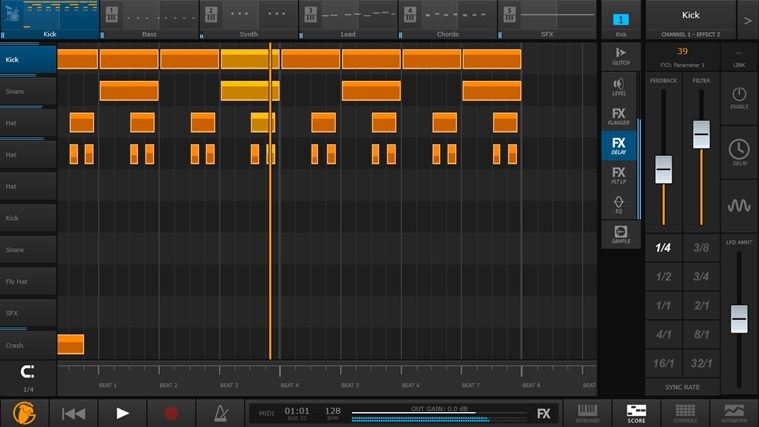
Only a few hours ago have we talked about the official music making ‘Liquid MyConnect Studio’ app for Windows 8 and now we see that FL Studio Groove, probably the best DJ and music mixing app on the Windows Store, has received a massive update.
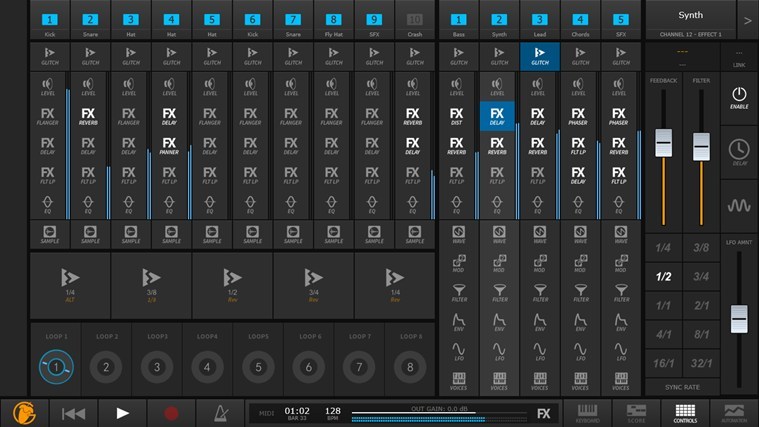
The official FL Studio Groove app is a professional tool aimed at those who want to create music from their Windows 8 devices, be it desktop or touch based ones. The app comes with so many features and options which justify its $10 price; but it’s a big pity that there isn’t a free trial option, despite. The app comes with extensive feature for the following features: synthesizer with bass, keys, lead, pad, sfx and synth sounds; two-tier touch keyboard for playing chords and melodies; drums & percussion; a wide range of effects; sequencing and many, many others.

FL Studio Groove app for Windows 8 welcomes a great deal of options

FL Studio Groove allows you to create professional sounding music in just minutes. Or perhaps you just want to lay down a percussion track and play keyboards over the top, you can do that too.

FL Studio Groove App for Windows 8.1
FL Studio Groove App for Windows 8


As for the latest update, here’s what’s been included and improved:

  • MIDI controller support
  • Keyboard now has Pitch Bend and ModWheel controls
  • Playlist (Automation window) is now loopable
  • Tempo control has changed from a slider to a jog wheel
  • Instrument Channels can be renamed without saving
  • Graphics optimized for a wider range of screen resolutions
  • Many small optimizations and bug fixes

So, if you want to get down to create some awesome music, straight from your Windows 8 tablet, then I suggest to go ahead and follow the download link from below.

⇒ Get FL Studio Groove app for Windows 8

Favorites in Opera Browser: How to View & Add Them

Just like any other browser, Opera allows you to save favorites, and in today’s guide, we’ll show you how to properly use this feature.

How can I use the Opera browser favorites feature?

How to save Opera bookmarks?

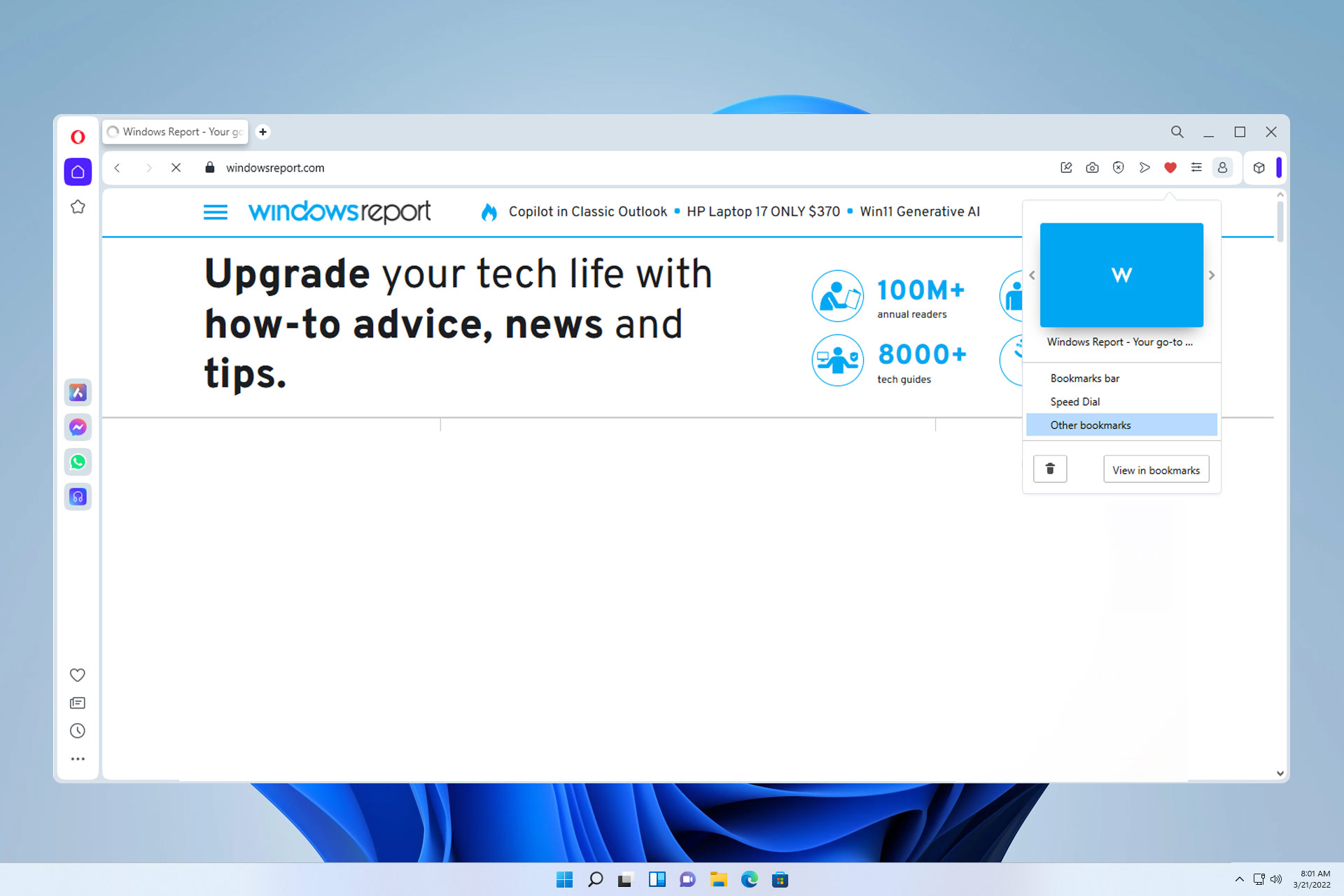
  1. Click the heart icon next to the address bar.
     bookmark icon address bar opera
  2. Now choose the desired folder and click Done.
    bookmark save location opera
  3. The current website will be saved to bookmarks.

How do I view favorites on Opera?

  1. Open Opera.
  2. Navigate to opera://bookmarks
    opera://bookmarks in address bar
  3. The Bookmark manager will now open.
    bookmarks manager opera

What is the shortcut for bookmarks in Opera?

You can open the Opera bookmark panel with Ctrl + Shift + B.

Opera bookmark panel

To save a bookmark quickly, use Ctrl + D.

How do I get my bookmarks bar back on Opera?

  1. Click the Easy setup button in the top right corner.
    easy setup icon opera browser
  2. Next, check the Show bookmarks bar option.
    show bookmarks bar opera
  3. The bookmarks bar will now appear.

These are just the basics of using Opera favorites, but if you want to learn more, we have a whole guide dedicated to managing Opera bookmarks.

Keep in mind that you can encounter issues with bookmarks, and many reported that Opera GX bookmarks aren’t showing, but there are ways to get them back.

Speaking of which, you can move bookmarks from one browser to another, and we have an in-depth guide on how to export Chrome bookmarks to Opera, so don’t miss it.

Microsoft Ventures launches Think Next, announces graduation of 17 startups

Microsoft Ventures launches Think Next, announces graduation of 17 startups

Earlier this year, Microsoft Ventures in India selected 16 startups for its Summer 2014 batch. Today, at an event in Bangalore, Microsoft Ventures announced the graduation of all these startups. In addition, a startup from an earlier batch was also graduated.

At the event, the accelerator program also announced a new initiative Think Next – which aims to boost the startup ecosystem in India. Think Next will provide a forum to stakeholders, guiding them to take measurable steps to elevate the growth of the local entrepreneurial ecosystem. “Think Next is that forum, and we are confident it will provide a strong boost to the local entrepreneurial ecosystem,” said Ravi Narayan, Director, Microsoft Ventures in India.

The startup companies from the fourth batch that graduated today are: Appointy, App, Virality, Bookpad, Boutline,  Imly, InstaSafe, IntouchApp, Metaome, Sliderule, Voonik, MyBusTickets.in, Praxify, Thinxtream, Touchfone, ZingHR and Zoom. In addition, Profoundis, a startup from the second batch also graduated today.

“Over the course of the last two years, Microsoft Ventures has emerged as a key player in the Indian startup ecosystem, working closely by pooling its resources with other accelerators, incubators and industry bodies, with the single objective of helping startups,“ Narayan added.

Below you find the list of all the startups that graduated today, along with the progress they made over last few months.

Microsoft Ventures launches Think Next, announces graduation of 17 startups

Microsoft launches ‘Snaps’ to showcase amazing photography

Microsoft launches 'Snaps' to showcase amazing photography from around the world

There is no denying that there are some folks at Microsoft that are a fan of photography and art. After all, the world of Microsoft can be full of amazing moments. Microsoft has launched a new website that showcases the best photography from around the world of Microsoft, in a beautiful layout.

“With every amazing person we meet, and every epic moment we cover, our family photo album gets a little thicker. In fact, it’s pretty much bursting at the seams. So we’ve created a new place where we can share our favorite photos from the world of Microsoft with you. We’re calling it Snaps,” Microsoft stated in an official blog post.

For example, one of the images at the Snaps website features Microsoft CEO Satya Nadella on his first day as the big boss. There are quite a few images on the site right now, and we are sure Microsoft will add some more images soon. Head over to the Snaps website by hitting the VIA link below.

Thousands of Surface Minis have been produced and await a launch date

Thousands of Surface Minis have been produced and await a launch date

There was a great deal of excitement at yesterday’s Surface event, but there was no sign of the Surface Mini that so many people had been hoping and praying for. There had been so many rumors and leaks ahead of the event that the unveiling of a Mini was taken as a given. This only served to make the device’s non-appearance all the more disappointing; but all may not be lost.

Did the Surface Mini not appear because Microsoft has fallen out of love with Windows RT? Did the timing not feel right? Maybe the company did not want to detract from the launch of Surface Pro 3 and wanted to avoid overwhelming consumers with two devices at the same time. It’s not possible that so many sources could have been wrong about the device, is it? All of the usual leak sources have been informing us of the imminent launch of the Surface Mini. Industry insiders have been feeding information to journalists for weeks and month. Could they all have been wrong?

There have been suggestions made that Microsoft simply changed its mind, that the Surface Mini was simply canceled at the last minute — maybe even as late as the weekend before the NYC event. While it is tempting to think that this is possible, it would seem unlikely. But the Surface Mini is real. Very real. According to a report from Neowin 15-20,000 units have already been produced, and it was only a last minute “management directive” that stopped the launch in its tracks. Lack of faith in Windows RT and a failure to stand out from the competition have been cited as possible reasons.

The report agrees with Mary Jo Foley’s suggestion that the launch has been postponed until the touch-optimized Office Gemini is ready. This does make sense, as Office on a smaller tablet will act as a big draw. The current version of office 365 would be usable on a smaller screen, but it would not be ideal — far better to have a version that is specifically designed for a device of smaller dimensions. Remember the Surface Mini will be all about touch; there may be keyboards available at some point, but touch and pen input is going to be where it is at.

It is possible that Gemini will be ready in the fall, so there is a chance that this is when Surface Mini will also make an appearance… but sadly we are back into the realms of speculation once again. But one thing is clear. Microsoft does not want to launch a lame duck. Surface Mini will not see the light of day until it is completely ready, hardware, software and associated infrastructure. This is the new face of Microsoft, remember.

In the meantime, there is the Dell Venue 8 to fill the void, but it is the Surface Mini that remains the most desirable device.

Microsoft Surface Pro 3 vs Surface Pro 2: Should I Upgrade?

As you know, Microsoft officially revealed today the Surface Pro 3, during a press conference in New York. Even though most of us were expecting the Surface Mini instead, Microsoft managed to surprise us with its new generation of Surface, the Surface 3. Well, in order to make a proper idea about this new Windows based tablet, during the following lines we will compare the Surface 3 with Surface 2 in a detailed versus review.
surface-pro-3 vs suface pro 2
Since we are talking about two Microsoft tablets we must first clarify one thing: is it worth to upgrade? Well, we might say a definitely yes since the Surface Pro 3 is now a “laptop killer”; you will learn more details related to this aspect by checking the lines from below. First of all, when comparing the Surface Pro 2 with the Surface Pro 3 we head our attention towards dimensions. The Surface 3 comes with a bigger and better display, the tablet featuring a 12 inch display, which is a big improvement to the Surface 2 which is coming with a 10.6 touchscreen. Now, being this big, the Surface 3 can be easily used as a notebook, or to be more precise as a Windows 8 powered ultrabook. Anyway, if you want to properly compare these two devices, check the dedicated sections from our review.

Microsoft Surface Pro 3 vs Surface Pro 2

Dimensions and Design

Since we have clarified the display dimensions already, now we should talk about other details that might make us want to upgrade from Surface Pro 2 to Surface Pro 3. In that matter, since the third generation of Surface is featuring a larger display we would expect to get a thicker and heavier tablet; but that’s not the case as Surface Pro 3 is the thinnest Intel Core product ever made (9.1 mm thick).

Read Also: Final Draft App for Windows 8 Demoed, Getting Launched Soon

Furthermore, Surface Pro 3 weights around 800 grams, while the Surface Pro 2 weighs only 675.9 g, this difference being insignificant especially if we consider the screen dimension and the processor that is included on each device.Surface-Pro-2-design

Both tablets, the Surface Pro 2 and Pro 3 are compact and impact-resistant – you can even drop your Surface 3 on the floor and the tablet will be without a scratch – so you can safely use your handsets in various situations, in outdoor or indoor activities.

The best is that the Surface Pro 3 can be anytime used as a regular laptop thanks to its dedicated accessories that are ensuring a great user experience whether you want to watch a movie, write a document, take pictures, talk with your friends on social media websites and so on. Unfortunately, we can say the same thing when talking about the Surface Pro 2 which is first of all too small for a laptop purpose. Therefore, the Pro 3 will be the best choice to make when thinking in getting a device that mixes the tablet and the laptop field.

Processor and Performances

Well, this battle is definitely in favor of Microsoft Surface Pro 3. The tablet will be offered in three variants depending on the processor you will choose. Thus, you will be able to buy an Intel Core i3, i5 or i7 powered tablet. On the other hand, as we all know, the Surface 2 is coming with a Quad-core 1.7 GHz Cortex-A15 processor.

Moreover the Pro 2 specs are also including 2 GB of RAM along with 32 or 64 GB of internal storage, while the Surface 3 is available in four new models: for the i3 processor you will be able to receive 64 GB of internal storage and 4 GB of RAM, the i5 model comes with 128 / 256 GB of internal storage and with 4 / 8 GB of RAM while the i7 version will bring 256 / 512 GB of internal storage and 8 GB of RAM.

As you can see, if we are to talk about performances, the Microsoft Surface Pro 3 is definitely our winner as this device can anytime replace a classic ultrabook, while the Surface 2 remains a high end Windows 8 based tablet.

Battery Life

When presenting the Surface Pro 3 in New York, Microsoft declared that the new Surface generation of tablets is providing up to 10 or 20% more battery life which means that the Surface Pro 2 is once more one step behind. But considering that the Pro 2 was released last year we might say that we have a tie in matter of battery life, especially if we consider that on Surface Pro 2 we will be running more apps, processes and programs, so the battery will probably drain faster.

The best though is that Microsoft is providing portable devices that can last a day on a full charge, which is great especially if you travel a lot or if you take your Surface device everywhere you go.

Official Accessories

Now, the Surface accessories are what makes a regular tablet become a great Windows 8 portable device. So, when talking about Surface Pro 2 we all know its official “hardware power-ups” which are being available on Microsoft’s own website – you can have a list of best Surface Pro 2 accessories by checking our dedicated review.surface pro 3 accessories

But, as for the Surface Pro 3, Microsoft stated that this device will be something in between, meaning that we can be able to use the handset as a tablet, or as a regular laptop. In that matter, the device comes with a redesigned kickstand and type cover. The kickstand overs uses on different angles (even to a near-flat angle of 150 degrees) while when the type cover is used along with the kickstand, any user can use the Surface Pro 2 as a regular laptop or desktop.

Prices

The Surface Pro 2 can be yours for a starting price of $899.00 (for the 64 GB model) while the Surface Pro 3 is being offered on a basic price of $799 (for the same 64 GB model). Of course the $799 variant is coming with the i3 processor and with 4 GB of RAM, so if you will want a more powerful device you will have to choose one of the following offers:

  • Surface Pro 3 with i5, 128GB and 4GB of RAM – $999
  • Surface Pro 3 with i5, 256GB and 8GB of RAM – $1,299
  • Surface Pro 3 with i7, 256GB and 8GB of RAM – $1,549
  • Surface Pro 3 with i7, 512GB and 8GB of RAM – $1,949

Since the Pro 3 is now officially out, Microsoft will probably cut the prices for the Surface Pro 2. So, if you are thinking in taking advantage of this aspect, just wait a few more days and then check the new offers for your favorite tablet.

Conclusions

surface pro 3 vs surface pro 2

With the Surface Pro 3 Microsoft has managed to develop a great device that can solve a huge and general dilemma that most of users have nowadays and this dilemma comes with the following question: what should I buy, a laptop or a tablet? Well, with Pro 3 you can buy a device that can be both. On the other hand, if you think that the 12 inch screen is too big for a portable device and you might have problems in using such a device on a daily basis, then you should choose the Surface Pro 2 which, with its 10.6 inch display can fit in any pocket.

As for the performances, the Surface Pro 3 is definitely the better device, though the prices are also quite expensive; therefore, depending on your own preferences and expectation, you can anytime choose between these two Microsoft devices, so what should it be: the Microsoft Surface Pro 3 or the last year launched Surface Pro 2?

Read Also: New York Times Crossword App for Windows 8 Showcased

After Nokia XL launched last week, Nokia X+ launches in India for Rs 8,399

Nokia X+ launches in India for Rs 8,399 (44)

Keeping its promise, Microsoft (on behalf of Nokia) launched the third – also, the last remaining – device in its X lineup, Nokia X+, in India. Priced at Rs. 8,399 ($144), Nokia X+ sits between Nokia X and Nokia XL in terms of specifications and pricing.

At the Mobile World Congress Event, Nokia unveiled its X lineup – three phones that run on a forked version of Android. The company promised that it will roll out the devices to the Asia-Pacific region within 60 days. Nokia X arrived here a couple of weeks ago, and XL was launched last week.

Nokia X+ sports a 4-inch touch screen display with a resolution of 800 x 480. Powered by a 1 GHz dual-core Qualcomm Snapdragon S4 play (MSM8225) processor, coupled with 768MB of RAM, the phone runs a modified version of Android Jelly Bean (4.1). The dual-SIM capable device has a 3MP shooter at the back, but lacks a front facing camera. On the connectivity front it supports 3G, WiFi, and Bluetooth. The phone comes with 4 gigs of internal storage which can be expanded using a microSD slot. The 1500 mAh battery is also a tad low.

It will be interesting to see how Nokia X+ does in the market. The phone is now facing stiff competition from Moto E and entry level Android phones, whereas on the other hand it competes with its own cousin, the Lumia 520. It will be interesting to see if people go with a true Android Phone, a Windows Phone, or find Nokia X+ to be their choice.

NarrowCast Podcast App for Windows 8, 10 Launches with Plenty of Features

narrowcast podcast app windows 8
If you have been on the lookout for a truly professional podcast app for your Windows 8, 8.1 or Windows RT touch or desktop device, then I’m happy to inform you that we might have found it. Touted as a “powerful podcatcher”, NarrowCast has been designed exclusively for Windows 8 devices, which is one of the reasons why it is so great. At the moment, it is available for $1.99 but a future update will make it available for Windows Phone, as well, and its price will go up to $4, so you need to hurry up and get it while the special price is still standing.

Read Also: Where to Watch Live the Surface Mini Event

Thanks to the fact that you can take it for a free trial, I got to try it out and can say that I was pleasantly surprised by its awesome design. You can use it to search for your favorite podcasts through iTunes, as well as import or export your feeds to and from another podcatcher. Thanks to notifications and live tile support, you will be informed when new episodes have been made available.

NarrowCast seems to be the best podcast app for Windows 8

narrowcast podcast app windows 8.1

narrowcast podcast app for windows 8

Pin Indiviudal Subscriptions to Start Screen, complete with their own live tile. Queue individual episodes so you can listen without interruption (smart playlists coming next major update!) Quickly start playing latest episodes using quick play functionality! Download episodes to play offline Sync your Subscriptions, Episode Information & Settings between your Windows 8 and (coming soon) Windows Phone 8.1 devices Play episodes on your Xbox 360, Xbox One or any device that supports PlayTo OneDrive sync support! Turn this on in the sync settings.

Download NarrowCast app for Windows 8 

Ubisoft releases Assassin’s Creed Pirates in partnership with Microsoft, perfect for IE11

 Ubisoft releases the first ever Assassin’s Creed title in partnership with Microsoft

Microsoft has announced a new partnership with Ubisoft, a French multinational video game developer and publisher. The companies have together launched the first ever Assasin’s Creed Pirates for the web. Assasin’s Creed Pirates is free to play and is available in five languages worldwide. 

The game was build with Babylon.JS, which is an easy to use yet powerful, open-source 3D engine build on WebGL, TypeScript, and Javascript by Microsoft developers David Catuhe, David Rousset, Michel Rousseau, and Pierre Lagarde. These technologies offer developers the ability to quickly add collision detection, physics, lighting, camera angles, textures, effects, and new 3D scenes with minimal coding. 

Microsoft has also announced a new developer challenge. It states “Build your own shader with Babylon.JS and you could win an Assassin’s Creed Collector’s Black Chest Edition and an Xbox One! It only takes a few minutes and you don’t really have to be a pro developer to play with code this easy.” If you’re 16 years old or over and reside in United States of America, United Kingdom, France, Germany, Spain or Australia, you can participate in this content. Details can be found here.

Microsoft is touting Internet Explorer 11 as the perfect browser to play this game. Internet Explorer 11 features even better 3D performance, enhanced touch capabilities, and recent improvements to WebGL. 

“When Assassin’s Creed Pirates was released on mobile, it received high praise for its groundbreaking visuals. We wanted to see if a game like this could be possible on the web. It’s difficult to really know where web-gaming is headed, but we can be sure that Babylon.JS and Internet Explorer today, in terms of gaming, are great platforms to demonstrate its potential,” said François Bodson, Studio Manager.


Slovakia’s PC market sees a big increase, thanks to Windows XP’s end of support

Slovakia's PC market sees a big increase, thanks to Windows XP end of support

Slovakia is a state in Central Europe with a popular of over five million people. Thanks to Windows XP’s end of support and cheaper Windows 8 devices, Slovakia has seen a increase in PC shipments after six straight quarters of declining market share. In fact, the Slovak PC market increased in volume by 21% year on year in the first quarter of 2014.

“The market was driven by transitions to a newer Windows OS versions (either Win7 or Win8), as Microsoft ended its support of Windows XP in April. Vendors also increased shipments of new PCs due to Microsoft’s price reduction of Windows 8; some were also compelled to do so in order to meet end-of-fiscal-year targets set by their global or regional HQs,” IDC stated on May 19th.

The top PC vendors in Slovakia as of Q1 2014 include Lenovo with a 25.50% share, HP with a 20.70% share, Acer with a 16% share, and 37.80% comprising of other vendors. Seven out of ten PCs that were sold were notebooks, but the desktop market also saw an improvement. 

Microsoft ended support for Windows XP on April 8th, which along with the price reduction of Windows 8, has helped Slovakia’s PC market see an increase for the first time in six quarters. 

Google lets you schedule a Hangouts video call with other Outlook users with new plugin

Google plays catch up with Microsoft, releases Hangouts for Outlook

Not long ago, Microsoft rolled out a Skype plugin for Outlook which allowed users to do just about every Skype operation without having to leave the Outlook tab. Today, Google has launched a similar plugin, Hangouts for a Google Apps user who also uses Microsoft Outlook. “Schedule meetings in the blink of an eye with Google Apps shared calendars,” Google tweeted.

Once installed, users won’t have to leave the Outlook tab to start, join, or schedule a conversation on Hangouts, Google explained. It’s an interesting move by Google which might actually help some business users, however, it should be reminded that when Microsoft released a tool to bring support for Google Talks (the previous iteration of Hangouts) last year, one of the bosses at Google didn’t really like the move. Larry Page believed that Microsoft was using two companies inter-operation for its own benefits. 

“Schedule a Hangouts video call with other Outlook users in your company with a single click. Join a scheduled Hangouts video call by opening the meeting in Outlook and clicking the Hangouts video call link,” the plugin description reads.

As of now the plugin only works with Windows operating system – Windows 7 or higher (sorry Mac users). You can grab the download from the link below. 

User interface concepts for Office Gemini revealed, shows Word, Excel, Outlook in action

User interface concepts for Office Gemini revealed, shows Word, Excel, Outlook in action

A new document has been uncovered, titled “UX Proposal for Pen and Ink for Office Gemini,” showcasing concept designs for the Word, Excel, Outlook, and OneNote in action. Obviously these are concept designs, but could the final version of Office Gemini look similar? Its a possibility.

Office Gemini, for those that did not know, is the codename for Microsoft’s Office productivity suite that is optimized for touch and ink. These apps are not intended to replace their desktop counterparts, as Microsoft plans to continue to develop and innovate on the desktop front. Gemini simply provides consumers with a Metro/Modern version of the Office productivity suite.

Microsoft also has a video that talks about “Great Inking,” which goes over a unified approach to inking and how it ties into the company’s concept for Office Gemini. According to Microsoft, modern devices have changed the game and as more pen capable hardware is released, the more consumers should be aware of the inking capabilities – especially since consumers are turning to modern touch devices for productivity purposes. 

“In late 2013 and early 2014 Office, Surface, and Windows formed a Cross-Group Inking team to explore One Microsoft needs for a unified approach to inking. In this session Tucker Hatfield presents details about the Cross-Group effort and their conclusions of what is needed for first-class inking and Will Vong shows visionary ways in which these needs might be met with inking features,” Microsoft explained.

You can watch this video below. You can also check out the concepts in the PDF file below.

Credit to @h0x0d for spotting this!

Oops! Emory University accidentally tells all of its Windows PC to format themselves

Oops! Emory University accidentally tells all of its Windows PC to format themselves

Emory University is slightly red-faced at the moment after accidentally deploying a Windows 7 image to all of its computers and servers that started off with instructions to format and repartition drives. The mistake was noticed, but by the time the deployment server was switched off, it had itself been formatted; what then followed was huge clean-up operation.

The fallout was quite dramatic as while the deployed image included a number of key applications such as Office, other such as Visio and Project required manual installation. IT technicians worked through the night to restore “mission critical” computers to help speed up the process of getting others systems back up and running in a somewhat automated fashion.

Although a degree of automation was possible, visits from technician were still needed in many cases. The process as helped by the use of the Microsoft Development Toolkit but, as pointed out by The Next Web, incidents such as this do serve to highlight the importance of having up to date, reliable backups.

But while the accident caused quite a lot of problems, it did also show just how useful group policies are — this made it possible to rollout a lot of system settings. All told, the clean-up took a couple of days from start to finish, although there is still some work to be done to get all system fully operational again.

Oops!

We’re Set to Report Even More Awesome Windows 8 Apps & Games on Wind8Apps!

It’s time for a quick announcement for our faithful readers and for all those of you interested in Windows 8 apps!
awesome windows 8 apps wind8apps
First of all, let me say thank you for remaining a loyal reader of Wind8Apps in times when there are more and more websites appearing by the day. Probably most of you have subscribed with the website in order to receive more updates especially on new Windows 8 apps and games, but some are also interested in tips and tricks related to Windows 8. Today we’re making some internal changes and you will be happy to hear that they are made to please you, the reader.

windows store design 2014
So, starting from today, you will see more reporting done on new Windows 8 apps and games, so that you will get to enjoy the Windows Store at its full power. Also, Microsoft is preparing a number of developer events in order to boost the quality of the apps that get submitted, so we hope to be your first website which comes to mind when looking for another awesome Windows 8 game to play on your tablet.

Get your Windows 8 devices ready, because it’s going to be a helluva ride!

Official Issuu App Released for Windows 8, 10, Download for Free

Issuu is one of the best services in the world when it comes to reading magazines and catalogs, be it on your mobile device or straight on the mobile app. And now, after a long wait, it has finally been launched for Windows 8 users, as well.
issuu windows 8 app
By using the official Issuu app for Windows 8, you will be able to enjoy unlimited access to magazines, catalogs. There are over 20,000 new publications that are added daily in 30 languages from around the globe, so there are big chances that you will find the one that you’re looking for. There is a multitude of topics that you can explore, such as family, fashion, design, sports, photography, weddings, technology, style, science, medicine, food, travel and just about anything which  constitutes a major interested among readers. I’ve downloaded the app right away and used it for a few minutes and realized that it looks great both on my desktop Windows 8 device, as well as on my Windows 8 tablet.

Read Also: Checkers Deluxe Game Released for Windows 8, Download Now

Issue app launches for Windows 8 devices to help you discover free magazines

issuu windows 8

issuu app for windows 8

Experience millions of the world’s best magazines and catalogs, all for free. Discover a world of meaningful content, created by over 1.5 million publishers around the globe. Turn millions of digital pages with the swipe of a finger. Enjoy unlimited access to magazines, catalogs and more from wherever you are, whenever you like, at no cost. Stack collections of your favorite magazines and share them across social networks. Issuu’s smart content recommendation engine learns as you read and delivers a personalized and continuous stream of new, relevant and interesting magazines for you to browse. Keep up with the latest fashion trends from NYT Style or V Magazine. Try out new and interesting dishes from Sauce or Everyday Food. Stay current with your favorite teams and athletes with FIFA Weekly or Red Bulletin. Plan your next project with inspiration from American Craft or Emma.

Download Issuu app for Windows 8 

Rumor: Microsoft to offer a preview release of Windows 9 between Q2 and Q3 of 2015

Rumor: Microsoft to offer a preview release of Windows 9 in February of 2015

Windows 9, codename Threshold, is rumored for an April 2015 release date. This information is known and comes from Paul Thurrott, a well-known Microsoft insider. Now, according to a new rumor, Microsoft will offer a preview version of the new operating system sometime around February of 2015.

Similar to the Developer Preview or Consumer Preview of Windows 8, Microsoft is rumored to offer a public preview build of Windows 9 sometime between Q2 or Q3 of 2015 (around February or March of 2015) – giving consumers a chance to play with the new operating system before it’s official release. This information comes from a leaker by the name of “Faikee,” who was recently responsible for dropping the Windows 365 name, along with other tidbits.

In fact, the rumor goes as far as saying that Microsoft will offer the public preview of Threshold between Q2 and Q3 of 2015. Interestingly enough, it is also speculated that we will see a second update to Windows 8.1 sometime in September of this year, bringing along the return of the Start Menu, the ability to have “windowed” Metro/Modern apps, and the possible combination of Windows RT and Windows Phone. We’ve already taken the first step towards the latter with “universal apps” that work on Windows Phone and Windows 8/RT.

Take this bit of information with a huge grain of salt and remember it is just a rumor. Microsoft, nor any of the well-respected Microsoft insiders, have commented on Windows 9’s “public preview” release date. The word “Threshold” for those that did not know, is derived from the original Halo game, where it was the name of the planet enveloped by the first Halo ring.

Whether this rumor is true or farfetched is just icing on the cake. The point is Windows 9 is happening and we are all excited to hear what it has in store for us. What’s next for Microsoft’s Windows operating system? We’ll begin to find out in the coming months. 

Editor’s note: Post has been updated to reflect a Q2 to Q3 release date for the preview, rather than February 3rd.

How to Set Font Style, Size as Standard for Outlook Email in Windows 10

Some of our readers have been annoyed by a small problem that has a simple fix, but it has been giving them a lot of headaches these days. Read below on how you can easily set the font style and size as standard for email in Outlook.

I’ve recently seen on the Microsoft Community forums that there were several who weren’t able to find a solution on how to change the font style and size and how to make it default for Outlook.

This problem is affecting Windows 8 and Windows 8.1 users, since the software has changed for them. Here’s what one of the affected users has been saying about this, albeit this has reportedly appeared with Thunderbird users, as well.

When typing an email I can set the font size and style after completing it. I want to have a standard typeface for the email that I send.

How can I set Font Style, Size as Standard for Outlook email in Windows 10?

standard font style size outlook

Have a look at the screenshot below to see how to easily change the font size and style and make it default in Outlook, and also follow the steps from below.

  1. Open Outlook and from the File menu, choose Options.
  2. Then, Go to the Mail section, then click Stationary and Fonts.
  3. After that, just choose the fonts, the style, and the size you want.

To learn more about this subject, we have a great guide on how to change font in Outlook, so don’t miss it.

Microsoft announces a partnership with Insteon, gets into home automation business

Microsoft announces a partnership with Insteon, gets into home automation business

Insteon is a technology based company that has been in business for over 20 years. Insteon’s expertise is in home automation, providing technology that enables light switches, lights, thermostats, motion sensors, and other devices to inter-operate through power lines, radio frequency communications, or both.

Today, Microsoft has announced a partnership with Insteon. They’re bringing an enhanced version of its Insteon app with exclusive features and it will be available for Windows 8.1 and Windows Phone 8.1 devices as of June 1st. New features to this app release that are exclusive to the Windows platform are:

  • Visitor Mode – provides restricted access to children or guests in your home
  • Live Tiles – get status on multiple devices directly on your Windows 8.1 Start screen (not currently available on Windows Phone 8)
  • Enhanced Camera Support – view multiple cameras at once, view full-screen, and camera support without the need of an Insteon Hub
  • Multi-House Support – enables you to control multiple homes or businesses from a single account
  • Dashboard View – a quick and organized view of the status of your home

“The Windows 8.1 platform provided INSTEON with an unparalleled opportunity to develop a beautiful and easy-to-use connected home experience. The Live Tile architecture is especially well-suited for home automation,” said Joe Dada, CEO, INSTEON. “Users are going to love controlling their INSTEON-connected home from their Windows devices.”

Marking Microsoft’s retail entry into the connected home market, Insteon home products will also be available for purchase on MicrosoftStore.com and most Microsoft Stores across the U.S. 

“Windows PCs, tablets and phones are supported by a rich app ecosystem that offers a variety of quality apps that take advantage of the platform’s unique features and design such as Live Tiles,” said Todd Brix, general manager, Windows Apps and Store, Microsoft Corp. “The unique camera and control features in the INSTEON app really come to life on both Windows and Windows Phone.”

Microsoft is planning on offering a range of Insteon products that will include three kits, a Starter Kit, Home Kit and Business Kit. Standalone devices will include the INSTEON Leak Sensor, Open/Close Sensor, LED Bulb, On/Off Module and Wireless Wi-Fi Camera. Prices will range from $29.99 to $79.99, with kits starting at $199. 

Time of My Life app gives you a better understanding of how your time is spent

Time of My Life app for Windows Phone gives you a better understanding of how your time is spent

Do you wish you had a way to better understand how your time is spent on any given day? Do you also own a Windows Phone device? Well, guess what. There’s an app for that. Introducing Time of My Life app for Windows Phone, from the kind folks over at Microsoft Research.

“Where did my time go? Use this app to better understand how your time is spent and budget your time better to focus on things that matter most. The application shows daily, weekly and monthly graphs of where time was spent, with automatically inferred places (such as home, work, gym, and restaurant) or activities,” the app description reads.

The idea behind the app is to help you track where you spend your time, since our lives are always so busy. Sometimes we tend to forget how we fill our days. The app showcases daily, weekly, and monthly graphs, showing you places you have been to like home, work, gym, and eateries. You can even add names or new places for personalization.

Grab the app via the download link below and give it a try. Maybe it can help you understand your day.

Microsoft announces it will live stream Surface event on May 20th

Microsoft announces it will live stream Surface even May 20th

In less than a week Microsoft is slated to hold an event in New York City. While we already know it is about Surface, and that Satya Nadella is likely to host, the exact announcements forthcoming have been kept secret. Rumors swirl around a Surface mini tablet and perhaps even the unveiling of the Surface Pro 3, a mere seven months after the second generation tablet hit the market. 

Today the Redmond company let us know that it plans to live stream the big event. In a brief announcement, Microsoft’s Dan Laycock says “The webcast will begin at 8am Pacific Time (11am Eastern). For specific details on the webcast, visit the Microsoft News Center on Tuesday, May 20th”. 

WinBeta will have full coverage on everything at the event, so if you can’t watch the live coverage, then fear not. In the meantime, let the wild speculation continue — what do think, or hope, the software giant will unveil next week? Tell us in the comments.

Microsoft teases us with some more Sunset Overdrive, offers gameplay preview video

Microsoft teases us with some more Sunset Overdrive, offers gameplay preview video

Later this year, Sunset Overdrive will launch on the Xbox One as an exclusive for the platform. Microsoft continues to tease us with yet another video of the game in action. We’ve embedded the video below for your viewing pleasure.

Microsoft recently offered a first-look video on the next generation game, which has been hyped by the company ever since the console was launched back in November of 2013. Sunset Overdrive borrows elements from games like Prince of Persia, Tony Hawk’s Pro Skater, Jet Set Radio, and other games to create what’s called “awesomepocalypse.” 

“Xbox Wires chats with Ted Price, Drew Murray and Marcus Smith from Insomniac Games about irreverent world and gameplay for the Xbox One exclusive, Sunset Overdrive,” the video description reads. You can take a look at the video below. Are you excited for Sunset Overdrive?

Outlook.com rolls out advanced rules, undo, in-line reply, and more in new update

Outlook.com rolls out advanced rules, undo, in-line reply, and more in new update

Microsoft is rolling out an update to Outlook.com over the next few weeks, adding a few new features making the service just a tad bit better to use. These new features build on Microsoft’s commitment to give your inbox new and better ways to work more and save time.

“When it comes to getting organized, Outlook.com has you covered. Starting today, we are releasing Advanced Rules and three other features, all to help you keep your inbox in top shape and make it even easier to see the email that matters to you,” Microsoft stated in an official blog post.

Microsoft has added Advanced Rules to Outlook.com, allowing you to have more control over how your emails are sorted, filed, or placed at the top of your inbox. Users can create multi-condition and multi-action rules, and even combine rules together. Optional conditions include: time constraints, email tallying, checking read/unread state of emails, and checking if the sender is a contact you know.

Here is an example of a rule: “If an unread email is older than 3 days and is from one of your contacts, mark it as important and flag it.”

Microsoft has also added the undo feature to Outlook.com. Users who delete, categorize, flag, mark as junk, or move can now undo by clicking the undo button or by typing Ctrl+Z. In-line reply allows you to directly respond to an email thread without having to launch a new view. This new feature is intended to save you time and help you track your conversations with ease.

The following improvements were also made:

  • Find recent conversations and other contacts you can chat with in the bottom left of your inbox. One click will launch you straight into a conversation with them.
  • If you’re chatting with a friend on one service, but want to continue the talk on another service, now you can switch over from right inside the chat session.
  • You can now browse your People by filtering what service they’re using (Skype, Facebook etc.). You can even see who’s currently available–Icons will now appear alongside names, so you know who’s able to Video, Call or just chat.

Microsoft supposedly working on Windows 365 alongside Windows 9 and Office 2015

Microsoft supposedly working on Windows 365 alongside Windows 9 and Office 2015

Not that long ago, leaker Wzor revealed that Microsoft is working on a prototype operating system called Windows Cloud. This operating system is rumored to require an internet connection for full functionality, acting as a basic operating system when in offline mode. Now, according to a new image that has surfaced online, Microsoft is allegedly referring to this operating system as Windows 365.

In the image, which seems to be a screen capture of a Facebook entry, we see the status of Microsoft’s products including Windows 9, Windows 365, Office 2015, and more. Based on what is listed in this image, Windows 9 (including server and mobile edition) is currently in the development stages. Nothing new here.

The image also mentions that Windows 365 is currently in Alpha and is based on the Windows Core. Windows 365 is an interesting choice for a name, considering Microsoft’s subscription based Office 365. The image also mentions that Windows 8.1 Update 1 is already completed, while Update 2 is blanked out giving us no idea on when it will be released. Rumor speculates that we will see this update sometime in September of this year, bringing along the return of the Start Menu.

Office “Gemini” is also in the works, according to the image. Office “Gemini” is the codename for the next big update to Office, in which we are expecting a Metro/Modern version of the Office productivity suite. The image also mentions Office 2015 as currently in development.

This image surfaced thanks to a leaker known as “Faikee” who has a good track record of leaking or showcasing information that has proven to be true. But we are going to stamp a big fat “rumor” to this image until more details surface. It does sound like Microsoft is looking to create “one user experience” across most if not all of its services.

Most of what is mentioned in the image is already known information, except for Windows 365. How do you feel about this name? It sounds like we are traveling towards a subscription/cloud based operating system. Keep this as a rumor until more concrete details emerge from sources like Mary Jo Foley.

Microsoft supposedly working on Windows 365 alongside Windows 9 and Office 2015


International Nurses Day: Microsoft is launching a new blog specifically about nursing issues

International Nurses Day: Microsoft is launching a new blog specifically about nursing issues

In celebration of International Nurses Day (May 12th), Microsoft is gearing up to launch a new “Nurses in Health” blog and the company is seeking nurses to help contribute. This new blog is specifically about nursing issues and Microsoft wants nurses to help offer stories or perspectives on improving patient care around the world.

“Today, 12 May, is International Nurses Day. Today we pay our respects to those who bravely tackle some of the most demanding tasks in healthcare. Today we remember those who embody the NHS’ 6Cs  – care, compassion, courage, communication, commitment and competence – like no one else. Today we say ‘thank’ you to all nurses. But we also want to ask you for one more thing: Your voice,” Microsoft stated in an official blog post.

The most interesting healthcare stories still go untold and Microsoft wants to change that. “We routinely feature views from doctors, administrators and technology specialists. But what about the people who spend the most time with patients? What about the people who have the closest view of how the health sector is changing? What about nurses?”

If you are a nurse who wants to contribute to the new Nurses in Health blog, email Microsoft at [email protected].

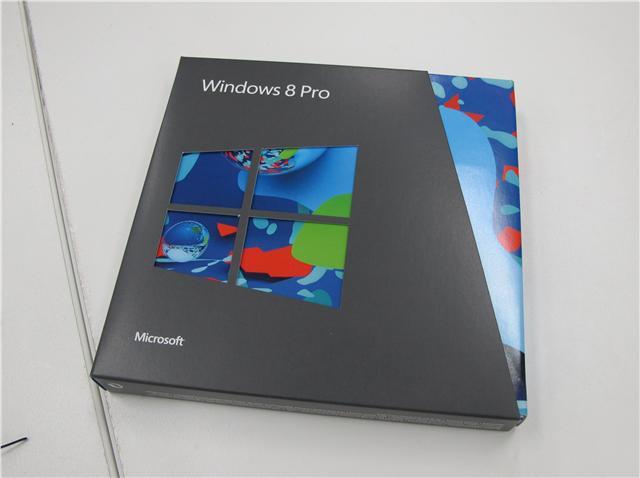
Some Users Unable to Order Windows 8, 10 Backup DVD

More consumers are orienting themselves towards more digital downloads these days, but it’s really a good thing to have a physical back-up of your software purchase, especially when we’re talking about something so important as Windows 8.
unable order windows 8 backup dvd
Having a back-up DVD of your Windows 8 or Windows 8.1 software is extremely useful, as you will definitely need it when you’re going to reinstall it on a new laptop. But a user has been complaining on the Microsoft support forums that he isn’t able to buy a new back-up DVD, no matter what payment method had he tried. Maybe you find yourself in the same situation, so quickly see what he is complaining about:

Ordered my copy of Windows 8 back in Dec 2012, my laptop needs to be wiped and I need to reinstall afterward. I wanted to order a DVD backup but it will not allow me to. It says “There was a problem with your order. Please verify your payment information and try again.” no matter what payment method I select, even though there are MORE than enough available funds in every account. When choosing paypal it doesnt even prompt me to log in. Tried to call into the ordering line, but I’ve been on hold for over an hour now. I just want to order my dvd 🙁

Contact Microsoft support

I’ve looked online for a possible fix on this, but haven’t been able to find one, therefore, what you really need to do is to contact the Microsoft support team in order to have your issue fixed. Also, from what the user is saying, it’s not quite clear whether he is looking to buy a new DVD back-up or just to regain his old one, therefore I’ve reached out to him to leave a comment with the full situation.

Read Also: Age of Empires 3: The War Chiefs Fails to Install in Windows 8.1

Age of Empires 3: The War Chiefs Fails to Install in Windows 8.1, 10

Age of Empires 3 is one of the best strategy games of all time and it’s fully compatible with Windows 8.1, but, as it turns out, there are certain problems especially when trying to install the War Chiefs expansion pack.
age of empires warchiefs windows 8.1
Certain Windows 8.1 users have been complaining that while installing Age of Empires III: The War Chiefs, they have encountered various errors (1628, 1158) which result in a failed installation. As it turns out, the Age of Empires Asian Dynasties and War Chiefs have been working in Windows 8 and the issue has appeared only after the said upgrade to Windows 8.1. Have a look below at the complete message from the user:

installed aoe3 , warchiefs and asian dynasties in win 8 and then upgraded to 8.1. got trouble with my installation and tried to reinstall it altogether. the first to worked and just the warchiefs just dont work! im getting quite frustrated now. i read a lot in the web but all the ‘solutions’ didnt work to me and the link isnt made for 8.1 isnt it?! PLEASE help me i want to play aoe again!!!

As the user has mentioned, there are plenty of solutions online, but from what I’ve research, there’s only one that I can recommend to you.

How to make Age of Empires 3 work in Windows 8.1

  1. Rename the InstallShield folder
  2. Download and install the latest Windows Installer package
  3. Locate and then close the file
  4. Create a new user account
  5. Perform a clean startup
  6. Download and install the latest version of the .NET Framework

If you haven’t managed to understand from the above short step by step guide, you can download this Microsoft Fix it tutorial (completely safe link) or follow these instructions from Microsoft’s official website.

Read Also: Fix: Can’t Eject USB Drives in Windows 8.1