End of an era: Microsoft quietly discontinues the sale of Windows 7 to retailers

Microsoft quietly discontinues the sale of Windows 7 to retailers

Bad news for those of you who, for some reason, need to purchase Windows 7 from your local retailer. Microsoft has quietly discontinued the sale of the operating system as of October 30th of this year. You still have one year – October 30th 2014 – to purchase a desktop or laptop with Windows 7 pre-installed before Windows 7 fades away forever.

Microsoft launched Windows 8.1 on October 17th of 2013, nearly a year after Windows 8 was released. With Windows 7 set to reach its “end of sales” date on October 30th of 2014, now is the time to think about moving up to Windows 8 if you haven’t already done so – or snag up a copy of Windows 7 before it reaches its end of sales. 

“End of sales refers to the date when a particular version of Windows is no longer shipped to retailers or Original Equipment Manufacturers (OEMs). Examples of OEMs are Dell and Toshiba – PC manufacturers who often preinstall Windows software. When a version of Windows reaches its end of sales date, it’s a good time to think about upgrading,” Microsoft explains.

So while Microsoft has already stopped selling Windows 7 retail boxes, many retail outlets such as Amazon and Newegg continue to sell it. And once the “end of sales” date passes, don’t be surprised if you still see retail outlets selling Windows 7-powered PCs.

It’s hard to believe that the Windows 7 era has already ended as it feels like just yesterday we were tinkering around with a Beta build. Windows 7 SP1 will continue to receive support from Microsoft in the form of security updates up until January of 2015 (mainstream support) and January 2020 (extended support).

Update: It appears that Microsoft has changed the end of sales life. The Windows lifecycle website now shows Windows 7 end of sales as “to be determined.” Read more about it here.

Update 2: Microsoft has confirmed the October 30th end of sales life for Windows 7 – but has not provided a clear date on when the sales of PCs would end. “We apologize for any confusion this may have caused our customers. We’ll have more details to share about the Windows 7 lifecycle once they become available. Additionally, we are confirming that the Retail software end of sales date for Windows 7 did happen on October 30, 2013,” a Microsoft spokesperson stated.

Windows 8.1, 10 Update Makes Bing Desktop Available for Download

To be able to search from desktop in Windows or Windows 8.1, you will need to download either Google or Bing. But now I’ve discovered that a fresh update makes it available for download via Windows Update.
bing desktop windows 8.1I have turned off automatic updates in the Windows Store and Windows Update so that I could be notified of what exactly has been made new or changed by Microsoft. So, if you too are doing the same thing, then there’s a chance that you have noticed what I did – that Microsoft has made the Bing Desktop tool available for download as a Windows 8.1 updated.

Online searches straight from the desktop

As you can see above image, I’ve installed Bing Desktop v 1.3.1 on today’s date and the update was an optional one. It’s a clever way for Microsoft to bing desktop windows 8promote its search engine. By using Bing Desktop in Windows 8 or Windows 8.1, you can search Bing straight from the desktop, without having to open a browsers to do it. Of course, the results will appear in a new browser page.

Read Also: Microsoft Bing News App Crashes in Windows 8.1

Besides the search function from the desktop, you can see the weather in your location, news headlines and trending images and videos. If you haven’t installed Bing Desktop through the Windows 8.1 Update tool, you can use the direct link from below to do it.

Download Bing Desktop for Windows 8.1

Discounted Windows 8 Apps & Games This Week #3

The third week for the Windows 8 Red Stripe Deals is here and we have three more Windows 8 discounted apps and games. This time, Microsoft is discounting Skulls of the Shogun, Pylon and SuperPhoto. Read below the description of these Windows 8.1 apps.
red stripe deals windows 8
Last week, Microsoft has discounted the following Windows 8 apps from the Windows Store – Halo: Spartan Assault, FlightRadar24 and Hills of Glory 3D. For this week, as always, Microsoft has discounted 2 of the most played games in the Windows Store and a top productivity app. Here they are:

Skulls of the Shogun

skulls of the shogun

Original price: $8.99 Sale price: $4.49

Skulls of the Shogun is one of the best Windows 8 games currently available in the Windows Store and we have also included in our top. 20 levels of hand-painted, story-driven single player campaign mode await you. Can you be the ultimate samurai?

Washing up on the shores of the afterlife, players meet and join forces with vibrant ghost-samurai warriors, magical animal-monks, and mustachioed samurai generals on the way to capture Skulls of the Shogun. With its roots in classic turn-based strategy gaming, Skulls of the Shogun retains that depth while adding a smooth, streamlined interface, realtime physics, and over the top samurai action. Players immerse themselves in battle with fun and unique game play features amidst lush, eerie environments. Also featuring up to 4-player local and networked multi-player and an original score inspired by old samurai films and dub, Skulls of the Shogun offers simple-yet-deep, refined and offbeat game-play.

Pylon

pylon

Original price: $4.99. Sale price: $2.49

Pylon is a great RPG Windows 8 game that takes places in a beautiful 3D world and real-time combat, complex and customizable are its main features. You will fight against elite monsters and scary bosses. Are you up for the task?

Adventure into mysterious lands, battle dangerous monsters and collect heaps of epic loot! Explore the world of Pylon, a classic and robust Action RPG! Enjoy fluid combat, diverse abilities and a variety of expansive environments packed with creatures, treasure and more… Pylon fuses lightning fast Hack ‘n Slash combat with tactical gameplay. Switch between three different classes, all with the same character. Or, create a hybrid class and customize it with a wide array of special combat skills and abilities, then upgrade them! Equip and wield a variety of Weapons and Armor, each with different uses in gameplay. Duel-wield wands and swords, heft a shield or smash enemies with huge maces! Socket magical armors with powerful gems loaded with countless combinations of bonuses and enhancements.

SuperPhoto

superphoto

Original price: $3.99. Sale price: $1.99

Photo editing at its best – this is what SuperPhoto for Windows 8 is all about. Filters, 3D, Combos, Bokeh, Frames, Textures, Patterns, Brushes 100+ cool unlocked effects are there to help you take picture editing to the next level on your Windows 8 tablet.

Unique, outstanding effects you’ll love. You’ll have endless fun and turn your photos into amazing art pieces with just one click!

Microsoft ‘Digital Crimes Unit’ takes out another botnet

Microsoft 'Digital Crimes Unit' takes out another botnet

Microsoft is starting to sound very much like our evening TV lineup. The company sports a ‘Digital Crimes Unit’, after all. While it all may sound very CSI-like, the division is actually responsible for quite a lot of policing of the internet. Botnets are a very real threat, even more so to casual users who aren’t aware of what to look for when visiting sites, downloading free software and clicking on links and files within email.

Today, the Microsft arm-of-the-law struck again, this time disrupting “a rampant botnet in collaboration with Europol’s European Cybercrime Centrer (EC3), the Federal Bureau of Investigation (FBI) and leaders in the technology industry, including A10 Networks Inc”. The Sirefef botnet, which goes by the more common name of ZeroAccess, has been a threat to the online community by targeting search results from Bing, Google and Yahoo. The criminal enterprise has pilfered an estimated $2.7 million each month. In the process more that two million computers of unsuspecting users have been infected.

Microsoft promises that “today’s action is expected to significantly disrupt the botnet’s operation, increasing the cost and risk for cybercriminals to continue doing business and preventing victims’ computers from committing fraudulent schemes”. The software giant is quick to point out that this was one the most robust threats online today. ZeroAcces relied on peer-to-peer infrastructure that provided easy access for cybercrimminals to gain remote access to the compromised computers.

“ZeroAccess is used to commit a slew of crimes, including search hijacking, which ‘hijacks’ people’s search results and redirects people to sites they had not intended or requested to go to in order to steal the money generated by their ad clicks. ZeroAccess also commits click fraud, which occurs when advertisers pay for clicks that are not the result of legitimate, interested human users’ clicks, but are the result of automated Web traffic and other criminal activity”, the company states.

Microsoft has now filed a civil suit against the operators of ZeroAccess in US District Court, asking for the blockage of communications between US-based computers and the 18 identified IP addresses being used. The company is, understandably, thumping its chest a bit here, but the FBI seems to be with them in the celebration. “If the hacker community has not yet taken notice, today’s disruption of the ZeroAccess botnet is another example of the power of public-private partnerships,” FBI Executive Assistant Director Richard McFeely said.

Microsoft’s Ben the PC Guy hits the streets with a Google Chromebook, see what happens

Microsoft's Ben the PC Guy hits the streets with a Google Chromebook, see what happens

Just last week, we were introduced to a video from Microsoft that blatantly bashes the Google Chromebook. In essence, the video touts the Chromebook as being a brick and not a real laptop. Today, we’ve stumbled upon an unlisted video on the company’s official YouTube channel which features Ben the PC Guy walking the streets of Venice, California, with a Google Chromebook. Uh-oh!

“Google says its everything you need in one laptop, we’re going to show it to some real people and see if that’s really the case,” Microsoft’s Ben Rudolph stated in the video. Throughout the video, Ben downplays the features of the Google Chromebook by mentioning facts like “Chromebook doesn’t run Photoshop” and “Word, Excel, PowerPoint – cant install on this one.” One “real person” even stated that the Chromebook “wasn’t practical.”

“I don’t think theres anything I need in that laptop,” says one woman in the video about the Chromebook. Overall, the tone of the video is anti-Chromebook. Ben eventually showcases a Windows laptop/tablet and touts its features and price point, along with the ability to be productive. Forget Chromebook, everything you need in one laptop – well – that would be a Windows 8 laptop.

We’ve embedded the video below for your viewing pleasure. Check it out and let us know what you think – before the video gets pulled!

Windows 8.1, 10 App Check: LastPass

If you have a lot of passwords that you use on a daily basis, then you probably need to use LastPass, one of the best password managers that have been recently made compatible with Windows 8.1. Below are more details.
lastpass windows 8.1
We have given a full review for the Windows 8 app version of LastPass, so go ahead and read it if you want to find out all the details about this awesome password manager. This post is a reminder for Windows 8.1 users out there that LastPass has been made compatible with Windows 8.1 in a recent upgrade.

The Windows 8 LastPass app has refreshed its user interface and updates have been put in place full for Windows 8.1 compatibility and support. The latest version of LastPass has seen an overhaul not only for Windows 8.1, but for other mobile versions, as well.

Read Also: How to Change Windows 8 Logon Screen

The app is completely free to download and install from the Windows Store (download link is below), buy you also have the option of paying $12 per year for the premium version to sync your infrmation across all of your devices.

Download LastPass for Windows 8.1

Trend Micro SafeSurfing is a Safe Browser for Windows 8.1, 10

Browsing from your Windows 8.1 can be dangerous if you go to the wrong websites and if you don’t maintain a healthy behaviour. The Windows 8.1 app Trend Micro SafeSurfing wants to make your browsing more secure.
safe surfing windows 8.1
Internet Explorer 11 is a very safe browsers for Windows 8 and Windows 8.1 users, and it recently has been made available for Windows 7 users, as well. But if you’re looking for a browsing app for your Windows 8 tablet that has increased security, then you should try Trend’s new Micro SafeSurfing browser.

Surf the internet comfortably and safely with Trend Micro SafeSurfing. SafeSurfing integrates protections from the industry leading Trend Micro Internet Security into a modern web browser to protect you and your family while providing a browsing experience optimized for a variety of Windows 8 devices. Integrated web threat protection, search results ratings, web mail rating, social networking protection and Facebook privacy scanning provides the safety you need online while a refreshing new user experience makes using your new Windows 8 tablet more enjoyable.

Safe browsing on a Windows 8 tablet

This is how the safe browser’s description goes in the Windows Store. So, as you can see, the app comes with a lot of security features, such as integrated web threat protection, search results ratings, web mail rating, social networking protection and Facebook privacy scanning. It will automatically block the user from opening unsafe websites, which is its main features.

Read Also: UC BrowserHD is Great Windows 8 Alternative to Internet Explorer

When opening the Trend Micro SafeSurfing for Windows 8 and Windows 8.1 tablets, you will be required to choose between Google, Facebook and Bing for your online browsing. Follow the link from below to get Trend Micro SafeSurfing on your Windows 8 tablet completely free.

Download Trend Micro SafeSurfing for Windows 8

EnhanceMy8 is a Great Tweaking and Maintenance App for Windows 8.1, 10

Tweaking and maintaining your Windows 8.1 device at optimum working conditions is no easy task, but with the right tools, it doesn’t seem that hard. EnhanceMy8 is one such tool that you can use. Below are more details about it.
tweak windows 8.1
When it comes to optimizing your Windows 8.1, you have several tools at your disposal, such as Defraggler that defragments your Windows 8.1 computer or AVG PC TuneUp that cleans the Windows 8 Store and Windows 8.1 apps. Of course, you can also choose to clean the Windows 8 or Windows 8.1 registry, as well as delete unwanted files with CCleaner. Now, if you have all those tools, then perhaps it’s time add one more and its name is EnhanceMy8.

You can make Windows 8 much faster and safer with EnhanceMy8. Here are the tweaks and tools that it comes with:

  • Disk Cleaner – Automatically find and delete un-needed files and folders
  • Defragmenter – Reduce the amount of fragmentation in file systems and registry
  • System Info – Get maximum detailed information about your hardware and software
  • System Tools – Utilize a collection of system tools that you haven’t even heard about
  • Security Tweaks – Easily configure the new security settings of Windows 8

Read Also: Install Windows 8.1 on SSD – Steps to Follow

Also, it has recently received improved support for Windows 8.1; the changelog reads like this:

Addresses some issues with Windows 8.1 compatibility, and adds significant performance improvements to Disk and Registry Cleaners

The Pro version of EnhanceMy8 comes with some extra features, such as hard drive information, defragmenter, performance, security and network tweaks, system tools and many others.

Download EnhanceMy8 for Windows 8.1

Windows 8.1, 10 Mint App now Available in the Windows Store

Mint is one of the best apps to manage your personal finance and banking and now it has finally in the Windows Store for Windows 8 and Windows 8.1 consumers. Read below more details.
mint windows 8 app
Managing your personal finances has now become fancier as the banking app Mint.com has arrived for Windows 8 and Windows 8.1 users. The banking app was long overdue and its launch in the Windows Store is welcomed.

When it comes to Windows 8 banking apps, we here have reviewed the official Bank of America Windows 8 app and have complained that American Express hasn’t yet released one for Windows 8 clients. But let’s see what Mint for Windows 8 can offer.

Mint pulls in all your personal finance accounts into one place, so you can manage your money from anywhere. Track your spending, create a budget, and save more.

Here are some of its most important features:

  • See all your personal finance accounts—checking, savings, and credit cards
  • Get live updates for your accounts right on your Start screen (Windows-exclusive feature!)
  • Save time with automatically categorized transactions
  • Understand where you’re spending with easy-to-read charts and graphs
  • Track your budget
  • Track your cash spending

Read Also: Turn Your Windows 8 Device Into a Mobile Credit Card Terminal

The Windows 8 Mint currently connects to US and Canadian financial institutions only, being restricted to users from other countries. Mint has also released an app for Windows Phone 8 users.

Download Mint.com Personal Finance for Windows 8

Make Origami on your Windows 8, 10 Tablet with Origami HD

Making Origami on your Windows 8 tablet can be quite fun if you know the right apps to do it. Origami HD for Windows 8 is one of the best Windows 8 origami apps to choose. Below are more details
windows 8 app origami
Your Windows 8 tablet could be used for many things and one of them is making origami. There are a few apps in the Windows Store that can teach you how to make origami straight from your Windows 8 tablet. One of them is Origami HD and we’re going to take about it in a few words. Origami HD for Windows 8 is a collection of origami schemes that has step-by-step instructions for both adults and children.

Make Origami in Windows 8

This Windows 8 application will teach you how to make origami animals, sea creatures, objects and other kind of figures. The step-by-step diagrams to follow are very easy to understand. You will find more than 90 schemes in 7 categories, but for some of them you will have to pay. But when I checked, most of the available origami were free.

Read Also: Windows 8 App Check: Flow Free

Recently, the app has been updated and new category “Halloween” and app style have been put in place. Follow the link from below to download it to your Windows 8 or Windows RT tablet and start creating awesome origami!

Download Origami HD for Windows 8

Holiday Deal: Buy a Windows 8.1 Tablet or PC, Get $25 as Gift Card

Black Friday and Cyber Monday have ended but there are some more sweet deals that Microsoft has prepared for you. Read below to see what we’re talking about.
holiday deal windows 8.1Microsoft has published recently on the Windows Experience Blog a new holiday deal for those of you who are looking to buy a tablet or a Windows 8.1 PC this month of December. In October, Microsoft also released the Windows Store gift cards option and now Redmond is announcing a new sweet deal. Brandon LeBlanc from Windows said the following:

To celebrate apps this season, when you buy a new touch PC or tablet running Windows 8 or Windows 8.1 at a participating U.S. retailer you’ll receive a promotional $25 Windows Store gift card to purchase your favorite apps and games in the Windows Store. The offer runs until December 28th, 2013 – or while promotional gift card supplies last.

Read Also: Windows 8.1 Tablets with Intel Bay Trail 64-bit Chips Coming in Q1 2014

The participating retailers in the holiday gift card deal from Microsoft include Amazon, Best Buy, Office Depot, Walmart, Microsoft Stores, Staples, Office Max Fry’s Electronics, Staples, Newegg.com, and Sam’s Club. The deal ends on December 28, so hurry up.

Windows 8, 10 Battleship HD Game gets Updated

Battleship HD is one simple, yet great Windows 8 app that has already a lot of Windows users. Now, a new update has been made available in the Windows Store. Read below more details.
best windows 8 app battleship
We love battleship games for Windows 8 tablets, that’s why in the past we have reviewed the Airplanes app, that is a great looking variation of the classical battleship game. Also, recently we have included the Battleship HD game for Windows 8 in our list with the best weekly Windows 8 apps. Now, I’ve noticed a new update that has been made available by the developer.

Battleship – a classic strategic game for two people, but with additional weapons, making the game more exciting and addictive. The game has a upgrading system levels, increasing that you will have access more extra weapons. Purpose of game – hit all the enemy ships.

The release note reads like this:

  1. The problem with incorrect moves AI had been fixed
  2. Optimizations were added to work of server
  3. For each new level the user will get bonus 100 points
  4. In the arrangement of ships had been added information on the cost of additional weapons
  5. Fixed: problem with buying skins ships
  6. Added: support for switching between the skins of the ships in the settings menu

Read Also: Best 10 Windows 8 Tower Defense Games

If you haven’t downloaded the app yet but you are looking to do it, then follow the link from below. For me, this game reminds of childhood and the awesome battleship games (that we called morskoi boi) we played during class.

Download Battleship HD for Windows 8

MetroTwit App Receives Windows 8.1, 10 Support

If you are not happy with the official Twitter app for Windows 8, you can make use of MetroTwit, one of the best Twitter clients on could use. And now, it has received support for Windows 8.1, as well.
metrotwit windows 8.1
MetroTwit is one of the most used Twitter clients in the Windows Store. Actually, it has been released much earlier than the official Twitter app, so maybe that’s why it has managed to amass such a big number of users. Now, according to the latest release notes, it has receives Windows 8.1 support.

MetroTwit is the Twitter client for Windows 8 you’ll love to use. INSPIRED BY METRO. MetroTwit celebrates an elegant and clean user interface that’s beautiful to look at and a pleasure to read. LESS IS MORE. It looks simple because it is simple. MetroTwit is proudly just a Twitter client and brings out the best Twitter has to offer with simple yet intuitive features. MADE FOR WINDOWS 8. Designed from the ground up, MetroTwit is a native Metro application that showcases the best Windows 8 has to offer.

Read Also: Twitter Plans to Fight Child Porn Using Microsoft’s PhotoDNA Technology

The official release notes read as follows:

  • Added username autocomplete when composing tweets
  • Added support new Windows 8.1 snap sizes
  • Fixed crashes

You can use MetroTwit in Windows 8.1 to track your Twitter feeds with interactive tiles, pin multiple columns on the homescreen and have access to the usual Twitter functions. If you haven’t downloaded the app, follow the link from below to download it from the Windows Store.

Download MetroTwit for Windows 8

Microsoft Store Digital Storage Deals for Cyber Monday

For this Cyber Monday, Microsoft has prepared quite a lot of deals in its Microsoft Store. Here are the offers that you can benefit on digital storage, as you can save up to $100!

We’ve went together through what seems to be the best Cyber Monday deal from Microsoft, some other Windows 8 offers and Xbox + Surface and also Xbox games. We now turn our attention to what Redmond has prepared in the Digital Storage department. The deals are very hot, and you can save up to $100 on a 120 GB SSD. The print screen from below shows all the deals that are currently available in the Microsoft Storage for digital storage, but hurry up, as stock is expected to get exhausted quickly!

microsoft cyber monday digital storage

Microsoft has originally made these digital storage deals available for Black Friday, but Redmond has decided to extend them through Cyber Monday, as well. So, hurry up if you want to get a cheap storage device!

Microsoft Store Windows 8 Cyber Monday Deals: Laptops, Ultrabook, AIO

Cyber Monday is here and you need to hurry to the Microsoft Store for some smoking hot Cyber Monday deals for 2013. Microsoft is discounting Windows 8 laptops, Ultrabooks and All-in-one devices. Here they are.

Sweet Windows 8 deals are here!

We’ve just given you an overview of Microsoft’s Cyber Monday deals for Xbox, Surface and Xbox games and now it’s time to put under the spotlight Windows 8 laptops, ultrabooks and even All-in-one computers. Hurry up, as the deal expires today. So, here are the juicy offers. Note that they come with Windows 8 but you can be update to Windows 8.1 for in the Windows Store.

Microsoft’s Cyber Monday Deals for 2013

Cyber Monday is today and you should hurry up to make the most of these deals that will quickly fade away. Read below to find out what exactly is discounted and what you can get for the 2013 Cyber Monday from Microsoft
microsoft cyber monday deals
Black Friday is gone and I hope that you managed to get some sweet deals from the Microsoft store. But the shopping bonanza hasn’t ended as Cyber Monday is here and Microsoft has prepared some sweet Cyber Monday deals for 2013, as well.

Microsoft is discounting several Xbox 360 games that we’re going to enlist below, as well as many other sweet, sweet deals that include a Xbox One bundle, as well as a seriously discounted original Surface tablet. Find all of them below.

Xbox Cyber Monday deals

  • Xbox One Day One Complete Bundle – discounted price of $699.95, was $749.95, (save $50)
  • Xbox One Day One Ultimate Bundle – discounted price of $799.99, was $869.93, (save $69.94)
  • Xbox 360 4 GB Console with KinectSave – discounted price of $179.99, was $299.99, (save $120)
  • Xbox 360 250 GB Holiday Value Bundle – discounted price of $249.99, was $299.99 (save $50)

Surface Cyber Monday deals

  • Surface Free Cover Holiday Bundle – discounted price of $528.99, (save $79.99)
  • Surface Pro – discounted price of $649.00, was $799.00, (save $150.00)

Xbox Games Cyber Monday deals

These games have a dicounted price from 50% off the regular price until 75% off.

You can also have a look at our other article on this:

You will also find in the Microsoft Store a lot of deals on bags and sleeves, touch and music accessories, so hurry up. Also, by using Bing Rewards, you get an additional 5% of your already discounted product. So, say, for a $500 laptop you will pay only $475. Ain’t that extra cool?

Internet Explorer 8 still the top browser, Internet Explorer 11 jumps up in market share

Internet Explorer 8 still the top browser, Internet Explorer 11 jumps up in market share

The month of November has come to a close and new data from NetApplications has been released giving us an idea of how well Microsoft’s Internet Explorer browser is doing in terms of market share. Internet Explorer, in its entirety, commands the browser market for the month of November with a 58.36% share. Mozilla’s Firefox comes in second place with a 18.54% share, while Google’s Chrome rounds out the top three with a 15.44% share.

Internet Explorer 8 continues to be the top Internet Explorer browser with a 21.74% share, slightly down from the previous month’s 21.76%. Internet Explorer 10 snags a 17.50% share and comes in second place. Internet Explorer 9 drops to 9.25%. The browser that shipped with Windows XP back in 2001, Internet Explorer 6, still holds a 4.92% share.

Internet Explorer 11, Microsoft’s latest browser, owns a 3.27% share as of November 2013. This is up from the previous month’s 1.31% share. Microsoft made available the Windows 7 version of the browser, which helped increase the market share.

Microsoft claims that Internet Explorer 11 makes the web 40% more secure just by using the browser. “Internet Explorer 11 is the first browser to make Internet connections more secure and reliable by reducing the use of vulnerable ciphersuites, such as RC4 and by using the latest security standards, TLS 1.2, by default,” the IE team claims. 

Which browser do you use?

How to Turn off the Facebook Chat in Windows 8.1, 10 App

Those of you who have installed the official Facebook app on their Windows 8 or Windows 8.1 devices might have troubles turning off the Chat function. Below are some basic advices on how you can do that.
facebook new windows 8.1 app
Facebook has finally unveiled an official app for Windows 8 users when Microsoft has launched the Windows 8.1 update. Since then, the Windows 8.1 Facebook app has received a good number of updates that we’ve covered. We’ve talked recently about video calling and chat problems with the Windows 8.1 Facebook app, but now it’s time to go a little deeper and explain briefly how can we turn off the chat function,

What you need to do is to go to the Facebook Windows 8.1 chat app, click on accounts, then click your Facebook account, and click ‘manage it online’. On the page you’ll be able to disable the chat functionality. If this doesn’t work in the Windows 8.1 app, then you need to go to the web browser and disable this from there, unfortunately.

Read Also: Windows 8 App Check: Vkontakte

Facebook is releasing frequent updates for its Windows 8 app, so stay subscribed to Wind8apps and we will definitely let you know about the upgrade once it’s made possible. If you happen to know a 100% working method to turn off the chat in Facebook on Windows 8, then please let us know by leaving your comment.

Windows 8, 10 App Check: Gardener’s Calendar

The recently released Gardener’s Calendar app for Windows 8 in the Windows Store is one of the best gardening tools to be used with your Windows 8 tablet. Gardening and technology wonderfully mixed together!
windows 8 gardener calendar
The Gardener’s Calendar app for Windows Phone users has been very popular and now the developer has decided to bring it in the Windows Store for Windows 8 users, as well. So, those of you who own a Windows 8 tablet and are looking to make some smart gardening, then you really need to download this useful app that reminds you now to forget watering plants.

Improve the care of your garden and houseplants with Gardener’s Calendar for Windows 8. This Windows 8 app works by customizing the most important activities to the moon cycle. Also, there’s Windows 8.1 support, as the app works with Live Tiles in all supported sizes which means you can take care of your plans without having to open the app itself.

Gardener’s calendar provide the best way, to synchronize your garden care with the moon cycles. Moons gravity influence soil water and growth of the flowers and herbs. If you start to follow laws of the nature, you will see great results in growth and quality of your garden or indoor plants. This application will provide you information, when is the best day for planting, sowing, watering or mow the lawn.

Read Also: AccuWeather for Windows 8: One of The Best Weather Apps

You can check out the weather forecast for the next few days at your location, which is a specific feature for the Windows 8 app and isn’t present in the Windows Phone version. Here are some other important features that the app comes with:

  • Daily list of events
  • Weekly and monthly review
  • 11 different activities associated with the cycle of the moon
  • Support for multiple languages – English, German, Hungarian, Czech, Slovak
  • 10-day weather forecast based on GPS device position

Download Gardener’s Calendar for Windows 8

Microsoft warns Windows XP, Server 2003 users of zero day flaw

Microsoft warns Windows XP, Server 2003 users of zero day flaw

Customers still on Windows XP, and there are many thanks to corporate IT departments, have a number of reasons to be concerned. The biggest of which is that the operating system is scheduled to die this coming April. No, it won’t suddenly stop working, you’ll still be able to boot up your computer and continue on your merry way, but Microsoft will no longer support it. That’s important, because it means that bugs and security flaws will not be patched.

Now Microsoft is warning of one of those flaws, in the form of a new zero day vulnerability in the vintage OS. Advisory 2914486 states that the company “is investigating new reports of a vulnerability in a kernel component of Windows XP and Windows Server 2003. We are aware of limited, targeted attacks that attempt to exploit this vulnerability.” The software giant does promise that this bug does not affect newer versions of Windows, only those on XP and Server 2003 have reason for concern.

Security researchers at Sophos explain the problem as a “bug is in the NDPROXY.SYS driver, which co-ordinates the operation of Microsoft’s Telephony API (TAPI).” The researchers go on to announce that instances have been found in the wild. Sophos also claims that, due to the nature of the exploit, it presents a rather tough problem, when it comes to finding a solution. That’s never what you wish to hear, especially if you have hundreds of these systems deployed in your business.

At the moment, there is no solution for the problem. The company states only that “upon completion of this investigation, Microsoft will take the appropriate action to help protect our customers. This may include providing a security update through our monthly release process or providing an out-of-cycle security update, depending on customer needs.” In other words, all Microsoft can really do right now is tell customers to stay calm and hope for the best.

Discounted Windows 8 Apps & Games This Week #2

It’s the second week for the Windows 8 Red Stripe Deals, which means we have three more Windows 8 discounted apps and games. This time, Microsoft is discounting Halo: Spartan Assault, FlightRadar24 and Hills of Glory 3D. Read below for more details

Last week’s Red Stripe Deals on Windows 8 saw the following apps and games be discounted – Reckless Racing Ultimate , Einstein Brain Trainer HD and Joining Hands 2. Now, three new items have been discounted in the Windows Store, with two games and one top app, as always. And without further ado, here they are:

Hills Of Glory 3D

hills of glory windows 8Original price: $N/A. Sale price: $1.99

Hills of Glory 3D along with Halo: Spartan Assault are one of the best Windows 8 games you could play right now. And this deal is the right occasion to get this awesome game downloaded to your Windows 8 tablet.  An awesome WW2 reverse Windows 8 tower defense game that has stunning 3D graphics is bound to keep you glued to the screen!

It’s time to save Europe and make History. We’ll land in Italy, fight many battles to reach Germany and end this War. We need you to maintain our most critical positions!

Halo: Spartan Assault

red stripe deals windows 8 haloOriginal price: $N/A. Sale price: $3.49

You might think that this game is better played with a mouse and a keyboard, but once you get used to it with a Windows 8 tablet, you just can’t let it go. 30 action-packed missions await you as you have to fight the Covenant and xplore the origin of the Spartan Ops program and Halo 4’s Spartan Commander.

Halo: Spartan Assault brings the excitement of Halo combat to touch-based devices for the very first time. Battle your way through 30 action-packed missions against the Covenant as you explore the origin of the Spartan Ops program and Halo 4’s Spartan Commander, Sarah Palmer.

FlightRadar24

flight radar windows 8Original price: $N/A. Sale price: $1.49

Probably the best apps to see air traffic radar and see airplane traffic around the world in real-time on your Windows 8 tablet and computer. FlightRadar 24 has roughly 95% of the European continent covered, as well as North America and the rest of the world. Just input your location and have a detailed flight map at your disposal.

Turn your Windows 8 PC into an air traffic radar and see airplane traffic around the world in real-time. Discover why millions are already using FlightRadar24. FlightRadar24 is, or has been the number one travel app in more than 50 countries including Germany, France, United Kingdom, Japan, and Australia. We are frequently featured in the media and recent media mentions include Bild (Germany), Le Monde (France), and CNN (US).

Windows 8, 10 App Check: CyberLink PowerDVD Mobile

cyberlink powerdvd mobile windows 8

CyberLink is one of the best known software developers in the world when it comes to media products. Many didn’t know that the company has released an official PowerDVD Mobile app for Windows 8 and Windows 8.1 users

With CyberLink’s PowerDVD Mobile app from the Windows Store you get to do a lot of things, such as watching movies, viewing photos, and even listening to music in the best quality. The app is also compatible with Windows 8.1, as CyberLink has added support for Microsoft’s latest operating system.

The app has so many features, that it’s easier just to enlist them here:

  • Video, photo & music playback and editing
  • Play MPEG and MKV videos
  • Watch videos from Facebook and YouTube
  • Support for all major subtitle formats
  • Playback and control DLNA streaming from servers in your home network
  • Support of multiple audio tracks MKV/MP4 file
  • Create playlists for your videos, photos & music directly on your Windows 8 tablet
  • Edit and add cool effects to your photos and see the dates when they were taken
  • Pin playlist on Windows 8 start interface

Besides this, CyberLink’s PowerDVD Mobile Windows 8 app has received quite a lot of updates in the Windows Store, which bring many new options, as follows: DLNA DMC functionality, gesture-controlled video zoom-in/out, live tile support, content searching via the Charm bar, “Repeat one” feature for music playback.
Of course, the biggest downside is that it has a price that isn’t accessible for everybody – $14.99. There is also a free 30-days trial available so you can try the app and see if it’s worth the money. It is available in the following languages – German, Spanish, Japanese, French, Italian, Korean, Chinese (Simplified), Chinese (Traditional), English (United States) and has an approximate size of only 11.6 MB.

⇒ Get Cyberlink PowerDVD Mobile for Windows 8

Windows 8.1, 10 Slow Boot Time After Upgrade with Laplink PC Mover

A frustrated HP user is saying that his laptop currently running Windows 8.1 is having a terribly slow boot and reboot times, after he made the Windows 8.1 upgrade with the Laplink PC Mover software. Below are more details.
laplink pc mover windows 8.1
Slow boot times and problems with slow performance  have been reported before in Windows 8.1. Here are few of the issues that we have covered in the past – Slow USB 3.0 Problems in Windows 8.1, Lag and Slow Performance for Yoga 13 Users, Slow Search Charm Bar. Now, according to a HP user, he is having a slow boot time after upgrading to Windows 8.1 using the Laplink PC Mover software. Here is what he said:

I bought a new HP Envy installed with 8.0. I upgraded to 8.1 before transferring old Vista computer files to the new computer using Laplink PC Mover. Everything seemed to be great. However, once the transfer was completed, it now takes 4 minutes to reboot. I am wondering if I may have transferred some settings or drivers that are causing the problem.

What I’m afraid of is that I may have transferred some outdated data or driver that is causing the problem.  On the other hand, when I search for slow boot times in 8.1 there are plenty of complaints. So maybe it has nothing to do with the transfer at all. GeekBuddy from Comodo disabled the start-ups for some programs on the new computer, but the boot time after they were done is still a solid 4 minutes.

Related Read: You Can Now Transfer Office 2013 to a Different PC or User

We’re reaching out to LapLink with this post so that they could provide an explanation or at least some helping tips. A clean install of Windows 8.1 is the right way way to choose when setting up a new operating system, but if you want to take with you all the previous apps and settings, then it’s understandable why one would choose Laplink. Have you experienced any similar issues?

Valid Key Media Center Activation Doesn’t Work in Windows 8.1, 10

More and more problems appear everyday with Windows 8.1 and our duty is to report them to help the community. Now, a new issue is being reported by an user who says that he can’t activate Media Center in Windows 8.1 even if he has a valid key

Thank God I am running Windows 8.1 Pro!

As it seems, even if you have a valid product key, this doesn’t mean your problems are over in Windows 8.1. A fresh new problem has been made official on the Microsoft Community support forums that we scour daily to try and solve annoying problems related to Windows 8 and Windows 8.1. Here’s what the user is saying:

I had updated to windows 8.1 media center , after the installation it had asked to enter the key for activation. i had enter the key and it had accepted the key and display the massage windows is activated. after few days now it gives the notification to enter the product key. and when i enter the same key , its not accepting the key and gives the massage. This key didn’t work , please check it and try it again. i dont know what to do despite of entering a valid key.

Read Also: Chrome Looks Blurry in Windows 8.1: What to do

Now, this is a serious problem, actually. Let’s say that you have a valid key, you bought the product or you are a student, anyway, you have a legit software. So, when you see that you can’t activate the much-needed Media Center in Windows 8.1, then it definitely breaks your nerves. If you somehow know a solution for this fix, do share it with us so we can help all those in trouble.

Windows 8.1 Tablets with Intel Bay Trail 64-bit Chips Coming in Q1 2014

Intel is preparing for 2014 with Intel Bay Trail chips that the company is expected to unveil in the first quarter of the next year. But what’s interesting is that besides Windows 8.1, Android is also targeted

Get ready for a 2014 filled with awesome Windows 8 tablets!

During an investor meeting in Santa Clara, California, which was webcast, Brian Krzanich, the new CEO of Intel, has revealed a part of Intel’s plans for the beginning of the next year. According to him, tablets with 64-bit versions of the Bay Trail chips will become available next year. Intel is developing a 64-bit version of the Android OS to work with Bay Trail chips, that will be released after Bay Trail tablets with a 64-bit version of Microsoft’s Windows 8.1 will be unveiled in Q1 of 2014.

What’s interesting is that Intel said that Android tablets with Bay Trail could be available starting at $150, so this means that Intel keeps the price affordable for its new 64-bit chips. At such a low price tag, it’s quite possible that 2014 will be the year when the tablet market will see a huge boost in number of users.

64-bit chips are capable of supporting more than the 4GB of RAM that 32-bit chips are limited to, which will make place for intense gaming and 4K Ultra HD support on Windows 8.1 and Android tablets. Intel didn’t mention when exactly will we see the first 64-bit Bay Trail Android or Windows 8.1 tablet, but the Consumer Electronics Show (CES) in Las Vegas in January 2014 could be a potential place.Hermann Eul, Intel’s general manager, mobile and communications group, speaking at the company’s investor day on Thursday said the following

It’s not only about Windows 64-bit, we’ve been talking about Android as well. We have 64-bit Windows shipping next quarter and, needless to say, we’ll run fast to make this happen on Android as well.

Kraznich also said that sales of Intel based tablets will quadruple next year, to more than 40 million, which is definitely going to put a huge pressure on the iPad’s shoulders.

Cheap Windows 8.1 Laptop Announced: Dual-mode Lenovo Flex 10

Lenovo is one of the biggest computer and laptop manufacturers in the world and it releases new products almost every week. Now, the company has announced the Lenovo Flex 10, a cheap Windows 8.1 laptop that can be used in dual-mode
affordable windows 8.1 laptop
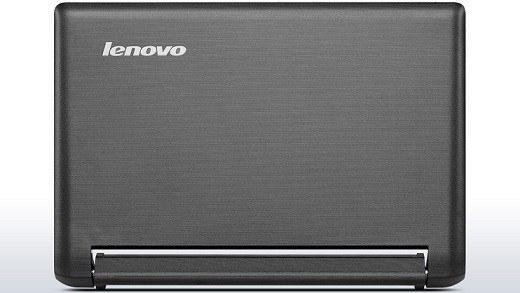
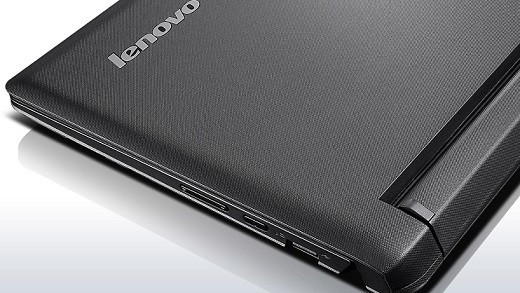
The Lenovo Flex 10 is a cheap Windows 8.1 touch convertible notebook that is perfect if you want to benefit from its portability and the touch interface of Windows 8.  The Flex 10 flips 300 degrees from laptop to stand mode, making it perfect to enjoy movies or to use touch applications. So, if you’re not using the keyboard, you can just flips its screen to see some pictures or watch the latest episode from your favorite show. We don’t know yet its official pricing, but it is rumored to be around $550.

It comes with a 10.1″ 10-point multitouch display that is optimized for Windows 8.1. The Flex 10 is less than 1″ thick and weighs less than 3 pounds – 17.3mm (0.68″) thick and weighs 1.2kg (2.6 lbs). You will find the ergonomic AccuType keyboard, stereo speakers,  integrated 720P HD webcam inside. It has a 1,366 x 768 resolution and a Bay Trail Pentium or Celeron processor instead of Haswell. Find below its full tech specs:

  • Processor – Intel® Quad Core™ Pentium™ N3510 processor, Celeron® N2910 processor; Intel® Dual Core™ Celeron® N2810 processor, Celeron® N2805 processor
  • Display / Resolution – 10.1″ HD (1366 x 768) resolution
  • Graphics – Integrated graphics
  • Memory – Up to 2GB DDR3L memory (Celeron® model), Up to 4GB DDR3L memory (Pentium™ model)
  • Hard Disk Drive – Up to 500GB storage
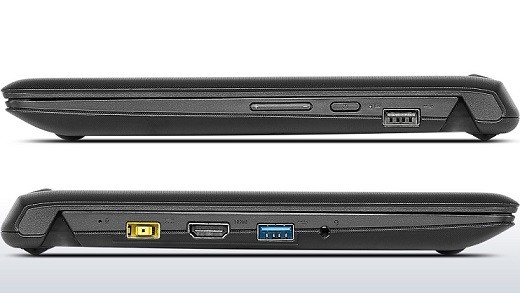
  • Connectors – USB 3.0 x 1, USB 2.0 x 1, HDMI, Audio combo jack
  • Sound – Stereo speakers
  • Integrated Communications – Bluetooth® 4.0, WiFi 802.11 b/g/n
  • Weight – 1.2 kg (2.64 lbs)
  • Camera – 720p webcam
  • Dimension – 273 mm x 188.5 mm x 21 mm (10.74″ x 7.42″ x 0.82″)

Its battery life is said to last only up to 4 hours with a standard 3-cell battery, which is probably its biggest drawback. It also comes with the  Lenovo Energy Manager software to increase battery life and the Veriface Pro face recognition software.

Nokia 2520 vs iPad Air: Video Advertising

This is not a battle of specs, but rather Nokia’s take on the iPad Air with their latest advertising. This is the same advertising philosophy that Microsoft has been trying for years now. But will it work?

This new advertising meant to highlight how awesome the Nokia Lumia 2520 Windows RT tablet seems very similar to a Microsoft Surface RT vs. Apple iPad that Microsoft has released quite a while ago, despite horrible sales back then. Albeit initially Nokia was said to quit working on a  Windows RT tablet project, it has finally seen the daylight under the form of Nokia 2520.

Read Also: Former Microsoft CTO Creates Exclusive $80 App for iPhone/iPad

As for the above ad itself, we must give the due credit to the advertising agency, as it brings out the advantages that the Lumia 2520 has over the iPad Air, and it all basically boils down to productivity. However, despite this, the iPad doesn’t seem to be afraid of Windows 8 tablets, but maybe the launch of such devices as the Dell Venue 8 Pro or the Lenovo Miix2 and the Toshiba Encore will put pressure on Apple’s darling tablet.

Windows 8, 10 App Check: Vkontakte

The official VKontakte Windows 8 app or VK, as it is also known, is available in the Windows Store. We take it for a quick ride to see if it can suit your needs of online communication.
vkontakte windows 8
The official VKontakte app for Windows 8 has been available in the Windows Store for quite a while now, but it lacked a lot of important features to make it truly a standalone client. With the launch of Windows 8.1, the developers of VKontackte have also released a revamped version of this popular social network in Russian speaking countries.

Vkontakte is some sort of a local Facebook, similar to Odnoklassniki and is very popular in Russia, Ukraine, Belorussia, Moldova and other countries where there is a considerable number of Russian-speaking people. There are actually over 220 million with registered profiles, so there is quite a lot of interested for a Windows 8.1 app, as well.

The multiple-sized Live Tiles are available, including the big one. Also, there’s split screen support. The VKontakte app for Windows 8.1 is very similar to the Windows Phone 8 version. If you don’t want to install Vkontacte for Windows 8 (download link at the end), you can use the IM+ Instant Messenger, which also has ICQ login options.

Read Also: Yahoo Messenger for Windows 8: The Same Fun While Chatting

The latest update for Windows 8.1 app Vkontakte has added the  “Feedback” section, English and Ukrainian languages, Bing maps and Yandex.Maps, as well as many other small changes and fixes.

Download Vkontakte VK for Windows 8

Microsoft admits Windows RT is inflexible, could disappear

Microsoft admits Windows RT is inflexible, could disappear

Microsofts’s Executive Vice President of Devices and Studios, Julie Larson-Green, has strongly hinted that Windows RT could be disappearing from the Windows line-up at some point in the future. IN a Q&A session at the UBS Global Technology Summit earlier in the week, Larson-Green was asked about the initial launch of Surface and the confusion that the existence of Windows RT caused.

Hear the word Windows and you probably immediately think of the desktop version of Windows 8.1 — it’s easy to forget that Windows RT exists, and Windows Phone is usually thought of as being an entirely separate entity. At Microsoft, these are seen as three branches from the same tree, but it is fair to say that there has been some confusion about the difference between Windows 8.1 and Windows RT 8.1.

In the Q&A session, Larson-Green agreed that both consumers and suppliers had been confused by the two variants of Windows 8, going on to say that the aim with Windows RT was to create a “closed, turnkey experience” much like Apple has done with iOS. Explaining the reason for the two different branches of Windows, Larson-Green said that the aim was to create one system that delivered the full power of a PC, and another that provided the simplicity of a tablet.

She did admit that the goal had not been explained “super-well” and said that more could have been done to differentiate between the two. She also went as far as saying that Windows RT “doesn’t have all the flexibility of Windows”. But what she says next is particularly interesting.

“We have the Windows Phone OS. We have Windows RT and we have full Windows. We’re not going to have three. We do think there’s a world where there is a more mobile operating system that doesn’t have the risks to battery life, or the risks to security. But, it also comes at the cost of flexibility. So we believe in that vision and that direction and we’re continuing down that path.”

So what is meant by those six little word “we’re not going to have three”?

There are a few options open to Microsoft here. Windows Phone and RT could be merged into a single mobile platform, Windows RT could be renamed so as not to include the Windows name and hopefully eliminate confusion, or Windows RT could just be completely dropped.

Which route do you think makes the most sense? Was Windows RT badly thought out? Can Microsoft rescue the platform and make it a success?

Dell Venue 8 Pro: the Best Windows 8 iPad Mini Competition?

Dell’s Windows 8.1 Venue 8 Pro Windows 8.1 tablet is one of the most interesting tablets to consider for buying and we go through the most interesting review to make a conclusion.
dell venue 8 pro reviews
We’ve just finished comparing the Dell Venue 8 Pro with the Lenovo Miix 2 in a battle of cheap, reliable and small-ish Windows 8.1 tablets. Now, it’s time to see what the reviewers are saying about the Dell Venue 8 Pro in order to make a compilation of judgments, if I can say so, from the people who tested the tablet.

What you need to know is that there is confusion between this tablet and the Dell Venue 8 smartphone, so be careful. If you want, you can also have a look at the Dell Venue 8 Pro user manual, as well. A reminder of the specs that Dell Venue 8 Pro comes with can also be found in our vs piece with the Lenovo Miix 2, so we won’t go over that again in detail, so here are the main features:

Dell Venue 8 Pro Specifications

  • 8 inch 1280×800 HD IPS display w Active Digitizer (more on this later)
  • Intel Bay Trail Z3740D 1.33Ghz Quad core CPU with Intel HD graphics
  • 2GB DDR3 RAM
  • 32 or 64GB eMMC storage
  • Office Home and Student 2013
  • Dimensions: 216.2 mm (8.51”) x 130 mm (5.11”) x 9 mm (0.35”); 405g (0.89lb)
  • Ports: Micro USB 2.0, microSD, headphone jack
  • 1.2MP front and 5MP rear cameras

Dell Venue 8 Pro Reviews Roundup

The reviews for the Dell Venue 8 Pro are lengthy and if you’re interested in buying the product, I’m sure you’ve browsed a few of them already. But what I will be focusing here is the conclusion and the wrap-up lines that usually matter when giving your final opinion about a certain product. Here are the ones I found to be the most conclusive.

David Pierce with The Verge found the following strong and weak points

  • Good Stuff – Great price for a Windows tablet, Good battery life, Solid performance
  • Bad Stuff – Broken auto brightness, No Micro HDMI to make use of desktop apps, Bad Windows key placement

Dell’s Venue 8 Pro is the best Windows competition for the iPad mini, but it’s still far from matching Apple’s tablet. The out of box experience of the display dimming is unforgivable in a modern device, and Dell’s odd decision to place a Windows key at the top of the tablet is equally puzzling. The lack of Windows 8 apps holds this type of device back somewhat, but the potential is promising. Microsoft has laid some solid foundations with Windows 8.1, and will let you read, surf, listen to music, and watch movies. That’s really what these types of tablets are about: consumption.

Paul Thurott from Winsupersite:

I really hoped to offer something definitive about this well-made device, to be able to issue some kind of a general recommendation that could stand up to deeper scrutiny. But the Dell Venue 8 Pro is a victim of the Windows Store interface and a few strange design decisions, and while some will take no issue with either, many will. And you need to be aware of the limitations. I like this device quite a bit. It pretty much proves that a Windows mini-tablet can work, and work well. Can I recommend it? Not without caveats, and without a discussion of those ecosystem issues.

But yes, this is a high-quality machine, and it has me wondering now about its bigger brother, the Dell Venue 11 Pro, which comes in a low-end version that features innards similar to the Venue 8 Pro. I also has me wondering about competing Windows 8-based mini-tablets like the Lenovo Miix 2 and Toshiba Encore. Perhaps it’s time to look at one of those next.

Ef Jay with UmpcPortal:

In summary, the Dell feels more like a regular, full powered PC than a tablet built for casual usage. Tasks execute quickly, with the exception of things like installing programs or unzipping files since that is still dependent on relatively slow eMMC storage but once programs are installed working with them and navigating round the OS feels responsive and fast in such a way that you do not feel you are using a budget system.

Only a side by side comparison with a more powerful PC will expose the Dell’s limitations but in isolation it could easily work as a main system for work processing, web browsing and even some light PC gaming. Compared to Atom devices of old including those that launched with Windows 8, the Dell Venue 8 Pro and other Bay Trail tablets are a much better and satisfying experience and finally realize the dream of having a full PC in your hand without compromising on performance, portability or battery life.

Preston Gralla from ComputerWorld

If you’re looking for a reasonably priced, well-performing Windows 8.1 tablet, the Dell Venue 8 Pro is the one to get. Given its size, it’s suitable only as a tablet and won’t do double-duty as an ultrabook, as the far more expensive Surface Pro 2 with keyboard can. If an 8-inch screen isn’t big enough for you, you might want to consider the $500 Dell Venue 11 Pro, which comes with a 1920-x-1080-pixel 10.8-in. screen, can handle up to 8GB of memory and up to 256GB of storage, has a 2-megapixel front-facing and an 8-megapixel back-facing camera, and includes a full USB 3.0 port as well as a Mini HDMI port. The Venue 8 Pro may not be quite perfect — but let’s face it, $300 won’t buy you perfection. However, it will buy you a quite good Windows 8.1 tablet, and that’s great news for Windows lovers.

Read Also: New Windows 8.1 Toshiba Ultrabook has an Amazing Battery Life of 22 Hours

Now, after reading these reviews, no doubt I am going to include it on my short list of Windows 8 tablets for this holiday. What about you?


Dell Venue 8 Pro VS Lenovo Miix 2: Who Wins?

The fight for the best small and cheap Windows 8 tablet is going on and now we confront the Dell Venue 8 Pro and the Lenovo Miix 2 to see who is the winner that you might be looking to get this holiday.

Holidays are just around the corner and I guess that you, just like me, are planning on buying a Windows 8 tablet, but you don’t know which one. The above link will point you to a guide that will try to explain what Windows 8 or Windows 8.1 tablet to get this holiday season. Microsoft has got some sweet Black Friday and holiday deals, so maybe you could have a look there, as well.

Previously, we have did some other Windows 8 tablet comparisons, putting tete-a-tete the Toshiba Encore and the Asus T100 and comparing the same Toshiba Encore with the Lenovo Miix 2. Now, it’s time to bring in a new player – the Dell Venue 8 Pro and confront it with the Lenovo Miix 2 to see who wins.

Lenovo Miix 2 vs Dell Venue 8 Pro: Battle of Specs

Both these tablets come with Windows 8.1 built-in and have the same size of 8 inch. There are many other similarities between these two, but what you need to be paying attention are the differences. We will highlight them to make it easier for you.

  • Price – both the Lenovo Miix 2 and the Dell Venue 8 Pro have the same starting price of $299, but you can buy the Dell Venue Pro 8 from Amazon for $20 less, that is, if Amazon is available in your countrydell venue 8 pro
  • Display – the Miix 2 has a HD 16:9 widescreen with IPS technology and a 1280 x 800 with 10-finger multi-touch support while the Venue Pro 8 comes with IPS LED of the same 1280 x 800 resolution and 10-finger multi-touch support. Although the wording is a little different, these displays are basically the same
  • Processor – both Windows 8.1 tablets come with the same Z3740D Intel Bay Trail Dual Core up to 1.80 GHz
  • Memory – Again, here we see some small differences, the Lenovo Miix 2 coming wit a 2 GB LPDDR2 800 MHz vs Dual Venue 8 Pro’s 2 GB DDR3L-RS 1333 MHz one. This means that the Dell Venue 8 Pro should be a tad faster than the Miix2. But, in real-life usage, I reckon that this difference is negligible
  • Storage – no differences here a 32 GB SSD internal storage for both tablets. To extend that storage, the Miix 2 comes with a Micro SD reader while Dell Venue 8 Pro supplements that with SDHC and SDXC versions. Another small win for the Venue 8 Pro.
  • Audio and Video – no differences here, both the Lenovo Miix 2 and the Dell Venue 8 Pro coming with integrated audio and intel HD graphics. It’s hard to expect something else at this price tag, to be frank.lenovo miix 2 vs dell venue pro 8
  • Ports – the Lenovo Miix 2 seems to be the winner here as it has Micro USB 2.0, Micro HDMI and Headphone output while the Dell Venue 8 Pro comes with an older generation Micro USB and only headphone output/microphone input combo. The Micro HDMI and Micro USB 2.0 on the Miix 2 are much welcome inclusions
  • Battery – both Windows 8.1 tablets have  a 2-cell lithium-ion battery and what I’ve seen from the reviews is that both of them average somewhere around 7+ hours. But, the specs sheet says that the Lenovo Miix 2’s can be alive for up to 7 hours while Dell’s Venue 8 Pro promises 8 hours.
  • Camera – the Lenovo Miix 2 has a 2 MP front camera sensor and a 5 MP in the rear while Dell’s Venue 8 Pro has only a 1.2 MP HD webcam and a 5 MP in the back. If you plan on doing a lot of video chatting, then the Miix2 should be your choice.
  • Wireless – Bluetooth is found on both tablets but where it gets interesting is that while the Lenovo Miix2 comes with the 802.11b/g/n WiFi standard, the Dell Venue 8 Pro wins the game with the latest 802.11a/g/n WiFi standard, which is faster and also Miracast enabled. Read more about Miracast on the above link.
  • Dimensions – Now, we’re getting down touchy and feely, comparing the sizes. Lenovo Miix2 comes with the following dimensions – 8.46 x 5.19 x 0.31 in (214.88 x 131.82 x 7.87 mm) while the Dell Venue 8 Pro has these 8.50 x 5.12 x 0.35 in (215.90 x 130.04 x 8.89 mm). So, we can see that the Lenovo Miix 2 is a tad thinner, by around 1mm.
  • Weight – the Lenovo Miix 2 wins the weight battle, as well, wheighing 0.77 lbs (349.26 g) versus Dell’s Venue 8 Pro’s 0.87 lbs (394.62 g). So, this means fifty grams lighter, but personally that shouldn’t matter that much. But, then again, it’s up to your personal taste.

Read Also: AMD to Launch a Windows 8.1 Gaming Tablet with Mullins Chips

So, it’s pretty hard to see which one you should go for as each one has its strong and weak points. Go through the article once more and decide for yourself what matters the most and what are the features you’re looking for.

update – the Lenovo Miix 2 does not have a micro HDMI port, and I previously said it comes with one. The information was taken from Microsoft’s Store, but the official Lenovo website says that it doesn’t have one, so please excuse my mistake.

Windows 8, 10 App Check: TripAdvisor

TripAdvisor has finally made it to the Windows Store for Windows 8 and Windows RT owners. Read our review to understand whether the Windows 8 app performs as good as the web version of TripAdvisor.

Start planning your awesome trips and travels straight from your Windows 8 tablet with the TripAdvisor app

What I didn’t understand about the TripAdvisor app’s coming to Windows 8 is the fact that it wasn’t promoted as much as Facebook or even Flipboard. That’s why many didn’t find out that the official Tripadvisor app has been launched for Windows users. Well, now you know, so it’s time to have a quick look at it.

The official Windows 8 app lets you browse Tripadvisor’s entire travel database and doesn’t serve just like a cloak for the web interface, like many LinkedIn Windows 8 apps do, for example. As always, TripAdvisor can be used to look-up a hotel or location and when searching for a location, a list of hotels, restaurants, attractions and guides will be displayed for you.

Just like we’re used to with the web app of TripAdvisor, the hotels and attractions are sorted by popularity, but you can change that to make the sorting by price, business or family, price per night, rating, hotel class and a number of other parameters. You also have the option of clicking on a map to view places of interest near your location. The user interface is neatly designed and doesn’t make you wanna switch to the web browser. If you have a TripAdvisor account, you can log in to post reviews or save places. App’s description goes like this:

Millions of traveler reviews, photos, maps from TripAdvisor. Plan and have your perfect trip. With over 100 million reviews and opinions by travelers, TripAdvisor makes it easy to find the lowest airfare, best hotels, great restaurants, and fun things to do, wherever you go. And booking options for hotels, restaurants and flights are just a tap away.

Read also: 10 Best Windows 8 Travel Apps

When looking for he best hotel for you, you will see which places won the Travelers’ Choice award. You can also compare airfares and find great deals straight from within the Windows 8 TripAdvisor app. Despite the fact that it has got a huge database, the app was very smooth and quick, without any lags, whatsoever. Follow the link from below to get the official TripAdvisor app for Windows 8 and start planning the perfect travel.

Download TripAdvisor Hotels Flights Restaurants for Windows 8

Parrot AR Drone and Zik get Windows 8, 10 Support

Parrot and Microsoft have announced that the official Parrot Apps which control the Parrot Zik headphones and Parrot AR.Drone 2.0 quadcopter will soon get Windows 8, Windows 8.1 and Windows Phone 8 support
parrot ar drone windows 8
Windows Phone 8 users have long awaited for Parrot to make their AR Drone and Zik headphones apps and driver available, and now it seems that the company is almost there. The augmented reality gaming fun will come to Windows 8, as well, since the company has announced that they will be bringing support to Windows 8 and Windows RT, as well.

You will soon be able to use the Parrot Zik headphones and pilot the AR Drone or AR Drone 2.0 Parrot drone even from your Windows 8 desktop or tablet as well as Windows RT. Windows Phone 8 users can already download the free Parrot Audio Suite app from the Windows Phone store (link at the end) will the Windows 8.1 and Windows RT 8.1 version of the app will be released next month.

The Parrot AR.FreeFlight app will be appearing on Windows 8, being available in the Windows Store in early December of 2013 while the Windows Phone 8 app for the Parrot AR.Drone 2.0 is expected to launch in early 2014. Henri Seydoux, founder and CEO of Parrot said the following during a meeting with Steve Ballmer:

Read also: Steve Ballmer: Microsoft Has 1 Million Servers in their Datacenters, Only Second to Google

parrot ar drone 2.0 windows 8 zik

We have been working for months with Microsoft to ensure the compatibility of Windows 8 and Windows Phone 8 devices with Parrot products. I am happy to announce the Windows compatibility of apps that are linked to two of our star products: the AR.Drone and the Zik headphones.

I don’t know about you, but I’ve always wanted a gadget like the Parrot AR Drone and now that support for Windows 8 is coming, I will soon be able to control it from my Windows 8 tablet as I plan on buying on this Christmas. Sweet!

Download the Parrot Audio Suite application for Windows Phone 8

Windows 8, 10 App Check: Flow Free

Flow is one of the most popular games for those playing it on mobile devices. But when it comes to Windows 8 tablets, there aren’t too many compelling Flow games in the Windows Store, but Flow Free is a great exception and we take it for a ride

Once you start playing, you become glued to the screen - I am telling you this!
Once you start playing, you become glued to the screen – I am telling you this!

When I first saw a Flow game that a friend of mine was playing, I didn’t really get the point, but now after playing for several hours in a row on my Windows 8 tablet, I realize what the big deal was about. Flow Free for Windows 8 is an addicting game but one that puts your brain to work, just like a chess or a checkers game would do.

Flow Free is a simple yet addictive puzzle game. Connect matching colors with pipe to create a flow. Pair all colors, and cover the entire board to solve each puzzle. But watch out, pipes will break if they cross or overlap! Free play through hundreds of levels, or race against the clock in Time Trial mode. Gameplay ranges from simple and relaxed, to challenging and frenetic, and everywhere in between. How you play is up to you. So, give Flow Free a try, and experience “mind like water”!

This is how the official description of the Flow Free game for Windows 8 goes like. This is a free app with more than 600 free levels available in the Free Play mode. The app comes with 10 different board sizes and four different level packs: Free Classic, Bonus, 8×8 Mania, and Jumbo level. If you want, you can purchase more packs, and if you’re a Flow aficionado, I assume you’ll do that. But it is not necessary, as 600 free levels are more than enough.

Read Also: 5 Best Windows 8 Scrabble Apps

You get to track the completion of each level in the Free Play mode and try to be as accurate and quick as possible by using the fewest number of moves. The Time Trial is a special mode where speed is all that matters. The user interface is clean and smooth with fun sounds and clean graphics. Follow the link to download and install Flow Free on your Windows tablets.

Download Flow Free app for Windows 8.1, Windows RT

See Microsoft’s Black Friday Deals for 2013: Gaming, Tablets, Laptops

Black Friday is just around the corner but Microsoft has already started its offers for the 2013 holiday season. We will be updating the post with more deals as we get them

microsoft black friday deals 2013
Start saving, because BlackFriday is finally here! What are you going to get this year?

Set your alarm (you can do it in Windows 8, as well) for BlackFriday, as prices will drop at midnight ET on November 28th on Microsoft’s Stores, both online and physical locations. To make it easier for you, we have gathered in a single place all of Microsoft’s Black Friday Deals for 2013 which include Xbox One and Xbox 360, games, Windows 8 tablets, laptops and much more.

Some of the prices have been leaked already, while we wait for other product listings to get a price tag, as well. Once that happens, we will update this article as soon as possible. So, be sure to bookmark it and come back just in time for 2013’s edition of the Black Friday.

Microsoft’s Black Friday Deals for 2013

At the moment, we also don’t know if the Black Friday deals are exclusive to online ordering or if you can get them from Microsoft’s physical retail stores, as well. The 2013 Black Fridaysale kicks off at midnight EST November 28th, and here’s what Microsoft is going to seriously discount. All orders include free shipping, as well, but we don’t know an estimate shipping time as of now.

For now, we only have the link to Microsoft’s online store, but will provide individual links once they become available, as well.

Microsoft’s 2013 Black Friday Xbox and Games offer

2013 black friday xbox games microsoft

  • $299 Xbox 360 250GB console for $199
  • $249 Xbox 360 4GB console for $179
  • $59 Call of Duty: Ghosts for $39.99 (Xbox 360), $49.99 (Xbox One)
  • $59 Grand Theft Auto V for $33.99
  • $59 Battlefield 4 for $38.99 (Xbox 360)
  • $59 FIFA 14 for $24.99 (Xbox 360)
  • $59 Assassin’s Creed IV: Black Flag for $33.99 (Xbox 360)
  • $59 Madden NFL 25 for $24.99 (Xbox 360)
  • $75 Skylanders Swap Force for $38.99
  • $20 Minecraft for $14.99
  • $39 Halo 4: Game of the Year Edition for Xbox 360 for N/A
  • $55 Xbox 360 Special Edition Camouflage Wireless Controller for N/A

Microsoft’s 2013 Black Friday Tablets offer

microsoft black friday 2013 tablets surface

  • $349 Surface RT 32GB for $199
  • $399 Surface RT 64GB for $379 (December 1st)

Microsoft’s 2013 Black Friday Laptops offer

microsoft black friday 2013 laptops

  • $849 Dell Inspiron 15Z with Intel Core i5 processor, 6GB RAM, 32GB SSD and 500GB HDD for $399
  • $849 Samsung ATIV Book 5 NP540U4E-K01US Ultrabook for N/A
  • $649 Gateway NV570P10u Touchscreen LaptopGateway NV570P10u for N/A

Microsoft’s 2013 Black Friday Headphones and Speakers offer

headphones speakers black friday 2013 microsoft

  • $55 WeSC Piston Street Headphones for N/A
  • $200 Beats by Dr. Dre Pill Bluetooth Wireless Audio System for N/A
  • $25 Skullcandy Ink’d 2 Earbuds with Inline Mic for N/A
  • $250 Beats by Dr. Dre Mixr Headphones (Neon Orange) for N/A
  • $180 Beats by Dr. Dre Solo HD Headphones (Blue) for N/A
  • $150 Jawbone JAMBOX (Black) for N/a

Microsoft’s 2013 Black Friday Smartphones offer

nokia lumia black friday 2013 microsoft

  • $99 Nokia Lumia 520 No Contract for AT&T for N/A

Other Microsoft 2013 Black Friday offers

  • $2,200 MakerBot Replicator 2 Desktop 3D Printer for N/A

Windows 8.1 Xbox One SmartGlass App Released in the Windows Store

The Xbox One commercial launch is just around the corner and to have everything in place, Microsoft has decided to launch the Xbox One SmartGlass App in the Windows Store for Windows 8 and Windows 8.1 users

xbox one smartglass windows 8.1
The Windows 8.1 companion app for the Xbox One is already here, this is how it looks like

You are probably waiting for the moment when the Xbox One pre-orders finally start so you can order yours. But if you have a Windows 8 tablet or device, you can already download and install the official Xbox One SmartGlass app that Microsoft has just launched in the Windows Store. By using the new app you will be able to  navigate on the Xbox One using the keyboard or touch.

The application has received companion apps for Windows Phone 8, iOS and Android, as well.  The Xbox One SmartGlass App for Windows 8 comes with options to control your media and set top box with the remote control function. You can also browse the web, track achievements, chat with friends and access the help files of each game from a Windows 8.1 device. Here’s how the app’s description goes:

Xbox One SmartGlass is the perfect companion app for your Xbox One, both in your living room and on the go. Connect and control your Xbox One. Stay connected with the games and gamers you like. And add a new dimension to your console entertainment with the mobile device you already own.

Read Also: Microsoft Reveals ‘ID@Xbox’: Xbox One Indie Self-publishing Program

The Windows 8 and Windows Phone 8 apps for the Xbox One are very similar to the one for Xbox 360. The app is currently available in the following languages: German, Spanish, French, English (Australia), Italian, Spanish (Mexico), Portuguese (Brazil), English (United Kingdom), English (Ireland), English (New Zealand), English. Follow the link from below to download and install it on your Windows 8 and Windows RT devices.

Download Xbox One SmartGlass app for Windows 8.1