5 Best DVD players with Bluetooth in 2026

DVD players are still holding strong, and they are becoming more and more versatile. This means that now DVD players not only include HDMI outputs, but some even come with USB and Bluetooth support.

This allows them more flexibility in terms of playback, and it also makes them much more desirable.

We’ve compiled a list of some of the best DVD players that offer support for HDMI, USB, and Bluetooth, so finding one that suits your taste will be a lot easier.

Note icon NOTE
Deals are subject to change. Keep in mind that the price tag often varies. We recommend going to the vendor’s website to check the price because some of the products may be out of stock by the time you’ve made your purchasing decision. So, hurry up and hit the buy button.

What are the best DVD players with HDMI, USB, and Bluetooth?

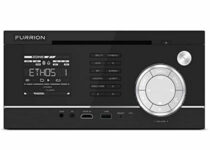
Furrion 3-Zone Entertainment System

  • USB, Bluetooth 4.0, NFC, HDMI connectivity
  • Built-in DVD Player
  • VibrationSmart, ClimateSmart & SignalSmart design
  • LCD display with illumination
  • Does not support Wifi speakers

Furrion delivers a complete entertainment system equipped with a built-in DVD player, USB media input, video support (AUX-In), headphone jack, and HDMI display.

The device is as versatile as it durable boasting a reliable structure that can withstand constant vibrations and extreme climates.

To top it all, the device is also stylish and esthetically appealing.

DDAUTO Android Headrest DVD Player

  • IPS Touch Screen
  • Supports WiFi, Bluetooth, HDMI Output
  • Built-in 4500mAh Battery
  • Adjustable headrest mounting brackets
  • Does not support Blu-Ray discs

Fully portable, this is the perfect addition to your car or home. The DVD player boats a wide IPS LCD touch screen and fully adjustable mounting brackets to easily fit the headrests in your car.

Connectivity is also privileged and you can choose to go wireless or use Bluetooth. If you’re on the road also, you will also appreciate the 4500mAh built-in rechargeable battery that lasts as long as you need it to.

Additional features include Sync Screen, Phone Mirroring, and HDMI Out for you to take full advantage of this versatile device.

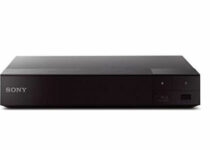
Sony BDPS6700

  • Inputs/Outputs: 1 HDMI, 1 USB, 1 Coaxial, 1 Ethernet
  • Features built-in Wi-Fi 2.4 GHz, 5 GHz with Mimo
  • Can wirelessly access popular streaming apps and services
  • 4K Upscaling
  • Issues with the remote control

One of the few full-fledged DVD players on our list, the Sony BDPS6700 is here to offer you some of the best multimedia experience there is.

It features 4K upscaling so your movies will look crystal-clear, and you can connect to headphones via Bluetooth to listen to music all around the house.

NAVISKAUTO Car DVD Player

  • Sync up to 1080P video and audio from your computer, mobile phone, and more
  • Built-in USB/SD/MMC card slot
  • Share the same movie by AV cable or play different videos simultaneously
  • Last memory/resume function can start from where you left
  • Quality control issues

The NAVISKAUTO Car DVD Player looks more like a tablet than an actual DVD player, and it also comes with some built-in games.

The sleek design makes it great to look at, and the portability makes it great for carrying wherever you go. Additionally, you can easily mount it in the car for everyone to watch movies on the road.

YACEG Portable DVD Player

  • Can support all known disks
  • Equipped with a USB port and stereo speakers
  • Acts like a portable DVD/CD player
  • Can be used as an FM radio, Bluetooth HiFi speaker, Mini home Boombox
  • Remote needs to be right in front of the DVD player to actually work

The YACEG Portable DVD Player is an all-purpose portable DVD player that you can mount pretty much everywhere in the house so you can watch movies.

It can be used as an FM radio, Bluetooth HiFi speaker, Mini home Boombox, and it can be connected to an external speaker for even more powerful sounds.


The DVD players that we were used to only had HDMI ports. However, times have changed, and since now pretty much all devices come with USB ports, DVD players have gotten them as well.

More so, we live in the age of wireless connections, so Bluetooth support is yet another feature that DVD players are learning to incorporate.

Microsoft reports hacking attempts targeting COVID-19 vaccine makers, some successful

Microsoft today revealed that North Korea and Russian state-sponsored hackers had been involved in cyberattacks targeting leading pharmaceutical companies. These seven companies are currently researching COVID-19 drugs and vaccines.

“In recent months, we’ve detected cyberattacks from three nation-state actors targeting seven prominent companies directly involved in researching vaccines and treatments for Covid-19. The targets include leading pharmaceutical companies and vaccine researchers in Canada, France, India, South Korea and the United States. The attacks came from Strontium, an actor originating from Russia, and two actors originating from North Korea that we call Zinc and Cerium,” said Tom Burt, Corporate Vice President, Customer Security & Trust.

These cyberattacks attacks, which were largely successful, were conducted by three hacker groups, including Fancy Bear/APT28, Lazarus, and Cerium. The Russian state-sponsored hacker group Strontium used password spraying techniques to steal researchers’ login credentials associated with the pharmaceutical companies. On the other hand, the Lazarus Group and Cerium used targeted spear-phishing emails to attack their victims; there is no word on the number of successful attacks, though.

Today’s blog post coincides with Microsoft President Brad Smith’s appearance at the Paris Peace Forum, where he plans to call on nations to protect health care companies from cyberattacks. “We believe the law should be enforced not just when attacks originate from government agencies but also when they originate from criminal groups that governments enable to operate – or even facilitate – within their borders. This is criminal activity that cannot be tolerated,” the company explained today.

Outlook for Windows to get roaming signatures in December, but some users get it early

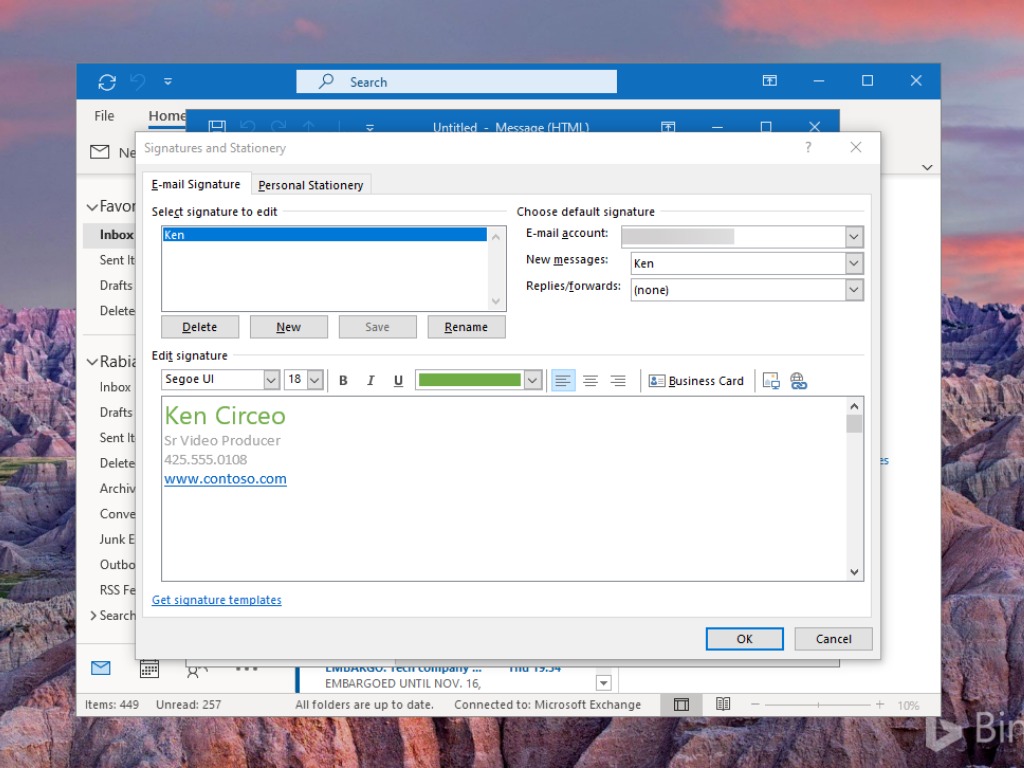
In May, we learned that Microsoft is working to bring cloud support to Outlook for Windows email signatures. The feature has been delayed several times and it’s now scheduled for December 2020, according to the Microsoft Outlook Roadmap.

However, it appears that users will soon have an option to configure an email signature and have it saved in the cloud. This one comes from ZDNet’s Simon Bisson, and according to his tweet, the feature is already rolling out. In addition, Richard Hay also spotted roaming signature settings on his Windows device.

Until now, email signatures are stored locally on Windows devices, and users have to configure the signature settings manually every time they install their email client. With this feature, email signatures will be saved inside the user’s Microsoft 365 account.

Roaming signatures can be easier to manage because it will allow users to set up their account once, and new installations of Outlook will have their signatures. The new experience should enable them to have a consistent signature across devices. Since the feature is turned on by default, be aware that third-party add-ins that provide this functionality will no longer work on your PCs.

At launch, Outlook for Windows is the first one to get the cloud signature support, and Outlook for iOS and Android will get this capability at later dates. You can read more about the feature in this support article. Have you spotted this feature on your PCs? Sound off in the comments section below.

5 best tablets for visually impaired [Low Vision]

Technology hasn’t yet evolved to the point where fully-interactive tablets would have tactile feedback in the form of Braille.

So we can’t talk about a fully-compatible choice for the visually impaired, but there are a few low vision tablets that you might want to consider in this situation.

These tablets were developed with visually impaired customers in mind as devices that can cater to this category of customers’ needs in an effective manner.

Note: Deals are subject to change. Keep in mind that the price tag often varies. We recommend going on the vendor’s website to check the price. Some of the products may be out of stock by the time you’ve made your purchasing decision. So, hurry up and hit the buy button.

What are best tablets for impaired vision on the market?

Lenovo ThinkPad X1 Tablet 3rd Gen

  • Top-notch performance
  • Large 13-inch screen
  • Windows comes with many great accessibility features
  • Bluetooth, Wi-Fi-enabled
  • The price is a bit high

Lenovo ThinkPad X1 Tablet 3rd Gen is a powerful machine that could be a perfect fit for low vision users, thanks to its 13-inch screen and Windows operating system.

It’s a known fact that Windows had great accessibility settings ever since Windows 98, so naturally, the Windows 10 edition of the operating system can’t be any less than its ancient predecessor.

Dragon Touch Max10 Tablet

  • 1200x1920 FHD Display
  • Octa-Core Processor
  • 32GB storage plus 2GB RAM
  • 5G WiFi and GPS-enabled
  • Does not have an HDMI port

Fueled by a 64-bit Octa-Core high-performance processor with 32GB of storage and Wi-fi connectivity, the Dragon Touch Max10 will definitely improve your usability, viewing and hearing experience in many ways.

The Full HD, 1920 x 1200 resolution supporting, IPS touch screen with dual speakers will make sure of that.

Its slim body manages to encase all the modern technology you could want in a tablet at it can store up to 128GB of content via a microSD card.

Samsung Galaxy Tab S5e

  • POGO pin connectors
  • Sensible, user-friendly key placement
  • Shockproof material
  • Stylish and comfortable design
  • Some users reported that the magnet may be a bit flimsy

This keyboard case is as elegant as it is effective. With pleasant esthetics combines with durable shockproof protection, the cover is just what you need to keep your device secure and intact.

But there’s more! The keyboard is productivity-focused and it delivers all the right features to help you achieve this starting with the DeXmode which allows you to open multiple resizable windows at the same time to a friendly key placement with a comfortable key layout meant to reduce typos and improve overall accuracy.

The intuitive POGO pin connectors will further speed up your workflows for maximum efficiency.

Mag&Read Low Vision Tablet

  • Can be voice-operated
  • Comes with integrated accessibility settings
  • Includes a scanner with a read-back feature
  • Displays high-contrast and large text
  • The price is a bit high

Mag&Read Low Vision Tablet’s name is pretty suggestive, as it’s nothing short of a tablet that’s been especially designed for being used by visually impaired users.

Among its features, you can find an 8MP camera with a 20x zooming ability, a powerful reader that quickly scans text and reads it back, high contrast and large text settings, menu, and selected text reading, as well as touchscreen or voice command operation.

Microsoft Surface Pro X

  • A large 13-inch screen
  • It’s incredibly fast
  • Build quality is great
  • 8GB Memory plus 128GB SSD
  • Not a 64-bit device

Everybody heard that Microsoft Surface Pro X is the new hype, but thinking of it as a good choice for visually impaired users is taking it to a whole other level.

The 13-inch screen combined with Microsoft’s ready-to-go accessibility settings (screen magnifier, text to voice engine, and high-contrast mode) and a hardware keyboard turn this device into a perfect match for low vision users.


Even though we didn’t reach that point in history where tablets for the visually impaired are actually a thing, there are many products that can be safely used as substituents for now.

Check out our list above and let us know what was your favorite by hitting the comments section.

5 best joysticks for flight simulators [Microsoft]

As you may know, Flight Simulator can be played using a variety of controllers. However, if you want to replicate the feeling of flying a plane, then you will need to use a joystick.

Joysticks have been around for some time, but have been steadily replaced by controllers, and now most of the joysticks that exist are for flying games anyway.

That is where they got the monickers of Flightsticks, and we’ve decided to make a list of what we think are the best joysticks that you can use for flight simulators.

Note: Deals are subject to change. Keep in mind that the price tag often varies. We recommend going on the vendor’s website to check the price. Some of the products may be out of stock by the time you’ve made your purchasing decision. So, hurry up and hit the buy button.

What are the best joysticks for flight simulators that I can buy?

Extreme 3D Pro

  • 12 action buttons
  • An eight-way hat switch
  • A rapid-fire trigger
  • Button customization and multiple controller configurations
  • It’s USB driven
  • Is a bit stiff

If you’re looking to turn your flying games such as Flight Simulator or War Thunder feel like the real thing, then getting the Extreme 3D Pro is a good starting step.

It is a universally acclaimed joystick and comes with plenty of buttons for you to bind commands and make flying feel like an adventure.


Thrustmaster T-Flight Hotas X

  • Wide hand-rest for optimal comfort
  • Programmable: the 12 buttons and 5 axles are entirely programmable
  • Dual-system aerodynamic control
  • Internal memory
  • High-precision joystick with adjustable resistance
  • Detachable, real-size, ergonomically-designed throttle control
  • Feels cheap at times

Ultra-simple to install, and ultra-simple to use for an ultra-fast flight session, the Thrustmaster T-Flight Hotas X not only looks the part, but it also acts the part of a flight stick.

It can store your settings so you can always log in with your preferred profile anytime anywhere, and the detachable throttle control will make you feel like you are actually controlling a plane high in the sky.


Thrustmaster T16000M FCS HOTAS

  • 16 action buttons with braille – style physical button identification
  • Exclusive precision
  • 4 independent axes, including twist rudder
  • 14 action buttons + 8-way POV hat
  • The occasional quality control issues

If you want to know what it feels like to hold a real flight controller in your hands, then getting a Thrustmaster T16000M FCS HOTAS will bring you pretty close to that feeling.

Not only is it ergonomically designed to fit into your hand perfectly, but the programmable buttons are great for flying games where fighting is an option.

Thrustmaster HOTAS Warthog

  • Joystick replica of the U.S. Air Force a 10c attack aircraft flight Stick
  • Detachable handle crafted entirely of metal
  • 19 action buttons in total + one 8 way
  • Metal dual trigger
  • 2 x Push buttons and 2 x Pinkie push buttons
  • The USB connector and upgradeable firmware
  • No Z-axis rotation

If realism is what you seek when playing Flight Simulator, or any other flying game, then the Thrustmaster HOTAS Warthog is the joystick you should be looking towards.

It is a joystick replica of the U.S. Air Force a 10c attack aircraft flight stick and comes with 19 action buttons so you can always have your most-used keybinding at hand.

Logitech G X56 HOTAS

  • Military-grade Space and flight sim precision
  • New mini analog stick control surfaces
  • RGB backlighting
  • Ideal for VR
  • Fully featured HOTAS
  • Suitable for big strong hands

Logitech G X56 HOTAS is the latest in a long series of flight sticks that were created for users to enjoy flying games in a more authentic way.

It feels right in the hand, and the RGB backlight make it a wonder to behold during gaming sessions, while still maintaining a  certain degree of authenticity thanks to the design and ruggedness.


As mentioned before, flight simulators can be played with pretty much any type of controller, or even using a mouse and a keyboard.

But for those of you that like authenticity, going for a good old-fashioned joystick is a huge step forward. It will allow you to feel just what it’s like to control a 5-ton machine that is flying miles up in the sky.


5 best AV receivers with Amazon Alexa

Amazon Alexa is Amazon‘s proprietary version of the Google Assistant or Siri, and it allows you to control a wide variety of other gadgets via simple voice control.

One category of gadgets that offer Alexa support is AV receivers. Using Alexa is especially great when you are watching a movie or listening to music and just don’t feel like going to the device to turn a dial.

However, many AV receivers now offer Alexa support, so picking one can be tricky. That is precisely why we’ve compiled a list for what we think are the best AV receivers with Amazon Alexa support.

Note: Deals are subject to change. Keep in mind that the price tag often varies. We recommend going on the vendor’s website to check the price. Some of the products may be out of stock by the time you’ve made your purchasing decision. So, hurry up and hit the buy button.

What are the best AV receivers with Amazon Alexa support?

Yamaha RX-V685

  • 7.2-channel AV receiver
  • Compatible with Qobuz, Pandora, Napster, Internet Radio, Deezer, TIDAL, and Spotify Internet services
  • Wi-Fi, Bluetooth, airplay 2, Spotify connect, and music cast multi-room
  • 4K, HDR10, Dolby vision, hybrid log-gamma and BT.2020 HDMI (5-in/2-out) with HDCP 2.3 and eARC
  • Alexa works only with MusicCast

If you like enjoying your music or watching your movies with a 7.2-channel surround sound system, then you couldn’t go wrong with the Yamaha RX-V685.

Not only is the sound crystal-clear and enveloping, but the Amazon Alexa support makes it great for those that hate leaving their chair or couch to make any music selection.


Denon AVR-S960H

  • 5.2 channels (90Watt X 7)
  • 4K UHD Home Theater surround sound
  • Wi-Fi, Bluetooth, and AirPlay 2 connections
  • HEOS Built-in
  • Expensive

You can’t go wrong with this Denon AVR-S960H receiver. It has a 7 channel configuration with 90Watt X 7 W high power channels, it comes with Wi-Fi, Bluetooth and AirPlay 2 wireless connectivities and Alexa is just the perfect cherry on top.

And although managing this high tech equipment might seem intimidating, the Denon receiver comes with an extremely friendly on-screen set-up assistant that will help you every step of the way.


Denon AVR-X2700H

  • 7.2 channels, 95W each
  • Dolby Atmos Height Virtualization
  • Dual subwoofer outputs
  • 8 HDMI inputs and 2 outputs with eARC
  • Expensive

With discrete high-current amplifiers on all channels, the AVR-X2700H delivers 95W per channel. It comes with low impedance drivers that provide operational stability for a plethora of speaker range.

The AVR-X2700H supports Dolby Atmos, Dolby Atmos Height Virtualization Technology, DTS:X, and DTS Virtual:X, plus an HDMI section with HDCP 2.3 support and 4K upscaling for HDMI sources.

It’s pretty clear that you’re not dealing with your grandma’s receiver here and you will need to pair it with no less than excellent quality speakers.


Yamaha R-N303BL

  • AirPlay, Bluetooth, Wi-Fi connectivities
  • Two channels of 100 W high-power output
  • Phono input terminals for turntables
  • Optical and coaxial Audio inputs for TV
  • The panel display is minimal

The Yamaha R-N303BL lets you enjoy your smartphone, networked audio, streaming services, or just the TV all in Hi-Fi quality, with exceptional sonic integrity on everything you hear.

More so, the built-in Amazon Alexa support makes it so that controlling the AV receiver is easier than ever before, just as long as you know what to tell it.


Denon AVR-X1600H

  • 7-channel amplifier
  • 4K Ultra HD 60Hz video with full HDCP 2.3 support
  • Dolby Atmos Height Virtualization Technology that creates virtual height effects
  • Support for Pandora, Spotify, Tidal & more via Bluetooth, Wi-Fi, & AirPlay 2.
  • Amazon Alexa, Google Assistant, and Apple Siri voice control
  • The 3D audio is a bit lacking

If you’re looking for a multimedia powerhouse, then the Denon AVR-X1600H is just the right thing for you.

It comes with a 7-channel amplifier with the latest audio technology that also supports the latest in Dolby Atmos technology so that the soundtrack of your movies or the music that you are listening to seem truly 3D.


When you want to sit back and relax, you really want to put an emphasis on the sitting back part.

That is why having your multimedia system with voice control is great, since you can just give voice commands without ever lifting a finger.

As such, go ahead and buy yourself an AV receiver that features Amazon Alexa support, and see what voice control truly feels like.


[wl_navigator]

6 best USB tablet cooling pads to fight off the heat

Tablets can also overheat when used over long periods of time. Since the hardware pieces are all crammed on a relatively small device, it is even more difficult for your tablet to cool down properly.  

Unfortunately, most cooling pads manufacturers focus on laptops. There are a few cooling pads specially designed for tablets and some laptop coolers can also be used for tablets.  We have 2-in-1 tablets, therefore why not also have 2-in-1 cooling pads?

We did the research for you and brought you the best cooling pads to use for tablets.


What are the best USB tablet cooling pads?

Cooler Master NotePal X-Slim

Ultra-slim 160 mm fan - 1500 RPM Cable grooves for easy cable management USB cable with passthrough May be not enough cooling power

This super-slim cooling pad is suitable for 7-17″ laptops, according to its manufacturer. Thanks to its small size, you can also use it as a tablet cooling pad.

It is compact and easy to carry thanks to its dimensions, 14.9 x 10.6 x 1.08 inches, weighing only 1.6 pounds. This cooling pad has only one 160 mm with 1500 RPM speed.


KLIM Pro

  • Extra USB port
  • Light, compact, and easy to carry
  • 2 x 120 mm fans running at 1200 RPM
  • Only 26 dB of noise
  • The USB pass-through connector can harm the handler

If you need a silent but powerful for either your laptop or tablet, KLIM Pro can be a perfect choice. It only produces 26 dB of noise so it’s extremely silent although it doesn’t skimp out on power. The double 120 m fans run at 1200 RPM for a great cooling effect.

This cooling pad is great for 10 to 15.6-inch laptops but it can very well cool your tablet. We have to mention that KLIM Pro doesn’t have a USB hub but the USB cable has a pass-through connector so you won’t lose a port from your laptop.


KLIM Serenity +

  • Up to 15.6-inch laptops or tablets
  • Only 17 dB of noise
  • Stable and sturdy metal grid
  • 4 x 1200 RPM fans
  • It's better for tablets than laptops

If you need a powerful and silent tablet cooler, KLIM Serenity + can be your best choice. It has 4 powerful 1200 RPM fans that can create 65 CFM of cooling power. 

However, some users believe that this cooling pad is better suited for a tablet than a laptop and the 17 dB of noise is just whispering loud, perfect even for night usage. 

It doesn’t have a USB hub and it only has 2 angle levels to work with.


Thermaltake CL-N002-PL12BL-A

  • Dual 120 mm fans
  • Adjustable temperature sensor
  • Multi-function display panel
  • Brushed aluminum panel
  • Problems with the turbo feature

This is another laptop-designed cooling pad you can use for your tablet. It compatible with 10” to 17” devices. It has a multi-function display panel with lock button and fan control, allowing you to adjust the fan speed.  

The fan speed can reach 1000 R.P.M ( Turbo 1300 R.P.M) with a 31 dBA noise level. Dimensions: 15.94 x 11.22 x 2.2 inches


Gamenote Gaming Laptop Cooler

  • 4 fans with adjustable speed
  • Up to 17 inch laptop
  • 2 USB ports
  • Two foldable legs for height adjustment
  • Only 2 height settings

This Gamenote cooling pad is for cooling gaming laptops so it will be excellent for cooling your smaller tablet. Moreover, its size can host even 17-inch laptops so, with a little bit of luck you will be able to cool 2 tablets at the same time.

The pad features 4 powerful fans with adjustable speed and two USB ports so you can power other peripherals.


SIIG Ergonomic

  • Mesh cushioned base
  • 20 dBA noise level
  • Aluminum faceplate
  • Up to 1700 RPM fan speed
  • The design is not very nice

This cooling pad is for up to 17-inches laptops so it will easily cool down 2 tablets. Even though it has powerful 1700 RPM 5-inch fans it only produces 20 dBA noise and that means it’s pretty quiet.

It’s got an aluminum faceplate and a bottom metal mesh for optimum heat dissipation so you can be sure that your laptop or tablets will be cooled down in no time.


When it comes to tablet cooling pads, users’ choice in very limited. Manufacturers have not yet developed this branch probably thinking that a cooling pad would make a tablet less portable.

However, many people  use tablets for hours on end at home or at work and they would very much use a cooling pad for their tablet without worrying about the extra weight.

There is also a more technical explanation: tablets and smartphones use ARM architecture, which is designed for power efficiency, while laptops and desktops use x86 architecture, which focuses on the processing speed.

In other words, the processors in laptops work at higher power levels than those on tablets. Also, tablets are optimized for battery use and cooling pads increase the level of power consumption.

We also need to mention that all these devices are also great Surface Pro cooling pads.

We’ll keep scouting the market and update our list as soon as possible. Meanwhile, do leave us a comment if you would like us to add a specific cooling pad to our list.

[wl_navigator]

10 + best USB-C adapter hubs for Windows 10/11 PCs

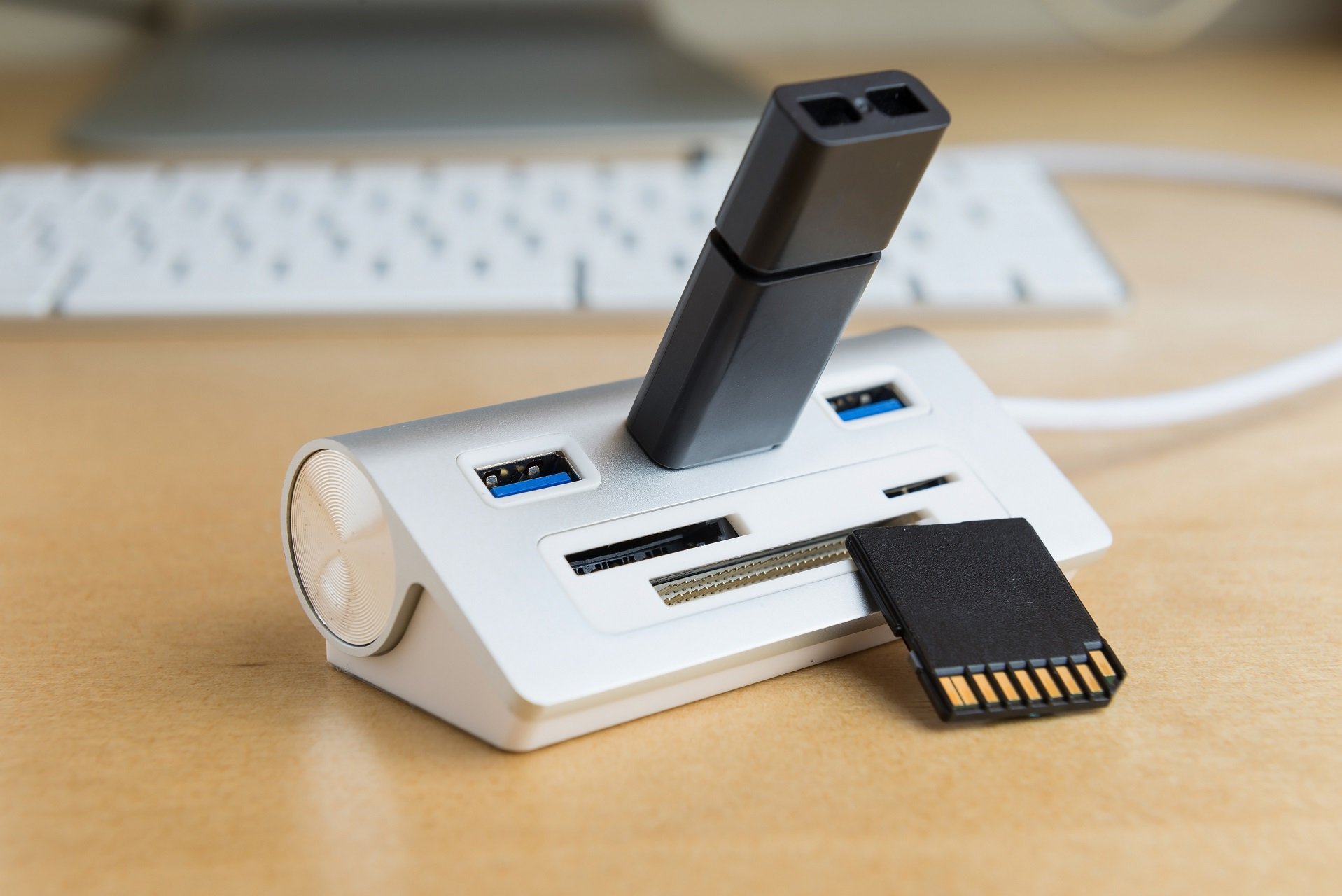
Many new laptops and PCs have a new USB Type-C connector. This type of connector offers great speed, but unfortunately, it isn’t natively compatible with standard USB devices. In order to use a USB Type-C connector with standard USB devices, you need a special adapter.

There are many devices that can help you with this problem, and today we’re going to show you the best USB-C adapter hubs for your Windows 10 PC.

What are the best USB-C adapter hubs?

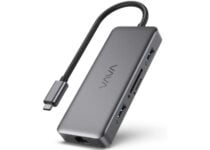
VAVA USB C Hub

  • 1 Gbps RJ45 Ethernet port
  • 100 W PD charging port
  • 4K HDMI port
  • SD/TF card reader slots
  • The cable is a bit too short

We start off this list with a USB-C adapter hub that has almost every modern port you would think of. Firstly, you have an RJ45 Ethernet port that is sometimes missing from the latest portables.

Next, you’ve got a 100 W PD charging port so you can use the latest fast chargers for the latest Windows PCs and Macs. Now add the 4K HDMI port, the 2 x USB 3.0 ports, a USB 2.0 port, and 2 card reader slots.

This is the ultimate adapter hub and all this is available in a very compact device that you can easily take in your pocket or in the laptop backpack. 

AUKEY USB C Hub 8-in-1

  • 8 in 1 adapter hub
  • Ethernet Port
  • USB-C PD port for charging
  • SD/TF card reader
  • Some problems with setting it up

AUKEY USB C Hub 8-in-1 is built like a swiss knife for the adapter world. You have every port you need in there, including 3 USBs, a USB-C PD port for charging the latest laptops, and even the SD/TF card reader slots.

Do you want a speedier Internet connection? No problem because you also have an RJ Ethernet port to connect your laptop dirrectly with a cable. And if your PC or laptop lacks a proper HDMI port, you will be happy to take advantage of the provided 4K HDMI port from the AUKEY hub.

APANAGE 4 Port Powered USB 3.0 Hub Splitter

  • Individual power switches and LEDs
  • Compatible with all USB devices
  • Maximum transfer speed of 5 Gbps
  • Light and compact
  • Only USB 3.0 ports

If you only need USB 3.0 ports but you want complete control over them without pulling them out and reconnecting them all the time, this APANAGE USB hub is exactly what you need.

The perfect thing with this hub is that you have individual power switches and activity lights for each port. That means you can turn the port off when you don’t need it instead of pulling out the cable and that translates to a longer life for your cables or peripherals.

This way, you can also manage the 4 USB 3.0 ports for ideal transfer speeds.

UGREEN USB C Hub

  • 100 W PD Charger
  • 4K HDMI port
  • Sleek aluminum casing
  • Foldable cord
  • Slight problems with the 4K port

This 5 in 1 adapter hub from UGREEN is perfect for travel thanks to it’s foldable USB-C cable that neatly snaps on the back of the device. The hub comes with 3 USB ports (2 USB 3.0 ports and one USB 2.0 port), a USB-C PD charging port, and a 4k at 30Hz HDMI port.

It’s not the most complete hub out there but it certainly has a very attractive price so check it out!

MOKiN 5 in 1 Dongle

  • SD/TF card reader
  • 2 USB 3.0 ports
  • 4K HDMI 30 Hz port
  • Good price
  • Doesn't have an Ethernet port

If you like to take a lot of pictures with your camera you will be happy for the SD,SDHC,SDXC ,Micro SD,MMC (SDXC up to 2TB) card reader in the MOKiN 5 in 1 Dongle.

You will also find two USB 3.0 ports for your USB sticks and external drives, printer, or any other peripheral. And if you want to extend or duplicate your screen, there is also the 4K HDMI port ready for a second display.

HyperDrive USB Type-C Hub

USB-C adapter hubs are useful if you have a single USB Type-C port but you need to connect multiple legacy USB devices. HyperDrive USB Type-C Hub can help you to easily fix this problem, and it will turn a single USB Type-C port into four USB ports.

This USB-C adapter hub has one HDMI, two USB 3.0 ports, and a single USB Type-C port with power delivery.

You’ll be able to charge your laptop thanks to the Type-C port with power delivery. This hub has an aluminum CNC precision-machined enclosure, and it comes with a flexible USB Type-C cable.

The device is available in Space Gray, Gold, Rose Gold, and Silver color, so you can choose the color that best matches your laptop.

HyperDrive USB Type-C Hub works with Mac devices and Chromebook Pixel, but it should also work with any other laptop that has a USB Type-C connector available.

⇒ Buy it now on Amazon

Satechi Slim Aluminum Type-C Multi-Port Adapter

Just like the previous model on our list, this model also comes with two USB 3.0 Type-A ports for legacy USB devices. There’s also 4K HDMI video output so you can connect your laptop easily with any external display that has HDMI port. We have to mention that the HDMI output uses 30Hz, so keep that in mind.

The device also has a USB Type-C connector that you can use for charging since it works as a pass-through port. This is especially useful if you need to charge your laptop, but you don’t want to disconnect the USB hub.

Satechi Slim Aluminum Type-C Multi-Port Adapter comes with brushed aluminum design, so it looks sleek. Since this device is slim and compact you can easily carry it with you wherever you go. This is a great USB-C adapter hub, and it should work with all Type-C devices without any problems.

⇒ Buy it now on Amazon

HooToo USB C Hub

Similarly to the previous devices on our list, HooToo USB C Hub comes with three USB 3.0 ports so you can easily attach multiple USB devices to it. The device also has a USB Type-C port that you can use for charging while the hub is connected.

Unlike the previous entries on our list, this hub also has an SD memory card slot, so you can connect expansion cards to it easily. The hub also has an HDMI port so you can easily stream 4K UHD or Full HD 1080p video to any external display. Regarding HDMI video, 4K video is limited at 30Hz while 1080p video uses 60Hz.

The device comes with 2.5D unibody aluminum case, ionized finish, reinforced TPE cable coating and LED activity indicator. There’s also EMI protection that prevents interference with wireless devices.

⇒ Buy it now on Amazon

Anker Premium USB-C Hub

This USB-C adapter hub comes with a sleek, minimalistic design, and it has an aluminum exterior. Regarding the ports, the hub has three USB 3.0 ports, so you can easily attach the necessary USB devices. The hub also has a USB-C port so you can easily recharge your laptop even while using the hub.

This hub has amazing design and decent features, but it lacks HDMI port that previous models on our list have. This isn’t a major problem, but it might turn away some users. The device is light and portable and you can easily carry it with you at all times.

⇒ Buy it now on Amazon

Satechi Type-C USB 3.0 3 in 1 Combo Hub

This USB hub comes with an aluminum design, so it looks rather sleek. The device has two USB 3.0 ports so you can easily connect additional USB devices to your laptop. The hub also has an SD card slot as well a microSD card slot.

Just like all other USB hubs on our list, this one comes with a USB Type-C pass-through port that is used to recharge your laptop while this hub is connected.

This hub is light and compact, so you can easily carry it with you at all times. Satechi Type-C USB 3.0 3 in 1 Combo Hub doesn’t have a cable, and it connects directly to your laptop which can be a flaw for some users.

The device is available in four different colors, and you can get Satechi Type-C USB 3.0 3 in 1 Combo Hub on Amazon.

⇒ Buy it now on Amazon

Monoprice Select Series USB-C Hub

Another USB Type-C hub that can help you connect multiple USB devices to your laptop is Monoprice’s Select Series USB-C Hub. This device has four USB 3.0 ports, so you can easily attach all the necessary devices such as your phone, external storage, etc.

Each USB 3.0 port can deliver up to 5Gbps transfer speed, which should be more than enough for most users.

The device comes with minimalistic low-profile design, and it will look great alongside your laptop. It’s worth mentioning that this device has a USB-C power port so you can easily recharge your laptop even if the hub is connected to your laptop.

Unlike some other models on our list, this one doesn’t have an HDMI port, so you can’t use it with an external display.

Monoprice’s Select Series USB-C Hub is sleek and portable, and it will be perfect for any laptop user.

⇒ Buy it now on Amazon

AUKEY USB C Hub

If you need extra USB ports on your USB Type-C PC, AUKEY USB C Hub might be just what you need. This device has four SuperSpeed USB 3.0 ports, so you can easily attach multiple USB devices to it. Each port offers up to 5Gbps transfer speed and it’s fully compatible with older USB 2.0 or USB 1.1 devices.

In addition to regular USB ports, the device also has a USB Type-C port that can be used for charging. This allows you to charge your device even if the USB hub is connected.

Unfortunately, this hub doesn’t have HDMI port, so you can’t connect it to external displays. AUKEY USB C Hub has a durable metallic matte aluminum body, and it has a decent design.

⇒ Buy it now on Amazon

Moshi USB 3.0 Type-C Multiport Adapter

This is another USB Type-C adapter hub. First thing that you’ll notice about this hub is the number of available ports. This hub has only one USB 3.0 port, so you can only attach a single USB device to it.

In addition to the USB 3.0 port, the device also has an HDMI port that supports both 1080p and 4K output. Regarding HDMI, we have to mention that 1080p output uses 60Hz while 4K output uses 30Hz. The device also has a USB-C connector that is used for charging.

This hub has a small Smart LED indicator that will show you the charging status. The hub has a unibody aluminium enclosure with reinforced stress relief for extra durability. This is a light and sleek USB device that should work with any PC that has USB-C or Thunderbolt 3 port.

⇒ Buy it now on Amazon

ChoeTech USB 3.1 Hub

If you have just one USB Type-C port, you might be interested in this hub. This hub works with USB Type-C devices and it adds three ports to your laptop. The hub has a single USB 3.0 port that offers 5Gbps transfer speed. Of course, this device is compatible with older USB 2.0 devices as well.

This hub also has a USB Type-C port that is used for charging, so you can charge your laptop even while using this hub. The hub also supports external displays thanks to the HDMI port. Using the HDMI port you can mirror the display from your laptop in 4K resolution to any external display.

ChoeTech USB 3.1 Hub offers a simple design, and it will allow you to connect your Type-C device to an external display and to attach any legacy USB device to it. The biggest flaw of this device is only one available USB 3.0 port, so if you require more ports you might want to consider a different device.

⇒ Buy it now on Amazon

Elago Aluminum USB-C Hub

If you’re looking for a simple USB-C adapter hub, Elago Aluminum USB-C Hub might be just what you need. This hub has two USB 3.0 ports that offer up to 5Gbps transfer speed. In addition, both USB ports are fully compatible with all USB devices.

There’s also a USB Type-C port that is used for charging, so you can easily charge your laptop and all connected devices on the hub.

In addition to USB ports, the device also has card slots so it works as a card reader. Regarding the card slots, there are SD and microSD slots available. Elago Aluminum USB-C Hub offers decent features, and it’s perfect if you want to connect up to two USB devices to your laptop.

⇒ Buy it now on Amazon

Satechi Aluminum Multi-Port Adapter

This is another USB-C adapter hub from Satechi. The hub comes with three regular USB 3.0 ports that you can use to attach any USB device. The device also has a USB Type-C port for charging so you can easily charge your laptop even while using this hub.

Satechi Aluminum Multi-Port Adapter also has an HDMI 4K port, so you can connect your laptop to any HDMI display.

The hub offers microSD and SD card slots, thus allowing you to easily expand your storage. Another interesting feature that we didn’t expect to see is an Ethernet port. This is extremely useful if you have a laptop that doesn’t have an Ethernet port.

⇒ Buy it now on Amazon

Hyper Sanho HyperDrive

If you’re looking for a simple USB-C adapter hub, Hyper Sanho HyperDrive might be just what you need. This drive has two USB 3.0 ports, so you can attach any USB device to your laptop.

In addition to two USB ports, the device has USB Type-C port that supports pass-through charging so you can charge your laptop while using the hub.

Additional features include SDXC and microSDXC card slots. The device comes with a brushed aluminum casing and it looks quite sleek. The hub doesn’t have an HDMI port, which can be a flaw for some users.

It’s also worth mentioning that this hub connects directly to your laptop, so it doesn’t come with a special cable, which can be a problem if you want to connect this device to your desktop PC.

⇒ Buy it now on Amazon

Macally USB Type C Hub

If you’re looking for USB-C adapter hub, you might be interested in Macally USB Type C Hub. This hub comes with three USB 3.0 ports that offer up to 5Gbps transfer speed. Of course, all USB 3.0 ports are fully compatible with older USB standards and devices. In addition, the device also has a USB-C connector that you can use to recharge your laptop.

It’s also worth mentioning that the device has an Ethernet port. This is especially useful if your laptop doesn’t have a built-in Ethernet port. This device is fully compatible with MacBooks and any other PC that has a USB-C port available.

Macally USB Type C Hub is a solid USB-C adapter hub, especially if you need a hub that has an Ethernet port available. Regarding the price, you can get this model for $61. We also have to mention that there are models with VGA and HDMI ports available.

⇒ Buy it now on Amazon

Kensington CH1000

There are all sorts of USB-C adapter hubs on the market, but if you’re looking for a simple one, Kensington CH1000 can be just what you need. The device has three USB 3.0 Type-A ports so you can easily connect any USB device to it.

It’s also worth mentioning that this device has a USB Type-C port that you can use to connect your smartphone, tablet, or any other USB-C device.

Unlike other devices on our list, this hub doesn’t support power delivery so you can’t charge your laptop using the USB-C port. This means that you’ll have to disconnect the USB hub in order to charge your laptop, which is a major flaw.

⇒ Buy it now on Amazon

Dell USB Type C Adapter

If you’re looking for a simple USB-C adapter, Dell Adapter might be the perfect one for you. This device has a single USB 3.0 port that offers up to 5Gbps transfer speed. In addition to a single USB port, this device has both HDMI and VGA output so you can connect it to almost any display.

Regarding the resolution, the HDMI output supports 2048 x 1152, while VGA supports 1600 x 1200 resolution.

There’s also an Ethernet port available, so you can use this adapter if you don’t have an Ethernet port on your laptop. Dell USB Type C Adapter is a great device, and its biggest flaw is the lack of additional USB ports.

⇒ Buy it now on Amazon

Anker USB-C to 3-Port USB 3.0 Hub

Another simple USB-C adapter hub for your PC is Anker USB-C to 3-Port USB 3.0 Hub. This hub has three USB 3.0 ports that offer 5 Gbps transfer speed. Of course, all USB 3.0 ports are fully compatible with older USB 2.0 devices.

In addition to USB 3.0 ports, this device also has an Ethernet port that can be useful if your laptop doesn’t have a built-in Ethernet port. The device has a sleek aluminum design, and it’s rather compact, so you can easily carry it with you.

It’s worth mentioning that this device doesn’t have a USB-C port for charging, so you can’t charge your laptop while using this USB hub.

⇒ Buy it now on Amazon

Inateck Unibody Aluminum Hub

While some USB-C adapter hubs offer advanced features, Inateck Unibody Aluminum Hub brings only basic features to its users. This hub doesn’t have display ports or a card reader, but it has seven USB 3.0 ports that offer transfer speed up to 5 Gbps.

Of course, all USB 3.0 ports are compatible with USB 2.0 standard. The device doesn’t have USB Type-C port for charging which means that you can’t charge your laptop while using this port.

Inateck Unibody Aluminum Hub is a solid USB-C hub, and it will be perfect for desktop users or laptop users that have two or more USB-C ports.

⇒ Buy it now on Amazon

StarTech USB-C Multiport Adapter

StarTech USB-C Multiport Adapter is a USB-C adapter hub that can work with HDMI and DVI displays since it has both ports. In addition to display ports, this adapter has a single USB 3.0 port that you can use to connect any USB device. Of course, there’s also an Ethernet port available, which is perfect if you don’t have an Ethernet port on your laptop.

This is a solid USB-C adapter hub, and its only flaw is the lack of additional USB ports. It’s worth mentioning that this device doesn’t support power delivery, so you can’t recharge your laptop using this hub.

If you need a power delivery feature, there’s a model that supports it and it has two USB 3.0 ports, but it doesn’t have a VGA port.

⇒ Buy it now on Amazon

There are many great USB-C adapter hubs on the market, and choosing the perfect one isn’t easy. We showed you all sorts of great devices in this article, and we hope that you found a suitable device for you. Leave us a comment below with any suggestions or choices.


Best gaming laptops under $300: Game on!

Gaming laptops are great since they allow you to play your favorite games while on the move. Although high-end gaming laptops are expensive, you can also get an affordable gaming laptop.

Keep in mind that these laptops can’t handle the latest games, but if you want an affordable laptop for light gaming, today we’ll show you the best gaming laptops under $300.

What are the best gaming laptops under $300?

Jumper EZbook X3

  • 13.3-inch IPS screen, full HD resolution
  • Apollo Lake N3350 dual-core CPU
  • 4GB DDR3 RAM, 64GB EMCC
  • Intel HD Graphics 500
  • 7.6V 4500mAh battery
  • Can’t handle resource-intensive tasks

Jumper EZbook X3 is an affordable laptop and it comes with a 13.3-inch IPS screen and 1920×1080 resolution. The laptop is 8mm thick and it weighs just 2.7lbs.

As for the hardware, this laptop runs on Intel Apollo Lake N3350 dual-core CPU, so it should be able to handle some older games. Regarding the memory, this model comes with 4GB DDR3 RAM.

The device has HD Graphics 500 and a 7.6V 4500mAh battery. As for storage, there’s a 64GB EMCC which might be enough for basic needs and older gaming titles.

In terms of software, the device comes with Windows 10 preinstalled as well as 1-year Office 365 subscription.

Jumper EZbook X3 is a cheap gaming laptop, and if you want to enjoy in some light gaming and multimedia, this model might be perfect for you.


YELLYOUTH Laptop

  • 15.6-inch display, full HD resolution
  • Intel 64-bit Celeron quad-core processor
  • 8GB LPDDR3 RAM, 128GB eMMC, SSD expansion slot
  • 7.6V 4500mAh battery
  • Single USB 3.0, USB 2.0 port, Mini HDMI port
  • Speakers could be better

YELLYOUTH Laptop is a cheap gaming laptop and it comes with a 15.6-inch display and 1920×1080 resolution. As for the hardware, this model is powered by Intel 64-bit Celeron quad-core CPU.

The device has 8GB LPDDR3 RAM, so it should be able to handle all sorts of applications and multitasking with ease. In terms of storage, there’s 128GB eMMC available.

If you need more storage space, there’s an expansion slot for an HDD or SSD. Regarding additional features, there’s Wi-Fi 802.11 b/g/n with support for 2.4GHz and 5GHz networks.

As for the ports, there’s a single USB 3.0 port, a USB 2.0 port, mini HDMI port, microSD card slot, RJ-45 port, and a 7.6V 4500mAh battery.

YELLYOUTH Laptop offers decent hardware, and it should provide enough hardware power for multitasking and some light gaming.


TECLAST F7S

  • 14.1-inch display, full HD resolution
  • Intel Dual-Core Apollo Lake 3350 CPU
  • 8GB RAM, 128GB storage, M.2 SSD expansion slot
  • Intel HD Graphics 500
  • 38Wh battery that lasts around 7 hours
  • Some users had problems with the initial setup

If you’re looking for a cheap gaming laptop, then this model might be a perfect choice for you. This device comes with a 14.1-inch display and a 1920×1080 resolution.

TECLAST F7S is powered by Intel Dual-Core Apollo Lake 3350 CPU and it has 8GB of RAM, so it’s perfect for multitasking and some light gaming. As for the storage space, there’s 128GB for your files.

There’s also an M.2 SSD expansion slot, allowing you to easily add more storage space if needed. The device weighs around 3lbs, so it’s relatively easy to carry around.

As for the GPU, there’s Intel HD Graphics 500 and a 38Wh battery that can about 7 hours. Additional features include two USB 3.0 ports, mini HDMI port, 802.11a/b/g/n/ac Wi-Fi, and Bluetooth 4.2.

TECLAST F7S offers solid hardware specs, and it should be a good choice if you want a laptop for some light and casual gaming.


Lenovo IdeaPad

  • 14-inch LED-backlit display, 1366x768 resolution
  • AMD A6 CPU, AMD Radeon R4 integrated graphics
  • 4GB DDR4 memory, 64GB eMMC flash memory
  • Two USB 3.0 ports, HDMI 1.4 port, audio combo port
  • Windows 10 Home 64-bit edition preinstalled
  • Can’t handle resource-intensive tasks

Another affordable gaming laptop that we want to show you is Lenovo IdeaPad. This model comes with a 14-inch LED backlight display and 1366×768 resolution.

As for the hardware, there’s AMD A6 APU that works as both CPU and GPU. In terms of RAM, there’s 4GB DDR4 memory, but some users might not find this enough.

Regarding the storage, Lenovo IdeaPad comes with 64GB eMMC flash memory, and this should be enough for basic tasks.

Additional features include 802.11ac Wi-Fi, two USB 3.0 ports, single HDMI 1.4 port, combo audio port, Windows 10 64-bit Home Edition, and Microsoft Office 365 Personal 1-year subscription.

Lenovo IdeaPad is an affordable laptop, and it should be able to handle basic tasks and some light gaming with relative ease.


HP 14

  • Intel Celeron N4020 CPU
  • 14-inch display, 1366x768 resolution
  • 4GB DDR4 RAM, 64GB eMMC storage
  • Intel UHD Graphics 600
  • 3-cell 41Wh Li-Ion battery
  • Comes with Windows 10 S Mode enabled

If you need a cheap gaming laptop, then HP 14 might be just what you need. The device is powered by Intel Celeron N4020 CPU and it comes with a 14-inch 1366×768 display.

As for the memory, this laptop uses 4GB DDR4, which should be enough for basic tasks and some light gaming. On the other hand, there’s 64GB eMMC for storage available.

Regarding the graphics, there’s Intel UHD Graphics 600 available that will be able to handle multimedia with relative ease.

Additional features include Wi-Fi 5 (2×2), Bluetooth 5.0, USB 3.1 Gen 1 Type-C port, two USB 3.1 Type-A ports, HDMI 1.4b port, audio combo jack, and a 3-cell 41Wh Li-Ion battery.

HP14 is a solid laptop for its price, and it should be a great choice for some basic tasks and light gaming.

When it comes to gaming laptops, these models will only handle some light gaming and older titles, but they are the best gaming laptops that you can find for under $300, so be sure to consider them.

  • Do gaming laptops come with windows 10?

Some gaming laptops come with Windows 10 preinstalled, but many others don’t.

  • Should I buy a gaming laptop if I don’t game?

Gaming laptops come with powerful hardware, and they can be used for any resource-intensive tasks, such as video editing.

  • Is it bad if your laptop gets hot?

Excessive heat can damage your laptop, so it’s advised that you clean it and use a cooling pad to keep it cool.

[wl_navigator]

Best gaming laptops for around $600

Budget gaming laptops have been around for a while now. However, the newer generation of budget gaming laptops can outperform the last generation’s mid-range gaming laptops. So, are gaming laptops under $600 worth it?

Many gaming laptop makers like Acer, Asus, and Lenovo offer gaming laptops under $600 that allows you to play Triple-A titles such as PUBG and COD WarZone at medium settings at 60 FPS with ease.

In this article, we show you the best budget gaming laptops and what features to look for in the best gaming laptops for $600.

What are the best gaming laptops under $600?

Acer Nitro 5

  • Solid specs for the price
  • Good thermal performance with customizable fan
  • Excellent I/O selection
  • Fast NVMe SSD storage
  • Heavy

With solid specifications, good design, customization options, and plenty of I/O ports, the Acer Nitro 5 is one of the highly recommended gaming laptops under $600.

Powered by 9th Gen i5 CPU, the Acer Nitro 5 is a capable machine for the office, school, and some heavy work like video editing that is also benefitted by a 15.6″ Full HD display. Under the hood, it also features a GTX 1650 that is capable of running most modern Triple-A titles on medium settings at 60 FPS.

Other features of the laptop include a super-fast NVMe SSD, latest Wi-Fi 6, backlit keyboard, 8GB DDR4 RAM, and plenty of I/O ports. It makes it an excellent gaming laptop for under $600.


Asus EB51

  • Good build quality
  • Excellent productivity and gaming performance
  • Good keyboard and touchpad
  • Good selection of I/O ports
  • Average battery life

While the traditional gaming laptops tend to go overboard with their gaming design, Asus EB51 is a sleek looking laptop packing powerful hardware for both professional and leisure work.

Asus EB51 features AMD’s R5-35000U processor paired with AMD Radeon Vega 8 graphics to take care of your gaming needs. It also features a stunning full HD 15.6″ display, 8GB f RAM, super-fast 256 GB PCIe NVMe M.2 SSD, and a backlit keyboard.

The laptop’s port selection for connectivity is good with a USB 3.2, a Type-C, a USB 2.0, and an HDMI port. Asus EB51 is a great choice if you are looking for lightweight laptops for both gaming and work/school.


Acer Aspire 5

  • 10th Gen Intel i5 CPU and dedicated Nvidia GeForce MX350 GPU.
  • Good thermal performance under load
  • Good selection of I/O ports with USB Type-C and USB 3.1
  • Backlit keyboard
  • Below-average battery life

Acer Aspire 5 is a reliable workhorse laptop that offers decent performance without breaking the bank. It is affordable, offers good sound quality, a decent selection of connectivity ports, and stays cool under load.

Powered by Intel’s 10th Gen Core i5 processor and Nvidia GeForce MX350, Acer Aspire 5 can handle a good number of modern games at respectable frame rates.

On the storage front, it has 8GB of RAM, 512 GB of NVMe SSD, and an expansion slot to expand RAM. The backlit keyboard is decent, while the built-in WiFi 6 helps you take full advantage of your high-speed wireless network.


ASUS TUF FX505DD

  • AMD Ryzen 5 and GTX 1050 offers great performance
  • Value for money
  • Good keyboard
  • Plenty of connectivity options and expand slots
  • Bulky form factor

With great performance and an affordable price tag, the ASUS TUF FX505DD is one of the best mid-range gaming laptops you can buy under $600. The laptop looks like any other modern laptop from the company’s TUF series.

Under the hood, it packs an AMD Ryzen 5 processor that is paired with GTX 1050 for optimal gaming performance. The backlit keyboard offers a good typing experience.

For storage, Asus included a single 8 GB RAM stick with an empty expansion slot. It also features a super-fast 256 GB NVMe SSD out of the box. ASUS TUF FX505DD is a solid gaming laptop with a 15.6″ display offering good viewing angles.


Asus VivoBook 15

  • Premium looking lightweight laptop
  • Powerful AMD CPU and GPU
  • Good I/O ports and expansion slots
  • Affordable
  • Average battery life

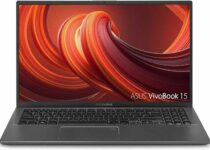
The Asus VivoBook 15 is a good looking laptop with premium looking chassis and features AMD’s Ryzen 3 3200U and AMD Radeon Vega 3 graphics.

With a 256 GB NVMe SSD taking care of the storage requirement, Asus VivoBook 15 feels lightning fast when used for day-to-day tasks. The gaming performance of the laptop is average but can play last-gen games at moderate settings with ease.

Featuring a 15.6″ Full HD display, this laptop gets bright enough and offers good picture quality. For connectivity, it comes with both Type-A and Type-C 3rd Gen ports.


Finding a gaming laptop under $600 is not the easiest of the task. However, there are some great options to consider.

All the laptops listed in this article offer great value for money and decent gaming performance out of the box. Make sure to explore the list to find the best laptop that meets your requirements.

[wl_navigator]

Check out These Best Surface Pro 4 Deals [Cyber Monday]

Microsoft launched the Surface Pro 5  three years ago. Meanwhile, the company launched the Surface Pro 6, a powerful 2-in-1 device that’s ultra-light, versatile, and suitable for intense multitasking.

Surface Pro 7 is the newest addition to the Surface family line.

The Windows Store is not the only place where you can purchase a Surface Pro 4 device from. For example, the Surface Pro 4 bundle, 128GB SSD, 4GB RAM, Intel Core m3, Alcantara Signature Type Cover, can also be found on BestBuy.

If you’re still not convinced you should purchase a Surface Pro 4 device, check out this review:

I bought the core i5 128gb 4gb RAM model and its performance is great! I am able to have lots of windows open at once and practically no buffering. Also it has very little fan noise. I got the signature type cover and it feels great. There is just a joy in typing with it and the trackpad is awesome. The pen feels great and writes very well. I can play games and Cortana is awesome. Battery Life is alright and brightness is good. Don’t worry about tripping over the charging wire, it’ll come right out.

What are the best Surface Pro 4 deals to get?

  • Very easy to carry around
  • Switch from tablet to laptop
  • Bluetooth Wireless 4.1 technology
  • 256 GB, 8 GB RAM, Intel Core i5
  • Customer service could be better

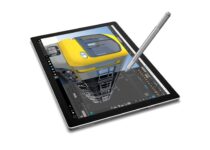
Microsoft Surface Pro 4 with 256 GB, 8 GB RAM, Intel Core i5 is a great device if you are looking for quality, lightness, efficiency, and professionalism.

You will be able to switch from tablet mode to laptop in just a few seconds and you’ll have your notebook and textbook with you at any time.

The 7-9 hours of battery is more than a decent time to help you carry on with your work even on a busy day. Although gaming is not its main selling point, you can play some games and enjoy its features.


Microsoft Surface Pro 4 SU3-00001

  • High color contrast through
  • Multi-position Kickstand and improved keyboard
  • Light and easy to carry around
  • The surface pen and keyboard sold separately

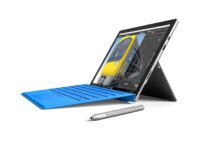
Microsoft Surface Pro 4 SU3-00001 12.3-Inch Laptop is very lightweight, the screen is beautiful and clear, with a very distinguished design.

Can be used easily as a tablet or laptop and if you are looking for a small device, where you can put in all your notes, then this would be the perfect choice for you.

The quality of the laptop has been praised by all users while the exceptional customer service will ensure all your technical issues will get solved in a professional manner, as soon as possible.


  • 256 GB, 16 GB RAM, Intel Core i7e
  • Lightweight, easy to carry
  • Great design
  • Customer service could be better

This Microsoft Surface Pro 4 comes with 256 GB, 16 GB RAM, Intel Core i7e, and just as the other options we discussed above, is a great choice for work, school, or any other activity where it will take the place of your notebook.

Easy to carry around and with a great design, you will feel that this is the best choice for a laptop that you could have made.

It’s reliable and you can always count on getting any technical issue solved in no time through their support service.

Skype ups calls participants to 100 with latest update

The Skype team has released a new update on all platforms that makes it possible to add up to 100 participants to a group call (via Windows Central). Skype group calls are a nice thing to have during a worldwide pandemic, especially since they’re completely free. though please note that the maximum number of video streams will vary depending on your platform.

Here are the full release notes for this new Skype update (version 8.66), which is now available on Windows, Mac, Linux, the web, as well as iOS and Android:

What’s new:

  • It’s a big room: Now you can have those big conversations, because Skype calls now support up to 100 participants. Learn more about making a Skype call.
  • Bug fixes and stability improvements. We’ve moved some bugs to a nice farm upstate and made some improvements.

What’s fixed:

  • New messages don’t pop up at the top of Recent Messages.
  • The language settings automatically changed to English.
  • Signing out freezes the app on Android.
  • Issues with uploading or downloading files.
  • Issues with favorites disappearing from the contact list on Windows.

Skype is definitely a solid option group calls, though the messaging app is now facing the competition from the free version of Microsoft Teams, which Microsoft launched on mobile earlier this year. Microsoft Teams for consumers supports group chats, voice and video calling, as well as group calendars and other shared activities, though all these consumer features are mobile-only for now. It will be interesting to see how Skype and Microsoft Teams will coexist going forward, though Teams has been enjoying a much higher level of momentum this year due to its Microsoft 365 integrations.

iFixit tears down the Xbox Series X – it’s modular, but not as repairable

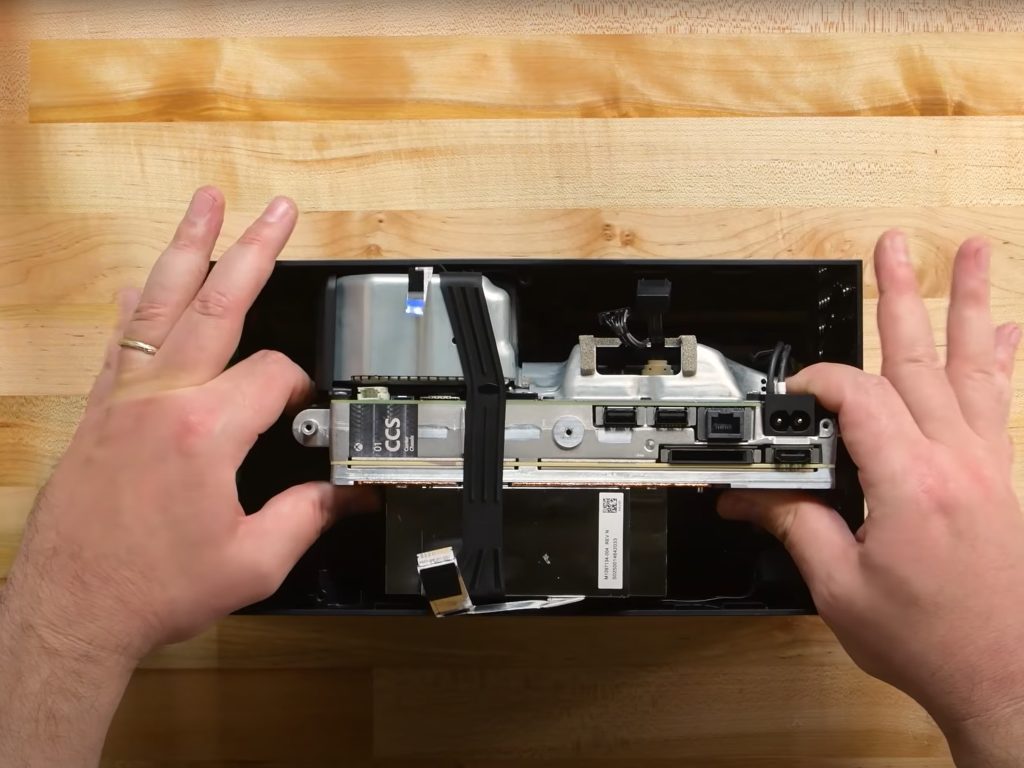
A lot of attention has been turned to blowing vape smoke into, and falsely levitating ping pong balls over Microsoft’s new Xbox Series X, but repair website iFixit has something much better for curious minds — a teardown. Indeed, iFixIt recently disassembled the next-gen Microsoft console, finding that it is modular, but not as repairable.

In the four and a half minute long video, the repair website digs into the console, inside and out, top and bottom. They begin by opening the case and then removing the optical drive, which isn’t a hard process once removing screws and prying off the back cover. Unfortunately, though, there, it is discovered that the optical drive is the same as the previous generation console. Once the drive is removed it becomes locked to the system, making repairs difficult without desoldering a control board.

Elsewhere, the video shows the removal process of the Series X fan, which slides out from its module on the left side. Once out of the way, it gives access to the rest of the system. Here, we see that the remainder of the Xbox Series X is enclosed in a metal case, wrapped in a black rubber strap. There’s also an antenna board on this part of the console, too, which when removed will give access to the other components such as the 315-watt power supply, and cooling system.

Interestingly enough, the teardown reveals that the console doesn’t have just one motherboard. Rather, it’s a series of two motherboards that are stacked on top of each other, with an aluminum block in between for cooling. The first board has the controls for the I/O and has the southbridge chip. The second board, meanwhile, has the heat sync, the processor, and the GPU. There’s even the m.2 2230 NVMEe SSD, too, which can be replaced but isn’t easy to format and partition.

iFixit gives the Xbox Series X a total reparability score of 7 out of 10. They were in favor of the fact that few tools are needed for disassembly and really like the modular design. However, software locks, and the fact that the SSD is  buried take away from the final scoring.

4 best USB Wi-Fi adapters for lower latency and faster speed

This article explores the features and capabilities of using the best USB Wi-Fi adapters.

Before technological advancement brought about the innovative USB WiFi adapters, Ethernet cables were the main connectivity means. However, the trend has changed.

Now users enjoy faster speed, lower latency, and more mobility with the help of these USB WiFi adapters under review.

What are the best USB Wi-Fi adapters for Windows 10?

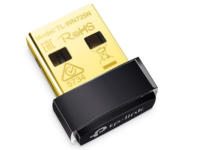
TP-Link TL-WN725N USB Wi-Fi Adapter

  • Nano-size
  • Wi-Fi speed increase of up to 150 Mbps
  • Advanced security
  • Unstable connection

TP-Link is a known name in the router industry and they can’t be ignored when it comes to Wi-Fi adapters.

Their nano-size 2.0 USB dongle is designed to be carried around everywhere you’d go to get the most of the existing connection and avoid buffering and freezing.

It can increase wireless speed up to 150Gbps, covering 2. 4GHz bandwidth.

In order to use the device, you might have to download the dedicated driver from the manufacturer’s website.


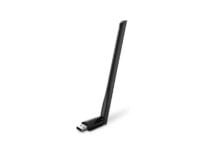
TP-Link AC600 Wi-Fi Adapter

  • Dual-band 2. 4 GHz and 5 GHz
  • 5dBi high-gain antenna
  • 2-year warranty
  • Functionality issues early on

This plug and play Wi-Fi antenna offers greater flexibility than a regular dongle, thanks to the dual-band operation mode.

You will be able to cover more of your household range with this convenient adapter, while also increasing the Wi-Fi speed 3 times compared to regular adapters.

As such, the device offers 200Mbps on 2.4 GHz or 433Mbps on 5GHz, which is ideal for smooth streaming and gaming.


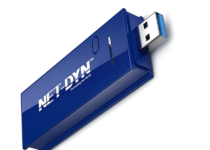
NET-DYN AC1200 USB Wireless Wi-Fi Adapter

  • Dual-band
  • USB 3.0
  • Supported by all WLAN routers
  • Connection drops constantly

Two unique features make the NET-DYN AC1200 an immediate delight. First, NET-DYN has the capacity to reach as much as 100 yards within the vicinity without latency in speed. Secondly, the USB wireless device has 3.0 capabilities. Having 3.0 means lower latency levels or interruptions during transmission.

NET-DYN offers multiple options for both light and heavy users to stream videos live without buffering. Using the 5 GHz feature means fast to download ability. The 2.4HGz makes it possible to surf the Internet, read emails, and engage on social media sites. With NET-DYN users enjoy 3 times faster wireless speed of up to 300Mbps and 867Mbps.

The lifetime warranty helps ensure the user can get more value for their money.

The NET-DYN AC1200 is a plug n play device which means no hassle with installation from any location. It is also compatible with multiple operating systems, and all versions of Windows. Due to the presence of WPA/WPA2/WEP configurations, the NET-DYN works well with WLAN routers and any internet service provider.


Panda Wireless PAU06 300Mbps N USB Adapter [Budget Friendly]

  • Runs on Intel/AMD based PCs or Raspberry Pi 0/1/2/3/4
  • 300Mbps maximum wireless speed
  • Compatible with Ubuntu, RedHat, Fedora, Raspbian, Linux Mint, and more
  • Unstable connection

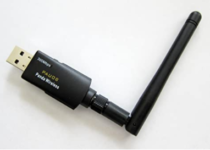
Panda Wireless PAU06 combines excellent technology standard plus pocket-friendly prices to give users a unique internet experience. The Panda wireless was designed in 2014 to help improve the user experience with speedy internet access.

Panda users can surf the internet at a reasonable speed of 300Mbps. With 802.11g – 2.4GHz band and backward compatibility, the user can access their preferred internet service provider without restrictions. It also offers a lot of comfort for portability that allows the user to be truly mobile. Running on 2.0 and 3.0 means the Panda can work on older system models and newer ones.

Being a USB wireless dongle makes it very easy to install with the installation cd attached. It is a plug n play device; therefore, it requires no technical knowledge to install. The Panda wireless PAU60 works well with Windows 10 and other lower versions of Windows.

The Panda PAU60 power structure helps save the laptop battery due to low consumption. The easy-to-use graphical user interface allows the user to connect with much ease always.

It corporates security and encryption features to allow transmission without compromising vital information. The 64/128bit WEP, WPA, WPA2 keeps it secure from interference.

Acquiring the best USB WiFi adapter depends on a lot of factors to include user’s preferences and needs. But generally and for specific reasons, all four mentioned above offer an exceptional experience for users.

Have a splendid USB Wi-Fi and virtual reality experience!


[wl_navigator]

These top tips will help you reduce work fatigue and stay productive in Microsoft Teams

As you use Microsoft Teams for work or school, you might experience a little fatigue throughout your day. You could be getting too many notifications, or you could be finding it hard to focus during meetings. Well, Teams has some in-built features which can help you tune things out and stay a bit more productive. Here’s a look at some of our top tips on how you can use this to your advantage.

Tip 1: Mute conversations and threads you don’t want to be notified about

Teams Notifications Threads Turn Off

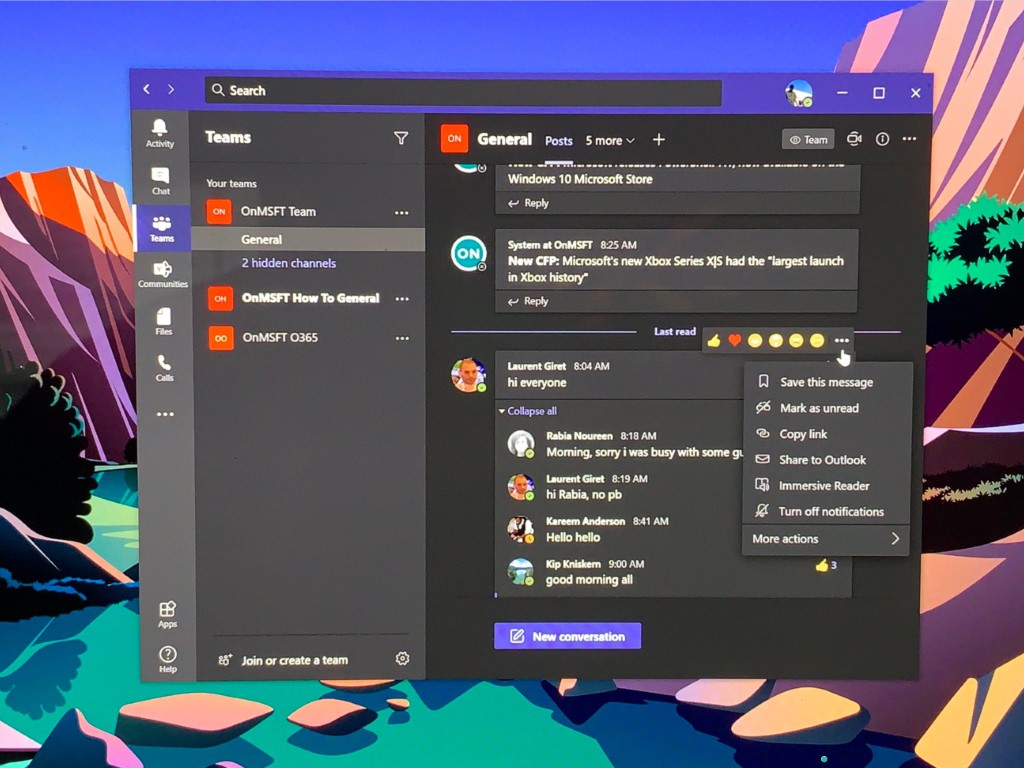
Our first tip is one that a lot of people might appreciate — muting a conversation or a thread. You might want to do this when you end up getting bombarded with notifications from threads that you no longer want to be notified about. That’s because, by default, Teams will notify you about all threads that you left a message In.

To turn off notifications for a specific thread, you can hover over that thread with your mouse until you see the ( . . . ) more options button. From there, you’ll want to click Turn off notifications. Once you click that, you’ll only be notified if someone directly @mentions you or reacts to your message in that thread.

Since Teams doesn’t currently let you delete chats, you also can mute a conversation or a private message that you don’t want to be a part of, too. To do this, just hover over the chat, click the ( . . . ) more button, and then choose Mute. Simple as that!

Tip 2: Change your status

Teams Status

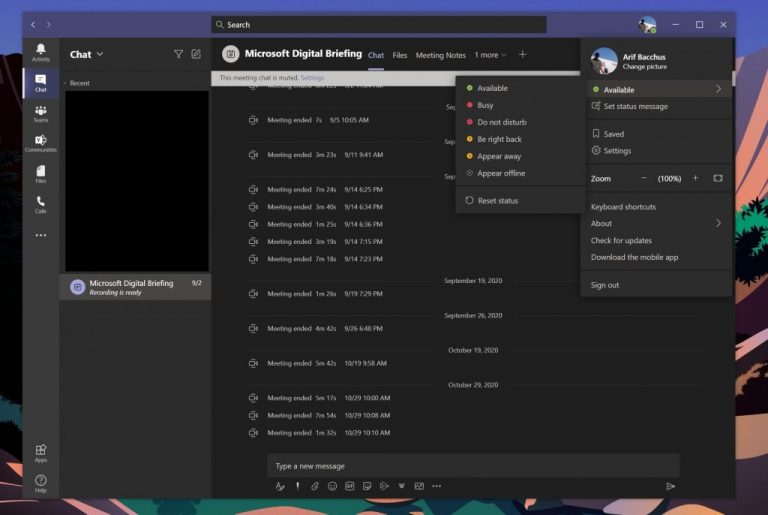
While muting conversations or threads is one way to reduce fatigue from notifications, another method is a bit simpler: change your status. When you change your status in Teams, notifications won’t come in depending on which status you’ve chosen. You can change your status by clicking your profile photo and then choosing one from the menu.

When you’re Available, you’ll get all notifications. When you don’t want to be distributed at all, it’s best to choose Busy as this status will stop all notifications from popping up. Do not disturb is when you want to focus or present your screen and don’t want notifications to pop up. Appear away is when you need to work without responding right away. Appear offline is when you want to indicate that you’re not signed in to Teams, so will not be responding until you’re back online. You’ll still receive notifications if anyone messages you.

Tip 3: Control your notifications

Teams Notifications

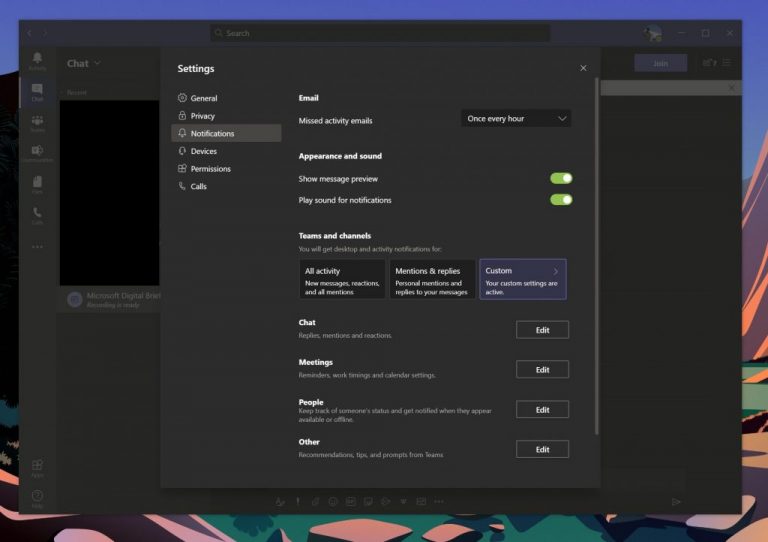
If you’re hoping to stay focused in Teams, a good way to do so is to take complete control of your notifications. You can do this by clicking your profile photo, and then choose Settings. From there, select Notifications in the sidebar.

From notification settings, there’s quite a lot that you can control. If you’re getting bombarded with emails from Teams, you can turn off missed activity emails. You also can turn off message preview, and the sound for notifications, if you’re constantly getting notified, too.

In addition, you have the ability to set custom notification settings for teams and channels. Usually, if you don’t want to be over notified, it’s best to set these to only show in feed. You also can turn off All new posts, too. There’s a lot of options here, and we invite you to check out our post here for more information.

Tip 4: Record meetings, and take notes!

Meeting Notes


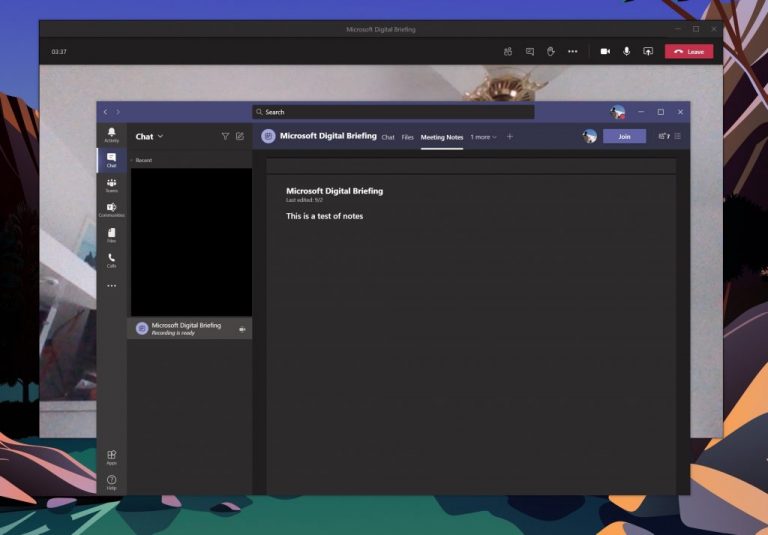
The last tip on our list comes in two parts. It’s related to recording meetings and taking notes. Often, the stress point with meetings is that there’s a worry you might miss something important, which is why people often take notes. Well, did you know that you can record meetings, and take notes, right from within Teams?

With your coworker’s permission, you can record a meeting by hovering your mouse to the top of the screen, click the three dots, and then Start Recording. The meeting will then be saved to Microsoft Stream, for you to view later. Of course, it’s best to ask permission, first, as a meeting can sometimes be private.

In addition to recording a meeting, you also can take meeting notes directly from Teams, too. To do this, click the three dots, and then choose Meeting notes. Meeting notes will open up OneNote, where you can take your notes, and access them later, directly from the chat for that meeting. We explained how this feature works in another piece, so you can check out our article for more.

Check out our Teams hub for more

This is just our latest entry into the Microsoft Teams series. We invite you to check out our Microsoft Teams hub for more information. We’ve covered topics like Lists in Teams, how to make the most out of the chat feature, and even how to join meetings across multiple devices. If it’s about Microsoft Teams, we have you covered!

Microsoft releases PowerShell 7.1, now available on the Windows 10 Microsoft Store

Microsoft today announced the release of a new version of PowerShell, the company’s command-line-based configuration tool. The latest update brings up to version 7.1, and it includes several improvements and fixes over version 7.0, which was made generally available in March.

“For PowerShell 7.1, we decided to build on the foundation established in PowerShell 7.0 with a strong focus on community issues, especially where we could make additive changes and quality-of-life improvements without introducing instability or breaking changes,” the company explained.

In addition to these changes, there are also new cmdlets, build and packaging improvements, and fixes in this release. The full changelog is available here.

As usual, you can download the latest version of PowerShell from the GitHub releases page. With PowerShell version 7.1, PowerShell is now also available for installation from the Microsoft Store on Windows 10. If you’re interested, more information on installing the tool across various platforms and architectures is available on this support page.

PowerShell
PowerShell
Price:
Free

Microsoft’s new Xbox Series X|S had the “largest launch in Xbox history”

It’s just been two days since Microsoft launched its new Xbox Series X|S worldwide, but the company’s next-gen consoles are already off to a very good start. According to Xbox head Phil Spencer, the company just had its biggest console launch ever, going back to the release of the original Xbox 19 years ago.

“Thank you for supporting the largest launch in Xbox history. In 24 hrs more new consoles sold, in more countries, than ever before. We’re working with retail to resupply as quickly as possible, Phil Spencer wrote on Twitter.

As usual, Microsoft isn’t sharing how many Xbox Series X|S consoles it has sold since launch, and Spencer said in a recent interview with The Guardian that the Xbox division still prefers to highlight Xbox Live active users, a metric that better reflects the health of the Xbox ecosystem.

“I know it seems manipulative and I’ll apologise for that,” he says, “but I don’t want my team’s focus on [console sales]. The primary outcome of all the work that we do is how many players we see, and how often they play. That is what drives Xbox. If I start to highlight something else, both publicly and internally, it changes our focus. Things that lack backwards compatibility become less interesting. Putting our games on PC becomes a reason that somebody doesn’t have to go and buy an Xbox Series X. I’ll hold fast to this. We publicly disclose player numbers. That’s the thing I want us to be driven by, not how many individual pieces of plastic did we sell.”

Microsoft is estimated to have sold around 50 million Xbox One consoles since 2013,  which is less than the 84 million Xbox 360 units sold in the previous console generation. Still, the Xbox division has continued to be a big money maker for Microsoft, with new services like Xbox Game Pass crossing more than 15 million subscribers in September. Compared to the Xbox One/PS4 launch, Microsoft seems in a much stronger position this time around, keeping the power advantage with the Xbox Series X and providing tremendous value to gamers with Xbox Game Pass Ultimate.

Sony will likely sell more PlayStation 5 consoles in the short term due to its huge install base of over 110 million PS4 consoles, though the Nintendo Switch should continue to do very well. In its latest earnings report, the Japanese company revealed that the Switch its has now sold 68.3 million units worldwide in just three years, and the portable console should remain a best-seller during the holiday season.

Best Ocr Scanner Deals To Grab Right Now

Optical character recognition scanners, also know as OCR scanners, are specialized devices that convert printed, typed, or handwritten characters into digital text. They are widely used to electronically store and edit printed text.

If you’re working in any machine processes like text-to-speech, translation, or cognitive computing, then you surely have to check out these amazing deals that we’ve prepared for you.


What are the best OCR scanners that I can buy?

Portable

While most OCR scanners are wired and can somewhat restrict your workspace, there are some portable scanners on the market.

These devices are especially helpful if your digital conversion takes place in different places. Check out the best portable OCR scanners on the market and choose the one that best suits your needs.

⇒ Best handheld OCR scanners to buy


Duplex

If you convert paperwork into digital files on a daily basis, then you must check out these duplex scanners with OCR. They significantly increase productivity with faster speeds, top-notch accuracy, and seamless conversion. And the majority of them are also pretty compact and have multiple connectivity options.

⇒ Best duplex scanners with OCR

OCR scanners are a necessity, especially now when old documents and manuscripts are becoming rarer. Whether you own an OCR scanner or you want to get one, you’ll also need specialized software. Fortunately, you can check out this handy article to find the best OCR software.

[wl_navigator]

Microsoft tells gamers to stop blowing vape smoke into their new Xbox Series X consoles

With the launch of Microsoft’s new Xbox Series X console earlier this week, there’s been a bizarre trend on social media of vapers blowing smoke into the system and claiming that it’s overheating, others blowing vape smoke into it just to see what all the buzz is about, and an unfortunate combination of the two with people taking footage of vapers having fun and claiming that they’re proof of major Xbox Series X defects.

Here’s one such tweet that I spotted earlier this morning:

Noticing the viral nature of these clips, Microsoft responded directly with a tweet from the official Xbox account advising Xbox Series X owners not to blow vape smoke into their new consoles. This was a smart idea as not only will this advice prevent new consoles from being damaged but it also informs casual gamers that the viral clips don’t actually show smoke caused by overheating.

Have you seen any of these vape smoke clips circulating online? Let us know in the comments below and then follow us on Twitter and Pinterest for more Xbox news.

5 best laptop insurance providers in USA [Student Friendly]

With the increasing trend towards ultrabooks, convertible tablet hybrids and all kinds of similar form factors, the need to get a laptop insurance plan is becoming more and more important. This happens especially if you are a frequent business traveler and you bring your laptop back and forth with you at work.

There are lots of laptop insurance plans on the market and purchasing the best one depends on various factors including whether you are a consumer, a large corporation or small business, and so on.

We picked the best five insurance plans for your laptop, and we’ll detail their features below in order to make your choice a lot easier.

What are the best laptop insurance plans?

Gadget Insurance

budget gaming laptops

The team from Gadget Insurance known how crucial it is to protect your most valuable items from phones, and digital cameras to laptops and they offer excellent services.

Take a look at the most important features that come with purchasing a Gadget Insurance plan for your laptop below:

  • Your laptop will be covered for accidental damage, liquid damage, and theft.
  • The 90 days Worldwide Cover is provided in any single 12-month period of insurance, so whether you are traveling on a short weekend break or you are in a one-week vacation, you can rest assured that your laptop is covered.
  • The pack offers protection all over the world, so you have to make sure not to leave your home without it.
  • There are some benefits that come with insurance plans, and they include low excesses.
  • Home insurance policies have a varying range of excesses.

Some home insurance policies may restrict cover to your gadgets outside of the home, and this is why you have to make sure that you check your home insurance policy carefully before getting a policy from Gadget Insurance.

Gadget Insurance

Gadget Insurance

The best laptop insurance in case of accidental damage, liquid damage, and theft. Get the best deal now!
Check price Visit website

Trusted Insurances

Trusted Insurances pack comes with four plans including personal, student, business, and family bundle.

You can ensure all your gadgets and the best value securing is for one to three devices. Obviously, insurance plans are appropriate for your laptop as well, and we will list the most important features of this insurance pack below:

  • The number of claims you can make is unlimited.
  • There’s no limit to the number of accidental damage or theft or loss claims in a year.
  • The engineers from Trusted Insurances are highly trained in repairing the latest technology to ensure that your laptop will be returned looking and functioning flawlessly.
  • The engineers only use high-quality parts as replacements.
  • They offer a free collect and return to your doorstep via the specialized courier service to make sure the laptop is safe and secure.
  • 93% of claims are fully completed and assessed.
  • The replacements are backed by a 12-month warranty.

⇒ Get Trusted Insurances


Gadget Cover

The laptop insurance pack from Gadget Cover includes the following: accidental damage, liquid damage, breakdown, theft, unauthorized usage, loss, accessories, worldwide cover, family cover, and E-wallet cover.

Take a look at the most useful features that will come with laptop insurance plan:

  • You will get one month free of annual policies.
  • You get an unlimited number of claims.
  • The plan comes with a low excess fee.
  • Another feature is the free collect-return of the laptop.
  • The plan comes with UK based customer support.
  • The plan comes with a 14-day money-back guarantee.

Whether you use your laptop for gaming, work, or just everyday personal use, you can protect it with a Gadget Cover policy that will help you get everything back to normal as quickly as possible.

A stand-alone plan for your laptop will make sure that you are covered, and all you have to do is take a quote for laptop insurance and see what Gadget Cover can offer you.

⇒ Get Gadget Cover


With Protect Your Bubble insurance, you can protect more gadgets including your laptop, of course. The plans cover theft, liquid damage, cracked screens and many more issues.

Take a look at the most important features that come with this insurance for your laptop and other of your gadgets:

  • You will have unlimited repairs available.
  • You will get the same-day cover.
  • You will also receive multi-gadget discount.
  • You have monthly or annual payments available.
  • A liquid can be deadly for your laptop, and whether it gets accidentally wet, you will be covered.
  • You must be 18 years or older to purchase the policy.
  • The gadget must be fewer than 12 months old, and it either has to be purchased from a manufacturer, network provider or retail store.
  • If your gadget is refurbished, it must have been purchased directly from a manufacturer or a network provider, and not from an online outlet.
  • There is no limit to how many times you can claim for damage.
  • You are limited to two theft/loss claims per year.

Protect Your Bubble repairs over 1,700 gadgets per month. To find out more about the insurance plans for your laptop, it’s best to visit the official website of Protect Your Bubble insurances.

⇒ Get Protect Your Bublbe


Helpucover

Helpucover helps you cover your gadgets insurance including the one for your laptop so you can relax knowing that your electronic items are protected against loss or theft, accidental damage and mechanical breakdown.

Take a look at the most important features that are included in the insurance plans:

  • You will get the opportunity to register an unlimited number of items.
  • There is no registration required for items that are worth less than £150 and items worth more than this must be registered.
  • The cover includes items owned by you and by the members of your family living at the same address as yourself.
  • You will get a worldwide cover for up to 90 days, and this will be perfect for when you have to travel.
  • You can make up to two successful claims in a rolling 12 month period.
  • There is no limit on the number of items covered by the premium.
  • The insurance plans provide repair or replacement cover for the mechanical or electrical breakdown of your items following the expiry of a manufacturer’s guarantee or warranty.

There is a deferred period of 14 days when there is no cover under the policy. The delayed period applies after the policy start date shown on the welcome letter, and then after the date, you register additional gadgets.

It’s also essential that this policy does not cover students who live away from home and they should have their own policy in their own name.

You can find out more details about the insurance for your laptop on the official website of Helpucover.


These are five of some of the best programs that can cover your laptop in case of all kinds of issues. Check them all out and visit the official websites for additional data and for finding out more about the fees.

After you make up your mind and decide which insurance plan is best for you and your laptop, purchase it and relax because your device will be safe from now on no matter what.


[wl_navigator]

Xbox cloud gaming comes to Australia, Brazil, Japan, and Mexico this month in Project xCloud Preview

Microsoft’s new Xbox cloud gaming service is set to expand to four new regions next week. Beginning on November 18th, Android smartphone and tablet owners in Australia, Brazil, Japan, and Mexico will be able to sample cloud-powered video games via the Project xCloud Preview program.

Registrations for the preview are already open here and participation is completely free when/if accepted.

Because it’s a preview intended for testing, the range of titles will be limited but games such as Minecraft Dungeons, Halo: The Master Chief Collection, Forza Horizon 4, Black Desert, PlayerUnknown’s Battlegrounds, and Yakuza 0 have already been confirmed.

It will be interesting to see how the Xbox cloud gaming test goes in these countries as the quality of the internet infrastructure varies greatly between them. Japan, for example, has phenomenal internet coverage while Australia is notorious for having some of the worst internet infrastructure, ranking 32nd out of the 35 OECD nations for internet speed in a recent study.

The game streaming service is expected to launch properly in Australia, Brazil, Japan, and Mexico as part of the Xbox Game Pass Ultimate subscription service sometime in 2021.

Xbox cloud gaming basically allows gamers to play high end video game titles on devices with low specs by having the games run entirely on Microsoft’s own servers. Android devices are getting Xbox cloud gaming first due to the platform’s support for such streaming services and a Windows 10 and Xbox console launch is expected in the very near future. The rollout of Xbox cloud gaming on iOS had been delayed due to Apple’s strict App Store policies though it was revealed earlier this month that Microsoft is planning to work around these restrictions by offering game streaming via web browsers.

While a launch of Xbox cloud gaming on the Nintendo Switch and PS5 hasn’t been announced, Microsoft has stated that they are open to such a collaboration.

Are you excited to try Xbox cloud gaming? Let us know why or why not in the comments below and then follow us on Pinterest and Twitter for more Xbox gaming news.

5 Best motherboards for Intel Core i7 9th & 10th gen

Intel has recently released its latest generation of processors, and while they offer great performance, you’ll need a new motherboard to use them.

In today’s article we’re going to show you the best motherboards for i7 processors from the latest 10th generation and the older 9th generation, so let’s get started.

What is the best motherboard for i7?

MSI Z390-A PRO

  • LGA1151 socket
  • Four DDR4 slots
  • M.2 slot, 6x SATA3 ports
  • 2x PCI-E x16 slots
  • Audio Boost HD audio processor
  • Minor issues when using M.2 slot and SATA drives

This motherboard comes with an LGA1151 socket, and it can use Intel processors from the 8th and 9th generation. As for the memory, there are four dual-channel DDR4 memory slots available that can support memories up to 4000MHz.

Regarding the maximum memory, the motherboard can support up to 128GB. The motherboard has an M.2 slot that can deliver up to 32Gb/s bandwidth thanks to the PCI-Express Gen3 x4 technology.

Of course, there are six SATA3 ports available, allowing you to connect additional storage. It’s important to mention that the motherboard has two PCI-E x16 slots available allowing you to use the Crossfire feature.

Additional features include four USB 3.1 ports on the front and 1x USB Gen2 Type-C port, 1x Gen2 Type-A, and two Gen1 Type A USB 3.1 ports on the back.

MSI Z390-A PRO is a great motherboard if you want to use an i7 processor from the 9th or 8th generation, so be sure to consider it.


Asus Prime Z390-A

  • LGA 1151 socket for 9th and 8th generation processors
  • Four DDR4 slots, support up to 4266MHz
  • 2x M.2 sockets, 6x SATA3 ports
  • Two PCI-e x16 slots
  • Integrated Intel HD Graphics, HDMI, and Display port 1.2
  • Pin and screw locations could be better placed

Another great motherboard for i7 processors from the 9th and 8th generation is Asus Prime Z390-A. The motherboard comes with LGA 1151 socket, so it won’t work with the 10th Gen of Intel CPUs.

The motherboard supports Intel Boost Technology 2.0 and it uses Intel Z390 chipset. Regarding the memory, there are four DDR4 slots that support modules up to 4266MHz (OC).

As for the storage, there are two M.2 sockets as well as six SATA3 ports. Support for Raid 0, 1, 5, and 10 is also available.

There are two PCIe 3.0/2.0 x16 slots, 1x PCIe 3.0/2.0 x16, and 3x PCIe 3.0/2.0 x1 slots. The motherboard also has integrated Intel HD Graphics, and it fully supports HDMI and DisplayPort 1.2 at 4K resolution.

Asus Prime Z390-A is an amazing motherboard, and if you’re looking to get an i7 processor, this motherboard will be perfect for all your needs.


MSI Z490-A PRO

  • LGA1200 socket, support for 10th generation of Intel CPUs
  • 4x DDR4 memory slots
  • Two M.2 slots, six SATA 3 ports
  • Two PCI-E x16 slots, 3x PCI-E x1 slots
  • Two USB 3.2 Gen2 ports, seven USB 3.2 Gen 1 ports
  • No major cons

MSI Z490-A PRO comes with an LGA1200 socket, and it’s fully compatible with the 10th Generation of Intel CPUs. Regarding the memory, this motherboard supports dual-channel DDR4 memory up to 4800MHz.

The motherboard has two M.2 slots that offer transfer speeds up to 32GB/s. Of course, there are six SATA3 ports available for SSDs and hard drives.

As for expansion, there are two PCI-E x16 slots with Crossfire support and three PCI-E x1 slots. It’s important to mention that there’s also an HDMI port as well as DisplayPort available.

Regarding the ports, there are two USB 3.2 Gen 2 10Gbps ports, Type-A on the front, and Type-C on the back. Also, there are seven USB 3.2 Gen 1 Gbps ports and six USB 2.0 ports available.

MSI Z490-A PRO is a great solution if you want to purchase Intel i7 10th generation processor, so be sure to consider it.


MSI MAG Z490 Tomahawk

  • LGA 1200 socket, supports 10th generation of Intel processors
  • Support for up to 128GB of DDR4 at 4800MHz
  • Two PCI-E x16 slots with Crossfire support
  • Two M.2 slots, six SATA3 ports
  • Easy to overclock
  • Some minor issues with legacy SSD/HDD

This motherboard comes with an LGA1200 socket, and it can support the 10th generation of Intel processors. As for memory, the board can handle up to 128GB of DDR4 memory at 4800MHz.

Regarding the storage, this motherboard has two M.2 slots and six SATA3 ports available. Of course, support for RAID is also available.

The motherboard supports Crossfire thanks to the two PCI-E x16 slots, and there are also three PCI-e x1 slots available. As for the USB ports, there are three USB 3.2 ports available on the front, one Type-C, and two Type-A.

On the back, there’s a single Gen 2×2 Type-C port, Gen 2 Type-A port, and four Gen 1 Type-A ports. As for additional ports, there are both DisplayPort and HDMI ports available.

MSI MAG Z490 Tomahawk is a great motherboard, and if you’re planning to get an i7 CPU from the 10th generation, then this motherboard will be perfect for you.


ASUS ROG Strix Z490-E

  • Uses LGA1200 socket and supports 10th generation of Intel CPUs
  • Two PCI-E x16 slots with support for CrossFireX and SLI
  • Support for DDR4 memory with clocks up to 4800MHz
  • Integrated graphics processor and wireless LAN
  • Two M.2 slots and six SATA3 ports
  • Memory slots are too close to the CPU

If you’re a gamer and you’re looking for a motherboard for your i7 CPU, then ASUS ROG Strix Z490-E might be what you need. This motherboard comes with an LGA1200 socket, so it works with the 10th generation of Intel CPUs.

The motherboard uses the Intel Z490 chipset, and it supports dual channel DDR4 memory. There are 4 memory slots available and the motherboard can work with memory up to 4800MHz.

Regarding the expansion slots, there are two PCIe x16 slots with support for CrossFireX and SLI technology. There are also three PCIe 3.0 x1 slots and a single PCIe 3.0 x4 slot.

As for the storage, there’s a single M.2_1 socket and a single M.2_2 socket as well as six SATA3 ports available. Features such as RAID and Intel Optane Memory Ready features are also available.

ASUS ROG Strix Z490-E is an amazing motherboard for gamers and advanced users alike, and it’s one of the best choices for the latest generation of i7 processors.

Purchasing a new motherboard can be a daunting task, but we hope that our guide helped you find the right motherboard for your new i7 processor.

[wl_navigator]

5 Best 11-inch laptops with 8GB RAM

Laptops are great devices since they are so compact, but if you want something compact, then a smaller laptop would be a perfect choice for you.

Speaking of which, in today’s article we’re going to show you the best 11-inch laptops that you can easily carry with you at all times.

What is the best 11-inch laptop?

BMAX 2 in 1 Convertible Laptop

  • 11.6-inch display, full HD resolution, IPS multi-touch display
  • 8th generation Intel Gemini Lake N4120 1.10GHz CPU
  • 8GB DDR4 RAM at 2133MHz
  • 256GB M.2
  • 10.8 x 7.4 x 0.5 inches, weighs 2.2 lbs
  • Minor slowdowns

If you’re looking for an 11-inch laptop, perhaps BMAX 2 in 1 Convertible Laptop might be just what you need. This is an 11.6-inch device, but it uses full HD resolution and it comes with an IPS multi-touch display.

Under the hood, there’s 8th generation Intel Gemini Lake N4120 1.10GHz CPU, but you can boost it up to 2.6GHz using the Turbo Boost feature.

BMAX 2 in 1 Convertible Laptop comes with 8GB DDR4 memory at 2133MHz, so it should be able to handle multitasking with ease. As for the storage, there’s a 256GB M.2 SATA SSD.

For multimedia, there’s an Intel UHD Graphics 600. Additional features include 720p webcam, two-channel speaker, 802.11AC (2×2), and Bluetooth 4.2 support.

The device measures 10.8 x 7.4 x 0.5 inches and it weighs 2.2 lbs, so it’s comfortable to carry. It’s worth mentioning that there’s a single USB-C port available as well as an SD card reader.

BMAX 2 in 1 Convertible Laptop is a solid device, and it can provide you with up to 8 hours of battery life, so you might want to consider it.


Lenovo 3 Chromebook

  • Dual-core 1.8GHz AMD A6 processor
  • 4GB LPDDR3 SDRAM
  • 11.6-inch display with 1366x768 resolution
  • Wi-Fi, Bluetooth, 2x2W speakers
  • Chrome OS preinstalled
  • Only suitable for web browsing

This is a dual-core device, and it comes with a 1.8GHz AMD A6 processor, but you can boost it up to 2.7Ghz. As for the memory, there’s 4GB LPDDR3 SDRAM available, which should be enough for basic needs.

In terms of storage, there’s an integrated 32GB EMMC available. The device uses an 11.6-inch display with a 1366×768 resolution.

As for the available ports, there are two USB 3.1 Type-C ports and two USB 3.1 Type-A ports. There’s also built-in Wi-Fi, Bluetooth as well as 2x2W speakers.

The device weighs 2.42lbs and it measures 0.67 inches in thickness, so it’s easy to carry. As for the software, this model comes with Chrome OS preinstalled.

Overall, Lenovo 3 Chromebook is a humble device, and if you need a laptop for light browsing and web apps, then you might consider this model.


HP Stream

  • 11.6-inch display
  • 2.6GHz Intel Celeron N4000 processor
  • 4GB DDR4 2400MHz RAM
  • 32GB eMMC storage
  • Ultra HD Graphics 600
  • Not designed for resource-intensive tasks

HP Stream is an 11.6-inch laptop, and it comes powered by a 2.6GHz Intel Celeron N4000 CPU. As for the memory, there’s 4GB DDR4 2400MHz, which should be enough for basic tasks.

Regarding the storage, there’s 32GB eMMC storage available, which may not be enough for more demanding users. As for the battery, it can last up to 12 hours with moderate use, which is a plus.

Additional features include 802.11b/g/n/ac Wi-Fi and Bluetooth 4.2, and for multimedia, there’s Ultra HD Graphics 600 available, so you’ll be able to enjoy multimedia.

It’s important to mention that this laptop comes with Windows 10 Home in S mode and a one-year subscription to Office 365.

HP Stream is a decent laptop, and if you looking for a compact laptop for some browsing and text editing, be sure to consider this model.


Dell Inspiron 2-in-1

  • 11.6-inch 1366x768 touchscreen display
  • Intel Pentium N3710 Quad-Core 1.6GHz CPU
  • 8GB DDR3L RAM at 1800MHz
  • 256GB SSD
  • 32WHr, 2-cell battery
  • Built quality could be better

This device comes with an 11.6-inch display and a 1366×768 touchscreen display. As for the hardware, the laptop is powered by an Intel Pentium N3710 Quad-Core 1.6GHz CPU that can be boosted up to 2.56GHz.

Regarding the memory, this device has 8GB of single-channel DDR3L memory at 1800MHz. As for storage, there’s a 256GB SSD available.

Dell Inspiron 2-in-1 comes with Intel HD Graphics, so it should be able to handle multimedia with ease. Speaking of multimedia, there’s also an HDMI port available, so you can connect this device to a larger screen.

Additional features include a microSD card reader, USB 3.0, 802.11bng, and Bluetooth 4.0. It’s important to mention that the laptop also comes with a Windows 10 Home 64-bit preinstalled.

Dell Inspiron 2-in-1 is a solid device if you’re looking for a small 2-in-1 laptop, so be sure to consider it.


HP Pavilion x360

  • First pro
  • Second Pro11.6-inch 1366x768 IPS touchscreen display with 360-degree flip design
  • 1.10GHz Intel Quad-Core Pentium Silver N5000 CPU
  • 8GB DDR4 SDRAM
  • 500GB hard drive
  • Up to 8.5 hours of battery life
  • Not designed for resource-intensive tasks

If you’re looking for an 11-inch laptop then HP Pavilion x360 might be a perfect choice for you. This model comes with a 1366×768 IPS touchscreen display and a 360-degree flip and fold design.

The device is powered by a 1.10GHz Intel Quad-Core Pentium Silver N5000 CPU, but you can boost it to 2.70 GHz. As for the memory, the device has 8GB DDR4 SDRAM, which should be enough for most needs.

As for storage, there’s a 500GB hard drive available, which should be enough for your needs. If you want to enjoy multimedia, the device should be able to handle it thanks to integrated Intel UHD Graphics 605.

Additional features include three USB 3.1 Gen 1 ports, one HDMI port, audio combo jack, SD media card reader, up to 8.5 hours of battery life, and Windows 10 Home 64-bit preinstalled.

HP Pavilion x360 is a great device, and if you’re looking for a compact laptop, this model is the best choice for you.

When it comes to 11-inch laptops, the market is constantly shrinking since users are moving to larger devices, but if you looking for a compact laptop, then be sure to consider these models.

[wl_navigator]

3 best 360° mini projectors that you can take anywhere

The evolution of 360-degree imagery has revolutionized the way we see and do things. 360-degree technology has touched, refined, and polished the digital platform in limitless ways, most notable being the 360-degree cameras.

Though an increasing number of cameras can shoot 360-degree videos, only a limited number of display devices can show the videos the way they were shot.

Read on to discover the 360-degree projectors that can display the images and videos as a seamless 360-degree panorama.

What are the top 360-degree projectors for home entertainment?

Anker Nebula Capsule

  • 100 ANSI-lumen image
  • 360-degree speaker
  • HDMI and USB ports
  • Image is clear only in dark environments

Anker’s projector is a small portable device that you can use with your USB or HDMi-connected devices. You’ll also have to download the dedicated Nebula Capsule app to control the streaming content via your phone entirely.

Also, using the app, you’ll be able to stream content to Capsule via Airplay, Miracast or Bluetooth.

It runs on Android 7.1, but can be used with iOS devices as well.

Battery playtime is around 4 hours; charging time is about 2.5hrs with Quick Charge 2.0 9V2A.


Anker Nebula Apollo

  • 200 ANSI lumen DLP lamp
  • Touch panel
  • 4hrs battery life
  • Unintuitive usage instructions

With the 200 ANSI lumen DLP lamp this projector boasts, you’re likely to get excellent image quality and a clear 100-inch picture at a 16:9 display resolution.

The device is light and portable, weighing only 1.65 pounds, and can be easily moved around wherever you decide to install your home cinema.

Movie playtime is 4 hours on battery mode, while music playtime is 30 hours on Bluetooth Speaker Mode.

For easier control, you have the physical remote control, but you can also download the dedicated Capsule app and control everything from your phone.

Additionally, the upper interactive panel allows for quick navigation, or enter mouse mode for pixel-precise control.


CINEMOOD 360

  • 360-degree VR projector
  • Up to 12-feet projection
  • Comes with preloaded Disney content
  • HDMI isn't supported

This small portable cubic projector was designed not just for movie or photo streaming, but mostly for educational purposes.

As such, it includes a digital library with 40 Disney e-books and 25 short videos and cartoons, as well as 75+ episodes of other cartoons, shadow puppets, motion games and 360 degree videos.

You can access several popular streaming apps such as Netflix, YouTube or Disney+ directly from the projector’s menu, without the need to download them.

Last but not least, this is the only 360 VR projector on the market which allows for a safe almost-VR experience without the need for a special headset. And it’s definitely much cheaper than a VR headset, as well.

While the 360-degree projectors are few, we expect more to hit the market due to the ever-growing demand for 360-degree videos.

360-degree projection technology is on the rise and we’ve seen companies such as Pixelwix investing heavily in 360-degree projection screens and domes.

However, the price for the 360-degree projectors will most likely be on the top end as seen in the few projectors we’ve listed.

[wl_navigator]

Windows Holographic version 20H2 brings auto eye positioning and more to HoloLens 2 users

Microsoft has announced the rollout of Windows Holographic version 20H2. Now available via Windows Update, the release brings some new features to HoloLens 2 and HoloLens headsets, including auto eye positioning, a certificate manager in settings, and improved Kiosk Mode functionality.

With the new auto eye position support, HoloLens 2 will now actively compute eye positions without users going through Eye Tracking calibration. In addition, the certificate manager allows new simpler methods to install and remove certificates from the Settings app. Some of the other changes can be seen below, and the full list is available at Microsoft here.

  • Provisioning packages on USB drives now automatically prompt the provisioning page in OOBE.
  • Provisioning packages are automatically are now applied during OOBE from the provisioning page.
  • You can now use autopilot from device Wi-Fi without need for ethernet adapter
  • Kiosk mode failure now has restrictive fallback.
  • A new policy allows users to uses group membership cache to use Kiosk mode offline for set number of days.
  • MRC recordings are no longer capped to 5 minutes
  • You can now use research mode in HoloLens 2
  • Newly enabled policies allowi control of updates
  • Newly supported policies allow for power timeout settings
  • You can now set an application to launch automatically when signing into a multiple-app kiosk mode.

Once available for download, users should see that Windows Holographic version 20H2 will appear as a monthly update to Windows Update. The build number will remain the same, and Windows Update will show a monthly release to version 2004, build 19041. More information on how to download the update is available here.

Xbox’s Grounded video game reaches 5 million players just in time for its latest update

Microsoft’s first-party exclusive from Obsidian Entertainment, Grounded has reached the illustrious 5 million players milestone this week and seems to be steadily climbing.

In conjunction with a hefty game update that brings players into the brand-new biome of Koi Pond’s underwater world, the Grounded team over at Obsidian also revealed how well the game has been doing amongst players on Xbox with a neat little YouTube dedication video for the fans.

As part of a bet, the internal Grounded team had amongst its employees and a senior global product marketing manager for the Southern California based Xbox Studio division, Marcus Morgan, the 5 million player milestone was commemorated with a tattoo. Morgan got the invaluable robot friend BURG.L inked on his forearm.

While the tattoo symbolically represents the bet Microsoft made with Grounded, there is a real substantive bet that was met from the Obsidian side of things by going exclusive to the second-rate console of the last generation. Fortunately, for both parties, it appears the gambits are paying off.

As Microsoft’s next-gen flagship console makes its way to gamers this week, the team over at Grounded would like to remind players that its Grounded game has been optimized for improved graphical fidelity, shorter loading times, and HDR supported play on both the X/S series consoles for just $29.99. Gamers using Steam can also pick it up for $29.99

3 Best Windows Game Consoles to Own Today [2026 Guide]

If you’re looking for an immersive gaming experience on the go, a Windows 10 gaming console is the perfect choice.

If you like the idea of comfortably playing your favorite games on a small portable device, and use the same controls as those available on consoles, you’ve come to the right place.

In this article, we’re going to list the best Windows 10 game consoles currently available on the market.

Editor’s note: the products in the links may be the subject of different automatic changes: prices, models, etc.

What are the best Windows 10 game consoles deals?

XAMMUE One Netbook

  • Powerful Core & Large Capacity
  • Unique Handheld mode
  • Multiple I/O
  • 4G LTE Specific
  • Nothing noticeable

The XAMMUE One Netbook OneGx1 has a powerful Intel Core 10th Generation Intel CoRE i5-10210Y 4 Cores 8 Threads,1.0GHz~4.0GHz, paired with a Intel HD Graphics 615 Integrated GPU (300 MHz Up to 1.05 GHz).

It’s easy to take it out for gaming on the go due to its 7 inches IPS. This handheld video game laptop is only 1/2 size of a conventional 12-inch notebook.


  • Fast charging through the USB Type C port
  • Mouse/ Gamepag switch support
  • Compact body with a metallic feeling
  • Emulators and PC games support.
  • Short battery life

This game console is ultra-portable, you can simply slip it in your pocket and play your favorite games on the go.

The device features 6 inches H-IPS technology touchscreen, that supports 1280 x 720 pixels and is powered by an Intel Core Kaby Lake m3-8100y 2 Cores/4 Threads processor, capable of reaching up to 2.60Ghz.

As far as storage is concerned, 8GB RAM and 128GB ROM are yours to use. If you want to increase the storage space, and it weights only 460 g.


  • Intel Core i5-1035G7
  • 3×5000mAh large-capacity and high-density polymer lithium batteries
  • 8 inches H-IPS Technology touchscreen
  • Resolution: 1280 x 800
  • RAM/ROM: 16GB/512GB
  • Not suitable for kids

The GDP WIN Max game console uses Intel 10th Generation Core i5-1035G7 processor.  The display chip has a base frequency of 300MHz and a maximum dynamic frequency of 1.05GHz.

This console has the fastest low-power memory currently on the market, 16GB of LPDDR4X 3733, and it also allows users to replace the built-in SSD. However, due to space constraints, it only supports single-sided M.2 2280 SSDs.


We’ll end our list here. If you’ve used any of the devices listed below, tell us more about your experience in the comment section below.

We also have a great guide on the best Windows gaming handhelds, so don’t miss it for more information.

Microsoft Edge Insider installers for Windows 10X emulator and HoloLens 2 are now available

Microsoft has quietly made its Edge Insider channels available on two additional platforms, the HoloLens 2 and the Windows 10X emulator. Installers for the Edge Beta, Dev and Canary channels are now available from the Microsoft Edge Insider website (via Windows Central), as you can see in the image below.

While Microsoft made it previously possible to try the new Microsoft Edge on the Windows 10X emulator earlier this year, testers can now install the Edge Beta, Dev, or Canary channels in the emulator on their own. However, it wasn’t possible to install the new Chromium-based Edge on HoloLens 2 headsets before, though the Legacy Edge worked fine.

Microsoft Edge Insider Platforms

Both Windows 10X and the HoloLens 2 OS are based on Windows Core OS (WCOS), a new modular version of Windows that doesn’t support legacy Win32 apps. “The MSIX version of the new Microsoft Edge, when installed on a WCOS product, operates via a SHIM that allows the legacy application to run as if it were a modern app, translating those legacy APIs and talking to the OS as if it were native,” Windows Central reported.

It’s been a while since we had any news about Windows 10X, though the OS’ new out of box experience was recently discovered in a recent Windows 10 Insider build from October. The Windows 10X emulator and other development tools are still available on this page.

Windows 10X was initially expected to make its debut this year on dual-screen devices such as Microsoft’s Surface Neo, but the company has since changed its plans delayed the device. According to previous reports, Windows 10X will now ship first on Chromebook-like devices where web apps and the company’s new Edge browser should play a big role. Microsoft may also be working on the ability to stream legacy Win32 apps when necessary.

Microsoft is investigating undeletable emails issue in Outlook.com

Microsoft has acknowledged an issue with its Outlook.com service causing deleted emails to reappear in the inbox (via Bleeping Computer). The company says that it’s already working on a fix for all affected users, though there’s no ETA yet.

“In the meantime, if the emails being reverted are coming from connected accounts you may be able to go to the Inbox of the originating account and delete the email to workaround the issue. For example, if you have a Gmail connected account, go to Gmail.com and delete the email from there,” Microsoft explained on its Windows Support site.

At this point, it’s hard to know if this undeletable emails issue is affecting many Outlook.com users right now. Also, there’s no workaround available for users with a standard Outlook.com account yet, and they may need to wait until Microsoft deploys a fix.

Have you been affected by this Outlook.com incident recently? Let us know in the comments below.

7 Best USB-C Enclosures For Fast Data Transfer [2026 Guide]

An enclosure, whether for a hard drive or a solid-state drive (SSD), is a special casing that holds and powers your hard drive or SSD, with support for linking between one or more computers.

With advancements in technology, you can now get the best USB-C enclosure for your hard drive or SSD. The Type C connector is famed for its fast speeds and power, unlike type A or B.

The advantages you can get from the best USB-C enclosure include adding more drives, RAID capabilities, storage, and a variety of media to computers.

You can also easily transfer data between computers that are not networked, plus it prevents heat from the hard drive from increasing the heat within the computer case.

USB-C enclosures prevent wear and tear while lowering the cost of removable storage.

Here are our top picks for the best USB-C enclosure.

What are the best USB-C SD enclosures deals?

Cable Matters Premium Aluminum

  • 10Gbps data transfer rate
  • USB C/Thunderbolt 3 Port compatible
  • UASP, TRIM and S.M.A.R.T support
  • Doesn't work through a USB hub

Our first item on the list is this premium enclosure case from Cable Matters, which is an excellent choice for to connecting a 2.5″ SSD or HDD drive to a computer. It’s good to note that 3.5″ HDD is not compatible with this device.

Besides the USB C/Thunderbolt 3 port compatibility, the device is also backward compatible with USB-A ports with included USB-C to USB-A cable.

The aluminum design keeps some of the heat away from the SSD, and the vet at the back helps even more.

Users have also appreciated the customer service’s timely responses.


UGREEN 2.5″ Hard Drive Enclosure

  • 6Gbps UASP transfer speed
  • Universal system compatibility
  • Backwards compatibility with USB 2.0 and USB 1.1 ports
  • Might work inconsistently

The wide compatibility of this UGREEN hard drive enclosure has ensured you can connect it to older Windows OS (2000, XP or Vista included).

If you use it with macOS, have a USB C to USB C cable at hand, because it is not included in the original package.

Setting up your drive in the enclosure is easy and the sturdy foam in the enclosure holds the drive well. The overall design and material quality are also some of the perks this item brings.


ASUS ROG STRIX Arion

  • Thermal pads to pull heat away
  • Supports M 2 PCIe NVM Express SSDs
  • Transfer speeds up to 10 Gbps
  • Might not close properly

This enclosure supports 2230/2242/2260/2280 form factor drives with M key/ B+M key. Despite the screwdriver-free design, some users complained that their SSDs didn’t fit the enclosure case, so you might want to be extra careful about this detail.

The case boasts compatibility with a wide range of devices (laptops, smartphones, PC, and gaming consoles) and to this end, it includes both USB-C to USB-C and USB-C to USB-A cables.

Up to a certain point, the Aura Sync lighting technology that provides ambient lighting can also be considered one of the perks this case holds.


MOKiN M.2 NVME SSD Enclosure Adapter

  • Tool-free design
  • Compatible with 2242 / 2260 / 2280 with M Key & B+M Key SSDs
  • Supports Plug & Play and Hot-Swapping
  • Overheats at times

MOKiN’s USB 3.1 Gen 2 enclosure is a perfect solution for data transfer and backup since it can reach speeds of up to 10Gbps. However, this depends mostly on the speed of your SSD, USB port type, your device performance, etc.

This USB C to M.2 NVMe enclosure comes with a tool-free design which allows the quick installation of an M.2 NVMe SSD in just a few seconds. Note that the NVMe SSD is not included in the original package.

Overall, this enclosure might be your best choice for making an NMVe drive into a portable storage unit.


Vantec Nexstar

  • USB 3.0 transfer rates of up to 5Gbps
  • Compatible with USB 2.0/1.1
  • Converts 7mm or 9.5mm 2.5'' SATA HDD/SSD into an external Hard Drive
  • SATA 6 Gbps interface
  • The board is soldered to the ports and is not physically supported.

The Vantec Nextar TX 2.5-inch hard drive enclosure include a super speed plus USB 3.1 Gen 2 transfer speed, with two cables for compatibility with type A or C ports.

Its full aluminum enclosure and tray build is designed for heat dissipation and elegance, with ultrafast SATA III support, plus it is a plug and play so you don’t have to install any drivers to use it.

Besides being compatible with Windows and other operating systems, it has smart features that spin down with your computer (hibernate/shutdown), and it comes with an activity LED light, on/off switch, and an optional power connector.


Orico

BEST USB-C ENCLOSURE

If you want high-performance, tool-free installation, safety and protection for your hard drive and SSD, then Orico is the best USB-C enclosure you can buy.

It supports SATA HDD up to 8TB, and USB 3.0 type C to SATA III interface, plus it is compatible with Windows operating system.

In terms of performance, the Orico enclosure is ultrafast with a maximum data transfer rate of 5Gbps, with a UASP protocol that increases speed by 20 percent compared to traditional USB specifications.

You don’t need any drivers or reboots to install this enclosure, simply plug and play, then the LED light will indicate whether your hard drive or SSD is working at maximum performance.

In terms of safety and protection, Orico’s 12V power adapter supplies steady power so your hard drive or SSD runs effortlessly, plus it has a shockproof sponge or foam material for reinforced protection.

 ⇒ Check price


Startech

BEST USB-C ENCLOSURE

Backup your data anytime and anywhere with the best USB-C enclosure from the Startech brand.

This enclosure lets you store and access data with support for high-capacity drives of up to 15 mm in height, plus it comes with a type C and type-A cable for more connectivity.

Enjoy ultrafast speeds of up to 10Gbps, portability, and quick access to your data wherever you go to browse files and edit documents.

You can also retain data after an upgrade to a new HDD or SSD in your computer, do drive cloning and data backups for continued safeguarding of your data all the time.

It is versatile, compatible with Windows and your devices, and comes with a type C micro-B cable for connecting to modern USB-C enabled devices and laptops.

Its sleek aluminum housing also keeps your data safe, dissipates heat, and passively cools the hard drive or SSD to prevent drive failure and data loss.

It comes with a 2-year Startech warranty and free lifetime tech support.

 ⇒ Check price

How to ZIP a video file [Windows 10, Mac]

Video files are very large usually, and this can cause some troubles when you want to share them with others, upload them on different websites, and even host them.

Although 1MB of video does not last more than one minute, uncompressed it can take up to 120-130 MB space on your Windows 10 device or Mac.

If having the highest possible resolution for your video files is not something extremely important, then compressing the file is the better solution here.

Not only you will be able to share and upload the video file easily, but it will also free up some space on your device.

In this article we will show you some easy steps you can make in order to compress your .mov files in both Windows 10 and Mac, so make sure to keep reading.

1. Give WinZip a try

There are several tools out there that you can use to compress your video files and after testing them we would recommend you try WinZip.

Sharing, editing, and managing files are some of its amazing features. This all-in-one software has to offer more than just compressing options.

If you are concerned with regard to the privacy of your files, rest assured WinZip will have you covered. The strong encryption features will keep your video files protected while you compress them.

Navigating and working with WinZip is easy and intuitive and in just a few clicks you will be able to compress the desired video files.

WinZip connects with most cloud storage out there, such as Google Drive, Dropbox, OneDrive and allows easy access to your files and documents.

Let’s have a quick look at its key features:

  • File extraction.
  • Microsoft Teams integration.
  • ZIP file repair.
  • Password protection.
  • File Manager and File Splitter features.
  • Data back-up and sharing options.
WinZip

WinZip

Compress all your important .mov files with this complex tool with minimal quality loss. Try it now!

2. Use VLC to compress the video file

  1. Download VLC and run it on your device.
  2. Go to the File menu and select the Convert option.
  3. Click the Add button and then select the video you want to convert.
  4. Next, click on the Convert/Save button.
  5. In the Profile section, select Video – H.265+ MP3 (MP4).
  6. Click on Destination and select the place where you want the file to be saved.
  7. Next, click Open.
  8. Finally, click on Start and wait for the conversion process to be finished.
  9. It can take a few minutes for the compression process to be completed, depending on the size of the video file. Make sure to keep the window open until is done, otherwise the process could be corrupted.

Note: Parameters such as codec, frame rate, resolution and others can be changed from the settings window. We do recommend that you don’t change the aspect ratio parameters, as that will affect the quality of your video and make it unusable.


3. Convert the .mov file online

If you don’t have a lot of time on your hands and would like to be more efficient with compressing the video files, then using an online website to do this could be an option.

Keep in mind though that in using such online websites you may not have the option to choose which MP4 technology is being used.

Adittionaly, on almost all websites there is a size limit to how big can be the video file you are trying to compress.

There are various websites where you can convert the .mov files and is a great option to use especially when you don’t have a lot of time on your hands.

One such online website is Wondershare. There you can easily compress your video file, as long as the file size is 100 MB or smaller.

The compressing process is quite simple. Once you access the website you will need to upload your video file and then wait to be prompted into downloading the compressed archive. It should not take longer than a few minutes.

Taking into consideration that you will be downloading the file over the Internet, we recommend you install antivirus software on your PC or Mac if you don’t have one already.

With this, we will conclude our article. Compressing a video file, as seen in the above steps, does not have to be a tedious process and it can be done by following a few easy steps.

We hope that one of our solutions helped you and if you have additional suggestions or comments, please let us know in the comments section below.

[wl_navigator]

5 Best Underwater Cameras For Saltwater

Deep-sea divers must agree with the fact that recording videos can be sometimes tricky in saltwater. If your old underwater camera has started showing signs of aging, this is the perfect time to get a new one.

Underwater cameras generally come in different styles and designs to serve the needs of a wide range of customers. Many camera retailers often offer some interesting deals on new cameras.

If you’re planning to wave goodbye to your old underwater camera, here is a list of the best underwater camera deals to help you make a choice.

What are the best underwater cameras to use in saltwater?

Eyoyo Fish Finder O0417MG

  • Remote control
  • No less than 12 Infrared LED lights
  • High-resolution camera for clear pictures
  • Great results in ice, saltwater, and freshwater locations
  • Comes with a 50-meter cold-resistant cable
  • Problems in cold conditions

Eyoyo Fish Finder O0417MG is designed to record high-quality videos in oceans, rivers, lakes, and even under ice.

Unlike all other underwater cameras, it offers the best of everything. Although some of you might find it a bit expensive, still it’s certainly worth buying.

Moreover, do note that the product ships with 8 GB micro SD card, a battery charger, sunshade, and fishing accessories.


Aqua-Vu AV125c

  • Smart Power Management System
  • Great video quality in still and clear waters
  • Top-notch performance ratio
  • Great 7-Inch Color LCD screen
  • Long 50-feet cable
  • No waterproof case

The Aqua-Vu AV125c underwater camera is one of those devices truly worthy of your full attention. It comes with a 1-year warranty just in case if you need it.

The LEDs make it easy for you to record in saltwater. If your lakes are not clear, you can’t go wrong with it.

As for the removable sunvisor, it is ideal for those times when you simply need to avoid the direct strong sunlight.


Moocor Fish Finder LQ-3505D

  • Superior underwater camera lens
  • Multi-function LCD monitor
  • Features 3 high brightness infrared LED lights
  • Battery that delivers 8-hours of shooting
  • High fidelity video output functions
  • Missing accessories

If you like to record videos under saltwater on a regular basis, you should try this Moocor Fish Finder LQ-3505D portable camera.

With an image sensor chip and CMOS sensor, this underwater camera is the perfect choice for recording videos in low-level lighting conditions.

As for the high-resolution LCD fish monitor, note that it has a sun visor and highlight LED backlight, as well as multiple functions such as 4x digital zoom and low battery power reminder.


Marcum RC5P Recon

  • Records video for up to 6 hours
  • Large 50-meter cable
  • Built-in sunshield & screen protector
  • RCA Video Output
  • Built-In DVR with MicroSD slot
  • Only a 5-inch monitoring screen

The MarCum Recon 5 Plus is not a cheap option, that’s something that you need to know from the very start. However, it is considered to be a great underwater camera for quality recordings in saltwater.

The camera comes with a 32 GB micro SD card to record videos for long hours. You can view the video on the screen while it is being recorded and stored.

You can manually adjust the brightness and contrast of your screen monitor. As for the large 50-meter cable, it can help you with saltwater fishing.


Olymbros D1

  • Delivers high-quality real-time HD recording
  • Efficiently balances floating and stability features
  • Can reach a depth of 20 meters
  • Hydrodynamic design
  • Very lightweight
  • Limited 4-hour video recording time

The Olymbros underwater fishing camera is the right choice for those who are looking for a budget-friendly product that offers maximum performance.

D1 has an AVI cycle recording (3 minutes) function, which can catch each follow, strike, and hit by underwater lives. Besides AVI recording, the camera also comes with an exclusive HD video recording capability.

So, you can use the D1 fishing camera to capture underwater video while casting, trolling, and bottom fishing in lakes, rivers, and sea.


These are the best underwater cameras for saltwater to meet all your requirements. All of these cameras come with their own features, and they are ideal for all kinds of water sports activities.

However, regardless of the underwater camera that you purchase, it still needs proper cleaning and maintenance. Let us know your choice in the comments area below.

[wl_navigator]

How to use Microsoft Lists within Microsoft Teams

Microsoft Lists is Microsoft’s new information tracking app for Microsoft 365. As a centralised information repository, Lists features good integration with the other members of the 365 family. In this article, we’ll show you how to manage your Lists within Microsoft Teams.

Screenshot of adding Microsoft Lists to Microsoft Teams

First, you’ll need to launch Teams and select a Channel to add Lists to. Click the “+” button at the top of the channel and then search for the Lists app. When you’re prompted to add Lists to the channel, click the “Save” button.

Screenshot of adding Microsoft Lists to Microsoft Teams

Once the tab has been added, you’ll be prompted to select the list to display within it. You can either create a brand-new list or select an existing one. We’ll create a new list using the “Asset manager” template for this tutorial. Follow the prompts to create your list or specify the URL to an existing one.

Screenshot of adding Microsoft Lists to Microsoft Teams

Once you’re done, the list will appear within the Teams tab. You’ll get the full Lists interface, including support for the “New item” form, grid view editor and top-right filtering options. What’s more, the Lists UI will inherit the theme of your Teams app – so dark mode is fully supported, should you have it enabled in Teams.

Screenshot of Microsoft Lists in Microsoft Teams

You can now interact with the data in your list wherever you have access to Microsoft Teams. Other members of your channel will also be able to use the Lists tab, making it simpler for you to acccess shared information when working remotely.

How to get started with Microsoft Lists

Microsoft Lists is the newest addition to the Microsoft 365 app stable. While the name may tempt you to write it off as yet another Outlook Tasks, To-Do or Planner iteration, Lists is in fact a unique offering that’s closer to Excel than any of the above.

Powered by SharePoint and accessed via a web interface, Lists can be seen as a Microsoft attempt to replicate low-code solutions such as Airtable. It’s more “app-like” than a spreadsheet, while giving users much more control than a regular listing app like To-Do or its predecessor Wunderlist.

Screenshot of creating a list in Microsoft Lists

Lists’ power is only really appreciated by seeing it in action. Assuming you’ve got a valid subscription, the app will show up in the Office 365 app drawer – it has a brightly coloured icon with a warm palette.

Screenshot of creating a list in Microsoft Lists

Click the prominent “New List” button to get started. It’s worth taking a little time to preview the default templates, as they illustrate the way in which Lists is meant to be used.

Screenshot of Microsoft Lists asset manager template

Take the default Issue Tracker, for example. It uses a grid-based layout that’s somewhere in-between a spreadsheet and a conventional listing app. Then there’s the Asset Manager, which is even more visual – it includes images and a number of coloured information chips.

You can start a new list from a template by clicking “Use template”. You can also create a list from scratch, which will require you to use a SharePoint-style interface to setup your own fields. It’s possible to import an Excel spreadsheet too, further narrowing the gap between Lists and conventional desktop applications.

Screenshot of creating a list in Microsoft Lists

However you create your list, you’ll need to give it a name, description, colour and icon. Once you’re setup, the list will open to an empty slate.

You can add data by clicking the “New” button in the top-left. This will bring up a form that lets you add a new item to the list. The fields on the form will match those configured in the list.

Screenshot of Microsoft Lists

When you’re making multiple additions at one time, you can switch to Grid view from the top-left corner. This turns everything on the screen into an editable field, very much akin to a spreadsheet. Using this interface, you can rapidly manage the data within your list.

Screenshot of Microsoft Lists form

You can export your data into an Excel spreadsheet using the button on the top toolbar. Another option is to get an email or SMS alert whenever data changes within the list – click the three dots (“…”) icon at the top, then “Alert me”. The dialog which appears will give you comprehensive options to let you choose what you get alerted about and when and where notifications are delivered.

Screenshot of Microsoft Lists alert settings

This completes our initial tour of Lists. In future articles, we’ll look at creating and modifying lists, managing data within lists and exploring the different view options available within the app. It’s also worth noting that Lists can integrate into many other Microsoft tools, including Power Apps, Automate and Microsoft Teams, letting you use the service as a central repository for your information.

.NET 5.0 released with performance enhancements and ARM64 support for Surface Pro X and others

Microsoft has released a new major version of .NET, the company’s open source development platform. The cross-platform, multi-architecture library has reached version 5.0, bringing with it performance enhancements and developer tooling improvements.

.NET is a cross-platform and multi-architecture framework available for Windows, macOS, Linux and IoT devices. Version 5.0 is an important milestone in Microsoft’s multi-year quest to unify the ecosystem. This manifests in improved toolchain customisation, with developers now able to pick just the components they need for the platforms they target. There’s the promise of further improvements in this area to come with .NET 6.0.

Besides greater unification, today’s 5.0 release brings with it a bevy of performance improvements throughout the .NET components. There’s also expanded platform support, with ARM64 Windows devices (like the Surface Pro X) now targetable by .NET apps.

Developers who migrate to .NET 5.0 and create an ARM64 build of their app will now be able to support for this new generation of Windows devices. Microsoft is continuing to optimise performance on the ARM platform and said it’s working directly with ARM engineers to take the best advantage of its capabilities.

Updated Windows Forms designer in .NET 5.0

.NET 5.0 additionally includes new major versions of the C# and F# programming languages – C# 9 and F# 5 respectively. The Visual Studio tooling has been enhanced too, notably incorporating an updated Windows Forms designer. Used to graphically layout Windows desktop interfaces, the new Designer now supports the full set of Windows Forms controls.

.NET 5.0 is available to download and use from today. Windows developers will need Visual Studio 16.8 or later, whereas Mac users should use the latest version of Visual Studio for Mac. Being a “current” release, .NET 5.0 will be supported for three months beyond the launch of the next major release – with 6.0 expected in November 2021, that means 5.0 should be around until February 2022.

Microsoft is looking to break into the Japanese gaming market

Microsoft may have been in the console business for almost 20 years, but the company has never really managed to make a dent in Japan, a very important market for video games that is still dominated by Sony and Nintendo. But as a new console generation is kicking off this week, Microsoft may be interested in adding Japanese developers to its Xbox Game Studios division.

There’s obviously a renewed interest in the Japanese market from Microsoft as we’ve seen with Xbox head Phil Spencer’s numerous trips to Japan in recent years. Back in September, Spencer said that Japan was Xbox’s fastest-growing market, with “more players on Xbox devices, games, and services than at any time in our history in the market.”

Spencer’s statements don’t really mean much if Xbox is starting from very low in Japan. According to the Japanese video games magazine Famitsu (via Bloomberg), Xbox One consoles accounted for just 0.1% console sales in the market between January and November 1, trailing behind the PlayStation 4 (10.1%) and the massively popular Nintendo Switch (89.8%).

Still, Microsoft may be looking to strengthen Xbox’s position in Japan with new studio acquisitions. The company already has good relationships with Sega, with the publisher bringing some of its games to Microsoft’s Xbox Game Pass subscription service, but Jeremy Hinton, head of Xbox operations in Asia told Bloomberg that Microsoft was open to the idea of acquiring local studios:

When asked about potential purchases of Japanese companies, Jeremy Hinton, head of Xbox operations in Asia, said Microsoft is always open to discussions with creators that are a good fit. He said acquisitions are a possibility but there are no announcements to share at this time.

If Microsoft’s Xbox One console was released in Japan almost a year later after its launch in other markets, the company’s new Xbox Series X and Series S consoles have started shipping in 40 Xbox markets today, Japan included. It remains to be seen if Microsoft launching an affordable console with the Series S will help the company gain ground in Japan, though the $299 console may ultimately not move the needle in a significant way.

“Microsoft will continue to have a hard time in Japan, and I don’t see any reason why the next Xbox should do better in Japan than the previous models,” game-industry consultant Toto told Bloomberg. “All signs point that for the next years, Nintendo will stay king in Japan, and I really don’t understand why Microsoft is still so obsessed with Japan,” he added.