FIX: Yellow triangle with exclamation point in Word

A yellow triangle with an exclamation point in Word indicates a problem with your Office account. It affects all of Microsoft’s Office versions, on all devices.

However, before you try any of the fixes we describe below, please make sure you are connected to the Internet.


How do I fix the yellow triangle issue in Word?

1. Sign-in into your Office account.

That yellow triangle with the exclamation point in Word may just show you that you haven’t signed in yet.

Enter your information for your Office account and sign in either from the online client of flom the PC client that you’ve downloaded.


2. Sign out from your Microsoft Office account and sign in again.

  1. Start Microsoft Word, go to File menu, then go to Account and press the Sign out button. microsoft word-account-sign out
  2. Now restart Microsoft Word, go to File, Account, press Sign in and type in your credentials.
    • That annoying yellow triangle should be gone.microsoft-word-sign-in-button

3. Switch account

If the above solution doesn’t work, instead of signing out and signing back in, press Switch account button and use the same e-mail (or phone, or Skype id) and the same password that you used before.

This may do the trick.microsoft word-account-sign out-button


Need to download Office 365 but don’t know how? Learn by reading this article!


4. Call in Microsoft Support and Recovery Assistant

  1. Download Microsoft Support and Recovery Assistant.
  2. Run the .exe file and agree to Microsoft Services Agreement.
  3. After that choose the application that has the issue and click Next.
  4. Search for a problem with a description close to the yellow triangle with an exclamation point in Word and click Next.
  5. Try the solution offered by Microsoft Support and Recovery Assistant or follow the suggestions if no solution is found.

The Microsoft Support and Recovery Assistant runs tests on Office products currently installed on your machine and if it finds any problems it’s going to either offer you a solution or suggest what to do next or contact Microsoft Support.

If you ever encounter the yellow triangle with an exclamation point in Word issue, try one of the solutions that we suggest in this article.

Please feel free to share with us your experience related to this article in the comments section below.


[wl_navigator]

Money in Excel lets you track your financial transactions

Excel is one of the core Microsoft 365 applications, and just like Teams, OneDrive, Outlook, and the rest, it gets functional improvements from time to time. Well, Microsoft recently announced a partnership with Plaid to create Money in Excel, a personal finance management solution.

Money in Excel is now available to Microsoft 365 users

US-based Microsoft 365 Personal and Family users can start using Money in Excel right away. To get started, they simply need to download a template built for the solution.

The personal finance tool plugs into your bank accounts with the help of a third-party plugin. It tracks all your financial transactions. Specifically, it automatically extracts your credit card, loan, or investment account data and presents it to you on your Excelspreadsheet.

The objective of using Money in Excel is to simplify your everyday financial management workflows.

Money in Excel will automatically import your transaction information from all your accounts into one workbook. You no longer need to spend hours manually setting up a personal finance spreadsheet from scratch; Money in Excel does it for you in just a few seconds.

For sure, Money in Excel is a consumer-facing feature that changes the way you track your financial goals using Excel. For instance, it includes analytics that deliver insights into your spending habits across various categories for any specific period.

To keep your spending in check, the app detects and notifies you about any deviation from your regular cash outflows. It lets you know when you’re trying to withdraw more than you have in your bank account. Any extra-ordinary spending is on the app’s radar too.

You can use solution on your smartphone, although you might miss out on some core app functionalities. But Windows 10, Microsoft Edge, and Chrome are the recommended platforms for running the application.

Do you think Money in Excel is an ideal alternative to traditional personal finance management tools? You can always share your thoughts or raise any concern about it via the comments section below.

[wl_navigator]
Don’t run chkdsk to fix Windows 10 2004 Storage Spaces bug

After Windows 10 2004 launched, it didn’t take long before users started reporting issues associated with using or installing it. In addition, Microsoft has acknowledged multiple bugs resulting from installing the May 2020 update.

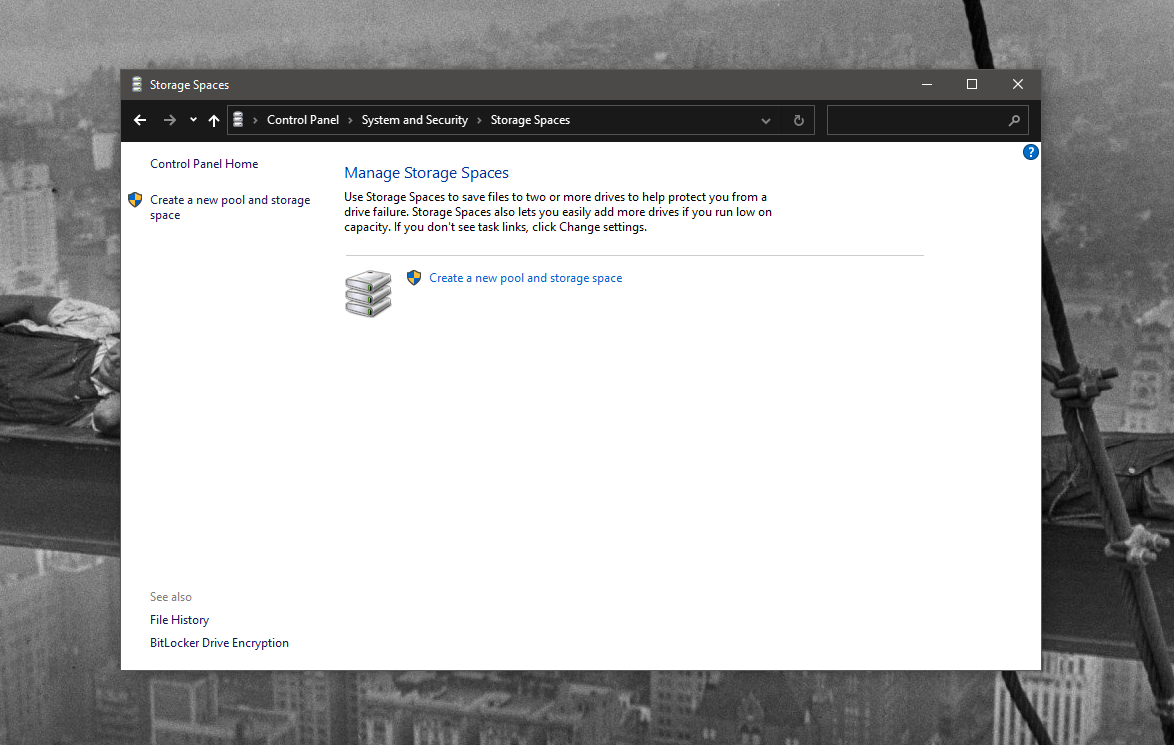
For example, we recently reported how the latest minor OS update from Microsoft is causing storage problems for some Windows 10 PC users. Well, the Redmond tech giant confirmed another issue affecting the Storage Spaces technology that enables users to protect data from hard drive failures.

Storage Spaces access problems in Windows 10 2004

After updating to Windows 10 2004, some users have noticed issues affecting Storage Spaces configurations. Some are unable to optimally use the feature, while others can’t access it altogether.

Microsoft adds that Storage Spaces partitions may display as Raw in Disk Manager, with certain configurations.

Devices using Storage Spaces might have issues using or accessing their Storage Spaces after updating to Windows 10, version 2004 (the May 2020 Update) and Windows Server, version 2004.  When using some configurations, partition for Storage Spaces might show as RAW in Disk Manager.

Unfortunately, Microsoft says there’s no workaround for the issue. You shouldn’t even run the chkdsk command on a machine with the Storage Spaces bug, the company cautions.

So, affected users have to wait for Microsoft to complete its investigations and provide a fix.

Meanwhile, Microsoft revealed an AI system it’s training to automatically deliver Windows 10 2004 to devices approaching EoS. It has already started building the machine learning model that will be intelligently selecting the right candidates for the OS upgrade.

You still can manually get the new OS via Windows Update by selecting Check for Updates.

Nonetheless, always remember to back up your system before installing an update like Windows 10 2004. Doing so ensures that you can roll back any unpleasant changes you experience after updating.

Don’t forget to leave your feedback or ask any question in the comments section below.

[wl_navigator]
GoDaddy Office 365 Review: What Is It and How to Set It Up?

Since Microsoft and GoDaddy’s partnership in 2014, the latter started selling Office 365 through its platform. You can purchase such a subscription (multi-year) straight from GoDaddy at a lower price.

At first sight, it might appear like you’ve struck gold, but the reality is somewhat different. Let’s rewind for a bit.

Office 365, now called Microsoft 365, is a cloud-based service brought to you by Microsoft. This service lets you access Office apps such as Excel, Word, Outlook, PowerPoint, SharePoint, and Access.

GoDaddy Microsoft 365 does not exist

So that you know, GoDaddy never dropped the Office 365 name. So, to avoid any confusion in this article, we’ll refer to Office 365 as GoDaddy’s version and Microsoft 365 will be Microsoft’s version.

There are also some other subtle differences. For instance, Microsoft 365 includes Windows 10 and the Enterprise Mobility Suite, whereas Office 365 only bundles Office-specific tools.

GoDaddy Office 365 vs Microsoft Office 365

We’ve already established that there are many differences between the two products we’re discussing. The name is the most obvious one, and Microsoft 365 also bundles additional software and options.

What does GoDaddy Office 365 include:

  • 5 licenses for the desktop versions of the office applications
  • An Office 365 email address based on your custom domain
  • GoDaddy sign-in portal for Office 365
  • Simplified (fewer) administrative options
  • Custom control panel
  • 1 TB cloud storage space
  • Initial promotional price, after which it’s $14.99/mo.

What does Microsoft 365 include:

  • All Office 365 benefits
  • Windows 10
  • Enterprise Mobility + Security
  • All administrative options
  • Original control panel
  • 1-year custom domain for free
  • 1 TB cloud storage space
  • Office apps on phones and tablets
  • $14.99/user/month for monthly plans or $12.5/user/month for annual commitment

How to set up Office 365 on GoDaddy

  1. Go to the GoDaddy portal
  2. Purchase an Office 365 subscription
  3. Sign in to your GoDaddy account
  4. Access the Email & Office dashboard
  5. Choose the domain you want to associate your email with
  6. Create the email address you want (choose a username and a name)
  7. Define a password and type it into the designated box
  8. Type your previous email address in the Send account info to field
  9. Hit the Create button
  10. Once you’ve created the Office 365 Email, go to the GoDaddy Office 365 sign-in portalGoDaddy Office 365 portal
  11. Log into your account using the credentials specified above (email + password)

GoDaddy Office 365 pros and cons

If you choose to go with GoDaddy Office 365, you’ll benefit from features such as:

  • One-click setup (regardless of the plan you choose)
  • Select your domain, register it, and receive email address suggestion
  • Custom admin panel simplifies the full suite of Microsoft productivity tools
  • Purchasing a multi-year plan costs less than Microsoft’s version

However, reportedly things aren’t so great in reality, as many users reported experiencing various integration-related issues. Namely:

  • Signing in through the GoDaddy Office 365 UI, it triggers various token authentication errors (SSO)
  • Sometimes, certain apps, such as Outlook, and Bing require you to log in over and over again
  • Poor tech support that suggests contacting Microsoft for more technical issues
  • Inability to upgrade Windows 10 from the control panel (no option)
  • Confusing password reset procedure (attempting to reset the password takes you to the GoDaddy portal)
  • The custom admin panel lacks a lot of options, which makes it (paradoxically) harder to use
  • Fewer Office 365 options than Microsoft’s version

Thus, if you’ve already purchased an Office 365 subscription from GoDaddy, the only logical action would be to migrate to Microsoft 365. However, this is a tedious process, and you will require aid from GoDaddy’s customer support.

GoDaddy Office 365 seems to be more for less

The bottom line is, even though GoDaddy Office 365 might be cheaper, it’s mainly because it’s a lighter version of the original product. It offers lesser functions and custom administration options and is reportedly still more complicated.

If you purchase a multi-year Office 365 subscription from GoDaddy, you might figure it’s cheaper than buying a Microsoft 365 subscription directly from Microsoft. However, in the long run, you might realize that GoDaddy charges you more for less.

Snapdragon-powered Lenovo Yoga 5G ships on June 18

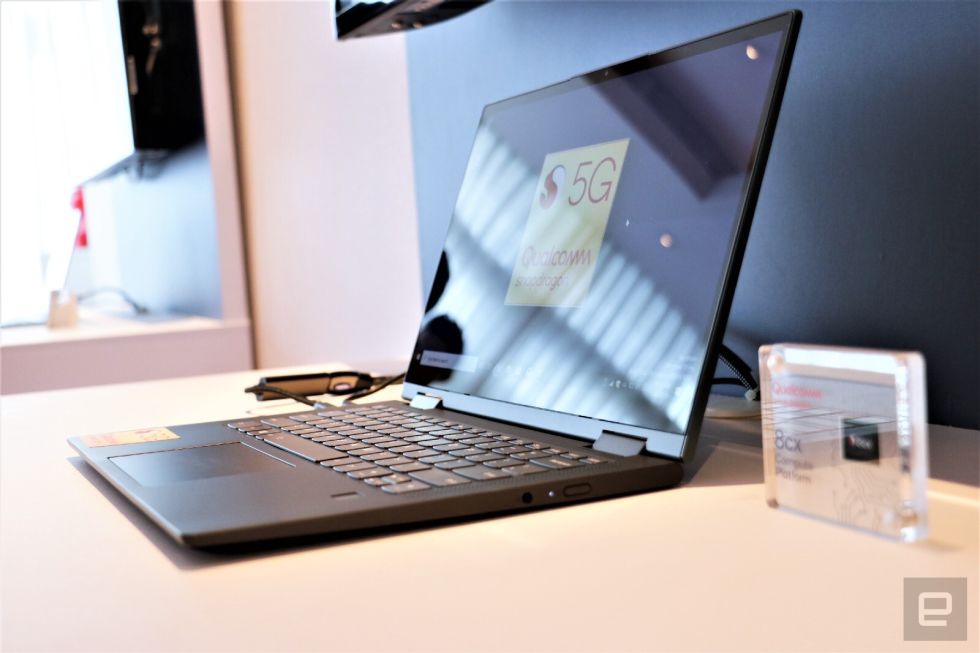
A number of top smartphone models have 5G capabilities. But the PC world is largely devoid of a device in use that has that feature. Well, that’s set to change with the arrival of the Lenovo Yoga 5G in the U.S.

Starting June 18, you can buy the Lenovo Yoga 5G, according to Microsoft.   The laptop, which starts at $1,399.99, is the first PC in the world to support the fastest internet connectivity technology available today.

Lenovo Yoga 5G specs

Support for 5G is a potential game changer regardless of how you use Lenovo Yoga 5G or Lenovo Flex 5G. Its high-speed network connectivity could be up to 10 times (or more) faster than 4G, which would be ideal for downloading massive files.

As you might imagine, 5G should work great for video conferencing, live streaming, and file sharing too.

Microsoft adds:

Thanks to that platform, you can stay online with up-to-24-hours battery life. When secure, stable Wi-Fi isn’t available, the 5G network provides faster and more reliable connectivity options when streaming, real-time collaborating, video-chatting, gaming or file-transferring.

In addition, the Windows 10PC uses a Qualcomm Snapdragon 8cx 5G processor with a built-in modem. This microchip has become synonymous with 5G devices nowadays.

Lenovo says that the Flex 5G laptop comes with a 24-hour battery life. That’s a useful feature, especially when you need to stay connected and keep working for long hours while off the grid.

Apparently, the device’s current microchip boasts superior thermal efficiency compared with previous-gen Qualcomm processors. The feature enables it to save up to 60% of computing power. That’s how a fully-charged Lenovo Yoga 5G battery lasts 24 hours.

The laptop will be available in other select regions, including Europe and Asia, later this year.

Recently, Lenovo launched the Yoga Duet 7i and IdeaPad Duet 3i laptops.

Are you excited about the new Lenovo Yoga 5G PC? Feel free to let us know or ask any question via the comments section below.

[wl_navigator]

ARK packet loss: What is it and how to fix it?

ARK: Survival Evolved, or shortly just ARK, is an awesome action-adventure game released in 2017. You find yourself stranded on a mysterious island and need to do everything you can to survive.

However, don’t expect ARK to treat you like a basic wood camper. No, building a fire is the last thing you’ll need to worry about in this game. In fact, you’ll have to tame or kill primeval creatures on the island.

In your survival-based journey, you might even find other players. It’s your choice whether you help each other survive, or engage in some good player-vs-player action.

Now if you choose to play ARK all by yourself, you might not even need this article. However, it’s the multiplayer that bugs us all every now and then with the same old issues.

High latency/ping, jitter, random disconnection, and even the infamous packet loss are among these issues.

What is packet loss in ARK?

Generally speaking, packet loss has the same behavior regardless of where you encounter it, even in ARK. It occurs whenever packets of data that you send or receive never reach their destination point.

That shouldn’t be such a problem, considering that we transmit tens of millions of packets daily. Some of them might not make it to their destination, but they are usually quickly replaced by others.

However, in online games such as ARK, it can get problematic if such an episode lasts for several seconds, or minutes. Usually, packet loss triggers other issues such as unbearable latency, rubberbanding, and even disconnection.

More often than not, network congestion is the one causing packet loss. Thus, leaking packets usually fixes itself if you just give it time. Additionally, you might want to avoid peak hours, if you’re aware of them.

How to fix packet loss in ARK?

1. Try using a VPN

  1. Download Private Internet Access to your PCARK PIA
  2. Install it
  3. Launch PIA and log into your account
  4. Choose a fast server
  5. Launch ARK
  6. Check to see if the problem still persists

Private Internet Access is a great all-round VPN from Kape Technologies. This VPN can improve your packet loss, but only if the issue occurs on your ISP’s side.

For instance, if your network is improperly routed, or if your ISP throttles your bandwidth, PIA might improve things.

Private Internet Access

Private Internet Access

Leaking packets in ARK? PIA might be of help.
$2.85/mo. Buy it now

However, the reasons for using a VPN shouldn’t be reduced to improving ping or packet loss. VPNs are outstanding tools that can help you enhance your privacy, secure your connection, and even circumvent geoblocking.

Thus, even though it might not improve packet loss 100% of the time, it’s still wise to invest in a VPN.

2. Troubleshoot your connection

  1. Launch CMD with administrator rights
  2. Locate the address of the ARK server that leaks packets
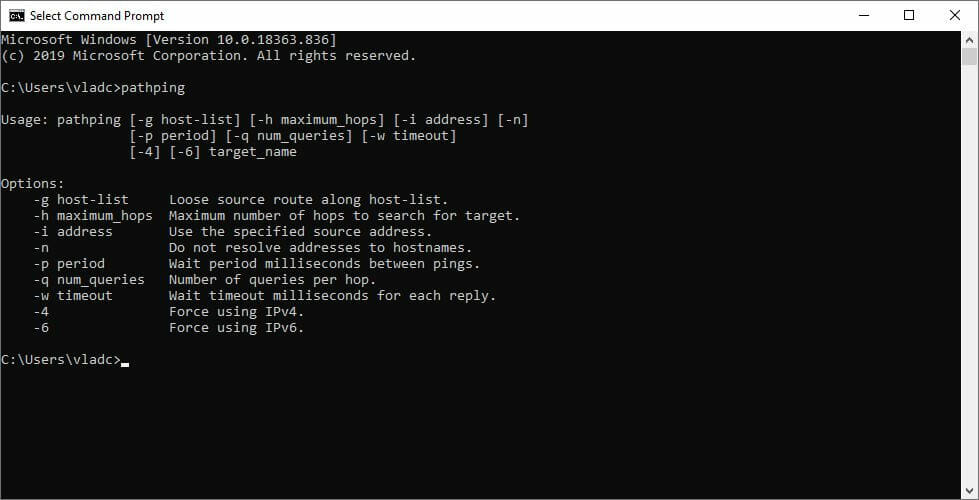
  3. Run the pathping x.x.x.x (x.x.x.x = address of the ARK server) command in CMDCMD pathping
  4. Locate the hop that’s losing packets
  5. Depending on your test results, take any of the following actions:
    • Check and replace/repair/upgrade/update any faulty components of your home network (PC, cables, router)
    • Switch to wired if you’re using Wi-Fi (Wi-Fi leaks packets more often)
    • Call your ISP to look into the matter if there’s something wrong on their side
    • Contact the server host and inform them of your findings

Truth be told, there’s no immediate magic fix for packet loss. As we’ve mentioned above, most of the time it’s caused by network congestion and fixes itself.

However, if you notice a pattern in its occurrence, stepping in might be the smart thing to do.

ARK packet loss can be solved most of the times

To sum it up, if you’re having problems with packet loss in ARK, the best thing would be to wait it off. More often than not, it’s caused by network congestion, which, given enough time, passes as swiftly as it came by.

The next best thing would be trying to fix it by yourself, and sometimes using a VPN is the simplest way to tackle this issue. If the VPN didn’t work as expected, try troubleshooting your connection, isolating the issue, and fixing it one step at a time.

[wl_navigator]

Emails surface detailing Microsoft’s facial recognition pitch to DEA shortly before new stance

Microsoft might have earned some civil justice cred last week when news outlets reported on its newly adopted stance on facial recognition that needs to be “grounded in human rights” graced the headline of several news outlets, but it seems the company’s altruism may have been forced rather than earned according to newly surfaced emails.

BuzzFeed News is reporting that until recently, Microsoft has tried on several occasions to sell its facial recognition technology to the government over the years and while the company specifically called out local enforcement through their recent advocacy, as recently as 2018 it tried to pitch its facial recognition to the Drug Enforcement Administration.

Documents gathered by the American Civil Liberties Union (ACLU) details conversations between Microsoft and various federal agencies regarding the sale and purchase of the software providers’ facial recognition technology.

In particular,

“Great chatting with you yesterday. Here is a recap of what I have in mind.

I am getting the Microsoft Cognitive Services Group to come in from Redmond to discuss use-cases for their Media Services. As you may be aware, Microsoft Azure has many of these services (Translation, Transcription, Video Processing, Facial Recognition, etc.) running the Public Azure. Microsoft has only some of these services running in the Microsoft Azure Government (MAG) Cloud and they are looking at what else needs to be transitioned over to MAG.

They are also looking at what needs to be developed. The great news is that MAG is FISMA-FEDRAMP High, the same as Firebird, so we can do Law Enforcement Sensitive things in it. I am kicking off a pilot project and would like to start thinking about a variety of sample recordings (video and audio) that we could play with to exercise these services. Perhaps you have some that are not sensitive that we could use?”

While the name of the officer has been redacted for security purposes, the person with whom Microsoft was supposed to meet with, holds the title of Chief Technology Officer for the DEA.

In November 2017, DEA reps made a trip to Microsoft’s Reston, Virginia office to get a first-hand demo of its Azure-based cognitive services that included facial recognition technology with an emphasis on “Face API and develop a face database.”

Communications between Microsoft and the DEA imply there was no documented evidence that anything became of the meetings and, Microsoft president Brad Smith spoke on behalf of the company in July 2017  eventually stress these need for thoughtful government regulations” regarding the use of facial recognition in law enforcement.

At the moment, it’s unclear whether Microsoft’s new stance on the use of facial recognition is tied to its seemingly failed pitches to government agencies or if it was developed in parallel and the timing of events is coincidental.

As an aside, a senior Microsoft SME attempted to meet once again with the DEA shortly after Smith’s open call for stricter regulations but before the company’s public declaration to not sell facial recognition to law enforcement until the company was satisfied with new laws set in place. In November 2018, the unnamed Microsoft SME sent another email to a DEA rep asking for a meeting, once again, regarding the use of Microsoft’s facial recognition technology.

While the ACLU’s lawsuit which has brought the email communications to light it doesn’t seem to cover recent communications between Microsoft and government agencies in regard to facial recognition. It remains unclear if the company is now using legalese to skirt around its own definition of law enforcement involvement to eventually service the government with facial recognition technology.

Despite Microsoft’s recent stance on facial recognition, the company does maintain several contracts with other law enforcement agencies in the US that include the Immigration and Customs Enforcement (ICE) and Department of Defense (DoD) which has caused a bit of consternation among the company’s employees.

In the end, Microsoft can only be judge by its actions and thus far, its facial recognition technology hasn’t made its way to law enforcement, how long that holds is up to the software company.

VLC media player update fixes denial of service crash bug

Why would someone launch a denial of service attack just to crash your VLC media player?

A malicious actor could do it for fun, no? Or maybe they found a new way to steal your information. But, whatever their intention is, a flaw in the VLC app could let them do exactly that!

That’s why the folks at VideoLAN recommend that you update to VLC 3.0.11 for Windows 10, which patches the vulnerability.

VLC media player patches crash vulnerability

Tommy Muir alerted VideoLAN to the CVE-2020-13428 flaw that affects the VLC media player.

In a typical CVE-2020-13428 exploit, an attacker remotely delivers a specially crafted script that causes a buffer overflow affecting the VLC H26X packetizer.

They could send you the malware disguised as a genuine media file. They could also deliver it in the form of a media stream.

Once you open the specially crafted file, the malware starts executing.

After that, the bad actor may be able to crash your media player in a denial of service attack. Alternatively, they could gain your user privileges and execute arbitrary scripts.

While these issues in themselves are most likely to just crash the player, we can’t exclude that they could be combined to leak user information or remotely execute code. ASLR and DEP help reduce the likelihood of code execution, but may be bypassed.

The VLC media player takes advantage of address space layout randomization (ASLR), a memory protection technique that minimizes the risk of buffer-overflow attacks. Apart from that, it also leverages data execution prevention (DEP) to guard against the effects of malware and viruses.

But VideoLAN warns that an attacker may still breach ASLR and DEP and succeed in their CVE-2020-13428 attack.

Most probably, the company received a proof of concept from Muir, rather than evidence of an ongoing exploit in the wild. So, you should be safe for now, although updating to the latest version of the VLC media player should be a priority.

Do you use the VLC media player for Windows 10, and are you experiencing any crash issues? Kindly let us know or ask any questions via the comments section below.

[wl_navigator]

FIX: MTG Arena fatal error in GC GetThreadContext failed

Magic: The Gathering Arena is the digital version of the Magic: The Gathering card game. The game received positive reviews since its launch for Microsoft Windows .

However, people raised some issues about errors that appear at launch or during gameplay. Next, we’ll give you some solutions how to get rid of the fatal error in GC ‘GetThreadContext failed’ error message.


How do I fix the GetThreadContext failed error in MTG Arena?

1. Turn off or uninstall FACEIT Client.

FACEIT is a solution, for clients and servers, that aims to detect cheats in online games or software that could help players break rules during the game.

If it’s installed on your system, simply turn it off and try launching MTG Arena. If the problem persists, uninstall FACEIT client, reboot your computer and try again.

This time, you should have more success.


2. Add MTG Arena to your antivirus exception list.

Antivirus-general-image

Like in many other cases, when it comes to security solutions, these could also stand in the way of perfectly legit applications. Users have reported that after an update to their antivirus software, a fatal error in GC GetThreadContext failed suddenly appeared.

For some of them, it was just as simple as adding MTG Arena on the exception list of their AV. Unfortunately, this doesn’t work all the time. You may need to resort to another security software.


Looking for a solid antivirus tool? Check out this detailed article for our top picks!


3. Turn off DEP for MTG Arena in Windows 10.

system-advanced-system-settings
System-advancedsettings-advanced-performance
data-execution-prevention-tab
  1. Open Control Panel, go to System, and then click on Advanced system settings in the left upper corner.
  2. Now, System Properties window should be open.
  3. Go to the Advanced tab, and click on Settings in the Performance area.
  4. In the Performance window, go to the Data Execution Prevention tab
  5. Make sure you check Turn on DEP for all programs except those that I select and click on the Add button.
  6. At this last step, you need to navigate to the executable of the application, select it and then click Apply.
    • DEP should not be a problem anymore for MTG Arena.

Though usually, DEP doesn’t affect the running of newer applications, we can’t exclude it from our set of solutions. To turn off DEP for MTG Arena follow the steps listed above.

These are the fixes to help gamers eliminate the annoying fatal error in GC GetThreadContext failed in MTG Arena.

We also have a new guide on MTG Arena network error, so don’t miss it. Many users encountered Asset error detected in MTG Arena, but we covered that one in a separate guide.

Let us know which of the solutions listed above helped you solve your MTG issue by leaving us a message in the comments section below.

Will upcoming Windows 10 21H1 bring Win 32 containers?

It’s almost a month now since Microsoft accidentally revealed that Windows 10 21H1 would hit the Fast ring toward the end of June 2020. Well, the build is likely to go live today, according to a tweet by Alumia.

Yesterday, build 20H2 left the Fast ring, which means that the channel has or will get a new occupant soon. But what features is 21H1 bringing?

Windows 10 21H1 set to go live in the Fast ring

Twitter user Alumia-Italia, who has build credibility for leaking accurate prerelease info on Windows and other Microsoft apps, posted a screenshot of Windows 10 21H1 download options.

The image includes the preview build’s number, 21050.

Alumia adds that 21H1 is going live today, and the package will include ISOs for the OS.

Well, speculations that Microsoft would push 21H1 to Windows insiders around this week started surfacing last week.

As you may know, 21H1 is a major Windows 10 update, unlike 20H2, which hit the Slow ring yesterday. The build is likely to offer a much-improved user interface with a new Start menu, for starters.

But not everything is clear about what specifically 21H1 brings. For example, will it offer insiders an opportunity to test Win32 app containers?

Containerization would be a major change for Windows. That’s because it’s a revolutionary architecture that allows apps a significant level of independence from the operating system.

Originally, the container technology was coming to Windows 10X. But rumors have it that such core features may be available in other versions of Windows 10 too.

What’s more, Microsoft appears to be shifting away from the tradition of tying new features to specific OS releases. As such, if you test any new feature in, say, 21H1, it may not necessary become available with the release of that specific build.

In other words, even if Windows 10 21H1 preview build 21050 supported Win32 containers, the feature could end up in another release version of Windows.

As always, you can share your thoughts or ask any questions in the comments section below.

[wl_navigator]

Microsoft fixes Windows 10 printer issues after June updates

Microsoft announced in the Message center that they issued new out-of-band updates to fix the printing problems that occurred for some users after the updates released in June.

It probably sounds complicated but we will clear this out. We previously reported about a Patch Tuesday update that causes printing problems and more.

To refresh your memory, this is Microsoft’s known issue:

After installing this update, certain printers might fail to print. The print spooler might throw an error or close unexpectedly when attempting to print, and no output will come from the affected printer.

The issue might also affect software-based printers, such as when printing to PDF.

As they were many users affected by this problem, Microsoft issued updates for every major build from 1803 to 1909.

How can I download and install the updates?

First of all, Microsoft advises that only the users that are affected by this printing problem should download and install these patches.

The KB4567512, KB4567513, and KB4567514 are optional updates and are available only on the Microsoft Update Catalog.

That means that you won’t find them in Windows Update and will not install automatically.

For Windows 10, version 1803, you need to install KB4567514

For Windows 10, version 1809, you need to install KB4567513

For Windows 10, version 1903, you need to install KB4567512

For Windows 10, version 1909, you need to install KB4567512

Microsoft added that for other affected versions of Windows they will issue updates in the coming days.

How can I see what is my Windows 10 version?

If you don’t know what version of Windows 10 you have installed, it’s easy to check.

Press the Windows key + R, type winver and select OK. The version will be shown in the second row.

How to check Windows 10 version

Do you have problems with your printer since the update? Tell us your story in the comments section.

[wl_navigator]

Windows 10 Insider build 20150 is out in the Fast Ring with WSL updates

Microsoft has just announced the release of the Windows 10 preview build 20150 for Windows Insiders in the Fast Ring, which will soon become the “Dev channel.” Despite the big bump in the build number, there are no major changes in this build, though the Windows Subsystem for Linux is getting some love.

Three new WSL features are available in this build with GPU compute, WSL install, and WSL Update. Fast Ring Insiders will also find an updated Maps app that now uses TomTom data, as well as minor improvements for the Settings apps.

You can find the full list of new features, bug fixes, and known issues below:

What’s new in Build 20150

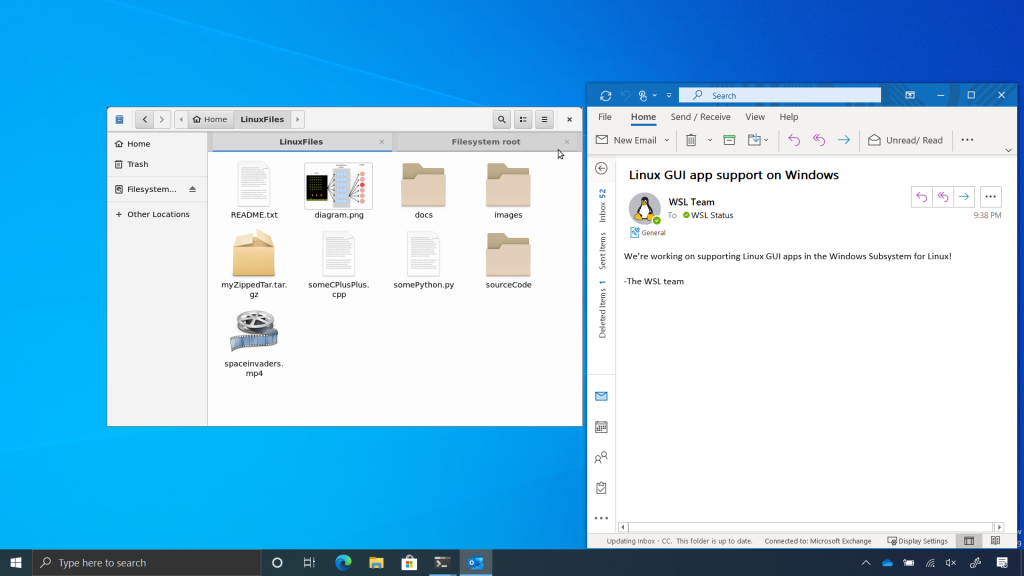
Three new Windows Subsystem for Linux (WSL) features: GPU compute, WSL install, and WSL update

This build contains three new exciting WSL features. The first is GPU compute: a feature that allows your Linux binaries to leverage your GPU, which makes it possible to do more machine learning development and data science workflows directly in WSL. Secondly, we’ve added a new command: `wsl –install` which allows you to install WSL with just one command. Lastly, we’ve added `wsl –update` which gives you the ability to easily manage the Linux kernel version used by WSL 2 distros. To view a summary of these announcements please read this post on the Windows Command line blog, and for in-depth details on GPU compute in WSL please read this post on the Windows Developer blog.

A TensorFlow Docker container running an ML training script inside WSL 2 along with Task Manager showing GPU activity.

Other updates for Insiders

Updating the map data in the Maps app

Earlier this month, the Bing Maps Team announced they’ve started gradually rolling out the new TomTom base map data to Bing Maps and Microsoft first party products. As part of this process, we’re slowly updating the Maps app for Windows Insiders in the Dev Channel (Fast ring) to use the new map data from TomTom. We’re asking Insiders to submit feedback on any issues they see as a result of this change directly from the Maps app by selecting Suggest a change at the lower right corner of the app.

General changes & improvements

  • With this week’s build, we’ll be starting to roll out the new search box on the default app settings pages As part of this, we’ve done some work to improve the performance of the search box.
  • The new Korean IME is now available again for Insiders to use.
  • Based on feedback, we’re updating the text of the Settings > Privacy > Location page to clarify that the icon displayed when your location is being used will be displayed in the taskbar.

Fixes

  • We fixed an issue resulting in Visual Studio windows not consistently accepting clicks.
  • We’ve fixed an issue where the Documents and Downloads sections in Settings > Privacy was showing a broken icon next to their name (just a rectangle).
  • We fixed an issue where, if you paused Windows Update while a new build was downloading and then closed Settings, when you reopened Settings the Windows Update page may appear blank.
  • We fixed an issue where updates made when editing VPN networks in Settings might not persist.
  • We fixed an issue where the copy button under Settings > Network & Internet-Status > Properties wasn’t actually copying the content to the clipboard.
  • We fixed an issue resulting in the data usage number in Network & Internet Settings not displaying correctly in Japanese if the data usage was less than 1 MB.
  • We fixed a crash some Insiders were experiencing when opening Sound Settings.
  • We fixed an issue where the Optimize Drives window position wasn’t preserved on elevation.
  • We fixed a typo in the group policies under User Configuration > Administrative Templates > Windows Component > File Explorer > Do not move deleted files to the Recycle Bin.
  • We fixed an issue resulting in the On-Screen Keyboard no longer displaying text predictions.
  • We fixed an issue where double-clicking a OneDrive file in File Explorer might unexpectedly show a notification saying, “Windows Defender SmartScreen is downloading from OneDrive.”
  • We fixed an issue where Resource Monitor could end up showing CPU usage at more than 100 percent.
  • We fixed an issue that could result in qaa-Latn unexpectedly appearing in your list of keyboards after upgrading.
  • We fixed an issue where, with multiple input methods, typing in your password incorrectly on the login screen would result in your keyboard changing back to your default input method (if that’s not what you were typing with).
  • We fixed an issue where the touch keyboard space bar label would disappear when pressing it while using Japanese curve-flick input in abc mode.
  • We fixed an issue that could result in your browser not launching in the foreground after selecting a web link from another app.
  • We fixed an issue that could result in Search not accepting typed input.
  • We fixed an issue where, if pinned to Start, the Windows Security app tile would be missing an icon when the tile was medium sized.
  • We’ve made some updates to improve performance of the Windows Security app if there are a large number of detections.
  • We fixed a few issues that could result in your PC bugchecking.

Known issues

  • We’re working on a fix for an issue causing some systems to crash with a HYPERVISOR_ERROR bugcheck.
  • We’re looking into reports of the update process hanging for extended periods of time when attempting to install a new build.
  • We’re aware of an issue where Notepad might fail to reopen files which were automatically saved during a PC upgrade (or restart, if enabled in Settings). Documents can be recovered from %localappdata%Notepad.

In case you missed it, Microsoft announced some big changes for the Windows Insider program earlier this week. The Fast Ring will become the new Dev channel later this month, but it will keep receiving builds with experimental features that are not tied to a specific Windows release. The Slow ring is also becoming the Beta channel and should receive new builds more frequently, and Microsoft actually released the first 20H2 build for those Insiders yesterday.

Update 1PM PT: ISOs for the build 20150 are also available to download from the Windows Insider Preview Downloads page.

Microsoft Defender ATP gets new UEFI scanner

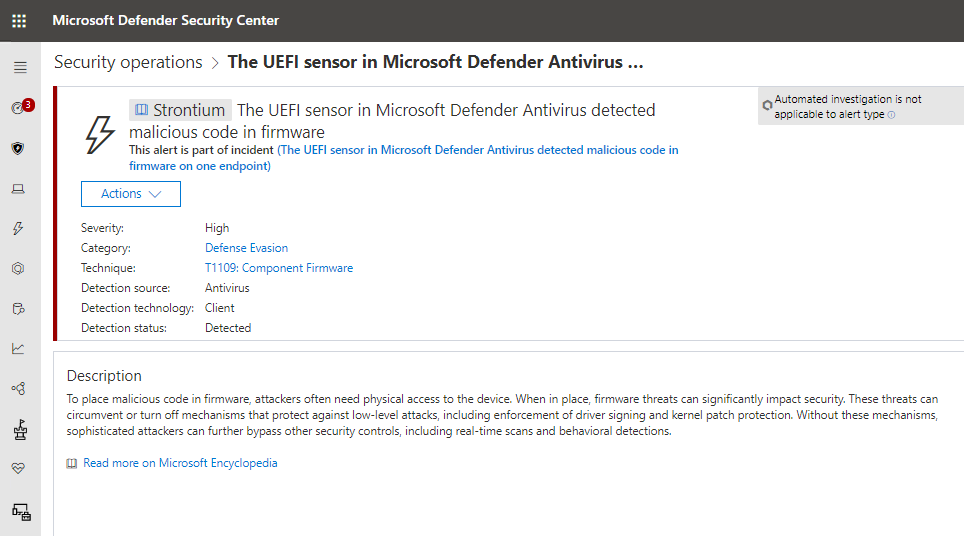
Microsoft Defender Advanced Threat Protection, Microsoft’s preventive technology designed to help enterprise users detect and respond to security threats, is getting a new UEFI scanner to protect against hardware attacks. In a blog post today, Microsoft announced that it’s expanding the protection capabilities of Microsoft Defender ATP to the firmware level by introducing a new Unified Extensible Firmware Interface (UEFI) scanner.

The new UEFI scanner basically interacts with the motherboard chipset by reading the firmware file system at runtime. “The UEFI scanner is a new component of the built-in antivirus solution on Windows 10 and gives Microsoft Defender ATP the unique ability to scan inside of the firmware filesystem and perform security assessment. It integrates insights from our partner chipset manufacturers and further expands the comprehensive endpoint protection provided by Microsoft Defender ATP,” explained the Microsoft Defender ATP Team.

According to Microsoft, the UEFI scanner uses various new solution components including the UEFI anti-rootkit, full filesystem scanner, and detection engine in order to perform dynamic analysis for threat detection. Microsoft Defender ATP customers will get the threat detection alerts in the Microsoft Defender Security Center, and they can then analyze them to respond to suspicious activities at the firmware level in their organizational environments. Moreover, your security operations teams can hunt for these threats with the help of the advanced hunting capabilities in Microsoft Defender ATP.

Overall, this is a welcoming change for companies using Windows Defender ATP, and it should beef up Microsoft’s efforts to protect its enterprise customers. “With its UEFI scanner, Microsoft Defender ATP gets even richer visibility into threats at the firmware level, where attackers have been increasingly focusing their efforts on,” said the Microsoft Defender ATP Team today. “Security operations teams can use this new level of visibility, along with the rich set of detection and response capabilities in Microsoft Defender ATP, to investigate and contain such advanced attacks.”

Microsoft touts reduced memory usage for Microsoft Edge on the Windows 10 May 2020 Update

Microsoft’s new Chromium-based Edge browser is running more efficiently on the freshly-released Windows 10 May 2020 Update, the company said today. Microsoft claims that the new browser can use close to 30% less memory on the new version of the OS due to segment heap memory improvements for Win32 apps.

“With the Windows 10 May 2020 Update, Microsoft Edge has leveraged the Windows segment heap memory improvements now available for Win32 applications to manage memory more efficiently. Early internal testing results of devices on the May 2020 Update are showing a memory usage reduction of up to 27% when browsing with Microsoft Edge,” the company explained.

It’s important to note that Microsoft Edge’s memory usage should vary across PCs, but Microsoft still expects users to have a “better experience” when using its new browser on the May 2020 Update. That may well convince more Chrome users to give Edge a try, as Google’s web browser is notorious for being a memory and battery hog.

Microsoft has started rolling out its new Edge browser to all Windows 10 PCs via Windows Update, which will replace the legacy Edge that is no longer in development. The upcoming Windows 10 20H2 update, to be available later this fall, will also be the first version of Windows 10 to ship with the new Microsoft Edge, the software giant announced yesterday.

PowerPoint Live is now generally available

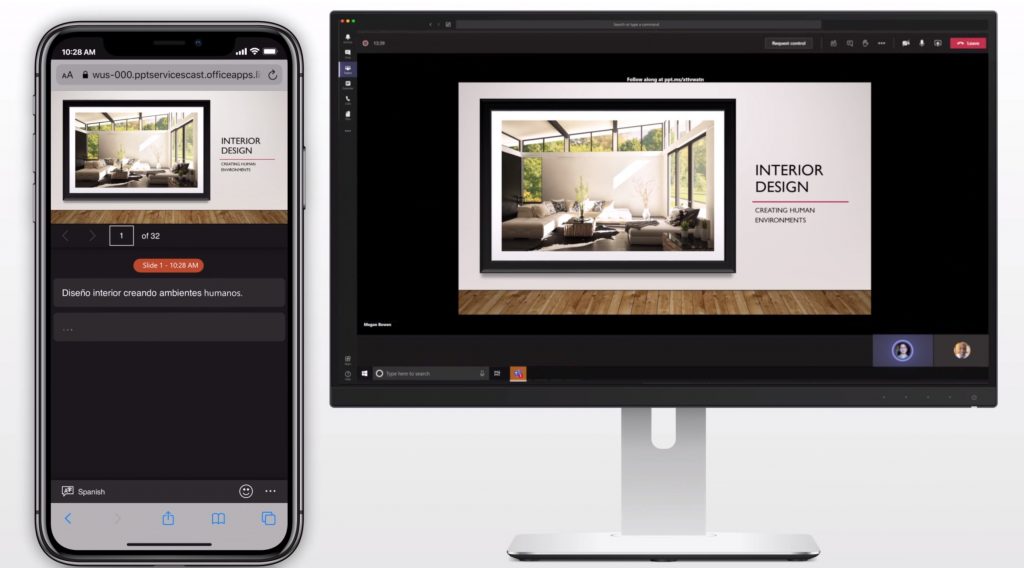
PowerPoint Live is now generally available. Earlier this year, Microsoft announced new AI-enabled experiences for Powerpoint, Word, and Excel. This latest announcement comes directly from Microsoft in a post on the Microsoft 365 blog. Here’s a video look at how Live Presentations work in PowerPoint works.

Now, when giving a PowerPoint Live presentation, presenters can keep their audience engaged by allowing them to access your presentation on whatever device they are using. PowerPoint Live also allows the audience to look through your PowerPoint slides at their own pace without the need to interrupt your presentation.

In addition to all these capabilities, Microsoft uses the power of artificial intelligence (AI), so that your audience can access your presentation using their own preferred settings on their device, including live subtitles in their preferred language and assist any audience members with hearing disabilities.

After the PowerPoint Live session, audience members can provide feedback to the presenter, with an optional survey provided by Microsoft Forms to help the presenter improve their presentation skills. In addition, PowerPoint Presenter Coach for Android is now generally available, allowing you to get feedback and coaching on how to best deliver your own upcoming presentation using your mobile Android device.

Windows 10 20H2 installs faster and includes Microsoft Edge

Microsoft’s Director of Program Management, Windows Servicing, and Delivery, John Cable, announced on the Windows Blog the new update plans for future releases on Windows 10.

And those plans started with the release of the Windows 10 20H2 for the Insiders in the Beta Channel, the former Slow ring.

What is new about Windows 10 20H2?

First of all, Microsoft cleared out the numerical naming scheme and decided on the year and period version.

So if this is the Windows 10 20H2 build, it’s because it’s going to be released for the general public in this year’s second half.

However, in a small note, they specified that they will still use a friendly name, such as the May 2020 Update, in communication with consumers.

As for the new features of the Windows 10 20H2, Cable was pretty brief:

Windows 10, version 20H2 will offer a scoped set of features to improve performance and enhance quality.

It will also be the first version of Windows 10 to include the new Microsoft Edge, based on Chromium.

In a nutshell, that means that this is a minor release in the style resembling a cumulative upgrade rather than a major one. However, things can still change until the fall release.

It’s worth mentioning that the new build 20H2 Build 19042.330 for the insiders, also includes fixes from the KB4557957 update.

Windows 10 20H2 will install quicker

Anyone running the May 2020 Update and updating to Windows 10, version 20H2 will have a faster installation experience because the update will install like a monthly update

, mentioned Cable in the blog post.

However, if you own an older build, you will wait longer, just like for a major update.

The Microsoft official added that the main focus of the 20H2 feature update will be on improved performance and quality, rather than on a large number of brand-new features.

How can I install the new Windows 10 20H2 update?

Windows 10 20H2 is available only for Insiders who joined the Beta Channel and look for the update in Settings > Update & Security > Windows Update.

Once you download and install it, you will get regular 20H2 updates via Windows Update.

What do you think about the new Microsoft approach? Leave us your thought in the comments section below.

[wl_navigator]

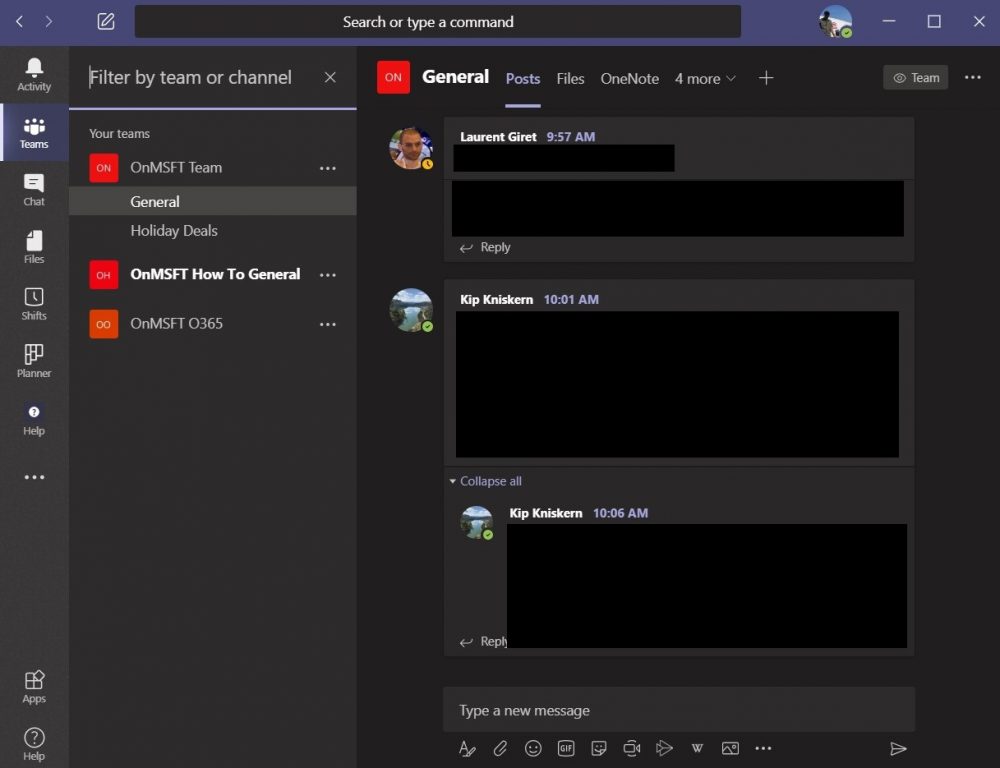
How to use filters in Microsoft Teams to find the messages and items you need most

The more you use Microsoft Teams, the more it will get populated with messages and other items such as files. This might make it tricky to find things like a specific document your colleague left you, or a specific message which mentioned something important. Luckily, Microsoft Teams makes it easy to find these things with its filter function. Here’s a look at how you can use it.

How to filter your search

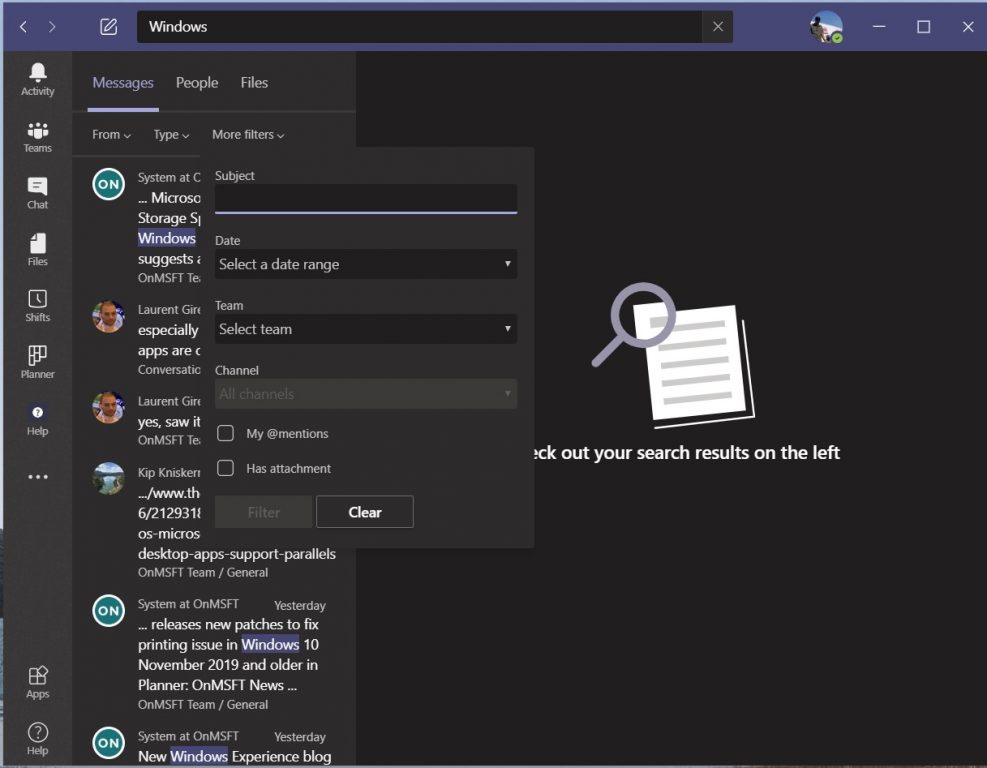
Once you run a search in Microsoft Teams, you’ll notice that you’ll see some tabs along the top of the search results. It will say Messages, People, and Files. This is your first way of filtering. It the item you’re looking for is a message, click messages. If it is a person, click people, and if it is a file, click Files. These separate things out a bit to help make finding what you’re looking for easier.

Additionally, you do have access to other filters below that. When looking for messages, you can click the From box and type a name to narrow down who the message originated from. You also can choose Type to narrow down where the message originated from, be it a channel or a chat. Finally, you’ll also see options for more filters. This includes by subject, date range, the Team the message is from, or the Channel. You even can choose if it has an attachment, or if you were @ mentioned.

When searching for files specifically, you’ll find some helpful filters, too. You can use the filter to see which Team the file came from, the file type, as well as when it was last modified.

How to filter your chats

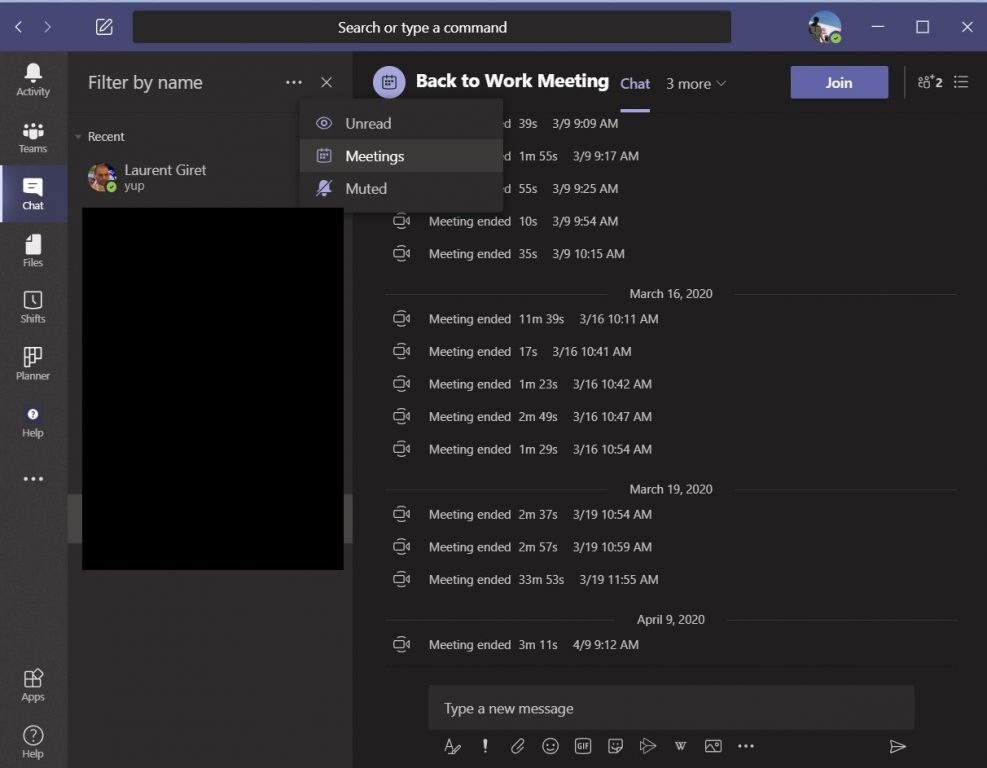
Filtering goes beyond the search. If you’ve got a lot of chat messages in Teams, you also can filter through the list with some additional controls. By default, the filter is by name, but if you press the . . . you also can filter beyond that to include unread messages, muted conversations, or meetings. It’s a great way to get the messages or things you need first, without worrying about clicking through a long list.

How to filter your channels and Teams

Finally, there is the ability to filter your channels and your Teams. To do this, you’ll want to look for the icon next to where it says Teams. It looks like an upside-down beaker. When you click it, you’ll be able to narrow down your list of teams and channels. From here, you can sort through and search for teams or channels. It’s useful if you’re in more than one channel or team.

Tips for chat, and more

Our tips for filtering in Teams are just one area of our recent coverage. We’ve been going over all kinds of Teams topics. These include some tips for how you can get the most out of chat in Teams, how to manage your notifications, get the most out of your camera, and more. If you have some tips of your own let us know in the comments below!

Get one month of EA Access for just 99 cents and play more than 80 EA games on Xbox One

Xbox One owners can get a cool deal on EA Access subscriptions this week. For a limited time, EA is offering one month of EA Access for just 99 cents instead of $4.99, and for that price, you’ll be able to play more than 80 EA games for free including Star Wars Battlefront 2, FIFA 20, or Battlefield 5.

EA Access was the first game subscription service to launch on Xbox One consoles back in 2014, three years before Microsoft launched its own Xbox Game Pass alternative. EA Access went to launch on PlayStation 4 last year, and it’s also coming to Steam very soon.

EA Access is much cheaper than Xbox Game Pass at just $4.99 a month, or $29.99 a year, though subscribers usually need to wait six months or more before new EA games join the catalog. Microsoft does it differently with Xbox Game Studio titles, which are now available on Xbox Game Pass on day one.

Still, EA Access remains a really good deal if you’re a fan of EA’s game franchise. The service also offers 10% off on EA digital purchases from the Xbox Store, as well as 10-hours “Play First” trials for upcoming games.

While there’s no E3 2020 this year, EA will hold an “EA Play Live” digital event tomorrow at 4PM PT. The company is expected to reveal more details about Star Wars: Squadrons, its new space combat simulation game that will ship on Xbox One, PlayStation 4, and Windows on October 2, 2020.

EA Play
EA Play
Developer:
Electronic Arts
Price:
$5.99

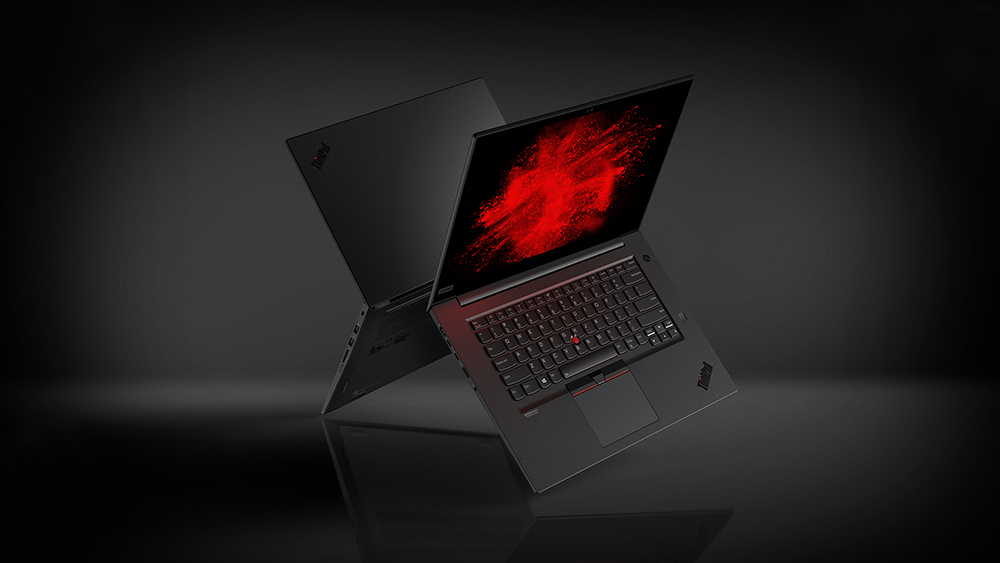
Lenovo updates its ThinkPad line with brighter screens, larger batteries and LTE options

Lenovo just announced updates to its ThinkPad P Series Mobile workstations that bring more control and more configurations to the SMB crowd.

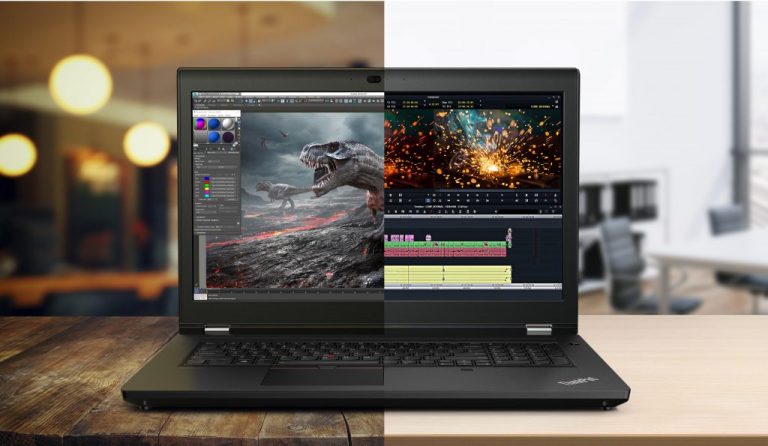
Some of the latest improvements include new screen sizes, Ultra Performance Modes, the latest 10th Gen Intel Core processors, rebuilt chassis with up to 30 percent larger CPU heat sinks, and larger battery sizes just to list a few.

For those unaware, Lenovo’s new ThinkPad P series includes the ThinkPad P15, and P17 (successors of the P53 and 73) and the beast ThinkPad P1 Gen 3.

As previously mentioned, Lenovo is priding itself on its redesigned airflow makeup that adds up to 13 percent more airflow for the P15 and P17,  this time around. Leveraging the new airflow design are two other components that should help boost overall productivity from the device that includes a larger CPU heat sink for the devices as wells as Lenovo’s Ultra Performance Mode that allows users to tax the processors more before hitting that fan noise barrier.

As part of a customization initiative, Lenovo also opted for a new daughtercard design for CPU and GPU placement which forgoes the tried and true soldered solutions of the past and allows the company to offer more customized GPU and CPU configurations out of the box. For instance, the ThinkPad P15 and P17 come equipped with NVIDIA Quadro RTX GPU’s but offer support for higher GPU wattage if necessary.

“Professionals across industries require the highest level of power and performance from their mobile workstations to meet the demands of their workflow,” said Sandeep Gupte, senior director of professional visualization, NVIDIA “Powered by NVIDIA Quadro RTX, Lenovo is offering a truly customizable and full-powered workstation experience – whether people care on the go or at home.”

Other niceties coming to the P lineup also include new 84WHr batteries, configuration support of up to 4TB of storage, UHD Dolby Vision HDR displays, and a possible 128GB DDR4 memory options for the P15 and P17 devices.

Moving over to the flagship P device in the ThinkPad P1 (the P version of the X1 Extreme) customers will now get a slightly redesigned chassis housing that improves speaker quality, an anti-smudge coating on the cover, and brand new UHD LCD display option that kicks out 600-nits of brightness. There will also be available in select markets, an LTE WAN configuration for remote workers.

Last but not least, Lenovo is tossing in an update to its ThinkPad X1 Extreme Gen 3 and ThinkPad P15v device that will offer a 10th Gen Intel processors with support up to i9 options, NVIDIA GeForce 1650Ti or Quadro P629 GPU graphics support, 15 and 15.6-inch displays that also push out their own 600-nits of brightness and optional CAT16 LTE-A Wireless WAN support.

What’s new:

  • All equipped with high-performance 10th Gen Intel H series mobile processors
  • Feature the new Ultra Performance Mode, exclusive to these systems, allowing users to take full control of their performance setting
  • The ThinkPad P15 and P17 (Follow-ons of the P53 and P73) will boast additional shared features – including a new 94WHr battery and up to 4TB of storage, along with up to 128GB DDR4 of memory and UHD Dolby Vision HDR displays
  • The P15v offers increased flexibility within the 15” space. With a UHD 600-nit LCD display and the NVIDIA Quadro P620 GPU
  • X1 Extreme Gen 3 offers new WiFi 6 and optional CAT16 LTE-A Wireless WAN

Most of Lenovo’s latest updates will begin shipping in July at the earliest.

  • The ThinkPad P15 and P17 will be available from July, starting at $1,979 and $2119, respectively.
  • The ThinkPad P1 Gen 3 will be available from July, starting at $2,019
  • The ThinkPad P15v will be available from July, starting at $1,349.

Microsoft acknowledges Storage Space issues in the Windows 10 May 2020 Update, suggests a fix

Microsoft has acknowledged a new bug that appears to be plaguing users running the Windows 10 May 2020 Update. In a support document today (via Techdows), Microsoft confirmed that it is currently investigating reports from users currently unable to create a storage pool using the Storage spaces feature on the Windows 10 May 2020 Update.

“Devices using Storage Spaces might have issues using or accessing their Storage Spaces after updating to Windows 10, version 2004 (the May 2020 Update) and Windows Server, version 2004. When using some configurations, partition for Storage Spaces might show as RAW in Disk Manager. We do not recommend running the chkdsk command on any device affected by this issue,” the support document reads.

If you rely on Storage Spaces, Microsoft recommends that you should follow these steps to mark them as read-only:

  1. Open Start menu, type PowerShell, Right-click on Windows PowerShell, and then select Run as administrator.
  2. Once the PowerShell dialog opens on your screen, type the following command and hit the enter button: get-virtualdisk | ? WriteCacheSize -gt 0 | get-disk | set-disk -IsReadOnly $true

This command will automatically set your Storage Spaces to read-only, and you will no longer be able to write on them. It is worth noting that your device will still be usable, and previously corrupted volumes should remain readable. Alternatively, you can also roll back to a previous version of Windows 10 until Microsoft releases a permanent fix for this problem.

In a separate announcement, Microsoft said that the company is now using machine learning to pick devices that are compatible with the Windows 10 May 2020 Update. “Today we are slowly beginning the training of our machine learning (ML) based process used to intelligently select and automatically update devices approaching end of service,” Microsoft said yesterday. If you haven’t been able to install the Windows 10 May 2020 Update so far, you may want to give Windows Update another look.

Pavilion Gaming 16 vs Pavilion Gaming 17: Which is better?

HP Pavilion Gaming 16 launched on June 2, 2020, and you can buy it for $799.99. There are very few gaming laptops of its size (16.1-inch), although its predecessor, Pavilion Gaming 17, is certainly larger.

If you’re wondering whether upgrading from model 17 to 16 makes sense, a look at critical specifications can settle the question. Since both are gaming laptops, key differentiators in areas like GPU, processor, and RAM should help you decide.

What are HP Pavilion Gaming 16 specs?

If you enjoying playing video games on a Windows 10 PC, HP Pavilion Gaming 16 has the ideal hardware specs for you. The device supports up to 10th Gen Intel Core i7 processor, which should deliver sufficient computing power for CPU-intensive games.

In addition, it sports NVIDIA GeForce RTX 2060 with Max-Q design graphics. The GPU is relatively fast and ideal for games that utilize real-time ray-tracing. The device boasts DDR4 RAM.

The incorporation of Max-Q design enables the laptop to harness the full power of the NVIDIA GPU without compromising thermal efficiency. Laptops with this type of a GPU are usually perfect for a quiet, superfast gaming experience.

Also, this 16-1-inch laptop sports micro-edge bezels that let you have more acres of display space. A refresh rate of 144 Hz and screen resolution of 1080p combine to give a seamless gaming and viewing experience.

Similarly, the HP Pavilion Gaming 16 supports WiFi 6.0, which is the fasted Wi-Fi standard available today.

In addition, HP claims that the latest Pavilion laptop for gamers features dual storage configurations. As such, it lets you utilize an SSD drive for your OS and a traditional drive for your other storage needs.

A comparison with HP Pavilion Gaming 17

HP gaming laptop

Both HP Pavilion Gaming 16 and its predecessor are Windows 10 gaming machines. The two devices sport a similar exterior look too, starting with their angular black chassis and the green keyboard trims.

Likewise, both laptops include the WiFi 6.0 connectivity option. According to HP, the devices offer fast battery charge (50% in 45 minutes with the device shut down).

Display-wise, the older model is larger, at 17.3-inch. But both come with an anti-glare feature, and they support a full high definition resolution of up to 1080p. Their refresh rate is also the same (144 Hz).

The two laptops though differ in an area that impacts gaming performance in a big way—graphics capabilities. While both sport midrange gaming GPUs, the latest model has a more advanced and powerful graphics card.

Looking at the specs for GTX 1660 Ti (on Pavilion Gaming 17) and RTX 2060 (on Pavilion Gaming 16), you may easily see that the latter is superior in key areas like ray tracing. Generally, the entire RTX family offers better graphics and DLSS processing.

Also, don’t forget to take processing power into account. Both devices can support multiple Intel processor models, but Gaming 16 comes with up to 10th gen Intel Core i7 processor.

The older Pavilion supports up to 9th gen Intel Core i7 processor, which also packs a punch.

SpecsPavilion Gaming 16Pavilion Gaming 17
ProcessorUp to 10th gen Intel Core i7Up to 9th gen Intel Core i7
GraphicsUp to NVIDIA GeForce RTX 2060 with Max-Q design graphicsUp to NVIDIA GeForce GTX 1660 Ti
Display size 16.1"17.3"
ResolutionFHD 1080pFHD 1080p
ConnectivityWiFi 6.0WiFi 6.0

HP Pavilion Gaming 16 is an improvement on its predecessor

In a nutshell, HP Pavilion Gaming 16 gives you superior options for hardware specs. It performs better in areas that matter to gamers, including processing power. Plus, a comparison of the supported GPUs for each model reveals that the latest Pavilion offers the better graphics performance.

If things like screen size are important to you, then Pavilion Gaming 17 has a clear advantage over its successor.

But you probably still want to buy Gaming 16 if you consider the price factor. For starters, both devices are for the budget-sensitive gamer. However, you get more in the latest model for a starting price of roughly $800.00.

Are you ready to explore the HP Pavilion Gaming 16 laptop? Kindly let us know by commenting via the comments section below.

[wl_navigator]

GameInput issue affecting Windows 10 2004 users resolved

Installing Windows 10 2004 can cause multiple bugs that affect different types of PC software and hardware, as you may already know.

As such, Microsoft applies a safeguard hold on affected machines in some cases. As a result, users of these PCs can’t download and install the Windows 10 May 2020 update until a solution is available.

But the company has so far fixed some of the bugs. In addition, it has lifted the temporary compatibility block it had put on some of the affected PCs.

The incompatibility issue affecting apps or games with GameInput Redistributable is a perfect case in point.

Windows 10 2004 GameInput compatibility block is no more

After Microsoft rolled out the new Windows 10 version 2004, it applied a compatibility block on devices with GameInput Redistributable installed. It had discovered an incompatibility issue preventing affected apps and games from accepting mouse input.

Usually, the shareware installs in the background as part of an app or game installation. As such, you may not even know that you have it on your machine.

Well, Microsoft lifted the compatibility block on May 2020 Update machines with the app. It made this decision after figuring out that the compatibility bug didn’t impact any version of the appliaction that’s currently on Windows 10 PCs.

After further investigation, we have found that this issue does not affect any version of GameInput Redistributable in use. The safeguard hold has been removed.

This news means that you can now install Windows 10 version 2004 on a PC with GameInput Redistributable. In addition, the software shouldn’t prevent apps and games that use it from capturing mouse input.

Also, the Windows 10 Resolved issues page mentions that Avast solved a bug preventing some users from opening Microsoft Office apps.

Installing KB4557957 caused the glitch, which affected various versions of Windows 10, including 2004, 1909, and 1903.

Are you able to install Windows 10 2004? If you’re encountering any issues, please let us know via the comments section below.

[wl_navigator]
Microsoft Surface Go 2 first impressions: Lots of potential

Microsoft’s Surface Go line seemed to be an answer in search of a question when the company first unveiled it, actually, many questions. Among some of the questions, people might have had when weighing the options between a relatively pocketable mini Surface or its bigger well known Pro brother is, why?

Over the next few weeks, I’ll see if this little device can answer that question.

On paper, the Surface Go is only a shadow of the Pro with a less powerful processor, smaller screen, smaller keyboard attachment, and handcuffed with Windows 10 S out of the box, but hell if it isn’t a well-crafted piece of hardware that warrants a double-take when looking at future PC purchases.

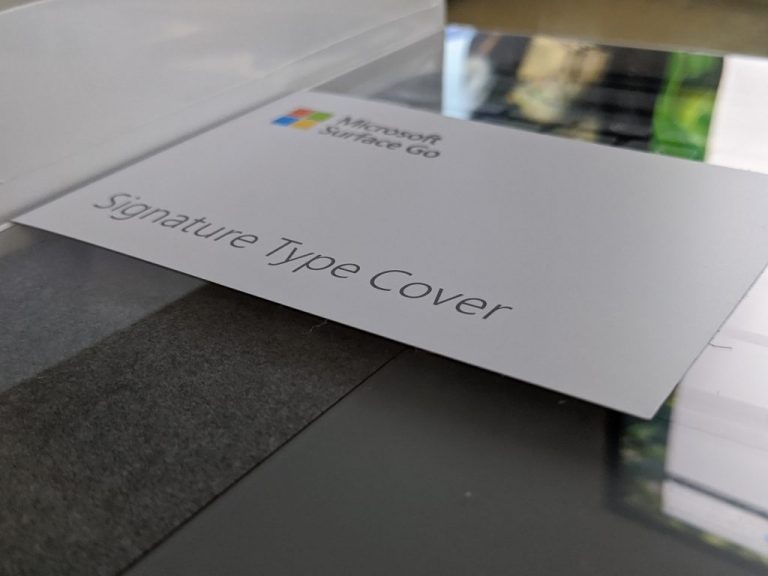
The Surface Go 2 comes with the same meticulously and almost child-proof packaging as any other Surface device, but when you finally claw the device out of its outer sarcophagus, you’re met with the relatively lightweight PC, long-held proprietary charging cable and seemingly unnecessary paperwork. For those fortunate enough to afford the attaching keyboard, there is some extra packaging to go through, but you won’t cut yourself or lose part of a fingernail in the process.

Together, the attached Microsoft Signature keyboard and Surface Go 2 feel about a heavy as Moleskin notebook (give or take a few ounces), and because of the size, I found myself toting it back and forth between rooms similar to my paper and pen notebook. Unfortunately, the review unit I received didn’t include the majestic Surface Pen, so a requisite review will be done san 4,096 points of pressure sensitivity.

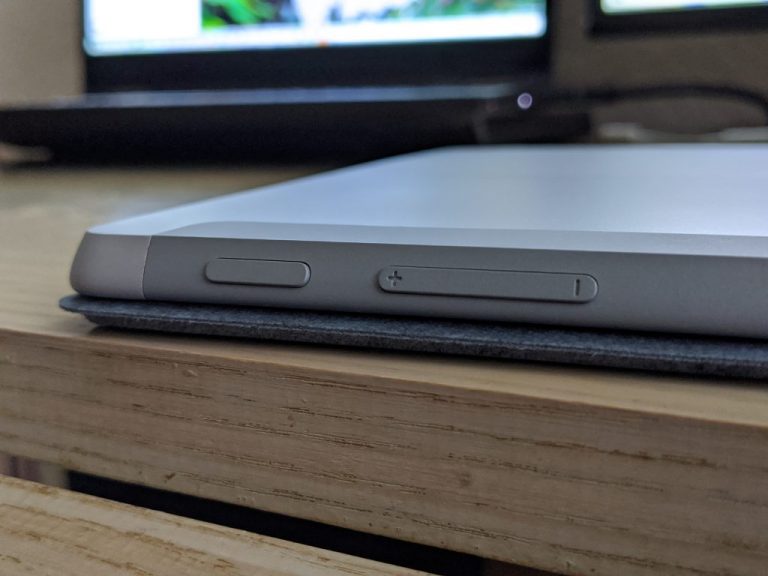
The Surface Go 2 looks and feels like a mini Surface by all accounts, the bezels are similar, the aspect ratios (albeit shrunken) are similar, camera and speaker placements are the same and even the miniature keyboard attachment connects the same pogo pins with the same satisfying click noise.

So far, my experience with the Surface Go 2 has been relatively positive. I’m limiting myself to working in Windows 10 S like anyone else who purchases the device. Right off the bat though, the limitations of Windows 10 S became apparent, downloading the new Xbox app on Windows 10 couldn’t be performed. While I was able to download games such as State of Decay and Minecraft Dungeons, actually playing them were no-gos.

Disappointing.

My game testing on this device might be limited to just the remastered Streets of Rage game.

As for productivity, everything else has worked surprisingly well. Opening Excel and PowerPoint projects were a breeze and web browsing was pretty smooth.

Perhaps, due to the processor, there is a noticeable lag in opening apps for someone coming from a 16GB Intel i5 workstation.

I’ll be putting it through its paces over the next couple of weeks. At $600 plus, Microsoft has a steep asking price for the whole package, but from what I’ve used it for in my limited experience, it’s served well for writing and researching a few articles and catching up Avatar the Last Airbender on Netflix quite nicely.

GTA Online Packet Loss: What is it and how to fix it?

Sometimes, GTA Online players are facing high ping/latency, jitter, crashes, random disconnections, or the much-dreaded packet loss. The issues occur whenever data packets that you send/receive never make it to their destination. As a result, you might experience high latency, rubberbanding, or even connection timeouts (crashes). First thing to try is to check the GTA Online latency.

How to fix packet loss in GTA Online

1. Use a VPN

  1. Download Private Internet AccessPIA with GTA Online
  2. Install it on your computer
  3. Launch it and log in with your PIA credentials
  4. Connect to a fast server of your choice
  5. Launch GTA Online and check if the problem still persists

Private Internet Access is a reliable, all-round VPN service brought to you by Kape Technologies. It can save you from a lot of hassles such as packet loss, high ping, and geo-restrictions.

Private Internet Access

Private Internet Access

GTA Online leaking packets? PIA might come in handy.
$2.85/mo. Buy it now

Note that using a VPN will only alleviate the issue if it’s on your ISP’s side. Nevertheless, it’s a good idea to invest in a good VPN for its privacy protection features, the ability to secure your connection, and geoblocking bypassing.

2. Troubleshoot your connection manually

  • Run a packet loss test using pathping (rule out you or ISP leaking packets)CMD pathping
  • Check the status of the GTA Online servers
  • Perform a speed & packet loss test with the Speedtest by Ookla Windows 10 app
  • Switch to a wired connection if you’re currently on wireless (Wi-Fi leaks packets more often)
  • Check if you’re not behind a double NAT
  • Open the following ports on UDP: 6672, 61455, 61457, 61456, 61458
  • Perform a router reset
  • Call your ISP if you notice packet leaks on their side
  • Change/repair/replace any faulty component on your home network (including Ethernet cables)
  • Toggle UPnP on or off on your router or system and notice if there’s any improvement
  • Update your router’s firmware
  • Try turning your VPN off and see if there’s any improvement
  • Make sure that no antivirus or firewall is filtering GTA Online traffic

Granted, these are a lot of steps, but you don’t have to perform them all. Sometimes the devil’s in the details and doing something as little as replacing a cable, or switching to a wired connection might improve your GTA Online packet loss dramatically.

Keep in mind that Rockstar doesn’t host any GTA Online servers, as the whole experience is designed around a P2P model.

Rockstar only handles matchmaking and then pairs various players together by making game packets transfer from player to player instead of handling them themselves.

Therefore, the best solution if you experience packet loss might be simply looking for a new session.

GTA Online packet loss crisis averted

If you’re playing GTA Online and notice packet-loss-specific behavior such as rubberbanding or sluggish movement, try finding a new session. Using a trustworthy VPN can surely help, but only if the ISP is throttling your bandwidth.

When everything else fails, try using our suggestions above one at a time, and notice if there’s any improvement.

As opposed to other online games, GTA Online is based on a P2P design, which means that packets are transferred from player to player, instead of being handled by Rockstar-run servers.

Users invited to help fix Microsoft Edge auto launch error

The new Microsoft Edge has been getting a lot of love lately. Take, for instance, its recent updates, such as automatic profile switching and Immersive Reader improvements.

Similarly, during Microsoft Build 2020, the company announced impressive features coming to the browser, including Pinterest integration.

Notwithstanding all these enhancements, multiple bugs causing problems to users may slow the journey to success for the Chromium-based browser.

Some users are now reporting particularly undesirable Edge behavior: automatically launching on startup. Microsoft has confirmed that it has the Edge dev team looking into the problem, though.

Microsoft Edge automatically running on startup

Adding programs to the Windows 10 system startup folder should work in your favor when you need to quickly get started on your everyday workflows and tasks. But in the case of Edge, the browser may auto-launch on startup even if you haven’t configured it to do that.

Microsoft adds that it’s not aware of any other erratic behavior associated with the auto startup bug in Edge. Keep in mind that different versions of the browser have this problem.

Some versions of Microsoft Edge are automatically launching whenever users start their PCs and log into Windows, regardless of their selection in edge://settings/onStartup. It’s currently unknown whether there are any accompanying behavioral changes with this bug.

As the dev team looks into the bug, Microsoft invites you to help with the debugging process. Some technical skills, especially with the command prompt, will come in handy here.

You typically need to run a couple of cmd commands to diagnose the bug, and save your findings to a file. You may then submit the diagnostic data via the Edge feedback tool.

Hopefully, the next Edge update fixes this bug once and for all.

Have you had any trouble with the new Microsoft Edge, especially after logging into Windows 10? Feel free to share your experience or ask any questions via the comments section below.

[wl_navigator]

New Microsoft Launcher preview starts rolling out to beta testers

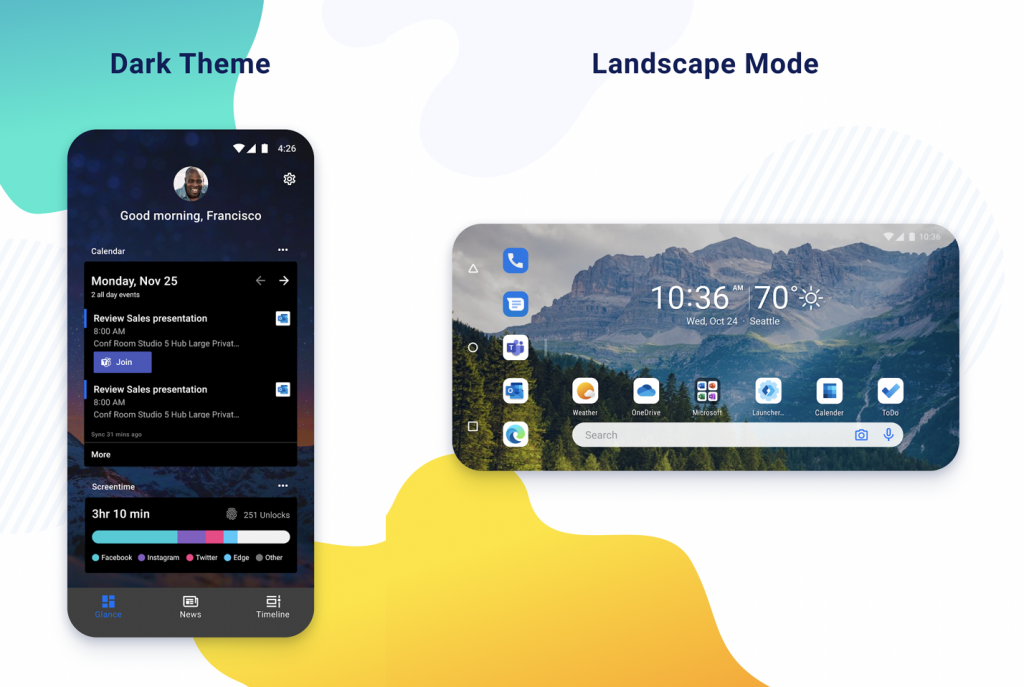
Earlier today, German-based publication Dr.Windows.de revealed that Microsoft’s Android launcher would be getting an update in the Google Play Store that is unlike any others before it. As Microsoft preps for a possible July release of its hotly anticipated dual-screen Surface Duo device, today’s Microsoft Launcher 6.0 release highlights a splintered path of development that has been slowly converging since January of 2020.

At the end of 2019, the Microsoft Launcher team began redesigning its Android launcher experience with more Google-Pixel like design and feature sets and using the beta channel as its testing bed for other sorts of functional development. However, today’s launcher update comes to the Play Store as a beta release but marks a rebuild rather than a simple redesign of the consumer-facing version of the Microsoft Launcher and many believe it’s going to become the predominant launcher experience for both foldable and single screen Android devices going forward.

Over the past six months, the rebuilt, beta version of the Microsoft Launcher has gone through several feature set updates that have brought it back on par with the current public version, and in some instances, surpassed it. Items like landscape rotation and support for hidden app functionality were all brought to the consumer-facing version of the Microsoft Launcher, however, as part of the rebuild, there have been several features that the Microsoft Launcher development team has scrapped in favor of performance or utility, such as blurred backgrounds and the way it handles timeline content fetching as well as no longer supporting landscape switching.

Presumably, many of these will return in a future update to the launcher before it’s released as the main interaction point on its flagship foldable device possibly in July.

For now, anyone signed up for the beta launcher program can head over the Google Play Store and grab the update to test out. Anecdotally, the experience is relatively bug-free, but noticeably lacks the same sort of polish the public launcher enjoys.

The app was not found in the store. ?

Redesigned Microsoft Edge Add-ons site now available for all users

At Build 2020 last month, Microsoft announced that its Edge Add-ons site would receive a major update, with better search and curated collections. In a blog post today, Microsoft has announced that the new Microsoft Edge Add-ons website is now live for everyone across the globe, addressing users’ “key concerns” related to the usability of the platform.

A first look at the new Edge Add-ons site indicates that it’s now divided into various categories such as entertainment, accessibility, and productivity. To help users easily find their relevant extensions, the site now features a carefully curated home page with a series of new collections. The company has also redesigned the search page which now offers detailed insights into the search result while improving navigation at the same time.

Moreover, a dedicated section lists the most popular add-ons, while another one provides recommendations from the editors. In order to improve hand-holding for its users, Microsoft has introduced some new enhancements to the add-ons site as well as the extensions manager page. The company said that the new website has been re-designed to be more accessible with high contrast or narrator options.

While the Edge add-ons site is the easiest way for Edge users to install extensions, it’s still possible to get extensions from other established sources including the Chrome web store. That’s one of the main advantages of Microsoft Edge now leveraging the Chromium open source project.

Windows 10 May 2020 Update Clears Chrome, Edge Logins

The Windows 10 May 2020 Update doesn’t surprise anybody with the issues it’s causing for some users. It may not be a massive OS upgrade, but it’s certainly bigger than the regular cumulative updates that cause all manner of Windows 10 PC problems.

Already, Microsoft has acknowledged more than a dozen bugs affecting Windows 10 version 2004. Some originate in the OS itself, while others stem from installing one or more of the most recent Patch Tuesday updates.

The latest such bug is causing login problems for some Chrome and Edge users.

Windows 10 May 2020 Update website login issues

It appears that installing the Windows 10 May 2020 Update may cause your Chrome or Edge browser to clear or otherwise lose saved login details.

One user shared to the Windows 10 Subreddit how they’re forced to re-authenticate into websites after each PC boot. They claim that this problem started after installing Windows 10 v2004.

In addition, the browsers are unable to remember the user’s OneDrive and Google login details. So, the user has to supply their user name and password each time they boot their PC.

Anyone else having this issue? After the 2004 updates, I need to log-in after each boot and reauthenticate myself. It’s also doing flakey thing with my Chrome and Edge log-ins as well into Goggle. Especially Chrome, it doesn’t remember any of my log ins after an hour or so, or after reboots. It sometimes happens with Edge as well.

This is not the first time users are reporting browser issues after installing the May 2020 update.

According to some reports, the update may cause Chrome to clear all your cookies. Not only is the bug deleting saved passwords, but it’s also clearing sync configurations.

Microsoft hasn’t confirmed these issues yet.

Are you experiencing any browser issues after installing the Windows 10 May 2020 Update? Kindly reach for the comments section below and let us know.

[wl_navigator]

Obsidian Entertainment launches limited-time demo of Grounded on Xbox One and PC

Grounded, one of the upcoming Xbox Game Studios titles developed by Obsidian Entertainment is getting a first limited-time demo today. Only select Xbox One users will get access to the demo via the Xbox Insider Hub, but the single-player demo will be available for everyone on Steam.

The demo will allow players to get a look at the single-player experience of Grounded, explained Mikey Dowling, Obsidian Entertainment Director of Communications. “Upon choosing their character, players will be thrust right into the heart of the backyard at sunrise, and will quickly discover that life is different when you’re only one centimeter tall. “Over the course of one in-game day, this experience will allow players to craft tools and weapons, build structures, and survive against the various perils of being small.

If this first Grounded demo is actually timed, you’ll be able to replay it anytime you want through Monday, June 22. Obsidian Entertainment is mostly known for its critically-acclaimed RPGs such as Fallout: New Vegas and The Outer Worlds, and it will be interesting to see the developer trying something different with this new survival game. Grounded is expected to hit Xbox Game Preview and Steam Early Access on July 28, 2020, and it will also be available on that date for Xbox Game Pass members.

Grounded
Grounded
Developer:
Xbox Game Studios
Price:
Free

Microsoft details its technical response to COVID-19 with Azure and Teams

In a pair of new blog posts, one on Azure and one on Teams, Microsoft detailed its technical response to the COVID-19 Coronavirus pandemic, and how they’ve advanced their systems in the time of crisis. Penned by Mark Russinovich, the Chief Technology Officer of Microsoft Azure, the posts cover all the kinds of strategies the company embarked on, from resiliency, capacity forecasting, scaling resources, optimizations, and more.

Some interesting highlights from the Teams post point out that Microsoft employed some resiliency strategies to protect Teams during high demand. This includes active-active fault-tolerant systems, resiliency-optimized caches, a circuit breaker, bulkhead isolation, timeouts, and more. “When COVID-19 stay-at-home orders started to kick in around the world, we needed to leverage the architectural flexibility built into our system, and turn all the knobs we could, to effectively respond to the rapidly increasing demand,” said Mark Russinovich.

In addition, Microsoft also planned for the future. The company built and iterated models that could anticipate where growth would occur in both raw users and usage patterns. When Teams usage peaked, the company had to build new models to take the growth in global demand for Teams into account. That was due to new usage patterns from existing users, new usage from existing but dormant users, and new users, too. “Throughout the process, we erred on the side of caution and favored over-provisioning—but as the usage patterns stabilized, we also scaled back as necessary,” explained Russinovich.

Interestingly, since Teams is power by Azure, Microsoft made moves to scale their compute resources. Microsoft provisioned resources to take on certain demands in regions across the globe.  The company says it increased the total number of regions per geography, decreased the total amount of spare capacity each region needed to hold to absorb emergency load, and reduced the total capacity needs. “Dealing with load at this new scale gave us several insights into ways we could improve our efficiency,” said Russinovich.

Other high points in the blog post highlight that Microsoft optimized its networks and routine strategies to leverage the idle capacity when most people aren’t using Teams at night. To improve storage, the company also stored cache states in a binary format rather than raw JSON, as well as compressed data before sending it to the cache.

Of course, there is a human side to it too, for the folks that work on Teams. Microsoft says Every on-call engineer had at least 12 hours off between shifts. They also brought in more incident managers from across the company and deferred all non-critical changes across services.

Microsoft Edge PDF Reader is getting text notes, digital signatures, and more

Microsoft has announced this morning a slew of new features coming to the built-in PDF Reader in Microsoft Edge, with most of them rolling out in the coming months. In a recent blog post, Microsoft noted that the company is currently working on a bunch of new features including Table of Contents, Highlight mode, Text notes, Digital signatures, as well as a smoother scroll experience and accessibility improvements.

In addition to the aforementioned features, Microsoft Edge’s PDF Reader is also getting the ability to view the sensitivity labels of protected pdf files. Here is a quick look at what’s to come for the new Microsoft Edge browser:

  • Smoother scroll experience: We are bringing the smooth scroll of Legacy Edge to the modern browser.
  • Table of Contents: You will soon be able to view the contents of PDF files and navigate through the file with the same.
  • Highlight mode: In this mode, you will be able to create highlights directly by selecting text, without the need of clicking on a highlight button.
  • Text notes: With this, you will be able to add their own notes to text in PDF files. These notes will travel with the PDF.
  • Protected PDF files: Microsoft Information Protection adds a layer of security to your documents. It ensures that only the users who have certain permissions as view, copy, annotate can take those actions on the file. Hence, no matter where the document goes, the data of your organization remains secure.
    • Viewing labels of protected files: You will soon be able to view the sensitivity labels
    • Viewing MIP files protected in other tenants: This will enable you to view the files protected in other organizations, or in other tenants in the organization.
  • Digital signatures: View and validate certificate based Digital signatures on signed files.
  • Accessibility improvements: With this, you will be able to fill PDF forms using screen readers, and navigate through PDF documents using caret mode.

Since Microsoft released the first Edge Insider builds last year, it’s good to see that the browser is getting new features on both Mac and Windows. Again, it will take sometime before it happens, but it’s likely that you will see all these features in one of the preview builds (Canary and Dev Channels) that are available for Microsoft Edge soon.

Microsoft Bing app for Xbox One launches in preview in the US

Microsoft is launching a new Bing app for Xbox One consoles in the US. If it’s currently in preview, the Bing app provides quick access to web search, as well as entertainment and gaming news. The app also comes with the beautiful daily wallpapers that most Bing users seem to enjoy.

If you’re in the US, you can try this new Bing app on your Xbox One by signing up for the preview in the Xbox Insider Hub app. Once installed, the app can be added to groups or pinned to the Home Dashboard for easier access.

As you may know, Bing used to be front and Center in the Xbox 360 dashboard, but the Xbox One later came with a better and more versatile web browser, which is now the legacy Edge. This new Bing app is no replacement for Microsoft Edge on the Xbox One, but it does come with a new UI that’s optimized for the console.

It’s not clear yet when Bing for Xbox One will be available in other markets, but we’ll sure let you know when it happens. In the meantime, let us know in the comments if you think this new Bing app should be a useful addition on the console.

PSA: Windows 10 Fresh Start feature is still there in the Windows 10 May 2020 Update

Yesterday, we reported that some users have discovered that the Fresh Start feature has been removed beginning with the Windows 10 May 2020 Update. Well, Microsoft has quietly updated its official support document (via Windows Latest) this morning to explain what is actually happening with Fresh Start in the latest Windows release.

According to the updated support page, the recovery tool has not been removed in the latest version, and it has just been moved to another place. “Fresh start is available for Windows 10 versions prior to 2004. For version 2004 and after, Fresh start functionality has been moved to Reset this PC,” the company explained.

Microsoft explains that to access the Fresh Start feature, you simply need to follow the steps mentioned below:

  1. Head over to Start > Settings > Update & Security > Recovery > Reset this PC > Get Started to use Fresh Start on PCs running the May 2020 Update or later.
  2. Click “Keep my files” option when prompted, choose between the local or cloud recovery option.
  3. Finally, select “No” when prompted “Restore preinstalled apps?”

However, Microsoft said that the preinstalled apps recovery option is only available if your machine has some preinstalled apps that are configured by the PC manufacturer. Microsoft has also confirmed that users running the Windows 10 November 2019 Update or older can still go to Settings > Update and Security > Windows Security > Device performance & health > Additional info > Get Started to access the feature.

It is worth noting that the Fresh Start references are still present in other parts of the OS (Update & Security section of the Settings menu), but in reality, the Fresh Start option has been removed from there, and it has been merged with the “Reset this PC” option under Recovery settings. Now that Microsoft is aware of the broken link in the Windows Security app, it’s likely that the software giant will remove them in future updates.

Lenovo brings high speed connectivity to its laptops starting with the Flex 5G

Lenovo will finally bring a 5G-enabled PC stateside with its Lenovo Flex 5G, also known as the Lenovo Yoga 5G in other select markets. Announced today, Lenovo will not only be selling a new 5G-enabled PC, but it will be doing so with backing from leading 5G service providers that include Verizon, EE, Sunrise, and CMCC.

The Lenovo Flex 5G will be powered by the latest Qualcomm Snapdragon 8cx 5G chipset, allowing users to connect to speeds up to 10 times faster than current 4G/LTE PCs on the market.

“Lenovo introduced the world’s first 5G laptop in market to equip the mobile generation with smarter technology for always-on connectivity and computing. The hardware is just the first step,” says Johnson Jia, Senior Vice President and General Manager of the Consumer Business Segment in Lenovo’s Intelligent Devices Group. “With our strategic partnerships with global 5G network carriers, consumers will now be able to access easier, faster, and more secure connectivity seamlessly from virtually anywhere. As 5G computing holds the power to transform user experiences, we believe it can ultimately disrupt the PC industry for the better.”

And, because it’s housing the Snapdragon 8cx, Lenovo is promising seemingly pie-in-the-sky battery life claims of up to 24-hours. Other notable specs include an integrated Qualcomm Adreno 680 GPU, 8GBs of LPDDR4X memory, and 256GB of UFS 3.0 storage. There’s also a fingerprint reader housed in a 2.97lb frame with a 14″ FHD glossy multi-touch display that can pump out 400nits of brightness.

Starting June 18, customers in the US will be able to purchase the Lenovo Flex 5G online at Verizon or through the My Verizon app. Verizon will provide installment payments through its Verizon Device Payment Plan with 0% APR for $58.33 for 24 months for those who qualify, otherwise, the device can be had for the full MRSP of $1,399.99.

As for international markets, Lenovo will have the Yoga 5G available via its own website later this year. International customers will need to wait until telecom carriers in their region release more info about pricing, availability, and compatible frequency bands.

New Windows Insider Channels to sync with Office

In an overhaul of the Windows Insider program, Microsoft has announced the syncing of new Windows Insider Channels with Office.

The insider program gives users an opportunity to sample prerelease versions of the Windows OS at various stages of development. Since its inception in 2014, it has enabled Microsoft to improve various builds of the OS based on feedback from technical and regular users.

The platform itself keeps evolving, and today, Microsoft revealed that insider rings are changing to channels later this month.

Restructuring Windows Insider Channels

With the current Windows Insider program, you sign up for the Fast ring, Slow ring, or Release Preview ring based on how frequently you wish to access prerelease Windows 10 builds.

But the new model focuses on the quality of the builds rather than the frequency at which they come out.

Insiders can pick a channel that represents the experience they want for their device based on the quality they are most comfortable with. Our intention is to ensure Insiders will continue to receive frequent updates no matter which channel they’ve chosen.

The changes are as follows, briefly:

Dev Channel

The Fast ring changes to the Dev Channel. It will offer the latest OS builds with the newest code. Expect some instability and bugs here and there.

The Dev Channel is ideal for technical testers.

Beta Channel

The Beta Channel is the new Slow ring. It offers more stable builds that are linked to a specific upcoming release.

Release Preview Channel

This channel contains OS builds at their final stage of development just before release to general availability. You can join it to download upcoming versions of Windows 10 that include advanced quality updates and a host of core features.

Apart from that, Microsoft intends on harmonizing the new insider channels with channels for Microsoft Office apps.

So, for each Windows Insider Channel, there’ll be an equivalent channel for prerelease Office apps. Also, the experience, in terms of stability of the product and bugs, should be similar across same-level channels.

Are you excited about the new Windows Insider Channels? Let us know what you think (or ask any questions) via the comments section below.

[wl_navigator]

Windows Community Toolkit 6.1 introduces Tokenizing TextBox

The Windows Community Toolkit 6.1 is now live. As always, each time a new version of the platform emerges, it brings features and improvements that make life a lot easier for developers.

Last year, version 6.0 introduced ARM64 support. It also came with new features, such as the EyeDropper control.

Version 6.1 brings a host of new features and controls as well, including the tokenizing textbox and improvements on notifications helpers.

The new Windows Community Toolkit 6.1

The latest additions to the Windows Community Toolkit should make work a little easier for developers creating Windows 10 UWP applications.

Microsoft says that the toolkit’s new tokenizing textbox isn’t an autosuggest box, even though it may seem like it. Instead, it’s a bit more advanced because it lets you pick multiple options.

The feature tokenizes all the items you’ve selected, making them easier to pick out and manipulate further as you’d wish.

It may look like an AutoSuggestBox at first, but it allows the user to choose more than one option. Once the user has selected one, it ‘tokenizes’ it and provides them a clear indication of their selections which can be manipulated easily afterwards.

According to Microsoft, the tokenizing textbox has been one of the most requested controls for the toolkit. It will be very useful to developers when organizing items, picking contacts, and numerous other dev use cases.

Additionally, the Windows Community Toolkit 6.1 will be handy to developers building apps for Windows 10 platforms such as desktops, laptops, Xbox, and even HoloLens. You may also develop any existing win32 app using the toolkit after converting it to UWP using the Desktop Bridge.

Just like with the previous versions, the latest version is an outcome of joint efforts involving Microsoft and the GitHub community.

What are your views on the latest Windows Community Toolkit 6.1 enhancements? You can always ask any questions or leave your suggestions in the comments section below.

[wl_navigator]