Microsoft has just announced their new service, Project Cortex, for enterprises to help them organize their corporate data. The service uses the power of artificial intelligence to analyze data within documents, and organize them into shared topics such as team projects. Additionally, the service will also be able create topic cards and pages to provide relevant knowledge to individuals within the organization.
Microsoft also explains that Project Cortex can also serve useful as a knowledge repository. The service uses AI and machine learning to obtain information from documents, conversations, meetings, and even videos for individuals to access. It uses content stored on SharePoint to help users manage their information with the promise of built-in security, compliance, and workflow.
Microsoft has been heavily invested in AI solutions for some time now, so it’s no secret the company wants to be well ahead of other players in the game. Project Cortex is part of the company’s knowledge investment area—which also brings an advanced people lookup tool to Microsoft Search in the new Edge—in addition to the other core investment areas: productivity, workflow, security, compliance, and management.
How do you think your organization can incorporate Project Cortex into its workflow? Be sure to share your thoughts in the comments area below.
Microsoft is kicking off its annual Ignite conference for tech leaders today, and the introducing “Vision” keynote featuring CEO Satya Nadella is about to begin at 9AM EST. There will be a livestream on YouTube, and you can watch it below.
Ignite is Microsoft’s last big event of the year, and you can expect a lot of news about Microsoft 365, Office, and Azure. Stay tuned to OnMSFT as we’ll be covering all the big announcements coming this morning.
Microsoft has been on a mission to redesign some of the icons across some of its most famous programs. We’ve already seen new icons for Word, Excel, and PowerPoint, and now it would appear as though the company’s Chromium-based Edge browser is finally getting a new icon that frees the app from Edge and Internet Explorer’s past.
Seen in the featured image above, and as reported by The Verge’s Tom Warren, this new icon is shaped like a lowercase “e.” It is also similar in appearance to a wave and features blue colors on the bottom and greens at the top. It’s not clear what Microsoft’s reasoning was behind choosing this new icon, or if it’s official as of yet, but it can be assumed that there’s a subtle reference to “surfing” the web.
The reveal of this icon was apparently part of a mini-game and easter egg hunt set forth by Microsoft within the Edge Canary version of the browser. Clues were posted on Reddit last week, and Microsoft employees also participated by posting additional clues on social media. As Tom Warren explains:
It all led to a series of words discovered in seven clues, which were then inputted into a Javascript function on Microsoft’s Edge Insider website. This reveal which words needed to be pulled from a video for the final instructions to discover the secret surfing game (edge://surf/) and the new logo when you complete it.
With Microsoft’s annual Ignite conference coming up next week, you can expect the company to explain more about this new icon then. The software giant could perhaps officially launch the Chromium-based browser then, as download links for the stable version recently appeared online.
Surface app updated with Pen Slim support ahead of Surface Pro X launch
The Surface app has received an update to add support for Microsoft’s upcoming products, including the Surface Pro X. The app now supports the Pen Slim.
Microsoft makes using UWP APIs available for Win32 apps
Going forward, developers will be able to use UWP APIs in WIn32 apps, as Microsoft is making the APIs available to a wider developer audience.
Microsoft is “elevating” the Phone Screen experience by removing its dependency on Bluetooth
If you have already installed the Windows 20H1 preview build 19013 that Microsoft pushed to Fast Ring insiders earlier this week, Microsoft has just released a small update for this build that includes no new features and fixes. As the Windows Insider team explained, the purpose of this release is to test the servicing pipeline for future updates.
Fast ring Insiders: there's a small update coming your way. Build 19013.1000 (KB4528332) is available. We are validating our servicing pipeline and you may see an additional LCU release early next week continuing this effort. Thank you!https://t.co/wuF4YZmm66
The updated blog post included a note about Features On Demand (FOD), which in the latest 20H1 builds are available from the Optional features section in the Settings app:
If you try to install a Feature On Demand (FOD) while this update is pending and you restart your PC, it will not trigger this update to successfully install. As a workaround, you can pause updates, un-pause updates, and then scan for updates to get out of this state if this happens to you.
According to the team, Fast Ring Insiders may see a similar update bringing no changes next week. According to a recent report, the 20H1 update may reach “RTM” status as soon as next month to follow Azure’s development cycle, though it may get a couple more months of Insider testing ahead of its expected release in the first half of 2020. In the meantime, it shouldn’t be long before Microsoft announces the release of the Windows 10 November 2019 Update (19H2), which may start rolling next week on Patch Tuesday.
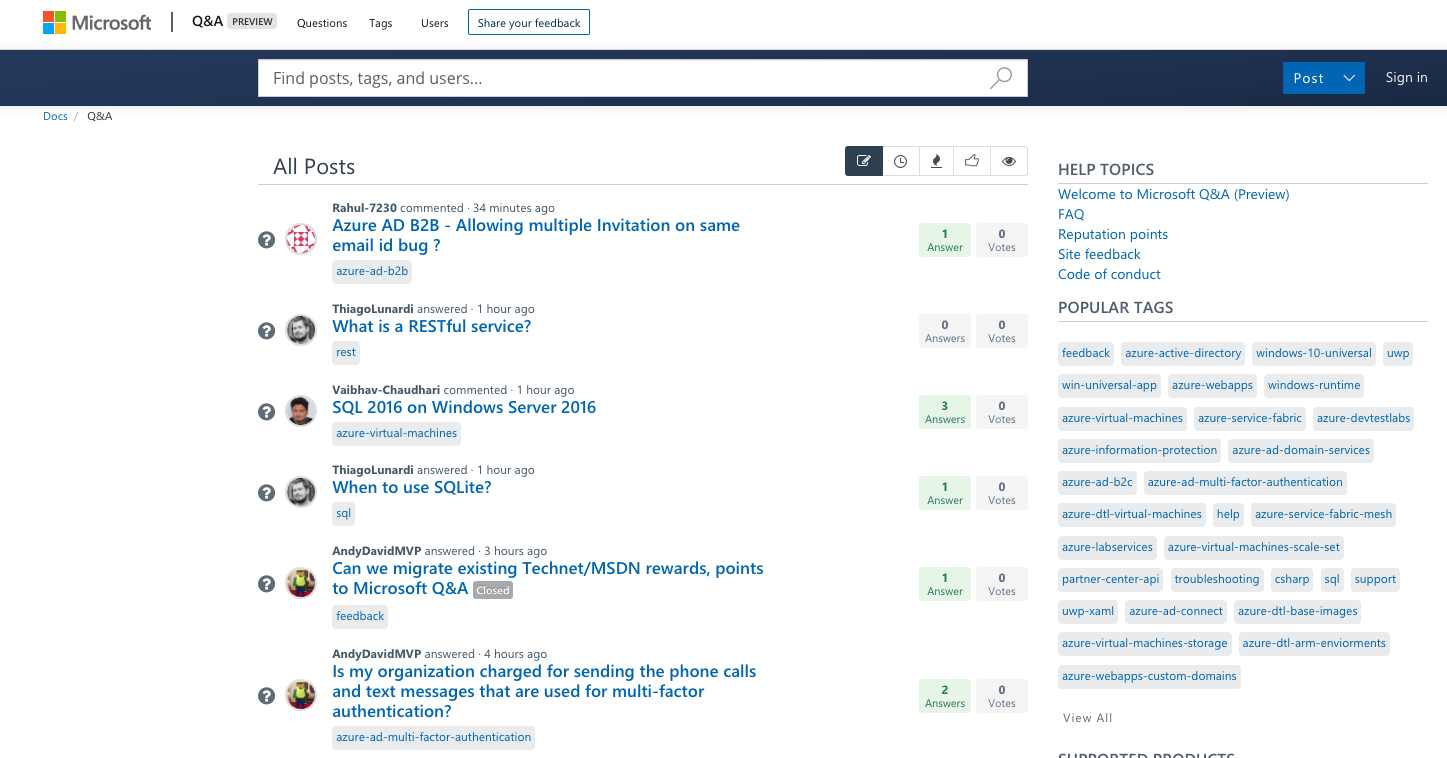
Microsoft has just announced the launch of a new “Microsoft Q&A” website that is set to replace the MSDN and TechNet Forums for any technical questions you have about Microsoft products. The new Q&A website is currently in preview, and Microsoft says that it’s an extension of its docs.microsoft.com platform which already includes a lot of technical information about Azure, Windows, and other Microsoft technologies.
Microsoft Q&A currently lets you ask questions on Microsoft products and services to a community of experts, and the website lets you follow posts, tags or people to be notified about updates. The search bar also provides suggested answers to help you find existing answers as you type.
Microsoft expects to complete the transition from MDSN and TechNet to Microsoft Q&A by mid-2020. “To ensure a smooth transition and minimize any disruption for users, we’ve broken down the migration into multiple phases,” the team explained, and as of this writing the preview version of Microsoft Q&A currently includes content about Azure, the Universal Windows Platform, and the Partner Center API.
EA’s Battlefield V video game is getting a kind of re-release on Microsoft’s Xbox One consoles as the Battlefield V Year 2 Edition. This new version contains the main game, which is still on sale separately, plus a DLC pack that contains a variety of content that was released in the year after the original release such as 13 primary weapons, four vehicles, two epic soldier outfits, 10 weapon skins, and four vehicle skins.
Here’s the official description for the Battlefield V Year 2 Edition:
The best way to join Battlefield V. Experience WW2 as you’ve never seen it before with a vast arsenal, including a catch-up of all weapons and vehicles delivered across year one of the Battlefield V Tides of War Chapters. Stand out on the battlefield with the most popular weapon and vehicle skins released during the year and customize your Company with two Epic soldier outfits. Battlefield V Year 2 Edition includes the Battlefield V base game and 33 Chapter Reward items released in the game’s first year.
For those of you that frequently join discussion boards for whatever reason, you surely know about Yahoo Groups. Back in its prime, Yahoo Groups was arguably the biggest discussion boards available.
Users could typically join groups that revolved around any topic without any charge at all and discuss anything. They could also post content to these groups directly using a web browser or by using email.
The end of an era for Yahoo Groups
However, Yahooannounced that the following changes will come to Yahoo Groups:
On October 28, 2019, all upload functionality will be removed from the site
On December 14, 2019, all content ever posted up to that date will be removed permanently from the site
Yahoo Groups’ privacy settings will also be going through some changes. For example, all public groups will be set to private or restricted.
Any admins and existing members will retain access but new group members will only be able to join once they receive an invitation from the group administrators.
How can I download Yahoo Groups data before it’s gone
Since the December date is drawing more and more closer, you will want to know how to back up any data from Yahoo Groups before it gets deleted.
Select whatever data you want to be included in your download
Click Next
Keep note that processing a download request can take up to 30 days, and only afterward will the download become available
Enter an email address you’d like to be notified at when the download is ready.
Click Request Download
Once you receive an email notification stating that your download is ready, visit the Privacy Dashboard again
Scroll down to Download a summary of your data
Click Your download requests
Right next to your download request, there will be a Download button
Click the Download button
Yahoo Groups is not as popular as it once was, and maybe that is the main reason behind the change.
For those of you that might miss the deadline, the Internet Archive also revealed that it plans to save as much data as possible before the changes take place to preserve the content.
What do you think about the major changes that are coming to Yahoo Groups? Will you try to download any of your data before it disappears for good? Let us know in the comments section below.
RELATED ARTICLES YOU SHOULD CHECK OUT:
Outlook.com gets Groups feature to improve sharing
Everyone that uses Mozilla Firefox is probably used to the browser displaying extended information for sites with Extended Validation certificates.
However, Firefox changed that when they removed the displaying of the Extended Validation certificates entirely. The reasoning behind this change would be that more and more websites are now using the more secure HTTPS than they did in the past.
Because of this, Mozilla stated that it would be more efficient to have a form of signaling in regards to websites that don’t have HTTPS, instead of the ones that do.
However, those that were used to the way things used to be displayed weren’t so pleased, and that is why we’ve created a guide on how to bring back the Extended Validation certificates in the Mozilla Firefoxbrowser.
How do I bring back the EV certificates in Firefox?
LaunchMozilla Firefox
Type in the following line in the Firefox address bar:
about:config
Click on Yes, I accept the risk!
Type in the following line:
security.identityblock.show_extended_validation
Set the preference to TRUE
By following these steps, all the secure sites will now also display their EV certificates in the address bar. If you want to reverse this change, simply follow the steps above, but replace the TRUE value with FALSE.
If you are looking for some extra security, you can also enable the display of non-secure sites.
How do I display a non-secure website?
LaunchMozilla Firefox
Go to about:config page again
Type in the following line:
security.insecure_connection_text.enabled
Set the value of the preference to TRUE to enable not secure or FALSE to disable it.
By following these steps, Firefox will display a crossed-out padlock icon in the address bar when a site that does not use HTTPS. By doing this, the browser will also display the not secure text next to the address bar as well.
Keep in mind that by doing this, you do not directly improve Firefox‘s security level. Instead, this will simply give you an extra visual signal regarding the security of a website you are visiting.
Do you think removing the Extended Validation certificates was a good idea? Share your opinion with us in the comments section below.
Tor Browser is an Internet browser probably most well-known for its securityfeatures. These features allow it to be extremely safe when navigating websites, as it protects your identity and data in pretty much every way imaginable.
Another thing that makes Tor Browser efficient is that it gets frequent updates. One such update introduced the New Identity feature, which allows users to reset their identity when browsing.
One thing you should know is that this is the first version in a long time to be based on Firefox 68 ESR, and not Firefox 60.x.
The feature is only available in the latest version of the browser, which can be found on their official website, completely free of charge. Those of you that already use the browser can simply perform an update to get the latest features.
How do I use the New Identity feature in Tor Browser?
LaunchTor Browser
Navigate your cursor to the upper-right part of the menu
Press the broom icon
A warning message will appear telling you it will close all windows and tabs
Press Yes
The browser will automatically restart
Resume browsing
You may repeat the process as many times as you like, especially if you think your activity is starting to get tracked. However, remember that the browser will not remember what tabs you had open, and you will have to go back on all the websites manually.
According to the Tor website, this option is useful if you want to prevent your subsequent browser activity from being linkable to what you were doing before. This makes it especially useful in extended browsing sessions where your data could be tracked.
Using New Identity it will close all your tabs and windows, clear all private information such as cookies and your browsing history, and use a new set of Tor circuits for all connections.
Basically, it spares you the trouble of closing, restarting and establishing new connections. This makes it great when you need to browse privately, but time is short.
Do you think that the New Identity feature in Tor Browser will further improve the browser’s powerful privacy protection potential?
The Your Phone app is a neat little project that Microsoft has been working on for some time now. It has been updated frequently and enriched with a host of cool new features.
One new feature that Microsoft has been working on is the ability to make actual phone calls from the Your Phone app.
After some hands-on experience, we’ve compiled a guide as to how you can use the Phone Calls feature efficiently
How can I make phone calls with the Your Phone app?
Launch the Your Phone app
Pair your Android smartphone to Windows 10 via Bluetooth
Click on Calls on the right side of the menu
Click on the dial pad to form a phone number
Press the green button to make the call
Additionally, you can look up your contacts using the Search Bar, or by looking them up in the Recent Calls list.
One interesting feature is that the phone and the PC don’t need to be on the same Wi-Fi network in order to work. Thanks to this, you can keep your Android phone on its independent 4G network, disconnected from the Wi-Fi, and the calls from your PC will still work.
Also, since the PC and the Android phone will be linked via Bluetooth, the call will be made instantly. This handy feature has been a long time coming, especially for an app that calls itself Your Phone.
The limits of the Calls feature
The only limitation to this feature is that since the two devices are paired via Bluetooth, the app‘s usefulness is limited by the Bluetooth range. This greatly reduces the number of things you can use this new feature for in real-life applications.
More so, Microsoft has been struggling to make the Your Phone app more stable for public use. This can be easily seen from the number of issues reported by users.
Regardless of which, the Calls feature can be viewed as an experiment to test out the compatibility between devices, and how they can be applied. Whether it is a success or not, only customer feedback will tell.
Do you think that making calls via the Your Phone app is a great improvement? Let us know in the comments section below.
If you’re tired of bootable DVDs or USB sticks, then you should know there is an alternative. You could try adding an Advanced Startup Options context menu, which will greatly speed up the process of rebooting the OS.
However, by modifying registries, you can get over all these steps easily. This solution can also come in handy if you are encountering any sort of issue, that can not be solved using the regular Windows 10 environment.
This includes the need to overwrite or delete some in-use files. By following these steps you too can speed up the process of accessing the Advanced Startup Options menu with just a few clicks.
How do I add an Advanced Startup Options menu in Windows 10?
Before starting, make sure that the user account has administrative privileges.
Why should I add an Advances Startup Options menu?
Normally, if you’d want to access the Advanced Startup Options, you’d have to do the following:
Press Win + R
Select Settings (the cogwheel-shaped button in the start menu)
Click Updates & Security
Got to Recovery
Press Restart Now under Advanced Startup
Wait for the PC to restart to enter the Advanced Startup Options
Given how many steps are needed, it’s obvious why you would want to simplify the process. More so, since the process is reversible, there is no need to worry about making irreparable changes to your PC.
Does adding an Advanced Startup Options context menu seem useful to you? We await your feedback in the comments section below.
Cloud storage services are the latest trend when it comes to keeping your file safe. They let you keep files online so that you won’t have to fill your hard drive with too much data.
There are many cloud storage services out there, one of which is Dropbox, and it is actually one of the best services of its kind, and it is even free to some extent.
However, since our storage is limited, both physical and cloud, we wouldn’t want all of our files to be synced, just a select few.
Dropbox lets you create such a list with a feature called Selective Sync. If you’re a Dropbox Plus, Dropbox Professional, or Dropbox Business user, Smart Sync is available instead.
How do I selectively sync in Dropbox?
First of all, make sure you have the Dropbox app installed on your PC since the Selective Sync feature is not accessible from Dropbox‘s website.
Click the Dropbox icon in your system tray or menu bar
Click on your profile picture
Select Preferences…
Select Sync
Click Selective Sync…
A list of all of your synced data will appear
Uncheck the boxes next to any file or folder that you no longer need to be synced
When finished, select Update
Any folder that you have unchecked will no longer be synced with Dropbox, and neither will any of the containing subfolders. Whatever you upload to the Dropbox app will only be stored online and accessible from dropbox.com, thus saving you personal storage space.
What happens if I uncheck a folder that is shared?
The unchecked folder won’t sync to your computer anymore, and neither will its subfolders.
You will still be a member of that shared folder, and it will still be available in your account on dropbox.com. The shared folder will also remain available for other members of that folder.
If you want to remove yourself from that shared folder, all you need to do is leave the shared folder from the Dropbox website. If you are the owner, you can simply unshare it.
Did this trick help you save up any hard drive space? Let us know how helpful this guide was in the comments section below.
OneDrive is a file hosting service hosted and developed by Microsoft and it is part of the Office 365 Suite of programs.
It act’s as the default cloud storage program for anyone that is using Office 365. This makes it widely used among users, especially those in work environments.
However, some user’s have reported having issues with OneDrive:
We have added a user recently to our companies O365 installation. We have noticed that her OneDrive is not working. When we look in the Admin section of the portal under her user settings, OneDrive settings it says “OneDrive is not provisioned for this user”
It would seem that when the admin account was created, OneDrive was provisioned but permissions failed to apply. As such, the admin needs to grant the account permissions manually to “Create Personal Site”, which is required for OneDrive.
By following these steps, all of the users in your Office 365 workgroups will be granted full access to all OneDrive features.
How do I fix OneDrive provisioning for a user?
Keep note that you need to be an Office 365 administrator in order to make these changes.
First of all, make sure you have assigned the SharePoint Online license to the affected user in Office 365 admin center. You can do this by following these steps:
Go to Users
Select Active Users
Check the user’s name
Click Edit in Product licenses section
Once you are done, you will need to grant the affected user the right to create a My Sites site in the SharePoint Admin Center.
Go to the SharePoint Admin Center
Click User profiles
Go to the People section
Click Manage User Permissions
Add the users who require permissions to create their My Sites site
This setting is set to Everyone except external users by default
Add the user, users, or group
Select t the added user, users, or group
Scroll to the Permissions section
Select the checkbox next to Create Personal Site
Click OK
Have the user browse to the OneDrive page to create the site
As soon as you granted them permission, let the user go to Office 365 portal and click OneDrive in the App Launcher. This is to check if the user can use OneDrive for business.
If the OneDrive icon keeps displaying Setting up in the App Launcher, wait for 24 hours and then try access OneDrive again. If the issue persists, consider contacting Microsoft support for more help.
Did you find the guide useful? Let us know in the comments section below.
Microsoft is continuing its efforts with Cortana, as can be seen in a leaked video showing off some of Microsoft’s virtual assistant’s new capabilities.
The video shows off Cortana integration on the Outlook mobile app for iPhone. The assistant is able to read conversations out loud, and receive commands via the user’s voice for actions such as “flag the conversation.” Users will also be able to set Cortana’s voice in the app to either the traditional Feminine voice or the alternative Masculine voice.
On Windows, Cortana is also seen in the video with a fresh new look and better integration with Office. Outlook on the web seems to also be getting Cortana integration as well, as is shown emailing users a daily briefing in the video, and will additionally be able to schedule appointments straight from the web app.
Microsoft hasn’t spoken much about Cortana in recent months, but the video further highlights the fact that it wants to push for business use for the assistant. While other assistants like Alexa, Siri, and Google Assistant focus more on consumer needs, Microsoft seems to be moving Cortana towards the enterprise space instead.
What do you think of the capabilities seen in the leaked video? Share your thoughts in the comments area below this post.
Remember the PowerToys project from the Windows 95 era? Well, following up on a lot of feedback and suggestions, Microsoft recently released PowerToys v0.12.
The new version adds a couple of neat features meant to help power users further improve their Windows experience.
Use PowerRename to batch rename your file collections
Along with support for Dark Mode and some improvements to FancyZone, the biggest change comes in the form of PowerRename:
PowerRename is a Windows Shell Context Menu Extension for advanced bulk renaming using simple search and replace or more powerful regular expression matching.
This is a very welcomed addition, as a lot of Windows 10 users were waiting for it.
Besides the fact that the extension is easy to use and you can live preview the changes from search and replace input fields in the preview area, you also have a lot more options to better control the rename process.
PowerRename uses the ECMAScript grammar, which is ideal for advanced users that take advantage of Regular expressions. But you can also stick with search and replace, as the tech giant explains:
PowerRename was designed to cover the majority of bulk rename scenarios while still striving for simplicity for the average user.
If you want more options, check out this useful article and find the best apps that can batch rename your files.
As we already mentioned, besides the new PowerRename utility there are some other improvements and changes in PowerToys v0.12. Check out the full changelog:
General:
Microsoft signed binaries and installer
Dark Mode for the Settings and for ShortcutGuide
Fixed a bug that was preventing the PT Settings to be opened on some Windows configurations.
Various improvements for other UI/UX bugs.
FancyZone:
Editor now supports multi-monitor
Hotkey to open FZ Editor is now configurable (Win+~ was unavailable on several non-US keyboards)
Fixed a bug that was preventing from activating zones for applications with custom title bars
FZ Editor can now be used on small screens
Improved zone activation when dragging a window, smaller zones have precedence over larger zone (community contribution)
Fixed a crashing bug in FZ on some localized version of Windows (community contribution)
Fixed bug preventing from resizing zone when zone edge is on the right or bottom screen edge
Fixed bug that was causing the task bar and other special system windows to be snapped into zones
Improved application detection for FZ history
Change a FZ default settings to avoid interfering with full screen applications.
You can’t really talk about UWP, Microsoft’s “universal platform platform” without touching on the “is it dead?” controversy. As we said before, it’s really a tale of two UWPs, one, a family of APIs that introduce new abilities like “BackgroundTasks, Notifications, LiveTiles, Share and more,” and the other a now disbanded concept of having all app development for Windows move to a new “Universal” programming model, writing once to deploy on phones, tablets, and PCs alike, with apps available only from the Microsoft Store.
Late yesterday, Microsoft announced upcoming changes that remove some more of the constraints of using the UWP APIs in non “UWP” apps, making the APIs more readily available, and further distancing UWP from the idea that an app using these features has to be available in the Microsoft Store. These changes will be available in Windows 10 build 19000 and up.
Up until now, the programming model for using the UWP APIs like background tasks and share, etc. required that any app written using these interfaces follow a couple of rules, as outlined in a post on the Windows Developer blog:
Identity – The need for package or application identity to identify the caller, and an identifier to scope data and resources.
Registration – The need for configuration of machine state during application deployment, which is required by the API and indexed by the package or application identity.
UWP apps require both identity and registration, and they have only been available through an appmanifest xml file, and tied to the app’s registration in the Microsoft Store. Now, however, Microsoft is opening up these requirements to make them available through a new <allowExternalContent> element, and/or a Win32 type Runtime Behavior type, among others. What this all means is that developers can now, by setting some new configurations, use UWP APIs in Win32 apps.
Microsoft posted much more on the how-tos of using these new configuration features, if you’re a Win32 developer looking for guidance, be sure and check out the documentation. For the rest of us, what this all means is that all kinds of Windows apps and applications will now be able to incorporate some of the features available up until now only to Microsoft Store apps, features like notifications, background tasks, and share.
Microsoft is continuing, as it has said, to invest in UWP APIs, and this is another step toward removing the constraints originally placed on these features to now make them more widely available.
Are you a Windows developer? Do these changes make developing for Windows easier and more interesting for you? Let us know in the comments below
If you’re sporting an Android phone in 2019, there are so many synergies you can get between Windows 10 and your smartphone. Your text messages, recent photos, and notifications can all now sync up to your Windows 10 PC through the Your Phone app.
And, if you’re a Windows Insider, you also can enjoy the ability to mirror your apps and get your phone calls on your PC. Lucky consumers with newer Samsung Galaxy phones can even enjoy similar built-in “Link to Windows” Android to Windows synergies.
But before Microsoft realized the cross-platform potentials between Android and Windows 10, Dell technically went there first. We previously went hands-on with Dell’s Mobile Connect app with an iPhone, but now we’ll be revisiting the app on the Android side of things, and comparing it to Microsoft’s Your Phone experience. This is especially important with the recent news that Microsoft is “elevating” the Your Phone phone screen experience by removing its dependency on Bluetooth.
A rant, and some quick tidbits before starting
Before starting the comparison, there are some quick tidbits to note. Importantly, we want to point out that Microsoft’s Your Phone app is available on all PCs running the Windows 10 October 2018 Update or newer. Dell Mobile Connect, meanwhile, is an app that’s downloaded through the Microsoft Store, but with some important limitations to running on newer Dell PCs only.
Your Phone, however, is a native app built into Windows 10, and everyone can experience some of its core functions (syncing texts, photos, and notifications from a phone with Android 7.0 or higher) regardless of what type of PC they own. Microsoft is also always tweaking the experience and tests new features with Windows Insiders first, so not everyone has access to new features like App mirroring, or phone calls.
It’s also noteworthy to mention that the core Your Phone features depend on the WiFi or 4G LTE on your linked Android device to sync up to your PC through the Microsoft Cloud. With these features, you WON’T need your Android phone to be connected to your PC via Bluetooth, if configured via the settings.
However, other features of Your Phone like the Android app mirroring used to require just Bluetooth to work, but now have become exclusive to phones with the “Link to Windows” functionality. As we discuss later, the app mirroring now only works on the devices seen below. It also requires a smartphone with Android 9 or higher.
Samsung Galaxy Fold
Samsung Galaxy Note 10/ Note 10+
Samsung Galaxy S10/S10+/S10e
Samsung Galaxy A30s/A50s/A90
The Your Phone app in Windows 10
On the other end of the spectrum, Dell’s Mobile Connect app is exclusive to newer Dell PCs. You only can install the app from the Microsoft Store if you’re using a new Dell XPS Inspiron, G Series, or Vostro purchased in January 2018 or later. It also is 100% dependent on Bluetooth and WiFi, so you’ll need to make sure your Android phone is always by your PC’s side. However, all features work with almost any modern Android device, unlike with Microsoft, where app mirroring ability now needs newer Android devices.
For most consumers, both experiences also require a companion app to be downloaded to an Android or iOS device With Microsoft, it’s the Your Phone Companion app, except if you own one of the devices mentioned above, where the linking is done without the use of an app. With Dell, it’s the Dell Mobile Connect app.
However, Dell Mobile Connect is a bit more cross-platform, as it works with iPhones, and allows you to make, accept, or send text messages from your iPhone to your Windows 10 PC. This is something that currently isn’t possible with Your Phone.
Settings for Your Phone and Dell Mobile Connect
The core user interfaces
Anyway, to begin our deep dive in the comparison, we’ll talk about the user interface. This the core aspect of any app, and between Dell Mobile Connect and Your Phone, both are fairly similar. Please note we won’t talk about Phone Calling or App Mirroring here, but rather in the sections below.
Starting first with Your Phone, you’ll notice a column of icons on the right side of the app. For non- Windows Insiders, these include Photos, Messages, and Notifications.
Clicking messages will show a thread of messages, just like on your Android Phone. You’ll then be able to expand it out and see the entire conversation on the right side of the screen. For photos, clicking the photos icon will expand out and show a list of the 25 most recent photos on your Android device. Finally, app notifications from Android phones will show up in a list with a plain white background.
Texting on Dell Mobile Connect and Your Phone
As for Dell Mobile Connect, the experience is a bit more complex. You’ll still see icons on the right side of the app, but when clicking on them, things are a bit different. When you click on the messages icon, it will show you a thread of messages. Once you click to a message, the thread disappears and you’ll be in the entire conversation. For photos, meanwhile, clicking through to photos will show you all your photos from your Android phone, and not just the last 25.
There is also an ability to see videos, music, and documents from your Android Phone on Windows 10, something that currently isn’t possible in Your Phone. Finally, in the notification area, you’ll see them appear in a similar fashion to an Android Phone, with a gray backdrop.
The calling feature
Now, for the calling feature. We’ll start this section first with Your Phone. As we previously detailed, it’s rather simplistic. You’ll see all your recent calls in the middle portion of the screen. On the right side, meanwhile, is a white-colored dial pad to place calls. Above that will be a search box, where you can search for your contacts. When calling, you’ll get a pop-out box with the ability to transfer the call back to your phone or see the dial-pad. This feature also doesn’t rely on WiFi, and once paired via Bluetooth, your PC won’t need to be on the same network as your Android Phone for it to work.
With the Dell Mobile Connect app, things are different. Pressing on Contacts in the Phone section of the app will list out your contacts, similar to how it is on your Android Phone. You also can search the list to find a specific contact. The dialer meanwhile, is significantly larger and is more prominent. Unfortunately, though, there is no pop-out box to control the calls, and everything happens in-app. You’ll also need to stay connected to Bluetooth and the same WiFi network as your phone for it to work. But, you can transfer calls made from your PC back to your Android phone, with the “Private” icon on the dialer pad.
The texting features
Moving onto the texting features, we again turn our attention to Your Phone. Your Phone shows the text messages in a thread and gives you the option to reply via a text box on the bottom. You can also reply to texts with GIFS, emojis, or a photo. MMS messages even appear in your thread, which isn’t possible with Dell Mobile Connect. Messages will even stay on your PC once you turn your Android phone off, which is something that Dell Mobile Connect also can’t do.
On Dell Mobile Connect, however, the options to reply are a bit different. You’ll see an option to reply with emojis, or by text, but there is no GIF or photo option. The app, though, does have a bonus ability to call the contact directly, with a phone icon at the top of the screen.
Messaging threads on Dell Mobile Connect and Your Phone
The Android mirroring feature
And now, for the coolest part of both apps. Previously, if you’re a Windows Insider, you were able to mirror your Android Phone over to Windows 10 with the Your Phone app if paired via Bluetooth and connected via WiFi. However, Microsoft is now planning to make this feature a bit more exclusive to select Samsung phones, with a new “Link to Windows” functionality built-in. If your Android device doesn’t support “Link to Windows,” you won’t see this feature in the Your Phone app.
The same Android app mirroring can also be done with Dell Mobile Connect, but it’s a standard feature that anyone can use on a compatible Dell PC or any Android Phone with Android 6 or higher. Both work as expected, and you can mirror Android apps over to Windows 10, such as Snapchat, WhatApp, and more. However, The Dell Mobile Connect app has an extra button on the bottom, which gives you the Android controls buttons for going home, etc. These make navigation easier than Your Phone, which doesn’t have this.
The Notifications
Finally, there are notifications. On Dell Mobile Connect, you’ll be able to reply to texts and answer calls from notifications that appear on the top right of the screen. The same can be done from the Your Phone app, which integrates with the Action Center. However, Your Phone has an interesting ability when pressing on notifications from certain Android apps. If you get a notification from an app like Snapchat, it will automatically attempt to launch a mirror session and launch Snapchat or the respected app if you click the notification. This is quite cool.
Your Phone wins for now
Despite Microsoft shutting out older Android phones from enjoying the app mirroring feature, Your Phone appears to be the better of the two apps on Windows 10. Compared to Dell Mobile Connect, its core functions work with all Windows 10 PCs, and almost any modern Android smartphone. However, some newer features like Phone Screen are reserved for newer Samsung phones with “Link to Windows” functionality.
Still, though, the features of Your Phone aren’t reliant on Bluetooth or WiFi, and you can truly keep your phone in your pocket to enjoy your calls, texts, photos, and notifications on your Windows 10 PCs Plus, Microsoft is always tweaking the Your Phone experience, and is always looking for feedback and adding new features.
But, if you have an iPhone, then Dell Mobile Connect wins hands-down. As we found in our original hands-on time, you’re able to use the app from an iPhone to text from your Windows 10 PC, accept and make phone calls. This currently isn’t possible with Your Phone in Windows 10 and gives Dell Mobile Connect one big advantage.
The classic Aladdin and The Lion King video games are playable once again in the Disney Classic Games: Aladdin and The Lion King two-in-one release that came out on Microsoft’s Xbox One consoles today.
This re-release, which was first leaked a few months ago, features multiple versions of each game including the original Super Nintendo, Sega Genesis, and Nintendo GameBoy releases, each upgraded to 1080p resolution and given a variety of presentation options to choose from. This release also comes with a good dose of bonus content such as interviews with the developers and a music player for listening to the classic video game versions of the Aladdin and The Lion King soundtracks.
Here’s the official game description:
Two of the most beloved Disney games of all time make their long-awaited return to modern consoles in Disney Classic Games: Aladdin and The Lion King! This unforgettable package of Disney classics is filled with tons of new features, enhancements, game modes, and display options, plus multiple versions of the games! Join Aladdin and his sidekick, Abu, as they race through the marketplace toward their date with destiny. Relive Aladdin’s classic adventure as you travel through Agrabah, the Cave of Wonders and more to defeat Jafar and rescue Jasmine. Jump, fight, dodge and carpet-ride your way through this adventure, collecting gems along the way. The Lion King brings to life the majesty and mystery of Africa through the tale of Simba, a lion cub faced with the challenging transition to maturity. Now, you too can be part of the adventure! Driven into the wilderness by his evil uncle Scar, Simba finds salvation and Hakuna Matata with Pumbaa the warthog and Timon the meerkat. Tackle heinous hyenas in the elephant’s graveyard, avoid the trampling hooves of stampeding wildebeest as you battle through 10 levels to ensure Simba claims his rightful place as The Lion King.
Are you going to buy Disney Classic Games: Aladdin and The Lion King for your Xbox One? Which version of each game will you play? Share your thoughts with the community in the comments below and then follow us on Pinterest for more Xbox content.
The official iOS and Android Xbox apps updated today with a new feature that enables push notifications for when recorded screenshots and game clips have finished uploading to the Xbox Live cloud.
This feature was recently added to the Xbox One consoles themselves so it makes sense that this option would come to the mobile and tablet apps to provide feature consistency.
Here’s the official release notes for this update:
Get notified when your game clip or screenshot is uploaded to Xbox Live! We’ve added push notification options for game clips and screenshots, so you can watch and share your game media faster than ever, all from the Xbox mobile app.
This update also includes several bug fixes and performance updates to the app.
In addition to backing up recorded media of Xbox One video game gameplay, uploading clips and screencaps to Xbox Live also makes it easier to download the files on other devices and upload them to social media apps for sharing.
Microsoft just released Windows 10 Insider build 19013 for Fast Ring Insiders, and along with some new kaomoji and some improvements to WSL, there’s a long list of changes, fixes, and improvements, along with some known issues. These include a fix for missing preinstalled Windows apps (like Calculator), some Wi-Fi fixes, and continued work on fixing issues with the Windows 10 sync engine. Wallpaper and theme syncing should now work as of build 19013.
Here’s the full list of changes, improvements, and fixes:
We fixed an issue resulting in frames being skipped, starting with Build 19002, when running games and videos fullscreen.
We fixed an issue where initiating “Reset this PC” with the cloud download option wasn’t working when started from Windows RE.
We fixed an issue resulting in preinstalled apps (like Calculator) and other UWP apps being missing from the Apps & Features page in Settings.
We appreciate your patience while we worked on our sync engine. As of this build, wallpaper and theme syncing is now up and running again.
We fixed an issue resulting in Wi-Fi unexpectedly resetting (turning off and back on) frequently in recent flights.
We fixed an issue where Wi-Fi Settings might get stuck saying Connecting, even though the network flyout (correctly) indicated that you were Connected.
We fixed an issue where an update being temporarily suspended would result in an 0xc19001e1 error being displayed in Windows Update history.
We fixed an issue resulting in the “Open location” search result option not working if the search result was a folder.
We fixed an issue where if you moved Cortana’s window to certain places on your screen, and then closed the window, the minimize animation wouldn’t go towards Cortana’s icon on the taskbar.
We fixed an issue resulting in File Explorer not rendering correctly sometimes when using multiple monitors with different DPIs on the previous flight.
We fixed an issue where you could get into a state where it wasn’t possible to set focus to File Explorer’s search box in order to type your query.
We fixed an issue that could result in the app thumbnail disappearing when you right clicked it in Task View.
We fixed an issue that could result in the Send Message button in certain notifications not being visible when using High Contrast White.
We fixed an issue where the notification following WIN+Shift+S might have a blank space for the screenshot (rather than actually displaying the screenshot).
We fixed an issue resulting in Resource Manager unexpectedly not showing any disk activity.
We fixed an issue where, if you called SUBST with a path ending with a \ it would give a Path not found error.
We fixed a memory leak with running apps that repeatedly sent calls to adjust gamma.
Some of you have reached out about when trying to shutdown, seeing a message saying that an app named “G” was preventing shutdown. We investigated and found an issue where windows related to GDI+were only referenced as “G.” We’ve fixed this, so going forward, these will now have the name “GDI+ Window (<exe name>)”, where <exe name> will show the .exe name of the app using GDI+.
We fixed an issue resulting in speechruntime.exe using an unexpectedly high amount of CPU on the previous flight.
We fixed an issue resulting in Bluetooth devices potentially not reconnecting as expected after closing then reopening the device lid for certain devices.
We fixed an issue resulting in the Surface Dial not scrolling in recent builds if you switched to something like zoom and then back to scrolling.
Thank you Insiders who shared feedback about the 2-in-1 convertible tablet experience improvements we discussed here. For the time being, we’re returning to the current experience in retail.
We fixed an issue where Narrator would sometime report focus as the page instead of reporting the actual focused control within Chrome.
We fixed an issue where Narrator would not automatically start reading the Narrator user guide webpage and the YouTube webpage.
We corrected Narrator’s “Next Table” command so that it would work in Excel.
We fixed an issue where the text cursor indicator was visible on top of the lock screen background picture.
We fixed an issue where the text cursor indicator preview wasn’t displaying correctly in Settings when using dark theme.
We fixed an issue where when using dark theme, the hardware keyboard text prediction candidate window was unreadable due to black text on a dark grey background.
We fixed an issue that could result in the touch keyboard flickering when inputting emoji.
We fixed an issue where English punctuations were outputted when using the Chinese Pinyin and Wubi IMEs, even if input mode was set to Chinese under the default IME settings. Thanks for your feedback.
We’ve fixed an issue where the character width of alphanumeric characters when using the Traditional Chinese Bopomofo IME would change from half width to full width unexpectedly in some input fields. Thanks for reporting it! If you feel this issue hasn’t been fully addressed in the new version of Bopomofo IME, please let us know your feedback.
We’ve fixed an issue where after successfully updating to a new build, the Windows Update Settings page may have shown the same build needed to be installed.
We’ve fixed an issue where Optional drivers were failing to install.
As for known issues, the same BattlEye anti-cheat problems are still with us, there’s a problem with Settings for some Insiders, and some crashing problems with Remote Desktop. Here’s the full list:
BattlEye and Microsoft have found incompatibility issues due to changes in the operating system between some Insider Preview builds and certain versions of BattlEye anti-cheat software. To safeguard Insiders who might have these versions installed on their PC, we have applied a compatibility hold on these devices from being offered affected builds of Windows Insider Preview. See this article for details.
We’ve heard that Settings still isn’t available outside of launching via the URI (ms-settings:) for some Insiders and are investigating.
If you use remote desktop connection and the target PC is on this build, within about an hour (if not sooner), DWM may start crashing, and the session window will either go totally black, experience black flashes, or you may get signed out of the remote desktop session altogether. We appreciate your patience.
You can download and install this latest Fast Ring build now. Be sure to let us know what you think!
After releasing new Windows Server and SDK preview builds earlier today, Microsoft has just started rolling out the Windows 10 20H1 build 19013 to Windows Insiders in the Fast Ring. This build is another minor update which brings a couple more kaomoji to the Windows 10 emoji picker, as well as some performance improvements for the Windows Subsystem for Linux (WSL) 2.
You can get more details about what’s new below:
More kaomoji
As some of you may know, with Windows 10 version 1903, we updated our WIN+(Period) / WIN+(Semicolon) keyboard shortcut to not only include emoji, but to also now contain kaomoji and special characters. What are kaomoji? Basically, they’re faces with expressions you can make by combining various characters–for example, you might be familiar with the shruggie:
¯\_(ツ)_/¯
In any case, based on your feedback, in this build we’re updating our kaomoji list with a few more favorites, including:
ヾ(⌐■_■)ノ♪
ლ(╹◡╹ლ)
(⊙_◎)
( ͡~ ͜ʖ ͡°)
ಠ_ರೃ
(∩^o^)⊃━☆
/ᐠ。ꞈ。ᐟ\
And more! Enjoy (❁´◡`❁)
Windows Subsystem for Linux (WSL) 2 will now release unused Linux memory back to your Windows machine
Previously, your WSL 2 Virtual Machine’s (VM) memory would grow to meet the needs of your workflow, but would not shrink back down when the memory was no longer needed. With this change, as memory is no longer in use in the Linux VM, it will be freed back to Windows, which will shrink in memory size accordingly.
As usual, this new build also comes with several quality improvements, including a fix for an issue resulting in Wi-Fi unexpectedly resetting (turning off and back on) frequently in recent flights. You can check out the full list of bug fixes and known issues in our separate post.
Lastly, Microsoft also announced other updates for Insiders today, including a new version of PowerToys with a new utility called PowerRename. Moreover, the “Link to Windows” feature that made its debut on the Galaxy Note 10 is now available and more Samsung Galaxy phones, and it no longer requires a Bluetooth connection to your PC. You can learn more details about these updates on our dedicated post.
If you’re testing Microsoft’s new Edge Browser and are in the Dev channel, you’re in for an update. Microsoft has just announced the release of build 79.0.309.5. While this build doesn’t come with any new features, it appears to be well-balanced with lots of fixes, as Microsoft says it will be the candidate for the next release in the Beta channel.
Some of the biggest tweaks in this new build is a fix for when the browser would crash when some users were logging in to it. There also is an important fix for an issue where typing in the address bar would cause the browser to crash.
Other fixes improve things with the first-run experience, theme settings, Application guard windows, and more. The full list of fixes can be seen below.
Disabled hardware acceleration in Application Guard windows to prevent them from hanging on certain machines.
Fixed an issue where certain webpages don’t open in Application Guard windows even though they should.
Fixed an issue where files that should be downloaded in Application Guard windows aren’t.
Fixed an issue where an extra “Work” browser profile gets automatically created for some users (note that this may not remove the extra profile; a future fix will ensure that).
Fixed an issue where the Mac Touch Bar sometimes doesn’t show the proper content.
Fixed an issue where the Settings page constantly shows “looking for updates” without ever completing.
Fixed an issue where certain settings are changeable even when they’re disabled.
Fixed an issue where certain settings that are supposed to be enabled by default are disabled after performing a settings reset.
Fixed an issue where the Delete button does not appear next to downloads that have been blocked by SmartScreen.
Fixed an issue where the warning not to close the browser because a download is in progress appears even though the user isn’t downloading anything.
Fixed an issue where websites that are blocked by SmartScreen aren’t removed from history.
Improved scrolling behavior on the new tab page.
Fixed some issues with the PDF toolbar’s hiding behavior.
Fixed an issue where switching between IE mode tabs and non-IE mode tabs leaves webpages at the wrong zoom level on certain devices.
Fixed an issue where no sites open in IE mode tabs when a certain combination of IE mode policies is applied.
Fixed an issue where tooltips in Collections all say “collection content” instead of the actual content.
Fixed an issue where certain print preview content is hard to read in dark theme.
Microsoft promises that builds will come back to normal next week, so be on the lookout for new features then. In the meantime, you can catch up on all the Edge Insider news via our news hub.
For anyone hesitant about Google’s slow ingestion of the internet, today’s news of the company’s .new website shortcuts initiative may give you further pause, but for others, the expansion of PWA integration may be a welcomed convenience.
In 2018 Google unveiled its .new links to help create shortcuts linking to Google Docs and today the company expanded that link portfolio to now include domains open to the public and Microsoft has been among the first to sink its teeth into this integration by registering “word.new” to enable word doc linking and creation.
Other businesses that have jump on board the .new train include Medium, Spotify, Webex, Stripe Canva and Bitly. Unfortunately, the integration is less seamless than Google’s own implementation due to login issues. With .new for Google, users of Chrome typically tend to be signed into their services automatically, but for other services to offer the same sort of experience they need to be signed into the services before spinning up a .new shortcut link.
At the moment, it’s unclear how Microsoft plans to work around the log in issue as the shortcuts aren’t quite ready for primetime, but presumably they will work in a similar fashion when using Edge on Windows, Android or Mac and will follow the same rules as every other service when not linked to a Microsoft service prior.
Google claims that any company can register their domains that include .dev, .page, and .app to secure HTTPS connections. Interestingly enough, the .new domains will be available for limited public consumption as soon as December 2, 2019, while trademark owners will have to wait until January 14, 2020, to register their trademark .new domains.
Microsoft has just released some new bits for Windows Server Insiders and app developers. First, of all, the Windows Server Insider build 19008 build is now available, which brings no new features except that Windows Server Core Container Images Are now 20% Smaller. You can download this new build from the Windows Server Insider Preview download page.
The Windows 10 SDK build 19008 has also been released today, and it can be used in conjunction with the Windows 10 20H1 build 19008 released last week. There are also no new features in this build except some API changes, and you can learn more in the full release notes. To download this new SDK, head over to the developer section of Microsoft’s Windows Insider website.
If you’re a “regular” Windows Insider, we hope to get a new 20H1 build with more bug fixes later this week. According to a recent report, the next major update could be completed as soon as December to follow the Azure development cycle.
News on Microsoft’s augmented reality front has been relatively quiet as the company presumably ramps up development on its sequel to its HoloLens.
As a teaser of what HoloLens 2 will be capable of in the future, Epic Games released its HoloLens Apollo 11: Mission AR demo, according to a report from Road Tovar. The Epic Games Apollo demo was first revealed earlier this year during Microsoft’s developer conference in May and since then the studio has gone on to refine the refine its interactive experience of famed astronaut Neil Armstrong’s first steps on the Moon in 1969.
Other interactive sessions in the Apollo demo include the lunar landing and a Saturn V launch, all comprised of over 7 million polygons rendering physically-based environments with fully dynamic lighting and shadows as well as layered and volumetric animations for a more realistic experience.
While Microsoft has hinted at the power of the upcoming HoloLens 2 headset, it seems that Epic Games used a bit of an end-around to deliver its holographic bits to the device that included real-time wireless streaming to the device from a network PC running the studio’s most current version of Unreal Engine, UE 4.23.
UE 4.23 is the Epic Games latest version, which now comes with support for HoloLens 2 development that houses tools for emulation, finger tracking, voice input, spatial anchoring, meshing, gesture recognition, and native deployment.
Per a company spokesperson, HoloLens 2 isn’t due for release until sometime later this year (2019), at which point, enthusiasts, developers, and enterprise will finally be able to test the limits of Microsoft’s latest vision for augmented reality.
Microsoft has updated the Surface app for its line of tablet and notebook computers, bringing Surface Pen Slim support to users, according to MSPU. The pen still has yet to be released, and will share the launch date of November 5 with the Surface Pro X, the company’s new ARM-powered tablet with built-in LTE connectivity.
As per the app’s changelog, it also introduces a new “first run experience for Pen users”, which will launch automatically when a user undocks the it or touches and holds the tip to the screen for about a second, allowing them to quickly learn about configure the accessory for use in apps. According to the release notes:
In the Oct 2019 release (Surface app version 42.602.139.0), we have added the following features:
First run experience for Pen users. The experience launches immediately on 2 Pen triggers: a) undock the pen from its charger or b) touch the pen tip to the screen (for about a second). The experience guides the user through setting preferences and explaining pen usage in Office and other apps. The experience will only happen once per user, it should not launch once it has finished.
If you have yet to update the app, you can do so using our link we’ve provided below. Be sure to let us know what you think about the new setup experience as well as your thoughts on the Surface Pen Slim in the comments area. below.
One of the benefits of having Office 365 is its ability to save to OneDrive. Thanks to the power of Microsoft’s cloud, you can have your documents save automatically, and even recover lost files. But what if you don’t want to deal with OneDrive, and prefer to save everything to your PC? In this latest Office 365 guide, we’ll show you how you can save files locally, and work your way around OneDrive saves in Office 365.
Saving files locally Microsoft Word, Excel, and PowerPoint
To get started with saving files locally, you’ll need to open a new document. Once you do, head up to the File tab and choose Options on the bottom left corner. Once done, choose Save from the pop up window. You’ll then want to uncheck the box that says AutoSave OneDrive and SharePoint Online files by default on Word.
You’ll also want to make sure that the Save to Computer by default box is checked. When finished, press OK. You’ll need to restart Word, Excel, or PowerPoint for these changes to take effect.
What happens when you save locally?
So, what happens when you work around OneDrive and instead save locally in these Office 365 apps? Well, for one, you’ll no longer have access to the version history feature of Office 365. This means that you won’t be able to see all of your changes to a file, from the web, or computer without worrying about manual saves. You also won’t be able to experience any of the built-in collaboration features in Office 365, meaning you can’t share edits with your friends or coworkers.
On the bright side, for those who prefer saving files locally, going this route makes life easier. You’ll no longer have to click through to the Other Locations menu when saving files in Word, Excel, or PowerPoint. Instead, each of the core apps Office will show you your default local save location in the right side column and under the Recent menu. You’ll be able to select a folder without having to select multiple menus.
It’s important to note that by following our steps above, you’re not turning off or removing the OneDrive feature in Word, Excel, or PowerPoint. The feature is still there by default, and you’re just working your way around it. If you’re looking to remove OneDrive from Office 365 entirely, there are no methods to do that just yet, as OneDrive is part of the Core Office 365 experience.
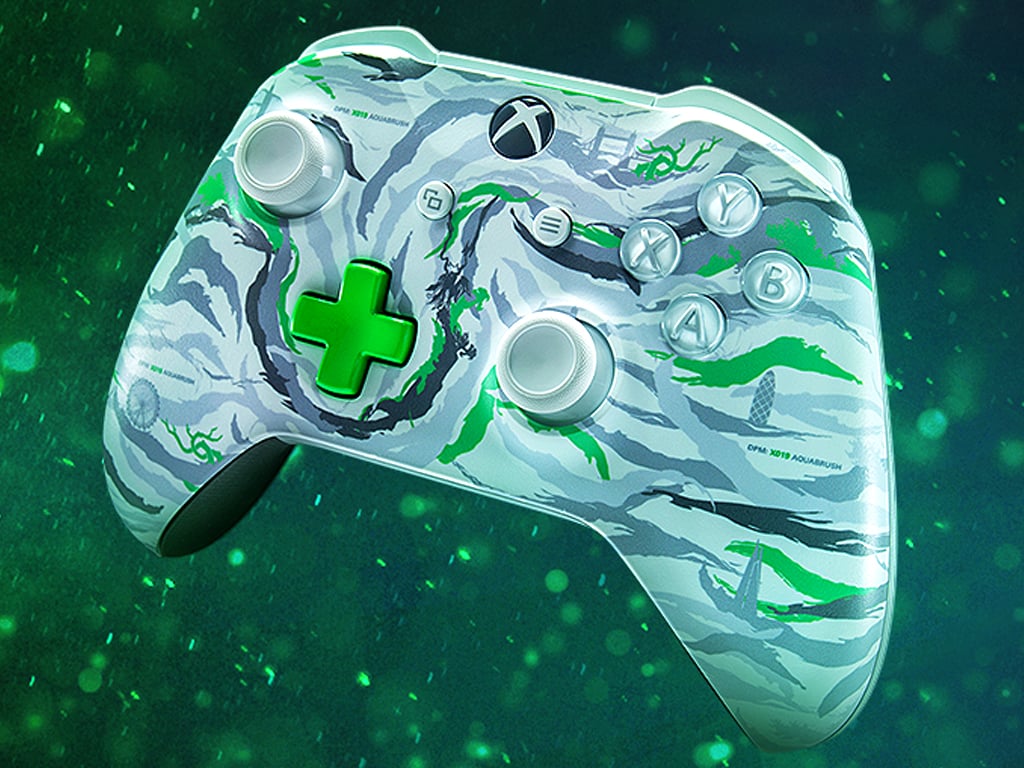
Microsoft today announced a collaboration with London fashion label, maharishi, that will see a new Xbox Controller and several Xbox Official Gear clothing items designed by the studio go on sale both at the XO19 event in London next month and online on the Microsoft website.
The new Xbox Controller and clothing items feature a newly-created camo pattern designed by maharishi’s DPM Studio that draws upon European and Asian influences and incorporates several subtle nods to the city of London. An official video detailing what went into the collaboration and the final designs has been released which you can watch below.
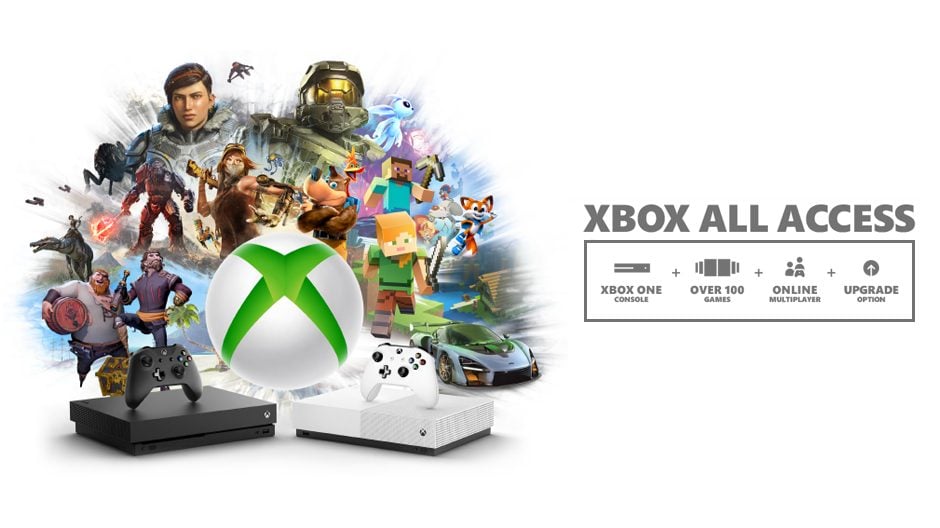
Microsoft’s new Xbox All Access payment plan was officially announced today as coming to Australia, the UK, and the US over the next few weeks.
The program is pretty cool as it allows consumers to obtain and Xbox One S or Xbox One X console immediately and pay it off in monthly payments as they would a mobile phone plan. What’s particularly interesting is that those that select the Xbox One X console plan have the option to upgrade to the next gen Xbox console launching in late-2020 that’s currently going by the codename, Project Scarlett. This is a very clever way to make sure the launch of the next console has an even larger install base than it does already… but this option is only available in the UK and US.
Upon inspecting the official Xbox All Access page on the Telstra website, the exclusion of any reference to a next gen upgrade option becomes obvious. Also notable is the lack of any plan for the Xbox One S All-Digital console.
Australian gamers were quick to ask the official local Xbox Twitter account about the absent upgrade option and were quickly told that plans relating to an upgrade option, if it happens at all, will be shared next year.
We will share more news on upgrade options and offers for new and existing customers early next year.
It’s unclear why Telstra isn’t offering any plan for the Xbox One S All-Digital console, though an entirely likely reason could simply be that internet data plans and speeds in Australia are pretty awful and Telstra, despite being one of the major telco’s in Australia with a history of partnering with Microsoft, probably doesn’t want to be on the receiving end of numerous complaints from customers about slow download speeds and people reaching their monthly data caps after downloading a single game.
With Edge being rebuilt atop Chromium, the browser now fully supports “installation” of websites with a valid web app manifest. These sites are commonly referred to by users as “PWAs,” although the term actually describes a broader set of technologies and concepts. Web app installation is just one possible feature of a PWA.
When you choose to install a compatible site, it integrates into your system in the same way as a native app. In the case of Windows 10, this results in the app showing up in the Start menu and within the Settings app.
The first challenge is to find a website which presents a web app manifest and so makes itself installable. Microsoft is simplifying this by automatically scouring the web for such sites and creating app listings in the Microsoft Store. However, for this guide, we’re focusing on installing apps via the Edge browser, as you use the web.
Edge will identify sites which are installable. After you land on a page with a web app manifest, you’ll see an “Install” button briefly appear in the address bar. After a few seconds, it condenses down to a “+” icon.
Click the button or icon to display the installation prompt. Click “Install” to add it to your system. The app will then launch in its own window, like any other app on your machine. You’ll see the site now shows up with its own identity in the taskbar. Open the Start menu and you’ll see a new entry for the app.
You can now use the app in its standalone context, without having to open Edge Insider. In reality, it’s still Edge’s Chromium browser engine that is rendering the page, but it looks and feels like a unique app.
You can keep the PWA installed on your system indefinitely. It should auto-update over time, as the site developers update the site it’s driven by. Most – but not necessarily all – PWAs will also work offline, another “app-like” characteristic made possible by modern web APIs.
When it comes time to uninstall the PWA, you can do so in multiple ways. One approach is to use Windows 10’s Settings app, or to right-click the app in the Start menu and choose “Uninstall.” You can also uninstall from within the PWA itself – click the menu dots icon in the top-right and press “Uninstall.” This also contains an option to open the app in Edge Insider directly, should you wish to escape the PWA for a traditional browsing experience.
As we’re heading into the holiday season, Microsoft has just announced that it’s bringing back its Xbox All Access subscription bundles that include an Xbox One console, 24 months of Xbox Game Pass Ultimate, plus the option to upgrade to the next-gen Project Scarlett console when it launches in Holiday 2020. That’s a pretty good plan to keep consumers in the Xbox ecosystem when the PlayStation 5 launches next year.
For the first time ever, Microsoft is also making Xbox All Access available in Australia starting tomorrow, October 29 through Telstra, as well as in the UK through GAME and Smyths Toys starting November 5. For consumers in the US, Xbox All Access will be available online via Amazon starting November 18, and here’s how it will work.
Consumers will be able to choose between three different bundles starting at $19.99/month for 24 months, all of them including an Xbox One console with its wireless controller, and 24 months of Xbox Game Pass Ultimate. You’ll get to keep the console after paying for the bundle for 24 months, and Microsoft says that all the different plans, which you can find below, represent over $100 in savings:
$30.99/mo for 24 months for an Xbox One X, or $743.76 in total
$22.99/mo for 24 months for an Xbox One S, or $551.76 in total
19.99/mo for 24 months for an Xbox One S All Digital Edition, or $479.76 in total
All subscribers will have the option to upgrade to the next Xbox console after 18 months (or 12 months if you choose an Xbox One X) by trading in the console originally purchased with Xbox All Access, though there will be an upgrade fee for consumers upgrading from the Xbox One S All-Digital Edition.
You can get more details about Xbox All Access on this page. Even though we don’t know all details about Project Scarlett yet, today’s announcement is a good way to generate excitement about the next-gen console.,
The upcoming 20H1 update for Windows 10 will reportedly be completed a bit sooner than expected. According to new information from Windows Central, the 20H1 update may go RTM as soon as December.
“It was marked as feature-complete internally back in August, and Microsoft has been mostly focused on fixing up bugs and polishing the OS for release ever since,” explained Zac Bowden from Windows Central. “This is why Insiders have not seen any substantial new features in 20H1 builds for a couple of months, because the 20H1 release is done. We’ve got a month or so left of development before Microsoft signs-off on 20H1 in mid-December.”
This December completion date is apparently the result of the recent realignment of the Azure/Windows 10 development cycles, as it was reported earlier this year by ZDNet’s Mary Jo Foley. This change is the reason why we got to test 20H1 bits so early this year, and also why the upcoming November update (19H2) will be minor release instead of a proper feature update like 20H1.
A standalone Cortana app is one of the main new features in the Windows 10 20H1 update.
With Microsoft being almost done with the 20H1 update, the company will reportedly go back to two major updates per year in 2020. The Windows 10 20H2 update, which will ship in the second half of 2020, should soon make its way to the Windows Insider Skip Ahead ring. Windows Central reports that this new coordinated Windows 10/Azure development cycle means that the 20H2 update should go RTM in June, alongside Windows 10X, the new version of Windows 10 that will ship on the dual screen Surface Neo.
Now that 20H2 can RTM earlier in the year under the new dev schedule, Microsoft can use 20H2 as the shipping version of Windows 10X that’s preloaded onto devices like the Surface Neo. This means Windows 10X will RTM in June alongside 20H2, and not with 20H1 as we had initially assumed. Microsoft needs the extra development time to make sure Windows 10X is as good as it can be at launch.
Now that Microsoft is set to complete new Windows 10 feature updates in December and June of each year, does this mean that we can expect these updates to roll out sooner to the public. That’s not guaranteed yet according to Windows Central, which believes that “Microsoft may decide to keep pushing out new feature updates in the spring and fall, utilizing the Slow and Release Preview ring for extensive testing of the final build before it goes to the public.” This would probably be for the better, as the public rollout of Windows 10 version 1903 wasn’t exactly smooth sailing (again). As an example, it took months for Microsoft to fix a compatibility issue affecting its own Surface Book 2 hardware.
Microsoft’s Designed for Xbox program to include new mobile gaming accessories made for Project xCloud
With Project xCloud in public preview, some were wondering if Microsoft would release their own mobile gaming accessories for the service. Instead, it turns out, the Designed for Xbox program has been expanded to include accessories for mobile gaming.
Microsoft Q1 FY 2020 earnings show a need for new hardware while cloud continues to grow
The 1st quarter of 2020 has shown that Microsoft needs new hardware across its Surface and Xbox divisions, due to a decline in revenue and flat revenue, respectively. On the other hand, its cloud portfolio continues to see strong growth across all businesses.
EU unhappy with Microsoft’s GDPR compliance, company says “contractual changes” coming
Microsoft has come under fire from the EU, as the bloc appears unhappy with MIcrosoft’s GDPR compliance. The EU’s preliminary results found “serious concerns” in Microsoft’s contracts with European institutions. Microsoft says changes are coming.
That’s it for this week. We’ll be back next week with more Microsoft news.
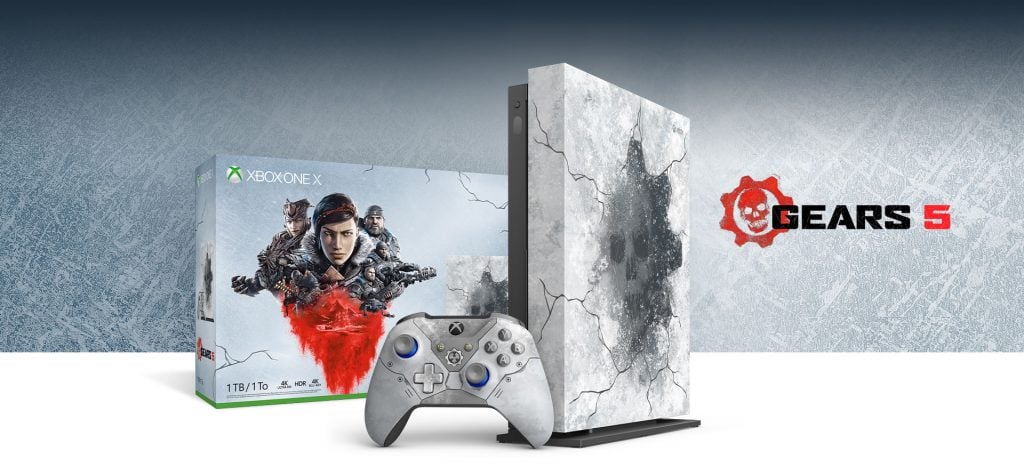
Even though Black Friday is still a couple of weeks away, Microsoft is currently offering up to $100 discounts off select Xbox One X bundles, including the Xbox One X Gears 5 Limited Edition console. The custom-designed hardware featuring the Crimson Omen immersed in ice is quite something to look at, and it also comes with the Kait Diaz Limited Edition Xbox controller. For $399, the bundle also includes a digital edition, plus the four first Gears of War games for free.
The Xbox One X NBA 2K20 Special Edition Bundle, which includes a white “Hyperspace” console featuring a featuring a night sky design is also $399 for a limited time. If you prefer the regular white Xbox One X, there are also two $399 bundles with either Gears 5 or NBA 2K20.
All these discounts will be available through November 3 at Xbox.com, Microsoft Stores and major North America retailers, but we hope to see even more interesting Xbox deals for Black Friday.
Tabs revolutionised how we browse the web. Many, if not most, users work with dozens of tabs at a time, some of which remain open in the background throughout the day. These tend to house email clients, streaming music services and continually updated news feeds, ready for you to switch back to in a spare moment.
You can clean up your tab strip by pinning these constantly active tabs. Pinned tabs are a staple of modern web browsers, Edge Insider included. To pin a tab, right-click it and choose “Pin tab.”
Pinned tabs take up much less space on your tab strip. Only the tab icon is displayed, leaving more space for the tabs you’re actively using. Pinned tabs will still be included when you switch tabs using the Ctrl+Tab/Ctrl+Shift+Tab keyboard shortcuts, so you can quickly cycle back to your email or music.
Edge Insider automatically restores pinned tabs at launch. You won’t need to spend time at the start of the day reopening your mail app. Tabs are “lazy loaded” so they won’t all restore at once, consuming all your network bandwidth. The tab will be loaded when you select it for the first time.
Pinned tabs are a great way to cut down on clutter while keeping your most-used services easily accessible. Used effectively, they can save you time and help you concentrate on the task at hand. You might want to combine pinned tabs with the “Mute tab” right-click option. This can help minimise distractions from email alerts and other notifications.
Should you need to unpin a tab, right-click it and select “Unpin tab.” The tab will be reverted to a regular fullsize tab. You can close pinned tabs without unpinning them by using the Ctrl+W keyboard shortcut.