Grab the FREE Minecraft Xbox anniversary skin pack now for Xbox One/360

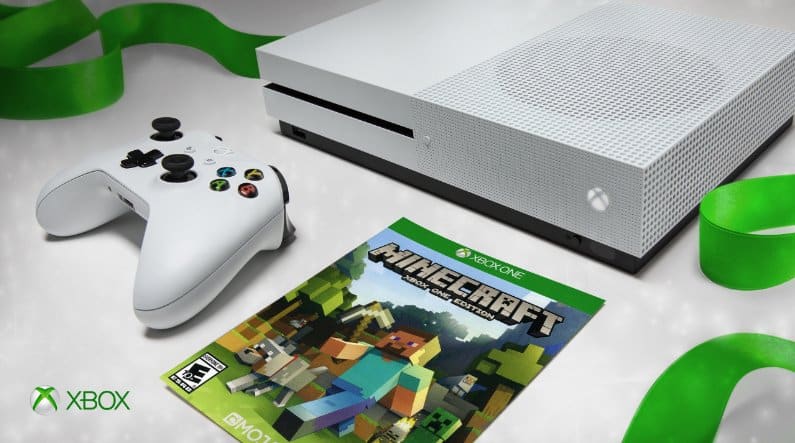
In celebration of Minecraft’s fifth anniversary on Microsoft’s Xbox consoles, all players of the game on Xbox 360 and Xbox One are being given a free Minecraft 5th Birthday Skin Pack. These free skins, rather interestingly, allow gamers to dress up their characters as individual members of the 4J Studios development team, the people currently working on Minecraft.

Minecraft 5th Birthday Skin Pack should automatically download for Xbox 360 and Xbox One game owners but if for some reason it doesn’t, it can be grabbed manually in the Xbox Store here for Xbox 360 and here for Xbox One.

There’s been a lot happening with Minecraft since Microsoft purchased it and it only looks like it’s going to evolve further with a possible 4K version being rumored for release on Project Scorpio.

Are you a Minecraft fan? Let us know how you play it in the comments below.

Here’s more information about that AI and Microsoft powered virtual golf caddie

Prior to the shuttering of its fitness-focused smartwatch, Microsoft and the PGA were doing some arguably cutting edge collaborative work around golf and movement tracking. When using the Microsoft Band, golfers could track their steps, see a detailed view of the course, measure swings and keep score digitally for convenience.

However, as Microsoft looks forward, the company is placing more bets on AI than hardware and has seemingly come up with a solution to help golfers left abandoned by Microsoft’s departure from the smartwatch world.

Earlier today, the golf tracking startup from Stamford, Connecticut partnered with Microsoft and its powerful AI platform to create a new pocket-sized caddie like experience for golfers. As Geekwire reports, “say you’re standing on the tee box on a hole at your home course. Arccos Caddie will crunch both your previous round history — your tendencies to hit left or right, your average shot distance, etc. — with the course condition information to give you advice for the optimal shot recommendation. Maybe you think your driver can carry the water and land on a narrow fairway, but the Arccos Caddie may tell you otherwise.”

The driver (pun intended) behind Arccos Caddie is to provides golfers with actual data driven info in a matter of seconds that can help improve someone’s game in a real and tangible way.

Arccos Caddie is not without its faults. Despite the reality of people pulling out their phones every 30 to 45 seconds to look at news, post to social media, play games or simply distract themselves, some golfers have pointed out the troublesome nature of having to always whip out a phone for a shot.

As a golfer myself, I find it a bit troublesome to take out my smartphone for each shot. Syed and his team know this — “golfers are not out there to collect data; they are out there to have fun,” he said — but believe that the value delivered from the app outweighs a behavior change required.

Fortunately, some see the benefits outweighing the drawbacks of having to pull out a phone more often than desired.For those who are interested in the benefits Arccos Caddie has to offer, the service, that is exclusive to Arccos 360 users ($249.99) who have played at least five rounds, will officially launch May 22 and be available for free through the end of the month, after which a subscription based model will be implemented.

New Microsoft patent hints at “smart glasses” to help you stay healthy

A patent for Microsoft was granted this week for ‘smart glasses’, according to CNBC news. The augmented reality glasses would make the wearer aware of nutritional facts and warnings for food related items, encouraging better health choices and keeping the wearer informed of nutritional concerns.

With multiple sensors picking up visual information about the item, the device identifies food items by comparing databases by location. The smart glasses would, of course, be transparent and include a processor and non-transitory computer readable storage.

The smart glasses would  be able to attribute the user’s personal settings for the food item, going so far as to sensing a gesture or sound of consumption. Ideally, if you start to eat something you’re allergic to, it will let you know. It’s even worth noting that ‘friend recommendations’ would be on the menu for restaurants.

As the patent describes:

A system provides a recommendation of food items to a user based on nutritional preferences of the user, using a head-mounted display device (HMDD) worn by the user. In a store, a forward-facing camera of the HMDD captures an image of a food item. The food item can be identified by the image, such as based on packaging of the food item. Nutritional parameters of the food item are compared to nutritional preferences of the user to determine whether the food item is recommended. The HMDD displays an augmented reality image to the user indicating whether the food item is recommended.

Obviously, this isn’t the only utility that such ‘smart glasses’ could be used for. One reason that the HoloLens itself has such bulky hardware is because of the power needed to run higher quality apps. But with simple overlays and item recognition, these smart glasses could be the next step up for the AR market.

As with all patent discoveries, however, these plans aren’t necessarily set in stone for Microsoft as some projects might be set aside or discontinued. Still, it’s interesting to consider how daily life could be improved with such technology.

Bing Fun & Games mini-games available in US, UK, and India

Microsoft has added a new Fun & Games section to its Bing search portal.

Fun & Games section on Bing

Fun & Games is now vailable from the drop down hamburger menu at Bing.com/fun, offering users various web-based mini-games — many of which are the perfect choice during a lunch break or a train ride.

The page should currently offer Puzzle and Games, Trivia and Quizzes and more. It should even teach you how to play some of them.

The feature has been available in the US for two weeks, while now it’s just been made available in the UK and India. It doesn’t yet appear to be available in all markets.

Surprise! You can’t access the new Fun and Games section just yet

In the burger menu, you’ll see the new Fun & Games section, but you’ll get a small surprise when trying to access it. When you click on it in order to visit this new cool page, you’ll be disappointed as it currently results in a 404 error that reads:

Page not found

But here’s something you can always find — theBing homepage.

Or try one of these searches for kitten wallpaper, cute animal GIFs, panda dogs.

As it seems, after leading you straight to Bing.com/fun, the feature is unavailable for now.

It’s not very clear what this page could be for. There are some possibilities, like a way of searching for online games (something similar to Google’s Pac-Man doodle) in a directory format and it allows the user to pick them up easily without needing to work out the search term for rendering them.

We’ll just wait some more time until things become clarified and see what’s this all about!

RELATED STORIES TO CHECK OUT:

Project NEON for Microsoft Photos comes to Windows 10 Insiders

Project NEON is being offered to and downloaded by many Insiders, so it seems that it won’t be much longer before the general Windows population will also gain access to it.

Project NEON adds a more pleasing interface to the latest version of Windows

The Project Neon-centric visual overhaul of Windows 10 has been rumored for quite a while and teased us with a few select app updates recently. Now, it makes an appearance for Windows Insiders in the Microsoft Photos application.

Project NEON is based on a design that plays with transparency and blurring in order to add a more aesthetically pleasing interface design to the newest version of Windows 10 apps.

We first heard rumors about Project NEON back in 2016, but we’ve only seen its first screens this past February as part of a Microsoft developer stream. It seems to b inspired by how Apple’s macOS popularized a more subtle visual style.

Project NEON for Microsoft Photos arrived in the Fast Ring

Now, Project NEON for Microsoft Photos is available to a few select users even if it hasn’t yet been officially announced by Microsoft. It was distributed as part of the new 17.428.10010 version of Windows 10 that only a few Insiders currently have access to. There’s no word on when Slow Ring Insiders are expected to receive the update sometime in the near future.

A softer and more translucent interface

Once users gain access, they’ll be able to see a softer and more translucent interface with a touch of blur added to the overall aesthetic. There is also a new Bing search bar, but this specific feature doesn’t add that much to the experience.

Microsoft Photos is not the only app that received the Project NEON treatment. We’ve also seen similar updates coming to the Groove Music, Movies and TV, and Dropbox.

If you’re thinking about running a fresh install of Windows 10 before gaining access to the fresh looks of Project NEON, you should go for it!

RELATED STORIES TO CHECK OUT:

Microsoft announces planet-scale cloud services with Azure Cosmos at Build 2017

Microsoft took its cloud computing to an entirely new level on Day One of Build 2017 when it revealed Azure Cosmos DB, a first-ever globally distributed database service that promises guaranteed uptime and almost zero latency.

“Azure Cosmos DB, built from the ground up to power planet-scale cloud services and data-intensive applications from IoT to AI to mobile with incredible performance, fault tolerance and support for every type of data, including Graph,” Microsoft says of the new service in its official announcement. “It is the industry’s first globally distributed, multimodal database service to deliver horizontal scale with guaranteed uptime, throughput, consistency and millisecond latency at the 99th percentile. Developers get incredible flexibility with the only schema-free database service, with support for popular NoSQL choices, that also offers five well-defined consistency choices while auto-indexing all your data.”

More information on Azure Cosmos DB is expect to be released over the following days at Build 2017. For all of the latest Build 2017 announcements, make sure to check out all of our posts here and let us know what you think about Azure Cosmos DB in the comments below.

Microsoft announces new Custom Cognitive Services at Build 2017

Since its general release in 2015, over 568,000 developers have signed up for Microsoft Cognitive Services in over 60 countries. Announced today at Build 2017, a list of new services joined the fray such as Bing Custom Search, Custom Vision Service, Custom Decision Service and Video Indexer, creating a total of 29 services now available to developers.   But Microsoft wants to take it a step further by making AI even more available to developers as a whole.

Microsoft Cognitive Services Labs will put the creation of AI into developers hands. Through this, custom AIs can be constructed and submitted to the community for further development, expanding the reach of AI services for apps. Furthermore, the new Azure Batch AI Training is now available in preview for training custom deep neutral networks. This includes training their models to use any framework including Microsoft Cognitive Toolkit, TensorFlow, and Caffe. 

It’s the goal of Microsoft to add a bit more humanity​ into computer interactions by giving app developers the ability to make more natural experiences with data. The tech giant is putting AI into every available product and service, fusing AI and Azure together as what they consider ‘the most comprehensive AI platform’ moving forward.

Keep up with this and more Microsoft Build 2017 news here at OnMSFT.

Desktop browsers like Chrome and Firefox won’t be allowed in the Windows Store

When Microsoft officially announced Windows 10 S last week, many wondered if this locked down version of Windows 10 would be really consumer friendly. Windows 10 S is definitely no Windows RT, as the app situation on the Windows Store has gotten much better since 2012. However, Windows 10 S users will have to use Microsoft Edge and Bing as their default browser and search engine, and it’s very unlikely that we see Google Chrome or other popular desktop web browsers being released on the Windows Store in the near future.

According to a report from ZDNet, Windows Store policies currently prevent developers from using Microsoft’s Dekstop Bridge to release their desktop web browsers on the Windows Store. More precisely, Microsoft only accepts third-party browsers that, like Microsoft Edge, are true UWP apps that run in a sandbox environment. Additionally, Microsoft requires third-party browsers to use the same HTML and Javascript engines that Edge uses.

A Microsoft spokesperson shared the following details in a statement with ZDNet:

Windows Store apps that browse the web must use HTML and JavaScript engines provided by the Windows Platform. All Windows Store content is certified by Microsoft to help ensure a quality experience and keep your devices safer. With this policy, instated early this year, the browser a customer chooses in the Store will ensure the protections and safeguards of our Windows platform. If people would like to access apps from other stores and services, they can switch to Windows 10 Pro at any time.

To be fair, Microsoft is not the only company to implement these types of restrictions on its app store: iOS also requires third-party browsers to use Apple’s WebKit rendering engine, and iOS users are not allowed to set a third-party browser as default. Chromebooks are also restricted to the Chrome browser and web apps, but Google is currently working on bringing support for Android apps (including third-party web browsers) on Chrome OS.

The absence of Chrome and Firefox on the Windows Store won’t be an issue for Windows 10 users, but this could well hurt the education-focused Windows 10 S, which is Microsoft’s answer to Chromebooks. Microsoft Edge has some killer features of its own such as digital inking and better battery efficiency, but Chrome and Firefox remain much more customisable thanks to a vast collection of browser extensions.

Do you think the Windows Store needs to have popular third-party browsers to be relevant, and do you hope to see Google release a UWP version of its Chrome browser one day? Let us know what you think in the comments below.

Pre-orders for Microsoft’s HoloLens open in China, launch date announced

Microsoft announced today that their augmented reality headset, HoloLens, would be launching in China and that interested industry parties and developers would be able to pre-order units beginning today from the Microsoft flagship store.

“Microsoft HoloLens launched a new vision of mixed reality,” Microsoft’s head and chief executive of the Greater China Region, Alain Crozier (known as Ke Ruijie domestically), said in a statement. “Chinese businesses and developers have great passion and energy for technology innovation and the area of augmented reality is a very promising market. We have high hopes for Microsoft HoloLens entering the Chinese market and expect it to help more Chinese companies, partners, and developers by inspiring, opening minds, and creating new opportunities in the real world.”

The Chinese HoloLens unites designed for businesses are currently priced at 39,188 Yuan while the developer model is slightly cheaper at 23,488 Yuan. The HoloLens is not currently available to the average Chinese consumer.

How to find the secret UWP version of the File Explorer in Windows 10 Creators Update

With Microsoft having put so much work into its Universal Windows Platform, it’s no surprise there’s also a UWP version of File Explorer. We’ll show you how to find it.

The app is a reminiscent of the Windows 10 mobile version of File Explorer

What’s surprising is how the app is hidden and can only be unlocked using a specially crafted workaround. First, you have to be running the Windows 10 Creators Update to try it out. While it’s not clear how close the app is to its final version, it will be interesting to try it out when it releases.

File Explorer in UWP format limitations

File Explorer in UWP format was first reported by OnMSFT and it’s a bit simpler than the regular version of this tool. There are a few limitations:

  • You are limited to browsing the content of drivers only as there is no way of navigating to network devices unless you mapped a network drive.
  • The app doesn’t support drag and drop.
  • The process of selecting, moving, and copying files is a little difficult to follow.

Accessing the app

If you’re interested in seeing what Microsoft may have planned for the future, follow these steps in order to access the app:

  • Right-click on an empty section of the desktop. Select Now and go to Shortcut.
  • Type the following text in the text field:

explorer shell:AppsFolder\c5e2524a-ea46-4f67-841f-6a9465d9d515_cw5n1h2txyewy!App

  • Click Next.
  • Type an appropriate name for the shortcut and then click Finish and you’re done.

Remember that this is not the final version of the app, so you might experience some stability issues.

RELATED STORIES TO CHECK OUT:

NBA Playgrounds bugs: black screen, fatal errors, and more

NBA Playgrounds is a classic NBA arcade game that lets you show off your basketball skills. You can use your offline basketball skills to perform acrobatic jams and other impressive moves in the online world.

Unfortunately, just like many newly launched games, NBA Playgrounds is affected by a series of technical issues. In this article, we’ll list the most common bugs reported by players, as well as their corresponding workarounds, whenever available.

NBA Playgrounds bugs

Audio settings won’t save

Players report they can’t turn off the game music. It appears that the audio settings won’t save and quickly revert to default.

every time I want to turn the music and announcer off, it reverts back. please fix this.

Black screen on full screen

Other players can’t actually enjoy the game in full screen mode due to black screen issues. They are forced to play in windowed mode in order to get rid of the black screen.

If I set the game to full screen i get stuck on a black screen and i have to alt+enter to get it to go back to windowed to be able to play.

Fatal error

Trying to play my first Exhibition match and the game gets stuck on 10% on the loading screen then crashes and gives a simple “Fatal Error” crash message. My gfx driver is updated and I’ve restarted my computer.

If you’ve encountered this error, verify the integrity of your game files.

Online Match is greyed out

In order to use the Online Match option, you need to unlock it first. Play through the tournament mode, and the Online Match will unlock after you win.

Jumped into the game and “Online Match” is greyed out? Anybody know how to access it? It’s not available.

Controller doesn’t work

If you can’t use your controller to play NBA Playgrounds, rest assured, you’re not the only one. As a quick workaround, unplug and then plug the controller back in.

Controller doesnt work in playgrounds but works in every other game

These are the most frequent NBA Playgrounds issues reported by players. If you’ve come across other workarounds for the bugs listed above, you can help the gaming community by listing the troubleshooting steps in the comment section below.

RELATED STORIES YOU NEED TO CHECK OUT:

Weird bug in Edge prints numbers incorrectly from PDF

If you use Microsoft Edge to print PDF files, you may already be experiencing issues with “Microsoft Print to PDF” in Windows 10. There are numerous complaints about Microsoft Edge’s PDF printing issue on the Edge issue tracker. The Microsoft PDF to Print issue arises when you attempt to print using the Edge browser; what’s displayed on your screen is not always what gets printed out via your printer.

ZDNet found the user (Mathias I.) who first reported the bug via Microsoft Edge bug tracker. In his Microsoft Edge bug tracker submission, Mathias reports that the bug he experiences is in Microsoft Edge 38.14393.1066.0, Microsoft EdgeHTML 14.14393 and Edge 40.15063, EdgeHTML 15.15063.

Some users have been able to reproduce the Microsoft Edge bug, while others have been unable to reproduce Mathias’ bug experience. Mathias posted two PDF files, one that displays a table with text and numbered boxes ranging from 0-143, and the same PDF file after it is printed with Microsoft Print to PDF in Edge. Mathias notes the bug as follows:

“Edge displays PDF correctly but printed content differs notably. Printed content depends on selected printer, on printer settings, and on used computer. Please try a different setup if first result looks correct.” The Microsoft Edge team is aware of the bug report. Another user noted that switching to Adobe Reader appears to fix the Edge bug.

Microsoft highlights a series of affordable premium Windows 10 PCs

The great thing about Windows 10 is that Microsoft has developed a vibrant ecosystem of OEM partners creating desktop PCs, ultrabooks and 2-in-1s for all types of consumers. Some of you may prefer old-school laptops with lots of ports and no gimmicks, others may be more interested in touch screens and stylus support, but in the end everyone should be able to find what they’re looking for.

If this not the case, Microsoft is here to help: this week the company highlighted a few Windows 10 PCs from its partners that should deliver “the perfect balance of cost and capabilities.” Some of them are currently on sale on the US Microsoft Store, which is even better. We’ve selected the most interesting models below:

2-in-1s:

  • At just ($249) $100 off, the ASUS Transformer Mini T102HA is one of the cheapest 2-in-1 PCs you can buy on the Microsoft Store, and it includes a detachable keyboard and pen.
  • Starting at $599, the Acer Switch Alpha 12 has a slightly bigger screen with IPS technology, a faster Intel Core processor and a a 165-degree rotating kickstand.
  • For the same price, you can also get the Samsung Galaxy TabPro S ($300 off), which has a beautiful AMOLED touchscreen plus some synergies with Galaxy smartphones through Samsung’s proprietary Flow technology.
The ASUS Transformer Mini T102HA.

Laptops:

  • Starting at $329.99, the new HP Pavilion x360 is an affordable convertible laptop that is available in three different screen sizes.
  • At just $699 ($200 off), the Dell Inspiron 13 5000 Series 2-in-1 comes with and Intel Core i7 processor, 8GB of RAM and a 13.3-inch full HD touchscreen
  • The ASUS ZenBook UX510 (starting at $999.00) is a premium ultrabook with a 15.6-inch anti-glare display, an Intel Core i7 processor and a discrete GeForce GTX GPU.
The Dell Inspiron 13 5000 Series 2-in-1.

If you’re planning to buy a new PC in the near future, let us know what do you think of these different options in the comments. We also invite you to check the PC Sale on the US Microsoft Store, which is regularly updated with new deals on Windows 10 PCs and tablets.

Microsoft releases fix for the critical Windows Defender vulnerability found by Google

As we reported yesterday, two Google security researchers recently discovered a critical bug in Windows Defender, which they described as “the worst Windows remote code exec in recent memory.” The vulnerability was indeed pretty bad, as the researchers explained that attacks could work against the default install and spread to other PCs.

Fortunately, Microsoft has just announced that a fix is now available to download on PCs running Windows 7, 8.1, RT, 10 and Windows Server 2016.

As the company explained, the remote code execution vulnerability could be exploited when the Microsoft Malware Protection Engine was not properly scanning specially crafted files. You can find more details below:

To exploit this vulnerability, a specially crafted file must be scanned by an affected version of the Microsoft Malware Protection Engine. There are many ways that an attacker could place a specially crafted file in a location that is scanned by the Microsoft Malware Protection Engine. For example, an attacker could use a website to deliver a specially crafted file to the victim’s system that is scanned when the website is viewed by the user. An attacker could also deliver a specially crafted file via an email message or in an Instant Messenger message that is scanned when the file is opened. In addition, an attacker could take advantage of websites that accept or host user-provided content, to upload a specially crafted file to a shared location that is scanned by the Malware Protection Engine running on the hosting server.

The company added that it had “not received any information to indicate that this vulnerability had been publicly used to attack customers,” which is reassuring. The update to the Microsoft Malware Protection Engine should be downloaded automatically on your PC, but you can install it immediately by checking Windows Update.

Mass Effect: Andromeda and Saints Row Xbox games discounted in Deals With Gold

Mass Effect: Andromeda, the fourth entry in the Mass Effect series and the first episode to be released on the Xbox One is the main highlight of this week’s Deals with Gold. If you didn’t buy it following its release in March, the open world action-RPG is currently 35% off for Xbox Live Gold subscribers.

On the Xbox One, Tom Clancy’s The Division and its Gold Edition are 60% off this week, but the Instant Indie Hits bundle (80% off) which includes ten popular indie games is also worth a look. Moreover, all Saints Row games on the Xbox One and the Xbox 360 are also being discounted, but owners of the old gen console may also want to check the tower defense games Dungeon Defenders and Sanctum 2.

You can find more details about our favorite highlights below, and we invite you to check the full list of discounted titles on Major Nelson’s blog post.

Xbox One Deals

Mass Effect: Andromeda ($38.99)

Mass Effect: Andromeda travels deep into the Andromeda Galaxy, far beyond the Milky Way. There, you will lead our fight for a new home in hostile territory where we are the aliens. Take command as the Pathfinder, a leader of a squad of military-trained explorers, with deep progression and customization systems. This is the story of humanity’s next chapter, and your choices throughout the game will ultimately determine our survival in the Andromeda Galaxy.

Tom Clancy’s The Division ($20)

New-York City, today. An unprecedented pandemic has struck the city during the fever of Black Friday. One by one, basic services fail. In only days, without food or water, society collapses into chaos. You’re part of the Division, an autonomous unit of tactical agents trained to operate independently. Your mission: protect what remains and restore hope.

Instant Indie Hits ($20)

Save up to 80% and get 10 amazing games in one bundle! Games included: The Swapper, Thomas Was Alone, Hue, Stealth Inc 2, Stikbold!,The Swindle, OlliOlli, Nova-111, Action Henk, 10 Second Ninja X.

Xbox 360 Deals

Saint Row IV ($8.74, backward compatible)

The epic conclusion to the game that changed all the rules! The Saints have gone from the crackhouse to the White House—but the Earth has been invaded and it’s up to you to free the world from Overlord Zinyak and his alien empire. With homies new and old by your side, and an arsenal of superpowers and strange weapons, you must save the world in the wildest open world game ever!

Sanctum 2 ($2.99)

Sanctum 2 is the sequel to the world’s first Tower Defense/FPS hybrid game. Pick from four unique character classes and embark on a mission to protect the oxygen-producing Cores from hordes of deadly aliens who are threatened by their existence. In Sanctum 2, you will utilize elements from multiple gameplay genres to succeed. Construct towers and walls during the building phase before the enemies attack, then jump into the fray and blast everything to pieces in FPS mode. You can progress through the single-player campaign yourself, or play with up to four friends in co-op to discover the secrets of the planet LOEK III.

Dungeon Defenders ($3.74)

An ancient evil has been unleashed on the land of Etheria and it’s up to you to defend it in this online (and offline) action RPG! Create your own hero from one of four distinct classes to summon towers and traps and fight back hordes of enemies! Customize and level your hero by defeating enemies, looting equipment and upgrading your gear and pets. Take your character through multiple difficulty modes and challenge/survival missions to earn more experience & even better treasure. To top it off, you can do all of this with up to 4 friends on the same console or over Xbox LIVE!

All discounts will be valid through May 15, let us know in the comments if you plan to purchase one of these games on your Xbox One or Xbox 360.

Xbox One NBA 2K18 pre-order versions announced

The pre-orders for NBA 2K18 have been announced for Xbox One ahead of its September 14th release date. Pre-orders for the vanilla version will come with some yet-to-be-announced bonus content and early access to play the game four days before release.

The NBA 2K18 Legend Edition comes with the same content and early access as the regular version plus the following: 100,000 VC, 20 MyTEAM Packs to build your perfect fantasy team, delivered one a week, featuring a guaranteed Shaq card, one random Team – 2K Free Agent card, Shaq Attaq shoes, Rookie Shaq jersey, Shaq Official Logo shirt, Shaq “nickname” jersey, and a Shaq Championship ring.

The NBA 2K18 Legend Edition Gold Edition comes with everything in the Legend Edition plus the Mitchell & Ness Shaq jersey collection (5 in total), Additional MyPLAYER apparel items, 250,000 VC (instead of 100,000) and 40 MyTEAM Packs (instead of 20).

Pre-order NBA 2K18 on Xbox One

NBA 2K18 is the latest entry in the popular NBA video game series and has proven to be very popular with basketball video game fans in the past. Are you going to pre-order this game? Let us know which version in the comments below.

Unable to detect the second monitor after installing Windows 10 Creators Update [Fix]

The Creators Update is definitely a step forward in many categories, both for casual users, professionals or vivid gamers. At least feature-wise. However, it’s hard to say it’s likewise when it comes to problems that are emerging on a daily basis.

One of those issues that are mainly affecting PC professionals is related to a dual-monitor performance. Namely, some users reported issues with the second monitor that, for no apparent reason, can’t be detected by the system. Apparently, after various tries, users were unable to project anything on the secondary screen, even though everything was functioning prior the update.

Because of that, we prepared a list of some of the workarounds that should help you resolve this problem and get back in the saddle. So, if you’re experiencing similar issues, make sure to check the list below.

How to resolve secondary monitor issues in Windows 10 Creators Update

Wait for a while

It may be strange at first glimpse, but this is a proper way to address this issue. Most of the time, the system needs some time to optimize changes that are made. A lot of users that encountered this exact problem in the previous system versions, get it sorted out after a day or two. So, make sure that your secondary monitor is connected and the system should install the proper drivers.

Update monitor and GPU drivers

On the other hand, if you’re in the hurry, you can force the driver’s update and resolve the issue instantly. Most of the time, the problem lies in the unfitting drivers. Since your hardware is nothing without the proper software support, this is the logical step in the troubleshooting procedure.

If you’re unsure how to update your drivers, follow the instructions below:

  1. Make sure that your second monitor is plugged in.
  2. Right-click the Start menu and open Device Manager.
  3. Navigate to Monitor and right-click on the device with the yellow exclamation point.
  4. Click Update driver.
  5. Repeat the procedure for the GPU, especially if you’re running dual-GPU.
  6. The procedure may last for a couple of minutes but your device should receive proper drivers.
  7. Restart the PC and try again.

If the issue is still there, make sure to check other solutions.

Add the monitor manually

Even though Plug & Play monitor system functions for ages, there’s a chance that your case is an exception. So, you can manually add the device (monitor) and, hopefully, everything will function like it was before the Creators Update.

Follow these steps to do it:

  1. In Windows Search bar, type connected devices and open Connected Devices.
  2. Click Add devices.
  3. Click on the Second screen.
  4. Select one of the 3 options: Duplicate, Extend, and the Second screen only.
    • The Duplicate option will duplicate the primary display to secondary display.
    • The Extend option will unite two monitors so you can use them both as one.
    • The Second screen only option will, obviously, disable primary and use only the secondary monitor.
  5. Once you’ve chosen the preferred mode, save changes.

Additionally, you can use the 3rd-party programs to utilize the second monitor, and those offer a large variety of distinctive features. For starters, the system tool should be enough.

Change the monitor’s refresh rate

Some users managed to resolve this issue by changing the display refresh rate. Even though the refresh rate is not as important as it was before when the CRT monitors were all we had, it can certainly impact some of the monitor behavior. So, if you are running a monitor whose refresh rate is above 60Hz, make sure to change the value and look for changes.

You can do that by following these instructions:

  1. Right-click the desktop and open Screen resolution.
  2. Select the second monitor and click Advanced settings.
  3. Under the Monitor tab, change the Screen refresh rate to 60 Hz.
  4. Save changes and look for improvements.

However, if the problems are still there, the only remaining solution is to reset your system.

Reset the system

At the end, if the mayhem created by the last update is unrepairable, you can always roll back to a previous version, or simply put, Reset your PC. Back in the days, that would be a hard operation to perform, but with Windows 10, you should have an easy time doing it. You can find the detailed explanation in this article.

We hope that this will enable you to work seamlessly with your dual-monitors.

Don’t forget to share your experience or ask any question in the comments section below.

RELATED STORIES YOU NEED TO CHECK OUT:

Dropbox app updates on Windows 10 with a nice Excel feature

The Windows 10 Dropbox app’s developer, Rudy Huyn, announced via his Twitter account this afternoon that a new update is on its way that will add support for in-app Excel file reading and drag-and-drop functionality in grid view.

The Dropbox app is one of the most-updated apps in the Windows Store and frequently updates with added features and visual design changes and currently runs on Windows 10 PCs, Windows 10 Mobile devices, and Microsoft’s Xbox One video game console.

Are you a user of Dropbox? Let us know what recent change you like the most in the comments below.

Dropbox Lite
Dropbox Lite
Developer:
Dropbox Inc.
Price:
Free

How to control your PowerPoint presentations using a Surface Pen

Surface Pen is one of the highlights of Surface and with the improved inking capabilities of Windows 10, it offers a natural and intuitive way to write, draw, and interact with apps.

There are also handy pen shortcuts via the top button available on a click, double-click, or a long press – although the default set of actions was quite limited. Till the Windows 10 Anniversary Update, that is. Now, Windows 10 allows users to assign custom pen shortcuts to any installed UWP or classic app.

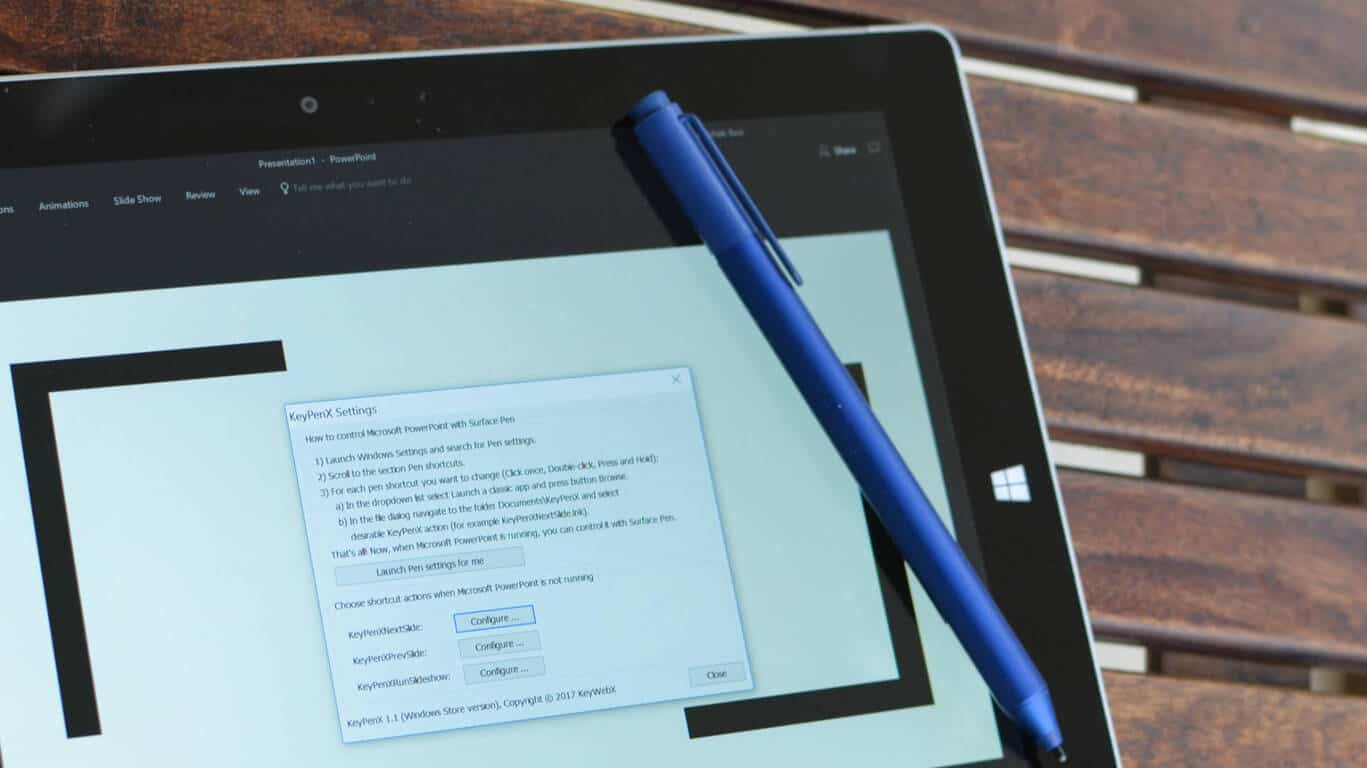
KeyPenX makes use of this new capability to allow users to assign PowerPoint navigation controls to the top button, so that your Surface Pen doubles up as a PowerPoint remote. The app supports PowerPoint actions like next slide, previous slide, and start slideshow from the beginning.

Unlike other such solutions, KeyPenX can also assign secondary actions when PowerPoint is not running – like opening OneNote, Cortana, Command Prompt, or any classic app with *.exe, *.bat, and *.lnk files. This capability is a nifty addition since you don’t have to go back to Pen settings each time and change Pen shortcuts to their default behavior after you’re done with presenting a slideshow.

Granted KeyPenX is not very straightforward, and there are no direct toggles or drop-down menus to configure Pen shortcuts. Yet, it’s quite easy to set things up and the app guides you well to configure default Pen settings.

While the app isn’t on UWP, the developer has used Desktop Bridge to publish it on the Windows Store. If you are an active Surface Pen user and present slides in school or at work frequently, KeyPenX is a pretty neat way to navigate a PowerPoint slide-deck using the Surface Pen as a remote. Also, for most presenters, it eliminates the need to buy expensive presenter remotes.

Surface Laptop vs MacBook Pro: Which one wins the race?

As a gigantic player in its field, it is natural for Microsoft to want to conquer as many relevant markets as possible. That’s why the company releases a competitor for a new market every year, besides its regular Windows product.

This time, Microsoft aims at the education market with its new streamlined Windows 10 S operating system. But that’s not all, as the new OS comes with a new line of devices, designed to run it from day one.

The main highlight of the Windows 10 S line of devices is definitely the Surface Laptop. But, as the Surface Laptop isn’t a budget laptop, we can’t put it in the education category. It’s more logical to look at the Surface Laptop as a direct competitor to Apple’s MacBook Pro. And that’s exactly how people see it.

Microsoft itself advertises the Surface Laptop as a better choice than any MacBook out there. But, does the Surface Laptop really has what it takes to beat the MacBook Pro, or is it just a pure marketing? Well, to find the answer, we’ll have to look at the details, because offers are quite similar, and it really depends on what aspect of a laptop people value more.

So, check out our ‘Surface Laptop vs MacBook‘ comparison, and we hope you’ll be able to find the answer.

Specs

Let’s start with what the majority of people think is the most important thing when buying a new laptop – hardware specifications. And to be honest, it’s not going to be easy to decide the winner, because, as we said above, the difference is in details.

So, for a start, let’s take a look at the raw specs:

Specs: Surface Laptop: 13-inch MacBook Pro: 15-inch MacBook Pro:
Processors: Dual-core 7th-gen Core i5/i7 Dual-core 6th-gen Core i5/i7 Quad-core 6th-gen Core i5/i7
Graphics: Intel HD 620/640 Up to Intel Iris 550 Up to AMD Radeon Pro 460
Memory: 4-16GB 8-16GB 16GB
Storage: 128GB-512GB SSD 256GB-1TB SSD 256GB-2TB SSD
Dimensions: 1.25kg; 14.5mm 1.37kg; 15mm 1.83kg; 15.5mm
Battery life: Up to 14.5 hours Up to 9.5 hours Up to 10.5 hours
Screen: 13.5-inch 2256×1504-pixel touch screen 13.3-inch 2560×1600-pixel screen 15.4-inch 2880×1800-pixel screen
Ports: USB 3.0, 3.5mm audio, mini DisplayPort 2-4x ThunderBolt 3/USB-C 4x ThunderBolt 3/USB-C
Price: $999-$2199 $1499-$1999 $2399-$2799

As you can see from the table, the piece of hardware we’ll be putting in first battle rows is the processor. Microsoft says that the Surface Laptop outperforms any processors found in a MacBook Pro, and provides a faster and better performance. But is it really the case?

All MacBook Pro models sport 6th generation Intel processors, while the Surface laptop features the latest, 7th generation, chips. Because of that, the Surface Book certainly promises more power, and better experience than the 14-inch MacBook Pro.

That’s not the case with the 15-inch MacBook Pro variant, though. Even though the Surface Laptop sports the 7th generation Intel’s CPU, Pro’s quad-core processors are extremely fast, and can easily outperform the Surface Laptop. At least that’s how it looks on paper. We have to remind you that no one actually tested the Surface Laptop yet (at the time of writing this text), so this comparison probably isn’t one hundred percent accurate.

When it comes to other pieces of hardware, the package is pretty much the same. Both contestants come with up to 16GB of RAM (depending on what you’re willing to pay). Both Surface Laptop and MacBook Pro 14-inch come with integrated Intel graphics, and once again, the Surface Laptop comes with a better one. Just like its the case with processors, the 15-inch MacBook Pro has the advantage, as it comes with dedicated graphics. And another benefit of the MacBook Pro is that its most expensive variant comes with 2TB SDD storage, while the Surface Laptop’s maximum is 512GB.

Build

Another aspect of the Surface Laptop that Microsoft values high (and so should users) is its brilliant design. Maybe the Surface Laptop doesn’t win the hardware race with the most expensive MacBook Pro, but it’s certainly packed into a better box.

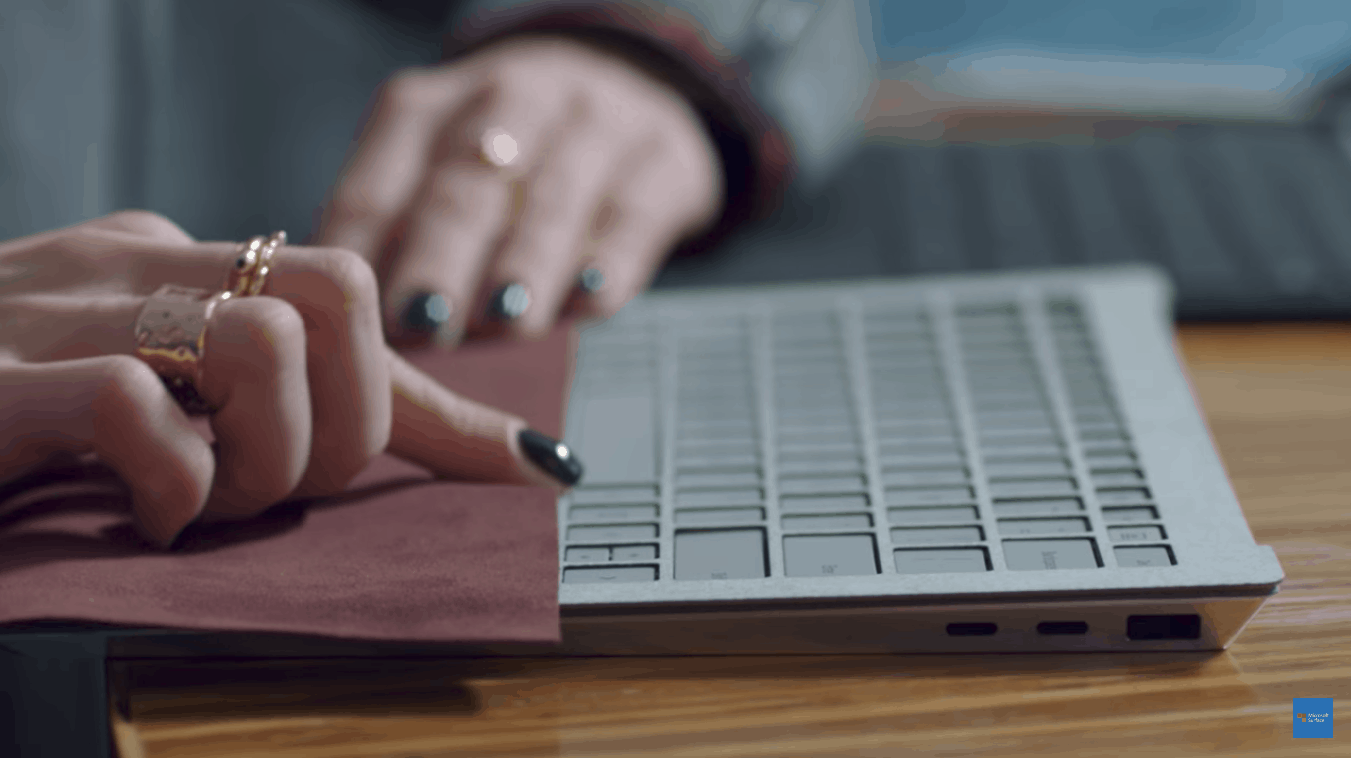
When you take a look at the Surface Laptop, you’ll get an impression that somebody took pieces of material, and glued them together. Don’t get us wrong, it’s a perfectly stable and reliable device, without any tracks of manufacturing. There are no signs of screws or hinges, so it’s a perfectly ‘silent’ design. The keyboard is surrounded by the Alcantara fabric, and speakers are put underneath it, so you’ll hear the sound more naturally.

With its 14.5mm of thickness and 1.25kg of weight, it’s more portable than any MacBook Pro. The laptop features a 13.5-inch PixelSense display with 3.4 million pixels (2256 x 1504). Microsoft says it’s the thinnest LED display you’ll find on any device.

What really gives the Surface Laptop’s touch-enabled display advantage over the MackBook Pro is that it’s manufactured by Microsoft. Yes, that’s exactly what we mean, the Surface Laptop is perfectly compatible with the Surface Pen and other accessories, like the Surface Dial. So, in combination with the recent features the company brought to the system with the Creators Update, it makes a powerful hub for artists and other creative people.

Software

We’re not going to compare Windows 10 and Mac OS here, let’s leave that discussion for another time. We’ll just talk about what you get on both devices. As you probably know, the Surface Laptop runs Windows 10 S. Microsoft’s new operating system designed to exclusively run apps from the Windows Store.

That brings Windows 10 S much closer to Mac OS, in terms of a concept. But as it appears, for the first time in many years, Mac OS has a better offering of available apps, at least quantity-wise. It’s known that Microsoft struggles with attracting developers to make Windows 10 apps, which definitely makes Windows 10 S suffer.

But Microsoft is aware of that, as the company offers you upgrade from Windows 10 S to Windows 10 Pro, in case you don’t want to only use Windows Store apps. The upgrade is completely free until the end of December 2017, so you really have nothing to lose if you go for a new Surface Laptop. That way, you’ll get a more versatile operating system than Mac OS, once again.

Battery life

Long battery life is what really separates the Surface Laptop from any MacBook Pro. According to Microsoft, the battery can last up to 14.5 hours of video playback. That’s a great accomplishment when we take into consideration that the MacBook Pro can’t even last for full 10 hours.

This aspect of the device is also heavily advertised by Microsoft, but once again, we’ll have to wait for someone to try it, to confirm this claim. Nevertheless, even if the battery lasts a little less that those 14.5 hours, it’s still a sweet deal, which, compared to the laptop’s extreme portability, should be a very attractive offer for all frequent travelers.

Pricing

There’s nothing special to compare here. The Surface Laptop comes with the price tag of $999-$2199, while the MacBook Pro is available for $2399-$2799. You do the math, each variant of the Surface Laptop is more affordable than its MacBook Pro counterpart.

But what you get for the price? Taking into account everything we’ve just talked about, the Surface Laptop emerges as a better deal. For $999 you get a beautiful, stable, fast, ultra-portable laptop, that can accomplish more than most MacBooks.

Of course, if the Windows 10 Pro upgrade option wasn’t available, we’d have a completely different conversation here. But since you can upgrade to ‘the regular’ Windows 10, the Surface Laptop is the more thorough choice, and we’d take it over the MacBook Pro.

Does it really matter?

Everything we just said doesn’t have to mean anything to you. The logic is simple – you’re either an Apple person or a Microsoft person. So, no matter what the comparison says, you’ll end up purchasing a laptop from your favorite brand.

On the other hand, if you don’t label yourself that way, we recommend the Surface Laptop. Because, for a more affordable price, you can get as good as, or even better laptop than the MacBook Pro (depending on the variant). And if you combine it with other accessories and features, you’ll get even more possibilities.

Do you agree with our comparison? What do you think about the Surface Book and Windows 10 S? Let us know in the comments section below.

RELATED STORIES YOU NEED TO CHECK OUT:

Upgrade the Surface Laptop to Windows 10 Pro for free until 2018

Microsoft’s Surface Laptop is currently running a student-focused version of Windows 10, but users can upgrade to Windows 10 Pro at no cost until December 31.

Free or paid upgrade – what’s it gonna be?

Owners of the Surface Laptop’s who prefer to run non-Store apps can switch to Windows 10 Pro for free until the end of this year. After that, an upgrade will cost $49. Redmond also confirmed that if you’re a Microsoft education customer, you can upgrade for free whenever you want to.

Windows 10 S limitations

Windows 10 S was announced alongside the Surface Laptop as a streamlined version of Windows 10 designed for teachers and students. Users will only be able to download apps from the Windows Store and won’t have the ability to change the default web browser, Microsoft Edge. The company said this will ensure that the device remain both fast and secure since Microsoft verifies all apps from the Windows Store for performance and security. When you try downloading something that’s not from the Windows Store, you’ll get a suggestion for an alternative app available there. If you still want to get something from outside the Store, you’ll first need to upgrade to Windows 10 Pro.

Microsoft urges users to stick to Microsoft 10 S

While announcing the Surface Laptop in a blog post, the company urged people to stick with Windows 10 S: “This device, this OS, they’re made for each other, and together they offer so much.” The company also said that “the switch to Pro is one-way; you will not be able to revert to Windows 10 S once you have made the change,” so be sure to think twice before making the switch.

The Surface Laptop starts at $999 for a Core i5 version, is available to pre-order now, and starts shipping June 15th, 2017.

RELATED STORIES TO CHECK OUT:

Fix ‘Windows Spotlight not working’ with a customized slideshow

Spotlight is one of the groovy customization options you can select in Windows 10 to add random Bing wallpapers to the lock screen. Then you can select whether to include more or fewer pictures comparable to the one displayed on lock screen. However, some users have reported that Windows Spotlight isn’t working for them. If that’s the case, you don’t necessarily need to fix Spotlight as you can still set up a custom lock screen slideshow with Bing images.

Set up a Bing Lock Screen With Lock Screen Slideshow Options

  • You can only download images directly from Bing for Windows desktop wallpaper. However, you can still download plenty of Bing images for the lock screen from this page.
  • Press, and hold, the Ctrl button to select multiple images from there. Then press the Download button to save them to hard drive.

  • They’ll save to a Zip folder, which you can extract by pressing the Extract all button. Then select a folder to extract the Bing images to.
  • Next, press the Cortana button on taskbar and enter ‘spotlight’ in its search box.
  • Select Choose Windows Spotlight, picture or slideshow as your lock screen to open the window in the snapshot below.

  • Click the Background drop-down menu and select Slideshow from there.
  • Press the Add a folder button and select the folder you extracted the Bing images to. Now you have your own custom Bing image slideshow for the lock screen much the same as Spotlight!

Convert Windows Spotlight Pictures to JPEG

Windows Spotlight saves Bing wallpapers in an Assets folder, but they aren’t in an image format. However, you can still convert pictures there to an image format suitable for a Bing lock screen. Then you can add them to a folder to set up a lock screen with.

  • First, open File Explorer, click the View tab and select the Hidden items check box if it isn’t already selected.
  • Next, input %UserProfile%\AppData\Local\Packages\Microsoft.Windows.ContentDeliveryManager_cw5n1h2txyewy\LocalState\Assets in the File Explorer folder path box and press Enter. That will open the Assets folder in the snapshot directly below.

  • You can convert the pictures there to image file formats by adding .jpg to the end of their file titles. So select a file there, right-click it and select Rename from the context menu.
  • Add .jpg to the end of the file title and press Enter to convert it to image format. Now you should be able to open the picture in the Photos app.
  • It might take a while to manually add .jpg to all the files there. A shortcut is to enter cmd /c “ren *. *.jpg” in File Explorer’s address bar with the Assets folder open and press the Return key.

  • Add a new Bing lock screen slideshow subfolder to your Pictures folder. Then you can copy Bing pictures in the Assets folder to that subfolder by right-clicking them, selecting Copy and then pasting the images with the Ctrl + V hotkey.
  • Now you can set up a slideshow with the images in the Bing lock screen slideshow subfolder.

Set up a new Bing Lock Screen With the SpotBright app

SpotBright is an app with which you can also save a plethora of full HD Windows Spotlight images to your hard drive. Then you can set up a new Bing lock screen slideshow with the app by unlocking some of its settings with an in-app purchase. This Windows Report article provides further SpotBright details.

  • First, open this page and press the Get the app button there to download SpotBright; and open its window shown in the snapshot directly below.

  • Press the Search Pictures button on the app’s main menu to search for the latest Windows Spotlight images. When the search is done, a Download button appears at the top of the menu as below.

  • Now you can press that button to save the images to a SpotBright subfolder in your Pictures folder. The app’s Settings page includes the full default folder path, which you can modify if required.
  • Press the Settings button on the main menu to open the options shown in the snapshot below.

  • There you can select a Periodically update lockscreen option with the Pro version of the app, which is retailing at $0.99. That setting will update the lock screen with images in the SpotBright subfolder.

So that’s how you can add a custom Bing wallpaper slideshow to the lock screen if Windows Spotlight is not working in Windows 10. The only notable difference is that you can’t vote on the lock screen images as you can with Windows Spotlight. However, the custom Bing image slideshows don’t include any lock screen app ads, which are only removed with Windows Spotlight switched off.

Microsoft promotes Windows Defender Antivirus in new white paper

If Android has recently overtaken Windows as the most popular OS to browse the web, the desktop OS remains the most used OS on PCs and laptops by a large margin. And unfortunately, the popularity of Windows on the desktop means that there are more viruses and malware targeting our beloved platform.

If you use Windows as your daily driver, it is strongly recommended to use Windows Defender or a third-party antivirus to protect your PC. Actually, Windows Defender has become really good, to the point that a Google Chrome engineer recently described it as “the only well behaved AV”. It’s not often that we see someone from Google saying something nice about Microsoft, (actually, Google exec Prabhakar Raghavan recently said that Windows 10 S was “a validation of the approach we’ve taken”) but the Redmond giant also wants you to know why Windows Defender is a great choice for consumers.

Today, the company published a new white paper, Evolution of malware prevention, that explains how Windows Defender uses next generation technologies to analyze malicious signals. “At Microsoft, we have the luxury of having the efficiency and precision of traditional antivirus and automated, intelligence-based capabilities that use behavioral analysis, heuristics, and machine learning to scale out our human experts,” explained the company in a blog post.

According to the company, 97% of malware is discovered locally by consumers, and the remaining 3% can be detected by Microsoft’s machine learning-based cloud protection in a way that doesn’t impact performance. The company added:

We let our cloud protection system do the heavy lifting. Our cloud protection system is also connected to the Microsoft Intelligent Security Graph (ISG), which is informed by trillions of signals from billions of sources consisting of inputs we receive across our endpoints, consumer services, commercial services and on-premises technologies. All that uniquely positions us to personalize our protection and identify anomalies which often represent new threats.

The Windows Security Protection stack also includes several other features such as Windows Defender Advanced Advanced Threat Protection, which helps enterprise customers to detect and respond to advanced threats on their networks. “These features combined provide a secure and full-featured suite of solutions to help customers achieve the security profile that today’s modern threat landscape and customer demand,” explains Microsoft. You can learn more about Microsoft’s approach to malware protection in the white paper.

Microsoft is far behind Google in the classroom, according to new study

Microsoft is lagging far behind Google when it comes to education in the classroom, according to a post on GeekWire. After the introduction of the Surface Laptop and Windows 10 S, Microsoft is looking to gain more traction in education products and services with Microsoft Education. Unfortunately, Google is still the leader for education services in classrooms across the country.

At the moment, Google’s Chromebooks reign supreme in the classroom, due to Chromebooks’ low price tag, a bonus for school districts who can’t afford higher-end devices. GeekWire pointed out that the Edweek study showed a whopping 42% of educators use Chromebooks over any other device available.

Besides hardware, Microsoft software and services are used in only 17% of classrooms, compared to 68% of classrooms using Google apps and services. Although Google may be dominating the US market, Microsoft is making huge gains in the international school market, according to the last technology in education study.

In the EdWeek Market Brief survey, Anthony Salcito, Microsoft’s vice president of worldwide education said:

“When we demonstrate or show [schools] what’s possible, the lightbulb goes on, the change happens,” he said. “We just have to do a better job making that possible. We’ve got to learn, we’ve got to listen. And I think we’re making huge strides as a company to react. I’m hopeful those surveys will start to change. I’m confident they will. But I also believe that when customers understand the richness of our products, you get a very different reaction.”

Google won’t be losing their stronghold in education anytime soon. According to the same EdWeek study, 90% of US educators said they would be spending money on new Chromebooks in the upcoming school year.

Microsoft releases the official Build 2017 app for Windows 10, Android, and iOS

Microsoft released the official Build 2017 app with Schedule Builder, including Cortana Skills sessions and much more.

Microsoft’s Build 2017 schedule builder app

Microsoft’s Build 2017 Developer conference is less than a week away and we have already made a pretty good idea of what to expect during the long-awaited three-day event courtesy of the Build 2017 schedule maker app now available for download on mobile devices.

Cortana Skills

First of all, there are a bunch of sessions dedicated to Cortana Skills and a May 11 session that will focus on leveraging the Cortana Skills Kit to create voice-only experiences. This was supposed to release for public preview in February and seems to be line with all the things we’ve heard regarding the Cortana-powered speaker from Harman Kardon, a device Microsoft might finally be revealed during the upcoming developer conference.

More sessions of interest

Here are some of the other interesting sessions the app displays:

  • Some novelties in the Microsoft Design Language
  • More information from the keynote announcement regarding Data and Azure
  • How exactly Microsoft will get the most out of game with the help of UWP
  • Chat bots on Bing.com
  • Adobe Creative Cloud and Adobe Document Cloud in Microsoft Teams

Users are advised that the Build 2017 mobile application will not release session information for new products and announcements.

In case you registered for the conference or just want to take a peek on all the announced sessions, you can download the app. The iOS and Android apps have just received updates, and a new Windows version should be ready to roll out in the near future.

RELATED STORIES TO CHECK OUT:

Windows Store update rolling out with thinner progress bar, option to remotely install Xbox One apps

A few weeks ago, Microsoft tested a version of the Windows Store with Windows Insiders which allowed users to install Windows 10 UWP apps to Xbox One using their PC. The company also later followed up to add a new progress bar and other UI improvements to the Windows Store in both Windows 10 and Windows 10 Mobile. Today both of these changes are rolling out to general non-insider PC and mobile users by way of a new update.

There is still no official changelog from Microsoft, but both the new download progress bar and the option to remotely install Xbox One apps from PC are delivered in a version 11703.1001.45.0 update to the Windows Store.

The Install on Xbox One button

As seen above, the option to install an app on Xbox One from the PC appears between the Install and Share buttons on an app page in the Windows Store. Only certain UWP apps that are available and searchable on both PC and Xbox One will have the button, and when pressed, a message will alert users that the app is trying to be installed on Xbox One.

Windows Store new download
The download indicator is much slimmer

Also seen above, the download bar is much slimmer, and now shows the total size of the app, and the current download speed. Also new is the location of the share button, which now sits alongside install “install” and “launch” in the store.

The update is slowly rolling out to all users, so if you don’t see it just yet, it’s best to be patient and wait things out. But as always, once you have updated, let us know your thoughts by dropping us a comment in the section below.

Google finds a “crazy bad” Windows exploit, demands fix in 90 days or else

Google has been making it a habit of setting a fire under Microsoft’s security team. Often, its Project Zero researchers will find issues and report them to Microsoft to repair. If a fix doesn’t go up within a time limit, the vulnerabilities will be published in a public report. Today, Travis Ormandy announced on Twitter that Google has found “the worst” so far (via Hacker News.)

Ormandy didn’t divulge much more information about the Windows remote code execution besides that it is “crazy bad”, potentially spelling trouble for Microsoft. He continued to explain that attacks against the vulnerability worked against the default install, didn’t need to be on the same LAN, and it’s wormable meaning it can spread. His tweets also came with some complimentary fire emojis, just in case readers weren’t worried enough.

Once the report is sent to the tech giant, they will be given a 90-day leniency to correct the issue before Google goes public and it becomes an even bigger problem.

Minecraft Windows 10 Edition reportedly coming to Xbox as 4K Project Scorpio launch title

Mojang’s hit sandbox title continues to evolve as today, we learned rumors that the Minecraft UWP is coming to Xbox. MSPU reports that their sources have confirmed that Minecraft will be one of the Project Scorpio’s launch titles later this year.

What this means is that Minecraft Windows 10 Edition is joining the ranks of Xbox Play Anywhere titles. With a single purchase of the game, players would be able to play on both PC and Xbox One, join Minecraft Realms set up previously for Windows 10 Edition and have feature rollouts according to the UWP instead of the console editions.

It isn’t quite clear yet whether the Xbox One edition will be converted into the Windows 10 UWP version feature wise, or if a separate game will be distributed. However, the article states that it will be called Minecraft: Xbox One Edition still.

With Project Scorpio’s hype for being VR ready, this might be the push Microsoft needs to encourage household Minecraft in virtual reality. The ‘premium gaming console’ built by Microsoft is planned for launch later this year and no other first party titles have been officially announced at this time. It has been predicted that we’ll see more about Minecraft on Project Scorpio during the annual E3 on June 11. 

Microsoft Account Device page revamped, displays more info about your Windows 10 devices

When you own a lot of Windows 10 devices, it’s sometimes hard to keep track of them all and know the status of individual devices. This problem can now be solved, as Microsoft has just quietly rolled out a revamp to the Microsoft account devices page, now displaying more information about your Windows 10 devices (via Deskmodder.de)

While the page itself is not new, there are now several new telemetry features on the device account page (accessible by going to account.microsoft.com/devices.) For one, you can now see the update status of a specific Windows 10 device, and the storage status of your main C drive on a specific device. You also can now see the individual status of other Windows Defender Settings such as virus and threat protection, firewall status, app and browser control, and BitLocker status.

Deive Status Microsoft Device Account Page
Device Status Microsoft Device Account Page

Interestingly, the device account page also now lists more specs about your device (similar to about my PC on desktop,) and the Windows 10 Edition, version, OS build, serial number, processor, graphics card, RAM, and warranty information. The updated page also lists information about Windows Updates, showing the user “pending” if a device needs to be restarted for an update.

It’s also worth noting that the updated device account page now lists more information about Windows Phones, though with phones you only can see the storage space on the device, the Phone #, Edition, Version, IMEI #, and RAM.

Microsoft’s Device Account Phone Info

Do you find these new features on the Microsoft Account device page useful in managing your lineup of Windows 10 devices? How many Windows 10 devices do you own? Let us know your thoughts in the comments below.

Microsoft news recap: hosting an event in Shanghai, Microsoft Teams gets immersive video calls and more

Microsoft (MSFT) news recap is a weekly feature highlighting the top Microsoft news stories of the past week. Sit back, grab some coffee, and enjoy the read!

Microsoft announces May 23 event in Shanghai

Following on from its recent education-focused event this week, as well as Build upcoming, Microsoft is hosting another event, this time on May 23rd, in Shanghai. According to reports, new hardware will be announced at the event.

Microsoft Teams is being specialized for classrooms

Microsoft has announced that a new classroom experience will be coming to Microsoft Teams and that it will be included in the free Office 365 for Education offer, as it begins to specialize Microsoft Teams for education and the classroom.

Microsoft’s Chief Experience Officer Julie Larson-Green leaves the Office team due to health reasons

The Chief Experience Officer for Microsoft’s Office team, Julie Larson-Green, is to leave the Office team for health reasons. In a statement, Larson-Green said:

It’s been challenging to continue to lead the Office Experience Organization and dedicate the required time to my rehabilitation. It’s going to take some time for my recovery from my spinal surgery but I’m excited to continue to represent Microsoft and push the boundaries of how the company reimagines productivity.

Microsoft Teams gets an update on iOS, adds immersive video calls, tailored iPad UI

The chat-based workspace, Microsoft Teams, has received an update on iOS that adds several new features and improvements, such as immersive video calls, improved UI on Apple’s iPad, improvements to the image viewer and more.

‎Microsoft Teams
‎Microsoft Teams
Price:
Free

Satya showing off Microsoft Teams

That’s it for Microsoft news this week – we’ll be back next week with more.

Windows 10 news recap: Windows 10 S announced, over 300 million active users and more

Welcome back to our Windows 10 news recap. We are continuing the trend of our weekly “Windows 10 news recap” series where we go over the top stories of the past week in the world of Microsoft’s flagship operating system.

Microsoft Research shows off simultaneous thumb and pen interaction on Windows 10 tablets

In a new video, Microsoft Research has shown how simultaneous thumb and pen input could work on a Windows 10 tablet, enabling seamless input between the two methods.

Microsoft introduces Windows 10 S

At its education-focused event earlier this week, Microsoft introduced its next edition of Windows 10, known as Windows 10 S. It is a slimmed-down edition of the standard OS, only allowing apps from the Windows Store to be installed.

Windows 10 now has over 300 million daily active users

As people continue to adopt Windows 10, Microsoft has now released a new statistic on Windows 10 usage, stating that there are over 300 milion daily active users of the company’s latest OS.

Google’s Prabhakar Raghavan: Windows 10 S and Surface Laptop are “a validation of our approach”

A Google exec has spoken out about Microsoft’s renewed push into the education space with Windows 10 S and its Surface Laptop, saying that it is “a validation of our approach.”

That’s it for this week – we’ll be back next week with more!

Google’s Prabhakar Raghavan: Windows 10 S and Surface Laptop are “a validation of our approach”

At the Google Cloud Next conference in London, Google’s Prabhakar Raghavan, Vice President of Google’s G Suite, which includes Docs and Sheets, held an interview with Business Insider. During the interview, Raghavan spoke about Microsoft’s Windows 10 S and Surface Laptop, two new products that the company announced this week at its education event. Windows 10 S provides a slimmed-down version of the standard Windows 10 operating system, only permitting installation of apps via the Windows Store, while the Surface Laptop is aimed at those in education, particularly of a higher level. Both of which are similar to Google’s Chrome OS and Chromebook offerings respectively.

Of Microsoft’s approach into a Google-dominated arena, Raghavan said he’s “happy to see a validation of the approach we’ve taken,” while going on to say:

What educational institutions have demanded is simplicity. It’s a real test tube for all of us, whether it’s Microsoft or any of us, right

Continuing, Raghavan explained how the Chromebook came about and what has led its development, speaking of how kids interact with technology and the research Google conducted:

Because kids do things in amazing ways where you or I would never expect. So here’s one of the things we’ve learned in a study of kids as we were developing all our tools for classrooms, right. We would put a Chromebook in front of a kid, they would whip out their phone and write their essay. We said ‘no no no, there’s a keyboard there, you can use it,’ and they still write the essay there. They said ‘we’ll use the keyboard to touch up the formatting, but it’ll be much faster here,’ right. This is something we consistently learned when we looked at pre-teens … these kids are really forerunners, the vanguards of human evolution, in some sense, and so it’s great to see that some of the approaches we’ve taken, but I think the world is going to keep evolving and it’s a scramble for us to keep up with what people are going to do.

Judging by Raghavan’s remarks, the company isn’t too worried about Microsoft’s renewed push into the educational space, although, Microsoft seemingly believes it has a chance to usher in the area.

Windows 10 Mobile Creators Update breaks many phones [FIX]

The Creators Update is finally out for the Windows 10 Mobile-powered devices and with Microsoft on the fence about whether to continue creating and supporting Windows smartphones or to switch to the vastly more popular Android, this minor update came as a pleasant surprise for a lot of users — while the others are not satisfied at all.

Besides all of its expected improvements, the Creators Update broke a lot of handsets with a plethora of issues, both minor and major. For that reason, we listed the most common problems that occur after the update with the best-suited workarounds for the individual problems. So, if you have any issues with your Windows Mobile, we advise you to take a look at the list below.

Windows 10 Mobile Creators Update issues, and how to solve them

Update issues

Firstly, even though we support Microsoft’s decision to follow the Apple’s pattern and provide more frequent minor updates rather than just one major, their choice of eligible devices is dubious, to say the least. If you have any issues with the update, make sure that your device is on this list before taking additional steps:

  • Alcatel IDOL 4S
  • Alcatel OneTouch Fierce XL
  • HP Elite x3
  • Lenovo Softbank 503LV
  • MCJ Madosma Q601
  • Microsoft Lumia 550
  • Microsoft Lumia 640/640XL
  • Microsoft Lumia 650
  • Microsoft Lumia 950/950 XL
  • Trinity NuAns Neo
  • VAIO VPB051

If your device is on the list, try some of these workarounds and check for updates again:

  • Reboot your handset.
  • Check the available memory.
  • Check your connection.

Eventually, maybe your region is still not covered with the RTM version of the Creators Update. So you may need to wait for a couple of days.

Random reboots

The grave problem that emerged after the upgrade is a random reboot. Namely, it seems that the system upgrade caused some instability and that usually leads to restarts. If you have experienced anything similar, try using the steps below to troubleshoot it:

  • Remove the battery and reinsert it after a minute or two.
  • Do the same with the SD card. Or rather, you can remove SD card temporarily as it may inflict some system disturbance.
  • Disable some background apps. Tap Settings > Privacy > Background apps, and disable the background activity.

Wi-Fi and Mobile Data issues

Besides the reboots, connectivity issues are also falling into the ‘critical’ department. Without the proper connectivity, your mobile device is of little or no value, so this emerged as a large problem for a lot of users. They reported that both Wi-Fi and Mobile Data are broken after the update or at least one of those two.

These are the steps you can take to troubleshoot your connection:

  • Restart the device.
  • Delete the Wi-Fi network and reestablish it again.
  • Check the router.
  • Disable Bluetooth while using Wi-Fi.
  • Add manually phone’s MAC address to the router Access list.
  • Check SIM card and insert carrier’s APN manually.
  • Restore the factory settings.

Edge crashes

Even though the Edge received various improvements with the Creators Update, one issue that was there from the beginning is still bothering some users. Namely, even though the Windows native web browser sustained a lot of changes, it seems that the occasional crashes aren’t gone for good.

What you can do is quite limited since this mostly depends on the app’s stability and RAM usage. So, make sure to disable background apps that are hogging on your resources. Additionally, you can clear cache and history from your Edge browsers since those are known as the catalysts of various issues, with the crashing included.

Cortana is unresponsive

Another feature that got the substantial buff with the Creators Update is the Microsoft’s smart assistant, Cortana. Now, if this system has had a larger coverage, Cortana would certainly be one of the best smart assistants in the market. However, even though it got improved, a lot of users reported issues related to Cortana.

Namely, some of them were unable to utilize voice commands when the phone is locked, as it seems that the ‘Hey, Cortana’ feature is broken for them. You can try and resolve this issue by following some of these steps:

  • Make sure that the ‘Hey, Cortana’ feature is enabled.
  • Check the language preferences. Cortana is available only with certain languages.
  • Download language features.
  • Retrain Cortana voice recognition.

Mail won’t sync

It’s not uncommon for updates to mess up your settings and create a large variety of issues. Allegedly, some users encountered issues with the mail app, that is unable to sync with the servers. That can be due to a lot of different factors so you should take into account every of this workarounds in order to resolve your issue:

  • Reset the device.
  • Check your connection.
  • Update Mail app.
  • Tap Sync to refresh.
  • Navigate to Settings > Manage accounts and enable Always download full message and internet images.
  • Navigate to Settings > Privacy > Email. Enable ‘Let apps access and send email’ and confirm the selection.

Continuum issues

Continuum is a Microsoft’s solution that lets you transform your mobile handset into the projector. It’s a useful feature but a lot of users have a distinctive problem with it after the update. They are either unable to see the projected picture on the big screen or the picture is shown but not in the proper way.

You can try and resolve this issues by following the instructions below:

  • Check all cables and make sure to use a proper HDMI port.
  • Go trough the setup instructions again to eliminate possible missteps.
  • Change the aspect ratio or scale the screen on your TV or projector.

Messaging issues

While some of the secondary features are working just fine, some users have the problems with the SMS, which is, to be perfectly honest, one of the essential features on the mobile phones. Namely, after the update, they are unable to send or receive the SMS messages. It seems that some of the settings were changed after the Creators Update.

Follow these instructions to troubleshoot SMS issues:

  • Change your mode to CDMA only.
  • Turn off the International assist.
  • Enable the Messaging app to run in the background.
  • Check your SMS center number.
  • Perform a factory reset.

Battery drainage

Increased battery drainage is not an unusual issue on the smartphones. But it seems that this update skyrocketed battery usage for no apparent reason. Most of the time, the culprit for the overconsumption is some 3rd-party app that works in the background. But, since we can’t be sure what is the exact reason, make sure to take this steps to reduce the battery drainage:

  • Disable the background apps.
  • Adjust screen brightness.
  • Use battery saver.
  • Disable ‘Hey, Cortana’.
  • Disable the Glance screen mode.

Bluetooth issues

Besides wireless and mobile data issues, some users experienced Bluetooth issues, as well. Namely, after the Creators update, the Bluetooth connection is quite unstable and crashes frequently. Especially with the car’s system. In order to address this issue, follow the instructions below:

  • Navigate to Settings > Devices > Bluetooth > Advanced and tap Use an alternate Bluetooth audio connection for Speech.
  • Make sure Cortana is setup properly.
  • Delete the device and reconnect again.
  • Make sure that the Bluetooth is functioning with the other device.
  • Restart your device.

SD card unmounts randomly

Since the most of the Windows-powered handheld devices are known for a limited internal memory, a lot of users are inclined to use the SD cards in order to increase their storage space. However, for some of them, the SD card suddenly unmounts after the Creators update. This isn’t a grave problem since you can easily solve it by formatting your SD card. Another workaround that is advised is to reformat the SD card in the FAT32 format.

Additionally, if the problem is still persistent even after you’ve reformated the SD card, you can try and restore the factory settings.

That should wrap it up. Have in mind that these are some of the most frequently reported issues with the Windows 10 Creators Update and that we maybe missed something. In addition, since Microsoft has changed the approach for Windows Mobile devices, we can certainly expect some fixes in the near future.

How do you like the Creators Update on your device? Have you had any issues after the upgrade?

Make sure to tell us in the comments section below.

RELATED STORIES YOU NEED TO CHECK OUT:

Prey bugs: stuttering, black screen, crashes, audio issues, and more [FIX]

Prey is a game that will make your heart beat faster. As a player, you wake board Talos I, a space station orbiting the moon in the year 2032. You are the key subject of a ground-breaking experiment, but things suddenly go wrong. Hostile aliens take over the space station and you become prey. Have you got what it takes to stay alive?

Prey is a challenging game that will also put your patience and troubleshooting skills to the test. Many players have reported that the game is affected by a significant number of bugs that sometimes severely limit the gaming experience.

In this article, we’re going to list the most common Prey issues, so that you know what to expect in terms of bugs. At the same time, we’ll also add the corresponding workarounds, whenever available.

Prey bugs & fixes

Audio issues

There are many audio issues plaguing Prey. Players report that the audio log keeps repeating itself, sometimes there is no sound at all, or sound is cracking.

My audio log called “Anders has the Key” keeps repeating when the person says “Langley” I cant disable the audio log in the inventory because it keeps repeating.

To eliminate the repeating audio log issue, listen to the whole log inside the inventory. The picture of the log should still be on the HUD, but the annoying “Langley” should be history now.

If there is no sound in the game and you’re using another game language, switch the language to English in the Steam library. Right click Prey, go to Details, select the Language tab and wait for the English language files to download. After this, switch back to your preferred game language.

Low FPS

Prey players also report that the game is sometimes affected by low FPS issues. There are some cases when players get only 20 FPS. If you’re experiencing similar issues, install the latest driver updates for Prey, and close all background apps.

I playing in 4K. When i start in the bedroom is fine at 60fps lock but when unlock the lobby i have 37 on a 1080ti. 3,9ghz and all drivers updated.

Graphics settings keep resetting and the CFG file is missing

Many players complain that the game resets the graphics settings when they apply the changes in Options. Moreover, it appears that the game.cfg file is often unavailable.

have an issue with the graphics settings that keep resetting every time I launch the game, I tried to look for a cfg file to manually set everything and make it read-only but to no avail. i can’t find it anywhere […]

What intrigues me is that I have no cfg file in C:/user/savedgames that everyone is talking about. It is as though the game had never created one. I have reinstalled the game too yet the issue still persist.

Keep in mind that if your Windows username has a special character, the game won’t create the .cfg file and won’t save your graphics options, although it will save your progress. To fix this issue, create a game.cfg file and put in the following values.

— [Game-Configuration]
— Attention: This file is re-generated by the system! Editing is not recommended!

i_useSteamController = 0
sys_spec = 0
r_VSync = 1
r_Fullscreen = 1
r_Width = 2560
r_Height = 1440
r_overrideDXGIOutput = 0
sys_MaxFPS = 144
sys_spec_water = 3
sys_spec_volumetriceffects = 3
sys_spec_sound = 3
sys_spec_postprocessing = 3
sys_spec_physics = 3
sys_spec_light = 3
sys_spec_gameeffects = 3
sys_spec_particles = 3
sys_spec_shading = 3
cl_hfov = 85.000000
r_arkssr = 2
r_arkssdo = 2
r_AntialiasingMode = 3
r_TexMaxAnisotropy = 8
sys_spec_texture = 4
sys_spec_shadows = 4
sys_spec_objectdetail = 4

Texture issues

Gamers report that a lot of objects have awful textures until they come closer to them and look directly at them. The high resolution textures take a lot of time to load, and this makes the graphics looks really blurry.

To fix this issue, turn the texture quality down to Medium, and then higher resolution textures will load much more quickly than on High.

Black screen on launch

Everytime I attempt to launch the game the screen goes completely black and just sits there.

This issue affects both AMD and NVIDIA users. To fix this issue, try rolling back to an earlier driver. Gamers report that this action solves the problem.

Prey crashes to desktop

I have this problem… All day with the same error. “Start the game, choose slot and after the loading screen: PUM! “Prey stopped working” Crash and again to desktop.  All drives updates, all things up to date like directx etc.

Unfortunately, there is no known workaround to fix this issue.

Stuttering

I keep reading the game is silky smooth for everyone, well it was for me up until I arrived in the more open area, like 30 minutes after intro. The game now stutters like crazy whenever im walking between rooms or looking around quickly.

Bethesda confirms that there is a known issue with AMD drivers that can create the frame stuttering.

To fix suttering on Prey, use the following workarounds:

  1. Turn textures down to medium. The game will look a bit blurry, but the stuttering issues should be history.
  2. If you’re using an NVIDIA GPU, go to Options, and check your V-Sync global settings. Disable the “Use 3d application” option, and this should fix the problem.
  3. Roll back to the NVIDIA 381.89 driver
  4. Change the game priority in task manager to high.

If you’ve come across other Prey issues, tell us more about your experience in the comment section below. Also, don’t forget to add the corresponding workarounds, if available.

RELATED STORIES YOU NEED TO CHECK OUT:
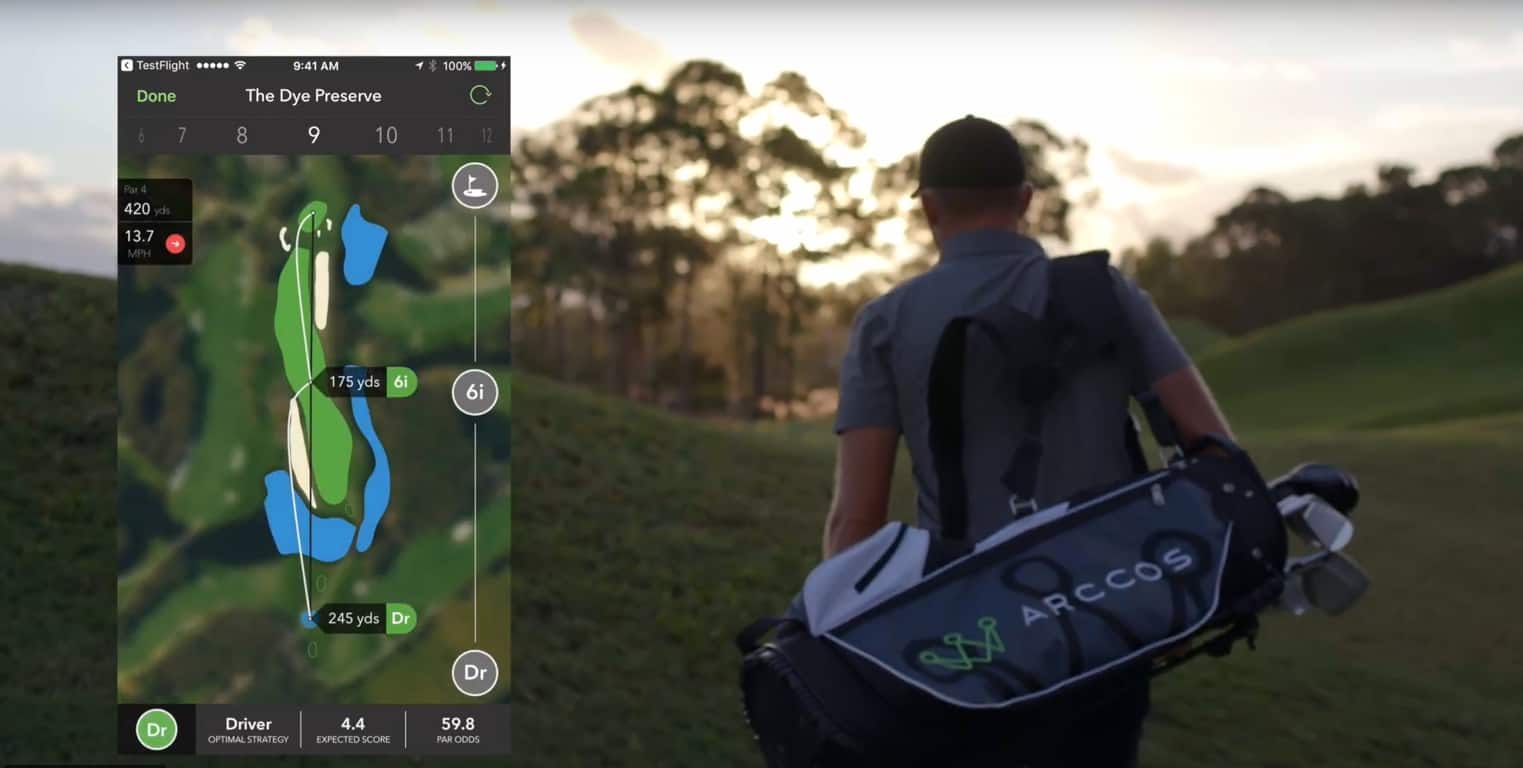
Xbox news recap: Custom Gamerpics roll out to everyone, Shadow of the Tomb Raider quiet at E3 and more

Welcome to our weekly Xbox news recap series, where we go over the top stories of the past week in the world of Xbox. Let’s get started.

Custom Gamerpics roll out to everyone

Custom Gamerpics have been noticeably absent from Xbox Live since its inception, and fans have been asking for their inclusion for a long time. After some periods of testing for Xbox Insiders, this feature has finally rolled out to the general public of the Xbox One community. Now, you can make your Gamerpic whatever you want – a selfie, a picture of a special interest, whatever. While this might open up Gamerpics to some “unsavory images,” it’ll do a lot more good than harm. Enjoy!

Halo Wars 2 Xbox One Gamerpics

Shadow of the Tomb Raider probably won’t be at E3

Shadow of the Tomb Raider got leaked many months ago, and there are tons of people who are pretty excited about it. The first game was a great time, its sequel was even better, and the third game in the series make an even bigger splash in the libraries of Xbox One owners. Unfortunately, it doesn’t look like we’re going to be seeing Shadow of the Tomb Raider at E3. A Square Enix spokesperson said on Facebook that “This will be a quiet E3 for Lara,” making it pretty clear that we can’t expect an official announcement for a new Tomb Raider game during this year’s conference.

Gears of War 4 gets new content update

Gears of War 4 has been following the Halo 5 formula to keep players coming back, offering free content updates to players every month. This time around, we have two new maps: Dawn and Security. Along with that, we see the return of franchise classic Benjamin Carbine as a playable character in the multiplayer. If you’ve been away from Gears of War 4 for a while, now’s a great time to head on back and see what kind of content you’ve been missing.

Arabic coming to Xbox One

We don’t have a date for this one, but it’s pretty exciting. Asked on Facebook whether or not Arabic would be supported on the Xbox One in the future, Xbox’s Mike Ybarra responded “We’re working on it.” Can’t get more plain than that. Again, we don’t have any idea as to when this is coming – but if Mike Ybarra was willing to commit to the feature publicly like this, it’s likely that we’ll be getting news on it sooner rather than later. Keep your eyes peeled for more news on this one.

Beam introduces new interactive features

People are slowly starting to check out Beam as it continues to pick up steam, so the team behind the streaming service are putting in new features as quickly as they can. Beam has launched what they’re calling “Interactive 2.0,” a whole new set of features built specifically for viewers and streamers to interact in more meaningful ways. The list of features is a mile long, and includes things like Spark transactions and groups. Check out our full post to see all of the new features, as well as a list of what Beam is planning to add in the future.

Microsoft's Beam Video Game Streaming Service

Thanks for joining us. To keep up to date with all the latest Xbox news, keep a close eye on our Xbox One tag.

Here’s how to access the UWP File Explorer on Windows 10

It’s no secret that Microsoft is incrementally upgrading parts of the Windows 10 OS to be Universal; for example, the Control Panel is slowly transferring over to the Settings app. A keen-eyed user on Google+ has discovered how to gain access to the UWP File Explorer in Windows 10, and we’ll show you how you can do it too. Before you get started, be aware that you need to be on Windows 10 build 15063 and above, otherwise this won’t work.

To get going, head to your desktop and right-click, then select New -> Shortcut:

Windows 10 - Create new desktop shortcut

You’ll then be prompted to enter the location of the UWP File Explorer:

Windows 10 New shortcut window

Enter explorer shell:AppsFolder\c5e2524a-ea46-4f67-841f-6a9465d9d515_cw5n1h2txyewy!App as the location and click Next. You’ll be asked to enter a name for the shortcut – we entered ‘UWP File Explorer’, but you can call it anything you want.

Now, the icon on your desktop will change to that of the File Explorer’s icon and double-clicking it will open the UWP File Explorer:

Windows 10 UWP File Explorer

While you’ll be able to access it and it is certainly usable, please be aware that it isn’t stable. It is prone to crashing from time to time, nonetheless, at least you now have a File Explorer that fits in with the rest of Windows 10’s design.

Thanks to Tijmen for the tip!