Remove Apps Recommendations from Start Menu in Windows 10

Windows 10 Threshold 2 Update is already here for the majority of users. And while it brought some useful features and improvements, it also caused some problems, but it introduced some features that users seemed not to like, as well.

One of the features that wasn’t so welcomed by the users are app suggestions from the Store, that show up in the Start Menu. So, if you’re wondering why app you didn’t install appear in your Start Menu, where the most recent installed app should show up, Microsoft decided to analyze your use of the store, and give you suggestions on what app you should install, based on that info.

A lot of people don’t agree with Microsoft’s decision to bring ‘ads’ to the Start Menu, and they’re looking for a way to remove them. Fortunately, Microsoft managed to avoid even more criticism, by creating an option in Settings to disable these suggestions.

Actually, it’s pretty easy to turn off apps recommendations in Windows 10 Start Menu, all you have to do is to change one thing in Settings.

How to Disable Apps Recommendations in Windows 10

To disable apps suggestions in your Start Menu, go to the following path:

  • Settings>Personalization>Start>Occasionally show suggestions in Start

And just make sure the option is set to off.

Although a lot of people call these suggestions ‘ads,’ we can’t really consider them ads, because their purpose is to improve the overall operating system experience, by recommending you apps that might actually be useful.

However, the feature is enabled by default on Windows 10, after installing the Threshold 2 update, so users need to disable it manually, if they don’t want to receive suggestions in the Start Menu. Many believe that it would be a better strategy to keep these suggestions off, unless users specifically want to receive recommendations in their Start Menu.

Windows 10 Threshold 2 update supposed to be the biggest update for Windows 10, since its release back in July, but it caused a lot of problems to users, and people are generally not satisfied with it. So, it’s good for Microsoft that it provided a way to users to change at least something they don’t like in the most recent update.

NY, Bellevue WA to hold Lumia Windows Insider events

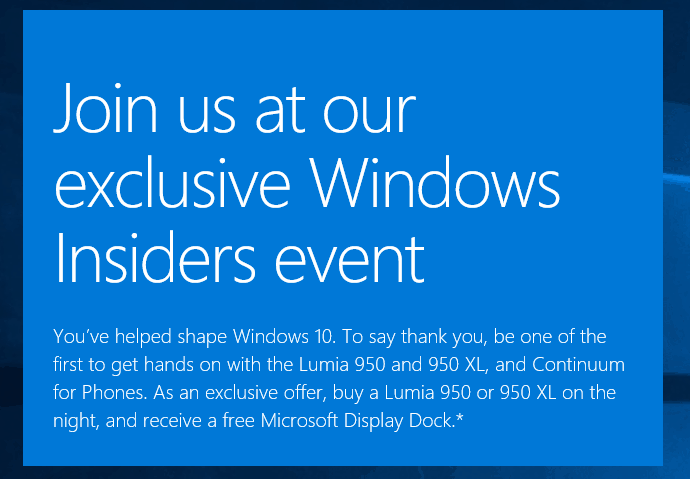
Microsoft has been rolling out event locations for its Lumia Windows Insider events, beginning with London, and just now adding events at the Microsoft Stores in New York and Bellevue, Washington (just 7 miles from Microsoft’s headquarters in Redmond) to the list.  Here’s the email that was just sent out:

Hello Windows Insider,
You’ve helped us shape the Windows experience for millions of people. As a way of thanking you, we want to invite you to be one of the first to experience the new Microsoft Lumia 950 and 950 XL with Windows 10 first-hand.
Be one of the first to get a hands-on look at these new devices, discover new Windows 10 features and chat with Microsoft experts about all the exciting details. Enjoy a live demo of Continuum for Phones and watch the Lumia 950 and 950 XL turn an external screen into a PC-like experience.
And that’s not all! Buy a Lumia 950 or 950 XL at the event and the sales package will include a Microsoft Display Dock.*
Windows 10 Insider event
 December 1st
 7 pm
 New York and Bellevue

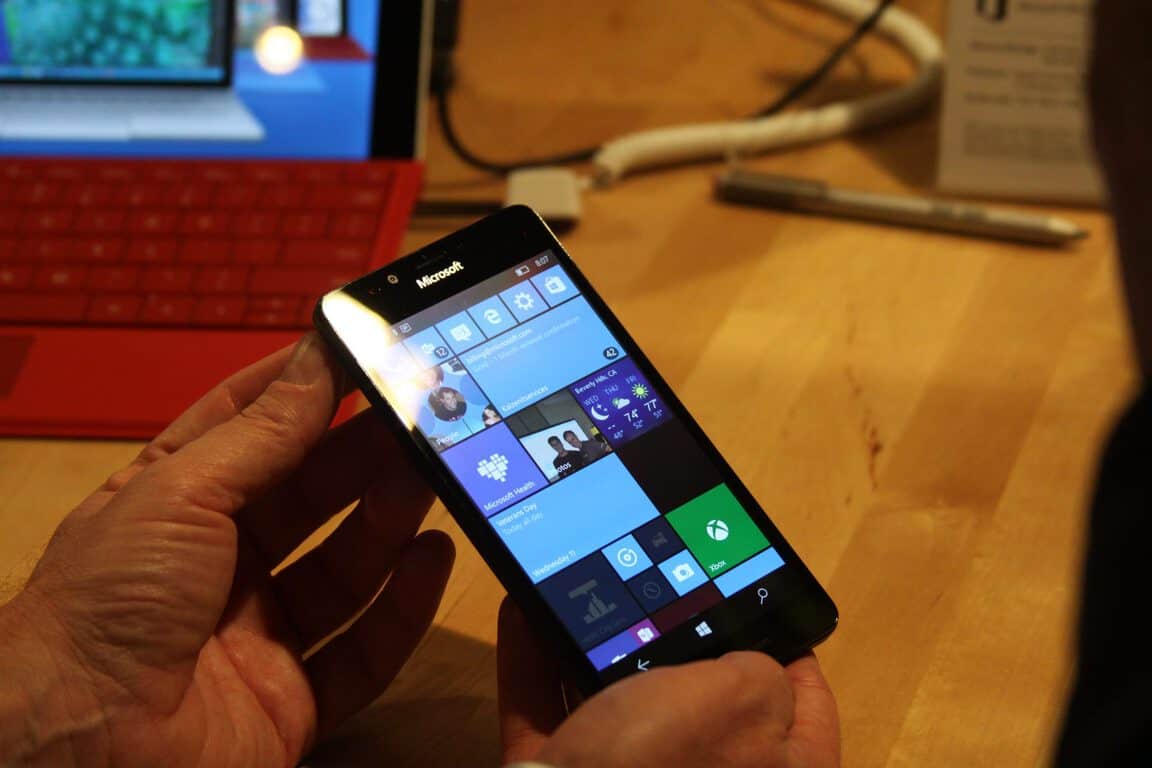
As you can see, Windows Insiders attending the events will be able to pick up either a Lumia 950 or a Lumia 950 XL, and both will be bundled with a free Display Dock in order to make use of Windows 10 Mobile’s latest feature, Continuum.
Windows Insider event
And if you’re too far away or too busy to attend, Microsoft has you covered with a sweepstakes you can enter to win some cool prizes:

Can’t attend the Windows Insider event in person?

Share in the excitement anyway by sharing your “Windows Love” via Twitter and you could win a Microsoft prize package.***  Use the hashtag #Win10LoveSweepstakes to tell us why you love Windows 10 and Lumia phones.  We’ll randomly draw from the posts one lucky Windows Insider winner who’ll receive a Microsoft Lumia 950 XL (unlocked), a Microsoft Display Dock for experiencing Continuum for Phones, an All-In-One Media Keyboard, a Surface 3 (4G LTE) and an Xbox One Assassin’s Creed Unity Bundle!

Will you be attending a Windows Insiders event?  Maybe we’ll see you there!

Windows 10 to be The Fastest-Adopted Version of Windows Ever

The adoption of Windows 10 is already on a very high level, as we know that it’s currently third most used operating system on the planet. And a new research, by a technology research company, Gartner, shows that the level of adoption is likely to skyrocket in the upcoming months, especially on the enterprise market, where it’s expected to become the fastest-adopted Windows operating system ever.

Gartner claims that, by January of 2017, more than 50 percent of the businesses will be ‘powered’ by Windows 10, which could be a sign that Microsoft might actually reach the 1 billion devices running Windows 10 by 2017.

The researchers claim there are a few factors affecting on the decision of enterprises to adopt Windows 10. One of the main reasons, of course, is the end of support for Windows 7, in 2020, but also the excellent support that Microsoft provides for Windows 10 Enterprise users. The ability to control updates, which has been delivered to Windows 10 Enterprise with the most recent Threshold 2 Update for Windows 10, surely plays a certain role in companies’ decision to switch to Windows 10 Enterprise, as well.

Most of the businesses will begin the migration to Windows 10 Enterprise by 2017, and the process is  expected to be completed by 2019, which means that, by the time of ending the support for Windows 7, the majority of enterprises will already use the new operating system.

“In the consumer market, a free upgrade coupled with broad legacy device support and automatic over-the-air upgrades ensures that there will be tens of millions of users familiar with the operating system (OS) before the end of 2015,” said Steve Kleynhans, research vice president at Gartner. “For enterprises, we expect that implementation will be significantly more rapid than that seen with Windows 7 six years ago.”

Even though Windows 10 is the third most popular operating system for PCs right now, it still has a market share of approximately 9 percent, which is less then expected, especially if take into account that it has been offered as a free upgrade to all genuine Windows 7 and 8.1 computers.

However, percentage is expected to increase significantly in the coming months, as Windows 7 still powers around 50 percent of World’s desktop PCs, and some of the users are still preparing for the upgrade to Windows 10.

W10Privacy Turns Off Data Collection in Windows 10

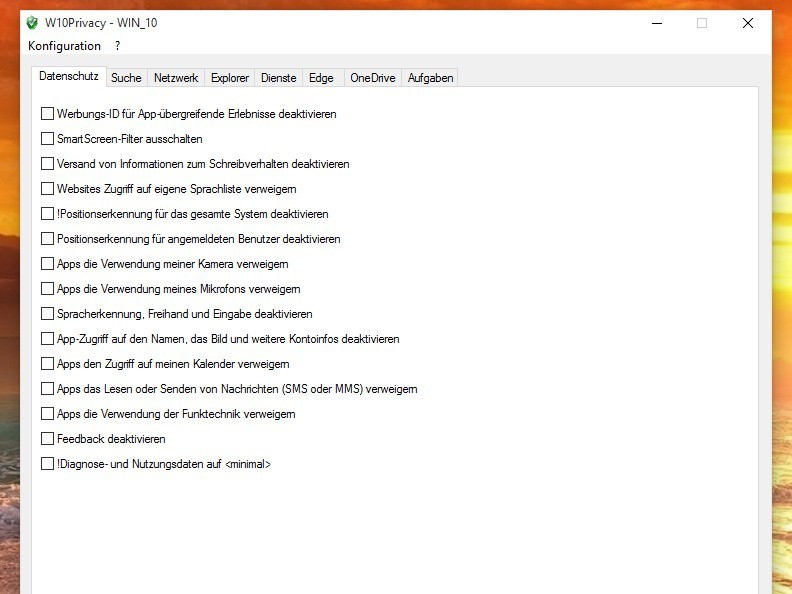
Windows 10 is slowly becoming the dominating operating system on the market, and this is one of the main reasons why users are concerned about their privacy. As you might know, Windows 10 is designed to send user data to Microsoft, and many users are using third-party tools such as W10Privacy to turn off data collection.

Windows 10 recently got a major update called Threshold 2 and this update brings many improvements and features, but it also comes with one major flaw. If you have used tools such as W10Privacy, then Threshold 2 update will reset your settings to Windows 10 defaults allowing your computer to send user data to Microsoft.

This is a big issue if you’re Windows 10 user and you’re concerned about your privacy, but if you don’t want your data to be sent to Microsoft, you’ll be pleased to hear that W10Privacy has been updated and it now works with Threshold 2 update.

W10Privacy just got updated to version 1.8.0.0 and it offers support for Threshold 2 update, but at the same time it can be used to remove new apps that Microsoft has added with this update. New version of this app comes with all sorts of fixes to tools designed to disable data collection, so if you’ve downloaded November’s update for Windows 10 you should also get the latest version of W10Privacy.

Users say that W10Privacy is an amazing tool that will protect your privacy while using Windows 10, but Microsoft disagrees. Microsoft doesn’t recommend that you use tools such as W10Privacy because they can have impact on performance. In addition, some features might not work correctly and in certain cases Windows updates might stop downloading. On top of all that, Microsoft warns that such tools could impact system stability as well.

If you’re concerned about your privacy and you don’t want Microsoft to have access to some of your data, then W10Privacy might be just what you need, if you don’t mind giving up on a few Windows 10 features in return.

Account is Not Authorized to Login From This Station [Fix]

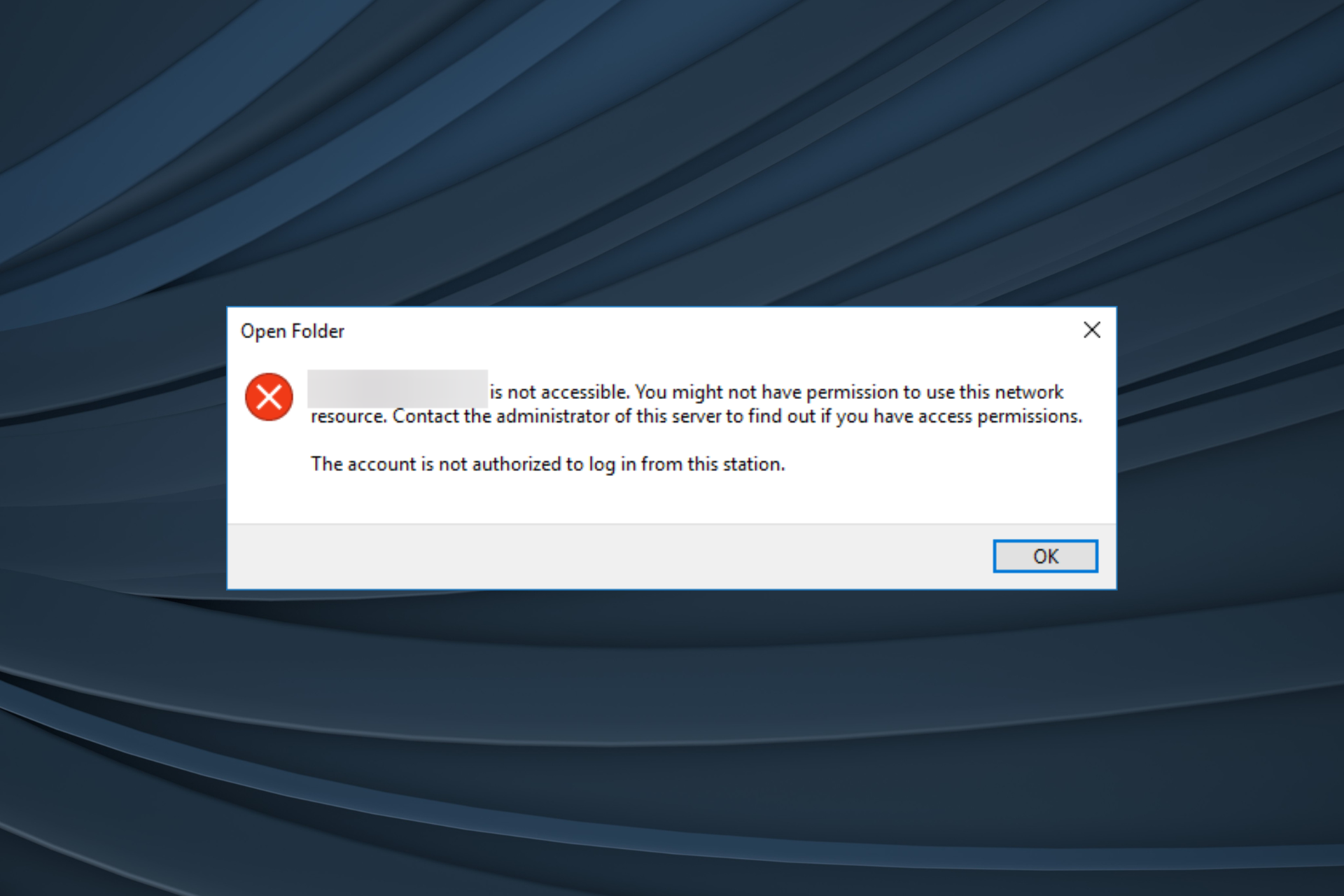
Creating a local network isn’t always easy, and there might be some errors from time to time. Speaking of errors, it seems that Windows users are having some issues with local networks, and they are getting, The account is not authorized to login from this station.

The error has affected a lot of users, with there being no effective solution in sight. We found a few that worked for almost everyone. Keep reading to find out!

How do I fix account not authorized to login from this station error?

1. Edit the registry

  1. Press Windows + R to open Run, type regedit, and press Enter.
  2. Navigate the following path:HKEY_LOCAL_MACHINE\SYSTEM\CurrentControlSet\Services\LanmanWorkstation\Parametersaccount not authorized
  3. Right-click on empty space, choose New, and select DWORD (32-bit) Value. Set the name as AllowInsecureGuestAuth.
  4. Now, double-click the AllowInsecureGuestAuth entry and set its Value data to 1.account not authorized wind 10
  5. Click OK to save the changes, and then restart the PC.

In most cases, when you get The account is not authorized to login from this station error in Windows 7 or later iterations, modifying the registry should do the trick.

2. Execute commands in PowerShell

  1. In the Search bar, type PowerShell, and click on Run as administrator.
  2. Click Yes in the UAC prompt.
  3. Paste the following command and press Enter: Set-ItemProperty -Path "HKLM:\SYSTEM\CurrentControlSet\Services\LanmanWorkstation\Parameters" AllowInsecureGuestAuth -Value 1 -Forcepowershell to fix the account is not authorized to login from this station
  4. Restart your computer.

This solution does the same thing as the Registry Editor solution we mentioned earlier, but if you don’t know how to work with Registry Editor, try this solution instead.

3. Change the Group Policy

  1. Press Windows + R, type gpedit.msc, and press OK to run it.
  2. On the left pane, expand Computer Configuration and select Windows Settings under it.windows settings
  3. Now, choose Security Settings, double-click on Local Policies, and select Security Options.
  4. Find Network access: Sharing and security model for local accounts policy and double click it.network access
  5. Select Guest only from the dropdown menu, and click OK to save the changes.guest only to fix the account is not authorized to login from this station

That’s about it! We hope at least one of these solutions helped fix The account is not authorized to log in from this station error.

Before you leave, discover the best PC repair tools and get one today to prevent similar errors from reappearing.

If you have any comments, questions, or suggestions, just let us know in the comment section below.

Windows Insiders event scheduled for December 2 in Italy, attendees to get hands-on with Windows 10

Microsoft’s Windows Insiders team has been hard at work on both Windows 10’s Version 1511 fall update and the Windows 10 Mobile launch, with the latter set to happen soon. Microsoft has scheduled a few events across parts of Asia and Europe, and we’ve gotten wind, courtesy of Windows Central, that yet another has been scheduled.
Thus far, we know that Microsoft has a Windows Insiders event in London on December 2nd in the U.K., as well as events in Mumbai and New Delhi in India on the 30th of November. We’ve also heard of a Moscow event on November 26th and one in Rotterdam on December 2nd as well.
Now, as of Windows Central’s update to their initial post from Saturday, Microsoft has begun to invite Windows Insiders from Italy to take part in the December 2nd event set to happen in Milan. These Windows Insiders events are great for devoted users who helped shape the mobile side of Windows into the ready-to-release state it’s in. At these events, Windows Insiders will get the chance to talk with fellow devotees, as well as to go hands-on with the new Lumia 950 and 950 XL to try out the official release of Windows 10 Mobile.
Among the showcase-worthy parts of Microsoft’s latest mobile update is Continuum. Continuum for phones, unlike its implementation on 2-in-1 laptop-tablet combo devices, allows smartphones with compatible hardware to plug into a Display Dock to expand the on-screen experience to mimic that of a traditional desktop. Continuum takes advantage of the Universal Windows Platform’s ‘single app for all device types’ approach to open a desktop-class app from only a mobile phone.
At these events in various parts of the world, Insiders will get to try out live demonstrations of Continuum as well as Windows 10 Mobile’s other aspects like updated Cortana experience, increased and still-customizable Action Center tiles, and the new security measures that Windows Hello includes. Attending Windows Insiders will also get a chance to buy the new Lumia devices, and will get a Display Dock included with purchase, so all they need to do at home is plug it in and go.

Your Time Zone Can Now Switch Automatically in Windows 10

Windows 10 Fall Update arrived last week, and there was a lot of discussion about it. Some people were satisfied with the improvements and new features that it brought, while some were angered by a few problems. But, we’re not going to talk whether the update is good or bad here, because we have one interesting new addition to show you. After installing Threshold 2 update, you can now set your time zone to switch automatically, based on your current location.

You probably already noticed that Windows is able to automatically set and change your time, but the ability to automatically change the whole time zone wasn’t included in previous versions of the system. This feature maybe should’ve come earlier, but Microsoft decided to add it now.

How to Set Automatic Time Zone Change in Windows 10

This feature should be enabled by default on all Windows 10 laptops with Threshold 2 update installed, but you might want to check it, just in case. To enable (check) automatic time zone change on your Windows 10 computer, do the following:

  1. Open Settings
  2. Head to Settings > Time & Language > Date & Time
  3. Turn on the toggle under Set time zone automatically.
  4. Set time zone automatically Windows 10

And that’s the whole philosophy, now your time zone will change as you change your current location, just like it does on your smartphone. So you don’t have to worry about the change of time when you travel a long distance.

What do you think about this addition? Will it help you to organize your time better, when you’re on longer travels? Tell us in the comments.

Since you’re there, you can also tell us your experience with Threshold 2 update so far. What do you think about the new features and improvements? And did you have any problems with this update, like some users did?

Windows 10 Gets the New XTS-AES Bitlocker Encryption

BitLocker Drive is one of the most useful integrated Windows 10 security features, it is used to protect your data from various security threats like leaking and getting stolen. And Windows 10 Fall Update got some improvements for it, as well. Namely, with the last update, Microsoft brought support for XTS-AES encryption algorithm to BitLocker.

Bitlocker supports both 128-bit and 256-bit XTS-AES keys, but you have to know that it’s not compatible with older versions of Windows. After the update, BitLocker for Windows 10 now allows users to recover their device with Azure directory, provides DMA port protection, and New Group Policy fore configuring pre-boot recovery. Here are some more details about these additions:

  • Encrypt and recover your device with Azure Active Directory – Additionally to using a Microsoft Account, automatic Device Encryption allows you to encrypt all your devices that are the part of an an Azure Active Directory domain. So, when the device is encrypted, the BitLocker recovery key will be automatically be saved to Azure Active Directory. This will make it easier to recover your BitLocker key online.
  • DMA port protection – You can now take the advantage of the DataProtection/AllowDirectMemoryAccess MDM policy to block DMA ports when on the boot of your computer. Also, when a device is locked, all unused DMA ports will be turned off, but devices that are already plugged into a DMA port will continue to work.
  • New Group Policy for configuring pre-boot recovery – You can now configure the pre-boot recovery message and recover URL that is shown on the pre-boot recovery screen. For more info, see the “Configure pre-boot recovery message and URL” section in BitLocker Group Policy settings.

If you don’t have Bitlocker activated on your computer, you should definitely consider turning it on, because it is very useful feature, and it will surely improve the security of your system.

How to Place an Uber Order in Windows 10 with Cortana

Among other new features, the Windows 10 Fall Update also brought a couple of new Cortana options. After the ability to receive notifications about missed calls and messages from your phone on your Windows 10 computer, Microsoft now integrated Cortana with Uber, the most famous online taxi service in the world.

After the November Update, you can now perform new actions with Cortana, including ordering a Uber car. To activate integration with Uber, Cortana will need access to your info, such as schedule, reminders, and location, and the whole process can be completed with minimal user interaction.

Get an Uber car directly from Windows 10

Microsoft announced this addition for Cortana earlier this year, at its Build developer conference, and the company kept its promise by bringing the Uber integration with its first major update for Windows 10. Microsoft explained at the Build conference how the Uber integration was supposed to work in Windows 10:

“By integrating with Uber, Cortana will not only recommend a Uber for you at the exact time you need it based on your schedule but will also order it for you. For example, let’s say you’ve purchased a movie ticket online and received an email confirmation. Cortana has this information and will display a reminder to you prior to the movie start time.”

If you’re not sure how to activate Uber services on your Windows 10, just follow these steps:

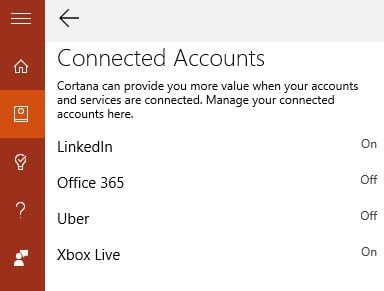
  1. Open Cortana , choose the Notebook option and then Connected Accounts
  2. On the Connected Accounts page, choose Uber to start the processuber integration cortana
  3. Read through the Cortana terms, and if you agree, tap or click Connect
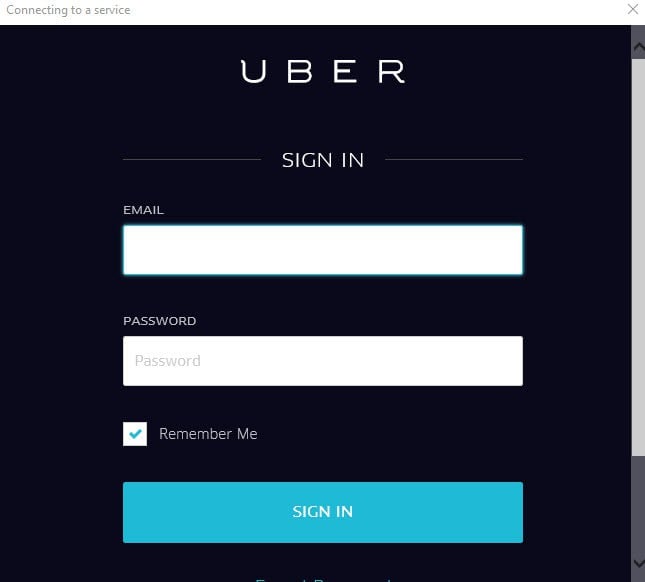
  4. Sign-in to Uber with your login infouber integration cortana 1
  5. Read through Uber’s revelations about the Cortana integration, and if you agree, choose Allow
  6. And at the end, you have to choose if you want Windows 10 to save your login info

Uber integration with Cortana is a great move by Microsoft (and Uber), because this feature will make Cortana even more useful to users. For example, if Cortana recommends you a good restaurant, you can call Uber to drive you there, so your efforts would be minimal.

What do you think about this new Cortana feature? Will you use it? Tell us in the comments. We’re definitely looking forward to getting an Uber car waiting for us straight from your Windows 10 devices.

Microsoft teams up with Vungle, releases SDK for Windows 10

Microsoft recently announced its new partnership with Vungle, one of the top in-app video advertising platforms. Each month, over 200 million people view a Vungle in-app video ad. Needless to say this new Microsoft partnership is a great development to increase revenue for Windows 10 app and game developers.
The Vungle SDK for Windows 10 is now available and can be used across all Windows 10 platforms, including smartphones, desktops, Surface, and even Xbox One. Vungle integration engineer Dana Kock shows you how to integrate the Vungle SDK for Windows 10 into your app in just under fifteen minutes in this Channel 9 video:

There are a couple of steps to complete before you can integrate Vungle into your app.

  • Create a Vungle account (if you don’t already have one)
  • Add your app to the Vungle dashboard. You need to do this in order to get your App ID and add it to your app with the Vungle SDK.

So that’s it. If you’re a Windows 10 app or game developer, check out the SDK:
Download the Vungle SDK for Windows 10.

Microsoft simplifies access to data with the Microsoft Graph

At this week’s Connect() 2015 virtual conference, Microsoft made a number of announcements aimed at developers, but perhaps the one with the most immediate impact is Microsoft Graph.  The new unified API endpoint gathers (or will soon gather) all of the important data access a developer would want from Microsoft services together, meaning that instead of having to write to many different authorizations for the many varied services available from Microsoft, Office and Azure.
 
The new Microsoft Graph offers:

  • A unified API endpoint for accessing aggregated data from multiple Microsoft cloud services in a single response
  • Seamless navigation between entities and and the relationships among them
  • Access to intelligence and insights coming from the Microsoft cloud

What this means is that instead of writing to lots of individual endpoints, for say Users, Groups, Files, Mail, etc., a developer can access a single endpoint, and then not only access, but work not only with the data, but also with intelligence and insights that come from the Microsoft cloud.
graph_illustration_horizontal_948x215If you’re a developer, you can learn more from the Microsoft Graph website. Even if you’re not a developer, you should be seeing the benefits of the Microsoft Graph in the apps you use, as they take advantage of the newer, easier, and more intelligent single endpoint for Microsoft services.

Microsoft now powers its Chicago data center with 100 percent wind power

In 2014, Microsoft purchased a 175 megawatt (MW) wind facility outside of Chicago with the aim being for it to eventually power their Chicago-based data center. A year later, the Pilot Hill Wind Project is now active and promises to power Microsoft’s Chicago data center for at least 20 years and subsequentially save over 328,000 metric tons of new greenhouse gas emissions for each year the program is active.
Microsoft’s Chief Environmental Strategist, Rob Bernard explains the company’s motivation behind the switch, “I’m excited to see renewable energy from Pilot Hill coming on line,” he says in a post on the Microsoft Green Blog. “Power purchase agreements like this one ensure that our nearby data center will have a reliable source of renewable energy for years to come. We know that our data centers have a substantial energy footprint, so working to power them directly through local renewable energy projects is an important strategy to mitigate our impact on the environment.”
He goes on to reveal that even though the data center has been carbon neutral since 2012, “demand increases at a rapid pace for cloud services like Office 365 and Azure” which has motivated them to “work with others to rapidly develop new renewable energy options across the globe.”
Microsoft has long expressed a commitment to environmental sustainability and was recently awarded the Green Power Partner of the Year Award by EPA. The tech giant also assists other organisations in making a positive impact on the world and last month announced that it would be assisting at least 50 non-profit organizations in countries ranging from Australia, Japan, China, Kenya and France to Mexico, Germany, United Kingdom, India, and the United States.
Does a company’s involvement progressive environmental projects affect your view of them or is this an issue you feel is irrelevant? Let us know in the comments below.

Google believes they 'share the same soul' as Microsoft

Earlier today, we reported on Microsoft’s ‘Connect’ developer conference, where the company is hosting a two-day gathering to spur interest in Windows 10 development. At the conference, Microsoft introduced various initiatives to cater to developers across multiple and different focuses. Microsoft’s support efforts include massive upgrades for the Visual Studio Community such as a free online cross-platform version of VS, as well as shared development with the open source community.
As part of Microsoft’s continued effort to embrace its collaborative future, the company also invited Google’s technical program manager Jules Kremer, on stage at the conference to show its willingness to work with Google. However, it was a Google engineering director, Brad Green, who took this opportunity to cash in on some positive PR positioning, reported by GeekWire.

It really became apparent that we share the same soul, and we’ve been able to work really well together because of that.”

While Green’s statement seems to fly in the face of what most people believe to be a fiercely competitive relationship between Google and Microsoft, it was made in regards to a particular project. Both Microsoft and Google are collaborating on what’s being called the Angular project, which looks to develop a framework for JavaScript applications. Helping the Angular project along, Google engineering teams are using Microsoft’s Visual Studio Code and TypeScript to develop Angular 2.
While on stage, Kremer further emphasized Google’s belief in a collaborative relationship with Microsoft.

There’s a lot to love about Google and Microsoft working together on an open-source project.”

For many Windows users, however, Google’s sentiments about ‘shared soul’ and ‘working together’ may ring hollow as collaborative efforts have yet to produce any seemingly real-world benefits for Windows users. For now, it seems Google is willing to work with Microsoft when its efforts do not cross any of its competing businesses. Unfortunately, that may leave a tiny intersection of collaboration between the two companies.

New Microsoft Garage app, Forum, spotted on iTunes

Recently, a new Microsoft Garage app, Forum, was spotted in iTunes. The Forum app description reads:

“Gather round. Say what’s on your mind. Find out what everyone else is really thinking. The best part about Forum is that anyone gets a say. And ideas speak for themselves. Forum lets ideas thrive, facilitates open dialogue within organizations, and enables employees to freely express themselves. Leaders get a way to engage with employees in a comfortable, non-hierarchical setting through capabilities like facilitating Q&As and open forums on specific topics.”

Forum looks to be an app for small companies that have an open-door policy for comments and suggestions. I don’t think it would be a good fit for every business; sometimes freely expressing your ideas can lead to you losing your job. Forum’s features include:

  • Vote on your favorite posts
  • Q&A with leaders you learn from
  • Ask questions with an open mind

Download Forum, a Microsoft Garage project app, on iTunes.
Thank you Lijins for the tip!

Microsoft details the present, and future, of Windows Bridge for iOS

Today on the Windows Blog, Microsoft took the opportunity to speak more about how the Windows Bridge for iOS is progressing and where it is headed. The Windows Bridge for iOS was released as an open source project on Github in August to begin the hard work of creating a way for developers to convert their iOS apps into Universal Windows Programs.
As we reported last week, the sister Windows bridge project for Android apps has not fared well, and Project Astoria, as it is (was) known, has been put on hold indefinitely. But the Windows Bridge for iOS, known internally as Project Islandwood, has been more successful.
iOS Bridge Landing Page
In today’s blog, Microsoft notes that 4,500 developers have starred the project’s repository in Github, and that “what’s more, over 500 created your own fork. More than 200 issues have been filed (and several dozen closed, with many more in various stages of being fixed).”
And since making the project open source in August, Microsoft has added support for:

    • GLKit. We’ve built out support for apps that make use of GLKit’s math libraries, textures, shaders and effects, as well as views and view controllers, so you can finally bring that game you’ve been working on to Windows devices.
    • Xibs, AutoLayout & Storyboard. One of the biggest requests we’ve gotten has been for Xib, AutoLayout and Storyboard support. We’ve added support for Xibs using our Xib2Nib tool as well as preliminary support for both AutoLayout and Storyboards.
    • KVO/KVC. Another widely requested feature, and one we were pleased to add robust support for a few weeks ago.
    • New sample projects. We’ve added sample projects showcasing GLKit support, intermixing of UIKit and XAML controls, and a simple HelloWorld project to help new users get started.
    • And much, much more. In addition to those features specifically called out here, we’ve continued to expand our coverage of iOS libraries, crushing bugs right and left along the way.

The Windows App team also detailed more about the future plans for the project and what is next for developers who are interested in bringing their iOS app to Windows. Microsoft has released a new landing page for the iOS bridge which will be used for a new series of tools to assist in the conversion. The Windows App team also said that the new website will include more answers for developers’ questions regarding API availability and the project’s development roadmap on Github.
Outlook for iOS
Finally, the Windows App team put out the request to iOS developers to help test the first tool for their new website. Microsoft needs developers to test their IPAs (the iOS application archive file which stores an iOS app) in a new automatic app analyzer. The new tool analyzes uploaded IPAs and provides a compatibility analysis to the developer over the web. The analysis will hopefully give developers a detailed idea of how much work has to be done to convert it to Windows, as well as include tips and suggestions. If you are interested in submitting your iOS app’s IPA and being one of the first to get the new automatic app analyzer results, you can head over to the Windows App team’s page here.
After the news of Project Astoria’s troubles, its good to hear from an official blog post that the Windows Bridge for iOS is gaining steam with support expanding along the way and into the future. Also with the loss of Project Astoria, the weight falls that much more heavily on the shoulders of Project Islandwood to help curtail the perceived “App Gap” problem which has been to the detriment of Windows Phone market share.
Hopefully, in the future, a successful Project Islandwood will bolster the already incredibly fast pace of Windows 10 adoption by helping increase the robustness of Microsoft’s new unified store.

Taking a screenshot on your Windows 10 Surface and Surface Book

Microsoft has taken to the Windows blog to provide a guide for Surface owners to one of the most commonly-used features on any computer: taking a screenshot. As the new Surface Pro 4 and Surface Book brings some notable changes to the hardware design of the Surface line, those changes have altered the way screenshots are taken on these devices, and they are reflected on Microsoft’s tutorial.
One of the most notable hardware differences found on the new Surfaces is the absence of the capacitive Windows logo on the front bezel, a remnant of the Windows 8 era. A new fast way to take screenshot on Surface devices, which up till now has been reliant on the physical Windows button, is needed, and surely enough it has been implemented for the new Surface Pro 4 and Surface Book.
You can still press volume-down while holding down the Windows logo on the front to take a screen shot with the Surface 3 and Surface Pro 3, but on the new Surfaces, the button to hold down has been switched to the Power button instead. Of course, this means that owners of the new Surfaces need to hold down on the power button and press the volume-down button before the computer prompts you to turn off your machine, a small, but easily manageable trade-off. The screenshot will still be immediately saved in the Screenshots folder. Another method specific to Surface devices from the third generation utilizes the Surface Pen’s top button: double-clicking it will take a screenshot that you can crop immediately, then save to the Screenshots folder under Pictures in OneDrive.
SurfacePro4Book
While the  new ways to take screenshots accommodates tablet usage of the Surface, the fact that they are still Windows machines with a full keyboard (especially in the case of the Surface Book), means that there are more ways to capture your screen that will be instantly familiar to long-time Windows users,. These include: holding down the Windows key on the keyboard and press PrtScn (save to PC), just pressing PrtScn, or holding down Alt PrtScn to take a screenshot of the current active window.
One method not mentioned that I find still works, at least on the Surface Pro 3, is holding down the Fn key while pressing Alt and Space simultaneously. Of course, the trusty Snipping Tool, one of the few legacy programs still included in Windows 10, also works fine while giving you more functionality.

Review: EaseUS Todo Backup Free Software

Today it’s crucial to back up your files, but backing up your files manually can be a tedious task, especially if you need to back up multiple folders multiple times. Fortunately for you, some tools can help you with this, and today we want to show you one of these tools called Todo Backup Free 8.9.

Todo Backup Free 8.9 comes from EaseUS, a company that is famous for its data recovery and partition managing software, but let’s see what their latest version of backup software can do.

Disk/Partition Backup

The first option that Todo Backup Free 8.9 has to offer is Disk/Partition Backup. This option is designed to back up your hard drive or disc partition completely.

EaseUS Todo Backup Free review 2

Regarding the options, there’s a sector-by-sector backup available. When you set your desired destination for backup you can enter the Plan name and description if you wish, but a few advanced options might come in handy.

Schedule options

EaseUS Todo Backup Free review 3

The first option is the Schedule option, and with it, you can schedule a backup for a specific date and time, but that’s just the beginning.

EaseUS Todo Backup Free review 4

You can set a daily backup that will back up performance at specific time every day. But if the daily backup is too often for you, there’s also an option for weekly backup.

EaseUS Todo Backup Free review 5

With this option, you can select on which day of the week you want to perform a backup, and you can select multiple days so for example you can perform a backup every other day, or every Friday and Tuesday.

EaseUS Todo Backup Free review 6

If you want to be even more specific there’s an option for monthly backup, and you can choose on which week of the month you want to create a backup and on which days of that week. This means that you can create a backup every third week in a month on Sunday and Thursday for example, but you can also select a specific date if you need more control and perform a backup as many times as you want monthly on specific dates.

We also have to mention that for daily, weekly, and monthly backup you have three different types of backup available: Incremental backup, Differential backup and Full backup. One great option is “Wake the computer to run this backup”.

This means that if your computer is in sleep mode Todo Backup Free 8.9 will wake it up to perform a scheduled backup. Of course, there’s option to enter your Windows login information so the backup process can be completed smoothly.

In addition, you can perform a scheduled backup automatically when your computer starts if your computer is turned off and cannot wake up from sleep mode.

⇒ Get EaseUS Todo Backup

Backup options

EaseUS Todo Backup Free review 7

In the backup options, you can set the compression method to save space, but higher compression method will take you more time to complete. There’s also an option to split the backup file to pieces.

You can choose between predefined sizes optimized for CDs, DVDs, and FAT32 discs or enter a custom value.

EaseUS Todo Backup Free review 8

If you have confidential files that you wish to keep away from others you can enter password to protect your backups, but make sure that you don’t lose your password, or else you won’t be able to recover your files.

EaseUS Todo Backup Free review 9

The last option allows you to set performance and assign priority so Todo Backup Free 8.9 can use more or less of your system resources. Lower priority means that it will take more time to complete, but it will use less of your system resources.

There’s also an option to limit the network transfer speed if you plan to upload your backups to cloud services.

EaseUS Todo Backup Free review 10

There’s also Image reserve strategy that will delete images after a while, but you can choose how long the backups will be stored on your computer, and which backups to be deleted. That way, you can always save last 5 backups, for example, while deleting the older ones.

File Backup

This option allows you to choose if you want to back up specific files or folders. This is great if you don’t want to back up your entire hard drive or disc partition but just a few important files or folders you’re working on. This option is perfect if you want to back up your business or school project, for example.

Just like the hard drive backing option, this option also allows you to schedule it, or to split files, protect them with password, etc.

EaseUS Todo Backup Free review 11

One small complaint here is related to selecting files and folder for backup. When you first open the File Backup window, all your folders are selected on the left side. So if you want to backup only one folder you’ll have to uncheck all folders first and navigate to that folder.

Speaking of navigation, navigation feels a bit weird, especially if you’re used to using File Explorer on Windows.

Navigating through folders is only possible using the tree structure on the left while the right side of screen is in charge just for selecting files.

So, for example, if you find a folder on the right side, you can’t click it to move to see its contents, instead, you’ll have to use folder tree on the left side. It’s a minor complaint, but it feels a bit strange, and it might take you a few minutes to get used to.

After you’ve found files, the backup process is pretty straightforward. You can minimize the application and the backup process will perform in the background. Depending on your settings and system power your PC performance might be affected while the backing up process is taking place.

While the backing-up process is running, you can select what to do when the process is completed, so you can turn off your PC or send it to hibernation after the process is done.

EaseUS Todo Backup Free review 12

After the backing up process is completed, you’ll see the list of all of your available backups. If, for some reason, some of them are missing, you can add them manually by using the Browse to Recover button. In addition, you can change the type of backup from Full to Incremental or Differential.

In addition, you can edit your backup, add more files, edit any of the settings, or even merge two different backups into one. There’s also an option to check for backup for potential errors.

EaseUS Todo Backup Free review 12

As for recovering, the software will allow you to see the version history of the backup so you can restore to any of the previous versions. In addition, it can also restore your backup into its original location or to a new location. If you choose to restore it to original location, you might want to check Replace existing file checkbox.

The recovering process is simple, and you have option to shutdown or restart your computer automatically when it’s finished.

EaseUS Todo Backup Free review 14

System Backup

There’s also a handy option to backup your current operating system which can be useful if you’re migrating to a new computer. Of course, all the standard options are available as well.

EaseUS Todo Backup Free review 15

Smart Backup

Smart Backup feature is quite similar to File Backup, but unlike the File Backup Smart Backup will automatically create backups of all selected files whenever you run Smart Backup, so you won’t have to worry about losing your data. In addition, with Smart Backup, you have the version history of your saved files that lasts for two weeks. One great thing about Smart Backup is that you can simply right click your files and folders and add them to Smart Backup list right from File Explorer.

EaseUS Todo Backup Free review 16

Disk / Partition Clone

This is a simple feature, it allows you to quickly clone your entire partition or hard drive. This is perfect if you want to transfer all of your files to a new hard drive. Regarding the options, you can optimize your cloned drive for SSD and create sector by sector clone.

EaseUS Todo Backup Free review 17

As for additional features of Todo Backup Free 8.9 we have to mention Wipe Data that will permanently wipe your hard drive. This is a great feature if you don’t plan to use your computer anymore and you want to delete all of your files forever, but we wished there was an option to delete just specific files and folders permanently.

There are also two great features if your operating system fails to start. For example, you can create emergency disk and burn it to a CD or USB and use it to boot if there are issues.

EaseUS Todo Backup Free review 18

Also, there’s an option to enable Pre-OS environment that allows you to run Todo Backup Free 8.9 in simple environment if your system cannot boot.

We also have to mention that there’s an option to back up your files to popular cloud services such as DropBox, GoogleDrive, or OneDrive. The only downside is that there’s no support for custom servers, so you can’t upload to your server using FTP, but that’s not a big issue for most users.

EaseUS Todo Backup Free review 19

Todo Backup Free 8.9 is a great application to back up your files. It is simple, it comes with advanced options, and best of all it’s available for free. The only drawback might be the file selection interface which might feel weird if you’re used to File Explorer in Windows, but that is a minor complaint.

If you’re an advanced user and you want to back up your files to a custom remote server using FTP, then you’ll be sad to hear that this option is missing from Todo Backup Free 8.9, but for free software, we can say that Todo Backup Free 8.9 is a perfect solution for most users that want to back up their files.

EaseUS Todo Backup

Try this award-winning backup solution while staying safe and secure.
Free Trial Visit Website

Remove Scan With Microsoft Defender: How to Do It

Every update for Windows 10 brings a lot of good but also some bad changes and additions. And one of the additions is the return of the ability to perform a quick Windows Defender scan of any file from the context menu when you right-click on it.

There’s not much to explain about this addition. You right-click on one or more selected folders and quickly run a Windows Defender scan. This is a nice addition by Microsoft because most effective antivirus programs have a similar scan option.

On the other hand, if you’re not a fan of Windows Defender, you may find this new part of the context menu annoying or unnecessary. So, let’s find out how to remove Scan with Microsoft Defender from the context menu.

How do I remove Scan with Microsoft Defender from context menu?

Use the Registry Editor

  1. Go to Search, type regedit, and open Registry Editor.
  2. Navigate to the following registry key:HKEY_CLASSES_ROOT\CLSID\ {09A47860-11B0-4DA5-AFA5-26D86198A780}
  3. Right-click on it, and select Delete.windows defender scan context menu regedit

After deleting this registry key, the Windows Defender scan option will disappear from the context menu. But it won’t hurt if you create a backup of the registry, just in case you want to bring it back or something goes wrong. Also, you can even restore the Registry without a backup.

Before you leave, check the best Windows performance settings and enable them today! You can also check our guide on how to access Windows Defender Scans folder.

How do you feel about the change to Windows 10? Do you think Microsoft did a good job with it or not? Tell us your opinion in the comments below.

Windows 10 Movies & TV app finally gets optional dark theme

Microsoft’s Movies & TV app for Windows 10 has finally received dark mode in the latest app update, available right now in the Windows Store. In this particular app update, Microsoft has added a new “dark” mode, giving you the option to darken your app or stick with the traditional light mode. To change your settings, just open the app and hit the Settings cog. You will see the option to change between light and dark mode — a restart of the app will be required.
Microsoft has also added additional keyboard shortcuts to make your playback experience better. The company did not clarify exactly what the keyboard shortcuts were — thanks Microsoft, guess we’ll figure it out on our own. Grab the update right now from the Windows Store and share your thoughts in the comments below!

Yoga finally comes to Microsoft's Xbox One console

After a brief tease on the official Xbox Fitness Instagram account yesterday, Microsoft has properly announced the latest batch of workouts to launch on the Xbox One’s Xbox Fitness app, YO:30, a 5-part yoga series that brings more yoga to the console two years after the sport/activity was initially teased during the Xbox One’s announcement presentation.

We’re excited to announce YO:30 for Xbox Fitness featuring @TrainerJake #yoga #xboxfitness

A photo posted by @xboxfitness on


The yoga classes are around 30 minutes long each and are hosted by Jake Ferree. Here’s the official description:

Created exclusively for Xbox Fitness by Hollywood Yoga Instructor Jake Ferree, YO:30 is a 5-workout series designed to help you get the most from your yoga practice in the shortest time possible. This unique program can help you establish a better mind-body connection while you build upon on the basics of yoga. With all levels of yogis in mind, YO:30 will helps you find and create balance, flexibility, strength, and self-awareness in just 30 minutes.

While the classes are advertised as being designed for “all levels”, they are better suited for those who have some experience with yoga and have been taught the proper alignment for certain poses. Interestingly, Xbox Fitness scores users on how still they are in different poses, which stands in contrast to the other programs which usually grade on activity and intensity.
Xbox Fitness has always been a concept with a lot of potential but has struggled to really take off due to common problems with the Xbox One’s Kinect properly detecting a user’s body and programs designed exclusively for Xbox Fitness showing a surprising disconnect between the workouts and how they’re actually used. Some examples of this disconnect can be seen in the Mossa Groove workout where the instructor suggests people play Xbox Fitness with a friend (Xbox Fitness only supports one player) and in the recently launched Extreme Combat workouts whose instructor constantly switches between working out both front-on and parallel to the TV which results in the Kinect being unable to detect certain exercises and also constantly forces the user to move their workout mat during the fast transitions between exercises.

YO:30 is a dramatic improvement over these programs. Each class places the user parallel to the television screen for the entire duration of the class and the Kinect has very little trouble tracking the numerous yoga poses. There are some instances of the intensity bar decreasing in poses like Thread-the-Needle and Warrior 1 (possibly due to the user’s face being obscured from the camera’s view) but this is a massive improvement on other Xbox Fitness programs where the user’s body disappears completely.
The first class of YO:30 will be free for all Xbox Fitness users to play for the entirety of November while all five classes can be purchased for a one-off payment. Two special YO:30-related Xbox One Challenges have been released to promote the launch and can be unlocked by reaching certain requirements in the YO:30 classes. Microsoft is also holding a special Xbox Fitness giveaway on their Twitter and Instagram accounts which will reward winners with a variety of Xbox Fitness branded goods.
Before now, the only yoga on Xbox Fitness was Jillian Michaels’ Yoga Inferno classes which are more of an intense workout than traditional yoga class. Have you been waiting for proper yoga to come to Xbox Fitness? Do you still use Xbox Fitness? Let us know in the comments below.
Buy YO:30 on Xbox One

Windows 10 Version 1511 for Enterprise now available at Microsoft's Volume Licensing Service Center

The first major update to Windows 10 started rolling out last week and now it’s businesses’ turn with Windows 10 Version 1511 (aka November Update) now available through Microsoft’s Volume Licensing Service Center. This latest version of Windows 10 for Enterprise includes all the new features from the consumer-oriented 1511 update, such as XTS-AES BitLocker encryption, Edge browser improvements, and overall performance adjustments, as well as the features tailored to enterprise needs such as access to the new Windows Store for Business and Windows Update for Business, and the improved Mobile Device Management and Azure Active Directory.
Microsoft has been more serious as of late with regards to Windows and business utility outside the OS as well.  In the past week, we’ve seen Microsoft start to offer the Surface Pro 3, with LTE connectivity, on Verizon’s 4G network, making the device a perfect tool for a mobile business professional.  With Windows 8.1 Pro pre-installed, and the free upgrade to Window 10 Pro, as well as the Surface Type Cover and Surface Pen on sale from both Verizon and Microsoft, businesses now have the opportunity to send out fully-equipped and up-to-date hardware to employees.
Does your company use Windows 10? How do they like it? Let us know in the comments below.

Zune Services are now Retired for All Windows Users

It was already long overdue, but Microsoft has finally decided that it’s time to retire all of its Zune services. Thus, the Zune Music Pass subscription program and the Zune marketplace for buying MP3s are no longer available.

Of course, this isn’t exactly a surprise, as Redmond made the announcement a few months ago. New Zune Music Pass subscribers are going to be automatically switched to Microsoft’s new Groove Music service. If you still have an active subscription, then you can cancel the service and receive pro-rated refunds.

As you probably recall, the last Zune hardware product was made back in 2008 and the brand was used for Microsoft’s music and video marketplaces. Now that Microsoft has renamed even its Xbox Music app to Groove Music, it’s time to make sure that this is the single name customers remember.

Microsoft also explains how is the Groove Music Pass different from the Zune Music Pass or the Xbox Music Pass:

  • Groove comes with all new features and can be used across all your Groove-enabled devices (including Windows 10, Xbox One, Xbox 360, iOS, Android, Sonos, and through a web browser on your PC)
  • While there are no more free tracks to download, you’ll have access to more than 40 million songs in the Groove catalog
  • You can also store music on OneDrive and access that music from all your Groove-enabled devices
  • Groove is $9.99 per month or $99.90 per year

Todoist releases preview Universal Windows 10 app

For a while now, Microsoft’s own Wunderlist task management apps has enjoyed its place as one of the only truly cross-platform solutions available on Windows 10 and Windows 10 Mobile. That’s changing, however, as Todoist has released its own task management app as a Universal Windows 10 offering.
Currently only available on Windows 10, the app is a pretty simple affair. It covers all of the bases but lacks some of Wunderlist’s depth. It’s a preview, however, and so theoretically at least the app should flesh out in future iterations.
One of Todoist’s strengths is its cross-platform support, with a ton of different operating systems and environments supported. As more developers support the Universal Windows 10 app infrastructure, we should see more and more apps that run on competitive platforms–and that’s a good thing.

Todoist supports scads of platforms, including our favorite, WIndows!
Todoist supports scads of platforms, including our favorite, Windows!

So far, you can create tasks and projects pretty easily, and that’s about it. Tasks can be made into subprojects by dragging-and-dropping them, but strange little UI issues abound such as the need to manually type in a date rather than selecting from a picker. Labels and filters are relatively easy to add, and so that’s a plus.

Todoist covers the basics for now with a straightforward and attractive UI.

Other key capabilities:

  • Task sharing
  • 3-pane view for group discussions
  • Interactive notifications
  • Customized Live Tiles

Where's the date picker?
Where’s the date picker?

Todoist weekly view. Everything is clean and simple.

According to Todoist, the app should leverage Windows 10’s strengths eventually:

“Our ultimate goal is to make Todoist the best to-do list app on the planet, on any Windows-powered device. The ambition is to keep the distinctive experience that is Todoist while incorporating elements that make Windows 10 apps truly universal. We’re especially excited about allowing Todoist for Windows 10 users to transition seamlessly from mouse to touch and pen and work on any screen size,” says Jan, our Head of Windows.

Today, Windows 10-specific features include the aforementioned customizable Live Tiles and actionable notifications. Cortana integration isn’t there yet, but will be added in a future version of the app.
More from the Todoist crew:

“After the Preview release, we’ll immediately start refining the app, fixing any bugs, and adding some awesome new features. We’re really looking forward to the input we’ll receive from our community. You will be the ones who will help us decide which features to prioritize and how to take full advantage of Windows 10 capabilities,” says Jan.

If you’re looking for a fairly decent task management platform with Windows 10 (and eventual Windows 10 Mobile) support and aren’t fond of Wunderlist, then check out the app. You can click the link below to install the preview and get managing your tasks and projects.

Todoist Preview
Todoist Preview
Developer:
Doist Inc.
Price:
Free

Windows 10 ‘1511’ November Update Causes BootCamp Problems

There are many problems caused by the most recent Windows 10 ‘1511’ November Update, but there are also quite a few great improvements, as well, such as the new ‘Find my Device‘ feature, Skype integration and more.

Today we’re talking about another annoying problem related to the Windows 10 Threshold 2 update, which is apparently affecting BootCamp users. Here’s what one affected user has been saying:

After carrying out the new Windows 10 November Update on my mid 2012 15″ rMBP networking doesn’t work. I have tried redownloading the BootCamp setup package on El Capitan but there is some problem when carrying out the install option in Windows and my Macbook is left cut off from the internet. I get the feeling that Microsoft might have changed some build identifier or something so Apple’s packages decide that the OS is wrong?

Most likely, the reason for this could be the fact that Apple didn’t yet fully updated its drivers to incorporate with the Windows 10 new build. Somebody else is saying he has been experiencing similar problems on an iMac:

Had the same problem with my iMac 2012. After installing Threshold as an update, my iMac couldn’t boot after the first of several necessary reboots with this update. Even Windows couldn’t fix the problems, so beware of this update, but maybe related to my “older” iMac. And no, a new install with the Threshold DVD had the same boot problem.

Another MacBook Pro owner said he made a dualboot with windows and upgraded his Windows 10 to the latest release (TH2/10586.3/1511) and he encountered the following problems after that:

Mail: Can’t sync accounts, can’t change the settings of the accounts or delete them. Every time I try to click on an account to change it’s settings, nothing happens.
Secondary display: Each time my computer boots up, the secondary display starts in B/W mode. To fix it, I have to disconnect the secondary display, connect it again, and then launch AMD Catalyst Control Center (I have an AMD 6750M graphic card) to get colours on my screen again.
Parallels Bootcamp: Earlier, I used to be able to boot into my Windows 10 partition using Parallels. With the new upgrade, I no longer have internet access if I try to run my Windows 10 partition from inside OS X. The “Parallels Ethernet Adapter” is now missing from the Network Adapters list under Device Manager and I can’t seem to get it back (reinstalling Parallel tools doesn’t help). No solution on Parallel forums yet either.

What about you, have you been affected by the most recent Windows 10 build when you are trying to use BootCamp? Leave your input below and let us know.

Microsoft offers new approach on dealing with security threats

Microsoft’s Chief Information Security Officer Bret Arsenault has taken to the company blog to highlight a new approach to security and dealing with security threats, using Microsoft’s technology capabilities. The information was originally shared by Microsoft’s CEO Satya Nadella at his keynote in Washington D.C. opening the Microsoft Government Cloud Forum.
The new approach encompasses three areas of security threats management: Protect, Detect and Response: protection now extends to all endpoint of technology including identities and sensors; threat detection is supported by the cloud and machine-learning to be even faster; and response to threats, made more quickly while providing customers with insights.
Microsoft’s advantage in having a vast network for data from billions of Microsoft-powered sources is also highlighted. Security innovations included in Windows 10, Office 365, Microsoft Azure and Microsoft Enterprise Mobility Suite (EMS) works together to protect customer data from accidental or intentional loss, password-related attacks, malware installation, and helps detect and respond to successful attacks.
With its technology powering most of the infrastructures of the world, Microsoft has a heavy responsibility in keeping their customers safe from data theft and attacks, becoming even more critical as cloud computing gains increasing importance to the company’s portfolio.

“They’ve changed themselves from worst in class to the best in class,” “The change is complete. They started taking security very seriously.” Mikko Hypponen, chief research officer at F-Secure. From NYTimes

It is hardly surprising, then, that Microsoft have been doubling down on its security efforts even more in recent times, impressing even past doubters. The focus is reflected by recent acquisitions and company organization, for example the newly announced Microsoft Enterprise Cybersecurity Group, or the newly-built Cyber Defense Operations Center where security managers across the company gather. Nadella reiterates on the mindset in one of his interviews with the New York Times on the matter, linking it to the consistency of exercising.

“It’s kind of like going to the gym every day,” “You can’t say I’m serious about security without exercising the regimen of keeping security top of mind every second, every hour of the day.”

On the software side, the new Windows Hello shows Microsoft’s vision of better data security by getting rid of its weakest link: the password. Advance Threat Analytics, which Microsoft acquired last year from Aorato, provides insights to customers on potential and successful attacks, and built-in security features on Microsoft’s products like Office 365 and Windows ensure that even accidental data loss would be prevented. Mobile security, increasingly considerable part of computing, is also addressed, with an announcement of new Intune native apps for Box and Adobe on iOS and Android to prevent accidental data sharing. A number of security enhancements to Azure were also highlighted.
Overall, Microsoft has clearly made keeping the customers’ data safety a priority, and while its a hard fight with a few bumps (like the past fiasco with Google’s security researchers releasing bugs info before there was a patch,) Microsoft is heading in the right direction. As the company’s vision of convergence with Windows 10 comes together and Microsoft’s services becomes platform-agnostic, it is more important than ever that a high level of security is maintained across all platforms to build customer trust, and we look forward to the company’s signs of commitment in the future.

Microsoft ups the ante in Office 365 security and compliance

Security, privacy, and compliance are key drivers in the technology industry, and Microsoft has been investing significant time and energy in making improvements in all three. As a core element of Microsoft’s cloud-first, mobile-first strategy, Office 365 is the latest to get a security and compliance makeover.
Microsoft spends some time talking security over at the Office blog, and the Office team is announcing two new security capabilities, Customer Lockbox and Advanced eDiscovery, that will be available December 1, 2015. The key components of Office 365’s focus on security and compliance are Advanced Threat Detection along with the two new offerings, and all of which integrate with Equivio, the eDiscovery software provider that Microsoft acquired earlier in 2015.
Citing over $30 billion spent by the biggest U.S. banks alone on legal costs, which is heavily influenced by the need to perform secure and accurate eDiscovery, Microsoft is particularly excited about the new Office 365 Advance eDiscovery:

That’s why we’re pleased to bring Advanced eDiscovery to Office 365. Office 365 Advanced eDiscovery integrates Equivio machine learning, predictive coding and text analytics capabilities, to reduce the costs and challenges that come along with sorting through large quantities of data for eDiscovery purposes. In today’s data environment, the eDiscovery process for any given case could involve sorting through millions of emails, text messages, instant messages and documents to find the small number of files that are most relevant. Office 365 Advanced eDiscovery reduces the volume of data by eliminating duplicate files, reconstructing email threads and identifying key themes and data relationships. Finally, it enables users to train the system to intelligently explore and analyze large, unstructured data sets and quickly zero in on what is relevant.

At the same time, Microsoft recognizes that seeing into how their cloud data is being managed is important to customers, and so they’re releasing Customer Lockbox, which is essentially the ability to control all access to their data and grant explicit rights to Microsoft engineers on an as-needed basis:

That’s why we’re launching Customer Lockbox, which offers customers full control over access to their data in Office 365 by giving them ultimate approval rights in the very rare instances when a Microsoft engineer must request access to the service, such as when troubleshooting a customer issue with mailbox or document contents. Today, all access control activities in the Office 365 service are logged and audited, and use of Customer Lockbox ensures that a Microsoft engineer cannot access a customer’s content to conduct a service operation without the customer’s explicit approval.


Both Customer Lockbox and Advanced eDiscovery will be available starting December 1 as add-on service purchases for Office 365 customers, while Advanced Threat Protection has been available for awhile. A new Office 365 E5 plan will provide all three security and compliance options, and will also be available on December 1. Find out more details at trust.office365.com.

Microsoft clarifies its Privacy Statement with newest update

Microsoft has quietly updated their Privacy Statement ahead of the big update to Windows 10, reports Ed Bott at ZDNet, who also detailed the changes. The update brings clarifications to many sections that were topics of attacks for a number of critics.
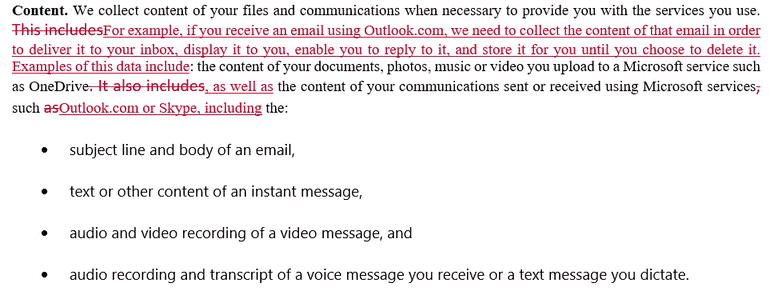
Specifically, examples are added to the Content section to show how personal data is only collect as part of the service, going to rather hilariously clear lengths by explaining that they need to collect an email because they need to “display it to you”, in one example. A sentence was also added to the “Device encryption” section to clarify that everything is on your personal drive, including the recovery key, and that it won’t be used by Microsoft at all.

01content
Courtesy of ZDNet.

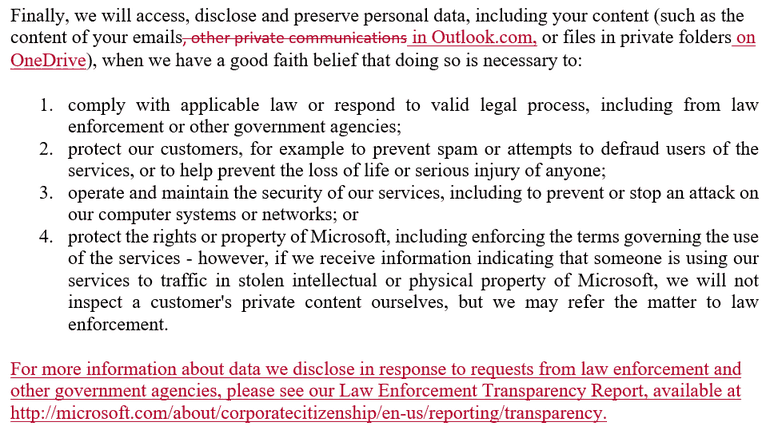
Regarding the allegations that Microsoft scans “personal files on local hard disks,” Microsoft has specifically added that the only “files in private folders” they scan are on OneDrive, and that is only for indexing purpose so you can search for your files later. Disclosures are allowed only in cases of request from law enforcers, a report for which they have now also included in the Privacy Statement. Microsoft also adds several sentences to clarify the information they collect for customer support and product activation under “Providing and Improving our services.” A Microsoft spoke person has issued a statement to ensure users of Windows 10 Pro’s compliance with FINRA, SEC and FTC regulations regarding telemetry data collection, and in the case an agreement with customers contradicts the Privacy statement, the agreement will hold.

Courtesy of ZDNet.
Courtesy of ZDNet.

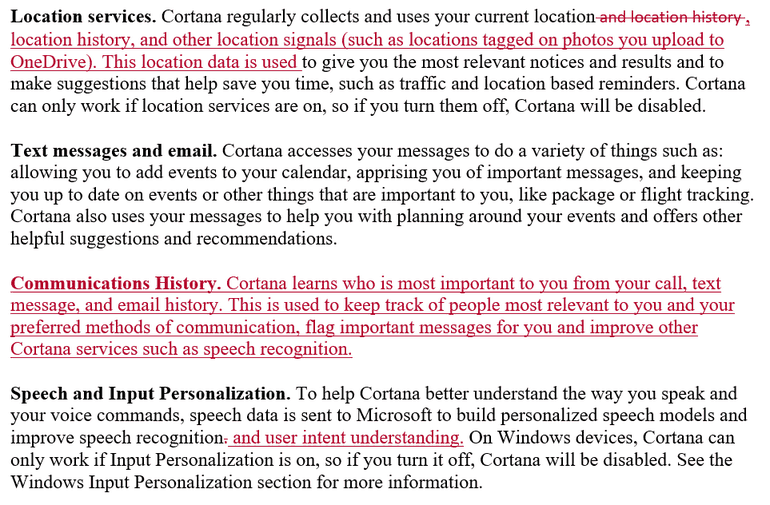
An update to the Cortana section reflects the evolution of the digital assistant in predicting more of your behaviors and understanding your intent. Finally, there is a new sections for health services to cover the Band and HealthVault, and one to cover the new  translation features in Skype “when enabled.”

Courtesy of ZDNet.
Courtesy of ZDNet.

Overall, Microsoft is clearly making effort in providing as much transparency as possible, while addressing users concerns, presumably to follow up (or prepare for?) on the just-released big new update for Windows 10. Of course, there will always be vocal critics who just like to take problems with everything Microsoft, but it looks like the company is heading in the right direction regarding opening up.


Windows 10 1511 Threshold 2 Update Removes Rollback Option

There’s a lot of fuss about the release of November Update for Windows 10 all around the internet. And indeed, the new update brings a lot of confusion and contradictory with itself. Besides some great features and improvements for Windows 10, there’s also a handful of bugs and unexplained actions users faced after they upgraded their systems.

Among the installation problems, deleted software, and delayed delivery, users are now reporting that they’re unable to roll back to the previous version of Windows, after they performed an update, because it looks like the update deleted the recovery partition.

At first, we thought it’s some kind of bug and we were looking for the fix, but after reading various opinions and reports all over the internet, it now looks like Microsoft did this on purpose. And the fact that the company didn’t deliver the update to users who installed Windows 10 less than a month ago only strengthens this theory. Namely, as you probably know, Microsoft decided to give users a time to decide whether they want to roll back to the previous version of Windows they were using, or stick with Windows 10 before it delivered the the update.

But some inpatient users who wanted to install the update right now probably ‘forced’ the update, and they’ve got an unpleasant surprise. Windows 10 no longer has a rollback option! This, along with Microsoft’s announcement about not delivering November Update to everyone, indirectly tells us: “You had your time to decide, now there’s no coming back.” Which means that Microsoft actually ‘warned’ us about this, when it said that, but no one actually understood the warning

On the other hand, some people say that Microsoft didn’t do this intentionally, as the update process deleted the rollback partition to free up some space for the update, and that if you have enough disk space, you want encounter this flaw. But, no one actually confirmed that freeing up some disk space will prevent Windows 10 from deleting the rollback partition, so we take this claim with a huge dose of reserve.

Now, let’s sup up the contradictory. First, Microsoft told us that we should threat Windows 10 as service, as the updates will be delivered regularly to us, but that wasn’t the case with November update, as some people still didn’t receive it. Next, we had an option to rollback Windows 10 to the previous version of Windows in under 31 days since its installation, which apparently isn’t the case anymore, because all Windows 10 users will eventually get Threshold update.

Even if you download an ISO file from Microsoft’s website, you’ll get build 10586, and not the RTM version that was released in July. And if removing rollback partition was indeed Microsoft’s intention, this means that once you choose to install Windows 10, you can’t rollback to the previous version anymore.

This is all we know for now, if Microsoft releases an official statement about removing a rollback partition, or some new reports appear, we will update the article. Until then, you can tell us your opinion about this situation in the comments.

Microsoft teases Ignite 2016 with four new videos

Microsoft’s Ignite event hopes to be a place of mass learning and experience, and their latest set of videos highlight that. At Ignite, Microsoft will discuss current products being deployed in workplaces and to consumers and will reveal the future direction and movement of these products to better help chart their path in the consumer and business spaces.

The 2016 conference is set to feature similar kinds of session topics as this year’s Ignite 2015 conference, from Azure to Windows, Exchange to SQL Server. Updates on all of these, and how to best utilize new features, will also play a role, so IT professionals in attendance can maximize a products’ potential and performance.
These new videos feature answers to various questions that attendees might have, like “What’s to be gained from going?”, or “What’s the target audience?”, all the way to “What makes the event great?”. Microsoft’s various employees answer these questions by detailing the one-on-one interactions they have with the numerous people at the conference and emphasise the kind of networking opportunities available at Ignite  The final video says, “If you’re in IT, a developer, or a decision maker in your company, it’s for you.”. Here are all four videos for your convenience.


Pre-registration is now open and will keep interested parties updated on the actual event registration which should open in February. The event will be packed with more than 1,000 hours of content as well as over 700 sessions to take part in. Are you planning to take part in Ignite 2016? Let us know in the comments below.

Find Lost, Stolen Windows 10 Laptops with ‘Find my Device’ Feature

The most recent Windows 10 1511 version, also known as Threshold 2, has recently been released and is also known as Windows 10 Build 10558. It brings a lot of great new features, and issues, as well, and one of the most useful new features is “Find my Device”.

One of the best features of Threshold 2 is ‘Find my device’; and as the name suggests, it allows you to see your system’s last known location. However, in order to be able to use it, you need to enable it by going to Settings > Update & Security > Find My Device. Here’s a short video to make it easier for you to understand:

If after deploying the Windows 10 November update the feature doesn’t work, make sure that you have the required Bluetooth drivers. Thus, by using this new feature, if it happens for you to lose your Windows 10 laptop or other device, then you will be able to track down the last known location, thus helping you recover it.

Another great new feature for travelers that Microsoft has introduced in the latest version of Windows 10 is the automatic time zone switching. You can easily turn it on by going to Settings>Time & Language>Set Time Zone Automatically.

‘Find my device’ helps recover lost or stolen Windows 10 laptops

The new ‘Find my Device’ feature will be of great use especially to owners of Windows 10 laptops who have lost them. Previously, they had to resort to all sorts of third-party software for this quite basic feature, and now they can make use of it directly inside the system.

Mobile users will find this new feature very familiar, as it is pretty much present in all the mobile operating systems. You also should be aware that the new Find my device option is available only in Windows 10 portable devices, so you shouldn’t believe it’s actually “Find My Phone” that’s already available for Windows Phone owners.

The new feature is linked to your Microsoft Account so you can sign-in on the web from another device if you lose your laptop or, worse yet, if it gets stolen. I am not sure at the moment, but I guess this new feature will work for hybrid devices, as well.
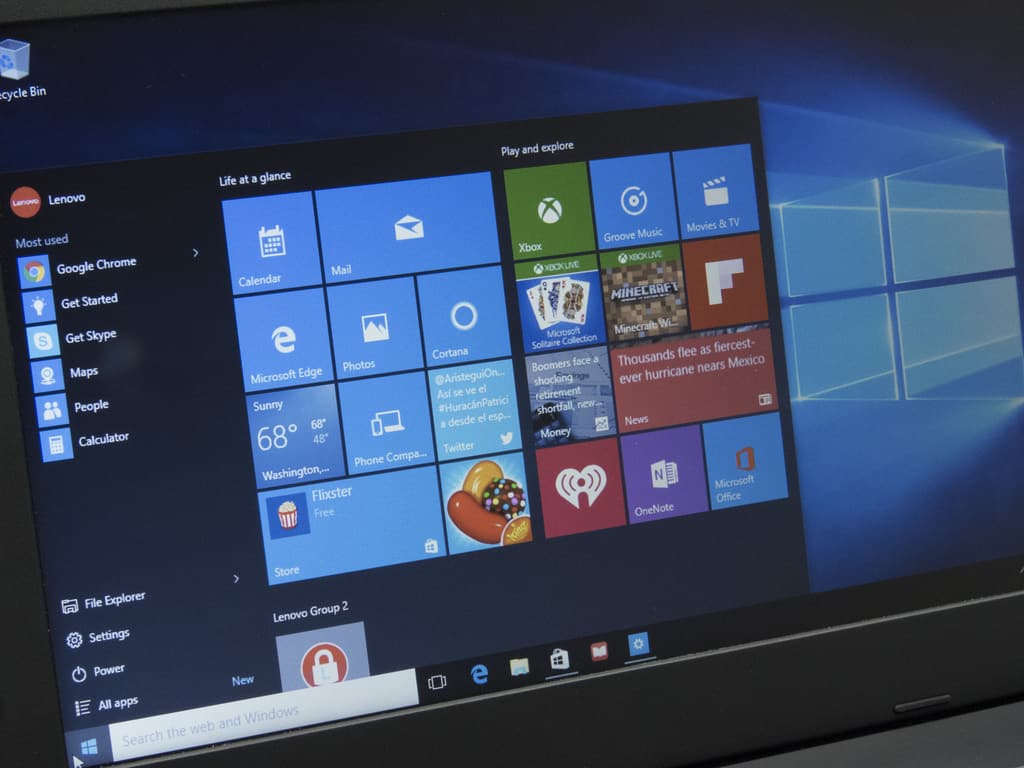
I hope you never lose your Windows 10 laptop or that it gets stolen, but if that happens, make sure you get yourself acquainted with the new ‘Find my Device’ feature in Windows 10 to be prepared for the worst.

Microsoft funds underserved internet access solutions with Affordable Access Initiative

Microsoft has launched a new fund to help companies bring affordable internet access to underserved markets around the world.  As part of the company’s Affordable Access Initiative, Microsoft is taking applications from third party companies to help them bring down the costs of providing internet access to new markets. Funding averages approximately $75,000 in funding and free software and services, and Microsoft helps to connect potential funders together through a program set up by the company.
Microsoft’s EVP of business development Peggy Johnson explains:

“Today there are approximately 4 billion people globally without Internet access. The ability to close that gap is more achievable than ever with technology that is readily available and affordable in many parts of the world. Through this fund, we hope to kick-start the entrepreneurial process by identifying promising ideas that we can help nurture, grow and scale.”

Microsoft has already been pushing affordable access through its own initiatives and in partnership with other companies, including using white space technologies to bring internet access to 17 countries on 5 continents, and through its Microsoft 4Afrika initiative, where Microsoft is actively engaging in economic development by encouraging local innovation, affordable access, and skills development.
Interested companies can check out more and submit their applications online through the Affordable Access Initiative website.
 

Microsoft Releases Standalone Translator App for Windows 10

We already had an opportunity to use Windows Translator app on Windows Phone 8.1, and now Microsoft finally decided to make this app available for the users of Windows 10. You can now download Windows 10 Translator app from Windows Store, and it will work across all of your Windows 10 devices.

Translator app for Windows 10 supports text translation of 50 languages, and voice translation of 18 language, as well as translation by taking a picture (19 languages). The app has been fully redesigned to work well with Windows 10, and here’s everything this app offers, according to a post on the Microsoft Translator team blog:

  • Responsive and refreshed user-experience that allows the full screen mode on Windows 10 tablets, is designed to work with an app or website you need to be translated, and its resizable floating window allows you to use Translator as a companion desktop app for your everyday productivity
  • The power of the new Windows 10 platform: This app has been rewritten to be a true universal app. The same app with a consistent look and feel will work across all of your Windows 10 devices, from PC to Phone to other Windows 10 powered devices
  • Pinning favorite translations, so you can easily access them, as well as the ability to look them up by text, voice or camera
  • Search history and favorite translations in the handy integrated search bar
  • Easy access to the last 3 languages you used in your translations
  • You can choose between Chinese, English, French, Portuguese, and Spanish language dialects, for accurate text-to-speech features.
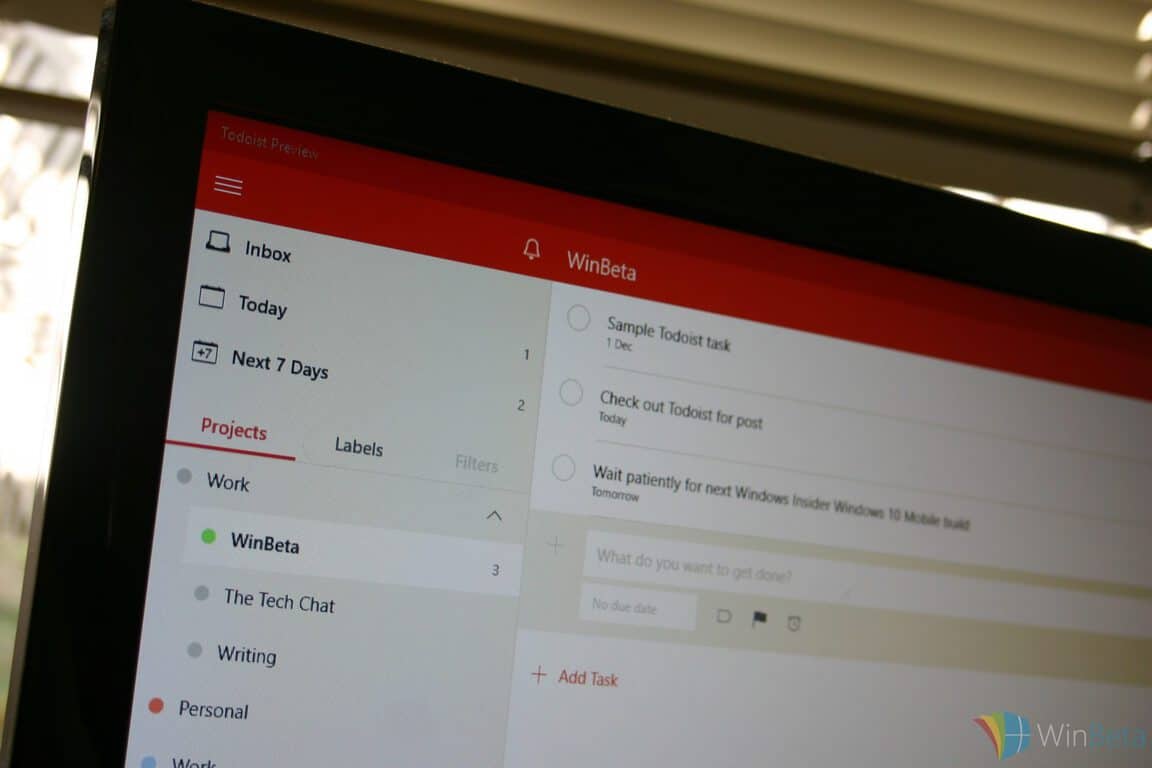
  • New languages supported for camera translations: Romanian, Serbian Cyrillic, and Slovak
  • Support for the newly launched Kiswahili language, including an offline downloadable language pack in case you don’t have an internet connection in the time of need.

As we already told you, you can download Windows 10 Translator from Windows Store for free.
How to Install the Windows 10 November Update if it’s not Showing up

As you probably know, Microsoft started to roll out Windows 10 November Update, which is the biggest update for Windows 10 since its release in July. But things are not as smooth as we’ve expected, because while some users had problems with installing the update, some users didn’t even get it, and they won’t receive it yet.

Why you aren’t seeing the Windows 10 November update

As Microsoft says, if you upgraded your computer to Windows 10 less than 31 days ago, you still won’t receive the November Update. The company explains that it wants to give you the time to decide whether you want to stick with Windows 10, or you want to get back to your older version of Windows, so it won’t rush you with delivering the new update. Rod Trent gives some more details:

Additionally, there’s another potential reason. It could be that you tried to install it and it failed for one reason or another. I had this issue (yeah, I screwed it up) and you can read about how to solve that HERE. In my case, I canceled the upgrade by shutting the PC off.
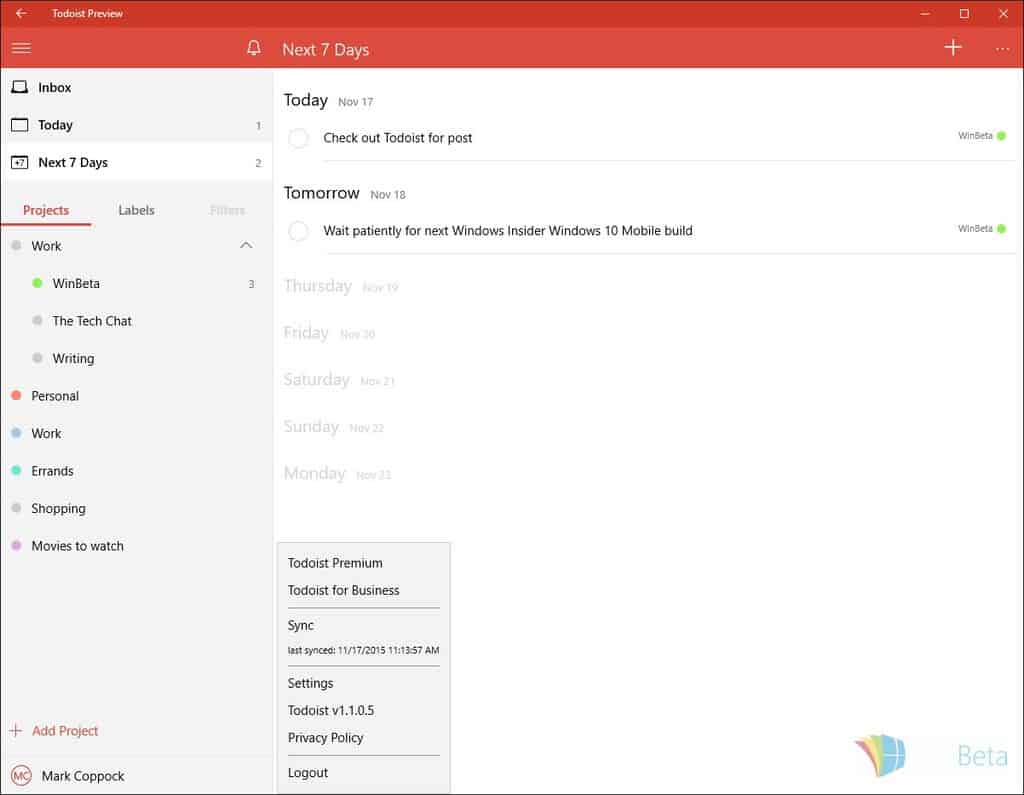
Also, there’s some clarification needed. The 1511 upgrade through Windows Update is considered a consumer option. Those running Windows 10 Pro and Enterprise editions, connected to a company domain, will need to wait until the upgrade is available to deploy. The ISOs from the Volume Licensing Center aren’t supposed to be available until sometime next week.

Furthermore, if you’ve chosen to Defer Upgrades (Settings > Update & security > Windows Update > Advanced options) then tbe update will not be available so you need to jump back into this settings area and clear the checkbox. Also, you need to know that if you installed it, the November update it won’t be offered again.

How to get Windows 10 1511 anyway

But if you’ve already made a decision that you want to stick with Windows 10, waiting a little more than you should could be annoying. But luckily, there’s a way to install Windows 10 November Update, even if it’s not offered to you through Windows Update. Namely, Microsoft already released an ISO file of Windows 10 November update, so you can download it and install it on your own.

Windows 10 November update is technically build 10586 for Windows 10, so by downloading the ISO file, you’ll download this build and you’ll be able to update your system ‘manually’. You can find the download link of Windows 10 build 10586 ISO file in this article, as well as some additional information about the release and installing guide. And since the process runs very much like the fresh installation of Windows, it wouldn’t hurt if you make a backup of your files, just in case.

Installing Windows 10 November update this way won’t change anything in particular, the update will bring exactly the same changes and improvements as it would bring via Windows Update when Microsoft decides to release it to all users. So, you’re basically just using a different method to get the update.

Windows 10 news recap: November Update, Redstone and more

Welcome back to our weekly Windows 10 news recap, this week we’re kicking things off with the biggest story of the week, the Windows 10 November Update. Yes, the first major update for Windows 10 was released this week, packing new changes and features such as improvements to Microsoft Edge, new Skype preview apps and more. Apps for Windows 10 are have also been improved, including Mail, Calendar, Photos, Groove, Xbox, Store, OneNote, Solitaire, and more.
Also this week, eagle-eyed Windows Insiders noticed that a new Redstone development branch “rs1_release” began appearing for Insiders to select. It only appeared for some insiders however, and didn’t actually do anything once selected. Still, it does mean Microsoft is now well underway on the next major update for Windows 10, which if you don’t know is codenamed Redstone.
Up next, Microsoft outlined that the new Windows 10 update includes more unified context menus:

“You asked us to pick a menu and stick with it, and we heard you loud and clear. We want to share a snapshot of where we are today thanks to our design/engineering teams, and of course our Windows fans. Keep in touch and let us know what works (and what doesn’t). Consistency is tricky when you have menus built using different frameworks and principles, so we went back to the drawing board with questions that needed answers.”

The biggest problem had to do with different development teams building different menus for Windows 10. To fix this, Microsoft simply brought everyone together and agreed on principles and design direction — including size, color, touch-friendliness, etc.
A new Facebook Beta app for Windows 10 desktops also appeared on the Windows Store this week. It only works for a select amount of people, and it appears the app has been ported with the Project Islandwood development bridge allowing apps to be ported from iOS to Windows Phone. It’s good to see developers taking advantage of the tool, as it allows developers to more easily get their apps up and running on Windows Phone.
That’s all for this week, what was your favorite story? Let us know below.

What is Project Astoria and Project Islandwood?

Back in April of 2015, the internet went into a frenzy when it heard rumors of Microsoft’s involvement with Android. Some went as far as thinking that Microsoft was planning on adding an Android emulator on Windows, leaving a sour taste in the mouth’s of Windows die-hards.

During Build 2015, Microsoft cleared up their message regarding their involvement with Android. To take things a step further, Microsoft explained that Android and iOS developers would have the ability to port their apps and games to the Windows platform. This meant Windows Phone would include an Android subsystem to make this possible.

The Windows team had been quietly at work on developer kits that allowed Android and iOS developers to engage with Windows. When it comes to Android development, developers were told they could continue using Java and C++ code while developing for Windows 10. For iOS developers, they were able to continue using their existing Objective-C code. In other words, Microsoft wanted to make it easier than ever to port Android and iOS apps to the Windows 10 platform, making it easier for developers to have their apps on Microsoft’s ecosystem and to increase the app count in the Windows Store. It felt like a win-win in Microsoft’s eyes.

Microsoft’s Terry Myerson explained during Build 2015 how this new approach would work. Essentially if Android or iOS are using specific APIs, the Windows team will build out replacements for those API’s. Developers will be free to continue to leverage those familiar APIs in their games and apps while also utilizing Windows specific capabilities like Cortana, HoloLens, Live Tiles, Xbox Live, achievements, etc. Myerson referenced Candy Crush on stage as an existing example of how a “ported” app would function in the Windows environment, specifically on Windows phone. The idea seems simple enough for developers. Developers are encouraged to bring in their code, debug it and then execute the app on Windows.

Project Astoria (codename for the Android/Windows bridge) and Project Islandwood (codename for the iOS/Windows bridge) were now living breathing concepts, both having their own official web pages.

The Windows Bridge for iOS and the Windows Bridge for Android enable you to bring your iOS and Android apps to Windows 10 using your existing code and skills.

If you have an app for iOS, you can use the iOS bridge to build a UWP version of your app with Visual Studio 2015 and your existing Objective-C code. You can extend your code with native Windows capabilities as needed.

If you have an app for Android, you can use the Android bridge to bring your app to Windows 10 Mobile devices using extensions to the Android SDK and several popular Android IDEs. Most apps require few code changes or none at all.

Microsoft began a limited preview where select developers were able to participate in the program to give early feedback to Microsoft engineers. Unfortunately, things didn’t go as well as planned behind the scenes.

Fast forward to November 2015, a report suggested that Project Astoria was placed on hold indefinitely. Why? Because the Android app porting was not going as planned. Forums dedicated to the development of Project Astoria have gone silent from both a developer and company perspective. Eager developers in the forums have since stopped asking questions, and Microsoft has likewise stopped answering on the topic.

Another possible death knell for Project Astoria was the removal of the Android subsystem from what was going to be the RTM candidate for Windows 10 Mobile. Previous build releases for Windows 10 Mobile came equipped with an Android subsystem that allowed developers to actively tap into the ‘Bridging’ technology Microsoft demoed during its developer conference. Reports claimed that the Android subsystem may have been responsible for the noticeable system degradation Windows 10 Mobile Insiders users were experiencing over time.

Here’s what Microsoft had to say on the matter:

We’re committed to offering developers many options to bring their apps to the Windows Platform, including bridges available now for Web and iOS, and soon Win32. The Astoria bridge is not ready yet, but other tools offer great options for developers. For example, the iOS bridge enables developers to write a native Windows Universal app which calls UWP APIs directly from Objective-C, and to mix and match UWP and iOS concepts such as XAML and UIKit. Developers can write apps that run on all Windows 10 devices and take advantage of native Windows features easily. We’re grateful to the feedback from the development community and look forward to supporting them as they develop apps for Windows 10.”

Based on what the company said, it looks like Project Islandwood appears to be in progress, while Project Astoria has been put on hold. As Project Islandwood requires recompiling rather than emulation, the apps should work much more natively on Windows 10 Mobile.

While it may seem disheartening for some to hear about Microsoft’s struggles with bringing over Android apps, the reality is that even with a majority share of the mobile market, Android development is still considered second class. For many developers, the target is iOS first and Android second, and while Windows 10 Mobile is in no position to be picky, Project Islandwood may prove to be much more important in the long run.

This is the first post in a new series called “What is” where we take a look at a key topic and explain its roots. This post will be updated if new information on the topic surfaces.

In wake of Paris attacks, Skype calls are free for a few days

In wake of the recent deadly terrorist attacks in Paris (France), Microsoft’s Skype team has announced that all domestic and international calls to landlines and mobiles in France will be free for the next few days. Here’s what the company had to say:
“In light of the devastating events that have taken place in Paris, we want to help people stay in touch with friends, family and colleagues. So, with immediate effect we are making all domestic and international calls to landlines and mobiles in France free of charge for the next few days. Our thoughts are with everyone affected by these terrible events in Paris.”
Our thoughts and prayers go out to the families of those affected. Stay safe out there!
Thanks for sending this in, Nicholas!