Windows 10 build 10051 leaked this weekend, and with it brought a number of new changes and features over the last public preview build which is 10049. Although build 10051 is just two builds newer, it does include a few welcomed additions.
Spartan in build 10051 received a few new additions, being Internet Explorer can now be easily accessed via the extras menu plus a few other IE integrations. Ontop of that, Spartan also finally includes a Download Manager, something which was missing in build 10049.
Build 10051 is a leaked build of Windows 10, meaning it was not meant to be given to the public for testing. Build 10051 also includes new Mail and Calendar apps, which are universal meaning they run across both PC and phone.
Another exciting week of Microsoft news has come and gone. Chances are you likely missed an important story on Windows 10. Let’s take a moment to rewind and see what took place this past week in a feature we like to call “Windows 10 news recap.”
At the beginning of the week, Microsoft revealed that Windows 10 would get SSA, ASS, and SRT subtitle format support, in addition to MKV and HEVC support. Unlike Windows 8.1, Windows 10 will come with out-of-the-box support for additional new media formats.
Microsoft also released build 10049 to Windows Insiders. This build included the debut of Project Spartan. Microsoft hopes Spartan will be an amazing browser. According to Microsoft, Spartan was necessary as it has been designed for the modern web, taking advantage of what the web has to offer in this day and age. Microsoft wants Spartan to be an amazing browser — be fast, more secure, reliable, power efficient in the ways that you expect it. Secondly, Spartan needs to be bold and forward-looking with compatibility and interoperability. Finally, Spartan will be regularly updated.
You can watch our hands-on video of Windows 10 build 10049 below.
Windows 10 build 10049 features a Bio Enrollment app, which has to do with Windows Hello and it will likely work at a later date once Windows Hello is fully implemented. Build 10049 also has a Hyper-V bug and you can check out a solution here.
Microsoft also rolled out a new Music and Video preview apps this week, dropping the Xbox branding. The new apps are very simple at this point and are available for download and testing.
Windows 10 build 10051 leaked onto the internet at the start of the weekend, offering users a glimpse at a new Mail and Calendar app. You can check out our hands-on video of the build below.
Microsoft also revealed this week the status of Internet Explorer in Windows 10. According to Microsoft, Internet Explorer 11 will by default be unpinned from the taskbar and Start Menu, and will be buried under the Windows Accessories folder. It will not be turned off or disabled, meaning if the user wishes, they’ll be able to launch Internet Explorer pretty easily. Internet Explorer will be taking somewhat of a backseat in Windows 10, remaining simply for legacy reasons.
Stay tuned for yet another exiting week of Windows 10 news!
A new build of Windows 10 has leaked onto the internet today. Build 10051 adds a few new improvements to the latest official build of 10049, including a new Mail and Calendar apps (spotted by @rlinev), as well as various minor improvements throughout the operating system.
We highly recommend avoiding this build until more details become available. WinBeta will not provide download links either! Hang tight while we learn more about 10051 and what new features it contains, and if it will affect your chances of updating to the latest official build.
SD card readers are useful, especially when you want to transfer data from your phone or table to your laptop or PC. But what if computer doesn’t recognize the SD card? Don’t worry, we have a couple of tricks that might help.
Solution 1: Reinstall Drivers
I guess that we didn’t even have to tell you this, the first possible solution is to reinstall your drivers and see if the problem is still present. So here’s how to do that:
Go to Search, type device manager and go to Device Manager
Find Storage Controllers and click the triangle or plus to expand it
Right-click the SD card from the list. It should be named as Integrated MMC/SD Controller, or something like this
Click Uninstall (Do not place a check mark beside Delete the Driver Software for this Device)
Click OK to confirm and restart the computer.
Solution 2: Update Drivers
Go back to Device Manager as directed in the step 1. of the previous solution
Right-click the SD card driver and select Update Driver Software
Click Search Automatically for Updated Driver Software. Your PC and the Internet will be searched for an updated driver
Click Close when the update is complete
Clean the SD card
Most problems we solve on this site are solved through software, but this time we have something different. Maybe your SD card can’t connect with the reader because it’s dirty. So here’s how you should clean it:
Place one end of the cotton swab into the alcohol to saturate it
Flip the SD card upside down and firmly scrub each gold-colored contact on the bottom. If it is a micro card, clean the contacts on the card and the adapter
Use the dry end of the swab to dry the excess alcohol. Alternatively, wave it a few times in the air or let it air dry
You can also try to connect your SD card to some other computer, if it connects, you should consider changing the SD card reader.
Windows 10 Technical Preview build 10049 has been available for quite some time now. For those of you who have been patiently waiting to install the build to no avail, or have experienced longer than usual install times, here is a solution that might help.
There are two common issues with installing Windows 10 build 10049. First, attempts to install the build may be blocked due to insufficient disk space. Second, the amount of time needed to install the latest build is taking way too long — sometimes it takes hours to install.
The solution? Free up some disk space. You can use disk cleanup or uninstall a large game that is taking up valuable space. You can also uninstall language packs from Windows by typing the following command in command prompt as an administrator: Lpksetup /u
Give it a shot if you are having issues installing Windows 10 build 10049 or keep these tips in mind for the next build.
Fiction writer and Azure CTO, Mark Russinovich, may have caught the imagination of a few open source developers today, with Windows and open source in a non-fiction reality. Reportedly, when asked at the Annual ChefConf conference, about Windows ever becoming open-sourced, Mark replied, “It’s definitely possible.” Mark went on to further clarify, “It’s a new Microsoft. Literally every conversation you can imagine about what should we do with our software: open, not open, services. It’s happened.”
Just for clarification, Mark is saying Windows could potentially become a technology that is free of intellectual property, licensing fees, and free to use, some time in the future. It’s a bit mind-blowing for Windows veterans but should signal to developers that Microsoft is experiencing a bit of hubris these days. Microsoft is quickly, and in some cases, painfully realizing that it should constantly be in conversations about their future. While the conversations are encouraging for some, at this moment, that is all they appear to be. Microsoft continues to have discussions on their new pricing models regarding Windows. For better or for worse, the company continues to have discussions on the viability of Android apps in the Windows ecosystem. However, these conversations take time, and thorough consideration before end-users begin to see the glaciers shifts.
Fortunately, for the company, there are people in place who recognize and understand the world is changing and, Microsoft needs to change with it. Microsoft has been dipping its toes into the open source community for some time now. With over 1,000 repositories on GitHub, Microsoft is getting more familiar with the community and more importantly the culture of open source. According to TechFlash, Mark opened up about his thoughts on open source.
“Once we started to look deeply at why are we operating the way we are, what has been holding us back, let’s change. That kind of opened the floodgates that you see us now going everywhere with open source,” Russinovich said. “It’s no longer taboo. It’s actually encouraged in many places.”
Microsoft may not be ready to open the floodgates to Windows just yet, but at least they realize that the world is increasingly moving towards open source solutions. With Azure now working with Linux, some teams at Microsoft are setting up a foundation that could help Microsoft in the future.
Back in 2012, Microsoft enabled Do Not Track (DNT) by default in Internet Explorer 10 for Windows 8. This move to prevent websites and web apps from tracking users was met positively as Microsoft advocated for user privacy. Today, Microsoft is reversing its DNT policy.
Starting with “future versions of our browsers”, which we assume is code for Project Spartan and Internet Explorer for Windows 10, Microsoft will no longer enable DNT by default during the Windows Express Settings that users go through when setting up Windows for the first time.
The reasoning behind the change is to avoid conflictions and misunderstandings due to new World Wide Web Consortium (W3C) standards regarding DNT. In the latest draft of its standards, the W3C states:
Key to that notion of expression is that the signal sent MUST reflect the user’s preference, not the choice of some vendor, institution, site, or network-imposed mechanism outside the user’s control; this applies equally to both the general preference and exceptions. The basic principle is that a tracking preference expression is only transmitted when it reflects a deliberate choice by the user. In the absence of user choice, there is no tracking preference expressed. (Emphasis added.)
This means that websites will only need to comply with DNT requests that are sent as a direct result of user choice. Should Microsoft keep DNT enabled, websites that receive requests from Project Spartan and IE for Windows 10 could argue that the requests did not come as a result of user choice and therefore choose not to honor it.
Microsoft will however provide users with detailed instructions on how to enable DNT should they decide to turn it on. The software giant notes that a DNT option will be added to the browser settings, which would make it a relatively simple process to get to.
It doesn’t seem like Microsoft had much choice in making the decision to turn off DNT by default, as leaving it on would only give users a false sense of reassurement. Will you be turning on DNT in Project Spartan on Windows 10? Let us know in the comments below.
Screenshots of Windows 10 build 10051 have leaked onto the internet today, which don’t reveal anything too interesting that differs from build 10049. It looks like the new Calendar and Mail apps are present, however the screenshots don’t show them open.
Build 10049 was released to Insiders earlier this week, and included Project Spartan for Insiders to send feedback to Microsoft. Build 10051 seems to be continuing that trend of adding new universal apps, as the Outlook Mail and Outlook Calendar apps run across both PC and phone.
Windows 10 for phones build 12534 leaked via video the other day which revealed both new Outlook apps running. For those who don’t know, 12534 is the same as 10051, meaning it makes sense to see the new universal apps included in this build.
There is a kind of hypocrisy in tech that seems to condemn the industry to repeat prior mistakes and reintroduce previously explored technologies. Many enthused by technology peer to the horizon searching for sunrise-shimmers of innovation, rather than sitting back and watching the sunset of evolution.
Before cloud computing, there was thin client computation. Before phablets, there were PDAs. Before tablets and Chromebooks, there were Netbooks. Before the Apple Watch and Android Wear, there was the Timex Datalink and Samsung SPH-WP10. Before Microsoft, there was IBM and before Google, there was Microsoft.
Today, that ebb and flow of iteration and evolution may be catching up to Google.
There are reports that the European Commission may have a reinvigorated interest in pursuing a formal Antitrust case against Google in the EU. For some time now, the European Commission has been eyeballing Google for possible anti-competitive behavior regarding their search and advertisement practices, as they pertain to the European market. While Bing does account for 17% of the search market in the US, worldwide, and especially in Europe, Google is a much stronger force to contend with. A case for antitrust, on the back of monopolistic behavior, can be an easy one to make in the EU.
This recent investigation could have possibly been avoided, had it not been for some strong lobbying from anti-Google critics and a wavering Joaquin Alumnia, the former European Commission antitrust chief. After five years of investigation, Joaquin and Google underwent several iterations of settlement proposals. However, the concessions were discredited and rejected by lobbying group FairSearch.org. Not nailing those concessions in ink may come back to bite Google in the end, as the tide of anti-Google, along with anti-American sentiment, rises in Europe and other nations.
With this news, the tech industry finds its self in a precarious situation. While no formal charges have currently been laid at Google’s doorsteps, the similarities to the Microsoft antitrust case in the US, EU, South Korea, and other places should give the entire industry pause. Is history about to repeat itself?
At the end of Microsoft’s antitrust saga, the Justice Department ordered Microsoft split the company up, between operating system and application businesses. Microsoft appealed and found a settlement with the Justice Department that required unbundling IE as well as make portions of it’s Windows OS open source.
In Europe, Microsoft was punished even further. Some of the European concessions included browser ballot boxes and financial punishments. Google can find itself in a similar territory of sanctions, concessions, and the possible company splits if the European Commission pursues this case any further.
Some argue that the DOJ and subsequent EU settlements were the right things to do to avoid Microsoft’s potential monopoly over the tech industry. Others believe, like Jean-Louis Gassee, the Ceo of Be Inc, Microsoft was offering customers what they were increasingly coming to expect. Customers were beginning to expect that operating systems would incorporate a browser for convenience. Similar arguments have been bandied in favor of Google’s practices and the reliability of their search engine.
In the end, we’ll have to wait and see if anything is levied against Google, and if so, will Google become the new pariah of the tech industry? If history is any indicator, we may not have to wait too long.
Microsoft is in the midst of rebranding itself. The company wants Microsoft, the brand, to stand for more than just Windows and Office. As the world moves towards a combination of mobility devices and cloud-connected services, Microsoft is also positioning itself to become synonymous with ‘the cloud’ and big data.
Over the past couple of years, Microsoft has been partnering with governments, healthcare, education, aviation, sports and analytics firms to help provide the connected cloud platform for researchers and businesses alike, to work on big data. Recently, Microsoft Research partnered with the Federal University of Minas Gerais research in Brazil, to continue that growth. The two research firms came together to tackle an everyday occurrence in most places; traffic jams. In a study done by the Brazilian National Association of Public Transport, researchers found that traffic in the country accounted for a $7.2 billion (US) economic toll back in 1998. Since then, the traffic situation in the country has only gotten worse according to Bazilian traffic expert Fernando de Oliveria Pessoa.
Microsoft and the Federal University of Minas Gerais research are looking to combine traffic data from all possible avenues. Once collected, the data should help create a predictive program that can assess traffic conditions 15 minutes, to an hour out, for potential drivers. Data points will be gathered from transportation departments, historical and current information, as well as Bing traffic maps (not sure how well they work in Brazil), road and camera sensors and lastly from social sharing sites like Waze and others.
University of Minas Gerais research is taking terabytes of data and using Microsoft’s Azure scalability, immense storage capacity and computational power to help make sense of traffic in certain areas of Brazil. However, since Microsoft Azure is a cloud-based platform, real-time information and traffic predictions can potentially be shared with users, anywhere in the country or around the world.
The research model being used by the two research partners, has garnered an 80 percent accuracy in predictions. The predictions are not only limited to Brazilian traffic, but also other heavily congested areas in Los Angeles, London, Chicago and New York. As of right now, those results do not factor in social sharing sites. Researchers are encouraged that they can obtain a 90 percent accuracy rate once the social aspect of shared information has been included.
For some of us lucky Cortana users, we see some of this research currently being applied. Perhaps with a better accuracy rating, Cortana will be able to plot alternate routes and public transportation suggestions on the fly, to help navigate drivers through traffic riddled areas.
WinBeta’s aviation category features news almost entirely related to Microsoft and Windows-based hardware taking to the skies, but we rarely get to see solutions used on the ground, behind the scenes, at some of the world’s largest airlines.
Air Canada has since taken to the Office Blog to talk about how its adoption of Office 365 has helped bring its 27,000 employees closer, and more connected than ever before. This is important as the airline hopes to create a “culture of employee collaboration”, especially in the midst of its rapid international expansion made possible thanks to its new Boeing 787 Dreamliner fleet.
“Many of our employees, including pilots, flight attendants and ground crew, don’t sit at desks in front of PCs but work throughout the world on a 24/7 basis, so we needed non-traditional ways to deliver IT services. We decided to go to the cloud…” – Lise Fournel, SVP and CIO, Air Canada
The virtual cloud that is, with Microsoft’s Office 365 productivity suite. This allows employees to not only stay connected to the company, but to each other as well. Air Canada uses Office 365 to host its ACaeronet employee portal, which help organize and reduce clutter by presenting employees with information necessary for them to do their jobs.
Additionally, with Microsoft software like Yammer, employees, be it pilots, flight attendants, maintenance crews or others can easily get online and share ideas, comments, get feedback, and problem-solve, no matter where they are around the world, taking collaboration to the next level. OneDrive for Business is another Office 365 service that gives each Air Canada employee 1 terabyte of cloud storage, so they don’t have to worry about carrying hard drives around.
“[On Yammer], cabin crew members post notes to colleagues with tips to expedite boarding or handle unusual situations. Many use it to offer kudos to fellow employees or share their excitement about new aircraft. They even post pictures. And because our employees are a community of like-minded travelers, they also share travel tips, hotel recommendations and even restaurant suggestions for cities all over the world.”
Microsoft CEO strongly believes that we live in a mobile-first, cloud-first world, and it only takes one look at the way Air Canada utilizes Office 365 to realize that Nadella is spot on with the belief. The prevalence of mobile devices in employees personal and work lives, from tablets, smartphones, and laptops means they expect collaboration tools like Office 365 to run on them, and it does as Microsoft services are not only available on such devices, but also on different platforms, including Windows, iOS, and Android.
“We’re also saving money by moving to the cloud. We get a steady stream of new capabilities for a reasonable monthly subscription with no expensive upgrades.”
Office 356 has clearly been a game changer for Air Canada, increasing company efficiency, and workforce productivity, while at the same time relieving the company’s IT staff from the burden of having to create similar services with proprietary software, and giving them more time to develop unique services that will put them ahead of the competition.
Now that April 1st is behind us, we can get back to serious news, and Microsoft has some seriously exciting news to announce. The Kinect team has some potentially great news for both Xbox One owners and Kinect developers using Windows. Starting today, Microsoft will no longer be producing Kinect for Windows v2 devices.
Microsoft claims, “Over the past several months, we have seen unprecedented demand from the developer community for Kinect sensors and have experienced difficulty keeping up with requests in some markets.” So rather than produce a separate Kinect sensor specialized for Windows development, Microsoft has developed the Kinect Adapter for Windows. The new adapter now allows any developer, who also happens to have a Xbox One, use their current Kinect in the same manner they would have, if they were developing with the Kinect for Windows v2. More importantly, Kinect developers can now directly buy the unbundled Xbox One Kinect for roughly $50 cheaper online or at Microsoft retail stores.
The adapter is currently set to work with Windows 8.0 and 8.1 PC’s and tablets and it’s a safe assumption it will work with the upcoming Windows 10 release as well. Aside from clearing up the seemingly unnecessary redundancy in the Kinect ecosystem, enabling the adapter functionality has a promising two-fold effect on the future of Kinect. For starters, the entry into Kinect development has been lowered. Casual developers and gamers who were undecided on the financial commitment of buying a secondary development Kinect for $200 can now pick up the adapter for $49.99. Secondly, with the upcoming unified Windows 10 OS, Kinect development on both the Windows and Xbox platforms should, hopefully, bleed into one another. The experiences developers are creating using the Kinect for Windows in retail, healthcare, education and manufacturing, could potentially make their way to an Xbox One and vice versa.
Using the same sensors in healthcare, and the position of the Kinect in some people’s living room, could make doctors visits as comfortable as a Skype call. Perhaps, retail shopping jumps off the pages of Amazon and becomes a multimedia experience in the living room. Users can use their hands, voice and gestures to get a better feel of products before purchasing.
Barring any glaring stumbles, the Xbox One, and Kinect’s value proposition could begin to shine, depending on how Microsoft implements Windows 10 on it.
In a brutally honest interview with CNN, Microsoft’s Corporate Vice President, Panos Panay reflects on the less than stellar launches of previous Surface models that cost the company $1 billion and discusses how Microsoft has learnt from these humbling experiences to improve the product line and create something that will be a financial success.
“You know, that billion dollar writedown will never go away,” Panay admits. “Those lessons learned from it will always be unbelievably valuable. But the lessons learned when you get a little success with a product — those don’t go away either. That balance of learning has made us feel really good going into the next product.”
The reasons for Surface’s failure will differ depending on who you ask. For some, the original Surface Pro’s weight and kickstand made it a poor replacement for a regular laptop, while for others it was the comparatively short battery life that turned many away. Most would agree that the cheaper RT models failed due to the scaled down version of Windows 8 that ran on them which prevented the installation of popular non-Windows Store programs like Photoshop and iTunes.
Windows 8, which launched around the same time as the Surface RT and Surface Pro, received much more negative press (and still does to this day), damaging the public’s perception of Windows products as a whole. There was also the issue of low availability during the Surface RT and Surface Pro’s launch and a painfully slow international staggered release which saw many countries wait months for the RT and even longer for the Pro.
Panay agrees that they made mistakes and while the Surface product line may have received a lot of criticism, he and his team listened to all of the feedback to learn from their mistakes and fine tune their vision. “We go full speed, and sometimes we might be going in the wrong direction — and that’s OK,” Panay said. “If you fail, this company is amazing. They will support you. You just have to learn about it. If you take some shots out there, you might come back with some beautiful things.”
Naturally Microsoft doesn’t prefer failing though as Panay is quick to add, “This isn’t about failing to fail. This is about trying new things, pushing the envelope, creating more value, making customers love you. And the products? As a company? So important and that comes with, you know, living and learning.”
While there has obviously been growing pains in releasing a commercially successful Windows device that consumers feel passionate about, Panay maintains that while there were moments of doubt, they never stopped believing in the product they were making.
“What a journey for all of us,” Panay said. “There were a lot of moments of, ‘Do we believe?’ And the answer has always been, ‘Yes.’”
CEO of Microsoft, Satya Nadella may have put his foot in his mouth during his appearance at the Grace Hopper Celebration of Women in Computing, when he advised women to “trust karma” rather than ask for a raise. His remarks taken in a vacuum seem naive at best, but when compared to the tone-deaf approach at which the tech industry was moving in regards to gender and diversity, they fit right in. While much of the tech industry is under a long overdue microscope when it comes to the discussion of gender and diversity, changes to the status quo do not come overnight. Many of the tech companies that grace headlines these days when it comes to topics of diversity have been slowly rotating the ship wheel to correct previous course trends.
Calvert, an investment firm, has released an update to their previous report titled, “Examining the Cracks in the Ceiling: A Survey of Corporate Diversity Practices of the S&P 100.” The Calvert report written in 2012, and was intended to highlight improvements in the representation of women and minorities in leadership positions among the top 100 companies that are listed in the Standard and Poor’s (S&P) financial rankings. In their examination and subsequent update, Calvert found that Microsoft ranked as one of the highest companies when it comes to diversity. Microsoft finds itself tied for first place with Citigroup, Dow Chemical, Target, Merck, Pepsico, Lockheed Martin Eli Lilly, Wells Fargo, and Bristol-Myers Squibb.
Calvert does note, however, that companies who rank high in diversity do not necessarily rank high in the other key assessments. In other words, there is always room to improve for the top ranked companies. In the detailed report, Calvert explains how they arrived at their evaluations.
“Using a 10-point system, Calvert assigns point values to companies based on their performance on ten diversity indicators. These indicators encompass diversity policies, initiatives, performance, and disclosure. This allows us to quantify the degree to which each company demonstrates best practices across all ten indicator
Much of the information gathered by Calvert was generated using mostly publicly available knowledge. Calvert reviewed sources like SEC filings, sustainability reports, and outside publications to chart its evaluations.”
While Microsoft does have Satya Nadella representing some diversity in its highest ranking position, it, and many other companies still have a lot of work ahead of them. “Over the past two years, we have seen only minimal progress in the number of women and minorities advancing to the executive ranks of S&P 100 companies. In fact, nearly half (44%) of the largest corporations in the United States still do not have any women or minorities in their five highest-paid positions. While women made up 21% of S&P 100 board director positions, they held only about 9% of those companies’ highest paid positions in 2014. The percentage of minorities in the highest paid positions was even lower, at 8%,” claims the report.
With the Calvert report updated, Microsoft sits with a final ranking score of 95/100. Other notables are Coco-Cola and HP with a 90, Google, McDonalds and Walt Disney Co at 85, and Facebook and Apple both trailing with a score of 55.
Earlier this month, we covered a healthcare success story made possible thanks to Microsoft technology and Windows-powered hardware, and today, we have another one for you from Melissa DeCapua, a nurse practitioner who swears by the Surface Pro 3.
Melissa didn’t initially own the Surface Pro 3 when she started writing about Microsoft’s hybrid PC on her blog, although she did admit to spending “countless hours” using one at Best Buy. She claims that the device is perfect for nurses and nursing students and calls it a “laplet” because it has “the power of a laptop and the convenience of a tablet”. Melissa touches on how the stylus makes it extremely easy to take notes in an intuitive way, and how both the screen and Type Cover and sanitizable, which as you can imagine, is very important in her line of work.
“Don’t be fooled into thinking this thing is a dinky little iPad. It is likely more powerful than your outdated laptop or desktop. This is a full blown computer with Microsoft Office. It can do everything that a laptop, desktop, or tablet can already do. To me, this is literally the productivity king.” – Melissa
Melissa went into great depths discussing how she would use the Surface Pro 3, so Microsoft sent her one, in addition to the Surface Pro 3 Docking Station to help replace her desktop at home. She used the device to organize all her electronic textbooks – which for a nursing student includes enough books to fill up a library – except now, she doesn’t have to hog around a bunch of heavy books everywhere whenever she needed information. Her first-hand experience with the stylus lived up to its promise, especially when it came to doing homework.
“The SP3 has made submitting handwritten homework much easier. For example, in my bio-statistics course I have to solve multiple step math problems. Normally I would print out the assignment, solve the problems using pen and paper, scan my answers, and upload my homework. With the Surface pen, I can write directly on the tablet and easily send it to my professor. It saves a lot of time (and trees).” – Melissa
Software played a vital role for Melissa, from PowerPoint and OneNote, to apps from the Windows Store like Calibre and Drawboard, all of which make nursing life a lot more convenient. If you are a nursing student, or working in the healthcare industry, we encourage you to head over to Melissa’s blog for an in-depth look at how the Surface Pro 3 can fit you needs.
It is personal stories like this that get us excited about the real-life applications and true potential that the Surface Pro line of products can achieve. And now that we’ve had a look at the Surface 3, Microsoft is bringing many of these great capabilities to lower price points, making it more affordable for healthcare institutions and health professionals to take advantage of them. If you’re interested in healthcare and how Microsoft technology can benefit the industry, check out more of our related coverage here.
Hyper-V, for those that did not know, is a virtualization platform on Windows. Hyper-V is a native hypervisor that can create virtual machines on x86 and x64 systems, typically enabled by app developers who are testing apps via Visual Studio. For those of you who have Windows 10 build 10049 installed, there is a bug affecting Hyper-V, as detailed by Microsoft in an official blog post today.
“The bug stops us from being able to correctly register one of our system drivers if you choose to install Hyper-V. It should be noted that if you already have Hyper-V enabled, and then upgrade to 10049 – everything works fine. It is only if you install build 10049 and then enable Hyper-V that you will hit this issue,” Microsoft says.
This issue only occurs if you had Hyper-V disabled as you upgraded to build 10049. However, those of you who had Hyper-V enabled prior to upgrading to build 10049 will not encounter the bug. While Microsoft works to fix this issue, there is a temporary solution. All you have to do is install an earlier build of Windows 10, enable Hyper-V, then upgrade to build 10049. Not an easy solution but it will have to do until the company releases a fix, likely in time for the slow ring rollout of build 10049.
Many of Microsoft’s sought after products and services have, historically, been internationally ‘sheltered’, to put it nicely. If you live anywhere beyond North America, Microsoft’s services can appear as spotted as a cheetah in their distribution.
Today, Microsoft is looking to change that, a bit. Microsoft announced the general availability of Microsoft Office 365 and Dynamics CRM Online from Australian datacenters. Along with availability, Microsoft Office 365 also passed the Australian Government’s formal security assessment for Unclassified Sensitive government data or more commonly known as the Independent Registered Assessors Program (IRAP). With IRAP certification under its belt, Microsoft’s Office 365 can help ensure customer data from various areas of private clouds, hybrids clouds, and schools, are protected and easily managed.
Similar to the story we wrote about Azure for government and CJIS certification, Microsoft’s cloud suite has struck another first. Office 365 is now the first cloud productivity service that can provide IRAP assurance to an Australian audience. Microsoft is also pushing Dynamics CRM Online for IRAP assessment.
Microsoft and the Office 365 team are acutely aware of the climate that surrounds cloud connectivity and the growing advocacy for the protection of personal data. “Our comprehensive approach to global and local certifications provides the gold standard in security to federal government agencies, state government, education, healthcare, and commercial enterprises in Australia — all verified by third parties.”
In addition to security, having localized availability should help provide faster performance, geo-redundant back-ups and take into account data residency.
Microsoft introduced a lot of new exciting features in Windows 10 Technical Preview. Users were most excited about the return of Start Menu and Cortana, but there’s another great feature that will boost your productivity, it’s the ability to work with multiple desktops.
Microsoft is looking for the way to make Windows 10 as productive as possible. And introducing multiple desktops which will allow you to do more than one thing at once is definitely the right direction. With multiple desktops users are able to run Universal apps next to traditional desktop programs, which enables multitasking and fast switching between apps.
But even this great feature of Windows 10 Technical Preview isn’t bug-free and Microsoft still needs to do a lot of work to provide needed stability for it. Since Windows 10 is still a technical preview, a lot of bugs are present in the system. One of these issues causes Windows Explorer to crash if you have more than three desktops open.
The problem occurs because multiple backgrounds cause Windows Explorer to refresh and that often leads to crash. So it is recommended to work with two desktops for now, because of the risk of losing your work due Windows Explorer crash. Unfortunately we can’t find any particular solution for this problem, because it’s Windows system bug, and the only thing we can do for now is to wait for Microsoft to fix this in future builds and final release.
This is just one of many annoying bugs users reported. But, we hope that Microsoft will listen to its users’ voice and fix this and all other reported bugs and problems in the final version of Windows 10. Multiple desktops in Windows 10 are definitely revolutionary feature, but users can’t reach its full potential if it keeps crashing like this.
Desktop searches outnumber mobile searches more than two to one and Internet Explorer is only 7% less used than Chrome when it comes to searches of United States government websites. These figures come from analytics.usa.gov, a website that compiles data regarding the sources of visits to websites of the US government. While the site compiles statistics from 3800 websites, it is not representative of every single site from the US government.
Over the last ninety days there were 1.41 billion visits to the US government websites the analytics do cover. They break down those visits according to web browser and operating system.
While mobile devices are a massive force in the technology market, they only represent 24.8% of visits to US government websites. An even lower 7.5% of visits come from tablets. That’s not too surprising considering the nature of their most popular sites. In the last 30 days well over 120 million of their visits were irs.gov and forecast.weather.gov. While those sites may work on mobile, many people do their taxes at a computer and have apps to check the weather.
Possibly as a result of the desktop dominance for visiting their sites, Internet Explorer constitutes 28.3% of US government site traffic. That’s good for second best among browsers. It’s short of Chrome’s 34.9% but not by as large of a margin as one might expect. Specifically IE 11 brings in over half their Internet Explorer traffic at 14.8%.
Another reason IE may do so well when it comes to these numbers is that Windows operating systems make up 58.5% of all visits to these sites. 41.6% of those visits come through Windows 7 and only 9.9% from Windows 8.1 (another 1.3% curiously come from Windows 8). The closest OS in terms of visits is iOS at 16.4%.
This is a very specific subset of websites but at least in the sphere of visitors of US government webpages any jokes about Internet Explorer not being used are unfounded. In addition to a strong presence among browser traffic, Microsoft dominates the amount of visits to US government sites almost four to one over iOS.
While doing research for this article one thought did come to mind. If the US government is in debt and gets 1.4 billion visits to 3800 websites in only 90 days, why don’t they sell ads to those sites? I’m sure a company that makes software for doing taxes would pay a fortune to be sponsored on irs.gov.
Testing phase of Windows 10 Technical Preview is steadily coming to the end, and there are still some questions users are asking before the final release of Windows 10. And one of the main topics of discussion about Windows 10 is the security of the system and whether we should use an antivirus or not.
Microsoft wanted to compete with other antivirus software developers when it released Microsoft Security Essentials for Windows Vista and Windows 7. But Microsoft’s in-house security tool wasn’t accepted by users as Microsoft wanted it to be, because a lot of people chose some third-party antivirus software before Microsoft Security Essentials as their main antivirus.
Microsoft then decided to dismiss Security Essentials replace it with Windows Defender for Windows 8 and 8.1. Windows Defender appeared to be much better solutions than Security Essentials and a lot of users decided not to install any third-party antivirus program on their Windows 8 or 8.1 computers, but to use Windows Defender only. And they were right, because Windows Defender is solid security solution, because it protects you from viruses, worms, Trojans, spyware, adware and other malicious programs. So basically, it does same thing as some famous paid antivirus, but for free.
Also, a lot of people complained about the compatibility issues with their antivirus programs in Windows 10. So if you still want to use a third-party antivirus, you have to check if it’s compatible with Windows 10 first. But you also should keep in mind that Windows 10 is still in its testing phase, and a many programs are not compatible with it. So it is better decision to use Windows Defender as your antivirus, at least while you’re testing the Technical Preview. You can always change your mind when the full version of the system comes out.
What do you think about using Windows Defender as your everyday antivirus? Do you support that decision, or are you against it? Tell us in the comments below.
Microsoft has today released a new build of Windows 10 to Windows Insiders which includes an early build of Project Spartan. As per usual, we’ve taken our hands and placed them all over the new build, showcasing some of the new changes you can expect to see. Build 10049 is all about Spartan, therefore there isn’t really anything ‘new’ to see other than Spartan itself.
Give the embedded video a watch below. We go over all the new features available in build 10049, including updates to the Calculator and Alarms apps. Build 10049 may be the last build Insiders get before BUILD, in which the company is expected to unveil further improvements to its UI, as well as a number of updates to its Windows apps.
Microsoft has also updated a number of Modern UI apps in this build. Alarms, Calculator, Sound Recorder are now all white. I understand that Microsoft is working on making this an option, allowing users to switch between a dark or light theme much like on Windows Phone. Build 10041 saw these apps in dark mode, and 10049 has them in light.
Microsoft said earlier today that this build is primarily about Spartan, therefore there isn’t really anything new to show you. Spartan in this build is in pre-release form, meaning the product does not represent the final version.
Microsoft has today announced that it’s pushing a new build of Windows 10 out to Windows Insiders, which includes the highly-anticipated web browser Spartan! Microsoft notes that todays build is pretty much all about Spartan, so it’s time to be excited!
Here’s some known issues for the build:
After logging in, you may see a blue screen instead of your desktop. To work around this issue, lock your PC (with the hardware button or by pressing the Windows Key + L) and try logging in again. You can also try Ctrl + Shift + Esc to open Task Manager.
Indexing of new email in Outlook is not working, so search results will be limited to when the last index was built.
If you have Virtual Machines hosted on your PC running Windows 10, you will want to move to the Slow ring and wait for the next build as this build breaks the ability to run VMs.
A number of issues have also been fixed in this build:
We’ve fixed the issue from Build 10041 for when the Photos app on your PC crashes when you tap on the circular icon at the top left to view the photo you just took.
We’ve also fixed the issue from Build 10041 where you might end up in a state where windows open on your desktop are accidentally visible behind the Start Screen, Task View, Snap Assist, and when rearranging windows in Tablet Mode.
You will no longer get stuck when you manually lock your PC (Windows Key + L) during the initial out-of-box experience.
Microsoft warns developers using Visual Studio 2015 to not install this new build as VS2015 has some issues. Microsoft is working to fix these soon. Insiders can check for updates via the fast ring right now. Considering the build was just pushed out, it may take some time to reach you. Keep checking for updates however!
We recently spoke about Cortana’s age restrictions, but Microsoft cares about its younger users, as the company made “Family Safety” accounts available. But even these safe accounts contain bugs, this time, one parent complained on how Start Menu doesn’t work on his child’s account.
Fortunately this issue is known, and there’s a solution for it. But first, let’s explain the problem, and then we’ll show you how to solve it. The problem occurs because of the conflict in your family safety control. Apparently there’s a conflict between the “Rating Level” and “Allow or Block” features of “Apps Restrictions.” Namely, in “Allow or Block” section you can only allow apps that have ratings, and this causes any app that doesn’t have a rating to be blocked by default, unless you change the settings to “Always Allow” manually.
Since “Microsoft Shell Experience” doesn’t have rating it is blocked by default, and that prevents Start Menu from working. So to make your Start Menu work again you just have allow “Windows Shell Experience” and everything will work. In case you don’t know how to do that, here’s a step-by-step instruction:
Go to Control Panel, User Accounts and Family Safety, User Accounts
Select App restrictions
Find Windows Shell Experience
Choose Always Allow
As you can see Microsoft cares a lot about younger users of Windows and their safety, as the company gives to parents a lot of options to control the way their children use the computer. But even this Family Safety program has its own bugs, luckily we’re here to solve them.
That would be all, if you have any comments, suggestions or this solution somehow didn’t work for you, let us know in the comments below, we would love to help you.
One of the users on Microsoft‘s forum complained about how he’s unable to login to his Microsoft Account after he performed a rollback from Windows 10 Technical Preview to Windows 8.1. If you have the same problem, we have a couple of solutions for you, and we hope at least one of them will work.
Solution 1 – Make sure the Microsoft Account Sign-in assistant service is running
This problem may occur if Microsoft Account Sign-in assistant service is not set properly. To check if this service works, do the following:
Press Windows Key and R key at the same time
Enter services.msc and press enter to open Services window
Find and right click on Microsoft Account Sign-in assistant and choose Properties
In Startup type, choose Automatic or Manual, then click OK.
Maybe your antivirus software is the one that prevents Windows from logging in your account. So you can try and disable it and see if the problem still occurs. Don’t worry about your safety while your antivirus is disabled, because Microsoft’s Windows Defender will keep you safe from various malicious software and content even while your other antivirus is disabled.
Solution 3 – Disable Proxy Connections
Open Internet Explorer
Click the Tools button, and then click Internet Options
Click the Connections tab, and then click LAN settings
Uncheck the Use Proxy server
Click Apply and Ok to save changes
Restart your computer
Solution 4 – Run the Internet connections troubleshooter
Press Windows key and W at the same time to search Settings
Type troubleshoot and click on Troubleshooting
In the new windows click View all on the left pane
In the list of options, click on Internet Connections
Click Next and follow the on-screen instructions
That’s all, if you’re still facing the same issue and none of the above mentioned solutions didn’t work for you, or you have some other comments or suggestions, please write them down in the comments, we would be glad to assist you further.
Since the introduction of OneNote for Teachers late last year, the note management tool witnessed exponential growth in the classroom, certainly a lot more than Microsoft anticipated. The website was dedicated to providing teachers with the OneNote know-how to take full advantage of the program in the classroom. Now, Microsoft is expanding the site to better accommodate interested educators.
Originally dedicated to teachers only, Microsoft has renamed the site to ‘OneNote in Education’, and has expanded its resources to benefit not only teachers, but students and school administrators as well. The new site provides a range of video and interactive guides on how to use OneNote to its full potential. Microsoft will also merge info related to the OneNote Class Notebook in addition to the OneNote Staff Notebook to the new site, practically making it the one-stop location for everything related to OneNote within an education context, hence the fitting new name.
OneNote has seen great success in the classroom over the last few months, and we’ve covered news and a few case studies of how the program benefits certain educational institutions. You can read all about it on our sites’ OneNote and Education sections. OneNote has recently become a completely free application to download on every major platform out there including Windows, Windows Phone, Mac, iOS and Android, and you can download the app now via their respective app stores.
Netflix has announced this morning that it’s adding two new members to its Board of Directors, including Microsoft’s Executive Vice President Brad Smith, the company’s General Counsel. The additions give Netflix a total of 9 directors, and expands the “breadth and depth of its global and entertainment experience”.
Along with Smith, Netflix also added former Disney Media Networks co-chair Anne Sweeney to the board. Netflix CEO Reed Hastings welcomed the new board members, saying “We look forward to benefitting from Brad and Anne’s perspective as we continue to build our global Internet TV network”.
Whether the move signals any closer relationships with Microsoft and Netflix will remain to be seen, as both companies seek to build out their entertainment experiences.
Cortna is one of the most popular features of Windows 10, along with Start Menu. What makes it even more popular is its availability in multiple languages. But what if we want to change the language of Cortana in Windows 10 Technical Preview?
Cortana works with the same language as your system (of course, if that language is supported by Cortana). But unfortunately it’s impossible to to fully switch the language of Windows 10 Technical Preview for now. Therefore it’s impossible to change the default language of Cortana without reinstalling your Windows 10 Technical Preview completely. You also should keep in mind that if you want Cortana to change its language, your operating system must be installed in Cortana-supported language, otherwise the personal assistant will use its default, US English language.
If you really want to change the language of your personal assistant, you have to download Windows 10 Technical Preview ISO and install the localized version in English (United Kingdom), Chinese (Simplified), German, French, Italian, or Spanish. Once the installation of localized version of Windows 10 Technical Preview is done, you’ll be able to use Cortana in one of above-mentioned languages.
A lot of users don’t like this method of changing Cortana’s language, because they don’t want to reinstall the complete operating system just to change the language of the personal assistant. But since this is just Technical Preview and final version is still far, we can hope that Microsoft will change this in the future.
Here’s the list of all Cortana-supported languages and regions:
Users can test the new Windows 10 Technical Preview on various Microsoft platforms, and Surface Pro 3 is one of them. But what if you have decided to stop using Windows 10 Technical Preview and go back to Windows 8.1, but your rollback feature doesn’t work? Don’t worry, we have a solution for that.
Even people from Microsoft doesn’t recommend you to use Windows 10 Technical Preview as your everyday operating system, because it’s still has a lot of bugs (Microsoft also watches your every click with Windows 10, but that’s other story). One of the reported bugs is the error with Windows 10 rollback tool, as some users were unable to bring their old versions of Windows with it. Luckily, if you’re testing Windows 10 Technical Preview with Surface Pro 3, there’s an alternative solution if your rollback tool doesn’t work.
Every Surface device comes with a recovery image that allows you to reset your Surface to its factory settings. You can use this recovery image to create a recovery drive and and then install the factory version of Windows that came along with your Surface Pro 3. Recovery image requires 16GB of space, so using a 32GB USB flash drive is probably the best option.
First you’re going to need to create a recovery drive, and here’s how to do that:
Connect the power supply to Surface and plug into an electrical outlet
Insert the USB drive with your recovery image into the USB port on your Surface
Swipe in from the right edge of the screen, and then tap Search
In the search box, write recovery, and tap or click Recovery from the search results, and then tap or click Create a recovery drive
In the User Account Control dialog box, tap or click Yes
Tap or click to select Copy the recovery partition from the PC to the recovery drive, and then, tap or click Next
Tap or click the USB drive you want to use, and then tap or click Next
Tap or click Create. The recovery image and necessary recovery tools will be copied to your USB drive. Your Surface must stay awake during the copy process, which will take 10 to 15 minutes
After the recovery tools are copied to your USB flash drive, do one of the following:
Tap or click Finish if you want to keep the recovery tools on your Surface
Tap or click Delete the recovery partition if you want to remove the recovery tools from Surface and free up disk space. To confirm, tap or click Delete, and when removal is complete, tap or click Finish
Remove your USB drive from Surface and keep it in a safe place
It’s best not to use the recovery drive to store other files or data
Once you’ve created the recovery drive, you have to use it in order to uninstall Windows 10 Technical Preview and return your factory settings. To reset your operating system with USB recovery drive, follow these steps:
Make sure that Surface is shut down and plugged in
Insert the USB recovery drive into the USB port on Surface
Press and hold the volume-down button while you press and release the power button on your Surface.
When the Surface logo appears, release the volume-down button
When prompted, select the language and keyboard layout you want
Tap or click Troubleshoot, then tap or click Advanced Options, and then tap or click Command Prompt
At the command prompt, type diskpart.exe and press Enter
Type LIST DISK and press Enter
Type SELECT DISK SYSTEM and press Enter
Type CLEAN and press Enter
Type EXIT and press Enter
Close the Command Prompt by clicking the “X” in the upper right corner
Tap or click Troubleshoot, and then tap or click Reset your PC
On the Reset your PC screen, choose Next
If prompted for a recovery key, tap or click Skip this drive at the bottom of the screen. O
Tap or click Yes, repartition the drives, and on the next page, tap or click Next
Choose either Just remove my files or Fully clean the drive. The option to clean the drive is more secure, but takes much
longer. For example, if you are recycling your Surface, you should choose to clean the drive. If you are keeping your
Surface, you just need to remove your files
Tap or click Reset
Surface will restart and the Surface logo displays while the reset process completes (this can take several minutes).
During recovery, at American Megatrends screen, press Esc
If the customer is shown the UEFI screen, press Save & Exit
Once the steps are done, your Surface Pro 2 should now be back to Windows 8.1
That should be all, if you have any other questions or suggestions, write them down in the comments section below.
With WinHEC behind it, and a mountain of information out in the atmosphere, Microsoft seems set to push the app development train full steam ahead. Earlier this week preview tools for developers were finally released for Windows 10. Developers were also given more details on how Windows Apps will work across devices. Most importantly, Microsoft has finally nailed down a sensible naming convention for their apps, (because the name of apps in the store is what held developers back. Wink. Wink).
Slowly but surely we’re are starting to see some movement on Microsoft’s promised future for Windows. In the last few weeks, the company has been on a tear, dotting their “i’s” and crossing their “t’s”. That trend continues with the Windows team releasing a preview of (WinJS 4.0). Eager JavaScript developers can get their hands on the preview through GitHub and Microsoft is encouraging those with any issues or feedback to file their request through GitHub as well.
In this preview, Microsoft is offering the Windows Library for JavaScript 4.0. In the previous release of WinJS 3.0, the Windows team focused on browser compatibility. However in this preview, the team would like to set the framework for making Windows apps, as well as apps for the web. Much of the preview was a result of the community feedback the Windows team received in critical areas like:
Enabling universal experiences – Your customers desire apps that work wherever they do: phones, tablets, PCs, or even the living room TV. Device form factors are constantly evolving to meet people’s needs: users now plug keyboards into tablets to get work done, connect phones to televisions to sit back and browse content, and so forth. WinJS controls make it easy to create responsive apps that not only work across all screen sizes, but with all input methods as well. WinJS controls help you tailor your experience to each device and form factor, so you can focus on making your app great.
•Playing well with others – WinJS is designed for interoperability. We believe you should use WinJS and your favorite JS frameworks together, whatever they may be. The AngularJS – WinJS wrapper we now provide allows you to use WinJS seamlessly in your Angular projects.
•Industrial strength ListView- WinJS bolsters your app development with best-in-class controls that don’t cut corners. Our ListView implementation has native performance and supports an extensive set of app scenarios. We’ve continued to add value with new features like striping, headers and footers, and improved selection.
The Windows team goes into great length in their blog post on each of the improvements and features that can be played with in the preview. Some noteworthy adjustments are new Universal Controls. The Windows team have added key controls that shortcut the traditional developing work for adaptive app resizing based on form factor or screen size. They claim this should cut down the work time as well as help app developers deliver a more compelling ‘universal’ experience.
Another is the WinJS flexibility, in regards to SplitView, Toolbar and Listviews in apps. The new WinJS SplitView control enables you to achieve this app behavior and style quickly. “The flexibility and features of this control allow your app to adapt its configuration quickly to the current size of the screen, supporting phones, tablets, PCs, and everything in between, ” says the Windows team.
Microsoft is looking to have a full-featured release of WinJS 4.0 out later this year. The Windows team is looking forward to having an open source JavaScript library that benefits web developers on any platform.
Microsoft introduced Cortana to its users as a part of Windows Phone 8.1 last year, and everyone was thrilled with it and the way it works. But Cortana isn’t available to everyone, as only users who are older than 13 are able to use it. And one of the questions that asks itself is, should Cortana be age-restricted?
If your kid is under 13 and he tries to chat with Cortana, he’ll get the following message:”I’m Sorry, you’ll need to be a bit older before I can help you.” I’m sure that your child will be sad because of this, but you’ll have to explain him that it has to be like that. Namely, it’s not Microsoft’s decision to make Cortana unavailable for kids under 13, as the company just has to respect the law.
According to COPPA (Children’s Online Privacy Protection Act of 1998) law, Microsoft, or any other company, web site or online service doesn’t have the right to collect personal info from children who are below 13 years of age. And Microsoft’s Cortana is none other than one big personal data collector. It needs to collect as much of your personal info as possible in order to provide you suitable assistance, and doing that to children who are under 13 violates the foregoing law. And no matter how company is big, it just has to respect the law.
But let’s reasonably think about it, child who is under 13 doesn’t really need a personal assistant. He surely won’t use it to set a reminder for an arranged meeting, or check the traffic. So it is completely alright to have children wait to be a certain age to use a personal assistant like Cortana, because it will help them develop normally, as well as keep their info safe from leaking.
Do you agree with this? Tell us your opinion in the comments.
When we first heard of Project Spartan, there was speculation about what it was, its purpose, and its significance to Microsoft. Was it a Windows App or a Windows desktop application? Was it simply a rebranded Internet Explorer? Was it a browser designed to work alongside IE or was it a browser that would mark the beginning of the end of IE? We had burning questions that were for the most part answered at Microsoft’s January Windows 10 event.
At the event, Microsoft announced that Project Spartan is a “new web browsing experience for Windows 10”, and that it had a new rendering engine that was built to be compatible with today’s web standards. Project Spartan will have three new big features that would set it apart from other browsers; a note-taking mode that would allow you to annotate directly on web pages with a stylus or by touch, a distraction-free reading experience which will remove clutter from web pages, making them easier on the eyes and the addition of an offline reading list, and the inclusion of a context-aware Cortana, who can help you out with definitions, directions, and more to make information you might be looking for readily available to you.
Great, that answered our initial burning questions, but then we had more. Other than the beautiful new user features, is Project Spartan still just a modified/upgraded IE11? What is Project Spartan’s new rendering engine like compared to IE’s rendering engine? Is IE going to die?!
Slowly, but surely, Microsoft took to the IE Blog to detail Project Spartan in a little more depth. The software giant confirmed that the next-gen browser will be a Windows App that will work across PCs, tablets, phones, consoles and more. Like Windows 10, Spartan will be provided as a service, so, as Microsoft puts it, the question “Which version number are on you running on” ceases to make sense as the browser will continually receive feature updates over time. In that sense, Spartan, will be evergreen.
Microsoft wanted both Spartan and IE to be the browsers that will render all websites, old and new, accurately and as fast as possible. To achieve this, Microsoft planned to have two rendering engines built into the browsers. The first is Trident (MSHTML.dll), the existing rendering engine used in IE. Although it was updated rapidly since the launch of IE9, Trident was designed to remain compatible with the web of the past. It has legacy support for websites designed for browsers as old as IE5.5. Back then, IE also ran on the Apple Macintosh. Yes, that long ago.
(The old Spartan strategy featuring two distinct rendering engines)
The second rendering engine is Edge (EdgeHTML.dll). This new engine started out as a fork of Trident, but then quickly diverged into a separate entity. According to Microsoft, creating Edge from Trident, and then splitting the two apart allowed the company to keep all the major subsystem investments made over the last few years, while also allowing them to remove all the legacy support from the new engine. So this would leave Spartan and IE with two distinct engines; Trident, that would from here on out, remain largely unchanged outside of critical security updates, and Edge, which would continue to be updated as a service with bleeding-edge web technology and standards. Microsoft stated that Spartan and IE on Windows 10 would use Edge as the default engine, rendering your modern websites like Facebook, Twitter, Outlook.com, YouTube, and WinBeta.org and only switch back to Trident temporarily when you try to access legacy websites. The inclusion of Trident means a big deal to enterprises that haven’t updated their intranet sites since IE ran on the Mac, and there must be a lot of such enterprises out there if Microsoft is so reluctant to get simply get rid of Trident altogether.
(The new Windows 10 browser strategy; two browsers, each with its own engine)
Microsoft has since had a change of heart, and has decided to completely remove Trident (MSHTML.dll) from Spartan, and completely remove Edge (EdgeHTML.dll) from IE in Windows 10. So Windows 10 customers will be left with two browsers; Spartan solely with Edge, and IE solely with Trident (read more about Microsoft’s reasoning behind this decision here); this means that Spartan on Windows 10 will not be able to render legacy websites. Customers and enterprises that need to do so will have to turn to IE.
We assume Microsoft will make it easy for users to switch between the two browsers for the sake of convenience. So if for example a customer tries to access a legacy website on Spartan, the browser will pop with a message and a button that would quickly launch the site on IE, not unlike how you can launch a site on desktop IE from Modern IE with a click of a button on Windows 8.1. But that’s speculation, we don’t know what Microsoft might do here, we’ll just have to wait and see.
So to answer our secondary round of questions, Project Spartan is not an upgraded Internet Explorer, and while the Edge rendering engine did start out as a fork of Trident, it has diverged into a product of its own and can no longer be considered as something that is simply a modified version of Trident. IE is not going to die, if we have to put a word to it, it is being discontinued as Microsoft insinuates that it plans to keep the browser “largely unchanged” for the sake of compatibility. It will still have security updates coming its way but expect all new browser-related features to make their way to Spartan instead.
Hopefully, that clears things up a bit. Now, for the third round of questions! How much faster is Edge compared to Trident? How much faster will that leave Spartan compared to the competition? We assume Microsoft has been talking about Windows 10 for PCs all along, so will both Spartan and IE also be included in Windows 10 for phones? And here’s the big ones; What name will Microsoft finally settle on for Project Spartan, and what will its icon look like? We want answers Microsoft, don’t keep us waiting, tell us for the love of God!
Deep breath, we’ll know soon enough. Project Spartan will make its way to the Windows 10 Technical Preview in the next build, and we’ll have more answers for you then as we put the next-gen browser through some real-world tests. In the meantime, check out our hands-on with Spartan in the video above, and head over here to read all our coverage of the browser, as well as here for Microsoft’s take on it. As usual, stay tuned to WinBeta for the latest.
There are certain problems that could appear after installing the new operating system. This time, our problem is constantly flashing Volume window, which won’t disappear from the screen. But there are a couple of workarounds that could solve this problem.
1. Restart the Sound service
Maybe the Volume window won’t disappear from the screen because it’s not responding. To solve this, you’ll need to stop Sound service and run it once again. Here’s how to do that:
Go to Search and type services
Open Services
In Services find Windows Audio
Right click on it and select Stop
After that, right click on it once again and select Start
Restart your computer
If the issue is still present, try some other solutions from this article
2. Windows Sound Troubleshooter
Luckily Windows has its own tool for troubleshooting various problems. This tool sometime works, and sometime doesn’t, but it wouldn’t do any harm if we give it a shot. To try to fix your Volume screen problem with Windows Audio Troubleshooter, follow these steps:
Go to Search and type find and fix audio
Choose Find and fix audio playback problems from the search results
Follow the instructions from the installation wizard
Restart your computer
3. Perform SFC/SCANNOW
Microsoft has another troubleshooting tool that is more powerful than the regular troubleshooter. It’s SFC/SCANNOW tool from the Command Prompt. It will analyze the system for possible problems and try to solve then. To perform SFC/SCANNOW from the Command Prompt, follow these steps:
Go to Search and type cmd
Open Command Prompt as Administrator
Enter the following command and press enter: sfc/scannow
Let the analysis complete
Restart your computer
That would be all, if you have any suggestions, comments, or maybe another solutions for this problem, we would love to hear it, so express yourself in the comments, below.
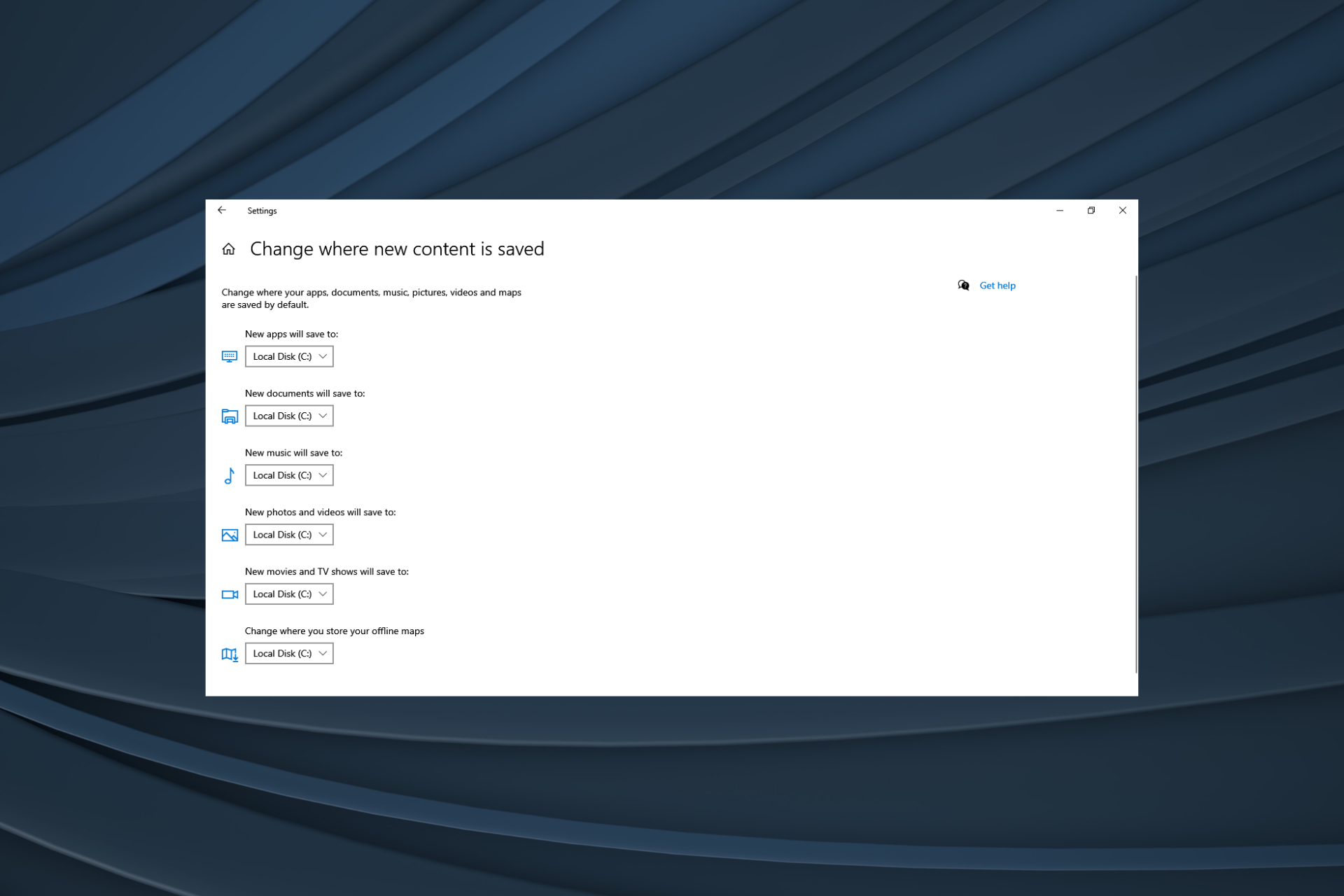
Windows 10 brings many features and options, including the ability to change the default save location for your files because we all want to set the desired location as the download path, instead of the default one.
You can choose if you want to save your documents, pictures, etc., to the system or external drive. So let’s find out how to set the default save location in Windows 10.
Can you set a default save location in Windows 10?
Yes, you can choose the drive to which new files get downloaded. And Windows 10 allows you to select one for each type. Here are the items for which you can configure the download path:
Apps
Documents
Music
Photos and videos
Movies and TV shows
Offline maps
Also, if you get the We couldn’t set your default save location error in Windows 10, a quick solution entails taking full folder control or creating a new user account. Or if you are trying to save content to an external drive, ensure it’s connected properly.
How do I change my default save location?
Tip
Earlier, users could only set the default save location for files, be it documents, files, or photos, but Windows now also allows them to configure the drive where apps are saved.
Via the Settings
Press Windows + I to open Settings, and click on System.
Select Storage from the navigation pane, and click on Change where new content is saved on the right.
Now, select the drive for each file type from the dropdown menu.
After making the change, click Apply to save the changes.
That’s it! This way, you can configure the default save behavior location in Windows 10 and better manage the disk space.
As tech enthusiast, we seek out headlines and news about our favorite products and companies. Recent news sources seem congested with stories of Apple and Google smartwatches, connected homes, rampant increase in credit card/account information hacks and mobile payment solutions. Each of these trends speaks to the future of IoT. With each new headline, we see two of the three well-known consumer facing tech companies attempt to tackle the new IoT’s frontier.
Apple is looking to capitalize on the army of developers who have made iOS the default developing platform. They’re taking app innovations and integrating them into their watch, to market their expanding growth into the IoT. Meanwhile, Google bought its way into the homes with Nest, retooling Google Glass, refining the Android Wear experience, and slapping Android Auto on cars shipping this year. At this point, many are questioning whether or not the IoT will pass Microsoft by like mobile innovation arguably did.
Depending on how you look at it, Microsoft may be looking at the bigger picture through seemingly smaller endeavors. Kwik Chek, a Texas-based convenience store, has partnered with P97 Networks, PetroZone Mobile Commerce, and PetroZone Retail Fuels Module to create consumer convenience technologies that run on top of Microsoft cloud services. The new technologies target a customer experience with mobile phones to gas pumps, store point of sale (POS) terminals and loyalty programs. While not as flashy as watches and cars, this has the potential to be a huge business for Microsoft.
Industry estimates say there are 151,000 convenience stores in North America. The convenience store business posted a $696 billion in 2013. Kwik Check alone operates 39 store locations in Texas and Oklahoma. Microsoft is using its cloud-based platforms, Microsoft Azure and Microsoft Dynamics AX as the connected tissue that powers Kwik Check’s mobile and in-store solutions.
The Azure part of the Kwik Check’s integration tackles analytic insights into things like loyalty programs. Each purchase a customer makes, they acquire points towards future discounts or benefits. With this purchase information, the convenience store can better populate their inventory which reduces cost and marketing.
“Having customers’ data really helps us offer them the best possible service, customized to their preferences and needs. It’s really transforming the whole experience,” says Kwik Check CEO, Kevin Smart.
While Azure handles the information transferred to customer and stores through the cloud, Microsoft Dynamics AX helps to refine the in-store POS. Dynamics AX modern POS works with interchangeable low-cost mobile tablets. The touchscreens are based on Windows technology and are intended to reduce training time and cost and provide quick transactions at checkout.
While Windows Phone users are looking for scraps of news about a mobile solution for the platform, Kwik Check, and PetroZone Mobile Commerce have an app that works with Windows, Android, and iOS. The app does quite a bit as well. Customers can seek out the nearest Kwik Check locations, reserve a pump and find out if each location is car wash ready, and whether it has an ATM and other services. Beyond the services, the app also uses secure, multi-factor authentication for more secure payments.
“When you have credit card information stolen, all sorts of damage can occur, from identity theft to charges online. With the PetroZone app, no cardholder data is ever stored or transmitted to or from the phone; even if you lose your phone, there are ways to wipe that phone remotely. It’s a far more secure method of payment,” says Smart.
As we can see, Microsoft’s ambitions and approach to the IoT things seems to be more of a play for foundation than it is for simply layering software. The IoT things are shaping up to be a bunch of connected devices that all report back to a central form of intelligence. Businesses, customers, and consumers can then check that bucket of intelligence to gain insight and information about themselves and the world around them. Microsoft seems like it Is positioning itself to be that repository of information regardless of device, service or platform.
A letter supporting “essential reforms to the USA Patriot Act” was sent today by Microsoft and members of the Reform Government Surveillance coalition and other civil liberty advocates. Their letter regards surveillance laws and the need to reform the current Patriot Act. This letter comes nine months after last year’s post on the same topic and two years after The Washington Post’s and Guardian’s original report on US government surveillance, brought on by revelations from Edward Snowden.
The letter sent today is shorter than their previous post but is backed by over a page of organizations. Here are the main bullets points from the letter
There must be a clear, strong, and effective end to bulk collection practices under the USA PATRIOT Act, including under the Section 215 records authority and the Section 214 authority regarding pen registers and trap & trace devices.Any collection that does occur under those authorities should have appropriate safeguards in place to protect privacy and users’ rights.
The bill must contain transparency and accountability mechanisms for both government and company reporting, as well as an appropriate declassification regime for Foreign Intelligence Surveillance Court
To more fully understand the context of this situation, it’s worth going through the key points of last year’s post as well. Microsoft listed five things they view the U.S. government needs to do.
“Recognise that U.S. search warrants end at the U.S. borders:” Microsoft points out that since the United States’ authority ends at its own borders that warrants have no jurisdiction outside of the country. A concrete example of this disagreement is Microsoft’s fight over data in the cloud. While Microsoft is headquartered in Redmond, they store data overseas which in their opinion cannot be seized by a warrant from the U.S. government.
“End bulk collections:” Microsoft expressed a desire to strengthen the USA Freedom act to prevent bulk collection of phone records and data. President Obama has already expressed similar feelings on the subject.
“Reform the FISA Court:” FISA courts are a controversial subject and Microsoft stated that “a judge who hears only one side of a case is less likely to render a just result. Congress needs to recognize and act on the need for FISA Court reform.”
“Commit not to hack data centers or cables:” A deep concern of Microsoft’s is the fact that according to the Washington Post “the National Security Agency hacked systems outside the U.S. to access data held by Yahoo! and Google.” They also pointed out that foreign bodies or governments hacking into data in the United States is considered prosecutable so there shouldn’t be a dichotomy between the two.
“Continue to increase transparency:” Microsoft gained the ability to release how many security-related demands they receive and also asked for more movement in the direction of transparency.
Between today’s letter backed by a long list of organizations, and their previous post on government surveillance, Microsoft has made a strong stance and may lead to a specific response from the White House and Congress. Microsoft emphasized multiple times the constitutionally guaranteed rights of American citizens outlined in the fourth amendment which ensures the right to not have things searched or seized without probably cause and a warrant.
Start Menu is an irreplaceable tool, but many are wondering how to disable web search results in the Start Menu.
One way to do that is to use a Start Menu replacement, but what if you want to keep the original Windows look?
In that case, be sure to keep on reading to find out more.
How do I make Start menu search use Google instead of Bing?
While it’s possible to use Google instead of Bing, the process requires you to make adjustments to your system, and in the end, it might just be a temporary solution until Microsoft patches it.
How can I disable web search results in the Start Menu?
Change Windows policies
Press Windows key + R and enter gpedit.msc.
Next, navigate to User Configuration and select Administrative Templates. Next, pick Windows Components and choose File Explorer.
Select Turn off the display of recent search entries in File Explorer search box.
Set it to Enabled and save changes.
Some users also suggest that disabling Bing in Windows Firewall might help, but we’re not sure if it will work, since Microsoft uses various servers for various regions.
That would be all, and now you should know how to disable web search results in the Start Menu. If you have other solutions, please write them down in the comments.




 This means that websites will only need to comply with DNT requests that are sent as a direct result of user choice. Should Microsoft keep DNT enabled, websites that receive requests from Project Spartan and IE for Windows 10 could argue that the requests did not come as a result of user choice and therefore choose not to honor it.