Microsoft has released the KB5055617 build to the Dev Channel for Windows Insiders using Windows 11, version 24H2. It brings huge changes to the Narrator platform, which is now enhanced with AI capabilities for improved performance.
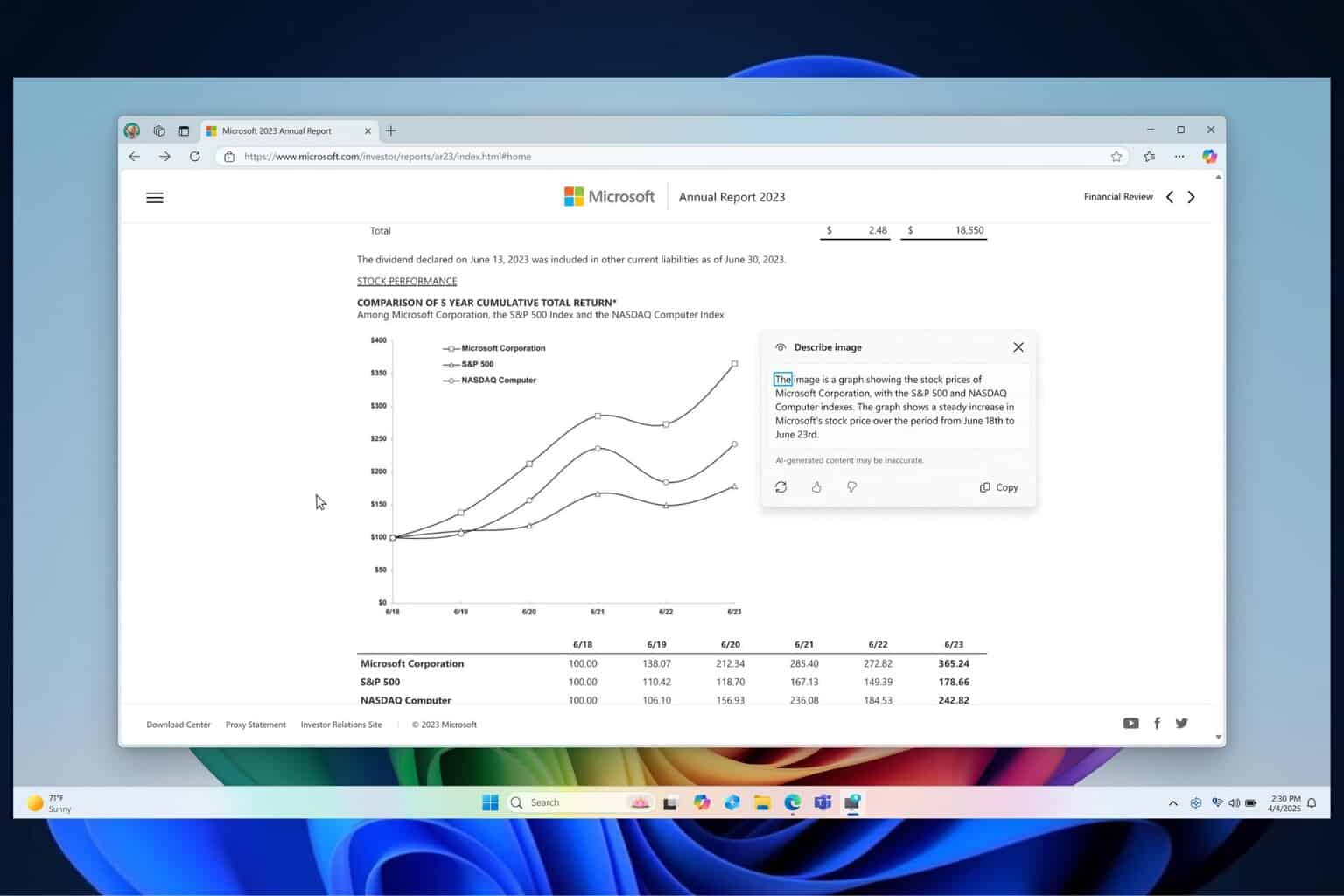
For example, the Narrator now provides detailed descriptions of images, charts, and graphs, enhancing digital accessibility for blind and low-vision users. Users can activate this feature with the shortcut Narrator key + Ctrl + D.
The Redmond-based tech giant says the feature can be used to generate important data in just a few seconds. It’s gradually rolling out to Snapdragon-based Copilot+ PCs, but support for Intel and AMD-based devices will be released soon.
Like the patch for Preview Insiders, KB5055617 also allows users to search for settings using natural language, making it easier to find what they need without remembering exact setting names.
This feature is powered by the advanced neural processing unit (NPU) on Copilot+ PCs, enabling offline semantic search.
For example, Microsoft says you can use your own words to find settings like “change my theme” or “about my PC”. You no longer need to remember the exact name of the setting you are looking for.
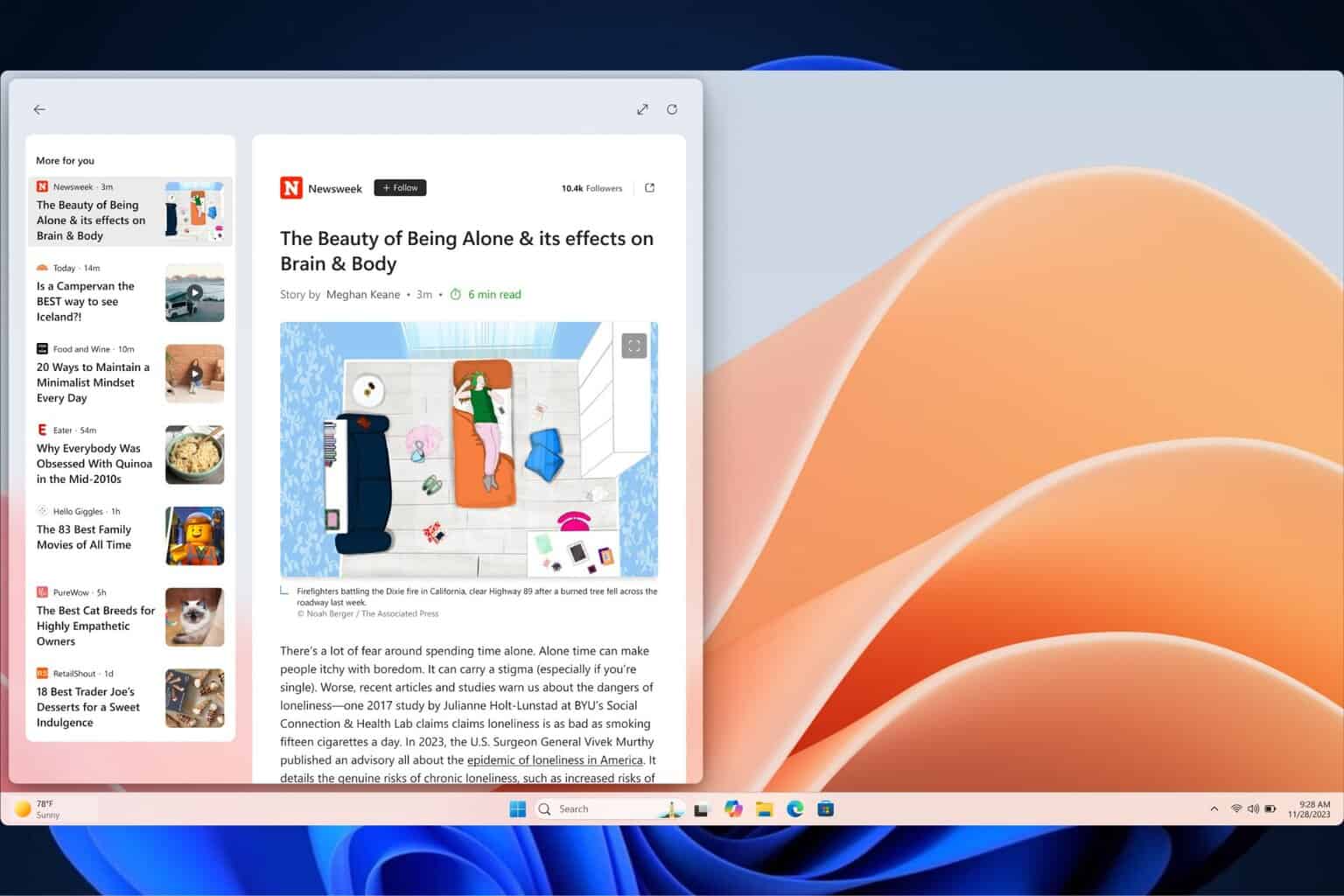
Finally, the patch also introduces the AI-powered widgets: The Widgets interface has been updated to allow users to read full articles, slideshows, and videos directly from the MSN feed.
Additionally, the Weather widget and other widgets on the Lock screen are now customizable.
KB5055617 also fixes many issues with Windows 11’s File Explorer, Taskbar, Desktop Icons, and Graphics.
Microsoft released KB5055613 to the Windows 11 Insider Preview Build channel, and with it, the Redmond-based tech giant introduced several innovative features aimed at enhancing user experience and accessibility:
First things first, thanks to the new AI-powered widgets, you’ll be able to watch videos in Windows 11 widgets. The Widgets interface has been updated to allow users to read full articles, slideshows, and videos directly from the MSN feed. Additionally, the Weather widget and other widgets on the Lock screen are now customizable.
The Redmond-based tech giant says the new feature is gradually rolling out to Windows Insiders.
KB5055613 also improves Windows Search in Windows 11: The search box on the taskbar now supports natural language queries, allowing users to find settings without remembering exact names.
For example, typing “change my theme” will direct you to the relevant settings page. This feature is powered by the advanced neural processing unit (NPU) on Copilot+ PCs, enabling offline semantic search.
Enhanced Accessibility with Narrator is also available with this patch: Narrator now provides detailed descriptions of images, charts, and graphs using AI.
This feature is particularly beneficial for blind and low-vision users, offering contextual descriptions of visuals, such as identifying people, objects, colors, and text in images. Users can activate this feature with the shortcut Narrator key + Ctrl + D.
Elsewhere, KB5055613 fixes many of Windows 11’s known issues, including bugs with the touchpad, desktop icons, or File Explorer.
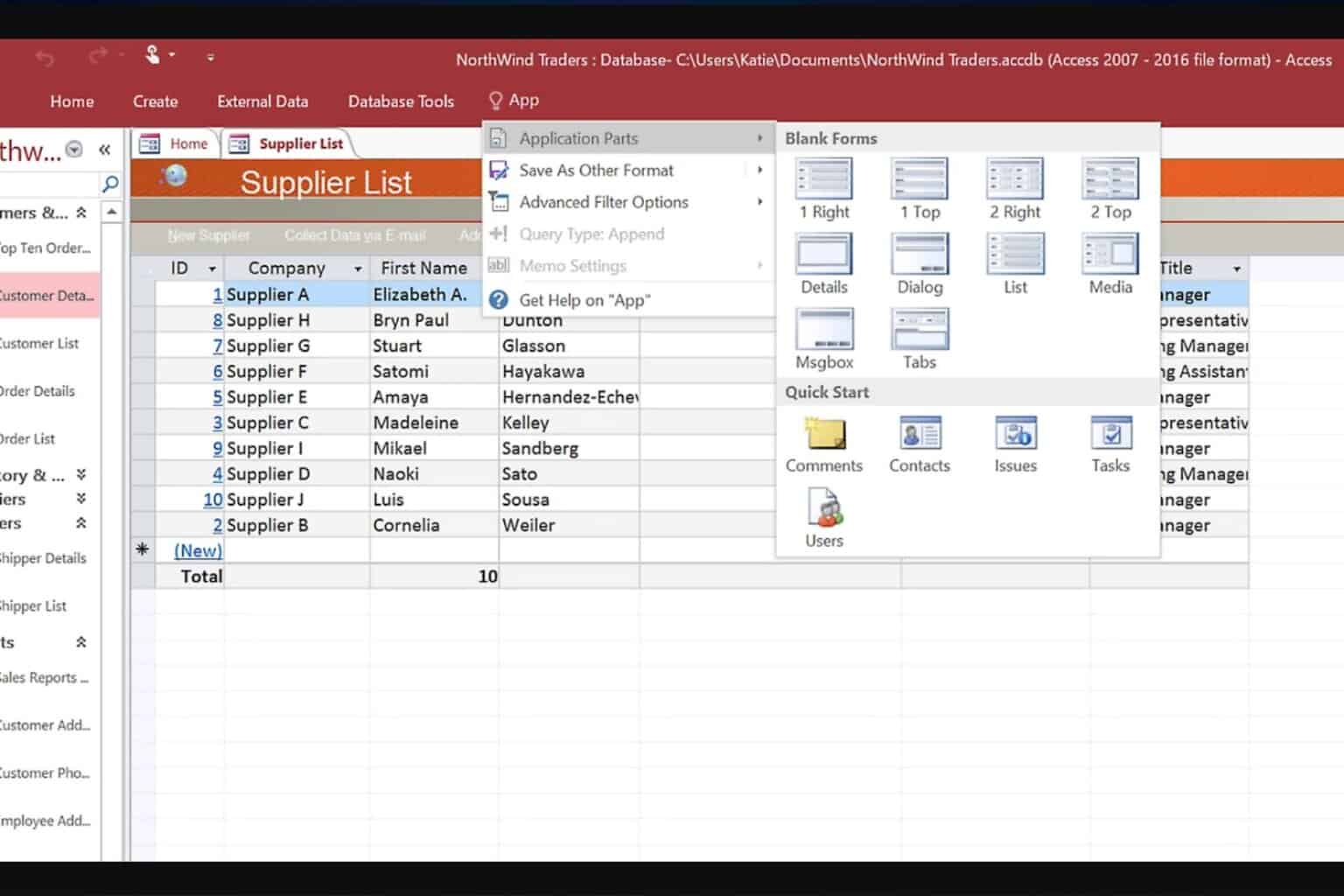
Microsoft has announced a significant accessibility enhancement for its database management tool, Microsoft Access: a new magnification slider. This slider allows users to gain greater control over their viewing experience, enhancing productivity and precision.
Announced in a recent entry to Microsoft Roadmap 365, the magnification slider will allow users to zoom in and out from 10% to 500%, making it easier to view and work with data in Access. This functionality mirrors features similar to popular Office apps such as Word, PowerPoint, and Excel.
The magnification slider will be keyboard accessible, enabling users to adjust magnification through shortcuts for greater inclusivity. It is also available on the ribbon, providing an easily accessible option within the toolbar interface.
Access will add magnification slider (10% to 500%) in lower right of the application, similar to the feature in Word, PowerPoint, and Excel. It will also be keyboard accessible and available on the ribbon.
This new feature is part of Microsoft’s broader efforts to enhance usability across its Office suite, and it will become generally available to all users starting June 2025.
Microsoft has unveiled a new feature to improve the accuracy of its threat detection services. As announced in a recent entry to the Microsoft 365 Roadmap, the Security Operations Center (SOC) teams and administrators can now provide feedback on threat analysis responses directly within the Submission experience.
With this update, SOC teams and admins can actively participate in refining Microsoft’s threat evaluation processes. If they disagree with the submission analysis—whether a false negative (a threat missed and marked safe) or a false positive (a safe item flagged as a threat)—they can now flag their disagreement and submit detailed feedback.
By enabling direct feedback, Microsoft aims to improve its algorithms and threat detection accuracy continuously, ensuring a safer digital environment for all users.
We are enabling the ability for SOC and admins to disagree with submission responses within the Submission experience and provide feedback to Microsoft on false negatives and false positives.
This capability allows SOC teams and admins to address discrepancies in threat assessments, ensuring quicker resolution of potential security concerns.
However, it will only be released in July, so there will be enough time for SOC teams and admins to be aware of it.
In similar news, the Defender platform will be enhanced with three new Advanced Hunting Tables that will greatly improve security in Teams.
Microsoft has announced significant performance improvements with the release of Edge 134, setting a new benchmark for speed and responsiveness in web browsing.
Edge 134 boasts a 3% to 9% improvement in overall performance, as measured by the Speedometer 3.0 benchmark. This industry-standard tool evaluates browser responsiveness in real-world scenarios, highlighting Edge’s advancements in speed optimization.
Between Edge 133 and 134, users can expect 1.7% faster navigation times, 2% faster startup times, and 5% to 7% improvement in web page responsiveness.
These enhancements are derived from field telemetry, representing real-world web usage across diverse hardware and websites.
In a blog post, Microsoft says these gains are thanks to its unique approach to optimizing speed and refining the Chromium rendering engine within Edge. Features like sleeping tabs and startup boost continue to play a pivotal role in enhancing performance.
The Redmond-based tech giant recently released the latest version of Edge, 135. The patch has introduced many new features to the browser, including trending suggestions and usage data sync.
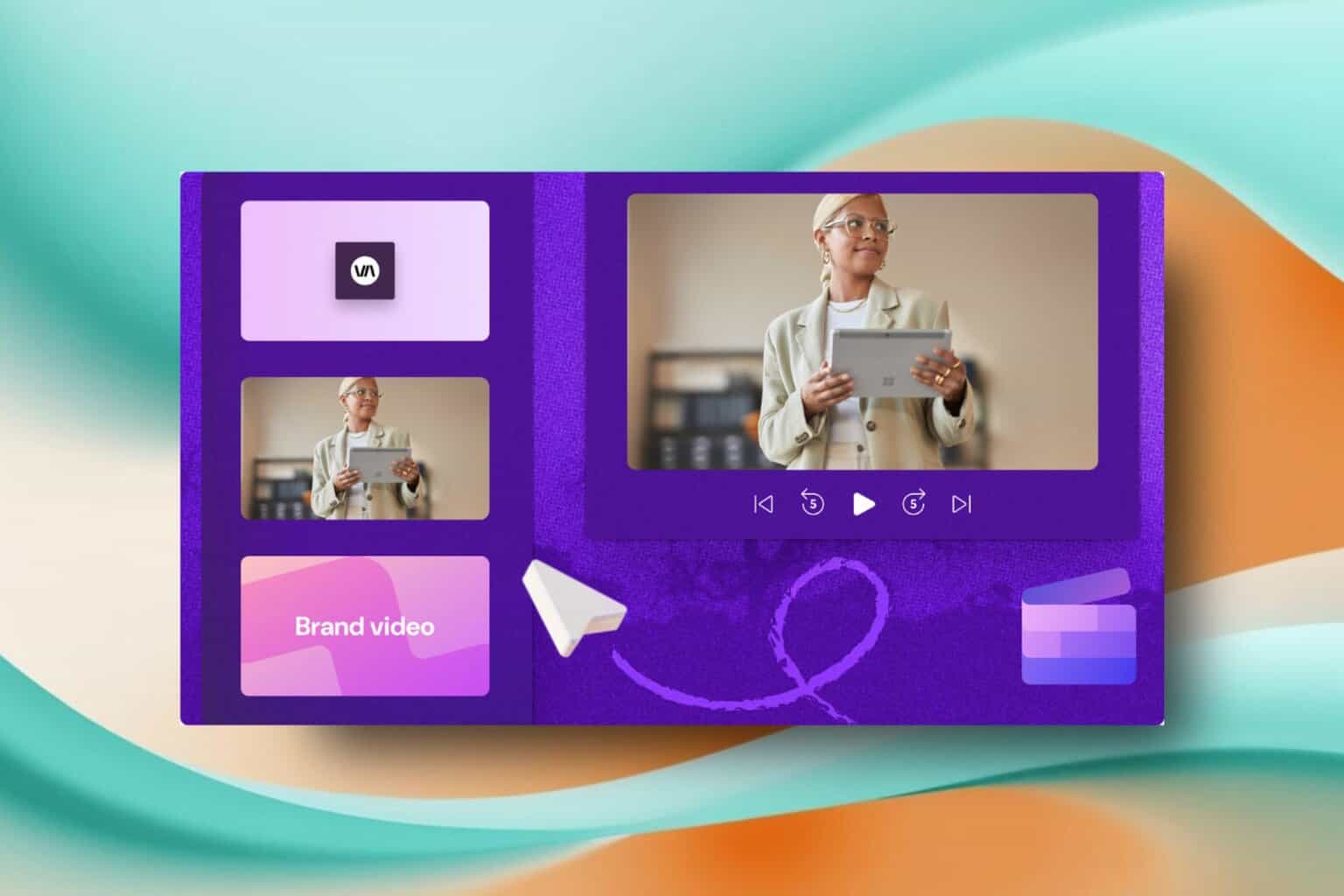
Microsoft has unveiled a new feature in Clipchamp for Work that promises to revolutionize video creation across organizations. The introduction of video templates aims to simplify and streamline the process, ensuring brand consistency and enhancing collaboration.
The new templates feature allows users to create and share project templates tailored to their team’s needs. These templates serve as a starting point for video ideation and production, making them ideal for various purposes, including:
Training and onboarding videos
Product demonstrations
Educational content
Internal communications
Marketing campaigns
YouTube intros
Users can seamlessly integrate templates into existing workflows by saving templates in OneDrive and SharePoint. Sharing and importing templates is straightforward, enabling better collaboration and efficiency.
Microsoft has officially announced the end of support for its Surface Hub and Surface Hub 2S devices, marking a significant transition for users of these collaborative tools. Support will cease on October 14, 2025, coinciding with the end of mainstream support for Windows 10.
The end of support means these devices will no longer receive security updates, fixes, or other assistance from Microsoft. Additionally, the Microsoft Teams app will no longer be available on these devices, urging corporate users to upgrade their meeting spaces to maintain functionality.
Microsoft has outlined several paths for users to adapt to this change:
The original Surface Hub will be entirely out of support after October 2025, with no hardware refresh options available.
Users can opt for a hardware refresh by purchasing the Surface Hub 3 Compute Cartridge, which includes updated hardware and Windows 11-based Teams Rooms. Alternatively, users can migrate to Teams Rooms on Windows using Microsoft’s free Surface Hub 2S migration offering until October 14, 2025. Switching to Windows 11 Pro or Enterprise is also an option for personal use.
While this change primarily affects corporate users, it also highlights the broader impact of Windows 10’s end of support. Consumer products like the universal OneNote app for Windows will also be affected, emphasizing the need for users to transition to newer platforms.
Microsoft has released Windows 11 Build 26100.3902 (KB5055627) to Windows Insiders in the Release Preview Channel, introducing an impressive array of AI-driven features to enhance user productivity and interaction with technology.
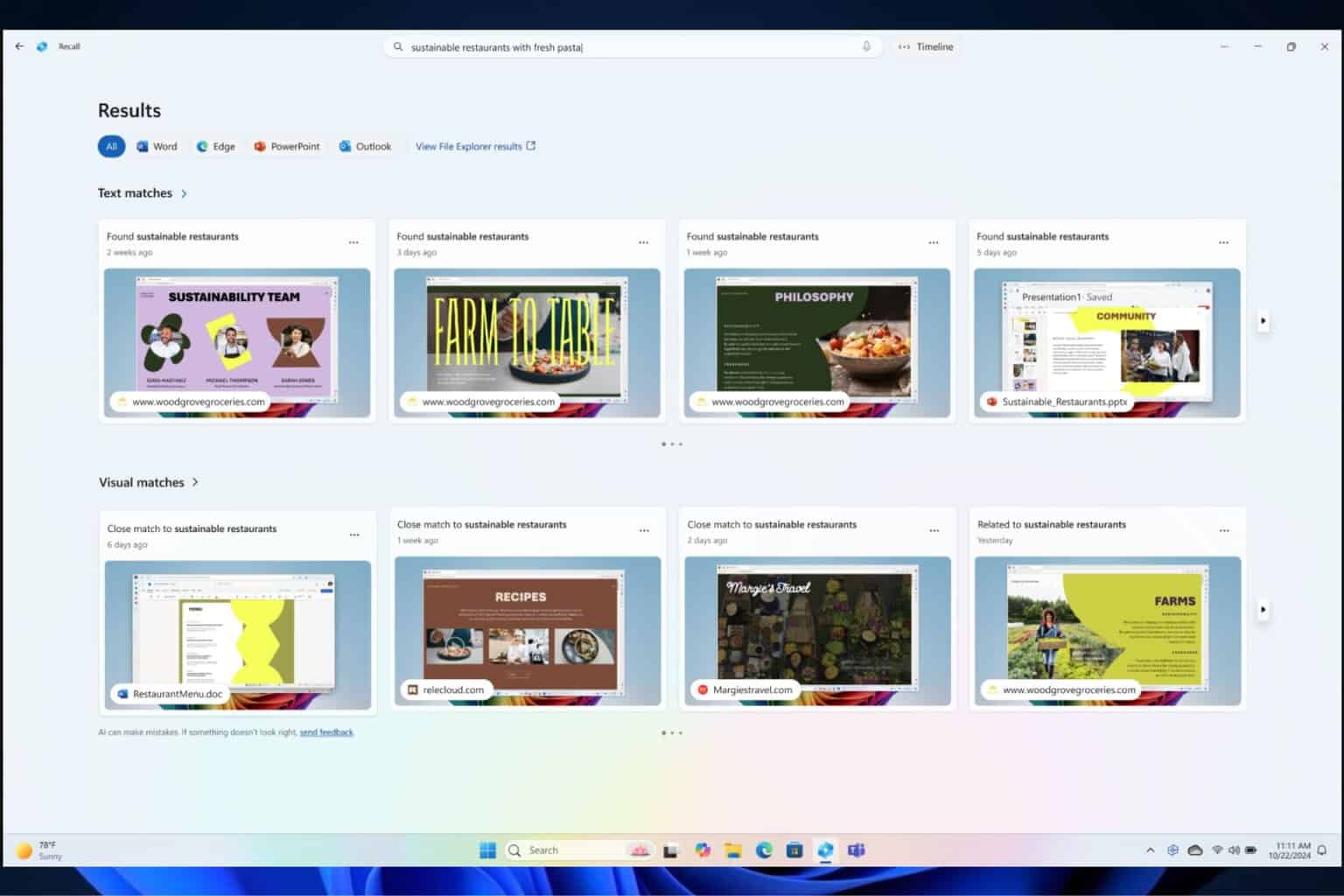
Recall introduces an innovative way for users to search for content they’ve previously engaged with on their devices. This AI-powered feature allows users to locate apps, websites, images, or documents by describing their content. Recall requires explicit user consent to save snapshots of their activity to ensure user privacy and uses Windows Hello for secure authentication.
KB5055627 also brings Click to Do closer to general availability in Windows 11, whether removing unwanted objects in photos or summarizing on-screen text. Users can activate this feature through a simple shortcut, such as pressing the WIN key with a mouse click or using WIN + Q.
KB5055627 also enhances Windows 11’s search capabilities. Semantic Indexing leverages AI to provide context-aware results, making search queries more intuitive and results more accurate.
Microsoft has announced that these features will be gradually rolled out, with availability dependent on device type and regional factors. However, these capabilities being available to the Preview Channel means that they’ll be available to all users in just a matter of weeks.
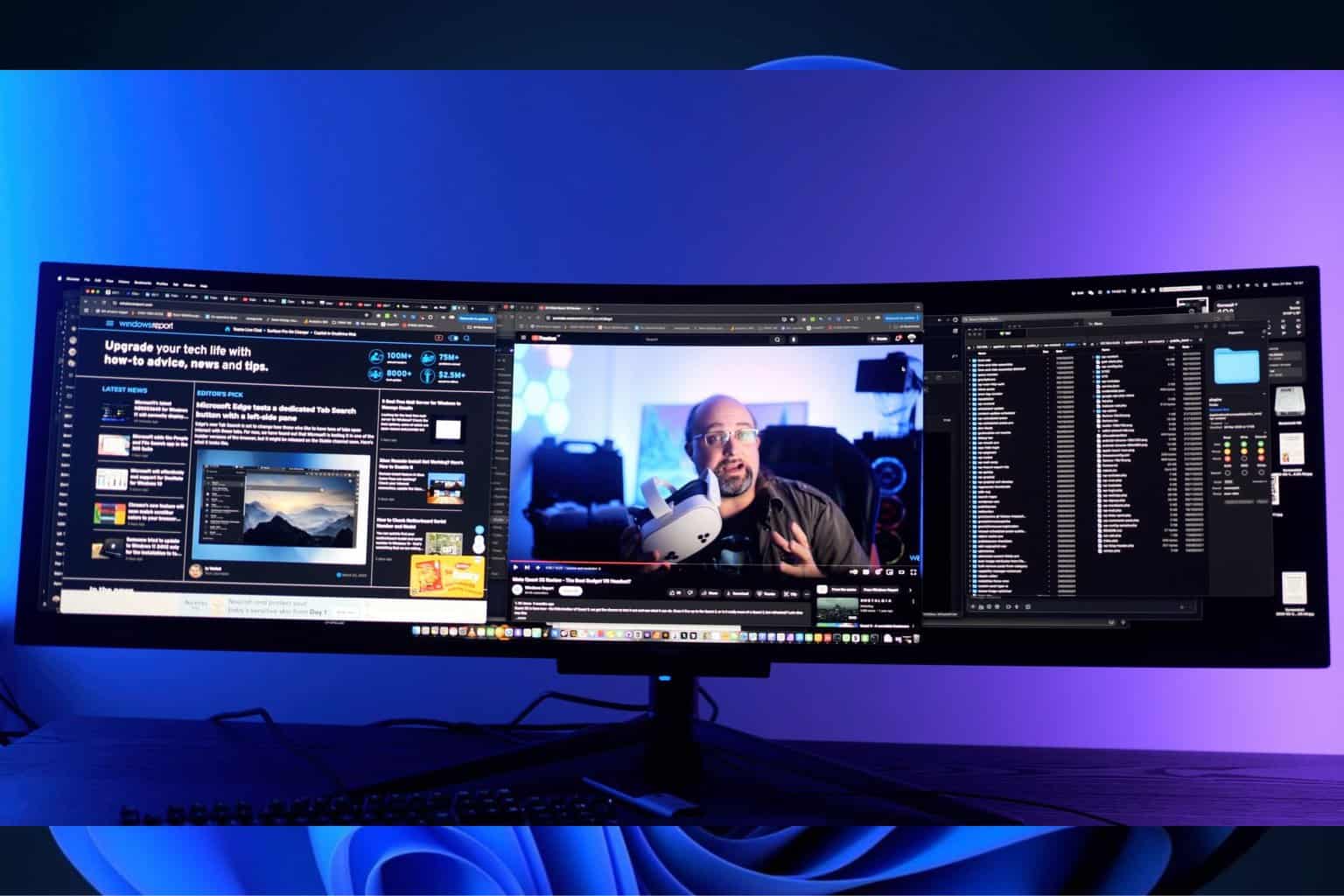
Some people deck their desks with dual—or even triple—monitors, always chasing that sweet screen real estate. And sure, that’s one way to do it. But it’s messy, disconnected, and frankly, rubbish for gaming. The InnoCN 49Q1R sidesteps all that by squishing two 27” widescreen displays into one mega, ultra-widescreen monster: 49 inches of glorious, continuous screen.
Now, I’m old enough to remember when 21 inches and 30 Hz on a cathode ray tube were considered the height of luxury. So the fact that we now have a 49” curved QD-OLED panel, running at 144Hz and 5120×1440 resolution—for around $1000 or less during sales on Amazon—is absolutely mind-blowing.
Let’s dive into how it performs and what living with a massive ultra-curved display is really like.
Dimensions and Build
No two ways about it: this thing is a beast. It’s 1.2 metres wide and needs about 37cm of depth on your desk. It weighs 15.6kg—not as heavy as I feared, but still enough that you should take care when unboxing. I left the screen portion inside its curved protective shell until I’d placed it exactly where I wanted it.
Tech Specs and Panel Details
The InnoCN 49Q1R is marketed as a 5K2K display, which means 5120×1440 resolution—also known as DQHD or “dual quad HD.” It has a 32:9 aspect ratio (twice as wide as a 16:9 widescreen) and an 1800R curvature. That number refers to the curve radius (1800mm or 1.8m), and it’s one of the more dramatic curves you’ll find—most monitors hover around 2000R to 2400R.
Now, I don’t have much experience with ultra-curved displays, but I’ve really come to love this one. It’s mostly a comfort thing. I found reduced glare, and more of the screen is angled naturally toward your eyes.
At this size and resolution, you’re getting about 110 pixels per inch. That’s plenty sharp. For reference, Apple’s “Retina” displays push over 200 PPI, but they’re also a lot smaller and more demanding on the GPU. At 110 PPI, it strikes a nice balance—sharp enough that I can only spot individual pixels if I lean in absurdly close. From a normal distance, it’s crisp.
It supports up to 144Hz, which is perfectly fine for most gamers. Hardcore esports types might want more, but 144Hz is a sweet spot. It also boasts a 0.03ms response time and has adaptive sync support, so it’s clearly geared for gaming.
Traditional OLED displays feature a distinct R, G, and B emitter for each pixel. The 49Q1R is a QD-OLED panel, which means each pixel uses a single blue OLED emitter that passes through “quantum dots” to generate the colors. Compared to standard OLEDs, QD-OLEDs can hit higher brightness levels and richer colors, but you still get the deep blacks and contrast you’d expect. In practice, there’s little difference unless you know what you’re looking for. It’s also a glossy panel, which further enhances those rich colors.
I ran a starfield test—used to reveal blooming and halo effects, which typically occur on screens with a limited number of local dimming zones—and saw none. OLEDs aren’t prone to this sort of issue, but I wanted to confirm that the QD-OLED wasn’t just marketing fluff for inferior tech. Top marks here: You won’t be disappointed by the picture quality.
Ports and Connectivity
On the rear, you’ll find:
2x HDMI 2.1
1x DisplayPort
1x USB-C (with 90W power delivery)
USB-A ports with an upstream USB-B
A wired Ethernet port (100Mbps, not gigabit)
The Ethernet port is a curious addition, but combined with the USB-C power delivery, it means the 49Q1R can double as a docking station with plenty of power to charge your device.
Device features are all controlled by a single, easy-to-use joystick. The interface for swapping between inputs is simple enough, though it can take a few seconds to switch.
Picture-in-Picture and Multi-Input Modes
As you’d expect from something this wide, the 49Q1R supports various Picture-in-Picture and Picture-by-Picture modes.
Most usefully, you can split the screen down the middle for two separate 16:9 inputs, which is great for multitasking across systems. There’s no peripheral sharing, though; this isn’t a KVM switch.
It also gets weirder with a full-screen phone input via USB-C. Yep, it has a phone mode. No idea when I’d ever use it, but it’s there, and it works.
What’s It Like to Use the InnoCN 49Q1R?
I’ve used this as my daily driver for about three weeks, and what surprised me most wasn’t the gaming but how absurdly useful it is for work.
I’m not great at focussing. I get bored quickly. I’ll write a paragraph, remember something I forgot to do, fire off an email, switch to some coding, bounce into a video edit, and then go back to writing. Until yesterday, I had 246 open Chrome tabs in one user session. Try managing that on a single 16:9 screen.
With this monster on my desk, I can see everything all at once. I barely use Alt-Tab anymore—I just glance left or right. It’s a productivity game-changer.
Also, that curvature reduces glare. I’ve got a huge window that catches the afternoon sun and was worried about reflections, but visibility has been excellent, even at just 250 nits. I don’t think a flat panel at 250 nits would cut it here, but the curve helps a lot.
Some say curved monitors are rubbish for productivity—great for gaming, but useless for spreadsheets. Allegedly, the lines curve and your eyes get tired. I tested this with Excel spread across the whole thing, and I didn’t notice any distortion at all. Maybe professional photo editors or very sensitive users might see it.
As for eye strain… I grew up being told not to sit too close to the telly. Now I’ve got VR goggles strapped to my face and a phone practically glued to my hand. I’ve always been short-sighted and it’s never worsened, so I’m calling that concern outdated.
Gaming on the InnoCN 49Q1R
Let’s be honest—this thing was made for gaming.
It’s worth noting, though, that not all games support 5120×1440. Some titles don’t play nicely, and while the monitor menu offers some compatibility workarounds to force a particular ratio, they can be hit or miss.
Cyberpunk 2077 worked great. Native support, although my poor RTX 3060Ti could barely manage 30fps. Remember, you’re effectively running 4K in terms of pixel count, just stretched wide.
LEGO Fortnite was a complete disaster. Only 16:9 resolutions are offered, and stretching looked awful. The compatibility modes didn’t work, and my only resort was to use the picture-in-picture mode to split the screen.
Cities: Skylines 2 looked glorious. The ultrawide view makes city planning feel genuinely next-level, and the wider view enhances information-dense games.
GTA V Enhanced ran beautifully. You get fantastic vistas of the city and great immersion when driving.
I also tried hooking it up to the PlayStation 5, but it wasn’t ideal. It doesn’t support 32:9 at all, so everything is stretched. You can do 1440p at 120Hz with HDR, but it’s basically just a 27” monitor with black bars on both sides.
Speakers
The 49Q1R includes speakers. They exist. That’s the kindest thing I can say. InnoCN claims they’re “surround sound,” but they’re muddy, mid-heavy, and frankly not worth using. Slightly better than the ones in my Mac Mini, anyway. Gamers likely won’t care.
Who Should Buy the InnoCN 49Q1R?
It’s marketed as a gaming monitor, but in my experience, it’s fantastic for productivity, too. I’m not a professional creative, so maybe I’m not sensitive to minor distortion, but I didn’t notice anything while editing video or wrangling spreadsheets.
If you’re juggling multiple apps, managing complex workflows, or just like the idea of seeing everything at once, you’ll love this. The curve helps reduce glare, and yes, you do have to turn your head a bit—but no more than you would with dual monitors.
Gaming-wise, it’s stunning. Rich colours, deep blacks, good brightness, and as immersive as you can get outside of VR. But you’ll need the hardware to drive it, especially if you want to hit 144Hz. Console gamers? Skip it. You won’t benefit from the extra real estate—it’ll just show up as a stretched 1440p screen.
The obvious comparison is the Samsung Odyssey OLED G9, which offers a higher 240Hz refresh rate but costs around $1400. There are cheaper Odyssey models too, but most lack USB-C and any kind of smart features like split input modes. Also worth noting is that the Samsung G9 series has had its share of problems—flickering, poor UI, and the dreaded “white screen of death.” Early reviews of the InnoCN 49Q1R, on the other hand, are very positive.
Overall, the InnoCN 49Q1R is a superb monitor at a fantastic price, packed with useful productivity features and very few compromises. It’s not just great for gaming but for everyday work use, too.
Starting this month, Microsoft will deprecate Windows UWP Map Control and Maps platform API within the operating system. The Redmond-based tech giant announced the deprecation on its official blog post,
However, despite the deprecation, the apps will still function but won’t be updated.
The Windows UWP Map control and Windows Maps platform APIs within Windows have been deprecated as of April 8, 2025. The Maps UWP Control and Maps platform support within Windows will continue to function but will not be updated.
The deprecation happened because Microsoft unified Bing Maps for Enterprise with Azure Maps, and due to it, Microsoft advised all organizations using the Windows UWP Map Control to move to the Azure Maps replacement.
This was back in 2024, with Microsoft giving organizations one year to migrate.
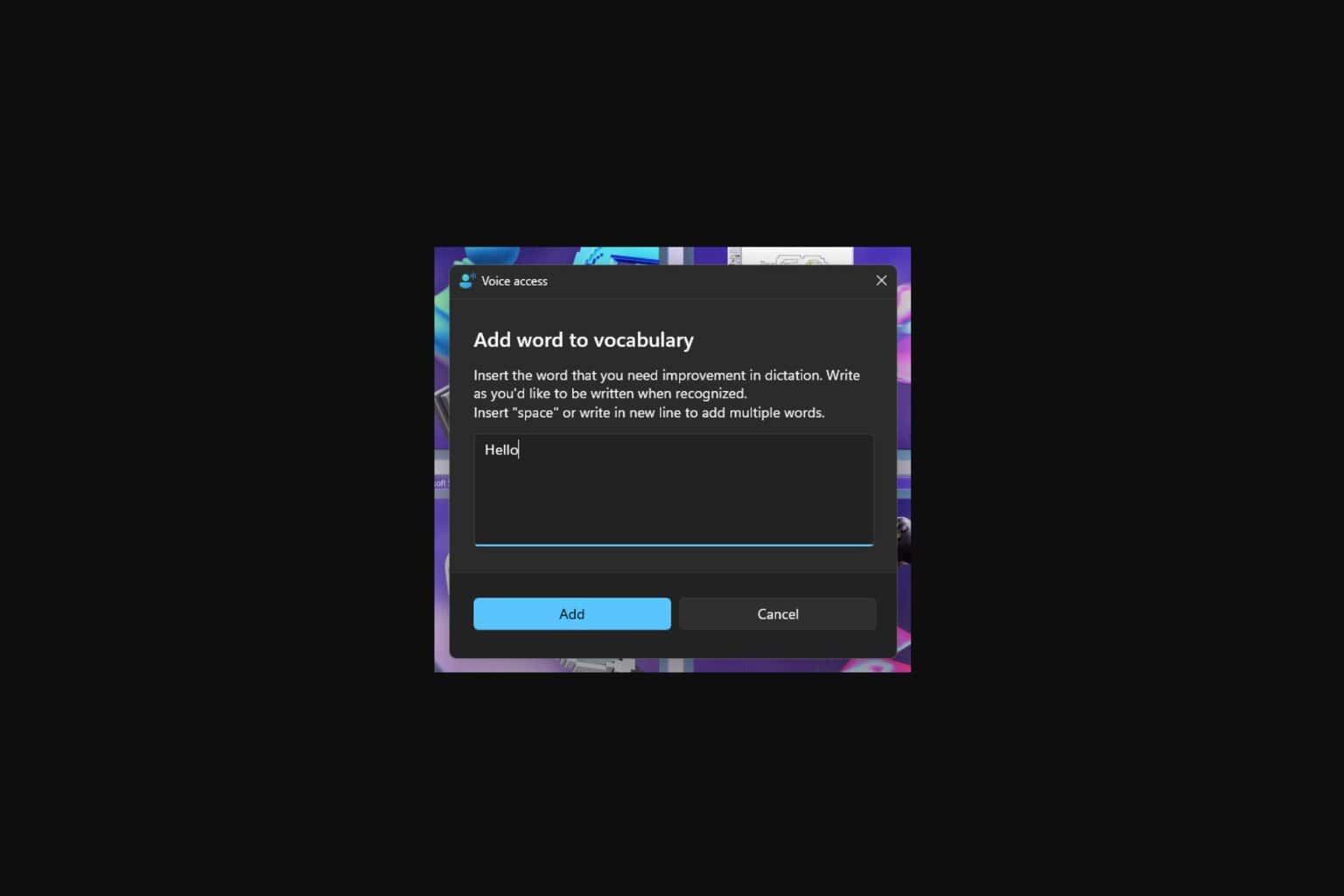
Windows 11 will allow users to add words to vocabulary to improve dictation of the voice access feature. The new capability will be accessed through a special option, and users will only need to add in the the words.
Tech enthusiast @phantomofearth spotted the feature in the latest Insider builds. The feature is hidden, but it can be uncovered using the third-party app ViveTool.
New voice access feature coming soon: the ability to add words to vocabulary to improve dictation. Hidden in 26200.5518 and 26120.3671. pic.twitter.com/gzqU8FtamW
The capability could give Windows users the means to perfect the voice access according to their needs, allowing for a deeper operating system customization.
This goes hand in hand with the latest developments of the Copilot tool in Windows, which is now capable of providing users with personalized content, such as personal podcasts.
Microsoft has enhanced Microsoft 365 Copilot to be able to repurpose content across its apps, including Word, Excel, PowerPoint, and so on.
According to the official blog post, the tool empowers users to seamlessly adapt existing documents, presentations, and other materials to suit diverse audiences and objectives with minimal effort.
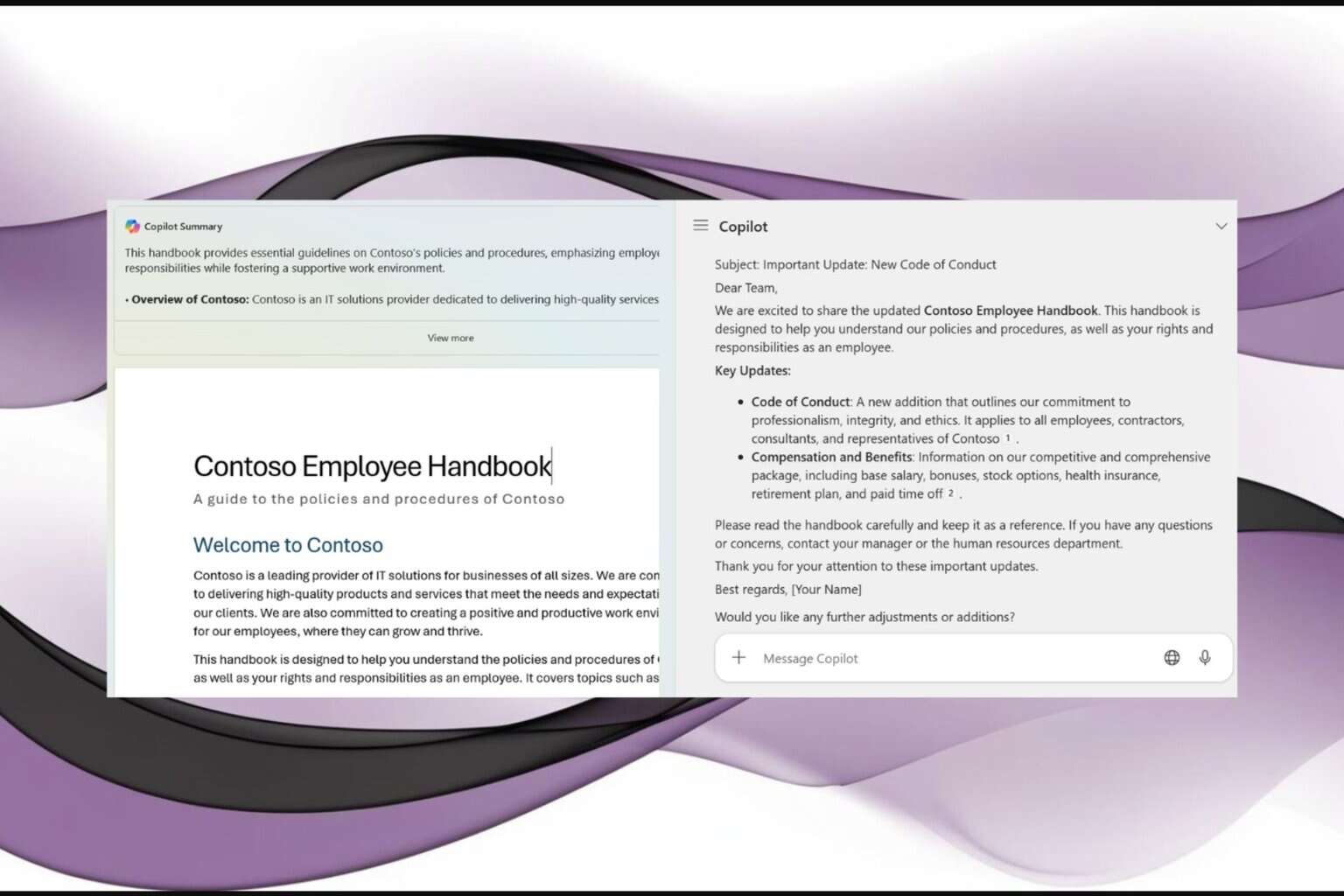
Whether simplifying an intricate employee handbook into a concise email, creating compelling presentations for onboarding new hires, or crafting eye-catching LinkedIn posts to engage external audiences, Copilot uses artificial intelligence to optimize content while preserving its relevance and impact.
For example, ebooks can be turned into emails, presentations, or whitepapers. A PowerPoint document can be turned into a Word document, and so on.
The AI model can also repurpose content for social media posts, including LinkedIn and other social media networks. You can visit Microsoft’s official blog for more information.
Microsoft has introduced a new feature in Classic Outlook for Windows, designed to streamline the meeting scheduling process.
This update introduces more innovative functionality. The application can now suggest optimized meeting options based on the details you provide.
According to the Microsoft 365 Roadmap description, when setting up a meeting within the scheduling form, Outlook will analyze key factors such as attendee availability and meeting preferences to propose the most suitable options.
This enhancement saves time and eliminates the hassle of manually coordinating schedules, enabling users to organize meetings more efficiently.
Classic Outlook for Windows will suggest meeting options based on your meeting details, helping you easily schedule meetings with optimized settings from within the scheduling form.
The enhancement will be added to classic Outlook next month.
Speaking of classic Outlook, the platform was recently updated to support AI agents.
The latest cumulative update for Windows 11, KB5055523, has left users scratching their heads due to the sudden appearance of a mysterious folder named “inetpub” on the C drive. This unexpected addition has sparked curiosity and concern within the Windows community.
According to Neowin, the “inetpub” folder, which is empty by default, is not protected and can be safely deleted without affecting system performance or processes.
Its presence may be related to Microsoft’s Internet Information Services (IIS), a platform for hosting websites and services. However, IIS is typically turned off by default in modern versions of Windows, leaving the folder’s creation a mystery.
Microsoft has not commented on the anomaly despite user speculation, leaving its origin and purpose unclear. While the folder poses no immediate harm, the unexpected change has made many users eager for clarification.
Earlier this week, the Redmond-based tech giant released this month’s Patch Tuesday updates, fixing hundreds of security issues, including one zero-day vulnerability.
Microsoft has officially announced the highly anticipated Xbox Games Showcase 2025, scheduled to stream live on Sunday, June 8.
This annual digital event always promises to deliver thrilling updates from Microsoft’s first-party studios and its valued third-party partners, and this year is no different. This year’s showcase comes with a bonus treat for fans of The Outer Worlds: immediately following the main event, there will be a dedicated presentation, The Outer Worlds 2 Direct.
Hosted by Obsidian Entertainment, this segment will dive into the development of the eagerly awaited sci-fi RPG sequel, offering an in-depth look at gameplay and additional exclusive insights.
The event will take place as it follows:
PDT: June 8, 10am
EDT: June 8, 1pm
BST: June 8, 6pm
CEST: June 8, 7pm
JST: June 9, 2am
AEST: June 9, 3am
Plus, Microsoft also wants to make sure you’ll be able to access the event on your preferred platform:
Recently, we reported Google is working with Microsoft to make Chrome’s scrollbar color match the browser theme. The flag responsible for that is now available in Edge Canary, and the feature works in Edge when you enable it.
Microsoft Edge, like Chrome, has scrollbars that respect the operating system theme settings or default browser styling. These Chromium-based browsers’ scrollbars do not automatically adapt to custom browser themes.
Like many contributions to Chromium, Microsoft has helped develop this feature to enable scrollbars to follow browser themes – improving personalization and making Chrome and Edge’s interface feel more integrated when using custom-colored themes.
Microsoft Edge Canary introduces a flag that allows the main scrollbar of the browser window to dynamically adjust its colors to match the Edge browser theme.
‘If enabled, makes the root scrollbar follow the browser’s theme color.’ — The ‘root scrollbar follows browser theme’ flag description reads.
Make the Scrollbar follow the theme flag in Edge Canary. Image Credit: WindowsReport.
Until now, if you apply image themes available in Edge’s appearance settings, scrollbars won’t follow them. Now, Edge’s scrollbars match them, including even if you install custom themes available in the Microsoft Edge Add-ons Store.
Before enabling make the scrollbar follow the browser theme flag. image Credit: WindowsReport.
We have tested various colored themes in Edge, including this theme from Microsoft from the Edge Add-ons Store—the scrollbar blended with the theme beautifully. This comes as another improvement in browser customization and personalization.
After enabling the Make scrollbar follow the browser theme flag. Image Credit: WindowsReport.
Microsoft’s theme-aware scrollbars align root scrollbar colors with browser themes to improve personalization and UI consistency. Fluent Scrollbars are ideal for this feature due to their simple design and high contrast, while CSS-styled scrollbars remain unaffected.
Fluent Scrollbars are enabled by default starting with version 133 and are set to become the standard in the future.
We also noticed themed scrollbars support Chrome’s internal pages, such as the New Tab Page, whereas Microsoft Edge doesn’t for NTP.
Microsoft has announced changes to its Teams desktop and virtual desktop infrastructure (VDI) apps to enforce updates and enhance security and compliance.
Starting in April 2025, versions of the new Teams client released more than 90 days prior will be blocked. Users must update to the latest version or switch to the web version of Teams to continue accessing the platform.
Key dates for the update policy include:
April 11, 2025: Blocking begins for Windows desktop app users.
May 6, 2025: Blocking begins for VDI environment users.
May 15, 2025: Blocking begins for Mac desktop app users.
To ensure users are informed, Microsoft will display an in-app warning banner 60 days before blocking occurs, with VDI users seeing the warning 30 days prior.
Impact and Recommended Actions
Organizations using outdated Teams versions risk app access being blocked, potentially disrupting workflows. Microsoft emphasizes updating the latest Teams version to ensure optimal security and functionality. Administrators are urged to:
Enable automatic updates for Teams to keep clients within the 90-day compatibility window.
Configure Microsoft AutoUpdate (MAU) correctly for macOS devices.
Verify that network and device management settings allow updates.
Ensure Windows policies do not interfere with updates for Teams or the Webview2 updater.
This issue primarily affected Kerberos Authentication devices with the Credential Guard security feature enabled. It led to authentication failures and marked devices as stale, disabled, or deleted.
While the problem was confined to enterprise environments and did not typically affect personal or home users running Windows Home Edition, it created significant challenges for businesses relying on Kerberos Authentication.
Microsoft resolved the issue in its April 2025 Windows security update (KB5055523) and subsequent patches. The update also temporarily disables the affected Credential Guard feature, which relies on password rotation, until a permanent solution is implemented.
Enterprise users are encouraged to install the latest updates to ensure their systems are secure and fully operational.
Microsoft will update the email subject header section to enhance the user experience when reading emails.
The improvements include changes to the header component that displays meeting information in meeting invitations and other similar sections.
One of the key highlights of this update is its responsive design. The subject header section will better adapt to available screen space, making sure that users can view the content comfortably on smaller devices, such as smartphones, or displays with high scale factors where elements are resized for better visibility.
The subject header section that shows up at the top when reading an email will be improved. This includes the component that contains meeting information when looking at a meeting invitation and other similar components. The subject header section will be more sensitive to available space and allow for a more comfortable reading experience when on smaller screens or on displays with high scale factors.
The enhancement will be added to Outlook this month.
Microsoft will unveil a new functionality in OneDrive for Web, allowing users to reduce the size of PDF files quickly.
This update, announced in a recent entry to Microsoft 365, offers a compress feature that provides three distinct compression levels, enabling users to tailor file size reduction to their specific needs.
The compression options include higher compression for significant size reduction, moderate compression for balanced results, and minimal compression to preserve quality while saving space.
OneDrive for Web now lets you reduce PDF file size with compress feature. You can choose from three different compression levels that best fit your needs.
This feature is ideal for users and admins looking to manage storage more efficiently or share files seamlessly online, mainly where size limitations apply. Microsoft says this enhancement will be added to OneDrive for Web this month.
Speaking of which, OneDrive has also recently changed how users interact with files and folders on the platform. The Redmond-based tech giant has enhanced it with a People View capability, allowing users to work with multiple files simultaneously.
Microsoft has updated Edge Game Assist, an in-game browser designed for PC gaming, with new features and improvements, including support for World of Warcraft, Assassin’s Creed Shadows, and Monster Hunter Wilds.
This means you can now use Edge Game Assist to help you complete quests, do your dailies, and make sure you have everything you need during your raid or M+ run.
Alongside the new support for these games, the April update for Game Assist makes the platform default to desktop versions of websites for better compatibility. It supports Edge sidebar apps alongside browser tabs.
It also expands extension support to sidebar apps and automatically switches to new tabs created by the webpage.
The April patch for Edge Game Assist also fixes many issues: the app will no longer open dozens of tabs at once. Based on users’ feedback, the Edge Canary/Dev version of the app will also remove the sidebar to maximize space for the webpage.
Other enhancements include an improved UI, streamlined navigation, and new keyboard shortcuts for managing tabs. These updates aim to enhance the gaming experience and make Game Assist more user-friendly, and complement the ones released last month.
Microsoft has announced new features for the Copilot app on Windows, which are now rolling out to Windows Insiders.
Copilot Vision is now available to all users. The feature, which was announced and released to Insiders a while ago, allows users to share browser or app windows with Copilot for analysis and insights.
For example, Copilot Vision will help users when shopping online, planning a trip, learning something new, or browsing the web.
Copilot is also getting the File Search enhancement that enables users to locate and ask questions about file contents directly within the app.
For example, users can ask Copilot questions like “Can you find my resume”, “Open the trip planning doc I was working on last week”, or “Look at my budget file and tell me how much I spent on dining last month”, and the AI model will look into files and provide answers.
File Search supports various file types, such as .docx, .xlsx, .pptx, .txt, .pdf, and .json.
Microsoft has released its April 2025 Patch Tuesday updates, addressing 134 security vulnerabilities across its products.
Among the most critical fixes is the resolution of an actively exploited zero-day vulnerability in the Windows Common Log File System (CLFS), designated as CVE-2025-29824. This flaw, a use-after-free bug, enables attackers to gain SYSTEM privileges, posing a significant security risk to affected systems.
The updates also tackle other high-priority vulnerabilities, including remote code execution flaws in Windows Remote Desktop Services and Microsoft Office, safeguarding users against potential cyberattacks.
To further enhance security, Microsoft has introduced Hash-based Message Authentication Codes (HMAC) for CLFS log files, a mitigation designed to protect against advanced threats.
Below is the full list of all the security issues addressed with this fix:
Microsoft released the April 2025 Patch Tuesday updates for Windows 11, and as always, these will enhance the security, stability, and functionality of Windows 11 across various versions. Key updates include:
KB5055523 for OS Build 26100.3775.
KB5055528 for OS Builds 22621.5189 and 22631.5189.
Both of these patches significantly enhance Windows 11’s stability, including resolving issues related to login and credential verification, ensuring a smoother user experience. Like Windows 10’s Patch Tuesday updates, KB5055523 and KB5055528 also bring updates for Chile that reflect the latest changes in time settings.
However, the patches also include fixes for unexpected feature behaviors, enhancing overall reliability and optimizations for AI-related components, likely targeting better performance and accuracy. Enhancements to the servicing stack are essential for delivering reliable Windows updates.
Additionally, Microsoft acknowledged known issues, such as problems with Roblox on ARM devices, and is working on solutions.
The updates address a variety of system issues and include quality improvements. For example, Microsoft released enhancements to system reliability to ensure smoother performance.
The updates also fixed a problem with thumbnail previews not displaying correctly in File Explorer, a common frustration for users. Additionally, Windows 10 will finally accommodate daylight saving time changes in Chile, keeping the system’s time settings accurate.
It’s important to note that support for Windows 10 is gradually winding down, with the official backing ending in October 2025. Users have already started to migrate to Windows 11, with the operating system amassing its biggest number of users since its release.
However, if you want to keep using Windows 10, you can opt for ESU, which is short for Extended Security Updates, but you’ll have to pay a yearly fee.
You can get KB5055518 from the Microsoft Update Catalog.
Hundreds of gamers on Reddit agree that Xbox might be the superior console from a pro-consumer platform perspective. In the console war between Microsoft, Nintendo, and Sony, where the latter two are always a step ahead in the competition, Microsoft seems to be winning gamers’ hearts with the extra services that are part of the Xbox console.
For example, someone on Reddit says that Xbox offers more attractive features, such as Game Pass or free next-gen upgrades from Xbox One to Xbox X, which neither Nintendo nor Sony does.
Moreover, Microsoft’s decision to release Xbox games for PC and PlayStation is another reason the company built the most pro-consumer gaming platform.
The same Reddit user goes on to state that if the next Xbox runs Windows and allows gamers to access Steam, it would only make it more accessible.
However, one of the most interesting perspectives comes from another gamer who states that Xbox losing the console war is the reason why Xbox is doing so much to become a pro-consumer platform.
Being a distant third means you have to do things to try and win hearts and minds. Remember when xbox were doing well after the 360 we got the full raft of anti consumer MS moves.
Others agree:
It’s not irony. When you’re losing you give it your all. When you’re winning you think you can get away with everything.
Xbox has been seen as the big loser of the console war, after the latest devices, Xbox Series S, and X haven’t managed to sell as much as PlayStation 5 or Nintendo consoles. However, Microsoft flipped the table and came up with Xbox Game Pass, a sort of Netflix for games, where users pay a subscription to access hundreds of games without paying for them. The model soon became an industry standard, and much of the Xbox revenue has been coming from it.
Is Xbox losing the console war the reason the company came up with alternatives? We don’t know for sure, but that’s the only logical answer if you think about it.
Microsoft has unveiled a new feature for its “Town Hall” events in Microsoft Teams, aiming to enhance event management and coordination. The update allows organizers to assign specific individuals as screen managers, granting them special permissions to oversee the event.
With this feature, designated screen managers can handle crucial tasks such as starting the event, controlling what attendees see, and ending the event when it’s over.
The enhancement was announced in a recent entry to the Microsoft 365 Roadmap, and it’s set to make these events way easier to manage. That’s always welcome, considering Town Hall events were recently enhanced to allow tens of thousands of participants at a time.
A new option in Town hall lets organizers designate who can manage the screen during the event. Now selected individuals will be able to start the event, manage what attendees see, and end the event, ensuring a smoother and more organized event experience.
The new enhancement will be added to Teams in May. Around the same time, the platform will be enhanced to hide sensitive information from being shown in such meetings, meaning these kinds of events will be even easier to manage.
Microsoft Teams Mobile will roll out a new feature to simplify how users share content during conversations.
According to a recent entry in the Microsoft 365 Roadmap, the newly introduced “content picker” feature offers an intuitive way to attach files, images, and other media directly from your mobile device. Users can easily access the unified attach flow with just a tap on the paperclip icon in the compose overflow menu.
This streamlined process makes sure that attaching content—regardless of its storage location—becomes hassle-free, boosting productivity and collaboration.
Why? Because the content picker integrates seamlessly into the Teams Mobile interface, and it allows users to easily attach a document from their phone or add an image stored in the cloud.
Introducing a new content picker for Teams Mobile! Attach any type of content, whether files or media, from the paperclip icon in the compose overflow menu. Our unified attach flow makes it easy and intuitive to attach content from any source location.
The roadmap says this new update will be added to Teams in June.
Speaking of Microsoft Teams, the platform will be enhanced to let users know when sensitive content is being shared in a meeting. This will successfully stop the spreading of confidential info or even unsafe-for-work content.
Microsoft Copilot is revolutionizing how users draft content by introducing advanced context-aware features.
Annoounced in a recent entry to the Microsoft 365 Roadmap, this enhancement allows users to reference additional resources seamlessly while creating or editing content, leading to more accurate and contextually enriched outputs.
So what does this mean? Well, traditionally, drafting with Copilot meant working directly with the content selected within the document. With this new approach, Copilot expands its capabilities by integrating contextual resources beyond the active text.
For example, if external documents or references are available, Copilot intelligently incorporates relevant details, making sure that the final draft aligns with the broader purpose and tone of the document.
Just like when you’re using Copilot to draft content on a blank line in your document, you can reference resources that provide context in addition to the content you’ve selected in your document.
This enhancement is set to be released in August in Microsoft 365, and it will impact Copilot across all platforms.
In a surprising turn of events, Microsoft has announced that it will not proceed with its ambitious $1 billion investment to build three data centers in Licking County, Ohio. The decision, confirmed on April 7, 2025, marks a significant shift in the tech giant’s infrastructure expansion strategy and comes weeks after it announced that it wouldn’t proceed with building data centers in Europe either.
According to the reports, the project, initially revealed in October 2024, was set to include facilities in New Albany, Heath, and Hebron. These data centers were expected to serve as critical components for Microsoft’s Azure cloud computing platform, addressing the growing demand for data storage and cloud technology. Construction was slated to begin this summer, with completion projected for December 2027.
Despite the cancellation, Microsoft has pledged to honor its development agreements, including funding roadway and utility upgrades. The company also plans to ensure that the land at two sites can be repurposed for farming. Additionally, Microsoft remains committed to supporting local communities through initiatives focused on digital skills development and restoration efforts.
Local officials, including New Albany Mayor Sloan Spalding, have expressed an understanding of the challenges associated with large-scale projects. Spalding emphasized the city’s continued engagement with Microsoft throughout the process.
While the decision to halt the Licking County projects may disappoint some, Microsoft has assured stakeholders that it will continue to evaluate these sites in accordance with its investment strategy.
Microsoft has released its new Copilot Gaming Experiences, an experimental program, part of Copilot Labs, which showcases the potential of AI to transform how games are created and played.
One of the standout features of Copilot Gaming Experiences is its ability to generate gameplay in real time. Using advanced AI models like Muse and WHAMM (World and Human Action Mask GIT Model), Microsoft has recreated a classic gaming experience—Quake II.
Unlike traditional game engines, the AI dynamically generates every frame based on player inputs, offering a unique and interactive experience.
While the AI-generated version of Quake II is still in its early stages, it provides a glimpse into the future of gaming. Players can explore a single game level, experiencing AI-driven visuals and interactions, as you can see in the features image above.
Copilot Gaming Experiences is definitely exciting, and it is capable of many gaming capabilities, such as improved frame rates and resolution. However, there are some limitations, including occasional environmental inconsistencies or stuttering.
In the official announcement, Microsoft says it envisions Copilot Gaming Experiences as a tool for developers, enabling faster prototyping and revitalizing classic games for modern platforms. With it, the Redmond-based tech giant wants to emphasize its commitment to innovation, blending nostalgia with cutting-edge technology.
Together with Copilot Gaming Experiences, Microsoft also released Copilot Podcasts, a platform that creates personalized podcasts based on users’ favorite topics.
What do you think about all these changes coming to Copilot?
Microsoft has announced the continuation of driver synchronization support for Windows Server Update Services (WSUS). This decision reverses the company’s earlier plan to discontinue the feature in April 2025.
The initial proposal to phase out WSUS driver synchronization was part of Microsoft’s broader strategy to encourage the adoption of modern, cloud-based driver management solutions.
However, feedback from organizations, particularly those relying on WSUS for disconnected device scenarios, prompted a reevaluation of the timeline. According to the official blog post, effective immediately, WSUS will continue synchronizing driver updates from the Windows Update service and the Microsoft Update Catalog.
Even though it has reversed the plan, Microsoft is also encouraging users to explore alternative technologies, such as Windows Autopatch and Microsoft Intune.
Now is a good time to start exploring ways to use alternative in-support technology for better security and productivity. Consider what’s available for Windows 11 devices through Microsoft Intune and Windows Autopatch.
WSUS was supposed to be deprecated this month, and Microsoft announced it a while ago so that users could prepare to migrate to the alternatives. However, this is no longer the case.
Microsoft continues its commitment to refining the Windows 11 experience by releasing Insider Preview Build 22635.5170, or KB5055623, for the Beta Channel. This latest update introduces new features, enhancements, and fixes to improve beta testers’ usability and overall system stability.
One of the standout improvements in this build is the update to File Explorer, which now allows users to open folders in new tabs by default. This enhancement streamlines file management, making multitasking even more efficient. The update also addresses issues that previously led to crashes during file operations, ensuring a smoother user experience.
KB5055623 also addressed the Start menu. Improvements to grid and category views enhance navigation and accessibility. However, Microsoft has acknowledged known issues with the new Start menu views and encouraged testers to provide feedback for future refinements.
The build has one known issue: when right-clicking on an app, the “Start settings” context menu flashes before the app’s context menu appears.
However, the Redmond-based tech giant will most likely address it in the following patch.
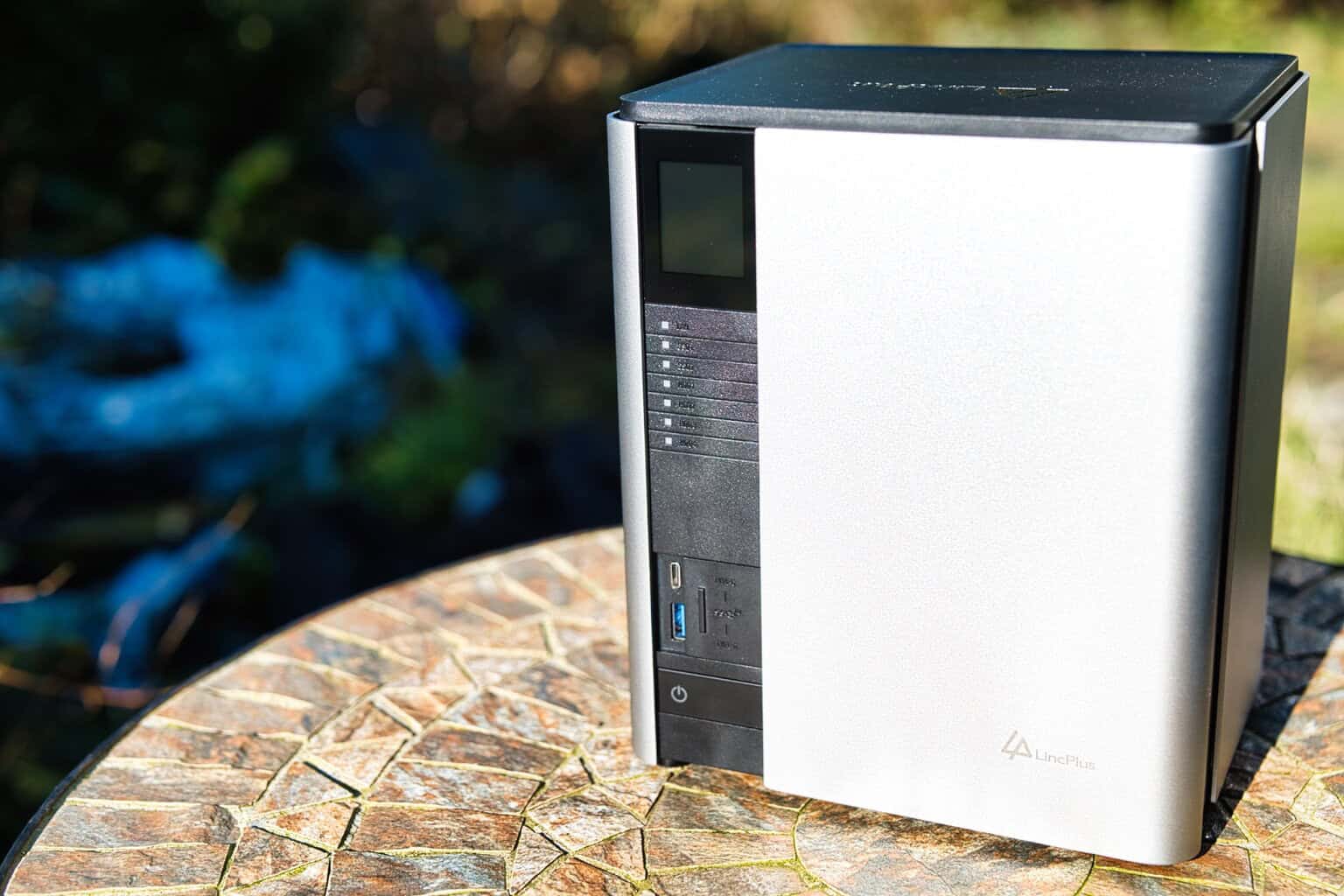
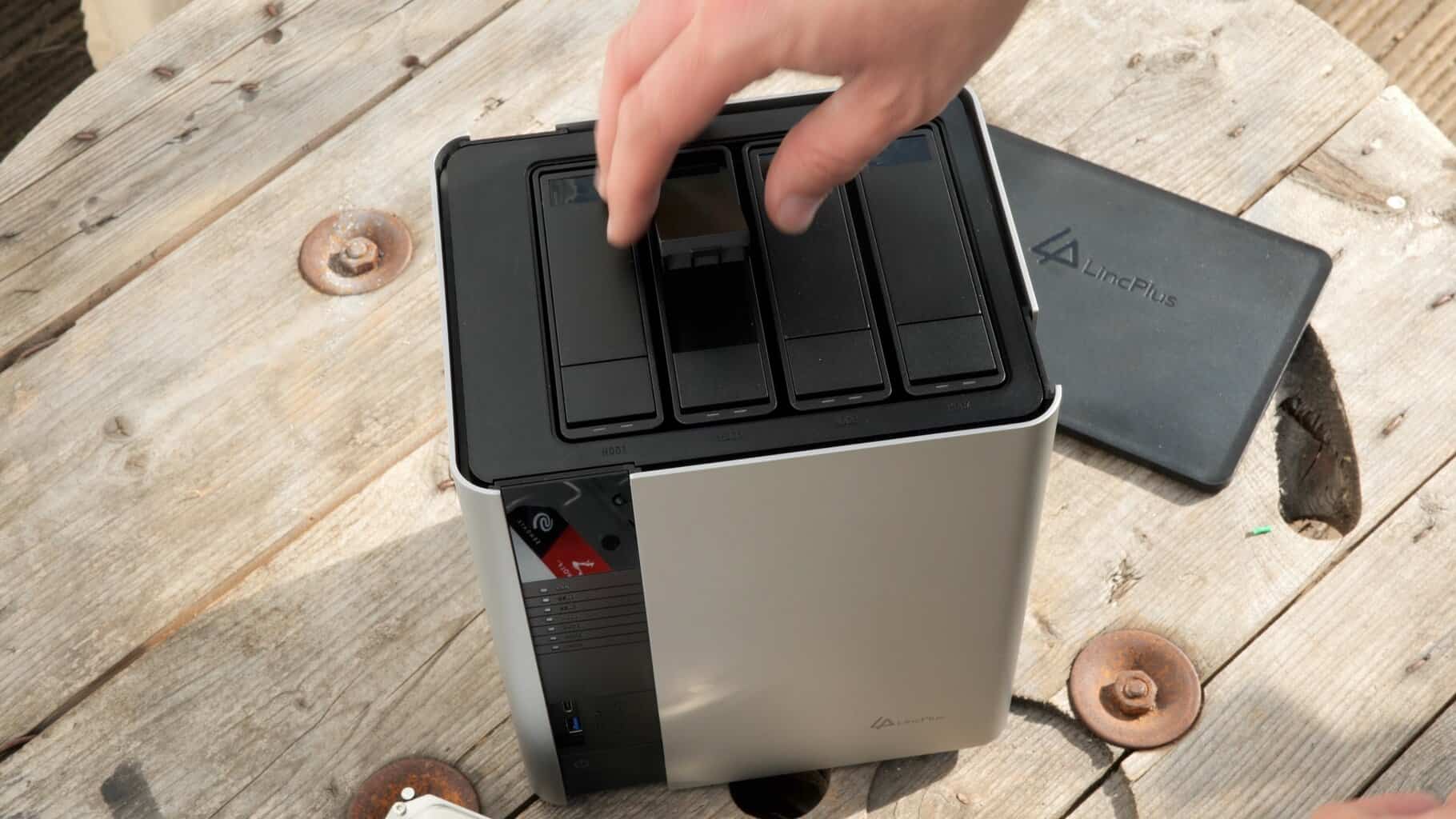
The LincStation S1 is the latest in LincPlus’s budget NAS series, designed to accommodate up to four full-size HDDs, with two NVMe SSD slots, 8GB of upgradable DDR5 RAM, and an Intel N97 CPU. It’s compact, efficient, and boasts excellent build quality. But that’s not what makes it special.
What makes the S1 genuinely interesting is that—rather than pushing some annoying proprietary OS—LincPlus has taken the very sensible decision to load it with UnRAID. That’s right: it’s a turnkey, prebuilt UnRAID server.
Out of the box, you’re getting a system compatible with thousands of virtual machines, apps, and Docker images, plus a huge existing community of users ready to help.
So is this the right NAS for you—whether you’re a first-time home user, a small business, or a networking enthusiast? Keep reading to find out.
This Is a Kickstarter
This is a pre-launch Kickstarter unit I received for testing. However, LincPlus had zero editorial input on this review—this review is not sponsored, and I won’t be pulling any punches.
Normally, I’d insert a standard Kickstarter warning here: don’t invest more than you can afford to lose. But in this case, LincPlus is an established company. I’ve reviewed their stuff before. This is not a prototype, and I genuinely don’t think there’s any risk here—it’s more of a marketing launch than a roll of the dice.
The campaign ends April 12th. The super early bird price is $430, with a retail price of $620. That’s for the unit without drives—expect to spend another $500–600 on storage depending on what you need.
Also, note that LincPlus is offering two models on Kickstarter. The other, the N2, uses NVMe and 2.5-inch drives in a slimline portable form factor. But the S1 is where it’s at for most users, especially if you’re looking to use good old-fashioned spinning disks for maximum storage value.
Specs Overview
The LincStation S1 offers:
CPU: Intel Alder Lake N97, quad-core, up to 3.6GHz
RAM: 8GB DDR5 SODIMM (user-replaceable)
Storage: 4 x 3.5” SATA bays + 2 x M.2 NVMe SSD slots
OS Drive: 64GB eMMC
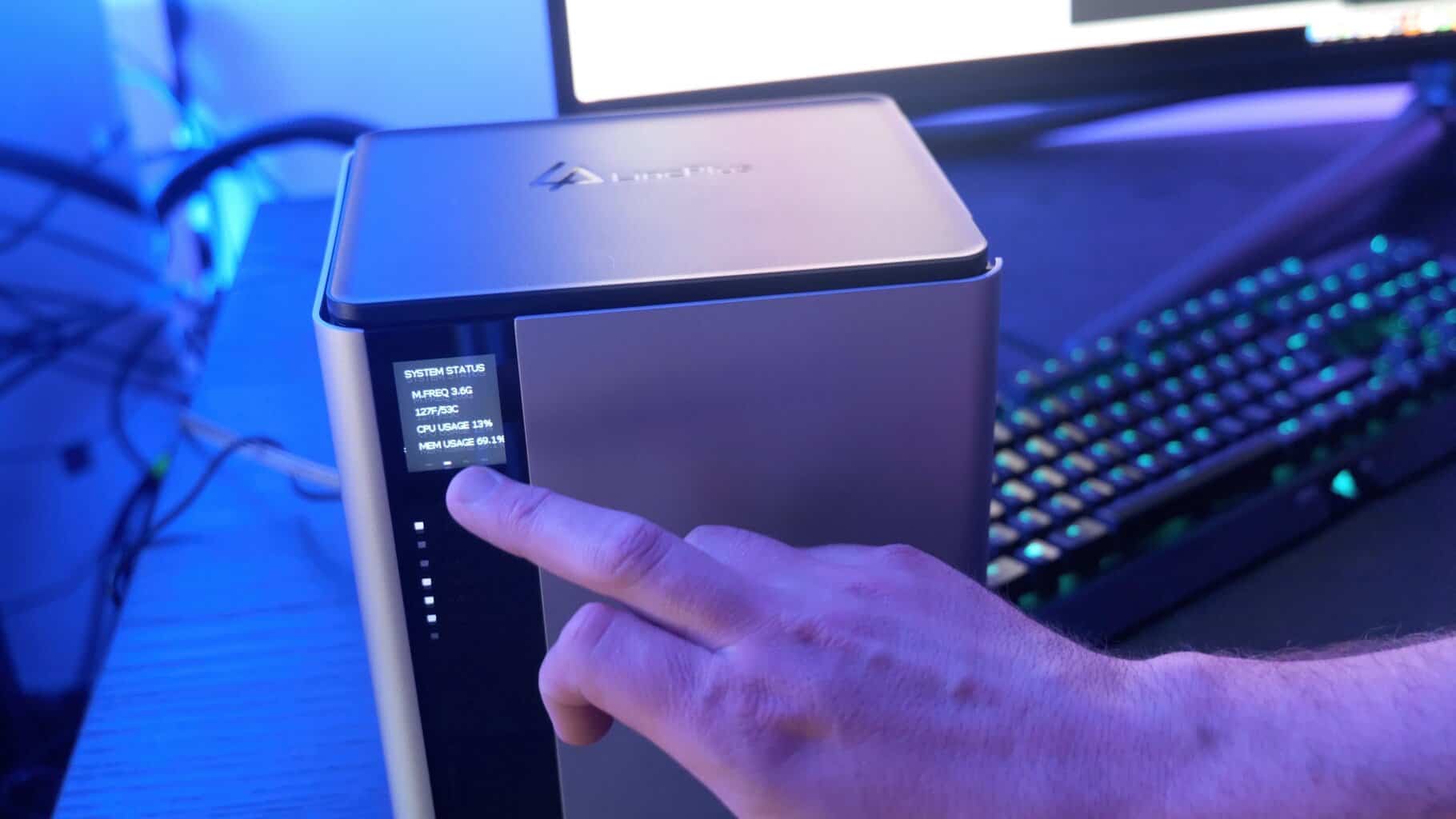
Display: 1.77” touchscreen
Networking: Dual 2.5GbE
Ports: 2 x USB-C, 2 x USB 3.2, 2 x USB 2.0, 1 x HDMI 2.0
The touchscreen offers basic system info like IP address. Personally, I prefer using the mDNS hostname—by default, just type tower.local into your browser or connect to smb://tower to access the file shares.
As for those dual 2.5GbE ports? Realistically, you won’t saturate them with just SATA drives alone, which top out around 150–200MB/s total—but you might see some benefit if you add NVMe caching drives.
The HDMI port is a bit odd to see on a NAS. You likely won’t use it, but it does give you access to a terminal, which could be handy for diagnostics or troubleshooting. In theory you should also be able to run a media player on it—but that’s not really the point of a NAS.
Design and Build Quality
This is one of the better-looking NAS boxes I’ve used. The drives slot in from the top behind a magnetic panel, and it’s a completely toolless install—just click the drives into place.
Removing the side panel reveals the upgradeable memory, M.2 NVMe slots, and even the BIOS coin battery—something you’ll be thankful for the day it inevitably needs changing.
There are seven LED indicators, a slide-out front panel revealing more ports, and—thoughtfully—toggles on the back to disable both the lights and the screen if needed.
Power-wise, it ships with a 120W brick, but in use it only draws about 20W idle, and up to 50W at full tilt. It’s compact, attractive, well-built, and keeps everything accessible. LincPlus has done a great job here.
That said, it does run dual fans for cooling, which push heat downward rather than out the back. It’s the loudest NAS I’ve ever reviewed—but it does stay cool.
Why Software Matters More Than Specs
Having played with a lot of NAS systems over the years, I’ve come to this conclusion: hardware matters less than software.
Synology, for instance, lead the way with the most user-friendly interface out there. It’s polished and beginner-friendly, with features like Hybrid RAID that let you mix and match drives with ease.
I’ve also used more powerful systems with far better specs, only to have the experience ruined by terrible software. You can’t underestimate how much of a difference that makes.
LincPlus’s approach with the S1 is bold but brilliant: they’ve bundled UnRAID—a rock-solid, mature, community-supported NAS OS—and included a full license key.
It comes preinstalled. All you need to do is set a password and activate it.
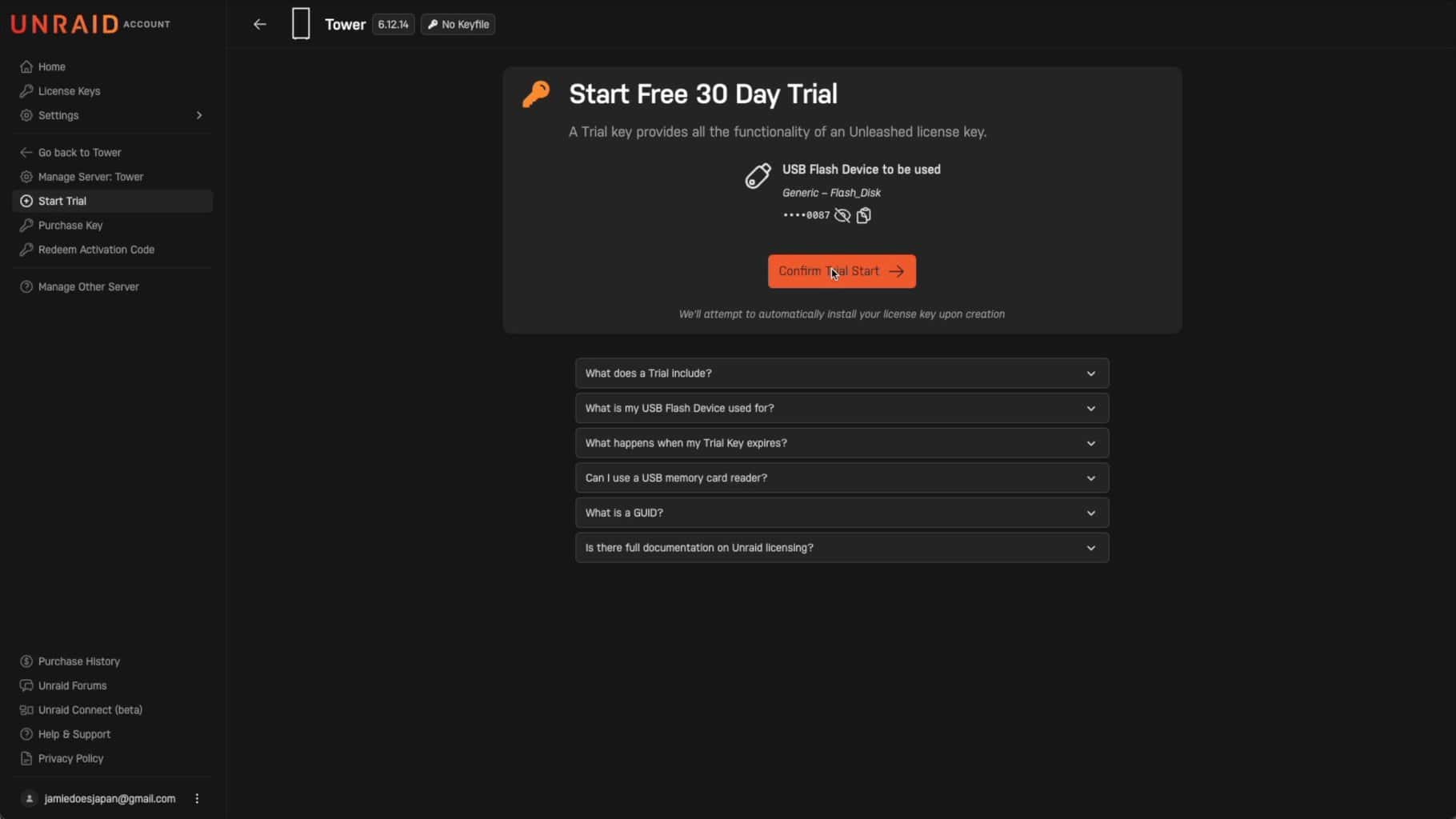
That said, I strongly recommend using the 30-day free trial first. Once you activate the included license, you can’t return the unit. So it’s worth making sure UnRAID suits your needs first.
The starter license lasts for one year of updates. After that, you’ll still get security fixes, but no new features—unless you subscribe at $36/year. Some people hate that, but frankly, UnRAID needs to fund development somehow, especially when they’re not selling hardware themselves.
I’ve not used UnRAID in over a decade. Last time I tried, it was on a full tower PC—far too loud and power-hungry to act as a 24/7 server.
The LincStation S1 fixes all that. It’s small, relatively power efficient, and packed with features.
Getting Started with UnRAID
Now, I won’t lie: UnRAID is not beginner-friendly. There’s no first-boot wizard, just a license activation screen, and then… well, good luck.
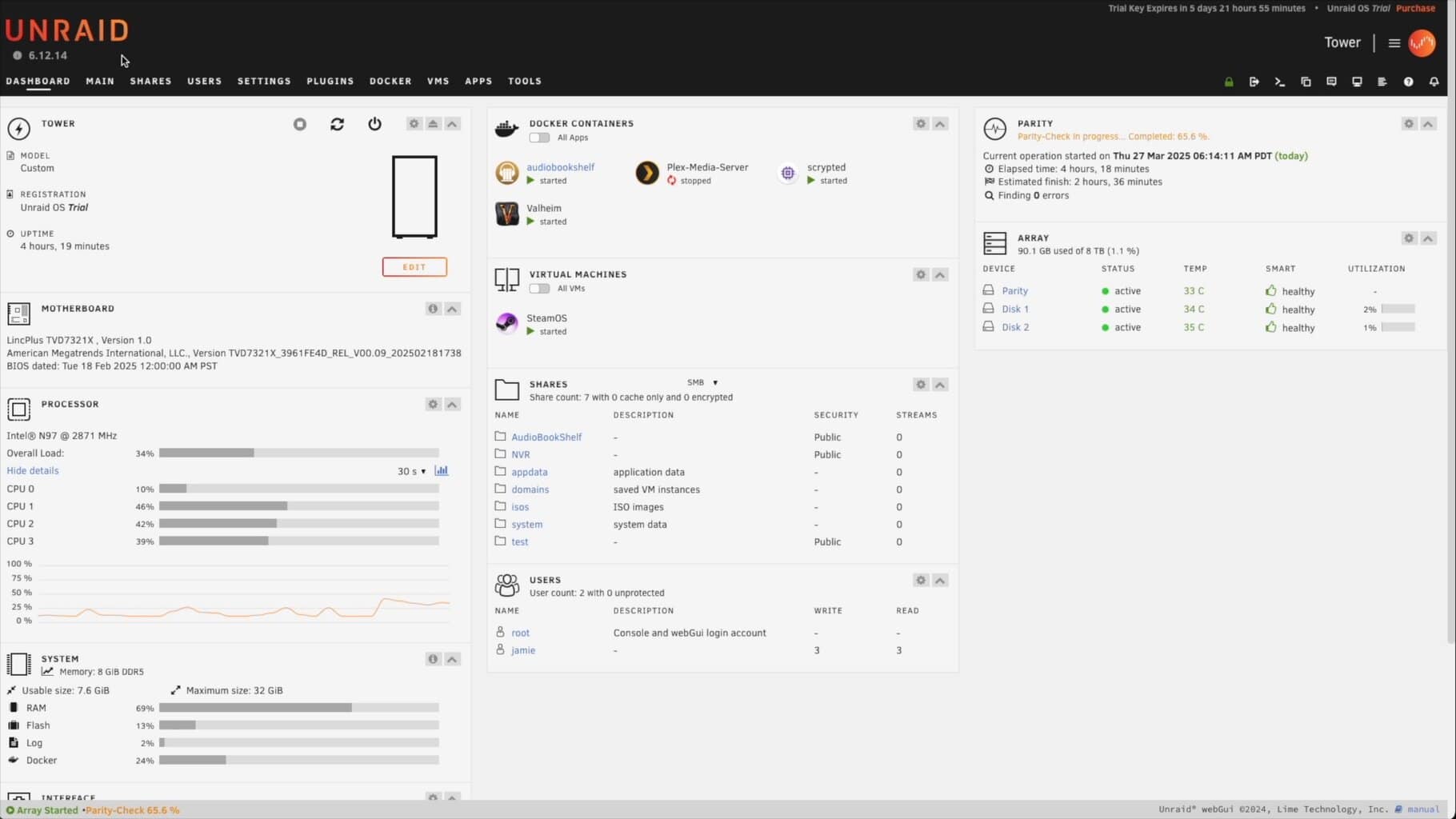
Fortunately, setting up your drives is relatively simple. I used three drives.
There’s no need to understand traditional RAID levels here. You just assign drives to a pool and set one as parity. That’s your “backup” disk, in a loose sense—it holds enough information to rebuild data if a drive fails.
You can mix and match drive sizes, too, but your largest drive must be used for parity. And parity syncing takes time—on my setup, a 4TB parity sync took about six hours, during which your array is vulnerable.
UnRAID’s approach means files are written in full to one disk at a time. That’s great for data recovery, since you can pull a drive and still access files. But it does limit performance and file sizes to the size of your largest disk—so don’t try to archive 10TB .tar files on a 4TB disk. Traditional RAID setups are able to get a performance boost by striping files across all disks simultaneously; but your data is more vulnerable should the array go offline.
You’ll find two M.2 NVMe slots inside the S1. Don’t use these for bulk storage—SSDs have a limited write lifespan—but they’re perfect for caching or virtual machines.
Assign one as a cache drive, and anything you write to the array will be stored there first, then transferred later. This is invisible to the user—it still shows up in your file shares as normal, but behaves much faster.
UnRAID Frustrations
I’d be remiss if I didn’t mention the pain points. UnRAID is not intuitive. I had to look up some really basic things—like how to find the path to a share, or why I couldn’t access anything over SMB. Or how to actually view the file storage from the web interface (you can’t: there’s no built-in file browser!)
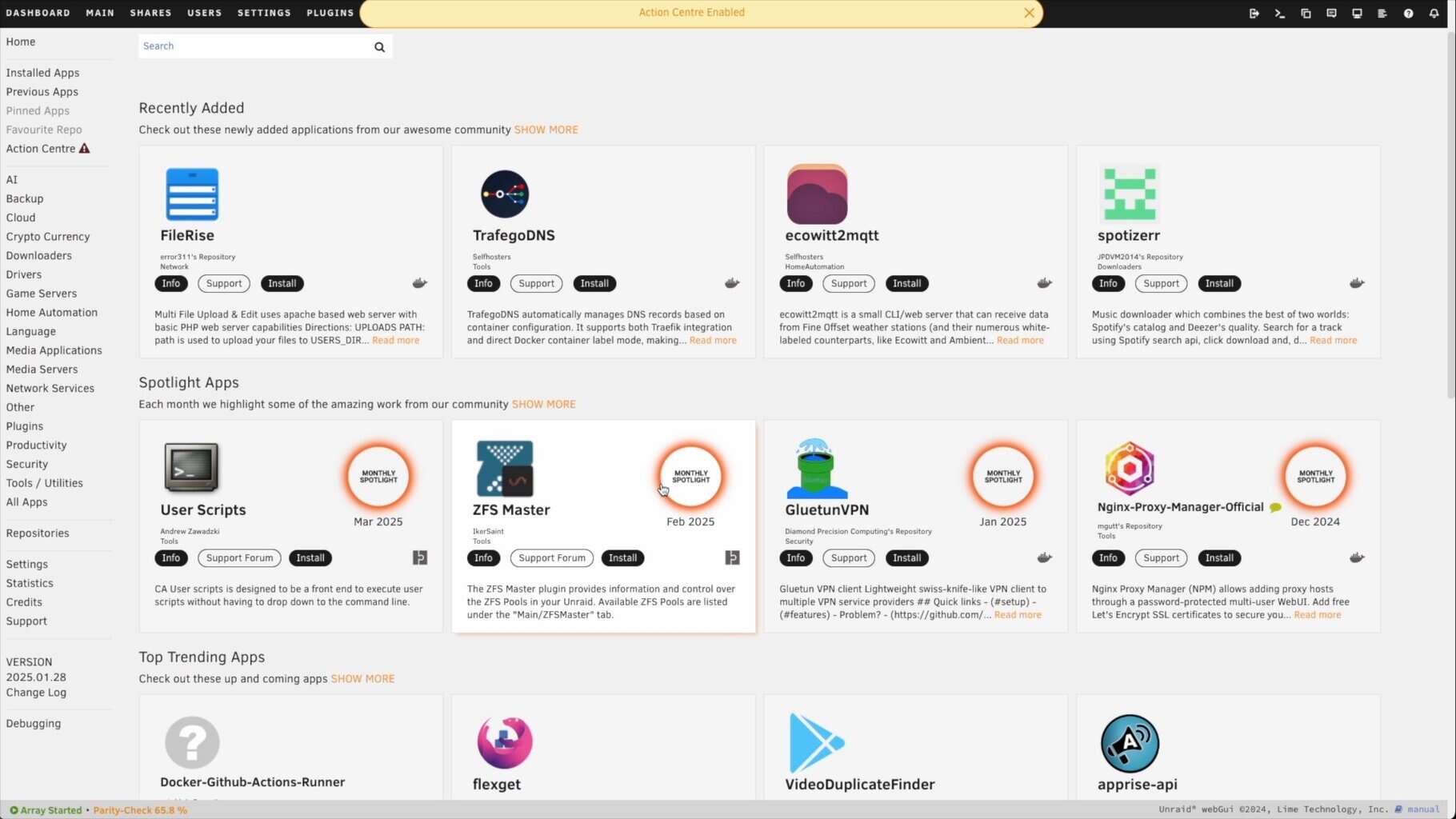
Install the Dynamix File Browser from the App Store immediately—it gives you a basic file browser, which should’ve been included by default.
That said, I managed to get some Docker images running without too much hassle: a Scrypted CCTV recorder, Plex media server, etc. I even tried installing SteamOS as a VM, but ran into some boot errors—likely user error, but it’s still frustrating.
If you’re new to UnRAID, watch a YouTube setup guide first. I probably have dozens of security holes right now. Cynical me suspects UnRAID is deliberately obtuse just to support a whole cottage industry of YouTubers.
Performance Testing
For testing, I copied various large files across a 2.5GbE wired connection from my Mac. Write speeds averaged 40–50MB/s, despite initially jumping up fast and then crawling to a finish.
Read speeds were much better: 172MB/s from the NAS to my machine.
I also ran the BlackMagic Disk Speed Test: write speeds averaged 70MB/s, reads hit 244MB/s. Again, very uneven performance, which caching could help solve—but I didn’t have spare NVMe drives to test that with.
Plex playback worked fine with raw files, including 4K and 8K HEVC. I even configured hardware transcoding by passing through Intel QuickSync (but the transcoded stream refused to playback, and I have no idea what went wrong there).
There are tons of apps available through UnRAID’s App tab. Just scroll carefully—after adding a community repository, there were about a dozen versions of Plex alone.
Should You Buy the LincStation S1?
The LincStation S1 feels like a ready-made DIY solution. That may sound contradictory, but it hits the sweet spot between polished hardware and tinkerer-friendly software.
You’re not limited by some slow manufacturer who hasn’t updated their flavor of the package you want in years. You’ve got loads of ports and expansion options. And UnRAID is a rock-solid network OS—once you know how to use it.
That said, UnRAID is not for beginners. If you’re completely new to NAS, I’d still recommend Synology. Yes, you’ll pay more for less powerful hardware, but the ease of use and excellent OS is worth it when you’re just getting started.
For tech-savvy users who want a solid UnRAID platform with well-designed hardware? The S1 is excellent. Just be aware you’ll need time, patience, or prior experience to make the most of it.
At the Kickstarter price of just over $400, it’s a great deal. At the full $600+ retail price… I’d hesitate, especially if you’re comfortable building your own low-power mini PC NAS. So, if you’re tempted—move fast.
Microsoft released Edge 135 to the Stable Channel, and with it, the Redmond-based tech giant is bringing some huge changes to the browser to improve users’ productivity and security.
Firstly, Microsoft Edge’s root certificate store, part of the Microsoft Trusted Root Program, has been updated to enhance security. Certificates that validate to specific Entrust root certificates will no longer be trusted by default if their earliest Signed Certificate Timestamp (SCT) is after April 16, 2025.
This measure is designed to mitigate potential vulnerabilities, and enterprises are encouraged to replace impacted certificates or take alternative steps, such as locally trusting the root certificate—though with careful consideration of associated risks.
With the new update, Microsoft Edge for Business has also started work-related searches in the address bar to M365.cloud.microsoft instead of Bing.com. This update facilitates more straightforward access to work-related content such as documents, bookmarks, and people. A dedicated search feature allows users to type “work” in the address bar for quick results.
Another huge change coming with Edge 135 is the overhaul of the Work Feed on the enterprise New Tab Page (NTP). Beginning mid-April 2025, Work Feed-eligible commercial users with Microsoft 365 subscriptions will experience a refreshed My Feed, focusing on productivity tools such as recent documents, SharePoint sites, Outlook events, and To-Do tasks. Content related to network activity will no longer be available.
Microsoft Edge 135 is introducing several new features, including:
Feature Usage Data Sync: This addition to Edge Sync allows users to synchronize data about their feature usage across devices.
Trending Suggestions in Address Bar:Microsoft Bing’s trending suggestions now appear in the address bar dropdown on the New Tab Page. Administrators can manage this feature via the AddressBarTrendingSuggestEnabled policy.
Authorized Group Settings for Enhanced Compliance: Edge will respect compliance settings for printer groups, USB device groups, and network share groups, ensuring Data Loss Prevention (DLP) protections cannot be bypassed.
Microsoft will enhance the Edge browser by integrating Copilot Chat agents directly into the Edge Sidebar. The enhancement, announced in a recent entry to the Microsoft 365 Roadmap, aims to simplify users’ day-to-day tasks by providing a smart, interactive assistant within their browsing experience.
The Copilot Chat agents were announced a while ago, and in the Edge Sidebar, they are designed to streamline productivity. By leveraging advanced AI capabilities, these agents can assist users in managing tasks, answering queries, summarizing information, and navigating complex workflows—all directly from the browser.
This integration naturally means more AI in Edge, but as with any other similar capabilities, it is also optional. Users can choose not to engage with AI agents.
Use agents in Copilot Chat on Edge Sidebar to simplify tasks.
So, what does simplifying tasks mean? The Copilot Chat agents in Edge can be used for work, research, or personal tasks. The enhancement is set to be added to Edge this month.
It’s also a strategy for Microsoft to attract more users to Edge. The browser is already gaining popularity, and it’s actually better than Chrome when it comes to some features, so it might be worth it.