Sometimes Microsoft Rewards doesn’t automatically check off the first activity, but there are solutions

Being part of the Microsoft Rewards program will bring plenty of benefits: we’re talking about being able to purchase Game Pass subscriptions using solely Rewards points or being able to purchase games and even Xbox consoles.

While Microsoft has made some changes to the program over the years, and it has reduced the number of points you can earn in a single month quite drastically, it is still very popular among users.

However, sometimes it can be quite frustrating to get it to work properly. On Reddit, for instance, someone said Microsoft Rewards doesn’t automatically check off the first activity (or quest), which is quite frustrating, and arguably so.

It’s not singular, though. Many other users reported the same issue, and while it can be frustrating, you should know there are solutions to it.

Use the Bing app on mobile phones, Xbox consoles, or another Windows device

This solution should work in all cases. If your current device shows Microsoft Rewards not recognizing the first activity even if it’s done already, then log on to the platform from another device using the Bing app.

You can do so from your phone, your Xbox console, or virtually any other device, including Windows ones. You should be able to have the platform working properly from there. Other Reddit users agree.

I’ve been having this for a few days. But it does work for me on the Bing app on Android.

Reddit user

Same issue. Using the Start app on mobile as a workaround, all fine on there.

Reddit user

Use your phone app. Same was happening to me.

Reddit user

Refresh Edge, close it, and restart your computer

If you’re completing Microsoft Rewards quests from your computer and this issue shows up, try to refresh Edge at first, and see if that works. If not, proceed with closing the browser, and opening it back up. If it still doesn’t work, try restarting your computer.

Use the browser-based Bing app

You can complete your Microsoft Rewards quests from the browser-based Bing platform, which you can access by clicking here.

Let us know which one of these solutions worked for you.

Riqa is a canceled Tomb Raider clone for Nintendo 64 and you can finally play it

Back in the 90’s Tomb Raider revolutionized the third-person action genre. However, the game was never released on Nintendo 64, prompting Bits Studios to make its clone of the game.

The game was called Riqa, but unfortunately, the game was scrapped and nobody got the chance to play it, until today.

Developers have released builds of Riqa allowing you to play it for the first time

In case you’re not familiar, Bits Studios developed several popular games in the early 2000s, including Rogue Ops, Die Hard: Vendetta, and Constantine game.

As PC Gamer writes, in the 90’s the company was working on Riqa, a Tomb Raider clone for Nintendo 64, and the game was showcased at E3 in 1999. The game never got past the prototype stage and it was eventually canceled.

One of the game designers, Ten Shu has been showing various builds of the game on his YouTube channel, and he even decided to allow you to download them and play them with a Nintendo 64 emulator.

https://www.youtube.com/watch?v=f1PsNbQ4Ghc

Ten Shu was also kind enough to release a video showing you how to play Riqa on your PC, with step-by-step instructions.

This is a great move by the developers and their fans, so if you’re looking for a retro adventure, give Riqa a try.

In other news, Microsoft’s Phil Spencer shared his thoughts on handheld Xbox recently, so don’t miss them.

Edge Copilot for Android introduces a new Screenshot button for easier screen captures

A while ago, Microsoft enhanced Copilot on Edge to support screenshots as inputs, and it seems that the Redmond-based tech giant will be extending this capability even further.

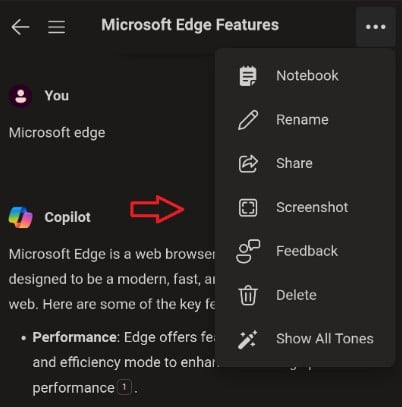
According to the tech enthusiast, @Leopeva64, Edge Copilot for Android will soon introduce a new Screenshot button, allowing users to easily capture their screens without having to resort to all sorts of commands.

As you can see below (image credit to @Leopeva64), you’ll be able to access the new button by clicking on the 3-dos icon and selecting the new Screenshot option. edge copilot android screenshot

By clicking it, you’ll have to choose which part of the screen you want to capture: the current view or the full page. Ultimately, you’ll be able to share the image, save it, or drop it to your folder of choice.

The feature is quite useful especially when using Copilot to solve an array of tasks. The button can be easily accessed to screenshot all the necessary information.

Microsoft introduced the new Screenshot button to the Edge browser a while ago, when the company used it to rename its existing Web Capture functionality. On desktops, the button acts like an editor, almost, with a variety of capabilities: from capturing images to processing information from them and opening them up in Microsoft 365 apps, such as Word, PowerPoint, or Excel.

The new Screenshot button on Edge Copilot for Android will most likely be updated to support such features in the future. It’s worth mentioning that the button is currently live in Edge Canary for Android, and it will be out to the general users in the next weeks.

The capability is also being updated on Edge Canary as well, as Edge’s built-in Screenshot tool gains the ability to capture windows and save screenshots there, so it makes sense that Edge for Android would introduce the new button.

Windows has built-in ransomware protection and you can enable it now

Ransomware is a problematic malware that allows attackers to encrypt your data. By doing this, they can block your access to specific files. Also, hackers will ask for a ransom to release their restrictions. However, nothing stops them from copying or using it in other ways. Thus, even if you play, cybercriminals might continue adding demands. Fortunately, the Windows Defender has built-in ransomware protection.

How to turn on the Windows ransomware protection

The process to enable Windows ransomware protection. All you have to do is access the Virus & threat protection. Afterward, you have to manage the ransomware protection settings. From there, turn on the Controlled folder access. This feature will prevent any app from accessing your OneDrive, Documents, Pictures, Videos, Music, and Favorites folders. Here are the steps to enable it:

  1. Press Win + S and type Virus & threat protection.
  2.  Scroll and look for the Manage ransomware protection, and click on it.
  3.  Click the button under Controlled folder access.

Once you enable the built-in ransomware protection from Windows, you will have three options: one lets you see the history, one the protected folders, and the last option will allow you to select which apps can gain Controlled folder access.

Windows ransomware protection options

To gain access to your files while using the built-in ransomware protection from Windows, save them to another folder or change the Controlled folder access settings. All you need to do is press the Allow an app through the Controlled folder access. Then, search for the .exe of the app you need.

The built-in ransomware protection from Windows is not perfect. It will protect your data against attacks, but sometimes it can be unpleasant. When ransomware protection is enabled, it can prevent you from accessing specific files. Yet, after tweaking the settings, you can regain access to them.

Besides using the built-in ransomware protection from Windows, you should also back up your data. The safest way is to have an offline backup. Yet, if you have a secure cloud, you could save it there.

In a nutshell, by enabling the built-in ransomware protection from Windows, you can defend against cybercriminals. The process doesn’t take long and you can do it right away. Additionally, you can get antimalware or use a ransomware decrypt tool to avoid paying for the key.

What are your thoughts? Are you already using this feature? Let us know in the comments.

Western Digital’s new 4TB SD card is a new record capacity, but you can’t get it yet

If you thought a 1TB SD card was insane, Western Digital announced a 4TB Sandisk SD card with 4TB capacity at NAB 2024. Don’t get your card out just yet, because the manufacturer won’t ship the new card until next year.

Actually, Western Digital announced a whole new line of SD cards and external drives but the 4TB SanDisk Extreme PRO SDUC UHS-I memory card clearly stands out from the pack.

All about the Western Digital’s new 4TB SDUC card

To begin with, even WD recognizes the fact that 4TB is an insane capacity for an SD memory card:

Introducing the world’s first-ever 4TB UHS-I SD card to deliver an insane amount of capacity in the same-sized SD form factor. Leveraging the SDUC standard (Secure Digital Ultra Capacity), which enables up to 128TB, the new card is expected to release in 2025 and will be showcased at NAB 2024. Attendees will get a preview of the 4TB SD card’s full capacity and learn more about how it will expand the creative possibilities for cameras and laptops.

Western Digital press release

So, the new card uses the UHS-I interface and it’s Class 10 speed, which means that it will have a minimum transfer rate of 10MB/s. However, because it is also a Class V30 Video Speed card, it is rated for a 30 MB/s minimum sequential write speed. That is on par with 8K video recording, but also exceeds the 4K requirements on today’s market. Also, the card could reach 104MB/s transfer rate in the UHS104 (SDR104) mode.

As Anandtech points out, Western Digital doesn’t mention anything in their press release about the DDR200/DDR208 mode that is already featured for the SanDisk Extreme Pro SDXC 1 TB SD card. That will allow higher transfer rates (170 MB/s) than UHS-I standard through the double data rate signaling technology. However, they have a lot of time to figure that out until the late launch.

Other Western Digital important additions

SanDisk G-Drive 24TB

Western Digital also announced a couple of premium-grade hard drive solutions and their estimated prices:

  • 24TB* G-DRIVE® (U.S. MSRP $699.99) – Ultra-reliable storage supporting USB-C™ (10Gbps) for fast backup.
  • 24TB* G-DRIVE PROJECT (U.S. MSRP $929.99) – Backup and save valuable project work. Compatible with Thunderbolt 3™ and USB-C (10Gbps). Also features a PRO-BLADE™ SSD Mag slot for modular SSD performance in sharing and editing across devices.
  • 48TB* G-RAID® MIRROR (U.S. MSRP $1,599.99) – Ships in RAID 1 (Mirroring) to automatically create a duplicate of your working files for data redundancy. Compatible with Thunderbolt 3™ and USB-C (10Gbps). Also features a PRO-BLADE™ SSD Mag slot for modular SSD performance in sharing and editing across devices.
  • 96TB* G-RAID SHUTTLE 4 (U.S. MSRP $4,499.99) – Transportable 4-bay hardware RAID solution allows for super-fast access and real-time video editing. This device ships in RAID 5, and supports RAID 0, 1 and 10 configurations.
  • 192TB* G-RAID SHUTTLE 8 (U.S. MSRP $7,499.99) – Transportable 8-bay hardware RAID solution for those who need massive storage for consolidated backup, whether on location or in the studio. It supports RAID 0, 1, 5, 6, 10, 50, and 60 configurations, and provides transfer rates up to 1690MB/s read and 1490MB/s write in default RAID 5.

While these will be great to have, we keep thinking about the long-term reliability of the 4TB SD card. Well, it’s just that: SD cards are not created for long-term storage and unless you buy it for 4K or 8K video recording, a 4TB card would not be such a wise investment. Western Digital didn’t mention anything about the price of the new SD card but a 1 TB SanDisk SD card is now priced at around $140.

Microsoft develops Spotlighting to protect AI systems from attacks

The last few years have witnessed tremendous AI integration, with Microsoft leading the charge. At the same time, the Redmond-based tech giant is taking steps to minimize threats and protect AI-based systems. In a bid to achieve that, Microsoft developed Spotlighting!

Spotlighting is actually a family of techniques that reduces the success rate of attacks on AI systems from 20% to under the detection threshold without affecting performance. Microsoft describes Spotlighting as

Spotlighting (also known as data marking) makes the external data clearly separable from instructions by the LLM, with different marking methods offering a range of quality and robustness tradeoffs that depend on the model in use.
Image source: Microsoft

Spotlighting helps against Poisoned content, a type of attack that uses seemingly harmless content to exploit vulnerabilities in the AI system. For instance, an email which, when summarised, would issue instructions to the AI system to search for critical information and share it.

In such cases, Microsoft’s Spotlighting prevents LLMs from reading hidden content that contains instructions for an attack, thus protecting the AI system.

Microsoft discovers a new attack type, Crescendo

Crescendo or multiturn LLM jailbreak is an attack capable of bypassing existing security filters and can affect most of the popular LLMs, although it poses no privacy or security risks to the end users or AI systems.

Microsoft’s official blog describes Crescendo as,

At its core, Crescendo tricks LLMs into generating malicious content by exploiting their own responses. By asking carefully crafted questions or prompts that gradually lead the LLM to a desired outcome, rather than asking for the goal all at once, it is possible to bypass guardrails and filters—this can usually be achieved in fewer than 10 interaction turns.

The Redmon-based tech giant made changes to the native chatbot, Microsoft Copilot, to prevent it from falling prey to Crescendo. This includes introducing additional filtering and security layers, namely, Multiturn prompt filter, AI Watchdog, and Advanced research.

Image source: Microsoft

The findings were also shared with other AI companies. You can read more about Crescendo in Microsoft’s research paper.

AI, while a groundbreaking innovation, poses a wide array of threats, both to end users and organizations. Microsoft’s President, Brad Smith, expressed concerns about AI in a recent interview and called for regulations and a safety brake.

AI is also behind sophisticated cyberattacks that are difficult to detect and can cause significant damage. Microsoft believes AI is the best way to fight AI-backed threats, and it appears to be the case at present!

What do you think about Microsoft’s Spotlighting and if it could mitigate risks? Share with our readers in the comments section.

Copilot is getting installed (again) on Windows Server, but you can get rid of it with this policy setting

So, Microsoft has removed Copilot from Windows Server 2025, and as we covered the good news for admins, we were also wondering if that was a mistake from Microsoft’s part or it it was a simple bug.

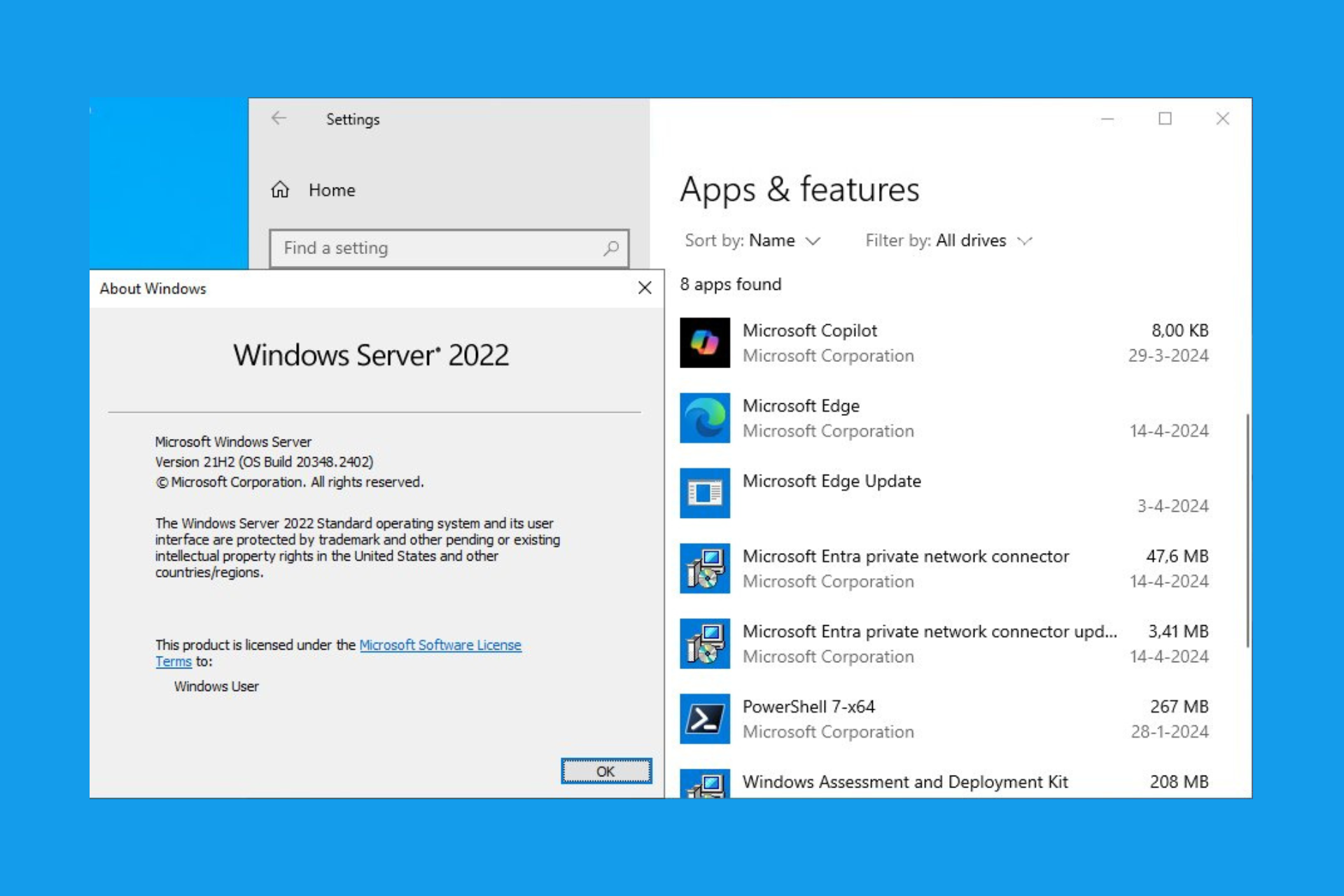
It seems that we’ve got our answer because some users noticed that Copilot was installed automatically on their Windows Server 2022 machines. This is partly true, so read more below to solve this enigma.

Apparently the Windows Server Version 21H2 Build 20348 is automatically installing Copilot. This happened on Windows 11 devices also for some with Edge we reported.

According to Microsoft, copilot can be configured in for commercial environments, so don’t panic. Even if Copilot is installed on Windows Server, you can get rid of it.

You can use this command in CSP to turn it OFF: ./User/Vendor/MSFT/Policy/Config/WindowsAI/TurnOffWindowsCopilot

The Group Policy can also be updated to get rid of Copilot from User Configuration > Administrative Templates > Windows Components > Windows Copilot > Turn off Windows Copilot.

However, after some research, we’ve found out that all Windows users have the same complaint, and if you look carefully at the screenshot, Microsoft Copilot is only 8 KB. This is, in fact, the Copilot web app from Microsoft Edge. So, if you have Edge, Copilot comes with the Copilot web app included and that’s what you’ve seen within the installed apps.

Now, why is the web app installed separately and Microsoft didn’t put it inside Edge, where it belongs? The answer is quite simple for this as well. Edge has a feature to always show the sidebar in Edge and if you want, you can even get the Copilot sidebar to show up even if you close Edge. So, this can be a stand alone thing on any system that comes with the Edge browser.

Step back into the wasteland with a 75% discount on the entire Fallout franchise

After the success of the Fallout TV show, the popularity of the Fallout series is rising, and many are looking to get into the franchise.

This is a perfect time to get familiar with the game series especially because the entire series is available at a discount.

The entire Fallout series is available at a massive discount, so be sure to get it

The newly released Fallout TV show is a blast with the majority of fans and critics praising it. To commemorate the release of the show, many digital distributors are having massive discounts as GameRant writes.

It’s not just Xbox, the sale is available on Steam, PlayStation Store, and GOG. All games are available at 75% off with Fallout 76 being available at 80%.

Also, note that not all stores have all the games available, and while Steam has the entire collection, Xbox has all the modern games with the PlayStation store having only the latest two.

As for GOG, they offer Game of the Year Edition of Fallout 4, Fallout 3, and New Vegas at a 67% discount.

In case you’re a Prime subscriber, you can get Fallout 76 and Fallout Tactics: Brotherhood of Steel for free. If you’re an Amazon Luna owner, you can also experience Fallout 3 and New Vegas for free until October.

This is a great deal, and with a next-gen version of Fallout 4 dropping soon, this is a great time to be a Fallout fan.

Microsoft is working on a technology that turns group chats into virtual background noise

Microsoft has a plan to make online meetings and group chats, such as Teams channels, and Teams meetings, more engaging by creating a more immersive environment. If you’re thinking about Microsoft Mesh, you’re wrong, even though, technically, they are immersive virtual spaces.

However, we’re talking about something else. The Redmond-based tech giant is working on a technology called Simulated Choral Audio Chatter that turns group chats, such as Microsoft Teams meetings into virtual background noise.

The technology is described in a recently published patent and it’s fairly easy to understand how it works. microsoft teams background noise

The system creates simulated group audio chats in communication systems. It gathers audio data from many users who are part of a group for an event, meeting, and so on. It uses the audio data to create a simulated group audio chat that can be shared with one or more users of the said event, meeting, and so on.

In other words, it’s like creating a virtual background noise of a group chat based on the actual audio data from the group members and then sharing this noise with the event participants.

However, why would Microsoft invest resources into such a technology? Well, it’s all in the name of immersion and engagement. The technology could make online events feel more like real-life events with people chatting in the background, improving the experience for remote participants.

There is an ongoing need to develop improvements to help make the user experience like an in-person meeting and more engaging. In particular, embodiments of the present disclosure may monitor groups activities of an event, such as a conference using a communication system, and may produce spatial audio signal representative of choral activity of the group to be conveyed to others who may be listening at a distance (virtual distance) or in another channel.

The technology would create a more immersive space without the use of actual virtual space in platforms such as Microsoft Teams, by adding background noise that resembles chatter and talking. The paper, which can be read here, says this enhances the experience of feeling as if a remote participant is actually present in the meeting room.

For example, when a breakout room is created, instead of a presenter being left in silence, the presenter may hear choral cues from each sub-channel breakout.

The technology is quite interesting, but I do wonder what Microsoft intends to do with its Mesh technology, once this system is out. The Redmond-based tech giant is already insisting Microsoft Mesh is the perfect tool for hybrid human interaction, that being said, the bridge that brings online and offline meetings together.

If the technology presented here focuses on immersion and engagement, then what’s the future for Mesh? Will they both be integrated, or will exist separately?

 Microsoft addresses Kerberos PAC Validation Protocol flaws: CVE-2026-26248 and CVE-2026-29056

On Tuesday, April 9, 2024, Microsoft released updates KB5036892 and KB5036893 for Windows 10 and 11, introducing a few new features and fixing known issues.

With these, Microsoft also patched a couple of Kerberos PAC authentication security vulnerabilities tracked under CVE-2024-26248 and CVE-2024-29056.

Both of these vulnerabilities are elevation of privilege flaws that circumvent the PAC signature checks previously implemented in KB5020805. 

In the support document, it is mentioned:

The Windows security updates released on or after April 9, 2024 address elevation of privilege vulnerabilities with the Kerberos PAC Validation Protocol. The Privilege Attribute Certificate (PAC) is an extension to Kerberos service tickets. It contains information about the authenticating user and their privileges. This update fixes a vulnerability where the user of the process can spoof the signature to bypass PAC signature validation security checks added in KB5020805.

The document mentions an important point: only downloading and installing the updates on or after April 9, 2024, will not directly fix the security issues in CVE-2024-26248 and CVE-2024-29056 by default.

Once the environment is fully updated, you need to move to Enforced mode to fully mitigate the security issues for all devices.

This means that you first need to ensure that Windows domain controllers and clients are updated with the security update released on or after April 9, 2024. Next, check the compatibility mode to see if the devices are updated.

Next, enable Enforcement mode in your environment to get rid of security issues like CVE-2024-26248 and CVE-2024-29056.

Here are the details of the changes ahead

April 9, 2024: Initial Deployment Phase – Compatibility Mode

The initial deployment phase starts with the updates released on April 9, 2024. This update adds new behavior that prevents the elevation of privilege vulnerabilities described in CVE-2024-26248 and CVE-2024-29056 but does not enforce it unless both Windows domain controllers and Windows clients in the environment are updated.

To enable the new behavior and to mitigate the vulnerabilities, you must make sure your entire Windows environment (including both domain controllers and clients) is updated. Audit Events will be logged to help identify devices not updated.

October 15, 2024: Enforced by Default Phase

Updates released on or after October 15, 2024, will move all Windows domain controllers and clients in the environment to Enforced mode by changing the registry subkey settings to PacSignatureValidationLevel=3 and CrossDomainFilteringLevel=4, enforcing the secure behavior by default.

The Enforced by Default settings can be overridden by an Administrator to revert to Compatibility mode.

April 8, 2025: Enforcement Phase

The Windows security updates released on or after April 8, 2025, will remove support for the registry subkeys PacSignatureValidationLevel and CrossDomainFilteringLevel and enforce the new secure behavior. There will be no support for Compatibility mode after installing this update.

To learn more details, you can review the support document for KB5037754. Have you installed the security patch released on April 9? If not, install it as soon as possible and ensure the Enforcement mode is on to fix these security issues.

Brave and Opera can now natively handle duplicate tabs problem, while Chrome doesn’t

We all have dozens of tabs open in our browsers at any time, and sometimes managing them can get a bit cumbersome.

Luckily for users, some Chromium browsers can now detect and deal with duplicated tabs, thus making tab management much easier.

Brave and Opera have a native feature for dealing with duplicated tabs

If you are a heavy multitasker, you probably have several duplicated tabs open by accident. Good news if you are an Opera or Brave user because the two browsers just got the ability to detect and close duplicated tabs.

Surprisingly, Chrome doesn’t have this feature yet, and it needs to utilize third-party extensions to achieve this.

If you’re not familiar with Brave, it’s an open-source Chromium browser focused on privacy. It achieves this by blocking third-party ads, trackers, and cookies by default. It also has a built-in AI Assistant, called Leo.

Opera is also based on the Chromium engine, and it comes with powerful UI and features such as VPN, ad blocker, crypto wallet, Tab Islands, and built-in messenger support.

In Brave, to use this feature simply right-click the duplicated tab and choose Close duplicate tabs from the menu. Keep in mind that this feature requires you to find and right-click the duplicated tab to close all of its instances.

Opera handles this a bit differently, and duplicated tabs will have an underline below them when you hover over them.

By doing this, you can easily identify duplicated tabs at a glance and use the Close duplicate tabs option to close them.

As you can see, Opera’s approach is more intuitive, allowing you to easily find duplicated tabs compared to Brave.

Regarding the availability, this feature is available in the beta version of Brave and the stable version of Opera 109 or newer.

Google doesn’t seem to be focused on this feature at the moment, and it tends to focus on more essential features instead, so you’ll have to rely on extensions for this functionality.

As for Chrome, the browser will get the ability to detect symbolic links and Google is currently testing Tab Groups improvements for better tab management.

Microsoft fixed the Intel SST driver incompatibility with Windows 11, finally allowing users to upgrade their devices

Microsoft and Intel were able to fix the incompatibility issues of some of the Intel processor-based devices equipped with Intel SST drivers and Windows 11, finally allowing users of these devices to upgrade them to the newer operating system.

The Redmond-based tech giant actually acknowledged the issue almost two years ago, and as a temporary solution, the company decided to apply a compatibility hold, preventing these devices from being offered any version of Windows 11.

According to the company’s Windows release health page, the only affected devices were the ones equipped with Intel 11th Gen Core processors and an Intel SST driver version of 10.29.0.5152 or 10.30.0.5152.

For almost two years, users of these devices have not been able to upgrade to Windows 11.

To safeguard your upgrade experience, we have applied a compatibility hold on Windows 10 devices which have Intel SST driver versions 10.29.0.5152 or 10.30.0.5152. This will prevent those devices from being offered any version of Windows 11. 

Microsoft

However, the Redmond-based tech giant finally announced that the issue is fixed, and to fully upgrade to Windows 11, users will need to update their Intel SST drivers to the latest version.

Devices which are encountering this issue will need to install newer versions of the Intel® SST Audio Controller drivers prior to updating to Windows 11. The issue is resolved by updating the Intel® Smart Sound Technology drivers to version 10.30.00.5714 and later, or 10.29.00.5714 and later. Please note that later versions of this driver might refer to only the last part of the version number. For the purpose of addressing this issue, 10.30.x versions are not newer than 10.29.x versions.

Microsoft

Upgrading to Windows 11 is quite easy nowadays, but if you’re new to the process (after all, you had to wait almost 2 years for it), check out our comprehensive guide on how to do it.

However, Microsoft might just as well offer users to upgrade to Windows 11 automatically, after the latest Intel SST drivers are installed. But if the offer doesn’t show up in 48 hours, and following our guide still doesn’t let you install Windows 11, the company says other issues might be preventing the device from upgrading.

If your device still encounters this safeguard hold 48 hours after updating your drivers, it’s possible drivers for this Audio Controller haven’t been developed for your specific device hardware configuration. In this case, you will need to contact your device manufacturer (OEM) for more information on the necessary drivers. Microsoft works to make the latest compatible drivers available under Windows Update whenever developers have released them.

Microsoft

Otherwise, until the Intel SST drivers are fully updated, the Redmond-based tech giant recommends avoiding upgrading to Windows 11 manually or with the Creation Media Tool.

Seeing app recommendations in Windows 11’s Start Menu? Blame Microsoft for it

It was previously rumoured that Microsoft is pushing more ads in Windows 11 after a few reported seeing app recommendations in the Start Menu. Microsoft has now confirmed the change!

In the official blog post for Windows 11 Insider Preview Build 22635.3495 (Beta Channel), Microsoft announced a feature displaying recommended apps from the Microsoft Store under the Recommended section in the Start Menu. It’s presently limited to Windows Insiders in the US.

Building on top of recent improvements like grouping recently installed apps and showing your frequently used apps, we are now trying out recommendations to help you discover great apps from the Microsoft Store under Recommended on the Start menu. This will appear only for Windows Insiders in the Beta Channel in the U.S. and will not apply to commercial devices (devices managed by organizations).

As expected, users are unhappy with the change. Since Microsoft guessed that beforehand, it allows you to easily disable ads via the Start Menu settings.

To do that, press Windows + I to open Settings > go to Personalization from the left pane > click on Start > and disable the toggle for Show recommendations for tips, app promotions, and more.

ads Windows 11 start menu
Disabling ads in the Start Menu on Windows 11

Given the fact that it’s still under testing, may not be a part of the stable build, and can be disabled, you need not worry too much, at least for now!

One user wrote,

I don’t foresee many people liking this. I’m glad there is an easy toggle to disable it though. Maybe there will be enough feedback to remove it before it goes into production.

Microsoft has previously been called out for pushing ads in native games and the OS. The only difference this time around is that you have a straightforward option to disable them, which is a step in the right direction. Shows ads to users who want them!

For those who don’t like any ads in the OS, discover simple ways to disable ads across Windows 11.

What’s your take on Microsoft pushing ads in the Windows 11 Start Menu? Share with our readers in the comments section.

Windows 7 build 6758 suddenly leaked online with revampled interfaces

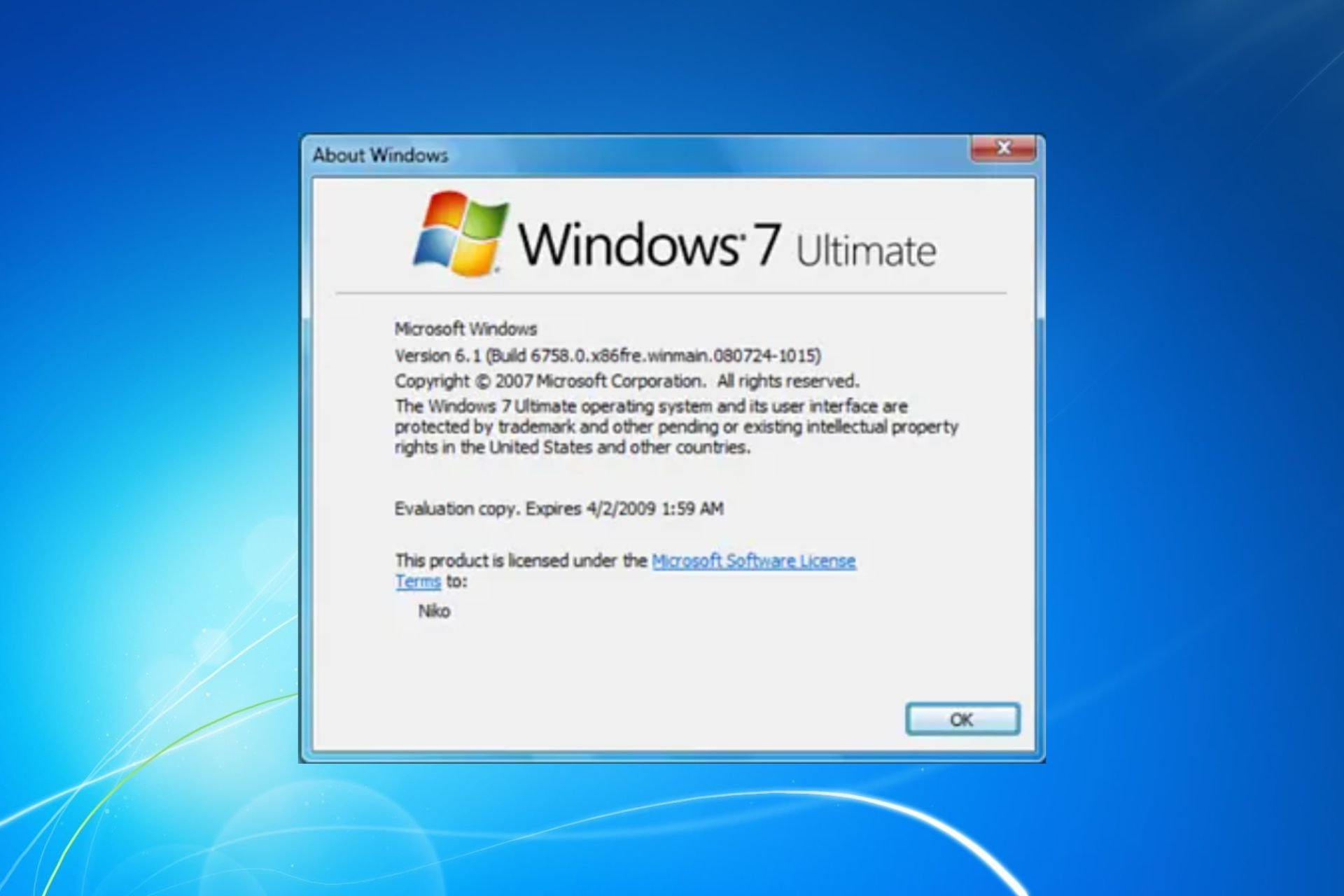
Microsoft stopped supporting Windows 7 on January 17, 2020. Yet, according to StatCounter, this version holds 3.04% of the Desktop Windows Version Market Share. So, others are still using it. On top of that, recently, the unreleased Windows 7 Milestone 3 Build 6758 has been leaked online.

However, due to the end of support, Windows 7 is prone to system vulnerability exploits and bugs. So, consider this if you use it or plan to give this build a chance.

What comes with the Windows 7 Build 6758?

Some people showcased a few previews of the Windows 7 Build 6758. For example, you can check the X post by @PhantomOfEarth. Also, if you want to see the build in action, watch the YouTube video of Ben S the animator. Additionally, you can check the BetaWiki for more information.

The Windows 7 Build 6758 brings new functionalities and design changes. For example, it has improvements for Windows Setup, the Control Panel applets, and a new look for the user-facing system shell. On top of that, the version makes small changes to the Start Menu and Microsoft Explorer functions.

In addition, the leaked Windows 7 version comes with a new interface for Paint. However, it is similar to the one from Windows 7 RTM. Also, with this build, Calculator and WordPad get a new Ribbon interface, gadgets are no longer available by default, and there are updates for the Media Player and other apps.

In a nutshell, the Windows 7 Build 6758 has some great features and updates. Unfortunately, it is too late to use it. After all, Windows ended its support on January 14, 2020. So, it is not a safe version because it lacks security updates. However, you can still try it to test the new interface of some apps and the rest of the features.

What are you thinking? Will you try it? Let us know in the comments.

CISA issued the ED 24-04 after a Microsoft breach to help federal agencies

The Cybersecurity and Infrastructure Security Agency (CISA) issued the Emergency Directive (ED 24-04). CISA took this action to ensure that federal agencies remediate their compromised data. If you didn’t know, the Russian state-sponsored cyber actor Midnight Blizzard targeted Microsoft corporate accounts. Also, they have accessed correspondence with the Federal Civilian Executive Branch (FCEB).

Microsoft revealed that the attackers managed to access its source code repositories. However, the company says there is no evidence that the hackers breached customer services. Yet, CyberScoop reported the appearance of ED 24-04 two days ago.

What does the Emergency Directive (ED 24-04) do?

The ED 24-04 urges federal agencies to investigate the security breaches. In addition, they should change login credentials, API keys, and identification tokens. On top of that, potentially affected agencies should take additional steps to ensure the security of their Microsoft Azure accounts. Also, CISA will help federal agencies comply with it and complete the requirements by April 30, 2024.

Consider the ED 24-04 a warning and check your Microsoft accounts. In addition, if you have any suspicions, contact your Microsoft account team for additional questions. You can also contribute to CISA research by submitting malware samples and infected files. After all, the security agency has a new malware analysis system known as Malware Next-Gen.

Unfortunately, we don’t know the number of federal agencies affected by the hackers. Yet, CISA claims they all received email notifications after the ED 24-04.

The US Cyber Safety Review Board (CSRB) considers that Microsoft could have prevented the attack. Thus, the board thinks that Microsoft lacks a proper security culture. However, the CSRB report showcases various failures made by the tech giant before, during, and after the attack.

Ultimately, Microsoft is falling short of customer expectations. Additionally, threat actors keep finding ways to breach the company. For example, a recent breach allowed threat actors to access a poorly defended Azure server. On top of that, Chinese hackers managed to steal 60,000 emails from the US State Department. Thus, the ED 24-04 is a great preventive call for all companies using Microsoft services.

What do you think? Should the US Government seek solutions from other companies? Let us know in the comments.

Windows 11 users can also use WhatsApp’s Meta AI chatbot, but there’s a catch

If you are among a few lucky users who can now access the Meta AI chatbot in WhatsApp, there’s a way you can use it on Windows 11 too. Talking of a workaround, you need to first engage with Meta AI on your smartphone before you can use it in the desktop app.

Initially, you might experience that Meta AI could be making your WhatsApp desktop app unresponsive. But it should be fixed when you completely close the app from the Task Manager. If that feels like a big task for you, simply relaunch WhatsApp on Windows 11 and you should be able to interact with Meta AI.

You should be aware that native support of WhatsApp’s Meta AI is not available for desktop users for now. This is why you might initially find issues using Meta AI on Windows 11. However, a recent report by Windows Latest points out that WhatsApp’s Meta AI native support will eventually make it to all desktop users soon.

Using WhatsApp’s Meta AI chatbot on Windows 11 offers a similar experience to ChatGPT and Copilot

Well, using WhatsApp’s Meta AI experience on Windows 11 is reportedly in line with ChatGPT or Copilot. That means if you are familiar with these two AI chatbots, Windows 11 users won’t face any issues using Meta AI in WhatsApp.

No doubt, the integration of AI in a chat app might be overwhelming for some. But, from the looks of it, Meta AI seems pretty interesting. For starters, you can interact with Meta AI just like ChatGPT or Copilot. You can easily type in the chat box and ask Meta AI anything.

Another notable feature is that you can even ask it to generate images and ask it to explain things around the generated image. What’s more interesting is that you can even upload an image or draw anything using Windows Ink in the chat and ask Meta AI to explain it.

Meta AI in WhatsApp can also generate images
Image credit: Windows Latest

That’s not all, Meta AI can generate somewhere between 100-200 images. Meta AI also mentions that it doesn’t have a fixed limit on the number of image requests. We spotted a tweet where a user shared the screenshot of the response offered by Meta AI in this matter.

Meta could use your AI messages to improve its AI quality

An in-app About AI messages pop-up mentions that Meta could use your AI messages to improve its AI. Notably, Meta won’t use your messages for AI improvement as they are protected by end-to-end encryption. We have attached the screenshot of the pop-up suggesting a similar message below.

Meta AI pop-up message on WhatsApp
Image credit: Windows Latest

Putting it simply, no doubt that WhatsApp’s Meta AI looks promising. And, we hope the user experience only gets better with time on Windows 11. Time will tell when Meta AI will be natively available for WhatsApp’s desktop app.

But, one thing is sure Meta is leaving no stone unturned when it comes to AI. Besides WhatsApp, Meta is also testing its AI chatbot on Instagram and Facebook Messenger. More recently, the company also detailed its plan to label AI content across all its platforms.

Have you tried using WhatsApp’s Meta AI chatbot on Windows 11? If yes, please share your experiences in the comments below.

xAI unveils Grok-1.5 Vision with the capability of ‘understanding’ images

Elon Musk’s xAI has recently announced its first multimodal model Grok-1.5 Vision, aka Grok 1.5V. This comes after the company’s last month’s announcement of Grok-1 AI to take on ChatGPT.

The company’s first multimodal model Grok 1.5V not only understands text but is also capable of image processing. It can process everything it sees in documents, images, screenshots, charts, as well as diagrams. In a recent blog post, talking of Grok-1.5 Vision’s capabilities, the company mentioned:

Grok-1.5V is competitive with existing frontier multimodal models in a number of domains, ranging from multi-disciplinary reasoning to understanding documents, science diagrams, charts, screenshots, and photographs.

Grok-1.5 Vision outperforms its rival in the RealWorldQA benchmark

The company also detailed the advanced capabilities of the Grok-1.5 Vision with seven different samples which are as follows:

  1. Writing code from a diagram
  2. Calculating Calories
  3. From a drawing to a bedtime story
  4. Explaining a meme 
  5. Converting a table to CSV
  6. Help with rotten wood on a deck
  7. Solving a coding problem

Musk-led AI company also shared a comparison chart to compare its first multimodal model with its rivals. Testing results show that Grok-1.5 Vision stands tall against its competitors like GPT-4 with Vision, Claud 3 Sonnet/Opus, and Gemini Pro 1.5.

Comparison chart detailing Grok-1.5 Vision performance against its rival models
Image credit: xAI

While the results look promising, xAI’s Grok-1.5V outshines all its competitors in the RealWorldQA benchmark. According to the company, RealWorldQA is a new benchmark designed to evaluate basic real-world spatial understanding capabilities of multimodal models.

Well, it is pretty clear that Musk’s AI company is in no mood to take the backseat and is aggressively making moves to keep up with its rival. However, we can’t deny the fact that its AI models have received a fair amount of criticism in the past. More recently, Grok AI was criticized for misinformation and more.

Lastly, Grok-1.5V will soon be available to the existing Grok users and early testers out there. So, if you are among the early testers of Grok-1.5 Vision, please share your experience of using it with our readers in the comments.

Google Chrome is getting a real-time camera and mic preview feature in Windows 11

Google is now updating Chrome with a new camera and mic preview feature. The feature allows you to preview video and audio before letting websites like Zoom or Skype access it. Earlier, the company updated Chrome with a feature that allows you to scroll and zoom shared tabs in video calls.

Windows Latest first spotted the feature and shared the findings in a recent report. It added that multiple Chromium Gerrit posts and Google Documentation mentions it. Notably, the new Chrome feature is similar to the preview video and audio feature on Microsoft Teams. 

You can access Google Chrome’s new audio and video preview feature by enabling an experimental flag

Google’s decision to supercharge Chrome with a camera and mic preview feature is a big deal. You can block unwanted camera or audio devices’ access from within the browser. This feature might be handy for regular Google Meet, Teams, or Zoom users in the coming days. 

Chrome Camera Mic Preview in experimental flag

The real-time preview video and audio feature is not accessible immediately in the current version of Google Chrome. You’ll have to turn on an experimental flag chrome://flags#camera-mic-preview and relaunch the Chrome browser to access it. Once enabled, Chrome lets you choose the camera and the audio device before allowing you to access the website.

That’s not all, we also got our hands on a publicly available support document that details Chrome’s new camera and mic preview feature. Not to forget, we saw the attached document in the Feature: Media Previews opt-out page of the Chrome Platform Status. The support document reads:

Chrome will provide real-time previews of camera and microphone input at the time camera and microphone permissions are requested by websites. These will also be available from the site’s pageinfo.

In addition, users with multiple devices will be able to select a camera or microphone at the time permissions are requested, unless the site has requested a specific device through getUserMedia().

For those uninitiated, the getUserMedia() function enables websites to request access to certain hardware including web cameras and audio devices like microphones.

Here’s what Chrome’s camera and mic preview feature looks like in Windows 11

Chrome Camera and Mic Preview

As far as camera preview is concerned, you can see your video appearing inside the rounded rectangle. That’s not all, the microphone preview section has two overlapping cylindrical rectangles on top of each other that show two values.

One displays the maximum possible audio level and the other gives the idea of the current audio level. The audio levels update every fifth of the second to provide a more steady feed, says Google in the support document.

All in all, the camera and mic preview feature coming to Chrome will make it easier to manage your settings. It will further cater to users who worry too much about how they look or sound before joining e-meetings.

What do you think about this feature? Did you try it? Please share your thoughts with our readers in the comments below.

Discord’s website may download the 32-bit app by default. Here’s how to get the 64-bit version

Discord users, if you are downloading the app from the official website, please keep in mind. While Discord itself supports both 32-bit and 64-bit Windows versions, the website might be offering the 32-bit version by default. This can cause issues if you’re running a 64-bit system, which is most common on modern computers.

Discord website defaults to downloading a 32-bit app for Windows

If you visit the Discord website and try to download the client for Windows, you’ll get the 32-bit version. You can check this by opening the Task Manager after installing Discord.

But, by now, most users will be using 64-bit Windows rather than 32-bit Windows. The 32-bit version of Discord won’t function optimally on a 64-bit Windows system. You might experience performance issues and instability, or the app might not work at all.

How to download the 64-bit version of Discord for Windows 10/11

First, ensure you are using a 32-bit or 64-bit version of Windows. To do this, right-click on ‘This PC’ and select ‘Properties’. Under ‘Device Specifications’, check the ‘System type’

Note: Windows 10 is the last version to support a 32-bit processor. Windows 11 does not support 32-bit systems.

After confirming that you have 64-bit Windows, note that while the Discord website may default to the 32-bit version, it actually offers both versions. Here is the official link to download the 64-bit version of Discord for Windows 10/11.

https://discord.com/api/downloads/distributions/app/installers/latest?channel=stable&platform=win&arch=x64

If you have mistakenly downloaded the 32-bit version, you can simply uninstall it and then download and install the correct 64-bit version from the link provided above.

Steven Sinofsky, who removed Windows 8 Start Menu, reacts to ads in Windows 11

Microsoft is currently testing a controversial feature in the Windows 11 beta channel: advertisements within the Start Menu. This feature is currently limited to users in the United States. Ex Windows Division President, who played a crucial role in Windows 8 by removing the Start menu, has something to say on topic.

When you buy and use Windows 11, Microsoft uses it to show ads in different places, like the Start Menu. They’ve put in sponsored suggestions and games like Candy Crush before and also advertised Microsoft 365 on the lock screen. Now, they’re testing showing app suggestions in the Start Menu for people using the beta version of Windows 11.

People aren’t happy about this, including those who use Windows and those who used to work at Microsoft. Even a former Windows boss, Steven Sinofsky, who made the big change to Windows 8 (remember the one without the Start Menu?), spoke up!

In case you don’t know, back on October 26, 2012, Microsoft released Windows 8, a blend of desktop and tablet operating systems. The then-Windows Division President, Steven Sinofsky, along with his team, introduced a new Start screen with live tiles, controversially removing the traditional Start Menu available from Windows 95.

Sinofsky recently reacted to the news on X (formerly Twitter) and said, he removed the Start Menu because of this reason.

This is why Sinofsky got rid of the start menu.

Synofsky further says Windows 8 was better than Windows 7 in many ways, but people cared about the Start Menu, and that affected the direction of Windows.

Windows 8 was better than Windows 7 in every metric Windows 7 was better than Windows Vista, except the feelings about the start menu. Now we can see how little that mattered and how much unwinding that cost.

With Windows 11 now testing ads in the Start Menu, Sinofsky’s comments show how tricky it is to balance new features and keeping users happy. Adding ads could make money and add features, but it might upset users who want a clean, ad-free experience. What happens with this test and what users say will decide if this ad feature stays or goes based on how it fits with the future of Windows.

This isn’t the only recent controversy surrounding Windows 11. It has been reported that the latest Windows 11 beta build also features Copilot automatically starting upon launch. Microsoft has yet to acknowledge this and confirm whether it is a bug, an oversight that was addressed in the Dev and Canary insider builds.

OpenAI supercharged ChatGPT with GPT-4 Turbo for premium users

OpenAI has recently announced that the new GPT-4 Turbo is now available for premium ChatGPT users. It includes users paying for ChatGPT Plus, Team, or Enterprise. The news was announced a few days after OpenAI made GPT-4 Turbo with Vision generally available in the API.

Talking more about it, OpenAI said that the new model is now better at math, writing, coding, and logical reasoning.

Taking the above tweet as a reference, OpenAI further added that GPT-4 Turbo will supercharge ChatGPT’s writing skills. According to the company, when you try to write with ChatGPT now, you will get more direct, less verbose, and use more conversational language.

In other words, ChatGPT will sound more like humans, thanks to GPT-4 Turbo. An example shared by OpenAI clearly shows off the improvements. The new response looked more concise than the previous one. We have attached the response shared by OpenAI below, you can go through it.

ChatGPT GPT-4 Turbo writing skills
Image credit: OpenAI

Unlike the previous model trained on data up to April 2023, OpenAI trained the latest model on data available up to December 2023. It surely has broadened the knowledge base of the ChatGPT and is quite visible in the new responses.

If you are not a premium user, sadly, you can’t access ChatGPT supercharged with GPT-4 Turbo. But, we expect OpenAI to make it available for everyone soon. More recently, Microsoft also updated Copilot with GPT-4 Turbo for Microsoft 365 users allowing them to have infinite conversations with the AI chatbot.

It is worth noting that the initial reaction shared by early testers of GPT-4 Turbo has been quite promising and we expect it to be the next big thing.

How to Calibrate HDR in Windows 11

Spending lots of time behind a screen requires an optimized viewing experience and that’s why you need to calibrate HDR on your Windows device.

Older devices and operating systems supported the standard display range (SDR) which is limited in terms of the range of color. HDR on the other hand offers more vibrancy and really brings out the details in the brightest and darkest colors.

Calibrating also ensures you’re getting the true colour of an image, minimizes the risk of image distortion and achieves colour consistency throughout.

How can I calibrate HDR on my Windows device?

1. Check system requirements

  • An HDR display supporting HDR10
  • DisplayPort 1.4 or HDMI 2.0 or higher
  • Integrated or dedicated GPU with PlayReady 3.0 support such as:
    • Intel UHD Graphics 600 series or higher
    • Nvidia GeForce 1000 series or higher
    • AMD Radeon RX 400 series or higher
  • Media players must support HDR playback
  • The latest version of Windows 11

2. Download calibration app

  1. Launch the Microsoft Store from the taskbar.
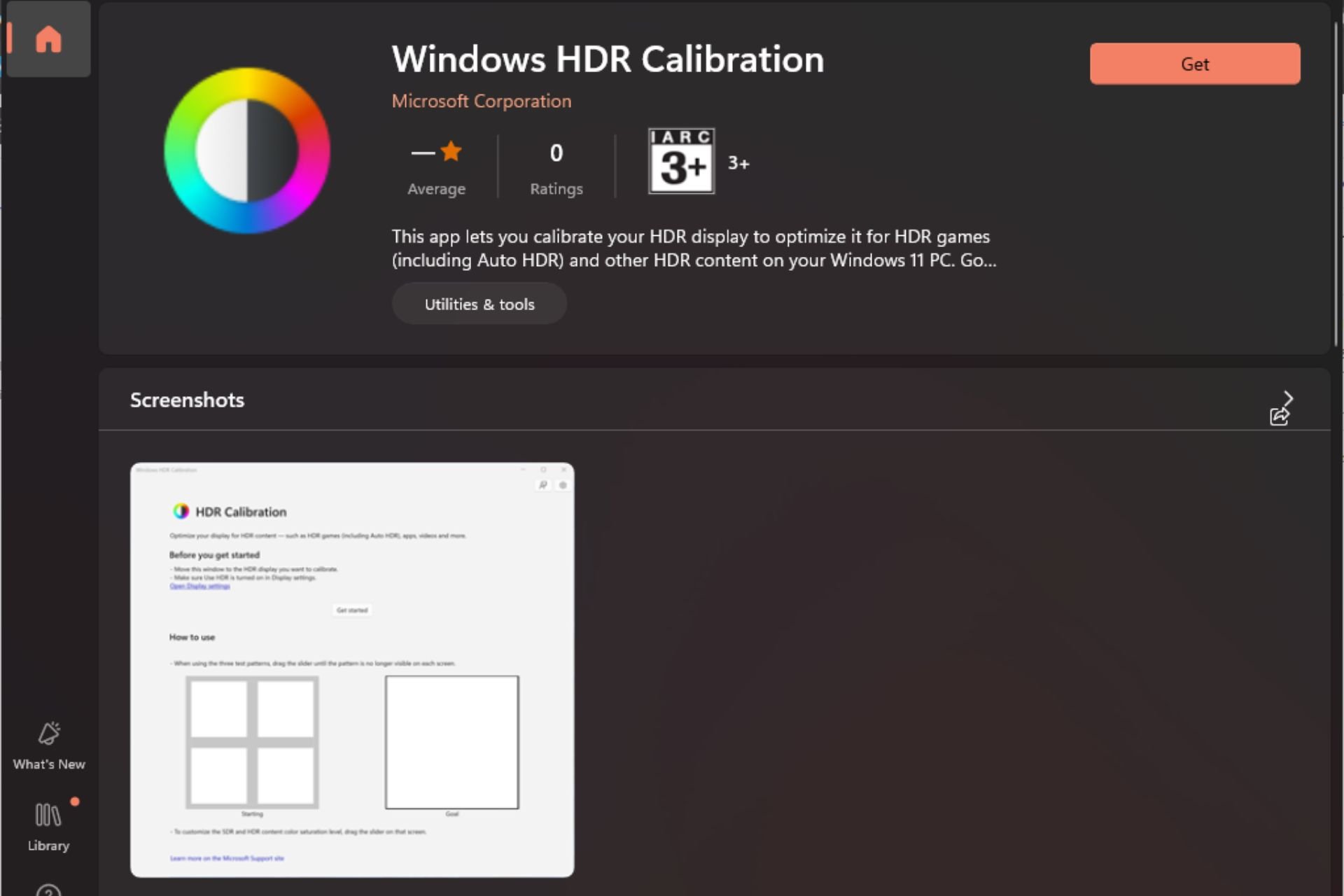
  2. Search for Windows HDR Calibration and click on Get.

3. Enable HDR mode

  1. Press Windows + I to open the Windows Settings app.
  2. Select Display, then toggle on the switch for Use HDR.
  3. Allow the Auto HDR option.

If Windows HDR is not supported, check out our article on how to bypass this limitation.

4. Calibrate HDR

  1. Launch the HDR app you just downloaded and click on Get started.
  2. You will then be prompted to adjust several settings with a grey + sign as your base. The goal is to adjust the slider until the sign is no longer visible.
  3. Once you’re done with all settings, enter a profile name and click Finish. Creating a profile allows you to try with different colour schemes and use them in different settings.
  4. You should notice a visible change in your display but if not, you can restart your PC.

Potential issues and how to troubleshoot HDR calibration

  • If you spot any inconsistencies with the HDR settings, your OS may be outdated. For optimal HDR settings, ensure your drivers and OS are up-to-date for compatibility purposes.
  • For consistency across devices, save your settings under a profile for easier replication. Also, be sure to test your HDR calibration settings under different lighting setups and with content like movies, photos and games.
  • HDR video streaming not supported may indicate outdated graphic cards so ensure you upgrade to a newer supported graphics card.
  • If a calibration profile appears corrupt or is no longer displaying colours correctly, you can delete it and create another one. Simply go Start > colour management > All Profile, select the colour profile you want to delete, then select Remove.

Ultimately, it may not be necessary for newer devices to calibrate HDR, but if HDR appears washed out, or HDR not working on apps like YouTube, you may benefit from the extra muscle that HDR calibration brings along.

This alongside the best HDR settings guarantees you an immersive experience, especially for gamers. For specific HDR preferences, consider using HDR software to help take your images and videos to the next level.

If you’ve calibrated HDR on your Windows device, we’d love to get your thoughts on any improvements. Leave a comment down below on what you’re loving so far and what you don’t.

Microsoft Edge Insider Dev Channel Build 125.0.2506.0 brings a new shopping toolbar

On 12 April 2024, Microsoft released the build 125.0.2506.0 for the Edge Insiders in the Dev Channel. The latest build brings a new shopping toolbar feature for the in-built shopping assistant in Microsoft Edge. Worth noting, this update arrived shortly after our recent report on the testing of new features in Microsoft Edge’s Screenshot tool.

Microsoft Edge Insider Dev Channel Build 125.0.2506.0 release notes

Besides adding the new shopping toolbar feature, the latest update fixes browser crash issues on Android devices. Microsoft also mentioned a long list of fixes and improvements in the recent blog post which are as follows:

Added Features:

  • Introduced a new shopping toolbar feature.

Improved Reliability:

  • Fixed a browser crash on Android.
  • Resolved a browser crash that occurred when launching the shopping app in a browser window instead of Copilot.
  • Fixed an issue where the browser crashes when clicking the ‘Retry’ button without network on the error page of the desktop.

Changed Behavior:

  • Resolved an issue where the browser menu and all menu dialogs were not accessible using voice control.
  • Resolved an issue where keyboard focus navigated to the blank spaces in the all menu and browser menu dialog.
  • Resolved an issue to display a menu list after the user clicks the IE mode address bar button.
  • Resolved an issue where, in InPrivate mode, clicking on the settings for the dark reader or Global Speed would result in being blocked.
  • Resolved a problem where the button’s theme was not consistent after using the search button.
  • Resolved an issue where hovering over a URL should display the full URL.
  • Fixed an issue where the Extension Hub was displaying as a large popup instead of a full page.
  • Resolved an issue that caused the FRE customize button in guest mode to redirect to an incorrect page.
  • Resolved a problem where saving screenshots in a selected profile would cause an unintended switch to the primary profile.
  • Fixed an issue where the screenshot flyout would appear partially when positioned at the far left of a maximized browser window.
  • Resolved a problem that prevented screenshots from being uploaded to OCV feedback.
  • Android: Resolved an issue where the new Translator UI was overriding the Copilot toolbar in landscape mode on Android.
  • iOS: Resolved a problem where the bottom bar on the “Coupons found!” page remained white in dark mode on iOS.

Microsoft further urged you to report any issues through the in-app feedback by visiting Help and feedback > Send feedback. If you are keen enough to enjoy new features before it is publicly available, we recommend you join the Edge Insider Program.

Have you tried and tested the new Edge Dev Build yet? If yes, please share your experiences with our readers in the comments below.

Beeper chat app that brings together up to 14 chat services in one place is now available

The Beeper chat app finally saw the public launch last week and is available for multiple platforms such as Windows, Linux, macOS, Android, and more. This all-in-one messaging app bundles up to 14 chat services and allows you to chat with friends and family from within the app.

The app was earlier available for select users to gain exclusive access through a waitlist process. In a recent blog post, Beeper added that Automatic, the company behind WordPress, has acquired it.

After giving up on its goal to bring iMessage and Android together, the company moves forward with an Android app. Let’s not forget that Beeper’s new Android app has similar features to what we saw last year with the integration of iMessage.

Beeper supports up to 14 popular chat services in its app

That means you don’t have to open each messaging app every time like you usually do as of now. Beeper bundles up to 14 chat services for offering one-stop messaging services, the list includes:

  • WhatsApp
  • Signal
  • X (Twitter)
  • Telegram
  • Facebook Messenger
  • Instagram
  • Android SMS
  • Google Messages (SMS/RCS)
  • IRC
  • Slack
  • LinkedIn
  • Discord
  • Google Chat
  • Matrix

Although Beeper is available on iOS, it doesn’t support iMessage due to Apple’s restrictions. In a recent report, CNET mentioned that Beeper’s CEO Eric Migicovsky said the iOS version will be more like the Android after an update.

In the blog post, Eric added that Beeper will merge with Texts.com, another chat app that Automattic acquired last year. The combined team will operate independently under the new parent company.

Did we mention Beeper isn’t collaborating with any chat service it has integrated into its app? So, as a user you don’t have to worry about data harvesting. Beeper further mentions that all the messages are stored and encrypted with a key only accessible to the user.

Beeper for Windows 11 – What to expect when you first use it

Most of us don’t have every messaging app installed on our PC, and logging on to every web app is simply a hassle. So, if you use multiple chat services including WhatsApp, Telegram, Instagram, Messenger, and others, Beeper comes in pretty handy.

Well, we are here with our first impression of the app and the experience is in line with the one recently reported by Windows Central. Setting up Beeper in Windows 11 is fairly straightforward. If you want to add Telegram and WhatsApp in Beeper, the QR code authorization will be at your service, the other services require you to follow the usual login process.

Beeper on Windows 11 QR code authorization

Once you’re done with the setup process, the Beeper works like any other chat app you have used previously. Talking of UI, the interface looks pretty clean and tidy, with grouped conversations and respective app icons visible on the sidebar.

Not to forget, the Beeper app suggests to mute the notifications from the original app but asks to keep them installed. But, it doesn’t support voice and video calls for now, therefore, if you use Slack or Discord, you’ll have to use the original app. A similar instruction is shown in the image below when you open the app on Windows.

Beeper doesn't support voice and video calls

Worth noting, the app is available to download for free. However, Beeper might introduce an optional paid plan in the coming days. Notably, the subscription is optional, which means the basic feature won’t require any subscription even if the company unveils any paid plan.

What are your thoughts about the launch of Beeper, aka the universal chat app? Have you tried it yet? Share your thoughts in the comments below.

Unacceptable, Windows 11 beta Build hits with Copilot auto launch issue

Apparently, the latest Windows 11 beta build 22635.3495, released today, is also reportedly causing Copilot to automatically start on Windows which is unacceptable as its beta channel is considered quite stable for users, even though it’s an insider build.

What happened:

Back in January, Microsoft tested a new experience on devices with a widescreen monitor, requiring a minimum diagonal screen size of 27” and a pixel width of 1920 pixels, limited to primary display screens, to open Copilot automatically when Windows starts for some Windows Insiders in the Dev Channel. This can be controlled via Settings > Personalization > Copilot.

Microsoft stopped the rollout in January and resumed it in February for Windows Insiders in the Canary and Dev channels.

Now, with the recent build 26100 released to Windows Insiders in the Dev and Canary channels, some users reported that Copilot auto-launched with Windows 11, which Microsoft acknowledged as a bug and confirmed they stopped rolling out the experience in March itself.

Adding to this, Windows 11 beta build 22635.3495 released today seems also to be affected by this. PhantomOcean, a Windows Enthusiast who shares hidden Windows 11 features, said the same on ‘x’ asking Microsoft to add a known issue in a beta blog post, stating the Copilot auto-launch rollout hasn’t been announced for the beta.

I think this should be added as a known issue to the Beta 22635.3495 blog post as well? This started happening after the update and iirc, no rollout of Copilot auto-launch ever happened for Beta.

When Microsoft’s Brandon was asked whether the issue was seen in beta, Phantom confirmed it.

Microsoft has yet to acknowledge this. As mentioned above, the company has already confirmed the Copilot auto-launch on PCs as a bug when it comes to the Dev and Canary 26100 build released recently, but nothing has been said about Beta build 22635.349

Balatro is getting a bit easier with its first major update

Balatro is getting a new update that will make it much easier to win games. No doubt, it is one of the popular poker-themed roguelike deck-building video games and is pretty awesome. However, it has received a fair amount of criticism in the past for its tad-boring higher difficulty modes.

Addressing the same, the developer of the game, LocalThunk, has confirmed that the new tweaks are added with the upcoming update. The 1.0.1c beta patch is available for public testing as we write. A Reddit user (@Unclematttt) shared the details of the patch.

The user also added the message shared by the game developer LocalThunk in the Balatro Discord channel that reads:

Hello everyone, I have the first version of 1.0.1 ready to test. There are a lot of changes included in here so I wanted to have an extended public test to ensure everything is working smoothly before pushing it live for real, probably in about a week!

This experimental version of the game is English only and will be available on Mac, PC, and Steam Deck. Please let me know if Steam Deck/Windows performance is improved from the previous version.

To access, click on the gear icon on the Balatro Steam library entry, then Properties > Betas > Beta Participation and select public_experimental.

Please test this version and let me know if there are any issues, feedback, or regression from earlier versions. Please try and keep the discussion within the thread below if possible so I can follow along easier!

Thanks Balapals 1.0.1c (experimental)

Here’s what is changing in Balatro with the new 1.0.1c update

The change list in Balatro’s 1.0.1c Experimental Branch shared by the Reddit user is quite extensive. However, there are attention-grabbing changes that need mentioning.

The new Balatro update also tweaks balances and improves Joker-related Tags. The update also aims to improve overall game performance on Windows and Steam Deck by eliminating poor and stuttery gameplay.

Removal and replacement of a few stakes and scaling reductions in White, Green, and Purple stakes

First and foremost, the new Balatro update nerfs and replaces a few stakes entirely as they were troubling the players way too much. Besides, the White, Green, and Purple stakes see scaling reductions in between antes.

The 1.0.1c Balatro update also scraps a few caveats in the Orange and Gold stakes and adds Perishable Jokers and Rental Jokers in the said stakes, respectively. Not only does this update make changes to the higher-difficulty modes, but also tweaks a few things even in the lowest-difficulty modes.

Uncommon, Rare, Negative, Polychrome, Holo, and Foil tags will have their respective Jokers for free

Some notable changes in the new update include tweaked Uncommon and Rare tags. The patch notes mentioned in the Reddit post mentioned that Uncommon and Rare tags will make their Joker free in the next update.

It surely is a welcome change for players who couldn’t afford visible Joker with these tags. The same goes for Joker with Negative, Polychrome, Holo, and Foil tags. That’s not all, a normal Buffon Pack will be readily available in the first shop on every run. Whereas, a few Planet Cards will have their bonuses increased.

If everything seems fine with the experimental branch, the new update of Balatro might go live in about a week. If you are eager to read all the details mentioned in the patch notes for the Balatro 1.0.1c Experimental Branch, please click here.

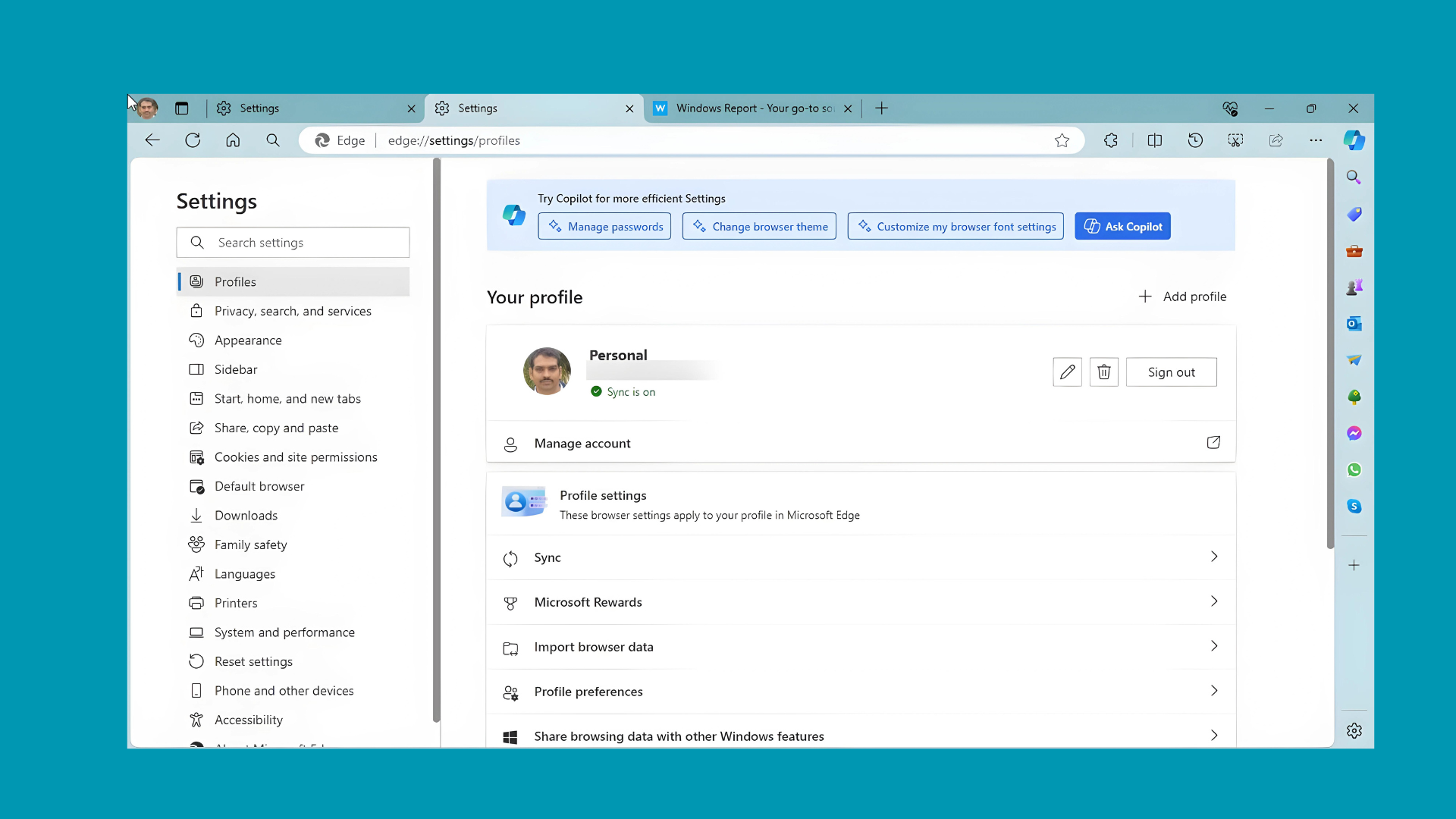
Microsoft tests showing Copilot prompts in Edge settings

Microsoft is again doing a round of testing showing more copilot Prompts throughout Edge browser Settings (whichever you select) page to encourage users to Try Copilot for more efficient Settings. The feature is being tested in Edge Canary.

Microsoft Copilot AI is available in Edge browser on Windows 11 (as Preview) and present on Android and iOS platforms too as apps. Copilot can answer questions, create summaries, and help in planning trips and more.

Recently, we reported Microsoft is showing Copilot prompts directly in the Edge address bar (dev version). We found it irrelevant to surface along with recent searches and trending news. Now, we noticed Microsoft is testing random Copilot prompts on the Edge browser settings page.

Microsoft Edge browser may show useful Copilot Prompts to open browser Settings

The aim of showing up a variety of AI prompts with the ASK Copilot button may be to help Edge users realize the potential of Copilot when comes to opening different Edge Settings. For instance, on Windows 11 too, Copilot for Windows is used to change settings, similarly here, Microsoft has shown different AI prompts that open Copilot in Sidebar when the user clicks.

While Edge doesn’t open Copilot in the sidebar when you click one of the Prompts in Settings with Ask Copilot button available, it performs the requested action when you select Prompt and choose “Ask Copilot” in the mini menu. It would have been more helpful if Prompts were available as Actions for Copilot to react. Nevertheless, this may be an experiment.


Taking this occasion, We are giving some of the Copilot Prompts related to use in the Edge browser. open Copilot in Edge type these prompts and see Copilot doing actions on your behalf.

Manage Passwords, change my default home page, change default browser theme, Turn on Vertical Tabs,
Clear browsing data, Manage my Payment Settings, and organize my tabs automatically

  • Manage Passwords, change my default home page, change default browser theme, Turn on Vertical Tabs,
  • Clear browsing data, Manage my Payment Settings, and organize my tabs automatically
  • Change browser theme, Show my browsing history, Group similar tabs together
  • Customize edge sidebar, organize my tabs automatically

Showing Copilot Prompts on top of Edge browser Settings Page may not be a good idea. Let us know which of Copilot Prompts you found useful to open Edge Settings in the comments below.

Microsoft halts build release for the Windows 11 Insider Canary and Dev Channels this week

Microsoft has confirmed that there will be no new Windows 11 Insider Build release on the Canary and Dev channels this week. In a recent post, Microsoft’s Brandon LeBlanc confirmed the news on X (formerly Twitter). Also, there was no mention of why the Canary and Dev channels will not see any build release this week.

He further added that the Windows 11 Insider Preview Build 22635.3495, under KB5037000, is now available to the Beta channel members. We recently covered some new features brought in by this update.

This includes the addition of two new Spotlight experiences in Windows 11. The new Spotlight experiences will allow users to engage with the Spotlight button to display different results.

There’s a new option that allows users to use Copilot as a normal application. Earlier users could only engage with Copilot to the side of their desktop. Now, users can also use it as an undocked app by resizing and moving it along the screen.

Apart from that, the company added the new Linked Devices panel. However, you can only view this panel if you are using Windows 11’s Home and Pro edition.

All that said, the recent KB5037000 update has its downside too. Now, you’ll see even more app recommendations in Windows 11. In short, you’ll be suggested to install apps that you will only use once in a blue moon.

Microsoft is working on a technology that finds files you’ve seen before based on topics you’re interested in

A while ago, we reported that Microsoft wants to release an AI Explorer on Windows 11 and it’s similar to the existing File Explorer, but it has advanced AI capabilities with a built-in history or timeline feature capable of searching everything Windows 11 users tell it to, using natural language.

The AI File Explorer will have access to everything on Windows 11 and help users find documents, chats, or any other files on the operating system. Assuming you tell it a word, for instance, summer, the AI File Explorer will display all the documents that include or reference the word summer, and it doesn’t have to be explicit, as this feature is also capable of context.

Microsoft might showcase the new AI Explorer at the BUILD conference, in May, however, the Redmond-based tech giant recently published a paper containing a patented technology that functions and looks strikingly similar.

The paper talks about a technology called Document Re-finding System, that helps users find documents they’ve seen before.ai explorer windows

The user provides ‘concept clips’, which are ideas or topics they’re interested in, and then, the system turns these concept clips into ‘embeddings’, which are a kind of digital fingerprint for the ideas, using machine learning models, but other technologies, such as AI, can be integrated.

The re-finder system may generate (using a machine learning model, such as a transformer model though on of skill in the art will appreciate that otger types of models may be used) semantic embeddings for he concepts defined by the user and for the clips of documents previously seen by the user.

The system then looks at all the documents the user has seen before and finds ones that are related to the concept clips. It shows these relationships in a visual way on the user’s screen.

Finally, the user can follow this visual guide to find the document they’re interested in.

Similar to the Windows AI Explorer, the patent says the technology can be used for a variety of files, from emails, to chat messages, photos, webpages, and things users looked at on the Internet. Natural language-based prompts can be used to tell the system to find specific files.

The re-finder system may be configured to assist users in re-finding emails, chat messages, documents stored in a file repository, previously encountered by the users. The re-finder system may allow the user to define concepts that may include clips, such as parts of documents, images, text paragraphs, etc.

In many ways, the system acts similar to how Windows AI Explorer is described to be: it even automatically adapts to users’ input, and it can differentiate between semantics. For instance, search results for ‘food and drinks’ will be different from those found with ‘nutrition’.

Microsoft has yet to confirm the new Windows AI Explorer, but when it does, it will have many of this system’s capabilities.

The paper can be read here.

You can now access your Xbox from Windows 11 with the new Linked Devices panel

Microsoft released the Windows 11 Insider Preview Build 22635.3495 (KB5037000) to the Beta Channel, and it brought some important changes to Windows 11.

First off, the Redmond-based tech giant introduced 2 new Windows Spotlight experiences that will make the operating system even more interactive. However, as a downside to it, Microsoft also added a new app recommendation system that will take some space out of the Start panel. Fortunately, it can be turned off.

One of the most interesting additions to the KB5037000 patch is the new Linked Devices, which allows Windows 11 users to access their Xbox consoles and other PCs, directly from the operating system.

However, it has a downside: you must be logged in with your Microsoft account, and the new Linked Devices page is only available in the Home and Pro editions of Windows 11.

We are introducing a new Linked devices page under Settings > Accounts that allows you to manage PCs and Xbox consoles that you are signed in to with your Microsoft account. This settings page will only show on the Home and Pro editions of Windows 11 and if you’re signed into Windows with your Microsoft account.

Microsoft

The KB5037000 patch also introduced the ability to undock Copilot in Windows 11. The feature was first introduced in the Dev and Canary channels a while ago, and it allows for greater control over the AI tool.

You can read the full changelog here.

KB5037000 introduces new app recommendations for Windows 11

Microsoft released Windows 11 Insider Preview Build 22635.3495 (KB5037000) to the Beta Channel, and with it, the Redmond-based tech giant introduced 2 new Windows Spotlight experiences that will make the operating system even more interactive.

However, as a downside, Microsoft introduced even more app recommendations on Windows 11, suggesting you install apps you’ll probably never use.

In the Recommended area of the Windows 11 Start section, Microsoft will display app recommendations from Microsoft Store, based on the recent apps that you’ve used. Fortunately, the option can turned off, and it will not impact commercial devices (meaning you’ll be safe at work, ironically, the place where you could use better apps).

Another great thing is that this feature might not make it to Windows 11 after all. It’s currently available to Insiders and based on their feedback, the Redmond-based tech giant will decide if it gets a general release or not.

Building on top of recent improvements like grouping recently installed apps and showing your frequently used apps, we are now trying out recommendations to help you discover great apps from the Microsoft Store under Recommended on the Start menu. This will appear only for Windows Insiders in the Beta Channel in the U.S. and will not apply to commercial devices (devices managed by organizations). This can be turned off by going to Settings > Personalization > Start and turning off the toggle for “Show recommendations for tips, app promotions, and more”. As a reminder, we regularly try out new experiences and concepts that may never get released with Windows Insiders to get feedback. Should you see this experience on the Start menu, let us know what you think. We are beginning to roll this out to a small set of Insiders in the Beta Channel at first.

Microsoft

The full changelog of the KB5037000 patch can be read here.

Microsoft adds 2 new Spotlight experiences in Windows 11

Windows 11 now has 2 new Windows Spotlight experiences that allow users to customize the way their operating system looks like. Introduced with the new Windows 11 Insider Preview Build 22635.3495 (KB5037000) to the Beta Channel, these experiences will focus on interaction with various Windows elements, according to the official changelog.

The new Spotlight experiences will let users engage with the Spotlight button to bear different results, as you can see above:

  • With Treatment 1, if a user right-clicks on the Windows Spotlight icon it will launch the Spotlight experience in full-screen mode, while double-clicking will open the landing page for the image on the desktop.
  • With Treatment 2, if a user right-clicks on the Windows Spotlight icon it will launch the Spotlight experience without any change to the desktop setup, while double-clicking launches the Spotlight experience in full-screen mode.

We are beginning to try out some adjustments for Windows Spotlight experience on the desktop to make it easier for Spotlight users to engage with this feature to change images, like or not like an image etc. In addition, these changes will make the Spotlight icon behave like other desktop icons. There will be several different treatments these adjustments that Insiders will notice.

Microsoft

Windows Spotlight was first introduced in Windows 10, and then the Redmond-based tech giant decided to release it to Windows 11, as well, last year.

The Windows spotlight feature on the desktop allows the system to constantly change your wallpaper to some of the freshest looks from around the world. 

The feature brings out a constant change to your screen. It may not seem too much, but if you’re working on your desktop for hours, it can be pleasing to the eyes.

The 2 new experiences are currently available only to Windows insiders, but the stable channel of Windows 11 will get them in the following weeks.

You can read the full changelog here.

Do you have any insightful feedback on how to make Windows better? Reply with it on this tweet

Even though Windows already has a Feedback Hub (and if it’s not working, you can use this guide to fix it) where you can leave your opinions and talk about your experience with certain Windows features, if you want to be genuinely listened to by one of Microsoft’s leads, then you might want to tweet your feedback now.

On X (formerly known as Twitter), Clint Rutkas, Lead for developer experiences on Windows, including Windows Terminal, Sudo, and Microsoft PowerToys, would like to hear from Windows users, especially, what capabilities and features would make the operating system a good experience.

How would you like to learn about what capabilities surfaces have? Both new and existing. This is a tricky issue since we understand this can be bothersome yet we find ourselves constantly learning about new stuff. Our team has some ideas but would love to hear from you

Clint Rutkas

Don’t be fooled by the ‘surfaces’ word. Why am I saying this? Well, the lead’s choice of words led many to believe he was maybe talking about the Surface laptops.

Rutkas specified later in the thread that the word is used to encompass Windows as a whole.

So, if you do have useful feedback that might get implemented one day, now is your chance to tweet it.

The Redmond-based tech giant has been relying on people’s feedback for years now, and some insights make it to their products and services, while some don’t make it.

Recently, many Xbox users, for instance, have been complaining that the company doesn’t want to listen to them. Many Xbox users would love to be able to customize the console’s home screen since Microsoft changed it last year, and many of them are constantly leaving their feedback to no avail.

Users claim Microsoft doesn’t really care about genuine feedback which leaves many angered with the Redmond-based tech giant.

However, Windows is different, and leads might actually get their teams to implement your feedback, so it’s definitely worth a try.

Microsoft limits extending the Xbox Game Pass subscriptions to 13 months in these countries

The Xbox Game Pass, Microsoft’s hit gaming subscription model that allows users from all over the world to access hundreds to thousands of video games on their Xbox consoles, and Windows PCs, can now only be extended to 13 months in certain countries.

While some Xbox subscriptions can be extended by using gift cards, or Microsoft Rewards points, Xbox users from Argentina, Brazil, Chile, Colombia, Mexico, Singapore, Taiwan, and Türkiye might want to be careful as the Redmond-based tech giant will only allow them to extend their current subscription to a maximum of 13 months.

In a blog post, Microsoft says that users from all the other countries where the Xbox Game Pass subscription is available, can extend it to a maximum of 36 months (3 years), but the countries mentioned above can only extend it for a year and a month.

Game Pass Core, Game Pass for Console, and PC Game Pass can be extended to a maximum of 36 months in all countries where they’re available except for the following, where the limit is 13 months: Argentina, Brazil, Chile, Colombia, Mexico, Singapore, Taiwan, and Türkiye.

Microsoft

Users from Argentina and Türkiye are even more unlucky: extending the EA Play is limited to 13 months as well, in these regions, while the rest of countries are allowed to extend it up to a maximum of 3 years.

EA Play can be extended to a maximum of 36 months in all countries where it’s available, except for the following where the limit is 13 months: Argentina and Türkiye.

Microsoft

Those who try to extend their Xbox Game Pass subscriptions well beyond the 13-month limit will receive an error from Microsoft saying: Hold off extending this right now.

If you’re attempting to redeem a code or gift card that will extend a subscription beyond its limit, you’ll receive a “Hold off extending this right now” error message and will need to wait until the limit won’t be exceeded.

Microsoft

Meanwhile, if you think it’s not worth extending the Game Pass subscription that much, you might want to take a look at the upcoming titles coming to it. You might have a change of heart.

Microsoft introduces the new and mandatory Nested App Authentication for Office Add-ins

The new Nested App Authentication for Office Add-ins is now in public preview, and Microsoft plans to make it the mandatory authentication method for Outlook add-ins by the end of the year, more specifically in October 2024.

In a blog post, the Redmond-based tech giant says the NAA (short for Nested App Authentication) allows users to authenticate faster and safer, ultimately becoming the standard and the only way to do so.

NAA provides simpler authentication and top tier identity protection through APIs designed specifically for add-ins in Office hosts. NAA is the best authentication option for affected add-ins; we recommend beginning work on proof of concepts using the NAA preview and adopting NAA soon after general availability.

Microsoft

The company will be turned off by default all legacy Exchange user identity and callback tokens for all Exchange Online tenants in October 2024 and advises organizations to take immediate action to prepare their add-ins for it.

We’re also announcing that legacy Exchange user identity tokens and callback tokens will be turned off by default for all Exchange Online tenants in October 2024. This is part of Microsoft’s Secure Future Initiative to give organizations the tools they need in the current threat landscape. Add-in developers who access Exchange data through EWS or Outlook REST must take immediate action to ensure their add-ins are ready before legacy Exchange tokens are off by default in October 2024.

Microsoft

The Redmond-based tech giant is making all these changes due to the constant threat from bad actors globally. Ever since Microsoft and OpenAI discovered that threat actors are using AI to target their victims, the two companies have been working relentlessly to come up with solutions: one of those solutions is Copilot for Security.

Another one is the new Nested App Authentication method:

NAA simplifies Office add-in specific authentication with APIs that work for add-ins nested within Office hosts, making it simple to get consent, accept the latest and safest authentication factors, and allow customer admins to secure their environment with Entra ID policies.

Microsoft

The company wants organizations to adopt NAA as soon as possible, but those organizations who won’t, can continue to use the legacy tokens, however, they will need to opt for the continued legacy token issuance.

Otherwise, adoption is mandatory.

Exchange Online blocks legacy Exchange user identity tokens and callback tokens in all tenants by default. Add-ins that haven’t adopted NAA and rely on legacy Exchange tokens will be unable to call EWS and Outlook REST unless admins opt into continued legacy token issuance.

Microsoft

To initiate the adoption process, the Redmond-based tech giant has laid out a plan organizations and developers can follow, which can be found here.

The Microsoft 365 admin center will be updated to support organizational messages

Last year, Microsoft announced the addition of organizational messages in Microsoft Intune, allowing managers to edit and schedule organizational messages on Windows 11. They were also able to deliver messages in 15 languages and even configure fully customizable URL links.

Now, according to the latest entry in the Microsoft 365 Roadmap, the Redmond-based tech giant is planning to release the organizational messages in the Microsoft 365 admin as well.

Microsoft is adding them in the Reports section of the 365 admin center, and managers and admins will have a variety of capabilities and features that will allow them to create new messages, review delivery reports, and so on.

Organizational messages allows enterprises to connect with their organization through customized messages, enabling them to engage directly within the Microsoft product experiences they use every day, like Windows Spotlight. Starting Spring 2024, Organizational messages will be found under the “Reports” section within the Microsoft 365 admin center and will include features for admins to centrally manage their tenant’s messages, create new messages, and review delivery reports.

Microsoft

The new organizational messages are life savers for IT managers and admins: they’re very easy to set up and use, enhance productivity, and reduce time spent on deploying and noticing employees about changes made in the organization.

According to the entry, they will be available globally to everyone, but Microsoft is conducting a preview first, which will take place in May 2024 (similar to the Microsoft Intune preview, last year), and a month later, in June 2024, they will be made available to all organizations.

Managers will also see a new Copilot reports section within the 365 admin center, starting next month, as Microsoft wants companies who know if the AI adoption is going as intended or not. Fortunately, regular employees will be protected by the newly updated report, as the new policies will show their usage in an anonymized mode.