Microsoft has acknowledged a new zero-day vulnerability in all versions of Windows that is currently being exploited by attackers. The company says that a remote code execution vulnerability has been found in MSHTML, which can be used to create malicious Microsoft Office documents (via Bleeping Computer).
“An attacker could craft a malicious ActiveX control to be used by a Microsoft Office document that hosts the browser rendering engine. The attacker would then have to convince the user to open the malicious document. Users whose accounts are configured to have fewer user rights on the system could be less impacted than users who operate with administrative user rights,” the company explained.
The remote code execution vulnerability, under the identifier CVE-2021-40444, was discovered by researchers from different cybersecurity companies, including Microsoft Security Response Center, EXPMON, and Mandiant. The vulnerability, when exploited, impacts the Internet Explorer’s browser rendering engine MSHTML, which is also used to render browser-based content in Microsoft Office files on Windows.
The Redmond giant is already working on a fix and plans to release a security update on this month’s Patch Tuesday or through an out-of-band update. In the meantime, users can protect PCs by keeping antimalware products (i.e., Microsoft Defender Antivirus and Defender for Endpoint) up to date. The company also advises users to disable the installation of ActiveX controls in Internet Explorer to mitigate any potential attack. We invite you to check out Microsoft’s Security Advisory page for more information about these workarounds.
Here’s the rundown of each product and the in-game item that accompanies it.
The Razer Kaira Pro for Xbox headphones comes with the green and black Deathly Poison Armor Coating skin.
The Razer DeathAdder V2 mouse unlocks the Fangs Emblem.
The Razer BlackWidow V3 keyboard comes with a code for the Deathly Poison Weapon Coating.
And the Razer Goliathus Extended Chroma RGB mat grants the owner 5 Challenge Swaps.
No release date has been set yet for any of the above products though interested gamers can sign up to be notified on the official Razer product page here.
Razer BlackWidow V3 keyboard
Razer has released a large number of cool gaming products over the past few years but the item that’s getting the most buzz is the Razer Zephyr (previously Project Hazel) mask which is due out before the end of the year and is already in testing with a growing number of influencers and streamers.
In a bit of a surprise move, Epic Games has just added the previously unnamed character from their Unreal Engine 5 demo to the Fortnite video game as a playable skin. Move over, Shang-Chi!
The character, now officially called Windwalker Echo, has been adapted slightly to fit the general Fortnite design aesthetic but she generally looks very similar to the original design and is instantly recognizable to those who remember being impressed by the initial Unreal Engine 5 presentation.
The celebrate the character’s arrival in Fortnite, a special short film featuring Windwalker Echo called Slay has been produced by Mold3D Studio. It can be watched below.
Epic Games is also encouraging Fortnite players and Unreal developers to share images featuring Echo (or inspired by her) on socials. Those creating images in Fortnite are instructed to use the #Fortography hashtag on Twitter or the Fortography post flair on r/FortNiteBR if using Reddit while Unreal devs can now download the Windwalker Echo assets to create their own animation and share it along with the #UnrealEcho hashtag.
Windwalker Echo definitely made an impression with gamers and developers back in May 2020 when the Unreal Engine 5 presentation went live with many wondering if the character could appear in her own video game sometime in the future. Her addition to Fortnite and this social media campaign are definitely curious and it’ll be interesting to see if this is the beginning of a bigger push for the character with a larger project planned for down the road.
The addition of Windwalker Echo isn’t the only big Fortnite news this week. The finale event for the end of Chapter 2 Season 7 is scheduled to begin in just a few days’ time at 4 PM ET on September 12th with Season 8 expected to begin a few hours afterwards.
Fortnite Chapter 2 Season 8 will bring a new Battle Pass to the game along with a significant amount of new lore involving the aliens and, if the leaks are true, the return of the mysterious cube from past seasons.
Panos Panay just keeps on pumping out the teasers for redesigned Windows 11 apps. This time around, he’s showcasing a “beautifully redesigned” Photos app, which he again says is coming soon to Windows Insiders.
Once again, this short 18-second clip doesn’t expose much other than some rounded corners and a cleaner user interface. Overall, it still resembles the Windows 10 photos app on the surface, with some smaller changes and no new features. You can have a peek below at the teaser and be the judge for yourself.
We spotted just a couple of changes from these few seconds. First off, Microsoft looks to have slimmed down the user interface a bit. Controls for editing images, creating collages and slideshows are more compact and in line with Windows 11’s design language. Even the information pane has been changed so that it sits on the side and gives you quick access to location, camera, and other associated information from the photo you’re editing.
There’s also an improved cropping menu, which takes the image full screen and drops out the sidebar in favor of controls at the top of the screen. Overall, though, the app does feel the same as what we’ve seen in Windows 10 so far with no added features
So far, this is the fourth app that Panos Panay has teased. The first was the redesigned snipping tool, the second the new Alarms app, and the third, a new paint app. Microsoft has only delivered on two of these apps so far, rolling out Alarms and Focus Sessions, as well as the Snipping tool.
What do you think of the new photos app? Do you like the new coat of paint? Or do you prefer Microsoft to add more features? Let us know in the comments below.
Microsoft Forms is getting some new important updates that will bring the ability to categorize forms into different collections. The Redmond giant has announced via the Microsoft 365 Admin Center that this collections feature could roll out to desktop and mobile users in November 2021.
“End users in your organization will be able to easily archive and manage their own personal forms into different collections which will allow them to work more productively and feel more in control of their personal content. Additionally, this new update will provide a smooth experience for users when they switch between different products in office.com (e.g. PowerPoint, Word, Excel, OneDrive),” the Microsoft 365 Admin Center message reads.
Microsoft says that this update will also let users easily archive and manage quick polls created via other Microsoft 365 apps, including Microsoft Teams, PowerPoint, and Outlook. Additionally, the company is making it easier for users to manage/quickly find their polls and quizzes in the user-created, group as well as shared form categories.
The ability to group quizzes and surveys in different collections is one of the most requested features, and it should have been there since the beginning. Do you think that this feature will help to increase your productivity at work? Let us know in the comments below.
Microsoft has introduced today Microsoft Start, a personalized news feed that will be available across the web, the Microsoft Edge new tab page, Windows PCs, and mobile devices. Microsoft Start is an evolution of the company’s existing Microsoft News service, which uses content from the MSN.com news aggregator.
“Microsoft Start brings new technology to content experiences, including Microsoft’s latest advancements in AI and machine learning, coupled with human moderation, to help people stay up to date with information that is personalized for their interests,” explained Microsoft CVP Liat Ben-Zur. Users will see a personalized feed with stories coming from a over a thousand selected publishers, and they’ll be able to refine the algorithm by choosing articles or publishers they like or dislike.
Microsoft Start users can click on the “Personalize” button to manage their interests and optimize news recommendations from the get-go. In addition to news, Microsoft Start also features information cards providing updates on weather, finance, sports, and traffic. Overall, the experience should look quite familiar for people coming from the existing Microsoft News service, with a consistent UI across the different platforms where Microsoft Start is available.
All in all, Microsoft Start is still all about bringing more traffic to MSN content: MSN itself isn’t going away, while Microsoft will start redirecting users from MicrosoftNews.com to the new Microsoft Start experience at MicrosoftStart.com. It’s not exactly clear why Microsoft needed a new brand for its news aggregator at all, especially when MSN remains one of the company’s oldest and most popular consumer brands. However, some of you may remember that Start.com was the name of a web-based RSS Aggregator that Microsoft launched back in 2005, but the short-lived experiment closed its doors two years later.
Microsoft Start is launching today on MicrosoftStart.com, and it’s also rolling out on the Microsoft Edge new tab page, the News and interests taskbar widget on Windows 10, and the new Widgets experience on Windows 11. On iOS and Android, the Microsoft News apps (formerly MSN News) will be updated and rebranded to Microsoft Start with a shiny new icon on both platforms.
Remedy Entertainment, the developer of the cult-classic action-adventure game Alan Wake has confirmed this morning that a remaster is in the works for PC, Xbox, and PlayStation consoles. A store listing for the Alan Wake remaster was first spotted online last week, and Remedy’s Creative Director Sam Lake chose to make the news official on an Alan Wake fan site today.
We can't thank you enough for the love and support you've shown #AlanWake these 11 years… but I can try.
I wrote you a letter on our lovely, long-time fan site, @TheSuddenStop.
“The original game was only available for Xbox 360 and a few years later, PC. We are thrilled about the opportunity to bring the remastered version out for a new generation of platforms,” Sam Lake wrote. The Alan Wake remaster will be published by Epic Games and be exclusive to the Epic Games Store on PC, but the game will also be coming for the first time on PlayStation consoles.
Microsoft used to own the Alan Wake IP, but the publishing rights for the game were reverted to Remedy back in 2019. This finally allowed the Finnish studio to work on a remaster, and a sequel could also be in the works. Control, Remedy’s latest game actually had some Alan Wake fan service in its second “AWE” DLC released back in August 2020.
“Alan Wake Remastered is the original experience you fell in love with all those years ago. We did not want to change that. But the visuals all around, including the character model of Alan Wake himself and the cinematics, have been updated and improved with some choice next-generation upgrades,” explained the game’s Creative Director.
Alan Wake Remastered will be released later this fall on the aforementioned platforms, and Remedy has yet to confirm the October 5 release date that has been previously spotted on the now-deleted Rakuten.com store listings. In addition to Alan Wake, there are a couple of much-anticipated remasters coming this fall including Blizzard’s Diablo: II Resurrected and Rockstar Games’ GTA V.
“The remaster is coming because of your support for Alan Wake through the years”, Sam Lake emphasized today. Despite being released 11 years ago, Alan Wake probably made a bigger impact than recent Remedy Games such as Control or Quantum Break, which both received a polarized critical reception. It’s great to see that Remedy is keeping this franchise alive, and we’re looking forward to getting more details about this remaster in the coming weeks.
If you largely depend on Microsoft Outlook for your mailing needs, you’ll be happy to know that Microsoft now allows you to set it as the default email client on your Windows 11. Windows 11 has a built-in email app called Mail.
It’s designed to be a simple, easy-to-use email client that works with Microsoft’s Outlook.com, Office 365 email services, Gmail, Yahoo Mail, and other popular services. The good news is that you don’t have to use it. You can change the default email program to Outlook, and we will show you how below.
What is the default email program for Windows 11?
The default email program on Windows is the Mail app from Microsoft. It’s not the most popular email program in the world, but it’s one of the most powerful. Still, some users prefer more functionality and may opt for other email clients.
Outlook, for instance, has come a long way from being an essential app to a feature-rich program. Now, users can change the theme on the Outlook desktop app or password-protect their emails. With such features, it is easy to see why one would want to switch to Outlook as the default email client.
If you’re unhappy with the default email program in Windows 11, there are plenty of alternatives. However, we shall show you how to set Outlook as your default email client today.
How do I make Outlook my default email in Windows 11?
1. Use the desktop app
Hit the Start Menu and click on Settings.
Click on Apps on the left pane, then select Default apps on the right.
Under Set defaults for applications, search for Outlook and click to open.
Scroll down and expand the Mailto option.
A prompt will appear asking you to select a default mail app. Click on Outlook, then hit OK.
Click on the three ellipses at the top right corner and select Settings.
Select Privacy and security and click on Site settings.
Scroll down and click on Additional permissions.
Locate Protocol handlers and click on it.
Check the Sites can ask to handle protocols checkbox and go back to your Outlook account.
Click on the Protocol handlers icon on the address bar at the far end, and a prompt will appear. Select the Allow check box, then click Done. All emails will now open via Outlook.
There are many browsers, so the steps will differ for each. With the steps above, you get a rough picture of how to set your Outlook account as the default email client on a browser.
Recently, users complained of disappearing emails on Outlook, and Microsoft developed software to remedy the situation. Users who rely on Outlook as their primary mailing app are advised to run up-to-date browsers and enable functionality when loading the PWA.
More features worth checking out in Outlook include setting your calendar to private, so don’t hesitate to visit our guide for step-by-step instructions.
Do you use Outlook.com? What did you think of its features? Share your thoughts in the comment section below.
Windows 11 seems to be the gift that keeps on giving. Lately, if you have noticed, there are different sounds when you toggle between dark and light mode. Microsoft has something in store for you.
As part of its ‘calm the technology down,’ Microsoft has embarked on a journey to apply quieter and more tranquil sounds during the night. Think about it, when someone delivers a message, the tonal variation determines how you receive and perceive the message.
What’s the main focus?
According to BleepingComputer, the Windows 10 sounds were sharp. Their wavelengths were intense, and it was hard for users to concentrate. Windows 11 focused on calming down technology. Re-evaluation of the soundscape was necessary.
The engineering of the sound is likened to the visual design of Windows 11 as a package. If you are not yet up to speed with the Windows 11 features, you need to familiarize yourself with all the amazing features in store for you. Although the changes are not huge, if you pay close attention, you will notice that small details were the key focus to soften the overall experience.
The new sounds are magnificent
The new sounds are softer because they now have a more rounded wavelength. They still serve their purpose of alerting you without being overwhelming.
If you are wondering why the sounds only apply to dark mode, you are not alone. Microsoft adds that the dark and light options put into consideration people with poor and low vision. The sound options are supposed to allow them to hear light and dark topics.
In the past, users complained of receiving updates much later on Microsoft tools. Outlook, for instance, took a while before Microsoft added the dark mode version.
Some of the reactions to the new sounds from users largely welcome the changes.
The official iOS Microsoft Lens: PDF Scanner app updated to Version 2.53.1 on Apple’s iPhone and iPad smart devices this past week.
This new app update renamed the My Files section as My Scans and also fixed the bug that was causing the app to freeze while performing a crop or applying a filter.
Here’s the full release notes:
Fixes an issue where the filter and crop capability was freezing for some users
My Files is now called My Scans
Other bug fixes and performance improvements
Microsoft Lens: PDF Scanner is a free app that lets users take and then convert photos into editable PDF, Word, PowerPoint, and Excel files. Its main claim to fame is its ability to convert handwritten text seen in a photo into regular text that can be annotated, edited, and shared by the user.
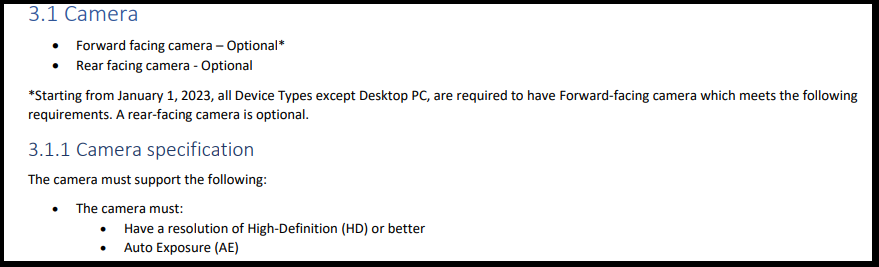
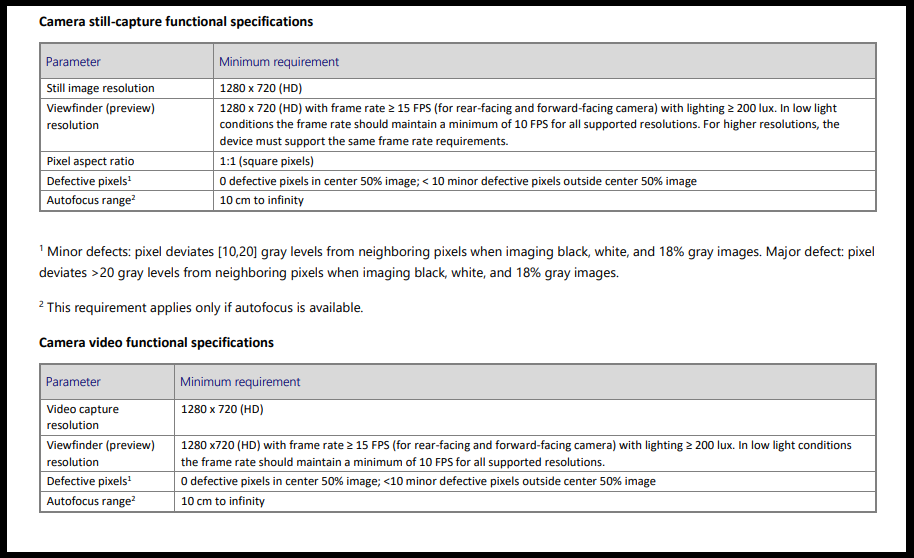
With a little over a month remaining until the unveiling of Microsoft’s Windows 11, it appears that new system requirements have come up. As we near the long-awaited date, Microsoft keeps introducing new requirements. Just a few weeks ago, webcams were made mandatory for users planning to run Windows 11.
What you will need
For you to run Valorant, you will need;
A newer CPU,
4GB RAM,
At least 32GB of storage,
TPM 2.0.
Reports indicate that these new rules are being enforced only on Windows 11, so if you are still on Windows 10 without TPM 2.0, you have nothing to worry about. The only downside is that Windows 10 has a lifespan, and it will only be supported up to October 2025.
In addition, there is no guarantee that these new rules will only apply to Windows 11.
Why TPM?
TPM or Trusted Platform Module is an installation on your PC that contains a security module aimed at performing hardware and security-related operations. It serves as an extra layer of security and prevents malicious malware from tampering with its security features.
According to Microsoft, it is highly effective in cryptographic activities. In the past, Microsoft has made significant steps to offer more security to the Windows operating system by setting specific requirements.
Reddit users are, however, debating on whether you need TPM to run every single game and argue that a game has no business requiring TPM. Some of the comments on Reddit on the new requirements are as follows:
What are your thoughts on games requiring TPM to run on PCs? Have you had any restrictions when playing games after installing a Windows update? Let us know in the comment section below.
Microsoft news recap is a weekly feature highlighting the top Microsoft news stories of the past week. Sit back, grab some coffee, and enjoy the read!
Xbox becomes new official gaming partner of the England football teams
Xbox has become the official gaming partner of the England football teams, with the brand set to launch a large marketing campaign in partnership with The Football Association, allowing it to reach football and gaming fans across the UK.
Outlook on the web will soon help users write better emails
A tone detector feature is set to launch in Outlook on the web this month. Initially rolling out to business users, the feature will use the Microsoft Editor browser extension to automatically detect the tone of the email and offer up suggestions for improving the tone.
Microsoft is holding another digital event focused on hybrid work on September 9
A digital event focused on hybrid work is being hosted by Microsoft on September 9. With the virtual event, Microsoft will talk about what the future of work could look like, and how companies can overcome the challenges of what the future work environment could bring.
LinkedIn to follow Twitter in removing its Stories feature less than a year after launch
It’s been less than a year since LinkedIn launched its Stories feature, and it has become apparent that the feature just wasn’t being used by users. As such, LinkedIn’s Stories feature will be removed by the end of the month. It’s not come without some benefit, however, as the social network plans to add some of Stories’ video editing features into a more permanent video feature.
That’s it for this week. We will be back next week with more Microsoft news.
And since we are talking about unreliable software, know that as expected, this new version of the upcoming OS is riddled with nasty bugs and other critical issues.
One that stands out right away, because it’s basically the first thing you see after Windows 11 finishes loading up, involves the taskbar and Start menu, again.
New build comes with critical taskbar and Start menu bugs
As we mentioned above, there are widespread reports of some OS components not functioning on PCs that have updated to today’s new release of Windows 11.
We are, of course, talking about build 22000.176 for Beta/Release Preview channels, and 22449 on Dev channel.
However, this might also affect older versions too. If you are testing Windows 11 and your Start Menu and/or taskbar is not loading right, crashing, missing all the icons/clock, and otherwise being useless, you have come to the right place.
Luckily, Microsoft also took it upon itself to let its users know about these issues, and also provide a workaround for the problem, until they can sort it out at their end.
In an update posted on the official release notes page, Redmond officials acknowledge the issue and hand users a much-needed lifeline.
Recently, Windows Insiders in both the Dev and Beta Channels began reporting that Start and Taskbar were unresponsive and Settings and other areas of the OS wouldn’t load. We quickly discovered an issue with a server-side deployment that went out to Insiders and canceled that deployment. If you were impacted by this issue, you can use the following steps to get back into a working state on your PC.
Now let’s see exactly what we can do to fix this bug and continue testing the future OS without having to deal with such a nuisance.
How do I fix my taskbar and Start menu?
Simply follow the easy steps listed below, with patience and attention, and you will soon put all this behind you:
Press CTRL-ALT-DEL and choose to open Task Manager.
Select More details, located at the bottom of the Task Manager.
Click on File and then choose Run new task.
Type cmd in the Open field and press OK.
In the window that opened, paste the following command: reg delete HKCU\SOFTWARE\Microsoft\Windows\CurrentVersion\IrisService /f && shutdown -r -t 0.
Press Enter, and then your PC should reboot.
After rebooting, everything should be back to normal. Additionally, Microsoft said it will be rolling out a new server-side deployment that will automatically fix Insiders in this state over the next few hours.
Windows 11 users also found other ways to fix the issue
Besides the official fix advice that came from the Redmond company itself, some tech-savvy Insiders discovered other neat ways to deal with the problem.
In a recent Reddit post, user Froggypwns, who is listed as a Windows Insider MVP, centralized the best solutions and shared them with the public.
Let’s start with the most similar one and slowly work our way down the list.
Solution #1
Press CTRL-ALT-DEL and choose to open Task Manager.
Select More details,located at the bottom of the Task Manager.
Click on File and then choose Run new task.
Type Control Panel in the Open field and press OK.
Once in the Control Panel, click on Programs.
Click on the View installed updates button.
Find Update for Microsoft Windows (KB5006050) and uninstall it.
Reboot your PC.
Solution #2
Press CTRL-ALT-DEL and choose to open Task Manager.
Select More details,located at the bottom of the Task Manager.
Click on File and then choose Run new task.
Type Control Panel in the Open field and press OK.
Select Clock and Region.
Click the Set the time and date button.
Click the Change date and time Settings button.
Select a random time and date, somewhere in the future, then click OK.
Switch to the Internet Time tab and click on the Change settings button.
Turn off the Syncronize with an Internet time server option, then click OK.
NOTE
Some Windows users that faced the same problem say that simply changing the time sync server from Windows to NIST helped without having to adjust the clock itself.
Solution #3
Press CTRL-ALT-DEL and choose to open Task Manager.
Select More details,located at the bottom of the Task Manager.
Click on File and then choose Run new task.
Type cmd in the Open field and enable the Create this task with administrative privileges option, then press OK.
Type rstrui.exe and press Enter.
This will start up Windows Restore. Set it back to before today’s date.
These are some of the tricks that worked for fellow Insiders, in their quest to fix these annoying problems. Hopefully, if the solution provided by Microsoft doesn’t solve the issue for you, one of the other ones does.
We are all hoping that Redmond company developers and engineers will sort this whole matter out as quickly as possible, so we can go back to testing Windows 11 properly.
Which of the above-mentioned solutions worked for you? Let us know in the comments section below.
Microsoft is working hard on Windows 11, and with the announcement of the official release date, it’s no wonder that we’re getting new builds with new features.
Windows 11 build 22449 is available in the Dev channel and it brings a couple of new features as well as various bug fixes and improvements.
This build comes from the active development branch, and it offers features that are in development or not finished, so expect a bug or two along the way.
Nevertheless, we took this build for a test ride, and if you want to see what the new build offers, be sure to keep on reading.
What are the changes in Windows 11 build 22449?
There are a lot of new things in this new build, some of them are improvements and fixes for the previous ones while others are completely new. First, let’s take a look at what are the latest feature.
New features in the latest Windows 11 build
New loading animation
This is a minor change that you probably won’t notice right away. The loading screen has been changed and it now features a different animation.
All previous versions used a circle of dots for the loading animation, but that changes with this build. Instead of dots, the loading screen now uses a progressive ring animation.
This is a minor change that probably most users won’t notice, but we feel that’s a welcome change, even if it’s minor.
No more startup sounds for scheduled updates
As you probably know, Windows 11 brought back the startup sounds, and while many users welcomed this feature, it does come with its share of minor inconveniences.
Windows updates are automated, and if you schedule an update outside your active hours, once the update is finished and the system booted, the startup sound would go off.
This might be a problem if the update is scheduled during the night, but with this update that won’t be the case anymore.
The startup sound won’t play anymore for scheduled unattended updates, which is a small but welcome quality of life improvement.
Quicker access to Bluetooth settings
With Windows 11 build 22449, it’s easier to access Bluetooth settings. Now you can access these settings right from the Quick Settings panel.
Simply open the panel, locate Bluetooth, right-click and choose Settings from the menu. The main Bluetooth & Devices page in settings should open allowing you to change your settings with ease.
Easier to customize your touch keyboard
Bluetooth settings aren’t the only settings that are easier to access. With this build, it’s easier to personalize your touch keyboard.
Now you can access personalization settings from the Touch Keyboard easily. This is a minor quality of life improvement, but it’s a welcome addition, especially if you’re a touchscreen user.
Notifications and Notification Center improvements
Notifications got a visual change and now they are using the acrylic background, which makes them look more like the context menu.
It’s worth mentioning that the Notification Center has been slightly changed, and the app names are now more visually separated, so they stand out from notifications.
These are small visual changes, but they help make the operating system look more consistent, and we’re in favor of these changes.
Windows Hello and Windows Sandbox improved visuals
Windows Hello notification was updated with new animation, and you can see it when your PC asked you to set up Windows Hello for the first time.
Windows Sandbox is also changed, and the closing dialog has rounded corners, so it matches the new user interface better.
Changes to SMB compression
SMB compression is a feature that is used when transferring files over the network. This feature compresses the files as they transfer, thus removing the need for manual compression.
In the past, this feature would compress files if more than 100MiB of data could be compressed. This led to having to send some large files without compression over the network.
With this build, the algorithm is changed, and now the files will always be compressed. This is mostly behind the scenes change, and you probably won’t notice it, unless you’re a network administrator.
Windows 11 build 22449 bugs & issues
Green Screen of Death during installation
Several users reported that they are unable to install the latest build due to a Green Screen of Death that appears.
This screen appears during the installation and prevents users from installing the new build. This is a big problem, and so far, there’s no workaround available, so hopefully, Microsoft will fix this in near future.
Installation problems without a TPM
Many users reported that they weren’t able to install Windows 11 build 22449 without TPM. For a long time, it was known that TPM 2.0 will be a requirement for Windows 11, and it seems that with this build Microsoft is enforcing this requirement.
Users seem to have found a workaround, and it involves the following:
Go to the C:$WINDOWS.~BT\Sources\
Now delete all appraiserres.dll files.
Try to install the build again.
Some users are recommending to copy the appraiserres.dll file from a Windows 10 PC and move it to the following directory:
C:$WINDOWS.~BT\Sources\
The flyout menu in the system tray doesn’t have rounded corners
The flyout menu is using the old design and it doesn’t have rounded corners in this build. This is just a glitch, and to fix it, you just need to open Task Manager and restart File Explorer.
Few users reported that changing from dark to light theme or vice versa fixes the problem until you restart your PC, so feel free to try that as well.
Various Start Menu and Taskbar issues
Microsoft has acknowledged that Windows 11 build 22449 has various issues with Taskbar and Start Menu. These issues include crashes, unresponsiveness, and in some cases, the Taskbar won’t appear at all.
Fortunately, Microsoft is already working on a fix, but for the time being, there’s an official fix from Microsoft that you might want to try:
Press Ctrl + Shift + Esc to open Task Manager.
Now click on File and select Run new task.
Paste the following line and click OK to run it: reg delete HKCU\SOFTWARE\Microsoft\Windows\CurrentVersion\IrisService /f && shutdown -r -t 0
This will reboot your system.
Once the system starts, the issue should be gone completely.
How can I install Windows 11 build 22449?
Press Windows Key + I to open the Settings app.
Navigate to the Windows Update section.
Windows will automatically check for updates and start downloading the new update.
Once the update is downloaded, it will be installed in the background.
After the background installation is finished, you’ll be asked to restart your PC, so click the Restart now button.
Wait for the process to finish and don’t turn off your PC.
Once the process is finished, you should have the latest build running on your PC. Keep in mind that the update process can take a bit longer than usual, and it can take about 15 or more minutes.
Should I upgrade to Windows 11 build 22449?
The latest build brings some minor visual improvements that most users probably won’t even notice on the first look.
This includes the new loading animation and some minor changes to the notifications background and Notification Center.
The biggest improvement is the change to the SMB compression algorithm, but this isn’t something that everyday users will notice.
While we expect a Dev build to be buggy, this one has some problems with Start Menu and in some instances, you might not even be able to install this build.
We had no major issues while testing this build, except for few installation glitches, but we manage to get the build running after few installation attempts.
Overall, the new build doesn’t offer that much, and if you’re looking forward to big changes and improvements, you should probably skip this build since it brings mostly minor visual changes and bug fixes.
Have you tried Windows 11 build 22449 and what did you think of it? Share your thoughts with us in the comments section below.
If you are also a Windows Insider and conduct most of your testing work within the Dev Channel, you’re about to start getting less stable, more experimental builds of Windows 11, like Microsoft already warned.
Therefore build 22449, which was just released today, is actually a big leap in version numbers is because it is the first to come from the active development branch (RS_PRERELEASE).
If you were wondering why the Redmond tech giant has moved on to more unstable preview builds, the answer is that it plans to test the first Windows 11 major update, 22H2, through the Dev channel.
As you remember, the upcoming OS is scheduled to start rolling out to compatible devices on October 5th.
This one of the builds that Microsoft warned users about
So let’s see what’s new in build 22449, starting with the main new addition, which is an SMB compression behavior change.
If you aren’t familiar with the term, know that SMB compression allows a user, or application to request compression of files as they transfer over the network.
From this build, if compression is required, Windows 11 will attempt to compress the contents, overcoming an issue which saw smaller files not being compressed previously.
Some of the other changes and improvements to this new software version also include:
The boot screen now shows a progressive ring animation for loading the OS instead of an animated circle of dots. Microsoft is working to replace this animated circle of dots in other areas of the OS over time.
Right-clicking on the Bluetooth entry in Quick Settings and selecting Settings will now open the main Bluetooth & Devices page in Settings.
The Windows startup sound will no longer play after an unattended update (aka a scheduled Windows update when you are not at your PC).
Added a link to the touch keyboard personalization settings from Typing > Touch Keyboard to help improve discoverability.
Notifications now have an acrylic background.
Updated animation used in the notification introducing you to Windows Hello if it hasn’t been set up.
Updated the dialog when closing Windows Sandbox so that it has rounded visuals.
Adjusted the design of Notification Center to make the app names more visibly separated from the notifications.
Fixes brought through build 22449
Next, let’s have a quick gander at the important bug fixes that Microsoft managed to release within this new patch:
[Taskbar]
If your Taskbar is set to auto-hide, hovering over the Taskbar corner or bottom of secondary monitors should now properly invoke the Taskbar.
Fixed an issue that could make the calendar flyout get in a state where only the week names would load and not the calendar part.
Addressed an issue where the lunar calendar would get out of sync with the actual date in the calendar flyout.
If you’ve updated your time format, additional clocks added to the calendar flyout will now update to reflect that.
Hovering over one of the Desktops in the Task View flyout should no longer unexpectedly change your active Desktop.
The Focus Assist button in Notification Center now has an accessible name for screen readers.
Fixed an underlying issue that was causing the font in the Taskbar previews to not be correct.
Did some work to help make explorer.exe more reliable when using the Taskbar on multiple monitors.
[Input]
Mitigated an issue that was making the Mail app not able to accept keyboard input into the address / subject lines of a new email sometimes.
Also fixed an input related deadlock that was making certain windows not respond to mouse input, including Search, Start, and the emoji panel.
If you’re using a tablet or 2-in-1 device in tablet posture, the touch keyboard should now be invoked when tapping Command Prompt to input text without having to tap the touch keyboard button.
The N’Ko keyboard name should now display correctly in the input flyout when added to the input list.
Microsoft did some work to address an animation issue with the shadow when opening the emoji panel or voice typing.
Made some performance improvements to help address an issue where the Pinyin IME would take a significant amount of time to start.
Addressed an issue where the Pinyin IME would crash and get stuck in a broken state that could result in no longer being able to type anything.
Fixed an issue where Japanese IME didn’t lock Kana input mode and reverted it to Romaji input mode after inputting a single character while UAC was disabled or using Windows Sandbox.
Fixed an issue that when you insert multiple prolong sounds in a row with Japanese IME, the first one and remaining ones were inserted with different character code.
Addressed some cases where you wouldn’t see anything when trying to launch the input switcher (Win + Space), including when using Windows Sandbox.
Fixed an issue where an angry looking emoji was returned if you searched for “sad” in the emoji panel.
Made some tweaks to fix rendering with certain characters when writing vertically, for example writing Japanese vertically with Meiryo UI.
Did some work to address an issue that could cause the left mouse click button on precision touchpads to get stuck and stop working.
Inputting ALT key codes on the number pad when using the Japanese IME should work now.
Addressed an issue that was making Alt-Gr occasionally get ignored when a client RDP window was active.
Made a change to help address an issue that could result in characters getting dropped when typing with the Korean IME into certain win32 text boxes.
[File Explorer]
Microsoft did some work to help address an underlying issue where moving certain app windows would be very slow if a File Explorer window was also visible on the screen.
The command bar should now be properly mirrored in Arabic and Hebrew and fixed some positioning when using the command bar flyouts in those display languages.
Mitigated an issue impacting explorer.exe reliability.
Fixed a text rendering issue with the apostrophe in the Move Folder dialog.
Clicking the “Network discovery is turned off” message in File Explorer will now navigate to a more relevant location instead of just the main page of Network Settings.
Fixed an underlying issue that is believed to be the cause of explorer.exe crashing for some people when using the paste button when right-clicking in File Explorer.
[Settings]
Fixed a bug that was causing the battery level displayed for connected Bluetooth devices in Settings to get stuck and appear out of date.
The contrast issues in Sound settings should be fixed now when using the Desert contrast theme.
Addressed an issue where selecting 5.1 audio type in Sound Settings wasn’t sticking.
The sliders in the Sound Settings volume mixer should no longer unexpectedly be different lengths.
The Searching Windows link on the Search Permissions page in Settings now works and should no longer crash Settings if the indexer is not running.
Made some improvements to help address an underlying issue that could result in display positions and settings being unexpectedly forgotten.
Fixed an issue that was causing the profile picture in the top corner of Settings to scale poorly sometimes.
The time format in Power & Battery Settings should now follow your preferences.
Addressed an issue where clicking the high brightness warning in Powery & Battery Settings wouldn’t lower the brightness.
The Video Playback page in Settings should no longer show battery options for devices without batteries.
Fixed misspelling of Santali in Language Settings.
Fixed misspelling Malaysia (TA-MY) in Language Settings when using the Tamil display language.
Did some work to fix an issue where navigating to Lock Screen was crashing Settings sometimes.
The “only allow Windows Hello sign-in for Microsoft accounts on this device” setting in Sign-in Settings will now only show for accounts where this option supported.
You can now select the text of the update names in Windows Update History again if you would like to copy them out.
Addressed an issue that is believed to be the root cause of some people experiencing crashes when clicking on some of the links in the Advanced Options page of Windows Update Settings.
Windows Update History should now correctly show the number of updates in each category, instead of showing 0.
The BitLocker link in Settings will no longer crash if it’s clicked on devices where it’s not supported.
Fixed a few places in Settings where Narrator wasn’t reading items, including making an update so Narrator will now announce success after successfully pairing a device.
Options in Personalization Settings that aren’t supported when a contrast theme has been selected will now be disabled.
Opening Taskbar Settings in Windows Sandbox will no longer crash Settings.
Fixed a hang relating to the input flyout that was causing Quick Settings to hang and not launch.
Did some work to address an issue where the edit button in Quick Settings would go missing sometimes.
Fixed a deadlock that was resulting in cellular data on/off values not matching between Quick Settings and Cellular Settings page.
Quick Settings shouldn’t get clipped anymore when using Magnifier.
Addressed an issue that was making the Duplicate option under the Project flyout in Quick Settings not work in some cases.
[Logging in and Authentication]
The icons used in Windows Spotlight text on the lock screen should display properly now and not look like boxes sometimes.
The Windows startup sound should no longer play while updates are in progress.
Tweaked the buttons of the UAC dialog so the pressed state is more consistent with other buttons.
The image in the Windows Hello notification is now visible when using light mode.
The “Getting things ready for you” text after an update should now be written in the correct font (Segoe UI Variable).
Did some work to help reduce potential banding effects on the “getting things ready” screen after first setting up a device.
Addressed an issue where the Number Lock state did not persist during a Fast Start reboot.
Fixed an issue that could cause the Lock screen to appear blank with the default lock screen image if lock screen slideshow was enabled combined with “Automatically pick accent color from my background” in Personalization settings.
[Bluetooth and Devices]
Fixed an issue for Insiders with paired Bluetooth LE devices that was causing an increase in Bluetooth reliability issues and bugchecks after resume from hibernate or when Bluetooth was turned off.
Fixed a crash with certain connected devices that could result in not being able to use Bluetooth.
Mitigated an issue for certain connected devices that was resulting in unexpected beeping, lower than expected maximum volume, occasional Windows Audio service hangs, and volume seemingly getting stuck.
Addressed an issue that was making certain scanners not work.
Fixed an issue that could cause unexpected brightness changes when adding a monitor, closing then opening a laptop lid, changing resolution or orientation (including autorotation) or a in game setting or a full-screen mode at a different resolution.
A new display driver being installed should no longer unexpectedly re-enable disabled devices, including graphics adapters.
[Windowing]
Min/Max buttons in the title bar of certain apps should no longer become distorted after turning off a contrast theme.
Fixed an explorer.exe crash that could happen when using ALT + Tab.
The keyboard focus in ALT + Tab and Task View should be easier to see now.
[Microsoft Store]
The following issues were fixed in the most recent Store updates:
Fixed the issue where the install button might not be functional in limited scenarios.
Also fixed an issue where rating and reviews were not available for some apps.
[Chat from Microsoft Teams]
Arabic and Hebrew languages will now allow changing Teams Settings.
Fixed the issue where if you were making an outgoing call, there was no ring tone, but the user interface would show that the call is getting connected.
[Other]
Made a change to help improve Task Manager launch performance in certain scenarios where it was unexpectedly very slow.
Addressed an issue that was making certain applications sometimes get the wrong color profile in multi-monitor scenarios.
Fixed an underlying crash that was resulting in the recording and screenshot options in the Xbox Game Bar getting unexpectedly disabled.
Addressed an underlying app deployment issue believed to be the root cause of Windows Security not launching on a small number of devices.
The Windows Boot Loader text should now correctly say Windows 11.
Fixed the logo in the Store apps troubleshooter.
Did some work on WSL2 to help improve the performance and reliability of localhost relay.
NOTE
Some fixes noted here in Insider Preview builds from the active development branch may make their way into the servicing updates for the released version of Windows 11 after general availability on October 5th.
Know issues for build 22449
What kind of software release would we be talking about if it wouldn’t come with some issues of its own?
The Redmond-based tech company also provided a detailed list of some of the problems that are still present within this new build, so that users will know exactly what to expect from it.
Here’s what we know so far:
[General]
Windows Insiders with Windows Defender Application Guard (WDAG) enabled will not receive this build. There is an issue in this build that causes PCs to bugcheck continuously with WDAG enabled. Microsoft hopes to have this fixed in the next flight.
Microsoft is working on a fix for an issue that is causing some Surface Pro X devices to bug check with a WHEA_UNCORRECTABLE_ERROR.
[Start]
In some cases, you might be unable to enter text when using Search from Start or the Taskbar. If you experience the issue, press WIN + R on the keyboard to launch the Run dialog box, then close it.
System and Windows Terminal is missing when right-clicking on the Start button (WIN + X).
[Taskbar]
The Taskbar will sometimes flicker when switching input methods.
[Search]
After clicking the Search icon on the Taskbar, the Search panel may not open. If this occurs, restart the “Windows Explorer” process, and open the search panel again.
Search panel might appear as black and not display any content below the search box.
[File Explorer]
If you right-click files in OneDrive locations in File Explorer, the context menu will unexpectedly dismiss when you hover over entries that open sub-menus, such as “Open with”.
[Widgets]
The widgets board may appear empty. To work around the issue, you can sign out and then sign back in again.
Widgets may be displayed in the wrong size on external monitors. If you encounter this, you can launch the widgets via touch or WIN + W shortcut on your actual PC display first and then launch on your secondary monitors.
[Windows Sandbox]
Microsoft is investigating an issue in which Windows Sandbox may not launch for some Insiders after upgrading to this build.
[Microsoft Store]
Microsoft continues to work to improve search relevance in the Store.
[Localization]
There is an issue where some Insiders may be some missing translations from their user experience for a small subset of languages running the latest Insider Preview builds. To confirm if you have been impacted, please visit this Answers forum post and follow the steps for remediation.
Microsoft releases two different major Windows upgrades at the same time
The tech giant also released Windows 11 and Windows 10 version 21H2 to business customers in commercial preview.
Clearly, this is one of the final steps before Microsoft officially finalizes its desktop Windows releases, and is perhaps the first time ever it has released two different major Windows upgrades at the same time.
Organizations enrolled in the Windows Insider Program for Business can access these builds through all standard channels, including Windows Update, Windows Server Update Services (WSUS), Azure Marketplace, and the Windows Insider Program ISO download page. Along with commercial pre-release availability, we are also offering free support for commercial organizations running these builds. This means you can test these releases—and your preferred deployment methods—while remaining supported prior to general availability.
Thus, commercial PCs that are enrolled in the Windows Insider Program Release Preview channel will be offered Windows 11, assuming that they meet the strict new minimum requirements for that release.
On the other hand, commercial PCs in the Release Preview channel that do not meet those requirements will be offered Windows 10 version 21H2 instead.
Naturally, organizations can choose to remain on Windows 10 and not upgrade to Windows 11, as we said before.
And since these updates are both optional, they can also stick to their current Windows 10 version. If that’s the case, they will continue to receive preview builds of quality updates for that version instead.
How do I install build 22449 ?
Keep in mind that this build is only available for Insiders within the Dev channel, so before you start, make sure you are in the right place.
After checking this important detail, follow the steps below:
Access the Settings menu and go the Windows Update tab.
You should see the update as pending download so go ahead and click the Downloadbutton.
The patch will start downloading automatically.
Click on “Restart now” to finish the installation.
Have you already installed the new Windows 11 Insider build? Tell us all about your experience in the comments section below.
The Xbox 360 is still a really popular console, and players all over the world are still enthusiast about it.
There’s this tiny issue that comes along with consoles, and we are referring to the fact that games are usually in disc format and this means that they can end up damaged sooner than we’d like.
To avoid the disaster, the solution is to back up our games. This can be done using your PC. All you have to do is remove the Xbox hard drive and plug it into your computer, and this is the hardware approach.
There is also the cable approach which involves connecting your Xbox and your PC with a dedicated cable.
Both of these approaches allow users to see their Xbox content as a part of their PC’s file system and then a backup can be made.
There’s also the third solution, and now we’re referring to third-party software that can expand your backup and mirroring opportunities.
We picked out a few great solutions that will allow you to back up your favorite Xbox 360 games just to be prepared if something horrifying were to happen.
This is probably the most convenient solution for creating backups of your Xbox 360 games.
This solution can expand the mirroring possibilities provided by the Xbox Backup Creator, and we’ll also tell you how it can do this.
Just take a look at the best features and advantages that are packed in this useful tool:
Handy Backup is an all-purpose backup solution.
This tool is more than a data-keeping solution; it’s a universal tool that is extremely necessary for any gamer enthusiast.
The Handy Backup Standard tool edition lets you automatically save your Xbox and PC games to any place that you can think of in order to keep your games as safe as possible.
Here are the steps to follow to back up your games:
To back up your Xbox 360 games make sure that the Xbox drive is attached to your PC as an external disk.
Open Handy Backup and call for a brand new task wizard via the dedicated button on the management panel.
Select the Computer data source option and open the Xbox connection.
Choose the data eligible to backup Xbox 360 games and mark them via checkboxes.
Choose the data storage devices that you want for your Xbox backup from the various possibilities that you will be able to see in Handy Backup.
You will get to choose other backup options as well: full, incremental, differential, mixed backup and so on.
Choose automatic execution for your task each time you connect your Xbox to your computer via a USB cable.
Give your task a name and the creation wizard is done. You will now be able to enjoy the automatic backup of your Xbox 360 games with this great tool.
You can download a free 30-day trial version of Handy Backup that comes with a full set of features and see how things go either on the standard version or the professional.
Handy Backup
Take complete, periodic, delayed, or mixed backups, synchronize data between sources, and make multiple copies of the same dataset.
EaseUs todo Backup is a reward-winning solution to backup and recovers any type of files, like data from your Xbox 360.
For your peace of mind, having one software that can clone or backup your game data is necessary nowadays. With EaseUs Todo backup, you can manage this quite easily, and you can store saved data in the dedicated Cloud.
Here are the key features of this program:
Makes copies of files or folders in many formats, including network shared data.
Disk cloning allows you to clone your old disk and upgrade to a larger one in a few simple steps.
The user-friendly interface and clear instructions will guide you through the copying procedure.
It is no longer a novel problem for Xbox gamers to update and replace their old Xbox HDD with a larger new one. Don’t be concerned if you’re experiencing this problem, because EaseUS Todo Backup can assist you throughout the process of any upgrades.
Back up your data on a regular basis. When you lose data and discover that there is still a backup file that can assist, you will be grateful for EaseUs todo Backup.
EaseUs Todo Backup
Through its user-friendly interface, EaseUS Todo Backup Free enables you to generate backups of your important files for Xbox 360 or your entire computer.
Game Cloner is another excellent solution that allows you to back up your games from Xbox 360, more consoles, and your PC as well.
This is basically a smart copy software that will enable you to copy games, and besides the game disc copy, it’s also able to make ISO files and copy them from your hard disk to a blank CD.
This tool also comes with a few amazing options that let you enhance your game copy such as setting the burning speed and the type of Burn I/O and more.
Check out more exciting features and functionalities that are included in this software:
Game Cloner offers support for burning ISO files of Xbox 360 games and more.
This tool also supports the whole-disk game copy.
It creates ISO files from the original game disk.
It can successfully copy the ISO file from the hard disk to a blank disk.
The tool also provides support for reading .dvd files from the hard disk during the Xbox 360 game copy.
Game Cloner will define a temporary directory to save the copied games there.
You will get the chance to set the burning speed.
The program will also verify data after the burn is complete.
XboxBurner is a tool that allows you to burn Xbox and Xbox 360 game images. This is a straightforward app that was designed for creating Xbox 360, and Xbox images, and even beginners will get the hang of it in no time.
This is a portable tool, and this means that the installation of this app is not a pre-requisite. After you extract the archive contents to a folder, all you have to do is run the executable file.
Take a look at more interesting and exciting features and functionalities that you will get the chance to enjoy if you download this tool:
You can save the XboxBurner to a USB flash drive or any other similar storage unit, and you will be able to run the app on any computer.
The tool’s user interface is a standard window with a simple layout, and the available options are displayed in the main frame.
You can open an image file from the hard drive via the file browser.
After you choose the burning device, you will be able to select the layer break and speed as well.
You can also check the device’s availability, reset the settings back to their default values and view log details.
Another great thing about this burning program is that it’s really low-demanding. This is a speedy solution that lets you crate Xbox 360 game images thanks to its straightforward interface.
Xbox 360 ISO Extract is a free app that can be found under disc utilities, and that was made available for Windows. This tool has been tested on PCs, and it seems to work great.
Here are the best features that are included in Xbox 360 ISO Extract:
The software includes a few tools to pack and extract ISO image files for the Xbox 360 console to back up games.
Using this tool, you will be able to quickly and easily extract multiple Xbox 360 ISOs.
The software can also automatically delete system update files, and it can extract multiple ISOs.
It shows a progress bar, and it deletes the ISO after the process is complete.
These are the best tools that will allow you to successfully create a backup for your Xbox 360 games in order to be prepared if something were to happen to the original versions. For more guides like this one, check out our dedicated Xbox 360 page.
All these tools come with their unique sets of features, and it’s best to check them all out before deciding which one is the best for your gaming needs.
Are you an avid gamer? Then you should definitely take a moment to visit our dedicated Gaming section as well.
While upgrading to Windows 10, sometimes you might get the Something happened error message that will cause your Windows 10 installation to fail.
Something happened message can appear in various situations, and users reported the following problems related to this message:
Windows 10 Media Creation Tool there was a problem running this tool – This is a problem that can appear with Media Creation Tool. If you encounter this problem, be sure to try some of our solutions.
Something happened Windows 10 installation failed – If Windows 10 installation fails due to this error, the problem might be your system locale. Just change your locale to English and check if that solves the problem.
Windows 10 Something happened and we couldn’t install a feature – Several users reported this message on their PC. If this problem occurs, you might be able to fix it simply by running Windows Update Troubleshooter.
Something happened Windows 10 0x20016 – This is another variation of this error. If you encounter this error code, you need to check if the necessary services are running.
Something happened while installing Windows 10 – Sometimes you can encounter this error message due to lack of space on your partition. To fix that, be sure to free up some space and run the installation again.
Windows 10 create bootable USB something happened – Several users reported this problem while creating a bootable USB drive. This can be caused by your antivirus, so you might have to disable it temporarily.
Something happened Windows 10 Media Creation Tool – This problem can appear while using Media Creation Tool. To fix the issue, you need to run the tool with administrative privileges.
Fortunately, we have several solutions available that will help you and in this article, we are exploring each.
How can I fix the error message when updating Windows 10?
1. Disable or uninstall your antivirus software
Type Settings in the Search bar and select it
Select Apps from the Settings menu
Search the antivirus in Search bar and press Uninstall program
If your antivirus is disabled but you still get the Something happened message, try uninstalling your antivirus.
Keep in mind that removing your antivirus can make your system vulnerable, so you should consider switching to a different antivirus solution.
Also, you can opt-in for a third-party solution if you want to avoid any security issues while you uninstall your antivirus software.
2. Make sure that you’re having enough space
In the Search bar type Storage settings and select it.
See if the storage is enough to update Windows 10
If you’re encountering Something happened error message on your PC, the problem might be related to the lack of storage space. Sometimes updates won’t have enough space to install, and that will cause this error to appear.
To fix the issue, you need to free up some space on your system partition. You can do that manually, but we would advise you to use dedicated software, such as Ashampoo WinOptimizer.
The interface is user-friendly and very easy to use. All you need to do is select the Drive Cleaner function from the Maintain system option and let the software get rid of all junk files.
Find Media Creation Tool .exe file and right-click it.
Choose Run as administrator from the menu.
Proceed with updating Windows.
4. Make sure that certain services are running
In the Search bar type Services and choose Services.
When the Services window opens, search for the following services:
Automatic Updates OR Windows Update
Background Intelligent Transfer Service
Server
Workstation
TCP/IP NetBIOS Helper
IKE and AuthIP IPsec Keying Modules
Find any of the services that we listed and double click it.
Check the Startup type section. Make sure that the Startup type is set to Automatic.
Next, check the Service status. If it’s not set to Running, click the Start button to start that service.
Click Apply and OK to save the changes.
You’ll have to repeat Steps 3 and 4 for all the services that we mentioned in Step 2.
After you’re done, close the Services window and restart your computer.
5. Delete SoftwareDistributionDownload folder
Go to C:WindowsSoftwareDistributionDownload folder.
Open Command Promptas administrator.
Press Windows Key + X and choose Command Prompt (Admin) from the list.
When Command Prompt starts, type the following:
net stop wuauserv
Delete everything from C:WindowsSoftwareDistributionDownload folder.
Go back to Command Prompt and run the following code:
net start wuauserv
wuauclt.exe /updatenow
Close Command Prompt and go to Control Paneland select Windows Update.
6. Make sure that your Taskbar is positioned properly
Something happened message can appear if you try to upgrade to Windows 10 while your Taskbar isn’t positioned at the bottom of the screen.
This is a rare issue, but in case your Taskbar is moved to any other location, just return it to the bottom of the screen and try updating it to Windows 10 again.
7. Change your system locale
Open Region from Control Panel.
Go to the Administrative tab and click the Change system locale button.
In the Current system locale make sure that English (United States) is selected.
Click OK to save the changes.
Click Apply and OK to close the Region window.
Restart your computer.
Run Media Download Tool and download Windows 10 ISO again.
8. Use English as your default language
Sometimes you might get Something happened error if you’re using a language pack. To fix this issue, you need to remove all non-English language packs from your PC and use an English pack instead.
However, several users reported this error while using a variation of English language packs such as en-AU or en-UK.
To fix that problem, you need to go to Region & language settings section in the Settings app and remove any additional language packs.
In addition, be sure that you’re using the en-US English pack as the default language.
9. Add new DWORD to Registry
Open Registry Editor by pressing Windows Key + R and typing regedit.
Right-click the right pane, and choose New and DWORD (32-bit) Value.
Enter AllowOSUpgrade as the name for the new DWORD.
Double click the AllowOSUpgrade DWORD to open its properties.
Set Value data to 1 and click OK to save the changes.
Close Registry Editor and try running Windows Update again.
10. Use Windows Update Troubleshooter
Start Command Prompt as administrator.
Disable BITS service, the Windows Update service, and the Cryptographic service. To do that, enter the following lines and after each line press Enter:
net stop bits
net stop wuauserv
net stop appidsvc
net stop cryptsvc
Rename software distribution backup copies. To do that, enter the following into Command Prompt and press Enter after each line of code:
Now restart BITS service, the Windows Update service, and the Cryptographic service by typing the following commands:
net stop bits
net stop wuauserv
net stop appidsvc
net stop cryptsvc
Restart your PC and update to Windows 10 again.
That is all. We hope that one of the presented solutions helped you fix the Windows 10 update error. Let us know in the comment section below if you have other suggestions or recommendations.
Microsoft Edge version 93 has made its way to the Stable channel, bringing a new Tab Groups feature that makes it easy to organize browser tabs into different groups. Microsoft Edge’s Vertical Tabs feature, which moves all opened tabs to a pane on the left side of the web browser is also getting better with a new option to hide the title bar.
This new Edge update also brings the ability to view a video in a Picture in Picture window when hovering over a supported video, though this feature is currently only available on macOS. Microsoft Edge version 93 also brings various security updates and a minor change for IE Mode, and you can check out the full list of feature updates below:
Initial Preferences in Microsoft Edge. Microsoft Edge now supports a limited number of Initial Preferences (formerly Master Preferences). IT admins can deploy these settings as default before the browser is run for the first time by their users. Additional information here: Configure Microsoft Edge using Initial Preferences settings for the first run.
IE mode on Microsoft Edge will support “no-merge” behavior. For an end-user, when a new browser window is launched from an IE mode application, it will be in a separate session, similar to the no-merge behavior in IE11. You will need to adjust your site list to configure sites that need to prevent session sharing as “no-merge”. Behind the scenes, for each window of Microsoft Edge, the first time an IE mode tab is visited within that window, if it is one of the designated “no-merge” sites, that window is locked into a different “no-merge” IE session from all other Microsoft Edge windows at least until the last IE mode tab is closed in that window. This follows previous behavior where users could launch IE with no-merge and could also launch Microsoft Edge without no-merge via other mechanisms. Additional information here: IE mode troubleshooting and FAQ | Microsoft Docs
New policy to stop implicit sign in. The ImplicitSignInEnabled policy allows system administrators to disable implicit sign-in on Microsoft Edge browsers.
Policies to bypass ClickOnce and DirectInvoke prompts. We have updated our policies to enable bypassing ClickOnce’s prompts and DirectInvoke’s app for specified file types, from specified domains. To do this, you will need to:
Enable AutoOpenFileTypes policy and set the list of specific file types that ClickOnce and DirectInvoke should be disabled for
Enable the AutoOpenAllowedForURLs policy and set the list of specific domains that ClickOnce and DirectInvoke will be disabled for.
Note: AutoOpenAllowedForURLs is a supporter policy for AutoOpenFileTypes. If AutoOpenAllowedForURLs is not set and AutoOpenFileTypes is set, then file types listed will automatically open from all URLs.
Tab Groups. We are turning on tab grouping which provides the ability to categorize tabs into user-defined groups and helps you more effectively find, switch and manage tabs across multiple workstreams.
Hide the title bar while using Vertical Tabs. Get the extra few pixels back by hiding the browser’s title bar, while in Vertical Tabs. Now you can go to edge://settings/appearance and under the Customize Toolbar section select the option to hide the title bar while in Vertical Tab mode.
Video Picture in Picture (PiP) from hover toolbar. When you hover over a supported video, a toolbar will appear that allows you to view that video in a PiP window. Please note: this is currently available for Microsoft Edge users on macOS.
Removal of 3DES in TLS. Support for the TLS_RSA_WITH_3DES_EDE_CBC_SHA cipher suite will be removed. This change is happening in the Chromium project, on which Microsoft Edge is based. For more information, navigate to the Chrome Platform Status entry. Additionally, in Microsoft Edge version 93, the TripleDESEnabled policy will be available to support scenarios that need to preserve compatibility with outdated servers. This compatibility policy will become obsolete and stop working in Microsoft Edge version 95. Ensure that you update affected servers before then.
sdsd
In case you missed it, Microsoft Edge version 94 is now available in the Beta Channel while the version 95 has made its way to the Dev channel. Starting with Microsoft Edge version 94, the company plans to release new updates every four weeks instead of the current six weeks to match Google Chrome’s faster release cycle. Microsoft Edge will also soon get a new “Extended Stable” release cycle option for enterprise users which will receive new updates every eight weeks.
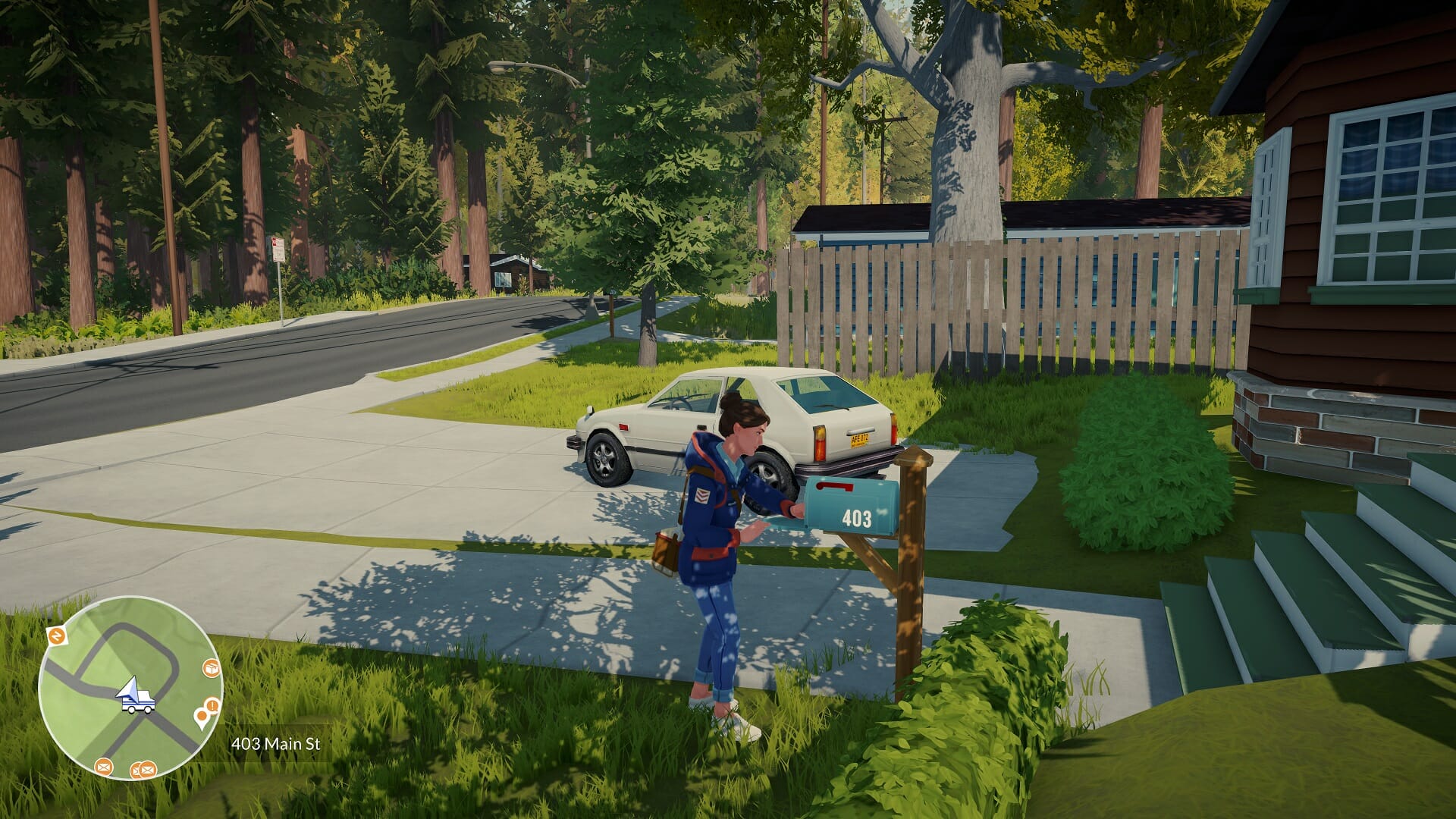
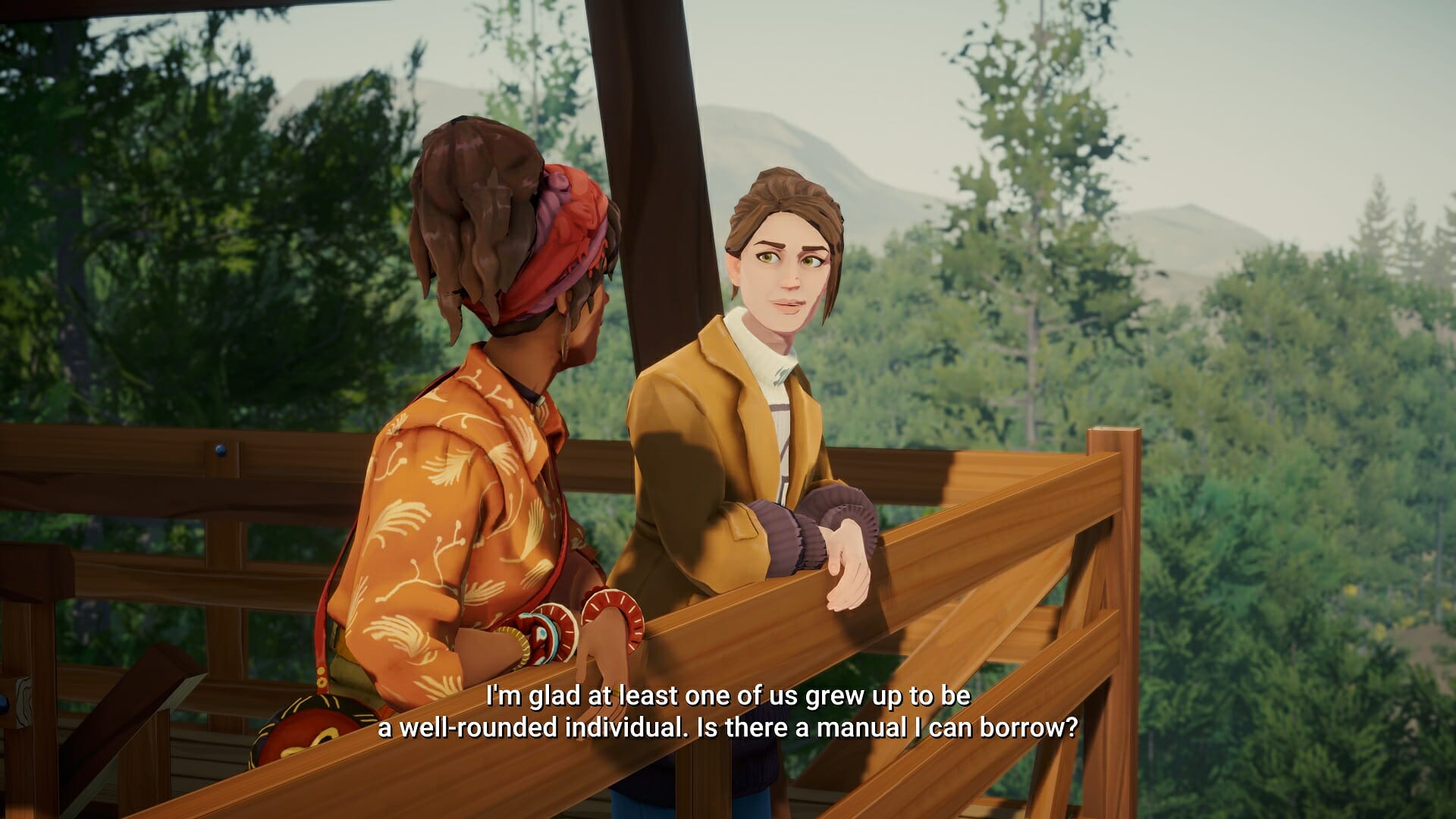
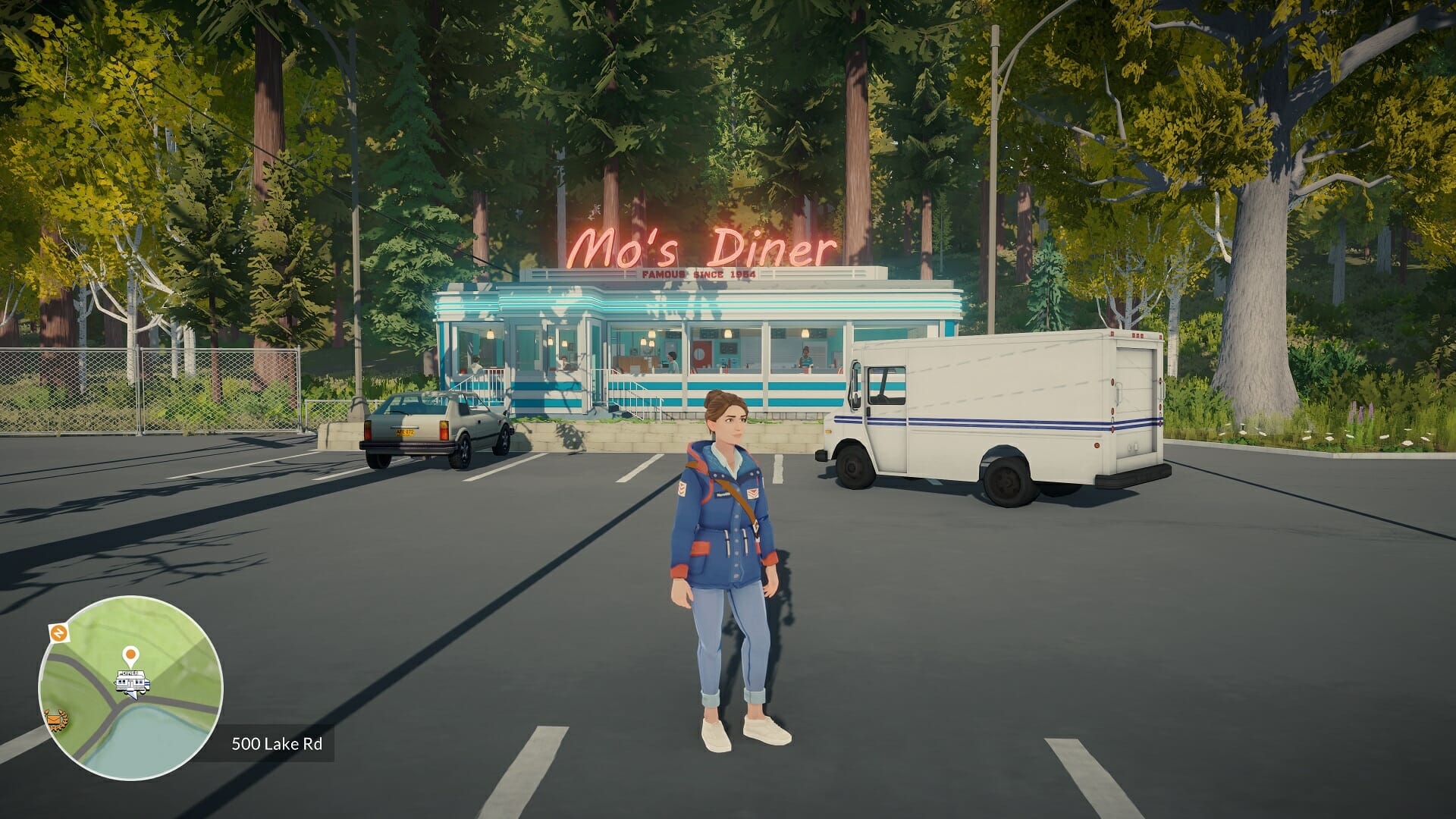
Lake is a game about taking a break. About escaping from the busy day-to-day city life and getting away from computers or phones and getting back in touch with your social self.
You take on the role of forty-something Meredith, who returns from the big city to her quiet hometown. She exchanges her busy career at a software company to fill in for her dad, the local mail carrier.
? Amount of achievements: 10 (all hidden) ⏲️ How long to beat: around 6-7 hours ? Platforms: Windows, Steam, Xbox One consoles, Xbox Series X|S
Higher Ground – 100G
Reach the hill with the church. (Secret)
You can get this achievement on your first working day. Simply drive to the end of the thin road not far from where you start at the post office. On the top of the hill is a white church and when you drive up to it, the achievement should unlock.
Cat Lover – 100G
Help Mildred by taking Mortimer to Burt (Secret)
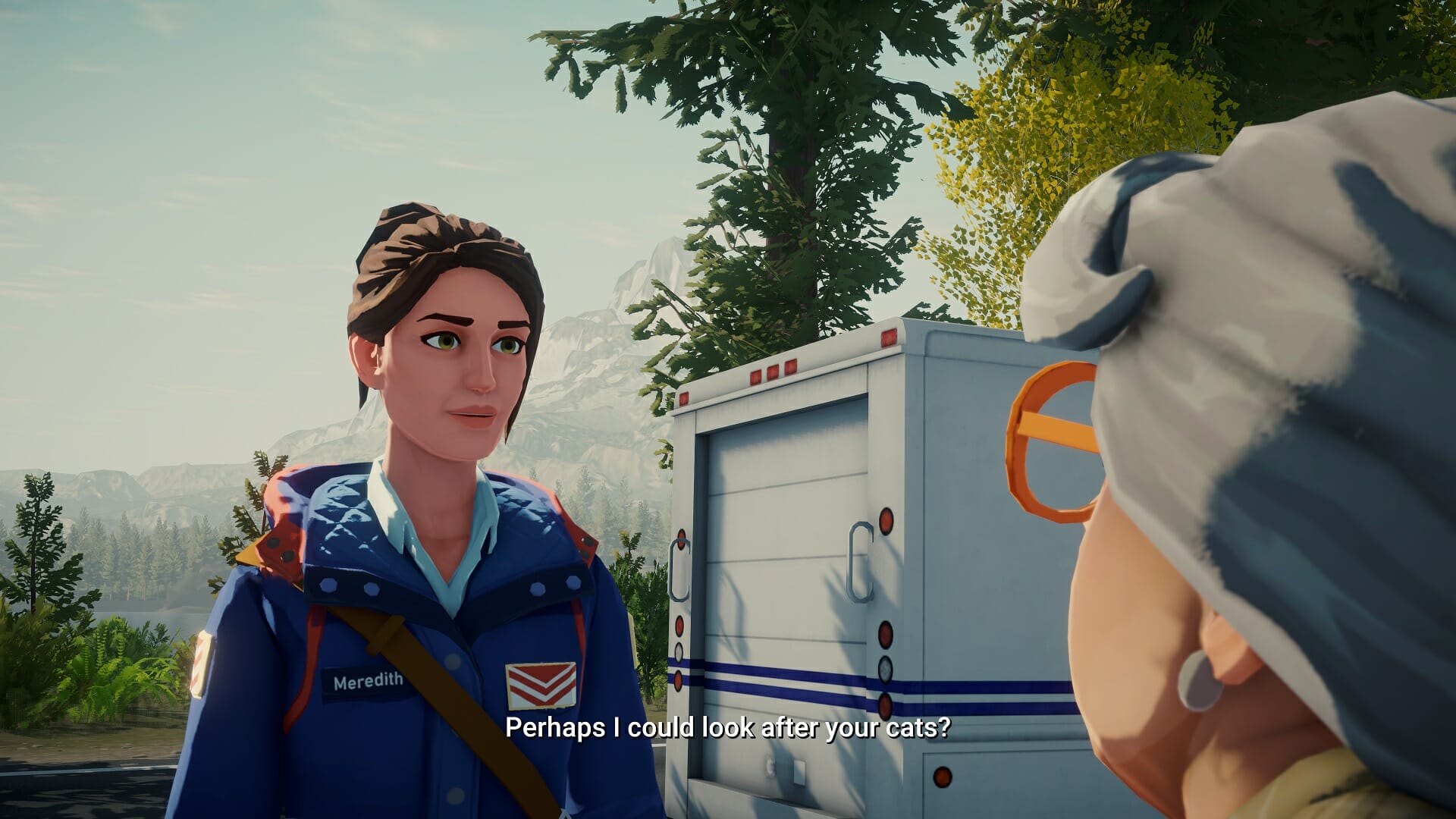
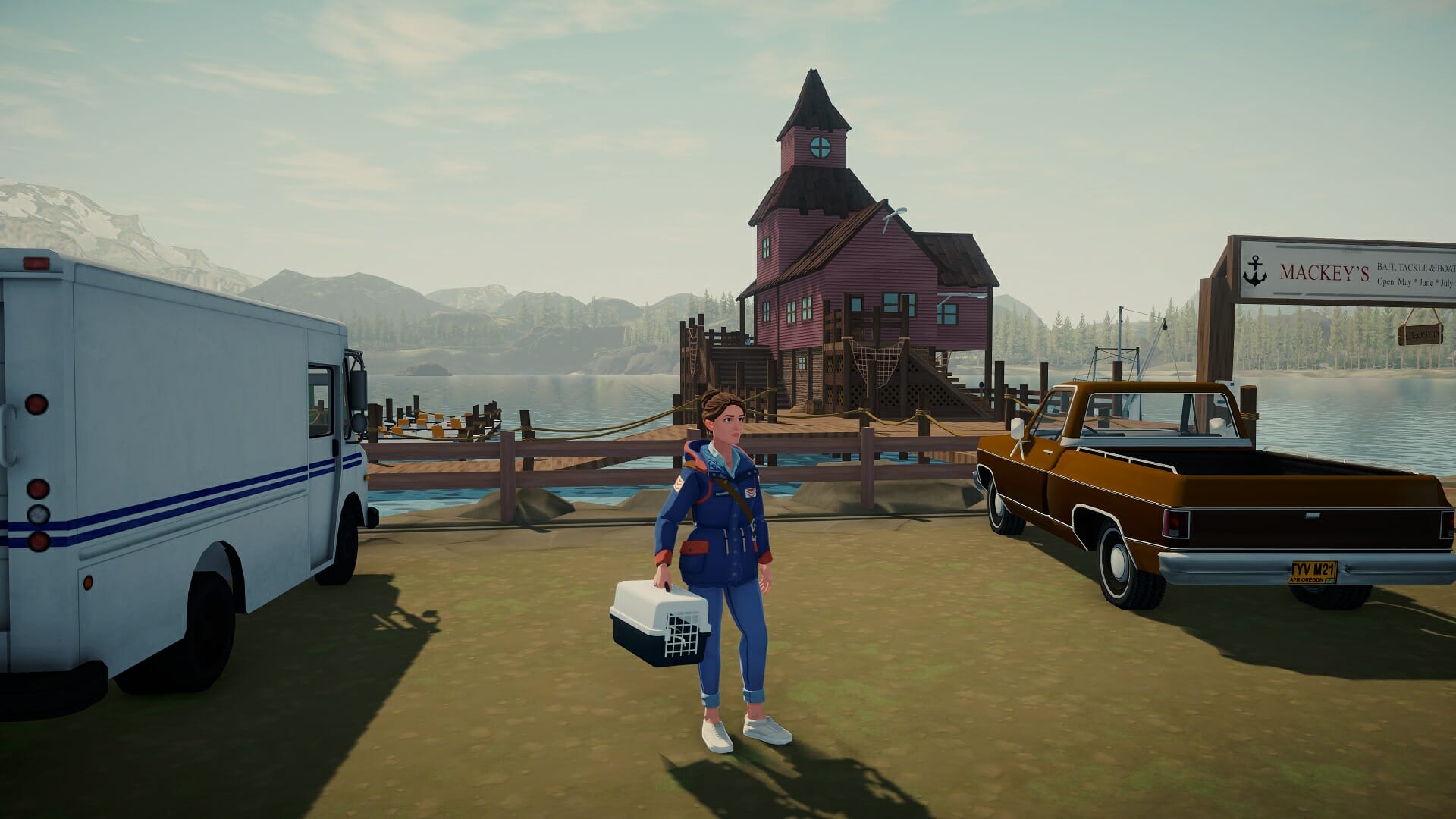
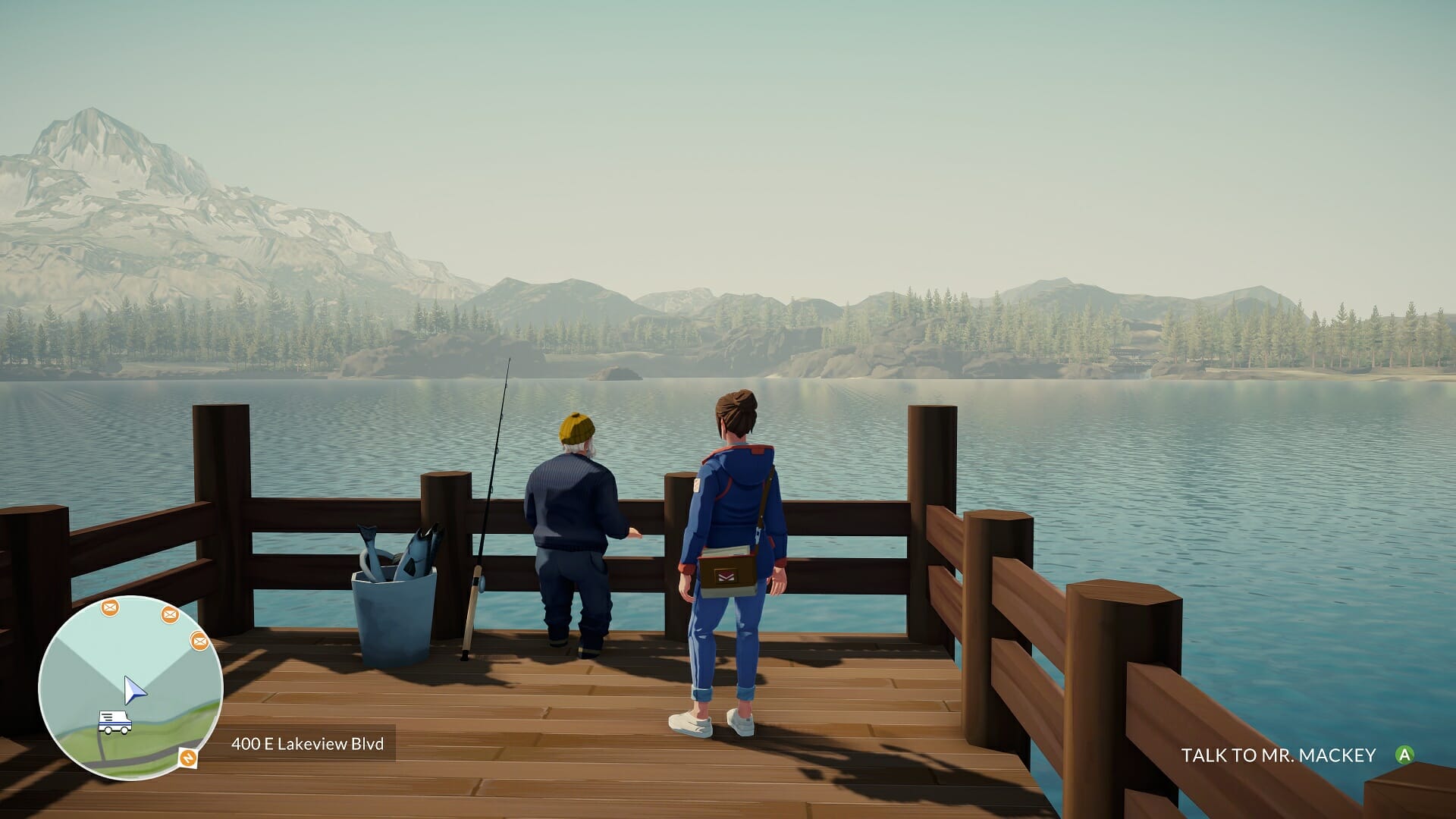
On your second working day, one of your stops will be at Mildred, the cat lady. She’ll tell you about her cat Mortimer, who’s feeling sick and ask you to drive him to Burt, the fisherman. When you accept to bring him, the location will show up on your map.
The next day, you can simply drive back to Burt Mackey’s house and pick up Mortimer. When you bring him back to Mildred, the achievement will pop.
Tower Watcher – 100G
Climb the watchtower (Secret)
Drive to the Watch Tower, as marked on the map, and go all the way up. Upon reaching the top floor, the achievement should pop.
NOTE: If you choose to meet Kay at the Watch Tower during the story, you’ll also go up there automatically, but this will not be enough to trigger the achievement, even though it will now show up on the map.
Movie Carrier – 100G
Help Angie by delivering the moviebox (Secret)
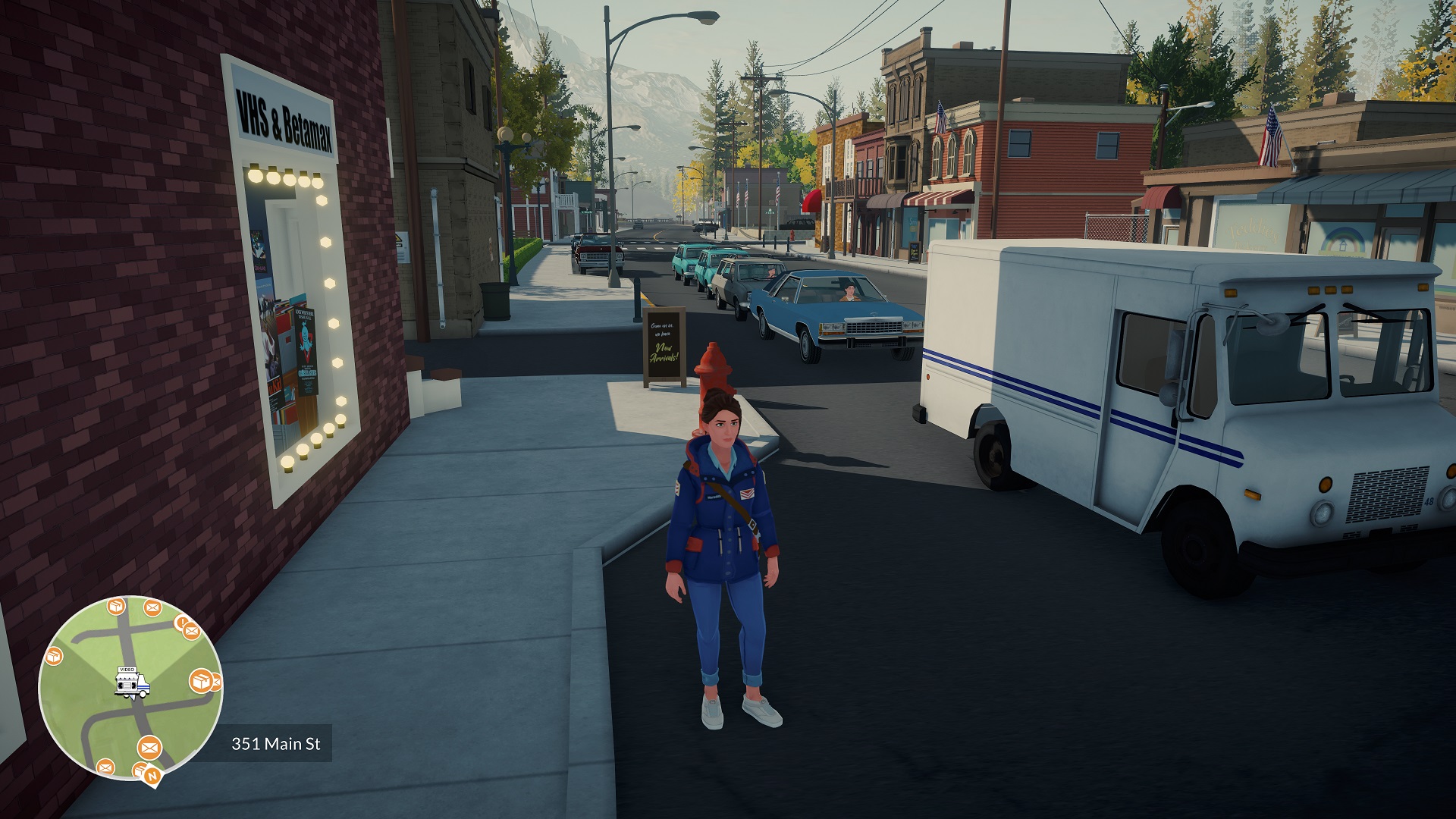
On September 4, you’ll have to deliver a package at Angie’s Flick Shack, a movie rental place. She’ll ask to meet you at your house, agree to this. When you meet up later, she’ll ask you to help her with a marketing idea and bring a portable movie box to townspeople so they’ll warm up to the medium.
Your first stop will be Lori at the garage, the location will show up on your map. Simply deliver the box and help her choose a movie, it doesn’t matter which one she ends up picking, but if you want, you can allow her to see Nightmare On Elm Street at your place and build a better bond with Lori (not required for the achievement)
The day after bringing her the movie box, you can pick it back up at Lori’s. You’ll then need to drive back to Angie’s Flick Shack to exchange the movies.
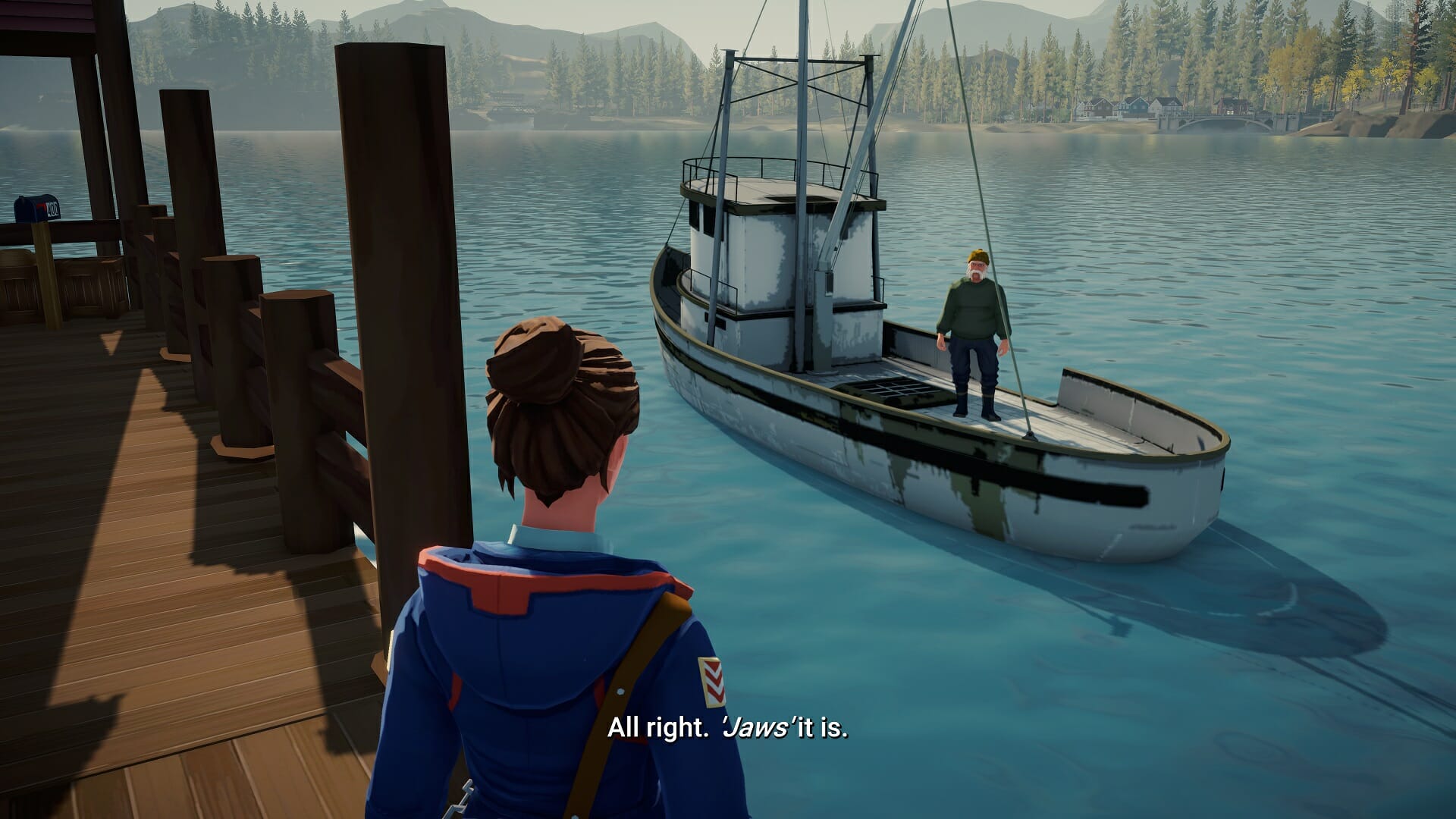
Your next stop is Burt’s lakeside house, the one we visited to drop off the sick cat. Again, you can help decide which movie he will watch (I went with Jaws).
Wait a day and you can pick up the movie box at Burt’s. When you bring it back to Angie, the achievement will pop.
Workaholic – 100G
Help Steve out both times (Secret)
Most evenings, you’ll get a phone call from either your parents or your boss Steve. Whenever Steve asks to help him out, like looking at his proposal or signing papers, simply choose the options where you do what he asks.
After the second night where you do as he requests, your achievement will pop.
Metal Detector – 100G
Talk to Andy the detectorist (Secret)
Your best bet to find Andy is in the fields near the farm on Friday 4 or Saturday 5 September. He’s usually not far from the road leading up to the farm. I found him on a day where I had to deliver a letter to farmer Jack and he was practically crossing the road as I drove by.
I highlighted his location when I found him on the map:
Shutter Bug – 100G
Help Nancy by testing the photo camera (Secret)
On September 5, go to the general store near the post office and talk to Nancy. She’ll complain about being asked to develop photos and having to test the camera herself. Offer to take pictures in her stead.
As long as you are in possession of the camera, you can press Y to use the camera it. You’ll need to take 12 pictures in total. When you are ready, bring the camera back to her.
NOTE: I was unable to give her the camera the same day. I think you can hand it off any day after that, but don’t wait too long as she’ll need a day to develop the photos.
When you’ve submitted your camera roll, come back the next working day and she’ll ask you to pick a photo to submit for the contest. Right after making your choice, the achievement will pop.
These next achievements all pop at the end of the game, just before the credits roll. Be sure to make a save file at the end of September 12, your last working day so you can load it for the other endings.
Each one will take about 20 minutes of playing from this point because there are a lot of unskippable cutscenes
Free Spirit – 100G
Leave in the RV (Secret)
You’ll have to deliver a letter to the campground at some point, which is where you will meet Mickey and June. Be nice to them and choose to say goodbye when they leave for Canada and they’ll give you their RV.
This also ties into the “Angie romance option”. Basically, be as nice to her as possible throughout the game and when she asks to kiss or hug, say yes. On the final day, Angie will show up and ask you to leave with her in the RV. Simply choose yes and way until the achievement pops just before the credits roll.
The romance is not needed to get the achievement, you can also leave in the RV on your own. But we can all agree, this is the nicer ending, right?
NOTE: This achievement was bugged in the pre-release build. Make sure to have the latest updated version of the game before attempting this one.
Hometowner – 100G
Stay in Providence Oaks (Secret)
If you choose to stay during the final conversations, it should pop. If you choose to leave and have Frank drop you off at the airport, Robert will drive up to you and give you a final chance to stay.
This is the “Robert romance option”. Basically, be as nice to him as possible throughout the game and choose to help him with the anti-deforestation campaign by doing paperwork with him and recording the campaign message on the radio.
NOTE: It’s possible to trigger this without romancing Robert, but you can play it safe. There is also no risk of being friendly towards Angie as well, the only defining choice happens at the very end of the game.
Life In The Fast Lane – 100G
Go back to the big city (Secret)
At the end of the game simply make every possible decision that says you want to stop working for the post office and go back to the big city as a programmer instead.
Both Angie and Robert will probably try to stop you, so choose the options where you turn them down. Now sit back, relax and enjoy the credits sequence. You’ve earned it!
That’s about it when it comes to Lake achievements. Some of them are easier to spot while others are a bit more tricky, but you can definitely get them all if you closely follow our guide.
If you have any other questions or you need some extra steps for completing any one of these achievements, don’t hesitate to drop a comment in the section below and we’ll make sure to help you out!
As of August 18, 2021, the Windows Server 2022 has officially been released. It is expected to run a ten-year course, but the primary end date is October 13, 2026, and the extended end date is October 14, 2031.
If you have been following this news closely, you are well aware that the Microsoft server has been facing attacks and exposed to vulnerabilities in the recent past, and this news comes as a relief. For those who are new, here is a detailed description of the product:
Windows Server houses applications, networks, and web services among other infrastructure. By connecting with Azure, it adds extra layers of protection all the while incorporating modern technology to your applications and makes work easier.
What’s New?
In simpler terms, these new features are expected to offer advanced multi-layer security. Azure is expected to benefit the most from these hybrid capabilities. The release will protect hardware and firmware. In addition, threats previously reported security threats are expected to be addressed with this new server.
With Windows Server 2022, Microsoft is touting a bunch of enhancements and features. At the forefront is advanced multi-layered security via secured connectivity and Secured-core server.
The former is focused on providing more security during transport through enhanced encrypted HTTPS and AES-256 encryption with support for the server message block (SMB) protocol.
Meanwhile, Secured-core server enables IT teams to utilize security measures applied by Microsoft’s hardware partners across a variety of hardware, firmware, and virtualization layers.
The second advantage of Windows Server 2022 is the ability to connect the on-premises SKU with Azure using Azure Arc.
Windows Admin Center now supports server management capabilities for Azure-connected use-cases too. Furthermore, SMB compression can be leveraged to compress a file while it is in transit over the network.
It’s also important to note that Windows Server 2022 will be the next Long-Term Servicing Channel (LTSC) release for server customers.
Unlike with the Windows 10-inspired release schedule, there will no longer be any semi-annual updates to the server OS.
The tech giant will release a new version of the OS once in two to three years, which will be LTSC releases – that the firm calls the one primary release channel.
Additionally, these releases, unlike client LTSC versions, will receive 10 years of support that includes five years of mainstream support, followed by five years of extended support.
Microsoft has been releasing patches in batches to address the vulnerabilities reported, but it seems attackers are getting craftier by discovering loopholes with each update. A detailed list of patches released in the previous month can be found here.
Have you gotten around to previewing the Windows Server 2022? Share what you think about the features in the comment section below.
You might want to know that Microsoft just released another cumulative update for Windows 10 2004, Windows 10 20H2, and Windows 10 21H1 with fixes for thirty-four pending issues.
This preview update is actually part of the Redmond company’s June 2021 monthly C update, allowing Windows 10 users to test the upcoming fixes and changes to be released on September 14th as part of Patch Tuesday.
Windows 10 users get a new cumulative update
Unlike the updates released via Patch Tuesday, this preview update is optional and only contains bug fixes, performance enhancements, and improvements.
It’s important to know that KB5005101 does not contain any security updates whatsoever.
The tech giant decided that it really needs to roll out these two fixes for issues Windows 10 users have been experiencing with Bluetooth and USB headphones.
Addresses an issue that prevents USB audio headsets from working on devices that support USB audio offload. This issue occurs if you installed third-party audio drivers on the devices. Addresses a rare condition that prevents Bluetooth headsets from connecting using the Advanced Audio Distribution Profile (A2DP) for music playback and causes the headsets to only work for voice calls.
Although these problems do not appear to affect that many users, Redmond officials decided that it’s time to make things right and right some OS wrongs.
After installing KB5005101, Windows 10 2004 will have its build number changed to 19041.1202, Windows 10 20H2 to build 19042.1202, and Windows 10 21H1 to build 19042.1202.
This new Windows 10 cumulative update preview includes 34 improvements or fixes, as you can see listed below:
Updates a rare condition that causes Bluetooth headsets to only work for voice calls.
Updates an issue that provides the wrong Furigana result when you cancel the Japanese reconversion.
Updates an issue that resets syncing for Microsoft OneDrive to “Known folders only” after you install a Windows update.
Updates an issue that prevents audio headsets that connect to a device using USB from working if the device has certain third-party audio drivers.
Updates an issue with resizing images that might produce flickering and residual line artifacts.
Updates an issue that prevents you from typing any words in the username box during the out-of-box experience (OOBE) process. This issue occurs when you use the Chinese Input Method Editor (IME).
Updates an issue with copying and pasting a text box into Office 365 apps. If you use an IME, you won’t be able to insert text into the text box.
Updates an issue that might cause your device to stop working when making a touch input gesture. This issue occurs if you bring more fingers into contact with the touchpad or screen during the middle of the gesture.
Updates an issue that might cause an external monitor to display a black screen after Hibernation. This issue might occur when the external monitor connects to a docking station using a certain hardware interface.
Updates an issue that resets the brightness for standard dynamic range (SDR) content on high-dynamic range (HDR) monitors. This occurs after you restart your device or reconnect to the device remotely.
With this release, there are three known issues with KB5005101:
Using the Microsoft Japanese Input Method Editor (IME) to enter Kanji characters in an app that automatically allows the input of Furigana characters, you might not get the correct Furigana characters.
Devices with Windows installations created from custom offline media or custom ISO image might have Microsoft Edge Legacy removed by this update, but not automatically replaced by the new Microsoft Edge.
After installing the June 21, 2021 (KB5003690) update, some devices cannot install new updates, such as the July 6, 2021 (KB5004945) or later updates. You will receive the error message, PSFX_E_MATCHING_BINARY_MISSING.
How do I download and install KB5005101?
This is a very simple process and will only require a few minutes of your time to complete. In order to download and apply this cumulative update to your system, follow these steps:
Access the Settings menu on your device.
Select Windows Update and click on the Check for Updates button.
As this is an optional update, you will need to click on the Download and install link for the update to be installed.
“We’re pleased to announce that the Windows 10 Team 2020 Update 1, based on Windows 10, version 20H2, is now available for both the first-generation Surface Hub (55” and 84” models) and the latest Surface Hub 2S (50” and 85” models). Hubs connected to Windows Update will receive the update automatically, which typically occurs during nightly maintenance cycles,” the company explained.
The Windows 10 Team 2020 Update 1 is based on Windows 10 version 20H2, and it brings several highly anticipated features for Surface Hub users. First of all, the Surface Hub devices will now use the new Chromium-based Edge as a default browser. The update also brings support for the steady-state background image, so the backdrop of the welcome screen will now be available on the home screen as well. It should help to provide a consistent experience on experience on both screens.
In addition to these features, the Windows 10 Team 2020 Update includes a bunch of capabilities to help IT Admins deploy and manage updates on Surface Hub devices. There are also some new security features, and you can learn more details on this support page.
Microsoft and online learning platform, Ed4All, have partnered with National Institute of Open Schooling (NIOS) in India to empower students with digital tools and skills and make learners job-ready in a digital economy. Through this partnership, Microsoft and Ed4All aim to reach over 170 million learners across the open schooling system in India.
Established in 1989 to increase literacy and aimed forward for flexible learning, the National Institute of Open Schooling is the board of education under the Union Government of India. It is the world’s largest open school platform.
As part of this collaboration, Microsoft and Ed4All have launched a customized tech platform for the NIOS Virtual Open School – BLEAP for NIOS. BLEAP stands for Blended Learning and Pedagogy, and also refers to the platform being a Big Leap in school education. BLEAP for NIOS is built on the Microsoft stack of Teams, Microsoft 365, and Azure.
The first-of-its-kind customized tech platform provides learners a personalized learning experience for improved learning outcomes. The platform offers easy-to-consume modules including live demos, hands-on workshops, and assignments along with skill-based courses and certifications. Students across NIOS will also have access to digital courses on technologies like artificial intelligence, cloud computing, cyber security, and data sciences among others.
Navtez Bal, Executive Director – Public Sector at Microsoft India believes that the initiative is an important step in ensuring equity in education and skilling. As India, and the world, rapidly moves towards a digital economy, the skills of the future will look very different from the skills that are needed today.
Someone wise once said that you can’t put a price on education. And they were right. You can never have too much knowledge since there’s always room for improvement.
Fortunately, some intelligent individuals have developed online learning tools that can be easily explained to people of all ages.
All you need to do is pull out your laptop or smartphone, go online, log in, and start watching a video where an expert carefully explains complicated concepts in an easy-to-understand language.
The beauty of this technology is that you can take a break whenever you want and later resume when you are ready to continue. Without the pressure of a deadline or test, as in school, there’s no way you cannot succeed.
That is why we’ve compiled a list of the best educational software you can get today.
What are the best education software tools on the market?
There are many wonderful educational tools available on the Internet, and Udemy is certainly one of them. It provides an online learning service for anyone interested in any topic, whether you’re a student or just a curious adult.
Currently, more than 130,000 courses are available on the site in over 50 different languages and more than 190 countries. Professionals in their own fields teach all courses. If you are an expert in something, you can also apply to become an Udemy instructor.
As far as categories are concerned, you can learn new information in development, business, finance, and accounting, IT and software, office productivity, personal development, design, marketing, lifestyle, photography, health and fitness, music, as well as teaching and academics.
For example, suppose you want to know more about network and security (applied in IT). In that case, you can learn about ethical hacking, cybersecurity, Cisco CCNA, penetration testing, IT network fundamentals, or Kali Linux. It’s even possible to obtain IT certifications.
The procedure is pretty simple: you get enrolled in a course, read articles, watch videos at your own pace (not live), and get a certificate of completion at the end. In some cases, for instance, if you want to get an IT certification, you have to pass a test to successfully complete the course.
The great thing about Udemy is that it supports multiple platforms so that you can keep up with your courses not only on your computer but also on your mobile or Smart TV.
Pros:
Comes with plenty of free courses
Supports multiple platforms
Encompasses courses across multiple domains
Available in over 50 different languages
Cons:
Other similar services may be available at even lower prices
Udemy
Learn any skill you want and get certified in your dream field with Udemy.
Teachable is a good all-in-one service for online education. It is really easy to use, both for students and course providers, and it has an ever-growing list of features. You can access classes on many different subjects, including design, economics, cooking, business, writing, new media, and music.
The courses created on the platform are very appealing in terms of appearance, they have a lot of visual aids for the lessons provided.
Different types of media are added to the courses, mainly video materials. Moreover, they offer course providers a lot of integration tools which makes the process of connecting your student work to other apps or services you might be using a lot easier. Among their partnerships, you’ll find Zoom, Google Forms, and Zendesk. They also have Calendly integrations which help in scheduling courses and meetings.
Speaking of meetings, they give you the possibility to participate in online video calls through their platform without the necessity to have an account at another service.
Pros:
Easy to use
All-in-one package
Tons of integrations
International Payments
Cons:
Quizzes and exams have limited options
Discover is very flexible in terms of payments. Some course providers offer coupons and have advanced pricing options, like subscriptions, memberships, and one-time payments. They accept international payments in over 130 currencies.
Discover by Teachable
Expand your horizons in any subject with the multimedia resources and one-on-one sessions available on :discover!
Skillshare is also an online learning platform that teaches people various topics using educational videos. It takes a different approach than Udemy, in the sense that it relies more on interacting with the students.
There are currently more than 26,000 classes available for people interested in learning design, illustration, business, technology, photo and film, entrepreneurship, and writing.
Each class is split into multiple lessons, and each lesson is taught by an instructor in a video. It’s just like watching Netflix, only for self-improvement.
The first lesson is always free, while the remaining ones are accompanied by a lock – a sign that you must subscribe to a premium plan if you want to continue.
In addition to the class description, you can check out reviews and find out what user level is best suited, how engaging is the teacher, how clear are the instructions, how helpful are the examples, and if the expectations of the majority of students were met.
Resources, such as PDFs with examples, can be separately downloaded. Furthermore, you can schedule multiple classes by adding them to a calendar, save favorites, and share videos with your friends.
The good news is that you can try the premium edition of Skillshare for 2 months for free (requires a credit card).
Pros:
The first lesson is free
Comes with plenty of video tutorials
Over 26000 available classes
Cons:
Not available in as many languages as other similar services
With the help of online learning tools like Udemy and Skillshare, you can fuel your creativity, add more skills to your portfolio, and constantly feed your mind to become a more healthy individual.
If you’re a programming student, we have a guide that can help you get GitHub Copilot for free, so be sure to check it out.
There has been endless talk about this operating system, ever since Microsoft announced it a few months ago.
Today, we finally know when Windows 11 is going to become available to the masses, as a complete OS.
So, starting with the 5th of October, the free upgrade will begin rolling out to eligible Windows 10 PCs and other devices that come pre-loaded with Windows 11 will start to become available for purchase.
Windows 11 has an official release date
Like many Windows upgrades in the past, this one will be available in phases too. New eligible devices will be offered the upgrade first, and then Windows 11 will become available for more in-market devices in the weeks and months following October 5th.
Following the tremendous learnings from Windows 10, we want to make sure we’re providing you with the best possible experience. We expect all eligible devices to be offered the free upgrade to Windows 11 by mid-2022.
On existing Windows 10 devices, Windows Update will let people know when the upgrade is available for Windows 11.
You can also check to see if your device is eligible for the Windows 11 upgrade through Windows Update, or Microsoft’s dedicated PC Health Check app, which is currently in preview.
But while the OS launches on October 5th, not all of the announced features will be available right away. Microsoft is bringing Android apps, in partnership with Amazon and Intel, but this feature won’t be there with the release.
A preview of Android apps on the new operating system will become available for Windows Insiders in the coming months, suggesting that it likely won’t roll out to all Windows 11 users until 2022.
The Redmond-based tech company also clarified its minimum system requirements for Windows 11 last week, but also revealed a workaround for those who don’t meet them.
As a matter of fact, you can install Windows 11 on any hardware using an ISO method, as long as the device has a 64-bit 1GHz processor with two or more cores, 4GB of RAM, 64GB of storage, and a TPM 1.2 chip.
However, the catch is that your PC will be in an unsupported state, which means you will not receive any Windows updates whatsoever. Yes, this also means no security updates.
So, if the gadget you are using isn’t fully compatible with Windows 11, Microsoft is still supporting Windows 10 until October 14th, 2025.
Also worth mentioning is that a 21H2 update is arriving for Windows 10 users later this year that includes GPU compute support in the Windows Subsystem for Linux (WSL), Windows Hello improvements, and WPA3 H2E Wi-Fi security support.
Are you excited about Windows 11 coming out on October 5th? Let us know in the comments section below.
Microsoft Teams is launching a new “word cloud” feature that will help to improve the built-in Polls feature in meetings. This feature is slated to begin rolling out to both desktop and mobile users in late September.
The Microsoft Teams desktop app introduced a new polls experience for meetings back in November last year, and this feature is also available on mobile. It allows presenters to collect instant feedback from attendees’ by creating multiple-choice polls and quizzes. The company is now planning to improve the polling option in Microsoft Teams to boost meeting engagement. This upcoming update will add a new option called “word cloud polls,” allowing presenters to set up an open-ended question for collecting participants’ opinions on a specific topic.
Just like the multiple-choice polling experience, Microsoft Teams will collect all responses anonymously, and it will not be possible for other users to find out who submitted a particular word.
Microsoft has started pushing Windows Insiders currently testing Windows 11 on unsupported PCs to reinstall Windows 10. If you’re currently running the OS on an ineligible device, you should soon see a message in Windows Update explaining that you’ll no longer receive Dev Channel builds on your PC. In other words, it’s time to go back to Windows 10 and continue testing preview builds on the Release Preview Channel if you want to
“Your PC does not meet the minimum hardware requirements for Windows 11. Your device is not eligible to join the Windows Insider Program on Windows 11. Please install Windows 10 to participate in the Windows Insider Program in the Release Preview Channel,” reads the Windows Update message shared by BetaWiki yesterday (via The Verge).
Microsoft has now dropped ineligible systems from the Insider program and tells them to install Windows 10. pic.twitter.com/zfALanmcuq
While the notification may come as a surprise for many testers, Microsoft actually announced its plans for Windows Insiders testing Windows 11 on unsupported PCs back on June 24. Here’s what the Windows Insider team said at the time:
Once Windows 11 is generally available, these PCs will be opted out of flighting and will not be able to receive future Windows 11 Insider Preview builds. These PCs must clean install back to Windows 10 with the media (ISOs) that we provide and can then join the Release Preview Channel to preview Windows 10 updates
To be fair, Microsoft is acting a bit early as Windows 11 won’t start rolling out on eligible PCs until October 5, 2021. Anyway, Windows 11 testers on unsupported PCs will no longer receive new Dev channel builds going forward, and reinstalling Windows 10 is now the only way to go. It’s not the end of the line yet for Windows 10 as the OS will be supported throughout 2025, and Windows 10 version 21H2 is also coming later this Fall.
Last week, Microsoft did confirm that it will still be possible to use Windows 11 ISOs to manually install the OS on unsupported devices once Windows 11 is officially released, though with a big caveat: Doing so may prevent users from receiving any updates via Windows Update.
The release notes for the last month or so of Twitter updates has been published and, while some of the changes such as the major design revamp were noticed by most users, there are some less obvious additions that slipped under the radar.
Of note is the addition of support for SRT captions files for video subtitles, the enabling of Apple ID login and signup, and a rather prominent promotion of email newsletters on user profiles for those using Apple’s own Revue newsletter service.
Here’s the full release notes:
New
Design Refresh: Twitter has a new look and feel! We’ve rolled out changes to our visual design language to help make things more accessible, unique, and focused on you and what you’re talking about. Learn more here.
Revue Newsletters: We’ve enabled the ability to discover and subscribe to Revue newsletters through the Twitter profile screen. This is immediately available to all Revue creators, and we’re beginning to experiment with a smaller test group. Learn more here!
Third Party Sign-On: You can now use your Apple ID to sign up and sign in to your Twitter account.
Video: We’ve enabled the ability for you to upload captions via SRT file when uploading video on Twitter.com. Look for “Upload caption file (.srt)” in the composer after uploading a video attachment.
Updated
Fleets: Functionality for viewing Fleets has been removed.
Topics: The Topics screen has seen a number of changes to give you more information and context around Topics you may want to follow, and those you are already following. There are now three tabs for viewing “Suggested”, “Following”, and “Not Interested”.
Spaces: We’ve made a number of improvements to how captions are processed for Spaces. This should help make dialog clearer, more consistent, and improve scrolling across the conversation.
Spaces: Spaces cards will now render within the trending timeline on the Explore screen.
Topics: When navigating to the detail screen for a specific Topic, the header will now include the Topic name and subtitle for additional context.
Fixed
Account Picker: If there’s a network failure, the account picker will continue to display the buttons for logging out and adding an account, along with the retry button.
DMs: Improved spacing of the DM composer to prevent overlap with the iOS home bar on mobile devices.
DMs: Attempting to view a conversation you aren’t a part of through a link will no longer render an empty conversation and composer.
Language: Corrected scenarios where external links could override the language setting for logged-in visitors.
Lists: Rapidly clicking the pin list button will no longer cause duplicate lists to appear in the current session.
Lists: The List follow button will now show the proper state after following.
Logged Out Errors: Resolved issues where network errors could cause logged out visitors to fall into a state where the page would constantly alternate between login form and error state.
Microsoft PWA: Improved detection for PWA app usage through the Microsoft Store.
Navigation: Resolved issues related to navigating backward via the browser from certain popovers, especially on Android devices using the system back button.
Notifications: The Notifications timeline will now stick to your previous scroll position when navigating across other pages in the app.
Profile: Empty state for blocked accounts on the profile screen will no longer cause a horizontal scroll on some window sizes.
Timelines: Opening and closing popover elements within timelines will no longer cause the scroll position to adjust unexpectedly.
Scrolling: Resolved issues with scroll position being incorrectly offset when navigating between subscreens, such as within settings menus.
Settings: Updating a muted word will no longer briefly show an error page.
Spaces: Improved how the expanded dock determines its size, preventing instances where the dock expands beyond the window.
Spaces: Co-hosts will now display with speaking indicators.
Video: Replaying a video within the context of an event carousel will no longer cause the video to loop unexpectedly.
Video: Dragging and clicking to reposition the playback indicator will no longer cause a small jump in the indicator’s position.
Have you noticed any changes to Twitter on the web or in the Windows app that aren’t mentioned here? Let us know in the comments below and then follow us on Twitter for more tech news.
Lake is a game about taking a break. About escaping from the busy day-to-day city life and getting away from computers or phones and getting back in touch with your social self.
It’s September 1986 and Meredith, a programmer who has moved to the big city to work on cutting edge software (well, for 1986 at least) is asked by her dad to fill in for two weeks while he is on holiday. He’s the local postman in the lakeside US town of Providence Oaks and you’ll be delivering mail in his stead.
Life is Strange Normal
Error 403: Mail forbidden
Lake is a narrative game that lets you take it easy and do things at your own pace, you get a list of packages and letters to deliver each day and you drive around town to drop them off. Just a normal scenario mimicking everyday life, with no magic or supernatural elements, and that’s perfectly fine every once in a while.
There is no big central plot-line to follow or big story goal to work to, other than the decision you’ll have to make after two weeks: to stay or to go back into the fray. To help you form an opinion on that choice, you chat with people when they open the door and reacquaint yourself with old friends in the town you grew up in.
One such example is Kay, your best friend while growing up and someone who has lived the polar opposite life, while you went to the big city to make a career for yourself, she stayed in your hometown, had kids, and works at the local diner.
Be sure to pass that manual around!
Talking to the townspeople will help you discover yourself in a way and it certainly feels like it gives you enough freedom to make your own choices. I’m a people pleaser by nature and whenever someone asked for my help, I was eager to provide assistance.
During my two weeks in Providence Oaks, I helped a cat lady’s feline companion get back to good health after eating one too many cupcakes, allowed a young mechanic to watch a horror movie at my house because her parents wouldn’t let her and helped prevent deforestation and the building of apartments.
We’ll have a meowvelous time together.
No fear of missing out
Whenever I play a game, I want to be as efficient as possible in experiencing all the possible content. I’ll go out of my way to make sure that I don’t miss a single thing and will not require a second playthrough to get access to a part of the story where it branched off into multiple paths.
Whenever you talk to someone in Lake, there are branching choices you can make in the conversation and even some decisions that can lead to romance, but I never felt like I was losing access to other parts of the game.
If you simply deliver all your packages and mail every day, you’re guaranteed to get all the key interactions the game has to offer and it’s not to be underestimated how that eases the mind and relieves you of all FOMO-related stress.
A Beautiful, relaxing experience
(with this order of images, it looks like I kidnapped her cat, but I assure you I didn’t)
Lake is above all, a relaxing game. It helped me lift my foot off the gas pedal of everyday life a little bit and appreciate the simple, genuine interactions with the townsfolk.
The visuals help bring this experience home, they’re bright and colourful with playful shadows and a calm, overall ambiance. It’s like taking some days off from work, even though you’re technically still working in the game.
The slightly cartoony style fits the game perfectly and when it zooms in on characters during conversations, you can even notice a lot of time went into the lip-syncing, which really matched the narration.
A very so-fish-ticated movie
The delivery of most characters’ voice acting is also spot-on. Outside of perhaps the above-mentioned cat-lady, I never felt like someone was trying too hard to portray a stereotypical persona and they all felt credible to me, including their drives and motivations.
How does it play?
Outside of the narrative choices, you’ll spend most of the game driving around in the Goose, your trusty mail truck, and deliver mail to addresses highlighted on your map. You can look at the minimap in the corner of your screen, or bring up a big version that shows you all the locations you will have to visit that day.
Small note: I thought it was weird that the game used RB to open the map, typically an action you’d press Select/Menu for.
The Goose. It honks. I get it now!
The game had a voice line near the very start about not needing the map soon enough, and I was critical of that idea because I’m notoriously bad at orientation, but true enough, when the second week started, I already knew the streets by heart.
It’s a decently sized area, but the minimal amount of streets makes it easy to navigate. Driving is a joy, with a world that feels alive because of the other cars, pedestrians, and even wildlife.
There is a fast-travel system in place and also an auto-pilot, but you’d be doing yourself a disservice by relying on those too much. Though auto-pilot is useful if you want to send a quick tweet – EDITOR’S NOTE: Don’t text & drive kids!
The map. I’d be lost without it.
Some minor issues
I’ve mostly been singing Lake’s praises so far, but there were still a few rough edges in the version I played on Xbox Series X, though let me preface this by saying that most of these will be fixed on day one or soon after.
I had some cars that seemed to float above the road, pictures not showing up and the loading screen freezing on me in a very particular situation when fast-traveling from one location to another. (See, I told you not to use fast travel. KARMA!)
There was even a moment when the old fisherman turned into a much smaller version of himself. But none of these were game breaking and in the last case, quite hilarious.
I’ve relayed all of the bugs I found to the developer and they should soon be fixed.
Tiny fisherman
What could have been better?
I did have some remarks while playing the game though, for example, I was very impressed with the lip-syncing but I was missing some emotions in the facial expressions on the characters. Joy, sadness, anger, they all didn’t translate as well visually, even though the voice actors do a great job.
Keep in mind that this is a small indie studio however and what they have here is already VERY impressive.
Second is the walking speed of Meredith, she’s rather slow on her feet and while there is a “run” button, it’s more like a slightly faster trot. In a game about slowing down and taking in the atmosphere though, I can look past this.
Lastly, the camera was a bit wonky at times. For instance, when walking down a staircase, it would show you the backside of those stairs when walking down.
All minor hindrances in an otherwise great game.
Get out of the way, Em! You’re blocking traffic!
Achievements
Lake only has hidden achievements and most of them are hard to miss if you follow through with all your package deliveries each day. There are a few contextual ones you can get, like finding a guy with a metal detector, climbing the watchtower, or going to the white chapel on a hill, but it’s easy to get them if you know where to look.
Near the ending of the game, there is one final choice you will have to make and each results in one of three different achievements though, so be sure to make a save file on the final playable day for efficiency reasons.
For completionists: All in all, it took me around 6-7 hours to beat the game on my first playthrough.
Lake is a rare game that really forces you to slow down and take in its atmosphere. There is nothing supernatural about it, yet talking to the townspeople had a magical calming effect on me and I was honestly sad to see the credits roll. If you need a break from hectic everyday life, take a trip to the lake.
Lake has genuine human interactions, a bright visual art style that is like a balm for the soul, and a no-stress approach to story-telling. You’re guaranteed to come out of it a more relaxed human being after playing it.
Lake costs $19.99 and is currently available on PC and Xbox consoles, with other console versions on the way.
Disclaimer: Reviewed on Xbox Series X. Review copy provided by the developer.
You should probably know, if you’re into this kind of stuff, that a group of movie companies continues its legal efforts to hold VPN services liable for pirating subscribers.
A new pending lawsuit lists service providers like Surfshark, VPN Unlimited, Zenmate, and ExpressVPN as defendants.
Besides damages, the filmmakers want the VPNs to block pirate sites and start logging user data. The accused companies have yet to respond in court.
As a direct result of the growing threats against online privacy and security, VPN services have become increasingly popular in recent years.
Filmmakers ask for RARBG and The Pirate Bay to be shut down
It’s already a well-known fact that millions of people use VPNs to stay secure and prevent outsiders from tracking their online activities.
However, as with regular Internet providers, a subsection of these subscribers may be engaged in piracy activities.
Throughout the years, we’ve seen copyright holders take several ISPs to court, under charges of failing to disconnect repeat copyright infringers.
Now, these lawsuits have expanded, with VPN providers as the main targets.
Ever since the COVID-19 pandemic started and people spend more time at home, downloading and pirating movies of all sorts, the numbers have grown to staggering heights.
These above-mentioned lawsuits were filed by a group of independent movies companies that also took it upon themselves to go after piracy sites and apps.
Among them are the creators of blockbusters and award-winning movies such as The Hitman’s Bodyguard, Dallas Buyers Club, and London Has Fallen.
One of the main accusations is allowing VPN subscribers to bypass the geographical restrictions of streaming services such as Netflix.
The filmmakers bring to attention various examples of promotional pages where the VPN providers claim that their services can bypass blocking efforts and other restrictive measures.
In some cases, these VPN providers don’t even go to the trouble of hiding such actions, as the following announcement from UnlimitedVPN shows.
Besides bypassing geographical restrictions, the movie companies also list many examples of VPN subscribers who are directly involved in sharing pirated movies via BitTorrent.
And while BitTorrent can also be used legally, the VPN companies allegedly promote their service as a tool to download copyright-infringing material anonymously.
And that’s not all! Filmmakers also argue that some VPNs even partner up with notorious movie piracy websites, in order to promote their services.
As an example, the website YTS.movie encourages the use of ExpressVPN. It’s not immediately clear whether ExpressVPN is aware of that, however.
Hold on to your chair, because the list of grave accusations continues in a manner you wouldn’t have expected.
The movie companies also allege that VPN customers are engaged in other types of inadmissible conduct under this privacy shield, including racist comments, child pornography, and even committing murder.
Based on these claims, as well as others, the filmmakers argue that the VPN services are liable for direct, contributory, and vicarious copyright infringement.
Besides the money they solicit for these frauds, the movie companies also request that the VPN services start blocking known pirate sites such as The Pirate Bay and RARBG.
How do you feel about these legal actions being taken by these production companies? Share your opinion with us in the comments section below.
Though an official Microsoft announcement was posted by mistake and has since been deleted, a working version of vscode.dev is still available online. This browser-hosted version of Visual Studio Code lets developers open and browse source code hosted on GitHub and on a local machine (via Bleeping Computer.)
Microsoft tells us via email that a public preview of vscode.dev is not currently available, but Simon Bisson notes that it is working just fine with non-AAD accounts. We were able to log in to the experience using a personal Microsoft Account just fine. You can see a preview of the experience below.
Despite this not being an official public preview, overall, it looks pretty clean with some side toggles for opening repositories, searching, controlling sources, debugging, extensions and GitHub pull requests. Even the area to type code lines is pretty clean and close to the Visual Studio desktop experience.
As a web-based experience, it is important to note that vscode.dev will not have access to building, running, or debugging applications. It also won’t have access to an integrated terminal. Rather, it is more about using the browser as a sandbox for editing code. Bleeping Computer reports that developers can perform functions such as syntax highlighting, search, multiple file editing, and a source control view.
Update: We updated our headline and this article to clarify that a public preview isn’t available and that the Microsoft update was posted by mistake.
As much as we all love Windows as an operating system, we all have to admit that there are certain parts of it that give us some serious headaches every time we have to deal with them.
Although some system features are not customizable, most of the default settings that Microsoft enabled or disabled on your OS can be tweaked.
Today we are about to get into auto-provisioning for Windows 10, so stick around and find out how to disable and re-enable this feature, if you were to need it again.
How do I turn off auto-provisioning on Windows 10?
First of all, let’s make sure that everyone here understands exactly what auto-provisioning is.
Automated provisioning means having the ability to deploy information technology or telecommunications services using predefined automated procedures, without requiring human interventions.
The Disable-TpmAutoProvisioning cmdlet disables Trusted Platform Module (TPM) auto-provisioning.
Ok, now that we got this out of the way, let’s see how you can turn off such a feature if he no longer requires it, or if the actions he is trying to perform are impossible because of it.
For this operation, we will have to use one of Windows’ built-in tools, which is PowerShell. As you might know, this software is commonly used for automating the management of systems.
It is also used to build, test, and deploy solutions, often in CI/CD environments. PowerShell is built on the .NET Common Language Runtime (CLR).
You can disable provisioning completely or only for the next restart. You can use the Enable-TpmAutoProvisioning cmdlet to enable auto-provisioning.
And you can deactivate it completely, or just for the next restart. Here’s what you have to do:
Disable auto-provisioning permanently
Open the search menu and type PowerShell, then click on the app in order to open it.
Once PowerShell is open, type in the following command.
This command disables TPM auto-provisioning for the next restart. In the next restart after that, auto-provisioning continues.
So, just in case you need to disable this feature, now you know exactly how to do it. If you ever need more advice on how to deal with other situations, know that you are in the right place.
Was this article helpful to you’? Let us know in the comments section below.
Microsoft is now rolling out Windows Terminal Preview version 1.11 for Windows Insiders and Windows Terminal 1.10. Windows Terminal 1.11 brings some new features like an acrylic title bar, improvements to the pane, and a lot more. We have you covered with a look at all the changes.
We’ll get into the Pane improvements first. Microsoft is introducing a move pane to tab feature to let you move an open pane to a new or existing tab. Also new is the ability to swap panes within a tab and split the tab in context view. These features should make multitasking in Windows Terminal easier. Microsoft thanks Schuyler Rosefield for most of these contributions.
Other than that there’s also a new setting toggle to make your title bar acrylic. This is in the appearance page of the settings UI, and it can be set in your global settings, though you’ll need to restart your terminal to see the difference. We noted the other changes for you below.
When adding keys to your actions, you now only have to type the key chord, rather than spelling out all of the keys (i.e. c-t-r-l).
The appearance settings that apply to your profile when unfocused are now in the settings UI.
The font object now accepts OpenType features and axes in the settings.json file.
You can now optionally minimize your terminal to the system tray. Two new global boolean settings were added for this functionality
You can now drag and drop directories and files onto the ‘+’ button, which will then open a new tab, pane, or window using the given starting path
When launching the terminal via the default terminal setting, the terminal will now use no profile rather than your default profile.
You can now choose how you want intense text to appear in your terminal by using the intenseTextStyle profile setting. You can either set your style to be bold, bright, both bold and bright, or have no additional styling added to it
The standard Windows Terminal release will be rolling out via the Windows Insider Program, and will go to retail once testing is finished. This is to ensure that any bugs are squashed. Note that all the features from Windows Terminal 1.10 are also in 1.11, except for the default terminal setting, the editable actions page, and the Defaults page of the settings UI. You can get these bulds today via the Microsoft Store, or from GitHub.
If you run a busy office, that is a healthy indication of growth and productivity.
It’s also a good indication that you need a reliable system for scheduling tasks, managing appointments, and keeping track of your clients.
This is where scheduler software comes in handy. Scheduler software lets you schedule tasks easily.
It can open and run any program on your PC, add multiple tasks to its list and give you alert messages before executing any task.
You can also command the scheduler software to shut down or start the computer at a specified time and do more.
The native Windows Task Manager can also do some scheduling but it’s limited in functionality as it only allows users to start or end processes.
Scheduler software programs, on the other hand, are pretty smart and can do more; they can work as a good reminder system and you can even schedule them to set up impromptu scans.
In this article, we will discuss the best free Windows scheduler software.
What are the best free Windows scheduler software?
RoboTask is a software that enables the automatization of repetitive tasks such as AntiVirus Scans or opening e-mails on Windows PCs.
The software has a very simple, visual UI where you can add and schedule different tasks. It will proceed to automatically finish these tasks even when you are not physically near your PC. It is a good solution to save a little bit of time and also to make sure that everything on your schedule is taken care of.
Not only can you create automated tasks, but you can also set certain reaction tasks which will be executed in specific conditions. For example, you can set a task for when your Internet connection is down and if that happens, RoboTask will automatically do the job.
RoboTask manages automated backups, runs applications, opens documents and takes care of process files and folders (copies, moves, renames, deletes). You can also send automated emails and use it as an alarm clock.
RoboTask
Save time with easy to manage task automatization.
VisualCron is yet another comprehensive task automation tool that can improve your productivity. The software is user-friendly, you do not need any programming skills to use it. However, if you prefer and have the knowledge, it does have a programming interface as well.
The software can automatize over 300 different tasks, which vary from emails to social media posts, to virus scans. You can schedule what needs to get done and VisualCron will proceed with the task at the set time.
In case you are using different productivity software and want to make the switch to VisualCron, rest assured that the transition will be smooth. The task scheduler is able to connect and import data and settings from other similar software and translate them into usable information.
Besides, similarly to RoboTask, VisualCron also has a reactive system that determines certain actions in specific situations. This software calls the specific situations Triggers and it covers a variety of such potential events and their respective reactions.
VisualCron is a paid service with a 45-day free trial.
The Freebyte Task Scheduler is a very effective freeware for task scheduling. You can use it to automatically start programs at pre-defined times.
Available for both Windows and Linux, Freebyte Task Scheduler is a zero-install program that makes it possible for you to schedule multiple programs to launch at different times.
The entire program is wrapped up in a single .exe file that you can save on a USB flash drive, making it very portable. As for the interface, it’s easy to navigate and simple to use.
The application also lets you perform other auxiliary tasks such as full system scans, cleanup, and defragmentation.
If you are running Windows 10 and simplicity is one of your greatest concerns in scheduler software, then Desktop Reminder will do you good.
This amazing program lets you add and manage tasks efficiently. It includes a unique set of features such as a date navigator, a full calendar, color-coded categories, and a task list that has visual indicators for different types of tasks.
In addition to that, Desktop Reminder comes with other goodies such as automatic time formatting based on different time zones, alarms with customized messages, and automatic notifications for urgent tasks.
It has a clean interface that you can also customize to fit your likes and preferences.
System Scheduler is free software that lets you schedule tasks as well as provide regular reminders as pop-ups.
The program allows you to automate particular actions by running, opening, or closing some programs at a specific time set by you. You can add as many tasks as you wish, run applications, and set pop-up reminders.
For reminders, you can select your favorite audio file as the alert tone as well as allow snoozing. It also allows you to choose which keystrokes activate what programs.
You can even set the program to automatically run for a whole year.
Task Till Dawn is a powerful task scheduler software available for both Windows and Mac OS X.
This is a multilingual program (English, French, Spanish, and German) that can execute repetitive tasks at pre-defined times or intervals.
You can create multiple tasks and set the time in seconds, minutes, hours, days, months or others depending on what and how you want the tasks performed.
Some tasks can be delayed, especially those that require an internet connection to be executed. If a delay was caused by slow or no internet connection, Task Till Dawn displays that error along with other errors in the task list.
The Z-Cron Scheduler is a free and robust windows scheduler software that lets you schedule various tasks at different time intervals. Z-Cron serves as a central coordination point for all tasks.
In addition to the time-controlled running of applications, the program performs other auxiliary functions such as directory cleaning, leaving reminders, starting and shutting down the computer.
Quite similar to the Unix Cron, the Z-Cron scheduler is more powerful and can launch all kinds of programs at pre-defined times. You can also configure it to run automatically at the Windows startup.
You can also configure it to send status confirmation via email or Microsoft Messenger service. Z-Cron Scheduler is compatible with Windows 10, 8, 7, XP, and Vista.
Scheduling software is one of the networks of business solutions designed to automate the handling of tasks, simplify your business operations while enhancing your business growth.
The list above highlights the best freeware programs that will help you organize and run tasks smoothly.
There are other advanced schedulerprograms (not free) such as Acuity Scheduling that provide convenient functions such as allowing you to invoice and collect payments when a client schedules their visits.
Have you used any of these programs? Let us hear your experiences in the comment section below.
One of the main focuses of Microsoft, with the official launch of Windows 11, is actually improving performance, and productivity, among others, according to the tech company.
Keep in mind that, even though Microsoft made all these promises about the new OS, the device you are planning to run it on must meet some requirements, in order to properly function.
You need a webcam for your Windows 11 laptop, from 2023
While many of the specifications that Microsoft underlined during this official event are standard, some will become necessities a bit later.
If you have read Microsoft’s documentation, then you most likely know that the file also contained a webcam requirement.
For the moment, Microsoft says that both the front and rear-facing webcams are optional. The tech giant adds that all devices, except for PCs, will be required to have a forward-facing webcam in the near future.
However, this requirement will become mandatory starting with the 1st of January, 2023, a fact which will most likely force many of the manufacturers to also include a webcam in devices like laptops or tablets.
Microsoft doesn’t just want a regular camera on your laptop
During Windows 11’s major unveil event, Microsoft also stated that the webcam required should have a High-Definition resolution or better.
What this means is that Microsoft is expecting 720p with a resolution of 1280 x 720 and 1:1 aspect ratio. Even more, the tech company also wants the webcam to have support for auto white balance and auto exposure.
Before closing, Microsoft also made public another set of rules for devices that will come with a dedicated camera button.
More exactly, the camera button must be able to wake up the device when needed. With all this being said, Microsoft will give manufacturers the freedom to include either a dual-action camera or a single-action camera.
What is your take on all the requirements that Microsoft wants users to complete before using Windows 11? Share your thoughts with us in the comments section below.
Microsoft has announced that it’s making some privacy changes to its Microsoft 365 configurations starting next month. This update will begin rolling out to business customers on September 1, and it will make all user-level information anonymous by default in Microsoft 365 usage analytics.
“At Microsoft, we’re committed to both data-driven insights and user privacy. As part of that commitment, we’re making a change to Microsoft 365 usage analytics on September 1st to pseudonymize user-level information by default.,” the company explained.
For those unfamiliar, Microsoft 365 usage analytics provides access to a dashboard that provides analytical capabilities to measure adoption trends within an organization. It lets IT Admins analyze usage data of Microsoft 365 services, generate custom reports, as well as share insights. Microsoft says this change will allow companies to comply with local privacy laws, and it will impact user-level information stored and accessed across:
Microsoft 365 Reports in the Microsoft 365 admin center
Microsoft 365 usage reports in Microsoft Graph
Microsoft Teams analytics and reporting in the Microsoft Teams admin center
The reportRoot: getSharePointSiteUsageDetail API (1.0 and beta) for SharePoint site detail
Microsoft noted that global admins will need to head to the Microsoft 365 admin center to revert this change and show personally identifiable information in their respective tenants. To do this, go to Settings, Org Settings, Services, and choose the “Reports” option. Once there, select the “Show identifiable user information in reports” option available under the “Choose how to show user information” section.
Once enabled, the personally identifiable information (PII) will be visible to both administrators and report readers, but it won’t be accessible to the Usage Summary Reports Reader as well as Global reader. Let us know in the comments below if you think that these changes will help to improve privacy within your organization.

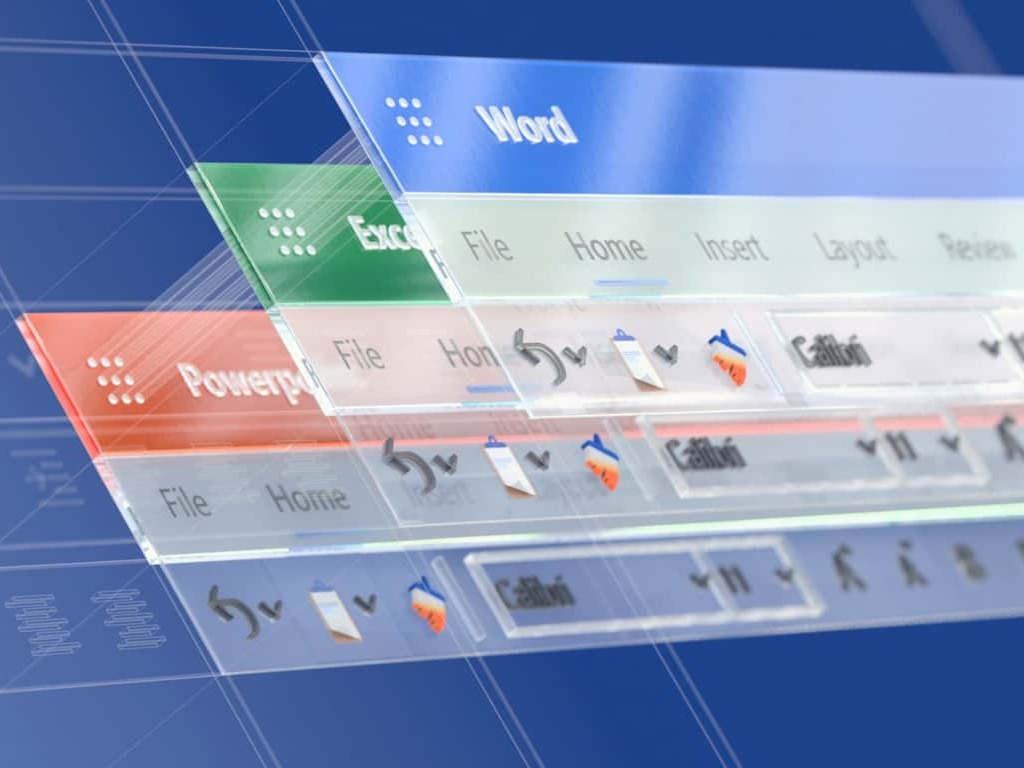

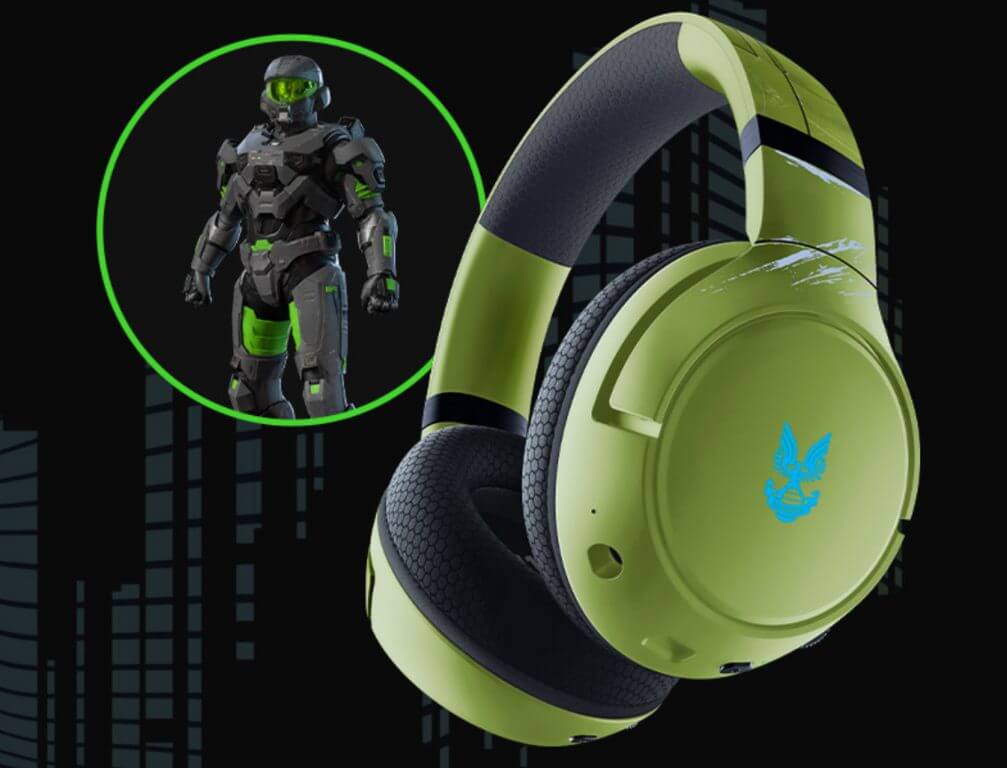
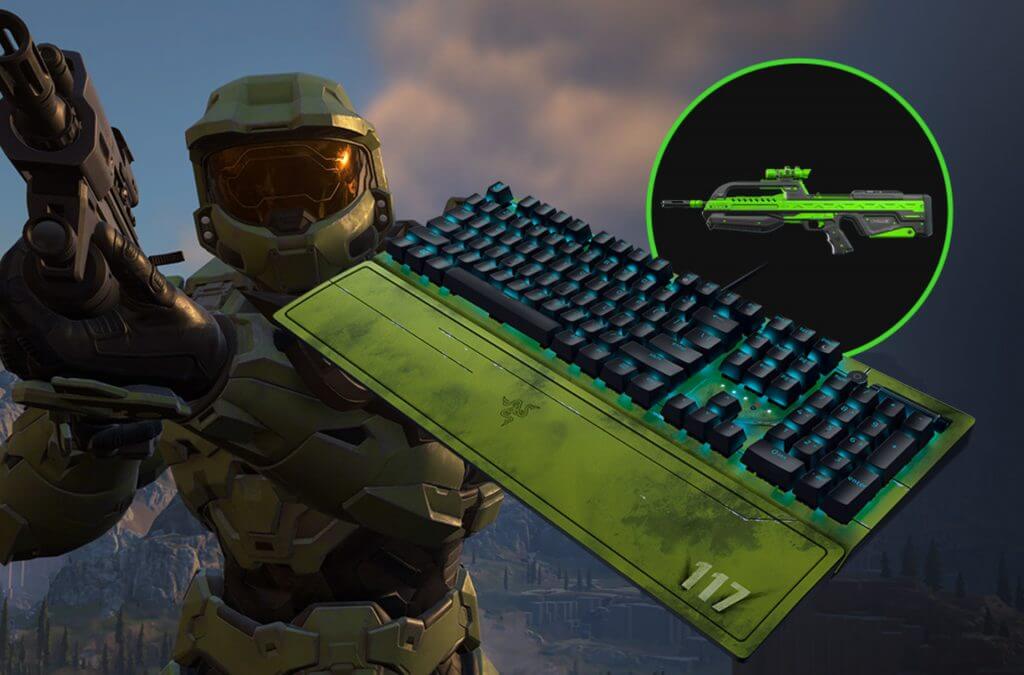



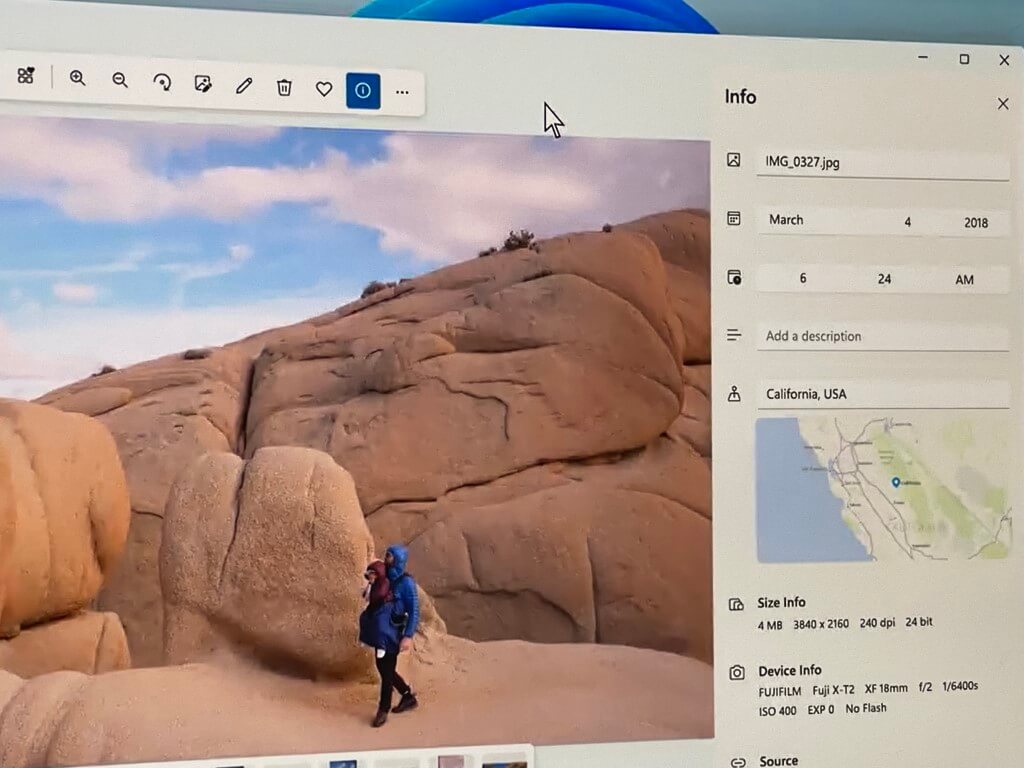
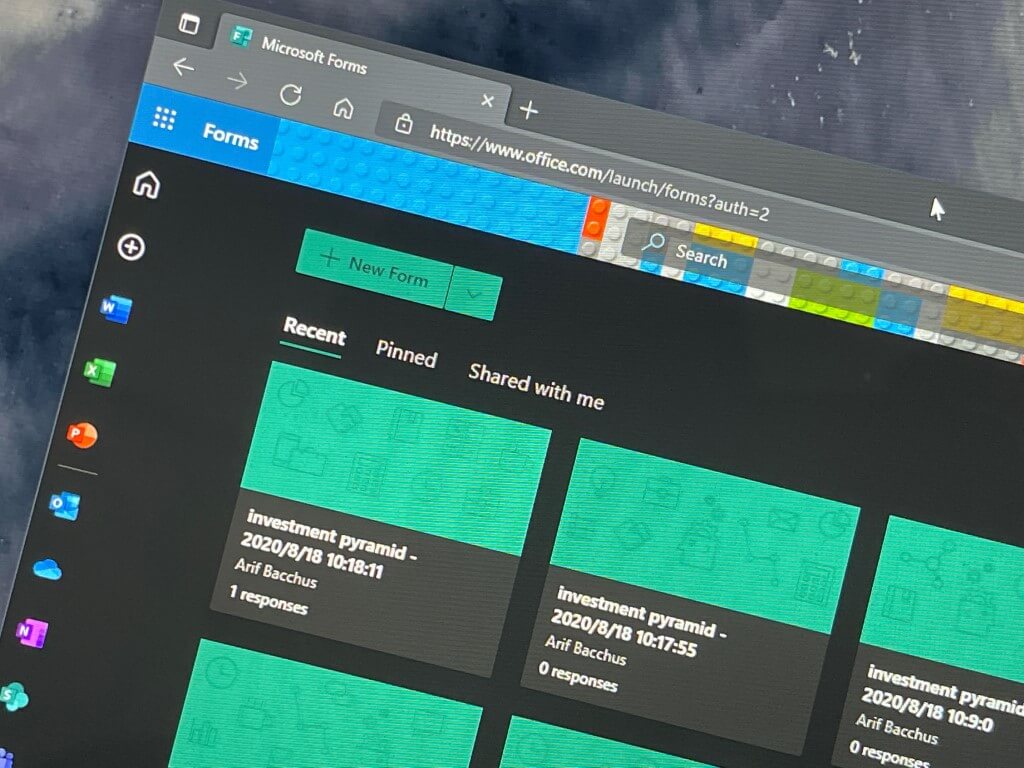
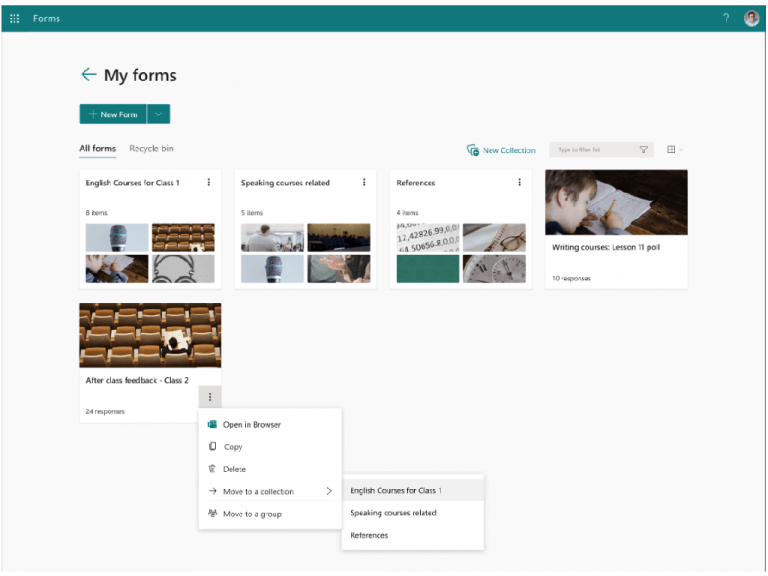
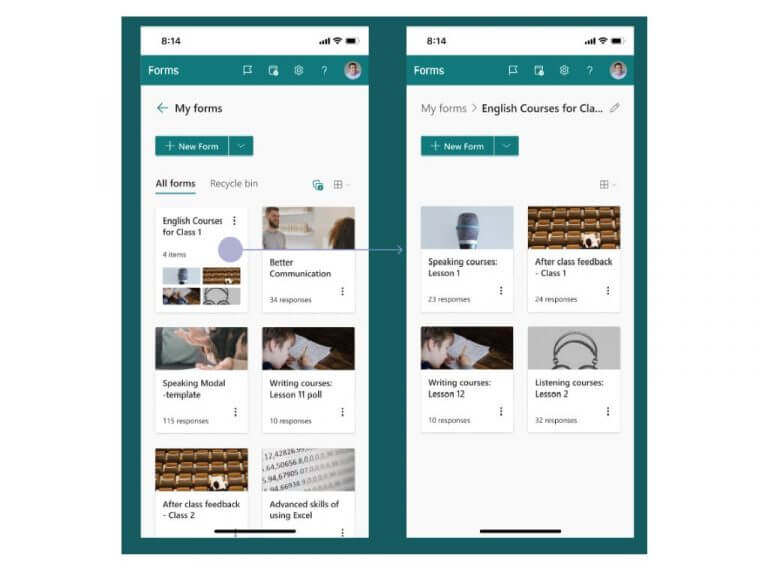
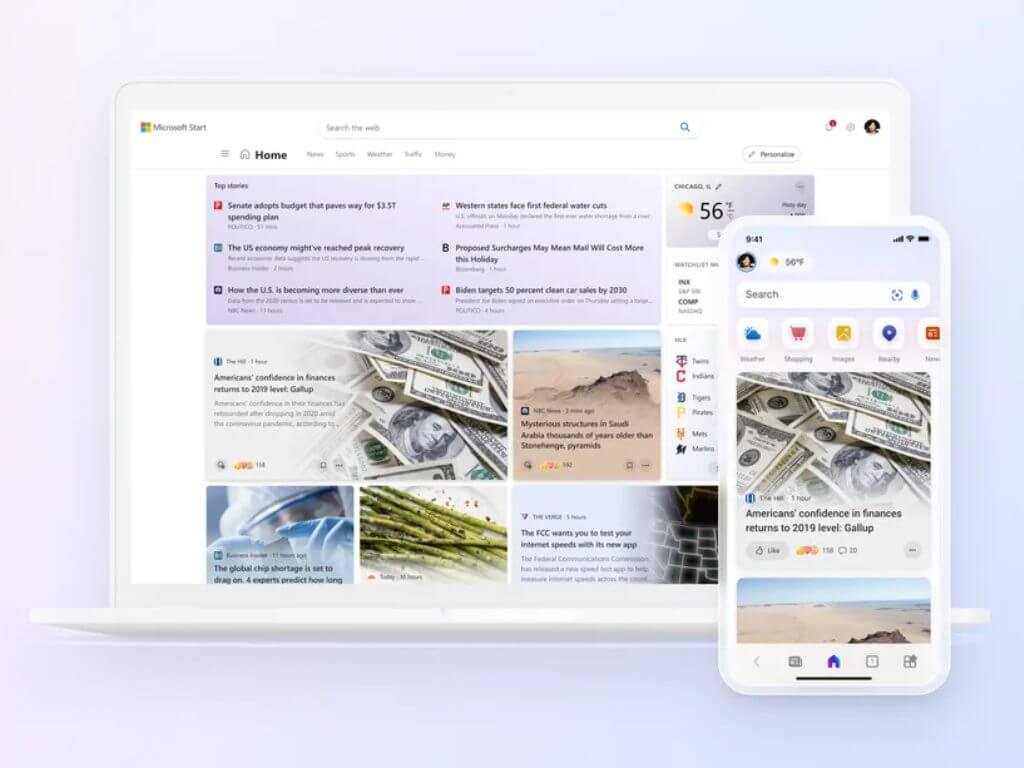




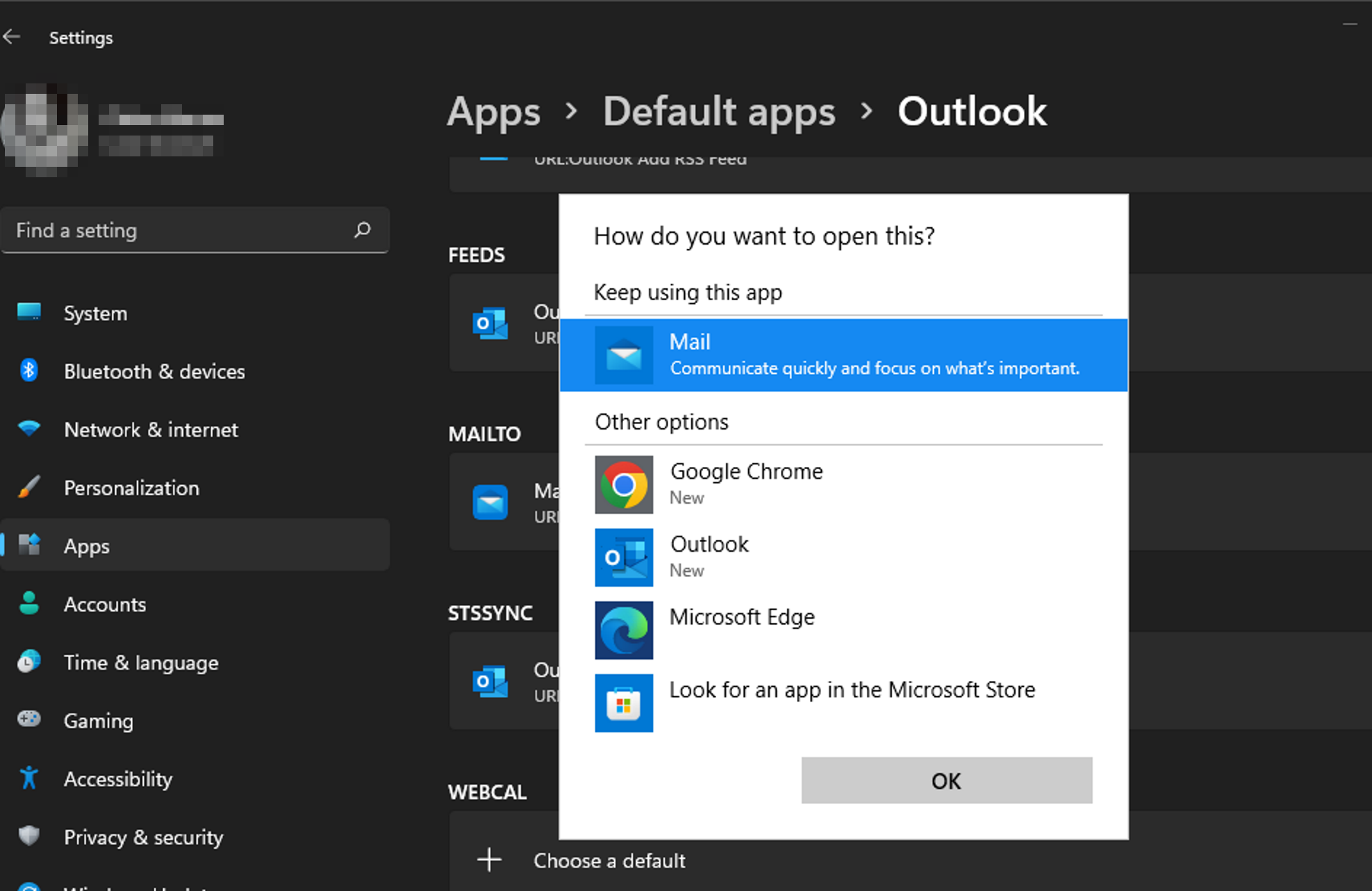
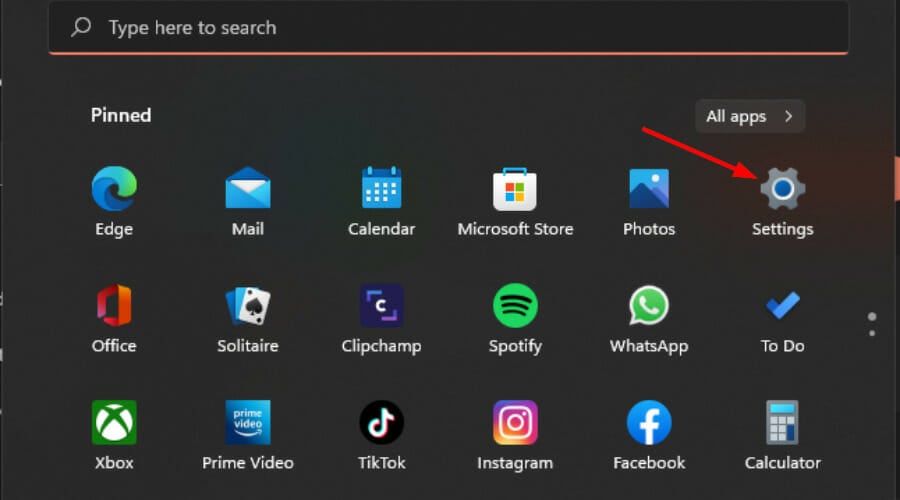


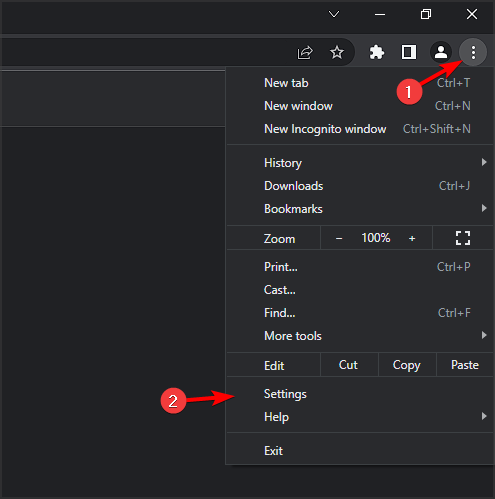




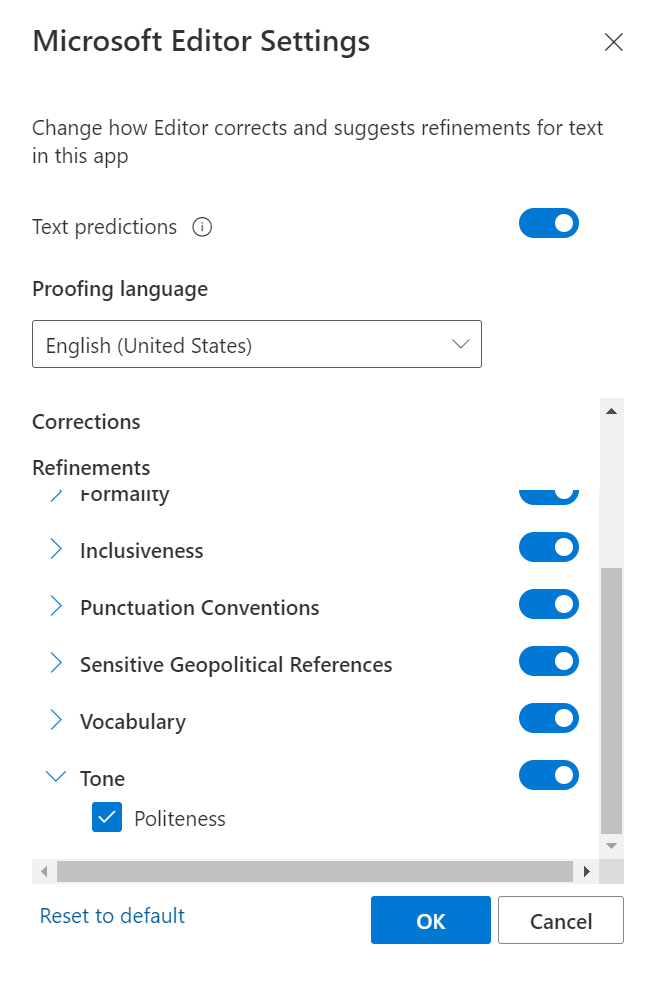
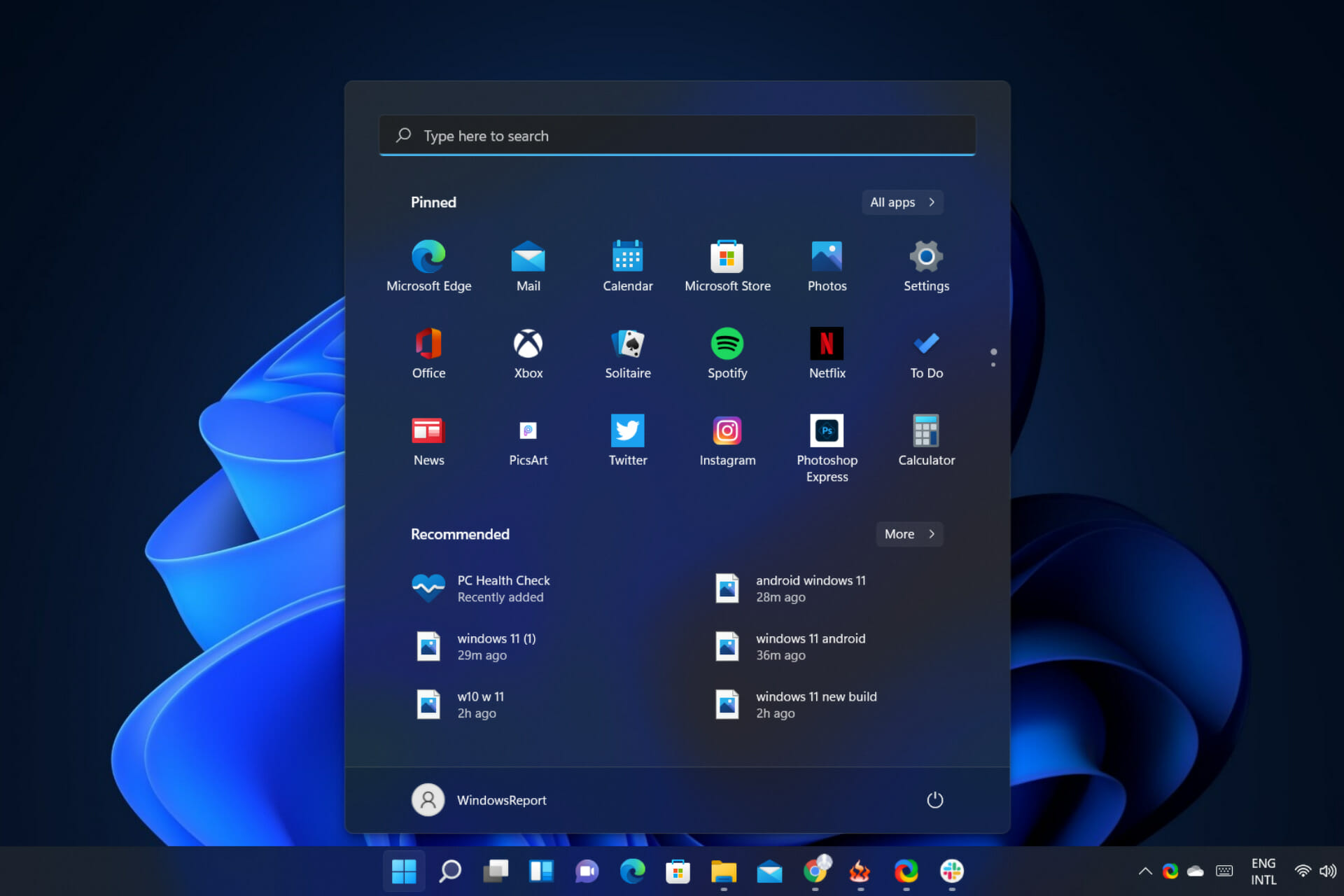
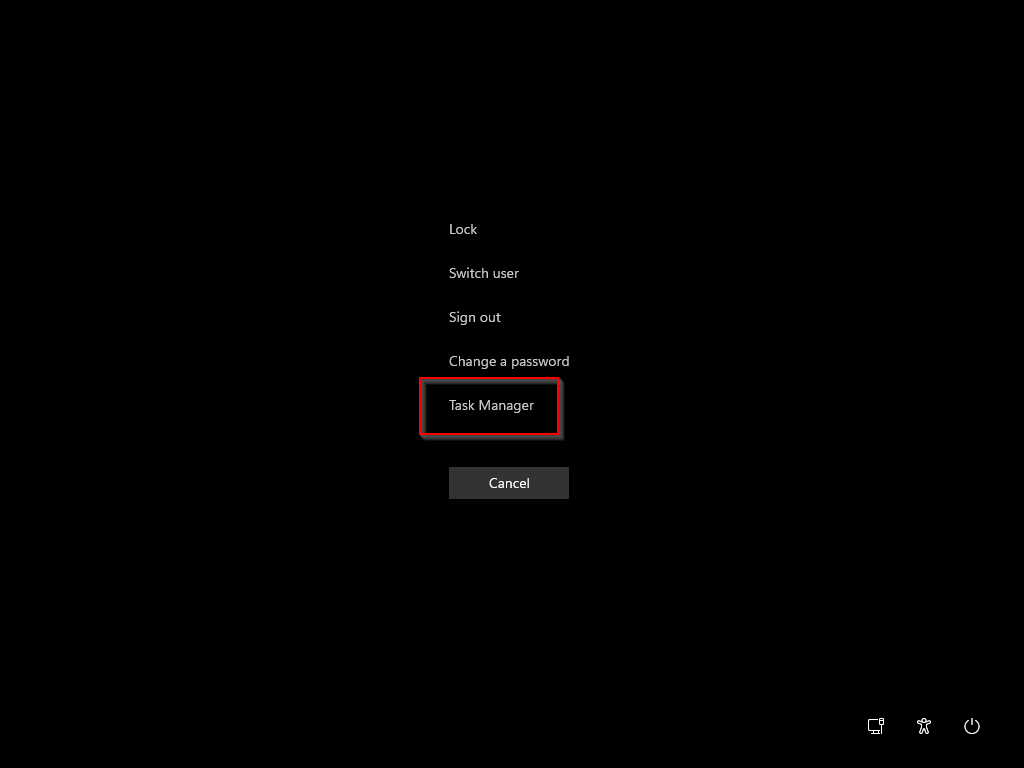
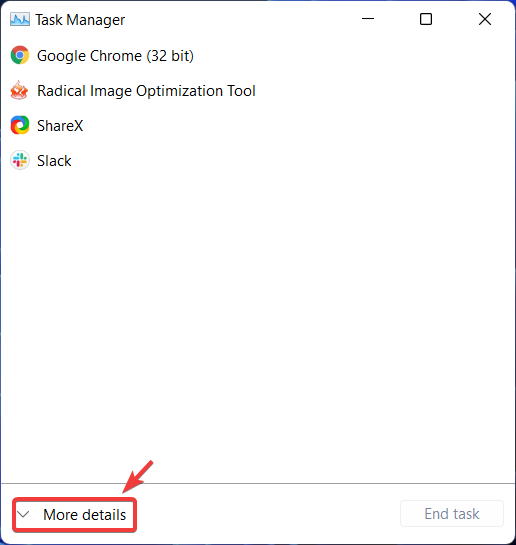
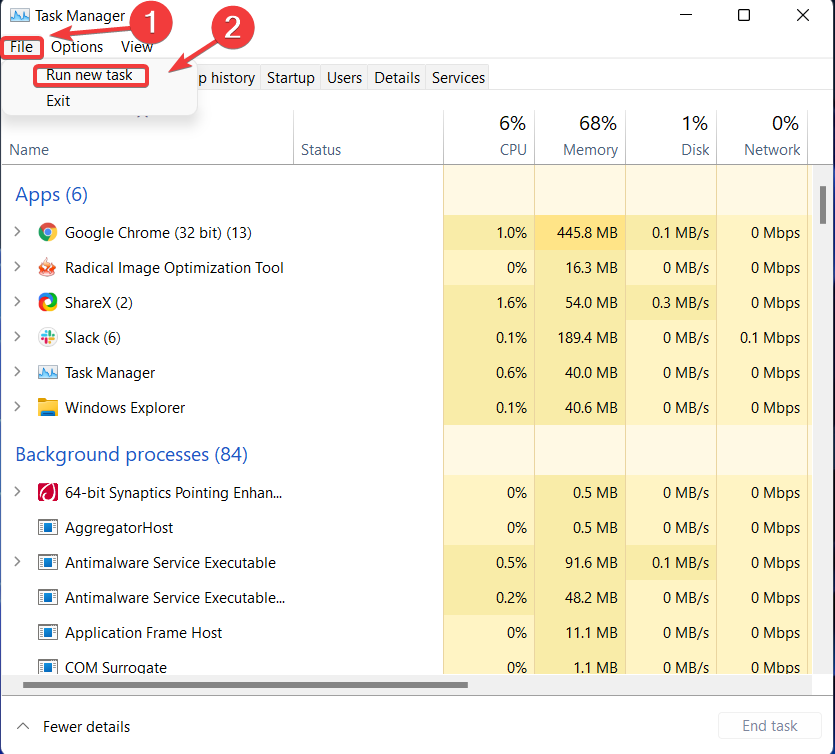
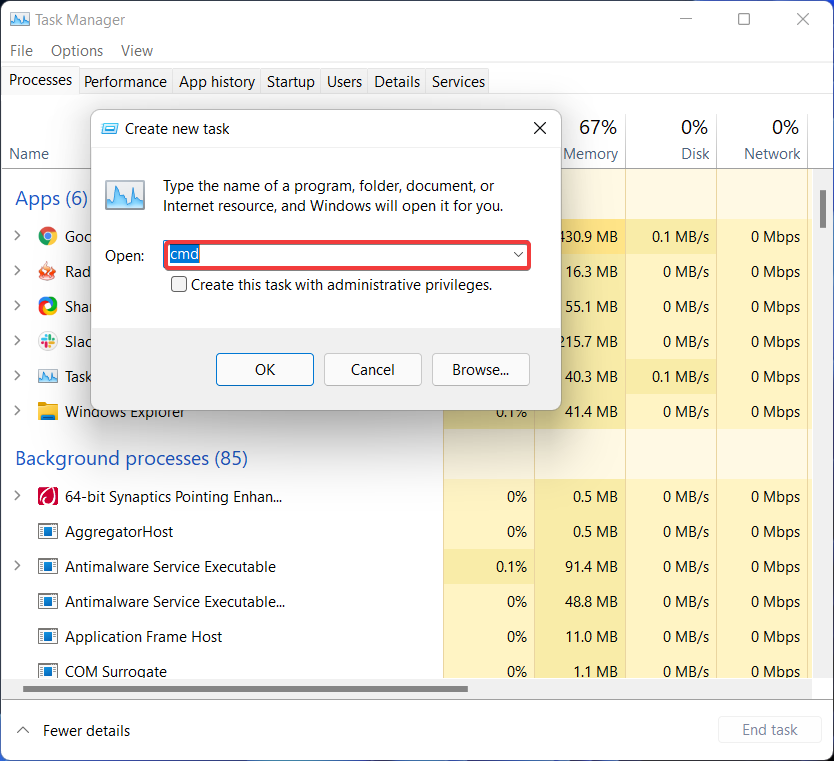
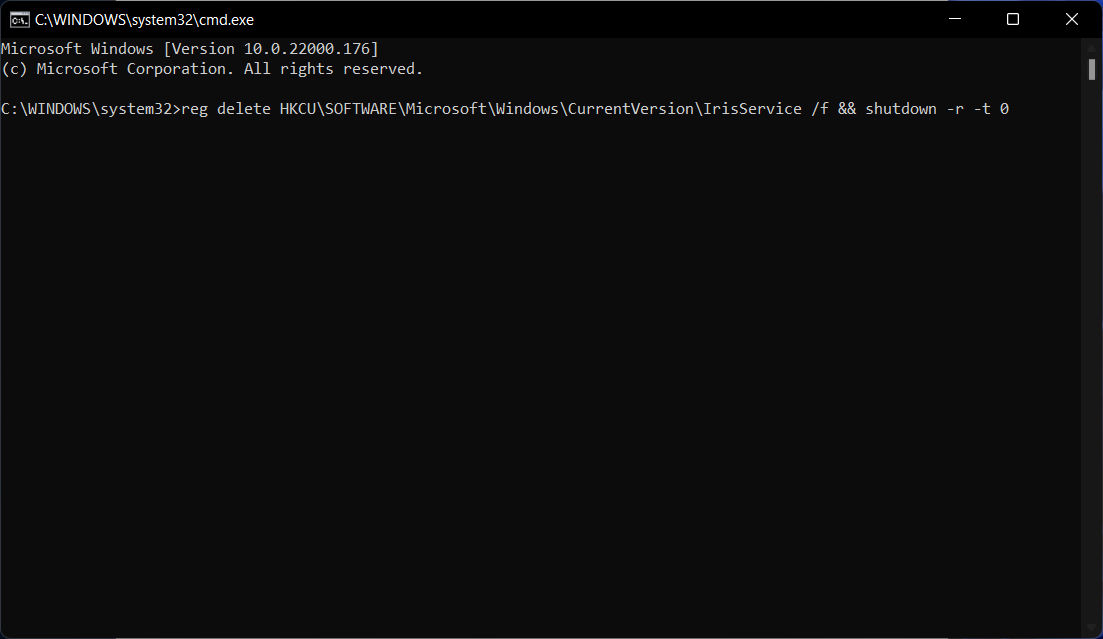
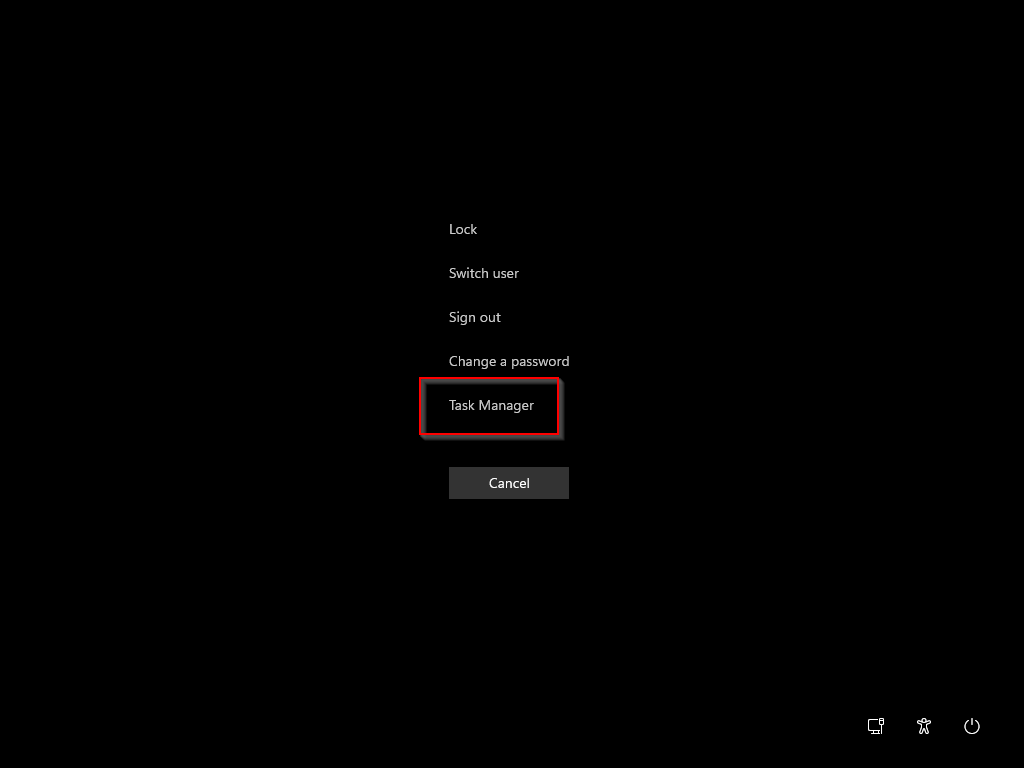
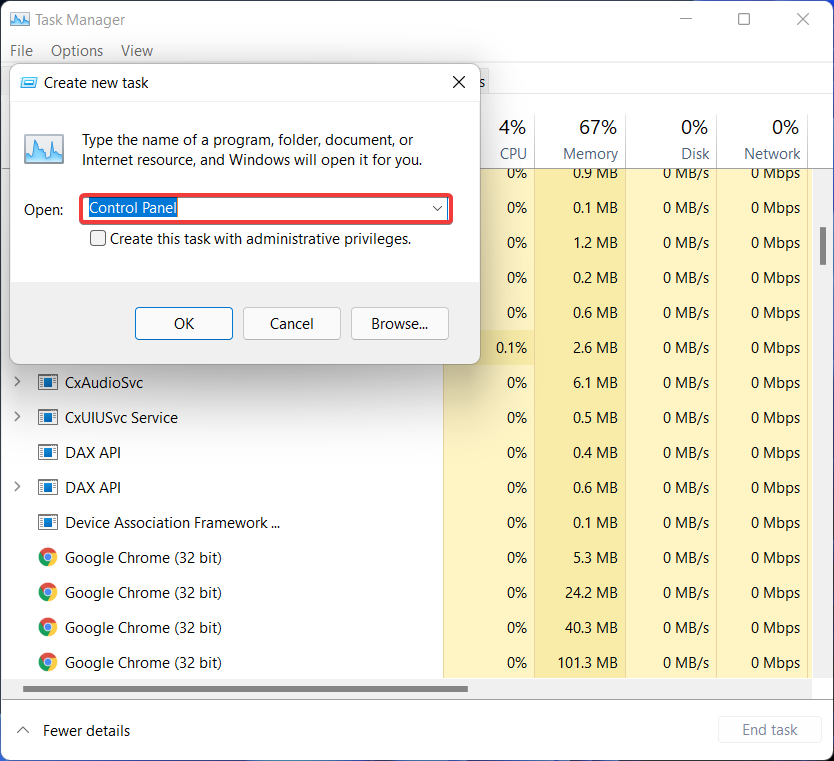
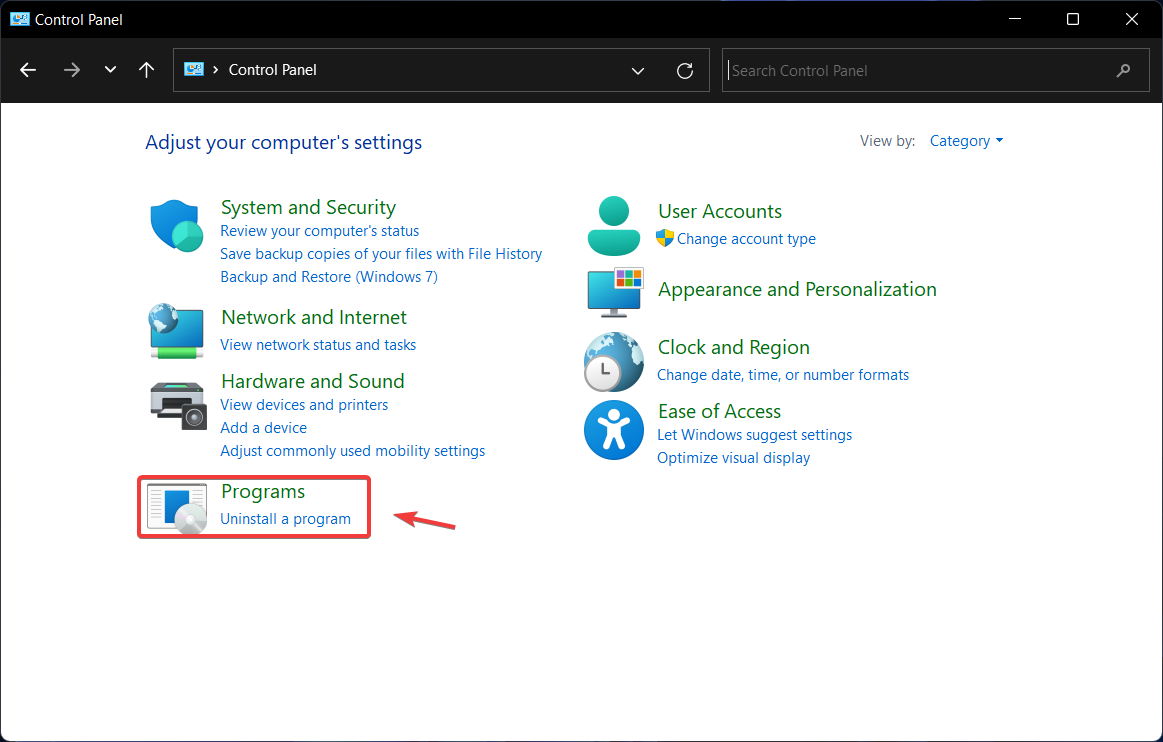
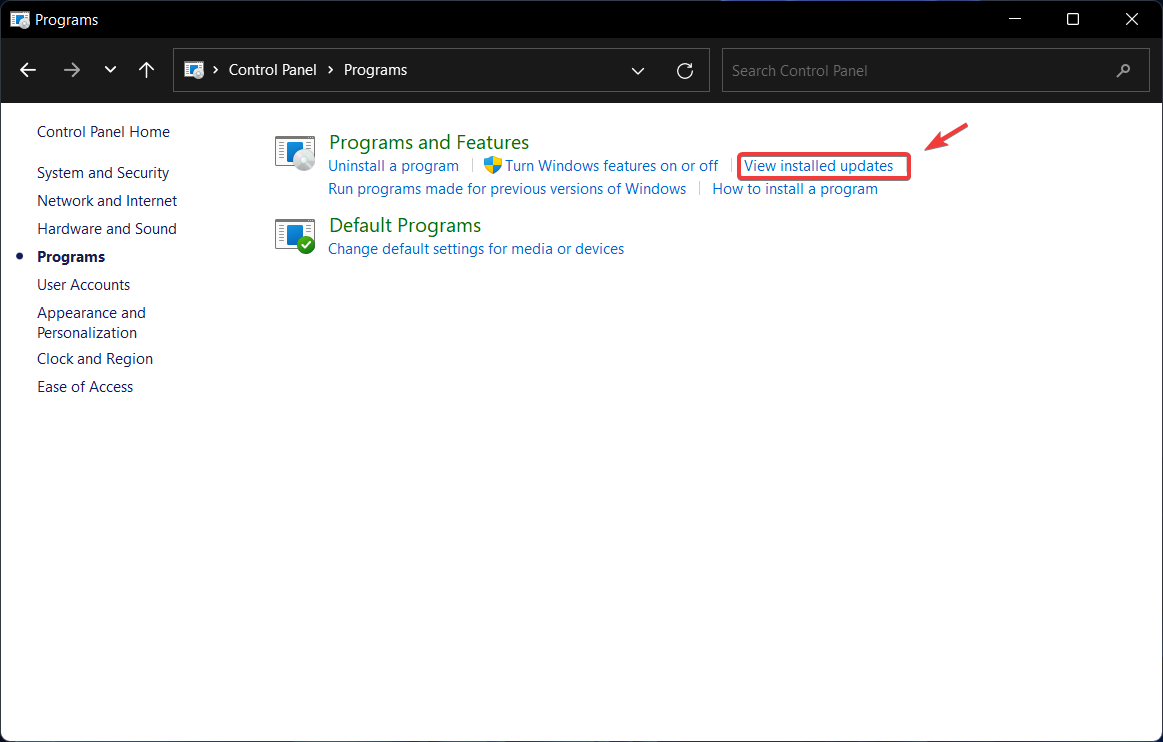
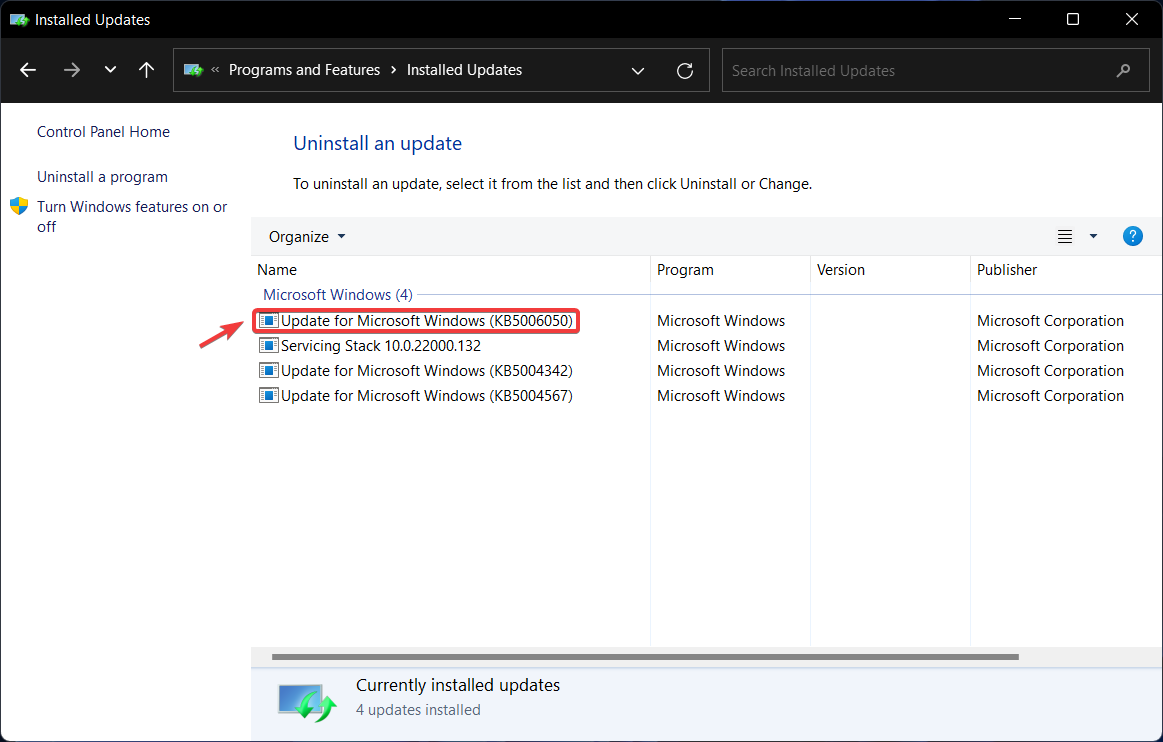
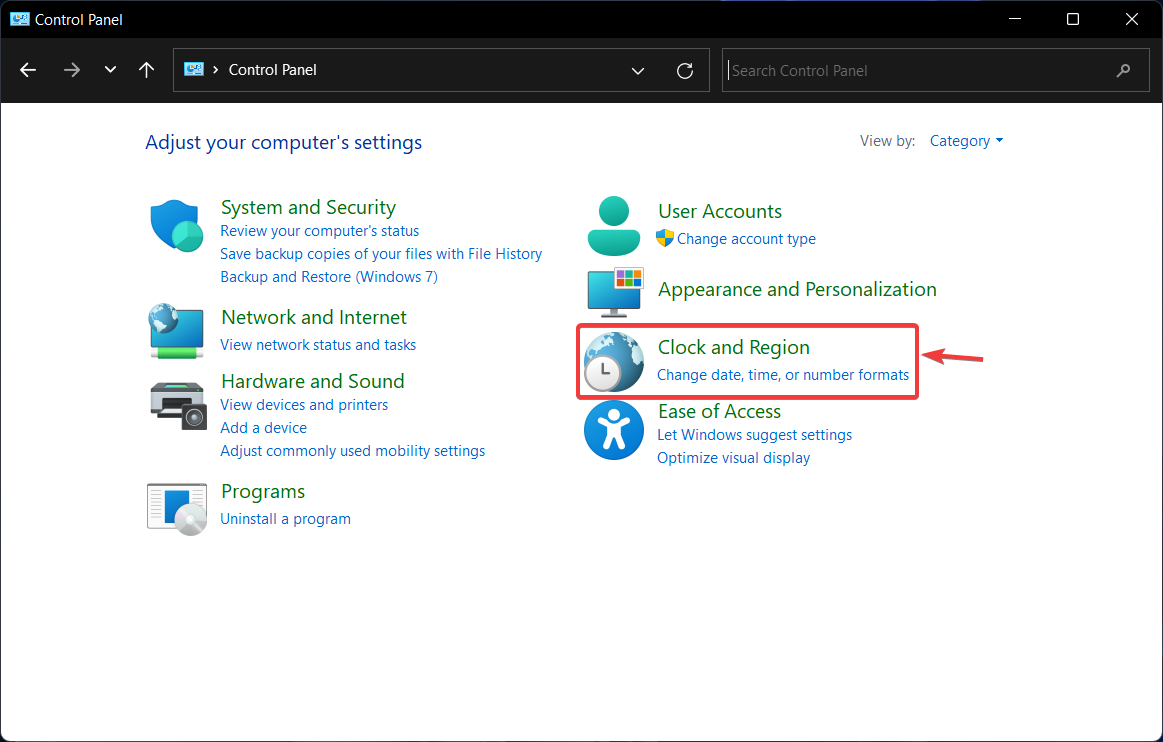
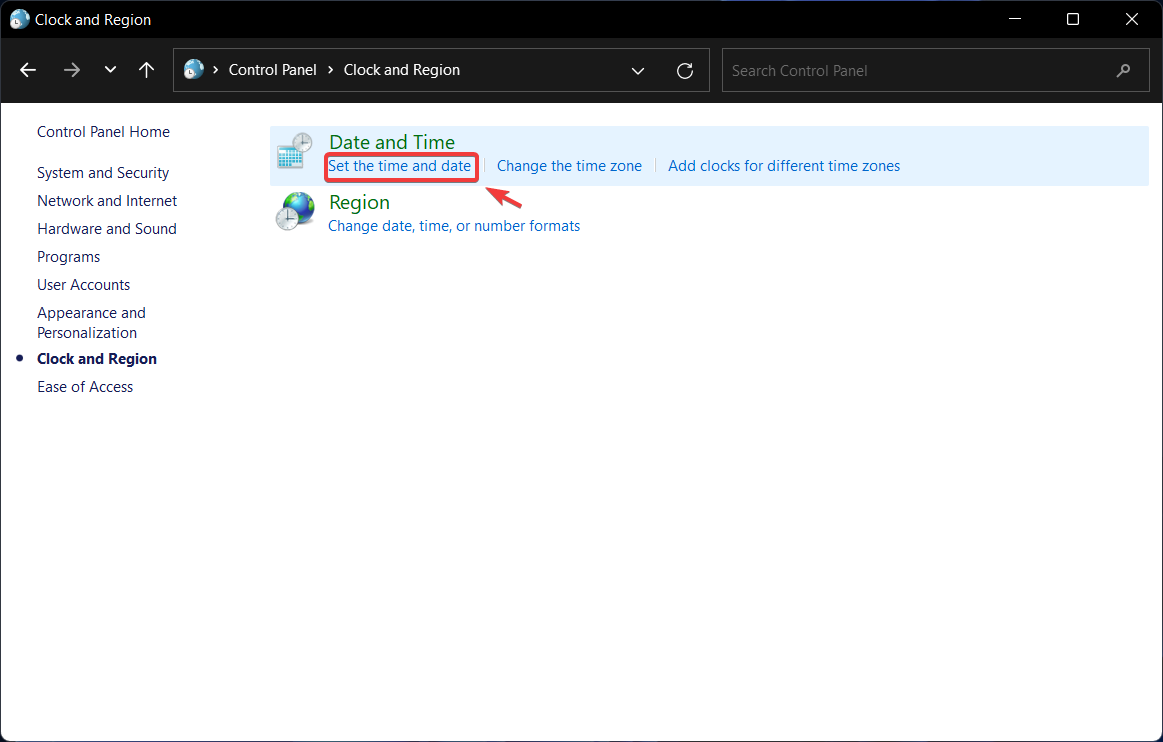
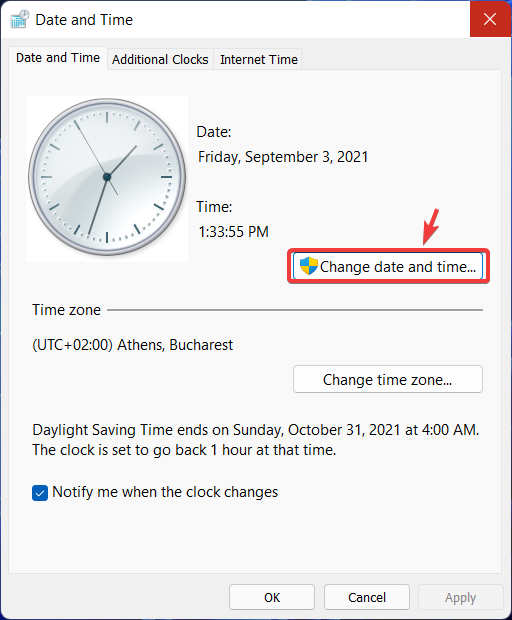
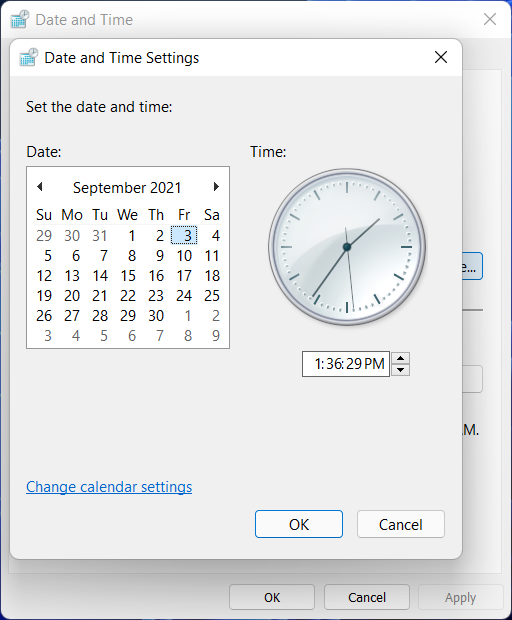
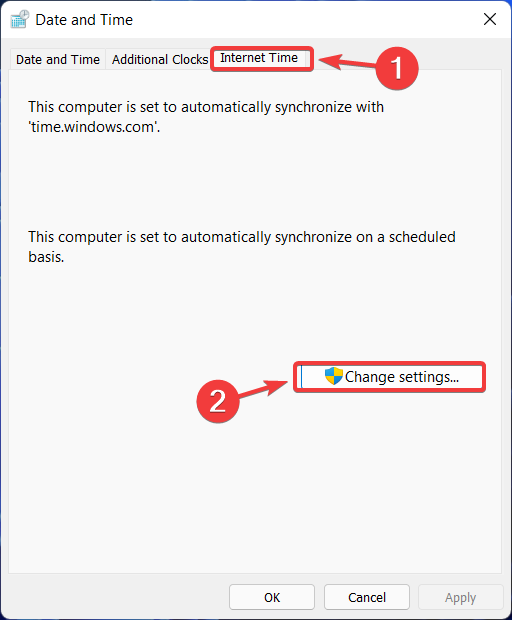
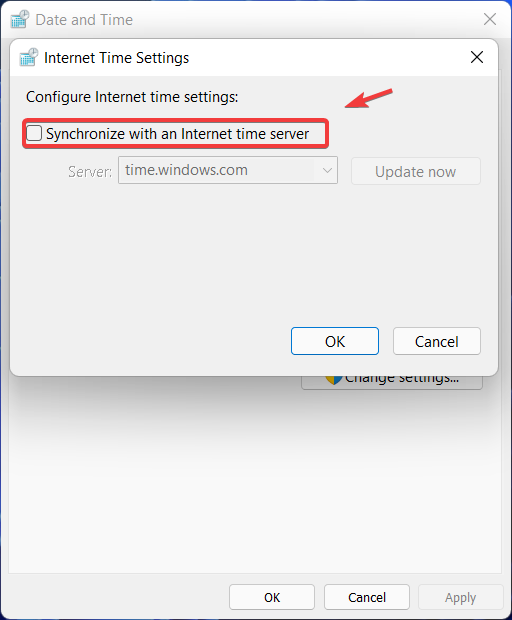

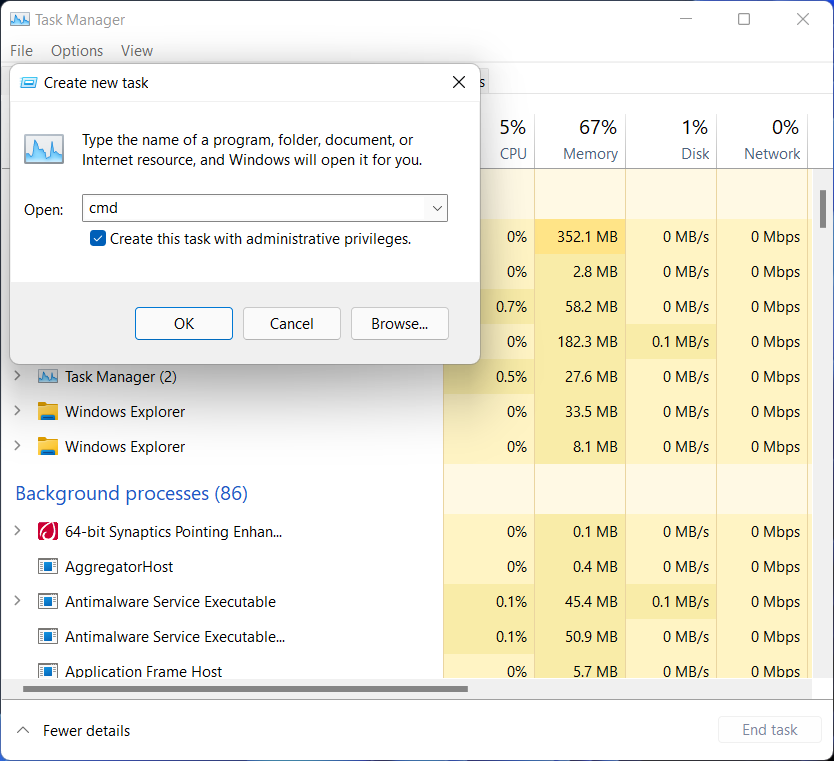
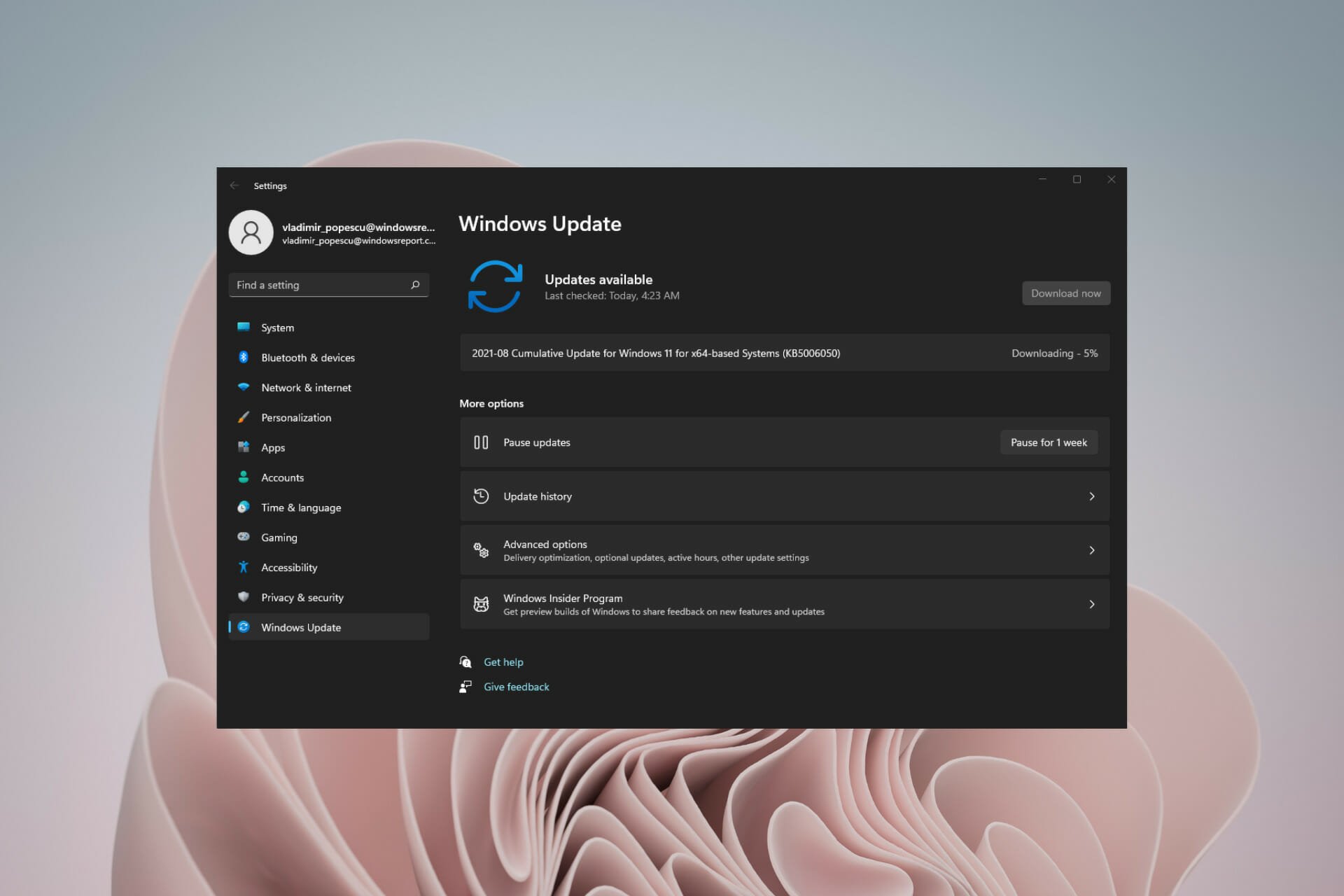
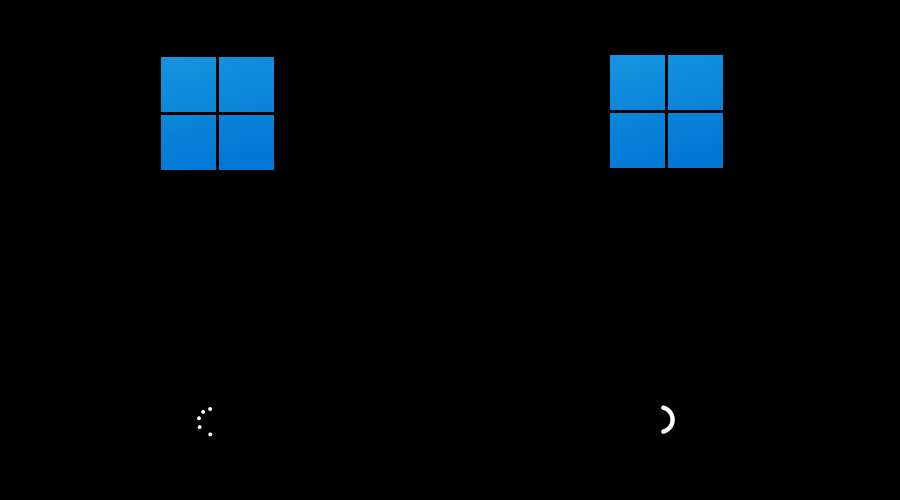
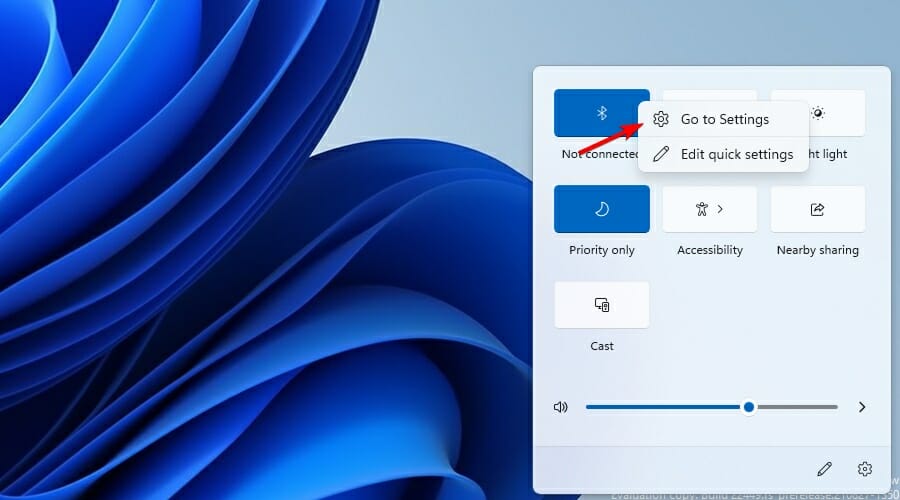
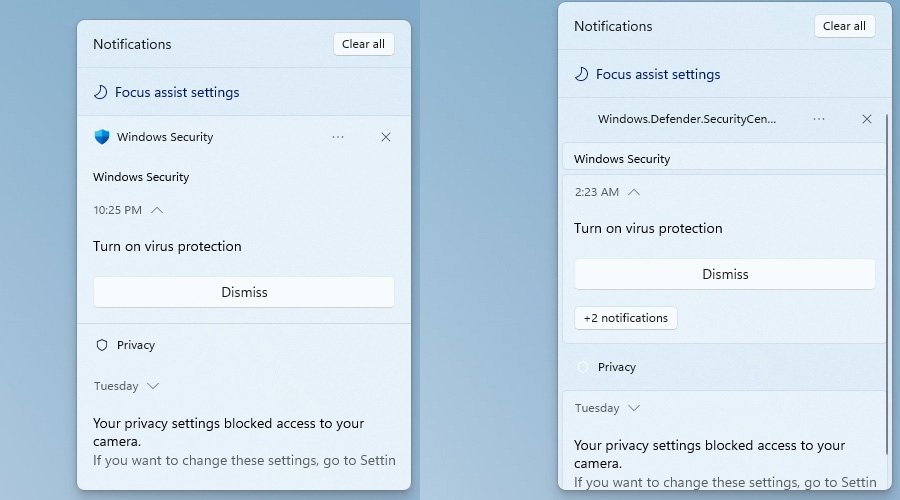
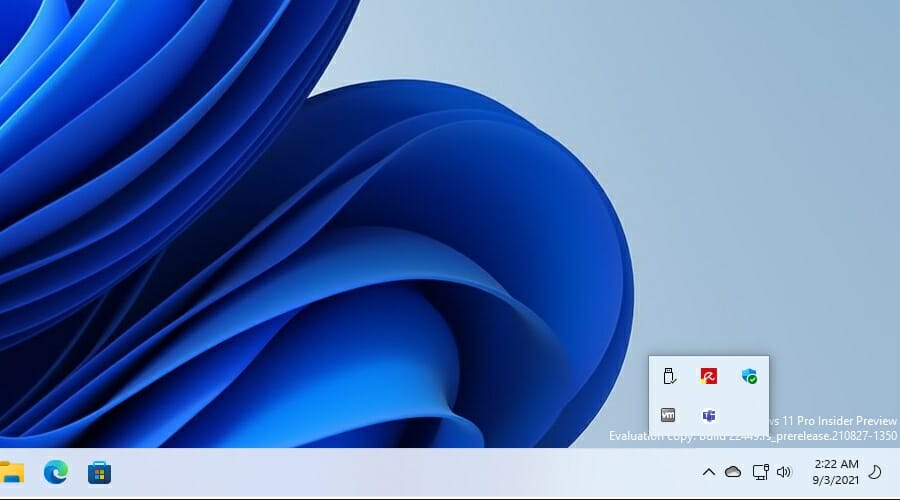
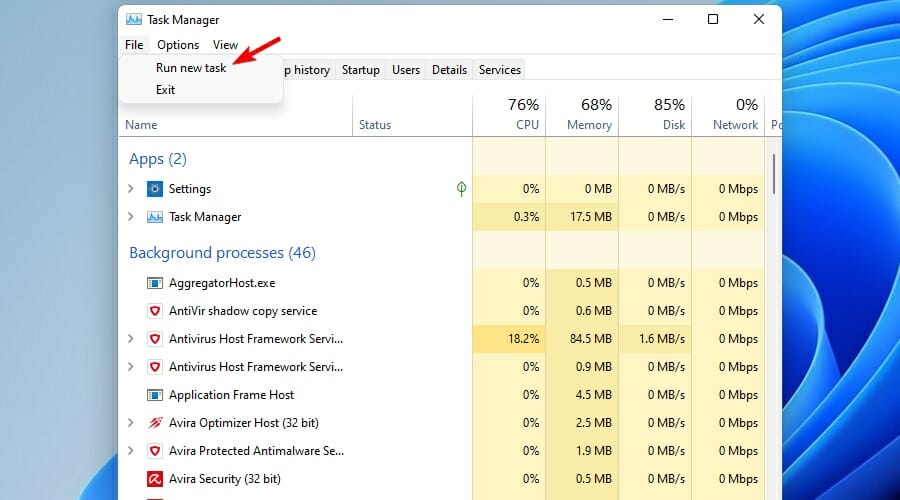
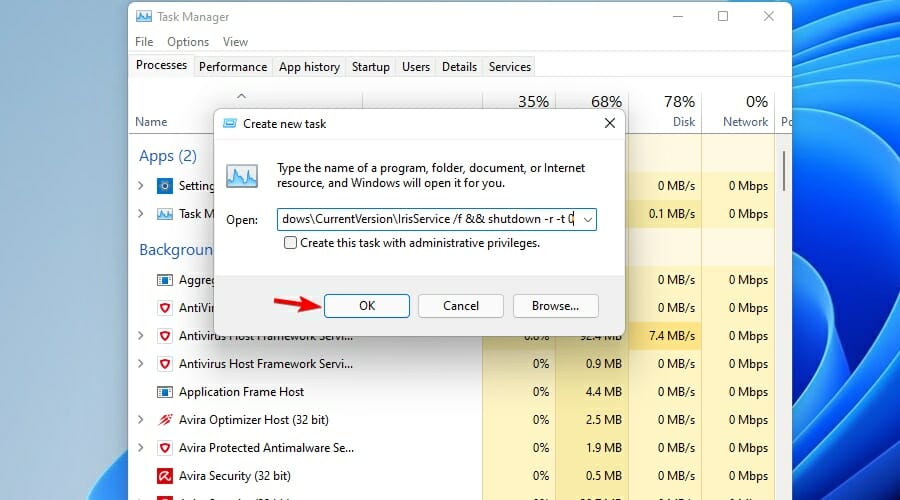
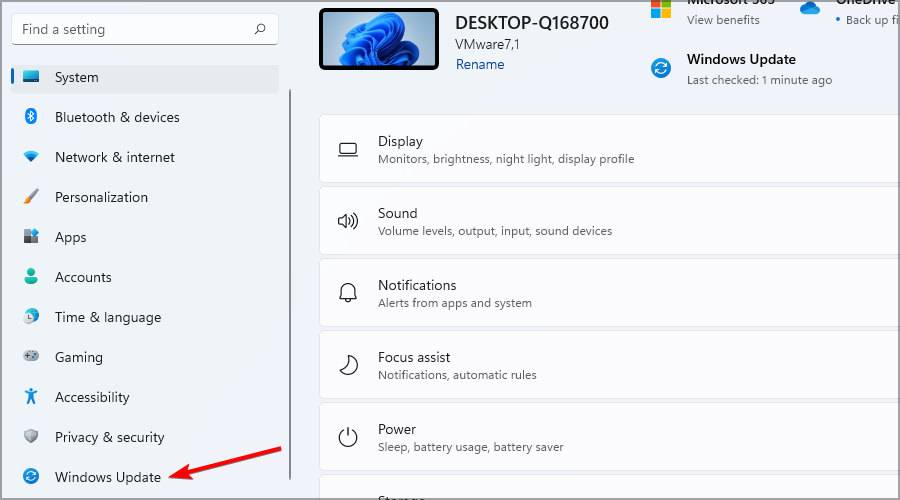
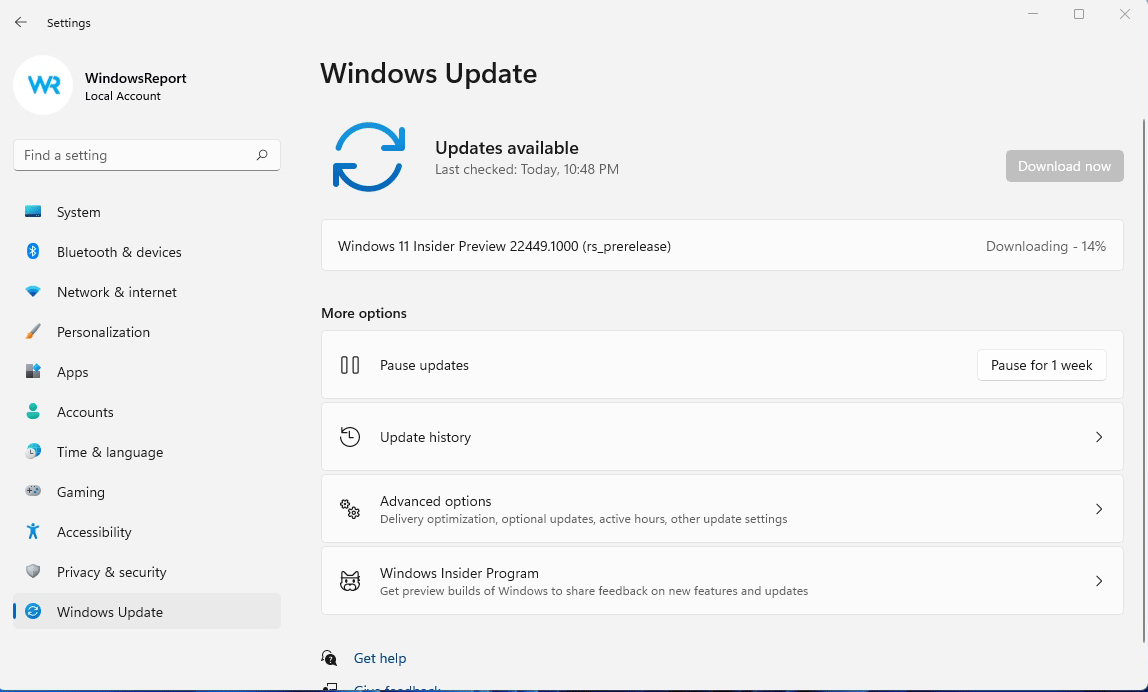
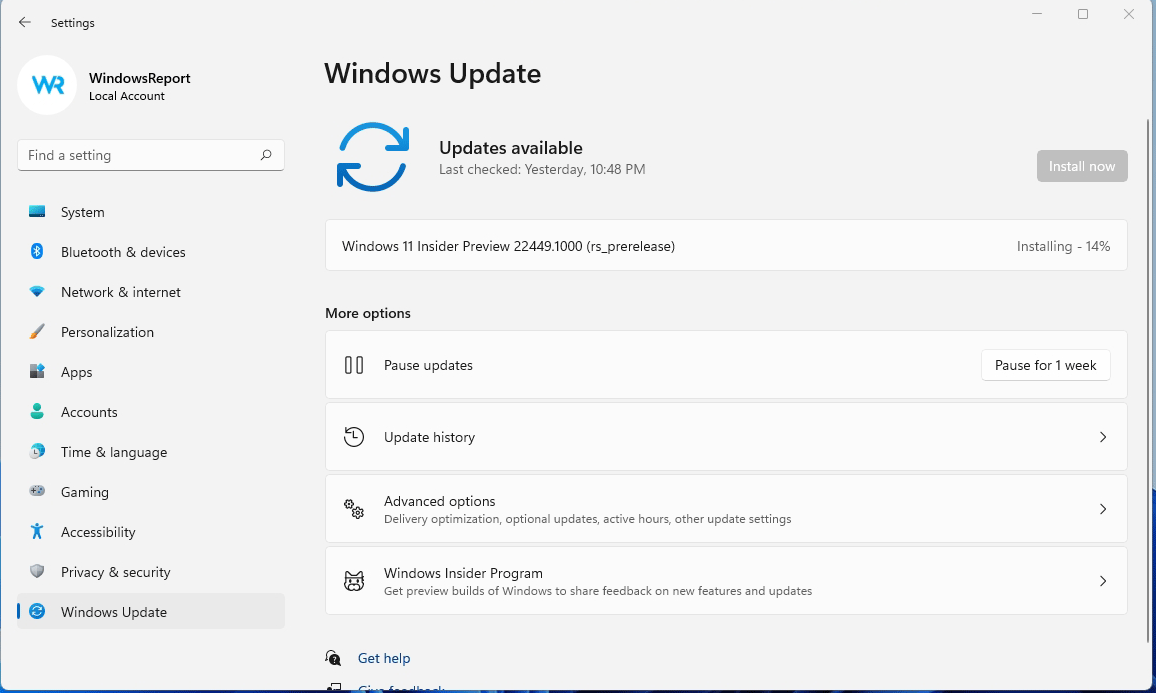
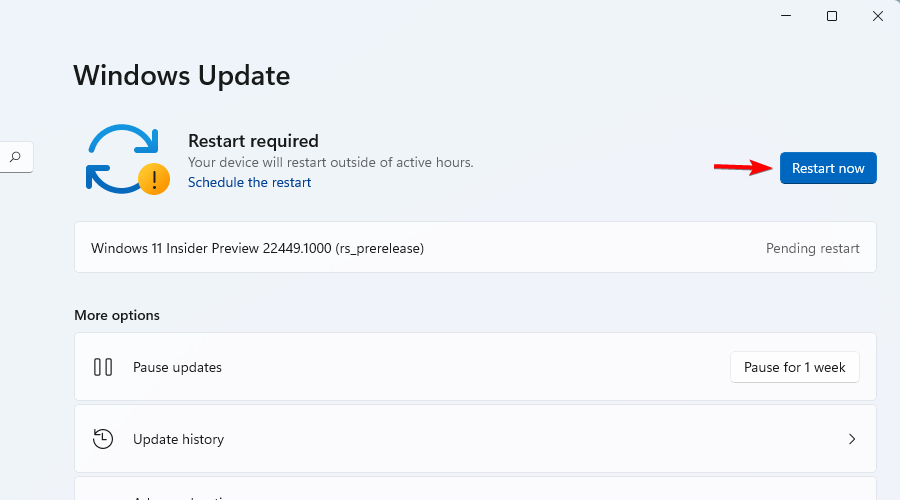
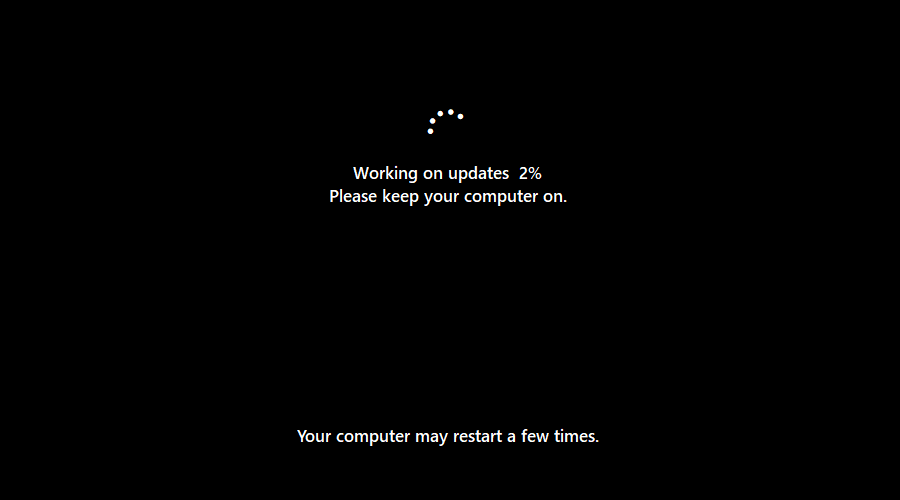
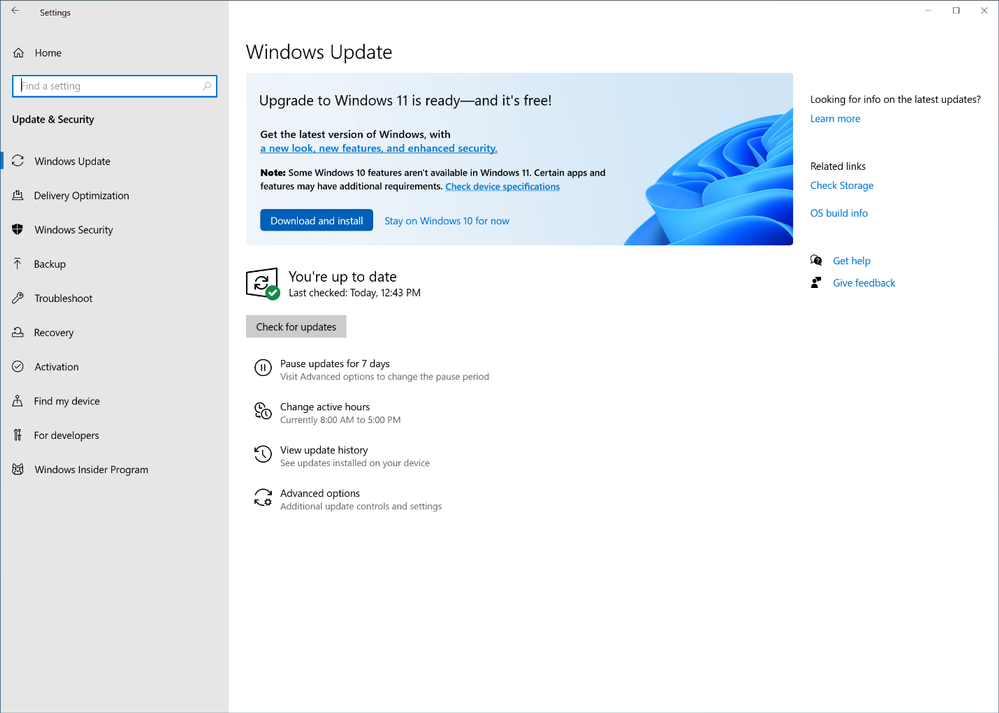
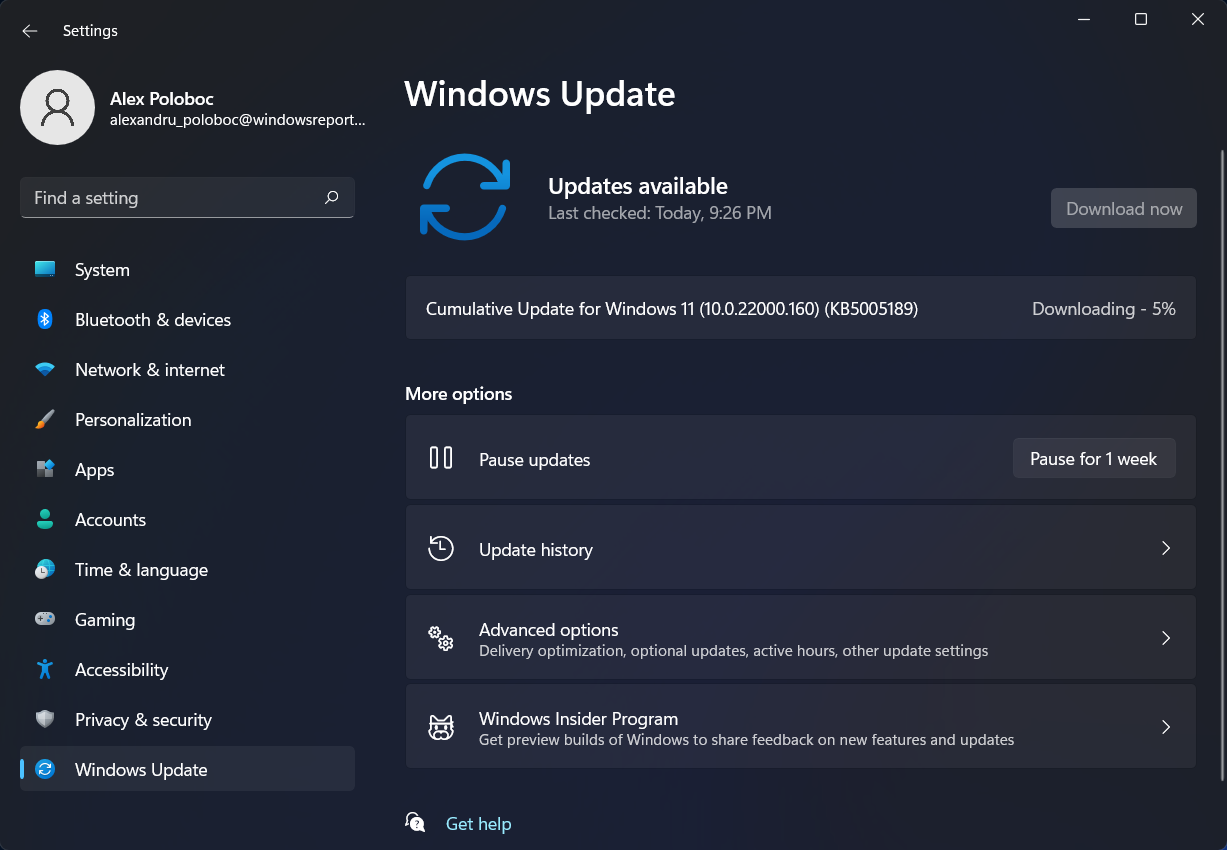
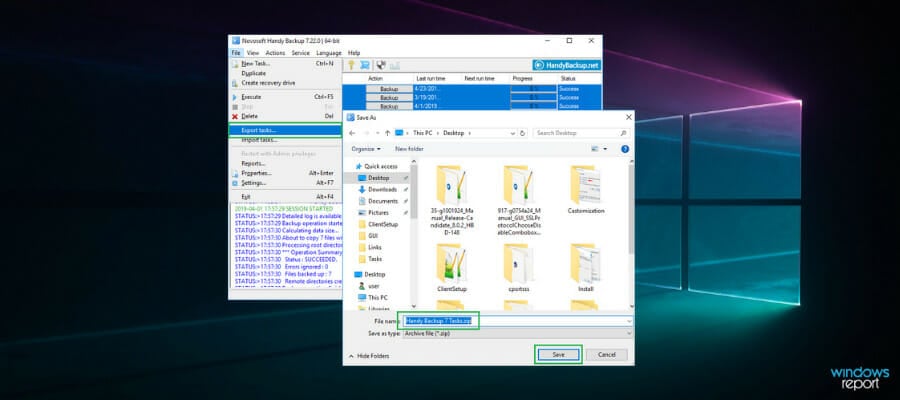

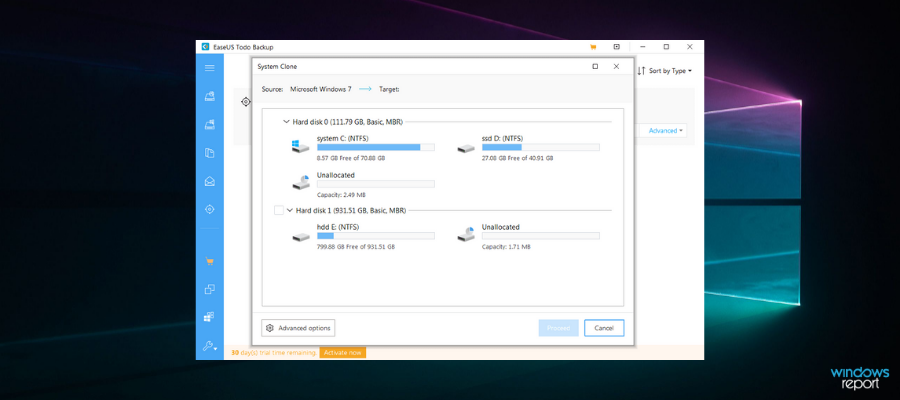

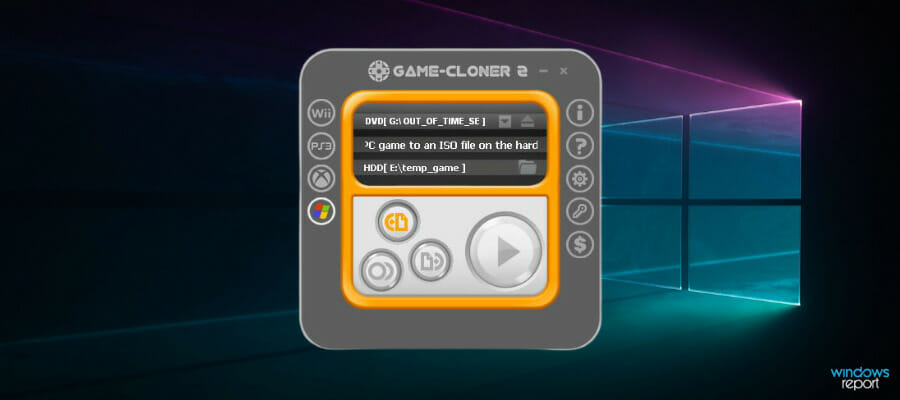
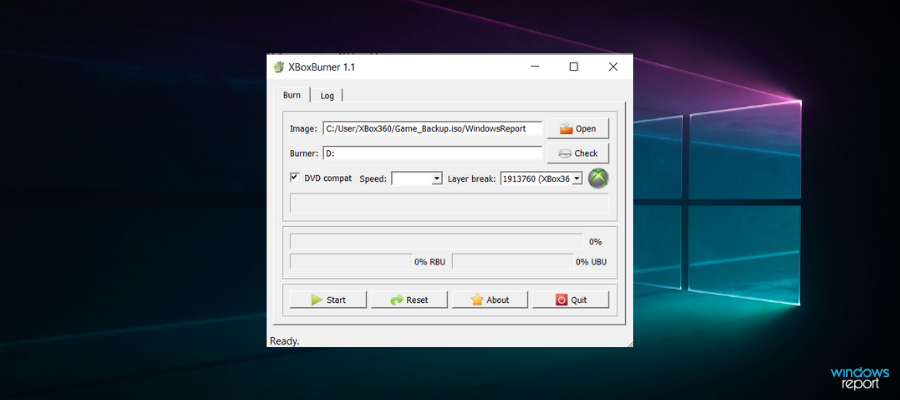
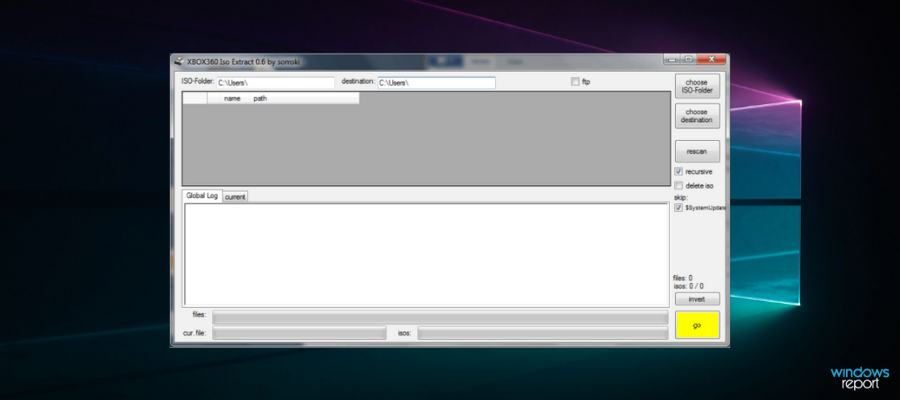





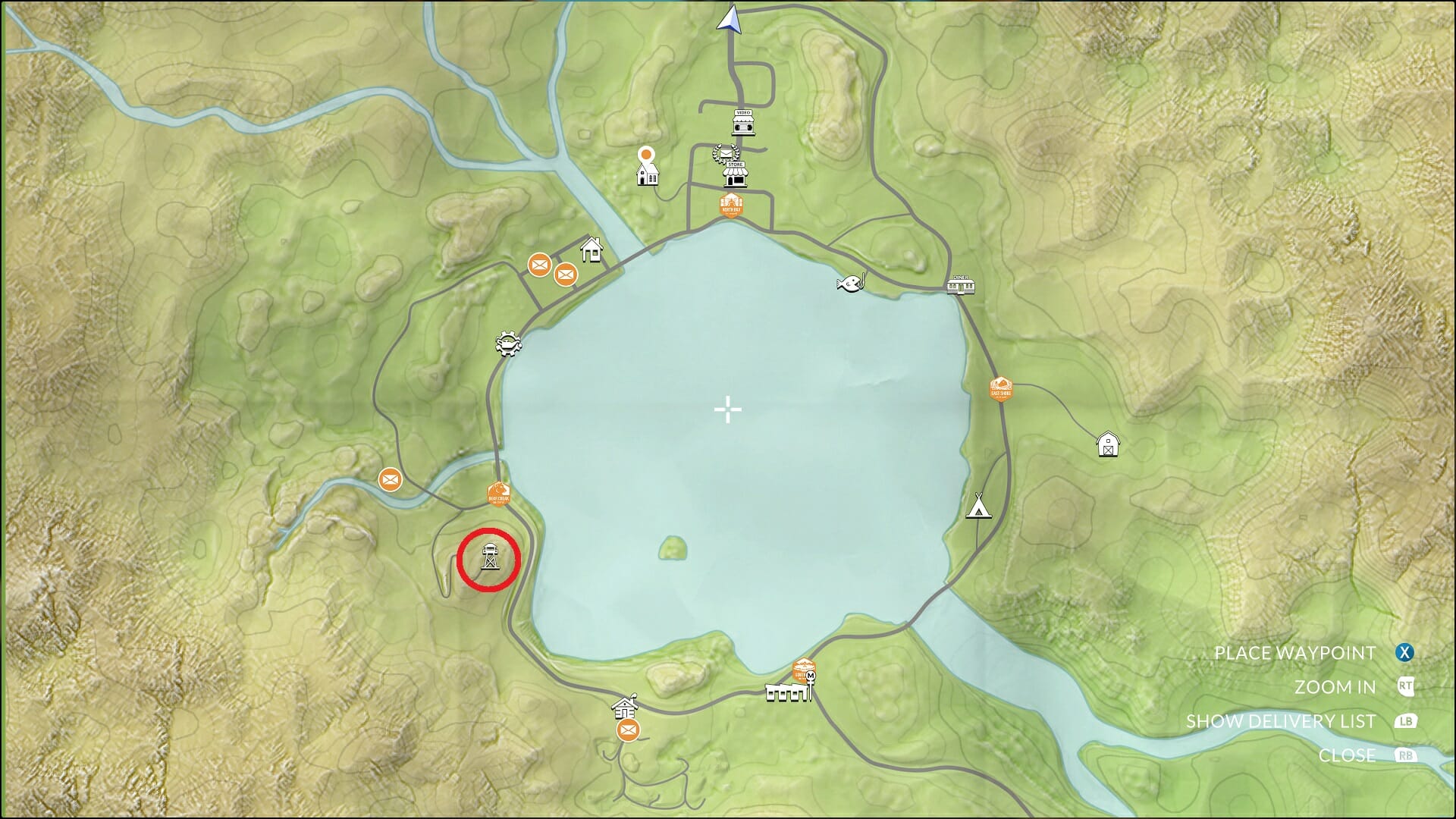
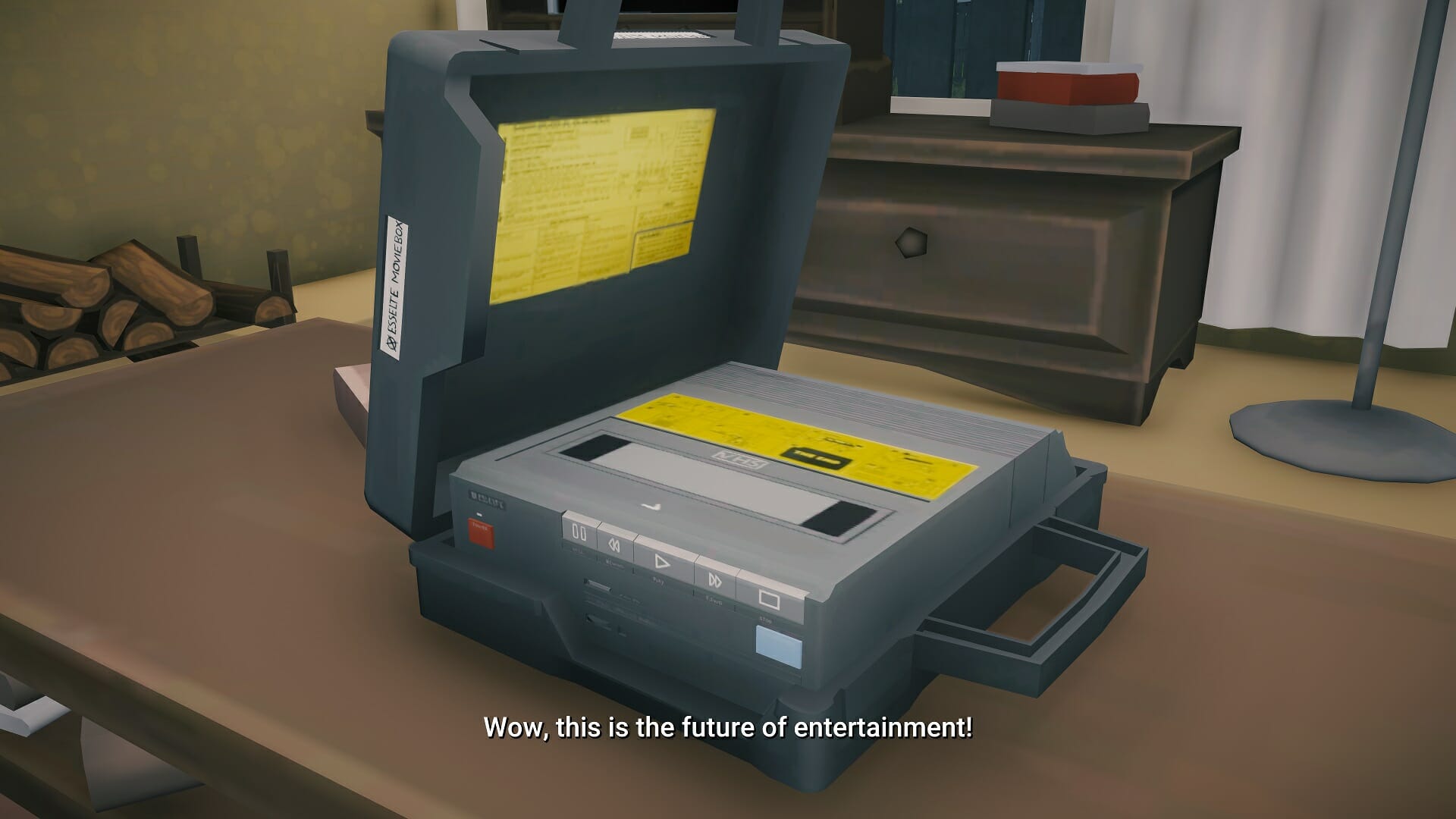
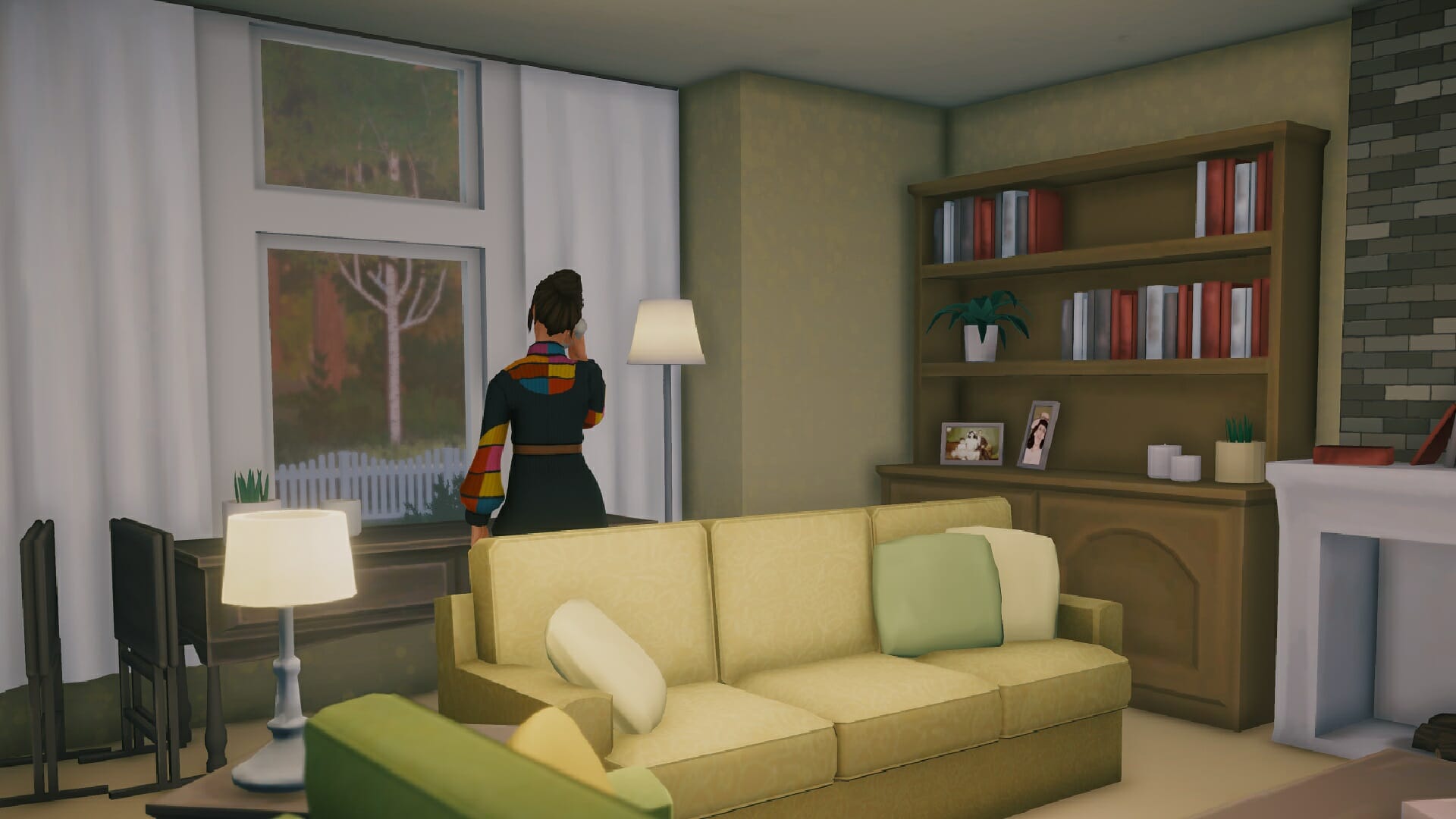

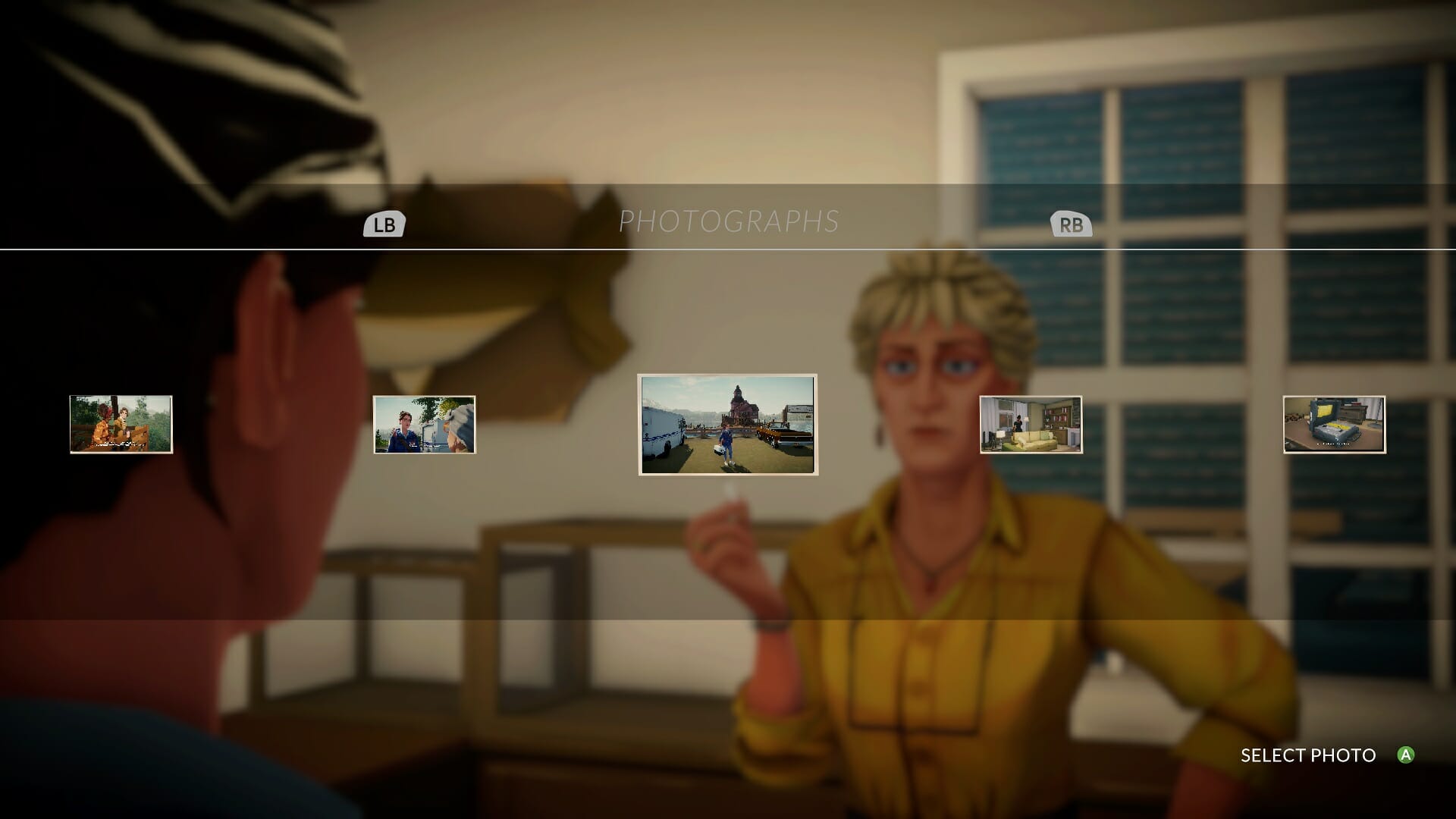
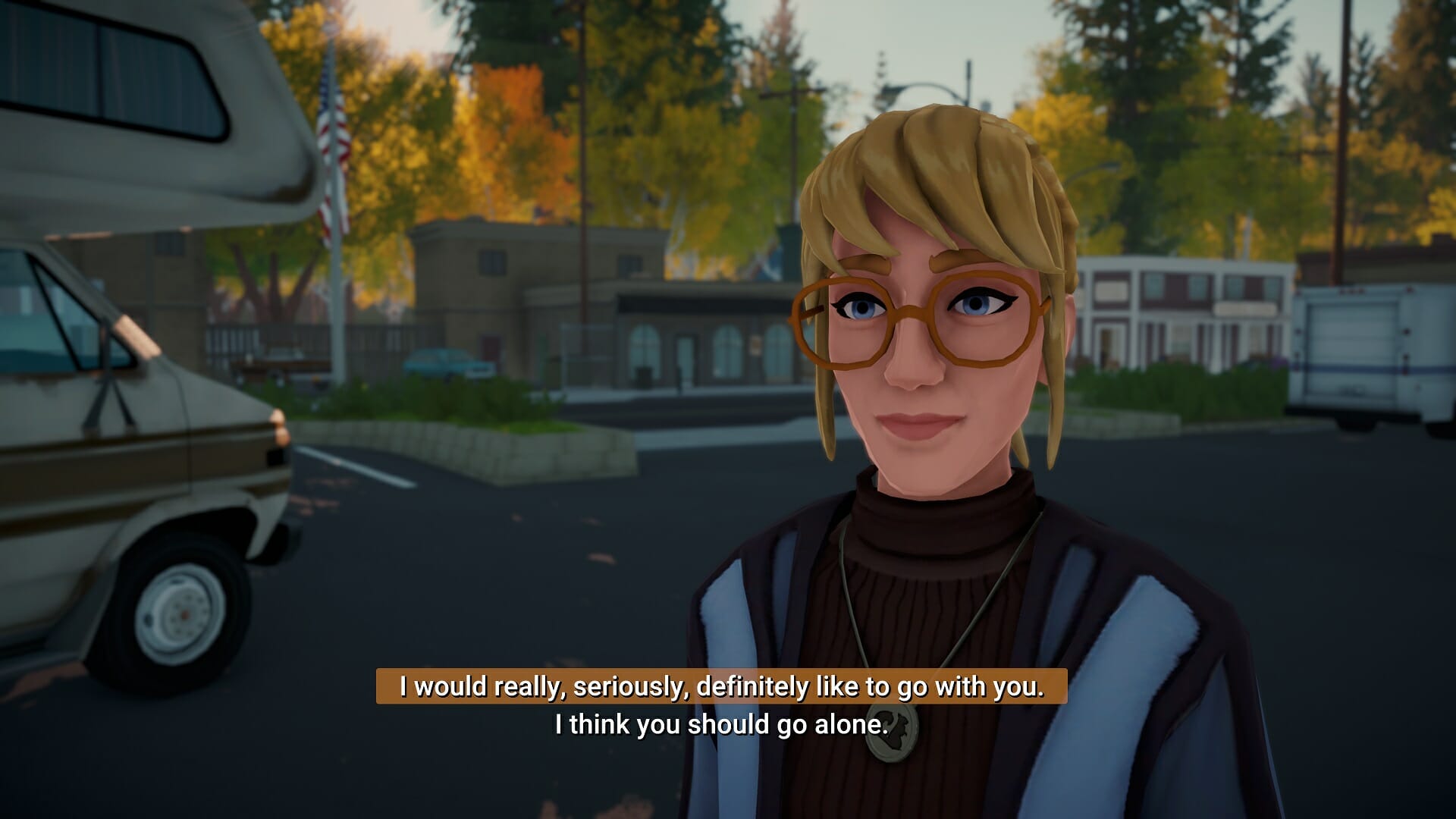
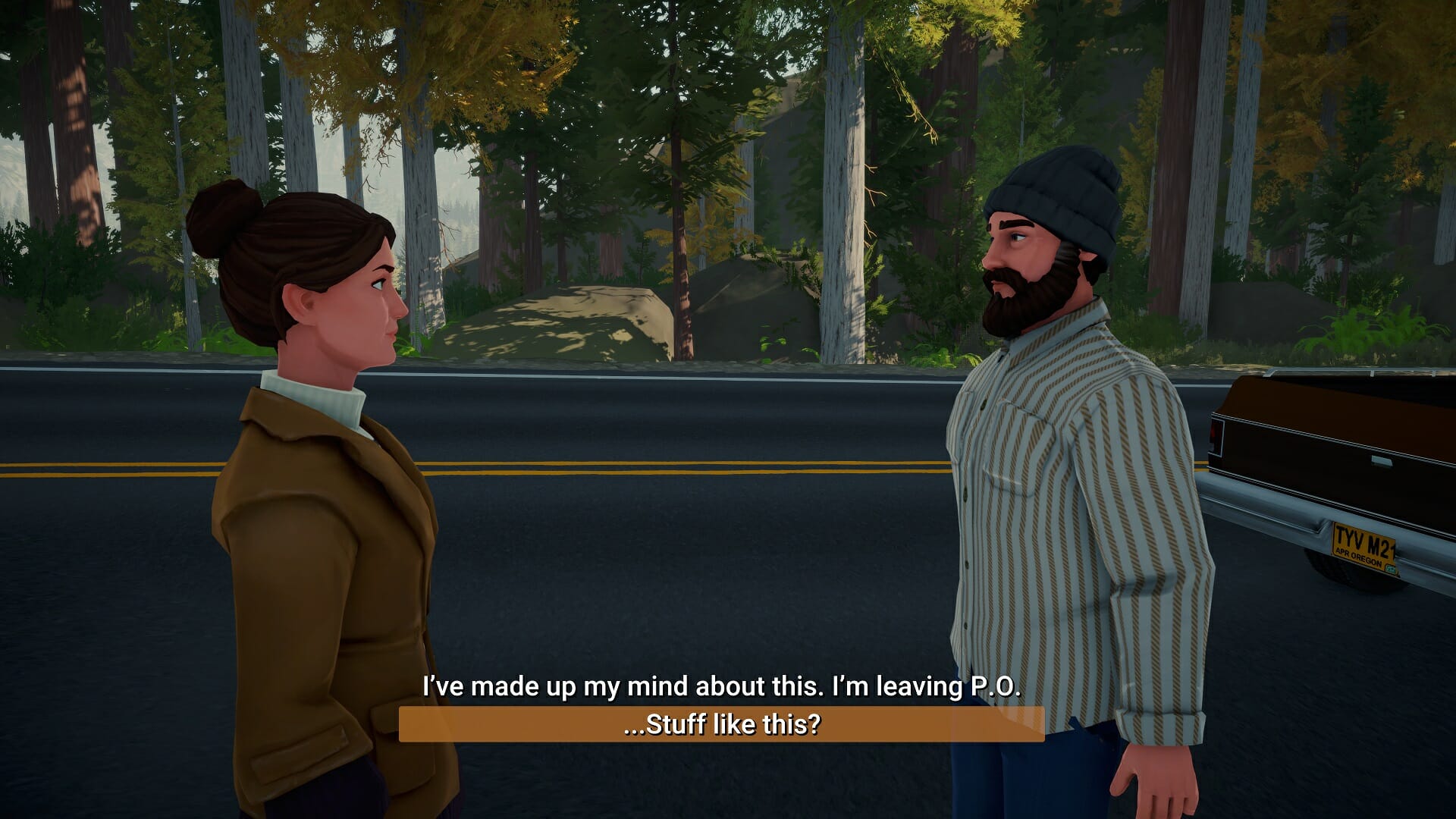


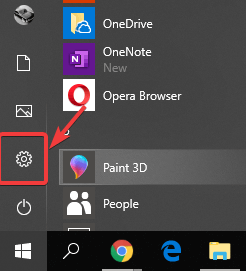

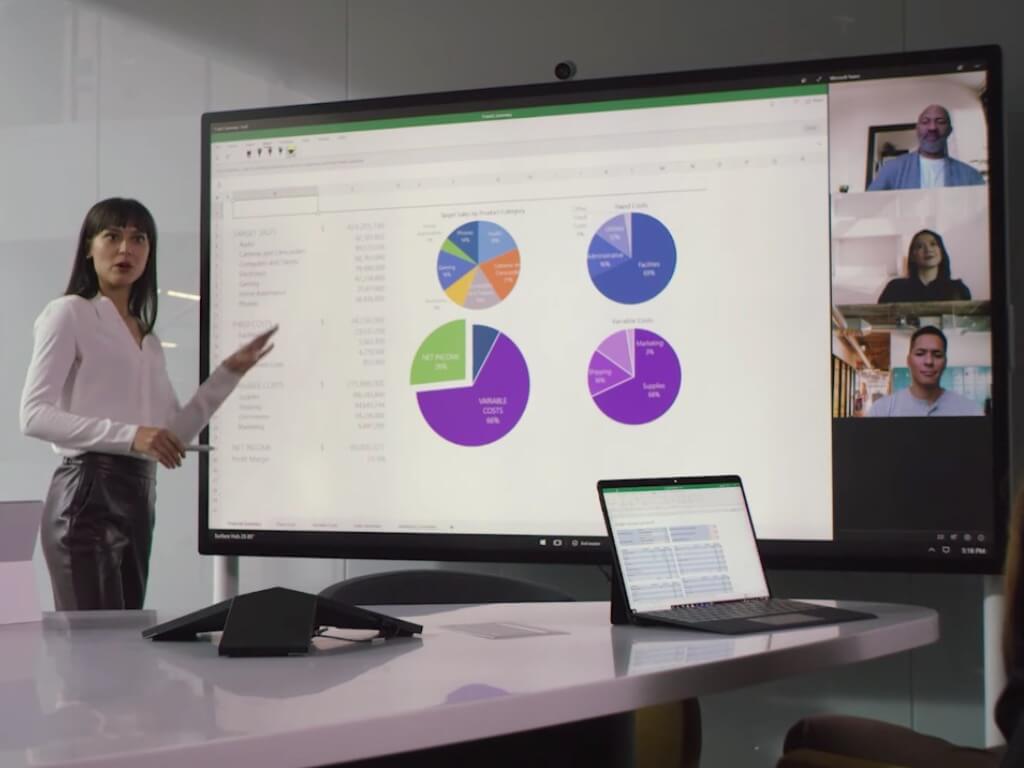

![Best Education Software in 2026 [Out of 15 Tested]](https://windowsreport.com/wp-content/uploads/2019/11/education-software-deals.png)