Nascar Heat 4 and Contra: Rogue Corps are free to play with Xbox Live Gold this weekend

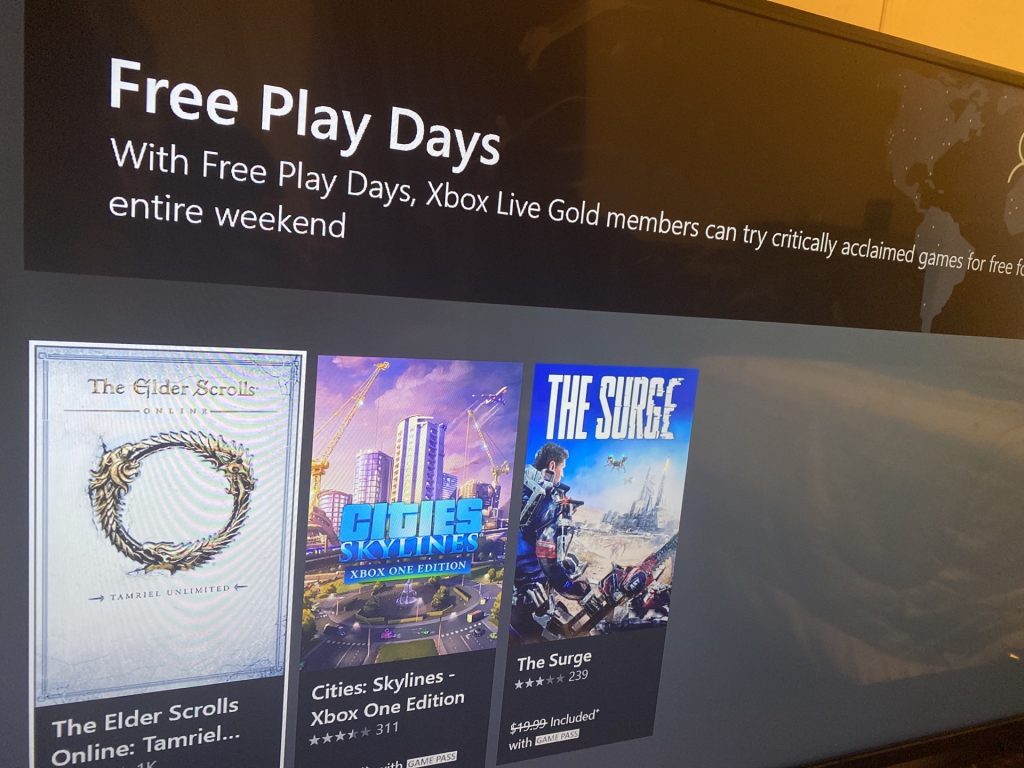
Yesterday might have been the last day for Xbox Live Gold members to play Elder Scrolls Online for free, but it seems Microsoft isn’t ready to end the free gaming fun just yet. The company has just announced that two other games will be available for free this weekend starting today, until Sunday, November 17.

Perhaps the game most people will be excited for is the new NASCAR Heat 4 game. The successor to the NASCAR Heat 3 from 704Games last year, the new game comes with improved graphics and overhauled audio to make the game look and sound even better, plus new features including a deeper career mode and more driving control options.

If you enjoy your experience during the free-to-play weekend, you can also purchase it 20% off right now, which puts the base game at $39.99 and the Gold Edition for $55.99. If you opt for the latter, you’ll get the 2019 Season Pass bundled in, which includes Jeff Gordon as a playable character in Quick Race and Online Multiplayer, as well as future expansion packs included until December.

NASCAR Heat 4 - Gold Edition

If racing isn’t your style or you’re looking for something different, Contra: Rogue Wars is also free to play. During the free run, you’ll have access to local and online 4-player co-op multiplayer, more than 100 buildable weapons, and character progression. The game is taking a $10 discount right now as well, so you’ll only have to pay $29.99 if you decide you want to keep the game after the trial period.

What makes this Free Play Days weekend so exciting is that both of these are new game titles, each having been released only a couple months ago. Which game are you most excited for?

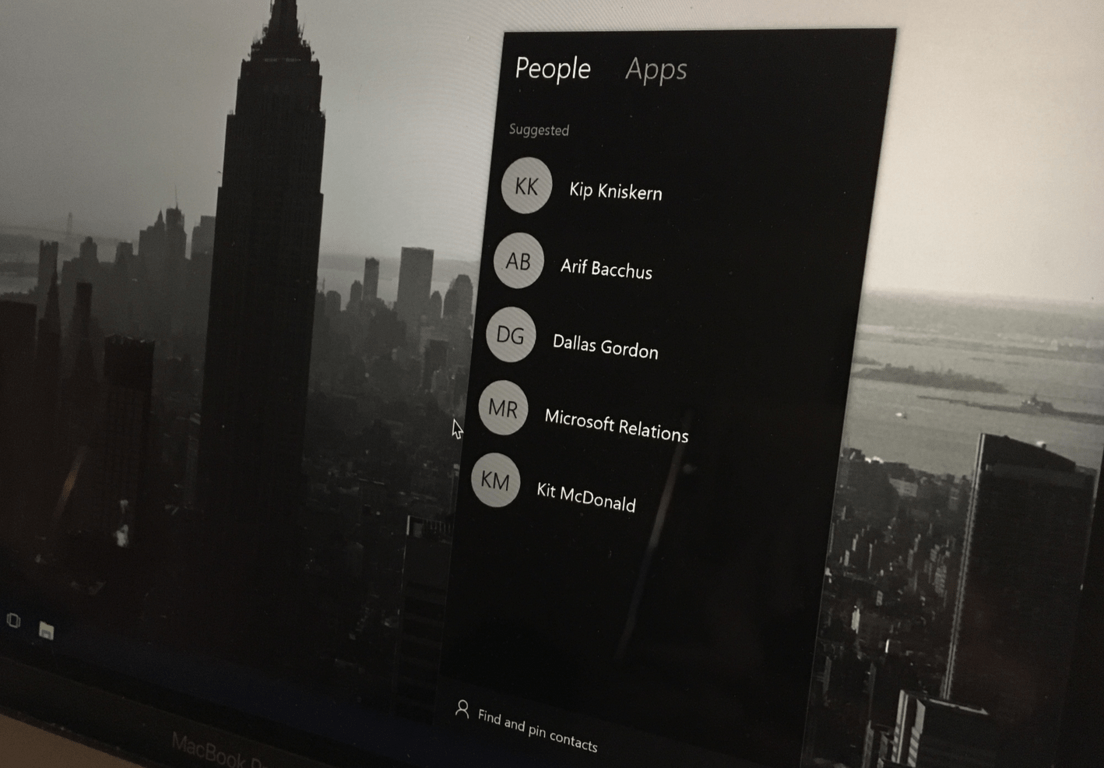
“My People” feature in Windows 10 is no longer being actively developed

Every time Microsoft releases a new Windows 10 update, the company shares a list of features that have been removed or that are no longer in development. The just-released November 2019 update is no exception, despite being a fairly minor release compared to the May 2019 Update.

If you check the Windows 10 features lifecycle page today, you’ll see that only two features have been removed in the November 2019 Update, Roaming of taskbar settings and support for the Peer Name Resolution Protocol (PNRP) cloud service. The list of deprecated features is slightly longer with 5 items, and there’s just one really important thing to note: the My People feature that made its debut with the Windows 10 Fall Creators Update (version 1709) is no longer being developed, and Microsoft notes that it “may be removed in a future update.”

With My People, Microsoft allowed Windows 10 users to ping their favorite contacts to the taskbar, making it easier to send them emails or Skype contacts. Unfortunately, Microsoft never managed Facebook, WhatsApp, or other apps to integrate their Windows 10 apps with My People, and the feature still remains in a sorry state after all this time.

Once again, My People started from a good idea, but it was really up to app developers to make it really useful. Unfortunately, Windows 10 apps seem to a very low priority for app developers, as we’ve seen again this week with the Disney+ app launching on Xbox One, but not on Windows The same can probably be said about Timeline, which still very few Windows apps currently support.

Windows 8 and its new Start Menu showed that Windows users are pretty reluctant to change, and Microsoft should keep this in mind when trying to improve the Windows Shell. My People, Timeline, or Cortana probably aren’t the most beloved features on Windows 10, and we have yet to hear about the return of Windows Sets, an experiment that allowed Windows 10 users to open multiple apps in the same window.

With Windows 10X launching next year, Microsoft is probably more focused on this new version of Windows these days. As we’ve seen on the first demos of the dual-screen Surface Neo last month, Windows 10X will be a brand new Windows that will get rid of legacy components, including Live Tiles on the Start Menu. The OS should be a great opportunity for Microsoft to experiment with new UI and UX elements, something that’s not really possible to do on a desktop OS that millions of people mostly use for work-related tasks.

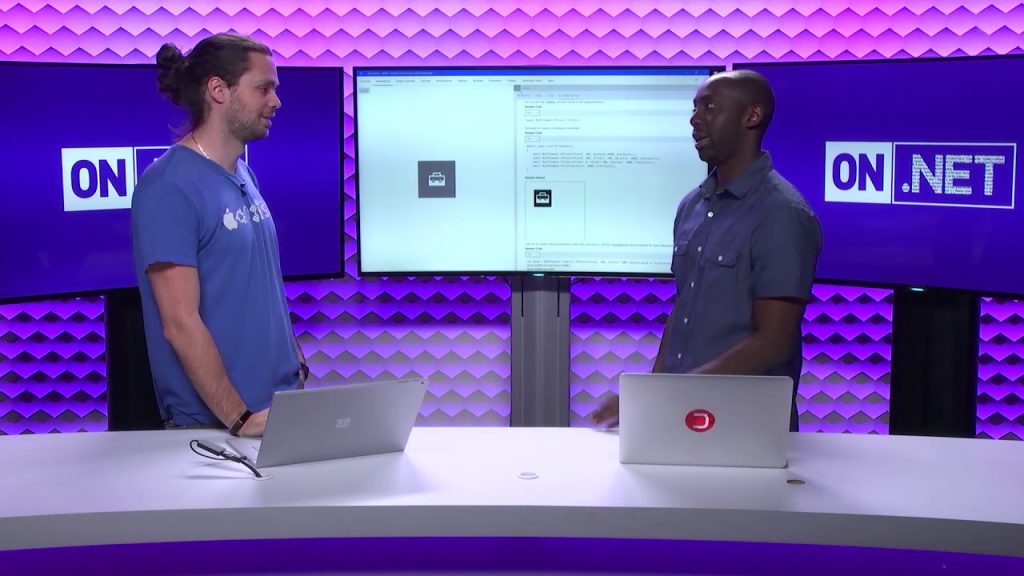
Windows Community Toolkit v6.0 is now available with support for ARM64 architecture

On the heels of its ARM64 browser availability comes news that Microsoft has an update for its Windows Community Toolkit for developers.

The latest update marked version 6.0, is bringing support for ARM64 as well as XAML Island for .NET Core 3 and new features that include EyeDropper control, Win32 helper notifications on the dashboard and a preview of the highly touted Microsoft Graph with XAML enabled controls.

XAML Islands

XAML Islands enables a developer to enhance the look, feel, and functionality of an existing WPF, Windows Forms, or C++ Win32 application and make use of the latest Windows 10 UI features that are only available via UWP controls like inking. This release improves tooling support for .NET Core 3 and makes it even easier to get started.

ARM64 Support

The Windows Community Toolkit now supports applications that are targeting ARM64. This allows developer’s apps to take advantage of increased performance and battery life by running on the native architecture for devices like the Surface Pro X. We also worked closely with the Win2D team to ensure it also now supports ARM64. This was important for Lottie and other toolkit features that rely on Win2D.

Lottie Improvements

This update brings more Adobe After Effects features to Lottie-Windows, including Linear and Radial Gradients, Masks, Track Mattes, and codegen support for Image Layers. We hope that these additions will allow motion designers and application developers to create even more visually compelling user experiences on Windows 10. Since some of these features rely on newer SDKs, Lottie-Windows now also offers adaptive versioning. We rely on the community to prioritize feature work so please do keep providing your valuable feedback and suggestions for Lottie-Windows here!

XAML Graph Controls Preview

This new addition to the Windows Community Toolkit allows developers to easily authenticate and access Microsoft Graph in Windows 10 apps to create rich data and user connected experiences. These controls are available as a preview of our 6.1 release today and will work with UWP apps and in WPF/WinForms for Win32 apps via XAML Islands on .NET Core 3. In addition, with the help of Xamarin and the Uno Platform, you will also soon be able to use them on Android and iOS.

To read about or get started with the new developer tools, head over to the Windows Blog post here, and Microsoft reminds developers that our docs.Microsoft.com tutorials are also another great source for development references.

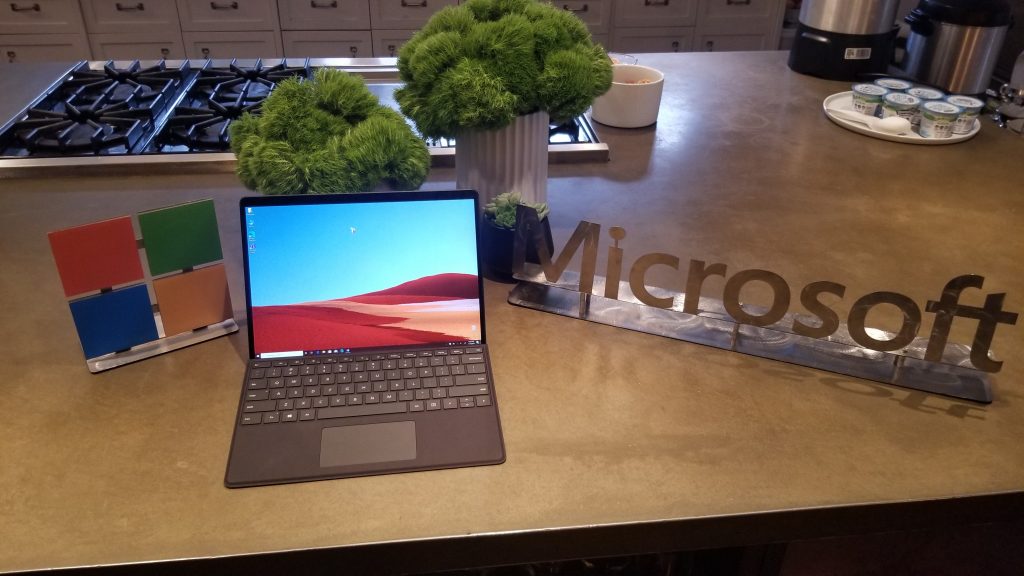
Surface Pro X Review: The Surface I really tried to love, but ended up hating

I won’t lie. The Surface Pro X is an excellently designed device, but that will probably be the only good thing about it for most people. The reason why? The Microsoft SQ1 processor on the inside of the Surface Pro X, and the limits of Windows 10 on ARM cripple this device. I’ve spent years with all kinds of laptops, and this new Surface feels more of an iPad or Chromebook.

Despite Microsoft beta testing an ARM64 version of the modern Edge browser, as well as planning 64 bit app emulation for Windows 10 on ARM, the damage is done. The Surface Pro X is a device out in the wild but with poor app support and compatibility.

It might be running Windows 10 Pro, but the $1,200 (with keyboard/pen) Surface Pro X only works with 32-bit apps. Microsoft is also depending on developers to recompile their existing 64-bit x86 apps to the ARM64 format, and there doesn’t seem to be a rush, based on this community document.

There’s nothing “Pro” at all with this device. That’s why, in just one week of use, I decided to return the Surface Pro X for a full refund from Microsoft. This simply is a Surface device that I tried to love but ended up hating.

TL;DR

If you’re a first-line worker or someone who is always connected and just using a device for casual web browsing or spreadsheets and office documents, then don’t worry. The Surface Pro X is something you might want. It will able to keep you connected. You can also put it to sleep and wake it up and jump back to where you were before, right when you need it, with no cost to battery life, just like a smartphone.

However, if you’re looking for a serious computer, this isn’t the device for you. You might want to look elsewhere in the ever-diversifying Surface lineup, and perhaps buy a Surface Pro 7. As my job as a reviewer, I’ll tell you that, and some more.

Editors Note: This Surface Pro X was not provided to us for review by Microsoft. Arif purchased it on his own and had planned to keep the device. The opinions are his own and are not influenced by Microsoft.

Very good design

As I covered in both my hands-on and unboxing, the hardware and design of the Surface Pro X are excellent. From the big screen, slim bezels, and overall build quality, it is one of the best-designed Surface devices yet.

On the technical side, the Surface Pro X sports a spacious 13-inch (2,880 x 1,920) resolution touch-screen display with support for 10 points of touch. That is a big improvement over the 12.3-inch (2,736 x 1,824) panel on the Surface Pro 7. It is very vibrant and gets up to 450 nits of brightness, according to Microsoft.

With a tall 3:2 aspect ratio and slim bezels along the side, this all means that I was able to stack my windows side by side. I barely noticed the bigger top bezels, and I was easily able to multi-task and get more things done with this Surface. The display is just so much less-cramped than it is compared to another Surface Pro device and it’s great for productivity.

Elsewhere, the Surface Pro X is outfitted in its classic signature anodized aluminum finish. The color of the finish is Matte Black, which means that it is a fingerprint magnet. This really bothered me in my time with the device, and I found myself constantly wiping it to make sure it was clean.

Moving on, the Surface Pro X has more rounded corners and is thinner than other Surface Pro devices. This makes it easier to hold in the hands. It weighs in at around 1.7 pounds, which is about the same as the other Surface Pro devices. The thickness comes in at around 7.3 mm, which is a bit less than 8.5mm on the Surface Pro 7.

Overall, I’ve never quite felt a Surface device like this before. It’s just so well-balanced and very nice to hold in my hands. For movie watching, and for other multimedia, I often held it in my hand or propped out the signature in-built kickstand and used it more like a tablet. That’s something that I would never do with my Surface Pro 5. It’s what I really loved about the device, and the main reason I was quite hesitant in sending it back.

But, anyway, for all this great design, there is no expandable storage on the Surface Pro X. The SSD is technically upgradable via a slot under the kickstand, but Microsoft suggests that you do it through authorized retailers only. That still doesn’t make up for the fact that the Surface Pro X is missing the MicroSD card slot feature present on almost every Surface Pro device since the original.

Surface Pro X

USB-C is great (depending on how you look at it)

Before heading into discussing the Microsoft SQ1 processor, another element on the Surface Pro X that I’d like to touch on is its overall connectivity. Depending on how you look at it, this is one of the biggest strengths of the Surface Pro X.

Thanks to the Qualcomm Snapdragon X24 LTE Modem inside, the Surface Pro X is an Always-Connected PC. This means you’ll be able to live a life free of WiFi. For some, this might be a high-point of the device, but for most (like me) that would just be an added cost having to buy a data plan.

All around, the Surface Pro X only features USB-C ports, as well as Surface Connect for charging. USB-C is now the future of connectivity, and it’s the one port that does it all, so I’m glad to see Microsoft finally come on board with the technology.

You’ll also be able to use USB-C for charging if needed. Microsoft says that the Surface Pro X supports fast charge. However, this is now a feature across all of the new Surface lineup. It’s not something to make the Surface Pro X special.

But there is one big glaring omission here. The USB-C port is not Thunderbolt 3 compatible, so you won’t be able to connect an external GPU to the Surface Pro X. Dell’s XPS 13, and other Windows laptops in this same $1,000 price range already take advantage of Thunderbolt 3, so for Microsoft, the omission is an embarrassment.

Oh, and there’s no headphone jack on the Surface Pro X too. There is a dongle available for this to solve that problem, if it worries you, however. But, coming from a Surface Pro 5, I was initially upset that my new $1,200 PC couldn’t even connect to my $5 headphones.

The Microsoft SQ1 Processor powering the Surface Pro X isn’t what Microsoft says it is

Now, for the SoC powering the device. As I’ve touched on, the Surface Pro X isn’t powered by an Intel processor like most Surface devices. Instead, you’ll find a custom-designed Microsoft SQ1 SoC under the hood. That’s paired with a Microsoft SQ1 Adreno 685 GPU, and, on our unit, a total of 8GB of RAM and a 128GB SSD. This is also a fanless processor too, and there are no ventilation holes in the device.

Technically, this Microsoft SQ1 SoC is based on the Snapdragon 8cX which can be found in other Always Connected PCs like the Samsung Galaxy Book S. Microsoft said that the SoC has three times more performance per watt than the 8th-generation CPUs in older Surface devices. It also mentioned that the Adreno 685 GPU graphics processor is powerful enough to perform two teraflops of graphical computations.

But, for real world-usage, it’s important to note that the Surface Pro X is only compatible with 32-bit Windows 10 apps. 64-bit apps won’t work unless a developer has recompiled it for the ARM64 format. However, Microsoft is said to be working on a 64-bit x86 app emulation for Windows 10 on ARM for some time in the future.

As for the 32-bit apps, the Surface Pro X runs these apps through emulation, which comes at a huge performance cost. That also means that some devices (like my older HP printer) also won’t work on the Surface Pro X, unless there are ARM64 drivers available. Microsoft Store apps, though, work just fine.

Anyway, these bold numbers and claims make the SQ1 seem awesome but trust me when I say it, it simply isn’t true. The SQ1 is really behind any recent processor from Intel, and its overall performance can be really slow due to app-emulation if you’re using 32-bit apps like Google Chrome. Of course this can change as more developers come on board with ARM64, but for now, it really sucks.

I’ll start the technical side of things by first by mentioning some of the Geekbench testing. I  tested the Surface Pro X against my Surface Pro 2017, which is powered by the Seventh Gen Intel Core i5-7300U processor. That’s one full generation behind what Microsoft has tested, but I’ve also linked to other reviewers’ Surface Pro 6 and Surface Pro 7 benchmarks too. Typically, I also try to test my laptops with 3D Mark to test the GPU performance, but that benchmark failed to run on the Surface Pro X.

Anyway, as you can see above, the Surface Pro X is really lagging behind all older and newer Surface devices in Single-Core performance. It’s also behind in Multi-Core too but edges out the older Surface Pro 5. This makes it clear that Microsoft isn’t giving the full scope here with its claims.

But these numbers don’t mean much without a story behind it. I’m about to explain, one, on one, why this all is a massive failure for me, and perhaps what might become even one for you too.

The best case of all this is how I used my Surface Pro X in my daily life. I typically use both the Chromium-Edge browser (I call it Credge) as well as the 32-bit versions of Slack, and Microsoft Teams. Again, I’m not a graphic designer or engineer. I’m using some very basic lightweight programs.

So, much to my disappointment, opening a few tabs on the 32-bit version of Credge, and running the emulated version of the 32-bit Teams app, the Surface Pro X felt a bit slow. Slack was also slow to update when I clicked to it. Much to my sadness, Teams was constantly reloading when I clicked it to the foreground in front of Credge.

Typing in WordPress was also slow at times, although closing out tabs sometimes speeded it up. There even was a situation where the Surface Pro X froze on me in the middle of typing an article. But, if you have a look at the task manager image below, you can see the victims here. All these 32-bit apps were eating up 34% of the SQ1 processor and nearly 70% of the RAM.

To be fair, I tried switching out and avoiding all these 32-bit apps altogether. I opted to just use the old version of Microsoft Edge, as well as the web versions of Slack and Teams. The experience was a lot less laggy, and more at home to the way I felt with my Surface Pro 5.

I’ll also go back and mention the ARM64 version of the Credge browser, which came out after my Surface Pro X purchase. I switched and tried it out, and the performance differences were significant. It was much less laggy compared to old Edge, as well as the 32-bit version. I felt right at home when multitasking and the system were able to keep up with my web browsing needs. but it’s important to note it still is in beta. Some things like scrolling were especially buggy and some pages occasionally reloaded without warning. While it might seem like the right fit, this isn’t a piece of software I would recommend for you to install.

With that in mind, I think that makes the Surface Pro X a great machine for web browsing, keen to an iPad or Chromebook. It definitely isn’t a machine for someone looking to get into graphic design or engineering, or anything that is processing-intensive. Instead, if you’re hoping to do these things, go buy a Surface Pro 7 instead. The 32-bit app emulation on the Surface Pro X will just eat up all the RAM and the SQ1 processor.

But there is one key advantage to this SQ1 processor. Since the Surface Pro X is an always-connected PC, it’s able to go to sleep and wake up instantly, just like a smartphone. I put my Surface Pro X to sleep after writing an article in the morning with battery life at 74%. I then went out and spent a good 4 or 5 hours away from home. I came back and pulled down the Type Cover on my Surface Pro X. Within one second, everything I was doing a short 5 hours ago was right there in front of me, and the battery was still at 74%.

At the end of the day, that’s amazing for some, but as I wrote this section of this review, I really just asked myself one question: I just purchased a $1,200 Surface, and should I really be changing up the workflow or apps I use just for fancy hardware or design? Definitely not, and I really think you shouldn’t either.

The battery life is just alright

Battery life is something that is always quite controversial. With the promise that Always Connected PCs have better battery life than devices with Intel processors, I was a bit curious to see how the Surface Pro X stands up. Sadly, it didn’t do so well and put up similar numbers to an Intel-based PC.

To test the battery, I turned the screen brightness down to around 15% and looped the trailer for Olympus Has Fallen overnight with the Surface in “Recommended” settings. Measuring against the in-built batterycfg report, the Surface Pro X lasted around 9.5 or 10 hours in this basic test. That’s about close to the 8.45 hours you’ll get with the Surface Pro 6.

I also tested web browsing and battery life by running it through my everyday workflow. Running a 32-bit version of Chredge, and Teams and Slack, the device lasted us for about 5 hours of web browsing. Switching that up to just using Old Edge, or the ARM64 version of Chredge, and non-32 bit apps improved it to about close to 7 or 8.5 hours. The screen was around 20% brightness at all times, and Bluetooth and the Cellular network were disabled.

Overall, though, these numbers are still well short of the 13.5 hours quoted by Microsoft. It was still good enough to get me through my 8:30 AM-3:30 PM workday on a single charge.

This isn’t a Surface for gaming

Now, Microsoft mentioned during its October 2 event that the Surface Pro X processor is powerful enough to perform two teraflops of graphical computations. I’m not much of a PC gamer, but I will tell you that is nonsense. The Surface Pro X isn’t for gaming or any graphical intense tasks.

It again goes back to my original point: This is a device that is more for first-line workers if you’re looking to game on your Surface, buy a Surface Book 2 instead.

Anyway, some on Reddit have pointed out that the Surface Pro X can run games like Counterstrike: Global Offensive, but I haven’t had any luck with that at all. I installed Steam, and tried playing Rocket League, BroForce, as well as Castaway Paradise, and all three failed. The games would load but freeze at the title screen. It was a huge letdown for me, as these aren’t even intense games that work perfectly fine on my older Surface Pro 5.

However, all hope is not lost. Microsoft Store games work just fine on the Surface Pro X. Minecraft runs perfectly smooth without zero lag. A more graphically intense game like Asphalt 9: Legends works just fine too, with the occasional dropped frame.

The Type Cover is decent, at the right angle

Moving forward to the Type Cover, I want to mention the typing experience is just as good as anything I experienced with my Surface Pro 5. The keys on the type cover deck have a nice feeling, and I was easily able to jam my way though articles. The trackpad, however, is my least favorite part of the experience. It’s very loud, and hollow, and I often found myself using an external mouse with the Surface Pro X instead.

In addition, since there is now room for the Surface Slim Pen in the middle part of the Type Cover keyboard, it no longer securely attaches to the screen. Only the left and right sides of the keyboard have magnets that touch the screen, and this makes the keyboard very wobbly. It’s noticeable when I used the Surface Pro X in my lap, as I needed to adjust the kickstand to a precise angle, so the Type Cover wasn’t moving left and right when I was typing.

The Surface Slim Pen is amazing

Finally, there is the new Surface Pen. Along with the design of the Surface Pro X, this new Surface Slim pen is downright amazing. I’m not much of an artist or a designer, but I do often find myself taking notes and journaling in OneNote, and the pen is great for that.

Compared to previous generation Surface Pens, it is more flat and ergonomic. This means it fits in my hands more easily. There’s also the added benefit of it being rechargeable, as I don’t need to worry about swapping batteries when it dies out. However, I did find it quite annoying to have to “pull” down the Type Cover to get the pen out of its housing and built in recharging station. Most times, I just kept it attached to the side of the Surface as I did with my Surface Pro.

As for the performance of the pen itself, I find that its tip is harder when compared to the original Surface Pen. This makes it glide across the screen more easily. This also assists in the new “Tilt” support which Microsoft played up. I actually was able to turn the pen on its side and write on the screen, which fairly amazed me.

A return made easy, and I’m glad I did

At the end of the day, I found out that the Surface Pro X is something that might not be for everyone. I really loved its new design, and that is something that I think people will like. However, the overall performance of the Microsoft SQ1 processor and the 32-bit app-emulation wasn’t for me and might pose problems for others too.

I ended up having to change up the apps I use, just to get an optimal experience on this device. So, I walked into a Microsoft Store and returned it. I’ll be buying either a Surface Laptop 3, or a Surface Book 2 in its place, as these devices might actually work better for what I need it for.


FINALLY an Xbox One video game where you can live your best Unicorn Princess life in 4K UHD

Have you ever wanted to become a princess and ride your very own rainbow unicorn while exploring the countryside and a mystical dream world? Well, The Unicorn Princess might just be the game for you and it’s now playable on Microsoft’s Xbox One family of consoles.

The game is all about the horse riding experience and allows players to ride up to six different horses, which can all be customized to suit personal tastes, and offers up to 15 different missions for players to complete. The Unicorn Princess will also play in 4K UHD when played on an Xbox One X console.

Here’s the full game description:

From your village, the Dream World is just a step away!

Befriend Unica the unicorn while exploring the real world and the world of dreams.

You’re the only one who can help Unica save her world!

  • 15 different missions between two worlds
  • Many options to customise your character and horse
  • An open world to explore on the back of one of six horses available

While this game does clearly have a very niche audience, it could make for a fun Christmas present next month for any children in your life or any adult friends who probably watch way too much My Little Pony.

Are you planning to pick up The Unicorn Princess? Let us know in the comments below and the follow us on Pinterest for more Xbox gaming news.

The app was not found in the store. ?

Install Windows 10 v1909 right now to get rid of the MSRT bug

For those of you that don’t know, the Malicious Software Removal Tool (MSRT) is a security utility that runs only once per major Windows update to check your computer for malicious software. This tool gets a new update every month, containing the latest security features every time.

Since the November 2019 Patch Tuesday updates are here, the MSRT has received a new update as well.

The problem is that as with all updates, things don’t always go smoothly. This time users reported that they are having problems installing the latest version of the MSRT:

3 of my 64-bit W7 OSes can’t download it to install. Other monthly huge update package was fine in all.

In this particular case, it seems that the issue only affects Windows 7 systems running on 64 bits.

How do I solve the MSRT issue on my Windows 10 PC?

This solution involves downloading the delta patch of the MSRT from the Update Catalog.

  • Go to the Update Catalog
  • Select the x64 for Windows 10 version
    • This step depends on the type of OS you are having the MSRT issue on. If the problem occurs on Windows 7, you’ll have to download the x64 or x32 version for Windows 7.
  • Download the file and save it somewhere easy to access
  • Double-click it to start the installation process
    • It should update the version of mrt.exe on your machine to 5.77.16547.2
  • Perform a default Quick Scan
  • Reboot the computer
  • Check Windows Updates again

By following these steps, you should be able to get rid of any MSRT-related issues.

Additionally, you should go ahead and install the Windows 10 November 2019 Update. While this issue seems to be quite common, those that have successfully managed to install Windows v1909 have gotten rid of it.

Microsoft recently released Windows v1909 and it is available for everyone to download. If you don’t know how to install the latest update, check out this article for a step-by-step guide.

As for the use of the MSRT, keep in mind that it cannot replace an actual antivirus program. For full protection, you need to download an actual antivirus product.

RELATED ARTICLES YOU SHOULD CHECK OUT:

Download Windows 10 KB4523205 & KB4525237 updates

If you are running Windows 10 v1809 or Windows 10 v1803, we’ve got a good piece of news for you: the November Patch Tuesday updates are out.  You can now download KB4523205 for Windows 10 v1809 and KB4525237 for Windows 10 1803, respectively.

Both updates feature the same changelog structured along three main directions. The first one improves security when using Internet Explorer and Microsoft Edge.

The second category of updates adds improvements to Microsoft Office products. And the third update category focuses on improving security when using input devices such as a mouse, keyboard, or stylus and external devices including game controllers, printers, and web cameras.

You can download the latest Windows 10 updates manually from the links given below:

KB4523205 & KB4525237 changelog

The official changelog reads:

  • Addresses an issue that might cause the Microsoft Defender Advanced Threat Protection (ATP) service to stop running and stop sending reporting data.
  • Provides protections against the Intel® Processor Machine Check Error vulnerability (CVE-2018-12207). Use the registry setting as described in the Guidance KB article. (This registry setting is disabled by default.)
    Provides protections against the Intel® Transactional Synchronization Extensions (Intel® TSX) Transaction Asynchronous Abort vulnerability (CVE-2019-11135). Use the registry settings as described in the Windows Client and Windows Server articles. (These registry settings are enabled by default for Windows Client OS editions and Windows Server OS editions.)
  • Security updates to Microsoft Scripting Engine, Internet Explorer, Windows App Platform and Frameworks, Microsoft Graphics Component, Windows Input and Composition, Microsoft Edge, Windows Fundamentals, Windows Cryptography, Windows Virtualization, Windows Linux, Windows Kernel, Windows Datacenter Networking, Windows Peripherals, and the Microsoft JET Database Engine.

KB4523205 & KB4525237 issues

Microsoft is aware of three issues concerning KB4523205/KB4525237.

  • You may encounter the error “STATUS_BAD_IMPERSONATION_LEVEL (0xC00000A5)” while performing certain operations on files or folders that are on a Cluster Shared Volume.
  •  The installation of these updates may trigger an error “x800f0982 – PSFX_E_MATCHING_COMPONENT _NOT_FOUND” on PCs with some Asian language packs.
  • You may experience issues while setting up a local user when using Input Method Editor (IME) on new Windows devices.

Have you downloaded Patch Tuesday updates on your PC? Comment down below if you experienced any issues.

Best Windows 10 Xbox Live Games To Play

Xbox Live is a dream come true for many gamers, as this platform now unites players across Xbox One and Windows 10.  You can now join massive community of players, connected by their shared passion for the same game. You can also take short breaks and see what your friends are playing, start chatting with them or check the most popular game lists. And most importantly, thanks to Xbox Live you can take your favorite games with you, everywhere you go.

If you just finished your first Xbox Live game and you don’t know which title to choose next, check out the games listed below.

Forza Horizon 3

buy forza horizon 3

Forza Horizon 3 was launched on 45196 and is already one of the most popular Xbox Live games. FH3 was plagued by numerous issues on both platforms, but one week after its launch, Playground Studios managed to push a patch and fixed all the bugs, allowing you to enjoy a seamless gaming experience.

Even if you’re not a racing game fan, Forza Horizon 3 will make you simply fall in love with it. Impressive, unique cars are waiting for you, breathtaking scenery will make you forget you’re actually playing a game, and the adrenaline-fueled races will hook you for hours in front of the screen.

Forza Horizon 3 lets you be the boss, as you’re in charge of the Horizon Festival. You can fully customize all the elements in the game: select your own driver character, customize your cars, create vanity license plates and choose your own horn sound. Drive to the music you love, or create a custom station using your own music collection. You’re in total control.

If you’re curios to learn more about this game, you can try the demo version of the game or buy FH3 for $59.99 from the Windows Store.

ReCore

recore windows live game

If you like futuristic, Sci-Fi games, then you should look no further and download ReCore now. We love the graphics of this game and the overall game design. And we also love the ideas behind this game because ReCore is not just another post-apocalyptic survival game.

You’ll play as Joule Adams, one of the last remaining humans on the planet. You’ll explore dangerous territories, in a region known as the Shifting Sands, where massive sandstorms come and go. If you want to stay safe, you must learn and be willing to trust your robot companions, each with unique abilities and powers. You also need to trust yourself as you lead this band of robot heroes, and learn to tell foes from friends.

If you like challenging puzzles and roaming in Sci-Fi environments, then this is the right game for you. You can purchase ReCore for $39.99  from the Windows Store.

Halo 5: Guardians

Halo 5 Guardians Xbox live game

Halo 5: Guardians was released in October 2015 and is one of the most popular games on both Xbox One and Windows 10. Halo 5: Guardians is a complex gaming experience that pans three worlds, putting to test your cooperation skills and loyalty.

As a mysterious and unstoppable force threatens the galaxy, and the Master Chief is missing, the situation couldn’t have been any worse. Now is the best time to find out who your real friends are. You’ll need to stay alert all the time if you want to stay alive. The Warzone mode brings nonstop action in a massive-scale multiplayer environment that features 24-player battles (12-vs-12) with both friendly and enemy AI dropping in to cause more mayhem.

Purchase Halo 5: Guardians for $59.99 from the Windows Store and quench your thirst for alien blood.

Minecraft

minecraft xbox live game

Do you miss all those Lego pieces you used to play with when you were a kid? Now you can build with your imagination. Minecraft is the best-selling game on Xbox 360, now available on Xbox One and Windows 10.

In Minecraft, you create and explore your very own world, your imagination is the limit. However, do keep an eye on the time and build yourself a shelter by nightfall to keep yourself safe from monsters.

You can  play on your own, or with up to 4 players split screen, or 8 players online. The two words that best describe this game are “build and survive”. Minecraft constantly challenges your mind’s creativity and we guarantee you’ll never get bored playing this game.

You can purchase Minecraft for $19.99 from the Windows Store.

BioShock

bioshock xbox live game

Have you ever played a game that allowed you to genetically modify your character? BioShock allows you to turn your body into a deadly weapon and wipe out all your enemies. The game‘s tactics will impress you, and the arsenal you have at your disposal will help you to kill you enemies quickly.

BioShock was beautifully remastered for Xbox Live and is as good as it has been for the past 10 years. The game is literally a piece of art, and the fact that it stood the test of time guarantees you’ll have a blast endowing your character with super-human qualities such as telekinesis and pyrokinesis.

Just buy the BioShock Collection for $59.99 from the Windows Store and you’ll thank us later.

Quantum Break

Quantum Break

Time travelling is still an unfulfilled dream of mankind. Most likely, we won’t live long enough to see this huge scientific achievement happen. But if you dive into Quantum Break, you can experience travelling back and forth in time.

When time breaks, catastrophe becomes your playground. As hero Jack Joyce, you’ll fight your way through epic disasters that stutter back and forth in time. But if you really want to survive in this unstable world, and halt the end of time itself, you need to master your new time powers.

Quantum Break’s cinematic action is impressive, you’ll want to replay certain actions in this time-fractured world. You can freeze time to gain the upper hand and warp past enemies. Always prepare for the worst because with time itself in your arsenal, combat is never predictable.

Ori and the Blind Forest

Ori and the Blind Forest xbox live

Good games always incorporate the element of emotion into the story line and Ori and the Blind Forest is one of the best Xbox Live games you can play. After a powerful storm that sets a series of devastating events in motion,the forest of Nibel is dying.

The life of the whole ecosystem depends on an unlikely hero who must find courage and confront a dark nemesis to save his home. As a player, you control Ori, a white guardian spirit as he combats enemies or obstacles, jumps from platforms and solves puzzles trying to save the forest.

Ori and the Blind Forest is an impressive game not only through the story it tells, but also through its visually stunning environment, featuring hand-painted artwork, meticulously animated character performance, and a fully orchestrated score. Ori and the Blind Forest explores an emotional story we can all relate to: it’s about courage, love, sacrifice, and the hope that exists in us all.

Gears of War 4

Gears of War 4 issues


Gears of War 4 was recently launched, and players are already crazy about this game. This is one of the most popular game franchises, and even if you’ve never played Gears of War before, you’ll quickly fall in love with this game.

After narrowly escaping an attack on their village, JD Fenix and his two best friends and brothers-in-arms, Kait and Del must now discover the source of the new monster attacks and eliminate it as soon as possible in order to save their loved ones.

You have various brutal weapons at your disposal, and you need to stay alert all the time because you never know when and where the next attack is going to come from. Learn to trust your friends and be prepared to face enormous hordes of ugly and evil creatures at any time.

Gears of War 4 offfers five game modes:

  • Never Fight Alone: enroll in a two-player co-op campaign with friends. You can select either Kait or Del.
  • Horde is Back: team up with four others and battle wave after wave of increasingly difficult enemies.
  • Brutal New Weapons: use this incredible arsenal of new weapons that includes the Buzzkill and Dropshot to rain destruction from all angles.
  • Explosive Versus Multiplayer: compete online in new and favorite game types, all at 60FPS on dedicated servers.
  • Refined Cover Gameplay: new close-cover combat moves and combat-knife executions turn each piece of cover into an offensive opportunity.

You can purchase Gears of War 4 for $59.99 from the Windows Store.

Dead Rising 4

Dead Rising 4 xbox live


Dead Rising 4 is the perfect winter Holidays present for your gamer friends. Frank West returns in an all-new chapter of one of the most popular zombie game franchises of all time, driver by an even greater hunger for zombie killing. Use the huge array of weapons and vehicles you have at you disposal and fight against hordes of zombies.

Customize your character and his weapons and fight to survive in this merciless world. Explore a vast, open world sandbox filled with dangerous new zombies and a million ways to kill them as you seek to uncover the truth behind the outbreak – or at least die trying. Also, unlike previous versions of the game, Dead Rising 4 will not feature a timer system.

Dead Rising 4 is available this holiday on Xbox One and Windows 10. You can already pre-order the Dead Rising 4 Bundle for $59.99 from the Windows Store.

Sea of Thieves

Sea of Thieves xbox live game


Sea of Thieves is another impressive Xbox Live game expected to launch in 2017. Although not much information is available about this game, the gameplay images revealed so far confirm this game deserves a place on our list. This game is the right choice for you if you’re a fan of the Pirates of the Caribbean series.

With Sea of Thieves you can be the pirate you want to be and write your own legend on the high seas. This epic multi-player experience in a treacherous shared world will hook you for hours in from of your screen, as you fight to carve out your legend. The game supports up to 99 players in the Multiplayer Co-op Online mode.

To cut to the chase, check out the gameplay video below and see for yourself how much fun this game is:

Halo Wars 2

Halo Wars 2 xbox live game

Halo Wars 2 is scheduled for release on February 21, 2017 and will take you straight into the middle of the fiercest intergalactic battles against a new enemy threatening mankind. The action is going to be fast, nasty, merciless and definitely not for the faint-hearted.

You’ll have the chance to lead armies of Spartans and other Halo fighting forces in a brutal war against a terrifying new enemy on the biggest Halo battlefield ever. The bird’s-eye view of the battlefield allows you to see everything that’s going on there.

There are two playable factions available in the game: mankind’s main military arm, the United Nations Space Command (UNSC), and a new alien faction known as the Banished. The campaign mode is composed of thirteen missions, and will support cooperative gameplay.

Take a look at these gameplay images and you’ll see why we included this game on our list:

You can already pre-order Halo Wars 2 for $59.99 from the Windows Store.

Scalebound

Scalebound xbox live game

Yes, we love fantasy games and we couldn’t end this list without nominating Scalebound as one of the best Xbox Live games out there. Scalebound bestows a very important mission upon you, as you join forces with Thuban, the last dragon, and begin an unforgettable adventure, fighting to save the spellbinding realm of Draconis.

You play as Drew, and your dragon-friend Thuban will assist you throughout the game. You and Thuban are bonded together, and his death will cause Drew to die as well and vice versa. There are three types of dragons available, and each offer different capabilities. Of course, you can blend these capabilities into a single dragon, by customizing options and the dragon’s abilities, appearances and armor.

You can already pre-order Scalebound for $59.99 from the Windows Store. For the time being, no information is available concerning the game‘s exact release date, but rumors suggest it should be released next year.

We’ll end our list here. The games listed in this article are the best Xbox Live titles in terms of features, graphics, storyline, multiplayer support, customization options and more. You won’t regret buying any of them.

RELATED STORIES YOU NEED TO CHECK OUT:

Windows 10 v1909 KB4524570 fails to install for many

Are you ready to install the latest Windows 10 OS version on your machine? If the answer is yes, go ahead and download the Windows 10 November 2019 Update. Microsoft recently pushed out Windows v1909 to all users. For more information on how to install it, you can check out this guide.

The Redmond giant also rolled out KB4524570, the first ever cumulative update for Windows 10 v1909. The update focuses on improving security when using Internet Explorer and Microsoft Edge.

How to download and install KB4524570

There are two ways to install this update. You can install it automatically via Windows Update. This means that you need to go to Settings > Update & Security and then you can hit the Check for updates button.

The second method involves downloading the update manually from Microsoft’s Update Catalog website. We listed the direct download link below.

KB4524570 bugs

However, many users complained about not being able to download KB4524570 on their machines. The download process starts normally but it gets stuck after a few minutes, as this user reports:

Ran Windows Update and Win 10 update KB4524570 stalled at 73%. Restarted and that stalled. After 10 minutes, shut down via computer button, then rebooted. Ran Windows update and all went through fine. First time I’ve had a problem since update from original Win 10 to next version.

The good news is that you can easily fix this problem by hitting the update button again.

Have you encountered other bugs after upgrading to Windows 10 v1909? Let us know in the comments below.

Mouse Locker Software: 5 Best to Use in 2026

To keep our systems safe from uninvited guests, it is recommended to restrict access by locking down the computer. However, this practice may not be the safest since anyone we’ve shared the password with can still have access to the computer. To add an extra layer of security to your system, you might want to try out mouse locker software. These are programs that can completely or partially lock the mouse cursor and pointer thereby minimizing interactions with the monitor.

Locking the mouse can also be a good step when you are watching a movie and you don’t want the kids to interrupt you by clicking the mouse buttons. Some multi-functional programs can lock the mouse, keyboard, and even the disk tray while others can only lock the mouse. In this article, we are going to introduce you to the best mouse locker software for Windows.

Top 5 Best Free and Paid Mouse Locker Software

Mouse Lock

mouse-lock-software-for-windows

Mouse Lock is an open-source free utility that can lock the mouse cursor and the monitor thereby paralyzing every other system operation. By restricting the movement of the pointer and cursor, Mouse Lock completely locks your system and keeps off any unauthorized system access. The program locks the mouse movement with a password and dims down the rest of the screen upon activation.

mouse_locker_software_mouse_lock

To use this software, you have to download the EXE file and run it. The application requires the user to enter the password for a total of three times to be confirmed. Once you hit the ‘Lock’ button, the mouse will be pushed to the center of the screen and the rest of the screen will be dimmed. The good thing about Mouse Lock is that you cannot bypass the password and all attempts to use CTRL+SHIFT+DEL will fail. The program also keeps a log of all the incorrect passwords and displays them on a successful unlock, so you can always know when someone tries to guess your password.

⇒ Get Mouse Lock

Cursor Lock

mouse locker software

Cursor Lock is another tool you can use to lock the mouse, but its use is very different from that of the Mouse Lock. Unlike Mouse Lock that completely locks the mouse and the monitor, Cursor Lock only confines the mouse cursor to a selected area on the screen. This can be very useful especially when you are playing games as it can prevent the cursor from drifting into other unwanted screens.

Cursor Lock allows you to set hotkeys that keep the cursor within a defined area, or on the window of a certain program or on one screen in a multi-monitor setup. You can even use the Strict User Mode to lock the cursor or set up hotkeys to simultaneously open a program. This feature can be very useful especially if you use more than one display at a time while you are working.

⇒ Get Cursor Lock

Kid-Key-Lock

mouse_locker_kidkeylock

While Kid-Key-Lock was generally intended to keep your computer safe from kids, it comes with mouse locker features that you might not find in any other program. You can use the program to lock the wheel, lock middle mouse button, lock left mouse button, lock the right mouse button, as well as lock double click. The program can also be used to ‘lock all keys’ or a combination of keys which will render the keyboard useless.

You can set up passwords and you will be able to type them even when the keyboard is locked. You can also set up the password to quit Kid-Key-Lock which can be of great help if you decide to lock all mouse buttons as well as all keyboard keys. This is a very flexible software and you can use it to lock exactly what you want even when you don’t have kids or pets.

⇒ Get Kid-Key-Lock

WinKeyLock

mouse_locker_winkeylock

WinKeyLock is a sophisticated, yet a complete mouse locker program for Windows. You can customize the program to lock mouse movements, lock mouse wheel, lock mouse buttons, as well as lock keyboard keys. Once you’ve selected what you want to lock, click on the ‘Lock now’ button and the selected items will be locked instantly. You can even define the hot key sequence to lock or unlock the system.

⇒ Get WinKeyLock

Keyboard and Mouse Locker

Keyboard and mouse locker is the simplest tool on this list. Unlike other programs where you can choose to either lock the mouse, keyboard or both, Keyboard and Mouse Locker has a simple and straightforward interface where a single click locks the mouse as well as the keyboard.

mouse_locker_2

The UI has only one button to lock the mouse and keyboard and no configurations options are provided. Unlocking is also straightforward as all you have to do is press Alt+Ctrl+Del, and then press ESC to close the window.

⇒ Get Keyboard and mouse locker

The Verdict

There you have it, the list of the best mouse locker software. The choice of the best mouse locker software depends on the reason why you want to lock the mouse. If it is purely for security purposes, I would recommend Mouse Lock as it’s the only program on the list capable of disabling the system completely and keeping off any unauthorized access. Cursor Lock is most suited in a multi-monitor environment though it can also work great for those folks who do a lot of gaming. Other programs on the list can add an extra layer of security as well as prevent the kids and pets from pressing the buttons.

If you’re looking to automate mouse clicks for repetitive tasks, check out this software for automating clicks.

Related stories you need to check out

Keyboard Locker Software: 5 Best to Use in 2026

Locking your keyboard when away from your workstation is a good security measure. Not only because it’s part of the corporate security policy, but the practice can also be very useful even when out of office. For instance, you may want to clean the keyboard and there is some unfinished work that you don’t want to be disrupted. You can lock the keyboard so as to secure the work. You might also want to lock the keyboard so as to prevent toddlers or pets from pressing the buttons. To do so, you will need good keyboard locker software.

Keyboard locker software locks the keyboard partially or completely when activated. Some of these applications can also be used to lock both keyboard and mouse. Once the keyboard is locked, you can be sure that the keys will remain disabled no matter how hard children bang on them. Have a look at some of the best keyboard locker freeware that you can use to secure your work.

Related: 10 Best Bluetooth keyboards for Windows 10


5 Best free keyboard locker software for Windows

Anti-Shaya

keyboard locker software

Anti-Shaya is a free and a portable tool that you can use to lock the keyboard. It’s very easy to use and works well with any operating system. The interface consists of the lock icon and a small section to enter the password. A single click on the lock icon locks the keyboard, disabling all the keys and you will have to rely on the mouse to operate the computer.

Unlocking the keyboard is also easy as a single click on the Anti-Shaya icon on the system tray opens the password window. From here you can enter the password and free the keyboard keys. The good thing about Anti-Shaya is that it doesn’t complicate the system registry and no installation is required. You operate it directly from the EXE file.

Download Anti-Shaya


BlueLife KeyFreeze

keyboard_locker_software_blueleaf_keyfreeze

BlueLife KeyFreeze is a great keyboard locker application for Windows 10. It gives you three options: lock keyboard, lock mouse or lock all keys. The software also lets you set the countdown time before it locks your keyboard and/or mouse. This is a great tool as it offers you a lot of options, something you might not find in other programs. It can be useful in a number of cases, like when you are watching a movie and you don’t want kids to interact with the keyboard.

To lock your PC keyboard and mouse with BlueLife KeyFreeze, you will first need to download it to your PC, then extract it into a folder to get the application file. The countdown starts at 5 seconds which you can cancel or change. After the countdown, it will immediately lock the keyboard and /or mouse but the desktop will remain as it is. To unlock the keyboard, use the CTRL+ALT+F hotkey which is set by default. However, the program does have some other predefined hotkeys that you can use as per your preferences.

Download BlueLife KeyFreeze 


KeyboardLock

KeyboardLock is a useful tool for Windows 10 that you can use to lock the keyboard and mouse. You can use a custom password to first lock the keyboard and then the mouse. It comes with a small and an easy to use interface that you can use to set a custom password.

KeyboardLock-keyboard-locker-software

Once you’ve entered the password, click on the ‘start’ button and the keyboard lock will be activated. After that, you can type the password (yes it works even if the keyboard is locked) to lock the mouse. This freeware totally locks your keyboard and mouse and leaves all the opened applications visible as it does not affect the display. To unlock the keyboard, simply retype the password anywhere on the screen.

Download KeyboardLock


Child Lock

childlock_keyboard_locker_software

Child Lock is a free keyboard locker software that comes with plenty of options. It’s a very basic tool which is very easy to use and comes with a user-friendly interface. After you launch the software, it places an icon in the system tray. The user interface includes 6 buttons, which are:

  • Auto Lock – Automatically locks the keyboard after 10 minutes of idle time
  • Lock – Instantly locks keyboard with a single click
  • Block – Disables start key, Alt, Control, and Context menu key
  • Allow Only – Only selected keys can work. You can define which keys you want to allow.
  • Cancel – Cancels the keyboard blocking instructions
  • Exit – Exit the application

You can also use a combination of key sequences to lock and unlock the keyboard. To lock the keyboard, use the key sequence Shift+Alt+End. To unlock the keyboard, you need to press the default key sequence Alt+Home.

Download Child Lock


KeyFreeze

KeyFreeze is a handy tool for Windows that allows users to lock the keyboard and mouse while the screen remains intact. With the KeyFreze software, your kids can video chat with their grandparents and press the keyboard all they want without muting or interfering with the call settings.

keyboard_locker_software_keyfreeze The user interface is easy and straightforward as it features a large button which you have to click to lock keyboard and mouse. Once you click the lock button, it takes five seconds for the keyboard lock to run. Unlocking the keyboard is also easy and straight forward. Just press the key sequence ‘Alt+Ctrl+Delete’, then press ESC to close the window that appears.

Download KeyFreeze


Conclusion

Be it kids, pets, clueless family or friends, locking your keyboard and mouse can be extremely useful. If you are not a fan of the ‘Win+L’ lock feature that locks even the computer screen, then you might want to try out something different. The above keyboard locker programs are the best-picked software for Windows that lock your keyboard and mouse and keeps your computer safe from unwanted guests.


Related stories you need to check out

5 best Windows 10/11 free screenshot-taking tools

The easiest way to make a copy of an interesting article, a recipe, a how-to-guide or a funny image is to take a screenshot. You can simply use the dedicated keyboard key to take a screenshot, or you can use a specialized tool to help you get the job done better.

Using a screenshot-taking tool brings more advantages: your screenshots are clearer, especially when you’re taking screenshots of a video, you can quickly edit them, add comments, capture only a region of the screen, and more.

Here are the best screenshot-taking tools for Windows 10


PicPick (recommended)

picpick-screenshot-taking-tool
PicPick is a complex screenshot-taking software that brings many additional options to the table: an intuitive image editor, color picker, color palette, pixel-ruler, protractor, crosshair, whiteboard and more. Thanks to the plethora of features it offers, PicPick can be used by homeowners as well as graphic designers.

Other features include:

  • Capture anything: take screenshots of an entire screen, an active window or any specific region of your desktop
  • Enhance with effects: drop shadows, frames, watermarks, mosaic, motion blur, brightness control
  • Edit your images: add text, arrows, shapes and more with the built-in image editor
  • Share your screenshots everywhere: send your images via Web, email, Dropbox, Google Drive, Evernote, Facebook or Twitter.

The quality of the effects you can use is impressive and additional options, such as the stamps you can add, make PicPick one of the best Windows 10 screenshot-taking tools.


TinyTake

tinytake-windows-10-screenshot-tool
TinyTake developers boast about this tool as being the fastest way to take screenshots, record videos and share them with friends. You can also add comments, publish your screen captures online, get a shareable link, and reference your history. This tools is easy to use, it’s free and it’s very popular – more than 7500 companies use it worldwide.

TinyTake supports the following features:

  • Record a video of your screen (upto 120 minutes)
  • Record a video using your web-cam
  • Capture a region, a window or entire screen
  • Capture an image using your web-cam
  • Open, annotate and share an existing image
  • Copy to clipboard or save it locally
  • Store screenshots & videos in the cloud
  • Zoom in / zoom out
  • Assign custom short-cut keys.

You can download TinyTake for free from the tool’s official page.


Lightshot


Lightshot is a modern and powerful screen-taking tool that also supports social media sharing. Simply press the Print Screen key to take the screenshot you want, select an area, and then click on the “Upload” button.  The tool will create a link you can use to share the screenshot with your friends or post it on social media.

Key features include:

  • Screenshot history: keep track of all your screenshots by signing in at www.prntscr.com
  • Copy a screenshot to clipboard: you can then paste it into any suitable application such as Word, Paint or Photoshop
  • Use hotkeys to speed up Lightshot: almost every task has its own hotkey.

You can download Lightshot for free from Skillbrains.

Editor’s Note: This article continues on the next page. If you’re interested in other screenshot software, check out our wide collection of guides.

Microsoft to attend Pentagon summit on military use of AI

Shortly after winning the highly publicized Department of Defense JEDI contract, Microsoft is now sending representatives to meet with the Pentagon officials, according to reports from Bloomberg.

Specifically, Microsoft representatives started meeting with Pentagon officials as early as today, November 13, 2019, and plan to continue a series of assemblies to discuss how the two can collaborate on artificial intelligence contributions to the U.S. military.

In addition to winning the JEDI contract and attending this third annual AI Industry Day, Microsoft had already snuggled close to the DoD by winning a previous $480 million contract to construct a combat-ready version of its HoloLens technology, much to the chagrin of many employees of Microsoft.

While it may seem like Microsoft is consolidating its JEDI contract communications, the truth of the matter is that the company’s appearance today at the Pentagon’s third annual “AI Industry Day” will be among 140 other organizations that include Lockheed Martin, IBM, Boeing, and a dozen or so lesser-known startups as well.

Back on October 15, 2019, it was first announced that the DoD would host the AI Industry Day centered around the Algorithmic Warfare Cross-Functional Team or “Project Maven” and the Joint Artificial Intelligence Center (JAIC) to work on software that can help in training data, data and inference platforms, new frameworks, User Interface and experiences, testing and Integration at the Edge for military technologies.

Microsoft releases Canary channel version of Microsoft Edge for ARM almost just in time for Surface Pro X

Microsoft just released its latest foray into Windows 10 on ARM devices with the Surface Pro X to mixed reviews, especially regarding performance of current browsers. Perhaps mindful of that, the Edge team has just released a Canary channel update for Microsoft Edge for ARM:

The new Chromium powered Edge built just for ARM is coming soon to the Dev and Beta channels, according to the tweet by the Microsoft Edge Dev team. Apparently, however, this latest update is not without its own problems:

Our own Arif Bacchus has been preparing his review of the Surface Pro X, a venture that has been frustrating for him, to say the least. Can Edge for ARM save the day?

Stay tuned to OnMSFT to find out if the latest update to Edge can convince Arif to keep his beloved Surface Pro X!

Top 50+ Deals on External Hard Drives

external hard drive holiday sale

If you plan on expanding the storage on your Windows device, then you need to think about an external hard drive. And with the holidays approaching fast, we’ve decided to compile a nice list of some of the best deals that you can currently make use of.
These days, we can make use of cloud storage apps and other services to increase the storage capacity of our devices, but it seems that nothing can compare with a good old external hard drive. And if you’re in the market to buy one this season, we did a little research on Amazon and tried to find some of the best deals and have grouped them by storage capacity.

Some of the best deals on external hard drives

However, be advised that these deals are mostly time-limited, so in case you see that a product doesn’t have anymore the price indicated here, then it means that the deal is no longer active. So, make sure to get the product you are interested in as soon as possible, once you make up your mind. Also, we’ve tried to find products that are sold and shipped directly by Amazon, but there are many that come from certified partners, so rest assured.

If you’re trying to buy from outside the US, you need to check which products have international shipping. Also, we’ve listed some specific storage options, but if you change your mind, you’ll see that it is really easy to choose the storage option that better suits your needs.


Editor’s note: If you’re interested in other external hard drives for particular user needs, check out our wide collection of guides.


Deals on 2TB & Up External hard drives

  • Seagate Backup Plus 5TB Desktop External Hard Drive with Mobile Device Backup USB 3.0 –  check it on Amazon
  • WD My Passport Ultra 2TB Portable External USB 3.0 Hard Drive with Auto Backup – check it on Amazon external hard drive deals holiday
  • Seagate Backup Plus Slim 2TB Portable External Hard Drive with Mobile Device Backup USB 3.0 – check it on Amazon
  • Seagate Expansion STBX2000401 2TB 2.5-Inch USB 3.0 Portable External Hard Drive – check it on Amazon
  • WD Elements 2TB USB 3.0 Portable Hard Drive – check it on Amazon
  • Seagate Backup Plus Slim 2TB Portable External Hard Drive with Mobile Device Backup USB 3.0 – check it on Amazon
  • WD My Book 4 TB USB 3.0 Hard Drive with Backup –  check it on Amazon
  • WD My Book 3 TB USB 3.0 Hard Drive with Backup –  check it on Amazon

Deals on 1TB, 1.5TB External hard drives

Deals on 500GB External Hard Drives

Deals on External Hard Drives with storage smaller than 500 GB

Some more discounts on external hard drivesAmazon.com Widgets

So, this is about it! I really hope you found our list extensive enough and that you found the perfect external hard drive to get this holiday! If you came across any other deal, do let us know and we’ll try to include it!

Ian Todd is now running the Windows Insider team (updated)

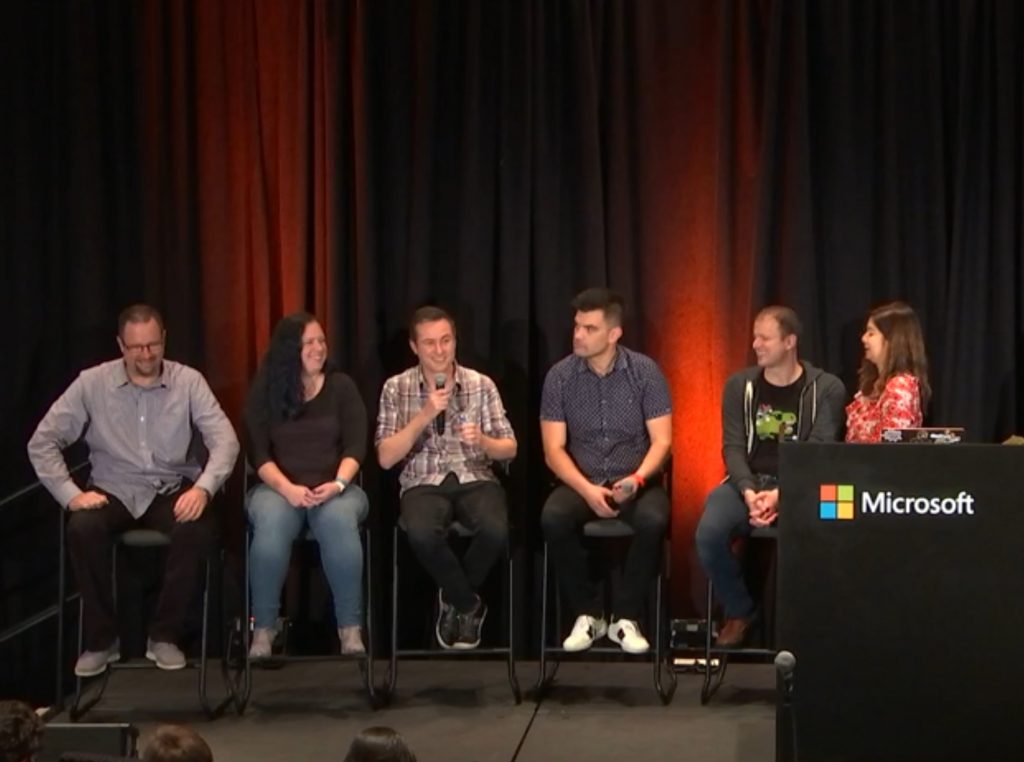
When the head of the Windows Insider program, Dona Sarkar, moved on to work on Microsoft’s Power Platform a few weeks ago, Microsoft’s CVP of Windows and Education Eran Megiddo announced that the company was conducting a search for a new leader of the program. In a bit of under-the-radar news, in a session titled Exploring the Future of Windows with the Insider Program, Sarkar announced that Ian Todd, a Partner Group Program Manager for Windows User Experience, “is currently managing the humans.”

Todd was on the stage in the breakout panel discussion, and while we’re not really sure if this assignment is long term, it sure sounded like he’s taking the reins. During the presentation, Sarkar re-introduced him as being in his “first month of managing the Insider program, like full-on managing the squad” Todd goes on to say that he’s been getting to know the team and the program at “a much deeper level,” and that he’s loving what he’s seeing. Todd promises to continue with the community aspects of the program that were developed by Dona Sarkar (and before that by Gabe Aul, who’s now a VP of VR engineering at Facebook).

Update: While it wasn’t stated in the session, Brandon LeBlanc has clarified on Twitter that the position is temporary until a permanent replacement is found:

The session itself is interesting on a number of levels, and features John Cable from Windows Servicing, David Weston from Windows Security, Todd, Amanda Langowski from Windows Flighting, and Jason Grieves from Accessibility. You can watch the embedded session here, and remember that almost all Ignite sessions are now available for viewing.

With the launch of the Windows Insider Program back in 2014, led by Aul, and then the transition from Aul to Dona Sarkar, much was made of the introduction of the new leader of the program. This time, not so much, but as the Insider program has matured, maybe that’s to be expected. We’ll be interested to see if there’s a more formal introduction, or if Todd is only temporarily taking on the duties while a search is completed.

For now, as Dona Sarkar said in the session, direct your complaints to Todd!

Here’s the free “MixPot” rewards you can earn by watching “biggest ever” Inside Xbox on Mixer tomorrow

As Microsoft is getting ready to kick off its X019 event in London tomorrow, you may not want to miss the upcoming Inside Xbox Live stream at 12PM PT tomorrow. Microsoft teased on Twitter that tomorrow’s live stream will be “our biggest episode ever,”and there’s a custom Twitter events page for following all the X019 action.

Once again, Microsoft will also offer free “MixPot” digital rewards to those of you who will watch Inside Xbox on Mixer tomorrow. This time, you’ll be able to earn an Obsidian Wheel for Sea of Thieves, a $5 X019 promotional pack for the Gears Pop! Mobile game, as well as a chance to win one year of Xbox Game Pass Ultimate.

Microsoft already revealed that this upcoming Inside Xbox episode will bring news from over 10 Xbox Game Studios titles, new game reveals, big news about Xbox Game Pass and Project xCloud, and much more. We’ll be covering the event live on Thursday, so stay tuned to OnMSFT for everything related to X019.

Forget Pokemon and Jedi, the Bee Simulator video game is now live on Xbox One consoles

The Bee Simulator video game is now live on Microsoft’s family of Xbox One consoles. The game is one of very few titles that allow the player to experience the world from the perspective of a bee. Players can fly around and explore a park, collect pollen, avoid wasps, and play with up to three other players in local split-screen co-op and PVP matches.

Here’s the official game description:

See the world through the eyes of a bee! Explore a world inspired by Central Park where you can take part in bee races, collect pollen from rare flowers and defy dangerous wasps.

Play with friends or family in three game modes, including co-op and PvP on split screen.

The hive awakens as the sun’s first rays warm the horizon. It’s time to test your wings, receive orders from the Queen and begin your first mission. And that’s just the start of your adventures. Humans want to cut down the tree that holds your hive, so your fate – and that of the whole swarm – rests on your tiny shoulders!

Bee Simulator is currently selling on Xbox One with a 10% discount and the game will play in 4K when played on an Xbox One X console.
Let us know if you’ve played Bee Simulator in the comments below and then follow us on Pinterest for more Xbox gaming content.

Bee Simulator
Bee Simulator
Developer:
Bigben Interactive
Price:
$19.99

How to set up Disney+ as a PWA on Windows 10

Since it’s release earlier today, Disney+ has been on the mind and lips of most people who stream media, visit theme parks, love animated movies, cherish the Star Wars lore, dabbled in Marvel’s Cinematic Universe, looking for way to pay less for combined services or need something new to entertain their children with while traveling; so basically everyone.

While Disney has primed the well pretty thoroughly with ways to grab its streaming content, there are still a few gaps in its accessibility that need to be addressed for some users such as the 500 million-plus users rocking Windows 10 enabled devices.

To be fair, there is a Disney+ app for Xbox One devices, which are typically included in that audacious 500 million stat by Microsoft, but realistically, there are still up to 400 million-plus people using Windows 10 who don’t have an official app to run towards to stream their favorite Disney content from a PC.

That is, until now.

Thanks to the power of Progressive Web Apps and Microsoft’s recent endeavor in revamping its internet browser with Chromium development, users can now use a nifty little 5-step workaround to get as close to a native app experience as possible for now.

Step 1: Download the goods

Download the latest Microsoft Edge Chromium-based beta browser, be it Canary, Beta, or Dev, here.

As part of the download and install process, also sync any Microsoft Accounts to get port over your internet browsing data from older IE and Edge apps, such as favorites, sync passwords, and even reading lists.

Step 2: Visit Disney+

Head to https://www.disneyplus.com/ to start a free trial, Buy Now or log into your new account.

Step 3: Manage Apps + Install

Now is the fun part. Head to the ellipses in the top left corner of your  Edge browser and select *Apps.

Once Apps is selected, scroll over to the Disney+ App logo next to Install This As an App and select.

Step 4: Name & Install

Now that desktop is primed to recognize the new install as Progressive Web App it’s created a logo and normally would name it the corresponding site name, but for some reason, it pops up nameless. This new turn of events allows users to create their own titles for the PWA.

Step 5: Pin to Start or Taskbar & Enjoy

Once the Disney+ PWA is installed, you can then pin the new icon to your Start Menu and/or Taskbar as any other app.

While it’s not the official download from the Microsoft Store or some sort of Win32 app, the PWA services just as well and offers full UI control over elements, unlike some other workarounds floating on the internet today.

The process to install the Chrome version of the Dinsey+ PWA is a very similar process that follows steps one and two respectively (downloading chrome and visiting Disney+), then navigate to the menu section in Chrome, selecting “More Tools,” “Create Shortcut” and voila, you now have a Chrome version of the PWA.

How to install Windows 10 November 2019 update today

Microsoft fans get ready because this tech giant is rolling out their next big update today on the 12th of November. Windows 10 version 1909 won’t be a massive overhaul of the OS. Rather, the Windows 10 November 2019 Update focuses on crushing bugs and bringing fixes to the infamous Windows 10 May 2019 update.

Those of you that survived the May 2019 update can rest easy as this cumulative update will function more like a normal Windows 10 patch. On top of this, Microsoft is using similar technology to what the company normally uses when rolling out monthly service updates.

There is less time and risk compared to the previous process of updating, and (in case you’re already using Windows 10) finding it is as easy as waiting for your PC to notify you of your monthly update.

That being said, there are a few key-points that you should keep in mind prior to installing the latest Windows 10 OS version.

Windows 10 v1909 system requirements

  • Processor 1GHz or faster CPU or System on a Chip (SoC).
  • RAM 1GB for 32-bit or 2GB for 64-bit .
  • Hard drive space Existing installations: 16GB for 32-bit or 20GB for 64-bit.
  • Clean install or new PC: 32GB or larger.
  • Graphics DirectX 9 or later with WDDM 1.0 driver.
  • Display resolution 800×600.
  • Networking Wi-Fi or Ethernet adapter.

Make sure your system meets these mimimum requirements. Otherwise, you may encounter serious bugs.

How to download Windows 10 v1909

In order to download this new OS version, you need to go to Settings > Update & Security > Check for updates.

Alternatively, you can go to Microsoft’s official website and hit the “Download Tool Now” button.

Keep in mind that Microsoft will roll out the new OS version gradually. This means that Windows 10 v1909 won’t be available to all users at the same time.

If you can’t wait until Microsoft pushes out the update to all users, you can download the installation media from Windows Insider website after joining the Windows Insider program.

Once you’ve joined the Windows Insider Program:

  1. Open the Start menu and click on the cog icon to load up Settings
  2. Click on ‘Update & Security’
  3. At the bottom of the window that opens you should see either ‘Windows Insider Program’
  4. Click ‘Get Started’
  5. You will receive a warning message notifying you that you’re installing an early version of Windows 10.

What you need to know about this feature update

Make sure your drivers are compatible with the new Operating System requirements. Intel, Nvidia, and AMD have all released new versions of their graphic processors to support the new Windows 10 update.

Here’s how to get the latest driver updates for Windows 10 v1909:

How to fix Windows 10 November 2019 Update issues

Don’t expect this update to be a smooth one. As you already know, Windows 10 updates causes issues and technical glitches for about 50% of users. Make sure to bookmark this page to get access to the troubleshooting guides below just in case you’re experiencing any update issues:

Comment down below and let us know what you think of Windows 10 1909 . Microsoft recommends its users to report issues on its feedback Feedback Hub and other platforms. 

Razer BlackWidow Ultimate is a monster mechanical gaming keyboard

Razer just unveiled its brand new and improved BlackWidow Ultimate mechanical gaming keyboard with water and dust-resistant features, along with an IP54 rating.

In other words, you won’t have to worry anymore about ruining all your equipment while you’re playing that newest gaming title!

Note: This post is part of our bigger selection of the best keyboards you can find at this moment.

Meet the Razer BlackWidow Ultimate keyboard

Besides being augmented with water and dust-resistance, the latest Razer gaming keyboard is designed to be the most resilient gaming keyboard to date.

Razer CEO and co-founder Min-Liang Tan said that Razer has never stopped making improvements to the gaming keyboards. The Razer BlackWidow Ultimate is more durable than ever and is the very first mechanical keyboard that comes with water and dust-resistant features.

Speaking of mechanical keyboards, if you’re looking to buy one, check out this list of the best mechanical keyboards for your Windows 10 PC. We’re sure you’ll find one that you’ll like.

Back Razer’s BlackWidow Ultimate keyboard now, it is worth mentioning that this version continues to rock individually backlit keys. Every one of the green LEDs is easily customizable via Razer’s Synapse software.

This provides an extended range of dynamic lighting effects including Ripple, Wave, Reactive, Starlight and more. You’ll be able to create lots of lighting profiles through this advanced lighting effect configurator.


Razer BlackWidow Ultimate features

Take a look at the keyboard’s features as they are officially presented on the Razer’s website:

  • Razer Mechanical Switches with 50 g actuation force (Razer Green)
  • 80 million keystroke lifespan
  • Water- and Dust-Resistant – IP54 certified
  • Ten key roll-over anti-ghosting
  • Razer Synapse enabled
  • Individually backlit keys with dynamic lighting effects
  • Fully programmable keys with on-the-fly macro recording
  • Gaming mode option
  • 1000 Hz Ultrapolling
  • Approximate size: 203 mm / 7.98 in. (Length) x 153 mm / 6.02 in. (Width) x 60 mm / 2.36 in. (Height)
  • Approximate weight: 348 g / 0.77 lbs with cable

Pricing and availability

The new keyboard is available in the US for $109.99 and will also be available all over the world by the end of the year.

UPDATE: You can get a discount for this stunning keyboard on Black Friday 2019 and enhance your gaming experience now. You might also want to check out our dedicated Black Friday hub for tech deals.

Note: Deals are subject to change. Keep in mind that the price tag may vary as some of the discounts may no longer be available by the time you’ve made your purchasing decision. So, hurry up and hit the buy button while the discount is on.

MORE DEALS YOU SURE WANT TO CHECK OUT NOW:

New Twitch Studio Beta app is now ready to replace deprecated Mixer broadcasting feature on Windows 10

Now that Microsoft has quietly removed Mixer broadcasting from the Windows 10 Xbox Game Bar, the new Twitch Studio Beta app couldn’t be released at a better time. The Windows app is completely free to use, integrates nicely with Twitch, and is easier to use than popular third-party apps such as OBS or XSplit.

Twitch already has a desktop app for Windows, which also serves as a game launcher for the free “Twitch Prime” games Amazon offers to Prime subscribers every month. Twitch Studio beta is a separate app that works on Windows 7 and newer, and it’s much more feature-complete than the built-in Mixer broadcasting feature on Windows 10 ever was. You’ll find guided setup to help you set up your mic, webcam, monitor resolution, and bitrate, and there are also customizable templates to make your stream look unique. Moreover, there are also integrated alerts for your Twitch activity.

If you previously tried streaming on Mixer from your Windows 10 PC, you should really give Twitch Studio a try. While the app is still in beta, it’s being updated regularly and the team also added a button for reporting bugs front and center.

The Windows 10 November 2019 Update is now available for seekers

As expected, Microsoft has just started rolling out the Windows 10 November 2019 Update to consumers already running the May 2019 Update. Starting today, the November 2019 Update (or Windows 10 version 1909) is available for “seekers,” which means that you can get it now by checking for updates manually in Windows Update. The Update should be labeled as “Feature update to Windows 10, version 1909”

In case you’re not seeing the update today, Microsoft notes that there may be a compatibility issue preventing you from getting it immediately. If you do see it in Windows Update, the November 2019 Update should install like a regular cumulative update, and the whole process should be pretty quick.

Here are the main new features included in the November 2019 Update, as explained by Microsoft today:

  • Quickly creating an event directly from the Calendar flyout on the Taskbar.
  • Better managing notifications, including a new button at the top of the Action Center and the ability to sort notifications by most recently shown.
  • Integrating OneDrive content online with traditional indexed results in the File Explorer search box.
  • The navigation pane on the Start menu now expands when you hover over it with your mouse to better inform where clicking goes.
  • Using your voice to activate third-party digital assistants from the Lock screen.

If you want to learn more about this update, we invite you to check out our hands-on video.

As of this writing, we’re not seeing the update on our PCs, just this month’s Patch Tuesday update for Windows 10 version 1903. It may take some time for the November 2019 update to roll out, but please let us know in the comments if you’re able to download it today.

Microsoft’s Ignite 2019 sessions are now available on-demand

During Microsoft’s Ignite 2019 conference in Orlando this year the company dropped a few bombshells regarding its Microsoft 365 security offerings, Azure Synapse Analytics, Project Cortex and how Cortana is evolving across mobile and desktop, among other news.

Microsoft jam-packed a lot of news, announcements, developer sessions, and showroom floor demos into four days, and all of that info is now available in an on-demand streaming experience at the Windows Insider blog.

This year’s conference featured over 1,000 sessions showcasing new ways to migrate legacy workloads, the latest cloud technologies, innovative client development techniques, new ways to manage your infrastructure and more.

Anyone who is interested can select from the Insider Team’s cherry-picked options on the site that include Ignite archived session videos from The Future of Windows with WIP, WSUS and Configuration Manager, Group Policy and Intune for WIP as well as running your own Windows Insider Program at your organization among a host of others.

Head here to view the other 1,000 plus sessions from Ignite 2019.

Microsoft strong supporters of California’s version of GDPR privacy law

Microsoft has come out in “strong” support for the California Consumer Privacy Act, a bill that was introduced to give individuals more control over the collection and reselling of their personal data. The company has committed to supporting the new standards—which are set to take affect on January 1 of next year—across all fifty U.S. states. Julie Brill, Microsoft’s Chief Privacy Officer and Corporate Vice President for Global Privacy and Regulatory Affairs, wrote in a blog post:

We are optimistic that the California Consumer Privacy Act — and the commitment we are making to extend its core rights more broadly — will help serve as a catalyst for even more comprehensive privacy legislation in the U.S. As important a milestone as CCPA is, more remains to be done to provide the protection and transparency needed to give people confidence that businesses respect the privacy of their personal information and can be trusted to use it appropriately.

For those unfamiliar, California’s new law—or CCPA for short—is the state’s new bill that brings new guidelines for consumer privacy. As part of the new act, companies will be required to be transparent about the data they collect and to whom it’s sold to. Additionally, consumers should be able to reject consent of the resale of their personal data, and even request their information to be completely deleted.

In addition to committing to providing more tools to help consumers understand and control their data, the company says it will work with enterprises to help them comply with California’s new law.

Microsoft’s commitment to complying with the CCPA in every state is similar to how it committed to following the EU’s GDPR guidelines outside of Europe. The U.S. Congress has been pretty quiet on consumer privacy issues, so the company’s commitments on its privacy tools should help both consumers feel better about their data as well as businesses in providing consumer privacy reassurance.

What do you think of Microsoft’s stance on consumer privacy? Share your thoughts in the comments section below.

Microsoft starts testing “Surprise Me” button with Xbox Insiders

Ahead of its hotly anticipated console release next year, Microsoft is slowly reenvisioning the way its gamers will regularly interact with the dashboard.

Today, Xbox Insiders will get a chance to test out some new changes to the Xbox One Home screen that include a new way to customize tiles and a new “Surprise Me” button that will surface recommendations on games to play.

Back in July of this year (2019), the Xbox team began testing a new dashboard look and flow with users opting into its Alpha and Skip Ahead release builds. The new dashboard is a bit more streamlined than the one that showed up with the original release of the Xbox One.

The UX team working on the reinvented dashboard applied emphasis on “dynamic content” surfacing in the UI while allowing for more customization of the home screen, allowing users to quickly access specific menus.

Today’s additions look to continue the theme of quick access by enabling new ways for users to set up their Home more their liking.

The new additions should be rolling out to Alpha and Skip Ahead beta testers through today pending a new download on an Xbox One console.

HP launches the world’s lightest compact business convertible notebook in India

In a press conference in New Delhi, HP Inc. today introduced the HP Elite Dragonfly in India geared towards the always-on-the-go mobile business professionals.

The HP Elite Dragonfly is a sub-one-kilogram ultralight premium notebook that claims to offer the ‘world’s longest battery life in a 13-inch business convertible’ – up to 24.5-hour battery life.

The HP Elite Dragonfly boasts of a precision-crafted chassis from CNC-machined magnesium and a redesigned quiet and backlit keyboard with a glass touchpad. It sports a high screen-to-body ratio for a 13-inch business convertible at almost 86 percent. The notebook packs in the latest Wi-Fi 6 connectivity and comes with an optional gigabit-class 4G LTE.

HP Elite Dragonfly also offers a myriad of software add-ons including HP WorkWell, a personal wellbeing software, HP Sure Sense that defends against malware attacks on mobile workers using AI, and HP Sure Recover that gets users back up and running fast.

There are also privacy-focused features like HP Sure View Gen3, an integrated privacy screen, as well as HP Privacy Camera that helps users control what is shared with the world.

The HP Elite Dragonfly is expected to be available from December 1 starting at ₹149,990 ($2092).

Xbox 360 consoles get a new system update, the second this year

Microsoft has quietly released a new system update for Xbox 360 consoles (via Reddit). It’s not clear yet what this new version of the OS (2.0.17559.0) includes, as the software giant has yet to add the release notes on the Xbox Support website. We’ll keep an eye on this page and we’ll update this post if we get more details about this new update.

The Xbox 360 received a previous system update back in August, which according to Microsoft brought “minor bug fixes and improvements.” Before that, the Xbox 360 OS received two updates in 2018 and 2016, which was the year when Microsoft stopped manufacturing the console.

As the Xbox 360 will celebrate its 14th anniversary on November 22, which is the date of the console’s US launch, it’s great to see that Microsoft is still supporting it as well as all of its Xbox Live online features. We hope this ongoing support will continue once Microsoft’s next-gen Project Scarlett console is released in holiday 2020.

Update 9:15AM PDT: The Xbox Support website now indicates that this new system update only brings “minor bug fixes and improvements,” just like the August update.

Windows 10 news recap: Chromium-based Microsoft Edge to ship by default on Windows 10 in future, Skip Ahead ring comes to an end, and more

Welcome back to our Windows 10 news recap, where we go over the top stories of the past week in the world of Microsoft’s flagship operating system.

Surface Pro X is Microsoft’s most repairable tablet ever according to iFixit

According to iFixIt, the Surface Pro X is Microsoft’s most repairable tablet ever, a strong accolade to hold when it’s generally quite difficult to repair devices yourself in this day and age.

Surface Pro X

Microsoft’s Chromium-based browser has a new icon that frees it from Edge and Internet Explorer’s past

Microsoft’s new Edge browser has received a new icon to differentiate it from Internet Explorer.

Microsoft Edge new logo

New Chromium-based Edge will start shipping with Windows 10 once the stable version is out

Once the stable version of Chromium-based Microsoft Edge is out, Windows 10 will begin shipping with the new Edge by default.

Microsoft ends Skip Ahead Ring for Windows Insiders beginning with Windows 10 build 19018

The Windows Insider program is going back to more simple times, as Microsoft is ending the Skip Ahead ring. The change starts from Windows 10 build 19018.

That’s it for this week. We’ll be back next week with more Windows 10 news!

3 Best Digital Audio Workstations (DAWs) Tools for Windows to Buy

To create addictive beats, musicians rely on digital audio workstations. These tools can turn the music notes in your head into reality.

You can use two principal types of recording tools to create, produce, and edit music, and these are DAWs and audio editors.

DAWs are perfect for the recording stage with vocals, acoustic instruments, or digital instruments and audio editors are suitable for the post-production stage to achieve the highest results.

These programs include complete audio features, including faster beat-making, AI-based mastering tools, an abundance of plugins, pitch and tone error correction, and many more.

What is the difference between DAW and an audio editor?

The big difference between DAWs and audio editors is that DAWs lets you edit, mix, and master multiple tracks simultaneously, and audio editors only allow you to edit one track separately.

On top of that, DAWs require the installation of extra plugins and the connection of mics for vocals, acoustic, or Line instruments, such as keyboards, drum boxes, and others, while audio editors minimize the amount of time by modifying the audio directly.

So, what’s the best music software to create catchy songs that will remain ingrained in your fans’ minds?

What is the best DAW and audio software for Windows 10?

FL Studio – Plethora of plugins

FL Studio is among the most popular DAWs (Digital Audio Workstations) available on the market, both for its steep-started learning curve and the plethora of plugins, VSTs, and instruments that can be embedded into it.

FL Studio, formerly known as Fruity Loops Studio, encompasses a wide collection of tools that can aid even amateur producers in the development of impressive music projects.

Its user-friendly interface and intuitive controls turn FL Studio into a one-man army when it comes to music production.

FL Studio lets its users experience a trial version of its capabilities and can test all the features and available plugins, there’s no time limit, and no registration or account creation is needed.

Another thing worth mentioning is that FL Studio comes in four different flavors and each one of them adds a bunch of extra features to the previous one.

What you need to know about each version:

  • The “Fruity” edition is heavily limited
  • The “Producer” version unlocks all core features (plugins are not considered core)
  • “Signature” brings along several plugins, while self-explanatory
  • “All Plugins Bundle” does exactly what it says and is the most complete edition of the app

FL Studio

A great tool with intuitive controls that enhances your music production experience.
Free Trial Visit Website

ACID Pro – Faster beat-making

ACID Pro is Magix’s top-of-the-line music production software solution, but it comes in two different editions so as to cover as much ground as possible.

ACID Pro brings all brand-new features, including but not limited to audio source separation integration by using a proprietary technology called Zynaptiq STEM MAKER Melodyne Essential used for pitch and tone error correction, loudness metering tools, and, of course, a lot of new loops.

ACID Pro 11 is the latest release of the popular, intuitive, and powerful ACID Pro series and it comes with a broad variety of embedded goodies.

The newest ACID Pro development packs “MIDI Playable Chopper,” which enables users to split files into beats and samples, and then play them in a fashion that resembles MPC (Music Production Center) samplers, as well as the new loops that ACID Pro Next also holds.

Other best features include:

  • Faster beat-making
  • ACIDized loops
  • Innovative effects
  • Creative content

ACID Pro

Try this exceptional audio tool with improved beat-making and innovative effects.
Free Trial Visit Website

WavePad – Batch processing

WavePad is a popular sound editing software solution from NCH Software, which enables users to edit a broad range of audio files, whether it’s music, voice recordings, or other types of similar content we’re talking about.

WavePad also works as an audio recorder if the device it’s installed on has a supported recording device. This app can handle an outstanding variety of formats, including but not limited to MP3, WAV, VOX, GSM, WMA, AU, AIF, FLA, RA, OGG, AAC, M4A, MID, AMR, FLAC, MOV, VOC, RAW, and M3U.

It enables users to apply various effects on their recordings such as reverb, chorus, fade, compression, normalize, echo, and surround.

It can also be used as a fast, convenient editing tool that can compress sound, trim it, copy, cut, and paste fragments, process files in bulk, scrub audio content and search for specific parts and perform a spectral analysis of the documents.

WavePad

Use WavePad to record and edit music with advanced technology alongside multiple audio effects.
Free Trial Visit Website

DAWs and audio editing tools are designed to help you record, edit, and mix music with numerous audio effects, enhanced beat-making, and other additional tools.

There you have three amazing music software to let your creative mind run wild. Please let us know in the comment section below if you find this article useful.

Microsoft sends more Project xCloud preview and teases “big” news at X019 next week

Microsoft kicked off the Project xCloud public beta in the US, the UK and South Korea last month, and if you didn’t receive your invite yet, you may now get the chance to get in. Xbox’s Major Nelson announced earlier today that Microsoft has started sending out more Project xCloud invitations, and you still have time to register if you want to get early access to the company’s cloud gaming service.

As of today, the Project xCloud public beta only provides access to four Xbox Game Studios titles: Gears 5, Halo 5: Guardians, Sea of Thieves, and Killer Instinct. To try the service, you’ll need a Bluetooth-enabled Xbox Wireless controller, as well as a phone or tablet running Android 6 or newer. Microsoft hasn’t said yet when the service will be available on other devices, including iPhones, iPads, or PCs. With Google Stadia launching on November 19, it may be time for Microsoft to finally share more details about Project xCloud, and a tweet on the Xbox Twitter account just teased “big Project xCloud news” at X019 next week.

We have yet to hear about the business model for Project xCloud, and there will hopefully be some synergies with Xbox Game Pass. It would probably be too much to ask Xbox Game Pass subscribers to pay for an additional subscription to access the cloud gaming service, especially when Google Stadia and Sony’s PlayStation Now service now cost just $9.99/month. Microsoft probably can’t ask for more than that for an Xbox Game Pass/Project xCloud monthly bundle, but we’ll see if the company is finally ready to discuss pricing details at X019 next week.

The new Surface Pro X Unboxing and First Impressions (Video)

The new Surface Pro X is one of Microsoft’s most hotly anticipated devices of 2019. Unlike the Surface Pro 7, or the Surface Laptop 3, it’s quite different from anything the company has released before. It is also something that I’ve been quite excited for myself, which is why I went ahead and purchased one from the Microsoft Store for this review.

From its super-slim bezels, new Surface Slim Pen, and the custom Microsoft SQ1 processor powering the device, there’s a lot to talk about. Today we’ll be taking a quick look at all that and will be unboxing the Surface Pro X, and sharing some initial impressions ahead of our full review in the coming weeks.

Bezels, be gone!

As I took the Surface Pro X out of the box, the first thing I noticed is its slim bezels. A bit similar to an iPad Pro, the bezels are very slim on the right and left sides of the device. The top bezel is still a bit large, mainly due to the Windows Hello webcam on top. As for the bottom bezel, it almost disappears when the Type Cover keyboard is attached.

Compared to my older Surface Pro 2017, these slim bezels really make the device beautiful. It really brings out all the beauty of the 13-inch screen, and its 2880×1920 resolution. While not quite edge-to-edge like the XPS 13, it’s quite immersive, especially for me, as someone who is constantly stacking windows side by side when working.

Overall, the Surface Pro X still feels really nice to hold in my hands, thanks to its round corners and balanced weight. Great as it is, I am a bit concerned that the device will become a fingerprint magnet, but I think it’s something that I can get used to it over time with the proper care. I’m also a bit let down to see the omission of a MicroSD card slot, as this has been a signature feature of the Surface Pro since the original Surface.

But, all around, this still feels like a Surface Pro that I’ve always loved, with the design improvements I always wanted. Its black matte magnesium finish is still absolutely beautiful and cool to the touch. The kickstand still makes the device easy to use on my desk and my lap. The keyboard cover is still a magnetic attachment and increases the overall usability of the device. And, it’s all now flanked by a beautiful slim bezel and downright beautiful screen.


A note on the specs

Under the hood, Surface Pro X only features one SoC option. It’s powered by the Microsoft SQ1 processor paired with the Adreno 685 GPU. RAM options range from 8GB or 16GB, and there’s either 128, 256, or 512GB of removable SSD storage.

I opted for the most basic $1,000 model with 128GB of storage and 8GB of RAM. It should also be noted that the SSD in the Surface Pro X is technically removable, though Microsoft wants you to do that through authorized dealers.

Anyway, this SQ1 SoC is based on the Snapdragon 8cX processor and was designed in partnership with Qualcomm. Microsoft claims it can be as good as the Intel Core processors inside the older Surface Pro 6. It supposedly has three times more performance per watt than the 8th-generation CPUs.

We’ll be testing that later, and will run benchmarks in a separate post, but first, we want to mention that only 32-bit apps will work on this device through emulation. Yes, this Surface Pro X is powered by the full version of Windows 10 Pro, but since it’s an ARM device, there are limits to 32-bit apps only. It’s up to developers to recompile their apps to ARM64 for it to work on the Surface Pro X.

Surface Pro X

But for now, in my brief day or so with the device, it has proven good enough for web browsing in the 32-bit version of Microsoft’s Chromium-based browser. However, many early reviewers have reported issues with the SQ1 processor powering the Surface Pro X. Some have reported experiencing Blue Screen of Death, not being able to install their favorite apps, as well as random freezing when the device wakes.

After a day-two firmware update, so far in my time with the device, I haven’t had any of those issues. However, coming from a Surface Pro 5, I did notice that apps from the Microsoft Store and even Windows 10 updates were kind of slow to download and install. But, I took the Surface Pro X on the road for me for Microsoft’s HoloLens showcase event in New York City, and it was very reliable for web browsing, writing up a draft post in Word, and more I didn’t experience any freezing, but you can expect my more in-depth analysis and some comparisons in the future full-review.

I’ll also want to mention that this is an always-connected PC. This means that you’ll be able to live a life free of WiFi. You’re getting up to Gigabit LTE Advanced Pro via the nanoSIM and eSIM tray on the device. That’s thanks to the Qualcomm Snapdragon X24 LTE Modem built-in. There’s even the “instant-on” feature. I set the device down, and it’s able to resume right where I left off, right away, without any drain to the battery.

Do you see the USB-C?

As I pointed out in my original hands-on, another thing I noticed with the Surface Pro X is the USB-C ports. There’s two alongside the left side on the device. You’ll also find the Surface Connect port on the right side.

Sadly, there’s no headphone jack, which means I needed to use my Bluetooth Surface Headphones with my Surface Pro X. Lacking a good quality USB-C to USB-C cable at the moment, I also needed to use a dongle to connect up my camera and phone to transfer photos and the video for the post. But USB-C does offer one advantage, I was able to charge up my Surface with my portable power bank. Microsoft quotes a total of 13 hours of battery, and the Surface Pro X supports quick charge, but I only experienced about 10 hours in my testing so far. I’ll be sticking to the regular version of Edge for the full-review to test the full potential of the device.

I’ll also mention that these USB-C ports don’t support Thunderbolt 3, which is a letdown since it means that you can’t use an external GPU to go with it. Still, after years of seeing MiniDisplay Port and USB-A on the Surface Pro lineup, this is quite refreshing.

A fairly great type cover to go along

Moving along, is the need to mention the new Type Cover Keyboard with the Surface Pro X. Overall, typing on it feels about the same as it did on my older Surface Pro 5 Type Cover. However, clicking the trackpad feels a bit more hollow and loud, that could be due to it being new and there being no wear and tear.  It’s very loud, so much so that my mother heard me clicking my way through typing this review, and asked what was making that annoying noise.

The way the Type Cover attaches to the screen is also a bit weird. Since the pen is in the middle of the connector on the top of the keyboard, only the two sides grip the screen. This means it the Surface Pro X is quickly rocked or moved, the keyboard just a tiny a bit to the right and the left. Otherwise, it’s fairly comfortable. I haven’t experienced the weird sensation that Tom Warren experienced, where his Surface Pro X type cover covers the entire taskbar.

Surface Slim pen feels great

Now, for the Surface Slim Pen. To me, having the flat pen is more ergonomic than having a round pen, like with the older Surface Pen.  It fits in my hand more easily, although the “click” button is now in the thin facing side of the pen, and harder to reach.

This new pen is housed in the keyboard, and, coming from the Surface Pro 5, I sometimes forgot it was even there. I was just too used to seeing it snapped to the side of my Surface, so that’s something I did. I will have more on the pen experience in my full review, but for now, I’ll mention that it’s rechargeable via that cradle in the keyboard.

Quite impressed, for now…

At the end of the day, I’m quite impressed with the new Surface Pro X after just two days of use. All around, it’s a nice device. However, given it’s powered by Windows 10 on ARM, I am still concerned about the overall reliability of this new Surface device. While the experience with 32-bit app-emulation has been solid for me so far, and the battery life decent, it might be subject to change as I put more use into the device. Stay tuned for more in the coming weeks.

Need For Speed Heat is now live on Microsoft’s Xbox One video game consoles

The latest entry in the popular Need For Speed video game franchise, Need For Speed Heat, is now available to play on Microsoft’s family of Xbox One consoles.

The game is available in a regular edition and a Deluxe Edition that comes with the base game and a variety of in-game character outfits, cars, and 5% boosts for REP and BANK rewards.

Here’s the official game description and launch trailer:

Burn through the streets of Palm City in Need for Speed Heat. By day, earn bank to create your perfect ride through sanctioned Speedhunters Showdown events. By night, enter illicit street races alongside your crew, earning rep and building heat. But stay ready – cops are waiting and not all of them play fair. The roads and the rides are endless in this twenty-four-hour street racer where only the fast are free to chase the line, risk everything, and burn all limits.

The Need For Speed series began way back in 1994 and has become a constant presence in the gaming industry ever since with new entries being released on an almost yearly basis. Need For Speed Heat is the 24th main Need For Speed video game and supports online multiplayer for up to 16 players and also renders in 4K Ultra HD when played on an Xbox One X console.

Are you a Need For Speed fan? How many titles have you played? Let us know what your favorite game is in the comments below and then follow us on Facebook, Twitter, and Pinterest for more Xbox gaming content.

Need for Speed™ Heat
Developer:
Electronic Arts
Price:
Free


Cities: Skylines, The Elder Scrolls Online and The Surge are free to play with Xbox Live Gold this weekend

Xbox Live Gold members can try some new games this weekend, as Microsoft has introduced three new titles to the Free Play Days lineup for gamers to enjoy. The official Xbox Twitter account in France tweeted the news: “Here are 3 good reasons to play during this long weekend!”

First off, Bethesda’s MMORPG title The Elder Scrolls Online is free to play right now, and players can see all of what the base game offers all the way until November 13. While the Elsweyr upgrade might not be included in this free trial, there’s still plenty quests, crafting, and exploration to keep you going. And if you enjoy your experience, the base game is also on sale for half off, which brings it to just $9.99 right now.

The Elder Scrolls® Online

Cities: Skylines and The Surge are also free to play on the Xbox One for Gold members, although you only have until November 10 to play these games. The first one is already free to play for Xbox Game Pass for Console subscribers, but now Gold members also have a very brief opportunity to play the game before buying—or potentially upgrading to Game Pass Ultimate. For the latter title, Gold members can purchase it for $4.99—or 75% off—for a limited time.


The Surge
The Surge
Developer:
Focus Entertainment
Price:
$2.99

If you haven’t already, you can sign up for Xbox Live here:

Which game will you most likely be playing this weekend? Be sure to drop a comment down below to let us know what you think about them.

Xbox Game Pass for PC picks up Metro 2033: Redux and will lose its first 3 games on November 15

Metro 2033: Redux, the remastered version of the post-apocalyptic shooter has just been added to Xbox Game Pass for PC today. The game is joining Metro: Exodus on the catalog, which is the latest installment of the Metro franchise released earlier this year on PC and consoles.

Even though the store listing doesn’t mention it, the game does support Xbox Live Achievements, as seen on its Game Hub xbox.com. Not all Xbox Game Pass for PC games support Xbox Live Achievements, but developers doing the extra effort to add them definitely deserve some credit.

It’s been nearly six month since Xbox Game Pass for PC launched in beta on Windows 10 version 1903, and the subscription service is about to lose its first games: Pony Island, The Surge, and Tyranny – Gold Edition will be removed from the catalog next week on November 15, but hopefully these will be replaced by new games very soon. The Xbox team said today that it will have more Xbox Game Pass news to share during the X019 event in London next week, and we’ll let you know as soon as we get more information.

If you have yet to try Xbox Game Pass for PC, you can get one month for just $1 for a limited time. Additionally, you can also get 3 months of Xbox Game Pass for PC for free when you purchase select Alienware PCs, and you can find more information on Dell’s website.

Metro 2033 Redux
Metro 2033 Redux
Developer:
Deep Silver
Price:
$19.99


PC Game Pass
PC Game Pass
Price:
$1.00

A Lord of the Rings digital card game just launched on Microsoft’s Xbox One consoles

The Lord of the Rings: Adventure Card Game launched on Microsoft’s family of Xbox One consoles earlier this week. The game went live with very little fanfare which is rather surprising given the prestige of the property and reputation of Lord of the Rings video games on Xbox consoles.

This The Lord of the Rings: Adventure Card Game title is, as its name implies, a digital card game in the vein of Gwent and Hearthstone. It features numerous characters and species from The Lord of the Rings and supports online support for player versus player matches.

Unlike Gwent and Hearthstone which are both free-to-play titles, The Lord of the Rings: Adventure Card Game is retailing for $24.99 which may restrict its playerbase someone. It is, however, available to play for free for all Xbox Game Pass subscribers so this could be a way to build up a following.

Here’s the official (long) game description and launch trailer:

Build a deck of iconic Heroes and challenge the forces of Sauron in this thrilling tactical card game. Go forth on your own or join forces with a friend and explore famous locations, complete story-driven quests, and forge your own legend of Middle-earth. But beware the Eye of Sauron—should you draw his attention, all will be lost…

Answer the call of countless adventures, face the dark forces of Sauron, and protect the Free Peoples of Middle-earth. As allies gather and foes arise, so your journey begins.

The time has come to form and lead your own fellowship of heroes through immersive story-driven campaigns—each with its own unique narrative and challenges.
Pick three Heroes from some of the most emblematic characters of Middle-earth, then build your deck around their specific abilities and powers. Each Hero belongs to one of four Spheres of Influence—Leadership, Lore, Spirit, or Tactics—which allows you to play specific cards while in-game. Choose wisely when building your deck to make the most of each Hero and gain the advantage against Sauron’s forces. Each story-driven Campaign is set in famous locations across Middle-earth, providing hours of thrilling gameplay where each choice you make will forge a legend that will be sung about for ages to come.

While your journeys may contain great challenges, taking advantage of your Heroes and your customized decks will earn you victory in battle. Sometimes combining the strength of multiple champions from the same Sphere of Influence can help you overcome the swarms of Enemies that you will face. You might also apply your Characters’ Willpower to the Fate Pool and trigger powerful abilities that can turn the tide of battle. Each Quest is different, and there is no single path to victory—find the deck and the strategy that works for your fellowship!

Every Quest will require experimenting with different strategies as you confront ever more terrifying foes, ranging from giant Spiders to fierce Trolls, and even hordes of powerful Orcs! The Dark Lord will do everything in his power to prevent you from completing your journey. Watch out for the Threat Pool—as its total increases, Sauron can unleash story-specific events to make your Quest more difficult. Take care—if you reach the maximum Threat level, you will suffer Sauron’s full attention and fail your Quest!

Are you a fan of Lord of the Rings and will you give this card game a try? Let us know why or why not in the comments below and then follow us on Pinterest, Twitter, and Facebook for more Xbox gaming content.