Windows 10 FeedLab app updates with new features, Fluent Design and more

FeedLab, one of the best third-party Feedly clients for Windows 10, has been updated to version 3.0 this week. The major release introduces many new features including improved Live Tiles, several UI improvements and even Fluent Design touches here and there.

The new version also brings some welcome bug fixes, three new languages (German, Spanish and Bralizian/Portuguese) and more. The full changelog is available on this page.

The app is still free to use with a $2.99 in-app purchase to remove the ads. It’s a solid universal app overall, and probably a must have for news junkies. If you don’t use Feedly and RSS feeds, you can still use FeedLab without signing in and enjoy some curated news in a well-designed app. You can download FeedLab on your Windows 10 PC or phone with the download link below.

FeedLab
FeedLab
Developer:
ClevLab
Price:
Free

Save big on Windows Mixed Reality headsets via Amazon

Last October Microsoft formally introduced a range of Windows Mixed Reality headsets coming from third party manufacturers like HP, Acer, Dell, and Samsung. The headsets, with retail prices running from $399 to $599, require a connection to a Windows 10 Fall Creators Update machine, and mark Microsoft’s first consumer foray into the AR/VR market.

While we saw some significant discounts during the holiday season, Amazon has a number of the new headsets on sale (through third-party sellers). Here’s the list of discounts, via Windows Central:

Acer Windows Mixed Reality Headset – $218.99 (down from $399)
Dell Visor – $219.96 (down from $449)
HP Windows Mixed Reality Headset – $201 (down from $449)
Lenovo Explorer Bundle – $246.99 (down from $399)

If you’re looking into getting into Mixed Reality in the new year, now’s the time to take advantage of these great prices.

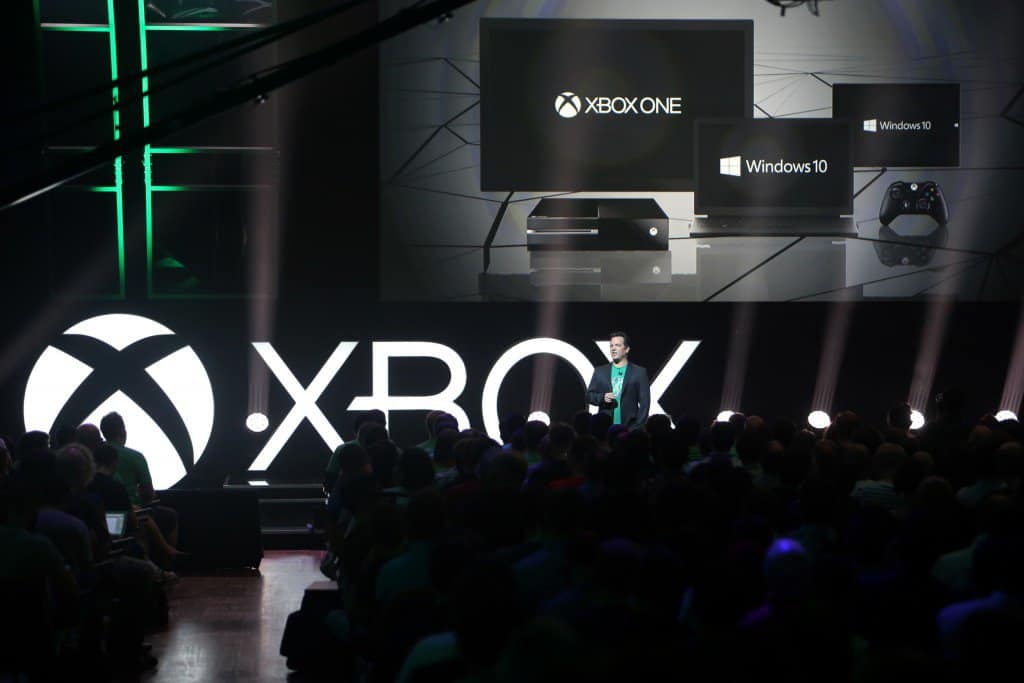
Xbox chief hints at “positive changes” coming for E3 show

Xbox chief Phil Spencer indicated in an interview with Digital Trends that E3 2018 will see some “positive changes” this year. No word yet exactly what these changes will be, but Microsoft likely wants to avoid the issues they faced last year at E3 2017. E3 2018 will take place in Los Angeles, CA on June 12-14, 2018.

Looking to the interview, Microsoft’s Phil Spencer indicated some changes coming for E3 2018:

“I don’t think we’ve talked about [it] yet, but I think will be some positive changes at E3. Could be fun for us; it’ll be a nice change.”

Nothing like a vague statement by Microsoft to put the Xbox world in a talespin. Various rumors have been going around, namely a possible Halo 6 in the works. Other rumors include another Gears of War (5), and a possible Fable 4.

The only meaningful changes that anyone wants to see from Microsoft is new Xbox One games, new Windows 10 games, and more Xbox Play Anywhere games. In order for Microsoft to deliver “positive changes,” the company will have to announce Xbox games do more than excite people. Microsoft will have to shock the world at E3 2018 in Los Angeles on their press conference this year. We’ll have to wait and see what these “positive changes” actually are.

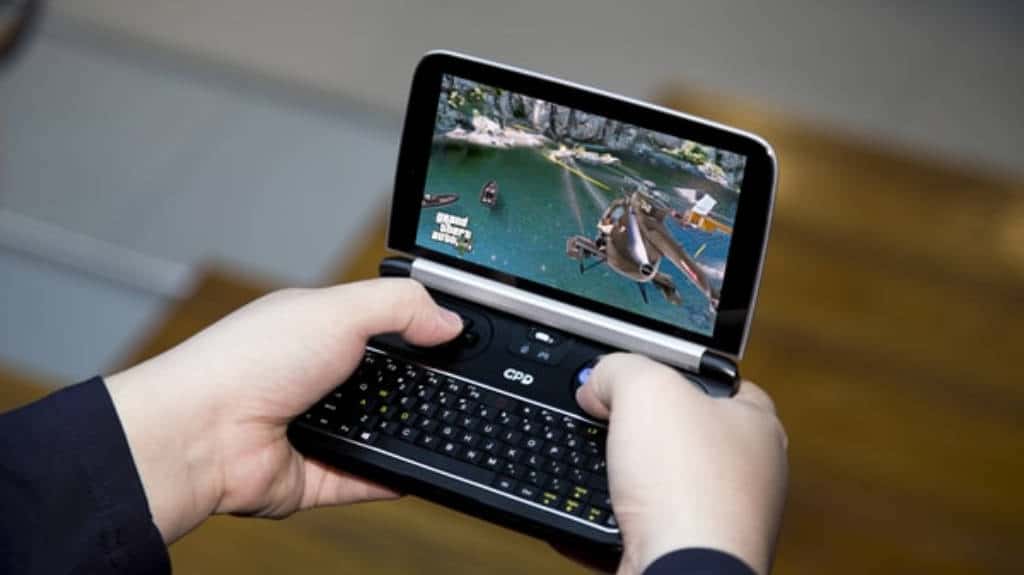
GPD WIN 2 is an upcoming Windows 10-powered handheld game console cum laptop

Shenzhen-based GPD has announced the successor to its experimental handheld GPD WIN launched last year. The WIN 2 comes with upgraded hardware and some design tweaks.

This time around, the company packs a Core m3 processor instead of an Atom processor and doubles the RAM to 8GB. The battery capacity too has been increased.

Although a much better spec’d device on paper, the pitch of the GPD WIN 2 is similar to the first-generation device. It’s a pocket-sized laptop with built-in gaming controls that allows it to double as a handheld gaming console. The company claims much improved gaming performance such as running Grand Theft Auto 5 at 38fps at maximum settings and World of Warcraft with an average of 30fps.

Of course, since it runs full-blown Windows 10, it can run anything you throw at it – within its hardware capabilities, that is. How much productive you can be on a 6-inch display with a tiny keyboard is debatable obviously.

GPD WIN2 Specifications

The GPD WIN2 doesn’t come cheap, and anytime soon. The device will go on sale starting May 2018. The company is running an Indiegogo campaign for crowdfunding, like it always does, and taking orders for the device for $649 – which is $250 off the retail price, as stated.

As we’ve seen with other GPD devices in the past, the retail price usually drops very soon, so we can expect it to be slightly cheaper than what GPD envisions at this point. The GPD WIN2 might be a niche pocket laptop, but with its gaming creds, it might interest a few more gaming enthusiasts.

Digital pre-orders for Metal Gear Survive now open on Xbox One

The next installment in the Metal Gear saga, Metal Gear Survive is available now for pre-order on Xbox One. Metal Gear Survive appears to continue the story of Metal Gear Solid V: The Phantom Pain and pits the player against creatures (zombies?) from another dimension. Here is a trailer of single player action available in Metal Gear Survive.

Metal Gear Survive is no longer directed by the legendary Hideo Koijma, Konami has decided to take Metal Gear in a different direction. Whereas, Koijima made Metal Gear about fictional political espionage, Metal Gear Survive looks to focus the player on zombie-like creatures from a different dimension.

Now that Koijima is out of the picture on all things Metal Gear, it is safe to say that Metal Gear Survive will not continue the epic Metal Gear story. Looking at the trailer, it doesn’t look like Snake will play any role in the new Metal Gear-branded game. Still, Metal Gear Survive is modestly priced at $39.99 and is available for pre-order now on Xbox One. Pre-order it today and see if Metal Gear Survive can hold up without Hideo Koijima at the helm.

Microsoft is #1 in new Top 100 Global Tech Leaders list

Microsoft received quite some criticism recently for focusing too much on its enterprise customers and neglecting consumers. It remains to be seen if the Redmond giant could really become the next IBM, but for now it seems to be doing better than ever. The company’s US stock price broke $90 per share earlier this week, and the very serious Thomson Reuters put Microsoft at the top of its new top 100 global tech leaders list today.

The new ranking is described by Thomson Reuters as “a unique evaluation framework that incorporates financial performance metrics alongside supply chain risk, pending litigation, innovation, social responsibility and a number of other factors.” It’s also important to note that the list doesn’t includes companies with 2016 revenue below $1 billion.

The information firm only ranked the companies in the top 10, which includes Intel (#2), Cisco Systems (#3), Apple, Alphabet and IBM. Interestingly, Amazon and Facebook didn’t make the top 10, same for Asian giants Samsung, Sony and Lenovo. The data actually reveals that 47 tech companies from the top 100 are headquartered in North America (45 in the US), 38 in Asia, 14 in Europe and just one in Australia.

“To succeed today, tech companies need not only run their day-to-day operations effectively, but they also must manage a confluence of legal, regulatory, operational, environmental, supply chain and technological variables,” explained Thomson-Reuters. Microsoft may not be the richest and most profitable company in the world, but its CEO Satya Nadella is obviously doing a lot of things right. Still, you may have many reasons to disagree with Microsoft being the top technology leader today. Let us know what you really think in the comments below.

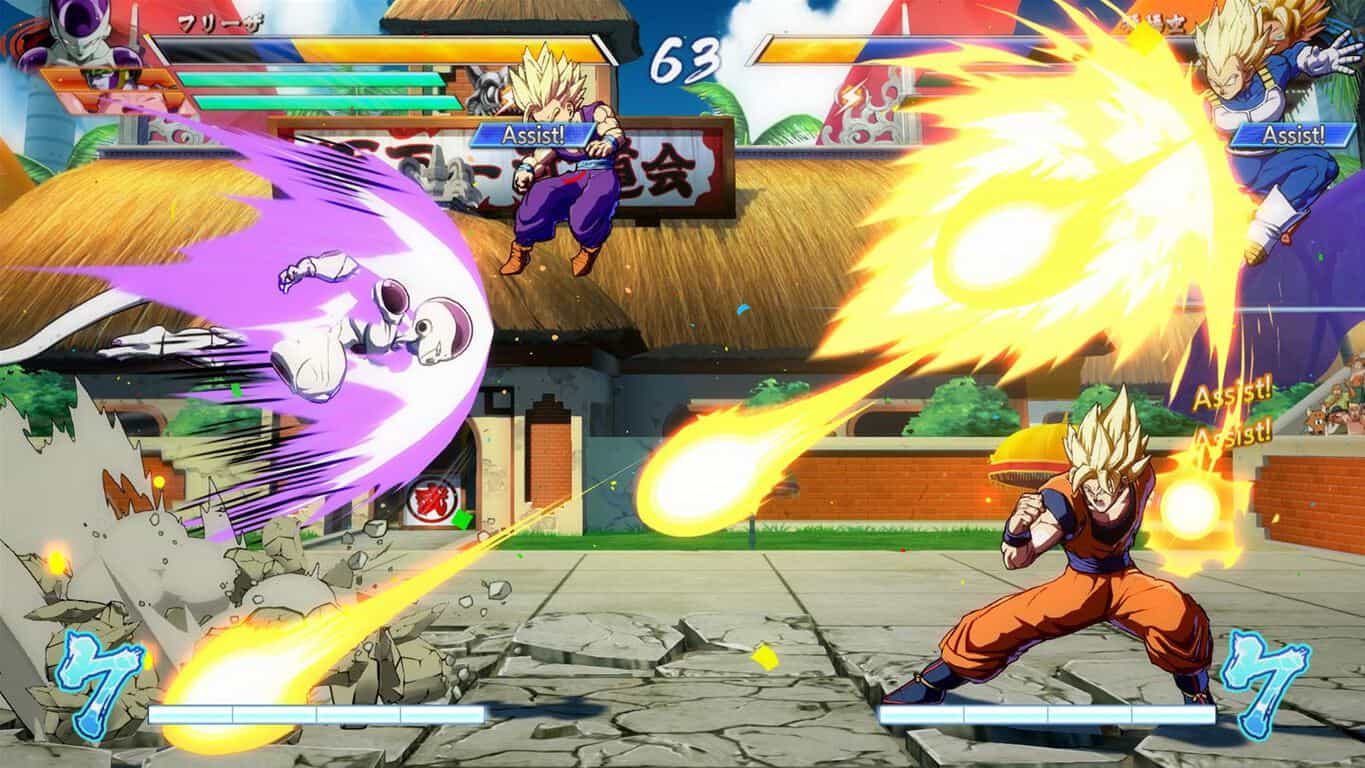
Dragon Ball FighterZ will have another open beta session on Xbox One today

If you missed the open beta for Dragon Ball FighterZ earlier this week, then get ready for another session starting later today. As publisher Bandai Namco revealed a couple hours ago, a new open beta for the fighting game will kick off at 9PM PST today and last for 24 hours.

Dragon Ball Fighter Z will officially launch on January 26 on Xbox One, Playstation 4 and Steam, and the 2D fighting game already has fans of the media franchise very excited. Unfortunately, it seems that many players encountered matchmaking issues during the previous open beta, forcing them to stick with the various tutorials. Bandai Namco first apologized on Twitter before announcing this new open beta session.

If you have already downloaded the Dragon Ball FighterZ Open Beta from the Microsoft Store, you’ll be good to go later today. The game really seems to be a lot of fun so we hope more players will be able to play online this time around.

How to fix Wi-Fi adapter error code 52 on Windows 10/11

Wi-Fi adapters are essential for setting up your Wi-Fi connection. However, sometimes things may go wrong and Wi-Fi adapter error 52 rears its ugly head.

This error code occurs when Windows is unable to verify the digital signature for the Wi-Fi adapter and reads as follows:

Windows cannot verify the digital signature for the drivers required for this device. A recent hardware or software change might have installed a file that is signed incorrectly or damaged, or that might be malicious software from an unknown source.

Fixing Wi-Fi error 52 is not that straightforward. To help you get your Wi-Fi connection back on track, we compiled a series of solutions to help you fix this annoying error in no time.

Fix Wi-Fi adapter error 52 with these quick workarounds

1. Run the built-in troubleshooter

Windows 10 features a series of troubleshooters that you can use to automatically fix particular technical issues. So, if you’re getting error 52, try running the Internet troubleshooting tool. If you’re lucky, the troubleshooter will identify and fix the issue triggering error 52 and you’ll be able to connect to the Internet in less than 3 minutes.

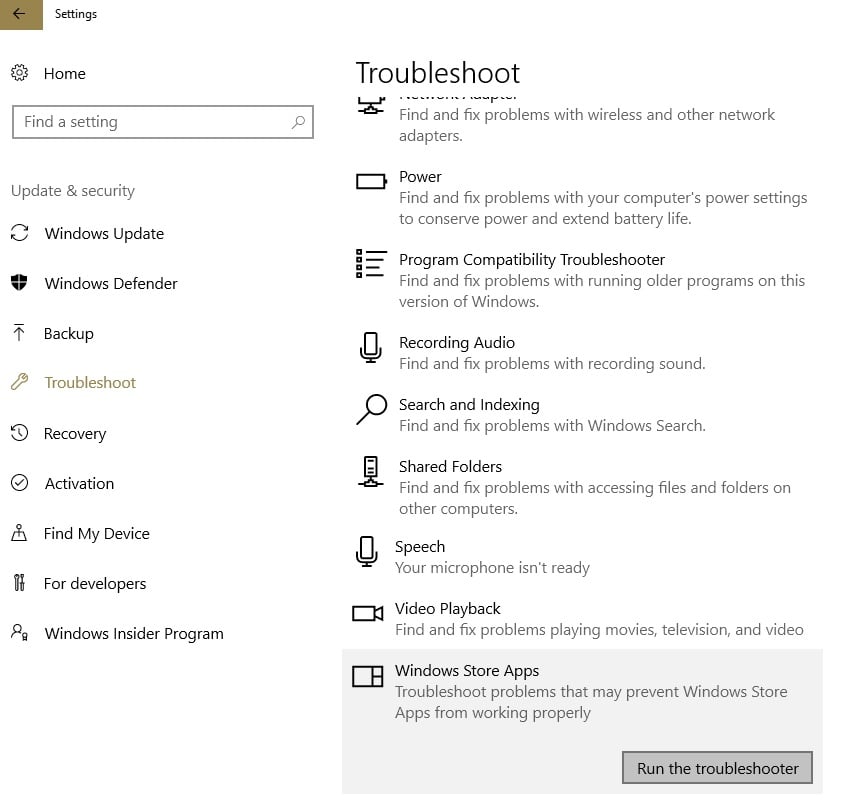
Go to Settings > Update & Security > select Troubleshoot > go to Internet Connections > run the troubleshooter

windows 10 internet troubleshooter

2. Install the latest OS/ driver updates

Another quick way to fix error 52 is by installing the latest Windows updates, as well as the newest driver versions.

Running outdated OS versions can cause various technical issues, including Internet connection problems. Installing the latest updates helps you to eliminate this possible root-cause off the list and make sure that your computer uses the latest patches and system improvements rolled out by Microsoft.

Go to Settings > Update & Security > click on the “Check for updates” button and install the available updates.

check for updates

Restart your computer and check if the issue persists.

3. Reset your network using Command Prompt

Open Command Prompt as an administrator and run the following commands, hitting Enter after each one:

These commands allow you to reset the Winsock protocol (reset the Network Adapter), as well as the IP address of your computer.

4. Turn off your antivirus/ firewall

If error 52 occurs immediately after you try to connect to your Wi-Fi network, try disabling your antivirus and firewall tools.

Sometimes, conflict issues between your antivirus solutions and computer drivers may arise and trigger various error codes, including the error that we’re focusing on in this article.

Don’t forget to enable antivirus and firewall protection afterwards.

5. Disable driver signature enforcement

Since error 52 comes with a description message reading that the digital signature could not be verified, maybe disabling it helps.

Here are the steps to follow:

  1. Go to Start > open the shutdown menu and keep your mouse cursor on it
  2. Press and hold the Shift key > click on the Restart option
  3. Your Windows 10 computer will restart now displaying the Advanced Startup Options screen
  4. Go to Troubleshoot > Advanced Optionstroubleshoot advanced options
  5. Go to Startup Settingsstartup settings windows 10
  6. Hit the Restart button
  7. Windows 10 will restart > the Startup Settings screen should now be available
  8. Press F7 to disable driver signature enforcement
  9. Windows 10 will then boot to desktop.

Keep in mind that this solution allows you to disable driver signature enforcement only until the next reboot.

6. Delete the upper/lower filters from the Registry Editor

Before tweaking your Registry, don’t forget to first back it up. In this manner, you’ll be able to restore a working version of Windows in case anything goes wrong.

  1. Go to Start > type “regedit” > hit Enter to open the Registry Editor
  2. Locate the UpperFilters value under the following key: HKEY_LOCAL_MACHINE\SYSTEM\CurrentControlSet\Control\Class\{36FC9E60-C465-11CF-8056-444553540000}Delete upper lower filters Registry Editor
  3. Go to the Edit menu > Delete > OK
  4. Now locate the LowerFilters value under the same key
  5. Go to the Edit menu and delete this value as well
  6. Quit the Registry Editor > restart your computer > check if the issue persists.

There you go, we hope that these quick workarounds helped you fix error code 52 and you can now connect to Wi-Fi.

If you came across other solutions to fix this error, you can list the troubleshooting steps in the comments below.

RELATED STORIES TO CHECK OUT:

Official BBC America app launches on the Xbox One

An official app for BBC America launched on the Xbox One last month and is available to download for free. Unfortunately, to view full episodes and movies on the app, users will need to be a paid subscriber via a third-party cable or satellite provider but this should be a useful app for those who already pay for the channel. Here’s the full app description:

Get caught up in your favorite BBC America shows with full episodes, video extras, and sneak peeks at upcoming series. Sample trailers and behind-the-scenes clips or sign in with a login provided by your cable or satellite provider to watch full episodes of ‘ Dirk GOrphan Black,’ ‘Top Gear,’ ‘The Graham Norton Show,’ and many more of our programs.

New episodes are available in-season, usually the day after broadcast. Most full episodes require a cable or satellite login, though season premieres are sometimes made available with no login required. Plus you can search the library and track recently-viewed episodes and resume where you left off.

Are you a BBC America viewer and will you be using this app? Let us know in the comments below.

BBCA
BBCA
Price:
Free

Wi-Fi printer not recognized? Fix it with these quick solutions

If you own a printer for your home office, or use one at your workplace, you must have encountered some print job issues that stem either from your connection or the printer itself.

One of these problems is when the Wi-Fi printer is not recognized, yet you are so sure all original settings have not been interfered with or changed, at least not by you.

So what do you do when you get the Wi-Fi printer not recognized error message?

Worry not, we have tried and trusted solutions to fix the issue, and this article covers these fixes.

How to fix Wi-Fi printer not recognized

  1. Check hardware
  2. Use printer troubleshooter
  3. Update drivers
  4. Temporarily disable your antivirus security software
  5. Reboot your computer
  6. Check Default printer settings
  7. Perform a Windows Update
  8. Clear spooler files and restart spooler service
  9. Check with your manufacturer

1. Check your hardware

Do the following checks for your printer and related hardware and/or accessories:

  1. Ensure your printer is turned on and connected.

Check the power switch if it is turned on, and ensure the printer’s power cable is plugged in to an electrical outlet. If you’re on a shared printer or network, ensure all computers and routers are turned on as well. Plug in your power surge protector and turn it on. Plug in the printer’s USB cable properly to your PC. For wireless printers, turn on the wireless option from your printer then run the printer’s wireless connectivity test from the menu option. If these are clear, and you still get Wi-Fi printer not recognized error, then your computer may not be connecting to your wireless network.

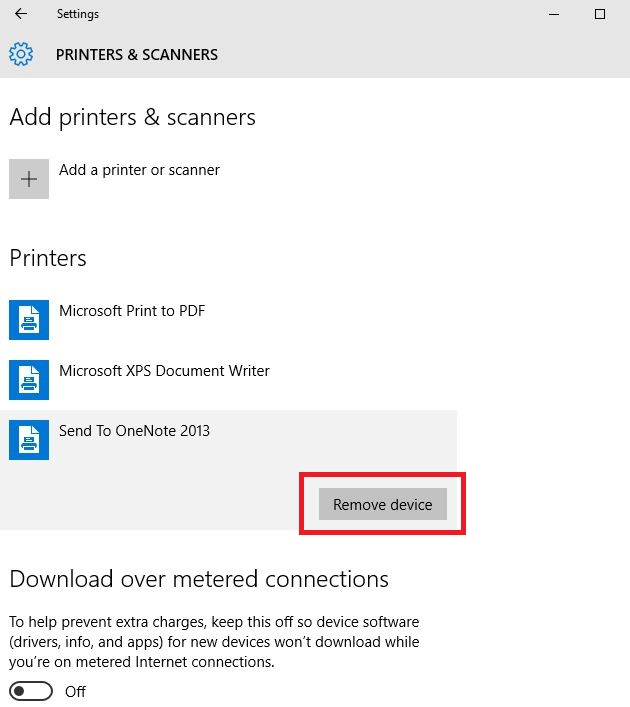
  1. Uninstall and reinstall your printer

Follow these steps to remove your printer:

Wi-Fi printer not recognized

Reinstall your printer (wireless or local) using the following steps:

Wi-Fi printer not recognized

Note: you can print a test page to ensure the printer works correctly. If it is installed but doesn’t work, check the device’s manufacturer website for troubleshooting or driver updates.

To connect to a local printer, plug in the printer’s USB cable to an available USB port on your computer, then turn on the printer.

2. Use printer troubleshooter

A printer troubleshooter is an automated tool that can find and automatically fix some problems with installing and connecting to a printer.

To use this troubleshooter, download and run the printing troubleshooter and follow the instruction prompts.

3. Update drivers

Driver software is needed for most printers to work properly. In the event you updated or upgraded to Windows 10, you may have to update your current printer driver so that it matches or is compatible with the new Windows version.

If you had recent power outages, viruses in your computer, or other issues, the drivers may have also been damaged.

Download and install the latest driver using either of these three ways:

Using Windows Update.

Use the steps below to do this:

Wi-Fi printer not recognized

Downloading and installing the driver manually by yourself. Do this if Windows doesn’t automatically find a driver update for your printer, or you don’t have an installation disk. You can check the manufacturer’s website then find the latest driver for your printer.

Installing the driver software from the printer’s manufacturer. If you have the installation disc, it may contain the software for installing a driver for your printer.

Once you update the driver for your printer, do the following:

Wi-Fi printer not recognized

In case these methods don’t help you or you don’t have enough time or computer skills to use them, we strongly recommend doing it automatically by using a professional tool.

This software detects any outdated, missing or damaged drivers on your PC. When scanning is complete, you will receive a detailed report with all of your drivers. The last thing you need to do is choose which drivers you want to download and install.

⇒ Get Outbyte Driver Updater

4. Temporarily disable your antivirus security software

You can uninstall third party software on your computer such as computer cleaner or antivirus.

Note: For antivirus, temporarily disable it because you need it to prevent your computer from security threats. Immediately after you’re done fixing connection error, re-enable your antivirus and check if you still get the Wi-Fi printer not recognized error message.

5. Reboot your computer

This is the first line of action whenever such an issue comes up (or any other issues with your computer and any other hardware you may be using along with it). However, if you restart your computer and nothing happens on your printer, you can go to the next solution.

6. Check Default printer settings

If your Wi-Fi printer is not recognized, check the default printer settings and change from the current printer to the one that you want to be using.

Here’s how to correct the default settings:

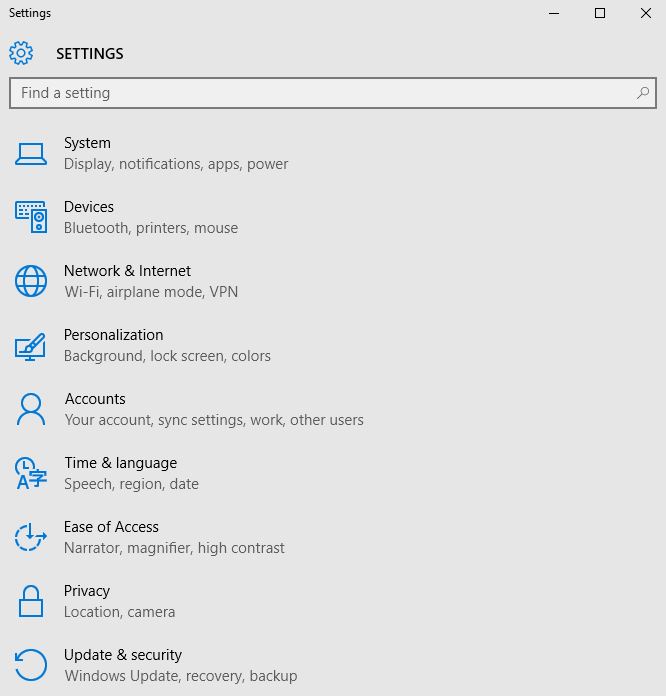
    • Click Start
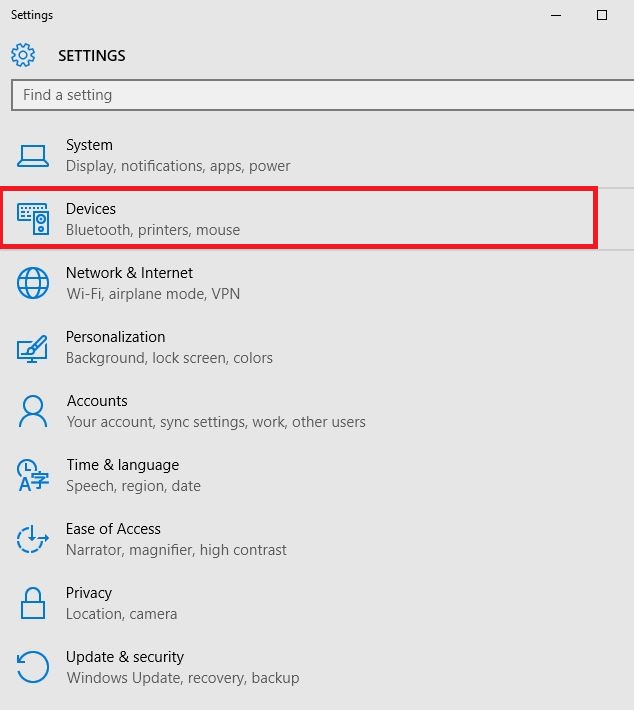
    • Click Settings
    • Choose Devices
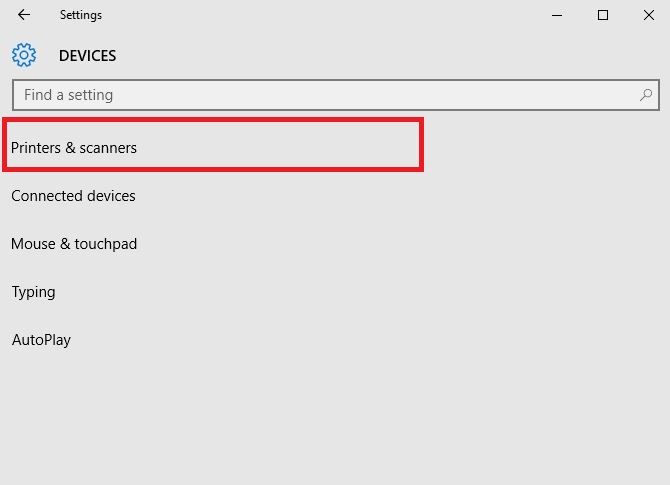
    • Click Printers & Scanners on the left pane
Wi-Fi printer not recognized
    • Scroll to Let Windows manage my default printer
    • Turn the option OFF

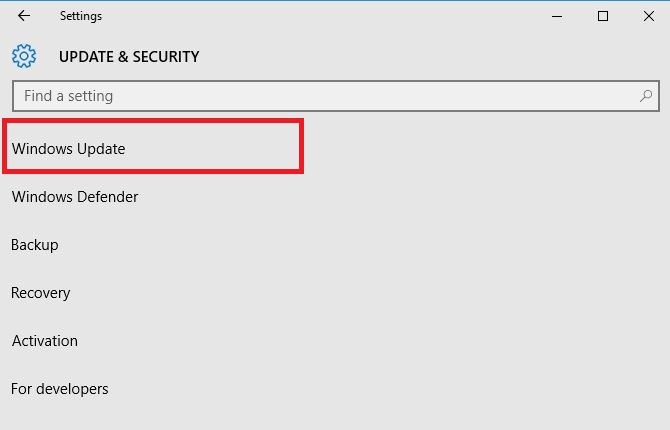
7. Perform a Windows Update

For a healthy computer, you need to keep updating Windows with the latest system updates, and drivers. This also helps resolve any issues or difficulties you may be experiencing.

Here’s how to check and install Windows Update (manually)

Wi-Fi printer not recognized

ALSO READ: Windows Update not working on Windows 10 [Fix]

9. Clear spooler files and restart spooler service

If the previous solutions are unsuccessful, you may need to clear spooler files then restart spooler service.

Here’s how to do this:

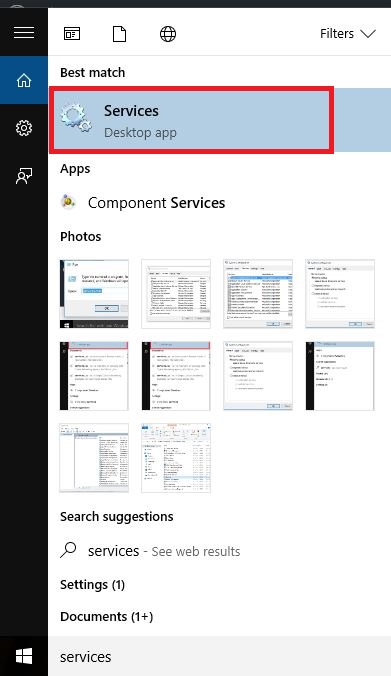
    • Click Start
    • Go to the search field box and type Services
    • Click Services from the search results
Wi-Fi printer not recognized
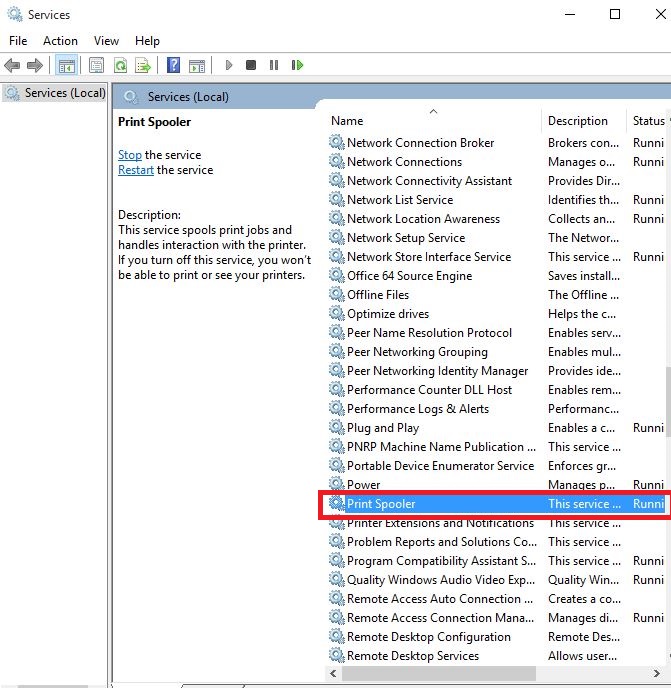
    • Under Services, double click Print Spooler
Wi-Fi printer not recognized
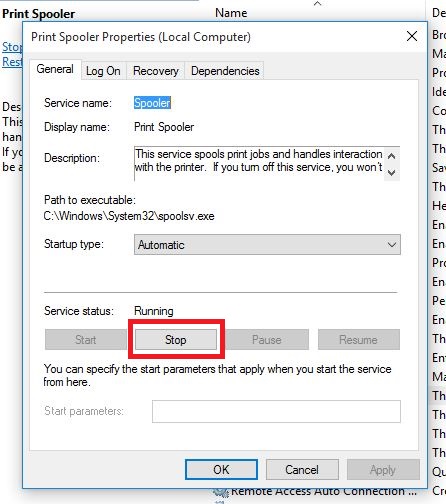
    • Select Stop then Ok
Wi-Fi printer not recognized
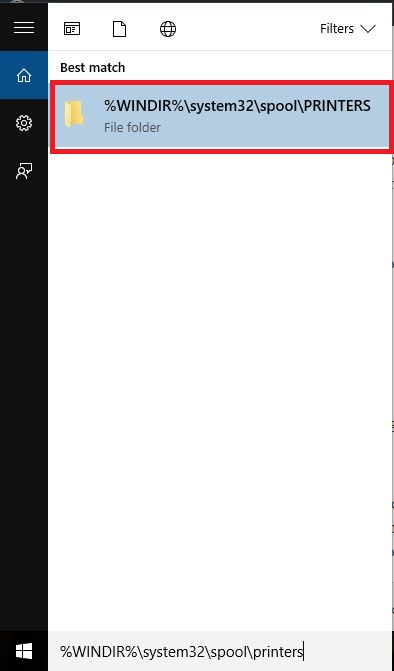
    • Go to the search box again and type %WINDIR%system32spoolprinters
Wi-Fi printer not recognized
    • Select the file folder. You need admin privileges to access it.
    • Delete all the folders in the folder
    • Under Services, double-click Print Spooler again
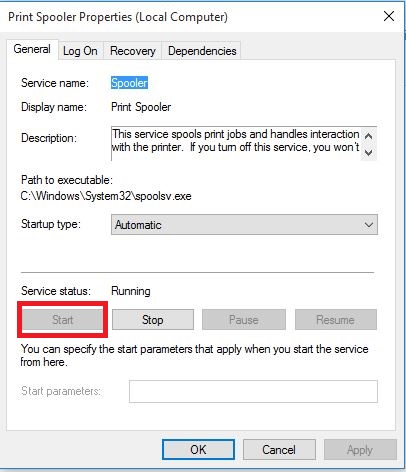
    • Click Start
Wi-Fi printer not recognized
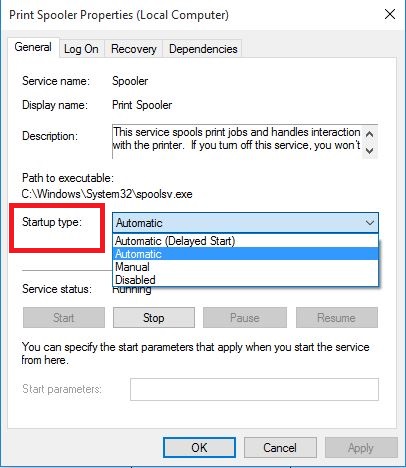
    • Go to Startup Type list
Wi-Fi printer not recognized
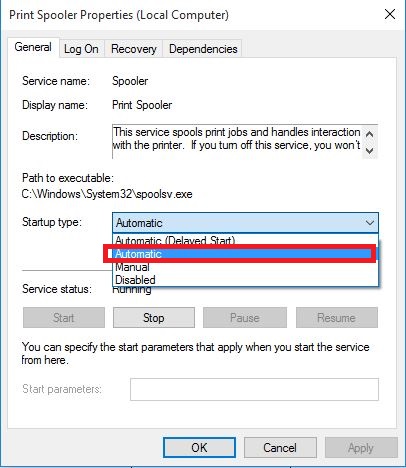
    • Select Automatic box
Wi-Fi printer not recognized
    • Click Apply then click Ok

9. Check with your manufacturer

If the other solutions didn’t work, contact your printer’s manufacturer for more troubleshooting and support based on your specific issue.

Did any of these solutions work for you? Share with us your experiences by leaving a comment in the section below.

RELATED STORIES TO CHECK OUT:

Star Wars Battlefront 2 Xbox One update gets new fighter, level, & more

Star Wars Battlefront II updated on Xbox One consoles to Version 1.1 yesterday. This update made some significant changes to hero characters and classes to improve balancing and also introduced a new hero ship, Iden Versio’s TIE/In Fighter, and a Crait level to play in the Blast mode. Here are the details on both.

Blast on Crait: We’re expanding the ways you can play on Crait by bringing this map to the Blast Game Mode! Battle in the mines among the machinery and crystals leftover from the previous occupants.

Iden Versio’s TIE/In fighter: Now available as a new Hero Starfighter in multiplayer matches! Iden Versio leads by example from her personal TIE/ln fighter. Custom-built for Inferno Squad, this modified TIE has seen heroic service in the name of the Emperor.

Iden Versio’s TIE/In fighter Abilities:

  • Afterburner – Gives the starfighter a temporary speed boost and breaks enemy missile lock. The AFTERBURNER can be cancelled after a short time
  • Laser Barrage – Charges up a rapid fire barrage which deals high damage
  • Dual Proton Torpedoes – Fires two proton torpedoes which track the locked target and deal high damage
  • Inferno Leader – For the duration of INFERNO LEADER, all enemies within a radius are revealed to allied players. These enemies receive increased damage from all sources

TIE/In fighter Star Cards:

  • Engine Heat Dissipator – Decreases the AFTERBURNER cooldown
  • Advanced Torpedoes – Increases DUAL PROTON TORPEDO damage
  • Vengeful Barrage – Increases the damage of LASER BARRAGE
  • Flight Commander – Increases the duration of INFERNO LEADER
  • Reinforced Hull – Increases the total health of the starfighter
  • Tuned Lasers – Increases primary weapon damage
  • Advanced Capacitors – Improves the primary weapons resistance to overheating
  • Repair Systems – Reduces the delay before health regeneration begins
  • Elite Pilot – Increases the turn rate of the starfighter
  • Engine Upgrade – Increases the top speed and how quickly the starfighter can accelerate and decelerate

Iden Versio’s TIE/In fighter Milestones:

  • Rapid Assault – Used Iden Versio’s TIE/LN fighter AFTERBURNER ability 25 times
  • Precision Strike – Achieve 25 DUAL PROTON TORPEDO kills with Iden Versio’s TIE/LN Fighter
  • Hope Cannot Save Them – Achieve 25 LASER BARRAGE kills with Iden Versio’s TIE/LN Fighter
  • Avenge Our Emperor – Use Iden Versio’s TIE/LN Fighter INFERNO LEADER ability 25 times

This latest patch also added a night time version of Tatooine to several modes, increased the frequency of alternate lighting for other locations, added milestone completion notifications to the in-game UI, and lowered the requirement of the purple colored rank for troops (now 25 down from 50). You can see the detailed, full release notes here.

Star Wars Battlefront II is a major video game for Microsoft’s family of Xbox One consoles. It’s optimized for the Xbox One X and will play in 4K HDR when played on it and it has been confirmed that all future content updates will be free for all owners of the game

Are you playing Star Wars Battlefront II on your Xbox One? Let us know if you’re enjoying the latest update in the comments below.

Fonts to get their own settings page in upcoming Windows 10 Insider builds

While Settings has been around since the early days of Windows 10, users have had to switch back and forth between the old Control Panel and the new Settings, but Microsoft has been working on porting over the old paradigm to fit with the new cleaner look.

The latest group of settings to make this transition looks to be Fonts, and although Fonts Settings aren’t currently enabled in the latest Windows 10 Insider build (17074), the bits apparently are lurking within the system, and Microsoft watcher Rafael Rivera has managed to get them working.

Windows 10 Font Settings

Along with the regular Font controls you would expect from the Control Panel (uninstall, metadata, etc.), Settings gives you a better look at the Fonts themselves, and even allows you to try out your own text in that latest and greatest font you just found.

If you remember, Microsoft has started making Fonts available through the Microsoft Store, and with the new Settings UI, should make font management quite a bit cleaner with Windows 10 moving forward.

Rafael suspects we may see this new Settings addition as early as the next Insider Build, and we’ll be keeping our eyes out for it as we slowly but surely loosen our grip on the tried and true Control Panel.

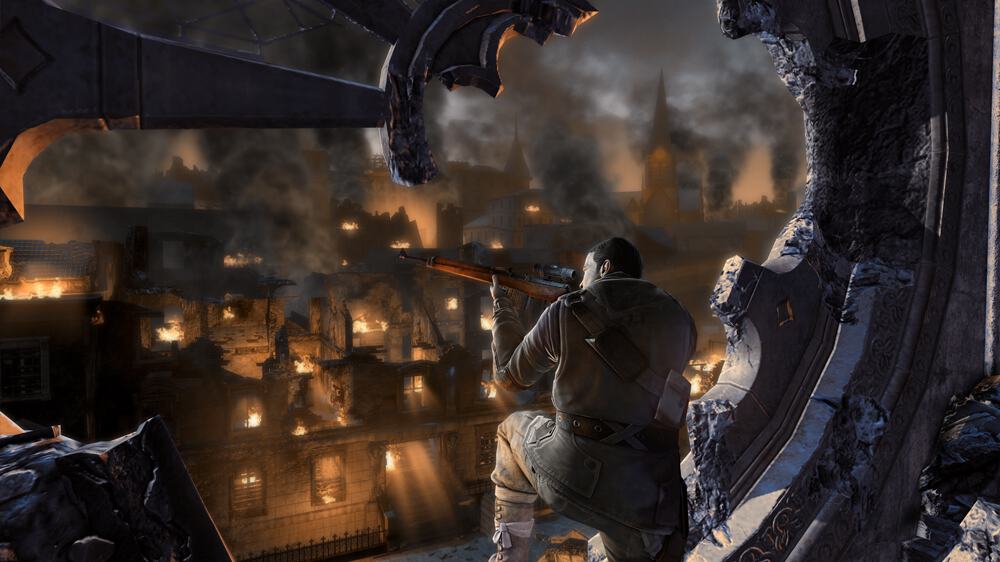
Three more titles including Sniper Elite 2 added to Xbox One Backward Compatibility

After a taking a well-deserved holiday break, the Xbox Backward Compatibility team is back at work this month and three new Xbox 360 games are now playable on the Xbox One today: These are Sniper Elite V2, Far Cry 2 and the racing game Driver San Francisco. Please note that the latter is only available on disc or digitally if previously purchased.

You can find more details about all three games below. Far Cry 2 is 70% off during this week’s Spotlight Sale, so be aware that the price listed below will only be available through Monday, January 22.

Driver San Francisco (available on disc or digitally if previously purchased)

DRIVER SAN FRANCISCO returns to deliver new innovation in open-world and authentic urban driving. Racing through the iconic streets of San Francisco in over 130 muscle and super cars, players take on intense driving missions and challenges that revolve around one thrilling manhunt.

Far Cry 2 ($5.99, 70% off through January 22)

The first sequel to the award-winning franchise takes you to one of the most beautiful and hostile environments in the world – AFRICA. You are a gun for hire, trapped in a war-torn African state, stricken with malaria and forced to make deals with corrupt warlords. Your mission is to hunt down and kill The Jackal. This evil arms dealer has been perpetuating this conflict for years, wreaking havoc on the land an all of its innocent people. Run, swim, drive, fly, shoot, fight and smash your way through over 50km² of open world. Beware though, sometimes the hunter can become the hunted.

Sniper Elite V2 ($29.99)

BERLIN 1945… V2 Rockets with deadly nerve gas are primed to launch. An army of German and Russian soldiers stand in your way. Make every single bullet count or the world dies with you. X-RAY KILL CAM see organs tear and burst, bones and teeth shatter, as your bullet passes through your enemy ADVANCED SNIPER SIMULATION allow for gravity, wind, distance, breathing and more. SNIPER’S CHOICE leave yourself exposed with the easy shot, or decide a more difficult but stealthier approach. CO-OP MULTIPLAYER battle through 4 war-torn online modes

We’re looking forward to seeing which other games will join the Backward Compatibility list this year. Let us know in the comments if you have any favorites.

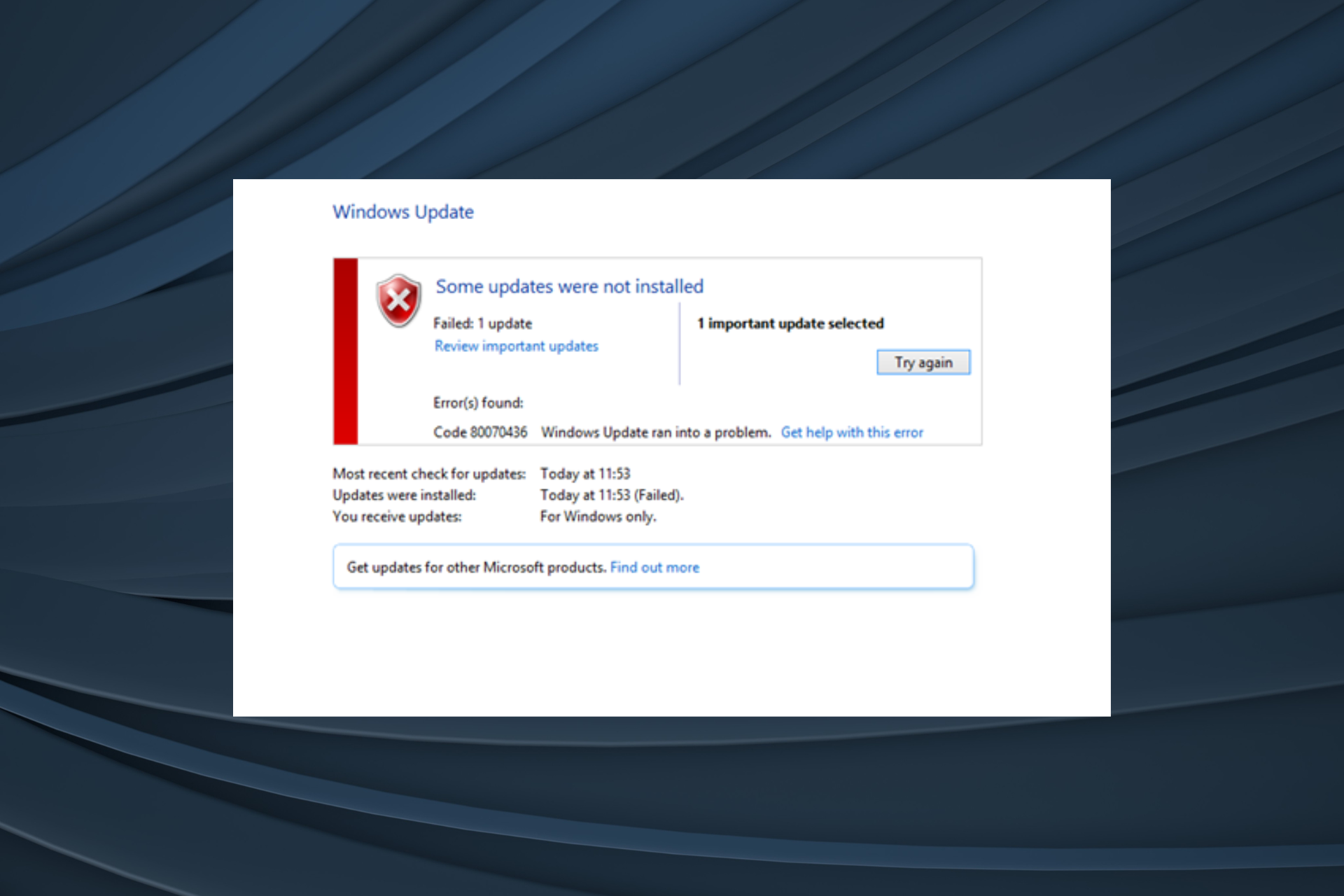
Error Code 80070436: 5 Permanent Solutions you Can Use

Windows update errors usually appear out of the blue and can affect both OS and driver updates. Every user has, at some point, encountered the problem. The Windows Update Error Code 80070436, seems quite prevalent and shows up on all recent iterations of the OS.

But more than any other, the error code 80070436 appeared on Windows 8 after Microsoft ended support for it. That shouldn’t be the case anymore for most of you, but our solutions also help with that. So, let’s get to them!

What is code error 80070436?

Code 80070436 falls in the category of Windows Update errors and is usually easier to fix than similar update errors. There are a handful of reasons that trigger it, which makes troubleshooting simpler. Here are the reasons:

How can I fix error code 80070436?

Before we head to the slightly complex solutions, here are a few quick ones to try:

If these don’t work, move to the fixes listed next.

1. Run the dedicated troubleshooter

  1. Press Windows + I to open Settings, and click on Update & Security.update & security
  2. Navigate to the Troubleshoot tab, and click Additional troubleshooters on the right.additional troubleshooters
  3. Select Windows Update and click on the Run the troubleshooter button.troubleshooter to fix code 80070436
  4. Wait for the troubleshooter to run and make the changes it recommends.windows update

One of the simplest and quicks ways to fix Code 80070436 or any other update error is to run the dedicated Windows Update troubleshooter. However, it wouldn’t be effective in every case.

2. Repair or replace corrupt system files

  1. Press Windows + R to open Run, type cmd, and press Ctrl + Shift + Enter.cmd
  2. Click Yes in the UAC prompt.
  3. Now, paste the following three commands individually, and hit Enter after each:DISM /Online /Cleanup-Image /CheckHealth DISM /Online /Cleanup-Image /ScanHealth DISM /Online /Cleanup-Image /RestoreHealth
  4. Next, run the following command for the SFC scan:sfc /scannowsfc scan to fix code 80070436

There is also specialized repair software that can automatically fix corrupt system files by replacing them with fresh ones in just a few minutes.

3. Reconfigure component services

  1. Press Windows + R to open Run, type dcomcnfg.exe in the text field, and hit Enter.dcomcnfg.exe
  2. Expand Component Services from the navigation pane, and then choose Computers under it.computers
  3. Right-click on My Computer, and choose Properties.properties
  4. Navigate to the Default Properties tab, select Connect under Default Authentication Level, choose Identify under Default Impersonation Level, and click on Apply.change default properties to fix code 80070436
  5. Click Yes in the confirmation prompt.confirm

Once done with the changes, check whether the Code 80070436 disappears and you are able to install the latest updates.

4. Download updates from the Microsoft Update Catalog

  1. Identify the KB (Knowledge Base) number for the failed update from the Update History.update history
  2. Now, go to Microsoft Update Catalog, type the KB number in the search field, and hit Enter.search update to fix code 80070436
  3. Click on the Download button next to the update that best matches the system architecture. Also, the name appearing in Update History and the catalog would be the same.download
  4. Next, click the link that appears in the new window to start the download.link
  5. Once downloaded, run the setup and follow the on-screen instructions to complete the process.

Using the Microsoft Update Catalog, you can download and install any OS version that throws an error with Windows Update. Besides, if you were encountering Code 80070436 with a driver update, head to the manufacturer’s website to manually install the driver.

5. Perform an in-place upgrade

  1. Go to Microsoft’s official website, and click on the Download tool now button to get the Media Creation Tool for Windows 10.download windows 10
  2. Once done, run the tool, and click Yes in the prompt, and wait for the setup to initialize things.wait
  3. Now, click on Accept to agree to Microsoft’s license terms and policies.accept
  4. Choose Upgrade this PC now, and click Next.upgrade this PC now to fix code 80070436
  5. Wait for the download to complete and follow the on-screen instructions to complete the in-place upgrade.in-place upgrade to fix code 80070436

An in-place upgrade is a quick way to fix things when you get the Code 80070436 while updating Windows. Besides, it also boosts the system’s performance and helps get rid of several other issues. And you don’t lose installed apps or personal files during the process.

If you frequently face such issues, check our curated list of the best Windows update repair tools to eliminate the problem quickly.

Tell us which fix worked for you in the comments section below.

Grab more free Xbox One Games With Gold titles from Japan and South Korea

Apparently, someone on Reddit figured out a way to get Xbox One Games with Gold free when offered in other regions. Redditor SombreBag offered a method to get PowerStar Golf on Xbox One for free. Several other Redditors indicate other games that they have downloaded to their Xbox One for free over the years.

It appears that the reason for is that Xbox One games are region-free and you don’t need a specific Xbox One region to download these games. You can’t use this same method on Xbox 360 games because they are region-locked.

I haven’t tried this method yet, so I am not sure if it works on on Xbox One games in other regions. However, if you already have Games with Gold, you can try out this method and see if you have any luck. I am content with all the Xbox One Games with Gold that I currently own. However, if you are looking to add more Xbox One games to your library, give this method a try and see if it works.

Official Kodi app returns to the Xbox One

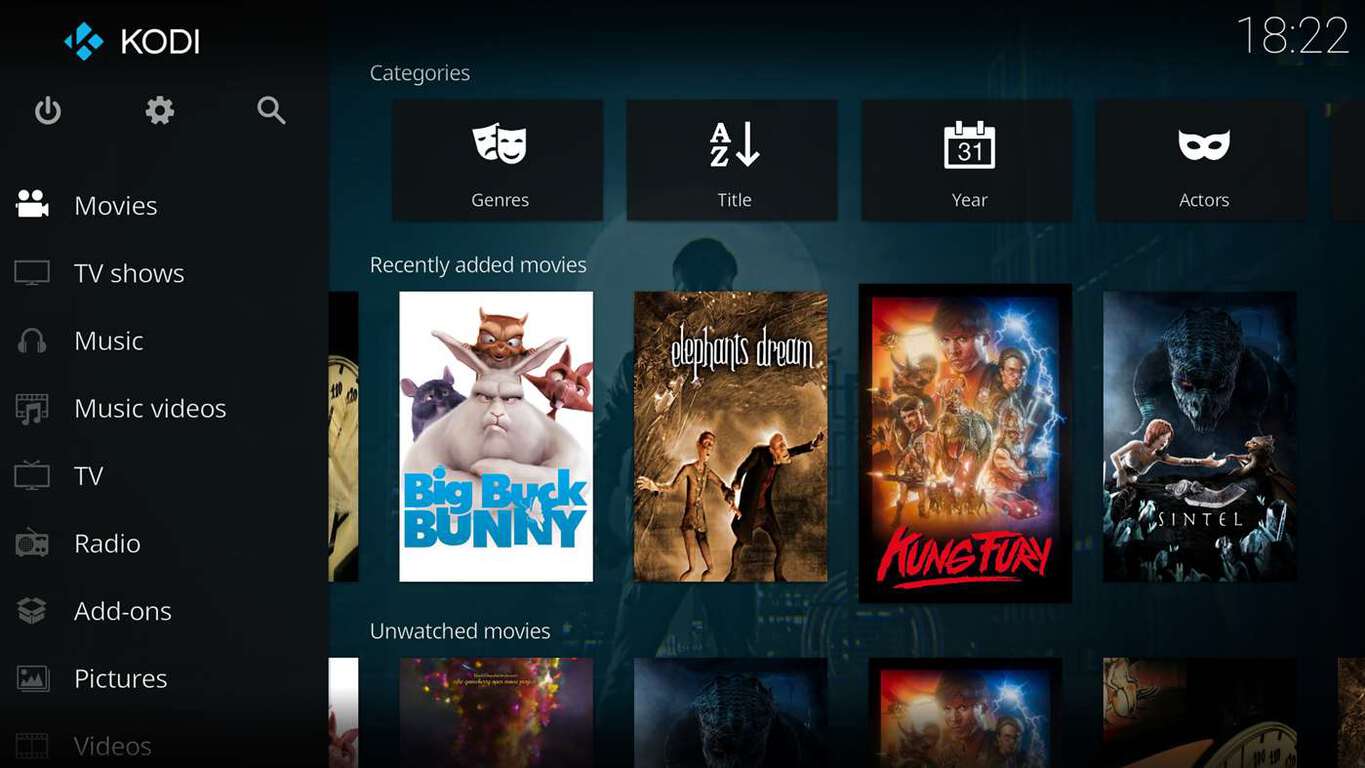
After launching in preview on the Xbox One in December, media center app Kodi disappeared from the Xbox Store last week. At the time, the developer said that it was working on the problem with Microsoft, and we’re happy to report that the app is now back to the store, with some bug fixes along the way.

Despite the limitations of Microsoft’s UWP platform, Kodi has the potential to become one of the best media apps available on the Xbox One. “We cannot promise to what extend we can get every feature working as it all depends on what is available to us developers,” a previous blog post noted. You can download Kodi on your Xbox One with the download link below, be aware that you’ll need to provide your own content from a local or remote storage location to make good use of it.

Kodi
Kodi
Developer:
XBMC Foundation
Price:
Free

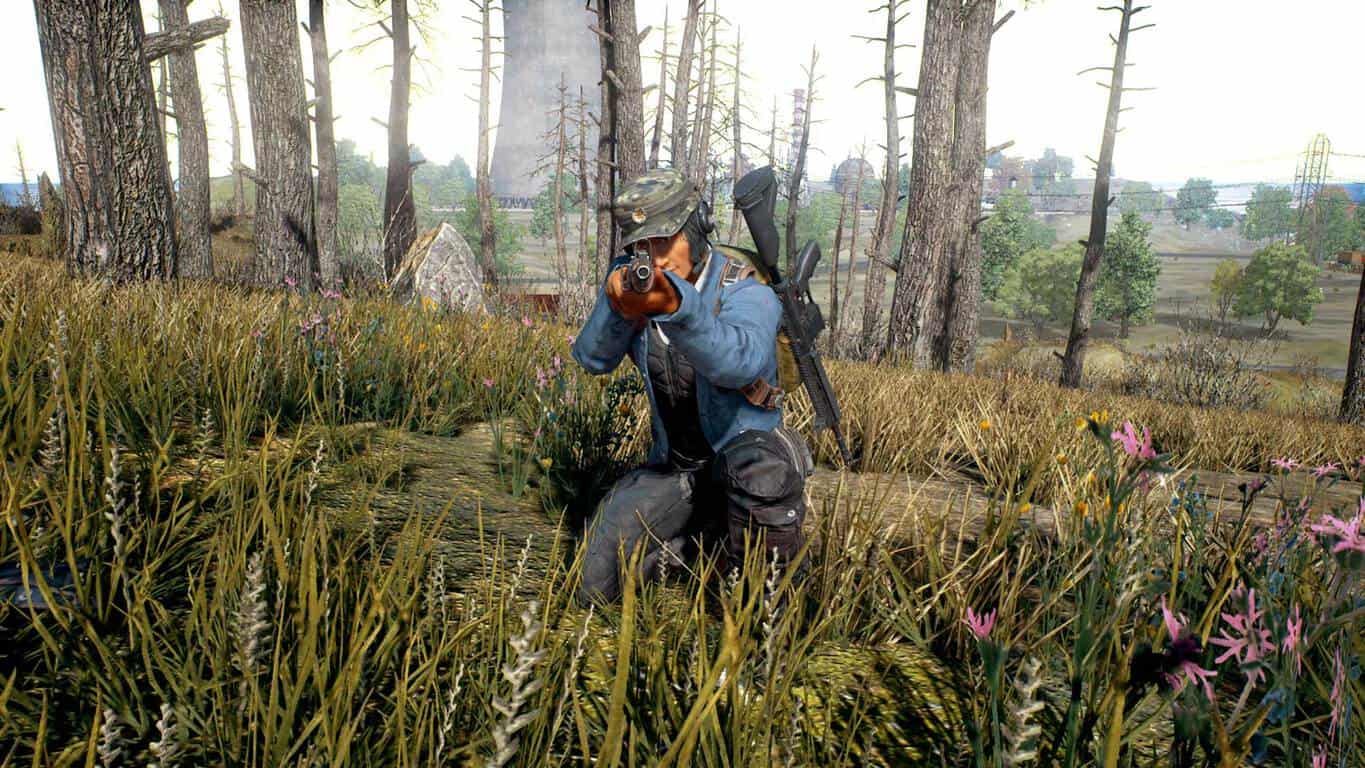
PlayerUnknown’s Battlegrounds (PUBG) gains gameplay improvements in latest Xbox One update

The latest update for PlayerUnknown’s Battlegrounds (PUBG) should now be live for all Xbox One gamers. This update adds a variety of performance and gameplay updates that should improve the experience for those testing out this Game Preview title enormously.

Of particular note in this update is the new controller options for equipping pistols and changes made to the PUBG’s rubber banding, a system which artificially tries to bring all players onto the same difficulty level. Here’s the full release notes.

Gameplay

  • Pistols have been removed from Y button’s weapon rotation and grouped with the melee weapon.
  • Players can now equip pistols by pressing ‘up’ on the D pad.
  • Optimization
  • Continued improvements related to player “rubber banding”.
  • Enhanced server performance while parachuting.

Option

  • Added a new controller preset to options menu.
  • Type B (new preset) now supports:
  • Holding LT to aim down sight.
  • Holding LB to use 3rd person perspective aim sight.
  • Controller guide has been updated to include  the new controller preset.

Bug fixes

  • Fixed an issue where players repositioned out of the battleground after certain actions and remained invulnerable until the end of the match.
  • Additional memory and non-memory related crash fixes.
  • Fixed the inability to join duo/squad through invites outside of game.
  • Known issues to be addressed next patch:
  • Dropping objects causes the player to switch weapons.
  • User is unable to switch grenade types when tapping right on the D-Pad.

PlayerUnknown’s Battlegrounds was one of the most popular video games on PC in 2017 and has already crossed the 3 million player milestone on Xbox One since launching in Game Preview last month. Are you playing PUBG? Let us know what you think of it so far in the comments below.

How to fix error 80070490 on all Windows versions

Whenever you use Windows Update or Microsoft Update to install updates on your computer, you may encounter some errors in the process.

One of these is error 80070490, which arises if the Component-Based Servicing (CBS) manifest is corrupted.

This is normally caused by inconsistencies in the operating system and is a serious hint toward an unstable system (in some cases it may be caused by a faulty hard drive).

It indicates a corrupted system file, so you need to perform an in-place upgrade or reinstall the operating system as the CBS manifest is corrupted.

Without further ado, check out some solutions you can use for different Windows operating systems including Windows 8.1, 7, Vista and XP to fix error 80070490.

Steps to fix Windows error 80070490

  1. Use System File Checker
  2. Run System Update Readiness tool
  3. Run DISM tool
  4. Manually reset Windows Updates components

1. Use System File Checker to repair damaged Windows files

A System File Checker scan checks or scans all protected system files, and then replaces the incorrect versions, with the genuine, correct Microsoft versions.

Here’s how to do this:

Fix Error 80070490
Fix Error 80070490
Fix Error 80070490

Restart your computer and try to install updates again.

If using System File Checker doesn’t help you fix error 80070490, try the next solution.

2. Run System Update Readiness tool

If you still cannot fix error 80070490 after an SFC scan, then use the System Update Readiness tool to fix Windows corruption errors, then install the Windows update or service pack again.

This tool is used because inconsistencies are found in the Windows servicing store, which may prevent the successful installation of future updates, service packs, and software.

It checks your computer for such inconsistencies and tries to resolve issues if found.

Fix Error 80070490

If running the System Update Readiness tool doesn’t help you fix error 80070490, try the next solution.

3. Run DISM tool

The Deployment Image Servicing and Management (DISM) tool helps you to fix Windows corruption errors when Windows Updates and service packs fail to install due to corruption errors, like if you have a damaged system file.

Fix Error 80070490

Once the repair is complete, reboot your computer and check if the problem persists, after which you can run an SFC scan as described in the next solution.

Note icon NOTE
The DISM tool usually takes 15 minutes to complete, however, sometimes it may take longer. Do not cancel when it is running.

If running the DISM tool doesn’t help you fix error 80070490, try the next solution.

4. Manually reset Windows Updates components

Disclaimer: this solution contains steps that are part of modifying the registry. Please note that serious problems may occur if you do this incorrectly. Ensure you follow these steps correctly, and carefully.

Back up the registry before you modify it, then restore it if a problem occurs.

Follow these steps to manually reset the Windows Updates Components:

Fix Error 80070490

Try running Windows Updates again to check if you manage to fix error 80070490 on your computer.

Note icon NOTE
It isn’t recommended to uncheck the Give me updates for other Microsoft products when I update Windows update option. Windows Updates downloads and installs updates required to run Windows efficiently.

If you get ‘Access Denied’ when trying this step, do the following:

Fix Error 80070490
Fix Error 80070490
Fix Error 80070490
Fix Error 80070490
Fix Error 80070490

Once you complete the process, go to Services window again and start Windows Update service, then restart the computer.

Did any of these solutions help you fix error 80070490 on your computer? Let us know your experiences by leaving a comment in the section below.

Star Wars Battlefront II is getting its next update today on Xbox One & PC

Star Wars Battlefront II will be getting an update during the next 24 hours on all platforms. Referred to as Patch 1.1, it’s unclear exactly what this update will include however it has been confirmed that servers will go offline on Xbox One around 2 AM PT and at 12 AM PT on PC.

This update window coincides with the end of the first in-game season which was based on the latest Star Wars film, The Last Jedi. New characters and locations have been confirmed for future updates but it’s unknown if such new content will be added today. Something that is likely to be added or changed with this update is a variety of balancing adjustments for Troop classes and several bug fixes to improve the gameplay experience for everyone. Full release notes will be published once this update goes live and we’ll make sure to report on them here.

Are you playing Star Wars Battlefront II on your Xbox One or PC and are you enjoying it? Let us know what you’d fix in future updates in the comments bellow.

Microsoft Solitaire is stuck on loading: Here’s how to fix it

Solitaire is the most played computer game of all time because its rules are simple, the gameplay is straightforward making it easy to pick up for everyone, plus it chases away the Monday blues when you don’t feel like crunching numbers at the office.

Despite being a part of Windows for more than 25 years, problems may still arise either before, during, or after gameplay, some of which you may not immediately know how to work around or fix.

One such problem is when Microsoft Solitaire is stuck on loading, but we have the solutions to help you resolve it.

FIX: Microsoft Solitaire is stuck on loading

  1. Restart your PC/device and run the app troubleshooter
  2. Change to a non-metered internet connection
  3. Update your graphics card drivers
  4. Start your computer in Safe Mode with Networking
  5. Perform a Clean Boot
  6. Run DISM tool
  7. Perform an SFC scan
  8. Update Microsoft Solitaire
  9. Sync Microsoft Solitaire app license
  10. Check Xbox Live Service status
  11. Uninstall and reinstall Microsoft Solitaire
  12. Make sure your firewall or antivirus isn’t blocking the app

1. Restart your PC/device and run the app troubleshooter

Before restarting, save your work and close any open apps.

If there’s a Power icon on your start screen, click on it and then select Restart. You can also click Start> Settings> Power> Restart.

After the restart, run the app troubleshooter which helps fix any problems with apps from Microsoft Store.

fix microsoft solitaire

2. Change to a non-metered internet connection

If your internet connection is metered, meaning it has a data limit associated with it, then you may have to change to a non-metered connection if Microsoft Solitaire is stuck on loading.  Some apps work differently on metered connections so as to reduce data usage. To change a metered connection to a non-metered one, do the following:

Microsoft Solitaire is stuck on loading

3. Update graphics card drivers

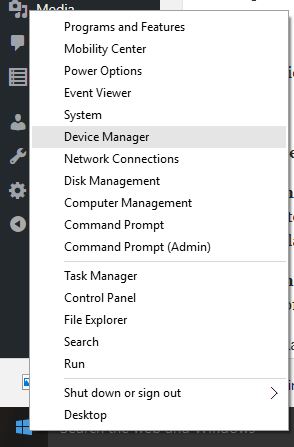
  • Right click Start
Microsoft Solitaire is stuck on loading
  • Select Device Manager
Microsoft Solitaire is stuck on loading
  • Click on Universal Serial Bus Controllers to expand the list
Microsoft Solitaire is stuck on loading
  • See whether there are any devices with either a yellow exclamation mark, question mark, down-arrow mark, or an error notification or code.
  • If the driver has a yellow exclamation mark on it, double click on it then open Properties
  • Under Drivers tab, choose Update Driver
Microsoft Solitaire is stuck on loading

Windows will find the appropriate driver for your video card or graphics driver.

Note: You may need to know the name of your graphics or video card, for instance, if it is NVIDIA, AMD, or Intel, because then you’d have to download directly from the website of either of these.

2.1 Update drivers automatically

If you cannot update the drivers using this method, we strongly recommend doing it automatically by using specialized software.

A dedicated third-party tool will help you update drivers automatically and avoid PC damage caused by installing incorrect driver versions. Following several tests, our team concluded that it is the best-automated solution.

⇒ Get Fortect Driver Updater

4. Start your computer in Safe Mode with Networking

    • Click Start
    • Select Settings
Microsoft Solitaire is stuck on loading
    • Select Update & Security
Microsoft Solitaire is stuck on loading
    • Click Recovery
Microsoft Solitaire is stuck on loading
    • Go to Advanced Startup
Microsoft Solitaire is stuck on loading
    • Select Restart Now
Microsoft Solitaire is stuck on loading
    • After the PC restarts, on the Choose an option screen
Microsoft Solitaire is stuck on loading
    • Select Troubleshoot
Microsoft Solitaire is stuck on loading
    • Select Advanced options
Microsoft Solitaire is stuck on loading
    • Select Startup Settings
    • Click Restart
    • After the PC restarts, select a startup settings as Safe Mode with Networking by pressing the corresponding number

If Microsoft Solitaire is stuck on loading doesn’t persist in Safe Mode with Networking, perform a clean boot as described in the next solution.

5. Perform a Clean Boot

Performing a clean boot for your computer reduces conflicts related to software that can bring up the root causes when Microsoft Solitaire is stuck on loading. These conflicts can be caused by applications and services that start up and run in the background whenever you start Windows normally.

In order to successfully perform a clean boot, you have to be logged on as the administrator, then follow these steps:

    • Go to the search box
    • Type msconfig
Microsoft Solitaire is stuck on loading
    • Select System Configuration which displays the System Configuration box as shown below:
Microsoft Solitaire is stuck on loading
    • Find Services tab
Microsoft Solitaire is stuck on loading
    • Select Hide all Microsoft services box
Microsoft Solitaire is stuck on loading
    • Click Disable all
    • Go to Startup tab
    • Click Open Task Manager
Microsoft Solitaire is stuck on loading
    • Close Task manager then click Ok
    • Reboot your computer

You will have a clean boot environment after all these steps are carefully followed, after which you can try and check if the problem persists.

6. Run DISM tool

The Deployment Image Servicing and Management (DISM) tool, helps fix Windows corruption errors when Windows Updates and service packs fail to install due to corruption errors, like if you have a damaged system file.

    • Click Start
    • In the search field box, type CMD
    • Click Command Prompt in the search results list
Microsoft Solitaire is stuck on loading
    • Type Dism /Online /Cleanup-Image /ScanHealth to scan for missing components
    • Type Dism /Online /Cleanup-Image /CheckHealth to check for missing or broken files
    • Type Dism /Online /Cleanup-Image /RestoreHealth to scan and correct any causes of the Windows 10 desktop is slow to load issue
    • Press Enter

Once the repair is complete, reboot your computer and check if the problem persists, after which you can run an SFC scan as described in the next solution.

7. Perform an SFC scan

A System File Checker scan checks or scans all protected system files, and then replaces the incorrect versions, with the genuine, correct Microsoft versions.

Here’s how to do this:

    • Click Start
    • Go to the search field box and type CMD
    • Right clickCommand Prompt and select Run as Administrator
Microsoft Solitaire is stuck on loading
    • Type sfc/scannow
Microsoft Solitaire is stuck on loading
    • Press Enter
    • Restart your computer

8. Update Microsoft Solitaire

Check for any Windows updates on your computer if Microsoft Solitaire is stuck on loading.

If you’re using automatic updating, you don’t need to check for important and recommended updates as Windows Updates checks for these and installs them when they are ready.

If you don’t use automatic updating, check for updates manually at least once a week as Windows releases important updates once every month, but they can still be released any time.

Whatever your settings, some updates aren’t automatically installed like optional updates and those that require acceptance for new terms of use.

    • Click Start
    • Select Settings
    • Select Update and Security
Microsoft Solitaire is stuck on loading
    • Select Windows Update
Microsoft Solitaire is stuck on loading
    • Click Check for updates
Microsoft Solitaire is stuck on loading
    • If you find any updates, select Install updates. Read and accept license terms, and then select Finish.

Note: You may need to restart your device to finish installing some updates, so it is advisable to save and close all your files and apps before you restart so you don’t lose anything.

9. Sync Microsoft Solitaire app license

If an app’s license is out of sync with the license on your PC, it may stop working, which may be the reason why Microsoft Solitaire is stuck on loading.

To sync your app licenses, do the following:

    • Click Start
    • Select All Apps
Microsoft Solitaire is stuck on loading
    • Find Store
Microsoft Solitaire is stuck on loading
    • Select Settings
Microsoft Solitaire is stuck on loading
    • Click App updates. If you’re not signed in to Windows Store, sign in with your Microsoft account.
Microsoft Solitaire is stuck on loading
    • Click Sync Licenses

10. Check Xbox Live Service status

Sometimes, if Microsoft Solitaire is stuck on loading, check your Xbox Live Service status for any alerts, and then wait until the service is up and running then try Microsoft Solitaire again.

11. Uninstall and reinstall Microsoft Solitaire

If you don’t usually sign in to Solitaire, then uninstalling the app will erase all your games and progress.

If you do sign in before uninstalling the app, all data is saved in the cloud, and any saved games won’t be lost when you uninstall and reinstall Solitaire.

    • Click Start
    • On the search box, type Microsoft Solitaire collection
Microsoft Solitaire is stuck on loading
    • Right click Microsoft Solitaire and select Uninstall
Microsoft Solitaire is stuck on loading
    • Restart your computer or device
    • Right click Start
    • Select Run
Microsoft Solitaire is stuck on loading
    • Type wsreset.exe and press Enter
Microsoft Solitaire is stuck on loading
    • Reinstall Microsoft Solitaire Collection from Microsoft Store

12. Make sure your firewall or antivirus isn’t blocking the app

The steps to unblock Microsoft Solitaire will vary depending on the antivirus or firewall software you use. Refer to your software documentation to open the settings and ensure the software isn’t blocking the app.

If your antivirus or firewall has an app ‘whitelist’, ensure your Xbox Live-enabled games are on this list.

Let us know if any of the solutions helped fix the problem by leaving your comment in the section below.

Skype adds encrypted conversations to enhance your privacy

Skype is currently one of the few modern messaging applications that do not encrypt communication. This is not the best thing for the app considering that it has over 300 million active users per month and eventually Microsoft seems to understand this.

The company decided that the app finally needs to address this problem. As a consequence, Microsoft introduced end-to-end encrypted Skype messages and audio calls for users who are running Windows, Linux, macOS, Android, and iOS.

Skype received a new feature to enhance privacy

skype private conversation

Skype Insider Program manager, Ellen Kilbourne posted a message on Twitter telling Skype Insiders that a new has just been released and advising them to check out the Private Conversations in the latest build to see how it works.

She also stated that with Private Conversations, users could have end-to-end encrypted Skype audio calls and they can also send messages or files including audio, images, and videos via the standard Protocol by Open Whisper Systems. The content will be hidden in the notification and the chat list in order to maintain the privacy of shared information.

Try the new Private Conversation option

To test the new option, you and your recipient need to have installed Skype version 8.13.76.8. You will be able to be in a private conversation on just one device at a time. On the other hand, you will have the ability to switch the conversation to another one of your devices but the sent and received messages will remain in the device you are using at the time.

You can download the Skype Insider application for Windows from the official website, and if you are an Android user, you will be able to find the app in the Google Store. The new Private Conversations feature is set to roll out to non-Insiders sometime in the forthcoming weeks. We don’t have any details on when the new feature will also hit the Skype UWP application.

RELATED STORIES TO CHECK OUT:
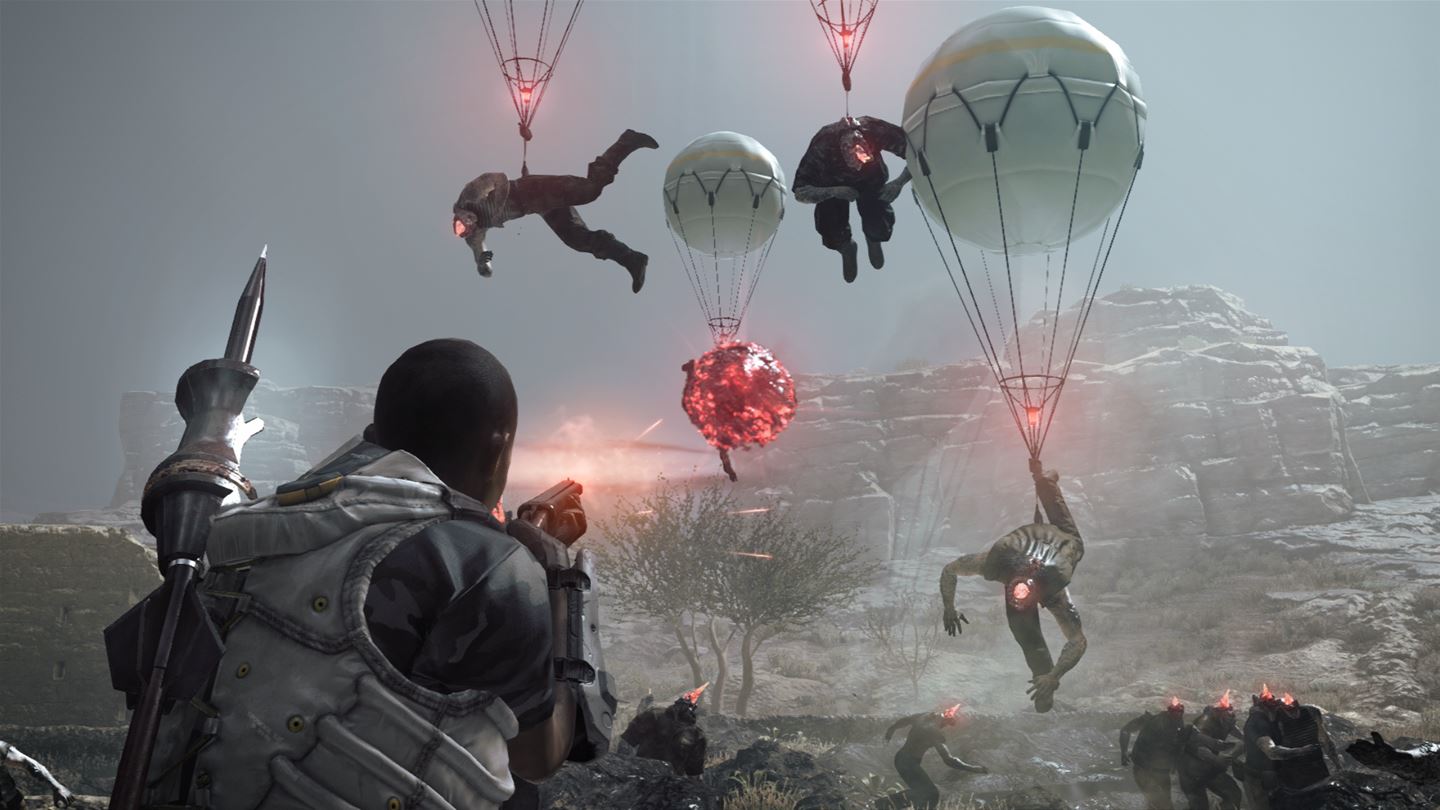
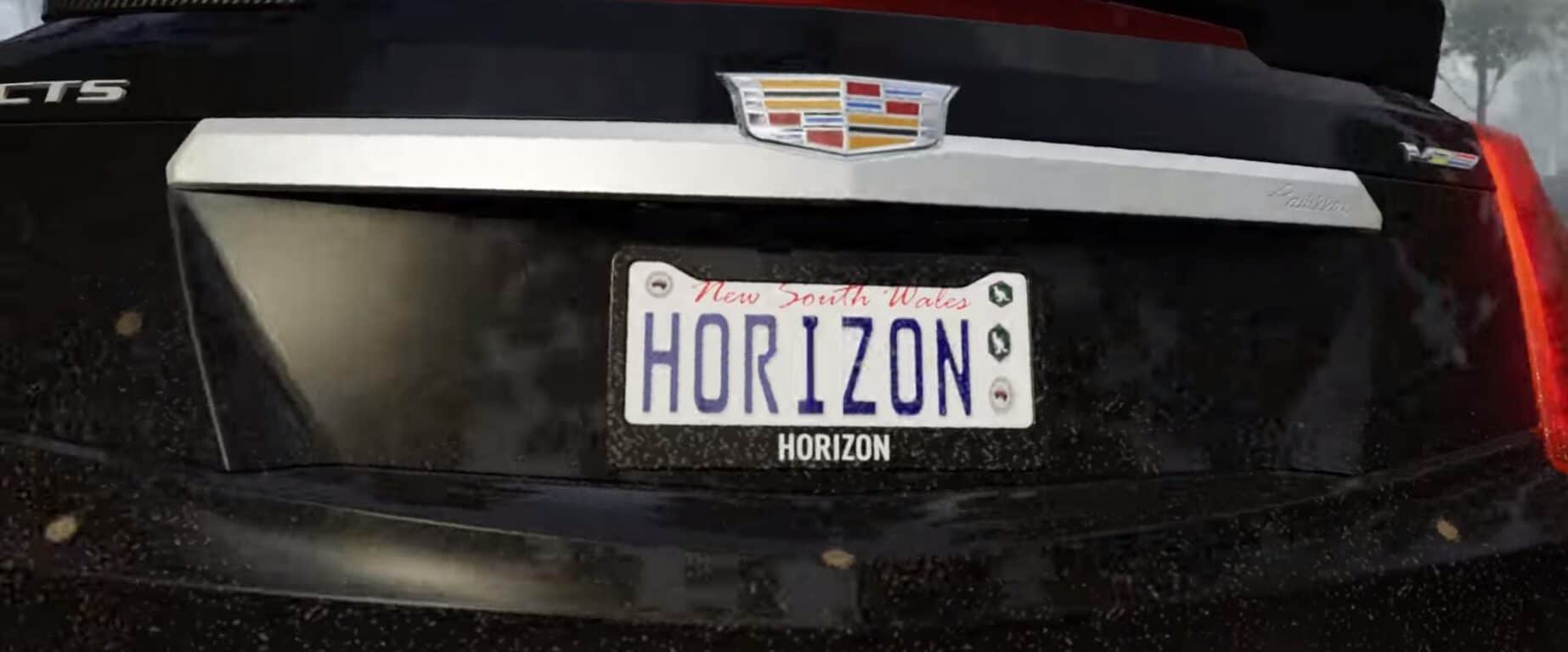
Forza Horizon 3 is now Xbox One X enhanced

As noted by Xbox Wire, Foriza Horizon 3 is the latest Xbox game title to get the Xbox One X Enhanced treatment. As OnMSFT we reported earlier this month, Forza Horizon 3 was in line to get the Xbox One X Enhancement update today and here it is.

Now Xbox One gamers can experience all the enhanced game content in Forza Horizon 3 not only on Xbox One X, but all the other Xbox One consoles too. While only certain game enhancements are available on the Xbox One X, including Native 4K, HDR, and 4K Ultra HD, all Xbox One consoles will see some game display enhancements.

Foriza Horizon 3 lets you roam the Australian Outback in more than 350 of the world’s fastest cars, including the  2017 Lamborghini Centenario. Forza Horizon 3 is an Xbox Play Anywhere title, so you can play on Xbox One or Windows 10.

Get Forza Horizon 3 today.

Microsoft reportedly moving Cortana to Windows 10 Action Center

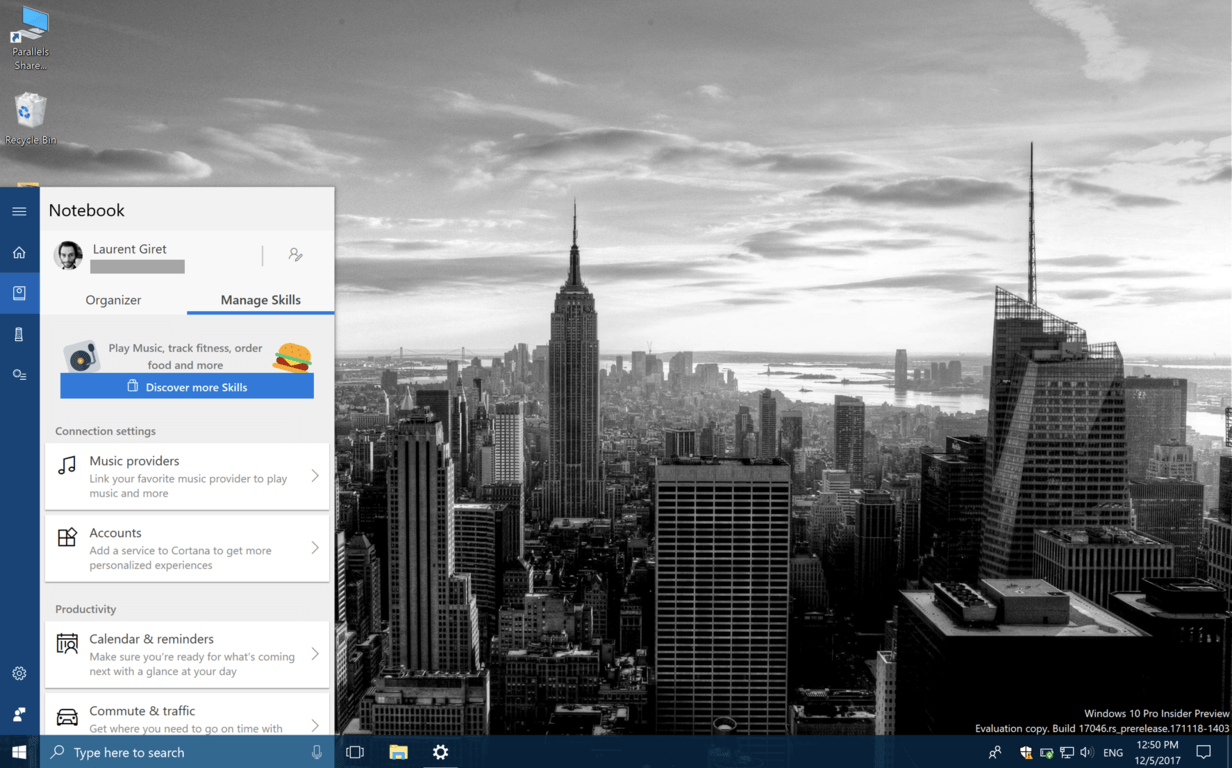
Microsoft is expected to make some big changes for Cortana on Windows 10 this year. We recently learned that Microsoft was testing a new look for Cortana with a windowed UI looking looking very similar to the Spotlight feature on macOS. However, a new report from Windows Central today revealed that Microsoft could go in another direction, and move Cortana to the Windows 10 Action Center.

Last year, two separate reports suggested that Microsoft could move Cortana to the Windows 10 system tray, adding a new conversational UI along the way. A couple of weeks before that, Microsoft also mistakenly posted a picture of a new “Control Center” which included Quick Actions from the current Windows 10 Action Center, plus other handy features such as a brightness slider.

Microsoft mistakenly posted a screenshot of a never-seen-before Control Center last year.

Zac Bowden from Windows Central kind of connected these two changes today. According to his latest report, Microsoft may decouple Cortana from Windows Search and move it to a redesigned Action Center, which could lose Quick Actions:

According to my sources, the Cortana and Action Center combination will allow users to filter between or see Cortana’s cards and notifications together. Cortana’s new chat-based UI will also live in the Action Center as Microsoft going to be moving Quick Actions out of the Action Center and into a new, dedicated Control Center.

The report also included some details about how the redesigned Action Center with Cortana could look like. The good news is that despite the addition of a conversational UI for the digital assistant, voice commands should remain available:

We’re also told Microsoft is working on an updated design for the Action Center that will better fit Cortana’s features and new chat-based UI. Of course, users will still be able to use voice commands to interact with Cortana, with features like “Hey Cortana” remaining intact. It is likely that the addition of Cortana in the Action Center will see the entire Action Center get rebranded, as the “Quick Actions” are moving out of the Action Center anyway.

There are still a lot of unanswered questions, including how these changes will impact users around the world who don’t have access to Cortana. As the digital assistant is currently front and center on Windows 10, you could also argue that burying it within the Action Center will make it even less visible to users.

It’s also not clear what will happen to the windowed UI for Cortana that surfaced in recent Windows 10 Insider builds. Could it survive as an evolution of Windows Search, and become an equivalent to Spotlight in macOS? That could make sense, unless Microsoft prefers to stick with the current Windows Search UI (without Cortana).

New Cortana UI

“We believe Microsoft is hoping to get these changes out in time for Redstone 5 in the fall of this year, but as always, those plans could change,” wrote Windows Central. Do you think it’s time to finally separate Cortana from Windows Search? If so do you think it makes sense to integrate it within the Action Center? Sound off in the comments below.

Latest Xbox One Alpha ring update brings Scheduled Themes and Guide enhancements

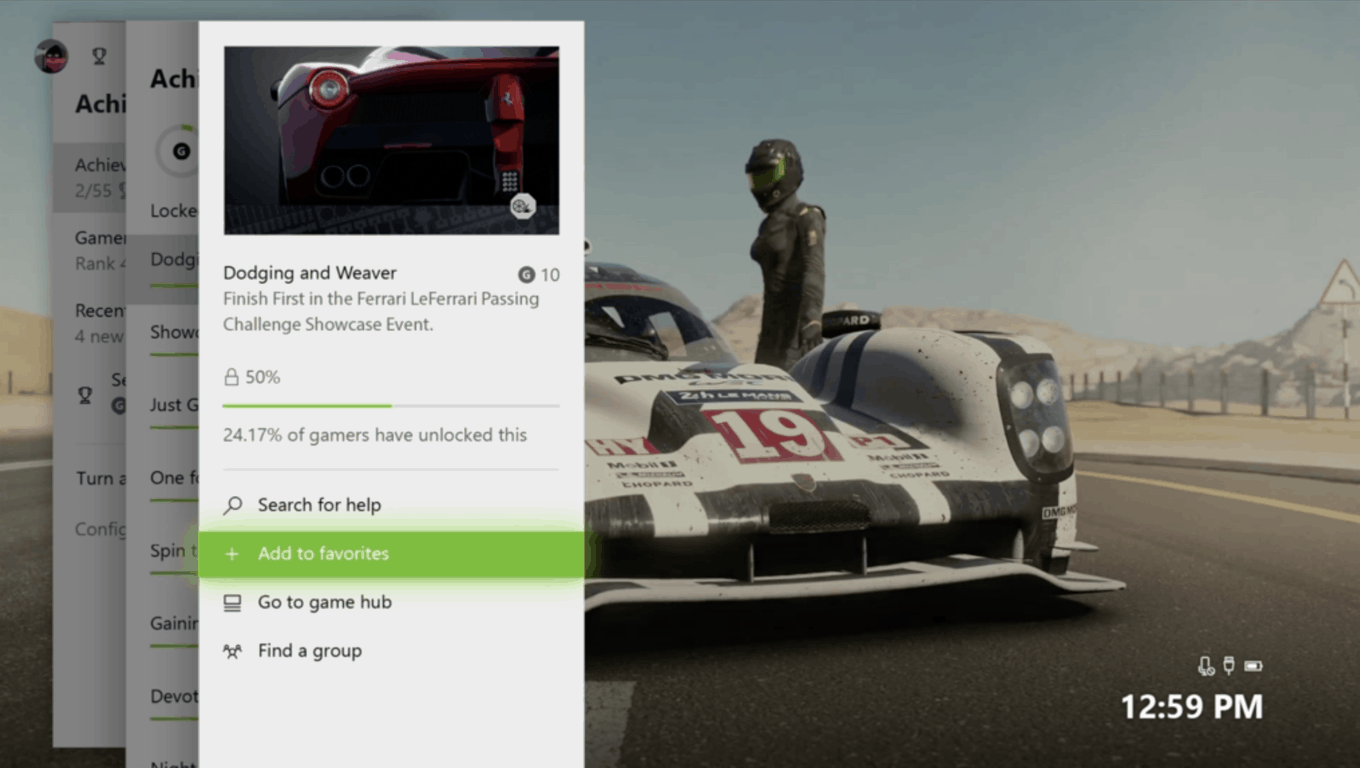
The Xbox team released a new preview build for Preview Alpha Insiders yesterday. The new bits bring a new setting for automatically switching between light and dark themes based on time of day. As a reminder, the Light Theme option was introduced in the Xbox One Fall Update, and it does look pretty good with all the Fluent Design touches that also came with this release.

This latest preview build also introduces a new Game Pass Discovery tile in the Xbox Guide, which will surface random titles from the Xbox Game Pass catalog. You can read the full changelog below:

DETAILS:

OS version released: rs3_release_xbox_dev_1802.180109-1916
Available: 2:00PM PST 1/14/18 (10:00PM GMT 14/1)

NEW FEATURES:

  • Scheduled Themes

You asked—we listened! We’re excited to announce that we’ve added the ability to put your themes on a schedule. In addition to choosing either the light or dark theme, you can now schedule a time to automatically switch between them. Simply follow these steps:
1. Navigate to Settings > Personalization > Theme & motion.
2. Select Scheduled from the “System theme” dropdown.
3. Select the times at which you want the light theme to start and end.

  • Guide Enhancements

A new icon will appear in the Guide. The Guide Game Pass Discovery Tile (the “Surprise me with a random Game Pass Game tile”), now shows in Guide.

FIXES:

  • Screenshots: Fixed an issue which sometimes caused screenshots to fail to display in Report a problem or on the console.
  • Party Chat: Party chat is now fixed to not crash when in the Guide.

KNOWN ISSUES:

  • My Games and Apps: When downloading and installing games the progress bar and the percentage complete are not in sync and show inaccurate data. The games and apps do install correctly.
  • Background Screenshots: Background screenshots are showing up as 4:3 format rather than 16:9
  • Guide/Home crashing: We are aware of the Guide and Home crashing and determined the root cause. A fix is being worked on. Workaround: In the interim please HARD Reboot (Hold the power button for ten seconds)the console to fix this issue.
  • System Update: You may encounter an E105 error when the console starts up after downloading the system update. Workaround: Select the Repair option, and the issue should resolve after rebooting the console.
  • Games Installation: Games that are installed fail to launch. Workaround: If the games are installed to an external drive please copy the game to the internal drive or attempt to delete the title and redownload to fix the launch error.
  • Display: We are investigating the inaccurate RGB colors that have been reported when displaying in 4K HDR mode when playing a UHD disc.
  • Tournaments: The left and right navigation for selecting date and time during Tournament creation is currently reversed when the console language is set to Arabic or Hebrew.
  • Left and right navigation in Tournament twists is reversed when the console language is set to Arabic or Hebrew.
  • Left and right navigation in the bracket view of Tournaments is reversed when the console language is set to Arabic or Hebrew
  • Avatars on Home: Users wishing to represent themselves as an avatar can do so by changing their settings under My profile > Customize profile > Show my avatar.

We’re still waiting for the first “1802” builds to roll out to other Insider rings, and we’ll let you know as soon as we get more information about it. Let us know in the comments if you like these latest changes to the Xbox One OS.

Microsoft is bring back “The Duke,” Xbox’s original controller

As OnMSFT reported earlier this year, there were plans to bring back “The Duke,” Xbox’ original controller. Now, it looks like we will actually see The Duke soon. In a tweet, the so-called “father of Xbox,” and head of Hyperkin, Seamus Blackley revealed that The Duke will be available at the end of March 2018 for $69.99.

As noted in a report by Eurogamer.net, The Duke is being released in a special partnership with Xbox and Hyperkin. Blackley is not releasing an identical version of The Duke.

The Duke will be updated to work on your Xbox One console. While the button placement and form factor will be nearly identical, The Duke lost its memory card slots and added small shoulder bumpers to make the controller able to play Xbox One games. The Duke is also a wireless controller that can work on your Xbox One console or Windows 10 machine.

Blackley decided to revive The Duke due to fans’ overwhelming requests for the clunky and old Xbox accessory. In this iteration, Blackley was able to design The Duke in the way he originally imagined: complete with a new OLED screen on the center of the controller; When you press the Xbox button, the classic Xbox startup animation will play.

Look for The Duke to be available for $69.99 in March 2018 for sale in the Microsoft Store.

Seattle’s conference center holding dates open for Build 2018 and 2019

Microsoft’s annual developer conference, Build, up until this past year has been held at San Francisco’s Moscone Center, but that venue was in the middle of a big remodeling project last year, so Microsoft switched things up and held the 2017 event in Seattle. While the Washington State Convention Center, located in the heart of downtown Seattle, had a few issues last year, the location also allowed for much more interaction between attendees and Microsoft employees.

The company hasn’t made any announcements about this year’s Build, but Rafael Rivera came across some interesting notes in the latest Convention Center Board of Directors minutes:

https://twitter.com/WithinRafael/status/951965834108260352

The last line in the entry says “Dates are being held for BUILD in 2018 and 2019.” We should be hearing soon from Microsoft as to the dates and place for Build 2018, the conference is usually held in April or early May.

Will you be attending Build (we will, of course, and will bring you all the latest news)? Do you want to visit Seattle? Let us know in the comments below.

Microsoft’s stock Messaging app gets the Fluent Design treatment on Windows 10

Since Microsoft stopped its “Messaging Everywhere” experiment two years ago, the Windows 10 Messaging app has become pretty useless on PCs. The app can still sync text messages from a Windows 10 Mobile handset as of today, but it can’t be used to send text messages from your PC. To do that, you have to use Cortana or the unreliable “SMS Relay” feature in the Skype UWP app.

Still, the Windows 10 Messaging app received a Fluent Design update in the Windows 10 Insider build 17074 (via Windows Central). The universal app rarely gets updated these days, and for now, this latest version with Fluent Design isn’t available on Windows 10 Mobile.

Why did Microsoft take the time to update this app on the desktop, you may ask? Well, the Windows 10 Messaging app is still useful for PCs with cellular modems, as it can show you texts messages from your mobile operator about your data plan. More importantly, this app as is still a key app on Windows 10 Mobile phones, and we also expect to see it on “Andromeda,” the foldable mobile device with phone capabilities that Microsoft is reportedly working on.

Anyway, Microsoft’s stock Messaging app is apparently here to stay, and we hope it will get more useful in the near future. It should be once Always Connected PCs start to hit the PC market later this year.

Xbox news recap: Xbox One outsells PS4 in December, Xbox One to change theme based on time of day

Welcome to our weekly Xbox news recap series, where we go over the top stories of the past week in the world of Xbox. Let’s get started.

Xbox One outsells PS4 in December

The PS4 has been outpacing the Xbox One since the beginning of the generation. Sony has had a massive advantage for a very long time now, but Microsoft has slowly been catching up. It was reported recently that the Xbox One actually outsold the PS4 in December, marking a pretty great month for Microsoft’s console. It is important to note, however, that the Nintendo Switch – being a much newer console – outsold both of them.

Xbox One to change theme based on time of day

The light and dark themes on Xbox One are a huge asset for people, for several reasons. Some people have trouble focusing on a dark theme, some people prefer a brighter UI, and others just want the extra option to differentiate themselves from the rest of Xbox users. With a new change added to the Xbox Insider program, users can now set their themes to change based on the time of day. Prefer the dark theme during the night time, but want to bask in the light in the morning? You can do that.

The Kodi Xbox One app becomes unavailable

The Kodi media app for Xbox One briefly became unavailable this week, causing making it so nobody who didn’t already have the app could get their hands on it. At the time of writing, the Kodi app has become available again – but Kodi didn’t offer any explanation as to how this happened in the first place. Thankfully, this didn’t end up becoming a long-standing problem.

Plex on Xbox gets several fixes and improvements in new update

Plex has gotten a new suite of changes and improvements in its latest update, giving Xbox users a few more toys in their media center. The app now has new players for photos, audio, and video content, and it also supports several new video containers. Additionally, you’ll find the set of bug fixes that usually come with every update. You can find the full set of patch notes right here.

Thanks for joining us. To keep up to date with all the latest Xbox news, keep a close eye on our Xbox One tag.

Windows 10 news recap: Amazon to bring Alexa to select Windows PC’s, Microsoft launches, then pauses, patches for Spectre and Meltdown

Welcome back to our Windows 10 news recap, where we go over the top stories of the past week in the world of Microsoft’s flagship operating system.

Amazon to bring Alexa to select Windows PC’s

Alexa is now quite possibly the most famous digital assistant, eclipsing even Apple’s Siri as the go-to mascot for electronic helpers. At CES 2018, Amazon announced that they would be tying Alexa in with Windows 10 PC’s, starting with some select Acer, Asus, HP, and Lenovo machines later this year. Amazon’s move is some direct competition for Windows 10’s Cortana, which is already doing some integration with Alexa to give it a presence on Windows 10 PC’s.

https://twitter.com/amazonecho/status/950472430933422080

Microsoft launches, then pauses, patches for Spectre and Meltdown

Microsoft put out some patches earlier in the week to try and deal with the malicious Spectre and Meltdown vulnerabilities, but there’s one issue: Machines that were running AMD processors were not taking the update very well. Several reports came in after the patch was pushed out saying that computers were becoming un-bootable if they downloaded the patch on an AMD processor. Needless to say this was a huge issue, and Microsoft had to pause the update for anyone that could be affected.

Developers can now add paid subscriptions to apps

Subscriptions have long been a successful way to monetize applications, and Microsoft is helping developers take advantage of that payment method in their Windows 10 apps. Developers will receive 85% of the subscription price, minus applicable taxes for apps. For games, developers get 70% of the subscription price, minus any taxes. This should go a long way towards helping developers appropriately price their products, and make a living off of their work.

Windows 10 Fall Creators Update now fully available

After nearly 3 months since its initial roll-out, the Windows 10 Fall Creators Update is now fully available. Microsoft has finished giving every Windows 10 PC the new features and tweaks that the Update brought along – and it should probably be installed for you as we speak. If you still have the Anniversary Update on your computer, you should soon be getting a notification telling you that “Important Updates are pending,” which will prompt you to get the new build.

That’s it for this week. We’ll be back next week with more Windows 10 news!

Download this tool to check if computer is vulnerable to Meltdown & Spectre

Meltdown and Spectre are the two words on everybody’s lips these days. Many computer, phone and server users still worry about the risk of falling victims to this vulnerability, although Microsoft already released a series of updates aimed at patching these security issues.

At the same time, you should also know that these patches may trigger performance issues on certain computers. As a matter of fact, Microsoft already acknowledged this problem officially and is working on mitigating its effects.

So, taking into account this fact, many users are wondering if they should install the latest Windows updates after all since they’re known to cause many issues. Of course, nobody wants to have a computer that’s as slow as a snail, but users don’t want to risk exposing their devices to cyber threats either.

Meet Ashampoo’s Spectre Meltdown CPU Checker

Ashampoo recently introduced a dedicated tool that allows you to verify if your computer is indeed vulnerable to Meltdown & Spectre.

The tool is very easy to use: once you download it, you can start the scanning process and after a couple of minutes, you’ll know whether your PC is in any danger or not.

If the result is positive and your CPU is vulnerable to these threats, you can click on the “What should I do” option to learn how you can protect your computer. The link will take you to Ashampoo’s page where you can read more on how you can keep your machine safe from threats. Basically, the best and quickest solution is to install the latest Windows, BIOS, graphics driver versions and browser updates.

I downloaded the tool and tested my computer and the result was positive.

CPU vulnerability checker

As a result, I installed the latest Windows updates so my good old HP laptop should be safe now.

Download Ashampoo’s Spectre Meltdown CPU Checker.

How to disable ”Microsoft Edge is safer than Chrome” pop-up

Windows 10 updates brought a lot of improvements over time, with mostly positive reactions from the community. However, those pushy notifications, Start-based ads, and all-around irritable advertisement strategy in Windows 10 spoiled it a bit. Just like the notification which benevolently informs you that Chrome/Firefox are bad for your battery life and that Edge is the real deal.

We understand that Windows needs all the instruments in order to make Edge a competitive solution, especially after that inexplicable horror which Internet Explorer was. But not with the constant ads directed against mainstream browsers, like Chrome or Firefox, popping out in Windows.

Fortunately, there’s a simple way to disable this push-notifications, even though they should be off by default. Below is explained how to do it.

How to disable Edge advertisement pop-ups in Windows 10

Imagine using Chrome or Firefox on your laptop and a sudden dialog box appears in the notification area, informing you that Edge won’t hog on your battery like those two. In addition, it’ll inform you Edge is faster and better for you in any manner imaginable. This is just a tip, of course. It’s not a commercial, not at all.

Joke and mocking aside, you can disable this in a simple manner, so there’s that. Follow the steps below to disable these irritating tips and continue using your browser of choice. Even if that’s Edge.

  1. Press Windows + I to open the Settings app.
  2. Open the System section.disable microsoft edge is safer than chrome popup
  3. Select Notifications & actions from the left pane.disable microsoft edge is safer than chrome popup
  4. Scroll down and disable Get tips, tricks, and suggestions as you use Windows.disable microsoft edge is safer than chrome popup
  5. Close the window and you should be in the clear.

That’s it. We hope that this practice won’t continue with the further updates since it received a huge backlash from the community, undermining the addition of valuable features and valid improvements to the platform.

What’s your opinion on the subject? Are you bothered with the Microsoft’s approach in the matter?

Make sure to tell us in the comments below.

RELATED STORIES YOU SHOULD CHECK OUT:
Xbox outsells PS4 in December (but Switch outsold them all) says Aaron Greenberg

According to a series of tweets from Microsoft’s Head of Xbox Games Marketing Aaron Greenberg, the Xbox outsold the PS4 in the month of December (via gamesindustry.biz.) The Nintendo Switch still outsold both Xbox and PS4, and Greenberg is citing unreleased NPD group marketing data in his tweets as a reason for his claims.

This is still reasonably significant for Microsoft since December falls in the holiday season, the time when most people are shopping for new consoles as gifts. The Xbox One X also likely contributed to this success and probably resonated with consumers since Microsoft marketed it as the most powerful console ever.

Greenberg, though, mentioned “Xbox One” in his tweet, so the Xbox One S and other Xbox One offerings likely also are considered as part of this data. As you may recall, the Xbox One S sold at the cheapest price ever this year, and Microsoft pushed it as a low-cost holiday alternative.

Microsoft Launcher beta testers get a new version, too – here’s what’s new in 4.5

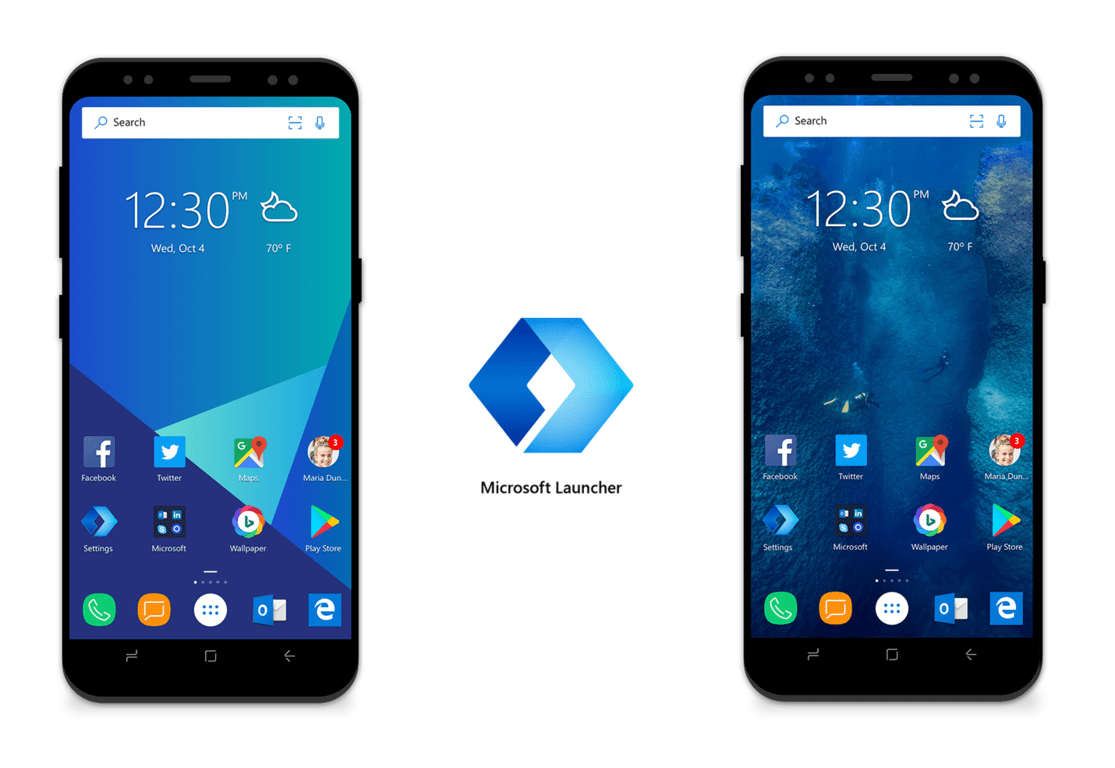
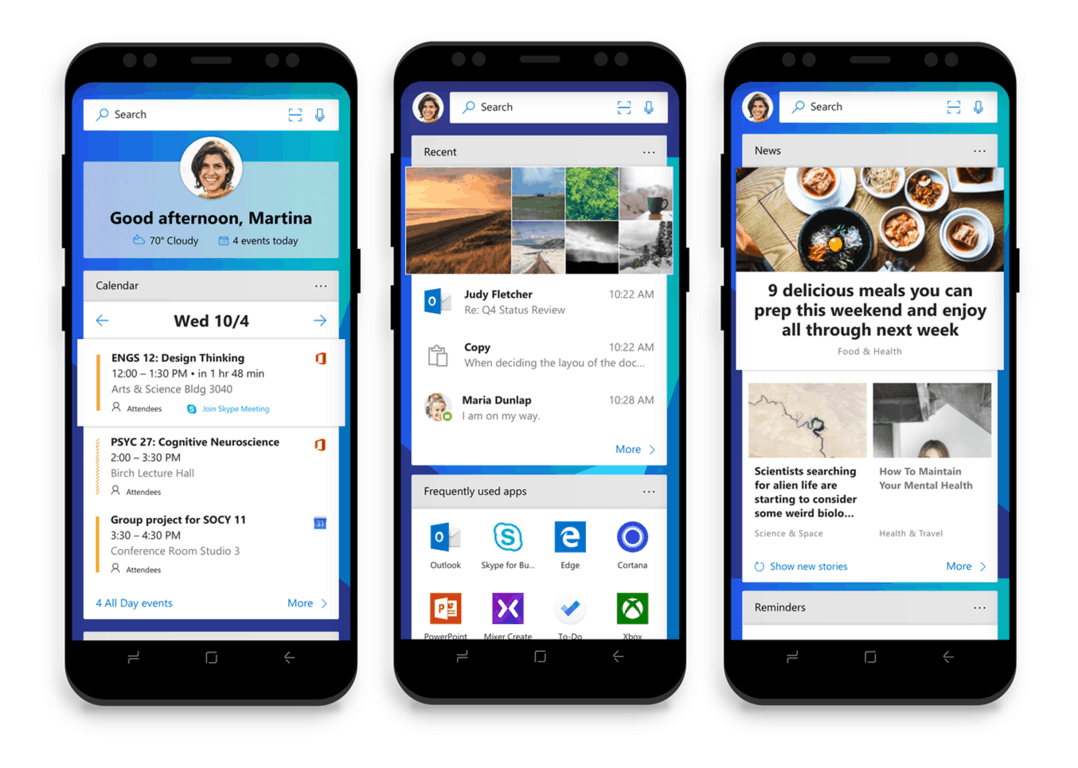
Now that the version 4.4 of Microsoft Launcher is now generally available for Android users, the team is releasing a fresh new update for beta testers. The version 4.5 of the app brings several new features including Microsoft Intune integration, support for Android Oreo app shortcuts and more. Interestingly, an experimental feature also lets you import settings from other launchers.

Microsoft Software engineer Jen Gentleman published a changelog for the update on Twitter yesterday, but a more complete version can be found on the dedicated Google+ community. Here is it in its entirety below:

What’s new for v4.5:

  • Running Late? Now you can let meeting attendees know you’re running late straight from the calendar card.
  • Microsoft Intune integration: Employees whose enterprises leverage Microsoft Intune’s data protection policies can now use the Microsoft Launcher for viewing corporate data. Enterprise data protection policies now apply on all Microsoft Launcher surfaces.
  • Icon size: Adjust your icon size in the app drawer, dock and home screen
  • Set different wallpapers for your home screen and lock screen (Android 7.0+)
  • Add blank Home screen pages in vertical mode;
  • Enable recurring reminders;
  • Support Android Oreo app/widget shortcuts creation;
  • Import from other launchers from Settings -> Backup / Restore (experimental)
  • Reset your launcher from Settings -> Utilities / Reset Launcher; (experimental)

To install this latest beta build, you’ll have to visit the Google Play Beta Store and then select “Become a tester.” As usual, you’re invited to share your feedback on the new features in the Google+ community.

Microsoft Launcher version 4.4 picks up ability to create folders in app drawer, more

After a one month period of testing with beta users, Microsoft has finally rolled out version 4.4 of Microsoft Launcher to the general public. The Microsoft-centric Android launcher picks up the ability to create folders in the app drawer, batch mode on home screen, and more with this update (via Neowin.)

Have a look at the full changelog below. Keep in mind that in addition to these new features, there is also the usual bug fixes, and performance enhancements.

  • Enable creating folders in app drawer;
  • Batch mode on home screen and app drawer – long press menu;
  • Enable/disable dock;
  • App launching animation;
  • Pill count improvements on Line, BBM, Instagram, Yammer, Textra, WhatsApp and more;
  • Weather / Time widget refinement to mitigate weather not refresh issue.

These features are definitely useful, and the 10 million or more Android users who downloaded the launcher will likely appreciate it. You can join the crowd and download Microsoft Launcher via the link below.

Microsoft Launcher
Microsoft Launcher
Price:
Free

Xbox One Plex app gets enhanced media support in latest update

The media-streaming app Plex has been updated on the Xbox One this week, and the latest version 2.1.2 brings several useful features for all your media needs. The app now has new players for photos, audio, and video content, and it also supports several new video containers. Moreover, you’ll find plenty of bug fixes in this latest release. The full releases notes can be seen below:

NEW:

  • Brand new audio, video, and photo players.
  • Support for direct streaming HEVC video on the Xbox One S and Xbox One X.
  • Support for mspeg4v2 and mspeg4v3 in mkv and avi containers and 4K vp9 support in webm containers.
  • Poster and list items titles will automatically scroll when they are too long to display in their entirety.
  • New ‘Play Version’, ‘Mark as Watched’, and ‘Delete’ modals.
  • Show insecure connection fallback options when primary server is unreachable but insecure connections are a possibility.

FIXED:

  • Improve app usability when system high contrast mode is enabled.
  • Fix tracks count on Album Pre-Play pages.
  • Fix loss of focus when exiting/entering player.
  • Fix loss of focus when returning from screensaver without user lock.
  • App no longer occasionally gets stuck in loading state after switching users.
  • Fixed preplay/library item details getting stuck in a loading state after switching users.
  • Shuffled play queues from playlists only containing the first 50 items.
  • Fixed the background of the items in the user switcher screen so they’re no longer tiled.
  • Media Remote play/pause buttons not working in video player when OSD is hidden

Do you use Plex on your Xbox One to play your own media collection? If so, what are the other features you would like to see being added to the app? Let us know below.

Plex
Plex
Developer:
Plex
Price:
Free

Kodi Xbox One app is currently unavailable for download from Microsoft Store

A couple of weeks ago, popular media center app Kodi became available on Xbox One as a preview. Unfortunately, though, it looks as though the app is currently unavailable for download from the Microsoft Store on Xbox One (via Windows Central.)

Though this app is no longer available for download, it is still listed and discoverable in the Microsoft store. Those who already downloaded the app can still use it, but if the app is removed from an Xbox One, it no longer can be reinstalled via the ready to install list.

A member of the Kodi team indicated this may be a technical problem, and added that they’re working with Microsoft on the problem:

We are aware of the problem which has resulted in the disappearance of the XBox version of Kodi from the Microsoft Store. Members of the Team are currently working on resolving the issue. We appreciate your patience and we should have it visible in the Store soon. No need for any further reports from members that it is no longer in the Store.

There’s still no word on when the app will once again be available for download, so it’s best to keep the app installed if you’ve already had a chance to download. Let us know in the comments below if you’ve also experienced this issue.