Xbox app updates on iOS and Android with cool new features

Along with the major Xbox One OS update last week, both of the Xbox iOS and Android apps have also updated with support for new features and added functionality.

  • Both versions of the app can now do the following:
  • Share Looking-For-Group requests via a message or post to the Activity Feed
  • Browser available games in Xbox Game Pass for those who are paid subscribers
  • More flexibility and functionality when the mobile device or app is set to a different region than the Xbox One console (Users can now purchase games on the app for the console’s set region)

In addition to these changes, the Android version of the Xbox app will also get a new feature called Chat Bubbles. “This overlay experience lets you use your mobile games and apps while keeping your Xbox conversations within reach,” Microsoft’s Larry Hyrb explains. “When you get a new message, a chat bubble will open automatically for that conversation – this works for messages as well as club chat. You can also open this view by navigating to the conversation menu options.”

Do you like using the Android and iOS Xbox apps? Do you like these updates? Let us know in the comments below.

Xbox
Xbox
Price:
Free


‎Xbox
‎Xbox
Price:
Free

LEGO Pirates of the Caribbean now free on Xbox 360 & Xbox One

LEGO Pirates of the Caribbean is now free to download on the Xbox 360 and Xbox One consoles for Xbox Live Gold subscribers. The game originally came out on the Xbox 360 but is playable on the Xbox One due to the newer console’s backwards compatibility feature. It contains characters and storylines from the first four Pirates of the Caribbean films, making it a pretty good bang for your buck. Here’s the full game description:

An action adventure game that brings to life the Pirates of the Caribbean world and all its colorful characters in LEGO brick form.  Players will experience all the memorable scenes from the first three films, as well as those in the upcoming fourth film, “Pirates of the Caribbean: On Stranger Tides,” in the humorous and quirky LEGO video games style.

Grab LEGO Pirates of the Caribbean on Xbox 360 & Xbox One

Have you played LEGO Pirates of the Caribbean yet? Let us know if you like the LEGO games in the comments below.

Runbow out now on Xbox One, features 8 player local co-op

Runbow is now available to buy and play on the Xbox One and is currently free for Xbox Live Gold subscribers until August 15th. The game is a platformer but features a variety of different modes to play and impressively supports up to eight players at once on the same screen in local multiplayer and nine when playing online. Here’s the official description and trailer:

Get Ready to Runbow! Runbow is a fast-paced action party game for up to 8 players locally and 9 players online. Platforms and obstacles appear and disappear with each swipe of the background color, so if you can’t see something, IT DOESN’T EXIST! Players can go head-to-head in Run, Arena, and King of The Hill, or hone their skills on their own in Adventure or The Bowhemoth.

Buy Runbow on Xbox One

Have you played Runbow yet? Let us know what you think of it in the comments below.

Xbox One’s best Kinect game, Dance Central Spotlight, now 50% off

As part of the weekly Xbox One and Xbox 360 Deals With Gold campaign, the popular Dance Central Spotlight is now available to buy at half price while several related downloadable content (DLC) bundles have had their prices reduced by 20%.

Dance Central Spotlight is arguably one of, of not the, best video games on the Xbox One which relies on the Kinect sensor. Unlike similar dance games such as Just Dance which are overly generous with their scoring and act more like music videos which the player must imitate, Dance Central Spotlight actually teaches players the individual moves in a routine and allows for the slowing down and practicing of any move at any time during a song. The game also offers eight different routines for each song of varying difficulty levels from complete beginner up to professional dancer and also provides some in a completely different dance style.

The base game of Dance Central Spotlight comes with 10 songs (with 8 routines each) and additional songs can be purchased. Also, a lot of the purchased DLC from previous Dance Central games on the Xbox 360 carry over if the same account is used.

The following songs and packs are now 20% off: Justin Bieber Dance Pack 01, LMFAO Dance Pack 01, Pitbull Dance Pack 01, “Can’t Hold Us” – Macklemore & Ryan Lewis, “Chandelier” – Sia, “Raise Your Glass” – P!nk, and “Safe and Sound” – Capital Cities. Grab the main Dance Central Spotlight game here.

Are you a fan of Dance Central Spotlight? Let us know in the comments below. What’s your favorite song to dance to?

Microsoft Surface Pro performance suffers due to throttling issues

Microsoft’s Surface Lineup is often touted as one of the best performing Windows machines out in the market. In fact, the latest Surface Pro series is promising 50 percent more performance as opposed to its predecessor. However, independent tests seem to differ. The folks at Notebookcheck ran the Surface Pro through a number of benchmark tests as they would with any other laptop and the results were contrary to our beliefs.


The independent test was first conducted on the Surface Pro 2017 Core i5-7300U SKU and this is the midrange configuration in the Surface Pro lineup. The looped CineBench R15 Multi-Thread test scores demonstrated how the CPU performance fell all the from 334 at the start to 226 at the end, this literally translates to nearly 33-percent drop.


Nearly all the laptops using Intel U-Class SPU’s employ active cooling system, however, Microsoft has decided to ditch a system fan on the Core i5-7300U. Due to this omission, the Turbo Boost performance can be drastically limited and the high clock rates will also be throttled once the temperature threshold is reached. The clock rates are throttled to 2.3GHz as soon as the CPU temperature reaches 57 C. This is a fail safe mechanism that ensures safe operating temperature for any laptop.


Well, one might argue that the mid range i5 powered Surface Pro is not meant to handle the tasks thrown at it with consistency and maybe the top of the line i7 would fare better. The Surface Pro 2017 Core i7-7600U also showed similar traits in the CineBench R15 Multi-Thread test. As the CPU neared the 7th or 8th loop the scores dropped from 410 to 340. Strangely enough, the 340 score is something that one would expect on a Core i5 rather than a top spec Core i7.

The takeaway from the benchmark test is that Microsoft’s decision to ditch the fan on the Surface Pro has a detrimental effect on its performance. Yes, the performance is up to the mark during the first few seconds but it soon tanks off due to the throttling. The performance stats are not simply up to the mark and definitely not what one would expect from a U-class processor.

Windows 10 KB4025342 bugs: Slow boot up, Edge shuts down, and more

The Windows 10 version 1703 cumulative update brings a bevy of fixes and improvements that make the OS more stable and reliable. At the same time, update KB4025342 also brings issues of its own.

Windows 10 KB4025342 reported bugs

KB4025342 won’t install

Many Creators Update users can’t install KB4025342. Oftentimes, the install process fails on restart or get stuck in an install loop.

Download KB4025342 for windows 10 version 1703 failed many times. Tried trouble shooter and loading update from catalogue. Nothing worked.  Help

Long boot up times

If your PC needs about 10 minutes to boot up after installing this update, you’re not he only one:

Installed update KB4025342 automatically through Windows Update on July 12. Noticed extremely long boot up times of the order of 10 mins for a laptop that normally gets to desktop in under 1 min. Repeatedly happened over several shut downs and boot ups. So I uninstalled the update and PC is back to normal. 

Microsoft Edge randomly shuts down

Windows 10 users also report that Edge randomly flickers and then closes. It seems this issue only affects Microsoft Edge as other browsers work fine.

When launching Edge it flickers then shuts down automatically […]. I have also tried removing both update but then when rebooting it re-installed automatically – I had no success with any of the above, HELP

Windows 10 fails to detect connected devices

After updating to KB4025342 my network no longer shows the correct attached devives under windows explorer network. The masterbrowser shows the network devices but subsidiary computers on the network show nothing.

It appears the only way to fix this problem is to uninstall the update.

Windows Store won’t install or update apps

I have a notebook with 32 GB SSD running Win10 creators update. Installing or updating any apps and games to Sdcard was working perfectly for 7 months until Windows installed KB4025342 update. Store fails to install or update apps on sdcard with an error code (0x8007000b). […] The only way to fix is uninstall KB4025342 update from your PC

These are the most frequent bugs reported by users after installing KB4025342. Have you encountered other issues after installing this update? Let us know in the comments below!

RELATED STORIES YOU NEED TO CHECK OUT:

Windows 10 build 16241 bugs: install fails, Action Center won’t respond, and more

Windows 10 build 16241 brings a series of new features and improvements to the table, including Windows Shell improvements, PC gaming and Task Manager improvements, Mixed Reality fixes, and more.

As expected, build 16241 also brings issues of its own. In this article, we’re going to list the most common build 16241 bugs reported by Insiders, as well as their corresponding workarounds whenever available.

Windows 10 build 16241 reported issues

Install issues

Many Insiders are still struggling to install build 16241 on their devices. The install process often gets stuck, freezes or fails with various error codes.

Updates downloaded the 16241 build and I restarted the machine, went into the update process and has been stuck on 33% for the last 6 hours. Never had this happen before.

Action Center won’t respond to mouse clicks

Insiders report that Action Center is unresponsive on the Surface Pro 4 due to scaling issues. More specifically, Action Center detects the wrong mouse pointer coordinates. As a quick workaround, you can change the DPI scaling values and see which values work best for you.

When I point at a spot in action center […], the Action Center actually behaves as if my mouse pointer is about half the screen height further down below […].

If I set my Surface Pro 4 to 100% DPI scaling instead of 200%, the action center works fine. And sometimes it will be okay even after putting it back to 200% (which is default and really the only way to read the screen for me).  But something in this build with DPI scaling has seriously jacked up mouse tracking.

Apps won’t work properly

Insiders report that many apps fail to work properly after installing build 16241. For example, the Movies & TV app and WMP fail to play videos, while audio is available.

After upgrading to Windows 10 Insider preview Build 16241 from 16237 , I’m having issues with Movies & TV app and WMP. The issue is when I play a normal MP4 video file, the default Movies & TV app shows a green background and I can hear only the audio. While WMP shows black background and plays only the audio.

Other users report that they can’t launch Edge and Skype.

Bluetooth won’t work

Bluetooth is not working in the latest Windows 10 builds, and build 16241 is no exception. Insiders noticed that this issue affects mainly CSR chipsets. To fix this problem while still remaining enrolled in theWindows Insider Program, buy a new USB Bluetooth dongle that uses a different chipset. When you connect the new dongle, Windows should install a series of new drivers, and you’ll have functioning Bluetooth again.

If your machine has a built-in Bluetooth radio, try disabling it in the BIOS/UEFI to prevent Windows from trying to make it work.

These are the most frequent Windows 10 build 16241 bugs reported by Insiders. As you can see, this build is pretty stable and is not affected by severe issues such as system freezes, crashes or BSoD issues.

RELATED STORIES YOU NEED TO CHECK OUT:

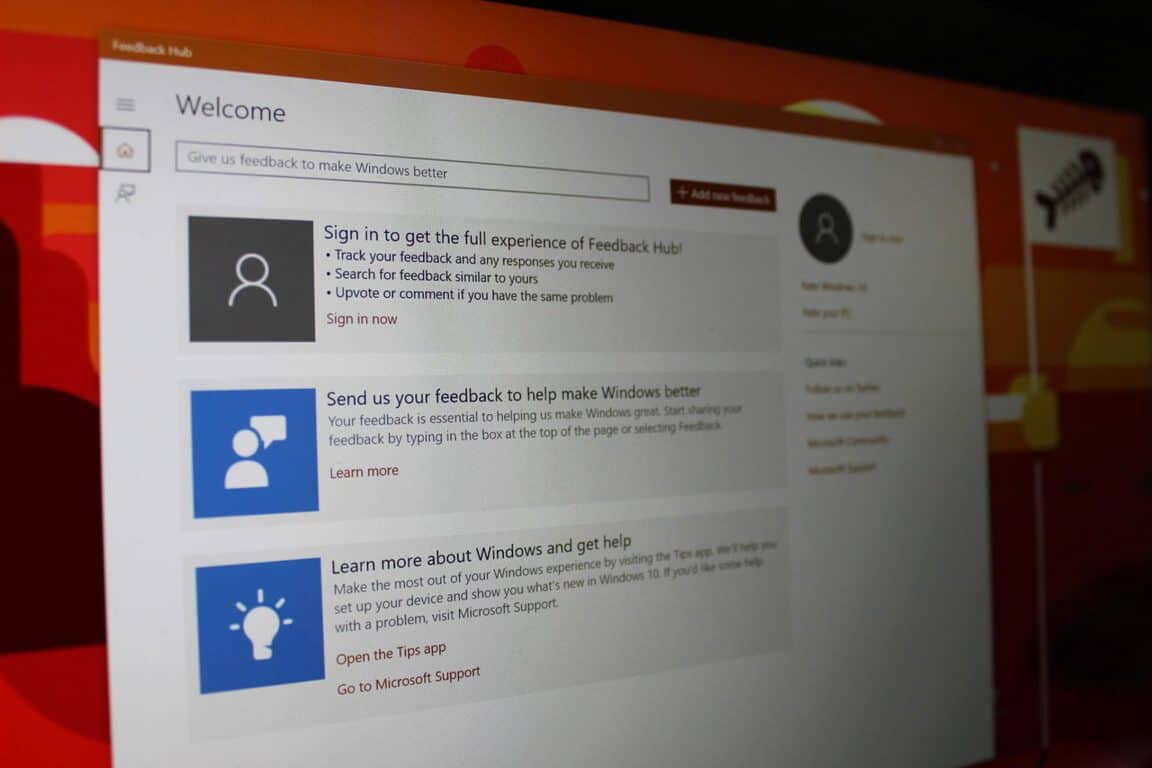
Join Microsoft’s Reddit AMA to ask questions about the Windows 10 Feedback Hub

This past Friday, Microsoft called on Windows 10 fans to tweet questions to Dona Sarkar, for the chance for answers on the Windows Insider podcast. Well, if you missed that initial opportunity to connect with members of the Windows 10 team, you might want to join Microsoft’s Reddit Ask Me Anything (AMA) to ask questions about the Windows 10 Feedback Hub (via Neowin.)

The AMA will begin promptly at 1:30 PM (Pacific Time) later today on the Windows 10 Subreddit. It is hosted by program manager Devin Sinha, who first mentioned the AMA session on his Twitter account.

Again, this is the perfect opportunity to have your questions about the Feedback Hub answered. For starters, you can ask questions about how Microsoft filters the feedback in the hub, decides to respond to feedback, or you can even ask about the origin story of the application.

Which questions do you have relating to the Feedback hub? Do you actively use the Feedback Hub app to submit your feedback to Microsoft? Be sure to visit the AMA later today, and come back to drop us a comment to let us know if you had your question answered!

Microsoft is bringing its Future Decoded business showcase to London in late October, register now

Microsoft has revealed that their flagship business and technology conference, Future Decoded, will be heading to London in late October. This means that there is still plenty of time to register and attend in person so you can learn about what technologies are needed in the process of driving your business forward.

Future Decoded will run from October 31st to November 1st, 2017 at ExCeL London. Day one events are aimed at professionals and leaders, and exploring the impact technology and AI has on industry. Day two events, meanwhile, are focused on Azure, and how business, technology, and enterprise leaders can use the cloud to fundamentally change their business. You learn more about the other sessions by checking below.

Microsoft Future Decoded offers and inspired vision of the digital buisness of tomorrow, with the tangible advice you need to drive your buisness forward today. Join the brightest decsion makers, developers, and IT pros to learn how digital transofmration, AI, cloud for good, and gitial skills can pave the way for buisness scuccess.

Day One:

  • The Open Cloud: For developers and IT Pros: We wille xplore cloud and open source technology with leading figures from Microsoft and Open Source COmmunities

Day Two:

  • Tech Deep Dives: Deep technical content, by techies for techies, with a focus on code, scripts, data, and demos for all develoeprs, data people, and IT Pros.

Our own Abhishek Baxi attended the last Future Decoded in Mumbai, India. You can read up on his coverage, by checking here. And, you can learn more about Future Decoded by visiting the official website.

Microsoft makes it easier to find Surface Dial compatible apps on the Windows Store

Ever since the Surface Dial went on sale, browsing through the Windows Store for apps compatible with the radial haptic input accessory has proved to be a daunting task. Well, the problem is no more. Microsoft recently published a new Windows Store app collection, making it easier to find applications which work with the Surface Dial.

The new collection, which can be found here, includes applications such as Sketchable, Spiraty, Drawboard PDF, Spotify, and more. Microsoft’s own applications such as OneNote, Windows Maps, and Groove Music are included in the collection too. Even with this so, it would appear that the current list of supported applications is not that impressive at the moment, but Microsoft has been helping third party developers add support for the Surface Dial to their applications.

Microsoft has said that the Surface Dial is a ” completely new way to interact with technology,” allowing you to customize, access, navigate, and reimagine physical tools in the digital world.  So, if you’re not already the owner of a Surface Dial, you can purchase one by visiting the Microsoft Store.

Next major Windows 10 update to be called “Autumn Creators Update” in the UK and other markets

Three months ago, Microsoft announced its commitment to release two major Windows 10 updates every year, in March and September. This year, the Creators Update went RTM in March and started rolling out to all Windows 10 users a month later, and Microsoft is currently working hard on the Fall Creators Update, to be released in September at the earliest.

The “Fall Creators Update” branding is somewhat consistent with Microsoft’s current focus on empowering creators and digital artists, though it appears that the company will choose a different branding in select english-speaking countries to avoid confusion. Indeed, Windows Central spotted that Microsoft is now calling the major release the “Autumn Creators Update” in select markets such as the UK, Ireland, Australia, South Africa India, were “Fall” is not commonly used to describe the season following Summer.

Microsoft mentions the “Autumn Creators Update” on its UK website.

This won’t change anything in the US and Canada, where the upcoming major update will still be called the Fall Creators Update. It’s a bit unfortunate that Microsoft had to settle for a slightly different branding in select markets, but this probably won’t matter for the majority of consumers that don’t really pay attention to Windows 10 versions and major updates.

Microsoft releases Windows 10 Insider Preview Build 16241 for PC

Microsoft just released Windows 10 Insider Preview Build 16241 for PC to Windows Insiders in the Fast Ring. The company has also kicked off the second Bug Bash for Windows 10 Fall Creators Update.

Windows Shell Improvements

Recovering your pin and password from the lock screen

In case you are using an AADP or MSA account and get stuck at the login screen, you now have the ability to reset your password and your PIN right from there. All you have to do is click the Reset Password/I forgot my PIN link and you will be prompted to go via the AAD or MSA flow to reset it.

Refining acrylic material

Microsoft softened the noise layer of the Acrylic Material.

PC gaming improvements

An issue preventing profile cards in the Xbox Live in-game experience from working has been fixed.

The issue that was causing the Game Bar to crash while broadcasting was also fixed.

Task Manager improvements

  • The GPU name is shown on the left-hand side of the Performance tab for every GPU.
  • Task Manager defaults to the multi-engine view, showing performance monitors for the most powerful GPU engines. You will be able to see the charts for the 3D, Copy, Video Encode and Video Decode engines. You have to right-click on the chart to switch back to the single-engine view.
  • A total GPU memory text counter has been added next to the dedicated and shared text counters at the bottom of the Performance tab.
  • The Direct X version currently contains the highest supported DX feature level.
  • Microsoft Edge process labeling in Task Manager is improved. You can now group the app’s processes together. More processes such as Chakra JIT Compiler, UI Service, and Manager process are now labeled in Task Manager.

RELATED STORIES TO CHECK OUT:

Windows 10 news recap: LinkedIn to launch a new Windows 10 app, Surface Pro backlight bleed complaints and more

Welcome back to our Windows 10 news recap. We are continuing the trend of our weekly “Windows 10 news recap” series where we go over the top stories of the past week in the world of Microsoft’s flagship operating system.

Skype updated on Windows 10 for all, brings new emoji reaction features, more

The Skype app on Windows 10 has received a new update that brings a number of new features. The first of which is emoji reactions, something that has been seen on the new Skype experience for iOS and Android already, as well as the hamburger menu being removed, making it quicker to access calls and conversations.

LinkedIn is retiring its Windows Mobile app, but a new app for Windows 10 is coming soon

While LinkedIn is ending support for its Windows phone app, the now Microsoft-owned company is going to be releasing an app for Windows 10, but without any mention of mobile support.

Customers of Microsoft’s Surface Pro (2017) complain of backlight bleed issue, Microsoft offers no response

Only this week Microsoft released a fix for the hibernation issue in its Surface Pro devices, now another issue is being widely reported – the backlight bleeding from the bottom edge. Microsoft has not responded to complaints of the issue, but we’ve asked for an official response.

Macphun launches photo editing app Luminar for Windows public beta

A month ago, Macphun announced that it is bringing its award-winning photo editing app, Luminar, to Windows. Now, the company has launched a public beta of Luminar for Windows, available for free. The beta comes packed with its all-new Accent AI filter.

That’s it for this week – we’ll be back next week with more Windows 10 news!

Microsoft news recap: Path Guide delivers indoor navigation, responds to new Skype experience complaints and more

Microsoft (MSFT) news recap is a weekly feature highlighting the top Microsoft news stories of the past week. Sit back, grab some coffee, and enjoy the read!

Microsoft Research releases Path Guide for Android, an indoor navigation app

We’ve seen the usefulness of outdoor navigation apps such as Bing Maps, but what we haven’t seen much of is indoor navigation. Microsoft Research’s latest project, Path Guide, helps to solve that. Users are able to submit indoor directions, so that other users can navigate indoor places, such as malls. It is only available for Android at the moment.

Path Guide

Latest EFF report proves Microsoft “Has Your Back” against governments seeking data

People are becoming more and more concerned about government surveillance and the data that governments can have on us. The latest “Who Has Your Back” report by the Electronic Frontier Foundation has shown that Microsoft is committed to ensuring users’ data is secure, following industry best practices. It received 4 out of 5 stars, inline with the likes of Apple, Facebook, and Yahoo.

Microsoft addresses complaints about the new Skype app, says “we will build the next generation together”

Microsoft began the rollout of the new Skype experience not long ago, for those on Android and iOS, however, it was hit with criticism by Skype users who weren’t happy with the changes, particularly with its Snapchat-esque Highlights feature. Microsoft has responded to the complaints, saying that “we will build the next generation together”.

Status display

Microsoft and BMW team up to bring Skype for Business to the new BMW 5 series

BMW has announced that it has teamed up with Microsoft to bring Skype for Business to its BMW 5 series vehicles. Skype for Business will be integrated into BMW’s iDrive system.

Skype for Business BMW Car

That’s the top Microsoft news for this week – we’ll be back next week with more.

Xbox news recap: Huge update brings custom gamerpics and more, Xbox Fitness finally shuts down

Welcome to our weekly Xbox news recap series, where we go over the top stories of the past week in the world of Xbox. Let’s get started.

Huge update brings custom gamerpics and more

Custom Gamerpics have arrived with the new update to Xbox One, along with several other big changes to the platform. The addition of custom Gamerpics applies to both profile pictures and club pictures, allowing for some extended customization on both fronts. Those downloading this week’s update can also look forward to co-streaming support on Mixer, where you can invite some of your friends to stream with you for cooperative or competitive games.

Xbox Fitness finally shuts down

On its way out for a long time now, Xbox Fitness has finally shut its doors. The closing of the application was announced quite a while ago, but a glimmer of hope for fans popped up when they discovered that they could still use some of their downloaded workouts. Unfortunately, even those workouts are now defunct – marking the end of Xbox Fitness entirely until Microsoft makes some attempt to replace it.

Xbox fitness

Microsoft gives fans more reassurance: 4K upgrades will be free

It’s been mentioned offhandedly time and time again, but Microsoft’s Aaron Greenburg has confirmed once more that 4K upgrades to games you own will be entirely free. If you own games that are better on Xbox One X, you will be charged absolutely nothing more for playing it in Native 4K with your new console.

Microsoft’s setup experience gets the Fluent Design treatment

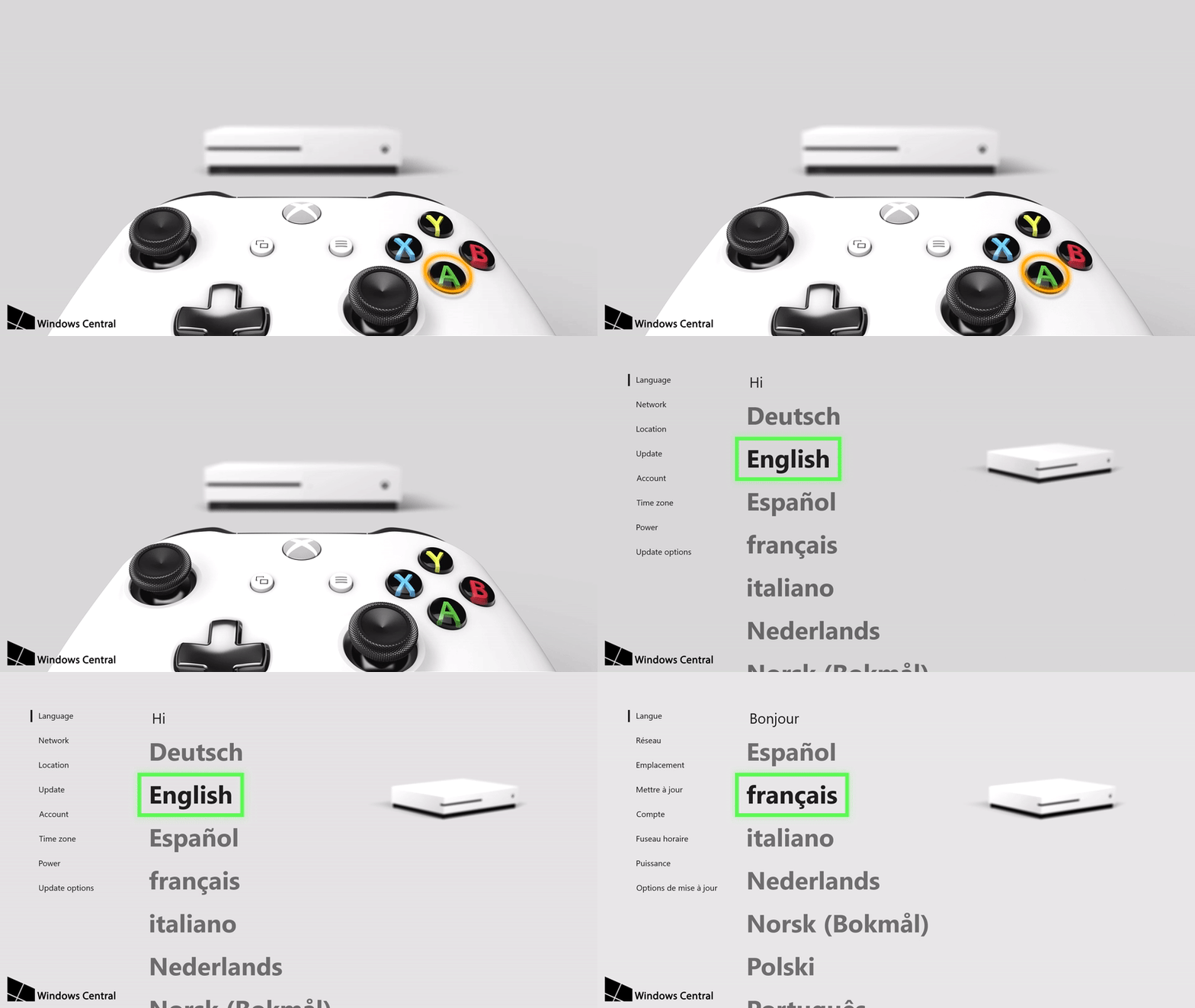
Fluent Design is the future of Microsoft’s visual layout, and it’s starting to make its way onto the Xbox One. While we’ve already seen Fluent Design’s influence on the quick menu, we’re now seeing a totally revamped first-time setup sequence for the console that fits the new style. It’s a pretty sleek re-imagining of the setup sequence, and uses graphic representations of the console and controller to help guide you along.

Thanks for joining us. To keep up to date with all the latest Xbox news, keep a close eye on our Xbox One tag.

Did you know that Xbox One has game quizzes? Here’s how to find them (and compare yourself on the global leaderboards)

If you find yourself not wanting to play a particular game, or maybe you’re wanting to test your knowledge of a game in a quiz, Microsoft has the solution. Despite not many knowing about it, the Xbox One dashboard actually has a selection of game quizzes built-in, as discovered by sdbjazz on Reddit.

Through these quizzes, you can test your knowledge of different games, such as Minecraft, and see how you stack up against others across the world on the leaderboards that display after completing a quiz. Take a look at the video below to see Xbox Game Quizzes in action.

As shown, the quizzes are accessed via the Community tab on the dashboard, then there’s an item to the side that talks about one of the quizzes. Choosing this takes you to a screen with a range of available quizzes.

There are quizzes for a whole variety of games, and new ones are added regularly, so there’s always something to do. The idea is to continue to rack up points and to rise up on the global leaderboards. As you work your way through a quiz, the questions become harder.

Let us know what you think in the comments below (and your scores!).

A touch of Fluent Design comes to the Xbox app on Windows 10 Mobile and desktop

An update is rolling out for the Xbox App on Windows 10, and it is bringing a touch of Fluent Design to the experience of the app on both Windows 10 Mobile and desktop. You should be seeing the version 30.31.1001.0 app update now in the Windows Store, as it is available to all phones and desktops running the Windows 10 Creators Update.

Seen below, the update brings a small touch of Fluent Design to the hamburger menu of the Xbox app on desktop and mobile. Though a minor change, it alters the flat black color of the menu to a more acrylic and fluent look. Since you can now slightly see through to certain elements underneath the menu, it’s especially gorgeous looking on Windows 10 Mobile, and it’s very welcoming on desktop as well.

Fluent Design is now in the hamburger menu of the Xbox app!

Other apps on Windows 10 Mobile, such as the Groove Music app, and the Movies and TV app already have had updates which delivered similar elements of Fluent Design. Windows 10 desktop apps such as the Calculator, Sound Recorder, and Alarms and Clock have also received Fluent Design updates too.

So, if you’re not already using the Xbox app, or if you’re not set up for automatic app updates, you can grab up this latest update by clicking the link below.

Xbox Console Companion

Latest EFF report proves Microsoft “Has Your Back” against governments seeking data

Seven years ago, the Electronic Frontier Foundation (EFF) published a “Who Has Your Back” report, to evaluate major tech companies’ commitments to protecting users when the government seeks private data. The report has since turned into an annual tradition, and this year, the EFF is giving Microsoft four out of five stars, citing “industry best practices” as one of the primary reasons.

It is worth noting that the stars are issued to companies for different categories: industry best practices, telling users about data requests, not selling out users, standing up to NSL gag orders, and pushing for reformation of Section 702.

At the forefront of the four-star decision is the fact that Microsoft publishes an annual transparency report, law enforcement guidelines, and requires a warrant to be provided before giving user content to law enforcement. Another important factor in the decision is Microsoft tells users about government data requests, with delayed notice when a government gag order expires.

Microsoft Logo
The Microsoft Logo outside the Flagship Microsoft Store in NYC

The EFF also finds that Microsoft’s policies protect users from being “Sold out” since it specifically prohibits the company from sharing data used for surveillance. This is mainly due to the fact that Microsoft’s public policies reads: “We do not design tools to enable voluntary surveillance of our users. If we ever provide third parties with access to data about our customers, we expect those third parties to handle that data appropriately.”

Closing factors in the four-star rating include the fact that Microsoft currently does not have a policy of requesting a judicial review of National Security Letters received by the US Government.  The full report also points to the fact that Microsoft is calling for reforms of Section 702, which would significantly cut down on the surveillance of innocent American civilians.

Microsoft is not the only company which received four stars in this year’s “Who Has Your Back” report. Apple also received four stars, as well as Google, Facebook, LinkedIn, Slack, and Yahoo. Amazon and WhatsApp only received two stars. The telecommunications companies, Verizon, T-Mobile, Comcast, were rated worst, and only received one star.

Tweet your questions by today to Dona Sarkar and listen for answers on the next Windows Insider podcast

Microsoft launched its own Windows Insider Podcast earlier this year, and the monthly rendez-vous is slowly but surely becoming a great source of information about Windows 10 Insider builds and much more. If you listened to previous episodes, you probably don’t want to miss the next one as Windows Insider Chief Dona Sarkar herself will answer some “burning questions” from Insiders.

If there’s something you really want to know about the Windows Insider Program, the upcoming Fall Creators Update or anything else related to Windows 10, you have until noon PST to tweet all your questions to the team by using the #AskDona hashtag. It’s great to see that the team is making the podcast a bit more interactive this month,  and we hope you’ll take advantage of this opportunity to make your voice heard.

These Microsoft Ventures security startups are beating hackers at their own game

As we have seen after the WannaCrypt ransomware made its way into computers across the world, cyber security is an issue at the forefront of the headlines these days. But the question still remains, how do you stop the hackers from striking in the first place?

Recently, a group of Microsoft Ventures security startups took to the stage at Microsoft Inspire 2017 to showcase their answers to that question, and how they are beating hackers at their own game. The two startups, Synack, and Illusive Networks have two very different approaches, both of which have been proven to be successful (via Data Center Knowledge.)

We begin with Synack, which received a $21 million investment from Microsoft Ventures in April. This company is based in Redwood City, California, and was founded in 2013, after their current CEO and co-founder Jay Kaplan left the NSA.

To keep the hackers away, they’re using what is known as crowdfunding cyber security. With their security platform, Synack offers crowdsourced penetration testing, vulnerability orchestration, analytics and risk reporting. This brings together cyber security experts from across the world and ultimately helps companies find threats faster, and on a more reliable basis.

Next up is Illusive Networks, which is an Isreali company that specializes in deception-based cyber security technology. The company recently received an investment from Microsoft Ventures and is a subsidiary of Team 8, which has been a part of Microsoft Ventures since last year.

To stop hackers and cyber attackers from striking in the first place, Illusive Networks depends on post-breach technologies. With this technology, Illusive Networks is able to think like an attacker and understand what the attacker is looking for, and how they could move into a network.  According to Data Center Knowledge, Illusive Networks even tries to defeat the hackers by using fake browser history,  false credentials, and a trap server, ultimately sending the data back to teams at the company to help prevent attacks.

Microsoft Ventures launched about a year ago, and it is a venture capital division which will focuses on early-stage start-up investments. In the first five months, Microsoft Ventures backed 13 startups in several B2B industries.

That Microsoft and Puget Sound Energy purchasing agreement has been approved by the WUTC

About three months ago, word was spreading that Microsoft could soon bypass local power companies in Washington and buy its own power. At the time, the company publically announced its plan and even filed for the deal with Puget Sound Energy as part of procedures, but things still needed to be approved by the Washington Utilities and Transportation Commission (WUTC).

In a turn for the good, Microsoft announced yesterday,that the WUTC has formally approved the contract, ultimately allowing the tech company to directly purchase clean energy to power their 15 million-square-foot Puget Sound region campus.

According to Microsoft, this agreement comes as the result of “several years of collaborative work” between Microsoft and Puget energy. The agreement also promotes the use of renewable energy and will protect Puget Sound Energy ratepayers.

Overall, 80 percent of Microsoft’s energy load in the Puget sound area is covered in the agreement, and the remaining 20 percent will still continue to be serviced and provided by Puget Sound Energy. Other terms of the agreement include the fact that Microsoft will buy only carbon-free energy; purchase renewables at a level greatly in excess of the Renewable Portfolio Standards percentages and take significant actions to protect ratepayers.

In a statement, Brad Smith, president and chief legal officer of Microsoft commented on the agreement:

This agreement is good for our business, but more importantly it’s good for residents, the environment and the state of Washington… Once the transition is complete, the vast majority of our Puget Sound campus will be powered solely by carbon-free fuels. This contract is a helpful innovation in meeting the demand for renewable energy in a way that protects other energy consumers.

As part of the agreement, Microsoft will pay a substantial transition fee, and fund low-income, and energy conservation programs. Having plans to shift to 50% renewable energy by 2018, Microsoft is no stranger to green and clean energy,  even receiving NA Wind Deal of the Year award.

GIS mapping giant Esri partners with Microsoft on Azure, AI technologies

Microsoft has partnered up with Esri, a company that’s made its name on GIS (Geographic Information Systems) mapping, to create a “newly aligned grant process.” The new process hopes to make GIS technologies more accessible to the organizations that need them, and marries together Esri and Microsoft’s work in a way that makes both of them more effective.

Esri’s involvement with Microsoft is part of the “AI for Earth” project, and should be helping conservationists make decisions faster and more accurately than they ever could before. Esri’s data paired with Microsoft’s technology with Azure has the potential to be a serious force for good in the attempt to go green.

“Spatial analytics is a crucial part of conservation, because it is an inherently geographic field,” said Jack Dangermond, Esri founder and president. “Understanding environmental data in the context of location is necessary when making decisions about protecting fragile ecosystems. The ability to analyze the vast quantities of data present in our environment is critical, and this collaboration allows conservationists to do their job more accurately than ever before on a wider scale.”

The partnership is part of Microsoft’s strategy to utilize artificial intelligence in more humanitarian efforts. In the words of Lucas Joppa, Microsoft’s chief environmental scientist, “We believe that human ingenuity and AI can pair together to tackle some of our biggest societal challenges – including managing climate, water, agriculture, and biodiversity resources. We’re excited to work with Esri to deliver AI technology to researchers and organizations that will help them address these challenges.”

Multitasking features comes to the standard OneNote app on Windows 10

Microsoft released the July update to the standard non-insider version of the OneNote app for Windows 10. This update will include support for custom pens, multi-window support and many more features to the whole experience of the digital note-taking application.

The rollout of its update is a gradual one, so not everyone will get to see it right away.

New features for OneNote for Windows 10

Easier multitasking

You can now choose New Windows from the View tab, or you can use Ctrl+M to open a new instance in the app. Because of this, you will be able to see more notes at a time, and this way multitasking becomes the easiest it has ever been in the app.

Customizing your pens

You can choose a personal set of pens, pencils, and highlighters for inking. From the Draw menu, go to the plus sign right near the pens and select the type of pen that you want to use, the width and the ink color. The new custom pen will be added to your drawing toolbar, and everything will be ready for work.

Improved reading experience with the Immersive Reader

This new feature was designed to help users improve their reading skills by boosting their ability to pronounce words correctly, to read accurately and quickly and to also understand best what they are reading. Choose the Immersive Reader from the View menu, and then select the Text options, Voice options, Parts of speech. You also have the possibility of reading the text aloud.

In case you are not yet using the OneNote app for Windows 10 powered devices, or if you are using the OneNote 2016 desktop app, you can check the new app out, because you won’t be disappointed. Get the OneNote app from Microsoft.

RELATED STORIES TO CHECK OUT:

5 best iPhone file manager tools for Windows PC users

There are lots of apps that are specifically designed to let you organize your files following your requirements. Starting from being multitasking and finishing with boating of defining features, these apps are developed to provide their users the perfect solution for managing files.

The advantages of a file management system

In an effort of addressing an array of file-related challenges, many organizations automate their file management tasks. Automation can enhance security, to free up IT resources and to help you achieve order and control in an otherwise inadequately regulated file transfer environment.

Take a closer look at the ways that automating file management and file management tools can and definitely will improve the IT processes. We’ll present your four primary benefits of ditching the standard file maintenance and going for automation.

  1. Saving administration hours

Usually, the IT staff is very busy assigning, maintaining, archiving and even organizing storage for every user from an organization, so there is very little time to do anything else. Some of the larger and the more consequential IT projects may require the staff’s attention, but at that very moment, they may be busy helping a user on the fifth floor who can’t find the documents that he just saved in his home folder. Something like this may obviously happen to anyone.

But just consider the fact that the IT didn’t have to deal with such issue. On the other hand, they could apply their talents to more important and meaningful tasks such as preparing a realistic budget for the coming year or training the new employees or even testing the new enterprise app that you just implemented.

Automating file management means that every aspect of the user and group file lifecycle will have ultimately been taken care of successfully. IT teams barely have the time to think about some issues, and your organization will be able to gain back the thousands of hours that have been lost to tedious administrative tasks every year.

  1. Enforcing data use policies

Whether for intellectual property (IP) protection or for regulatory compliance, your business has data use policies that it really needs to implement. It is essential that only particular users and groups should have access to more sensitive data and automating file management can establish access requirements on the fly.

Automation will restrict and allow access, and it will also manage file renaming, it will remove disallowed file types from collaborative directories, and it will adjust rights as roles change throughout time. All these can be set up to align with the data use policies that your business already depends on and using automation will prove to be similar to putting compliance on autopilot.

  1. Curtailing the use of unauthorized apps

By the process of automating rules that usually prevent users from moving sensitive data out of their allowed directories, you will be able to ensure that your business or organization safeguards intellectual properties from unauthorized access. There is a very high cost for allowing or for ignoring apps such as Dropbox at work. Automating file storage can keep employees from putting data there, for instance.

  1. Managing staff turnover

It’s straightforward to think about file management as a process that occurs during an employee’s tenure at an organization. But what will happen to that person’s files after he or she leaves? They will not be able to disappear into the air, or at least, not without a bit of help.

Divvying up an ex-user’s files among other staffers, reassigning rights and also archiving or deleting the user’s data used to be a manual IT process. Bow, an automated tool for file management arrangement can make sure that an individual’s file whether it’s sensitive or not, are archived or deleted within a specified period of time after the employee leaves the company.

File management automation is not just a simple IT improvement even if it does benefit a lot the IT staff. This is instead a transformation that will help you better serve users, clients and also partners.


Organizing your files and documents with the highest precision using the best iPhone file manager apps

Managing hundreds of files and docs really requires some structured planning and also an efficient mechanism. You’ll see that it pays enormous dividends to have fully equipped tools that are capable enough to not only make every task easier but to also bring a new dimension into this whole process.

There are three kinds of storage capacity of iPhone for users to choose from including 16GB, 32GB, and 64GB. Having storage space like this, the iPhone can be used as a hard drive to save essential data, and this was it can be extremely effective. You can take the information with you all the time this way.

On the other hand, when you connect your phone to your computer some files are set to hidden, and you will not be able to review all the file folders. This happens because iTunes which is an exclusive media management library designed by Apple forbids the reveal of all the file folders. Therefore it’s a pity that you will only be able to sync only particular types of data with the device.

There’s no need to panic and give up because there are a few solutions to save your files that cannot be shown on the device.

Here are the best five iPhone manager tools for Windows PCs:

File Manager


File Manager can help you organize your files and your documents in a smart way. The tool is almost like a virtual USB drive as well, and this happens because of its quality efficiency to let users transfer files from Mac or PC to your iPhone.

The tool features an integrated PDF reader and music player and this way; you will have the freedom to read any files and to listen to music as comfortable as possible. File Manager also supports Microsoft Office, Excel, and PowerPoint. It also features multiple cloud support such as Dropbox, OneDrive and more. All these features make this app very convenient for properly managing your files. The built-in search feature of the tool allows you to search anything very quickly. File Manager also offers you the opportunity to use pass code for protecting your data.

There’s another feature of the app that helps you keep your files more organized, and you can also sort them by name, date, kind, and size. You can share the files via Bluetooth, email, and also Facebook. The Open in feature allows you to open files in other applications and you can also create and extract ZIP files.

The File Manager app is developed by TapMedia Ltd, and you can get it for free from iTunes.

Documents 6


Documents 6 is a complete multitasking app that is best suited for consumers and enterprise. You can edit your text files, and you can also read and annotate the PDF files and what’s more important, you can search inside your docs very quickly.

Using this tool will also give you the ability to save your favorite web pages to read them later when you need them. The tool protects your docs and files using a password, and it will offer you various options to sync your files with the cloud. You can sync the files with iCloud and Dropbox, for instance, and this will make your tasks much simpler.

In case you are looking for an application that can keep your files more organized, this tool can be a viable solution.

Documents 6 is a file manager, a PDF reader and a browser – a central hub for all of your files. Using it, you can view, listen, read, or annotate everything you want on your iPad and your iPhone. Docs, files, books and more content, they’re all at home in this tool.

This is one of the most capable apps on your iOS device, and it successfully replaces a document viewer, a PDF reader, music and a video player, a file downloader, a cloud integrator and more other apps.

Documents 6 offers tremendous attention to details and unmatched stability and design. After you get it, you will see that you will consistently use it every day and it will turn out to be the app that makes your iPad and iPhone worth the price.

The app is developed by Readdle Inc., and it’s free on iTunes.


DiskAid (now iMazing)


DiskAid is a multifunctional File Explorer that is designed for iPhone, iPod touch and iPad. It is the first explorer tool that uses WiFi and USB to transfer files, and it’s compatible with both Windows and Mac systems in 10 different languages. You can easily copy the content of your old iPhone or iPad to a new one. You can also choose that data and applications you want to keep on your device. The tool will make sure that you have a private and configurable transfer without iTunes and iCloud.

You also have the ability to save and restore your game progress, your app documents, and your chat conversations.

The tool allows you to transfer videos and songs from your Apple devices back to the iTunes or another path you prefer on your computer. Data such as SMS, contacts, notes and voice mail they can all be transferred to the computer as well.

The tool authorizes you to make your iPhone a massive portable hard drive. More than this, you will have the opportunity to preview and access the files which you previously saved in iCloud and your Mac Photo Stream.

You can download the app from the iMazing page for free.

FileApp


This tool is a very powerful file and document manager which lets you play multimedia contents. Just like Finder from Mac or Windows Explorer the tool will allow you to store iOS files and folders on your iPhone. The FileApp reads lots of file types such as PDF, Microsoft Office docs and it also plays multimedia contents.

With the use of the built-in image editor, users can design photos, and they can instantly share images via Twitter and Facebook. You will be able to send multiple images via email attachment, and you can also create an amazing slideshow.

You can keep the privacy of your files secured, and for this, you have the option of encryption with iOS data protection. You can also use a pass code or even employ wireless transfer password to provide your data the highest security possible.

The tool allows USB file transfer to PC and Mac using DiskAid or the iTunes File Sharing. You will get a robust wireless data transfer to a computer through WiFi.

The tool makes background, continuous, repeat and shuffle play modes available and it also offers full AirPlay support.

FileApp is developed by DigiDNA SARL and you can get it for free from iTunes.

iExplorer


iExplorer is a high-quality eBook reader, media player, and photo viewer. All in all, the tool is a great work assistant that you can successfully use to transfer files with Bluetooth between iOS compatible devices. You have to use a USB cable in case you want to move files between your mobile device and Mac.

You can also use the tool to watch movies and to play music without having to copy them to your iPhone. More than this, iExplorer will make it much easier for you to view large photos, to edit spreadsheets on your Google Docs and to save them in various formats.

The app may, on the other hand, seem a bit expensive but we guarantee that it has the qualities to go nicely with its current pricing.

Using the tool you can access files on your device or Windows Sharing files and Cloud servers. You can transfer the files between your mobile device and your remote servers.

The tool supports large images, and you can smoothly zoom and scroll photos and view thumbnails.

You can use the app to read CHM, ePub, PDF and large text/PDB files with outline/bookmark/annotation support. You can also play music and movies without copying them to your device, you can view very large photos on your PC/NAS and share them with your friends, you can edit spreadsheets on your Google Docs and save them as different formats, and you also have the ability to print any viewable documents.

The app is developed by Zhiang Chen, and the price is $4.99.

These are the best five iPhone apps for file managing for Windows powered PCs, and we guarantee their quality. So, go through all of them and choose your favorite one.

RELATED STORIES TO CHECK OUT:

Microsoft addresses complaints about the new Skype app, says “we will build the next generation together”

Ever since the new version of Skype started to roll out to iOS and Android across the globe, there has been a massive uprising from some Skype users, who vented their frustrations in app store reviews. Indeed, users have complained that the new Skype experience on mobile “the worst ever,” with some even saying that they “can’t understand” how Microsoft even decided to “roll an unfinished beta version.”

Well, it turns out that the Skype team was listening, as the team today penned a blog post which noted that the new Skype app was a “big change.” The post explains that the Skype team is always listening, updating, and responding to feedback. And, more importantly, the post headlines that going forward, the Skype team will be “building the next generation of Skype together” with the community.

The post also points to some initial changes which have already rolled out, such as the ability to delete contacts, conversations, and to multi-task while calling. With this so, it turns out there will be more on the way to address the needs of the Skype community:

Our mission doesn’t stop there. We’ll continue to make improvements—including new features and functions—over the coming months. We want to make sure you’re using the new Skype the way you want, so we’re reintroducing:

  • Status display for your contacts on the home screen, so you can easily see who is active
  • Native sharing capabilities on both Android and iOS, allowing you to share content to Skype chats from other apps and services
  • More themes and colors options to enable you to personalize Skype
  • An updated user interface to improve legibility and to make it easier to navigate and access your conversations.
Status display
The return of status display icons in the new Skype

It is great to see that the Skype team has listened to the complaints of users. So, if you’re feeling that features are missing from the app, or if you think it is too buggy, it’s best not to go on a rant in a review on the App Store. You should rather submit your feedback directly through the Skype Community, or via the Skype app from the “Send Feedback” option.

Microsoft is looking to use upcoming Bug Bash event to put the finishing touches on Windows 10 Fall Creators Update

With the feature sets locked in, the Windows team is looking to use its 2nd (and final) Bug Bash event to solidify the Windows 10 Fall Creators Update.

The Bug Bash will start at 12am (Pacific Time) on Friday July 14th and will run a full week ending at 11:59 pm (Pacific Time) on Sunday July 23rd. This build will be our Bug Bash build. As usual, we will be publishing new quests so be sure to open Feedback Hub and complete as many quests as you can!

And we’ll also be doing Mixer webcasts at the following dates and times for the Bug Bash:

Tuesday July 18th: 1:30pm – 3:00pm (Pacific Time)

Friday July 21st: 10:00am – 11:30am (Pacific Time)

With the latest preview release, Bug Bash participants are sure to find some things that should earn them some really cool badges this time around.

Let us know of your Bug Bash experiences in the comments below.

Microsoft set to launch Insider.Windows.com, a new website for Windows Insiders

Head of the Windows Insider Program Dona Sarkar was a special guest on the latest Windows Weekly podcast yesterday, which was recorded live from Microsoft’s Inspire conference in Washington D.C. The discuss shared some insight about the company’s partner ecosystem during the episode, but Sarkar also announced that Microsoft is in final testing for a new website dedicated for Windows Insiders, Insider.Windows.com.

According to Sarkar, the new site may launch as early as next week, though it will be first available to Windows Insider MVPs before opening to everyone. Here is what you can expect:

  • The new website will be focused on different kind of audiences, including consumers, SMBs and large businesses.
  • It will feature a Resources section, where Insiders can learn how to roll back to previous builds and much more. There will also be content sourced by Insiders, Sarkar said
  • It will also have a Feedback Hub section to ask Insiders what other information they’d like to have on the website. We’ll have to wait and see whether the new site will bring a web version of the full Feedback Hub.

You can listen to what Dona Sarkar said about the new website in the video below (the segment starts at 59:10):

Overall, the new website has been designed to empower all Windows Insiders to do more with Windows 10, and it will be a nice complement to the Windows 10 Feedback Hub app. We’ll let you know if we learn more about the website in the coming days, let us know in the comments if you’re looking forward to visit it.

Xbox One setup experience gets new Fluent Design treatment

Over the past few months, we’ve seen Microsoft’s new Fluent Design System pop up in several Windows 10 UWP apps as well as various Windows Shell elements in the latest Windows 10 Insider builds. As Microsoft explained during Build 2017, Fluent Design will make its debut with the upcoming Fall Creators Update and it will roll out gradually to all Windows 10 devices in the following months.

The new design language will also be applied to the Xbox One OS, and as it turns out Xbox Insiders can already see some Fluent Design touches during the Xbox One setup experience. Our colleagues over at Windows Central shared some images of the redesigned Xbox One out-of-box experience today, and you can check those changes in the version 1706 of the Xbox One OS. You can see below one of the new animations that appears during the set-up process, with a smooth transition to a redesigned menu:

Interestingly, the new Xbox One setup experience is also customized depending on the console in use. “While a white background and black text are used for the Xbox One S, the setup process adapts accordingly when resetting an original black Xbox console,” explains Windows Central. The OOBE will also be adapted for the upcoming Xbox One X.

If the new animations and smoother transistions between menus are very welcome changes, the new OOBE hasn’t been drastically changed: after choosing their basic settings, users will be redirected to the “Welcome app” which has been updated to promote new features such as Controller Linking. But overall, the new set up experience gives us a sneek peek at the bigger Fluent Design update for the Xbox One that Microsoft teased during Build 2017:

Microsoft last redesigned the Xbox One OS two years ago with the New Xbox One Experience, and the Xbox One dashboard has since received several updates to improve performance and also promote the company’s new Mixer live-streaming service. It’s clear though that there is still more room for improvement, and we hope Microsoft won’t prioritize design over performance in the near feature. A better-looking Xbox One dashboard would be welcome, but we would also like Microsoft (and third-party developers) to improve the design of the few UWP apps currently available on the Xbox One, which too often look like blown-up mobile apps.

Do you like what Microsoft is doing with the new Xbox One setup experience, and do you think the Xbox One OS is in need of a design refresh? Let us know your thoughts in the comments below.

Ghost In The Shell movie now available to watch on Windows 10 & Xbox One

The sci-fi blockbuster, Ghost in the Shell, is now available to purchase in most regions in the Windows Store on Windows 10 devices and the Xbox One console. The movie is an American adaption of the Japanese comic book series of the same name which itself has spawned numerous animated TV series and films, each with their own unique aesthetic. Here’s the official film synopsis:

In the near future, Major (Scarlett Johansson) is the first of her kind: A human saved from a terrible crash, who is cyber-enhanced to be a perfect soldier devoted to stopping the world’s most dangerous criminals. When terrorism reaches a new level that includes the ability to hack into people’s minds and control them, Major is uniquely qualified to stop it. As she prepares to face a new enemy, Major discovers that she has been lied to: her life was not saved, it was stolen. She will stop at nothing to recover her past, find out who did this to her and stop them before they do it to others. Based on the internationally acclaimed Japanese Manga, “The Ghost in the Shell.”

Buy Ghost in the Shell in the Windows Store

Have you watched Ghost in the Shell yet and would you recommend it to others? Share your thoughts with the community in the comments below.

You can finally play PlayStation 4 games on your PC

Sony just announced that the company is adding PS4 games to the PlayStation Now library.

PS4 games are being added to the library

20 PS4 games have been added to the library and more will be added in the forthcoming months. (PS Now’s library currently holds more than 500 games.) Sony will also bring back the $9.99 introductory offer from the first month to new subscribers and the one-year subscription for $99.99.

Here is the full list of the brand new PS4 games that are available now on PlayStation Now:

  • Broken Age
  • Dead Nation: Apocalypse Edition
  • Grim Fandango Remastered
  • Guilty Gear Xrd Sign
  • WWE 2K16
  • Tropico 5
  • F1 2015
  • Darksiders II Deathinitive Edition
  • Evolve
  • MX vs ATV Supercross Encore
  • Resogun
  • Helldivers
  • Castlestorm Definitive Edition
  • Exist Archive: The Other Side of the Sky
  • Arcania Complete Tale
  • Nidhogg
  • Super Mega Baseball
  • Killzone Shadow Fall
  • God of War 3 Remastered
  • Saints Row IV: Re-Elected

Requirements to play the games

In order to enjoy PlayStation Now on your PC, you need the following:

  • A compatible Windows PC
  • A DUALSHOCK 4 Wireless Controller with USB mini cable
  • DUALSHOCK 4 USB Wireless Adaptor(Optional)
  • A Network account for PlayStation
  • Current PS Now Subscription or 7-Day Free Trial (credit card required)
  • Minimum5Mbps internet connection

Xbox Game Pass vs. PS Now

Microsoft recently announced its own game subscription service called Xbox Game Pass which you can use it to get unlimited access to more than one hundred great Xbox One and Xbox 360 for only $9.99 per month.

The essential difference between Xbox Game Pass and PS Now are their connectivity requirements. With Xbox Game Pass, you can download games straight to your console, and you can play online/offline in full-fidelity without connectivity or streaming problems. PS Now supports only game streaming and you need a high-speed internet connection to be able to play the games.

On the other hand, if you’re perhaps using an older version and you are interested in how to connect a PS3 controller to your PC, have a look at our guide.  And if you’re the proud owner of the PS4, here’s how to use the PS4 connector on your PC.

RELATED STORIES TO CHECK OUT:

Office Activation Error 0x8004FC12: How to Fix it Quickly

The Microsoft Office 365 0x8004FC12 error occurs when Windows users attempt to activate Office 365, 2013 or 2016.

The 0x8004FC12 error has the following error message: We’re sorry, something went wrong, and we can’t do this for you right now. Please try again later. (0x8004FC12).

Some Windows 10 users have reported getting that error, which blocks them from activating MS Office, after recently upgrading to the platform.

How can I fix the Office activation error 0x8004FC12?

1. Add a Net Local Group

  1. Press the Windows key + S, type cmd, and select Run as administrator under Command Prompt.
    cmd admin
  2. Type the command below and hit Enter to run it: net localgroup Administrators localservice /add
  3. Now, run the command below: fsutil resource setautoreset true C:
  4. Next, run the following command: netsh int ip reset resetlog.txt
  5. Finally, close the Command Prompt and reboot Windows before activating MS Office again.

Adding a Net Local Group is one of the more effective fixes for the 0x8004FC12 error.

2. Update PC

  1. First, click the Cortana taskbar button and enter updates in the search box.
  2. Select Check for updates to open Windows Update settings.
  3. Now, click the Check for updates button for further update details.
    check updates 0x8004fc12
  4. Click the Install now button when it appears if there are updates.

If you’ve recently upgraded to Windows 10, there might be some updates for it. Updating the platform might also fix the 0x8004FC12 error. You can check for updates with the Settings app.

3. Switch the Windows Firewall off

  1. Enter Windows Firewall in the Cortana search box. Then select Windows Defender Firewall.
    firewall
  2. Click Turn Windows Defender Firewall on or off on the left of the tab.
  3. Select Turn off Windows Defender Firewall for both Private and Public options there and click OK.
  4. Now have a go at activating MS Office again. Thereafter, you can switch the Windows Firewall back on.

The Windows Firewall might be hindering the MS Office activation if it’s on. So temporarily switching that firewall off might do the trick. You can switch the firewall off via the Control Panel.

4. Repair the MS Office Suite

  1. Press the Windows key + R, type appwiz.cpl, and click OK.
    appwiz 0x8004fc12
  2. Now you can right-click the MS Office suite and select Change from its context menu.
  3. Select the Quick Repair option on that window. Alternatively, you could select the Online Repair option that reinstalls the suite.
    activation repair
  4. Press the Repair button and follow the diagnostic wizard instructions.

MS Office also includes its own troubleshooter that can help you resolve errors pertaining to its applications. So that might provide a fix for the 0x8004FC12 activation error.

5. Reset the TCP/IP in Command Prompt

  1. Launch Command Prompt as admin.
  2. Type the command below and hit Enter to run it: netsh int ip reset resettcpip.txtnetsh
  3. Finally, wait for the command to finish running and restart your PC.

Resetting the TCP/IP can fix connection issues. The Office 365 0x8004FC12 error could be connected to those protocols.

6. Adjust the Automatically Detect Settings Option

  1. Press the Windows key, type internet, and select Internet Options.
    internet options
  2. Click the Connections tab on that window.
  3. Then click the LAN settings button.
  4. Deselect the Automatically detect settings option if it’s selected there.
  5. Press the OK button to close the window.

Deselecting the Automatically detect settings option can also fix the 0x8004FC12 error.

Those are some of the best fixes for the 0x8004FC12 error. One of those fixes will probably resolve the issue, but you can still contact MS Office support.

There’s also a Recovery Assistant for Office 365 tool that might fix the issue, and you can check our guide on how to use it.

Feel free to let us know the solution that helped you fix this issue in the comments below.

Microsoft’s Calibri font is at the center of a political scandal in Pakistan

Pakistan’s Prime Minister, Nawaz Sharif, has found himself in the center of a pretty serious scandal – and the smoking gun is one of Microsoft’s fonts. The Prime Minister’s daughter, Maryam Nawaz, seems to have falsified documents in an effort to hide her possession of some overseas properties. The problem? These documents were typed out in Calibri font – something that wasn’t released to the public until 2007, one year after these papers were dated.

Now, the scandal gets a little bit more complicated than that. While Calibri wasn’t officially released until 2006, there were pre-release version floating around a few years earlier. In an interview with Calibri font creator Lucas de Groot, Pakistani newspaper Dawn got him to open up with his thoughts.

“If the person using Calibri was such a font lover that he or she had to use the new Calibri, then he or she should be able to prove that other documents were printed with Calibri in 2006, and these prints should be in the hands of other people as well,”

Microsoft itself probably won’t be getting involved with this, but fans of the company or Pakistani politics might want to get some popcorn as the political drama ensues. Sharif has been called to resign, but as of now, everything is up in the air.

Paint 3D Windows 10 app gets new updates

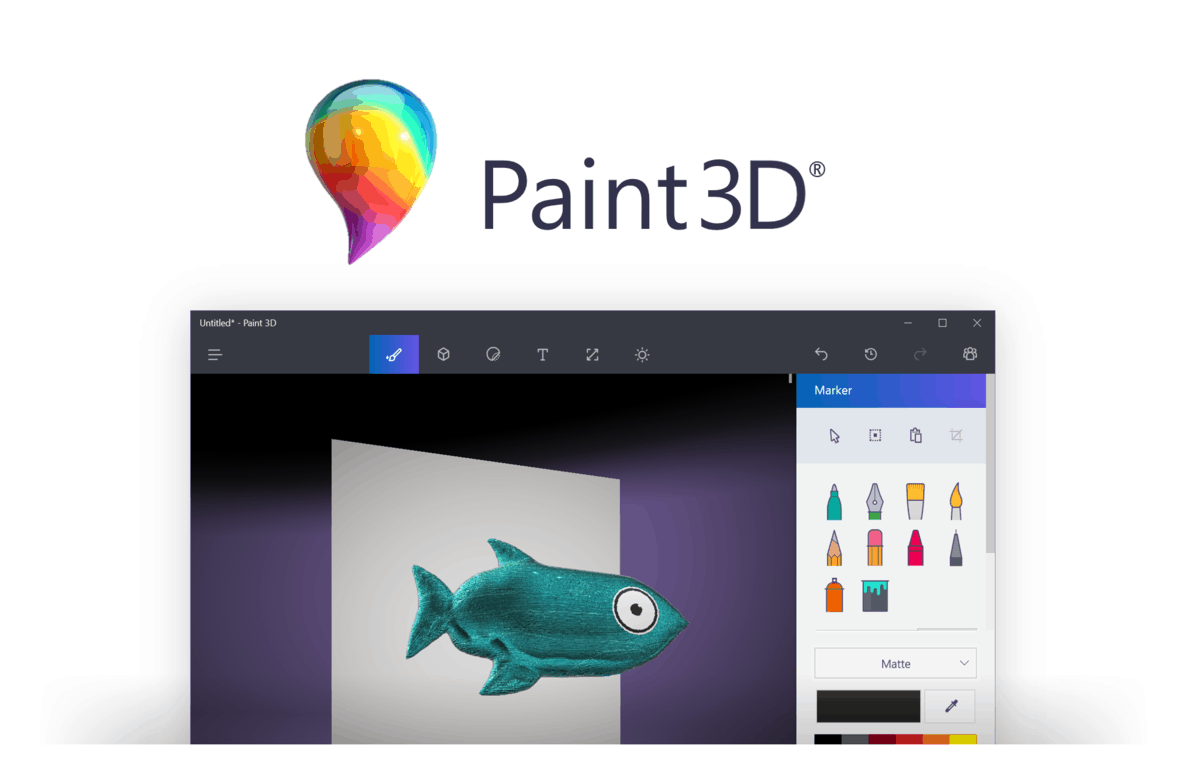
Microsoft announced today that it’s bringing new features to its Paint 3D app on Windows 10 PCs. The 3D creation app is now pre-installed on all PCs running the Windows 10 Creators Update, and it allows users to create 3D objects from scratch or transform user-generated content available on the company’s Remix 3D online community.

“We’ve been listening to feedback from our fans to improve the experience and bring you the features you want,” shared the company in a blog post. The first new addition is an update to Magic Select, the tool that lets you easily crop the background of any picture to use objects or persons from your pictures in 3D creations. “As of today, you can now magic select content directly into a scene, even after the scene has been partially composed so there is no need to move the object off canvas first,” explained Microsoft.

The updated Paint 3D

The second new addition is actually a feature from the legacy MS Paint app: the Line and Curve tools, which let you draw and create shapes in the old Paint app are now available in Paint 3D alongside other 2D shapes in the “Stickers” menu. “The Line tool gives you the ability to control the thickness and opacity and the Curve tool has one, two, and three inflection point controls that allow for the creation of lots of interesting objects,” explained the company.

Line and Curve tools,

Last but not least, Paint 3D now supports GLB, a new open standard which should make 3D file sharing more user-friendly. Overall, Microsoft’s new 3D creation tool is one of the most interesting Windows 10 apps that the Redmond giant introduced this year (along with the new Story Remix app, which will be available with the Fall Creators Update). The company says that more updates are coming in the near future, but you can still use the feedback hub in Paint 3D to suggest new features to the team.

How to check how much power apps use in Windows 10 and Windows 10 Mobile

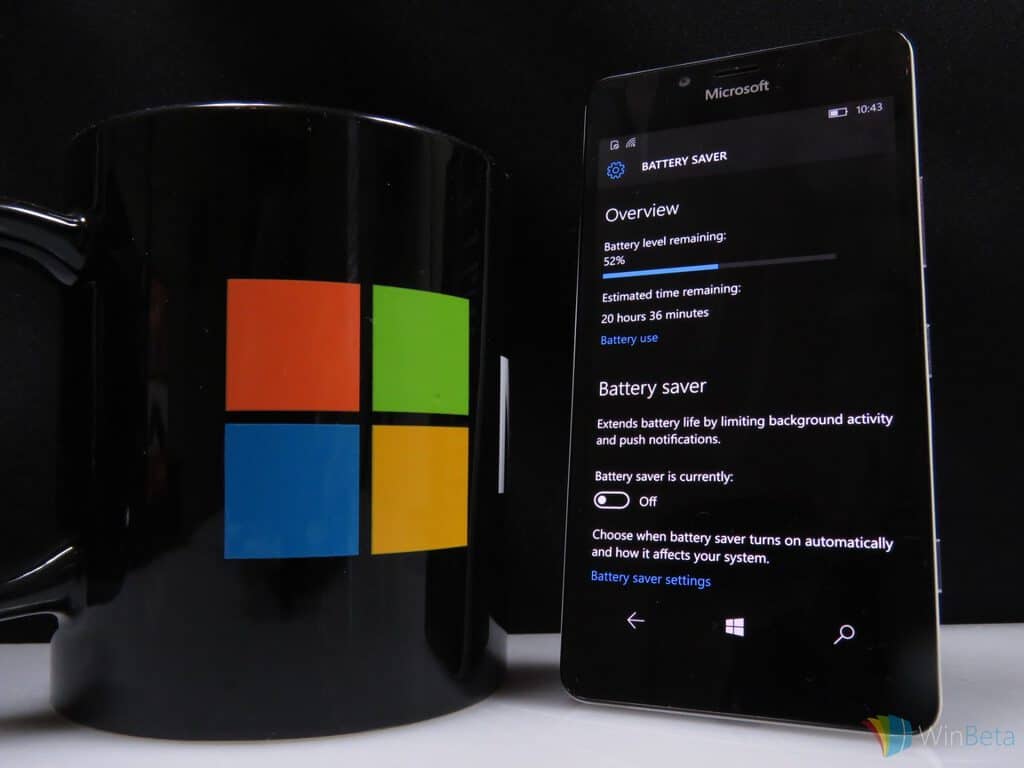
If your device’s battery seems to drain faster than it should, Windows 10’s built-in power usage screen could help. It lets you see which of your apps are using the most battery. If one is using significantly more than the others, you can restrict its background activity to save power.

Windows’ app power consumption metrics are found in the “System” category of the Settings app. Open the “Battery” page to see an overview of your device’s current battery status. At the top of the page, you’ll see your device’s remaining battery capacity and its estimated runtime. Underneath this, click “Battery usage by app” to open the app consumption screen.

Screenshot of Windows 10 Battery settings screen

This lets you monitor the power consumption of each app running on your machine. Apps on this screen are ranked by the percentage of battery usage they account for. The apps that have used the most battery power are shown at the top, letting you immediately identify the worst offenders.

Screenshot of Windows 10 battery usage by app screen

By default, Windows will show data from the past 24 hours for apps that have used battery power. You can change this with the “Time” and “Showing” dropdown menus at the top of the screen. The “Always allowed apps” category in the “Showing” menu lets you filter the results to only show apps that can run continually in the background. This lets you quickly narrow down any battery drains you experience while in Connected Standby or hybrid sleep mode.

Screenshot of WIndows 10 battery usage screen filtered to always-allowed apps

If you find an app’s using more power than you’d like, click its name to throttle its activity. In this menu, you can choose whether an app is “Always allowed in background,” “Managed by Windows” or “Never allowed in background.”

Screenshot of Windows 10 adjusting app power settings

The latter will prevent it from running when it’s not being actively used, potentially saving you power but preventing you from getting app notifications. Oppositely, “Always allowed” removes the restrictions on an app’s background behaviour, giving it the freedom to use your device’s hardware whenever it needs to. By default, the “Managed by Windows” option will be used. This lets the operating system intelligently adjust an app’s background presence.

One way of quickly eking out a bit more runtime from a near-empty battery is to use Battery Saver. This can be enabled from Action Center or the Battery page in Settings. Here, you can adjust when Battery Saver is automatically turned on. You should remember that apps set to “Always allowed in background” may keep running even when Battery Saver is active. If you still experience battery drain issues after adjusting your apps and using Battery Saver, you could try generating a battery report to look for hardware issues.

The NAB is not happy with Microsoft’s Rural Airband Initiative, to put it mildly

Just yesterday, Microsoft made headlines for the announcement of their new Rural Airband Initiative. Though Microsoft has the goal of building the technology to help millions of citizens in rural America online, the initiative mainly depends on TV white spaces, otherwise known the unused broadcasting frequencies in the wireless spectrum. Noted by TechDirt, it turns out this is exactly what has upset the National Association of Broadcasters (NAB.)

In a post on their website, NAB Executive Vice President of Communications Dennis Wharton, responded directly to reports of Microsoft’s Rural Airband Initiative proposal. He balks at Microsoft and calls the development of the White Spaces initiatives a “well-documented failure,” linking to a 2015 ReCode post and calling on lawmakers to not “be misled by slick Microsoft promises.”

“It’s the height of arrogance for Microsoft — a $540 billion company — to demand free, unlicensed spectrum after refusing to bid on broadcast TV airwaves in the recent FCC incentive auction. Microsoft’s white space device development has been a well-documented, unmitigated failure. Policymakers should not be misled by slick Microsoft promises that threaten millions of viewers with loss of lifeline broadcast TV programming.”

Issues with White Spaces have dated back to 2004, and certain Internet Service Providers have also tried to petition the government to destroy White Space Broadband. In fact, at the start of the digital TV era, the NAB also ran ads which claimed that White Space Broadband would crowd broadcast airwaves and cause many to lose access to their TV shows. Microsoft, though, has published studies which reveal that the viability of the technology has been proven.

To be fair, the NAB is most likely barking at Microsoft because it would not have control over the spectrum being used by Microsoft’s partners. Microsoft also has an entire website devoted to the success of White Spaces. The website shows that the tech giant has deployed 20 TV white spaces projects in 17 countries that have served 185,000 users. Microsoft also believes that all tech companies in America can benefit from their Rural Broadband Initiative.

We’ve reached out to Microsoft for further comment on the latest remarks from the NAB and will update the story accordingly.

Microsoft’s new team of 7,500 computer scientists to take the next step in AI advances

Smartphones are all the rave today, but an increasing chatter is beginning to surface as to how we fully utilize not only our most personal computing device but how its access to information should interact with the rest of our world.

Companies such as Apple, Google, Facebook, Amazon, and Microsoft are all looking into finding solutions that make information flow between smartphones and a host of other devices as seamless as possible with the use of artificial intelligence.

Enter Microsoft’s recent focus on the advance of its AI efforts that have brought users tools such as Microsoft Translator, Azure Machine Learning, and Bing.

Now, Microsoft is looking to a new incubation effort called Microsoft Research AI which was created to solve some of the nuances of integrating artificial intelligence into practical applications.

During the celebration of Microsoft’s Cambridge U.K. research lab’s 20th anniversary, the company took some time to introduce Microsoft Research AI as it also explained the core goals of the project.

Another core goal of Microsoft Research AI is to reunite AI research endeavors such as machine learning, perception and natural language processing that have evolved over time into separate fields of research. This integrated approach will allow us to develop sophisticated understandings and tools that can help people do complex, multifaceted tasks. For example, using this approach we can create methods and systems that understand language and take action based on that understanding.

Another of Microsoft’s AI efforts is to address and advance the more insipid use cases of AI that are being used today such as algorithms designed to manipulate users into spending money, illicit personal information, judge the value of human life when navigating roads and much more.

According to a report from Business Insider, today’s announcement differs from Microsoft’s long-standing participation in AI development by organizing experts in a far more strategic effort.

Microsoft Research Labs director Eric Horvitz mentioned to BI that the new AI labs are a “key strategic effort; a move that is “absolutely critical” as artificial intelligence becomes increasingly important to the future of technology.” As it stands now, Microsoft’s new Research AI teams make up a rounding error for the company’s staff, but we should expect to see those numbers increase as the company looks to compete with the likes of Amazon, Google, and Facebook in the coming years.

Overall, it’s up to not only Microsoft but every company looking to harness artificial intelligence to think long and hard of the ramifications of their applications, and that seems to be what Microsoft’s Research AI Labs was created to accomplish.