While Nintendo’s Wii U gaming console has struggled to compete against Sony’s Playstation 4 and Microsoft’s Xbox One over the last three years, the Japanese company definitely remains a force to be reckoned with in the gaming industry thanks to its portfolio of very popular IPs. As you may know, Nintendo went back to the drawing board to design its upcoming Switch modular gaming console, and a recent partnership with Apple will finally bring the world’s best known plumber to iOS devices next month.
For now, it’s still not clear if Nintendo plans to continue opening up its popular gaming franchises to other gaming platforms (including non-mobile ones), though Xbox head Phil Spencer recently expressed his thoughts about it in an interview with AusGamers. And as you can expect, the exec would love to see Nintendo games being released on the Xbox one day:
I’d love to see Mario on Xbox. As someone who’s been in this industry and played games forever, I’ll still say it: Nintendo has the strongest first-party of anybody. They’re just fantastic and the memories that they have instilled in so many of us, who’ve played their games and had those delightful experiences, having those on Xbox would be great.
Spencer also recalled that Microsoft and Nintendo already partnered in the past, bringing MineCraft to the Wii U last year as well as Super Mario themed content to the Wii U version of the game back in May. This has been a “great partnership” according to Spencer, who added that he’s completely open to the idea of bringing popular characters from first-party Xbox titles to Nintendo games:
I know I get questions all the time on would I ever like to see Banjo in Super Smash Bros. and I’m, like, “yes, I would do that in a second.” And certain people think I’m saying that as some sort of PR answer and I’m, like, why wouldn’t you?
While such enthusiasm for Nintendo games could seem quite surprising from the head of Xbox, Spencer fully admitted it, he’s a real fan of the company’s games. “I’m a big Nintendo fan and I think they’ve been incredibly important for the games industry, they do a great job with younger audiences, and if we ever had a chance to work with them in the future, I would absolutely do it,” he explained.
Throughout the last few months, we have closely followed Microsoft’s acquisition of the business and employment-oriented social networking service LinkedIn. Last week we reported on the service being banned in Russia, and just a few days ago, amidst growing antitrust concerns, Microsoft promised the EU that LinkedIn APIs will remain available to all. Today there is more LinkedIn news to report, and this time, it is in regards to the EU clearing Microsoft’s EU LinkedIn acquisition (Via Reuters.)
According to a Reuters report, which cites three people familiar with the matter, European Union antitrust regulators have given the all clear to Microsoft’s $26 billion takeover of LinkedIn. Microsoft, however, reportedly has to make minor changes to the concessions (commitments) which were originally submitted to the Union last week.
This is a developing story, so be sure to stay tuned to OnMSFT.com, as we will update this story and publish follow-up reports as more details emerge.
Unless you are fortunate enough to own a Surface Book, or Surface Pro 4, you are likely very familiar with the convenience of signing into Windows 10 using Windows Hello. However, if you don’t have a Windows Hello-ready camera on your Windows 10 PC, I suggest the Tobii EyeX eye tracker.
Previously priced at $139 USD, the Tobii EyeX eye tracker is now on sale for $99 USD. You can also use Windows Hello if you have a Windows 10 PC that has a fingerprint sensor, unlocking your device using your fingerprint.
Once your Windows 10 PC or laptop is Windows Hello-ready, you’ll need to get Windows Hello activated in Windows 10. Just to clarify, Windows Hello uses biometric sensors to recognize your face (or fingerprint) to almost instantly unlocks your Windows 10 device without needing a password.
Windows Hello setup
Follow these steps to set up Windows Hello:
Go to Settings (keyboard shortcut is Windows key + I)
Go to Accounts
Go to Sign-in options
Go to Windows Hello
Windows Hello setup
Once you click “Set up,” Windows 10 will prompt you to set up a PIN. Set up a four-digit PIN (if you haven’t done so already). Your PIN is used as backup security protection if Windows Hello is compromised.
Windows Hello setup
Once you’ve created or entered your PIN, go to “Get started,” and Windows Hello will begin its facial recognition process. Now comes the easy part: all you need to do is stare at your computer screen as you would when you use your PC. For fingerprint recognition, touch or swipe the finger that you want Windows Hello to recognize to unlock your device.
Windows Hello also offers you the option to improve facial recognition and to add or remove fingerprints from the same place. Windows Hello is also available for Windows 10 Mobile users on phones including the Lumia 950, Lumia 950 XL, and HP Elite x3, although Windows Hello is not as reliable as it is on Windows 10 PC.
Windows Hello setup for other Windows 10 profiles
A bonus feature of Windows Hello is you can add Windows Hello using their Microsoft account on the same device. In order to add Windows Hello to other profiles on the same device, you’ll need to log out of your account, have them log in and set up Windows Hello. So when your Windows 10 device is locked, Windows Hello will recognize the person based on their fingerprint or face.
Do you use Windows Hello? Let us know in the comments section.
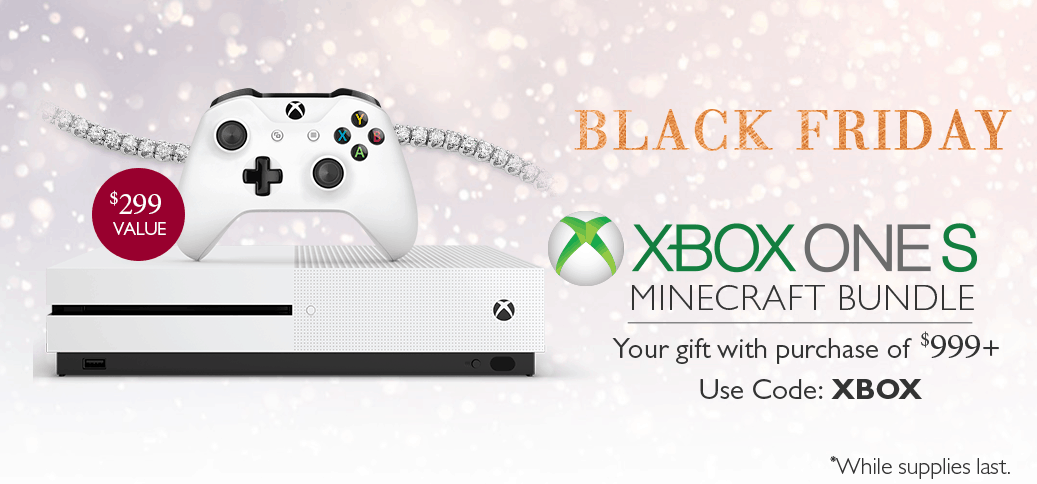
We’ve already covered the Black Friday deals on all things Microsoft, but if you’re looking for an interesting way to score a 100% savings on the Xbox One S, you might want to consider buying diamonds this holiday season. The jewelers over at Helzberg Diamonds currently have a promotion where you can score a free Xbox One S with a purchase of $999 or more.
As seen here, and in the graphic above, this holiday, you can receive a free Xbox One S Minecraft Bundle with the purchase of $999 or more with the code XBOX at checkout. Of course, it is a special limited time offer, and is valid on both online and in-store, while supplies last. Additionally, according to the fine print, the offer cannot be combined with any other special/dollars-off offer, so be sure to shop smart!
What are your thoughts on this interesting promotion? Will you be buying a diamond for someone in your life to score a free Xbox One S? As always, do let us know what you think by dropping us a comment below!
The Xbox One console offers many customization options, but not all users know them. For example, did you know that you can take game screenshots and use them as background images?
If you like a particular game, you’ll take advantage of this feature. Thanks to this option, you can now capture unique gameplay moments and set them as Xbox One background images. In this manner, you’ll impress your gamer friends, and they’ll all ask you how you did it.
How can I use game screenshots as background images on the Xbox One?
Scroll left on the Home screen to open the guide
Select Settings >All Settings
Select Personalization, and then in the right pane, select My color & background
Select My background, and then select one of the choices on the Your background screen:
Achievement art – allows you to use any of your app or game achievements as a background or to purchase background images. To use an achievement, select one of your achievements, and then select Set as background
Custom image – lets you to use an image from your Xbox One or upload an image from a USB drive. Custom images can only be used on the console where they were saved. You won’t see this background on any other console that you use.
Screenshot. Allows you to use one of your saved screenshots as a background image.
If you don’t want to use an image, you can simply choose one of the color squares available to use it as your background image.
The holiday season is here, and we’re sure you’ve got a lot of shopping to do. As much as we like shopping, sometimes this activity can become quite annoying and frustrating, and we often wish somebody else could do it for us.
Microsoft has heard your cry and wants you to know you’re not alone. You’ve got two friends you can rely on when you go shopping: Cortana and Microsoft Edge. Yes, they can only help you when you shop online.
Here’s how to shop with Cortana and Microsoft Edge
Cortana helps you save money with coupons
Once you enable Cortana on your Windows 10 computer, she will automatically help you in Microsoft Edge. Cortana can alert you with deals and coupons for the sites you’re shopping. She’ll help you grab the best deals on Best Buy, Macy’s, Kohl’s, and more.
Cortana helps you search with images
When you’re browsing for an image on Microsoft Edge, Cortana can help you find similar images, as well as details on price and where to buy that item. All you need to do is right-click the image and select “Ask Cortana”. This feature is very useful if something you want to purchase was sold out.
Cortana can remind you of sales
If you want Cortana to remind you of an upcoming sale, select the text on the page you’re browsing, click the Share icon in the top-right corner of Microsoft Edge and then select Cortana reminders. The assistant will immediately create a reminder for you.
Save gift ideas with the Pinterest Save Button
Microsoft Edge offers an interesting extension, called Pinterest Save Button. This option allows you to collect gift ideas that you want to look at later to inspire your shopping list.
The Personal Shopping Assistant notifies you about price changes
Another interesting shopping extension is the Microsoft Personal Shopping Assistant. This feature saves the products you browse online automatically, and notifies you when prices change. You can also use the Shopping Assistant to compare products and share items you love with your friends.
The Amazon Assistant finds the best deals for you
This extension compares prices, and notifies you about deals. The Amazon Assistant creates a universal shopping list across websites, allowing you to stay updated on the price changes of your favorite items.
We’re sure all these features will definitely help you make better shopping decisions. Happy shopping!
The Big W chain of stores in Australia are holding a massive video games sale between the 25th and 28th of November. What’s particularly noteworthy is that most of the Xbox One games are quite new. Titallfall 2 and Watch Dogs 2 both launched this month for example and will be sold for AU$35 (AU$39 discount) and AU$52 (AU$26 discount) respectively. That’s pretty impressive!
Here are the other games included in the campaign so far; Mafia 3 (AU$49), Call Of Duty: IW (AU$54), Battlefield 1 (AU$52), FIFA 17 (AU$52), Skyrim (AU$45), and Dishonored 2 (AU$45). Big W will also be selling a 500GB Xbox One S console bundle with a copy of Minecraft and a coupon for another title for AU$359 (That’s a AU$40 discount) and LEGO Dimensions Starter Sets will have their prices reduced to AU$79.
Are you going to take advantage of this sale? Have you spotted any other bargains lately? Let us know in the comments below.
You probably won’t be surprised to find out that 80% of employees use unapproved programs while they work. There are a million reasons for this, ranging from convenience to just plain old familiarity. Regardless of the reasons though, this “Shadow IT” can potentially put your business at risk, putting valuable information on the line. In their latest blog post, Microsoft talks about how to prevent this from happening.
The post is mostly about Microsoft’s Cloud App Security service, which does a lot of the anti-Shadow IT work for you. It scans your network to see what apps are in use and from what users, and gives you a risk assessment so you know just how worried you ought to be. If you run a large operation and are concerned about some of the loose ends in your cyber security, it sounds like a really effective solution.
You can evaluate Cloud App Security with a 30-day trial if you aren’t sold on it, which should give you a free head start if you just want to do some risk analysis. If you want to subscribe to the service after that trial period, you’re going to be looking at a charge of around $5 per person per month.
Microsoft’s collaboration with Quest Institute has finally reaped some substantive results for students that launched their Windows 10 IoT experiment into space.
Last month, Quest Institute sent up their first Windows 10 IoT experiment via their NextGen ISS Platform. The project created by three students in San Jose, CA was presented during the Microsoft BUILD 2016 conference earlier this year. The prototype was built to test vibrations and pliability of metals in microgravity environments such as those in space. The experiment platform was flown up to the International Space Station by the Antares OA5 Mission rocket and connected successfully.
The International Space Station (ISS) is a microgravity laboratory with six crew members that live and pilot the station to rotate around the Earth every ninety minutes. For almost two decades, only approximately 200 people have had the opportunity to set foot on the ISS.
Last week, the student finally got their first results from outer space. While the live feed still has much to interpret for the students, this is a major step for STEM education.
Now students and educators are working together to bring their experiments and engineered projects to the unreachable. Starting with Lego Mindstorm, even elementary children can begin to dive into the world of technology and engineering thanks to Microsoft and Quest Institute’s NextGen ISS Platform.
Microsoft’s Rockfish Games team has announced its first-ever Xbox Play Anywhere title, and it looks like it could be a good one. Everspace is a space shooter game that runs on both the Xbox One and Windows 10 PCs, and it’s available in preview right now.
Everspace is a Six Degrees of Freedom (6DoF) shooter featuring fast-paced space dogfights within dense level design at its core. You’ll have to survive in a hostile environment filled with natural hazards, as well as various enemies like outlaws, aliens, and a mysterious space armada trying to hunt you down. It’s not only about shooting enemies – evading enemy fire is paramount to survival as well. Get Eversapce from the Windows Store here, check out developer tips and strategies on playing Everspace over at Xbox Wire and head over to the Everspace forum to learn from veteran pilots who have clocked more than 100 hours in our game.
You can download the game via the link below. Note that there’s a trial version as well if you want to give it a try without shelling out the $29.95 purchase price.
For those of you who stuck around to appreciate the hard work the Windows team has done in stabilizing and refining the Windows 10 experience on mobile, or for those who are new to the platform, here is a list of what we believe to be the top 10 Microsoft apps for your Windows 10 Mobile device.
While many may jump straight to Microsoft’s bread and butter suite of productivity apps, let’s be honest, how often are you knocking out PowerPoint presentations on a sub six-inch device? Instead, let’s first explore the apps that make a mobile experience worth having.
OneDrive
Picture the OneDrive app as the heart of your OS. OneDrive in Windows 10 Mobile represents the centralized hub for collecting, storing and organizing any and everything that funnels through your mobile device. Need to share a photo from a night out with the group or pull up a quick animated movie to entertain the kid with, OneNote acts as the digital storage unit that can bring your phone to life.
OneDrive on Windows 10 Mobile
In Windows 10 Mobile, the OneDrive app has seen some much-needed refinement from its Windows Phone 7 and 8 days. While still very Spartan-like in its appearance, the app is speedy and straightforward while enabling the user to craft cross-platform editing and sorting options on the fly.
Aside from the new visual layout tweaks and the addition of arguably dreaded hamburger menu, users can not search and sort through their files with universal search menu, sorting options that include largest or Name (descending), as well as creating folders to organize new items.
Depending on bandwidth, the OneDrive also enables users to watch videos within its own video player equipped with a details page made up of tons of metadata.
Windows 10 Mobile OneDrive app image view
Perhaps, what makes OneDrive so useful to someone donning a Windows 10 Mobile device are the automatic settings that tie into the app. For those who want more granular controls over content uploaded into OneDrive, it’s as easy as opening the app or using the Windows 10 Mobile settings prompts when they appear. For more casual mobile users, turning on automatic uploads and backups to OneDrive ensure that all photos are captured, saved and viewable from anywhere that has an internet connection. OneDrive is available on Ios, MacOS, Android, the web, and Windows 10, so photos, videos or documents saved on your Windows 10 Mobile device can be retrieved from almost anywhere.
OneNote
For most people, a smartphone becomes a black box of notes, calendar appointments, to-do lists, reminders, and ideas. Using OneNote on Windows 10 Mobile can help capture and organize all the little intricacies of everyday life into one convenient app. Identical to the OneDrive app, OneNote is available on iOS, MacOS, Windows 10, Android and the web, so notes captured on the device live on in the cloud and can be referenced anytime from anywhere.
OneNote Windows 10 Mobile app
In Windows 10 Mobile, the Windows team also beefed up the apps integration with the OS by adding a Note Action Center toggle. Now users can fire up OneNote by just swiping down the Action Center, rather than searching the Start Screen for the icon. OneNote has also been receiving regular updates over the past year that have made it Swiss-army knife of utility. Users can now take advantage of built-in audio recording and playback, integrated image capture, page section copy/paste, direct email saves and ClassNotebook integration among a litany of other note taking features.
Search options in the OneNote app also make it a breeze when searching for much 00older or seemingly obscure notes. Perhaps, the only remaining additions to the app user may be clamoring for a tag to label each note with or AI recognition, making search even that much easier.
Outlook Mail
For those who have been stuck on the poor experience of Windows 8 or Windows Phone 8 mail client, the Outlook Mail, the mobile client feels like a godsend. For users who have been using Windows 10 for some time, the new mail client may only seem like an evolution, but either way, using the mail client on Mobile is a delight in comparison.
Windows 10 Mobile Mail App
Windows Phone 8 Mail app
Outlook Mail on mobile has been updated for landscape use that includes a dual-pane view enabling users to skim email subjects and headings without actually having to deep-dive into every email in a single page view. Another addition users may enjoy the Outlook Mail app is the refined HTML experience. Back when Outlook Mail first hit handsets, it suffered a seemingly inexplicable issue with HTML rendering, forcing the user to pinch and zoom their email content into the right size before correctly viewing it. After several updates and bug fixes, email should render in the appropriate view right off the bat.
Windows 10 Mobile Outlook Mail landscape view
Other new additions to Outlook Mail include combined inboxes, account extensive settings options, dark theme, select all sorting and email security settings for Exchange users. The last few improvements come by way of the settings menu, where users can adjust signature, notification, reading views, automatic replies, quick actions, color choices, and account management.
While the Windows 10 Mobile version of the Microsoft Mobile Outlook experience arguably lacks in comparison to its Android and iOS counterparts (at least as of writing this), it’s miles ahead of what was offered on Windows Phone 8 or 8.1. For those who still primarily communicate through email on their smartphones, the Outlook Mail app is a necessity and works very well with its web and desktop counterparts. Outlook Mail echoes the singular mantra of Microsoft everywhere that accompany most apps on this list. Actions taken in the Outlook Mail app on Windows 10 Mobile carry over to experiences on the Mac, iOS, Android, the Web and Windows 10, thus enabling email organization to be swift and mobile-convenient.
Groove Music
The first few apps on this list are selected to help users get things done, which is also in line with Microsoft’s revitalized concept of enabling users to “do more,” but not everything on a smartphone is designed to be productive, at least not initially. While Microsoft’s streaming music service, may, in fact, help users get things done as enabling white noise or memory associated motivation or inspiration, Groove is just at its core, just a nice musical experience.
On mobile, notably Windows 10 Mobile, the Groove experience is a great one. Some Spotify, Apple Music or Play Music subscribers may argue the merits of Groove’s competing features list, but the overall experience has grown and seen refinement from Windows Phone 7, 8 and its early days on Windows 10 Mobile.
Windows Phone 7 Zune
Windows 10 Mobile Groove
Users will now be greeted with recently added Your Groove playlist curation tool that takes the place of the Recently Played section of Groove and turns it into a more Spotify-like playlist section. With the Your Groove section, users now get access to Microsoft’s curation algorithm that places songs that have been listened to pairings in a specialized playlist with themed listening experiences that can include such titles as Bitter Adult Alternative, Heavy rotation, R&B from Georgia, written by Curtis Mayfield, etc.
Groove listeners also have access to the OneDrive music locker which can take music libraries saved in the cloud and integrate them into the on-device listening experiences. Another benefit of Groove’s Windows 10 integration is its deep linking to Cortana and the Shazam-like music searching feature. Similar to Windows Phone’s integrated system-wide search feature, users who tap Cortana to find the name of a song or artist on the fly, can now continue that experience into saving it to their Groove collection or downloading to their device for offline listening.
The UI and UX elements of Groove have also been updated to make navigation easier and more straightforward for users. While the hamburger menu remains an unsightly app design concession for some, Microsoft has also flirted with using pivot controls to interact with the side menus in Groove. Instead potentially hyperextending a thumb reaching for the hamburger menu, users can just swipe from the screen to reveal the remaining menu options.
Once again, Microsoft has crafted a multi-platform experience for its Groove app that enables listeners on iPhones, iPads, Mac’s, Android, Chromebooks, Xbox One, and Windows to have synced experience. Actions taken on the Windows 10 Mobile Groove app carry across all platforms, although, the Windows 10 Mobile experience is arguably the best one to have.
Windows 10 Camera
Listing the Camera app as a useful Microsoft developed Windows 10 Mobile app may seem like a bit of a no-brainer, but the operating system does allow for switching default camera apps (well at least in theory). With that being said, the Windows 10 Camera is perhaps the best camera experience on Windows 10 Mobile and produces arguably the best photo quality of any camera app on any platform. For those of you who may have noticed the careful wording above, I mentioned best camera ‘experience’ on Windows 10 Mobile and not elsewhere as camera navigation seems mainly a subjective undertaking.
However, the Windows 10 Camera app has seemingly come and gone a long way over the course of the Windows Phone 8 to Windows 10 Mobile transition. Items and features that were previously built as add-ons to the Windows Phone 8 camera had been removed and had since returned as built-in experiences. Now Windows 10 Mobile users have access to Slow-Motion capture, app-integrated Living Images capture, automatic HDR settings, Panorama, and 4K video recording, all from within a single camera app. The previous notion of linking specialized camera apps (called lenses) is still in effect, but as the camera continues to develop code to integrate those experiences across all Windows 10 devices, the dependency has lessened over time.
Revisiting an earlier app on the list, setting up automatic upload from the camera app also ensures that every image captured lives well beyond the hardware in case of theft, accidental water damage, app corruption or flat-out destruction of the phone.
The editing tools and links to the photo gallery have also seen performance improvements and additions such as editing regulate video capture to incorporate slow-motion enhancements, trimming videos, quick photo edits and more.
File Explorer
Perhaps the geekiest and most granular app among the list, Windows 10 Mobile users may appreciate the desktop-like feel of using the File Explorer app. Granted, all the sorting and organizational options have yet to make their way to the mobile app from the desktop, but it’s well built and straightforward mobile navigations should be appreciated by most.
File Explorer for Windows 10 Mobile should represent the device-based version of OneDrive for users as it takes controls and organization of local content to the next level. Users can now move images, photos, gifs, videos, movies, PDF’s, Office Documents, Internet downloads and much more across folders and storage areas.
File Explorer on Windows 10 Mobile
For Windows 10 Mobile devices sporting MicroSD cards, using File Explorer is a dream come true. Load up a card with content either from a desktop or prior device and navigate and organize straight from the phone, fully equipped with Folder creation, universal search, sorting preferences and easily identifiable sections for recent, on-device storage and MicroSD slots.
Beyond the apps desktop-like experience, the Windows team has also extended its usefulness beyond its app interface by integrating save prompts from Edge, Groove, Voice Record, Photos, Music & Videos and the Storage Settings. Most of the integrated Windows 10 Mobile app experiences will bring up Folders or sub-folders created from within the app to save content in.
Editing in Windows 10 Mobile
For users who prefer to make the most of their screen real estate, the Windows 10 also developed the File Explorer app with landscape viewing incorporated as well thumbnail or listing views to see however much or little about a file as possible.
Similar to its bigger brother desktop experience, users can also explore file properties, rename, and share using various apps. Unlike the previous app selection, the File Explorer app is native to Windows 10 Mobile and changes made on the device, stay on the device. As the Windows team continues to tweak the Continuum experience for the everyday consumer, apps such as the File Explorer will probably see more refinement and use by users in the coming days.
Windows 10 Maps
I know, I know, there is no Google Map or HERE Map offering to counter this claim, but the Windows 10 Map app, I believe, can stand on its own. There are some third party app solutions out there and even one that comes very close to matching Google’s offerings on other platforms called Maps App Discovery, but the Windows 10 Map app has come a long way and offers some neat features of its own.
With Windows Phone 8 and 8.1 the Windows team, perhaps, focused more on the visual aspects of maps rather than the mapping itself. There were neat tie-ins into city-search that brought up food, entertainment, and some other relevant location based options. However, compared to the other solution Microsoft was pushing at the time with Nokia’s HERE Maps, Bing Maps paled in comparison.
Now with HERE Maps no longer a crutch to lean, the Windows team has crafted, what I believe to be great mapping experience. Granted my experience with Windows 10 Maps is very narrowed and confined mainly to the West Coast of America (mileage may vary). The glitz and visual glamor of the Windows 10 Map app have taken a backseat to a much sparser interface, but the apps built-in turn by turn navigation has seen much love. Users can now select from a series of routes to the same destination, each with options for transit, walking or vehicle.
Windows 10 Map location options
New to the app is also street view reporting that’s represented as video camera icons along a given path, road, freeway, street or bike lane. Integrated with local government cameras along roadsides, users can stay up to the minute on what traffic is like near an exit, popular street or favorite on-ramp.
Windows 10 Mobile maps
Other app additions include accident reporting, including a brief description of the accident and ETA on clearance. The accident reporting also extends towards construction work highlights that offer similar information for users. Crafted as a Windows 10 universal experience, users can navigate the app in landscape or portrait mode, each with their distinct visual advantages. Another benefit of being a UWP is the sharing of information across platforms, meaning users can start a search on their desktop and continue with directions in the car or vice versa.
Bing Maps on the desktop
It’s understood that Apple Maps and Google Maps offer these features and perhaps more in their respective apps on their platforms, but we’re talking about Windows 10 Mobile where neither of those are options. However, Windows 10 Mobile users shouldn’t feel feature-deprived using the Windows 10 Maps experience, especially when users can download maps and navigate them offline. As the Windows 10 Map experience continues to get refined, it’s becoming harder and harder to find reasons to miss HERE Maps on Windows 10 Mobile, for me, at least.
News & Weather
The Microsoft News and Weather apps are among the most useful apps to stay up to date with the world around you. Starting with the Weather App, the Windows team has put a lot of elbow grease into making an amazing visual experience of the weather. Beyond the overhauled UI update, users now get week-long predictions, live tile notifications, day details, precipitation, humidity, UV index and Max Wind details from any spot on the planet.
Users can also access radar map observations, historical weather patterns, weather related news articles and sections for favorited areas. Once again, the app was built as a UWP, so landscape navigation opens a new world of visual exploration that matches it Windows 10 and Xbox One experiences.
Windows 10 Weather
The News app has also received a ton of improvements from the Windows Phone 8 days where users can now individually source their news as well as swipeable pivots and a new dark theme for reading. For new users or those without a favorite source, users can search for local news using new GPS-enabled searching. The News app in Windows 10 Mobile has become an arguably go-to RSS reader for fans of news as it also crops websites to fit and navigate from within the app itself as opposed to kicking readers out to the Edge browser. With Live-Tile integration and news break notifications, the news app has become a full featured news experience.
News App
Windows 10 Mobile News app
Unfortunately, I would love to have included the Sports app, but it seems that app has fallen the priority ladder for the Windows team as it has seen few development advances and the Money app is a very niche experience reserved for investors or those seeking financial news about companies. Personally, I love and use the Money app frequently on my device and appreciate the new additions that have quietly been rolling out.
Cortana
Cortana makes the list as an excellent aggregator of activities done on a smartphone, in an email, on the desktop or cross-platform searches. As an app that spans use on iOS, Android, and Windows 10, users can access their Cortana related activities on any platform, but on Windows 10 is where the app truly shines. In Windows Phone 8.1 Cortana was confined to the phone, but just a few years late, Cortana can be accessed and interacted with on the Xbox One, Windows 10 Taskbar iOS and Android apps as well as from the dedicated search icon on every Windows 10 Mobile device.
Cortana has moved beyond the witty banter of its original voice interactions to incorporate several additional activity notebooks such as Health & Fitness tracking, Movies & TV, Package tracking, Special Days, Shopping and much more.
Cortana on Windows 10 Mobile
Aside from setting reminders and getting traffic notifications, perhaps one of Cortana’s most useful addition is its flight and boarding tracking feature. For the frequent flyer’s out there, this may be by far, the most convenient integrated experience in Windows 10, especially in light of the removal of the Travel app from the Windows Store.
Cortana on W10M
Other benefits of Cortana are the organic Bing search features being built into the Cortana experience that includes highlighted location based info, celebrity and historical wiki integration, YouTube video integration, music searching and recipes curation that makes using Cortana a delight.
Authenticator app
As security continues to grow in the public conscious, more and more apps are asking its users to set up two-factor authentication or additional security measures to ensure data protection. With that being said, Microsoft’s re-released Authenticator app is a useful and convenient way to make sure users are engaging in proper security practices.
Using Microsoft or Google services or products encourage even more use of two-factor authentication thus directing users of those services on various platforms to access them via the use of a specialized pen or code that can be delivered either in an email, text or phone call. With the Authenticator app, users can bundle all those points of access into one app that randomizes codes and spits them back out to users without forcing them into their messaging, phone or email clients.
Authenticator app for W10M
The new Authenticator app is also integrating Android and iOS support that enables quicker and direct notifications from peripherals such as smartwatches or other iOS and Google apps and the director of program management at Microsoft also believes that the company will be able to deliver even more functionality to the app.
While we mostly stuck to Microsoft first party offerings, there are plenty of 1st and 3rd party apps from other developers on the Windows 10 Mobile platform that helps elevate the mobile experience. Let us know what apps you’ve chosen to replace or augment your experience on Windows 10 Mobile with over time.
Things come and go, especially software, and now it’s time for the Xbox Snap Mode to go. Latest reports indicate that the multitasking function that some users really enjoyed will get removed in future updates of Windows 10 for consoles, but will be replaced with new functions like Picture in Picture.
Universal apps don’t have access to the Windows 8-based dashboard leftover, and probably never will. This itself is a good indication that the feature is dead and isn’t being developed further. Snap Mode was introduced for the Kinect sensor, which Microsoft seems to be backing out of, and while it did work with a regular gamepad, the experience was very unpleasant.
Xbox One Snap Mode
The new replacement for this feature may actually become pretty useful. The Picture in Picture concept has been seen on other platforms like Apple’s iOS before, and it works quite well on a small screen, which indicates that that would also be the case on a big TV. The new multitasking solution would, however, not only be applicable to applications focused on video and similar media but for every app that works with the Xbox system. This could result in very interesting concepts and ideas by developers in the future.
Concept: Picture in Picture mode on the Xbox One
But the new multitasking feature is not the only thing that Microsoft has in store for future updates. The Guide menu that can be brought up by double-pressing the menu button on the controller, may get a revamp soon with new features and more. The new menu may be able to display your pinned items, as well as open with just one button, as double pressing a button, no matter if it’s hardware or software, is always an awkward gesture.
Microsoft is focusing on reducing the time and steps required to navigate through the dashboard and some of these changes may be what’s needed.
Microsoft’s digital store in Minecraft has another new texture pack available to customers. Today, Mojang released the Cartoon Textures pack designed to toon up your world and bring some vibrant and goofy characters to life, a
Unlike the skin packs, texture packs also change the way the world looks. Cartoon Textures is most notable by having a smiling sun, re-shaped villagers noses, dazed zombies, happy sunflowers, and derpy animals.
If Minecraft seems like a canvas for some whacky and entertaining textures, this one might be the pack for you. You can purchase it for $2.99 USD by visiting the in-game store on your Minecraft Windows 10 Beta or Pocket Edition starting today.
According to a post on VentureBeat, Metacert has raised $1.2 million in its latest round of funding. In a Skype interview, Metacert co-founder Paul Walsh told VentureBeat:
“The Metacert Security Bot detects malware, phishing, and pornography in direct messages and Slack channels and works on Slack, HipChat, and soon Skype, Microsoft Teams, and Facebook Messenger. The problem is that phishing is typically thought of as a problem in email…But if a lot of people are using [messaging] instead of email, then it stands to reason that the future of malware and phishing attacks is also going to take place inside these messaging services, and that’s why Metacert exists.”
For example, on HipChat, people can use the bot to block specific links beyond the more than 700 million links that Security bot already blocks. In addition to security, the bot has an analytics dashboard for enterprise users showing all the links, files, and documents shared in chat and categorizes each link. There are 60 link categories available and the category system can help enterprise users use the information that is collected beyond just security use.
“This is good for two reasons: one for security compliance, and then, secondly, it’s useful if you just want to go back and [you] think ‘Hey I know that Sheila actually posted this link but I don’t know where the link is or what it’s called’. It gives you some high-level user statistics at the top, and we find that pretty much every customer that gets security also opts for this.”
Metacert has a laser focus on security, but Metacert also created bCRM, a marketing management bot for Slack and Facebook Pages. There is Metacert’s developer website that helps developers add an extra layer of security for their apps and users to protect against malicious links.
“We started building security integrations into bots two years ago, and we started with HipChat. We see a world where you’re not afraid of opening the wrong link. In that context, we built the world’s most advanced content classification platform so that we can protect companies and users from malicious links that appear inside applications. And we are focused now primarily on messaging service applications.”
In this round of funding, the $1.2 million amount raised included contributions from Moneta Ventures, with other investor participation from Shaked Ventures, Sierra Angel Network, Monta Vista Capital, and Terry Jones, founding chair of Kayak.com. Currently, Metacert already has a Chrome extension and iOS web browser available.
The soon to be Microsoft-owned business and employment-oriented social networking service LinkedIn has been topping headlines as of recent after it was blocked in Russia over data storage issue, and after the EU received commitments from Microsoft on their LinkedIn acquisition. Today LinkedIn has made the news once again, but this time because reports indicate Microsoft promised the EU that LinkedIn API’s will remain available (Via Reuters.)
According to a Reuters report, Microsoft will still allow LinkedIn rivals (such as SalesForce) access to its software and will also give hardware makers the option of installing other services. These “concessions” were submitted to the EU last week, and appears to be a move by the business and employment-oriented social networking to try to win over EU approval.
Ahead of the EU’s December 6th ruling to accept’s Microsoft’s acquisition of LinkedIn, this latest news also shows Microsoft will not favor LinkedIn at the expense of rivals. Microsoft President, and Chief Legal Officer Brad Smith, has accepted many of the worries in regards to the LinkedIn deal and as two months ago came out to say that Microsoft has “no intention” of cutting off access to LinkedIn data.
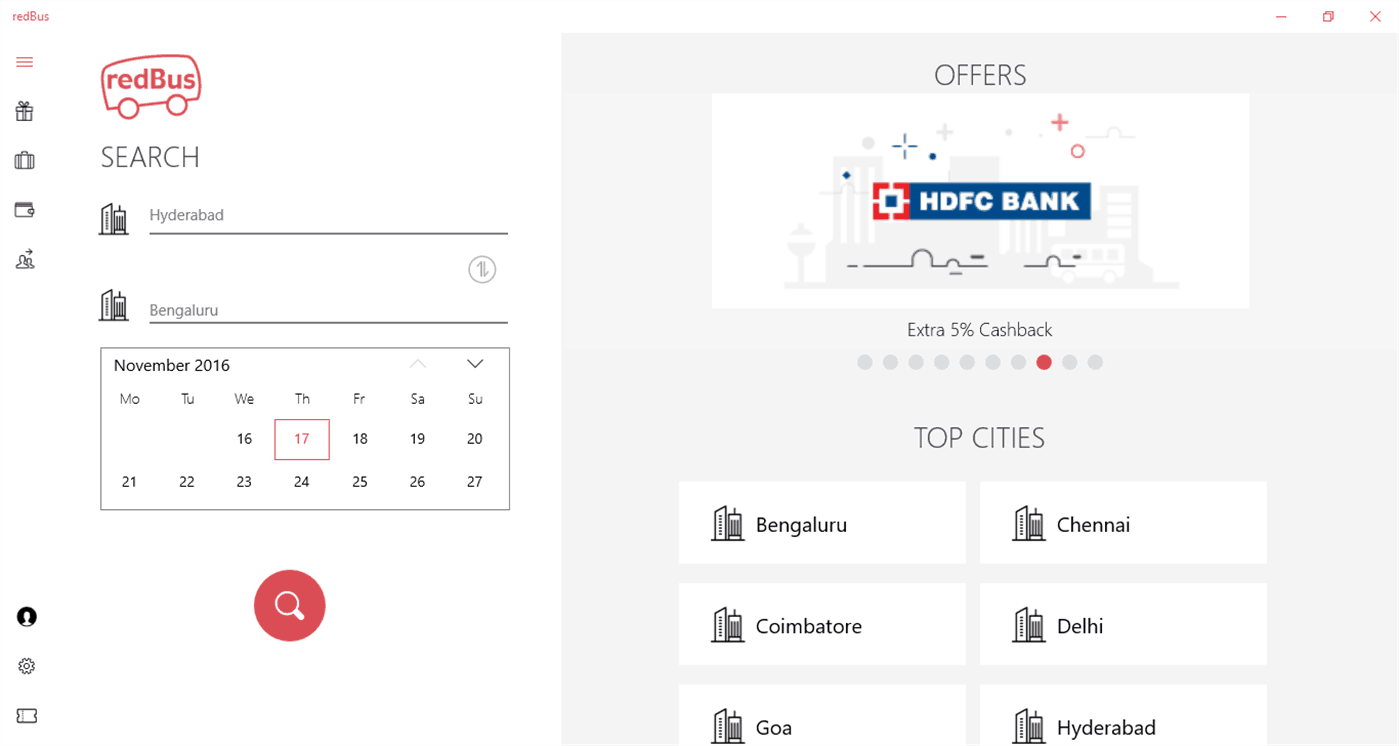
Founded in 2006 and acquired by ibibo in 2013, redBus is India’s largest online bus ticketing service. The service has had an app for Windows phones since long, but the latest update brings support for Windows 10 PCs as well. Also, the latest version v4.0.0.23 extends the app availability to Singapore, Malaysia, and Indonesia.
The app allows you to search and book bus tickets for over 70,000 routes worldwide and choose from over 2,300 operators. You can book tickets with a single tap with your saved card details, as well as cancel tickets from within the app.
Apart from a lot of bug fixes, the latest update also introduces new and improved app screens that work well with the large screen on your tablet or desktop PCs.
Download the app from the link below, and let us know how you like it – specially on your Windows 10 PC.
Last week, Xbox’s Major Nelson unveiled Xbox’s biggest Black Friday sale ever with more than 250 Xbox One and Xbox 360 games being discounted starting today November 22 (Xbox Live Gold subscribers got early access from November 18) through November 28. However, the Xbox team has also kept its weekly Deals with Gold and Spotlight Sale schedule and starting today Xbox enthusiasts can enjoy additional discounts on select Xbox games including Elite: Dangerous and Dead Island on the Xbox One as well Duke Nukem: Manhattan Project and Sonic & SEGA All Stars Racing on the Xbox 360. Keep reading to get more information on this week’s hightlights.
The game that re-defined the Zombie genre – fully remastered.Paradise meets Hell! Welcome to the Zombie Apocalypse experience of a lifetime – and now more beautiful than ever. Caught in the midst of an epic zombie outbreak on the tropical island of Banoi, your only thought is: Survival! The Dead Island ExperienceSmash heads, crack skulls, and slice ‘em up with visceral astounding melee combat and true story-based 4 player co-op in a sprawling open world just waiting for exploration.Including all previously released DLC.
Starting with only a small starship and a few credits, do whatever it takes to earn the skill, knowledge, wealth and power to survive in a cutthroat galaxy and stand among the ranks of the iconic Elite.In an age of galactic superpowers and interstellar war, every player’s story influences the connected galaxy and evolving narrative. Governments fall, battles are lost and won, and humanity’s frontier is reshaped, all by players’ actions. Explore, trade, fight and survive in Elite Dangerous’ massively multiplayer galaxy, and challenge the world in CQC: Close Quarter Combat. Become Elite in the interstellar PVP arenas of the ultimate 34th century gladiatorial contest.400 Billion Star Systems. Infinite Freedom. Blaze Your Own Trail.You will need to register a free Elite Dangerous account with Frontier to play the game.
Plunge into the new Digital Complete Edition of Lords of the Fallen! Master the Challenge in the Ancient Labyrinth expansion containing a new location, loot and enemies led by a powerful new Lord. Embark on a Monk Decipher Quest, equip powerful Demonic Weapons or armors from the Lionheart Pack and enhance your powers with Arcane and Foundation Boosts.
Duke Nukem is back! New York City is being overrun by a mutant menace and it’s time to de-worm the Big Apple. This explosive 3D action game features Duke Nukem defending the city that never sleeps, and its babes, from the evil Mech Morphix across 24 levels from Chinatown to Space. A super-sized collection of weapons, enemies and bosses await. As Duke would say, “Babes, Bullets, Bombs. I love this job!”
Blast opponents off the road with Fireburst, an explosively fun fast-paced arcade style racing game with fantastic graphics. Rev up to scorching speeds to outrun opponents on a dozen different tracks. Thanks to our exclusive Fireboost technology, use various explosive, fire-based special abilities to turn other cars into a pyre of parts. Leave opponents sucking on your smoldering dust in single-player mode, local four-player mode or the insane online eight-player mode!
Join Sonic and friends in a frantic battle race to the chequered flag. Select from your favourite Sonic and SEGA characters such as Dr. Eggman, Tails, AiAi, Amigo and many more each in their custom built vehicles and personalised All-Star move to get back into the race! Winning is only part of the fun in Sonic & SEGA All-Stars Racing!
As for the Xbox Black Friday Deals, these new deals on Xbox games will be valid through November 28 and we invite you to check the blog post to get the full list of discounted titles.
Many Windows 10 users use 3G or 4G data connection to access the Internet. Although both these connections are great, they usually have certain data cap, and therefore is important that you keep a close eye on how much network traffic do you use on monthly basis. Since this is an important aspect, today we’re going to show you how to keep track of 3G and 4G data on Windows 10.
How to keep track on 3G and 4G data on Windows 10?
Many Windows 10 laptops and tablets have a SIM card slot that allows you to access the Internet using 3G or 4G connection. This is an extremely useful feature, especially if there’s no available Wi-Fi in the area. Many mobile operators offer basic contracts with a data cap, and if you exceed the predefined limit you usually have to pay some extra fees. To avoid extra fees, it’s important that you keep track on your data consumption. Luckily, you can do that right from Windows 10.
Microsoft added an ability to check data usage in Windows 8, but this feature had limited functionality. Using this feature you could only check how much data does a specific Windows Store app uses, and although this feature was somewhat useful, many users were disappointed that there’s no support for standard Windows applications. Microsoft decided to remedy this limitation in Windows 10, and it corrected all the previous flaws of its data tracking system thus allowing you to keep track on how much data both Universal apps and standard apps use. In order to track 3G or 4G data usage on your Windows 10 PC, you need to turn on Metered connection first. To do that, follow these steps:
Make sure that you’re connected to your 3G or 4G network.
Now open the Settings app and go to Network & Internet > Wi-Fi.
Click Advanced options and turn on Set as metered connection option.
READ ALSO: Dripcap makes network traffic analysis simple
It’s recommended to turn this option on if you use a connection that comes with limited monthly traffic. In addition, by turning on Metered connection option you’ll disable automatic download of Windows updates. You’ll also disable automatic updates for apps and peer-to-peer uploading of updates. We also have to mention that your Live Tiles might not update if you turn this option on, and some of your apps might work a bit differently if you turn on Metered connection. This is because this feature tries to limit network usage by disabling certain Windows 10 features. After turning on Metered connection, you should be able to check your data usage by using one of our solutions.
How to – Track 3G, 4G data usage on Windows 10
Solution 1 – Use Task Manager
One of the easiest ways to check how much data your applications use is to use Task Manager. Task Manager comes with a useful little feature that allows you to check how much data does each app use so you can easily keep track on how much data you use on monthly basis. To check the data usage in Task Manager, you need to do the following:
Open Task Manager by pressing Ctrl + Shift + Esc on your keyboard.
When Task Manager opens, go to App history tab. There you’ll see a list of applications as well as CPU time, Network and Metered network data usage. If you’re using 3G or 4G connection you should keep an eye on Metered network section.
As you can see, checking data usage for each app in Task Manager is rather simple, but it has one crucial limitation – it only shows data usage for Universal apps. Although all relevant data is listed, you can only use Task Manager to view data usage for Universal apps, which isn’t something that all users want.
Solution 2 – Use Settings app
As we shown you earlier, Task Manager is the simplest way to check data usage, but it doesn’t show you information regarding all applications that are installed on your PC. If you want complete report about data usage on your PC, we strongly suggest that you use Settings app. To see 3G and 4G data usage in Settings app, do the following:
Open Settings app by pressing Windows Key + I on your keyboard.
When Settings app opens, go to Network & Internet > Data usage section.
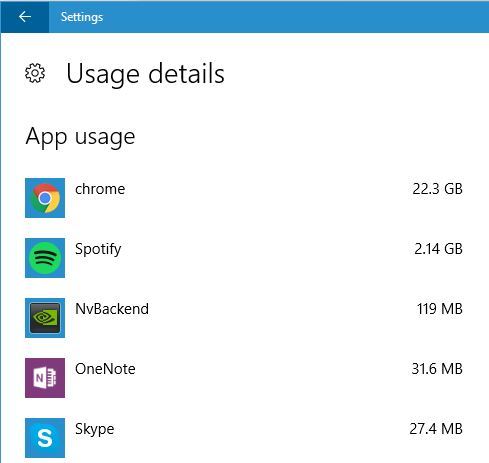
Now you’ll see a small chart regarding data usage in the last 30 days.
Optional: To see detailed information regarding data usage, click Usage details.
Now you should see detailed information regarding each installed application.
Solution 3 – Use third-party applications
You can also track 3G and 4G data usage simply by using third-party applications. If you want, you can use Universal app called Network Data. If you prefer classical applications, we covered some of the best bandwidth monitors for Windows 10, so be sure to check them out.
Tracking your data usage on Windows 10 is crucial if you use 3G or 4G network. As you can see, you can easily do that on Windows 10 without any third-party apps, and if you’re not tracking data usage on Windows 10, we strongly suggest that you start as soon as you can.
Sometimes, you need to share your PC with other users, but that can be both privacy and safety concerns. You don’t want your guests to have full access to your PC and personal files, and this is why a Guest account can come in handy.
A guest account is an extremely useful feature, and today we’re going to show you how to use it on Windows 10.
How do I add a Guest account to my Windows 10 computer?
1. Create a new Guest account using Command Prompt
Press Windows key + S, type cmd, and select Run as administrator under Command Prompt.
When Command Prompt opens, you need to create a new account called Visitor. To do that, enter: net user Visitor /add /active:yes
Now, type the command below and press Enter. net user Visitor *
You’ll be asked to enter a password for this account. Passwords aren’t required for guest accounts, so press Enter twice to leave the password field blank.
Now, you need to remove the Visitor account from the Users group. By default, all created accounts are added to the Users group that has full access to your PC.
Therefore we need to remove the Visitor account from the Users group by running the command below: net localgroup users Visitor /delete
Now, you need to add the Visitor account to the Guests group by running the command below: net localgroup guests Visitor /add
In previous versions of Windows, you could create a Guest account easily, just as any other account, but with Windows 10, Microsoft decided to make some changes, and it almost removed this feature.
There is still a way to create a Guest account on your Windows 10 PC, but it requires that you use Command Prompt to create a new user and add that user to Guests group.
After doing that, close Command Prompt, and you should have a new Visitor account that has limited privileges of a Guest account. If you want to use the Guest account, simply log in to the Visitor account, and the Visitor account should work completely as a Guest account.
2. Use Local Group Policy Editor
Press Windows key + S and enter group policy. Choose Edit group policy from the menu.
When Local Group Policy Editor opens, in the left pane, navigate to the path below: Computer Configuration > Windows Settings > Security Settings > Local Policies > Security
In the right pane, locate Accounts: Guest account status and double-click it.
When the Properties window opens, select Enabled and click Apply and OK to save changes.
Close Group Policy Editor.
Certain versions of Windows 10 come with the Group Policy Editor tool that allows you to change all sorts of advanced Windows settings. So you can enable the guest account with it.
After enabling this option in Group Policy Editor, you should be able to access the Guest account without any problems on Windows 10.
Press Windows key + X and select Computer Management from the list.
When Computer Management opens, in the left pane, navigate to: System tools > Local Users and Groups > Users
In the right pane, double-click Guest.
When the Guest Properties window opens, you’ll see a list of options. By default, the Account is disabled option should be checked.
Uncheck the Account is disabled option and click Apply and OK to save changes.
Close the Computer Management window.
Computer Management is another Windows application that allows you to change various settings and view all sorts of important information regarding your PC.
You can use this application to change user account settings, but you can also disable or enable a Guest account by using this tool.
After disabling this option Guest account should be available on your Windows 10 PC. A few users also suggest that you need to restart your PC once you make changes to Computer Management, so be sure to try that as well.
4. Use Local Users and Groups tool
Press the Windows key + R and enter lusrmgr.msc. Press Enter or click OK.
When Local Users and Groups tool opens, select Users in the left pane. In the right pane, right-click the empty space and choose New User.
Now Enter Visitor or any other name as User name. Feel free to enter any Description and uncheck User must change password at next login. Click Create button to create a new user account.
A Visitor account should now be added to the list of accounts. Double-click the newly created account to see its properties.
When Properties window opens, navigate to the Member Of tab, select Users, and click the Remove button.
This will remove the account from the Users group and remove any privileges that normal users have. It’s necessary to remove this account from the Users group because all new accounts are automatically added to the Users group when they are created.
Now click the Add button in the same window to assign the Visitor account to a new group.
Select Groups window will now appear. In Enter the object names to select the field, enter Guests, and click Check Names. If your input is valid, click OK to save changes.
Guests group will now appear in the Member of filed. Click Apply and OK to save changes.
After you’re done, close Local Users and Groups tool.
You can also add a new Guest user to your PC by using Local Users and Groups tool. This solution is similar to Solution 1, but unlike Solution 1, it doesn’t require that you use Command Prompt.
5. Enable Guest account using Command Prompt
Open Command Prompt as administrator.
When Command Prompt opens, type the command below and hit Enter: net user guest /active:yes
Close Command Prompt.
We already showed you how to create a new account and how to add it to the Guests group, but few users claim that you can enable a Guest account simply by running a single command using Command Prompt.
According to users, the Guest account is just disabled, and you can enable it simply by using this command. A few users reported that this method might not work until you make one more change in Local Group Policy Editor as shown below:
Open Group Policy Editor.
When Group Policy Editor opens, in the left pane, navigate to: Computer Configuration > Windows Settings > Security Settings > Local Policies > User Rights Assignment
In the right pane, locate Deny log on locally policy, and double click it to open its properties.
You should see a list of accounts that aren’t enabled for access. Among them, you should see the Guest account.
Select Guest account and click on Remove button.
Click Apply and OK to save changes.
Close Group Policy Editor.
As you can see, you can’t log in to your Guest account on Windows 10 by default, but after enabling this account from Command Prompt and changing your Local Group Policy, you should be able to access it without any issues.
6. Create a new user account and change its account type
Open the Settings app by pressing the Windows key + I.
Go to Accounts and select Family & other people.
In the Other people section, click on Add someone else to this PC.
Select I don’t have this person’s sign-in information.
Now click on Add a user without a Microsoft account.
Enter Visitor as the user name and click Next.
In the Other people section, you should see the Visitor account that you just created.
According to users, you can fix this problem simply by creating a new user account and changing its account type.
By default, all created accounts are added to the Users group, which gives them full access to your PC. Since we don’t want that, we need to change the account type by following these steps:
Press Windows key + R and enter netplwiz. Press Enter or click OK.
The User Accounts window will now appear, and you’ll see all available accounts.
Check Users must enter a user name and password to use this computer option. Double-click the Visitor user to open its properties.
When the Visitor Properties window opens, go to the Group Membership tab. Here you’ll be able to choose between several different groups that have different privileges on your PC.
Select Other, and from the dropdown menu, choose Guests.
Click Apply and OK to save changes.
After doing that, you should have a Visitor account that has the same privileges as a Guest account.
As you can see, a Guest account is an extremely useful feature to have, and we’re not sure why did Microsoft remove support for this feature. If you still want to use a Guest account on your Windows 10 PC, be sure to try some of our solutions.
One the Xbox 360, Fireburst and Hunter’s Trophy 2 – America have had their prices reduced by 80% while Duke Nukem: Manhattan Project, Sonic & Knuckles, Sonic & SEGA Racing, Sonic & SEGA Racing – Metal Sonic & Death Egg Zone, and Sonic & SEGA Racing – Unlock All Characters & Tracks are now all 50% cheaper.
On the Xbox One, Divinity: Original Sin – Enhanced Edition, Beyond Eyes, and Instant Indie Collection: Vol. 1 and 2 have been reduced by 75%. Lords of the Fallen Digital Complete Edition is selling for 67% off its usual price while DEAD OR ALIVE 5 Last Round – Core Fighters 30 Character Set is 60% cheaper.
Dead Island Definitive Collection (pictured above), Dead Island Definitive Edition, Dead Island: Riptide Definitive Edition, Rock ‘N Racing Off Road DX, and Sheltered are now half price and Virginia, DEAD OR ALIVE 5 Last Round – Falcom Mashup Set, DEAD OR ALIVE 5 Last Round – Phase 4 Character + Debut Costume Set, DEAD OR ALIVE 5 Last Round – Senran Kagura Mashup Set, DEAD OR ALIVE 5 Last Round – SW Mashup Set, and Deadlight: Director’s Cut are 40% off the retail price.
On the lower end of the discount spectrum, DEAD OR ALIVE 5 Last Round – Naotora Ii + Debut Costume Set and DEAD OR ALIVE 5 Last Round – Schoolgirl Strikers Mashup Set have a 35% discount and NASCAR Heat Evolution, NASCAR Heat Evolution Pit Pass 2, NASCAR Heat Evolution Pit Pass 1, DEAD OR ALIVE 5 Last Round – Nyotengu Character + Debut Costume Set, and DEAD OR ALIVE 5 Last Round – Marie Rose Character + Debut Costume Set have been given 30%. The DEAD OR ALIVE 5 Last Round – Honoka Character + Debut Costume Set is now 20% off the normal price.
All of these games and add-ons can be purchased from within the Xbox consoles, on the Xbox apps, or on the Xbox Store website. Are you going to take advantage of these discounts? Let us know in the comments below.
Microsoft’s Xbox department ended up in a bit of a bind this morning when a promotional email sent out to gamers had its subject line misinterpreted by many as saying the N-word. The video game being promoted was the zombie action title, Dead Rising 4, and its subject text was some random garbled zombie roar, “NNNNGGGHHHAAA”.
It was obviously meant to be humorous with no racial undertones whatsoever and when read properly, if zombie speech can be read properly, it should sound something like ‘ng-ha’ (Imagine the ‘ng’ sound in ‘song’ or ‘ring’) and not the offensive racial slur that some thought it was. Unfortunately, enough readers decided to read the letters individually and assumed that Microsoft was the sort of company which would actually send zombie-themed race hate to its consumers.
Xbox’s Larry Hyrb responded to the complaints with a tweet later in the day that read, “Today we sent a DR4 email where a zombie roar was interpreted by many as a racial slur. We apologize and promise to do better next time.” Probably safe to say he didn’t think he’d be tweeting that today when he got out of bed this morning.
Today we sent a DR4 email where a zombie roar was interpreted by many as a racial slur. We apologize and promise to do better next time.
Microsoft has often times boasted that its Xbox One console is a device for the whole family. As far as the Xbox account options are concerned, the company has really gone the extra mile. Parents have direct control over the privacy and security settings of their children’s Xbox One accounts. In other words, if some settings need to be changed on the child account, parents can do that at any moment.
This is a great way of implementing parent supervision and making sure that parents stay connected and know what’s going on with their kids even when they’re engaged in their own distant virtual worlds.
This guide will list the necessary steps to change the security and privacy options of an Xbox One child account, straight from your own account. The process is fast and there is no hassle involved, so in just a few simple steps, it should all be done.
How to change the settings of an Xbox One child account
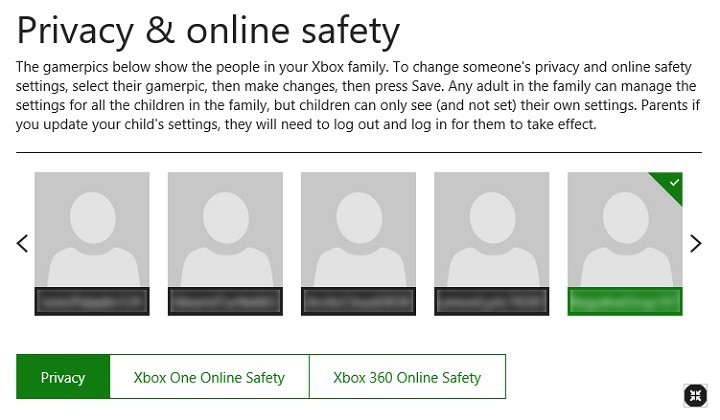
The first thing you have to do is log into your Microsoft account, presuming you are the parent. Once the parent Microsoft account is accessed, go to the Xbox settings section.
Select the gamertag for the child account you want to view or change.
You can now see all the different settings available. Select either the Privacy tab, or the Online safety tab, depending on which setting you want to change.
Change the settings, and when you are ready to confirm all the changes you’ve made, simply go to the bottom of the page and click Save.
Have the child sign in and then sign out of their own account for the changes to take effect.
Just like horror movies, horror games fall in a genre of their own; not many people’s favorite, but horrifying enough to put every organ of the player’s body in a panic mode. You will find ghosts, zombies, ghouls, beasts, aliens, as well as gods. These survival horror games are not for the faint-hearted.
They will immerse you into a post-apocalyptic future where you will have only one mission: kill to survive. If you wish to take a ride to such a dystopian universe, then turn off the lights, put some headphones on and make sure you have an extra rifle by your side. We have compiled a list of the best survival horror games for PC that will supercharge your adrenaline.
Top 10 survival horror games of all times
Resident Evil 4
Resident Evil 4 is one of the few survival horror games that exemplify how a tingling horror apocalypse looks like. This game will put you into one of the most hyperactive action sequences you have even seen. You play the role of Leon Kennedy, a man laboring under affliction that can sign his death certificate at any time.
Leon must shoot to decapitate the zombies, escape chainsaw wielding psychopaths, and hammer buttons in alarming frequent QTE sequences. These are frustratingly tough times for Leon but he has to fight to stay alive.
Doom 3 packs scary action sequences as you fight attacks from all fronts. You will need an arsenal of weapons to slaughter an army of demons from hell, weird looking aliens, and upside-down baby face spiders. The precise timings of the game’s pop-up monsters and jump scares are what sets it apart.
You never know where the attack will come from and the scary part is what will attack. There is a selection of weapons to destroy every monster so the choice of weapons also determines whether you will stay alive or not.
Dead Space is a science fiction survival horror game that disturbingly mixes paranoia with violence to create an unrelentingly bleak miasma of fear. Set in a spaceship haunted by ugly looking aliens, Dead Space revolves around survival in an environment with a stench of death.
As a mechanic, you are armed with a laser cutter, sharp enough to dismember the already malformed alien creatures who have invaded your ship. Though armed with powerful weaponry, the task becomes difficult when the creatures hide and attacks from the dark and endless corridors of your spaceship.
Now we are digging deeper into some of the greatest survival horror games of all times. Horror stories in nightmares may not seem real, but with Amnesia you get to see and experience the thrills. You play as Daniel, an Archaeologist who has lost his memory but has only one letter to guide him escape from the haunted castle and the scary monsters that are after him.
The only way to run away from these monsters is by sneaking and hiding. It gets even more difficult because even a single glance at the monsters can suddenly make them aware of your presence.
Penumbra: Black Plague is a dark and creepy psychological horror game that revolves around the adventures of Phillip as he sets off to search for his dead father. Trapped in a mystic, shadowy underground complex and surrounded by enemies, Phillip is determined to discover the story behind his father’s disappearance.
Phillip must find his way and collect clues as he battles the psychological terrors before they strip him off sanity. Can Phillip conquer fear and discover the mystery behind his father’s disappearance? Only you can decide.
Condemned: Criminal Origins is a dark and frightening horror game that puts the player right into the closet of blood-thirsty psychopaths. There is a rogue serial killer on the loose and he really loves mannequins.
As a crime scene investigator, you’ll have a difficult time tracking down this killer before he does more menace while at the same time contend with the violent surroundings. Condemned is terrifying and really puts you in a killing mood.
If you have watched ‘The Wrong Turn’ and felt the goose bumps this horror movie impacts, then you will be glad to discover its dear cousin in the gaming world. All this happens in the asylum of thick mountains of Colorado where horror awaits you.
Unaware of what to find in the Mount Massive Asylum, Miles, an independent journalist breaks into the facility and discovers a mystical and horrifying world that even science couldn’t explain. Once inside, his mission changes and survival becomes his only mission. He has to escape the horrors and his only hope of escape lies deep in the heart of Mount Massive.
Things begin to get ugly when you wake up on a bizarre spaceship surrounded by bodies. Drowsy, disoriented and in pain, John Maracheck wakes up only to find himself sleeping on a wet steel floor. He finds the floor and his body covered with a thick green liquid that looks like alien blood leaving a trail that leads to a nearby stasis pod.
He has no idea of the whereabouts of his wife and his daughter. He has to begin a perilous adventure in search of his family. Using the game’s mechanics, you are supposed to use the objects around you to find John’s family.
System Shock 2 is one of the greatest survival horror games of all times. It’s arguably one of the most frightening horror survival games and features intensive action scenes with all types of monsters. It’s loaded with so many extras from rogue robots to cybernetic monsters and a universe of mutants called ‘the many’ that will put your chances of survival at risk.
It’s a first-person perspective game that allows you to choose your path, your skills, and your weapons as you prepare to immerse yourself into one of the most horrifying experiences of your life.
Call of Cthulhu is one of the best examples of psychological survival horror games ever made. The game quickly immerses you into the adventure with intense action in a shadowy environment that has a stench of death.
You have to rely heavily on your investigation, exploration, and combat skills while faced with the nearly impossible task of fighting evil incarnate. You will be provided with enough ammunition and you will be able to interact freely with characters and the environment.
Unlike racing games that arouse your brain and concentration level, survival horror games impart fear as you fight for your life. These games can be very scary especially when played on a sophisticated VR like the HTC Vive. However, that does not mean that the PC versions are less impactful.
The list above highlights the best PC survival horror games that will literally cause your spine to tingle. Do you have a favorite horror game that you feel deserves a place on the list? Sound off in the comments section below.
Last Friday, Larry Hryb (a.k.a. Major Nelson) and Bill Stillwell hosted a 1-year celebratory podcast for Xbox One’s Backward Compatibility feature. The two talked for a solid half an hour about how it has developed, what the future of it might be, and exactly why some of the fans haven’t seen their long-awaited requests as of yet.
Rome wasn’t built in a day, or so the adage goes. Even when it comes to technology, video games for older consoles are going to have difficulties when transferring over to today’s Xbox One generation. Even though their list of games on UserVoice is their primary source of priority, the team can’t pre-determine which games will be available sooner. Major Nelson was sure to emphasize this point when he explained the limits on Backward Compatibility.
In fact, most of the time, the hangup is making sure the game even works. If it doesn’t work, from beginning to end, that game needs to undergo some work to become available for Xbox One. One example was when they discussed Forza Horizon’s testing phase. The game ran just fine except that there wasn’t any collision with cars and the environment, the player would just drive right through them. Furthermore, obtaining rights and permissions to change a game or its assets can be complicated.
Reddit user Spartan Ranger summarized the podcast with an extensive list of bullet points, but if you have the time, the podcast is worth lending an ear. With over 280 of the approximately 1,800 Xbox 360 games already available as Backward Compatible, Nelson left gamers with a lingering hope that we should see at least twenty more before the end of this calendar year, ‘but no promises.’
Microsoft’s Excel Services and BI in SharePoint 2016 on-premises services just landed a new update for the month of November that enables architecture changes to the SharePoint-based on-premises Microsoft BI Stack and more.
According to a blog post recently written by the Office team,
Updates include architecture changes to the SharePoint-based on-premises Microsoft BI Stack and how you can benefit from upgrading your BI farms to SharePoint Server 2016, SQL 2016 and Office Online Server with Excel Online. We also examine various aspects, such as upgradeability, backward compatibility and licensing. For more information, please read “Deploying SQL Server 2016 PowerPivot and Power View in SharePoint 2016.”
For those looking to try out the update, expect to see the following additions afforded by the combined use of Office Online Server and BI deployment:
More Excel features—Additional features include the ability to search in Pivot Table filters, number formatting, ability to view and insert comments and the addition of Excel JS APIs.
Robust, unified deployment—You can deploy it with other Office Web apps. Use it for viewing, editing, and BI.
Basic Excel BI capabilities with SharePoint Standard CAL—Use data model and/or access external data. Refresh and save your refreshed workbooks.
Evergreen service—Always stay up to date, get many of the same features and improvements as Office 365.
To gather more information or details regarding BI, viewing, creating content with Excel Online on Office Online Server, visit Microsoft’s Office blog today.
If you’re looking for a way to connect to other Microsoft aficionados and professionals, then the Microsoft Tech Community is a good place to start. It’s where you can make contact with people from all over the Microsoft world, for products ranging from Microsoft Teams to Surface.
Today, Microsoft Mechanics focused on providing a tour of the Tech Community, and you can check out the video below:
Netflix is gearing up to release four new installments of Gilmore Girls, almost 10 years since the 2007 series finale. Netflix is giving Gilmore Girls fans the chance to see what’s happening with Rory, Lorelai, Emily, Luke, Lane, and the rest of the gang in Stars Hollow in Ultra HD. Netflix is offering exclusive 4K content on Windows 10 devices, starting with Gilmore Girls: A Year in the Life, premiering on November 25, 2016.
In order to take advantage of the Netflix 4K content streaming, Microsoft notes that you’ll need a Windows 10 device that can display 4K content:
“Your binge-watching favorites on Netflix are now available in 4K exclusively on compatible PCs and 2-in-1 devices, on Windows 10. Check out the new streaming experience with Microsoft Edge, the only browser that supports Netflix 4K content. If you’re looking for a new Windows 10 device that supports 4K, head over to Microsoft Stores.”
According to Microsoft, if you use Edge to stream Netflix episodes, you’ll be able to sneak in one more episode of Gilmore Girls than when streaming Netflix using Google Chrome in battery tests. Microsoft claims that Edge beats Chrome in battery tests when streaming Netflix 4K content. As always, battery life with Edge versus Chrome all comes down to your Windows 10 PC settings. Another added bonus for Microsoft Edge is the fact that Edge is the only browser available where you can watch Netflix’s 4K content.
Netflix Ultra HD availability depends on your subscription plan, ISP, device capabilities, and content availability, and so this exclusive content may not be available in all areas. It should also be noted that the Netflix 4K content is only available on Windows 10 PCs with 4K displays, running 7-th Gen Intel Core (Kaby Lake) Processors.
Despite Microsoft executives being opaque about the future of Windows 10 Mobile, the combined sleuthing of infamous Windows leaker @h0x0d (aka Walking Cat) and known Microsoft reporter Mary Jo Foley, reveals details regarding a potentially robust mobile computing experience coming to users eventually.
While there are several factors that led to the demise of Windows phone as a modern mobile operating system, the general consensus has been its lack of apps that ultimately killed the viability of the platform for most users.
The Walking Cat has uncovered some information later confirmed by Mary Jo that may help mitigate the app gap that has plagued Windows phones with engineers working with x86 development on ARM64 emulation.
In a tweet sent out late yesterday evening, Walking Cat revealed the development of an x86 emulation for ARM64 tech that would allow Microsoft to potentially enable the million plus strong library of Windows apps to run on ARM chips at some point.
I’m hearing this Cobalt technology is aimed at phone and possibly tablet/desktop devices, not servers. I’d expect the initial target audience for devices with the x86 emulator on ARM64 would be aimed at business users, as they’re the ones who most need x86/line-of-business apps.”
Unfortunately, a Fall 2017 release date for Cobalt leaves many hoping for the prospect of a Surface Phone waiting that much longer for it to materialize and dampens the notion of an early Spring hardware reveal that would include a new mobile device from Microsoft.
However, if Cobalt works as planned, Microsoft’s pitch for Continuum becomes that much richer and possibly worth the wait.
Windows Holographic, unveiled last month at the Windows 10 October Event, will allow VR headsets to work with Windows 10. If you are running the latest Windows 10 Insider Preview build, and whether or not your computer meets the requirements, you’ll be able to run Windows Holographic First Run setup.
Windows Holographic system requirements
Here’s the video showing how Microsoft envisions Windows Holographic will work with a VR headset.
According to a post by Brad Sams, the requirements for Windows Holographic for a Windows 10 PC are 4GB RAM, USB 3.0, DirectX 12, a CPU with 4 cores, 1GB of free storage. Also, you’ll need a decent amount of open space, approximately 5-7 feet, allowing the option of adding tracking sensors and to avoid walking into your furniture.
There has also been chatter on Twitter on the Windows Holographic about the Windows 10 system requirements, but it doesn’t look like anyone has a definitive answer. For now, it looks like we will have to wait unbtil next month for an official comment from Microsoft on everything there is to know about Windows Holographic.
If you’re the sort of person that is into all things Xbox, or just are interested in getting involved with the gaming community, then you might want to join the Xbox Ambassadors Program this holiday season. This season, both new and existing community members are set to have chances to unlock holiday-themed surprises and other rewards by doing things they already do, such as Tweeting, watching YouTube videos, and learning about Xbox products and services.
All it takes to sign up to be an ambassador is to head over to this webpage and click “Get Started.” After that, you need to authenticate a new or existing Twitter account, and then use it to reach out to others in 140 characters or less. If Tweeting is not your thing, you can also join the new Ambassadors on YouTube Forum, where anyone can share Xbox-related videos with the community. If you’re lucky enough, and if your post is good enough, it might even be promoted by someone from Team Xbox!
For added fun, you also can check out the expanded Ambassadors Website which features an expanded space for informational materials and quizzes, called the Academy. So, what do you think? Will you join in the 6,000 active community members on the Xbox Ambassadors Program this holiday season to find new friends and enjoy the Xbox experience? Let us know by dropping us a line below!
Distraction is one of the biggest enemies of productivity. If you procrastinate by checking your Facebook feed, reading emails, or watching YouTube videos, you’ll never get the job done on time. And that’s where a distraction-free writing tool comes into the picture!
We talk about technology here and I’ll show you what tools you can use to stay focused on work for longer than 5 minutes. There are many distraction-killers, productivity boosters, and other tools that can help us get the job done without procrastinating.
But now, we have something for all you writers out there. Keep reading to find the best distraction-free writing software for writers on the go!
FocusWriter is a great tool for keeping your writing distraction-free. It starts in full screen and doesn’t allow you to wander anywhere from your virtual piece of paper. The program is fully customizable, as you can set your own background themes and more.
It supports working on more documents at once with its tabbed interface. FocusWriter also has some productivity tools, like its own timer, word count, the meter of your daily goal, etc.
When you write, you don’t even see the interface because it shows only when you drag your mouse pointers on the screen edges. Because of its great productivity features, and flexibility, many writers consider FocusWriter the best free distraction-killer for writers.
WriteMonkey is another zen-ware that allows you to write in full-screen mode and eliminate all possible distractions. It’s free, portable, and fairly easy to use.
Although it doesn’t offer as many features as other tools from this list, WriteMonkey is still a decent tool. Everything in this program can be done using keyboard shortcuts, so you can start and finish your work without even using your mouse.
It also features some basic formatting options, like text bolding, italicizing, and more. WriteMonkey also features spell-checking, auto-saving, and document backups and has Firefox integration via the It’s All Text extension.
In case you didn’t notice, WordPress also has its own distraction-free environment. Just open the WordPress text editor, and you’ll notice the distraction-free icon in the toolbar.
If your main writing job is blogging or writing for a website, using WordPress’ own distraction tool is probably the best idea.
It’s even more powerful if you use it combined with a website blocker to ensure you stay on your work by any means. One of the best website-blocking apps you can find is Cold Turkey.
This app allows you to block certain websites for a certain amount of time. It is available for free, but there’s also the affordable Pro version, a one-time fee.
That’s about it for our list of the best distraction-free writing tools for Windows. We hope at least one of these programs will be useful and help you get the job done more effectively than before!
The UWP Windows Defender we’ve seen on stage at the Windows 10 Event last month may not have been what we initially thought. A new app showed up on the store, called Windows Defender Hub (via DeskModder).
The app currently doesn’t do much more than the Office Hub app. It redirects you to the corresponding legacy application. It’s not really useful for anything else other than looking cool on your start menu, showing blog posts and giving you some tips on security, because the best antivirus in the market is your own brain.
It may be updated in the future as a replacement of the current, outdated, antivirus software Windows uses, but this is pure speculation as no official word has been revealed at all about this application.
Ironically enough, this app has been compiled for ARM-powered CPU’s which means it can be installed on a phone, but in order to do that, you need to open the “My Library” page in the store from your phone and install the Hub from there.
The mobile version is very buggy, with the header covering up to two-thirds of the display and the “Open Windows Defender” button not working at all, as there is no Windows Defender on phones.
Welcome to our weekly Xbox news recap series, where we go over the top stories of the past week in the world of Xbox. Let’s get started.
Telltale’s Guardians of the Galaxy leaked as Telltale’s next game
There’s no official confirmation from Telltale, but a seemingly reliable rumor has painted Telltale’s next project as “Telltale’s Guardians of the Galaxy.” The news comes from the SAG-AFTRA strike, which prompted a list of noncompliant companies and their projects. This seems to match up with Telltale’s history of bringing popular franchises to the interactive medium, especially with Guardians of the Galaxy 2 set to release next year.
Xbox’s 15th anniversary data reveals that, yes, people play a lot of Xbox
The 15th anniversary of Halo and Xbox happened last week, prompting a celebration from Microsoft and Xbox fans alike. For those of us who get a kick out of data, Microsoft released numbers about what the last 15 years have looked like for Xbox. Turns out that 100,539,390,670 hours have been spent playing Xbox, 32,667,582,157 achievements have been earned, and 572,605,554,587 gamerscore has been racked up.
Remedy Games teases two new titles, one new IP
Remedy Games is a legend in the gaming industry, even though some gamers might not know them by name. They’re the company that created Max Payne, Alan Wake, and – more recently – Quantum Break. A new tongue-in-cheek trailer teased some upcoming announcements, and it’s been confirmed that the company is working on two new games. One of the new games is a new IP (Intellectual Property) and the other, presumably, is a sequel to Quantum Break (Or Alan Wake, if we’re REALLY lucky.)
Xbox Live Gold members get early access to Black Friday deals
If you’re subscribed to Xbox Live Gold, you have access to some Black Friday deals earlier than anyone else. While other people are going to have to wait until November 22nd to get a shot at discounts on Titanfall 2, Overwatch, Battlefield 1, The Witcher 3, and more. Most of the deals should be available right now for Gold members, so you should get on that as soon as you can.
Here are some of cool new games that came out this week:
The Vector smartwatch is a new generation, cross-platform device, that not just looks elegant, but also offers a wide range of innovative functionalities as well. The most prominent one is its impressive 30 day long battery life, showing that the manufacturers have gone to great lengths to ace the battery consumption of the device. The watch can also deliver personal, customized notifications, visible to you only.
The aesthetics of the device are one of a kind too, offering a range of creative designs to choose from, all condensed with the same functionalities and features. The two main styles are: Luna which is your traditional circle-faced watch, or Meridian, a square-faced alternative.
What makes this device fit the list of next generation technologies? For starters, there is the water resistant mechanism, making it swimming friendly or suitable for techies living in areas with harsh weather conditions. Then there is the strong consideration towards user privacy, a built-in feature that displays messages only when the watch is aligned with the user’s face wearing it, along with the subtle vibrations that notifies its user about incoming calls, messages, and emails that can be dismissed by a gentle flick of the wrist.
The Vector smartwatch is designed specifically for the clientele who are in favor of extreme customization capabilities, rather than those who prefer running on preset defaults and want efficient performance without having to dig deep into the array of settings.
The Vector watch Windows 10 app
The Windows 10 UWP app for the Vector watch contains numerous improvements compared to the Windows Phone 8 app. You may think why would you need an external application for an all-out device? Syncing your Windows 10 phone with this handy gadget contributes extensively towards delivering a better user experience.
The application is far from perfect, as it houses a few syncing issues, notification glitches, and some constant lagging and crashing. It sure looks like the VectorWatch Windows 10 app could use a little more attention, given the device’s seamless integration on other platforms.
If you’re looking for a stylish smartphone compatible with your Windows 10 Mobile phone, the Vector watch is the right choice for you. You can buy it for $225.00 from Amazon. You can download the VectorWatch Windows 10 app from the Microsoft store.
Microsoft has been making some radical changes to Windows 10 recently. The company has replaced Windows 10’s default command-line tool, Command Prompt, with PowerShell in the Win + X menu.
Starting from build 14971 for Windows 10 Preview, when you right-click the Win + X menu, you’ll notice that PowerShell is now the default command-line tool. As PowerShell is completely Command Prompt-compatible, which means you can perform the same commands in both tools, the company thinks it’s a better idea to give PowerShell advantage over Command Prompt.
But don’t get confused, Command Prompt is still present in Windows 10, and nothing has changed within the tool. The fastest way to access Command Prompt is to simply type ‘cmd.exe‘ in the Search menu. And in case you don’t want PowerShell to be your default command-line tool, you can change this by going to Settings > Personalization > Taskbar, and turning “Replace Command Prompt with Windows PowerShell in the menu when I right-click the Start button or press Windows key+X” to “Off”.
Microsoft also points out that it’s PowerShell’s 10th anniversary, which could be one of the reasons for this decision.
This is not the first change of Windows 10’s Win + X menu, we remind you Microsoft also removed Control Panel from the menu some time ago. You probably shouldn’t worry about Microsoft completely discontinuing Command Prompt from Windows 10, because it’s one of the cult features of the system, and many users are accustomed to using it.
Windows 10 build brought a lot of confusion to some Insiders who installed it. While replacing Command Prompt with PowerShell is the announced change, people are far more worried about what will Microsoft do with Paint and Paint 3D in the future.
What do you think about replacing Command Prompt with PowerShell? And which tool do you prefer using? Let us know in the comments below.
RELATED STORIES YOU NEED TO CHECK OUT:
Bing now lets you save your searches to view them later