Star Wars Battlefront 2 confirmed for 2017 release

Electronic Arts had a successful fourth quarter with strong financials and numbers. As per the earnings report, EA is the top publisher for PlayStation and Xbox One in the “Western world for the fiscal year 2016 as per EA estimates”. During their latest earnings report, the company also highlighted that Star Wars Battlefront is a highly successful new franchise, selling over 14 million units in fiscal year 2016, which was way ahead of company’s expectations. So, it makes sense for the developer to think about a successor to the popular game.

The company confirmed during the earnings call that Star Wars Battlefront 2 is in development and is expected to launch sometime in 2017 (via Gamespot). EA CFO Blake Jorgensen confirmed it will have “bigger and better worlds” and will make use of the content from the “new movies” — although he didn’t name which ones. Jorgensen further said that the company plans to release on new Star Wars game every year for the next three to four years, which sounds great.

If you’re not one of the 14 million, you can get Star Wars Battlefront from the Xbox Store.

This gold carbon fiber Xbox One controller is expensive but shiny

Colorwave has launched a beautiful yet expensive Xbox One controller known as “Xbox One Elite Titan Controller“. The controller carries a whopping $299 price tag, which is way more than the standard controller which ships with the console itself (via Windows Central).

The controller’s front is made of gold carbon fiber graphics with a gloss finish while rest of the controller are painted jet black gloss, giving it a premium look compared to the standard controller. The company mentioned that it’s a limited edition piece and the initial run is only of 50 pieces which means that you may have to act fast if you want to get this controller.

Colorwave said on the product page:

Carbon fiber is a man-made material that has revolutionized the aerospace industry, auto racing and artificial limbs. Although carbon fiber is incredibly strong and lightweight, it also has a distinctive woven pattern that makes it appealing to the masses. Because of its appeal, ColorWare created a custom gold carbon fiber graphic for the Xbox One Elite Controller. This limited edition custom Xbox one controller with the gold carbon fiber graphics is called Titan.

The Xbox One Elite Titan Controller is heavier than the standard controller, has three sets of thumbsticks and two d-pads — one looks like the original while theo ther one is designed for cross-directional movements. Additionally, there are four detachable paddles which can be controlled by an app specifically designed for the Elite Controller. Users can use the app to “program back paddles, and remap any of the 14 digital inputs from the controller.”

Here’s a video showing Colorwave’s Xbox One Controller:

Included in the box are carrying cases, a set of 4 paddles, a set of 6 thumbsticks, 2 D-pads: faceted and standard, a USB cable, AA batteries and a quick set up guide and product manual. The case is compatible with Windows 10 and Xbox One console.

Windows 10 torrent app removed from app store due to adware scare

Microsoft has pulled the torrent app, Torrenty, from the Windows Store after it was found to prompt the download of apps infected with adware.

ZNET’s Ed Bott was one of the first to discover the suspicious app after opening the current version on his PC and noticing a rather strange button that prompted him to update. “That “1 Update(s) Pending” message doesn’t look like an ad; it appears to be part of the user interface,” he describes. “Clicking that button opened a web page that immediately tried to download a program called Setup.exe. With Microsoft Edge set as the default browser, the software downloaded in a matter of seconds, with a Run button appearing at the bottom of the browser window.”

The app’s endgame was apparently to install a browser add-on that enables a variety of unwanted popups and ads on top of a user’s internet browser.

In addition to pulling the app from the Windows Store, Microsoft also responded with the following statement: “Microsoft has a thorough review process for app submissions, based on a strict set of certification requirements. No approach is perfect, so we encourage people to report any issues they may encounter with Windows Store. For most issues, customers can use the “report concern to Microsoft” link in the Store. For infringements concerns, people can use our online tools or email [email protected] directly.”

In addition to being one dodgy Windows 10 app, Torrenty’s main purpose was to download and upload files via the popular BitTorrent file sharing method. While there are some legitimately legal files that can be shared via BitTorrent, the method is mostly known for being notoriously popular for spreading illegal copies of TV shows and movies. Part of the reason for its popularity is due to the fact that with BitTorrent, there is no one download location, parts of the shared file are hosted by other users who have already downloaded the file themselves.

Have you downloaded any untrustworthy apps from the Windows Store? Share your experiences with the community in the comments below.

The war between Battlefield 1 and Call of Duty: Infinite Warfare heats up

Electronic Arts finally revealed Battlefield 1 a few days ago and it was well received by fans and just the general gaming population. Unlike previous games in the franchise, Battlefield 1 is set in World War 1 and for this very reason, the game’s first trailer managed to surpass the excitement for Call of Duty: Infinite Warfare in mere 24 hours.

We’ll definitely enjoy what Call of Duty: Infinite Warfare has to offer when it is released in November, but there’s just something about Battlefield 1 that excites us even more. That’s probably because it is set in an era not touched upon in a long time by a major video game studio. Ever since the rise of the Xbox One and the PlayStation 4 over two years ago, games have been set in modern times or in the future.

Gamers have become tired of jumping around in jetpacks and fighting robots or humans with superhuman strengths on a yearly basis. They are also slowly becoming bored of games set in today’s time, so DICE and EA made a great decision to turn the clock back and we’re fully certain it will pay off in spades. The trailer looks great, and it seems we might get the chance to cut down our enemies on horseback, too.

Now, many have been championing the death of Call of Duty: Infinite Warfare on social media, but that is far from the truth. The reality of the situation is that Battlefield 1 will play second fiddle to what Activision and Infinity Ward has to offer. This is because millions enjoy Call of Duty’s gameplay, so it matters not to them if every game in the franchise takes place on an alien planet where they get to fight giant rock monsters and a robotic planet that sings the blues.

Call of Duty games are all about jumping in and experiencing quick enjoyment. This is not the case for Battlefield, seeing as its maps are large and the overall gameplay is more complicated. Not everyone has the time to learn the nuances, which means a quick match in Call of Duty would be more enticing.

We haven’t seen much when it comes to gameplay, meaning that despite what trailers have shown, anything is possible when gameplay for both games is revealed next month at E3 2016.

Until then, keep calm and bear in mind that while both games are similar due to genre, they are very different in terms of gameplay.

RELATED STORIES YOU NEED TO CHECK OUT:

PSA: Xbox games on Windows phone and PC do not support all Xbox Live features

Xbox Live has always been a Microsoft service that I’ve loved and appreciated. The Xbox Achievements add an extra layer of content to games, the leaderboards are great for creating a more social experience, and the seamless cloud saves and backups mean gamers can delete games from their Xbox console, Windows phone, or PC and reinstall them at a later date to pick up where they left off. Well, this is what I thought until today when I found out that my assumptions concerning Xbox-branded games were completely wrong.

While I love my Windows phone (It’s a Lumia 930 for those that are curious), ever since I got it it’s had this bug which prevents it from making system backups to the cloud. For a year and a half I’ve spoken to a variety of in-store, on the phone, and online chat support and have tried every possible solution but nothing seems to squash the bug. The only way to fix it apparently is to do a hard reset to return it to its factory settings. This seemed like a hassle though and, to be honest, the lack of backups has never bothered me too much because all of my apps such as Evernote, Dropbox, etc all save data to the cloud and all of my Windows phone games support Xbox Live, which means cloud saves for them too, right?

Due to a separate bug which has been causing my Windows phone’s System memory to expand exponentially to the point that it now fills up around 28 Gig out of the 35 Gig total memory, and fills up any space that I free up immediately, I decided that I should probably do that hard reset that I had been putting off for so long.

Still unable to make a backup to the cloud, I connected the Windows phone to my Surface Pro via USB to make a local backup of files but discovered that there was no way to backup apps this way. Wanting to make sure I wasn’t missing anything, I began chatting with Lumia and Xbox support staff on Twitter. While the Lumia support promised that any game with the Xbox branding would have its own cloud save, they admitted to not being sure and suggested I talk to the Xbox support who informed me that while my copy of Age of Empires: Castle Siege would be fine (I assumed it would because I use cloud save-based crossplay with the game to play it on my Surface Pro as well), all of the data from Angry Birds Star Wars 2 would be completely lost.

Despite being branded as an Xbox Live Windows phone game and having Xbox Achievements and Xbox Live leaderboards, Angry Birds Star Wars 2 does not support Xbox Live cloud saves.

I was given the phone number for North America’s Xbox Live customer and business support and, after a friendly chat with a genuinely friendly staff member, was asked to wait while they confirmed what I had told them with their gaming expert. Moments later, the staff member returned and explained, quite clearly, that Microsoft treats Xbox 360 and Xbox One console games differently than their phone and PC games and that while the console games are given full access to Xbox Live’s features, proper Xbox Live functionality on phone and PC titles is limited to games published directly from Microsoft.

In short, Age of Empires: Castle Siege is published by Microsoft so it enjoys full Xbox Live functionality while Angry Birds Star Wars 2 is published by Rovio and doesn’t.

This really surprised me as obviously there are a variety of video games on the Xbox 360 and Xbox One which are published by other companies yet still support cloud saves and all of the other Xbox Live functionality. This news also conflicts greatly with Microsoft’s recent efforts to merge phone, PC, and console into one system with Windows 10.

Microsoft treats Xbox 360 and Xbox One console games differently than their phone and PC games

It’s also incredibly misleading as the Xbox Live branding is promoted in such a way that implies that all games with the Xbox label use all of Xbox Live’s features. If games are just slapping on the Xbox green banner and not using the features players have come to expect, what’s the point?

Wanting to learn more from this experience, I asked if there was possibly a list of the Windows phone and PC Xbox games that did or didn’t support cloud saves but was told that for information on individual games, I should contact the game developers directly as the cloud saves for non-Microsoft published Xbox games actually use the developer’s own servers and not Microsoft’s.

This made me think that perhaps they had misunderstood me and that they thought I was referring to the numerous non-Xbox-branded Windows phone games on the marketplace but they confirmed that they were indeed talking about the Xbox games.

I’m not sure what to do now. With Windows phone’s inability to make local backups and the glitch that’s preventing me from making a cloud backup, I may just have to say goodbye to the app I had invested hours in and opened daily for the past year and a half. There is the possibility that when my phone gets the Windows 10 Mobile update (whenever that is) that the new operating system will fix the cloud backup and System memory bugs but that requires waiting for that to rollout and weeks, possibly months, of using a phone doesn’t even have enough space to take a single Instagram photo.

Xbox Live branding is promoted in such a way that implies that all games with the Xbox label use all of Xbox Live’s features

Of course, the easy solution is to just say goodbye to that one game, but it’s hard to do that to a game you’ve been opening on a daily basis to claim the daily prize (My collection of weird-looking Star Wars bird characters is massive now!). There are also several Xbox Achievements I have yet to unlock as well and the thought of starting over is frustrating beyond words.

Update: In the 24 hours following the writing of this article, my phone’s System memory became so full that even opening apps became impossible. I performed the hard reset and, as expected, all progress in Angry Birds Star Wars 2 was lost. Leaderboard scores remained, but all unlocked levels were locked again and my entire library of birds was deleted.

This whole situation really surprised me and I honestly wouldn’t have believed the Xbox Live service was so fractured if I hadn’t heard it from a variety of Lumia, Xbox, and Xbox Live support and staff members directly.

So, what’s the takeaway from all this? If your Xbox-branded PC or Windows phone game is published by Microsoft, it will have full Xbox Live functionality and you can delete and reinstall to your heart’s content. If it’s published by someone else however, contact the developer or publisher directly and ask for specific details. While my particular situation may be unusual, the practice of deleting games and other apps from devices to free up space is very common and a cloud backup won’t restore game data if the game has been deleted manually by the user.

Have you experienced something like this? Will it affect which games you download in the future? Let us know in the comments below.

What to do when you lose your Windows 10 password?

Protecting your Windows 10 account with a password is always a great idea, however, it can happen that you sometimes forget or lose your Windows 10 password. This is a very unpleasant situation because you cannot access Windows 10 at all, but fortunately there’s a way to recover lost Windows 10 password.

I lost my Windows 10 password, how to reset it?

Solution 1 – Go to Microsoft’s password reset website

If you use your Microsoft account to log in to Windows 10, you can easily reset your password by going to the Microsoft’s password reset website. To reset your Microsoft account password, you need to do the following:

  1. Go to Microsoft’s password reset website.
  2. Choose I forgot my password option and click Next.
  3. Now you’ll need to enter personal information in order to confirm your identity. If you have a phone number or other email associated with your account, you can use them to speed up the verification process and reset your password.
  4. After completing the process and setting a new password, you should be able to access Windows 10 by using your new Microsoft account password.

Solution 2 – Use Windows 10 installation media and Command Prompt

This is a more advanced solution, and in order to perform it successfully you’ll need a Windows 10 installation media, such as a DVD or USB. After you’ve obtained the installation media, you need to go to BIOS and set your installation media as the first boot device. For detailed instructions on how to do that, check your motherboard manual. Once you’ve set your installation media as the first boot device, you need to start Windows 10 setup and do the following:

  1. When Windows 10 setup starts, press Shift + F10 to open Command Prompt.
  2. Once Command Prompt starts, enter the following:
    • move d:\windows\system32\utilman.exe d:\windows\system32\utilman.exe.bak
    • copy d:\windows\system32\cmd.exe d:\windows\system32\utilman.exe
  3. Enter wpeutil reboot in Command Prompt to restart your machine.
  4. Do not start Windows 10 setup. Once you get to the login screen click Utility Manager and you should see Command Prompt.
  5. In Command Prompt enter the following:
    • net user new_user /add
      new user cmd
    • net localgroup administrators new_user /add
      new user cmd administrator
      Note: We used new_user as an example, but you can use any other username you want for this step.
  6. Restart your computer.
  7. Another user by the name of new_user should be available. Log in to that account.
  8. Press Windows Key + X and select Computer Management from the list.
    computer-managment
  9. In Computer Management window navigate to Local Users and Groups, and locate the account you cannot access. Right click it and choose Set Password.
    set-password
  10. Enter the new password for that account and click OK to save changes.
  11. Log out of your current account and try accessing the old account with the new password.

We have to mention that this solution works only for local accounts, and if you use Microsoft account to log in, you should try our previous solution. By using this method you won’t be able to access any encrypted files, so keep that in mind.

Even if you use Microsoft account to log in to Windows 10, by creating a new user account you should be able to access your personal files and folders and copy them to your newly created account in case you cannot reset your Microsoft account password.

We also have a guide on how to reset Windows 7 password without logging in, so you might want to check it out.

Being unable to log in to your Windows 10 account can be a big problem, but we hope that our solutions have been helpful to you.

Halo 5: Guardians Memories of Reach DLC brings Infection mode, new maps and more

The new, free content update for Xbox One’s shooter Halo 5: Guardians is on the way. The new update is dubbed Memories of Reach, and brings some fresh features and content, including the highly anticipated multiplayer mode Infection.

Here’s what Memories of Reach update will bring to Halo 5: Guardians :

  • “New multiplayer game mode – Infection. Band together with your fellow survivors or hunt your prey with cunning and skill; the highly anticipated Infection game mode is making its way to Halo 5: Guardians! In Infection, 12 players face off in a round-based game mode, where the initial Infected player aims to convert the survivors into Infected via elimination. Your first look at Infection gameplay will come via Game Informer early next week, who spoke with 343 Industries on what’s new in the frenetic game mode.
  • New Arena Map – Stasis. Greedy for knowledge and prestige, researchers and AIs from Lethbridge Industrial pushed the boundaries at a remote research station, but the price of failure always tempered the risks they would take. Stasis is a mid-sized map that combines elements of symmetric sides with moderate asymmetrical features, giving it a hybrid design that’s unique to Halo 5: Guardians’ Arena multiplayer.
  • New REQ items. Memories of Reach brings several new REQs that are sure to give you a nostalgic kick, with Noble Team coming back together in the Indomitable, Intruder, Vigilant and Wrath armor sets (as seen on GameSpot). Also included are new weapon skins, the Brute Plasma Rifle, assassinations, and legendary Phaeton Helios variant.”

Although 343 Industries and Microsoft announced the update, there’s still no word as to when the update will be released. However, 343 Industries will hold a special event on May 11 from 3 p.m. to 5 p.m. PDT at twitch.tv/halo and the Halo Channel to showcase the update, so we should expect its release to Halo 5 players some time this month.

Memories of Reach is going to be the sixth DLC for Halo 5 Guardians. What is interesting about this release, as well as about all previous content updates for Halo 5: Guardians, is that 343 Industries and Microsoft release them to players for free. As the companies note, significant earnings have been made through Halo 5 micro transactions and therefore there’s no need to put any price on DLCs.

Tell us in the comments: what do you think about the upcoming update and the introduction of the new Infection mode? Also, if you’re interested in playing more games, do check out our mammoth list of more than 100 games currently available on the Windows Store.

RELATED STORIES YOU NEED TO CHECK OUT:

Check out DOOM’s trailer while waiting for its May 13th release

Back in April, we let you know you could take part in the beta test of DOOM. Now, we’re happy to inform you that footage from the upcoming DOOM game is available, offering players a glimpse of what’s to come. Expect a world dominated by violence, bloodshed, and ugly demons, where only the strong-hearted can enter.

The developers will launch this game for PC, Xbox One, and PS4 on May 13, but you can already pre-order it from the Microsoft Store for $59.99. The first Doom game was released in 1993, revolutionizing the gaming world.

Three DLC packs will be available after the game’s release. The first will contain three new maps, one new weapon, and one playable demon while the following packages will include a new armor set and a new piece of equipment along with new hack modules, taunts, and new customization colors and patterns.

The game is available in two modes: a brutal single-player campaign and a fast-paced multiplayer. Compete against your friends and show them who the best hunter is. You can also  create and play your own levels with SnapMap and quench your demon killing thirst.

DOOM SnapMap – a powerful, but easy-to-use game and level editor – allows for limitless gameplay experiences on every platform. Without any previous experience or special expertise, any player can quickly and easily snap together and visually customize maps, add pre-defined or completely custom gameplay, and even edit game logic to create new modes.

Get the best weapons and aim at those ugly demons! It’s time to fight like hell!

Use your weapons and creativity to blow up demons in original ways. React faster than them in order to stay alive. And don’t play the game before you go to sleep. Otherwise, you’ll have horrible nightmares.

If you like Bethesda games, there is another interesting game that will soon be released and it’s almost as haunting as DOOM: Fallout 4’s Far Harbour.

NASCAR racing coming to Forza Motorsports 6?

Forza 6 is probably the best racing game on the Xbox One, something that will not change any time soon despite competition from other games like as Project Cars and Assetto Corsa. With that being the case, Forza 6 could be on the verge of becoming a much better game with the addition of NASCAR.

Since the rise of Forza many moons ago, none of the video games in the franchise have come with the ability to drive NASCAR vehicles around an oval track. While this has been done before in the Gran Turismo games, people have always wondered if Microsoft and Turn 10 would dive into this aspect of racing.

The folks over at GT Planet published a leaked photo that suggests NASCAR is on the way to Forza Motorsports 6 in the near future. The publication showed what appears to be a DLC card of the #18 Toyota Camry of the 2015 NASCAR Sprint Cup Series and then champion Kyle Busch along with the legendary #24 Chevrolet SS of the NASCAR Sprint Cup Series Rookie with Chase Elliot.

Turn 10 has not come out with any comment proving this DLC pack is real, but we have no reason to believe the leaked image is illegitimate.

There’s also a description at the back of the DLC card that says the pack “brings the raw thrills of stock car racing to the world stage for the very first time.”

Since the start of the current generation of video game consoles, we haven’t yet come across a NASCAR game that is both fun and exciting. In fact, we can’t remember ever seeing a good NASCAR related video game since Gran Turismo 6. It goes to show how little this sport is supported in the video game world, but one can understand since NASCAR is mainly an American sport and is not popular outside of the country.

Want more Forza 6? Take a look at Forza 6: Apex for Windows 10 via the Windows Store. A decent looking game, but don’t expect the full Forza Motorsports experience. Also, do check out some of the best games currently available in the Windows Store.

RELATED STORIES YOU NEED TO CHECK OUT:

Battlefield 1 to only have six missions?

The first Battlefield 1 trailer came, saw, and conquered our minds into wanting to play it when it becomes available on October 21. However, the hype is dying for some fans after a rumor revealed that there might only be six missions in its entire campaign.

Now, we’re not ones to require our first-person shooters to be long to the point of boredom, but six missions is simply not enough — especially for a triple-A game coming from Electronic Arts and DICE. Such a short campaign would likely mean the developer is focusing more on the multiplayer than anything else. After all, Battlefield games are known for their multiplayer component and not so much for its single-player.

This piece of important information came from Twitter user txt231. We believe it could be reliable seeing as txt231 has been correct before when it comes to Battlefield 1 leaks. Still, we can’t help but hope the six missions are just some of more things to come.

Here is the list of the missions in question:

  • Friends in High Places
  • Nothing is Written
  • Through Mud and Blood
  • Avanti Savoia!
  • The Runner
  • Epilogue

DICE has not confirmed the legitimacy of this information, so it is possible txt231 could be wrong. However, after seeing the sad state of Star Wars: Battlefront regarding content, we’re a little bit worried this game could turn out to be a sneaky cash grab.

It is also possible these six missions could each have subplots to stretch out the campaign. If such is the case, then this information wouldn’t matter any longer. Furthermore, we have to take into consideration that World War 1 was short compared to World War 2.

Battlefield 1 will be available on the Xbox One and Windows PC come October 21. The game can be pre-ordered right now from the Xbox Store.

RELATED STORIES YOU NEED TO CHECK OUT:

Microsoft explains locally storing app data for Windows 10

The Windows App Team has written up yet another blog post to inform developers about their options when it comes to storing app data. The team has been focusing on building knowledge on the building blocks of app development and encouraging developers to build on and convert their applications to the Universal Windows Platform. A month ago, we even saw Microsoft’s porting guide for apps to convert from Silverlight to UWP.

The blog series has already covered roaming data and utilizing cloud providers, but this post specifically focused on the local types of data storage. What that means is the data that is stored directly in the device’s files instead of being shared multiple installations.

Developers will need to decide which type works best with their application. There are two types of app data: Files and settings. Files include the data that the application needs to store binary and custom types of data. The settings is best used for saving the app status and user preferences through a variety of data types:

  • UInt8, Int16, UInt16, Int32, UInt32, Int64, UInt64, Single, Double
  • Boolean
  • Char16, String
  • DateTime, TimeSpan
  • GUID, Point, Size, Rect
  • ApplicationDataCompositeValue — a set of related app settings that must be serialized and deserialized atomically

As most developers know, the data can be stored in three possible locations on the device: Local, LocalCache, and Temporary. The best part about data stored in the Local folder is that the information can be backed up with the App Data Backup just in case. This also means, however, that security isn’t guaranteed. Developers using the Local folder should avoid storing personal information, credentials, and data that are tied to a specific device.

Local folders can hold both files and settings. The best part about data stored in the Local folder is that the information can be backed up with the App Data Backup just in case. This also means, however, that security isn’t guaranteed. Developers using the Local folder should avoid storing personal information, credentials, and data that are tied to a specific device. Furthermore, the blog states that using the Credential Locker feature is recommended to ensure the safety of information that should remain private.

LocalCache folders will hold the data after suspension or closure of the application, but will not remain through the backup assistant. This is where developers should store authentication, credentials, and any other data that is needed across app sessions but shouldn’t be saved otherwise.

Temporary folders serve exactly the purpose of being temporary. Data in the temporary folder is best used for files that won’t be needed anymore after the application’s use. It’s also good practice to clear the temporary files when an app is initialized to minimize any storage issues.

With these options in mind, developers will be able to make a more informed decision on how exactly to store the data locally on devices. To read more into the detail of how to implement data storage, check out the official blog written by Hector Barbera from the Developer Ecosystem and Platform.

How to use Visual Voicemail in Windows 10 Mobile

Voicemail has been one of the oldest features of our phones, way before they became ‘smart.’ Every time we got a missed call, we used to call our operators to check the voicemail.

In Windows 10 Mobile, Microsoft made it very easy to receive and check voicemail, so you don’t need to call your mobile operator every time.

How to set up and check Visual Voicemail in Windows 10 Mobile

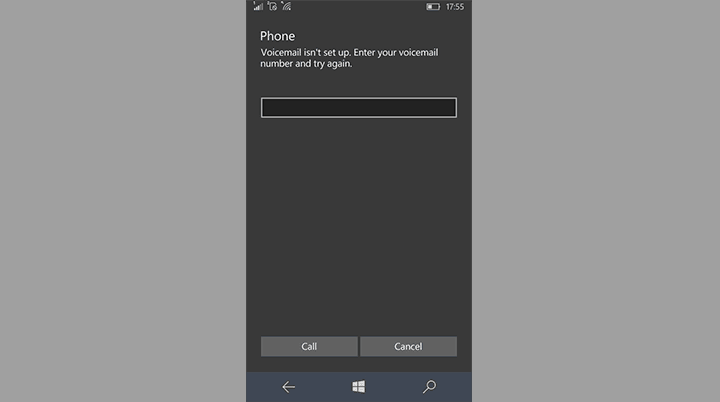
Windows 10 Mobile has a feature called Visual Voicemail, which allows you to quickly check all your voice messages. Before you start using Visual Voicemail in Windows 10 Mobile, you need to set it up first. In case you don’t know how to do that, just follow these steps:

  1. Open the Phone app in your Windows 10 Mobile
  2. Tap on the Voicemail (Voicemail icon) iconwindows 10 visual voicemail
  3. Just enter the number of your voicemail, and you’re good to go

If you don’t have the voicemail number already, you need to check with your mobile operator to set it up. Also, keep in mind that Microsoft’s Visual Voicemail doesn’t work with all mobile operators, so there’s a slim chance your SIM doesn’t support it.

Once you got your Visual Voicemail set up, you need to know how to check it, when you receive a voice message. To check Visual Voicemail on your Windows 10 Mobile device, do the following:

  1. Open the Phone app in your Windows 10 Mobile
  2. Tap on the Voicemail (Voicemail icon) icon
  3. All voice messages will be shown here, so just tap on a message to hear it

This is how you set up and check your Visual Voicemail in Windows 10 Mobile. As you can see, Microsoft made the process very easy, as no operator calls are required.

If you have any questions, or comments, just reach the comments section below.

RELATED STORIES YOU NEED TO CHECK OUT:

Microsoft Cloud expands to South Korea, generally available in Canada

Microsoft Azure is becoming the most available major cloud provider globally. Today, Microsoft Cloud celebrated a new milestone announcing that they are expanding with two new datacenters in the South Korea regions. With availability to the cloud, South Korea will be able to expand digitally and perhaps even break into more innovations.

“The core of cloud service is security. Microsoft Azure is perceived as the trusted cloud service as it has numerous certifications from many international organizations. I hope the Microsoft announcement today provides Korea with an opportunity to increase awareness of the need for security in cloud services.” – Chun Shik Park, Professor of Information Security of Seoul Women’s University and the former Chairman, KIISC (Korea Institute of Information Security and Cryptology)

But South Korea isn’t the only one celebrating a release today! It’s been nearly a year since Microsoft had made the statement addressing all of the concern for data residency in Canada. But that won’t be a problem with the newly constructed and now generally available data centers in Toronto and Quebec City. Finally, Canadians will have no need to be concerned about the legalities tying data to a center stored beyond their local laws. Canadian business customers are also able to store and transfer their data to various other areas of the world where an Azure datacenter is stored for efficiency and continuity as well as making their connection to the public cloud privately via Azure ExpressRoute.

The blog noted that Canadian customers are going to have the opportunity to benefit from Dynamics CRM Online that will release in the next quarter.

“Working with Microsoft is a tremendous opportunity for Nova Scotia. We encourage innovation and we are excited to be taking advantage of the newly opened Microsoft Canadian data centre where we will begin moving more than 35,000 users to the Microsoft Canadian cloud over the coming years. Nova Scotia continues to be an innovative leader in Canada in many areas and this solution supports this visionary type of thinking.” – Labi Kousoulis, Minister Internal Services, Province of Nova Scotia

Over $15 billion has been put into the building of the cloud and expanding its reach across the globe providing cloud services such as the industry-leading security, privacy, control, compliance, and transparency. The Microsoft Azure, Office 365, and Dynamics CRM Online have been ISO 27001 certified and kept up to the SSAE 16/ ISAE 3402 SOC 1 and SOC 2 expectations.

That makes an impressive total of 32 Azure regions across the world, 24 that are available currently and not likely to stop anytime soon.

Battlefield 1 brings series back to World War 1

Electronic Arts and DICE are back in the driver’s seat after showing the word the first trailer for its newest game, Battlefield 1. This game is quite different from the others in the series and in general, from the type of first person shooters we’re getting today.

The difference between Battlefield 1 and other modern games such as Call of Duty: Infinite Warfare is the fact that it is not modern or set in the future. This game is all about bringing players into World War 1 and so there’s no jetpacks, fighter jets, or advanced weaponry. This is a game where players will only have basic weapons at their disposal.

When it comes to air combat, players can take advantage of biplanes to get rid of the enemies below. These things are not exactly the fastest, so it should be interesting to see how DICE manages to balance air combat with forces on the ground.

While the tanks in World War 1 won’t be as powerful as anything found in World War 2 or in modern times, they will be important for getting an entire squad from point A to point B. We’re likely to see something like this in the core multiplayer gameplay.

Don’t expect tanks to have massive guns similar to the ones in World War 2 — you’ll be disappointed. If you’ve played World of Tanks, then you should have an idea of what to expect.

As for the ground combat, be prepared to kick it in the trenches with only a few automatic weapons but a ton of one pop rifles.

Here’s the description of the game:

Take the battle from the scenic Italian coast to the scorching Arabian deserts. Discover classic Battlefield gameplay through an adventure-filled campaign, or squad up and join epic multiplayer battles with up to 64 players. Experience the origins of modern warfare where the old world was destroyed, giving way to the new one. Use the innovative, modern weaponry and vehicles of World War I as you battle across the land, air and sea. Make your mark on the battlefield with earth-shattering destruction, whether you’re blasting craters in the ground with artillery strikes or ripping apart walls with gunfire.

Xbox One and Windows PC players can jump in the battlefield before anyone else via EA Access. If you’re into games for your Windows 10 device, here are some of the best you should check out from the Windows Store.

Are you excited about Battlefield 1? Let us know in the comments below!

RELATED STORIES YOU NEED TO CHECK OUT:

How to translate using Cortana in Windows 10

Microsoft’s Cortana is a super-useful virtual assistant, that can perform various tasks. Along with the most common assignments you give her every day, like organizing appointments, reading emails, and more, you can also ask her to quickly translate something for you.

Microsoft integrated Cortana with its Translator tool, making it easy for the virtual assistant to translate anything from more than 40 languages, including Klingon! With this ability, you don’t need to search for online translators if you need something to be translated quickly, you can simply ask Cortana to do it.

How to use Cortana for translation

No matter if you need Cortana to translate single words, or complex sentences, you can do it quickly. To translate a word or a phrase with Cortana, do the following:

  1. Open Cortana and just type ‘translate’
  2. Choose ‘translate’ under ‘Can i help you?’
  3. A mini translation tool will open, and you can choose the language you want Cortana to translate to
  4. Just write a word or a sentence you want to be translated, and press Entertranslate with cortana

There you go, this is how you quickly translate anything with Cortana. Translating with Cortana can be even easier, you can just ask her to translate something simple, for example “Hey Cortana, how do I say Hello in Spanish?” and she will give you an instant translation. Of course, this works only for single words, and simple phrases, for more complex sentences, you’ll have to do it like we showed you above.

Microsoft constantly improves Cortana, so don’t be surprised if it gets even more advanced translation features in the future. We hope that you find translation with Cortana helpful after reading this article, in case you have some questions, just let us know in the comments.

RELATED STORIES YOU NEED TO CHECK OUT:

How to edit Registry files in Windows 10 Mobile

Registry Editor is one of the most powerful tools of Windows PCs, but many people don’t know that registry editing is also possible in Windows 10 Mobile. That’s where we come in, to tell you that that action is actually possible, and show you how to do it.

You can’t edit registry files in Windows 10 Mobile the way you do in PC versions of Windows. To edit registry on Windows 10 Mobile, you need a special app, which allows you to dig into your phone’s registry, and enable some features and options that are not originally available on your device.

That app is called Iterop Tools, and it includes some handful features that will allow you to edit registry files in your Windows 10 Mobile device, and more. The app also features a History feature, which allows you to keep track of your recent activities in Registry Editor, and  a Registry Browser which allows you to manually browse your phone’s registry.

How to run Registry Editor in Windows 10 Mobile

Before we show you how to use this app, we have to mention that this app is for advanced users. People who aren’t sure in what they’re doing should avoid it, because it could cause a permanent damage to your Windows 10 Mobile device.

If you have enough experience in using Windows 10 Mobile to use this app, follow these steps to download it, and start editing registry files on your Windows 10 Mobile device:

  1. Since Intertop Tools is not available in the Windows Store, download it from this link
  2. Transfer it to your Windows 10 Mobile device
  3. Enable Developer Mode on Settings > Update & Security > For Developers
  4. Find the app with File Explorer, and install it
  5. Once it gets installed, you can find it in Settings > Extras > Intertop Toolsedit registry windows 10 mobile

There you go, now you can edit registry files in your Windows 10 Mobile phone, and enable some amazing features, but remember to be careful. Another good thing with this app is that it supports Continuum, so if you own Lumia 950 or 950XL, editing your registry files should be even easier.

This app was developed by Gustave M, who is already a a well-known developer, therefore we consider it safe for installing on your device, although installing apps that are not available in the Windows Store is not always recommended.

Tell us in the comments, what do you think about this tool, and what features you managed to enable by editing registry files in your Windows 10 Mobile device?

RELATED STORIES YOU NEED TO CHECK OUT:

  • Microsoft’s Project Server 2016 now fully available to businesses and individuals

If Windows 10 build 10586.318 slows down your machine, Microsoft wants to know

Microsoft just dropped a cumulative update for Windows 10, and it includes quality improvements and security fixes. While not widespread, since the release, though, some Windows 10 users on Reddit have complained that the update makes their computer slow. Microsoft has responded to such complaints, and a Microsoft employee has posted a workaround for the issue to the Windows 10 subreddit.

Posted by johnwinkmsft, the Microsoft employee notes that, “if your PC is abnormally slow after installing the update, you may be seeing a problem that I’ve been trying to track down for a couple of weeks.” To try and alleviate the slowness, though, the employee recommends to do the following:

  •  Click in the Cortana search box to bring up Cortana
  • Click the Notebook
  • Click Settings
  • Move the slider under “Cortana can give you suggestions, ideas, reminders, alerts and more.” to “Off”

So, what do you think? Have you tried this trick? Has this trick worked for you? If so, please let us know by dropping us a comment below.

Microsoft opens Office 365 datacenters in Canada

Today, Microsoft announced the general availability of a new Office 365 datacenter region in Canada. The new Canadian datacenter region will help Canadian corporations and government agencies meet strict security and compliance standards now that their Office 365 data is being stored within their national borders, while providing to all of the other security certifications Microsoft has garnered for Office 365 in general.

In an Office 365 blog post, an Office 365 spokesperson wrote:

The new datacenter region adds in-country data residency, failover and disaster recovery for core customer data at rest to customers in Canada. Canadian customers continue to have access to the full breadth of productivity and collaboration services available in Office 365 today.

The datacenter region is actually comprised of two datacenters, one in Toronto and one in Quebec City. Today’s news also comes on the heels of Microsoft expanding datacenter regions in Japan, Australia, and India. The increasing number of international datacenter regions will help make the case of continued Office 365 growth among foreign governments and corporations who follow strict compliance guidelines.

New Meet the Microsofties program aims to get face to face feedback from teachers and students

Part of Microsoft’s evolved branding of empowerment has been at the center of many of its recent endeavors that include a revamped operating system with Windows 10, making the cloud more accessible with Azure, getting Office into as many hands as possible with Office 365 and Web apps.

Microsoft’s march of empowerment has also extended to support small business, non-profit aid, and education. Today, the Office 365 team is carving out another empowerment niche that involves connecting Microsoft employees with teachers and students from classrooms around the world.

The new Microsoft initiative is called Meet the Microsofties and includes:

Using our Skype in the Classroom program through the Microsoft Educator Community, your students’ voices can shape the future of Microsoft technology for the classroom. Over Skype, connect with the teams that build the tools you use every day. Tell them how you use our technology right now, what you like and don’t like and what features you dream about. This is also a great opportunity for your students to learn about the importance of STEM and hear firsthand what a career in tech looks like.”

A meeting with a Microsoftie is expected to last roughly 20 to 30 minutes and includes conversations about product feedback, students and teacher’s experiences with Microsoft technology, suggestions on fixes and features, and career advice. While much of the conversations will revolve around Microsoft technologies in the classroom, students and teachers are encouraged to discuss whatever suits them such as recent technology news, opinions, or general questions about related topics.

Meeting a Microsofties is a relatively easy five-step process that involves:

  1. Determine, which Microsoft group your classroom, would like to connect with over Skype. We have an initial kickoff list of teams and products, but this will be expanding every day.
  2. Have the teacher register at the Microsoft Educator Community. If already registered, then just sign in.
  3. Head over to the Meet the Microsofties area of the Skype Classroom area of our community and find a team you like—as an example, here is the Sway team’s landing page.
  4. Find a time and date on the calendar and submit it.
  5. The Microsoft team will get back to you, and you can set up the Skype call from there.

With the introduction of the Meet the Microsofties program, it would appear that Microsoft is looking to get even more direct feedback about its products and how they can be improved for teachers and students in classrooms around the world. In a crowdsourcing kind of way, educators and students will help shape the future of Microsoft’s products in the classroom and beyond.

Xbox One Backward Compatibility gets a few new titles, Frogger 2 and Puzzlegeddon included

The list of Backward Compatible Xbox titles is always growing, and today four new titles have been added to the list. In two separate tweets, Larry Hryb has announced that Final Fight: Double Impact, Faery: Legends of Avalon, Frogger 2, and Puzzelgeddon are all now available on Xbox One through Backward Compatibility.

You can find the full details, and download links to each of these titles below.

Frogger 2: $9.99

Hop along with Frogger® 2 as you travel through more than 15 challenging levels filled with new enemies and obstacles. Each of the 5 exotic environments provides a new set of challenges but beware of the bosses that try to thwart your progress. Compete with up to 4 friends in 2 online multiplayer modes – Race Mode and Jewel Duel.

screenlg1
Frogger 2

Puzzlegeddon: $9.99

Set in an array of galaxies, Puzzlegeddon™ features a clever mix of puzzle, action and strategy in a game that is fast-paced and addictive! Compete for the top spot on the planet by creating multiple combos for the quickest way to gather enough resources to blast your enemies out of this world!

Puzzlegeddon
Puzzlegeddon

Final Fight: Double Impact: $9.99

Final Fight: Double Impact takes you on a hard-hitting journey through Capcom history with the ultimate versions of arcade classics Final Fight and Magic Sword. Double Impact slams into your home with seamless online and local co-op multiplayer, new music by acclaimed remixologists, HD-filtered graphics, a host of unlockables to discover, and an integrated online leaderboard to prove your mettle!

Final Fight: Double Impact

Faery: Legends of Avalon: $7.49

Faery: Legends of Avalon is a big role playing game with a very distinctive ambience and graphic style. Create your character, embark in a great adventure and discover the fantastic world of Avalon. You will have to understand why this magic world is dying, and save the kingdom from certain disappearance. In a thrilling adventure where your choices will shape the story, develop your character, his abilities and special powers, as well as his equipment through the victorious battles and accomplished quests! Numerous dangers await you and the battles against some of the creatures and monsters of the game promise to be formidable. Gain power and experience, and assure the support of friendly companions you will meet through your journey. Carefully select who will fight at your side, and live the incredible experience of being accompanied by a dragon, a troll, fairies and other fantastic creatures!

Faery: Legends of Avalon

So, what are your thoughts on these titles? Do you think you will download any of these titles? If so, be sure to drop us a comment below and let us know why!

Fallout 4 Mods to come to Xbox One in a closed beta next week

A few weeks ago we delivered you the news that Windows gamers would get to give Fallout 4’s mod tools a beta test. Today, we can report to you that the same mods will be heading to Xbox One in a closed beta once the next Fallout 4 expansion pack hits the Xbox store on May 19th.

The announcement was first made on the Bethesda Game Studios Twitter account, but tweet also mentions a milestone from the PC version of the mods, which have hit 1 million downloads in just two weeks.  As per IGN, though, players on the PS4 will have to wait another month for mod support, when they will be given the ability to create the own mods or download them from Bethesda.net.

The mods system has always been a very important part of the Fallout 4 experience, and after releasing a mods creation kit on PC, the team over at Bethesda have kept that principle in mind over the last few months.

Microsoft co-founder Paul Allen is the latest meme after Stephen Curry’s OT performance

Last night in the fourth game of the playoff series between the Golden State Warriors and the Portland Trailblazers, Stephen Curry had an incredible performance in overtime. And the results of his 17-point overtime show wasn’t just a 3-1 series lead for the Warriors, but Portland Trailblazers owner and Microsoft co-founder Paul Allen became a new internet meme with #PaulAllen.

https://twitter.com/Jason/status/729915455574446080

Pictures of Paul Allen’s open mouth and shocked look made their way around the internet as his team fell further behind in the playoff series. Twitter users, as can be expected of course, started getting more and more creative.

https://twitter.com/AndyCole84/status/729912087527362561

https://twitter.com/crying_jordan/status/729911372981612544

But Allen’s response is understandable. Stephen Curry returned unexpectedly from the injured list last night. And at first he was rusty and it looked like he might not have much impact on the game. But as the game went on he had an incredible performance, including a tough 3-pointer in the last minute when the Trailblazers were behind by 5. In the end, the Warriors beat Portland 132-125.

Given other news regarding Paul Allen’s yacht in the Caymen Islands, this meme is probably the last thing he was hoping for last night.

See the first Microsoft-powered smart car in action

Smart car seems to have become the new hot trend for big technology companies, which makes it understandable, but no less surprising, that Microsoft is developing, or at least collaborating on, one of its own.

The project – part of Microsoft’s new “platform for the Intelligence Revolution” was mentioned by CEO Satya Nadella during his keynote at Hannover Messe 2016, the world’s largest industrial technology fair this April. Thanks to CNN, we can get a glimpse of  the Microsoft-powered self-driving car in action.

A cooperative project between Microsoft and engineering firm IAV, first shown off during the 2016 Consumer Electronics Show (CES 2016), the smart car’s first striking feature is how ordinary it looks. The sentiment is founded, since unlike Google’s self-built roundish creation, the car is more like a normal vehicle filled with connected technology (the highly-visible Volkswagen logo seen from the front betrays its heritage). Nevertheless, from the video, it seems to be pretty capable of most things you can imagine a smart car can do, including driving by itself, slowing down when pedestrians are close, stopping at red lights, and much more.

The car accomplishes all these through what is referred in the video as a “hyper-connected world” where everybody is tied to a connected device, and every device is connected in some way – almost like a spider web with the car being the spider that relies on the web to tell its ways.

Take the pedestrian example: the smart car knows when it’s nearing one and slows down due to the connected Microsoft Band she is wearing. While not everyone is expected to have a Band on their wrist even in Microsoft’s imagined future, the theories behind the technology should work for any other mobile devices, with the smartphone being a prime target due to their increasing ubiquity. The traffic light in the video is also WiFi-connected to be able to tell the car to stop.

What should be more interesting to Microsoft enthusiasts is how the company’s technology is integrated into the car. Nadella mentioned in his speech that Windows 10 can be streamed directly to the car’s dashboard, and while it’s not clear what other functions users get to use, at least Cortana seems to work swimmingly. Microsoft’s virtual assistant is seen used in the video to get weather info, and even send an email.

Microsoft is working with IAV on connected cars

We can only imagine that as Cortana gets more powerful, so will the smart car experience. In fact, Microsoft seems to be going beyond self-driving for its smart car vision, stressing what users can do with the car once the driving part is automated, as the most important.

While the Microsoft-powered smart car works well in the video, it still relies on many external factors to function correctly, like other devices’ connectivity. As mentioned in the video, it will take a while yet before the world becomes “connected” enough for such a solution to work properly. Nevertheless, the car is an interesting approach to a trending topic in technology, and we are excited to see what Microsoft will come up with in the field in the future.


How to block webcam usage in Windows 10 if you’re worried about your privacy

In an age where we depend on and use technology for most of our daily tasks privacy has become a real and big concern for IT users. A big one is unauthorized access to the webcam, making possible for other people to monitor you and your activities.

Websites like shodan.io have made a habit of exposing vulnerable webcam streams in the hope of bringing awareness to users about incorrect usage of privacy settings on various devices connected to the internet.

In today’s article we’ll go through the various way you can monitor, control and restrict webcam usage on machines running Windows 10.

1. Application settings

The first line of defense for webcam usage is usually embedded in the Settings/Options section found in most applications that have the ability to access it.

For example, Skype’s settings menu offers some options regarding which contacts can access your webcam and shared screen. The functions found here are very limited in regards to privacy but some applications offer more choices than other.

How to block webcam usage in Windows 10 if you're worried about your privacy

2. Windows 10 privacy settings

Windows 10 offers greater control than previous versions over the devices connected to computers and it presents these options in a very simple and intuitive interface. To access them just open the Start menu and select Settings. Click on the Privacy section and head over to Camera options in the left pane.

How to block webcam usage in Windows 10 if you're worried about your privacy

Here you’ll find a list of applications that have access to your webcam alongside controls to enable or disable said access. At the top of the window you also have a master switch that disables access to the camera for all applications listed.

Please note that not all installed applications are listed here. For example I have Skype and Yahoo! Messenger installed, applications with camera access, and they are not listed here. The applications found here are mostly the ones installed from the Windows Store, so please keep this in mind when reviewing your privacy settings.

3. Disable or disconnect webcam

A good way to control your webcam is by disabling or disconnecting it from your machine. Yes this is a brute method but it’s one that’s more reliable than controlling individual applications usage which can be vulnerable to software attacks.

The easiest way to disable a webcam is by simply disconnecting it from the machine, if you’re using a USB camera. But if your webcam is embedded disconnecting it isn’t that easy. What you can do instead is disable it by right clicking on the Start menu button and selecting Device Manager. In the resulting window expand the Imaging devices group, right click on your camera device and select Disable.

How to block webcam usage in Windows 10 if you're worried about your privacy

The problem with this method is that it’s also a software solution, which, under the right conditions and by the right people can be bypassed. It would be more difficult than finding vulnerabilities in individual applications but there’s still a chance.

Some computers that have embedded webcams have the option to disable them from inside the BIOS, a method that is similar to physically disconnecting the hardware. For this you’ll have to consult your machines’ manual as each one is different.

4. Cover your webcam

This option is for people more paranoid than others, and is actually the category I fall under. The best way to prevent access to your computers “eye” is by covering it. There are a lot of commercial solutions available, like Eyebloc Cover or C-Slide but paying for something that’s easier to fix by yourself is something beyond my understanding.

The easiest solution I’ve found, and used for many years, is simply sticking a piece of black insulating tape over the webcam lens. It doesn’t even have to be insulating tape or black. You can use basically anything thin that is sticky and opaque, from colored packaging tape to sticky notes, medical bandages and even a piece of gum if paranoia finds you unprepared.

Windows 10 gets better at gaming with frame rate, Freesync, G-Sync additions rolling out today

Just a few months ago at BUILD 2016, Phil Spencer revealed some new and exciting updates for PC gamers on the Universal Windows Platform on Windows 10. Today, Microsoft has announced that those updates are now going live for developers who have games in the Windows Store.

Overall, the updates will roll out the ability for PC gamers to disable V-Sync and also add in support for NVIDIA G-SYNC and AMD FreeSync. Additionally, the update also adds in the ability for unlocked framerate refresh for UWP games. It will, however, be up to the developer to release an update for their respected games in order to integrate today’s UWP updates.

For PC gamers, the updates mean that UWP games will now support these technologies just as Win 32 games currently can. The support for unlocked frame rate, and the NVIDIA G-SYNC and AMD FreeSync, meanwhile will eliminate lag, screen tearing, and stutter.

From Gears of War: Ultimate Edition, Rise of the Tomb Raider, Quantum Break, and Forza Motorsport 6: Apex, there are already many UWP games in the Windows Store. Microsoft is clearly slowly proving that Windows 10 will soon be the place to game.

Elite Dangerous and more Xbox One video discounted in this week’s Deals with Gold

It’s that time of the week again when Xbox Live Gold subscribers are given the chance to purchase a selection of Xbox 360 and Xbox One video games for a significantly discounted price.

Way up the top of the Deals with Gold list with a huge 60% discount are Call of Duty: Advanced Warfare Edition, EA SPORTS Rory McIlroy PGA TOUR, Payday 2: Crimewave Edition, and WWE 2K16 Digital Deluxe Edition on the Xbox One while Call of Duty: Advanced Warfare and Call of Duty: Modern Warfare 3 get the 60% discount on Xbox 360.

Video games with a 50% discount include Albedo: Eyes from Outer Space, Elite Dangerous Standard Edition, and No Time To Explain on Xbox One and Call of Duty 2, Call of Duty 3, Call of Duty 4: Modern Warfare, Call of Duty Classic, Call of Duty: Modern Warfare 2, GRID 2 All-In Pack, and The Crew Season Pass on Xbox 360.

Xbox One title, Call of Duty: Advanced Warfare Digital Pro Edition is currently discounted by 45% and WWE 2K16 is 40% cheaper. Both NARUTO SHIPPUDEN: Ultimate Ninja STORM 4 and NARUTO SHIPPUDEN: Ultimate Ninja STORM 4 – Deluxe Edition received a 35% discount as part of the Deals with Gold campaign.

Deals with Gold is a list of discounted video games that are updated weekly for Xbox Gold Live subscribers to purchase. It’s mostly used as a way to encourage Xbox One and Xbox 360 owners to pay the monthly or annual Xbox Gold Live membership fee and is very good value as normally just buying one discounted game will cover the price of membership.

Microsoft also gives Gold members a variety of free games to play each month with this month’s titles being Defense Grid 2 and Sunset Overdrive on Xbox One and Grid 2 on Xbox 360 (playable on Xbox One).

Have you downloaded any of these games this month? Let us know your recommendations in the comments below.

Prevent Mouse From Waking Up Windows: 3 Ways to Stop it

Your PC can sometimes start on its own, and this is why many are wondering how to prevent the mouse from waking up a Windows PC.

This can be a problem, especially if you move your mouse by accident or if your mouse pad isn’t perfectly flat, thus causing the PC to wake up. However, there are ways to prevent that and this guide will show you how to do that.

How do I stop my mouse from waking up Windows?

Before we try any of the more complex solutions, try connecting your mouse to a USB 2.0 port. Many reported that switching from USB 3.0 to USB 2.0 ports fixed the issue for them.

1. Change Power Management options for your mouse

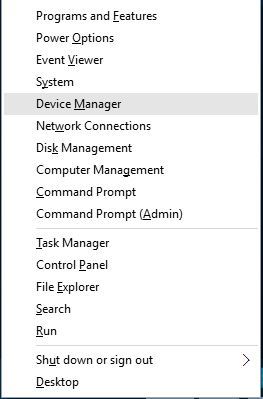
  1. Press the Windows key + X and select Device Manager from the list.
  2. When Device Manager opens, navigate to Mouse section, locate your mouse and double-click it.
  3. Go to Power Management tab and uncheck Allow this device to wake the computer.
    allow-this-device-to-wake-up
  4. Click Apply and OK to save changes.

Few users reported that Allow this device to wake the computer is missing or grayed for them.

This is usually related to USB devices, and in order to change that, you need to enter BIOS and enable USB Wake Support or set ACPI Suspend Type to any value higher than S3.

For detailed instructions, we strongly advise that you check your motherboard manual.

2. Disable your keyboard from waking up your computer

  1. In some cases, your USB keyboard and mouse might be shown as a single device in Device Manager.
  2. Go to Device Manager and repeat the steps from the previous solution but this time for the keyboard.
  3. After you’re done, close Device Manager.

In fact, some users reported that they have several keyboards available in Device Manager and that one of those keyboards represents their mouse, so you’ll need to find the right one on your own.

3. Use Command Prompt

  1. Press Windows key + X and select Command Prompt (Admin) from the menu.
    command-prompt-admin
  2. Once Command Prompt opens, enter the following: powercfg -devicequery wake_armed
  3. You should see the list of all devices that are allowed to wake up your computer.
  4. Enter the following command with the quotation marks: powercfg -devicedisablewake "device name"
    cmd-device-disable
  5. Optional: To enable the device to wake up your PC use this command: powercfg -deviceenablewake “device name”

How do I turn off the mouse awake?

This can be done from the Power Management tab in the device properties window. We have detailed instructions in the first solution of this guide.

Why does my Windows 10 PC keep waking up from sleep?

There are several reasons why, but these are the most common ones:

  • Scheduled tasks such as installing Windows updates will wake your PC up.
  • Your peripherals, such as a mouse and keyboard can also start your computer.
  • Network activity can sometimes interrupt sleep mode.

To learn more, check our guide on Windows 10 wakes up from sleep by itself.

These are just a couple of methods you can use if you want to disable mouse wake up on Windows 10.

In case you have further problems, we have a great guide on how to fix a laptop that wakes up from sleep on its own.

To learn more, we also suggest reading our guide on how to wake Windows from sleep with a keyboard or mouse.

Did you find a different solution? Share it with us in the comments section below.

7 Best Tabbed Command Line Tools for Windows 10

Command line might not be the most visually appealing or the simplest feature of Windows 10, but it’s without a doubt the most powerful one. Although Command Prompt is one powerful tool, it still lacks certain features such as tabs.

If you are an average user, you probably don’t use command line that often, but if you are an advanced user, or a developer, you probably use Command Prompt from time to time.

As previously mentioned, one of the biggest drawbacks is that there is no multi tab Command Prompt on Windows 10. However, if you need this feature, we have gathered the best command line tools with tabbed terminal for Windows in this guide.

What are the best command line tools with tabbed interface for Windows 10?

Console2 – Lightweight tool

console2

Console2 is a simple and lightweight Command Prompt alternative for Windows 10. This tool has been one of the best Command Prompt alternatives for years and even though it hasn’t received any updates recently, it’s still an outstanding tool.

Console2 comes with support for tabbed interface which allows you to simultaneously run different command lines. If you want to differentiate your tabs, you can assign a different name to each tab in order to organize your tabs more easily.

Console2 comes with all sorts of customization options, and it allows you to set the transparency of your console window. One thing we didn’t like about this tool is the lack of support for standard copy and paste shortcuts.

Besides that, Console2 sounds like an amazing alternative to Command Prompt, and if you’re looking for a command line tool that supports tabs, Console2 is one of the tools that you should check out.

⇒ Get Console2

PowerCmd – Powerful alternative

powerCmd

PowerCmd is a powerful Command Prompt alternative, but unlike our previous entry, PowerCmd isn’t available for free. However, you can try it free of charge.

Just like the previous tool we mentioned, PowerCmd fully supports a tabbed interface, but it also allows you to organize command line windows by placing them side by side, allowing you to have up to 4 windows available one by another.

Even if you place command line windows one by another, you can still open more tabs if you need to. Another feature worth mentioning is the shell integration.

This means that you can simply right-click any folder, choose the PowerCmd option, and you’ll open a new command line window by using that folder as a currently opened directory.

This feature is extremely useful if you don’t want to enter folder locations manually and if you need quick and instant access to a specific folder.

If you prefer to enter file and folder names manually, PowerCmd will give you suggestions as you type, so you can just select them from the menu.

It’s worth mentioning that this tool also supports Windows-style text editing, thus allowing you to select, cut, copy, and paste into the command line similarly to any text document while using familiar shortcuts.

Another feature we need to mention is the search toolbar that allows you to quickly search for any output in the command line. In fact, PowerCmd will highlight each word from your search query in a different color, thus making it easier for you to find it.

In order to better organize your command line, there’s support for bookmarks, and you can easily navigate between different bookmarks with a single hotkey. In addition, you can also see and search for your input history for any previously used commands.

Lastly, if you heavily use the command line, you’ll be pleased to know that PowerCmd allows you to automatically save the console output log, so you can examine it at any time, even if your PC or application crashes.

⇒ Get PowerCmd

ColorConsole – Small and simple tool

colorconsole

ColorConsole is a rather small and simple command line tool, and although it lacks some advanced features, it fully supports a tabbed interface. In addition to the tabbed interface, it allows you to display command lines side by side.

It’s worth mentioning that this tool supports standard editing shortcuts, so you can easily select, copy and paste in and out of the command line.

We have to mention that ColorConsole comes with a rather simplistic search feature, but at the same time, it allows you to manually select and highlight output in the command line, so you can easily find it when needed.

Another feature is the ability to export your output as HTML or RTF, which some users might find helpful. ColorConsole might not be the most powerful command line tool on this list, but it’s certainly the lightest.

⇒ Get ColorConsole

MobaXterm – Wide range of features

mobaxtrem

MobaXerm is another advanced command line tool that supports a wide range of features, and it comes in both paid and free versions. It’s worth mentioning that the free version has certain limitations, but for the most part, it should be enough for your needs.

This tool comes with support for Unix commands, and it allows you to launch remote sessions such as SSH, Telnet, FTP, VNC, and many others. Each session is listed in the sidebar on the left, so you can easily create new sessions.

MobaXterm comes with a graphical SFTP browser, so you can easily drag and drop files when you’re using an SFTP connection. In addition, you can also display remote applications directly on your PC while running SSH, TELNET, or RLOGIN/RSH sessions.

If you’re connecting to a remote server using SSH, you can edit remote files directly from MobaXterm by using the built-in MobaTextEditor.

This tool also allows you to remotely control Windows desktop computers by using the RDP protocol. Of course, there’s support for remote Unix desktops by using XDMCP.

MobaXterm is a command line tool with advanced features intended for developers and network administrators, so if you’re just a regular user, you will probably feel overwhelmed by the list of features that this tool offers.

⇒ Get MobaXterm

Terminal Wings – Minimalistic interface

terminal_wings

Terminal Wings comes with a minimalistic and visually appealing interface, and just like all the predecessors on this list, it supports a tabbed interface.

This application is simple to use, and it allows you to easily select, copy and paste any input from the command line.

Terminal Wings allows you to set different profiles, and each profile can be customized with different colors, transparency, default directory, or commands that will be executed when you open that profile.

As we mentioned, this tool doesn’t have any advanced features, but if you’re looking for a command line tool with a simple tabbed interface, Terminal Wings might be perfect for you.

⇒ Get Terminal Wings

ConEmu – Free version

conemu

ConEmu is another free command line tool with a tabbed interface. This tool comes with a simple user interface, which makes it perfect for basic users.

Despite its simple appearance, ConEmu has a wide range of features hidden in its settings. You can change the visual appearance of the command line, set predefined code to run, and much more.

ConEmu is perfect for both basic and advanced users alike, but if you want to use those advanced features, you’ll have to spend some time in ConEmu’s settings panel.

⇒ Get ConEmu

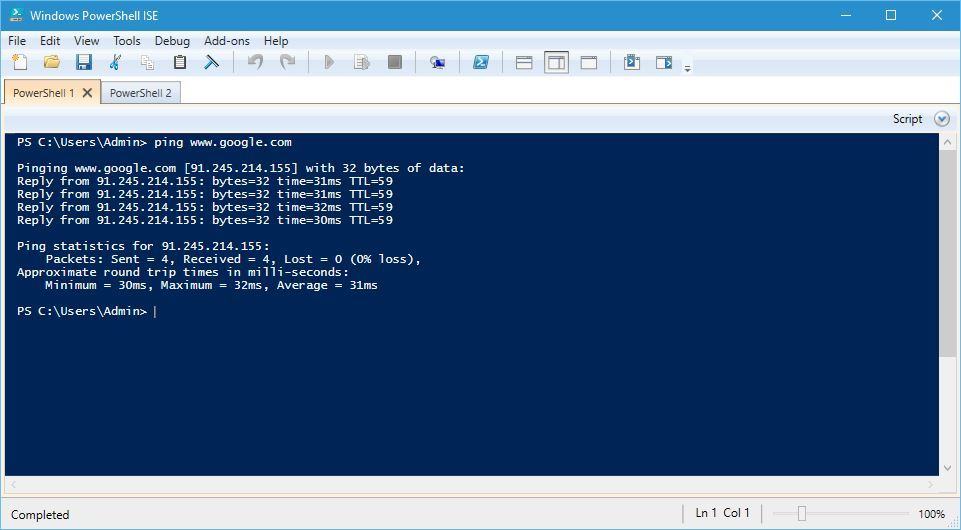
PowerShell ISE

powershell-ise

If you want to use the tabbed terminal command line on Windows 10, there’s no need to download alternative tools from the Internet since you can use Microsoft’s PowerShell ISE.

This tool is integrated into Windows 10, and it comes with many features, one of them being a tabbed interface.

Of course, there’s support for a wide range of PowerShell commands, but if you’re not too familiar with PowerShell commands, there’s a list of commands along with additional details about each command available right from the PowerShell ISE.

Although Command Prompt doesn’t support tabs, Windows 10 comes with its own alternative in the form of PowerShell ISE. If you’re looking for a third-party alternative, PowerCmd offers a wide range of features along with a user-friendly interface.

Unfortunately, PowerCmd isn’t available for free, but if you’re looking for a free tabbed command line tool for Windows 10, ConEmu might just be what you need.


Forza Motorsport 6: Apex beta version for Windows 10 now available in the Store

Racing games fans have now a new game they can test their skills on: the beta version of Forza Motorsport 6: Apex for Windows 10. You can hit two birds with one stone: play an amazing car racing game and, at the same time, help the game developers to improve the game’s performance on various hardware setups.

This incredible game is a step forward towards improving Windows 10’s game offer, alongside Microsoft’s promise to bring more Xbox games to Windows 10.

Since the game is in its beta version, updates and improvements will constantly be rolled out to the game. In the near future, the game developer will also add wheel support to Forza Motorsport 6: Apex, as well as the option to disable Vsync among other things.

This incredible game is powered by the state-of-the-art ForzaTech graphics and physics engine, and features all new race modes available. Breathtaking graphics of up to 4K resolution will make the racing experience feel real. Forza Motorsport 6: Apex also benefits from DirectX 12, the new standard for 3D graphics that brings better performance and overall optimization.

If we were to use one word to describe the game graphics, that word would be “realism”. Cars are depicted in precise detail thanks to the ForzaTech engine, which allows players to see all the unique aspects of each car.

https://www.youtube.com/watch?v=w8xREfr1YuA

A series of advantages are offered to Windows 10 users such as:

  • The ability to access your list of friends and achievements.
  • Text and voice chat via Xbox Live.
  • Record and share your favorite moments with built-in Game DVR.
  • Reach the Gamerscore up to 1,000 points by earning achievements exclusive to Windows 10 PC Forza players.
  • Support for mouse, keyboard and a variety of gamepads so that you can better customize your experience.

If you are undecided, here’s what players said about this game:

Very impressed with forza. The port is excellent, runs perfect and has a wide variety of graphics options. The gameplay is great, very fluid and responsive with the right car and controller setups. I can’t stress enough how amazing the graphics are. In the photo mode it is pretty much photorealistic. Only one thing would make it better and that would be proper wheel and clutch support other than that it’s amazing. Well done turn 10 and microsoft.

By the way, if you’re looking for a wheel for this game, check out this awesome TMX Force Feedback racing wheel. And if you’re into racing games, you may want to check out the Assetto Corsa racing game, coming to Xbox One in June.

You can download the free beta version of  Forza Motorsport 6: Apex from the Microsoft Store.

RELATED STORIES YOU NEED TO CHECK OUT:

Microsoft Store for Business now allows devs to sell organizational licenses

Microsoft has made it easier for developers to sell their apps to IT professionals.  Developers can now sell organizational licenses to companies via Windows Store for Business, allowing administrators to acquire, manage, and distribute Windows Store apps faster to their organization’s Windows 10 devices.

This is a very wise decision from Microsoft taking into account that small and medium enterprises spend around $70 billion every year on desktop software and applications. This new feature in the Windows Store for Business allows the two participants to reach each other faster and end deals more rapidly. By taking this step, Microsoft is showing how committed it is to developers and organizations.

The new feature is, of course, available for developers from supported countries/regions; if needed, you can check out the list of countries here. For the time being, organizations can purchase apps in volume with credit cards only. In the near future,  other purchase options will be added such as: invoicing, volume discounts, and organizational in-app purchases.

Payouts for organizational purchases work in the same manner as consumer purchases. You can find all the transaction payout information in your Payout Statement in Dev Center.  All the apps purchased via the Windows Store for Business platform will appear in your Dev Center reports under the label of “Volume acquisitions by organizations”.

Microsoft has been focusing heavily on improving the app area for businesses. The company is working on various business projects such as Project Madeira, or the recent Project Server to help companies stay productive. Rivalry is also fierce in the business fields with Google disclosing its plans to steal 80% of Microsoft’s business customers.

In this business battle, Microsoft is also gambling on its ability to convince business users to upgrade to Windows 10. Taken into account the threats from competition, the Redmond giant will definitely bring other important updates and features to its business clients park in the near future.

RELATED STORIES YOU NEED TO CHECK OUT: 

Microsoft and CARE partner to use technology to build healthier communities

While some Windows users may still have issues with Microsoft’s Windows 10 upgrade process for various reasons, the company is still sitting firm behind its intentions and in doing so, it’s helping a largely unspoken group of individuals.

Through Microsoft’s Upgrade Your World program, designed to encourage nonprofit organizations to help make a difference in their neighborhoods, the company is sourcing, discovering, and partnering with talent from around the world and contributing to the lives of millions.

Most recently, the Upgrade World Program joined forces with CARE, a crisis response organization serving individuals and families in some of the poorest communities seventy years in the making. With the help of CARE’s sprawling global community, Microsoft hopes to help support ant deliver tools that help “educate pregnant women, mothers, and their infants during the 1,000 critical days from conception to age two.”

Supported by Windows PCs and Microsoft Excel at CARE’s local office, 550 community healthcare workers were set up and provisioned with mobile devices to aid them in registering, tracking and delivering timely care to pregnant women, mothers and newborns. The phones included an app custom-built by CARE, the Gates Foundation and the Indian government, which allowed for the real-time collection of health information on each client, and synced through the cloud to create a digital health record for each client. And then the magic began…”

https://blogs.windows.com/windowsexperience/2016/05/09/windows-partners-with-nonprofit-care-to-build-healthy-communities-through-technology/
windowsexperience/2016/05/09/

Much of Microsoft’s support appears to be behind providing the technology to CARE workers to help make their lives more convenient with up-to-date tools and productivity options. Where some might see Windows 10 and some of Microsoft’s mobile apps irrelevant or cumbersome, the men and women of CARE helping others can now gain access to technology that “gave these health care workers more confidence to do their jobs and engender more trust from those they visited.”

More specifically, as an Upgrade Your World partner, Microsoft will invest $500,000 cash into CARE with an additional $2M worth of software to support the organizations advocate work with improving basic education, ending gender-based violence, increasing healthcare, clean water, and nutritional accessibility for women and others.

To find out more or help with CARE’s global initiative, visit the website here.

India’s Airtel partners with Microsoft Azure, launches private connection service Connexion

The Indian-based global telecommunications service company Bharti Airtel just made a significant investment in its cloud infrastructure and future according to the Economic Times. Joining forces with Microsoft, Airtel’s new business platform titled Connexion and powered in part by Azure Express Route will offer “a more secure, scalable and seamless private connection between enterprises, cloud service providers, and data center partners.”

As Airtel operates in 20 countries across South Asia, Africa and the Channel Islands with over 325 million subscribers, Microsoft’s Azure cloud platform has once again proven to be enticing in both scale and performance for larger business partnerships. Airtel’s director and CEO of global business Ajay Chitkara explains:

…with Connexion, we are confident of helping customers seamlessly and more securely connect to Microsoft Azure, by bringing down their network cost substantially and improving performance.

The specifics of Microsoft’s and Airtel’s partnership enables Airtel’s customers to create private connections between their infrastructures and Azure date centers. The result of allowing such singular pathways exemplifies Microsoft’s expansion of services in India and its other global audiences through its continued focus on strategic partnerships and reducing the complexity of its service stacks.

Microsoft’s Yousef Khalidi, Distinguished Engineer of networking for Microsoft Azure on the company’s expansion:

Enterprises are increasingly leveraging the power of the cloud to empower their workforces and Microsoft is expanding its services for India and global customers. Our partnership with Airtel, the third largest global carrier, is a major step in this direction, and we hope to bring in an integrated and seamless experience for our mutual customers.”

As of now, a few specifics on the matter still present some unanswered questions such as when the new Connexion service will exactly be available for customers or how the new agreement affects Airtel’s previous 2015 announcement of Amazon Web Services powering its private network solutions.

This will help Airtel’s enterprise customers across the globe leverage the power of AWS Direct Connect to establish a dedicated network connection between customers’ premises and Amazon’s data centers – thus helping them reduce network costs, increase bandwidth throughput, and experience a more consistent network connectivity.”

While smart businesses shop the best solutions for a wide array of topics and issues, it seems reasonable that neither AWS or Microsoft’s Azure teams want to share space as Airtel’s cloud and hybrid solutions for its customers.

Microsoft publishes a roadmap for Office 365 Education users

While Chromebooks may be sucking up the news air regarding education and technology, Microsoft has been plugging away at its still considerable presence in schools and universities. With tools such as OneNote, Office 365, and Surface hardware, Microsoft appears to be revamping its brand with regard to teachers, faculty, and academic administrations.

On that note, the Office 365 team just announced its Education Roadmap via a new website that is easily accessible and viewable to all educators. A previous iteration of Office 365 Roadmap was made available for Enterprise customers that listed key developmental milestones for the suite of Office tools such as Yammer, Skype for Business, Exchange, etc. Now, the same detailed status updates and milestone marker listings are being offered for educators interested in Office 365 deployment.

We’re pleased to share the Office 365 Education Roadmap, which lists updates currently planned for applicable subscribers. Updates for the various stages—from in development to rolling out to customers, to being generally available for applicable customers worldwide—are easily accessible in the Office 365 Roadmap.”

Visiting the site, anyone interested in investing in technology for schools or colleges will find information about what’s being “Envisioned” by the Office team as well as transitioning and management tools for current Office users. By following the path below, users can gain further information on the development process of Office 365.

  • Go to roadmap.office.com.
  • 2.Open Filters.
  • 3.Under Services, select Education.
  • 4.Click the launch status (i.e., in development) to see product/feature items.
  • 5.Click the item for a description and other information available.

Once filtered, customers will see a listing of milestone updates for the following sections of development from the Office 365 team.

Launched: Fully released updates that are now generally available for applicable customers

Rolling out: Updates that are beginning to roll-out and are not yet available to all applicable customers

In development: Updates that are currently in development and testing

Cancelled: Previously planned updates that are no longer being developed or are indefinitely delayed.
The addition of the Education Roadmap is another piece of a larger puzzle that is becoming Microsoft’s Office 365 platform, rather than only the company’s productivity suite. Microsoft is actively engaging with its communities and education is a enormous community that will help guide the company’s plans moving forward.

Windows Live Mail will no longer synchronize with Outlook.com

Microsoft’s Windows Live Mail is a free email client found in the Windows Essential package of software. These services were initially offered to Windows 7 users but were discontinued for Windows 8 and Windows 10. While they can still be downloaded, bear in mind these apps are no longer updated.

When it comes to Windows Live Mail, users had the option to connect to Hotmail, now better known as Outlook.com. However, with the newest version of Outlook.com, it is no longer possible to connect Windows Live Mail, meaning users will have to abandon the software very soon.

Microsoft recently made the announcement in a blog post, stated that Windows Live Mail 2012 will no longer be possible to synchronize with Outlook.com by the end of June 2016. The software giant says users should use the built-in mail app found in Windows 8.x and Windows 10.

Outlook.com is being upgraded to incorporate new infrastructure that delivers innovative email and calendar experiences with enhanced performance, security, and reliability. The Windows Live 2012 email application does not support the modern synchronization technologies used by the new Outlook.com, so once your account is upgraded to the new Outlook.com, you will no longer be able to send or receive Outlook.com email from Windows Live Mail 2012.

If you’re no fan of the new Mail app, Microsoft is offering a free month of Office 365 right now — but that’s not even the best offer. For those who are currently using Windows Live Mail, Microsoft wants to give you Office 365 free for an entire year.

Office 365 makes it possible for subscribers to take advantage of Office 2016. Furthermore, they’ll get 1TB of OneDrive storage free along with 60 minutes worth of Skype credit each month.

Sounds good, right? It is. We’ve been using Office 365 for quite some time and it works well — especially that 1TB OneDrive space.

But if you think about switching from Microsoft’s mail services to a mail client or app, we would strongly suggest you to check out our Mailbird review, one of the leaders on the market. Also check our list with best mail clients and apps to use.

RELATED STORIES YOU NEED TO CHECK OUT:

Microsoft exec at London conference: AI will “change everything”

Microsoft UK’s chief envisioning officer Dave Choplin made some strong statements at an artificial intelligence conference last Thursday. Sam Shead of Business Insider wrote about Choplin’s claim that AI is “the most important technology that anybody on the planet is working on today.”

Currently, most people’s interactions with AI are limited to asking Cortana or Siri to help with simple tasks like scheduling appointments or making phone calls. Those small incremental improvements to our digital assistants might make AI seem like something other than the game changer that Choplin envisions.

But as AI improves with advances in deep neural nets and machine learning algorithms, the technology stands the chance to amplify virtually everything in life. Choplin went on to say,

[AI] will change how we relate to technology. It will change how we relate to each other. I would argue that it will even change how we perceive what it means to be human.

Of course, many also are suspect about the promise of artificial intelligence and worry about its impact on everyday life or even its misuse by malevolent actors. Stephen Hawking has worried AI could be an existential threat and Tesla CEO Elon Musk has gone on to create an open source AI after worrying about its misuse.

In his statements, Choplin also stressed that as more and more companies try to create AI, “We’ve got to start to make some decisions about whether the right people are making these algorithms.” Choplin went on to ask questions about AI such as:

What biases will be inferred by those people, by those companies? These are things we don’t know about. This is new. We talk about unchartered territory.

Ultimately, Choplin is an optimist regarding how AI will impact humanity, but he doesn’t take it for granted. As an increasing number of thought leaders become more concerned about the advancement of AI, it will be interesting to see how companies like Microsoft respond in creating the AI-based tools of the future.

Microsoft has made $1 Trillion in total cumulative revenue, according to report

When Microsoft reported their earnings for the most recent fiscal quarter the neglected to mention that the company had reached a milestone for cumulative revenue. Technologist and writer Jeff Reifman stumbled upon the realization that over the course of its existence Micrsoft has made $1 trillion in revenue.

Riefman notes that Microsoft is not the first technology company to reach this milestone. According to his data, Apple achieved $1 trillion in cumulative revenue sometime last year. His graph of cumulutive revenue for Microsoft, Google, Amazon, and Apple illustrates how Apple’s revenue skyrocked with the iPhone, leading the Cupertino based comapny to surpass Microsoft in cumultive revenue around 2013.

However, Reifman dived into the data even further to find that Microsoft still has a slight edge over Apple for now in the tally of cumulative profits. Over its existence Microsoft has made a cumulative $265.2 billion in profit while Apple has made $261.6 billion.

microsoft-cumulative-revenue
Via JeffRiefman.com

Reifman’s data shows that Amazon has passed the $500 billion cumulative revenue mark but Google has not. And while Amazon has achieved half a trillion in cumultive revenue, the other Seattle based technology company has not been nearly as profitable – only taking in a lifetime total of $3.31 billion in profit.

Cumultive revenue and profits are not the most pertinent financial measures of a mature company. Stringing together the cumulative earnigns over four decades does not help project future earnings or asses present levels of performance. But the figures do stand out as noteworthy to get a sense of gravity and scale to Microsoft and other technology comapnies.

microsoft-cumulative-earnings
Via JeffReifman.com

Riefman uses this data to draw attention to the state of Washington’s tax laws. He notes that combined Microsoft and Amazon have made more than $1.5 trillion in revenues while headquartered there, but in his state the wealthy pay the lowest share of taxes compared to the entire country. Riefman goes on to say that while so much tax revenue is not collected from the wealthy and these profitable corporations, the state of Washington has gone onto suffer from a lack of public funds with social problems in education, traffic, homelessness, a heroin epidimic, violent crime, and more.

Because the United States has one of the highest corporate tax rates in the world, many companies have sheltered their revenues overseas in countries with low tax rates, such as Ireland, for years. And those years of sheltering profits have added up to massive amounts of cash on hand, which for the most part, sits idle.

Concern has been growing over these considerable off shore piles of cash. Notably, Tim Cook was called before the Senate in 2013 to speak about his company’s decision to hold so much cash off shore. And the more recent revelations found in the Panama Papers has increased the public discourse over tax havens. As the off shore cash reserves of companies like Microsoft and Apple continue to grow into 12 digit figures, something has got to give.