Microsoft releases WinJS 4.0 Preview for Windows App and web development

Preview release of WinJS 4.0 expands 'Windows App' development beyond Windows

With WinHEC behind it, and a mountain of information out in the atmosphere, Microsoft seems set to push the app development train full steam ahead. Earlier this week preview tools for developers were finally released for Windows 10. Developers were also given more details on how Windows Apps will work across devices. Most importantly, Microsoft has finally nailed down a sensible naming convention for their apps, (because the name of apps in the store is what held developers back. Wink. Wink). 

Slowly but surely we’re are starting to see some movement on Microsoft’s promised future for Windows. In the last few weeks, the company has been on a tear, dotting their “i’s”  and crossing their “t’s”. That trend continues with the Windows team releasing a preview of (WinJS 4.0). Eager JavaScript developers can get their hands on the preview through GitHub and Microsoft is encouraging those with any issues or feedback to file their request through GitHub as well.

Preview release of WinJS 4.0 expands 'Windows App' development beyond Windows

In this preview, Microsoft is offering the Windows Library for JavaScript 4.0. In the previous release of WinJS 3.0, the Windows team focused on browser compatibility. However in this preview, the team would like to set the framework for making Windows apps, as well as apps for the web. Much of the preview was a result of the community feedback the Windows team received in critical areas like:

  • Enabling universal experiences – Your customers desire apps that work wherever they do: phones, tablets, PCs, or even the living room TV. Device form factors are constantly evolving to meet people’s needs: users now plug keyboards into tablets to get work done, connect phones to televisions to sit back and browse content, and so forth. WinJS controls make it easy to create responsive apps that not only work across all screen sizes, but with all input methods as well. WinJS controls help you tailor your experience to each device and form factor, so you can focus on making your app great.
  • •Playing well with others – WinJS is designed for interoperability. We believe you should use WinJS and your favorite JS frameworks together, whatever they may be. The AngularJS – WinJS wrapper we now provide allows you to use WinJS seamlessly in your Angular projects.
  • •Industrial strength ListView- WinJS bolsters your app development with best-in-class controls that don’t cut corners. Our ListView implementation has native performance and supports an extensive set of app scenarios. We’ve continued to add value with new  features like striping, headers and footers, and improved selection.

Preview release of WinJS 4.0 expands 'Windows App' development beyond Windows

The Windows team goes into great length in their blog post on each of the improvements and features that can be played with in the preview. Some noteworthy adjustments are new Universal Controls. The Windows team have added key controls that shortcut the traditional developing work for adaptive app resizing based on form factor or screen size. They claim this should cut down the work time as well as help app developers deliver a more compelling ‘universal’ experience.

Preview release of WinJS 4.0 expands 'Windows App' development beyond Windows

Another is the WinJS flexibility, in regards to SplitView, Toolbar and Listviews in apps. The new WinJS SplitView control enables you to achieve this app behavior and style quickly. “The flexibility and features of this control allow your app to adapt its configuration quickly to the current size of the screen, supporting phones, tablets, PCs, and everything in between, ” says the Windows team.

Preview release of WinJS 4.0 expands 'Windows App' development beyond Windows

Microsoft is looking to have a full-featured release of WinJS 4.0 out later this year. The Windows team is looking forward to having an open source JavaScript library that benefits web developers on any platform.

Should Cortana be Age-Restricted?

Microsoft introduced Cortana to its users as a part of Windows Phone 8.1 last year, and everyone was thrilled with it and the way it works. But Cortana isn’t available to everyone, as only users who are older than 13 are able to use it. And one of the questions that asks itself is, should Cortana be age-restricted?
cortana age restricted
If your kid is under 13 and he tries to chat with Cortana, he’ll get the following message:”I’m Sorry, you’ll need to be a bit older before I can help you.” I’m sure that your child will be sad because of this, but you’ll have to explain him that it has to be like that. Namely, it’s not Microsoft’s decision to make Cortana unavailable for kids under 13, as the company just has to respect the law.

According to COPPA (Children’s Online Privacy Protection Act of 1998) law, Microsoft, or any other company, web site or online service doesn’t have the right to collect personal info from children who are below 13 years of age. And Microsoft’s Cortana is none other than one big personal data collector. It needs to collect as much of your personal info as possible in order to provide you suitable assistance, and doing that to children who are under 13 violates the foregoing law. And no matter how company is big, it just has to respect the law.

But let’s reasonably think about it, child who is under 13 doesn’t really need a personal assistant. He surely won’t use it to set a reminder for an arranged meeting, or check the traffic. So it is completely alright to have children wait to be a certain age to use a personal assistant like Cortana, because it will help them develop normally, as well as keep their info safe from leaking.

Do you agree with this? Tell us your opinion in the comments.

Read Also: Fix: Windows 10 Automatically Logs in The Last User

What is Project Spartan, and how is it different from Internet Explorer on Windows 10?

Project Spartan: The past, the present, and the future of Microsoft's next-gen browser

When we first heard of Project Spartan, there was speculation about what it was, its purpose, and its significance to Microsoft. Was it a Windows App or a Windows desktop application? Was it simply a rebranded Internet Explorer? Was it a browser designed to work alongside IE or was it a browser that would mark the beginning of the end of IE? We had burning questions that were for the most part answered at Microsoft’s January Windows 10 event.

At the event, Microsoft announced that Project Spartan is a “new web browsing experience for Windows 10”, and that it had a new rendering engine that was built to be compatible with today’s web standards. Project Spartan will have three new big features that would set it apart from other browsers; a note-taking mode that would allow you to annotate directly on web pages with a stylus or by touch, a distraction-free reading experience which will remove clutter from web pages, making them easier on the eyes and the addition of an offline reading list, and the inclusion of a context-aware Cortana, who can help you out with definitions, directions, and more to make information you might be looking for readily available to you.

Project Spartan: The past, the present, and the future of Microsoft's next-gen browser

Great, that answered our initial burning questions, but then we had more. Other than the beautiful new user features, is Project Spartan still just a modified/upgraded IE11? What is Project Spartan’s new rendering engine like compared to IE’s rendering engine? Is IE going to die?!

Slowly, but surely, Microsoft took to the IE Blog to detail Project Spartan in a little more depth. The software giant confirmed that the next-gen browser will be a Windows App that will work across PCs, tablets, phones, consoles and more. Like Windows 10, Spartan will be provided as a service, so, as Microsoft puts it, the question “Which version number are on you running on” ceases to make sense as the browser will continually receive feature updates over time. In that sense, Spartan, will be evergreen.

Project Spartan: The past, the present, and the future of Microsoft's next-gen browser

Microsoft wanted both Spartan and IE to be the browsers that will render all websites, old and new, accurately and as fast as possible. To achieve this, Microsoft planned to have two rendering engines built into the browsers. The first is Trident (MSHTML.dll), the existing rendering engine used in IE. Although it was updated rapidly since the launch of IE9, Trident was designed to remain compatible with the web of the past. It has legacy support for websites designed for browsers as old as IE5.5. Back then, IE also ran on the Apple Macintosh. Yes, that long ago.

Project Spartan: The past, the present, and the future of Microsoft's next-gen browser

(The old Spartan strategy featuring two distinct rendering engines) 

The second rendering engine is Edge (EdgeHTML.dll). This new engine started out as a fork of Trident, but then quickly diverged into a separate entity. According to Microsoft, creating Edge from Trident, and then splitting the two apart allowed the company to keep all the major subsystem investments made over the last few years, while also allowing them to remove all the legacy support from the new engine. So this would leave Spartan and IE with two distinct engines; Trident, that would from here on out, remain largely unchanged outside of critical security updates, and Edge, which would continue to be updated as a service with bleeding-edge web technology and standards. Microsoft stated that Spartan and IE on Windows 10 would use Edge as the default engine, rendering your modern websites like Facebook, Twitter, Outlook.com, YouTube, and WinBeta.org and only switch back to Trident temporarily when you try to access legacy websites. The inclusion of Trident means a big deal to enterprises that haven’t updated their intranet sites since IE ran on the Mac, and there must be a lot of such enterprises out there if Microsoft is so reluctant to get simply get rid of Trident altogether.

Project Spartan: The past, the present, and the future of Microsoft's next-gen browser

(The new Windows 10 browser strategy; two browsers, each with its own engine)

Microsoft has since had a change of heart, and has decided to completely remove Trident (MSHTML.dll) from Spartan, and completely remove Edge (EdgeHTML.dll) from IE in Windows 10. So Windows 10 customers will be left with two browsers; Spartan solely with Edge, and IE solely with Trident (read more about Microsoft’s reasoning behind this decision here); this means that Spartan on Windows 10 will not be able to render legacy websites. Customers and enterprises that need to do so will have to turn to IE.

We assume Microsoft will make it easy for users to switch between the two browsers for the sake of convenience. So if for example a customer tries to access a legacy website on Spartan, the browser will pop with a message and a button that would quickly launch the site on IE, not unlike how you can launch a site on desktop IE from Modern IE with a click of a button on Windows 8.1. But that’s speculation, we don’t know what Microsoft might do here, we’ll just have to wait and see.

So to answer our secondary round of questions, Project Spartan is not an upgraded Internet Explorer, and while the Edge rendering engine did start out as a fork of Trident, it has diverged into a product of its own and can no longer be considered as something that is simply a modified version of Trident. IE is not going to die, if we have to put a word to it, it is being discontinued as Microsoft insinuates that it plans to keep the browser “largely unchanged” for the sake of compatibility. It will still have security updates coming its way but expect all new browser-related features to make their way to Spartan instead.

Hopefully, that clears things up a bit. Now, for the third round of questions! How much faster is Edge compared to Trident? How much faster will that leave Spartan compared to the competition? We assume Microsoft has been talking about Windows 10 for PCs all along, so will both Spartan and IE also be included in Windows 10 for phones? And here’s the big ones; What name will Microsoft finally settle on for Project Spartan, and what will its icon look like? We want answers Microsoft, don’t keep us waiting, tell us for the love of God!

Deep breath, we’ll know soon enough. Project Spartan will make its way to the Windows 10 Technical Preview in the next build, and we’ll have more answers for you then as we put the next-gen browser through some real-world tests. In the meantime, check out our hands-on with Spartan in the video above, and head over here to read all our coverage of the browser, as well as here for Microsoft’s take on it. As usual, stay tuned to WinBeta for the latest.  

Fix: Volume Screen Constantly Flashes in Windows 8

Volume Screen Constantly Flashes In Windows 8

There are certain problems that could appear after installing the new operating system. This time, our problem is constantly flashing Volume window, which won’t disappear from the screen. But there are a couple of workarounds that could solve this problem.

1. Restart the Sound service

Maybe the Volume window won’t disappear from the screen because it’s not responding. To solve this, you’ll need to stop Sound service and run it once again. Here’s how to do that:

  1. Go to Search and type services
  2. Open Services
  3. In Services find Windows Audio
  4. Right click on it and select Stop
  5. After that, right click on it once again and select Start
  6. Restart your computer

If the issue is still present, try some other solutions from this article

2. Windows Sound Troubleshooter

Luckily Windows has its own tool for troubleshooting various problems. This tool sometime works, and sometime doesn’t, but it wouldn’t do any harm if we give it a shot. To try to fix your Volume screen problem with Windows Audio Troubleshooter, follow these steps:

  1. Go to Search and type find and fix audio
  2. Choose Find and fix audio playback problems from the search results
  3. Follow the instructions from the installation wizard
  4. Restart your computer

3. Perform SFC/SCANNOW

Microsoft has another troubleshooting tool that is more powerful than the regular troubleshooter. It’s SFC/SCANNOW tool from the Command Prompt. It will analyze the system for possible problems and try to solve then. To perform SFC/SCANNOW from the Command Prompt, follow these steps:

  1. Go to Search and type cmd
  2. Open Command Prompt as Administrator
  3. Enter the following command and press enter: sfc/scannow
  4. Let the analysis complete
  5. Restart your computer

That would be all, if you have any suggestions, comments, or maybe another solutions for this problem, we would love to hear it, so express yourself in the comments, below.

Change Default Save Location in Windows 10: How to Do It

Windows 10 brings many features and options, including the ability to change the default save location for your files because we all want to set the desired location as the download path, instead of the default one.

You can choose if you want to save your documents, pictures, etc., to the system or external drive. So let’s find out how to set the default save location in Windows 10.

Can you set a default save location in Windows 10?

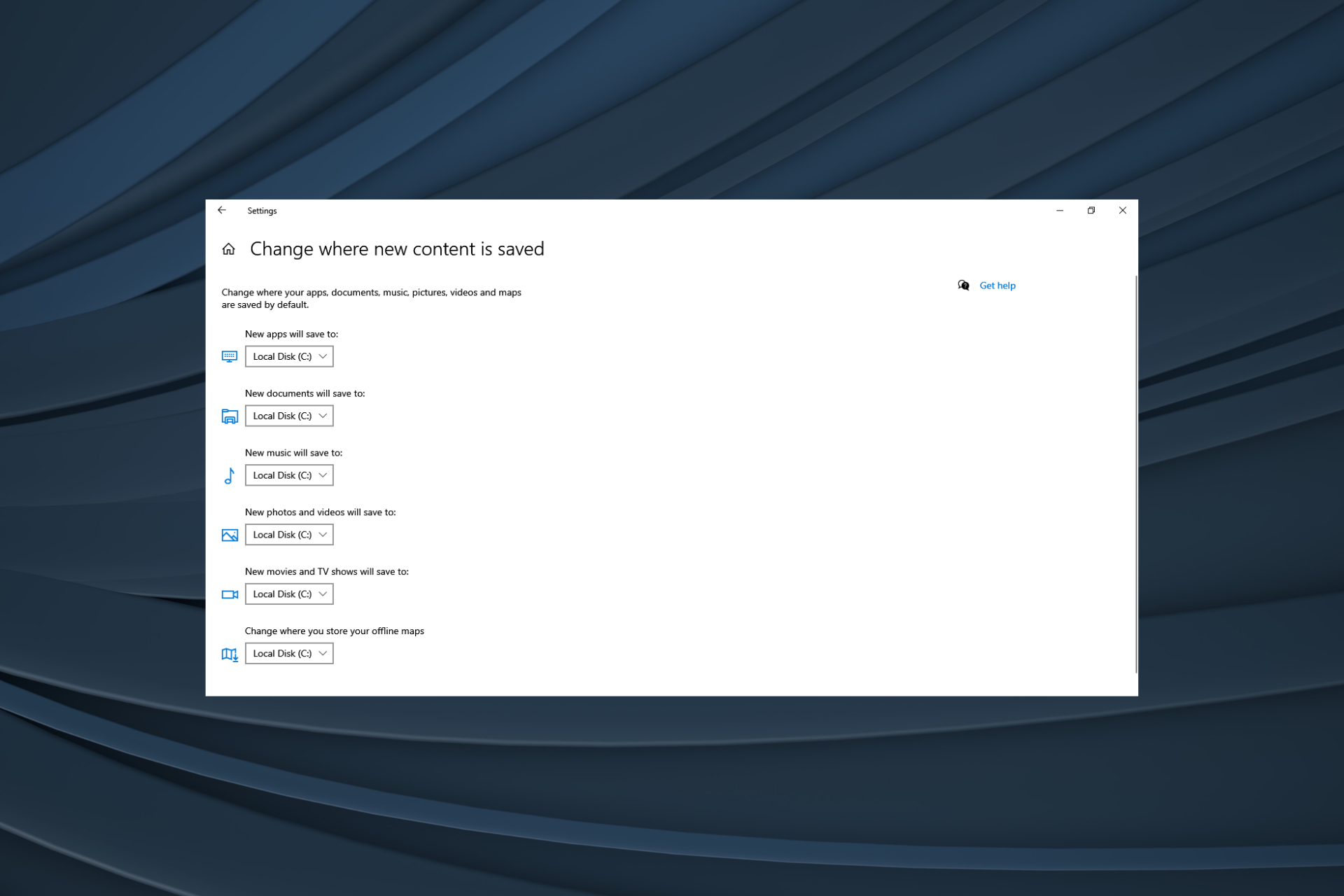
Yes, you can choose the drive to which new files get downloaded. And Windows 10 allows you to select one for each type. Here are the items for which you can configure the download path:

  • Apps
  • Documents
  • Music
  • Photos and videos
  • Movies and TV shows
  • Offline maps

Also, if you get the We couldn’t set your default save location error in Windows 10, a quick solution entails taking full folder control or creating a new user account. Or if you are trying to save content to an external drive, ensure it’s connected properly.

How do I change my default save location?

Tip icon Tip
Earlier, users could only set the default save location for files, be it documents, files, or photos, but Windows now also allows them to configure the drive where apps are saved.

Via the Settings

  1. Press Windows + I to open Settings, and click on System.
  2. Select Storage from the navigation pane, and click on Change where new content is saved on the right.change where new content is saved
  3. Now, select the drive for each file type from the dropdown menu.
  4. After making the change, click Apply to save the changes.set default save location in windows 10 settings

That’s it! This way, you can configure the default save behavior location in Windows 10 and better manage the disk space.

Besides, if the PC is low on storage, find out how to run Disk Cleanup and discover the best tools to free up disk space.

For any queries or to share anything we might have missed, drop a comment below.

Microsoft wants your next gas stop to feature a cloud-connected experience

Microsoft is turning gas stations into a cloud connected experience

As tech enthusiast, we seek out headlines and news about our favorite products and companies. Recent news sources seem congested with stories of Apple and Google smartwatches, connected homes, rampant increase in credit card/account information hacks and mobile payment solutions. Each of these trends speaks to the future of IoT. With each new headline, we see two of the three well-known consumer facing tech companies attempt to tackle the new IoT’s frontier.

Apple is looking to capitalize on the army of developers who have made iOS the default developing platform. They’re taking app innovations and integrating them into their watch, to market their expanding growth into the IoT. Meanwhile, Google bought its way into the homes with Nest, retooling Google Glass, refining the Android Wear experience, and slapping Android Auto on cars shipping this year. At this point, many are questioning whether or not the IoT will pass Microsoft by like mobile innovation arguably did.

Depending on how you look at it, Microsoft may be looking at the bigger picture through seemingly smaller endeavors. Kwik Chek, a Texas-based convenience store, has partnered with P97 Networks, PetroZone Mobile Commerce, and PetroZone Retail Fuels Module to create consumer convenience technologies that run on top of Microsoft cloud services. The new technologies target a customer experience with mobile phones to gas pumps, store point of sale (POS) terminals and loyalty programs. While not as flashy as watches and cars, this has the potential to be a huge business for Microsoft.

Microsoft is turning gas stations into a cloud connected experience
Industry estimates say there are 151,000 convenience stores in North America. The convenience store business posted a $696 billion in 2013. Kwik Check alone operates 39 store locations in Texas and Oklahoma. Microsoft is using its cloud-based platforms, Microsoft Azure and Microsoft Dynamics AX as the connected tissue that powers Kwik Check’s mobile and in-store solutions.

The Azure part of the Kwik Check’s integration tackles analytic insights into things like loyalty programs. Each purchase a customer makes, they acquire points towards future discounts or benefits. With this purchase information, the convenience store can better populate their inventory which reduces cost and marketing.

“Having customers’ data really helps us offer them the best possible service, customized to their preferences and needs. It’s really transforming the whole experience,” says Kwik Check CEO, Kevin Smart.

While Azure handles the information transferred to customer and stores through the cloud, Microsoft Dynamics AX helps to refine the in-store POS. Dynamics AX modern POS works with interchangeable low-cost mobile tablets. The touchscreens are based on Windows technology and are intended to reduce training time and cost and provide quick transactions at checkout.

Microsoft is turning gas stations into a cloud connected experience

While Windows Phone users are looking for scraps of news about a mobile solution for the platform, Kwik Check, and PetroZone Mobile Commerce have an app that works with Windows, Android, and iOS. The app does quite a bit as well. Customers can seek out the nearest Kwik Check locations, reserve a pump and find out if each location is car wash ready, and whether it has an ATM and other services. Beyond the services, the app also uses secure, multi-factor authentication for more secure payments.

“When you have credit card information stolen, all sorts of damage can occur, from identity theft to charges online. With the PetroZone app, no cardholder data is ever stored or transmitted to or from the phone; even if you lose your phone, there are ways to wipe that phone remotely. It’s a far more secure method of payment,” says Smart.

Microsoft is turning gas stations into a cloud connected experience
As we can see, Microsoft’s ambitions and approach to the IoT things seems to be more of a play for foundation than it is for simply layering software. The IoT things are shaping up to be a bunch of connected devices that all report back to a central form of intelligence. Businesses, customers, and consumers can then check that bucket of intelligence to gain insight and information about themselves and the world around them. Microsoft seems like it Is positioning itself to be that repository of information regardless of device, service or platform. 

Microsoft, others, calls on White House, Congress to reform US Patriot Act

Microsoft logo

A letter supporting “essential reforms to the USA Patriot Act” was sent today by Microsoft and members of the Reform Government Surveillance coalition and other civil liberty advocates. Their letter regards surveillance laws and the need to reform the current Patriot Act. This letter comes nine months after last year’s post on the same topic and two years after The Washington Post’s and Guardian’s original report on US government surveillance, brought on by revelations from Edward Snowden.

The letter sent today is shorter than their previous post but is backed by over a page of organizations. Here are the main bullets points from the letter

  • There must be a clear, strong, and effective end to bulk collection practices under the USA PATRIOT Act, including under the Section 215 records authority and the Section 214 authority regarding pen registers and trap & trace devices.Any collection that does occur under those authorities should have appropriate safeguards in place to protect privacy and users’ rights.
  • The bill must contain transparency and accountability mechanisms for both government and company reporting, as well as an appropriate declassification regime for Foreign Intelligence Surveillance Court

To more fully understand the context of this situation, it’s worth going through the key points of last year’s post as well. Microsoft listed five things they view the U.S. government needs to do.

“Recognise that U.S. search warrants end at the U.S. borders:” Microsoft points out that since the United States’ authority ends at its own borders that warrants have no jurisdiction outside of the country. A concrete example of this disagreement is Microsoft’s fight over data in the cloud. While Microsoft is headquartered in Redmond, they store data overseas which in their opinion cannot be seized by a warrant from the U.S. government.

“End bulk collections:” Microsoft expressed a desire to strengthen the USA Freedom act to prevent bulk collection of phone records and data. President Obama has already expressed similar feelings on the subject.

“Reform the FISA Court:” FISA courts are a controversial subject and Microsoft stated that “a judge who hears only one side of a case is less likely to render a just result. Congress needs to recognize and act on the need for FISA Court reform.”

“Commit not to hack data centers or cables:” A deep concern of Microsoft’s is the fact that according to the Washington Post “the National Security Agency hacked systems outside the U.S. to access data held by Yahoo! and Google.” They also pointed out that foreign bodies or governments hacking into data in the United States is considered prosecutable so there shouldn’t be a dichotomy between the two.

“Continue to increase transparency:” Microsoft gained the ability to release how many security-related demands they receive and also asked for more movement in the direction of transparency.

Between today’s letter backed by a long list of organizations, and their previous post on government surveillance, Microsoft has made a strong stance and may lead to a specific response from the White House and Congress. Microsoft emphasized multiple times the constitutionally guaranteed rights of American citizens outlined in the fourth amendment which ensures the right to not have things searched or seized without probably cause and a warrant.

How to Disable Web Search Results in the Start Menu

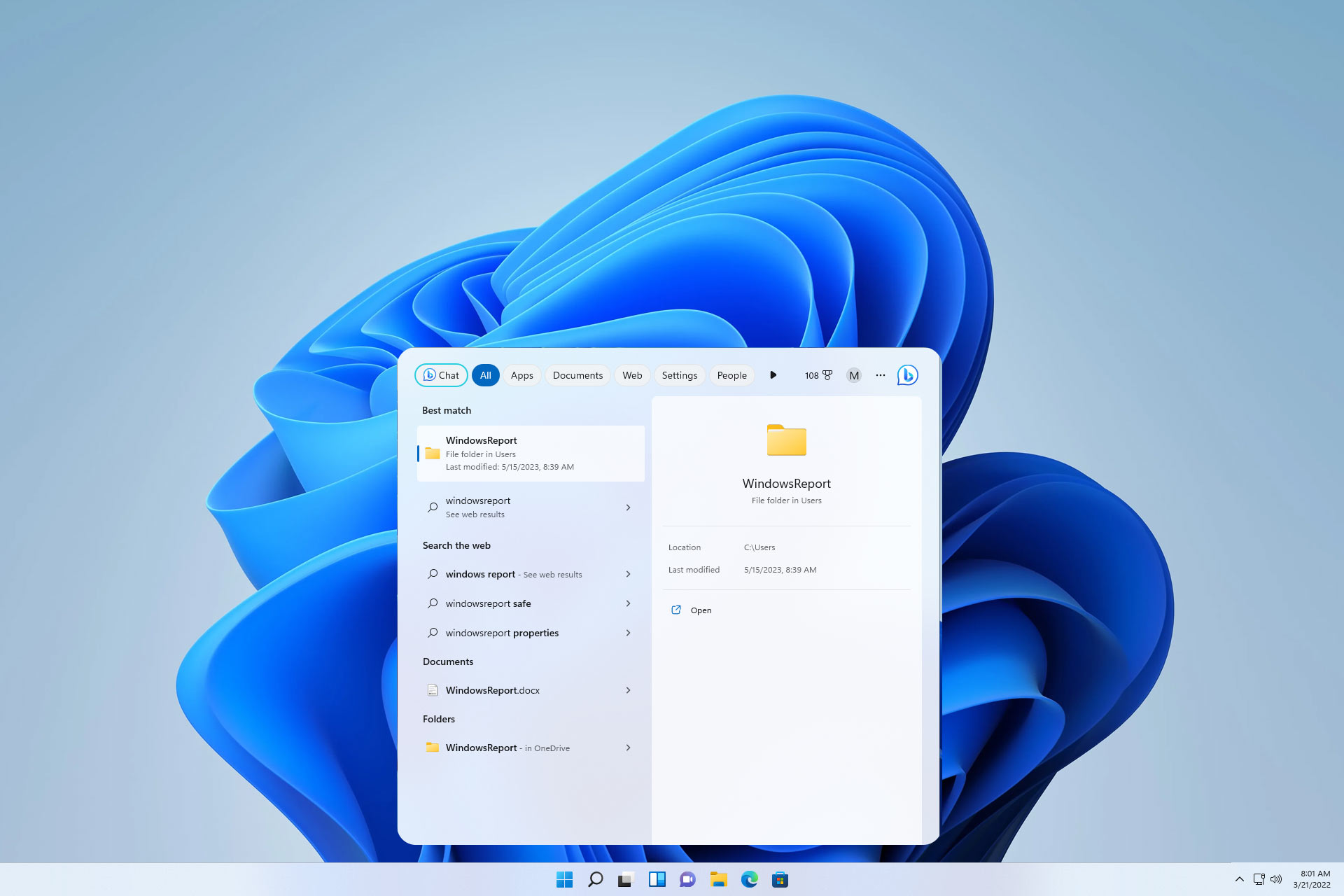
Start Menu is an irreplaceable tool, but many are wondering how to disable web search results in the Start Menu.

One way to do that is to use a Start Menu replacement, but what if you want to keep the original Windows look?

In that case, be sure to keep on reading to find out more.

How do I make Start menu search use Google instead of Bing?

While it’s possible to use Google instead of Bing, the process requires you to make adjustments to your system, and in the end, it might just be a temporary solution until Microsoft patches it.

We explained this process in our how to change Cortana’s search engine guide, so be sure to check it out.

How can I disable web search results in the Start Menu?

Change Windows policies

  1. Press Windows key + R and enter gpedit.msc.
  2. Next, navigate to User Configuration and select Administrative Templates. Next, pick Windows Components and choose File Explorer.
     
  3. Select Turn off the display of recent search entries in File Explorer search box.
  4. Set it to Enabled and save changes.

Some users also suggest that disabling Bing in Windows Firewall might help, but we’re not sure if it will work, since Microsoft uses various servers for various regions.

If you want to go a step further, you can always disable search in Windows 11, especially if you get the search results aren’t quite ready yet error frequently.

That would be all, and now you should know how to disable web search results in the Start Menu. If you have other solutions, please write them down in the comments.

Windows 10 build 10041 receives updates, addresses vulnerabilities, Start screen issues, and more

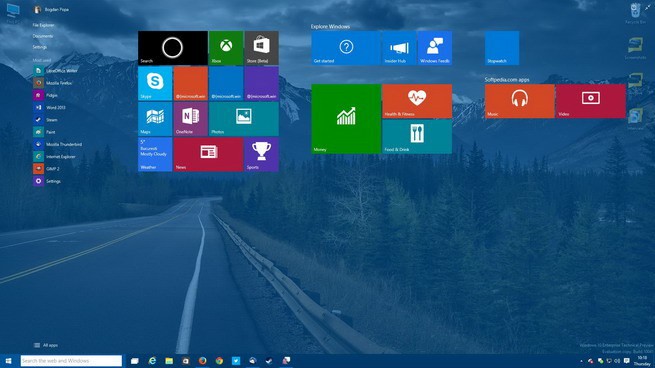
Tuesday updates for Build 10041 address vulnerabilites, task view, and start screen issues

Some of you may be like me and check for an update every Tuesday for your Windows device. Usually if there are no big updates, you can at least count on a Windows Defender update. Well, today’s updates pack a few more tweaks than just updating Windows Defender.

According to Gabe Aul, the General Manager of the OSG Data and Fundamentals team over at Microsoft, there is an update waiting for Insiders running Windows 10 Technical Preview build 10041. There are three updates, addressing issues with the Start screen transparency, a fix for the Task View, and a patch for a pretty nasty vulnerability.

Update (KB3050284)

  • This update resolves a problem that may result in a transparent Start screen and Task view, transparencies when snapping or dragging windows, and can cause desktop thumbnails to appear as black squares.
  • This update resolves a problem that results in severe graphical artifacts on screen when Magnifier is launched in docked or lens mode.
  • This update contains a reliability improvement to resolve a common system crash.

Update (KB3050279)

  • Sharing the desktop in a meeting causes remote users to see a black rectangle instead of the desktop in the Lync client.
  • On Microsoft Surface Hub, selecting the I’m Done button may cause the user interface to crash, thus making the Call, Whiteboard, and Connect buttons nonfunctional.
  • If the Connect app is closed via the task switcher and then restarted, it may crash.

Patch (MS15-031)

  • This security update resolves a vulnerability in Microsoft Windows that facilitates exploitation of the publicly disclosed FREAK technique, an industry-wide issue that is not specific to Windows operating systems. This vulnerability could allow a man-in-the-middle (MiTM) attacker to force the key length of an RSA key to be downgraded to EXPORT-grade length in a TLS connection. Any Windows system that uses Schannel to connect to a remote TLS server by using an insecure cipher suite is affected.

If you’re an Insider currently running Build 10041, take out 10 minutes today and visit the Settings app to grab the new updates.

Microsoft to set Spartan as the default browser on Windows 10, and will remove IE's Trident from it

Microsoft to set Spartan as the default browser on Windows 10, and will remove IE's Trident from it

When Microsoft announced Spartan, the company planned to make it the one browser needed to take advantage of the latest web standards, as well as one that supported legacy websites. Those plans have since changed, and Microsoft has shifted the focus of its next-gen browser.

In a feature we posted last month, we described Microsoft’s thinking behind Project Spartan. Microsoft thought it was important that the browser supported the latest web standards, in addition to making it easier for web developers to write code for modern browsers, knowing that the code would just work on Spartan without browser-specific enhancements. To accomplish this, Microsoft was to include both the new Edge rendering engine as well as the Internet Explorer’s existing Trident rendering engine in Spartan and IE. This would allow both browsers to rapidly render modern sites with Edge, and automatically switch back to Trident when a user tries to render older/legacy sites.

Microsoft to set Spartan as the default browser on Windows 10, and will remove IE's Trident from it

Upon further evaluation of this strategy, Microsoft has concluded that this is not the right approach going forward, and has decided to remove Trident completely from Spartan. Trident isn’t going to die though as it will still be available in Internet Explorer on Windows 10. So, you have Spartan with Edge, and IE with Trident. Both browsers will come pre-installed in Windows 10, with Spartan set as the default.

Why is Microsoft doing this you ask? According to a recent Microsoft blog post, there are three main reasons. The first, is that a separation of new and legacy rendering engines will enable Microsoft to more easily deliver on its promise of providing Windows as a service, updating the browser with new standards on-the-go. The company also cited that only a small percentage of users needed Trident to access older sites.

Microsoft to set Spartan as the default browser on Windows 10, and will remove IE's Trident from it

The second reason for the separation is enterprises. We know how stubborn large enterprises can be when it comes to upgrading software, and Microsoft states that “for Internet Explorer 11 on Windows 10 to be an effective solution for legacy scenarios and enterprise customers, it needs to behave consistently with Internet Explorer 11 on Windows 7 and Windows 8.1”, and having Edge as part of IE – as it is in the Technical Preview – could cause “compatibility implications”.

Microsoft to set Spartan as the default browser on Windows 10, and will remove IE's Trident from it

“For a small set of sites on the Web that were built to work with legacy technologies, we’ll make it easy for customers to access that site using Internet Explorer 11 on Windows 10. Enterprises with large numbers of sites that rely on these legacy technologies can choose to make Internet Explorer 11 the default browser via group policy. In addition, since Internet Explorer 11 will now remain fundamentally unchanged from Windows 7 and Windows 8.1, it will provide a stable and predictable platform for enterprise customers to upgrade to Windows 10 with confidence.”

Thirdly, according to the software giant, feedback garnered from Windows Insiders indicated that both regular consumers and developers were having a hard time differentiating between the web capabilities of Spartan from that of IE. This resulted in a confused mess and it made more sense to just separate the browsers and their respective rendering engines, leaving Spartan for those who want a bleeding-edge browser, and IE for those that need to access legacy websites.

Although both browsers will be included in Windows 10, “Project Spartan is our future” says Microsoft. We don’t yet know whether this separation only applies to the desktop, or whether it will also be the case on Window 10 for phones too, but Microsoft should be releasing more information on the matter over the coming months. Stay tuned to WinBeta for the latest.

Fix: Unable to Find Build 10041 for Windows 10

A coupe of days ago Microsoft announced its new 10041 build for Windows 10 Technical Preview. But some users experienced a problem as they weren’t able to find the new build when they checked for updates. Fortunately, this is a minor problem, and we have a solution for it.
Unable To Find Build 10041 Build For Windows 10
Maybe everything is okay, but the new build just didn’t reach to you yet. You can choose how fast you want to receive new builds, and if your settings are not set to Fast, you maybe just need to wait for a couple of days. To check if your ‘updates receiving settings’ are set to Fast, go to Settings > Update & Recovery > Advanced options, and Choose how preview builds are installed, and check if it’s set to Fast. If you’re already using Fast method, but you’re still unable to receive updates, something in your Registry is not set correctly. There are two ways to fix this, and we’ll show you both.

Solution 1 – Install the Windows Update that will reset your Flight Registry Settings

You can download the update directly from the Microsoft Update Catalog. There’s the update designed specially for problems of this kind. You just have to install it, and then check for updates again. Just go to https://catalog.update.microsoft.com/v7/site/Search.aspx?q=3038930, download the update, install it, and check for the new build again.

Solution 2 – Do some editing in your registry

But, if you’re somehow not able to install the update, you can instead edit the registry yourself. But be aware, you can apply this steps only if you’re running a 9926 build of Windows 10 Technical Preview, with Choose how preview builds are installed set to Fast:

  1. Open regedit.exe
  2. Navigate to HKEY_LOCAL_MACHINE\SOFTWARE\Microsoft\WindowsSelfHost\Applicability
  3. Ensure the following values exist:
    • {value name}, {value type}, {value data}
  4. BranchName, REG_SZ, fbl_impressive
  5. ThresholdOptedin, REG_DWORD, 1
  6. ThresholdRiskLevel, REG_SZ, low
  7. Delete all other values
  8. Open Settings > Update & recovery > Windows Update
  9. Tap or click Check for updates

Read Also: Fixed: Folder’s View Settings Continuously Changes

Microsoft: Rumors of Internet Explorer's demise have been greatly exaggerated

Extended Enterprise Site Discovery support for IE8, IE9, and IE10 proves IE will be around for a while

Reports on the death of Internet Explorer caught like wildfire last week. Without out any substantial information, some news outlets spun an execution story of IE similar to the, “look at the flowers” meme based on a scene from this season’s Walking Dead tv show. Today, the IE team is carving out time to reassure people (specifically enterprise), that they hadn’t quite unholstered their side piece yet when it comes to the support for Internet Explorer.

Perhaps the tarnished brand of Internet Explorer will become increasingly deprecated over the next few years. Microsoft may even look to reduce it’s appearance in marketing material or in the promotion of Windows going forward, but the browser (more importantly, the functionality) itself will still look to service enterprise who move at glacier speed to new technologies.

In today’s blog post, the IE team is announcing two new updates that can now be found in the Enterprise Site Discovery options found in IE8, IE9, and IE10. This update includes expansion of Enterprise Site Discovery for older browsers as well as the ability to scope enterprise sites by zones and domains. 

Enterprise Site Discovery on IE8, IE9, IE10, and IE11

Originally shipped in November of 2014 for IE11, the same Enterprise Site Discovery support and enhanced privacy options are now bundled in an update this month to support previous versions of IE. The updates allow IT Pros discovery items like, which of their Enterprise line of business applications are being used- and how. The expansion for older browsers is especially useful for enterprise who deal in dreaded ActiveX documents. IT pros who deal with ActiveX can now prioritize their testing of apps leveraging that technology specifically.

Extended Enterprise Site Discovery support for IE8, IE9, and IE10 proves IE will be around for a while

Scoping Enterprise Site Discovery

Beyond simply expanding discovery to previous versions of IE, the second part of this month’s update gives IT pros the tools to specify which zones and domains are included in the information gathered from Enterprise Site Discovery. This discovery tool set now helps paint a clearer picture for IT pros as to how IE is being used in their deployment with real-time user date.

Extended Enterprise Site Discovery support for IE8, IE9, and IE10 proves IE will be around for a while

The IE team does point out that once the update is collected from the Enterprise Site Discovery Toolkit, most of the above features will be turned off by default. When enabling the features, IT pros will be able to collect data from all sites visited by users with IE except for those browsing in an InPrivate browsing session. The information gathered is done so silently, and there is no end-user notification so employees can continue with all that productivity they should be doing.

Fix: Windows 10 App Store Has Stopped Working

Crashing of Windows App Store is very annoying thing, especially if it crashes when you need it. This problem is present every version of Windows, from Windows 8, to the latest build of Windows 10 Technical Preview (10041), but there’s a solution.
Windows App Store Has Stopped Working

Solution 1: Check if Windows Store service is enabled

I suggest you to check if the Windows store service and the Windows update service is running. Refer to these steps:

Maybe your Windows Store service has stopped working for some reason, to check that, do the following:

  1. Press Windows key and R at the same time and type services.msc
  2. Locate the Windows store service and the Windows update, and check if these services are running
  3. If not, right click on each service and select Start to start the service manually
  4. Also, right click on each service, select properties and set the startup type to Automatic

Solution 2: Fix the registry with Command Prompt

Maybe your problem lays somewhere in the Registry. To fix that, you’ll have to write a few lines in Command Prompt, and here’s exactly what you should do:

  1. Press Windows key and R at the same time and type cmd
  2. Open Command Prompt as Administrator
  3. In Command Prompt enter the following line:
    • powershell -ExecutionPolicy Unrestricted Add-AppxPackage -DisableDevelopmentMode -Register $Env:SystemRootWinStoreAppxManifest.xml
  4. Hit Enter, and after that, add this line: start "" "ms-windows-store:"
  5. Hit Enter again

Solution 3: Create a new user account

If previous Registry fix didn’t solve your problem, you can also try to create a new user account and see if it will work. To do that, follow these instructions:

  1. Press Windows Key and W at the same time
  2. Type Users in the search box and select “Users” option from the left panel.
  3. Select “Add Users” under “Other users” option.
  4. Add the user profile details.
  5. Then login to the new user account and then check if the issue is fixed

.Hope some of these steps helped you with your Windows Store problem, if you have any comments or suggestions, please write them down in the comments section below.

Read Also: Fixed: Folder’s View Settings Continuously Changes

WinBeta Poll Results: From where did you obtain your copy of Windows?

WinBeta poll results: Where did yo obtain your copy of Windows from?

Last week, Microsoft announced that pirates will be able to upgrade their existing copy of Windows to Windows 10 free of charge, but then quickly backtracked and clarified that while the upgrade to Windows 10 will be possible, it won’t give pirates a genuine license.

What began as an internal discussion around how many of our readers will be affected by Microsoft’s decision to not grant pirates a genuine copy of Windows 10, turned into a poll, and the results are in. Almost 2000 of you (1925 to be exact) voted letting us know where you obtained their copy of Windows from.

As it turns out, most of our readers (38%) got their hands on Windows along with a new PC, so the cost of a Windows license was included with the cost of the device they purchased, be it a new desktop, laptop, or tablet.  

WinBeta poll results: Where did yo obtain your copy of Windows from?

17% said they bought a retail/boxed copy of Windows to install on their computers, and another 16% said that they bought Windows online, either directly from Microsoft.com or from other online stores we assume. We know that some schools and workplaces will provide Windows to their students and employees, sometimes for free and sometimes for a nominal fee and 13% of you stated that that is how you obtained your copy.

So in general, 84% of our readership legally obtained Windows and are running a genuine copy, which is a very good number. Once Windows 10 is released you should have no issues upgrading and retaining your genuine license.

As for the other 16% who have downloaded Windows via shady means, we strongly recommend you purchase a genuine license. The pre-activated copies of Windows you obtained from torrent sites can easily include malicious software that will put your private information at risk.

WinBeta poll results: Where did yo obtain your copy of Windows from?

(Superfish, which was preinstalled by Lenovo, is a small example of what seemingly safe software is truly capable of)

A recent study from research firm IDC concluded that the chances of getting infected with tracking spyware, trojans, and malicious adware are 1 out of 3 if you download pirated software. You can check out the full study on the dangers of pirated software here.

“The dangers from counterfeit software are real. For consumers, it is not just lost time and money to fix the problem but also the risk of lost data and identity theft. For enterprises and governments, it is time and money better spent on other things, lost business and reputation from data breaches, and threats to critical infrastructure.” – IDC

If there’s a good time to buy Windows, it’s now. Microsoft announced that it will provide Windows 10 “as a service”, meaning that users will continue to enjoy feature updates down the line without having to wait for a new version of Windows to come out, and without having to purchase a new license.

WinBeta poll results: Where did yo obtain your copy of Windows from?

Buying Windows is a relatively easy process, if you are uncomfortable paying $199 for Windows 8.1 from the Microsoft Store, you can always head over to sites like Amazon.com (or its regional sites) and download Windows for a discounted price ($89.99 as of today). If you are a student, Microsoft sells Windows 8.1 for an even cheaper $69.99. You could even opt to buy Windows 7 on the cheap and still be eligible to upgrade to genuine Windows 10 for free once it launches. Microsoft has also confirmed that it intends to allow those on the Windows 10 Technical Preview to upgrade to the final version, but we are unsure at this time if that will require a license purchase. 

Always use genuine Windows and keep your PC up-to-date with the latest security updates. You may not think that you have anything of value worth stealing on your PC, but having your identity stolen is not something worth risking. It’s no pleasant experience when someone gets a hold of your passwords and proceeds to wreak havoc on your finances, social networks and personal contacts. It can be very damaging. Better safe than sorry.

Fix: Windows Apps Show X in The Bottom Right Corner

Build 10042 of Windows 10 Technical Preview is out, and everyone is  solving problems that the new build brought, but we mustn’t forget problems from ”old,” Windows 8. One of the most common problems of Windows 8 is appearance of “Xs” in the bottom right corner of Metro apps. But fortunately, there’s a solution for this issue.
Windows 8.1 Modern Apps Show X In The Right Corner

Solution 1: Re-register Windows Store Apps

Maybe your apps are unable to start because of some User Account issues in your system. This problem could be solved by creating the new admin account, because Windows automatically sets default options for new accounts. To re-register your apps, you don’t even need an internet connection, because it could be done with PowerShell. To re-register your Modern apps using PowerShell, perform the following steps:

  1. Press Windows Key and Q at the same time, type powershell and select Windows PowerShell from the results
  2. Right click over it and choose Run as administrator
  3. In the administrative Windows PowerShell window, type following command and hit Enter key then:
    • Get-AppXPackage | Foreach {Add-AppxPackage -DisableDevelopmentMode -Register “$($_.InstallLocation)\AppXManifest.xml”}

Solution 2: Sync licenses in App Store

If re-registering your apps didn’t help, you maybe have some problems with synchronization. The “X” in the bottom right corner of the live tiles could represent an issue with the license, or maybe with Windows App Store. To solve this issue, you just need to go to Windows App Store and do the following:

  1. Launch the Windows Store
  2. Open Settings, select App updates
  3. Click Sync licenses under the App licenses section

If none of these solutions worked, you can also try to reinstall all apps that are showing “X” in the bottom right corner and hope that it will disappear after the apps are installed again. If you have some additional comments or suggestions, please write them down in the comments, below.

Read Also: Fix: Problems with Host Process for ‘Synchronization’ in Windows 10 Surface Pro 3

Windows 10 news recap: Build 10041, pirates and a summer release

Windows 10

Another Windows 10 news week is behind us, and this week we got a brand new Windows 10 build to play with! The build was compiled on Friday and it comes with new functionality and a bunch of bug fixes. There’s a new Start experience with transparency, improvements made to virtual desktops where you can drag applications from one desktop to another making for faster and easier multitasking, and Cortana is now available to new markets such as China, the UK, France, Italy, Germany, and Spain.

Up next, Microsoft claimed that they were planning to get Windows 10 out the door by summer this year in 190 countries and in 111 different languages. Windows 10 will be a free upgrade for hundreds of millions of customers running Windows 7, Windows 8.1, and Windows Phone 8.1 for the first year after it is released.

Furthermore, the company announced a new feature coming in Windows 10 called Hello. Windows Hello will be able to use your fingerprint, face, or iris to authenticate you and allow access to your device. In addition to Windows Hello, Microsoft has also announced a service code named ‘Passport’ that aids in authenticating users without storing a password on a server.

Also this week, the company announced and then unannounced that Windows 10 would be free for pirates. Pirates upgrading to Windows 10 will likely face the same 30-day trial experience where once that period of time expires, users will not be able to log into their PCs. It is yet to be seen whether Microsoft will include added limitations to non-genuine Windows 10 installs or implement stricter security measures to prevent piracy in the OS itself.

And finally, a newer build of Windows 10 for phones saw a number of screenshots leak onto the web. The screenshots reveal an improved UI across a number of areas of the OS, as well as new icons for the status bar. The UI improvements mirror that found on Windows 10 for the desktop, considering both operating systems share the same code this is to be expected. It’s good to see Microsoft finally bringing both their mobile and desktop operating systems together in these latest screenshots.

There you have it, another week of Windows 10 news done and dusted. What was your favorite Windows story this week?

WinBeta Podcast 7: Windows 10, Windows 10, and more Windows 10

WinBeta

Welcome to another edition of our weekly podcast, where this week we talk about a plethora of Windows 10 news which broke throughout the week. If you haven’t already listened to our previous episodes, you can check them out on your favorite podcast clients including SoundCloud, TuneIn, iTunes, and the Windows Phone Podcast app. Eager listeners can also use the RSS feed provided below to use their favorite applications not aforementioned.

This week, the team discusses the new Windows 10 build 10041, leaked Windows 10 for phones screenshots, the death(?) of Internet Explorer, and many more interesting stories of the week. Get listening via the embedded player below!

Just a heads up for those interested, next week we are planning to do the podcast live, with video! It’ll be an interesting experience for all of us, and we hope you can join us for the ride. We’re not too sure on the specifics just yet, but we do know it’ll be on Friday. We’ll write up another article in the week with all the details you need to know.

Included stories this week:

Forget SKUs, Microsoft is creating 'classes' of Windows 10 IoT instead

Forget SKUs, Microsoft is creating 'classes' of Windows 10 IoT instead

Just when we thought Microsoft had played all its cards this week at its WinHEC conference in Shenzen, today we are finding out that the Windows 10 project is much larger than some of us initially realized. We’ve reported on a truckload of Windows 10 for desktop news, we’ve reported on sprinklings of Windows 10 for phone news, and now we also have insights into apps, hardware, and availability to some degree. Today we find out some more news about Microsoft’s plan for Windows 10 and the Internet of Things.

Some may have thought that support for Windows 10 on Raspberry Pi 2 was the path Microsoft was going to adopt for IoT. However, the version of Windows 10 supported by the Raspberry Pi 2 appears to be a scaled down and customized version of Windows 10. Moving forward Microsoft will have an entirely new edition of Windows 10 creatively called “Windows 10 IoT”.

Within this “Windows 10 IoT” edition, there will be three ‘classes’, one for mobile devices, one for small devices, and one for industry devices. Please, note the absences of the term ‘SKU’ as Microsoft goes to great pains not to refer to the new classes as Stock Keeping Units (SKU’s). Perhaps for the best.

Forget SKUs, Microsoft is creating 'classes' of Windows 10 IoT instead

Unlike the much-debated disaster that was Windows RT, each class will be linked together with support for universal apps and drivers making them somewhat interoperable with each other. This level of interoperability extends the deployment options for app developers looking to target beyond desktops, laptops, tablets and game consoles.

While the idea of Twitter being on something like the HoloLens may not be that appealing, it does speak to the developer community that seems to be migrating at speed, away from the Windows platform. The ability to have a development experience be very similar while targeting a broad audience on various devices should not be overlooked. And now for the nitty gritty details.

Microsoft making 'editions' not SKU's for Windows 10 IoT

Industry Devices

Similar to Windows 10 32-bit on desktops, the Industry devices class will require x86 processors, 16GB of storage and 1GB of RAM. Beyond the requirements, Microsoft has yet to shed much light on how Windows 10 IoT will differ from ‘traditional’  Windows 10. There is speak on the use of services like Azure to offer deeper cloud integration, security and device-to-device connectivity, however.
 

Mobile Devices

Microsoft’s is using mobile devices and Windows 10 IoT to make a more substantial branch from Windows 10. For mobile, Windows 10 IoT will retain only a subset of functionality from Windows 10. There will be a reduction in the requirements for storage and memory with 4GB and 512MB respectively put in place. Without the need for desktops, only the modern interface design language will be followed. While much of this follows the phone and tablet trends for computing, Microsoft is limiting this class to ARM processors only. Why the limitations when there are Intel-based tablets already on the market and rumors of a possible Intel-based phone? Microsoft has not yet made this clear, but we are sure more information will be waiting for developers at Build 2015.

Small Devices

It looks like Microsoft is using this class to target Point of Sales (PoS) kiosk and media center-like devices. In doing so, they are dropping most of the Windows 10 features and looking only to maintain universal app compatibility.

“To keep storage and memory costs low, this edition of Windows 10 does not include a Windows start experience or inbox apps. Instead, the device maker builds the device experience as a Windows universal app and configures the device to launch that app at boot, giving the device developer complete control over the device experience,” Microsoft. 

As the requirements for devices running this edition have lowered even further to 256MB of RAM and 2GB of storage, this edition does surprisingly support both ARM and x86 processors. Another nice tidbit about small devices is that Microsoft intends Windows 10 IoT for tinkerers and start-ups. Microsoft announced that Windows 10 IoT will be free for small device makers and commercial device builders but seemingly excludes deploying Windows 10 IoT within a company.

Microsoft making 'editions' not SKU's for Windows 10 IoT

As much as we now know about Microsoft’s intentions for Windows 10 for IoT, there is a lot more we don’t know. With the explosion of knowledge from WinHEC, we can only imagine what new information we’ll get at Build 2015.

Fixed: ‘DRIVER_POWER_STATE_FAILURE (9f)’ Error

Every month, Microsoft releases a couple of important updates to its Windows users, trying to fix various bugs and problems. This time, we’re talking about the annoying DRIVER_POWER_STATE_FAILURE error, which has received a solution recently.
DRIVER_POWER_STATE_FAILURE fixThe above problem has been solved by Microsoft in update file KB 2983336. So, if you ever received this error message: DRIVER_POWER_STATE_FAILURE (9f) when you were trying to shut down the computer while you were using the built-in VPN client, then you should know that it has now been fixed.

Here’s how the official symptom sounds like:

You use the built-in VPN client on Windows 8.1 or Windows Server 2012 R2. When you shut down or suspend the system, the computer crashes, and you receive the following error message:

DRIVER_POWER_STATE_FAILURE (9f)

As there isn’t a hotfix available for donwload, the single solution is to install the above mentioned update, which is part of the KB 3013769 update roll-out. I sincerely hope you have managed to fix it, if not, leave your input below and let us know what are the errors that you’re getting.

READ ALSO: Fixed: OneDrive Crashes or Freezes When it Synchronizes Folders

[wl_navigator]

Educational TV channel BabyFirst has released its official Windows Store app

Educational TV channel BabyFirst has released its official Windows Store app

If we had to guess, one of the reasons tablets from competing platforms are popular in schools, particularly in kindergarten and elementary classrooms is the abundance of educational games and applications available to them. The Windows Store admittedly lacks in that department but it’s making up ground with some new big-name arrivals.

BabyFirst TV, a popular TV channel dedicated to developing early skills in babies and pre-k children such as counting numbers, color and shape recognition, and learning vocabulary, has now made its official BabyFirst Video app available to download on Windows devices. The intelligently designed ad-free app brings several of the shows’ main characters like Harry the Bunny, Peekaboo, VocabuLarry, the Notekins and a lot more to PC’s and tablets, and is available in several languages.

You can download the BabyFirst Video app now from the Windows Store, as well as its smartphone version from the Windows Phone Store over at the download links below.

Microsoft Technology Licensing LLC is taking over IP disputes and deals

Microsoft Technology Licensing LLC will take over IP disputes and deals

Intellectual property (IP) litigation has become another daily cost of doing business for US technology companies. From Apple and Samsung to Android patent licensing deals companies big and small pay one way or another for IP protection or usage. Microsoft has a reputation for using patents to gain licensing deals from potential competitors such as Android device makers, and last year Microsoft broke their IP licensing business into a separate entity called Microsoft Technology Licensing LLC.

Previously Microsoft would simply perform the litigation, but now patent and licensing deals will be handled by Microsoft Technology Licensing LLC which was spun off of Microsoft last year during a reorganization announced by Satya Nadella after he took over as CEO. Microsoft has been transferring their IP from Microsoft Corp. over to Microsoft Technology Licensing LLC in order to give this new entity legal power to litigate the patents.

Twenty percent of patents sold in 2014 went from Microsoft Corp. and fourteen percent of patents in 2014 were assigned to Microsoft Technology Licensing LLC, according to a report from IAM-Media . This is a massive amount of patents, with the next seller and the next assignee coming in at only 7%. Shifting patents enables Microsoft Technology Licensing LLC to operate fast and decisively to broker new deals between competitors or any companies looking to break into a market using protected technology.

Time will tell if Microsoft Technology Licensing LLC will become a destructive force in the tech world but hopefully the legal suits will be reasonable and not follow in the footsteps of other patent trolls. So far the major news concerning Microsoft Technology Licensing LLC revolves around the patent agreement struck between Fuji Xerox and Microsoft, and the lawsuit recently brought against Kyocera.

Microsoft signs deal with Fuji Xerox

Consumers who are concerned this new licensing focused company will prevent new products from coming to market should not worry yet. Licensing deals are better than trade embargoes which prevent products from being sold in a particular market. Microsoft has a track record of striving for licensing deals over preventing product sale, and hopefully Microsoft Technology Licensing LLC will continue that trend. Licensing IP can make products more expensive which affects consumers, but companies not investing in developing new technologies cannot expect to use existing IP for free.

What do Users Demand From Windows 10?

Users are testing Windows 10 Technical Preview for almost half a year. This is a big period of time in digital world and in that period a millions of users were able to say what they like about the new system, what they don’t like and what they expect from it.
What Users Demand From Windows 10
In this article we’re going to talk about everything users expect from the final release of Windows 10. I hit Windows forums in order to find out what users think about the current state of Windows 10 Technical Preview and what they want in the future. And even if this operating system is expected to be much better accepted than its predecessor, there are still a lot of things users want to improve and I picked the most notable ones for this article.

We’re going to start with UI of Windows 10. Starting from build 9926, Windows 10 UI changed a lot compared to the first build. In previous builds of Windows 10 Technical Preview users were pretty much satisfied with the user interface, but then suddenly, a big change in 9926 build happend. User interface has been changed almost completely, and the most different were icons. They’re just too big and and look more like the old-fashiond icons from some pre-XP operating system, than modern icons of the brand new Microsoft’s product. Users are complaining about this a lot, and this Microsoft’s move just isn’t clear to many. But luckily, people from Microsoft responded to this, as they said they will consider complete redesign of icons. We certainly hope that this will happen, because these icons just don’t fit in the modern operating system.

Since we’re talking about the UI, another part of has been moved away from Windows 8 and still isn’t present in Windows 10 TP. It’s legendary Aero Glass transparent team that was super-popular in Windows 7. But the return of Aero is one of the most popular suggestions on Microsoft’s Feedback App for Windows 10 TP. And Microsoft’s General Manager of OSG data, Gabe Aul said that there’s a big chance that we’ll see Aero theme back in the final release of Windows 10 or some future builds.

Throughout the years users mocked Internet Explorer (mostly because of its speed), and now, just like it’s the case with Nokia device, one era will be ended. Microsoft recently announced that it will kill Internet Explorer and launch the new browser, Spartan in its place. Spartan looks a lot more advanced than Internet Explorer, and a lot of users are looking forward to it. It has some great features, and reportedly is faster than Microsoft’s previous browser, that lasted for many years, despite its lower performances. Spartan will have some really cool features, like note-taking mode, which will allow you to draw directly on web pages, or built-in virtual assistant, Cortana.

Another things users want Microsoft to improve are stability and security of the system. And it looks like Microsoft heard them. Microsoft Developers added a variety of drivers from OEMs to the operating system, so you won’t have to wander around the internet searching for your Ethernet or audio driver, for example. Also users are demanding the improved Windows Defender. This security tool was decent in previous versions of Windows, but there’s still room for improvement. Some users point out that it would be good for Microsoft to make partnership with some third-party security software and make it a built-in Windows 10 feature, but we still doesn’t have Microsoft’s official response to this request.

Testing of Windows 10 is coming into its final stage, as the Technical Preview will expire on April 15th. But people had enough time time to test it, and tell Microsoft exactly what they want from a new operating system. What’s your opinion about the new operating system, what do you expect from it and what you wouldn’t like to see in it? We would love to hear your opinion.

Read Also: Fix: Windows Defender Won’t Update – 0x80240016 Error

Microsoft reportedly states that pirates will not be able to upgrade to genuine Windows 10

Microsoft reportedly states that pirates will not be able to upgrade to genuine Windows 10

Yesterday, Microsoft announced that pirated versions of Windows will be able to upgrade to Windows 10. This means that anyone with a pirated version of Windows 7 or 8 will be eligible to upgrade to Windows 10 for free during the first year of its launch, just like those with a genuine copy.

Since Microsoft is providing Windows 10 “as a service”, pirates would then be able to install all the subsequent feature updates to Windows without having to pay for anything. Originally, this was thought to be part of some grand plan to get as many people as possible upgraded to Windows 10, so that Microsoft could then maximize on profits. That may still be the case, but Microsoft has reportedly confirmed that while pirated versions of Windows 7 and 8 with non-genuine licenses can be upgraded to Windows 10, they will not be upgraded to a genuine license.

Microsoft reportedly states that pirates will not be able to upgrade to genuine Windows 10

“We have always been committed to ensuring that customers have the best Windows experience possible. With Windows 10, although non-Genuine PCs may be able to upgrade to Windows 10, the upgrade will not change the genuine state of the license. Non-Genuine Windows is not published by Microsoft. It is not properly licensed, or supported by Microsoft or a trusted partner. If a device was considered non-genuine or mislicensed prior to the upgrade, that device will continue to be considered non-genuine or mislicensed after the upgrade. According to industry experts, use of pirated software, including Non-Genuine Windows, results in a higher risk of malware, fraud (identity theft, credit card theft, etc), public exposure of your personal information, and a higher risk for poor performance or feature malfunctions.”

Microsoft reportedly states that pirates will not be able to upgrade to genuine Windows 10

Pirates upgrading to Windows 10 will likely face the same 30-day trial experience where once that period of time expires, users will not be able to log into their PCs. It is yet to be seen whether Microsoft will include added limitations to non-genuine Windows 10 installs or implement stricter security measures to prevent piracy in the OS itself. We have reached out to Microsoft for more info and will update this post should we get a reply.

Is Microsoft doing enough to put a stop to piracy, especially in regions where piracy runs rampant such as China? Let us know your thoughts in the comments below. Also, have a go at the poll below. Just to remind you, it’s anonymous and we’ve hidden the results for now. We’ll publish them once we get enough votes. 

Microsoft announces the Lumia 430, the most-affordable Lumia yet

Microsoft introduces yet another entry-level Windows Phone 8.1, costs $70

It’s been less than a month since Microsoft unveiled the Lumia 640 and 640 XL, and the software giant has introduced yet another budget-friendly handset  for the masses — the Lumia 430 Dual SIM. The handset comes with an extremely affordable price tag of $70, and will hit retail in several regions across the globe including APAC, IMEA, Russia, Kazakhstan, Ukraine and Belarus from April. The handset will hit retail in two color options: black and orange. 

“People around the world have responded enthusiastically to our affordable Lumia range. We continue to invest in this segment to ensure that as many people as possible can enjoy signature Microsoft experiences, regardless of budget,” said Jo Harlow, corporate vice president for Phones at Microsoft. “The Lumia 430 Dual SIM continues our commitment to combining the right hardware, software, services and apps with the right price to give people a smartphone they can afford and be proud to use.”

The handset comes with low-end specifications in two, featuring a 4-inch display sporting a resolution of 800 by 480 pixels with the processing power coming from a quad-core Qualcomm Snapdragon 200 processor. The handset also boasts 1GB of RAM, 8GB of internal storage coupled with a microSD card slot which supports up to 128GB of internal storage. To beef the storage a little bit more, users will also get 30GB of free OneDrive storage (15GB for sign up and 15 for activating the camera backup feature).

Other features include a 2MP rear shooter for photos and videos, VGA front-facing camera, dual-SIM support, a 1,500 mAh battery and ships with Windows Phone 8.1 with Lumia Denim as its operating system. Microsoft mentioned the handset is capable of running Windows 10, and the upgrade will be available once the operating system is officially released to the public.

Microsoft and Salesforce still chummy with new app for Outlook

Microsoft and Salesfoce still chummy with new app for Outlook released

As it seems like Microsoft just threw up all over the news today and some tidbits may have gotten lost in the commotion. While Microsoft released information on the future of Windows, they were simultaneously splurging up some of their existing partnerships. Today, Microsoft released a new Salesforce app for Outlook for the low price of free.

The new app offers users of both Microsoft and Salesforce services an easy and single source for checking Salesforce contacts, accounts, leads, and opportunities when customer emails are highlighted.

Microsoft and Salesfoce still chummy with new app for Outlook released

The app is being called Salesforce for Outlook (yeah Microsoft still sucks at creating buzz worthy names sometimes) and the app works with Office 2013, Office 365, Outlook Web App (OWA), and Outlook for Mac. Also noted, the app is currently in beta and requires a subscription to Salesforce Enterprise Edition (or higher) in order to access the new app features. This strategic partnership between Salesforce is intended to help millions of people use both Outlook and Salesforce to run their businesses.

The app can be found for free in the Office Store.

Slack app arrives on Windows, supports Windows 7 up to Windows 10

Slack app arrives on Windows, supports Windows 7 up to Windows 10

Earlier today, Slack introduced their official app for Windows users; supporting Windows 7, Windows 8.1, and Windows 10 Technical Preview. If you are unfamiliar with Slack, it’s similar to other corporate instant messaging software like HipChat, allowing for team collaboration without the need to make a conference call or arrange a meeting. 

Slack announced a beta about a month ago and it is great to see how fast they were able to finally release an official Slack app on Windows. Hopefully, more developers will be interested in developing official apps for Windows 8.1 and the summer release of Windows 10. 

The arrival of a Slack app for Windows is an exciting development, especially if you have been relegated to using Slack via a browser. There is also talk of a Slack app upcoming for the Windows Phone, which would be great. For now, I will just have to settle for using Slack via my PC running Windows 10 Technical Preview. Download Slack for Windows in the download link below.

Windows 10 build 10041 is missing Spartan but comes with new IE rendering engine updates

Windows 10 build 10041 is missing the Spartan browser but comes with new rendering engine updates

As some people are quickly finding out, the famed Spartan browser is missing from today’s Windows 10 build 10041. However, just because Spartan isn’t present in the release today, that does not mean that it isn’t being worked on furiously by the IE team.

In a post on the IE blog site, the team covers some of the improvements they have achieved in the rendering engine department for the Windows 10 Technical Preview. Much of their updates come by way of addressing user feedback from the Windows Insider program. The new engine features now include:

  • Improved ECMAScript 6 compatibility (up to 74% in the Kangax ES6 compatibility test in this preview)
  • Expanded support for DOM L3 XPath
  • Support for WAI-ARIA Landmark Roles
  • Support for CSS Conditional Rules (@Supports)
  • Support for the Web Audio API
  • Support for CSS Gradient Midpoints (aka color hints)
  • Improved FeBlend mode support
  • Unprefixed support for the Fullscreen API
  • Support for the Touch Events API and related interoperability improvements. Touch Events are enabled when a touchscreen is present and can be enabled under about: flags.
  • Support for the HTML5 Date-Related Inputs API. This is off by default and can be enabled in about:flags. Improved accessibility is coming in a future build.
  • Partial support for CSS Transitions & Animations on SVG elements
  • A toggle for the CSS Filters API is available in about:flags but the feature is not yet implemented in this build.

Windows 10 build 10041 is missing the Spartan browser but comes with new rendering engine updates

As the IE team was attempting to shift to the ‘newer’ release cadence of the entire OS, some new features have been either been omitted or partially implemented. Insiders will find these partially implemented features are under active development and as such, will be worked on and released over the preview process of Windows 10.

If you had your heart set on testing out Spartan today, unfortunately, you will have to wait until upcoming builds. Insiders can however play around with the features made available to the rendering engine in today’s build release.

With the focus on making Windows 10 better for desktops, Microsoft hasn't forgotten about Continuum

With the focus on making Windows 10 better for desktops, Microsoft hasn't forgotten about Continuum

Microsoft’s current focus on improving Windows 10 for PCs has left some fans of the Windows 8 and 8.1 experience scratching their heads. Many are appreciating the polished touches of the desktop experience like virtual desktops, refined Start menu options, and windowed apps. Some of us, however, are still waiting to see how Windows 10 will improve the tablet experience.

The Windows 10 team hasn't forgotten about Contiuum
Microsoft’s proposed Continuum project had some light shed on it at a couple of announcements leading up to the Windows 10 Technical Preview reveal in January. At the January event, Joe Belfiore and others touted the experience as a game-changing feature. Continuum would do a better job of selling newer forward-thinking devices, as well as guide the user experience in a natural way. Since January, there seems to be no movement of the project and features related to the tablet experience.

Today at WinHEC, Microsoft is showing their dedication to the project and offering some more insight on Continuum. We’ve seen at events how Continuum was designed to transition detachables like the Surface Pro 3. Today, Miron Vranjes, the Senior Program Manager of the Windows 10 User Experience Team also informs us that Continuum will work across tablets and convertibles. Vranjes explains the intended goal of Continuum is to enable a great tablet and great laptop experience.

The Windows 10 team hasn't forgotten about Contiuum

The session titled ‘Designing Great Hardware for the Windows 10 UI’ goes into some detail about explaining to OEMs how tablet mode is supposed to work. Users of Windows 10 devices, particularly tablets, detachables, and convertibles can initiate Tablet Mode manually. 

The Windows team is recommending better hardware sensors as well as implementing injection drivers to handle the processes while the hardware is transitioning. OEMs were also informed that Continuum will also extend to docking stations as other means of Windows 10’s UI change.

Windows 10 tablet desktop modes

Vranjes also highlights some of the improvements that are desktop side but effect the way tablet users will interact with Windows 10 and newer hardware. Much of this section is old news to Windows Insiders but should be welcomed to all once Windows 10 is finally released.

Microsoft kicks off dotnetConf, catch it on Channel 9

Microsoft kicks off dotnetConf, catch it on Channel 9

Microsoft open-sourced the .NET CoreFX last November, and followed that up with the .NET CoreCLR in February, effectively opening up what had been at one time one of Microsoft’s most closely guarded properties.  Since then, there have been some 3,500 forks of the GitHub submissions, and Microsoft is seeing a growing number of contributions, both from the community and from Microsoft itself.

Today, Microsoft kicks off its dotnetConf, featuring speakers well known to both the .NET and open source communities, including Scott Hanselman from Microsoft and Miguel De Icaza from Xamarin.

​This infographic shows the growth on GitHub, with some 62% of pull requests coming from the community, a healthy sign:

dotnet on GitHub

You can watch the livestream here, it’s just starting as of this posting:

Or check it out on Channel 9.

New Windows 10 icons shown in a survey as Microsoft seeks more feedback

New Windows 10 icons shown in a survey as Microsoft seeks more feedback

You grabbed your pitchforks over the Windows 10 icons, but before things escalate again, Microsoft is looking for feedback, specifically on your thoughts on what the Windows 10 icons should look like.

Microsoft has a dedicated website where invitation only members are able to take surveys to provide feedback on Microsoft products and services. In one of the Windows 10 surveys, Microsoft seeks opinions on the state of the icons in Windows 10 and revealed a screenshot showing new icons from an unannounced build.

New Windows 10 icons shown in a survey as Microsoft seeks more feedback

Looking at the screenshot above, it’s clear that most of the icons have been reworked and now have subtler colors. There’s a new Recycle Bin icon too which is more angular than the one we’ve been used to seeing for the past 9 years. We don’t know whether these icons are final (probably not) or whether they were just used for illustrative purposes in the survey, so make of them what you will.

We know you have strong opinions over what constitutes as acceptable iconography, so let us know what you think of the new Windows 10 icons in the comments below.

Microsoft integrates their Azure Media Service with Azure Content Deliver Network

Microsoft integrates their Azure Media Service with Azure Content Deliver Network

Accessing streaming media content has been the majority of many people’s internet consumption, but with streaming media comes the almighty evil, buffering. Preventing streaming services from being bogged down by demand or network load requires several solutions. Delayed content can be caused by poor connections or high demand on content server side or poor connection and high demand on the user side. Companies looking to deliver streaming media to their users need to do everything in their power to ensure they are not causing content to lag.

Microsoft Azure offers a range of services to reduce the potential content delays and now has done even more to improve streaming media quality. Bringing data in closer physical proximity to its intended destination can help improve network performance. This is because switching between networks introduces small amounts of lag with each connection. Azure has a system which distributes content to be as close to its intended recipient as possible called Content Delivery Network (CDN).

This network leverages datacenters located in different countries to shorten the route data needs to travel before it completes its journey. Microsoft has now enabled Azure Media Services to take advantage of this CDN. Enabling this connection means better connections to users which can bring higher quality streaming media. Improvements like these pave the way for more streaming events with less buffering and lag.

Companies should see their users experience a better experience with the content they provide, and users should begin to see less buffering and faster load times. Big names who have used the Azure Media Service include NBC Sports, the CW, and Xbox Media. These companies rely upon the cloud to deliver their content in this new generation of consumers who are looking more and more to the internet for their content. Cable TV has been on a decline for years now and Microsoft wants to make Azure the service which companies use to stream their content over the internet.

Qualcomm announces the DragonBoard 410c development board with Windows 10 support

Qualcomm announces the DragonBoard 410c development board with Windows 10 support

We know that Windows 10 will find its way to Internet of Things (IoT) devices, and we got confirmation of that when the Raspberry Pi 2 launched with support for Microsoft’s upcoming operating system. Now, another board maker has announced support for Windows 10, and its none other than Microsoft’s premier Windows Phone chipmaker; Qualcomm.

If you were not aware of this, Qualcomm has its own Raspberry Pi equivalent called the DragonBoard. This tiny credit card-sized computer packs a quad-core 64-bit SnapDragon 410 processor running at 1.2GHz, an Adreno 306 GPU and a host of connectivity and expansion options. Once Windows 10 for IoT is out, users will be able to install the OS on the DragonBoard and start developing all sorts of solutions, be it for education or prototyping for robotics, cameras, wearables, medical solutions, vending machines and more.

Qualcomm announces the DragonBoard 410c development board with Windows 10 support

“Qualcomm Technologies continues to offer the mobile device and development community the foundation and resources they need to build their portfolio of Windows devices across smartphones, tablets and IoE applications,” – Jason Bremner, SVP, Product Management, Qualcomm

With Windows 10 installed on the DragonBoard, creators will be able to take advantage of a host of Microsoft services, particularly Azure Cloud Services to accelerate the commercialization of new inventions and solutions. Qualcomm took the liberty of demoing the DragonBoard 410c running Windows 10 for IoT at the recent WinHEC event and we’ll have more info of this version of Windows 10 soon.

“Microsoft is committed to advancing the Internet of Things with Windows 10 and Azure Cloud Services. Our collaboration with Qualcomm Technologies to provide Windows 10 for the DragonBoard 410c is an important milestone in realizing a new device-as-a-service proposition for device builders,” – Kevin Dallas, GM, OS Group, Microsoft

Qualcomm announces the DragonBoard 410c development board with Windows 10 support

Additionally, Qualcomm’s new reference designs based on the Snapdragon 210 will be the first by the company to support Windows 10 Mobile. It will come in both tablet and smartphone form factors for OEMs to start developing devices with. This should result in a slew of new Windows 10 based devices ready to hit the market by the time Windows 10 launches in the summer.

Read more about the Qualcomm DragonBoard 410c over at the source link below. 

Windows 10: Microsoft wants the Control Panel gone, will be subsumed by the Settings app

Windows 10

There have been countless debates regarding the new Settings app in Windows 10 and whether Microsoft has the intent (and the ability) of removing the Control Panel and having just one Settings app for all your needs. Well, according to Gabe Aul, the new Settings app is designed to subsume all the Control Panel features, and in time remove the Control Panel completely.

The tweet, embedded below, confirms that Microsoft is indeed planning to subsume the current Control Panel in favor of the new Settings app. Eventually, the new Settings app will be able to do everything the Control Panel can do. This is definitely exciting news for those who are in favor of the Settings app, but bad news if you’re a lover of the Control Panel.

I understand that many people are going to be quick off the mark here by telling me ‘subsume’ doesn’t necessarily mean replace. However, look at the first three words of Gabes response. “In time yes”. The original tweet was asking if the legacy Control Panel would be removed, to which Gabe’s answer is “in time, yes”. Furthermore, the definition of subsume is: “include or absorb (something) in something else”, so it’s not looking good for the Control Panel.

Many people have continuously been saying that Microsoft simply couldn’t remove the Control Panel from Windows, as it’s too integral to the operating system, however it appears that’s not the case. We’re not entirely sure what ‘in time’ means, so it could be a while before we finally say farewell to our beloved Control Panel. Either way, what are your thoughts on this? Do you prefer the new Settings app or the old Control Panel? Leave your thoughts below!

Microsoft: Windows 10 will be released this summer in 190 countries and 111 languages

Microsoft: Windows 10 will be available this summer in 190 countries and 111 languages

During the Windows Hardware Engineering Community (WinHEC) summit in Shenzhen, China, Microsoft unveiled that Windows 10 will be available this summer in 190 countries and in 111 different languages. Windows 10 will be a free upgrade for hundreds of millions of customers running Windows 7, Windows 8.1, and Windows Phone 8.1 for the first year after it is released.

“We continue to make great development progress and shared today that Windows 10 will be available this summer in 190 countries and 111 languages. Windows has always been global with more than 1.5 billion users around the world and here in China hundreds of millions of PCs operate Windows today. That’s why it was particularly fun to show our latest global innovation, Windows Hello, on stage for the first time, and to feature a number of Windows 10 customizations for the China market, such as Cortana in Mandarin,” Microsoft stated in an official blog post.

Microsoft has a strategic partnership in place with Lenovo, Tencent, and Qihu 360, offering Windows 10 to hundreds of millions of customers in China and across the globe. Lenovo will offer Windows 10 upgrade services at 2,500 service centers and select retail stores in China when the operating system becomes available. Tencent, a Chinese company, will offer Windows 10 as a free upgrade to its customers on Windows 7 and Windows 8.1. Qihu 360, a leading internet security company in China, will offer upgrades to Windows 10, while Xiaomi will help test Windows 10 for phones, providing valuable feedback to the Redmond giant.

Microsoft did not offer a specific release date, but simply mentioned that it would be released during the summer of 2015 — just in time for the back-to-school shopping season. Windows 10 is currently available to Windows Insiders as a Technical Preview, with a newer test build expected later this month. Windows 10 will come with Cortana integration, a new browser called Spartan, and much more. We’ll have more on this story as it develops.

Here's what the White House 2016 budget looks like in 3D using Power Map for Excel

Excel Senior Programer visualizes the 2016 White House Budget

If you’ve ever considered yourself an informed citizen, you may have questioned how your nation’s budget was spent at one time or another. When a crisis strikes, where is that funding being pulled? When a government program is proposed, how much of that contributes to the deficit? How much is your government actually spending and on what?

Igor Peev, senior program manager on the Power Map for Excel team, took to the Office Blogs today to show his work in making millions, billions, and trillions of dollars a visual ordeal. Igor begins his recount of his events with an email he received from United States Vice President Joe Biden. Part of the email read, “This time of year, I like to break out a little saying: Don’t tell me what you value, show me your budget and I’ll tell you what you value.”

Igor saw this as an opportunity to explore the data and make a visual representation. Using Power Map, Igor decided to experiment with the data from the budauth.CSV file published on GitHub, and these were his results.


With a visualization of the budget, Igor was easily able to identify outliers in the budget that set markers for particular events. Using the Data Card feature in Power Map, Igor could pinpoint the spending for Hurricane Katrina back in 2005. He could also identify the Savings and Loan crisis of the 1990’s as well what was being spent in North America for Homeland Security.

With this form a visualization, spending hours and hours scouring reports for businesses big and small could be a thing of the past.

How to Get Windows 10 Updates for Phones on Time

Ever since the release of Windows 10 Technical Preview for phones users had some appeals and questions about the system. Some users were disappointed that their phone isn’t on the list of compatible devices, while others were asking why they don’t get any updates even if their phones are compatible. 
install windows 10 for phones on non-supported devices
Well for those who don’t have compatible devices, we have an advice to wait a little, because there’s a chance that their smartphones will be compatible with Windows 10 Technical Preview in the future. And for those who are able to, but still don’t get any updates, we maybe have a solution.

After you install Windows 10 Technical Preview on your phone you’ll be prompted to choose between two enroll versions, “Fast” and “Slow.” If you chose “Slow” enroll option, you’ll get your updates slower, but fortunately, you can change it. Just go to your Windows Insider App and go to Get preview builds. From here go to the Enroll page and select Fast settings.

On the other hand, if you selected “Insider Fast”, and you still aren’t offered the upgrade, there’s probably some problem in your software. To check if your device has that conflict in software, you have to check the version of your OS first:

  1. Navigate to Settings, About
  2. Check the version of the OS. If your device shows 8.10.14226.359 or greater, your device has this conflict. Devices with other OS versions do not.

To solve this software problem of your device, follow these steps:

  1. Use the Windows Phone Recovery Tool to re-flash your device
  2. Performing a recovery will bring back your device to a software build that doesn’t have the conflict
  3. After the recovery is completed, DO NOT CONNECT YOUR PHONE TO WI-FI. This is very important, because it will prevent the device from automatically updating the OS version to the one that contains conflict.
  4. Once you boot your phone, go to Settings, Phone update and uncheck the “Automatically download updates if my data settings allow it” box
  5. Restart your device
  6. Turn Wi-Fi on and download the Windows Insider app
  7. Launch the Windows Insider application and select the desired Insider state (Slow or Fast).
  8. Go to Settings, Phone update and tap Check for updates
  9. Apply the update and follow all on-screen instructions to complete the installation of Windows 10 Technical Preview for your phone

If you have some additional questions or comments, please write the down in the comments section below.

Read Also: How to Install Windows 10 for Phones on Supported Devices