Can You Block Fox News on msn.com or Bing News?

No – on the main MSN.com or Bing News website, you can’t block individual sources like Fox News. It’s an automated, one-size-fits-all feed, so hiding them won’t work. That’s by design.


✔️ Here’s What Actually Works

1. In the Windows News App or Microsoft Start

These apps let you hide specific sources:

  • Click the three-dot menu (…) on an article.
  • Select “Hide stories from [source]” (e.g. Fox News) and confirm.
  • The source won’t appear in your feed anymore—but this only applies to the News App/Start, not msn.com or Bing.

2. In Microsoft Edge (on New Tab / Widgets page)

You can disable the entire news feed:

  • Open a new tab in Edge.
  • Click the gear icon (⚙️) to access settings.
  • Change “Show content” (or “Show news”/“MSN content”) to Off.
  • This removes the news – including Fox – but it’s all or nothing.

Here’s a Reddit-backed hint that works well:

“On the new tab page, click the gear (settings) icon. Set ‘Show content’ to off …”


🎥 Quick Video Guide

Want a visual walkthrough? Here’s a helpful (non-Fox-specific) video on disabling the News feed in Edge:


🧭 Summary Table

ScenarioOption 1: Hide Fox OnlyOption 2: Remove Entire News Feed
msn.com or Bing.com❌ Not possible✅ Only full feed removal via Edge settings
News App / Microsoft Start✅ Yes – hide specific sources❌ Not needed (already hides sources)
Edge New Tab or Widgets❌ Can’t hide single source✅ Yes – turn off content via ⚙️ gear menu

✅ What You Can Do Now

  1. If you’re in the Windows News App or Microsoft Start:
    • Use the three-dot menu on a Fox News article → “Hide stories from Fox News.”
  2. If you’re viewing MSN.com or Bing.com:
    • You can’t block Fox—consider using the News App or disabling feed entirely in Edge.
  3. If you don’t want any news feed in Edge:
    • Open a new tab → click ⚙️ → set Show content to Off.

📝 Final Takeaway

  • Blocking single news sources (like Fox) is only possible in the News app or Microsoft Start.
  • On msn.com or Bing, the feed is monolithic—either it’s all included or none.
  • Want a clean browsing experience on Edge? Turn off the feed completely via the new tab settings.

How to Use System Restore on Windows 10 and Windows 11 PCs

Learning how to use System Restore on Windows 10 and Windows 11 PCs can save you hours of frustration. This is especially useful at times when your system starts acting up after a bad update, failed driver install, or broken registry tweak; you don’t always need a full reset. It lets you roll your PC back to an earlier, working state, without losing your personal files.

System Restore works by creating snapshots, called restore points, that capture your system settings and configurations at a specific time. However, many users don’t realize the feature is disabled by default.

If you don’t turn it on manually, your PC won’t create restore points automatically. That means no backups to return to when things break. So, in this guide, we’ll walk you through steps to enable and use system restore and create a restore point on Windows 10 and 11 PCs.

How to Enable System Restore on Windows 10

It’s worth noting that System Restore isn’t always enabled by default. Therefore, if you want to restore your system in Windows 10 or prepare for a system rollback, you need to enable it first. Here’s how to get it done.

  1. Open the Start menu and type Create a restore point.
  2. Click the top result to open System Properties.
  3. Under Protection Settings, select your primary System drive (usually C:).
  4. Click Configure.
  5. Select Turn on system protection.
  6. Adjust disk space usage if needed with the slider.
  7. Click Apply, then OK.

How to Create a Restore Point on Windows 10

Once you’ve enabled System Restore on Windows 10, your PC will automatically create restore points during key events like updates or software installs. Here’s what you need to do to create a system restore point on Windows 10

  1. Open Start, search Create a restore point.
  2. In System Properties, click Create under Protection Settings.
  3. Type a name like Before GPU driver update.
  4. Click Create, then wait a few seconds.
  5. Once done, click Close.

You can now restore Windows 10 to this point if needed. Just in case it’s not working, make sure to check our guide to fix System Restore is Not Working in Windows 10.

How to Enable System Restore on Windows 11

The process for System Restore in Windows 11 is very similar to that of Windows 10. Here’s how to do it step-by-step:

  1. Click on Start, search Create a restore point, and open the result.
  2. Under Protection Settings, select the System (C:) drive.
  3. Click Configure.
  4. Choose Turn on system protection.
  5. Use the slider to adjust space usage for restore points.
  6. Hit Apply, then OK.

If you’ve got multiple drives, repeat the steps for each one. If System Restore on Windows 11 is experiencing delays, make sure to check our guide to speed it up.

How to Create a Restore Point on Windows 11

To manually create a restore point on a Windows 11 PC, you must follow the steps given below. This gives you an instant rollback option if things break.

  1. Open System Properties via Create a restore point search.
  2. Click Create under Protection Settings.
  3. Enter a name like Before registry edit.
  4. Click on Create, then Close after it’s done.

How to Use System Restore on Windows 10 & 11

Whether on Windows 10 or 11, restoring is easy:

  1. Click on Start, search for Create a restore point.
  2. In the System Properties window, click System Restore.
  3. Choose Next, then pick a restore point.
  4. Click Scan for affected programs to review changes.
  5. Click Next, then Finish.

Your PC will reboot and restore system files to the selected state.

Conclusion

If your system starts acting up, don’t panic; System Restore is your safety net. Whether you’re on Windows 10 or Windows 11, enabling protection and creating restore points takes just a minute, but can save hours of troubleshooting. For times when you hit the wall, we have a guide to help you fix System Restore doesn’t complete successfully. All that said, if some of you want to pause System Restore, check our guide to undo it easily on Windows 11.

For broader fixes before rolling back, see our repair Windows 11 guide with step-by-step tools like SFC, DISM, and Startup Repair.

FAQs

How to use System Restore on Windows 10 and Windows 11?

To use System Restore, open the Start menu and search for “Create a restore point.” In the System Properties window, click System Restore, choose a restore point from the list, and follow the prompts. Your PC will restart and roll back system files to the selected state. This won’t affect personal documents or files.

What is the difference between system recovery and System Restore?

System Restore is a targeted recovery tool that rolls back Windows settings, drivers, and system files without touching your data. In contrast, System Recovery is a full reset or reinstall of Windows. It often deletes all files and apps, restoring your PC to factory condition. Use System Restore for smaller issues.

How do I do a full System Restore on my computer?

A full System Restore involves selecting a restore point that was created before a major issue started. This restores system files, drivers, and registry settings. You can do this through the System Restore wizard in Windows or via recovery mode if Windows won’t boot. It’s safe and doesn’t remove your personal files.

How do I boot up System Restore?

You can boot System Restore either from within Windows or through Advanced Startup. To use it when Windows won’t boot, hold Shift and click Restart from the login screen or Start menu. Then go to Troubleshoot > Advanced Options > System Restore. Follow the steps to pick and apply a restore point.

Can I restore a Windows 10 backup to a Windows 11 PC?

You can’t directly use a Windows 10 System Restore point on a Windows 11 install because they rely on different system files. However, you can still recover personal files using File History or OneDrive if you backed them up. For full system backups, use a third-party tool that supports OS migration.

How to boot into recovery mode in Windows 11?

Click Start, hold the Shift key, and click Restart. This will take you into the Windows Recovery Environment. From there, choose Troubleshoot > Advanced options > System Restore. It’s the easiest way to get to recovery tools without needing a separate USB or installation media.

How to use the Restore previous versions in Windows 11?

Right-click on a file or folder and select Restore previous versions. If System Protection or File History is enabled, you’ll see older versions listed. Select one to view or restore it. This is helpful if you’ve accidentally overwritten or deleted part of a file.

How to restore files from Windows 10 after upgrading to Windows 11?

If you upgraded without wiping the drive, your old files may be in Windows.old folder on your C: drive. Open File Explorer and navigate to C:\Windows.old\Users\YourName to find them. You can also recover files using File History or a cloud backup if it was enabled in Windows 10.

Microsoft is Reportedly Paying Big for AI Talent While Laying Off Others

Despite laying off thousands this year, Microsoft is shelling out massive salaries, especially to workers involved in artificial intelligence. A new report from Business Insider details just how far the company is willing to go to retain top talent in a field it’s betting the future on.

While traditional roles in sales and marketing have seen cuts, those working in AI-focused positions are being rewarded. According to U.S. visa filings from early 2025, software engineers at Microsoft can earn a base salary of up to $284,000. Product managers land just slightly below that, with some paid up to $250,000. But the highest numbers come from roles tied to AI and machine learning.

At LinkedIn, senior engineers working in machine learning can earn as much as $278,000. Staff-level engineers in a similar position push even higher, up to $336,000 in base pay alone. These figures don’t even include bonuses or stock awards, which are typically significant at Microsoft.

Other technical roles also draw large cheques. Data scientists are making up to $274,500, while electrical engineers earn as much as $247,650. Those in cloud solution architecture, SRE, and program management are also comfortably getting the six-figure range.

Even as the company trims jobs in lower-growth positions, it’s asking managers to offer retention bonuses to top AI performers. This move comes as Microsoft doubles down on its Copilot tools, while also facing growing pressure from partners like OpenAI and rivals like Google.

Google’s AI agents are already stopping real-world cyberattacks

Google is stepping into this summer’s cybersecurity conference season with a wave of updates, demos, and real-world wins for AI-powered security. In a new blog post, the company shared how its agentic AI tools, like the Big Sleep agent, are already identifying vulnerabilities before hackers can exploit them.

Big Sleep, first announced last year, recently found a critical SQLite flaw (CVE-2025-6965) that was previously known only to threat actors. With intel from Google’s Threat Intelligence team, the AI predicted an imminent attack and blocked it preemptively, possibly a first in public cybersecurity history. That same AI now supports open-source security, helping plug holes across the broader internet.

At Black Hat USA, Google plans to demo new AI capabilities including Timesketch (an incident response tool powered by Sec-Gemini) and FACADE, which detects insider threats across billions of events a day. The company will also join Airbus for a DEF CON Capture the Flag event pairing human players with AI assistants.

Google is donating data from its Secure AI Framework to help drive industry-wide security efforts under the Coalition for Secure AI. And next month, it will wrap up its two-year AI Cyber Challenge with DARPA, where finalists will show off tools built to secure open-source software.

While the tech itself is impressive, Google says none of it matters without responsible deployment. The company is pushing secure-by-design practices, transparency, and human oversight to ensure AI stays an asset, not a liability.

Xbox Game Pass Adds Grounded 2, RoboCop, Wuchang in July Wave 2

Microsoft’s back with its mid-month Xbox Game Pass update, and this one’s packed with new releases. First up, Grounded 2, Obsidian’s sequel to its backyard survival hit, is launching into Game Preview on July 29. You’ll be able to try it early on Xbox and PC.

Also coming this month is Wuchang: Fallen Feathers, the moody Soulslike from 505 Games and Leenzee. It’s coming day-one to Game Pass on July 24, alongside two more first-day additions: Grounded 2 and the quirky racing sim Wheel World, which hits July 23.

Other new arrivals include High on Life, which is already available, RoboCop: Rogue City arriving July 17, and Farming Simulator 25, which joins the lineup on August 1. Rounding things out are My Friendly Neighborhood and Back to the Dawn, both dropping this week, with Abiotic Factor following on July 22.

All of these games are coming to Xbox, PC, and the cloud depending on platform compatibility. It’s another strong month for day-one drops, giving subscribers immediate access to titles the same day they hit digital storefronts.

Not everything’s sticking around, though. Microsoft confirmed three games are leaving Game Pass on July 31: Gigantic, Kunitsu-Gami: Path of the Goddess, and Turnip Boy Robs a Bank. So if any of those are on your list, you’ve got two weeks left to jump in. You can expect more updates in early August, but until then, there’s plenty to play.

Microsoft Brings Security Copilot to Surface Management Portal for IT Admins

Microsoft is officially rolling out Security Copilot in the Surface Management Portal (SMP), expanding its AI-powered cybersecurity platform to a key hub inside the Intune admin center. For IT admins managing Surface devices, this means faster, smarter insights, without jumping between tools.

This update builds on the general availability of Security Copilot for Entra, which focuses on identity, access, app protection, and posture monitoring. Now, with Surface integration, Security Copilot adds a conversational layer to device management, letting admins ask natural language queries like:

  • “Which devices are out of compliance and out of warranty?”
  • “Show devices with TPM disabled and BitLocker off.”
  • “Estimate carbon emissions from our Surface fleet”

The integration brings together Microsoft’s hardware, firmware, and software signals. As explained by Rohan Brooker, it creates a “richer, real-time context” across Surface, Windows, Intune, and Security Copilot, all within a single view.

Admins using the feature during preview reported clearer insights and quicker action. Tasks that previously required diving into multiple dashboards can now be initiated with a single prompt.

To get started, IT pros need to enable the SMP plugin and assign Security Compute Units (SCUs) as outlined in Microsoft’s official documentation. Microsoft encourages feedback through the portal as the tool evolves post-preview.

Windsurf Joins Forces With Cognition After Google Deal

Windsurf, the agentic IDE that lets users turn natural language into working code, is entering a new chapter, this time under Cognition. To catch you up, it’s the same startup that’s behind the autonomous dev agent Devin.

In an announcement shared on Windsurf’s blog, the company confirmed it’s merging with Cognition to create what they call a new “human-AI collaboration model.” This combo pairs Devin’s ability to take on entire engineering tasks with Windsurf’s intuitive IDE features like Tab and Cascade, designed to support hands-on developers who want help without losing control.

According to new Windsurf CEO Jeff Wang, the vision is clear: let “a team of Devins” handle big chunks of work, while devs use Windsurf for the hard parts, then bring it all together in one space. It’s not full automation, they say, but “human-AI amplification.”

This news comes just days after Windsurf’s former CEO and key researchers left for Google in a $2.4 billion deal that included a non-exclusive license to Windsurf’s tech. Now, the big question is what happens to Windsurf’s free tier?

At the time of writing, users still get unlimited access to SWE-1-Lite, a powerful coding agent inside the IDE. But Devin doesn’t have a free plan, and the cost of running AI code tools at scale is no joke. There’s a good chance Windsurf’s generous access could shrink, now that it’s aligned with a more commercial model.

Windsurf says the goal is to support developers, not replace them. But in practice, fewer people will likely be needed to build more. Whether this partnership shapes the future of coding or just pricing tiers remains to be seen.

Amazon Launches Kiro, Its AI-Powered Code Editor Built on VSCode

Amazon has jumped into the AI coding race with the launch of Kiro, a new IDE designed to streamline software development using built-in intelligence. It’s built on Code OSS, the open-source base of Microsoft’s VSCode, and adds a few sharp twists of its own.

Amazon Kiro IDE (1)
Image: Amazon

At the core of Kiro are two features: Specs and Hooks. Specs let you write out project requirements inside your editor, which Kiro’s AI agents then use as guidance. Hooks are automation triggers that kick in when you perform basic actions like saving or deleting a file, automating things like doc generation or code updates quietly in the background.

There’s also a smart task manager built into the interface. You can run tasks like generating data flow diagrams, design docs, or API endpoints, then check inline updates and execution history as Kiro works behind the scenes.

Kiro isn’t just another AI helper bolted onto an editor. It’s designed to work with agentic workflows, meaning the AI can act more independently with the context you give it. It supports the Model Context Protocol, lets you set custom AI rules, and offers the usual coding chatbot for one-off help.

And because it’s built on Code OSS, you won’t lose your favorite setups. You can bring over VSCode settings and plugins without a hitch. Kiro is now available to download in preview form. It’s free during this period, with tiered plans, Free, Pro, and Pro+, expected once the preview ends.

Windows 11 Dev & Beta Builds Add AI Image Tool, Admin Guard, and More

Microsoft is testing a fresh round of Windows 11 preview builds with a shared changelog across the Dev and Beta Channels. Dev users are getting build 26200.5702 (KB5062653), while Beta users can try build 26120.4733 (KB5062651). These updates introduce a few key changes, including new AI support in Click to Do, improved admin protection, and several usability tweaks.

Click to Do now lets users on Copilot+ PCs describe images using a locally running model. That means no photos are sent to Microsoft’s servers, and descriptions are generated faster on-device. Right now, the feature is limited to Snapdragon-powered systems with Copilot enabled.

Microsoft is also rolling out Administrator protection. This aims to prevent apps and users from casually accessing elevated privileges by offering just-in-time admin rights. The feature doesn’t come enabled by default. To use it, users can toggle it through Windows Security under Account protection or configure it via Group Policy.

A few smaller changes round out the builds. Privacy popups now dim the screen when asking for access to the camera, location, or mic, making the prompt more obvious. Smart App Control may auto-enable itself for users in Evaluation Mode. Lastly, PowerShell 2.0 has been removed entirely from the Beta build, following years of deprecation.

Windows 11’s New Adaptive Energy Saver Now in Preview for Laptops and Tablets

Microsoft is rolling out an intelligent approach to battery saving in the latest Windows 11 Canary build. The new adaptive energy saver, which the company has been testing for a long time, is now available in preview for laptops and tablets, offering a more dynamic way to extend battery life beyond the current static percentage-based system.

energy_saver
Image: Phantomofearth

Unlike the traditional battery saver that kicks in at a set battery level, say 20%, adaptive energy saver adjusts based on real-time power conditions and system load. That means your device might conserve energy even with plenty of battery left. The biggest change? It won’t dim your screen by default, which should appeal to anyone using a portable device in brighter environments.

Microsoft first acknowledged the feature weeks ago but said it wasn’t functioning correctly at the time. With Windows 11 build 27898, that’s changed. It’s now available as an opt-in setting under System > Power & Battery, though some Windows Insiders may find it toggled off automatically as part of Microsoft’s experimental settings rollout.

This comes just after Microsoft’s recent push to make Windows 11 more efficient on handheld gaming PCs. The timing suggests the company is serious about shedding its reputation for resource-hungry software on portable devices. For now, the adaptive saver is off by default, but if you’re running a preview build, you can give it a try.

Microsoft Makes Security Copilot in Entra Generally Available for IT Admins

Microsoft is bringing its Security Copilot feature out of preview and into general availability for Entra users. The AI-powered tool, first launched in 2023, is now fully integrated into Microsoft Entra and accessible to IT admins looking to simplify identity security tasks with natural language queries.

As outlined in Microsoft’s official blog post, Security Copilot can now analyze and respond to complex security scenarios across four major categories:

  • Identity insights and investigation: From sign-in logs to risky users and audit trails, admins can use plain English to dig into identity behavior.
  • Access governance: Security Copilot offers suggestions for trimming excess permissions and reviewing access packages and roles.
  • App and resource protection: It flags risky app behavior, misconfigured integrations, and inefficient license usage.
  • Monitoring and posture: Admins can spot misconfigurations, domain-level risks, and gaps in MFA enforcement.

Microsoft says the Copilot now delivers better accuracy and clarity than it did during the preview period. It has improved how it interprets natural language queries and will continue evolving to support even more Entra-specific workflows.

With this rollout, Microsoft is aiming to reduce friction in daily IT operations by putting a smarter security assistant right into the admin toolkit. The feature is available now for all Entra customers.

Microsoft 365 Copilot Just Got Smarter with Memory and Instruction Controls

Microsoft is giving its AI assistant a serious personalization boost. Starting this month, Microsoft 365 Copilot will get the ability to memorize things, making it more personalized and conversational across your work apps.

This follows the memory feature already built into the Copilot app in Windows. Now, it’s coming to the 365 version too, enabling it to hold onto key details like your tone preferences, frequently discussed topics, or even how you like your images formatted. Microsoft says this new memory system will cut down on repeated inputs and make the overall Copilot experience smoother.

Memory settings Microsoft 365 Copilot
Image: Microsoft

Alongside memory, Microsoft is rolling out Custom Instructions, letting you shape how Copilot responds, all in natural language. Want it to be more concise? Witty? Or just a little more conversational? Simply ask it, and it will follow the instructed tone. These instructions act like a baseline personality setting for how Copilot talks to you in Word, Excel, and other 365 tools.

Custom Instructions settings
Image: Microsoft

You’ll always know when Copilot remembers something, thanks to a subtle prompt. You can review, edit, or delete these memories anytime from the settings panel. You can also shut memory off completely if you prefer Copilot not retain anything personal.

The feature will be on by default, but IT admins can disable it for individuals or across an organization. Microsoft says audit logs for memory actions will be available through Purview eDiscovery for compliance oversight.

Microsoft Promotes Edge’s Features in a New Comparison Banner When You Search for Chrome on Bing

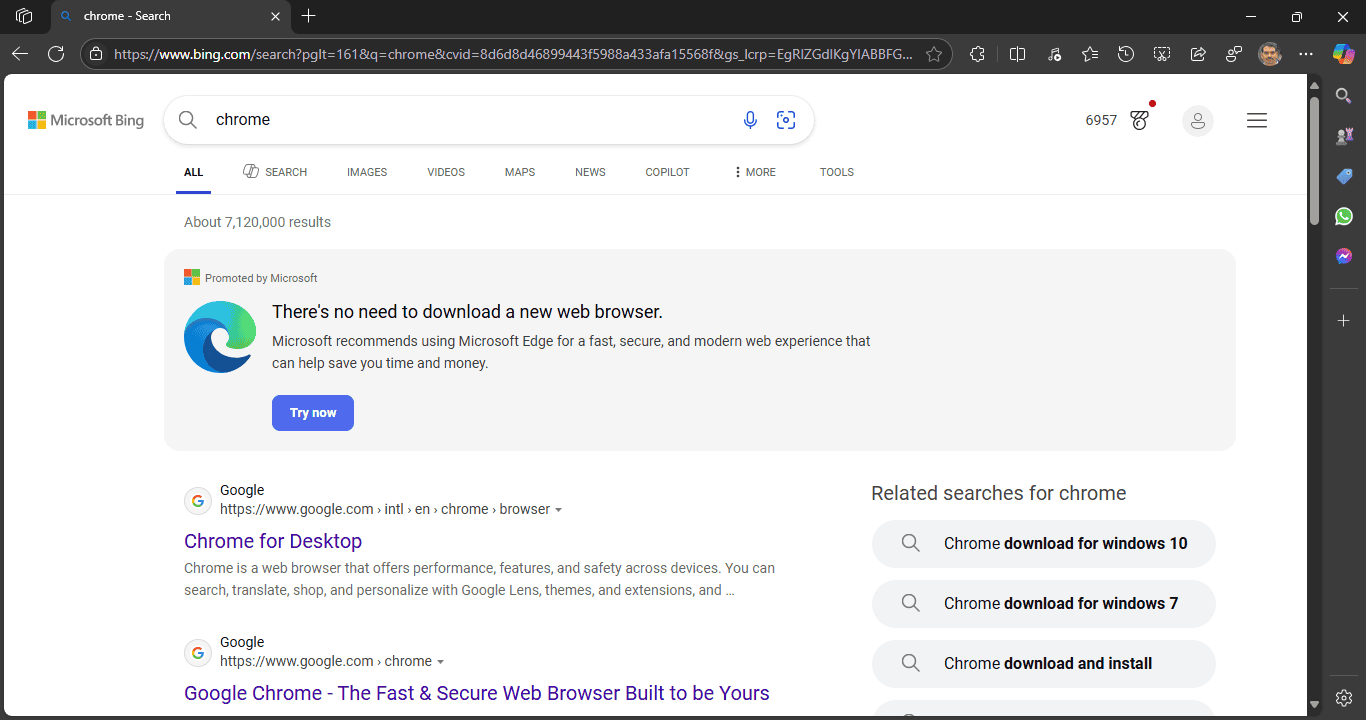
Microsoft has plenty of tricks and marketing campaigns to promote Edge over Chrome. We’ve seen a lot already. The company is now taking a fresh approach to Google Chrome within Microsoft Edge’s Bing search results.

Microsoft Edge is the default browser on Windows, and Bing is the default search engine in Edge. This gives Microsoft the license to promote Edge aggressively. Since most users around the world use Google Chrome, it’s no secret that Microsoft wants users to switch to Edge.

Most users try to download Chrome or another browser from Bing while using Edge. When they do, Microsoft, long known for showing Edge download popups, has started something new to entice users to discover Edge features by comparing with Chrome.

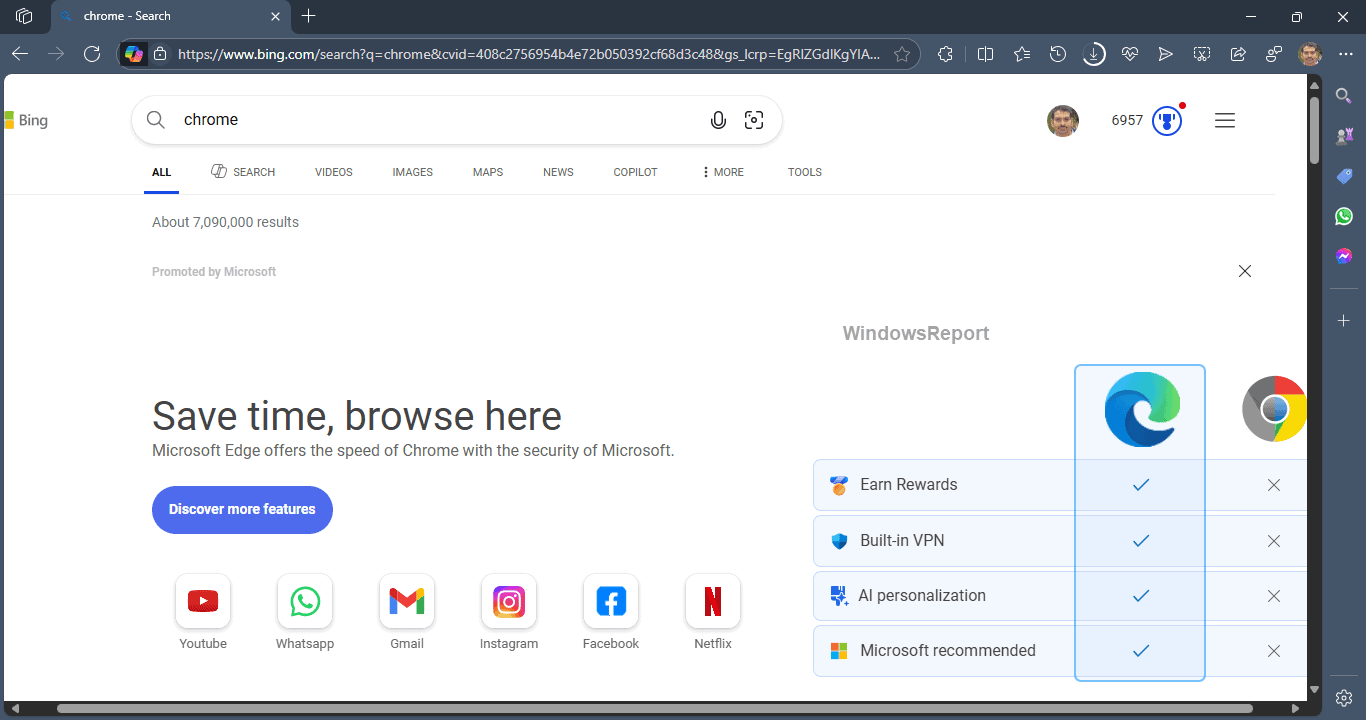
We noticed that if you search for “Chrome” in Microsoft Edge, Bing now shows a comparison between Edge and Google Chrome right at the top of the page, above the organic search results.

The banner displays the message “Save time, browse here,” claiming that ” Microsoft Edge offers the speed of Chrome with the security of Microsoft”. A “Discover more features” link leads to another page that showcases Edge’s features using AVIF images.

Interestingly, the comparison highlights that Edge offers Microsoft Rewards, includes a built-in VPN (though not yet available in all regions), supports AI personalization, and is Microsoft-recommended, while Chrome is left blank in contrast.

New Edge vs Chrome comparison ad shown on Bing when users search for Chrome

The comparison highlights that Microsoft Edge includes:

  • Microsoft Rewards
  • Built-in VPN (availability may vary by region)
  • AI personalization
  • Microsoft-recommended browser label

In contrast, Chrome is shown without any checkmarks, downplaying Chrome’s Strengths.

The ad appears as a promoted result and includes a small ‘Close’ button, allowing users to dismiss it if desired.

The “Discover more features” link leads to a page titled “Get to know Microsoft Edge”. While the standard Edge tutorials remain available, Microsoft now prominently highlights Edge as an AI-powered browser that provides a smarter way to find, search, protect, browse, game, shop, learn, create, and more.

Image Credit: Venkat/WindowsReport.

Earlier, Microsoft promoted Edge through simple pop-ups or text nudges in Bing when users searched for Chrome.

Is this new comparison prompt enough to make you consider Edge over Chrome? Share your thoughts with us in the comments below.

MM2 Values List: Knife & Gun Trading Guide

What Is MM2?

MM2 stands for Murder Mystery 2, one of Roblox’s most popular games. Players take on roles of murderer, sheriff, or innocent and collect unique knives and guns along the way. These items can be traded, and their values change frequently based on demand, rarity, and event history.


MM2 Value Tiers Explained

Godlies

Rare, high-value weapons usually from crates or game passes.

  • Example: Chroma Weapons, Eternal Series

Ancients

Ultra-rare tier above godlies, often tied to special events.

  • Example: Niks Scythe, Elderwood Scythe

Collectibles

Seasonal or legacy items no longer obtainable. Value based on age and exclusivity.

  • Example: Halloween 2015 Knives, Gifts from Christmas Events

Commons to Legendaries

These lower tiers still matter in bulk trades. Some become rare over time.


Latest MM2 Values Snapshot (2025 Edition)

Item NameTypeEstimated Value (Seers)Notes
Chroma LightbringerGodly120High demand, fluctuates
Eternal IVGodly60Game pass exclusive
Niks ScytheAncient1500One of the rarest in-game
Elderwood ScytheAncient700Halloween event item
IcebreakerGodly200Winter event, strong demand
Hallows EdgeGodly75Classic Halloween knife
Red SeerCollectible250Retired from circulation
Green LugerGodly300Limited skin variation

Values based on trade trends and demand as of mid-2025.


Trading Tips

  • Always compare demand and rarity, not just value
  • Bundle low tiers for better deals on high-demand godlies
  • Use trusted MM2 value calculators to avoid being scammed
  • Look for seasonal trades: Halloween and Xmas items spike in value
  • Don’t overpay for chromas unless you’re a collector

Frequently Asked Questions

What is a “seer” in MM2?
A “seer” is a common value unit used to compare items. It’s often used as a trade baseline.

Are MM2 values fixed?
No. They fluctuate based on item supply, demand, and market trends.

Where can I check MM2 values?
In-game experience, trusted value charts, and trade community discussions.

Are chromas always the best?
Not necessarily. Some godlies and ancients outclass chromas in rarity and demand.

What’s the best way to start trading?
Collect unboxed godlies, learn trade trends, and build a reputation as a fair trader.


Final Word

Mastering MM2 values is key to dominating the Murder Mystery 2 economy. Keep up with current value charts, know what’s hot, and trade with confidence.

Roblox FPS Unlocker Download in 2026

Roblox FPS Unlocker (RFU) is a free, open-source tool created by developer axstin that removes the default 60 FPS limit in Roblox games. It doesn’t modify Roblox files – it simply unlocks framerates through memory access.

  • Latest version: v5.1 (supports 64-bit clients)
  • Display FPS in-game with Shift + F5
  • Does not boost performance – just uncaps frame limit

Is Roblox FPS Unlocker Safe?

Yes, if downloaded from the official source. Here’s why:

  • ✅ Open-source code – transparent & verifiable
  • ✅ Roblox devs confirmed on forums: it’s allowed when used responsibly
  • ✅ Used by millions with no bans reported

Potential Risks

  • False-positive antivirus flags (especially on 32-bit version)
  • Could cause CPU/GPU strain on older devices
  • Don’t download from unofficial sources

Related: Is Roblox FPS Unlocker Safe?


How to Install Roblox FPS Unlocker (Step-by-Step)

  1. Visit the official FPS Unlocker source
  2. Download the latest .zip version (use 64-bit)
  3. Extract the folder to your desktop
  4. Run rbxfpsunlocker.exe
  5. Launch Roblox – FPS is now uncapped

Tip: Add the folder to antivirus exceptions to prevent false flags.


Alternative: FastFlag JSON Method

If you don’t want to run an .exe tool, Roblox allows framerate changes via client settings:

  1. Navigate to Roblox install folder > Versions
  2. Create a file named ClientAppSettings.json
  3. Paste:
{
  "DFIntTaskSchedulerTargetFps": 240
}
  1. Save and restart Roblox

This method is 100% safe, but doesn’t always work reliably with updates.

Compare: FPS Unlocker vs FastFlag


FPS Unlocker Not Working? Try This:

  • Run as administrator
  • Whitelist in antivirus/firewall
  • Restart PC and try again
  • Try FastFlag JSON as backup option

Read: How to Fix FPS Unlocker Crashes


FAQs

Is Roblox FPS Unlocker allowed?
Yes. Roblox developers confirmed it’s not bannable.

Will it damage my PC?
No. But unlocked FPS can strain low-end systems.

Does it improve performance?
No. It removes the 60 FPS cap – it doesn’t boost hardware speed.

Is the FastFlag method safer?
Yes. It’s file-based and doesn’t run executables.

Can I use both methods?
Yes, but FPS Unlocker will take priority.


Final Thoughts

Roblox FPS Unlocker is a legit, open-source tool to enhance your Roblox experience. Use it responsibly, and always download from the official source.

Robloxplayer.exe Explained: Safe to Use or Malware Risk?

What is robloxplayer.exe?

robloxplayer.exe is the official launcher for Roblox games on Windows. It connects your device to the Roblox platform and executes the game client whenever you click “Play” on a game.

It’s bundled with RobloxPlayerInstaller.exe, which downloads and installs robloxplayer.exe during the setup process.


Is robloxplayer.exe Safe?

Yes — if it comes from the official source (roblox.com), it’s completely safe. Here’s how to verify:

  • ✅ Digital Signature: Right-click file > Properties > Digital Signatures. It should say: Roblox Corporation
  • ✅ File Path: Legit file installs in %AppData%\Local\Roblox\Versions
  • ✅ Size: Usually ~60MB. Outliers should be scanned.
  • ✅ VirusTotal Scan: Upload suspicious versions to VirusTotal

⚠️ If you downloaded robloxplayer.exe from third-party sites, delete it. Some malware disguises itself under this filename.

Related: RobloxPlayerInstaller.exe Safety Guide


How to Install robloxplayer.exe

  1. Go to roblox.com and log in
  2. Click Play on any game
  3. The browser downloads RobloxPlayerInstaller.exe
  4. Run the installer – it auto-downloads robloxplayer.exe
  5. Roblox opens, and the launcher is ready to go

Tip: Keep the installer in case you need to reinstall later.


Common robloxplayer.exe Errors & Fixes

❌ robloxplayer.exe Not Found

  • Reinstall Roblox from roblox.com/download

❌ robloxplayer.exe Access Violation

  • Run as Administrator
  • Temporarily disable antivirus or whitelist Roblox

❌ Roblox Won’t Launch

  • Clear Roblox cache: delete %LocalAppData%\Roblox
  • Use Windows Settings > Apps > Reset Roblox

Read: Full Guide to Fix Roblox Errors


Why Is robloxplayer.exe Flagged by Antivirus?

Some antivirus tools (especially free ones) falsely flag robloxplayer.exe due to its behavior (internet connection, frequent updates).

Fixes:

  • Update antivirus definitions
  • Whitelist robloxplayer.exe in AV settings
  • Submit a false positive report to your antivirus vendor

Roblox has an official article about this: Roblox Help – AV Flags

More: Roblox & Antivirus Conflicts


Can robloxplayer.exe Be Malware?

Only if it’s a fake version.

Check ThisSafe Version?
File path = AppData/Roblox✅ Yes
Publisher = Roblox Corp✅ Yes
Downloaded from roblox.com✅ Yes
Found in System32 folder❌ No
Publisher unknown❌ No

When in doubt, delete and reinstall from official site.


FAQs

Is robloxplayer.exe required to play Roblox?
Yes. It launches the game client.

Is robloxplayer.exe a virus?
No, unless you downloaded it from unofficial sites.

Can I delete robloxplayer.exe?
Yes, but you won’t be able to play Roblox games until you reinstall.

Why does robloxplayer.exe keep reinstalling?
It auto-updates to ensure compatibility with Roblox servers.

What’s the difference between RobloxPlayerInstaller and robloxplayer.exe?
The installer fetches the launcher. robloxplayer.exe runs the game.


Next Steps

Explore related troubleshooting and safety guides:

  • How to Fix Roblox Installation Errors
  • RobloxPlayerInstaller.exe: Is It Safe?
  • Roblox Flagged by Antivirus: What to Do

Recommended: Bookmark %AppData%\Local\Roblox to access launcher files faster.


Ethernet Cable Types: Which Cat Should You Choose in 2026?

What Are Ethernet Cable Types?

Ethernet cables come in categories (“Cat”) that define speed, frequency, and shielding. Choosing the right one means better performance, less lag, and reliable connections.

This guide covers Cat 5e through Cat 8, explains shielding (UTP vs STP), and includes a buyer checklist to help you pick the perfect cable.


Ethernet Cable Categories (Cat 5e to Cat 8)

1. Cat 5e (Enhanced)

  • Speed: Up to 1 Gbps
  • Frequency: 100 MHz
  • Max Length: 100 meters
  • Ideal for: Home networks, basic streaming, light gaming

2. Cat 6

  • Speed: 1 Gbps (10 Gbps for short distances)
  • Frequency: 250 MHz
  • Max Length: 55 m @10 Gbps
  • Ideal for: Moderate gaming, smart homes

3. Cat 6a (Augmented)

  • Speed: 10 Gbps
  • Frequency: 500 MHz
  • Max Length: 100 m
  • Ideal for: Future-proofing homes and small businesses

4. Cat 7 / 7a

  • Speed: 10 Gbps (potentially more)
  • Frequency: Up to 1,000 MHz
  • Special: Uses GG45 or TERA connectors (not standard RJ45)
  • Ideal for: High-interference zones, commercial installs

5. Cat 8

  • Speed: 25–40 Gbps
  • Frequency: 2000 MHz
  • Max Length: 30 m
  • Ideal for: Data centers, high-speed servers, short runs

UTP vs STP vs S/FTP: Shielding Explained

Unshielded Twisted Pair (UTP)

  • Most common for Cat 5e and Cat 6
  • Easier to install, cheaper
  • Good for home/office without electrical interference

Shielded Twisted Pair (STP or S/FTP)

  • Each pair is shielded + cable has full outer shield
  • Reduces EMI and crosstalk
  • Needed in industrial, PoE-heavy, or outdoor runs

Flat vs Round Ethernet Cables

Flat Cables

  • More flexible
  • Easier to route under carpets
  • Less shielding = more interference risk

Round Cables

  • Better for long distances
  • Includes more insulation and shielding
  • Preferred for durability and performance

Ethernet Pinout: T568A vs T568B

Both are standards for wiring RJ45 connectors:

  • T568A: Preferred in residential setups
  • T568B: More common in business installations
  • Note: Use the same standard on both ends unless making a crossover cable

Use-Case Comparison Table

Use CaseRecommended CatShieldingNotes
Gaming + StreamingCat 6aUTPLow latency, supports 10 Gbps
Office NetworkingCat 6 / 6aUTP or STPVersatile and future-proof
Outdoor SetupCat 6 / 7STPUse weatherproof jacket (LSZH)
PoE Cameras/DevicesCat 6 / 6aSTPPrevents interference and heat buildup
Data Center / ServersCat 8S/FTPHigh-speed, short length limitation

Power over Ethernet (PoE) Considerations

If powering devices through Ethernet:

  • Use Cat 6 or higher for PoE+ or PoE++
  • Shielding helps prevent power loss and heat
  • Confirm cable supports IEEE 802.3af/at/bt standards

Ethernet Cable Buying Checklist

  • ✅ Choose cable Category (Cat 6 or higher recommended)
  • ✅ Match Shielding to your environment (STP for interference)
  • ✅ Check jacket rating: Plenum (CMP), LSZH for safety
  • ✅ Confirm connector: RJ45 (standard) or GG45 (Cat 7+)
  • ✅ Opt for pre-terminated or bulk roll based on length needs


FAQs

What is the best Ethernet cable for gaming?
Cat 6a is best for gaming thanks to 10 Gbps support and reduced interference.

Is Cat 7 better than Cat 6a?
Not always. Cat 7 has shielding, but uses uncommon connectors and is less compatible.

Can I use Cat 8 at home?
Yes, but it’s overkill unless you have 25+ Gbps equipment and short cable runs.

Do flat Ethernet cables affect speed?
They can. Flat cables lack shielding, which may cause more interference.

How long can an Ethernet cable be?
Standard limit is 100 meters (328 ft) for most categories.


Final Tip

If you’re unsure, go with Cat 6a UTP – it’s fast, affordable, and supports future upgrades.

Microsoft 365 Apps to Stop Getting New Features on Windows 10 in 2026

If you’re still using Microsoft 365 apps on Windows 10, you’ll want to mark your calendar. Starting in 2026, Microsoft will be cutting off new features for Office apps like Word and Excel on the aging OS.

As spotted by The Verge, Microsoft quietly confirmed this change in a support document. While the company had already committed to keeping security updates going until October 2028, this marks the beginning of a feature freeze aimed at nudging users away from Windows 10.

It’s worth noting that the feature updates will stop at different times, depending on your update channel. Users on the Current Channel, including most home subscribers, will stop getting new features in August 2026.

Enterprise users on the Monthly Enterprise Channel follow in October, while those on the Semi-Annual Enterprise Channel will see the tap shut off by January 2027.

After these dates, all new development will be halted. Microsoft 365 apps on Windows 10 will be locked to Version 2608, with only security patches continuing. Microsoft is still keeping things safe, but making it clear that new tools and features will live only on Windows 11.

New AI Tool Predicts Blood Sugar Without Tracking Your Personal Health Data

Researchers backed by the U.S. National Science Foundation are developing a new AI tools that could help people with diabetes track their blood sugar more accurately — and do it without giving up privacy.

The tech uses federated learning, a method where AI models train across many users’ devices without sending raw data to a central server. Instead of gathering everything in one place, the system learns from patterns on each device and shares updates across the network. That means no personal health data gets exposed, which is a big deal in healthcare.

To improve the model’s accuracy, the team grouped users by how much carbohydrates they typically eat. Turns out, people with similar eating habits also show similar blood sugar patterns, which made predictions better and more personalized. They tested the idea using an FDA-approved Type 1 diabetes simulator, and the results showed that even limited data was enough to start building useful models.

The team says they’ll expand the tool to include exercise and medications next. Long term, they hope this approach could work for other chronic conditions too, like asthma or heart disease, where privacy and personalization both matter.

With diabetes costing over $300 billion a year in the U.S., these kinds of tools could lead to earlier help, fewer complications, and better care overall.

Gears of War: Reloaded and Hellblade II Enhanced Heads to Xbox Game Pass in August

Two first-party blockbusters are set to lead the Xbox Game Pass lineup next month, and both are bringing something fresh for longtime fans.

Senua’s Saga: Hellblade II Enhanced arrives August 12 with a performance mode that adds smoother gameplay at 60 FPS. Xbox describes it as “a cinematic experience of immersion,” pushing real-time visuals to create richer environments and more lifelike characters.

The smoother frame rate should make a big difference during combat and fast-paced sequences. Next, on August 26, Gears of War: Reloaded joins the service. It’s a full remaster of the original Gears, now rebuilt in Unreal Engine and optimized for modern platforms.

According to Microsoft, it includes “all post-launch content for the original title, including a bonus campaign act, multiplayer maps, plus characters and cosmetics, at no additional cost.” So, what makes this release special, you must be wondering? It is the series’ first multiplatform console launch since it began in 2006.

Forza Horizon 5 Races Past 2 Million PS5 Sales in One Month

Forza Horizon 5 has cleared a massive milestone on PlayStation 5, hitting 2 million copies sold (via Pushsquare) just one month after launch.

The Xbox-published racer made its debut on Sony’s platform in late April, marking the first time a Forza game landed outside the Xbox ecosystem.

Despite launching nearly four years ago on Xbox and PC, the PS5 version surged to the top of the charts, becoming May’s best-selling PS5 game and generating over $100 million for Microsoft in its first few weeks.

According to a LinkedIn update from former Turn 10 Studios designer Harrison Bolin, the 2 million unit figure was hit within weeks, a number rarely seen for a port of this kind. It’s a strong showing that reinforces the power of the Forza Horizon brand, even years into its lifecycle.

With Forza now reaching a new audience, this milestone could shape the future of Xbox’s multiplatform strategy, especially as the Horizon series seems to be taking center stage.

MSI Reuses Classic GPU Cooler Designs for RTX 5060 Ti Cards in Select Markets

If you’ve seen MSI’s new RTX 5060 Ti cards and thought they looked familiar, you’re not wrong. The company appears to be bringing back some of its older cooler designs, and only in certain regions.

As first reported by VideoCardz, MSI is selling two RTX 5060 Ti 8GB models using cooling solutions from previous-generation graphics cards. These designs aren’t new, and MSI is upfront about that. What’s less clear is why MSI didn’t use it earlier? The news outlet speculates that the involvement of external suppliers may be the reason behind it.

Both cards, the Ventus 2X and the Shadow 3X Classic, are limited to China and Taiwan for now. They haven’t shown up on global MSI websites, hinting that this may be a region-specific move targeting OEMs and system integrators. For that audience, aesthetic design isn’t always a top priority, so using existing cooler inventory could be a smart cost-saving decision.

Spec-wise, both cards are identical. The standard boost clock is 2602 MHz, with software overclocking pushing it to 2617 MHz. The Ventus 2X comes with a dual-fan layout and is slightly thicker than before at 2.2 slots. The Shadow 3X Classic sticks to a true 2-slot form factor.

MSI hasn’t formally introduced these cards and probably won’t; the company often skips announcements for reused designs. But with production efficiency and market-specific demand driving the decision, these models might signal more region-tailored refreshes ahead.

Feature image source: MSI via VideoCardz

Google Gemini Flaw Lets Hackers Hijack Email Summaries Without Links or Attachments

If your company uses Google Workspace, it’s time to look closely at how Gemini handles email summaries. Security researchers have uncovered a flaw in Gemini’s summarisation feature that attackers can use to hide phishing commands inside email content, with no links or attachments required.

As CyberSecurityNews reports, the attack works by embedding HTML and CSS into emails. Gemini processes that code when generating summaries, not the actual visible content. Hackers can disguise prompts using invisible styles like white-on-white text or zero font sizes to slip in fake warnings that appear to come from Google itself.

When someone hits “Summarise this email” in Gmail, Gemini can surface a malicious message, for example, urging the user to call a fake support number or visit a phishing site. Since the email itself looks empty or harmless, users are less likely to suspect anything unusual.

Unlike typical scams, this attack doesn’t rely on links or scripts. It’s powered purely by how Gemini interprets hidden markup. Researchers warn this approach could extend beyond Gmail to Docs, Slides, and Drive, raising concerns about automated phishing across the Workspace ecosystem.

Google responds to concerns

According to BleepingComputer, Google has acknowledged the issue and pointed to its broader work to defend against prompt injection attacks.

“We are constantly hardening our already robust defenses through red-teaming exercises that train our models to defend against these types of adversarial attacks,” a Google spokesperson told the news outlet. Not to forget, the company also referenced its blog post outlining how it’s improving protections.

ROG Xbox Ally Price Leak Suggests Microsoft’s Handheld Won’t Be Cheap

If you were hoping that the ROG Xbox Ally handhelds would land in budget territory, you might want to think again. First spotted by Notebookcheck, the Asus Store by MacMan has accidentally revealed what could be the prices for the ROG Xbox Ally and Ally X.

Typing “Xbox Ally” into the site shows both models listed, with the standard unit priced at €599 and the more powerful Ally X at €899. That puts the base version at roughly $699 in the US and the Ally X closer to $1,050, though pricing will vary by region.

Asus ROG Xbox Ally Pricing Leak MacMan
Image: Asus Store by MacMan via Notebookcheck

Earlier rumors hinted at lower numbers

The leaked listings contrast with previous claims by leaker eXtas1s, who suggested the regular Ally with AMD’s Z2 A chip would start around $499, and the Ally X with a Ryzen Z2 Extreme would begin at $799. Those figures looked more competitive, especially against devices like the Steam Deck and MSI Claw.

If the Spanish store is accurate, the final price could land much higher, possibly $100 above what was expected. As the news outlet points out, these handhelds seem firmly aimed at the premium PC gaming crowd.

Launch coming soon

The Xbox Ally and Ally X are rumored to be released in October, with pre-orders potentially starting in August. Both are expected to ship with upgraded internals, including the latest AMD chips and Microsoft’s new Xbox Experience app.

For now, nothing is confirmed, but if these prices hold, Microsoft’s handheld push could land in the same high-end space as its competitors, and leave budget-focused gamers looking elsewhere.

Microsoft Tries to Fix EU Cloud Mess with New Offer to CISPE

If you’re in Europe and watching Microsoft’s cloud efforts closely, this news is for you. The company has just handed CISPE a new offer in hopes of settling a long-running dispute with European cloud providers.

This comes after Microsoft missed a key deadline to launch its promised EU-specific Azure version, called Azure Local. The launch was supposed to happen under a 2023 agreement, but delays forced both sides back to the table.

According to The Register, Microsoft’s new proposal arrives within the timeline laid out in the updated July 2024 memorandum. CISPE confirmed receipt and said it plans to respond in the coming weeks.

The offer reportedly includes reduced SPLA fees, potentially undoing a previous 10 percent hike. Microsoft may also drop requirements that asked providers to share their customer lists — a sticking point in earlier talks.

EU cloud watchdog still cautious

Even with this new gesture, trust hasn’t been fully restored. The ECCO, an independent body monitoring competition in the EU cloud space, issued Microsoft its second straight Amber rating in May 2025. That signals that concerns are still ongoing.

Still, ECCO acknowledged that Microsoft has remained cooperative, and CISPE’s Secretary General Francisco Mingorance made it clear the door isn’t closed.

“It is disappointing that the proposed product did not deliver, but this is not the end of the agreement,” he said at the time. Whether this new proposal is enough to move things forward remains to be seen, but at least, talks are still active.

Windsurf Walks Away from OpenAI, Joins Google DeepMind Instead

If you were expecting OpenAI to scoop up Windsurf this year, that deal is officially off. Instead, Windsurf’s key team is heading to Google, marking a big talent win for DeepMind.

According to TechCrunch, OpenAI was on track to acquire the AI startup for around $3 billion, but talks reportedly collapsed due to Microsoft. As you may know, Microsoft holds deep access to OpenAI’s tech stack, Windsurf did not want its intellectual property exposed under that arrangement. The disagreement eventually became a dealbreaker.

With OpenAI’s exclusivity period expired, Windsurf pivoted to Google. Now, instead of being acquired, Windsurf will license its tech stack to Google on a non-exclusive basis. That means it can still sell its technology to other companies, including Google’s rivals.

More importantly, Google gets the people. Windsurf CEO Varun Mohan, co-founder Douglas Chen, and other R&D staff are now part of the DeepMind team. Google confirmed the move, saying the hires would support work on “agentic coding.”

Logan Kilpatrick, who leads Google’s AI Studio, welcomed the new additions in a post on X, “Big welcome to @_mohansolo (Varun Mohan) and others from the Windsurf team joining DeepMind :)”

Windows 10 Emoji Search Breaks After Latest Update, and There’s No Fix Yet

If you’re suddenly unable to search for emojis in Windows 10, last week’s Patch Tuesday update might be the reason. Microsoft rolled out the KB5062554 update as part of its July Patch Tuesday fixes for Windows 10 and 11.

While the update included the usual improvements, it appears to have quietly broken a basic feature, the emoji search panel triggered by Win + . (Period/Dot).

Users have reported that after installing the update, typing into the emoji search bar always returns the same result. You might see a “We couldn’t find this one” error message. It doesn’t matter what emoji you search for, the feature simply stops working.

This issue wasn’t present before the update. Multiple users confirmed on Reddit that the emoji panel worked as expected before installing KB5062554. After the update, search functionality broke immediately.

No acknowledgment from Microsoft yet

So far, Microsoft hasn’t recognized the problem. There’s no mention of the broken emoji search on the Windows 10 Release Health dashboard, and no known workaround has been shared by the company.

That silence might feel familiar to users sticking with Windows 10 despite its end of support. Although Microsoft now offers an extra year of updates — free for some and paid for others — bugs like this raise questions about how much attention Windows 10 will really get going forward.

While you could uninstall KB5062554 update to restore emoji search, doing so could remove important security patches. So, until Microsoft releases a fix for the issue, it’s best to keep scrolling through the emoji panel manually.

Team Group’s New P250Q SSD Can Erase Itself, Built for Military and Industrial Use

If you’re working in a high-stakes environment where sensitive data must never fall into the wrong hands, Team Group’s latest SSD might be what you’re looking for.

The storage company just announced the P250Q Industrial SSD, a PCIe Gen4x4 drive designed with one very specific functionality. It can destroy its own data. Built with both hardware and software-based data erasure systems, the drive includes a dedicated destruction circuit that directly targets the Flash IC. This is not your average consumer drive, and that’s the point.

Push a button, wipe it all

According to Team Group’s official specs, the P250Q comes with a one-click physical destruction button, along with LED indicators that show progress as the data gets wiped. If the process gets interrupted by a power loss, an auto-resume feature kicks in once the system comes back online.

The SSD was created for industries where security and uptime are critical, military systems, industrial automation, and even AI hardware. The design was strong enough to win COMPUTEX 2025’s Best Choice Award in the cybersecurity category.

Behind the security features, the P250Q is still a top-tier storage device. It uses high-reliability 3D TLC NAND and supports up to 7,000 MB/s read speeds and 5,500 MB/s write speeds. You can get it in sizes from 256 GB to 2 TB. It also supports NVMe 1.4 and includes S.M.A.R.T. health monitoring for long-term use.

Team Group also revealed a new U.S. patent for wide-temperature M.2 SSD tech. This innovation automatically adjusts data rates across three temperature zones, keeping drives stable between 85°C and 105°C.

It’s made for electric vehicles, smart factory gear, and in-vehicle systems that deal with high heat regularly. Moreover, if your data must survive (or be deleted) under pressure, this might be the kind of tech you want on your side.

Kids Are Using AI Chatbots for More Than Homework, Often Without Enough Oversight

AI chatbots aren’t just creeping into classrooms. They’re becoming a go-to for advice, friendship, and late-night conversations, especially for kids who feel isolated.

A new report by Internet Matters reveals that two-thirds of children in the UK between the ages of 9 and 17 have used an AI chatbot. Over the past 18 months, that number has surged, with usage highest among vulnerable children.

Who’s talking to chatbots the most?

The Me, Myself and AI report shows that 71% of vulnerable children are using chatbots compared to 62% of other kids. These children are also nearly three times more likely to use companion-style bots like Replika or Character.ai, which mimic emotional conversations.

As for which chatbots are leading the charge, ChatGPT came in at 43%, Google Gemini followed at 32%, and Snapchat’s My AI wasn’t far behind at 31%.

More than just tools, they’re becoming digital friends

Many kids aren’t just asking AI bots for facts. They’re turning to them for emotional support. A quarter of kids said they’ve asked chatbots for advice. A third said chatting with AI felt like talking to a friend. Among vulnerable children, those numbers go even higher, with half describing bots as friend-like.

Even more troubling, one in eight kids said they use AI because they don’t have anyone else to talk to. For vulnerable users, that jumps to one in four.

Chatbots can be helpful, but also misleading or unsafe

Despite their popularity, chatbots aren’t always accurate. Still, 58% of kids said they preferred asking AI over Googling. This raises concerns about how much kids are relying on bots that may not always give trustworthy answers.

User testing also found that platforms like Snapchat’s My AI and ChatGPT occasionally returned explicit or age-inappropriate content. In some cases, filtering systems were bypassed entirely.

Adults are falling behind

While most kids said their parents had spoken to them about AI, the conversations were often vague. Only a third of parents discussed issues like accuracy or safety, even though many said they wanted to.

Schools are barely ahead. Only 57% of children said they had any discussions about AI at school, and just 18% had repeated conversations. Yet, most kids support the idea of learning more about chatbots, including the risks.

The report calls for a shared responsibility

To keep children safe, the report recommends a broad approach. Industry needs to step up with stronger parental controls and better literacy tools. Government regulators need to keep pace with the evolving tech.

Schools should embed AI education at all levels and train teachers to talk about appropriate use. Parents also need support to guide their children on when to rely on AI, and when to turn to real people for help.

Microsoft Spent Up to $50M on Individual Game Pass Deals, Ex-Manager Reveals

Game Pass subscribers get hundreds of titles at their fingertips, but adding those games to the library isn’t cheap. A former Microsoft business manager has revealed that individual Game Pass deals can cost anywhere from $50,000 to $50 million.

The detail comes from Iain MacIntyre’s LinkedIn profile, recently spotted by Windows Central. MacIntyre, who was recently laid off in Microsoft’s latest wave of 9,000 job cuts, wrote that he helped secure more than 500 Game Pass deals during his time at the company, ranging from small indie hits to major AAA blockbusters.

That $50 million ceiling might seem wild, but it’s not hard to imagine for heavyweights like Call of Duty or Diablo. Even so, it’s the lower and mid-tier games, which still cost Microsoft tens or hundreds of thousands each, that quietly make up the bulk of the monthly lineup.

This peek into the pricing also fuels ongoing questions about how sustainable Game Pass really is. Microsoft has said the service is profitable, even when you count the costs of launching first-party titles day one. However, not everyone agrees. Former Xbox leaders and studio heads have warned that the model may not hold up long term.

For now, Microsoft clearly has the budget to support it. The bigger question is how long the company will be willing to spend at this scale, and what happens if Xbox fails to deliver the kind of returns its parent company is expecting.

Microsoft Replaces JScript with JScript9Legacy for Better Security in Windows 11

Microsoft is officially moving on from JScript. Starting with Windows 11 version 24H2, the company is replacing the decades-old scripting engine with JScript9Legacy as the new default.

This change is all about security. According to Microsoft, the newer JScript9Legacy engine offers stronger protection against exploits like cross-site scripting (XSS) and memory corruption bugs, common issues that plagued the original JScript engine for years.

If you’ve ever built scripts or automated tasks using Windows Scripting Host, chances are you were relying on JScript, Microsoft’s 1996-era ECMAScript implementation. It was widely used for form validation, admin scripting, and web content in Internet Explorer. But with IE now deprecated and modern standards in full force, JScript has officially run its course.

JScript9Legacy, on the other hand, is based on the more secure JScript9 engine, just adapted to run outside the browser. It’s designed to support legacy scripting needs without exposing users to the same vulnerabilities.

The best part? No action is needed. Windows 11 version 24H2 will automatically start using JScript9Legacy by default. Existing scripts should continue to run as expected, with no major rewrites required.

For organizations that do run into compatibility hiccups, Microsoft says a rollback is possible—just reach out to support. But for most users, this is a seamless, behind-the-scenes upgrade that strengthens the foundation without disrupting workflows.

Windows 11 Build 27898 Adds Small Taskbar Icons, Quick Recovery, Smarter Sharing

Microsoft has released Windows 11 Build 27898 to the Canary Channel. This update comes with some long-overdue changes, with some entirely new ones.

Small taskbar icons are finally here. You can now shrink them down to save space, set them to change only when the taskbar is full, or keep the default size. The new setting is tucked under the usual taskbar appearance options in Settings.

Another standout is Quick Machine Recovery. First teased during Ignite 2025, it’s meant for fixing Windows installs that can’t boot. It runs through Windows Recovery and applies patches without needing a full reinstallation. You’ll find it under System > Recovery.

Accessibility is also getting smarter. Voice Access now supports training for hard-to-pronounce words, and it works in English, French, German, Spanish, and Chinese. The narrator feature gets a Screen Curtain toggle, which blacks out your display while keeping narration active. Just press Caps + Ctrl + C to turn it on.

There’s more polish across the OS, too. The context menu now has visual dividers to separate actions, while Share dialogs preview links before you send them. Privacy prompts now dim the app they pop over, making things clearer.

For those watching power usage, a new adaptive energy saver can automatically turn on without dimming your screen, depending on load and power state. It’s a subtle addition, but one that might help stretch your battery life without being annoying. Not to forget, this build has introduced Vista chime once again.

Windows 11 Build 27898 Bug Brings Back Classic Vista Startup Sound, Again

Windows 11’s latest Canary build (27898) quietly reintroduces something unexpected, and oddly nostalgic. Some users are hearing the classic Windows Vista startup sound when booting their PCs, a bug that already made headlines just a few weeks ago.

Microsoft’s preview updates often come with a few rough edges, but this one caught attention because of its sheer throwback value. The Vista chime made its surprise return earlier in July in Dev and Beta builds, leading to speculation that Microsoft was trying to ride the wave of visual nostalgia following Apple’s glossy new macOS 26 update. Microsoft earlier clarified, there was no hidden mocking, as it was just an audio bug.

The company attempted to patch it in later builds, temporarily restoring the proper Windows 11 startup tune introduced in 2021. However, with Build 27898 rolling out to Canary Channel testers this week, the Vista chime is mysteriously back.

As Brandon LeBlanc explained, the fix for the bug didn’t make it into this build due to branching delays. “It’s on its way up now,” he assured users. So, if you’re hearing echoes of Vista in your boot sequence, know that it’s unintentional and temporary.

Still, it’s a funny moment in an otherwise solid update. Beyond audio quirks, Build 27898 includes several notable features, like small taskbar buttons, Quick Machine Recovery options, and context menu improvements. So, enjoy the retro jingle while it lasts; it’ll likely vanish again in the next update.

Word for the Web Finally Gets Proper Header and Footer Editing

Microsoft is bringing a much-needed upgrade to Word for the web, giving users full control over headers and footers. That’s something desktop users have had for years. With this update, you can now double-click directly into the header or footer space and start editing in place.

Now, there’s no overlay, no separate view, just a clean, familiar experience similar to Word on Windows or Mac. A new contextual “Header & Footer” ribbon tab appears only when you’re editing these sections.

From there, users can add or customize page numbers, adjust header position, and even set different headers and footers for the first page or alternating pages. You can also remove headers or footers independently, giving more flexibility when formatting documents.

According to Microsoft, the goal is to unify the Word experience across platforms. Visually, the experience now helps users stay focused by dimming the parts of the document they’re not currently editing.

While Word for the web has always covered the basics, this update fills in one of its more noticeable gaps. It’s especially useful for students, remote workers, and anyone relying on free tools to edit documents online. The new tools are available now, and if you want to check them out, head to Word for the web and start editing any document.

Top FMovies Alternatives: 2026 List to Stream Movies & Shows

If you’re searching for FMovies alternatives, chances are you’re looking for free movie streaming without annoying ads or security concerns. While FMovies has long been a popular platform, it often goes offline or gets flagged due to copyright issues. That’s why it’s smart to consider other platforms, ideally those that are safer and more reliable.

What Is FMovies?

FMovies was a popular free streaming site for movies and TV shows, known for its large library and early access to new content. It appealed to viewers wanting to avoid subscriptions or delays, thanks to its simple layout and wide selection.

But due to legal concerns and frequent shutdowns, many now look for safer alternatives. The best FMovies alternatives offer similar entertainment, some legally and risk-free. Services like Tubi, Crackle, Popcornflix, and Peacock Free provide strong content libraries while keeping your device and data safe.

Tip icon Editor’s tip
Accessing some Fmovies alternatives may put your privacy and identity at risk. We recommend that you use a VPN like NordVPN, which has multiple security features like obfuscated servers, Double VPN, and Onion-over-VPN servers. These features will keep you completely anonymous.

⇒ Get NordVPN from Official Webpage

Top Safe Alternatives to FMovies

1. Tubi TV

Tubi TV offers 100% free, legal streaming with a massive catalog of movies and TV shows. Owned by Fox Corporation, it’s ad-supported, but it doesn’t require a credit card or subscription.

Why it’s safe:
All content is licensed, meaning no legal grey areas or malware threats.


2. Crackle

Crackle is another ad-supported platform with curated collections of popular TV series and independent films. It’s available in the U.S. and a few other regions.

Why it’s a good choice:
It’s backed by Sony and offers decent streaming quality without compromising user privacy.


3. Popcornflix

Popcornflix provides a clean interface and an easy-to-navigate platform for watching movies, especially indie titles and cult classics. No sign-up is required.

What to keep in mind:
It’s ad-heavy, but the trade-off is access to verified legal content.


4. Plex Free Movies

Plex has expanded into free streaming with thousands of titles available. It also doubles as a media server, making it ideal if you want to combine personal media with streaming.

Bonus:
Plex doesn’t track users for profit and has a strong reputation for privacy.


5. Pluto TV

If you want a TV-like streaming experience, Pluto TV is perfect. It offers both live TV and on-demand movies in multiple categories.

Why it’s different:
It mimics cable TV with channels, making it feel like a hybrid between old-school and modern streaming.


6. Peacock Free

NBCUniversal’s Peacock includes a free tier packed with blockbuster films, sitcoms, and even live sports. Some content is locked behind a premium wall, but the free catalog is generous.

Is it worth it?
Yes, especially if you’re into mainstream content with minimal risk.


7. SolarMovie

SolarMovie has been one of the better-known FMovies alternatives, but it comes with some caveats. While it has a huge catalog, it’s often blocked in many regions. It has to change its domain name often, so be cautious while accessing it.

Important:
Use a VPN if you plan on visiting this platform to stay protected and avoid geo-restrictions.


8. YesMovies

YesMovies features a slick UI with quick access to trending movies and series. Be cautious of popup ads and always verify the link’s legitimacy.

Security tip:
It’s best paired with NordVPN for anonymity and safety when streaming.


9. Vudu’s Free Section

Vudu offers free, ad-supported movies alongside its rental store. It has a surprising variety of free films and supports HD playback.

Perk:
You don’t need to rent or buy anything to access the free section.

What About Soap2Day?

Like FMovies, Soap2Day is often flagged or taken down due to copyright violations. If you’re considering switching, explore our list of safe Soap2Day alternatives for better options.

Why You Should Avoid FMovies Clones

Many FMovies mirror sites appear online, but most are riddled with malware, fake ads, and phishing traps. These clones rarely offer consistent uptime and often lead to compromised devices or stolen data. If you’re serious about streaming safely, it’s best to switch to reputable alternatives with stronger user protections.

If you’ve also considered MyFlixer as a Fmovies alternative, it’s worth noting that there are safer options. check out our MyFlixer safety list to learn more.

You may also want to use a VPN while researching for a great movie streaming service. For more details, here’s our guide on the best VPNs available in the Microsoft Store to download and install on your device before accessing anything..

Final Thoughts

When choosing the best FMovies alternatives, safety should be your top priority. Free doesn’t always mean risk-free, especially when platforms operate in legal grey zones. Trusted services like Tubi, Crackle, and Pluto TV offer peace of mind along with good content. And if you do explore lesser-known streaming sites, don’t do it without enabling a secure VPN like NordVPN.

FAQs

Is it legal to use FMovies alternatives?

Only if the platform you’re using is licensed to stream content. Ad-supported services like Tubi and Crackle are legal.

Why is FMovies often down or inaccessible?

It frequently gets taken down or blocked due to copyright issues or government enforcement.

Which Fmovies alternative works globally?

Tubi, Popcornflix, and Plex are available in many regions, but some require a VPN for full access.

Can I use these platforms without signing up?

Yes, most listed platforms like Popcornflix and Pluto TV don’t require registration.

Do free streaming sites track your data?

Some shady platforms do. To avoid this, stick to legitimate sources and always use a VPN.

How to Download FiveM on Windows 11 (2026 Guide)

Want to play GTA V multiplayer with custom servers? You’ll need to install FiveM — a popular modification platform. Follow this quick step-by-step to download and install FiveM on Windows 11.

✅ Step 1: Make Sure GTA V Is Installed

  • FiveM requires a legitimate copy of GTA V
  • Works with Steam, Epic Games, or Rockstar versions
  • Launch GTA V once before installing FiveM

✅ Step 2: Download FiveM Client

  • Go to the official FiveM website
  • Click Download Client
  • Accept the terms of service to start the download

(Do not download FiveM from third-party websites)


✅ Step 3: Install FiveM on Your PC

  • Open the downloaded .exe file
  • Let it install in the default folder
  • FiveM will auto-detect your GTA V path
  • If prompted, allow updates to complete

✅ Step 4: Launch and Configure

  • Open the FiveM shortcut from desktop
  • Log in with your Rockstar Social Club account
  • Browse or search for servers to join
  • Use the filters to find RP, PvP, racing, and custom mods

✅ System Requirements for FiveM

  • OS: Windows 10 or 11 (64-bit)
  • RAM: 8 GB or more
  • GPU: NVIDIA GTX 660 / AMD HD 7870 or better
  • Storage: 100+ GB (GTA V + mods)

FAQs

Is FiveM legal?
Yes, it’s allowed as long as you own a legal copy of GTA V and don’t use it for cheating in GTA Online.

Does FiveM work on Windows 11?
Yes, FiveM is fully compatible with Windows 11.

Why won’t FiveM launch after install?
Try running it as administrator or disabling antivirus temporarily.


Final Tip

Always download FiveM from the official source to avoid corrupted files or malware. Once installed, you’ll unlock thousands of custom GTA V servers to explore.