Logitech Option+ (Plus) is an app that allows you to customize actions on the keys and buttons of Logitech’s keyboards and mice. Now the app received an update to version 1.68 with additional Smart Actions for AI.
The app also now supports five new devices from the Signature line: Slim K950, Slim Combo MK950, Slim Combo MK955, Slim Combo MK955 for Business, Slim Combo MK950 for Business, and Plus M750 for Business.
What are the new Logitech Options Plus Smart Actions for AI?
Essentially, inside the Options+ app, you will find a lot of new presets that you can use for programmable keys and buttons on the Logitech devices.
For instance, you can program the scroll button from the he new Plus M750 mouse to translate a text with Copilot after you select it. Or, you can set up a key or key combination on your new Signature Slim K950 keyboard to just open Copilot, Adobe Firefly or Google Gemini.
New Smart Actions for AI – Open Adobe Firefly to get creative or kick start your day with Microsoft Copilot or Google Gemini. Why not build on these Smart Actions to boost your productivity. These new Smart Actions are available on our Templates page.
Logitech Options+ release notes
Logitech Signature Slim K950 and the Logitech Signature Plus M750
With the Options+ update, Logitech also launched the Signature Slim K950 keyboard and the Plus M750 mouse who are ready for the Smart Actions treatment.
The keyboard has laptop-like short stroke keys but it doesn’t have any backlight. Instead, there are plenty of programmable AI-ready buttons. You can buy the keyboard with or without the Bluetooth wireless Plus M750 mouse. It also comes with a Bolt dongle if your PC doesn’t have a Bluetooth connection.
You can buy the combo straight from Logitech for $99.99, but you may only get the keyboard for $79.99.
As for the Options+ (Plus) app for Windows 10 and above, you can download it from Logitech’s dedicated website. There are more information about this on Neowin.
What do you think about the new AI Smart Actions features? Let’s discuss about that in the comments section below.
Recently, Microsoft announced that the Microsoft 365 Basic Plan will include ransomware detection and recovery, password-protected and expiring sharing links, an expanded Personal Vault, and access to offline files and folders.
All these newly added features will perfectly complement existing ones, including ad-free Outlook email, advanced email security features, and 100GB of cloud storage.
Microsoft 365 Basic is available at $1.99 per month or $19.99 per year and allows you to access mobile and web Office apps, but it doesn’t give you access to native macOS and Windows Office apps.
Let’s check out the Microsoft 365 Basic additional features and how they work.
Ransomware detection and recovery
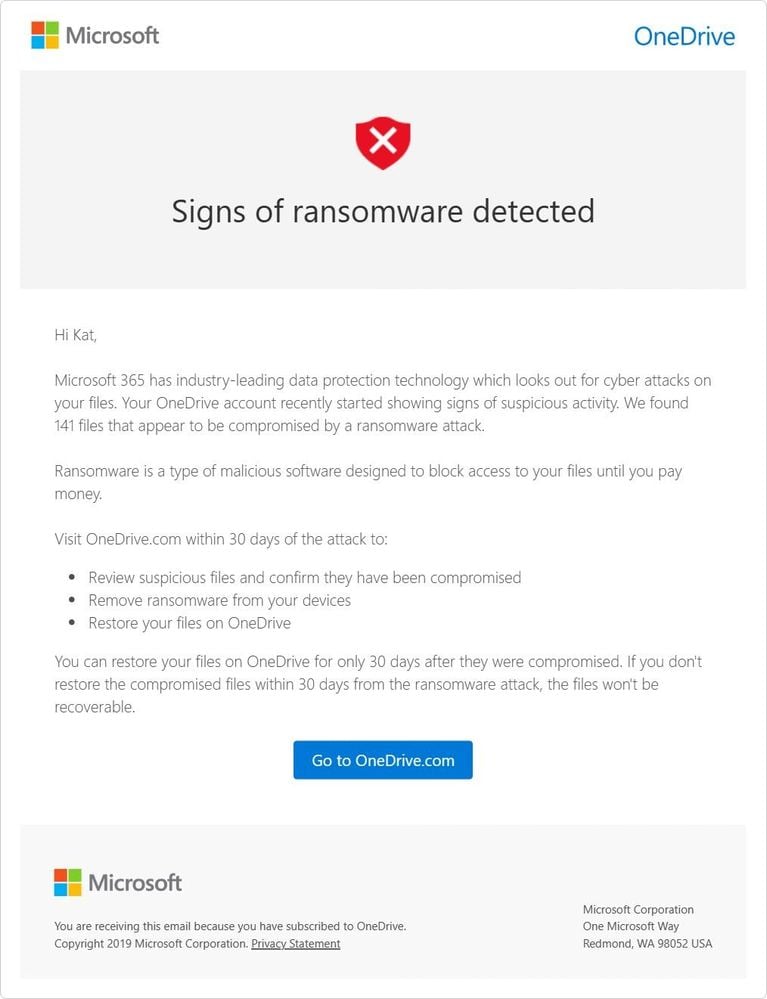
Now, you can store your important files and photos in OneDrive and forget about them, as OneDrive monitors them for any signs of ransomware, including unusual file modifications, encryption actions, and other marks of malicious intent.
When Microsoft 365 detects a ransomware attack, you’ll receive a notification on your device and an email from Microsoft, alerting you to the potential threat. We guide you through the process of assessing the extent of the issue, deleting suspicious files, and then help you identify a safe point in time for restoration.
Personal Vault
With Personal Vault in OneDrive, you get an extra layer of security with Two-Factor Authentication, which ensures that only you can access your important files.
This feature lets you keep your passports, financial documents, bank documents, and precious photos safe. Earlier, with the Microsoft 365 Basic plan, you could store only 3 files in the Personal Vault.
Now, the number of files you can store in the Vault is unlimited up to your 100 GB storage limit. To use it, you must log in to your OneDrive using the Microsoft credentials, go to Settings, choose the Personal Vault option, and click Enable to turn it on.
Next, you can enable 2FA to enhance security. Once done, you will receive a PIN via your selected 2FA method, which you need to enter to enable Personal Vault.
Password-protected and expiring sharing links
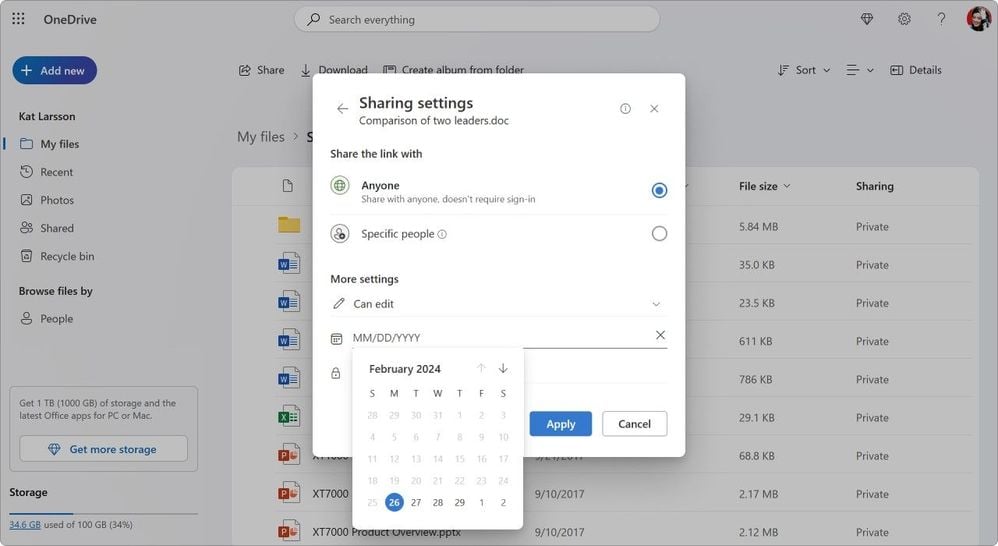
Microsoft 365 Basic subscribers get advanced sharing options, including setting a date for share links to expire and making them password-protected for limited access.
To use the feature, log in to your OneDrive, go to the file you want to share on your devices, and click Share. Choose edit in the Sharing dialog box and go to the Sharing settings. Now select the date to specify the expiry date. You can also set a password to make it more secure; once done, click Apply. Now, you can share the file or photo with the recipients.
Access to files and folders on OneDrive mobile offline
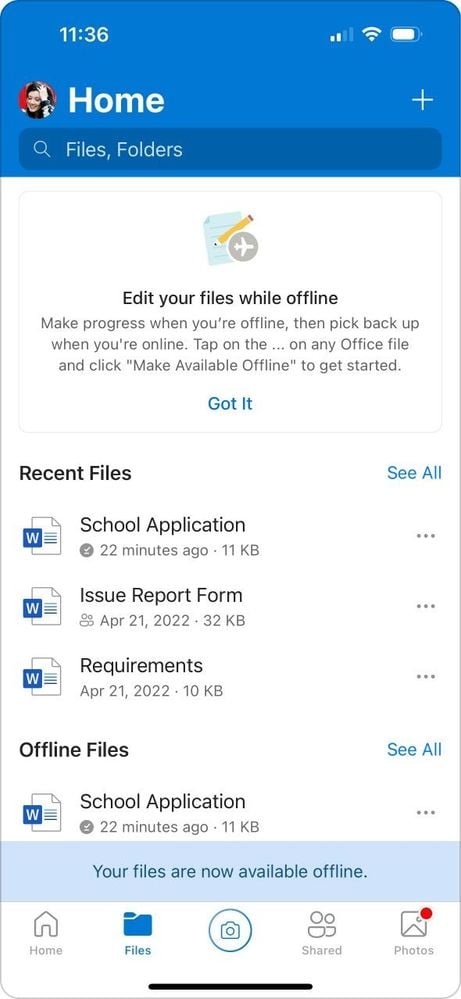
Microsoft 365 Basic customers will now be able to access files and folders on OneDrive even without an internet connection.
To use the feature on your mobile device, you should have the latest version of the OneDrive app. Go to the file you want to access offline and click the three-dots icon to open the context menu. Select Make Available Offline. You will see a blue sync icon under the file; once it turns grey, the file is available offline.
Also, any changes to the offline file will be reflected in the online version once you reconnect to the internet.
With these additional features, which keep personal files and photos safe and allow you to access them anywhere, anytime, Microsoft 365 Basic has become more useful than ever.
What are your thoughts on the matter? Share your opinions with our readers in the comments section below.
We already saw that Microsoft is slowly but surely releasing its exclusives to PlayStation, but it seems that at least one PlayStation game is moving to Xbox.
Keep in mind that Sony hasn’t changed its exclusivity policy, instead, the developers of the game decided to release it to Xbox as publishers.
Predator: Hunting Grounds is coming to Xbox later this year
Today we have some news for Xbox gamers, and as Pure Xbox writes, the Predator: Hunting Grounds was announced to be ported to Xbox Series X/S.
As you know, the game was released for PS4 and PC in 2020, and it was published by Sony, but the distribution rights are now in the hands of the original developer, IllFonic.
The game will get various gameplay improvements and more DLCs in the upcoming year. As for the release date, it remains unknown, but we should see it later this year.
In March, Microsoft shared that Copilot would be available as an add-on for higher education institutions from April 1, 2024. Now, the Redmond-based tech giant has pushed the release to May 1, 2024. It didn’t share a reason for the delay.
Earlier this month we shared that Copilot for Microsoft 365 would be available for higher education institutions to purchase as an add-on for their students aged 18+ on April 1, 2024. Availability is now planned for May 1, 2024.
Besides deferring the release, Microsoft is working on expanding the eligibility. While the Copilot add-on is currently only available to Microsoft 365 A3 and A5 license holders, A1 licenses will be included in the coming months.
As for Education customers with Enrollment for Education Solutions (EES) volume licensing, Copilot must be purchased through resellers, Cloud Solution Provider (CSP) and their Microsoft account team, being the two available options.
Eligible customers in China can get Microsoft 365 Copilot via web direct from April 5, 2024.
Copilot has emerged as a popular and reliable chatbot, competing with the likes of ChatGPT and Gemini. In recent months, Microsoft has been integrating Copilot into native products, including Windows, Microsoft Advertising, Word, Excel, PowerPoint, File Explorer and more!
Ai has become the ultimate tool for cyberattacks, but if they are installed locally on your PC, they can become as vulnerable as any other app.
ChatRTX in Nvidia’s approach to a ChatGPT-like bot. You can install it on your PC if you have 16 GB of RAM and 35 GB of storage, and NVIDIA GeForce RTX 30 or 40 Series GPU, or NVIDIA RTX Ampere or Ada Generation GPU with at least 8GB of VRAM.
The bot is pretty powerful because you can select the LLM of your choice, but recently, according to Nvidia’s security bulletin, the tool had two vulnerabilities.
ChatRTX AI had pretty severe vulnerabilities
CVE‑2024‑0082 (CWE-269) was a high severity vulnerability which exploited could have led to local escalation of privileges, information disclosure, and data tampering.
The other vulnerability, CVE‑2024‑0083 (CWE-79) was medium severity and it addressed a scripting error, allowing the potential attacker to run malicious scripts in your browser. The wrongdoer could then execute code and steal the information from your PC.
However, we have good news because Nvidia says that the vulnerabilities were not exploited and that they patched them in the latest version of ChatRTX 0.2. So, if you didn’t update the app, now it’s time to do so. You may also uninstall it completely and install the latest version from Nvidia’s dedicated webpage.
It’s also worth mentioning that ChatRTX is still in the Beta stage and Nvidia didn’t disclosed a date for the stable version of the app.
Read more about it here. Did you update ChatRTX to the latest version? Tell us if you’ve had any problems in the comments section below.
ChatGPT is an incredibly useful tool that many, including us, use daily to help with various tasks.
But did you know that you can archive your chats and access them later? If not, this guide will show you the way to do it.
How do I archive ChatGPT conversations?
If you use ChatGPT often, and you want to save an important conversation so you can go back to it later, then you might want to consider archiving your conversations.
This feature has been present for a few months now, and not many know about it since it’s not easy to find your archived conversations.
However, Tom’s Guide has a guide that will help you archive and find your conversations. You just need to do the following:
Open ChatGPT and log in with your account.
Hover over the conversation you want to archive in the sidebar. Click the Archive icon.
Next, click your username in the bottom left and choose Settings.
In the Archived chats section click on Manage.
You’ll now see the list of all archived chats. To restore a chat, simply click on it.
This is a useful feature, but keep in mind that you can’t continue archived chats.
If you were to look for a browser, Google Chrome would be the first choice. Or, for those hooked to the Microsoft ecosystem, maybe Edge. But what if you are on Windows 7? The two, or almost all browsers for that matter, don’t support the OS or receive any security updates.
Would you risk surfing the web on an unsecured browser? If the answer is no, Yandex Browser would be the perfect choice.
Windows 7 has been out of support since January 14, 2020, and browser makers weren’t expected to support it for long. Gradually, all major browsers dropped support for Windows 7, Mozilla Firefox being the last on the list.
At present, only the Yandex Browser, amongst the popular options, supports Windows 7. It’s lightweight and finds a place in our top picks for the fastest and strongest browsers on all devices.
About the Yandex Browser
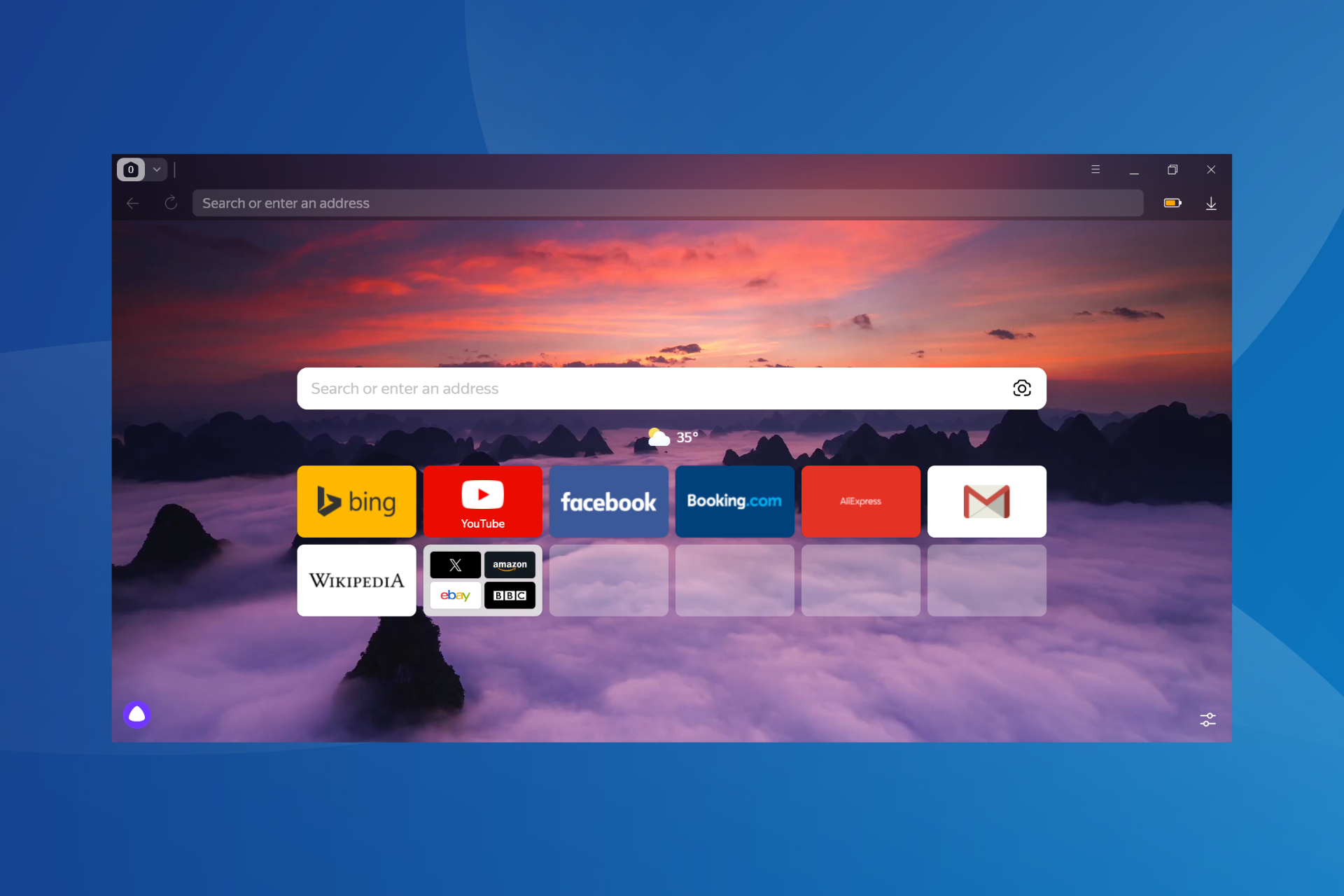
The Yandex Browser has a clean and straightforward user interface. Also, since it’s based on the Chromium project, anyone who has used Chrome or Edge shouldn’t face difficulty adjusting to the Yandex Browser. In my opinion, the UI looks a bit modern and gives a MacOS vibe!
The Yandex Browser is free to use and has built-in safe browsing and download protection features. It presently uses Chromium 120, irrespective of the iteration you are running.
It’s also a compact browser, with the installer size a little over 8 MB for the 64-bit version of the browser. For the 32-bit browser version, the installer size is in the same range. Installing the Yandex Browser and the initial setup doesn’t take more than a few minutes!
To get the latest security and feature updates for the Yandex Browser, launch the browser > click the hamburger icon near the top right > hover the cursor over Help > choose About Yandex Browser > click on Update if the button is available.
The latest Yandex Browser version on a 64-bit Windows 7 is 24.1.5.736.
You may want to personalize a few settings, especially the ones dealing with privacy and startup, for a tailored experience. In addition to Windows 7, the Yandex Browser supports Windows 8, Windows 8.1, Windows 10, and Windows 11. You can download the browser from the official website.
We’re all eagerly waiting for the new Battlemage GPUs from Intel, and currently, not much information is available.
However, it seems that these GPUs are spotted in a database, and we now have some new information about them.
Intel Battlemage GPUs have been spotted in the SiSoftware Sandra database
As reported by Fudzilla, these GPUs have been spotted in a SiSoftware Sandra database, and we finally have some information regarding its specifications.
Battlemage GPUs will have 20 and 24 Xe-Cores and 160 and 192 Execution Units. Both models will use 12GB VRAM and leaks speculate that next-gen memory will be used, which we assume is GDDR7.
As for features, we’re expecting to see improved ray tracing, and micro-architecture improvements among other changes.
Cybercriminals are always on the lookout to exploit your personal information and with the trove of data available online, people are more at risk than ever.
There’s never been a better time to take control of your digital footprint and learn how to remove your information from the internet. Here’s how you can do it yourself and use services like Incognito do it for you.
What is personal information?
Did you know, in 2021 alone, the Federal Trade Commission received nearly 1.4 million reports of identity theft? The type of personal information that can be found online via public records, social media accounts, and data brokers is staggering. This can include:
Full name, contact information, date of birth, sex, marital status, race
Property records
Criminal/court records
Financial records
Medical records
Social Security number
History of employment
That’s without mentioning what you might inadvertently reveal about yourself when posting on Facebook, Twitter and other social platforms. By combining this data together, cybercriminals can build enough of a profile to carry out identity theft.
Fortunately, removing online information isn’t difficult. Let’s explore the top ways to scrub your personal data and protect your identity moving forward.
How can you remove your personal information from the web?
Follow these steps on how to remove your information from the internet manually:
1. Delete obsolete and unused online accounts
Over time, we all accumulate dozens, if not hundreds of online accounts. From gaming profiles, to shopping accounts, and everything in between.
Step one is to get rid of those old unused accounts that could be still processing your information, displaying info publicly on profiles, and needlessly sitting there for a data breach to occur.
Tip: Sometimes closing account doesn’t mean your data is deleted. However, you have the right to your data, so don’t hesitate to contact the company, request what is held, and formally request for the full account to be deleted.
2. Opt out from data broker sites and people search sites
Data broker and people search sites are online services that collect, store, and sell personal information to individuals and advertisers. To protect yourself from sites like Public Record Search, SearchQuarry, Sync.me, and others, you can opt out by following these steps:
1. Identify the data broker and people search sites that have your information. You can do this by searching for your name online.
2. Most sites should have an option to remove your information via the privacy policy, opt-out page, or contact form. This may be hidden at the bottom of the homepage.
3. Follow the opt-out instructions for each site. This may involve filling out a form, sending an email, or making a phone call.
4. Monitor your information regularly. Even after opting out, your data may still appear on these sites due to their continuous data collection practices.
3. Use Incogni for automatic removals
Instead of step 2, a service like Incogni helps protect your personal data and enhance online privacy by doing all the hard work for you.
You don’t have to worry about how to remove your information from the internet because it automatically submits data removal requests to hundreds of problematic data brokers on your behalf. These brokers may have access to your Social Security number, physical address, phone number, email address, and more.
Such data can be used for marketing, recruitment, financial, and health purposes. Or worse, scams and phishing attempts. This can result in unwanted ads, influence loan eligibility or insurance rates, and increase the risk of attacks.
Moreover, Incgoni regularly monitors for new instances of your data showing up, ensuring that your information remains protected even after the initial removal.
You can manage everything from a user-friendly dashboard where you can view the status of your data removal requests and receive personalized privacy recommendations.
Currently, subscribers can keep their data off the market with a 1-year subscription at a 50% discount ($6.49/mo).
5. Check the Content contains your personal information option. I.e., Address, phone number, email, etc. Then select your country and hit next.
6. Check all the boxes that correspond with the info you wish to remove and hit next.
7. Fill out the required fields and enter the content URLs, Google search results page URLs, and attach the screenshots from earlier.
8. Once complete, check the confirmation box and click Submit.
5. Delete unused apps from your phone
Mobile apps can gather a lot of personal info, especially if you have given them permissions. In the worst cases, some apps will mine info even without permission. Therefore, it’s a good idea to delete any apps you no longer use.
You should also search reviews for any questionable apps you suspect of gathering info they shouldn’t and delete those too.
6. Optimize your security settings
One of the best ways to prevent your personal information from being exploited is to prevent it from appearing in the first place and securing your online accounts to prevent hacking and phishing attempts.
1. Set your social media profiles to private or so only friends can see what you post. Even then, refrain from posting your mobile number, address, and other private information. You can also use Social Media Protection Software for added security.
2. Google’s built-in Security Checkup tool lets you check the devices connected to your Google account. Remove any that are unfamiliar or no longer needed. It also provides a checklist of settings and information that guides you to better securing your account.
3. Use biometric fingerprint and/or facial recognition to secure your mobile apps, especially for sensitive ones like banking or social media.
4. Clear your browsing history regularly and consider blocking third-party cookies, so you cannot be tracked by advertisers or bad actors as you browse the web.
How can you protect your personal information?
To remain safe when using the internet, keep the following tips in mind:
1. Use a throwaway email address for anything other than work or contact with trusted friends.
2. Never reuse the same password and always use a strong password. I.e., 12 or more characters with a mix of uppercase and lowercase letters, numbers, and special characters (e.g., !, @, #, $).
Never use common words, especially those personal to you like names, pet names, or birthdays, as these can be gleaned from elsewhere.
3. Use a VPN to encrypt your real-time internet activity and hide your real IP address, which can be used to trace your location. A VPN is a must when using unsecured public Wi-Fi or other unsecured networks.
4. Use an antivirus program with phishing detection and real-time internet protection. Even then, never open untrusted email links or text messages.
5. Don’t share personal information on social media that can be linked with other data to build an identity theft profile.
The final word on how to get your personal information off the internet
People are starting to feel less safe and are becoming more aware of what threats they may be facing on the internet. However, it’s not always easy to know how to remove your information from the internet.
Fortunately, by following the above tips, using some common sense, and considering services like Incogni, you can be sure your data never falls into the wrong hands.
Microsoft’s latest, Windows 11 Insider Preview Build 26090, brings a series of changes to the OS, some pleasant, while others, not so much. But, one that we are all going to appreciate is Microsoft removing the pesky build watermark from the bottom right corner of the desktop.
The release notes for Windows 11 Insider Preview Build 26090 read,
The build watermark at the lower right-hand corner of the desktop is not present in this build and will return in future Insider Preview builds. This is part of our normal process for preparing Windows 11, version 24H2 for release to customers later this year – but does not mean we’re done. Windows 11, version 24H2, will be this year’s annual feature update. As mentioned here, Windows 11 will have an annual feature update cadence that releases in the second half of the calendar year.
So, the build watermark will not be present just in Insider Preview Build 26090 and will return in future builds. As per Microsoft, removing the build watermark is part of preparations for Windows 11, 24H2, the latest version of the OS set to be released later this year.
Other changes in the Windows 11 Insider Preview Build 26090 include improved widgets, changes to the Server Message Block (SMB) protocol, more Copilot usage on local accounts, a patch for explorer.exe crash, and a fix for video stutter in apps and games.
Don’t you think Microsoft should allow users to easily remove watermarks on Windows 11 in the upcoming stable version? Let us know in the comments section.
Microsoft customers complain about Copilot’s capabilities and say it doesn’t work as well as ChatGPT. Yet, the company claims users don’t know their way around the AI. After all, many of us have problems with prompt creation. Thus, Microsoft considers us untrained. So, they will collaborate with a partner to create training videos for prompt making.
Which one is better, ChatGPT or Copilot?
Compared to ChatGPT, Copilot for the web doesn’t work as well. There are significant differences between Microsoft’s chatbot and other free large language models (LLMs). The easiest one to spot is the number of generations it allows per query.
As a guest, web Copilot will answer five questions per topic. Yet, you can increase the number to 30 by logging in. However, this limit doesn’t apply to ChatGPT and Gemini, making them better for long conversations.
ChatGPT is often faster than Copilot at generating answers. On top of that, they apply to the general public. As a result, users who don’t need niched answers tend to go for ChatGPT.
Do we know how to write prompts accurately?
Microsoft considers that we don’t know how to write prompts accurately. However, it could be true. After all, prompt engineering is a complex task, and it has become a real job. So, if you know how to do it, you might find an opportunity. Yet, if you don’t, there are plenty of guides for it.
Prompts are not as easy to use as you might think. Some LLMs, like ChatGPT, can generate accurate answers on simple prompts, but Copilot is not as good at doing it. After all, Microsoft’s assistant needs a bit more guidance to perform the tasks you need.
Copilot has more restrictions than ChatGPT. For example, its work version can access internal business data temporarily but needs to delete it after each query. Also, Copilot has generation limitations too.
The Microsoft AI assistant should be better than ChatGPT because it uses the Azure OpenAI model. This large language model takes the GPTs from OpenAI and adds more capabilities.
Employees often use the web version of Copilot instead of the one for work without realizing they have different functions. Fortunately, according to Business Insider, Microsoft will introduce a method to switch easily between the versions.
Ultimately, the paid version of Copilot is better than ChatGPT due to its features. Yet, GPT is a handy web chatbot regardless of its version. Furthermore, it doesn’t have Copilot’s restrictions, and it generates answers faster. So, both AI models can help you do various tasks, but Copilot is better suited for work tasks, while ChatGPT suits better general usage.
Which one do you prefer more, ChatGPT or Copilot? Let us know in the comments.
Microsoft AI service will soon run on your device. However, according to Intel, you will need an AI PC with an NPU with at least 40 trillion operations per second (TOPS). Also, according to Microsoft and Intel’s co-developed definition, such a device will have an NPU, GPU, CPU, and Copilot. To make the AI assistant more accessible, companies will add a Copilot key on their keyboards.
A few devices meeting the requirements to be AI PCs are already shipping. Yet, Intel will develop some devices with 40 TOPS NPUS capable of handling the Microsoft AI service. Additionally, the companies intend to bring more Copilot features to the new PCs. So, they are considering which elements should be local and which should stay on the cloud besides the key ones.
Are there any devices meeting the 40 TOPS NPU requirements?
Unfortunately, at the moment, most tech companies don’t meet the 40 TOPS NPU requirements to run the Microsoft AI service locally. AMD gets close with their Ryzen 8040, which has 16 NPU TOPS for 39 total TOPS. Intel’s Core Ultra series has up to 34 TOPS. Yet, Qualcomm might be the first to offer 45 TOPS chips later this year through their Snapdragon X Elite processor.
According to Tom’s Hardware, Microsoft will solely use NPUs for their AI service. In this way, they want to boost the AI’s performance. Moreover, running the AI assistant on GPUs or CPUs will affect your battery life.
Soon, Intel plans to bring next-gen processors that could handle most AI services available. Some of their plans focus on premium and mainstream mobile products, and others on AI PCs capable of the 40 TOPS requirements for Microsoft AI services. On top of that, the company will bring Intel Lunar Lake later this year.
Additionally, Intel claims that 65% of the devs they meet use the OpenVino open-source software toolkit. Thus, we could assume that most of their AI tech fits perfectly with Intel NPUs. Furthermore, Intel’s goal is to bring 100 million AI PCs by 2025.
In a nutshell, the Microsoft AI service will run locally on most AI PCs capable of handling it. Qualcomm is the closest tech company to meet the requirements, followed by AMD. Yet, Intel is going to develop a lot of new devices to handle most AI market segments. On top of that, they want to bring the Lunar Lake Chip that’s stronger than the latest one and add more AI features this year.
What are your thoughts? Are you already looking for an AI PC that could handle the Microsoft AI service? Let us know in the comments.
Soon, hackers might use ZenHammer, a Dynamic Random Access Memory (DRAM) attack, to target AMD processors. This method worked only on Intel and Arm processors. However, according to its creators, the hack only works in theory. Yet, they said that it could work in the real world.
In the past, AMD’s handling technique on the DRAM tech protected them from Rowhammer attacks. Yet, the ZenHammer is an updated version. Thus, it is more effective than the previous method since it can target AMD’s DRAM.
How does the ZenHammer attack work?
The ZenHammer attack is similar to its predecessor, Rowhammer. After all, it’s an exploit that manipulates DRAM data. It works by repeatedly accessing specific rows of memory cells, and it does this until it changes the value of bits from 1 to 0 or from 0 to 1.
According to Bleeping Computer, this method is also known as bit flipping. Through it, hackers can corrupt data from the DRAM. Afterward, cybercriminals can steal cryptographic keys. If you didn’t know, they are similar to digital locks. Thus, threat actors can use them to access your private information, such as passwords, private information, and documents.
In addition, through the ZenHammer attack, wrongdoers can change escalate privileges on your device. This way, they could allow themselves to install malicious files with malware into your device, steal more data, and damage your system. Ultimately, they could gain control over your device.
Zen 2 is the most susceptible AMD Processor to ZenHammer attacks. Afterward, Zen 3 follows it with a 60% rate of being hacked. Yet, Zen 4 is the most resilient, with a 10% hacking rate. The huge difference is due to Zen 4 using DDR5 memory instead of DDR4.
The DDR5 memory can defend better than DDR4 against ZenHammer attacks. After all, it has better characteristics and features. DDR5 has a higher refresh rate of 32ms and a built-in error correction code.
Hopefully, the ZenHammer attack remains theoretical. After all, we don’t want someone to access our data, especially since it might give them control over our devices. Also, to defend against the ZenHammer attack, consider upgrading your processor from DDR4 to DDR5.
What are your thoughts? Will you upgrade your processor as a preventive measure? Let us know in the comments.
At the Game Developers Conference 2024 on March 21, 2024, Microsoft announced DirectSR (Direct Super Resolution), the new API designed in collaboration with GPU hardware vendors Nvidia, AMD, and Intel, and shook the gaming industry.
The Redmond-based tech giant has been working on this advanced innovation to transform the video upscaling landscape and ensure the seamless integration of Super Resolution into the next generation of games.
Super Resolution is an advanced method that enhances games’ resolutions and visual quality. In the announcement, Joshua Tucker called DirectSR the missing link that developers have been waiting to integrate Super Resolution (SR) seamlessly into PC and Xbox gaming ecosystems.
It will offer a more streamlined and efficient experience that adapts effectively across various hardware configurations.
Joshua Tucker from the DirectX team also mentioned:
This API enables multi-vendor SR through a common set of inputs and outputs, allowing a single code path to activate a variety of solutions including NVIDIA DLSS Super Resolution, AMD FidelityFX Super Resolution, and Intel XeSS.
A DirectSR public preview will be available soon via the Agility SDK, which allows developers to light up new DirectX features without waiting for an OS update. Thanks to the Agility SDK, DirectSR will be available on the Windows platforms developers care about most, including Windows 10+. Don’t miss our DirectX State of the Union at GDC to catch a sneak peek at how DirectSR can be used with your games!
The main concept behind DirectSR is to ease up the upscaling process, which in turn will empower developers to unlock the complete potential of hardware resources while maintaining the visual quality.
Shawn Hargreaves, Dev Manager at Microsoft’s Direct3D division, stressed that this technology can bridge the gap between demanding PC games & hardware requirements.
One of the main features of DirectSR is its ability to support multiple upscaling techniques integrated into a simple and standard interface.
Its resourcefulness will allow developers to use the capabilities of DirectSR, thereby reducing the workload related to upscaling implementation.
In addition to this, given Microsoft’s commitment to updates, we can expect new upscaling techniques and parameters to be incorporated seamlessly into the DirectSR runtime.
By handling the myriad of inputs and parameters needed for upscaling algorithms and streamlining the implementation process, DirectSR will empower developers to concentrate on optimizing gameplay and enhancing user experiences without being obstructed by technical complexities.
Here is the list of inputs for the algorithm the developers would have to provide:
Source color image
Source image region
Source depth
Exposure and Pre-Exposure
Motion vectors
Camera jitter
Motion vectors scale
Exposure scale texture
Image regions
Sharpness
Ignore history mask
Reactive mask
Once you provide this list of inputs, DirectSR can process and enhance the visual output, resulting in crisp and immersive gaming experiences.
As of now, Microsoft has announced the API but has not talked about DirectSR’s general availability. However, the announcement indicates that the technology is in the advanced stages of development.
To conclude, Microsoft DirectSR in video upscaling technology could be a new way to enhance visual details and performance of the games.
What are your thoughts on the matter? Share your opinions with our readers in the comments section below.
If you use a Microsoft Surface device, then you can appreciate the Surface Dial as an indispensable peripheral.
Although it is a great addition to simplify your tasks, your device must meet the minimum system requirements. One important one is that your PC must support Bluetooth 4.0 LE.
What is Microsoft Surface used for?
Scrolling and navigation – Surface Dial is designed to work with any app that uses images and relies on scroll, zoom, and undo actions. Generally, you can browse through your picture library especially if it’s extensive.
Dial actions – Creators using apps like Adobe can use the Surface Dial to adjust the brush size. This makes it easier especially for precision when you need a specific size.
Quick access menus – When browsing through a compatible Surface Dial app, you can use the controls to bring up commonly used functions and bring up quick access menus conveniently.
Audio adjustments – Playing music on your Surface device may require regular adjustment especially if there’s no volume normalization. You can use the Surface Dial to adjust the volume during playback and even jump to a previous or next track.
Tailored shortcuts – Aside from the scrolling, navigation and auto adjustments, you can also customize select functions on certain apps to your preferences. This way, you can use specific functions as shortcuts for improved workflow.
How do I customize my Surface Dial?
1. Pair your Surface Dial to PC
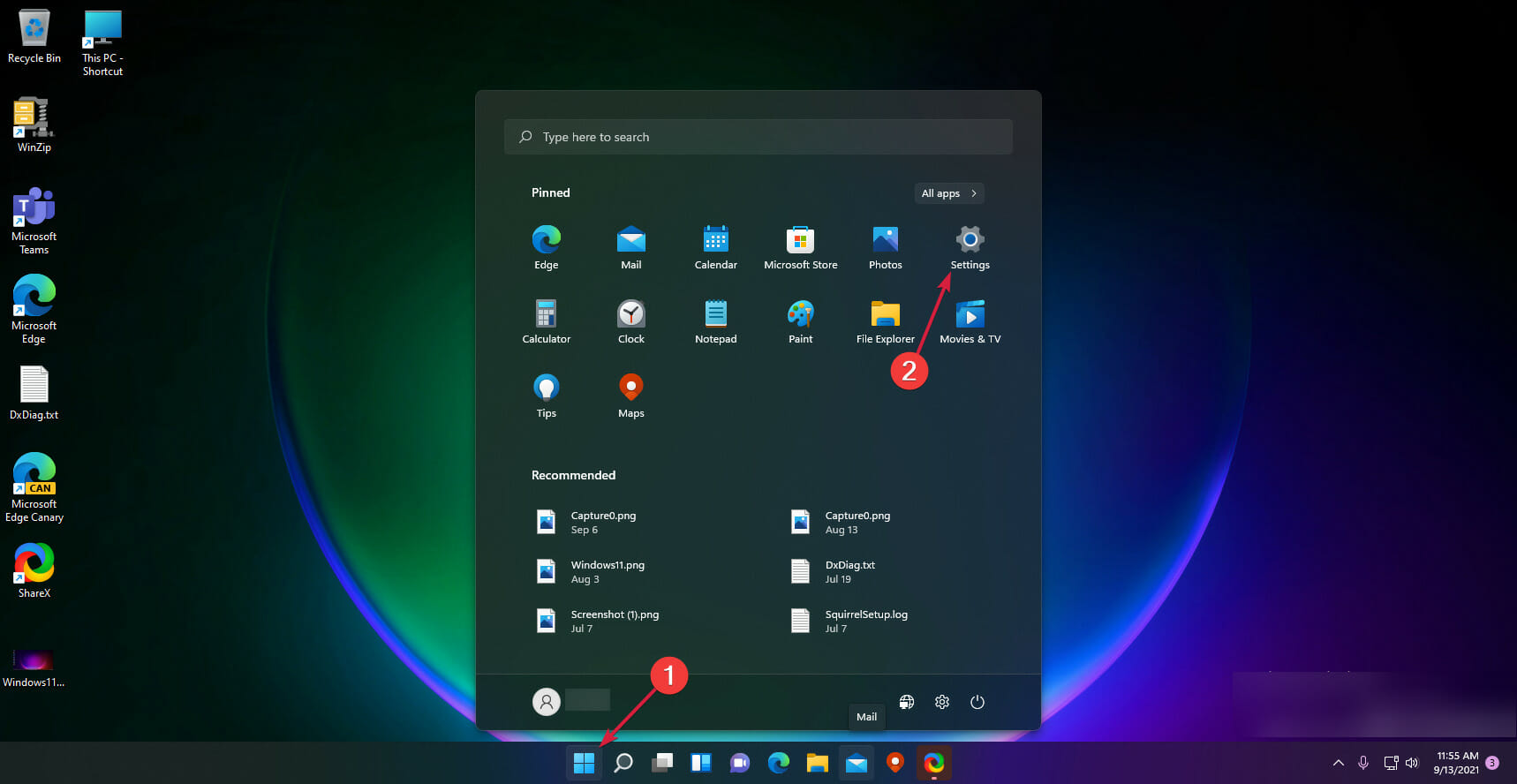
Press the Windows Start key and then select Settings.
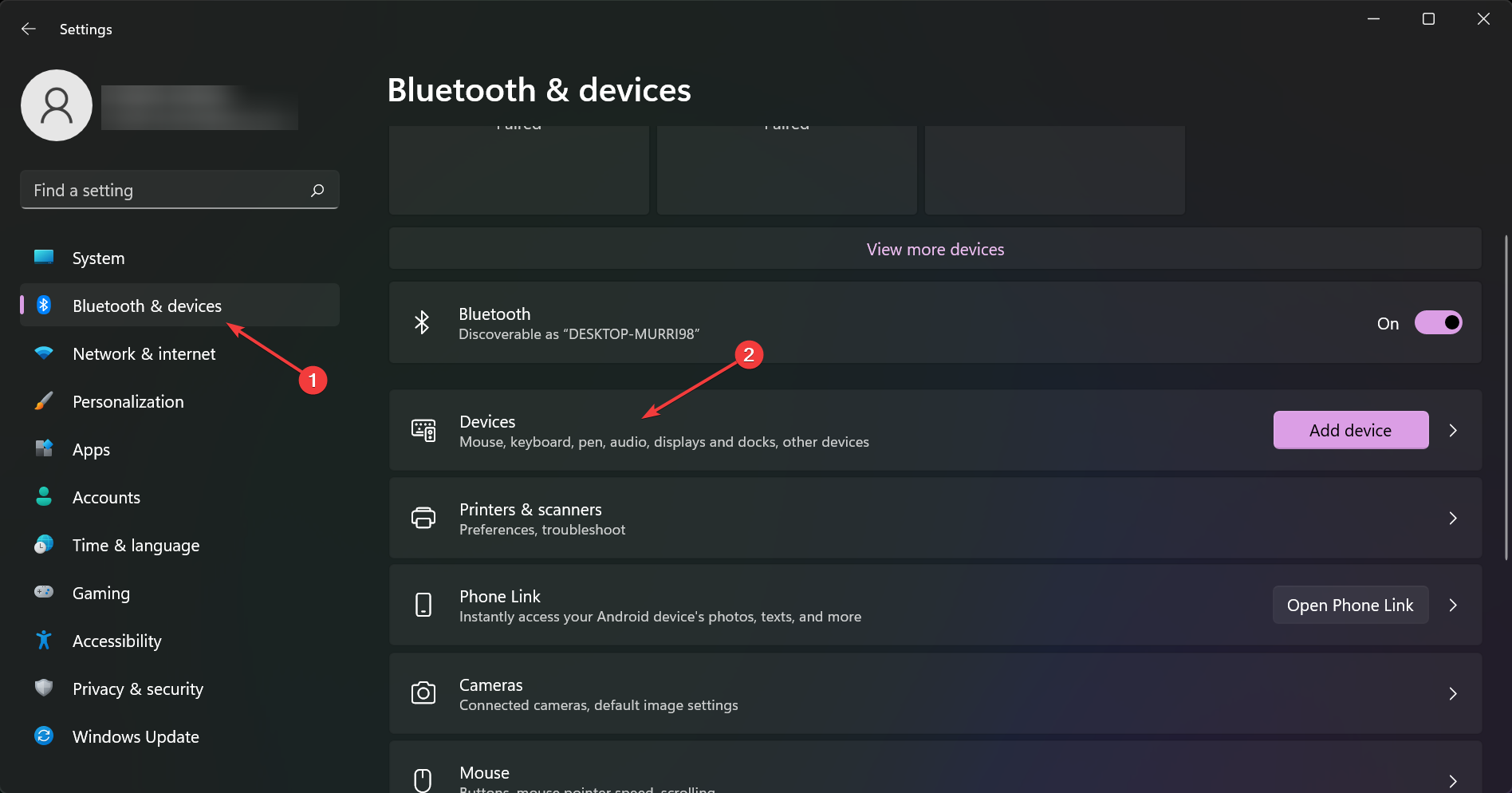
Select Bluetooth & devices on the left-hand side menu and click on Devices from the right.
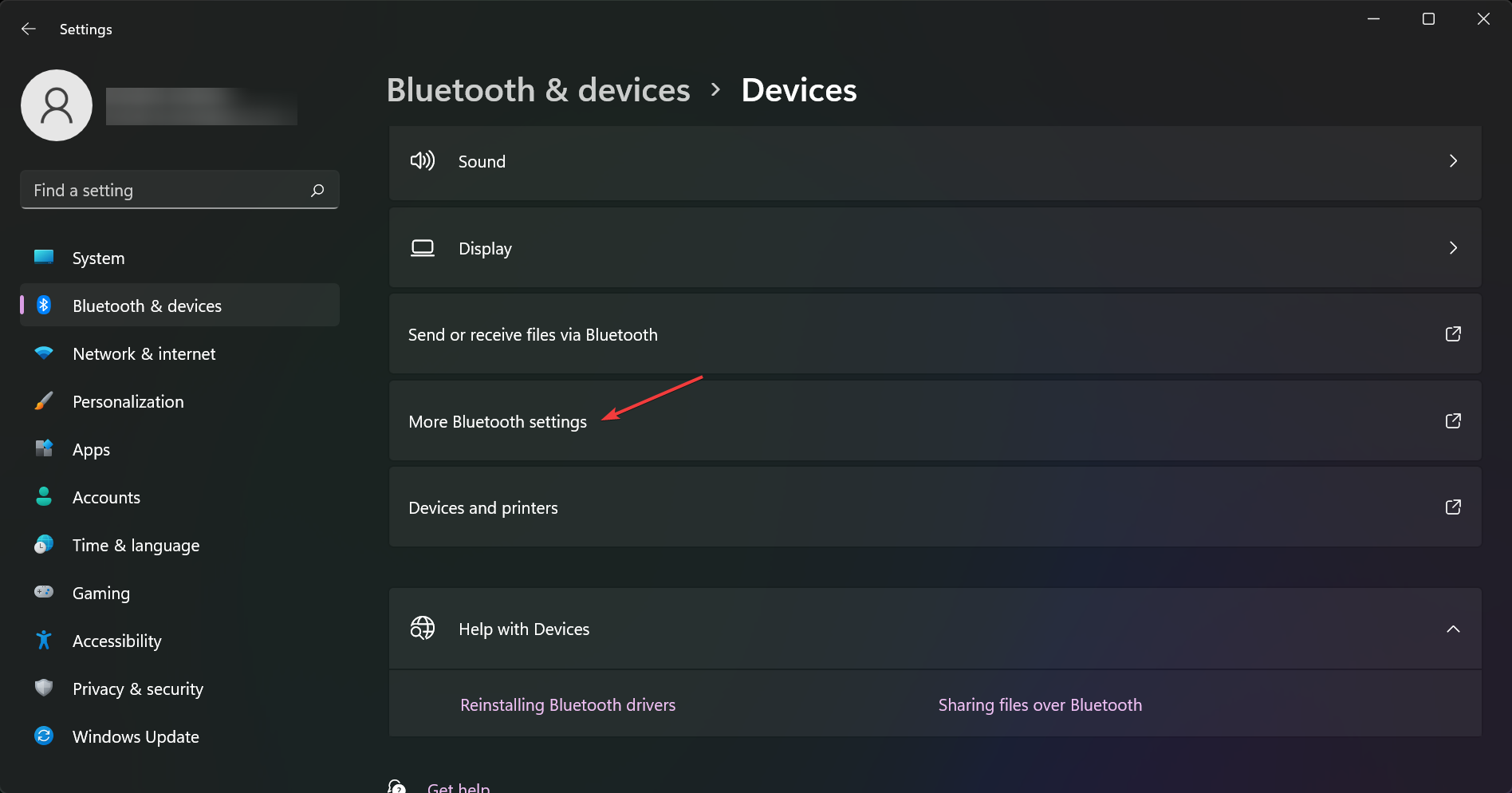
Now, select More Bluetooth settings.
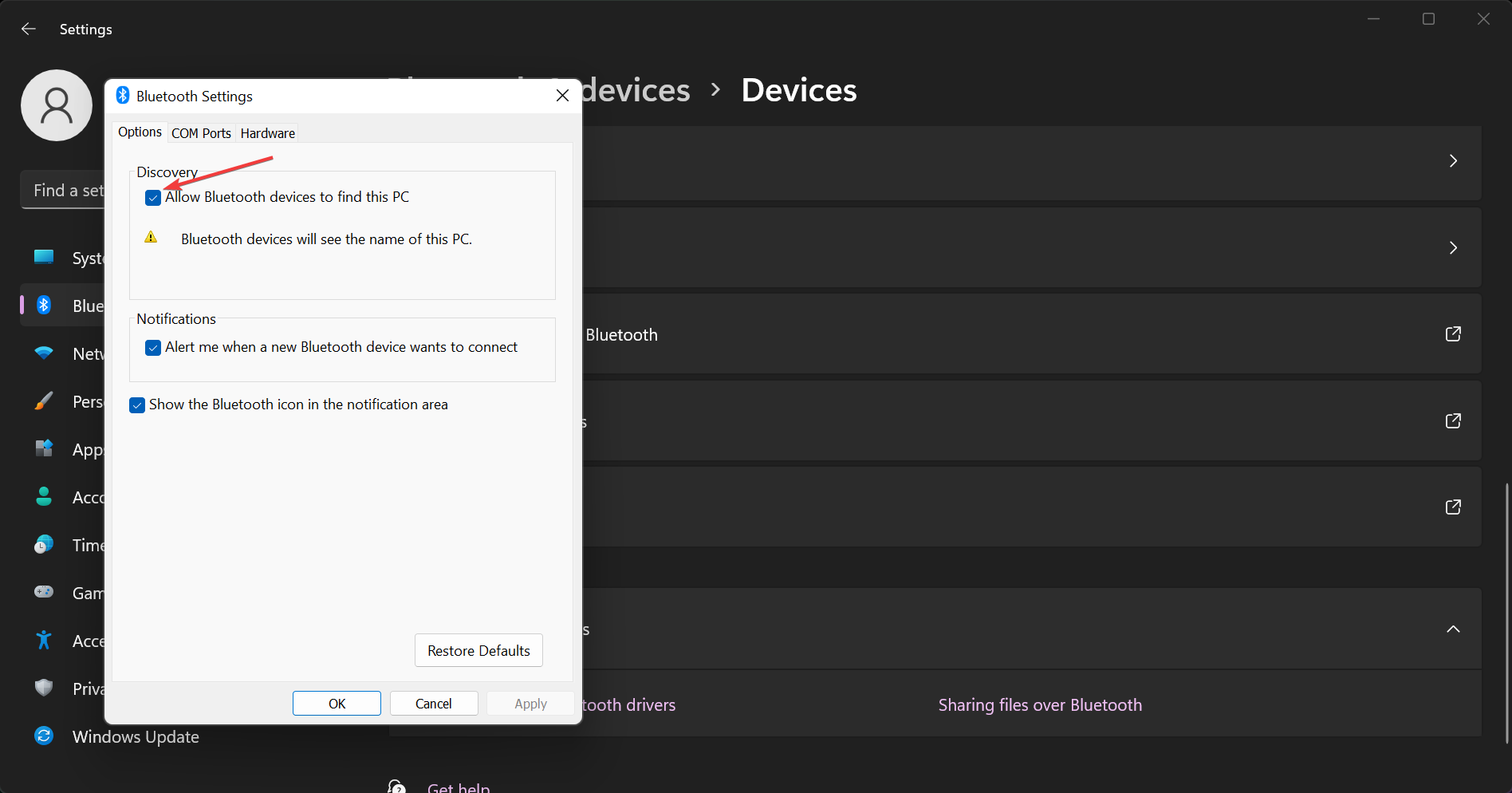
Under the Options tab, look for Discovery and then make sure that Allow Bluetooth devices to find this PC checkbox is enabled.
Click Apply and then OK to save your settings.
Ensure your Surface Dial’s batteries are recharged then press and hold the button next to them until a light flashes.
Go back to your PC and under Bluetooth>Add device, select Surface Dial and follow on-screen prompts until successfully paired.
2. Customize what Surface Dial does
On your Surface Book, go to Settings > Devices > Wheel.
Click on the drop-down menu against each tool and decide what function you’d like it to perform. Options range from volume adjustment, scrolling vertically or horizontally, zooming in and out and changing brightness.
3. Create your own tool
On your Surface Book, go to Settings > Devices > Wheel.
Additional tips and tricks to maximize Surface Dial’s usage
When your Surface Dial fails to pair with your PC or stops working, ensure you’ve updated your drivers and OS for optimum performance. Driver errors should be the least of your problems.
Explore and add your own custom controls as presets to enhance your workflow. After customizing, give it some time and see whether the changes enhance or downgrade your experience then tweak again until you find a sweet spot.
Position your Surface Dial in a convenient location preferably on a flat non-slip surface. This will prevent accidental touches that make it inefficient. Also, take breaks after long periods of usage to avoid muscle pulls and inefficient wrist movements.
Despite all the Surface Dial uses, it may still not be your cup of tea. If so, there are other Surface Dial alternatives you can opt for.
Ultimately, for optimal efficiency, you’ll need to tweak some settings for optimal performance. Further, the best settings are those tailored to your preferences for enhanced productivity. These coupled with the tips above will ensure you explore your Surface Dial’s full potential.
Are there any tips you use with your Surface DIal that you think we should know about? Drop us a line below.
MSBuild is a renowned platform that can be used for Microsoft’s Visual Studio software development apps. However, it is not always easy to use. Therefore, Microsoft has released an experimental version of the MSBuild editor.
It will help developers comprehend their project files and use advanced functionality that requires editing the project file directly. The experimental editor understands MSBuild files more than the existing XML schema allows.
In a blog post, Microsoft says:
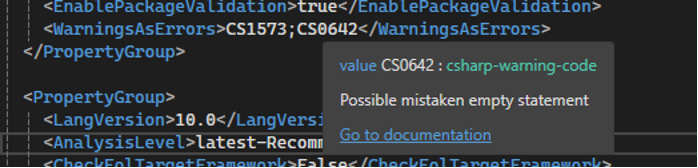
Although Visual Studio provides a rich UI for managing your project and its settings, you may need to edit your csproj file directly to access certain advanced features that are not exposed in the UI. You may also need to edit csproj files directly when merging changes from source control, or you may be writing targets and props files for local use or for publishing in a NuGet package. If any of these scenarios apply to you, we’d like your feedback on the new experience.
Let’s check out the features of this new experimental editor:
Helps understand your project file
Gives you Quick Info for XML elements in MSBuild files, properties, items and metadata in MSBuild expressions.
The Quick Info popup is intuitive and has deep links to relevant documentation and hyperlinks to references in other files.
To understand more about how a property or item can be used, use Ctrl-Click or the Go to Definition command.
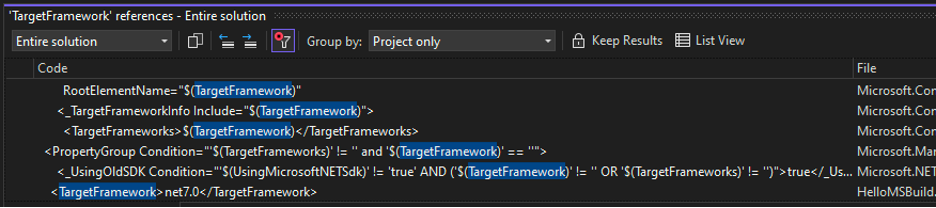
You can use the Find References command to perform a specific search across all imported files.
2. Code within the editor
Has IntelliSense almost everywhere in the file with documentation powered by its schemas.
Comes with special support for NuGet packages, which allows you to search for package ID and check the package description and a link to its NuGet.org page.
Scans all imported MSBuild files.
Provides inferred completion for properties, items, metadata, and targets found within these files.
Has Tooltips that come with hyperlinks to where the specific property or item is used
Detects problems easily
Applies a type system to MSBuild
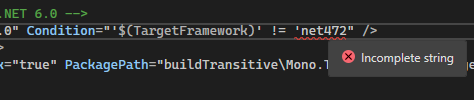
Identifies errors associated with malformed values such as URLs or version strings.
Its understanding of the MSBuild expression format enables you to catch flawed conditions and expressions.
Features Roslyn-style analyzers and offers corresponding code fixes.
Detects issues without executing a build.
Takes MS Build editing experience to another level
Uses a specialized JSON-based schema format tailored for MSBuild.
Allows the definition of documentation and type annotations for MSBuild properties, items, item metadata, and targets.
Comes with pre-installed schemas for popularly-used targets and SDKs like the .NET SDK.
Allows you to create custom schemas for their MSBuild targets, allowing the MSBuild editor to provide a substantial experience when editing or consuming them.
Authors of NuGet packages that contain build targets can ship the sidecar schema in the NuGet Package for a better editing experience for the consumers.
Microsoft urged all users who use MSBuild files to share feedback after using it, as it will help them improve it and make it available by default for all developers.
The spiritual predecessor to Microsoft’s Xbox exclusive Starfield, No Man’s Sky, just received a major update that delivers a Space station overhaul, greater ship customizations and Intervention Events.
With ‘Orbital’ the developers of No Man’s Sky say they tried to address a portion of the game that hasn’t been touched since it was released to the Xbox platform over five years ago, Space Stations.
The first thing to strike you about these news stations is their vastness. They loom ever larger upon your starship as you approach the docking entrance. Secondly, their procedurally generated exteriors mean that you rarely encounter the same form twice. Upon initiating the docking sequence, the large, cavernous landing strip you traverse hints towards a much larger interior than previous, again with a wide variety of layouts.
Sean Murray, Founder, Hello Games
Visiting the space station map users are immediately greeted with Ship Fabrication, a new customization tool enabling the creation of new starships with a wide variety of custom designs.
Users can get as granular as using parts of salvaged ships tp create “near-limitless” ship configurations.
Users will also get a chance to reguarly interact with envoys from the three universe guilds at one centralized location thanks to the updated Space Station.
The ‘Orbital’ update also introduces a new game concept called “Intervention Events” which will now support Frigate communication mid-journey.
Users will be able to direct or assist Frigates on lucrative missions in the middle of their expeditions allowing gamers to intervene to make sure those missions are successful.
In addition to some new gameplay aspects, ‘Orbital’ also brings the customary patches and improvements to various aspects of the game, all at no extra charge to existing Xbox Game Pass holders.
Microsoft is working hard to provide the best possible security to its users, and it does the same with government agencies.
Speaking of which, Microsoft is teaming up with Accenture Federal Services to enhance the security of government agencies.
Accenture and Microsoft are working on a cloud factory on Azure
According to Silverlinings, Accenture Federal Services and Microsoft are working on end-to-end Cloud Modernization and Migration Factory on Microsoft Azure Government.
This project should meet the highest security standards required for those operating in the sector of national security. The service should support both federal agencies and their partners alike.
Accenture Federal Services CEO, John Goodman, said the following regarding the partnership:
Accenture Federal Services is excited to partner with Microsoft in launching the Cloud Modernization and Migration Factory on Azure to help our clients meet their mission objectives through highly capable, protected, monitored, and resilient connected services
The project will use “connection-in-a-box”, and it will streamline the onboarding of remote federal sites to Azure Government Secret and Top Secret classified clouds.
The entire process will offer the highest level of security for government data by utilizing Microsoft’s secure networking principles.
Microsoft Azure Government Secret and Top Secret classified clouds will provide agencies with the latest technologies, including AI that will be able to analyze the data and provide state-of-the-art cybersecurity.
Recently, during the Pwn2Own Vancouver 2024 hacking competition, Google fixed a total of seven security vulnerabilities in the Chrome web browser. Let’s talk about the critical ones.
The first zero-day is CVE-2024-2887, a high-severity Type Confusion weakness in the WebAssembly (Wasm) open standard.
Manfred Paul put this vulnerability on public view on the Pwn2Own’s first day as a part of a double-tap remote code execution (RCE) exploit, which uses a crafted HTML page and targets both Edge and Chrome.
The second one is CVE-2024-2886. KAIST Hacking Lab’s Seunghyun Lee exploited this vulnerability on the second day of the CanSecWest Pwn2Own contest.
This one is described as a Use After Free (UAF) weakness in the WebCodecs API, which web apps utilize to encode/decode audio and video content. Hackers use it to perform arbitrary reads/writes remotely through crafted HTML pages.
Seunghyun Lee also used CVE-2024-2886 to gain remote code execution utilizing a single exploit to attack both Google Chrome and Microsoft Edge.
Google has fixed both zero-day threats in the Google Chrome stable channel. With version 123.0.6312.86/.87 for Windows and Mac and 123.0.6312.86 for Linux, hackers can no longer target your device using these vulnerabilities. The update will be available globally soon.
Mozilla Firefox also fixed two critical zero-day vulnerabilities, one in Firefox 124.0.1 and one in Firefox ESR 115.9.1, after Manfred Paul spotted and exploited them at Pwn2Own Vancouver 2024.
Mozilla fixed these issues in a single day, and Google took five days to patch up these vulnerabilities. This is quite quick, as vendors have 90 days to fix them until Trend Micro Zero Day Initiative discloses the bug details publicly.
In January 2024, Google and Microsoft patched up another zero-day in Chrome and Edge, respectively. It can gain access to users’ personal information including social media credentials and banking details, and crash unpatched browsers because of out-of-bounds memory access weakness in the Chrome V8 JavaScript engine.
The Microsoft Store has recently been updated and received a couple of new features users can make use of that includes a ‘What’s New’ section, installation notifications, improved device management, and more.
Former Windows Phone hero and current Microsoft Principal Architect Rudy Huyn took to X (formerly Twitter) to alert users about the recent updates going to the Microsoft Store.
When visiting the What’s New section, users are greeted with a list of additional features for the Microsoft Store experience that includes:
Experimental – Seamless Device Management: No More Store Exits for Device Limits
Hitting the 10-device limit? No Problem! With our new in-store native unlink device dialog, you can easily unlink a device right from the Store, keeping your shopping experience smooth and uninterrupted.
Experimental – Microsoft 365 Pages just got better!
Now it’s easier than ever to explore app features and compare subscription plans. You can compare monthly and annual plans to determine what’s best for you, and you can browse the features in various apps included in Microsoft 365.
New – Easier installation and launch
Now you can install content directly from the Store’s Home, Apps, or Gaming pages. Just hover over the product you want and click the Get button. When you initiate a download from the Microsoft Store, we’ll send you a notification when your app is installed and ready to use. This can be toggled off in the Store’s Settings page.
Microsoft has spent a concerted effort since the launch of Windows 11 to address several sticking points users have had with the Microsoft Store from UI and UX to basic search and notification issues.
Yesterday’s update adds more polish to the Microsoft Store that has been lacking since its introduction in Windows 8.
Microsoft has been experimenting with facial recognition technologies for a while now: there is Windows Hello, which employs it as one of the ways to log in to Windows 11 passwordless (and if it doesn’t work, you can set it up by following this guide).
Then there is also the Azure AI face service, which can be used to detect, recognize, and analyze human faces in images, and it can be employed in a variety of other detection-based platforms to carry on with it.
However, according to a recent patent that Microsoft published, the Redmond-based tech giant does want to take the current technology to the next level: we’re talking about a technology that is able to group and rank images based on the people shown in them.
Images will be grouped if they show the same person or the same group of people: the technology then ranks the images and shows the results.
The ranking can also be influenced by other data that shows family and friends, which can help identify the people in the images, faster, and more accurately.
Ranking engine may also rank groupings of images based on the faces of the common entities in the images in the groupings. For example, larger-entity groupings may be ranked higher than smaller-entity groupings. Further, groupings with a lager number of faces of entities that are determined to be friends or family or the like may be ranked higher than groupings with a lesser number of such.
The engine will make use of social media applications to identify the user, as well, and in other instances, those interested in finding out about a certain individual can also provide images of their own, such as photo albums.
It will interesting how this facial recognition technology will play out in the overall Microsoft policy. For Azure, for instance, users must acknowledge and agree in the Azure Portal that they will not use the service by or for a police department in the United States and that they have reviewed the Responsible AI documentation and will use this service in accordance with it, says the official blog post.
Either way, the technology might be integrated into platforms such as OneDrive, which already has an AI-based searching tool.
As eXputer writes, several Xbox games are dominating the PlayStation pre-order charts. Currently, out of the top 10 spots, four are taken by the Xbox ports.
Charts are dominated by Sea of Thieves, and Grounded is on the third spot. A few other ports have been accounced such as Hi-Fi Rush and Pentiment.
While this is great news for Microsoft, keep in mind that pre-order charts change daily. Nevertheless, this is still an amazing success for Microsoft and we hope that other ports will do just as well.
At the beginning of the year, Microsoft tested the Game view feature in Canary version of the Edge browser. If you’re not an Insider, you should know that Game View is a feature that provides game suggestions and tips when you switch from a supported game to Edge.
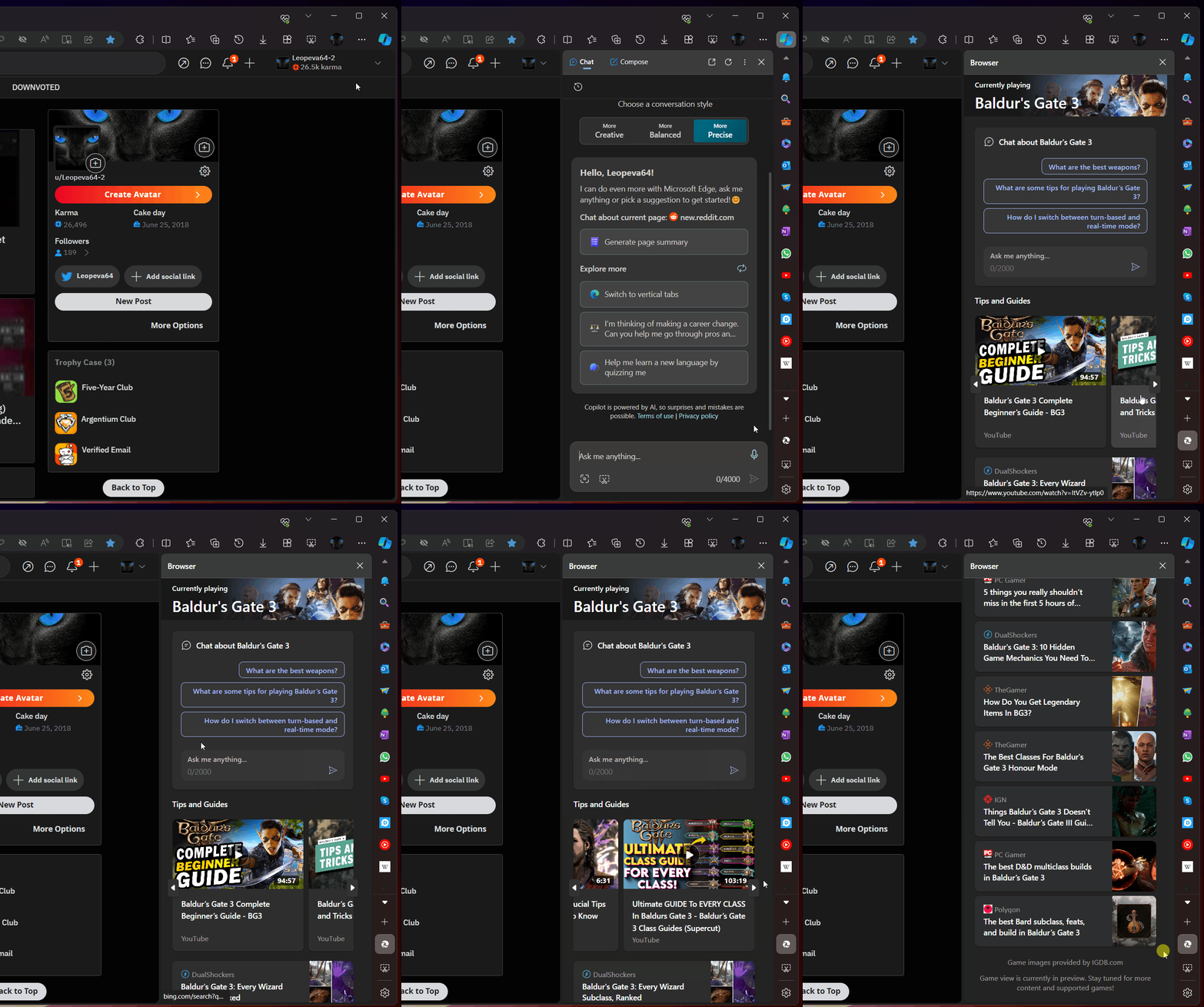
Now, as Leopeva64 posted on X, you can set up the Game view pane to open automatically when you change the window.
There's a new option on the Settings page that lets you decide whether the new "Game view" pane opens automatically when you switch from a PC game to Microsoft Edge:https://t.co/yNj7FTtCX4pic.twitter.com/VIZSjO3sPL
Now, the feature is in Preview and it was not implemented in the public version, so you won’t be able to see it yet.
However, if you’re an Insider, you will find it into the Sidebar settings from Edge.
Apart from this, as Leopeva64 demonstrated before, Game view is featured in the Copilot sidebar menu. As you can see, in the side window, it will appear the game you are currently playing with information suggestions, followed by related tips and guides below.
Speaking of gaming, Microsoft just added the option to limit the RAM usage of Edge so you can customize its resource consumption.
Dell is currently holding the much-awaited Clearance Sale for PCs and monitors, where you can save between $200-$1000 on your favourite laptops.
There are heavy discounts on all three: desktops, laptops, and monitors. However, laptops, being the most in demand, have had their prices heavily slashed.
If you were planning to buy one, we have picked the best deals for you:
Dell is offering 2-day delivery on almost all its discounted products in the Clearance Sale. Also, Dell has a Price Match Guarantee. So, if you could find the same product being offered at a lower price online, Dell will match it!
Besides, you earn Dell reward points depending on the product’s price!
All of our top picks ship with Windows 11 pre-installed, so you won’t have to go through the trouble of installing the latest iteration. And don’t forget, they are the best performers in their respective price bands, making them a hot pick!
Which Dell laptop listed here did you go for? Share with our readers in the comments section.
From time to time, we find out about vulnerabilities in programs. But unless they are critical or directly affect us, there’s little to worry about. This time around, it does!
CISA has added two Microsoft SharePoint vulnerabilities to its Known Exploited Vulnerability Catalog, CVE-2023-24955, on March 26, 2024, and CVE-2023-29357, on January 10, 2024. And both have been marked Critical.
All about the two vulnerabilities
CISA describes CVE-2023-24955, titled Microsoft SharePoint Server Code Injection Vulnerability, as,
Microsoft SharePoint Server contains a code injection vulnerability that allows an authenticated attacker with Site Owner privileges to execute code remotely.
It recommends that you either apply the available fix or stop using Microsoft Sharepoint until the vulnerability is patched.
As for CVE-2023-29357 titled, Microsoft SharePoint Server Privilege Escalation Vulnerability, CISA describes it as,
Microsoft SharePoint Server contains an unspecified vulnerability that allows an unauthenticated attacker, who has gained access to spoofed JWT authentication tokens, to use them for executing a network attack. This attack bypasses authentication, enabling the attacker to gain administrator privileges.
As was the case previously, you are recommended not to use the product in the absence of a fix.
Star Labs researchers tried exploiting the vulnerabilities and demonstrated it in a post on X(formerly Twitter).
Soon, several Proof-of-Chain(PoC) exploits were developed and deployed by threat actors. The newer ones were relatively simple, allowing anyone to launch attacks.
After CISA added CVE-2023-29357 to the list, all US Federal Agencies were supposed to patch it by the end of the month, i.e., Jan 31. Similarly, for CVE-2023-24955, the US Federal Agencies have until April 16 to deploy a patch and secure the server.
You will find a dedicated page for CVE-2023-29357 and CVE-2023-24955 on the Microsoft Security Response Center detailing the work done by the developers.
Microsoft Teams and other Windows native apps, as well as the suite of productivity apps in Microsoft 365 could soon let users have a much greater control over which notifications and conversations can be shown on their devices.
Microsoft describes this technology in a patent published recently: there is a system that controls which notifications and conversations are shown on a user’s devices.
Each device is put into a category. These categories are linked to different times, and each time has information on which device categories can show notifications.
This information also shows which types of messages can have notifications shown for them at that time, and which types of conversations can be shown or hidden.
The type of message can be decided based on what the user says, as you can see in the featured image above, or by using a machine learning model that can predict the type of message.
According to the patent, the Redmond-based tech giant intends to develop this technology as overarching: that means, it will be supported on any kind of portable device, whether we’re talking about a laptop, desktop, mobile phone, tablet, gaming console, or even digital assistants, such as Copilot.
The user devices are each a computing device that may be implemented as a portable electronic device, such as a mobile phone, a tablet computer, a laptop computer, a portable digital assistant device, a portable game console, and/or other such devices.
But the technology can also be implemented on applications, and platforms such as Microsoft Teams or Edge, and Skype can allow users to filter and restrict certain notifications.
The technology would mean that users will have much greater control over the privacy of their conversations, attachments, documents, and notifications.
In situations where personal devices are used to attend or even present in a Teams meeting, for instance, popping notifications can not only ruin the experience but also expose sensitive information to all participants.
WhatsApp, for instance, introduced a similar technology that allows users to lock their notifications: instead of previewing them, and the app only notifies the users that someone sent a message.
This is not the first patent the Redmond-based tech giant released regarding Microsoft Teams. Earlier this year, we discovered that Microsoft was developing an attention-tracking technology for the platform that knows if you’re not paying attention during online meetings.
Given that Microsoft Teams is becoming more and more popular around the world, and it’s one of the world’s leading apps for working environments, it’s quite a shocker that Microsoft hasn’t updated it to support notification control. However, this patent might change that.
Nowadays, it is counterproductive for companies to use traditional data governance. After all, most businesses use various AI tools to generate and manage a vast amount of content. So, it becomes difficult for smaller groups to manage the company’s data. Thus, they require modern data governance. Fortunately, organizations that want to switch from traditional to modern data governance can now use Microsoft Purview.
How does Microsoft Purview improve modern data governance?
Microsoft Purview is a suite of tools capable of fixing most traditional governance challenges. In addition, this software-as-a-service (SaaS) experience brings AI to help you manage, secure, and integrate data across your business. Also, you can use it for audits, protection, risk management, communication compliance, data loss prevention, and more.
Microsoft Purview’s modern data governance aids you in unlocking business value by suggesting clear goals and measurable outcomes. Additionally, you can get the AI’s help to classify, manage, control, fix, and secure your data and integrate it into a single interface. On top of that, with the help of Microsoft Purview, you can search data more easily and make it more accessible to your colleagues.
In addition, the suite of tools can automatically make data quality scores, make recommendations, and generate insights. Also, Microsoft Purview can use 14 standards for health controls to check your data. If there are any issues, it will use different colors to make them more visible.
Furthermore, Microsoft Purview has an action center for you and your team that summarizes governance-related actions by role, data product, or business domain. Additionally, it will have multiple integrations available on the Azure Market from Microsoft partners.
In a nutshell, the modern data governance done through Microsoft Purview will enhance your company’s capabilities. Moreover, the SaaS platform will make it easier for you and your colleagues to access data whenever needed. On top of that, it will simplify the language used and boost your workflow efficiency by using AI. So, overall, the Microsoft Purview tool will help you transition from traditional to modern data governance easier.
What are your thoughts? Are you going to implement Microsoft Purview for modern data governance? Let us know in the comments.
The tech world has been buzzing of late with developments in the field of AI and top minds switching companies. Emad Mostaque’s recent video call with Microsoft’s CEO, Satya Nadella, has set off speculations of the former joining the Redmond-based tech giant.
Emad Mostaque was the CEO and co-founder of Stability AI, one of the first companies to foray into artificial intelligence. Its contributions include the popular Stable Diffusion model used for generating images from text.
In the press release, Mostaque cited exploring different avenues for the decentralization of AI as the reason for stepping down from the position.
I am proud two years after bringing on our first developer to have led Stability to hundreds of millions of downloads and the best models across modalities. I believe strongly in Stability AI’s mission and feel the company is in capable hands. It is now time to ensure AI remains open and decentralised,
What led to Emad Mostaque’s departure from Stability AI?
Reports claim that Emad is reportedly upset with the commercialization of AI and wants to work on decentralized AI, one that’s accessible to all. His comment on X(formerly Twitter) post-resignation confirms the same.
Not going to beat centralized AI with more centralized AI.
Others cite the series of resignations at Stability AI as the reason. Days before Emad Mostaque stepped down, a report by Forbes revealed that key members, including three of the five researchers who helped develop the Stable Diffusion model, had quit the company, putting the generative AI startup’s future in jeopardy.
Finally, some do believe that it has to do with Microsoft’s hunt for talent in the world of AI. The Redmond-based tech giant recently hired DeepMind co-founder Mustafa Suleyman to head the new Microsoft AI division. Along with Suleyman, Microsoft roped in a few more executives from Reflective AI, including Karén Simonyan.
With Emad Mostaque’s resignation and a picture of the video call with Satya Nadella coming around the same time, people were confused.
Microsoft is also one of the leading open source companies globally & there are great teams in Microsoft Research like the wizard & phi teams pumping out great models
It seems like Mostaque is setting up something new, one that will most likely aid decentralization in AI, an idea close to his heart.
Mostaque is hailed as a vocal proponent of AI’s open-source nature. Someone of his calibre would have found a place at Microsoft, especially at a time when Microsoft is battling Apple and Google to win the AI race. Of the three, Microsoft is the biggest player right now, but the other two are doubling down fast!
The tech giant’s push for artificial intelligence is getting more extensive as it continues adding AI-powered features in Windows and native platforms like Microsoft Advertising. Microsoft has a vision for an AI PC that lets you perform AI-related tasks locally without relying on online services.
Do you believe Emad Mostaque should join Microsoft or continue working on decentralized AI? Share your thoughts with our readers in the comments section.
Opera GX has been known to be focused on gamers, with its Discord and Twitch integration and other gaming-centric features.
The software was recently updated, and now users finally can add reactions to videos.
Reaktinator lets you add various reactions to YouTube videos
We saw some interesting features from Opera over the years, but the recent update brings Reaktinator. With it, you can add all sorts of streamer reactions to any YouTube video.
You can now press Ctrl + Shift + R to have a streamer react to any video you're watching https://t.co/tcLckmIuP3
To use this feature, you just need to play the video and press Ctrl + Shift + R to add a streamer reaction window on top of it. Currently, there are 5 default reactions available, but you can add your own as well.
You can mute the video, change its size, or move it to one of the four corners. This is an interesting feature, especially if you’re streaming or recording a YouTube video and you want to spice it up with a reaction.
Microsoft is updating the submission results in Microsoft Defender for Office 365, over the next month, according to the latest entry in the Microsoft 365 Roadmap, and this means that administrators or security operators will see results and responses to the submissions they made sooner.
The update will greatly improve the experience of submitting suspected spam, phishing, URLs, legitimate email getting blocked, and email attachments to Microsoft, as the Redmond-based tech giant will not only respond faster but also clear any confusion regarding submissions.
This improvement should also enhance their experience and efficiency in managing security tasks, resulting in fewer threats or situations where Microsoft accounts are compromised.
Administrators and security operators will see updated results from submissions. These updates remove any confusion they might have with the current submission result.
Microsoft
The update should be rolled out entirely in April 2024, and it will be available to Microsoft Defender admins everywhere.
Speaking of Microsoft 365, the platform is known to be one of the most vulnerable around. For instance, in 2022, over 80% of accounts were hacked. The Redmond-based tech giant has, of course, been taking measures, and it released Copilot for Security as a means to deal with the constant cyber threats, but it’s not easy.
Turns out, threat actors are using AI as well, and many of these attacks are AI-powered, meaning they will try a variety of methods to hack a system. Microsoft, in a partnership with OpenAI, recently published a report detailing many of the attacks made on Microsoft 365 platforms, including Outlook, or Teams.
This is the worst nightmare for administrators or security operators: having to deal with many cyber threats while also submitting them to Microsoft Defender. It’s good to see the Redmond-based tech giant is proactively making the process easier for all parties involved.
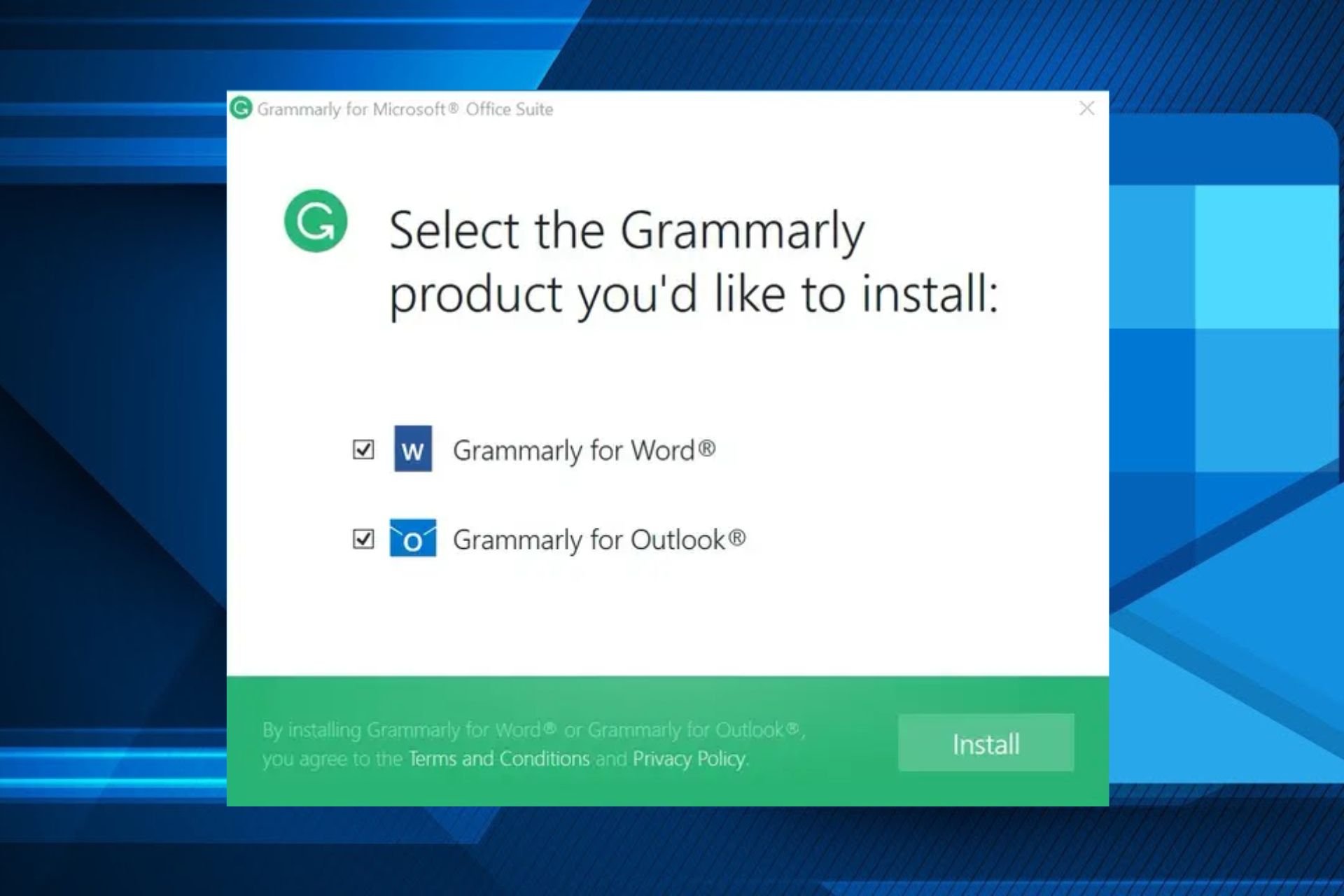
Grammarly is a great writing companion and now that you can integrate it in Microsoft Office suite, your work is made easier.
Microsoft Office apps like Word and Outlook have a built-in editor but it may be too basic for you. Installing Grammarly not only enhances your writing but also gives you access to advanced features.
Grammarly doesn’t require much in terms of system requirements. As long as you are up-to-date on your operating system and have a stable internet connection, you’re good to go. If you’re using Microsoft Office online, your browser should also be up-to-date.
How do I download and install Grammarly for Microsoft Office
Type chrome.google.com/webstore in the address bar and hit Enter.
Next, type Grammarly in the search bar and from the results, hit the Add to Chrome button.
Confirm installation in the next dialog box then log in to Grammarly.
When using Word Online or Outlook for web, Grammarly will automatically check and recommend suggestions.
Grammarly’s performance on your browser when compared to your Microsoft Office desktop apps may be varied but the difference is almost insignificant. Although extensions tend to slow down your browser, powerful browsers like Opera can withstand such pressures.
Additional tips to maximize Grammarly’s effectiveness in Microsoft Office
Tailor settings to your preferences – Whatever piece you’re writing has a style and a tone you want to achieve when communicating to your intended audience. You can customize Grammarly’s settings to reflect these goals.
Take suggestions with a pinch of salt – Although Grammarly is your writing companion, it isn’t always right. Some recommendations may take out the context from your document so review them carefully and decide whether to implement them.
Improve your writing – Over time, you can learn from your mistakes and improve your writing skills from the suggestions offered. Your mistakes will be less and your score will improve greatly.
Upgrade to premium – Basic Grammarly has features that correct your grammar and sentence structure but if you’d like access to other advanced features like plagiarism checker, the premium version is an option.
While using this writing assistant, issues like Grammarly not working may pop up from time to time. It is not perfect so hopefully, the solutions in our expert article can help you fix such problems.
If they’re persistent, don’t hesitate to check out other grammar-checking tools that perform the same functions. And once you’re done with spell check, proofreading software may come in handy just to make sure your document has no mistakes and further improve its accuracy.
Have you installed Grammarly in any Microsoft Office app? What are your thoughts? Share them with us in the comment section below.
In the laptop vs desktop debate, most of us would choose the former. But what’s even better than a laptop? A 2-in-1 laptop that could be easily converted into a tablet. If you are looking for one, the prices for HP ENVY x360 2-in-1 are heavily slashed during the HP Easter Sale in New Zealand.
Featuring a superior touchscreen, the HP ENVY x360 2-in-1 is currently available at $1499, down $1200 from its regular price of $2699. That’s a massive 44% discount on the premium 2-in-1 laptop.
Also, enjoy additional discounts on printers and accessories that you purchase alongside HP ENVY x360 2-in-1 during the HP Easter Sale. Besides, you get free 25 GB of Dropbox storage for a year.
4-cell, 66 Wh Li-ion polymer, with a video playback of 19 hours 45 minutes
Get the HP ENVY x360 2-in-1 from HP’s online store at a discounted price of $1499 during the Easter Sale!
Having personally used a 2-in-1 for the last two years, I can vouch for their effectiveness and utility. You can rotate the screen all the way to the back and use the 2-in-1 as a tablet, set it at an angle to rest the device while you watch something, or use the 2-in-1 as a conventional laptop. The touchscreen functionality works at all times!
Microsoft Teams is set to introduce a new way to share the screen when presenting in a Teams meeting. It’s called Programmatic Desktop Sharing, and according to the Microsoft 356 Roadmap, this feature allows meeting presenters to share specific parts of their app content on the meeting stage.
However, unlike the existing share-to-stage functionality, participants can only view the shared content and cannot interact with it. The shared content is automatically recorded in the meeting and the Redmond-based tech giant says developers should have no issue implementing it, due to its simplicity.
With desktop sharing (made available OOB), meeting presenters can now screen-share all their meeting apps directly onto the stage for improved collaboration. We are introducing programmatic desktop sharing, which allows developers to enable screensharing specific pieces of app content. Unlike the currently existing share to stage functionality, meeting participants cannot interact with the shared app; they have a view-only mode of the presenter’s app screen similar to screen sharing, but in one click. The shared content is also automatically captured in the meeting recording. This works great for co-consumption scenarios and requires little developer investment.
Microsoft
The feature will be released to Teams in May 2024 on the desktop platforms, and Microsoft says this is exceptionally useful in co-consumption scenarios. What does this mean? Programmatic Desktop Sharing will turn Microsoft Teams presentations about a specific tool, app, piece of hardware, or software to be far more focused on the product.
The Redmond-based tech giant has also announced the addition of the Queues app in Microsoft Teams, and although this is a Premium feature, it will greatly change the experience of handling customer care support calls.
You won’t have to be a Premium Microsoft Teams user to benefit from the Programmatic Desktop Sharing, but it is a feature intended for more corporate environments, so if you’re using Teams for personal situations, chances are this feature won’t be much of help.
We often hear about vulnerabilities in a browser, and most of them don’t concern us. But CVE-2024–21388 in Microsoft Edge is alarming!
It allows attackers to exploit a marketing API in Edge, which then lets them discreetly install extensions on your browser without explicit permission or knowledge.
What is CVE-2024–21388 in Microsoft Edge?
As per Guardio’s official blog, the edgeMarketingPagePrivate API was responsible for the CVE-2024–21388 vulnerability.
The edgeMarketingPagePrivate API basically allowed the installation of themes from the native Add-ons Store by simply inputting the themeId. So, ideally, the API permitted theme installation, which, in itself, is a small extension.
When the team at Guardio changed this themeId to extensionId, the API facilitated the extension’s installation. While this is surprising, there was some relief in the fact that the API could only be triggered by selected secure websites.
Image Source: Guardio
But this, too, could be bypassed by using XSS, a scripting vulnerability, or an extension with minimal privileges. Subsequently, threat actors could install any extension on your PC without your knowledge or explicit approval.
Vulnerability reported to Microsoft and patched
Guardio reported the vulnerability to Microsoft on Nov 10, 2023, and a fix was released on Jan 26, 2024, in the form of an Edge Security Update.
To update Microsoft Edge, launch the browser > click on the ellipsis near the top right > go to Help & feedback > select About Microsoft Edge > and wait for the latest version to download.
Updating Microsoft Edge
The critical CVE-2024–21388 vulnerability in Microsoft Edge highlights how developers prioritize feature sets and enhanced functionality over the browser’s security, at least until the issue is reported. Although this one was quickly identified and reported, that’s not always the case!
These aspects are all the more important for Edge, a browser still far behind Google Chrome in terms of popularity. But certain new features, like controlling RAM usage, gaming customizations, uploading files from mobile, and AI integration are working in favour of Edge.
What’s your review of Microsoft Edge? Share with our readers in the comments section.
Recently, we’ve reported about Snapdragon’s X Elite ARM chip and the fact that it will be able to run Windows games with a built-in emulator.
Emulators usually run the games slower than in their native environment so everyone was wondering how fast will a laptop with Snapdragon X Elite run an x86 or 64-bit Windows game.
According to The Verge, Qualcomm gathered a few influencers to demo the Control and Baldur’s Gate 3 games during the 2024 GDC event.
Allegedly, the games run at 1080p resolution at 30 FPS on medium graphics settings and probably enabled the AMD’s FSR 1.0 spatial upscaling, based on the feedback provided on X by the people who attended the demo.
We invited some folks to learn about #Snapdragon X Elite at the @Qualcomm campus during eXperience Day. The event featured demos, R&D lab tours, and a chat with the pros behind Snapdragon compute. pic.twitter.com/DVPMJzgGCJ
Another testimonial comes from another trial test of Baldur’s Gate 3 and Control witnessed by BooredAtWork during MWC 2024.
Apparently, Baldur’s Gate 3 barely reached 37 FPS while Control showed a peak at 35 FPS. Now, don’t get us wrong, it’s great to see that a native Windows game can run on ARM, but it’s not near the performance it will show on a PC, or even a handheld console for that matter.
However, we have to take into account that these were only demos and Qualcomm was using a test laptop of unknown technical specifications, so we need to take all this with a grain of salt.
From BooredAtWork’s video above, Qualcomm allegedly said that they’ve already tested 250 PC games and by the launch date, they would double the pool of supported titles.
There is still a bit more to wait until the Snapdragon X Elite laptops come to stores and then we will have the full picture on their performance.
How do you feel about the Snapdragon X Elite laptop demos? Would you buy an ARM laptop? Let’s discuss in the comments section below.
Gamers might have an additional reason to switch to Microsoft Edge now, as the Redmond-based tech giant is experimenting with the option to let users choose how much RAM the browser can use, and it has some settings specifically tailored for gamers.
The new options, spotted by tech enthusiast @Leopeva64, are found in the Manage your Performance panel within Edge’s Settings page, as you can see below, and there are plenty of settings to set up.
The panel revolves around RAM control options, and gamers will specifically find it useful since it has some settings that will improve gaming experiences all around.
For instance, Edge can be enabled to automatically control resources when gaming, or not, and if it detects the user is playing a game, then it will make use of the RAM power in such a way it would not have an impact on the video game.
However, the users can also choose to have Edge control RAM memory use at all times, in which case the gaming performance might be impacted, although we don’t know yet to what extent.
The browser does come with customized RAM usage, and it allows users to set a limit on how much RAM Edge can use. If your device has 16 GB of RAM, the bar will show a scale from 1 to 16, meaning you can attribute how many GB should be spent on Edge. For 32 GB or 64 GB devices, the setting will feature a scale from 1 to 32, and 64, respectively.
It’s worth mentioning that Edge cautions against setting a very low memory limit, as it may impact browser performance.
For now, the new panel is currently rolling out to Edge Canary users gradually, so if you’re not seeing the new settings, don’t worry, they could be rolled out to you in a few days to a few weeks.
Microsoft also added Copilot’s Notebook to Edge, and it’s a new way to interact with AI in the browser.