New Microsoft patent suggests that thinner Surface Type covers are on the way

Microsoft could be working on making its various Surface Type covers even thinner. According to a new Microsoft patent spotted by German blog Windows United (via The Verge), future versions of the detachable keyboards could shed some thickness and weight by integrating the trackpad directly into the circuit board of the detachable keyboard.

In the patent description, Microsoft explains that this is all about “not requiring additional space and additional components within a device chassis for a separate touch.”

Microsoft’s detachable Surface keyboards evolved quite a lot over the years, with the Type Cover for the Surface Pro 3 (the first 12” inch Surface tablet) representing a major shift with a much larger trackpad. Since then, we’ve seen iterative updates such as the new Alcantara finish, but this new patent suggests that it could be time for a more significant refresh.

Back in June, ZDNet reported that a “heavily redesigned” Surface Pro could be launching in mid-2019. It has been said that the new tablet may feature more rounded corners like the Surface Go, as well as an USB-C port, and you can probably expect a new detachable keyboard to match the new design. Let us know in the comments what you would like to see being improved in the new Type Covers.

Eternal Card Game launches on Xbox One & Windows 10 with 4K & Xbox Play Anywhere support

Eternal Card Game, a new digital card game, has just launched on Windows 10 and Xbox One. The game is remarkably similar to the popular Hearthstone video game though also bears some resemblance to Gwent: The Witcher Card Game with its artwork. Basically, if you’ve ever played a fantasy card game, you should know what to expect here.

Eternal Card Game supports Xbox Play Anywhere which means that all of a player’s progress will sync between the Xbox One and Windows 10 versions and gamers will be able to play against those on the other platform. It’s also free-to-play and supports 4K graphics when played on an Xbox One X console.

Here’s the game’s official store description:

  • RAISE THE BANNER: With spells and swords, six-guns and subterfuge, heroes collide in the struggle for the Eternal Throne. Where will you stand? Join the battle in Eternal, the new strategy card game of unlimited choices and unbelievable fun.
  • THE BEST OF BOTH WORLDS: Eternal combines the infinite possibilities of a deep strategy card game with the pace and polish of a modern video game. Build any deck you can imagine by freely mixing cards from an expanding collection, and plunge into lightning-fast battles. The only limits are your own creativity.
  • A GAME THAT GROWS WITH ITS PLAYERS: In Eternal, there’s always something new. Frequent new cards release between set launches to guarantee that the meta-game never gets stale. A steady influx of unexplored content keeps even the most experienced players on their toes. What will you create?

Are you interested in Eternal Card Game or are you satisfied with the numerous other digital card games out there? Share your thoughts with the community in the comments below and then follow us on Pinterest for more gaming content.

Eternal Card Game
Eternal Card Game
Price:
Free

Windows 10 October 2018 Update may mess with Windows Media Player and application defaults

The Windows 10 October 2018 update has had plenty of problems so far, and there are currently several upgrade blocks in place due to the various incompatibility problems that surfaced after the re-release. But even though the major update is now rolling out to  Windows 10 users, Microsoft still has to fix two bugs affecting Windows Media Player and application defaults.

The Redmond giant recently acknowledged the two new bugs on its Windows Support website (via Thurrott.com). If you still use Windows Media Player, Microsoft says that the Seek Bar may not be working when playing “specific files. Microsoft says that it will provide a fix in “an upcoming release,” but in the meantime the Movies & TV app or VLC Media Player should be areat alternatives.

However, the other bug affecting default applications may be more annoying. According to Microsoft, some users may be unable to set Win32 program defaults for certain files using the Open with… command or Settings > Apps > Default apps. The bug may affect certain Win32 apps like Notepad, Microsoft added, adding that a fix may be coming in “late November 2018.” This strongly suggests the release of a new patch for the October 2018 update this week.

Microsoft and Politico bring Power BI insights to EU elections

A couple of weeks ago, we learned that political journalism company Politico Europe had teamed up with Microsoft to launch a new Election Hub. The interactive tool leverages Microsoft’s PowerBI analytics service to improve Politico’s coverage of the the 2019 European Parliamentary elections.

Today, this new Election Hub has been updated with new country-level pages featuring detailed informations about each of the European countries participating in the upcoming election. “Enabled by Microsoft Power BI, our product provides comparisons of 2014 results with the latest projections, linking national parties, their European parliamentary groups, voter turnout and key information on the voting process,” explained said Johannes Boege, Chief Product Officer at POLITICO Europe. “At a glance, our readers can get a very detailed and up-to-date overview of the EU elections in their country and compare it with the situation in other member states.”

Ireland in the EU election

Microsoft’s collaboration with Politico Europe is part of Redmond’s new Modern Journalism initiative, which aims to transform the news industry with technology. This only came to our attention today, but Ben Rudolph, previously Global Director of Retail Experience at Microsoft (and known by Windows Phone fans for his “Smoked by Windows Phone” series of videos) is now leading Microsoft’s Modern Journalism initiative. In addition to partnerships with various news organizations like Politico Europe, Microsoft revealed earlier this year that it had a team of more than 800 editors across the world that help curating the news that appear on MSN.com or the Microsoft News app.

Fix: Windows 10 can’t Connect to router

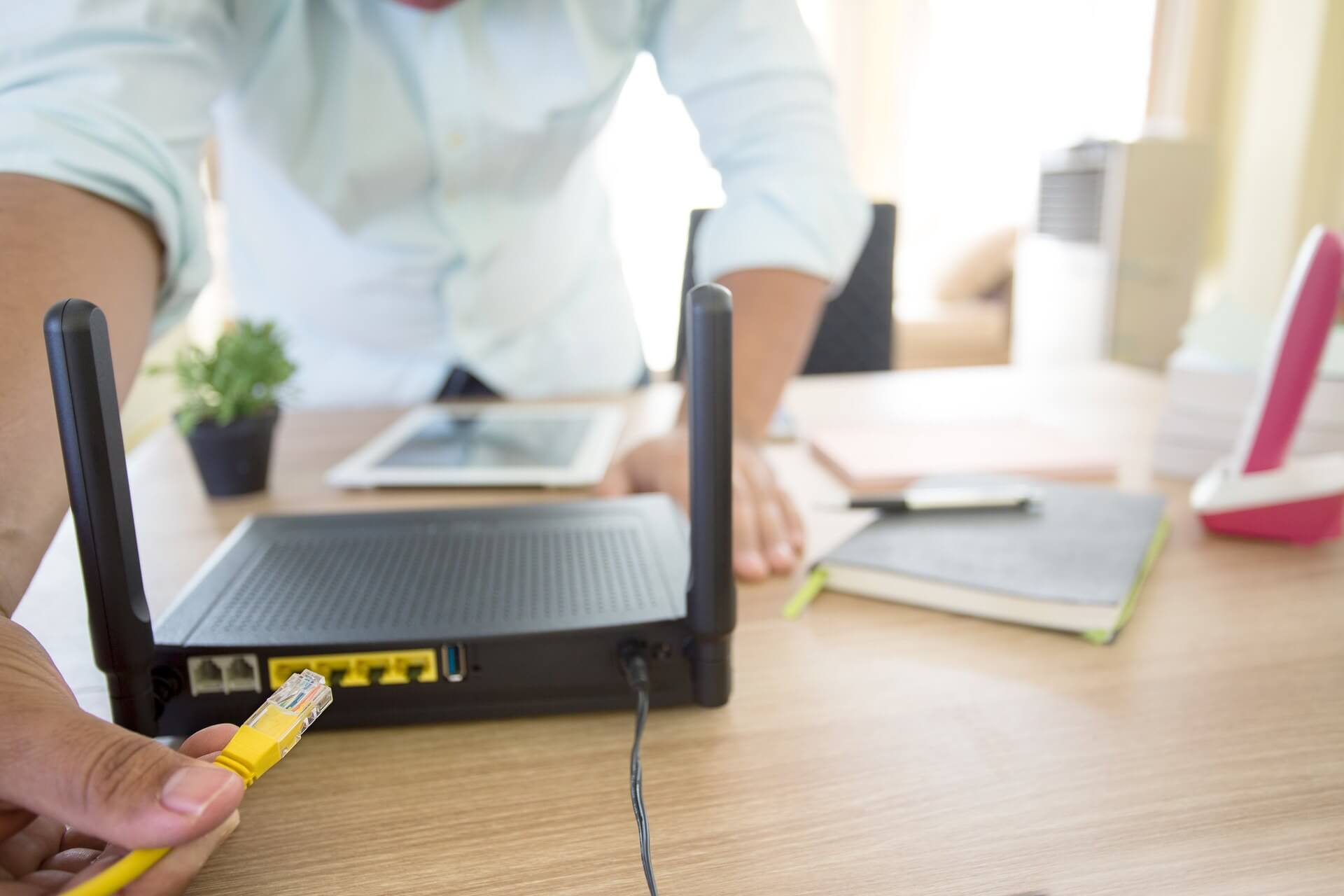
If you wish to make any network-related changes, for example, change your WiFi password, you have to connect to your router. A couple of users reported that Windows 10 can’t connect to their router, and if you are having the same problem, you should try a few of our solutions.

Windows 10 can’t connect to my router

Table of contents:

  1. Restart your router
  2. Update your network drivers
  3. Reinstall network drivers
  4. Check if you’re using the correct address
  5. Try using a different web browser
  6. Update router firmware
  7. Reset your router
  8. Use the Hardware troubleshooter
  9. Use Command Prompt

Fix – Windows 10 can’t connect to WiFi network

1. Restart your router

Sometimes the simplest solution is the best one, and in most cases router problems can be fixed by restarting your router. To restart your router press the power button to turn off your router. Wait for 30 seconds and turn your router back on. If the problem persists, move to the next solution.

2. Update your network drivers

If Windows 10 can’t connect to your router, make sure that you’re using the latest network drivers. To update your network drivers, visit your network card manufacturer’s website, locate your network adapter and download the latest drivers for it. If you’re using a built-in Ethernet adapter, visit your motherboard manufacturer’s website in order to download the latest drivers.

2.1 Update drivers automatically

To avoid damaging the PC by installing bad driver versions, we strongly suggest that you do so automatically using third-party software.

This type of tool will assist you in safely updating all out-of-date drivers. After you select the drivers to update the software will do all the work on your behalf automatically.

⇒ Get Fortect Driver Updater

3 Reinstall network drivers

Sometimes it’s better to resolve network problems simply by reinstalling network drivers. In order to reinstall default network drivers, you need to do the following:

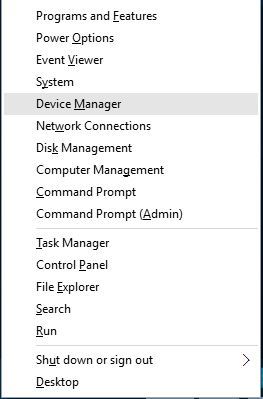
  1. Press Windows Key + X and choose Device Manager from the menu.
    device-manager
  2. Navigate to Network adapters section and expand it.
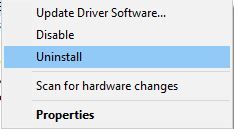
  3. Delete all network adapters by right clicking the adapter and choosing Uninstall from the menu.
    uninstall-driver
  4. After you’ve uninstalled all adapters, restart your computer.
  5. When your computer restarts, Windows 10 will automatically install all the missing drivers.

In addition, you can use Windows Update to update the missing drivers. To do that, follow these steps:

  1. Press Windows Key + X and choose Device Manager from the list.
  2. When Device Manager opens, go to Network adapters section.
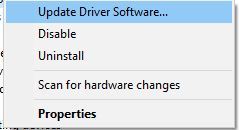
  3. Right click each network adapter and choose Update driver software.
    update-driver-software
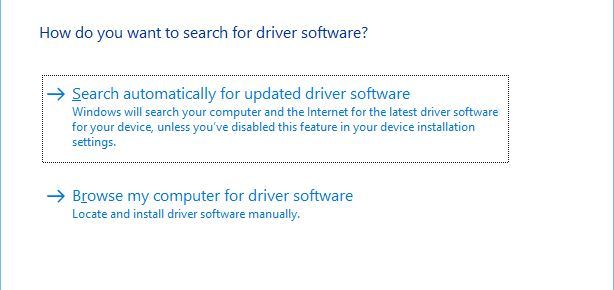
  4. Next, choose Search automatically for updated driver software.
    browse-my-for-driver-software
  5. Follow the instructions and download the latest drivers. Remember to repeat this process for all installed network adapters.

4. Check if you’re using the correct address

You might be unable to connect to your router if you’re using the wrong IP address. To check for correct IP address do the following:

  1. Press Windows Key + X and choose Command Prompt from the menu.
  2. When Command Prompt opens, enter the following and press Enter to run it:
    • ipconfig /all
      ipconfig
  3. You should see a list of information related to your network adapter.
  4. Locate Default Gateway and use its IP address to connect to your router. In our example, the IP address was 192.168.1.1, but it might be different on your computer, so make sure to use the address that you got.
  5. Close Command Prompt and enter the address that you got in previous step in your web browser.

5. Try using a different web browser

Few users reported that they cannot connect to router in Windows 10 when using a specific browser. If that’s the case, we urge you to try connecting to your router from a different browser or from a different device, such as your smartphone, tablet, or an other computer in your network.

6. Reset your router

Most routers come with a reset button that will restore them to factory settings. If you can’t access your router in Windows 10, it might be due to changed router settings and the only solution is to reset it. In order to reset your router, you need to press and hold the Reset button for a few seconds, but before you perform a reset be sure to check your router manual.

7. Update router firmware

If the problem persists, you might have to update router firmware. This is an advanced solution, and if not careful you can cause permanent damage to your router. Before updating your router’s firmware make sure to thoroughly check the instruction manual in order to avoid causing any potential damage.

8. Run the Network Troubleshooter

If none of the previous solutions resolved the issue, we’re going to try Windows 10‘s built-in troubleshooting tool. Here’s how to run it:

  1. Go to Settings.
  2. Head over to Updates & Security > Troubleshoot. 
  3. Select Internet Connections, and go to Run the Troubleshooter. 
  4. Follow further on-screen instructions and let the process finish.
  5. Restart your computer.

9. Use the Command Prompt

And finally, the final thing we’re going to try is resetting winsock and flushing DNS. Here’s what you need to do:

  1. Start Command Prompt as administrator.
  2. When Command Prompt starts, enter the following lines:
    • netsh winsock reset
    • netsh int ip reset
    • ipconfig /release
    • ipconfig /renew
    • ipconfig /flushdns

Being unable to access your router can be a big problem, especially because you can’t change any of the router settings. If you have any issues with connecting to your router, feel free to try some of our solutions.

Windows 10 news recap: Google Chrome could be coming to Windows 10 on ARM, Adobe Photoshop Elements 2019 available on the Microsoft Store, and more

Welcome back to our Windows 10 news recap, where we go over the top stories of the past week in the world of Microsoft’s flagship operating system.

Google Chrome could be coming to Windows 10 on ARM soon with help from Microsoft

According to a new report, Microsoft is helping on a project with Qualcomm and Google to bring Google’s Chrome browser to Windows 10 on ARM.

Now you can sign in to your Microsoft Account using Windows Hello, FIDO2 devices

Signing in to your Microsoft Account is now easier thanks to the help of Windows Hello and FIDO2 devices, which can now be used to log in to your Microsoft Account.

Adobe Photoshop Elements 2019 is now live in Windows 10’s app store

Adobe continues to bolster its presence on the Microsoft Store by releasing the latest version of Adobe Photoshop Elements on the Microsoft Store for Windows 10.

Adobe Photoshop Elements 2019 on Windows 10

Windows 10 October 2018 Update is currently blocked on PCs running iCloud for Windows and F5 VPN clients

Microsoft’s October update for Windows 10 continues to highlight new issues, this time an incompatibility with iCloud for Windows, and also F5 VPN clients. Now, Microsoft is blocking the update for machines running those pieces of software.

That’s it for this week. We’ll be back next week with more Windows 10 news!

Microsoft news recap: LinkedIn launches its own take on Snapchat Stories, Microsoft Launcher gets To-Do and Sticky Notes integration, and more

Microsoft news recap is a weekly feature highlighting the top Microsoft news stories of the past week. Sit back, grab some coffee, and enjoy the read!

LinkedIn is launching Student Voices, its own take on Snapchat Stories for students

Microsoft’s professional-centric social network, LinkedIn, is adding a new feature called Student Voices, which is its own take on Snapchat’s Stories, except only for students.

Microsoft Launcher leverages Digital Health features in latest 5.1 update to show time spent on apps, more

In version 5.1, Microsoft Launcher will show the time being spent on apps through a new card, part of the Digital Health features.

Microsoft Launcher beta gets 5.1 update with To-Do and Sticky Notes integration

In addition to the new Digital Health feature, Microsoft Launcher’s version 5.1 update adds integration for To-Do and Sticky Notes.

Job listing hints at renewed Xbox focus in Japan, China, and South Korea

According to a new job listing, Microsoft could be looking to have a dedicated management team for Xbox in Asian markets, leaving out Phil Spencer and Chris Charla from the roles.

That’s it for this week. We’ll be back next week with more Microsoft news.

Job listing hints at renewed Xbox focus in Japan, China, and South Korea

To say that Microsoft’s gaming success in Asia has been challenging would be putting a rather amiable punctuation on the consoles history in the region. While Microsoft has never really held a solid footing in Asian regions, during this latest console run, the company’s gaming presence has all but depleted what little good-will it crested from the good ol’ Xbox 360 days.

As the company makes plans to expanded its gaming efforts across all fronts, including PC integration, cloud gaming and new devices, a new job listing surfaced recently that indicates that Microsoft is also interested in reproaching the lost market shares it suffered during this current generation of gaming, specifically in Asian markets.

Perhaps, contrary to popular belief, Microsoft has continually attempted to address its presence in Asian markets. The Global Gaming Partnership & Development (GGPD) project has been something put in place by the company to spur more thoughtful Asian-related gaming communications from both a game development aspects as well as a marketing effort.

While that has yielded little for the Xbox community, it seems Microsoft is retrenching its efforts and ousting head of Xbox Phil Spencer and Xbox director Chris Charla from their positions in the GGPD.

No, Spencer Charla are not out of the company, but the business would like to have a more dedicated presence manning the GGPD division in Asia, according to this new job listing.

  • The Microsoft Global Gaming Partnership & Development or GGPD is a division dependent on the branch of Xbox that seeks precisely strategic alliances.
  • The place of residence is not fixed, it requires Tokyo, South Korea or Shanghai. Also Redmond.
  • The purpose of this regional team should be to close agreements with potential partners.
  • The candidate will be the representative of Xbox in the territory.
  • You should deal with studios and developers to detect opportunities.
  • He will be in charge of several people.
  • For the description of this offer, the GGPD team destined for Asia, should start as soon as possible and streamline the processes, so it follows that Microsoft is in a hurry to advance work there. At present it is Chris Charla or Phil Spencer who has to close deals there, now there will be a team and a more dedicated figure.

As previously mentioned, the GGPD has been in existence prior to this listing, but it seems as though Microsoft is doubling its efforts to find a team and leadership that can produce the types of agreements, partnerships and development collateral necessary to not only revive Xbox’s mindshare in Asia but also bring Asia influenced/inspired gaming to the platform that many have argued, it has desperately needed for some time now.

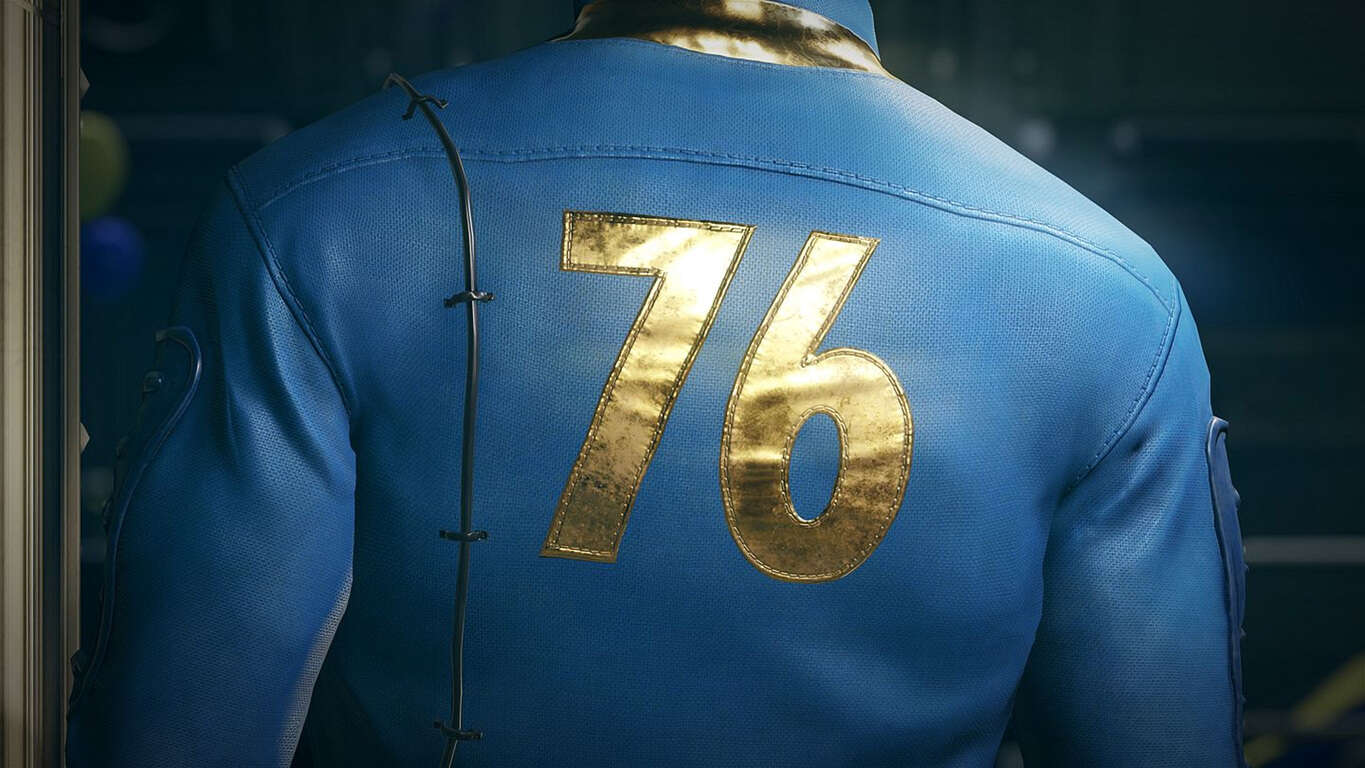
Fallout 76 is now 33% cheaper on Xbox One days after its release

Just days after its initial release, Fallout 76 has been given a 33% discount as part of Microsoft’s Black Friday sale. The game has an RRP of $59.99 but is now selling for just $40.19 which is a pretty good bargain for such a new game.

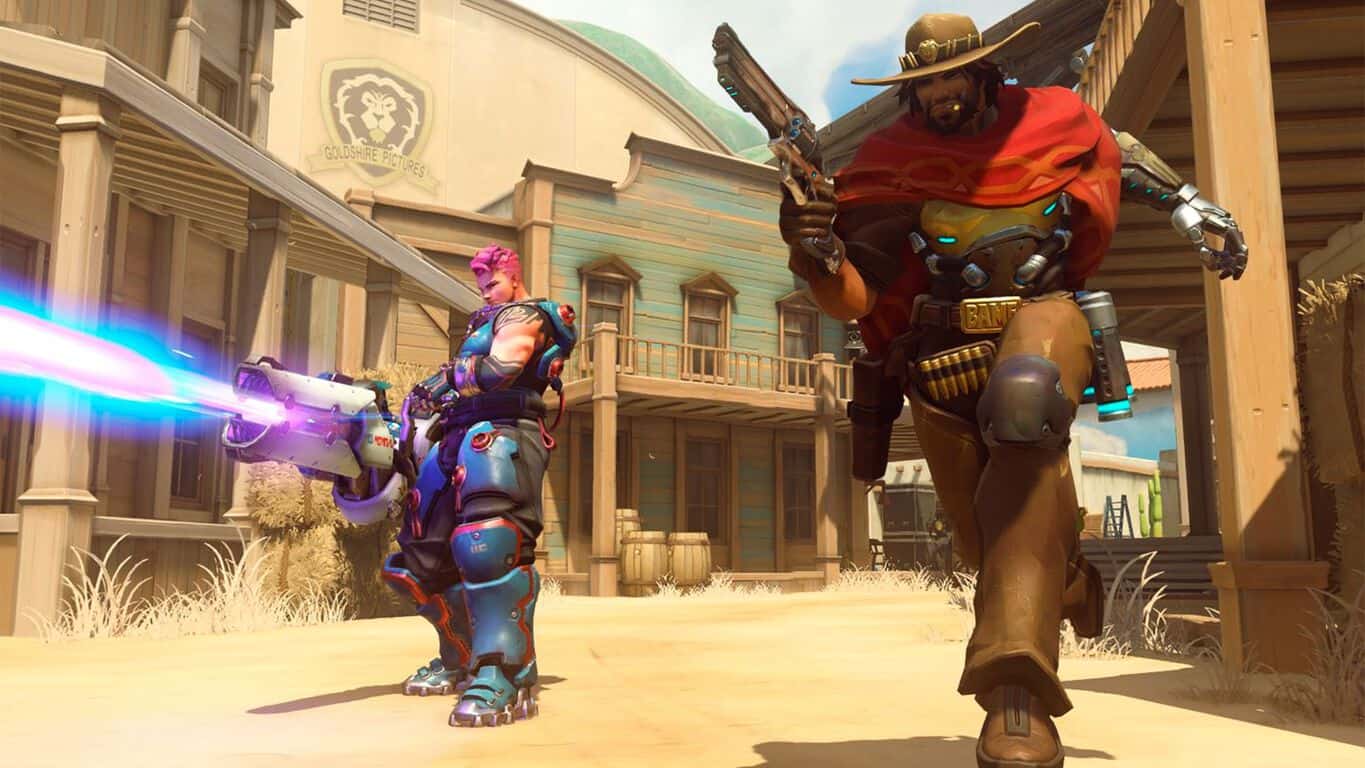
Other major Xbox One video games currently discounted as part of Black Friday include Shadow of the Tomb Raider (50% off), FIFA 19 (50%), Assassin’s Creed Odyssey (35%), Overwatch (67%), Star Wars Battlefront II (67%), and Forza Horizon 4 (35%). Red Dead Redemption has been given a tiny 10% discount for those who have yet to play this incredibly popular title.

Microsoft has also heavily discounted their Xbox One S and Xbox One X consoles in several major regions as part of this year’s Black Friday so those who have been thinking about upgrading their consoles may want to pick and Xbox One S or X sometime over the next few days.

Have you bought any Xbox consoles or games this week? Share your gets with the community in the comments below and then follow us on Pinterest for more Xbox gaming content.


Shadow of the Tomb Raider


How to Remove Watermark in Windows 10, 7

Having a watermark on the lower right corner of your Windows 8.1 and Windows 10 every time you start your computer can get really annoying and it messes your desktop picture.

Luckily for us, there are some methods that you can do in order to completely remove your Windows 8.1 watermark and it will not take you more than a couple of minutes to do it.

Also, you will need to be aware that you cannot use the same method to remove the Microsoft Confidential watermark in Windows 8.1 and Windows 10.

This tutorial is specifically made to remove only the Windows 8.1 Preview and Windows 10 watermark.

Read the following lines below for a detailed and very quick explanation on how to remove Windows 8.1 and Windows 10 watermark.

How can I remove Windows 8.1 and Windows 10 watermark?

Windows 10 watermark can be somewhat annoying, and in this article we’ll cover the following topics:

  • Windows 10 remove watermark registry – There are several ways to remove Windows 10 watermark, and the simplest one might be by modifying your registry.
  • Remove watermark Windows 10 Test Mode – Many users tend to use Windows 10 Test mode, but this mode comes with the Test Mode watermark in the bottom. However, you can easily remove the watermark by using one of our solutions.
  • Remove watermark windows Education, Technical preview – If you’re using Education version or a Technical preview of Windows 10, you should be able to remove the watermark by using one of our solutions.

1. Replace shell32.dll.mui and basebrd.dll.mui files

Before we start, we have to mention that this process can cause stability issues if you’re not careful.

Therefore, it’s a great idea to create a backup before trying out this solution. Since this solution requires you to replace system files, keep in mind that you’re using it at your own risk.

  1. You will need to download the little zip file from the link below in order to start the removing process. Download zip file here.
  2. Once you download the file, open it and extract its contents to your PC.
    zip file Remove watermark windows Education
  3. Open the extracted directory and navigate to Take Ownership directory. Locate Install_Take_Ownership.reg file and double click it.
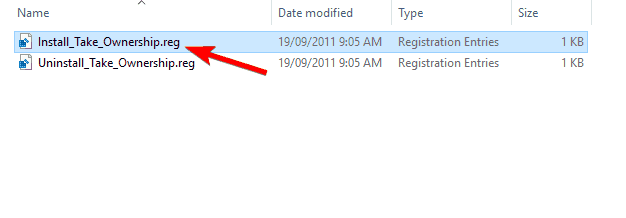
    take ownership reg file Windows 10 remove watermark registry
  4. Registry Editor window will pop up and you will need to left click on Yes to proceed with the operation.
    registry editor dialog Remove watermark Windows 10 Test Mode

Once you run this .reg file, you should be able to take ownership of any directory or file with just two clicks. In the following steps, we’ll modify some system files.

These steps can be potentially dangerous and cause stability issues, so keep in mind that you’re following these steps at your own risk. You can take ownership of the system files by doing the following:

  1. Navigate to C:WindowsSystem32en-US directory.
    system32 directory Remove watermark windows Technical preview
  2. Now in the en-US folder look for shell32.dll.mui. After you find it right click on it and select Take Ownership. Before you take ownership, it’s a good idea to make a copy of this file and save it to your Desktop in case anything goes wrong.
    shell32 dll mui Remove watermark Windows 10 Test Mode
  3. After doing that, navigate to C:WindowsBrandingBaseBrden-US directory.
    basebrd directory Windows 10 remove watermark registry
  4. Locate basebrd.dll.mui, right click it and select Take Ownership from the menu. Before you take ownership, be sure to copy the file to your Desktop and use it as a backup in case anything goes wrong.
    basebrd dll mui Remove watermark Windows 10 Test Mode
  5. Now go back to the folder you extracted in Step 2 above. Navigate to Edited files folder and copy basebrd.dll.mui to C:WindowsBrandingBaseBrden-US and shell32.dll.mui to C:WindowsSystem32en-US directory.
    edited files Windows 10 remove watermark registry

After replacing these files, you just need to run a single command from Command Prompt. To do that, follow these steps:

  1. Open Command Prompt as administrator. You can do that by pressing Windows Key + X and choosing Command Prompt (Admin) from the menu. If Command Prompt isn’t available, you can use PowerShell (Admin) instead.
    command prompt (admin) Remove watermark windows Technical preview
  2. When Command Prompt opens, enter mcbuilder and press the Enter key on your keyboard to run the command.
    mcbuilder command prompt Windows 10 remove watermark registry
  3. After the mcbuilder finishes, you can close the Command Prompt window and reboot the Windows 8.1 or the Windows 10 device.

Once your PC restarts, the watermark in should be gone. Now, you need to remove take ownership feature. To do that, follow these steps:

  1. Navigate to Take Ownership directory and double click on Uninstall_Take_Ownership.reg.
    uninstall take ownership reg file Remove watermark windows Education
  2. Left click on the Yes button when the Registry Editor window pops up.
    confirmation dialog registry editor Remove watermark Windows 10 Test Mode

Keep in mind that this solution can be potentially dangerous, and we’re not responsible for any stability issues and file loss that can occur after using this solution.

2018 Update: Unfortunately, the link from the beginning of this solution is no longer available. The tool cannot be downloaded, and in this case, we have searched for another tool to help you removing watermarks.

After several hours of research, we have concluded that the best alternative is Universal Watermark Disabler. Download the tool from its website and try to disable the watermark by using it.


2. Use Registry Editor

According to users, you can remove the Insider’s watermark simply by making a couple of changes in your registry. To do that, follow these steps:

  1. Press Windows Key + R and enter regedit. Press Enter or click OK.
    regedit Remove watermark Windows 10 Test Mode
  2. When Registry Editor opens, in the left pane navigate to ComputerHKEY_CURRENT_USERControl PanelDesktop. In the right pane double click on PaintDesktopVersion.
    paintdesktopversion Remove watermark windows Education
  3. Set the Value data to 0 and click on OK to save changes.
    value data 0 Windows 10 remove watermark registry

After doing that, restart your PC and the watermark should be gone.


Can’t access Registry Editor? Things aren’t as scary as they seem. Check out this guide and solve the issue quickly.


3. Change your Ease of Access settings

According to users, you can remove your build number watermark in Windows 10 simply by changing Ease of Access settings.

This is a simple workaround that will remove background images as well as your watermark. To do that, follow these steps:

  1. Press Windows Key + S and enter control panel. Select Control Panel from the list of results.
    control panel search remove watermark windows 10
  2. Select Ease of Access Center from the list.
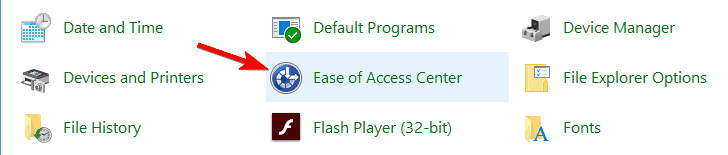
    ease of access center control panel Remove watermark Windows 10 Test Mode
  3. Click on Make the computer easier to see.
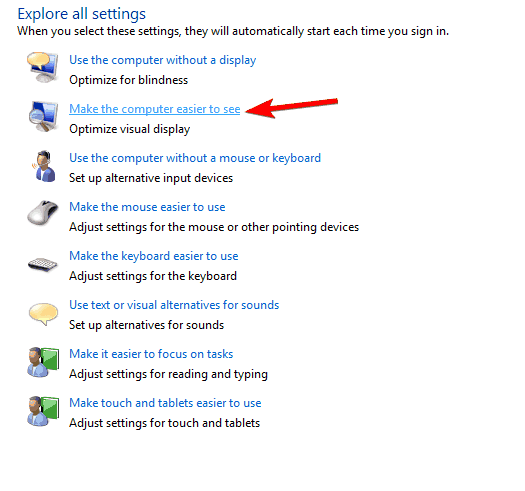
    make the computer easier to use remove watermark windows Education
  4. Check Remove background images (where available) and click on Apply and OK to save changes.
    remove background images Windows 10 remove watermark registry

After doing that, your background should disappear, but the watermark will be gone as well. This is a crude workaround, but it works according to users, so feel free to try it out.


4. Use Command Prompt

If you’re using Windows 10 in Test Mode, you should see the watermark in the bottom right corner. However, there’s a way to remove test watermark in Windows 10 by using Command Prompt.

This process is rather simple and you can do it by following these steps:

  1. Open Command Prompt or PowerShell as administrator.
  2. When Command Prompt starts, enter the following commands:
    • bcdedit.exe -set loadoptions ENABLE_INTEGRITY_CHECKS
    • bcdedit.exe -set TESTSIGNING OFF
  3. Close Command Prompt and restart your PC.

Now the watermark should disappear when you enter Test Mode. Keep in mind that this solution works only for Test Mode and it won’t work in normal mode.


Use Command Prompt like a real technician with this complete guide!


5. Change your background image

According to users, you can remove Evaluation copy watermark simply by making a few changes to your background image. To do that, you need to do the following:

  1. Press Windows Key + R and enter %appdata%. Press Enter or click OK.
    appdata run window remove watermark windows Technical preview
  2. Navigate to RoamingMicrosoftWindowsThemes directory.
  3. Create a copy of TranscodedWallpaper in Themes directory.
    transcoded wallpaper copy Windows 10 remove watermark registry
  4. Go to the View tab and check File name extensions.
    file name extension remove watermark windows 10
  5. Open CachedFiles directory, right click the available image and choose Rename from the menu. Be sure to copy the entire name of the image. In our example it’s CachedImage_1920_1080_POS1.jpg but it will be different on your PC.
    rename Remove watermark Windows 10 Test Mode
  6. Go back to Themes directory. Rename TranscodedWallpaper – Copy to CachedImage_1920_1080_POS1.jpg. Keep in mind that you need to use the file name that you got in Step 5. Don’t use the same file name as we used since it might not work for you.
  7. Copy CachedImage_1920_1080_POS1.jpg to CachedFiles directory. You should see Replace or Skip File dialog. Choose Replace the file in the destination.

Windows won’t let you change the background image? Solve the issue quickly with our guide!


After doing that, your Evaluation copy watermark should disappear completely.

As you can see, removing the Evaluation watermark is rather simple and you can do it easily with one of our solutions.

If your watermark says that you need to activate Windows, be sure to purchase Windows 10 license and activate it.

If you already have a genuine license, you might have to contact Microsoft to see how to activate your copy of Windows.

So you can follow the steps above to remove your Windows 8.1 or Windows 10 watermark and have your desktop clean as a whistle in no time.

Also, if something in the article above is unclear or it hasn’t worked for you please write us below in the comments section and we will help you as soon as possible.


READ ALSO:

Xbox One PlayerUnknown’s Battlegrounds (PUBG) players get another Event Mode this weekend

Xbox One gamers will be getting a new Huntsmen and Marksmen Xbox Event Mode this weekend in the popular PlayerUnknown’s Battlegrounds (PUBG) video game.

The special event will run from Nov 22nd at 7pm PST (23rd 4am CET) and will last until Nov 25th at 7pm PST (26th 4am CET). The game mode will be similar to the last event but will have the following changes:

  • Increased max match time and max points
  • Care package drop time has been increased, but frequency remains the same to retain the importance of care packages
  • Decreased revival time (when knocked down) and increased the default HP when revived – Don’t wait for your teammate to respawn, save them when they are knocked down instead!

PUBG is one of the most-popular video games on the Xbox One family of consoles right now and its playerbase is expected to grow even more with its addition to Xbox Game Pass earlier this month.

Do you play PUBG on your Xbox One and will you partake in this event? Let us know in the comments below and then follow us on Pinterest for more Xbox goodness.

PUBG: BATTLEGROUNDS
PUBG: BATTLEGROUNDS
Developer:
KRAFTON, Inc.
Price:
Free

How to enable Split View for Skype on Windows 10

For those of you who have finally installed the Windows 10 October update, it is now possible to use the new split view feature for Skype. As bringing back split view was one of the most requested features, this will be a welcome return for many.

How to enable and disable split view

split screen skype


To enable and disable split view, you need to select it in the ellipsis menu (the three dots on the right where your name is). Once you enable it, the big window on the right will disappear, leaving only the smaller, narrower window where all your contacts are.

  • READ ALSO: Skype will soon let you see who read your messages

To be honest, I wasn’t really overly excited about this. Maybe because I am not a big Skype user, so I don’t remember the time when Skype had the split view.

However, after playing with it a bit, I can certainly see why people like it. I particularly like that you can have as many windows as you like open. I’m not really sure why I like it, but I do.

Mind you, if you use Skype a lot, I’m assuming that if you have split view enabled, every time someone new calls, a completely new window will open up. I can imagine that might become quite annoying.

OneDrive will also be coming to Skype

On a related note, Skype is also testing a new feature which will allow sharing of OneDrive. At the moment, only Insiders have access, but this will certainly be another useful feature to have.

So, some good news for Skype split view fans, and I only mentioned Windows 10 October update once. Still, the day is young.

What do you think? If you’re a Skype user and are using the new split view, tell us what you think. What else would you like Skype to bring back? Answers in the comments below, please.

RELATED POSTS TO CHECK OUT:

Giveaway: win a $500 Amazon gift card for Black Friday and Cyber Monday

Black Friday is right around the corner and all those juicy deals will require quite a budget. We’ve got you covered this time, as we’re ready to send a $500 gift card from Amazon to one lucky winner. Also, a second prize of $200 will be issued for Cyber Monday.

All you have to do to enter the draw is complete both of the steps below, which basically consist of signing-up to our newsletter and sharing this page with your friends.

The gift card will be sent on Thursday night, so make sure you check your email before starting the shopping-spree.

All those who haven’t won in the first stage of the giveaway and all others who sign-up until Saturday evening are eligible of winning the second prize: a $200 Amazon Gift card. This is to be used on Cyber Monday.

How to enter the giveaway:

Both steps are mandatory. The grand winner of the $500 Amazon gift card will be selected on Thursday midnight, 12:00 am, Eastern Standard Time (EST), also known as New York time.

The second prize, for Cyber Monday,  will be given at midnight, on Sunday.

  • Step 1: Sign-up to our newsletter using the form below, and then confirm your subscription through the email received :
[mc4wp_form]
  • Step 2:  Share this page on Facebook and spread the news to your friends:

Update: Congratulations Andy Heifew, the winner of the $500 gift card. Check your email.  The rest of you, see you on Monday. Happy shopping !

Update 2: Congratulations Ajit Kulkarni for the $200 gift card for Cyber Monday.

Black Friday deals on Amazon:

Product Image
Product Name
Link
V-MODA Crossfade Wireless Over-Ear Headphone


V-MODA Crossfade wireless headphones offer a great quality for the price. The sound quality is great for this price range, and these headphones also offer quite good sound isolating.
Check it out on Amazon
Ultimate Ears BOOM 3 Portable Bluetooth Wireless Speaker


BOOM 3 delivers loud and immersive 360-degree sound with deep and accurate bass. The battery lasts up to 15 hours, and the speakers are also waterproof.
Check it out on Amazon
Jabra Move Wireless Stereo Headphones


Save big on the Jabra Move wireless headphones. These headphones are quite durable, as they come with a stainless steel headband and dirt resistant fabric. Battery life: 8 hours.

Check it out on Amazon
Samsung T5 Portable SSD


A reliable portable SSD always comes in handy. And with the Samsung T5 portable, you get up to 500 GB in a package that can fit in your hand.

Check it out on Amazon
Bose SoundLink Revolve Portable Bluetooth 360 Speaker


These speakers provide great listening experience with its 360-degree coverage and up to 30 feet of wireless range. The speakers are also water-resistant, and the battery lasts for up to 12 hours.

Check it out on Amazon
Epson XP-7100 Expression Premium Wireless Color Photo Printer


Epson XP-7100 Expression is one of the best photo printers you can get for the price. Some of its key features include: 30-page Auto Document Feeder, auto 2-sided print/copy/scan, and multiple media feeds.

Check it out on Amazon
SanDisk Cruzer 256GB USB 2.0 Flash Drive


SanDisk Cruzer gives you up to 256GB of storage for an affordable price.

Check it out on Amazon
Logitech G600 MMO Gaming Mouse


Logitech G600 MMO gaming mouse offers you a plethora of options. It features a unique 12-button thumb panel designed for quick, no-look navigation.
Check it out on Amazon

Microsoft Surface Go


This Black Friday also brings the first-ever sale of the Surface Go. The Surface Go is ultra-portable, with a 10-inch PixelSense touchscreen display, and only weighs about 1.15 pounds.
Check it out on Amazon

Google Chrome could be coming to Windows 10 on ARM soon with help from Microsoft

Google has been working with Qualcomm to bring its Chrome web browser to Windows 10 on ARM devices for some time now, and it appears Microsoft want to help. According to a report from 9to5Google, two Microsoft developers, named Tom Tan and Jon Kunkee, have been contributing to the project.

Right now, Windows 10 on ARM devices come with a feature that allows it to emulate existing x86 applications, however oftentimes the performance of the applications can be hindered, potentially frustrating users who use them. The perfect example is Chrome, which has an overwhelming majority of the PC browser marketshare, but doesn’t run natively on ARM PCs.

While Microsoft’s efforts to bring Chrome to Windows 10 ARM devices, such as the company’s line of Always Connected PCs with Snapdragon processors, will likely please some users, although it still raises some questions. Right now, all Windows 10 computers with ARM processors ship with S Mode enabled, which prevents users from changing the default browser or installing one outside of the Microsoft Store. Google Chrome isn’t available on the Store, due to Microsoft’s policy against third-party web rendering engines. With this in mind, it’s unclear if Microsoft will lift either of these restrictions, or risk a substantial number of users switching out of S Mode.

Whatever the case may be, at least we know that this will give users more options, as opposed to feeling locked down entirely. What are your thoughts about Chrome on Windows 10 ARM devices? Let us know in the comments.

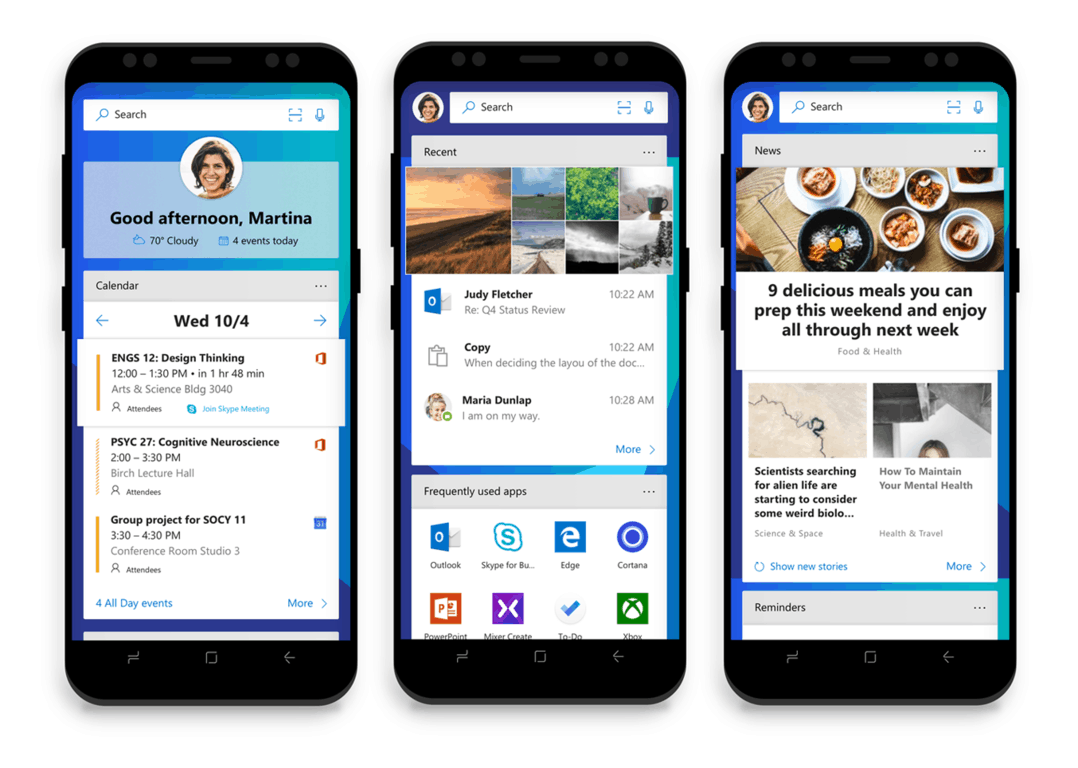
Microsoft Launcher leverages Digital Health features in latest 5.1 update to show time spent on apps, more

Microsoft has seemingly pressed its proverbial foot on the development pedal of its former Garage Project Android launcher. The relatively new Microsoft Launcher has been receiving several substantial feature updates over the past two years and today’s update kicks it up a notch.

While much of today’s update coverage may center around new tie-in with Microsoft’s Sticky Notes and further Cortana integration, but a lesser known feature made its way to the update that leverages the new theme of Digital Health.

A new card that parrots Apple and Googles Digital Health initiatives, has now made its way to Microsoft Launcher.

Now, users of the Microsoft Launcher will be able to see their in-app activities as a card in the At-a-Glance section of the hub as well as drill down into specifics of usage that include time, longest session, usage over several days and pin a discrete widget to their homepage as a reminder.

The new update is rolling out to devices currently and can also be picked up at the Google Play Store for curious first-time users. While Microsoft’s smartphone ambitions with Windows 10 Mobile may have been doused a few years ago, it seems as though the company is latching onto Android as its new mobile life raft.


Microsoft Launcher beta gets 5.1 update with To-Do and Sticky Notes integration

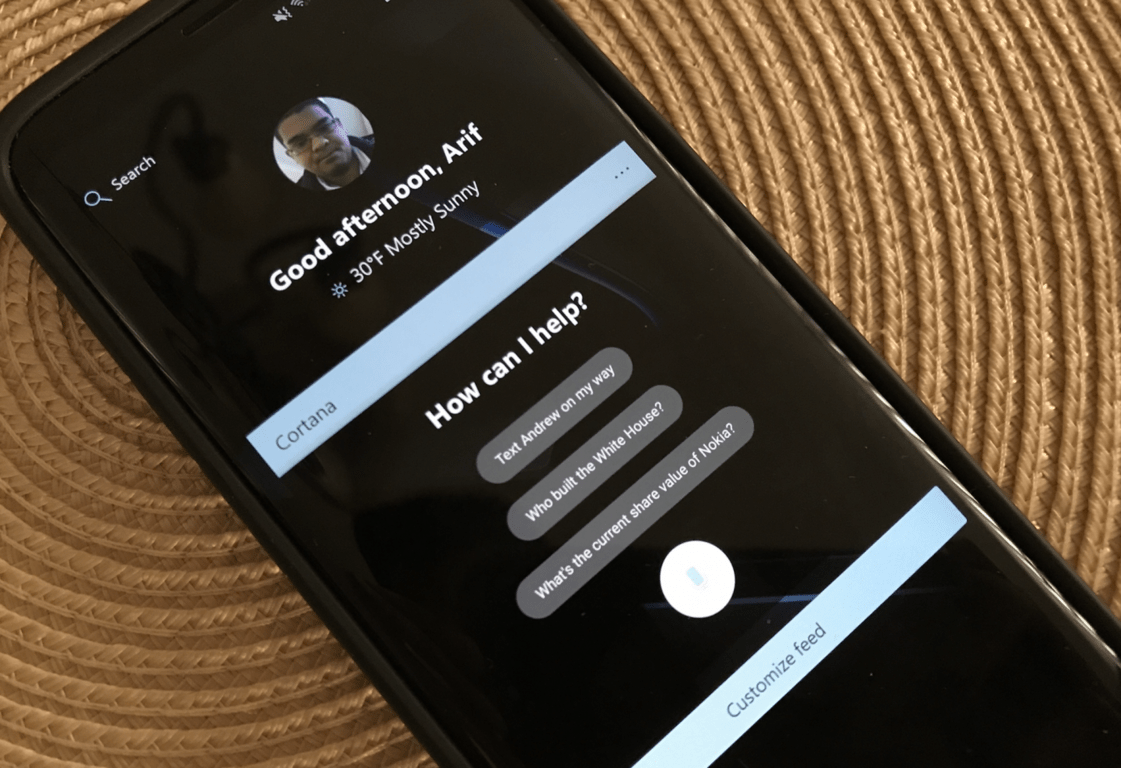
Microsoft has released a preview of the upcoming 5.1 update of its Launcher app to Google Play beta testers, and the updated app includes a host of new features and refinements. Most notably, a few new card options have been added, including Sticky Notes, Microsoft To-Do, and screen time usage, all of which can either be pinned to the Glance page on the left or as separate page on the launcher. Additionally, the “Hey, Cortana” command can also be turned on for users who wish to try it out.

The update is the first since Microsoft overhauled the UI in version 5.0, which has recently been released to all users of the app. The last update added Timeline to Android devices, as well as a new Microsoft News screen.

If you’re interested in downloading the update, you can sign up to try the beta, then download the app using our link below. Be sure to leave your thoughts about the new features in the comment area below.

Microsoft Launcher
Microsoft Launcher
Price:
Free

Visions, the latest No Man’s Sky update, set for release tomorrow

There’s a free update coming to No Man’s Sky November 22, 2018, on Xbox One. As noted in a post on Xbox Wire, the Visions update will bring No Man’s Sky a slew of new planetary content, similar to what the Abyss update did for No Man’s Sky’s underwater environment. Here’s a look at all that’s new in No Man’s Sky: Visions.

Other bonuses in this update are the ability for archaeologists to unearth valuable alien relics, as well as give scrappers the ability to salvage broken alien satellites. The update also unleashes new dangerous floras, including carnivorous plants and giant gas spores. You will have to be well-equipped to venture to more dangerous planets with extreme weather to collect valuable storm crystals.

“Explorers will be able discover this universe together in a new Community Research mission, where everyone will work together to unlock a new set of rewards. These include the new Eye of the Korvax helmet, more gestures and building parts, and deployable fireworks to light up the skies!

Those who prefer to fly solo will find plenty of other reasons to explore. Throughout the universe, exotic anomalous planets have become easier to find as well as more varied. These strange worlds are inhabited by curious new lifeforms – some harmless, others predatory, all never seen before. Navigate your way around these otherworldly places to discover rare and mysterious artifacts, ready to be brought home to your base as trophies.”

The new Visions update is coming to Xbox One on Thanksgiving. The Visions update marks yet another free content update to No Man’s Sky on Xbox One. No Man’s Sky has fixed many of the issues the game had at launch, with the release of new content updates; Next, The Abyss, and now, Visions. No Man’s Sky is becoming the game it was always meant to be.

Buy No Man’s Sky on Xbox One

No Man's Sky
No Man's Sky
Developer:
Hello Games
Price:
Free

Windows Server 2019 gets first 19H1 Insider Preview

With it being just 24 hours before the Thanksgiving holiday in the US, Microsoft quietly released its latest Windows Server Preview build. Windows Server Insider Preview build 18282 marks a rather substantial release just before a holiday, as it becomes the first 19H1 development branch Server release.

The details of the release are still shrouded in mystery as authors over at Neowin discovered the build on the Windows Insider Preview Download page before the company offered any accompanying release notes. At this moment in time, it is unclear if the release is official or perhaps a slip, as it seems odd to release such a significant branch development tool a day before a major holiday and offer no details about it.

As of now, the preview remains live for download here, and we optimistically expect to see some release notes in the coming hours as the remaining Microsoft employees depart the offices for the holiday over the next few hours; it would seem odd to release this build and not talk about it until next week.

LinkedIn is launching Student Voices, its own take on Snapchat Stories for students

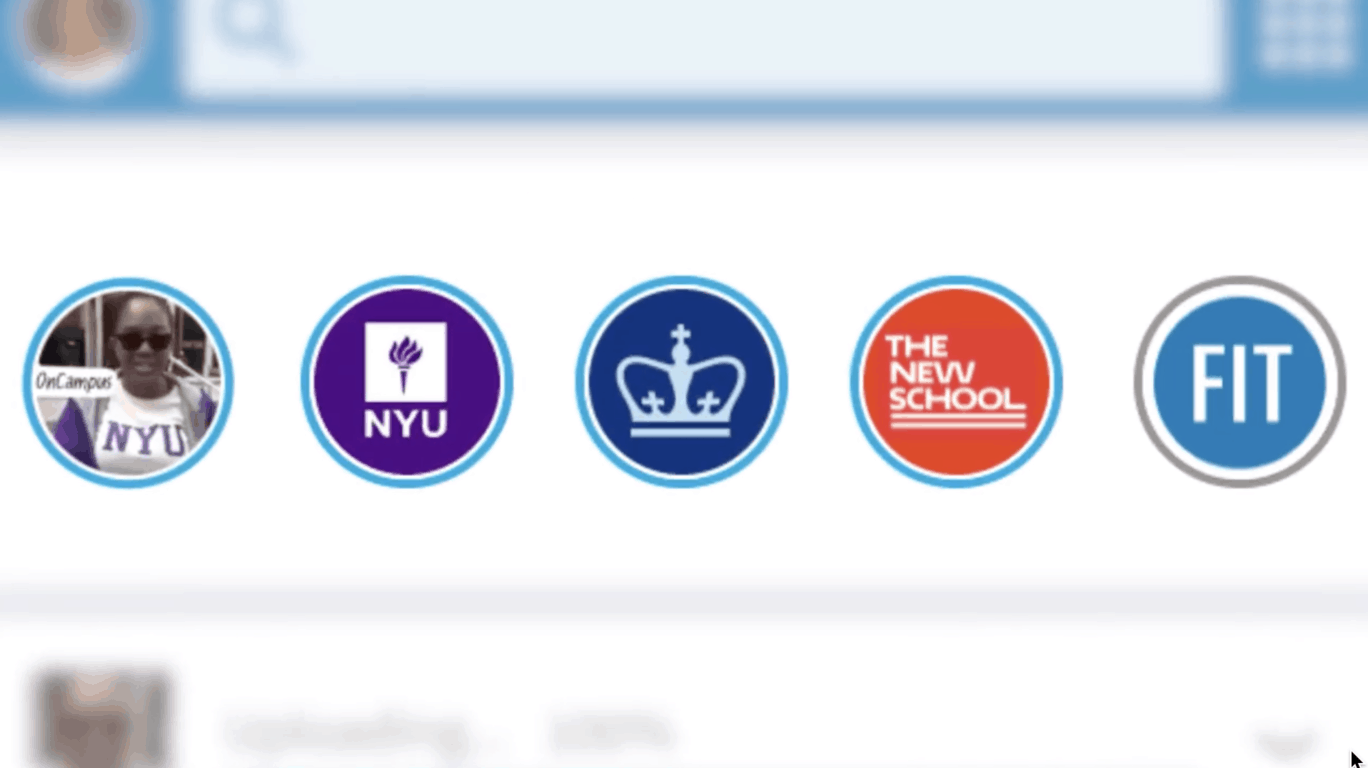
This is coming a bit late to the party, but LinkedIn has just confirmed the launch of a new “Student Voices” feature that is heavily inspired by Snapchat’s Stories format. As its name suggests it, LinkedIn’s Student Voices will be restricted to university students in the US, allowing them to express themselves in short videos recorded from their smartphones.

Speaking with TechCrunch, product manager Isha Patel explained that the new feature is a response to what students like to do with their phones today. “As we know, students love to use video to capture moments so we’ve created this new product to help them connect with one another around shared experiences on campus to help create a sense of community.”

Compared to Snapchat or Instagram Stories, LinkedIn’s Student Voices will work slightly differently: videos will remain permanently available on the profile of students who published them, but they will disappear after a week on a student’s Campus Playlist. Each university will apparently have its own Campus Playlist with student-created videos that will remain public for week.

Since the launch of LinkedIn Video last year, the professional social network introduced several new features designed for attracting a younger audience including GIF support and voice messages. Unfortunately, taking some inspiration from popular messaging apps isn’t a guaranted recipe for success, and even Skype failed to copy Snapchat Stories with its own “Highlights” feature, which disappeared from the Skype mobile apps after a year of consumer neglect.

According to LinkedIn, Student Voices have just started rolling out to college students in the US, but the company told Techcrunch that it’s planning to bring ephemeral videos to more LinkedIn users in the future. Time will tell if the professionnal social network will have more success at copying Snapchat than Skype ever did.

New blockchain development kit released for Microsoft’s Azure

Earlier this year, Microsoft dedicated a not insignificant amount of stage time at their developer conference to explain blockchain technology. While much of the section went over my head at the time, in the subsequent months, I’ve seen several companies introduce new apps and migration services to leverage evolving blockchain technologies.

On that note, Microsoft just released a new software development kit on its Azure cloud platform that will allow businesses to create their own distributed ledger technology (DLT) to work with SaaS solutions and third parties over the course of days, rather than the months it used to take.

Microsoft’s new DLT solution is called Azure Blockchain Workbench and was released yesterday November 20, 2018, to commercial users, but ABW has been tested and implemented for some time by other Asia-Pacific companies such as China Binary Sale Technology and High Cloud.

More specifically, yesterday’s release is focusing on features and tools to interface with mobile clients, Internet of Things (IoT), SMS and ambient computing systems among other technologies. In addition to the release of ABW, Microsoft also launched a set of extension tools in Logic App and Flow Connectors to boost workflows around blockchain networks.

As Marc Mercuri, a Microsoft principal programmer at Blockchain Engineering puts it, “The resulting applications will run atop a network that has higher rated cloud performance than other large-scale providers and enable federating identities between participants using Azure Active Directory.”

Microsoft starts testing Microsoft To-Do integration in Cortana with select Insiders

If Microsoft To-Do doesn’t ship with Windows 10 yet, the task manager app is becoming integrated with more and more Microsoft services these days. We’ve recently seen To-Do show up in Outlook.com, the Windows 10 Mail app and Skype, and it appears that Microsoft now plans to make To-Do become a new Cortana skill.

As you may know, Cortana still uses its own system for reminders and To-do lists, though the digital assistant already connects with Wunderlist, a versatile task manager app that Microsoft acquired years ago. However, Windows Central reported yesterday that Microsoft is currently inviting select Windows Insiders to try a new To-Do integration in Cortana. According to the invitation, the purpose of this new integration is to “save time, stay organized and keep all your reminders and list all in one place.”

According to the report, Microsoft plans to go public with the integration in December, As you can see in the screenshots below, you’ll be able to ask Cortana what are the tasks lefts in specific To-Do lists, create new tasks and see completed items right from Cortana, and tasks suggestions will also be available within the digital assistant

Image credit: Zack Williamson

If Microsoft want Cortana to stay relevant, it makes sense to de-emphasize its native Reminders and To-Do capabilities in favor of a Microsoft To-Do integration. This should also simplify things for people living in the Microsoft ecosystem, as it’s already hard enough to remember all the different ways you can create to-do lists and reminders across all of Microsoft’s apps like Outlook, Cortana, OneNote, Sticky Notes, and Microsoft To-Do.

It’s not clear how Microsoft is selecting testers for this new integration, but the company recently invited Microsoft To-Do enthusiasts to fill a form to get early access to new features. Let us know in the comments if you’re looking forward to see Microsoft To-Do join Wunderlist as a new Cortana skill.

Rocket League to get 4K resolution next month on Xbox One X consoles

Players of Rocket League on Xbox One X will finally be able to take advantage of Microsoft’s top-of-the-line console’s 4K graphics support next month, thanks to an upcoming update announced on the game’s website. The game will also be able to take advantage of the console’s supersampling feature when plugged into 1080p televisions.

In addition to 4K and supersampling support, Rocket League is also getting a host of other goods in the update, including new leaderboards for Ranked Extra Modes, as well improvements to the progresstion system and a new “Rocket League x Monstercat Vol. 5” episode.

The update is expected to be released December 3, so for now Xbox One X owners will have to wait for the updated visuals. For those interested, the game has been  available for subscribers of Xbox Game Pass since July, and the subscription is also available for just a dollar for the first month of new subscribers right now.

Are you excited about Xbox One X support? Let us know in the comment area below this post.

Image functionality is coming to Microsoft’s Sticky Notes app soon

Microsoft’s Jen Gentleman teased some upcoming image functionality for the Sticky Notes app earlier today on her Twitter account.

The tweet simply read, “What say you?  #WindowsInsiders” and was accompanied by an image of the feature in action on three different sticky notes. The hashtag used obviously implies that Windows Insiders will get to test images in Sticky Notes before the functionality is rolled out to the average user.

The modern Sticky Notes app began as a lightweight alternative to OneNote but has been gaining more and more features recently, making it a potential future rival for the latter.

Are you excited for new functionality coming to Sticky Notes? Share your thoughts with the community in the comments below.

Microsoft has heavily discounted Xbox One X consoles globally

As part of this year’s Black Friday sales, Microsoft has heavily discounted its Xbox One S and Xbox One X consoles in most major markets around the world on the numerous official Microsoft websites.

On the USA Microsoft site, the regular Xbox One X has had its price slashed from $499 to $399 with a $100 saving while the new Xbox One X Fallout 76 bundle, which contains the console and game, has been reduced by $70. The Xbox One S Minecraft bundle is now $100 cheaper and is selling for just $199. You can see all of the discounted USA Xbox One consoles here.

Even bigger savings are happening in Australia with entirely new Xbox One X and S console bundles that offer savings of AU$199.75 (around US$150). Most of the bundles consist of an Xbox One X or Xbox One S console, five video games, and TV tuner with the X bundles going for AU$549 and the S ones selling for AU$299.

The level of discounts being offered does differ between regions but most international Microsoft websites are offering savings of some kind.

This is a pretty good opportunity to upgrade to an Xbox One X or S console for a fraction of the price it would usually cost. Many Xbox One video games are also currently discounted in the Microsoft Store.

Have you bought any Xbox-related products during this Black Friday sales period yet? Let us know what you got in the comments below and then follow us on Pinterest for more Xbox content.

Now you can sign in to your Microsoft Account using Windows Hello, FIDO2 devices

Microsoft and other tech companies are currently hard at work to replace passwords with more secure alternatives. Today, the Redmond giant is making a huge step forward by making it possible to sign in to your Microsoft account online using Windows Hello or a FIDO2 security key.

Earlier this year, Microsoft announced that it was adding support for FIDO2 security key authentication to Windows 10. The feature initially launched in limited preview during the Spring, but it’s now officially available with the Windows 10 October 2018 Update.

For those unfamiliar, FIDO2 authentication keys are standard-based devices that allow users to sign in to online services without a password. FIDO2 devices usually look like USB keys (some models also use NFC), and they come with a built-in biometric technology for letting you verify your identity.

Companies selling FIDO2 devices include Yubico and Feitian Technology with prices starting at $20. The set up process will require you to go to the Microsoft account page on Microsoft Edge, and then set up a security key in Security > More security options > Windows Hello and security keys. Once you’re done, you’ll be able to choose your security key next time you need to sign in to your Microsoft account with Microsoft Edge.

For those of you who don’t want to invest in a FIDO2 device but already have a PC that supports Windows Hello, you’ll also be able to use that to sign in to your Microsoft account online. If Windows Hello is already configured on your PC, you’ll be able to use it as a login option when you sign in using Microsoft Edge. Again, the ability to sign in with your Microsoft account using a FIDO2 device or Windows Hello requires the Windows 10 October 2018 Update, and Microsoft has just resumed the public rollout of this major update last week.

“With each update, we’re eradicating places where you’re forced to enter a username and password, bringing you peace of mind that your account is protected and accessed by you, and only you. We’re excited about the journey we’re on and hope you join us on this quest to go password-less,” Microsoft said today.

Lenovo joins the online gaming fray with its new Legion Game Store

Microsoft, Sony, and Steam, to varying degrees, have all proven that online gaming is bustling community ripe for nurturing. While Microsoft may be late to the party when compared to other online gaming storefronts, it continues to push its Game Pass loaded with its backward compatible, Play Anywhere, and indie dev titles, and is seeing additional revenue opportunities surface from those investments.

Microsoft isn’t the only late entrant who sees online gaming as an additional recurring revenue generator; Lenovo is also dipping its toes into online gaming with its Legion Game Store.

The Legion Game Store is a web-based e-commerce site that offers a robust catalog of more than 200 of the latest and greatest PC games including hit new titles such as Fallout® 76 and Battlefield™ V, and some of the best indie discoveries like Dead Cells™ and Frostpunk™. We’ve partnered directly with a variety of publishers, allowing for a myriad of discounts and exclusives not available to other retailers. Unlike other digital download services, the Legion Game Store will have a regimented screening process that only allows fully developed or closed beta titles onto the platform. We know gamers can get frustrated with having to pay for half-finished, half-hearted demos, and we want to help put an end to that.

On the face of it, Lenovo’s Legion Game Store Online sounds a lot like what Steam has long cultivated over the past couple of decades, but from my understanding, LLGSO is meant to run in parallel to other online game stores, for now, at least.

Lenovo appears to be expanding its gaming footprint from just device builder with its Legion line of gaming towers and laptops to a vertically stacked gaming experience. While most hardcore gamers who purchase Legion devices will presumably head to the Steam storefront for much of their traditional gaming, Lenovo is using its Vantage app to shoehorn itself into the conversation.

Lenovo Legion

I’ve long praised the Lenovo Vantage app as being the best conduit to device maintenance for casual or novice PC users and now it seems Lenovo is looking to leverage that usefulness into a streamlined gaming experience for those same users.

The Lenovo Vantage app comes preinstalled on all modern Lenovo devices or can be picked up from the Microsoft Store for free. With Lenovo leveraging its tool that most gamers are encouraged to use to overclock CPU and RAM as well as boosting graphics capabilities, it makes sense to start marketing games in the same space.

The Legion Game Store will be available on November 26, and just in time for the digital gaming deals of Cyber Monday.

Overwatch will be free to play for one week on Xbox One and Windows 10

Blizzard’s Overwatch game will be free this week, and anyone on any platform can download the game and have access to the majority of its features, including its 29 characters available as well as play on 19 different maps (via ESTNN). What’s more, anyone who purchases the game after the trial period can access all of their saved data from before by logging into the same Blizzard or Xbox Live account that was used during the trial.

Of course, as this is an online game, you’ll need an Xbox Gold subscription to play. Luckily, Microsoft is giving new users their first month for $1 as part of its early Black Friday sale, so now is probably the best time to get it if you’ve been planning to do so.

Blizzard has ran other free trials before, with their most recent one being last August. However this time the game is free for a whole seven days, starting from today (November 20) and ending November 26.

Are you a current owner of Overwatch, or will you be participating in the trial? Your thoughts about the game are welcome in the comment area below.

Overwatch® 2
Overwatch® 2
Price:
Free

Tune in to the Windows Insider webcast later today featuring the Sticky Notes team

The Windows Insider webcast will be making a comeback later this morning with a special episode live from Vancouver, Canada. On this occasion, the Sticky Notes team will be here as a special guest, and we hope to hear more about new features coming to the Windows 10 app in the coming weeks.

Along with Skype and Microsoft To-Do, Sticky Notes is currently one of the fastest evolving Microsoft apps these days. A major update was released in September with a new cloud syncing feature, and Microsoft has since made Sticky Notes available on iOS and Android via OneNote, as well as the web.

The Windows Insider team will likely have plenty of other things to talk about during today’s webcast, and maybe we’ll also get a new 19H1 build ahead of Thanksgiving. Don’t forget to tune in to the livestream at 10 AM PST on mixer.com/windowsinsider.

Digital pre-orders open for Jump Force video game on Xbox One

Jump Force was one of the most-talked about video games at this year’s E3 and it’s finally available for digital pre-order on Microsoft’s Xbox One consoles.

The game is being sold in a regular version, a Deluxe Edition, and an Ultimate Edition. Pre-ordering any version will unlock three exclusive in-game costumes, a new lobby vehicle, and two T-shirts for the player’s avatar while buying the Deluxe Edition will unlock the Character Pass, a collection of digital content that contains nine additional characters and their respective costumes and moves for the game’s avatar plus 4 days of early access to play with those characters before everyone else.

The Jump Force Ultimate Edition comes with everything in the Deluxe Edition plus 16 exclusive T-shirts for the in-game avatar and a Jump Starter Pack of digital items.

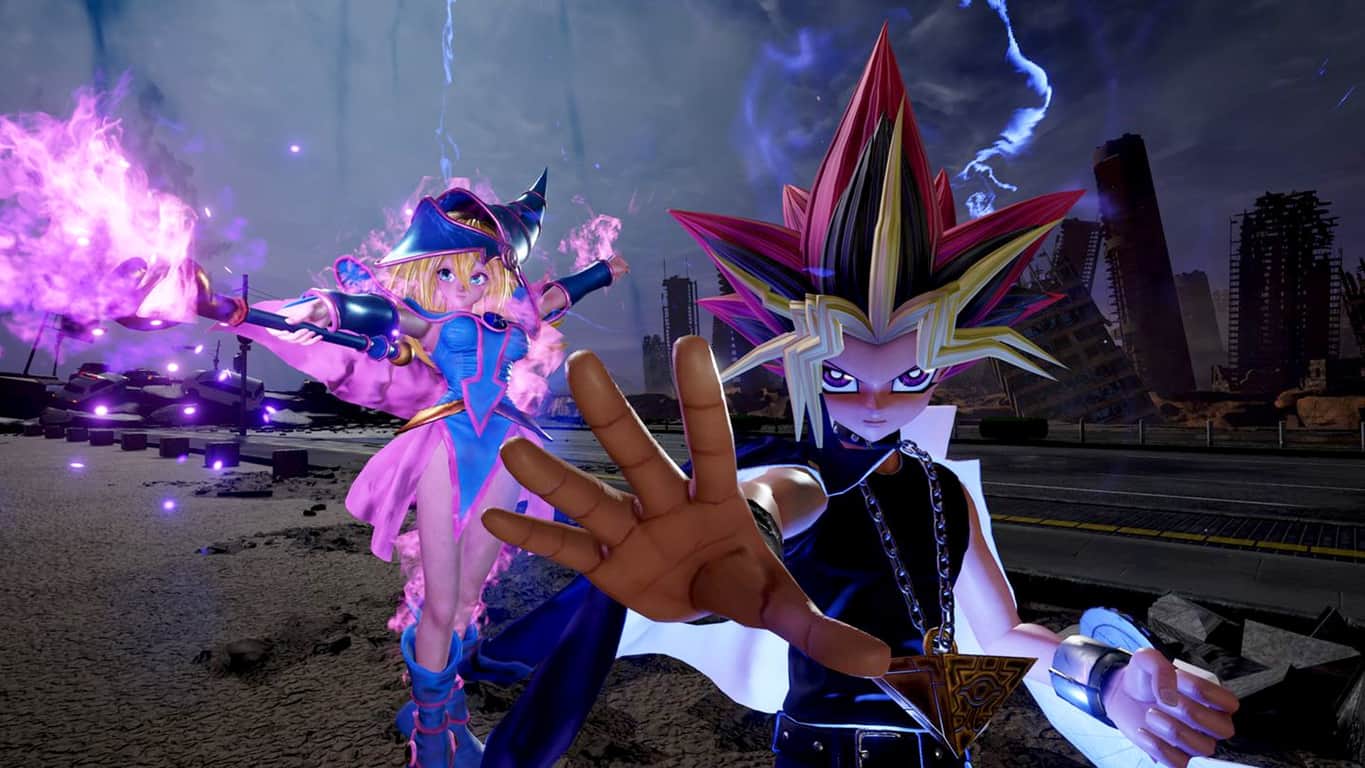
One of the reasons for the hype surrounding Jump Force is the fact that it will see numerous popular manga and anime characters appear in one game. Among the characters being used are some from Dragon Ball Z, One Piece, Naruto, Bleach, Yu-Gi-Oh (see above image), and Saint Seiya.

Jump Force will release on Xbox One on February 15th 2019.

Are you excited for Jump Force and will you pre-order it? Let us know which version you’re going to grab in the comments below and then follow us on Pinterest for more Xbox gaming content.


Dutch Regulators catch Windows 10 breaching GDPR

Two years in the offing and GDPR is still being breached. It will come as no surprise to many that a big, American tech company is in trouble for breaking General Data Protection Regulation (GDPR). It seems that Microsoft has been playing ‘hide the data‘ with respect to GDPR, according to Privacy Company (yes, really), the company that discovered the breaches.

Microsoft’s Windows 10 breaching GDPR

Of course, it is fair to say that there have been many breaches. However, many of them were leading up to GDPR when companies were panicking a bit.

I particularly like the tweets sent out just before GDPR about companies sending out mass emails about how much they respect privacy, and then CCing everyone in the email (rather than BCCing). Oh you couldn’t make it up.

However, companies cocking things up before and during the implementation of GDPR and Microsoft ignoring it six months after its implementation is another thing.

It’s not voluntary, you know

Microsoft will no doubt cry foul, pointing out that it has made concrete efforts to abide by GDPR, such as moving its data center back to Europe. It will also say that the data it was collecting was only the normal data it collects to help improve its Windows 10 (and Microsoft Office) programs.

I think the Dutch regulators will need more convincing. They said, “Data provided by and about users was being gathered through Windows 10 Enterprise and Microsoft Office and stored in a database in the US in a way that posed major risks to users’ privacy.” And Privacy Company, sounding even more damning, stated that Microsoft practised the, “large-scale and secret processing of data”.

Five largest fines handed out by EU

As it stands, things don’t look good for Microsoft, and I have a funny feeling that the EU is going to look at this as yet another American company thinking it doesn’t need to take EU regulations seriously. Which is strange considering recent fines would suggest that this would be an extremely reckless stance.

EU fines as of July 18, 2018

  1. Google — fined $5 billion in 2018
  2. Google — fined $2.7 billion in 2017
  3. Intel — fined $1.45 billion in 2009
  4. Qualcomm — fined $1.2 billion in 2018
  5. Microsoft — fined $794 million in 2004

Now, I realize that these companies are mega-rich, but even a company like Google must baulk at the idea of having to cough up $5 billion bucks to the EU. If you want more of the juicy details, head over to Business Insider.

Microsoft did release a statement to TNW saying:

We are committed to our customers’ privacy, putting them in control of their data and ensuring that Office ProPlus and other Microsoft products and services comply with GDPR and other applicable laws. We appreciate the opportunity to discuss our diagnostic data handling practices in Office ProPlus with the Dutch Ministry of Justice and look forward to a successful resolution of any concerns.

I’m predicting the ‘successful’ resolution will cost Microsoft millions. Mind you, considering all the data it has captured, maybe it will be worth it.

RELATED POSTS TO CHECK OUT:

Fix: HP Printer Prints Extra Blank Pages for Word Documents

Steps to fix hp printer printing blank pages

  1. Check That There isn’t an Extra Blank Page in the Document
  2. Remove Page Breaks From Pages
  3. Reduce the Font Size for Non-deleteable End Paragraphs
  4. Print Hidden Text in the Document
  5. Enter a Specific Page Range When you Select Print
  6. Select the Print Directly to Paper Option
  7. Reinstall HP Printer Software

It is not entirely unusual for HP printers, and other printer brands, to print extra blank pages at the end of documents. Numerous HP printer users have stated on forums that their printers print out blank sheets. Their printers print the full documents along with one, or more, extra blank pages at the end.

That might not be such big deal so long as your main documents get printed, but the extra blank pages can slow printing down. These are few resolutions that might fix HP printers printing additional blank pages for MS Word documents.

What to do if HP printer prints additional blank page

1. Check That There isn’t an Extra Blank Page in the Document

First, check that the MS Word document doesn’t include additional blank pages at the bottom. If it does, you’ll need to remove the extra blank page from the document. To erase blank pages from documents, place the cursor at the top of the empty page.

Then keep on pressing the Backspace key until the page disappears. Alternatively, place the cursor at the bottom of the page just above the blank page and keep pressing the Delete key.

2. Remove Page Breaks From Pages

Blank pages usually appear at the end of documents when there are page breaks at the bottom of pages. Thus, removing all page breaks might get rid of the empty sheets that print. You can show page breaks and sections in MS Word documents by selecting the Home tab and clicking the application’s Show/Hide button. T

hen you can manually delete the page breaks and sections. However, you can erase all page breaks more quickly with MS Word’s Replace tool as follows.

  • Select the Home tab.
  • Click the Replace button on the Home tab to open the window directly below.
  • Press the Move >> button to fully expand that window’s options.
  • Select the Replace tab on that window.
  • Click inside the Find what box, and press the Special button. Then select Manual Page Break on the menu.
  • Click in the Replace with box, and press the Replace All button.
  • A dialog box will then open stating that “Word has completed its document search” and made a certain number of replacements. Click the OK button on that window to close it.</li>

3. Reduce the Font Size for Non-deleteable End Paragraphs

Extra blank pages get printed at the end of documents when there are non-deleteable end paragraphs in them. You can’t erase the non-deleteable paragraph, but you can still ensure that it fits within the previous page that includes some text. This is how you can fit a non-deleteable paragraph into the previous document page.

  • First, click the Show/Hide button on the Home tab so that the non-deleteable paragraph mark is visible.
  • Then select the non-deleteable paragraph mark on the blank page with the cursor.
  • Click inside the Font size box to delete the current value.
  • Then enter 01 as the replacement value as shown directly below. That will reduce the non-deleteable paragraph to a tiny font size so that it fits on the previous page.

4. Print Hidden Text in the Document

It might be the case that the blank page which printed with the rest of your document does include some text, but you just can’t see it! MS Word includes a Hide Text option that you can select to turn text invisible. This is how you can check for and print hidden text in your Word documents.

  • Click Word’s Fi>le tab and select Options to open the window shown directly below.
  • Then click Display on the left of the window to open the options in the snapshot below.
  • Select the Hidden text option.
  • Just below that there’s a Print hidden text option. Select the Print hidden text setting, and then click OK to close the window.
  • Now the blank document will display hidden text, if there is any, as in the snapshot directly below. The printer will print the hidden text as you’ve selected the Print hidden text option.

You can also restore the invisible text on the blank page by deselecting the Hidden option. To do so, select the hidden text with cursor, right-click it and select Font. Then you can deselect the Hidden option on the Font window. Thereafter, click the OK button; and print the document.

5. Enter a Specific Page Range When you Select Print

By default, printers usually print all pages, which might include extra blank sheets in documents. However, you can also select to print a specific range of pages instead to get rid of blank sheets. Thus, you can ensure that the printer prints just the pages you need by selecting to print a specified range of pages.

This is how you can print a specified range of pages more in MS Word.

  • Click the Filen> tab, and then select Print to open the print settings as below. Alternatively, you can press the Ctrl + P hotkey.
  • Then click Print All Pages to open the submenu shown directly below.
    • Next, select Print Custom Range on the menu.

Enter the range of pages that you need to print. For example, you would enter 1-3 if there were three pages in your document that i nclu de text.

  • Then press the Print button. Now the exact range of pages that you specified will print, which should leave out extra blank pages at the end of the print job.

6. Select the Print Directly to Paper Option

  • Selecting the Print Directly to Printer option, instead of the Spool print setting, can also stop HP (and other) printe<span id="urn:enhancement-18c1f940-f2c1-dbf7-ce8d-993bd494f89c" class="textannotation”>rs printing extra blank pages. To select that option, press the Windows key + R hotkey.
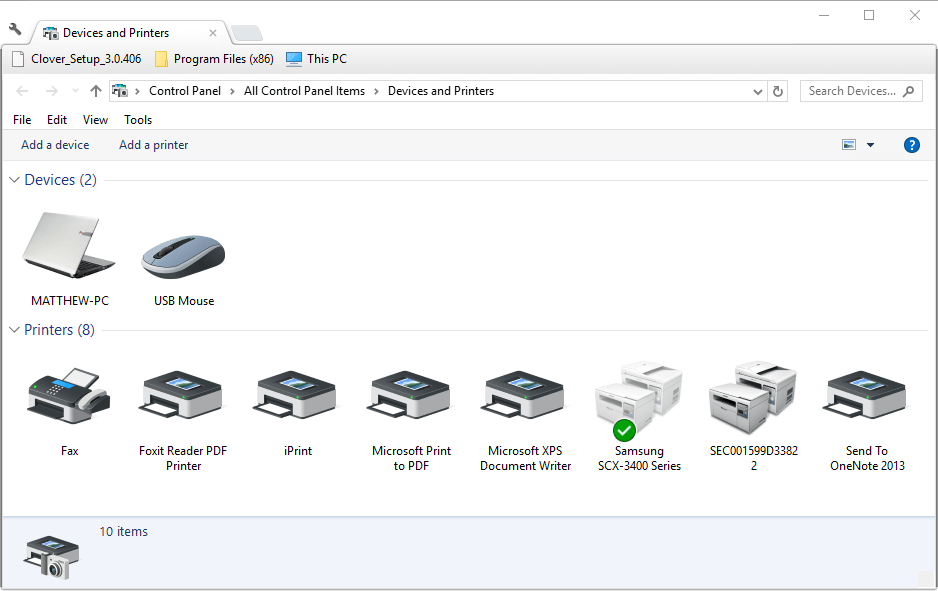
  • Enter ‘control.exe printers’ in Run and click OK to open the Control Pan>nel window as in the snapshot directly below.

</a>

  • Then click the Advanced tab shown in the image below.
  • Select the Print directly to the printer option on that tab.
  • Press the Apply and OK buttons.

7. Reinstall HP Printer Software

If none of the above resolutions stop extra pa<span id=”urn:enhancement-338dcb09-0b38-8583-410f-5d86e5573e40″ class=”textannotatiges printing, reinstall the HP printer software. Some users have confirmed that reinstalling the HP software fixed blank page printouts. You can reinstall HP printer software in Windows 10 as follows.

  • Remove the USB cord from the printer.
  • Right-click the Start menu button and select Run on the menu.
  • Enter ‘appwiz.cpl’ in Run and click OK to open Programs and Features.
  • Click your HP printer in the installed software list. Then press the Uninstall button, and click Yes to confirm.
  • Restart Windows after uninstalling the HP printer software.
  • Open this HP page in your browser.
  • Click Printer to open the page in the snapshot directly below.
  • Enter your printer model in the text box, and press the Submit buttonn
  • Click the Selected operating system box at top of page to select your 32 or 64->bit OS version.
  • Click the Download button to save the HP software and drivers to a Windows folder.
  • Then you can reinstall the required software with the downloaded HP installer.

Those fixes will probably stop HP printers printing extra blank pages with MS Word documents. Note that some of the above resolutions might also fix other printer brands printing additional blank pages.

Posted in Fix

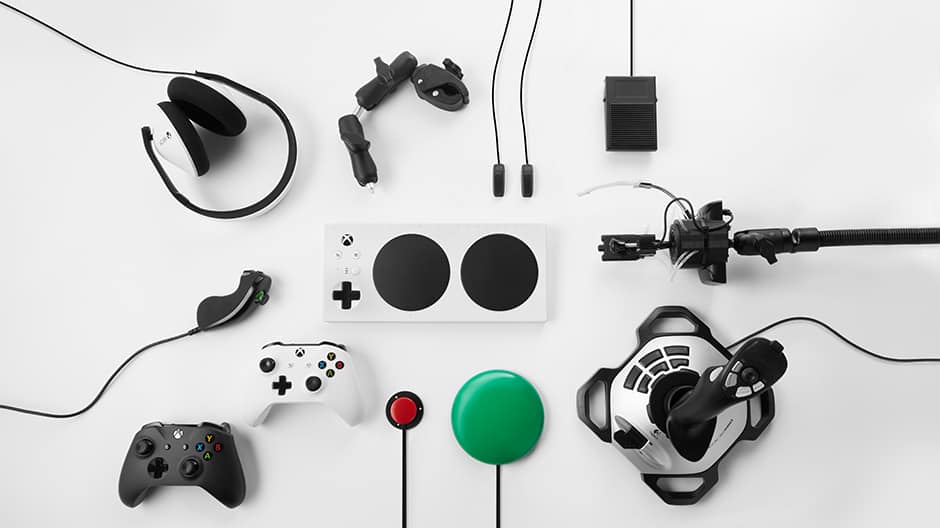
Watch Microsoft’s holiday ad, featuring the Xbox Adaptive Controller, here

In a different kind of holiday ad, Microsoft showcases the power of its new Adaptive Controller to let everyone play Xbox One. You can check out the ad below (via Tom Warren):

According to the YouTube video description, the ad shows Owen, a nine-year-old with Escobar syndrome, which limits his mobility, play a game on Xbox One. Microsoft’s commitment to accessibility shows that “when everyone plays, we all win.” The ad shows off the power of the Xbox Adaptive Controller, allowing people with disabilities to play games on Xbox One.

In the ad, all of Owen’s friends come to his house upon word of his pending Xbox achievement. The ad ends with Owen succeeding and all of his friends celebrating, capped off by as Tom Warren puts it, an “epic floss.” This Microsoft ad epitomizes the spirit of the holiday season and shows off Microsoft’s mission to create accessible technology that allows everyone to participate. It would have been nice to see what Xbox game Owen was playing, but it is a great way for Microsoft to kick off the holiday season.

Leading media conglomerate, Zee Entertainment, establishes global footprint with Microsoft Azure

ZEE5, the global digital entertainment platform, has chosen to take its expansive library of multi-genre and multi-language content to the world with Microsoft Azure. Through this continued partnership, ZEE5 plans to leverage Microsoft Azure solutions to further empower its platform on an international stage.

ZEE5, a product of Zee Entertainment Enterprises Ltd. (ZEEL), went live in 190+ markets worldwide last month across platforms, offering audiences around the globe a completely integrated entertainment experience with multi-genre content, with both On-demand and Live TV. With a presence in over 173 countries and a reach of more than 1.3 billion people around the globe, ZEEL is among the largest global content companies.

“Ensuring consistent performance for a seamless customer experience and security are of paramount importance to us, and we are extremely happy to partner with Microsoft for this. The elasticity and security they provide have been key to deploying our new service, and in building a more scalable platform.”

– Amit Goenka, CEO, Zee International and Z5 Global

According to Sashi Sreedharan, Managing Director, Microsoft India, the fast-increasing penetration of OTT services necessitates more efficient and secure ways to build scalable streaming solutions. ZEE5 uses a fully-managed Azure platform to perform infrastructure maintenance and load balancing. Azure has also helped ZEE5 to accelerate containerized application development within rigid stipulated timelines.

With growing internet penetration, OTT services are fast being adopted, not just in metro cities but in tier 2 and tier 3 cities as well.
Microsoft Azure helps app providers become agile and scale rapidly on demand, in sync with the increase in customer base and app traffic.

How to stop Skype from opening on startup

Imagine powering on your PC and waiting for some time until you can finally start doing stuff. Multiple reasons for that but programs which boot with Windows are probably the main culprits. Skype included. Some users would like to know how to deal with this and prevent Skype from opening on its own.

We made sure to answer that question below, so consider following the steps below.

How do I stop Skype from starting automatically

Skype starts with the system by default and you can disable this option easily. In comparison to some third-party applications which tend to enforce their initial presence as soon as the desktop appears, disabling Skype from automatically starting is simple. This dates from days of old classic Skype and it perfectly applies to new, remodeled Skype 8.0.

Although, users can get confused after all UI changes we witnessed and are not aware of where to find the option to prevent Skype from opening on its own. Even beyond that, the new Skype platform is not everyone’s cup of tea, but Microsoft, as we mentioned repeatedly, decided to leave it behind.

If you’re not sure how to stop Skype from automatically starting, follow these instructions:

  1. Open Skype.
  2. Click on the 3-dot menu and open Settings.
  3. Select General under the left pane.
  4. Toggle the “Automatically start Skype” setting off.stop Skype from automatically starting
  5. Restart your PC and look for changes.

After that, Skype won’t pop-up everytime you start the PC. You’ll need to start it in order to start chatting or making calls. And, with that said, we can conclude this article. Hopefully, this was a helpful read.

If you have any additional questions concerning Skype, feel free to ask. The comments section below is a good place to start.

RELATED STORIES YOU SHOULD CHECK OUT:

4 Best Kundli Software for Windows 10

Kundli is an astrological chart that’s a personal horoscope based on the exact date of birth, time of birth, and place of birth of the individual. A Kundli tool is the easiest way to derive accurate results if you’re interested in learning more about yourself.

This chart is based on the Vedic Astrology System which indicates the positioning of the different planets. The focus is on the planets like the Sun, Venus, Jupiter, Saturn, Mars, and, of course, the Moon.

Astrological details and angles at the time of birth, are among the other major aspects that play a crucial role in one’s life.

Kundli, which is also known as Janampatri, Birth Chart, or Janam Kundli, is used to predict various aspects of one’s life.

For example, this chiefly involves marriage (in India), job prospects, the health of the individual, or financial situation.

Previously, astrologers would take days to prepare an in-depth Kundli speaking of the individual’s past, present, future, and his/her personality accurately. However, the introduction of Kundli software has made life much easier for both the astrologer and the public.

All you need are the exact details of the individual and the right software, and the Kundli is generated online in minutes (whether you are an astrologer or not).

Here’s a list of the best Kundli Software for Windows 10 that are widely used all over the globe.

Best 4 Kundli software for professional predictions

Astrosage Kundli 7 

Astrosage Kundli 7

If you are looking for in-depth analysis with some outstanding visuals, then Astrosage Kundli 7 is the right choice for you.

This is one of the most popular Kundli matching software that generates a predictive horoscope (Kundli) based on the astrological details, and by analyzing the database.

Furthermore, this responsive software offers automatic matchmaking, matrimony, and other predictions based on calculations.

There is an option to find out the planetary positions, detailed Nirayana Bhava Chalit, Birth details, Moon & Navamsa Chart, and more;

Some of its major features are:

  • Generates screen preview and Kundli elements such as the North, South, and Bangla Charts;
  • Offers daily, weekly, monthly, and yearly horoscope;
  • Provides options for different Ayanamsa;
  • The facility of paid questions, readings, and shopping for astrological products;
  • Basic astrology videos, yearly calendars, and more to offer;
  • Offers planetary aspects such as Ratna suggestions, Manglik Dosha, Yantra, and Mantra;
  • Offers predictions for marriage, business, finance, love, career, health, lucky days and colors, etc.;
  • Predictions for Rashi, Planets, etc.;
  • Supports transferring results to PDF, BMP, and JPEG formats.

Moreover, the software also comes packed with many other tools helping users to study and examine the charts and reports.

⇒ Get Astrosage Kundli 7

Kundli Chakra 2019 Professional Edition

Kundli Chakra 2017 Pro

Kundli Chakra has been one of the initial astrological software that’s still equally popular. It comes packed with features allowing the users to generate professional-level predictions in one simple click in addition to options to customize the charts. Regular updates and error fixes keep the software up-to-date.

Matching the Kundli of two people using their individual astrological aspects that help predict their compatibility and future with each other.

In addition, it has an integrated engine to offer numerological predictions for future and match-making using the details of the user/users;

Among its major features are:

  • Predictions and horoscopes using birth details and other data;
  • Astrological predictions using K.P and S.P.S system;
  • Predictions and tracking facility of the future positioning of the various stars and planets;
  • Option to select a suitable name based on the Vedic method (time of birth, date of birth, and other related details required) that’s blessed with good luck;
  • Option to select a suitable name based on the Western method;
  • Offers exhaustive predictions for Lagna, Love, Finance, Planet, Nakshatra, etc.
  • Option to study all biorhythms easily such as Primary and Secondary rhythms, I-Ching, and comprehensive graphs;
  • Integrated atlas offering apt future predictions for over 2.5 lakh cities;
  • Offers muhurta analysis of every minute using Kundli Chakra Pro, in real-time.

Lal Kitab Analysis, Time Correction, Gem Stones suggestions, and analysis of Manglik and Kaalsarpa Dosha, are among some of the other significant features of this software.

⇒ Get Kundli Chakra

Astrocomp Astrology Kundli 2018

Astrocomp Astrology Kundli 2018

Kundli 2018 is another popular software that’s perfect to generate personal Horoscopes, Panchang, Match-Making, Dashas, Varshphals, and more, easily. It’s a complete solution for all your astrological needs.

Charting is available in East, North, and South Indian styles. Also available in KP, Nirayan, and Western forms serving all astrology types.

You also have the option to print the preferred pages and even customize them in their own modules.

Some of its major features include:

  • Saves all horoscope data for future use;
  • Option to get the name and address printed on the horoscope;
  • Can be used to create Kundli for all the time zones globally;
  • Option to get prints in rich charting styles
  • A huge database of countries with Latitude and Longitude;
  • Facility for instant display;
  • Match Making facility to check compatibility for marriage;
  • General predictions based on house, and Varshphal (yearly prediction);
  • Offers ongoing movement of planets, changes in Nakshatras, and yearly Rasi;

Tithi calendar, name database for babies, remedies for Sade Sati, and positions of Rahu and Ketu, are some of the other features of the software.

⇒ Get Kundli 2018

PremiumAV Kundli 8 Software

Kundli 8 is a well-known Kundli software that offers all the usual Kundli benefits in addition to some other advanced features.

Among the usual features, it generates Kundli for an individual and offers predictions based on Amsha, Deha Rashi, K.C.D, and Jeeva-Rashi.

The software helps calculate the general and mental characteristics of an individual, precisely. Moreover, it tells the results of the planetary transits.

For those looking for predictions, this offers predictions for education, career, health, marriage, and Ashtakavarga.

Besides, predictions are also extracted using different dishes that include Upa-Karaka, Yogini Dasha, Graha Dasha, Ashtottari Dasha, and so on.

⇒ Get PremiumAV Kundli 8

There are several Kundli software available online that help users generate Kundli for free, but those just offer a basic overview.

To generate accurate results, in-depth analysis, and appropriate remedies, astrologers must use powerful and paid software.

Choose from one of the best Kundli software for your Windows 10 mentioned above, and offer professional help to clients.

Microsoft reportedly working on a low cost – no disk drive Xbox One

After releasing the Xbox One S in 2016 and the Xbox One X console a year later, we could get new Xbox One hardware as soon as next year. According to Brad Sams from Thurrott.com, Microsoft may announce two new consoles next year: a newer version of the Xbox One S that would be a cost saver for Microsoft, as well as a cheaper Xbox version with no disc drive.

The first console would be pretty much like the Xbox 360 E was for Microsoft: Announced back at E3 2013 at the end of the Xbox 360 lifecycle, this hardware revision of the Xbox 360 S came with a refreshed design inspired by the upcoming Xbox One, but it also dropped some ports like the AV connector and the S/PDIF interface.

As for the disc-less version of the Xbox One that Microsoft could also be planning for next year, the report says that it could be as much as $100 cheaper than the current Xbox One S, which is usually priced at $299. Interestingly, Microsoft could also throw a bone to fans of physical disks by allowing them to exchange their discs for digital versions of Xbox One games:

In addition to the new console, there will be a ‘disc-to-digital’ program that, as the name states, turns your physical games into digital downloads. The idea is that you can take your disc to a participating retailer (like the Microsoft store) and trade in your disc for a digital download.

Sams said that the disc-less Xbox One console could be launching in Spring 2019, while the cost-saving version of the Xbox One S could be launched later in the year. “Microsoft is moving forward very carefully with this product as it knows that a sizeable portion of its users do prefer to buy physical games and not download them,” wrote Sams.

Both Microsoft and Sony are expected to launch their successors to the Xbox One and PlayStation 4 in 2020, and we already know that Microsoft’s “Scarlett” family of next gen consoles could include a cheaper console designed for Microsoft’s Project xCloud, in addition to a traditional game console. That’s definitely a lot of new hardware, but Microsoft may be right to launch cheaper Xbox One hardware next year before we eventually jump to the next console generation.