5 best iPhone file manager tools for Windows PC users

There are lots of apps that are specifically designed to let you organize your files following your requirements. Starting from being multitasking and finishing with boating of defining features, these apps are developed to provide their users the perfect solution for managing files.

The advantages of a file management system

In an effort of addressing an array of file-related challenges, many organizations automate their file management tasks. Automation can enhance security, to free up IT resources and to help you achieve order and control in an otherwise inadequately regulated file transfer environment.

Take a closer look at the ways that automating file management and file management tools can and definitely will improve the IT processes. We’ll present your four primary benefits of ditching the standard file maintenance and going for automation.

  1. Saving administration hours

Usually, the IT staff is very busy assigning, maintaining, archiving and even organizing storage for every user from an organization, so there is very little time to do anything else. Some of the larger and the more consequential IT projects may require the staff’s attention, but at that very moment, they may be busy helping a user on the fifth floor who can’t find the documents that he just saved in his home folder. Something like this may obviously happen to anyone.

But just consider the fact that the IT didn’t have to deal with such issue. On the other hand, they could apply their talents to more important and meaningful tasks such as preparing a realistic budget for the coming year or training the new employees or even testing the new enterprise app that you just implemented.

Automating file management means that every aspect of the user and group file lifecycle will have ultimately been taken care of successfully. IT teams barely have the time to think about some issues, and your organization will be able to gain back the thousands of hours that have been lost to tedious administrative tasks every year.

  1. Enforcing data use policies

Whether for intellectual property (IP) protection or for regulatory compliance, your business has data use policies that it really needs to implement. It is essential that only particular users and groups should have access to more sensitive data and automating file management can establish access requirements on the fly.

Automation will restrict and allow access, and it will also manage file renaming, it will remove disallowed file types from collaborative directories, and it will adjust rights as roles change throughout time. All these can be set up to align with the data use policies that your business already depends on and using automation will prove to be similar to putting compliance on autopilot.

  1. Curtailing the use of unauthorized apps

By the process of automating rules that usually prevent users from moving sensitive data out of their allowed directories, you will be able to ensure that your business or organization safeguards intellectual properties from unauthorized access. There is a very high cost for allowing or for ignoring apps such as Dropbox at work. Automating file storage can keep employees from putting data there, for instance.

  1. Managing staff turnover

It’s straightforward to think about file management as a process that occurs during an employee’s tenure at an organization. But what will happen to that person’s files after he or she leaves? They will not be able to disappear into the air, or at least, not without a bit of help.

Divvying up an ex-user’s files among other staffers, reassigning rights and also archiving or deleting the user’s data used to be a manual IT process. Bow, an automated tool for file management arrangement can make sure that an individual’s file whether it’s sensitive or not, are archived or deleted within a specified period of time after the employee leaves the company.

File management automation is not just a simple IT improvement even if it does benefit a lot the IT staff. This is instead a transformation that will help you better serve users, clients and also partners.


Organizing your files and documents with the highest precision using the best iPhone file manager apps

Managing hundreds of files and docs really requires some structured planning and also an efficient mechanism. You’ll see that it pays enormous dividends to have fully equipped tools that are capable enough to not only make every task easier but to also bring a new dimension into this whole process.

There are three kinds of storage capacity of iPhone for users to choose from including 16GB, 32GB, and 64GB. Having storage space like this, the iPhone can be used as a hard drive to save essential data, and this was it can be extremely effective. You can take the information with you all the time this way.

On the other hand, when you connect your phone to your computer some files are set to hidden, and you will not be able to review all the file folders. This happens because iTunes which is an exclusive media management library designed by Apple forbids the reveal of all the file folders. Therefore it’s a pity that you will only be able to sync only particular types of data with the device.

There’s no need to panic and give up because there are a few solutions to save your files that cannot be shown on the device.

Here are the best five iPhone manager tools for Windows PCs:

File Manager


File Manager can help you organize your files and your documents in a smart way. The tool is almost like a virtual USB drive as well, and this happens because of its quality efficiency to let users transfer files from Mac or PC to your iPhone.

The tool features an integrated PDF reader and music player and this way; you will have the freedom to read any files and to listen to music as comfortable as possible. File Manager also supports Microsoft Office, Excel, and PowerPoint. It also features multiple cloud support such as Dropbox, OneDrive and more. All these features make this app very convenient for properly managing your files. The built-in search feature of the tool allows you to search anything very quickly. File Manager also offers you the opportunity to use pass code for protecting your data.

There’s another feature of the app that helps you keep your files more organized, and you can also sort them by name, date, kind, and size. You can share the files via Bluetooth, email, and also Facebook. The Open in feature allows you to open files in other applications and you can also create and extract ZIP files.

The File Manager app is developed by TapMedia Ltd, and you can get it for free from iTunes.

Documents 6


Documents 6 is a complete multitasking app that is best suited for consumers and enterprise. You can edit your text files, and you can also read and annotate the PDF files and what’s more important, you can search inside your docs very quickly.

Using this tool will also give you the ability to save your favorite web pages to read them later when you need them. The tool protects your docs and files using a password, and it will offer you various options to sync your files with the cloud. You can sync the files with iCloud and Dropbox, for instance, and this will make your tasks much simpler.

In case you are looking for an application that can keep your files more organized, this tool can be a viable solution.

Documents 6 is a file manager, a PDF reader and a browser – a central hub for all of your files. Using it, you can view, listen, read, or annotate everything you want on your iPad and your iPhone. Docs, files, books and more content, they’re all at home in this tool.

This is one of the most capable apps on your iOS device, and it successfully replaces a document viewer, a PDF reader, music and a video player, a file downloader, a cloud integrator and more other apps.

Documents 6 offers tremendous attention to details and unmatched stability and design. After you get it, you will see that you will consistently use it every day and it will turn out to be the app that makes your iPad and iPhone worth the price.

The app is developed by Readdle Inc., and it’s free on iTunes.


DiskAid (now iMazing)


DiskAid is a multifunctional File Explorer that is designed for iPhone, iPod touch and iPad. It is the first explorer tool that uses WiFi and USB to transfer files, and it’s compatible with both Windows and Mac systems in 10 different languages. You can easily copy the content of your old iPhone or iPad to a new one. You can also choose that data and applications you want to keep on your device. The tool will make sure that you have a private and configurable transfer without iTunes and iCloud.

You also have the ability to save and restore your game progress, your app documents, and your chat conversations.

The tool allows you to transfer videos and songs from your Apple devices back to the iTunes or another path you prefer on your computer. Data such as SMS, contacts, notes and voice mail they can all be transferred to the computer as well.

The tool authorizes you to make your iPhone a massive portable hard drive. More than this, you will have the opportunity to preview and access the files which you previously saved in iCloud and your Mac Photo Stream.

You can download the app from the iMazing page for free.

FileApp


This tool is a very powerful file and document manager which lets you play multimedia contents. Just like Finder from Mac or Windows Explorer the tool will allow you to store iOS files and folders on your iPhone. The FileApp reads lots of file types such as PDF, Microsoft Office docs and it also plays multimedia contents.

With the use of the built-in image editor, users can design photos, and they can instantly share images via Twitter and Facebook. You will be able to send multiple images via email attachment, and you can also create an amazing slideshow.

You can keep the privacy of your files secured, and for this, you have the option of encryption with iOS data protection. You can also use a pass code or even employ wireless transfer password to provide your data the highest security possible.

The tool allows USB file transfer to PC and Mac using DiskAid or the iTunes File Sharing. You will get a robust wireless data transfer to a computer through WiFi.

The tool makes background, continuous, repeat and shuffle play modes available and it also offers full AirPlay support.

FileApp is developed by DigiDNA SARL and you can get it for free from iTunes.

iExplorer


iExplorer is a high-quality eBook reader, media player, and photo viewer. All in all, the tool is a great work assistant that you can successfully use to transfer files with Bluetooth between iOS compatible devices. You have to use a USB cable in case you want to move files between your mobile device and Mac.

You can also use the tool to watch movies and to play music without having to copy them to your iPhone. More than this, iExplorer will make it much easier for you to view large photos, to edit spreadsheets on your Google Docs and to save them in various formats.

The app may, on the other hand, seem a bit expensive but we guarantee that it has the qualities to go nicely with its current pricing.

Using the tool you can access files on your device or Windows Sharing files and Cloud servers. You can transfer the files between your mobile device and your remote servers.

The tool supports large images, and you can smoothly zoom and scroll photos and view thumbnails.

You can use the app to read CHM, ePub, PDF and large text/PDB files with outline/bookmark/annotation support. You can also play music and movies without copying them to your device, you can view very large photos on your PC/NAS and share them with your friends, you can edit spreadsheets on your Google Docs and save them as different formats, and you also have the ability to print any viewable documents.

The app is developed by Zhiang Chen, and the price is $4.99.

These are the best five iPhone apps for file managing for Windows powered PCs, and we guarantee their quality. So, go through all of them and choose your favorite one.

RELATED STORIES TO CHECK OUT:
Microsoft addresses complaints about the new Skype app, says “we will build the next generation together”

Ever since the new version of Skype started to roll out to iOS and Android across the globe, there has been a massive uprising from some Skype users, who vented their frustrations in app store reviews. Indeed, users have complained that the new Skype experience on mobile “the worst ever,” with some even saying that they “can’t understand” how Microsoft even decided to “roll an unfinished beta version.”

Well, it turns out that the Skype team was listening, as the team today penned a blog post which noted that the new Skype app was a “big change.” The post explains that the Skype team is always listening, updating, and responding to feedback. And, more importantly, the post headlines that going forward, the Skype team will be “building the next generation of Skype together” with the community.

The post also points to some initial changes which have already rolled out, such as the ability to delete contacts, conversations, and to multi-task while calling. With this so, it turns out there will be more on the way to address the needs of the Skype community:

Our mission doesn’t stop there. We’ll continue to make improvements—including new features and functions—over the coming months. We want to make sure you’re using the new Skype the way you want, so we’re reintroducing:

  • Status display for your contacts on the home screen, so you can easily see who is active
  • Native sharing capabilities on both Android and iOS, allowing you to share content to Skype chats from other apps and services
  • More themes and colors options to enable you to personalize Skype
  • An updated user interface to improve legibility and to make it easier to navigate and access your conversations.
Status display
The return of status display icons in the new Skype

It is great to see that the Skype team has listened to the complaints of users. So, if you’re feeling that features are missing from the app, or if you think it is too buggy, it’s best not to go on a rant in a review on the App Store. You should rather submit your feedback directly through the Skype Community, or via the Skype app from the “Send Feedback” option.

Microsoft is looking to use upcoming Bug Bash event to put the finishing touches on Windows 10 Fall Creators Update

With the feature sets locked in, the Windows team is looking to use its 2nd (and final) Bug Bash event to solidify the Windows 10 Fall Creators Update.

The Bug Bash will start at 12am (Pacific Time) on Friday July 14th and will run a full week ending at 11:59 pm (Pacific Time) on Sunday July 23rd. This build will be our Bug Bash build. As usual, we will be publishing new quests so be sure to open Feedback Hub and complete as many quests as you can!

And we’ll also be doing Mixer webcasts at the following dates and times for the Bug Bash:

Tuesday July 18th: 1:30pm – 3:00pm (Pacific Time)

Friday July 21st: 10:00am – 11:30am (Pacific Time)

With the latest preview release, Bug Bash participants are sure to find some things that should earn them some really cool badges this time around.

Let us know of your Bug Bash experiences in the comments below.

Microsoft set to launch Insider.Windows.com, a new website for Windows Insiders

Head of the Windows Insider Program Dona Sarkar was a special guest on the latest Windows Weekly podcast yesterday, which was recorded live from Microsoft’s Inspire conference in Washington D.C. The discuss shared some insight about the company’s partner ecosystem during the episode, but Sarkar also announced that Microsoft is in final testing for a new website dedicated for Windows Insiders, Insider.Windows.com.

According to Sarkar, the new site may launch as early as next week, though it will be first available to Windows Insider MVPs before opening to everyone. Here is what you can expect:

  • The new website will be focused on different kind of audiences, including consumers, SMBs and large businesses.
  • It will feature a Resources section, where Insiders can learn how to roll back to previous builds and much more. There will also be content sourced by Insiders, Sarkar said
  • It will also have a Feedback Hub section to ask Insiders what other information they’d like to have on the website. We’ll have to wait and see whether the new site will bring a web version of the full Feedback Hub.

You can listen to what Dona Sarkar said about the new website in the video below (the segment starts at 59:10):

Overall, the new website has been designed to empower all Windows Insiders to do more with Windows 10, and it will be a nice complement to the Windows 10 Feedback Hub app. We’ll let you know if we learn more about the website in the coming days, let us know in the comments if you’re looking forward to visit it.

Xbox One setup experience gets new Fluent Design treatment

Over the past few months, we’ve seen Microsoft’s new Fluent Design System pop up in several Windows 10 UWP apps as well as various Windows Shell elements in the latest Windows 10 Insider builds. As Microsoft explained during Build 2017, Fluent Design will make its debut with the upcoming Fall Creators Update and it will roll out gradually to all Windows 10 devices in the following months.

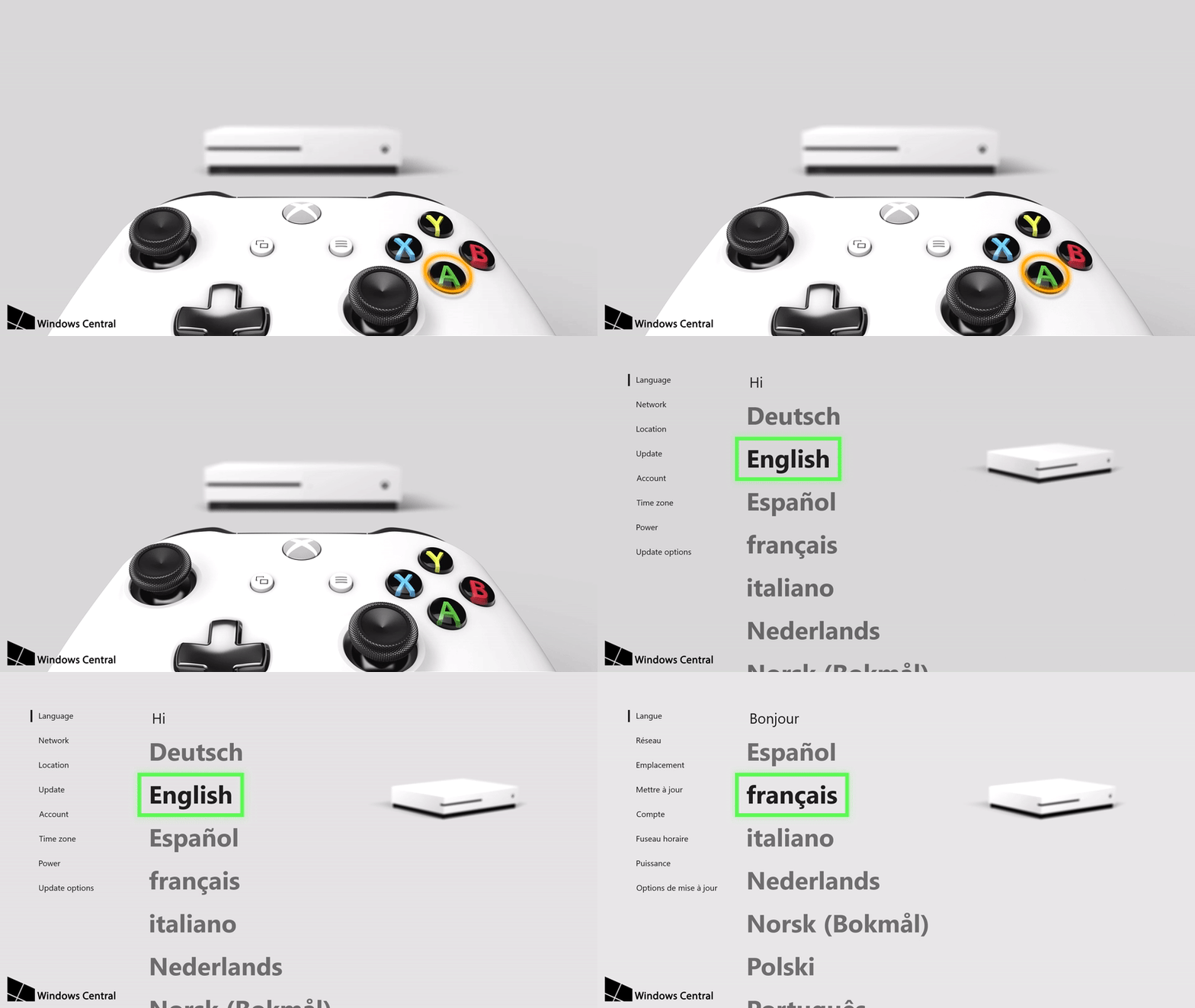
The new design language will also be applied to the Xbox One OS, and as it turns out Xbox Insiders can already see some Fluent Design touches during the Xbox One setup experience. Our colleagues over at Windows Central shared some images of the redesigned Xbox One out-of-box experience today, and you can check those changes in the version 1706 of the Xbox One OS. You can see below one of the new animations that appears during the set-up process, with a smooth transition to a redesigned menu:

Interestingly, the new Xbox One setup experience is also customized depending on the console in use. “While a white background and black text are used for the Xbox One S, the setup process adapts accordingly when resetting an original black Xbox console,” explains Windows Central. The OOBE will also be adapted for the upcoming Xbox One X.

If the new animations and smoother transistions between menus are very welcome changes, the new OOBE hasn’t been drastically changed: after choosing their basic settings, users will be redirected to the “Welcome app” which has been updated to promote new features such as Controller Linking. But overall, the new set up experience gives us a sneek peek at the bigger Fluent Design update for the Xbox One that Microsoft teased during Build 2017:

Microsoft last redesigned the Xbox One OS two years ago with the New Xbox One Experience, and the Xbox One dashboard has since received several updates to improve performance and also promote the company’s new Mixer live-streaming service. It’s clear though that there is still more room for improvement, and we hope Microsoft won’t prioritize design over performance in the near feature. A better-looking Xbox One dashboard would be welcome, but we would also like Microsoft (and third-party developers) to improve the design of the few UWP apps currently available on the Xbox One, which too often look like blown-up mobile apps.

Do you like what Microsoft is doing with the new Xbox One setup experience, and do you think the Xbox One OS is in need of a design refresh? Let us know your thoughts in the comments below.

Ghost In The Shell movie now available to watch on Windows 10 & Xbox One

The sci-fi blockbuster, Ghost in the Shell, is now available to purchase in most regions in the Windows Store on Windows 10 devices and the Xbox One console. The movie is an American adaption of the Japanese comic book series of the same name which itself has spawned numerous animated TV series and films, each with their own unique aesthetic. Here’s the official film synopsis:

In the near future, Major (Scarlett Johansson) is the first of her kind: A human saved from a terrible crash, who is cyber-enhanced to be a perfect soldier devoted to stopping the world’s most dangerous criminals. When terrorism reaches a new level that includes the ability to hack into people’s minds and control them, Major is uniquely qualified to stop it. As she prepares to face a new enemy, Major discovers that she has been lied to: her life was not saved, it was stolen. She will stop at nothing to recover her past, find out who did this to her and stop them before they do it to others. Based on the internationally acclaimed Japanese Manga, “The Ghost in the Shell.”

Buy Ghost in the Shell in the Windows Store

Have you watched Ghost in the Shell yet and would you recommend it to others? Share your thoughts with the community in the comments below.

You can finally play PlayStation 4 games on your PC

Sony just announced that the company is adding PS4 games to the PlayStation Now library.

PS4 games are being added to the library

20 PS4 games have been added to the library and more will be added in the forthcoming months. (PS Now’s library currently holds more than 500 games.) Sony will also bring back the $9.99 introductory offer from the first month to new subscribers and the one-year subscription for $99.99.

Here is the full list of the brand new PS4 games that are available now on PlayStation Now:

  • Broken Age
  • Dead Nation: Apocalypse Edition
  • Grim Fandango Remastered
  • Guilty Gear Xrd Sign
  • WWE 2K16
  • Tropico 5
  • F1 2015
  • Darksiders II Deathinitive Edition
  • Evolve
  • MX vs ATV Supercross Encore
  • Resogun
  • Helldivers
  • Castlestorm Definitive Edition
  • Exist Archive: The Other Side of the Sky
  • Arcania Complete Tale
  • Nidhogg
  • Super Mega Baseball
  • Killzone Shadow Fall
  • God of War 3 Remastered
  • Saints Row IV: Re-Elected

Requirements to play the games

In order to enjoy PlayStation Now on your PC, you need the following:

  • A compatible Windows PC
  • A DUALSHOCK 4 Wireless Controller with USB mini cable
  • DUALSHOCK 4 USB Wireless Adaptor(Optional)
  • A Network account for PlayStation
  • Current PS Now Subscription or 7-Day Free Trial (credit card required)
  • Minimum5Mbps internet connection

Xbox Game Pass vs. PS Now

Microsoft recently announced its own game subscription service called Xbox Game Pass which you can use it to get unlimited access to more than one hundred great Xbox One and Xbox 360 for only $9.99 per month.

The essential difference between Xbox Game Pass and PS Now are their connectivity requirements. With Xbox Game Pass, you can download games straight to your console, and you can play online/offline in full-fidelity without connectivity or streaming problems. PS Now supports only game streaming and you need a high-speed internet connection to be able to play the games.

On the other hand, if you’re perhaps using an older version and you are interested in how to connect a PS3 controller to your PC, have a look at our guide.  And if you’re the proud owner of the PS4, here’s how to use the PS4 connector on your PC.

RELATED STORIES TO CHECK OUT:

Office Activation Error 0x8004FC12: How to Fix it Quickly

The Microsoft Office 365 0x8004FC12 error occurs when Windows users attempt to activate Office 365, 2013 or 2016.

The 0x8004FC12 error has the following error message: We’re sorry, something went wrong, and we can’t do this for you right now. Please try again later. (0x8004FC12).

Some Windows 10 users have reported getting that error, which blocks them from activating MS Office, after recently upgrading to the platform.

How can I fix the Office activation error 0x8004FC12?

1. Add a Net Local Group

  1. Press the Windows key + S, type cmd, and select Run as administrator under Command Prompt.
    cmd admin
  2. Type the command below and hit Enter to run it: net localgroup Administrators localservice /add
  3. Now, run the command below: fsutil resource setautoreset true C:
  4. Next, run the following command: netsh int ip reset resetlog.txt
  5. Finally, close the Command Prompt and reboot Windows before activating MS Office again.

Adding a Net Local Group is one of the more effective fixes for the 0x8004FC12 error.

2. Update PC

  1. First, click the Cortana taskbar button and enter updates in the search box.
  2. Select Check for updates to open Windows Update settings.
  3. Now, click the Check for updates button for further update details.
    check updates 0x8004fc12
  4. Click the Install now button when it appears if there are updates.

If you’ve recently upgraded to Windows 10, there might be some updates for it. Updating the platform might also fix the 0x8004FC12 error. You can check for updates with the Settings app.

3. Switch the Windows Firewall off

  1. Enter Windows Firewall in the Cortana search box. Then select Windows Defender Firewall.
    firewall
  2. Click Turn Windows Defender Firewall on or off on the left of the tab.
  3. Select Turn off Windows Defender Firewall for both Private and Public options there and click OK.
  4. Now have a go at activating MS Office again. Thereafter, you can switch the Windows Firewall back on.

The Windows Firewall might be hindering the MS Office activation if it’s on. So temporarily switching that firewall off might do the trick. You can switch the firewall off via the Control Panel.

4. Repair the MS Office Suite

  1. Press the Windows key + R, type appwiz.cpl, and click OK.
    appwiz 0x8004fc12
  2. Now you can right-click the MS Office suite and select Change from its context menu.
  3. Select the Quick Repair option on that window. Alternatively, you could select the Online Repair option that reinstalls the suite.
    activation repair
  4. Press the Repair button and follow the diagnostic wizard instructions.

MS Office also includes its own troubleshooter that can help you resolve errors pertaining to its applications. So that might provide a fix for the 0x8004FC12 activation error.

5. Reset the TCP/IP in Command Prompt

  1. Launch Command Prompt as admin.
  2. Type the command below and hit Enter to run it: netsh int ip reset resettcpip.txtnetsh
  3. Finally, wait for the command to finish running and restart your PC.

Resetting the TCP/IP can fix connection issues. The Office 365 0x8004FC12 error could be connected to those protocols.

6. Adjust the Automatically Detect Settings Option

  1. Press the Windows key, type internet, and select Internet Options.
    internet options
  2. Click the Connections tab on that window.
  3. Then click the LAN settings button.
  4. Deselect the Automatically detect settings option if it’s selected there.
  5. Press the OK button to close the window.

Deselecting the Automatically detect settings option can also fix the 0x8004FC12 error.

Those are some of the best fixes for the 0x8004FC12 error. One of those fixes will probably resolve the issue, but you can still contact MS Office support.

There’s also a Recovery Assistant for Office 365 tool that might fix the issue, and you can check our guide on how to use it.

Feel free to let us know the solution that helped you fix this issue in the comments below.

Microsoft’s Calibri font is at the center of a political scandal in Pakistan

Pakistan’s Prime Minister, Nawaz Sharif, has found himself in the center of a pretty serious scandal – and the smoking gun is one of Microsoft’s fonts. The Prime Minister’s daughter, Maryam Nawaz, seems to have falsified documents in an effort to hide her possession of some overseas properties. The problem? These documents were typed out in Calibri font – something that wasn’t released to the public until 2007, one year after these papers were dated.

Now, the scandal gets a little bit more complicated than that. While Calibri wasn’t officially released until 2006, there were pre-release version floating around a few years earlier. In an interview with Calibri font creator Lucas de Groot, Pakistani newspaper Dawn got him to open up with his thoughts.

“If the person using Calibri was such a font lover that he or she had to use the new Calibri, then he or she should be able to prove that other documents were printed with Calibri in 2006, and these prints should be in the hands of other people as well,”

Microsoft itself probably won’t be getting involved with this, but fans of the company or Pakistani politics might want to get some popcorn as the political drama ensues. Sharif has been called to resign, but as of now, everything is up in the air.

Paint 3D Windows 10 app gets new updates

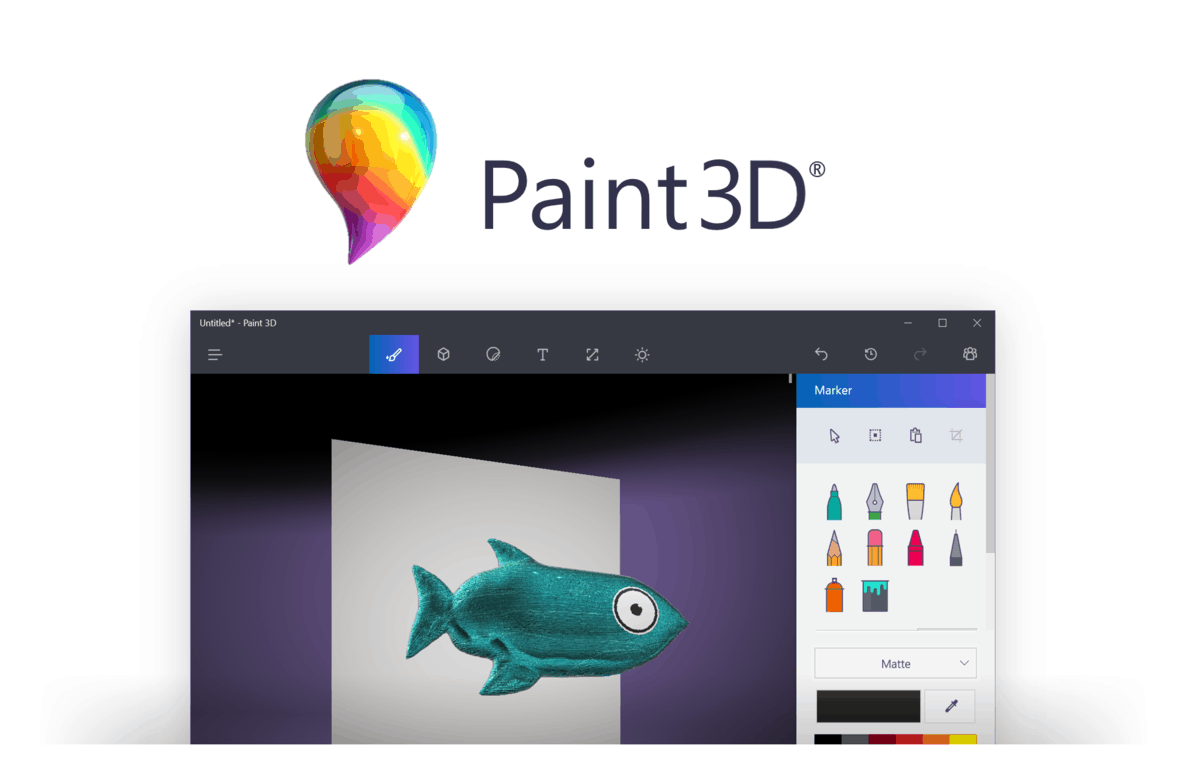
Microsoft announced today that it’s bringing new features to its Paint 3D app on Windows 10 PCs. The 3D creation app is now pre-installed on all PCs running the Windows 10 Creators Update, and it allows users to create 3D objects from scratch or transform user-generated content available on the company’s Remix 3D online community.

“We’ve been listening to feedback from our fans to improve the experience and bring you the features you want,” shared the company in a blog post. The first new addition is an update to Magic Select, the tool that lets you easily crop the background of any picture to use objects or persons from your pictures in 3D creations. “As of today, you can now magic select content directly into a scene, even after the scene has been partially composed so there is no need to move the object off canvas first,” explained Microsoft.

The updated Paint 3D

The second new addition is actually a feature from the legacy MS Paint app: the Line and Curve tools, which let you draw and create shapes in the old Paint app are now available in Paint 3D alongside other 2D shapes in the “Stickers” menu. “The Line tool gives you the ability to control the thickness and opacity and the Curve tool has one, two, and three inflection point controls that allow for the creation of lots of interesting objects,” explained the company.

Line and Curve tools,

Last but not least, Paint 3D now supports GLB, a new open standard which should make 3D file sharing more user-friendly. Overall, Microsoft’s new 3D creation tool is one of the most interesting Windows 10 apps that the Redmond giant introduced this year (along with the new Story Remix app, which will be available with the Fall Creators Update). The company says that more updates are coming in the near future, but you can still use the feedback hub in Paint 3D to suggest new features to the team.

How to check how much power apps use in Windows 10 and Windows 10 Mobile

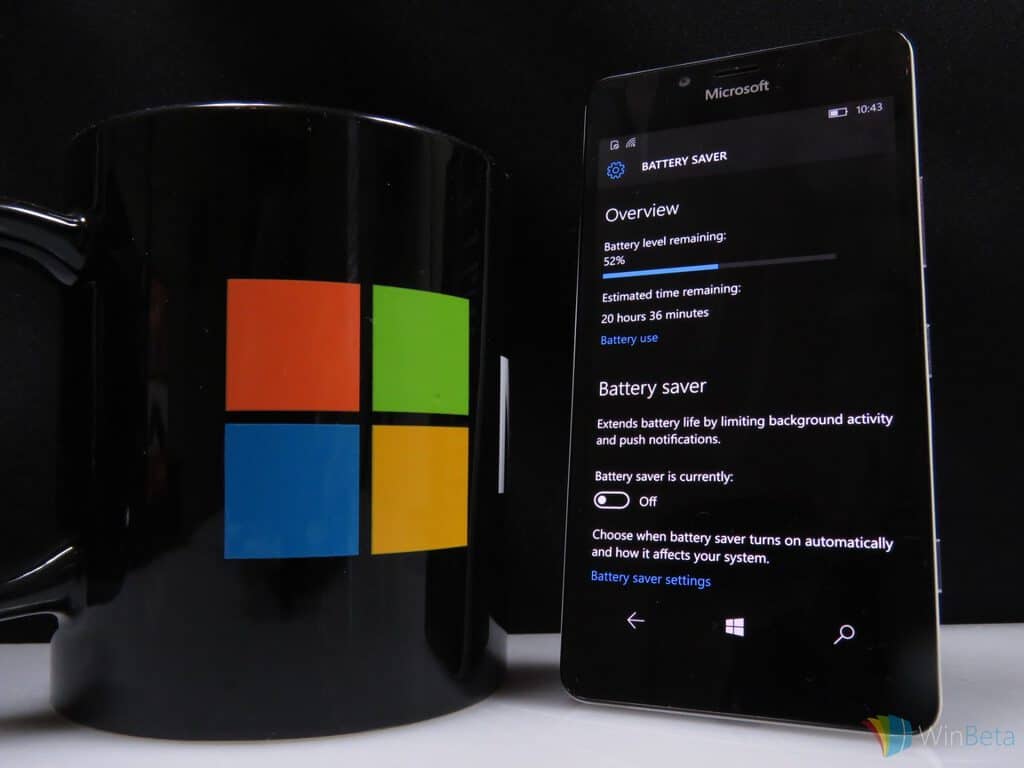
If your device’s battery seems to drain faster than it should, Windows 10’s built-in power usage screen could help. It lets you see which of your apps are using the most battery. If one is using significantly more than the others, you can restrict its background activity to save power.

Windows’ app power consumption metrics are found in the “System” category of the Settings app. Open the “Battery” page to see an overview of your device’s current battery status. At the top of the page, you’ll see your device’s remaining battery capacity and its estimated runtime. Underneath this, click “Battery usage by app” to open the app consumption screen.

Screenshot of Windows 10 Battery settings screen

This lets you monitor the power consumption of each app running on your machine. Apps on this screen are ranked by the percentage of battery usage they account for. The apps that have used the most battery power are shown at the top, letting you immediately identify the worst offenders.

Screenshot of Windows 10 battery usage by app screen

By default, Windows will show data from the past 24 hours for apps that have used battery power. You can change this with the “Time” and “Showing” dropdown menus at the top of the screen. The “Always allowed apps” category in the “Showing” menu lets you filter the results to only show apps that can run continually in the background. This lets you quickly narrow down any battery drains you experience while in Connected Standby or hybrid sleep mode.

Screenshot of WIndows 10 battery usage screen filtered to always-allowed apps

If you find an app’s using more power than you’d like, click its name to throttle its activity. In this menu, you can choose whether an app is “Always allowed in background,” “Managed by Windows” or “Never allowed in background.”

Screenshot of Windows 10 adjusting app power settings

The latter will prevent it from running when it’s not being actively used, potentially saving you power but preventing you from getting app notifications. Oppositely, “Always allowed” removes the restrictions on an app’s background behaviour, giving it the freedom to use your device’s hardware whenever it needs to. By default, the “Managed by Windows” option will be used. This lets the operating system intelligently adjust an app’s background presence.

One way of quickly eking out a bit more runtime from a near-empty battery is to use Battery Saver. This can be enabled from Action Center or the Battery page in Settings. Here, you can adjust when Battery Saver is automatically turned on. You should remember that apps set to “Always allowed in background” may keep running even when Battery Saver is active. If you still experience battery drain issues after adjusting your apps and using Battery Saver, you could try generating a battery report to look for hardware issues.

The NAB is not happy with Microsoft’s Rural Airband Initiative, to put it mildly

Just yesterday, Microsoft made headlines for the announcement of their new Rural Airband Initiative. Though Microsoft has the goal of building the technology to help millions of citizens in rural America online, the initiative mainly depends on TV white spaces, otherwise known the unused broadcasting frequencies in the wireless spectrum. Noted by TechDirt, it turns out this is exactly what has upset the National Association of Broadcasters (NAB.)

In a post on their website, NAB Executive Vice President of Communications Dennis Wharton, responded directly to reports of Microsoft’s Rural Airband Initiative proposal. He balks at Microsoft and calls the development of the White Spaces initiatives a “well-documented failure,” linking to a 2015 ReCode post and calling on lawmakers to not “be misled by slick Microsoft promises.”

“It’s the height of arrogance for Microsoft — a $540 billion company — to demand free, unlicensed spectrum after refusing to bid on broadcast TV airwaves in the recent FCC incentive auction. Microsoft’s white space device development has been a well-documented, unmitigated failure. Policymakers should not be misled by slick Microsoft promises that threaten millions of viewers with loss of lifeline broadcast TV programming.”

Issues with White Spaces have dated back to 2004, and certain Internet Service Providers have also tried to petition the government to destroy White Space Broadband. In fact, at the start of the digital TV era, the NAB also ran ads which claimed that White Space Broadband would crowd broadcast airwaves and cause many to lose access to their TV shows. Microsoft, though, has published studies which reveal that the viability of the technology has been proven.

To be fair, the NAB is most likely barking at Microsoft because it would not have control over the spectrum being used by Microsoft’s partners. Microsoft also has an entire website devoted to the success of White Spaces. The website shows that the tech giant has deployed 20 TV white spaces projects in 17 countries that have served 185,000 users. Microsoft also believes that all tech companies in America can benefit from their Rural Broadband Initiative.

We’ve reached out to Microsoft for further comment on the latest remarks from the NAB and will update the story accordingly.

Microsoft’s new team of 7,500 computer scientists to take the next step in AI advances

Smartphones are all the rave today, but an increasing chatter is beginning to surface as to how we fully utilize not only our most personal computing device but how its access to information should interact with the rest of our world.

Companies such as Apple, Google, Facebook, Amazon, and Microsoft are all looking into finding solutions that make information flow between smartphones and a host of other devices as seamless as possible with the use of artificial intelligence.

Enter Microsoft’s recent focus on the advance of its AI efforts that have brought users tools such as Microsoft Translator, Azure Machine Learning, and Bing.

Now, Microsoft is looking to a new incubation effort called Microsoft Research AI which was created to solve some of the nuances of integrating artificial intelligence into practical applications.

During the celebration of Microsoft’s Cambridge U.K. research lab’s 20th anniversary, the company took some time to introduce Microsoft Research AI as it also explained the core goals of the project.

Another core goal of Microsoft Research AI is to reunite AI research endeavors such as machine learning, perception and natural language processing that have evolved over time into separate fields of research. This integrated approach will allow us to develop sophisticated understandings and tools that can help people do complex, multifaceted tasks. For example, using this approach we can create methods and systems that understand language and take action based on that understanding.

Another of Microsoft’s AI efforts is to address and advance the more insipid use cases of AI that are being used today such as algorithms designed to manipulate users into spending money, illicit personal information, judge the value of human life when navigating roads and much more.

According to a report from Business Insider, today’s announcement differs from Microsoft’s long-standing participation in AI development by organizing experts in a far more strategic effort.

Microsoft Research Labs director Eric Horvitz mentioned to BI that the new AI labs are a “key strategic effort; a move that is “absolutely critical” as artificial intelligence becomes increasingly important to the future of technology.” As it stands now, Microsoft’s new Research AI teams make up a rounding error for the company’s staff, but we should expect to see those numbers increase as the company looks to compete with the likes of Amazon, Google, and Facebook in the coming years.

Overall, it’s up to not only Microsoft but every company looking to harness artificial intelligence to think long and hard of the ramifications of their applications, and that seems to be what Microsoft’s Research AI Labs was created to accomplish.

The Surface Laptop with Windows 10 S can run Insider Preview builds, just like any Windows 10 PC.

Windows 10 S, the new version of Windows 10 streamlined for security and performance finally made its debut on Microsoft’s Surface Laptop last month. The latest addition to the Surface Family is definitely an interesting machine: this is Microsoft’s first true laptop, and it’s mostly targeted at college students who are traditionnally inclined to buy Apple’s MacBooks.

If reviews for the Surface Laptop have been mostly positive so far (except the numerous comments about its very poor repairability), it’s still too early to know if consumers are likely to embrace Windows 10 S: PCs running the new OS will only be able to run Windows Store apps, though Microsoft guarantees that this limitations should provide better security and performance.

When Microsoft introduced the new Windows 10 SKU earlier this year, the company made it clear that it would be very easy for consumers to upgrade to Windows 10 Pro and get access to legacy Win32 apps if they really need them. However, the company didn’t say if Windows 10 S PCs like the Surface Laptop would be eligible for Windows 10 Insider Preview builds, just like any PCs running Windows 10 Home or Windows 10 Pro. As it turns out, the Surface Laptop can be enrolled in the Windows Insider just fine, Windows Central is reporting today.

It’s possible to enroll a Surface Laptop running Windows 10 S in the Windows Insider Program (credit: Windows Central).

On the Surface Laptop, the Windows Insider Program tab is present in the Settings app, and it allows users to choose their preferred Insider Ring. “It’s worth noting that even if on Fast Ring users can still at any point switch to Windows 10 Pro from Windows 10 S through the Windows Store and not lose data, or have to roll back,” added Windows Central.

It’s great to see that Windows 10 S PCs have full access to Windows Insider builds, which means that the OS is on the same page than other Windows 10 SKUs. For now, Windows 10 S is only available on the Surface Laptop but Microsoft previously announced that many OEMs including Acer, Asus, Dell, Fujitsu, HP, Samsung and Toshiba would bring Windows 10 S PCs starting at $189 this summer. Moreover, the new SKU will also be free to install for all schools on their current genuine Windows 10 Pro PCs.

Microsoft confirms (again) that all Xbox One 4K game updates will be free

It’s admittedly been states numerous times from a variety of sources since this year’s Microsoft E3 presentation that all of the Xbox One video games gaining 4K visuals later this year would be getting these via free updates but a surprisingly large number of gamers still seem unsure about the jump from 1080p to 4K and the (non-existent) price involved.

Microsoft’s Aaron Greenberg replied to a worried user on Twitter today and confirmed once again that yes, these 4K updates would indeed be free. “Any title you own that adds a 4K update will be done for free,” his tweet reads.

Naturally, to properly experience these improved 4K graphics, gamers will need to purchase the upcoming Xbox One X console and a compatible 4K television set but as far as the games go, if you’ve already bought them they won’t cost you any more money.

Digital pre-orders for Mega Man Legacy Collection 2 open on Xbox One

While the physical version of Mega Man Legacy Collection 2 has been available for pre-order for a while now, the digital version is finally up in the Windows Store for gamers to buy and download before its August 8th release date. Here’s its official description and link:

The Blue Bomber is back in this second collection of classic Capcom titles! Featuring faithful reproductions of Mega Man 7, 8, 9, & 10, this collection spans the iconic series’ evolution and retro revolution. Take on the nefarious Dr. Wily and his diverse Robot Masters in these timeless 8-bit, 16-bit, and 32-bit adventures!

Mega Man Legacy Collection 2 is bursting with additional content, from time trials and remix challenges with online leaderboards, to a music player and an extensive gallery of rare illustrations. Also included are the additional modes originally released as DLC for Mega Man 9 and 10, featuring extra stages and playable characters. For anyone who wants a little extra help with these challenging classic platformers, you now have the option to reduce the amount of damage received.

Pre-order Mega Man Legacy Collection 2 on Xbox One

Are you excited to play Mega Man Legacy Collection 2 on Xbox One? Let us know which classic title you want to play the most.

How to download and install Bitdefender 2018 on your Windows PC

With a new antivirus treat fresh out of the oven, Bitdefender is proposing a new era of digital security. In today’s world full of threats and malicious entities that scour the internet, it’s more important than any time before to have complete control over security.

There are many factors to keep in mind, ranging from keeping threats out to keeping yourself safe when you browse the web. It’s not about browsing the web either. Many attackers will try to hijack your desktop or physical device, making life a torment for those that don’t use antivirus protection. BitDefender is also the first big antivirus company to release their 2018 product lineup already, so that’s why we already included them in our list with the best antivirus for 2018.

There are many reasons for which you should get the latest Bitdefender version, but here are just a couple of them:

The latest version

As time passes, more virus threats and hacker attacks will reveal themselves to the world, making it harder and harder for outdated software to keep up with protection. Having the latest version of Bitdefender will ensure that the most recent means of protection are in place. Professional antivirus service providers like Bitdefender work to bring more functionality to their software which means that every new feature has a precise place in the developer’s plan.

Features

There are many reasons for which you should get the latest Bitdefender version, but here are just a couple of them:

The new Advanced Threat Defense feature acts like a guard dog that is able to sniff out any possible threat. Sometimes, threats are disguised as regular processes, but they won’t be able to get passed Bitdefender which can tell legitimate Windows processes from shady or phony ones.

The Safe files feature turns the computer into an impenetrable fortress. To be more precise, it’s like it creates these little bunkers within the system, where your most important and sensitive data can be stored. And just like a real life bunker, no one unauthorized can get in. This will stop hackers from trying to use data present in the system to initiate a ransomware attack.

The Webcam Protection feature makes sure no one can remotely access your webcam. This is pretty much one of the oldest tricks in the book but not being versed in IT, many users still become victims. That can be avoided with Bitdefender which will act as a big wall between your privacy and nosy intruders.

Downloading Bitdefender 2018 for Windows PC

The software has been made available in both x64 and x86 formats so that all users can benefit from the new Bitdefender. Depending on which version is appropriate for your system, click the associated link and you’ll be good to go.

If you want to know more about 2018 edition, we recommend you to visit BitDefender’s website.

RELATED STORIES TO CHECK OUT:

Bitdefender unveils 2018 edition of Total Security, Internet Security, Family Pack, Antivirus Plus

Bitdefender, the leading security firm has announced new consumer solutions that are designed to withstand attacks by advanced ransomware like the Wannacry and Petya. The new Bitdefender will make it increasingly difficult for the attackers to break into your systems. Bitdefender is powered by the machine learning and artificial-based technologies, something that the company has been developing since 2008.

Bitdefender Total Security 2018 will extend its protection to home users and will ensure that they are protected by an advanced layer of privacy. As one might have already deduced the number of malware and ransomware attacks are on a constant rise and its high time even the home users opt for a comprehensive security solution. True to its tradition the Bitdefender 2018 is light and will not slow down your computer.

New Features in Bitdefender Total Security 2018

The latest suite from Bitdefender Total Security 2018 offers a multi-layer defence mechanism capable of detecting ransomware attacks that usually evade detection filters. The Advanced Threat Detection keeps an eye on patterns of behaviour and is capable of blocking even the latest threats. On the other hand, the Real Time Protection will work in tandem with the Advanced Threat Defence and blocks all the known threats.

Bitdefender has also baked in a new feature called as File Safe. The File Safe is a special super secret compartment that prevents unauthorised alterations to the sensitive files.  Other innovative features include Webcam Protection, a service that prevents webcam spying and blackmailers from unauthorised access of your webcam. Furthermore the Account Privacy for iOS and Android will ensure that none of your emails have been leaked.

“The daily risks to users are more serious now that at any point in history, and Bitdefender is rising to the occasion with its 2018 consumer security product line,” said Bitdefender’s Vice President Consumer Solutions, Ciprian Istrate. “Bitdefender 2018 advances the company’s philosophy of protecting its customers with a layered approach against all major threats, from privacy loss to ransom demands”

Let’s take a look at the entire Bitdefender 2018 Lineup

Bitdefender Total Security 2018

The Bitdefender Total Security 2018 is the most comprehensive offering of the lot. It offers complete protection across multiple platforms including Windows, Mac OS, iOS (coming soon) and also Android. The Total Security offers advanced malware detection, multi-layer ransomware protection and webcam protection for better privacy.

Bitdefender Antivirus Plus 2018

The Antivirus Plus aims at providing the best protection against threats on Windows. The security suite is also optimised to preserve speed and battery life. The Antivirus Plus 2018 also offers a multi-layer ransomware protection.

Bitdefender Antivirus Plus offers performance optimisation tools like Autopilot, Photon and Battery mode. Privacy Protection features include complete data protection, advanced threat defence, Anti-Fraud and Secure Browsing.

Bitdefender Family Pack 2018

The Bitdefender Family Pack 2018 is extremely useful as it will protect your entire family. The Family Pack comes with a monitoring tool to keep track of kids on Windows, Mac, iOS and Android. Parents can use this tool and safeguard their kids from inappropriate content, block disturbing phone calls and SMS.

The best part is that parents can track their kids whenever they are using smartphones and the children, on the other hand, can mark themselves safe using the Parental Advisor mobile app. Also, the parents can create a geofence and will get notifications whenever the children enter a restricted area.

Bitdefender Internet Security 2018

Looking for complete protection against online threats? The Internet Security 2018 offers webcam protection, ransomware protection and file safe. It will work against all type of threats including viruses, Trojans, ransomware, zero-day, spyware and rootkits. Furthermore, the product also offers Social Network Protection, Password Manager and also file shredder.

You can get more information on BitDefender’s website or you can buy the version you need from here.

Microsoft to shut down Oregon Surface Hub manufacturing facility and cut 124 jobs

New reports are indicating that Microsoft is shutting down a Surface Hub manufacturing facility in Wilsonville, Oregon, cutting 124 jobs.  The move does not mean that Microsoft is abandoning Surface Hub, and according to ZDNet is coming because the company is aligning its manufacturing efforts.

Word on the closure of the facility was first reported by Puget Sound Business Journal, and many others have since picked up on the news. While the cuts from the closure cover mainly engineering positions, it is not as massive when Microsoft made headlines for laying off 3,000 workers in international offices in sales positions.

In a statement made to ZDNet, a Microsoft spokesperson explains the reason for the closure of the manufacturing facility.

“We are consolidating our Surface manufacturing. This will result in the closure of the Wilsonville, OR office and factory. We remain committed to the Surface Hub product line and will move forward with Surface Hub development in Redmond.”

The manufacturing facility dates backs to 2012 when Microsoft acquired Perceptice Pixel Inc. Surface Hub, nonetheless, has been successful for Microsoft. The Windows 10 Creators update recently made its way to the Surface Hub, and Microsoft even expanded the Surface Hub partner program in the UK to address huge demand.

New Microsoft video highlights the story of the Windows 10 Feedback Hub

Microsoft has gotten a whole lot done as a result of their Feedback Hub. The app made its way into Windows 10 as a huge part of the development process, and the primary way for Insiders and other users to interact with the team behind Windows, to help for a more dynamic development process.

To give users an idea of who the people behind the Feedback Hub are, Microsoft has released a video that goes into the details. It tells the story of the 32 programmers, designers, and more that work on the team, and offers some valuable perspective.

On top of being a nice look into the inner workings of Microsoft’s feedback practices, the video helps Windows 10 users understand exactly what happens when they submit their ideas to the feedback hub. It explains the how and why of each category in the hub, and gives you an idea of what happens once the team gets that suggestion.

Star Wars Battlefront II Xbox One multiplayer beta coming in October

It’s now been a month since EA revealed the first official gameplay trailer for Star Wars Battlefront 2, and many fans of the franchise can’t wait to play the sequel to the 2015 reboot of the series. Well, the publisher finally shared some details about the upcoming multiplayer beta yesterday, and you should make sure to free your calendar in the first week of October.

Starting October 4, all fans who pre-ordered the game on Xbox One, Playstation 4 or Windows will get early access to the multiplayer beta. All players will get access to it two days later on October 6, and EA promises that there will be “a lot to explore.” The publisher shared the following details in the blog post announcing the news:

You’ll be able to experience some of the best of Star Wars Battlefront II across iconic planets and into the far reaches of space. Get set to dive into Naboo: Theed in Galactic Assault. Join Republic clone troopers and Separatist battle droids in a wild melee on the streets surrounding the royal palace, where you’ll take control of some of your favorite heroes.

But that’s only part of the story. Also included is a multiplayer Starfighter Assault battle (with more details to be revealed at Gamescom), giving you the ability to pilot a variety of the most memorable starfighters from Star Wars.

The multiplayer beta will be available through October 9, and you can still pre-order the game if you want to get early access. By doing so, you’ll also get bonus content including Yoda’s Epic Lightsaber Mastery Star Card, Exclusive Star Wars : The Last Jedi outfits for Kylo Ren and Rey and more. “Keep your eyes open for even more surprises as the beta approaches,” added EA.

Microsoft to expand white spaces wireless internet in Rural Broadband initiative

As we have pointed out in the past, Microsoft has been pushing white space technology which could be used to bring affordable Internet to everyone. Indeed, in a time when the world is ever so more connected, the technology only helps citizens get online, since it is powered by the unused broadcasting frequencies in the wireless spectrum. Well, it turns out that Microsoft is set to expand on this with a new Rural Airband Initiative that could bring the internet to millions in the most rural areas of the United States (via recode.net)

According to a blog post penned by Microsoft President Brad Smith, Microsoft is hoping that the Rural Airband Initiative will bring better broadband to two million Americans in the next five years.  The project will begin in 12 states with 12 projects where Microsoft partners and local internet service providers and telecommunications companies have offered seed money for the program. Arizona, Georgia, Kansas, Maine, Michigan, New York, North Dakota, South Dakota, Texas, Virginia, Washington, and Wisconsin, are reported to be taking part in the Rural Airband Initiative.

Again, this initiative does not mean that Microsoft is aiming to become an internet service provider. Since building networks in rural areas can be expensive, the tech company is rather providing the necessary assets to local internet providers in these 12 states to help them deliver Internet services, and is not taking profit. Microsoft will instead invest back the revenue from the Rural Airband Initiative into initiatives in other states where the internet access is hard to come by.  The company also plans to invest in the newly connected communities and use its philanthropic organization to work with National 4-H Council and help raise awareness for digital skills training.

Microsoft has already deployed 20 TV white spaces projects in 17 countries that have served 185,000 users.  The company notes that if 23 million additional customers can access the internet at broadband speeds thanks to this project, all tech company in America will benefit from the Rural Airband Initiative. In fact, Microsoft hopes the project serves as a catalyst for market investments and has plans to stimulate investment by other companies through technology licensing. You can learn more abut the Microsoft Whitespaces initiative, and read up on the success stories by clicking here.

Amazon is offering great savings on Xbox One S bundles for its Prime Day sale

If you have yet to purchase an Xbox One console, Amazon is currently offering great discounts on Xbox One S bundles for its massive Prime Day sale. In the US, Amazon Prime members can choose between a $290 bundle including a 1TB Xbox One S console and a lot of goodies, and a slightly less generous $240 bundle with a 500GB Xbox One S (via Windows Central). Here are all the details below:

For $289.99 ($31% off), the first bundle includes a 1TB Xbox One S (white) plus two wireless controllers, a Play & Charge kit, a physical copy of Halo Wars 2 and three digital games (Halo 5: Forza Motorsports 6, Halo 5: Guardians and ReCore).

The first bundle

For $239.99 (31% off), the second bundles includes a 500GB Xbox One S with two wireless controllers, a Play and Charge Kit and the same three digital games.

The second bundle

In the UK, Amazon Prime members can also save big on a £179.99 bundle including a 500GB Xbox One S console, 2 wireless controllers, a chatpad and headset, a physical copy of Minecraft Favorites Pack and a download code for Forza Horizon 3. All these deals will only be available today for Amazon Prime members, and if you’re not a subscriber we remind you that you can try the service for free for 30 days.

Microsoft 365 is the company’s new cloud services bundle for businesses

Microsoft recently announced ‘Microsoft 365’, which is a new bundle of its cloud services for business customers. In a nutshell, it replaces the old ‘Secure Productive Enterprise’ bundle from last year, and the branding is now simple and clear. The announcement was made at the Inspire conference, where Microsoft discuses its partnerships with more than 17000 attendees. If you’d like to see all announcements, you can watch the full keynote here.

The company already sells Windows and Office subscriptions, but Microsoft 365 is meant to combine Windows 10, Office 365, as well as Microsoft’s mobility and security suites into one big subscription package. The tagline here is that “people are at the heart of digital transformation”. These services allow your employees to work and collaborate with ease, even when moving from one device to another. The bundle is also about Microsoft encouraging more use of its cloud services.

There are two flavors to choose from: Enterprise and Business. The first is designed for large organizations, while the second is more suitable for small and medium-sized businesses with no more than 300 users. For those of you who don’t know, you also get Intune, Azure Active Directory, and Azure Cloud App Security, and Threat Analytics as part of the deal. This should make device management and security an easier job.

Microsoft 365 Business will first arrive in preview form on August 2, and will be offered at $20 per user per month. Pricing for Microsoft 365 Enterprise varies depending on the particular plan the company choses when they sign up. If last year’s bundle prices are any indication, this could be around $36 and $54 for the E3 and E5 plans, respectively. Large organizations should be able to take advantage of these plans by the end of this summer.

Pushing further with Azure Stack

This news is perfectly in line with the Redmond giant’s strategy of powering the cloud that many companies will rely on. The company also announced Azure Stack hardware, which is a way for companies to host their own hybrid cloud. According to market research firm Gartner, most companies are still in the early stages of digital transformation. Microsoft said they already have more cloud partners than Amazon, Google and Salesforce combined. This brings confidence in the company’s ability to secure its future in the cloud space.

pie chart of digital transformation
Source: Gartner

To underline the momentum in the enterprise space, here are a few more interesting stats from the Inspire conference. No less than 70% of top 500 global companies are on track to have dedicated teams for digital transformation by 2019. To put it in perspective, Gartner estimates put these initiatives at $2.2 trillion, and Microsoft touts 19% higher margins for their partners when compared to the competition. And 80% of senior executives are sold on the importance of digital transformation, which is something to keep in mind if you’re on the fence.

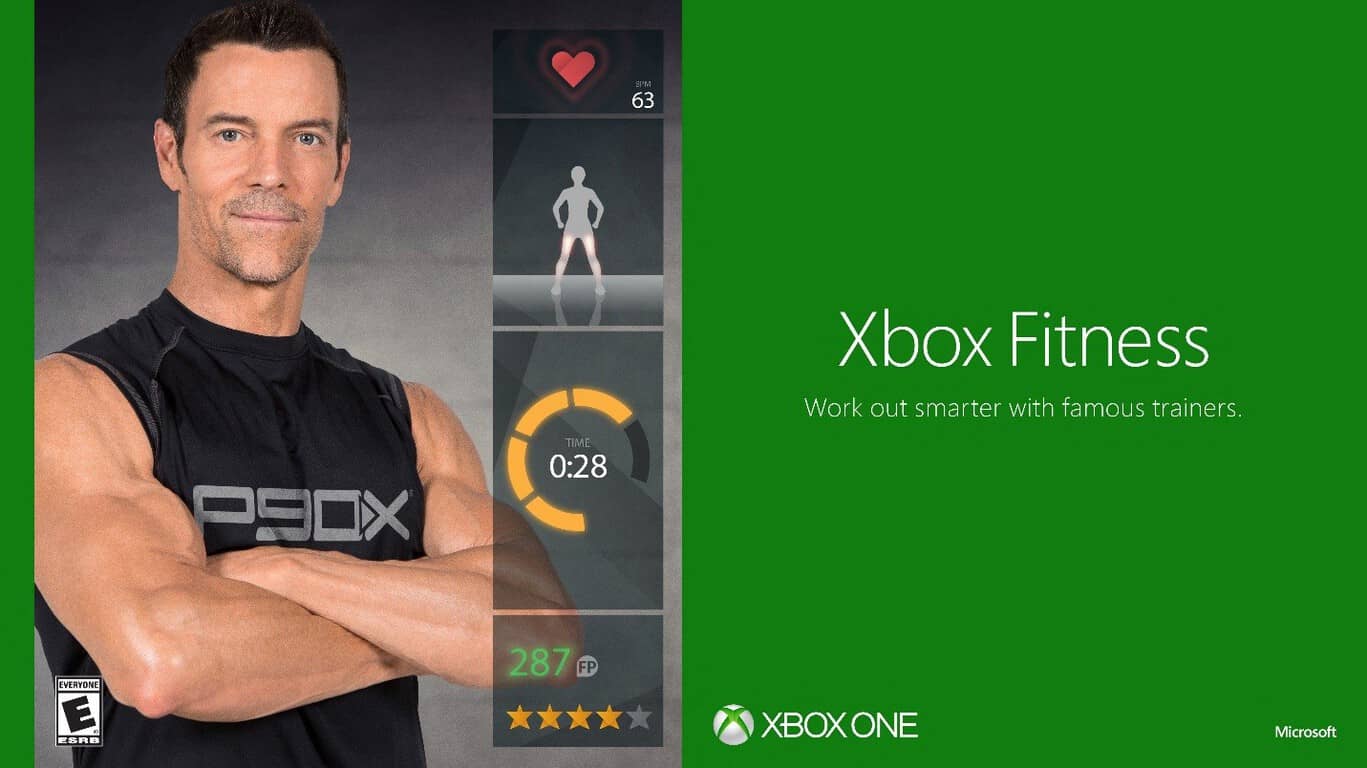
Microsoft’s Xbox Fitness has finally shut down

For a while, it looked as if Microsoft had gifted loyal Xbox Fitness users with full functionality for downloaded workouts after the apparent July 31st closure of the Xbox One fitness title but unfortunately within the last 24 hours, all of the programs have now completely stopped functioning and even cause Xbox Fitness to crash when being attempted to play.

Currently, the Xbox Fitness app itself still opens and users can view all of the leaderboards and score cards. It’s only the workouts which no longer work.

The closure of Xbox Fitness had been planned for a while now but many loyalists, who had been using it since the launch of the Xbox One several years ago, had been hoping that Microsoft was going to introduce a replacement for it. So far no new first-party fitness or health program has been announced for the console.

Were you a fan of Xbox Fitness and do you think Microsoft made the right decision in closing it? Let us know in the comments below.

Minecraft Story Mode Season 2 now available on Xbox One

The first episode of Minecraft Story Mode Season 2 is now available to buy and download on Microsoft’s Xbox One video game console. The game picks up where Season 1 (simply called, Minecraft Story Mode) left off and players can choose to carry over their previous choices and continue the storyline or start afresh with a new game not affected by their playing of the first game. Here’s the official description:

Now that Jesse and the gang have vanquished the Wither Storm, saved the world, and become totally super famous heroes, life has gotten a bit more…complicated. With more responsibilities and less time for adventure, old friendships have started to fade — at least until Jesse’s hand gets stuck in a creepy gauntlet that belongs to an ancient underwater temple. Together with old pals and new comrades alike, Jesse embarks on a brand new journey filled with tough choices, good times, and at least one temperamental llama.

Buy Minecraft Story Mode Season 2 on Xbox One

Minecraft Story Mode Season 2 will consist of five episodes which each episode being available individually or together as part of the Season Pass. Are you a fan of Minecraft Story Mode? Let us know in the comments below.

How to stop iTunes from opening when iPhone is connected

iTunes is a media player compatible with both Mac and Windows platforms. However, iTunes automatically opens whenever you connect an iPhone to a PC whether you need to run it or not. This is due to the media player’s automatic syncing options that are on by default. If you don’t need to open the software or sync devices, this is how you can stop iTunes 12 from opening when an iPhone is connected to Windows desktops or laptops.

Deselect the Automatically sync when this iPhone is connected setting

  • First, plug your iPhone into a laptop or desktop with its USB cable. iTunes will automatically open.
  • Click the iPhone icon at the top left of the iTunes window.
  • Click Summary.
  • Deselect the Automatically sync when this iPhone is connected option

  • When you’ve deselected the Automatically sync when this iPhone is connected option, press the Apply button to confirm the new settings.

Configure the Device-Syncing Setting from Devices Preferences

  • You can also ensure iTunes doesn’t automatically open by adjusting an option on the Devices Preferences tab. Click Edit at the top left of the iTunes window.
  • Select the Preferences option from the Edit menu.
  • A General Preferences window opens that includes a Devices tab. Select the Devices tab on that window.

  • Click the selected Prevent iPods, iPhones, and iPads from syncing automatically check box shown below. Deselecting the option ensures that no devices sync with iTunes and that the software doesn’t open when you connect an iPhone with Windows laptops or desktops.

  • Press the OK button.

By configuring those settings, you have effectively switched auto syncing off. This ensures that iTunes no longer automatically opens to sync with devices when you connect the iPhone with Windows PC. However, that also switches off automatic backups for the mobile.

OneDrive now requires the use of NTFS drives

Microsoft just made a sudden change to OneDrive, and now it requires the use of NTFS drives. This change caught people off guard when they discovered the fact that they couldn’t access their files. Another annoying thing is also the lack of communication.

NTFS replaced FAT32 and cross compatibility with Linux and macOS is only one of the various reasons for which many people choose the format for SD cards and external drives.

Formatting drives using NTFS

OneDrive users are now being able to see warning messages about the need to format drives using NTFS, and despite this, Microsoft keeps insisting that there is nothing changed and the company also forgot to display a warning message until now.

It is still not clear how many users have been affected by this change, but there are certainly many complaints about it, and you can see them online. Microsoft’s insistence that this is purely business, as usual, seems kind of strange and it is in contrast to the experience of those who cannot access their data anymore.

The company stated that it wants its users to have the best possible sync experience on Windows and this is the reason for which OneDrive maintains the industry standard of NTFS support. The company admitted that it discovered that a warning message was missing when a user tried to store their OneDrive folder on a non-NTFS filesystem, and the problem was fixed right away.

The official support is the same, and OneDrive folders will continue to need to be located on a drive with the NTFS filesystem, according to the company.

All in all, it’s useful that Microsoft finally realized that a warning message was missing, even if the company’s explanation doesn’t please most of the OneDrive users.

RELATED STORIES TO CHECK OUT:

Fix ‘Your OneDrive folder can’t be created in the location you selected’

OneDrive users have recently been getting warning messages that the cloud synchronisation has stopped working with the drives that are non-NTFS. What this means is that partitions that are Fat32 or REFS will not be synced by the OneDrive, instead, users will be greeted with the following message,

“Drive” must be formatted with the NTFS system to work with OneDrive. OneDrive must be on a drive that is using the NTFS filesystem. To have OneDrive use a different location, click “Set up OneDrive” and point OneDrive to an NTFS drive. To use “drive” with OneDrive, you need to format it with NTFS and then click “try again” to configure your account.”

The Problem

Users who opted a non-NTFS storage at the beginning were also greeted by a warning message that says,

“Your OneDrive folder can’t be created in the location you selected.

The location you were trying to create OneDrive folder belongs to a drive with an unsupported file system. To have OneDrive use a different location, click “Set up OneDrive” and point OneDrive to an NTFS drive. To use the existing location with OneDrive, you need to format it with NTFS and then click “Set up OneDrive” to configure your account.”

The Solution

The problem is that users were not noticed the change earlier and it happened all of a sudden. The worst part is that apart from Fat32 and exFAT other users who used Microsoft’s latest ReFS file system were also blocked from synching to OneDrive. This issue is also affecting SD cards that are used for extra storage and are in ReFS format. It’s worth noting that ReFS format has its own advantages over the others including integrity checking, data degradation protection mechanism and a mechanism to automatically handle hard disk failures.

Convert Fat32 into NTFS by using Covert.exe

  • Click Start>Run>CMD and then press enter
  • In the command window type help convert, the information regarding the process will be displayed.

Convert Fat32 to NTFS using the command prompt

  • Fire up command prompt by heading over to “All Programs”, “Accessories” and then click on “Command Prompt”
  • In the command prompt, type:-convert drive_letter: /fs:ntfs

Please bear in mind that once converted to NTFS the drive cannot be converted back to FAT 32. With the command above you can convert FAT or FAT32 volumes to NTFS. It is recommended that after the conversion one needs to restart the PC. The OneDrive will now let you choose the partition and will automatically sync the files on your cloud drive.

However, it is still wrong on Microsoft’s part to have implemented this change without any prior announcement. The least they could have done is explained why they dropped support for ReFS, a format that Microsoft itself touts as “next generation”.

Microsoft 365 introduced today at Inspire, brings together Office 365, Windows 10 and Enterprise Mobility, Security

At Inspire 2017 today, Satya Nadella introduced Microsoft 365. The new solution shows a shift and will bring together Office 365, Windows 10 and Enterprise Mobility, Security, into one complete and secure solution.

According to a post penned by Kirk Koenigsbauer, corporate vice president for the Office team, Microsoft 365 addresses the commercial needs from the largest enterprise to the smallest businesses. It comes in two forms, Microsoft 365 Enterprise and Microsoft 365 Business. Microsoft 365 Enterprise is for large organizations and integrates Office 365 Enterprise, Windows 10 Enterprise and Enterprise Mobility + Security.

Secondly, Microsoft 365 Business is designed for small-to-medium sized businesses with up to 300 users, also integrating Office 365 Business Premium with tailored security and management features from Windows 10 and Enterprise Mobility + Security. You can learn more about these solutions below.

Microsoft 365 Enterprise: (Will replace Secure Productive Enterprise)

  • Unlocks creativity by enabling people to work naturally with ink, voice and touch, all backed by tools that utilize AI and machine learning.
  • Provides the broadest and deepest set of apps and services with a universal toolkit for teamwork, giving people flexibility and choice in how they connect, share and communicate.
  • Simplifies IT by unifying management across users, devices, apps and services.
  • Helps safeguard customer data, company data and intellectual property with built-in, intelligent security.

Microsoft 365 Business:

  • Helps companies achieve more together by better connecting employees, customers and suppliers.
  • Empowers employees to get work done from anywhere, on any device.
  • Protects company data across devices with always-on security.
  • Simplifies the set-up and management of employee devices and services with a single IT console.

Also new and announced at Inspire 2017 is the preview of three tailored Office 365 applications for small-to-medium sized customers. Microsoft Listings, Microsoft Connections, and Microsoft Invoicing. These applications will be coming soon to Office 365 Business Premium and Microsoft 365 Business.

Microsoft 365 Enterprise will be offered in two plans, Microsoft 365 E3 and Microsoft 365 E5. Both are available for purchase on August 1, 2017. Similarly, Microsoft 365 Business will be available in public preview on August 2, 2017, with general availability coming worldwide in the fall of 2017, priced at $20 per user, per month.

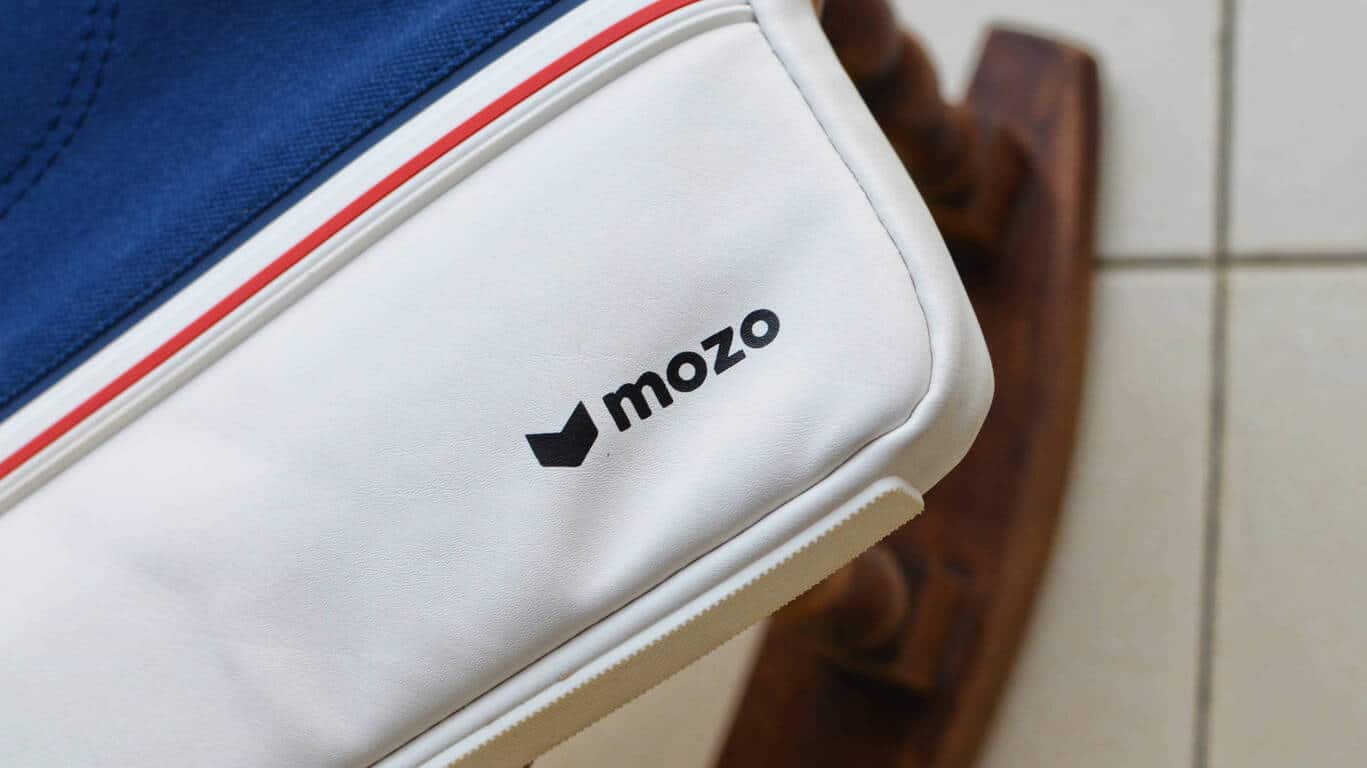
Mozo Sneaker Sleeves are a stylish and functional companion for your Surface Pro

While I was pretty excited about buying the new Surface Pro last month, I was also kicked to finally pair it with my new Mozo Sneaker Sleeve for Surface.

Mozo Accessories, the accessory maker from Helsinki, Finland, has made several accessories for Microsoft products, and came into prominence around the launch of Lumia 950 and Lumia 950 XL with some nice back covers and cases for the same. Of course, it made sense for the company to pivot to the more popular Surface line-up.

Inspired by the quintessential canvas sneakers – like those from Vans or Converse – the Mozo Sneaker Sleeves come in two color variants – red and blue. There’s a black variant as well but differs in the material (PU all over) and also in the looks. There’s no strap or handle on these sleeves, so you can’t carry them around like bags.

Made from a combination of canvas and PU leather, the Mozo Sneaker Sleeve sports an interior lining of a soft cotton canvas. There’s a zipper pocket on the front outside, and a divided pocket inside as well. The interior pocket helps fit not only the device but also other accessories like the charger, without scratching you device.

The Sneaker sleeve does not just carry the ‘sneaker’ moniker, but also looks the part. The chunky zippers add to the street-smart aesthetics, and are definitely more reliable in the long run. The rubber foot at the bottom is a neat addition. One, it totally looks like a sneaker sole and adds protection at the bottom, and also gives it a little base to be placed vertically aligned with a chair or something.

Of course, the sleeve is not just for a Surface Pro or Surface Book, and most 13-inch laptops and 2-in-1s, like the Dell XPS 13 that I tried, should easily fit. The sleeve measures 33.5 x 25.5 x 2.5 cm.

Overall, the Mozo Sneaker Sleeves are a work of art and bring together fashion and functionality in a perfect way. Even though I’m not much of a sleeve fan, I find myself lugging around my Surface Pro in this sleeve most days of the week now. The bright blue and red canvas design should appeal to a lot of young people. I’d really like to see Mozo making messenger bags or briefcases in similar design, and I’d totally buy one.

The sleeves were originally priced at €49.90, which was a tad expensive, but are now available for only €29.90 ($34), which is a steal really. There’s a moderate bit of protection, and the design’s pretty rad.
Microsoft news recap: CIO leaves the company, BBC Newsnight looks at Microsoft’s AI research lab and more

Microsoft (MSFT) news recap is a weekly feature highlighting the top Microsoft news stories of the past week. Sit back, grab some coffee, and enjoy the read!

Microsoft’s Chief Information Officer departs, and Kurt DelBene replaces him

In part due to Microsoft’s global sales force reorganisation, which is aimed at cementing the company’s focus on cloud services, the Chief Information Officer, Jim DuBois, has left the company, and is being replaced by a new role – Chief Digital Officer – to be taken up by Kurt DelBene.

Photo showing a Microsoft employee speaking in front of a large blue screen showing a white cloud OneDrive icon

Microsoft’s back-to-school deals begin today, run through September 17th

If you’re looking to grab some Microsoft products or services over the coming weeks and months, now is the time, as the company has kickstarted its back-to-school deals, which will run until September 17th.

Microsoft, Microsoft Store, Deals

BBC Newsnight takes an exclusive backstage look at Microsoft’s AI research labs

Ever wanted to take a behind-the-scenes look at Microsoft’s AI research lab? Now you can. BBC Newsnight got exclusive access to Microsoft’s AI lab. Take a look below.

Microsoft and Baidu partner to bring AI powered vehicles to the automotive market

Speaking of AI, this week saw a new partnership between Microsoft and Baidu. With this partnership, the company’s hope to bring AI-powered vehicles to the automotive market, specifically in the self-driving vehicle area, as part of Baidu’s Apollo driverless car project.

That’s it for this week – we’ll be back next week with more Microsoft news.

Windows 10 news recap: OneNote receives new features, Surface Pro’s randomly hibernating and more

Welcome back to our Windows 10 news recap. We are continuing the trend of our weekly “Windows 10 news recap” series where we go over the top stories of the past week in the world of Microsoft’s flagship operating system.

VBScript now disabled by default on Internet Explorer 11 on Windows 10 build 16237, security patch coming to other Windows versions

On the latest build for Windows 10 Insiders on build 16237, Internet Explorer 11 now has VBScript disabled by default. Additionally, those on older versions of Windows will see VBScript disabled by default in a future security patch. For many, this will help make Internet Explorer 11 that little bit securer, as VBScript is often an attack vector.

Custom pens, multi-window support, and more come to the standard OneNote app on Windows 10

OneNote on Windows 10 has received quite a hefty update, which adds a number of new features, such as:

  • See multiple notes at the same time
  • Pen customisation
  • Immersive Reading

Take a first look at the Acer Mixed Reality headset (video)

Sean Ong has given us a first real look at Acer’s attempt at a Mixed Reality headset, showing off the unboxing, set-up and actual use of the headset.

Some new Surface Pros are randomly hibernating, Microsoft is investigating

An annoying issue has cropped up on some new Surface Pro devices whereby the device will simply hibernate randomly. Microsoft has said that it is investigating the issue. Around 300 users have reported the issue, with some reports of data loss.

Surface Pro

That’s it for this week – we’ll be back next week with more Windows 10 news!

Here are the best entertainment apps for PC

After a hard day of work, we all want to relax a bit and forget about the hassle and bustle of the day that is coming to an end. One of the simplest ways to do that is by launching an entertainment app.

Watching your favorite music or listening to your favorite songs is a great way to end your day. If you don’t know which entertainment apps to install on your PC, this article may help you. Here, you’ll find the best entertainment apps for Windows 10 PCs.

The best entertainment apps for PC

Netflix


Netflix is an excellent app that you can use to watch your favorite TV shows. You can get the app for free as a part of your Netflix membership. If you are not a Netflix member, you can sign up for a one-month free trial.

With a Netflix membership, you get access to unlimited TV shows and movies for a very low price. You can watch as many TV episodes and movies as you want, anytime. Another interesting feature is that you can start watching on one device, and resume watching on another.

You can download the Netflix app for free from the Windows Store.


Spotify


Spotify lets you play your favorite songs for free on your Windows 10 PC. You can also browse the charts or listen to readymade playlists for every genre and mood.

The app can learn what music you love, and stream your favorite tracks on the radio. Spotify also helps you discover new music, offering your a series of playlists built just for you. If you’re an avid podcast or audiobook listener, you can use this app to listen to your favorite content.

You can download Spotify from the Windows Store.


Pandora


Pandora is an interesting entertainment app that plays the music you love. Its content evolves with your taste. You can browse hundreds of genre stations to find the perfect match for your mood.

You can use this app with Cortana, your personal assistant. If you want to listen to a particular song, you can ask Cortana to play it for you.
You can download Pandora from the Windows Store.


iHeartRadio


iHeartRadio brings your favorite music and radio station to a single place. The app features thousands of live radio stations, as well as custom stations that you can control.

You can select the radio stations that you want to listen to depending on the music genre they stream. You can also create your station from a library of 20 million songs and 800,000 artists.

You can download iHeartRadio for free from the Windows Store.


Groove Music


Microsoft’s own entertainment app, Groove Music lets your enjoy all your music on your Windows PC. You can add your favorite tracks and create a playlist that suits your mood, or enjoy Groove’s ready-made playlists.

Groove Music is also available on Windows Holographics, Xbox One and Windows phones. You can try the app for free for 30 days, and you can cancel it any time.

You can download Groove Music from the Windows Store.

We’ll end our list here. If you’ve got any suggestions for other entertainment apps, use the comment section below to let us know.

Protect your PC from ransomware and malware with Windows Defender’s new Controlled Folder Access

Windows Defender is one of the most widely used antivirus programs since Microsoft bundles it with their operating systems. The Defender has improved drastically ever since it was first released along with the Windows 7. The latest feature of Windows Defender is Controlled Folder Access and is being tested out in Insider Builds. It’s likely that Microsoft will introduce the new features to the Windows 10 Fall Creators update.

Controlled Folder Access is designed to protect certain folders and files from unauthorized access, working like a physical safe that people use to safeguard their things. The Controlled Folder Access will offer an additional layer of security for the protected folders.

Like all of the other new features, the Controlled Folder Access is also not enabled by default. In order to activate it, go to preferences and enable the feature by toggling it and adding a minimum of one folder to protect.

  • Open the Settings menu on Windows 10
  • Select Update & Security>Windows Defender
  • Ensure that the Windows Defender is activated
  • Select “Open Windows Defender Security Center”
  • Select Virus and Threat Protection
  • Search for “Controlled Folder Access on the page” and toggle it on

In the next step add Protected folders, you can add both single folders or multiple ones.

Is it better than third party data vaults?

For the most part, dedicated encryption software is more powerful than Windows Defender Centre. But if you want to protect some of your files from unauthorized access without much hassle, than Controlled Folder Access is the perfect way to do so – sort of how like smartphone manufacturers are offering partitions for secret and confidential files on their devices.

Enable Windows 10 block protection in Windows Defender for a better security

Yet another dimension is that the Windows operating system prevents apps from making changes to the protected folders or files, something that will protect  files from ransomware invasion. In case an app tries to modify or access the protected folder, Windows Defender will notify the user about the same. While it’s still premature to judge the Controlled Folder Access feature, we can all agree that it’s a useful feature nevertheless.

Paper Abrasion Setting on Canon Printer: How to Turn Off

Canon printers include a Prevent paper abrasion setting that you can select to reduce smearing on paper.

While this is a useful feature that can help if the printer makes indents on paper. While it’s enabled, you’ll always get a window mentioning that this feature will impact the printing quality.

It can get quite tedious after a while, so today, we will show how to prevent it.

What is paper abrasion on Canon printer?

  • The Prevent paper abrasion setting widens the space between the paper and the print head.
  • This helps reduce smudging and smearing while printing.
  • It can also spoil the print quality a little while printing.

How do I turn off paper abrasion on my Canon printer?

Adjust the printer settings

  1. First, open the Devices and Printers tab. You can do that in Windows 10 by clicking the Cortana button and entering Devices and Printers in the search box.
  2. Select Devices and Printers to open the Control Panel tab shown directly below.
  3. You can right-click the listed Canon printer you’re printing with from the Devices and Printers tab. Select Properties from the context menu that opens.
  4. Click the Maintenance tab on the Canon Properties window.
  5. Press the Custom Settings button on the Maintenance tab to open a Custom Settings window.
  6. The Custom Settings window includes a Prevent paper abrasion option. Click that setting’s check box to deselect the option.
  7. Then press the OK button to confirm the adjusted settings.
  8. Press the Apply and OK button on the Properties window.

Now the paper abrasion setting on the Canon printer will be disabled. Deselecting the paper abrasion setting might also enhance print quality a little.

To learn more about Canon printers, check our guide on paper jam on Canon and see how to fix it properly.

Did you find this guide helpful? If so, let us know in the comments section below.