If you’re worried that your Microsoft 365 content might reach the Redmont giant’s databases, you now have another setting for privacy control from Microsoft Purview. Recently, Microsoft updated Purview to support search within your organization and now it’s adding a new privacy setting.
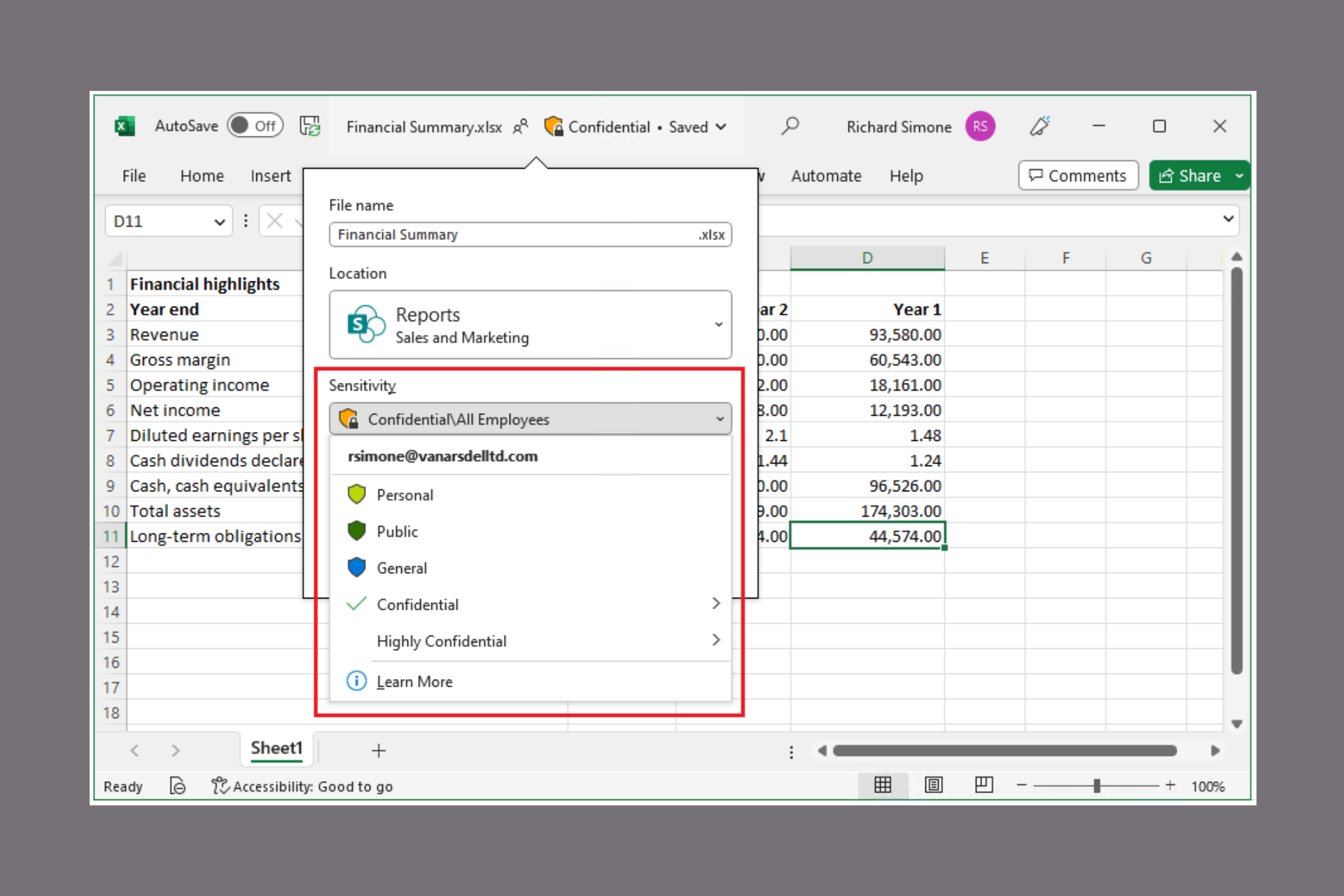
You can configure a new setting for sensitivity labels that prevents content within Word, Excel, PowerPoint, and Outlook from being sent to Microsoft for content analysis as a privacy control, even when these are stored in Microsoft’s cloud, such as SharePoint or OneDrive. Use this to help you optimize your data privacy needs on a per-content basis, using the familiar configurations and end-user experiences available with Microsoft Purview.
How can I set up the sensitivity labels in Microsoft 365?
Now, from this statement, we really don’t know exactly what is the new setting and where it will pop up. Still, it was created to Prevent some connected experiences that analyze content with sensitivity labels in files and emails. If this is what we think it is, it should prevent Copilot and Windows Recall from snooping around in your documents that are marked with sensitivity labels.
If you’re not aware about sensitivity labels, here is some information to help you understand it a little bit. For users within your organization, a sensitivity label is visible as a tag on the apps they work with. These labels can be smoothly incorporated into their regular tasks and do not show up in apps used by users from different organizations or guests.
Every item capable of using sensitivity labels can be given one sensitivity label from your organization. Documents and emails have the ability to contain both a sensitivity label and a retention label. These labels can be implemented within all the Microsoft 365 apps. If you want to learn more about this, Microsoft has a guide about sensitivity labels and how to use them.
What do you think about the new Microsoft 365 sensitivity labels settings? Let us know in the comments below.
Do you remember finding a great deal that made you look twice? Hold on tight because I will tell a tale that could make anyone feel like they need to buy another laptop. Imagine an improved Lenovo ThinkPad T16—not just any computer—loaded with 32GB of RAM and a huge 2TB SSD. So, it seems that not only does Lenovo make the best deals, but users are also making some great deals for them.
And to make it even better, a QHD display that is breathtaking. Now, prepare yourself because this powerhouse was available at an astonishing $712. Yes, you read that right.
Now, let us examine it a little more closely. This is not just an ordinary laptop. We are talking about the first generation of ThinkPad T16, which has an AMD Ryzen 7 Pro 6850U inside.
Regarding those who might not be conversant, that’s quite a good processor, particularly for a business laptop. Lenovo was serious when they put the “certified-refurbished” tag on this item and offered it for under $800. This deal seemed almost too good to be true. Almost.
But where did this magical offer appear, you ask? eBay, my friends. eBay. It’s like discovering a diamond that is not yet polished, but this diamond also gives you free delivery.
Now, for tech lovers, let us discuss specifications, too. Except for the RAM and SSD, which were already mentioned, this ThinkPad T16 has a high-resolution IPS QHD screen. We are discussing a visual experience of 2560 by 1600 pixels, with top brightness scoring at 400 nits and all the colors matching up to the sRGB spectrum. No matter how lengthy your work session maybe – this is a screen that does not give up on you.
Now, I can imagine what you might be thinking. “Is there a catch?” Yes, there are some points to keep in mind. The RAM is soldered, so you cannot upgrade it.
And for those who know about technology, not having Thunderbolt 4 might disappoint them a little. But let’s keep in mind the bigger picture. This deal was a very good chance to get a trustworthy business notebook with a big reduction in cost.
As you plan to locate this deal, keep in mind that prices found on the internet are like a shooting star – they can vanish quickly.
The deal we discussed existed at the time of this writing, but who can say how long it will last? So, if you want to buy a fresh laptop or even have a slight interest in laptops, it may be a good idea to look at this opportunity. Who knows? Maybe you’ll find your next tech treasure.
You can get it from eBay now, but you might want to hurry up.
In the ongoing fight for dominance in computing, a fresh competitor steps into the battlefield with their innovation and effectiveness. TUXEDO Computers is preparing to introduce the Snapdragon X Elite SoC, an engineering marvel from Qualcomm, to the Linux community.
This step increases competition with Windows 11 Copilot+ PCs and signifies an important achievement for those who love Linux and are searching for high-performance options.
The Snapdragon X Elite SoC, with its Oryon CPU that can go as fast as 4.6GHz in dual-core boost mode and Adreno GPU clocking at 1.25 GHz, is a force to be reckoned with. It has the potential to compete against Apple’s M2 chips in terms of performance and power efficiency.
Our prototype is powered by the Snapdragon X Elite X1E80100, which has 12 Oryon cores with 3.8 GHz, which clock up to 4.6 GHz in dual-core boost. An Adreno GPU with 1.25 GHz is also built into the SoC. The device also offers 8+4 PCIe 4.0 lanes and 2+2 PCIE 3.0 lanes. The integrated NPU offers 45 TeraFlops for AI workloads.
This chip is not just about raw power; it combines CPU, GPU, NPU (Neural Processing Unit), USB interfaces, and memory into one single chip. This integration increases speediness and effectiveness, making it a significant competitor within the tech world.
But the most thrilling part is the jump to Linux compatibility. Qualcomm’s teamwork with Linaro has substantially progressed in incorporating crucial functionalities into the mainline Linux kernels 6.8 and 6.9, with more advancements coming soon.
It implies that Snapdragon X Elite is no longer only for Windows, creating fresh avenues for Linux users.
At the Computex trade fair, TUXEDO Computers demonstrated a model of its ARM notebook. This introduction included their project “Drako,” which is still in the alpha phase. The forthcoming Linux-generated notebook could indicate that it will soon be competing equally with Windows notebooks.
The release is estimated to happen around Christmas 2024 and creates much interest.
If you are a Linux lover or somebody hunting for an alternative to the usual x86 notebooks, this development could be very thrilling. Snapdragon X Elite’s pledge to offer equal performance with lesser energy usage might change everything.
So, as TUXEDO is determined to make this technology available in the Linux world, the future appears promising.
When we anticipate the arrival of TUXEDO’s ARM notebook, we can see that things are changing in the world of computers. Linux now has a strong new partner with Snapdragon X Elite, and this will surely intensify the rivalry.
Is this what Linux requires to seize a larger part of the conventional market? Only time will tell, but the anticipation continues to build.
7-Zip remains one of the most popular file archivers available in Windows, especially due to its open-source nature. But oftentimes, 7-Zip is either not available in the Windows 11 context menu or disappears after an update!
This forces you to extract files or make other changes from within the app’s interface, complicating the process. But adding or re-adding 7-Zip to the Windows 11 right-click context menu shouldn’t take more than a minute.!
How do I add 7-Zip to Windows 11 context menu?
1. Reconfigure 7-Zip’s settings
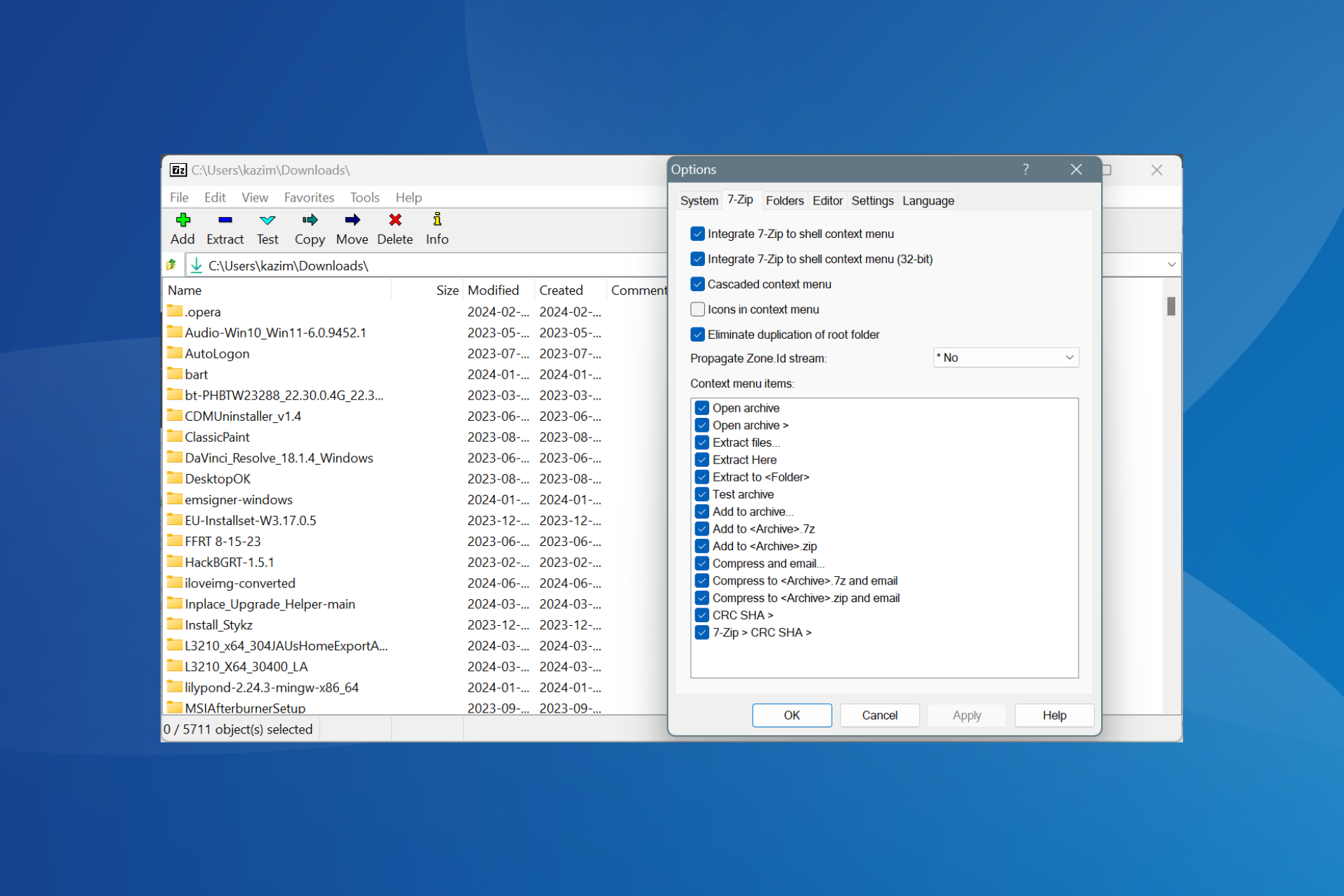
Launch 7-Zip on your PC, click on the Tools menu at the top, and select Options.
Go to the 7-Zip tab, and tick the checkboxes for Integrate 7-Zip to shell context menu and Integrate 7-Zip to shell context menu (32-bit).
Finally, click on Apply and OK to save the changes.
You should now find 7-Zip in the right-click menu on Windows 11. Although, it will be accessible only after you click on Show more options, i.e., in the secondary context menu.
This is the easiest way to add 7-Zip to the secondary context menu on Windows 11.
In case you get the Access is denied error on enabling Integrate 7zip to the shell context menu, it indicates missing administrative privileges.
Access is denied error in 7-Zip
All you have to do is run 7-Zip as an administrator. To do that, right-click on the program > select Run as administrator > click Yes in the UAC prompt.
2. Use a third-party tool
NOTE
Disclaimer: Windows Report is not affiliated with the Custom Context Menu app. I am recommending it based on user reviews and the fact that it’s available on the Microsoft Store. Nevertheless, be careful with the privileges you grant to the app!
Download and install the Custom Context Menu app from the Microsoft Store. There’s both a free and paid version.
Once installed, launch the app, and click the Add Menu icon near the top-left corner.
Now, enter all the details for the 7-Zip Windows 11 context menu entry in the fields on the right, including the executable (.exe) file’s path.
Once done, press Ctrl + S to save the new entry, and then restart the PC for the changes to apply.
You should now see a 7-Zip entry in the context menu across the PC or in specific locations, depending on the configured settings.
3. Manually modify the Registry
3.1 Finding 7-Zip’s installation path
Press Windows + S to open the Start menu, enter 7-Zip in the text field, right-click on the relevant result, and select Open file location.
Now, right-click on 7-Zip’s shortcut and select Properties.
Copy the path (along with the quotes) in the Target field under the Shortcut tab. This is the path to the 7-Zip File Manager’s executable (.exe) file. In our case, it is: "C:\Program Files\7-Zip\7zFM.exe"
3.2 Adding 7-Zip to the context menu
Press Windows + R to open Run, type regedit in the text field, and hit Enter.
Click Yes in the UAC prompt.
Now, paste the following path in the address bar and hit Enter: HKEY_CLASSES_ROOT\Directory\Background\shell
Right-click on the shell entry in the navigation pane, choose New, select Key from the flyout menu, and then name it 7-Zip.
In the 7-Zip key you just created, right-click on the empty space towards the right, hover the cursor over New, select String Value, and name it Icon.
Double-click on the Icon string, enter the 7-Zip path we copied earlier in the Value data text field, and click on OK.
Next, right-click on 7-Zip in the navigation pane, choose New, select Key, and name it Command.
In the Command key, double-click on the Default string, paste the 7-Zip path we copied earlier in the Value data text field, and then click OK to save the changes.
Once done, reboot the computer for the changes to apply. You can also simply restart the Windows Explorer process from the Task Manager.
Remember, steps 5 & 6 above are optional, as the two only add 7-Zip’s icon to the context menu entry in Windows 11. It’s the Command key that does the rest.
Also, this way, you can add 7-Zip to the right-click menu on Windows 10!
If things don’t work out or you want to remove 7-Zip from the Windows 11 context menu, delete all the Keys and String Values you created earlier. Make sure not to modify/remove any other keys or entries, as it might disrupt the functioning of the PC and necessitate a reinstallation of Windows 11.
4. Use a Registry script
Tip
This method involves running a script created by a third-party developer on the PC, which will make changes to the Registry Editor. Since it may introduce instability in rare cases if not executed properly, I recommend you create a restore point beforehand.
Right-click on the download file, select Extract all, then choose a location and wait for the process to complete.
Once done, open the extracted files and run 7-Zip_Windows11.
Click Run in the confirmation box, and similarly, give approval in all other prompts.
After the script is executed, right-click on any file, and you shall find several additional 7-Zip-related entries in the Windows 11 context menu.
If the new Windows 11 context menu entries created for 7-Zip with the script are not what you were looking for, revert the changes using the restore point you created earlier.
That sums up all the ways you can add 7-Zip to the Windows 11 context menu. Except for the methods involving changes to the Registry Editor, the rest are all simple and quick!
Have you been informed about this unbelievable deal with the LG Ultra Gear 45-inch curved gaming monitor? It isn’t usual to find a discount that gives such a surprise, but this offer is indeed remarkable. For a price that was once $1,700, you can now take it home for $1,100.
It’s quite a difference—$600 less, to be exact, or just 35% of the original cost. If you prefer percentages like me, that is how much discount there is on offer here.
Let me tell you something about gamers: we love our technology, and sometimes upgrading to new stuff feels like an indulgence rather than a necessary expenditure. But when such a good deal is available, getting better equipment becomes more of a smart move than mere luxury.
So, why is this LG UltraGear monitor of interest to you? To begin with, it has a big 45-inch OLED screen. And you don’t only play on it; with its 21:9 aspect ratio and 3440×1440 resolution – you get lost in the game. The monitor’s curve is like a big hug that promises to surround you in the virtual world you’re exploring, making each gaming session truly immersive.
But it’s not only the bigness or curve that matters. The actual kicker is the astonishingly fast 240Hz refresh rate, paired with an incredibly speedy 0.03ms (GtG) response time. This results in a more seamless game display, less delay, and almost zero motion blur for viewers on such displays.
Whether avoiding bullets or speeding on a track, every action is sharp and distinct. Also, the anti-glare layer guarantees that even when playing games with sunlight coming into your room or lights turned on, no interruptions will spoil your experience.
Now, you might ask yourself, “Should I upgrade now?” Allow me to say that such opportunities do not appear frequently. Getting this LG UltraGear monitor for $600 less is like hitting the jackpot. This chance to boost your gaming setup without costing too much is not common. If you have been considering changing your gaming station, this could be the signal you were waiting for.
Don’t forget, good deals don’t wait around. If you’re still thinking about it, losing a chance at a bargain like this might be something you’ll regret later. So, why not jump in and get yourself a high-end gaming monitor? After all, your gaming adventures deserve the best.
According to a recent allegedly leaked images on X NVIDIA is preparing to release its GeForce RTX 50 laptop series in 2025 and it appears to be a significant development. The news becomes more interesting with models having GDDR7 memory options such as 16GB, 12GB, or even 8GB which shows how much they are pushing boundaries further. So, what does all of this signify? How does it relate to you and me? Let’s explore further.
RansomHub posts ODM & OEM laptop maker Clevo of Taiwan whose clients include Nvidia, Intel, Micron and AMD. pic.twitter.com/fMUGnMTjdq
Firstly, the jump to GDDR7 memory is a significant advancement in itself. It claims quicker and better performance; something of great importance for gaming and professional graphic tasks. Picture your chosen games with improved images and play that runs even more smoothly. We have The RTX 50 series will have six variations, this means there are different types to match with various requirements and financial situations. Whether you’re into gaming or work as a creative expert, it appears that there is something for all kinds of people.
Curiously, the old models of NVIDIA like RTX 4050, RTX 3050 and RTX 2050 will be available in 2025. However, the RTX 2050 might be replaced by a new model called 4GB RTX 3050 at some point later on. This plan could provide more selections to customers who are not yet prepared for newest technology or desire lower-cost alternatives.
One detail that particularly grabbed my attention is the alteration in max TGP (Total Graphics Power) for certain variants. This might suggest improved power usage efficiency and possibly longer battery life for laptops, a persistent worry among mobile gamers and professionals.
The roadmap shows that the RTX 50 series will begin production in the first half of 2025, and launches will be spread out during this year. We have a lot time to save money also many time for guessing and imagining what is to come.
For those who understand technology well, they might find the details about CUDA cores, memory bandwidth and TGP ranges most interesting. But for everyone else, it’s sufficient to say that gaming and creative work on laptops will soon see a big increase. This is connected to an Nvidia GeForce 5xxx leak we’re seen back in May.
We’ve learned about this from Videocardz. Let us know about your thoughts in the comments below.
Google is working on a feature to ensure the width of the side panel set by users persists across browser sessions. This way, you won’t need to adjust the panel width every time you open Chrome. The change is currently being tested in Chrome Canary.
The Chrome side panel offers quick access to various features from the toolbar, such as Reading mode, reading list, bookmarks, history, and Lens Search. It’s a vertical pane accessible by clicking the icon in the top right corner of your Chrome window. Recently, Google removed the dedicated Side Panel button in favor of toolbar pinning. However, the side panel is still present in Chrome and appears when users access these features.
Persisting Chrome Side Panel width
Chrome currently allows you to resize the side panel and move its position from left to right. Unfortunately, the resizing changes aren’t saved when you restart Chrome. Google is addressing this and is about to make the side panel more useful with a new update that lets you resize the side panel and persist the width across sessions. This can be frustrating for users who rely on a specific side panel width for optimal workflow.
Enable improved Side Panel Resizing feature in Chrome
Launch Chrome.
Visit chrome://flags.
Find and search for “Side Panel Resizing.“
Select “Enabled” and restart Chrome.
After enabling the feature, while Chrome is open if you open the side panel for reading mode or other features, any resizing will be fixed at that width. This width will remain the same when you restart or launch Chrome again.
Microsoft’s Copilot GPT and Copilot GPT Builder features for consumers are ending, with the end date being July 10, 2024. This decision surprised many people because these tools were liked by users who found them helpful in various ways.
Even though the company is stopping these features, it’s important to note that they will still be accessible for enterprise-grade clients through Azure Cognitive Services Form Recognizer API and Text Analytics API.
However, as mentioned earlier, service support and updates will not be provided for regular consumer use after this cut-off point.
When Microsoft first made its promise, it was thrilling. With the new feature Copilot GPT Builder from Microsoft, anyone can create their own AI chatbots to help with different tasks and improve digital interactions in daily life. Creating customized GPTs was an interesting feature of the Copilot Pro subscription, which was released earlier this year.
However, unexpectedly, Microsoft declared that it would stop such services and delete any related data from July 10 to July 14, 2024.
Important: Microsoft will remove the ability to create GPTs starting July 10, 2024, and then remove all GPTs (created by Microsoft and by customers) along with their associated GPT data also starting July 10, 2024, through July 14, 2024.
Microsoft talks about a strategic shift towards improving basic Copilot experiences for the general customer market and concentrating GPT efforts on business-related or corporate situations.
This choice highlights a larger pattern in technology: Businesses regularly adjust their products according to changing business methods and market requests.
There is a small relief for people who have put in effort and inventiveness to make their own GPTs. Microsoft has shown a way where you can keep your personal instructions before the last date.
When you go into edit mode for your GPT and move to the configure tab, you will see an option to copy and keep these instructions somewhere else.
Microsoft says it will continue improving Copilot Pro even though GPT Builder support will end. They emphasize that advanced models and image creation features will still be available.
However, Microsoft provides directions on how to cancel a subscription for those who think removing GPT Builder reduces the value of their subscription.
This situation makes us wonder what lies ahead for AI tools in consumer tech. As Microsoft changes its attention, other firms, such as Apple, are spreading ChatGPT throughout their systems, indicating a diverse method towards how AI can improve user encounters.
Microsoft’s choice to stop offering Copilot GPTs for consumers is a big shift in its AI strategy. As technology keeps changing, we must observe how businesses manage their balance between being inventive and having clear plans. This could impact what happens next with personalized AI tools.
It appears that the AMD Ryzen 5 9600X has been making a stir lately. It’s just 12% faster than the Ryzen 5 7600X in CPU-Z benchmark, slightly less than what AMD was bragging about at Computex – they said there would be an improvement of around 16% IPC improvements from one generation to another. But let’s not jump to conclusions just yet; there’s more to this story.
Should we trust the CPU-Z initial benchmark?
Initial reactions to the numbers might be slightly underwhelming, particularly as we were anticipating a larger jump. The Ryzen 5 9600X, featuring Zen 5 architecture, was presumed to serve as a mid-range wonder but results showcased via CPU-Z benchmark posted on X by HXL indicate only an average increase in performance compared to Ryzen 5 7600X.
We are talking about a 12.21% advantage in single-core and 12.30% advantage in multi-core tests here. Now, you might be thinking, Is that it? But hold on, there’s a twist.
The truth is, these CPUs are almost identical in terms of specifications. They have a six-core setup, 12 threads and nearly equal cache size. The only notable variations can be found in architectural alterations and slight modifications to clock speeds. The Ryzen 5 9600X, which can clock speeds up to 5.4GHz, is only slightly quicker than the 7600X with a maximum rate of 5.3GHz. Therefore, when you compare them this way, the performance increase becomes somewhat understandable.
However, the CPU-Z benchmark may not be displaying everything to us. It is only one examination and previously recognized for not functioning well with AMD’s Zen structure. AMD’s statement of a 16% IPC improvement is supported by real-world applications, not just one synthetic benchmark. This means that the Ryzen 5 9600X could possibly perform better in other scenarios. We still need to observe its performance across a wider range of tests and tasks.
There were indeed some results that were pushed to the limit with overclocking and they showed a somewhat different scene, but let us concentrate on performance as it comes from factory settings for this time being. After all, not everyone is comfortable pushing their hardware beyond its limits.
So, a 12% increase in performance is not bad if we look at the bigger picture. These CPUs are similar in many ways and this progress can be seen as a small step ahead, even though it may not meet all expectations. But who can say for certain? After a more detailed evaluation using various benchmarks, we may find ourselves quite pleased with the performance of Ryzen 5 9600X.
So, let’s not be too quick to dismiss the Ryzen 5 9600X just yet. It is still early in the process and we have a lot more to discover about this chip. We’ve learned about this from Tom’s Hardware.
Feel free to share your thoughts in the comments below.
When we talk about your browsing experience, it is based on factors like CPU usage so what better way to find out the browser that reigns supreme than an Opera vs Firefox comparison?
What is the most CPU-efficient browser?
This answer will depend on the activities you carry out on your browser, but remember that your hardware also plays a significant role. Two users can be using the same browser but if one has a high-end PC and one a lower-end one, CPU efficiency will definitely not be the same.
Also, each browser has built-in features that ensure your usage patterns don’t leave you with a slow browser. For instance, Chrome’s memory saver ensures your tabs load faster and hence can be said to be more CPU efficient than its counterparts.
But remember, Opera also has the turbo feature and Microsoft Edge has been optimized for maximum efficiency. Ultimately, it may all be a preference matter but let’s first put two heavy hitters to a test before you make a decision.
Is Opera more efficient than Firefox?
In this Opera vs Firefox CPU usage showdown, we’re going to test it out by performing various tasks on each browser and observing its usage.
For context, I’m on Windows 11 Pro and the following are my hardware specs:
Processor – Intel Core i5 with 4 cores at 2.50GHz speed (not overclocked)
RAM – 8GB
GPU – Intel
PC model – Lenovo
To carry out the test, I’m going to open a few browser tabs and balance between normal everyday content and others with rich media content. These are going to be:
Windows Report page
YouTube page
Email
Reddit page
In the background, I’ll also have Spotify playing music in the background, ShareX open and Google Chrome with a few tabs open.
Once I opened the WindowsReport homepage, played an HD video on YouTube, logged into my email and opened a Reddit page, the CPU usage was around 4%. It is important to note that these pages are rich in multimedia content except for the email.
While on these browser tabs, as I scrolled through the pages, scrolling was smooth, images displayed promptly with no delays and the YouTube video played with no lags. Later, I tried reloading the pages and the CPU shot up to around 9% and then to around 4-5%.
To test whether the CPU usage will increase, we opened another WindowsReport page and added an ad blocker.
After installing the extension, I once again reloaded the pages and the extension shot up to 16% but then retreated to around 11%. When left idle, the CPU usage was about 0.6-1%.
Having opened similar browser tabs as I did with Opera, Firefox seems to be consuming almost double what Opera consumes. The CPU usage was at 9.9%.
Next, I added an ad blocker from the extensions page and reloaded all pages.
I also added an additional WindowsReport page and this time, the CPU usage shot up to 84% when I reloaded the pages. However, after they finished reloading and I was now scrolling, the CPU usage was about 18%.
When Firefox was idle, the CPU usage settled to around 6%.
From these results, it seems Opera is winning the fight in being a CPU-efficient browser compared to Firefox. But why does Firefox have high CPU usage under similar circumstances?
What factors make Opera more CPU efficient than Firefox?
1. Rendering engine
The rendering engine is responsible for the visual representation a user gets on a browser site. When a browser’s rendering engine requires a lot of resources for browser efficiency, it has a direct impact on CPU usage.
Opera’s rendering engine is well-optimized such that it only requires fewer CPU cycles to complete the task. You can clearly see this when pages are reloaded from both browsers. Opera uses 16% while Firefox’s CPU usage went up to 84%.
Opera has built-in features like adblockers and VPN that aid in faster load times when compared to Firefox. With these built-in features, the ability to inspect and block pop-up requests may explain the fast load times.
This might also explain why when we reloaded the pages, Firefox’s CPU usage was extremely high compared to Opera.
3. Lower-end hardware
Opera has been optimized to perform efficiently whether on a high-end or lower-end device. Lower-end hardware tends to be resource-constrained so you may notice slow load times and high CPU usage for normal tasks.
This might explain why additional tabs did not have a significant impact don’t he CPU usage when using Opera.
Considerations when choosing a browser based on CPU efficiency
Resource management – Aside from CPU efficiency, how well does your browser manage other system resources? Is your GPU suffering? How about the cooling system? All these contribute to an optimized browsing experience.
Built-in features – Browsers that come with built-in features tend to be more CPU-efficient because it takes away from adding extensions that can increase your CPU overhead. Browser extensions have also been known to slow down your browser.
Compatibility support – Your system and browser should be compatible by meeting system requirements. Otherwise, your resources will be competing to make up for the shortcomings.
Hardware acceleration – Most browsers come with hardware acceleration enabled to offload the strain from your CPU to your GPU for those graphic-intensive tasks. This way, your browser’s CPU usage will not be through the roof and you can maintain an optimized performance.
Preference also plays a part when choosing a CPU-efficient browser but once you consider the key factors, you’ll be able to get a browser that isn’t a CPU hogger but still delivers on performance. For a more accurate representation, consider installing resource monitoring tools.
For this article, we used Opera but we have another detailed review of Opera One vs Opera to help you get a feel of what Opera browser would work well for you.
And aside from CPU usage comparison, we also have another comprehensive Opera vs Firefox review. This will help you examine other factors before you settle on a browser.
For speed and privacy, we put Opera vs Chrome head-to-head so you might also want to check that out and see where your information is safe.
That’s all we had for our Opera vs Firefox CPU usage review. If you’re a gamer, you’ll want to try Opera GX, since it also has special gaming themes. We’d like to get your opinions once you’ve tested it out on your hardware and under different circumstances. Remember all these findings are subjective so do leave us a comment down below.
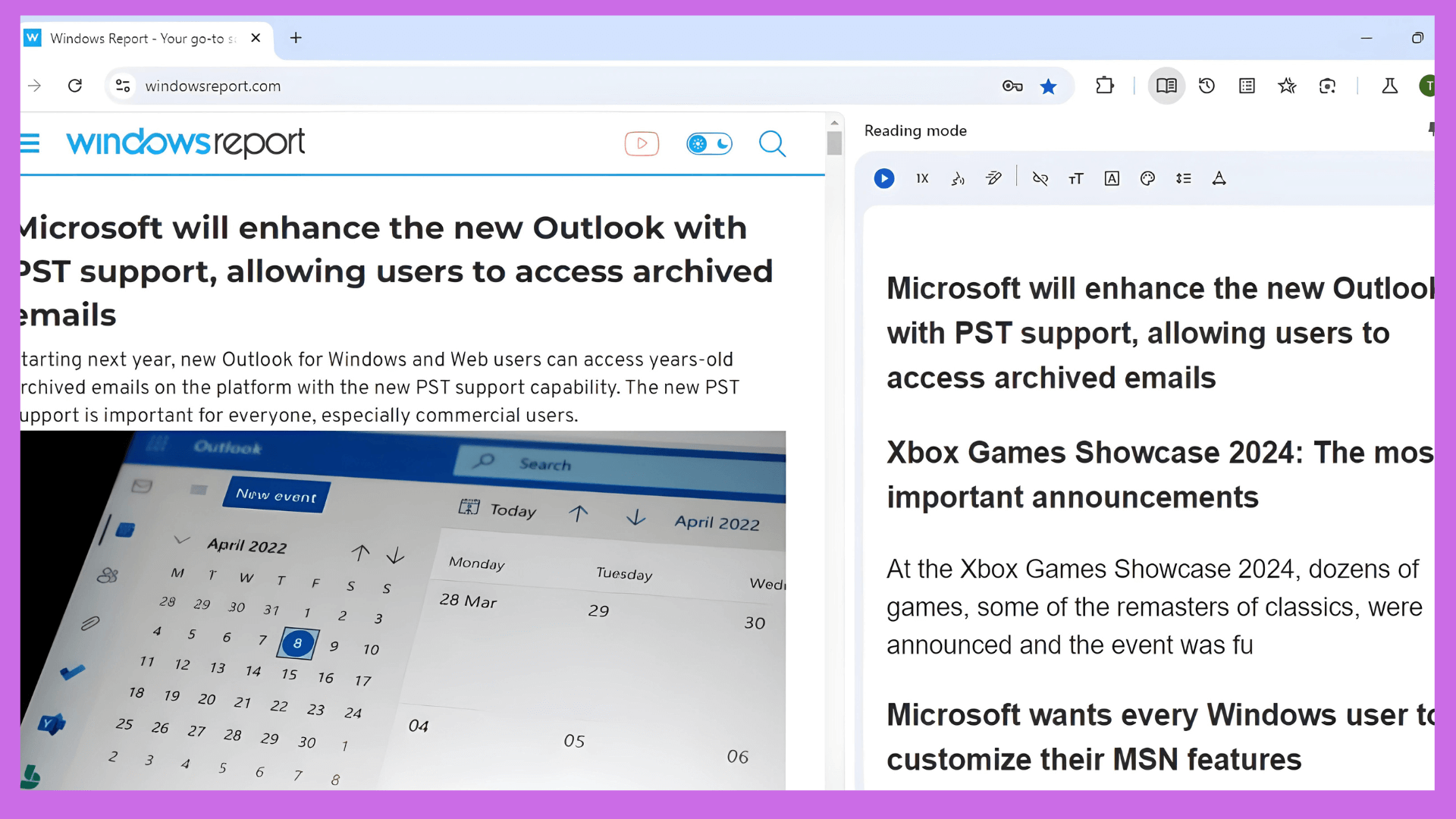
Microsoft will add PST Support to the new Outlook for Windows. According to the latest entry in Microsoft 365 Roadmap, users can open PST files, commonly called Outlook Data Files, read all saved email messages, and search for specific emails.
However, there will be limitations. This first version supports only email messages. Users can see and look for emails but not change or engage with them beyond reading, as they are read-only.
Another limitation is the lack of access to the calendar, Contacts, and Task Data in the PST file. Even if the file contains information like calendar entries, contacts, or tasks, this first help version does not include access to these data types.
The PST file continues to hold this data. However, you cannot see or manipulate it in the first version.
The initial version of PST support in new Outlook for Windows will enable users to open “*.pst” files (a.k.a. Outlook Data Files), read all e-mail messages within the “*.pst” file, and search e-mail messages within the “.pst” file. This initial support is limited to Mail items and is read-only. All Calendar, Contacts, and Tasks data saved in the “*.pst” files are still there, but they cannot be accessed in this initial version.
Microsoft
This capability is useful for several reasons. First, it gives users access to historical emails. Users with archived emails in PST files can open them and read all their historical emails.
This is especially useful for retrieving important information from past communications without using the older version of Outlook or other email clients.
The new PST capability can also be useful for search functionality. Searching emails within PST files helps users quickly find specific messages, attachments, or information without manually scrolling through potentially thousands of emails.
It can also help with data migration, as users transitioning to the new Outlook can still access their old email messages stored in PST files, making the transition smoother and ensuring that important communications are not lost.
Earlier this year, Microsoft enhanced the new Outlook with support for the EML, MSG, and OFT formats, giving users multiple ways to deal with and manage archived emails.
Downloading and installing the Epson L360 driver ensures your printer operates as intended. This guide will show you how to download the latest driver from the official Epson website and how to easily install it on your PC. You can follow the steps on your Windows 7, 10, and 11 PC.
Select your Operating System – in this case either Windows 7, 10, or 11. The site will detect the version you’re using automatically but it’s safer to select it manually.
Click on the Drivers button then tap on Download.
Look through your downloads and double-click on the L360_x64_224JAHomeExportAsiaML.exe file to set it up on your device.
Tick or untick Set as default printer then tap OK.
Read the license agreement, select Agree, pick the language of your choice then tap OK.
Wait for the installation process to complete.
Restart your PC once it’s done to start using the driver.
Using your printer’s driver disc
Connect your printer to your PC and turn it on.
Insert the CD you received with your printer into your PC.
Locate the Autorun.exe file and follow the on-screen instructions. It’ll launch the Epson Printer Utility setup just like it does if you download the drivers from the official website.
Once the utility is installed, your printer should automatically be detected and drivers installed.
If it asks you to connect your printer, just press the power button to turn it off and turn it right back on and it should detect it.
Use Device Manager
Hit the Windows Icon on your keyboard, type “Device Manager” and press Enter to open it.
Expand Print queues.
Right-click on your printer and tap Update driver.
Tap Browse my computer for drivers.
Select Let me pick from a list of available drivers on my computer.
Tap Have Disk, select your driver file, hit Next, and wait for the installation to complete.
Return to the Device Manager, right-click the Epson L360 driver, and tap Update driver.
Tap Search automatically for drivers and complete the update process.
Use Windows Update
This method only works with Windows 11. Version 10 and 7 don’t let you adjust your drivers in Windows Update.
Connect your Epson printer to your PC with a USB cable.
Press the Windows icon on your keyboard + I to open Settings.
Go to Windows Update on the left menu, then select Advanced Options.
Click on Optional Updates under Additional Options.
Tap the Driver updates button, and hit Download & Install.
Restart your computer after the installation is finished.
Use a Third-party Software
Instead of manually installing the Epson L360 driver, you can save time with dedicated third-party software. It’ll automatically install and update any drivers you need, providing the latest compatible versions from the manufacturer.
Overall, these steps will work on your Windows 7,10, or 11 PC. You should regularly update your printer so that it performs optimally. Let me know in the comment section if you have a problem downloading and installing the driver.
Additionally, you can find instructions on how to get drivers for Epson L3110, L120, Et-4850, and L380.
Video pop-out, or PiP (Picture in Picture) mode, facilitates multitasking, allowing you to view videos in a separate standalone frame, with quick media controls, that always stays in the foreground, irrespective of the task at hand. And the best part is that every popular browser supports video pop out, including Opera, Chrome, Firefox, and Edge.
But when it comes to support for multiple PiP, the situation varies from browser to browser. And there are quite a few surprises here!
Does Opera support multiple picture in picture mode?
No, neither Opera nor Opera GX support multiple video pop out, as of now. If you open a video in PiP mode while another is already running, the latter will take over the standalone frame.
At the time of writing, there’s no official confirmation from Opera’s end about adding the feature. So, multiple video pop out in Opera will take some time!
Video pop out settings in Opera
As for running a single video in PiP mode, you will find the feature under Opera’s Advanced settings and can reconfigure things from here. Also, Video pop out is enabled by default in Opera.
Which browsers support multiple video pop out?
As of now, only Mozilla Firefox supports multiple video pop out. The feature has been present in Firefox for quite a few years, making it one of the best browsers for watching videos in Picture-in-Picture (PiP) mode. You just need to open the videos in different tabs.
While testing the multiple video pop out in Firefox, I was able to play up to 4 videos. Firefox users tell me that there’s reportedly no limit to the number of pop outs, but after 2-4, it just isn’t feasible!
Running four videos as pop-outs in Mozilla Firefox
As for Chrome, Opera, Brave, or even the light-weight Vivaldi, none so far support multiple video pop out. But given that there’s no apparent restriction on it, you can expect other browsers to implement the feature in the coming years, given the increasing competition for market share.
Can I use extensions for multiple video pop out?
Yes, you can but only if you manage to find one that’s both useful and secure. Based on my research, there’s already a dearth of options for extensions that introduce multiple video pop out capabilities to the browser.
And the ones that are successful to a limited extent have been reportedly found insecure. So, I would recommend you stay away from the third-party extensions!
If the multiple PiP mode capability becomes absolutely necessary, you always have the option to download Mozilla Firefox.
Can I pop out video over game in Opera GX?
Yes, the video pop out feature in Opera GX works flawlessly with almost all available titles. I tried it with the SimCity 4, and there were no issues whatsoever!
Opera GX’s PiP player on SimCity 4
Although, for a few games, you may have to reconfigure the in-game settings or modify the launch parameters (the Target field in Properties) when using custom launch settings. Or if Opera GX doesn’t seem to work, you can always go with the Xbox Game Bar.
While we so far discussed the positive side of PiP mode, it could also become a source of distraction, preventing you from focussing on the task at hand. In such cases, you can disable video pop-out or Picture in Picture on Windows 11.
Do you plan to switch to Firefox to use multiple video pop out? Share with us in the comments section below.
The Samsung Galaxy Book3 Pro 360 laptop is not ordinary. It’s a game-changer in portable computing, and you can get it now for a limited offer at $1,329. That’s a $570 discount, as the original price is $1,899.
The Galaxy Book3 Pro 360 is visually pleasing and can be acquired in graphite. It’s not simply about good looks; this system has been created as your all-purpose device for various tasks, such as work and entertainment.
The hardware is light and small, incorporating a complete touchpad and a 16-inch screen that responds to touch control. Consider owning a laptop that is simple to move and doesn’t compromise on screen size or features.
This gadget bends over to change from a PC to a tablet within seconds. It’s like having two machines inside one, suitable for people who frequently shift places. And when you add the S Pen with it, turning your smart notions into reality becomes even easier; write notes quickly or draw pictures – everything is possible!
Plus, if you require accuracy for editing images or videos, this tool can do that, too.
Now, we come to what you observe on the screen. The Galaxy Book3 Pro 360 has a sharp display with 3K resolution, making every detail look clear and bright. Furthermore, its 120Hz refresh rate guarantees a smooth scrolling and drawing experience.
Also, less blue light emission is a great relief for your eyes when you spend hours looking at the screen.
Performance-wise, it is a powerhouse. With the latest 13th Gen Intel® Core™ processor, Intel Xe Graphics, 16GB of RAM, and 1 TB SSD, it can handle workloads and games without any problem.
Plus, there’s always good connectivity with an expanded touchpad and various built-in ports. No more carrying around a bag full of dongles!
Battery life is very important, and the Galaxy Book3 Pro 360 is not lacking in this area. It provides as much as 19 hours of video playback. You can also quickly charge it: within only half an hour, you will receive a substantial increase in power.
Additionally, its compact charger can be used with other Samsung Galaxy devices, which makes for a flexible inclusion in your technology collection.
Lastly, to bring enjoyment, the quad-speaker system with AKG and Dolby Atmos technology turns your laptop into a small house cinema.
When it’s time for a video call, Studio Mode guarantees you appear and sound excellent due to AI Noise Cancelling and other intelligent functions.
Security is excellent; there are many layers of protection for your content. For connectivity, it supports very high speeds with 5G and Wi-Fi 6E. This helps to ensure that you always stay connected when working on creative things or watching videos online.
To sum up, the Samsung Galaxy Book3 Pro 360 is not just a laptop. It’s a flexible, strong, and safe device that can meet your needs for both work and fun.
If you love technology or like nice things in tech but don’t want to deal with complicated details, this could be good for you. So now, will you change?
You can get it from here. If you’re not feeling it for this one, you might want to check out these two offers from Lenovo: ThinkPad T14s and Slim Pro 7.
I don’t know what’s going on with Lenovo, but the tech giant is currently having incredible discounts. Earlier today, we found out the company is offering the amazing ThinkPad T14s at a staggering $1500 discount, bringing the laptop from its expensive $$2,429 to only $900.
Of course, nothing can beat that one, and it is probably the deal of the year so far, but the Slim Pro 7 is also quite close. The laptop, originally priced at $1,199, is now just $899, and you should consider it, especially if you have the budget.
Why? Well, it comes with an impressive AMD Ryzen 7 7735HS Processor, with 8 cores and 16 threads, perfect for all sorts of tasks, from creative ones to even light gaming. Its 14.5″ 90Hz Display with 350 nits features a 16:10 2560 x 1600 resolution, so that’s more than enough space to organize everything you need.
Lenovo Slim Pro 7 also has 16GB of RAM for editing videos and pictures and working on the move. The RAM and the display will serve you well if you want to play a bit of gaming on the side because Lenovo Slim Pro 7 has a dedicated 6GB NVIDIA GeForce RTX 3050 graphic card that can support many of the current games on medium to high settings.
The laptop comes pre-installed with Windows 11 and Copilot, so you can access those AI capabilities for almost everything you need. The offer also includes 3 free months of Xbox Game Pass Ultimate because you’ll want to use the Lenovo Slim Pro 7 to play gaming.
The only downside is its 512 SSD, which, by current standards, is not much. Given that just Windows 11 takes a great deal of space, you won’t have much space left to install games, for instance. But maybe that’s a good thing: Lenovo Slim Pro 7 is not a gaming laptop, even if it has the capabilities.
You’ll be more productive knowing you don’t have an array of games (through that sweet Xbox Games Pass) at your disposal.
Smooth Scrolling is an excellent addition to browsers, and Opera GX, although doesn’t feature the option in the dedicated Settings, still supports it via Flags. As expected, this leads to all the confusion surrounding the feature, with many under the impression that Opera has removed Smooth Scrolling altogether.
Smooth Scrolling allows you to smoothly navigate through the content using the scroll wheel rather without any lag or momentary delay, as is often the case. It’s perfect for bigger web pages where you have to swiftly comb through the content.
And the best part, enabling Smooth Scrolling wouldn’t take more than a minute!
How can I enable Smooth Scrolling in Opera GX?
1. Enable the smooth scrolling flag
Launch Opera GX, paste the following path in the address bar and hit Enter: opera://flags
Search for Smooth Scrolling.
Now, choose Enabled from the dropdown menu next to the Smooth Scrolling flag.
Finally, click on Relaunch to restart the browser and apply the changes.
2. Reconfigure the launcher’s properties
Right-click on the Opera GX launcher and select Properties.
Now, in the Target field, paste the following parameter and click on Apply and OK to save the changes: --enable-smooth-scrolling
Relaunch the browser for the changes to come into effect.
3. Use an extension
If the built-in options don’t work or the native feature doesn’t deliver the expected results, you can always use a third-party extension for smooth scrolling.
Upon doing comprehensive research, I came across the following extensions that are top-rated in forums:
SmoothScroll: One of the best extensions for a smoother scrolling experience.
ModernScroll: Not exactly a smooth scrolling extension, it does a lot more by enhancing the entire scrolling experience.
In the above sections, I have tried to include solutions that work for everyone. Besides, if Smooth Scrolling doesn’t exactly feel like an upgrade in Opera GX, you can always disable the feature and switch to default scrolling!
In this era of technological dependency, likening the significance of cyber threats to breathing air is fitting. The healthcare industry faces big danger from these attacks. Picture yourself dwelling in a country region where the nearby hospital functions as the lifeblood of your community; now, envision this lifeline being threatened by hackers who want to disturb and take advantage of it.
This is not a make-believe story but true for many rural hospitals in America. Understanding the seriousness of this situation, Microsoft has introduced a fresh cybersecurity program to protect these crucial institutions. This action offers much-needed hope for rural healthcare, assuring that hospitals can keep providing essential care without constant worry about digital dangers.
Microsoft made a statement on June 10, 2024. They are launching a cybersecurity program to help rural hospitals, which are becoming increasingly targeted in ransomware attacks. Microsoft said that in 2023, healthcare had the most ransomware attacks compared to all other critical infrastructure sectors combined.
Healthcare should be available no matter where you call home, and the rise in cyberattacks threatens the viability of rural hospitals and impact communities across the U.S.. Microsoft is committed to delivering vital technology security and support at a time when these rural hospitals need them most.
Microsoft
There was a 130% increase. The need for strong protection against such threats has become very urgent. Rural hospitals, often the sole healthcare providers for miles around, face an elevated risk because they have limited resources to fight off or bounce back from these dangers.
The program, together with the Biden White House, the American Hospital Association, and the American Rural Health Association, hopes to provide inexpensive or free cybersecurity solutions.
These services are designed for rural hospitals to have top-quality cybersecurity without paying high prices. For smaller hospitals, Microsoft gives nonprofit pricing and discounts of up to 75%, while bigger ones that already use their products will get their most advanced security suite free for a year.
But the help is not just in money. Microsoft promises to give free Windows 10 security updates for a minimum of one year and conduct cybersecurity assessments so that they can find and fix any possible weaknesses. In addition, this program includes training at no cost for hospital workers, which will improve their ability to protect their systems.
This is a step in Microsoft’s commitment to enhance healthcare services in distant areas. Such dedication involves utilizing AI systems for health (the Redmond-based tech giant announced such a system, the TRAIN Initiative, earlier this year) and boosting technology and cybersecurity work opportunities through links with community colleges and local establishments.
Microsoft hopes to make fast internet access more common and construct essential digital structures. By doing so, it hopes to close the gap that often exists between rural and urban communities regarding technology use in healthcare.
Basically, Microsoft’s cybersecurity initiative for rural hospitals is not just about offering tools and price reductions. It’s a connection to life for communities that depend on these hospitals to provide healthcare services.
This program emphasizes the crucial role of everyone in cybersecurity and shows how technology companies can support public health systems. When cyber dangers keep changing, efforts such as this are very important so that rural hospitals can stay watchful and strong against difficulties.
In a time when people are frequently amazed by new technology trends and gaming achievements, it is encouraging to know that Xbox, an early leader in the gaming field, has reached a record console user count. Phil Spencer, the CEO of Microsoft Gaming, recently shared this positive news.
He credited Xbox’s success to strategic choices made through cloud services, Game Pass, and innovative console moves. Even though Xbox had to deal with doubt and talk about its future in the console hardware business, it has shown strength by staying dedicated to making gaming easy for all players.
Spencer’s saying, “When everyone plays, we all win,” highlights a belief that goes beyond selling consoles and emphasizes the happiness and social bond gaming creates.
Xbox user numbers have risen and flourished, and sales of games on Xbox consoles have increased consistently each year for five years. This accomplishment shows how well Xbox can change and create new things, ensuring people can play their preferred games in many ways.
What I can say sitting here today, from our decisions on cloud, on Game Pass, on console, right now we have more Xbox console users than we’ve ever had in the history of Xbox. We’re up double digits, every year over the last five years, on game sales on Xbox consoles.
Phil Spencer
The fact that they made DOOM: The Dark Ages available on other platforms, like PlayStation 5, shows how Xbox is inclusive in its gaming approach.
The Xbox Games Showcase, which happened this past weekend, showed the lively environment of Xbox with a lineup that included Activision and Blizzard as well as Bethesda and Xbox Game Studios. This event underlined the wide-ranging world of Xbox gaming, assuring that there would be more journeys and experiences for players all over the planet, including a potential Xbox handheld console, as also teased by Spencer.
But how will this affect gaming in the future? Could subscription services, cloud gaming, and releases across platforms be factors making the gamer community more extensive?
Feedback from reviewers and supporters has been mixed, with some appreciating Xbox’s tactic of widening its market scope and others questioning the impact on console selling. Xbox’s emphasis on availability and player satisfaction remains significant to gamers worldwide.
Therefore, when considering the changing face of gaming, we are left with one question: What’s coming up for Xbox and the gaming community? Are digital and cloud-based services going to reshape our gaming patterns even more?
Only time can reveal this. Yet, Xbox’s maximum user count currently stands as a significant achievement; it signifies both innovation and inclusivity in this realm of entertainment.
If you are an Opera GX user who finds the built-in/custom themes not working or automatically changing to default, fret not. The problem is more common than you would expect. And it also affects manually set wallpapers!
When an Opera GX theme doesn’t work, it’s likely due to misconfigured browser settings, conflicting extension(s), or formatting issues with the image (in the case of a wallpaper).
To start with, make sure you are running the latest version of Opera GX. If not, install any pending updates!
What can I do if the Opera GX theme is not working?
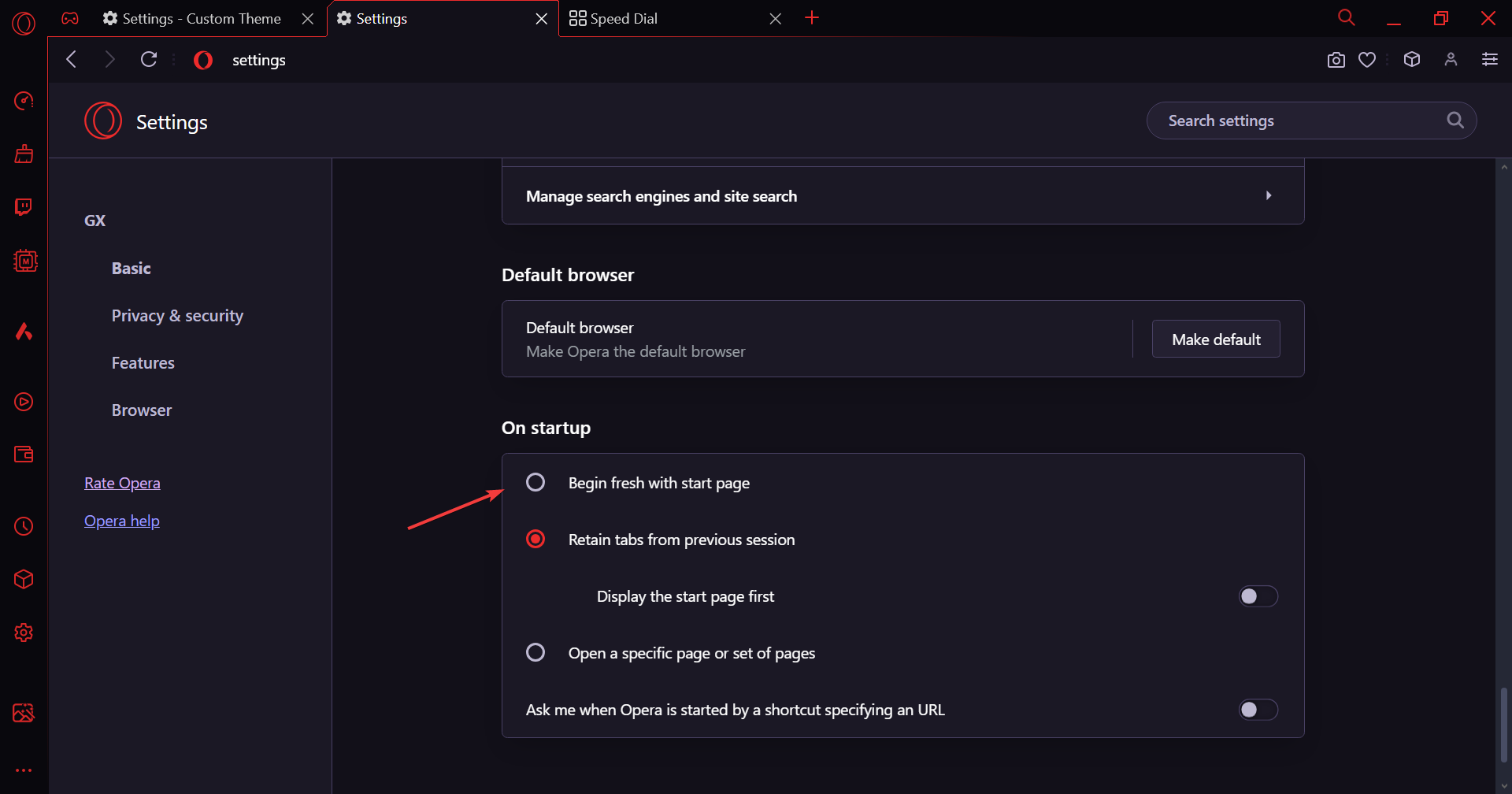
1. Set the correct Opera GX startup settings
Launch the browser, click the Opera menu near the top left, and select Settings.
Scroll down to the bottom and disable the Begin fresh with start page option.
Again, set the theme that’s not working, restart Opera GX, and check for improvements.
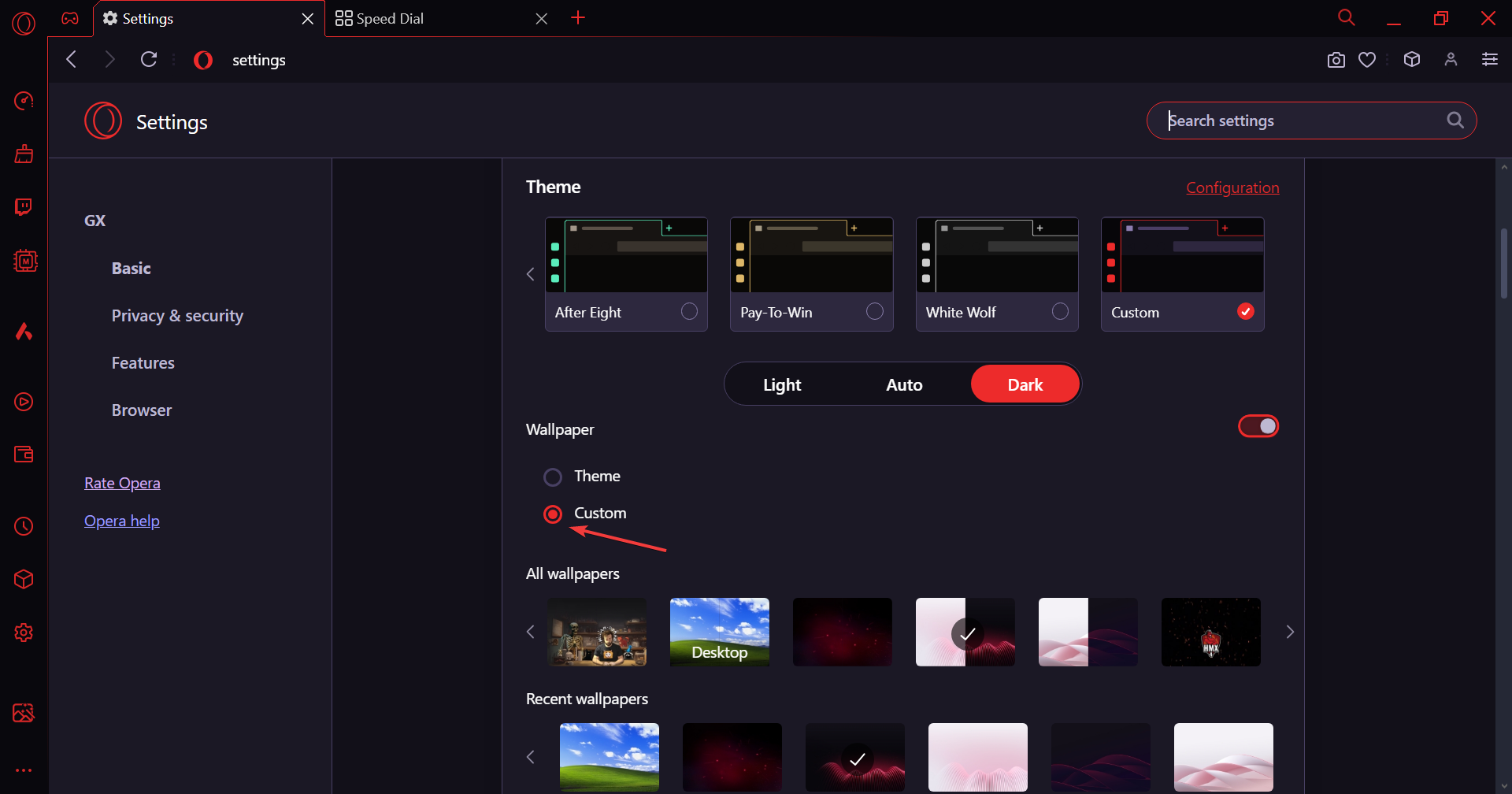
2. Reconfigure the settings
Open the Opera GX browser’s settings, and select Custom under Wallpaper.
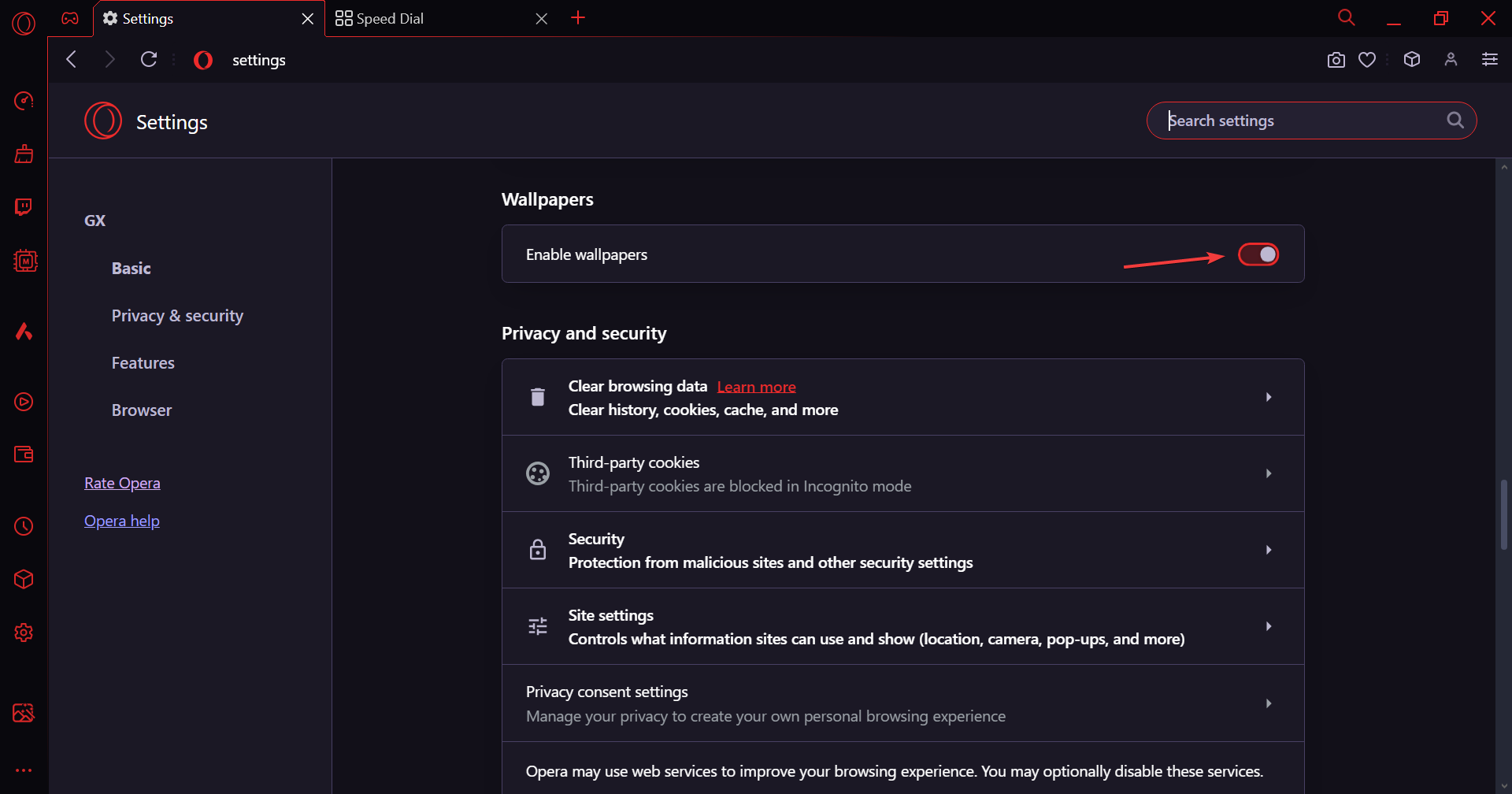
Next, scroll down and under Wallpapers, turn on the toggle for Enable wallpapers.
Once done, set the desired theme/wallpaper on Opera GX, and verify whether it now works.
Extensions from third-party developers often conflict with the browser’s core functioning, and removing them is the only solution. This also works when YouTube shows a black screen in Opera GX!
3. Remove conflicting extension(s)
Launch the browser, click the Opera menu near the top left, select Extensions, and again choose Extensions from the flyout menu.
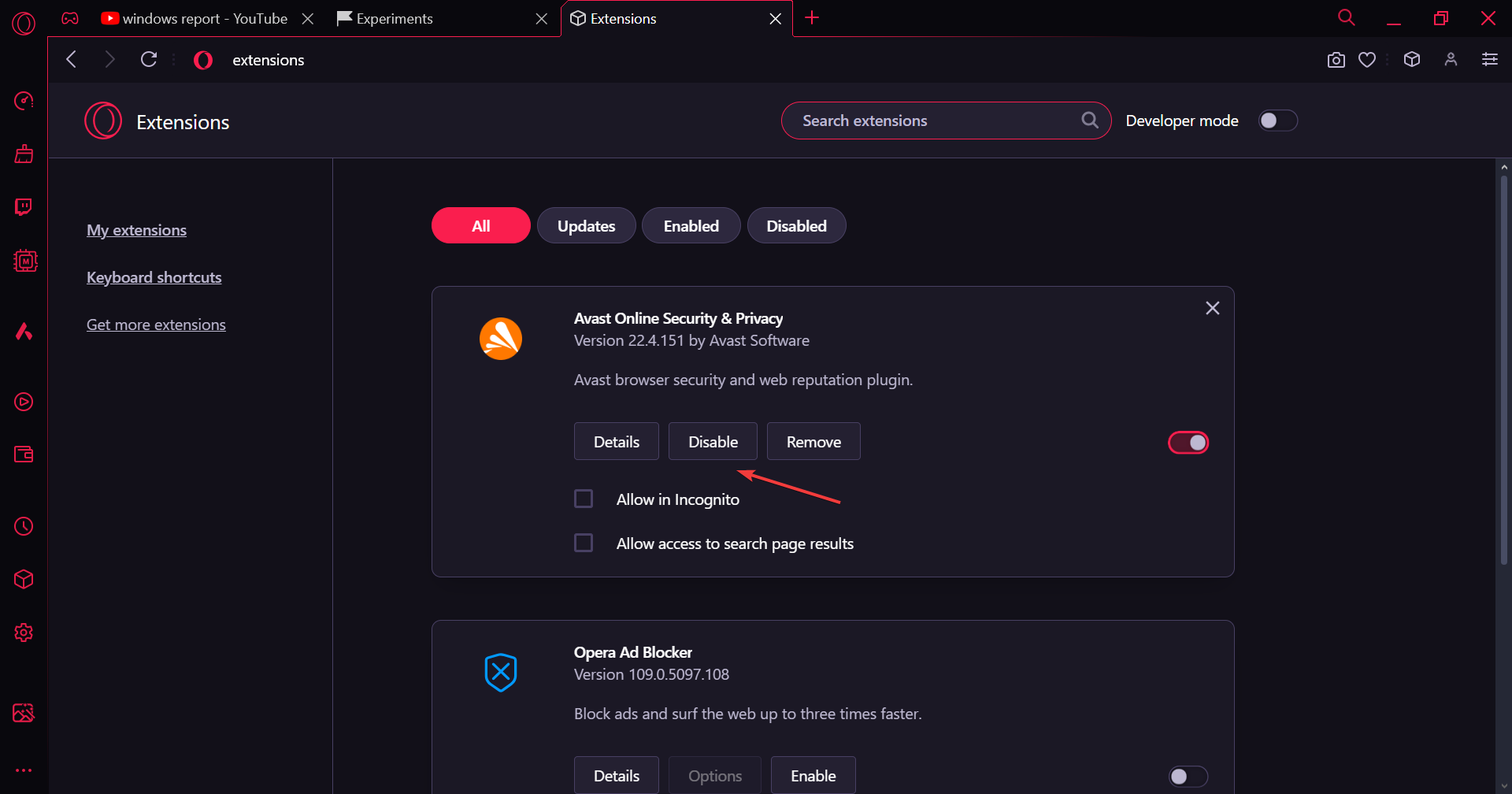
Click the Disable button under any of the third-party extensions, relaunch the browser, and check for improvements.
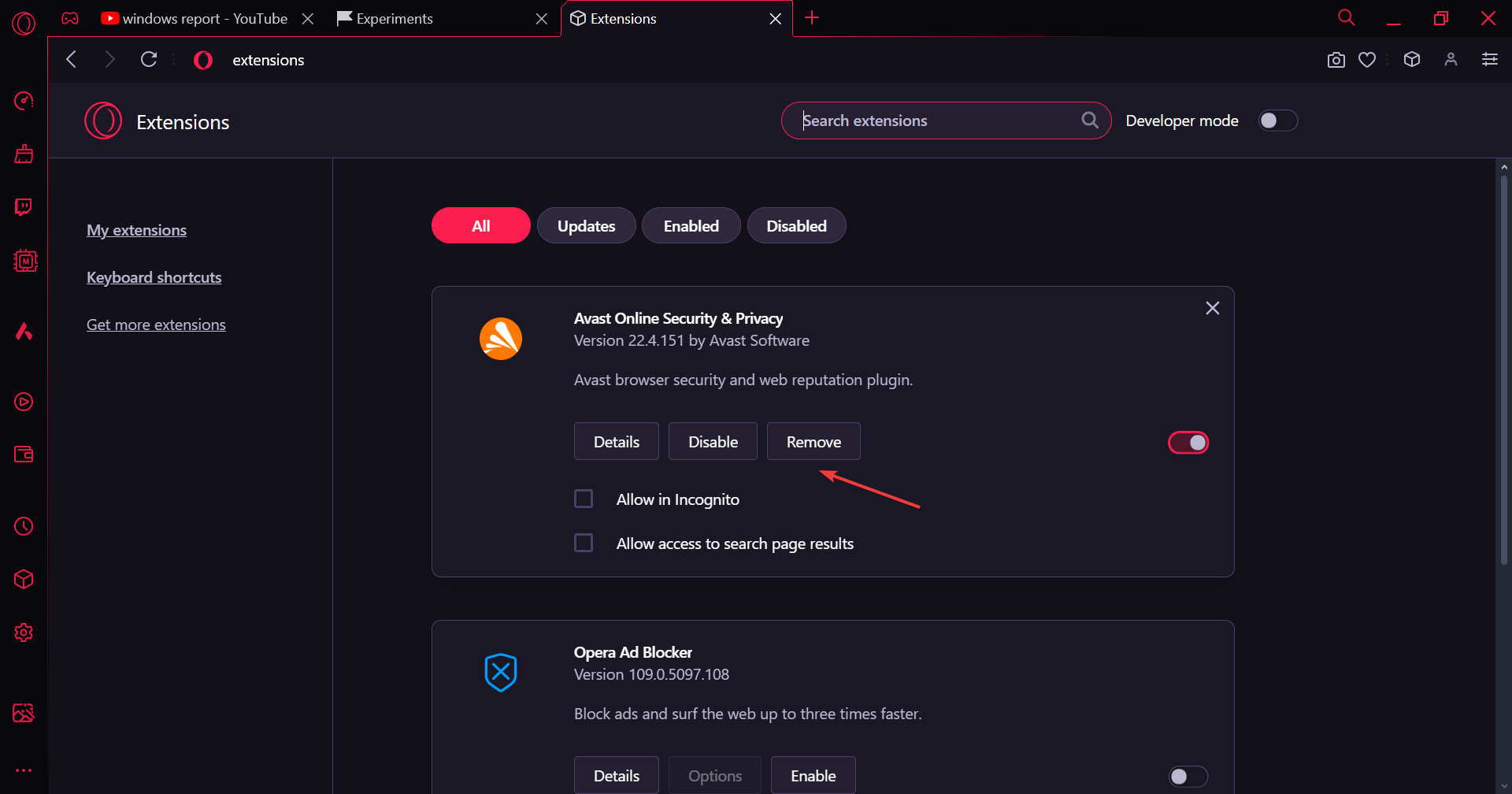
If the problem is fixed, head to Extensions again, click the Remove button under the same extension, and confirm the change.
In case the Opera GX themes are still not working, you should similarly disable individual extensions one at a time.
4. Resize, rename, or reformat the image (for background wallpapers)
If the issue lies specifically with wallpapers, say the set wallpaper doesn’t work in Opera GX after a crash, it could be due to a minor data corruption, rendering the file unreadable. In this case, we recommend you compress the file by 10-15%.
Also, check the file’s name and remove any special characters or spaces. It should be a simple name comprising only alphabets. Besides, as confirmed by a few on Reddit, changing the wallpaper file’s format from JPG to PNG or vice-versa, too, does the trick!
5. Delete mods
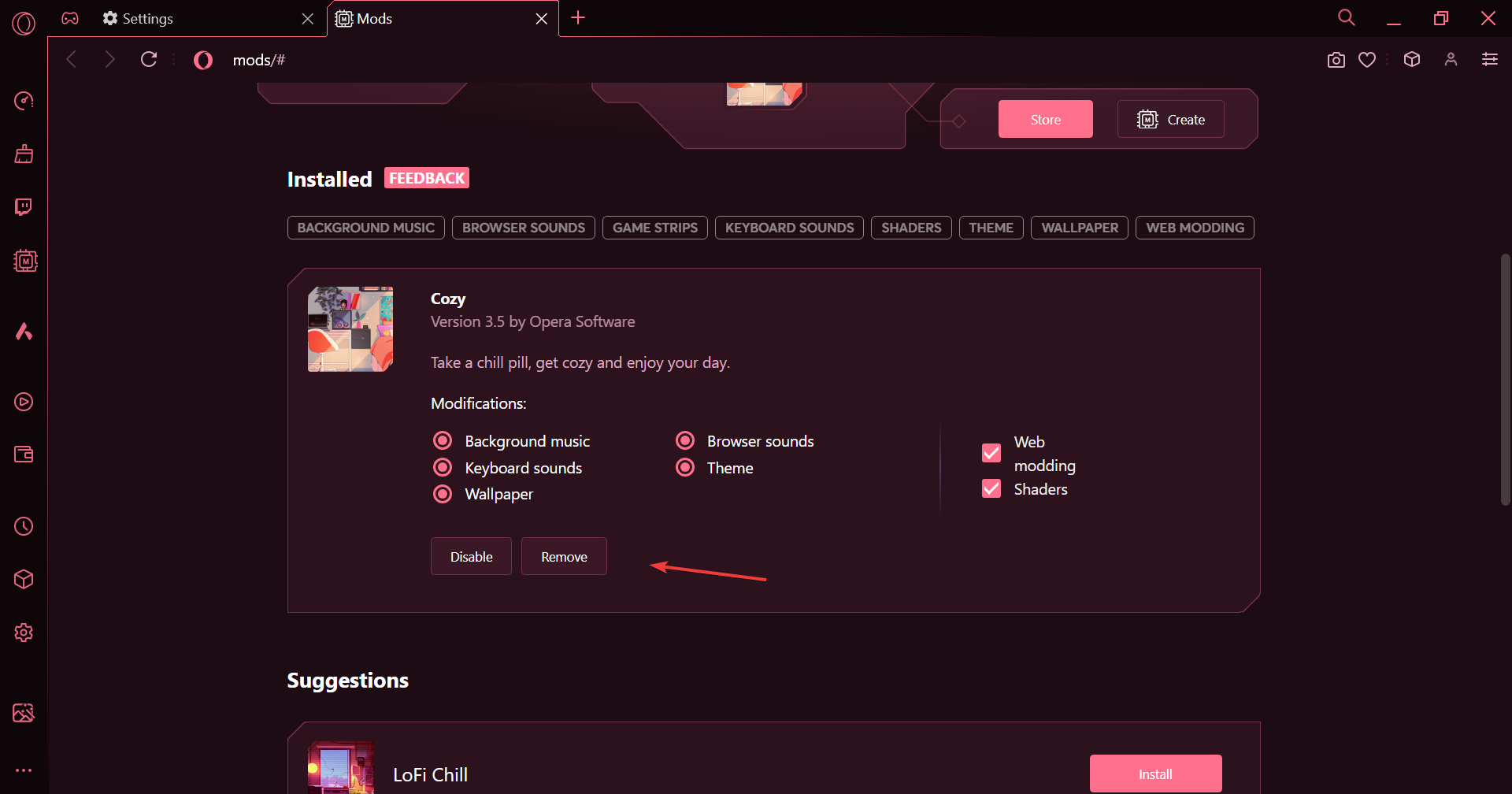
Launch the Opera settings, and click on Manage Mods under Mods.
Click the Remove button individually under all installed mods, and confirm the change.
6. Reinstall Opera GX
Press Windows + R to open Run, type appwiz.cpl in the text field, and hit Enter.
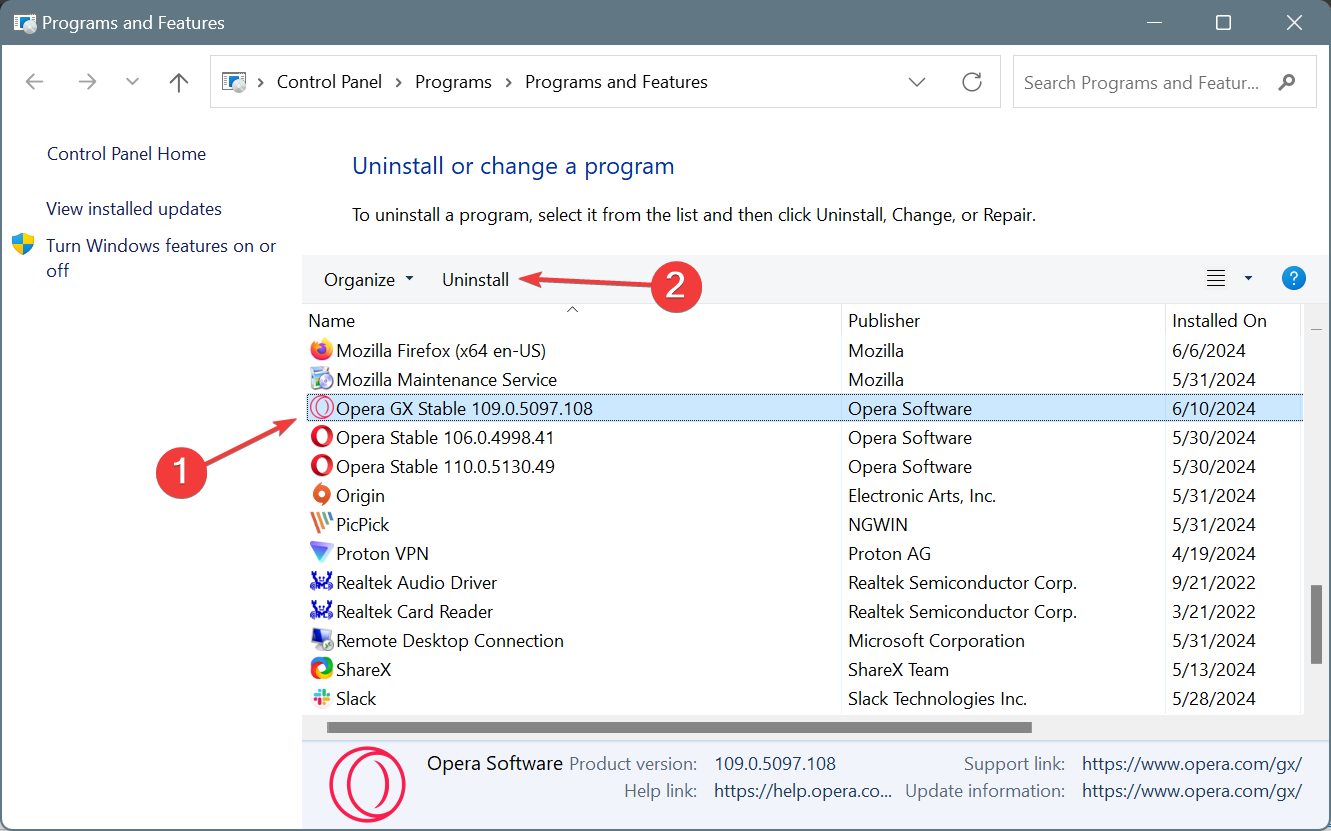
Select Opera GX from the list of applications and click Uninstall.
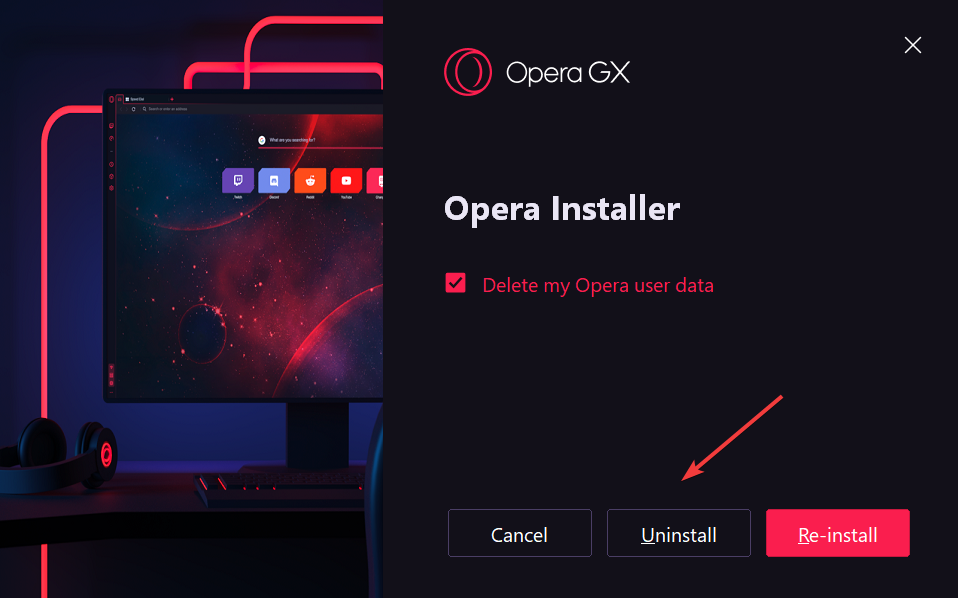
Tick the checkbox for Delete my Opera user data, and click on Uninstall.
Once done, reboot the PC for the changes to apply.
Finally, head to Opera GX’s official website, download the browser installer, run the setup, and follow the on-screen instructions to complete the process.
If Opera GX themes were not working or reverting to default, things should now be up and running. These are the handful of solutions that tend to work for users facing the issue!
Before installing and using Any eBook Converter, you might have concerns related to its safety. Moreover, you may want to know how much resources it consumes, and if its free version is spammy compared to the paid one.
In this guide, I’ll answer all your queries and also discuss its most valuable features.
Sound good? Then, let’s get started!
Is Any eBook Converter Safe?
According to SCAMADVISIER, Any eBook Converter has a 100 trust score. This signifies that this software is likely not a scam, but reliableand legit.
The mentioned rating is based on the online data that SCAMADVISER collects for Any eBook Converter, such as:
Reviews found on other websites
The country in which the website is hosted
If it has a valid SSL certificate.
However, there’s no direct contact information on Any eBook Converter Website. This makes it difficult to identify the real owner of the website or contact the team.
Moreover, it isn’t resource-intensive. On my system, it only used 13.1 MB of memory while I performed the eBook to PDF conversion process.
Features
To write an honest and comprehensive Any eBook Converter review, I tested this software and observed how well it performed.
Now let me discuss its most valuable features and my experiences with them.
1. All-in-One eBook Converter
Any eBook Converter is one of the most popular eBook converters. It’s specifically designed for users who want to convert ebooks from different sources efficiently. That includes eReader, Adobe, Kobo, Kindle, Nook, etc.
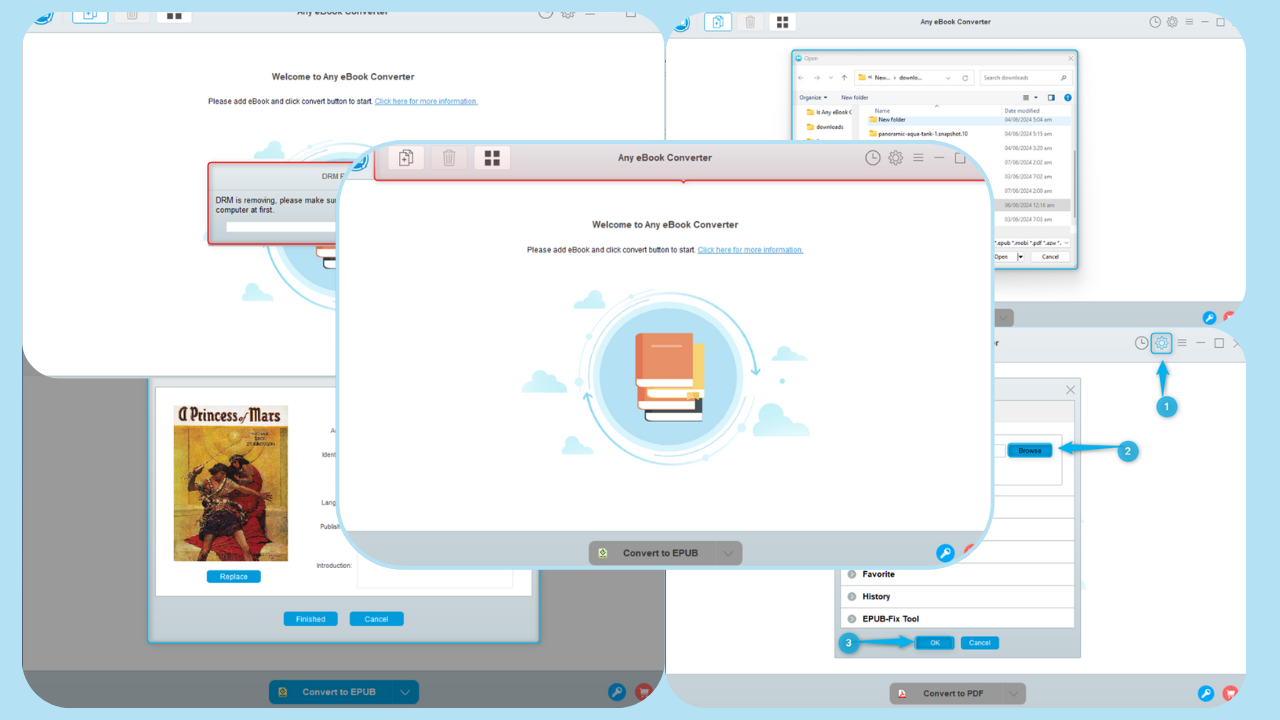
To view the supported import options, first, I clicked on the Libary icon from the menubar.
This opened a new sub-window on the left side showing different options, such as Adobe, Kindle, Nook, Kobo, and more.
Moreover, Any eBook Converter allows you to add files from your local system.
Besides, you can set a default output folder to add or save the converted files. To do so, I clicked on the Settings icon, browsed for the desired folder, and clicked OK.
To verify the added settings, I navigated to its Library and viewed the listed eBook files in the supported formats.
However, in the free version, adding multiple folders might be tedious, especially for extensive libraries.
2. Convert eBooks to Several Formats
The app easily converts eBook files into six formats:
In addition, this software supports almost twenty-four file input formats, such as DOCX, HTMLZ, PRC, EPUB, MOBI, TPZ, etc.
To test the conversion process, I clicked on the Add eBook icon from the menu.
Then, I browsed for the desired file in EPUB2 format, selected it, and clicked Open.
After that, I selected PDF as the required output format and clicked the Convert to PDF button.
While doing so, Any eBook Converter first removed Digital Rights Management (DRM) from the eBook file.
Then, the software took a few seconds for the EPUB2 to PDF eBook file conversion.
You can also repeat the same process, select multiple files, and perform bulk conversion if you subscribe.
Overall, although Any eBook supports multiple input and output formats, the file conversion process could be a bit faster.
3. Edit Necessary Metadata
With this thoughtful feature, you can edit the complete cover and the relevant information of an eBook in case you don’t like it.
Additionally, you can alter the pre-defined metadata before conversion, including:
Title
Author
Identifiers
Cover photo
Publishing date
Language
Publishers
Introduction.
To do this, I selected the file and clicked on the Edit meta icon.
Then, I edited the metadata and clicked the Finished button.
However, the editing options might be limited compared to dedicated eBook editing software, such as Calibre.
4. Detect and Load eBook Library
When you connect your system to an eReader, Any eBook Converter automatically detects and imports the relevant files. This software supports well-known eReaders such as Kindle, Nook, etc.
Moreover, it also offers you the option to load eBooks from your system.
However, users with unorganized libraries on their eReaders might face challenges while importing files.
Interface
Any eBook Converter has a user-friendly and intuitive interface. Its menu bar divides the options into two sections.
The left side contains options to:
Add eBook
Delete selected eBook
Open Library.
Whereas, on the right side, you’ll see the View Histories option, Settings, and a Menu icon.
Moreover, the software supports over fifteen different languages, such as English, Italian, French, and more.
Overall, I’d say that its development team prioritized ease of use in terms of the conversion process. The app doesn’t have advanced management features to avoid complexity.
Customer Support
Any eBook Converter provides help through several channels. This includes a Support Center and FAQ Center. It also maintains a knowledge base of how-to articles.
However, I couldn’t find a Live Chat Support option or direct contact information on the official website. This means that real customer support is practically non-existent.
Pricing
Any eBook Converter offers three different pricing models. Here’s an overview:
Package Name
Price
Details
1 Month Plan
$14.95
– One license for one PC – Auto-Renewal, Cancel anytime – Compatible with Windows 11, 10, 8, and 7 – Five days money-back guarantee – One-month free upgrades
1 Year Plan
$29.99
– One license for one PC – Auto-Renewal, Cancel anytime – Compatible with Windows 11, 10, 8, and 7 – Five days money-back guarantee – One-Year free upgrades
Lifetime Plan
$59.99
– One license for one PC – One-time purchase – Compatible with Windows 11, 10, 8, and 7 – 30 days money back guarantee – Lifetime free upgrades
Any eBook Converter also offers a free trial to experiment with its features. However, it has certain limitations. For instance, the trial version allows you to convert one file at a time.
On the other hand, you can subscribe to its Monthly, Yearly, or Lifetime plans. Both Monthly and Yearly plans offer a money-back guarantee for five days and the Lifetime plan offers a 30-day money-back guarantee.
Notably, it enables automatic renewal by default and doesn’t refund any order exceeding the mentioned refund period.
Furthermore, you can purchase a subscription through Visa, Mastercard, American Express, and UnionPay.
Is Any eBook Converter Safe – Verdict
Overall, I’ve tested the free version of Any eBook Converter and it was trustworthy. This tool allowed me to convert the added eBook into any of the available output formats efficiently. However, the bulk conversion functionality is only included in the paid plans.
So, is Any eBook Converter safe? Yes, it is. However, I’d still suggest that you check the website and its products manually before buying a subscription. Moreover, keep in mind that it’s hard to find info about direct customer support channels.
Have you already used it? Feel free to share your feedback in the comments below! Also, if you need a dedicated eBook manager or reader, we’ve got you covered.
Microsoft is in the news again in the busy business and technology world. This time, it’s because of its new way to improve security for people who use Edge for Business. The tech giant will introduce fresh data leak control features meant to limit the exfiltration of important information—a development that has gained attention and relief from professionals and IT administrators.
As the digital environment changes, protecting private data becomes more crucial. Microsoft’s recent improvement shows its dedication to user privacy and safety.
A highlight of this update is a characteristic that will surely attract the attention of everyone worried about data privacy – screenshot prevention. Imagine attempting to take a screenshot of confidential information; what you see is just a plain black screen.
This is precisely what will occur when these fresh abilities are activated. This method stops unauthorized people from taking and spreading important information and deals with worries about the controversial Windows Recall feature and its security problems.
But Microsoft didn’t end its efforts here. The company has now introduced more security steps for Windows Recall, making enrolling in Windows Hello compulsory if you have a Copilot+ PC. This shows Microsoft’s readiness to respond to users’ mixed reactions and privacy worries.
The updates have important effects on businesses. Microsoft Edge for Business provides more coverage in stopping screenshots across a wider range of applications and AI tools, adding an extra safeguard from data leaks.
It’s especially relevant as we live in a time where taking screenshots of documents, credentials, and other private information can quickly spread within the organization, which creates serious security dangers.
Moreover, Microsoft has stated that these policies can be implemented on platforms such as Microsoft 365, Microsoft Defender for Cloud Apps, Microsoft Intune Mobile Application Management, and Microsoft Purview.
This wide-ranging application guarantees that organizations possess the necessary resources to protect their delicate data.
These features will likely be widely accessible in the next few months. Improvements in leak protection for sensitive Word, Excel, and PowerPoint documents are also underway.
Microsoft’s dedication to security is clear, and with these changes, Edge for Business will provide a safer browsing experience designed for today’s digital difficulties.
Amidst a landscape of data breaches and worries about privacy, Microsoft’s recent changes to Edge for Business provide hope.
With its focus on security and privacy, Microsoft is safeguarding its users and establishing fresh safety expectations for our digital instruments.
In the gaming world, Phil Spencer, the boss of Microsoft Gaming, has been causing a stir with his frank views on recent job losses in his sector and talk about an Xbox handheld device.
It is not usual to have such a clear look into the inside workings of this industry, particularly from someone managing a big company like him. Spencer’s ideas come when people who love playing games talk about what might happen next for Xbox and how it will keep creating new things while staying long-lasting.
Surprise was shown in the gaming world when Microsoft declared two large rounds of layoffs in 2024, affecting 1,900 workers and shutting down three game studios, including Tango Gameworks.
Spencer, who is usually very strong, expressed that these choices were difficult but important for maintaining and expanding the business. This is a serious reminder of the difficulties that even big companies encounter.
But there is not only bad news. Spencer also mentioned the triumph of Xbox Games Pass and the constant increase in game sales on Xbox consoles, emphasizing a flourishing part of their trade. This mix of tough choices and strategic achievements presents a complicated view of what it requires to lead in gaming.
There have been many talks, especially after Phil Spencer’s statements. The rumor of an Xbox handheld device is not new, and Spencer’s comments seemed to support this idea. In an interview, he said he believes Xbox should look into the handheld area because players can enjoy games locally – a reference to many gamers’ wish for a more portable and convenient gaming experience.
So we should have a handheld. I think we should have a handheld, too
Phil Spencer
This statement has caused imaginations and expectations to soar about a possible big growth in the Xbox gaming world.
Spencer’s transparency about the issues and possibilities in Microsoft Gaming gives us a special look at the tactical thoughts that manage one of the industry-leading companies.
The future might include an Xbox handheld device if we believe Phil Spencer and the continuing triumphs of Xbox Games Pass; this implies a tomorrow in which inventive thinking and flexibility still push Microsoft Gaming ahead.
When we consider what’s to come, it becomes obvious that flexibility, inventiveness, and readiness to make difficult choices will be crucial in thriving in this competitive environment.
In a world where the lines between our digital devices continue to blur, Microsoft is taking a significant leap forward with Windows 11. Imagine seamlessly accessing files on your Android smartphone from your computer’s File Explorer. Sounds convenient, right?
That’s exactly what’s on the horizon for Windows 11 users. Microsoft is exploring new ways to deepen the integration between Windows 11 and Android devices, making file transfers a breeze.
This upcoming feature, discovered by Windows enthusiast, @PhantomOfEarth, will allow your Android smartphone to appear in Windows 11’s File Explorer, promising a smoother, more integrated experience.
Looks like the Cross Device Experience Host will let you make your device show up in File Explorer in a future update, a toggle for this has been hidden in the app for some time. pic.twitter.com/9zwomWwdTz
The process to enable this feature seems straightforward. You’ll turn on a toggle in the Cross-Device Experience Host, and voilà, your device will appear in File Explorer. But it’s not all magic; you’ll need to grant permission from your smartphone to ensure a secure connection between your devices.
Once permission is granted, accessing files on your smartphone from your PC could be as easy as clicking through folders in File Explorer.
This integration could revolutionize file management across devices, making it easier to move photos, documents, or any file between your phone and computer without the hassle of emails or cloud services.
While details are still under wraps, and we’re unsure when this feature will officially roll out, the anticipation is building. Microsoft’s track record of integrating Android smartphones as wireless webcams and working on AI-generated smart replies for text messages only adds to the excitement.
But, as with any new technology, there are questions and concerns. How will Microsoft ensure the security and privacy of our data during these transfers? And will this feature work seamlessly across the vast ecosystem of Android devices?
The promise of enhanced productivity and convenience is tantalizing, but monitoring these critical aspects is essential.
In the meantime, for those eager to streamline their digital life, this upcoming feature is a glimpse into a future where our devices work harmoniously, breaking down barriers between mobile and desktop environments.
Have you ever encountered a deal that made you stop and look twice? Forget about Copilot+ PC; Lenovo has just released some big news about their discount on the ThinkPad T14s laptop.
They have reduced the price from $2,429 to only $954 – which means they cut off an incredible $1,475! Now, before you hurry to take hold of this offer, let us explore why this laptop could be the work partner that has eluded you.
The ThinkPad T14s is a powerful machine with an AMD Ryzen 5 Pro 6650U processor, 16GB memory, and 512GB SSD storage. This combination makes sure that multitasking and productivity are like butter.
But it’s not only about what’s in the engine room. The laptop has a 14-inch WUXGA screen that gives clear picture quality with a 1920 x 1200 resolution. It’s designed to be anti-glare, and its brightness of 300 nits provides a comfortable viewing experience for any task you’re doing on your laptop, from working on spreadsheets to relaxing watching videos or browsing photos.
Now, the webcam. In this time when video calls are very common, having a nice webcam is very important. The ThinkPad T14s includes a 720p HD Webcam with Privacy Shutter and an Integrated Microphone.
If you had a full HD webcam, this would be the perfect addition to ensure you are visible and your voice is heard in all your virtual gatherings.
But what about security and ease? Lenovo has thought of this, too—a backlit keyboard with a fingerprint reader is included. This additional function helps increase safety; it becomes more difficult for uninvited people to access your important information.
For those who are always moving, the laptop’s lightness will be a joy to hold. It weighs only 2.71 pounds, making it an ideal companion for travel. You can take it with you anywhere to do your work.
The final touch is high-quality sound. The ThinkPad T14s has Dolby Audio with its speaker system and Dolby Voice AI technology for reducing noise, ensuring your voice sounds very clear during calls. These small details remind us why Lenovo is a strong competitor in business laptops.
Therefore, if you are looking for a fresh work laptop, this could be an opportunity that demands your consideration. The Lenovo ThinkPad T14s is available for $954 and might not last long since it’s part of clearance sales.
Will this be the workhorse you have been searching for? Give it a closer look. Who knows, it might be your best investment this year.
Microsoft has always been a leading name in the ever-changing world of technology, particularly with its Windows operating system. We recently discovered that Microsoft wants Windows 11 users to customize their MSN on the lock screen.
Now, according to Windows Latest, they’ve chosen to add flavor to the lock screen of Windows 11 by giving all users MSN lock screen features.
Picture yourself switching on your computer and seeing an image and a lively exhibition of widgets that give weather changes, news updates, and much more at your disposal. Microsoft’s move is intended to make the lock screen more interactive and informative.
It represents a small but important development towards a computing experience that is more customized for each user.
But it’s important to understand that not everyone loves having a group of pre-arranged widgets you can’t adjust. The great part? Microsoft hears what people are saying. You will soon have the power to modify these widgets as you desire.
Do you wish to remove everything except the weather update on your Windows 11 lock screen? You can do it. Like to keep an eye on your calendar? We understand. It’s about choosing what appears first when your computer wakes up from sleep mode.
However, there is a small problem for those who like minimalistic design. Switching off these lock screen widgets is not as simple as we want.
You must go deep into the Group Policy Editor, which may not suit everyone’s taste—particularly if they use Windows 11 and 10 Home versions. A settings option with a simpler toggle would make it better, don’t you agree?
Microsoft is also improving the Start menu by changing how account management works. With the new update, you can quickly see your account details from the Start menu, such as OneDrive storage information and Microsoft account email.
This update ensures that important information is available without going into many menus.
Yet, there is more. The update also includes changes, such as shifting the switch user and sign-out choices to a context menu inside the account manager—possibly to create space for these fresh characteristics. Surprisingly, the lock screen option has been relocated to the Power menu.
Though the changes are meant to improve user experience, Microsoft is clearly still working on Windows 11 and trying to find a good balance between function and user preferences.
It is uncertain whether these alterations will be welcomed warmly or met with pushback. But we know for sure that there’s always something happening in the world of Windows.
A fresh part is ready to start in the lively realm of video games, where the fights between mighty beings and secrets from ancient stories frequently appear on our screens.
Age of Mythology: Retold will make its magnificent debut on September 4th, with the assurance to revive the beloved fantasy-themed RTS game that initially fascinated us in 2002.
According to the presentation at Xbox Games Showcase 2024, the game is coming for PCs and Xboxes, which means more people can enjoy it. Additionally, it’s a Day One release for Xbox Game Pass subscribers. This makes it even better for people already using the Xbox Game Pass.
We can feel the excitement, especially when a fresh trailer has been released, and it’s making everyone talk more. The game is said to go “way beyond” what we have seen previously, providing better graphics, changes in UI, and higher population limits.
It seems like this will be a full-on treat for our senses. Also, we must remember that the god powers can now be activated more than once per map, which brings an extra level of tactic to the game.
However, the single-player campaign truly captures my attention. Imagine yourself as an admiral from Atlantis, moving across Greek, Egyptian, and Norse areas to find a cyclops. The mix of history and mythology, plus a little bit of fantasy, seems too fascinating to ignore.
Also, for those who like to have a little skirmish amongst themselves, the game assures many of that, too, with head-to-head battles and situations offering endless playability.
Now, suppose you are like me and have already spent money on the “Age of Mythology: Extended Edition” from Steam. In this case, there’s some good news for us, too—we will receive a price decrease when buying the “Age of Mythology Retold Premium Edition.”
This gesture is quite pleasant for those enthusiasts who have supported and played this game over time with much love in their hearts and on their screens.
As we approach September 4, we are left to imagine what new modes and mythical creatures will be released. A world full of wonders, from crocodiles adorned with jewels that draw energy from the sun to Cyclops who possess great strength – all this awaits us in the game.
Also, the “Arena of the Gods” mode can be played alone or with others, which adds more excitement for players. The adventure seems infinite!
Therefore, we wait with anticipation for the arrival of “Age of Mythology: Retold.” Let’s prepare to ask help from gods, set free monsters, and become heroes from myth—perhaps even turning into gods. The world of myths is going to be a lot more thrilling, and I am personally excited about it.
In the last few days, I have seen several reports of YouTube videos or Shorts displaying a black screen on Opera GX. In most cases, the audio runs fine, but for a few, there’s no sound as well on YouTube. Additionally, some see a white glow on YouTube in Opera GX!
The underlying causes for YouTube not working on Opera GX include issues with hardware acceleration, conflicting extensions, corrupt browsing data, problems with the installed GPU driver, and misconfigured settings.
To start with, I recommend you update Opera GX to the latest version, use another YouTube account, or switch the browser profile. If YouTube shows a black screen when opting for Full-Screen mode in Opera GX, first press T to enable Theatre mode and then F for the Full-Screen mode. The workaround seemingly worked for many.
How do I fix Opera GX’s black screen while running YouTube?
1. Disable hardware acceleration
Launch the browser, click on the Opera menu near the top left, and select Settings.
Scroll down, click on Advanced to view more settings, and then turn off the toggle for Use graphics acceleration when available.
Open the browser, click the Opera menu, select Extensions from the list of options, and then again choose Extensions.
Click the Disable button under the first extension here.
Relaunch the browser and verify whether YouTube videos show a black screen on Opera GX. If the problem is fixed, again open Extensions, click the Remove button under the one you just disabled, and confirm the change.
In case the problem persists, disable other extensions individually and check for improvements.
3. Clear the browsing data
Launch Opera, and press Ctrl + Shift + Del to open the Clear browsing data window.
Choose All time from the Time range dropdown menu, tick the checkboxes for Browsing history, Cookies and other site data, and Cached images and files, and then click on Clear data.
4. Roll back the GPU driver
Press Windows + X to open the Power User menu, and select Device Manager from the list of options.
Expand the Display adapters entry, right-click on the GPU, and select Properties.
Now, go to the Driver tab, and click on Roll Back Driver.
Choose a reason for rolling back the update, and click on Yes to confirm the change.
If the Opera GX YouTube black screen first appeared after a driver update, it’s time you roll it back. And in case that doesn’t work, verify if there’s a newer version available and update the graphics driver!
5. Change the graphics backend for ANGLE
Launch Opera, paste the following path in the address bar and hit Enter:opera://flags
Search for the Choose ANGLE graphics backend flag.
Choose D3D9 from the dropdown menu, and then click on Relaunch for the changes to come into effect.
If the D3D9 configuration doesn’t work, choose another one. Keep trying with the different choices until one works!
6. Reinstall Opera GX
Press Windows + R to open Run, type appwiz.cpl in the text field, and hit Enter.
Select Opera GX from the list of apps, and click on Uninstall.
Follow the on-screen instructions to complete the uninstallation process.
Now, go to Opera’s official website, download the installer for Opera GX, run the setup, and perform a fresh install of the browser.
If nothing else helps fix the YouTube black screen or white glow in Opera GX, it’s time you reinstall the browser. This way, you can resolve most of the problems, including when Opera GX is not opening.
In case this too fails, perhaps report the problem to Opera GX support and then switch to another browser, say Opera or Google Chrome, for the time being, until the developers patch the issue in the subsequent updates.
Which fix worked for you? Share with us in the comments section.
Starfield has made a big jump in the busy gaming world, where the digital universe keeps growing. Bethesda has released mod support for Starfield, an important event for the gaming community, after days of rumors the company had something big in store for it.
Now that Creation Kit tools are available on Steam, players can change and improve their game experience in ways they never thought possible before. This is not a small update but an opening to limitless options, with restrictions limited solely by imaginative power.
The Creation Kit in Starfield is like a magic stick for those who have not encountered it before. It provides the same set of instruments that Bethesda utilizes to create its vast worlds.
Now, these tools are available to players and modders everywhere. The thought alone is exciting. And the cherry on top? It’s free to use on Steam.
But Bethesda didn’t just do this. In their latest update, they also added many new features and fixes, along with mod support. Players now have access to different types of missions, can create ammunition, and can enhance melee weapons.
Bethesda’s dedication to improving player experience, paying attention to feedback, and making important changes for the community is evident.
It is interesting how the Trackers Alliance missions are now part of the game. This gives a fresh twist to gameplay, allowing players to be bounty hunters in space.
The update also includes bug fixes and performance enhancements for those who want to tailor their experience more. This promises a smoother journey through the stars with fewer problems or interruptions.
The probable effect of the Creation Kit on Starfield’s future is really interesting. Mod support has given fresh energy to Bethesda’s past games, such as Skyrim and Fallout 4, helping these titles stay important even many years after they were launched.
As the modding community for Starfield starts to grow, we can only picture what fantastic things will be made.
Looking ahead, the path of Starfield is still long. With Shattered Space DLC coming and an active group for modding forming, the adventure is just beginning.
For anyone experienced in modding or someone new to it, now could be your best chance to discover all that Starfield has to offer you. The stars are calling, and the possibilities are truly limitless.
Activision has unwrapped the release date of Call of Duty: Black Ops 6, it will arrive on October 25th. It is worth noting that the game will launch on Xbox Game Pass on day one. Black Ops 6, developed by Treyarch and Raven Software, features a multiplayer mode with 16 maps at launch. It further comes with a new campaign as well as a new zombie experience.
Call of Duty Black Ops 6 Campaign details
The main campaign, created by Raven Software, includes spy missions and government conspiracies that keep players hooked to the game. Let’s not forget that it is set after Black Ops Cold War and includes flashbacks to Black Ops 2.
The spy action thriller is set in the early 90s during the end of the Cold War and the rise of the US as a single superpower. Black Ops 6 is set across four regions the US, Southern Europe, the Russian Tundra, and the Middle Eastern desert.
The game further includes 90s gadgets and equipment and some iconic characters Frank Woods and Russell Adler which are part of the main campaign. Besides, there’s an abandoned manor that has a Safehouse which formerly served as a KGB black site. The remote manor is the central base of operations between each Campaign mission.
Multiplayer experience in Call of Duty: Black Ops 6
Talking of the Black Ops 6 multiplayer experience, there are a total of 16 new maps at launch that will host which will host 2v2 or 6v6 players. The multiplayer experience includes a new omnimovement feature that lets players have additional motion controls within the game.
Simply put, players can now slide, sprint, and dive in any direction. Plus, there’s the ability to rotate when players are prone. Activision aims to add more maps to the games and other experiences after its release later this year.
Black Ops 6 also brings back the Round-Based Zombies mode where players can take on the undead. Activision says that there’ll be two new maps at launch and an impressive number of secrets to discover.
Phil Spencer who appeared on the livestream said that Call of Duty will no longer feature platform-eclusive content like in the past. Not to forget, Microsoft has already confirmed that Black Ops 6 will launch on day one on Xbox Game Pass without any additional Game Pass tier requirement. It will be available on Xbox One, Xbox Series X|S, PS4, PS5, and PC on October 25th.
Black Ops 6 – Gameplay Reveal Trailer
Are you excited for the release of Call of Duty: Black Ops 6? Let us know in the comments below.
Brace your Xbox Series X|S as Call of Duty: Black Ops 6 will require 309.85 GB of storage at launch. This makes Black Ops 6 potentially the biggest game from the franchise in terms of storage space requirements on day one.
Call of Duty: Black Ops 6 will need a mind-boggling 309.85 GB of storage space at launch
According to the Black Ops 6 page on the Xbox store, the approximate size of the game is 309.85 GB. And, given the frequent patches and updates for COD games, an extra hundred GB is going nowhere.
— COD Warfare All the news (@CODWarfareForum) June 9, 2024
COD players are used to such storage requirements, though
Well, that jaw-dropping storage requirement isn’t a surprise as players are used to seeing games taking over 100 GB at launch. While that is true, COD players have seen huge install sizes in the past. That said, it seems Black Ops 6 will beat other games from the franchise in terms of how much room it will need.
As you may know, Call of Duty players can somewhat reduce their overall footprint by picking and choosing parts of the games to be installed. However, the full-fledged experience of the game will require you to keep a big chunk of storage space free.
In short, you’ll need a decent hard drive plugged into your Xbox console or PC when Black Ops 6 arrives. The game saw a worldwide reveal at yesterday’s Xbox Games event and is coming later this year, on October 25.
Do you have enough storage or you’ll need a new hard drive for the game? Let us know in the comments below.
At the Xbox 2024 Games Showcase, Microsoft shared a brand-new trailer of the game. We got to see some incredible locations alongside multiple new aircraft which players can take flight on when the game launches down the line.
What’s more interesting is that players will be able to fly the new planes to take part in the search and rescue team. Asboso, the developer of the game, worked on VIP chartered services, skydive aviation as well as air racing.
Microsoft says Flight Simulator 2024 is its most ambitious consumer flight simulator ever undertaken. The company further says the game has been designed to take advantage of the latest technologies in simulation, cloud, machine learning, graphics, and gaming.
Finally, the company says the flight simulator game is not all about flying an aircraft. But, also encourages players to pursue their dream wants to make a career in the aviation industry.
Are you excited to play the next installment of a popular flight simulator game when it’s available? Please let us know in the comments below.
The company has also detailed the limitations and operational factors of Bing AI-generated Edge Workspace. Without further ado, let’s dive in to learn more about the new features coming to Windows 11, as well as Mac and Linux.
Everything you need to know about the Bing AI-generated Edge Workspaces
If you are signed into Edge and search for a website on Bing, you might see a widget on the Bing search page. The page includes an option to create a new Edge Workspace. Remember, you will only see it if your topic is on the limited list of queries like Do-It-Yourself, Travel, Recipes, and Real Estate.
When you choose to open the workspace, you’ll see a generated workspace window for your topic. What’s interesting is that AI-generated tabs will open automatically and are organized into tab groups.
You might be wondering what is the intention behind Bing AI-generated Edge Workspaces. Well, Microsoft says it offers a new way to help users jumpstart a project right from the Bing search. That said, there are a few limitations of Bing AI-generated Edge Workspaces.
As mentioned above, there’s a limited set of queries that when searched on Bing will allow you to create an AI-generated workspace. However, if your query fails to meet the predefined list of queries, the feature won’t get triggered, it’s as simple as that. Besides, you can only manually add tabs to your workspace but can’t create additional AI-generated tabs.
Microsoft further mentions even though the queries are pre-screened, there is still a slight chance that the results produced may not match the topic.
Leaving and deleting the AI-powered workspace
If you leave an AI-generated Edge Workspace created by others, it will only get removed from your list of workspaces. However, the workspace along with its history and favorites will still be visible to other members of the Edge Workspace.
You can leave an Edge Workspace by doing the following:
Being on the Edge Workspace you want to leave, select the Workspaces menu at the top left corner of your browser window,
Select Leave workspace,
Lastly, select Leave.
If you want to delete an Edge Workspace that you created and own you can do so by following the steps given below:
Being on the Edge Workspace you want to delete, select the Workspaces menu from the top left of the browser,
Now, select Delete workspace,
Lastly, select Delete, and you’re done.
Remember, when you delete a Bing AI-generated Edge workspace created and owned by you, it’ll be deleted for other members you’ve shared it with too. X user Leopeva64 spotted the feature in December last year which can be seen in the flags attached below.
Will you be using the AI-generated Workspace in the Edge browser when it is generally available? Please let us know in the comments below.
A press kit leak has confirmed the State of Decay 3 trailer will be part of today’s Xbox Showcase event. Interestingly the last paragraph of the leaked press kit confirms the Xbox-exclusive State of Decay 3’s presence at Xbox Showcase. Besides, there’s a mention of the rebranding of the studio as well.
The leak confirms the presence of the new State of Decay 3 trailer at the Xbox Showcase 2024
X (formerly Twitter) user, @Gematsu, first spotted this press kit on Undead Labs’ website and uploaded it.
A new State of Decay 3 trailer will appear at Xbox Game Showcase 2024 tomorrow.
The "Press Kit" link on the Undead Labs website leads to a ZIP with the press release confirming it: https://t.co/xHygAWNTuc (scroll down to find the link)
Here’s what is mentioned in the press kit that leaks State of Decay 3 details:
Undead Labs revealed its new brand during a highly anticipated Xbox Showcase presentation on June 9th, in the newest State of Decay 3 Trailer.
The press kit leaked by @Gematsu further details Undead Labs’ partnership with 51 Eggs. In the leaked document the studio talks about how it worked closely with 51 Eggs to align the studio brand with its evolution from indie to Xbox.
The leaked document has comments from Undead Labs chief of staff, Vicki Ebberts, and Nate Manny, founder of 512 Eggs. Ebberts’ comment is available in the document as well. And, we quote: It felt right — and also the right time — that our brand reflected how much we’ve grown and changed.
Talking of Manny’s comments, here’s what’s available in the press kit that leaks State of Decay 3 info:
The rebrand evolves the Undead Labs brand and elevates the role of the game studio brand within the category by building a brand world that feels substantial and immersive in a way previously reserved for games.
As we write, nothing is available on the company website except for a landing page where you can see five of the studio’s staff standing at the elevator’s door welcoming you to the studio.
Are you excited about the State of Decay 3? Drop your thoughts in the comments below.
Adobe is yet again in the firing line as the recent updates to its Terms of Service involving AI have sparked backlash. What has gone wrong this time around? Well, the revised terms for Adobe’s Creative Cloud Suite have some wording that is bothering users about their data privacy.
Adobe faces backlash over updated Terms of Service
The controversy sparked on Thursday, 6 June, as many Creative Cloud users’ got locked out from using the programs until the new terms were agreed to. Users alleged that they couldn’t uninstall the programs or even contact customer support unless they didn’t agree to the updated Terms of Use.
Some users interpret that Adobe could access, view, or listen to their sensitive content including information protected by NDAs (non-disclosure agreements).
As TechRadar points out, section 2.2 of the Updates to the Terms of Service states that Adobe might use techniques such as machine learning (ML) to scan the content of the users to improve its software and services.
The updated Terms of Service have raised concerns among Adobe Creative users, with some even alleging that the company is keeping an eye on their work. And, it is doing so to train its AI models. Sounds familiar right? Back in April, several users alleged that AI features in apps like Acrobat and Acrobat Reader were scanning documents. However, Adobe later clarified the users’ concerns.
Although the terms and conditions mention that Adobe does this to respond to Feedback or support requests; detect, prevent, or otherwise address fraud, security, legal, or technical issues; and enforce the Terms, users aren’t amused at all.
With the change enforced on users with immediate effect, unhappy ones were quick to criticize Adobe for this. British film director, Duncan Jones, is among the people who have criticized the company.
The focus of this update was to be clearer about the improvements to our moderation processes that we have in place. Given the explosion of Generative AI and our commitment to responsible innovation, we have added more human moderation to our content submission review processes.
The company even pledged that it does not train Firefly Gen AI models on customer content and never assumes ownership of a customer’s work. Adobe’s spokesperson, who is also in line with the company’s clarification, says:
This policy has been in place for many years. As part of our commitment to being transparent with our customers, we added clarifying examples earlier this year to our Terms of Use regarding when Adobe may access user content. Adobe accesses user content for a number of reasons, including the ability to deliver some of our most innovative cloud-based features, such as Photoshop Neural Filters and Remove Background in Adobe Express, as well as to take action against prohibited content. Adobe does not access, view, or listen to content that is stored locally on any user’s device.
Some users don’t seem to buy the clarifications made by the company regarding its Terms of Service and cancel their Adobe subscriptions. Time will tell if Adobe lives up to its pledge after it faced backlash for updated terms and conditions involving AI.
What do you think about the whole situation? We’d love to hear your thoughts. Please comment below.
Are you unable to get your device to Windows 11, version 24H2 even if it is enrolled in the Release Preview Channel of the Windows Insiders program? Well, you are not alone. Microsoft seems to have halted the gradual rollout without making too much noise.
The company decided to drop a subtle notification update in the original Windows 11 24H2 rollout announcement post which was published on May 22. The latest update regarding the rollout halt of Windows 11 24H2 from Microsoft reads:
UPDATE 6/7: We are temporarily pausing the rollout of Windows 11, version 24H2 to the Release Preview Channel. We will resume the rollout in the coming weeks.
Let’s not forget, that there’s no explanation for why the Windows 11 24H2 rollout has been paused for Insiders. However, we can’t rule out the possibility of it being related to making forced changes to the Windows Recall feature which Microsoft announced recently.
A few X (formerly Twitter) users including Neowin’s staff questioned Brandon LeBlanc regarding the same. For those who are unaware, LeBlanc is a senior program manager on the Windows Insider Program Team at Microsoft.
He adds there’s nothing more to share than what’s mentioned in the UPDATE section of May 22’s Windows 11, version 24H2 rollout announcement blog.
I don’t have anything more to share beyond what’s in the blog post and that we are working to get it rolling out again shortly.
Why did Microsoft halted the 24H2 rollout for insiders?
In the absence of an official comment on this matter, we can only speculate that the main reason for this postponed rollout is the whole Recall conundrum that stirred a lot of public debates. Even if Microsoft announced that you can completely opt out from Recall, there are still concerns that people who are not aware of this feature might use it without knowing about the privacy implications.
Furthermore, it was not only the Recall feature that created problems for Microsoft. There were many different issues in the Windows 11 24H2 build, which is quite unexpected because this version was almost prepared for a complete release. Gathering information suggests that developers are probably hurrying to do final modifications not just on Recall but also for other difficulties affecting the build.
So, the bottom line is that Windows 11 24H2 needs a lot more work then Microsoft probably expected. It’s a good decision to postpone the rollout and provide the much needed changes to avoid further issues along the way.
For the uninitiated, Windows 11 version 24H2 could make its way to the Stable Channel in the second half of 2024. And, that too with some of the biggest improvements and features. These include Wi-Fi 7 support, HDR wallpaper support, Sudo for Windows, a refresh button for Wi-Fi flyout, etc.
What do you think about Microsoft’s decision to pause the Windows 24H2 rollout to insiders? Every opinion counts, so let us know about yours in the comments below.
Antitrust worry doesn’t seem to end for major tech companies including Microsoft, OpenAI, and NVIDIA. The New York Times reported that the DOJ and the FTC have agreed on a deal to probe all three for their dominant roles in the AI industry.
The DOJ and FTC to investigate leading AI companies Microsoft, OpenAI, and NVIDIA
Previously, antitrust regulators have voiced their numerous concerns around AI. This includes big tech companies like Microsoft and OpenAI having access to data to train their AI models, generative AI taking a toll on the creative work industry, and a lot more.
The recent deal between the DOJ and FTC is similar to what they agreed upon in 2019. The FTC then probed Meta and Amazon, whereas the DOJ sued Apple and Google for alleged antitrust violations. The cases are ongoing as we write, and all the companies have continued to deny any wrongdoing to date.
Reuters reports that the deal between the two regulators comes after the FTC ordered OpenAI, Microsoft, Alphabet, Amazon, and Anthropic in January. The FTC’s order directs the companies to provide information on recent investments and partnerships involving generative AI companies and cloud service providers.
The Associated Press recently reported that two anonymous sources have confirmed the details of the recent deals between two regulators. As per the sources, the DOJ will launch an investigation of NVIDIA. Whereas, the FTC will scrutinize Microsoft and OpenAI which are close business partners.
Microsoft is already on the FTC’s radar for its deal with AI startup, Inflection AI
The FTC is also investing in Microsoft’s $650 million unusual deal with Inflection AI as reported by the Wall Street Journal. The deal that Microsoft struck to use Inflection’s AI model also allows it to hire startup’s most of its staff including its co-founders.
The agency launched an investigation as it has concerns that the reached agreement is to evade merger disclosure requirements.
For the uninitiated, NVIDIA currently dominates the AI chip industry with roughly 80% of the market share. These include custom AI processors developed by cloud computing giants like Microsoft, Google, and Amazon. This monopoly allows NVIDIA to gain gross margins of up to 80%.
Time will tell how this antitrust investigation against Microsoft, NVIDIA, and OpenAI shapes up, but one thing is certain, antitrust regulators are quite concerned about big tech firms monopolizing the AI market leaving little room for small players.