Due to its faulty deployment, Google AI Overviews quickly became a dangerous tool. It generated erroneous solutions, and some of them were problematic. For example, when asked about the health benefits of bathing with a toaster, it said it is a fun way to unwind and wash away stress. So, users might move to Bing, especially since it has a better AI-based search.
Bing is the second most-used search engine
Other Google competitors might see this AI-generated problem as an opportunity. However, Bing is already the second most-used search engine with a 3.64% market share. Compared to Google’s 90.91%, Microsoft’s percentage is small but significant.
Bing’s AI-based search is superior to AI Overviews. For example, if you type how to make pizza in the search engine, Copilot will give you an AI-generated guide and a few prompt suggestions afterward to enrich your experience.
Sometimes, the AI-powered search will change its format, and you will see the Copilot box on the right side of the screen or at the top of your searches. In addition, you can use the Copilot button to start chatting with the AI directly.
Copilot will give you a source for the answers it provides, and It will be easier for you to check the accuracy of the information. Also, the AI assistant won’t grab any Quora or Reddit answers and present them to you as reliable answers.
Microsoft’s AI-based search engine has additional features
Compared to Google, Bing has additional features. For example, besides Copilot’s help, the AI-based search engine will provide other information related to your query and images. If you search for how to make pizza, it will give you an expanding list of recipes. Also, if you want to know where to find raccoons, it will provide information about their habits, environment, and more.
In addition, Bing’s AI-based search engine features a related search box on the side. Also, Microsoft has a Rewards program that gives points for using Bing. You can donate them to non-profit organizations and get gift cards and sweepstakes.
Unfortunately, even if Bing has a better AI-based search, people have a negative perspective of the search engine. After all, it used to provide inaccurate answers. On top of that, Microsoft keeps trying to force Bing onto us.
Ultimately, Microsoft could seize some of Google’s market share with its Bing AI-based search engine. However, before doing that, the company has to find a method to change our perspective about it and redirect us to it without overdoing it. After all, it is a great opportunity to make us like it.
Will you try using the Bing search engine? Let us know in the comments.
We’ve all seen what the new Gemini 1.5 can do. Now, in the advent of the new Copilot+ PC avalanche of devices from Microsoft, Google is fighting back by announcing their Chromebook Plus laptops powered by Gemini.
It’s a prompt response and Google states that now you have all you need from an AI PC right on the new Chromebook Plus laptops, but beyond advertising, you’re pretty stuck with Chrome OS and Google’s apps. Is that enough? Let’s discuss a bit about the new laptops and their capabilities.
What’s so special about the new Chromebook Plus laptops?
First of all, to get the best out of Gemini and other AI features, you will need the Google One AI Premium plan. Luckily, you will get it for free if you buy a Chromebook Plus laptop, but only for 12 months.
Right now, you can try this plan for 2 months and then it will cost you $32.99/month, and that includes access to Gemini Advanced, 2TB of storage and Gemini in Docs, Sheets, Slides, Gmail and more.
Now, let’s go through some of the new features promised by Google:
Simple set up with your Android phone. Set up your new Chromebook with an assist from your phone. Scan a QR code and your phone will share Wi-Fi credentials and your Google account credentials — no need to remember and enter long passwords.
Setting up your laptop by using your phone is certainly a great selling point, but you may also set up your Microsoft account using your Gmail credentials, so we don’t actually see the exclusive innovation here.
If you’re using Google Tasks, on the new Chromebook Plus laptops, you will see your to-dos right on your screen:
One click access to your Google Tasks. A new built-in view of Google Tasks lets you add or check off to-dos — just tap on the date in the bottom right corner of your homescreen. Access your to-dos from across Google Workspace apps and devices, so if you’ve added a task from Gmail on your phone you can pick it up from your Chromebook without missing a beat.
Screen recording as a GIF is also a new feature advertised for the Chromebook Plus laptops. It’s great, but Snipping Tool has been doing that in Windows 11 for some time and it’s not limited to GIFs.
Seamless GIF screen recording. With the built-in screen capture tool, you can choose to automatically save screen recordings in GIF format to make your own homemade demos or reaction GIFs.
Probably the most attractive feature of all is that Google integrated a new Game Dashboard that will get more out of your mobile gaming on your laptop.
Uplevel your gaming with the new Game Dashboard. Game Dashboard lets you control your gaming experience with new features like mapping game controls, so you can play any mobile game and map controls to your keyboard. Learn more about new gaming features and the new Acer Chromebook Plus 516 GE (available in the U.S.)
Certainly, Acer’s Chromebook Plus laptop really packs a punch. It comes with a 16-inch, WQXGA 120Hz display, a 13th generation Intel CPU, Wi-Fi 6E, up to 2 TB of storage, and up to 16 GB of fast RAM.
Generally speaking, the 6 new Chromebook Plus laptops from ASUS, Acer, and HP will be great for Google’s AI applications and mobile gaming. Even the prices of the new laptops are pretty attractive. For instance, Acer Chromebook Plus 514 will be available at Costco for $349.
Will the new Chromebook Plus rival the Copilot+ PCs?
The short answer is no, not even close. And the low prices of the new Chromebooks should be a basic orientational factor for that. While the Copilot+ PCs are opened to the much more popular Windows environment and come with powerful hardware configurations, Google’s Plus are nothing more than large screen smartphones with a few added perks.
But hey, if you’re only opting for Google’s apps and want to turn Android into your productivity exclusive environment, you can make a small investment and see how it goes.
What do you think about the new Chromebook Plus laptops and features? Let’s discuss in the comments below.
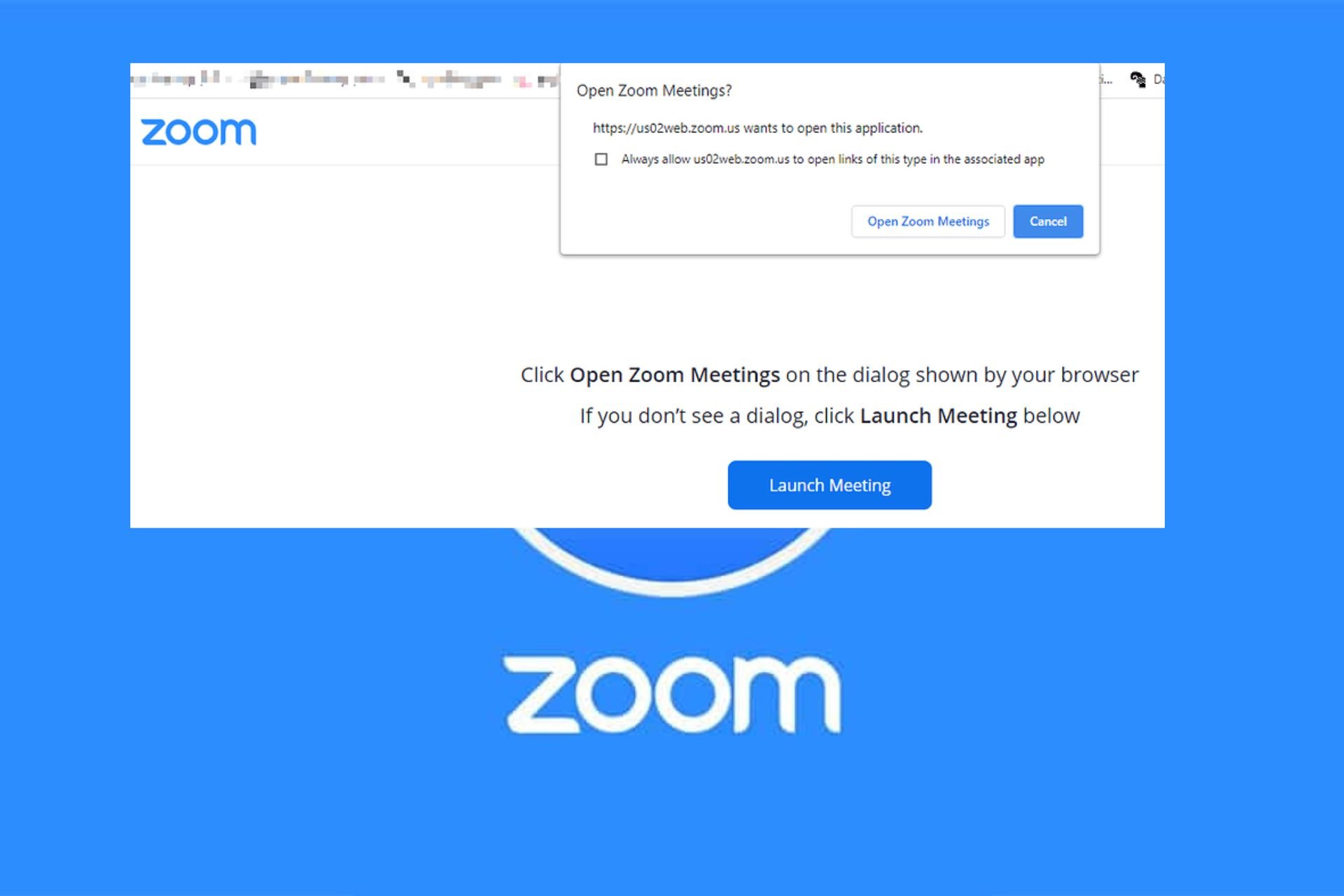
Ever clicked endlessly on your Zoom app but it wasn’t budging? Well, this is a classic case of your Zoom app not launching.
When an app fails to launch, it could be a myriad of issues ranging from insufficient permissions, installation errors, failure to meet system requirements, outdated apps or even insufficient resources.
What can I do if my Zoom desktop app is not launching?
1. Force stop Zoom
Press the Windows key + X and select the Task Manager option.
Right-click the Zoom app.
Now, select the End task option and relaunch Zoom.
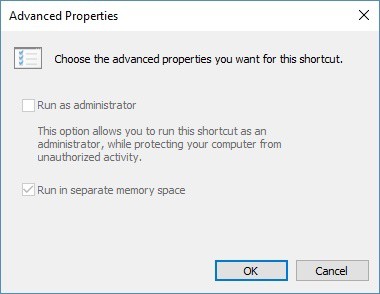
Navigate to the Zoom app on your desktop, right-click on it, select Properties on the menu and click on Shortcut.
Next, click on Advanced.
Select the box that says Run As Administrator and click on Apply.
Try launching the Zoom app and see if the issue persists.
If you don’t have the requisite permissions or you’ve set up security settings to prevent other users from launching apps, your computer may block Zoom from launching. Launching it as an admin bypasses these settings.
2. Clear Zoom app cache
2.1 Clear Zoom cache and cookies on a Web browser (Chrome)
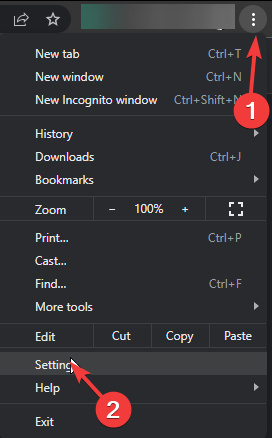
Launch your Chrome browser and click the three vertical ellipses in the top right corner.
Select Settings.
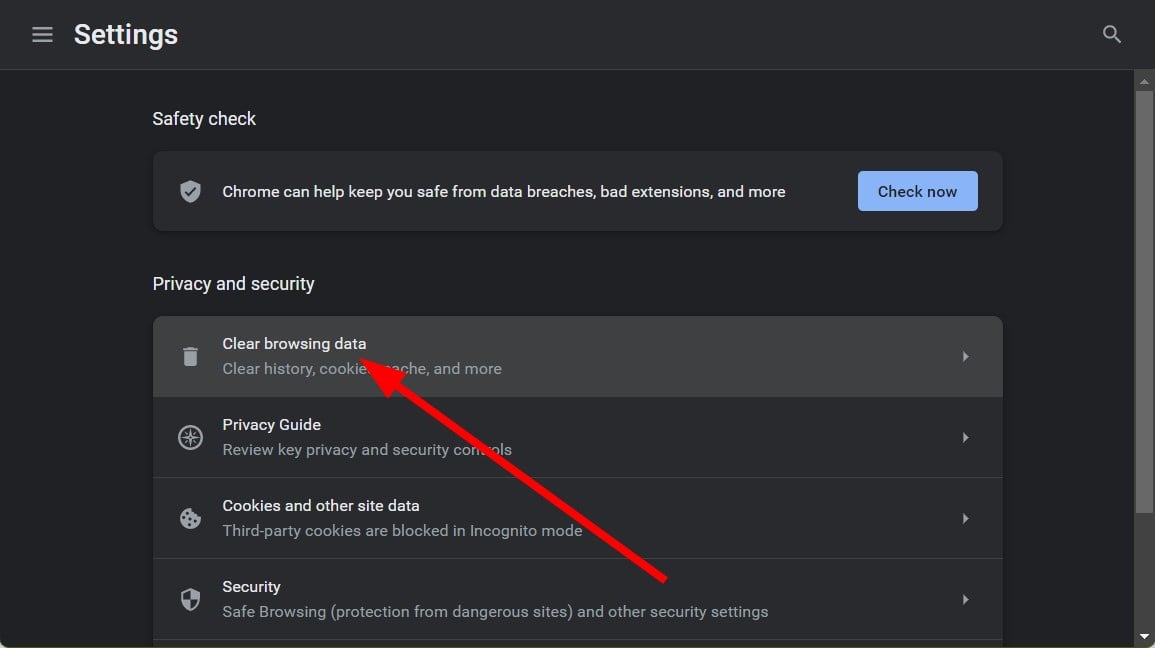
Click on Privacy and security, then select Clear browsing data.
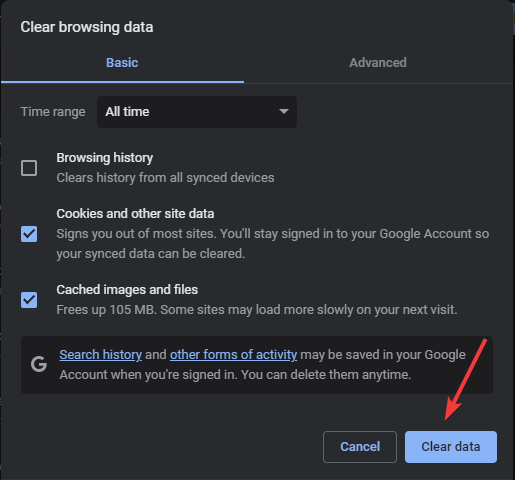
Check Cookies and other site data and Cached images and files, then hit Clear data.
2.2 Clear Zoom cache and cookies on Windows
Press the Windows + E to open the File Explorer window.
Navigate this path after replacing the Username with your user profile name: C:/Users/Username/AppData/Roaming/Zoom
Locate and select the data folder, then click the Delete icon to clear the Zoom cache.
While you’re clearing the cache, also do overall housekeeping on your PC. Check whether it is low on memory and do a Disk Cleanup. This will ensure your Zoom app has enough resources to launch and run.
3. Add Zoom to the Firewall exception list
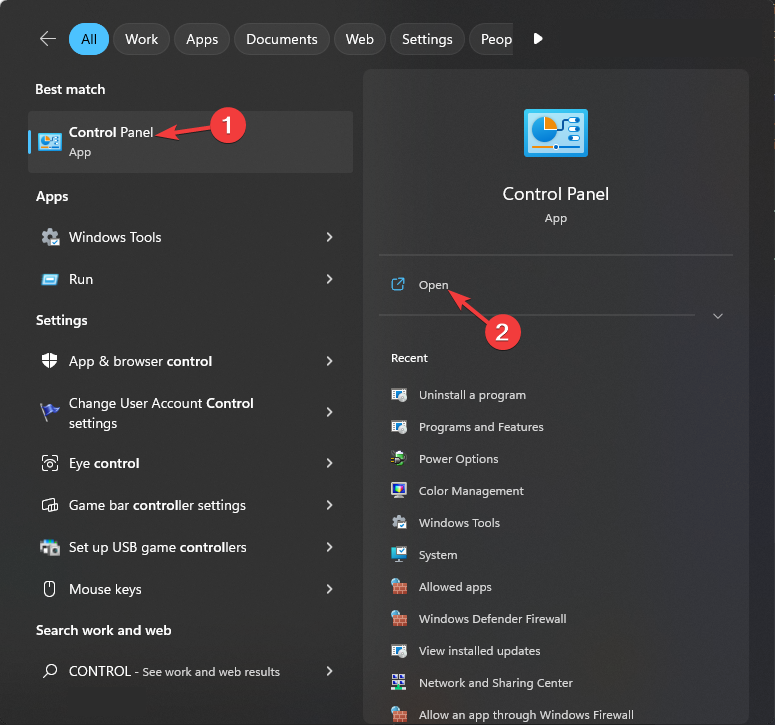
Press the Windows key, type control panel, and click Open.
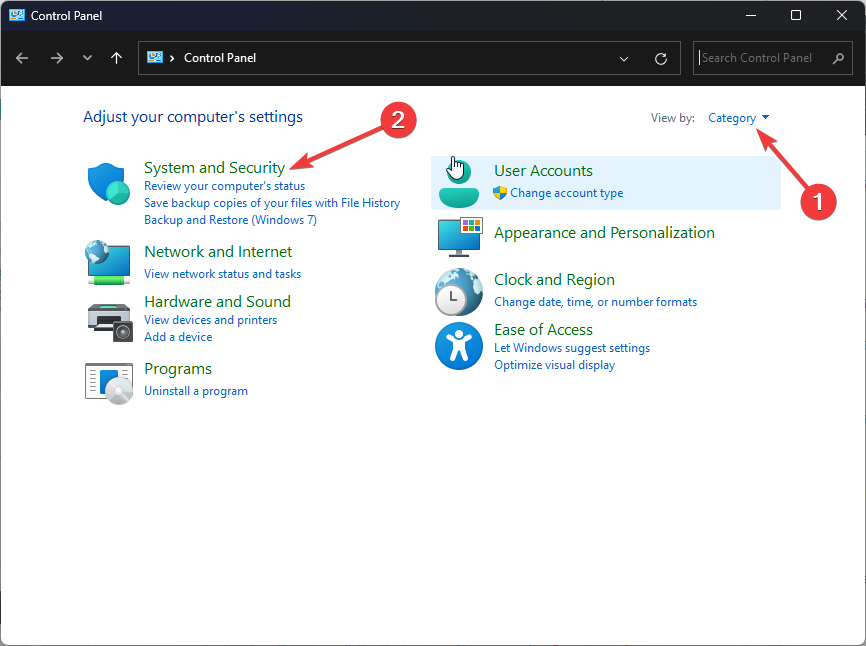
Select View by as Category and click System & Security.
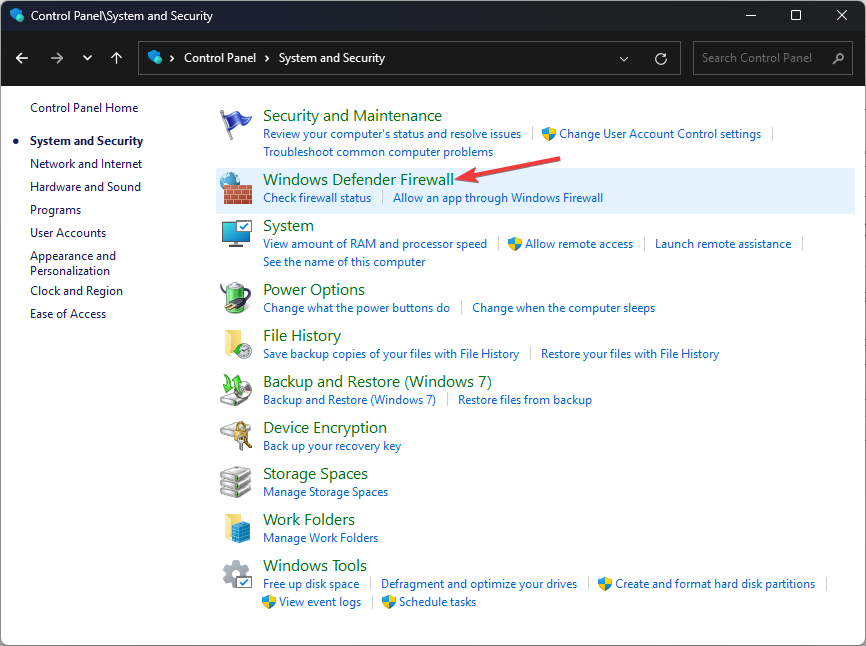
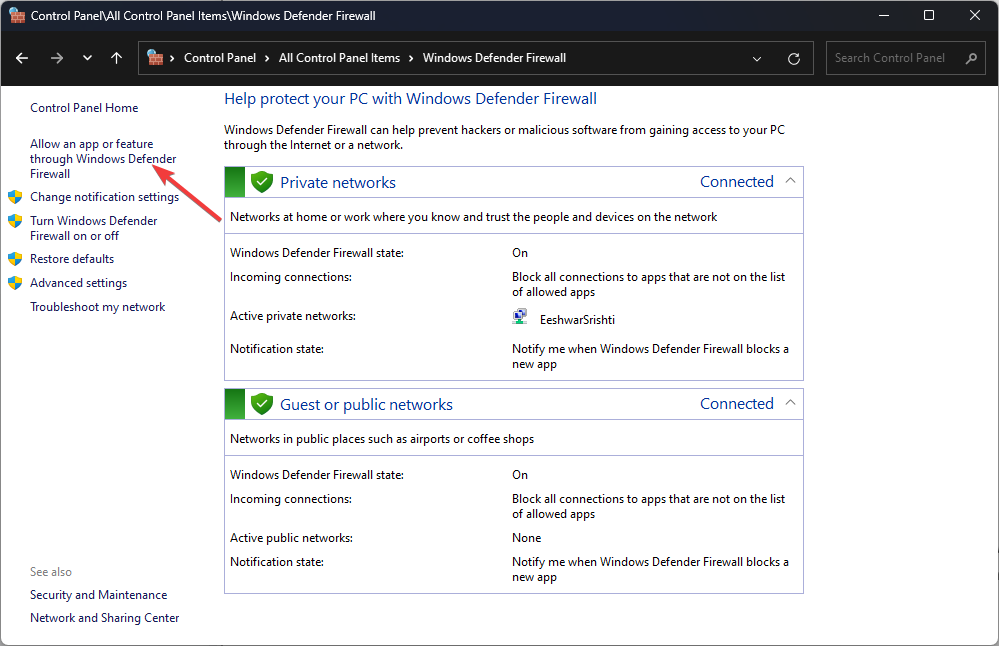
Click Windows Defender Firewall.
Now click Allow an app or feature through Windows Defender Firewall.
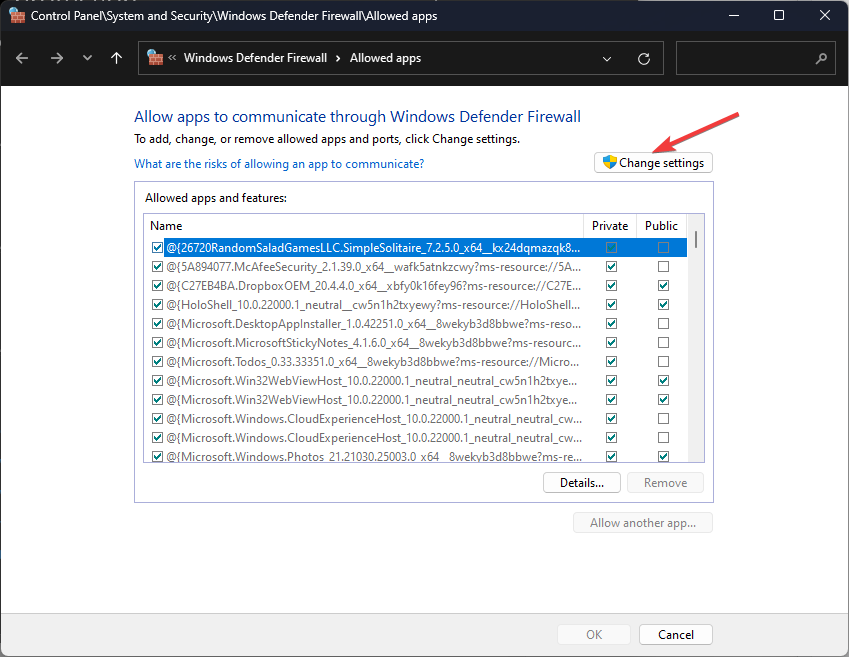
Click Change settings.
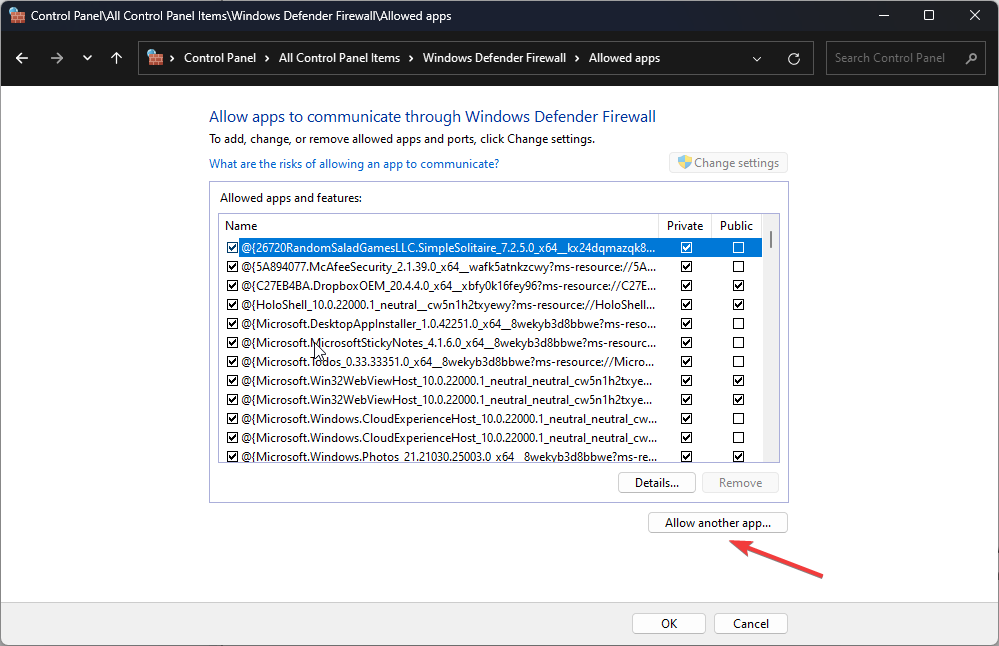
Select Allow another app.
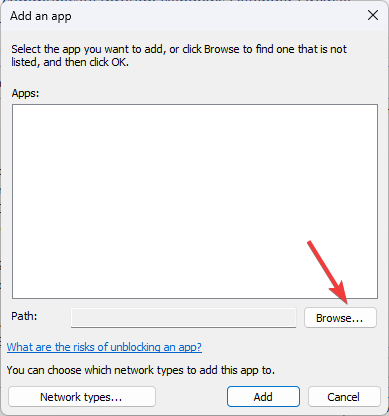
Click the Browse option and select Zoom.
Next, click the Add option.
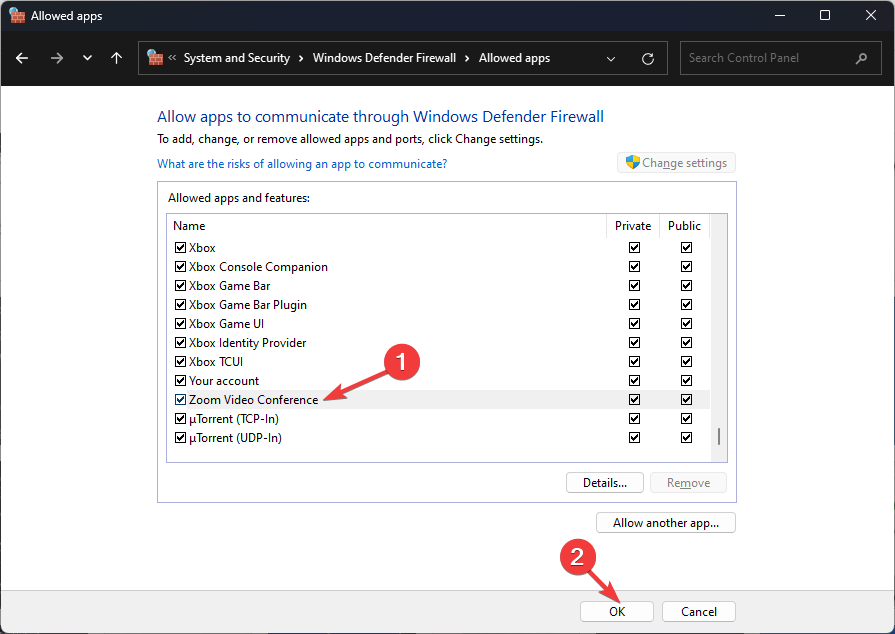
Make sure for the Zoom Video Conference app, Private and Public options are select
Click OK to close the window.
An overzealous antivirus software may quarantine Zoom as a risky app and prevent it from launching. You can start off by temporarily disabling your antivirus and try launching Zoom. If it works, turn it back on and whitelist it.
Once the executable file is downloaded, double-click it to install the app.
It is possible that your current Zoom app is not launching because of a corrupt update that did not install properly or has some missing files. Reinstalling it afresh can help resolve this issue.
5. Install an older app version
NOTE
WindowsReport is not affiliated with the Uptodown.com site. Do your due diligence and ensure you have an antivirus before downloading any files from this site.
Launch your web browser and navigate to the Uptodown site.
Scroll down and click on Older versions.
Search for a specific version number you may have noted down using the CTRL + F combination then paste it to locate it faster. If you don’t have a specific version, simply pick the second one from the top.
Wait for the download to complete then follow the on-screen prompts to install Zoom.
If Zoom is now launching after downgrading your version, it is possible the current update is buggy. It is also possible that there is a hardware compatibility issue and your device no longer meets the system requirements for the new Zoom app.
If you’re sure your device is up to par, try contacting Zoom support and see what they have to say about it not launching. However, in the meantime, you can try Zoom on your web browser. It may not have the same features as the desktop app but it does the job.
First, it’s important to note that it’s different from a peripheral webcam you can connect to your PC. I’m talking about built-in laptop cameras which are much finer and fragile from the hardware point of view.
In this DIY troubleshooting guide, I’ve outlined tried and tested fixes you can try at home. I’ve reproduced the Windows 11 laptop camera’s black screen and no signal issues to ensure that the fixes actually work. So, let’s begin!
Why Is My Laptop Camera Not Working on Windows 11?
When a laptop camera doesn’t work on a Windows 11 OS, you’ll get the following preview when you open the Camera app or API:
The root cause behind this could be any of the following issues:
Windows 11 Camera app crashing in the background.
The camera is suffering from a driver error or the firmware is outdated.
Third-party apps don’t have camera feed permission.
The device’s access to the camera driver and feed has been blocked with privacy restrictions.
Windows 11 is outdated.
Camera hardware issue (require advanced technical assistance from manufacturer’s support team).
Supported Windows 11 Laptop Models
The troubleshooting instructions below are suitable for Windows 11 laptop devices rather than desktop PCs. The fixes I’ve mentioned are generic and will apply to any of the following laptop manufacturers and brands:
HP
Lenovo
ASUS
Acer
Dell
Microsoft
ACEMAGIC
MSI.
How To Fix Laptop Camera Not Working Windows 11
Now that you understand the basics of why your laptop camera isn’t working, try these fixes. I’ve listed them from the simplest to the most complex.
Basic Troubleshooting Steps
Try these quick checks you go ahead with more time-consuming troubleshooting methods:
Switch to an appropriate camera: Windows 11 allows you to use network cameras as well as the built-in ones. Open the Windows Settings app by pressing the Windows + I keys. Type Camera in the Search field and go to the Add or remove a network camera page. There, click on the Enable button of the appropriate camera.
Allow access to the laptop webcam: If you’re unable to access the webcam feed from a specific app, like Microsoft Teams, it might be due to Privacy & security settings. Go to Settings and search for the Camera privacy & settings window. Ensure that the global camera feed is online by moving the Camera access toggle button to the right edge. Also, scroll down to the specific app on which the webcam isn’t working to allow the camera feed.
Update Windows 11: Press the Windows + I keys together to open the Settings. In the Find a setting field, type Update. Click on the Windows Update settings on the search result drop-down. On the Windows Update screen, choose either Resume updates, Download and install updates, or Restart or reboot device. Restart the PC once the update is done. If Windows doesn’t ask you to reboot, force restart by pressing the PC case power or reset button.
Reboot the device: Restart the laptop and test the camera again.
Reset the Windows 11 Camera App
The Camera app is the default interface that relays the digital signal received from the camera hardware. Since this is a built-in app, it might suffer from a temporary bug caused by the latest Windows Update. Follow these steps to reset it:
Press Windows + I to bring up the Settings app.
Type Apps in the Find a setting field and access the Add or remove programs menu.
Beneath the Installed apps heading, look for the Camera app in the Search apps field.
Click on the three dots menu on the right edge of the Camera app block and choose Advanced options.
You should now see the Specifications page of the Camera app.
Once repaired, check if the laptop camera is working.
If it works, that’s great! If it doesn’t, click on the Reset button.
Wait for the Camera app to be reset.
Restart the PC once done and test your webcam again.
Run Windows 11 Camera Troubleshooter
Open the Windows 11 Settings and click on the Bluetooth & devices menu on the left-side navigation panel.
On the right side, below Mobile devices, click on the Cameras settings block.
Below the Connected cameras menu, you should see the built-inlaptop camera. Click on that.
You should see a small preview screen for the camera feed on the top.
There, find the Troubleshoot button and click on that.
You’ll see a new window, named We’re here to help.
On this window, scroll down to the Do we have your consent… section and click Yes.
Let the Check for automation capabilities tool run.
Then, the troubleshooter will show Reset camera services. Click on that.
Now, go to the Desktop and run any app that uses the laptop webcam.
Alternatively, run the Camera app from the Start menu.
If the issue is fixed at this phase, close the Camera troubleshooter tool.
If the issue persists, click No for Did this solve your problem? prompt.
The tool will run a camera diagnostics.
Choose Built In for Is the camera connected… dialog.
Now, the troubleshooter will ask you to shut down the device and disconnect the power cable.
After 30 seconds, connect the power cable again and boot up the laptop.
Check if the camera is working now.
Update Camera Driver
Open the Device Manager app from the Start menu.
You should find the Cameras hardware tree just below the Bluetooth tree. Click on the Cameras tree to expand it.
The listed hardware is your built-in laptop webcam.
Right-click on it and choose Update driver from the context menu.
On the next window, click on the Search automatically for drivers option.
When you see The best drivers… notification, click Close.
If you would like to streamline the driver updating process you can always opt for specialized tools, such as Fortect Driver Updater for example. This tool will fix any issues related to drivers and you will gain control over your laptop camera in no time at all.
Uninstall and Reinstall Camera
Open the Device Manager tool.
Find the built-in Camera and right-click.
On the context menu, click on the Uninstall device option.
Click Uninstall on the Uninstall Device dialog box to approve the action.
Don’t checkmark the box for the Attempt to remove the driver… option.
Device Manager will refresh. You won’t see the Cameras tree anymore.
Click on the Action tab in the top menubar.
Select the Scan for hardware changes option in the context menu.
You should now see the Cameras tree again.
Download and Install Camera Firmware
You can also try to run the built-in webcam using the manufacturer’s own camera app and utilities. For that, you must download the relevant software from your laptop’s driver support page. Find below the steps for an Asus VivoBook X509JA laptop. The instructions are similar for other laptop make and models.
Visit the Product Support portal for the specific model on the manufacturer’s website.
Click on the Driver & Utility tab.
Select an appropriate Windows 11 edition in the Please select OS field. Most devices will be 64-bit.
Scroll down on the list of drivers until you find the Camera section.
The latest camera driver will be on the top.
Click the Download button next to the driver you want to get.
Your browser will download a software package.
Double-click on it to install.
Once the installation is over, restart the PC.
Now, use this newly installed Camera app and see if the webcam is working or not.
If none of these troubleshooting ideas work for you, don’t hesitate to reach out to the manufacturer’s support team for advanced technical support.
Find below a list of support page links for the top Windows 11 laptop brands:
Is your laptop camera not working on Windows 11? If you follow this guide until the end, it should be back in proper shape. I included quick fixes that usually resolve this issue and more advanced solutions with step-by-step instructions.
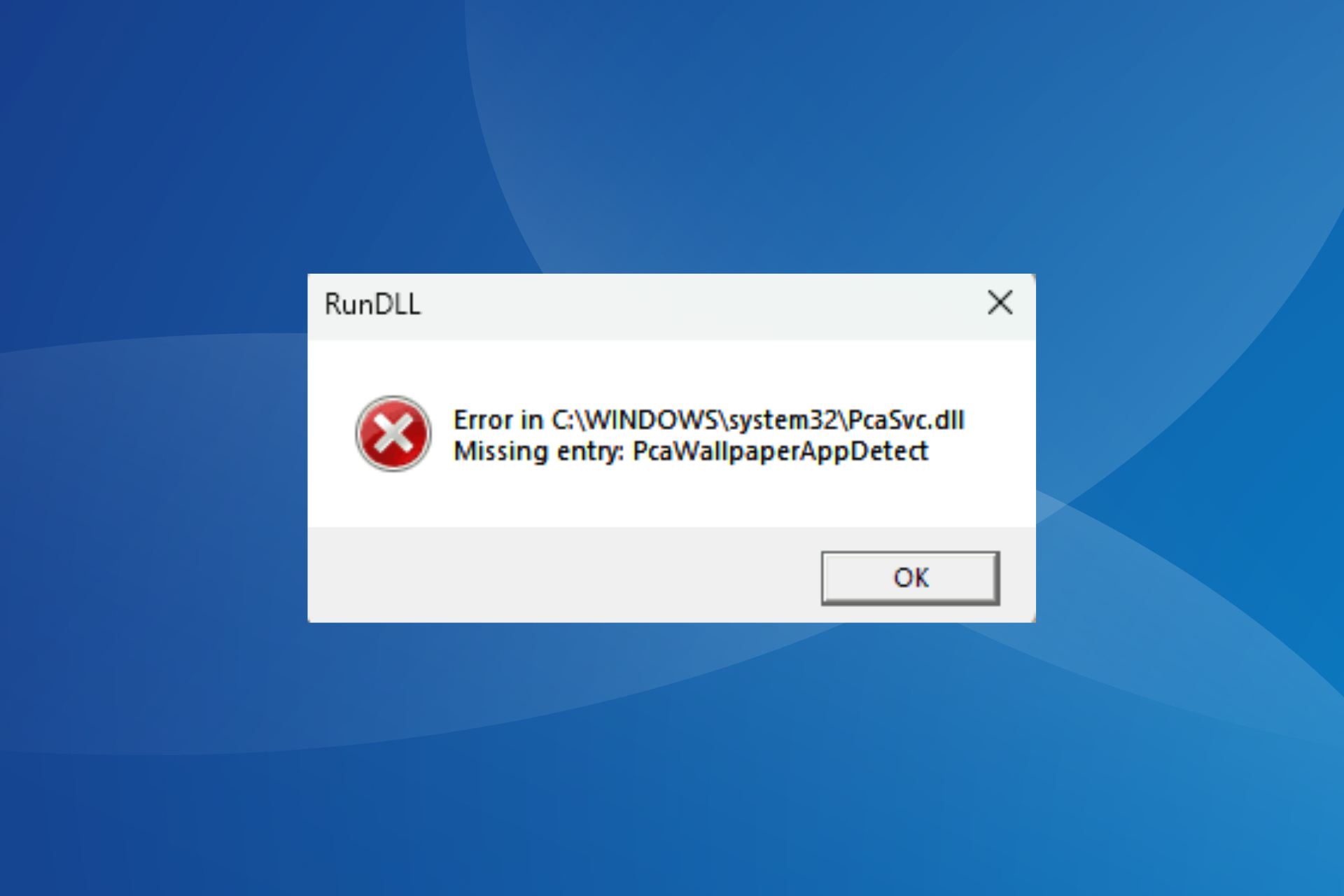
If you just upgraded to Windows 11 24H2 and have been persistently seeing the PcaWallpaperAppDetect RunDLL error, you are not alone. In the last 48 hours, I have seen several cases emerge across the globe.
The error message reads,
The pop-up appears frequently for most. And conventional fixes for DLL errors don’t work this time around, as verified by many Windows 11 24H2 users facing the error.
Forums are filled with reports of the PcaWallpaperAppDetect error
Users who upgraded multiple PCs to Windows 11 24H2 are seeing the error across all devices, indicating that it’s triggered by an OS-related problem. We found several such reports in the Microsoft forum.
I’m seeing this on multiple PCs running 24H2 (Release Preview ring) but not all the time. It randomly comes up, typically (it seems) after resuming from sleep mode or from having been logged on but locked. Spotlight is being used on the lock screen.
I have also the same error popping randomly on the 2 pc’s i upgraded to 24h2
I’m getting this on all of my 24H2 installs. I don’t think it’s something to be worried about, it’s just a bug that Microsoft missed and will hopefully be fixing soon.
A user even took to Reddit to report the PcaWallpaperAppDetect error in Windows 11 24H2.
A task triggers the PcaWallpaperAppDetect error in Windows 11 24H2
According to Dypsis, a Windows Insider, the error is triggered by the PcaWallpaperAppDetect task in the Task Scheduler, and deleting it fixed the error.
The PcaWallpaperAppDetect task can be found in the following path: Task Scheduler Library\Microsoft\Windows\Application Experience
PcaWallpaperAppDetect task in the Task Scheduler
As to what created the task, some suggest that it was PowerToys, a set of free tools that allow you to customize Windows. However, I have never had PowerToys on my laptop, and the task was still present. So, there’s certainly some confusion there!
Nevertheless, deleting the PcaWallpaperAppDetect task will fix the error without affecting any critical OS-related operations.
This is amongst the first reported errors in Windows 11 24H2. I hope Microsoft identifies the underlying cause and patches it in the next build!
Did this work for you? Let us know in the comments section below.
Microsoft released Microsoft Edge version 126.0.2592.11 to the Dev channel for Edge insiders. This version includes a toggle for OTP within the edge://flags settings on Android, improved reliability, and fixes to make the browser more stable.
Introduced a toggle for One-Time Password (OTP) within the edge://flags settings on Android.
Improved Reliability:
Fixed an issue that caused the browser to crash when the ‘Join now and activate cash back’ button was clicked again after signing into the MSA account.
Resolved a problem that caused unexpected crashes during the capture of toolbar snapshots.
Changed Behavior:
Resolved an issue when using Narrator within the pane indicating ‘This page is open in Internet Explorer mode,’ the Narrator’s focus would incorrectly land on the ‘Learn more’ link twice without providing any audio feedback.
Resolved a problem where the focus sequence was not in proper order when selecting the ‘Manage Performance Settings’ menu option.
Fixed an issue where a favorites folder required a double-click to open after being renamed.
Resolved an issue that caused app icons to not appear when the Sidebar settings page was refreshed.
Resolved a problem that caused the display of an incorrect favicon.
Resolved a problem that prevented tab groups opened from separate profiles from being displayed collectively.
Resolved a problem where the ‘Delete site’ message was overlapping with other options in the edge://settings/starthomeNTP section.
Fixed an issue where pressing Enter on the Back button resulted in no response within the Microsoft Rewards section.
Android:
Fixed an issue where rapidly clicking on ‘Set as default browser’ would inadvertently open two separate windows.
Fixed an issue where the word ‘Active’ was partially hidden on the history page on android.
Resolved a problem where there were some inconsistencies in the UI colors within the favorites section.
You can download Microsoft Edge Beta from the official Edge Insider website. Version 126 is expected to be released to the general public in June 2024.
If you encounter any problems while using the new version, you can report them through the Feedback Hub app, which you can open by pressing Windows + F.
Not an Insider yet? You can join the Edge Insider Program. and try the new features before they are released to the general public.
Have you installed the latest version yet? If so, share your experiences with us in the comments section below.
Microsoft Stream on SharePoint will soon be enhanced with new updates that will change the version of the videos uploaded on the platform to save up more space.
According to the latest entry in the Microsoft 365 Roadmap, the new updates will no longer trigger an entirely new version of the file history. They will soon make it so that only changes to the video itself will create a new version, while metadata changes will update the existing version
Currently, any change to video metadata (like title or description) creates a new version of the video, using more storage. Stream video files on SharePoint and OneDrive can take up a lot of storage space because of that.
However, these updates aim to change that. Additionally, SharePoint will introduce new limits and controls to help manage storage by reducing the number of low-value file versions. It’s also worth mentioning that these changes only apply to Microsoft Stream videos stored in OneDrive and SharePoint.
Here’s what the entry says:
Stream (on SharePoint) video files tend to be large and consume considerable space against your OneDrive and SharePoint storage quotas. Currently, when you make changes to video metadata, such as adjustments to the video title, description, transcript, chapters, interactivity, thumbnails, or media settings, those changes trigger a new version (that includes both the video and metadata) to be created and stored in the version history for that file. Each of these versions consumes storage that counts towards your storage quota. To reduce the storage footprint driven by small changes, we are adjusting how Stream (on SharePoint) handles versions. Soon we will release an update to Stream version history. Once released, any changes made to the metadata of Stream files will no longer trigger an entirely new version in the file’s version history. Instead, it will update the metadata of the most current version of the video in version history. If you edit the video itself, then a new version that includes both the video and metadata will be created and stored in the version history. Note: The update to Stream version history applies to Stream videos stored in OneDrive and SharePoint. SharePoint is also introducing new version history limits and controls that help tenant and site admins or document library owners reduce the storage footprint driven by low value file versions. These new version history limits and controls will only apply to Stream videos if changes to the video are made from within a SharePoint document library without opening the video in Stream (e.g. a file name change from within a SharePoint doc library).
Microsoft
The changes will impact Microsoft Stream videos starting in August. In other news, Microsoft will also update Stream to support an engagement-based analytic report that allows managers to see which content is the most engaging among employees.
With it, managers can get the general feeling of the company: what kind of content works and what doesn’t, and plan accordingly.
What do you think about all these changes coming to Stream?
Microsoft just announced that its Weather API on Windows is the overall most accurate weather forecast provider globally, according to ForecastWatch. From their 2023 report, the analysts write that the Redmond giant’s predictions were the most accurate, seriously outranking the famous Weather Channel.
Microsoft scored the most first-place finishes (50,624) globally in 2023 for all 13 metrics and one through five days out. The Weather Channel had the second most with 39,145, and Foreca/Vaisala had the third most with 12,917. Weerplaza was fourth with 8,696, AccuWeather had 7.364, and CFAN had 5.482. The other 16 providers had fewer than 4,000 each.
Why is the Microsoft Start Weather app so accurate?
In a nutshell, Microsoft attributes this win on its new approach to weather forecasting, that implicates the use of AI.
Weather forecasting has traditionally used supercomputers and large-scale physics simulations. Weather from Microsoft Start reimagined weather forecasting using AI, bringing together massive weather datasets, large scale computation models, mapping and topography data plus real-time reports from users.
Even with the classic model of doing things, weather forecasting specialists use simulations and previous data to predict the future developments. However, it’s obvious that an AI model can analyze a lot more data a lot faster, which also results in better and more accurate predictions.
What’s more interesting is that Microsoft’s Weather app received the same title in 2022. Here’s how ForecastWatch assessed the various weather prediction services:
This independent study of 22 weather services for the entire year of 2023 evaluated 13 different metrics. Weather from Microsoft Start had the top scores for multiple metrics including high and low temperature predictions and cloud cover forecasts. This included forecasts for 1-5 days out. In fact, Weather from Microsoft Start’s total first place percentages were 11% higher than last year and the lead from the nearest competitor grew by 4%.
So, Weather from Microsoft Start’s increased its weather prediction accuracy by 11% from last year, a lot more than the competitors. Microsoft also states in their announcement that it used the Weather app to send over 150 billion notifications to users all over the world, including 9 billion severe weather alerts.
You should also know that the same app is also included in Edge, MSN and Bing. We could also bet that Copilot will also use data from the same source if you ask the bot about the weather in your area.
So, if you want to know whether you need to grab your umbrella on your way out or schedule that barbeque next weekend, you should definitely check out Microsoft’s Weather app.
Yes, you’ve heard that right: Teams will allow users to change the notification sound on all desktop versions of the platform. This long-requested feature should have been released in 2017 when the Redmond-based tech giant released Teams. But somehow, Microsoft only realized now, more than 7 years later, that this basic but so-needed capability should be added to the platform.
According to the Microsoft 365 Roadmap, users can change their Teams’ notification sound starting in July 2024. Currently, this feature is available only on Android devices, and users have been asking for it to be expanded to other versions of the platform, but the Redmond-based tech giant hasn’t wanted to hear about it until now.
However, these will end in July, when Microsoft will allow users to personalize their notification sounds. Here’s what the entry says:
You can change the sound of your notifications to help you stay focused, prioritize quickly and avoid distractions. You can as well make urgent notifications and priority contact notifications more prominent. You can also mute notification sounds when you are busy or in a meeting.
Microsoft
The Redmond-based tech giant hasn’t offered any details about the new option, but the company will most likely share about this groundbreaking (pun intended) capability as July approaches. It’s a bummer that Microsoft enhanced Teams with Copilot, and AI capabilities such as the new Team Copilot, but has completely forgotten about such a fundamental option.
Sure, maybe the company wanted users to associate the notification sound with Teams, but given just how many people asked for the ability to change it, maybe it hasn’t worked as intended. Either way, this could very well be a drawback too. Users will have to get used to the new notification sounds, and many might find themselves in trouble for avoiding notifications simply because they don’t sound like notifications.
But that’s an amazing problem if you ask me. Anyways, what sounds will you choose? I’m thinking about Darude – Sandstorm!
On the support page for Codecs in Media Player, Microsoft confirms that starting from Windows 11 24H2, the AC-3 codec (Dolby Digital) is no longer included with Windows. However, the older version of Windows will still support AC-3 codec.
AC-3 is an audio codec that supports multi-channel (“surround sound”) audio. It’s also known as Dolby Digital.
On versions of Windows prior to Windows 11, version 24H2, the AC-3 codec is included.
Beginning with Windows 11, version 24H2, the AC-3 codec is no longer included with Windows. However, many device manufacturers will pre-install an AC-3 codec. In these cases, you will still be able to play files encoded with the AC-3 audio codec.
This means that after you install Windows 11 24H2 on your computer, you won’t be able to play old media content in the AC-3 codec, as the Media Player will not launch.
The document also mentioned that Microsoft will continue supporting other popular codecs, such as FLAC, AAC, M4A, ALAC, MP3, MP2, WAV, WMA, 3GP, 3G2, and AMR.
AC-3 codec is old, and popular media companies and streaming platforms have stopped using it, so Microsoft removed it.
The company has also provided a list of additional codec packs from the Microsoft Store, including MPEG-2 Video Extension, HEVC Video Extension, VP9 Video Extension, Web Media Extension, and AV1 Video Extension.
This is not the only feature not included in Windows 11 24H2; you will also not see WordPad, Steps Recorder, Cortana, and other legacy tools. If you have some old files that you want to play, you can always download a third-party app or convert them to another audio format.
Will you miss the support for AC-3 codec (Dolby Digital)? Share your views with our readers in the comments section below.
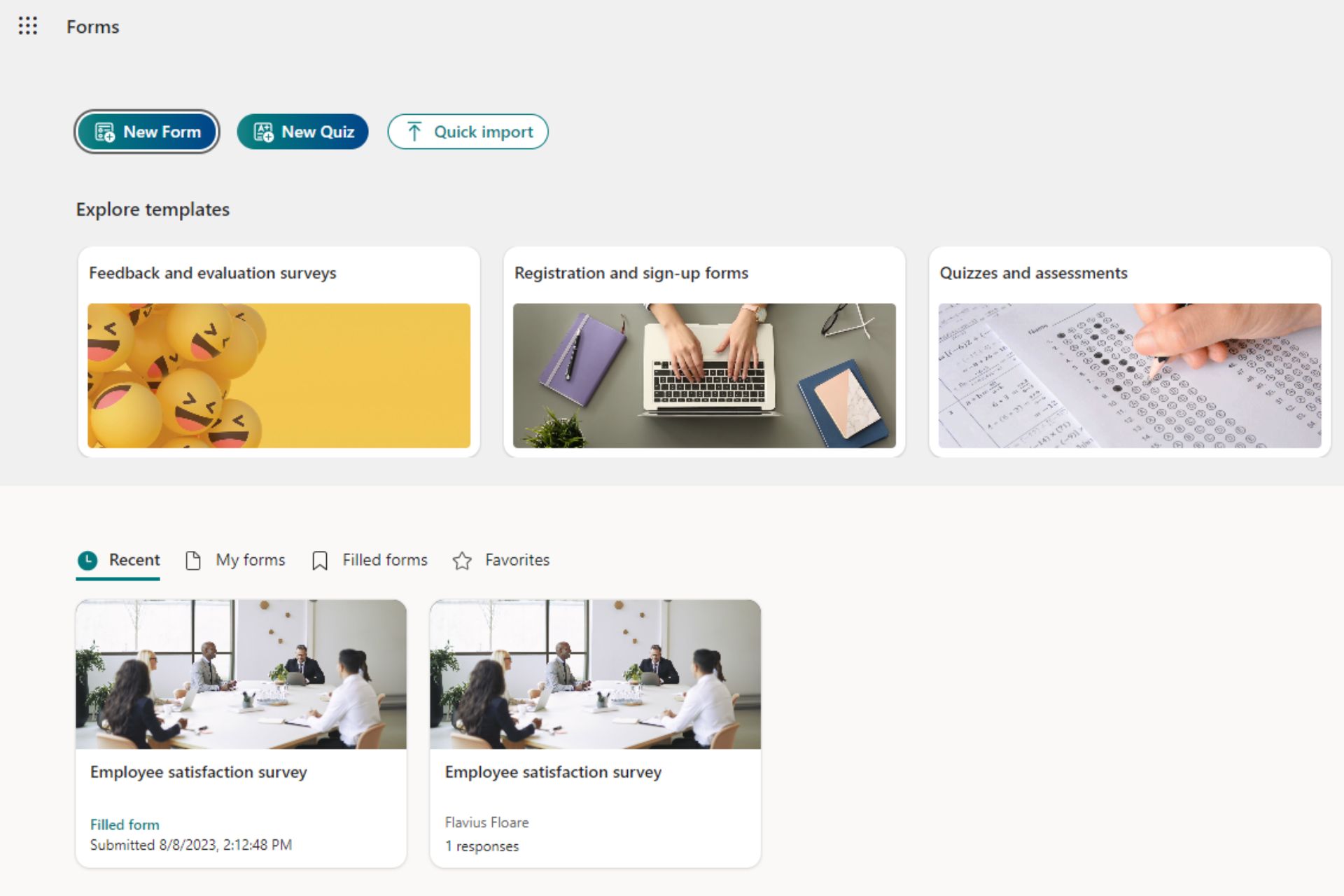
Microsoft Forms, the platform that allows users to create forms, quizzes, and similar tools for various purposes, will be enhanced to let managers add or remove people from the response notifications emails.
According to the latest entry in the Microsoft 356 Roadmap, the new enhancement will impact the web version of Microsoft Forms starting June 2024. Currently, all those editing a form in Microsoft Forms will be notified via email every time someone answers their form.
With the new enhancement, however, Microsoft Forms will only notify the form owner and those designated by this form owner. Here’s what the entry says:
Now form owners can add or remove people from the response notification emails. Currently only the form owner or the group alias is notified when someone responds to a form.
Microsoft
With the new enhancement, Microsoft Forms strives to provide a relatively stress-free experience to all those creating forms and quizzes on the platform. This is a good thing, considering these emails are a good indicator of the form’s success. If the form doesn’t meet the quota, those working on it will be notified about it.
With this enhancement, only a handful of people designated by the form owner will know about it.
Speaking of stress-free experiences, the platform will allow admins to manage notification emails in Microsoft Forms and provide them with Copilot to fine-tune their forms to the next level. With the new addition, forms will be made in seconds, and using company data, the AI model will consider each organization’s specificities to create a form that could address various issues.
The new enhancements will be generally available to all Microsoft Forms users this year, and with them, the Redmond-based tech giant will create an encompassing platform for all things quizzes, forms, or surveys.
What do you think about these new enhancements coming to the platform?
If you are looking for a laptop that fulfills all work-related needs, the Lenovo ThinkPad T14 Gen 4 is the perfect option. And right now, it’s available at a 50% discount, dropping the price from $2,529.00 to only $1,263.99!
To avail the discount, use coupon code THINKMEMDAY3.
The laptop boasts high performance, power, and convenience, especially in corporate setups where admins prioritize remote deployment and manageability. Besides, the 14″ display is designed to reduce stress on the eyes, which becomes vital if the laptop is to be used for extended periods.
As for storage and RAM, you have a 512 GB SSD and 16 GB memory, respectively. The latter, however, is soldered, meaning you will have a tough time replacing it, if required.
Connectivity on the Lenovo laptop remains hassle-free with a wide range of built-in ports and jacks. Most of you wouldn’t need a USB hub with the ThinkPad T14 Gen 4.
When it comes to durability, the ThinkPad T14 Gen 4 meets the MIL-STD 810H standards, delivering longer life and reliability, even under extreme conditions.
Lenovo has done a splendid job in integrating the much-needed security features. The laptop features a built-in fingerprint sensor and facial recognition software (works with an optional IR camera). To top it off, you have Human-presence detection, which automatically locks the laptop as soon as you step away!
Lenovo ThinkPad T14 Gen 4’s specifications
Processor
13th Generation Intel Core i5-1345U vPro Processor (E-cores up to 3.50 GHz P-cores up to 4.70 GHz)
Graphics
Integrated Intel UHD Graphics
Storage
512 GB SSD M.2 2280 PCIe
RAM
16 GB DDR5-4800MHz
Operating system
Windows 11 Pro 64
Display
14″ WUXGA (1920 x 1200), IPS, Anti-Glare, 300 nits
If you constantly have to sieve through interview transcripts and don’t want to go through the time-intensive process, you can use Azure AI/ML. It is a revolutionary solution that automates creating summaries and extracting themes from interview transcripts.
What is document and conversation summarization?
Summarization is one of the key features of Azure AI-Language services, a collection of ML and AI algorithms in the cloud for developing intelligent applications that involve written language.
Document summarization – Accepts plain text blocks only
Conversation summarization – Accepts various speech artifacts so the model can learn more.
Here are the main features mentioned by Microsoft in the official blog:
Extractive summarization: Produces a summary by extracting salient sentences within the document.
Multiple extracted sentences: These sentences collectively convey the main idea of the document. They’re original sentences extracted from the input document’s content.
Rank score: The rank score indicates how relevant a sentence is to a document’s main topic. Document summarization ranks extracted sentences, and you can determine whether they’re returned in the order they appear, or according to their rank.
Multiple returned sentences: Determine the maximum number of sentences to be returned. For example, if you request a three-sentence summary extractive summarization returns the three highest scored sentences.
Positional information: The start position and length of extracted sentences.
Abstractive summarization: Generates a summary that doesn’t use the same words as in the document but captures the main idea.
Summary texts: Abstractive summarization returns a summary for each contextual input range within the document. A long document can be segmented so multiple groups of summary texts can be returned with their contextual input range.
Contextual input range: The range within the input document used to generate the summary text.
How does it work?
Azure AI/ML services is a suite of tools for summarization. With Azure AI-Language service and Azure OpenAI GPT-3, you can automate the summarization process.
Furthermore, the extractive summarization API provides a way to highlight key sentences that highlight important information in a transcript.
Summarization: Azure AI-Language service can generate summaries of these transcripts. It uses advanced algorithms to identify and condense the most salient points into a coherent summary.
Theme Extraction: Alongside summarization, Azure AI services can extract key phrases and themes from the text. This is particularly useful for identifying recurring topics or important concepts within a series of interviews.
Refinement: Researchers can then review and refine these automated summaries and themes, ensuring they align with the research objectives and provide the necessary depth of insight.
How can I get started?
You need an Azure account with a subscription. To create one, go to the Azure portal. You also need an Azure blob storage account to store documents that need to be extracted.
With minimal machine-learning expertise and Azure’s AI Language Service, you can identify jey terms and phrases, determine the emotional tone to understand the context, summarize documents using extractive and abstraction techniques, and create intelligent chatbots and virtual assistants.
What are the steps to summarize a transcript?
First, go to the Azure Portal and sign in with credentials for access or subscription to your resource. On the Azure Portal landing page, click the Search button, and under Services, select Language.
Click Create to create an Azure AI language service on the Language service page. On the Select additional features page, choose Option 2 to select custom summarization and text analytics, then click Continue to create your resource.
On the Create Language page, select a subscription, create a resource group, choose the region to deploy in, type in the resource name, select the pricing tier, and click Next.
On the following page, choose a storage account, type the inn storage account name and account type, and then click Next. Once you have entered the details, you can click Review + create to complete the process.
Once it is deployed, go to the resource and open it, then click Language Studio. Choose a preferred language or Azure resource that you deployed, mention the number of sentences you want in the summary, and specify your summary interest.
Now upload the .txt file with the interview transcript, place the checkmark next to the I acknowledge box, and click Run. If you have selected everything correctly, you will get a response like this. This output is available for 24 hours to retrieve.
To conclude, the Azure AI/ML services streamline transcript analysis, saving time and improving accuracy. The user-friendly interface and powerful algorithms, you can extract insights from text data without any issues.
It is safe to say that Azure AI/ML is revolutionizing the way we process information, offering a game-changing tool for researchers and professionals alike.
What are your thoughts on the matter? Share your views with our readers in the comments section below.
Since the launch of the Fallout series on Amazon Prime, the Fallout games had seen a surge of players on all platforms. Usually, Fallout 76 is $70 which can be considered a hefty price for a game. That’s why grabbing an Xbox CD key for only $4.97 from StackSocial, which represents a 92% discount, is a really big deal.
In fact, we recently wrote about a Steam, PlayStation Store, and GOG deal which promised a 75% discount on all the Fallout series. That’s why the new offer is awesome.
What’s all the hype about Fallout 76?
If you don’t know about this title, Fallout 76 is a post-apocalyptic an open-world, multiplayer, role-playing game (RPG) developed by Bethesda Game Studios. We won’t provide here any spoilers but the action involves building, customizing and defending your settlements across an American post atomic wasteland. However, please note that the game is addressed only to mature audiences.
Here’s another tip: If you’re an Amazon Prime subscriber, you can get Fallout 76 and Fallout Tactics: Brotherhood of Steel for free.
The Halo franchise has been one of the most popular multiplayer shooters, but its popularity dwindled over the years.
We have some good news for Halo fans, as today we have a fresh leak that states that the franchise is going back to its roots.
Halo 7 will be based on Halo 5, leaks claim
This information comes from Pirat Nation on X and it states the direction of the Halo 7.
HALO 7 Leak:
“Seeing the massive failure of Halo Infinite, it has been determined that "classic style gameplay" (which fans and 343's management insists Halo Infinite is based on) will no longer work for the Halo franchise. The severe drop off in player numbers as well as… pic.twitter.com/XA2SPtNpR2
According to this information, Halo Infinite was a massive failure and everything done by this game will be scrapped.
Halo 7 will be based on Halo 5 gameplay and expand it further. This means that mechanics such as sprint, clamber, thrust, slide, and stabilization are making a comeback.
We’re also getting two new abilities called jet boost and wall run. Here’s a quick overview of all abilities:
Sprint is unlimited but if you get shot you’ll stop sprinting.
Clamber and slide are the same as in Halo 5.
Thrust lets you keep your momentum again.
Stabilization will let you float in the air while zooming in, and the float time is doubled.
Jet boost works as a double jump.
There is also a rumor that an ability that allows players to place portals is being tested, but it will probably be scrapped.
Stabilization float time has received negative feedback as well, so it will probably be reduced. Lastly, one multiplayer map is almost finished while others are still in the process of development.
This sounds exciting, but do keep in mind that this information comes from an unreliable source, so it might not be true at all.
Yesterday, Microsoft moved to the top of the Russell 1000 index, depriving Apple of a position it held for the last three years, which slipped to the second spot. A major reason behind Microsoft’s dominance and expansion amongst the magnificent seven is the cloud and AI push.
During the recently concluded Microsoft Build 2024 event, the Redmond-based tech giant, riding on the AI wave, unveiled Copilot+ PCs, a new class of devices featuring an NPU (Neural Processing Unit). Explaining Copilot+ PCs, Microsoft says,
Copilot+ PCs are the fastest, most intelligent Windows PCs ever built. With powerful new silicon capable of an incredible 40+ TOPS (trillion operations per second), all–day battery life and access to the most advanced AI models, Copilot+ PCs will enable you to do things you can’t on any other PC. Easily find and remember what you have seen in your PC with Recall, generate and refine AI images in near real-time directly on the device using Cocreator, and bridge language barriers with Live Captions, translating audio from 40+ languages into English.
Also, we can’t ignore Microsoft’s success in the cloud landscape. After decades of trailing AWS (Amazon Web Services) and Google Cloud, Microsoft Azure has finally managed to emerge as a formidable force. This, again, can be attributed to AI integration and recent partnerships that entailed the other parties switching to Microsoft Azure as their cloud platform.
For Microsoft to continue its expansion, foray into new markets, and retain the top spot in the Russell 1000 index in the coming years, AI adoption at the enterprise and user level is a must!
The native Windows Copilot, which ships with the OS, has received mixed reviews, but it’s increasing awareness around AI amongst the masses, a factor that could fuel future adoption. Similarly, for enterprises, Microsoft offers a diverse range of services, from cloud hosting to AI integration, which resulted in many switching to Microsoft Azure.
Amongst the magnificent seven, Microsoft has the best chance of enduring the ups and downs of the ever-evolving landscape. Although, for now, everyone seems fixated on AI, the next big thing!
And Microsoft, with its deep pockets and reported government backing, can both regulate and dominate the market. Microsoft’s recent partnership with UAE-based G42 set off speculations that the deal had US backing, reportedly in an effort to diminish China’s influence in the region.
In my opinion, Microsoft’s future looks promising, and based on current projections, it has the highest chance of becoming the first 10 trillion company. If you didn’t know, Microsoft pays the highest dividends in the US and is spending heavily on buybacks, in an effort to incentivize investors. At the moment, everything seems to be going Microsoft’s way!
What do you think of Microsoft’s recent expansion and future prospects? Share with our readers in the comments section.
Microsoft recently deprecated WSA and they didn’t say why. We can only assume that the Amazon Appstore downloads for Windows 11 were not on par with the predicted outcome. Also, actually getting to run the Android apps on your PC was not so simple as advertised. Ultimately, the lack of Google support probably decided Windows Subsystem’s for Android faith.
Well, that’s why it’s very confusing that the Microsoft Chinese website announced (translated) a partnership with the Tencent company to download and run mobile games right from the Microsoft Store.
Why is Microsoft allowing WSA in China?
Before clarifying this move, here’s how Lin Songtao, vice president of Tencent, describes the fruition of this partnership in the press announcement:
The PC side has a huge user base. We hope to work with Microsoft Store and Intel through the PC version of Yongyongbao to provide technology, traffic and commercialization support for mobile developers on cross-terminal integration, and jointly promote the PC application ecosystem. prosperous development and provide users with a better cross-terminal experience.
Lin Songtao, vice president of Tencent
Long story short, China is a huge market, and Tencent has a large user base and a lot of apps to justify this exception. And, if you’re looking for more reasons, the Chinese probably brought up sheer numbers to the meeting with Microsoft, also suggested in the press release excerpt from Microsoft:
According to reports, the scale of new additions to some games currently on the PC version of Yongyongbao has increased by 100% compared with the single mobile version. The PC scenario payment of some games accounts for more than 40% of the market turnover. The next-day retention of new games is 1.9 times that of the market.
Well, there you have it. While Microsoft didn’t quite match Google and their store, China laid out a red carpet for the Redmond giant. So, will we see a comeback for WSA in other parts of the world? I would clearly say that it’s not feasible without the big input from a large Android app base such as the one from Google Play.
We’ve learned about this from Neowin. Were you using WSA on Windows 11? Let’s talk about this story in the comments below.
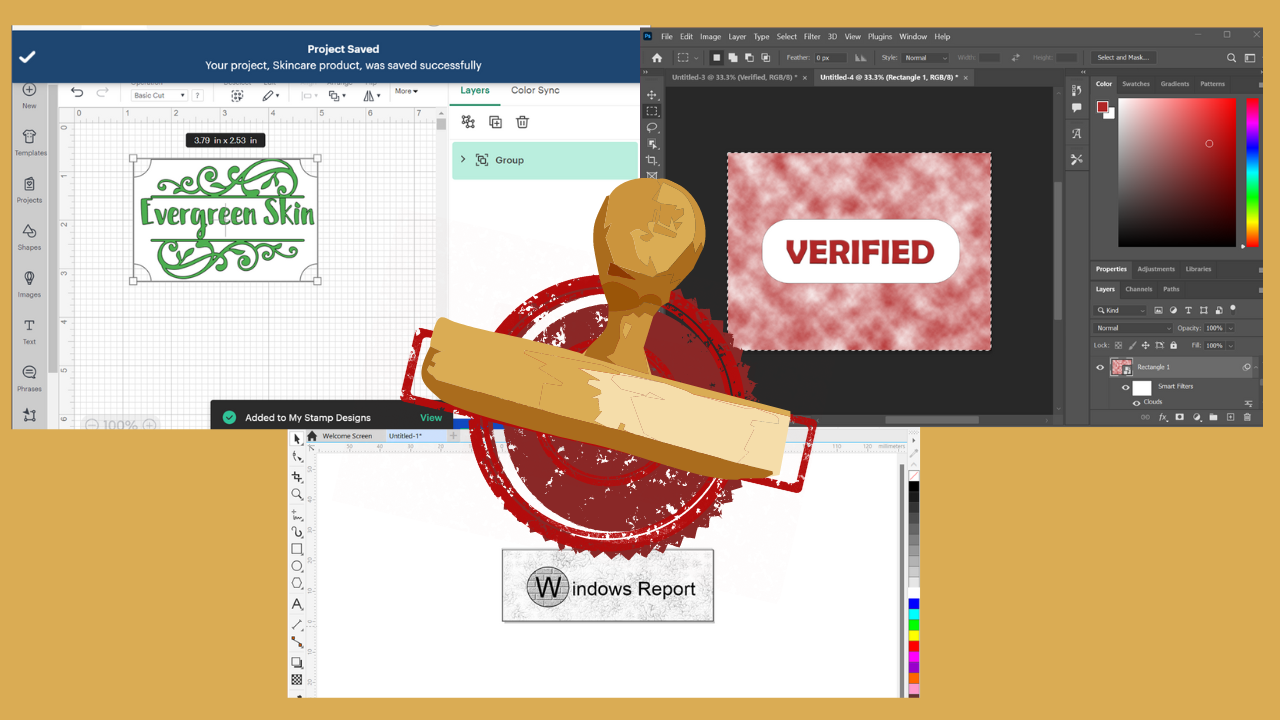
After thorough research and testing, I found the top three third-party software that work perfectly with major Cricut Maker models. Moreover, these tools can help you cut your materials, add unique fonts, and design stamp elements with ease. I’ll also demonstrate how to use them.
Sounds like a good deal? Let’s roll in!
3 Best Software to Create Stamp Design for Cricut Maker 3
Check out these amazing software:
1. Adobe Photoshop – Powerful Editing Options and Cloud Collaboration
Adobe Systems deployed Adobe Photoshop in the late 1990s. However, it has maintained its popularity since then.
You can use this graphic design and photo editing program to create and edit digital images, animations, paintings, and drawings, including stamp designs for Cricut Maker. Notably, most designers switch to it when they need to handle image masking and alpha compositing, retouch images, or create bitmaps in multiple layers.
To be more specific, it can help you to:
Apply smart portrait and colorize neural filters
Use live shape enhancements and pattern preview
Make large objects disappear
Instantly expand images
Edit with next-step suggestions
Add and edit gradients on canvas
Utilize generative AI effects and adjustment presets
Use auto-selection tools and more.
Besides, Adobe Photoshop allows you to collaborate with your team members to track projects.
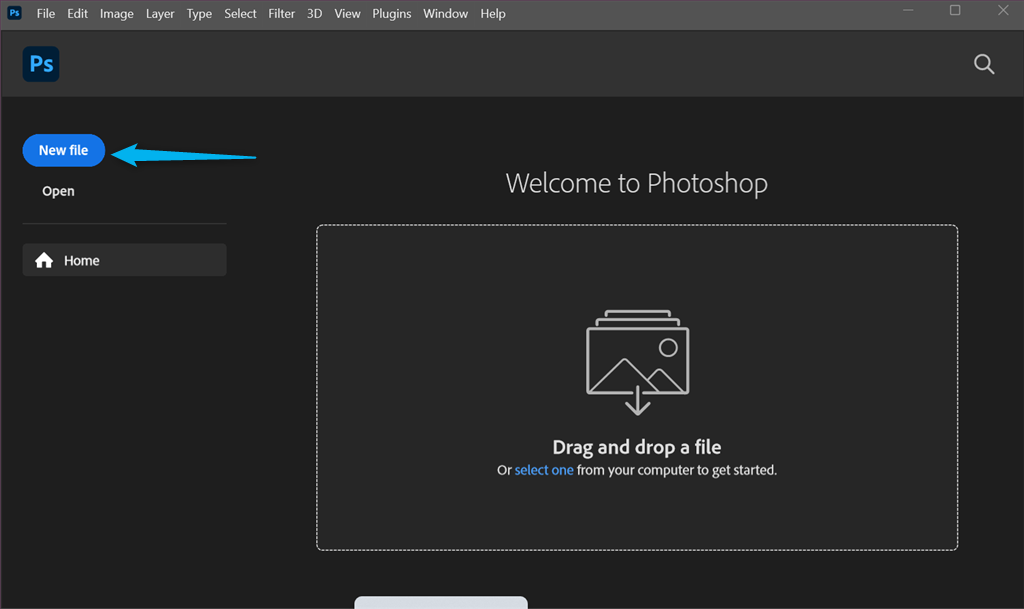
To create a stamp design, open the app, and click on New file.
Add elements to your canvas according to the idea you’ve in mind. For instance, I wanted to create a rectangular stamp design stating “VERIFIED”.
For this, I clicked on the Shape tool and added a Rectangle.
Next, I filled the rectangle with the red color.
Then, I use the highlighted pointers to round the corners of the rectangle.
Likewise, I’ve added another rectangle to the canvas and filled it with white color.
Then, I rounded its corners.
After that, I clicked on the Text tool to add “VERFIFIED” as the stamp text and aligned it to the center.
Adobe Photoshop also allows you to customize the text and set its:
Font style
Font size
Alignment
Color.
Moreover, you can right-click on the selected text and apply any Warp Text… effect.
In my case, I clicked on the Filter menu, moved to the Render section, and applied the Clouds filter.
Here’s the final look of the created stamp design.
Pros:
Stands out as an industry standard for editing and manipulating images
Provides various raw camera file tools
Customizable brushes
Offers unlimited filters, masks, and layers
Supports several high-quality templates, typography, and drawing tools
CorelDRAW is a multi-functional graphic designing software mostly used by professional designers and photo artists. This vector-based tool helps you to create logos, stamp designs, architectural layouts, 3D illustrations, and other complex marketing materials.
Furthermore, you can create your own designs from scratch or customize existing ones with ease. It provides access to 100+ predesigned templates, ranging from geometric patterns to floral designs.
Some of the new standout features of CorelDRAW include:
Multipage view
Live comments
Perspective drawing
Multi-asset export
Image adjustment
HEIF support
Pages docker
Pan and Zoom.
CorelDRAW also allows you to customize its interface using icon sizes, color schemes, windows borders, toolboxes, and document opening options. Moreover, you can import text from popular word-processing programs, such as Microsoft Word. Additionally, CorelDRAW’s Learning Center provides step-by-step tutorials to get started with it.
To test it, I opened the app, clicked on the New File icon, and specified a custom size for the stamp design.
With the help of the left-side toolbar, I added a circle to the canvas.
Then, I changed its color using the color palette placed on the right side.
Next, I opened the Effects menu, navigated to Texture, and selected the Brick Wall… option.
From the opened dialog box, I adjusted some options for the Brick Wall texture and clicked OK.
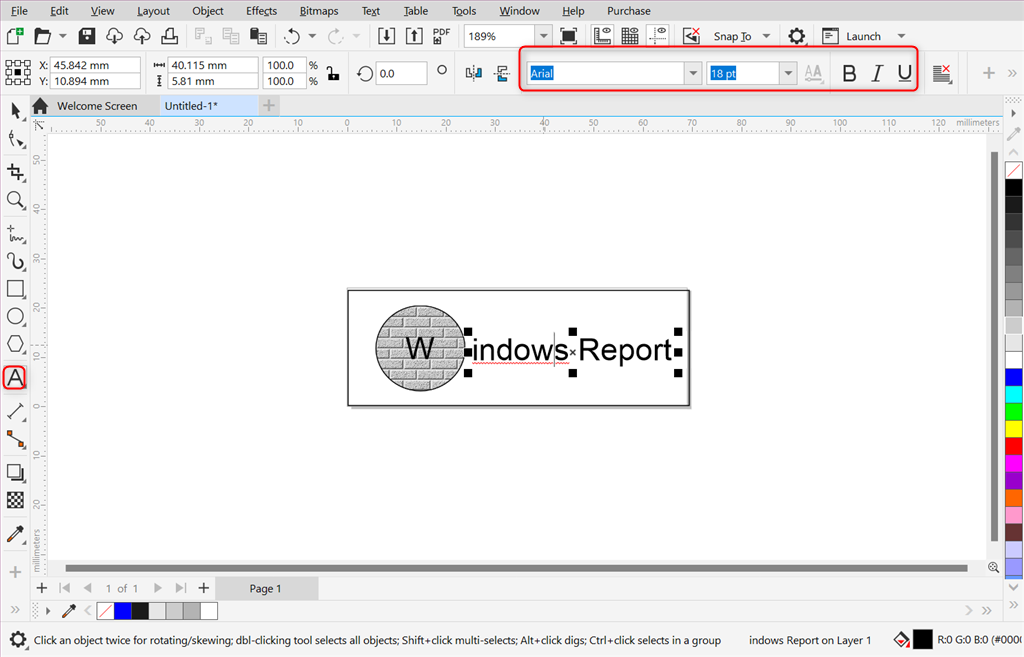
After doing so, I added some text to the canvas and customized its style and size.
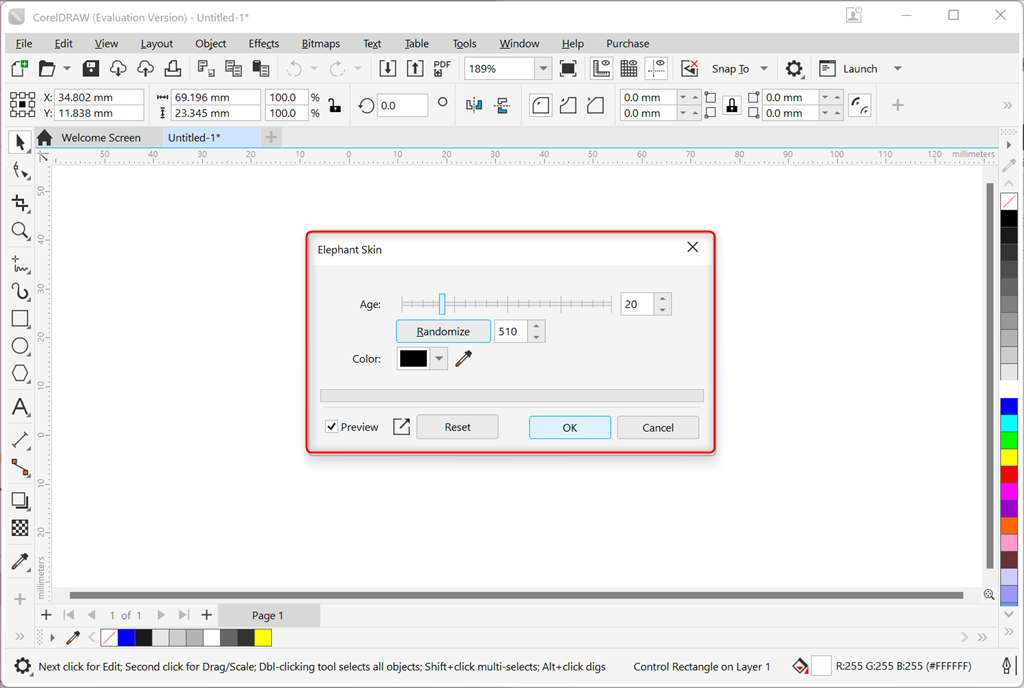
Then, I pressed CTRL+A to select the canvas with all of its added elements, moved to the Texture menu, and selected the Elephant Skin… option
Next, I adjusted the Age and Color of the Elephant Skin texture and clicked OK.
So here’s the final look of my stamp design.
Pros:
Offers a 15-day trial version
Highly customizable interface
Support for TTF files
Smoothly integrates with popular plugins for cutting
Easier to learn compared to Adobe Photoshop
Converts files to SVG format
Perpetual licenses and subscriptions are available at reasonable prices
Cricut Design Space is a free and easy-to-use tool that comes with your Cricut machine and can be installed manually. It allows you to use its pre-made projects or designs called Cartridges or create a stamp design project from scratch.
Moreover, it’s a cloud-based software. This means you can easily access your design from anywhere. It’s also explicitly designed for Cricut, so it contains certain features that won’t be available in other software.
It offers thousands of free and paid templates that can help you especially if you’re a newbie. Furthermore, to create a more detailed multi-layer design, you can choose any element from its library:
30+ built-in and other online shapes
300K+ phrases
21K+ free and premium editable images
100+ classic and thematic monograms
1000+ fonts in over 20 languages.
Additionally, you can export the created design in SVG format or save it as a project in your workspace for later use.
The best thing about Cricut Design Space is that you can directly connect it to your Cricut machine. This ultimately enables you to preview the created designs and cut almost everything on the fly.
To create a stamp design, first, open your Cricut Design Space app and click on the + New Project button.
From the left side panel, choosethe required elements that you want to add to the canvas.
In my case, I added a rectangle and set its material color to white.
Then, I navigated to the Editable Images section, applied the Free filter, and clicked Add to Canvas.
After adding an image, I resized it to fit within the rectangle.
Additionally, Cricut Design Space allows you to customize the editable image, including its:
Color
Arrangement
Flip position
Font
Style
Letter Space, and more.
Here, I changed the text color to green.
Other than this, you can Slice, Combine, Attach, Flatten, or Contour selected elements with ease.
Select the added elements and click the Group icon under the Layers tab.
Click Make to directly print the stamp design with your configured Cricut Maker machine.
Otherwise, click Save to store it on your cloud storage or local system.
From the pop-up window, click Create New Collection.
Enter the New Collection name and click Create.
Specify the Title of the stamp design, mark the collection checkbox, and click Save.
Choose your save location and click Apply.
Here, I’ve successfully added the created stamp design as a project to my Cricut Design Space workspace.
Pros:
Easy to learn and navigate, even for beginners
Allows you to upload your own images and fonts
Accessible from PC, phone, or tablet for on-the-go free designs
Helps you print designs and then use Cricut to cut them out precisely
Offers custom-designed stamped elements to add to your project
Cons:
Professional artists may not prefer it
Requires subscription to access extra features
Free designs and font collection aren’t as extensive compared to the paid library
How I Chose the Best Software to Create Stamp Design for Cricut Maker 3
During my tests, I prioritized the following qualities to select the best tools for Cricut designs. All options need to:
Have a user-friendly interface
Let you personalize text, colors, and add special effects
Provide features like shapes, fonts, images, and editing tools
Smoothly integrate with Cricut Design Space
Cater to different project complexities.
So now you’ve all the info you need to find the best software to create a stamp design for Cricut Maker 3. Feel free to let me know which option you liked the most in the comment section!
Gaming laptops are incredibly popular if you would like to game on the move or if you simply don’t have enough space for a desktop PC.
While brands from China might not be as popular as others, they still offer amazing specs, and speaking of which, today we have leaked information about REDMAGIC’s upcoming gaming laptop.
REDMAGIC GN001J hardware specs have been leaked
This information comes from Gizmochina, and while the information is scarce, we do know that this gaming laptop will utilize a Core i9-13950HX processor and RTX 4070 graphics.
Certifications from various agencies have been spotted including Bluetooth SIG, Wi-Fi Alliance, and CMIIT radio transmitter. All of these certifications refer to the Redmagic Gaming Notebook thus proving its existence.
According to these certifications, it’s safe to assume that this device will use an Intel Wi-Fi 6E and Intel AX211 network card.
Do keep in mind that this is just information spotted on the Geekbench listing, and it might not be completely reliable, so we should wait for an official announcement for more details.
The mobile pairing app Phone Link certainly have seen a lot of developments recently. Of course, the most important of them is the OCR feature, or otherwise said, scanning the text from images. However, in the Windows 11 preview build 22635.3646, there is also a nice share link feature pointed out by PhantomOcean3 on X.
Upcoming share sheet change: the addition of a new "My Phone" button for sharing content to your phone via Phone Link in the nearby share section (instead of having Phone Link shown next to other apps in the "Share using" section.)
According to his post, soon, you will be able to share a link by selecting My Phone from the Nearby Share option, of course, if you turn it on first, because this feature is disabled by default.
How does the link share feature work?
The whole thing is a little bit blurry because the first thing that crosses your mind is that you first need to turn on the Nearby Share feature, but it’s not the case.
If you installed the Phone Link app and synced it with your phone, you just need to click on the My Phone button and you will see a pop-up confirming that your link was sent to your phone.
This function is pretty useful if you want to avoid using a different communication platform that would require an extra step. However, you may also create a QR code from the link in the Share link feature and scan it with your mobile directly.
That could be a lot easier and quicker for those of you who are comfortable with using a WR scanning app.
Microsoft Edge is improving the editing abilities of its Screenshot Tool (formerly Web Capture) to allow users to customize and annotate captures directly within the browser. This new feature is currently being tested in the Edge Canary build.
Microsoft is making it easier to Edit Screenshots in Edge
Normally, when capturing a specific area on a webpage in Edge, you’d see a toolbar with options to copy, save, markup (limited editing), and perform a visual search. The markup option only allowed basic drawing on the capture with a pen.
Microsoft is now expanding the editing toolbar with various tools like square, circle, arrow, freehand draw, mosaic blur, text insertion, undo, download, cancel, and save to clipboard. Once you click anywhere on the screen or select “Done,” the capture will be automatically copied to your clipboard.
This change significantly improves the screenshot and editing experience in Microsoft Edge, potentially avoiding the need for third-party screenshot tools or extensions. The new toolbar will allow users to annotate and customize captures more effectively.
Additionally, Edge now allows you to change the Screenshot keyboard shortcut from Ctrl+Shift+S to Alt+A, Alt+S, or Alt+Shift+A. Ideally, choose Ctrl+Shift+S or Alt+A based on your comfort level and other keyboard shortcuts used by your Windows applications.
We found the current method for changing the Screenshot keyboard shortcut to be somewhat unintuitive, and hopefully, Microsoft will improve this process in the future.
In addition to the shortcut customization, Edge allows to control the magnifying glass visibility directly within its settings. This would allow you to show or hide the magnifying glass as needed, potentially when using the screenshot tool to zoom in on specific details.
Opera’s Aria browser AI, unlike conventional alternatives, doesn’t rely on a single LLM or AI model but picks one that’s best based on the user’s query. And to further enhance the experience, the Opera team recently integrated Google Gemini into Aria browser AI!
According to Opera’s official press release, post-integration, Opera’s native AI chatbot, Aria browser AI, will provide you with the latest information faster and more accurately. Besides, it will also expand the feature set, adding two new capabilities to Aria browser AI: image generation and voice output. The two features were earlier available in the Opera’s developer version.
Powered by the Imagen 2 model on Vertex AI, Opera’s Aria browser AI will now be able to create images based on text prompts. For voice output, it will rely on Google’s text-to-audio model to read out the responses in a conversational style.
Image creation in Opera’s Aria browser AI
Speaking about the collaboration and the integration of Google Gemini, Per Wetterdal, EVP of Partnerships at Opera, said,
Our companies have been cooperating for more than 20 years. We are excited to be announcing the deepening of this collaboration into the field of generative AI to further power our suite of browser AI services.
On the occasion, Eva Fors, Managing Director, Google Cloud Nordic Region, talked about the future of generative AI and the role played by Google,
We’re happy to elevate our long standing cooperation with Opera by powering its AI innovation within the browser space. We believe the future of AI will be open, so we’re providing access to the best of Google’s infrastructure, AI products, platforms and foundation models to empower organizations to chart their course with generative AI.
Opera is making significant strides in the AI space, hoping to capture a larger share of the browser landscape, currently dominated by Google Chrome. Last month, Opera introduced a feature that lets you run LLMs locally on the PC, becoming the first browser to do so!
What do you think about the integration of Google Gemini in Opera? Share with our readers in the comments section.
Nvidia and Microsoft collaborate to improve and innovate the Healthcare system. Their AI, Cloud services, and computing tools can bring new opportunities for Healthcare providers, pharmaceutical companies, biotechnology pioneers, and medical device developers. After all, the AI can help calculate dosages, discover new materials, perform virtual trials, and more.
Nvidia is actively working with Microsoft on various AI tools
Nvidia developed an AI platform known as BioNeMo to accelerate drug discovery. It is powered by Nvidia DGX Cloud on Microsoft Azure. The platform simplifies the AI training using your data. Besides, it can analyze datasets to help developers deploy new AI models faster.
Scientists can use the Nvidia AI platform to find the right models for their processes. For example, they can use AI to find potential drug candidates, perform virtual trials, and develop medicine faster.
Besides Microsoft, Nvidia works with Flywheel, which developed a cloud-based platform to make it easier for professionals to prepare medical imaging data. Together, they want to create an automated way to classify anatomical studies. In addition, Nvidia and Microsoft developed Nvidia MONAI (Medical Open Network for AI) to speed up imaging data preparation.
MONAI and Nuance Precision Imaging Network (PIN) are working with multiple institutions to develop AI models for medical imaging analysis. For example, during the pandemic, Mass General Birgham used AI to predict the oxygen levels of symptomatic patients.
In addition, SOPHiA GENETICS can enhance SOPHiA DDM, its cloud-based platform, with the help of Nvidia Parabricks, a scalable genomics analysis software from the Nvidia Clara suite, and Microsoft Azure to develop a tool that analyses whole genomes. Also, they can improve treatment decisions and advance drug development.
Professionals can access various AI services and tools from the Azure Marketplace
Developers, researchers, and practitioners can access more Nvidia tools and services, such as the Nvidia AI enterprise platform, which includes Nvidia NIM, a set of microservices developed to speed up the process of AI deployment. Healthcare professionals can find the set on Azure Marketplace.
Ultimately, the collaboration between Nvidia and Microsoft will most likely democratize AI adoption and lead to discoveries and breakthroughs in the Healthcare sector. Hopefully, more tech giants will join the race to provide AI tools and platforms for healthcare professionals.
Do you think AI will become a dependable resource for the Healthcare sector? Let us know in the comments.
Microsoft’s new markup-first architecture for its Edge browser should help speed up the overall experience of the company’s first party web browser.
According to a new entry in the Microsoft Edge blog, Microsoft’s months-long update release roadmap for 2024 will culminate with the rollout of a new architecture intended to address feature updates within the company’s web browser.
Over the past handful of months, Microsoft has quietly been updating features within its Edge browser that include History, Downloads, Wallet, Favorites, and more. Since Edge 122 began rolling out, Microsoft claims its browser UI is “now 42% faster for Edge users,” and up to 76% faster for people on lower end spec’d devices such as 8GB of RAM and even lack an SSD.
Thanks to feedback and a collection of data from Edge users, the company has been able to determine that its bundles of code for the browser has been crippling its ability to be a snappier experience for users,
However, Microsoft isn’t through with improving Edge, as stated in the blog post, the company will roll out a new web rendering architecture that will allow the company to deliver more modular updates to components of Edge dubbed WebUI 2.0.
In this project, we built an entirely new markup-first architecture that minimizes the size of our bundles of code, and the amount of JavaScript code that runs during the initialization path of the UI. This new internal UI architecture is more modular, and we now rely on a repository of web components that are tuned for performance on modern web engines. We also came up with a set of web platform patterns that allow us to ship new browser features that stay within our markup-first architecture and that use optimal web platform capabilities.
Microsoft Edge Team
Microsoft has already begun using WebUI 2.0 and did so with the release of Edge 122 which brought the aforementioned Browser Essential responsiveness improvements back in late February 2024.
Microsoft plans to apply its small bundled and modular architecture to more of its first-party browser soon to help reduce the amount of UI-rendering JavaScript code it currently relies on, while optimizing the overall speed of the browsing experience for Edge users in the future.
Microsoft introduces video page templates in SharePoint Pages and News, allowing you to create video-centric page content. The templates are available in both SharePoint and Stream, making it easier to show videos with branded page experiences from both apps.
How can I create a video page?
1. Using the Stream app
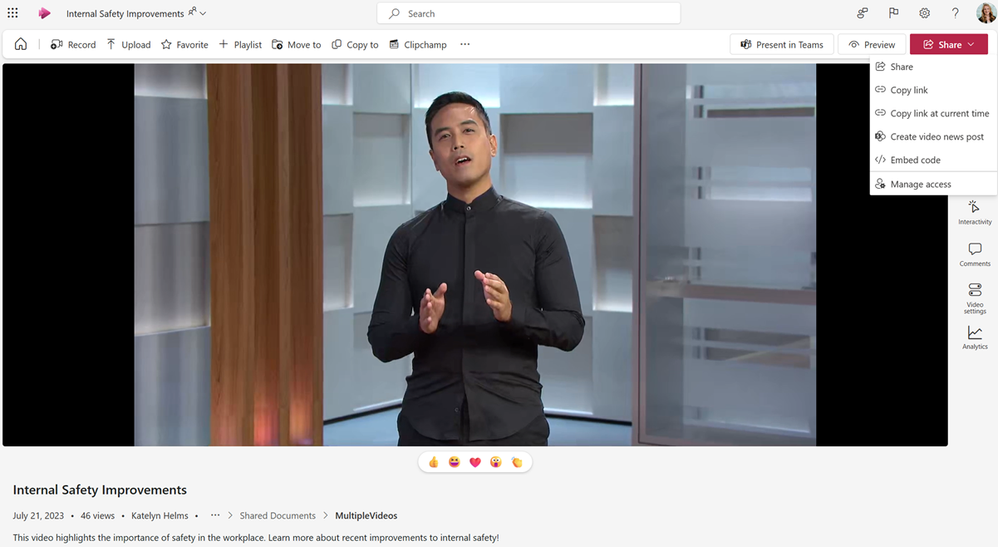
This feature lets you create Pages and News outside the SharePoint platform. To do so, go to a video on the Stream Web app, locate and click Share, then select Create video news posts from the drop-down menu.
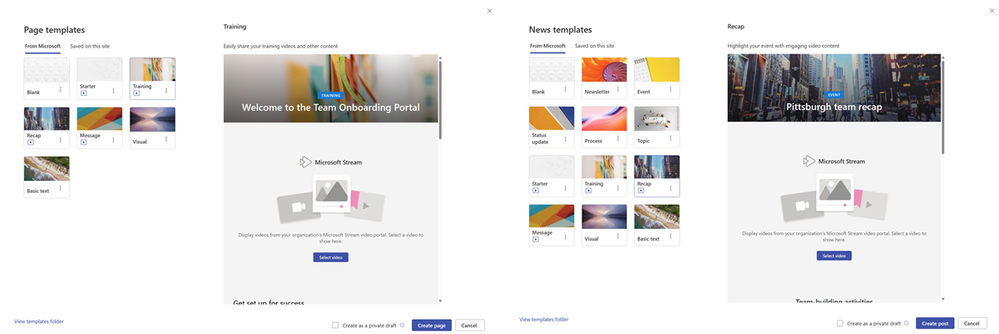
In the template picker, choose a template type, page type, and all other related documents you want to add to the page. Once you’ve done this, navigate to the canvas for editing, edit the video page in the same way you edit the SharePoint pages, and click Publish to complete.
2. Using the SharePoint site
In the Page and News template pickers within a SharePoint site, you will find video page templates. Select one that you like, add it to your video to the Stream web part, and then edit the rest of the page. Once you’ve done this, click Publish.
The feature has been rolled out to Targeted Release customers and will be rolled out to other customers by the end of June.
This is not it; Microsoft is also planning to create more video page templates with the latest and greatest features, and could also bring a new template picker experience and support for custom templates.
At the Build Conference 2024, Microsoft discussed many new things, including Surface, Windows 11 24H2, Copilot, and more.
The event focused on the future of computing, Copilot + PC, the Recall feature in the new Windows version, and AI integration in Microsoft products.
However, the main focus was on the Copilot + PC and how it runs. The Copilot + PCs come with an NPU, an essential part that is cost-effective and more powerful than the usual CPU-GPU combo.
Copilot+ PCs are the fastest, most intelligent Windows PCs ever built. With powerful new silicon capable of an incredible 40+ NPU TOPS (trillion operations per second), they offer efficient AI workload processing at the edge. Today, we featured designs powered with Snapdragon X Elite and Snapdragon X Plus processors. We’re thrilled to begin this journey with Qualcomm Technologies, Inc. on their latest processors for the Windows platform — and we’re excited for the innovation coming from our partners at AMD and Intel over the coming months.
Neural Processing Units, or NPUs, are designed for neural networks, are very efficient, and allow Copilot PCs to run large language models locally on the device.
Microsoft’s researcher Steven Bathiche explains in a video:
The cool things that happened with our devices, especially Copilot+ PCs, is that we’ve kind of crossed that threshold. So now, our devices can run these types of (AI) models locally on the device to do amazing things.
An NPU chip in a Copilot+ PC can run 45T operations per second with 4 watts less power, enabling it to support up to 40 AI models.
One of the most talked about upcoming features, the Recall feature, is based on it. Recall uses AI models to monitor your activity in the background and can help you retrace the steps to learn about a past activity.
However, many users expressed privacy concerns as they don’t want Microsoft to snoop around in their computers. Still, the Redmond tech giant clarified that the Recall feature only works locally in the background, addressing all the concerns.
Soon, we will see Copilot+ PCs by Microsoft device partners, including laptops from Acer, Asus, Dell, HP, Lenovo, and Samsung.
What do you expect from NPU-powered Copilot+ PCs? Share your views with our readers in the comments section below.
ADATA’s newest handheld gaming console, the brand-new XPG NIA, will be unveiled and released at this year’s Computex conference, which takes place from June 4 to June 7 in Taipei, Taiwan.
In a press release published recently (via TechPowerUp), the tech company didn’t share any pictures or details about the new handheld, other than a brief, but exciting description.
The company says gamers will be able to mod their XPG NIA handheld gaming console to suit their gaming preferences and unique style. The console will also combine superior ergonomics to create comfortable gaming experiences. This is a clear sign the upcoming console was made to be played for hours.
Additionally, the XPG NIA handheld gaming console will also be the first of its kind to pioneer the EYEWEAR eye-tracking technologies to allow for more immersive gaming sessions. Here’s what ADATA says:
In addition to a full range of mobile peripherals to simplify the lifestyles of consumers around the world, ADATA’s gaming brand XPG will be launching a gaming handheld PC at Computex. XPG’s stunning masterpiece, the new XPG NIA, combines superior ergonomics with a circular computing design to create an ultra-comfortable experience so gamers can play nonstop or mod the device to their liking. XPG NIA will also pioneer the use of EYEWEAR eye-tracking technology which lets you enjoy the ultimate immersive gaming experience from anywhere!
ADATA
The new XPG NIA will most likely use Windows 11 and its main operating system, and it’s a smart choice, considering the operating system is perfect for gaming.
Since ADATA is betting on the comfortable gaming experiences side of it, we’re expecting it to have a large battery that could make it last for about 3 to 4 hours of uninterrupted gaming. Maybe this could be the field the new XPG NIA might excel, as all the other handheld consoles are currently struggling with it. Fortunately, we don’t have to wait that long.
Aside from the new handheld console, which could become serious competition to the likes of Legion GO, Steam Deck, or Asus Rog Ally, ADATA will also showcase several new devices: the world’s first AI gaming laptop, XPG XENIA 15G, which can carry up SSDs of up to 24 TB, and 96 GB of DRAM.
The company will also showcase an overclocked DDR5 8000 R-DIMM, which is designed to make AI computers run faster and smoother. The age of AI computing is already upon us, so ADATA will be joining the crowd with its new LPCAMM2 memory products. They comply with the JEDEC standards and are capable of achieving speeds of up to 7,500 MT/s due to their integration with LPDDR5/5X DRAM ICs.
ADATA will be releasing them in 16 GB, 32 GB, and 64 GB variants.
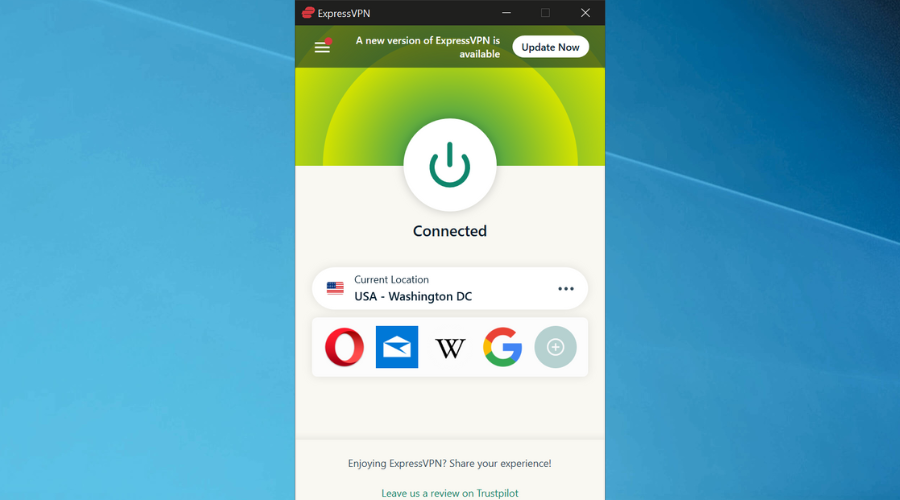
ExpressVPN comes with several built-in privacy and security features that help you enjoy a safer experience online. For instance, it protects your data with advanced AES-256encryption. It also contains its own encrypted private DNS and doesn’t log DNS queries, or log traffic data that can be used for identification.
Furthermore, it supports a Network Lock that keeps your data safe in case your VPN connection drops. Moreover, its Threat Manager restricts your system from communicating with known trackers or malicious sites.
ExpressVPN uses a Lightway protocol that provides excellent speed and allows you to easily switch between mobile and Wi-Fi networks with strong security. Best of all, it serves over 105 countries.
Proton VPN is a secure and reliable VPN that hides your real IP address. It uses HMAC with SHA384 for message authentication, 4096-bit RSA to exchange keys, and encrypts all network traffic with AES-256. More specifically, this VPN generates a new encryption key each time you connect.
Moreover, with full disk encryption, Proton VPN protects your data from resource-intensive man-in-the-middle attacks. It also has a NetShield filtering feature that prevents your system from loading unnecessary content from websites, protects it from malware, and blocks ads.
Furthermore, Proton’s VPN Accelerator overcomes your CPU limitations. It utilizes advanced networking techniques to reduce latency. Additionally, its Secure Core architecture enables you to defend against network-based attacks.
Proton VPN comes with built-in Tor support, a Kill Switch, and an always-on VPN. If you lose connection with the VPN server, the Kill Switch blocks all network traffic and the always-on VPN helps you automatically re-establish your connection.
Pros:
Comes with a NetShield filter, VPN Accelerator, and VPN Profiles
Includes DNS leak protection, a Kill Switch, a Secure Core, and Split Tunneling
Offers 5,029 servers in 91 countries
Follows a no-logs policy
Cons:
Its free plan has limitations compared to paid plans
Crashes occasionally
Only a few servers are available for free plan users
3. NordVPN – Threat Protection and Double VPN Security
NordVPN is a popular VPN that offers threat protection to stop malware, ads, and web trackers. It also includes various other security features, such as reliable leak protection, AES-256 encryption, two Kill switches, and specialized server categories.
Best of all, you can create your own private encrypted network to ensure safe file sharing, work, or LAN parties. For this, it assigns you a dedicated IP to skip denylists, access IP-restricted networks, and maintain your online reputation. Moreover, with its Split Tunneling, you can select which apps need VPN protection and which ones don’t.
NordVPN also keeps your account safe with multi-factor authentication. It combines Tor with extra VPN security. In addition, it helps hide the fact that you’re using a VPN, even from your Internet Service Provider (ISP).
Regarding connection speed, it utilizes NordLynx which is an in-house variant of the WireGuard protocol. It provides service across 6000+ servers in 111 countries.
Pros:
Consistently delivers fast speed
Simple and easy-to-use interface
Allows you to choose from multiple server locations
Provides a secure and fast connection with a stable IP address
Double-VPN and Tor-over-VPN servers
24/7 helpful customer support
Works with many streaming sites, including Netflix
Cons:
Sometimes its server crashes and you have to switch
4. CyberGhost VPN – High-Speed Streaming and P2P Optimized Servers
CyberGhost VPN features 10 Gbps streaming-optimized servers to ensure access to your favorite platforms with minimal buffering and high speed. It also offers P2P torrenting and gaming-optimized servers that shield you from DDoS attacks.
This VPN service supports several secure protocols including IKEv2, OpenVPN, L2TP/IPSec, and Wire Guard. Notably, these protocols are quite effective for maintaining connection stability, lag-free streaming, bypassing geo-restrictions, and more.
CyberGhost VPN also contains a content blocker that helps you avoid malicious and disruptive ads from tracking your internet activity. With its dedicated IP, you can securely access sensitive information and avoid blocklisting. Moreover, if your connection drops by chance, CyberGhost’s automatic Kill Switch blocks all internet traffic and protects your data.
With every reboot, CyberGhost VPN’s servers wipe your data for maximum anonymity. It also provides direct internet access to local content. Furthermore, its VPN service automatically activates if you connect to an exposed network.
Pros:
Decent WireGuard speed
Covers 9200+ servers and 100 countries
RAM-only servers
Provides dedicated streaming servers
Offers free trials to its users
Swift replies from live chat support
Cons:
Its ad-blocker isn’t so good
Some users might feel its user interface is complex
It doesn’t support obfuscation on any of its servers
OpenVPN is a well-known service provider that offers flexible solutions to secure data communications. It has gained a lot of attention because of its open-source and free-to-use nature. You can easily deploy this protocol on-premises using virtual appliances, standard servers, or CloudConnexa.
OpenVPN has a built-in Cyber Shield that protects your data against threats without tunneling internet traffic. It defines and enforces identity-based policies to assist you in establishing zero-trust network access. Moreover, it uses military-grade ciphers, 256-bit encryption, and supports Perfect Forward Secrecy (PFS) implementation for creating a new key per session.
OpenVPN supports tunneling through the Secure Sockets Layer (SSL) and Transport Layer Security (TLS). These protocols enable you to share the keys for encoding and decoding information sent through tunnels. In addition, it also contains TLS-auth which verifies that only the desired users and devices can interfere with the data.
For your data protection, OpenVPN utilizes different methods and protocols such as OpenSSL, HMAC authentication, and shared keys. It supports multiple cryptographic algorithms which include 3DES, AES, and Blowfish.
Overall, these features allow you to hide data traffic from third parties, like your ISP, any employer, hackers, or agencies.
Pros:
It’s free to download and use
Highly customizable
Can easily bypass firewalls
Implement 256-bit encryption keys and high-end ciphers
Supports PFS to code your data
It has an active worldwide community
Cons:
Newbies may find it difficult to install and configure
Requires installation and configuration of additional software
Supports limited version of servers in free version
Private Internet Access (PIA) VPN is a full-featured, configurable, and secure VPN. It utilizes WireGuard protocol and 256-bit encryption to increase stability, speed, and overall security.
You can choose between 22,500+ servers from 91 countries, each with a 10Gpbs server network. On each PIA VPN server, you can enjoy P2P support for torrenting and sharing files more privately. It also activates port forwarding on the selected server to optimize the torrent performance.
Moreover, PIA masks IP addresses automatically to stay one step ahead of trackers and snoops. Its MACE tool blocks trackers, malware, and ads at the DNS level. Furthermore, its Advanced Kill Switch prevents data transmission when the VPN is turned off.
Notably, PIA follows the No Logs policy. It never stores, tracks, sells, or records your browsing data. With an unbreakable SSL encryption, it stops prying eyes and even your ISP to monitor your online activities. Additionally, with its Split Tunneling feature, you can direct traffic through and around PIA simultaneously.
During my tests, I prioritized the following characteristics to choose the best Windows Server 2016 VPNs. I selected the options that:
Deploy advanced protocols to protect user data
Have a global network of fast and reliable servers for smooth performance
Easily bypass geo-restriction
Have a user-friendly interface
Support additional features, such as data leak protection, ad blocker, kill switch, etc.
So, now you have all the info you need to find the best Windows Server 2016 VPN. Also, if you need an antivirus or virtual machine, I’ve got you covered as well. Let me know which option you prefer in the comments below!
Machine learning (ML) and artificial intelligence (AI) are useful tools that we use in limited ways to enhance our product mission. We do not develop LLMs or other generative models using customer data. To develop non-generative AI/ML models for features such as emoji and channel recommendations, our systems analyze Customer Data (e.g. messages, content and files) submitted to Slack as well as Other Information (including usage information) as defined in our privacy policy and in your customer agreement.
The last line implies that the company uses Customer Data, including content, files, and messages, to develop non-generative AI/ML models for features such as emojis and channel recommendations. This is not a new trend; apparently, most AI and ML tech-using companies are using it; the news was not shocking. However, it made the users very upset.
When Neowin reached Slack and asked for a comment, a Slack representative said:
Slack has used machine learning for other intelligent features (like search result relevance, ranking, etc.) since 2017, which is powered by de-identified, aggregate user behavior data. These practices are industry standard, and those machine learning models do not access original message content in DMs, private channels, or public channels to make these suggestions
Slack then also mentioned the type of data that could be used to train the global models:
A timestamp of the last message sent in a channel can help Slack recommend channels to archive.
The # of interactions between two users is incorporated into the user recommendation list when a user goes to start a new conversation.
The # of words overlapping between a channel name and other channels can inform its relevance to that user.
The company further explains that it uses industry-standard, privacy-protective machine learning techniques, and the data doesn’t leak across workspaces. Thus, it doesn’t allow learning, memorizing, or reproducing customer data to build or train ML models.
If customers still don’t want their data used in any way, they can opt out. However, the requirement to compose an email to opt out instead of facilitating the process within the Settings section further annoyed the enraged customers.
Now you must be wondering how to do it. The company mentioned:
To opt out, please have your org, workspace owners or primary owner contact our Customer Experience team at [email protected] with your workspace/org URL and the subject line ‘Slack global model opt-out request’. We will process your request and respond once the opt-out has been completed.
Here is one of the Twitter posts of annoyed customers:
I'm sorry Slack, you're doing fucking WHAT with user DMs, messages, files, etc? I'm positive I'm not reading this correctly. pic.twitter.com/6ORZNS2RxC
We saw some amazing games on Xbox Game Pass, and the great thing about it is that new games are being added constantly.
Speaking of which, Moving Out 2 has just made its way to Xbox Game Pass.
Moving Out 2 has landed on Xbox Game Pass
As TrueAchievements writes, the latest game to join the Xbox Game Pass and PC Game Pass is Moving Out 2.
In case you’re not familiar with this title, it’s a multiplayer co-op game that has players solving environmental puzzles and moving objects.
The game can be played online, as well as locally, which is a major bonus if you want to play it with your friends on a single device.
Moving Out 2 is a wacky physics-based game, and it will provide you with hours of fun, so if you’re looking some something less stressful, this might be the perfect game for you.
Email management can be a hassle, especially when you have multiple accounts on a range of services. Today I got my hands on eM Client, which aims to be a one-stop solution for improving email productivity across desktop and mobile.
What is eM Client?
eM Client is a feature-rich email management software designed for Windows and macOS, and now with Android and iOS apps too. On desktop it’s free indefinitely for 2 email accounts and scaled back features, while all the app features are free with no limitations.
The client easily streamlines multiple email accounts from a single interface, with calendars, tasks, contacts, and notes coming soon to the mobile apps. It supports the likes of Gmail, Outlook, Yahoo, and Exchange, with integration with popular productivity tools like Google Workspace and Microsoft 365.
Let’s take a closer look at what I liked and didn’t like about the software and emerging apps, which continue to add more features.
eM Client Review – Key Features
Here’s how to get started and some of eM Client’s most notable features:
Getting Started on Mobile and Desktop
eM Client supports automatic configuration for most popular email services. On the Android app I simply had to enter my Gmail address on launch, and it automatically configured the necessary settings following a simple wizard. Choose how far back to sync, and you’re good to go.
Virtually any email account that uses IMAP, POP3 or Exchange mail protocol is supported.
On the desktop eM Client you can quickly import your data from popular desktop email accounts like Microsoft Outlook, Mozilla Thunderbird, and Windows Live Mail.
If you start with the the desktop client and want an easy way to migrate your data and settings to the mobile eM Client app, a simple QR code brings everything over.
Cross-Device Experience
While you can maintain different settings between devices, mail itself is synchronized thanks to the IMAP or EWS protocol.
The iOS and Android apps closely mimic the desktop interface, providing a consistent and familiar user experience. You get push notifications to stay up to date with all your emails and other communications while on the go, which is a must for a solution like this.
Multi-account Management
eM Client offers robust multi-account handling capabilities to help you manage various email accounts efficiently. I particularly liked its:
Global Folders/Inbox – Merge your email across all your accounts into a single, unified view. This allows for easy organization and access to emails from different services without having to switch between them constantly.
Favorites –Your favorites are easily accessible from the sidebar for quick reference, and can include everything from your All Inbox, flagged and unread emails, and drafts, to any of your existing folders from other accounts.
Search Folders – Create customized search folders based on specific criteria, such as emails from a particular sender or subject. These search folders automatically update to display emails that meet your criteria. Simply perform the search in the search bar, then using the downward arrow you will find the options to create a search folder.
Advanced Search
Its advanced search features really help you dig down and find exactly what you’re looking for. This includes date ranges, attachments with filenames, tags, file type, size. As well as message status, such as read, unread, flagged, or replied.
Boolean logic is set for v10, which will soon let you find emails based on AND, OR, NOT, and parentheses to create complex search queries. This will enable you to search for emails that meet multiple criteria at once.
Security
eM Client allows you to use S/MIME and PGP to encrypt or digitally sign emails, keeping them hidden from prying eyes.
The process can be a little involved if you are not used to encryption, but the settings are easily found by go to Menu > Settings > Signing and Encryption. It also walks you through the process the first time you add an account on the mobile apps.
Other Useful Features
Instant Translation – Open an email written in a foreign language, and then tap/click translate, with support for upwards of 40 languages.
Snooze –Set a time for a less important email to re-arrive later.
Watch Reply – Set an additional notification for an important incoming response or set a reminder time if you need to follow up yourself.
Block Tracking Pixels – Protect your privacy by blocking email tracking attempts from external sources and auto-downloading of potentially dangerous images.
Templates and Signatures – Have all your professional signatures and templates ready to do.
eM Client Review – Cons
Some things could be improved, particularly on mobile:
Depending on your device you might experience some input lag and slowness.
New mail sometimes lags or needs a manual refresh.
Calendar, tasks, and other desktop features are not yet implemented on the mobile apps.
Pricing
The best thing about eM Client mobile apps is they’re absolutely FREE.
On desktop is it’s free to get started and if you are more of a personal user like me, two accounts may be all you need.
Its premium plans are a one-time deal, so no annoying subscriptions, and it will unlock unlimited accounts and extra features like notes, snooze, watch reply, tracking blocking, mass mail, and much more.
Pro – $59.95 per device/ $129.95 for lifetime upgrades
Business Pro – $69.95 per device/ $139.95 for lifetime upgrades
Business Pro brings with it a license manager to remotely configure settings and remove old licenses for your team, employees, etc.
eM Client Review – Verdict
Overall, eM Client is a formidable desktop software that’s easy to use and has everything you need to manage all your accounts and emails in exactly the way you desire. It’s also one of the best IncrediMail alternatives.
The addition of the free mobile apps is a no brainer. They already work well in most aspects and when the next features are released, there won’t be much not to like.
If you are a Windows 10 enthusiast and love the floating window wallpaper, you will be shocked to learn that a 3D rendering app does not create it. Instead, designer Bradley Munkowitz sets it up and photographs it.
Bradley Munkowitz created the signature wallpaper using mirrors, lasers, smoke machines, and glass window construction. He took over 3000 shots, tried different alternatives, and used different angles, colors, and lights to achieve the final result.
Here is what Munkowitz said about his approach to creating the default wallpaper for Windows 10:
When I first looked at the Windows logo, I saw more than four tiled squares. I saw the space behind it, and the energy that shines through and gives it a sense of propulsion. The logo makes an impression with that use of curated perspective. In focusing in on the logo, we’re not just telling the story of Windows: we’re telling the story of everything behind and traveling through it, of the advances and techniques that keep the brand moving forward into the future.
He also mentioned:
Our approach involved a live-action shoot using different variables and customizations. Our core concept wanted to position the logo as a portal into the world behind it. We customized and art directed each image to speak to the timelessness of Windows, and its ability to take us anywhere we want to go. We though the best way to achieve this is to build and shoot it practically.
So we built the actual Windows logos and brought them to life through our use of inventive camera angles and evocative volumetric lighting. Using a 9k Phase One Camera system, we shot multiple exposures of the Windows logo, and combined those exposures in post to create a fantastic assemblage of volumetric lighting. The aim was to create a huge variety of desktop images, all of them real and practical, which in essence rendered the desktop image timeless.
The final result was an image what was vivid and tangible, like you could reach into your screen and touch it. The advantage of doing this practically is that we can literally shoot thousands of images, which meant once we had our hero image, we kept shooting and got endless varieties out of each set-up. We wanted to create a whole library of images that can be used throughout multiple Windows applications.
The Windows logo is a true icon. Using the best techniques available, we wanted to re-envision this classic image, defining what makes Windows 10 so forward thinking and accessible. We think our live action images will stand the test of time, placing this logo in a class of its own within the physical world.
Only one of the 3000 photos made it out and became the iconic Windows 10 wallpaper we all love. However, other shots are also stunning; you can find them on the official Gmunk website.
It’s almost unbelievable that the default Windows 10 wallpaper required such an immense effort to produce. With the advent of AI capable of generating high-definition wallpapers with a single command, it’s unlikely we’ll witness a similar endeavor.
In other news, Microsoft is bringing new AI-themed wallpapers for the new ARM AI PCs with Windows 11 24H2; you can read about them here.
Which wallpaper do you like Windows 10 or Windows 11? Share your opinions with our readers in the comments section below.
Windows 11 OOBE will soon have new visuals that will enrich the experience of installing the operating system on PCs and laptops. According to the latest findings of the Windows enthusiast and Insider, @PhantomOfEarth, the new designs will appear when you clean install Windows 11 24H2 (build 26100.1) and Windows 11 22H2 (22621.1).
The OOBE Windows update in progress screen got some visual updates recently. Only seen the updated screen on version 24H2. (top: old, bottom: new) pic.twitter.com/EpWdxb3YXa
The new visuals are clean, colorful, and modern, and they carry on the general theme of Windows 11: the vibrant blue, the airy light blue, and the well-known font of the operating system.
The Redmond-based tech giant will let you check out for more information on Windows 11’s features in this new OOBE: users are encouraged to find out more, by hovering between slides, as you can see in the image below.
Microsoft also updates the OOBE to show installation progress in a more modern look, and the company doesn’t shy away from showing you suggestions: you can take a walk while installation is undergoing, but you can also stop the updates altogether, and just go back to the desktop, as seen by another Insider, @XenoPanther.
It seems that it somehow works, as spotted by X users.
I ran into it the other day, funniest part is that it’ll just reboot and do updates anyway.
The new Windows 11 OOBE will most likely be generally available to all users later this year when the 23H2 update is fully released.
The Redmond-based tech giant recently made the update available in the Preview Channel of the Windows Insider Program, earlier than expected, so those already enlisted in the program, with access to the build might experience the new visuals.
Google didn’t learn from its past mistakes. The AI Overviews feature added to the search engine became dangerous from the start. If you didn’t know, the tool generated alarming solutions to simple questions. For example, one user typed Cheese not sticking on pizza, and the answer to that was to add non-toxic glue.
When someone asked how many rocks they should eat, the AI Overview told them to eat at least one small rock daily. There are more unhinged answers, but they are even more dangerous.
Why is Google’s AI Overviews feature not working?
Google’s AI Overviews feature became dangerous because it does what it was programmed to do. It provides answers based on the information gathered from various sources such as Reddit, Quora, and satirical sites. Unfortunately, nobody noticed the problem during its preview phase.
In addition, Google should know best what lingers on the internet and prohibit its AI from using any source. After all, Gemini experienced bugs not too long ago, and the company removed its image generation feature and limited the others.
Besides being dangerous, users dislike the AI Overviews feature. So, plenty of videos show ways to turn it off, and they take just a few minutes.
A Google spokesperson told Business Insider that these results are rare, and most answers use high-quality information. Yet, it is difficult to believe that. Users shared various dangerous solutions provided by the AI Overviews feature. For example, according to the AI, a dog played in the NHL, and 1919 was 20 years ago.
Ultimately, the AI Overviews feature from Google is somewhat dangerous. After all, nobody wants to stumble across misinformation while searching for meaningful answers. In addition, some business owners complain that the new feature could make users interact with articles less.
Do you consider the AI Overviews feature dangerous? Let us know in the comments.
Microsoft Office is the most used office suite in the world, with cornerstone apps including Word, Excel, PowerPoint, and others.
Office Suite might not be the most affordable collection of software, but thanks to today’s deal, you can get it with an amazing discount.
Microsoft Office 2021 discount lets you get it for $50
As reported by ZDNet, Microsoft Office Professional 2021 is available at a massive discount, and you can save 77% on Office.
This means you’ll get the entire suite for just $50. This is a lifetime license, so once you buy it, you’re free to use it indefinitely.
With the discount, you’ll get Word, Excel, PowerPoint, Outlook, Teams, OneNote, Publisher, and Access. Regarding the compatibility, you’ll need Windows 10 or 11.
If you’re looking to get a lifetime Microsoft Office Professional 2021 license this is an opportunity that you shouldn’t miss, so visit StackSocial to get it.