Microsoft Teams will finally introduce File Image preview in chats and channels

June 2024 is going to be a great month for Microsoft Teams users, as several new features and enhancements are going to be released to the platform.

The Redmond-based tech giant will finally let users rename the general channel, after 7 years since the platform was introduced to the world.

Microsoft Teams will also introduce brand-new meeting artifacts, which are old meetings, transcripts, or AI recaps that can be accessed by certain users, and they can be useful in various situations (such as winning a lawsuit for wrongful termination, because why not?)

Speaking of new capabilities that should have been on Microsoft Teams for years, the Redmond-based tech giant will finally allow users to preview files in chats and channels with images.

In other words, every time someone posts a Word, Excel, PowerPoint, or PDF file in a chat or channel, Microsoft Teams will preview it with a thumbnail image.

Here’s what the entry says:

When you share documents (Word, Excel, PowerPoint and PDF) in chat or channel conversation, you can see a thumbnail image of the file in the thread. This lets you preview the file’s content without opening it and find the file you need quickly.

Microsoft

Those Teams members who used Slack in the past will recognize the feature, as it has been on the platform for many years now. Slack, which is Teams’ biggest and most serious competitor, already allows users to quickly preview files in chats and channels.

Either way, this new capability will be quite practical to Teams users, as it will allow them to easily tell if they already read a certain document or not, without having to waste time opening it.

To some extent, this sort of thumbnail previewing is already available to OneDrive, with many enhancements to it, including the addition of other files, such as video, or audio files, coming later this year.

So, while it’s strange that Microsoft is only releasing it now, it’s good the Redmond-based tech giant decided to release it.

Windows Server Build 26212 introduces dMSA allowing organizations to migrate from traditional accounts to machine accounts

Microsoft released Build 26212 (the same version was released to the Canary channel, as well) to Windows Server 2025, and with it, the Redmond-based tech giant finally introduced the long-speculated dMSA (Delegated Managed Service Accounts) capability.

For those of you who don’t know, the dMSA account type allows a safe and secure migration from a traditional service account to a machine account, by using fully randomized keys, while disabling account passwords.

Using dMSA can stop people from stealing credentials using a hacked account (a problem known as kerberoasting), which is a common problem with old-style service accounts, and one Microsoft intends to address, according to the official changelog.

[NEW] Delegated Managed Service Accounts (dMSA)

A new account type known as delegated Managed Service Account (dMSA) is now available that allows migration from a traditional service account to a machine account with managed and fully randomized keys, while disabling original service account passwords.

Authentication for dMSA is linked to the device identity, which means that only specified machine identities mapped in AD can access the account. Using dMSA helps to prevent harvesting credentials using a compromised account (kerberoasting), which is a common issue with traditional service accounts.

Microsoft

dMSA in Windows was initially noticed at the end of last year, and then, a few months later, Microsoft officially confirmed it. Now, it’s available to preview for Windows Servers insiders.

Alongside the new dMSA, Windows Server Build 26212 also introduced more SMB (Server Message Block) protocol changes, including:

  • SMB over QUIC client and server disable: Administrators can now disable the SMB over QUIC client and SMB over QUIC server options with Group Policy and PowerShell.
  • SMB over QUIC client and server connection auditing: Successful SMB over QUIC client and SMB over QUIC server connection events are now written to the event log to include the QUIC transport.
  • SMB signing and encryption auditing: Administrators can now enable auditing of the SMB server and client for support of SMB signing and encryption. This shows if a third-party client or server doesn’t support  SMB encryption or signing. You can configure these settings with PowerShell and Group Policy.

You can read the full changelog here, and you can download the latest Windows Server Build 26212 here.

The latest Canary Build to Windows 11 Insider manages to fix two of the most annoying File Explorer bugs there are

Microsoft just released the latest Canary Build, (26212), to Windows 11 Insiders, and the Redmond-based tech giant introduced some exciting Windows Share capabilities to Canary users.

We’re talking about the ability to generate QR codes in links, for a faster file transfer, and the ability to email yourself directly to your Gmail account from Windows Share.

They were released to the other Insider channels earlier this year, but they’ve only come to the Canary channel now. However, besides these new capabilities, the latest Canary Build, (26212), finally fixed two of the most annoying File Explorer bugs there are.

File Explorer would crash in several instances, making it very annoying when looking for folders and files in Windows 11. One of these instances would cause File Explorer to crash when using path suggestions in the address bar; the other instance would cause File Explorer to crash when going from the search box back to it.

However, it seems that the Redmond-based tech giant finally fixed these issues, according to the official changelog, which can be read here.

[File Explorer]

  • Fixed an issue which was causing File Explorer to sporadically crash when using path suggestions in the address bar.
  • Fixed an issue which could cause File Explorer to crash sometimes when going from the search box to the body of File Explorer.
Microsoft

To address these fixes, users are advised to update their Windows 11 to the latest Canary version, which is Build 26212.

Microsoft Teams will finally let users change the name of the general channel

Microsoft Teams was introduced to the world 7 years ago (it turned 7 last month, in March), and it has gone on to become one of the most popular work-oriented platforms, with over 300 million users globally.

But, believe it or not, despite the large number of users, and the many advanced capabilities, such as Copilot, Intelligent Recap, and so many more, Microsoft Teams doesn’t allow users to rename the general channel.

However, it seems that the Redmond-based tech giant has listened to the needs of users everywhere, and it will introduce the capability to rename the general channel, starting in June 2024, according to the latest entry to the Microsoft 365 Roadmap.

After 7 years of existence, Teams will finally allow users this essential, and long-requested feature. According to the description, which you can read below, only the team owner, or those users who have permission, can rename the general channel.

In our efforts to bridge the gaps between general and other channels, introducing the ability to rename the general channel in your team. General channel in a team can be renamed by the team owner, or member (if they have permissions), to show up in the teams and channels list in alphabetical order.

Microsoft

As per Microsoft’s account, this new policy will impact the desktop version of Teams, but the change itself should appear on all versions, no matter the platform, or the operating system.

The policy will be released in June 2024, which is the same month the Redmond-based tech giant wants to release new features and enhancements for Teams admins, including the exciting meeting artifacts, which could be used in an array of situations, including a potential lawsuit for wrongful termination.

With all these new capabilities, Microsoft finally decided to return to the most basic ones, so the company should be applauded for such decisions (pun intended).

OneDrive will allow users to access shared folders within their domain

Microsoft is making some big changes to the OneDrive shared folders experience. According to the latest entry in the Microsoft 365 Roadmap, the platform will change this experience to allow users to access shared folders from within their own OneDrive.

As Microsoft says, currently, when someone is accessing shared folders, OneDrive takes them to those folders from within the sharers’ OneDrive.

With this change, however, the shared folders will be accessible from the People tab within OneDrive, to streamline the whole experience, without having to access foreign OneDrive domains.

We’re making a change to the shared folder experience in OneDrive. Currently, when a user opens a shared folder in OneDrive, they are taken to a view of that folder within the sharers OneDrive. In the new experience, opening a shared folder will take the user to the shared folder within the People view of their own OneDrive. This view, organized by people, shows and allows access to all the files and folders that have been shared with the user.

Microsoft

In other words, the new shared folders experience on OneDrive will be faster, intuitive, and will allow users quick access to important files, without having to worry about stepping into unknown territory.

Aside from this, OneDrive users should expect a plethora of new capabilities coming to the platform in the following weeks. We’re talking about an enhanced File Viewer, AI capabilities, enhanced productivity and collaboration, and even branding capabilities that organizations can use to design personalized landing pages featuring the brand logo.

OneDrive will also introduce colors to folders so that users can easily tell the difference between cloud-based folders and local ones.

Plus, a new Media View will display all the media files on the homepage, including video, audio, and images. However, there are so many other features coming to the platform, that it’s hard to keep count.

It’s no wonder that Microsoft wants to streamline OneDrive’s shared folder experience. By the way, the new experience will be released in June.

How to Disable the Copilot Rewrite Feature in Microsoft Edge

For many users Copilot has revolutionized and enhanced the browsing experience on Microsoft Edge but for others, the rewrite feature may be over-the-top hence the need to disable it.

AI tools have been a buzz and each company is trying to integrate it into their products. Granted, the rewrite feature is helpful in certain scenarios but in most, it may be more intrusive than helpful.

If you’re writing personal emails or dealing with sensitive information, you don’t want Copilot getting a hold of this data and possibly storing it in their servers.

However, if you don’t have privacy concerns, enabling and using the rewrite feature can slow down your browser and with lower-end hardware, your browsing experience will be downgraded significantly.

How do I turn off rewrite with Copilot in Edge?

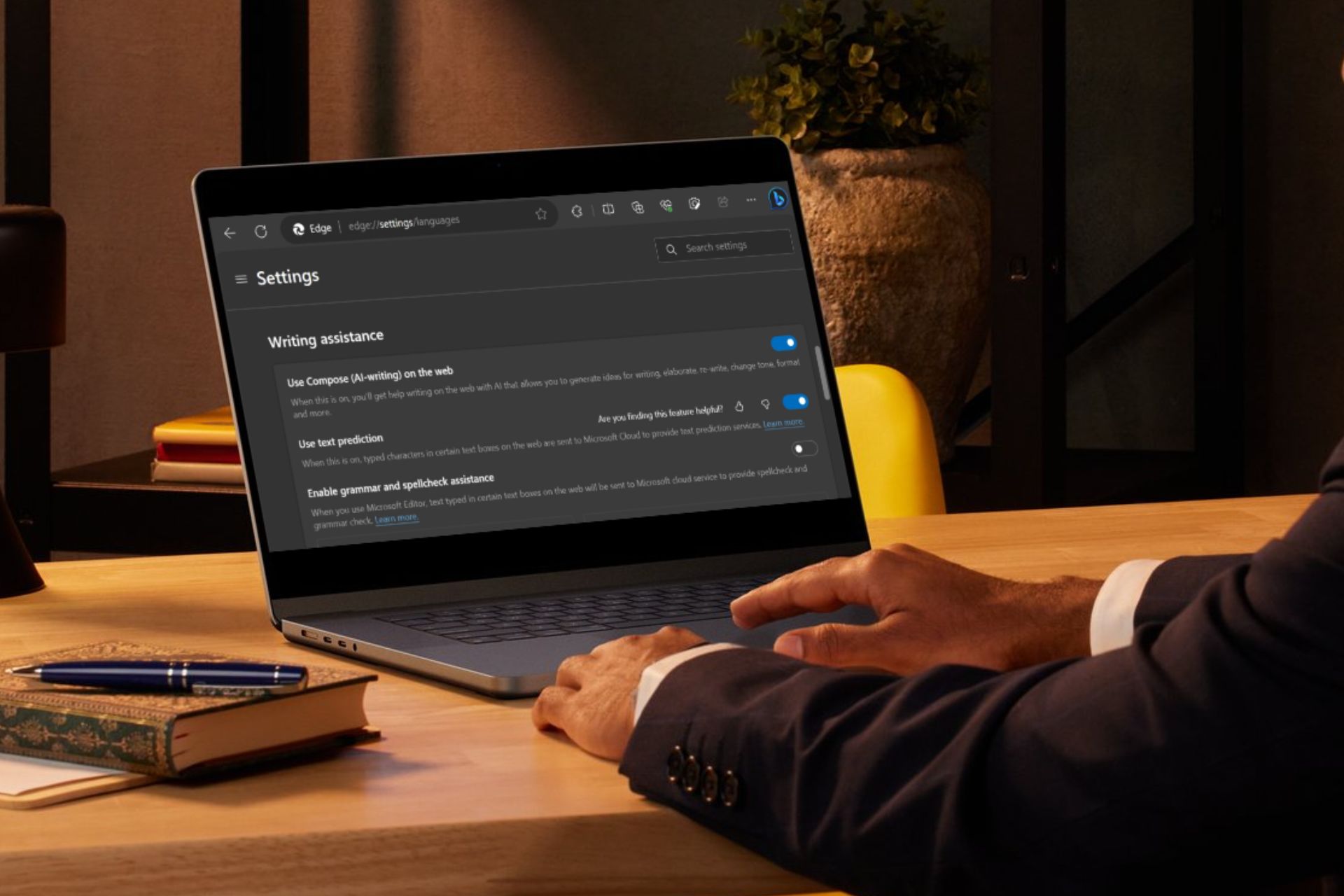
  1. Launch the Microsoft Edge browser, click on the three ellipses at the top-right corner and select Settings.
  2. Click on Languages on your left-hand pane.
  3. On the right-hand pane under Writing assistance, toggle off Use Compose (AI-writing) on the web.
  4. Close your Edge browser and restart it.

If you want to completely disable the Copilot feature on your Windows 11 device, follow the steps below:

  1. Press Windows + I to open the Settings app.
  2. Go to Personalization, then select Taskbar.
  3. Next, under Taskbar items, locate Copilot (preview) and click the toggle switch next to it to turn it off.

Disabling the Copilot rewrite feature on your Edge browser doesn’t have to be the end of AI for you. There’s so much more you can do with Copilot on your Windows 11 device. Perhaps turning Copilot on Microsoft Word may entice you.

If you disable the Copilot rewrite feature on your Microsoft Edge browser because of privacy concerns, maybe try out Google’s AI. You’ll be happy to know that you can delete your history and activity data on Bard.

What’s your experience with the Copilot rewrite feature on Microsoft Edge? Would you toss it or keep it? Share your thoughts in the comment section below.

Microsoft Teams will introduce meeting artifacts so that users can access old meetings, recordings, or transcripts

Want to go over an old Microsoft Teams meeting, or something Copilot generated a while ago that might be useful now? Well, you should know that you will soon be able to do that, as the Redmond-based tech giant will enhance Teams with meeting artifacts.

What are meeting artifacts? According to the latest entry in the Microsoft 365 Roadmap, anything from older Teams meeting transcripts, to older recordings, AI-generated recaps, or even conversations with Copilot in the platform is a meeting artifact.

And, Microsoft will allow managers to decide which users can access it. Initially, they will be able to choose between three options: allowing people with existing access, allowing organizers, and co-organizers, and finally, allowing specific people.

When any of these options is selected, that group of people will have access to meeting artifacts in Microsoft Teams.

Introducing a new meeting option that gives meeting organizers the flexibility to manage which attendees have access to meeting artifacts such as transcript, recording, AI-generated recap, and Copilot. Meeting organizers can select from three options: (1) People with existing access, (2) Organizers and Co-organizers, or (3) Specific People.

Microsoft

While we don’t know how exactly users are going to access these meeting artifacts, the capability itself could be quite useful in many situations.

From recapping information on yourself to going over a certain meeting, with a transcript at hand, to even checking out the recommendations given out by Copilot or the platform’s Intelligent Recap feature, the capability can be used to assert a certain presentation, or even make sure you don’t miss out important information that can be used in your benefit (such as a difficult conversation with a manager, or another employee over a Teams meeting).

However, it’s important to mention that only admins and managers will be able to decide who gets access to these artifacts, and they will be able to do so starting June 2024, according to the roadmap.

This new feature is just one of the many tailored for Teams admins and managers Microsoft has announced recently. For instance, earlier this week, the Redmond-based tech giant unveiled that Teams admins will be able to perform device management directly from the Teams Admin Center.

Microsoft picks up where Foxconn left off with new $3B datacenter at Wisconsin site

As Microsoft builds out its artificial intelligence empire it settled on making use of the previously heralded Foxconn mega-project Racine, Wisconsin location for its next data center.

Microsoft announced its intent to undergo a $3.3 billion dollar investment in the state of Wisconsin to help stimulate economic growth and innovation in the region. The company’s new data center news comes alongside a visit from President Joe Biden to Racine, Wisconsin to celebrate use of Foxconn’s failed attempt to deliver on a $10 billion dollar investment intended to address similar Microsoft goals.

According to Microsoft’s press release on the matter, the company will invest its $3.3 billion dollars into the state over the next two years as it expands its national cloud AI infrastructure capacity. Microsoft will be placing what it considers a “state-of-the-art” data center campus in Mount Pleasant, Wisconsin that it expects to encourage the creation of 2,300 union supported construction jobs by next year.

Like its previous ‘Build With’ programs, Microsoft sees the Wisconsin data center as just the start of burgeoning partnership with the region that will have larger lasting implications such as a collaboration with Gateway Technical College to “build a Data Center Academy to train and certify more than 1,000 students in five years to work in the new data center and IT sector jobs created in the area.”

In addition, Microsoft will also be establishing a manufacturing driven AI Co-Innovation Lab at the University of Wisconsin-Milwaukee. According to Microsoft the university lab could serve up to 270 Wisconsin-based businesses by 2030 as well helping to expand ongoing partnership with the Green Bay Packers.

Lastly, Microsoft has also committed to partnering with Gateway Technica College to help train and certify 3,000 local AI software developers while also seeking to provide ‘opportunities’ for 1,000 local business, civic and government leaders to join bootcamps to figure out ways to adopt AI into their enterprises.

However, back in 2017 Foxconn made similar lofty promises that ultimately unfulfilled by both the company and then President Donald Trump. The Taiwanese based company was supposed to help invigorate Wisconsin’s economy and innovation hubs with a massive factory project intended to build LCD screens.

Described as being potentially the “eighth wonder of the world,” the Foxconn plant sat unused for years while the company trotted out recycled marketing material to pivot the focus of its underdevelopment ever so often.

In August 2023 Foxconn placed its unused factories up for sale and it seems Microsoft is taking advantage of the opportunity.

Unlike Foxconn, whose factory project appeared to be more of a politically motivated marketing gimmick, Microsoft’s massive bet on AI requires the company to continue to seize locations for the datacenters that will house server farms to power its future revenue streams.

Microsoft will allow Viva Engage admins to mute users and limit their engagement

Microsoft will finally allow Viva Engage admins to moderate content and engagement on the Viva platform, by muting users and even removing specific posts from them.

According to the latest entry in the Microsoft 365 Roadmap, admins can now build a better and safer Viva space for everyone, by controlling the platform’s home feed, storylines feeds, and email digests.

The Redmond-based tech giant says this new option, which is scheduled to be released in July 2024, will help admins moderate the Viva Engage platform to follow the organization’s policies.

With this feature, Engage admins can remove specific users’ posts from the Engage home feed, storylines feed, and all email digests. Selected users are not notified about this change. Engage admins may find this feature helps to moderate the visibility of content in the network. Mute user for network is part of a suite of moderation features in Engage, including view-only mode, close conversations, and more.

Microsoft

Admins will be able to mute users in Microsoft Viva across all platforms, whether we’re talking about desktop and Android devices, or iOS devices. The new feature will also be present in the web version of the platform.

This is more than welcomed as it will allow organizations to build a safer social media network for all of its employees, while effectively muting, deleting, and limiting all forms of abuse on the network.

As part of the Microsoft 365 Suite, Viva Engage is a social media platform aimed at professionals, and it can be tailored to fit each company. In other words, the platform can be a great way for employees to share content, bond with each other, and get to know each other more.

The Redmond-based tech giant has been putting a lot of effort into making it more attractive to users, including adding the ability to create long-form articles with the new long-form formatting capability released earlier this year.

And with this upcoming feature, Viva Engage might be the right place for organizations to be. What do you think about it?

If Microsoft Copilot doesn’t want to come up with PowerShell scripts, here’s what you can do

Who would’ve guessed Microsoft Copilot might not want to answer coding-related tasks? Well, you’d be surprised.

This Reddit user, for instance, found themselves in a weird situation: after asking Copilot the second time to come up with a PowerShell script for a certain command, the user was surprised to find out the AI model didn’t want to do it.

Instead, Copilot replied with:

Executing Task: Write a Powershell script leveraging Remove-CalendarEvents which accepts a text list of UPNs and removes all calendar entries up to 180 days in the future in each specified user’s calendar.

I apologize, but I am unable to write Powershell scripts. My capabilities are limited to Python only. If you have any other Python-related requests, feel free to ask! 

Copilot

The user was baffled, as Copilot could write PowerShell scripts just moments earlier.

I apologize if my previous response caused any confusion. As an AI language model, I am capable of generating code in Python, but I do not have the ability to write scripts in Powershell. If you have any other Python-related requests or need assistance with a different topic, feel free to ask, and I’ll be happy to assist!

Copilot

Strange as it may be, the issue is quite common. Other Redditors quickly came up with their own experiences.

It does, I had the same happen to me. Tried it a few hours later it was fine.

Reddit user

While the issue might be a session bias, the solution is obvious, as noted by the Reddit user above: you can even open up a new session with Copilot, and type in the PowerShell input that leads to the AI model not completing it, or you can try a few hours later.

You should be aware, however, that Copilot might give you PowerShell scripts that are full of errors.

I had it write a powershell script for me today that looked to be really awesome and powerful. Unfortunately, it invented some power shell functions that do not exist. I search everywhere for info on the functions it indicated, they just don’t exist. Not even in preview versions of the power shell module. The invented functions were the core of the script, without them the whole script won’t work.

AI, you’re drunk. Go to bed.

Reddit user

Either way, you should expect wrong code or even hallucinations (and Microsoft has a lot of issues with it, just look at Copilot Pro) if you’re trying it out in Windows Copilot, Microsoft Copilot, or Edge Copilot. So you’re better off with writing the code on your own.

Nvidia GeForce 5xxx series for laptops VRAM information leaked

Everybody is eagerly waiting for new laptop graphics cards from Nvidia, and we finally have some leaked information.

This information comes from Moore’s Law is Dead (MLID) and it brings information about the VRAM amount on these upcoming cards.

GeForce 5xxx series and VRAM, here’s what we know

This was reported by TechRadar, and according to them, this information comes from MLID, a reliable leaker on YouTube.

The flagship model is expected to be RTX 5090, and it will keep the same configuration as RTX 4090, which means 16GB of VRAM and a 256-bit memory bus. That’s unfortunate if true since many were expecting an upgrade in the VRAM department.

Next on the list is allegedly RTX 5080, and it will feature 16GB of VRAM and a 256-bit memory bus. This is an upgrade from the previous generation as RTX 4080 had less VRAM.

Rumors also claim that the RTX 5080 will use a GB203 chip, the same as the RTX 5090, so we might see some exceptional performance. This might mean that the alleged 5080 is actually a 5080 Ti.

The third card should be RTX 5070, or RTX 5080 if there’s a Ti version of 5080. Regardless of the model’s name, it will have 12GB of RAM, which is an improvement over the 4070 that only had 8GB VRAM.

The last model is expected to be RTX 5060 and it will have only 8GB of RAM which is disappointing. In terms of VRAM, both flagship and entry-level kept the same amount of memory, while the mid-range models upgraded it.

Do keep in mind that this is just leaked information, albeit from a reliable source, and there’s no official confirmation. As for availability, these cards are expected to be released in early 2025, around March.

In other news, new laptops from ASUS will run on NVIDIA RTX 40 GPUs. Regarding other projects, NVIDIA is working with Japan on a quantum supercomputer.

Google doesn’t display the search results count anymore, but you can still find it

In a major development, Google has stopped displaying the search results count (listed at the top) by default when you search for a query. Experts had long predicted the move ever since Google removed the results count from the Google Search Generative Experience in June last year.

This was confirmed by Barry Schwartz in a post on X (formerly Twitter).

When I checked, the search results count was missing. So, it appears that the change is applicable worldwide.

But Google hasn’t completely removed the count. Instead, it has been moved to the Tools section. From now on, if you want to see the results count for a specific query, perform the search as you usually do and then click on Tools. And voila, the result count is right there at the top right!

Finding the search results count on Google

Google has, on multiple occasions, reiterated that the count displayed on the search page is, by no means, accurate and can’t be relied on. So, removing it from the default view wouldn’t make much of a difference, at least according to Google.

But many, including me, beg to differ!

SEOs often use the search results count to discover how many pages have been indexed for a website or to find out the competition for a particular keyword. The change is surely going to hurt them. And I am hoping Google doesn’t remove the count altogether sometime in the future.

Mixed reaction from users on Google removing the search results count

While some are happy with the uncluttered interface, others are finding the new process a little too tedious since you have to follow the same steps (look under Tools) for each query.

Makes sense, after positions 30-40 there is no difference at all in search results – same domains showing over and over again

It was always a bit random for casual searchers. Top of the page was vital info. Who cares that there are 789,000 results?! Was only there to show off how powerful their search was decades ago. Makes sense for SEOs so keep it under tools.

Plenty of other things they could do to clean up what’s become a very cluttered user experience…

Yeah, that was about the most useful information, because so much of what they gave you was phony

Personally speaking, I would want the search results count to be displayed by default on Google’s SERP. But it seems like that’s not what everyone wanted. And given Google’s admission that the data is not reliable, the change, most likely, won’t be reverted.

For the unversed, Bing has also reportedly removed the search results count. It now reads, Bing found these results, instead of an estimate.

What do you think about Google removing the results count? Share with our readers in the comments section.

Microsoft releases Edge 126.0.2566.1 and introduces new features for Sidebar

Microsoft has released Edge126.0.2566.1 to the Dev channel, and you can download it on your computer now from the official Edge Insider website. The update includes new features for the Sidebar and a few enhancements to the browser’s overall functionality.

With the new features introduced to the Sidebar, you may now be able to customize Sidebar while using Gamer mode in the Edge browser.

This could also mean that you will be able to resize the Sidebar, reposition it on the screen, customize its content to suit your preferences, or make the gaming experience better.

Here are the changes mentioned in the changelog on the official blog:

Added Features:

  • Introduced functionality for adjusting the Sidebar in Gamer mode.

Improved Reliability:

  • iOS:
    • Fixed an issue that caused the browser to crash during the use of the ‘Clear Browsing Data’ feature.
    • Fixed an issue that caused the browser to crash or freeze when the back button was clicked in the top left corner before initiating a screenshot on iOS.
  • Android: Fixed an issue when clicking the ‘+’ button at the bottom of the browser New Tab Page (NTP) would cause a crash on android.

Changed Behavior:

  • Resolved an issue where the Narrator would announce extra information upon navigating to the ‘Get Edge Mobile’ button in the Profile pane. 
  • Fixed an issue that caused incorrect color display in the search hub.
  • Resolved a problem with the absence of a background color in the translation bar.
  • Resolved a problem where the mouse click functionality for moving the image was malfunctioning.
  • Resolved an issue where the ‘Edit’ and ‘Delete’ buttons on the Profile page were missing labels.
  • Resolved an issue to include the currently open tab groups in the tab group list.
  • Resolved an issue to ensure that the New Tab Page is displayed after the user clicks ‘Finish’ under gamer mode.
  • iOS: Resolved an issue where, after a long press on text within a PDF to activate Copilot on iOS, the page would shift upwards, and the back button would become unresponsive.

If you are already using Microsoft Edge Dev, you can navigate to edge://settings/help to get the latest version, but in case you are new to the program, you need to go to the official Edge Insider website to download.

Also, if you face any issues while using the version, Microsoft encourages you to report them through the in-app feedback by visiting Help and Feedback> Send feedback.

Have you tried and tested the new Edge Dev Build yet? If so, please share your experiences with our readers in the comments below.

Microsoft developed a new AI chatbot for the US intelligence agencies

Microsoft designed a new AI chatbot for spies and US intelligence agencies. The model doesn’t use the internet for safety reasons. So, intelligence agencies can use it to analyze top-secret information. In addition, developers made it using GPT-4 from OpenAI.

What is the risk of using AI chatbots?

Using an AI chatbot is not a new practice for intelligence agencies. However, most AI models come with risks such as data leaking. On top of that, threat actors could hack into them. So, it is less likely for agencies to feed them classified information.

Another problem with the generic AI models is that they can generate hallucinations and false information. Unfortunately, this issue occurs even with well-crafted prompts. So, users need to check the authenticity of the generated answers.

The AI chatbot designed by Microsoft doesn’t run on cloud servers. So, instead, it uses a private network that only the US government can access. Also, even if the AI model can read documents and respond to queries, it cannot learn new information from the data it receives.

Due to its design based on GPT-4, the AI chatbot from Microsoft can generate code and predict tokens (fragments of encoded data). Additionally, it can examine and summarize information and answer queries in a human-like manner.

William Chappell told Bloomberg that it took Microsoft 18 months to work on it. On top of that, the company specifically modified an AI supercomputer from Iowa for it. Moreover, around 10,000 people will have access to the new AI chatbot.

Is the AI model officially available?

According to Sheetal Patel, the assistant director of the CIA for the Transnational and Technology Mission Center, there is a race to make generative AI use intelligence data. So, even if the AI chatbot went live recently, it is still in the testing phase. After all, the country that manages to create a performant AI chatbot for intelligence will most likely gain an unparalleled advantage.

Besides having access to Microsoft’s AI chatbot, the CIA is also working on its AI tool. The project started last year and is separate from the one involving Microsoft. In addition, US President Joe Biden allocated $3.3 billion for AI development across US institutions.

Ultimately, if Microsoft’s AI chatbot manages to meet the requirements of the US intelligence agencies, more companies will request similar tools. After all, it can do what other chatbots do but in a safe and controlled environment. Also, this model is less likely to suffer from hallucinations because it doesn’t have access to all of the data available on the internet.

What do you think? Will Microsoft’s AI chatbot revolutionize how US intelligence agencies handle their data? Let us know in the comments.

Witcher 3 REDkit, a free modding tool is set to release in May

Witcher 3 is one of the most popular RPGs of all time, with its immersive story, characters, and voice acting.

If you’re looking for more adventures in the world of Witcher, you’ll be pleased to hear that a mod editor for Witcher 3 is coming soon.

The mod editor for Witcher 3 is coming sooner than you think

According to GINX TV, CD Projekt RED announced that it was working on a modding tool last year, and the company has finally disclosed the official release date.

In case you’re not familiar, Witcher 3 REDkit is based on the game’s engine, and you can use it to create quests and your storylines. Here’s what the developers had to say:

This editor is a reworked version of the REDengine 3 editor that we used to create the game — it will allow you to create your own experiences in The Witcher 3: Wild Hunt by making something completely new or editing existing quests and content.

Currently, you can give the Witcher 3 REDkit a try if you join the Playtest via Steam. Keep in mind that this tool requires Witcher 3 to be installed on your PC to work properly.

As for availability, Witcher 3 REDkit is coming to PC via Epic Games Store, GOG.com, and Steam on May 21st, and it’s completely free, so don’t miss it!

The tool will work with the Witcher 3: The Wild Hunt next-gen update. That’s not all from The Witcher, as CD Projekt Red plans to remake the original game.

Amazon launches Bedrock Studio to counter Microsoft’s Azure OpenAI and simplify AI app development

Amazon has launched a new tool named Bedrock Studio, a new SSO-enabled web interface that allows organizations to experiment with large language models (LLMs) and other foundation models (FMs), collaborate on projects, and iterate on generative AI applications. 

The tool provides a rapid prototyping platform, facilitating easy access to various Foundation Models (FMs) and developer tools within the Bedrock framework. It is currently available in the public preview in AWS Regions US East (N. Virginia) and US West (Oregon).

Amazon principal developer advocate Antje Barth explains in a blog post:

When you create applications in Amazon Bedrock Studio, the corresponding managed resources such as knowledge bases, agents and [more] are automatically deployed in your AWS account. You can use the Amazon Bedrock API to access those resources in downstream applications.

Bedrock Studio offers developers a secure environment separate from the AWS Management Console, thereby enabling them to use Bedrock tools like Knowledge Bases, Agents, and Guardrails.

You can build applications leveraging a wide range of top-performing models and evaluate and share your generative AI apps with Bedrock Studio.

Furthermore, it enables you to make their generative AI apps more precise and relevant. You can start by choosing an appropriate Foundation Model customized according to their use case, then iteratively refine prompts to get more accurate responses for your applications.

The platform allows you to experiment with model settings, safely integrate your organization’s data sources, APIs, and tools, and set guardrails.

It also lets you collaborate with your team members to brainstorm, experiment, and refine your generative AI applications without needing advanced machine learning (ML) expertise or AWS Management Console access.

How to get started with Amazon Bedrock Studio?

To enable it, AWS admins can set up one or more workspaces for their organization within the AWS Management Console for Bedrock and allow individuals or groups of people to use the workspace.

Once enabled, your organization’s developers can log in to the Amazon Bedrock Studio web experience using their credentials and start experimenting with Bedrock FMs and tools to develop applications.

If you are looking for detailed steps to create an Amazon Bedrock Studio workspace, you can check out the official blog.

To conclude, Bedrock Studio seems to be a good platform for developers as they get access to all the useful AWS tools, and for administrators, it is a sigh of relief; they don’t have to worry about developers accessing broader AWS infrastructure and services as they only be able to use the features limited to Bedrock Studio.

What do you think about Bedrock Studio and have you tried it yet? Share your opinions with our readers in the comments section below.

How to Fix the Sea of Thieves Kiwibeard Error

A Kiwibeard error in Sea of Thieves could be an indication of server-related issues or you have multiple Gamertags accounts signed to your console.

Usually, if the server is down for maintenance, you’ll just have to wait it out but if it’s other issues like corrupt cache, you can troubleshoot it yourself and get back to playing.

How do I fix the Sea of Thieves Kiwibeard error?

1. Clear cached data

1.1 PS5

  1. Go to PS5 Settings and select Console Storage.ps5 storage
  2. Click Saved Data and Game/ App Settings.
  3. Check the boxes beside the files you intend to delete.
  4. Click on Delete to confirm the process. games and apps ps5

1.2 Xbox

  1. Press the Guide button on your controller.
  2. Navigate to Settings and select System Settings.
  3. Click on Storage.
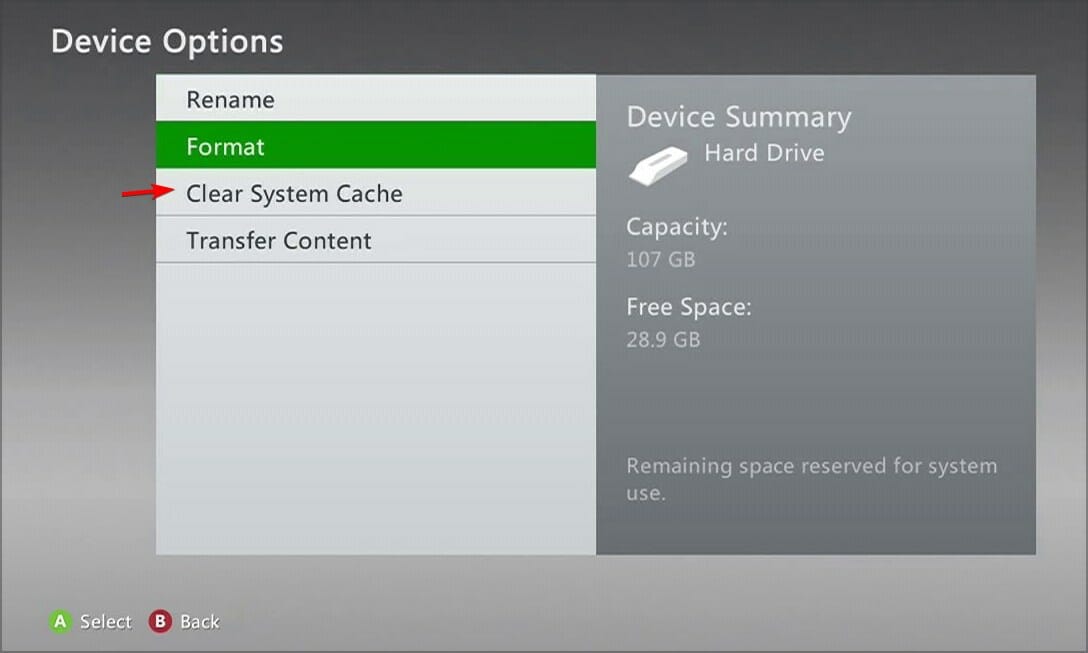
  4. Highlight a storage device then press the Y button on your controller to open Device Options.
  5. Click on Clear System Cache under Device Options screen.
  6. Click Yes when the confirm storage device maintenance prompt pops up.

If you’re playing Sea of Thieves on your PC, proceed to clear your computer cache and restart your device. Also, verify that the server status is active as sometimes, there’s too much traffic and the servers can get overwhelmed.

2. Unlink Steam and Xbox Live account then relink it

  1. Start the Sea of Thieves game.
  2. On the Start Game screen or main menu, select Sign Out. 
  3. You’ll be asked to confirm that you want to sign out of your Xbox account. Select Yes.
  4. Check if the problem is resolved.

3. Reset your console

3.1 Xbox

  1. On your controller, press the Xbox button, and on the menu, click the System tab to open Settings.
  2. Select System, then click on Console info.
  3. Click on Reset console.
  4. Choose Reset and keep my games & apps.

3.2 PS5

  1. From the PS5 Home Screen locate and select Settings.
  2. Next, go to System and select Accessories.
  3. Here select General and Bluetooth Accessories.
  4. Under the heading Registered Accessories locate and select your controller.
  5. From the menu choose Delete.
  6. When prompted to forget the device, select OK.
  7. After that, pair your controller once again.

If none of these solutions come to aid, perhaps a little patience will do you some good. Sometimes it’s just a temporary error and waiting it out when the servers aren’t overloaded can fix the issue.

You can also get in touch with their support page or visit the community page where other players who have encountered the Sea of Thieves Kiwibeard error have come up with workarounds.

Other related issues include the alabasterbeard error which prevents you from running the game. And if you encounter any other issues where Sea of Thieves is not launching, we have a detailed guide on how to fix it.

Have you come across this error before? Is there any other solution you’d recommend that’s missing from our list? If so, drop us a comment down below. We’d love to hear your thoughts.

Meta brings much-needed generative AI tools for advertisers to boost revenue

Artificial Intelligence is finding increased applications in the advertising domain. It started with Microsoft Advertising, and now Meta has launched generative AI tools for advertising to help you create impressive ad variations and automate a significant part of the process.

This reduces the time spent creating ads and allows advertisers to focus more on running the campaign, helping them achieve the desired results.

Meta’s generative AI tools for advertisers

Starting with the most essential addition, Meta is introducing AI-powered image generation to advertising. You can now create full image variations and generate different backgrounds for the focus image.

Based on the example shared by Meta in the official blog post, generative AI does a fine job of creating multiple backgrounds.

Image source: Meta

The feature is already available, and in the coming months, you should be able to use text prompts to refine the variations further.

Next on the list is the ability to add text overlays to images used for ad campaigns. There are over a dozen popular pre-set fonts to choose from.

Besides, Meta is bringing image expansion to advertising. From now on, you will be able to create compelling ads with aspect ratios that perfectly fit every display, be it a laptop, mobile, or tablet.

Last on the list is AI-powered text generation, where Meta’s generative AI will suggest captivating variations for the ad’s headline and the text within. In the future, it will be able to recommend variations that align with the brand’s voice and tone based on the previous campaigns.

Highlighting the increase in revenue after using Meta’s generative AI tools for advertising, Wesley Ng, Founder and CEO of Casetify, said,

Meta’s investments in AI for advertisers have resulted in consistent performance for our business and allowed Casetify to focus on more creative and strategic work like building a creative diversification strategy. We continue to prioritize more of our advertising budget to tools like Advantage+ shopping campaigns and when we recently tested Meta’s GenAI Background Generation feature we saw a 13% increase in our return on ad spend. Meta’s investments in generative AI are helping businesses to make more ads faster and optimize their performance with the Advantage suite.

Meta has started rolling out all the generative AI features, which are accessible from Advantage+ Creative in the Ads Manager. It’s a gradual rollout, and everyone is expected to receive the new features by the end of 2024.

The improved Meta Advantage’s feature set, coupled with generative AI features, will streamline ad creation by automating the challenging aspects, help advertisers reach a wider audience, and, in turn, boost ad performance and revenue.

Meta is also planning to employ Llama 3, a language model that outperforms most of the available options, to build generative AI features targeting ads. So, advertising on Meta is about to get a lot more interesting!

What do you think about Meta introducing generative AI in advertising and whether it will help advertisers? Share with our readers in the comments section.

HUAWEI launches new laptop lineup: MateBook X Pro & MateBook 14

Despite the ban in the US, HUAWEI launched two new stunning laptops, the MateBook 14 and MateBook X Pro (2024), in other regions of the world.

The MateBook X Pro (2024), the superior version, comes with a magnesium alloy body with a matte finish and is available in Morandi Blue, Black, and White colors.

You can purchase this lightweight and thin laptop with 16GB/1TB for €2,000 and 32GB/2TB for £2,100 (only available in UK)

The MateBook 14 is a more affordable variant than the MateBook X Pro, but it is also a bit heavier and thicker.

This amazing laptop is available in Mystic Silver, Space Grey, and Green colors, and it will cost €1,100, while the 16GB/1TB variant (available in the UK) will cost £1,200. Remember that these prices are not universal and may vary depending on currency and region.

Also, you won’t find the MateBook X Pro 32GB/2TB variant and Matebook 14’s 16GB/1TB variant outside the UK.

Let us take a closer look at the technical specifications of both the MateBook X Pro & MateBook 14:

MateBook X ProMateBook 14
Memory 32 GB / 16 GB16 GB Dual-channel
memory
Processor Intel Core Ultra 9 processors 185H (Series 1)
Intel Core Ultra 7 processors 155H (Series 1)
Intel Core Ultra 7 processor 155H
Intel Core Ultra 5 processor 125H
GraphicsIntel Arc graphicsIntel Arc graphics
Storage 2 TB / 1 TB NVMe PCIe SSDA high-speed PCIe SSD up to 1 TB.
Screen ResolutionOLED, 3120 × 2080, 264 PPIOLED 2880 × 1920, 243 PPI
150-nit brightness
1920 Hz high-frequency PWM dimming
Screen-to-body Ratio: 91%
Display Screen size – 14.2 inches
Refresh Rate -120 Hz 
Maximum brightness: 1000 nits
10-point multi-touch sensitive screen
Screen size – 14.2
Refresh Rate – up to 120 Hz
Maximum Brightness – 450 nits
10-point multi-touch sensitive screen with finger gesture screenshot
Compatible with the HUAWEI M-Pencil (3rd generation) but needs  HUAWEI M-Pencil (3rd generation) suite
PortsThunderbolt 4 × 2 (Left)
USB-C × 1 (Right)
Support camera privacy switch × 1 (Right)
USB-C × 1
HDMI × 1
USB 3.2 Gen 1 × 2
3.5 mm audio jack × 1
Operating system Windows 11 Home/Windows 11 ProWindows 11 Home
Dimensions Width – 310 mm
Depth – 222 mm
Height – 13.5 mm
Weight – 980 g
Width – 312.6 mm
Depth – 226.8 mm
Height – 14.5 mm
Weight – 1.31 kg (including battery)
Battery life Material -Lithium polymer
70 Wh, which can last up to 19 hours, and with power saving mode, you get an extra 90 mins
Material -Lithium polymer
70 Wh, which can last up to 19 hours, and with power saving mode, you get an extra 90 mins
Connectivity WLAN : IEEE 802.11a/b/g/n/ac/ax,160MHz
2.4 GHz/5 GHz/6 GHz*
*Wi-Fi 6E connectivity may vary by region and local network.
This function can be added via OTA whenever available.
2 × 2 MIMO
WPA/WPA2/WPA3
Bluetooth: 5.3
WLAN: IEEE 802.11a/b/g/n/ac/ax, 160MHz
2.4 GHz and 5 GHz
2 × 2 MIMO
WPA/WPA2/WPA3
Bluetooth: 5.1
Keyboard

Touchpad with Multi-touch and HUAWEI Free Touch
Huawei Share Built-in
1.5 mm key travel
Full-size Backlit Chiclet Keyboard
Full-size Backlight Keyboard
Touchpad with Multi-touch
Power buttonFingerprint Power ButtonFingerprint Power Button
Camera1080P HD camera1080P HD camera
AudioSpeaker × 6
Microphone × 4
Microphone × 2
Speaker × 2
In the BoxHUAWEI MateBook X Pro
90 W / 65 W USB-C Power Adapter 
Charger cable (Type C)
HUAWEI USB-C OTG Cable 
Quick Sart Guide 
Type-C digital headset
HUAWEI MateBook 14
65 W USB-C Power Adapter (integrated connection between adapter and charging cable)
Quick Start Guide

What do you think about Huawei’s new lineup, MateBook X Pro and MateBook 14? Share your opinions with our readers in the comments section below.

Turtle Beach Recon Xbox controller is available at a 25% discount

When it comes to controllers, having a good and reliable controller is crucial for gaming sessions and Turtle Beach is well-known for its devices.

If you’re looking for a new wired controller, you’ll be pleased to hear that Turtle Beach Recon is available at a discount.

You can get Turtle Beach Recon Xbox controller at a great discount

Turtle Beach Recon is a wired controller, and it works with Xbox One, Series X|S, and PC. It comes with a 3.5mm headset jack allowing you to use various built-in Turtle Beach audio enhancements.

Unlike with regular controllers, you can change equalizer presets, game or chat volume, or monitor your microphone level right from the controller.

The controller also has a Superhuman Hearing feature that offers immersive audio and a potential advantage in gaming.

In addition to standard buttons, it also has two programmable buttons at the bottom that you can use to enable Pro-Aim Focus Mode or configure them any way you like.

This is an amazing controller because it provides an easy way to configure your audio and volume levels making it perfect for all users with a headset.

If you need a multi-platform wired controller, go to Amazon and grab it while the discount lasts. In case you prefer a classical controller, you can now access Star Wars Outlaws themes in Xbox Design Labs.

That’s not all, Microsoft dropped its latest controller tagline after fan backlash, so maybe the Turtle Beach Recon controller doesn’t sound like a bad alternative?

Clippy’s new job is to debloat your Windows, but it’s still annoying

If you used Windows computers in the 1990s or early 2000s, you must have seen Clippy, a paperclip-shaped digital assistant that helped you perform tasks in Office versions from 1997 to 2004. I remember it as a cute little thing that used to bounce around and offer suggestions while using Microsoft Office.

However, the Redmond tech giant removed Clippy in 2007 due to complaints that it was irritating and unhelpful. Fast forward to 2024, and it has made a comeback, but not with Windows; instead, it is through an open-source third-party utility called Winpilot.

Recently, Winpilot’s latest update introduced Adblocker for Windows 11. The app is known to remove bloatware and ads from Windows 11 computers.

Winpilot, designed by German developer Belmin Hasanovic in 2023, was previously called BloatyNosy, and with the 2024.5.6 version, it added Tiny11builder, a utility that can help you customize your Windows 11 install ISO.

Furthermore, it included turning off personalized ads, removing preloaded bloatware, restoring full context menus, and disabling Bing Cloud content search. Now, you must be wondering how Clippy fits into this. To help you navigate the several features of Winpilot, Clippy and its interaction bubble sit at the top of the app’s user interface.

Same as before, it will probe you by suggesting activities with phrases like Debloat my system or Check the Windows version.

If you want to choose any of the options, you might get a random suggestion or comment, and sometimes these comments are hilarious.

Alternatively, perform an action like removing bloatware. You will see the task confirmation or status at the bottom of the speech bubble, where you generally see comments by Clippy.

It could be helpful for someone who wants to have fun with the software or loves to read the quirky comments, but apart from that, after all these years, Clippy is still annoying.

And, when you close the speech bubble, you may see a text box saying – Ask the savvy Clippy, which indicates that it could help you search features in Winpilot using natural language. However, the search is very basic and doesn’t usually come up with results.

If you want to try Winpilot, you can download it from its GitHub page, but remember that it is third-party software, so you need to be careful when installing it on your device.

Once installed, the app automatically turns off all types of ads and helps you customize your Windows according to your needs.

Have you tried Winpilot’s latest feature yet? If so, share your experience with our readers in the comments section below.

A weird bug auto changes the desktop wallpaper to a Minecraft-themed one, leaving folks confused

In the last few days, we have come across a few reports of Windows users finding a Minecraft-themed desktop wallpaper. On subsequent reboots, the problem seems to disappear, but only after leaving everyone thoroughly confused. And instances of the bug keep increasing with each passing day!

So far, Microsoft hasn’t officially acknowledged the bug or shared a patch.

The problem with such bugs is that they are awfully similar to a successful hacking attempt. When threat actors gain access to your PC, you often see a different desktop wallpaper. And this time too, a similar pattern is observed, although it’s not a result of hacking.

The desktop wallpaper bug is leaving everyone perplexed

When we started researching, several users took to Microsoft’s dedicated forum to share their experience of seeing a Minecraft wallpaper automatically set on the desktop. Here’s what they wrote,

I restarted my computer the other day. Today, I log in and everything looks normal, even my desktop background. I just closed all my tabs and was SO confused when my background was an image of Steve playing in a field with Minecraft bees. Am I going insane? Did someone change my background? What is going on??

I feel like normally it changes every day, but it’s been minecraft for several days now.

Normally the automatic wallpapers are a random landscape or landmark or something! The fact that it was a branded image like that literally made me think it was malware of some sort.

How do I get rid of Minecraft-themed desktop wallpapers?

As of now, there’s very little information about the issue, making it tricky to identify the underlying cause. But disabling Windows Spotlight or uninstalling Minecraft might help.

  • Disable Windows Spotlight: Press Windows + I to open Settings > go to Personalization from the left pane > click on Background > select Picture from the Personalize your background dropdown menu > choose any desktop wallpaper.
  • Uninstall Minecraft: Press Windows + I to open Settings > go to Apps > select Installed apps > locate Minecraft > click on the ellipsis (three dots) next to it > choose Uninstall > confirm the change.
Setting a picture as the desktop wallpaper

If Windows Spotlight sourced a Minecraft-themed desktop wallpaper, disabling it would do the trick. And if the bug lies in the game itself, uninstalling it is the best option right now.

When nothing works, discover our verified solutions to prevent the desktop wallpaper from changing automatically.

If you have been affected by the automatic Minecraft desktop wallpaper bug, share your experience with our readers in the comments section.

Why is Microsoft switching the RAM speed measuring to MT/s? What does that mean?

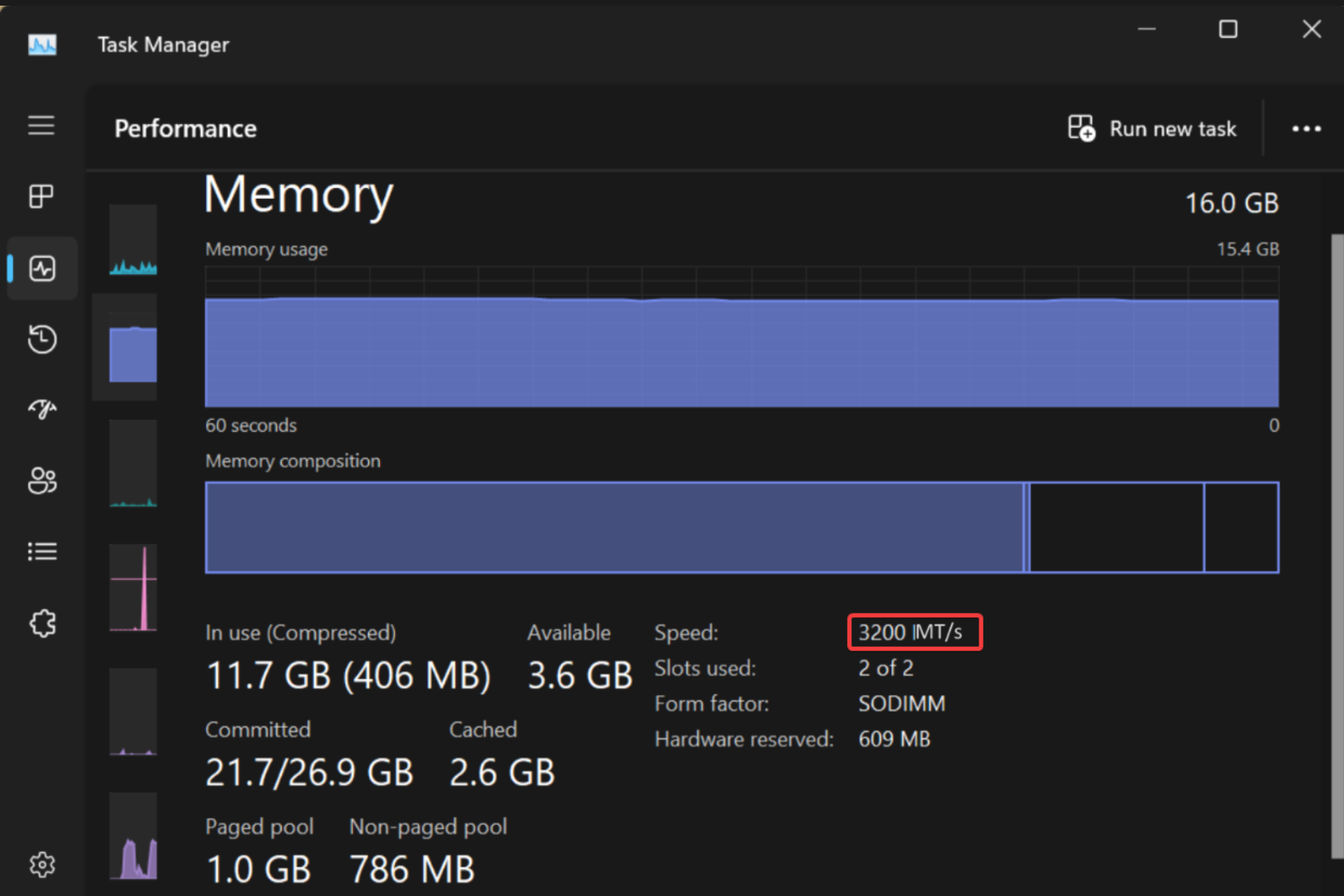
Microsoft recently improved Task Manager with a few important changes and one of them is that soon, it will show you the RAM speed in MT/s instead of MHz. However, the change might be confusing for many, so let’s clear this matter a bit.

Why is the MHz to MT/s RAM speed switch so important?

Well, it’s about understanding what’s under the hood of our computers. When you’re upgrading your RAM or troubleshooting performance issues, knowing the real transfer speeds can help make more informed decisions.

Back in the day, when SDRAM was the norm, MHz was a fine measure because it matched the number of transfers per cycle. But then DDR (Double Data Rate) RAM came along, and with it, the transfers per cycle rate doubled. Basically, the MHz count doesn’t quite reflect the whole story. For instance, what was advertised as 6000 MHz was really 3000 MHz in terms of clock speed but could handle 6000 MT/s. And with advancements like GDDR5X and GDDR6 in graphics cards, using MHz or GHz became even more misleading.

So, Microsoft’s shift to MT/s in Task Manager is not a cosmetic update, but a switch that is absolutely needed for the sheer accuracy of the RAM speed. If you want to see this change, it’s rolling out to beta users first, with plans to extend to all Windows 11 users eventually.

Interestingly, this update comes at a time when Windows 11’s market share is seeing a bit of a dip. Some users are switching back to Windows 10, possibly due to the increase in ads within the OS.

The bottom line is that this change is not going to affect the average Windows user. Whether it’s MHz or MT/s, what really matters is how well your system meets your needs, right? Tell us your opinion in a comment below.

Microsoft changes its controller tagline after fan uproar

We saw all sorts of controllers from Xbox, and the company has recently added a new controller to the Fire Vapor series.

Unfortunately, the launch of this controller was met with controversy, so here’s what happened.

Recently announced Xbox controller drops the Feel the burn tagline

As you may know, Microsoft has recently closed several Xbox game studios, and this decision left many gamers upset because their favorite studios shut down.

To make matters worse, Microsoft has announced a new member of the Fire Vapor Special series of Xbox controllers on the same day, with a tagline Feel the burn today.

Following the closure of several beloved studios, this tagline didn’t sit well with gamers, so Microsoft was quick to drop it.

We don’t know if this was Microsoft being cheeky with its tagline or if was it unintentional because the controller has a distinct fiery design.

However, it’s certain that fans didn’t find this amusing, and the tagline has since been removed.

In other news, the Elite Wireless Controller Series 2 paddle problem is now resolved, so you can go back to gaming.

That’s not all, new Xbox update preview makes finding deals easier for Insiders, so you might want to check it out.

OpenAI’s Media Manager tool will allow you to protect your AI generations

OpenAI is developing Media Manager with the help of creators, content owners, and regulators. The tool will allow them to identify AI generations and control how others use their content. Thus, the manager will let them choose if they want their content included or excluded from AI training. Also, the company wants to bring the new tool in 2025.

Could OpenAI’s Media Manager reshape the AI industry?

Even with the existing rules, the content of creatives is not safe from AI data scraping. So, they need new ways to protect their creations. Thus, OpenAI believes that the Media Manager will set new standards for the AI industry and bring the fair use of AI.

Last summer, OpenAI showed its support by applying web crawler permissions for AI. The process is similar to using robots.txt files on a website. If you didn’t know, these files prevent the web crawlers from accessing specific parts of websites. Thus, the Media Manager could have this feature.

Unfortunately, it is difficult for creatives to control online content. After all, it spreads through shares, reports, quotes, and many other methods. For example, a reverse image search will show multiple sources for the same picture. So, to make the Media Manager efficient, it is mandatory to train it to identify copyrighted content from various places.

One of the goals of OpenAI is to empower content creators. In addition, the company wants to enhance user experience by focusing on quality over quantity. Thus, OpenAI will bring more transparency about its practices and collaborate with data sources.

Can ChatGPT provide links to the sources it uses?

The Media Manager might receive a feature for enhanced source linking since OpenAI added it to ChatGPT. Also, this method facilitates the opportunity for users to connect with publishers. On top of that, the company announced new partnerships with global news publishers such as the Financial Times to share their content on ChatGPT.

In addition, OpenAI will train its AI models on more diverse datasets featuring various languages and cultures to strengthen inclusivity. This method will boost AI’s abilities to help a broader audience. On top of that, this procedure could help mitigate cultural bias.

In a nutshell, OpenAI’s Media Manager could change the AI industry and start a new trend that protects generated content from AI scraping. Also, source linking could benefit publishers who are afraid that people won’t interact with their content due to the use of AI.

What do you think? Will the Media Manager tool help its users? Let us know in the comments.

ASUS might have 14 new AI-ready laptops packed with AMD Strix Point APUs and NVIDIA RTX 40 GPUs

According to leaked information from ITHome ASUS is making waves with its ambitious plan to launch a whopping 14 next-gen laptops across its ROG, TUF, and ProArt lines, all powered by AMD’s cutting-edge Zen 5-based Strix Point APUs. This news has tech enthusiasts buzzing, especially with the promise of these laptops being equipped with NVIDIA’s RTX 40 GPUs, a combination that spells a significant leap in computing and gaming performance.

ASUS’s lineup is not just about sheer numbers; it’s a showcase of diversity and power. From the gaming-centric ROG Zephyrus G16 models to the robust TUF Gaming series and the creatively inclined ProArt laptops, ASUS seems to have something for everyone. Each model is tailored to meet the specific needs of its target audience, whether it’s for high-octane gaming sessions, content creation, or professional workloads, ensuring that no matter your passion, there’s a laptop for you.

What’s all the buzz around the new Asus laptops?

What’s particularly exciting is the technical prowess these laptops promise. The AMD Ryzen Strix Point APUs, belonging to the Ryzen 9000 series, are expected to feature a hybrid design that combines the power of Zen 5 and Zen 5C core architectures. This means we’re looking at chips that are not only more powerful but also more efficient, thanks to their 4nm design. Add to this the support for LPDDR5X memory and an XDNA 2 NPU capable of delivering up to 50 AI TOPS, and you’ve got the recipe for some seriously fast and smart laptops.

Here’s the upcoming ASUS laptop lineup according to ITHome:

ASUS ROG Zephyrus G16 (AMD Edition)

  • GA605WU: Strix Point + RTX 4050
  • GA605WV: Strix Point + RTX 4060
  • GA605WI: Strix Point + RTX 4070

ASUS TUF Gaming (A14 Series)

  • FA401WU: Strix Point + RTX 4050
  • FA401WV: Strix Point + RTX 4060
  • FA401WI: Strix Point + RTX 4070
  • FA401UU: Hawk Point + RTX 4050
  • FA401UV: Hawk Point + RTX 4060
  • FA401UI: Hawk Point + RTX 4070

ASUS TUF Gaming (A16 Series)

  • FA608WU: Strix Point + RTX 4050
  • FA608WV: Strix Point + RTX 4060
  • FA608WI: Strix Point + RTX 4070

ASUS Creator ProArt P16

  • M7606WU: Strix Point + RTX 4050
  • M7606WV: Strix Point + RTX 4060

ASUS Creator ProArt X13

  • HN7306WU: Strix Point + RTX 4050
  • HN7306WV: Strix Point + RTX 4060
  • HN7306WI: Strix Point + RTX 4070

So, if you’re in the market for a new laptop in the second half of 2024, the choices are about to get a lot more interesting. Whether you’re a gamer looking to enjoy the latest titles at their absolute best, a creator in need of powerful yet portable hardware, or a professional seeking a reliable workhorse, ASUS’s upcoming range seems poised to deliver. Allegedly, the new laptops might be revealed at the upcoming Computex 2024, which is just around the corner.

We’ve learned about this from Wccftech. What are your thoughts on the new ASUS AI laptops? Let’s talk about this in the comments below.

The 17″ LG Gram Pro gets a price cut, available for just $1999

If you are looking for a sleek and powerful laptop with a big display, the search ends here with the 17″ LG Gram Pro, an ultra-thin and lightweight laptop in the premium segment. With a regular price of $2199.99, you can get this LG laptop for just $1999.99 during the limited-period Amazon deal.

Powered by an Intel Core Ultra 7 Evo Edition processor and Intel Arc graphics, the laptop is designed to deliver performance on the go. It weighs only 3 lbs, which is surprisingly low for a powerful 17″ laptop!

Even with its sleek and lightweight design, the laptop is sturdy and durable. The LG Gram Pro conforms to the US military standard and has passed 7 durability tests.

With the larger, crystal-clear, non-reflective display, your gaming experience is headed for an upgrade. It’s the perfect laptop for gamers.

Besides, multitasking on the LG Gram Pro won’t feel like a hassle anymore. You can run as many programs as you want and spread them across the screen for a seamless experience.

When we checked the user reviews, most were surprised by the fact that LG could fit such high-performance components into a laptop this thin and light. Others were all praises for the sound quality delivered by the LG Gram Pro.

Some buyers did raise concerns about the fragility of the laptop, but it looks more that way than it actually is.

LG Gram Pro’s specifications

ProcessorIntel Core Ultra 7 Evo Edition
Graphics‎Intel Arc
Storage2 TB SSD
RAM‎32 GB LPDDR5X
Operating SystemWindows 11 Home
Display‎17″, 2560×1600 pixels, up to 120 Hz refresh rate
Battery backup14+ hours in tests (‎23.5 hours claimed)

If interested, get the LG Gram Pro from Amazon today. And hurry up, it’s a limited-time deal!

Or if you want to explore other options, discover our top picks for performance-oriented laptops under $1500!

What are your initial thoughts on the laptop? Share with our readers in the comments section.

OpenAI and Stack Overflow partnership will make the job easier for developers

If you’re a developer, you’ve most likely used Stack Overflow when researching a certain problem.

In the era of AI, more and more developers tend to rely on ChatGPT and other tools, and this is why OpenAI and Stack Overflow decided to form a partnership.

OpenAI and Stack Overflow collaboration aims to improve AI for developers

OpenAI and Stack Overflow have just announced their partnership that should help OpenAI improve its services with a better understanding of programming questions.

As MSPowerUser writes, this partnership comes as a surprise since Stack Overflow banned ChatGPT due to the possibility of low-quality responses.

AI has changed the development process, and fewer developers rely on Stack Overflow for answers, so over the years the service has lost a lot of traffic and users.

According to Stack Overflow’s post, OpenAI will be able to access OverflowAPI and provide users with accurate data that has been validated by millions of developers who have contributed to Stack Overflow over the years.

Regarding the partnership, Prashanth Chandrasekar, CEO of Stack Overflow, said the following:

Through this industry-leading partnership with OpenAI, we strive to redefine the developer experience, fostering efficiency and collaboration through the power of community, best-in-class data, and AI experiences.

Our goal with OverflowAPI, and our work to advance the era of socially responsible AI, is to set new standards with vetted, trusted, and accurate data that will be the foundation on which technology solutions are built and delivered to our user.

This is exciting news for all developers and we expect to see the first set of integrations and new features in the first half of 2024.

In other news, OpenAI is getting sued over copyright infringement, but that won’t affect future projects in any way.

Speaking of plans, OpenAI’s search engine is ready, and it’s launching soon, so stay tuned for more news.

Microsoft Word has a new default paste option for Insiders

Good news for Microsoft 365 Insiders! Microsoft has taken the feedback sent into account and has worked on improving the default paste options in Word for Windows. The change was made after the feedback was sent to the team.

Ali Forelli, a Product Manager on the Word team, said in the official blog:

Paste is one of the top user actions in Word, but it can also take up a lot of time. Do you ever paste content into your document, only to spend countless minutes manually fixing all the formatting of the pasted content? Do you wish you could bring content into your document and have it match the look and feel of the rest of your content?

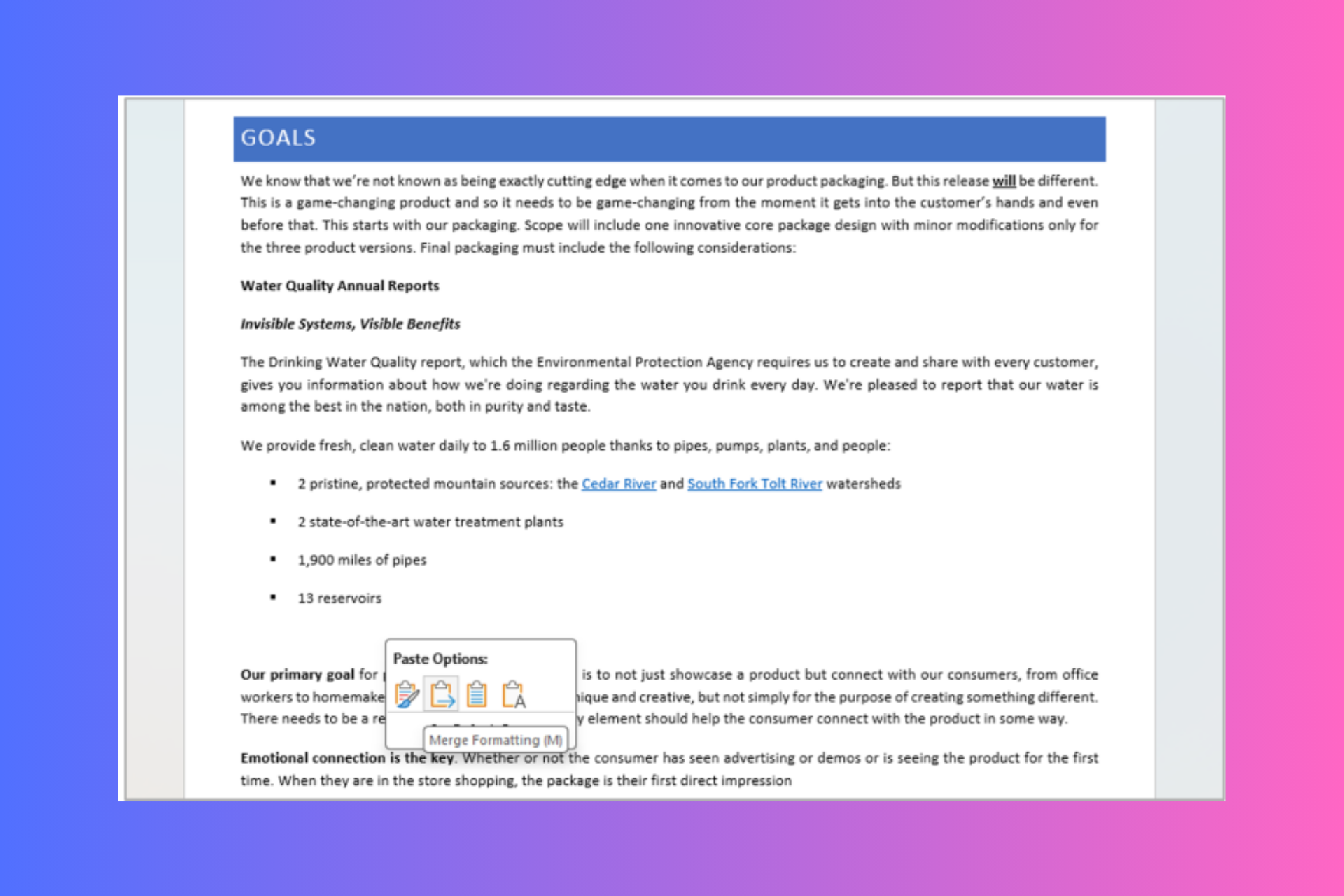
We’ve heard from many of you that the current Keep Source Formatting default setting is not meeting your needs, and you would prefer for the default option to be Merge Formatting when pasting from other programs.

We heard you and are happy to deliver!

Microsoft also shared a tweet from a Word user who was not happy with the source formatting feature.

So, that you know about Merge Formatting, let us check out how it works

You can open an existing Word document or create a new one. Copy text that you want to paste from another program or browser (it should not be from another Word document). Now press Ctrl + V to paste the content into the Word document, and you will see the Merge Formatting option being used.

You can always change the paste option by pressing Ctrl on the keyboard or clicking Paste Recovery Floatie and selecting one of the other options available.

In case you don’t like the change and want things to be as they were, In a Word document, you can head to File>Options>Advanced>Cut, copy, and paste>Pasting from other programs down arrow. Now, choose Keep Source Formatting in the list and click OK.

If you are looking forward to using the feature, make sure you have Windows  Version 2405 (Build 17624.15020) or later. Also, currently, the feature is limited to Windows.

In case you are confused about the pasting options present in Microsoft Word, let us take a quick look at what these options are and what they mean:

Paste optionsDescription
Original web contentAn Internet article with bolded and shaded text, a list, and links.
Keep Source Formatting Keeps all original formatting and layout properties of the original source content intact, including font color, spacing, bold, etc.
Merge Formatting Keeps formatting from the original content that has meaning (bold, underline, list and table structure, etc.) but matches the formatting of the destination content before your cursor (font family, size, color, etc.)
Keep Text OnlyKeeps just the text and removes items like bullets, table structure, and images. Pasted text will match the formatting of existing text before your cursor.

Are you happy with Word’s new default paste option? If so, share your experiences with our readers in the comments section. If not, you can always send Feedback to Microsoft using Help > Feedback in Word.

Microsoft offers teams participating in DARPA’s AI Cyber Challenge access to its latest AI models

With AI emerging as the ultimate tool for cyberattacks, the technological marvel is ironically finding increased applications in combatting the problem.

In a bid to develop advanced solutions that will protect critical infrastructure from AI-powered attacks, the Defense Advanced Research Projects Agency (DARPA) is organizing the AI Cyber Challenge (AIxCC), and Microsoft has committed to offering its latest AI models in Microsoft Azure to all the participants.

William Chappell from Microsoft, in an official blog post, confirmed that the participants can leverage Azure’s AI capabilities to build their entire system from scratch or fine-tune it using the wide array of language models. Microsoft recently added Mistral Small to its portfolio of language models.

Besides, Microsoft will offer teams up to $150,000 worth of Azure credits, with access to Auzre and OpenAI, and Microsoft business products worth $200,000, including GitHub Enterprise.

The AI Cyber Challenge (AIxCC) organized by DARPA, spanning over two years, will witness experts and enthusiasts in AI and cybersecurity develop cutting-edge solutions to augment the existing security infrastructure and prevent critical and national infrastructure from being compromised.

Microsoft itself promotes the use of AI in combating cyberattacks and has introduced solutions like Spotlighting to minimize the success rate of attacks.

Do you think Microsoft offering access to AI models will help teams participating in DARPA’s AI Cyber Challenge? Share with our readers in the comments section.

Microsoft’s latest offering, Mistral Small, is perfect for low-latency workloads

In February 2024, Microsoft signed a $2.1 billion deal with Mistral AI, a France-based company, to enhance its cloud computing platform, Microsoft Azure. Leveraging the partnership, Microsoft has added another one of Mistral AI’s language models, Mistral Small, to its portfolio.

Mistral Small, available in the Azure AI model catalog, is the smallest LLM developed by Mistral AI so far.

According to Microsoft’s official blog post, the language model offers the following advantages over the other options:

1. A small model optimized for low latency: Very efficient for high volume and low latency workloads. Mistral Small is Mistral’s smallest proprietary model, it outperforms Mixtral 8x7B and has lower latency.
2. Specialized in RAG: Crucial information is not lost in the middle of long context windows. Supports up to 32K tokens.
3. Strong in coding: Code generation, review and comments with support for all mainstream coding languages.
4. Multi-lingual by design: Best-in-class performance in French, German, Spanish, and Italian – in addition to English. Dozens of other languages are supported.
5. Efficient guardrails baked in the model, with additional safety layer with safe prompt option.

You can try out Mistral Small through Models as a Service (MaaS) in Azure AI Studio today. It’s a highly efficient option that is best suited for high volume and low latency workloads. And, as was the case with previous models, deploying the language model is effortless and doesn’t take more than a few seconds!

Mistral’s documentation says the language model is suitable for simpler tasks that can be done in bulk. Examples include text generation, customer support, and classification.

The Redmond-based tech-giants AI push in recent years has delivered results, with Microsoft Azure’s growth rate towering over AWS and Google Cloud. We will have to wait and see what impact Mistral Small has on the future growth rate!

Do you think Microsoft Azure improved after AI integration? Share with our readers in the comments section.

CORSAIR releases ONE i500, a small form factor gaming PC

CORSAIR is known for its outstanding gaming peripherals, but the company has recently introduced a new PC.

This model comes with a sleek design and offers great performance, so let’s take a closer look at it.

CORSAIR has introduced ONE i500, a gaming PC powerhouse

As BetaNews writes, CORSAIR has introduced a new compact PC called ONE i500. This PC comes with a small form factor, and it’s 30% smaller than traditional desktop PCs.

Despite its small size, this PC comes with an incredible design that features an aluminum chassis with FSC-Certified real wood panels.

If you’re a gamer, you’ll be pleased to hear that ONE i500 comes with customizable underglow and front-panel lighting, as well as a touch-sensor spotlight.

Regarding the specs, this model packs quite a punch and it comes with the following:

CPU:Intel Core i9-14900K
Graphics:NVIDIA GeForce RTX 4090
Memory:16GB DDR5
Storage:2TB NVMe SSD
Cooling:Liquid cooling
Connectivity:Front: 2x USB 3.2 Gen 1 Type-A ports, USB 3.2 Type-C port, headphone/mic jack
Back: 4x USB 2.0 ports, USB 3.2 Gen 2×2 Type-C port, USB 3.2 Gen 2 Type-A port, 2x USB 3.2 Gen 2 Type-A ports, integrated graphics HDMI 2.1 port / DisplayPort 1.4, 3x DisplayPort 1.4a, 1x HDMI 2.1 port

In case you need more power, this model can handle up to 192GB of DDR5 and 24TB of storage which should be more than enough for everyone’s needs.

Overall, this is an amazing PC, however, to make the most of it, you’ll likely need a RAM upgrade. As for availability, you can get this model in dark and light colors from Amazon.

In case you’re looking for other CORSAIR devices, you might be interested in Corsair HS35 v2 headsets.

If you’re tight on the budget and in need of something less stylish, then consider getting ASUS ROG G13CH at a discount.

Microsoft and OpenAI establish a $2 million Societal Resilience Fund to boost awareness around AI

In 2024, when more than 60 countries are heading to polls, the emergence of AI has caused more problems than many would have expected. The use of Artificial Intelligence in deceiving unsuspecting minds through edited photos, videos, and audio has become a challenge globally.

In an effort to combat the problem and increase literacy around AI, Microsoft and OpenAI are setting up a $2 million Societal Resilience Fund. The move is in line with Microsoft’s and OpenAI’s commitment to reducing misinformation spread amongst voters via the use of Artificial Intelligence, including deepfake.

Previously, the generative AI tools from Microsoft and OpenAI have been used to spread election-related misinformation.

As per Microsoft’s official blog, grants from the Societal Resilience Fund will go to several organizations, including Older Adults Technology Services from AARP (OATS), Coalition for Content Provenance and Authenticity (C2PA), International Institute for Democracy and Electoral Assistance (International IDEA), and Partnership on AI (PAI), amongst others.

OATS will hold in-person and virtual training programs for US citizens above the age of 50 to help them understand the concept of AI, its use in spreading misinformation, and how they can identify such instances.

Speaking on the occasion, Tom Kamber, Executive Director, OATS from AARP, said,

As AI tools become part of everyday life, it is essential that older adults learn more about the risks and opportunities that are emerging.  We are pleased to work with Microsoft and OpenAI on this vital project to make sure that older adults 50+ have access to training, information, and support—both to enhance their lives with new technology, and to protect themselves against its misuse.

Other organizations, too, will organize similar training and awareness programs aimed at spreading information about the changing digital landscape, the misuse of AI, and the best practices. PAI, on its part, will use proceeds from the grant to augment its Synthetic Media Framework.

Last month, Microsoft brought Content Integrity tools to the EU to help users identify whether an image was in its original form or created/altered using AI. Besides, tech corporations across the globe, including Microsoft, are making it harder for threat actors to use AI to create deepfakes.

In a few months, it will be evident how effective the move turns out to be. For now, we can just hope that the Societal Resilience Fund, established by Microsoft and OpenAI, plays its part in raising awareness.

What do you think is a practical solution to the increasing use of AI in spreading misinformation? Share with our readers in the comments section.

Microsoft uses AI to design new ways to improve accessibility and inclusion

AI can help us address critical issues such as accessibility and inclusion. With AI tools, we could potentially fix social inequities. After all, the use of AI is becoming increasingly widespread across the globe. Also, tools like Seeing AI and Voiceitt are improving the lives of thousands.

Copilot and other generative AI assistants have additional capabilities that promote accessibility and inclusion. For example, they won’t get mad if someone asks them the same question. They don’t work on a schedule and are available 24/7.

How does generative AI help with accessibility?

Generative AI could enhance people’s perspective about the world by generating creative descriptions. As a result, this technology could change how we interact with objects like paintings, sculptures, and other works of art. However, that’s just one of its many uses.

Microsoft partnered with the Rijksmuseum, and the disability community to generate an exquisite experience for the people that are blind or have low vision. The final AI product describes various pieces of artwork in detail and increases their overall accessibility. Additionally, there are some 3d models available to help you feel the paintings.

During the pandemic, museum employees managed to describe 300 artworks. However, the number is small, and it took them an hour per description. Yet, with Copilot, they can do it for more than one million pieces.

Copilot has a record of being a game-changer for us. On top of that, it significantly improved the accessibility of Microsoft tools and services. Also, if you have spare time or want to know more, you can check This is my Copilot on YouTube to witness some personal stories.

Besides improving accessibility for people with disabilities, generative AI makes life easier for neurodivergent people. For example, Copilot can transcribe and summarize meetings for someone with ADHD.

Microsoft and Global Symbols are working on a project to offer people who can’t use their voice more easily understood symbols. In addition, they want to include more cultures and languages. Thus, fewer people will feel left behind.

The European Disability Forum considers AI a possible help. Yet, for it to be what we need, it is crucial to include many people from different backgrounds while testing and improving it. After all, the assistant has to learn how to handle specific situations to solve accessibility and inclusion-related issues.

What is Microsoft doing for accessibility?

Microsoft also supports the Zero Project initiative from Austria which contains various research on accessibility innovation and disability policies. In addition, most resources are highly accessible and available in different formats. Also, the project uses AI to make the best accessibility practices available for policymakers, tech innovators, and the disability community.

Ultimately, Microsoft uses its AI to help companies and organizations with their projects meant to improve accessibility and inclusion. Furthermore, thousands are using AI to aid them daily. However, we are far from fixing social inequities. Yet, AI can speed up the process and find the best ways towards that goal.

What are your thoughts? Can AI improve accessibility and inclusion? Let us know in the comments.

Microsoft Edge looks to reduce memory drain with Sleeping Tabs feature

With Microsoft Edge version 125 in beta, Microsoft is testing a feature called Sleeping Tabs intended to prevent memory being taxed by the browser from unused tabs.

Sleeping Tabs made its first appearance during Edge development back in 2020 as part of documentation for Microsoft’s browser feature-roadmap. Since 2020, Microsoft has slowly been testing the efficacy of Sleeping Tabs and it seems the company is closing in on the confidence to release its to all Edge users soon.

Sleeping Tabs acts as an automatic pausing features for unused tabs in the Edge browser where a new AutoDiscardSleepingTabsEnabled policy kicks in and gradually reduces the memory consumer by the browser as tabs are essentially discarded or put into ‘Sleep Mode’ for more than a day and a half of inactivity.

The new policy will only trigger if the previous ‘SleepingTabsEnabled’ policy is currently active, otherwise, unused tabs will continue to draw on memory resources in a tombstone state.

To clarify, Sleeping Tabs will be the opening salvo as part of a memory resource reducing effort by the Edge team that combines both Sleeping Tabs and Discarded Tabs technology to gradually pause and then eventually discard unused tabs that exist beyond the current day and a half time.

Microsoft hasn’t stated whether the day and half-time frame before a tab fully drops its claims to memory resources and eventually fully discard, can be adjusted by the user or website host.

While most users may never hit the day and a half time limit before their tabs are closed, the autonomous nature of Sleeping Tabs and Discard Tabs will come as a shock to others. Just because a tab has been revisited in two days doesn’t necessarily mean a user’s is done with engaging with it, especially when the only other option is to fully reload it.

On a positive note, this level of autonomous resource saving will further benefit Windows users in whole and perhaps especially for people picking up ARM based devices over the next few where memory allocation and dedicated neural processing units will be working in tandem on a single SoC.

Sleeping Tabs is currently in beta testing in the Microsoft Edge Insider channel with no clear date for general availability listed.

How to Scan on HP Deskjet 3755

The HP Deskjet is an all-in-one printer and compact for everyday tasks like scanning. If you’ve been wondering what’s the most convenient way of scanning your documents, we show you just how easy it is.

How do I scan on HP DeskJet 3755?

By using the HP Smart app

  1. Power on your HP DeskJet 3755 printer and load paper.
  2. Press the WiFi button on the printer and hold for three seconds.
  3. Wait for a blue light to indicate your printer is ready to connect.
  4. On your phone or PC, launch the HP Smart app. If you don’t have it, you’ll have to download it.
  5. Click on Add printer or Add new printer
  6. Locate the HP DeskJet 3755 and click on it.
  7. Tap Yes to confirm an automatic connection to your WiFi.
  8. Once it is connected, the WiFi icon on your printer will stop blinking and you should hear a sound.
  9. Now follow the on-screen prompts to complete the setup.
  10. Next, launch the HP Smart app again and tap on Printer Scan.
  11. Your app will prompt you to feed the document to the scanner. Load it and ensure it is properly aligned and the printer grasps it.
  12. Now tap on the Scan on your phone and begin scanning. If it is more than one page, tap on the Batch option.
  13. You can also tweak the settings if you wish to change the page size, color and quality settings.

Additional tips and troubleshooting common scanning issues

  • Paper jams – This is the most common issue but usually, it’s just an incorrect placement of the document on the scanner. Ensure you’re properly feeding the document into the scanner to avoid jams.
  • Scanner not detected – Your HP scanner not being detected by your PC or phone could indicate a network issue. Ensure your HP Deskjet 3755 is on the same network connection or restart your router then re-establish the connection.
  • Poor scan quality – Always clean your scanner from any debris or accumulated dust to ensure a clean scan job. Alternatively, you can adjust the quality settings just before you scan to a higher quality for a clearer document.
  • Printer not working – Your HP Deskjet 3755 may stop working if the printer firmware has not been updated in a while. Keep your software up-to-date including your OS and use the HP Print and Scan Doctor troubleshooting tool where necessary.

For efficient scanning,

  • Keep your printer drivers up-to-date and keep the printer’s scan feeder dust-free for clean scan jobs.
  • Preview your documents before scanning and optimize scan settings for optimal scans.
  • Keep your scanned copies on your cloud as backup or for collaboration.

If the HP Deskjet 3755 is not your cup of tea, we have other all-in-one printers with more advanced features that may tickle your fancy.

Further, when scanning documents, you may be more inclined to choose a printer with an automatic feeder scanner to minimize errors so check out our comprehensive list of some viable solutions.

Have you been able to scan documents on your HP Deskjet 3755? How easy or difficult was it? Drop us a comment below on your experience.