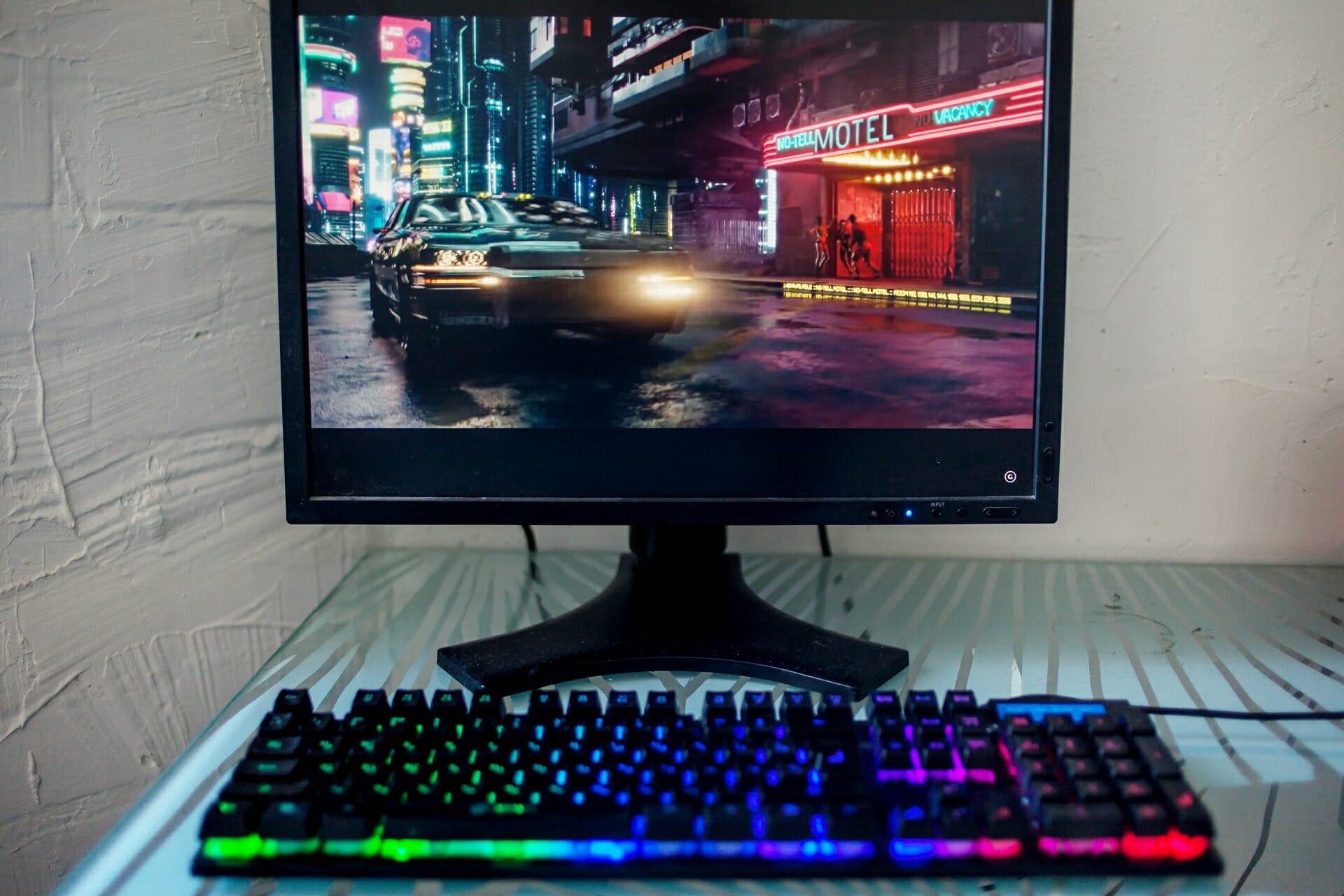
Cyberpunk 2077 developers apologize for poor Xbox One/PS4 performance and promise frequent updates

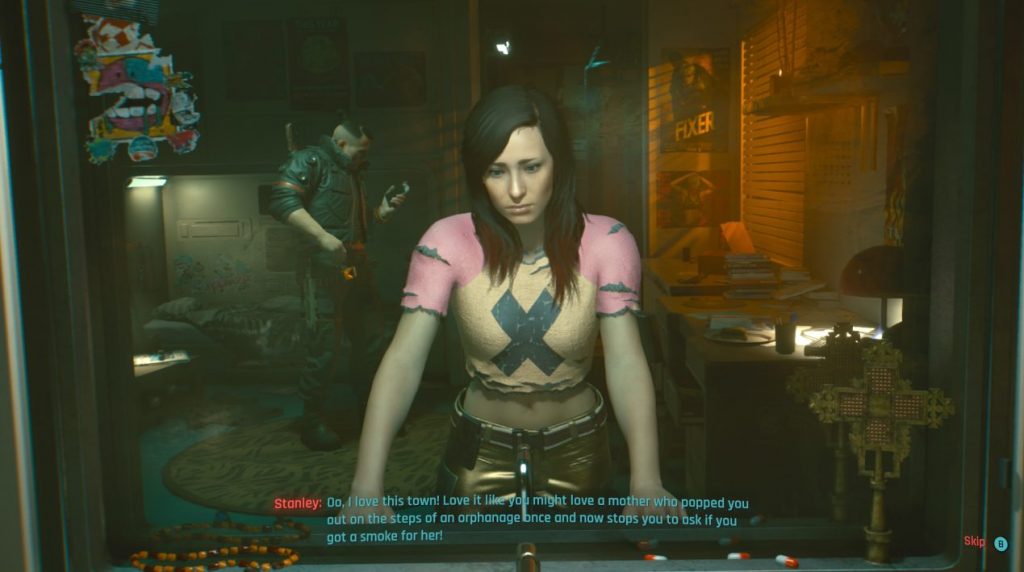
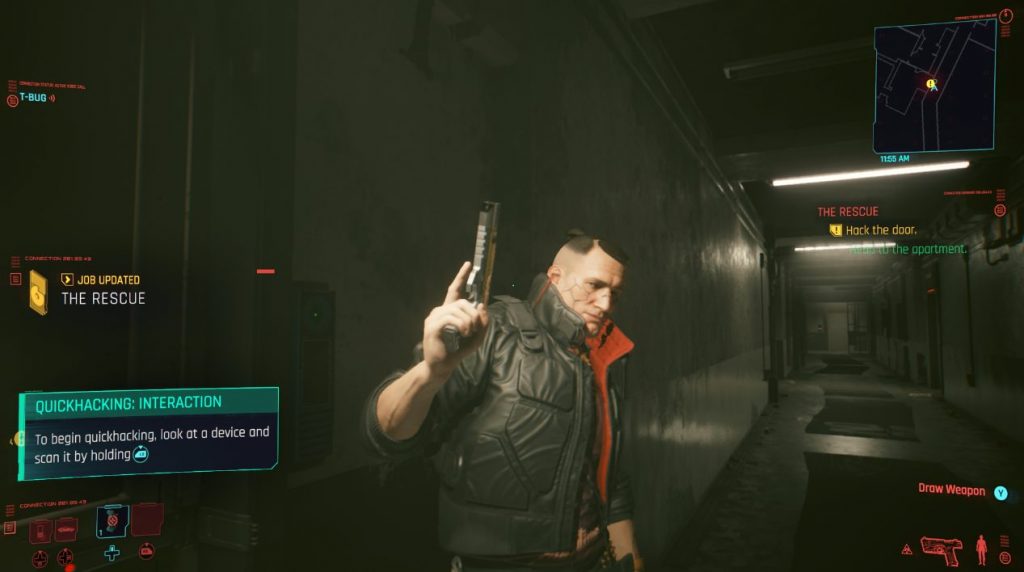
Cyberpunk 2077, one of the most-anticipated games of the year was released last week on PC, Xbox, and PlayStation consoles, and today developer CD Projekt Red has apologized for the game’s poor performance on base Xbox One and PlayStation 4 consoles. Despite multiple delays, it’s safe to say that many consumers who purchased the game on consoles didn’t expect to see bugs and performance issues at such a level.

“First of all, we would like to start by apologizing to you for not showing the game on base last-get consoles before it premiered and, in consequence, not allowing you to make a more informed decision about your purchase. We should have paid more attention to making it play better on PlayStation 4 and Xbox One,” CD Projekt said in a statement today.

Following the release of a first post-launch update on all platforms last week, the Polish developer announced today that it will continue to patch the game. Another patch will be released “within the next 7 days”, with two “large patches” to follow in January and February. “Together these should fix the most prominent problems gamers are facing on last-get consoles,” CD Projekt Red said.

Last but not least, the developer is inviting customers who aren’t satisfied with the game to seek for a refund. “We would appreciate it if you would give us a chance, but if you are not pleased with the game on your console and don’t want to wait for updates, you can opt to refund your copy,” the company said today.

Last week, CD Projekt Red announced that 8 million gamers had pre-ordered Cyberpunk 2077 ahead of launch, and that profits had already surpassed the game’s development and marketing costs. Cyberpunk 2077 broke several records since launch including the most concurrent viewers for any single-player game on Twitch, and the game continues to enjoy great momentum despite the bad buzz.

We’ve been playing the game on PC, Xbox Series X, and Xbox Series S since launch, and we hope to publish our full review later this week. The game currently plays best on PC, but performance is also very solid on Xbox Series X|S consoles even though a fully-optimized version of the game for these consoles won’t be available until next year.

FIX: Can’t save game in Cyberpunk 2077 on Windows 10/11

Cyberpunk 2077 is the result of several years of work on behalf of CD Projekt Red, and the outcome is quite spectacular.

This massive Sci-Fi video game features a massive world to explore, incredible character customization options, and an amazing story.

However, all of these have in common one thing: a lot of work needs to be put into them, and many users have reported that they are having issues saving their game.

Since this game is so loved by many, we’ve decided to create this step-by-step guide that will show you exactly what needs to be done to make sure that your game progress gets saved.

How do I save my game properly in Cyberpunk 2077?

1. Modify your antivirus’ permission settings

Some antivirus tools block access of software to certain file locations by default as a safety measure, and in that case, your job is to simply modify your antivirus’ settings.

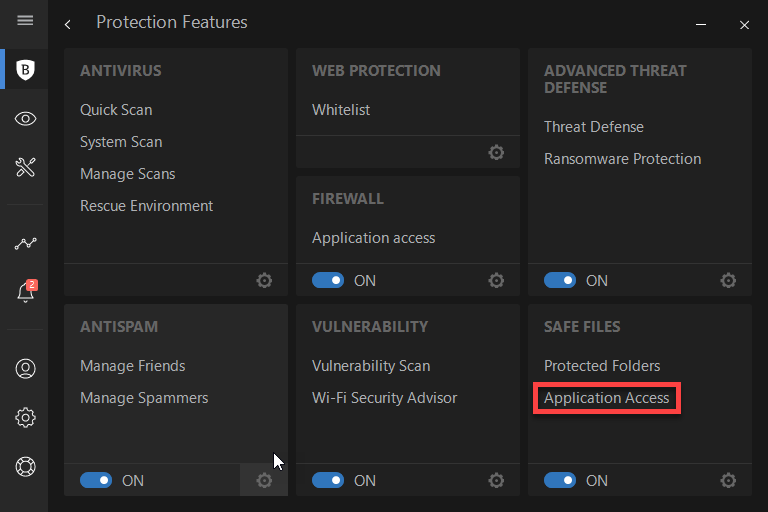
If you’re using Bitdefender, modifying your settings will be extremely easy, and it can be done as follows:

  1. Open the Bitdefender dashboard
  2. Access the Protection tab on the left
  3. Click on Application Access under the Safe Files applet
  4. Flag the check mark for Cyberpunk 2077
Bitdefender

Bitdefender

With Bitdefender, you gain complete and easy control over what your apps can access on your PC!
Check priceVisit website

2. Modify your Windows Defender settings

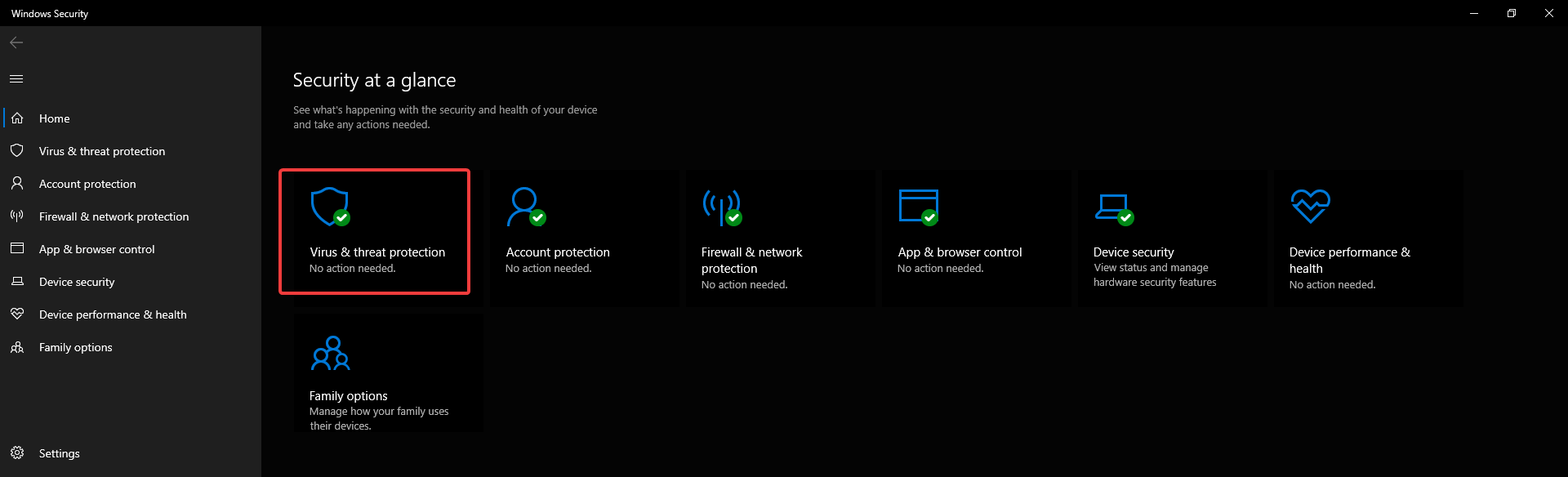
  1. Press Start
  2. Type in windows security to access the Windows Defender Security Center
  3. Go to Virus & threat protection
  4. Select the Virus & threat protection settings option.
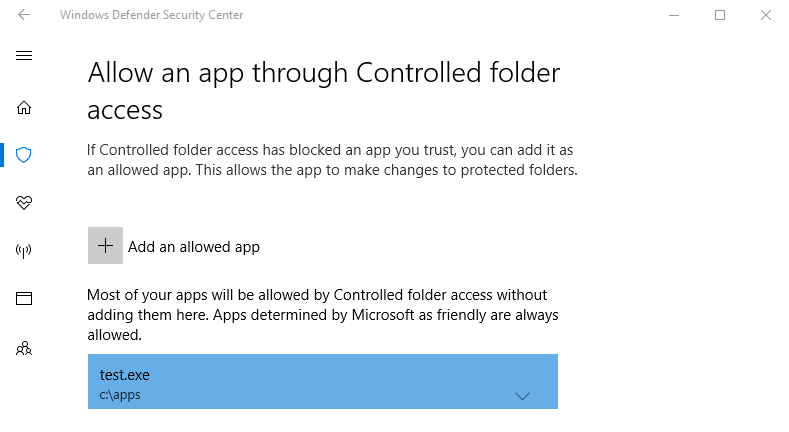
  5. Under Controlled folder access, click the Allow an app through Controlled folder access link
  6. Click the Add an allowed app button.

By following these steps, you should no longer have issues saving your game progress in Cyberpunk 2077 anymore.

However, keep in mind that it is not possible to save the game during combat, braindance and some quests, so make sure that is not actually the issue before proceeding with the troubleshooting steps below.

If you stumble across the Cyberpunk 2077 corrupted or missing scripts file error, we have the right solutions in the highlighted guide.

Which solution did you use to get rid of the game saving issue in Cyberpunk 2077? Let us know how you handled the problem by leaving us your feedback in the comments section below.

How to convert ZIP files to PDF in Windows 10 [Full Guide]

Sometimes you can’t use certain file types unless you convert them to a different format. This is a fairly simple process, and you just need to use specific software to convert the files.

In today’s article, we’re going to show you how to convert a ZIP file to PDF, and this is actually much simpler than you think, so let’s get started, shall we?

How can I convert a ZIP file to PDF?

1. Use WinZip

When it comes to ZIP files, WinZip is the best tool out there that can work with ZIP files. The software has a built-in feature that allows you to convert ZIP to PDF files with just a few clicks.

Regarding the supported file types, WinZip can zip any file, and it can extract ZIP, RAR, 7Z, TAR, TGZ, and other file types. The software also works as a file manager, and there’s even a file splitter feature available as well.

WinZip also supports file sharing, and it has support for cloud storage, which makes it one of the most versatile file archivers on the market.

Other great features:

  • Simple to use
  • File encryption
  • Compatible with most archive formats
  • File manager, file splitter
  • PDF conversion

WinZip

If you want to manage ZIP files better and convert them to PDF easily, give WinZip a try.
Free Trial Visit Website

2. Use ezyZip

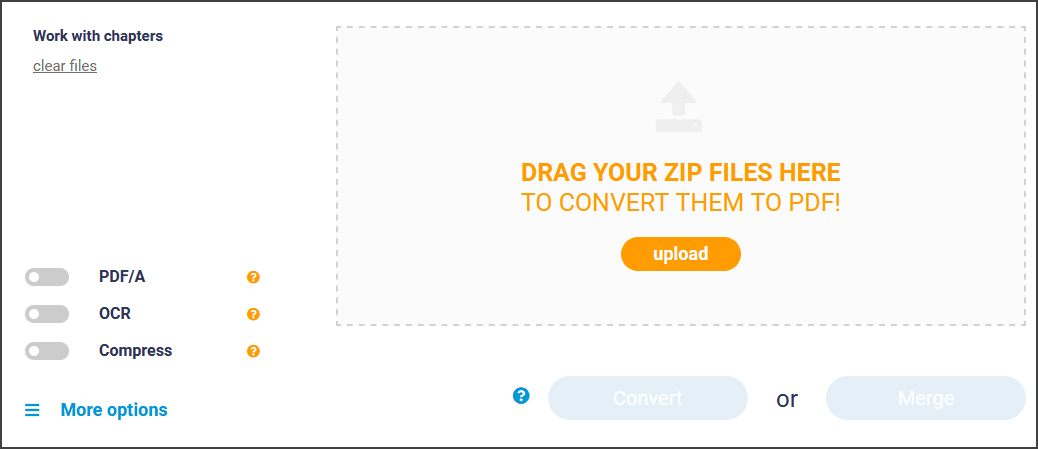
  1. Visit the EzyZip page.
  2. Now click on Browse and select the ZIP file.
  3. Once the file is uploaded, it should be converted to PDF.
  4. Now you just have to download the PDF file.

3. Use PDFEN

  1. Visit PDFEN website.
  2. Click the Upload button and select the ZIP file.
  3. Once the ZIP file is uploaded, click on Convert.
  4. After the file is converted, download it.

4. Use Convertstandard

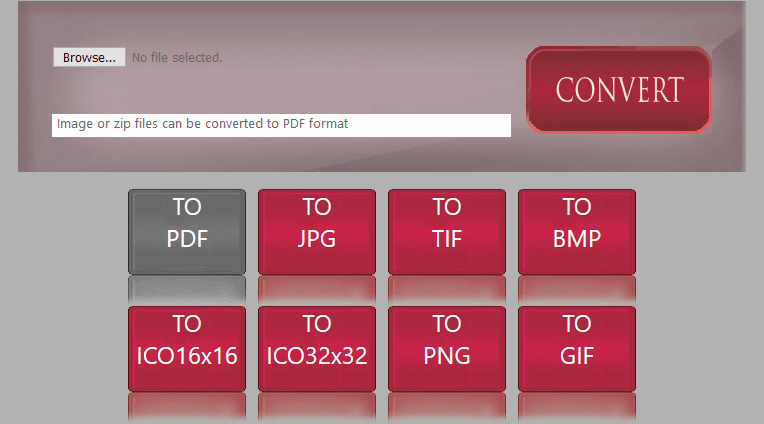
  1. Visit Convertstandard website.
  2. Now click on Browse and upload the ZIP file.
  3. Make sure that the TO PDF option is selected and click on Convert.
  4. Once the file is converted, download it.

Converting ZIP files to PDF doesn’t have to be a complicated process, and if you wish to convert ZIP files, we suggest using WinZip software for the best results.

Which solution did you use to convert your Zip folders? Let us know your preferences by leaving us a message in the comments section below.

5 best 128-bit AES encryption software [Complete guide]

In a world where the data is the new gold, protecting the data has become more important than ever before. Encryption can help you protect information stored, sent and received.

This task is made easier by the AES encryption software. While 256-bit encryption software offers greater protection, 128-bit AES encryption provides quite sufficient security for your data.

The difference between 256-bit encryption and 126-bit encryption is the key length. Apart from the key length, both of these standards offer similar protection and for the most part, impenetrable.

In this article, we explore the best 128-bit AES encryption software that you can use to keep your most valuable data safe through encryption.

What is the best 128-bit encryption software?

WinZip

best 128-bit encryption software

If you have heard of WinZip before, you probably know it for its file managing capabilities. However, it also allows you to encrypt your zip archives with 128-bit encryption. You can also use 256-bit encryption if you want.

Apart from the encryption features, WinZip allows you to create zip archives with multiple files. Thus making it easier to move, share and organize multiple files at one place.

WinZip offers best in class file compression and can extract all the major file formats, including XZ, RAR, and TGZ. With the built-in repair tool, you can repair any damaged Zip archive.

Additional features of WinZip include easy sharing via email, cloud, social media, and IM, PDF conversion, watermarking, and Windows file management.

Key features of WinZip:

  • Best in class 128-bit encryption and 256-bit encryption.
  • Cloud backup feature
  • Windows file management
  • PDF conversion
  • Cloud integration with Google Drive, Dropbox, and OneDrive
WinZip

WinZip

Enjoy data archiving and 128-bit AES encryption with the help of this incredibly useful software utility.
Free trialVisit website

Folder Lock

best 128-bit encryption software

Folder Lock is a complete data protection solution for your PC and portable drives. This intuitive utility allows you to lock and password protects your files with Windows kernel level locking.

With Folder Lock, you can encrypt your personal files using 128-bit and 256-bit military-grade encryption to create storage lockers to keep your important files encrypted. These dynamic locks can grow in size as your data need increases.

It also comes with a backup option. You can upload all your private data onto a cloud server automatically in real-time. Furthermore, you can use Folder Lock to encrypt your USB/CD storage devices as well.

Key features of Folder Lock:

  • 128-bit and 256-bit encryption
  • External device encryption support
  • Automatic backup manager with real-time sync
  • Password lock files, folder, drives and programs
Folder Lock

Folder Lock

Encrypt your data and keep it safe from unauthorized access with the help of this extremely secure software utility
Check priceVisit website

AxCrypt

best 128-bit encryption software

If you are looking for an advanced encryption tool with simple settings, AxCrypt is a good alternative. It offers strong 128-bit and 256-bit encryption and comes with tons of other file management features.

This multilingual tools supports popular languages including English, Dutch, French, German and more. There are also cloud storage capabilities supporting popular cloud services such as Google Drive, and Dropbox.

The collaboration feature allows secure files to be opened by other AxCrypt users with their own password. The built-in password manager is a good addition and will enable you to access your credentials anywhere.

AxCrypt comes in both a free and premium version. The free version of the software is limited by features.

Key features of AxCrypt:

  • Excellent 128-bit and 256-bit encryption
  • Cloud storage support with automatic backup
  • Multilingual support
  • Password management
  • Mobile support

⇒ Get AxCrypt


CryptoExpert 

best 128-bit encryption software

Boasting fast on-the-fly operation, CryptoExpert is a Windows desktop encryption software that offers secure data vault for all your data. You can create files of 10 GB or more with your choice of encryption algorithm including BLOWFISH, CAST, 128-bit/256-bit AES encryption and more.

CryptoExpert offers transparent access to files, and folder and allows you to read and write encrypted files on the fly. All the secure vaults appear as local drives to all Windows application.

Key features of CryptoExpert:

  • Secure vaults of unlimited size
  • Multiple encryption algorithm
  • Transparent access to files and folders
  • Save unlock keys on external flash drives

⇒ Get CryptoExpert 


Kruptos 2 Professional

best 128-bit encryption software

Kruptos 2 Professional is a premium encryption software that can lock and encrypt all your sensitive files and folders including your photos, video, credit card data and tax returns in a safe vault.

Kruptos 2 Professional offers 128-bit and 256-bit AES encryption. Furthermore, you can read all the encrypted files from anywhere and on any device.

With its cloud encryption, you can encrypt your Dropbox, Microsoft OneDrive, Apple iCloud or Google Drive files with fully integrated and seamless cloud encryption and data shredding.

Key features of Kruptos 2 Professional:

  • Cloud encryption support for Dropbox, Google Drive and Apple iCloud
  • 128-bit and 256-bit encryption
  • Multi platform support
  • Built-in secure note editor

⇒ Get Kruptos 2 Professional


What is 128-AES Encryption?

AES (Advanced Encryption System) function by the use of asymmetric algorithm using 128-bit block encryption and supporting key sizes of 128.

It is used to secure sensitive materials and over the years has become de facto encryption standard for the private sector. AES security standard can be applied to restrict access to both hardware and software.

How good is 128-bit AES encryption?

AES-128 offers more than enough security margin for the near future. While 256-bit AES, in theory, appears to be stronger than 128-bit AES encryption, in practice 128-bit is good enough to secure all kinds of sensitive data.

The 128-bit symmetric key is computationally secure against a brute-force attack, and theoretically, it would take 1 billion years to crack the cryptographic key.

What is the highest level of encryption?

While there are multiple encryption algorithms today, AES 256-bit encryption is so strong that it has become the official encryption standard for the private sector.


Encryption software has become important when it comes to protecting sensitive data from hackers and privacy intruders.

All the encryption software listed in this article offer 128-bit AES encryption offering industry-standard safety, making it almost impossible to decrypt the encrypted data.

6 best Christmas gifts for cricket fans [Tech & Sports ideas]

Gifts are the best way to express love and gratitude to your loved ones. And, what better occasion than Christmas to find a suitable gift for each one of them.

There are deals and offers galore on Christmas gifts for Cricket fans, waiting for buyers to grab them at the earliest. From apparels and accessories, or food & drink to games and gadgets there are endless options to chose from.

Yes, there are gift choices even for those having a crazy cricket fan at home. Whether it’s a book on their favorite batsman or a mug with some quirky cricket statements, there’s a long list of such gifts. But what about gifting a tech gift relevant to the cricket fans this Christmas?

It wasn’t that tough after all to find some fun tech gifts for the cricket fans. Here we have listed our favorite picks to take a cue from.

What is the best gift for a cricket fan for Christmas?

Amazon Fire 7 Tablet

  • 7-inch IPS display
  • 16 or 32 GB of internal storage
  • Fast, 1.3 GHz quad-core processor
  • Up to 7 hours of autonomy
  • Only 1 GB of RAM

Amazon Fire 7 tablet sports a cool 7-inch screen with upto 8 hours of battery life. The larger screen with the extended battery life is perfect to keep your cricket nerves calm while on the go. What’s more?

This tablet also comes along with Amazon’s smart assistant, Alexa to answer questions, read cricket scores, play music, etc.

You can also ask Alexa about the latest news, seek help to manage the calendar, and lots more. For cricket fans, it’s about not missing a single update on the running match and this would make a perfect Christmas gift for them.


Bose SoundSport Wireless Bluetooth

  • Sweat-resistant
  • Bose active EQ
  • Bluetooth and NFC pairing
  • Up to 6 hours of battery life per charge
  • Not very sturdy

Bose SoundSport Wireless is a powerful set of Bluetooth headphones that give a tough fight to the Apple AirPods. Bose is already famous for its sound quality, and it maintains its reputation with these best sounding and highly-trusted earphones.

It generates a booming bass that enhances the cricket commentary listening experience.

Comfortable, easy to use, and great-sounding, these Bluetooth wireless headphones are a perfect tech gift for cricket fans in 2021.


Sony ICFP26 Portable AM/FM Radio

  • Built-in speaker and headphone jack
  • Telescopic antenna
  • Carrying strap
  • LED tuning indicator & LED battery status indicator
  • Not very good reception sometimes

Radio is still in, especially if it’s something like the Sony ICFP26 Portable AM/FM Radio. This sleek, little radio features DAB/FM and is available on a budget. This radio is compact enough to be slipped into your pocket.

It offers pretty good sound quality to keep up with the cricket commentaries on the move. From listening to music to sports, this portable sound package is perfect as a gift this Christmas.


TCL 55S517 55-Inch 4K Ultra HD Roku Smart LED TV

  • 4K resolution
  • Roku TV built-in
  • Dolby Vision high dynamic range (HDR)
  • Voice control remote
  • Poor customer support

To experience a visual extravaganza for the much-awaited cricket match, the latest HDR TV is a must. It’s a sheer pleasure to watch 4K sport on the new TCL 55S517 4K HDR TV with a 55-inch screen. The Dolby Vision high dynamic range (HDR) adds to the watching experience.

It offers great sound quality with amazing picture quality for the cricket fans to enjoy their match to the fullest. The voice control remote is another added bonus.


All-new Echo Dot (4th Gen)

  • Control your smart home - Use your voice to turn on lights, adjust thermostats, and lock doors with compatible devices
  • Call almost anyone hands-free
  • Multiple layers of privacy protection
  • Not as good assistant as Google's yet

Amazon Echo Spot is one of the most popular voice assistants available today. From answering questions, playing music, reading news, to reading cricket scores, it can do all that you can think of.

Not just that, it can also transform into a smarthome device by switching lights on and off or turning on the heating device. While it’s a great gift for families and children, it’s also a perfect Christmas gift for cricket fans.


Native Union Drop Wireless Charger

  • 10W non-slip fast wireless charging
  • Compatible with any Qi wireless-enabled devices
  • Includes 6.5-foot charging cable with genuine leather strap
  • Charges through 3 mm thick cases
  • Doesn't include a wall charger

A wireless charger is all that is required these days for people on the go. While smartphones are downright essential, keeping the battery charged at all times is equally important. So, for those who add cannot miss those cricket score updates wherever they are, Native Union Drop Wireless Charger serves the best.

This sleek wireless charging pad works with pretty much all the latest phone brands. It’s as easy as placing the phone on it and the charge is on.


Winter brings an exciting cricket season with some of the well-known international tournaments to watch out for. So, grab any of these Christmas gifts for cricket fans and help them keep up with their passion.

5 best tools to bulk compress images on Windows 10

Photos take a lot of space on our drives and in no time you will run out of space, especially if you have a small SSD or HDD installed. Of course, you can always buy an external drive for backup but that is not going to be for free.

The next, immediate solution that you can take is to performe a nice session of archiving your photos and other data on your drive. This will get you tons of free space in no time and will secure your data.

You can even store them easier on an external drive or in the Cloud if they are nicely archived. There are a lot of archiving tools out there that can help you to bulk compress images but we found only the best for you.


How do I compress multiple pictures in Windows 10?

WinZip

WinZip is by far the best tool if you want to archive your data and your photos. In fact, unzipping has become a synonym for archiving. It’s really fast to create the archives but it is also like a vault when it comes to your files.

That’s because it can encrypt them with banking-level technology. And after you finish with archiving and encrypting, WinZip is also offering cloud integration with OneDrive, Google Drive, Dropbox, and more. Just upload the files or send the link to anybody.

Winzip will also help you send some photos by creating special small volumes to be added as attachments. Do you have a really big stash of photos? Then you can even make the archiving process automatic.

And if you’re not yet convinced, you can try it before you buy it so just give it a chance.

WinZip

WinZip

WinZip will help you archive and organize your photo collection like never before.
Free trialVisit website

WinRAR

WinRAR is one of the most popular file compression software and its best feature is that it is the only one that can officially be used to create RAR files althou, of course, every other archiving software can uncompress them.

WinRAR’s speed and compression rate are pretty good so you should keep it in mind as a possible alternative for WinZip. Although it can archive your photo collection pretty fast, its user interface is not the most modern and appealing.

⇒ Download WinRAR


7Zip

7Zip is on our top 3 for a good reason and that’s because it can handle almost all compressed file formats you throw at it. And it also does a pretty good job at creating its own archives in the 7z format.

7Zip is able to compress huge files of up to 16 billion gigabytes but if you want it to produce a very compressed file you will have to wait a while because the tool is a bit slow.

Don’t expect too much from the interface either. It looks rather old and it’s full of context menu entries that may confuse you. But for free software, it will do.

⇒ Download 7Zip


PeaZip

best file shrinking software

What’s great about PeaZip is that in addition to regular compression and decompression you will be able to transform an archive format into another.

You can also use this nice too if you want to secure your files because it offers AES256 encryption doubled by a two-step authentication, and a password manager.

⇒ Download PeaZip


Ashampoo ZIP FREE

Ashampoo ZIP FREE can compress your images fast and easily and it supports creating and extracting a lot of archive formats including ZIP, 7-ZIP, CAB, TAR (TAR, TAR.GZ, TAR.BZ2, TAR.XZ), and the LHA formats.

The interface is fresh and modern and this tool also comes with a 256-bit AES encryption. What’s excellent about Ashampoo ZIP FREE is that you can have unlimited size of the archive, and unlimited files inside the archive if you use the ZIP and 7-ZIP formats.

It can also be used to repair broken ZIP files so it can come in handy for that kind of situations.

⇒ Download Ashampoo ZIP FREE


We hope you found our selection with the best tools to bulk compress images on Windows 10 extremely usefull and you found your match. Let us know in the comments section below how everything turned out with your image collection.

Windows 10 news recap: Minecraft with Ray Tracing leaves beta, Adobe Lightroom gets native Windows 10 on ARM support, and more

Welcome back to our Windows 10 news recap, where we go over the top stories of the past week in the world of Microsoft’s flagship operating system.

Outlook for Windows is getting text predictions in January

Similar to Outlook on the web or Google’s Gmail, Outlook for Windows is expected to receive a new text prediction feature in January. The feature will suggest words or phrases to save you having to write them manually, helping compose an email faster.

Outlook For Windows

Minecraft with Ray Tracing on Windows 10 goes out of beta, free content also available on Bedrock and Java editions

Minecraft for Windows 10’s Ray Tracing beta has now come to an end and the feature is available to all players with an Nvidia RTX graphics card. In addition, a variety of free content has been added to the Minecraft Marketplace which can be downloaded to see Ray Tracing in all of its glory.

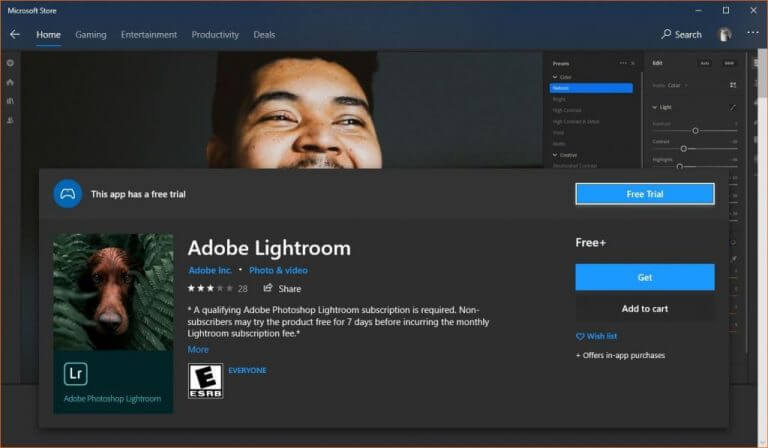
Adobe Lightroom gets native support for Windows 10 on ARM PCs and Apple Silicon Macs

Native support for Windows 10 on ARM PCs has arrived in Adobe Lightroom, in addition to Apple Silicon Macs. This new version of Adobe Lightroom brings a number of other improvements, notably for Mac users it adds support for ProRAW.

Adobe Lightroom For Windows 10 Launched Without Creative Cloud Requirement 528668 2

That’s it for this week. We will be back next week with more Windows 10 news.

How to unblock the Facebook website anywhere using 4 tools

Since it’s a social media site where people can connect and share ideas and events, Facebook is seen as controversial in many countries. It’s usually due to political or religious reasons.

As a result, you might not be able to access the online service at all if you’re living or traveling to these regions due to geoblocks. Examples include Bangladesh, Iran, China, and Egypt.

It’s not the end of the line, though. You can still unblock the Facebook website, online service and app using the tools below.

Please note that we don’t encourage you to use these software programs for bypassing government censorship if it means breaking the law. Use them at your own risk.

How can I unblock the Facebook website and get around bans?

Use a VPN

NordVPN can unblock Facebook

A VPN is the best way to bypass government censorship and access blocked websites.

It redirects you to another country where Facebook isn’t banned, making your ISP believe that you’re actually connecting from somewhere else.

Furthermore, a VPN encrypts your entire data traffic to make sure that your computer won’t leak your true IP address and location.

It’s challenging to find a VPN service with geoblocking features that can unblock the Facebook website, but we think that NordVPN nails it.

You just have to connect to a VPN server in a country where Facebook isn’t blocked (like the US), and then fire up you web browser or launch the Facebook app.

More about NordVPN:

  • Works with Windows, Android, Mac, iOS, Linux
  • OpenVPN and NordLynx (built around WireGuard)
  • Double VPN, Onion-over-VPN, and obfuscated VPN servers for anti-censorship
  • 24/7 live chat support
  • 30-day money-back guarantee (no free trial)
NordVPN

NordVPN

Use NordVPN’s powerful advanced features to bypass government censorship and unblock Facebook anywhere.
Check priceBuy it now

Use Tor

Specially built as an anti-censorship tool, Tor is an anonymous network that anyone can use for free to get around country bans and access restricted content, including Facebook.

All you have to do is download the Tor Browser, set up obfuscation mode at startup, and then unblock the Facebook website.

On the other hand, Tor isn’t as versatile as a premium VPN service like NordVPN (buy here). You can’t use it to unblock streaming content like Netflix, for instance.

Use Psiphon

use Psiphon

Psiphon is an Internet circumvention tool that uses a combination of several technologies to fight online censorship: VPN, SSH, and HTTP proxy.

It’s completely free to use. You can download Psiphon for Windows, Android, and iOS. Similar to a VPN, you just have to connect to a server location where Facebook isn’t blocked.

However, compared to NordVPN, Psiphon supports fewer servers in fewer countries. It doesn’t support Mac, Linux, routers, or 24/7 live chat support.

And you can’t use the cool anti-censorship featured provided by NordVPN (buy here), like staying connected to two VPN servers at once or disguising your VPN traffic to fly under the radar.

Use a proxy

We saved this option for last because it’s the least reliable for unblocking the Facebook website.

While a proxy server hides your IP address and offers some level of protection, it’s simply not as effective as a VPN, Tor, or even Psiphon. The encryption isn’t powerful enough.

Although there are numerous free proxy lists that you can find on the web, most ISPs have already identified and blocked them due to government requests.

If you still want to use a proxy server, we suggest checking out Shadowsocks.

Conclusion

To sum up, you can use a VPN, Tor, Psiphon or a proxy server to circumvent government censorship and unblock the Facebook website.

However, there’s no foolproof solution. And you could get in trouble for using any anti-censorship method if it means breaking the law.

What method are you using to defeat online censorship and unblock Facebook in your country? Let us know in the comment section below.

[wl_navigator]

First Surface Laptop Go firmware release targets fingerprint reader improvements

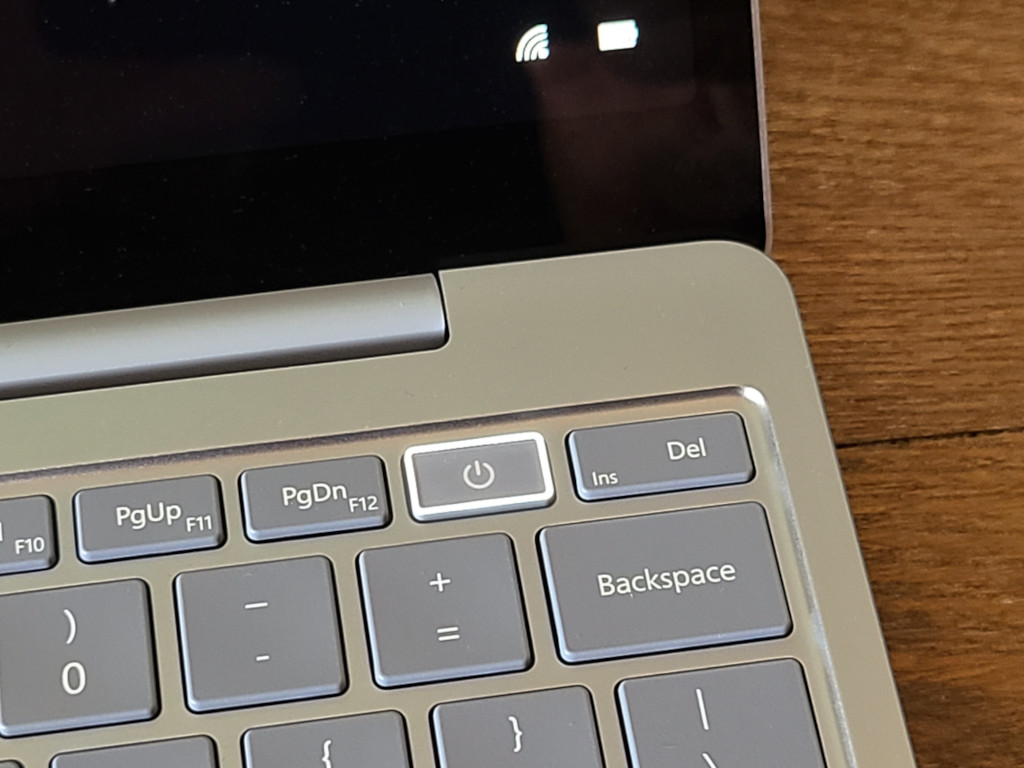
Microsoft Surface Laptop Go owners are getting treated to the device’s first-ever firmware update today, which’s bringing some improvements to the Windows Hello experience among other things.

The Surface Laptop Go has been on the market for about two months and in that time, the device has been pretty self-sufficient and with Windows 10 S Mode out of the box, there has been little need for owners to venture into update land through any wants or needs.

However, for anyone like myself who has been using the Surface Laptop Go as an Insider machine, you may have noticed the device stop reading fingerprints after the latest release.

The fingerprint reader remains a completely useless glowing slap in the face to the Surface Laptop Go’s level of security for me, so much so that when attempting to reset the recognition, the device claims that it can’t even map to the button.

Hopefully, today’s firmware update 3.15.12011.10134 addresses this issue and also improves the “reader performance” as well. Other improvements rolled into this update include optimizations to the

  • Surface System Telemetry Driver – System Device
  • Surface Touch Firmware
  • Surface UEFI Firmware

The firmware update is gradually rolling out, so some devices may not be seeing the release just yet, but it should land in the Settings App soon enough for most. For those with less patience, you could also try downloading it from Microsoft’s Download Center as well.

Let me know in the comments below, if you own a Surface Laptop Go and if you’ve had any issues with its performance or features so far.

5 best Quickbooks card readers for laptop & desktop

QuickBooks is known as one of the main accounting software services created by Intuit in order to make the payment process faster and easier for both small and medium-sized businesses.

In order to take full advantage of the various benefits of the QuickBooks application, you need a high-quality card reader that can ensure a smooth work-flow and handle a multitude of transactions on a daily basis.

In this article we want to give you the best recommendations regarding a card reader for your QuickBooks package.

What is the best card reader to use with QuickBooks?

MagTek 21040145

  • Connectivity to system host through built-in USB cable
  • Two magnetic heads for reading in one swipe
  • Decode error alert through LED indicator
  • Missing mounting brackets

This three-track card reader from MagTek deserves a top mention because it comes with two magnetic heads that allow the card to be read in just one swipe regardless of what direction the magnetic stripe is facing.

You can swipe the card backward or forward at a speed of 60″ per second thanks to the complex configuration. Another perk is that the USB keyboard emulation sends data created for hosting systems and applications that allow keyboard input.


MagTek 21040140

  • Bidirectional configuration for quick transactions
  • LED indicator for spotting decoding errors
  • Connectivity to USB 2.0 port of a host device
  • No instructions manual

Another great card reader that works perfectly with Quickbooks is this smart device from MagTek. It provides a configuration that allows you to swipe the card backward or forward at a speed of up to 60″ per second.

It comes with two magnetic heads, which means that it can be read with one swipe without worrying about what direction the magnetic stripe is facing.

This three-track magnetic card reader provides a built-in, 6 feet USB cable that allows you to connect it to any type of PC.


MSR90 USB Swipe

  • Reliable for over 1,000,000 card swipes
  • Compatible with Windows OS, Mac OS, and many other USB capable operating systems
  • Small footprint to fit in tight places
  • Not compatible with two-track cards

This magnetic card reader has gained a reputation among users for being a great match with QuickBooks apps and services.

A device that consists of a USB emulation keyboard interface that doesn’t need any driver or software, in order to function. All you need to do is plug in and play.

It has the capacity to read up to 3 tracks of information: ISO7811, AAMVA, CA DMV and many other card data formats.

You’ll definitely get the job done much faster thanks to the bi-directional swipe reading feature that works even on damaged cards


Fdit Credit Card Read

  • Interface with USB emulation Keyboard
  • Operating temperature: -20 to +60
  • Compatible with: Windows XP, Windows7, Windows8, Linux
  • Cannot store the card data

This magnetic credit card reader is able to read up to three tracks of information when the card is swiped in either direction and works great with the QuickBooks services.

It offers compatibility with a variety of card formats such as ISO7811, AAMVA, CA DMV, and many others. The configuration system is very user-friendly and can be customized to your basic needs.


Honsdom USB Credit Card

  • Bi-directional swipe reading magstripe cards
  • LED indicator for code errors
  • ISO7811, AAMVA, CA DMV readability
  • Not suitable for a system that requires an encrypted reader

A pack of two magnetic credit card readers that offer QuickBooks compatibility and can read three tracks Hi and Lo coercivity magnetic stripe cards.

Thanks to the bidirectional swipe reading that works with TXT, notepad, Word, Excel, POS systems, you can rely on over 1,000,000 card swipes, an aspect that will improve your work-flow significantly. It also supports a multitude of card formats like ISO7811, AAMVA, CA DMV.

These magnetic credit cards offer compatibility with a multitude of USB operating systems like Windows and MAC OS.


As you can see there are a few aspects you should consider when it comes to a credit card reader that also offers QuickBooks compatibility and we presented you with some of the best options of the moment.

We’d also like to hear your opinion so please share your thoughts with us by using the comment section bellow.

FIX: Low FPS in Cyberpunk 2077

Cyberpunk 2077 is a Sci-Fi RPG created by CD Projekt Red, the same developers that brought the Witcher to the gaming world.

The game is an amazing display of how far technology has come, but it did get off to a rocky start at launch, being plagued by issues like crashes, not being able to launch and more.

Unfortunately, a lot of the players that did make the game work are complaining about performance issues, such as FPS drops, performance spikes, long loading times, and more.

Because the game is so popular, we’ve decided to look into several solutions that can se used to fix the problem, and we will be listing them to you in a step-by-step manner in the guide below.


How do I fix performance issues in Cyberpunk 2077?

1. Check your PC’s system requirements

Your go-to solution whenever you are facing performance issues in games is to check out whether your PC meets the minimum system requirements or not.

In fact, most of the times not having a powerful PC can prevent you from launching the game entirely.

That being said, check out the official system requirements of Cyberpunk 2077.


2. Lower your video settings

If your PC does meet the minimum system requirements but still has low FPS, then your next best solution is to simply play the game at lower video settings.

While the game will indeed no longer look as appealing, at least it will be able to play it.


3. Update your device drivers

err network changed update drivers

If your PC is powerful enough to run Cyberpunk 2077, it amounts to nothing if the drivers running it are outdated, especially the GPU‘s drivers.

That being the case, a good third-party software utility can come in handy to repair, update, and find all the missing drivers that your PC needs, and one such tool is Outbyte Driver Updater.

Outbyte Driver Updater automatically update drivers

Not only will it completely bring your PC up to date driver-wise, it is also incredibly easy-to-use, and lightweight.

Outbyte Driver Updater

Outbyte Driver Updater

Cyberpunk 2077 will run faster and better with updated drivers. Use Outbyte Driver Updater to boost your PC now!
Check priceVisit website

4. Verify the integrity of your game’s cache

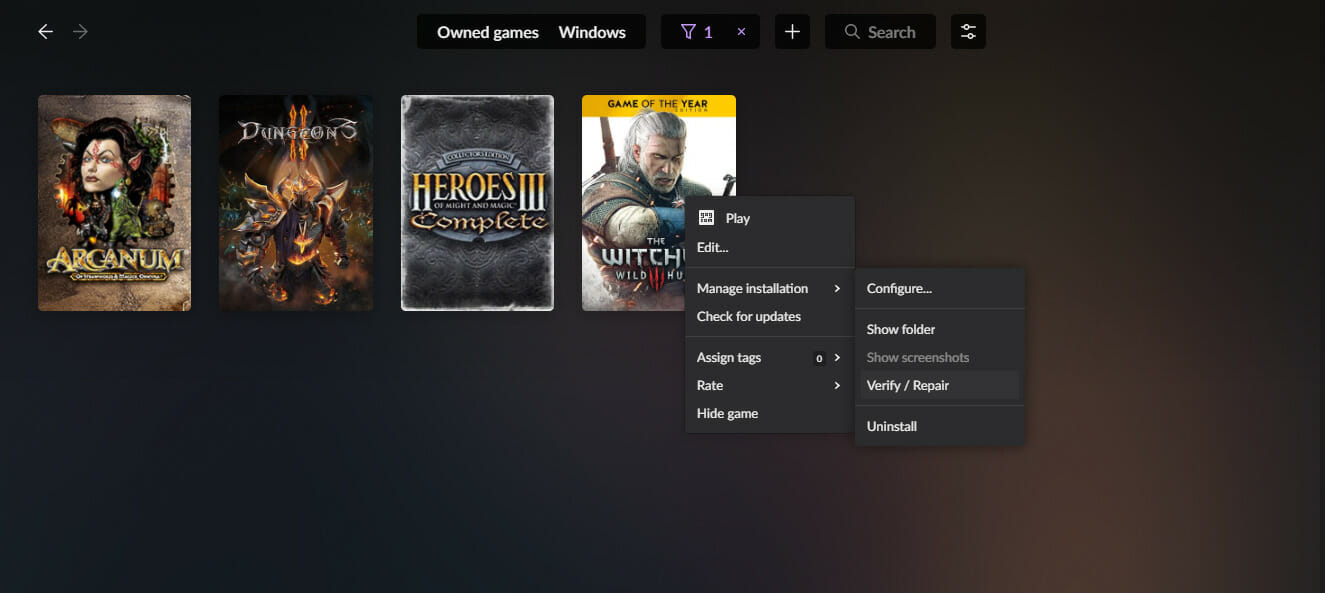
4.1. GOG players

  1. Launch GOG Galaxy
  2. Go to the Owned games library menu
  3. Choose Cyberpunk 2077
  4. Select Customize
  5. Click on Manage installation
  6. Select Verify / repair

4.2. Steam players

  1. Start Steam
  2. Navigate to the Library section
  3. Right-click on Cyberpunk 2077
  4. Choose Properties
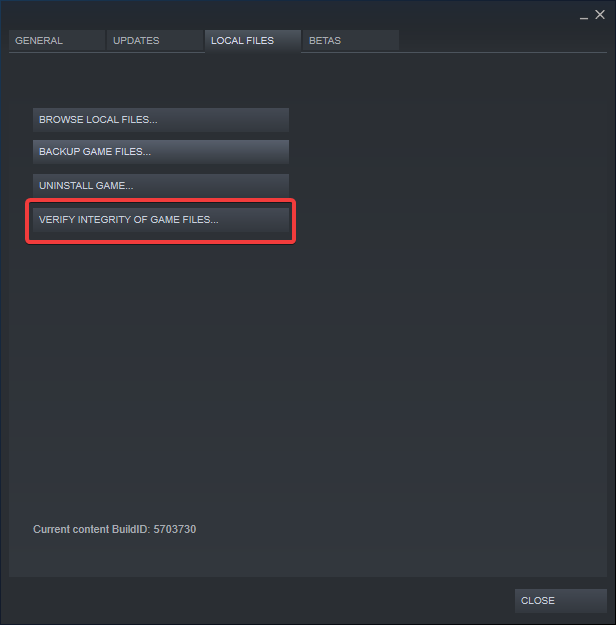
  5. Go to the Local files tab
  6. Click on Verify integrity of game files…

4.3. Epic Games players

  1. Start the Epic Games launcher
  2. Navigate to the Library section
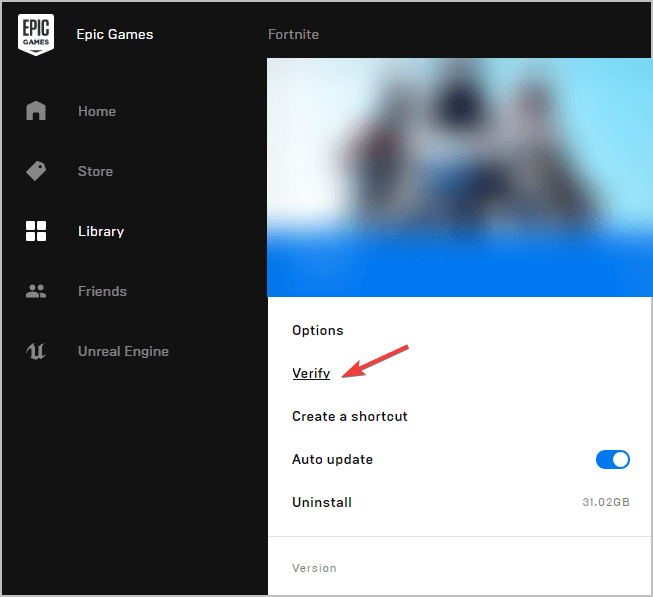
  3. Look for the game click on the three dots 
  4. Select Verify

5. Update your PC

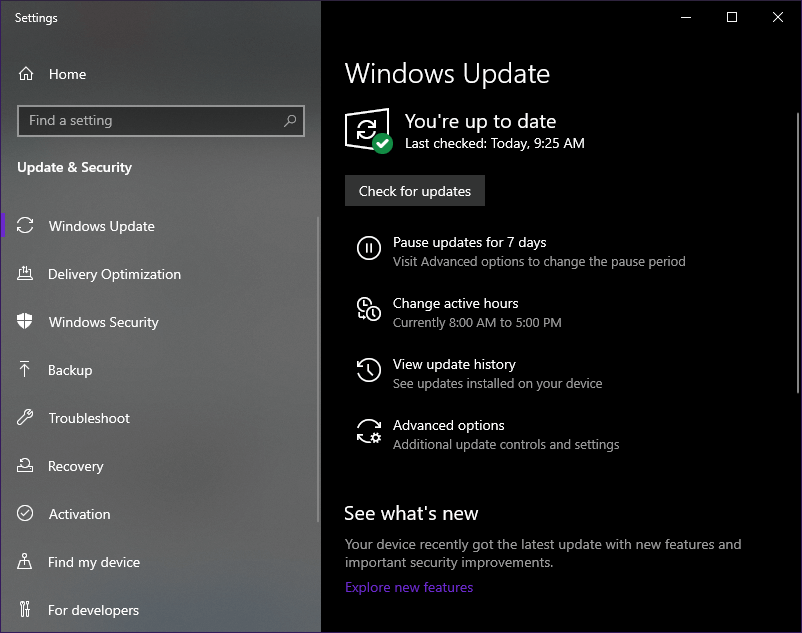
  1. Press Start
  2. Type in update and select Check for updates
  3. In the Windows Update menu, select Check for updates
  4. Download and install any updates if any are found
  5. Restart your PC

6. Upgrade your PC

This is arguably the most costly solution, yet it is a surefire way to ensure that performance issues in Cyberpunk 2020 will be a thing of the past.

If you don’ have the budget to replace the entire PC, here are some of the key components that can make a difference in terms of gaming performance:

⇒ GPU

⇒ CPU

⇒ HDD

⇒ SSD 

Note: replacing your PC’s HDD with an SSD will greatly decrease loading times if Cyberpunk 2077 is installed on it

If you do have the budget to replace your entire PC, there are several PCs out there that will run Cyberpunk 2077 like it were nothing.

For those that like gaming on the go, a gaming laptop is also a viable option.


By following these steps, you should be able to have a smooth experience playing Cyberpunk 2077.

Let us know if there are other tips you tried that worked by leaving us a message in the comments section below.

[wl_navigator]

How to use the Microsoft Lists advanced list editor

Microsoft Lists is a new data storage and organisation system that blends spreadsheets, databases and web apps together. Lists is really a new interface atop the existing SharePoint Lists infrastructure. We’ve previously shown how to create a new list within Lists itself; now, we’ll go in-depth on list configuration by using the SharePoint interface.
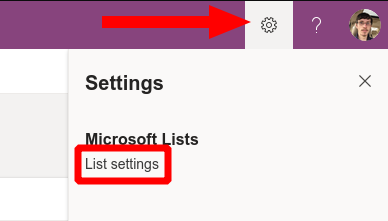
Screenshot showing Microsoft Lists settings

Lists does a good job of making itself as accessible as possible. The SharePoint backend is only revealed when you go looking for it. When you’re viewing a list, click the Settings icon in the top-right, then “List settings” to open the configuration options in SharePoint.

The SharePoint List Settings screen is much denser than what you get within the Lists app. You have extensive management options for customising the list’s fields, validation, permissions and metadata.

General Settings

Starting from the top, the “General Settings” contain global controls which apply to the list itself, or all data within the list. We’re not going to cover every option here as many of them are only used within the SharePoint Lists UI, not the Lists app.
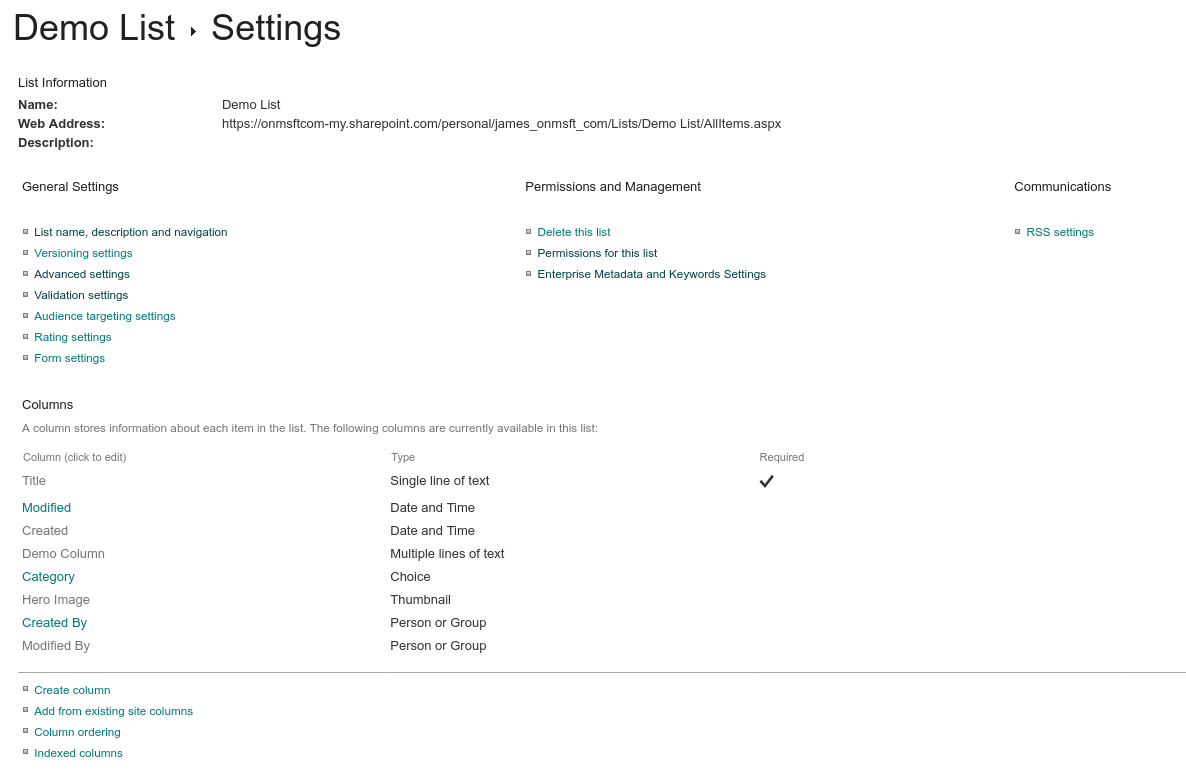
Screenshot of configuring a Microsoft Lists list using the SharePoint settings interface

Some notable settings can be found in “Advanced settings”. “Item-level permissions” allows you to control what users can see on shared lists, such as all items or only items they’ve created themselves.
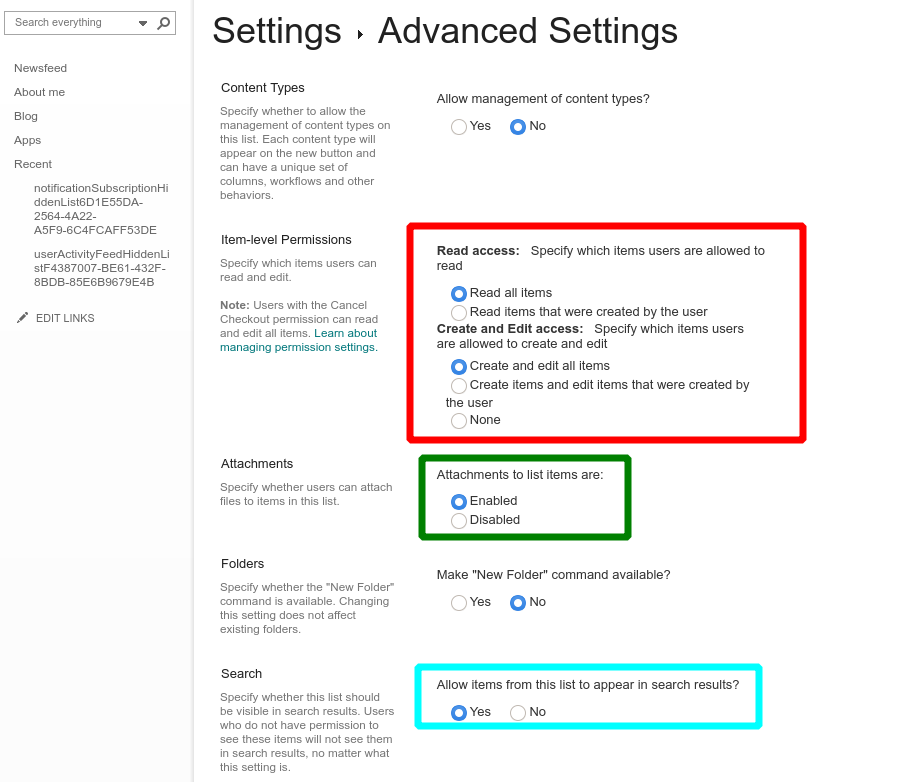
Screenshot of configuring a Microsoft Lists list using the SharePoint settings interface

The “Attachments” option can be used to disable the ability to add attachments to new items in lists, which is on by default. Further down the screen, there’s settings to control whether list items can display in search results and whether they can be downloaded to users’ devices.

Columns

Back on the main list settings screen, the “Columns” section is worth further attention. Clicking a column name will allow you to edit its properties. The options available here will depend on the column’s data type. Some examples you might see include the ability to set maximum character lengths (for text fields), set the default value for new items and toggle whether the field is a required input.
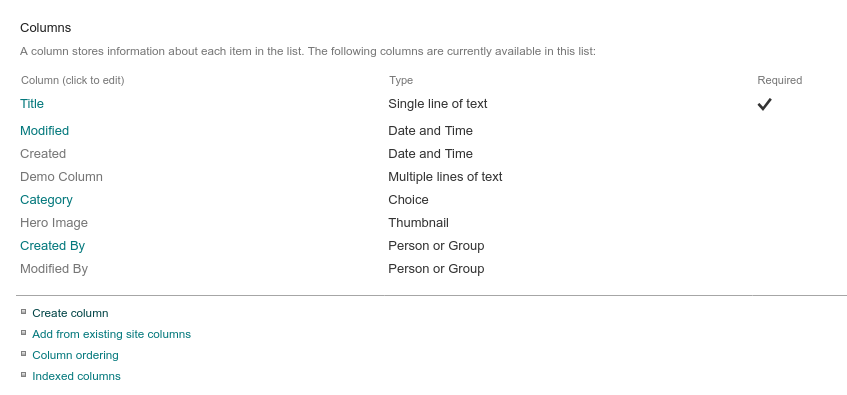
Screenshot of configuring a Microsoft Lists list using the SharePoint settings interface

Interactive data types, such as the multiple choice select component, will have more settings. These may include the ability to change the type of input used, allowing you to choose between radio buttons or a dropdown menu. Most – but not all – of these options are available when editing columns within the main Lists app. Using the SharePoint settings screen exposes all the possible settings, giving you the most control over how data is stored and presented.
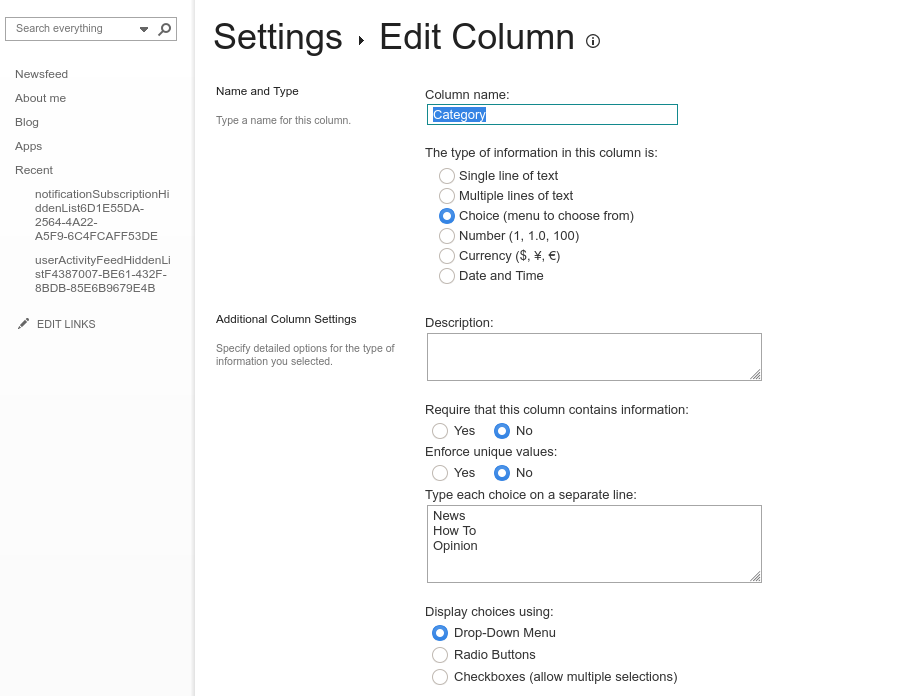
Screenshot of configuring a Microsoft Lists list using the SharePoint settings interface

You can create a new column using the “Create column” link on the List settings page. You’ll need to choose a column name, select the data type and fill out the settings fields for that data type. The “Add to default view” checkbox should be left selected to make sure the field shows up by default in the Lists interface.

Views

On the subject of views, you can manage these within the “Views” section at the bottom of the settings page. You can create new views and edit existing ones. A “view” defines the fields to show in the Lists UI. You start with a single “All Items” view by default. When you add additional views, you can access them in Lists by clicking the name of the current view in the top-right.
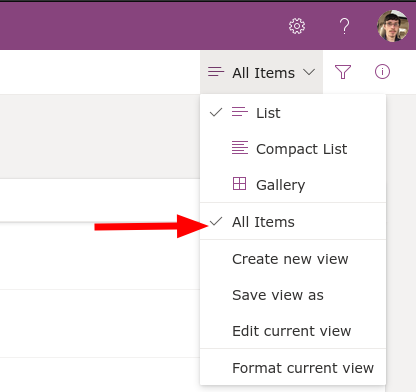
Screenshot showing Microsoft Lists view selection menu

The View settings screen allows you to choose which fields to display and the order to display them in. You can also set up the sorting order for rows of data and configure default filters. In the column selection section, you’ll see several off-by-default fields which are usually hidden. Turn them on to add default metadata to the List view, such as the name of the item’s author (“Created By”) or its modifiation time (“Modified”).
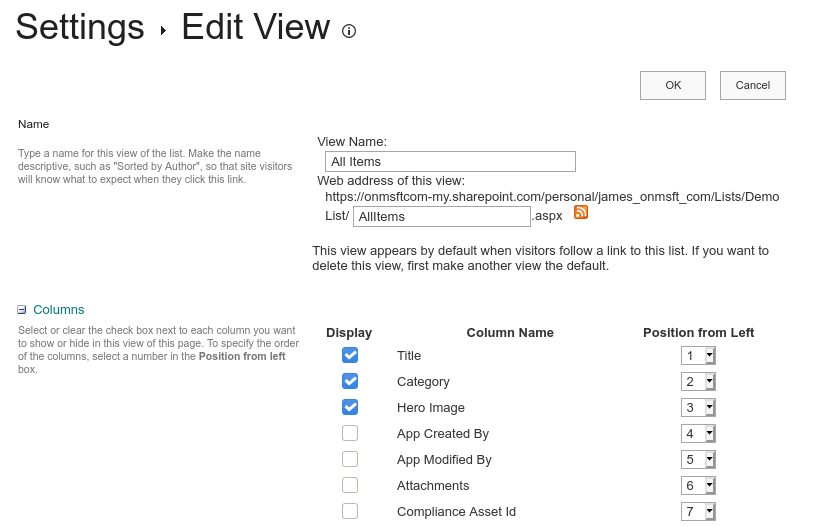
Screenshot of configuring a Microsoft Lists list using the SharePoint settings interface

Further down the view settings screen, you’ll find sections that allow you to configure whether totals are displayed at the bottom of columns, whether data should be grouped together and how many data items should be displayed on a single screen. The final section, “Mobile”, lets you choose whether to make this view available on mobile devices. The default lists for desktop and mobile can be set independently of each other, so it’s possible to provide a customised view for smaller devices.
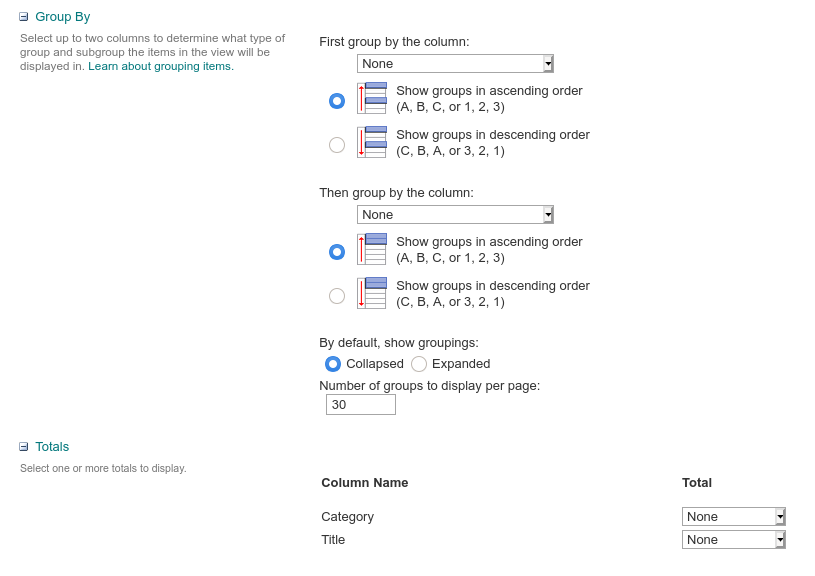
Screenshot of configuring a Microsoft Lists list using the SharePoint settings interface

The SharePoint settings screens are far less accessible than Lists itself is. You may not need to use them often though, as the most commonly used capabiltiies are supported within Lists’ own configuration panels.
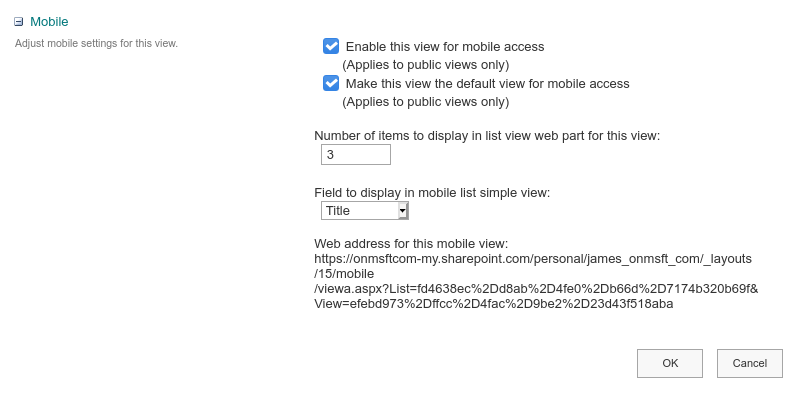
Screenshot of configuring a Microsoft Lists list using the SharePoint settings interface

The power of Lists comes in its versatility – you can get started with a basic list very quickly and then add more advanced capabilities over time. Eventually, you may reach a point where you need a SharePoint option that isn’t exposed in the Lists UI. When that time comes, click “List settings”, break through the Lists facade and begin utilising the capabilties – and complexity – of SharePoint instead.


New sleeping tabs feature in Edge lets you reduce CPU usage

Microsoft has been working hard to make Chromium Edge stand out and it started testing a feature in Edge Canary back in September.

This basically allowed users to freeze tabs in the background when not being used. This technology is based on Chrome‘s built-in freezing feature, which easily pauses scripts on a page when you’re looking at it.

Now, Microsoft is ready to deploy this feature to all users running Microsoft Edge Beta 88. As expected, it is meant to deliver a significant decrease in CPU and battery usage.

Numbers look quite promising. In fact, that’s precisely what Microsoft reveals:

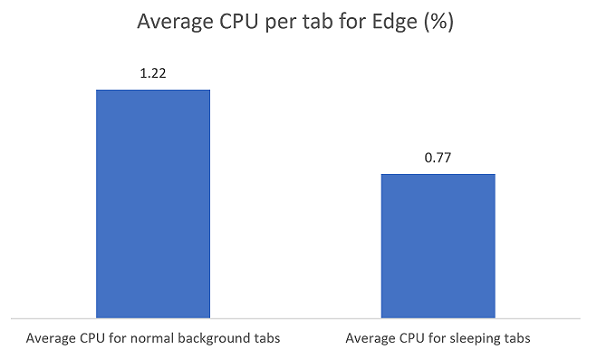
Using sleeping tabs on Microsoft Edge typically reduces memory usage by 32% on average. It also increases your battery life as a sleeping tab uses 37% less CPU on average than a non-sleeping tab.

What’s this new sleeping tabs feature in Edge all about?

The new feature is meant to force inactive background tabs to automatically go to sleep. This releases system resources after a pre-defined amount of time.

Do note that that sleeping tabs in Microsoft Edge will make tabs go to sleep only after 2 hours of inactivity.

Even so, this makes a huge difference when it comes to redirecting those valuable CPU and battery resources for newly opened or active tabs, as well as other applications on your computer.

Average CPU

You should see a fade on the tab when it is asleep, so feel free to click it whenever you want to bring it back to life.

On top of all these, recent updates include an option to put tabs to sleep even after 5 minutes of inactivity and new group policies to manage sleeping tabs.

Keep in mind that you can find more related settings for this by entering edge://settings/system in the URL bar. Don’t forget to let us know your feedback on sleeping tabs in the comments area below.

Fix: Cyberpunk 2077 Doesn’t Launch

Cyberpunk 2077 is the latest rage in terms of RPG games, and many have awaited the official launch despite being delayed so many times.

Well, the game is out, but many users have been facing issues with it, many of them reporting that they are having problems launch the game in the first place.

Because the game is so popular, we’ve decided to create a step-by-step guide on how you can fix this issue, and finally make Cyberpunk 2077 launch properly on your PC.

How do I make Cyberpunk 2077 launch properly on Windows 10?

1. Make sure that your PC meets the minimum system requirements

One cannot deny that Cyberpunk is a mammoth of a game, and that you need a powerful gaming PC to run it properly.

That being the case, check out the official system requirements of Cyberpunk 2077:

If you notice that your PC is well-below even the minimum system requirements, then maybe your should consider some upgrades:

⇒ A better GPU

⇒ A faster CPU

⇒ An entirely new desktop PC

⇒ A powerful gaming laptop


2. Update your display drivers

Outbyte Driver Updater-Banner

As mentioned above, Cyberpunk 2077 need a powerful PC to run, the core being your device’s GPU.

However, it’s not enough to have the hardware if the device drivers are only, missing, or installed in a faulty way, and that is when a dedicated driver updater can come in handy.

Outbyte Driver Updater automatically update drivers

The best driver updater currently on the market is Outbyte Driver Updater, and not only will this tool scan your PC for outdated drivers, it will also fix the broken one, and find you the missing ones.

The program is lightweight, since the library of drivers is entirely online, and it is constantly updated to the latest version, so you know your PC will always be taken care of.

Outbyte Driver Updater

Outbyte Driver Updater

Your GPU’s drivers are the main cause of visual bugs, and games not launching. Play whatever you want by using Outbyte Driver Updater!
Check priceVisit website

3. Uninstall all Microsoft Visual C++ redistributables 

  1. Press Start
  2. Press control and launch the Control Panel
  3. Select Uninstall a program
  4. Select your Microsoft Visual C++ redistributables one by one, right-click them, and select Uninstall
  5. Go to Microsoft Support to download them again again and perform a clean reinstall

4. Disable apps with in-game overlay before launch

Since Cyberpunk 2077 is still relatively new, it may have issue interacting with apps that offer in-game overlay.

That being the case, disable these following apps:

  • GeForce Experience
  • MSI Afterburner
  • MSI Gaming app
  • Riva Tuner
  • Overwolf
  • Uplay
  • Fraps

5. Launch Cyberpunk 2077 in Clean Boot mode

  1. Press Start
  2. Type in msconfig and select System Configuration
  3. Open the Services tab
  4. Click Hide all Microsoft services
  5. Click on Disable all
  6. Open the Startup tab
  7. Click on Open Task Manager
  8. Select each item in the Startup tab, and disable them all
  9. Close the Task Manager
  10. Click OK
  11. Restart your PC, and try launching Cyberpunk 2077 again

By following these steps, you should be able to launch Cyberpunk 2077 properly, and enjoy another amazing RPG brought to your by CD PROJEKT RED.

Other gamers complained about Cyberpunk 2077 corrupted or missing scripts file but our guide will help you fix it.

Have you tried any other trick that worked that we haven’t covered? Let us know by leaving a message in the comments section below and we will update the article accordingly.

FIX: Cyberpunk 2077 has flatlined [Crash Error]

If you’re a fan of RPG games, especially the critically-acclaimed Witcher series, then you’re probably well-aware of Cyberpunk 2077, a brand new Sci-Fi RPG launched in December 2020.

Unfortunately, PC players got off to a rocky start since the game was still released with a lot of bugs despite several delays aimed at polishing the final product.

Because of the game‘s popularity, we’ve decided to compile a step-by-step guide on how you can solve many of these crashes.


How do I fix game crashes in Cyberpunk 2077?

1. Update your GPU drivers

Outbyte Driver Updater-Banner

Like most games nowadays, it is important that your PC meets all the system requirements if you want them to run properly.

Outbyte Driver Updater automatically update drivers

If your PC does meet the hardware requirements, make sure that the drivers are updated as well.

One great way of updating your drivers to the latest version fast and without issues is via a dedicated driver updater, and few on the market are as good as Outbyte Driver Updater.

Not only will this tool detect all of your missing, broken, or outdated drivers, but it will find them and download them for you as fast as your Internet speed allows it.

More so, the tool is designed to be used by all users, and it supports all drivers and hardware components thanks to the host of libraries that back it up.

Outbyte Driver Updater

Outbyte Driver Updater

Games won’t run if your GPU drivers are updated to the latest version. Make sure that isn’t an issues anymore with Outbyte Driver Updater!
Check priceVisit website

2. Update your PC

  1. Press Start
  2. Go to Settings (the cogwheel-shaped button)
  3. Select Updates & Security
  4. Select Check for updates
  5. Download the updates, if any are found, and restart your PC to apply them

3. Launch the game straight from the executable

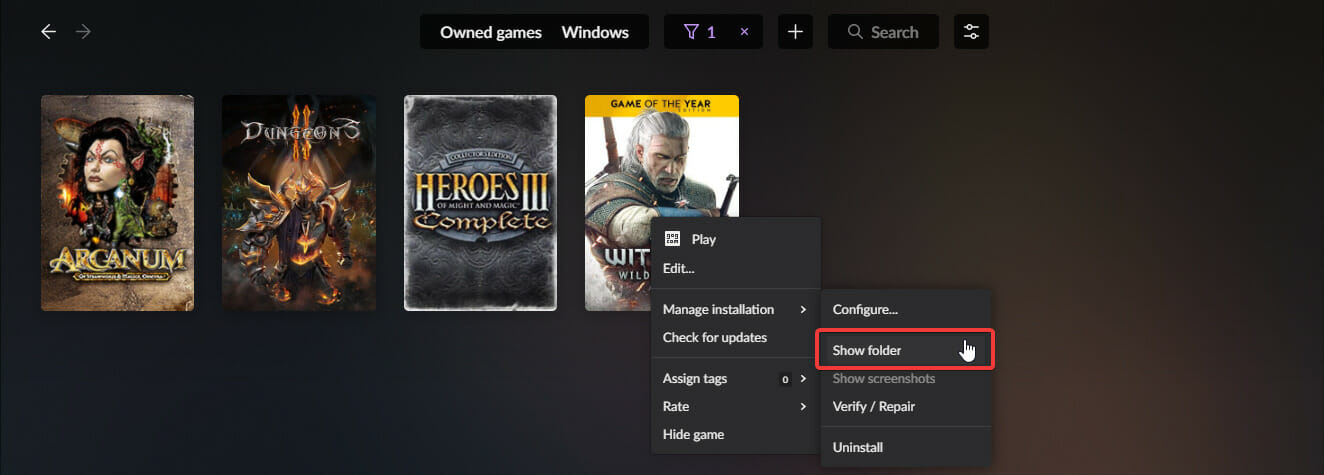
3.1. GOG players

  1. Launch GOG Galaxy and log into your GOG account
  2. Go to Owned games and choose Cyberpunk 2077
  3. Select Customize
  4. Choose Manage installation
  5. Choose Show folder
  6. Go to bin, select x64, and launch the game from Cyberpunk 2077.exe

3.2. Steam players

  1. Launch Steam
  2. Go to the Library section
  3. Right-click on your game
  4. Select Properties
  5. Go to the Local files tab
  6. Click on Browse local files
  7. Go to bin, choose x64, and launch it from Cyberpunk2077.exe

3.3. Epic Games players

By default, the game’s launcher should be found in the following location:

C:Program FilesEpic GamesCyberpunk 2077binx64

4. Verify the integrity of the game cache

4.1. GOG players

  1. Launch GOG Galaxy and log into your GOG account
  2. Go to Owned games and choose Cyberpunk 2077
  3. Select Customize
  4. Choose Manage installation
  5. Click on Verify / repair

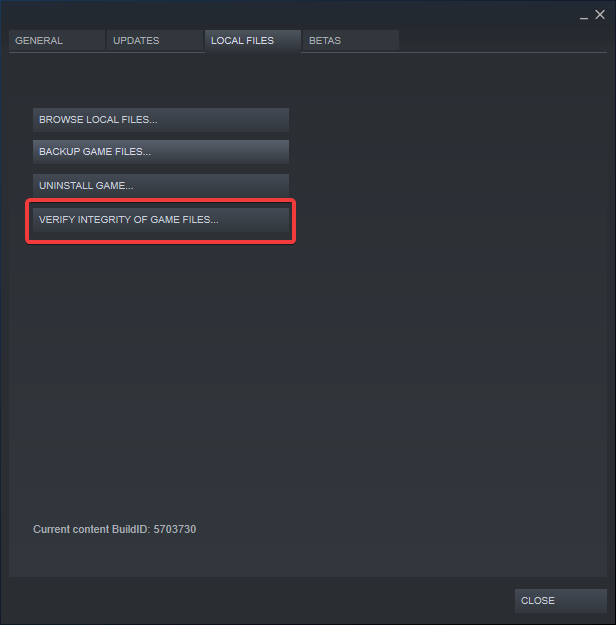
4.2. Steam players

  1. Launch Steam
  2. Go to the Library section
  3. Right-click on your game
  4. Select Properties
  5. Go to the Local files tab
  6. Click on Verify integrity of game files…

4.3. Epic Games players

  1. Launch Epic games
  2. Go to the Library section
  3. Go to the game click on the three dots next to it
  4. Select Verify

5. Reinstall the game

While the game is indeed massive and this solution will take a while, regardless of how fast your PC is, reinstalling the game is a sure-fire way of making sure that files will the installed correctly.

Just remember that while you are doing it, it would be best if you closed all other apps so that nothing interferes with the setup.


By following these steps, you should be able to get rid of any crashes when trying to play Cyberpunk 2077.

Do you know of any other solutions that you’ve tried and have proven to be useful? Let us know by leaving your feedback in the comments section below, and we will update the article accordingly.

[wl_navigator]

Rumor: Windows 10X has been compiled, could be ready for new devices early next year

Although Microsoft doesn’t like to publically talk about its next-generation operating system, Windows 10X, it seems as though the company has made some big internal progress on it. According to Windows Central’s Zac Bowden, Microsoft has apparently just complied a final build of Windows 10X.

As a reminder, while Windows 10X was once intended for dual-screen devices like the now-delayed Surface Neo, but Microsoft has re-worked its purpose. Now, the operating system is believed to be shipping on new lightweight and budget PCs only, which are expected to be seen sometime next year. This means rumor still has it that Windows 10X won’t be available for existing PCs or tablets like Surface Go 2.

Anyway, Bowden does offer an interesting note. December 10 was intended as the “final build” day for Windows 10X, but Microsoft isn’t quite done with the OS just yet. The company is still working on bug fixes between now and whenever new PCs start shipping with the operating system onboard.

With this in mind, it definitely looks as though 2021 will be exciting for Windows. While the Spring might again bring a small regular Windows 10 release, we could see Windows 10X launch alongside it, on new devices. Then, in the fall, see the rumored “Sun Valley” redesign with the “Cobalt” update.

Recap: The Game Awards packs big Xbox news, new trailers, gameplay footage and releases into its end-of-the-year show

Last night the gaming industry was treated to a host of news, trailers, and announcements as it celebrated the 2020 Game Awards.

With everyone’s eyes on the awards show, Microsoft took that opportunity to unload a ton of its end of year announcements in almost rapid-fire succession unveiling that Flight Simulator would be making its way to Series X|S consoles, Master Chief making an appearance in Fortnite, ARK II console exclusive, a reboot of Perfect Dark from its new studio The Initiative, and a lot more.

As for the show itself, Sony exclusive Last of Us II went home with seven awards ranging from Game of the Year to Innovation in Accessibility while other winners such as Animal Crossing: New Horizons took home Best Family Game and Microsoft’s Flight Sim owned the Best Sim/Strategy category.

We’ll save you the three-hour viewing and list of the winners from last night’s award show here (GameSpot has the full list).

Game of the Year

  • WINNER: The Last of Us Part II
  • Animal Crossing: New Horizons
  • Doom Eternal
  • Final Fantasy VII Remake
  • Ghost of Tsushima
  • Hades

Best Game Direction

  • WINNER: The Last of Us Part II
  • Final Fantasy VII Remake
  • Ghost of Tsushima
  • Hades
  • Half-Life: Alyx

Best Narrative

  • WINNER: The Last of Us Part II
  • 13 Sentinels: Aegis Rim
  • Final Fantasy VII Remake
  • Ghost of Tsushima
  • Hades

Best Art Direction

  • WINNER: Ghost of Tsushima
  • Final Fantasy VII Remake
  • Hades
  • Ori and the Will of the Wisps
  • The Last of Us Part II

Best Score And Music

  • WINNER: Final Fantasy VII Remake
  • Doom Eternal
  • Hades
  • Ori and the Will of the Wisps
  • The Last of Us Part II

Best Audio Design

  • WINNER: The Last of Us Part II
  • Doom Eternal
  • Half-Life: Alyx
  • Ghost of Tsushima
  • Resident Evil 3

Best Performance

  • WINNER: Laura Bailey as Abby (The Last of Us Part II)
  • Ashley Johnson as Ellie (The Last of Us Part II)
  • Daisuke Tsuji as Jin Sakai (Ghost of Tsushima)
  • Logan Cunningham as Hades (Hades)
  • Nadji Jeter as Miles Morales (Marvel’s Spider-Man: Miles Morales)

As for other reveals from the night, fans were treated to gameplay footage for Back 4 Blood, a new Cyberpunk 2077 Forza Horizon 4 DLC, Dragon Age 4 Endless Dungeon, new Warframe content, CoD: Black Ops Cold War Season 1 gameplay, a trailer for Elite Dangerous, Evil Dead gameplay, Elder Scrolls Online and so much more.

The three-hour event has been archived on YouTube for anyone who wants to comb through the piles of news, trailers, and gameplay shown during last night’s award show.

Outlook for Windows is getting text predictions in January

Microsoft is working on a new text prediction feature for Outlook for Windows that is similar to the web version of the app. The company has announced through the Microsoft 365 Admin center that the feature will begin rolling out to users in late January.

As the name suggests, text predictions will suggest words and phrases while the user is composing an email in English. Outlook users will be able to accept suggestions by pressing the tab or the right arrow key. If they continue to type while ignoring the suggestions, the text predictions will disappear automatically.

Suggestions

At launch, the feature will be on by default, and users will be able to turn off the text predictions by heading to the Mail options in Outlook for Windows. “Disabling this feature in Outlook for Windows will not affect text predictions in Outlook on the web or Outlook for iOS. Eventually, text predictions will support additional languages, which will not require an update to the application or settings.” the company explained.

The addition of text predictions will be a welcome one for Outlook users, and it’s handy for people who deal with a large volume of emails. Do you think that the new experience will help you to be more productive? Let us know in the comments down below.


Microsoft Lists – How to create a new list from scratch

Microsoft Lists is a data management solution mixing elements of Excel spreadsheets, Access databases and third-party low code solutions such as Airtable. In this guide, we’ll show you how to get started creating a new list from scratch – if you’re looking for a more general overview of Lists, try reading our Getting Started guide first.

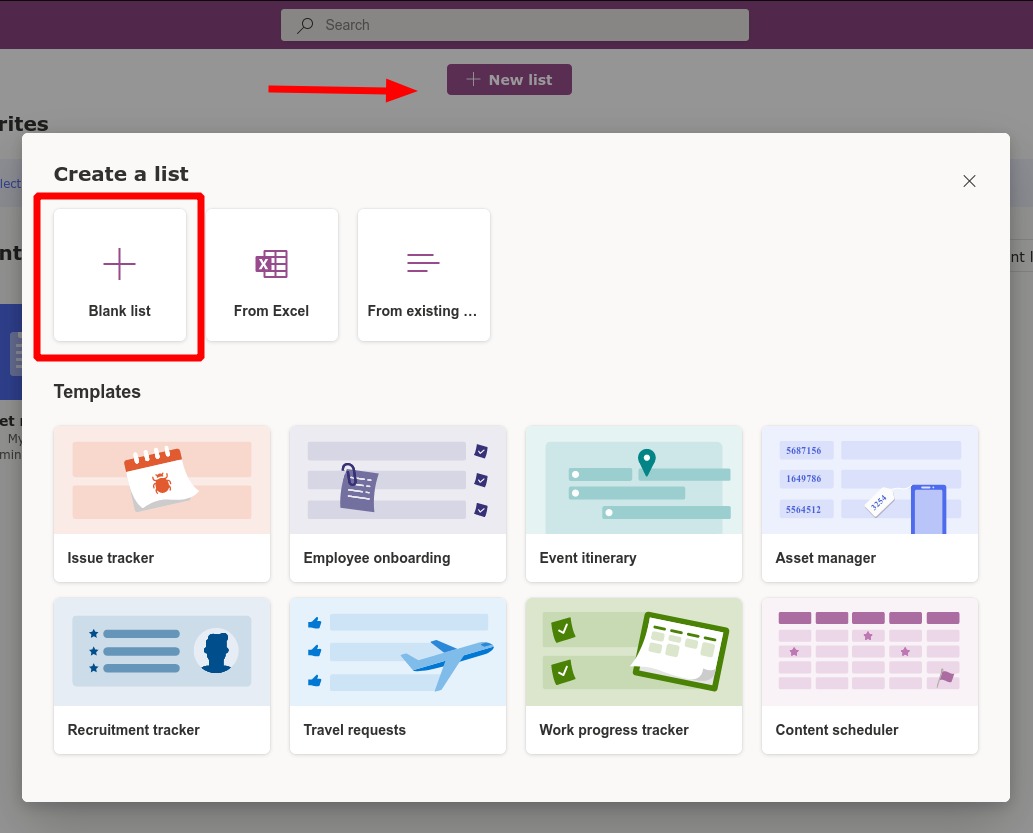
Login to your work or school Microsoft 365 account and launch Microsoft Lists from the app launcher. Click the “New list” button at the top of the app, then select the “Blank list” option.

Screenshot of list creation in Microsoft Lists

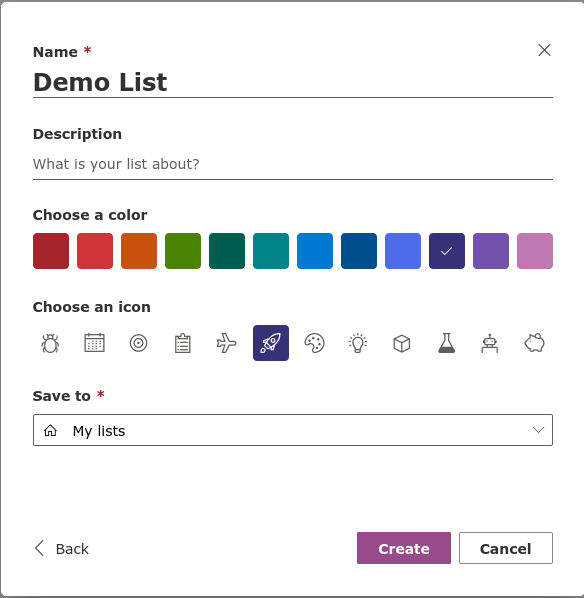
Give your list a name and assign it a colour and icon. The latter two are purely decorational elements to help lists stand out against each other within the app’s UI.

Screenshot of list creation in Microsoft Lists

At the bottom of the form, you’ll need to choose where to save the list to. The default “My lists” option will result in a personal list which only you have access to. Within the dropdown menu, you’ll find the ability to save to a SharePoint team site. Selecting a site will make the list available to everyone with access to that site.

Screenshot of column creation in Microsoft Lists

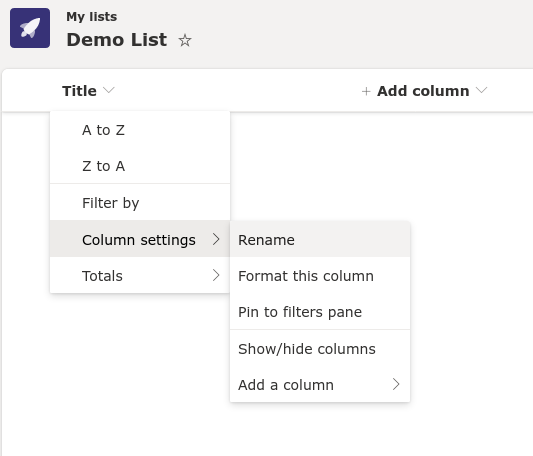
Once your list has been created, you can begin to define columns of data. A single “Title” column is created by default. You can rename this by hovering its name, selecting “Column settings” and then choosing “Rename”.

Screenshot of column creation in Microsoft Lists

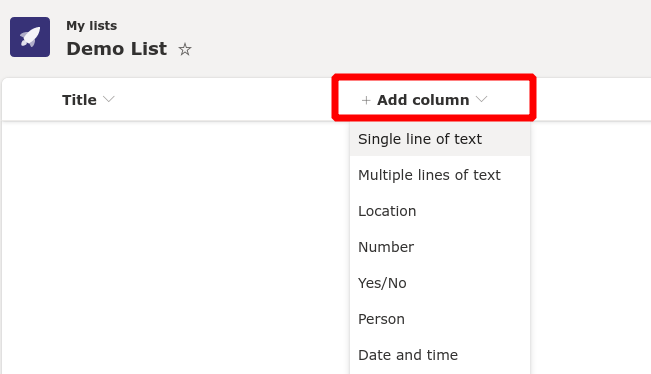
To add new columns, click the “Add column” button. You’ll need to choose a data type for the data you’ll enter in the column. A large variety of options are available. They vary from basic text to interactive elements such as a multiple choice selection.

Screenshot of column creation in Microsoft Lists

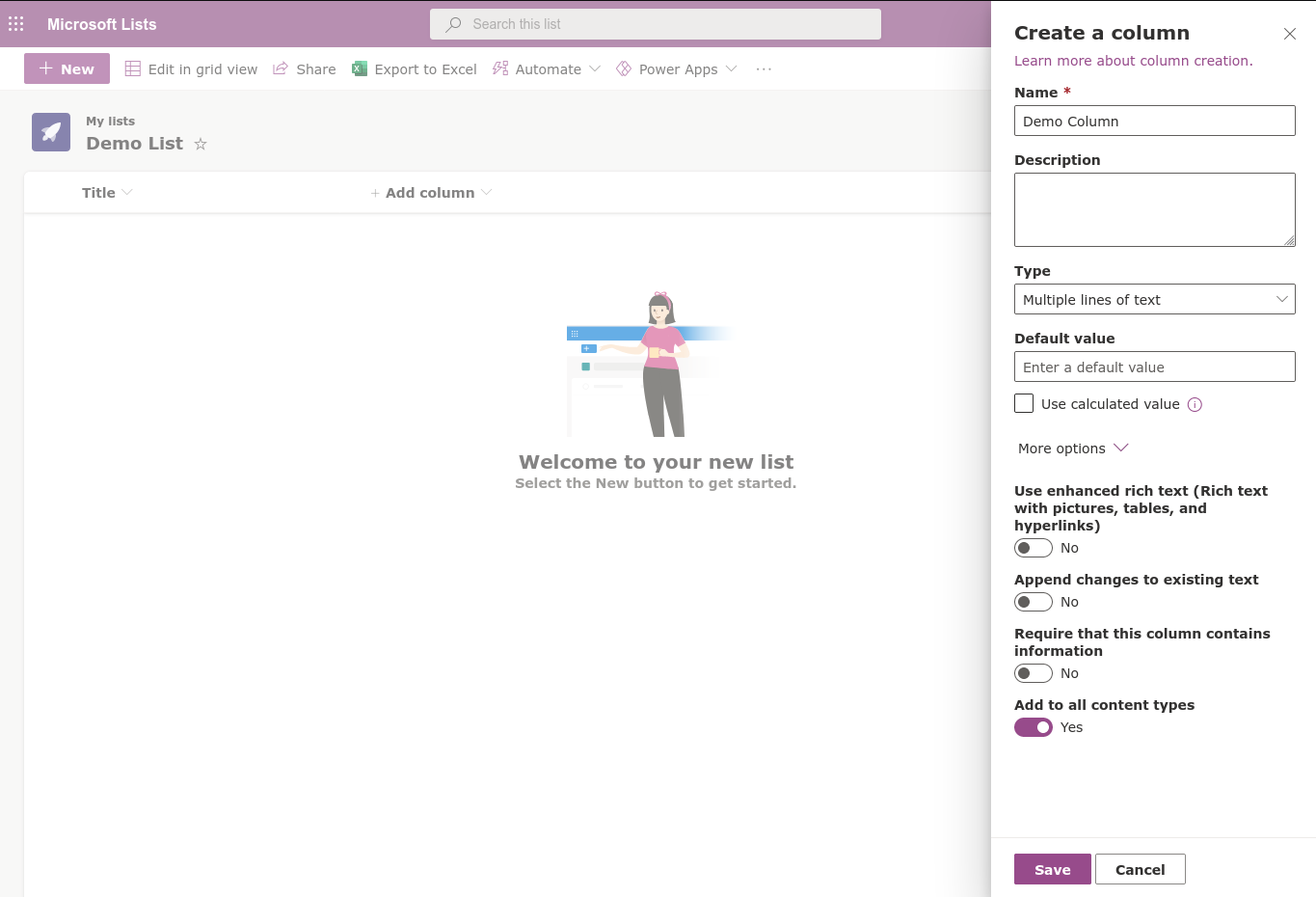
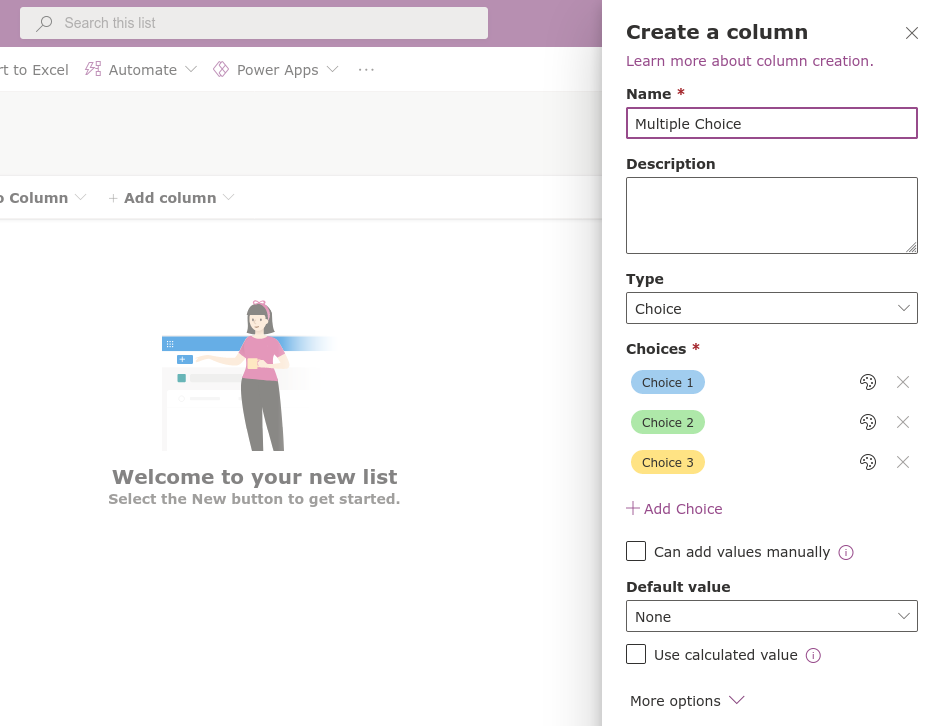
After you’ve selected a data type, a flyout pane will appear from the right. Here, you can name your column, add a description and set the default value for newly added cells. The exact options you’ll see here will vary depending on the data type you selected. There’s too many possible permutations to cover in one article – we encourage you to experiment with different data types, explore the settings which are available and evaluate the differences in how they display data.

Screenshot of column creation in Microsoft Lists

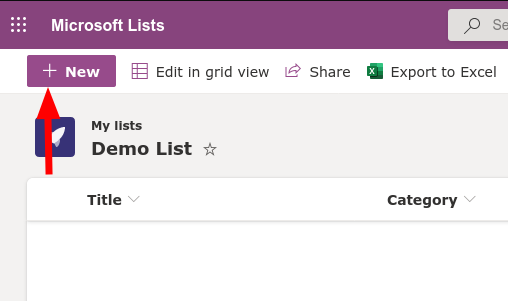
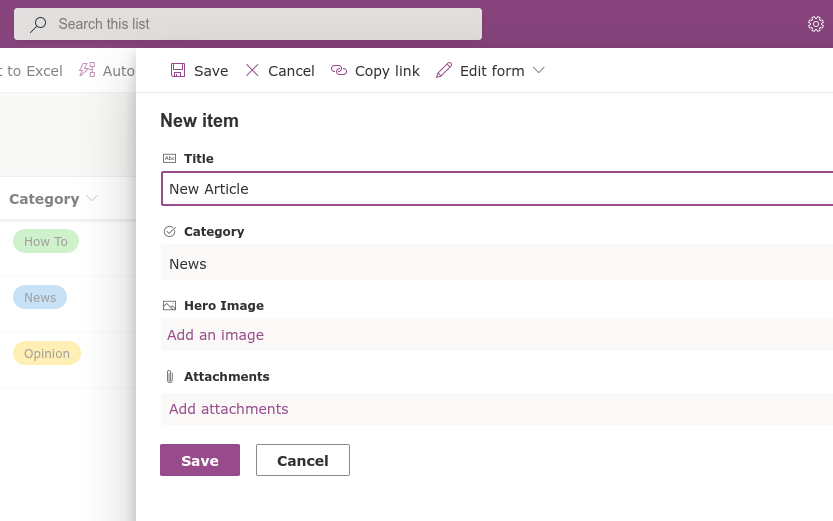
Once you’ve added some columns, you’re ready to start populating your list with data. Click the “New” button in the top-left to bring out the “New item” flyout from the right.

Screenshot of adding a new item to Microsoft Lists

You’ll need to supply values for each of the columns in your list. The form fields will automatically use appropriate inputs for the data type of each column.

Screenshot of adding a new item to Microsoft Lists

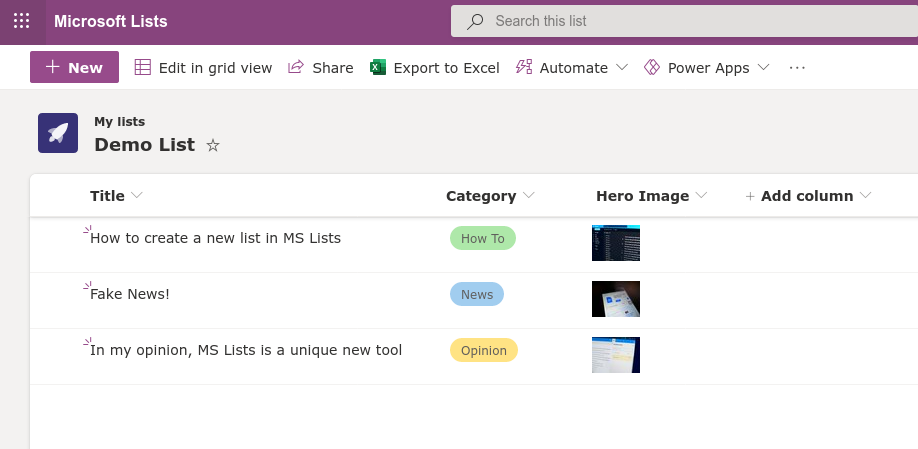
In our example, we’ve created a List which could be used to organise draft articles for OnMSFT. We write the title manually (Text column), select a Category from predefined options (Choice column) and add a thumbnail (Image column). Any item in a list can also have optional attachments associated with it.

Screenshot of Microsoft Lists UI

With some data in your list, you can now sit back and admire it. Lists automatically presents the data in each column using an appropriate format for the data type. This is where the real differentiation from tools like Excel occurs – although Lists requires a bit of time to setup, the result is a far more visual experience than the typical Excel spreadsheet supplies.

Lists combines the predefined structure of a database with the accessible presentation of a spreadsheet. At the same time, it offers interactive capabilities and seamless integration with services like low-code solutions such as Microsoft’s Power Automate and Power Apps. In future articles, we’ll introduce the advanced list editor which defers to SharePoint to provide even more control over how your data is stored and presented.

Firefox printing blank pages? Here’s a quick fix

Firefox browser has a built-in print function that allows you to print documents and web pages directly from the browser. However, several users have reported Firefox printing blank page issues recently.

Firefox can show blank previews and print blank pages if the configuration is corrupted. In some instances, Firefox prints only the second-page blank, and it can also occur due to incorrect page settings. Fortunately, you can fix this issue with a simple browser reset.

In this article, we explore a few troubleshooting steps to help you resolve the Firefox printing blank pages issue on your Windows computer.

What to do if Firefox prints blank pages?

1. Try a different browser

Before moving on to explaining how to remediate this issue, we must mention that it is very likely to not face it at all if you switch to a more stable browser with a smaller footprint.

We recommend Opera One because it has a very straightforward user interface that does not require much getting used to. You can customize it to your liking with themes and add-ons and create your own personal workspace.

The browser comes with a free VPN that will help you keep your browsing activity private and let you surpass geo-restrictions. It also has a built-in ad-blocker, social media and email integrations.

⇒ Get Opera One

2. Disable Firefox extension 

Enable Safe Mode 

Firefox printing blank pages
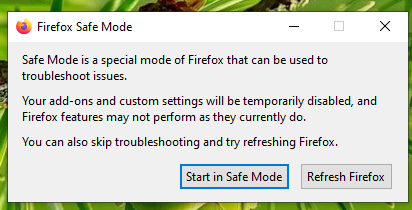
  1. Hold the Shift key on your keyboard and launch the Firefox browser. 
  2. When the Firefox Safe Mode dialogue appears, click Start in Safe Mode. This will start the browser in Safe Mode.
  3. Try printing a web page to see if the printing works in the Safe Mode. If it works, the issue could be occurring due to an incompatible extension. 

Stop the Firefox extension

Firefox printing blank pages
  1. Launch Firefox.
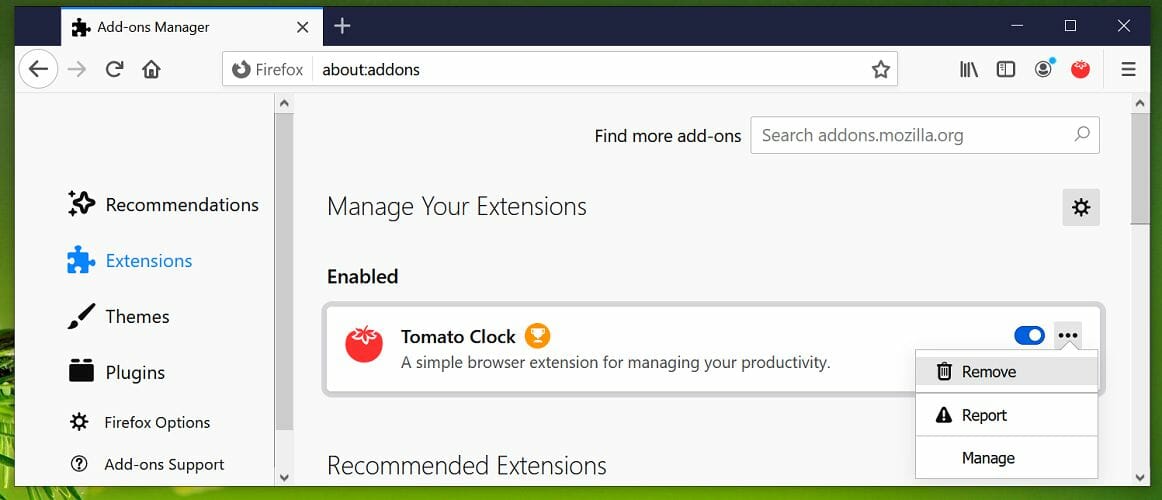
  2. Click the Menu icon and select Add-ons.
  3. Select the Extensions tab.
  4. Click the Disable button for all the extensions one by one to disable all the extensions.
  5. Relaunch the Firefox browser and trying printing again.

If you can print now without the blank page issue, open the Add-ons section again. Enable add-ons one by one till you find the problematic add-on. Click the Remove button to uninstall the add-on.

3. Check Firefox page settings

Firefox printing blank pages
  1. Launch the Firefox browser.
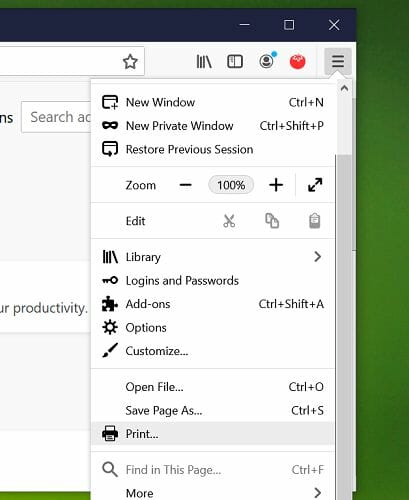
  2. Click the menu icon and select Print.
  3. From the print preview window, make sure Scale is set to Shrink To Fit.
  4. Next, make sure the Portrait orientation is set.
  5. Click on the Page Setup button.
  6. Click the Margins & Header/Footer tab and make sure the page margins are set correctly. The default setting is 12.7 mm.
  7. Click OK to close the window.
  8. In the Print Preview window, click Print.
  9. Select the correct printer and make sure Print to File is not selected.
  10. Try printing the page and check for any improvements.

4. Check for printer issue

Before resetting your Firefox browser, try printing the webpage using other browsers such as Chrome or Microsoft Edge. You can see whether your problem is with Firefox, your printer, or the website you are visiting.

If the page prints blank pages in other browsers, then the issue could be with the printer. Follow your printer’s troubleshooting instructions to fix the problem.

5. Reset Firefox printer setting 

firefox print second page blank
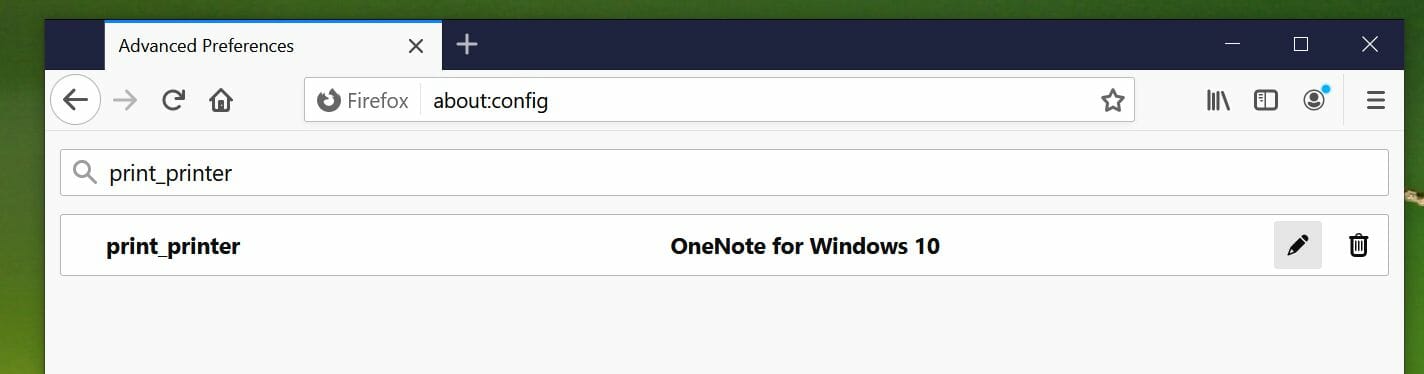
  1. Type about:config in the Firefox address bar and hit enter.
  2. Click on the Accept the Risk and Continue button.
  3. In the Search field, type print_printer.
  4. From the search result, click the Delete (trashcan) icon for the print_printer.
  5. Click the Firefox menu button and select Exit.
  6. Restart Firefox and try printing again to see if the error persists.

6. Reset all Firefox print settings

firefox print second page blank
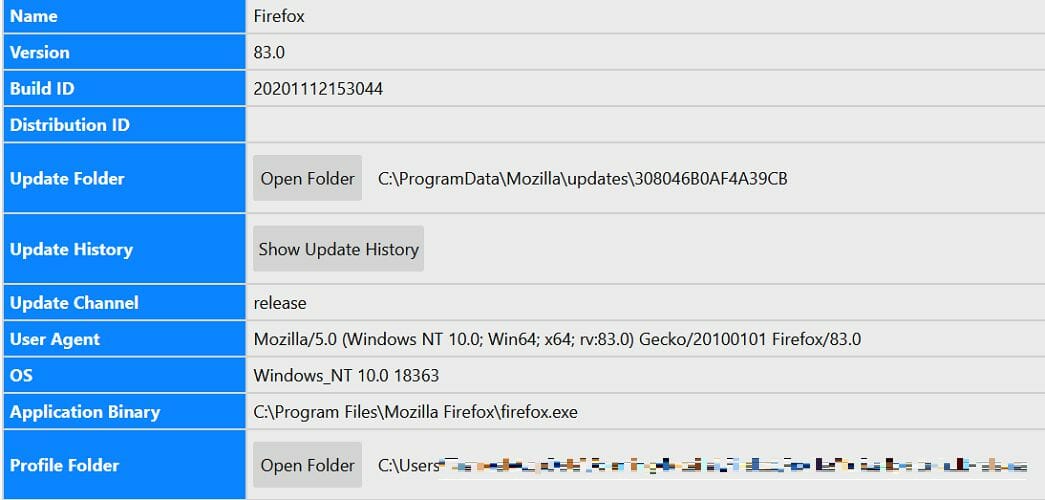
  1.  Click the Menu button and select Help.
  2. Next, select Troubleshooting Information.
  3. Scroll down to Profile Folder and click on Open Folder. This will open a Profile Folder in Explorer.
  4. Keeping the Explorer window open, Exit/Close Firefox.
  5. In the profile folder, copy the prefs file and paste it into a backup folder.
  6. Open the original prefs file in a text editor like WordPad or WordPad++.
  7. Remove all lines in the prefs file that start with print_.
  8. Save the file by pressing Ctrl + S.
  9. Restart Firefox and check if the printing error is resolved.

If you see any other issues that might have occurred due to the edited file, replace the edited prefs file with the backup prefs file.

This isn’t the only issue you can encounter, and many reported An error occurred while printing in Firefox, so you might want to check it out for more information.

Tweaking the page settings and profile settings can fix the error. If the issue persists, reinstall the Firefox browser to fix the problem.

Extract CAB file in Windows 10/11 [Complete Guide]

CAB file is an archive file format that some still use. Although this is an archive format, it’s not as popular as ZIP or RAR, and users don’t know how to properly extract it.

In today’s article, we’re going to show you how to extract the CAB file on Windows 10 fast and without any issues.

How do I extract a CAB file in Windows 10?

1. Use WinZip

winzip extract cab file windows 10

WinZip is a well-known file archiver software, and it’s the best way to extract CAB files. The software offers native support for CAB files, and you can extract them simply by opening them with WinZip.

The software also supports ZIP, RAR, 7Z, TAR, ISO, IMG, and other popular archive formats. WinZip can compress any file type, and there’s an encryption option available, so you can easily protect your files.

WinZip can also be used to manage, backup, and split files; there’s even support for cloud storage sharing. WinZip is the best choice if you need a tool that can handle CAB files out of the box.

Other great features:

  • Can handle all popular archive formats
  • Native support for CAB format
  • File encryption
  • File management, file splitting
  • Cloud storage support
WinZip

WinZip

WinZip is a file archiver software that can easily open and extract CAB files.
Free trialVisit website

2. Use the command line

  1. Press Windows Key + X to open Win + X menu.
  2. Now select PowerShell (Admin) or Command Prompt (Admin).
  3. Now you need to run one of the several commands explained below.

You can use two commands to extract CAB files, and we’ll show you how each of these commands works.

Expand

Expand WindowsReport.cab -F:* C:\WindowsReport

Extract32

extrac32.exe WindowsReport.cab /L "C:\WindowsReport\"

These commands are helpful since they can extract CAB files without relying on any third-party software. However, you’ll need to have the same familiarity with the command line to use these methods.

If you’re not a fan of the command line, you should be able to open and extract CAB files like any other file simply by double-clicking it, and Windows should be able to handle it.

Want to know how to install a .cab file? Read this guide to find the easiest method to do so.

Extracting CAB files on Windows 10 is pretty simple, but we suggest using the WinZip software to extract and manage CAB files like a pro.

ARK II will be an Xbox Series X and S console exclusive and will star Vin Diesel

ARK II, a sequel to ARK: Survival Evolved, was officially announced today during The Game Awards. The game will star Vin Diesel, as a character named Santiago, and is set to be a console exclusive for Microsoft’s Xbox Series X and Xbox Series S consoles.

This means that owners of a last-gen Xbox One console will need to upgrade to a newer one if they want to experience this blend of prehistoric and Sci-Fi action.

“We are excited to be working with the Studios Wildcard team on bringing ARK II staring Vin Diesel exclusively to Xbox Series X|S consoles,” Xbox’s Aaron Greenburg enthused via his personal Twitter account.

Surprisingly, an ARK animated series was also announced today. The series will revolve around the character of Helena and will boast a rather impressive cast of actors ranging from David Tennant, Russel Crowe, and Gerard Butler to Michelle Yeoh, Karl Urban, and Elliot Page. On a personal note, it was a pleasant surprise to see Australia’s Deborah Mailman on the cast list. Some may recognise her from the Secret Life of Us, Redfern Now, Offspring, and The Sapphires.

In addition to the above trailer, two tracks from the game’s soundtrack have been made available to listen to for free via the game’s composer Gareth Coker. You can check them out below.

Are you excited for the ARK II game and animated series? Share your thoughts with us in the comments below and then follow us on Twitter and Facebook for more Xbox gaming news.

Fix: DISM error 1009 in Windows 10/11 [Initialization error]

DISM is a useful tool that can help you if you encounter any issues with your Windows installation. However, many users reported getting the DISM error 1009.

This can be a problem and prevent you from repairing your installation, but today we’re going to show you how to get rid of DISM error 1009 once and for all.

How can I fix DISM error 1009 an initialization error occurred?

1. Install the latest updates

  1. Press Windows Key + I to open the Settings app.
  2. Go to the Update & Security section and click the Check for updates button.check for updates dism error 1009

Once the latest updates are installed, the DISM errors will be resolved.

In case you can’t download the update, you’ll need to download and install the update manually. To do that find the KB code of the update you want to download. You can do that in the Update & Security section.

After getting the update code, follow these steps:

  1. Go to the Microsoft Update Catalog.
  2. Enter the KB code in the search field.
  3. Now download the update for your system and install it manually.
    update catalog dism error 1009

2. Perform an in-place upgrade

person using computer dism error 1009
  1. Download Media Creation Tool.
  2. Start the application and select Upgrade this PC now.
  3. Wait while the software prepares the necessary files.
  4. Follow the instructions on the screen until you see the Ready to install window. Now select Change what to keep.
  5. Make sure that Keep personal files and apps is selected. Click Next and follow the instructions.

After the process is finished, your system will be upgraded to the latest version and the Error 1009 the configuration registry database is corrupted message will be gone.


3. Reset Windows 10

in-place upgrade dism error 1009

In case all other methods failed to fix your problem, the only thing that you can do is to reset Windows 10 to default. This process will remove all installed applications and files and reset your system.

Performing a Windows 10 reset is simple, and we wrote an in-depth guide on how to factory reset Windows 10, so be sure to check it out and follow the instructions from it closely.

Error 1009 the configuration registry database is corrupted can cause a lot of problems, but we hope that you managed to fix it using one of our solutions.

[wl_navigator]

Microsoft’s new studio The Initiative unveils Perfect Dark reboot at The Game Awards

The Initiative, Microsoft’s new Xbox Game Studio based in Santa Monica revealed their first game at The Game Awards ceremony today. As it was previously rumored, this is a reboot of Perfect Dark, an IP previously created by Rare in 2000 as the spiritual successor to their critically-acclaimed Goldeneye 007 game on the Nintendo 64.

“With Perfect Dark, we’re aiming to deliver a secret agent thriller set in a near-future world,” wrote Darrell Gallagher, Studio Head at The Initiative today. “We have built the Perfect Dark team at The Initiative by bringing in some of the most talented game makers from around the industry who all share a passion for storytelling, world-building and creating memorable game experiences. With the full backing from Xbox Studios to re-imagine one of the best loved IPs from gaming history, we couldn’t be more excited to share some of our early ideas.”

We don’t have many details about this new Perfect Dark game for now, except that it will be an Action/Adventure First Person Shooter coming to Xbox Series X and S. The Initiative, which was only created two years ago, is planning to share more details in the near future. The new studio has already attracted many veterans from the video games industry since its foundation, and we can’t wait to see how all this top talent is going to bring this beloved IP back to life.

Windows Insiders on the Dev channel can now test x64 app emulation on windows 10 on ARM PCs

Microsoft has just announced some big news for Windows Insiders in the Dev channel. The software giant started releasing build from a new FE_RELEASE development channel a couple of weeks ago, and the Windows Insider has just announced a new branch split with two new separate builds coming from the FE_RELEASE and the RE-PRELEASE branches.

Starting today Windows Insiders in the Dev Channel who were previously receiving builds from the FE_RELEASE branch can opt in to install the RS_PRERELEASE build 21277, which brings support for x64 emulation on Windows 10 on ARM PCs. Microsoft will continue to release builds coming from the FE_RELEASE branch in the coming weeks, and the new build 20277 is available today for Dev Channel Insiders who do not choose to install the RS_PRERELEASE build 21277 in Windows Update;

“Insiders who choose to stay put will continue to automatically get builds from the FE_RELEASE until we move all Insiders in the Dev Channel to receiving RS_PRERELEASE builds sometime after the holidays. We still need Insiders running FE_RELEASE builds and giving us feedback on these builds so its ok if you choose to stay on these builds,” the Windows Insider team explained.

Keep in mind that it won’t be possible to install FE_RELEASE builds once you choose to install a RS_PRERELEASE build on your PC. These separate branches will also have a different set of fixes and known issues, and here’s the list for the Build 20277 (FE_RELEASE) below:

Fixes

  • We fixed an issue that could result in the WinRE volume label being lost after multiple upgrades.
  • We fixed an issue that could result in apps failing to update with error code 0x80073D02.

Known issues

  • We’re looking into reports of the update process hanging for extended periods of time when attempting to install a new build.
  • Live previews for pinned sites aren’t enabled for all Insiders yet, so you may see a grey window when hovering over the thumbnail in the taskbar. We’re continuing to work on polishing this experience.
  • We’re working on enabling the new taskbar experience for existing pinned sites. In the meantime, you can unpin the site from the taskbar, remove it from the edge://apps page, and then re-pin the site.
  • We’re working on a fix for an issue resulting in some users seeing error 0x80070426 when using their Microsoft account to sign into various apps. If you encounter it, rebooting your PC may resolve this.
  • We’re working on a fix for an issue where, in recent Dev Channel builds, no drives appear under Settings > System > Storage > Manage Disks and Volumes. As a workaround, you can manage your disks in the classic Disk Management tool.

Microsoft did also provide a list of changes, fixes and known issues for the build 21277 (RS_PRERELEASE), but the introduction of x64 emulation on Windows 10 on ARM PCs is the big deal. “In the spirit of the Dev Channel, this capability is still in development and will continue to improve in both compatibility and performance over time, so some of the apps you try running in emulation may not work initially,” the Windows Insider team explained today.

To test x64 app emulation, Microsoft recommends to do so on the Surface Pro X, the Lenovo Flex 5G, or the Samsung Galaxy Book S, three devices that should provide the best app performance. The Windows Insider team also recommends to install a preview version of the Qualcomm Adreno graphics driver (click here for Surface Pro X, and here for the Lenovo and Samsung devices), as well as a preview version of the ARM64 C++ redistributable to support running both ARM63 and x64 C++ applications at the same time.

“In this preview, you can install x64 apps from the Microsoft Store or from any other location of your choosing. You can try key x64-only productivity apps like Autodesk Sketchbook, as well as games like Rocket League. Other apps, like Chrome, which run today on ARM64 as 32-bit apps, can run as 64-bit using the new x64 emulation capability. These apps may benefit from having more memory when run as 64-bit emulated apps,” the Windows Insider team explained today.

Windows 10 on ARM only supported 32-bit app emulation when it shipped a couple of years ago, and these emulated apps also had performance issues. Introducing x64 app emulation on Windows 10 on ARM is a big milestone to improve app compatibility on the platform, though Microsoft is still pushing developers to recompile their Windows apps for the ARM64 architecture.

If you’re on Dev Channel, the 21277 (RS_PRERELEASE) build will be offered as an optional update through the “seeker” experience in Windows Update. If you don’t opt in to install this build, you’ll receive the build 20277 today with the aforementioned fixes and known issues, and you’ll also keep receiving builds from the FE_RELEASE branch in the coming weeks. This isn’t that different from “Skip Ahead” ring that Microsoft used to have in addition to the Fast Ring, though the Windows Insider team is still saying that Dev Channel builds coming from the RE_PRERELEASE and FE_RELEASE are still not matched to a specific Windows 10 release.

It’s not clear if these are going to be the last Insider flights for this year, though the Windows Insider team said today that all Insiders in the Dev Channel will start receiving builds from the RS_PRERELEASE channel after the holidays. After a couple of weeks of minor builds with no new features, things are starting to look more interesting for the Windows Insider program in January.

Fix: WinRAR Cannot Execute File Error [4 Quick Solutions]

RAR files, as well as ZIP files, are a great way to compress essential data and save them. You can even encrypt them, password protect them, and, most importantly, they save you a lot of space on your drive.

However, it’s frustrating to have important files and not be able to extract them just because you get the “WinRAR cannot execute file” error. This issue can be caused by a file corruption problem or WinRAR itself.

If WinRAR cannot extract the file we will try to guide you step by step and help you solve this awful situation to your advantage.

How can I fix WinRAR diagnostic message cannot execute?

1. Make sure that the file is an archive

The WinRAR cannot execute file error can also appear if you are trying to unarchive a file that is not an archive. An.exe or.bin file can be a non-archive file and cannot be extracted.

Your file should have the extension of an archive like ZIP, RAR, ISO, GZ, 7Z, TAR GZ, TAR, or others.

2. Use WinZip

First of all, if you’ve had enough of WinRAR errors, it’s a good idea to try WinZip, the best archiving software that you can find.

This recommendation is based on the fact that this tool supports more than 24 popular formats, including the RAR files, so you will have a great shot at solving this error immediately.

And if the archive is somehow damaged, WinZip also has an archive repair feature that can easily fix it. After the problem is fixed, you can continue using this awesome tool that offers many other advantages like file encryption, file splitting, PDF to Word conversion, and many more.

If you don’t have enough reasons to switch to WinZip, you can use this excellent tool to perform file backup operations. That comes in handy with the file-sharing support and the integrated cloud storage.

If you’re not yet convinced, hit the button below and go for the free trial version. You will surely be able to make up your mind then.

WinZip

WinZip will help you forget all about the WinRAR errors with great versatility and great performance.
Free trial Visit Website

3. Use the contextual menu

  1. Locate the archive on your PC.
  2. Right-click the archive and select Extract Files or Extract Here.
  3. If you chose the first option, you will need to specify the path or choose the location from the tree. 
  4. If you choose to Extract Here, the files will be extracted into the current folder of the archive.

4. Open the file with File Explorer

  1. Click on the archive.
  2. Click on Properties from the Home tab and open it.
  3. On the General tab set Open with File Explorer.
  4. Unblock the Security option and click OK on the bottom of the page.
  5. Go to Extract in the View tab on the selected file and click on Extract All.

This is all you can do when you receive the WinRAR cannot execute file error. We are confident that by using an error-free tool such as WinZip you will solve this problem but you can also use our other solutions. Besides, WinZip might also help with Error 0x8096002A in Windows.

We hope that one of them helped you solve this issue but if you have any additions or suggestions, let us know in the comments section below.

7-Zip data error while extracting [Corrupted archive]

Unfortunately, ZIP archives are not without problems and the issues that arise are various, one of them is the Windows 10 Error 42125 ZIP archive is corrupted, and it appears when trying to open the compressed file.

There are different reasons why you may get this error message but rest assured the solution is pretty simple to solve in just a few easy steps.

In this article we will go through what you can do in order to fix this error in the most efficient way, so make sure to keep on reading.

How do I fix 7zip error while extracting zip archive?

1. Use an alternative unzipper

Before going into more depth with how you can fix the Windows 10 Error 42125 ZIP archive that is corrupted when trying to extract your compressed files, we would suggest that you consider another utility for this matter.

Knowing how to combine and divide zip files might be useful while preparing to present a big number of files at work. Or perhaps you wish to efficiently share your trip photos with your relatives and friends.

Multiple zip file extraction in Windows isn’t possible by default, but with the right third-party software, it’s a breeze. This is a feature for most third-party apps to zip and unzip any type of file.

When attempting to download a large file from a server, you may have download troubles; however, if it is divided into a number of archives, the entire process becomes easier.

2. Use the Repair option

  1. Right-click on the corrupted RAR file.
  2. Next, select Open with WinRAR.
  3. Click on the Tools option and select Repair archive.
  4. Select the Browse button to locate and select the corrupted file.
  5. In the Repaired file field, choose the destination where you want the repaired RAR file to be saved.
  6. Wait for the repairing process to be completed
  7. Click OK.

3. Uninstall the graphics card drivers

  1. Click on the Start button.
  2. In the search box, type devmgmt.msc, and then press Enter.
  3. Select the graphics card device and right-click on it.
  4. Now select Properties.
  5. Under the Driver tab, you just need to click on the Uninstall button.
  6. If you want the driver completely removed from the computer, check the option that says Delete the driver software for this device.
  7. Confirm your action by clicking OK.

Make sure that once this procedure is finished, you head over to the manufacturer’s website and reinstall the latest driver version.

4. Update WinRAR

  1. Launch WinRAR on your Windows PC.
  2. Click on Help and then select About WinRAR.
  3. Next, in the About WinRAR window look for the WinRAR version info and the edition.
  4. Go to the WinRAR download page and install it on your PC.
  5. Click the Latest version of WinRAR under English WinRAR and RAR releases. Make sure to choose the correct edition 32-bit/64-bit depending on your PC’s Operating System.
  6. Click Continue to download WinRAR.
  7. Run the installer and proceed with the installation. 

With this last step, we conclude our list of suggestions and we hope that one of them has helped you solve the Windows 10 Error 42125 ZIP archive is corrupted.

After completing the above steps you should be able to open your compressed files, without any problem whatsoever.

If you have additional suggestions or recommendations, please let us know in the comments section below.

How to move folders in Google Drive [Full Guide]

Google Drive is one of the best and renowned online cloud storage services that is great for both work and personal use. The app is filled with a plethora of features that make managing your folders a breeze.

You can upload entire folders to the cloud and create new ones inside of it. If you are using Google Drive daily, you probably want to sort your folders and categorize them.

Perhaps you want to move a folder around because you found another use for it. Even though folders can’t be moved into Team drives yet, you can do this in Google Drive by simply following these two easy steps.

How do I move a folder in Google Drive?

1. Drag and drop

  1. Go to the official Google Drive website.
  2. Click on My Drive and Sign In if you aren’t already.
  3. While inside your Drive, click and hold on the folder you wish to move.
  4. Drag the folder to the designated location.
  5. Drop your folder there.

Note: Dragging and dropping your files is the easiest method to move them, but it is more difficult to be precise when you’re using a tablet or your laptop’s mouse pad.


2. Use the build-in options

  1. Navigate to the official Google Drive website.
  2. Click on My Drive and sign in if you are not signed in already.
  3. Right-click on the folder you want to move.
  4. Select Move to.
  5. Navigate to the folder you want the file moved to through the pop-up window.
  6. Select it and press Move.

This is the easiest and safest way to move your folders around in your Google Drive. There is no risk of accidentally placing them in the wrong place. Thanks to the awesome Google developers, the process is easy and precise.


Moving your files around is pretty easy. Thankfully, you do not need any software, since the option is already built into Google Drive. The aforementioned steps will teach you everything you need to know.

If you have anything important to add to this article please feel free to do it in the comment section below.

5 Best USB foot pedals for gaming [Christmas deals]

The holiday season is here and Christmas is just around the corner. Everyone is hunting for gifts and great deals to complete their wish-lists or to make their acquaintances happy.

If you are an avid gamer that loves to play racing games or flight simulators, and you are looking for a pedal to immerse yourself into those games, there are plenty of options for you.

Since one of the most used and versatile ports used today is the USB, we comprised a comprehensive list with the best gaming pedals that have a USB port.

What are the best foot pedals for gaming with USB?

Infinity USB Digital

  • Infinity 3 Function USB Foot Pedal/Switch
  • ultra-heavy-duty micro switches
  • Really affordable
  • Long USB cable
  • Really basic design

The Infinity USB Digital is a robust and sturdy foot pedal. It is very responsive to light pressure and it is also heavy enough to stay in place when you press on it with your foot. The pedal comes with three programmable buttons.

The long USB cable allows you to place your pedal away from your computer. This is a great budget choice for the people who want a simple pedal that does its job properly.


Thrustmaster TFRP Rudder

  • Removable heel-rests
  • 2 large differential brake pedals of 25 centimeters
  • Sliding Motion on Aluminum Rail Tracks
  • Sturdy and precise
  • USB and proprietary RJ12 connectivity
  • Compatible with all Joysticks on PC
  • The spacing of the pedals could be better

If full immersion is what you seek, the Thrustmaster TFRP Rudder is one of the best foot pedals on the market. The pedals have a comfortable design that allows you to place and rest your entire foot on them or on the special removable footrest.

This product is perfect for those who love playing flight simulators such as War Thunder, and who want to enhance their flying experience. The rudders are compatible with Windows, PlayStation, and the Xbox series.


Saitek Pro Flight Rudder Pedals

  • Precise rudder and braking control
  • Tension adjustment
  • Self-centering pedals with adjustable damping
  • Adjustable footrest with non-slipping rubber
  • The base of the rudder slides off easily

The Saitek Pro Flight Rudder Pedals are another great choice. They are made completely out of plastic, but their design is very comfortable, with wide enough space between the two pedals.

In addition, the pedals are precise and very sensitive so you don’t need to use a lot of force when pushing them down with your foot. The middle screw allows you to adjust the tension of the sliding pedals.


CH Products Pro Pedals

  • Locking rudder axis for gas and brake emulation
  • 3 Axis of Control
  • Realistic heel-toe differential brake control
  • Long USB cable
  • The base slides off the floor or carpet too easily

The CH Products Pro Pedals have a minimalist design, featuring a large and sturdy base and heel-rests on the pedals. The rudder is made out of grey colored plastic and the heel-rests are black.

The product is plug-and-play, not requiring any drivers to install, and is compatible with Windows and Mac OSX. In addition, you can customize it with special programable software.


iKKEGOL USB Double Foot Switch

  • High-Quality Aluminum alloy base plate
  • Compact and minimalist design
  • Special software allows custom key mapping
  • The pedals could use more space between each other

The iKKEGOL USB Double Foot Switch is another budget alternative that has two programmable mechanical switches. The product works with all games, keyboards, mouses, and other accessories for your PC.

Moreover, the pedals have sustained key pressing for acceleration in games or push-to-talk, and the software required for key mapping is easy to install.


Foot pedals are an excellent choice, especially when it comes to playing flight or racing simulator games.

The article will help you decide what to buy because it offers a great variety of choices.

How to fix HDR Netflix issues in Microsoft Edge

Countless users started to complain about a similar situation in the past few days – there is no HDR when they try to watch Netflix in the new Microsoft Edge Chromium.

Their system is full HDCP 2.2 complied, HDR used to work just fine the other days, and the issue is limited to HDR only.

HDR Netflix issues

Moreover, Microsoft Edge will easily play 4K videos on Netflix, which leads to further questions regarding these HDR issues. Here’s what one user says:

It’s easy to check by pressing SHIF+ALT+CTRL+D to see video info. It should be displaying hevc, hdr, prk but right now no hdr codec is displaying (and video colors look washed up when you turn hdr in Windows and watch non-hdr videos).

How can I fix HDR Netflix issues in Microsoft Edge?

  1. First of all, in the address bar, type in edge://flags/ and press Enter.
  2. Scroll to find the Force Color Profile option.
  3. Then, click the drop-down and select sRGB.
  4. Finally, click on Restart at the bottom to keep the changes.

A quick tip that’s confirmed to work is described above. You can use the Force Color Profile option too, at least until an official fix is released.

At the same time, HDR in YouTube works flawlessly, leading to the possibility of taking into consideration DRM protection issues.

Netflix clearly has DRM protection. Things are no different for HBO Max which also does not play videos on Microsoft Edge. Turning hardware acceleration on and off leads to the same result.

However, installing Chrome does wonders and makes users forget all about these repeated Netflix/HBO Max issues.

Let us know in the comments area below if you are also willing to make the switch to another browser or if Edge remains your choice even under these circumstances.

PSA: Microsoft Teams users can now test native Windows 10 notifications and Meeting reactions

Last week, Microsoft launched its Teams Public Preview program, allowing users to preview and test upcoming features. One important update that may have flown under your radar is the December 2020 Preview Pack, which brings some new features, including Windows 10 native notifications and Meeting reactions, specifically for testers. Here’s a look at everyone you need to know.

Indeed, Teams users who choose to join the Public Preview program in their organization can now test Windows 10 native notifications. The feature brings an option to choose between using Teams’ default notification setup and the Windows 10 native notification style.

As a reminder, it’s one of the most requested features that was previously limited to select users. The new functionality is supported on Windows 10 build 10.0.17763.288 or later and was spotted by Twitter user Maarten Eekels.

To access this setting, users need to go to Profile > Settings > Notifications and select the “Windows” option available in the Notification style dropdown menu. Once set, the app will now use the Windows OS notification system to push all notifications (such as @ mentions, reactions, etc.).

For now, the new capability is supported on the Teams web app, and it’s not yet available for Mac users. Notably, the feature is currently listed as currently under development in the Microsoft 365 Roadmap, with a release set for December 2020. Until now, the feature has been delayed several times, and it’s still not clear if the company plan to release it later this month or the timeline will be updated again.

Next up, Meeting reactions is another interesting feature that was announced as a part of Microsoft’s new Teams Public Preview program for testers. With this feature, users will be able to react during meetings using emojis like “insightful,” “curious,” or “heart” to express their feelings.

It has been designed to supplement non-verbal cues that are often difficult to notice in video meetings. The new reactions button can be accessed in the Teams’ menu bar, as shown above. The Microsoft 365 Roadmap listing indicates that the live reactions feature will begin rolling out in January 2021 for all users. (Just to clarify, Reactions has not begun flighting yet). (Update #2: ok now Meeting Reactions are available, after all):

In addition to these features, the company has also announced some other functionalities. The list includes Call Merge, Large gallery and Together mode for web, and 2×2 view on VDI (Citrix, VMWare). If you are interested, be sure to check out the blog posts to learn more.

New Lenovo ThinkSmart accessories aimed at a ‘work-from-home’ crowd

Acknowledging the evolving work landscape, Lenovo just announced a host of new products from its ThinkSmart lineup designed to assist in workers transitioning to longer ‘work-from-home’ orders.

As we approach the end of 2020, we look back on a year full of trials and trepidations punctured by waves of uncertainty. Costs to businesses are stratospheric and the human impact is unmeasurable. Throughout the ongoing crisis, users have embraced video conferencing and collaboration to stay productive and stay engaged with colleagues and customers like never before. As a result, businesses have accelerated digital transformation initiatives to facilitate short term work-from-home policies and envisage longer-term hybrid working models.

Perhaps, as an answer to the subpar webcams the company places in its laptops, Lenovo is now offering a new dedicated webcam called the ThinkSmart Cam.

01 Thinksmart Camera Front

The ThinkSmart Cam is certified to work with Microsoft Teams and Zoom rooms as well supporting up to 4K resolution at 30fps or 1080 at 60fps for crisper looking images. The field of view is 100 degrees on the horizontal, 68 on the vertical, and 125 on the diagonal giving users the flexibility to host a video conference from more areas in the home than directly in front of their computer. Lenovo is also tossing in AI computing to help automate zooming and framing of users for more natural video conferencing experiences. The ThinkSmart camera can be easily mounted on the edge of a laptop lid or mounted with wall or TV mounts.

Lenovo is also releasing the ThinkSmart Bar which should boom conference sound throughout an entire room or house for people who like to work while walking around their areas. The ThinkSmart Bar uses 4 speakers, built-in DSP for echo and noise-cancellation as well as supporting a microphone frequency range of 300Hz to 8KHz. At a little over 8lbs and about 800 x 56 x 90, the ThinkSmart Bar isn’t a very discrete device and commands a dedicated area in the home office. Once again, Lenovo is touting Zoom and Microsoft Teams Room support for easy workflow integration for most.

12 Thinksmart Speaker Bar And Mic Pod 02

Last up is the modular ThinkSmart Edition Tiny computer. Packing an Intel Core i5 vPro processor running Intel Unite software underneath Windows 10 20H1 IoT the Edition Tiny makes for a flexible desktop or meeting hub for people. The Edition Tiny also comes with some decent specs for running a home office that include 8GB DDR4 memory, 256GB SSD and is powered by a 10th Gen Intel chip. Lenovo also tosses Intel’s Active Management Technology in there to boot.

02 Thinksmart Edition Tiny

One last announcement from the ThinkSmart team is its ThinkSmart Manager 2.0 app that’s been updated to connect to and mange ThinkSmart Hub 500, Hub, Cam, Bar, ThinkSmart Edition Tiny and supported Logitech peripherals. Version 2 comes with an updated UI that includes an executive dashboard in-meeting analytics view for Microsoft Teams Rooms and is available via Lenovo’s website.

Tms Collateral Mobileapp Screens

Today’s announced devices will be available as soon as January with the Cam and ThinkSmart Edition Tiny rolling out in January of 2021 and the ThinkBar coming out February 2021 followed by the ThinkSmart Manager 2.0 in March of 2021.

ZIP archive is corrupted: Avast is unable to scan contents

Zip archives are the easiest and fastest way to archive and share multiple files, but many users reported the Zip archive is corrupted message in Avast.

Some users have reported that they see the error 42125 ZIP archive is corrupted which in turn can cause a wider range of problems.

Even though the corrupted archive message can be worrying, we’re going to show you how to properly deal with it.

How can I fix the Zip archive is corrupted Avast error?

1. Use alternative software

If you’re getting a Zip archive is corrupted message, perhaps you can fix the problem by using WinZip. The software supports over 20 popular archive formats, so it should be able to open any archive.

The software can archive or encrypt any file type with ease, and there’s even a repair feature for corrupted archives that will surely come in handy.

WinZip is a great file archiving software, and it can even work as a file splitter and file manager, which makes it one of the best archiving software on the market.

You can use it for all major file formats. It is secure, with a file encryption feature that helps you make sure all your data is private.

Winzip allows you to access files on local PCs, in-network, or in the cloud. It offers easy access to Dropbox, Google Drive, OneDrive.

WinZip

Easily open any archive and protect your files with WinZip.
Free Trial Visit Website

2. Don’t take the message into consideration

If you get a Zip archive is corrupted message in Avast, there’s no need to worry. This is a standard message and it appears when the Avast scanner can’t open the compressed file.

This doesn’t mean that the file is infected, it just means that Avast was unable to open it. Even if the file is infected, it won’t be able to cause any damage unless you disable your antivirus and open the file manually.

It’s not advised to delete these files, because they might be related to certain software or with your system, so removing them can lead to additional problems, so it’s best to ignore them.

The zip archive is corrupted message in Avast isn’t a security concern, and if you ever encounter it, you should be able to fix it by following the solutions from this article.

If you want to share your experience with us, don’t hesitate to use the comment section found below this article.

Learn more about Zip files by exploring our useful page on the subject for details.

Are you having issues with other software? Our PC Software section has more useful articles that you need to check out.

Cyberpunk 2077 first impressions: Good on Xbox Series X|S, some real performance issues on Xbox One

Cyberpunk 2077, the much-anticipated game from CD Project Red is launching today on Xbox One, PlayStation 4, and PC, and many players discovering the game on the base Xbox One and PS4 today might be disappointed. All the first reviews published earlier this week were for the PC version of the game, and probably for good reason: It appears that Cyberpunk 2077 has serious performance issues on old-gen consoles.

I’ve personally tried the game on both the Xbox Series X and Series S, which currently run the Cyberpunk 2077 in backwards-compatibility mode before CD Projekt Red releases free next-gen upgrades next year (the same is true for Playstation: Cyberpunk 2077 runs in backward compatibility mode on the PS5 for now). On the Xbox Series X, you get the Xbox One X version of the game which uses a 60 FPS Performance mode by default, but players can also choose a 30FPS Quality mode in Settings. The game feels very smooth in Performance mode on the Series X, and I didn’t notice a big difference in graphics after trying out the Quality mode.

Cyberpunk 2077 On Xbox Series X
Cyberpunk 2077 running on Xbox Series X

On the Series S, you’ll get the Xbox One S version of the game, which is locked to 30FPS with no 60FPS Performance mode. There is a noticeable difference in terms of visual quality, but the performance feels solid and so far I didn’t encounter anything that made my eyes roll.

Cyberpunk 2077 On Xbox Series S
Cyberpunk 2077 running on Xbox Series S.

Cyberpunk 2077 is technically an 8th-gen game on consoles, and it currently runs best on PCs with NVIDIA RTX GPUs. According to CD Projekt Red, over 8 million people pre-ordered the game ahead of launch, and 59% did so on PC. Unfortunately, for the 41% of early enthusiasts that pre-ordered it on consoles, those who have yet to get their hands on a PS5 or Xbox Series X|S may well want to get their money back.

While I haven’t been able to test the game myself on PS4 or base Xbox One consoles, you can already find plenty of videos on Twitter and YouTube showing how poorly the game runs on these consoles, with a general lack of detail and textures often taking forever to load. This would really be something to make fun of if 3.2 million console users didn’t pre-order Cyberpunk 2077.

If you do have an Xbox Series X|S or PS5, the game seems to run without any issues on these consoles, and I personally didn’t get far enough to encounter any of the bugs that many PC reviews mentioned earlier this week. Cyberpunk 2077 makes a good first impression, and it all starts with the creation of your character, which you can customize in many, many ways, including tattoos, piercings, and even genitalia.

So far, the game does a pretty good job at explaining its core mechanics, and it’s a competent shooter with an important focus on stealth and hacking. I personally enjoy games that can be completed without killing anyone, and I’ll try to do that for my first playthrough.

There’s no doubt that Cyberpunk 2077 is one of the best games of 2020, but you might still want to wait for the true next-gen version coming on Xbox Series X|S consoles next year. “The journey has just begun and we are hard at work on the upcoming fixes and updates to the game,” developer CD Projekt Red said on Twitter today. Blockbuster games rarely launch in a perfect state these days, and Cyberpunk 2077 is unfortunately no exception despite the multiple delays.

Still, we’re very excited about the game and we ask you to stay tuned for our full review to be published next week. If you have been playing the game on Xbox One today, let us know in the comments if you’re having a good experience so far.

How to unzip files in Windows 7 / Windows XP [Full guide]

Zip archive are used for plenty of years because of their versatility. You can compress data and free impressive amounts of space from your drive by doing so.

Many of you have worked with Zip files and know the answer to our title question. But if you need to know all about unzipping files in Windows 7 and Windows XP, the following guide will be more than clarifying.

How do you open a zipped file?

Download and install WinZip

As you might have guessed, the zipped adjective comes from the best archiving and unarchiving tool WinZip. So unzipping will naturally start with downloading and installing this awesome tool by clicking on the big button below.

WinZip is the best tool for unzipping simply because it’s fast, it can handle multiple archives at the same time and it supports more than 24 archive file types, including ZIP, ZIPX, TAR, TAR GZ, RAR, 7Z, GZ, IMG, GZIP, GZ, and many others, even ISO images.

This tool is also great because it comes with a lot of other interesting features like the 128-bit and 256-bit AES encryption or the PDF to Word and Word to PDF conversion.

You can try WinZip before buying so it will have enough time to amaze you.

WinZip

WinZip

WinZip is the best tool for unzipping files in all Windows OS, including Windows 7 and Windows XP.
Free trialVisit website

Extract the archive from the contextual menu

  1. Locate the archive you want to unzip from your PC
  2. Right-click the file and choose WinZip from the menu
  3. Choose one of the 3 options for unzipping the archive as it follows
    • Unzip to will direct you to indicate the folder where you want to unzip the file
    • Unzip to here will unzip the file to the folder where the archive is located
    • Unzip to folder is a predefined location for unzipped files that you can define in WinZip.

Extract the archive from WinZip

  1. Open WinZip
  2. Click on File from the top left corner and locate the file that you need to extract (you can also simply drag the archive in the WinZip window)
  3. Select the destination where you want to unzip the file and enjoy.

This is our guide on how to unzip files in Windows 7 / Windows XP. It’s pretty simple, right? You can leave us a comment below if you’ve had any problems during the process.

PowerToys v0.27.1 for Windows 10 is out with stability fixes

It’s been a few days since Microsoft released PowerToys version 0.27, but the software giant has already rolled out a maintenance update for Windows 10 users. PowerToys v0.27.1, which is described as a “patch release,” improves the stability and quality of various tools, including FancyZones and Color Picker.

According to Microsoft, we should expect to see the next major release (PowerToys version 0.29) by the end of December. This update should bring the much-anticipated video conference mute feature which is currently available for users on the experimental version. The company has also teased a new feature for Fancy Zones that makes it easier for users to create custom layouts.

Here’s the full list of improvements and fixes in PowerToys version 0.27.1:

  • #8330 – FancyZones not waiting for me to release Shift. The primary bug is fixed. We discovered an edge case #8511that is not resolved in this larger fix. We felt the larger fix was worth getting out without the edge case being solved.
  • #8378 – Memory leak in FancyZones. Our fix actually improved performance when showing the zones on high res and high DPI scaling screens
  • #8339 – FZ editor is correctly handling multi monitor when the laptop built-in display is turned off.
  • #8322 -Editor Crash on removing colors from the history where there is none
  • #6594 – Color Picker hangs while holding activation keystroke

As always, you can download the latest version of PowerToys from GitHub if you prefer to download the update manually. You can also head over to the issues page to check out the complete list of bug fixes and commits made in this release.