FIX: HP Envy Doesn’t Print After Windows 10/11 Upgrade

If you’re using an HP Envy printer, there’s a chance that it won’t work after the upgrade to Windows 10/11. That’s exactly what a lot of HP Envy printers users have reported recently. Luckily there’s a solution to this problem, but it requires a few actions from your side.

As you probably noticed, most of the problems appearing on Windows 10 after the upgrade are driver-related, and that’s exactly the case with our HP Envy printers, as well, and Microsoft confirmed that after a lot of users complained about the problem on the company’s Community forums.

What to do if HP Envy printer won’t print

  1. Uninstall or reinstall HP Envy Printer Drivers
  2. Disable UAC
  3. Delete Temporary Folder 
  4. Run Windows 10’s troubleshooters

Steps to fix HP Envy printer issues

1. Uninstall or reinstall HP Envy Printer Drivers

CBGrant, a Microsoft employee who reached to complaining users on Community forums explained that that outdated drivers are the problem, and reinstalling the will completely fix the issue, and you’ll be able to do your printing jobs without a problem.

After upgrading to Windows 10, you may receive a notification that your HP ENVY e-All-in-One printer has failed to install. To successfully complete the installation, you must remove and reinstall the software and printer after the Windows 10 upgrade as outlined in the procedures below.

So, in case you don’t know how to re-install your HP Envy printer drivers, do the following:

  1. Go to Search, type device manager, and open Device Manager
  2. Find your HP Envy printer, right-click on it, and go to Uninstall
  3. Wait for the process to finish
  4. After the uninstallation is finished, right click on HP Envy Printer again, and go to Update Driver Software (or you can go to HP’s website, and search for the drivers yourself)

As we know, for now, reinstalling drivers appears to fix all problems with HP Envy printers, but it would be good if Microsoft could include it in one of the future updates for Windows 10/11, so users don’t have to reinstall drivers manually.

If you just want a fast and simple solution, we have the perfect tool for you: Fortect Driver Updater. Within a few clicks, this automated software will search for, identify, and replace your printer drivers.

Besides this, it will keep all of your drivers up to date; in fact, you will no longer have to worry about any old or outdated drivers.

2. Disable UAC (User Account Control)

Disabling UAC (User Account Control) in Windows then might fix your problem as well. Here’s how you can do it.

  1. Open Start Menu and type in the search box “UAC” to open the User Account Control Settings
  2. Turn off UAC by dragging the slider to “Never notify” and confirm by clicking on OK
  3. Reboot your Windows 10 computer
  4. Check if your problem is solved
UAC dIsable

3. Delete Temporary Folder

Here are some steps for you to follow in order to delete the files from the temporary folder:

  1. Click on Start Menu and type in “RUN” and open the app
  2. Type in the dialog box %temp% and click the Enter key
  3. Delete the files inside the folder
  4. Restart your Windows 10 computer
Run Temo Folder

4. Run Windows 10’s troubleshooters

If the issue persists, you can also run the Printer and Hardware and Devices troubleshooters from the Settings page, as shown in the screenshots below.

Run the Printer troubleshooter
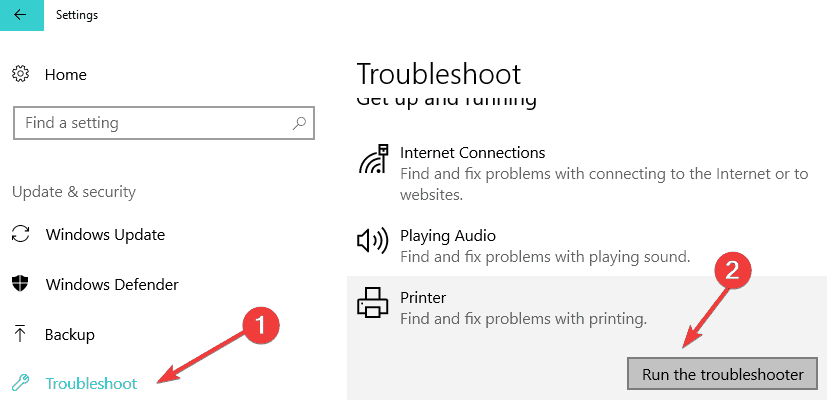
run printer troubleshooter windows 10

Run the Hardware and Devices troubleshooter
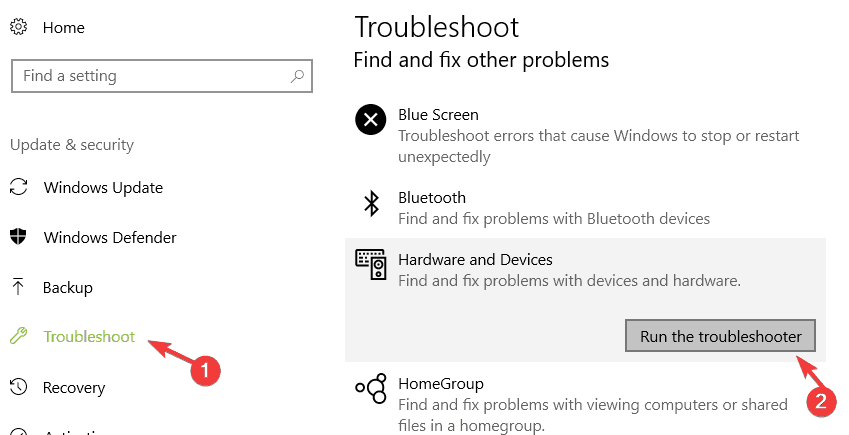
hardware devices troubleshooter
Best worldbuilding tools for writers and game creators

Whether you are an aspiring writer or a budding game creator, a worldbuilding tool will be an essential part of your creative process. These tools allow you to build the complete, living world behind your incredible books, games, and art. That said, not all the worldbuilding tools are made the same. Some offer bare minimum features to get you started while others come loaded with all the features that a beginner or a professional could ask for. In this article, we explore the best worldbuilding tools for writers and game creators that allows you to write, design interactive maps as well as help you to organize your work in a more efficient manner.

What are the best worldbuilding tools for writers and game creators?

WorldAnvil

Best worldbuilding tools

  • Price – Free / Premium

From creating your world, managing your campaign, planning your novel to being a hero, WorldAnvil offers it all under one roof. WorldAnvil is a popular world-building that comes with a specific set of tools for game creators, writer, creative professionals as well as role players.

To begin with, WorldAnvil is free to use. However, the premium plan comes with some advanced features that the serious storyteller and seasoned creators can use to perfect their work.

The basic plan offers 100MB of storage space, access to two worlds, up to 175 articles, and 20 draft articles space. It also gives access to specialized worldbuilding templates, maps, timelines, and more.

Upgrading to the premium plan offers the ability to work with more than one creator, add notes, keep track of article/world count and goals, article exploring, ad-less experience with tons of other features.

WorldAnvil is an excellent choice for anyone stepping into the world of worldbuilding for free and then upgrade gradually as they progress.

⇒Get WorldAnvil

One Stop for Writers

Best worldbuilding tools

  • Price – Premium

One Stop for Writers is a powerful library consisting of writing resources built to elevate storytelling. It offers all that a budding or professional writer needs to create fiction so that you can spend your time on your craft than looking for tools.

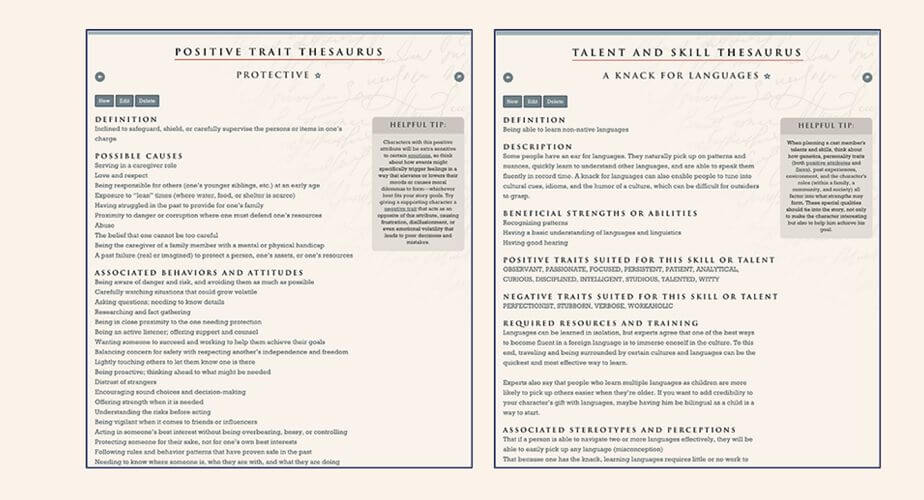
One Stop for Writers comes with an extensive thesaurus collection, idea generation, and other resources that allow you to build deeply layered characters efficiently.

Other notable features offered by the tool include story maps to demystify structure, scene maps, and timelines to help with plotting the overall story, worldbuilding surveys to help you organize details and idea generator that provides specific suggestions to the writer.

One Stop for Writers is a premium tool but comes with a 2-week trial. Use the trial period to see if it meets your requirements before making a purchase.

⇒Get One Stop for Writers

Plot Factory

Best worldbuilding tools

  • Price – Free / Premium

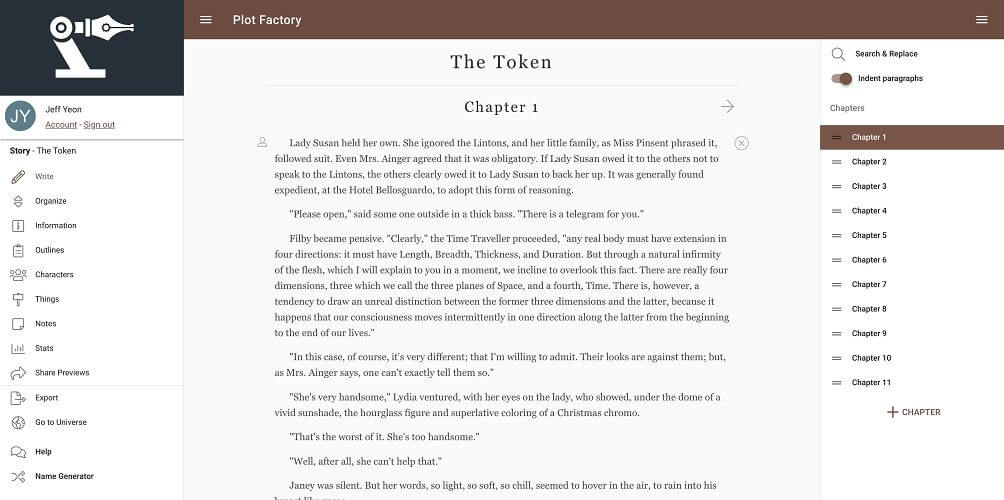
Plot Factory is an online story planner that lets the writer plan, organize, and write stories and fictional universes all from one place. It is a cloud-based tool and does require installation.

The advanced manuscript editor allows you to organize complex projects and write quality stories. Creators can access Plot Factory on their smartphone, computer, or any other internet-enabled devices.

You can set a goal and see a visual account of their progress. You can also track your daily, weekly, and month word stats as well.

Core features of Plot Factory include a full-featured online editor, character lists to keep track of character properties, universe notebook, plot helper outline to help you craft your plot, and sharing links to share your work with your friends and family.

⇒Get Plot Factory

Notebook.ai

Best worldbuilding tools

  • Price – Basic free / Premium

Notebook.ai is a small notebook for worldbuilders. Writers can use Notebook.ai to create rich, immersive worlds for their novels, stories, and plays.

Role players can use the tool to build worlds for their campaigns and share them with players. For design, Notebook.ai offers tools to collaborate and keep everything in sync.

Notebook.ai allows you to create characters for your story. You can further enhance the story by creating a location and adding items like weapons, artifacts, and books.

Notebook.ai is an ad-free platform and keeps your work backed up forever. In addition, the creators can invite friends and family to review their work or seek an opinion.

Notebook.ai is a clever choice for world builders to create and organize their work all in one place.

⇒Get Notebook.ai

Evernote

Best worldbuilding tools

  • Price – Free / Premium

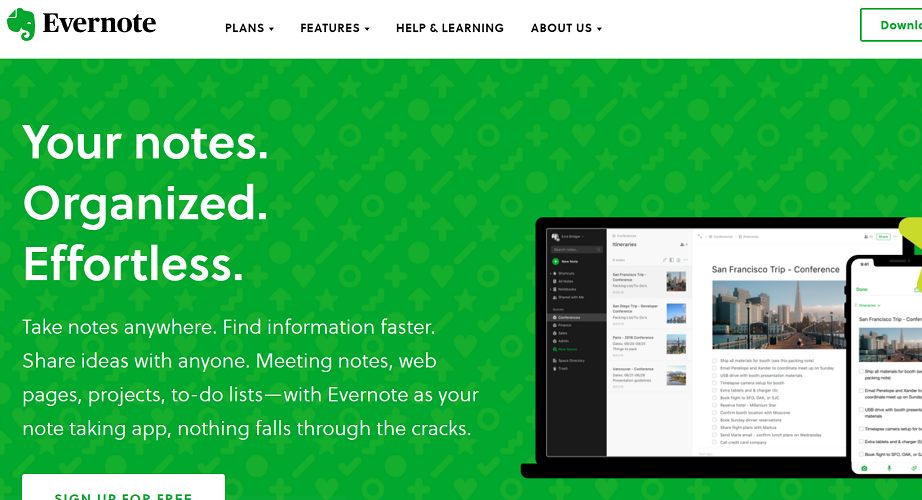
Evernote may be the last app that you will think of as a worldbuilder tool. Evernote is indeed geared more towards taking notes and keeping a tab on your schedule, and a to-do list. However, the core note-taking feature of the app does make it an ideal choice for worldbuilders.

Apart from the excellent editing and organizing features, Evernote’s browser extension offers some excellent features like allowing you to clip content and images from the web and save it in Evernote. The research can automatically be linked back to your source as well.

Evernote comes in both free and premium plans. Depending on whether you are using it for taking note, organize stuff, or bring your team together, you can opt for the free basic, premium, or business plan respectively.

⇒Get Evernote


Worldbuilding is the process of constructing an imaginary world where the authors sometime may create a whole fictional universe. As exciting as this idea may sound, the process can be overwhelming for new authors.

With the help of the recommended worldbuilding tools, you can streamline the process of worldbuilding by spending your time crafting than looking for the right tools.


[wl_navigator]

Windows 10 news recap: Windows 10 May 2020 Update rolls out, Cortana axes Alexa integration, and more

Welcome back to our Windows 10 news recap, where we go over the top stories of the past week in the world of Microsoft’s flagship operating system.

Microsoft starts rolling out the Windows 10 May 2020 Update today, here’s how to get it

This week saw the latest major update for Windows 10 begin to roll out, the May 2020 Update. You can take a look at some of the main features of the update here, one of which being a new Cortana app.

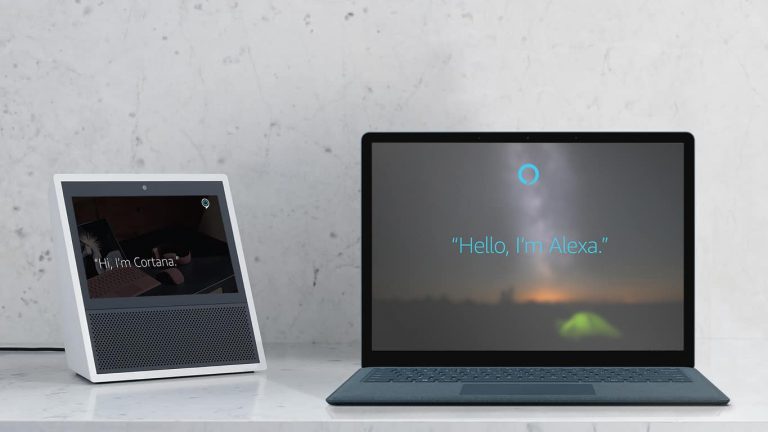
Cortana’s halo dims as the Windows 10 May 2020 Update axes Alexa integration

With the May 2020 Update for Windows 10, Cortana has axed its integration with Amazon’s Alexa. Microsoft is looking at ways to bring the two assistants together again in the future.

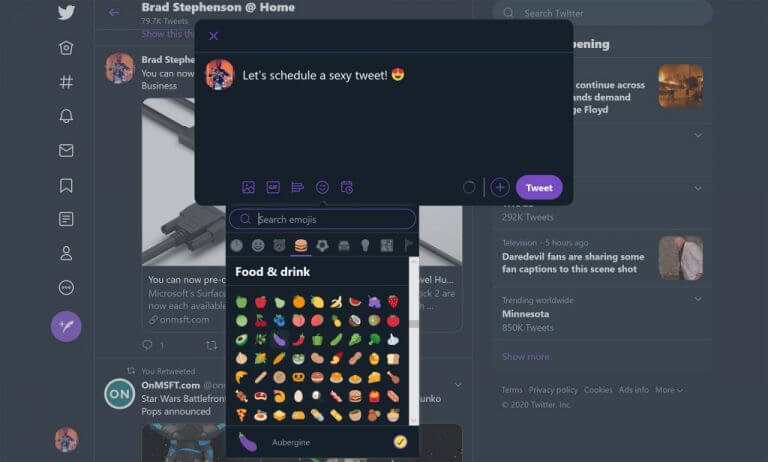
Windows 10 Twitter app now supports native tweet scheduling and emoji

Users of Windows 10’s Twitter app can now schedule tweets from within the app. The latest update also makes it easier to add emojis to your tweets.

Windows 10 Twitter app.

Windows 10 Slack app updates with increased security for all web content

Slack on Windows 10 has received a new update this week that increases the level of security for web content, making use of app sandboxing to make web content more secure.

New Slack logo
New Slack logo

That’s it for this week. We’ll be back next week with more Windows 10 news.

Microsoft news recap: Surface Earbuds owners report hissing issue, Outlook Spaces goes live, and more

Microsoft news recap is a weekly feature highlighting the top Microsoft news stories of the past week. Sit back, grab some coffee, and enjoy the read!

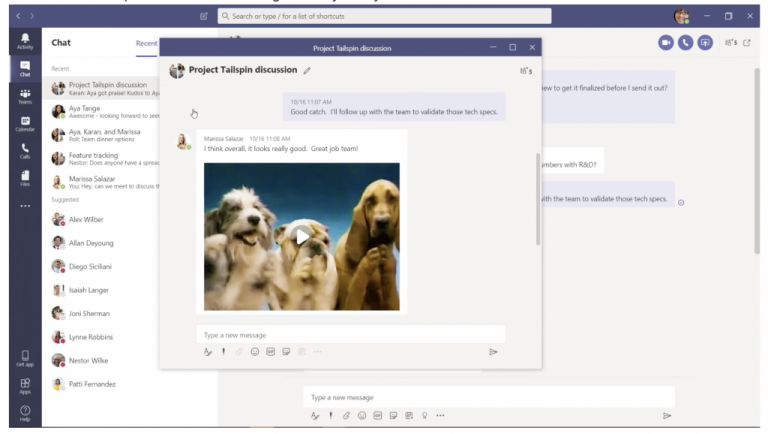
Multi-Window chat support is now generally available in Microsoft Teams, here’s how to use it

It’s now possible to open chats in different windows in Microsoft Teams, making it easier to see and manage your conversations when multiple chats are taking place.

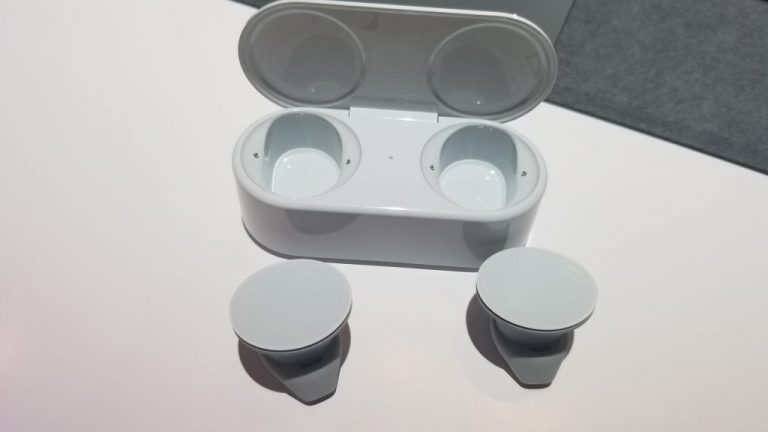
Some Surface Earbuds owners are experiencing an “hissing” issue, are you impacted, too?

Owners of Microsoft’s Surface Earbuds are reporting issues with odd sounds coming from them, such as hissing or popping.

Surface Earbuds
Surface Earbuds

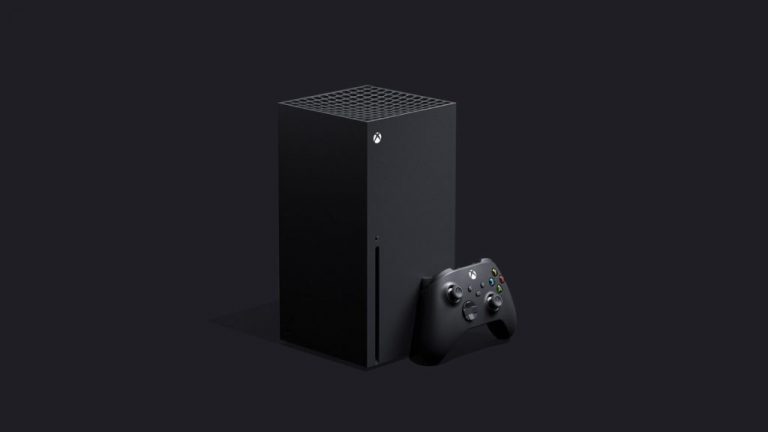
Xbox Series X to improve backward compatible games with HDR, increased resolutions, and higher frame rates

Backward compatible games on Microsoft’s upcoming Xbox Series X games console are set to be even better. Games that are backward compatible will be able to support HDR, increased resolutions, and higher frame rates.

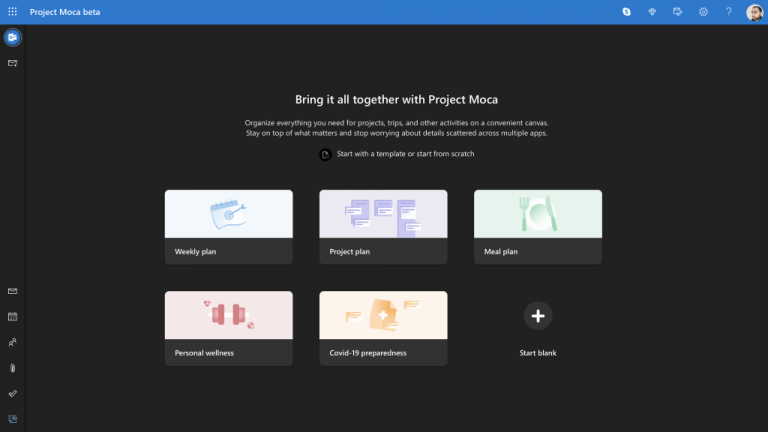
Outlook Spaces, Microsoft’s new project management tool goes live on the web as “Project Moca”

Microsoft is working on a new project management tool, Outlook Spaces, currently known as “Project Moca”. The idea is for it to be able to organise content, such as emails, documents, events, and more.

That’s it for this week. We will be back next week with more Microsoft news.

Monero cryptomining bugs infest Microsoft Windows machines

Cybersecurity firm Red Canary reported Monero cryptomining bugs that attacked Windows machines at multiple organizations. It has given the name Blue Mockingbird to this type of malware activity it has been following for some time.

Cryptomining is a growing but an unstable sector. According to Statista, it generated $5 billion in revenue between 2010 and 2019.

The Blue Mockingbird Monero cryptomining payloads

The science of cryptomining is costly and computing resource-intensive, making it unattractive to many folks. But malicious actors have found a shortcut to making cryptomining money without having to buy powerful computers.

They illegally deploy cryptomining payloads on the computers of unsuspecting users to take advantage of the free processing power. That is the same reason hackers are delivering Monero cryptominers on Windows PCs.

In the incidents that Red Canary reported, the hackers launched multi-level attacks from numerous fronts to deliver the miners on Windows systems.

The bad actors would start by breaching web-facing applications. It appears they were taking advantage of Telerik UI vulnerabilities in ASP.NET apps.

After breached a targeted system, they would persistently launch multiple attacks using different techniques to deliver their malware.

We’ve observed involving Monero cryptocurrency-mining payloads in dynamic-link library (DLL) form on Windows systems. They achieve initial access by exploiting public-facing web applications, specifically those that use Telerik UI for ASP.NET, followed by execution and persistence using multiple techniques.

Such actors have used proxying software for this purpose before. Also, they have worked with multiple types of reverse shell payloads to breach external systems.

According to Red Canary, the Telerik UI exploit in question, CVE-2019-18935, has been around for some time. That also means it is not going away anytime soon.

Therefore, you may want to patch your Windows systems right away before you are targeted for the next Monero cryptomining attack. That is very imperative especially if your organization uses any web-facing applications.

Alternatively, install a cryptomining blocker on your Windows 10 PC.

We’re on call to respond to any questions or suggestions. Feel free to share yours by writing us a message in the comments section below.

[wl_navigator]

Windows 10/11 version 2004 ditches the old Microsoft Edge

Windows 10 version 2004, also known as the Windows 10 May 2020 Update, no longer supports the legacy version of Microsoft Edge.

Generally, Microsoft is retiring the old Edge in preference for an improved Chromium-based version. The new browser has a lot of features that are unique to it, including potentially unwanted apps (PUA) protection. But deep inside, it bears the DNA of Google’s Chromium engine.

Windows 10 version 2004 does not support the old Edge

Microsoft has published a list of features that it is no longer developing for different versions of the Windows OS.

 The features described below are no longer being actively developed, and might be removed in a future update. Some features have been replaced with other features or functionality and some are now available from other sources.

As such, the legacy version of Edge is among the apps the company will not be building for the Windows 10 May 2020 Update.

But if you like the older Edge, you can still use it on older versions of Windows 10.

The Companion Device Framework is another feature that Windows 10 version 2004 does not support. Microsoft integrated the tool with Windows Hello to improve the user authentication process.

However, Windows Hello is supported on the May 2020 Update. It even sports useful feature enhancements, such as safe mode user authentication.

The new Chromium-based Edge sports a modern sleek look, and it is functionally superior to its predecessor. The browser is catching on slowly against the backdrop of stiff competition from Firefox and Chrome.

The slow death of the old Edge should not have a lot of mourners though. After all, the browser had a meager 2.23% share of the global browser market in April 2020, according to Statcounter.

Are you a super fan of the new Microsoft Edge browser? Feel free to let us know (or ask any question) via the comments section below.

[wl_navigator]

Amd Has A New Driver Fit For The Windows 10 May 2020 Update

The Windows 10 May 2020 update was already released, and Microsoft already signaled some problems with certain display drivers that block the update for some users.

Coincidence, or what, AMD released the new graphics card driver that adds support for the updated operating system.

What is new about AMD’s latest graphics card driver?

Well, the driver didn’t come alone, but together with the AMD’s Adrenalin 2020 version 20.5.1 that brings support for AMD Link Xinput Emulation and fixes a big list of issues.

For those unfamiliar with it, AMD Link is an app that allows you to stream games from your PC on your mobile device. That means that you can play on your Android phone when you’re away from your computer.

Another improvement is the new Xinput Emulation driver that will make an Xbox 360 controller appear in your device manager. And that happens even if you don’t have one.

That allowed you to quickly configure the games to run without a keyboard and mouse on devices like the smartphone.

What issues did AMD fix?

AMD has worked hard to fix some important issues that affected players of big game names like Sniper Elite 4, Red Dead Redemption 2, Destiny 2, Star Wars Jedi: Fallen Order, and Control.

The list is a lot longer but you can read it on the AMD page.

Download the Windows 10 64-bit version of the driver from the AMD release page.

New Xbox One Update introduces simpler Guide with customizable tabs

Microsoft released a new Xbox One System today, following the May 2020 Update earlier this month. The first “2005” build for the Xbox One, which was released on May 12, included new game filtering options in My Games & Apps, as well as Community Hub improvements.

Today’s update is actually the third Xbox One system update this month, as it follows the release of a second “2005″ Xbox One build on May 15 that included performance and stability improvements. This third update finally brings the revamped Xbox Guide that Microsoft started testing with Xbox Insiders back in March.

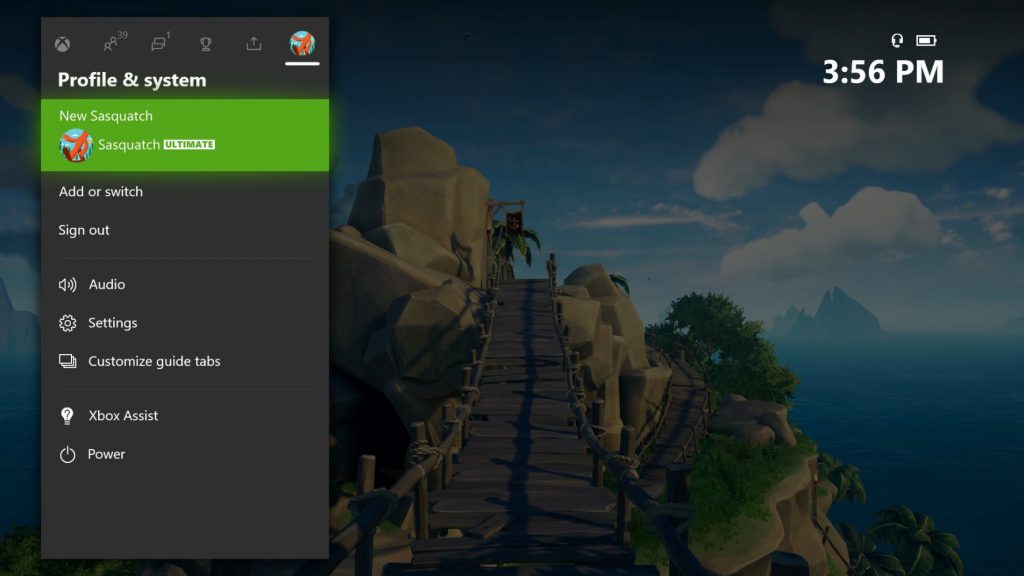
“We’ve reduced the total number of tabs by combing related experiences and introduced a new default, left-to-right tab order, making it simpler to move around,” the Xbox team explained. There’s a new Parties & chat tab that combines text chats and Xbox Live Parties, as well as a Profile & system tab that brings together Settings, audio, customization, power options, and user switching all in one place.

In case you don’t like the default tab order, you can now change it in the “Customize guide tabs” option on the “Profile & system” tab. This revamped Xbox Guide is the second major change on the Xbox One OS this year after Microsoft redesigned the Home experience with the February 2020 update.

It’s not always easy to keep track of Xbox One system updates, especially when we get several in a single month, but the Xbox support website includes a detailed list of all of them since February 2019. Microsoft is currently testing “2006” builds with Xbox Insiders, but we don’t know what to expect yet for the June 2020 Update for the Xbox One.

Windows 10 version 2004 update blocked by a security feature

If you are trying to update to Windows 10 version 2004, you might receive the message, Your PC settings need to be adjusted before upgrading to the latest version of Windows 10. Turn off memory integrity protection to continue.

That means that Microsoft found an incompatibility with certain display drivers and Memory integrity protection is enabled.

To protect your computer for any possible issue, Microsoft blocked the update on these devices for Windows 10, version 2004.

How can I update to Windows 10 version 2004 with Memory integrity enabled?

Microsoft also provided a workaround to this problem, and the solution is to update your display drivers.

The updated drivers might be also available on Windows Update. If you are still receiving the safeguard hold, you will need to check with your device manufacturer for updated display drivers (sometimes called video drivers).

How can I turn off the Memory integrity?

If for some reason, you can’t update your display drivers, you will have to turn Memory integrity off to be able to update to Windows 10, version 2004.

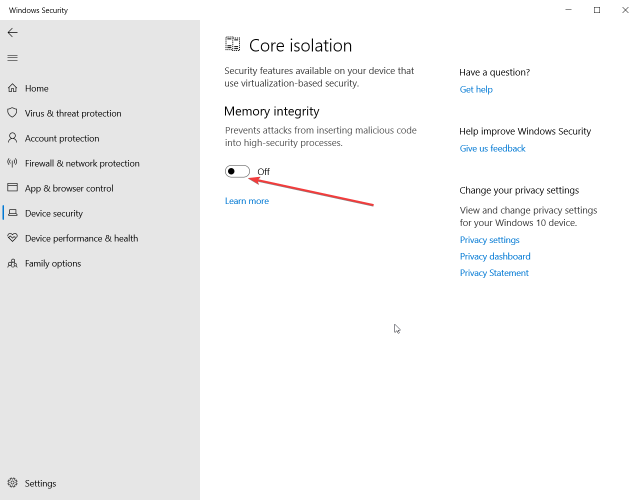
1. Open the Windows Security app, and click on Device Security in the left pane.

2. Next, click on Core isolation details and turn the Memory integrity setting to Off.How to turn off memory integrity

3. Restart your computer for the changes to take effect.

Did you have this problem? Tell us all about this and other issues with the Windows 10 version 2004 in the comments section.

[wl_navigator]

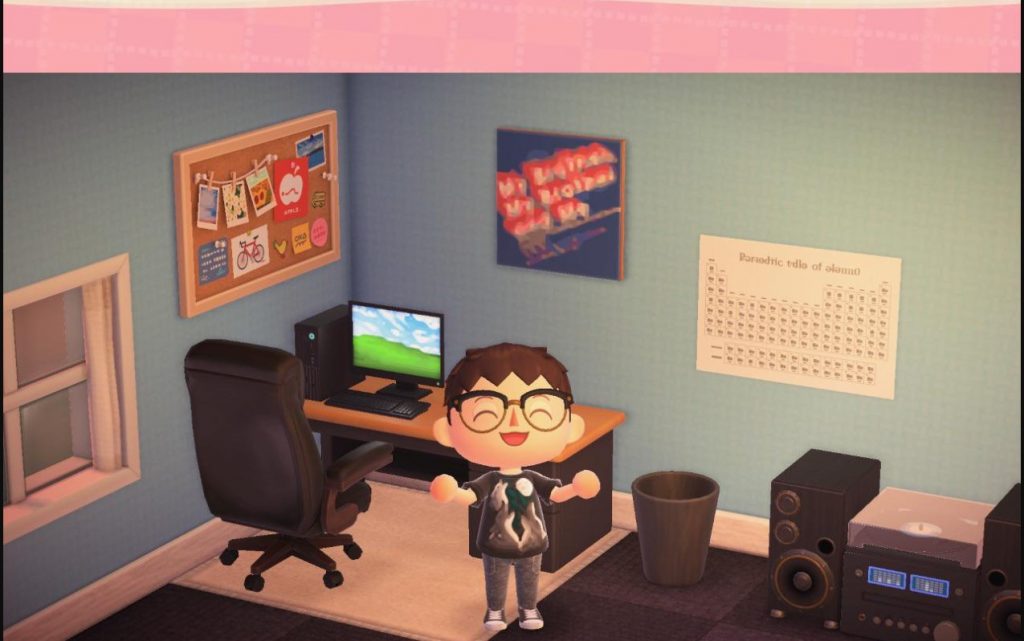
Check out these cool Microsoft-themed outfits and custom designs in Animal Crossing: New Horizons

If you’re a Microsoft fan and also own a Nintendo Switch and a copy of the game Animal Crossing: New Horizons, we have a treat for you.

Over the past few weeks, Microsoft employee Jen Gentleman and others in the Animal Crossing community on Reddit have been putting together some cool Microsoft-themed outfits and custom designs. From Build 2020 swag, Microsoft Edge shirts, the Windows 10 Blue screen of death design, and more, there’s quite a lot out there to choose from.

We’ve collected some of our favorites together for you, so you can get all that virtual Microsoft swag for your own character and island items.

Microsoft Build 2020 Swag

Microsoft’s Build conference just wrapped up last week, but if you’re a proud Windows developer, you might want to check out Jen Gentleman’s collection of Microsoft Build shirt designs. These are quite cool, with some featuring the Visual Studio logo, the Linux Logo, the Microsoft Channel 9 robot, and even the Build 2020 logo itself. You can download these shirts and the others on our list by going to Able Sister’s store, visiting the kiosk, and entering in Jen’s creator code, MA-2729-6723-4412.

Windows 95 sweater

Next up is the Windows 95 ugly sweater. You might recall when Microsoft sent out an “ugly sweater” to influencers and journalists back in December 2018. Jen’s second creation is based on this and is styled in the same way. It features the old school Windows 95 logo on top of a white background, with blue polka dots on the arm. It really completes any look, and you’ll be able to influence your Island animals in style to go out to Nooks Cranny and buy a Windows 95 CD when wearing it. You can grab this with code MO-W5W3-L4SP-CCH6 when entering a design ID at the Able Sister’s store.

Microsoft Edge shirt

Third on our list is this Microsoft Edge shirt. Microsoft gave its Edge browser a new logo back in November of 2019, and this shirt design from Jen Gentleman reflects that. You’ll get the same logo that you have pinned in the Taskbar or Start menu your laptop but on a t-shirt. The new logo is inspired by a “wave” and gives the effect of a “surf.” It is perfect for when you’re walking along the beach, picking up seashells and DIY recipes on your Island, or even rescuing Gulliver. You can download this with the design ID MO-06MC-4SGJ-VHBK.

T-Rex shirt

Of course, the next pick is the T-Rex shirt. If you’re a Windows Insider, then this is a shirt for you. Along with Ninja Cat, the T-Rex was the unofficial mascot of the program when it was under the leadership of Gabe Guwin and Dona Sarkar. The shirt created by Jen is quite cool, as the T-Rex is on top of the black background, really putting a highlight on how cool it can look. This shirt might look great when standing next to Blathers in the museum. Download it with the code MO-GT2B-GB6X-1WHF today.

Clippy shirt

The final of the shirts is Clippy. We can’t forget the assistant who helps you write letters, can we? With Jen’s creation, you’ll see Clippy in all his glory, on the front of your shirt. It might be helpful to wear when you’re sending letters or items to friends in your game. Who knows, maybe Clippy might write the letter for you. You can grab it with the code MO-2HLW-0SNK-5R6B right now.

Windows XP Wallpaper

We’ve now turned out attention away from shirt design and have gotten to backgrounds. With u/Cowsezcwak’s design, you’ll be able to put the Windows XP wallpaper on the PC or the laptop in-game item. It’s a nice way to customize the look of your PC, in the room of your in-game house or office. It also might bring back some nostalgia, too. Download it right now with the code MO-WM9X-BJFQ-5W5R.

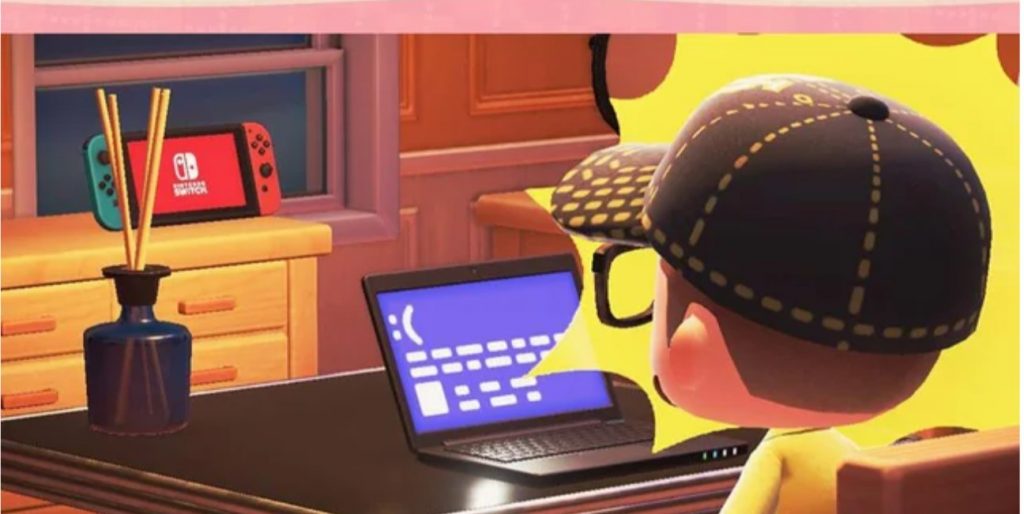
Windows 10 Bluescreen of Death

We’ve saved the best for last. If you’re feeling frustrated with Windows 10 and have experienced some bugs in the OS, then you might want to customize your in-game PC with the Windows 10 Bluetsceen of death wallpaper. This one was created by u/Minifig81 and it’s quite cool. There’s no QR code to scan, but it’s styled the same way a real BSOD would look like. Download it with the code MO-F0RT-YHDV-M5RD.

Show us your designs!

These are just a small collection of items we’ve found for Animal Crossing: New Horizons. If you happen to come across any other items or have one of your own, let us know by dropping us a comment below.

Microsoft releases Windows 10 Build 19635 (Fast Ring)

Microsoft released the Windows 10 Build 19635 for Insiders in the Fast Ring. These are the earliest releases for evaluation. Windows 10 Build 19635 doesn’t have any new features but it includes some fixes and a couple of known issues.

What is new in Windows 10 Build 19635?

What was fixed?

  • Apostrophes in the Location not available dialog, Mount File dialog, and File Explorer folder options text not being displayed correctly.
  • The Work or School account > Allow Windows Search to provide… toggle under Search Settings could be unexpectedly disabled.
  • Cellular data not working on certain devices.
  • Settings crashing when changing display orientation or resolution.
  • Insiders seeing a large number of “Program Compatibility Assistant Service stopped working” critical events in Reliability Monitor.
  • Constant display flashing on certain devices.
  • Camera on certain devices showing unexpected artifacts.

Known issues that Microsoft is working on

  • Some devices booting from eMMC storage may bugcheck when resuming from hibernate.
  • Reports of the update process hanging for extended periods of time when attempting to install a new build.
  • Fixing an issue for a future Insider Preview build where in Settings > Privacy the Documents and Downloads sections show a broken icon next to their page name (just a rectangle).
  • Reports that taskbar preview thumbnails aren’t rendering consistently (showing a blank area).

What is the Insider Fast Ring?

The Microsoft Insiders program is a method for them to test the coding and features of their OS way before the release to the general public.

The Fast Ring, as the name suggests, is for the earliest builds. Some modifications and features inside them might never reach the final release for the general public.

Please leave us a comment below with your thoughts.

[wl_navigator]

Multi-Window chat support is now generally available in Microsoft Teams, here’s how to use it

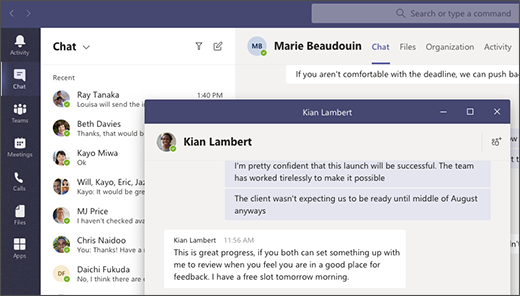
Last month, we reported that Microsoft has started rolling out multi-window chat support in Microsoft Teams. Today Microsoft has announced that the ability to pop out chat conversation into separate windows is now generally available in the Microsoft Teams desktop app for Windows and Mac. The new messaging experience lets you pop out your group or one-on-one chat into a separate window. You can then resize, reposition, or close the window according to your specific requirements. The feature makes multi-tasking easier while you are in a meeting or in a call.

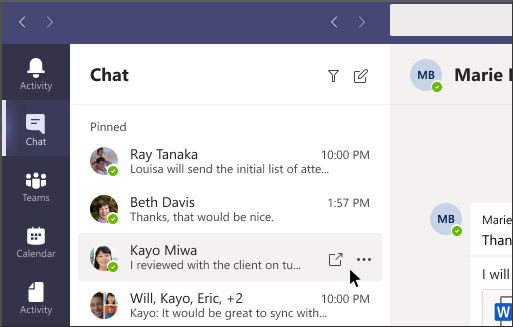
Microsoft listed a couple of methods to pop out a chat in Teams, and the option can be accessed directly from the chat list, by hovering over a chat, from the chat itself, profile picture, or the command box.

From the chat list

Navigate to the left side of Teams and select the Chat button to open the chat list. Locate the name of the chat you want to pop out, and then; select More option > Pop out chat, or simply double-click the chat name and you’ll see a new pop out chat window (as shown below) on your screen.

Microsoft Teams pop out chat method 1

By hovering over a chat

Secondly, as soon as you hover over one of your chats, there you will see the Pop out button. Click on this option to open a new pop out chat window.

Microsoft Teams pop out chat method 2

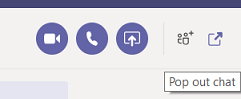
From the chat itself

To pop out a specific chat, head over to the top right corner of the chat and select the Pop out chat option as shown below.

Microsoft Teams pop out chat method 3

From a profile picture

Navigate to the profile picture of the person you want to have a conversation with, and double-click the profile picture. There you go! You’re in a new window now.

Microsoft Teams pop out chat method 4

From the command box

You can also use the command box at the top of Teams to pop out chats. Just type /pop in the command box and then choose the chat you want to pop out.

Microsoft Teams pop out chat method 5

As of this writing, the pop out chat feature is not yet supported for Teams on the web, Linux, or mobile. It should be kept in mind that Microsoft Teams users don’t need to close the pop out chat window to do other stuff like adding apps, attaching a OneDrive File, and scheduling meetings. You can simply return to the main app to use those features.

Windows 10 Twitter app now supports native tweet scheduling and emoji

Twitter’s web version updated today with a new native scheduler feature and a new emoji button in the compose box. Due to the nature of Progressive Web Apps (PWAs), the official Windows 10 Twitter app has also picked up these changes.

The emoji feature (see above image) can be activated by clicking the smile icon when creating a new Tweet. This will open a native emoji menu that can be used in a similar way to the Windows 10 emoji box which can be summoned at any time by pressing the Windows key and . at the same time. Users can browse for the emoji they want or search for one.

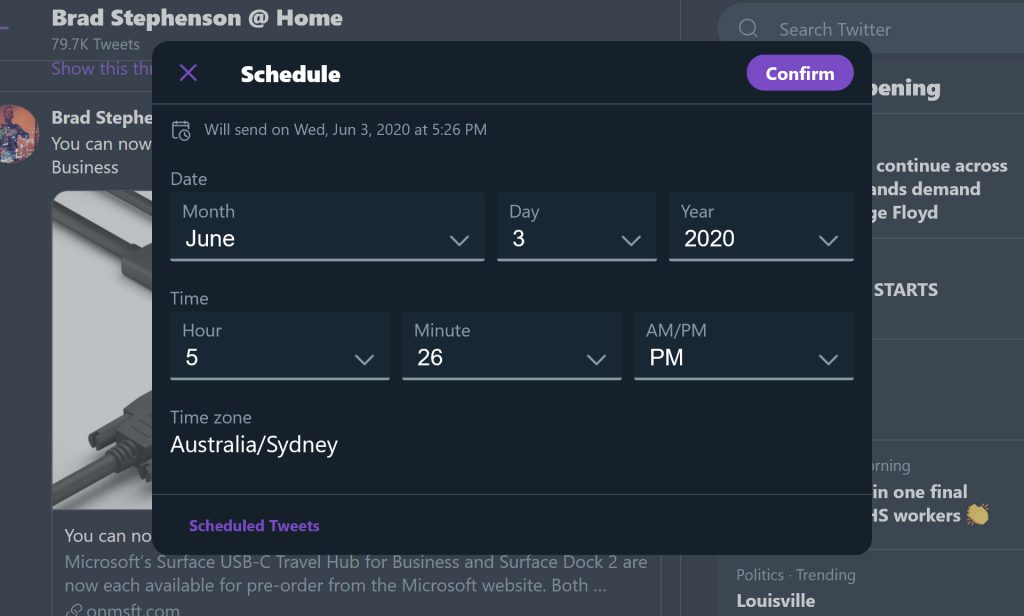
The new schedule feature (as shown below) can be activated by clicking on the new calendar icon. Tweets can be scheduled down to the minute and there’s even an option for the preferred time zone.

Windows 10 Twitter app.

Do you use the Windows 10 Twitter app? Let us know why or why not in the comments below and then follow us on Twitter for more tech news.

Twitter
Twitter
Developer:
Twitter Inc.
Price:
Free

How to change mouse sensitivity [Windows 10 & Mac]

A computer mouse is a key peripheral, and almost all users use it for input. Your mouse allows you to quickly perform any action on your PC.

However, there are users who want to increase their mouse sensitivity even further. This is relatively simple, and today we’re going to show you how to do that on Windows 10.

How to change mouse sensitivity in Windows 10?

Change your mouse DPI settings

change mouse DPI settings

The best way to change mouse sensitivity is to use the DPI button on your mouse. Usually, gaming mice have a DPI button on them that allows you to switch to a different sensitivity setting.

This is the best way to change your sensitivity because it allows you to change it with a single button.

We have to mention that your DPI settings are temporary, and in most cases, they will revert to the default value once you turn off your PC.

On the other hand, mice with adjustable DPI settings are relatively affordable, so if you want a mouse that offers different sensitivity levels, you might want to invest in a new mouse.


Select a proper mouse pad

select proper mouse pad

If you want to increase your mouse sensitivity and precision, you might want to consider using a different mouse pad.

There are many great mouse pads with different textures that allow you to enhance your sensitivity.

Many of these pads are relatively affordable, so you might want to consider purchasing one of them for your PC.


    Change mouse sensitivity on Windows 10 using Control Panel

    If you’re satisfied with your current mouse and you don’t want to change it for one that allows you to change its DPI, you can change mouse sensitivity from Windows. The built-in Mouse Properties settings in Control Panel allow you to make changes to your mouse in just a few clicks.

  1. 1. Press Windows Key + S and type Control panel.

    control panel increase mouse sensitivity step 1
  2. 2. Choose Control Panel from the list of results and click on it.

  3. 3. Once Control Panel opens, select Mouse from the list of options.

    control panel increase mouse sensitivity settings
  4. 4. The Mouse Properties window will now appear.

  5. 5. Go to the Pointer Options tab and adjust mouse pointer speed by moving the slider. You might want to try turning on the Enhance pointer precision option as well.

    increase mouse sensitivity control panel pointer options
  6. 6. After adjusting your mouse speed, click on OK and Apply to save changes.

This is the simplest way to change your mouse sensitivity, so be sure to try it out.


Use your mouse software to adjust the sensitivity

change mouse sensitivity

Gaming mice tend to come with dedicated software that allows you to configure your mouse. Thanks to this software you can adjust the mouse lighting, macros, and other settings.

In addition, you can also adjust the sensitivity of your mouse so be sure to try that.

Keep in mind that not all mice come with dedicated software, so this solution won’t work for every computer mouse.


Modify your registry

  1. Press Windows Key + R and enter regedit. Press Enter or click OK.
  2. Optional: Modifying the registry can cause certain problems with your PC, therefore it’s highly advised to create a backup. To do that, simply click on File > Export.

    Select All in Export range section and enter the desired file name. Choose a safe location and click on Save button.

    In case anything goes wrong after modifying the registry, you should be able to restore it by running this file.
  3. Navigate to HKEY_CURRENT_USERControl PanelMouse key in the left pane.
  4. In the right pane, double click MouseSpeed and set its Value data to 2.
  5. Now change the value data for MouseThreshold1 and MouseThreshold2 to 0.

If needed, you can further increase the sensitivity of your mouse by modifying your registry. We have to mention that modifying the registry can be potentially dangerous so be extra cautious.

To change mouse sensitivity from your registry, perform the above steps.

After doing that, your mouse sensitivity will be set to maximum. If your mouse is too sensitive, you might want to adjust MouseThreshold1 and MouseThreshold2 values.

Keep in mind that you need to keepMouseThreshold2 greater or equal to MouseThreshold1 at all times.

This solution is for advanced users, so if you’re not familiar with Registry Editor, or if you don’t feel comfortable editing your registry, you might want to use a different solution.

Changing mouse sensitivity in Windows is rather simple, but the best way to do that is to use a mouse that allows you to adjust the DPI settings manually.

If you don’t want to purchase a new mouse, feel free to try any other solution from this article.

Microsoft, Google eye India telecom investments

India’s telecom industry is becoming a new hotbed for American tech firm investment opportunities as of late, with Facebook recently acquiring a close to 10% stake in Reliance Jio Platforms and Apple pushing hard with its “low cost” iPhone offerings over the years.

Now it seems both Microsoft and Google are interested in joining the fray with investment opportunities of their own, with the former interested in a 5% stake in India’s largest telecom operator Vodafone and the latter wanting a $2 billion dollar piece of Reliance Jio Platforms as well.

Corroborating the accounts are India publication liveMint and the Financial Times which reports that before moving ahead with Vodafone, Google was also in talks with Reliance Jio Platforms which has raised $10.3 billion in a matter of weeks despite only being in the market for a little over 3 1/2 years.

As for Microsoft’s latest intentions, industry gossip places the company’s interest at a little over a month now, and despite not having a traditional mobile offering, the company seems to be still eyeing some sort of play for the potential 600 million user base India telecoms have access to.

Both Google and Facebook appear to be going after the low-end connectivity markets of India with Microsoft already having established a foothold with a partnership with Reliance Jio to “subsidize Office 365 cost to millions of small businesses in the region.

Microsoft’s new investment interest may be looking to expand its existing partnership and perhaps nothing to do with smartphones, mobile devices, or direct telecommunications platforms, but rather offering the cloud infrastructure to power those experiences for years.

How to change the cursor speed in Windows 10 version 2004

Until now, the cursor speed setting for the mouse was in the Control Panel. Now it moved in the Settings.

How can I change the cursor speed in Windows 10 May 2020 update?

To change the cursor speed in Windows 10, follow the next easy steps:

  1. Press the Windows button and click on the Settings button (the cogwheel on top of the Power option).
  2. Click on the Mouse option from the left pane and adjust the Cursor speed from the right pane to your liking.

Mouse cursor speed settings

Other mouse settings

While you are at it, you might also adjust the scrolling speed for your mouse wheel. You can choose how many lines you want it to scroll each time you move the mouse wheel.

You can also change the color and size of the cursor if you click on the Adjust mouse & cursor size from Related settings.

If you click on the Additional mouse options, you will get to the Mouse Proprieties screen where you have additional settings.

Mouse Proprieties screen

You can easily access the Mouse Settings page if you type mouse in the Windows Search window and click on Mouse Settings from the results.

You can also learn how to turn off mouse acceleration for more control.

[wl_navigator]

Seeing the Outlook not implemented error? Follow these steps

When sending an email in the Outlook client, you may encounter the Outlook not implemented error. Apart from composing an email, the error can also occur when you try to receive, reply, forward, or even send a message leaving the user with a non-functioning email client.

The cause of Outlook not implemented error is attributed to multiple reasons including overprotective antivirus application, Outlook add-in, corrupted Outlook configuration as well as system files.

In this article, we have jotted down a couple of quick fixes to help you troubleshoot the Outlook not implemented error so that you can get back online composing new emails in no time.


How do I fix Outlook not implemented error in Windows?

1. Run MS Office repair tool

Outlook not implement error

  1. Press Windows Key + R to open Run.
  2. Type control and click OK to open Control Panel.
  3. Go to Programs > Programs and Features.
  4. From the list of installed apps, select Microsoft Office / Outlook.
  5. Click on Change / Repair.
  6. The Office repair tool will show the following options:
    Quick Repair – Select this options first. It will quickly scan the program for installation-related issues and fix them without the need for an internet connection.
    Online Repair – Use the second option if the issue persists. This may take longer to diagnose and fix the issue while also requiring access to the internet.
  7. Once done, close the troubleshooter and check for any improvements.

2. Go back to previous of Windows 10

Outlook not implement error

Uninstall updates

  1. Before going back to the previous of Windows 10, try uninstalling the latest KB update and check if that resolves the error.
  2. Click Start and select Settings.
  3. Go to Update and Security.
  4. Select Windows update.
  5. Click on View update history.
  6. Click on Uninstall updates.
  7. Select the most recently installed Windows KB Update.
  8. If you find an update that was installed just before the error started to occur, try uninstalling it first.
  9. Select the update and click Uninstall.
  10. Once uninstalled, check if the Outlook error is resolved.

Install the previous version of Windows 10

Outlook not implement error

  1. Go to Start > Settings.
  2. Go to Updates and Security.
  3. Open the Recovery tab.
  4. Scroll down to Go back to the previous version of Windows 10.
  5. Click the Get started button.
  6. Follow on-screen instructions to go back to the previous version of Windows 10.

After the restart, launch the Outlook client and check if the Outlook not implemented error is resolved.

If the Get started button is greyed out, it means the update is more than 10 days older; hence the option is not available anymore.


3. Disable third-party antivirus

Outlook email error

  1. According to reports, third-party antivirus can create conflict with the email client.
  2. If you are using a third-party antivirus, try disabling it temporarily.
  3. Avast users, right-click on the Avast antivirus icon from the system tray.
  4. Select Avast Shield Control.
  5. Select one of the options to disable the antivirus temporarily.
  6. Alternatively, you can also select the Disable Permanently option.
  7. Once disabled, launch Outlook and check for any improvements.
  8. If the error is resolved, check if the antivirus is blocking connections from and to the Outlook client.

4. Disable compatibility mode

Outlook error not implemented

  1. Open File Explorer.
  2. Navigate to the following location:
    C:Program FilesMicrosoft OfficeOffice14
  3. Right-click on Outlook.exe and select Properties.
  4. In the Properties window, open the Compatibility tab.
  5. Uncheck the “Run this program in compatibility mode” option.
  6. Under Settings uncheck “Run this program as administrator” option.
  7. Click OK to save the changes.

The outlook is not implemented error can occur due to multiple reasons. By following the steps in this article, you can fix the error quickly.

Do let us know which method helped you resolve the error in the comments.

[wl_navigator]

Anti-Hacking Feature Blocks Windows 10 May 2020 Update

Hypervisor-protected code integrity (HVCI) is blocking the Windows 10 May 2020 Update for some users.

HVCI is a Windows 10 security feature that prevents hackers from manipulating kernel-mode processes. In the past, bad actors have injected malicious code at the kernel level, causing all manner of system problems.

While HVCI is meant to validate the integrity of any kernel-mode code, it is now blocking the installation of Windows 10 version 2004. Users that have the hardware virtualization security feature enabled are experiencing the problem.

The HVCI issue impacting Windows 10 May 2020 update

Microsoft has acknowledged the error that some Windows 10 PC users are getting when they try to upgrade their OS. The company identified driver incompatibility as the source of the bug.

If you are trying to update to Windows 10, version 2004, you might encounter an update compatibility hold and receive the message, “Your PC settings need to be adjusted before upgrading to the latest version of Windows 10. Turn off memory integrity protection to continue. To safeguard your update experience, we have applied a compatibility hold on these devices from installing or being offered Windows 10, version 2004.

With the compatibility mode in place, affected users cannot update their OS to the latest version in the meantime.

There are two workarounds though. The first option is to update your display drivers with HVCI enabled. Alternatively, disable the memory integrity feature.

Minor Windows 10 updates have caused problems for users before. Fortunately, as with earlier versions, you can choose not to update to Windows 10 2004.

It’s nice to have this level of control of when to upgrade just in case you want to wait and see how the new OS pans out. However, the platform has some excellent new features you may want to try out, including productivity-oriented Cortana.

Have you installed the Windows 10 May 2020 Update yet? Feel free to share your experience with the OS in the comments section below.

[wl_navigator]

How to use the new features in Microsoft Notepad

Notepad has been a loyal text editor Windows for more than 30 years and it will still play a part in Windows 10. Now it comes with new features.

How can I use the new Notepad features in Windows 10 version 2004?

Windows 10 version 2004 brings significant features worth noting.

  1. The Find feature can now find wrap-around text, and if you select a part of the text before starting the Find dialog, the text you selected will show up is the search box automatically.Find in Notepad
  2. Another important improvement is the fact that you can zoom in and out on text by using Ctrl +the plus and minus signs or Ctrl + mouse wheel scroll. Of course, you can  also click on the View button from the top of the screen.
  3. If you have unsaved changes, you will see the * sign before the title. After you save it, the asterisc will disappear.unsaved changes in Notepad
  4. There is a new default encoding option, UTF-8 without a Byte Order Mark

Other improvements include better compatibility with ASCII and the web and other smaller modifications.

New shortcuts for Notepad

  • While in Notepad, Ctrl+Shift+N will open a new Notepad window
  • Ctrl + Shift + S will open the Save as… dialogue
  • Ctrl + W will close the current Notepad window.

What do you think about the new features in Notepad? Leave us a line in the comments section.

[wl_navigator]

How to install a PWA on Windows 10 using Microsoft Edge

A Progressive Web App, also known as PWA for short, is a type of application software built using HTML, CSS, and Javascript. PWAs work on any platform and have much of the same capabilities as normal apps, including push notifications, the ability to work offline, and device hardware access. Unlike a web wrapper, PWAs create user experiences similar to regular applications. There is also no requirement for developers or users to use an app store to install PWAs.

Previously, OnMSFT showed you how to install Disney+ as a PWA, but you can install any website as a PWA using Microsoft Edge. In another post, we examined what is great and not so great about PWAs. Before you get overwhelmed, keep in mind that installing PWAs on your Windows 10 PC is not as hard as it is made out to be. With this guide, you will see just how easy it is to install and uninstall PWAs on Windows 10 using Microsoft Edge.

There are two ways that you can install PWAs on Windows 10 using Microsoft Edge; automatically and manually.

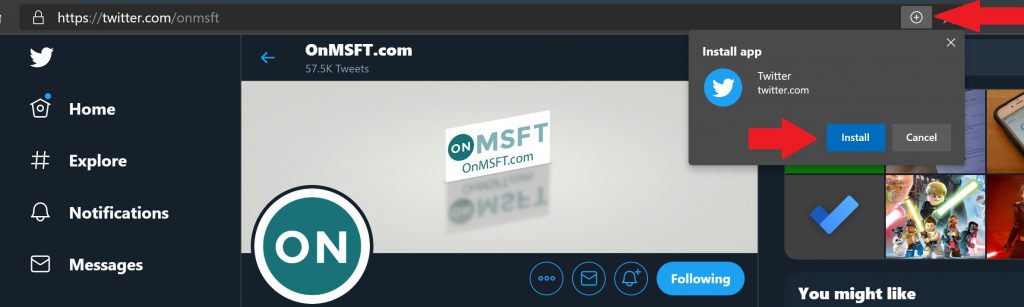
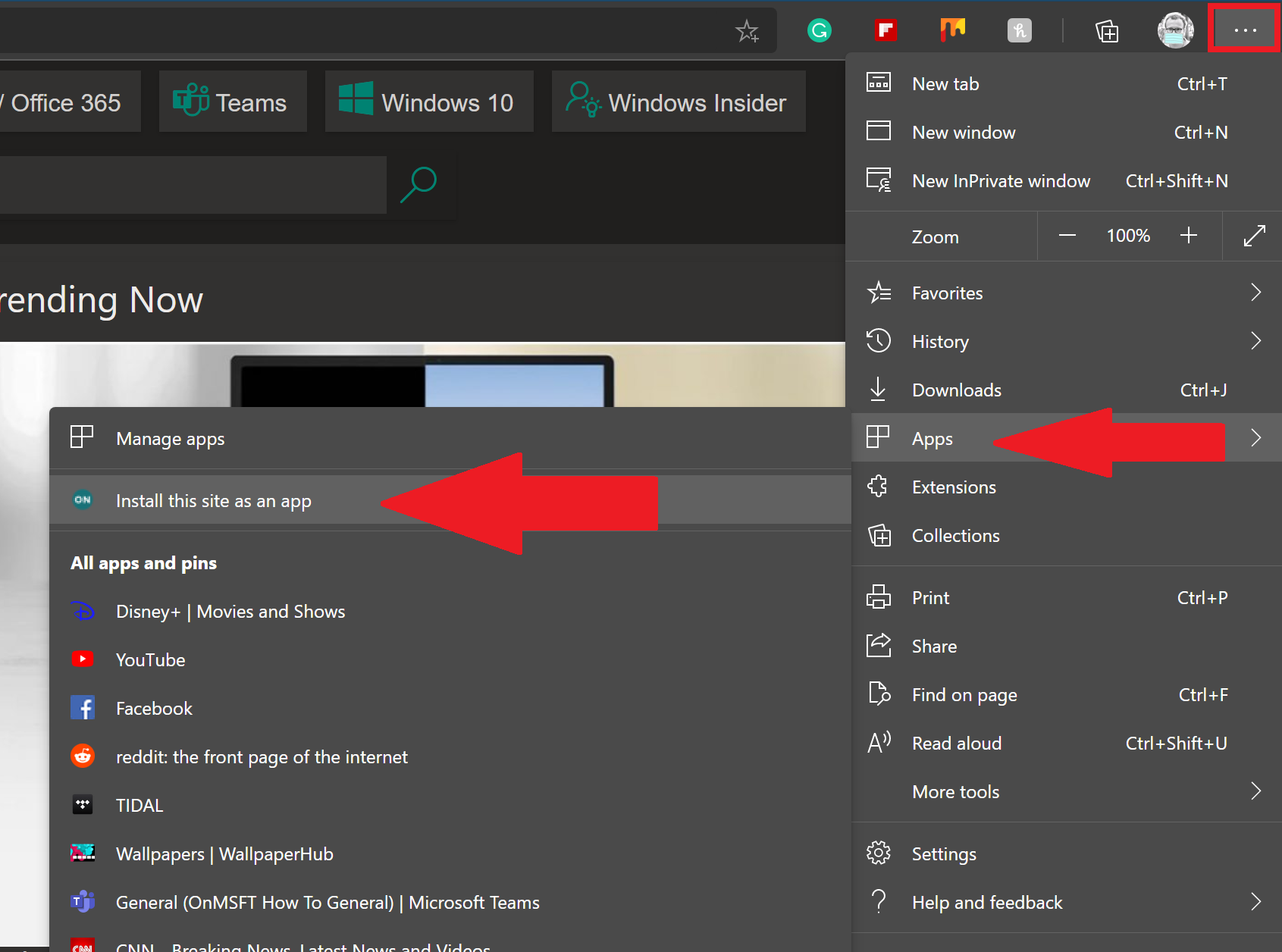
1. When you come to a website that supports PWA natively, you can click the plus sign icon to the right of the address bar to install the PWA automatically.2. If the website does not have a native PWA, you can manually add a PWA directly from the Edge options menu. Go to the three-dot menu in Edge, go to Apps, and Install this site as an app.

When you install a PWA automatically or manually, a shortcut to the PWA will appear on your desktop and with your other apps on the app list in the Windows 10 Start menu. You can pin PWAs to your Start menu and your taskbar on Windows 10 for easier access.

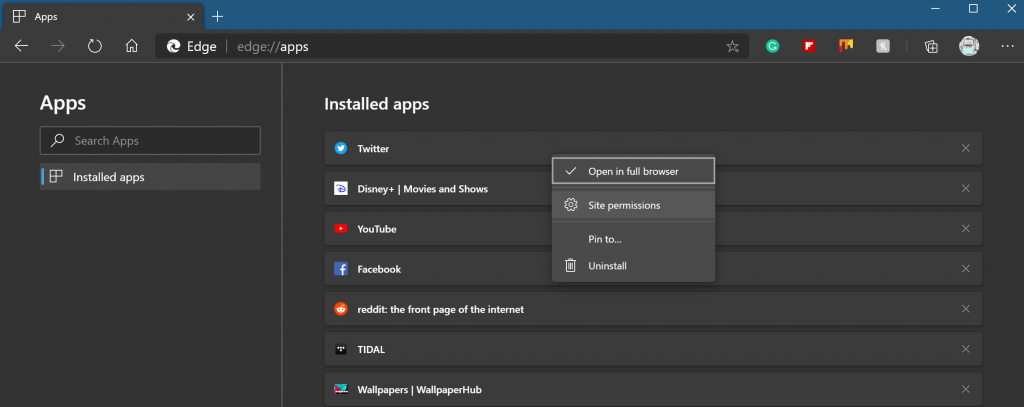
You can delete the shortcuts of the PWA apps from your desktop and from your app list at any time. If you want to view the PWAs that you created automatically or manually, you can do so by typing edge://apps into the address bar on Edge.

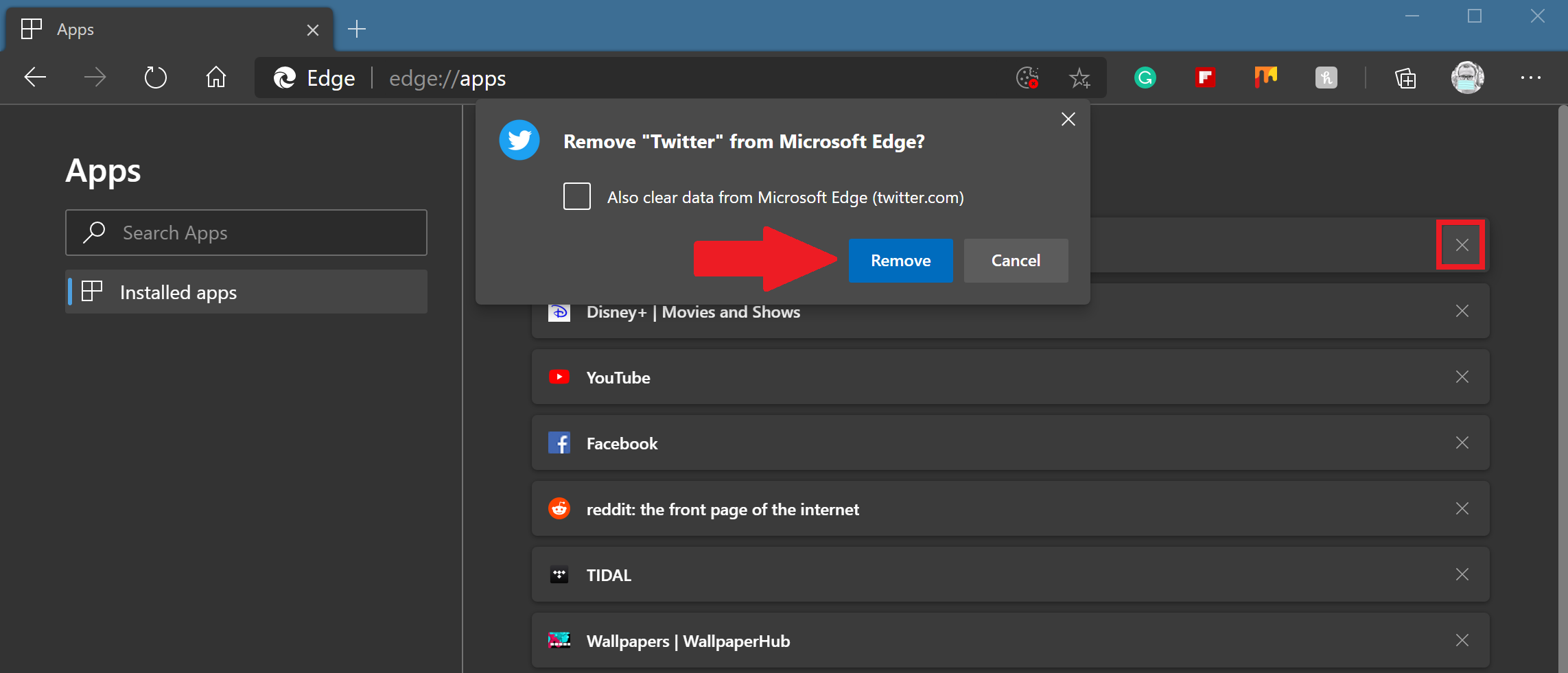
Using the edge://apps menu, you can right-click any PWA to change different settings, including opening the PWA in full-screen mode, changing site hardware permissions (camera, microphone, etc.), pin the selected PWAs to your desktop and Start menu and uninstalling the PWA.

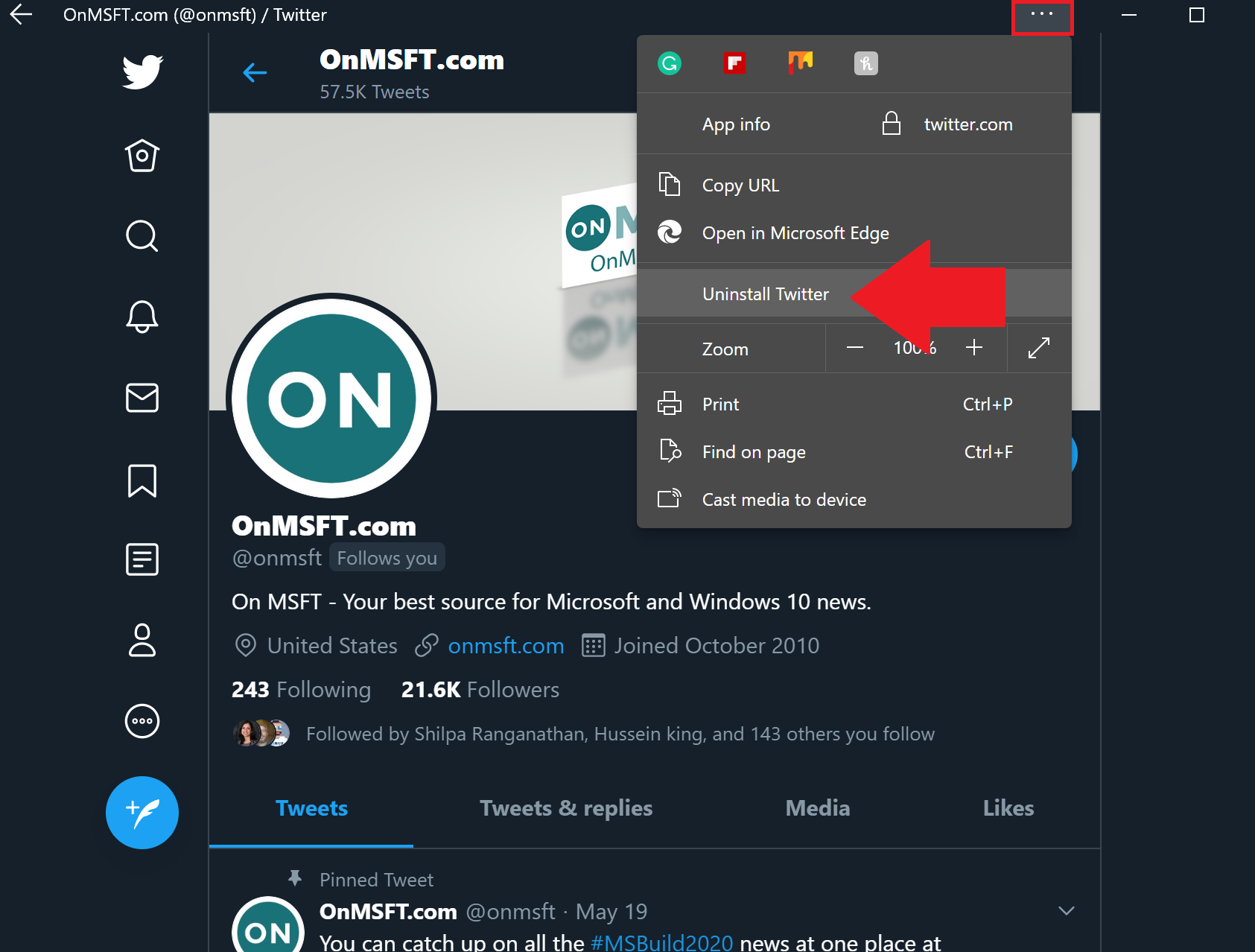
Alternatively, you can click the x to the right to uninstall PWAs too. From there, you will be prompted to choose whether or not to clear your data from Microsoft Edge. Once uninstalled, the PWA is completely removed from your Windows 10 device. Another way to uninstall a PWA is from within the PWA by clicking the three-dot menu at the top of the PWA and choosing the Uninstall option.

PWAs are a great alternative to traditional apps because PWAs do not take up as much space on your hard drive or hog as much of your Windows 10 PC’s hardware resources. PWAs are also a great alternative to running full apps if you have a device running Windows 10 on ARM, such as the Surface Pro X.

For developers looking to create native PWAs for their organization, PWA Builder is a community-based, open-source website founded by Microsoft that can help you get started.

FIX: Xbox One 0x8082000c backward compatibility error

Xbox One comes with backward compatibility that allows the users to install Xbox 360 games on their new shiny console. However, several users have reported the Xbox One 0x8082000c backward compatibility error while launching a game.

This error can occur due to several reasons including the games not being backward compatible, issues with Xbox Live services, and corrupted OS files.

If you are also troubled by this error, here are a couple of troubleshooting tips to help you resolve the Xbox One 0x8082000c backward compatibility error.


How do I fix Xbox One 0x8082000c backward compatibility error?

1. Check if the game is backward compatible

Xbox One 0x8082000c

  1. Before proceeding with other troubleshooting steps, make sure the game is backward compatible.
  2. Since not all the games are backward compatible, the error may occur if the console fails to recognize the game in the player.
  3. Even if the title is backward compatible, you may still get the error if the title version is not supported by the console.
  4. Go to the Xbox Backward compatibility page.
  5. Use the given filters to look for the game that is causing the error in the list.
  6. If your title is listed in the backward compatibility supported list, follow the next set of steps.

2. Check Xbox Live service status

Xbox One 0x8082000c

  1. This error can also occur if the Xbox Live service is facing a service outage.
  2. Go to the Xbox Live Status page.
  3. In the Status page, go through both the Services and Apps & Games section and check for any service or game that is facing issues. Any service with a red dot is the service facing outage.
  4. Wait for the developers to resolve the issue and get the service back online.

3. Perform a power cycle

  1.  If the game was working fine earlier and the error occurred recently, it can be due to some temporary issues that a power cycle can fix.
  2. Make sure the console is powered on.
  3. Press and hold the Xbox button on the console for 10 seconds. Wait till the lights stop flashing and the console is powered off, and release the button.
  4. Disconnect all the cable connected to the console, including the power cord from the wall outlet.
  5. Wait for a few minutes and connect all the cable back to the console.
  6. Press the Xbox button to power on the console.
  7. From the home screen, try launching the game and check for any improvements.

4.  Reset the OS and settings

Xbox backward compatibility errro

  1. Press the Xbox button on the controller to open the guide menu.
  2. Navigate to System > Settings.
  3. Select System and then choose Console info.
  4. Under Console info, select the Reset console option.
  5. Under Reset your console section, you have the following options:
    Reset and keep my games & apps – This option will reset the OS and fix any corrupted files that might be causing the error.
    Reset and remove everything – This option will remove everything from the console and reset it to factory default.
  6. Select Reset and keep my games & apps option first. This will reset the OS and fix any issues with the system files.
  7. If you are tempted to use the Reset and remove everything option, wait for a few days and check if the error resolves automatically or if you find a workaround.

The Xbox One 0x8082000c backward compatibility error can occur if the title you are trying to install is not backward compatible or if Xbox Live is facing service outage.

Follow all the steps in this article one by one and see if it helps.

[wl_navigator]

How to manage Virtual desktop in Windows 10

Windows 10 Virtual desktop allows you to expand your desktop, organize groups of tasks, and switch between them. 

How can I manage the Virtual desktop in Windows 10?

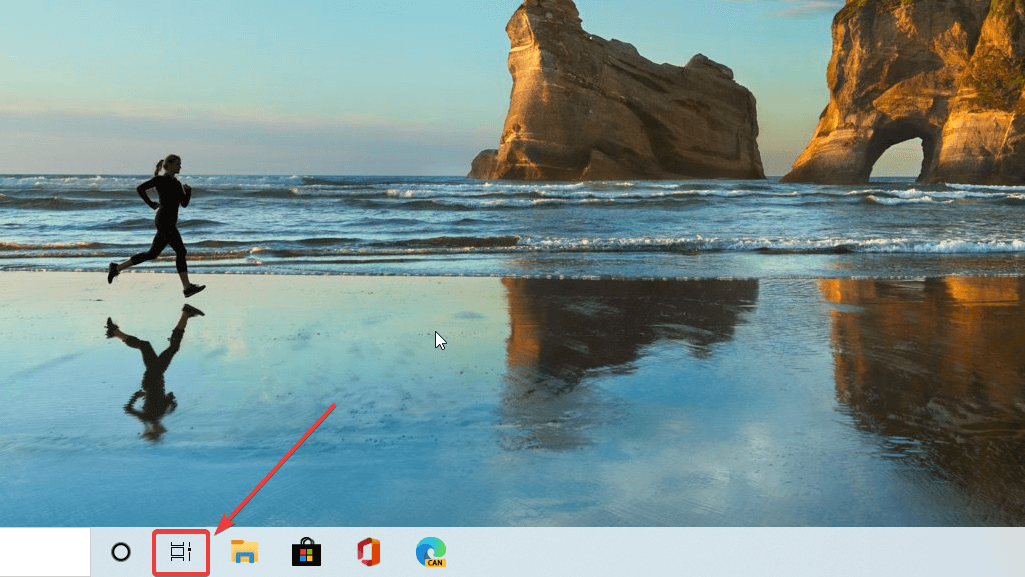
First of all, if you want to access the Virtual Desktop, you need to click on the Task View button (the old Timeline View).  You can also use the Windows key + Tab to do that.

Pressing the Task View button

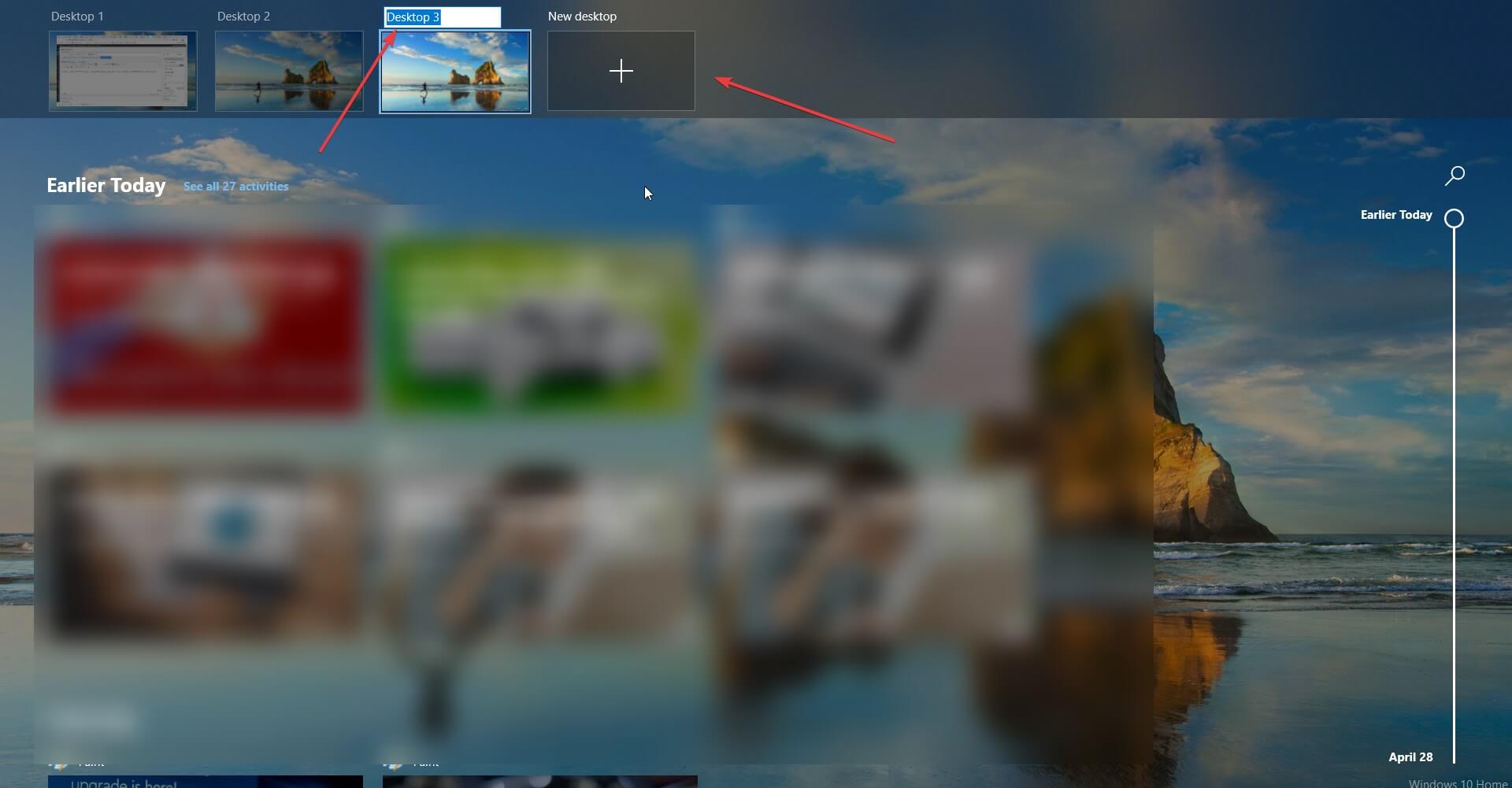
After pressing it, you will see the timeline of your tasks in the lower part. In the upper part, you will see the button for adding a new desktop. Also, if you click on the text above the desktop representation, you will be able to rename it.

Virtual Desktop

Of course, if you hover with your cursor over a desktop you will also see an X button to delete that desktop. You can set them up and rename them how you please in order to organize your work better.

Closing applications before deleting the desktop

Be careful because if you delete a desktop before closing the applications in it, all of them will go automatically to the main desktop. So make sure you close any open applications from a desktop before closing it.

Moving applications within desktops

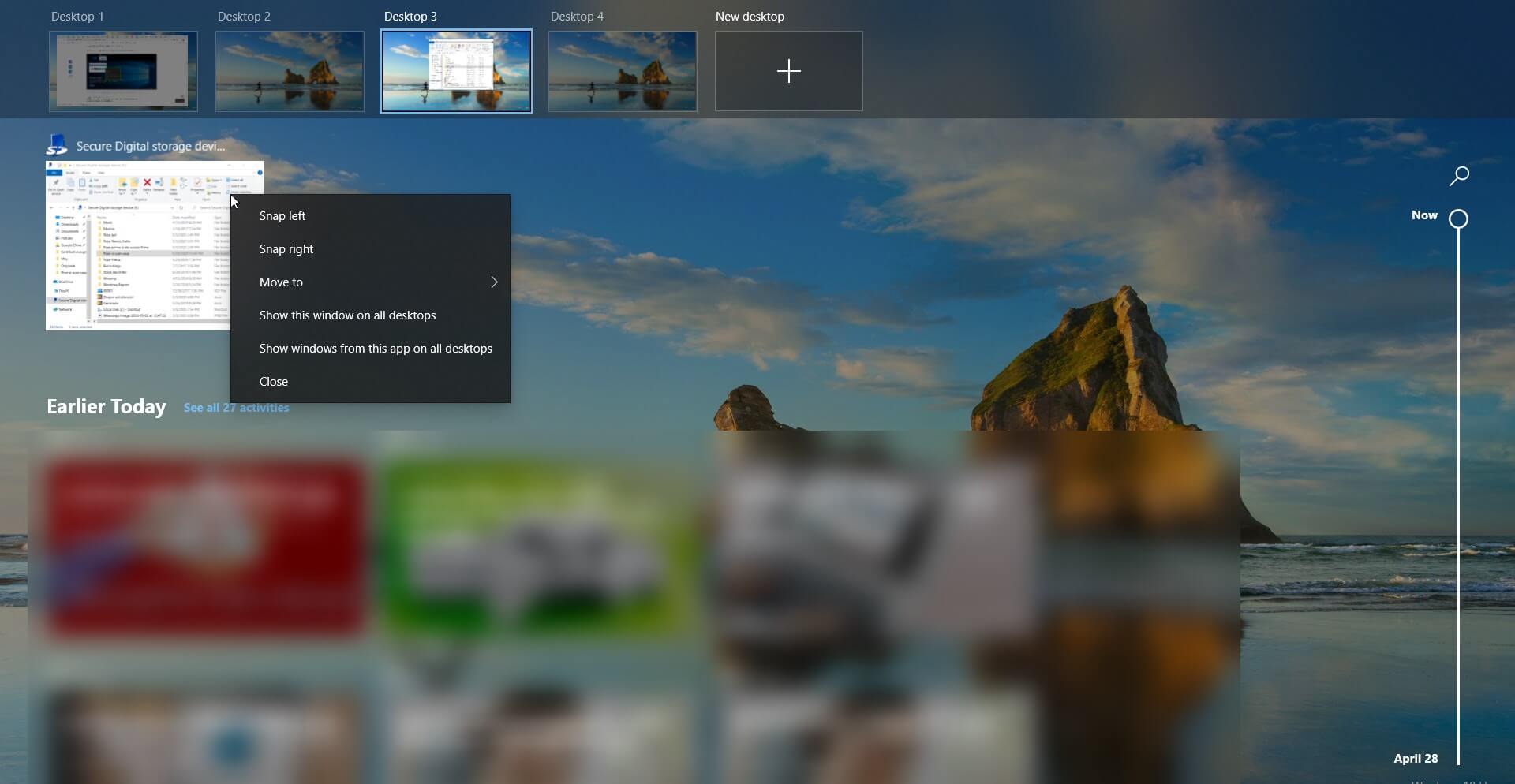
If you right-click on an application while you’re in the virtual desktop view, you will be able to move it to another virtual desktop, snap it on the left or right sides of the screen, show it lol all desktops or show windows from the app on all desktops.

moving an application to another virtual desktop


Virtual desktop shortcuts

If you press the Windows key + Ctrl + Left or Right arrows, you will be able to move quickly between the virtual desktops.

Pressing the Windows key + Ctrl + D you will immediately create a new virtual desktop without going through the Task View.

The classic Alt + Tab will show you all the current applications opened individually. If you keep pressing Tab while you keep holding Alt, you will switch between them.

Virtual desktop settings

There are also two more settings that you can tweak.

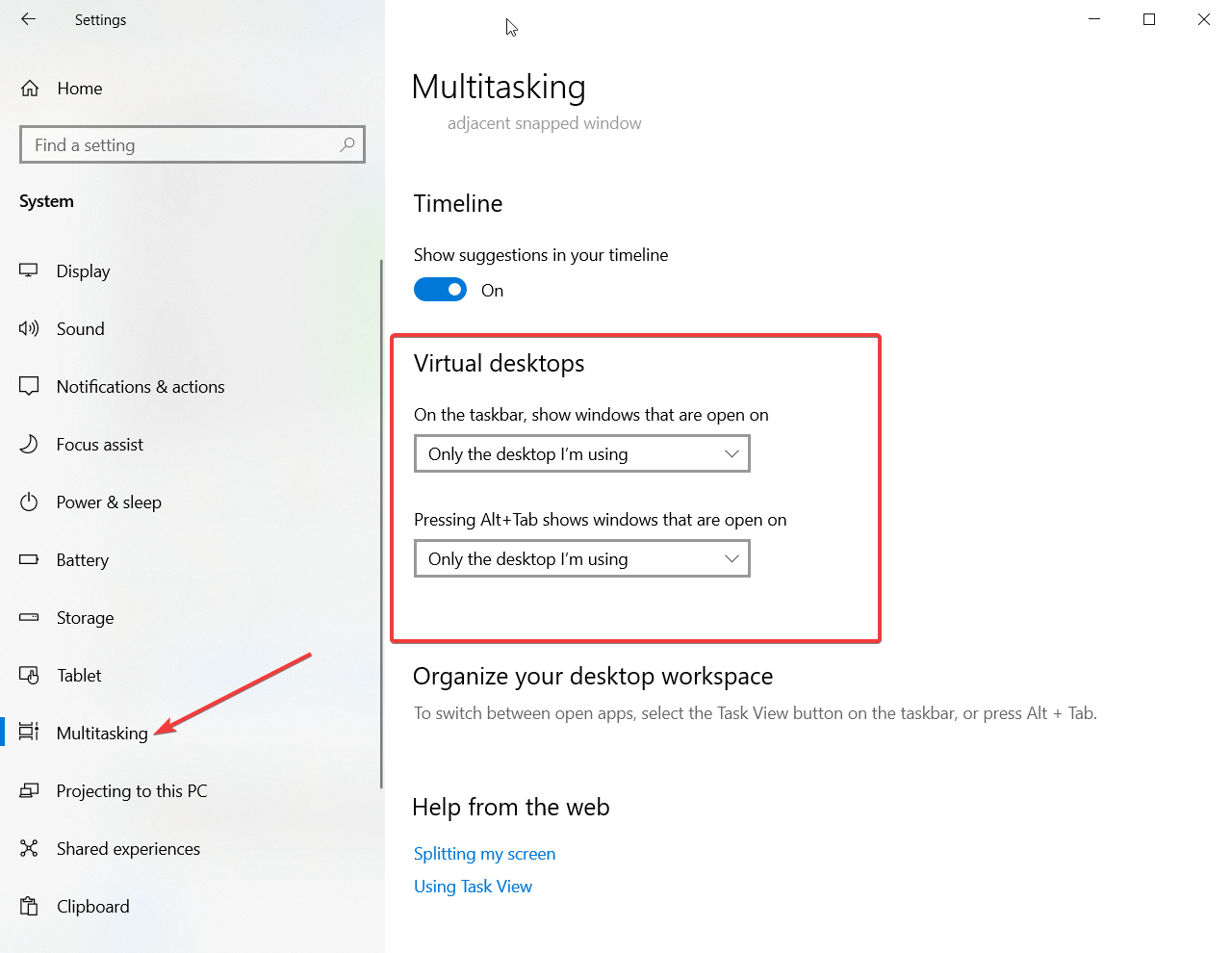
  1. Go to Settings (Windows key + I) and click on Systems, select Multitasking, then scroll down until you see Virtual desktops.change the settings for virtual desktops
  2. By default, on the taskbar, you will only see the apps opened on that desktop. you can switch that to show up on all desktops.
  3. When you hit the Alt + Tab shortcut you will only toggle through the apps opened in the active desktop. You can change that to toggle through all the open apps from all desktops.


Do you like using Virtual desktop? What do you think about it? Let us know how you feel about it in the comments.

[wl_navigator]

Windows 10 May 2020 List Of Issues From Microsoft

With just a few hours from starting to roll out the Windows 10 May 2020 Update, Microsoft published the list of know issues that may prevent you from performing the update to the Windows 10 version 2004.

The good news is that they detected them before rolling out so if you have any of these problems, you just won’t be able to go ahead with the update.

However, not all of these issues block the installation and if you downloaded the ISO directly, you should check the list below before you start updating.

What are the issues that may prevent the May 2020 Windows 10 update?

This is Microsoft’s list of the know issues:

  • Difficulty connecting to more than one Bluetooth device – Windows 10 devices with certain Realtek drivers might be unable to connect to more than one Bluetooth device.
  • Errors or issues during or after updating devices with Conexant ISST audio drivers – Devices with affected Conexant ISST audio drivers might receive an error or have issues with Windows 10, version 2004.
  • Errors or issues during or after updating devices with certain Conexant audio drivers – Devices with affected Conexant or Synaptics audio drivers might receive a stop error with a blue screen.
  • Issues using ImeMode property to control IME mode for individual text entry fields – Some IMEs for certain langauges might have issues using the ImeMode property with certain apps.
  • Variable refresh rate not working as expected on devices with Intel iGPU – Enabling VRR on affected devices will not enable the VRR for most games, especially games using Direct X 9.
  • Stop error when plugging or unplugging a Thunderbolt dock – Devices using Thunderbolt docks may receive a stop error when plugging in or unplugging the dock
  • Errors or unexpected restarts for some devices using Always On, Always Connected – Devices with more than one Always On, Always Connected capable network adapter might have issues.
  • No mouse input with apps and games using GameInput Redistributable – Affected apps and games using both GameInput Redistributable and Windows 10, version 2004 might lose mouse input.
  • Issues updating or starting up devices when aksfridge.sys or aksdf.sys is present – Devices with apps or drivers using certain versions of aksfridge.sys or aksdf.sys might have issues updating or starting
  • Issue with older drivers for Nvidia display adapters (GPU) – You might have issues if you are using an Nvidia display adapter (GPU) and drivers with a version below 358.00.

How can I fix error 0x80072f76?

Did you receive the error 0x80072f76 when you tried to update Windows 10 to version 2004?

That probably means that the Media Creation Tool lacks the permission to run.

Right-click on the Media Creation Tool.exe and select Properties. Next, click on General and at the bottom, and select Unblock. Press Apply, then OK.

For any other Windows 10 update errors, you can troubleshoot it at our Windows Update Errors Hub.

Did you have any of these issues? Did you install the new Windows 10 version 2004? Let us know in the comments.

[wl_navigator]

Microsoft Edge now supports an improved spellcheck experience

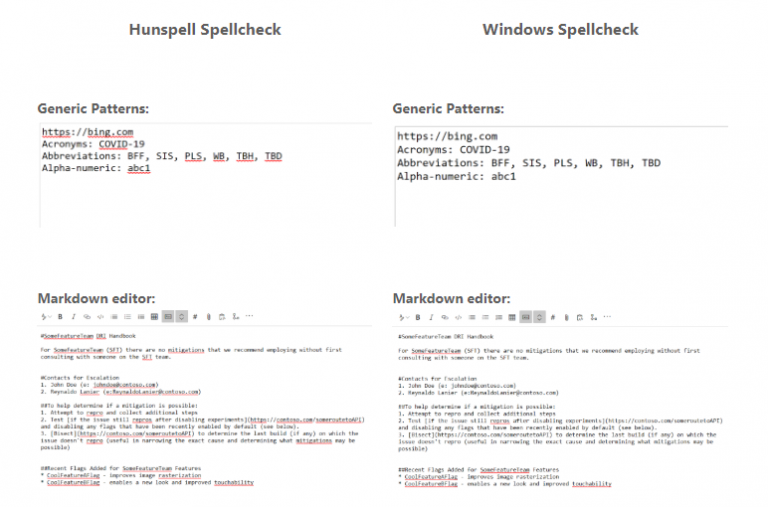
Microsoft has detailed today an improved spellcheck experience that recently made its way to Microsoft Edge version 83. The new feature is powered by what Microsoft calls Windows Spellcheck, and it replaces Edge’s existing spell checking experience by Hunspell.

The new feature has been developed for all Chromium-based browsers and it is supported on Windows 8.1 and above. Microsoft explains that Windows Spellcheck comes with numerous benefits such as support for additional languages and dialects, a shared custom dictionary, as well as improved support for email addresses, acronyms, and URLs. Here’s a comparative analysis of Hunspell Spellcheck and Windows Spellcheck:

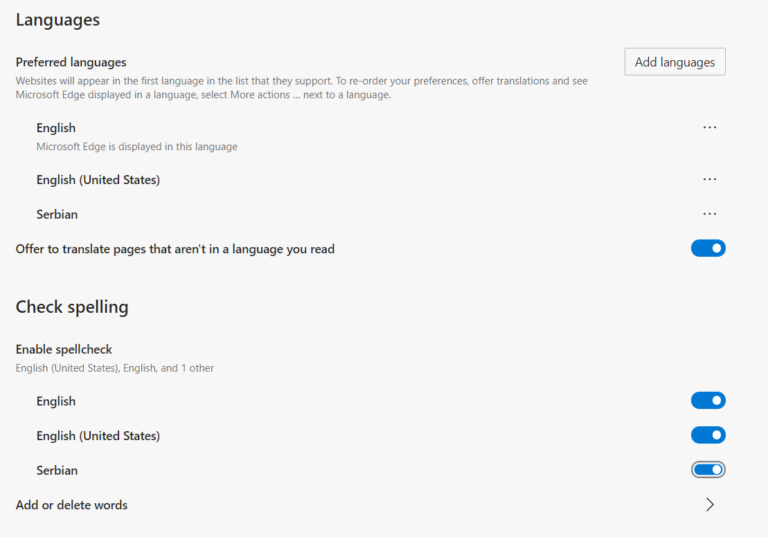
The improved spellcheck experience has been enabled by default in Microsoft Edge, and preferred language settings from Windows will be inherited automatically in your browser. You can navigate to the edge://settings/languages page in order to configure all the languages that will be spellchecked as you type. Moreover, you can install additional languages to spellcheck in Windows Settings by navigating to Time & Language > Language and selecting Add a preferred language.

spell check Microsoft Edge

It is worth noting that if the necessary language pack is not available or you have not installed it yet, Microsoft Edge will revert to the prior experience powered by Hunspell. Notably, the Windows Spellcheck integration has been developed in collaboration with Google to improve spell checking in all Chromium-based browsers.

Download And Install Windows 10 2020 May Update Today

Microsoft announced the availability of the Windows 10 May 2020 Update in April, through the Windows Insider Program, and that’s how we managed to keep you up to date with all the new features of Windows 10 version 2004. 

Now, it’s time for everybody to get the new Windows 10 May 2020 update.

How can I install Windows 10 May 2020 update?

To ensure you continue to have a reliable, productive experience with your Windows 10 devices, we are taking a measured and phased approach to how we offer the May Update, initially limiting availability to those devices running Windows 10, versions 1903 and 1909 who seek the update via Windows Update.

So if you don’t have either the 1903 and 1909 installed, you will see the update sooner than the ones who have older versions installed.

To check if you are eligible for an update, go to Settings, then click on Update & Security then, on the right pane, click on the Check for updates button under Windows Updates.

If you can see the Feature update to Windows 10, version 2004 you will be able to hit the Download and install button under it. 

It will take around 20 minutes and it will require a restart to complete. After it downloads, you will be prompted for the restart. You can either do the restart at that point or you can schedule it for a later moment.

If your system is approaching the end-of-life, the update will start automatically so that your computer remains protected and up-to-date with this latest release.

What can I do if I don’t see the update to Windows 10, version 2004?

According to Microsoft in an instructional video, you either have an older version than 1903 and you will have to wait for them to unlock the update for you or your computer has some compatibility issues with the new update.

You can also try to update to Windows 10 version 2004 by using the Update Assistant from the Microsoft page.

How can I fix error 0x80072f76?

A few users have reported the Windows update error 0x80072f76 when trying to perform the update.

The error code 0x80072F76 means that the Media Creation Tool doesn’t have permission to run.

To fix this problem, right-click on the Media Creation Tool.exe and press Properties. Then click on General and at the bottom, click on Unblock. Press Apply, then OK.

If you experience any other Windows 10 update errors, we can help you with our Windows Update Errors Hub.

Please leave us your thoughts in the comments section below about this Windows 10 May 2020 update.

[wl_navigator]

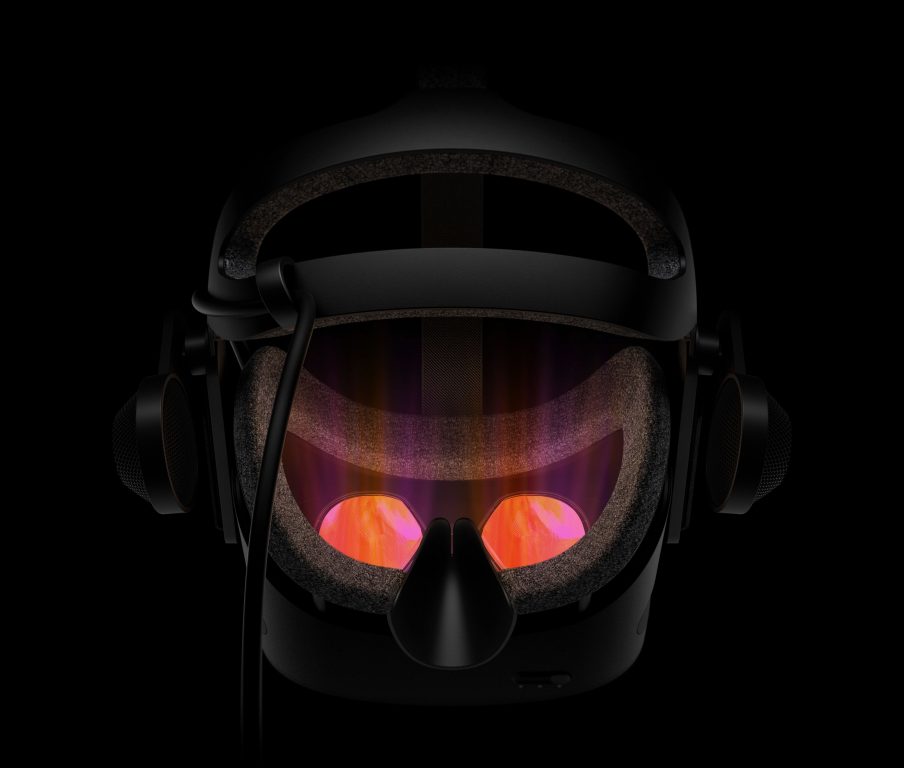
HP announces high-end Reverb G2 headset for Windows Mixed Reality and Steam VR

HP announced this morning the Reverb G2, a new high-end Mixed Reality headset designed in collaboration with Microsoft and Valve. This is the successor to the company’s original HP Reverb VR headset, which was announced back in March 2019.

HP may not be recognized as a pioneer in the VR, but the Reverb G2 should really help the company to be taken seriously in a market dominated by HTC and Oculus. “The HP Reverb G2 is the world’s highest resolution VR headset among major vendors, delivering cutting-edge optics, inside-out tracking, spatial 3D audio, natural gestures, long-wearing comfort, and plug and play support for Windows Mixed Reality and SteamVR”, HP said today.

The HP Reverb G2’s key features include dual 2160×2160 LCD panels screens providing a 114-degree field of view, revamped 10mm speakers supporting spatial audio, and the headset should also feel more comfortable thanks to an increased facemask cushion for better weight distribution. The screens can also be flipped to get back to the real world in a second.

HP also says that the Reverb G2’s four cameras are more precise and support 1.4X movement capture, and the company has also redesigned the two motion controllers to optimize the button layout. “With four cameras, the controller tracking feels even more like an extension of your hands, making the sense of immersion that much stronger,” HP said in the press release. The HP Reverb G2 will be available later this Fall with a $599 launch price, and pre-orders will be open on May 28 on HP.com, the Steam VR homepage, and other partners.

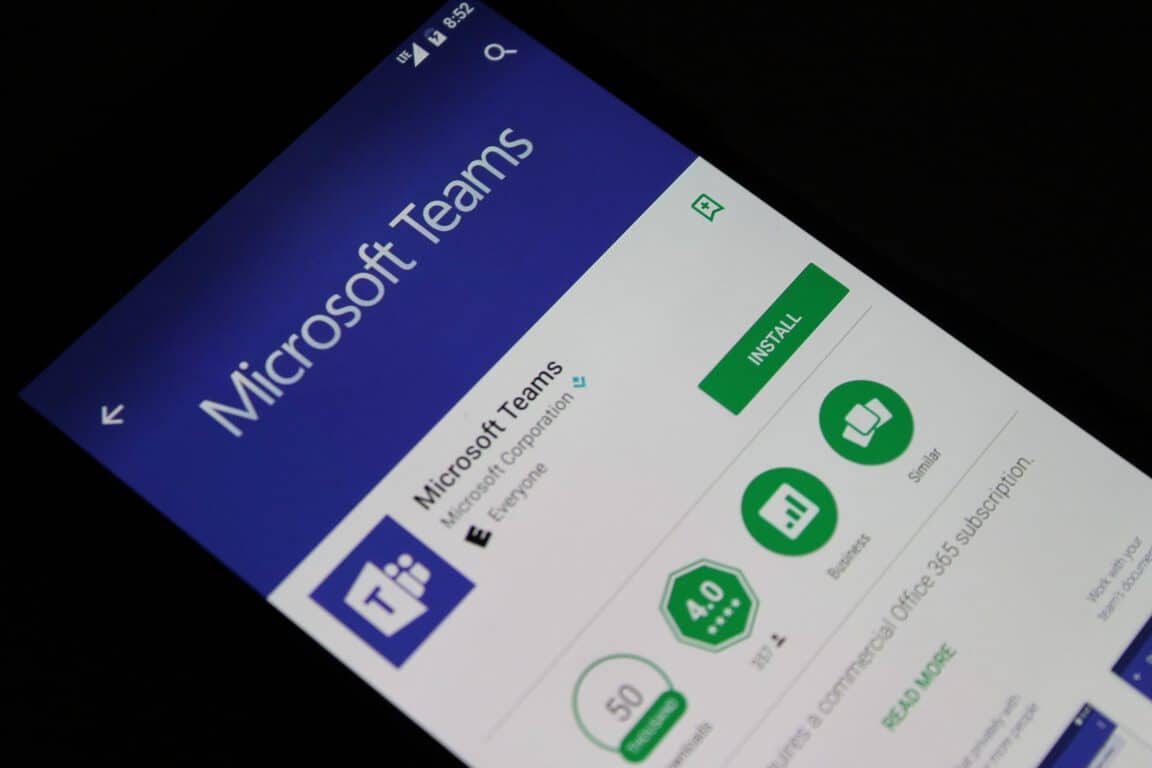
How to manage your data/storage and clean up Microsoft Teams on iOS, Android

Microsoft Teams isn’t just for Windows. You can use the app on your iOS or Android device too. But when you’re constantly sending over files, keeping chat logs, and using Teams on your device, it might start to occupy a lot of storage on your phone or tablet. In this guide, we’ll show you how to clean up Microsoft Teams and reclaim that lost storage space.

Getting to the data and storage menu

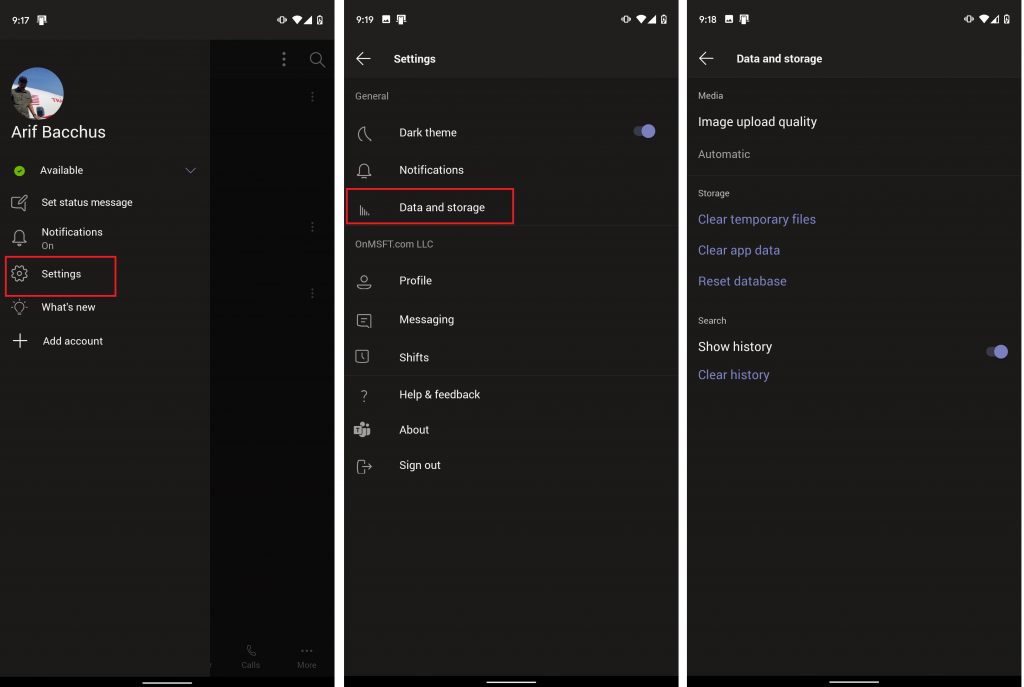
To clean up Teams on iOS and Android, you’ll need to visit the data and storage menu from within the app. To get there, you’ll need to tap on the hamburger menu at the top left corner of the screen. It looks like three horizontal lines pushed together. You’ll then see an option for Settings. Tap that, followed by Data and storage. Here’s where you’ll find the options we discuss in the next section.

Change upload quality, clean temporary files, and more

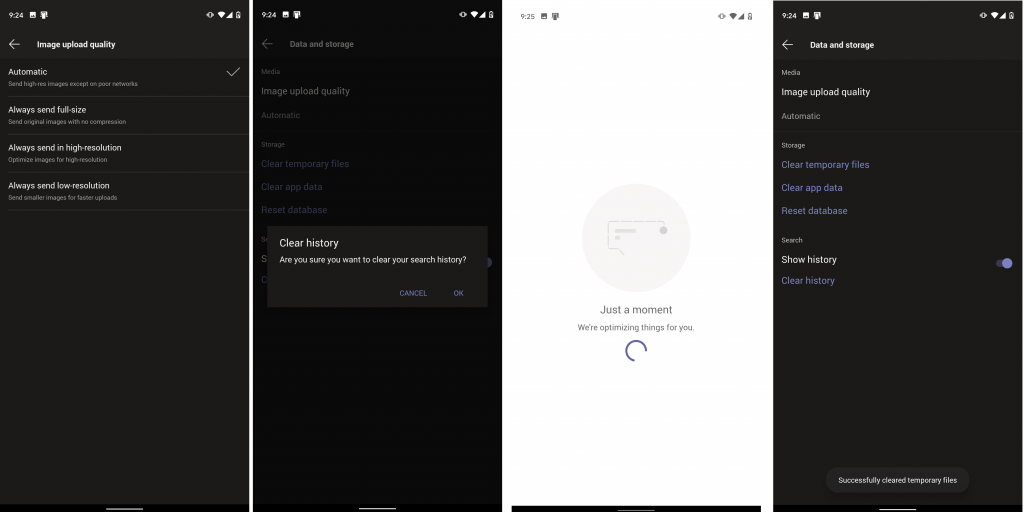
Once you’re in the data and storage menu, there’s a couple of things you can do to help clean up the Teams app. The first of these is image quality. From here, you can choose Automatic, Always send full-size, always send in high-resolution, or always send in low-resolution.

Automatic is the one to best choice because it will set Teams to send high-resolution images except on poor quality networks. In other cases, you might want to choose Always send low-resolution, if you’re on a network where data usage might be a concern. If you’re a photographer or don’t want images compressed, meanwhile, you should choose the other two options, for either full-size or high-resolution.

Other options available from the data and storage menu include options to clear temporary or downloaded files that Microsoft Teams might not need. You also can clear the app data to refresh the app or (only on Android) reset the database if some items are not loading properly. Finally, you can clear your search history, too, if too many items are showing up when you run a search.

Other things to check on Teams on iOS and Android

While we’ve focused on how you can manage your Teams data on iOS and Android, there’s a lot more you can do. You can check out settings for Dark theme, notifications, messaging, meetings, and more. With these notification options, you can turn off notifications while you’re active on desktop, turn on quiet hours. We’ll be diving into other aspects of Teams on mobile throughout this month so be sure to keep tuned to OnMSFT for more and check out our Teams hub for all the latest.

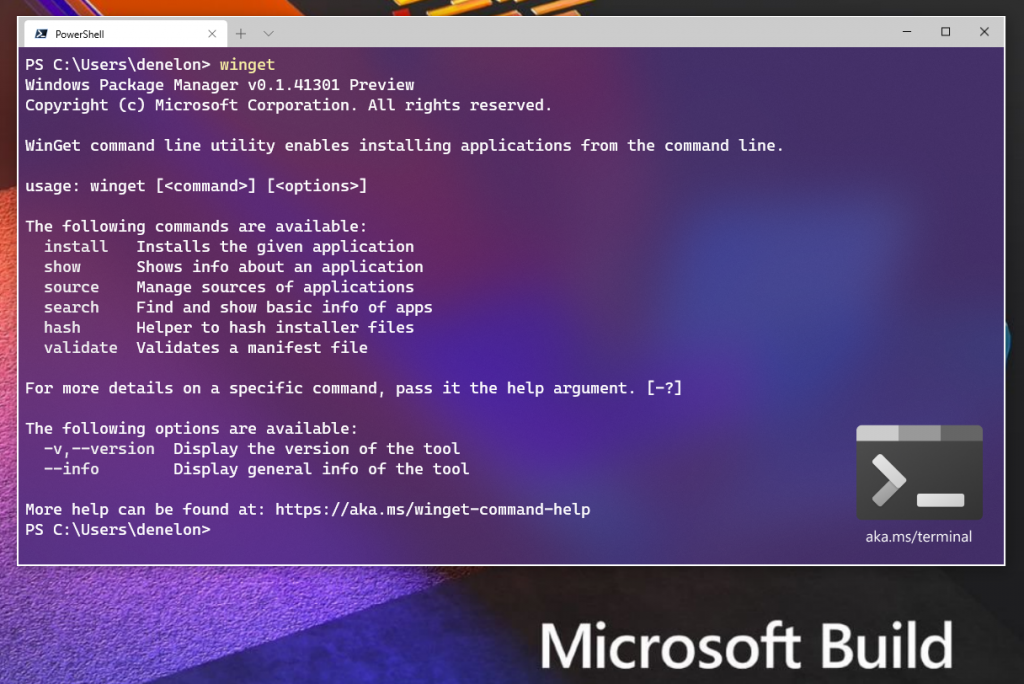
Developer claims Microsoft’s new Windows Package Manager has been heavily inspired by his own AppGet app

Microsoft unveiled a new open-source tool Windows Package Manager at Build 2020, also known as “Winget” at Build 2020 last week. The tool has been designed for power users and developers to make it easier for them to quickly search, view, and install commonly used developer tools.

However, according to Keivan Beigi, the developer of a package manager app named AppGet, Microsoft’s new Windows Package Manager has been heavily inspired by his own work. Beigi claims that Microsoft has copied the core operation of his package manager to build their own Winget.

The Canadian developer provided details of his several meeting sessions with a high-level manager at Microsoft, back in 2019. Microsoft directly approached the developer last summer and started discussing ideas to implement package managers in the Windows ecosystem. This discussion led to several job interviews where Microsoft offered him a role at Microsoft. Not only this, the Redmond giant even showed its interest in acquiring AppGet. Alongside this acquisition, the company wanted Beigi to oversee and improve software distribution while working on AppGet.

The developer never heard back from Microsoft after his last contact which took place in February this year. However, a day before the official announcement of Winget, Beigi received an email from Microsoft informing him that the software giant is going to announce its “own” Windows Package Manager at Build, held virtually this year. Microsoft told him that they would call out his work in their blog post, but only did so in a row with various other package managers.

Beigi says that he waited until the next day to see the functionality of this new package manager. Unfortunately, he was shocked to see that the “core mechanics, terminology, the manifest format and structure, even the package repository’s folder structure” was indeed inspired by his own package manager. The company didn’t bother to credit AppGet and just briefly mentioned it once in its blog post alongside other Windows package managers. The developer did readily admit that his work was open source and none of it was patented.

The disheartened Canadian developer has announced that he will stop developing AppGet, and it will now be shut down in the first week of August. In an email to The Verge, Beigi said that there is no point in competing with Winget and he was only looking for some recognition of his work from Microsoft.

“The announcement was especially bad given how little credit was given to AppGet compared to other projects,” Beigi said. “I think some attribution / credit would be fair but I don’t think it really matters what I’d like to happen”.

A Microsoft spokesperson said in a statement to The Verge that the company is currently investigating the matter. “We regret to hear about this candidate’s experience and are reviewing the circumstances internally,” Microsoft said today.

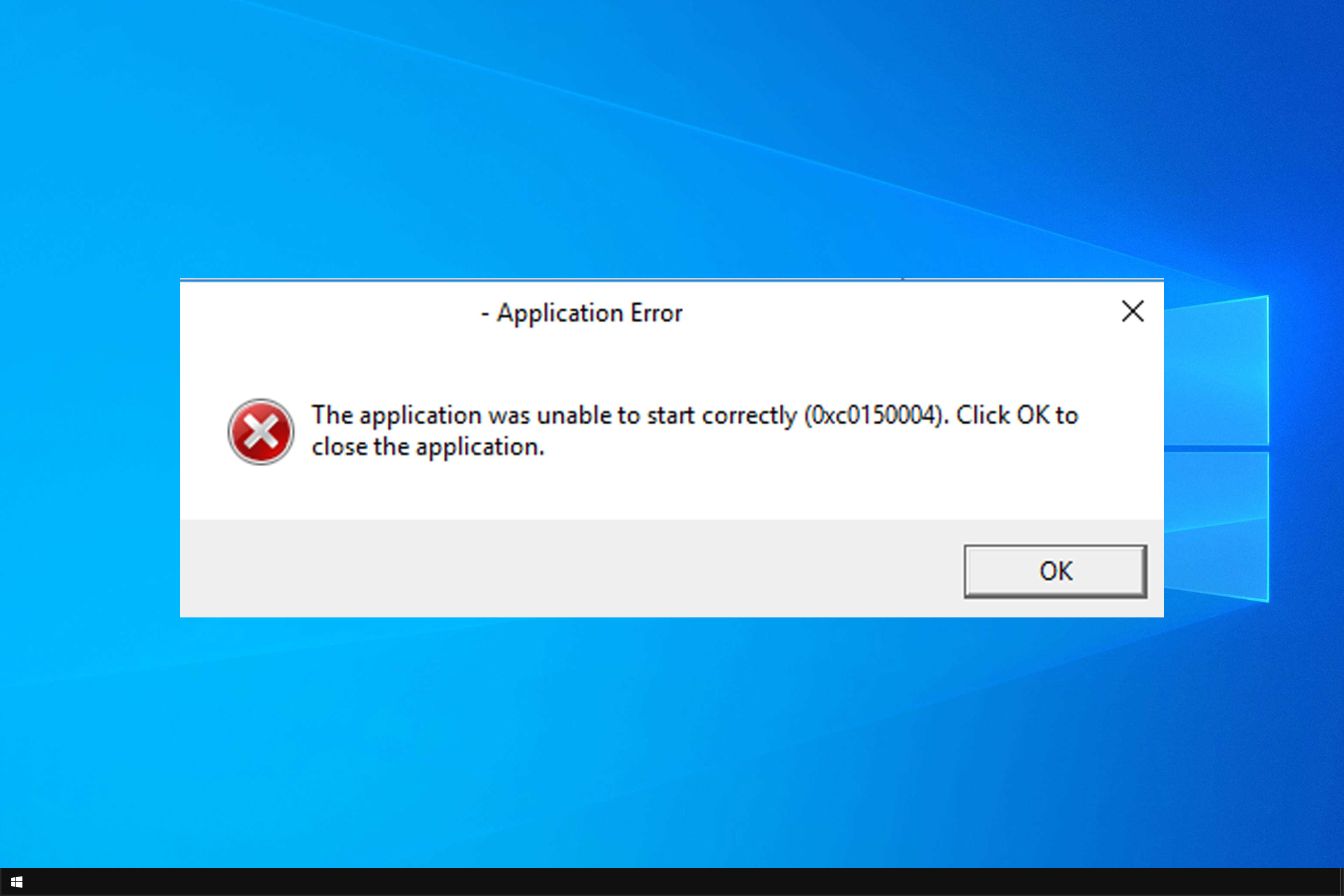
Application Error 0xc0150004: 5 Ways to Fix it

Many reported 0xc0150004 when trying to run specific apps on their PC. The app will ultimately prevent you from starting the desired app.

As you can see, this can be a significant problem, especially if you need that app for your work or school project, but there are ways to fix this issue.

What is an application error?

Application error usually occurs inside the application and causes it to crash or prevents it from launching. Error 0xc0150004, for example, is caused by the following:

  • Issues with Visual C++ Redistributables.
  • Antivirus protection can sometimes interfere with certain apps.
  • Bugs in your system can be responsible for this issue.
  • In some rare instances, third-party software can cause this problem.

How do I fix error 0xc0150004?

1. Disable antivirus real-time protection

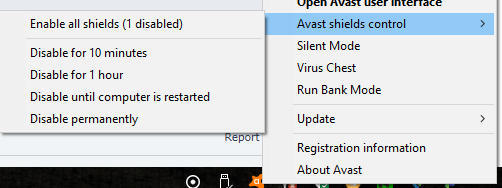
  1. Right-click on the Avast antivirus icon in the taskbar.
  2. Select Avast shiels control and select Disable for 10 minutes.
    application error 0xc0150004
  3. This will disable the antivirus temporarily.
  4. In the meantime, try launching the app or the installer causing the error.

Keep in mind that if you’re using a different antivirus software, these steps will differ slightly.

2. Use the DISM tool to repair Windows

  1. Press the Windows key.
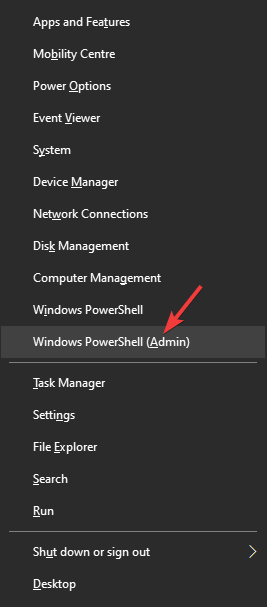
  2. Type cmd, right-click on Command Prompt, and select Run as Administrator.
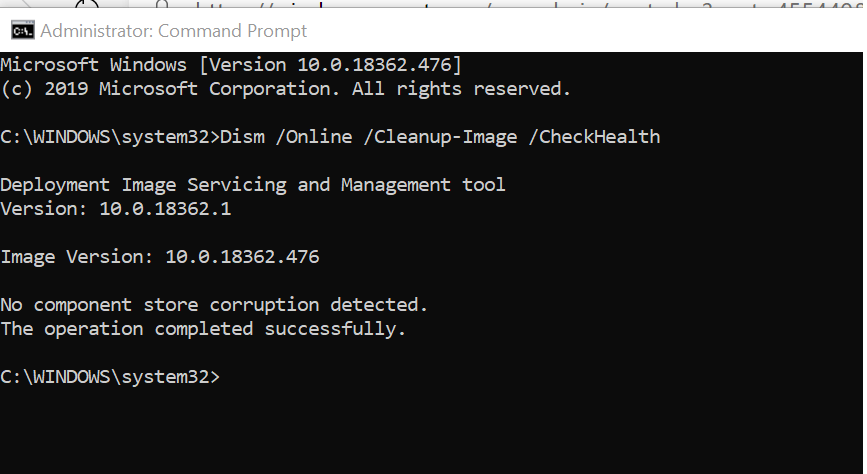
  3. In the Command Prompt window, type the following commands one by one and hit Enter to execute them:
    Dism /Online /Cleanup-Image /CheckHealth
    Dism /Online /Cleanup-Image /ScanHealth
    Dism /Online /Cleanup-Image /RestoreHealth

    application error 0xc0150004
  4. Once executed, close the Command Prompt and run the setup that was causing the error. Check if the error is resolved.

If you want to avoid further errors, we recommend Windows repair tools that can automatically replace malfunctioning system parts with new versions from an extensive Windows files database.

Executing the DISM command to restore your Windows system image can also help you with other problems. We covered those problems in our Troubleshooting the Pbid.exe Application Error with Ease guide, so don’t miss it.

3. Perform a Clean boot

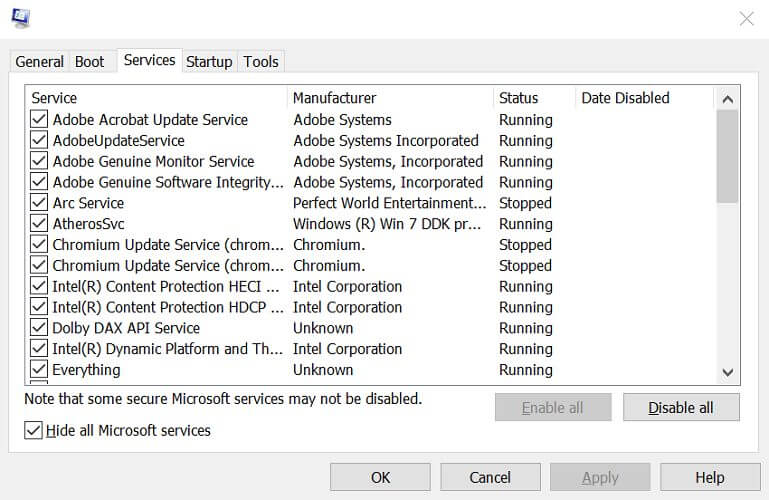
  1. Press Windows key + R to open Run, type msconfig.msc, and click OK.
  2. In the System Configuration window, open the Services tab.
  3. Check the Hide all Microsoft services box and click Disable all button.
    application error 0xc0150004
  4. Click the to disable all the third-party services.
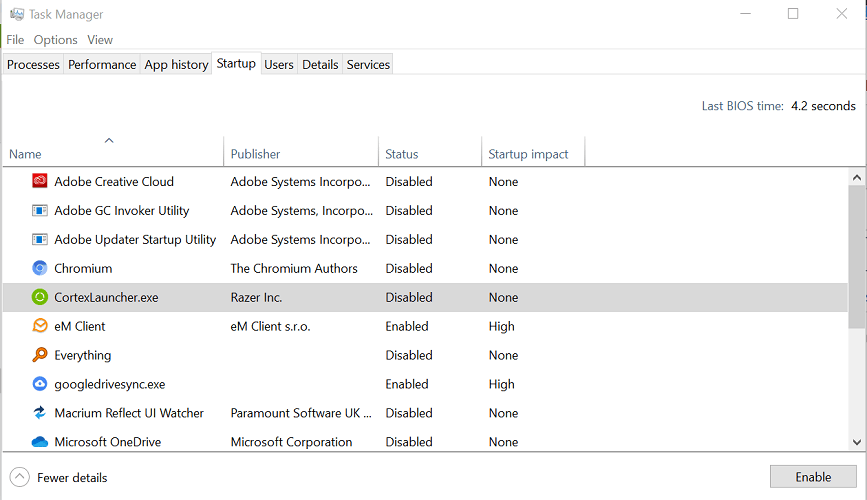
  5. Open the Startup tab and click on the Open Task Manager link.
  6. In Task Manager, open the Startup tab. Select the apps one by one and click the Disable button.
    Application start error
  7. In the System Configuration window, click Apply and OK to save the changes.
  8. When prompted for restart, click Restart now.
  9. After the system restarts, check if the error occurs while launching the app or installing new programs.

If the error does not occur in clean boot mode, you may have a third-party app creating issues with the installer or app launcher. Open Control Panel, and go through the list of installed apps.  Select the most recently installed app and uninstall it.

4. Install Windows updates

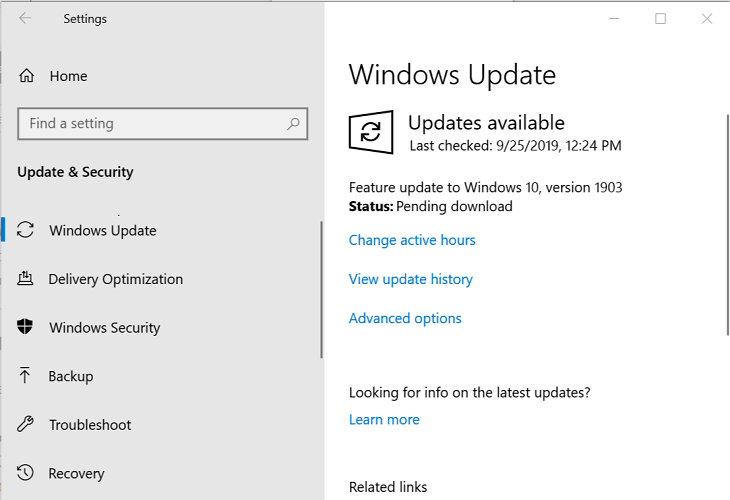
  1. Click on Start and select Settings.
  2. Go to Update and Security.
  3. Click Windows Updates.
  4. Check for any pending updates and install them.
    Application start error

5. Reinstall Visual C++ Redistributables

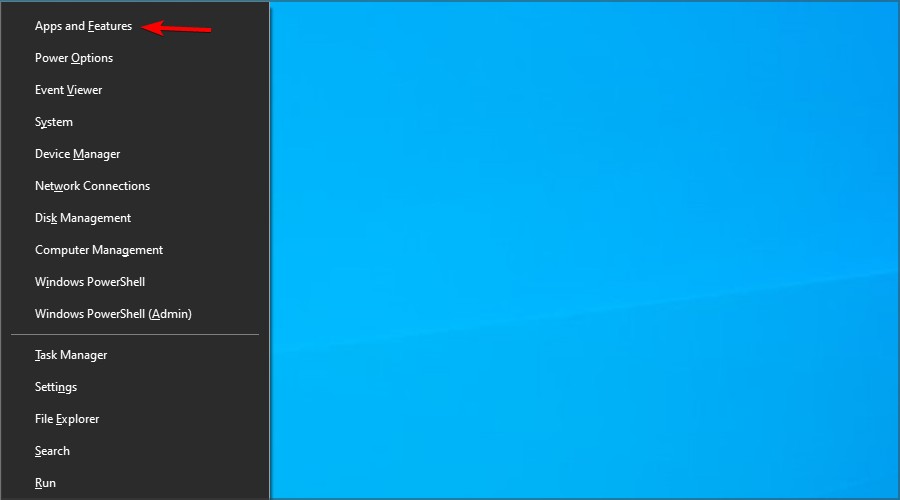
  1. Press Windows key + X and select Apps & features.
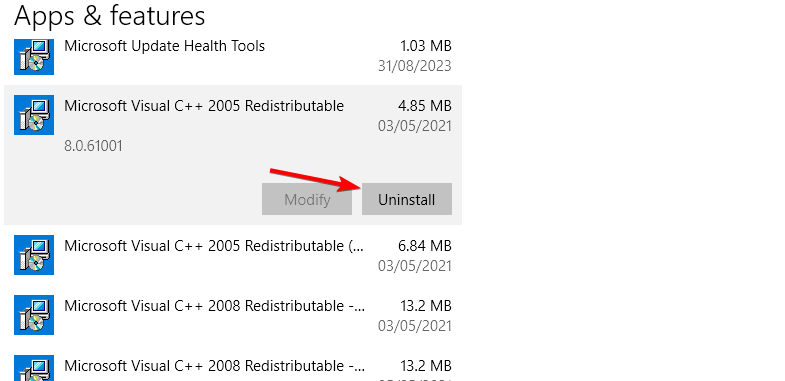
  2. Locate Visual Studio Redistributable, select it and click Uninstall.
  3. Repeat this for all installed Redistributables.
  4. Go to the Redistributables download page and download and install all packages.

The application error 0xc0150004 in Windows can be caused by your antivirus, third-party programs, or corrupted system files, but we hope our guide helped you fix it.

This isn’t the only error that you can encounter, and many reported error 0xc000012d as well as application error 0xc000003e, but we covered those in separate guides.

Did you find a different solution for this problem? If so, share it with us in the comments section.

FIX: Not responding due to a long-running script error

Sometimes, while scrolling a web page in Internet Explorer you may encounter the not responding due to a long-running script error. This is a common error and can occur due to generic glitch or if the script debugging is enabled.

Several users have reported similar errors in the Microsoft community forum:

       I keep getting the following message at the bottom of my internet screen ” xxxx.com is not responding due to a long-running script”. 

If you are also troubled by this error, here are a couple of troubleshooting tips to help you resolve the not responding due to a long-running script error in Windows.


How can I fix the not responding due to a long-running script error?

1. Run Windows Internet troubleshooter

not responding due to a long-running script

  1. Download the Windows Internet troubleshooter from here.
  2. Double-click on the downloaded file to run the troubleshooter.
  3. In the troubleshooter window, click Advanced.
  4. Check the box Apply repairs automatically.
  5. Click Next.
  6. The troubleshooter will scan the system for any issues with the web browser and apply the required fixes.
  7. Once the fixes are applied, close the troubleshooter and restart the computer.
  8. Check for any improvements by launching Internet Explorer again.

2. Disable the antivirus

not responding due to a long-running script

  1. If you are using a third-party antivirus, try disabling it temporarily.
  2. Avast antivirus users, right-click on the antivirus icon in the Taskbar.
  3. Go to Avast shiel control.
  4. Select Disable for 10 minutes.
  5. This will disable the antivirus for a few minutes before it starts the program again automatically.
  6. In the meantime, launch Internet Explorer and check if the error exists.

Several users have reported that disabling the antivirus has helped them resolve the issue. At times, the antivirus may block the connection or certain scripts from loading resulting in an error.

If the issue persists, you may have to uninstall the antivirus to see if that resolves the error. However, before uninstalling the antivirus, try disabling script debugging option in Internet Explorer.


3. Disable Script Debugging

not responding due to a long-running script

  1. Launch Internet Explorer.
  2. Click the gear icon on the top right corner.
  3. Select Internet Options.
  4. In the Internet Options window, open the Advanced tab.
  5. Under the Settings section, scroll down to Disable script debugging (Internet Explorer) under Browsing.
  6. Scroll down and uncheck the Display a notification about every script error box.
  7. Click Apply and OK to save the changes.
  8. Close Internet Explorer.
  9. Relaunch Internet Explorer and check if the issue is resolved.

The most common cause of not responding due to a long-running script error is if the script debugging option is disabled. And to prevent the browser from displaying error notifications, disable the display a notification about every script error option.

If the issue persists, you may have to uninstall and reinstall the antivirus to see if that helps you resolve the error. Make sure you reinstall the software and enable real-time protection to keep your computer safe.

Check issues with the web page

  1. If the issue is occurring with a specific web page the issue could with the website itself and not your web browser.
  2. Try opening the web page in any other web browser other than Internet Explorer and check if the error persists.
  3. If the error occurs on other web browsers, the issue is most likely with the web page.
  4. If you visit the web page more often, try contacting the administrator.

The not responding due to a long-running script error can occur due to multiple reasons including issues with the web browser as well the web page.

Follow all the steps in this article one by one to fix the problem. Do let us know which method helped you resolve the problem in the comments.

[wl_navigator]

Fix: Extension Is Incompatible with Driver Version Error

Most modern Windows computers come installed with Synaptic drivers for touchpads. However, while accessing the mouse setting the user may encounter Control Panel extension is incompatible with a driver version error.

Several users have reported similar errors: When I go to the control panel and access the mouse settings, it starts out with a box saying “control panel extension is incompatible with driver version).  Then it lets me into the dialogue to play with the mouse settings.

If you are also troubled by this error, here are a couple of troubleshooting tips to help you resolve the Control Panel extension is incompatible with driver version error in Windows.

How do I fix the Control Panel extension is incompatible with driver version error?

1. Update mouse driver

Control Panel extension is incompatible with driver version
  1. Press the Windows key on your keyboard.
  2. Type device and click on Device Manager.
  3. In Device Manager, expand Mice and other pointing devices.
  4. Right-click on your device and select Update Driver.
  5. Select Search automatically for updated driver software option.
  6. Wait for the Windows to scan and install any pending updates for the drivers.
  7. After the drivers are installed, restart the computer. Try accessing the mouse settings and check for any improvements.

Updating the Synaptic driver can help you resolve the issue if the error is occurring due to incompatible mouse drivers. If you are using a third-party mouse from a premium brand, check the manufacturer’s website for driver updates.

When handling drivers it is always a good idea to use a professional tool, such as Fortect Driver Updater. If your mouse driver is out of date, this tool will allow you to download an actualized copy in a matter of minutes.

2. Rename main.cpl

extension is incompatible with driver version
  1. Open File Explorer.
  2. Navigate to the following location:
    C:WindowsSystem32
  3. In the search bar type *.cpl.
  4. Locate main.cpl and rename it. You can rename it as oldmain.cpl etc.
  5. Once renamed, restart the computer.
  6. After the restart, try accessing the mouse settings and check for any improvements.

3. Reinstall Synaptics driver

mouse control panel error
  1. Press Windows Key + R to open Run.
  2. Type control and click OK.
  3. In Control Panel, go to Programs > Programs and Features.
  4. Select Synaptic driver from the list of installed programs.
  5. Click on Uninstall. Click Yes to confirm the action.
  6. Restart the computer.
  7. Download and install the latest version of Synaptics driver from the laptop manufacturer.
  8. Once installed, reinstall the computer and check for any improvements.

Reinstalling the Synaptics driver can fix any issues that may occur due to a corrupted driver.

If the issue persists, try to install the driver manually from the Control Panel.

Synaptic driver error
  1. Press Windows Key + R.
  2. Type control and click OK.
  3. In the Control Panel, type Mouse.
  4. Click on Change mouse settings.
  5. In the Mouse Properties window,  open the Hardware tab.
  6. Select your mouse from the list of devices and click the Properties button.
  7. Open the Driver tab.
  8. Click on the Update Driver button.
  9. Select Browse my computer for driver software option.
  10. Select the downloaded driver file and click Open.
  11. Windows will install the driver successfully.
  12. Restart the computer and check for any improvements.

What if the Update driver button is greyed out?

Control Panel extension is incompatible with driver version
  1. Press Windows Key + R, type devmgmt.msc and click OK.
  2. In Device Manager, expand Mice and other pointing devices.
  3. Right-click on your mouse and select Update driver.
  4. Select Browser my computer for driver software.
  5. Select the downloaded driver file and click Open.
  6. Restart the PC once the driver is successfully installed.

4. Run System File Checker tool

extension is incompatible with driver version
  1. Type cmd in the search bar.
  2. Right-click on Command Prompt and select Run as Administrator.
  3. In the Command Prompt window, type the following command and hit enter:
    sfc /scannow 
  4. The System File Checker will scan the system files and repair bad files if required.
  5. Restart the computer and check for any improvements.

The Control Panel extension is incompatible with driver version error that can occur due to a corrupted driver or incompatible hardware.

We covered a similar problem in our Resolve the ‘WebDriver Cannot be Resolved to a Type’ issue article, so be sure to visit it.

Follow all the steps in this article one by one to resolve the error.

Fix Netflix error codes -14, 2.101, 7.4 in a few easy steps

Netflix has grown in popularity exponentially in the last couple of years. Nobody is surprised about this fact, as we can observe people preferring to use streaming services like Netflix as opposed to watching TV normally.

The error codes -14, 2.101, and  7.4 are related errors from a very long list of Netflix error codes. These errors can appear for some uses when streaming Netflix movies. Here are what the error messages state:

  • Netflix says Sorry, we could not reach the Netflix service. (-14)
  • Netflix says There is a problem playing this title. (2.101)
  • Netflix says There is a problem playing the video. (7.4)

If you encounter any of these errors, check out the resolutions below.


1. Sign out of Netflix

  1. While in the Netflix app, tap the Menu button in the upper left corner / the More button in the lower right corner.
  2. Scroll down and select Sign Out.
  3. Confirm that you want to sign out.
  4. Once you have signed out, sign back in and try Netflix again.

2. Visit Netflix.com on a computer

  1. Using a computer on the same network as your device, go to netflix.com/clearcookies.
  2. Select Sign In, then enter your credentials to sign in to your account.
    • If you see the error NSEZ-403,  then there is currently a connection issue for your account to the Netflix service. You can try to stream again at a later time.
    • If you do not see NSEZ-403, continue troubleshooting below.

3. Clear the Netflix app data

  1.  From the Home screen on your device, navigate to Settings.
  2. Select General.
    • If you don’t see General, continue to the next step.
  3. Select Apps or Applications.
  4. Select Manage Applications, Application Manager, or Manage All Apps.
    • If you don’t see these selections, continue to the next step.
  5. Scroll down and select Netflix.
    • If you don’t see Netflix, check the Downloaded
  6. Select Storage.
    • If you don’t see Storage, continue to the next step
  7. Select Clear Data or Clear Storage, then OK.
  8. Try Netflix again.

4. Try a different internet connection

  1. Attempt to connect to a different Wi-Fi network in range of your device.
  2. Bring your device to a neighbor’s or friend’s house and attempt to stream.
  3. If you can access a cellular data network on your device, try using it to connect to Netflix. While we generally don’t advise streaming over a data network as a fix, it’s a good way to see if a home network configuration issue is what’s keeping you from streaming reliably.

If you’re able to stream using a different internet connection, we recommend checking with your network administrator or ISP provider.


5. Reinstall the Netflix app

  1. Open the Play Store app.
  2. Search for Netflix.
  3. Once in the Netflix app store page, select Uninstall.
    NOTE: Uninstalling the Netflix app will delete any titles you have downloaded to the device.
  4. Select OK to confirm.
  5. Once the uninstallation is complete, select Install.
  6. Once the installation is complete, select Open.
  7. Try Netflix again

We hope that the steps we described in this guide have managed to help you fix the dreaded -14, 2.101, and  7.4 error codes on Netflix.

If you want to get into contact with us, don’t hesitate to use the comment section below this article.

[wl_navigator]

Kodi: One or More Items Failed to Play – 5 Ways to Fix

If you encountered the One or more items failed to play or Kodi Playback failed errors, we got you. It may be caused by a corrupt cache, missing raw maintenance add-on, or even a glitch in the current version of the Kodi media player. Follow the instructions below to fix it in no time.

How do I fix the Kodi one or more items failed to play?

1. Clear Kodi app cache

Kodi one or more items failed to play
  1. Launch Kodi media player.
  2. Go to Settings.
  3. Click the Gear icon on the top left corner.
  4. Click on File Manager to open it.
  5. Double-click the Profile Directory tab.
  6. Open the Database directory.
  7. Right-click on the Addons.db file and select Delete.
  8. Once Deleted, relaunch the Kodi media player and check if the error is resolved.

Note that deleting the addons.db file will disable all the add-ons temporarily. Upon restart, the Kodi media player will automatically rebuild the deleted files for the proper functioning of add-ons.

2. Change compatibility settings

  1. From the Kodi home screen, click on Settings.
  2. Open File Manager.
  3. Click on Add Source.
  4. Enter the following URL and click OK: https://repo.ares-project.com/magic/
  5. Now go back to the home screen and click on Add-ons.
  6. Click the box icon on the top left corner.
  7. Click on Install from the Zip file.
  8. Locate the repository.aresproject.zip and double-click on it.
  9. Double-click on repository.aresproject.zip to install the add-on.
  10. Once installed, go back to the home screen.
  11. Click on Program Add-ons and open Ares Wizard.
  12. Click on Tweaks.
  13. Select Advanced Settings Wizard.
  14. Click Next to proceed.
  15. Click on General Settings and Apply settings option.
  16. Relaunch the Kodi app and check if the error is resolved.

3. Force update the add-on

Kodi Playback Failed
  1. Go to Settings.
  2. Open the File Manager.
  3. Locate the add-on that is causing the error.
  4. Open the Add-ons and Update the file.
  5. Try to force update the file even if it shows as up to date.
  6. Relaunch Kodi and check for any improvements.

4. Reinstall Kodi media player

Kodi Playback Failed
  1. Press Windows Key + R to open Run.
  2. Type control and click OK.
  3. Go to Programs > Programs and features.
  4. Select Kodi from the list of installed apps.
  5. Click on uninstall and click Yes to confirm.
  6. Once uninstalled, open the Kodi download page and download Kodi.
  7. Install the app and check for any improvements.

5. Install an older version of Kodi Media Player

  1. If the issue persists, try reinstalling the Kodi media player to see if that helps.
  2. Click Start and select Settings.
  3. Open Apps.
  4. Search for Kodi.
  5. Select the app and uninstall.
  6. Open the Kodi download page and download an older version of the Kodi player.
  7. Install the app and check for any improvements.

Now you know why you keep getting playback failed errors in Kodi and should be able to get rid of them. If you have any questions about this topic or were able to handle the issue in a different way, let us know in the comments below.

FIX: Oops! We couldn’t save that one error on Windows 10/11

Photos is the Windows 10’s default image-editing app, and even though a lot of people use that app for editing their images, the app isn’t immune to bugs. Some users have posted on the MS forum about a We couldn’t save that one error when they try to edit and save images in Photos. To quote one forum post:

I have many photo files that don’t seem to be editable by the windows Photos app. I own the file and have full permission on it, but when I edit the file and click Save I get a pop up that says, Oops! We couldn’t save that one.

In this guide, we will explore the best methods available to solve this issue once and for all. Read on to find out more.


How can I fix the We couldn’t save that one error?

1. Open the Windows Store Apps troubleshooter
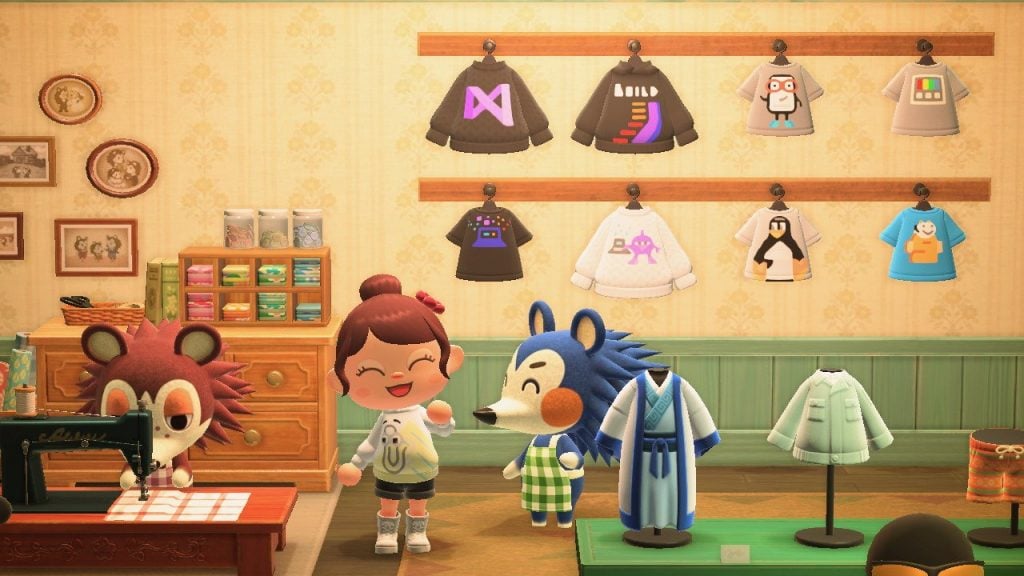
  1. First, try running the Windows Store Apps troubleshooter, which can come in handy for fixing Windows 10 apps. Click the Type here to search button on the left side of the taskbar.
  2. Type troubleshooting in the search box that opens.
  3. Click Troubleshoot settings to open the window shown in the snapshot directly below.
    Troubleshoot tab oops we couldn't save that one windows 10
  4. Select the Windows Store Apps troubleshooter to click its Run the troubleshooter button.
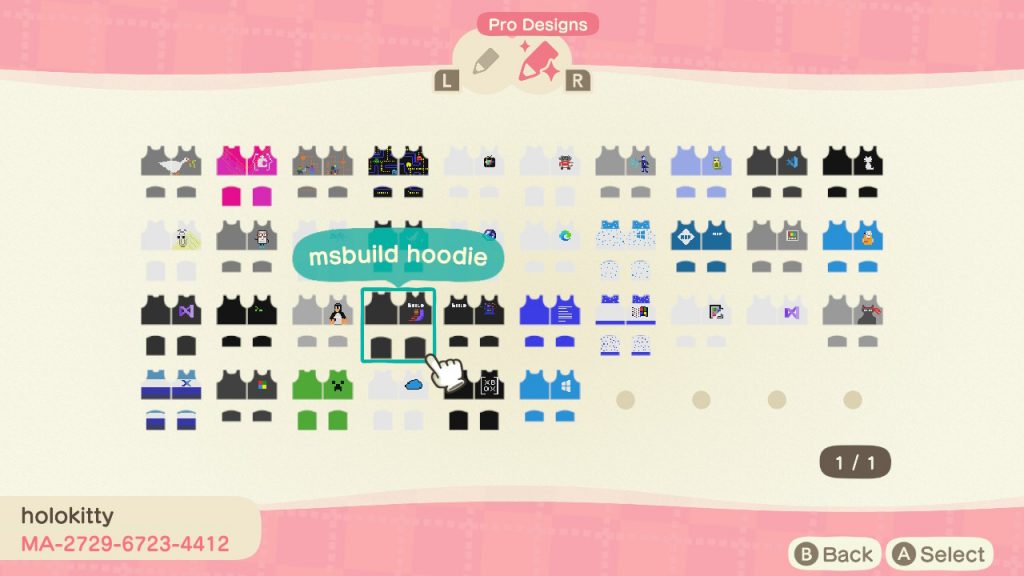

  5. Click the Apply this fix option for any potential fixes the troubleshooter might provide.

  6. Restart Windows 10 after applying a troubleshooter fix.

2. Modify the folder permissions for the photo’s folder

  1. Check that you have full permissions for the folder which includes the image you can’t save. Open File Explorer (press the Windows key + E hotkey).
  2. Right-click the folder that includes the image Photos doesn’t save and select Properties.
  3. Select the Security tab in the snapshot directly below.
    Security tab oops we couldn't save that one windows 10
  4. Select your user account within the Group box.
  5. Click the Edit button.
  6. Then select the Full control checkbox if it’s not already selected.
  7. Click the OK button.

3. Reset the Photos app

  1. The Reset option could fix a corrupted Photos app. Input the keyword app in the Type here to search box.
  2. Click Apps & features to open the window shown directly below.
    Apps & features tab oops we couldn't save that one windows 10
  3. Select the Microsoft Photos app.
  4. Click Advanced options to open the Reset button shown directly below.
    Reset button oops we couldn't save that one windows 10
  5. Click Reset, which will open a dialog box. Then click Reset again on that dialog box.
  6. Note that there’s also a Repair option for Photos, which might fix the app without resetting data. You can try that option if Reset doesn’t fix the issue.

4. Save the image to an alternative format with Paint

  1. Some users have confirmed they’ve fixed the We couldn’t save that one error by saving the file to an alternative format in Paint. To do so, enter Paint in Windows 10’s search box.

  2. Click Paint to open it.
  3. Open the image that doesn’t save in Photos.
  4. Click File and Save As to open a file format submenu.
    Paint oops we couldn't save that one windows 10
  5. Select a different file format for the image to the one it’s currently saved as. If it’s a PNG image, select the JPEG format (or vice versa).
  6. Enter a title for the file in the Save As box.

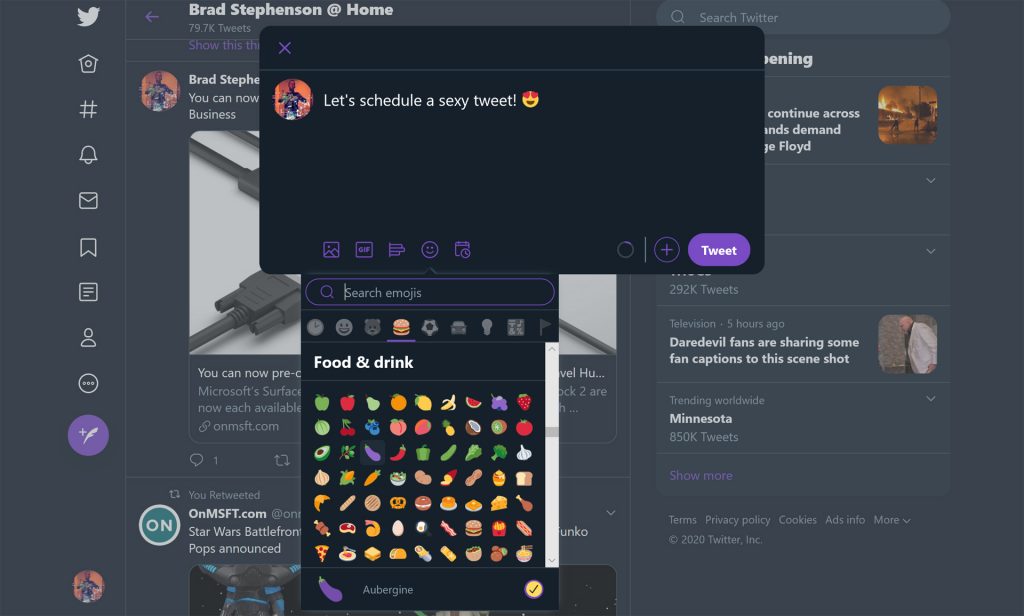
  7. Click the Save button.
  8. Then try saving the same image in Photos again.

There’s a good chance the above resolutions will fix the We couldn’t save that one error. However, remember that there are plenty of alternatives to Photos.

If you still can’t fix the issue, try editing the same image with software like Irfanview or Paint.NET.

[wl_navigator]

Error Code 0xd0000189 on Xbox One? Try these 5 simple steps

The Error Code 0xd0000189 on Xbox One is a common error code that you may encounter while installing or launching games or apps. The error is usually caused due to issues with Xbox Live.

One user took to the Microsoft community forum to explain the issue:

None of my apps or blueray are working. Netflix and now tv. I’m getting error code 0xd0000189, but this error code doesn’t exist and can’t get any help.

If you are also troubled by this error, here are a couple of troubleshooting tips to help you resolve the Error Code 0xd0000189 on Xbox One with a step by step guide.

How do I fix Error Code 0xd0000189 on Xbox One?

1. Run the game in Offline mode

Error Code 0xd0000189 on Xbox One

  1. Press the Xbox button on the controller to open the guide menu.
  2. From the guide menu, go to Settings > System.
  3. Select Settings and then choose Network.
  4. From the Network menu, open Network settings.
  5. Select the Go offline option.
  6. This will put your Xbox One console in Offline Mode.
  7. Once in the Offline Mode, try installing or launching the game or app with the error and check for any improvements.

Changing the network type to Offline mode can help you bypass the issue related to the network and let you play the game without any issues.


How to increase your Xbox One’s download speeds


2. Check Xbox Live service status

Error Code 0xd0000189 on Xbox One

  1. The Error code 0xd0000189 on Xbox One can occur if Xbox Live service is facing outage issues.
  2. You can check the live status of the Xbox Live service for any outage issues.
  3. In the Xbox Live status page, go through both Services and Games & Apps section and see if there is an outage.
  4. Wait till Microsoft fixes the issue and updates the service page. You can get a service status update if you sign in with your Xbox account.

3. Perform a power cycle

Error Code 0xd0000189 on Xbox One

  1. Make sure the Xbox console is powered on.
  2. Press and hold the Xbox button on the console for about 20 seconds.
  3. Release the button once the console is powered off.
  4. Disconnect all the connected cables from the console.
  5. Wait for a few minutes and then connect the cables again.
  6. Press the Xbox button again to power on the console.
  7. Once the console is up and running, try launching the game to check if the error is resolved.

4.  Clean alternate MAC address

Error Code 0xd0000189 on Xbox One

  1. Press the Xbox button on your controller.
  2. Navigate to Settings and choose All Settings.
  3. Go to Settings and choose the Network tab.
  4. Select Network Settings.
  5. open Advanced settings option.
  6. Int eh Advanced Settings screen, choose Alternate MAC address.
  7. Under Alternate Wired  MAC address select the Clear option.
  8. Now try to launch the game and check for any improvements.

5.  Reset Xbox One

Xbox game error

  1. Press the Xbox button on the controller.
  2. Go to System > Settings.
  3. Choose Console info and then select Reset Console.
  4. There are two ways to reset your Xbox One console.
    Reset and keep my games and apps – First select this option. It will reset the OS and delete potentially corrupted data without your game or apps.
    Reset and remove everything – Use this option as a last resort. Selecting this option will reset the Xbox One to factory default removing all the data stored in the console.
  5. Once the reset process is complete, try launching the game and check for any improvements.

The error code 0xd0000189 on Xbox One is a common error and usually resolves automatically when the Xbox Live services are fixed. However, if the issue persists, try other troubleshooting tips listed in this article.

For other like errors where the update is stuck, see how to fix it.

[wl_navigator]