Windows 7 KB4093108, KB4093118 fix memory issues and stop errors

April’s Patch Tuesday brought two new updates to Windows 7 users. Security update KB4093108 and Monthly Rollup KB4093118 include a series of bug fixes that make the OS more stable and also add some security improvements to various Windows components.

As expected, these two updates don’t bring any new features. It is worth mentioning that the Windows Update service will install these updates on all computers, whether computers have the HKLMSOFTWAREMicrosoftWindowsCurrentVersionQualityCompatcadca5fe-87d3-4b96-b7fb-a231484277cc registry setting or not.

Without further ado, let’s dive in and see what’s new in these patches.

Windows 7 KB4093108 changelog

  • Improves kernel reliability
  • Fixed the issue that caused apps to have unexpected memory contents on multi-processor systems.
  • The update fixes a stop error that occurred when applying previous updates to a 32-bit (x86) computer with a Physical Address Extension (PAE) mode disabled.
  • Security updates to Internet Explorer, Microsoft scripting engine, Microsoft graphics component, Windows Server, Windows datacenter networking, Windows virtualization and kernel, and Windows app platform and frameworks.

Windows 7 KB4093118 changelog

Update KB4093118 features all the improvements and fixes brought by KB4093108, as well as the following three bug fixes:

  • The issue with printing content generated by ActiveX in Internet Explorer has been fixed.
  • Access violation on certain pages in IE when rendering SVGs under high load should no longer occur.
  • Internet Explorer can now identify all custom controls.

— RELATED: 3 of the best software to fix Windows 7 errors for good

KB4093108, KB4093118 known bugs

Unfortunately, these two updates also bring two issue of their own. The good news is that Microsoft is aware of these problem and its engineers are working on a resolution that will be deployed in an upcoming release.

So, keep in mind that SMB servers may leak memory after you install this update. Also, if you install the latest Windows 7 updates on computers that don’t support Streaming Single Instructions Multiple Data Extensions 2, you may experience stop errors.

If you already installed the latest Windows 7 patches on your computer, use the comments below to tell us more about your experience.

RELATED STORIES TO CHECK OUT:

Download the first Progressive Web Apps from the Microsoft Store

Progressive Web Apps are revolutionizing apps for Windows and other platforms. They are a new kind of app based on the latest web technologies. PWAs are websites and web apps that you can open in separate taskbar windows outside browsers much the same as native Universal Windows Platform (UWP) apps. With the Redstone 4 update rolling out, the first Microsoft PWAs have gone live in the MS Store.

Microsoft had already stated that it intended to release the first PWAs in the MS Store to coincide with the Redstone 4 update (otherwise Spring Creators Update). Thus, it is not a big surprise that 14 new Progressive Web Apps are out now. These are the first PWAs in the MS Store:

Microsoft intends to bring PWAs to more than 500 million Windows 10 devices, and the Bing crawler will automatically index them on the MS Store. To ensure that Windows 10 fully supports Progressive Web Apps, Redstone 4 updates Edge’s rendering engine with EdgeHTML 17.

This will give the platform all the latest web technologies, such as Push notifications, required for PWAs. After the update, the PWAs can fully utilize the WinRT API suite just the same as UWP apps.

However, you do not need to wait for the Spring Creators Update to run the new PWAs. The Progressive Web Apps run on Windows 10 version 10240.0 or later.

You can utilize the PWAs on PC, hub, Hololens and mobile devices. Below is a snapshot of the Oyster PWA open in Windows 10, which opens the Oyster site in its own separate app window.

Despite the numerous advantages of PWAs, Microsoft insists they are not replacing UWPs. A post on Microsoft’s Windows Blogs states, “For developers who are building a fully-tailored UWP experience, building from the ground up with native technologies may make the most sense.”

Yet, most software publishers would probably prefer to develop PWAs that can run on all platforms instead of UWP apps restricted to Windows 10 devices.

Progressive Web Apps will greatly expand the number of apps on the MS Store, which would address its shortfall of apps.

We also have a great guide on how to download apps and install from Office 365, so don’t miss it.

With the likes of Google fully committed to Progressive Web Apps, it might not be that long before the first PWAs for Gmail, Google Calendar and Google Drive arrive on the MS Store.

Twitter PWA adds Windows 10 Share Dialog targeting

A few weeks ago, Twitter became the first developer to update their standard Windows 10 UWP app to a Progressive Web App on Redstone 4 and Redstone 5 devices. There have since been a couple of updates for the Twitter PWA, one of which now allows it to integrate directly with the Windows 10 Share Dialog.

Spotted by Microsoft watcher Richard Hay, the integration shows that the Twitter PWA is catching up to what’s available in the UWP. You can now summon the share menu from any Windows 10 app and share open content directly with the Twitter PWA. It is a pretty cool feature and one that can end up saving time and helping you skip the trip to the web to share such content.

The Twitter PWA is reportedly looking to pick up tile support and the ability to upload video in the coming weeks. We’re looking forward to more new features soon, especially if they keep coming at this fast rate.

Report: Microsoft moves to end development on stock Windows 10 apps, moving devs to Edge team

According to a report from Thurrott.com, Microsoft is looking to end development on some stock Windows 10 apps and is moving devs to the Edge team. This perhaps sheds some light on the future of Windows 10, coming about two weeks after the company announced a major shakeup within their Windows division.

Though this latest news can be seen by many as the shuttering of more consumer products, it is likely that Microsoft is instead doing this to cut down on the first party competition, a move to allow developers and third parties to further adopt Progressive Web Applications in Windows 10. In fact, many of Microsoft’s own apps already have fully capable web versions, including Outlook.com.

The company heavily updated Microsoft Edge in the upcoming Redstone 4 release to support Service Workers which allows websites to send notifications in the background when Edge is not in use. Groundwork for a Windows 10 overhaul is clearly present, and Microsoft even said that they would be making PWAs “first-class citizens.” Things are bound to get interesting this year, and there is now even more reason for the web and Edge likely being the next big thing for the company.

Public rollout of Windows 10 version 1803 reportedly delayed due to blocking bug

Following the roll out of Windows 10 version 1803 to Release Preview Insiders last week, there was a high probability for Microsoft to announce the public release of the major update this week. Previous reports suggested that the global rollout could start yesterday on “Patch Tuesday,” but that didn’t happen, and the company instead released the build 17133.73 to Windows Insiders in the Fast, Slow, and Release Preview rings.

While the Windows Insider team didn’t say when we could expect Windows 10 version 1803 to start rolling out globally, the release of a new cumulative update yesterday suggests that Microsoft still has some bug fixing to do. Today, Zac Bowden from Windows Central is reporting that Microsoft had to delay the release after discovering a critical bug in build 17133. “According to my sources, over the weekend Microsoft found a blocking bug that, while apparently rather rare, is impactful enough to hold the release until the issue is fixed,” he said.

Again, the Windows Insider team didn’t comment on critical bugs yesterday, and the company may well have other reasons to delay the release of Windows 10 version 1803. It’s also worth noting that Microsoft has yet to give this update an official name, as it seems like “Spring Creators Update” won’t be it after all.

We’ll let you know as soon as we get more information about the company’s plans, but in the meantime all Windows Insiders are invited to report last-minute bugs in the build 17133.73.

Mega Man X Legacy Collection coming to Microsoft’s Xbox One consoles in July

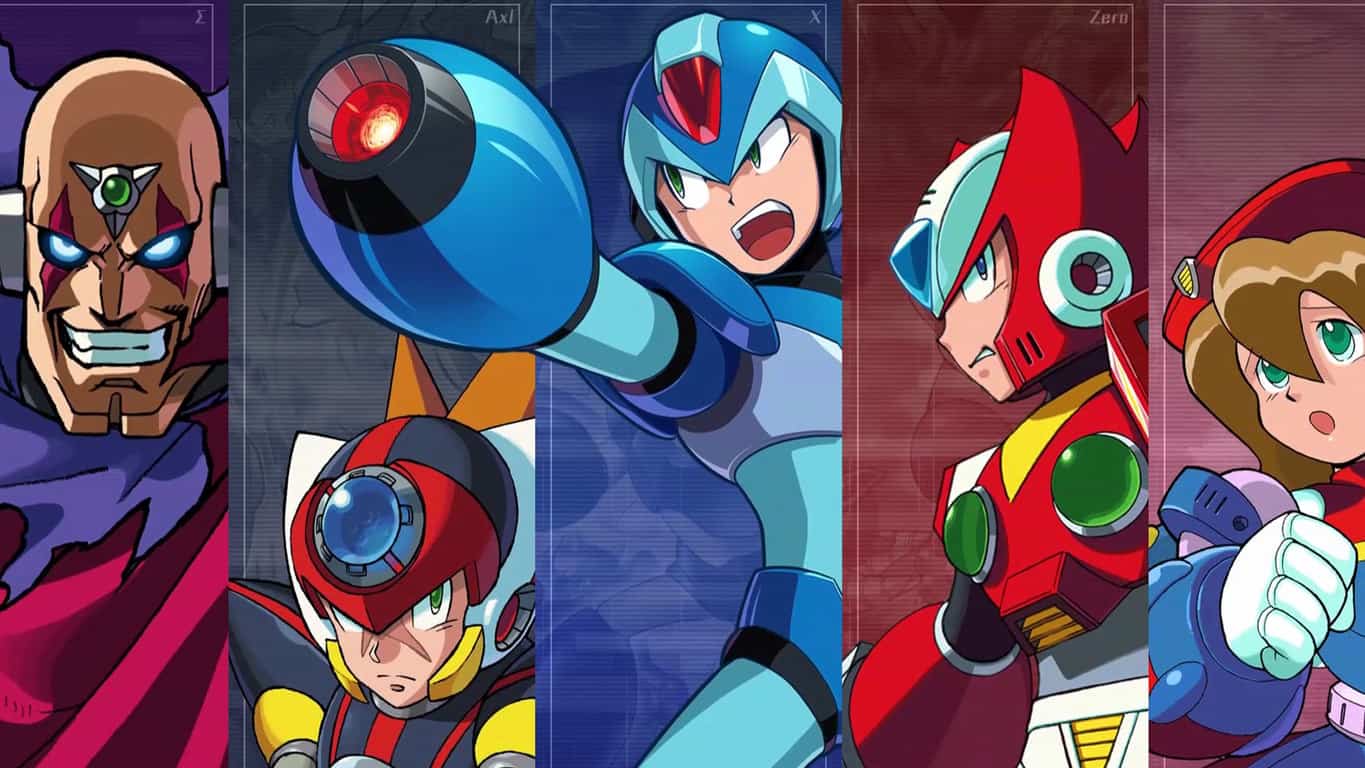
Mega Man X Legacy Collection 1 and 2 have both just been announced for a July release on Microsoft’s family of Xbox One consoles.

Mega Man X Legacy Collection 1 will feature the classic Mega Man X, Mega Man X2, Mega Man X3, and Mega Man X4 video games while Mega Man X Legacy Collection 2 will contain Mega Man X5 through 8. Both collections will sell digitally on July 24th for $19.99 however a retail bundle containing both will also be available in stores for $39.99.

Each Mega Man X in these collections will be completely playable in a range of aspect ratios and visual styles and each collection will come with the The Day of Σ Mega Man X anime plus a host of image galleries and bonus videos.

Mega Man X Legacy Collection 1 and 2 are follow-ups to the first and second Mega Man Legacy Collection which contained re-releases of the classic Mega Man video games. Both of these are already available on the Xbox One with the first collection currently being playable for free as part of Xbox Game Pass.

Are you a Mega Man fan and will you be grabbing these Mega Man X re-releases? Let us know in the comments and make sure to like us on Facebook for more Xbox One video game news.

Windows 10 Mobile won’t get the full benefits of PWAs

Progressive Web Apps or PWAs is a new, fantastic way to give users a better experience on the web. They are reliable, user friendly, engaging, and fast and work on the Windows 10 mobile platform.

Microsoft just published their own 14 PWAs. This is the first batch of what is speculated to be hundreds of websites modified to the PWA format.

Here are some of the PWAs currently available: Daytrip, Travelzoo, MyCARFAX, Airfarewatchdog, ASOS, Skyscanner, Student Doctor Network, The Penny Hoarder, OfferFinder.net, Twitter, Ziprecruiter, Space, Men’s Wearhouse.

Microsoft PWAs not fully functional

Despite being officially released, these progressive web apps will not be completely functional on the Windows 10 Mobile. This is due mainly to the Microsoft Edge engine lacking certain parts.

windows 10 mobile pwa issues

What is Microsoft Edge lacking to make true PWAs?

For one, the mobile version of Microsoft Edge does not support caching offline. This means that the PWAs will only work if you have access to the internet.

In addition, Windows 10 Microsoft Edge Mobile doesn’t have service workers. This means that PWAs won’t be able to send notifications to your action center like a regular application.

There are also other issues, such as the lack of a progress indicator when users click on hyperlinks, among other things.

Flags for desktop users only

Microsoft does have flags for Mobile Edge, but they were only enabled in the upcoming RS4 and the true Windows 10 RS3 Creators Update. This means desktop users can access them, while mobile users can’t.

The bottom line

PWAs is a very exciting technology that could save the application shortage on Windows Mobile . However, these recent events indicates that Windows simply does not seem to think it is worth the trouble.

RELATED STORIES TO CHECK OUT:

Red Dead Redemption, Gears of War 2, four more Xbox 360 titles are now Xbox One X Enhanced

Today during the Inside Xbox webcast, Microsoft announced that Gears of War 2, Portal 2, Darksiders, Red Dead Redemption, Star Wars: The Force Unleashed and Sonic Generations (just added to the Backward Compatibility List) are now enhanced for the Xbox One X. These six titles are now designed to take advantage of the most powerful Xbox console ever released, and should now include amazing detail, higher performance, and steadier framerates.

The Witcher 2: Assassins of Kings, Forza Horizon, Fable Anniversary and Crackdown were the last Xbox 360 titles to get the Xbox One X Enhanced treatment. The titles joining today are also some all-time favorite titles, so many gamers are likely to enjoy them in new beauty on their Xbox One X systems. “They all look unbelievable, Red Dead looks amazing, and Sonic Generations really pops,” said Bill Stillwell from the Xbox Back Compatability Team during today’s webcast.

As always, you can keep track of the titles included in the Xbox One X Enhanced Catalog by checking here. Let us know in the comments which of these games you’re planning to revisit on your Xbox One X.

Microsoft Garage’s Project Road Runner looks to solve autonomous driving problems

How do you teach a car to drive? Throw pictures at it, apparently.

Perhaps, that was a crude way to describe Microsoft’s foray into developing autonomous driving algorithms for a future where driverless cars roam the streets in mass.

Recently, the Microsoft Garage team released a post on its self-titled blog detailing a new deep learning project by the name of Project Road Runner in which the team is using photo-realistic simulations to help train driverless cars.

As with most of the company’s Garage efforts, the team wasn’t officially backed by the Redmond based software giant and had to seek resources outside of the multi-billion dollar treasure chest of Microsoft. That resulting innovation spawned from the creative testing methods of the Garage team resulted in the team seeking simulations versus using actual vehicles encased in expensive hardware and sensors.

Furthermore, the Garage team sought an open-sourced simulation platform AirSim, that, at the time, was being used for drone simulation, to help them conduct their shoestring budgeted research. Aside from its cast landscape footage, AirSim is also credited with particularly useful photo-realistic environments built atop the Unreal gaming engine. The net result of this usage by the Garage team helped spur a symbiotic partnership that birthed AirSim’s autonomous driving expansion in November 2017. Now, the software to help train autonomous vehicles is free to anyone outside of Microsoft.

I’m sure both Google and Uber have already figured out the limitations Project Roadrunner’s approach, but it suffices to say that, with simulation driving, the Garage team was free to gather weekly Petabytes worth of data on reinforced learning by allowing their vehicles to freely crash into things, without fear of accidental death or lawsuits.

“This is pretty big. With reinforcement learning, you eliminate the need for collecting and storing petabytes of data every week. You can let your car crash into things and learn on its own. Reinforcement Learning has a lot of potential in the AD space, and of course it is impossible to do it in the real world, which is just another reason why I think simulation is going to be the backbone of the AD industry going forward. With our latest tutorial, you can start doing this at scale by distributing the learning job across multiple VMs on the cloud.”

Despite not having a fully promoted play in the war for infotainment unit space or a well a well-publicized footprint in autonomous vehicles, Microsoft has slowly been crafting a narrative as being the connective tissue that binds software to hardware via the cloud and Project Roadrunner is an exemplary showcase of that idealism. Using open source software to bypass current hardware limitations and powered by the vast opportunities presented with cloud computing, Microsoft employees could be creating the foundation for autonomous vehicles. A drivers ed of sorts for driverless cars that could be implemented by car manufacturers for years to come.

Microsoft’s smart mat ‘Zanzibar’ could be its bridge to augmented reality adoption

According to a report from ZDNet’s Mary Jo Foley, Microsoft is set to unveil the ultimate tabletop gamers fantasy piece of equipment with its Project Zanzibar, as well as what could be seen as a bridging tool for more robust augmented reality experiences with its HoloLens technology.

Project Zanzibar is a rollable mat with the ability to recognize tactile objects placed on it. Microsoft’s more detailed description of Zanzibar includes, “Zanzibar is a flexible and portable mat that can locate, uniquely identify and communicate with objects placed on its surface, as well as sense a user’s touch and hover hand gestures.”

Through the use of near field communication (NFC) technology, anything placed on the mat can be tracked as well as extend its location and object sensing beyond the physical limitations of the mat to most NFC enabled items.

As for my earlier reference about tabletop gameplay, Microsoft described a couple of use cases for the device, one of which included toys that were placed on the mat being ‘brought to life’ through an NFC connection to other hardware. For example, if a person were to place a figurine on the mat, the connection could enable additional sound effects or voice recordings to tell the figurine’s story or if paired with a HoloLens, an entire digital dreamscape could accompany that particular item.

Zanzibar, if fully produced, could open up a more affordable world with more immersive interactive elements for child lesson planning or games like Dungeons & Dragons, Heroclix, Dicemasters, Yugioh. Mary Jo Foley points out that Zanzibar could be the culmination or offshoot of Microsoft’s earlier efforts to actualize context focused tabletop interactions with the Surface Table (aka Play Table) or its unrelated but aptly named Xbox and Windows 10 initiative,“Play Anywhere.”

While Zanzibar is scheduled to be shown off at the ACM CHI Conference in Montreal this month, it’s noted as a Microsoft Garage project and with that comes the real possibility that it may never see the light of day as a fully realized consumer product.

However, there is hope as the recently updated Microsoft Launcher for Android started off as a Garage Project and is now viable Android experience found in the Google Play Store.

The makers of Myst reach Kickstarter goal, to bring “Myst 25th Anniversary Collection” to Windows 10

Myst, the popular series of adventure video games will celebrate its 25th birthday this September. On this occasion, developer Cyan has launched a Kickstarter campaign to acquire the rights to all seven games and re-release them as the Myst 25th Anniversary Collection later this year (via Ars Technica).

“With the help of our friends at GOG.com, the games have been upgraded to run on Windows 10,” the developer explained. “This Kickstarter will provide the entire collection in a special exclusive package, but the updated versions of the games will also make their way to digital download services, starting with GOG.com, as automatic updates.”

Only eight hours after the launch of the Kickstarter campaign, the project has already reached its $247K goal with more than $394K pledged by more than 2K backers. “Instead of waiting for a few weeks to get started with tooling and manufacturing ramp up, we have already given the go ahead,” the team wrote in an update today. If you do want the exclusive artifacts (book, pen and inkwell) that will come with this 25th Anniversary Collection, you can still pledge $99 or more before the Kickstarter campaign officially ends.

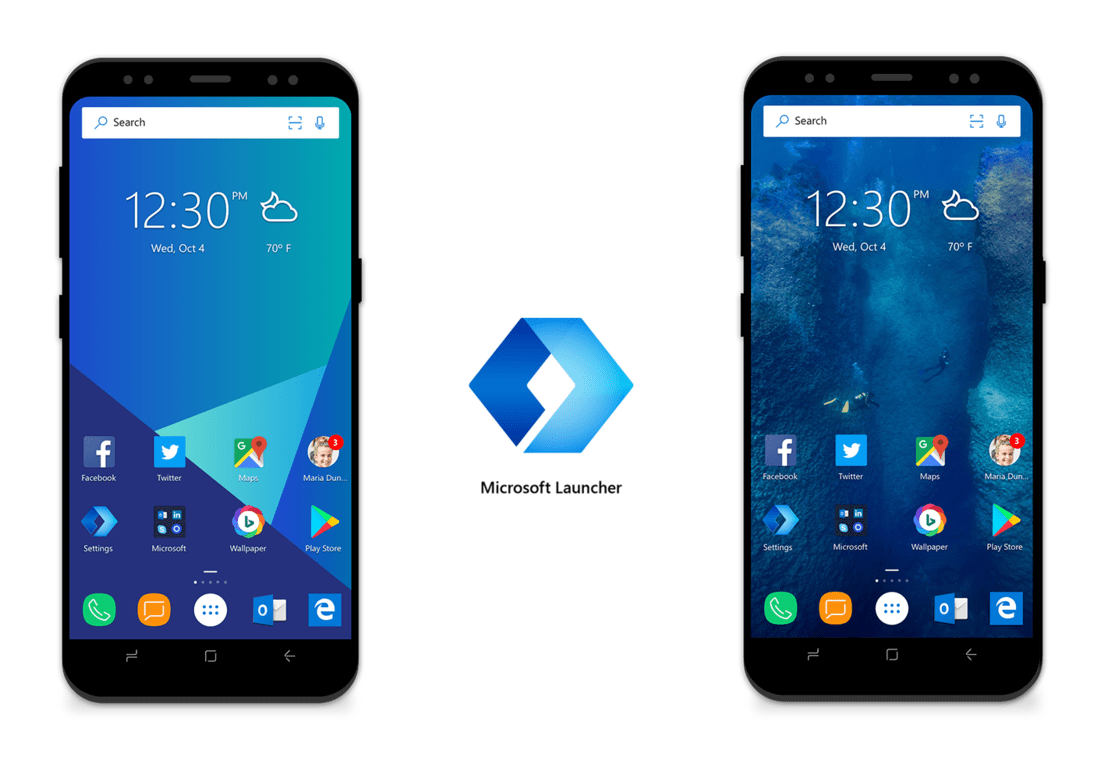
Microsoft Launcher Beta version 4.76 improves Cortana, adds in support for more device settings

A few weeks after the last beta release, Microsoft Launcher 4.76 has now started to roll out to beta testers. The latest version of the Android Launcher addresses the usual bugs, improves Cortana, and adds in support for more Android device settings such as WiFi and Flight Mode

The Microsoft Launcher team shared the following changelog on the dedicated Google+ community:

  • Support app sorting for Korean/Japanese/Russian languages in app drawer
  • New first time experience for mobile connected users from Windows setting
  • Cortana integration improvements
  • Improve app launch experience
  • Supports more device settings like WiFi, flight mode, etc
  • Support navigation query
  • Bug fixing, code clean up, crash fix and perf tuning.

You can get this update right now by signing up for the beta in the Google Play Store. Standard Microsoft Launcher users will get the update later and once beta testing is done, so be sure to keep tuned for more in the days ahead.

The Elder Scrolls III: Morrowind coming to Xbox One backwards compatibility

The next round of original (OG) Xbox video games joining the Xbox One library of backwards compatible titles is expected to be announced in a few hours during a live stream of the second episode of Inside Xbox.

One of the yet-to-be-revealed OG Xbox video games already appears to have been added to the digital Xbox Marketplace though; Elder Scrolls III: Morrowind. The game can’t be purchased yet but its sudden appearance within the store and its mention of today’s date as its release date is a pretty good indication that it will be mentioned during the broadcast.

The Elder Scrolls III: Morrowind Game of the Year Edition includes Morrowind plus all of the content from the Bloodmoon and Tribunal expansions. An epic, open-ended single-player RPG, Morrowind allows you to create and play any kind of character imaginable. You can choose to follow the main storyline and find the source of the evil blight that plagues the land, or set off on your own to explore strange locations and develop your character based on their actions throughout the game. Featuring stunning 3D graphics, open-ended gameplay, and an incredible level of detail and interactivity, Morrowind offers a gameplay experience like no other.

Are you excited to play Elder Scrolls III: Morrowind on your Xbox One console and what other OG Xbox games would you like to see given backwards compatibility? Let us know in the comments and make sure to follow us on Twitter for all the latest Xbox gaming news.


Xbox One Preview Alpha Build (1804.180407-1335) fixes audio & app bugs

Xbox One Preview Build 1804.180407-1335 has begun to roll out to Alpha Xbox Insiders and it’s expected to expand to Omega and Delta users within the next 24 hours.

This latest Preview Build fixes loads of bugs associated with Xbox One system volume, Game Hubs, the Activity Feed, and App stability in addition to a variety of Settings and game glitches. Here’s the release notes.

Fixes:

  • Activity Feed: Fixed an issue in which users would receive a “Something went wrong” error message when sharing game clips and captures through Twitter.
  • App Stability: Fixed an issue in which a user would be using an app such as Netflix or Hulu would logout then unable to launch the app again until they power cycled.
  • Audio: Fixed an issue in which some users would experience loss of system sounds on Home.
  • Game Hub: Fixed an issue in which users some users with High Contrast enabled could not see active Club counts and Looking For Group (LFG) post counts.

Game Installation:

  • Resolved an issue which prevented some users from installing certain Games (Minecraft and Fallout Shelter), and received no notifications of the installation failure.
  • Loss of Home Navigation playing Guitar Hero
  • Fixed an issue in which users some users playing Guitar Hero with a Guitar Hero controller would return to Home and be unable to perform any navigation with their controller.
  • Mixer Crowd Control: Fixed an issue when a user used the co-pilot for extended sessions the feature would stop working.
  • My Games and Apps Collection: You should no longer encounter an issue with My Games and Apps appearing empty or non-functional when launched.
  • Settings – Privacy: Fixed an issue in which some users could not view or change Privacy Settings.
  • System Reliability: Resolved a system stability issue that could result in apps crashing when multiple games or apps are running.
  • Video Playback: Fixed issues with the UHD version of Disney’s latest BD-disc “Thor:Ragnarok” disc in which playback would hang towards the end of the movie.

Known Issues

  • Pi-hole: Pi-hole users may encounter issues signing in, creating, or recovering accounts upon downloading the 1804 update. This is due to a new configuration file which is downloaded from a URL Pi-hole blocks by default. Workaround: Add clientconfig.passport.net to the Pi-hole allowed IP address list.
  • Profile Color: Sometimes users may encounter an incorrect Profile color when powering on the console.
  • Audio: Hulu app volume is lower than expected—the Hulu team is working on an app update.

Audio Issues Help Needed: We need your help if you are experiencing any audio issues on the console! If you experience any loss of audio on Home or in games and apps please use Report a problem and provide as much detail as possible please including:

  • TV make and model
  • Audio receiver or headset make and model
  • Duration and frequency of the issue (How long did the issue occur? How often?)
  • A video of the issue including audio if possible – please post a link to the video in your bug or we can direct message you for it.

Xbox Insiders are Xbox One owners who have opted-in to test early builds of the console’s operating system before they’re rolled out to the general public. Within Xbox One Insiders are several groups, such as Alpha and Omega, which are given builds at different times or asked to test different features than the other groups.

Are you an Xbox Insider? Let us know what you think of this latest build in the comments below and make sure to like us on Facebook for more Xbox One news.

Surface Book 2 is Not Turning on: 3 Ways to Fix it

The Surface Book 2 device is one of a kind, but sadly, many users reported that Surface Book 2 is not turning on.

This isn’t the only issue, and Surface Book 2 CPU throttle is a well-known problem many have encountered.

In today’s guide, we will show you the best methods you can use if Surface Book 2 won’t turn on, so let’s get started.

Why is my Microsoft Surface Book 2 not turning on?

  • Issues with the device – Sometimes, there might be a problem with the device, adapter, connectors, or battery that prevents the Surface from starting.
  • Improper waking – You should wake up your device carefully. If you don’t do so, you may turn off your device by accident.
  • Missing updates – In some rare instances, a missing update can cause this problem to appear.

What can I do if Surface Book 2 is not turning on?

Before we tackle this issue, there are a few troubleshooting steps you can try:

  • Properly wake up the device – The device takes some time to wake up, so while waking it up, press the Power button just once.
  • Clean the connectors – Detach the keyboard and clean the connectors with a pencil eraser and rubbing alcohol. Once the connectors are dry, connect your keyboard.
  • Force a restart – Hold the Power button for about 10 seconds to turn off the device. Now press it again to boot the device.

1. General troubleshooting

  1. Switch to the Surface power connector. If your Surface has a USB-C port and you use it to charge the device, switch to the Surface power connector that came with your Surface to help it charge faster.
  2. Check the power connector light, if the LED light on the power connector is turned on or not. If the light is off you may need to replace your power supply. In case the light is flashing, remove the power connector from your Surface and check again for damage or debris that could cause a bad connection. If the light continues to flash, replace the power supply.

2. Wake your Surface with hotkeys

  1. If you have a keyboard connected, simultaneously press the Windows + Ctrl+Shift+B.
  2. In tablet mode, simultaneously press both the Volume up and Volume down buttons three times in quick succession (within two seconds).
  3. After that, your device should start.

You should hear a short beep while Windows tries to refresh the screen. If your Surface still won’t turn on, try the next solution.

You can also press and hold down the Power button until your Surface restarts, and you see the Windows logo screen (this takes about 20 seconds), then release the Power button, to make sure your Surface completely turns off.

In case your Surface turns on after you force a shutdown and restart: Charge the battery until it has at least a 40 percent charge, then install the latest Surface and Windows updates.

If your Surface Book 2 screen won’t turn on, it may need service. Start a service request by going to Device service and repair on Microsoft support site.

3. Install updates

  1. Plug your Surface into a working power outlet before installing updates. Don’t unplug or turn off your Surface while it’s updating.
  2. Ensure your Surface is charged to at least 40 percent before beginning to install updates.
  3. If you have a Surface Typing Cover or Surface docking station, make sure they’re attached before you turn on your Surface so they get the latest updates, too.
  4. If you use mobile broadband to connect to the Internet, your connection is automatically set to metered. Windows updates may not download over a metered connection, so it’s best to connect to Wi-Fi to make sure you get all updates.
  5. If you have no other connection options or have an unlimited data plan, you can change turn off the Set as metered connection. When this setting is off, all updates are over your mobile broadband connection.

Update the Surface Book 2 and Windows and ensure all updates are completely installed.

Note icon NOTE
When a Surface firmware update is available, you’ll see a notification on your Surface. Follow the instructions to update your Surface Book 2 using Windows Updates.

You can download and install updates manually if you have an internet connection. You can also use another computer with internet access if you are having trouble connecting your Surface to WiFi by downloading the .msi file to a USB driver and then transferring it to your Surface Book 2.

If you still have the problem, you can always check our Surface Book 2 keyboard not working guide for more solutions.

Did any of these solutions help? Let us know by leaving your comment in the section below. You can also share other quick fixes you’ve used that worked to resolve the Surface Book 2 not turning on problem.

Windows 10 on ARM to get partial 64-bit support shortly

Many people believe that ARM PCs are getting trashed in most reviews and on PC enthusiast sites. Microsoft should really make an effort to change these first impressions as they could limit the number of potential ARM customers.

The new ARM 64-bit SDK will reportedly support desktop .exe for instance. Users believe that this should have been present from the beginning, but it’s unlikely to make a difference because, due to lack of incentives, Windows software developers won’t bother compiling for ARM x64.

Users think that the solution would have been to announce a desktop version with a universal .exe that would support 64-bit ARM/c68 so that you would only have to download one .exe or an installer. Such an action is believed to have gotten the attention and some momentum behind it.

Compatibility issues with Windows 10 for ARM

Current lack of support for 64-bit apps results in some compatibility issues with Windows 10 for ARM. Windows 10 for ARM emulates x86 processors by repurposing 64-bit Windows 10’s support for x86 32 bit Win32 apps. Other problems stem from the lack of a 64-bit SDK for ARM apps.

Microsoft’s native applications already are 64-bit ARM code. Microsoft plans to resolve this part of the issue by releasing an SDK for ARM64 apps at the next BUILD conference.

Developers will be able to compile 64-bit apps for PCs on ARM

If Microsoft successfully finishes its plan, developers will get the chance to natively compile 64-bit apps for PCs on ARM. In other words, more applications should gain compatibility. On the other hand, this change alone will not resolve the 64-bit x86 app problem. This means that higher power applications on Windows will still remain restricted for an unknown period of time.

Anyway, users received the news with some excitement, being pleased that Microsoft has at least something in the works for the platform.

RELATED STORIES TO CHECK OUT:

With Windows 10 1803, Cortana will search the web, whether you want her to or not

Cortana is one of the core areas of Windows 10, and it can be used to search for your files, apps, and the web. Unfortunately, not everyone likes Cortana searching the web, and up until now system administrators could tinker with group policies and disable the search the web functionality entirely. Well, it looks as though Microsoft is backing away, and in Windows 10 version 1803 Cortana will search the web if you want her to or not (via Reddit.)

According to the Reddit posting, users running Windows 10 Pro version 1803 (Redstone 4) can no longer enable the additional “Do not allow web search” and “Don’t search the web or display web results in Search” policies. This essentially means there is now no “safe” and “official” way for Windows 10 Pro version 1803 users to prevent Cortana from doing web searches, though they can still “hack” the registry to block it.

This may or may not be a bug, but many users in the Reddit thread are upset by the news. “Frustrating and infuriating behavior from MS. If I didn’t play games I would have switched to mac years ago,” complained one user. And, “I absolutely can’t tolerate Windows if Cortana and integrated Bing web search can’t be disabled. So sad about this,” said another user.

Windows 10 Education and Windows 10 Enterprise users running version 1803 are not impacted and their administrators still use these policies to block web searches in Cortana. These are both much more expensive versions of Windows, which may not be a good option for small businesses who value privacy and won’t want Cortana to search the web.

Anyway, there is currently a Feedback Hub thread for the subject, and it will be interesting to see if Microsoft has an official reaction. We’ll be keeping an eye on the news, so best keep tuned for more in the days ahead.

Microsoft Teams tip: chat from hover card

Microsoft Teams is already a great way to communicate with both coworkers and friends across your company or school, but there’s now an even easier way to stay in touch with them. Noted by a trusted contributor on the Microsoft TechNet Community, you can now chat directly from the hover card on Microsoft Teams.

Quite obviously, to use this feature, all you need to do is hover over anyone’s picture in Teams to bring up the hover card. Then, at the bottom of the card you’ll notice a “Send Message” box, where you can quickly send a message to someone without having to click on the chat button. Though typing in this box won’t open a chat window, it is still a quick way to send a message to someone and save some time in a busy day.

The Hover Box

In other Microsoft Teams news, it was announced last week that Skype for Business interoperability is coming soon to Teams. Roughly one year after its initial release, Microsoft is clearly working to make Teams the go-to communication service for Office 365. Do you use Microsoft Teams in your organization? Let us know your thoughts below.

Microsoft To-Do adds supports for subtasks with new “Steps” feature

Microsoft has updated its To-Do task managing app today with to add support for subtasks, which has been the top-requested feature from users. Microsoft is calling this new feature “Steps,” and we’re seeing it today on all platforms except the Android app

When you create a new task in To-Do, you’ll now see a new “Add Step” button below the title. You can create many subtasks if you want to, though It’s worth noting that marking all the subtasks as completed won’t mark the main task as such, and vice versa (as seen below.)

Microsoft is still working on many more user-requested features for To-Do such as integration with Cortana and the ability to share lists between users. If you’re interested, you can track Microsoft’s progress on these new additions and help the company prioritize new features on the dedicated UserVoice website.


‎Microsoft To Do
‎Microsoft To Do
Price:
Free

Microsoft releases source code for Windows 3.0 File Manager, and it still works great on Windows 10

The release of the Spring Creators Update may be coming up soon, but if you’re up for some Windows nostalgia while waiting, you can now download the Windows 3.0 File Manager on your Windows 10 PC. Long-time Microsoft employee Craig Wittenberg has recently published the source code on GitHub, which was originally copied from Windows NT back in 2007.

As you can see below, the Windows 3.0 File Manager is fully functional on Windows 10 and is a real throwback to the early 1990’s when copying, moving, deleting, and searching for files became easier in Windows thanks to this core app. It all works via the MDI interface, which allowed users to see more than one folder in one window.

The File Manager is not only a throwback but a true proof of how backward compatible windows can be despite the test of time. Feel free to download it now for your own throwback to classic computing, and let us know your thoughts in the comments below.

Microsoft reaches natural conversation level with AI chatbots

There are already a lot of existing chatbots that let you have a conversation with them. But you have to be extremely clear and straightforward so that the chatbot is able to correctly understand what you’re telling it.

Microsoft recently announced that it created the first tech breakthrough that will allow us to have more natural conversations with them. The company says that we’ll be able to speak to them just like we talk to one other.

Xiaolce makes breakthrough in natural conversation

Microsoft’s chatbot, Xiaolce, just got some new updates that make it a lot smarter. The company will use the same technology to other chatbots and this includes Zo in the US.

The latest update implemented in Xiaolce is called “full duplex voice sense” and it works by expanding the chatbot’s ability to predict what the person she’s talking to will say next.

This would help her make better decisions about both how and when she is supposed to respond to a person who is talking to her. This set of skills is obviously quite natural for people, but it’s not common for chatbots. At least, it wasn’t until now.

The newest technology reduces lag time

This new tech that is implemented in Xialoce will reduce the lag time responsible for the unnatural and awkward conversations with chatbots. This will also resolve another annoying thing related to chatbot conversations, and we are referring to the “wake word.” You won’t have to use a wake word anymore. For instance, you will not have to say ‘Hey, Cortana’ every time you respond to the chatbot during a conversation.

Cortana won’t be enjoying these improvements soon

The AI assistant won’t be seeing these improvements soon because they are only targeted at Microsoft’s AI-powered social chatbots such as Zo, Xiaolce, Rinna, and Ruuh. These are designed to have more extended conversations, unlike Cortana who is considered by Microsoft nothing more than a productivity-focused sidekick.

RELATED STORIES TO CHECK OUT:

Power BI Desktop gets new Q&A feature and interactive element buttons

Seems as though Microsoft has been putting more umph! behind its data visualization solution, Power BI, relatively speaking. Over the past two years, those of us who have only been tangentially paying attention to the developments of Power BI have seen the team deliver feature updates as regularly as Windows 10 been pushing Insider builds. 

The monthly updates fall in line with Microsoft’s approach to evolving most of its products into platforms for services and this month’s batch of features brings customers Q&A Explorer.

Q&A Explorer is yet another way for customers to view and arrange datasets within Power BI by allowing the assigned users to ask questions about the displayed data and enabling additional interactive elements to reports.

Furthermore, owners of the docs can assign dialog to an image, shape or button by using Q&A Explorer in its current preview form that can then be interacted with by the assigned user/viewer.

While you are in edit mode, you can also add suggested questions. Any suggested questions you add will be available in the dialog for consumers to view. To add suggested questions, just type in the question you have and click the add button. This will add the question to the left suggested questions pane. If you decide later you want to remove a question, just click the “X” next to the question you want to remove.

The new Q&A Explorer feature is just the tip of the iceberg for updates coming down the pike for customers in the month of April. Other features and fixes for this month include:

Reporting

  • Q&A Explorer (preview)
  • Buttons to trigger actions
  • Combo chart line styles
  • Improved default sort for visuals
  • Numeric Slicer now generally available

Analytics

  • Update your linguistic schema
  • New DAX function: COMBINEVALUES()

Custom visuals

  • Organizational visuals now generally available
  • Overview by CloudScope
  • Icon Map by Altius
  • Hexbin Scatterplot

Data connectivity

  • Adobe Analytics connector now generally available
  • SAP HANA connector improvement: Port selection
  • Dynamics 365 Business Central connector

For anyone interested in more details about each new updated setting or additional feature for April, visit the Microsoft  Power BI blog, or get your hands on them now by downloading the Power BI desktop tool here.

Windows 10 news recap: First batch of PWAs arrive in the Microsoft Store, Ads for Office 365 appear in Mail app, and more

Welcome back to our Windows 10 news recap, where we go over the top stories of the past week in the world of Microsoft’s flagship operating system.

Microsoft Store gains its first set of Progressive Web Apps on Windows 10: Skyscanner, ASOS, and more

Microsoft has published the first batch of Progressive Web Apps (PWA) on the Microsoft Store. PWAs are apps that are built for the web, and not necessarily specific to any one platform, but still require support to be added for specific operating systems. Below are the PWAs currently available:

Microsoft: Windows 10 Mobile will not fully support Progressive Web Apps

While the announcement of the first set of PWAs arriving on the Microsoft Store made many think this could be the answer to Microsoft’s app gap problem on its mobile platform, Windows 10 Mobile, this appears to not be the case. A Senior Program Manager on the Microsoft Edge team confirmed that Windows 10 Mobile does not support all of the features, and that developers don’t have to support the platform.

Windows 10 Photos app now lets you tag your friends and family

The Windows 10 Photos app has been updated to add support for tagging people in pictures. This could allow photos to be categorised and filtered by who is actually in them, paving the way to making it simpler to find pictures of specific people. The tags link up to your address book.

Microsoft begins to show ads for Office 365 in the default Windows 10 Mail app

Microsoft has made a change to the default Windows 10 Mail app that is annoying some users. In the left-side menu, a new ad appears that promotes Microsoft’s Office 365 service.

Windows 10 Mail app Office 365 ad

That’s it for this week. We’ll be back next week with more Windows 10 news!

Microsoft news recap: Skype unveils “Content Creators” mode, Microsoft admits to stale map data, and more

Microsoft news recap is a weekly feature highlighting the top Microsoft news stories of the past week. Sit back, grab some coffee, and enjoy the read!

Skype is looking to attract podcasters with new “Content Creators” mode

In an effort to attract content creators, Microsoft is launching a new feature on its Windows 10 and Mac apps, called the “Content Creators” mode. This mode will allow people to record and live stream calls, without the need for any additional software or expensive kit to do so.

Latest Bing Search iOS app update makes it faster and more customizable

The Bing app for iOS has been updated that improves the speed of the app, as well as adding additional customisation options. Here is the changelog:

  • Ability in settings to hide the homepage feed if you don’t want to see it by default
  • More seamless map and list switching experience for local category searches. Try: “restaurants near me”, “movie theaters in Seattle”, etc
  • Faster loading of webpages – we strive to make Bing the fastest and most beautiful mobile search app
  • Various other changes and bug fixes, stability and performance improvements

Woman playing Xbox video games on an iPhone

Microsoft admits to “stale” Maps data, working on a fix

In a statement, Microsoft has admitted that its Maps API has stale data, laying blame on a bug that delays bringing the data over from HERE Maps to Bing.

We have been speeding up our data processing and expect an update to be available this summer. We continue to invest in our maps and will continue to enhance data freshness as we move forward. Hopefully, in the not too distant future, this type of delay will be a thing of the past.

OneDrive is getting new File Restore feature, ransomware protections with Office 365

Microsoft is adding more features to its OneDrive for Office 365 service, such as additional security features to protect against ransomware, but now it is also adding a File Restore feature. The File Restore feature will allow users to restore their entire OneDrive to any point in time up to the last 30 days.

That’s it for this week. We’ll be back next week with more Microsoft news!

What’s ‘Windows has detected spyware infection!’ and how to remove it?

Even though it’s a long shot, malicious software developers sometimes try to hide scams and malware just before your eyes. Now, even though you’re aware that this overwhelming piece of information popping on your screen is a false alarm, sometimes it’s hard to close it or even avoid it. Like the one commonly appearing “Windows has detected spyware infection” scam alert which plagues a lot of users.

Now, even though this can be quite bothering and carries a risk of virus infections, it can be dealt with relative ease. You can find ways to identify, remove, and block scammy alerts in a few simples steps we enlisted below.

How to identify and remove scam alerts like “Windows has detected spyware infection” in Windows 10

  1. How to recognize false prompts and scams
  2. How to deal with the scam alerts for good in a browser for good
  3. How to remove scam alerts from the desktop applications

1. How to recognize false prompts and scams

First things first. Microsoft or any security-oriented third-party service will never contact you through a strange looking in-browser dialog box. That’s not how the security programs communicate with the end-user. If you receive a message coming from the Windows Defender’s UI — that’s when you should consider possible virus or spyware infection.

The same goes for third-party antivirus solutions. If the pop-up appears anywhere but in the antivirus control center — there’s nothing to worry about. And, for the sake of everything, don’t click on those pop-ups as they’ll get you in a lot of trouble faster than you think.

In the best case, clicking on one of those will lead you to an Ad. On the other hand, if you lack proper protective software (all-around a bad idea), install malicious software in the background and infect your system.

You’ll recognize them with ease. They mostly pop-up suddenly while browsing the internet. Besides the scary message, they come with a sense of urgency — fix it now or look at the consequences. Suspicious websites are full of these ad-like prompts. Back in the days, those were mostly informing users of alleged awards and promotions but since that was blown up, they shifted to false virus threats.

Also, they tend to appear in the scam programs that allegedly fix the system errors and optimize its performance. Now, whether it’s the browser hijacker, a sudden pop-up, or a scammy third-party application, there are ways to deal with this for good.

2. How to deal with the scam alerts for good in a browser for good

Eliminating scam alerts like “Windows has detected spyware infection” is rather simple, but you need to be thorough. By removing it, you’ll get rid of these tricksters for a bit. What you’ll need to do is to completely cut out the possibility of their reoccurrence.

Here’s what to do it if the false-alarm prompt appears in the browser step-by-step:

  • Check the PUPs (potentially unwanted programs) in Control Panel.
    1. In the Search bar, type Control and open Control Panel.windows has detected spyware infection
    2. Click on the “Uninstall a program” under Programs.windows has detected spyware infection
    3. Remove everything even mildly suspicious.
  • Use a third-party antivirus software

You can also use dedicated antivirus tools such as Malwarebytes to scan your PC for unwanted apps. A third-party tool may have a higher detection rate than the built-in Windows Defender as they typically get updated as soon as news of new threats appears.

Run the installer and then open the antivirus. Perform a full PC scan and remove/quarantine any threat found. Reboot your PC and see if the issue persists.

3. How to remove scam alerts from the desktop applications

These are mostly installed mistakenly. Software developers frequently use a “dark patterns” (look it up) which manipulate you into installing suspicious and fraudulent software. Also, they tend to mimic the original applications in order to take the control of your PC. So be cautious in the future.

Here’s how to deal with the third-party scammy cleaners, fixers, or optimization tools:

  • Locate and remove the program from the Control Panel.
    1. Open Control Panel.
    2. Choose “Uninstall a program“.windows has detected spyware infection
    3. Remove the fraudulent application if you find it on the list.
  • Run a an antivirus and third-party uninstaller to clean the remaining files.
  • Run a deep scan with either Defender or a third-party antivirus.

That should do it. In case you’re still seeing the same messages after this, just remember not to click on them. This is paramount. Also, if you have any questions or suggestions, make sure to post them in the comments section below.

Windows 7 KB4088875 install fails or triggers BSOD errors

Update KB4088875 is here again. Microsoft recently updated the KB page for this Windows 7 security patch indicating that it released an updated version of it. What’s new in this update, you may ask? Well, we don’t know. Microsoft hasn’t revealed anything about the improvements that this new KB4088875 version brings – if any.

Strangely enough, the list of known issues hasn’t changed at all. Unfortunately, there are quite a few bugs affecting this update such as:

  • Security settings that may prevent you from running Internet Explorer 11
  • SMB servers may leak memory
  • A Stop error occurs if this update is applied to a 32-Bit (x86) machine with the Physical Address Extension (PAE) mode disabled.
  • A Stop error occurs on computers that don’t support Streaming Single Instructions Multiple Data (SIMD) Extensions 2
  • The update is not available for computers running antivirus version that haven’t update the ALLOW REGKEY

Recent user reports indicate that KB4088875 brings more bugs that those officially acknowledged by Microsoft.

KB4088875 issues

Many users reported that KB4088875 fails to install. Honestly speaking, maybe this is not that bad after all taking into account all the known issues listed above.

Judging by user reports, it seems that error 80010108 often appear when the install process fails. We do have a dedicated troubleshooting guide on how to fix error 80010108 on Windows 10. Follow the instructions available in that guide and maybe some of them will help you fix the error on Windows 7 as well.

Windows 7 users also complained about BSOD errors after installing the April version of KB4088875.

KB4088875 BSOD error

Currently using Windows 7 without issue. After executing Windows6.1-kb4088875-x86.msu downloaded from Microsoft website, pc was restarted. Upon restarting pc, the [PAGE_FAULT_IN_NONPAGED_AREA ] BSOD screen was encountered.

As you can see, KB4088875 is still a buggy update. Hopefully, Microsoft will soon push a hotfix to make it more stable.

If you already installed KB4088875 on your Windows 7 computer, feel free to use the comments below to tell us more about your experience.

RELATED STORIES TO CHECK OUT:

Fix: CCleaner Error 5: Access is Denied in Windows 10/11

The Error 5: Access is denied error message can pop up for various software packages. The system error often occurs when uninstalling or installing Windows software.

Some CCleaner users have stated on forums that Access denied errors occur when attempting to remove programs with the utility software or utilizing its startup manager. Are you getting an Access is denied error message when utilizing CCleaner’s uninstaller or startup manager? If so, these are a few resolutions that might fix the issue.

How can I fix CCleaner error 5 on Windows 10?

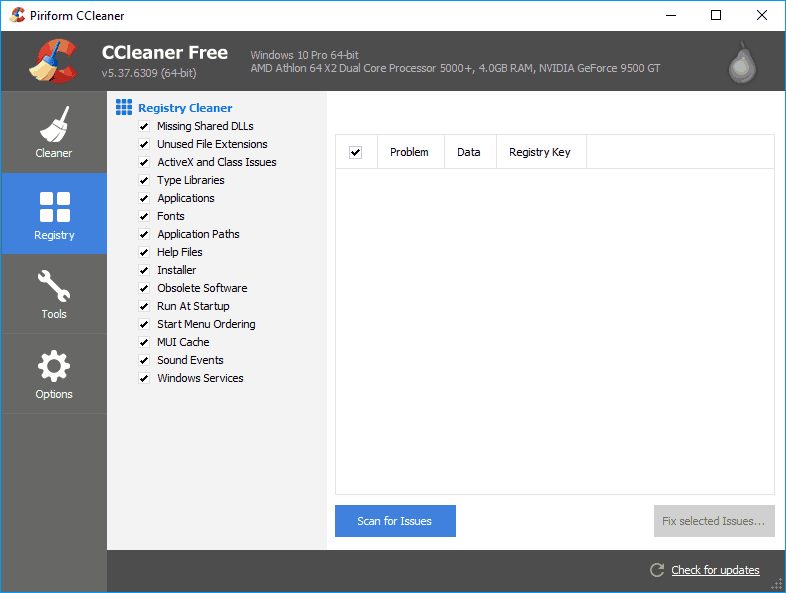
1. Scan with CCleaner’s Registry Cleaner

Cleaning the registry is one potential resolution for Error 5: Access is denied issues. CCleaner has its very own registry scanner that you can utilize for that. This is how you can clean the registry with CCleaner.

  • Select Registry on the left of CCleaner’s window to open its registry cleaner.
Clean registry errors
  • Select all the registry category check boxes, and press the Scan for Issues button.
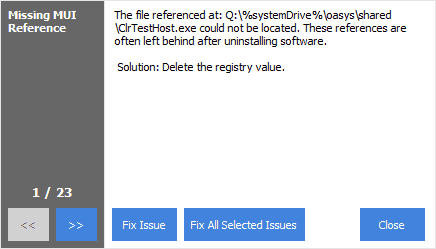
  • Press the Fix selected Issues button. Then you can press the Yes button to back up the registry if required.
  • Select the Fix All Selected Issues button to fix registry.

2. Run an antivirus scan

Error 5: Access is denied errors can be due to viruses that corrupt system files. So, it might be worth scanning with an anti-virus utility. If you don’t have a third-party utility, you can utilize Windows Defender as follows.

  • First, check that Windows Defender is on by entering ‘Windows Defender’ in Cortana’s search box. Then select Windows Defender settings, and press the Turn on Windows Defender Antivirus button.
  • Next, press the Cortana taskbar button; and enter ‘Windows Defender’ in the search box again.
  • Select to open the Windows Defender app shown directly below.
  • Click the shield button on the left of the window.
  • Click the Advanced scan link below the Quick Scan button.
  • Select the Full scan option to initiate a thorough scan.

Alternatively, you can use advanced antivirus software, as Windows Defender cannot always detect the latest digital threats. With an antivirus app, you can scan your device in-depth, remove all types of cyber threats, and prevent them from entering your system as well.

⇒ Get TotalAV

3. Switch off antivirus software

Anti-virus software can conflict with system maintenance software components. For example, some CCleaners users discovered that Access denied error messages for the utility’s startup manager can be due to Avast antivirus software. As such, uninstalling third-party anti-virus software might fix the error message.

Alternatively, you can temporarily switch off most anti-virus shields by right-clicking the utilities’ system tray icons and selecting disable or turn off options

4. Switch your user profile to Administrator

The Error 5: Access is denied error can also be due to a lack of admin rights. If you’re utilizing CCleaner within a standard user account, convert that account to an administrator one. You can modify your user account as follows.

  • First, open the Win + X menu with the Windows key + X hotkey.
  • Select Run to open that accessory.
  • Input ‘netplwiz’ in Run and press Enter to open the window directly below.
  • Select your user account, and press the Properties button.
  • Select the Group Membership tab shown in the snapshot directly below.
  • Then select the Administrator radio button.
  • Press the Apply button, and then click OK to close the window.

5. Switch off user account control

The User Account Control can restrict access to registry and file locations. So switching the UAC off might fix Access denied errors for CCleaner and other software. This is how you can switch the UAC off in Windows 10.

  • Press the Cortana button to open the app’s search box.
  • Enter ‘user account’ in the search box, and select to open Change User Account Control Settings.
  • Drag the bar never to notify.
  • Press the OK button to close the window, and click Yes to confirm.

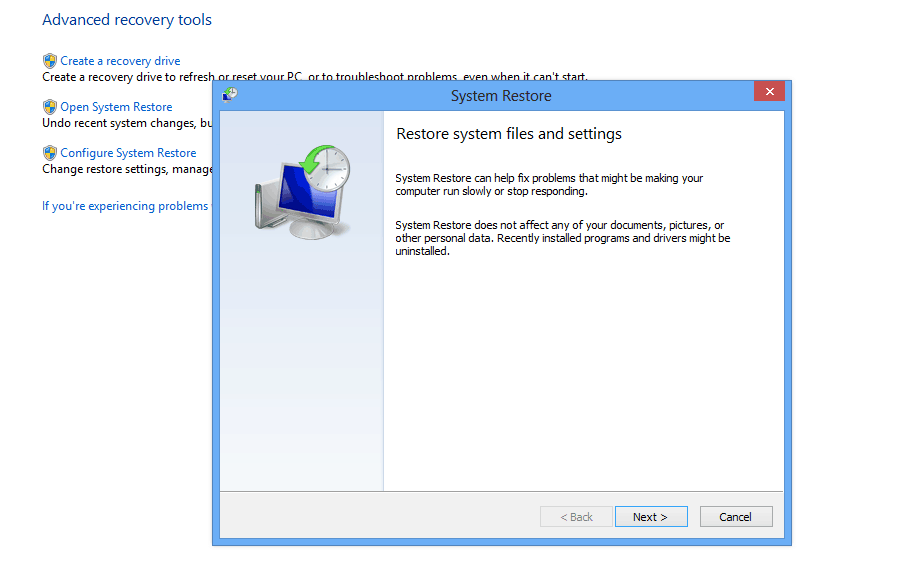
6. Roll Windows back to a Restore Point

As the Error 5: Access is denied error can also be due to corrupted system accounts, restoring Windows 10 to a previous date might fix it. You can revert Windows back to a restore point with the System Restore utility.

That tool will fix system files, restore registry settings, and remove software installed after the selected restore point. This is how you can utilize System Restore in Windows 10.

  • Open the Run accessory.
  • Enter ‘rstrui’ in Run’s text box and click OK to open System Restore.
  • Press the Next button on the System Restore window.
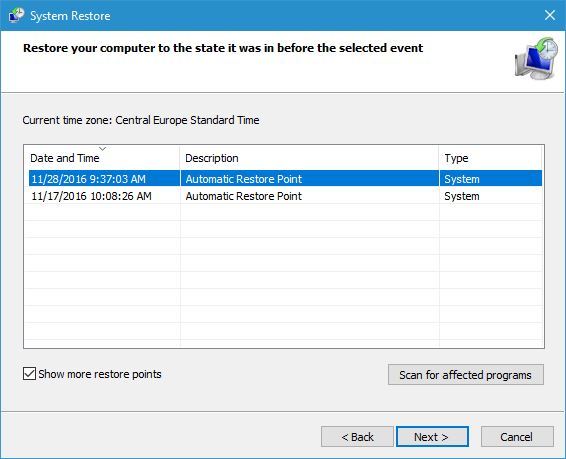
  • Select to restore Windows to a time when the “Access denied” error message wasn’t popping up.
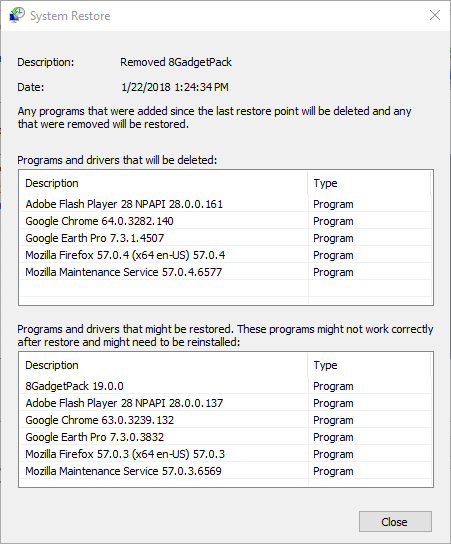
  • You can also press the Scan for affected programs button to check what software will be removed after restoring Windows.
  • Click Next and Finish to confirm the selected restore point and roll back Windows.

Some resolutions might fix Error 5: Access is denied errors that occur when utilizing CCleaner’s tools. They might also resolve Access denied error messages that block software from installing. You can check out this article for further CCleaner troubleshooting tips.

How to download old Calculator for Windows 10

If you ask me, Windows 7 was as close to a perfect system as one would expect. However, everything changes and, nowadays, Windows 10 is probably a better choice. At least when it comes to timely updates and security features. On the other hand, there are some remnants of Windows 7 users would likely want to see in Windows 10 as well. One of those is Calculator which was great, easily accessible, and simple to use.

Today, we decided to show you how to install old Windows 7/8 Calculator on Windows 10. If you’re nostalgic, check out how to do it below.

How to get use old multifunctional Windows 7/8 Calculator on Windows 10

The way Microsoft redesigned some of the built-in apps shows glimpses of Fluent Design in Windows 10. However, while they battled around to reach the wanted level of aesthetics, some apps lost their immense functionality. The built-in Calculator app was amazing on the previous Windows iterations.

Design-wise, it might lack some of the minimalistic looks, but even that can be questioned since tastes differ on the subject. For the app which thrives on the practical use rather than GUI, Calculator for Windows 7/8 was simply amazing.

That old and sturdy calculator had an abundance of options. Firstly, even though, statistically, most users use Calculator for simple basic calculations, the scientific, statistics, or programming modes still can come in handy. On the top of that, classic Calculator offered date calculations, unit conversions, and a few more nifty tricks.

download old calc for windows 10

However, this was completely left out initially. Of course, the Windows 10 Calculator app was updated and now it allows everything and it almost has an upper hand, feature-wise, on the old Calculator.

Nonetheless, if you’re a find prolific nature of older Calculator closer to your needs and hearth, here’s how to get it on Windows 10:

  1. Download the Old Calculator for Windows 10 Zip file, here. Kudos to WinAero for making this possible.
  2. Extract the installer, right-click on it, and run it as an administrator.
  3. Follow the instructions until the installation is completed.

Voila! You have yourself an old and reliable calculator from the past times. In case you have any questions or suggestions regarding the installation or configuring the calculator, feel free to tell us in the comments section below.

For even more classic-style options, check out these free calculator apps for Windows 10 that mimic older designs with modern compatibility.

Microsoft Store gains its first set of Progressive Web Apps on Windows 10: Skyscanner, ASOS, and more

Microsoft is hedging its bets on Progressive Web Apps (PWAs) to fix its app gap problem. PWAs are different to standard apps, in the fact that they are hosted by the developer, on their server, rather than Microsoft’s servers. They are built using standard web languages, instead of platform-specific code. However, it is up to developers to support native features of each operating system – the question for Microsoft is whether developers are willing to do this.

The first batch of PWAs have been made available on the Microsoft Store under the developer name of “Microsoft Store” (via Aggiornamenti Lumia), as they are indexed and published by Microsoft. Below are the apps that have been made available:

These apps can be tried now by installing them from the Microsoft Store on Windows 10.

Let us know your initial thoughts on these apps, and whether they’re an improvement on standard apps, in the comments below!

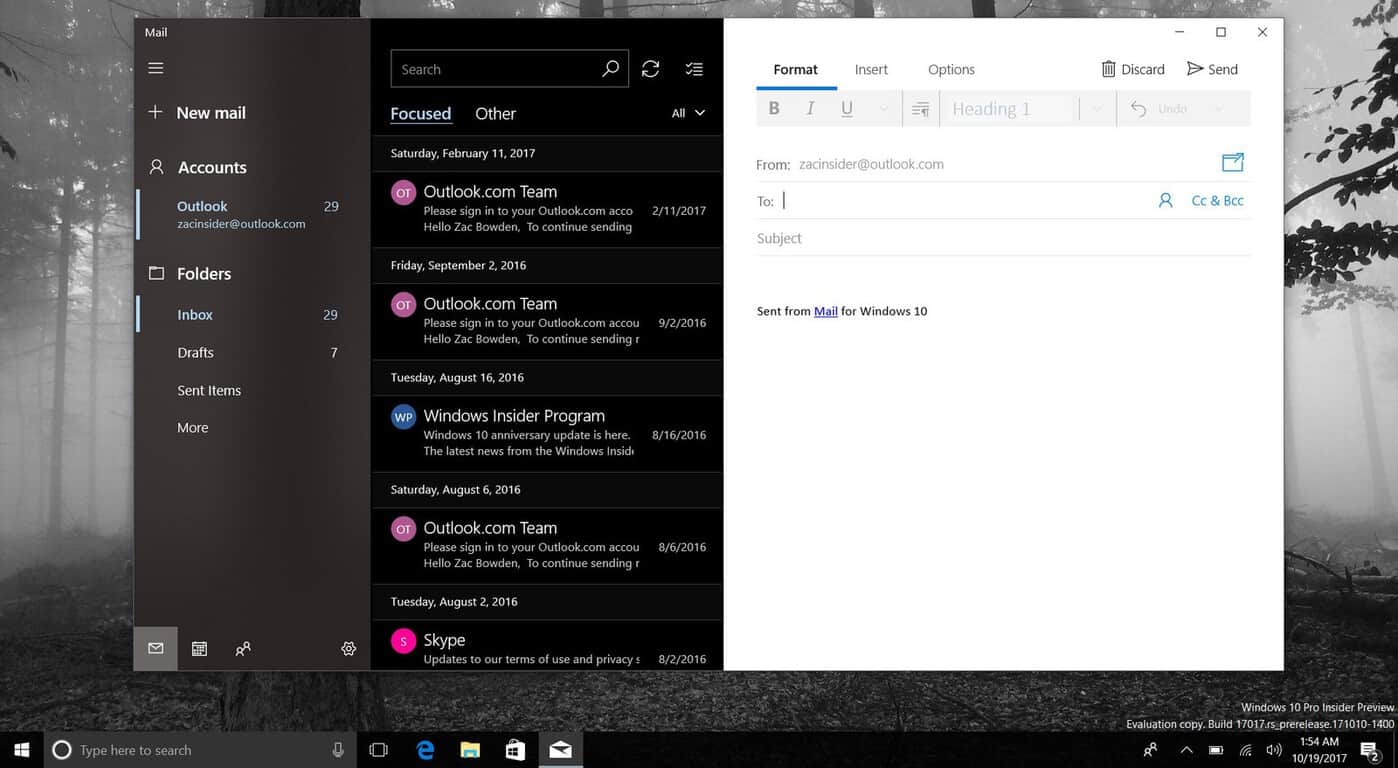
Microsoft begins to show ads for Office 365 in the default Windows 10 Mail app

In yet another move by Microsoft to push its service-driven business on to customers of Windows 10, Microsoft is beginning to show ads in the default Windows 10 Mail app, promoting its Office 365 service.

Displayed in the side menu, a new button appears that reads “Get Office 365”. This ad is not shown when the menu is collapsed. Not all users of Windows 10 Mail are seeing the ad, but it looks to be rolling out, as more people continue to report seeing it.

Windows 10 Mail app Office 365 ad
Via Neowin

Some may see this as yet more intrusion by Microsoft on an operating system where people believe ads should not be present, as Windows itself is a paid product. It follows similar moves being made across the company, such as the Groove app showing a “Get Spotify premium” button, as well as Outlook and OneDrive offering similar advertisements.

Users took to reddit to display their frustration at the change:

As it stands, there doesn’t appear to be a way to hide the “Get Office 365” button, so those using the Mail app will just have to put up with it.

Skype is looking to attract podcasters with new “Content Creators” mode

Despite the Skype team recently experimenting with its own version of Snapchat Stories, Microsoft hasn’t forgotten that Skype remains a “prosumer” app. Today, the team announced Skype for Content Creators, a new mode in the Windows 10 and Mac Skype apps that will allow users to record and live stream calls without needing to invest in expensive software.

“With Skype for Content Creators, Windows 10 and Mac users will be able to select the Content Creators mode to place and record calls directly within NDI®–enabled software such as Wirecast, Split and Vmix,” the Skype team explained. “Once the call is recorded, content can be easily imported into apps such as Adobe Premiere Pro and Adobe Audition for editing.”

The new solution seems quite flexible, and the Skype team added that creators will be able to customize the look and feel of the calls. Skype for Content Creators is currently in preview and will be generally available this summer. Microsoft will also showcase the feature at the NAB Show in Las Vegas next week.

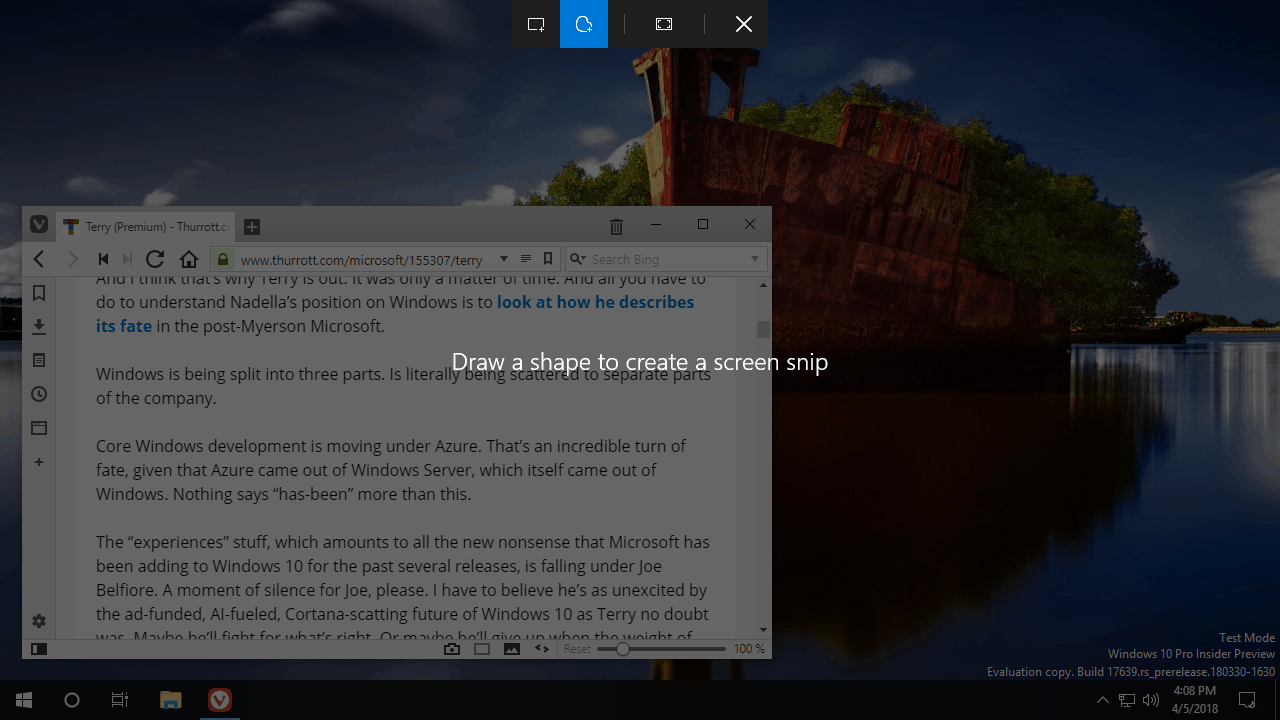
Windows 10 Redstone 5 update will introduce new “Screen clip” shortcut in Action Center

There are already several ways to take screenshots in Windows 10, including the PrtSc key, Microsoft’s handy Snipping Tool or the new Win + Shift + S shortcut that was introduced in the Windows 10 Creators Update. However, Microsoft is apparently working a new solution that will be integrated right into the Windows 10 Action Center.

Today, Microsoft watcher Rafael Rivera found a way to enable a new Screen Clip shortcut in the Action Center in Windows 10 RS5 build 17639. It’s not clear how he enabled the new clipping experience (we’re not seeing it on our Skip Ahead PCs), but the new Screen clip button seems perfect for people using Windows 10 in tablet mode.

Tapping the Screen Clip button in the Action Center will dim the screen and display an overlay at the top, with dedicated buttons for creating recording rectangular, free-form or fullscreen clips. According to Rivera, screen clips are automatically saved to the Windows 10 clipboard, and you can’t directly save them on your PC, at least not yet in this very early implementation.

The Windows Insider team will likely soon ask Insiders to give their feedback about this new feature. It does seem to be useful addition for tablet users, but it could also make sense on other form factors such as the foldable mobile device that Microsoft is currently developing.

Feature image credit: Thurrott.com

Xbox One Spring update gets plenty of fixes ahead of upcoming public release

Microsoft yesterday released a new Xbox One Preview Update all Preview Rings in the Xbox Insider program. The update comes with plenty of bug fixes for many core experiences and should perfect the Xbox experience ahead of the upcoming April release of the Xbox One Spring Update. Here’s a look at the fixes.

Fixes:

  • Predictive text is now working when using the Official chat pad or a USB keyboard.
  • We have resolved the issue Guide staying on the screen or being blank when exiting a game or app.
  • Fixes for when quitting a game or app via the guide you will no longer see a black screen.
  • Fixed an issue in with system updates were not being automatically applied when the console was idle overnight and not in user.
  • Fixed issues with localization when configuring the Elite controller.
  • Fixed an issue when a user who needs copilot tried to use “share controller” on Mixer the feature would not function for them.
  • Netflix has released an app update to ensure that 1440p mode works on a monitor.
  • We fixed the issue with party chat failing when Guide is dismissed.
  • Fixed an issue in with some users were being logged out instantly after logging in.
  • Fixed issues in with Users could not download temporarily Free To Play games from the My Games and Apps (Ready to install – RTI) and Gold sections without having ever seen the ESRB rating and description of the app/game.
  • Fixed issues in which a user would try to launch the Store via the App such as the Dolby digital app (to purchase a license or content) and the store would not load.
  • Fixed a new issue in with system stability that could result in Home/apps or games crashing when running multiple apps/games.
  • Fixed issues with Wi-Fi in which some users would turn the console on and not connecting or seeing your Wi-Fi network.

There are still some known issues with this latest release, including an ongoing problem with Pi-hole, and profile colors. Microsoft also needs your help to see if you’re having any audio issues on your console and wants users to file reports on the matter. You can see more on the other issues with this release below.

  • Pi-hole users may encounter issues signing in, creating, or recovering accounts upon downloading the 1804 update. This is due to a new configuration file which is downloaded from a URL Pi-hole blocks by default.
  • Some users are discovering that some games are not showing in HDR – Please file feedback when you encounter this to help in the investigation.
  • Sometimes users may encounter the incorrect Profile color when powering on the console.
  • Some users are reporting when quitting a game or app via the guide Home is not loading and you see a black screen.
  • Hulu app volume is lower and the Hulu team is working on an app update.

As always, you can find this update now by heading to System > Console info & updates > Update console on your Xbox One. Happy downloading, and do let us know how this latest release is working for you by dropping us a comment in the section below.

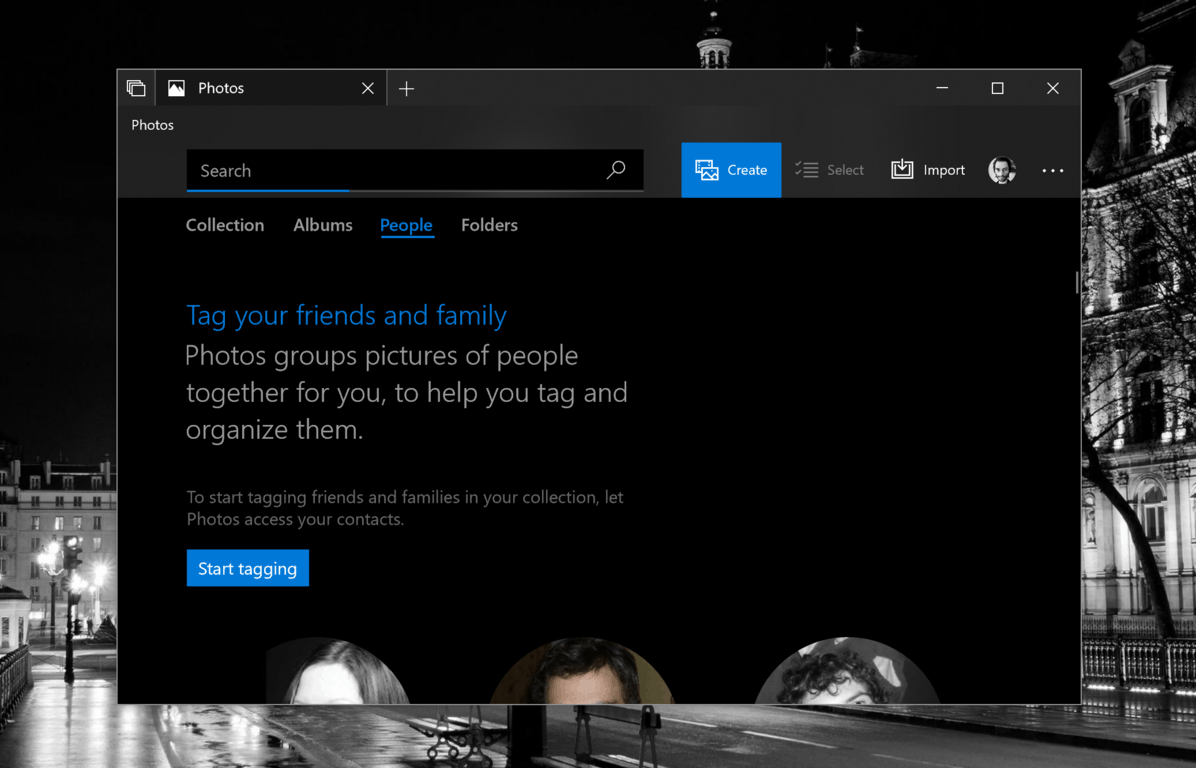
Windows 10 Photos app now lets you tag your friends and family

Some time ago, Microsoft added a face recognition feature to its Windows 10 Photos app, allowing it to group people in your photos and videos. This is an interesting feature, even though the app doesn’t really let you edit the data in any way.

However, we’ve just noticed that the app now lets you associate people in your photo collection with contacts in your address book. To start tagging people, you’ll have to let the app access your personal contacts, and once it’s done you’ll see an “Add name” option below each person in your photo collection. Clicking this button will let you choose any contact in your address book.

This is pretty basic feature, and there is still a long way to go before this app can really help us organize pictures of our friends and families. As an example, it’s still not possible to correct misidentified individuals, group together duplicate persons or choose favorites. Anyway, you should see this new tagging feature in Microsoft Photos version 2018.18022.15810.0 and higher,  let us know what you think of it in the comments below.

WWE’s Ric Flair, NXT Women’s Champion Ember Moon to star in next Xbox Live Sessions on April 8

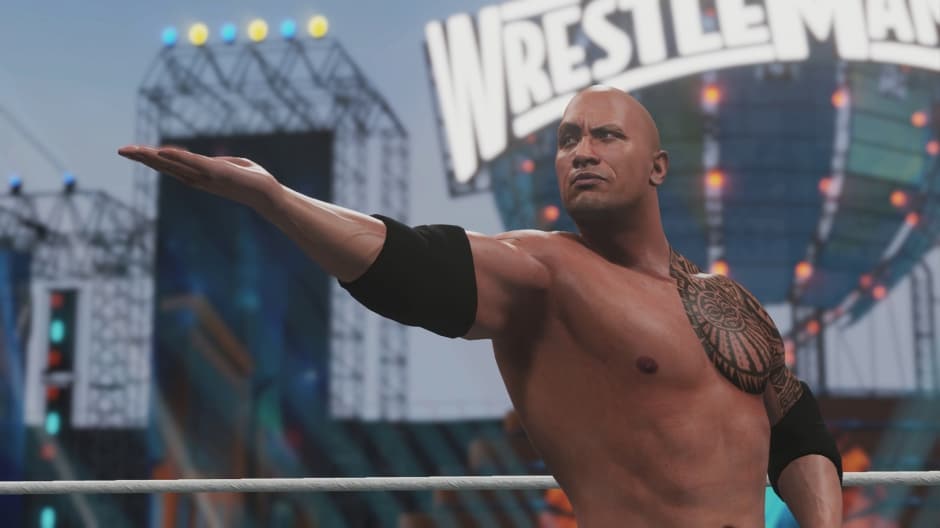
Microsoft announced today that the next Xbox Live Sessions for this weekend will feature WWE Hall of Famer Ric Flair and NXT Women’s Champion Ember Moon. The two will be playing WWE 2K18 (which is free on Xbox Live Gold this weekend) prior to the big Wrestlemania event in New Orleans, and you can watch the action live on Mixer on Sunday, April 8, starting at 12:00 p.m. PT.

For those in New Orleans, the Xbox Live Session will be held live in front of the Mercedes-Benz Superdome where WrestleMania 34 will take place that evening. WWE Hall of Famer Ric Flair will join the show first, and will answer questions, followed by Ember Moon.

If you’re watching from home, you’ll have the chance to win a custom WrestleMania Xbox One X console autographed by Ric Flair. The livestream will be hosted by Microsoft Community Studios Manager, Rukari Austin, so be sure to tune in to the action for more information.

Microsoft is also making WWE 2K18 free to play this weekend for Xbox Live Gold members starting at 9:00 a.m. PT on Thursday, April 5 through 11:59 p.m. PT on Sunday, April 8. The game features all the WWE superstars, and stunning graphics, drama, and excitement. You can check it out via the Microsoft Store below, and it will be available at a 50% discount throughout this weekend.

WWE 2K18
WWE 2K18
Developer:
2K
Price:
Free

Microsoft ScaleUp launches its latest cohort in India to help startups grow their business

Microsoft ScaleUp, previously known as Microsoft Accelerator, has selected 12 startups to be part of its new 12th cohort in India.

Microsoft ScaleUp focuses on late-stage B2B start-ups and helps them accelerate their business growth. ScaleUp is part of the ‘Microsoft for Startups’ initiative launched a couple of months ago and delivers access to technology, go-to-market and community benefits that helps startups grow their customer and revenue base.

The selected startups in the 12th cohort are focused on areas of Artificial Intelligence, virtual reality, Big Data analytics, among others to build solutions for the market.

  • AppICE has built a proprietary platform that can take soft and hard sensor data from connected devices like smartphones and use machine learning to generate actionable insights.
  • Appiyo Technologies’ Twixor is the first of its kind ‘customer engagement platform’ which brings together the power of ‘bi-directional actionable messaging’ and Business Process Management (BPM). Twixor delivers actionable customer engagement in a PWA (Progressive Web App) capsule powered by their versatile BPM engine.
  • Avanseus Technologies delivers AI based enterprise solutions for Mobile, Fixed, Transmission and IP Backbone Networks, Industrial Analytics, Security, Railways and the Internet of Things, transforming massive amounts of data into useful business insights and actions.
  • eGovernments Foundation aims to build and drive government transformations across India using open source technology.
  • Gaia Smart Cities Solution is a Data Automation and Analytics Company focused on bringing together multiple IoT and digital data streams into a single platform to enable the clients to measure, monitor and manage performance and service delivery.
  • GrowthEnabler Pii (Personalised Intelligence Interface) provides insights and intelligence on Technology Disruption, Digital Innovation and its impact on large corporations to solve their business issues and create competitive advantage. Their unique Artificial Intelligence and Machine Learning engine connects business issues to global innovative emerging companies and startups.
  • Karo Sambhav is a tech-enabled, environmentally beneficial and socially responsible Producer Responsibility Organization (PRO) that is setting up a robust India-wide transformative solution on e-waste management.
  • Kogence brings flexibility, agility and productivity in the High Performance Computing (HPC) based workflows.
  • MachineSense has developed a patented Industrial IoT system for Predictive, Preventative and Electrical Maintenance of Industrial Machines. The company aims to build an IIoT platform for factory and building utilities that includes electricity, compressed air, water, HVAC, vacuum, etc.
  • SmartVizX is developing VArch Suite, a virtual reality product that improves interior design collaboration in the Architecture-Engineering-Construction (AEC) industry by offering immersive visualization, spatial awareness, interactivity with design elements, data management and communication features.
  • Sprinkle Data provides Search based Insight discovery and adaptive data management software-as-service.
  • Xurmo Technologies is a self-service data ingestion, preparation and analysis platform built with the vision to simplify and automate data-driven decisions. By simplifying the analytics process, Xurmo enables faster adoption of data-driven decision making in enterprises.

During the six-month program, these startups will work closely with Microsoft leaders, industry experts, and leverage the Microsoft Partner Network to scale their business models and serve enterprise clients. These startups will get access to technology expertise, infrastructure, and Azure cloud platform to build a strong technology backbone for their business.

As part of the program, these startups will also have access to a vibrant global alumni network of over 730 startup graduates as well as access to Microsoft industry and customer events.